









Using WHMCS for customer billing and QuickBooks Online for accounting is a common setup. The difficult part is making sure that customers, invoices, payments, refunds, and credits are represented correctly in both systems without recreating the same records by hand.
A customer signs up in WHMCS, receives an invoice, completes a payment, and later uses account credit or requests a refund. Products, tax rules, and payment methods must then be recorded on the accounting side in a consistent way.
QuickBooks Online For WHMCS connects these workflows by transferring billing information between WHMCS and QuickBooks Online while maintaining relations between corresponding records.
How WHMCS Billing Data Reaches QuickBooks Online
| In WHMCS | In QuickBooks Online |
|---|---|
| Customer places an order | The related customer record is used or created |
| Invoice is generated | The accounting invoice reflects the WHMCS invoice |
| Payment is completed | The transaction is recorded using the configured mapping |
| Credit, refund, or adjustment occurs | The corresponding accounting data is updated |
Synchronization can be started manually or performed automatically through cron jobs. This makes it possible to transfer selected records on demand while leaving recurring operations to an automated schedule.
What Can Be Synchronized
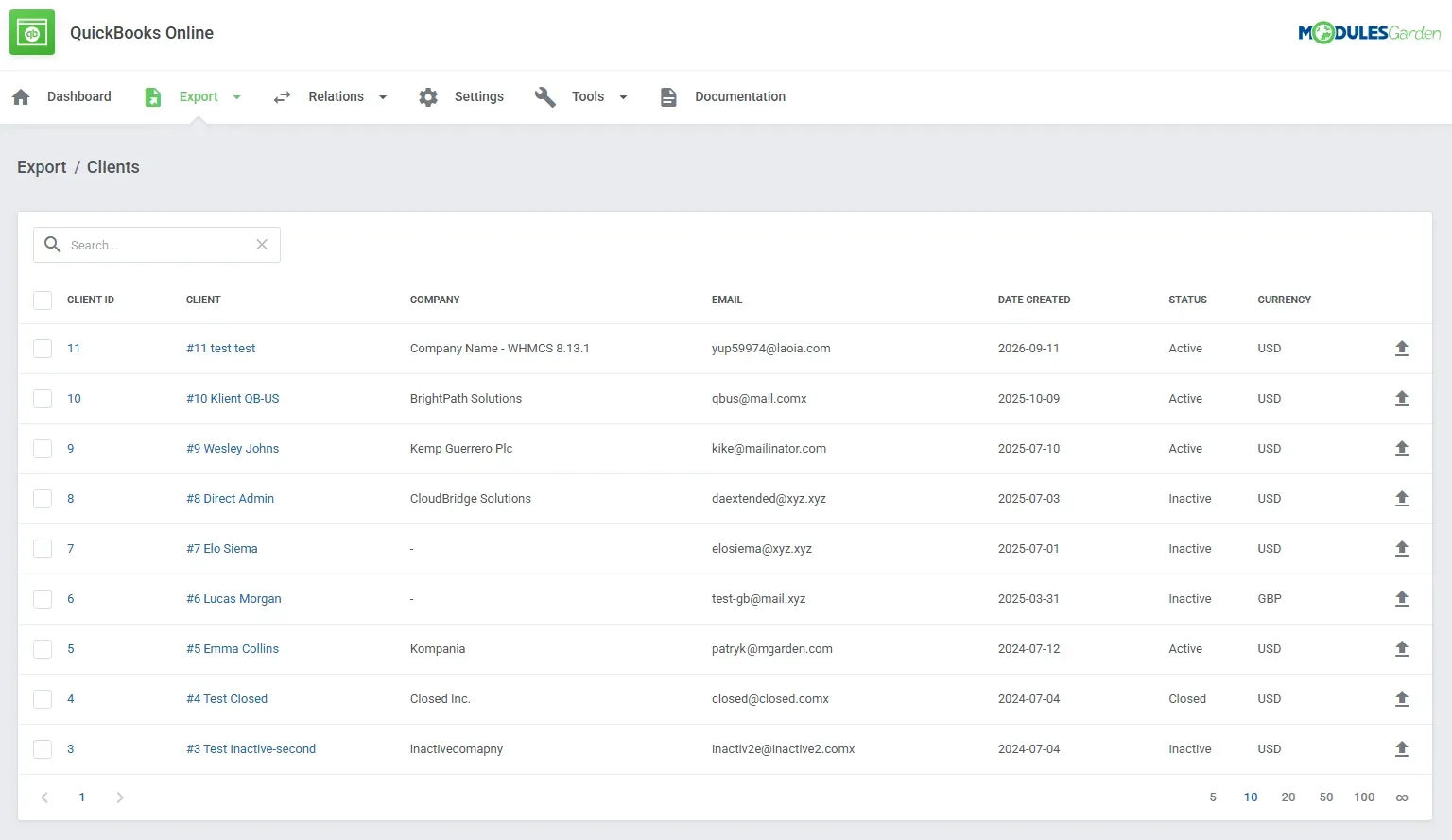
The integration covers more than invoice export. It can synchronize the billing records that make up the wider customer and payment workflow, including:
Products and services sold through WHMCS can be associated with the appropriate QuickBooks items. Relations are also available for clients, domains, addons, invoices, tax rules, payment gateways, transactions, and user credits.
Matching Records Without Creating Unnecessary Duplicates
WHMCS and QuickBooks Online do not always use identical names or structures. A hosting package in WHMCS, for example, may need to be connected to an existing item in QuickBooks rather than exported as a new one.
The module can establish relations automatically, and administrators can also review or match individual records themselves. Bulk matching remains available when a larger set of existing records needs to be processed at once.
A confirmed relation tells the module which WHMCS and QuickBooks records represent the same customer, product, invoice, or transaction. This helps preserve the accounting structure already in use and reduces unnecessary duplicates.
Automated Synchronization With Administrative Control
Administrators can select which data types should be handled automatically and use manual exports for records that require closer review. Synchronization activity is recorded in the module logs, where related entries, statuses, and operational details can be checked.
The module also includes controls for records changed outside the normal synchronization flow. An entity can be locked when a custom change made in QuickBooks Online should not be overwritten by a later update from WHMCS. When the WHMCS data should take precedence, an administrator can force the update instead.
Connecting An Existing QuickBooks Online Account
An integration does not have to begin with an empty QuickBooks Online account. Existing customers, invoices, and transactions can be imported into WHMCS, allowing established accounting records to be connected with the billing data already managed in WHMCS.
Combined with relation matching, entity locking, and forced updates, this gives administrators practical control when both platforms already contain related records.
What’s New In QuickBooks Online For WHMCS 2.0.0
Version 2.0.0 moves the module to a refactored framework and replaces its legacy interface with the layout used across the latest ModulesGarden products. The update also introduces several practical changes to everyday module administration.
The complete setup and configuration details are available in the QuickBooks Online For WHMCS documentation.
Connect WHMCS With QuickBooks Online
Synchronize billing data, maintain relations between corresponding records, and decide which operations should run automatically or remain under administrator control.



Comments