

# QuickBooks Online For WHMCS
Important: If you are upgrading QuickBooks Online For WHMCS from version 1.x to 2.0.0 or later, you must migrate the existing module data after completing the update.
Please refer to the Update Instructions for details.
# (opens new window) About QuickBooks Online For WHMCS (opens new window)
QuickBooks Online For WHMCS is responsible for data synchronization between your WHMCS system and QuickBooks Online.
The module lets you manage the integration of your clients' details, invoices, and transactions with the QuickBooks database.
Data can be synchronized manually as well as automatically with the use of cron job. Thanks to logs you will be able to preview all information on exported data.
# Installation
This tutorial will show you how to successfully install and configure QuickBooks Online For WHMCS. (opens new window)
We will guide you step by step through the whole installation and configuration process.
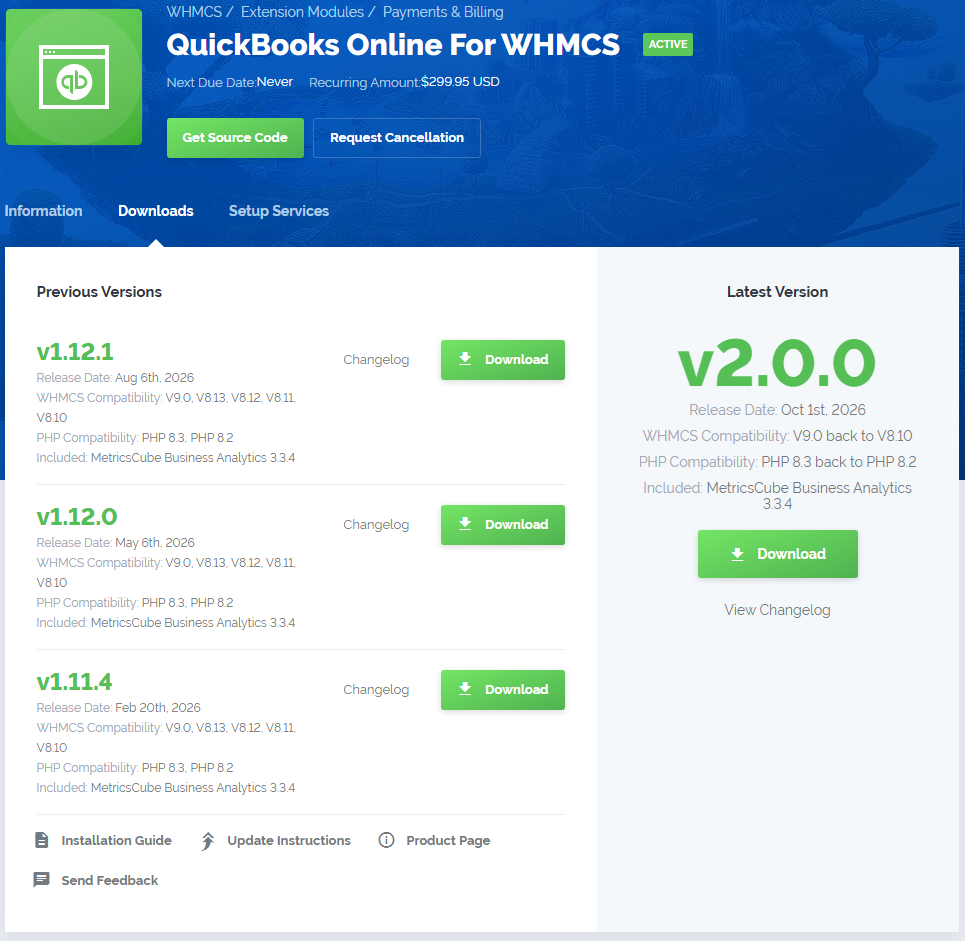
- Log in to our client area and download the module.
Extract the package and upload its content into the main WHMCS directory.
The content of the package to upload should look like this.
When you install QuickBooks Online For WHMCS for the first time you have to rename the 'license_RENAME.php' file.
The file is located in 'modules/addons/QuickBooks/license_RENAME.php'. Rename it from 'license_RENAME.php' to 'license.php'.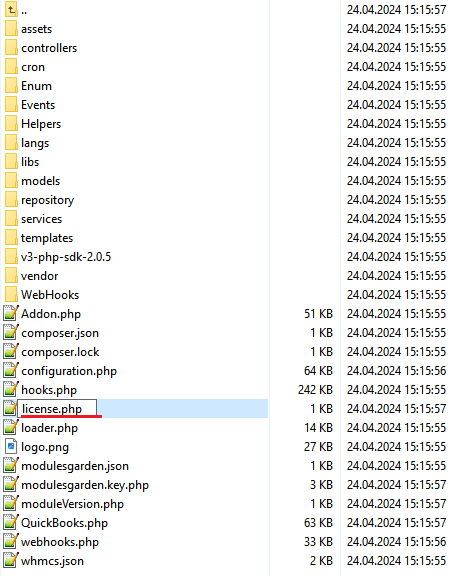
In order to configure your license key, you have to edit the previously renamed 'license.php' file.
Enter your license key between quotation marks as presented on the following screen. You can find your license key in our client area → 'My Products'.
Now you have to activate the module in your WHMCS system.
Log in to your WHMCS admin area. Go to 'Setup' → 'Addon Modules'. Afterwards, find 'QuickBooks' and press the 'Activate' button.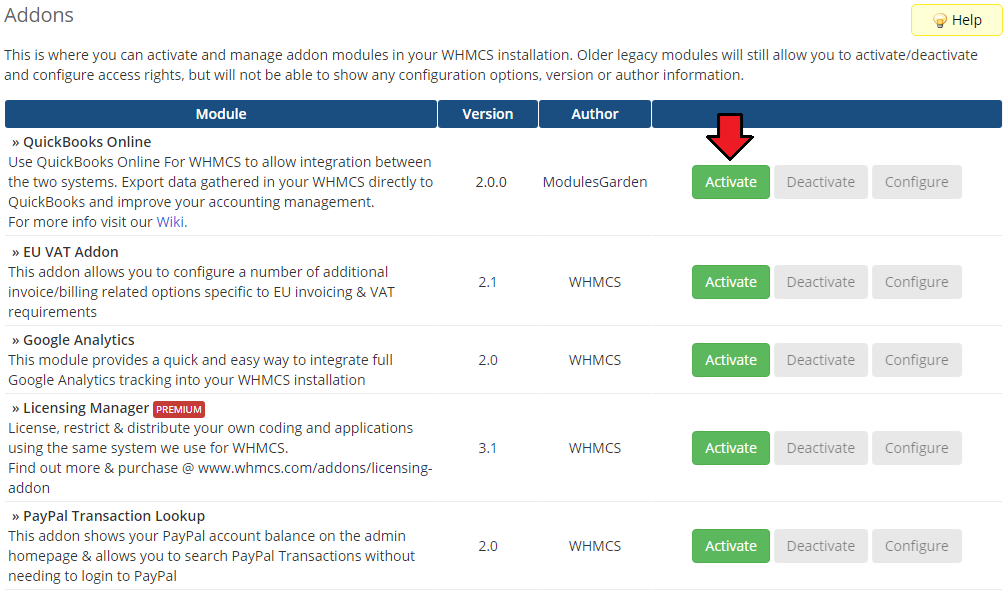
In the next step, you need to permit access to this module.
To do so, click on the 'Configure' button, check the required group of administrators, and press 'Save Changes'.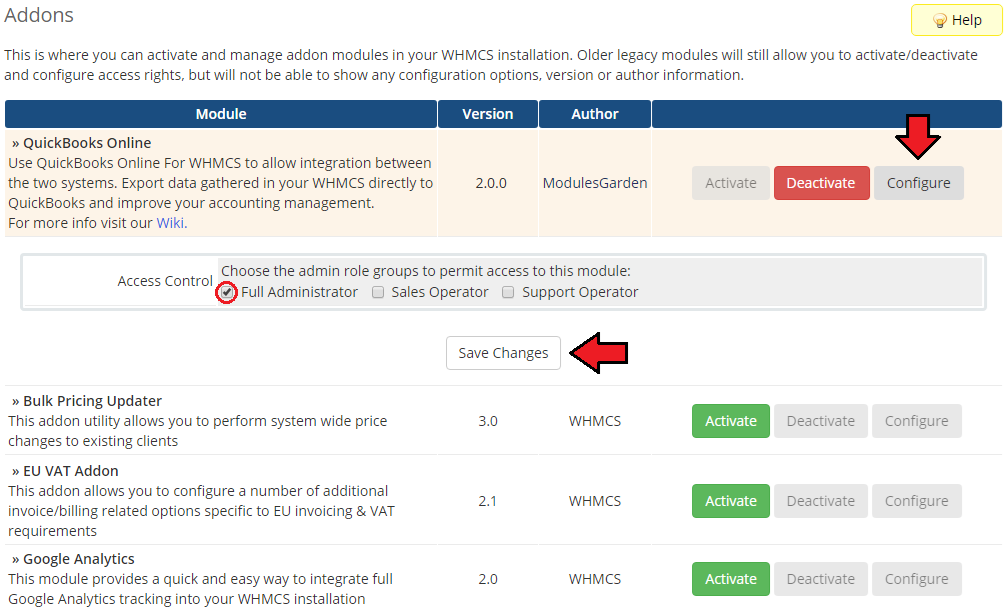
You have just successfully installed QuickBooks Online For WHMCS!
You can access your module under 'Addons' → 'QuickBooks'.
# Configuration and Management
QuickBooks Online For WHMCS is a module that allows you to export any data on clients, invoices, and payments directly to QuickBooks.
Read the below manual to learn about all the possibilities that the module offers.
# API Keys
Before you move to the essential configuration of the module, you need to generate some data directly in QuickBooks. Please follow the steps below.
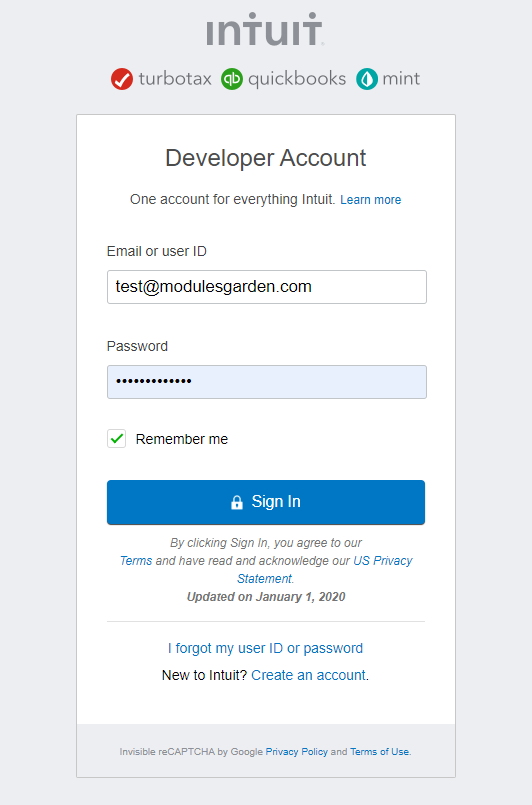
Log in to: https://developer.intuit.com/
Use your QuickBooks account details to sign in.
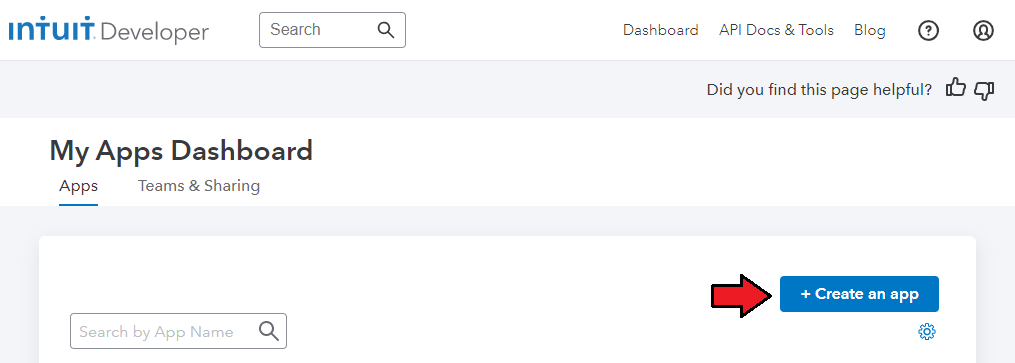
- Once you are logged in, move to 'Dashboard' and find the 'Apps' tab on the 'My Apps Dashboard', press 'Create an app'.
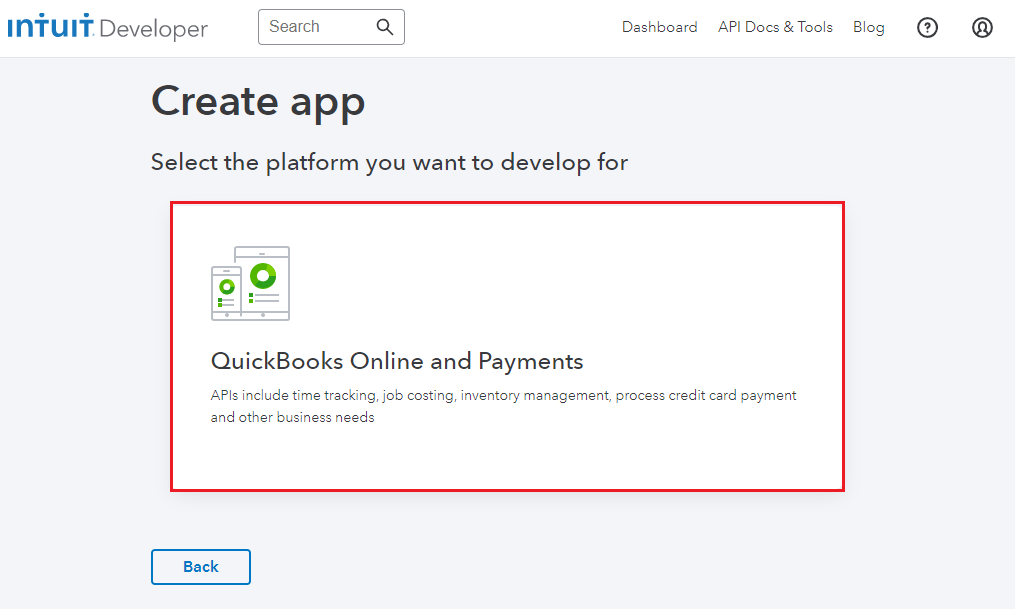
- Select the following platform: 'QuickBooks Online and Payments'.
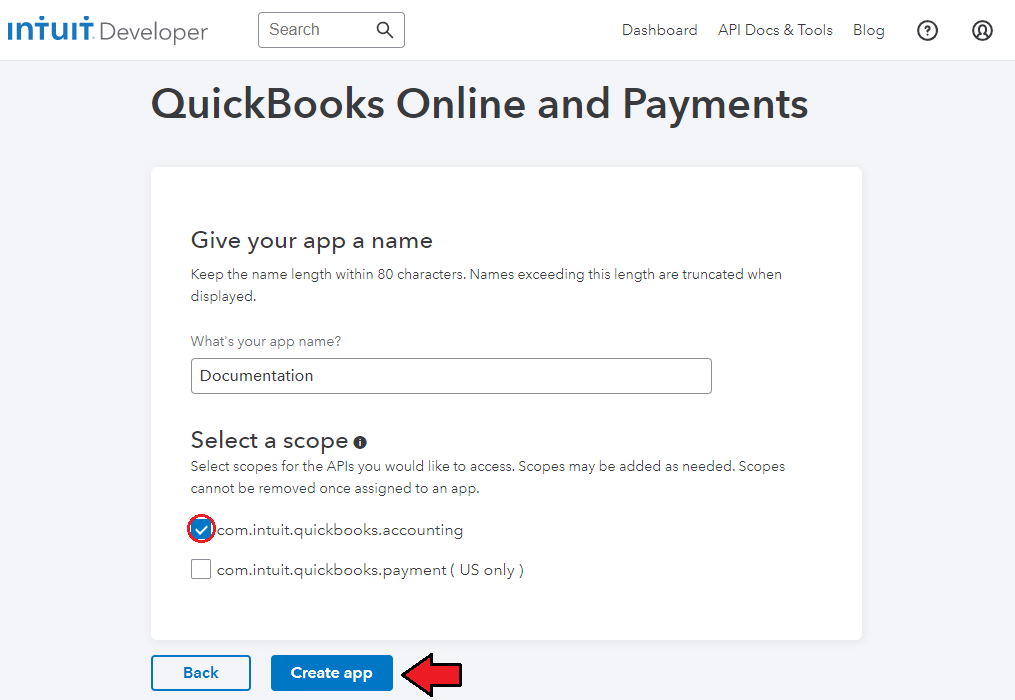
- Then provide a name of your app and choose the 'Accounting' scope on the list.
Now, go to the 'Production Settings' tab and provide the 'End User License Agreement URL' along with 'Privacy Policy URL' in the 'Terms of Service Links' section.
- Fill out domain and applicable URLs in 'App URLs' section.
- Categorize your application
- Tell about regulated industries that use your application
- Define the country where your app is hosted
Save the changes when all data is provided.
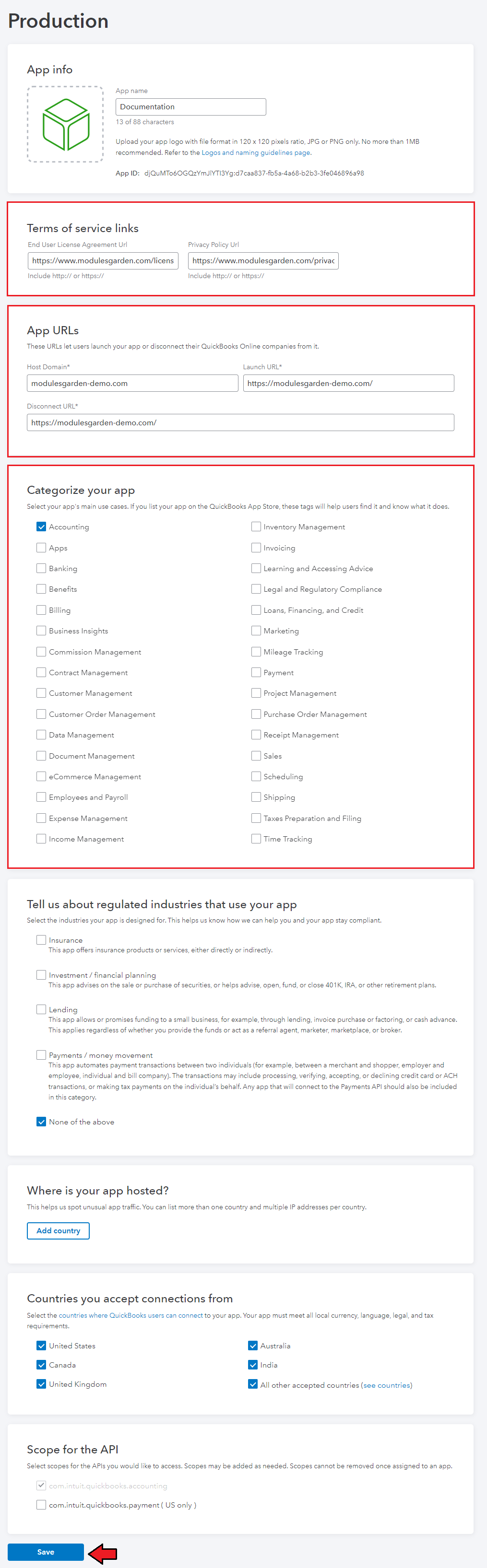
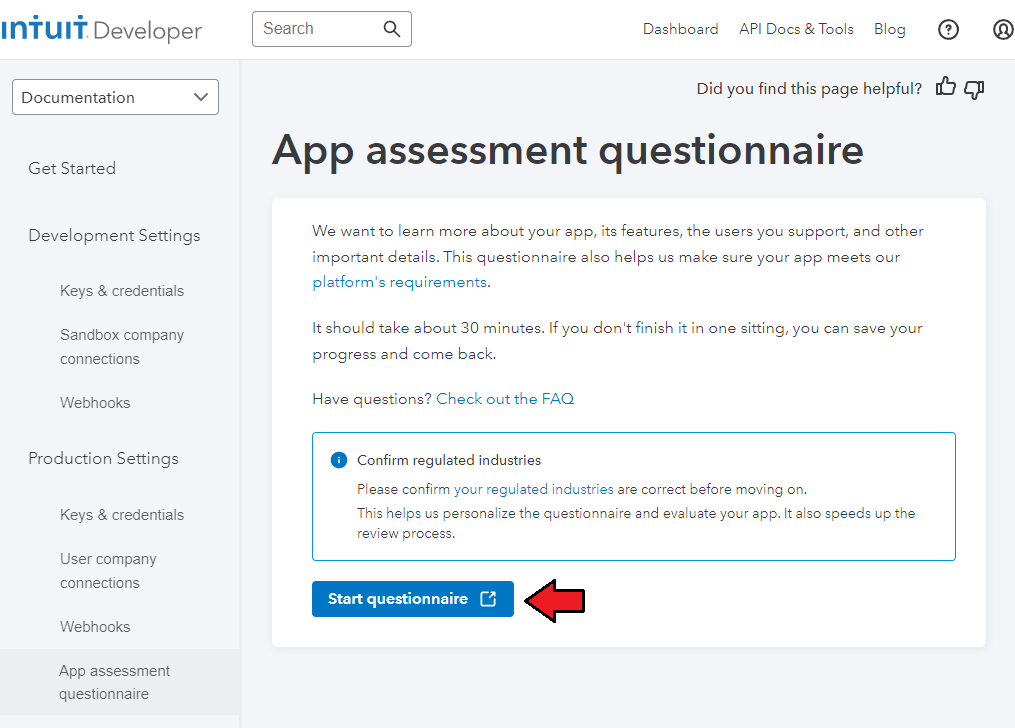
Then, proceed to the 'Keys & Credentials' section where you will be asked to fill out a 30-minute questionnaire.
Only once ready you will get access to your Keys & Credentials section.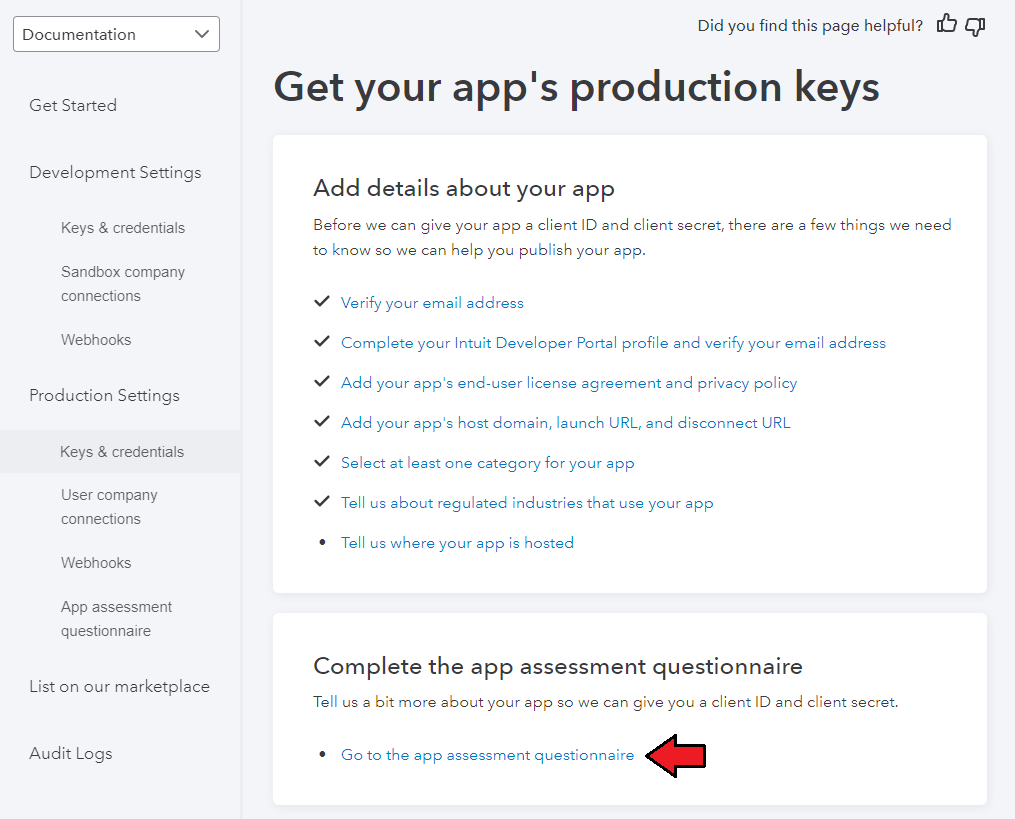
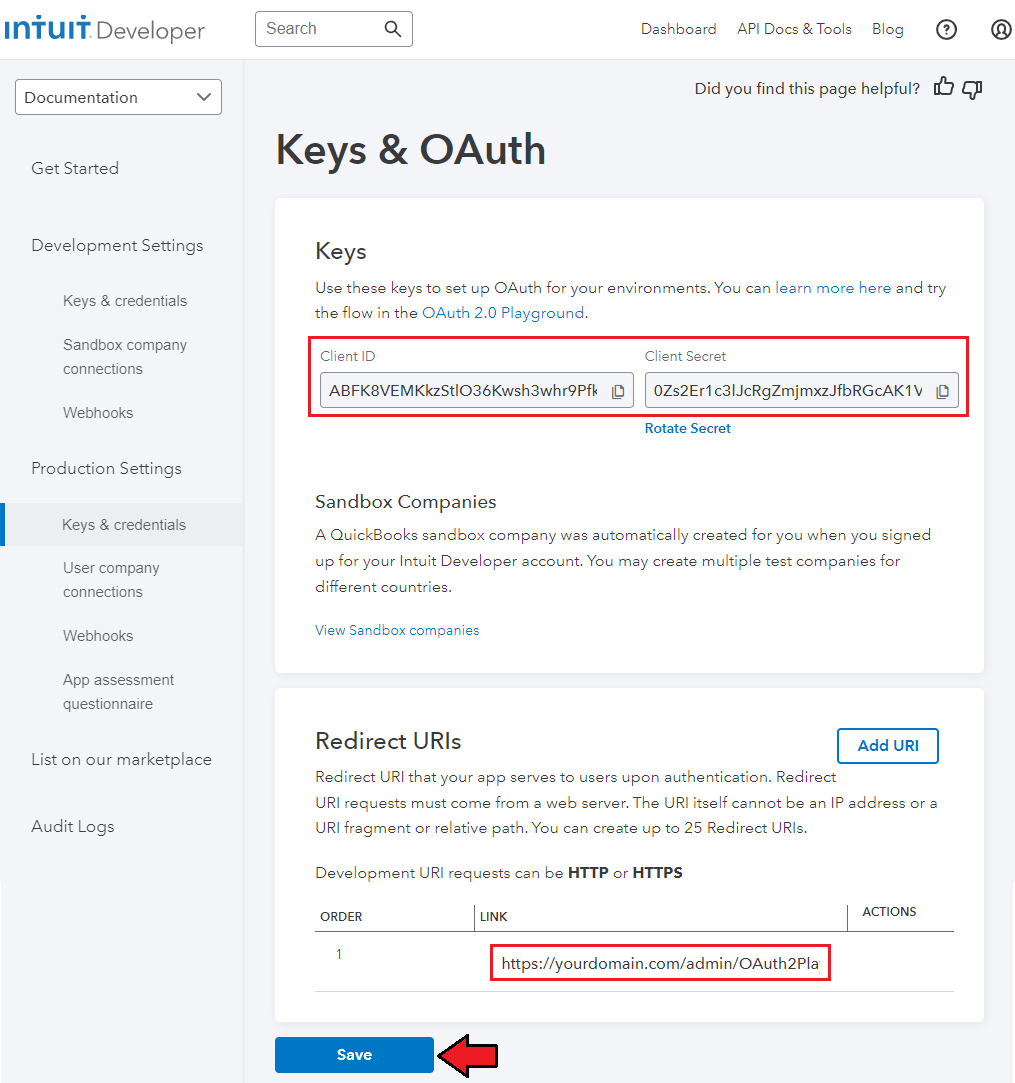
You need to provide a proper callback QuickBooks URI from your WHMCS installation in the following format:
https://yourdomain.com/admin/addonmodules.php?module=QuickBooks&mg-page=Configurations&mg-action=callbackOauth2Note that your 'admin' folder might have a different name than the default one. The provided URL also has to start with https://. You will find the already customized address in your module configuration.
Keep in mind that the presented URLs are only exemplary and you need to use the details provided in your QuickBooks Online panel.
The Launch URL and Disconnect URL fields are optional since the module does not use them.Note that your application data need to be complete to make it work on the production mode.
In this section, you will also find- Client ID
- Client Secret
These keys are very important, you will need them in the very next step of the module configuration. Please keep them safe.
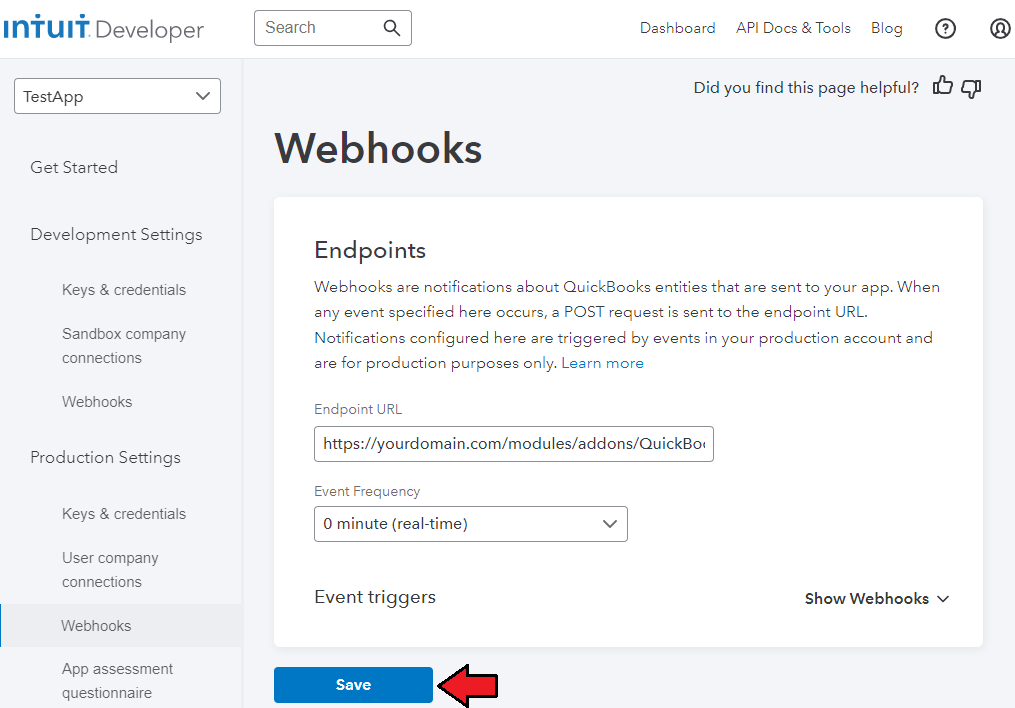
Now move to the 'Webhooks' tab.
Here you will have to generate a token that will be used to enable Webhooks for synchronization.
First of all, provide a valid Endpoint URL to the 'webhooks.php' file. That is what such a URL may look like. Please remove 'yourdomain.com' and insert your actual address.https://yourdomain.com/modules/addons/QuickBooks/webhooks.phpThe provided URL has to start with https://. Then select the required events that will be triggered.
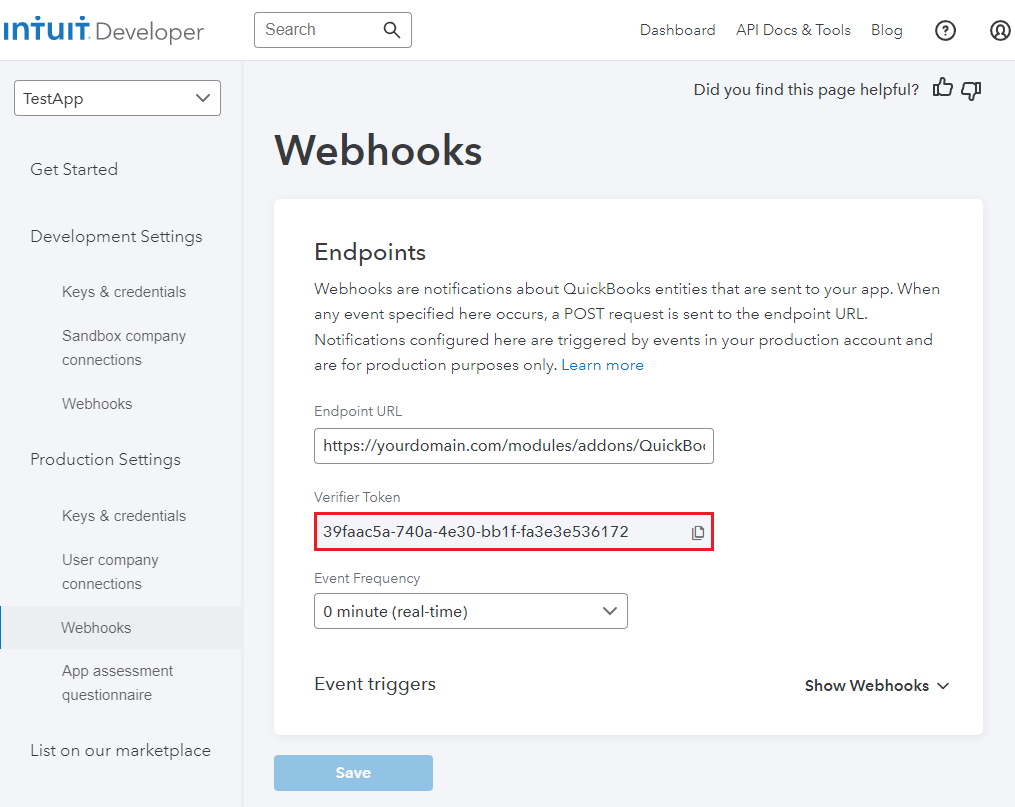
- Copy adequate Verifier token.
It will be necessary during the module configuration.
# Configuration
In order to configure your module properly, proceed to 'Addons' → 'QuickBooks Online' → 'Configuration'.
Start with API configuration, since this part is very basic and absolutely necessary to take any further steps.
Currently, your 'Connection Status' is 'Not Connected'. In order to establish a connection with QuickBooks Online, type in all the previously generated data.
It will allow the module to authenticate your identity in QuickBooks system and let your WHMCS connect with it.
These are your QuickBooks keys that you have generated in the previous step:- Client ID
- Client Secret
- Sandbox - if you have used 'Production' to generate 'Keys,' unmark this checkbox.
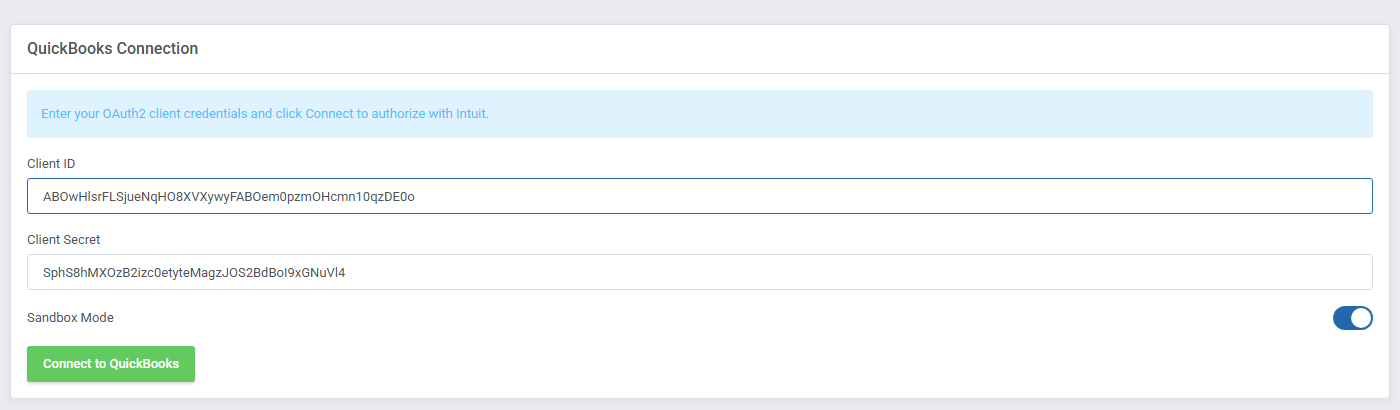
If the entered data are correct, you will be redirected to QuickBooks where you will have to agree to authenticate the connection.
Only then the connection status in your module will change to 'Connected,' the data on your company will be automatically downloaded from QuickBooks and filled out here.
From now on, you will be able to use your QuickBooks Online For WHMCS module.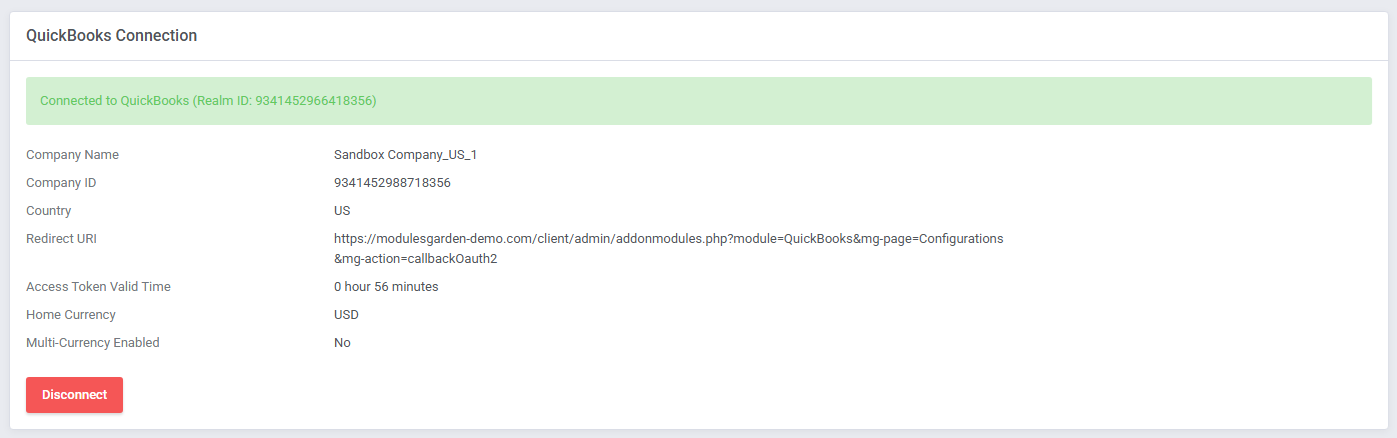
You have to do this step only once. Entering the token and consumer keys will not be required again, even if the module is deactivated in the meantime.
Webhooks Token - enter the token to maintain synchronization.
Use the token generated as explained in steps 8 and 9 in the API Keys section.
Keep in mind that you must use an adequate token. 'Development' Webhooks - when sandbox is used and 'Production' Webhooks token when used in the live environment.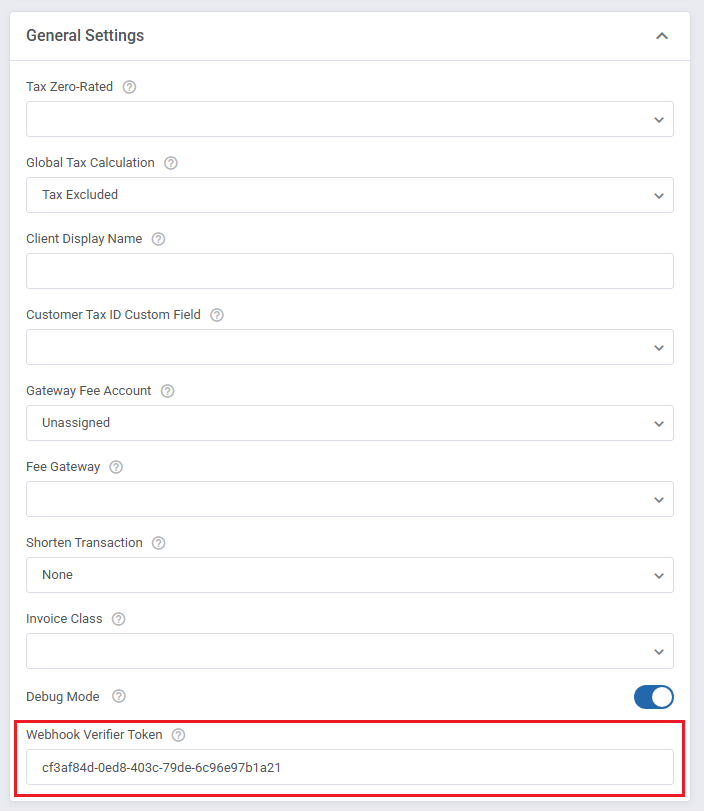
Cron Configuration - configure the cron jobs used to synchronize data between WHMCS and QuickBooks Online.
Export Data
The export cron synchronizes WHMCS clients, invoices, payments, and credits with QuickBooks Online. Run it periodically, for example, every 15 minutes.
php -q /yourWHMCS/modules/addons/QuickBooks/cron/cron.php quickbooks:exportYou can optionally use the
--fromparameter to limit the export of invoices and credits to those created on or after a specified date (YYYY-MM-DD).For example:
php -q /yourWHMCS/modules/addons/QuickBooks/cron/cron.php quickbooks:export --from=2018-01-01Import Data
The import cron allows you to import existing QuickBooks Online records into WHMCS and synchronize unpaid WHMCS invoices that have been paid in QuickBooks Online.
To synchronize payments for unpaid invoices, use:
php -q /yourWHMCS/modules/addons/QuickBooks/cron/cron.php quickbooks:import --type=syncInvoicesUnpaidThis command synchronizes the corresponding payments and invoice statuses in WHMCS. For other import operations and available types, refer to the Importing QuickBooks Items section.
Refresh Access Token (Optional)
The module automatically refreshes the access token required to communicate with the QuickBooks Online API. You can also configure the following cron job as an additional safeguard:
php -q /yourWHMCS/modules/addons/QuickBooks/cron/cron.php quickbooks:refresh-tokenFailure Notifications (Optional)
To receive email summaries of synchronization failures, configure the following cron job:
php -q /yourWHMCS/modules/addons/QuickBooks/cron/cron.php quickbooks:notificationsRun it hourly or daily, depending on the interval selected in the 'Failure Notifications' settings.
Note: Replace
/yourWHMCS/with the actual path to your WHMCS installation.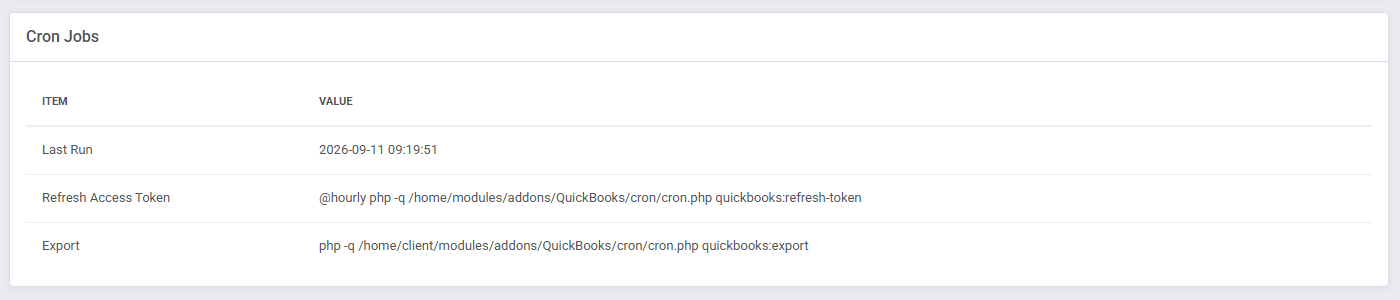
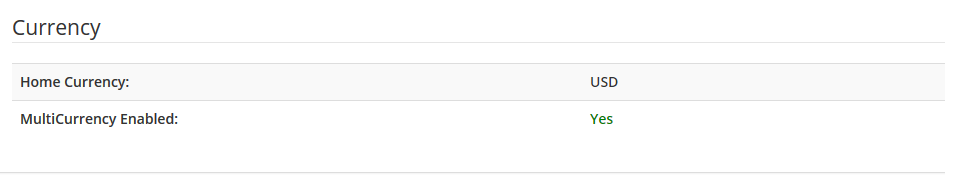
Multi-Currency configuration.
If the connection with QuickBooks has been set up properly, currency details will be visible.- View Home Currency
- MultiCurrency status
The above data are synchronized with your QuickBooks account.
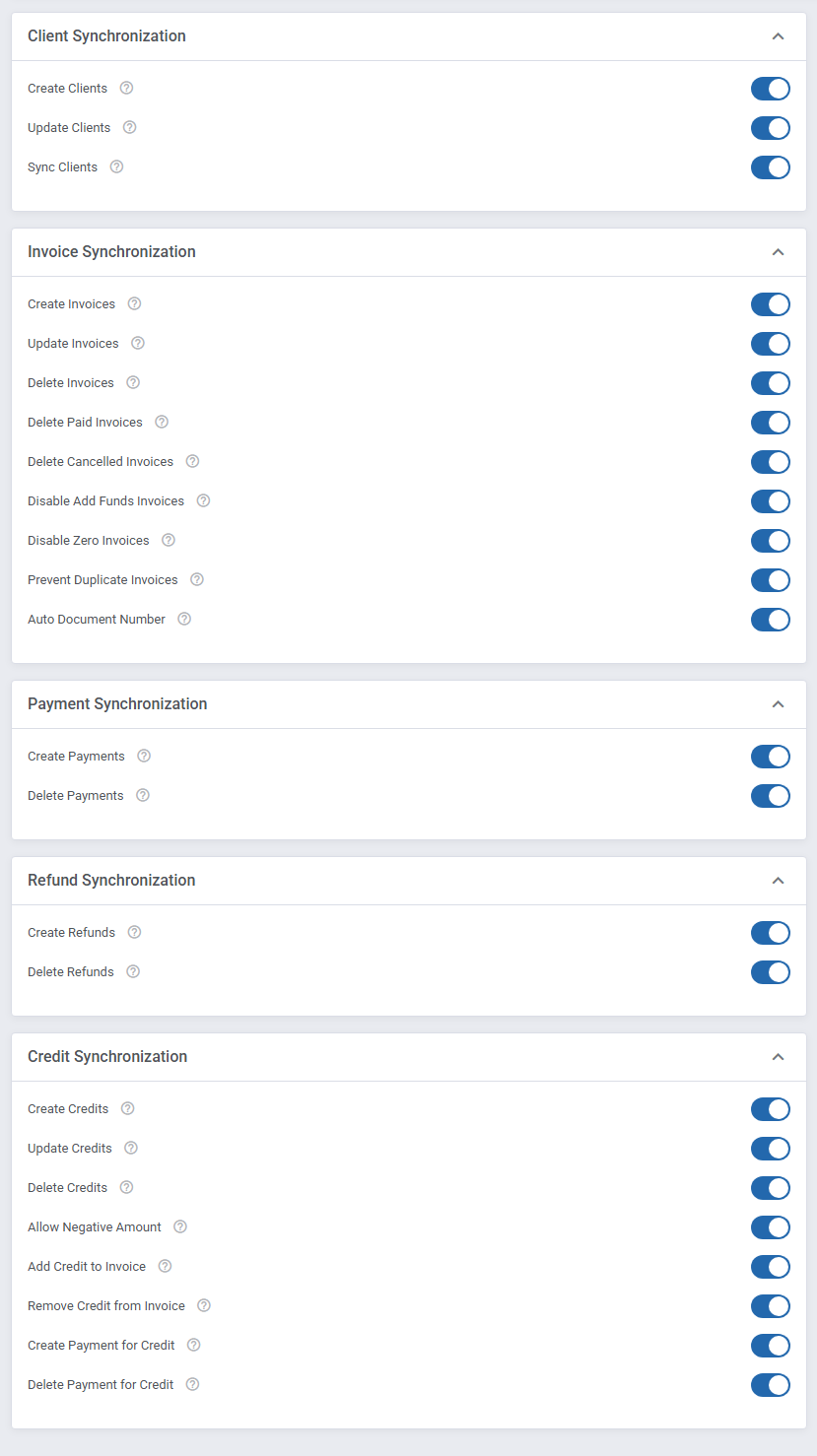
Synchronization Settings - decide which of the possible synchronization options you want to enable.
Simply tick the ones you are interested in.
There are:
Clients synchronization:
- Create Clients - performed on the client's creation
- Update Clients - takes place when the client account has been updated
- Sync Clients - when selected, the client status in QuickBooks will be automatically changed to the corresponding one after that has been changed in WHMCS
Invoices synchronization: - Create Invoices - performed on invoice creation
- Update Invoices - takes place when an invoice has been updated or altered
- Delete Invoices - takes place when an invoice has been deleted
- Delete Paid Invoices - takes place when a paid invoice is deleted
- Delete Cancelled Invoices - tick to remove the already canceled WHMCS invoices from QuickBooks Online
- Disable Add Funds Invoices - if checked, the synchronization of 'Add Funds' (Add Credit) invoices will be disabled
- Disable Zero Invoices - if checked, the synchronization for invoices that amount to 0 will be disabled
- Prevent Duplicate Invoices - this option will block the attempt to send the WHMCS invoice to QuickBooks if the same invoice ID already exists in the QuickBooks Online panel.
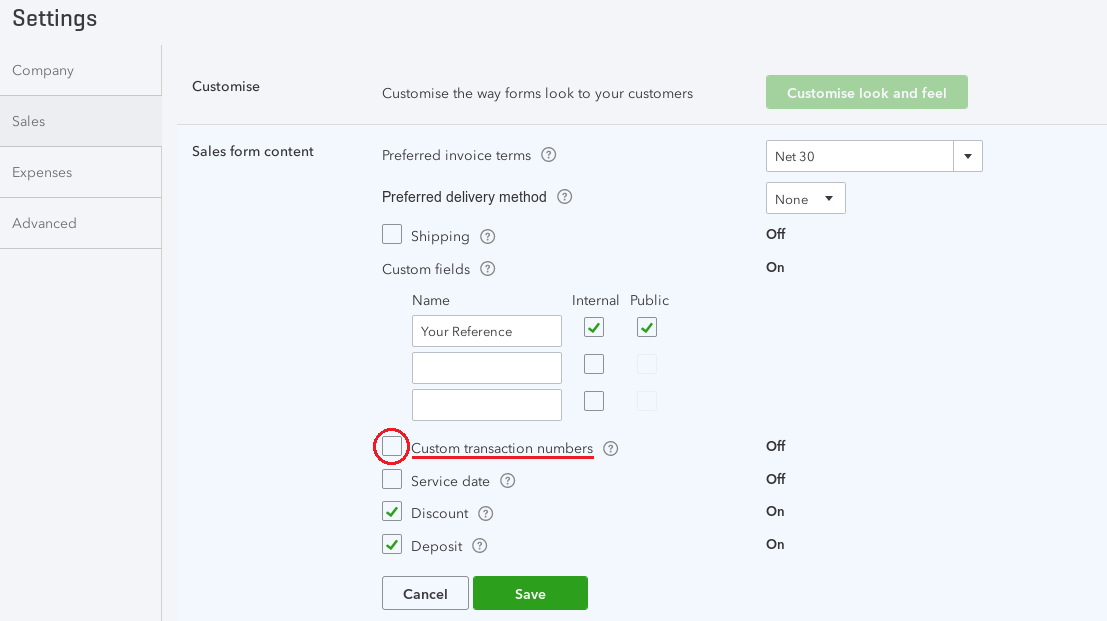
This option should not be used in case there are more than one WHMCS or other systems synchronized with the single QuickBooks Online account as well as the 'Synchronize Invoice Number' option cannot be selected. - Auto Document Number - before assigning the next subsequent WHMCS invoice number, the module will first export that invoice to QuickBooks, where the subsequent invoice number will be generated by QuickBooks itself.
This number will be then assigned as the subsequent number to the WHMCS invoice. To use this invoice synchronization with QuickBooks, the 'Custom transaction numbers ' option located in 'Settings' → 'Sales' of QuickBooks Online configuration panel must be disabled.
Moreover, this option also cannot be used along with the 'Prevent Duplication' feature of module configuration. Thanks to this feature you can also use the module along with more than one WHMCS or other systems synchronized with the single QuickBooks Online account.
Payments synchronization: - Create Payments - performed when a transaction has been completed
- Delete Payments - takes place when a transaction has been deleted by an admin
Refunds synchronization: - Create Refunds - performed when a refund has been completed
- Delete Refunds - takes place when a refund has been deleted by an admin
- Please note that both payments and refunds are handled together and are displayed as one point on the dashboard called 'Payments'
Credit synchronization: - Create Credits - performed when the invoice credit has been created
- Update Credits - synchronization is performed when the credit is updated via the "Manage Credits" option
- Delete Credits - synchronization when the credit is deleted via the "Manage Credits" option
- Allow Negative Amount - synchronization of negative amount of credits
- Add Credit to Invoice - synchronization when the credit is added to the invoice
- Remove Credit from Invoice - synchronization when the credit is removed from the invoice
- Create Payment for Credit - a payment to deposit is created in QuickBooks when the invoice credit is created
- Delete Payment for Credit - the payment to deposit is deleted from QuickBooks when the invoice credit is deleted in the admin area
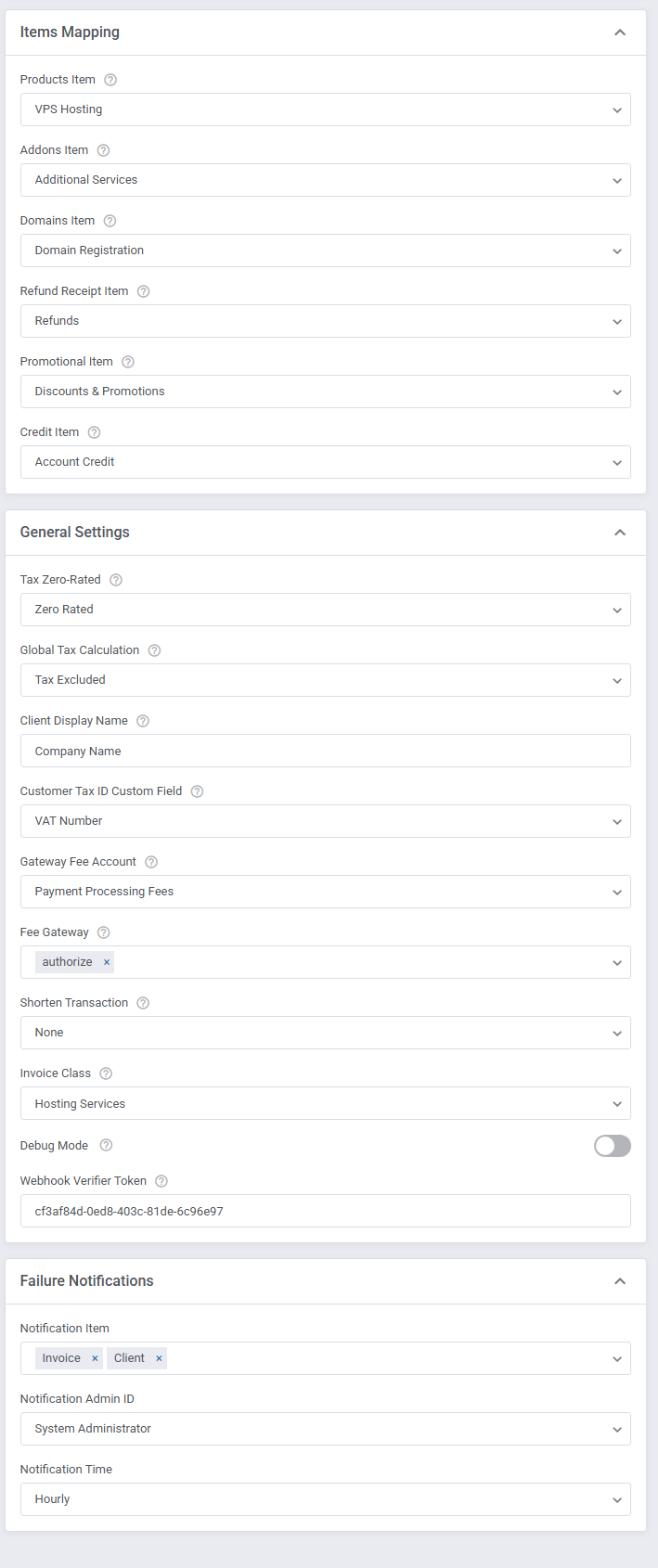
Apart from choosing required synchronization options, you have to decide which items from QuickBooks, 'Products ', 'Addons', 'Domains', 'Refund Receipt & Credits Item' and 'Promotional Item' will be associated with.
Note: Default Product will be used only when there is no relation set for the selected product in 'Relation: Product' section.
Choose other options from the dropdown menu to set up.
- Tax Zero-Rated - used when a charged item is not taxed
- Tax Type
- Tax Excluded - tax is added to the price
- Tax Included - price includes the tax
- Not Applicable
Note: Keep in mind that by default there is a WHMCS tax type pre-selected.
- Client Display Name - use available tag fields to adjust the displayed name view.
- Customer Tax ID Custom Field - select the custom field with Tax ID value, it will be synchronized with the QuickBooks "Tax Registration Number" field
- Gateway Fee Account - define the relation between WHMCS transaction fees and the QuickBooks deposit account. For more info on bank deposit configuration please refer to this article (opens new window).
- Fee Gateways - Select single gateways that will be excluded from transaction fees. If a client pays with a payment gateway other than chosen here, transaction fees will be added to the account selected in the above-mentioned Gateway Fee Account.
Leave this field blank to enable fee deposits for all gateways. - Shorten Transaction - select this option to cut every payment Transaction ID that is longer than 21 characters (limit of signs allowed by QuickBooks Online).
In case the transaction ID in WHMCS is longer, it will be cut to allow successful export of such transaction. - Invoice Class - select a QuickBooks class to assign to invoices, which allows you to categorize financial transactions by department, location, or project; choose "None" to leave invoices without a class (selected by default).
- Debug Mode - if selected, logs will be stored in the ' Module Log' section
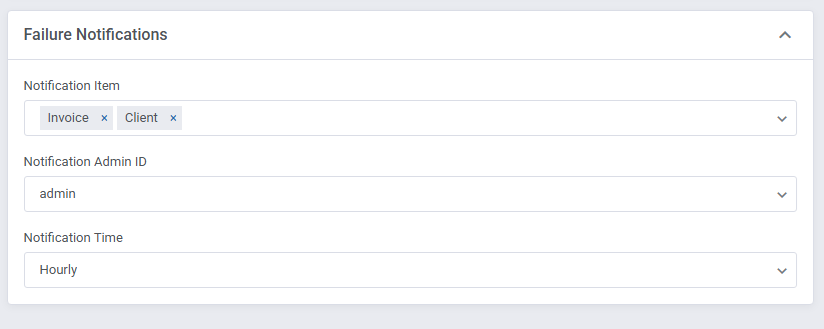
Thanks to 'Failure Notifications,' you can select an administrator who will receive email summaries of synchronization failures for the selected items.
Note: To enable these notifications, you must also configure the following cron job to run hourly or daily, depending on the selected 'Time' option:
php -q /yourWHMCS/modules/addons/QuickBooks/cron/cron.php quickbooks:notifications
Remember to 'Save Changes' when your configuration is ready.
# Management
In this section, we will show you the possibilities of QuickBooks Online For WHMCS.
Once the module has been properly connected with QuickBooks and the entire configuration is complete, we can move on to the 'Export' section.
# Export
Our module enables several ways to export any data gathered in your WHMCS.
Read the below points to learn what data can be synchronized with QuickBooks and what are the possible means of such synchronization.
# Clients
The first option offered by our module is the export of clients from WHMCS to QuickBooks, proceed to 'Export' → 'Clients'. If you are using QuickBooks Online For WHMCS for the first time, you will see here a list of all clients who exist in your WHMCS and have not been synchronized with QuickBooks yet.
You can manually export all of the clients available on the list or choose only some of them. Check boxes next to the clients you are going to export and press the 'Export Selected to QuickBooks' button.
If you want to export only one client you can do it by pressing the 'Export' button located in the 'Action' column next to the name of the client.
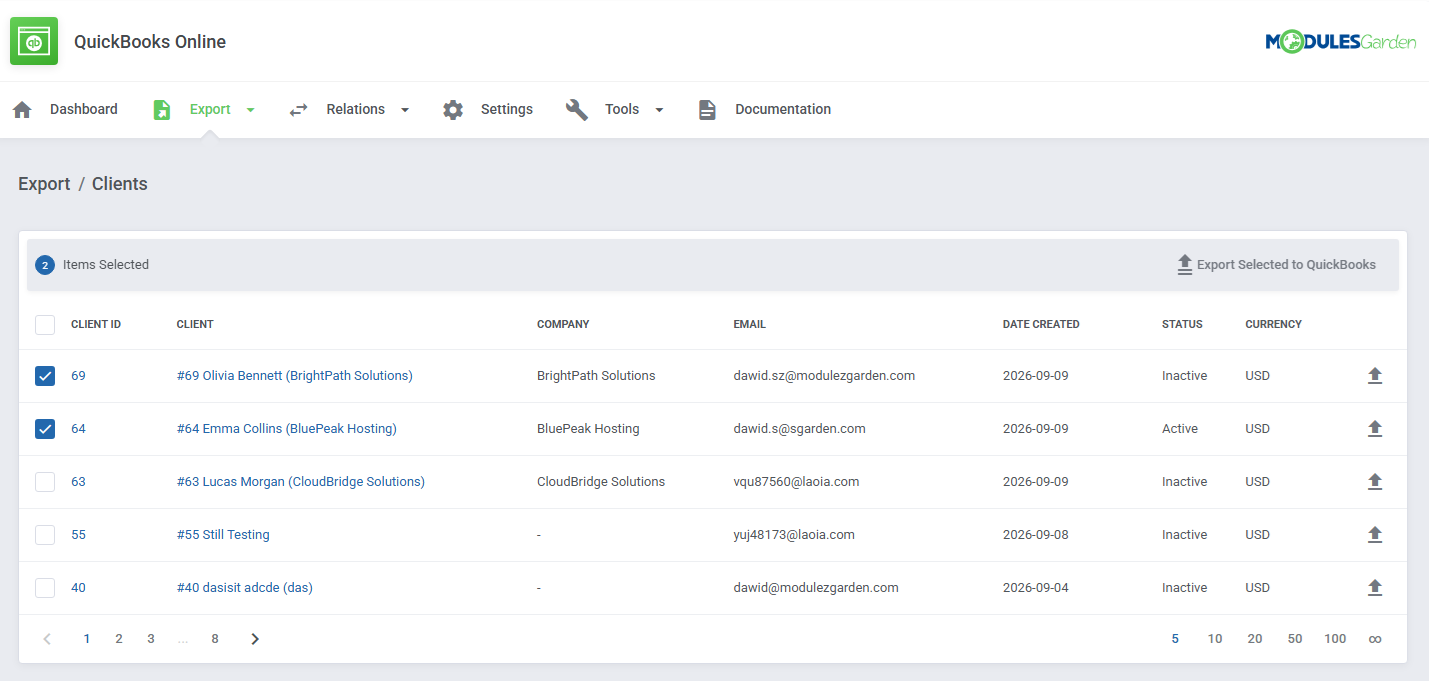
If a client has already been exported from WHMCS to QuickBooks, they will no longer be visible on the list. All clients newly added to WHMCS will be automatically synchronized with QuickBooks, unless set otherwise in 'Synchronization Settings'.
# Invoices
The other choice is the export of invoices.
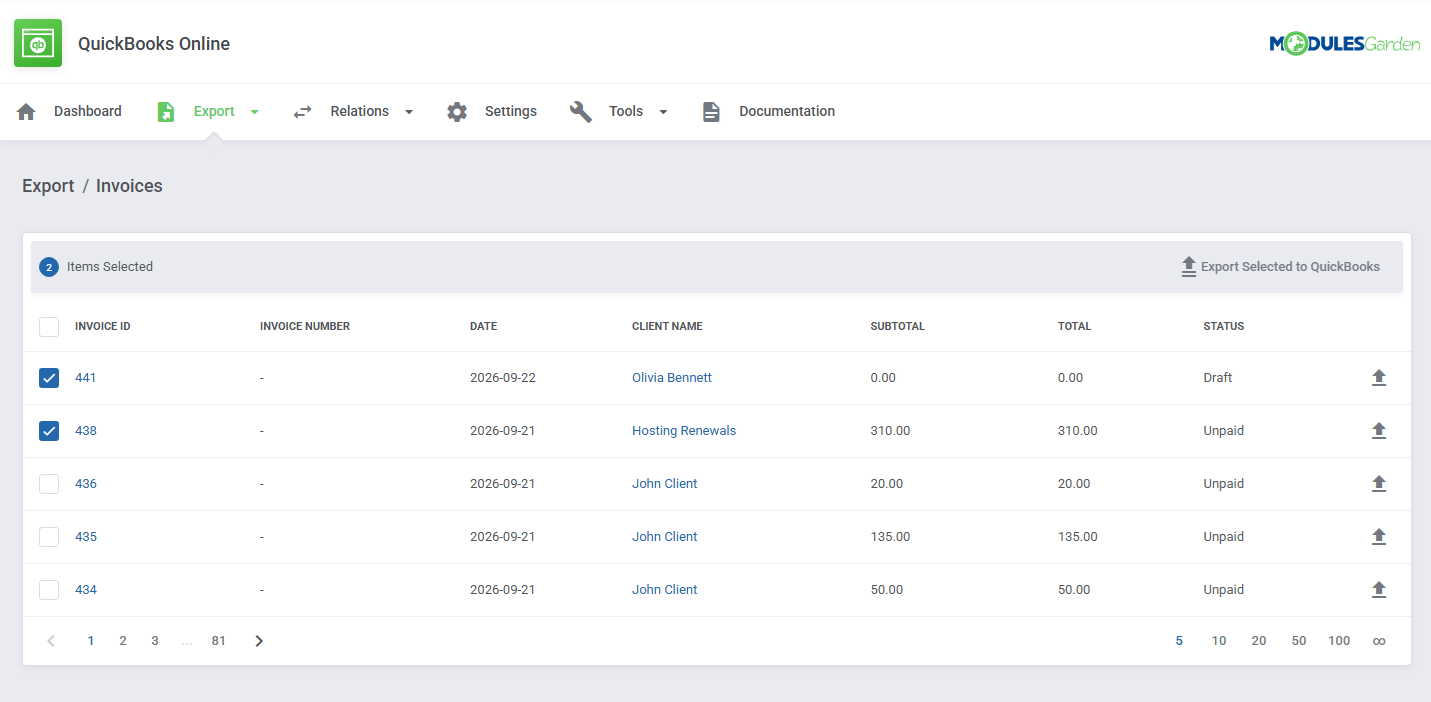
Proceed to 'Export' → 'Invoices' and you will find a list of all invoices existing in our WHMCS that have not been synchronized with QuickBooks yet.
In details, you will find the information on the invoice:
- ID
- date when it was created
- client assigned to the invoice
- status
- a total sum.
Just like in case of clients:
- perform mass export of all checked invoices
- export individual invoices to QuickBooks.
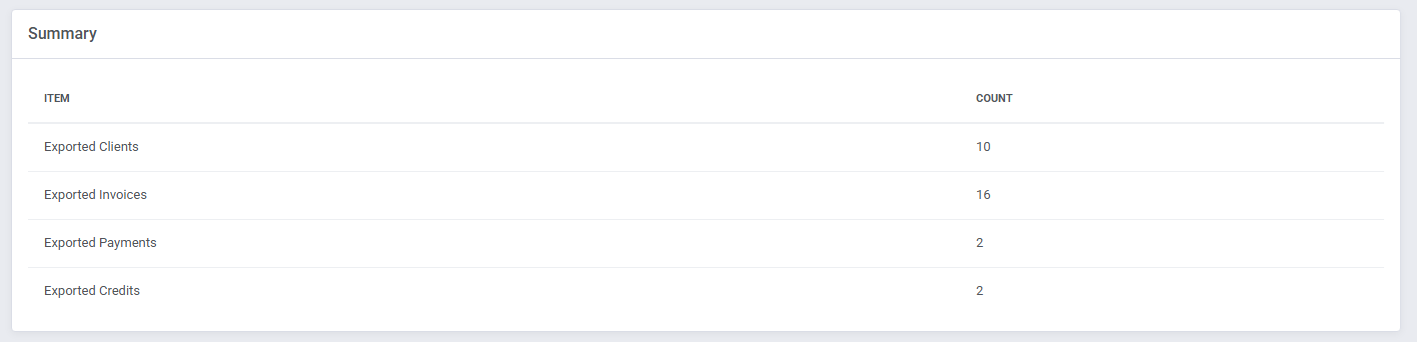
Once you have exported some of the invoices, you will see their number along with the number of any transactions connected with them in the 'Summary' table on the dashboard.
Keep in mind that all invoices added after the first usage of QuickBooks Online For WHMCS are automatically synchronized and exported to QuickBooks unless otherwise stated in 'Synchronization Settings'.
# Transactions
The next choice is the export of transactions.
Proceed to 'Export' → 'Transactions' and find a list of all transactions in our WHMCS that have not been synchronized with QuickBooks yet.
Note: Only transactions with already exported invoices are on the list of available to export.
In details, you will find the information on the transaction:
- ID
- Client assigned
- Date when it was created
- Payment Method
- Description
- Amount In and Out
- Fee
Allowed actions:
- perform mass export of all checked transactions
- export individual transactions to QuickBooks.
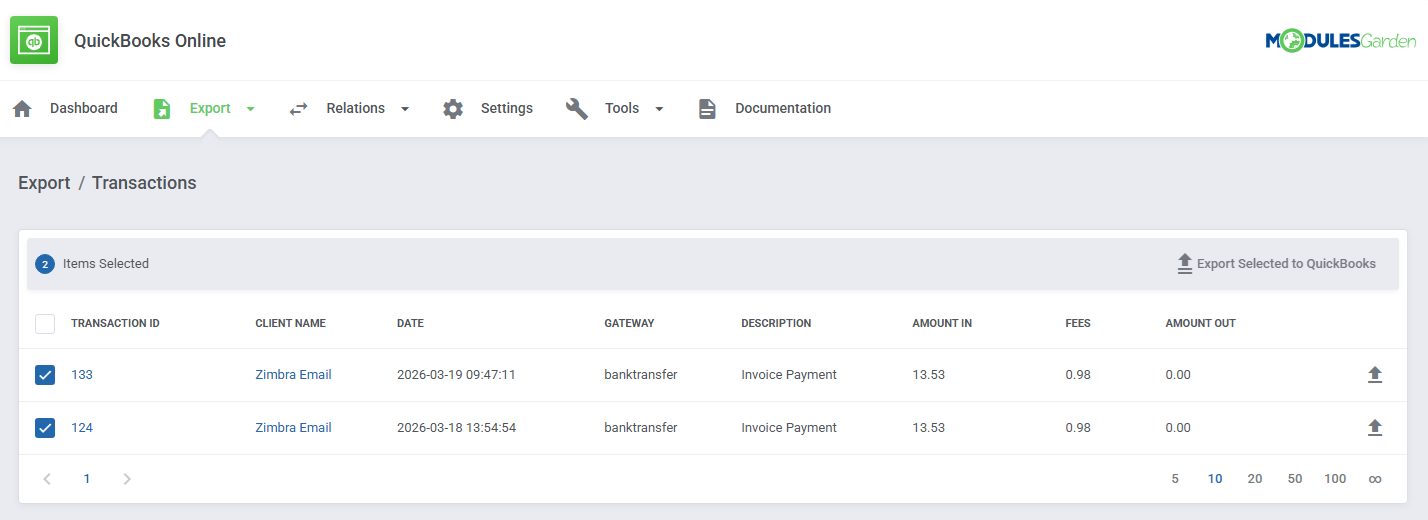
Keep in mind that all transactions added after the first usage of QuickBooks Online For WHMCS are automatically synchronized and exported to QuickBooks unless otherwise stated in 'Synchronization Settings'.
# User Credits
Finally, the last section is dedicated to managing relations between WHMCS user credits and their QuickBooks equivalents. Proceed to 'Export' → 'User Credits' and find a list of credits per user, existing in your WHMCS that have not been synchronized with QuickBooks yet.
In details, you will find the information on:
- ID
- Amount
- User First and Last name
- Company name
- Date of creating
- Associated currency
Allowed actions:
- perform mass export of all checked user credits
- export individual user credits to QuickBooks.
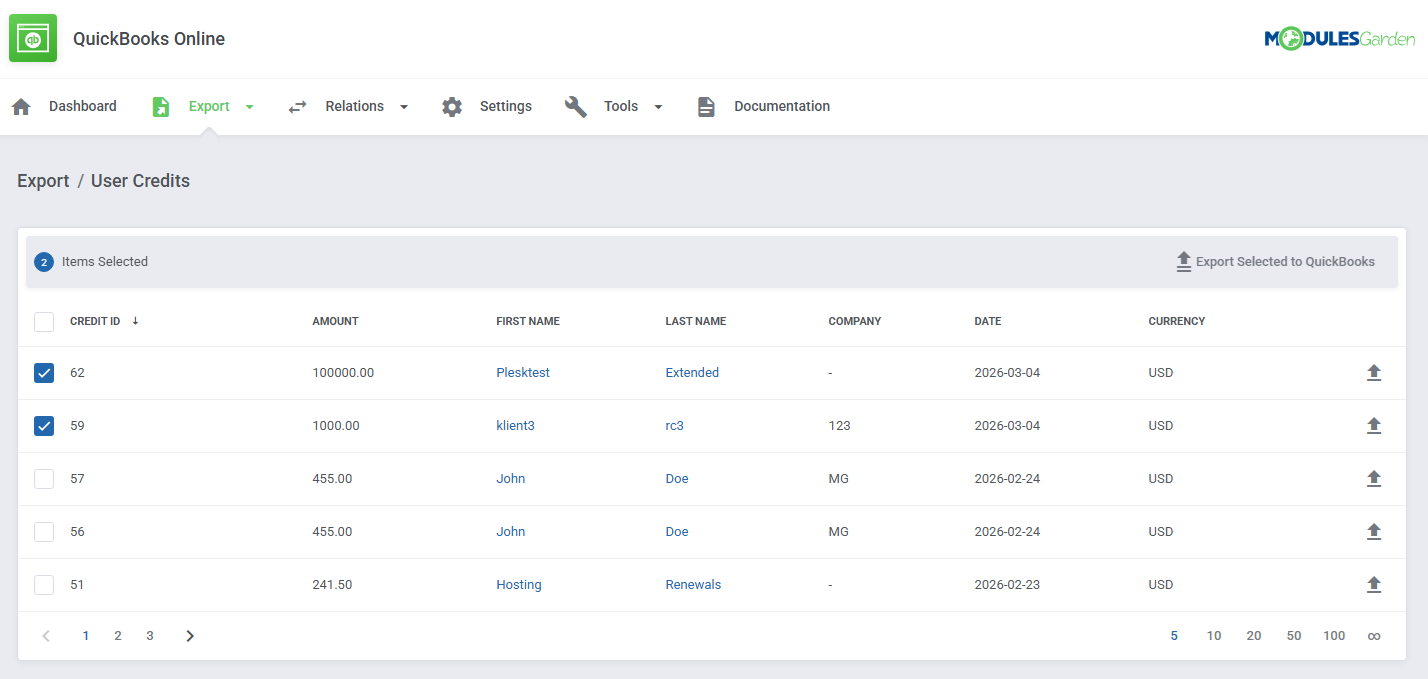
Keep in mind that all user credits added after the first usage of QuickBooks Online For WHMCS are automatically synchronized and exported to QuickBooks unless otherwise stated in 'Synchronization Settings'.
# Relation
It is possible to manually declare relations between WHMCS clients, products as well as invoices and corresponding to them QuickBooks elements.
This feature is especially helpful when you need to avoid confusion and misunderstandings.
Please note that this is an extra option, which gives the possibility to configure relations either manually or automatically.
# Relation: Clients
The first possible relations to be declared are relations of WHMCS clients towards the client's account in QuickBooks.
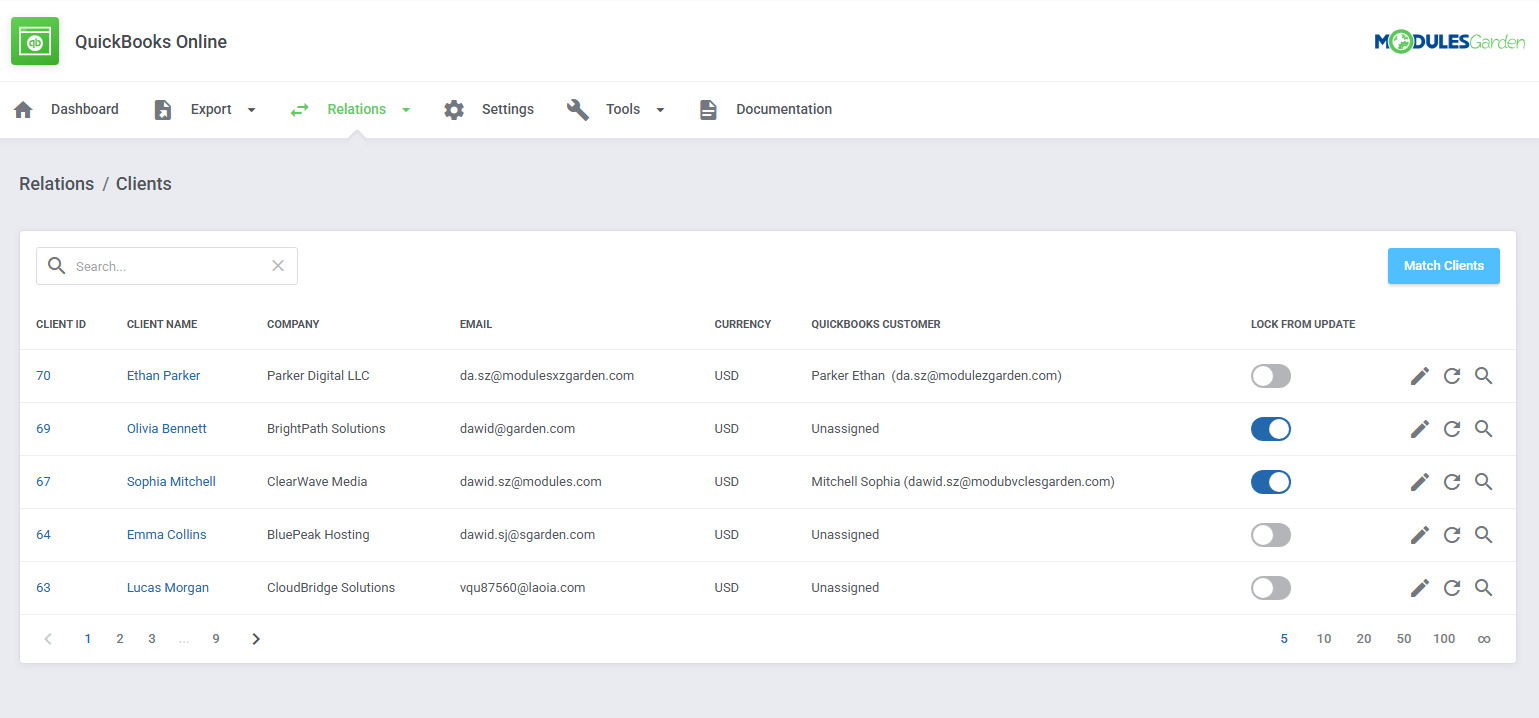
Proceed to 'Relation' → 'Clients', you will find there a list of all clients, with their email addresses, that exist in WHMCS, those who have not been exported to QuickBooks yet as well as those already exported.
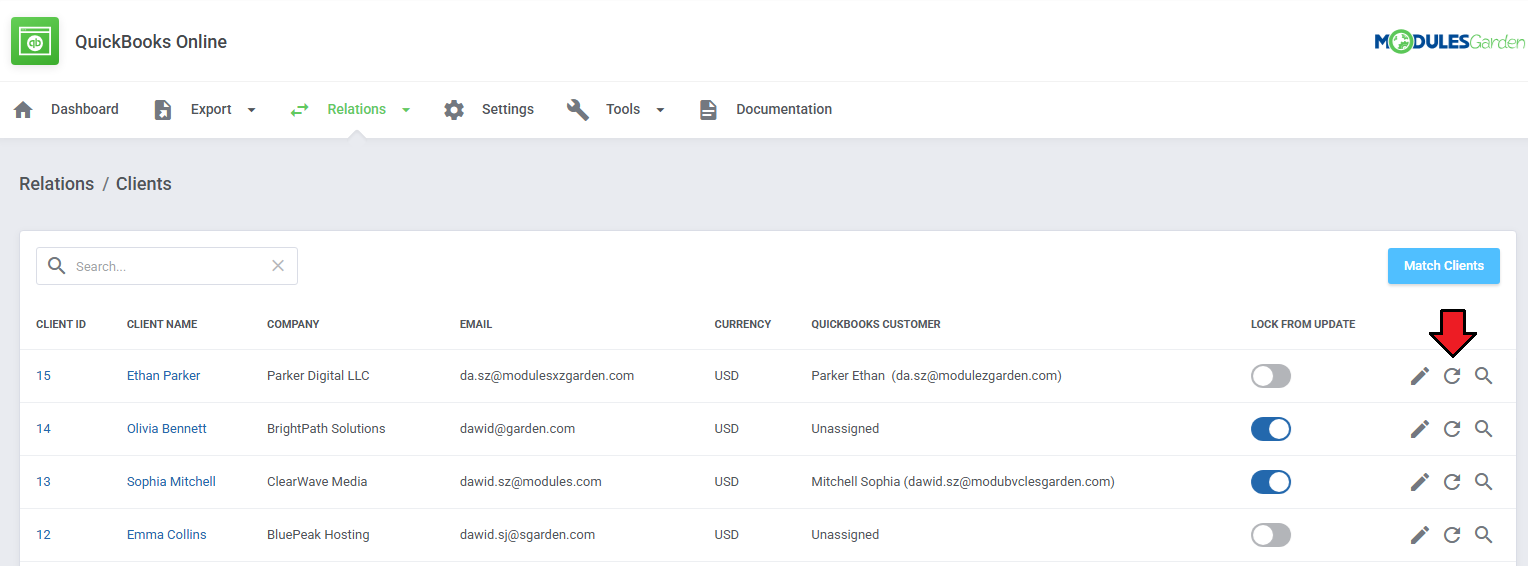
The action buttons give you more control over record updates.
- Change "Lock From Update" Status - this toggle can be used to lock or unlock automatic changes to the record. When an attempt to change a locked record is made, the attempt will be blocked and an appropriate notification will be displayed.
All imported items will be locked by default, as showcased in this use case. - Edit Client Relation
- Update Record
- Match Client
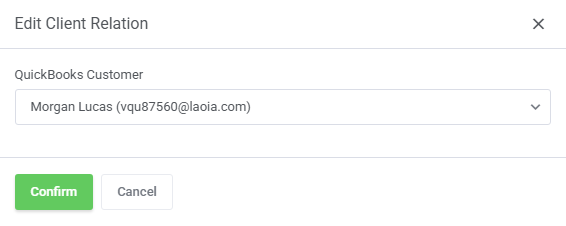
- Edit Client Relation - manually change the relation between WHMCS and QuickBooks items.
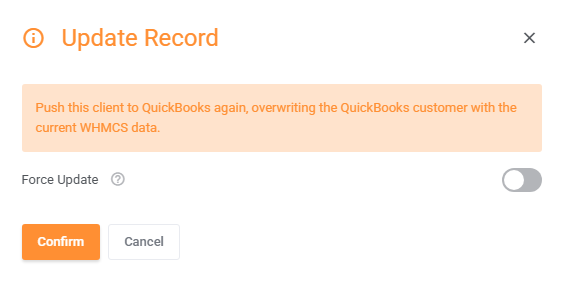
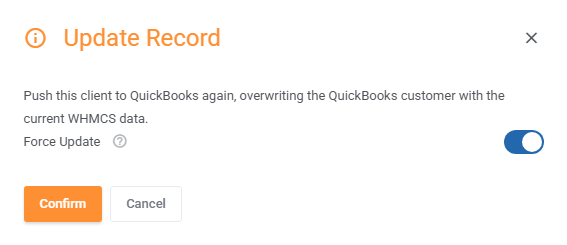
- Update Record - this button can be used to update a relation automatically. If the item has been changed in the QuickBooks Online panel, but that change has not been reflected in the module, the update will be aborted.
You can choose to ignore the difference and potentially overwrite the change by enabling the 'Force Update' option. This is to prevent unintentional overwriting of changes made in the panel.
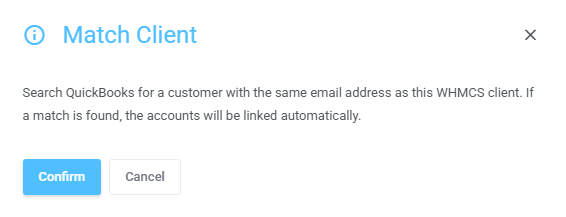
- Match Client - search QuickBooks for a customer with the same email address as this WHMCS client. If a match is found, the accounts will be linked automatically.
# Relation: Products
Products relations can be declared manually and for each product separately along with those declared in 'Configuration' → 'Synchronization Settings'.
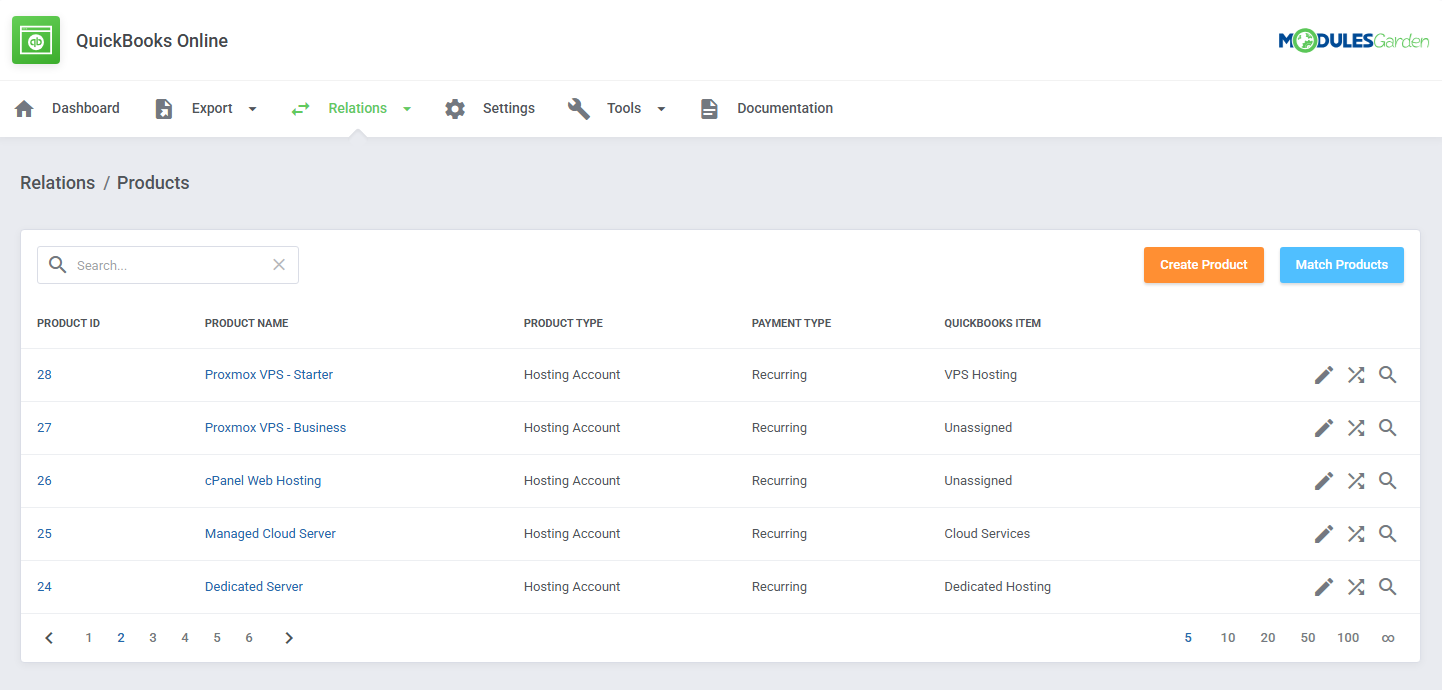
Proceed to 'Relation' → 'Products', you will find there a list of all products with their type and payment standard.
In the edit assignment section (pencil icon), there is a dropdown menu with all QuickBooks items that can be assigned to exported products.
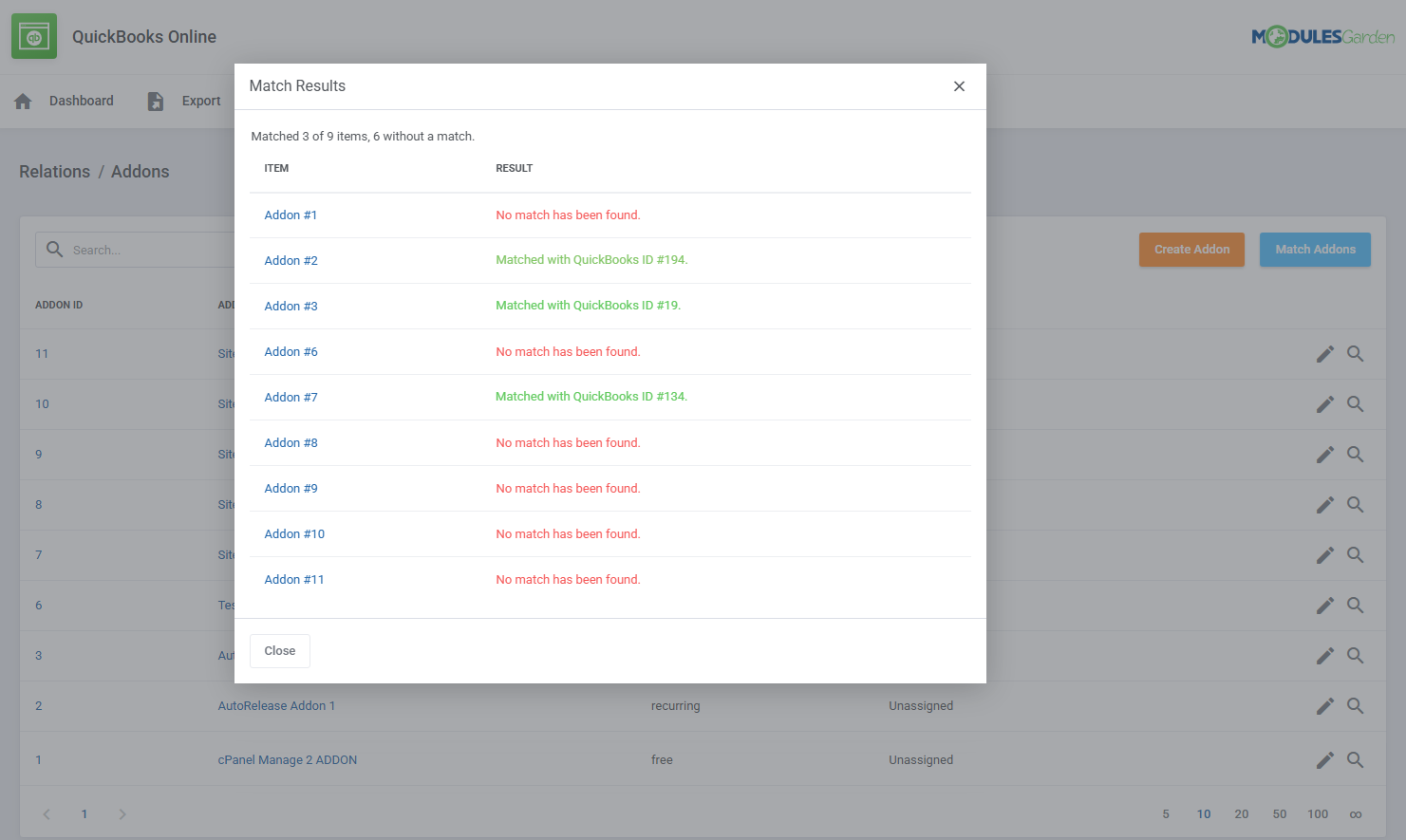
Select the item manually and save the changes or use the 'Match Products' option to automatically find relations for all products (bulk action) or for single items.
When looking for matches automatically, you will get a full view of searched items with positive or negative results.
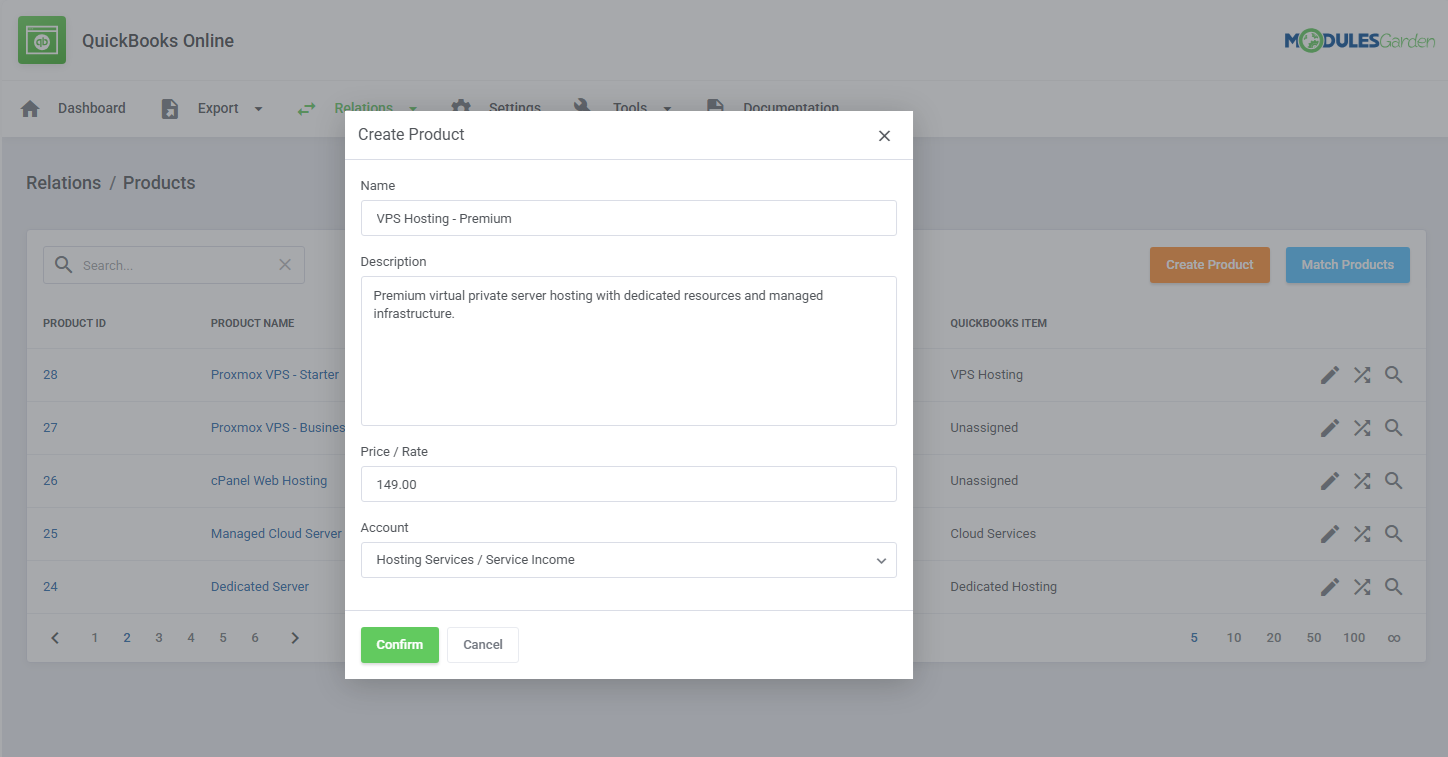
You can also create new items in QuickBooks directly from the module. Just press the 'Create Product' button shown below.
Name the new item, you can describe it shortly in addition, state its price/rate and choose an account.
Once you save changes, the new item will be visible on the QuickBooks item dropdown menu. You can now use it to assign WHMCS addons to it.
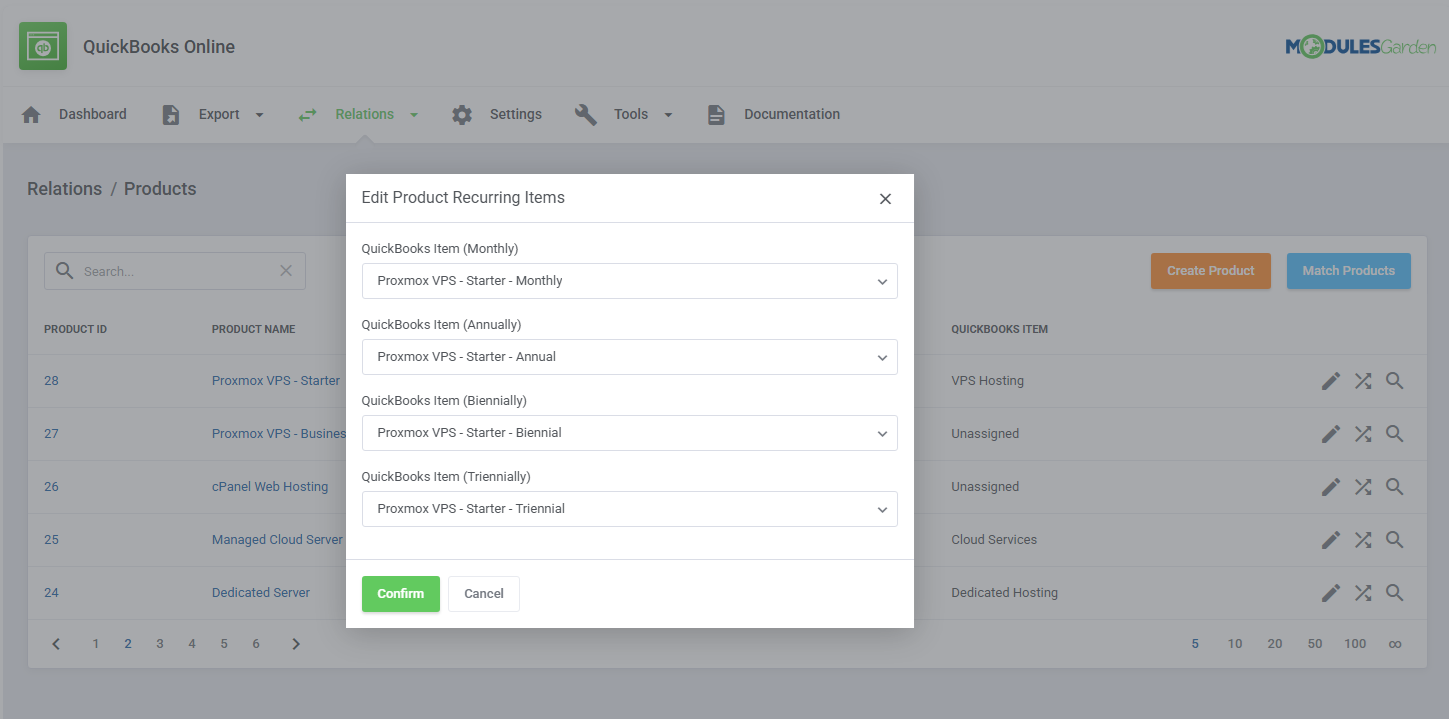
For different billing cycles you can also assign the item that will have its own cycle in QuickBooks. Just press the action button, select one from the dropdown menu and save changes.
# Relation: Domains
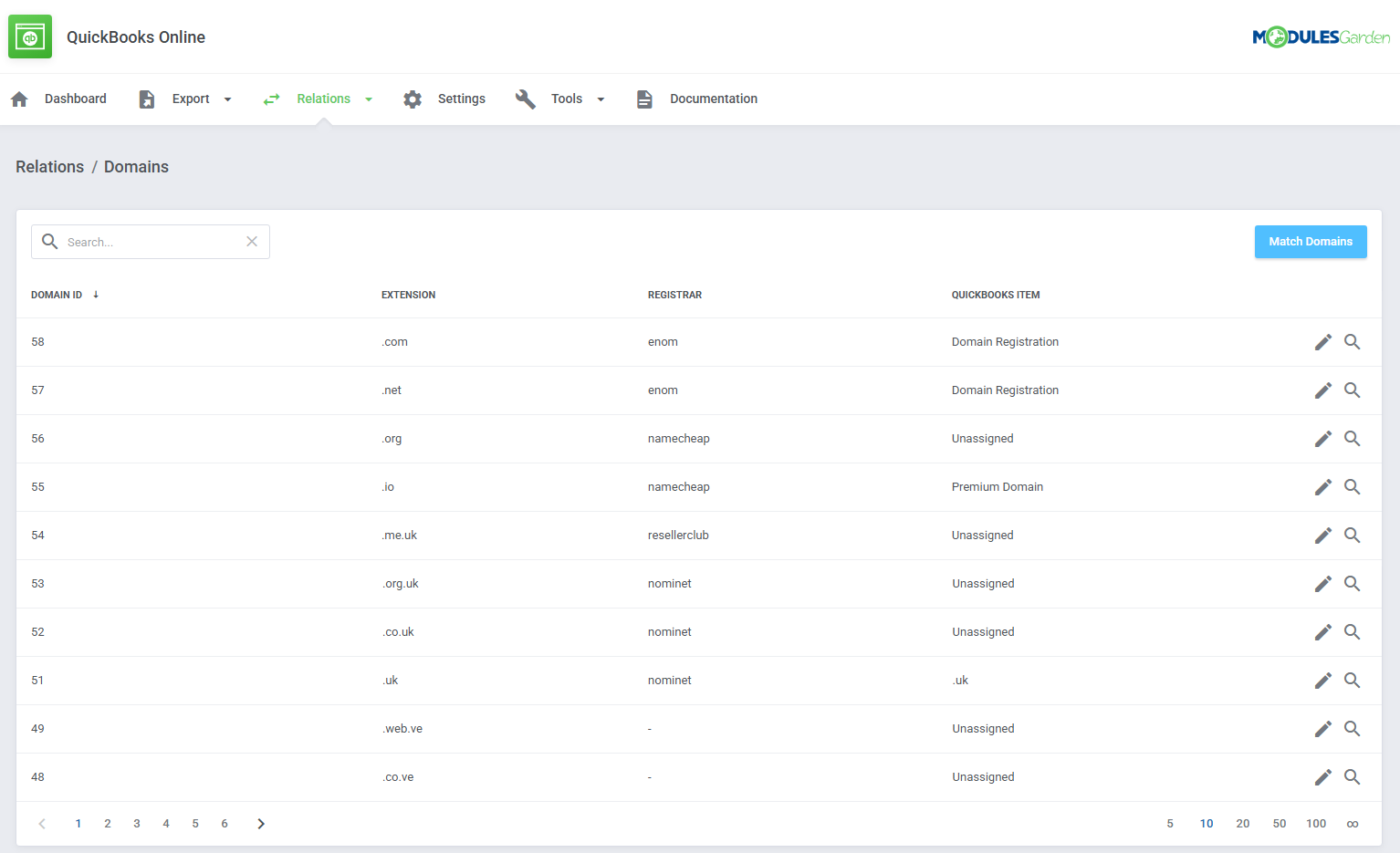
In 'Relation' → 'Domains' tab, you will find a list of all WHMCS domains with their TLD. Assigning a WHMCS domain to another QuickBooks item is possible.
Just edit the relation, choose such a domain from a dropdown menu and save changes.
# Relation: Addons
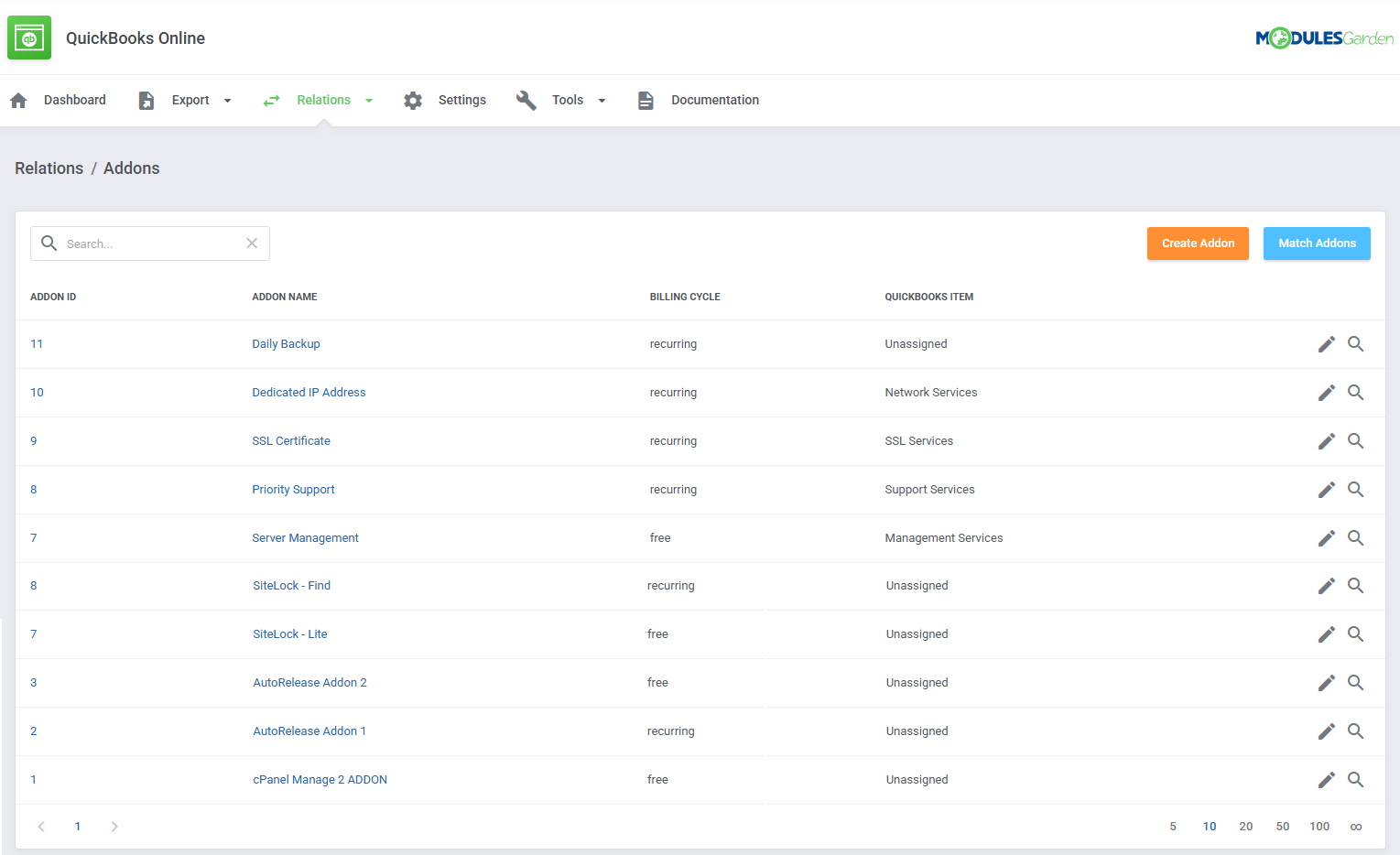
You can assign addons to the items already existing in QuickBooks. Just go to 'Relation' → 'Addons' directory, edit selected addon relation and choose the addon from a dropdown menu.
Remember to save changes.
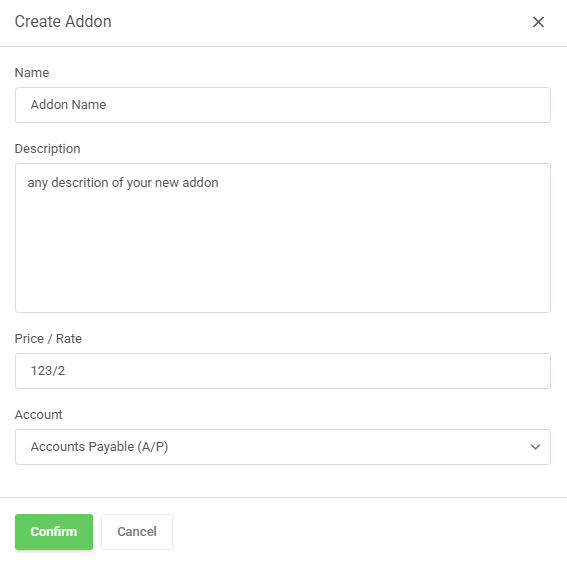
It is also possible to add a new addon. To do so, just click the "Create Addon" button and provide some details. Name the new item, you can also describe it shortly, state its price/rate
and choose an account. Once you save changes, the new addon will be visible on the QuickBooks item dropdown menu. You can now use it to assign WHMCS products to it.
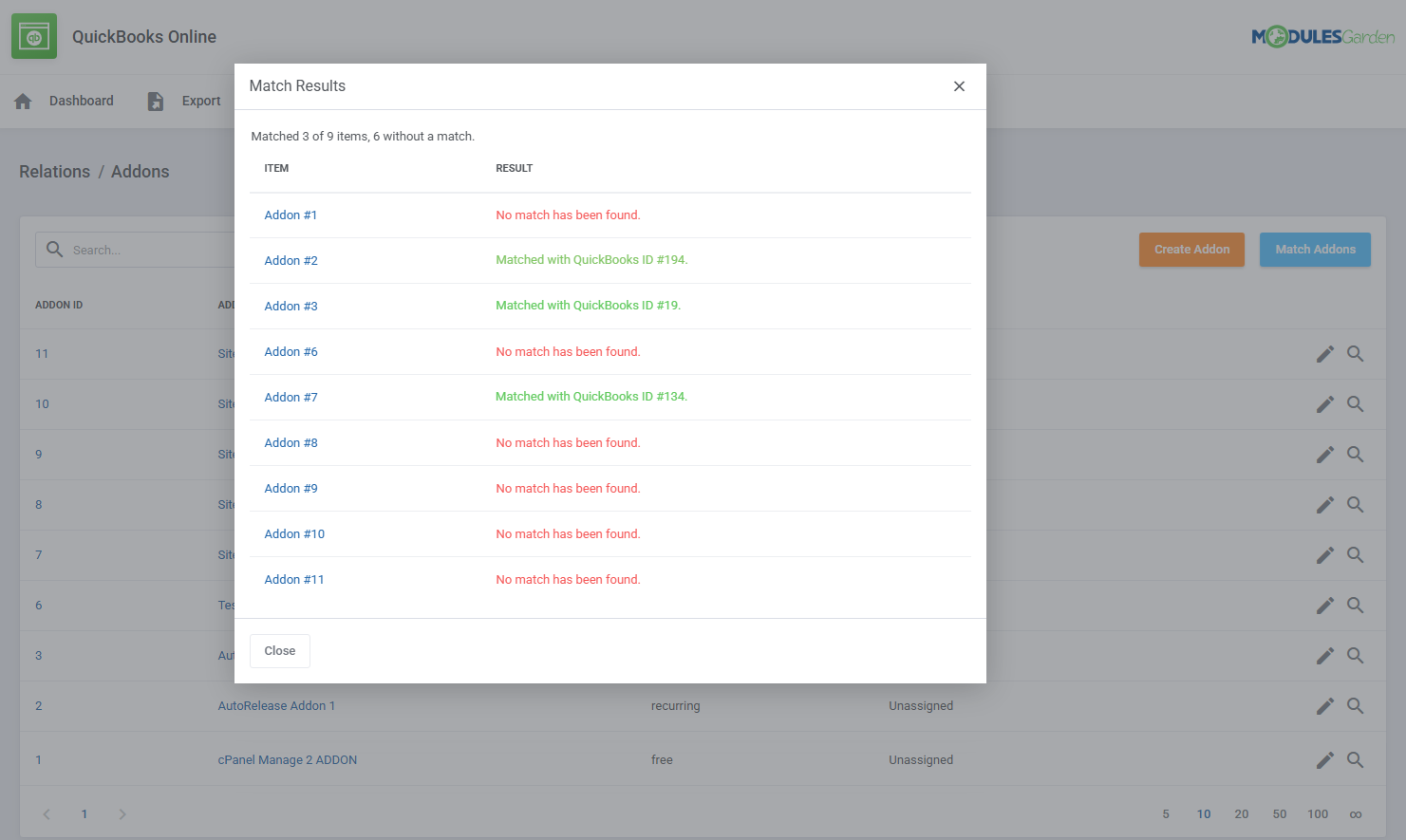
Use the 'Match Addons' button to find any matches automatically.
# Relation: Invoices
In 'Relation' → 'Invoices' directory, you will find a list of all WHMCS invoices with their ID, date of creation, assigned client, total sum on it and status.
It is possible to assign the WHMCS invoice to another invoice already exported to QuickBooks. Just choose such an invoice from a dropdown menu in the edit form and save changes.
Transactions between the two invoices will be synchronized then.
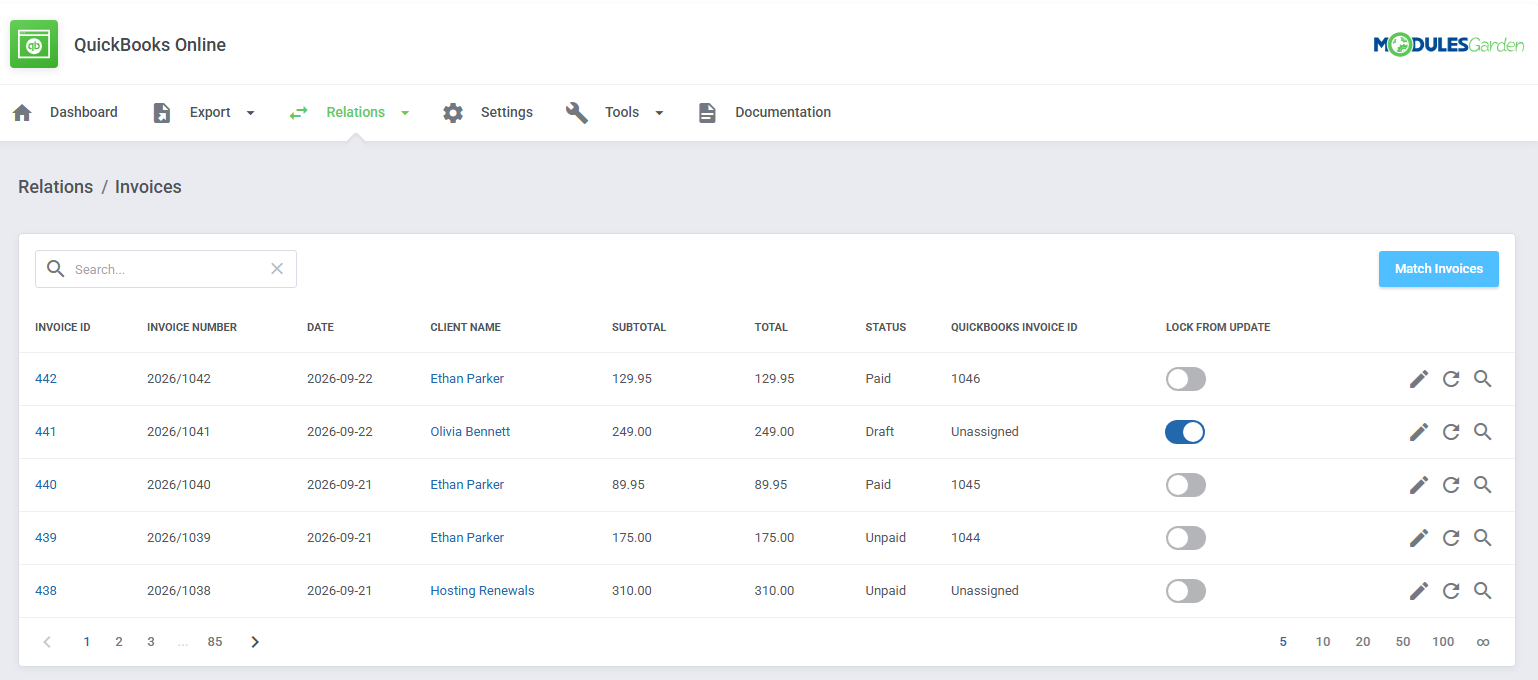
The action buttons give you more control over record updates.
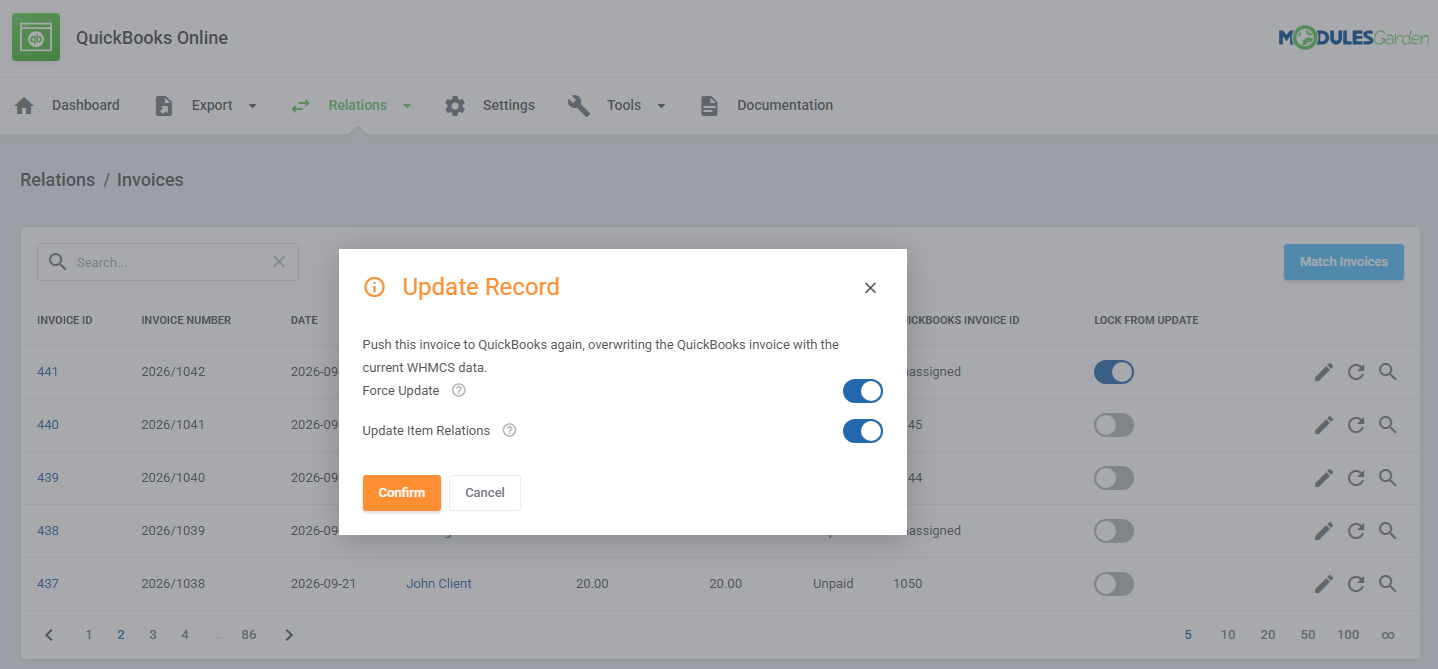
- Update Record - this button can be used to update a relation manually. If the item has been changed in the QuickBooks Online panel, but that change has not been reflected in the module, the update will be aborted.
You can choose to ignore the difference and potentially overwrite the change by enabling the 'Force Update' option. This is to prevent unintentional overwriting of changes made in the panel.
By default, updating invoice relations will not affect the relations of the items on that invoice. You can, however, enable this option by clicking on 'Update Items Relations.' - Change "Lock From Update" Status - this toggle can be used to lock or unlock automatic changes to the record. When an attempt to change a locked record is made, the attempt will be blocked and an appropriate notification will be displayed in the logs.
All imported items will be locked by default, as showcased in this use case. - Match Single Invoice with a QuickBooks item
- Use the Bulk Matching option to search through all items in WHMCS
# Relation: Tax Rules
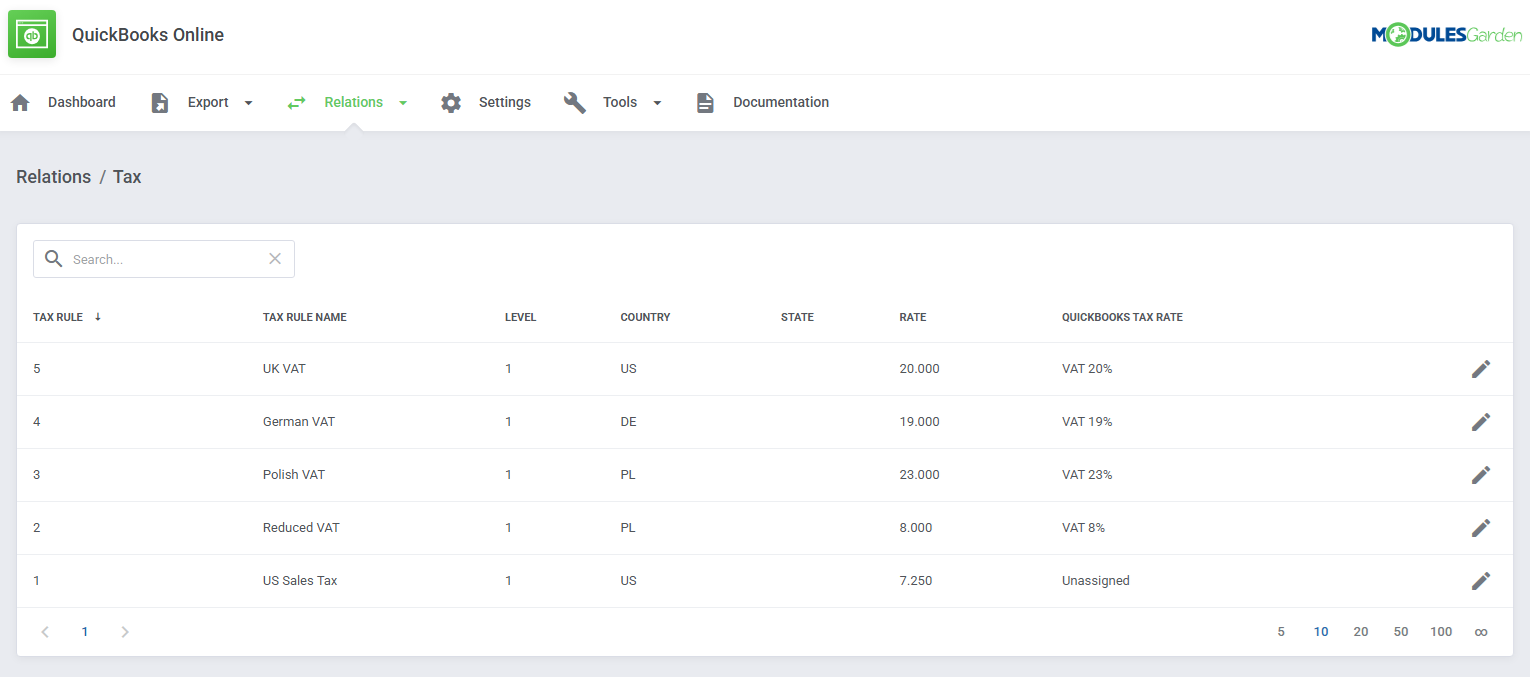
In 'Relation' → 'Tax' directory, you will find a list of defined tax rules.
Assign each rule to a specific QuickBooks tax. Select one from a dropdown menu and save changes.
Important: For best results, ensure the tax Calculation Method in WHMCS (System Settings → Tax Configuration → Advanced Settings) is set to "Calculate individually per line item."
Using the alternative option: "Calculate based on collective sum of the taxable line items" may cause a minor subtotal discrepancy (0.01) between invoices in WHMCS and QuickBooks.
If you encounter such differences, double check your WHMCS tax settings.
# Relation: Payment Gateways
In 'Relation' → 'Payment Gateways', there is a list of active payment gateways, select a QuickBooks Payment Method for each of the gateways. Save the changes when ready.
When you click the button in the 'Action' section, you can set relations for the previously chosen payment method.
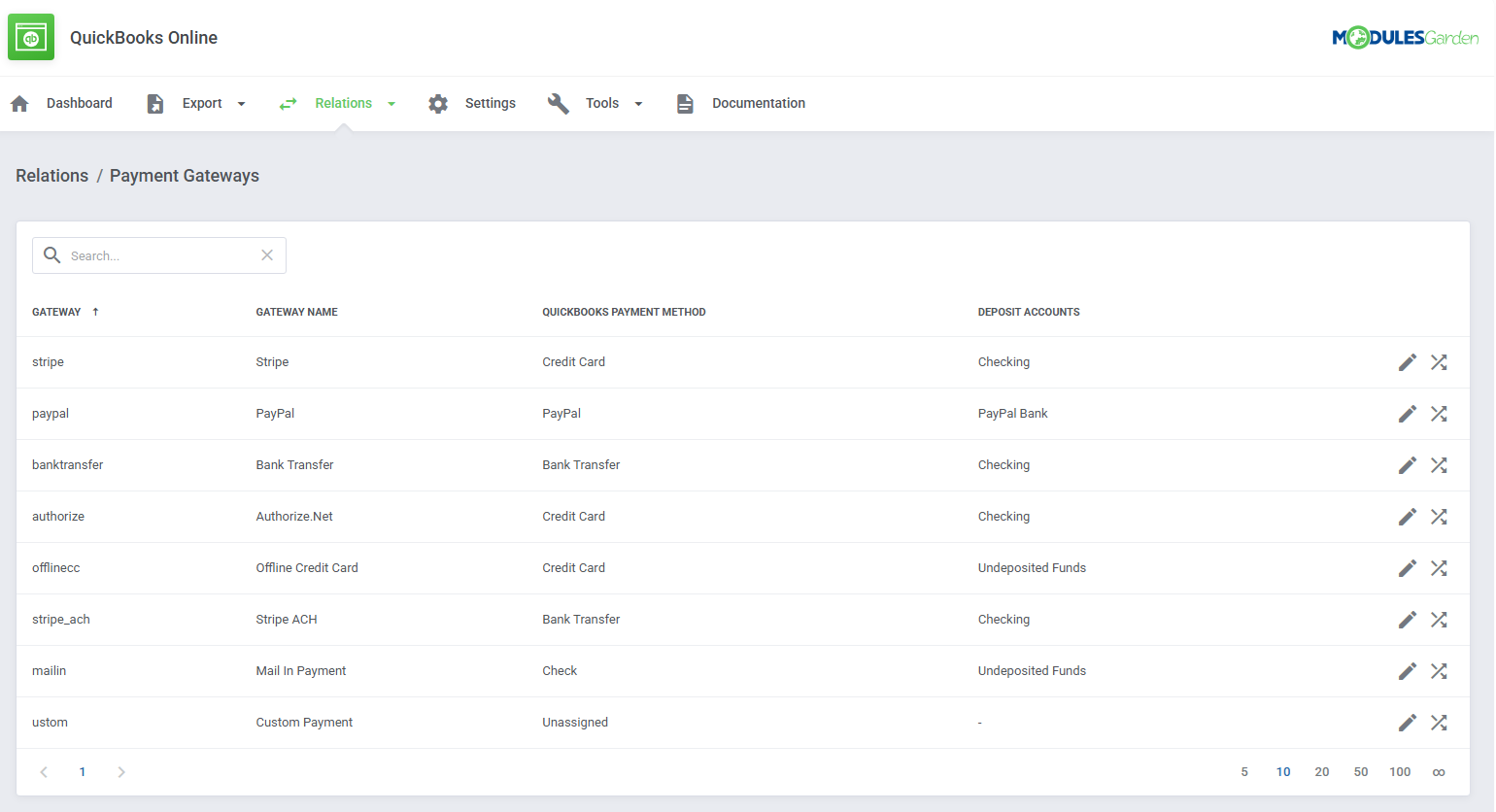
Define the relation by assigning one of the QuickBooks payment deposits to a single currency.
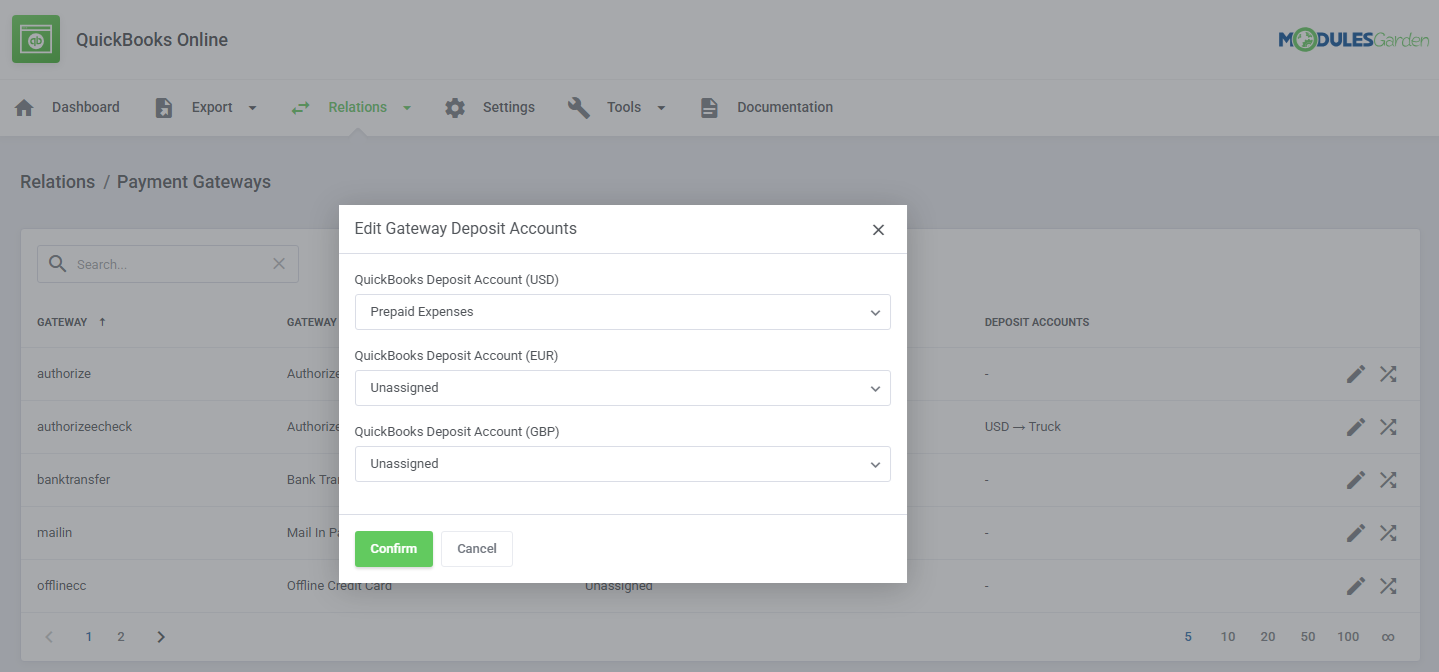
In this way, the relation between the payment method and the payment deposit, per currency, has been set.
Note: In order to be able to assign an account to a currency, this currency must be previously properly configured in the QuickBooks Online panel → 'Account'.
Transaction Fees
It is possible to configure the payment gateway account where transaction fees will be delivered.
In order to properly configure gateway fees, go back to 'Configuration' → 'Synchronization Settings', there select an account in 'Gateway Fee Account'.
Make sure you have selected your account that is related to WHMCS transactions. Once an invoice is exported, a transaction fee will be stored on the selected account.
You may check logs to see if the action has been completed successfully.
# Relation: Transactions
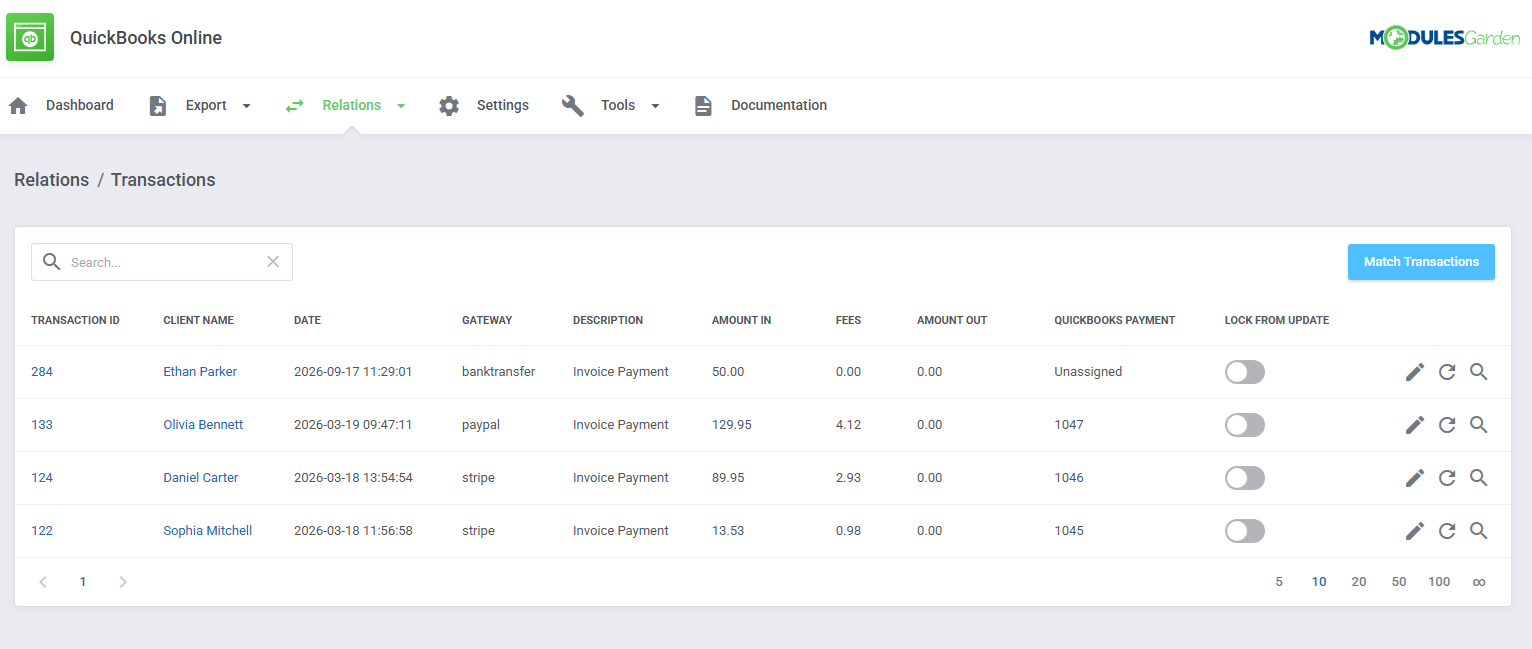
In 'Relation' → 'Transactions', there is a list of transactions. Select the one you wish to use from a dropdown menu. Save changes.
Use the 'Match Transactions' button to automatically find an existing relation in QuickBooks without a manual search for every single transaction.
You will get an extended list with information for which of the transactions a match has been found.
The action buttons give you more control over record updates.
- Update Record - this button can be used to update a relation manually. If the item has been changed in the QuickBooks Online panel, but that change has not been reflected in the module, the update will be aborted.
You can choose to ignore the difference and potentially overwrite the change by enabling the 'Force Update' option. This is to prevent unintentional overwriting of changes made in the panel. - Change "Lock From Update" Status - this toggle can be used to lock or unlock automatic changes to the record. When an attempt to change a locked record is made, the attempt will be blocked and an appropriate notification will be displayed in the logs.
All imported items will be locked by default, as showcased in this use case. - Match single transactions or use the bulk action to search QuickBooks for matching relations.
# Relation: User Credits
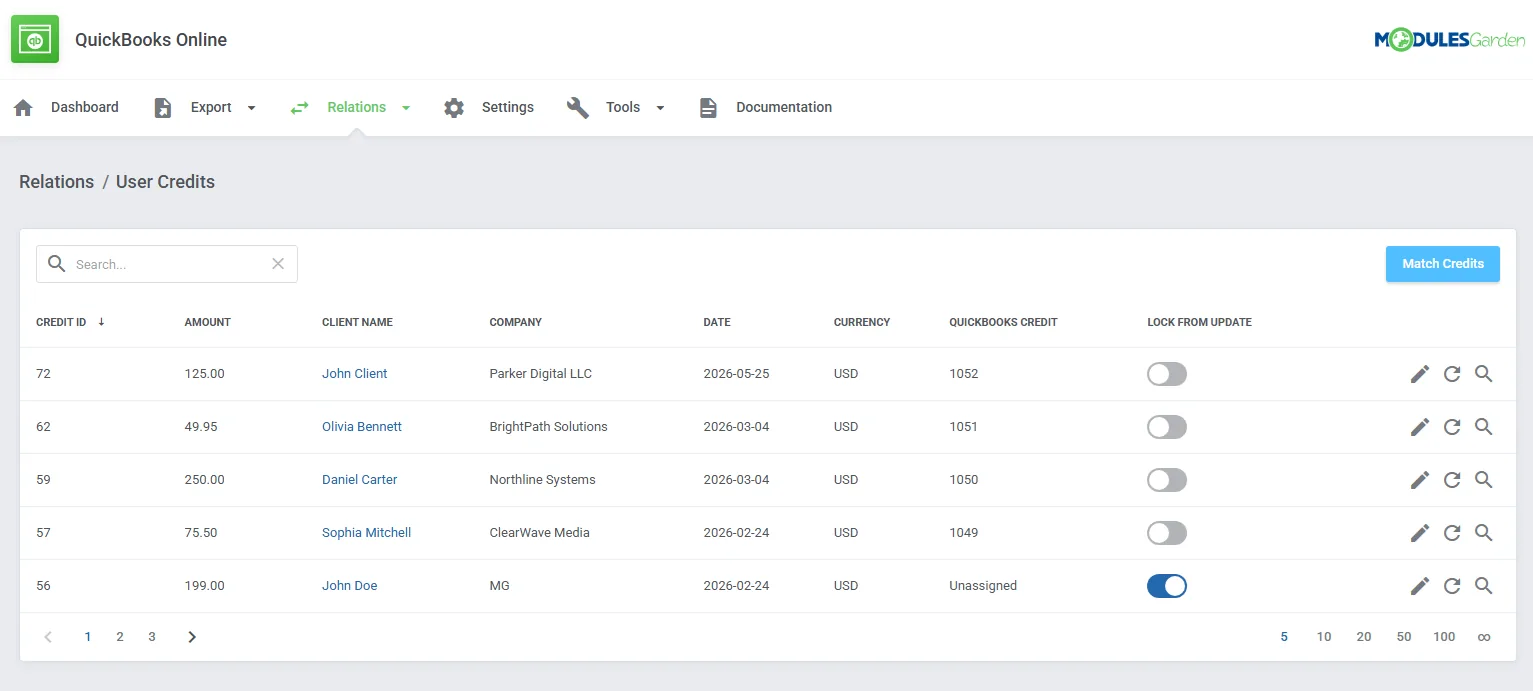
Finally, in 'Relation' → 'User Credits' section, you may find a list of existing credits. Select the QuickBooks credit equivalent per single credit from a dropdown menu and then save the changes.
Use the 'Match Credits' button to automatically find an existing relation in QuickBooks without a manual search for every single credit.
The action buttons give you more control over record updates.
- Update Record - this button can be used to update a relation manually. If the item has been changed in the QuickBooks Online panel, but that change has not been reflected in the module, the update will be aborted.
You can choose to ignore the difference and potentially overwrite the change by enabling the 'Force Update' option. This is to prevent unintentional overwriting of changes made in the panel. - Change "Lock From Update" Status - this toggle can be used to lock or unlock automatic changes to the record. When an attempt to change a locked record is made, the attempt will be blocked and an appropriate notification will be displayed in the logs.
- Match single items
# Relation: Custom Rules
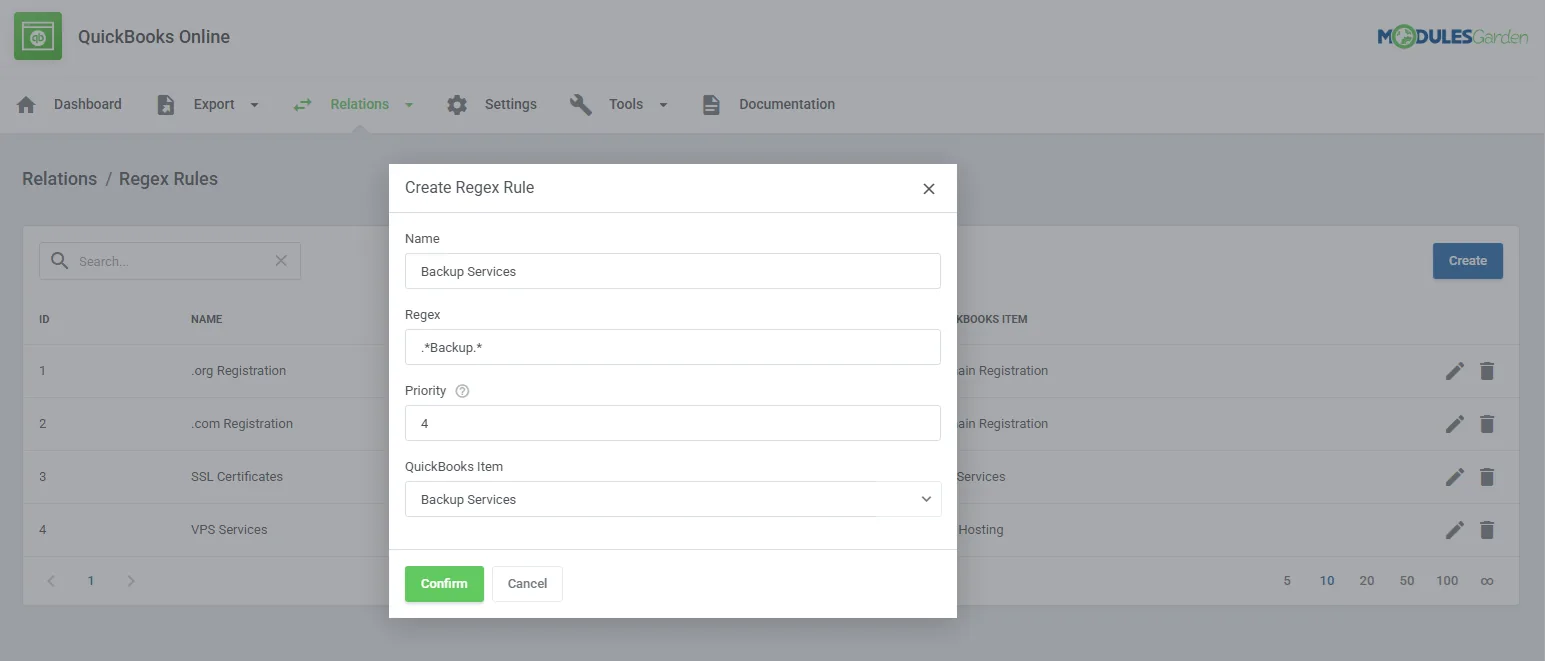
The last on the list of 'Relations' → 'Custom Rules', allows creating and management of existing custom rules. Its aim is to manage items that exist on the invoice but have no relation.
The rule task checks if these items have any matching type in QuickBooks.
Press ' Create Regex Rule' button to create a custom rule.
Important! Please remember that 'Custom Rules' are based on regular PHP expressions. An exemplary 'Custom Rule' is car(.*)
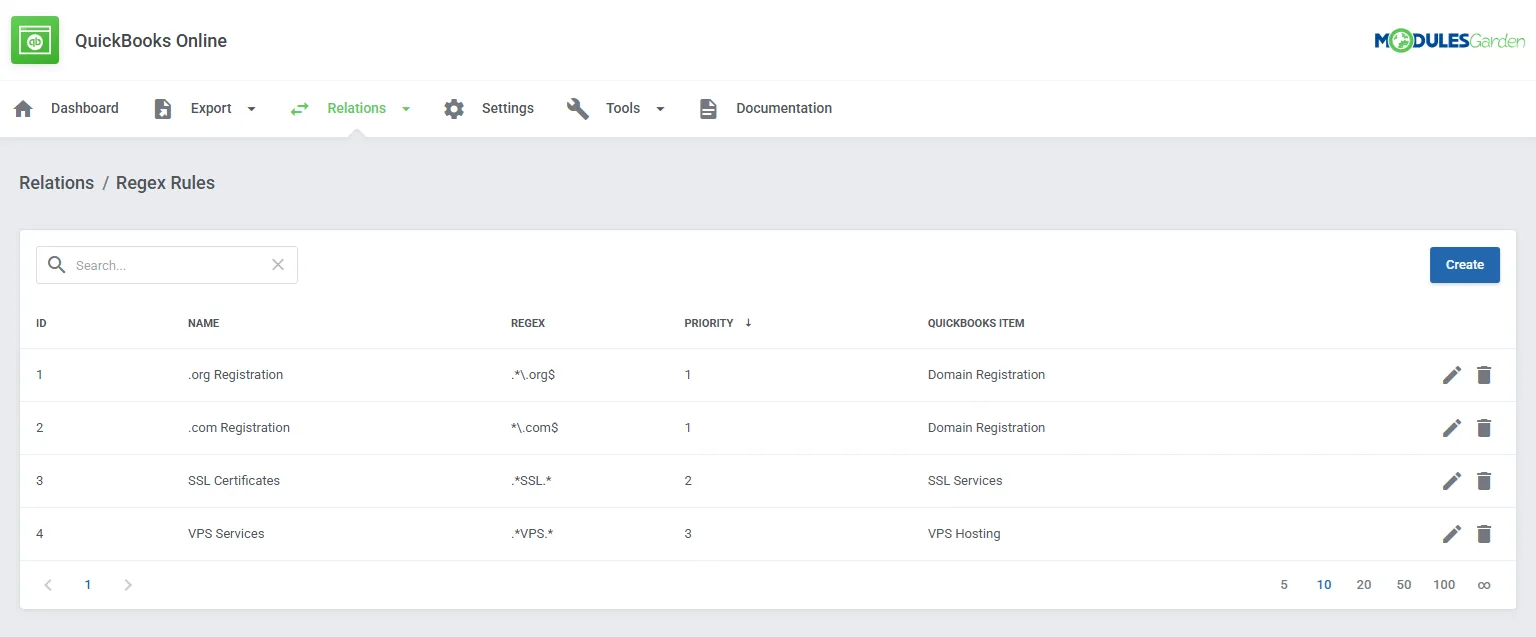
Provide necessary details of the created rule to make it work properly. These are:
- Name - a friendly name of the rule
- Custom Rule → for example car(.*) which is a regular PHP expression
- Priority - the higher the number, the lower the priority, use integers only
- QuickBooks Service - select a service that will be checked with the rule
Press 'Save Changes' when ready.
# Automatically Match Relations
As you have noticed in the above sections, there is an option to find appropriate matches in QuickBooks and set the relations between the items within one group (e.g. Products or Domains) automatically.
All you have to do is press the 'Match Products/Domains/Invoices' etc. button. You will be asked to confirm the action and soon after that the process of looking for matches starts.
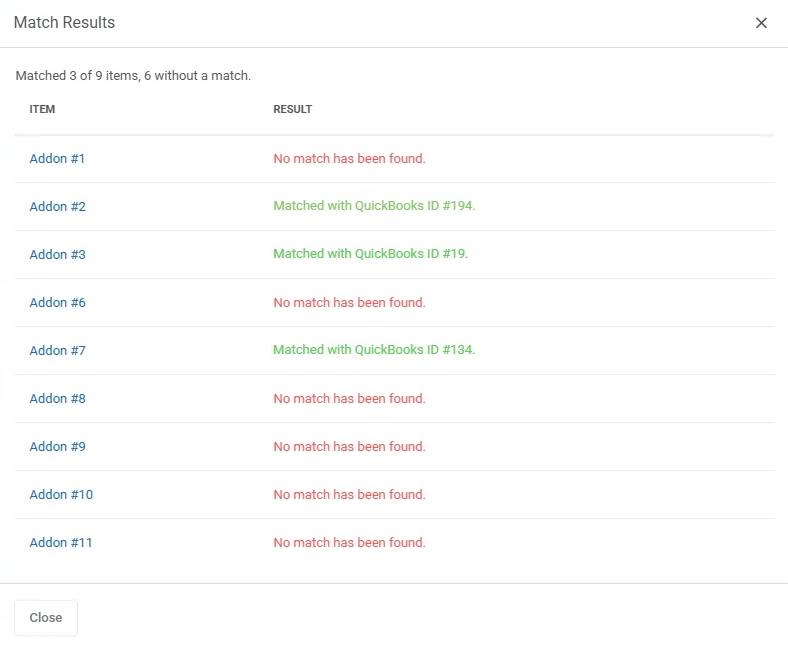
Once ready, you will see a full list with results. Successfully found matches are shown in green, while items with no matches are shown in red.
Found relations will be set automatically.
Here you can find a detailed list of items taken into consideration by the module when looking for a match in QuickBooks:
| WHMCS Item | Matched Feature |
|---|---|
| Clients | |
| Products | Name |
| Domains | Name |
| Addons | Name |
| Invoices | Invoice ID |
| Transactions | Transaction ID |
| User Credits | Amount, Date of Creation |
- Email - keep in mind that email addresses must be identical (only 1:1 match)
- Name - keep in mind that names must be identical (only 1:1 match)
- ID - 1:1 match only, when the ID is shortened, the relation must be set up manually ('Shorten Transaction ID' option is on)
# Utilities
The module features additional utilities that can assist you in various ways. Each tool serves a unique purpose, as detailed in the section below.
By utilizing these additional utilities, you can easily understand the inner workings of the module on the elementary level.
# Logs
The 'Logs' tab lists all actions performed on clients, invoices, and transactions, regardless of whether they were performed manually in the module, automatically, or by a cron job.
A list of all entries with precisely described details and an exact date of the action can be found there.
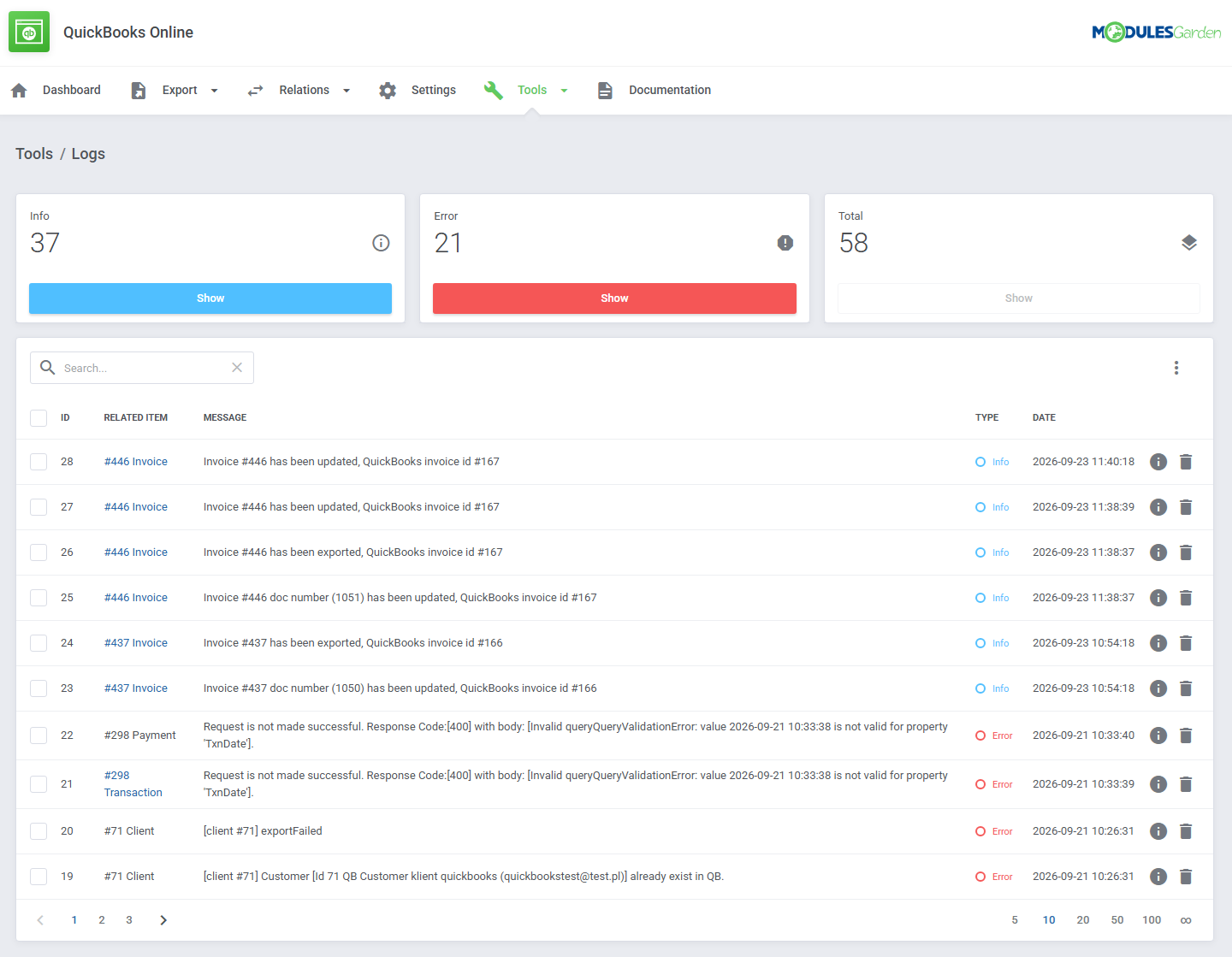
Clear all the entries or delete only some of them. Use the buttons marked on the screen above.
# Revision History
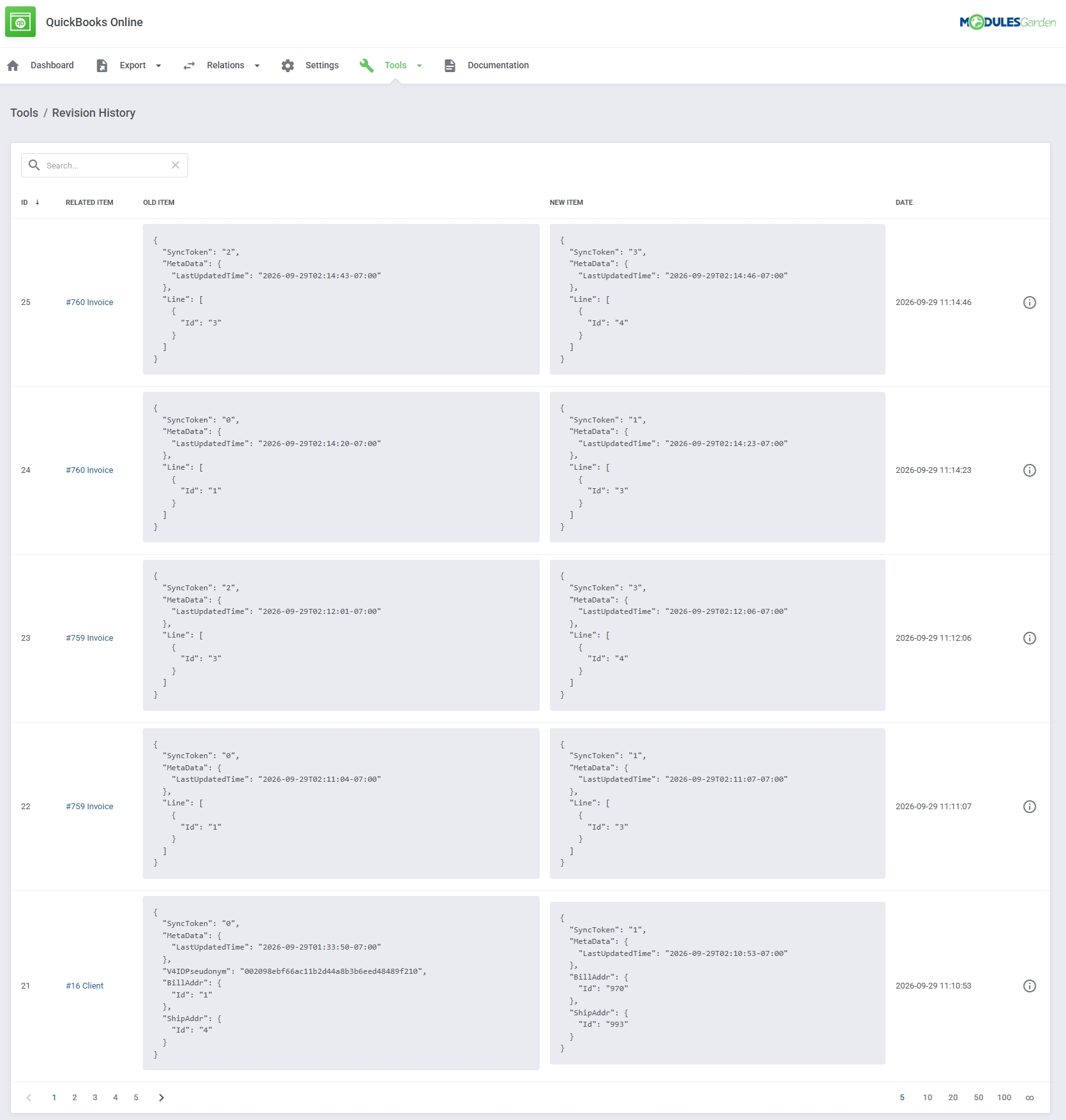
All changes made by the module to the QuickBooks Online platform are stored here, so you can easily compare any differences made with each update.
Use the action button to see related items.
Access Control
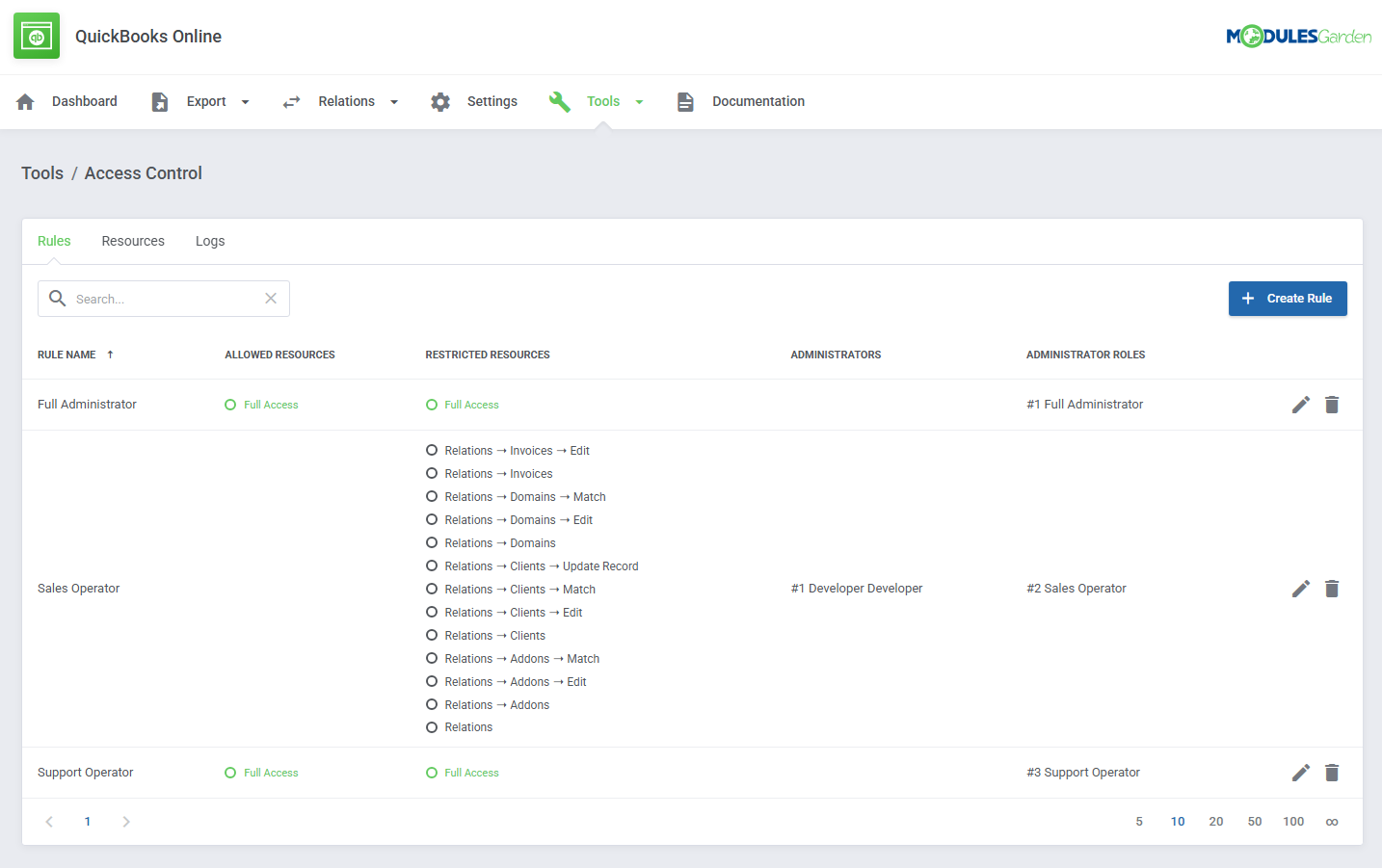
The 'Access Control' tool allows you to manage and restrict admin access to specific sections and features within the module.
You can create rules to grant or deny access to resources, ensuring each team member has appropriate permissions.
It also tracks admin activity through detailed logs, offering clear accountability. This tool is available in several WHMCS addons.
For detailed instructions, refer to the dedicated article here.
Translations
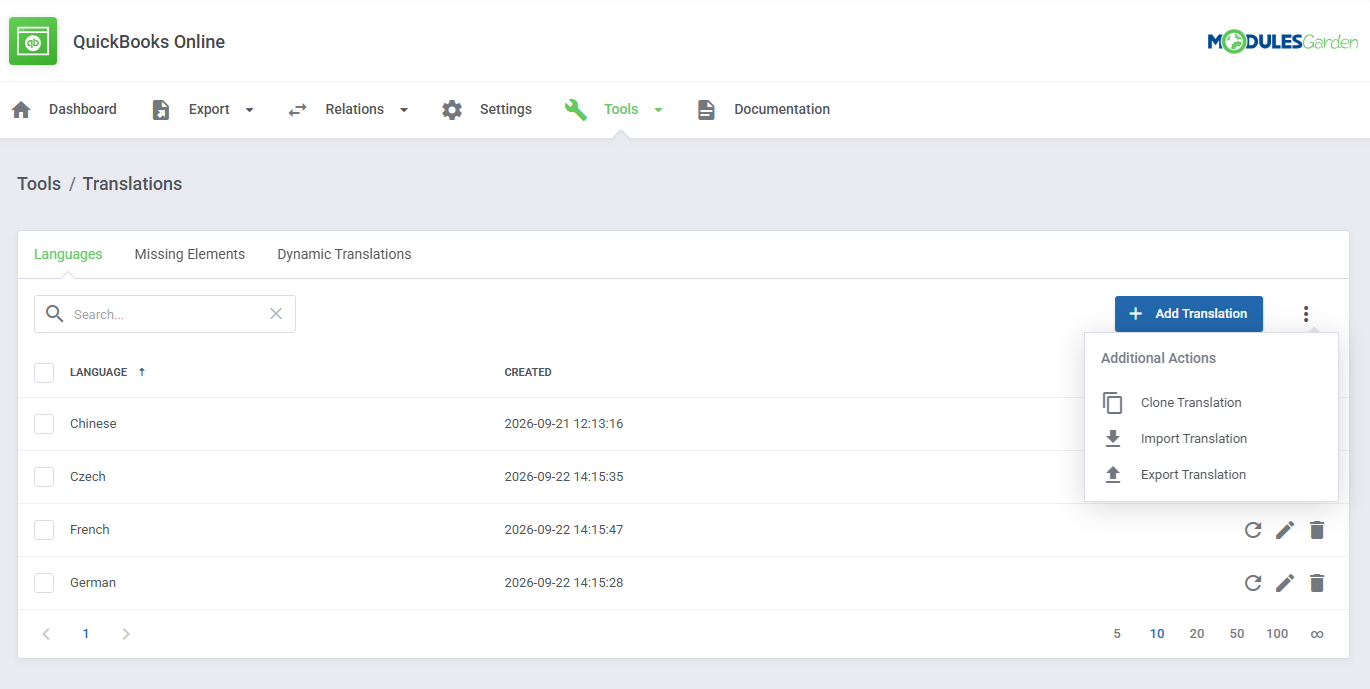
Customizing language files is now extremely easy with the "Translations" tool that is now available directly in the addon.
Its user-friendly design makes managing various language file tweaks a smooth and efficient process.
Prepare translations for the original English files with this handy built-in tool. For specific instructions on how to use this tool please refer to its dedicated article, you will find it here.
# Dashboard
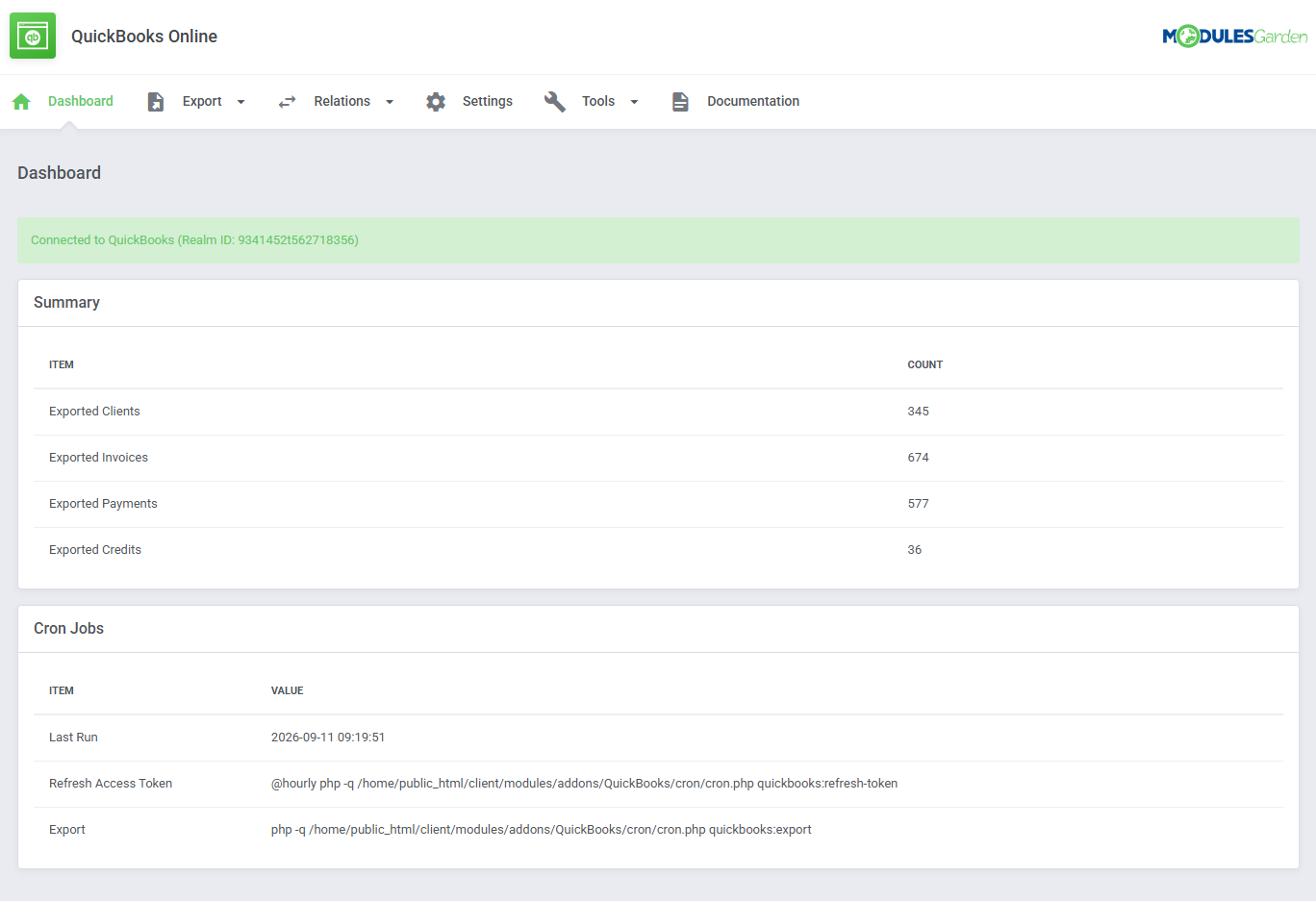
The 'Dashboard' provides a quick overview of the QuickBooks connection, exported data, and configured cron jobs.
The 'Summary' table displays the total number of exported clients, invoices, payments, and credits. The counters include items exported using all available synchronization methods.
The 'Cron Jobs' table shows the last cron run and provides the commands used to refresh the QuickBooks access token and export data. For details on configuring cron jobs, refer to the Cron Configuration section.
# Documentation
The very last tab 'Documentation' will, once clicked, redirect you to the article you are currently reading.
# Use Cases
This section provides real-world examples of how the module can be used.
It includes specific scenarios that illustrate typical use cases and explains how the module's features can be applied in practice.
Reviewing these scenarios will give you a better understanding of how to use the module effectively.
# Importing QuickBooks Items
QuickBooks Online For WHMCS allows you to import existing clients, invoices, and transactions from QuickBooks Online into WHMCS.
If you already have an established QuickBooks database, there is no need to start over. You can import your existing records using the module's cron commands.
To import data, run the following command with the appropriate --type argument:
php -q /yourWHMCS/modules/addons/QuickBooks/cron/cron.php quickbooks:import --type=clients
The following types are available:
clients- imports clients from QuickBooks Online.invoices- imports invoices from QuickBooks Online.transactions- imports transactions from QuickBooks Online.syncInvoicesUnpaid- synchronizes unpaid invoices that have been paid in QuickBooks Online.
The default type is clients. Replace it with the required type and run the command separately for each operation.
You can also use the optional --from parameter to import only records created after a specified date (YYYY-MM-DD).
For example, to import invoices created after September 29, 2022:
php -q /yourWHMCS/modules/addons/QuickBooks/cron/cron.php quickbooks:import --type=invoices --from=2022-09-29
If the --from parameter is omitted, no date restriction is applied.
Once the data is imported, you should notice that each entity has the update lock ON by default. This applies to all imported clients, invoices, and transactions.
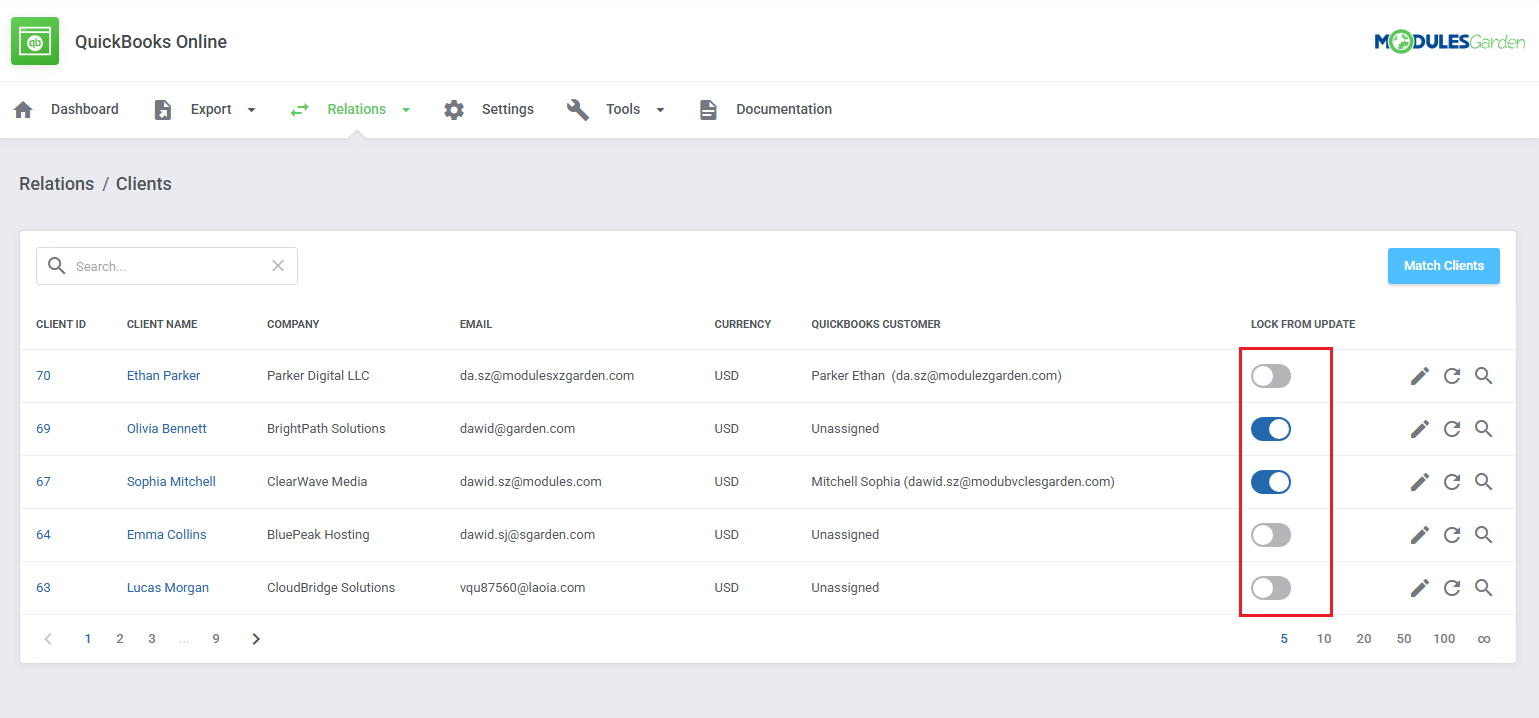
If we change the data in WHMCS, in this case, the company name and try to update the new information into the QuickBooks Online panel, the attempt will be blocked.
However, if we generally want to keep the details from being edited, but still want to change something specific, we can force the update and ignore the restrictions.
When the lock is disabled, admins can freely upload the changes to the QuickBooks Online panel.
# Tips
The status of the invoice in QuickBooks may differ from the one visible in WHMCS. It will be marked as paid only if it is associated with payments of exactly the same amount.
If there was no such real payment, the invoice will be marked as 'Unpaid'.You can import existing QuickBooks Online clients, invoices, and transactions into WHMCS using the
quickbooks:importcron command.Relations of imported items will be locked by default.
For available import types and detailed instructions, refer to the Importing QuickBooks Items section.
# Update Instructions
An essential guidance through the process of updating the module is offered here.
Ensure successful completion of the module update by carefully following each step, thereby preventing data loss or any unforeseen issues.
Additionally, you will find a current list of supplementary actions necessary for a smooth update process there.
# Updating From Version 1.x To 2.0.0 Or Later
After updating QuickBooks Online For WHMCS from version 1.x to 2.0.0 or later, existing module data must be migrated to the new version.
Once the module files have been updated, run the following command once:
php -q /yourWHMCS/modules/addons/QuickBooks/cron/cron.php quickbooks:migrate-legacy-data
# Upgrade Guide
Seeking a solution that offers greater flexibility, customization tailored to your precise needs, and unrestricted availability?
There is an option that not only proves to be cost-effective in the long run but also includes prioritized support services, making it a truly valuable investment.
Opt for the Open Source version (opens new window) of your QuickBooks Online For WHMCS module to unlock these benefits.
Simply click on either the Get Source Code or Upgrade To Lifetime button found on the product's page in our client area to complete the one-step upgrade process, with a dedicated discount already applied.
Follow a comprehensive guide covering the transition process, the advantages it brings, and step-by-step instructions on what to do next after the order has been successfully finalized.
# Common Problems
When you have problems with connection, check whether your SELinux or firewall does not block ports.
Should you have problems with upgrading QuickBooks Online product to version 1.3.0, set again the relations of payment deposits in the 'Payment Gateways' section.
It may happen that taxes are counted incorrectly for invoices with multiple items where part of the items is taxed and some are not. Please, be careful!
In case you encounter any issues with installation and configuration please make sure you have OAuth PHP Class installed.
Without that, the module will not work properly.You may encounter the API '#OAuthException' error with 'making the request failed (dunno why)' message during configuration.
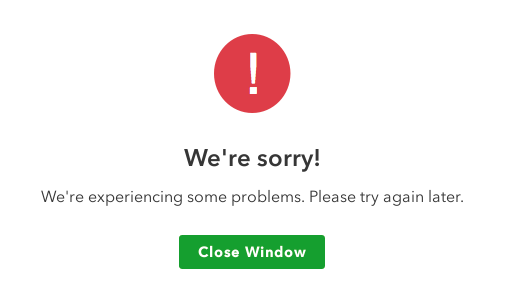
If so, first try to enable 'allow_url_fopen' option in your PHP configuration by setting up the 'allow_url_fopen = on' line in 'php.ini' file and restart the apache2 server. If you need more information you may check it here (opens new window).It may happen that the following error occurs when attempting to connect QuickBooks Online service: 'We're sorry! We're experiencing some problems. Please try again later.'
In that case, make sure you have set up the 'Redirect URI' correctly, as described here.Applications created before July 17th, 2017 which are still using OAuth 1.0 authentication method are no longer supported by the module.
Please create a new application that will support OAuth 2.0 or contact Intuit support to migrate your old application to OAuth 2.0 at https://intuit.me/intuit-oauth2.If you encounter an error:
Required param missing, need to supply the required value for the API Required parameter TxnTaxDetail.TaxLineDetail.TaxLine.TaxRateRef is missing in the request.Solution: Make sure that relations for the tax rules are set up correctly.
If you encounter an error caused because the synchronization is done for a period already closed in QuickBooks Online similar to this:
Property QuickBooksDSK\IPPPayment::$ProjectRef does not exist. Class QuickBooksSDK\IPPPayment
Solution:
Open your QuickBooks account.
Proceed to the Advanced tab.
Select Edit in the Accounting section.
Uncheck the Close the books box/toggle or change the closing date.
Select Save and then Done.
More information on this error can be found on the official Intuit site (opens new window)If, after adding credits to a WHMCS invoice, you encounter problems with synchronizing the status of that invoice in the QuickBooks panel, please make sure that the option "Add - synchronization when the credit is added to invoice" is enabled in our addon.
Otherwise, the invoice will still be marked as "Unpaid" although credits have been applied.In case the WHMCS feature "Enable Proforma Invoicing (opens new window)" (for unpaid invoices) is enabled, the module has to wait until the invoice has been paid to synchronize it.
In case the transaction has been incorrectly assigned, you may attempt to change the assignment by following the below steps:
- Navigate to the Relation: Transaction tab, search for the correct transaction and update the relationship accordingly.
If the issue persists: - Delete the incorrect transaction from QuickBooks.
- Remove the corresponding entry from the WHMCS database using the following query, replacing invoice_id = "304" with the actual invoice ID from the URL.
DELETE FROM quickbooks_payments WHERE quickbooks_payments.invoice_id = "304";- Export the transaction again to ensure the correct assignment is automatically set.
- Navigate to the Relation: Transaction tab, search for the correct transaction and update the relationship accordingly.
When using the Calculation Method: "Calculate based on collective sum of the taxable line items" in WHMCS, you may notice a discrepancy of 0.01 in the invoice subtotal between WHMCS/module and QuickBooks panel.
Solution: Ensure that "Calculate individually per line item" is selected as the tax calculation method in your WHMCS settings (System Settings → Tax Configuration → Advanced Settings). The QuickBooks Online For WHMCS module works flawlessly with this option.If you encounter the following error:
Update Invoice Total Error: Request is not made successful. Response Code:[400] with body: [Invalid Reference IdInvalid Reference Id : Product/Service assigned to this transaction has been deleted. [...]
Reason: The error occurs when a product in QuickBooks has been set to Inactive.
Although a new product may be selected in the Relation Products section, an existing relation from a previous configuration still references the inactive product.
Solution: Restore the affected product by setting it back to Active in the QuickBooks panel.