ModulesGarden Documentation
Back Home Home

Task Queue Tool

  • Navigation
    • Main Page
    • ModulesGarden Website
    • Help
  • WHMCS Modules
    • Abandoned Cart
    • Account Synchronization
    • AdminBolt Licenses
    • Advanced Billing
    • Alibaba Cloud Virtual Machines
    • Amazon EC2
    • Amazon Lightsail
    • Anti-Fraud And Email Verification
    • Client Area Designer
    • Client Area Popup
    • Client Profile Viewer
    • Cloud Billing
    • cPanel Extended
    • cPanel Manage2
    • CRM
    • DigitalOcean Droplets
    • DirectAdmin Extended
    • DirectAdmin Licenses
    • Discount Center
    • DNS Manager
    • Domain Allocator
    • Domain & Email Forwarding
    • Domain Orders Extended
    • Domains Reseller
    • EasyDCIM Colocation
    • EasyDCIM Dedicated Servers
    • Email Notifications Organizer
    • Emoji Picker
    • EURid Registrar
    • Expense Tracker
    • Freshdesk
    • Freshservice
    • Geolocation Hook
    • GoDaddy Domain Registrar
    • GoGetSSL
    • Google Analytics
    • Google Cloud Virtual Machines
    • Google Workspace
    • Hetzner Cloud Servers
    • Hosting Quota Notifications
    • Hosting Renewals
    • IBM Cloud Virtual Servers
    • IP Manager
    • Lagom Smart Order Form
    • Login-Free Payments
    • Marketing Triggers Automation
    • MetricsCube Business Analytics
    • MikroTik WireGuard VPN
    • Multibrand
    • NIC IT Registrar
    • Office 365
    • OpenStack Projects
    • OpenStack VPS & Cloud
    • OVHcloud VPS & Dedicated Servers
    • Password Manager
    • Payment Gateway Allocator
    • Payment Gateway Charges
    • Plesk Extended
    • Plesk Key Administrator
    • Portainer Docker Containers
    • Premium Support Tickets
    • Product Cross-Selling
    • Product Feedback Center
    • Product Free Trial Manager
    • Product Linker
    • Products Reseller
    • Proxmox Mail Gateway
    • Proxmox VE Cloud VPS (Legacy)
    • Proxmox VE VPS & Cloud
    • QuickBooks Desktop
    • QuickBooks Online
    • QuickBooks Online Survey
    • Quotes Automation
    • R1Soft Backups
    • Rackspace Email Extended
    • Recurring Contract Billing
    • Report Generator
    • Resellers Center
    • Server Allocator
    • Secure Support Messages
    • Server Monitoring
    • SMS Center
    • Social Media Login
    • SolusVM 2 VPS & Cloud
    • SolusVM Extended VPS
    • SolusVM Extended Cloud
    • SolusVM Extended Reseller
    • Stripe SEPA Payments
    • Support PIN
    • Support Tickets Allocator
    • Time & Task Manager
    • Unban Center
    • Virtuozzo Hybrid Infrastructure S3
    • Virtuozzo Hybrid Server
    • Vultr VPS
    • WithoutDNS
    • WordPress Manager
    • Zendesk
    • Zimbra & Carbonio Email
  • Legacy Versions
    • Advanced Billing 3.X
    • Domain Orders Extended 2.X
    • Domains Reseller 1.X
    • EasyDCIM Colocation V1.X
    • EasyDCIM Dedicated Servers V1.X
    • EasyDCIM Dedicated Servers V2.X
    • Hosting Quota Notifications 1.X
    • Hosting Renewals 2.X
    • IP Manager 2.5.X
    • Lagom One Step Order Form 1.2.X
    • Multibrand 1.X
    • Office 365 1.0.0
    • Payment Gateway Charges 1.X
    • Proxmox Cloud 2.X
    • Proxmox VPS 2.X
    • Quotes Automation 1.X
    • Recurring Contract Billing 1.5.X
    • Report Generator 3.X
    • Resellers Center 2.X
    • SMS Center 2.X
    • Unban Center 1.X
    • Zimbra Email For WHMCS
    • Zimbra Email 1.X
  • WHMCS Module Bundles
    • Accounting
    • Commerce
    • CRM
    • Customer Experience
    • Domain Reseller
    • Hosting Accounts Provisioning
    • IaaS VPS And Cloud Provisioning
    • On-Premises VPS And Cloud Provisioning
  • WHMCS Widgets
    • Freshdesk Customer Widget
    • ModulesGarden Widget
    • WHMCS Widget For Zendesk
  • Tools And Applications
    • Access Control Tool
    • App Templates Tool
    • Automations Tool
    • Logs
    • Proxmox Proxy Application
    • Task Queue Tool
    • Theme Management Tool
  • Translations
    • Translations Tool
    • Translations
    • Polish Language Translation
    • Polska Wersja JÄ™zykowa (PL)
  • General
    • 7-Day Free Access
    • How To Change WHMCS Module Language
    • How To Debug Module
    • How To Solve Problems With Module License
    • How To Change WHMCS Module Design
    • How To Update WHMCS Module
    • How To Upgrade WHMCS Module
    • How To Use Configurable Options
  • FAQ
    • Common Questions
    • WHMCS Module Bundles
  • Community
    • Forums
    • Blog
    • Facebook
    • X
    • LinkedIn
    • Instagram
    • Reddit
    About Task Queue Tool Management

# Task Queue Tool

  • About Task Queue Tool
  • Management
    • Task List
    • Task Details
    • Mass Actions
    • Additional Actions

# About Task Queue Tool

The task Queue tool enables you to manage and monitor all tasks generated by the module, with filters to sort by type and detailed views showing status, related items, and timestamps.
It offers options to run, delete, or view individual tasks, along with search and sorting capabilities for specific entries.

Additional features include bulk task deletion and automatic pruning after a set period.

# Management

The Queue section allows you to manage and monitor tasks issued by the module.
It is directly accessible from the main menu, providing a centralized location for task management.
Important: Some modules may not yet include the latest version of this tool, but upcoming updates will provide access to the most current features.

# Task List

The Queue section includes the Task List, where you can view all tasks issued by the module.
You can filter the tasks by type using the 'Show More' buttons for more straightforward navigation.
Possible task statuses to be displayed:

  • Pending - Indicates that the job is queued and awaiting execution.
  • Waiting - The job has been initialized but is currently waiting before it can proceed.
  • Running - The job is actively being executed.
  • Cancelled - The job was terminated manually before it could be completed.
  • Failed - The job failed permanently after exceeding the number of retry attempts.
  • Error - The job encountered a temporary error and is scheduled to retry.
  • Finished - The job completed all tasks successfully.
  • Total - Represents the overall count of jobs in all statuses.
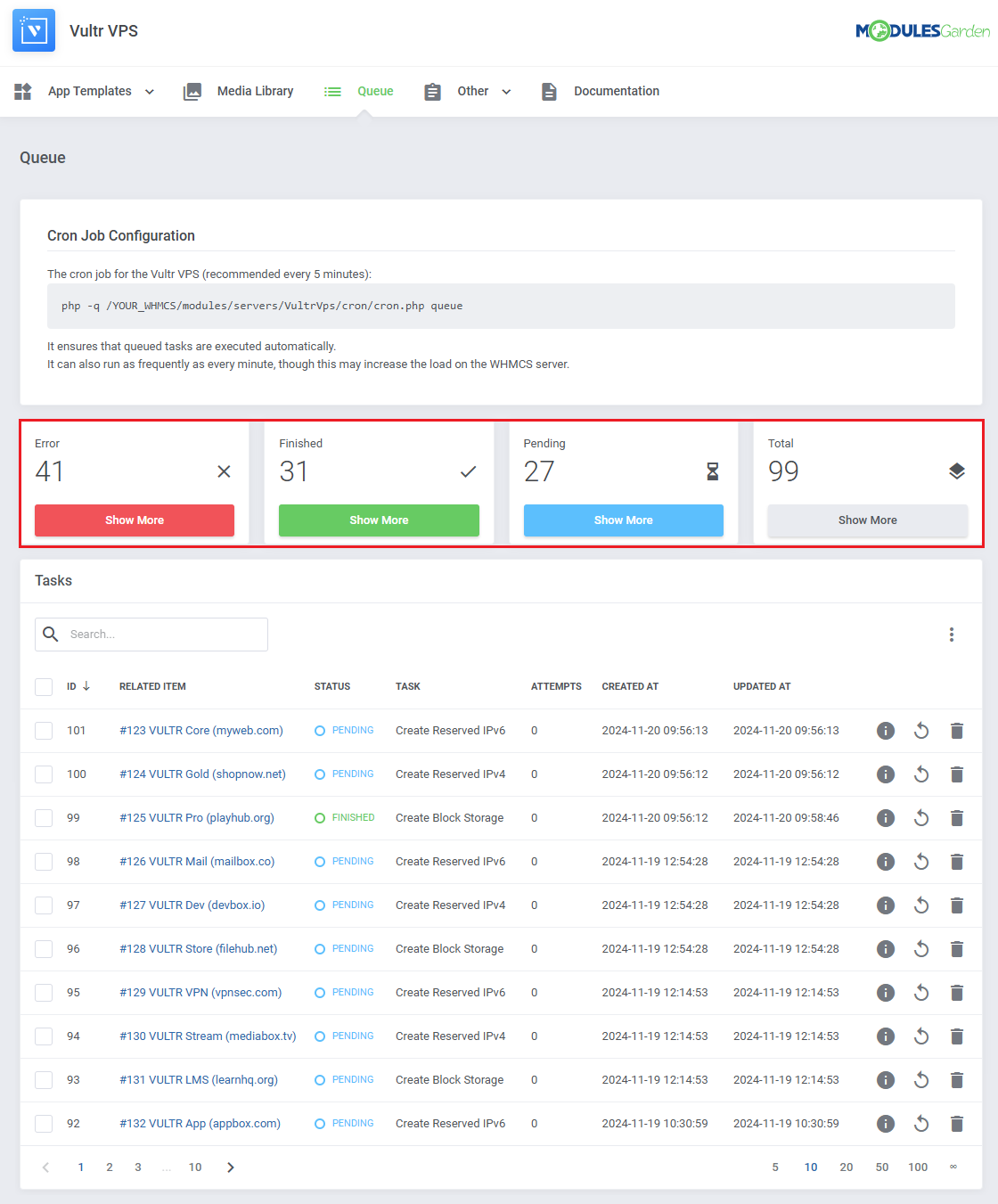
The information on each task includes:

  • Task ID
  • Related item
  • Task status
  • Task type
  • Attempts taken
  • Date of creation
  • Date of the last status update

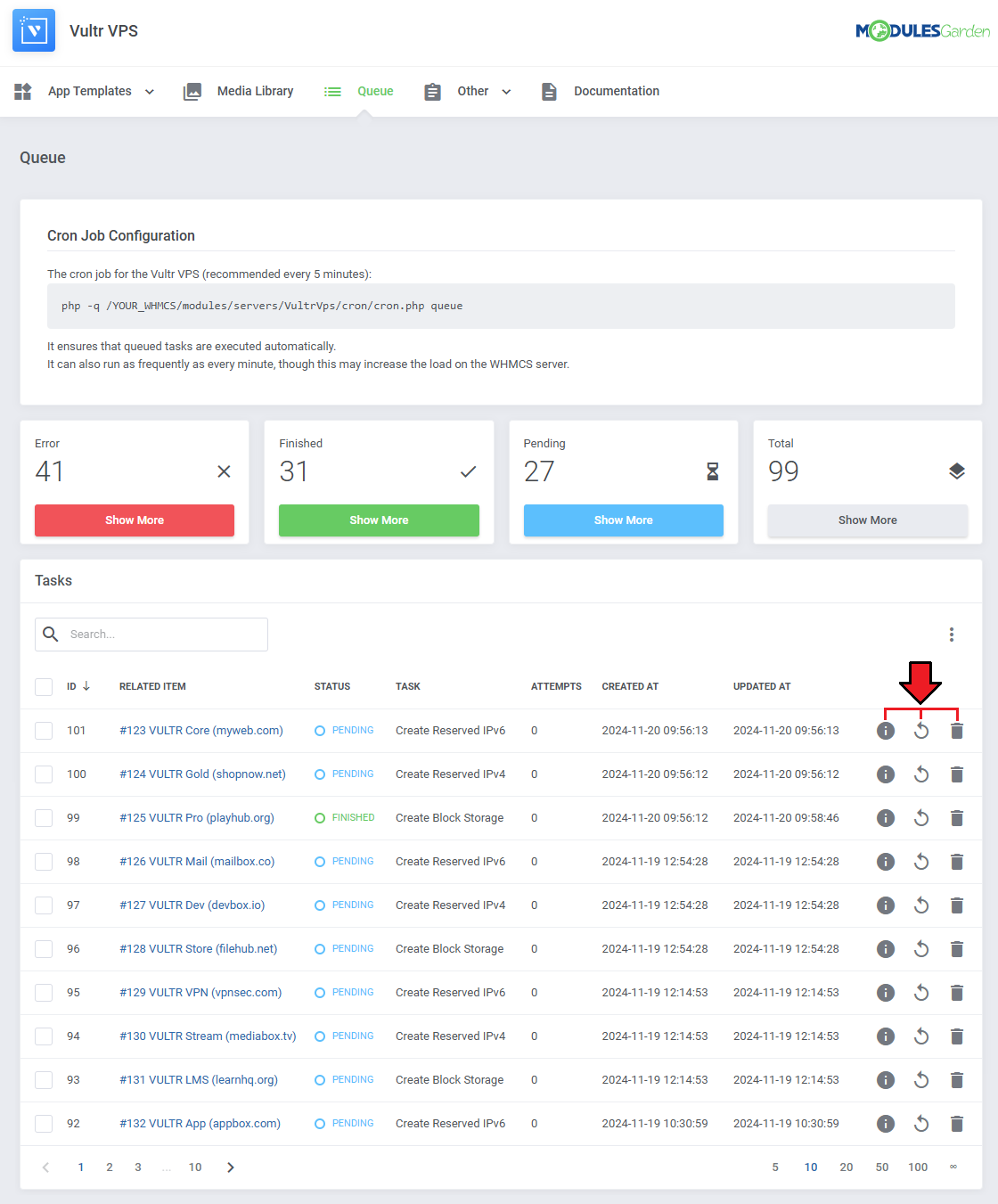
You may also use the action buttons to:

  • See task details
  • Manually run the task
  • Delete the task

To find specific tasks use the search and sorting functions.
# Task Details

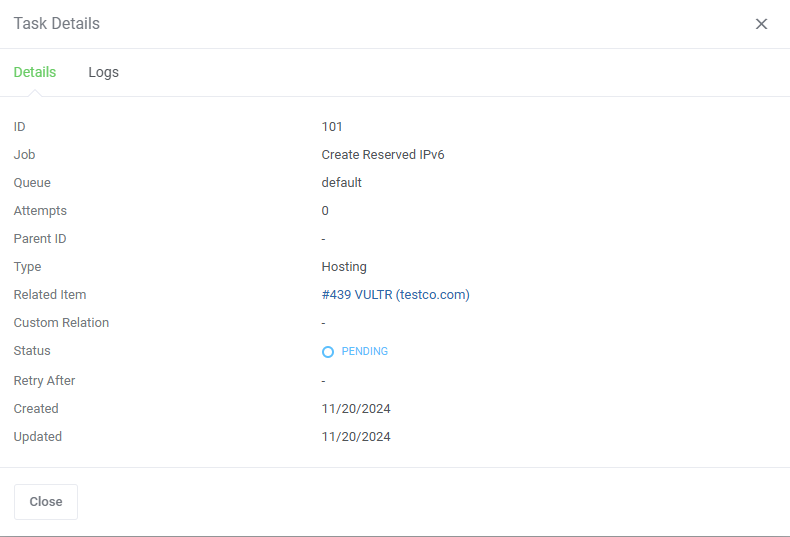
Details provide important information about each task to help you monitor its progress.
It includes data that allows you to track the task's status, retries, and key timestamps.

  • Task ID
  • Job
  • Queue
  • Retry Count
  • Parent ID
  • Type
  • Related Item
  • Custom Relation
  • Status
  • Retry After Date
  • Created At Date
  • Updated At Date

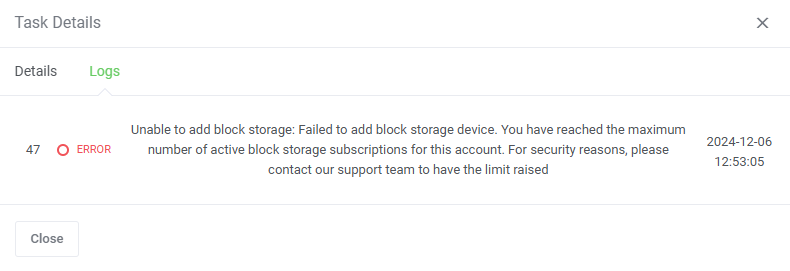
Related log entries can be found in a separate tab.
# Mass Actions

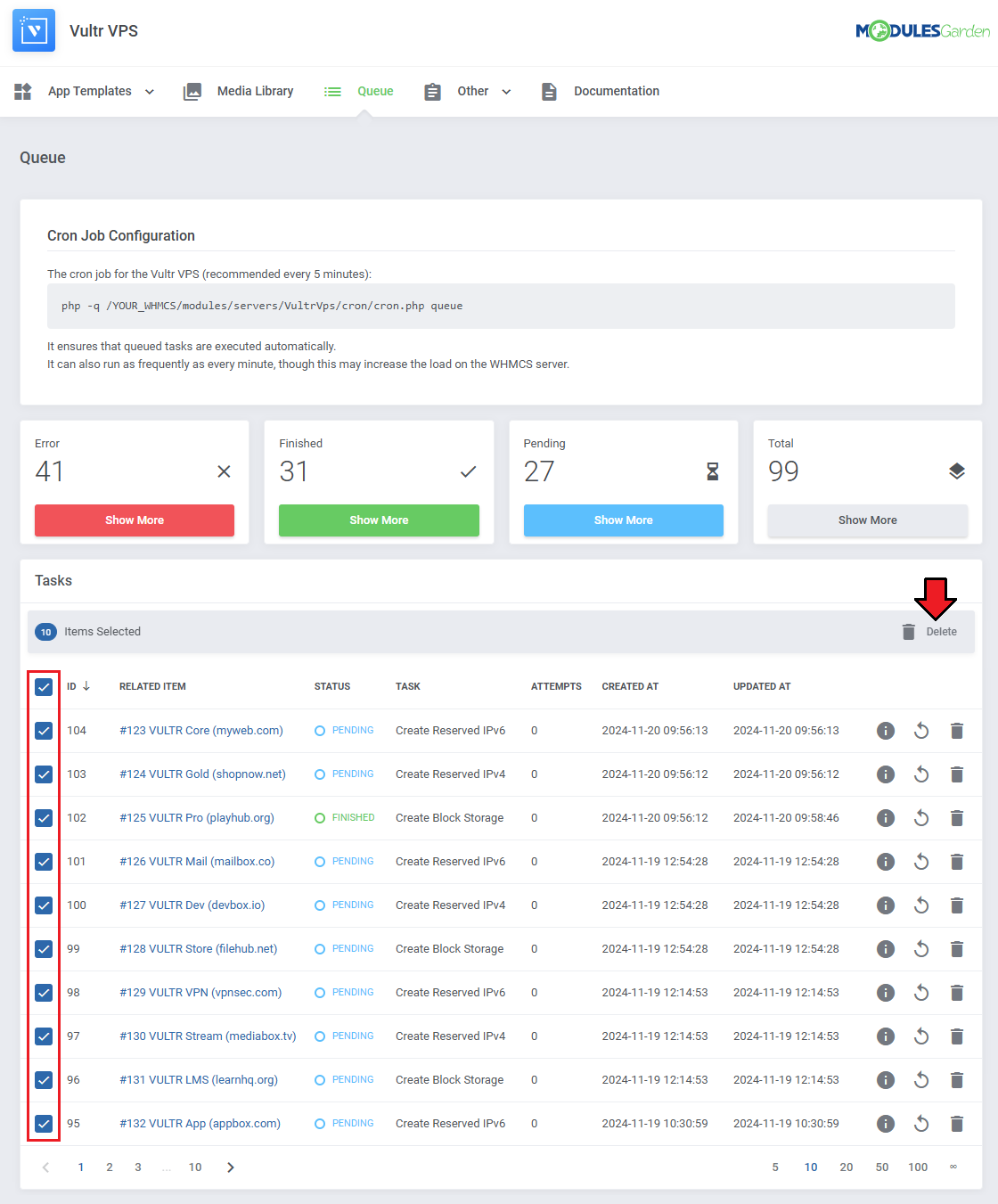
Tasks can also be deleted with the mass action function.
Simply mark the checkboxes next to the tasks you want to delete, and confirm the action by clicking on the 'Delete' button.
# Additional Actions

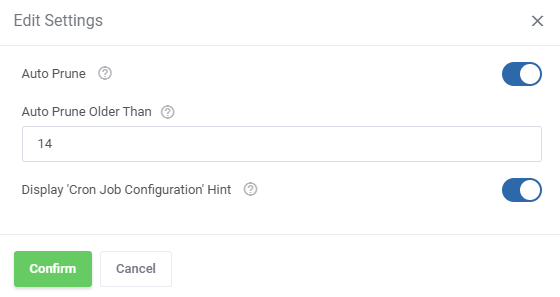
Additional actions include the 'Auto Prune' system, which automatically deletes tasks after a predefined number of days.
This helps keep the task queue organized and free of outdated entries. There is also an option to disable cron job information.
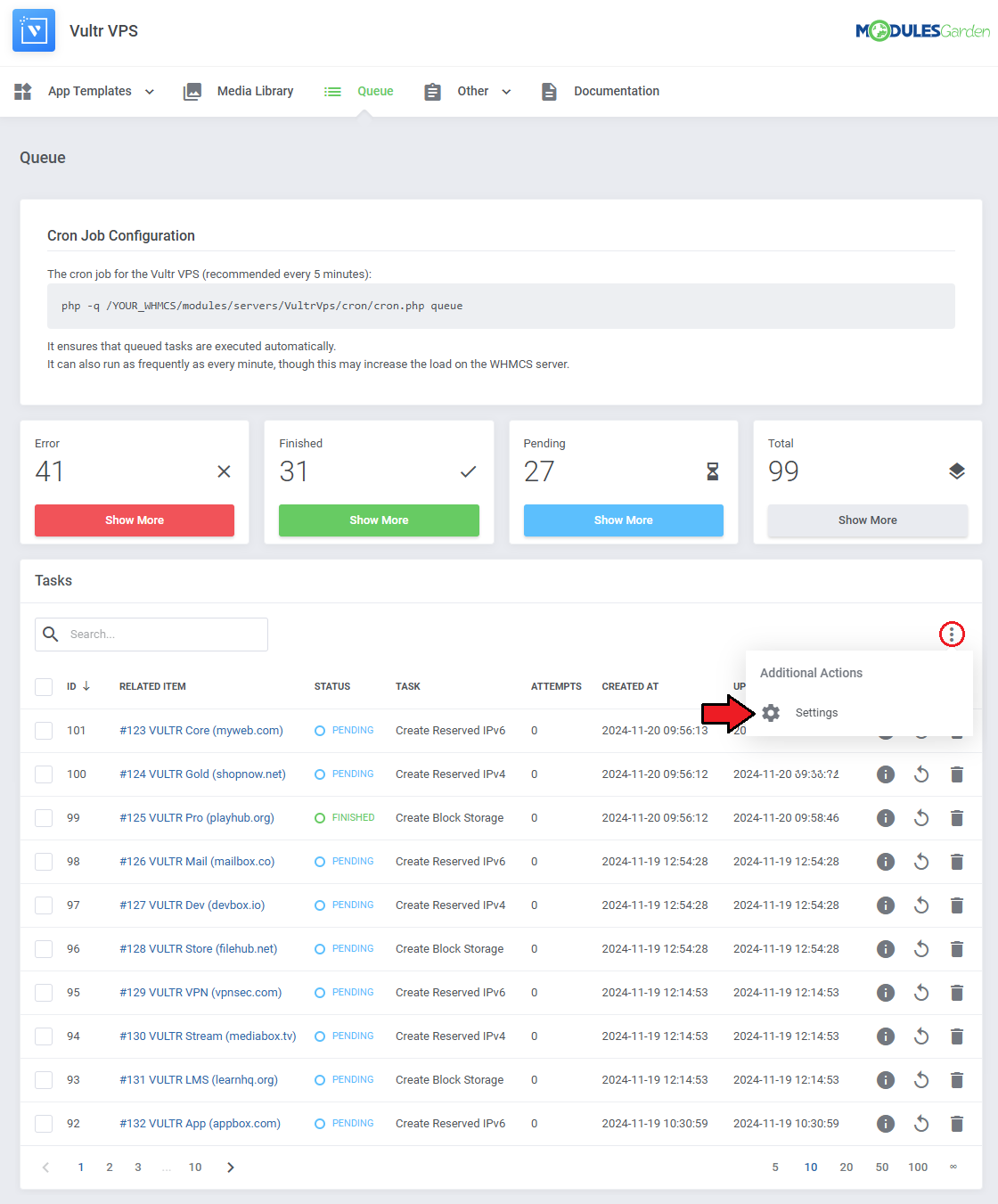
The options are in order:

  • Auto Prune - enable or disable the auto prune system, which will automatically delete tasks after a specified time.
  • Auto Prune Older Than - specify the time period for auto prune system, tasks older than provided number of days will be deleted.
  • Display 'Cron Job Configuration' Hint - display or hide the 'Cron Job Configuration' hint at the top of the page.