

# SolusVM Extended Reseller For WHMCS
SolusVM Extended Reseller For WHMCS has reached End of Support (EOS) and is no longer actively maintained. The module remains available for purchase in the Open Source version, along with License Upgrade option at a discounted price. Current license subscriptions continue and stay valid for future renewals.
# (opens new window) About SolusVM Extended Reseller For WHMCS (opens new window)
SolusVM Extended Reseller For WHMCS is a great solution for every SolusVM server owner who has resellers.
The module will allow you to automatically create and provision ready products to your resellers.
The product consists of specified server resources that can be sold further to customers of your resellers.
Features Included
- Create/Suspend/Unsuspend/Terminate Reseller Account
- Change Package - Supports Configurable Options
- View And Modify Available Server Resources Per Account
- Toggle Reseller Control Panel Button
- Run API Connection Test
Available Configurable Options
- Max Virtual Servers
- Max Users
- Max Memory
- Max Burst/Swap
- Max Disk Space
- Max Bandwidth
- Max IPv4 Address
- Max IPv6 Address
General Info
- Supports OpenVZ, Xen and KVM Virtualization
- Integrated With DNS Manager For WHMCS (opens new window) - Supports PowerDNS
- Integrated With Server Allocator For WHMCS (opens new window) - Automatic Assignment Of Most Suitable Servers To Products
- Multi-Language Support
- Supports SolusVM 1.0
- Supports PHP 8.2 Back To PHP 8.1
- Supports WHMCS Themes "Six" And "Twenty-One"
- Supports WHMCS V8.12 Back To WHMCS V8.9
- Requires ionCube Loader V13 Or Later
- Easy Module Upgrade To Open Source Version (opens new window)
# Installation and Configuration
SolusVM Extended Reseller For WHMCS has reached End of Support (EOS) and is no longer actively maintained. The module remains available for purchase, including the Open Source version and License Upgrade at a discounted price. Current license subscriptions continue and stay valid for future renewals.
In this tutorial, we will show you how to successfully install SolusVM Extended Reseller For WHMCS. (opens new window)
We will guide you step by step through the whole installation and configuration process.
- Log in to our client area and download the module.
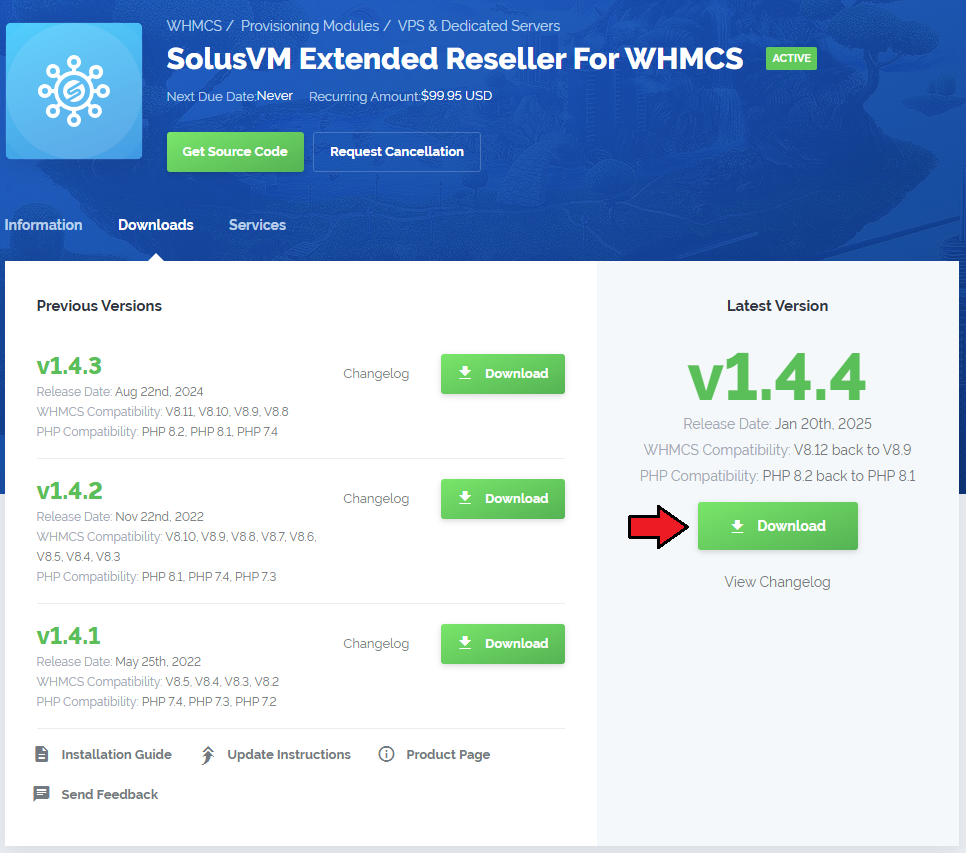
In the downloaded file you might find one or two packages that support different PHP versions.
In the most recent versions of the module, you will find only one package that supports PHP 7.2 and later.
Previous updates of the module may contain two packages dedicated to various PHP versions.
The first one supports PHP 5.6 up to PHP 7.1, and the second one addresses PHP 7.2 up to PHP 7.4.
Note: Keep in mind that PHP versions 5.6 up to 7.1 are no longer officially supported and their security issues are not fixed or released anymore. Find more info here (opens new window).
Note: You can check the current PHP version in your WHMCS. To do so, proceed to 'Utilities' → 'System' → 'PHP Info'.
Extract the package and upload its content into the main WHMCS directory.
The content of the package to upload should look like this.
When you install SolusVM Extended Reseller For WHMCS for the first time you have to rename 'license_RENAME.php' file.
File is located in 'modules/servers/solusvmExtendedReseller/license_RENAME.php'. Rename it from 'license_RENAME.php' to 'license.php'.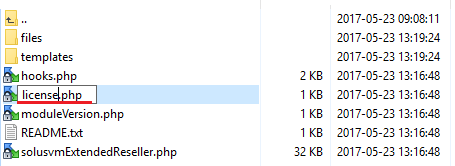
In order to configure your license key you have to edit a previously renamed 'license.php' file.
Enter your license key between quotation marks as presented on the following screen. You can find your license key in our client area → 'My Products'.

# Configuration of API Access
Now, we will show you how to configure a new product.
Firstly, log in to your SolusVM admin area, go to 'Configuration' → 'API Access' and press 'Add API User'.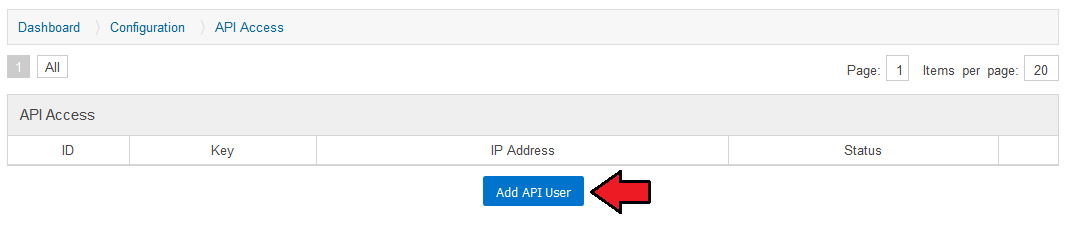
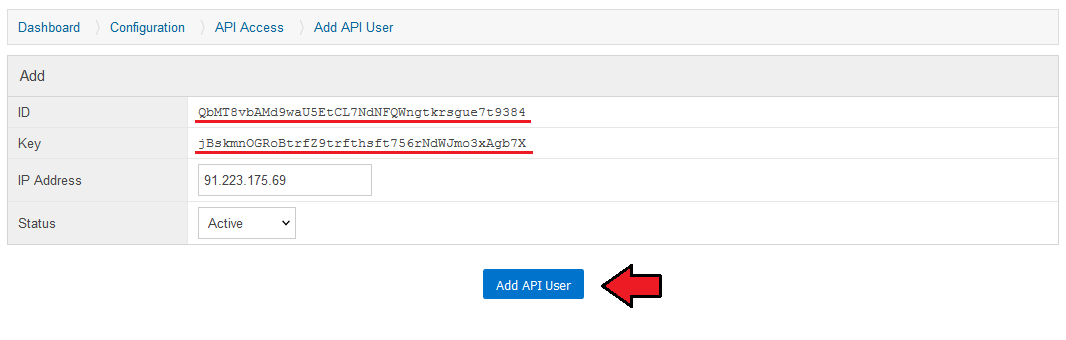
Fill in your IP address and once again click on 'Add API User' button.
# Configuration of Server
Now, log in to your WHMCS admin area and proceed to 'System Settings' → 'Servers'.
Afterward, press 'Add New Server'.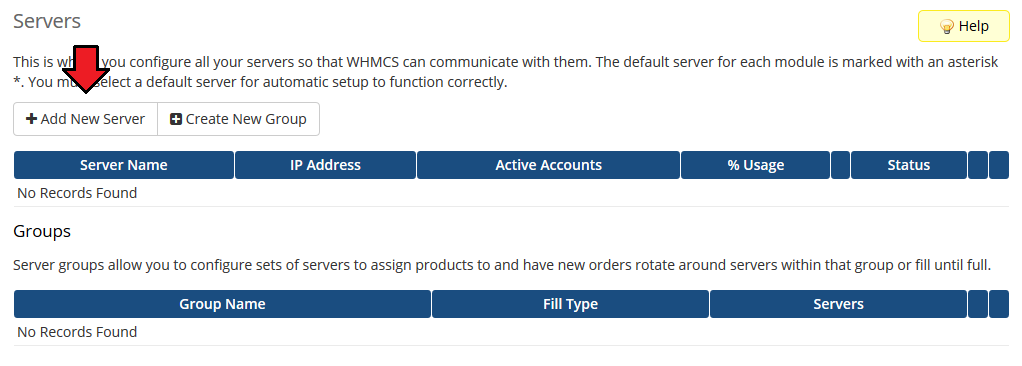
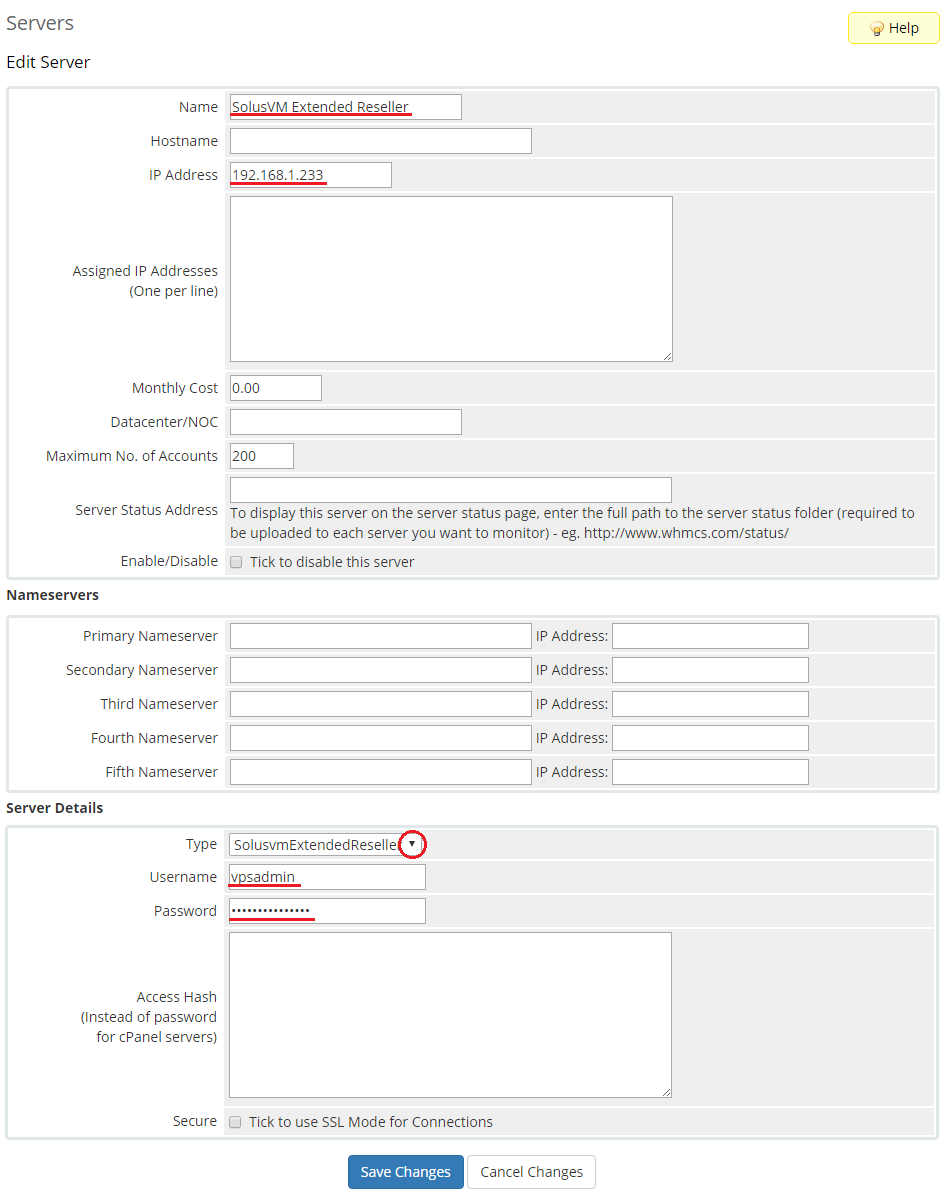
Enter your server name and IP address.
- Username - fill in with API User ID
- Password - fill in with API User Key
Choose 'SolusvmExtendedReseller' from a dropdown menu and press 'Save Changes'.
After you configure your server correctly, you will see the following screen.
Test your connection through pressing 'Test Connection'.
Now, you need to create a new group for your server. For that purpose press 'Create New Group'.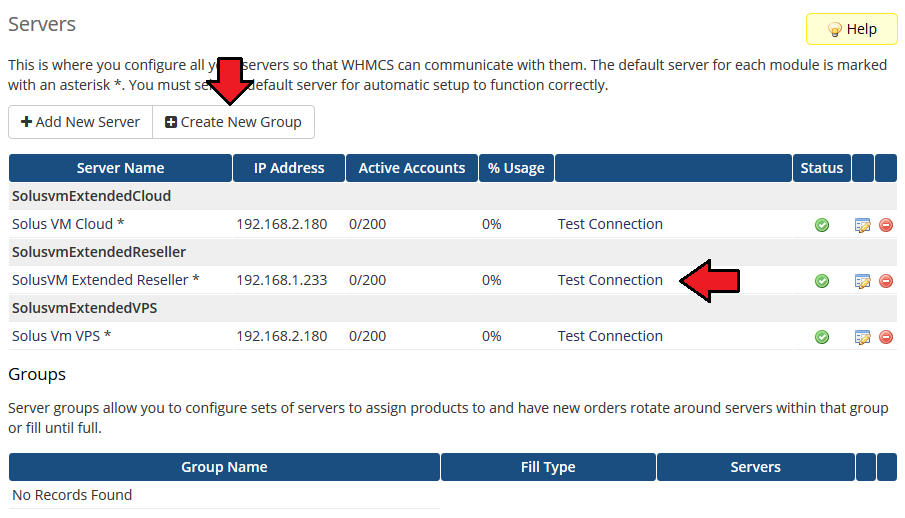
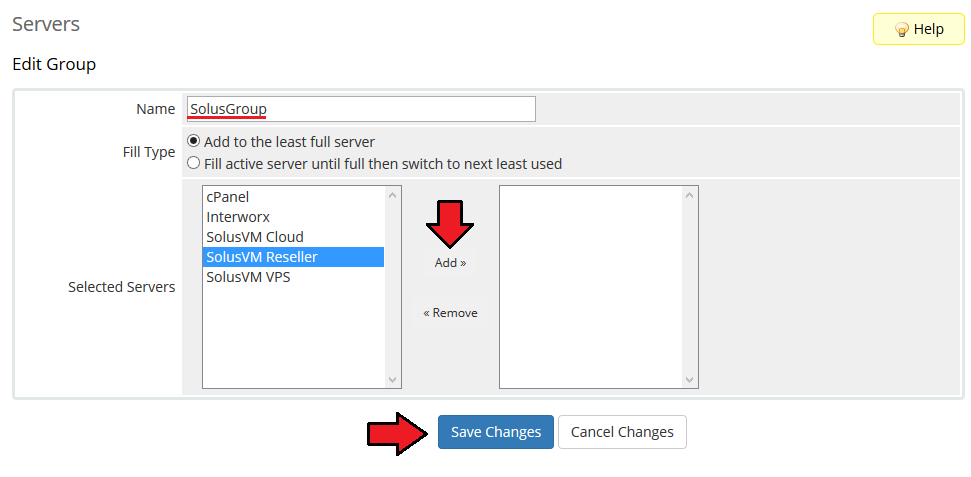
Fill in a group name, click on your previously created server, and press 'Add'.
Confirm creation of the group through pressing 'Save Changes'.
# Configuration of Product
In order to create and configure a product, go to 'System Settings' → 'Products/Services'.
Now, click on 'Create a New Group'.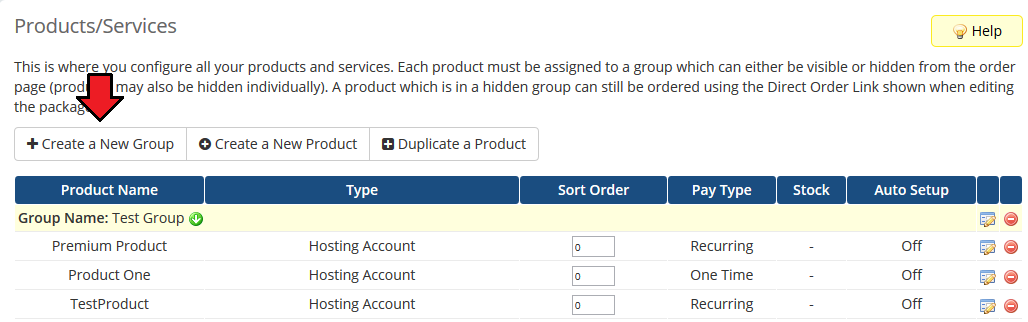
Enter a product group name and press 'Save Changes'.
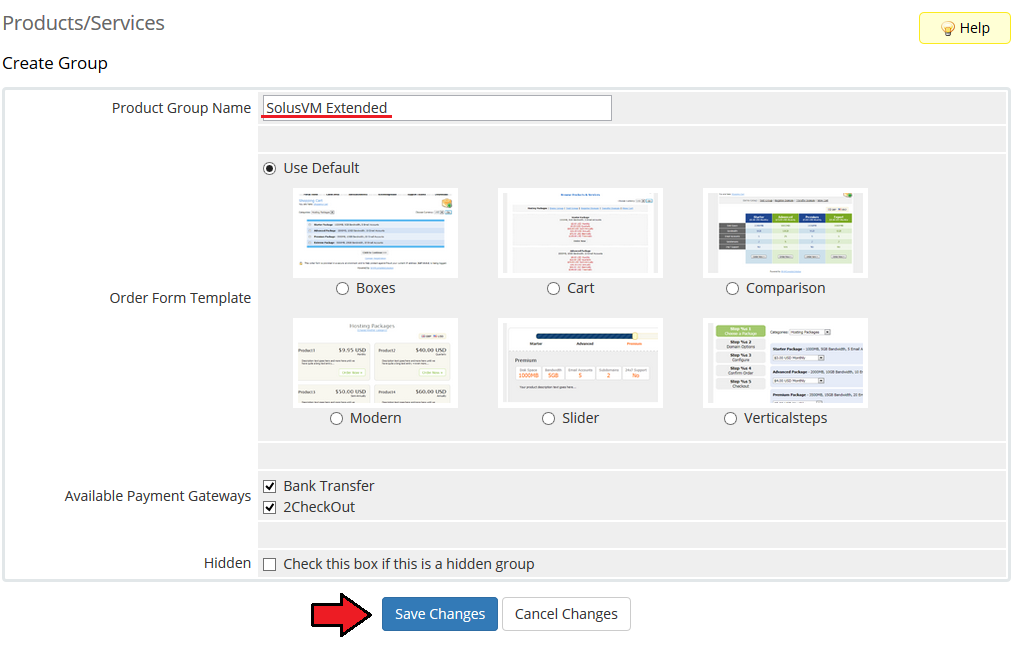
When you have a product group, you can create your product and assign it to SolusVM Extended Reseller.
To create a product click on 'Create a New Product'.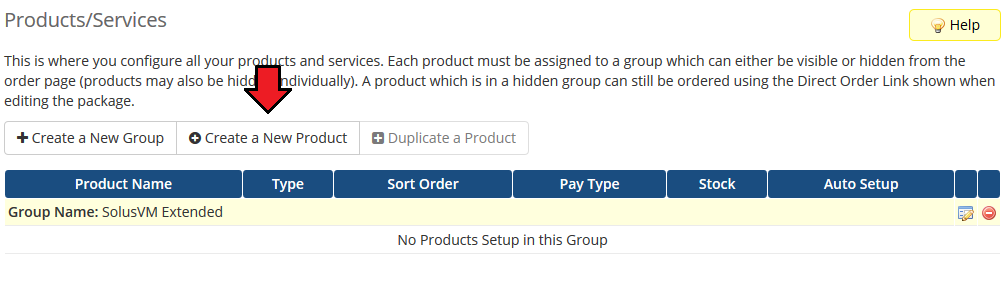
Afterwards, choose a product type and a previously created product group from dropdown menus, fill in a product name and press 'Continue'.
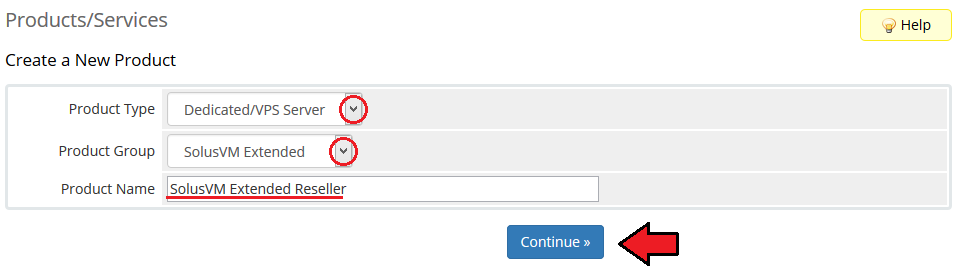
Now, go to 'Module Settings' section, choose both 'SolusvmExtendedReseller' and a previously created server group from dropdown menus.
Next, 'Save Changes' and generate configurable options as shown on the following screen.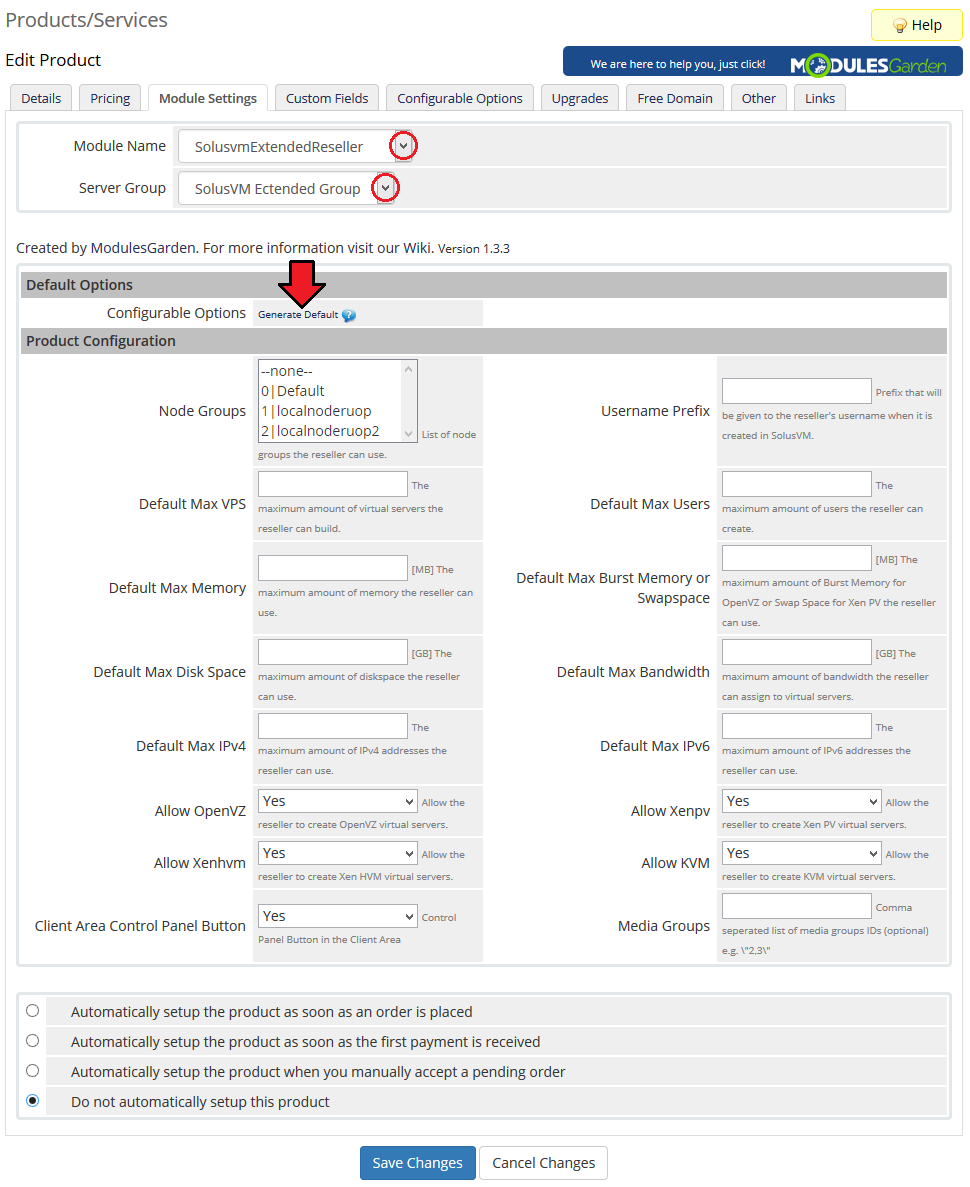
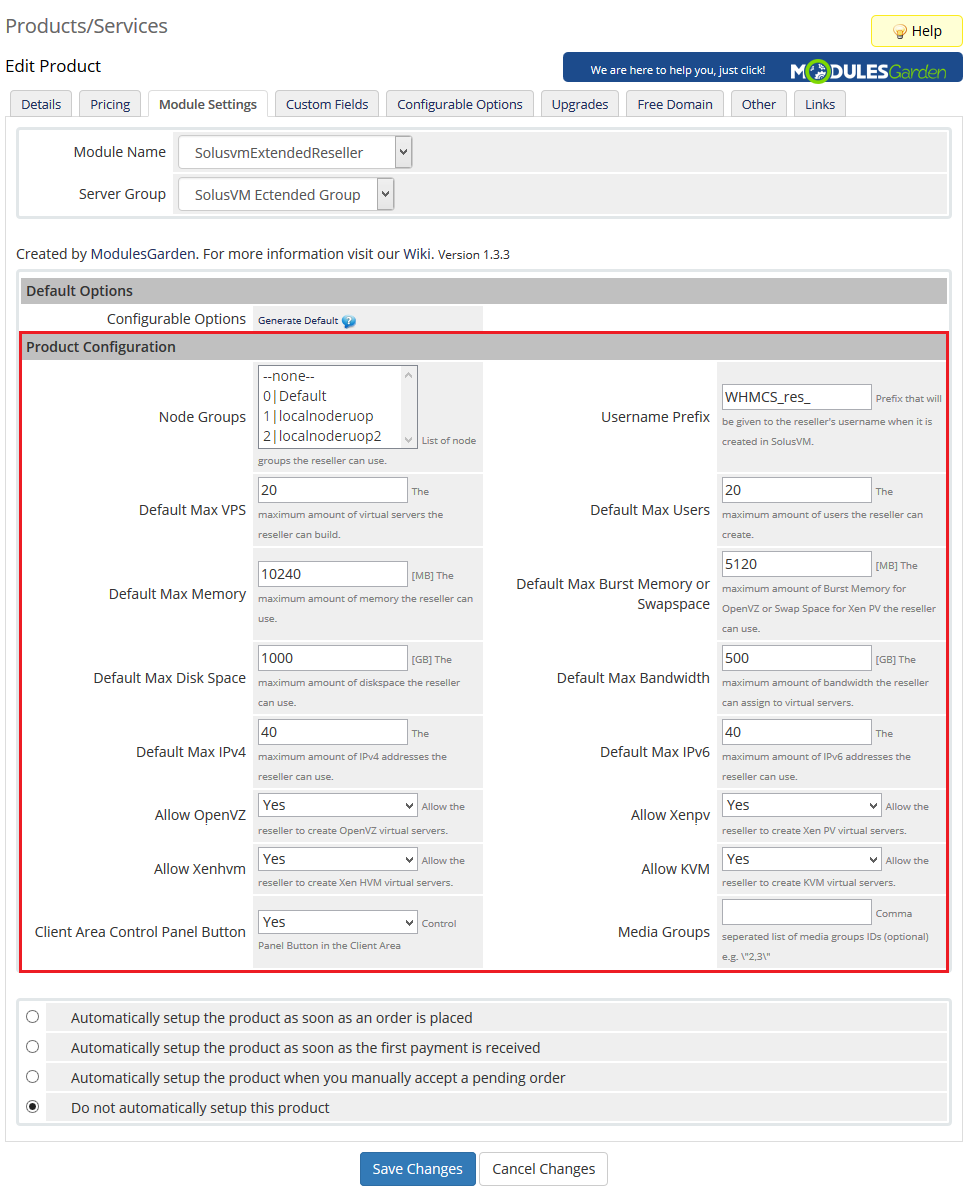
Under 'Product Configuration' section you can select functionalities you wish to offer to your resellers as well as define resource limits.
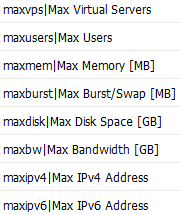
- Providing you use configurable options you can allow your customers to place orders tailored to their needs.
Our module offers the following configurable options:
You have just finished the installation and configuration of the module. From this moment your customers can start to place orders!
# Management
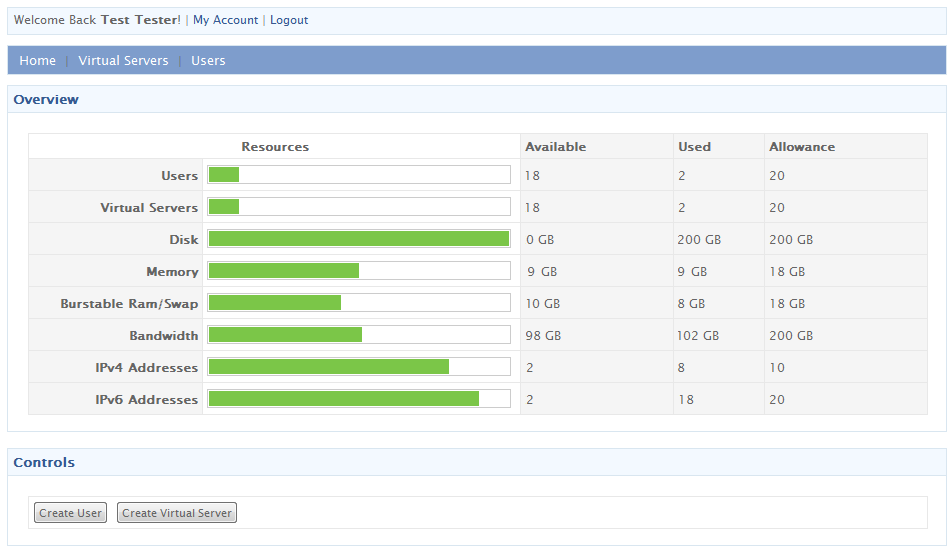
SolusVM Extended Reseller For WHMCS allows your resellers to view server resources and quickly access their reseller control panels.
# Interface
Now, let's check the interface of the module in your WHMCS client area.
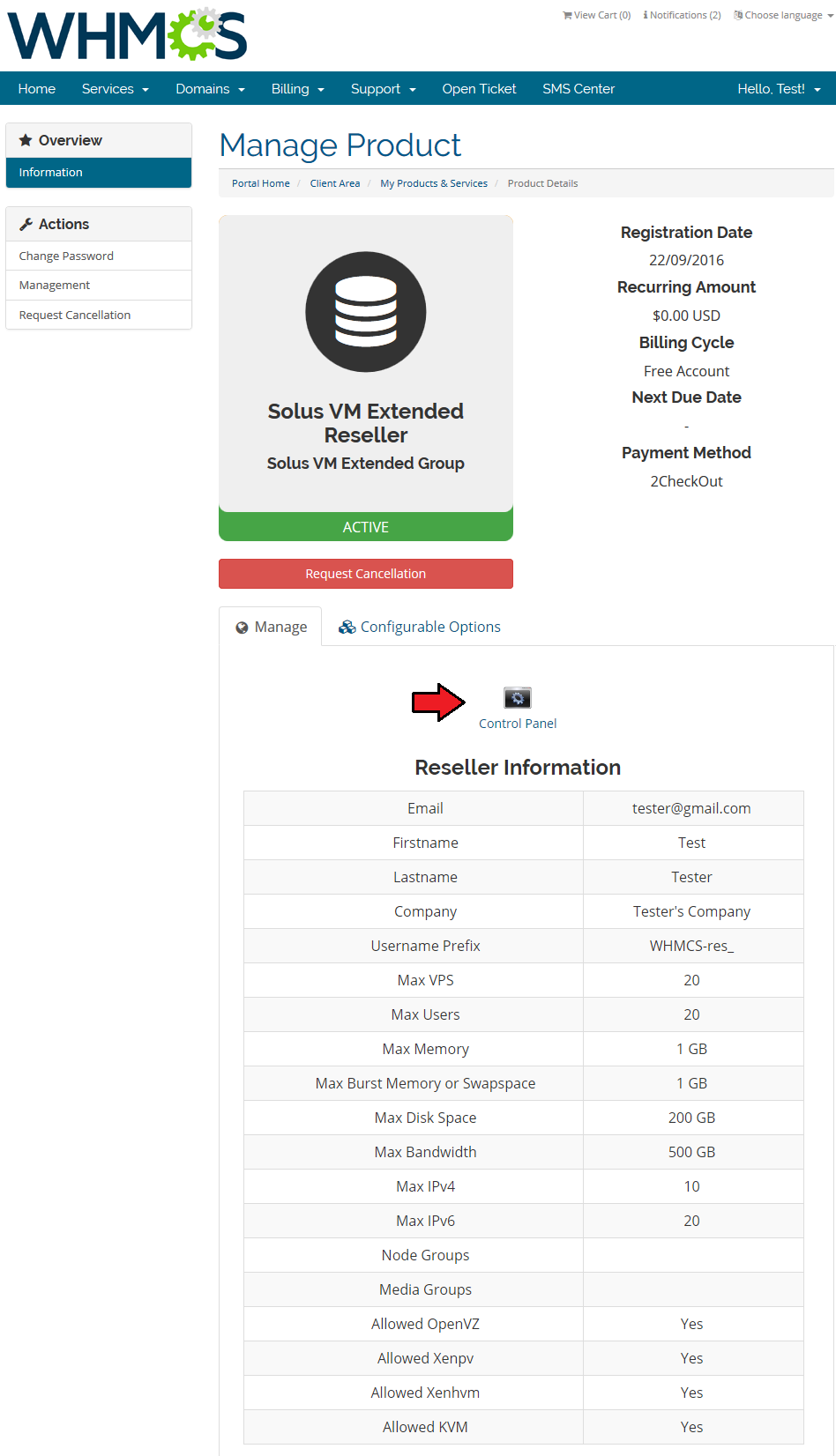
As you can see, the module displays all the information important to your resellers.
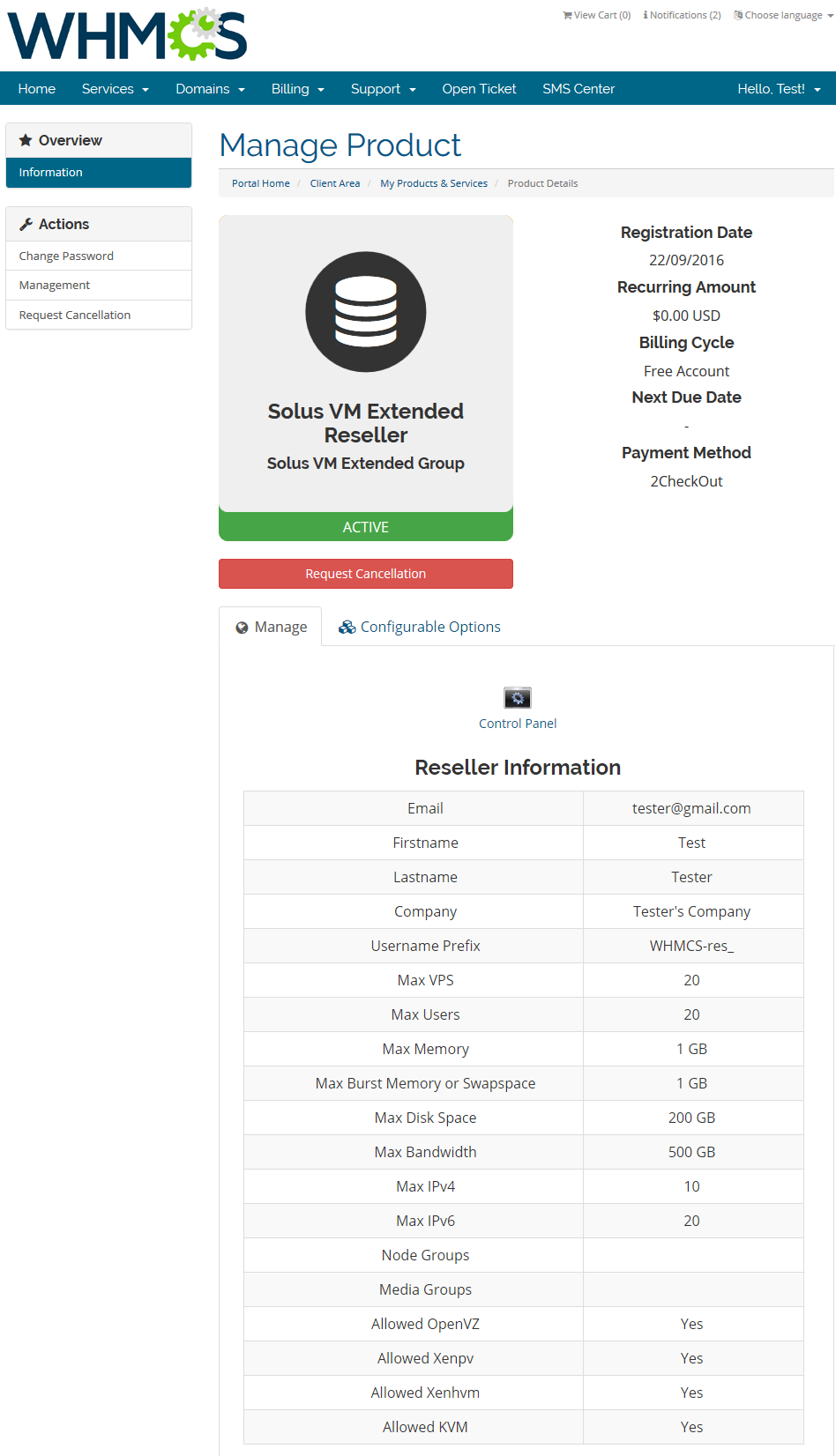
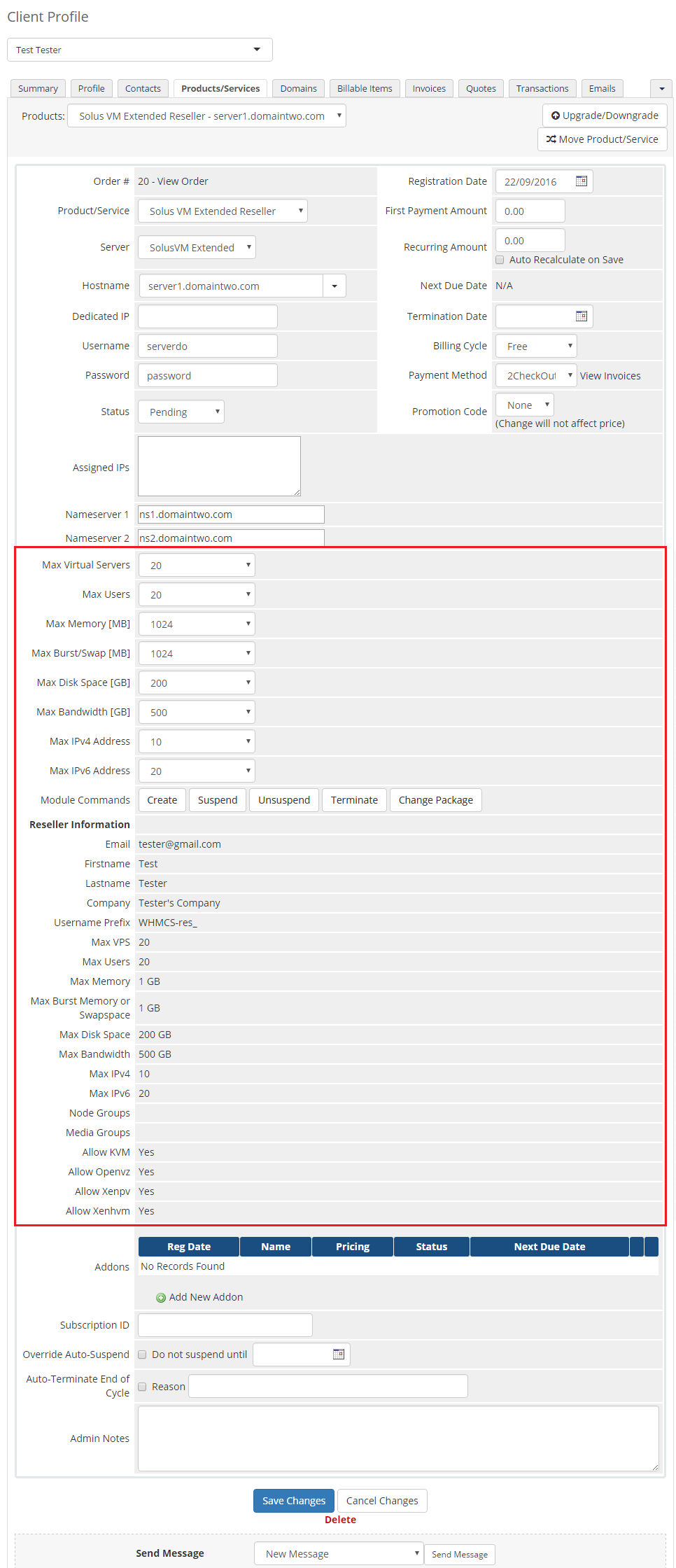
You can monitor and manage each product from your WHMCS admin area.
Your resellers can also quickly access their panels by clicking on 'Control Panel' button.
Voila! One-click in the WHMCS client area and we are inside the Reseller Control Panel.
# Management of DNS
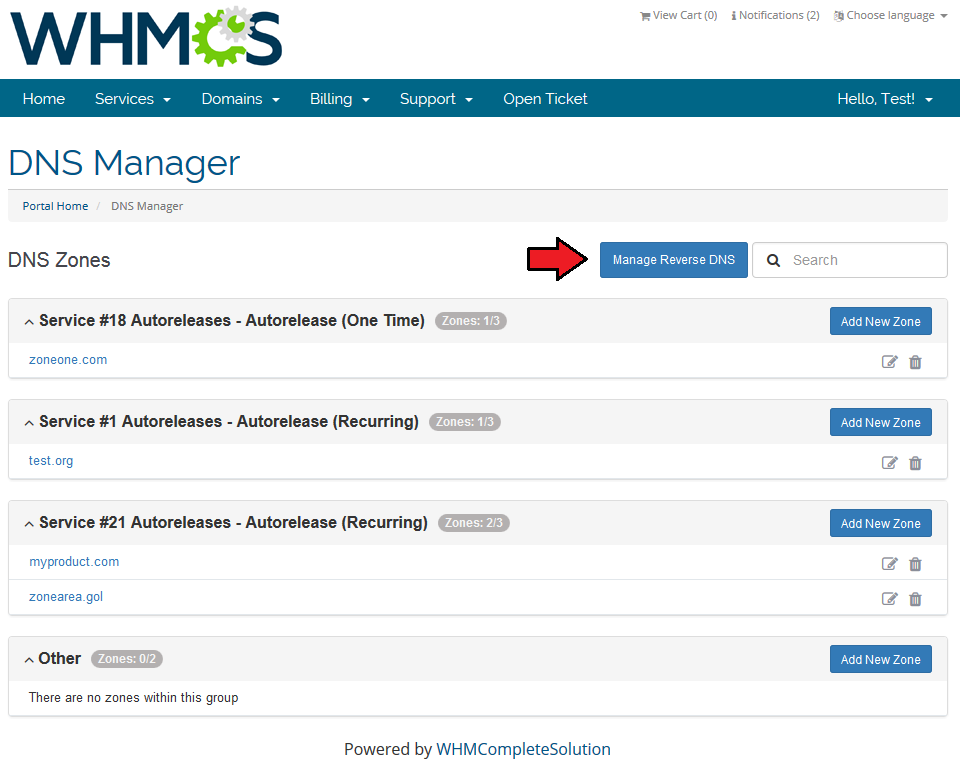
When you combine SolusVM Extended Reseller For WHMCS with DNS Manager For WHMCS (opens new window), your clients will be able to manage zones and records from the client area.
DNS Manager For WHMCS allows your customers to manage DNS zones, records and ReverseDNS.
To connect the modules, create an appropriate package with your SolusVM Extended Reseller Products and enable DNS and rDNS management.
For precise instructions on how to manage your DNS zones please refer to our documentation.
# Tips
We made every effort to make our module as easy to install, configure and use, as possible. Therefore we paid special attention to displayed messages.
Read carefully each message, follow the instructions and you shall have no problems with using the module.Operations performed on the virtual servers are not executed immediately. Give your SolusVM server some time to process the request and execution of the operation.
# Update Instructions
An essential guidance through the process of updating the module is offered here.
Ensure successful completion of the module update by carefully following each step, thereby preventing data loss or any unforeseen issues.
Additionally, you will find a current list of supplementary actions necessary for a smooth update process there.
# Upgrade Guide
Seeking a solution that offers greater flexibility, customization tailored to your precise needs, and unrestricted availability?
There is an option that not only proves to be cost-effective in the long run but also includes prioritized support services, making it a truly valuable investment.
Opt for the Open Source version (opens new window) of your SolusVM Extended Reseller For WHMCS module to unlock these benefits.
Simply click on either the Get Source Code or Upgrade To Lifetime button found on the product's page in our client area to complete the one-step upgrade process, with a dedicated discount already applied.
Follow a comprehensive guide covering the transition process, the advantages it brings, and step-by-step instructions on what to do next after the order has been successfully finalized.
# Common Problems
When you have problems with connection, check whether your SELinux or firewall does not block ports.
The vast majority of problems are connected with misconfigured SolusVM server or misconfigured servers/products in your WHMCS.
Firstly, make sure that your SolusVM server has properly configured virtual servers, nodes, node groups, templates, plans, and API access.
In most cases, appropriate SolusVM server configuration guarantees correct operation of the module.
Afterward, check your WHMCS server connection and product settings. If you are certain that everything is correct, use our Debug Mode.By default, our module connects with SolusVM server on port 5353. If you are using a different port, you need to specify it in 'Hostname' field.
The default port for SSL connections is 5656. To connect on that port enter your hostname as follows: 'yourhostname.com:5656'. Keep in mind that you can connect on any port.
The field below 'Tick to use SSL Mode for Connections' switches the connection type between http and https. Note that this is something different from choosing the port to connect.