

# MetricsCube Connector For WHMCS
# (opens new window) About MetricsCube Business Analytics For WHMCS (opens new window)
MetricsCube Business Analytics For WHMCS is a free module that has been created to allow synchronization between the WHMCS system and MetricsCube (opens new window) platform.
With this unprecedented integration, the platform will get deep insight into the fundamental information, analyze it and draw over 90 various business reports.
Enjoy the turnaround integration and enhance your WHMCS admin area with instant insight into your clients, services, and domain data fetched from MetricsCube.
- Exclusive Promo Code From ModulesGarden
- Save 25% For 3 Months (opens new window) On The MetricsCube Platform With Coupon: WHMCS25%_MC
# Installation and Synchronization
We have prepared a short but comprehensive tutorial that will show you how to successfully install MetricsCube Business Analytics For WHMCS (opens new window) module and synchronize your WHMCS with MetricsCube.
Although the process is extremely easy and intuitive, go over the below guide to assure it is fast, smooth and trouble-free.
# Install The Addon
- First of all, you need the package, therefore log in to our client area and download the module.
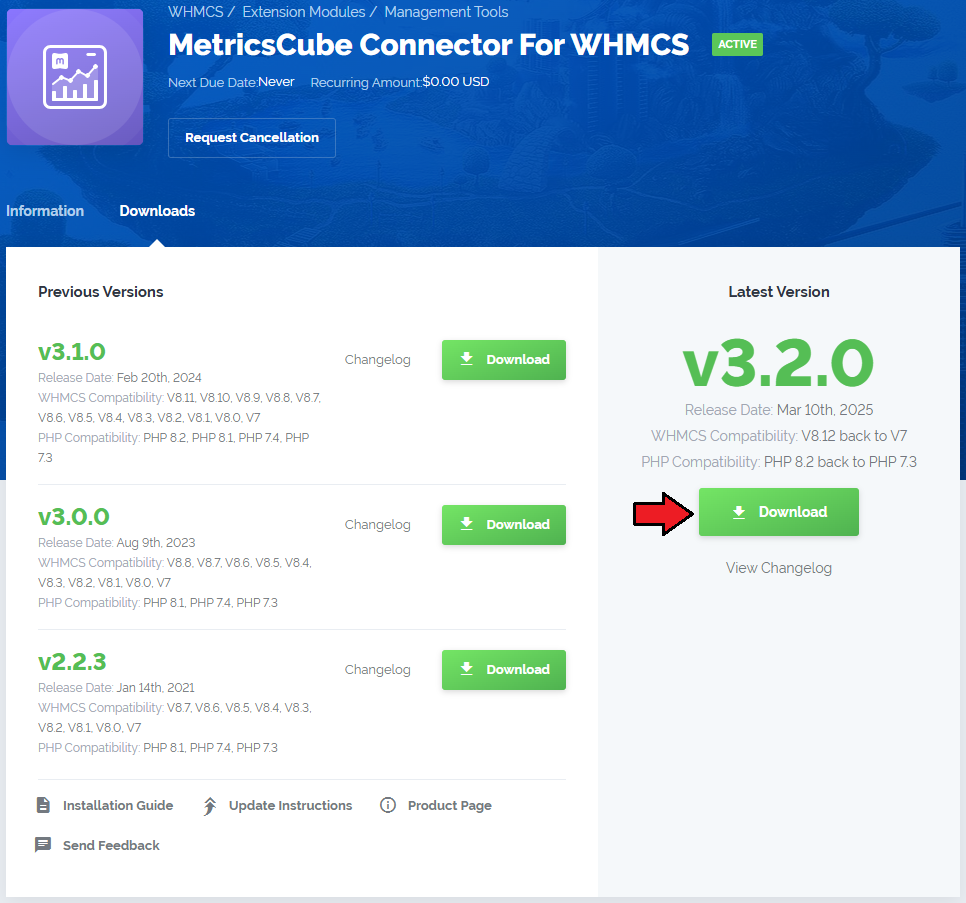
- Open the FTP Client, log into the server with WHMCS installed. Then, open the main catalogue and upload the folder with files you have extracted previously.
The content of your package should look like on the below screen:

# Activate The Addon
Now, you have to activate the addon module in your WHMCS system.
Please log in to your WHMCS admin area. Once there, navigate to the 'System Settings' section and select 'Addon Modules'.
Find 'MetricsCube Connector' on the list of addons and click the 'Activate' button.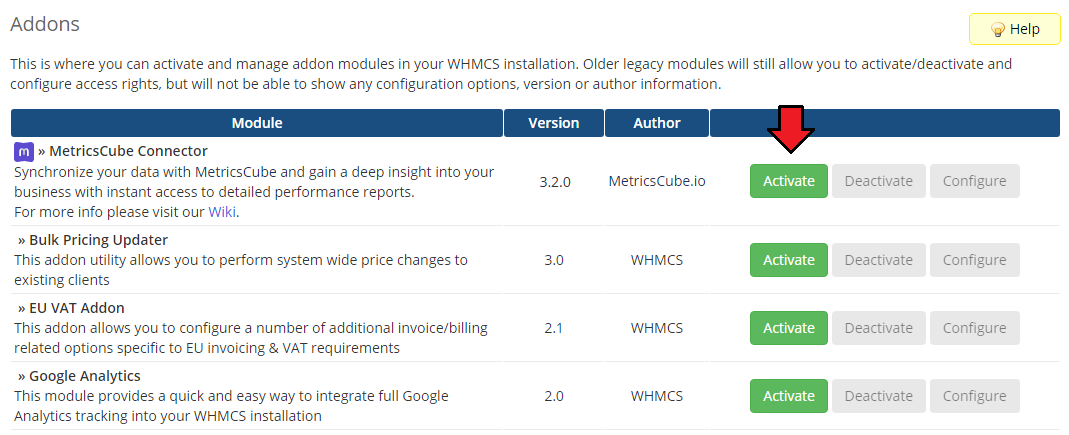
After the module has been activated, you will need to enable access to your Admin Role.
To do that, click on 'Configure', select the admin roles that should have access to the module, and save changes.
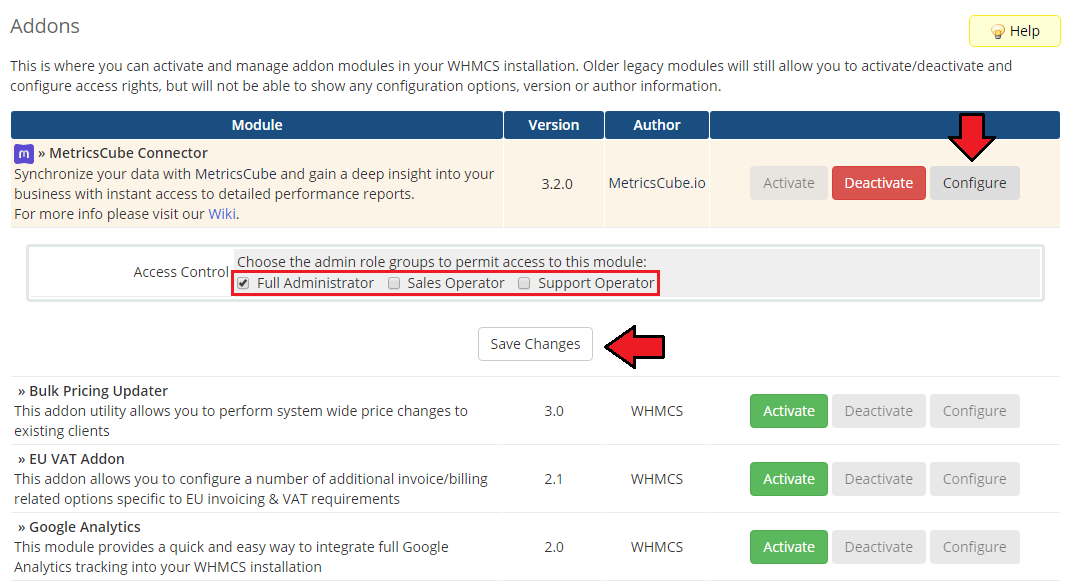
Your module has just been successfully installed and activated!
# Sign Up And Synchronize With MetricsCube
Now, move to metricscube.io (opens new window) to learn more about MetricsCube, create a new account and activate your free 14-day trial of the platform or use a direct link (opens new window) to the sign up page.
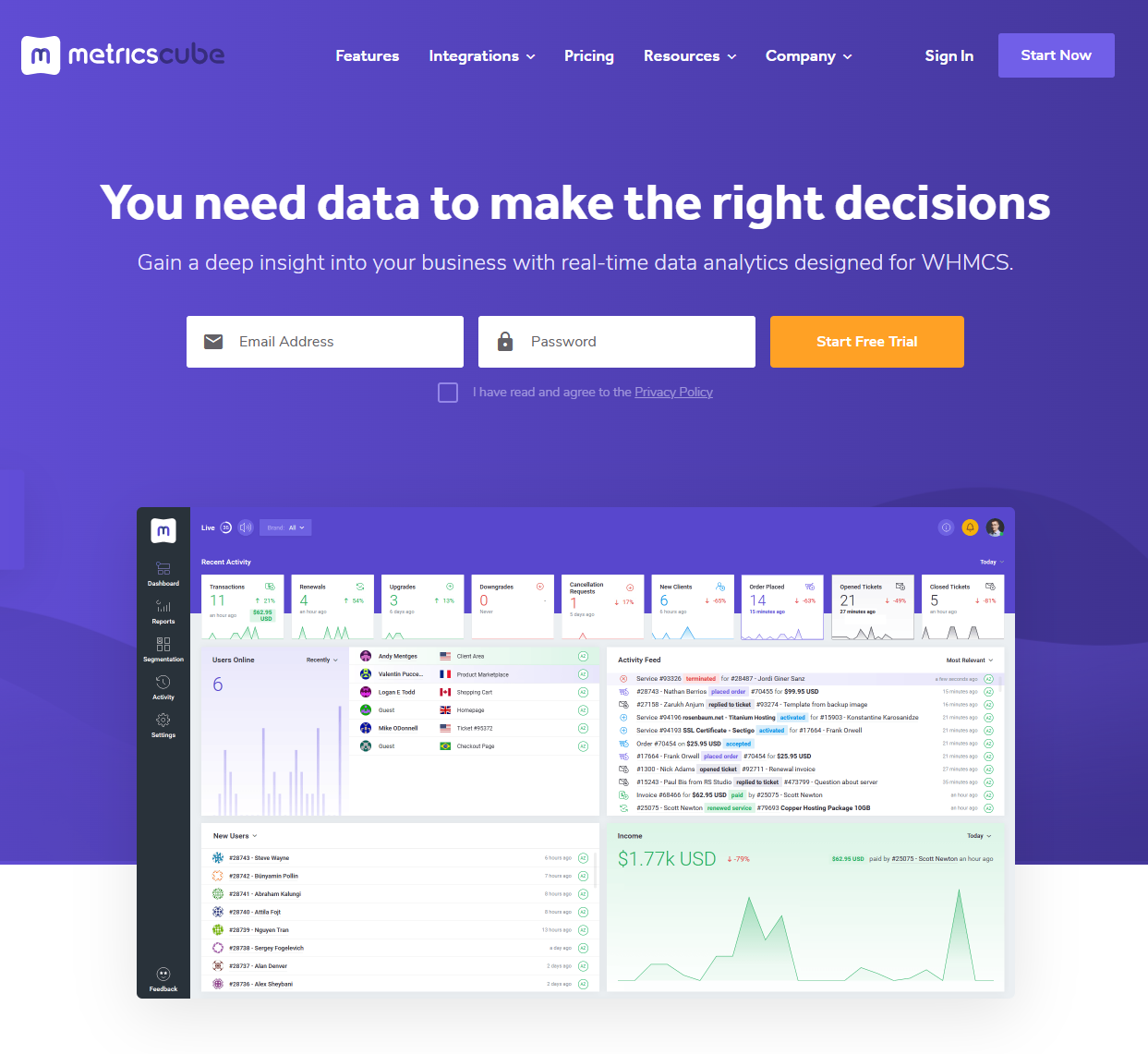
Enter your email address and a strong password. Remember to read and then agree to the Privacy Policy before signing up!
There are no other steps required to create an account, you may continue right after.
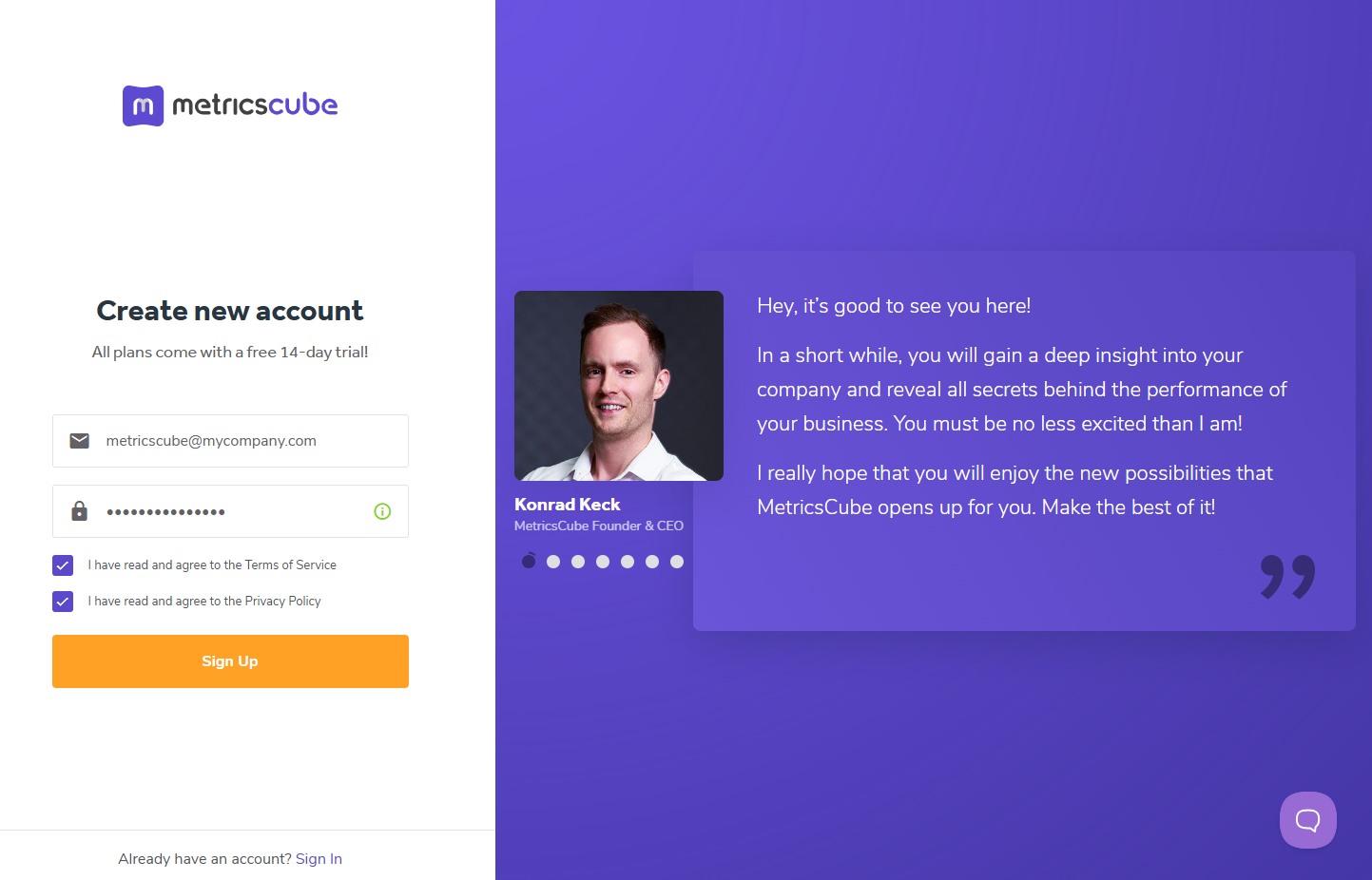
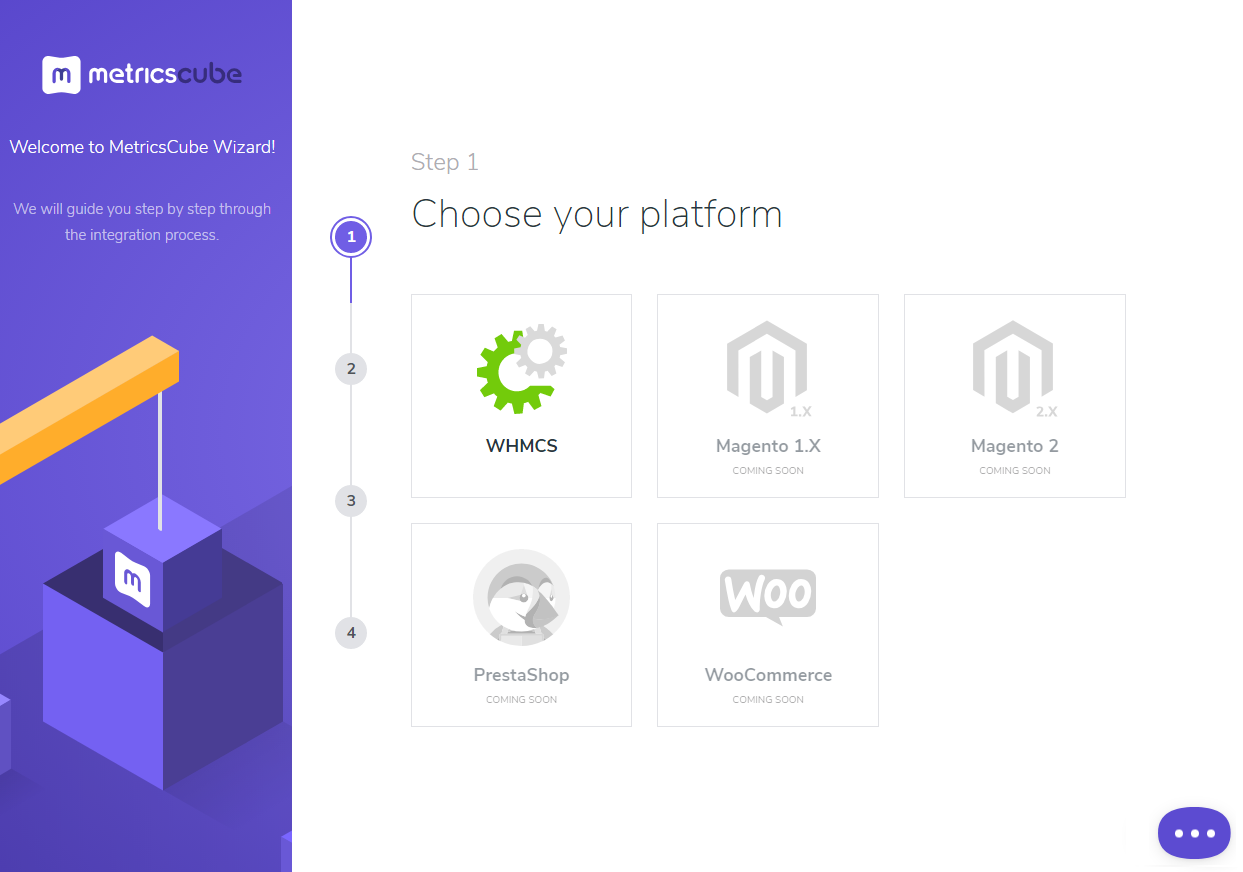
On pressing the Sign Up button you will be automatically moved to the MetricsCube Wizard.
'Step 1' - select the platform you are going to synchronize with MetricsCube - in our case that will be 'WHMCS'.
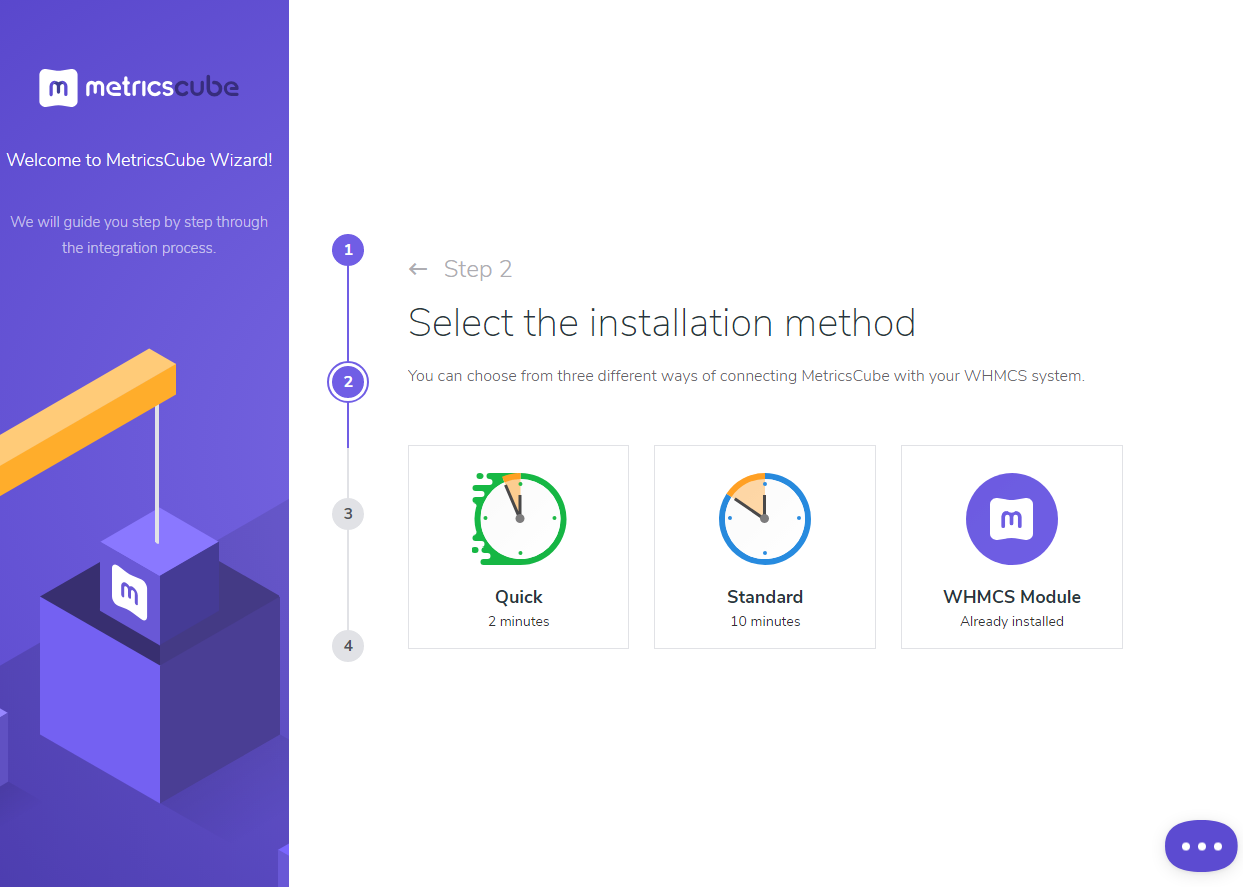
In 'Step 2' you will be asked to select the installation method.
Go for method 3, 'WHMCS Module - Already Installed ', as you have just installed the addon module.
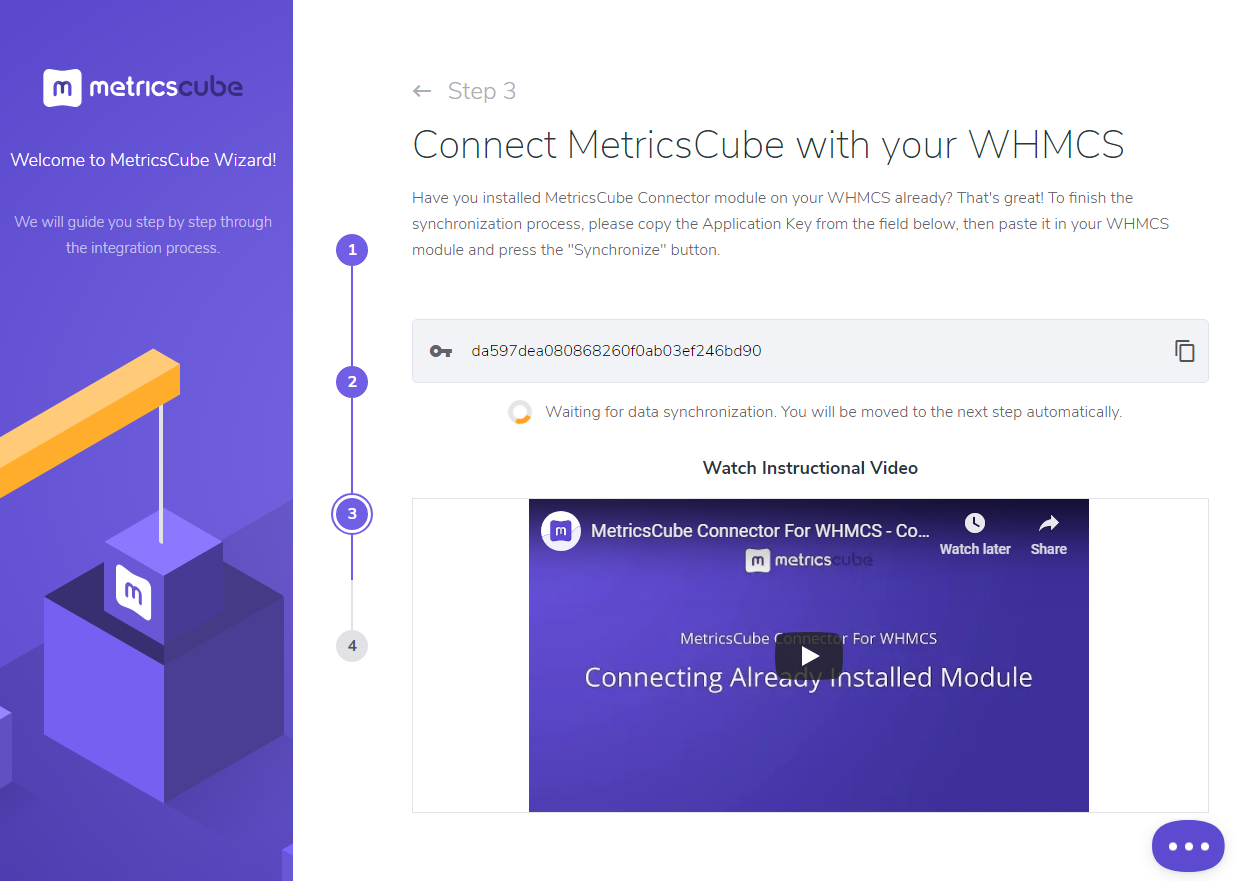
When moved to 'Step 3' you will see an activation code presented on your screen.
Copy it, use the copy icon next to it and keep it safe as you will need it in further steps of synchronization.
Go back to your WHMCS addon now. Link the MetricsCube platform and your WHMCS by pasting the copied activation code into the Application ID field located in the module.
Press the 'Synchronize' button.
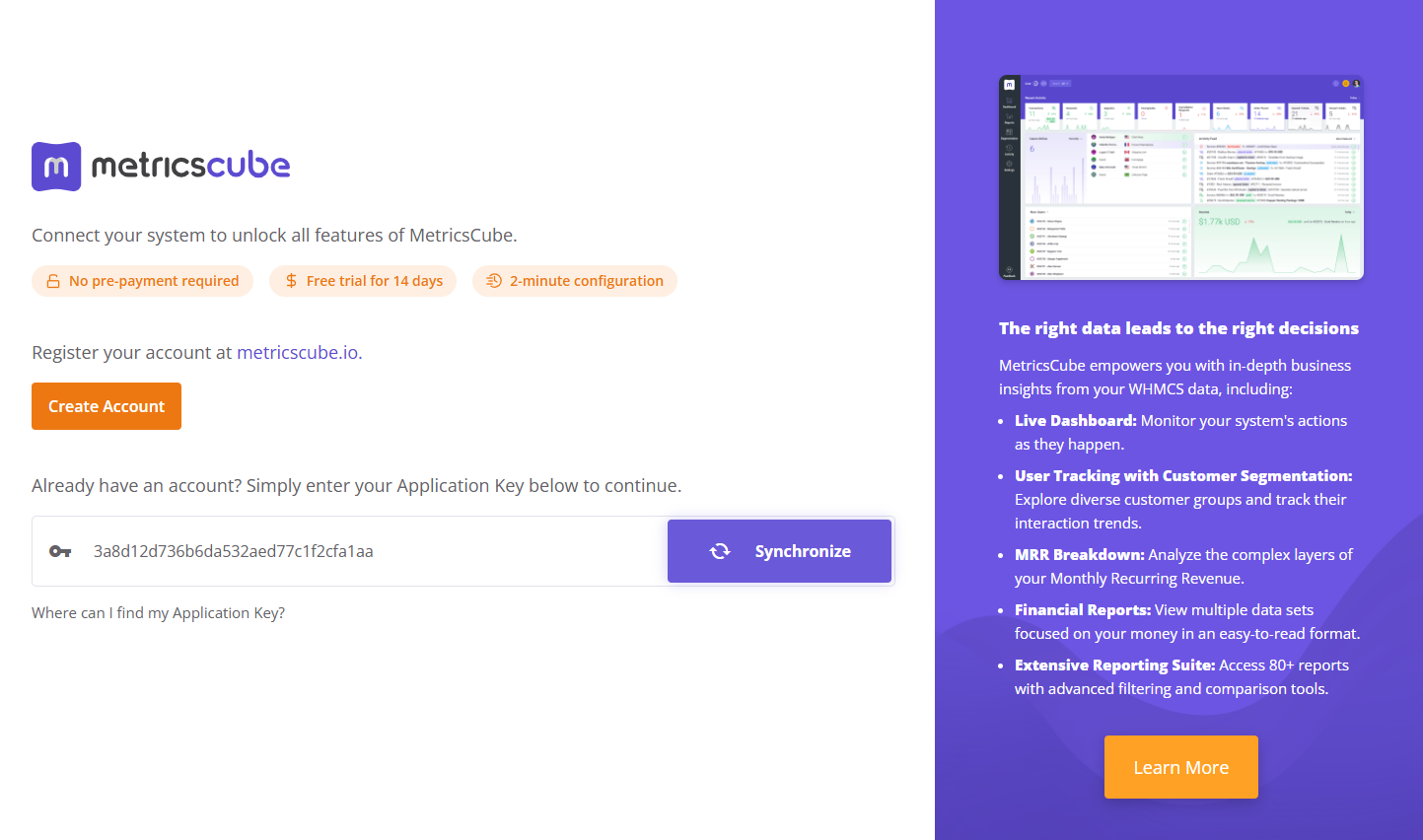
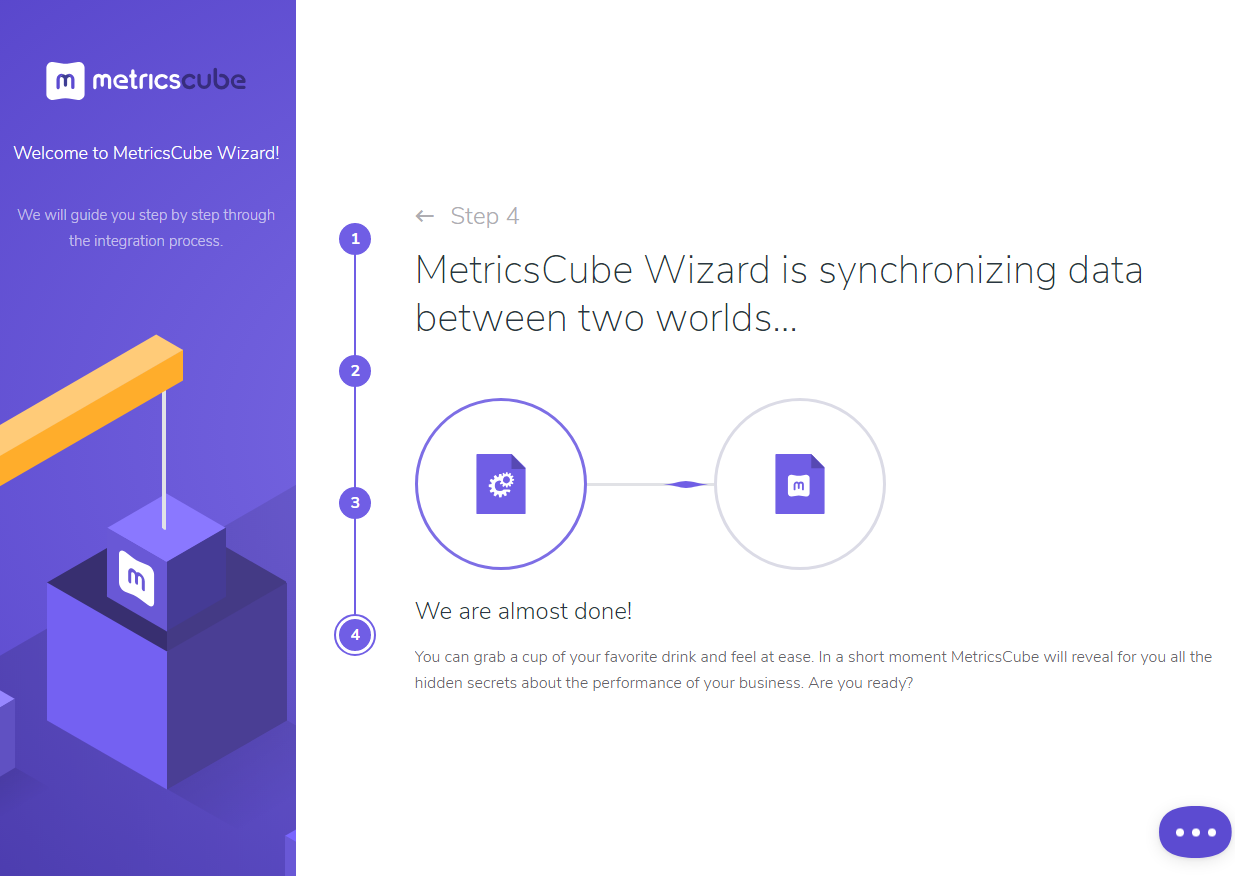
The last step of installation has just begun! Wait until MetricsCube wizard has finished synchronizing data between your WHMCS system and the platform.
The moment the synchronization is complete you will be informed about that in your addon with a short note. Have a break now and wait until the reports are finally ready.
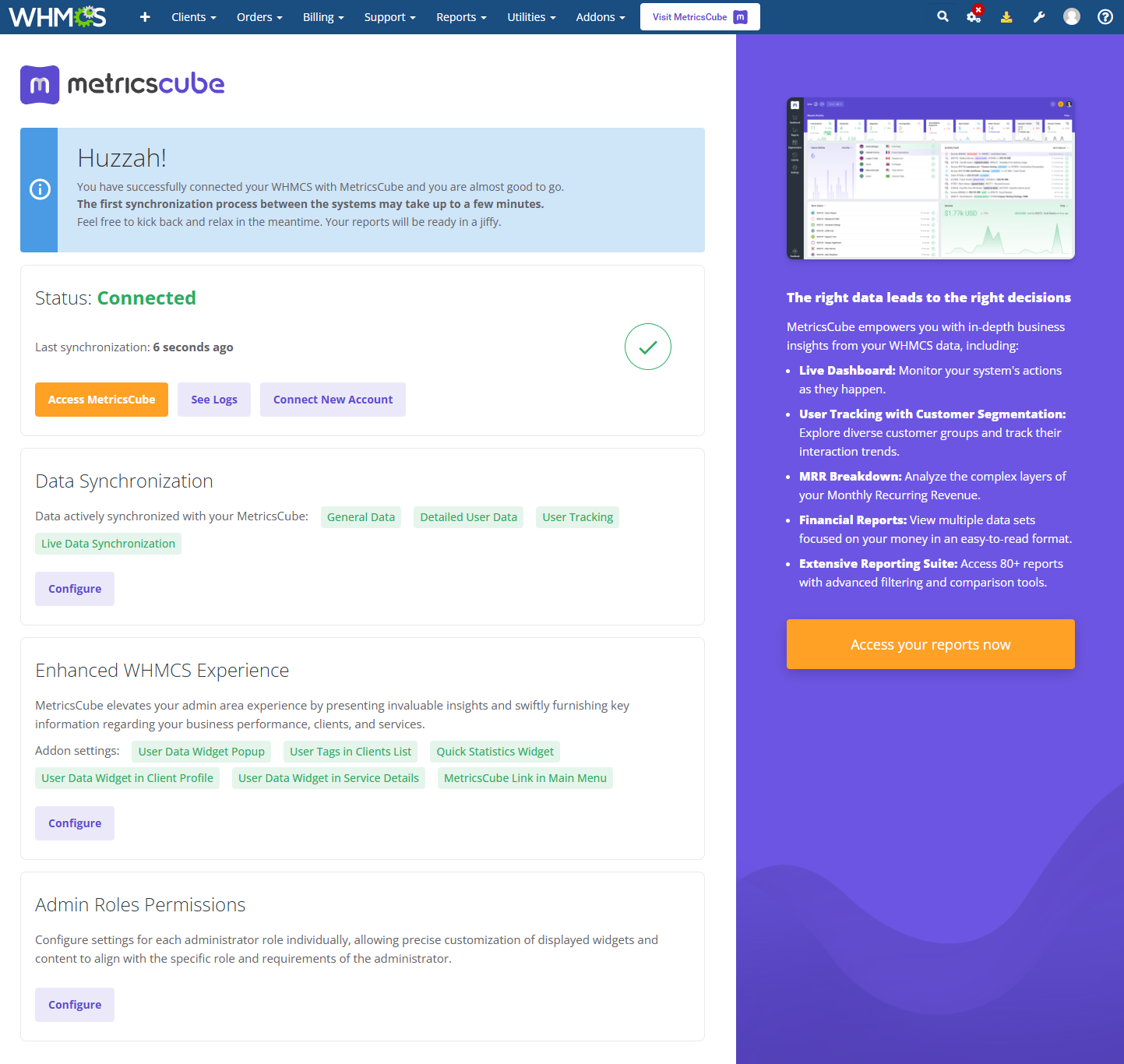
You've nailed it! There is nothing to stop you now from using all MetricsCube tools and boosting the productivity of your business processes!
# MetricsCube Connector Addon Management
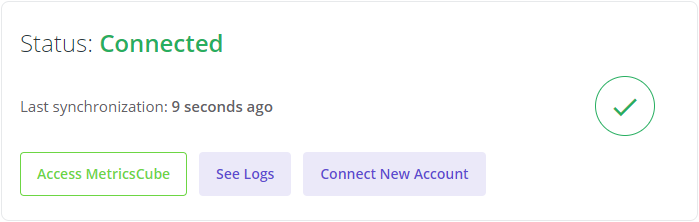
As soon as the connection is established successfully, you will get relevant information, such as the current connection status and the time of the last synchronization.
The buttons allowing you to download the logs or link a different account can also be found on this page.
Furthermore, you are offered several extra features to enhance your WHMCS with data straight from the MetricsCube platform.
All these features will be explained in the following sections.
# Process
When synchronizing your WHMCS with MetricsCube platform for the first time, data download is divided into two parts:
- The first and usually quite fast synchronization fetches data from the last year of the WHMCS usage to analyze them and generate reports.
- As a background process there are data from the previous four years fetched and synchronized; this process is run once only.
In your addon you may control the current status of synchronization and details on when it was run for the last time.
# Data Synchronization
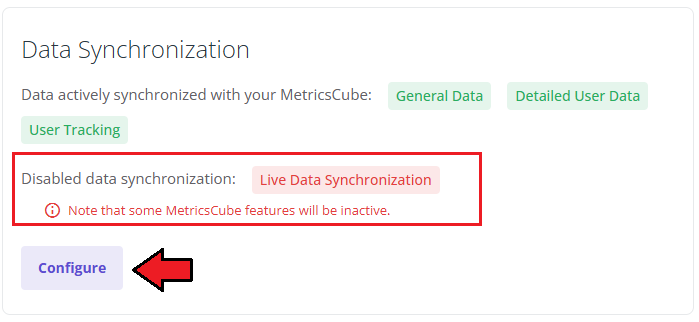
By default, once the synchronization of your WHMCS is completed, the personal data of your clients are not processed to MetricsCube.
Therefore, some features offered by MetricsCube can be unavailable.
If you would like to benefit fully from the possibilities provided by MetricsCube, you can grant access to personal data.
To do so, simply click on the 'Configure' button in the 'Data Synchronization' tab.
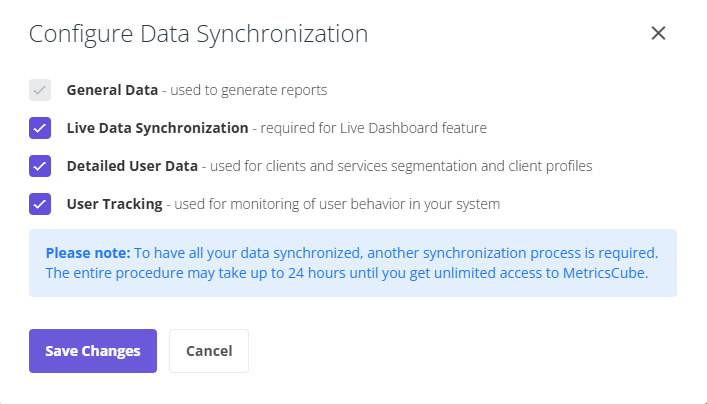
Once a new popup window opens, you will notice a possibility to tick additional configuration options. There are:
- General Data - stands for general data sharing required by MetricsCube to provide core services such as reporting, therefore this option is switched on by default.
- Live Data Synchronization - only if selected, data on recent activities in your system, such as users online, income or news feed, will be gathered and displayed in the Live Dashboard section.
Note: Keep in mind that both slow connection with API and actions overload may noticeably slow down the application. - Detailed User Data - this option allows you to transfer to MetricsCube additional data about your clients such as first name, last name, company name, email address, web hosting and domains assigned to them.
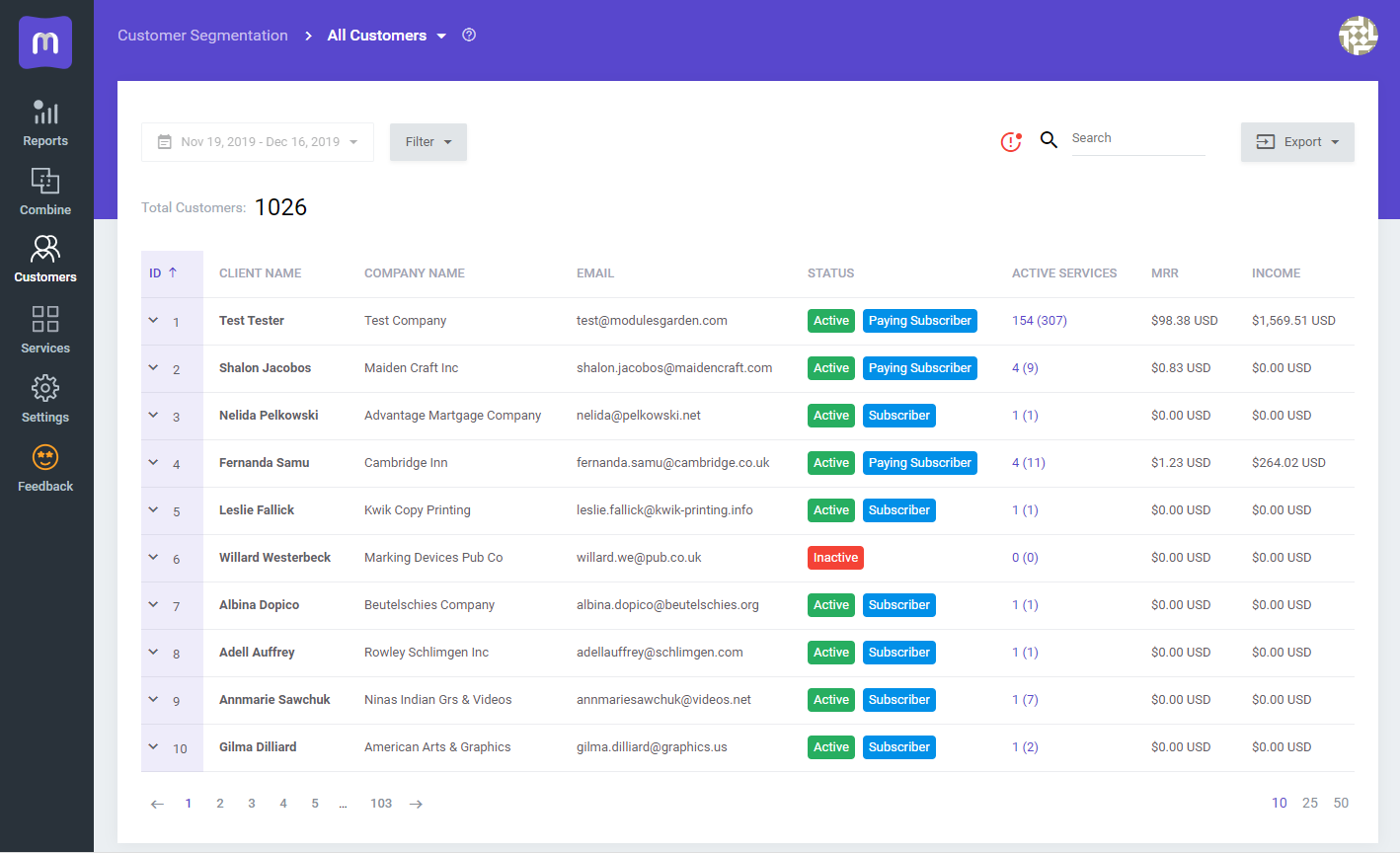
Here you can check an exemplary report along with the personal data of clients.
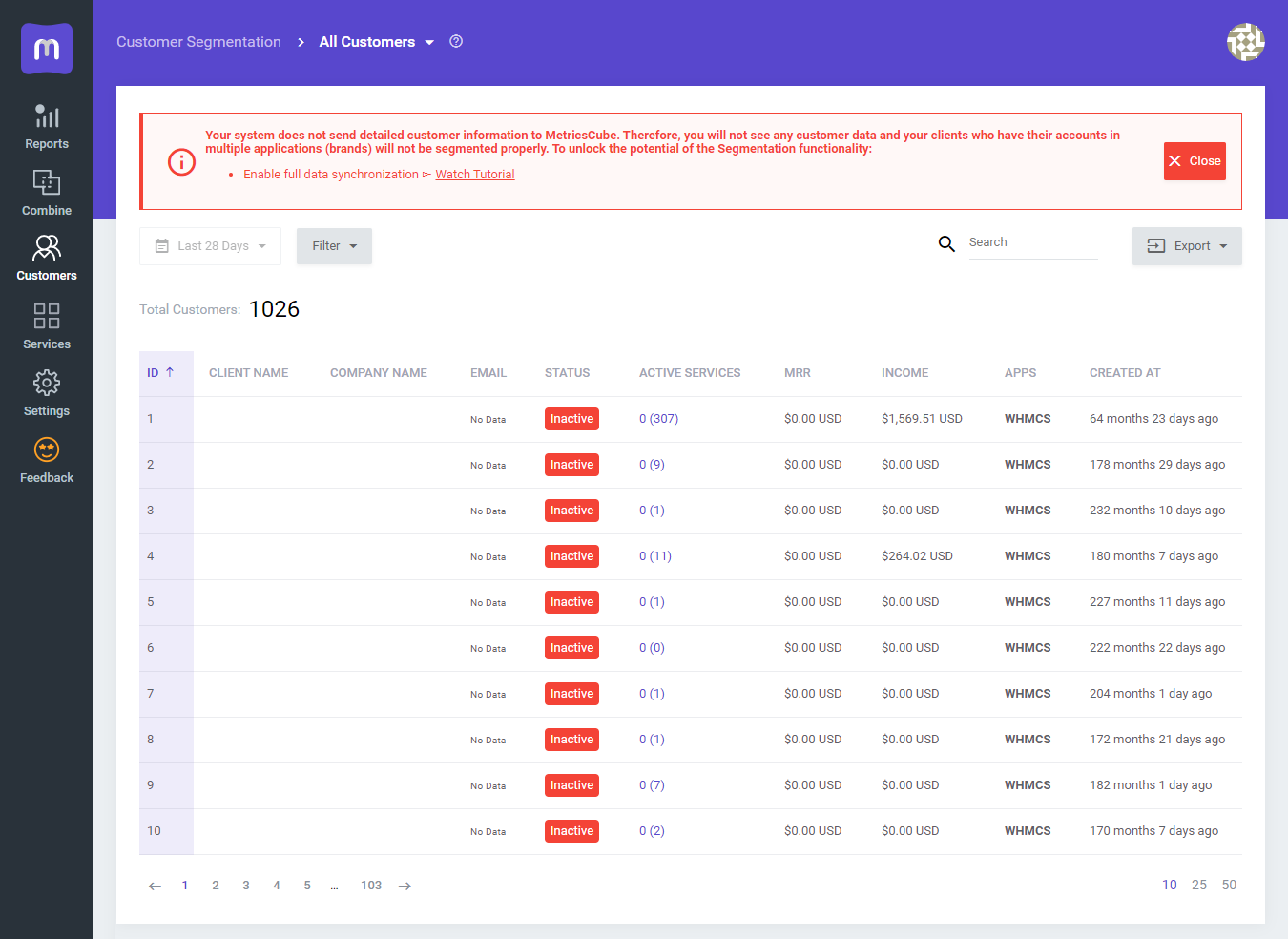
If this option is disabled, the client’s WHMCS will encrypt sensitive personal information and convey it in coded form.
Here you can find the previous example of the report without the consent to process the data.
If this option is enabled, the generated reports will be more detailed and straightforward.
Note: Please keep in mind that all data sent to MetricsCube is safely encrypted using the strong algorithm SHA-256. - User Tracking - this option permits you to monitor the activity of your clients on the basis of logs generated through WHMCS.
For instance, you can check when and which websites were browsed by your customers or verify if your clients have already read the answer for a ticket.
Note: Please remember that this functionality is currently during the development and is not available yet.
If you tick this option right now, you may be sure that once this functionality is completed, you will be granted access to it instantly.
Important: Please, be aware that the data update in MetricsCube, once you opt in or opt out for additional data synchronization, may take up to 24h.
# Logs
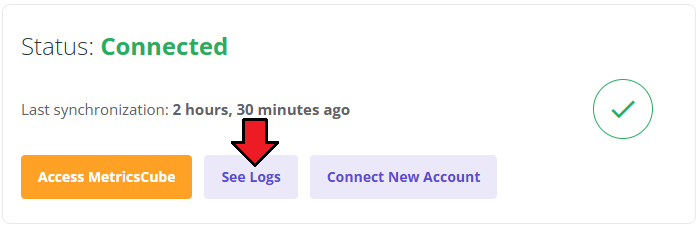
The MetricsCube Connector For WHMCS addon module allows to download Connector Logs. Press the button as shown on the screen to fetch logs.
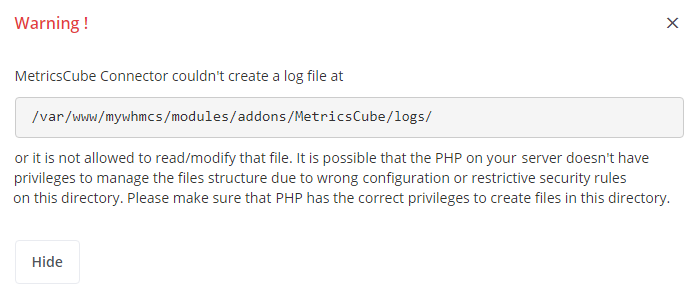
In case there are any issues and fetching logs is hampered, you will need to create or modify the log file in a required directory.
The correct path will be generated automatically and may be copied from the error notification that will appear on your screen. Please set the privileges as defined in the notifications.
When ready, patiently wait until the next synchronization.
# Connect New Account
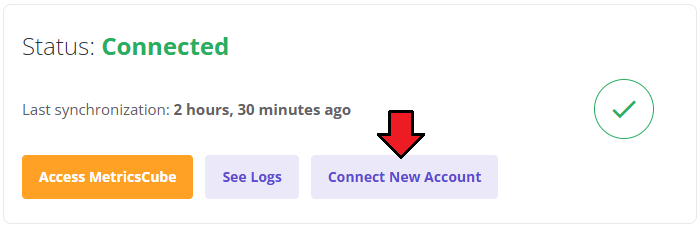
It is possible to connect your WHMCS to MetricsCube with another account from one addon. Simply, press the second button on the addon dashboard.
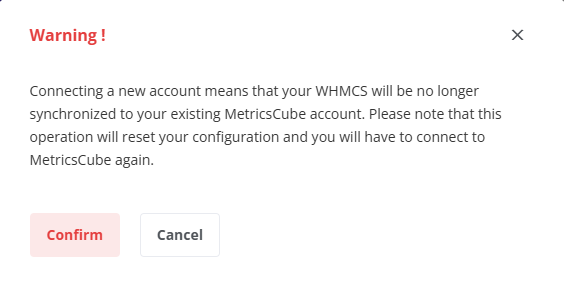
This very moment you will see a warning notification on the consequences of such action.
Connecting with another account will reset your current configuration and your WHMCS will be no longer synchronized with your existing MetricsCube account.
You will have to go through the process from the beginning.
# Enhanced WHMCS Experience
Grant the MetricsCube Connector addon access to additional features, enabling it to retrieve data from your MetricsCube application and seamlessly present it within your WHMCS admin area.
This will result in an elevated experience with your WHMCS platform.
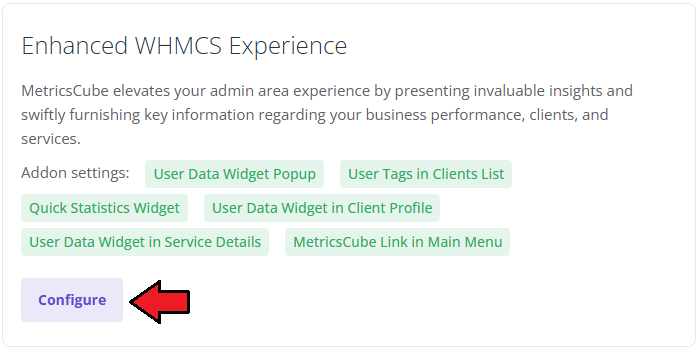
Mark the features to take advantage of your MetricsCube data on specific pages directly in your WHMCS.
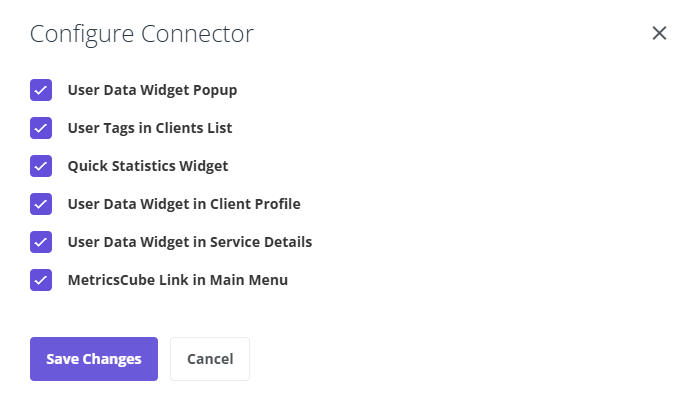
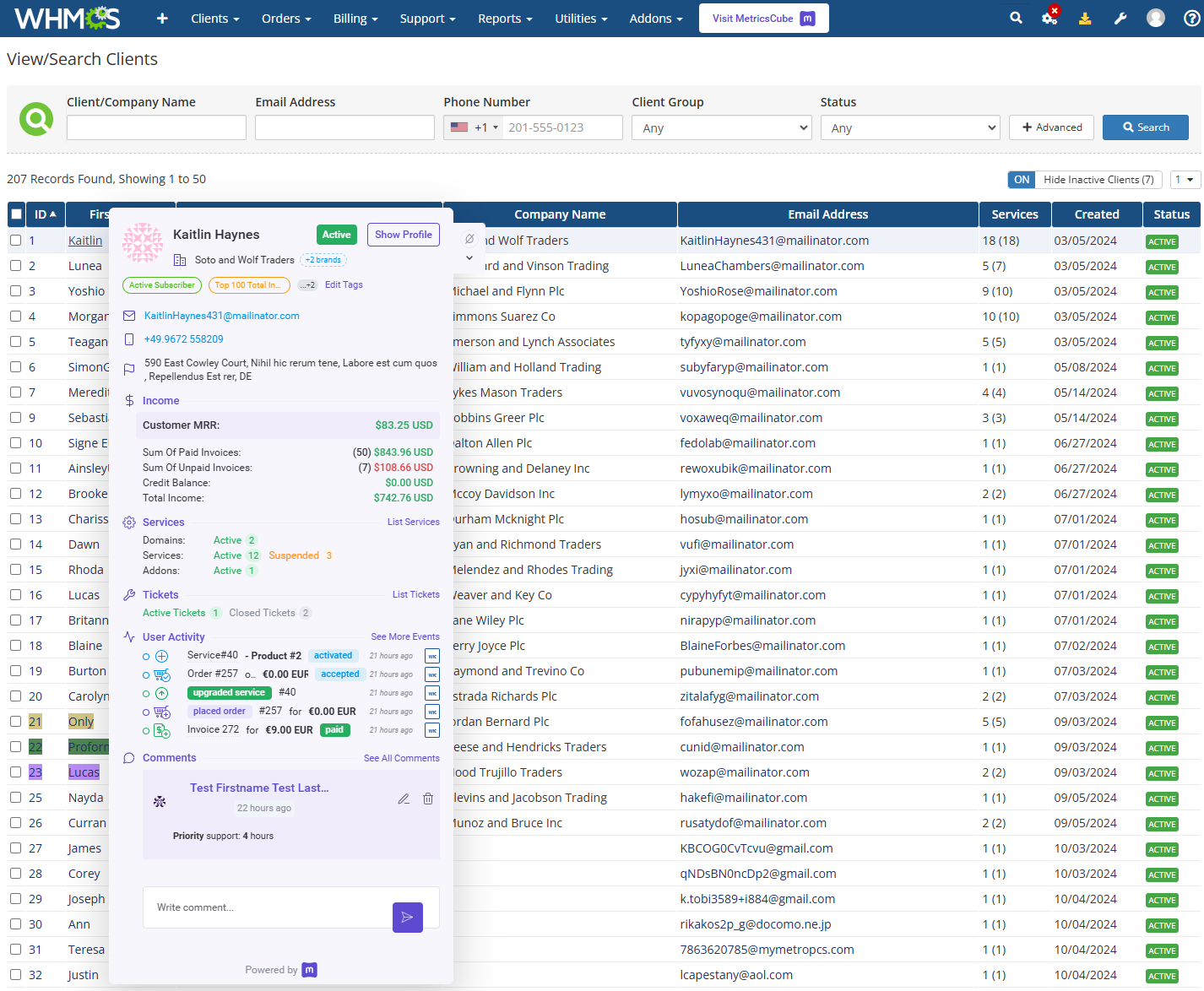
- User Data Widget Popup - appears upon hovering over the client's name within the entirety of the admin area.
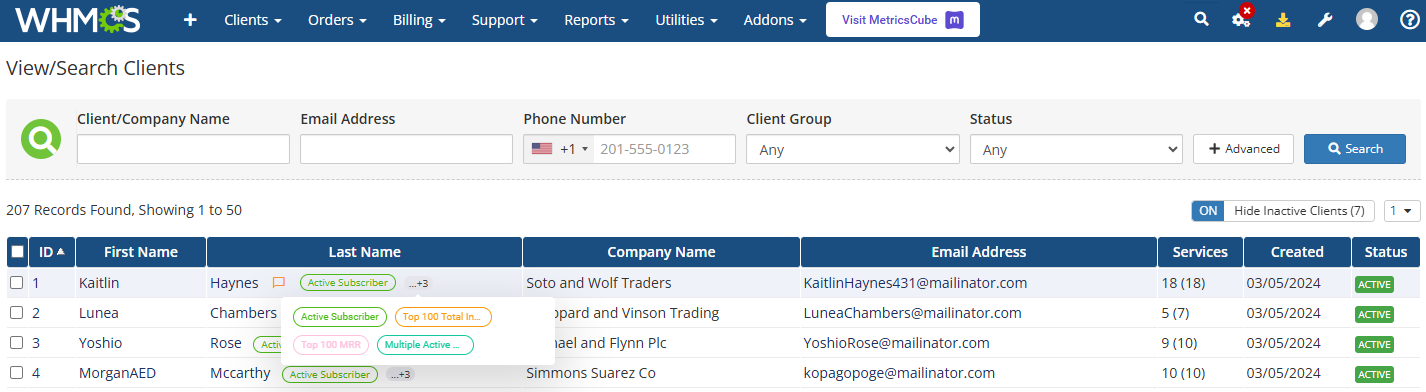
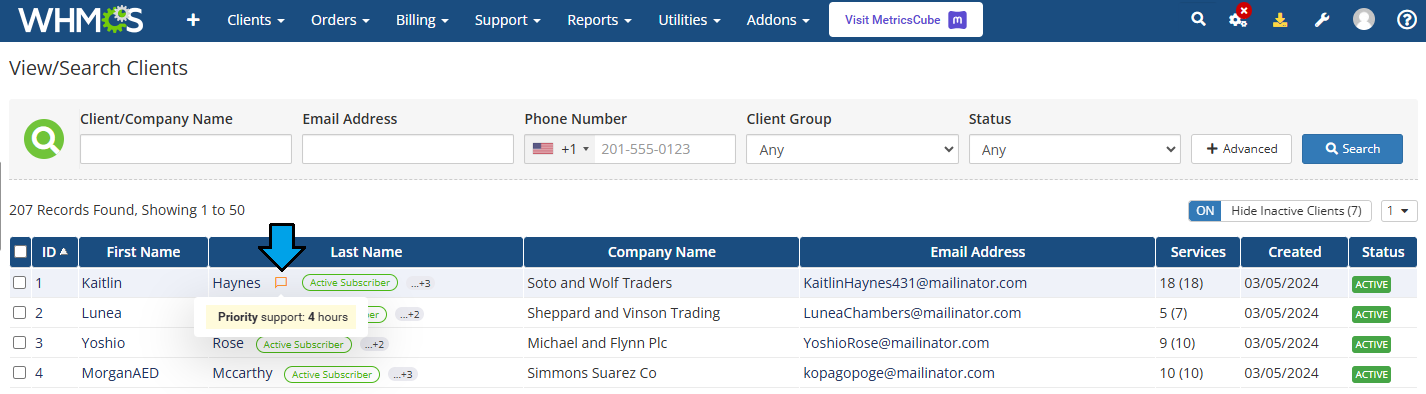
- User Tags in Clients List - preview the tags assigned to the client; hover over the tags to reveal a popup displaying additional details.
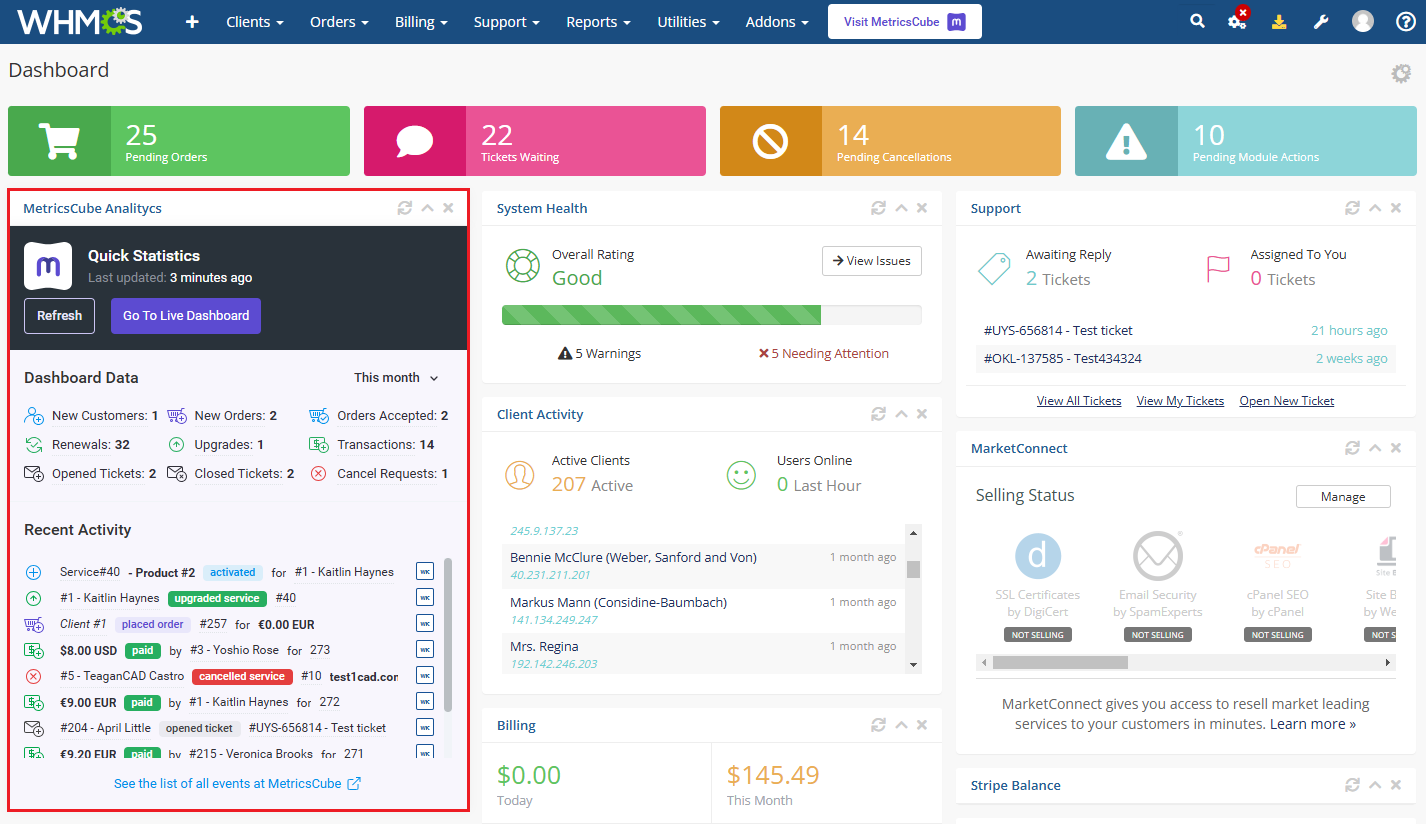
- Quick Statistics Widget - MetricsCube Analytics widget featuring essential data is showcased on the WHMCS dashboard, and it can be managed just like any other active widget.
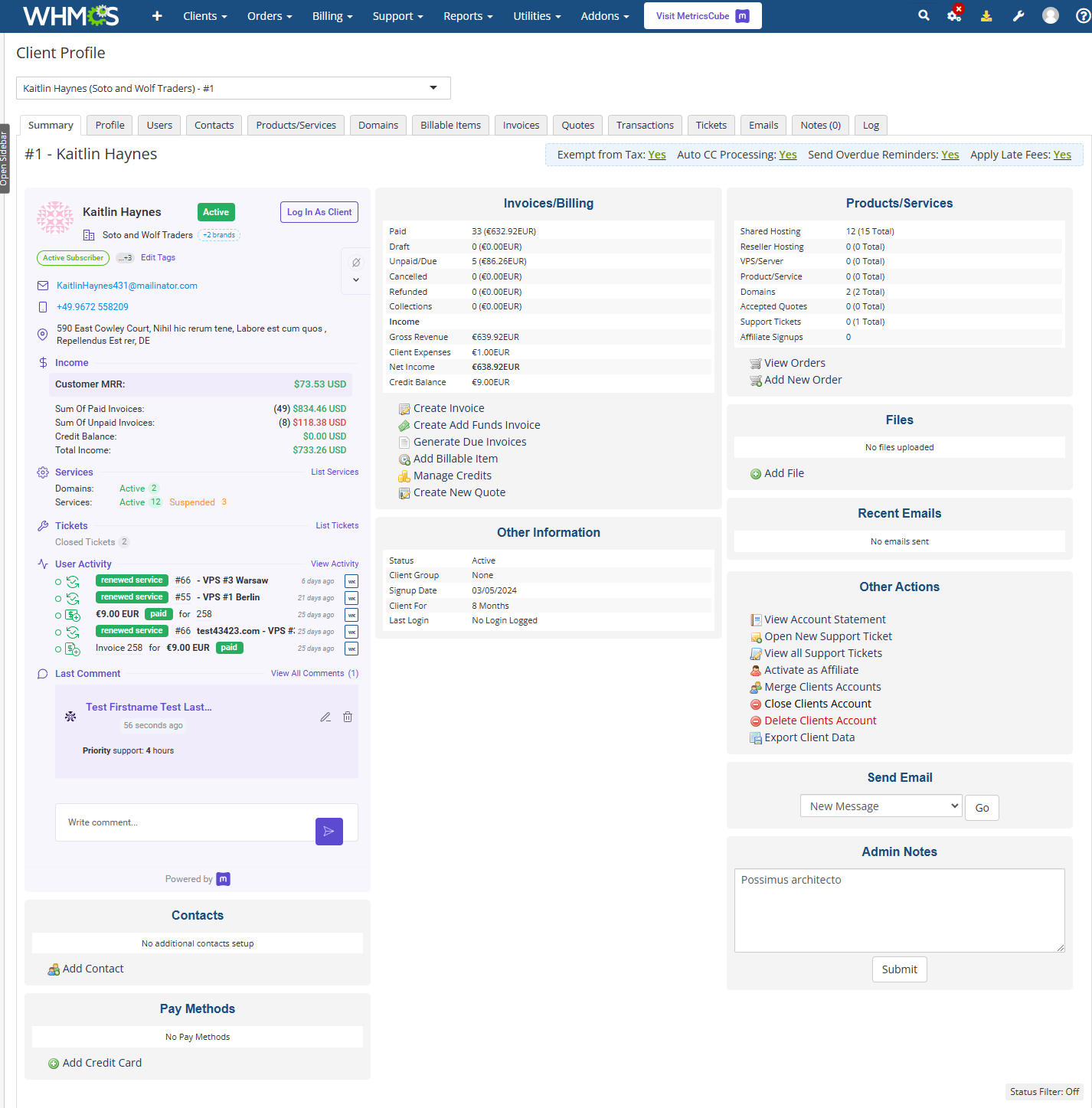
- User Data Widget in Client Profile - a dedicated widget for individual clients, providing the same data as the 'User Data Popup,' now integrated into the profile page.
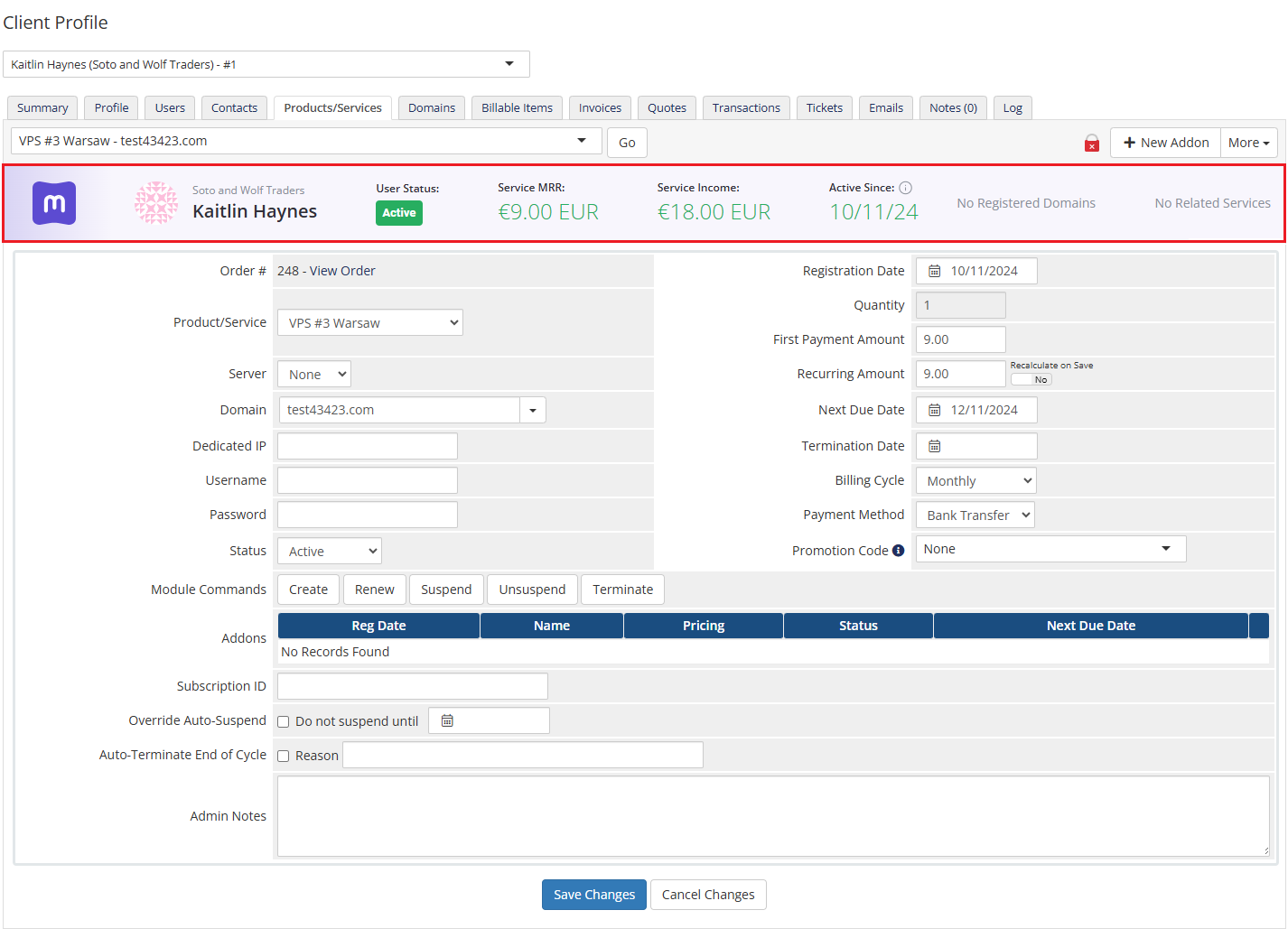
- User Data Widget in Service Details - provides a concise overview of the service balance.
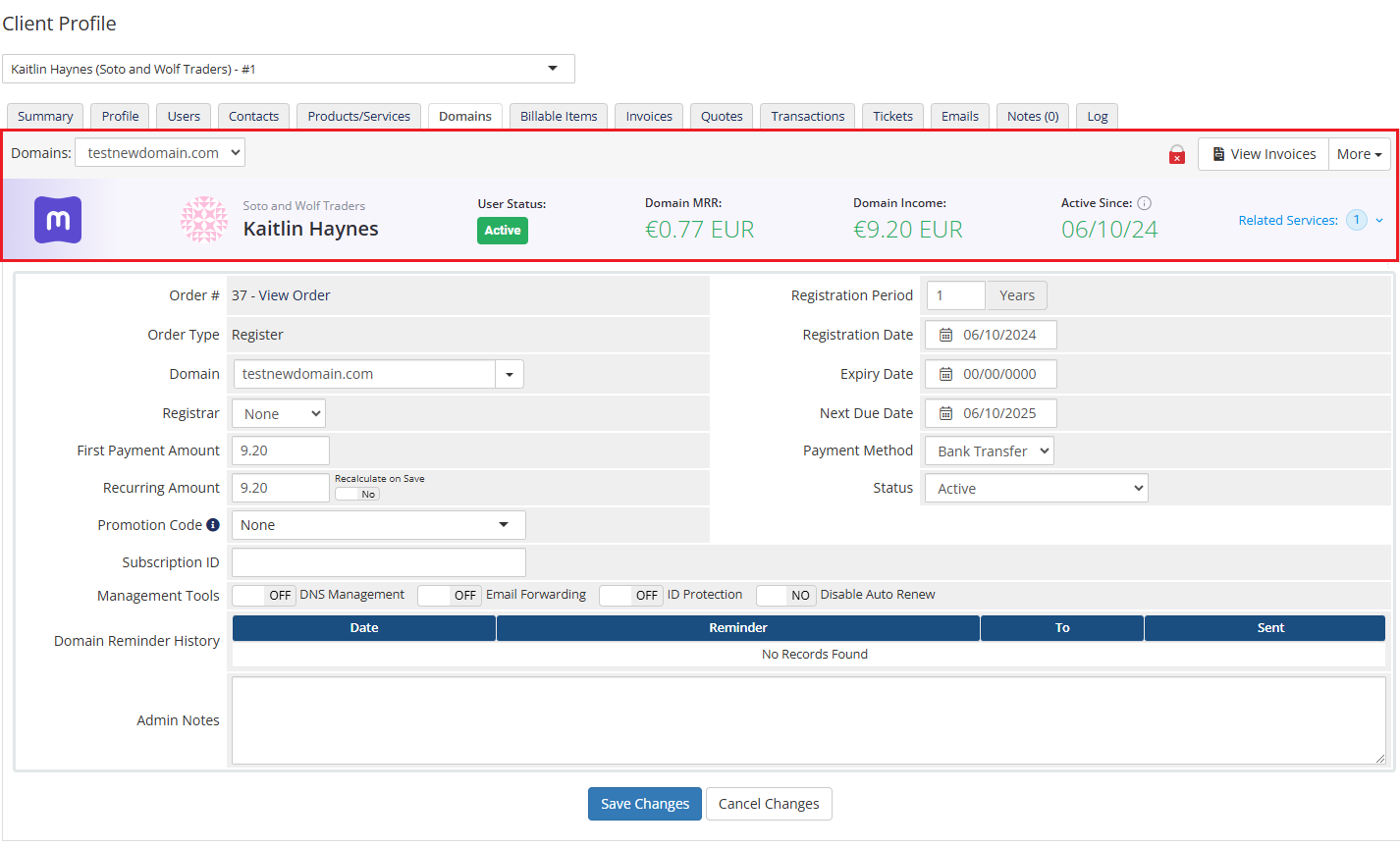
- User Data Widget in Domain Details - offers a brief summary of the domain balance.
- MetricsCube Link in Main Menu - press and you will be redirected to the MetricsCube login page.
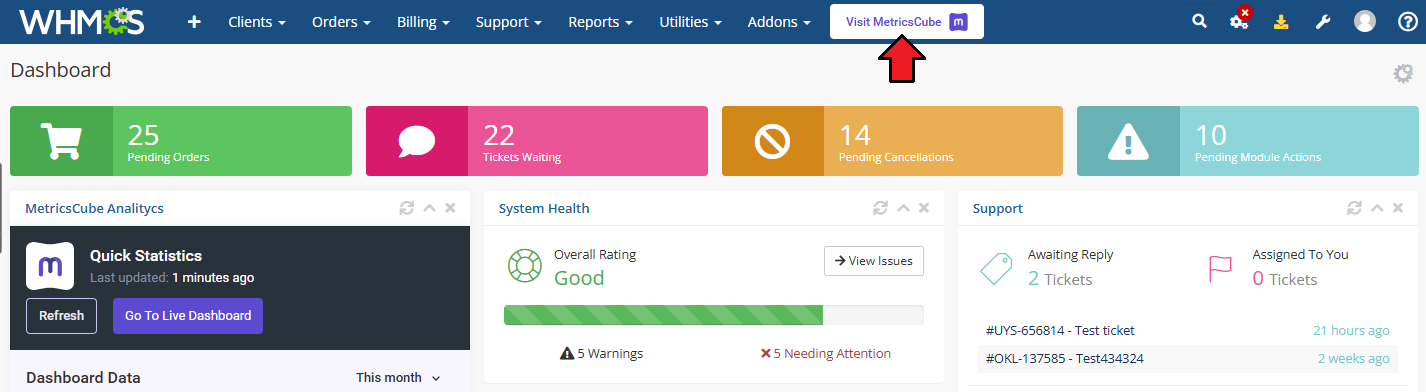
# Admin Roles Permissions
MetricsCube enhances the usability of your WHMCS admin dashboard by offering essential insights and rapidly providing critical information about your business's performance, clients, and services.
Proceed now to the detailed configuration to upgrade your WHMCS experience with instant data from your MetricsCube.
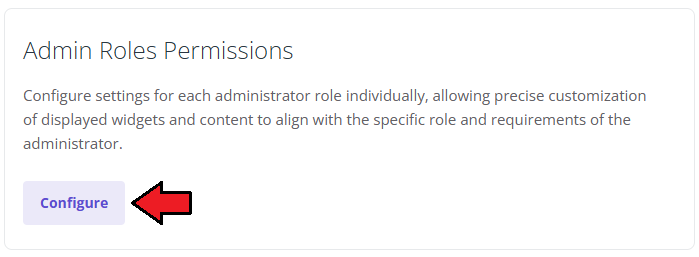
Define the settings for every administrator role individually to perfectly customize the displayed widgets and adjust the content to the admin role and needs.
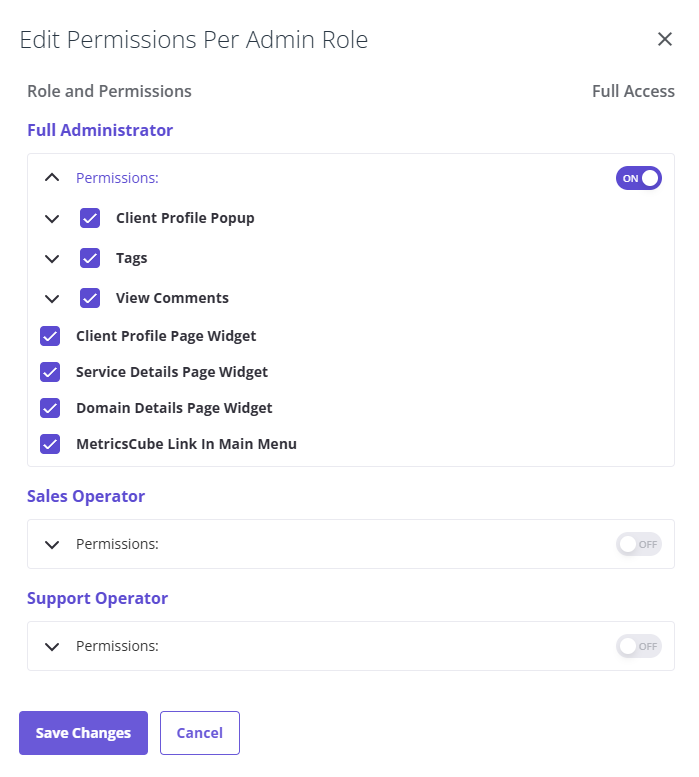
Click on the 'Permissions' to open the list of available sections to enable. Note that the same options are available for every administrator role.
Press the 'On/Off to select/uncheck all options at once. Remember to save the changes when the enhanced WHMCS configuration is ready.
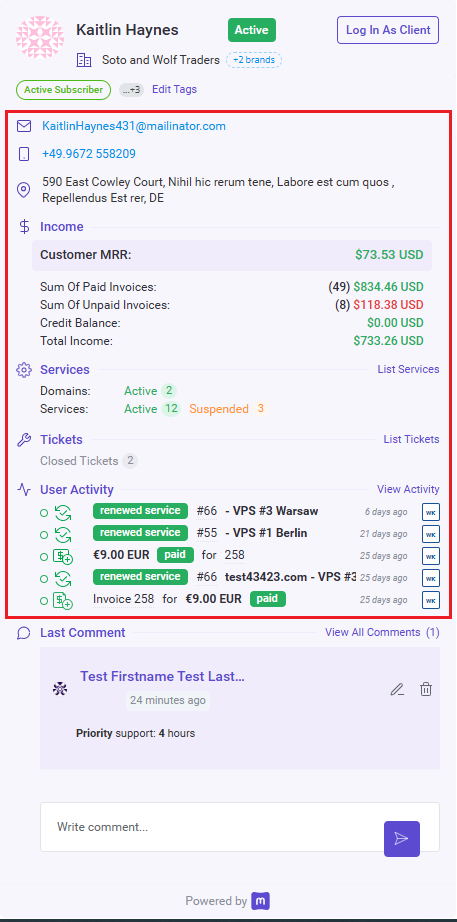
- Client Profile Popup
- Personal Information
- Income
- Services
- Tickets History
- User Activity
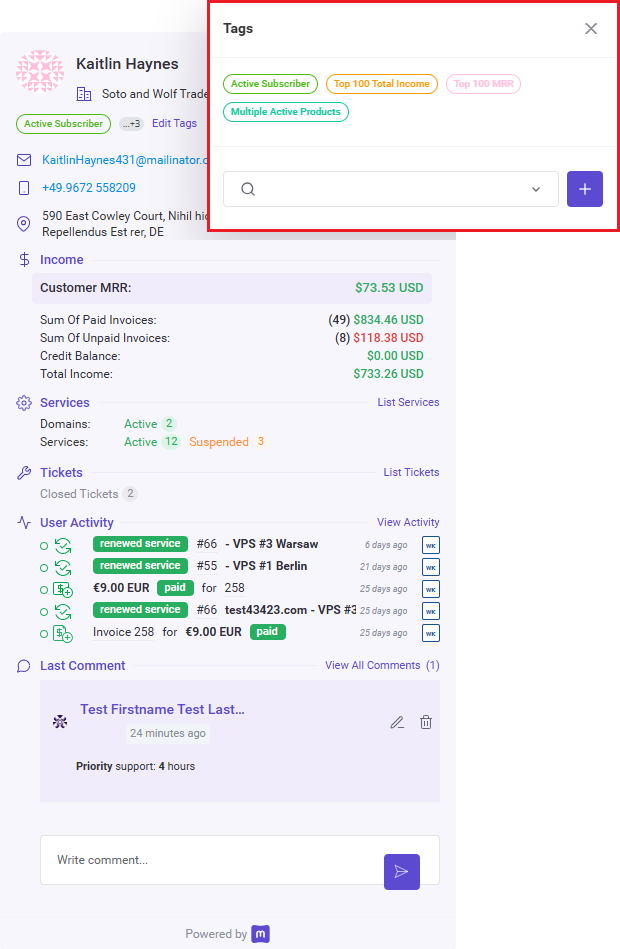
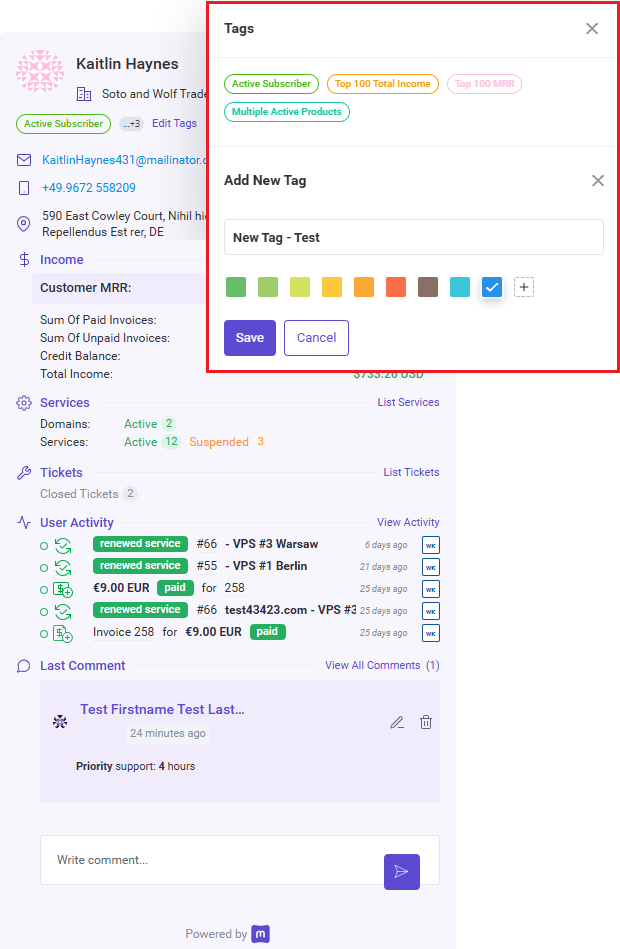
- Tags
- Create New Tags
- Manage Client Tags
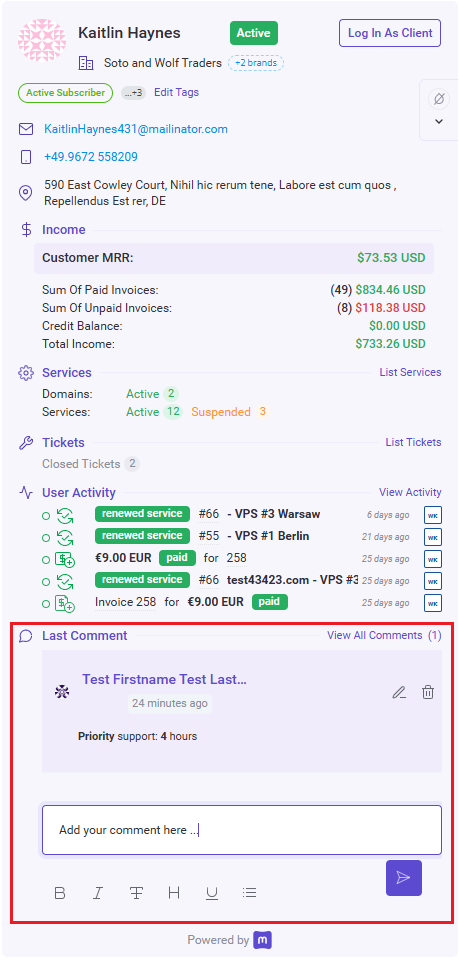
- Comments
- Add Comments
- Remove Comments
# MetricsCube Platform
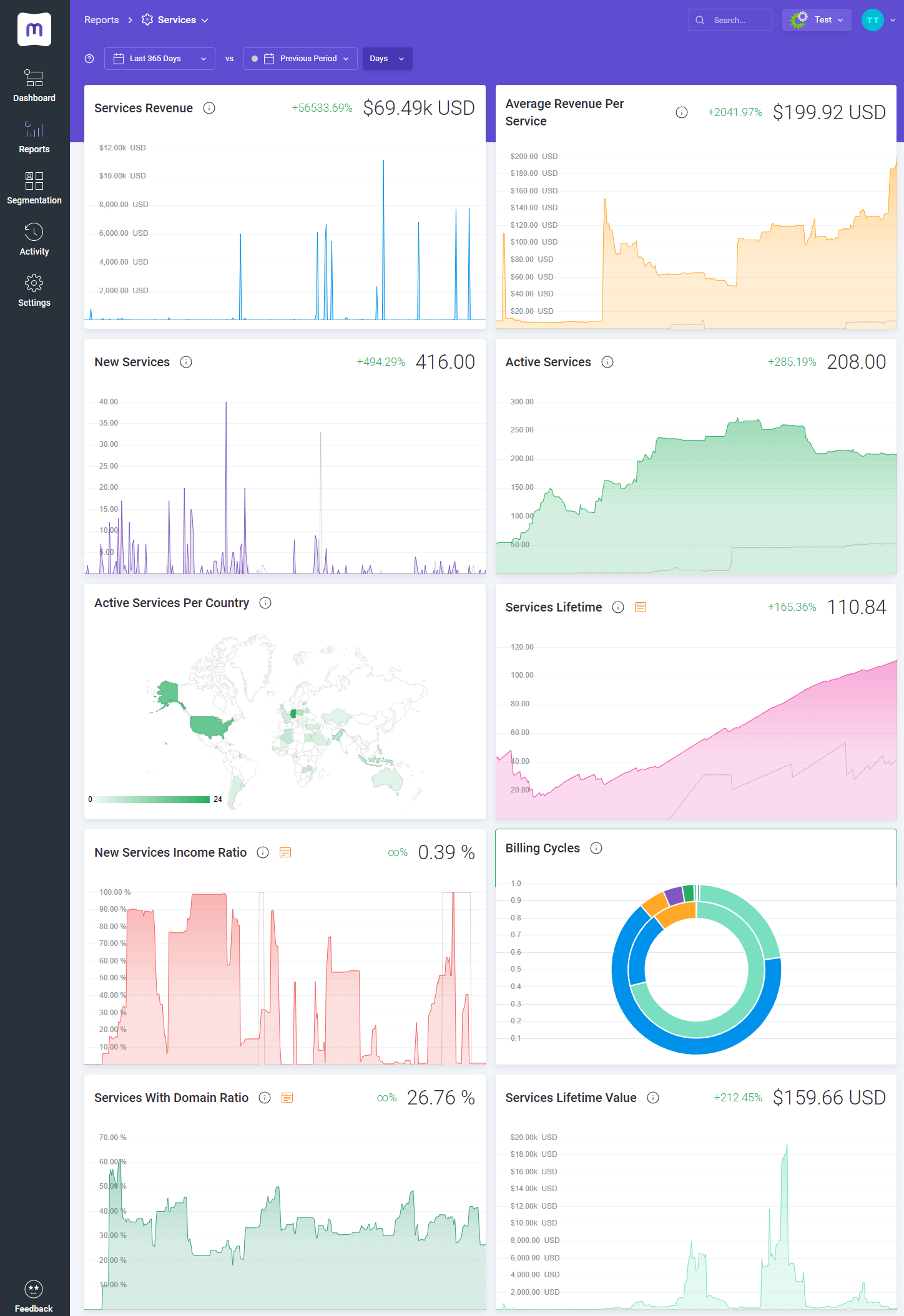
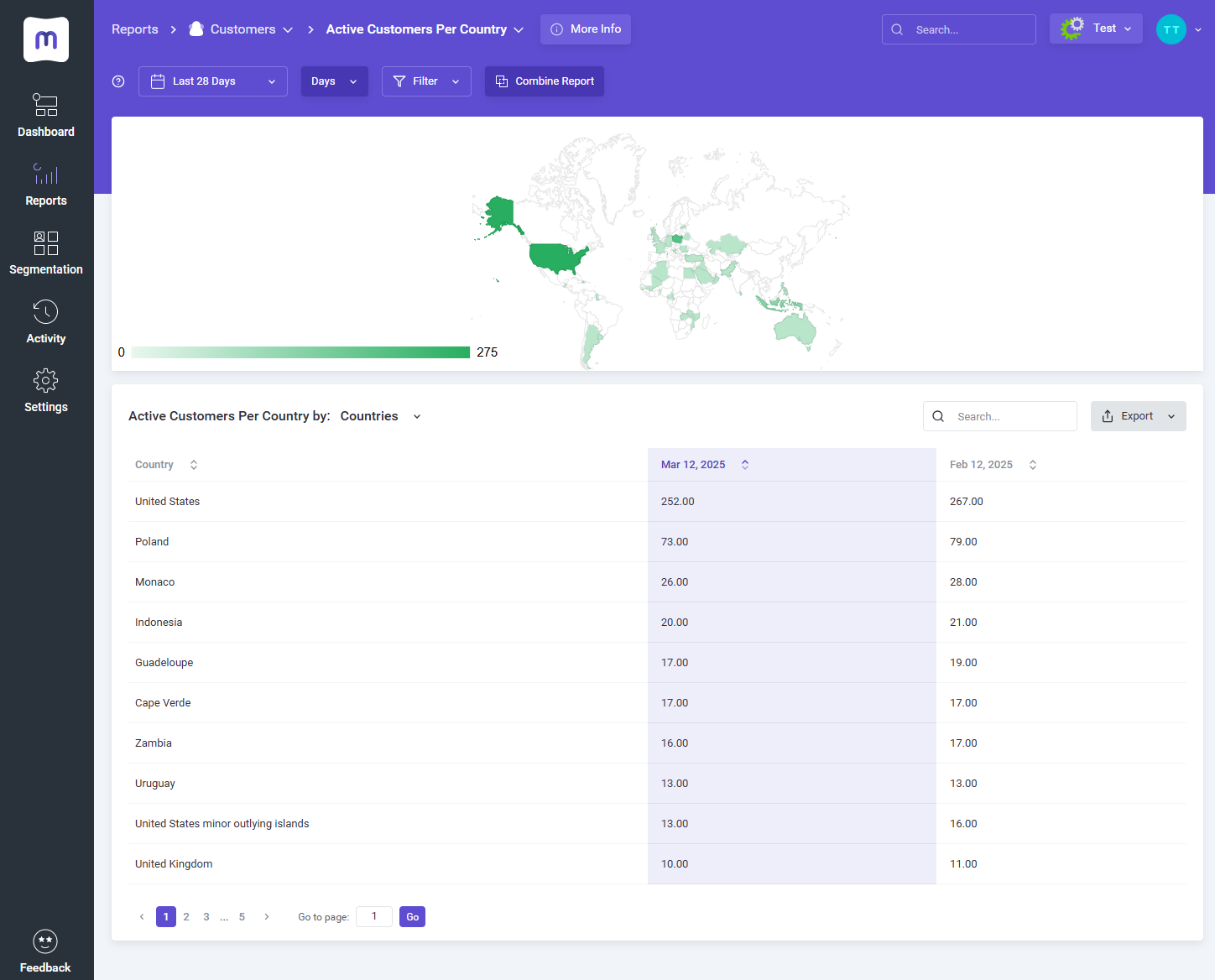
Here it is! Ready, complex and so much detailed analysis of your business.
Quickly sign in (opens new window) to your account and start the exploration.
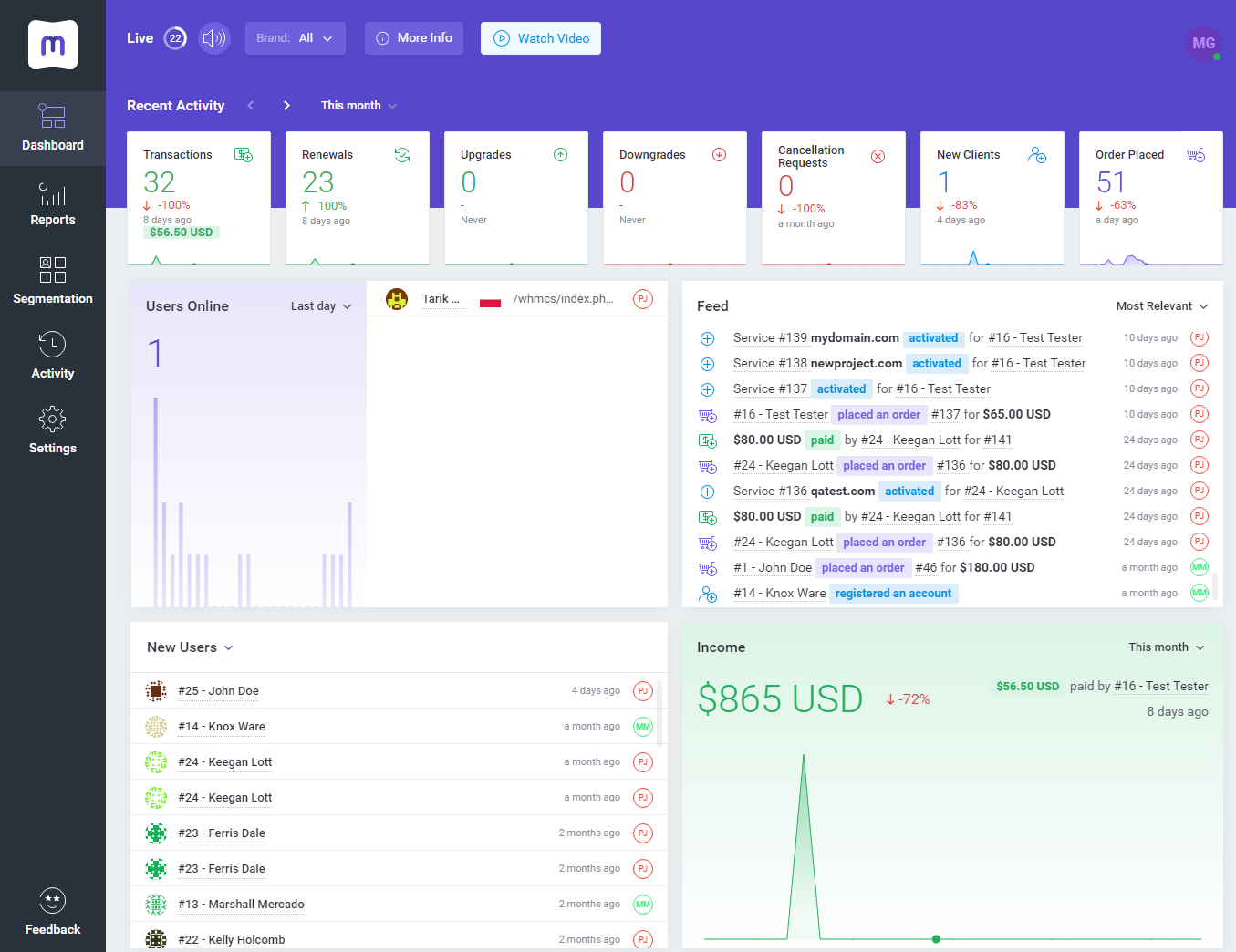
Most of all, accurate and flexible reports that will help you look deep into your company's performance.
Browse, change the periods and search for anything you might only need.
# Tips
Take a look at our YouTube (opens new window) channel! You will find there short videos presenting three different methods of installing your MetricsCube Connector For WHMCS.
Stay tuned as other videos are coming soon!Step into the MetricsCube Blog (opens new window) where you will find the latest Release Notes together with thought-provoking Business Guides.
Get the gist of the web hosting industry, let yourself be guided across the various reports types and finally reach for practical advice on how to boost your business development.
# Update Instructions
An essential guidance through the process of updating the module is offered here.
Ensure successful completion of the module update by carefully following each step, thereby preventing data loss or any unforeseen issues.
Additionally, you will find a current list of supplementary actions necessary for a smooth update process there.
# Common Problems
When you encounter problems with connection, check whether your SELinux or firewall does not block ports.
If you encounter any issues with redirection to WHMCS via buttons like View in WHMCS in the MetricsCube pop-up, please ensure the Administration Panel URL' in MetricsCube → My Application settings is accurately configured.