

# Virtuozzo Hybrid Infrastructure S3 For WHMCS
# (opens new window) About Virtuozzo Hybrid Infrastructure S3 For WHMCS (opens new window)
Virtuozzo Hybrid Infrastructure S3 For WHMCS is a module that allows quick and easy creation as well as management of S3 user accounts.
You will be given a chance to create new accounts with predefined limits as well as let your clients set the limits by themselves.
Use this great module to automate accounts management and keep track of the usage calculations' in a convenient and eye-friendly way.
# Installation and Configuration
The below tutorial will guide you step by step through the installation and configuration of the Virtuozzo Hybrid Infrastructure S3 For WHMCS (opens new window) module.
Read the instructions carefully to collect as much information as possible and quickly start using the module in your everyday business.
# Installation
- Log in to our client area and download the module.
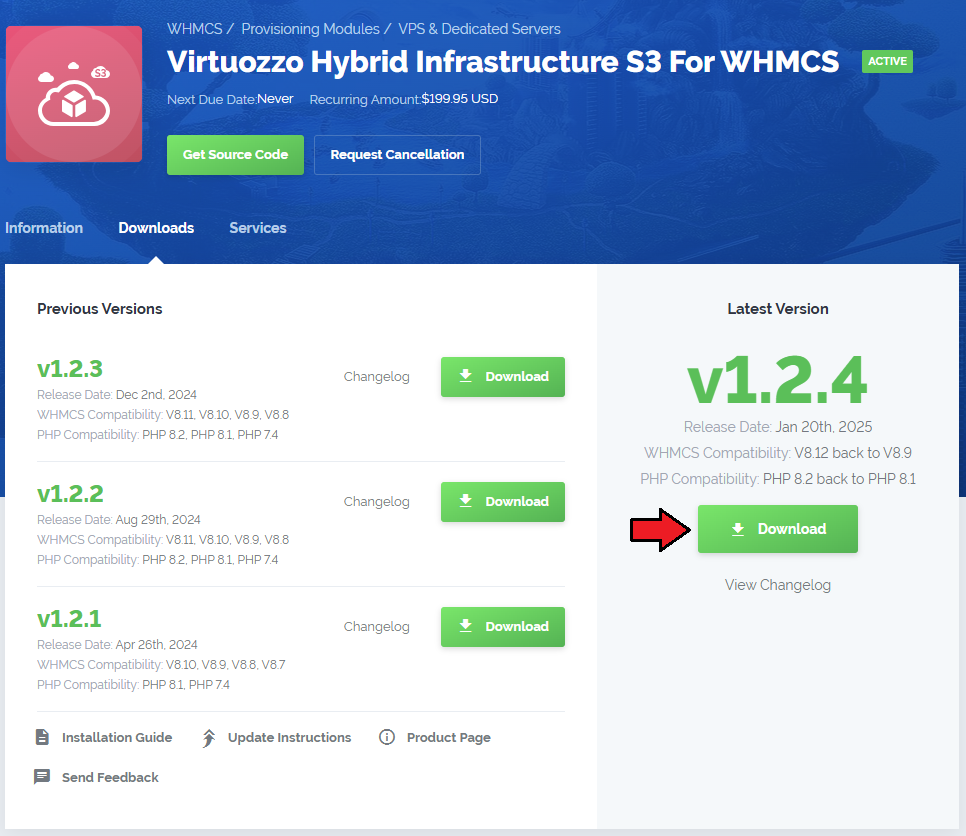
Upload and extract the extension into the main WHMCS directory.
Extracted files in your WHMCS directory should look like this:
When you install Virtuozzo Hybrid Infrastructure S3 For WHMCS for the first time, you have to rename the 'license_RENAME.php' file.
The file is located in '/yourWHMCS/modules/servers/VirtuozzoHybridInfrastructureS3/license_RENAME.php'. Rename it from 'license_RENAME.php' to 'license.php'.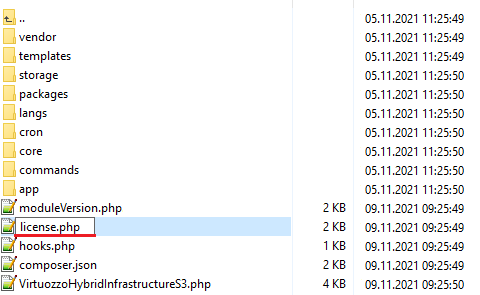
In order to configure your license key, you have to edit the previously renamed 'license.php' file.
Enter your license key between the quotation marks as presented on the following screen.
You can find your license key in our client area → 'My Products'.
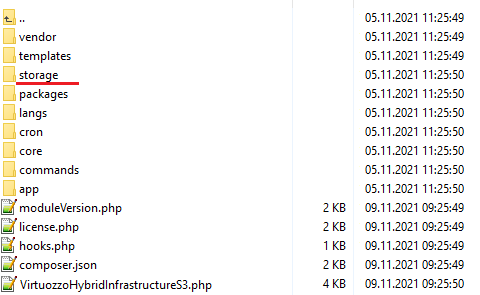
Now, set up the 'storage' folder as recursively writable.
This folder is available at '/yourWHMCS/modules/servers/VirtuozzoHybridInfrastructureS3/'.
# Configuration of Server
Before you can go on, you need to generate the user ID and the API key pair, they will be necessary to successfully connect to the VHI server.
Please follow the below steps to generate the access data:
- Log in via SSH to your VHI server
- Run the below command:
ostor-s3-admin create-user -e [email protected] -S -V 0100000000000002
Follow the instructions that are visible in your console.
Please refer to the official Virtuozzo documentation Creating S3 User (opens new window) to get detailed instruction.
Once you have the access keys generated, copy them and keep them safe as you will need them in the next step of the server configuration.
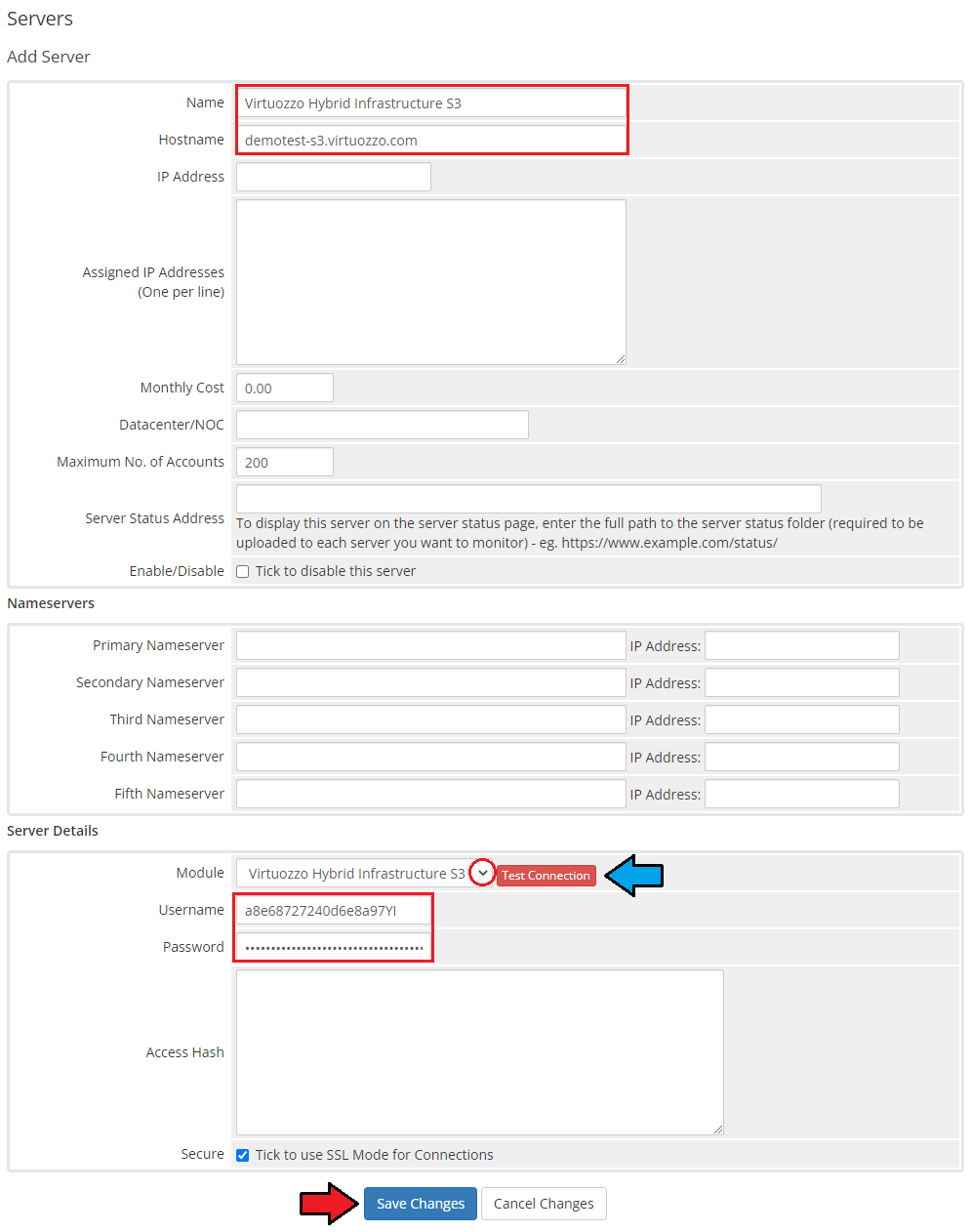
- Now, log in to your WHMCS and proceed to 'System Settings' → 'Products/Services' → 'Servers' and press 'Add New Server'.
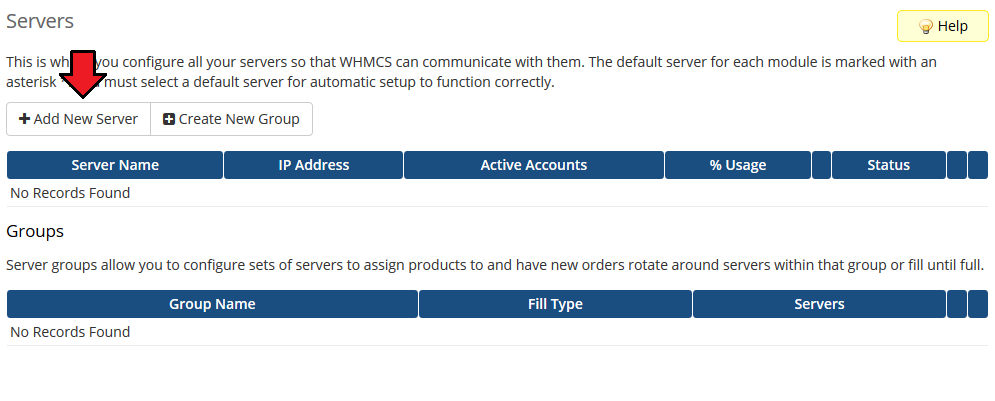
Next, enter your server 'Name', 'Hostname' and select 'Virtuozzo Hybrid Infrastructure S3' from the 'Module' field.
Now, provide your 'VirtuozzoHybridInfrastructureS3' API details that you generated in the previous step:- Username → 'S3AccessKeyId'
- Password → 'S3SecretAccessKey'.
Make sure that your server connection is correct and save the changes.
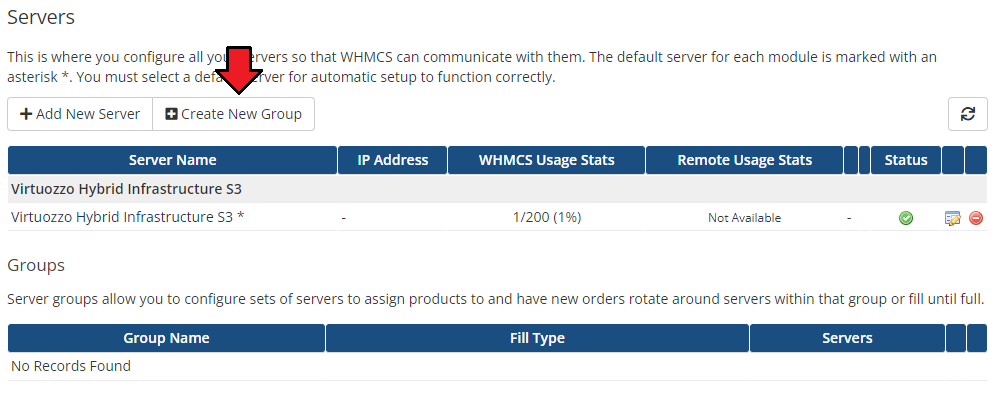
It is time to create a server group. To do so, click on 'Create New Group'.
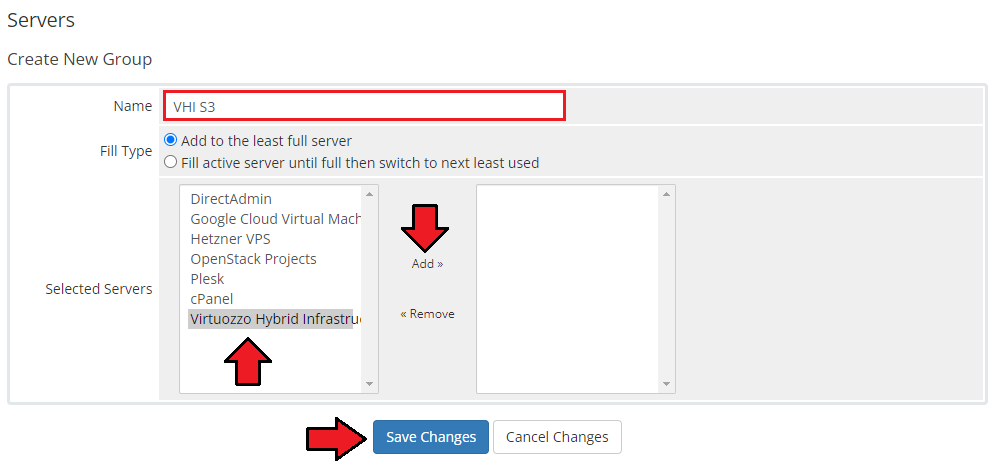
- Enter a name, click on your previously created server, press 'Add' and afterward 'Save Changes'.
# Configuration of Product
In order to create and configure a product, go to 'System Settings' → 'Products/Services' → 'Products/Services'.
Click on 'Create a New Group'.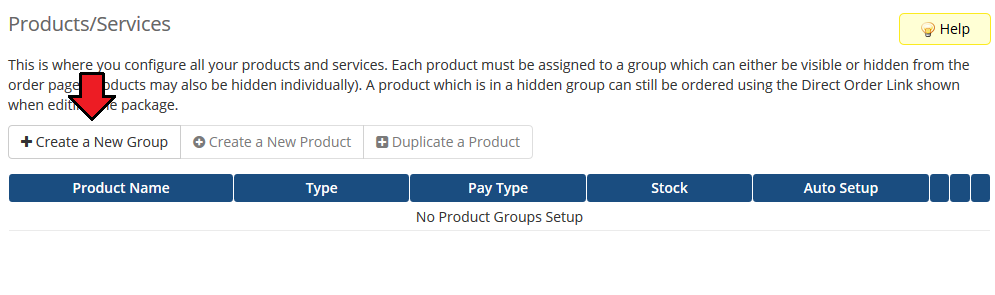
Enter your product group name and press 'Save Changes'.
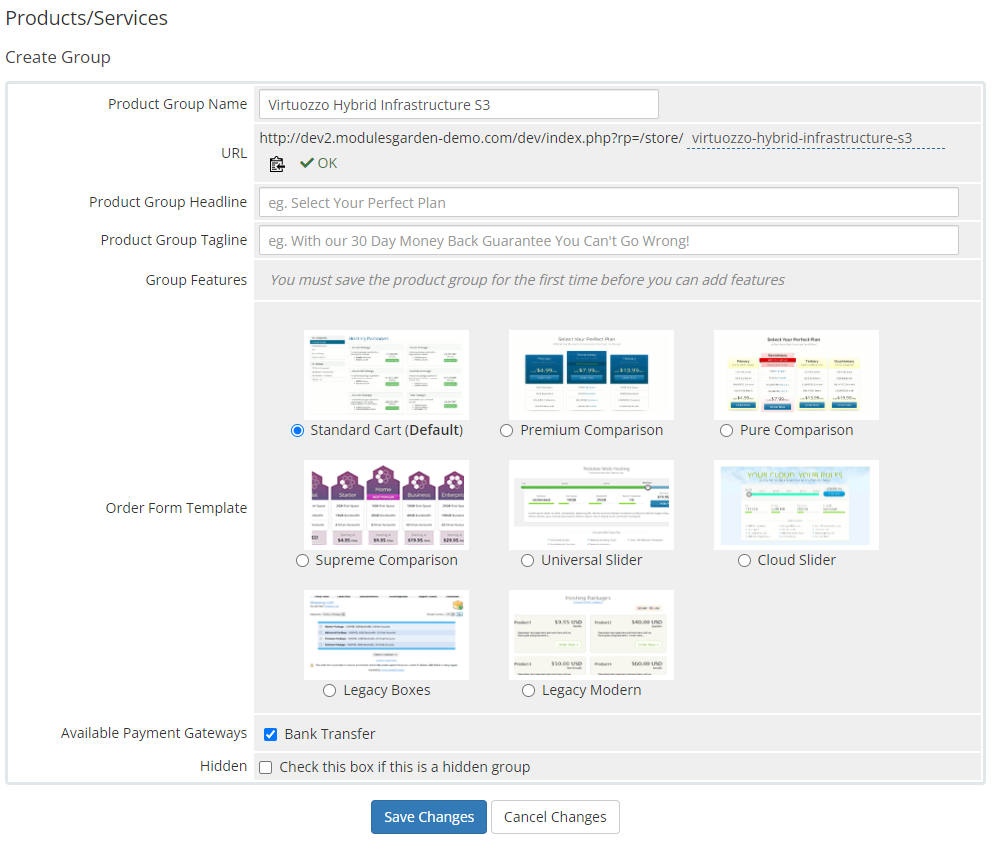
Once you have a product group, you can create a new product.
To do so, first, click on 'Create a New Product'.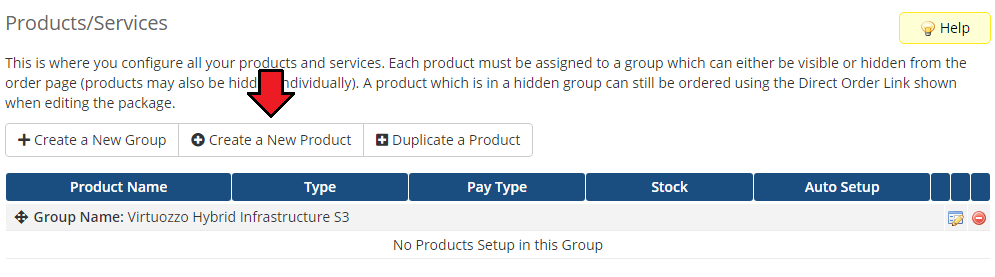
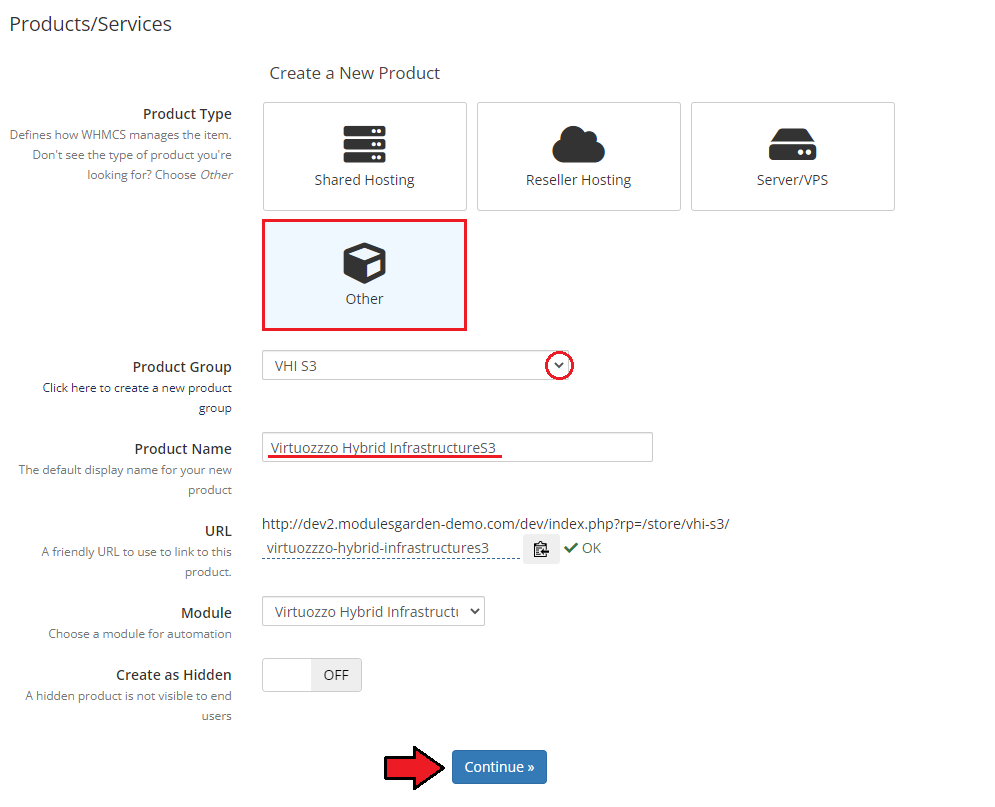
Afterward, choose your product type, enter your product name, and choose the module and the product group from the dropdown menus. Press 'Continue'.
Now, go to the 'Module Settings' section, and choose your previously created server group from the dropdown menu.
If you did not set the proper permissions, you will be asked to do it now.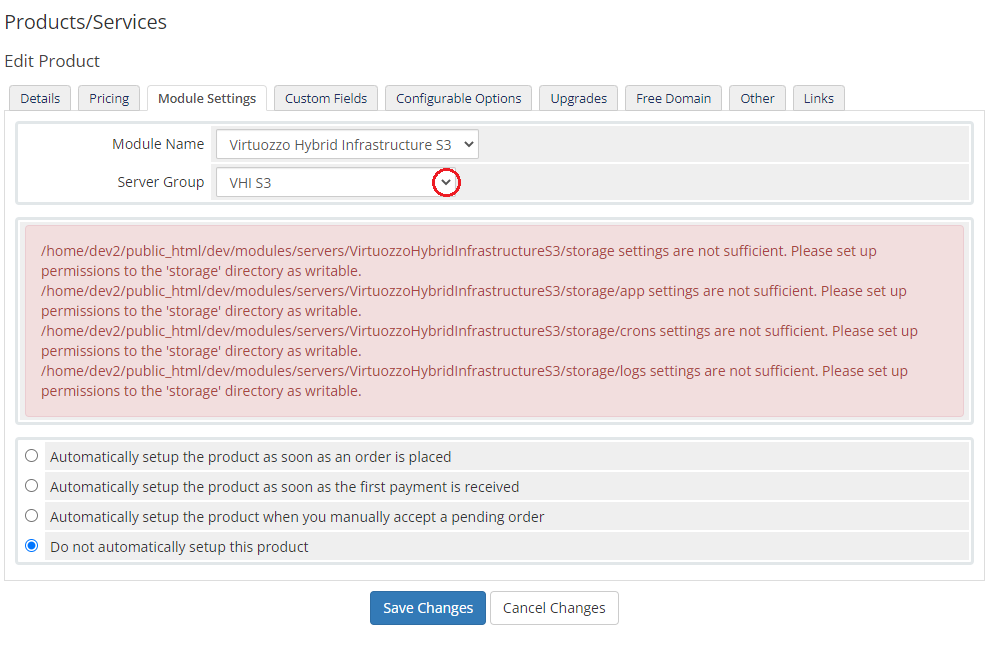
Now, let's start configuring the product settings.
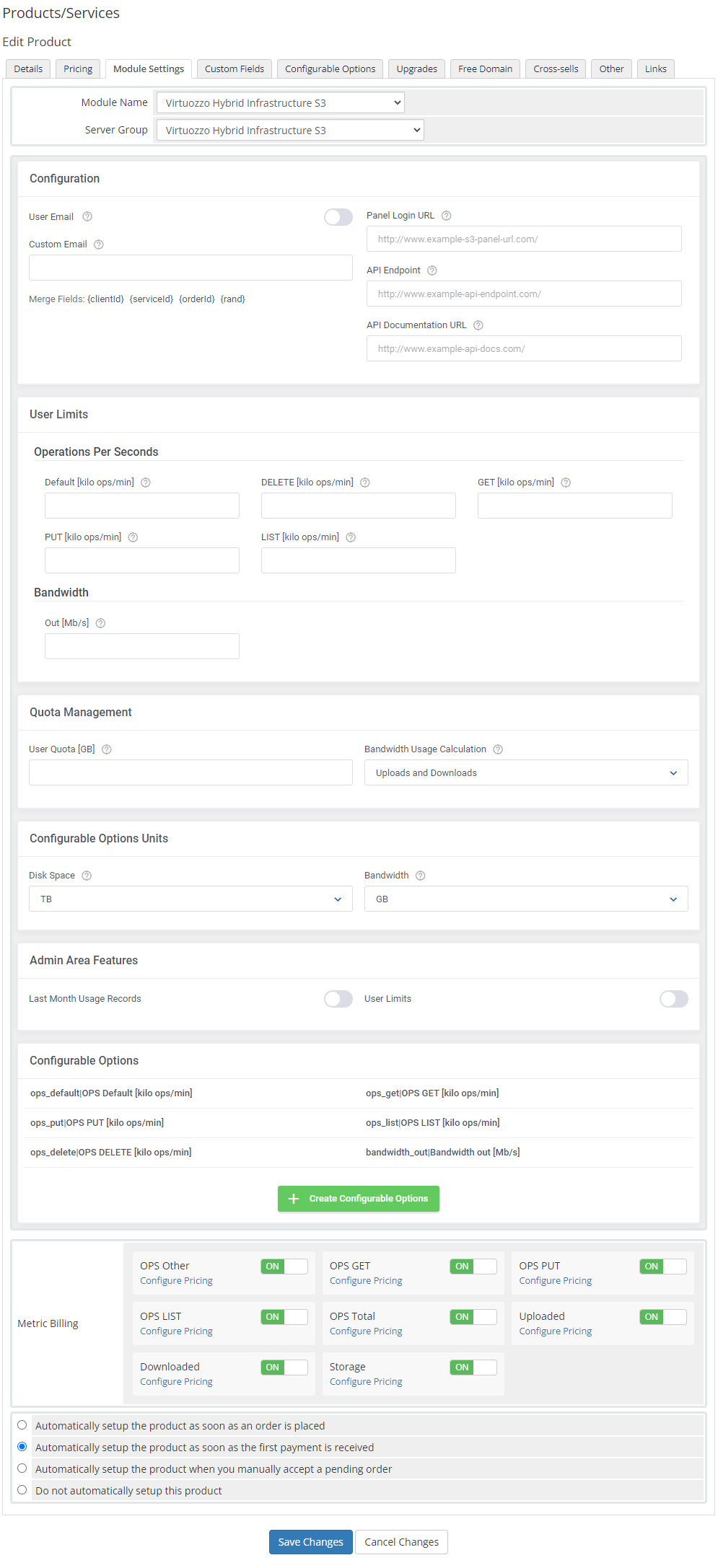
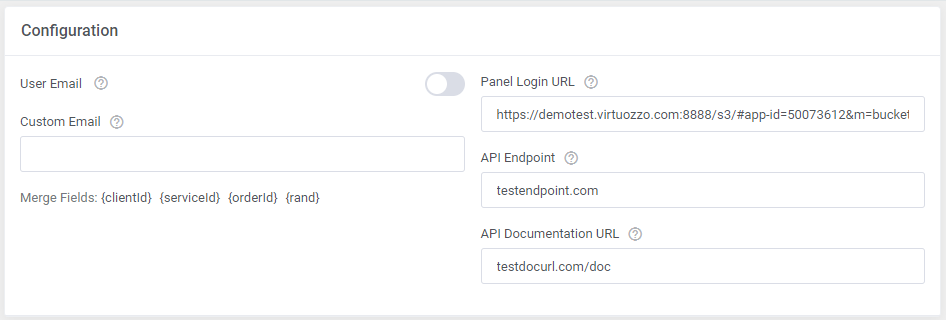
The first section is dedicated to basic product configuration, select the email type that will be used to create the service, and provide all the required data:
- User Email - enable this option and the user email address will be used when creating the service
- Custom Email - if 'User Email' is disabled, the user will be generated in the VHI S3 panel based on the typed in here email address
- Panel Login URL - type in the web address of the Virtuozzo S3 panel. Clients will be redirected to this site when they press the 'Log in to Panel' button in your client area.
Please remember to provide a valid HTTP protocol - API Endpoint - enter the API endpoint that will be displayed in your client area
- API Documentation URL - type in the link to the API documentation, it will be visible in the client area as well
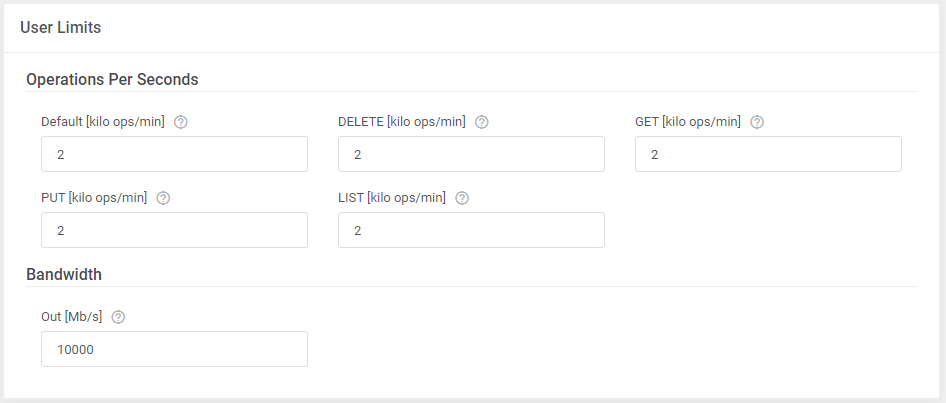
Next move to setting the user limits, define the operations limit and bandwidth.
Operations Per Seconds
Default [kilo ops/min] - in this field please enter the value that will be treated as a default one for operations limits.
If provided, all unspecified operation limits will be set to this default value, otherwise they will be set to 0.DELETE [kilo ops/min] - enter the value for the DELETE operations limit
GET [kilo ops/min] - enter the value for the GET operations limit
PUT [kilo ops/min] - enter the value for the PUT operations limit
LIST [kilo ops/min] - enter the value for the LIST operations limit
Bandwidth
Out [Mb/s] - define an outgoing bandwidth limit
The next section is dedicated to quota management:
- User Quota [GB] - define the storage usage limit per user in gigabytes
- Bandwidth Usage Calculation - select the bandwidth usage calculation method: include the uploads or downloads only, or both.

In the next section the units of "disk space" and "bandwidth" configurable options shall be defined:
- Disk Space - specify the unit in which the "disk space" configurable option will be offered: MG, GB, TB
- Bandwidth - specify the unit in which the "bandwidth" configurable option will be offered: MG, GB, TB

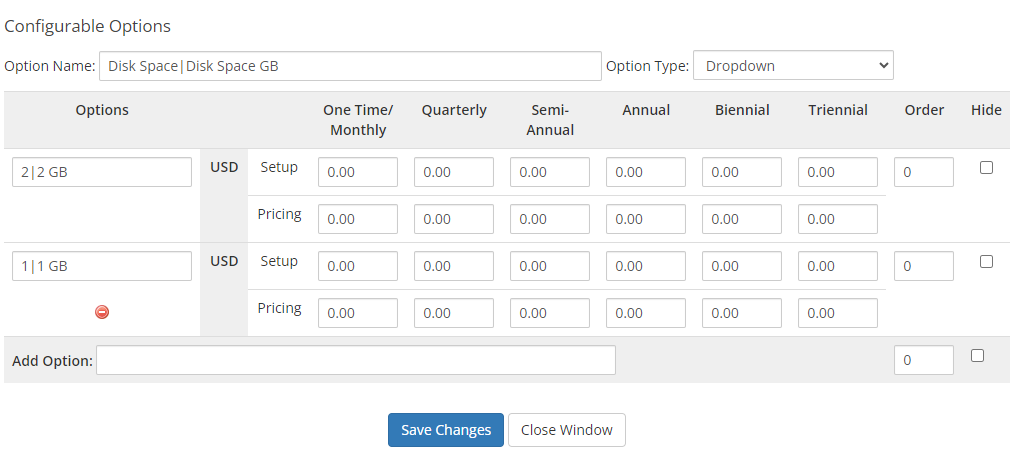
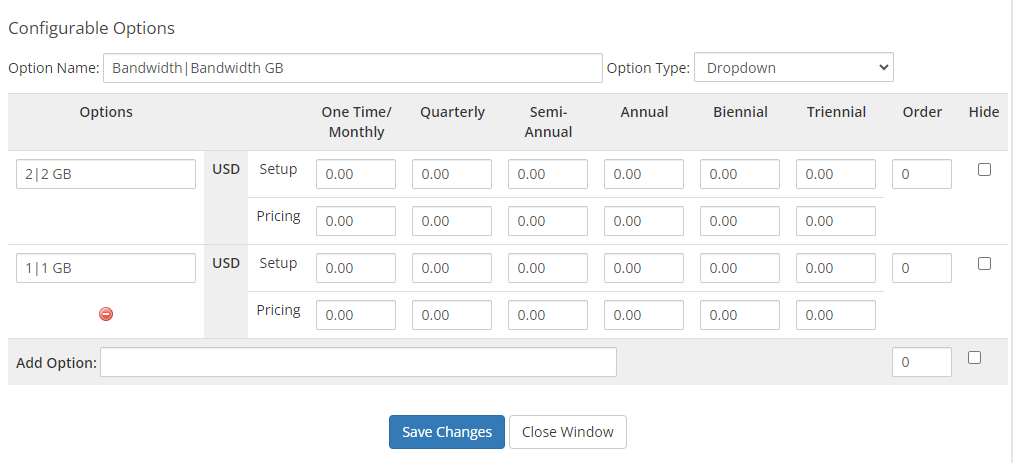
To set up the quota and bandwidth limits via the "disk space" and "bandwidth" configurable options you must configure them as well.
Please refer to the official WHMCS documentation (opens new window) for precise instructions on how to do that, as the two configurable options are not automatically generated by the module.
If you decide to set up the limits in the module settings, please manually create new configurable options and assign them to the product.
Note: When setting up limits remember to use whole numbers for GB and MB, and integer numbers for TB. If you add 0.5TB then 1GB is displayed in User Limits.
In 'Admin Area Features' select options that will be visible under the product details:
- Last Month Usage Records - if enabled, the ' Last Month Usage Records' table will be available
- User Limits - show the 'User Limits' table

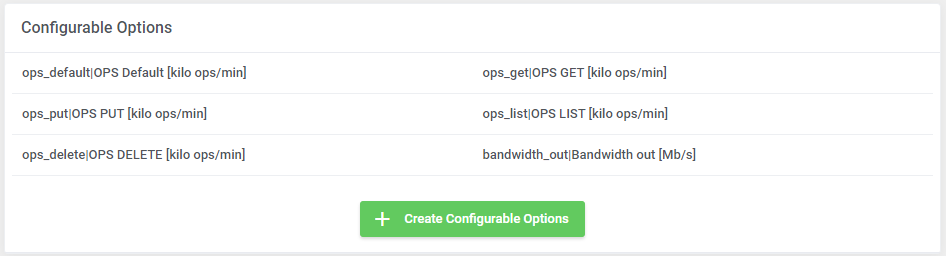
Now, select which options you want to generate and confirm by clicking 'Create'.
Note that the configuration for disabled options will still be taken from the configuration of the main product.
More information about how to use configurable options can be found here or in the official WHMCS documentation (opens new window).
# Management
# Admin Area
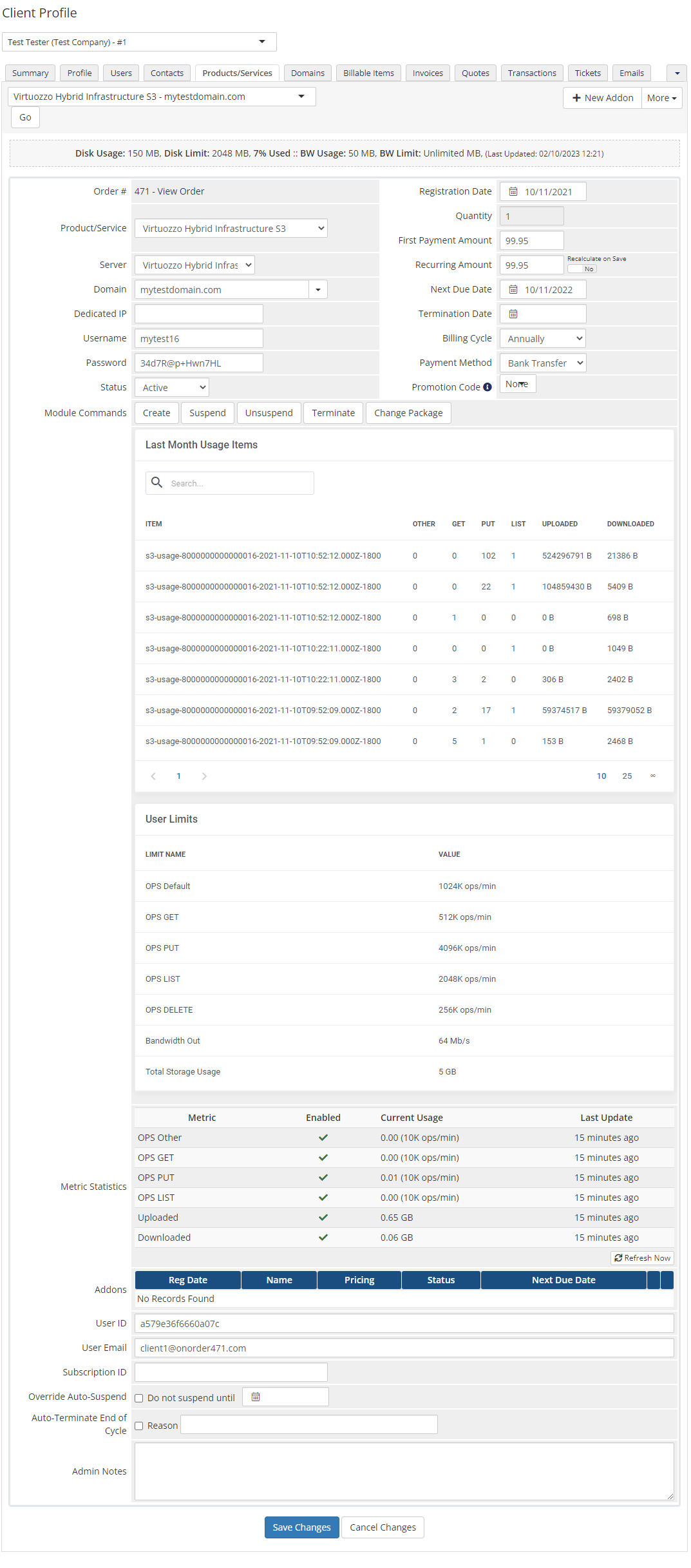
Virtuozzo Hybrid Infrastructure S3 For WHMCS allows you to manage the user account from the admin area of your WHMCS system.
This includes supervision of such features as:
- Configurable options that enable you to view the chosen user limits, if they are used in the product
- Module commands to allow easy and quick management of the user account:
- Create – creating a new user with a set of limits
- Suspend – it changes the user status to disabled in the panel, which means that access to its bucket is impossible
- Unsuspend – the user status is reverted to enabled and access to the bucket is possible again
- Terminate – removing a user from the Virtuozzo S3 panel
- Change Package – upgrading the user limits
- 'Last Month Usage Items' table
- 'User Limits' table
- Metric Statistics - the section is completed with all metrics the module can observe; please note that you must previously enable the statistics on your S3 gateway to allow the module to collect them.
Please refer to the Tips section, tip number 5 to learn how to do that.
# Ordering
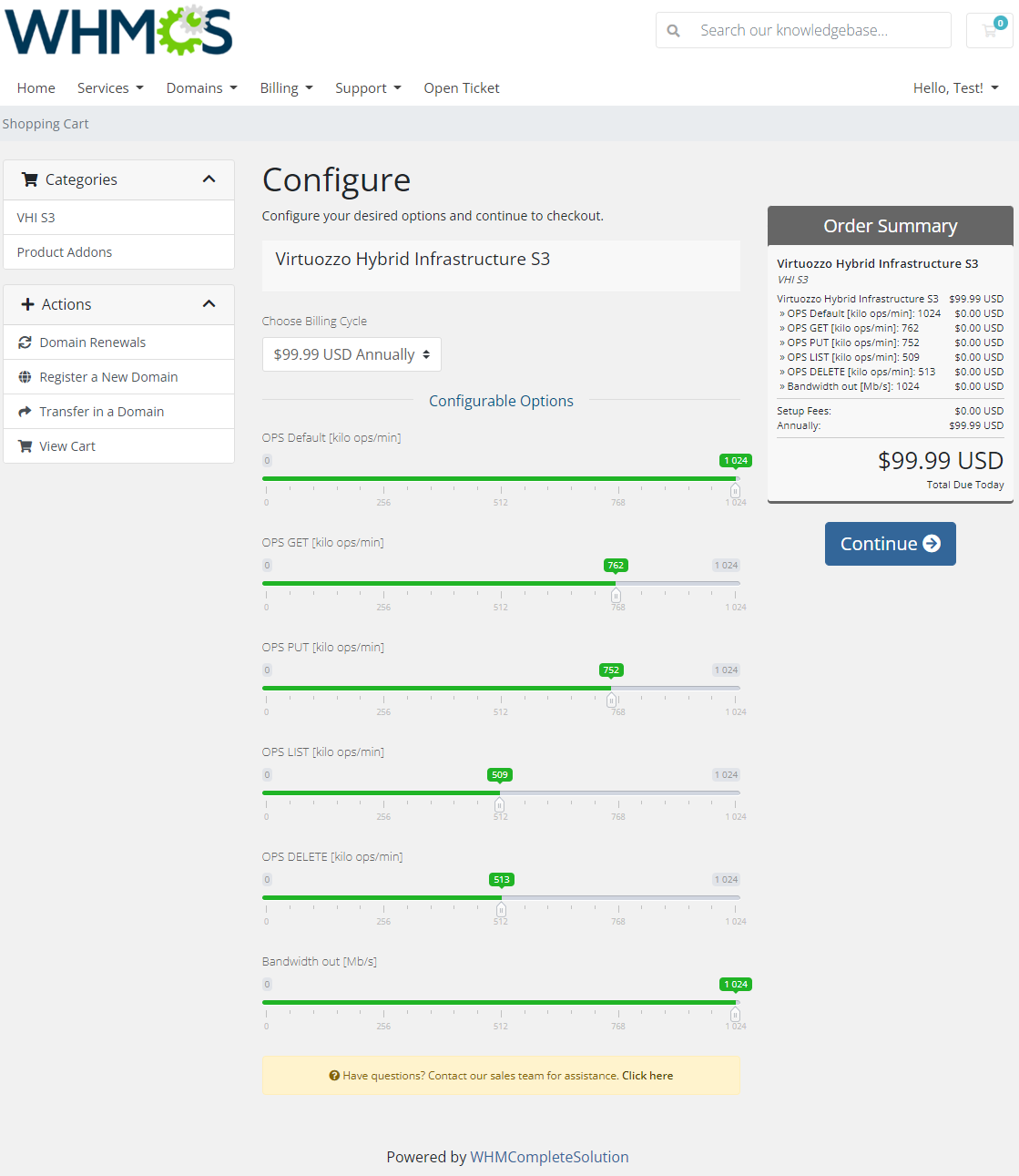
Thanks to configurable options, your clients are allowed to adjust the account limits already on the order level.
Additionally, you are able to set up pricing for each configurable option, which makes your offer more flexible.
# Client Area
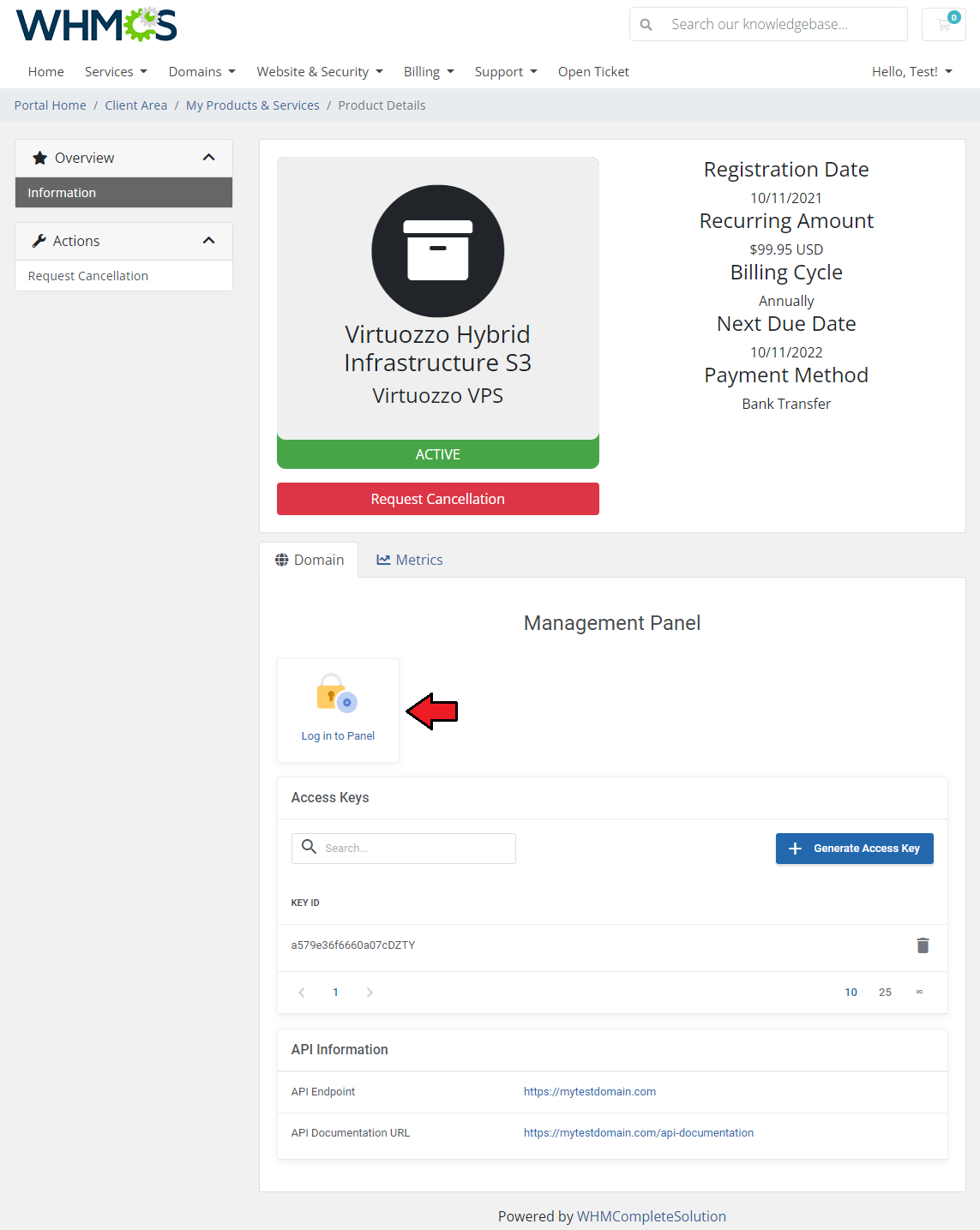
The client area interface of Virtuozzo Hybrid Infrastructure S3 For WHMCS looks like below.
As you can see, you may easily redirect to your 'Virtuozzo Hybrid Infrastructure S3' bucket via a direct login, just press the 'Log in to Panel' icon.
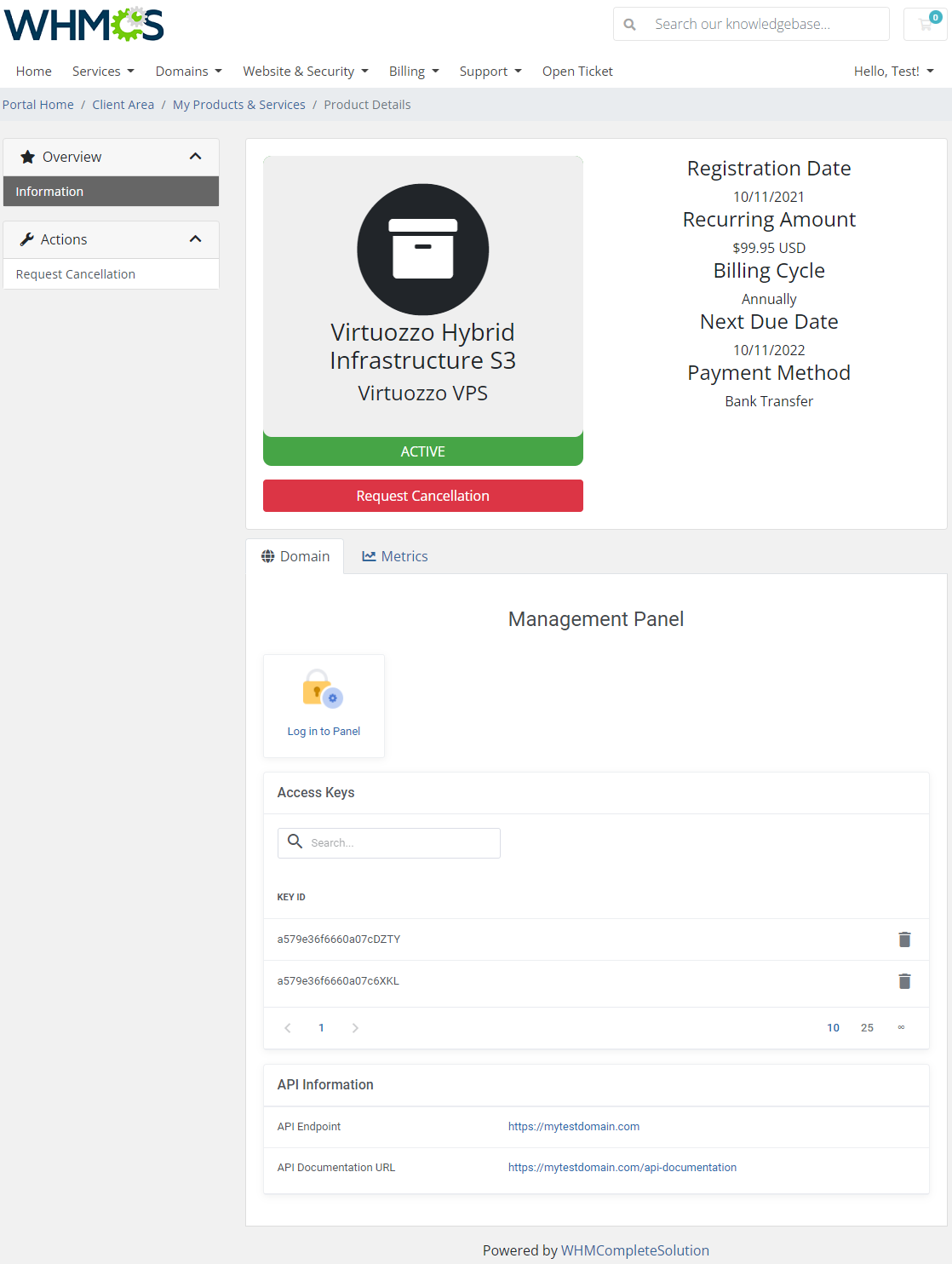
Under the 'Access Keys ' section you will find the IDs of the already generated key pairs. Please remember that only IDs are visible as true credentials were displayed only once when generated.
There is a limit of two key pairs to be generated, you may always delete any of the generated API credentials, and then, the option to create a new one will be reverted.
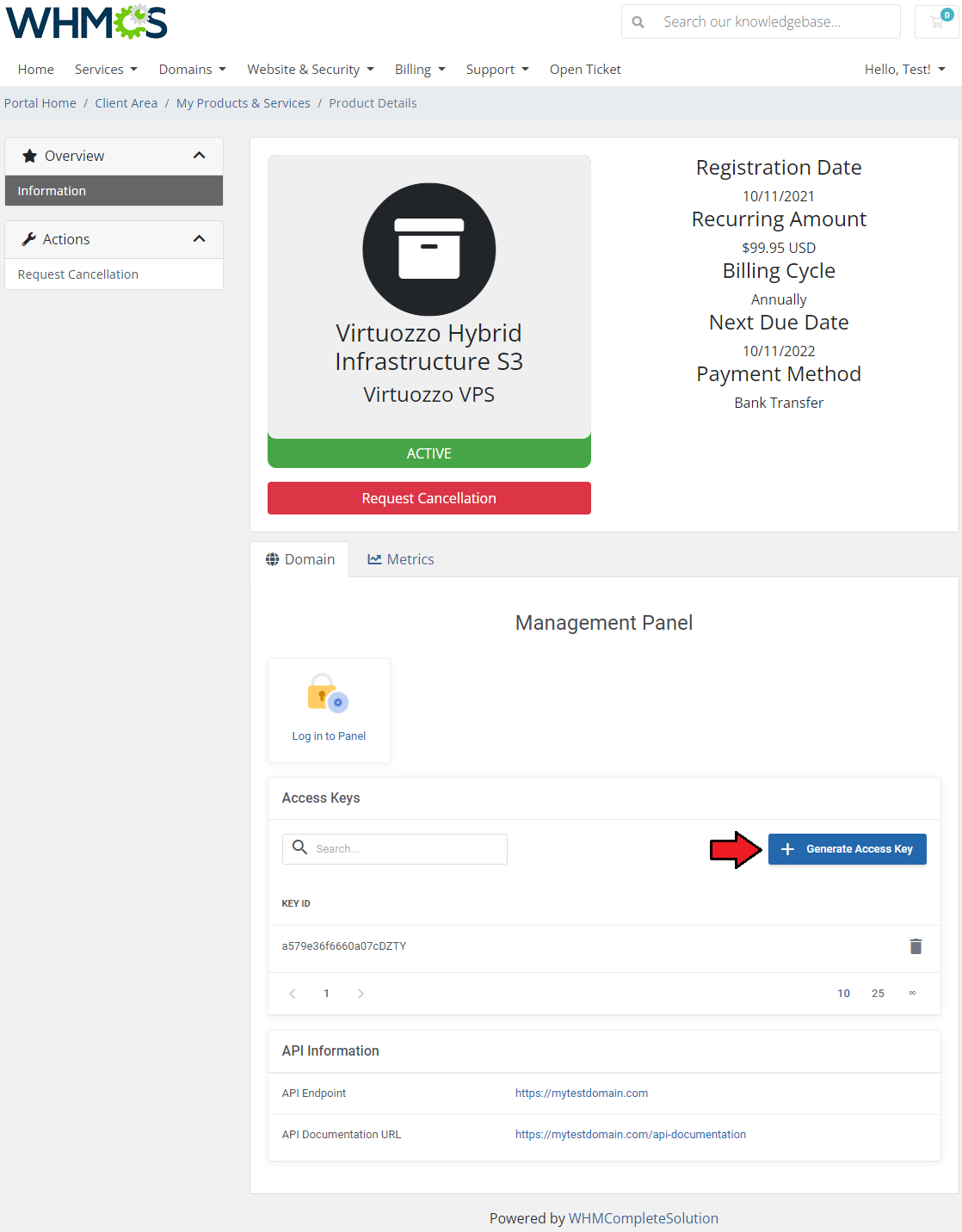
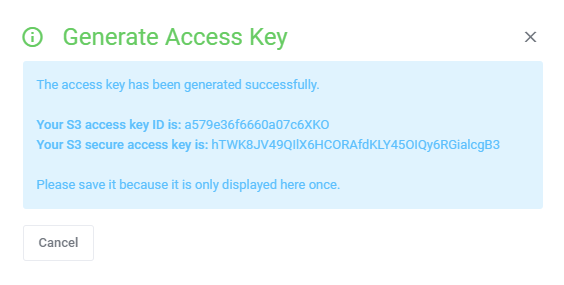
Press the 'Generate Access Key' button, you will see a modal with generated S3 access key ID and an S3 secure access key. It is important to copy and save the keys in a secure place as there is no way to preview them again.
When you reach the limit of two pairs generated, the option to 'Generate Access Key' will be suspended.
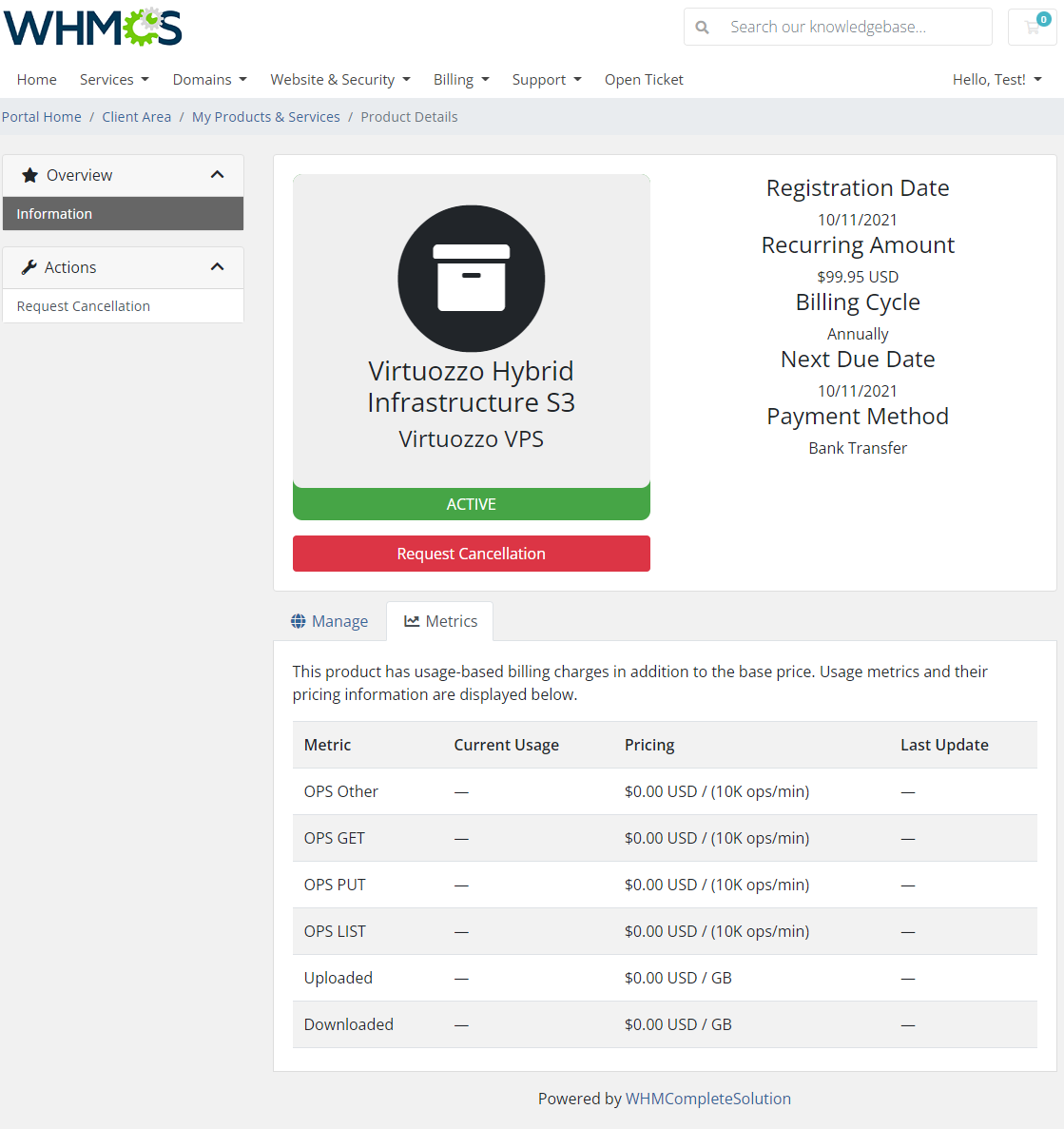
Moreover, you can check the WHMCS 'Metrics Billing' in the adequate section.
Hosting Quota Notifications For WHMCS (opens new window) Integration
Smooth integration with the Hosting Quota Notifications For WHMCS module allows to keep constant and comfortable control over the used resources.
If you decide to use the two modules together, you will be granted numerous advantages.
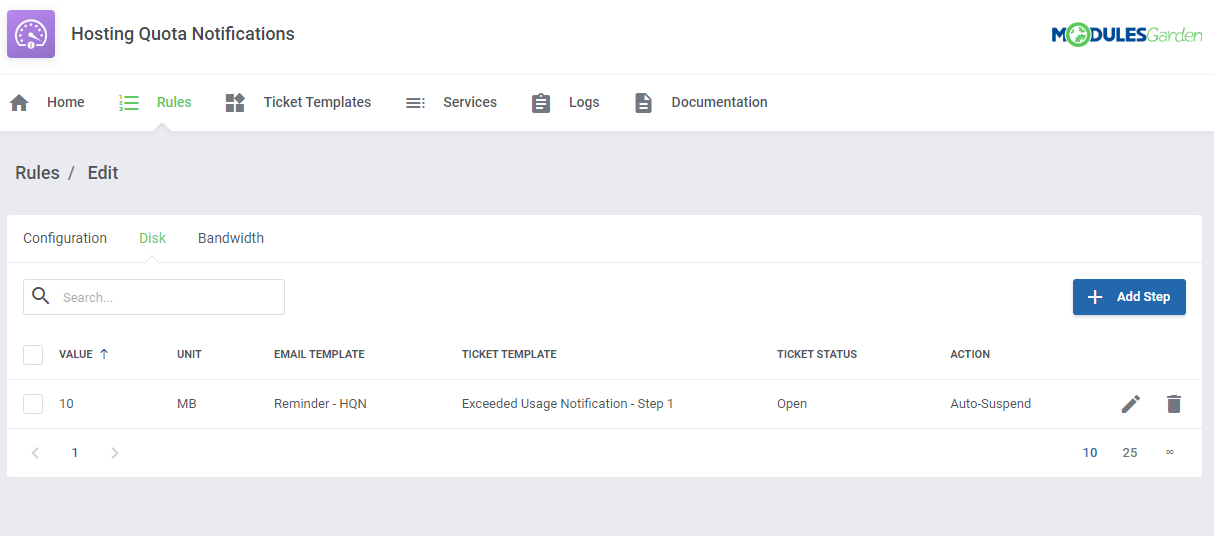
First and foremost, you will be allowed to automatize the system of informing your clients about exceeding or just being close to exceeding up limits of bandwidth and disk usage via an email and/or a ticket.
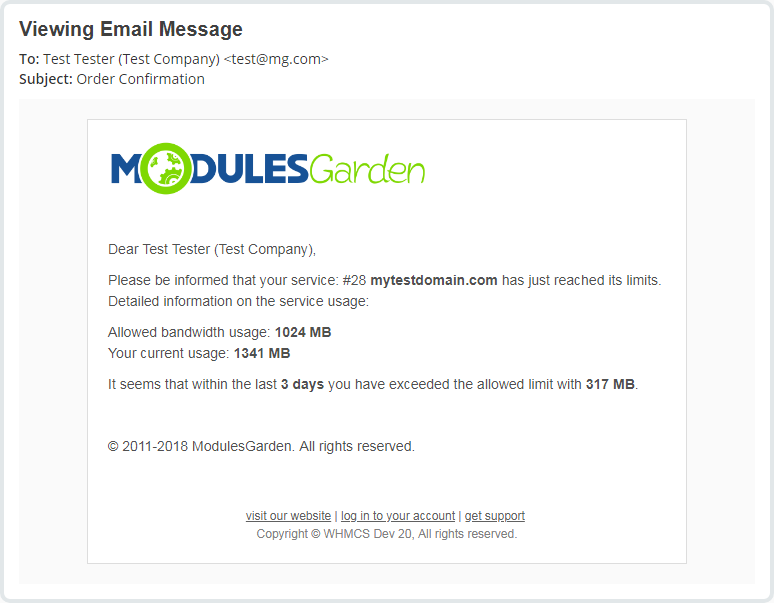
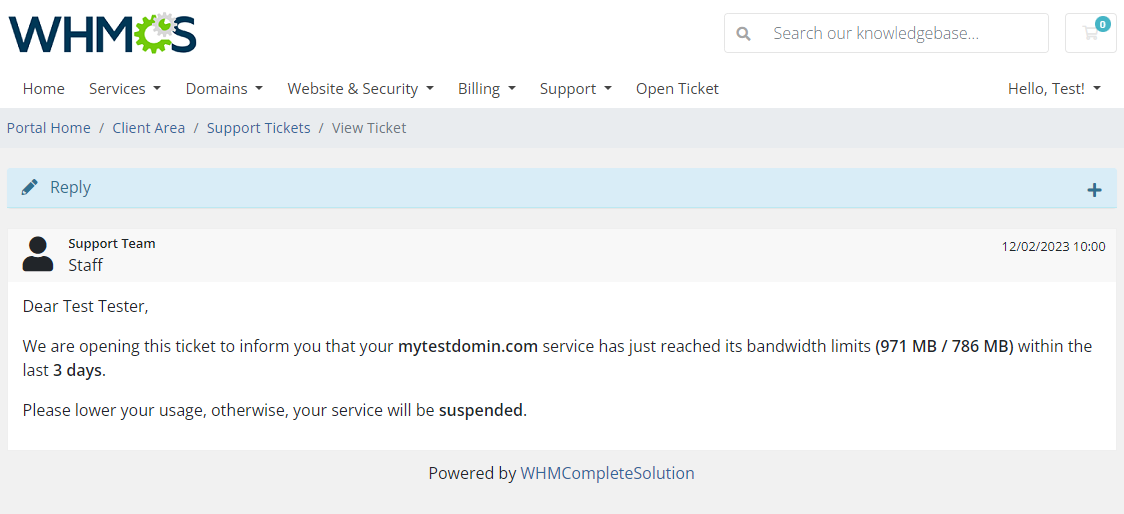
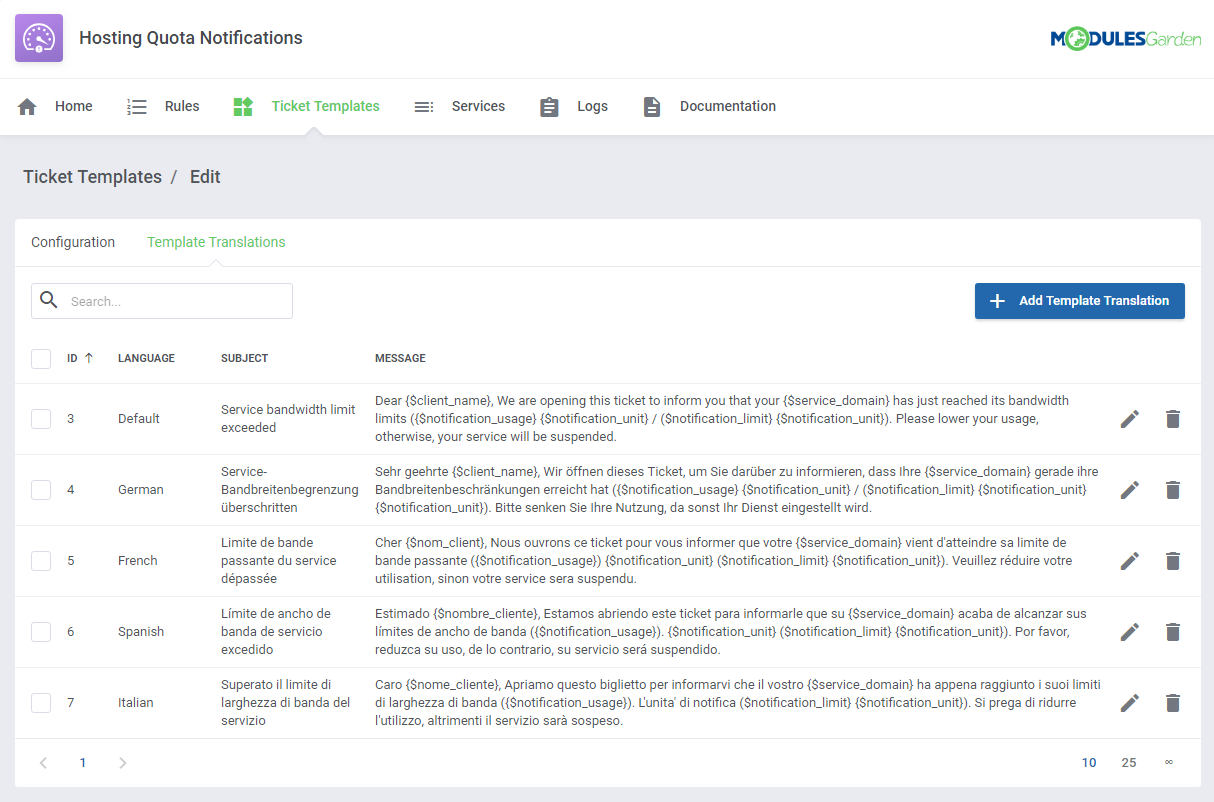
The contents of the ticket message can be easily changed, customized, and translated to perfectly fit your needs.
You may do that straight in the Hosting Quota Notifications addon: "Ticket Templates" section.
Furthermore, you may set up dedicated rules according to which the resource usage of the selected VHI S3 service will be checked.
Decide whether the service shall be automatically suspended or terminated once the limit is exceeded.
For details on how to configure the rules, follow the Hosting Quota Notification module documentation.
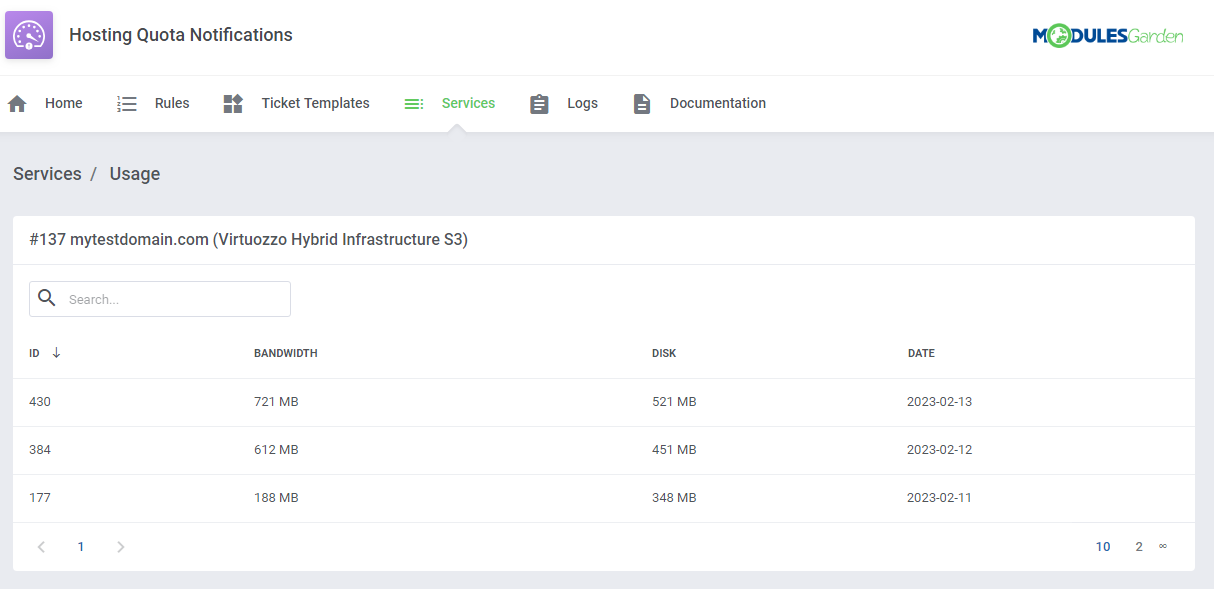
The module also allows to check the details of the current resource usage of the service per each day.
View the statistics on the disk and bandwidth usages per single product directly in the addon: Services → Usage section.
# Tips
Please remember that if you integrate Virtuozzo Hybrid Infrastructure S3 For WHMCS with Advanced Billing For WHMCS (opens new window), the cron task should be set no more than once for an hour.
Metrics can be calculated based on total or average usage for a given period of time. You can edit this in the following file:
/yourWHMCS/modules/servers/VirtuozzoHybridInfrastructureS3/app/Config/configuration.ymlFind the 'averageBilling' option and set it:
- 'false' for total usage
- 'true' for average usage

Although the module does not require any domain to work properly, you will need to use one to allow WHMCS metrics to be correctly fetched and displayed.
It is possible to verify if the usage statistics displayed in the product details are correctly calculated. Please run the below cron command in your console to do so:
php -q /home/yourWHMCS/modules/servers/VirtuozzoHybridInfrastructureS3/cron/cron.php metrics:fetchRemember to replace 'yourWHMCS' with the correct WHMCS directory.
You need to enable the statistics collection on your S3 gateway to allow the module to collect data and display them in the "Metric Statistics" in the admin area.
- Create a file on every S3 storage node: /var/lib/ostor/local/gw.conf
Content of the newly created files:
# Enable usage statistics collection.
S3_GW_COLLECT_STAT=1
- Restart the S3 storage service to apply the configuration changes. Run the following command on all S3 storage nodes:
# systemctl restart ostor-agentd.service
# Update Instructions
An essential guidance through the process of updating the module is offered here.
Ensure successful completion of the module update by carefully following each step, thereby preventing data loss or any unforeseen issues.
Additionally, you will find a current list of supplementary actions necessary for a smooth update process there.
# Upgrade Guide
Seeking a solution that offers greater flexibility, customization tailored to your precise needs, and unrestricted availability?
There is an option that not only proves to be cost-effective in the long run but also includes prioritized support services, making it a truly valuable investment.
Opt for the Open Source version (opens new window) of your Virtuozzo Hybrid Infrastructure S3 For WHMCS module to unlock these benefits.
Simply click on either the Get Source Code or Upgrade To Lifetime button found on the product's page in our client area to complete the one-step upgrade process, with a dedicated discount already applied.
Follow a comprehensive guide covering the transition process, the advantages it brings, and step-by-step instructions on what to do next after the order has been successfully finalized.
# Common Problems
When you have problems with connection, check whether your SELinux or firewall does not block ports.
If you encounter a module command error: 'API Error: The bucket you tried to delete is not empty'
Please remove all the bucket content before terminating it. The bucket must be empty to run the 'Terminate' action successfully.