

# EasyDCIM Colocation For WHMCS
When updating the module from version 2.x to 3.x, make sure to carefully follow the
migration instructions.
Skipping any of the update steps may lead to connection issues or a failed migration process.
# (opens new window) About EasyDCIM Colocation For WHMCS (opens new window)
EasyDCIM Colocation For WHMCS is a free module that will allow you to provide and manage your EasyDCIM (opens new window) colocation services from the WHMCS area.
You will be enabled to, among others, determine the status of each colocation, and your clients - turn off and on their power outlets remotely.
At the same time you and your clients will both be empowered to display statistics on traffic and power usage as well as log in to the EasyDCIM panel with a single click.
If you are still using the module in version 1.x and need its documentation, you will find it under this page.
Admin Area Features
- Create/Terminate/Suspend/Unsuspend Colocation
- Update Order Information
- One Click Login To User Control Panel
- View Service Information
- View Colocation Resource Usage:
- Bandwidth Statistics
- Network Ports
- Power Usage Statistics And Graph
- Aggregate Traffic Graph With 95th Percentile
- Configure Default Colocation Options:
- Model
- Location
- Configure Automation Settings:
- Toggle Automatic Order Acceptance
- Block Automatic Suspension/Unsuspension/Termination By WHMCS
- Control Service Access Level
- Define Client Area Features:
- Toggle Service Information:
- Label
- Model
- Location
- Labeled Rack With Position
- IP Addresses
- Custom Metadata
- Allow Access To Extensions:
- Traffic Statistics
- Power Usage Statistics
- Power Outlets
- Devices List
- DNS Management
- Allow Service Actions:
- Log In To Panel
- Toggle Traffic Statistics:
- Aggregate Traffic Graph
- Hide Bandwidth Usage Table
- Hide Network Ports Table
- Toggle Power Usage
- Enable Power Usage Graph
- Hide Power Usage Table
- Toggle Devices List
- Enable Devices Power Control
- Toggle Service Information:
- Control Service Actions And Email Notifications
- Generate Default Configurable Options
Client Area Features
- View Colocation Information:
- Model
- Label
- Location
- Labeled Rack With Position
- IP Addresses
- Custom Metadata
- One Click Login To User Control Panel
- View Traffic Statistics:
- Bandwidth Usage
- Aggregate Traffic Graph With 95th Percentile
- Network Ports
- View Power Usage Statistics:
- In Given Intervals
- As Power Usage Graph
- Manage Reverse DNS Records
- Power On/Power Off/Reboot Power Outlets
- Power On/Shutdown/Reboot Colocation Devices
- View Colocation Information:
Configurable Options
- Colocation Model
- Colocation Location
- Bandwidth Limit
- Bandwidth OUT Limit
- Bandwidth IN Limit
- Power Usage
- 95th Percentile
Advanced Billing Integration
- Bill For Current Power Usage
- Bill For In/Out/Total Bandwidth Usage
- Apply 95th Percentile Billing Of In/Out/Total Bandwidth Overages
Supported PDU Manufacturers
- APC
- CyberPower
- Enlogic
- Raritan
- Eaton
- SmartPDU
General Info
- Integrated With Advanced Billing For WHMCS (opens new window) - Actual Server Resource Usage Billing
- Multi-Language Support
- Supports EasyDCIM (opens new window) v1.13.0 And Later
- Supports PHP 8.4 Back To PHP 8.2
- Supports WHMCS Themes "Six", "Twenty-One", "Nexus" And "Lagom WHMCS Client Theme"
- Supports WHMCS V9.1 Back To WHMCS V8.10
Exclusive Promo Code From ModulesGarden
Save 25% For 3 Months On The EasyDCIM Control Panel With Coupon: WHMCS25%_ED
# Installation and Configuration
This tutorial will show you how to successfully install and configure EasyDCIM Colocation For WHMCS. (opens new window)
We will guide you step by step through the whole installation and configuration process.
# Installation
Log in to our client area (opens new window) and download the module.
Extract the downloaded file into the main WHMCS directory.
The content of the package should look like this.

If you are about to update your EasyDCIM Colocation module from v2 to v3, remember to strictly follow the update instructions described at the bottom of this documentation!
# Configuration of Server
Now, we will show you how to configure a new product.
Go to 'System Settings' → 'Servers' and press the 'Add New Server' button.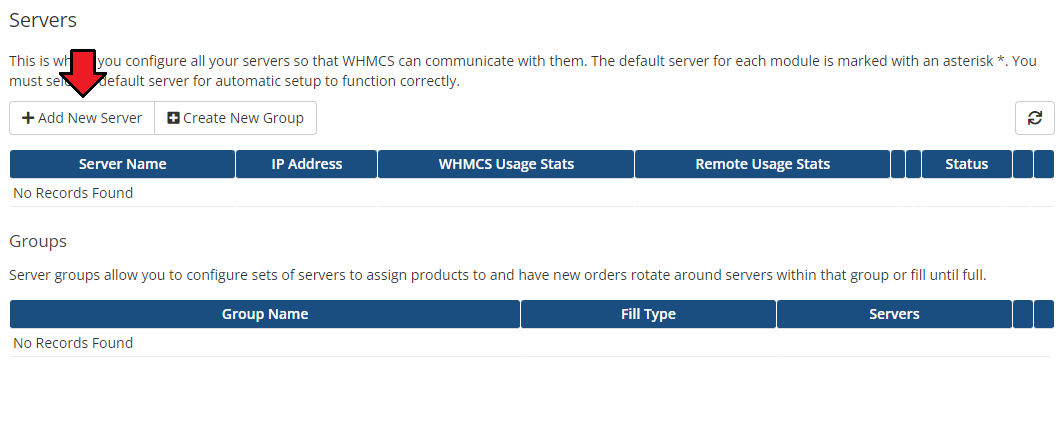
Next, choose 'EasyDCIMColocationv2' from the 'Module' dropdown menu.
Fill in your server 'Name', 'IP Address' or 'Hostname', and enter the API token in the 'API Key' field. Then check the connection with the EasyDCIM server and press 'Save Changes'.
Note: To generate an API token, open your administrator profile in EasyDCIM, navigate to 'Administrators' → 'Summary' → 'API Tokens' , then click 'Create API Token' . Make sure the token has both the 'read' and 'write' scopes, as tokens without a scope are rejected by EasyDCIM.
The token is displayed only once after creation, so be sure to copy and store it securely. For detailed instructions, refer to the API Tokens documentation (opens new window).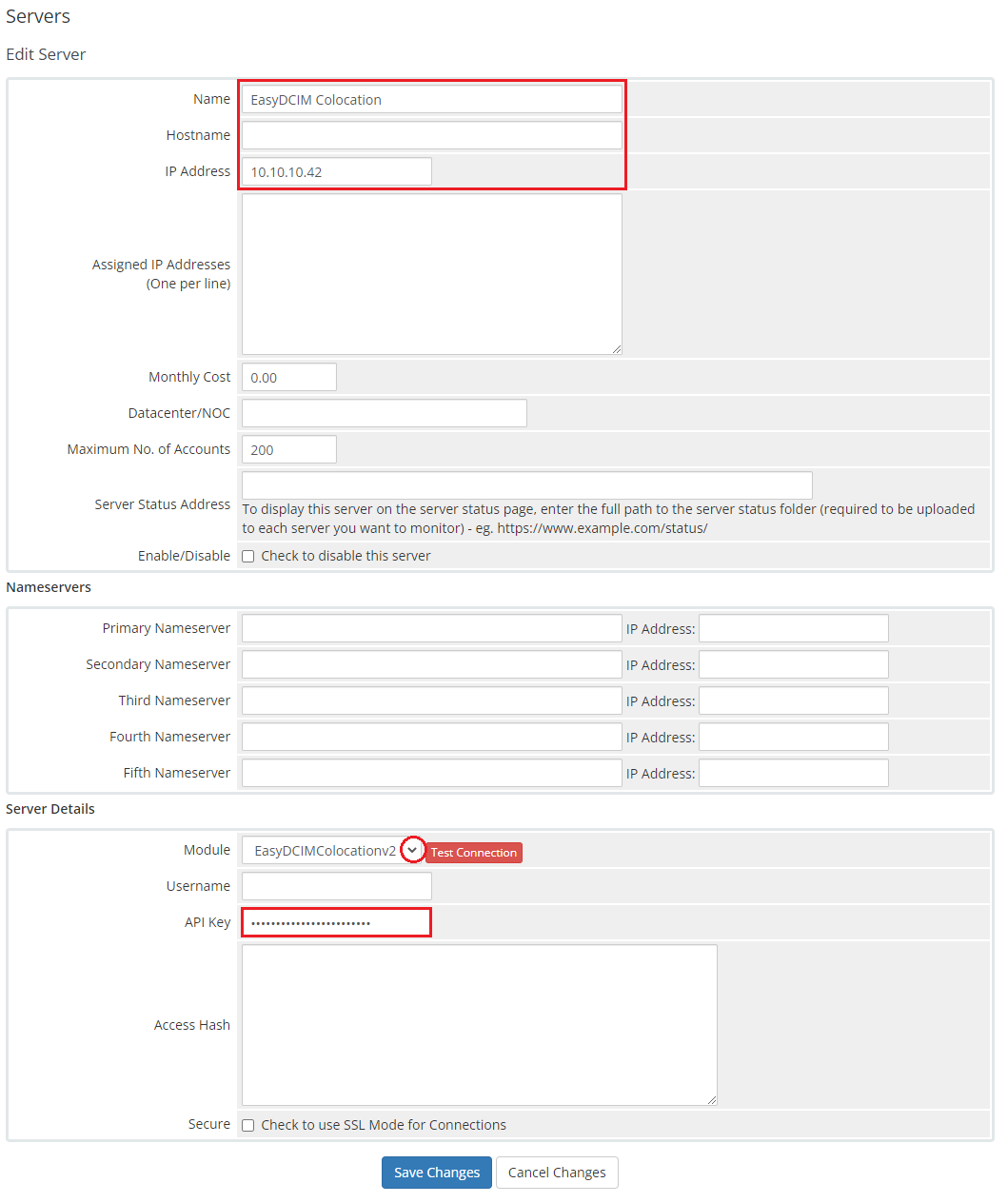
The next step is creating a server group. To do so, click on 'Create Server Group'.
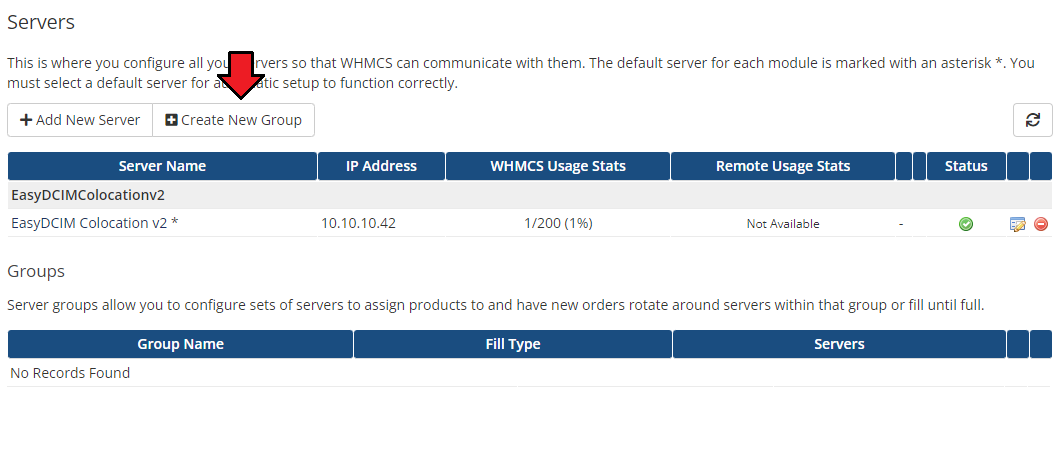
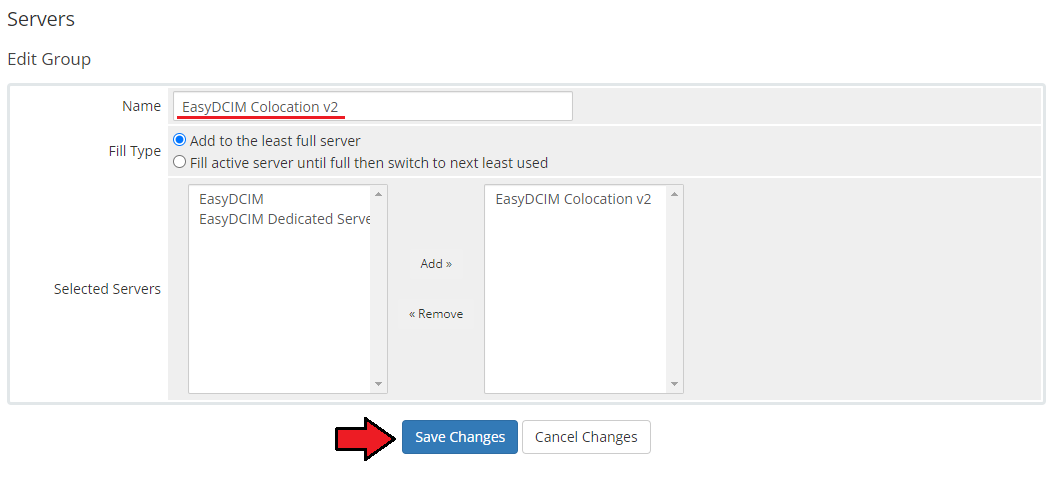
- Enter the name, click on your previously created server, press 'Add' and 'Save Changes' afterwards.
# Configuration of Product
In order to create and configure a product, go to 'System Settings' → 'Products/Services'.
Click on 'Create a New Group'.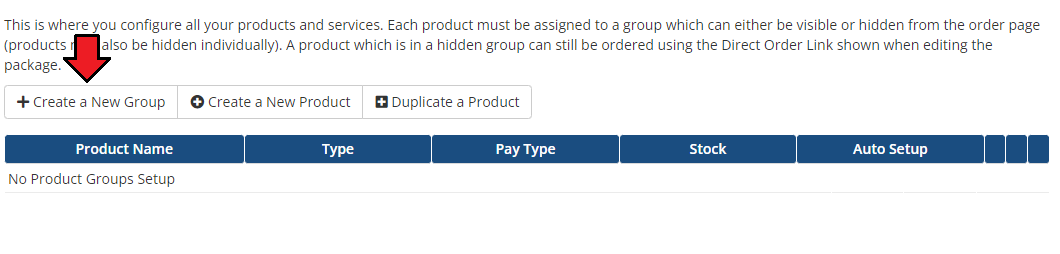
Enter the product group name and press 'Save Changes'.
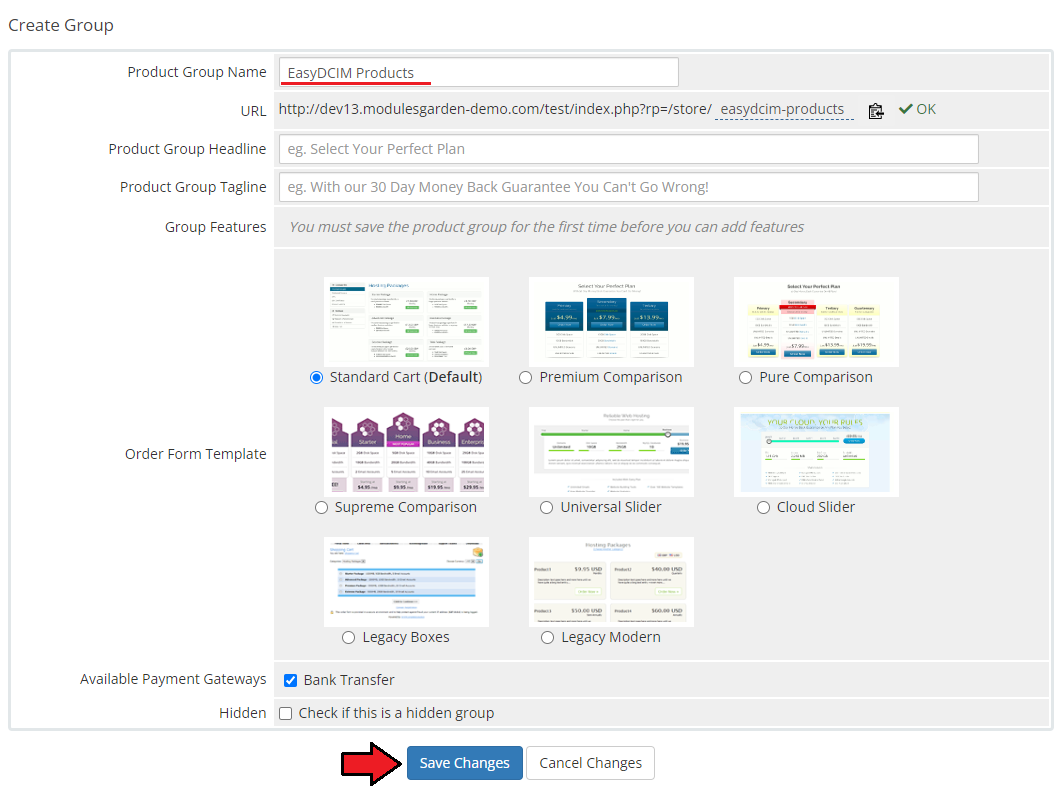
Once you have a product group, you can assign your product to it.
To create a product, click on 'Create a New Product'.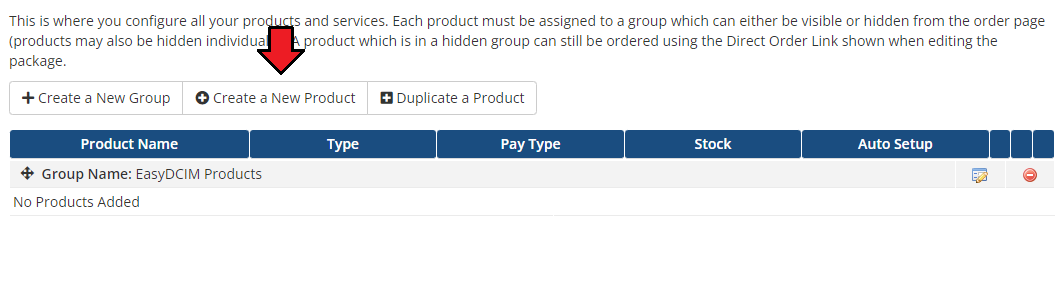
Next, choose your product group, enter your product name and then press 'Continue'.
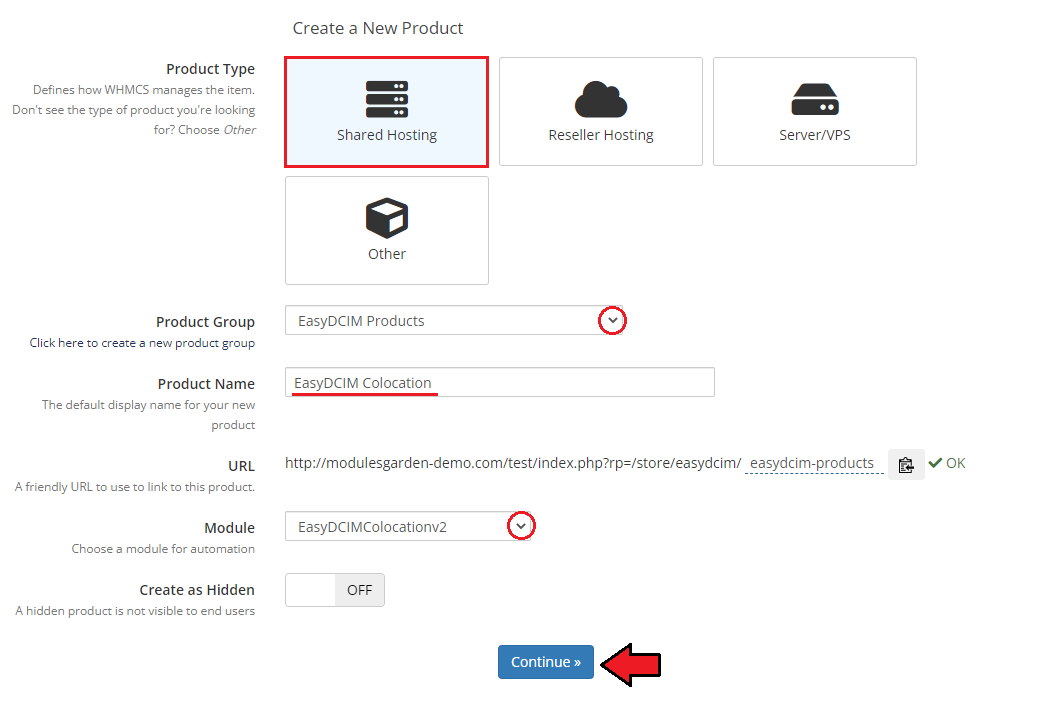
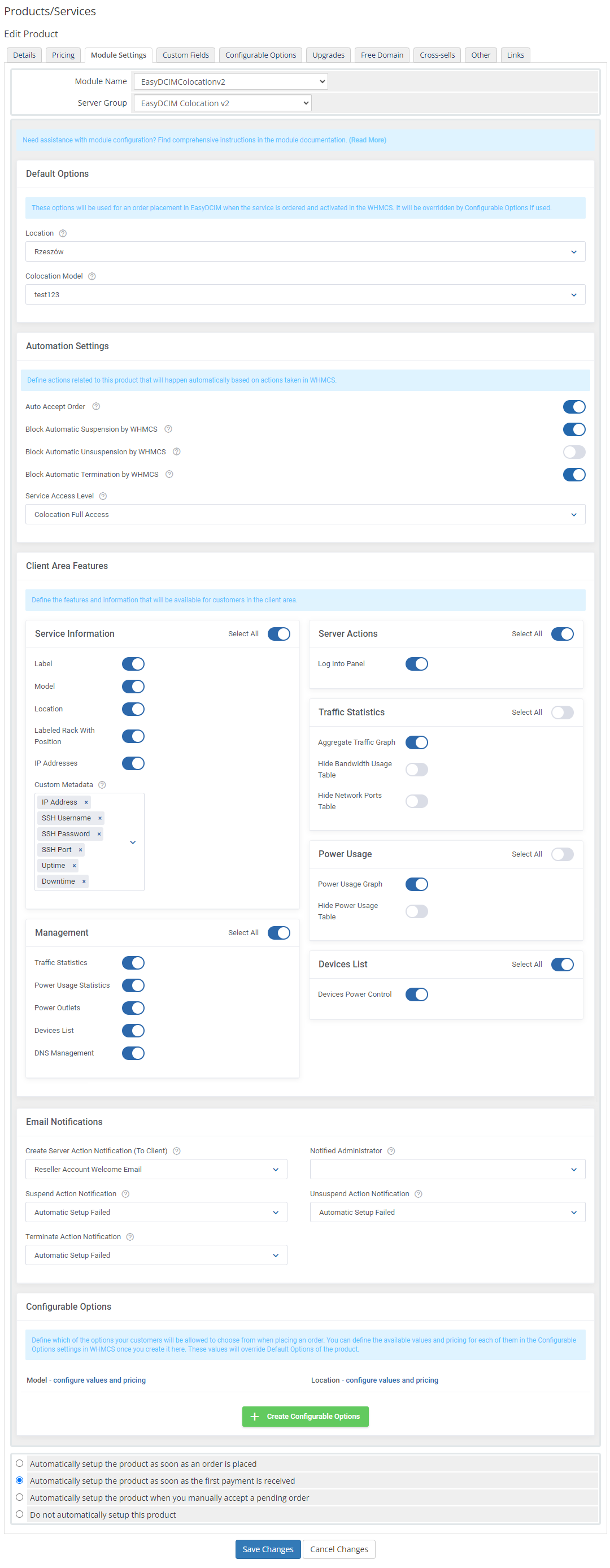
Now, move to the 'Module Settings' section. Keep in mind that the module configuration is only partly obligatory.
The server will be assigned based on the provided configuration, and will therefore match only those options that have been specified.Default Options
- Location (required) - the desired server location
- Colocation Model (required) - the EasyDCIM server model
Note: generate configurable options if you want to overwrite the 'Location' and 'Model' in the 'Default Options'
Automation Settings
- Auto Accept Order - automatically run the server matching process after order placement. Use only if you have configured your EasyDCIM to automatically accept services.
If you use cron synchronization, you can leave this option unchecked. - Block Automatic Suspension by WHMCS
- Block Automatic Unsuspension by WHMCS
- Block Automatic Termination by WHMCS
- Service Access Level - configure the access level to control the features available to your clients. These levels and features are defined in your EasyDCIM at 'Clients' → 'Services' → 'Access Level' tab.
Client Area Features- define the features and information that will be available for customers in the client area
Service Information
- Label
- Model
- Location
- Labeled Rack With Position
- IP Addresses
- Custom Metadata for Client Area
- Custom Metadata for Admin Area
Extensions
- Traffic Statistics - display statistics on traffic in the client area.
- Power Usage Statistics - display statistics on power usage in the client area.
- Power Outlets - display power outlets in the client area and allow the client to manage them.
- Devices List - display a list of devices along with their IP and location.
- DNS Management - allow the client to manage reverse DNS records in the client area.
Service Actions
- Log In To Panel
Traffic Statistics
- Aggregate Traffic - display the aggregate traffic graph in the client area.
- Hide Bandwidth Usage Table
- Hide Network Ports Table
Power Usage
- Power Usage Statistics Graph - display the power usage graph in the client area.
- Hide Power Usage Table
Devices List
- Devices Power Control - allow users to restart, shut down and power on the devices on the 'Devices List' in their client area
Email Notifications
- Create Service Action Notification (To Client) - choose the email template that will be sent to the client after the colocation service has been successfully provisioned. It is not the same as the Welcome Email sent by WHMCS right after the service activation.
- Suspend Action Notification - select the email template that will be used to notify about suspending the service
- Unsuspend Action Notification - select the email template that will be used to notify about unsuspending the service
- Terminate Action Notification - select the email template that will be used to notify about terminating the service
- Notified Administrator - choose the WHMCS administrator who will receive the above notifications. Leave it empty if you do not want to receive them.
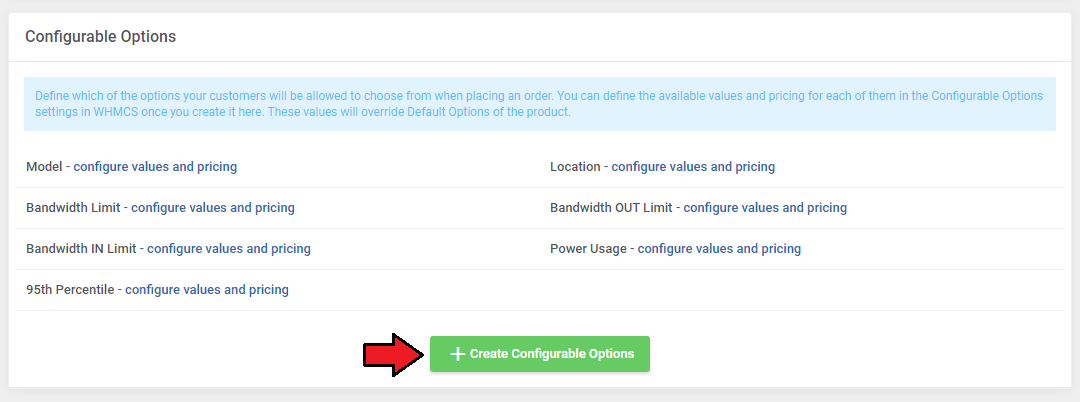
You can also generate the default configurable options to allow your customers place orders tailored exactly to their needs.
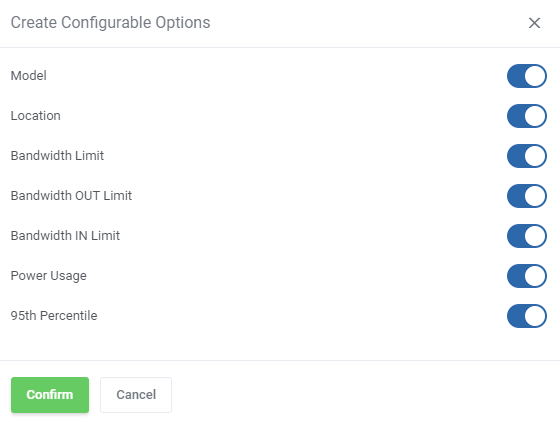
To do that, press 'Create Default Options' in the 'Configurable Options' section of the 'Module Settings' tab, select the options you want to generate and confirm.
Available options: Location, Colocation Model, Bandwidth Limit, Bandwidth IN Limit, Bandwidth OUT Limit, Power Usage and 95th Percentile. The generated options can be found under 'System Settings' → 'Configurable Options'.
Note: Any configurable option will overwrite its counterpart from the 'Module Settings' tab of a product.

# Billing Configuration
- Additionally, you can set up a percentile billing for additional traffic.
Note: This option is possible only if you do not have Advanced Billing Form WHMCS (opens new window) module installed. If you need a bit more advanced billing integration, please go here for more information.
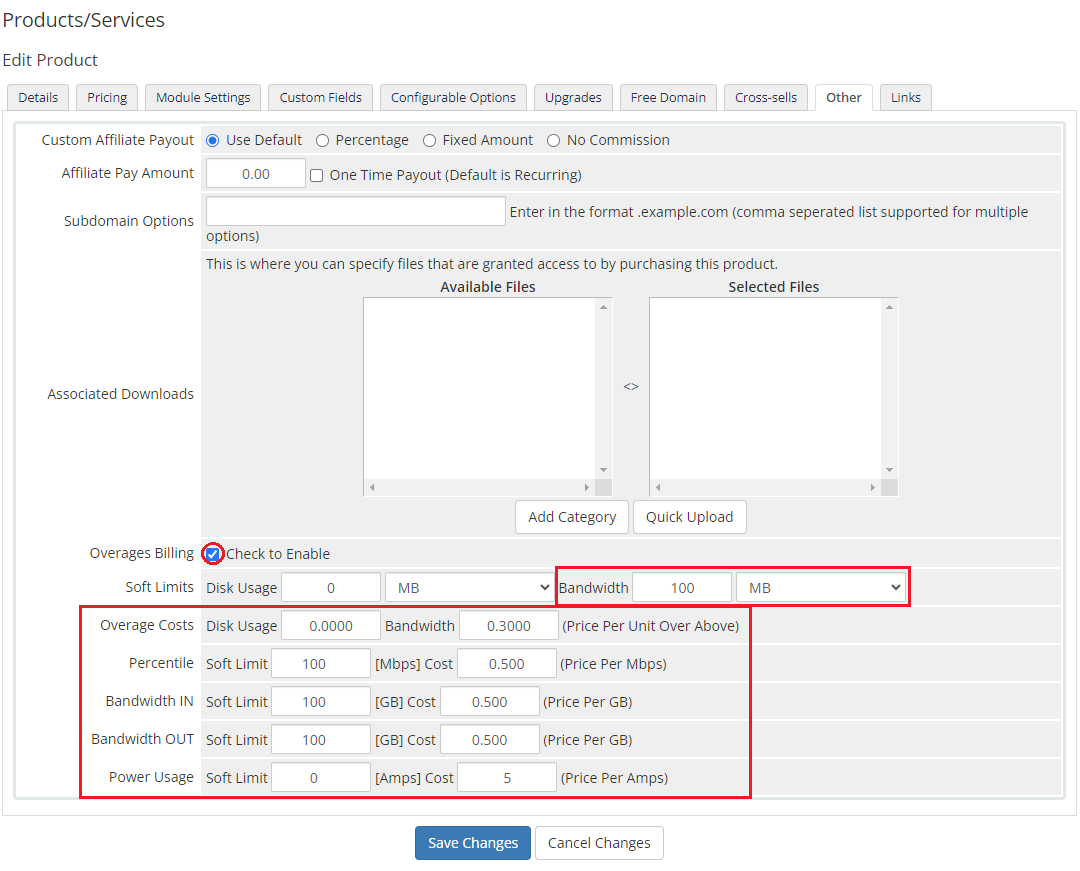
Go to the 'Other' tab and enable 'Overages Billing'. First, define the standard overages bandwidth billing (opens new window) and then set the following percentile values:- Soft Limit - bandwidth usage in Mbps above which the customer will be additionally charged for the used transfer
- Cost - price per Mbps unit above the 'Soft Limit' value
E.g. If 'Soft Limit = 100' and 'Cost = 0.500' and the client exceeds the bandwidth by 10 Mbps, reaching to '110 Mbps', they will be additionally charged with $5 USD (10 x 0.500).
Note: The percentile billing requires the standard billing of bandwidth overages to be enabled. It will be also calculated during the execution of the WHMCS system cron (opens new window).
Important: The 'Bandwidth Limit' configurable option assumes the soft limit unit for it is set to 'MB'. If it is not, the CO will have to be adjusted accordingly.
# Custom Fields
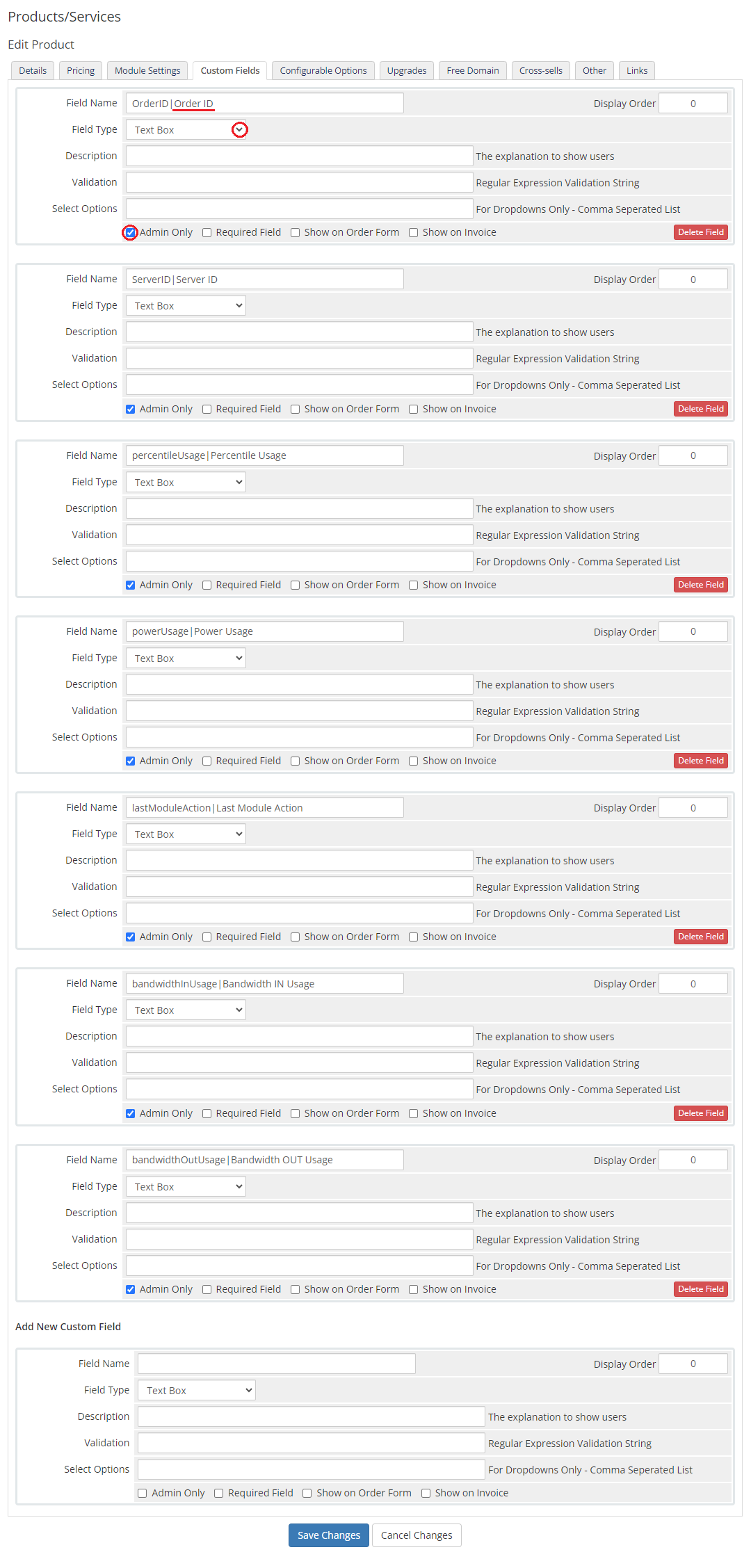
Once the configuration of the module settings has been completed, the following custom fields will be created automatically.
Note: These fields will not be visible to your clients by default.
- ServiceID - the number used to link the product with EasyDCIM service ID
- OrderID - the number used to link the product with EasyDCIM order number
- ServerID - the number used to link the product with EasyDCIM server ID
- EasyDCIMClientID - the ID of the EasyDCIM user that owns the service.
- percentileUsage, bandwidthInUsage, bandwidthOutUsage, powerUsage - the current usage values used for billing
- lastModuleAction - the last module action performed on the service, used by the synchronization cron
# Management
In this section we will show you all functionalities of EasyDCIM Colocation For WHMCS.
Our module allows you to offer and manage EasyDCIM colocation service right in your WHMCS system.
# Admin Area
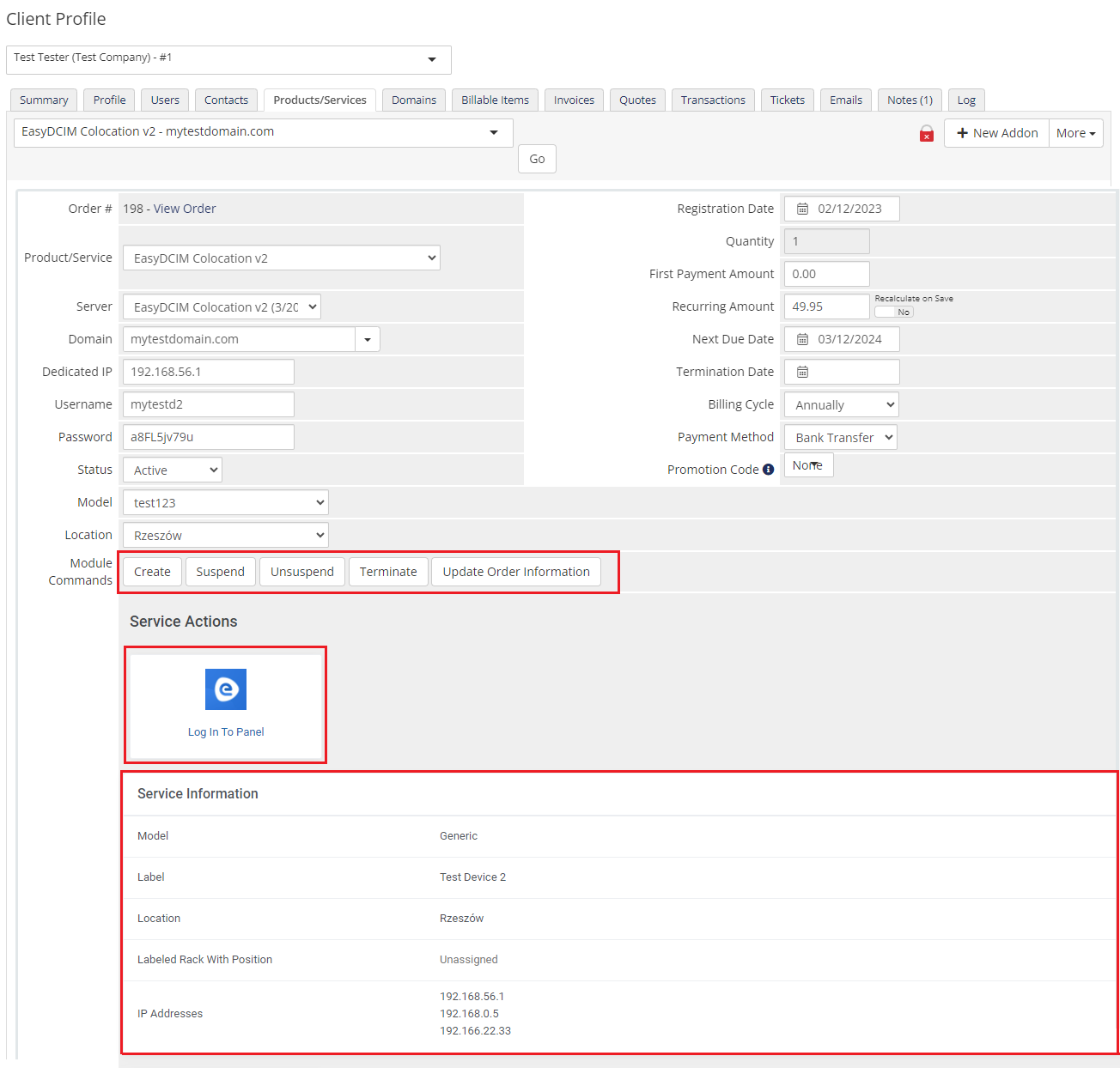
As soon as you set up a server for a client, you can perform various actions and view server details from the WHMCS admin area.
- The 'Log In To Panel' button allows you to immediately log in to your client's EasyDCIM control panel.
- Our module allows you to create/suspend/unsuspend/terminate the server
- By clicking on 'Update Order Information' you can also check the synchronization status of a service (works like a synchronization cron)
- Quickly view the service information including data on the server: model, label, location, rack & position, IP address
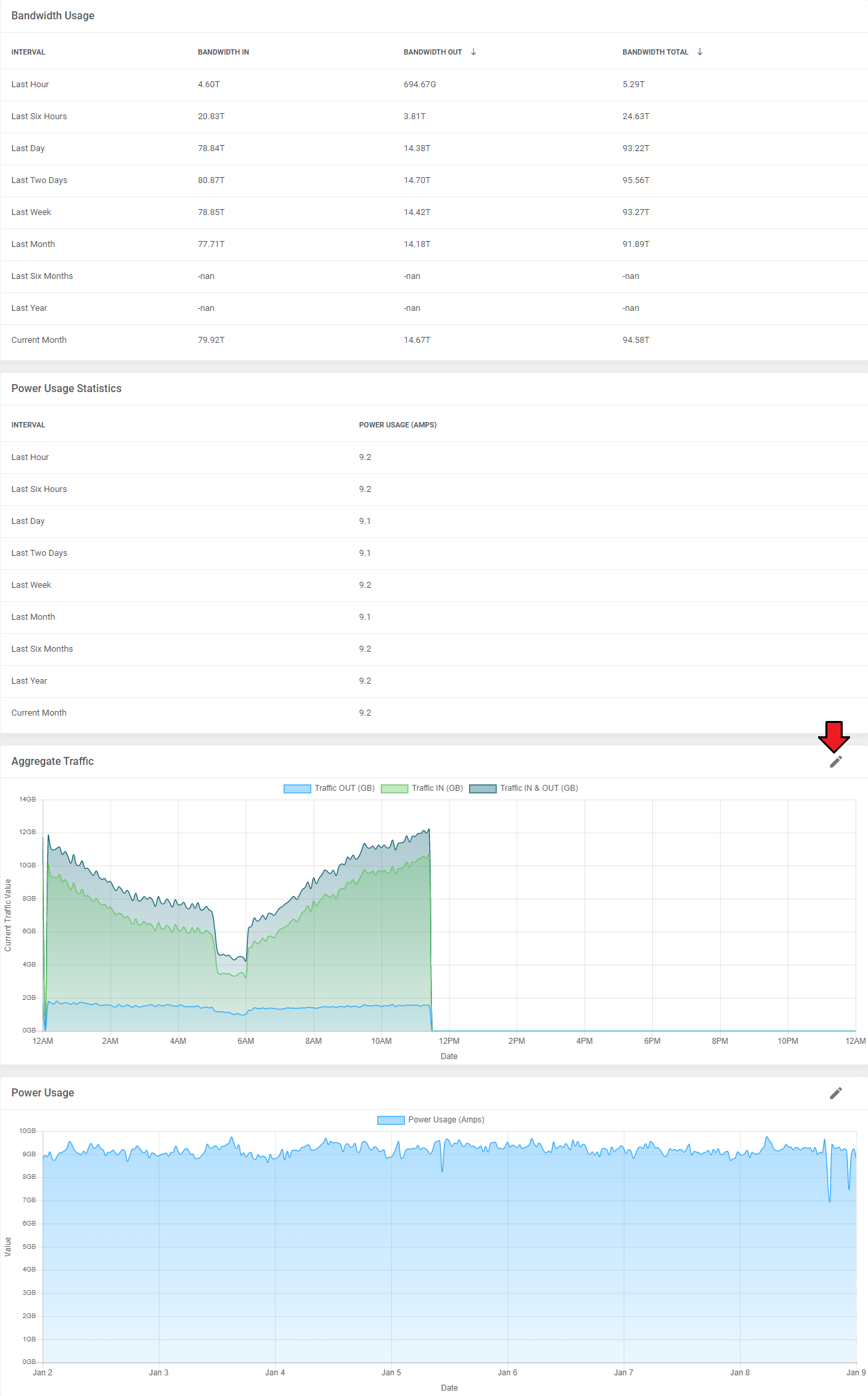
Below these functions you can also view the bandwidth usage, network ports, aggregate traffic graph, power usage statistics and power usage graph, and even specify the time intervals.
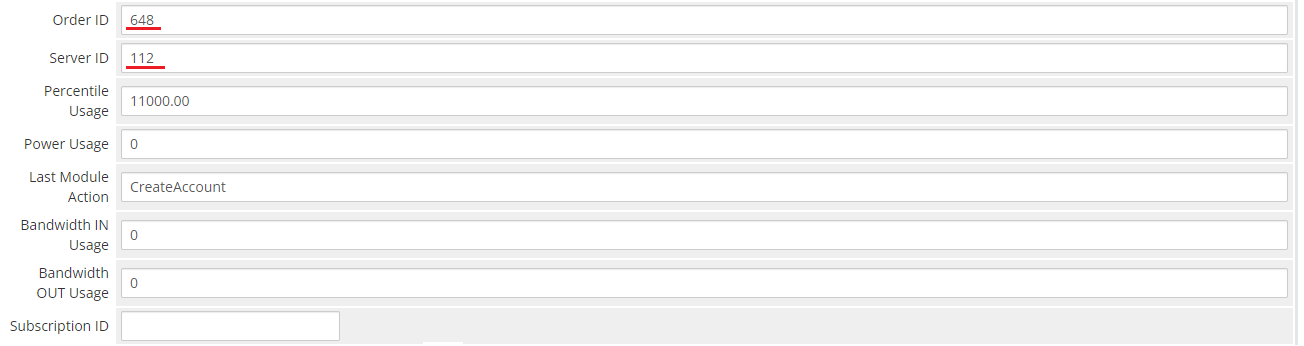
Lastly, you can also see the custom fields with currently assigned 'Service ID', 'Order ID', 'Server ID' and 'EasyDCIM Client ID' from the EasyDCIM panel.
An empty 'Server ID' field means that it has not been automatically assigned by the cron yet (e. g. it may not be activated in the EasyDCIM panel yet).
You can also force synchronization by clicking on the 'Update Order Information' module command, or enter ID manually and save the settings.
The 'EasyDCIM Client ID' field links the service with the EasyDCIM user that owns it. It is filled in automatically and follows the owner of the EasyDCIM order if it is changed in EasyDCIM.
# Client Area
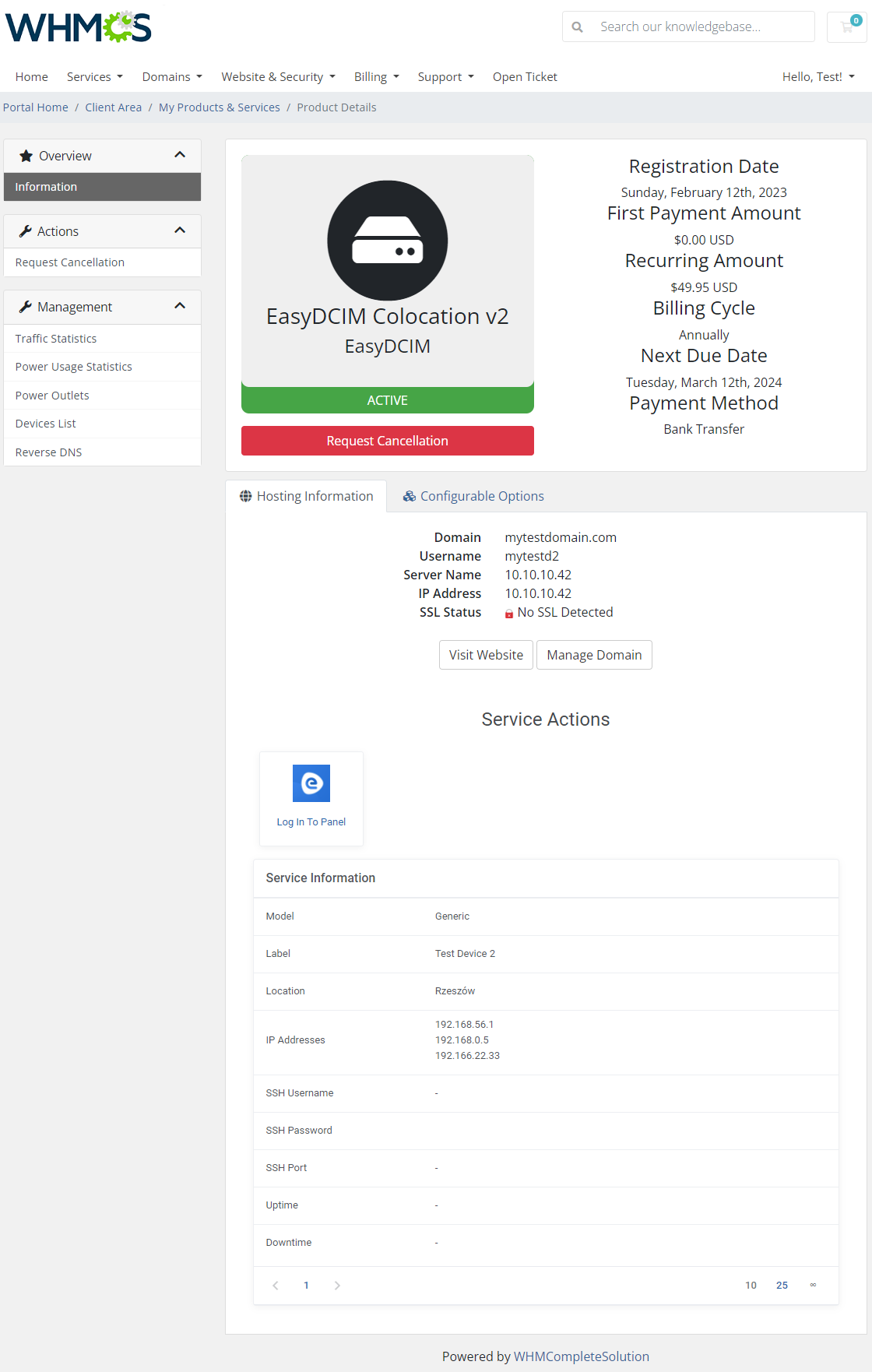
In the main view of the client area your customers can check basic details of a colocation service as well as log in to their EasyDCIM control panel with a single click.
# Traffic Statistics
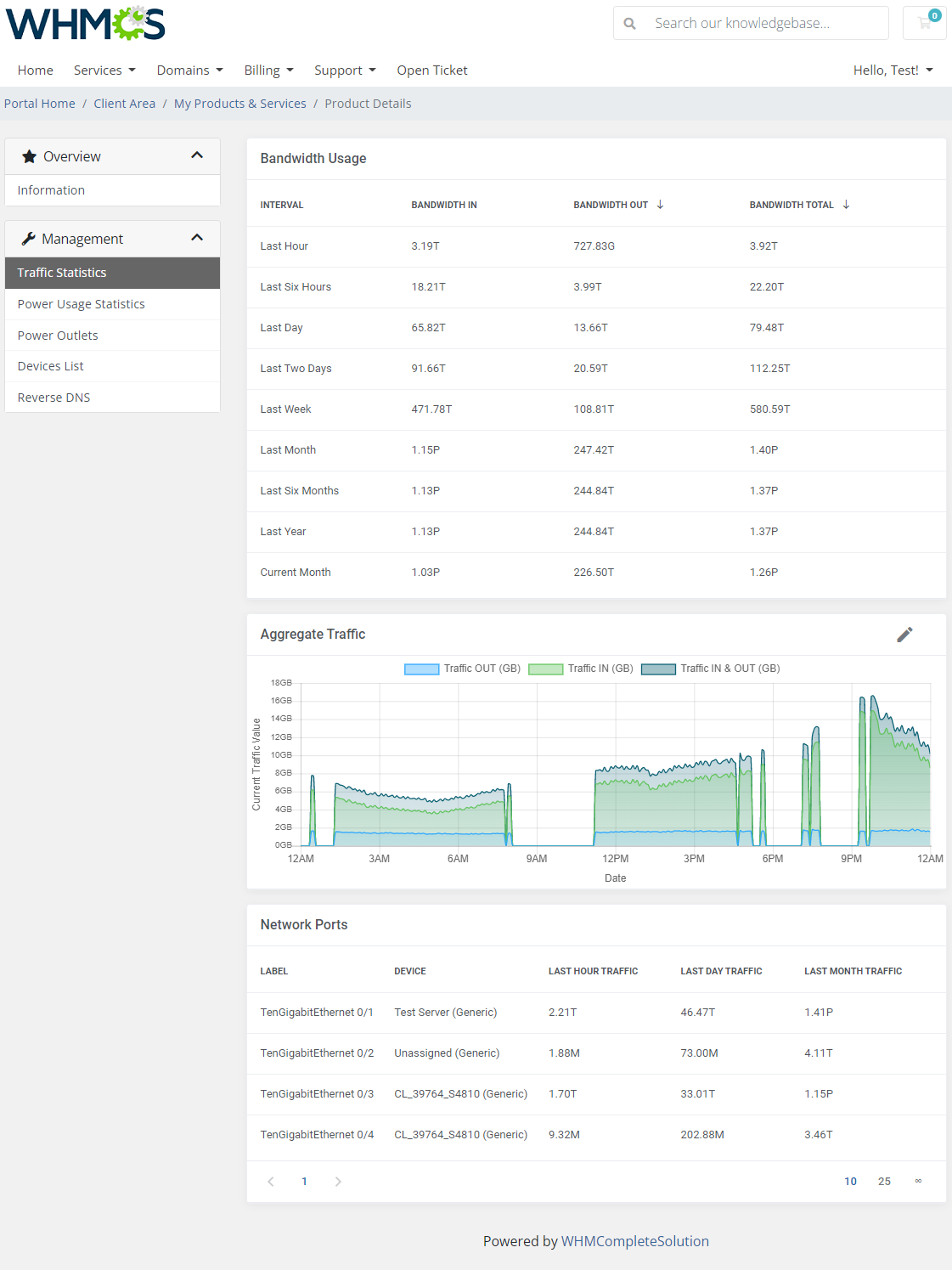
In the 'Statistics' → 'Devices Traffic' section, they can view the aggregate traffic graph with the 95th percentile, the bandwidth usage and the network ports, and even define time intervals.
Note: Available graphs and time intervals depend on the product registration date.
# Power Usage Statistics
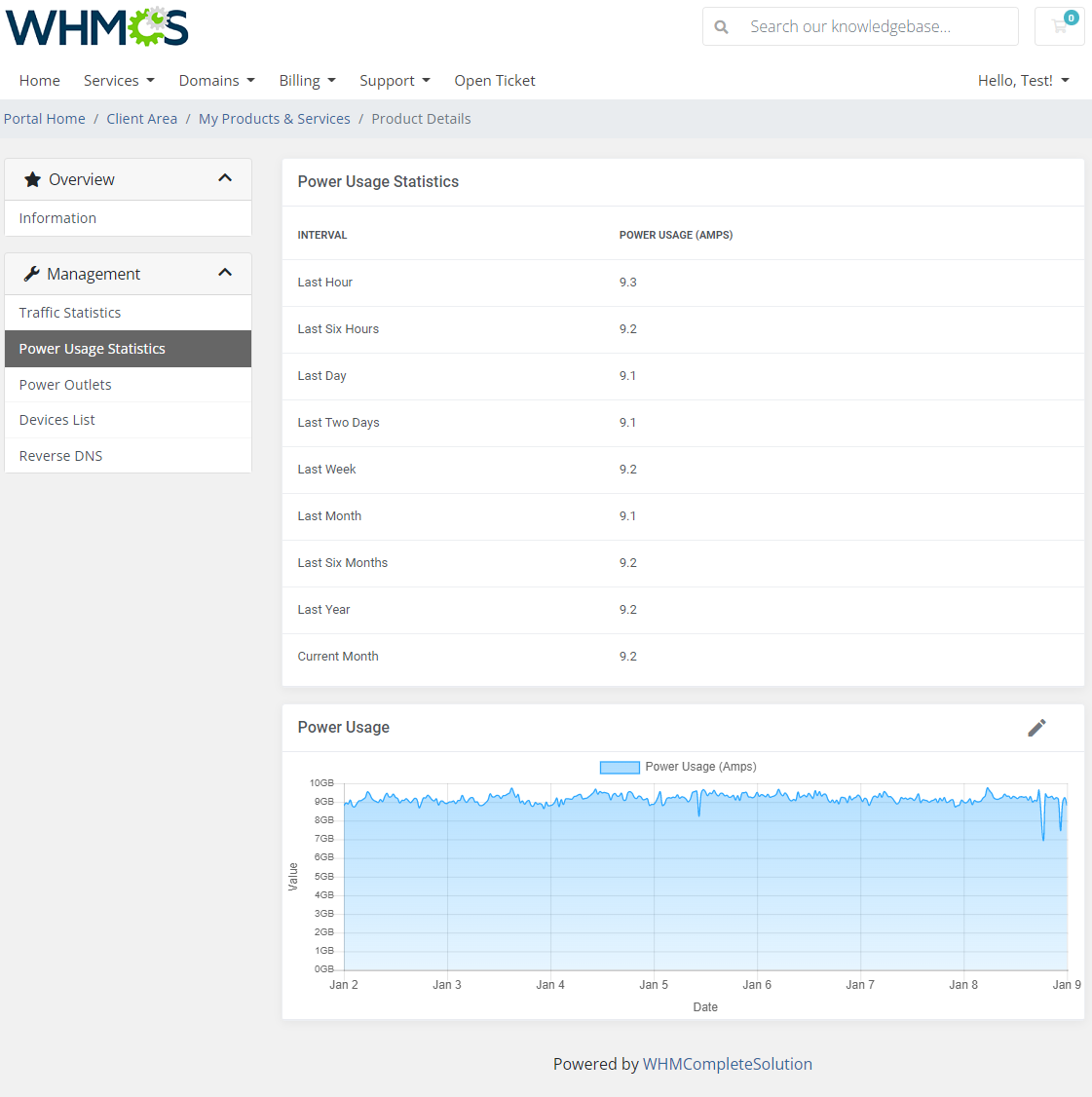
The same goes for power usage statistics. Press the pencil icon to change the displayed period.
# Power Outlets
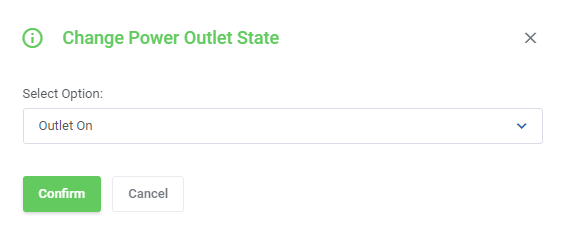
Additionally, your clients can see the current state of all power outlets with the possibility to power them on, power them off or reboot them.
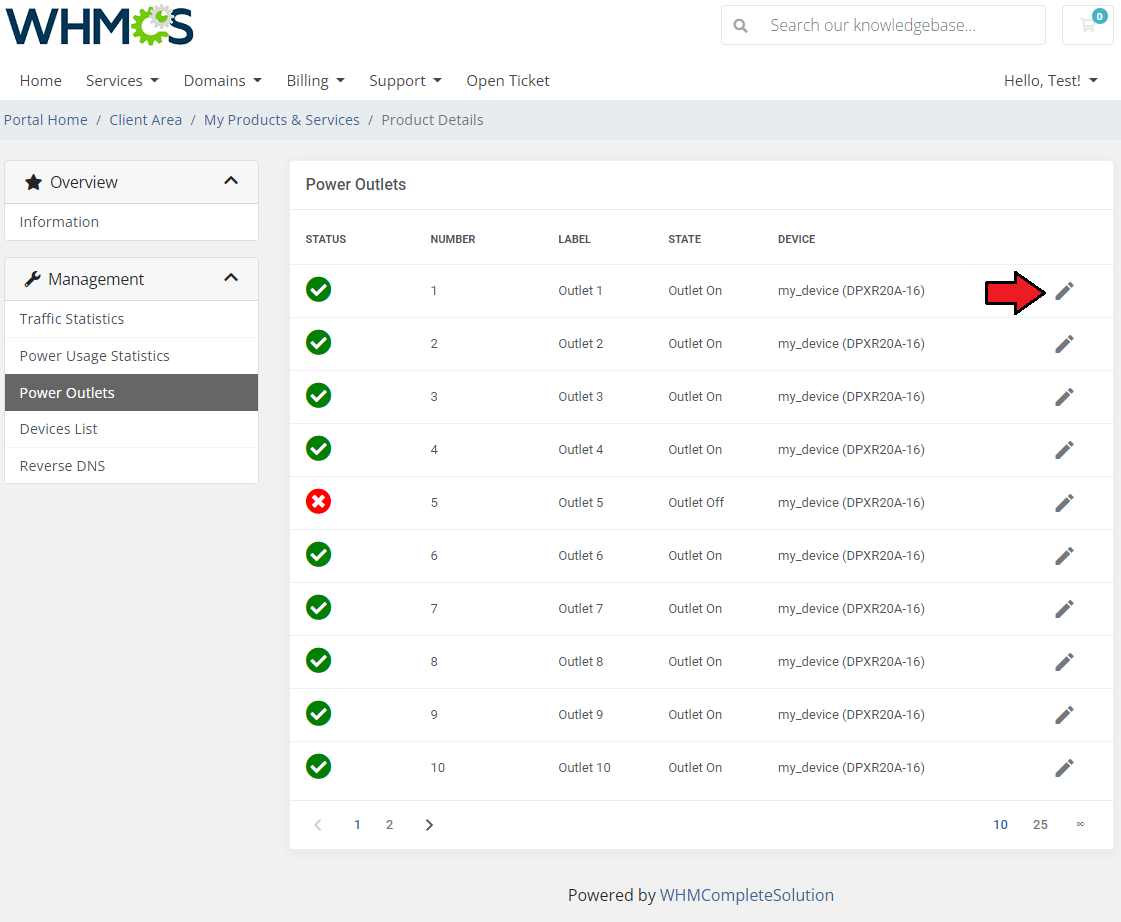
Each action has to be confirmed in a separate dialog.
# Devices List
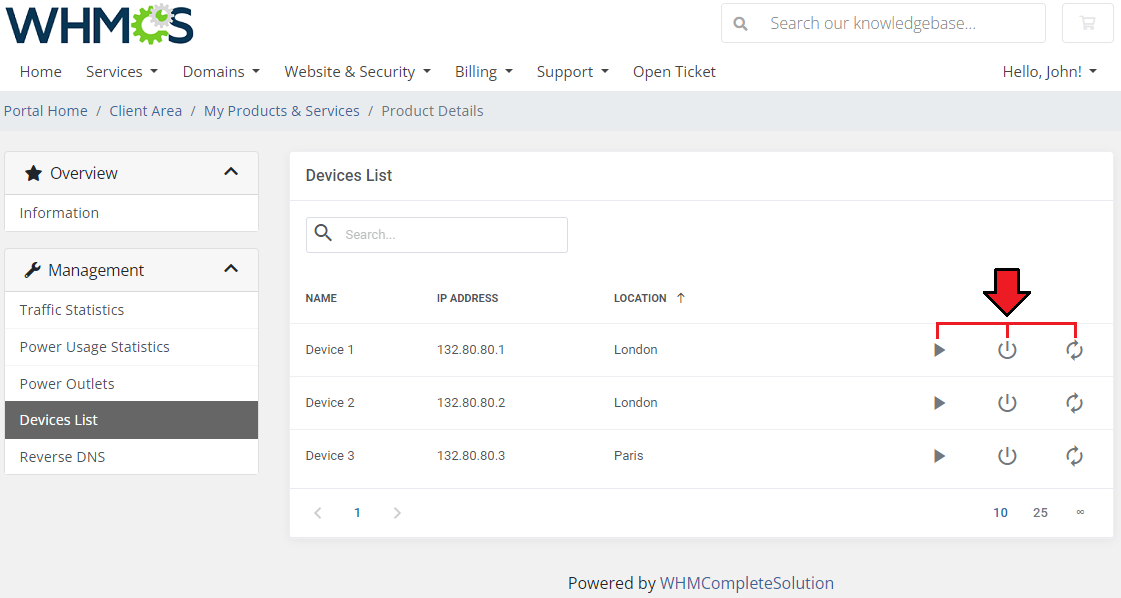
Information regarding devices can be found on the 'Devices List,' this includes their name, IP and location.
If the 'Devices Power Control' option is enabled, the users will find remote control buttons next to each device, allowing them to restart, shut down, and power on the device.
If you want to find specific devices, you can use the search bar located above the list, or make use of the sorting function of the list.
# Reverse DNS
Your clients have the ability to manage their reverse DNS records. They can either modify existing records or create new ones.
To delete several records at once, select them on the list and use the mass action.
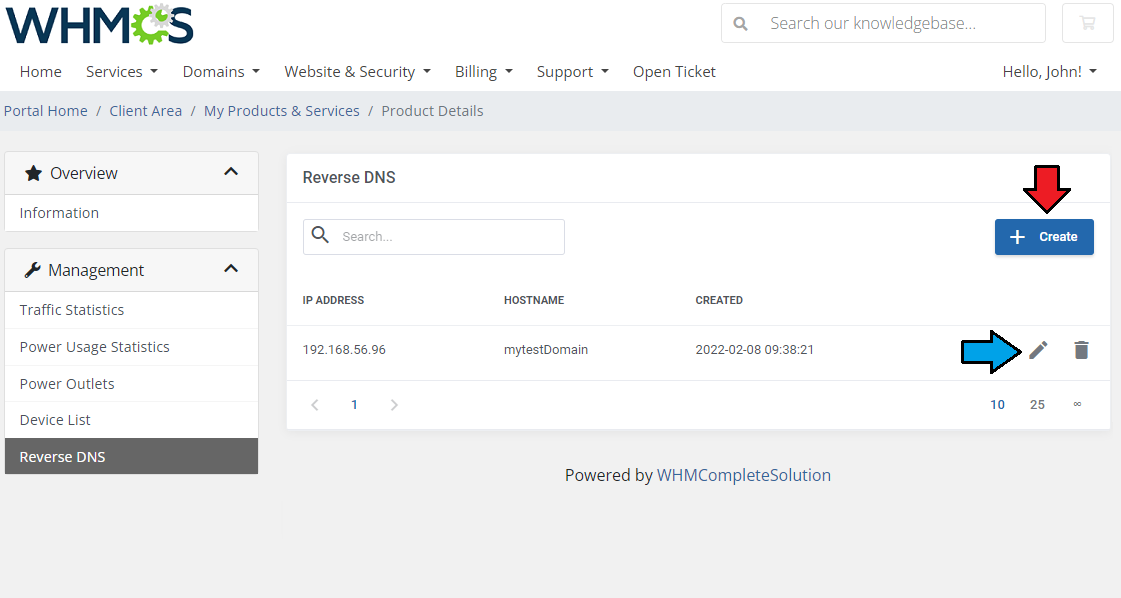
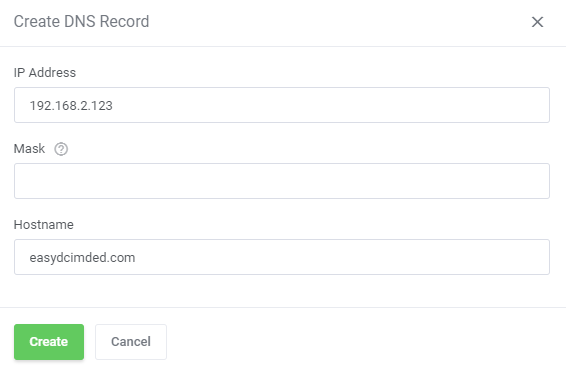
To create a new record, clients simply need to press 'Create Record' and provide the required information. The 'Available IP Addresses' section lists the IP addresses assigned to the service. The newly created record will instantly appear in the list.
If you are creating a single record, leave the 'CIDR' field blank.
# Advanced Billing Integration
EasyDCIM Colocation For WHMCS supports integration with the Advanced Billing For WHMCS (opens new window) module.
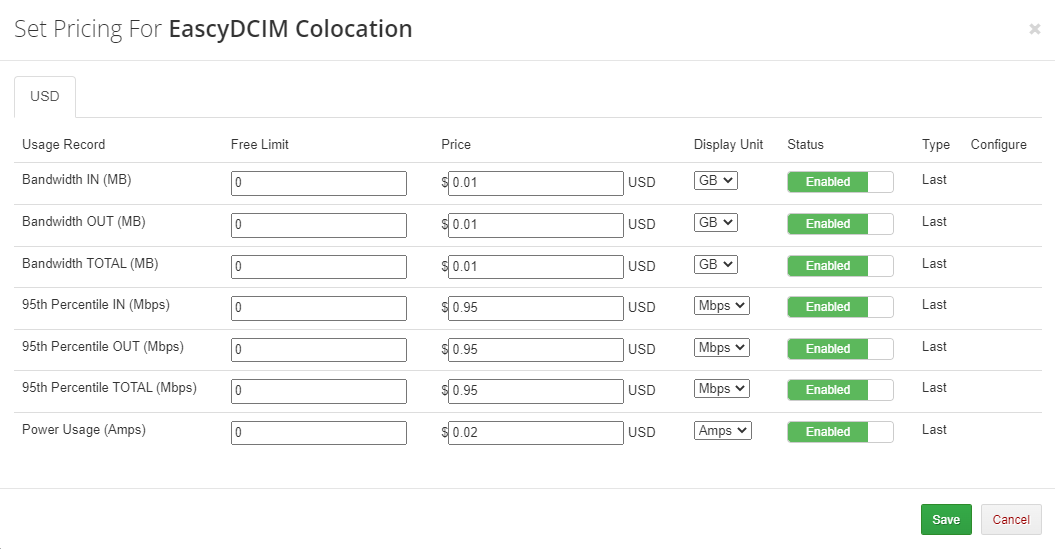
This allows you to charge your customers for total bandwidth (In, Out and Total), power usage and 95th percentile (In, Out and Total) billing for additional traffic.
Note: We suggest to run the cron only once per hour (with the interval of 3600 seconds).
This is due to the fact that while generating an invoice, only the last billed record is taken into account, so there is no need to collect data more often.
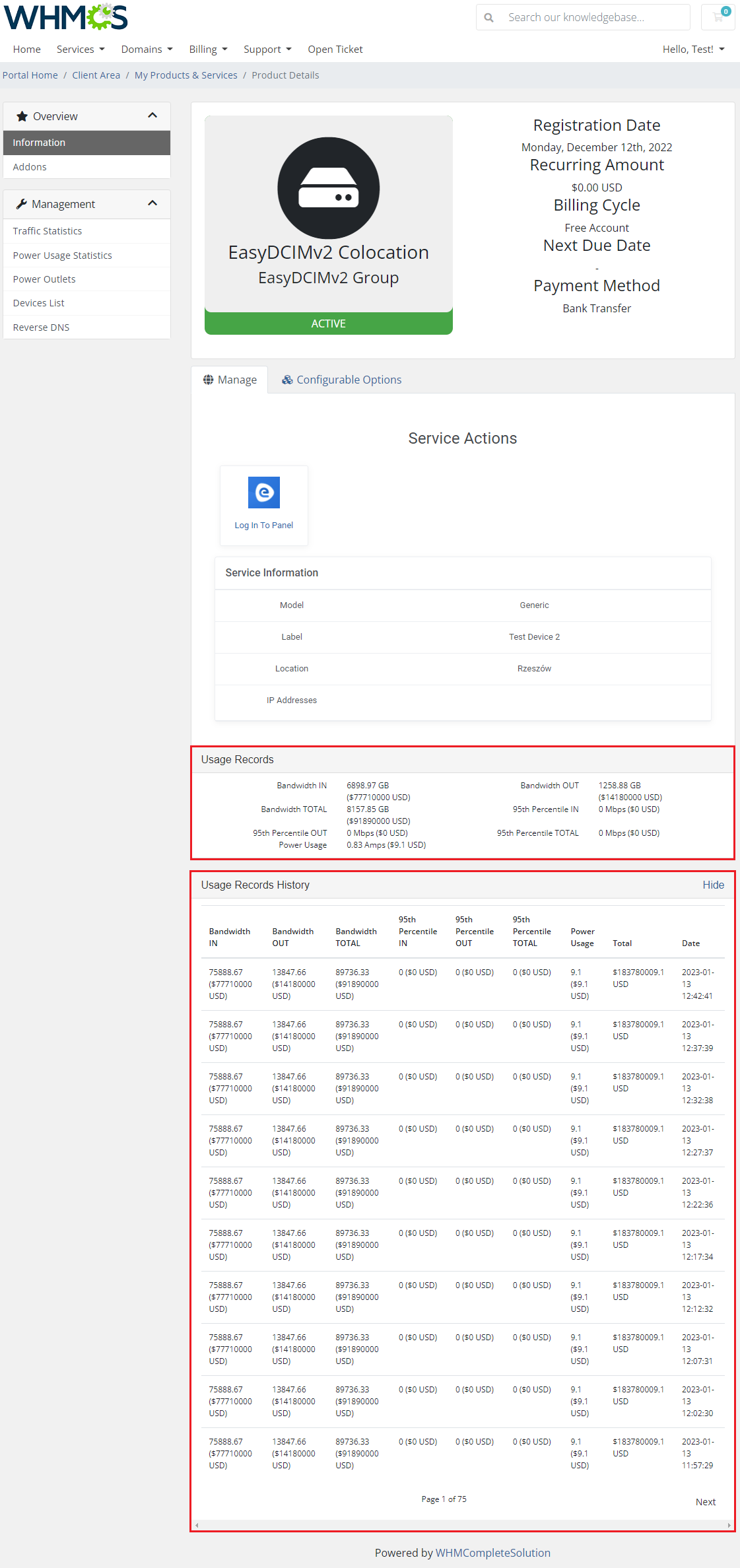
Once the relevant options are enabled, your clients will also be able to view billing for the current usage in your client area.
# Tips
- Note that placing two identical orders may result in assigning servers with slightly different parameters.
It is a natural result of how server matching in EasyDCIM works. In brief, it matches a server basing on the resources and models precised in the order, without considering other resources.
In the first place, the process aims at identifying the server matching the order 100%. When it fails, the server fulfilling the highest number of specifications will be assigned instead.
More information about server provisioning flow can be found on EasyDCIM documentation page (opens new window).
# How To Use Language Overrides
Incorporating language customizations - the module readily accommodates language overrides, allowing you to tailor the language files to your preferences.
The language file english.php remains unencoded and can be modified to suit your needs. However, it's recommended to avoid altering the core file itself, and instead, leverage the capability of using overrides.
Here's how to apply language overrides:
- Navigate to the ~/langs/ directory located within the following yourWHMCS/modules/servers/moduleName/langs/ path.
- Within this directory, create a new file or duplicate the language file you intend to modify. For instance, if you wish to create an override for the English language, establish the following directory structure:
~/langs/overrides/english.php - Open the newly created override file to edit its contents.
- At the beginning of the file, indicate the used code, for instance, you can use: <?php for PHP code.
- Adapt the file content according to your requirements. You can either selectively modify specific variables or opt to revise the entire content of the language file.
For example:
Original yourWHMCS/modules/servers/moduleName/langs/english.php:
$_LANG['Search'] = 'Search';
Override yourWHMCS/modules/servers/moduleName/langs/overrides/english.php:
$_LANG['Search'] = 'Look for';
By following these steps, you can seamlessly implement language customizations without altering the core language file, ensuring your changes will not be lost after every module update.
Remember that some of the modules have more than one language file, located under /addons and /servers paths. You may create the override files for both of them.
Note that you do not need to paste all the original content of the lang file into the override file. Enter there only the lines that you wish to change, every other line will be fetched from the original module lang file.
Consequently, the override lang file might include only one or just a few lines.
# Update Instructions
# General Guidelines
An essential guidance through the process of updating the module from version 2.x to a higher one is offered here.
Ensure successful completion of the module update by carefully following each step, thereby preventing data loss or any unforeseen issues.
Additionally, you will find a current list of supplementary actions necessary for a smooth update process there.
# Migration From V2 To V3 Module Version
If you are updating your EasyDCIM Colocation For WHMCS module from version 2.x to 3.x, follow the steps below to ensure a smooth migration process.
Important: Back up your WHMCS files and database before starting the update to avoid data loss in case of failure.
Create a backup of your WHMCS files and database before proceeding with the migration.
It is recommended to enable the maintenance mode in WHMCS for the duration of the update process.
Navigate to your WHMCS root directory and remove the existing module files located in:
modules/servers/EasyDCIMColocationv2Important: Do not overwrite the existing files. The old module files must be removed completely before uploading the new version.
Otherwise, the module may not work correctly and unexpected errors can occur.Download the latest module version from the client area (opens new window).
Upload and extract the new module files into your WHMCS root directory.
Navigate to System Settings → Servers and edit the EasyDCIM server configuration.
Generate a new API token with the 'read' and 'write' scopes in EasyDCIM according to the following guide:
Creating an API Token (opens new window)Replace the existing API Key value in the server configuration with the newly generated token and save the changes.
Navigate to System Settings → Products/Services, open the product configuration and access the Module Settings tab.
Save the product configuration to apply the updated module settings.
The new 'Service ID' and 'EasyDCIM Client ID' custom fields are added to the product automatically.
# Migration From 'V1' To 'V2' Module Version
If you are updating your EasyDCIM Colocation For WHMCS module from version 1.x to 2.x, follow the steps below to ensure a smooth migration without errors.
Important: Back up your WHMCS files and database before starting the update to avoid data loss in case of failure.
Create a backup of your WHMCS files and database to prevent data loss.
Log in to the client area (opens new window) and download the latest version of the module.
Upload and extract the new module files into your WHMCS root directory.
Navigate to System Settings → Servers. Create a new server and server group for the EasyDCIMcolocationv2 module.
Go to System Settings → Products/Services. Find and open the product you wish to update.
Open the Custom Fields section, and correct the existing custom fields names as shown below:
- orderID|Order ID → OrderID|Order ID
- serverID|Server ID → ServerID|Server ID
(Differences in the upper/lower case.)
Open the Module Settings section of the product of your interest, find and open the product you are going to update.
Change the 'Module Name' from "EasyDCIMColocation" to "EasyDCIMColocationv2". Change the 'Server Group' to the created in the step 4th one.
Configure the module settings from scratch and save the changes.
Generate any configurable options if needed.
* Regarding billing methods update:
- Advanced Billing For WHMCS:
If the Advanced Billing For WHMCS module is used to calculate the billing, move to this module addon and set up the product pricing again, as described here. - WHMCS inbuilt system is used:
If you do not use the Advanced Billing For WHMCS module to calculate the billing, move to the System Settings → Products/Services → Other tab.
Configure the "Percentile Usage", "Percentile Cost", "Power Usage" and "Power Usage Cost" fields from scratch.
- Advanced Billing For WHMCS:
# Common Problems
When you encounter problems with connection, check whether your SELinux or firewall does not block ports.
Error: "This API token has no access scope. Create a new token with a read or write scope."
Solution: EasyDCIM rejects API tokens created without a scope. Generate a new API token with the 'read' and 'write' scopes and replace the existing token in the server configuration.