

# Hosting Quota Notifications For WHMCS
Are you going to update your module to version 2.2.0? Be sure to review our tips in "Update Instructions" to prevent any potential issues.
# (opens new window) About Hosting Quota Notifications For WHMCS (opens new window)
Hosting Quota Notifications For WHMCS allows to define rules on clients' services bandwidth and disk usage limits according to which automatic email notifications can be sent and tickets opened
to let the clients know they have exceed the previously set service usage.
Prepare ticket templates and their translations, use default email template or prepare your custom ones.
# Installation
This tutorial will show you how to successfully install and configure Hosting Quota Notifications For WHMCS. (opens new window)
We will guide you step by step through the whole installation and configuration process.
Note: If you are still using any versions of Hosting Quota Notifications For WHMCS prior to v2.x, read about it here.
# Installation
- Log in to our client area and download the module.
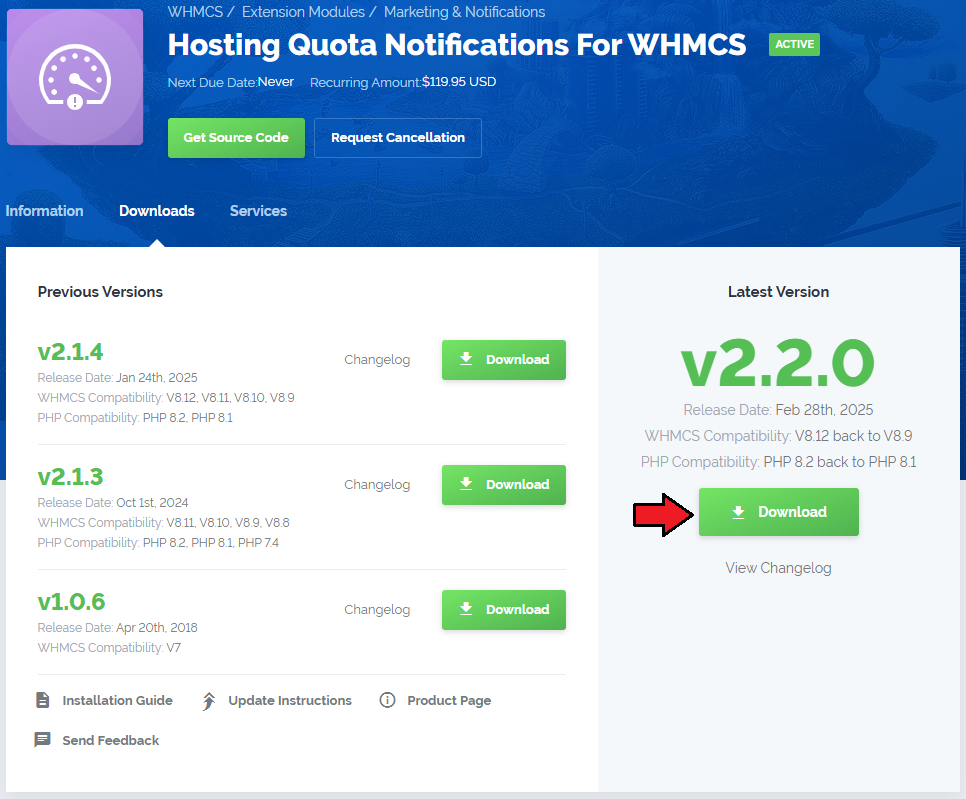
Extract the package and upload its content into the main WHMCS directory.
The content of the package to upload should look like this.
When you install Hosting Quota Notifications For WHMCS for the first time you have to rename the 'license_RENAME.php' file.
The file is located in 'modules/addons/HostingQuotaNotifications/license_RENAME.php'. Rename it from 'license_RENAME.php' to 'license.php'.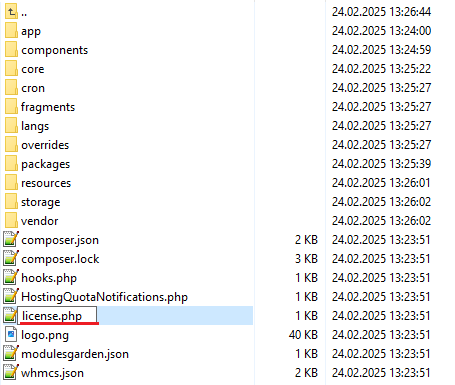
In order to configure your license key, you have to edit the previously renamed 'license.php' file.
Enter your license key between quotation marks as presented on the following screen. You can find your license key in our client area→ 'My Products'.

# Configuration of Addon
Now you have to activate the module in your WHMCS system.
Log in to your WHMCS admin area. Go to 'Setup' → 'Addon Modules'. Afterwards, find 'Hosting Quota Notifications' and press the 'Activate' button.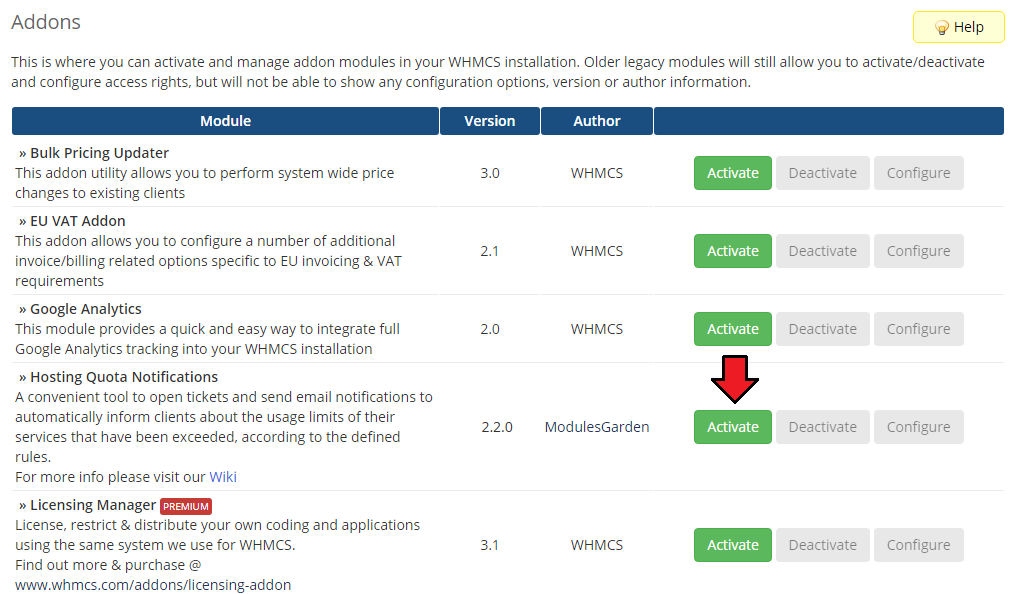
In the next step you need to permit access to this module.
To do so click the 'Configure' button, tick 'Access Control' near required admin role groups and press 'Save Changes'.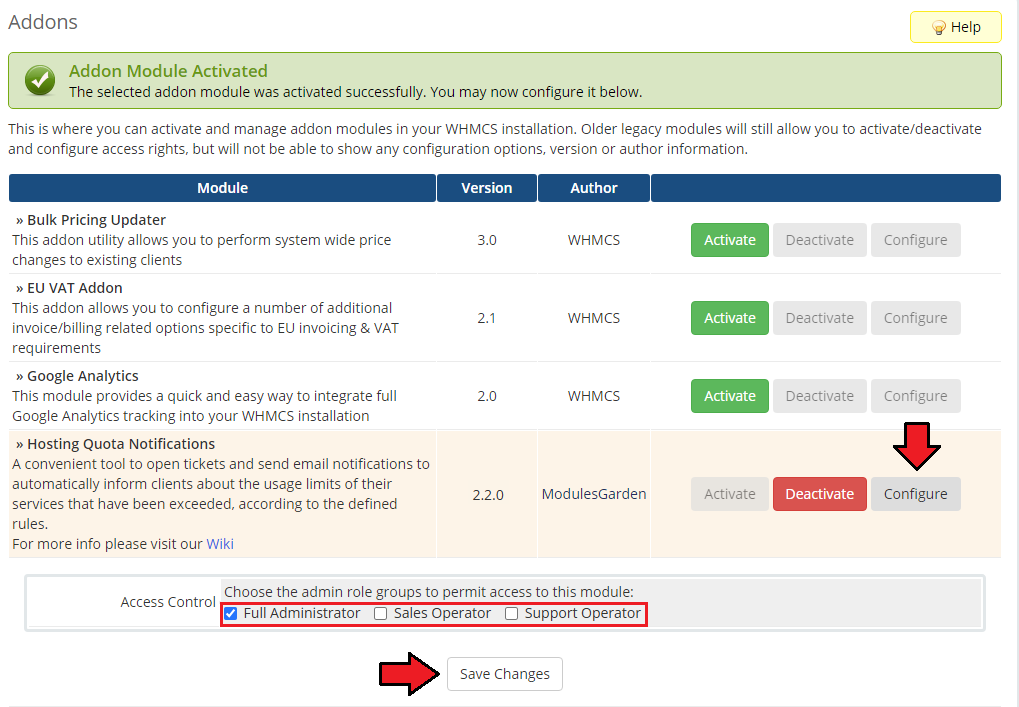
You have just successfully installed Hosting Quota Notifications For WHMCS!
You can access your module at 'Addons' → 'Hosting Quota Notifications'.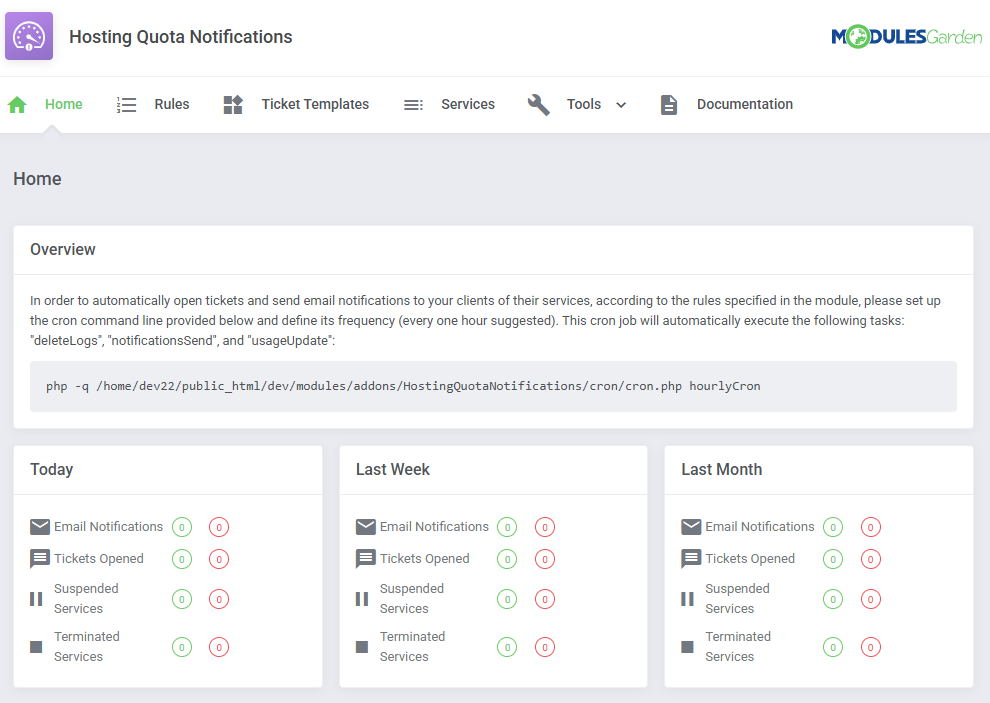
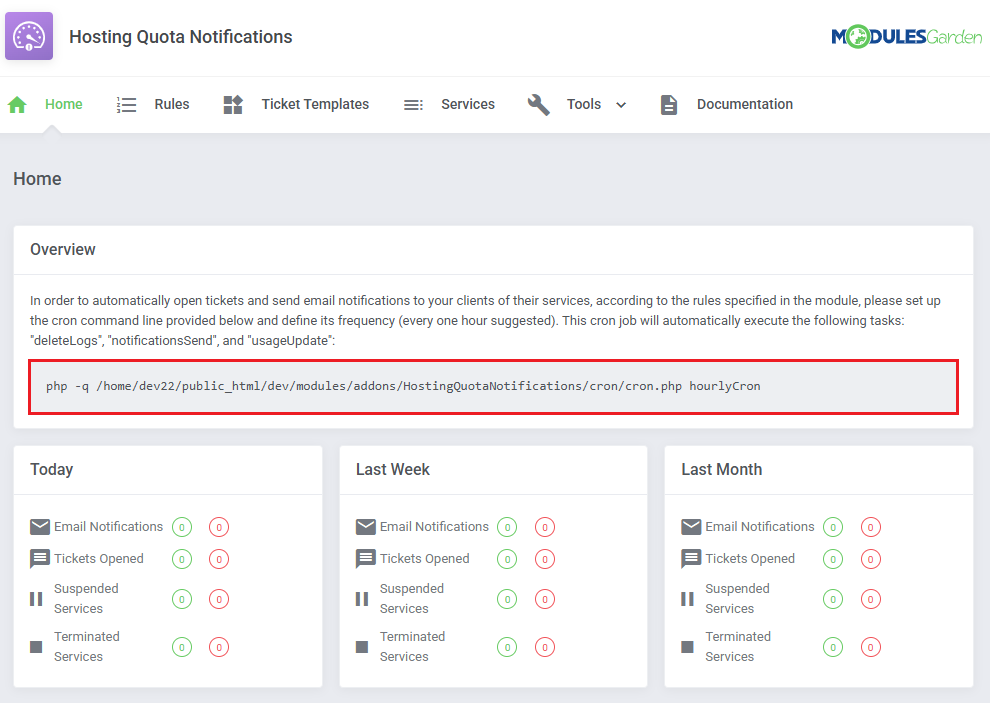
The last thing you still need to do before starting to use the module with its full potential is setting up a cron command line.
You will find the cron line in the addon 'Home' page.
One hour interval is suggested (due to hourly sent notifications).
# Configuration and Management
In this section we will show you how to properly set up and use Hosting Quota Notifications For WHMCS to its full potential.
# Home
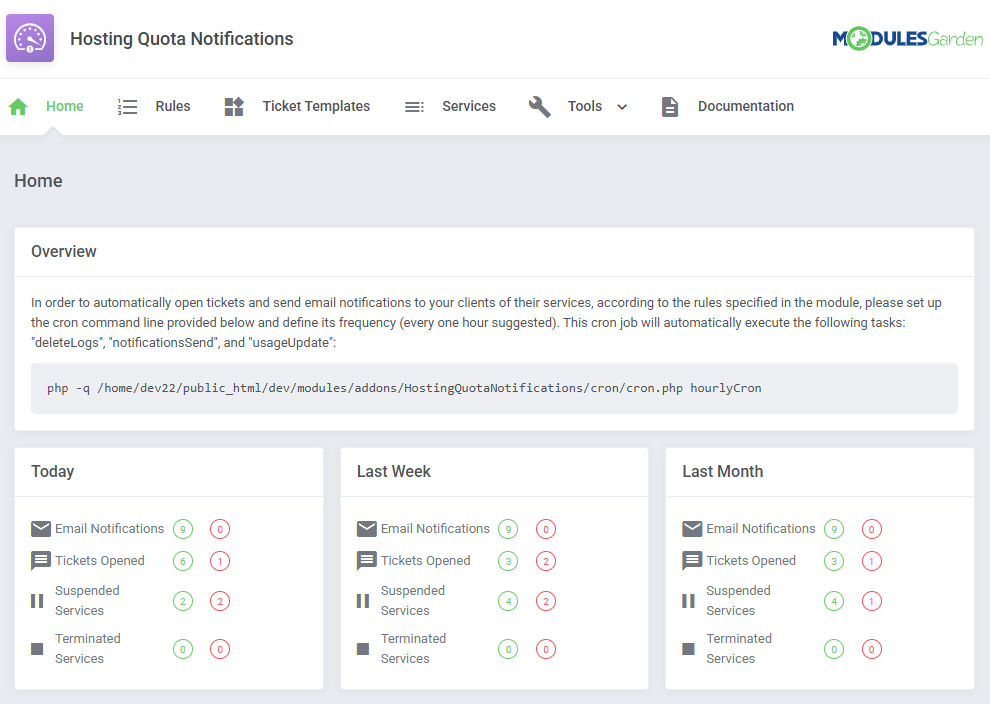
Dashboard of the addon includes statistics on the module actions attempts, either successful or failed.
- Successful actions - marked in green - take a look at the number of emails sent, tickets opened and products suspended or terminated in the provided time periods.
- Failed actions - marked in red - the module could not perform enumerated here actions due to external issues, for example: server errors (cannot suspend account), SMTP errors (cannot deliver email), etc.
For more details on failed actions please refer to the logs section.
# Rules
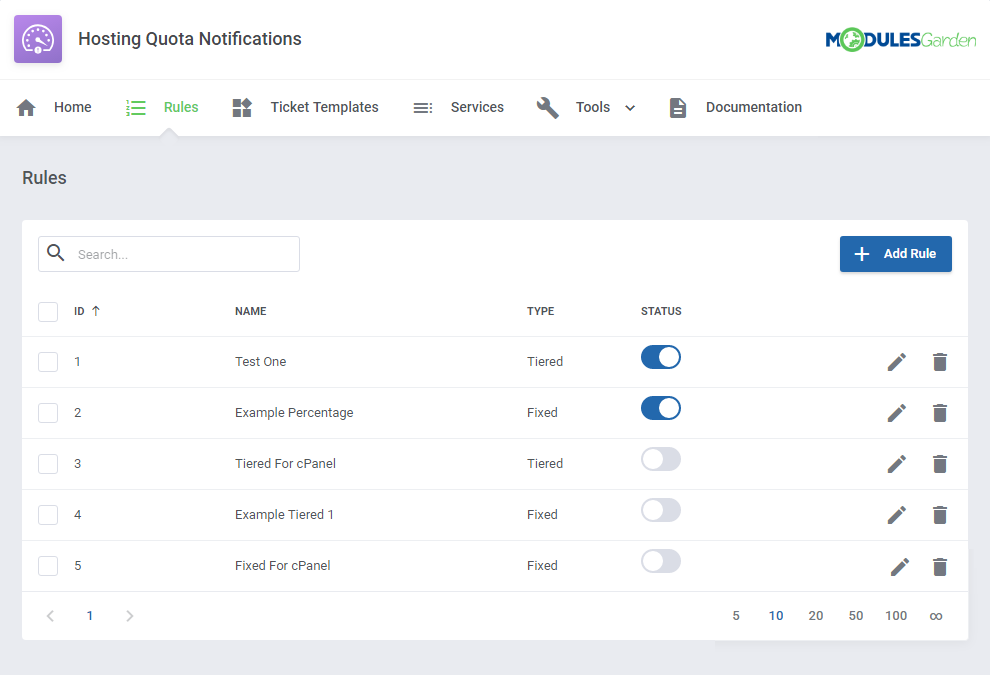
This is a primary section which allows to create numerous rules according to which the services resource usage will be monitored and calculated and then adequate notifications sent.
# Rule Configuration
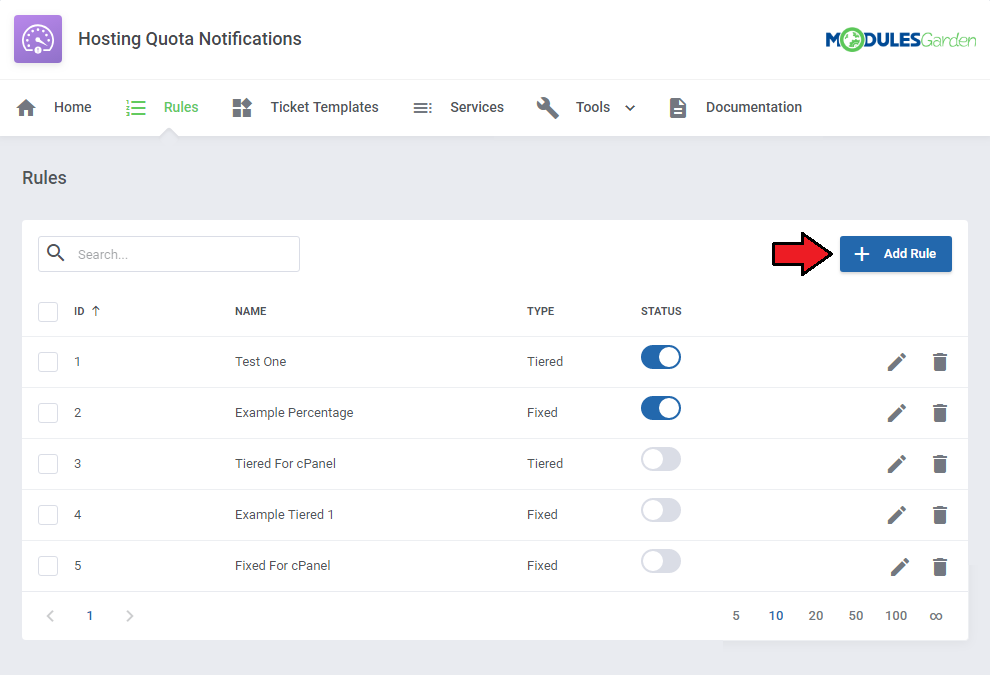
Let us begin with creating an exemplary rule according to which disk usage of the selected service will be checked.
Press 'Add Rule'.
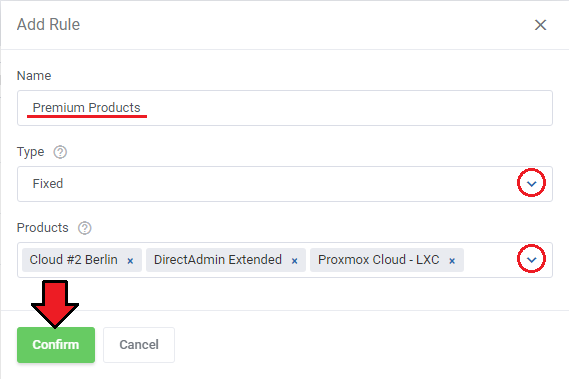
Start with typing a custom name, selecting the usage calculating type: 'Tiered', 'Fixed' or 'Basic' (read more about these two methods here).
Choose your products that this rule will cover.
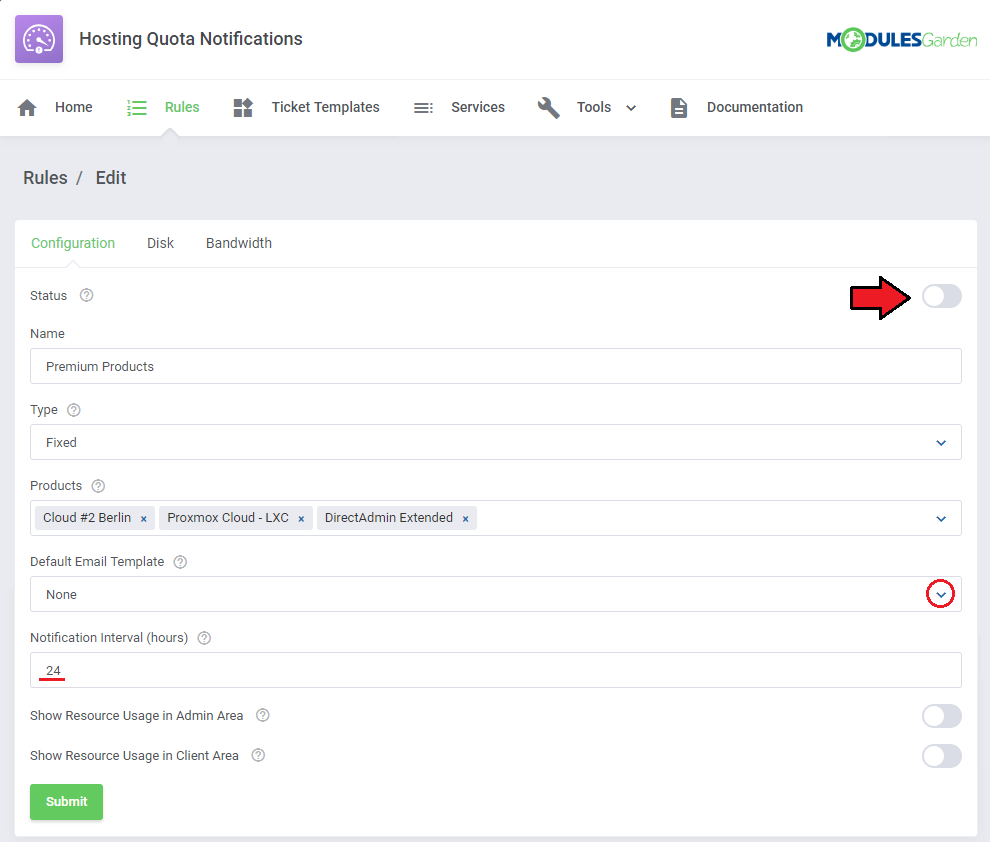
Once you have saved the changes, you will be moved to the rule configuration page.
Here you may:
- Status - set the status of the rule to 'enabled' or 'disabled'.
- Name - change the name of the rule.
- Type - manage the types: 'Tiered', 'Fixed' and 'Basic':
- Tiered - clean resource usage.
- Fixed - resource usage within a timeframe.
- Basic - standard WHMCS usage billing data
Check the Calculation Methods section to see the differences between the three types.
- Products - assign products from available.
- Default Email Template - select a default email template that will be sent to a client with a notification. Set to 'None' to disable the option.
You may use the predefined custom template ('Service Usage Limits Notification') implemented in the module or prepare your custom one. Find out more in this section. - Notification Interval - set notification hourly intervals to send the notifications.
- Show Resource Usage in Admin Area - displays a resource usage graph in the admin area.
- Show Resource Usage in Client Area - displays a resource usage graph in the client area.
Save the changes when ready.
# Steps Configuration
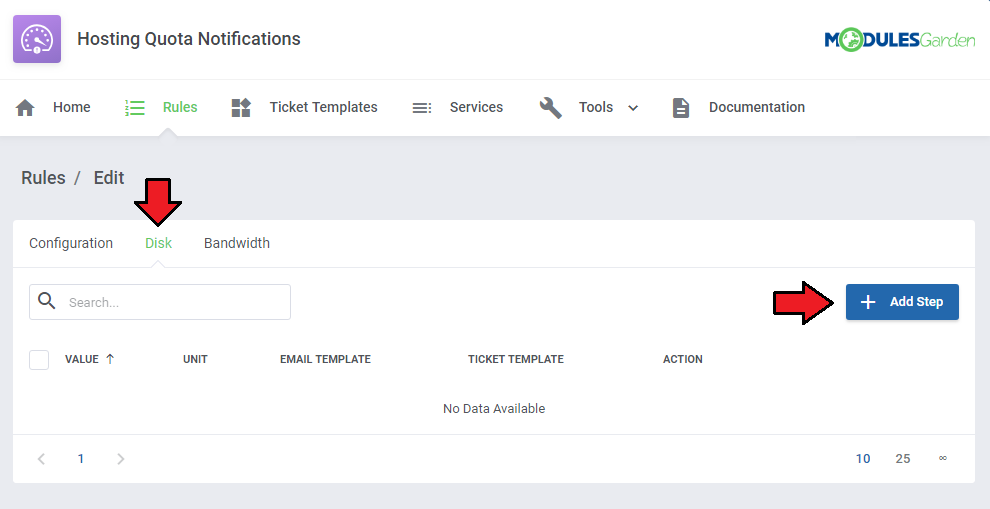
Move to the next tab - 'Disk' to define steps conforming to which the usage will be verified.
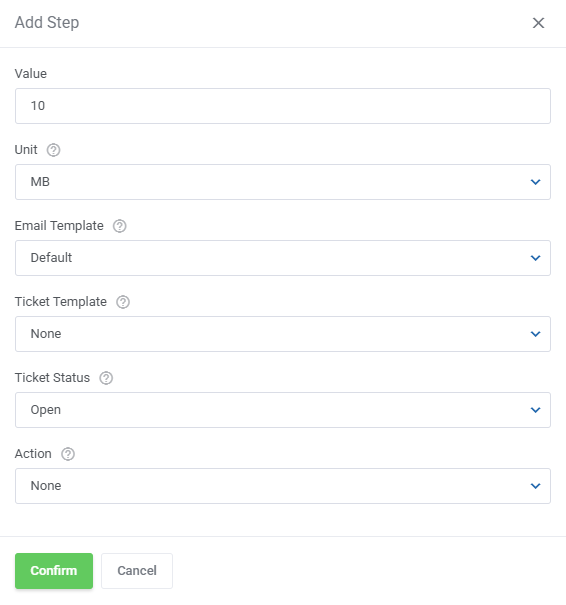
Press 'Add Step' to begin.
- Start with selecting a Unit type: 'MB', 'GB', 'TB' or 'Percentage'.
- Provide numerical value, e.g.: 20 (depending on the unit selected it will be: 20MB, 20% etc.)
- Period - enter a number of days when the service usage will be counted.
- Email Template - select one per single step, if you choose 'default' then the one selected at the rule configuration will be used. Choose 'None' to disable the option.
- Ticket Template - if you want to notify a client in form of an opened ticket, select the template here or set to 'None' to disable.
- Ticket Status - select a ticket status that will be set after opening a ticket.
- Action - you may automatically 'Terminate' or 'Suspend' a service once selected limit has been reached.
Set to 'None' if you do not want to trigger any action on the service.
Surely, you may add more steps for the same rule and force different actions on the services.
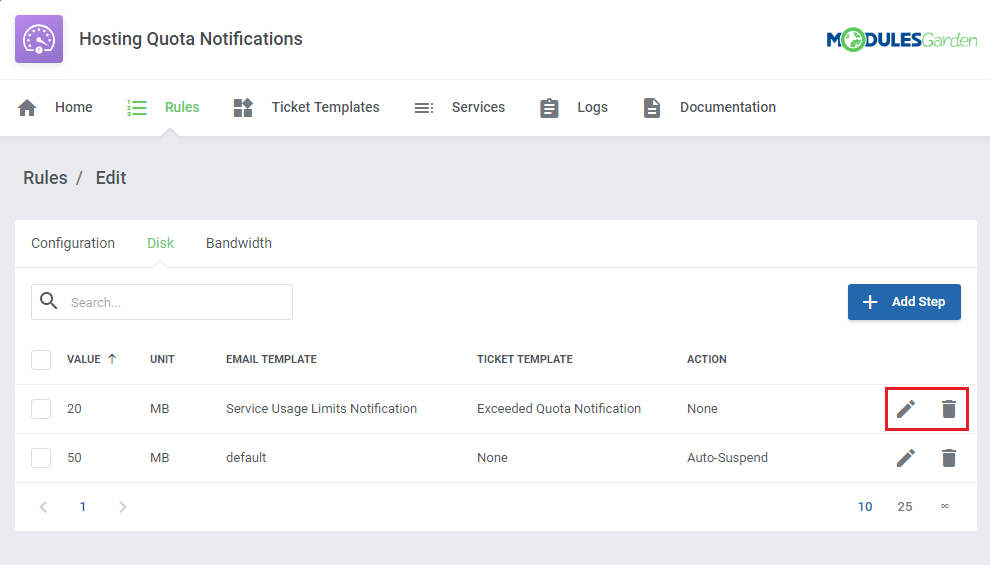
You may edit the steps if needed or delete them.
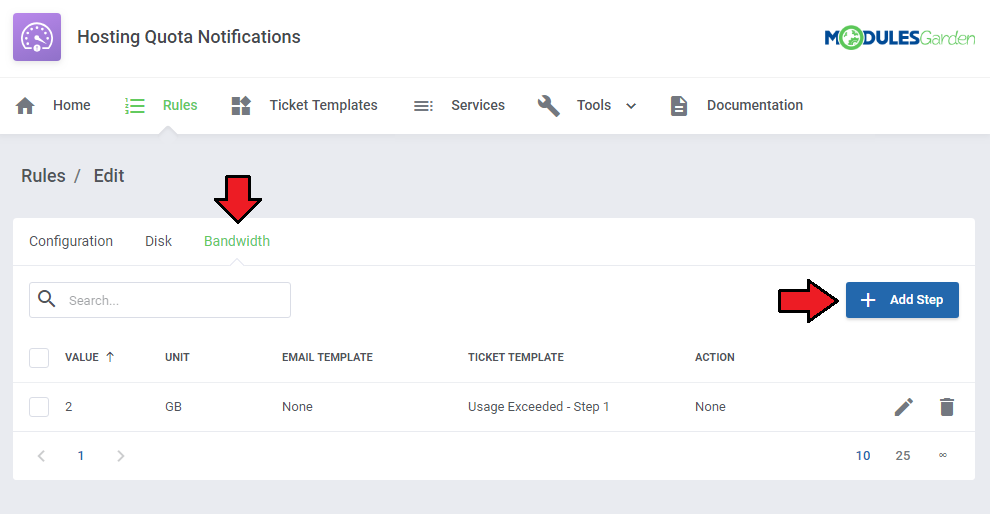
Configure the steps for 'Bandwidth' usage limits in the very same way as in case of the described above 'Disk'.
# Calculation Methods
As mentioned above, there are three calculation types available: 'Fixed', 'Tiered' and 'Basic'. We will try to explain the main differences between them and show an example of a full calculation.
- Fixed type - resource usage calculated within a selected time period defined in the 'Period (Days)' field.
- Tiered type - full amount of resource usage.
- Basic type - calculating resource overages, based on the current data from the WHMCS disk space and bandwidth overage billing.
Look at the table below to see the differences between these three types.
| Day | Total Usage | Daily Usage |
|---|---|---|
| Day 1 | 10 MB | 10 MB |
| Day 2 | 30 MB | 20 MB |
| Day 3 | 40 MB | 10 MB |
| Day 4 | 45 MB | 5 MB |
Where:
- Daily Usage - Refers to the total usage recorded within a single day, it is the difference between the total usage of the current day and the total usage of the previous day.
- Total Usage - Represents the aggregated data usage up to the present moment, displayed on the product page or in the billing summary ("Overage Billing").
- For Fixed type:
Period: Last 3 days
Value: 30 MB
Take the three last values from the Daily Usage column, the sum of 20, 10 and 5 gives 35.
30 MB limit has been exceeded during 3 days, therefore a notification is sent. - For Tiered type:
Value: 40 MB
Take the sum of values from the entire Daily Usage column, 45 MB in this case.
40 MB limit has been exceeded, therefore a notification is sent. - For Basic type:
Period: 4th day
Value: 45MB
The administrator will see the same data as displayed on the product page, based on the WHMCS disk space and bandwidth overage billing feature (the module fetches the value from the tblhosting usage database table).
On the fourth day, the displayed usage value will equal, in this example, to: 45 MB from the Total Usage column.
Apart from the calculation type, you must also select a unit - MB, GB, TB or percentage.
- If you select any of MB, GB, TB and 20 as value, such amount of resource usage will be taken into consideration for every assigned product.
- If you select 'Percentage' and 20 as value, then 20% of the set in WHMCS soft limit will be taken into consideration for every assigned product.
For example, if in WHMCS the service limit is set to 100 MB, then 20% calculated from 100 gives 20 MB - this amount of resource will be considered for this single product.
# Ticket Templates
The 'Ticket Templates' section gives you the opportunity to create as many templates that will be used to open informative tickets as needed.
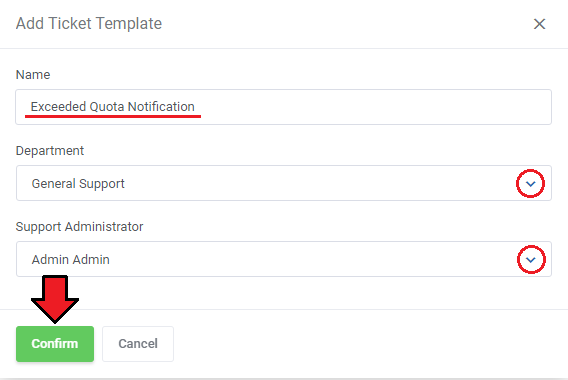
Press 'Add Ticket Template' to create one.
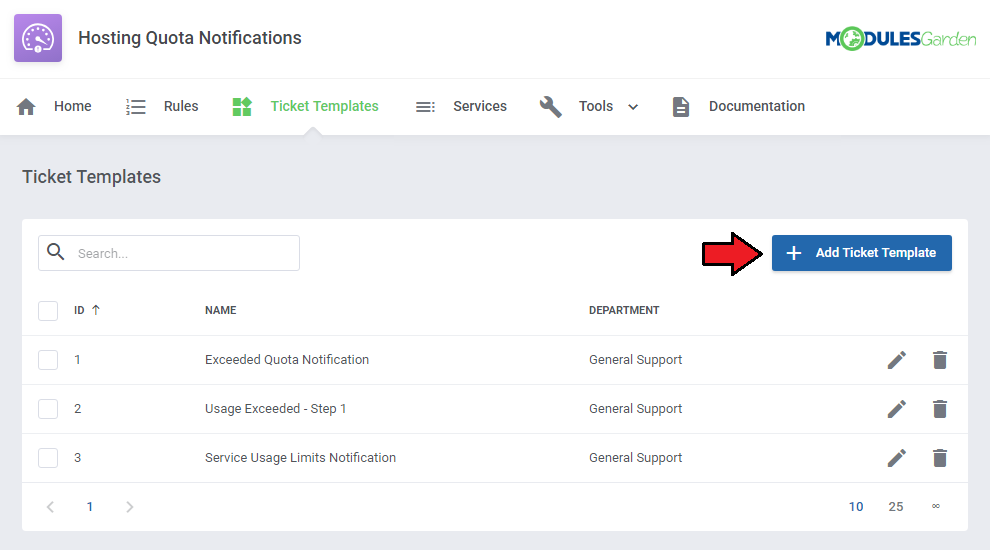
Type in the ticket template name, select a support department and support administrator to which the ticket will be automatically assigned.
When ready, save changes.
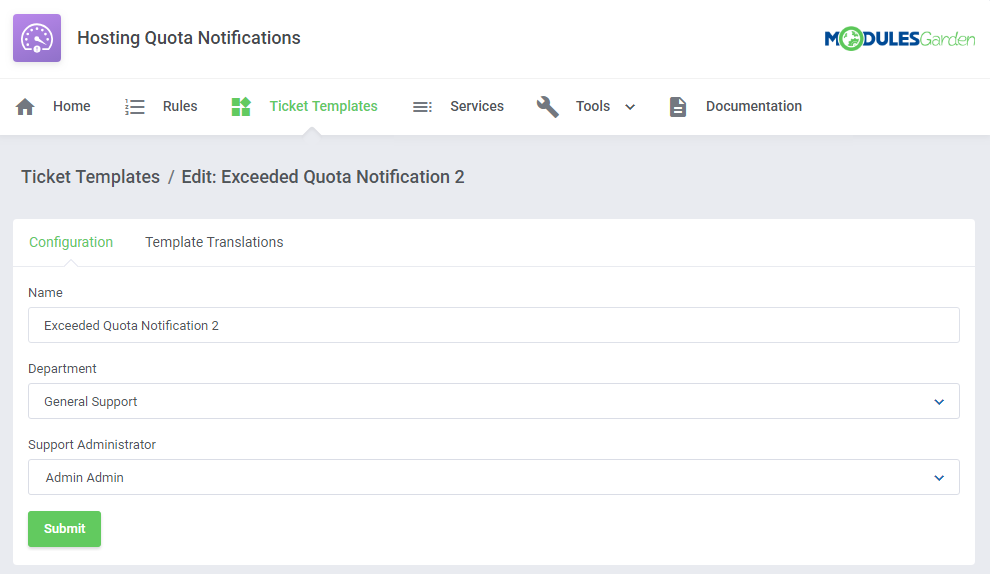
You will be immediately moved to the template configuration page where you can again rename it as well as change the department.
# Ticket Template Translations
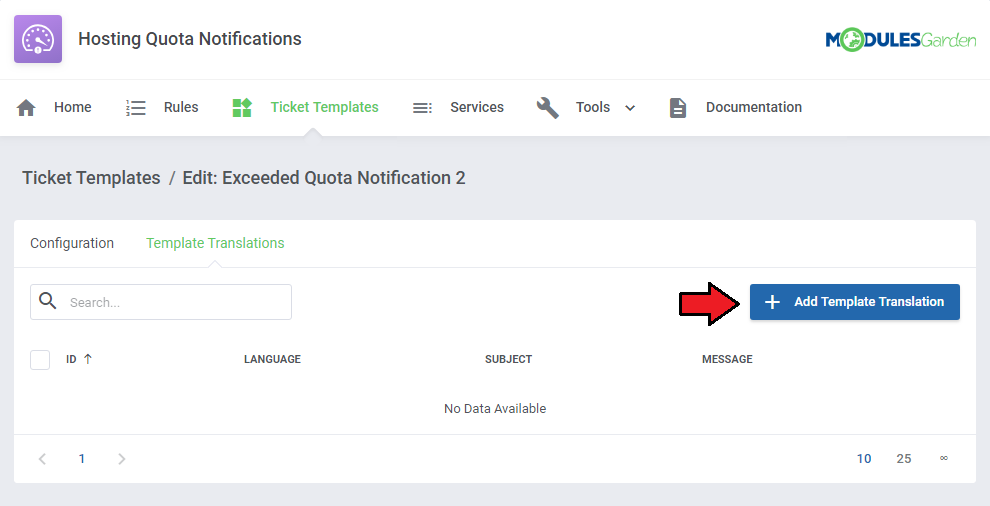
Next, you need to proceed to the 'Template Translation' section. There you can provide the content of the template.
Press 'Add Template Translation'.
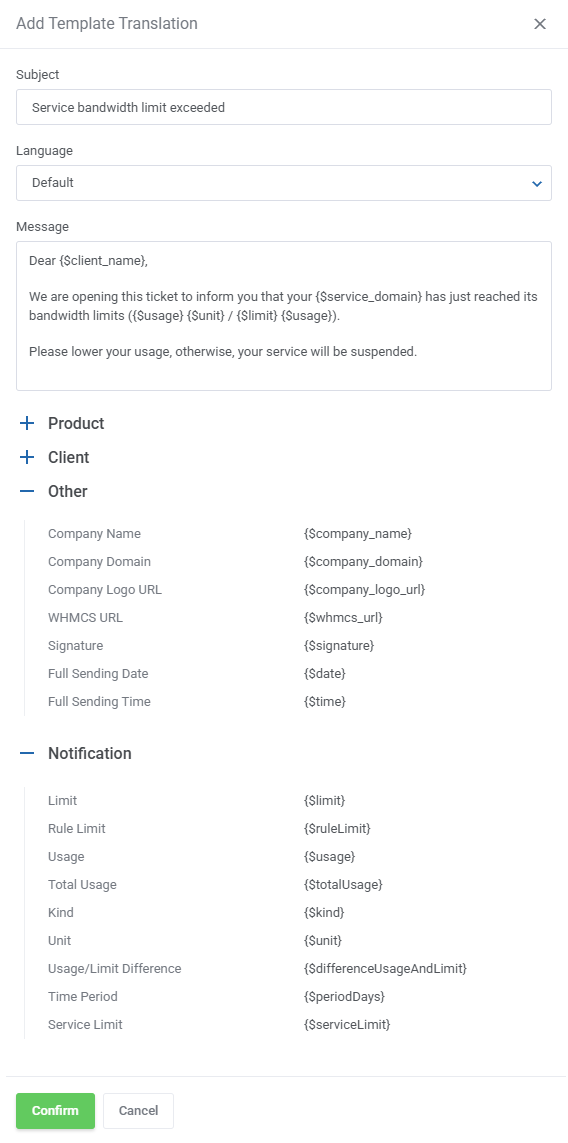
Enter a template name, select language and type in the text in the 'Message' text field.
If you select default language, then this template will be used in case there is no translation in the client's language.
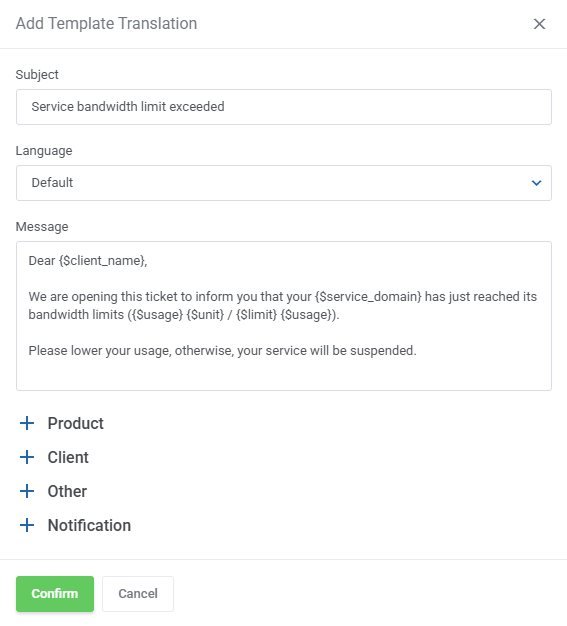
There are numerous merge fields that you may use in the message to make it full and most informative.
As you can see at the bottom, there is a list of special merge fields particularly designated for notifications. These are:
- Notification Limit - displays the allowed resource usage limit.
- Notification Usage - stands for the current resource usage of the client service.
- Notification Kind - returned as Bandwidth or Usage.
- Notification Unit - returned as MB, GB or TB.
- Notification DifferenceUsageAndLimit - amount by which the limit has been exceeded.
- Notification PeriodDays - period of days when the usage is verified defined for 'Fixed' type.
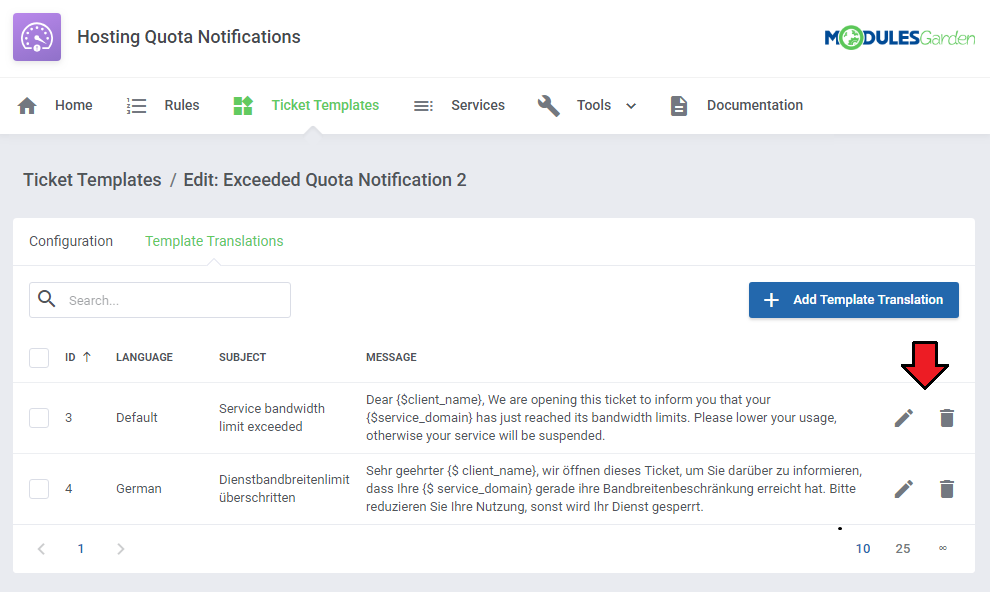
Use action buttons to edit or delete the template translations.
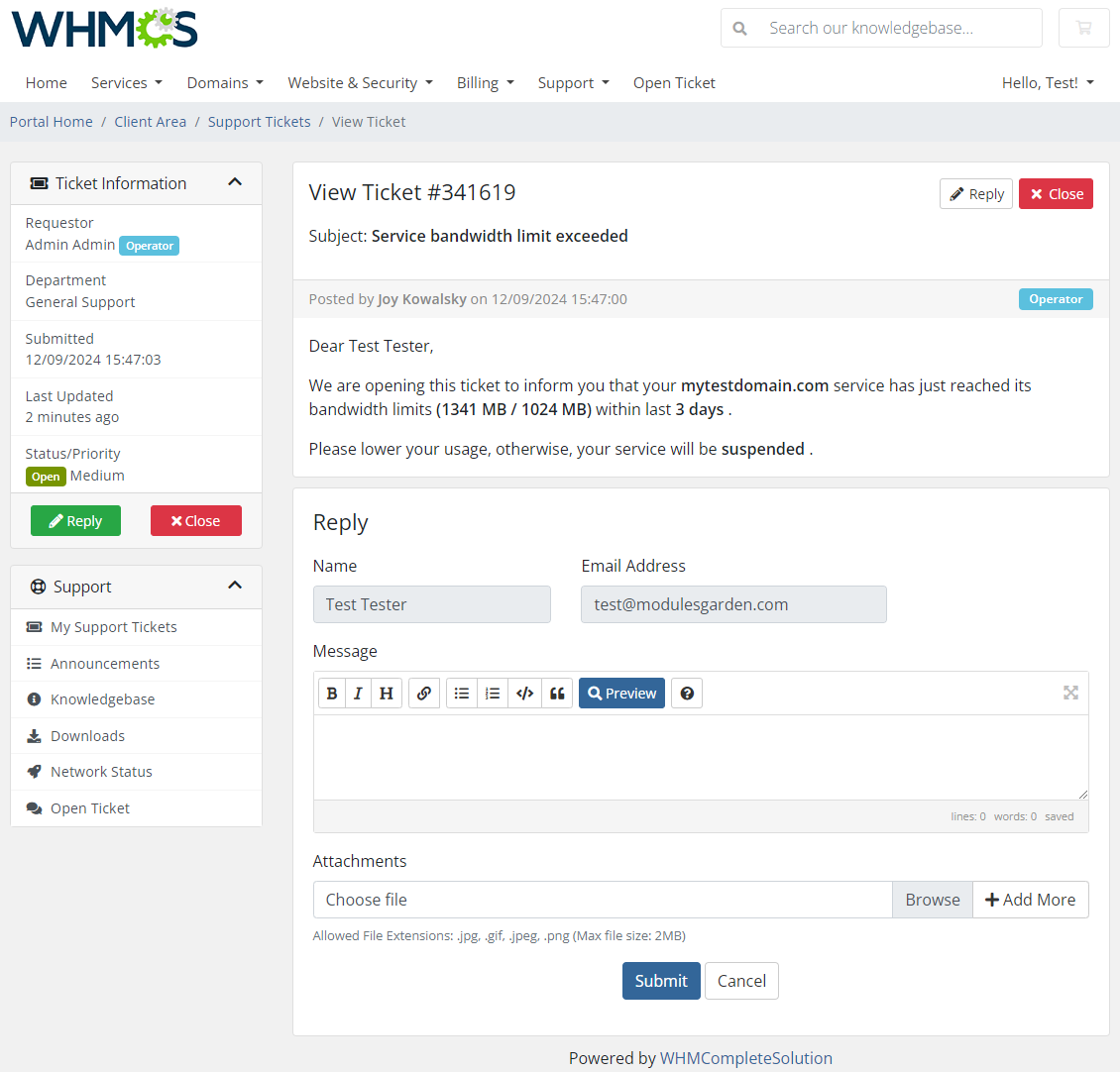
That is what such an automatically opened ticket may look like in your client area.
# Services
Another section that we need to draw your attention to is called 'Services'.
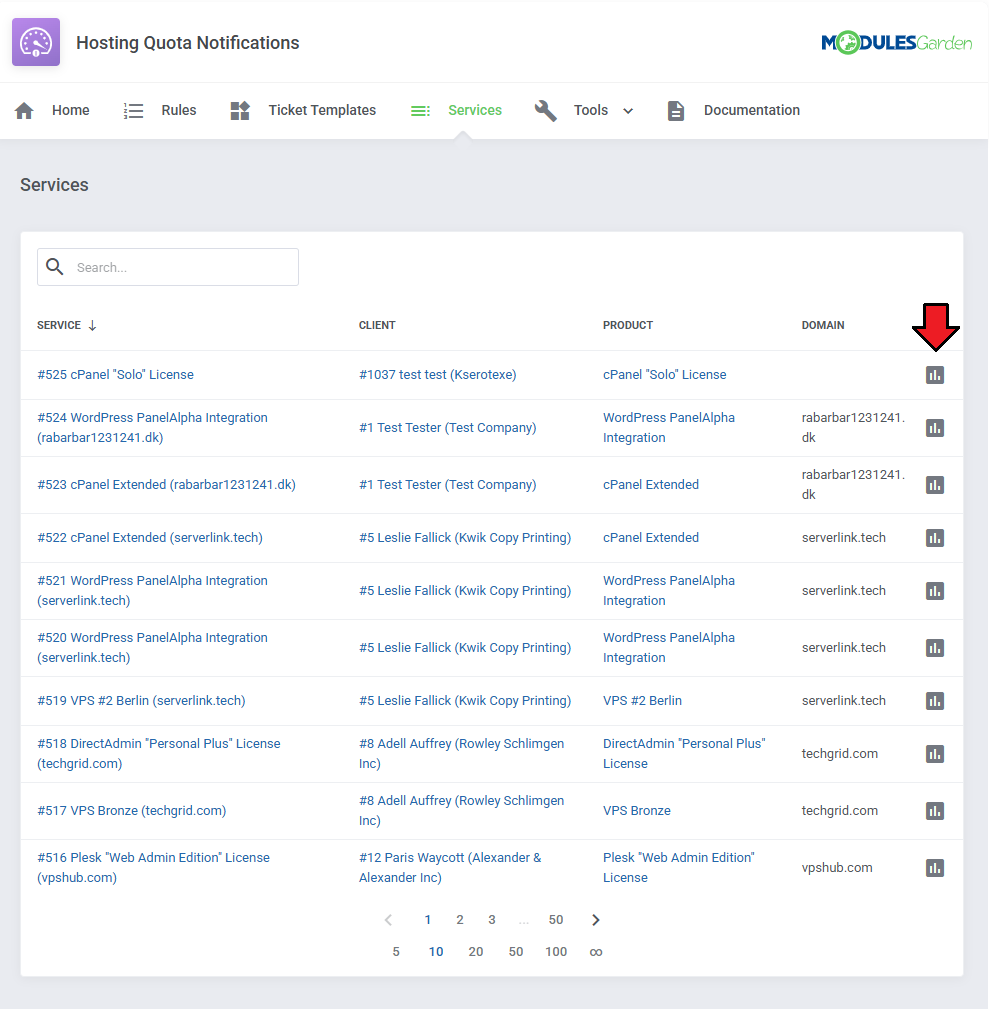
You will find there products which are included in any of your configured rules with disk or bandwidth usage.
Press the icon marked on the screen below and you will get details on the current resource usage of the service per each day.
Check out the statistics on the disk and bandwidth usage per single product.
Analyse the table and the generated graph.
Please note that WHMCS updates the quote and traffic load once a day only.
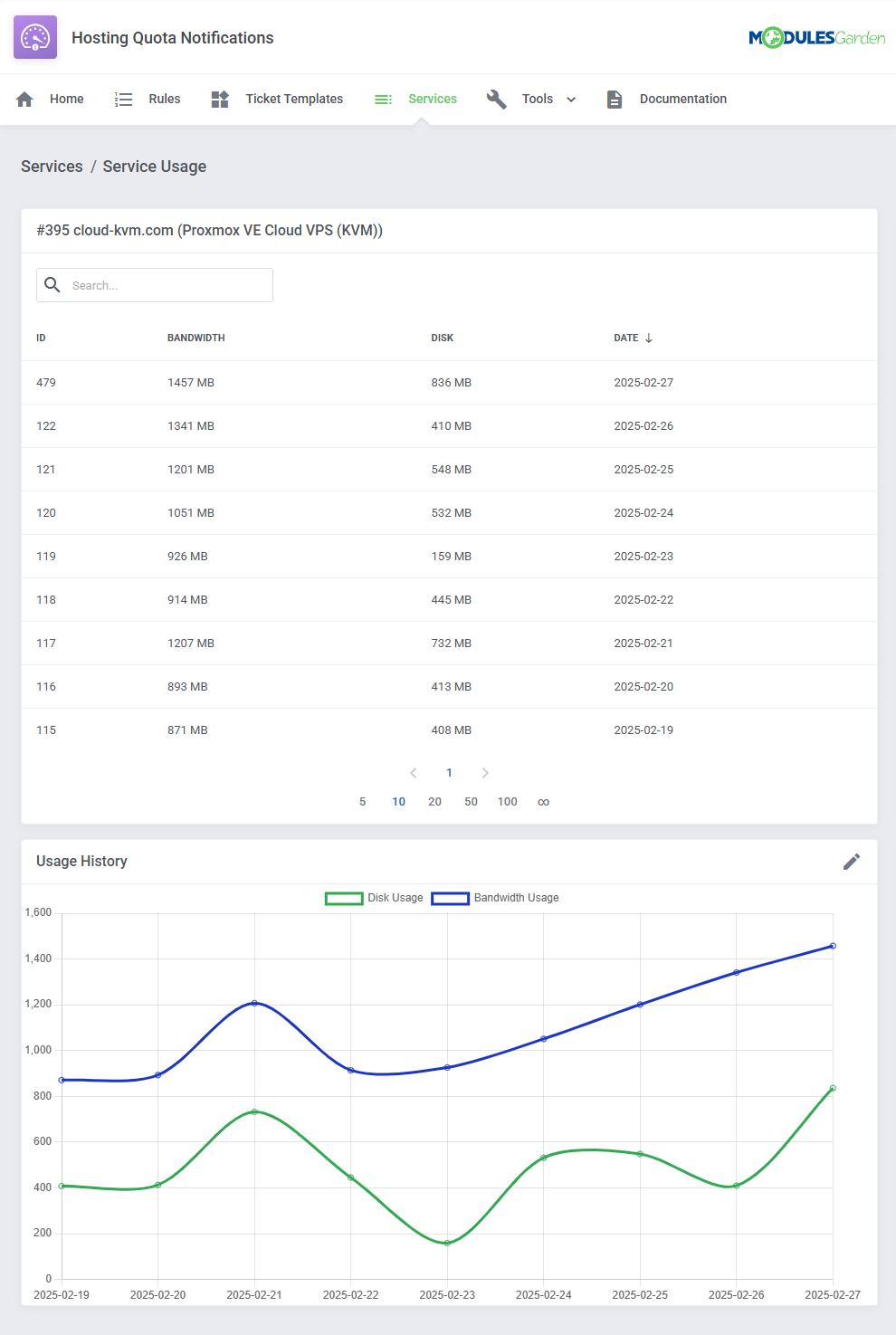
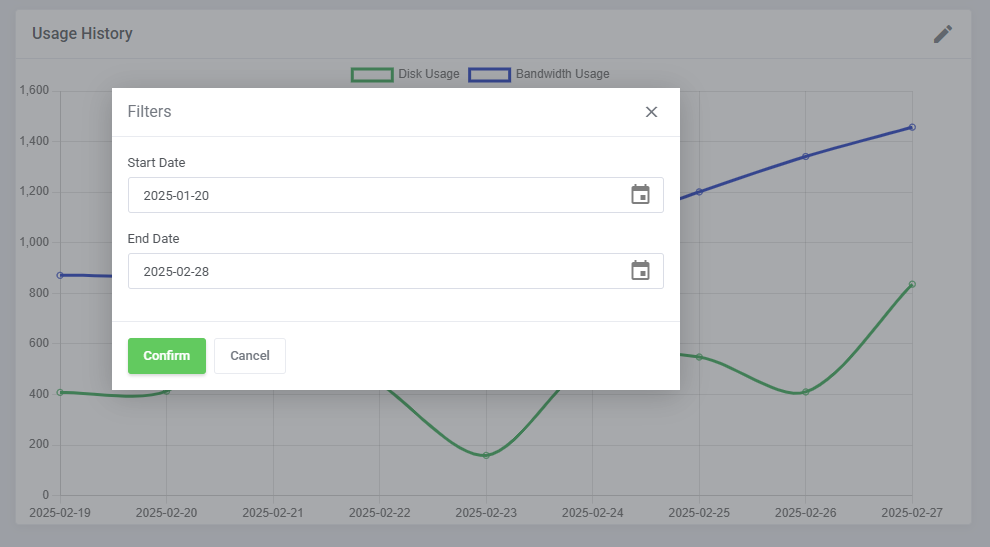
By default, the graph displays usage data from the past 30 days. You can adjust the date range using the pencil icon.
# Client Area Product View
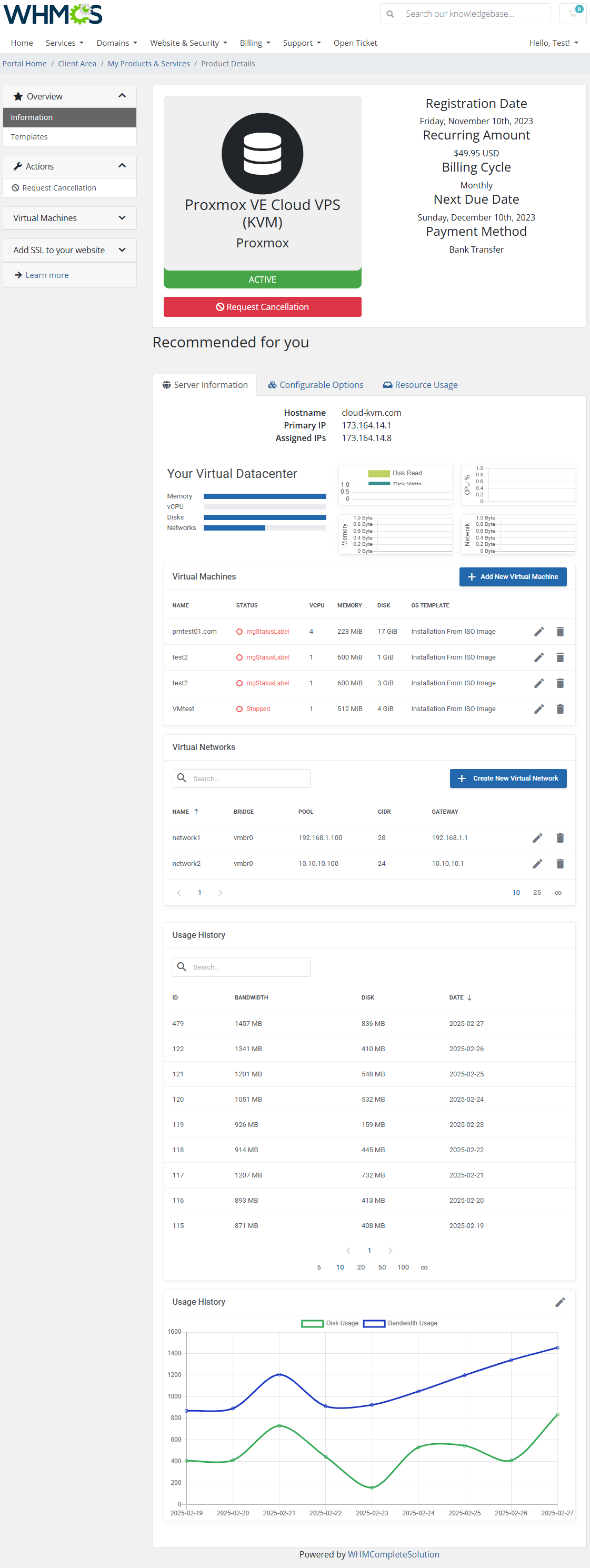
On the product page in the client area, a table displays detailed service usage information. Below the table, you will find a graphical representation of the usage history.
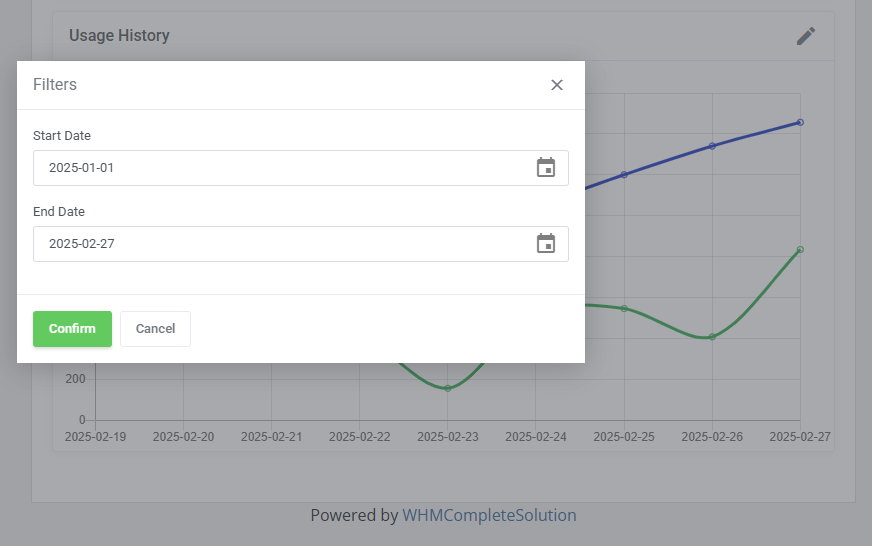
Clients can adjust the displayed date range using the pencil icon to focus on specific periods.
# Tools
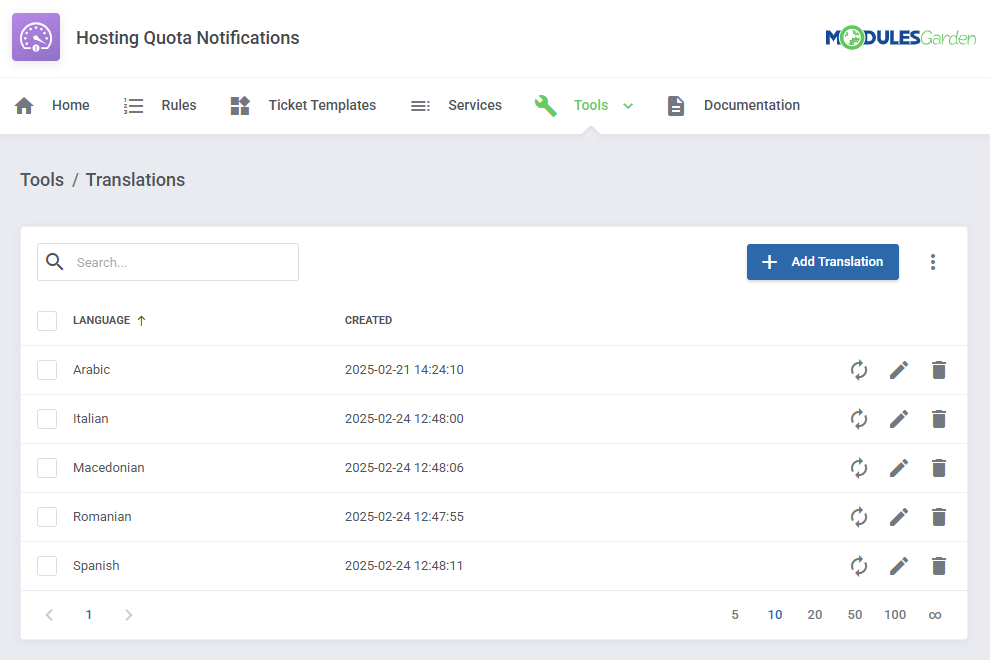
Translations
Customizing language files is now extremely easy with the "Translations" tool that is now available directly in the addon.
Its user-friendly design makes managing various language file tweaks a smooth and efficient process. Prepare translations for the original English files with this handy built-in tool.
For specific instructions on how to use this tool please refer to its dedicated article, you will find it here.
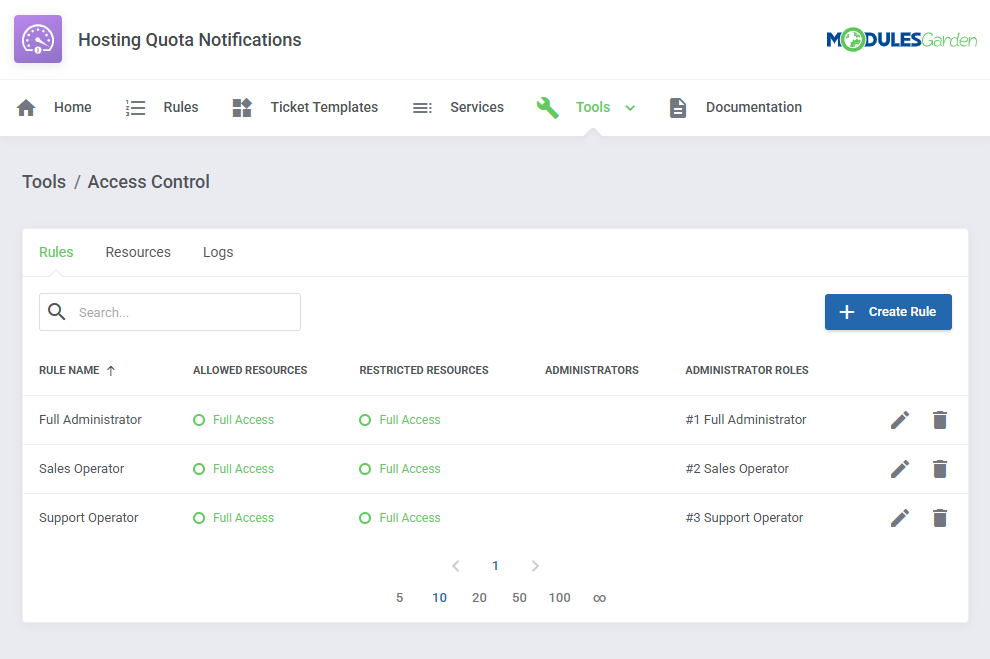
Access Control
Ensure secure and tailored access to your module with the "Access Control" tool available in ModulesGarden addons.
This feature allows you to assign permissions, define resource access for administrators, and track activities with detailed logs.
Customize access settings to fit your team’s structure and maintain transparency with ease. For comprehensive guidance, refer to the tool's dedicated article.
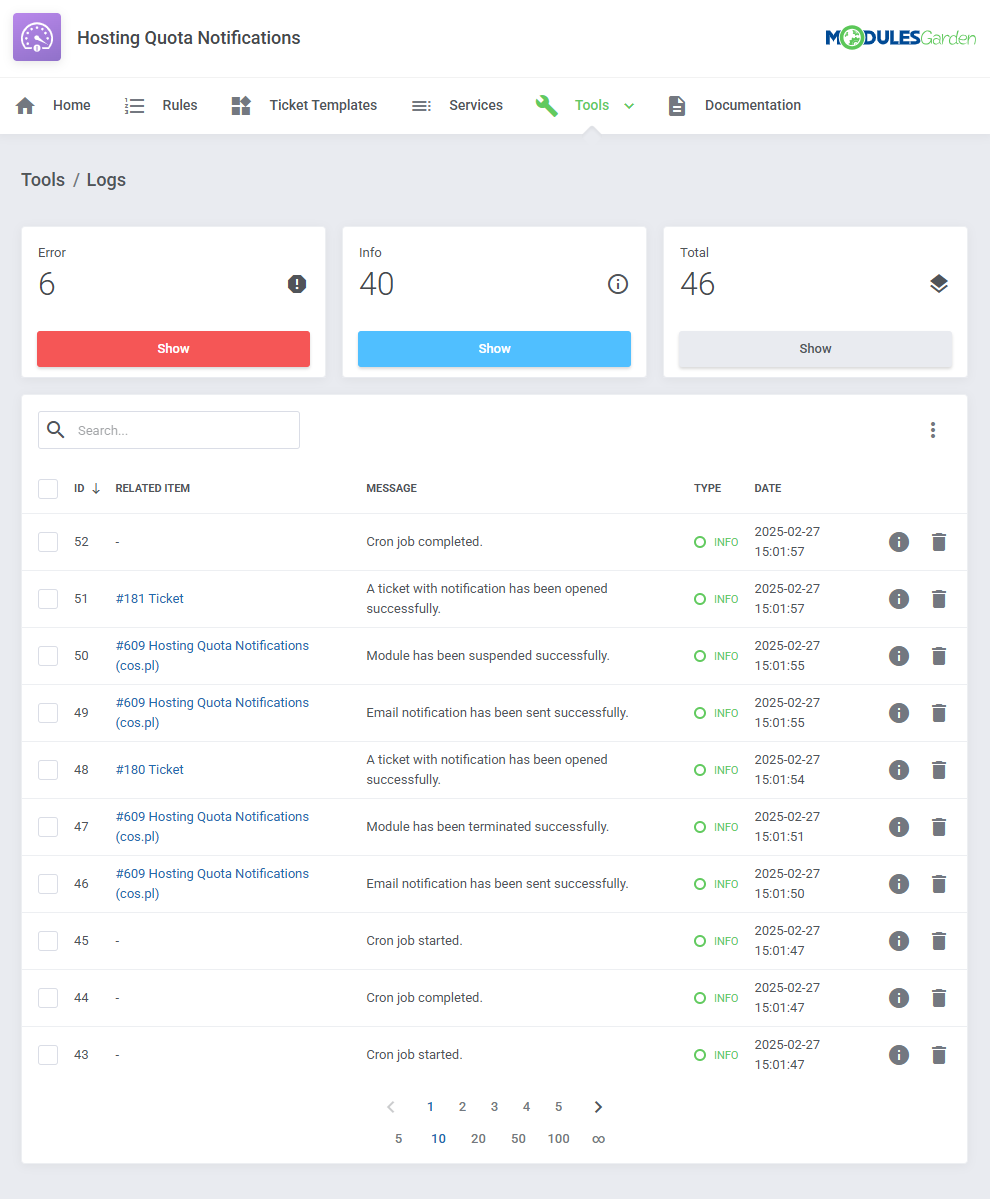
Logs
Under the 'Logs' page, you can view information about sent notifications via email, opened tickets, errors, performed actions etc.
# Use Cases
In this section, you will find real-world examples of how to use the module's features.
Check out the scenarios below to see the module in action.
# Monitor Resource Usage
Hosting Quota Notifications For WHMCS can be used to help your clients monitor their resource usage.
Follow this example to set up special notifications, that will be sent out whenever a client rapidly depletes a large amount of bandwidth or disk space.
Start by creating a rule. Open the addon and navigate to 'Rules' → 'Add Rule'.
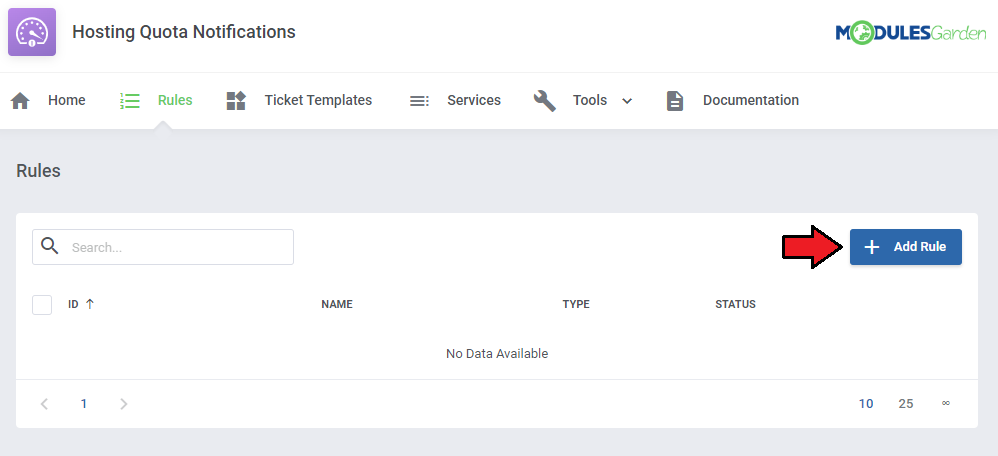
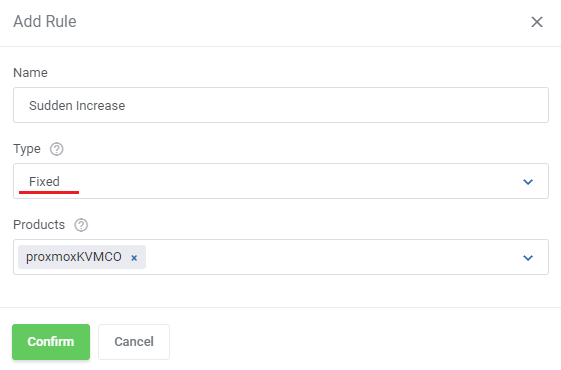
Name the rule, select the 'Fixed' rule type, and pick the products you want to include.
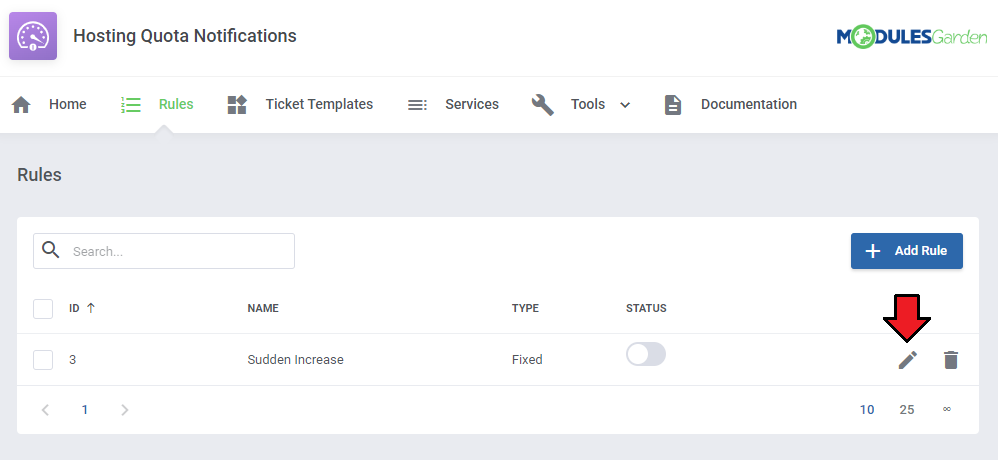
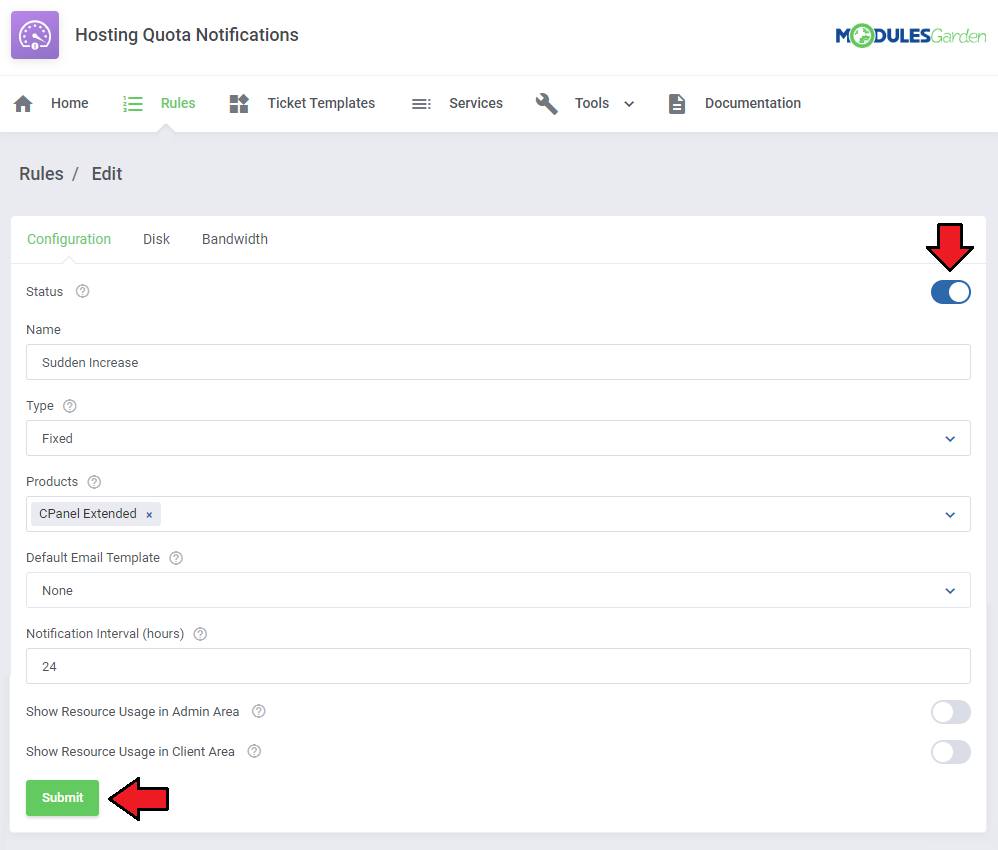
Use the 'Edit Rule' button to specify the details.
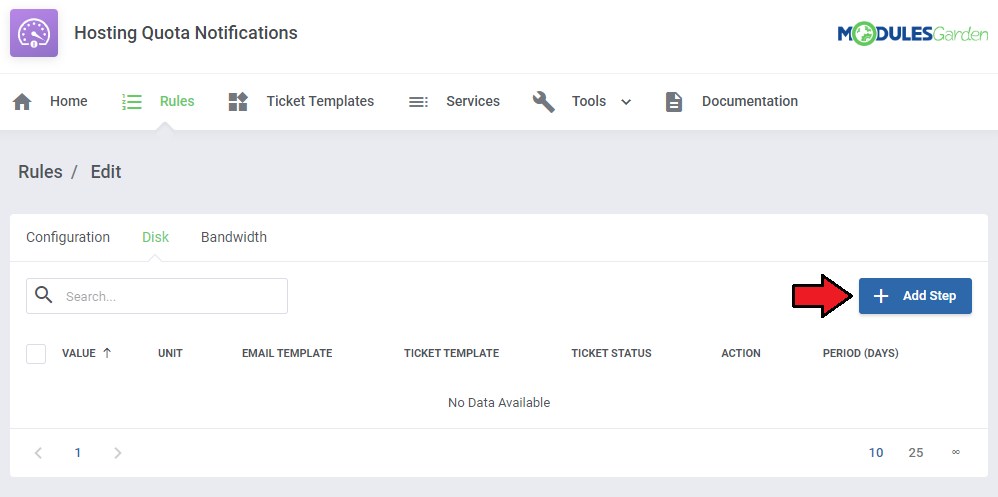
Move to the 'Disk' or 'Bandwidth' tab, depending on what you want the notification to be on and 'Add Step'.
You can also do both, simply repeat the process for the other tab.
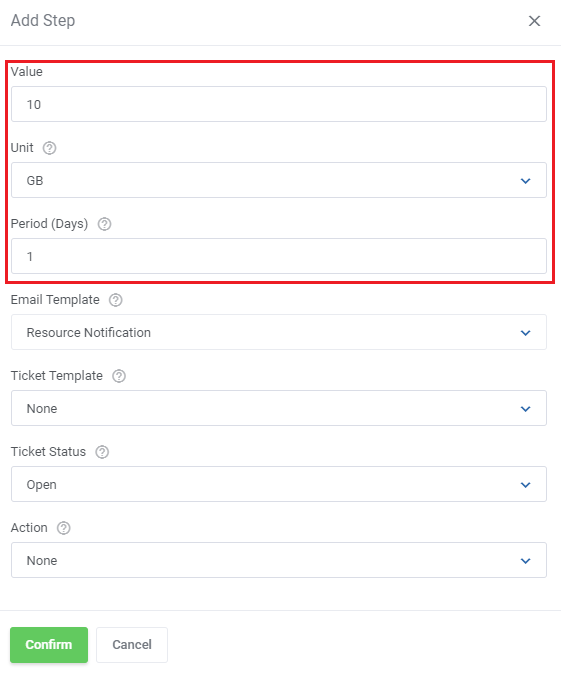
Focus on 'Value', 'Unit' and 'Period' first.
With the settings shown on the following screen, the notification will be sent every time the usage exceeds 10 GB in a day.
Change those three fields to fit the needs of your client, for example, you could use the 'Percentage' type, the value of '50' and the period of '3' to have the clients notified whenever half of their disk gets filled within three days, etc.
Next, select an email template or a ticket template to be used for this rule.
If you included a ticket template, select a ticket status as well.
Note: If you have not already, take a look at the default email template described in the 'Tips' section. The included merge fields can be of use when composing custom email templates.
You can include multiple steps to the rule in both the disk and bandwidth tab, to create a tiered notification system.
If the 'Period' value is relatively low the notifications will help your clients react to sudden peaks in resource usage.
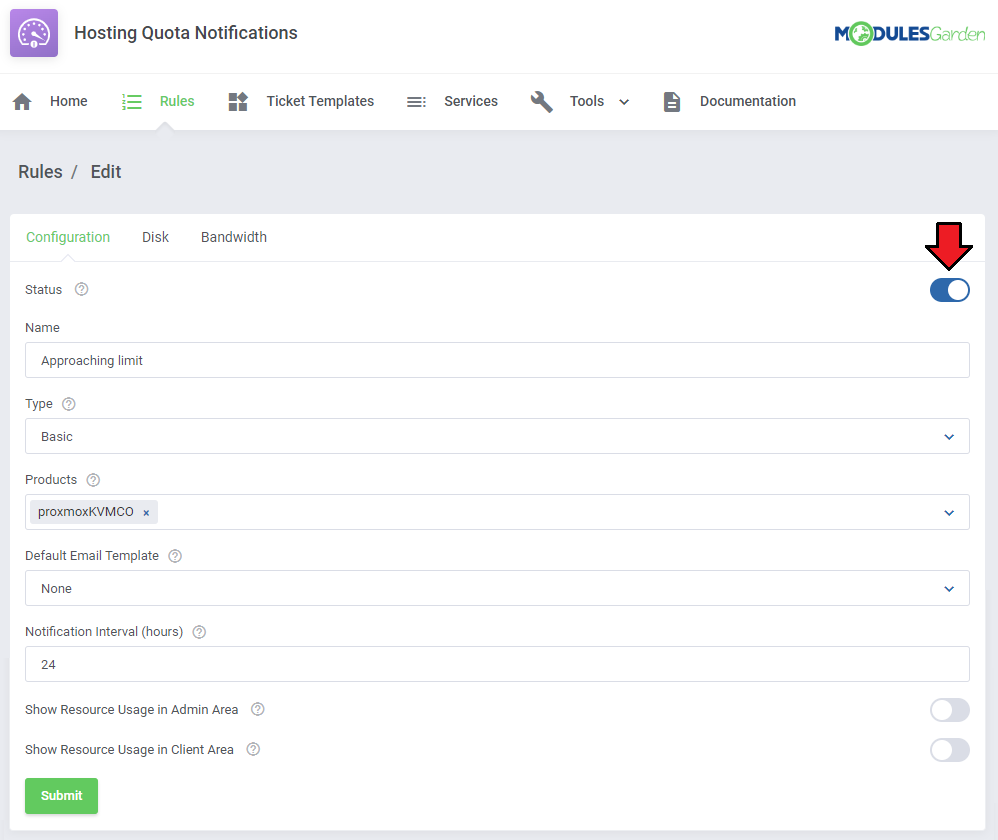
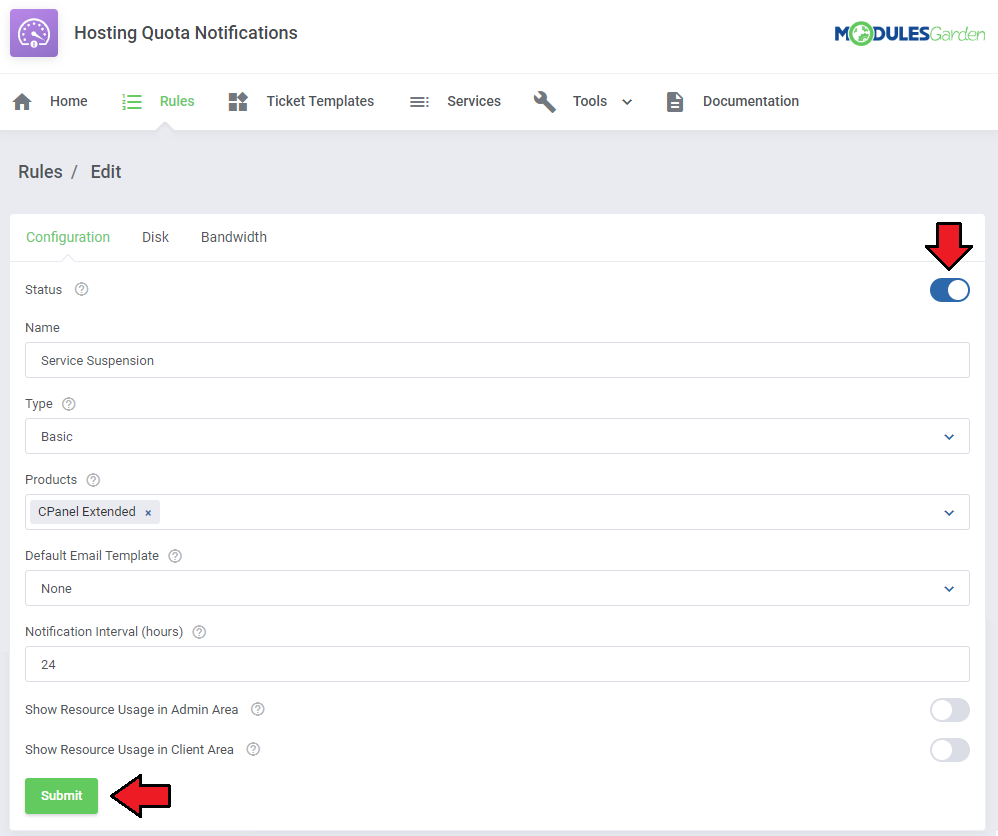
Remember to enable the rules when ready.
# Exceeded Bandwidth Usage
When clients get close to their usage bandwidth limit. It is crucial to make them aware of the fact. Hosting Quota Notifications For WHMCS can help you do just that.
See the use case below, on how to set up example rules for this scenario.
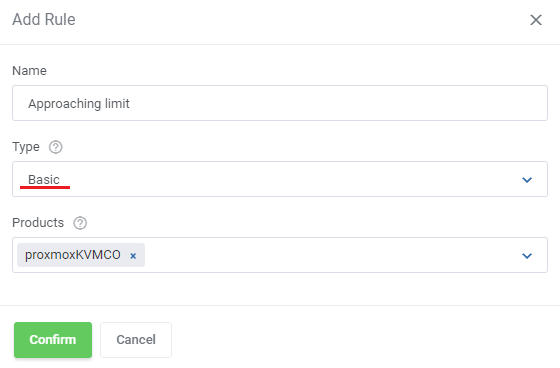
Start by creating a rule. Open the addon and navigate to 'Rules' → 'Add Rule'.
Name the rule, select the 'Basic' rule type, and pick the products you want to include.
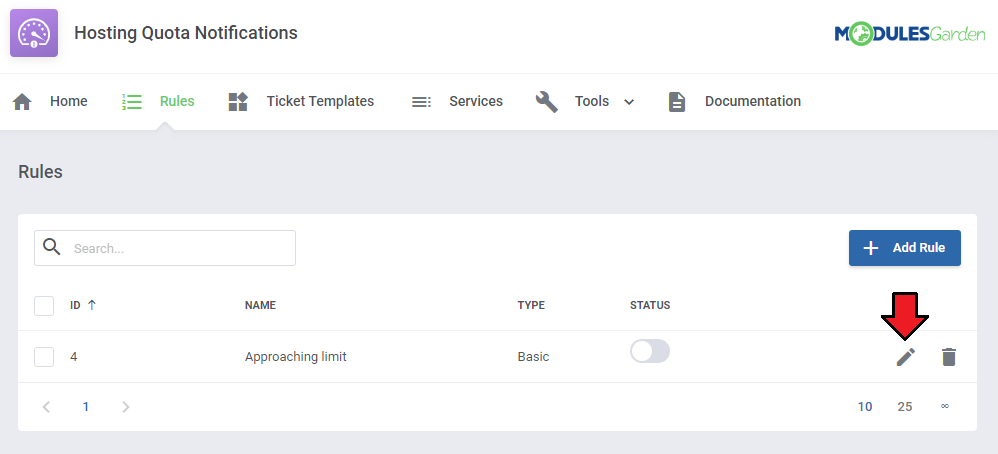
Use the 'Edit Rule' button to specify the details.
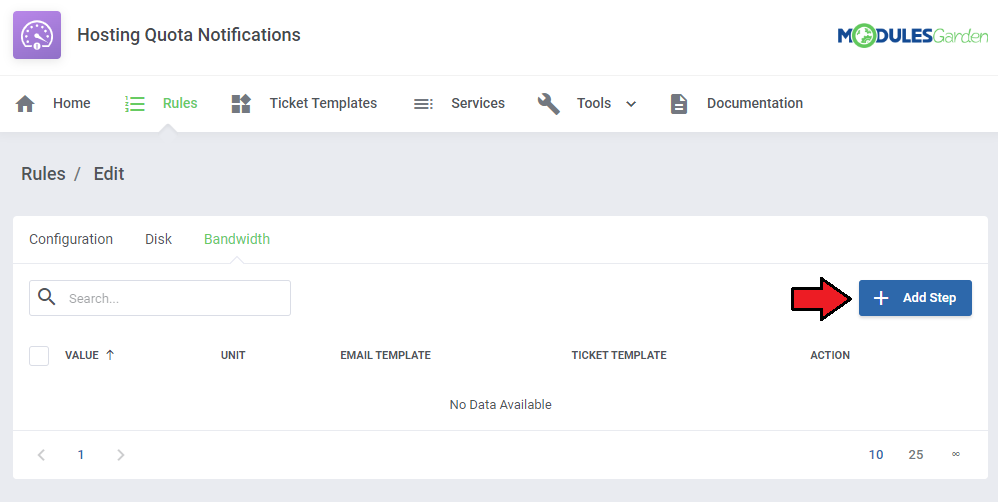
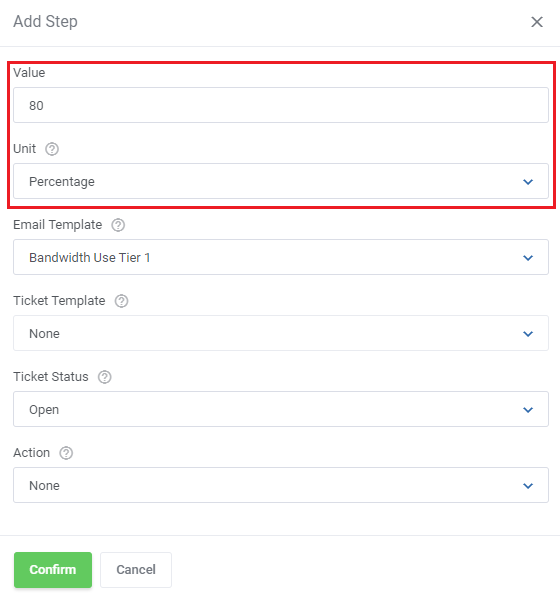
Move to the 'Bandwidth' tab and 'Add Step'.
Select the 'Percentage' unit, and 'Value' close to 100.
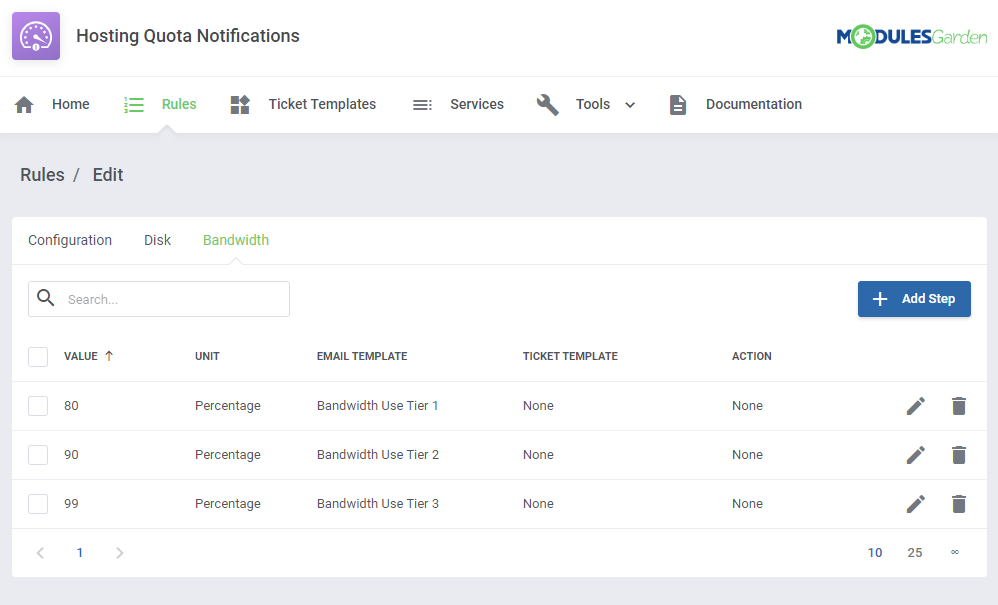
We recommend setting three steps at 80, 90, and 99 percent.
Next, select an email template or a ticket template to be used for this rule.
If you included a ticket template, select a ticket status as well.
Note: If you have not already, take a look at the default email template described in the 'Tips' section. The included merge fields can be of use when composing custom email templates.
The notifications will help your clients make sure they have enough bandwidth for their needs.
Remember to enable the rules when ready.
# Automatic Suspension
Hosting Quota Notifications For WHMCS can automatically suspend or terminate the service of clients that used up all of their resources.
Follow this example to set up an additional rule to perform the suspension automatically.
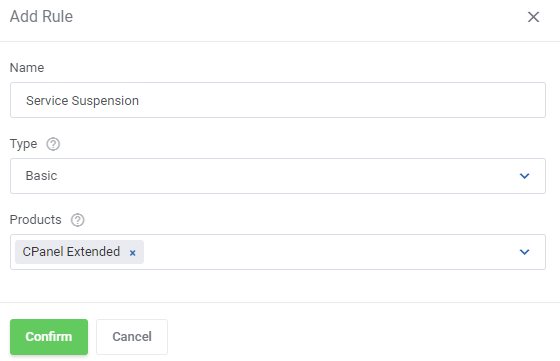
Start by creating a rule. Open the addon and navigate to 'Rules' → 'Add Rule'.
Name the rule, select the 'Basic' rule type, and pick the products you want to include.
Move to the 'Bandwidth' tab and press 'Add Step' button.
Focus on 'Value', 'Unit' and 'Action' first.
Set 'Unit' to 'Percentage', 'Value' to '100', and 'Action' to 'Auto-Suspend' or 'Auto-Terminate'.
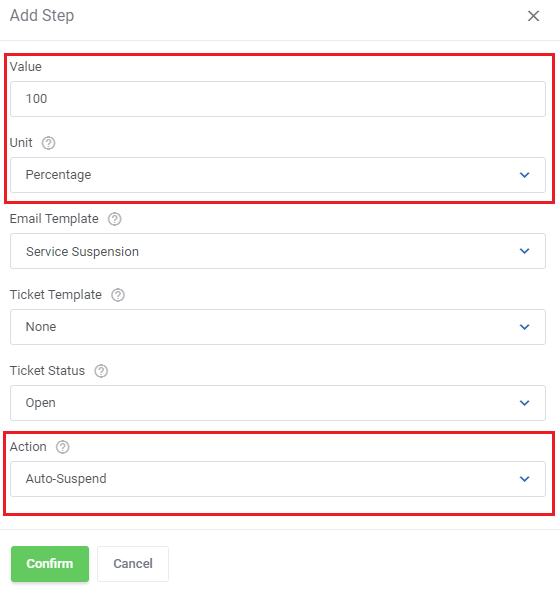
Next, select an email template or a ticket template to be used for this rule.
If you included a ticket template, select ticket status as well.
Note: If you have not already, take a look at the default email template described in the 'Tips' section. The included merge fields can be of use when composing custom email templates.
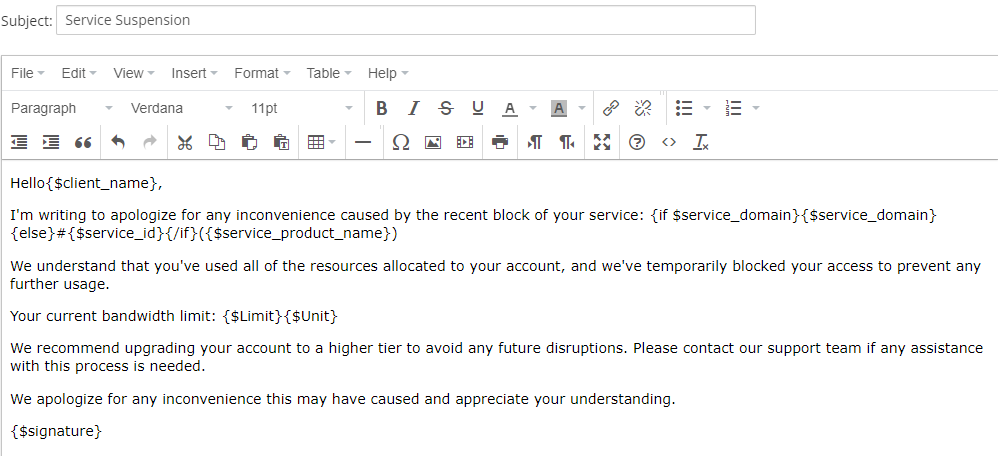
Here is an example email for this situation.
Remember to enable the rule when ready.
# Tips
There is one default email template that may be used to send email notifications. Find 'Service Usage Limits Notification' at WHMCS → Setup → Email Templates → Product/Service Messages.
You may edit the template freely, using special merge fields and create new ones on its basis. Allowed module special merge fields:- {$kind} - stands for bandwidth or usage.
- {$limit} - allowed resource usage limit.
- {$unit} - MB,GB or TB.
- {$usage} - current resource usage of the client.
- {$differenceUsageAndLimit} - amount by which the limit has been exceeded.
- {$periodDays} - period of days defined for 'Fixed' type.
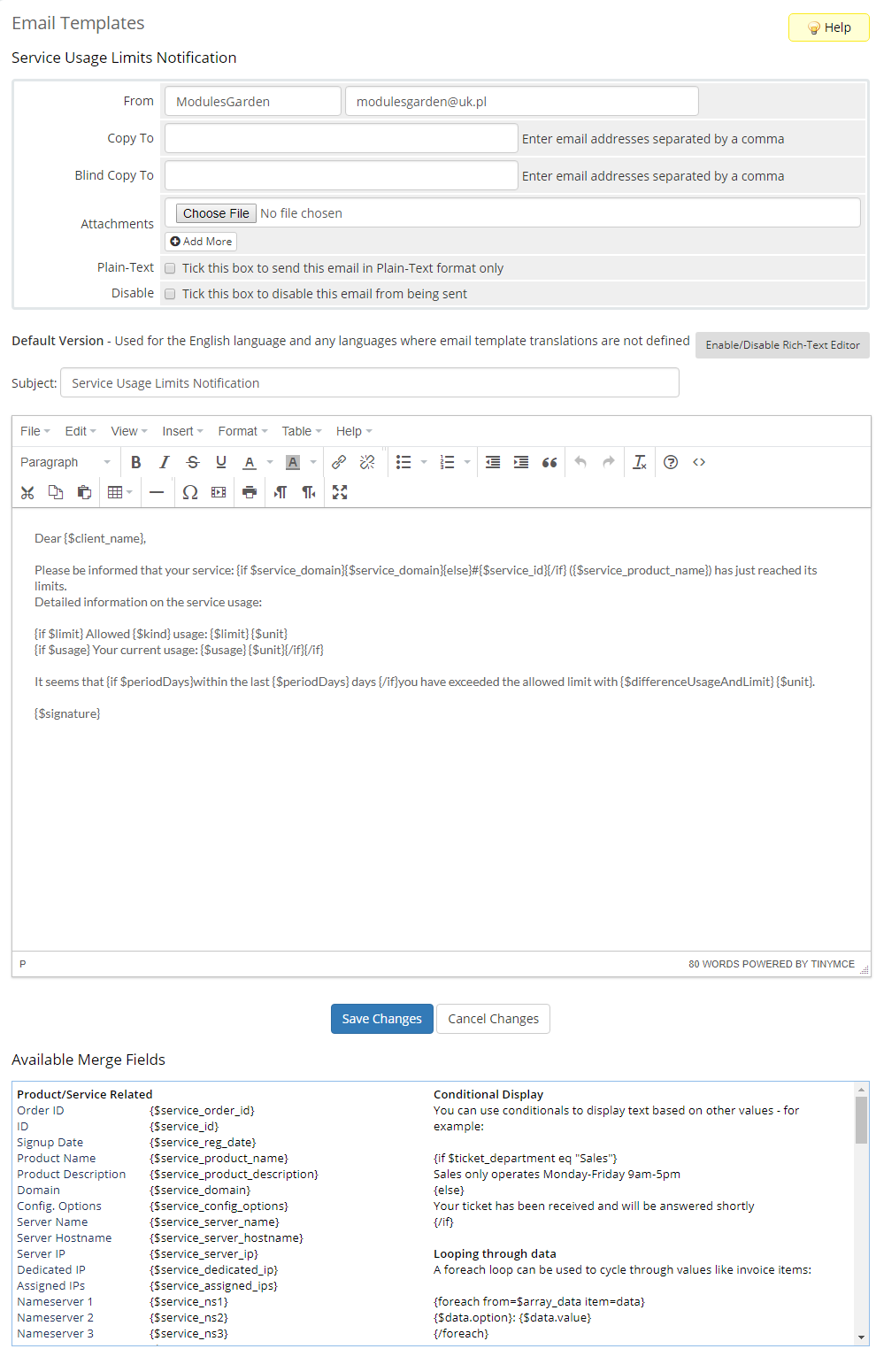
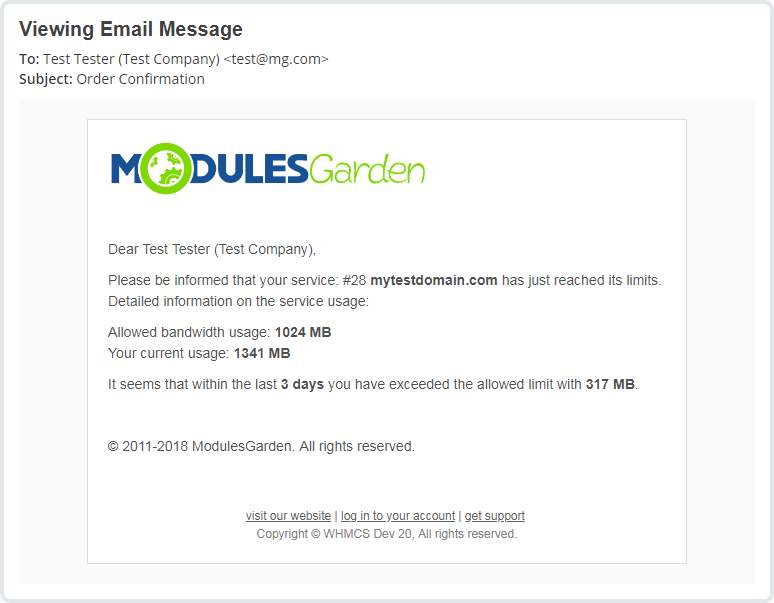
That is what the email message may look like when delivered:
When configuring a ticket template you need to select an admin to which it will be assigned. However, the ticket will be automatically opened by a randomly selected administrator.
There is the possibility to limit 'Logs' to a particular number of days. With the following cron command, you can delete 'Logs' older than X days.
As an example, we want to remove 'Logs' older than 2 days. Of course, you can provide any number of days.php -q /yourWHMCS/modules/addons/hosting_quota_notifications/cron/cron.php DeleteLogs --older-than 2Please remember that DeleteLogs cron job is deprecated and will be removed in future versions of the addon. To automatically delete logs, use the "Clear automatically" option in the Tools/Logs section.
It is possible to customize the "Usage Graphs" colors, check below to learn how to do that.
By default, the graphs use the following colors:- Disk Usage:
#a334a1 - Bandwidth Usage:
#c79c2e
To change these colors, modify theconfiguration.ymlfile under the usageGraphs section. You will find the file under the following directory:
yourWHMCS/modules/addons/HostingQuotaNotifications/app/Config/configuration.yml
- Disk Usage:
usageGraphs:
diskColor: '#a334a1'    # Customize Disk Usage graph color
bandwidthColor: '#c79c2e'  # Customize Bandwidth Usage graph color
After saving the changes, the new colors will be applied automatically to the graphs in the addon, admin and client area service pages.
# Update Instructions
An essential guidance through the process of updating the module is offered here.
Ensure successful completion of the module update by carefully following each step, thereby preventing data loss or any unforeseen issues.
Additionally, you will find a current list of supplementary actions necessary for a smooth update process there.
# Update Instructions To Version 2.2.0
When upgrading your module to version 2.2.0 please follow the below described steps to avoid losing andy data.
Before proceeding, ensure that you have a backup of your current installation to prevent data loss.
- Ensure that the old version remains activated.
- Navigate to your module installation directory and delete the old module folder
hosting_quota_notifications. - Upload the new module version files.
- The folder name has changed from hosting_quota_notifications to HostingQuotaNotifications, so ensure that the new version is correctly structured.
- The system will automatically transfer the latest 1000 logs from the previous version to maintain visibility of past operations.
Note: These logs may not be visible in the Home section due to new logic, but they can still be accessed directly within the logs.
- The system will automatically transfer the latest 1000 logs from the previous version to maintain visibility of past operations.
- Go to WHMCS admin area → Addon Modules, locate the newly uploaded module and click Activate.
- To ensure the module works correctly after the upgrade, you must reissue the license:
- Log in to the client area where your license is managed.
- Navigate to your Products and locate the relevant license.
- Click Reissue License to update the installation.
Handling issues during update
If the old module was deactivated before the upgrade (which is not recommended) or if the upgrade process fails for any reason, you can attempt recovery using the cron script.
- First, check the list of available patches by running:
php8.2 -q ./modules/addons/HostingQuotaNotifications/cron/cron.php upgrade list - You must then apply the patches in sequence, starting from the version you had before the upgrade up to the latest version.
For example, to apply the patch for version 2.2.0, run:
php8.2 -q ./modules/addons/HostingQuotaNotifications/cron/cron.php upgrade run 2.2.0 - If you were upgrading from a version earlier than 2.1.0, you must first run the patch for 2.1.0 before applying 2.2.0:
php8.2 -q ./modules/addons/HostingQuotaNotifications/cron/cron.php upgrade run 2.1.0
php8.2 -q ./modules/addons/HostingQuotaNotifications/cron/cron.php upgrade run 2.2.0
# Upgrade Guide
Seeking a solution that offers greater flexibility, customization tailored to your precise needs, and unrestricted availability?
There is an option that not only proves to be cost-effective in the long run but also includes prioritized support services, making it a truly valuable investment.
Opt for the Open Source version (opens new window) of your Hosting Quota Notifications For WHMCS module to unlock these benefits.
Simply click on either the Get Source Code or Upgrade To Lifetime button found on the product's page in our client area to complete the one-step upgrade process, with a dedicated discount already applied.
Follow a comprehensive guide covering the transition process, the advantages it brings, and step-by-step instructions on what to do next after the order has been successfully finalized.
# Common Problems
When you have problems with connection, check whether your SELinux or firewall does not block ports.
We do not recommend using Hosting Quota Notifications For WHMCS module either with Multibrand For WHMCS or with Resellers Center For WHMCS.
Integration between these modules is hampered due to specific features of each one of them and their individual work flow.