

# Proxmox VPS 2.X For WHMCS
- About Proxmox VPS For WHMCS
- Installation and Configuration
- Management
- Tips
- Update Instructions
- Common Problems
# (opens new window) About Proxmox VPS For WHMCS (opens new window)
Proxmox VPS For WHMCS is a powerful module which allows you to automatically provision virtual servers to your clients.
Your customers will be able to manage virtual servers, backups, firewall, as well as access noVNC, SPICE, or Xterm.js console, and much more - all this directly in your WHMCS.
Additionally, the module provides support for Cloud-Init for the KVM virtualization type, and lets you conveniently manage all existing servers, IP addresses and clusters through the built-in Proxmox Addon.
Admin Area Features
- Create/Suspend/Unsuspend/Terminate Server
- Create/Terminate User Account
- Change Package - Supports Configurable Options
- Boot/Reboot/Stop/Shutdown Server
- Change User Role
- Access noVNC, SPICE And Xterm.js Console
- Migrate Server Between Nodes In The Same Cluster
- Reinstall Server
- View Server Status, Details And Statistics
- View Graphs - With Ability To Change Time Scale of MRTG Graphs
- Display Disk And Bandwidth Usage Of Each Product
- Display CPU And Memory Usage Of Each Product
- Display IP Sets (KVM)
- Auto Node - Possibility To Automatically Create VM On Node With Most Free Space
- Configure Client Area Features Per Product
- Import IP Address To Hosting IP Addresses Table
- Return IP Address To IP Addresses Subnet
- Add Additional IP Address To VM
- Add Additional Storage To VM (KVM)
- Enable Quemu Guest Agent (KVM)
- Enable Backups Routing
- Enable Auto VM Backups Before Reinstall
- Enable Load Balancer
- Receive Notifications About VM Upgrades And Creation Failures
Proxmox Addon Features
- Display Servers: List Per VPS And Cloud
- List Per VPS And Cloud
- Clusters List
- VMs List
- KVM Templates
- Recovery VM Configurations List With Export To Backup File
- Tasks History
- Statuses, Resources Usage, IP Assignments And Details
- Manage Public & Private IP Addresses Per Server, VLAN, Tag And Node
- VM Cleaner - Manage VM Not Existing In Your WHMCS
- Convert KVM VPS To KVM Template
- Define VM IDs Ranges Per Server
- Set Minimum VM ID For Product Without ID Ranges Defined
- Configure Resources Weights For Load Balancer Prioritization
- Synchronize Users Permissions
Client Area Features
- Boot/Reboot/Stop/Shutdown Server
- Reinstall Server Using Templates (KVM) And ISO Images
- Access noVNC, SPICE And Xterm.js Console
- Create/Restore/Delete Backups
- Manage Backups Within Defined Limits (Max Number Of Files & Max Size Of Files)
- Manage Backup Jobs Within Defined Limits (Max Number Of Files & Max Size Of Files)
- View Graphs - With Ability To Change Time Scale of MRTG Graphs
- View Task History
- View Network Devices And Manage Private Interface
- Create Server Snapshot (KVM)
- Manage Firewall
- View And Edit Public SSH Key (KVM)
- Download Public And Private SSH Keys (LXC)
- View Server Status, Details And Statistics
- Display Disk And Bandwidth Usage
- Display CPU And Memory Usage
- Choose Server Resources While Ordering And Upgrade/Downgrade Them Freely
Configurable Options
KVM
- Number of CPU Sockets
- Number of Cores Per Socket
- CPU Limit
- CPU Weight For VM
- Amount of RAM
- Disk Space
- Additional Disk Space
- Network Rate
- IPv4 Addresses
- IPv6 Addresses
- Backups Size Limit
- Backups Files Limit
- Bandwidth Limit
- VM Template
- Network Rate
- VCPUs
- ISO Image
- OS Type
LXC
- Number of CPU Cores
- CPU Limit
- Amount of SWAP
- CPU Weight For a VM
- Amount of RAM
- Disk Space
- Additional Disk Space
- Amount of SWAP
- IPv4 Addresses
- IPv6 Addresses
- Backups Size Limit
- Backups Files Limit
- Bandwidth Limit
- VM Templates
- Network Rate
General Info
- Supports Cloud-Init (KVM)
- Supports PVE And PAM Authentication
- Supports KVM and LXC Virtualization
- Integrated With Advanced Billing For WHMCS - Actual Server Resource Usage Billing (read more) (opens new window)
- Integrated With IP Manager For WHMCS - Complete Control And Easy Assignment Of IP Subnets (read more) (opens new window)
- Integrated With Server Allocator For WHMCS - Automatic Assignment Of Most Suitable Servers To Products (read more) (opens new window)
- Multi-Language Support
- Supports Proxmox VE V5.4 And Previous
- Supports IPv4 And IPv6
- Supports PHP 5.6 Up To PHP 7.3
- Supports WHMCS Template Six
- Supports WHMCS 7.5 And Later
- Easy Module Upgrade To Open Source Version (opens new window)
# Installation and Configuration
This tutorial will show you how to successfully install and configure Proxmox VPS For WHMCS. (opens new window)
We will guide you step by step through the whole installation and configuration process.
# Installation
- Log in to our client area and download the module.
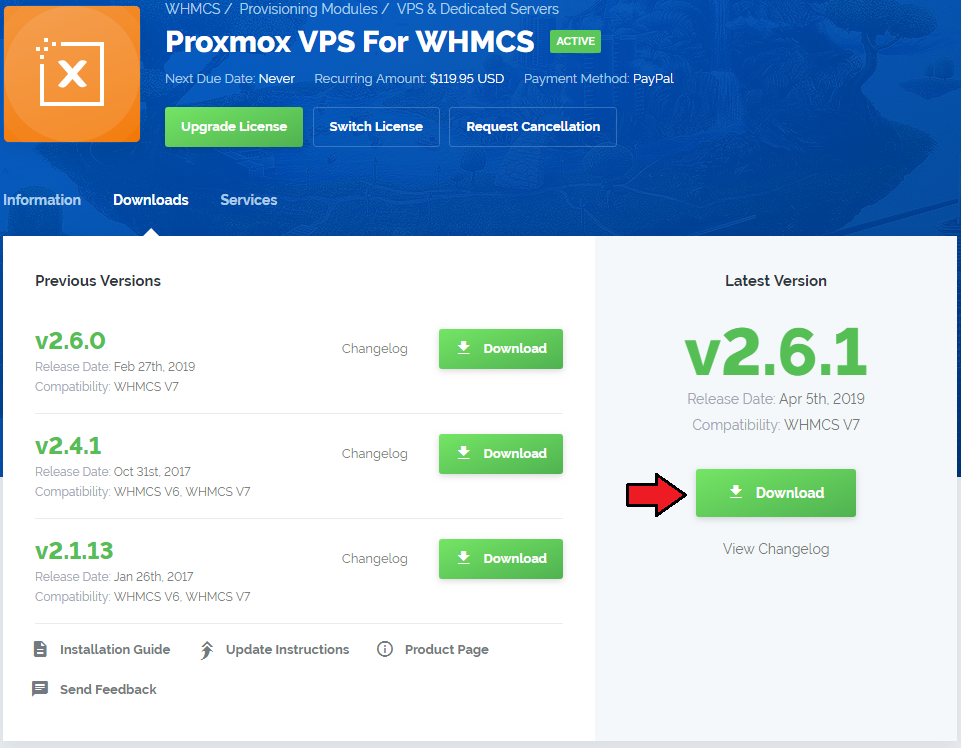
In the downloaded file you might find one or two packages that support different PHP versions.
In the most recent versions of the module, you will find only one package that supports PHP 7.1 and later.
If you need a package for the previous versions of PHP, please contact our support (opens new window).
Previous updates of the module may contain two packages dedicated to various PHP versions.
The first one that supports PHP 5.6 up to PHP 7.0, and the second one addressed to PHP 7.1 up to PHP 7.3.
Note: Keep in mind that PHP versions 5.6 up to 7.0 are no longer officially supported and their security issues are not fixed or released any more. Find more info here (opens new window).
Important: This situation does not affect the open source version (opens new window) of this module which can be applied to any PHP from version 5.6 and later.
Note: You can check the current PHP version in your WHMCS. To do so, proceed to 'Utilities' → 'System' → 'PHP Info'.Once you have chosen the package with the right PHP version, extract it and upload its content into the main WHMCS directory.
The content of the chosen PHP version files to upload should look like this.
Open 'UploadOnProxmoxServer' and upload the content of the proper version on all Proxmox servers into the '/usr/share/novnc-pve/' folder.
You should upload these files not only during the first installation of the module, but also each time you update it.
Note: If you wish to allow noVNC consoles, you need to configure a product using the PVE realm and set user permissions to 'PVEVMUser.'
Important: Open Folder UploadOnProxmoxServer/5.2-10 and upload content on all your proxmox servers. Scripts must be updated on proxmox server v2.6.0 to allow Xterm.js console work.When you install Proxmox VPS For WHMCS for the first time, you have to rename the 'license_RENAME.php' file.
The file is located in 'modules/servers/proxmoxVPS/license_RENAME.php'. Rename it from 'license_RENAME.php' to 'license.php'.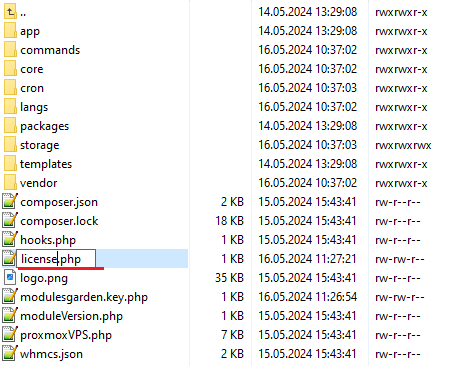
In order to configure your license key, you have to edit the previously renamed 'license.php' file.
Enter your license key between the quotation marks as presented on the following screen.
You can find your license key in our client area → 'My Products'.

# Activation of Proxmox Addon
Firstly, activate the Proxmox Addon.
To do so, log in to your WHMCS and press 'Setup' → 'Addon Modules'. Find 'Proxmox Addon' and press 'Activate'.
Note: The Proxmox addon version might not match the current version of the provisioning module itself. This is completely normal due to the specific structure of the module.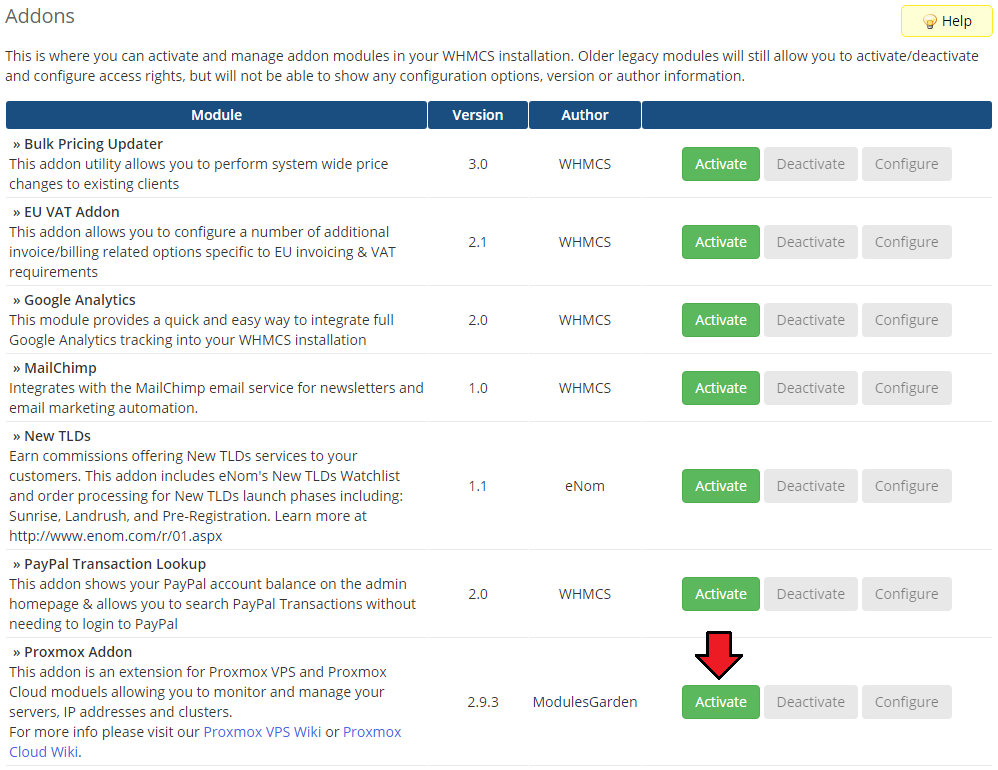
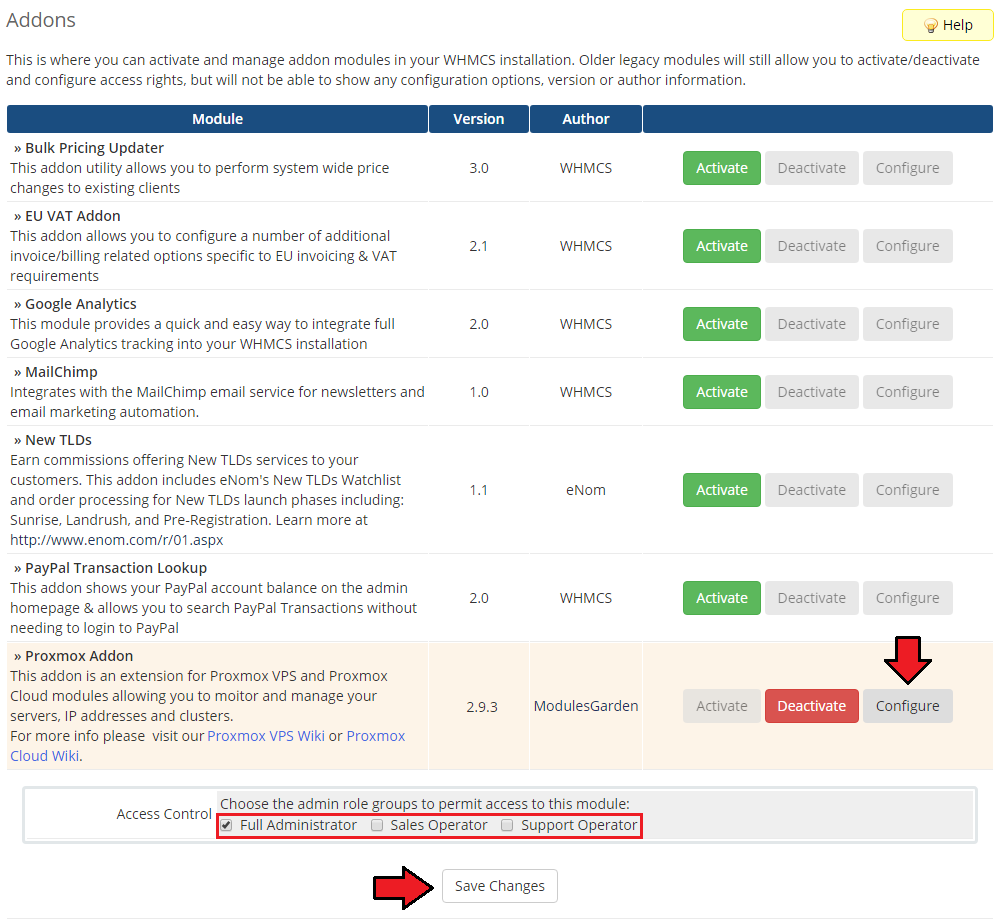
In the next step, you need to permit access to this module.
To do so, click on the 'Configure' button, tick 'Full Administrator' and press 'Save Changes'.
# Configuration of Server
Now, we will show you how to configure a new product.
Go to 'Setup' → 'Products/Services' → 'Servers' and press the 'Add New Server' button.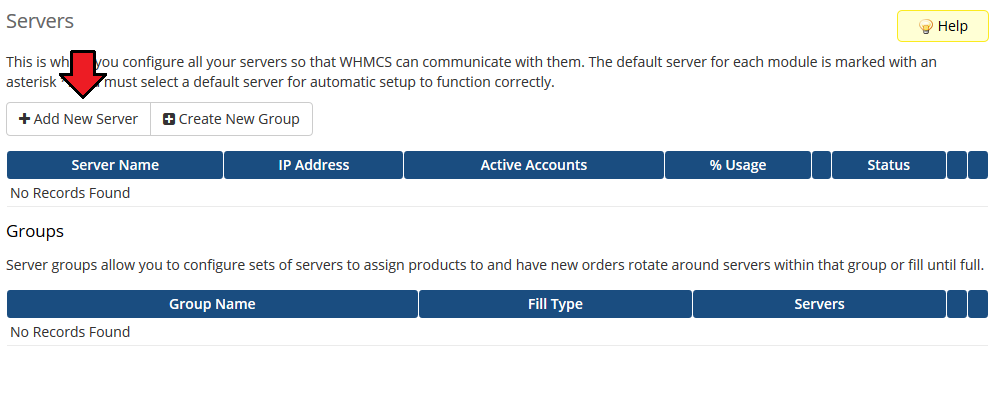
Next, enter your server name and IP address, you may add any port by entering it in format: "IpAddress:Port", that is: 10.10.10.1:8006.
Enter username and password, choose an authentication type from 'Authentication' and 'Proxmox VPS' from the 'Type' dropdown menus. 'Save Changes'.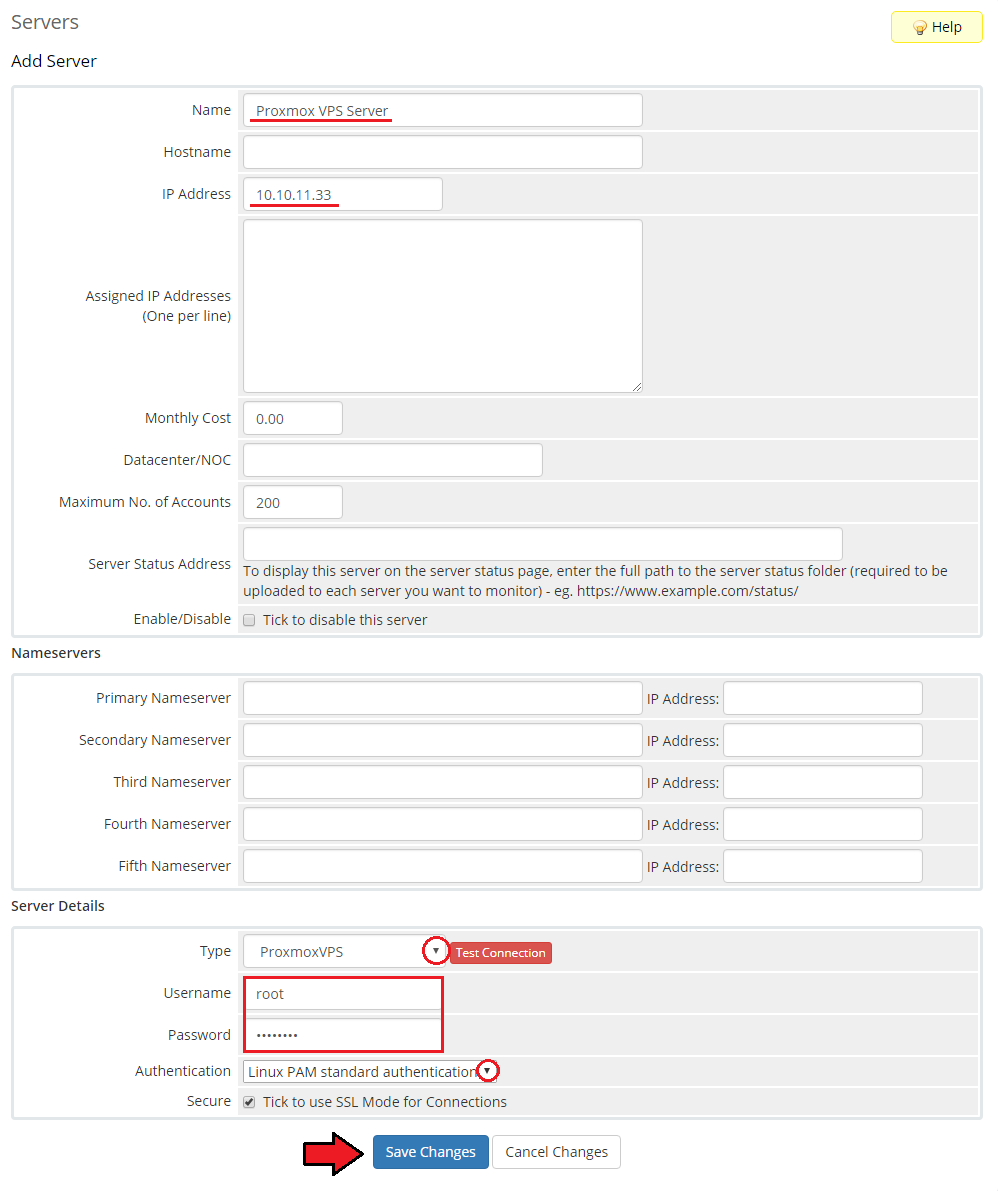
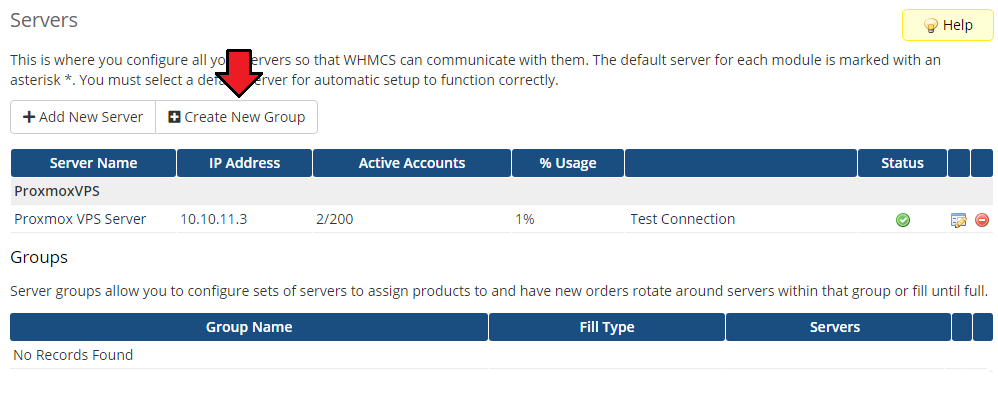
It is time to create a server group. To do so, click on 'Create Server Group'.
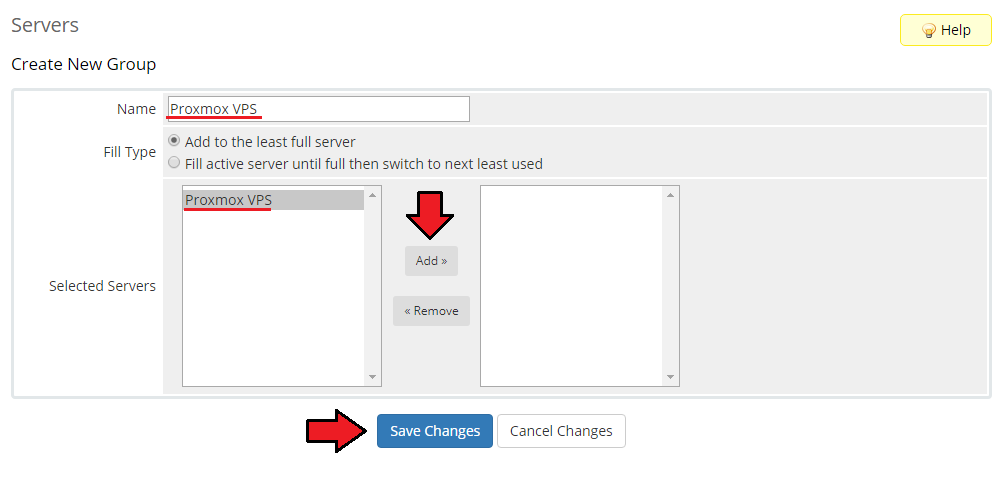
- Enter the name, click on your previously created server, press 'Add' and afterward 'Save Changes'.
# Configuration of Product
In order to create and configure a product, go to 'Setup' → 'Products/Services' → 'Products/Services'.
Click on 'Create a New Group'.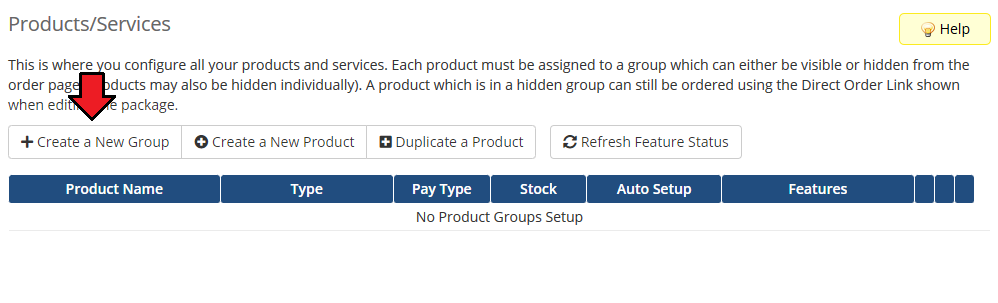
Enter a product group name and press 'Save Changes'.
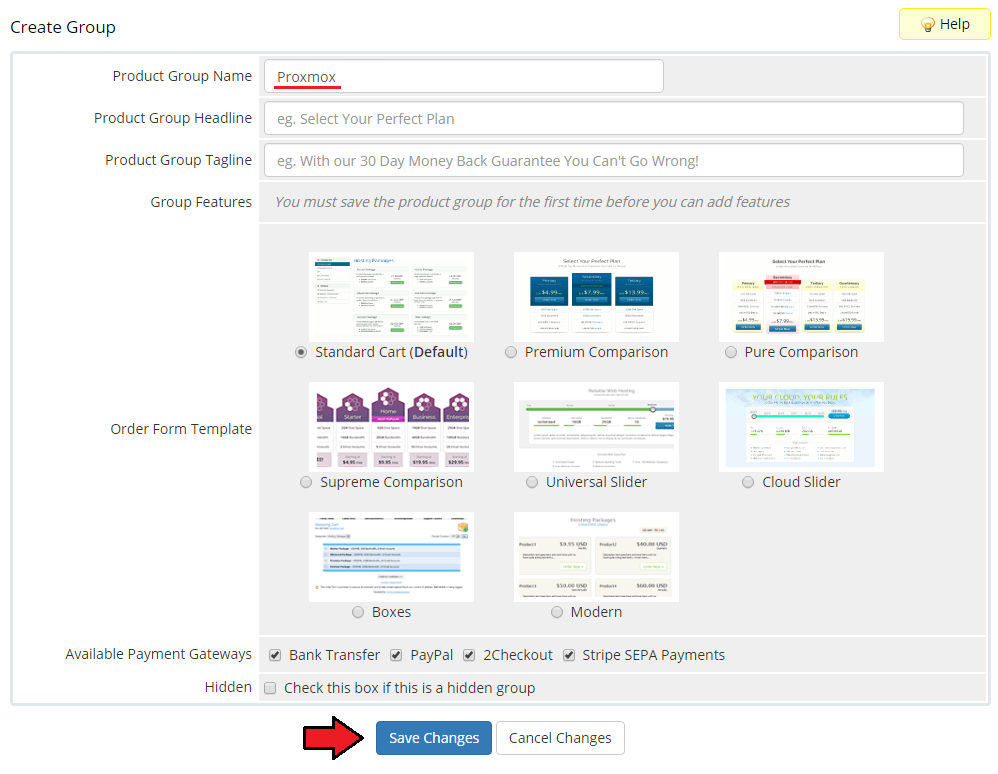
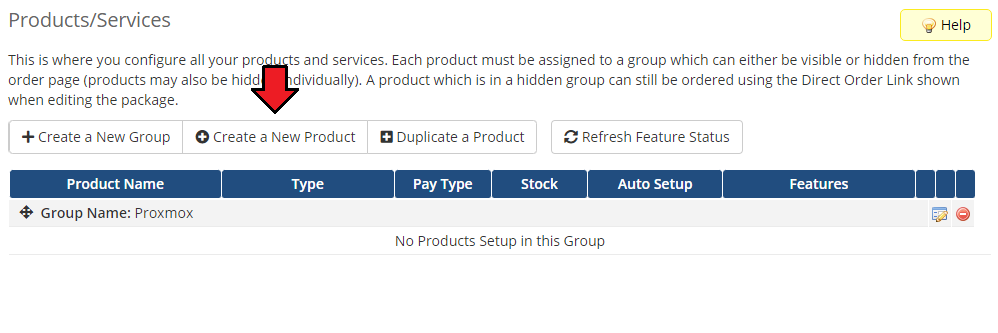
- When you have a product group, you can assign your product to it.
To create a product, click on 'Create a New Product'.
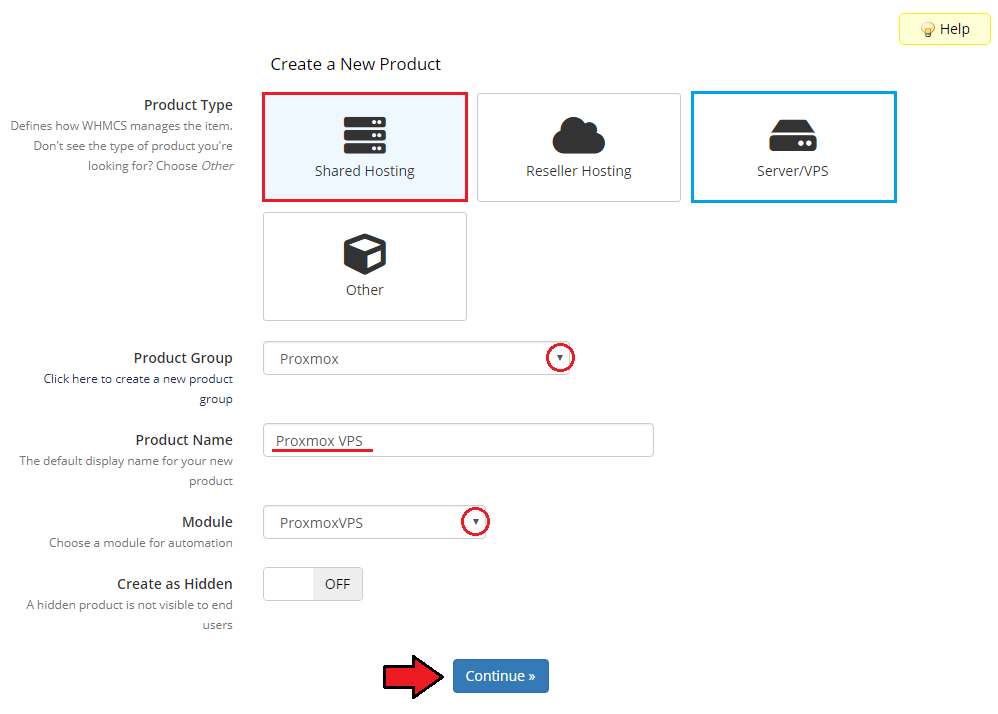
17. Afterward, choose your product group from dropdown menus and poinmt its type, enter your product name and choiose Proxmoix VPS as a module name.
Press 'Continue'.
'Product Type' can be set to 'Server/VPS' but nameservers will need to be added later.
If you do not want to fill out nameservers, please select 'Shared Account'.
Now, go to the 'Module Settings' section and choose your previously created server group from the dropdown menu.
Next, 'Save Changes'.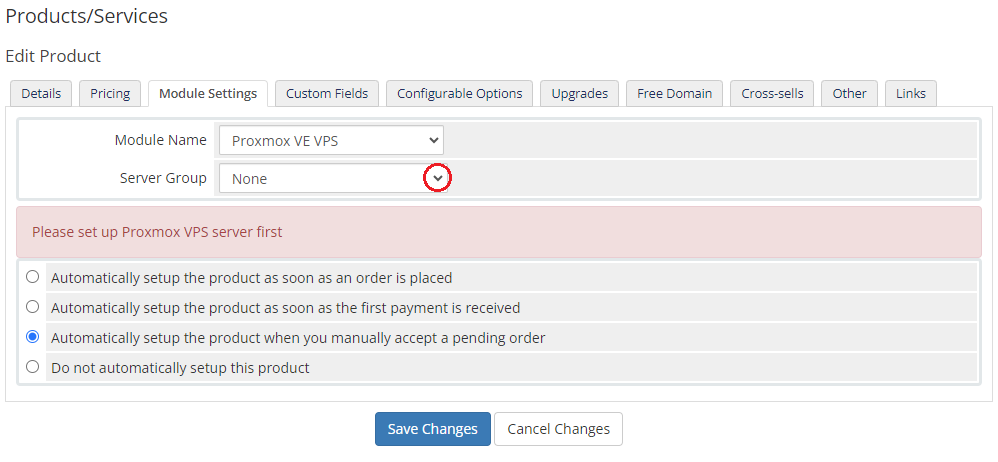
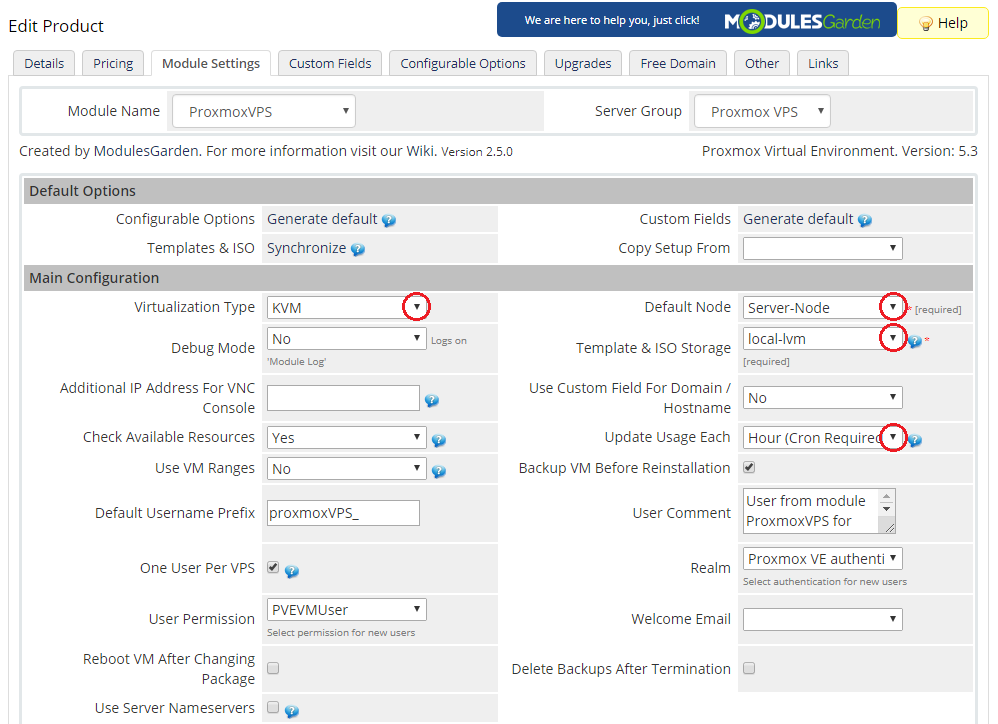
From the dropdown menus choose 'Virtualization Type', 'Default Node' and 'Template & ISO Storage'.
Available virtualization types:
- KVM
- LXC
You can also specify how often the bandwidth usage should be counted.
Afterward, press 'Save Changes'.
Note: If you choose the 'Auto-Node' as your 'Default Node', new virtual servers will be created on the least used node.
Note 2: An advanced tool is available for you to autoamticly manage a node selection with the best count of resources. Read more about Load Balancer.
# KVM Virtualization Type
Setting the KVM virtualization type (skip, if you have chosen the LXC virtualization type).
From dropdown menus choose 'KVM OS Type' and 'Default Storage'.
Type your VM description in 'Container Description' and scroll down.
You can also define VM prefix by filling out the 'Default KVM Container Prefix' field.
Set 'Use Client name For VPS' to 'Yes' if you want to use either the client's company name or their first/last name as the hostname value.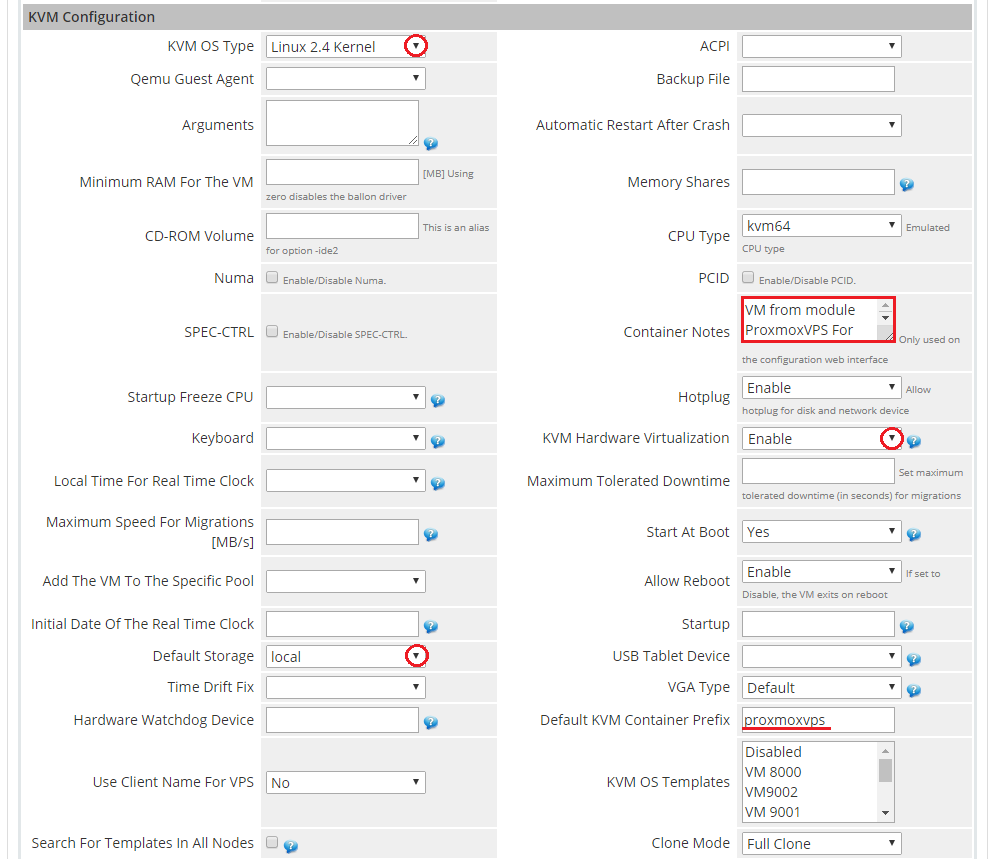
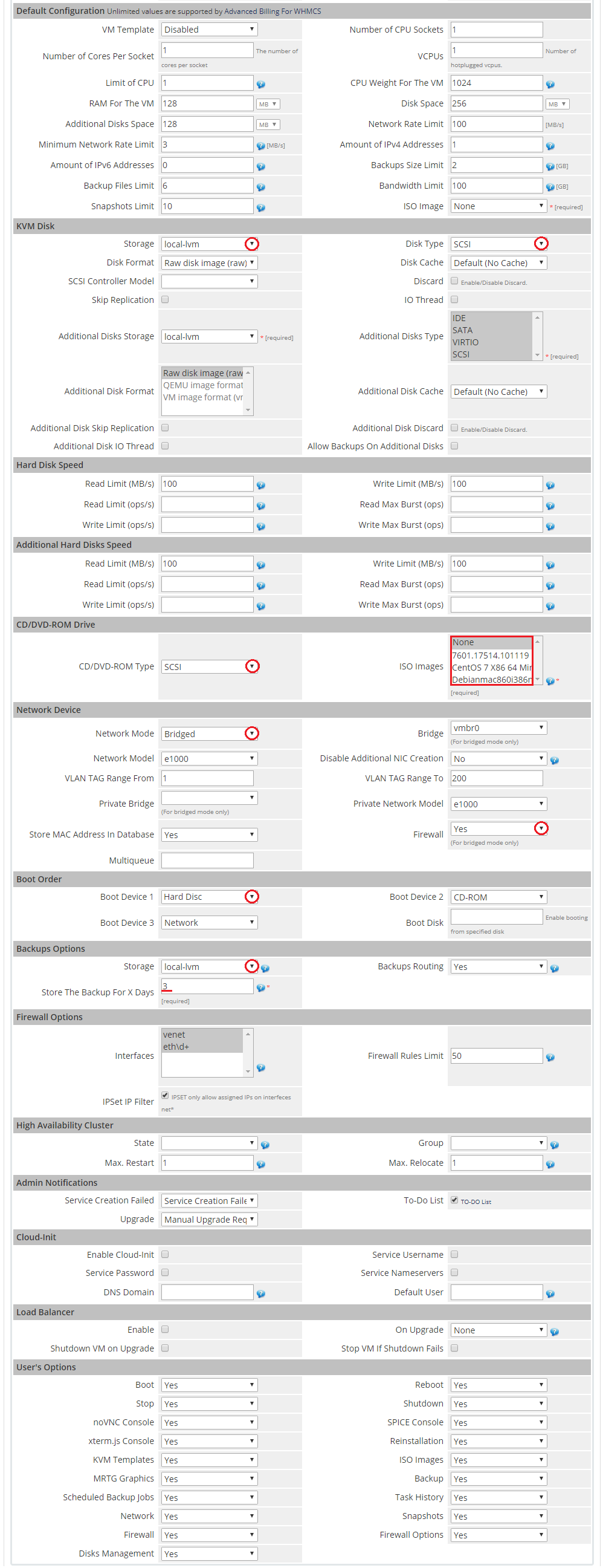
Now, select the desired values in the following fields: 'Storage', 'Disk Type', 'CD/DVD-ROM Type', 'ISO Image', 'Network Mode' and 'Network Model'.
Additionally, set up backups in the 'Backups' section by choosing values from the 'Storage' and 'Backups Routing' dropdown menus.
Backups routing automatically removes the oldest backup as soon as a new backup is created and the backup limit has been reached.
Type in the desired number of days in the 'Store The Backup For N Days' field to remove backups older than the provided number.
In the 'Firewall Options' section you can set up available interfaces and the limit of firewall rules.
Important: Keep in mind that the root password is generated automatically for KVM virtualization upon its creation and reset.
If you want to set your own password on KVM virtualization, use the Cloud-Init option.
# LXC Virtualization Type
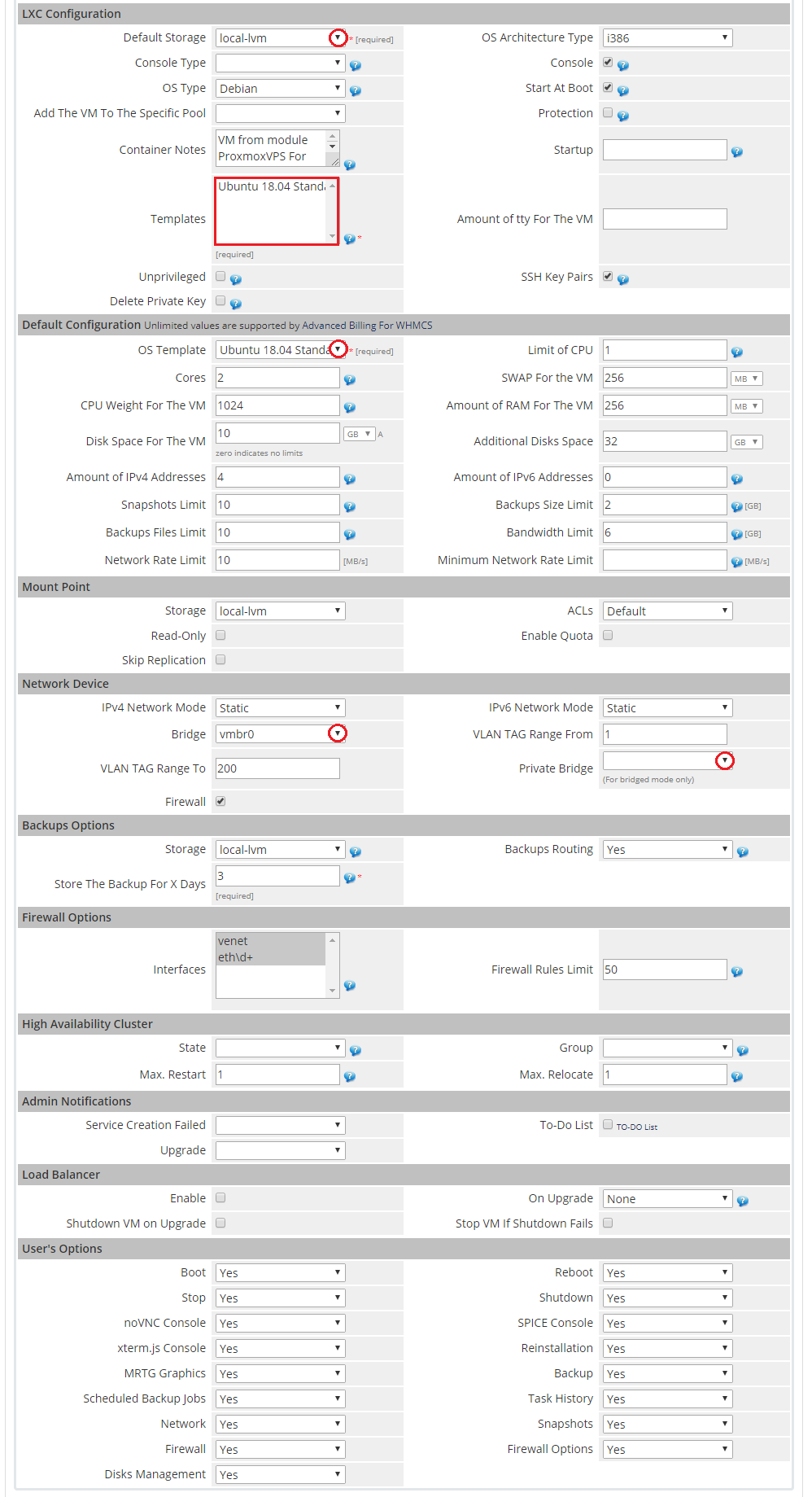
- Setting the LXC virtualization type (skip, if you have chosen the KVM virtualization type).
From dropdown menus choose 'Default Storage', 'Template' and 'Bridge'.
Enter your virtual servers description in 'Container Description' and press 'Save Changes'.
Remember! This virtualization type is supported only by Proxmox VE 4.0. and later
If you are using older version of a Proxmox server, you will not be able to start this virtualization.
# Finalizing The Configuration
Afterward, press 'Generate default' nearby 'Configurable Options' and 'Custom Fields'.
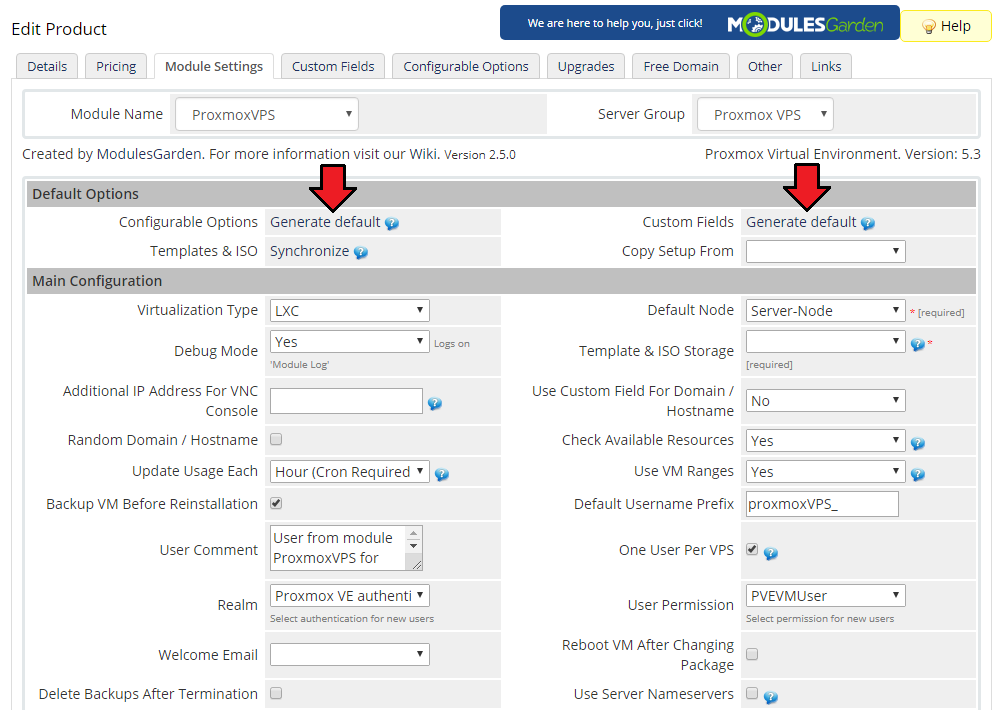
By doing so, you will add the required custom fields and optional configurable options listed in this table.
Note that while generating 'Configurable Options' it is advisable to delete all options which you no longer use, e.g. for the KVM virtualization delete the swap option or IPv6.At the end of the product configuration you have to add a cron job as shown below (5 minutes intervals are recommended).
php -q /your_whmcs/modules/servers/proxmoxVPS/cron/cron.php
Do not forget to replace 'your_whmcs' with your WHMCS root location.
The cron can also be run every single minute in order to perform the action more often.
Congratulations! You have just finished the installation and configuration of the module.
# Configuration of Addon
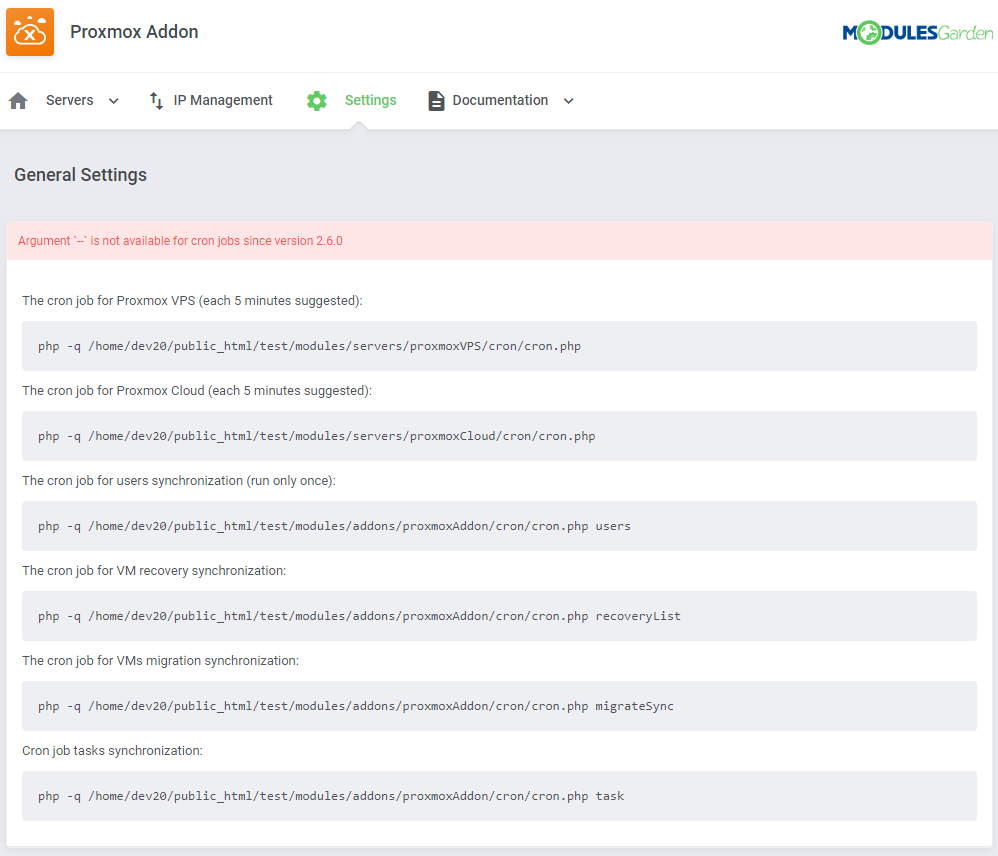
Proceed to 'Addons' → 'Proxmox Addon' → 'Settings' → 'General Settings' and set up cron jobs listed under the 'Cron' section.
Please note that there are separate cron jobs dedicated to Proxmox VPS and Proxmox Cloud modules - these jobs are the most important to assure fluent work of the modules, suggested frequency is 5 minutes.
If you are using only Proxmox VPS, there is no need to set up the second one and the other way round.
The other ones are responsible for:- Users synchronization (run once only)
- VM recovery synchronization (every 5 minutes suggested)
- VM migration synchronization (every 5 minutes suggested)
- Tasks synchronization (every 5 minutes suggested)
Next, under the Cron settings, find the 'Minimum VMID' field.
Fill it in with a number that will be used as an ID of the first VM, the second VM will be asigned the next ID number.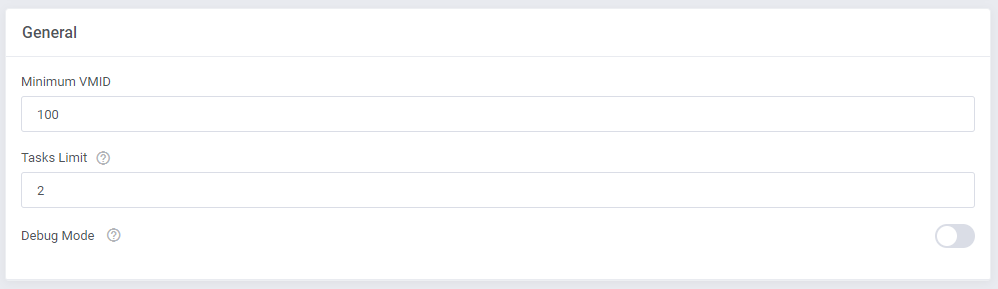
Adding a new IP address (if you are not using IP Manager For WHMCS (opens new window)).
In order to create a new product, you have to add 'Dedicated IP ' to the 'IP Addresses' list in 'Proxmox' addon module.
To do so, go to 'IP Management' and press 'New IP Addresses'.
Note: You can add both the IPv4 and IPv6 addresses.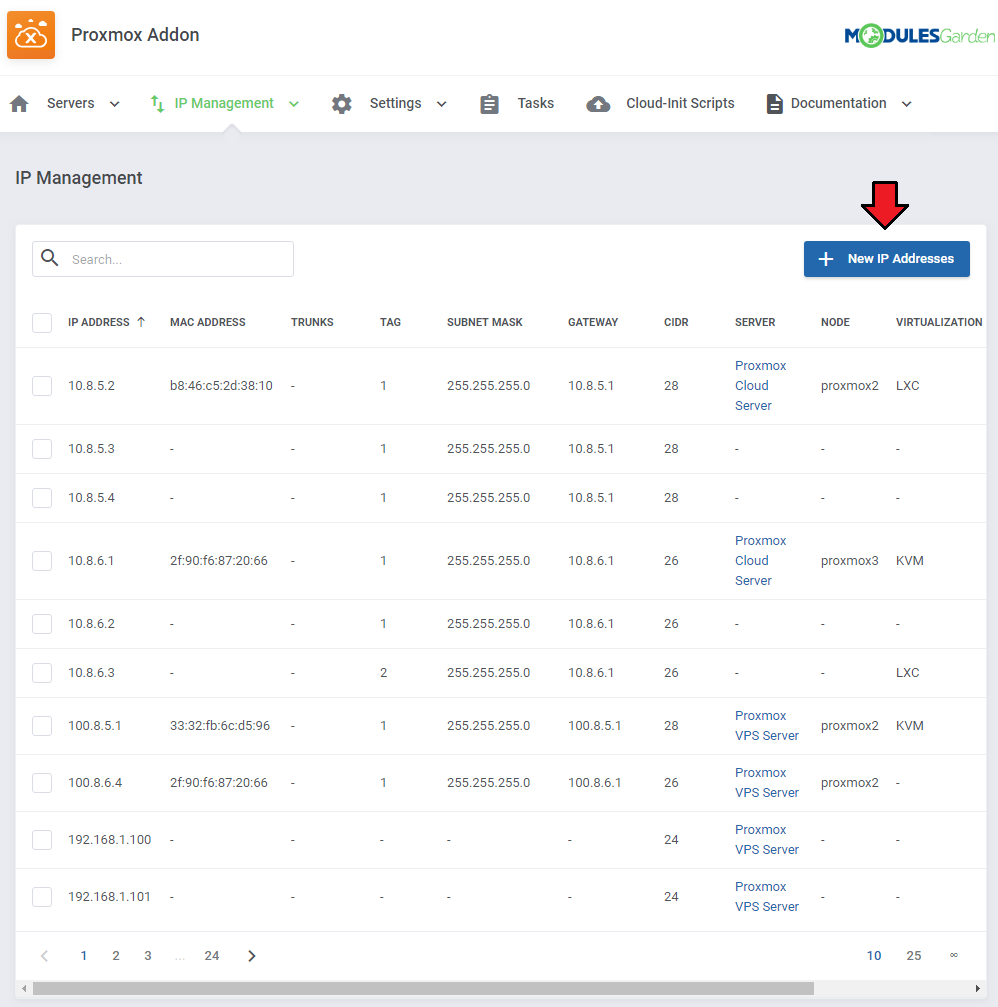
Start by typing a desired IP address and mask into 'IP Pool'.
Next, choose a server from the 'Server' dropdown menu and define which virtualization it should be applied to through selecting it from the 'Virtualization' dropdown menu.
Afterward, press 'Add'.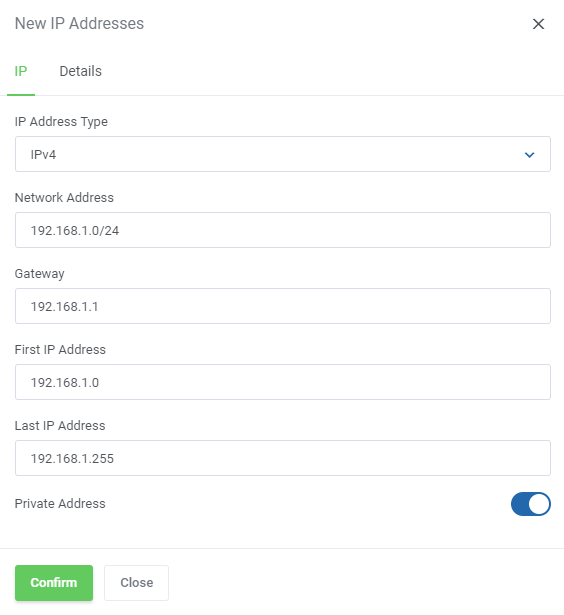
You are now able to create a new product using the previously added IP address.
If you are using the KVM virtualization type, the client area with a successfully created product should look similar to the one on the screen below.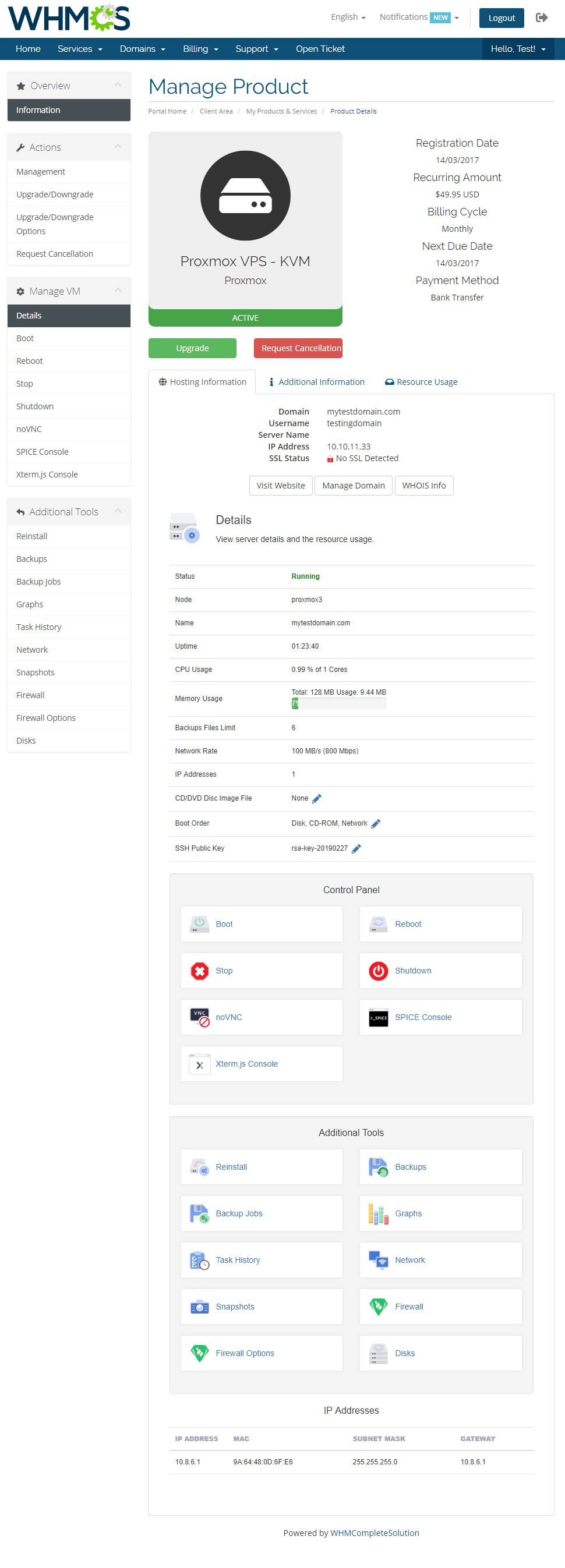
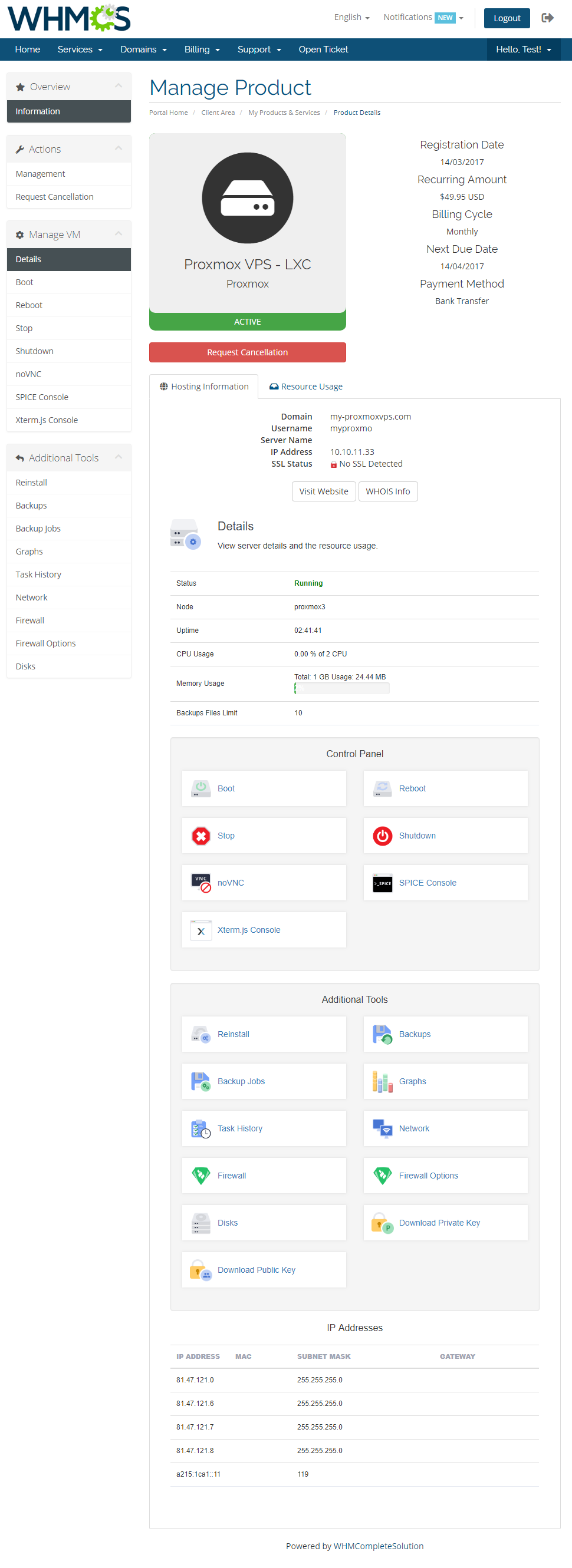
The client area with the LXC virtualization type product looks quite similar.
# Cloud-Init (KVM)
Use cloud-init to configure the system during installation, first-boot and package change.
Cloud-init was initially developed to provide early initialization of cloud instances.
Click here (opens new window) to learn more about cloud-init configuration.
Note: Cloud-Init functionality is supported for the KVM virtualization only.
# Configuration Of Product
To to use cloud-init, you need to enable it in the configuration of the Proxmox product.
Before you start, we recommend that you learn the details of cloud-init configuration on your Proxmox server first. Click here (opens new window) for more information.
Once you get familiar with Proxmox cloud-init, proceed to the Cloud-Init group of your KVM configuration where you can enable it and configure the following options:
- Service Username - if enabled, the username for the VM will be taken from the details of WHMCS product services. Otherwise, it will remain unchanged and set by default as in the template or taken from the 'Default User' field if provided.
- Service Password - if enabled, the password for the VM will be taken from the details of WHMCS product services. Otherwise, it will remain unchanged and set by default as in the template.
- Service Nameservers - if enabled, the nameservers for the VM will be taken from the details of WHMCS product services. Otherwise, they will remain unchanged and set by default as in the template.
- DNS Domain - provide a DNS domain for a container. During VM creation, the setting from the host will be automatically used if neither a search domain nor a nameserver is set.
- Default User - provide the username that will be used for VM instead of using the 'Service Username' field or the default user of the configured image. Otherwise, leave empty.

In addition, you can allow clients to enter their own public keys for the VM during order so that they can log in to it using their private key instead of a password.
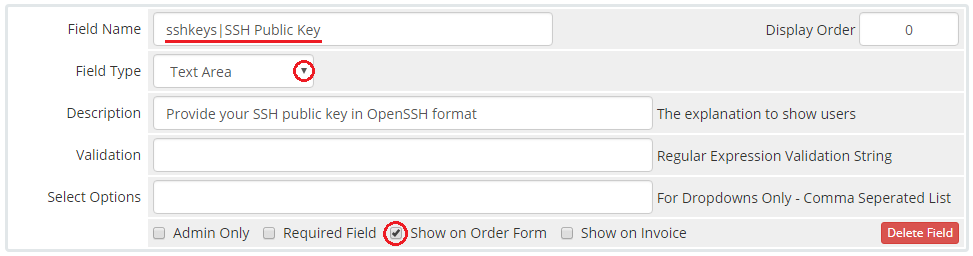
To enable this function, go to the 'Custom Fields' tab and add a new 'sshkeys|SSH Public Key' field, select the 'Text Area' type and the 'Show on Order Form' checkbox.
Note: This custom field is also auto-generated from the module settings, but with the 'Admin Only' option enabled. Remember to uncheck it to make this field visible to clients.
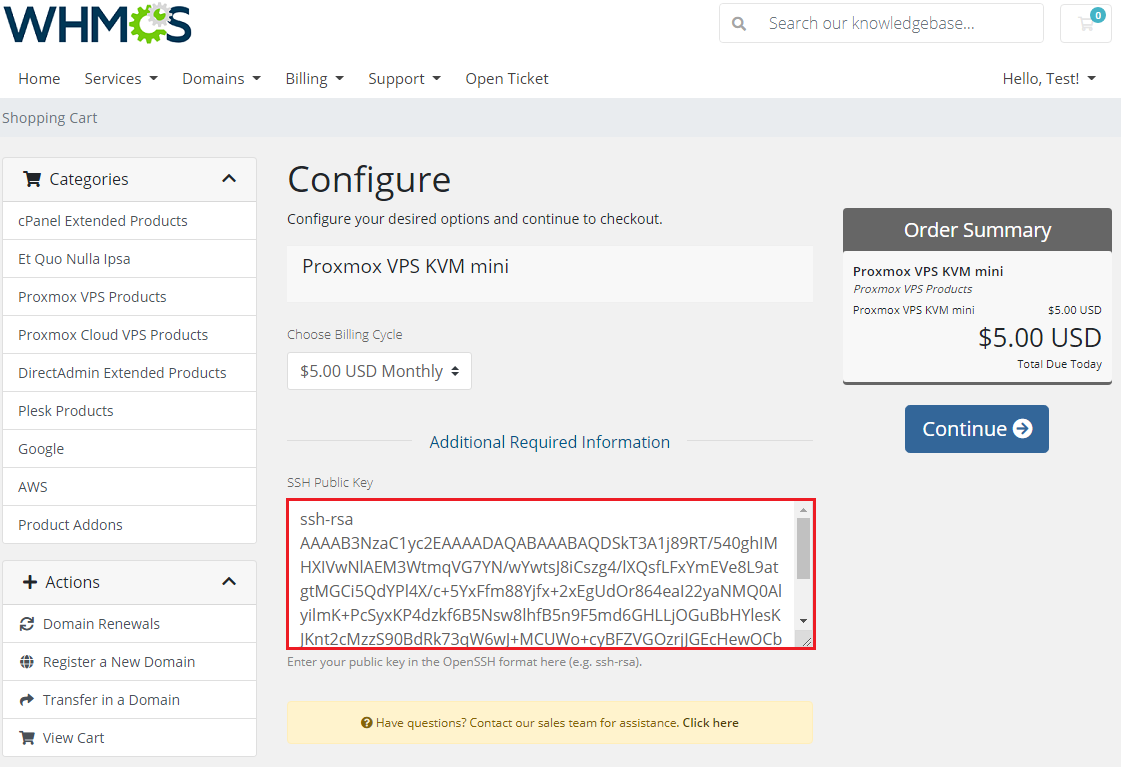
Now, when the client places a new order, they will be able to enter the public key here in the OpenSSH format.
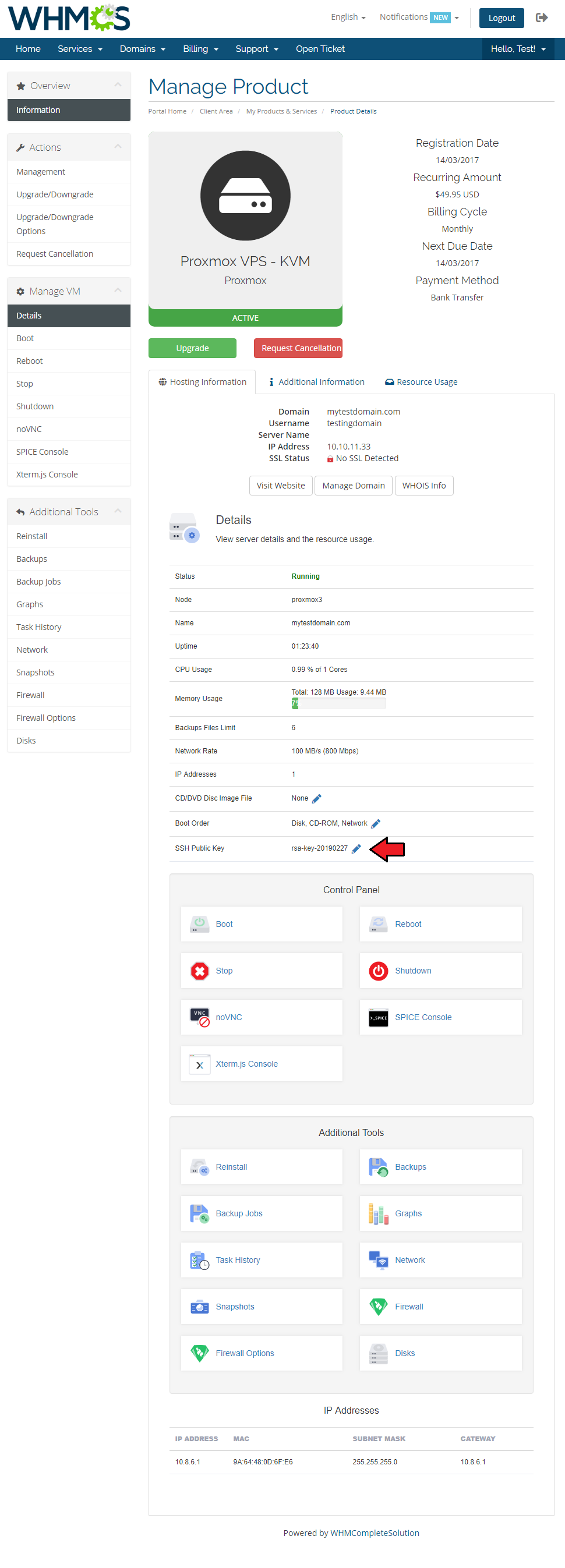
The SSH Public Key can also be inserted once the order has been completed. Find the adequate field on the product's details page.
# Configuration Of Proxmox Server
The process of setting up Cloud-Init on the Proxmox server is described here (opens new window).
Additionally, you can use the following commands that can be useful for debugging:
- Re-run cloud init scripts
rm -rf /var/lib/cloud/sem/* /var/lib/cloud/instance /var/lib/cloud/instances/* &&
cloud-init init  &&
cloud-init modules -m final
- Logs
cat /var/log/cloud-init.log
cat /var/log/cloud-init-output.log
# Management
Proxmox VPS allows your customers to manage their PVE accounts via client area in your WHMCS system.
You can monitor and manage each product from your WHMCS admin area.
# Admin Area
In the admin area you are able to view details and manage your client's VMs, access VMs consoles and even migrate VMs between nodes.
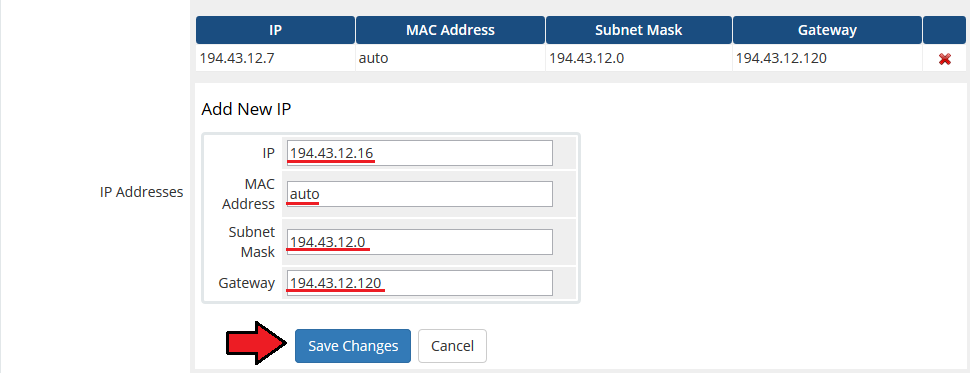
You are also able to add an IP address to a product. To do so, press 'Add New IP' as shown on the following screen.
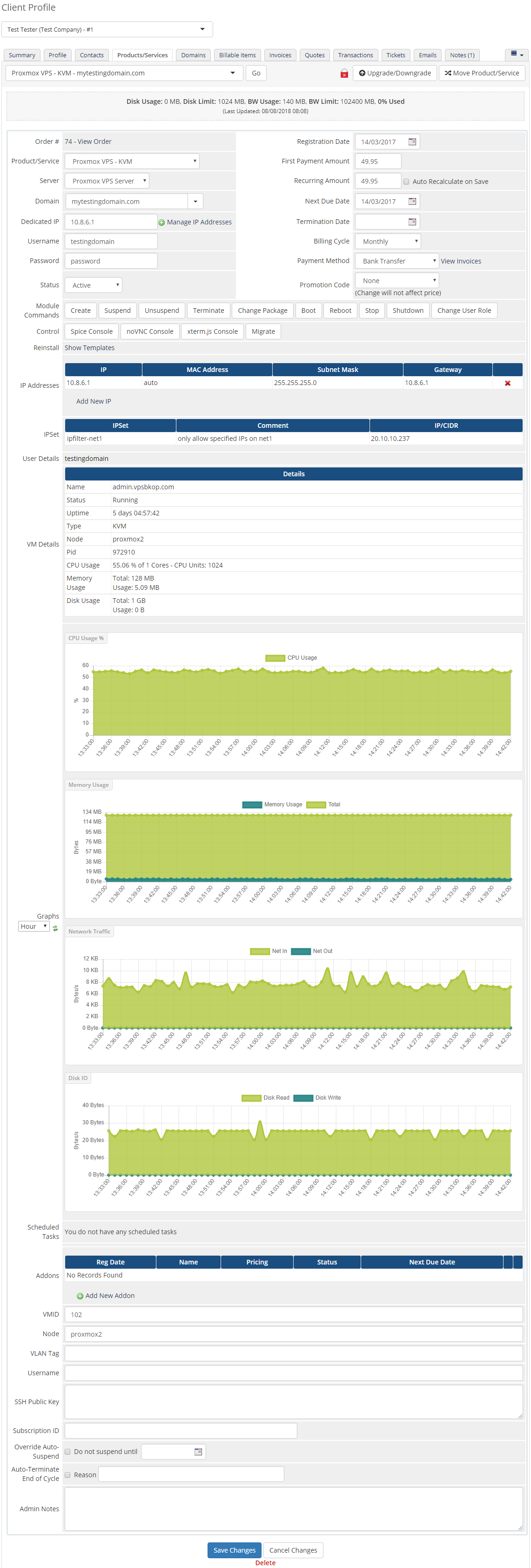
Afterward, enter IP address in a textbox and confirm through pressing 'Save Changes'.
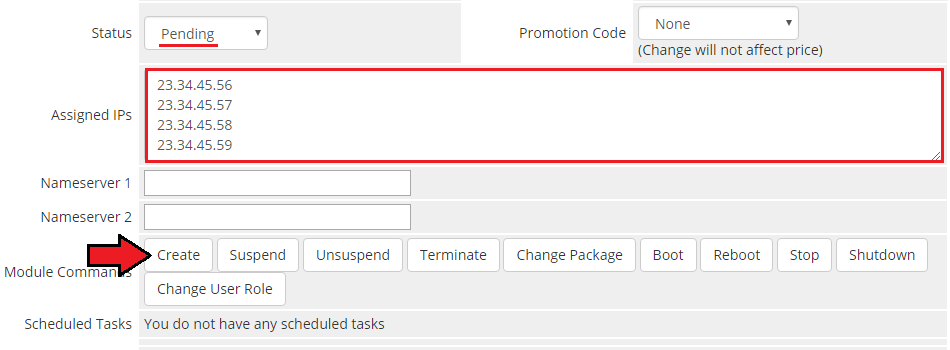
Additionally, until the VM has been provisioned, you can manually assign to it the desired IP addresses from the pool by typing them in the 'Assigned IPs' field (available for 'Dedicated/VPS Server' product type).
This will override the automatic IP address assignment and the VM will use only the IP addresses you have entered to that field.
Note: The IP addresses you enter must already exist in the IP Management pool and cannot be assigned to any other VM. This feature will also not work if you already use the IP Manager For WHMCS module.
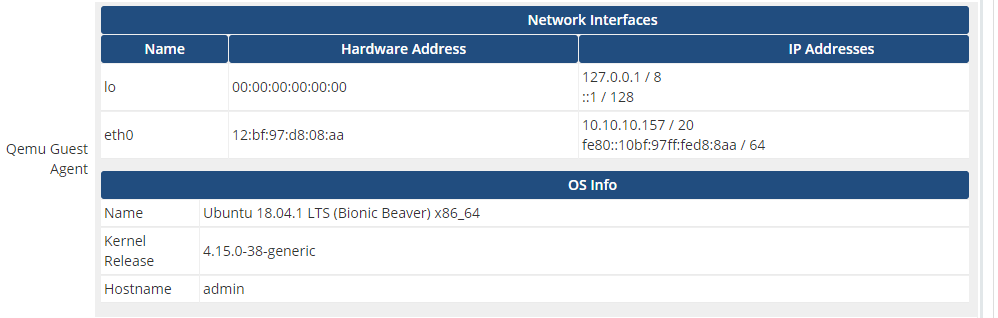
It is possible to fetch information of Network Interfaces and OS using 'Quemu Guest Agent' tool.
This option must be previously enabeld in the product configuration page.
# Management of Addon
# Servers Management
# Servers List
In 'Addons' → 'Proxmox Addon' → 'Servers' → 'Servers List' you can find the configured Proxmox servers.
RAM details:
- Assigned - RAM assigned to the server (hosting services only)
- Total - full server RAM
- Free - difference between Total Server RAM and Assigned RAM
Suspended - number of suspended accounts per size in MB E.g.: (1/500 MB) when there is only one suspended account (occupying 500MB of that account) assigned to Proxmox VPS server.
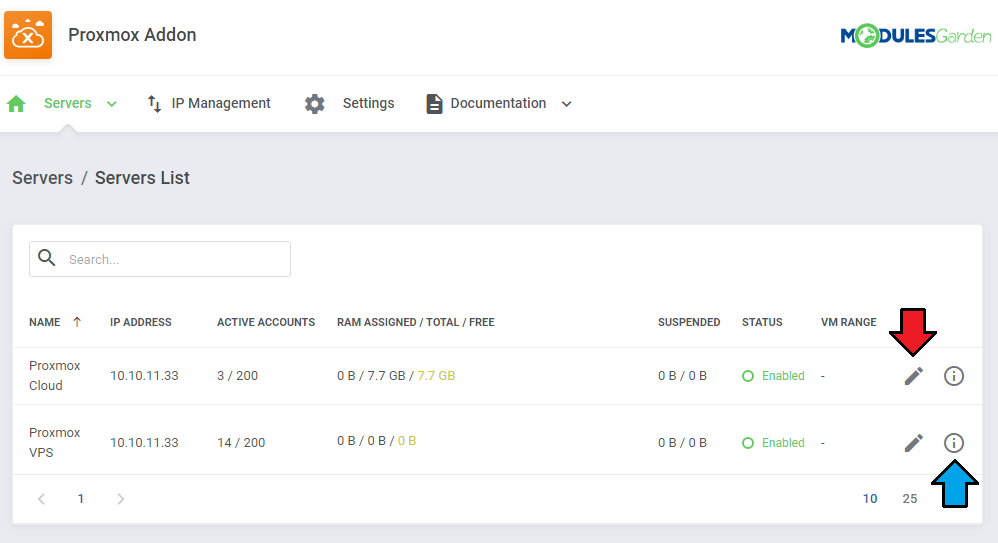
Through pressing 'Edit' icon you will be moved to the server edit page - see point number 10 of Server Configuration.
Press 'More Details' icon and you will get extended information on the selected server. See below for more details.
# VMs
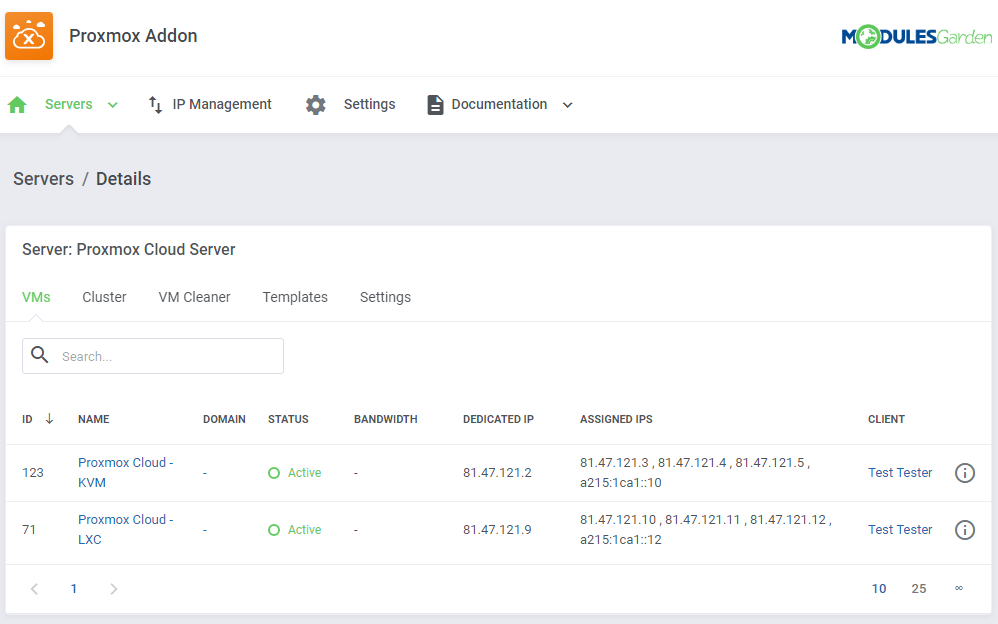
The 'VMs' tab includes a list of created virtual machines on this server. Take a quick look at information on domain, status, bandwidth and IP addresses.
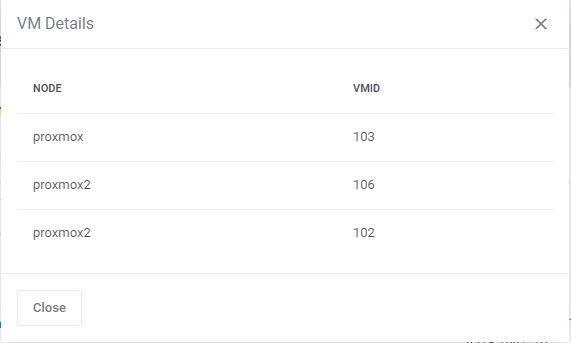
To view information about a VM, simply press the more info icon.
Check the node and VMID:
# Clusters
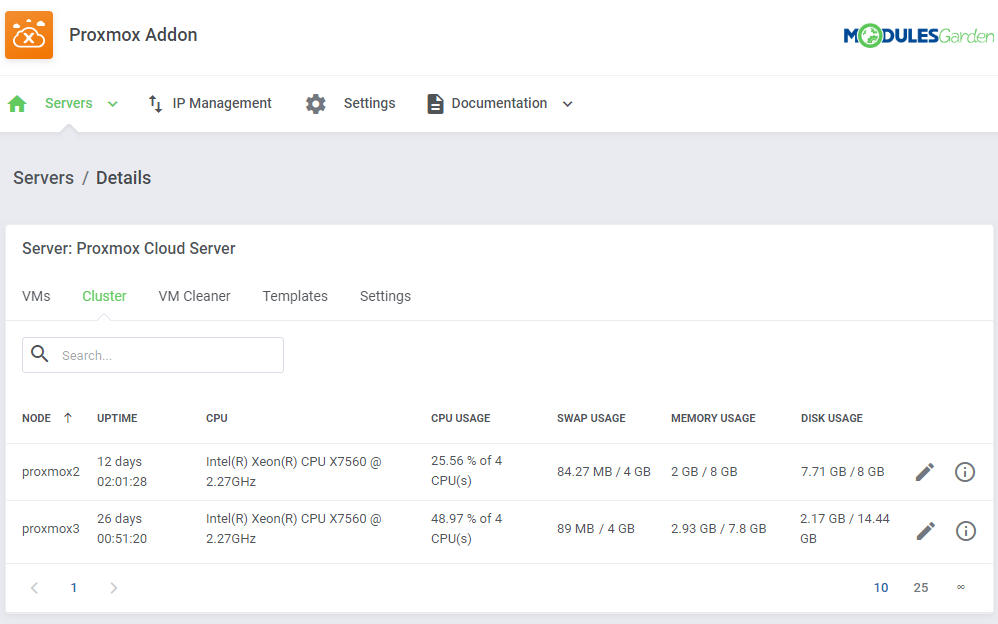
The next tab contains the list of clusters with information on uptime, CPU as well as CPU, SWAP, memory and disk usage data.
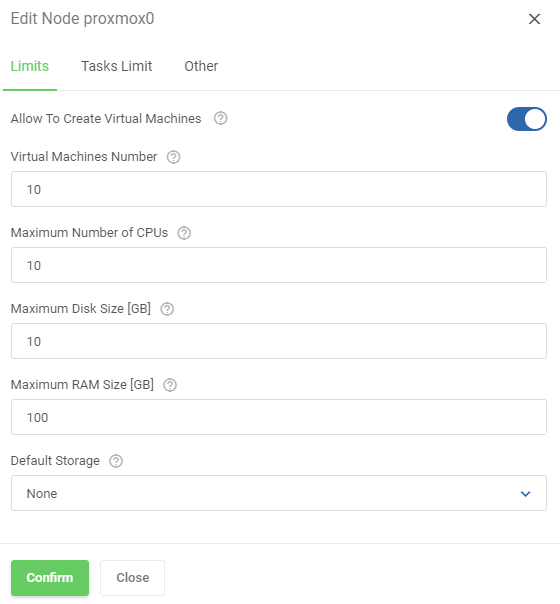
Press the Edit icon to manage the node:
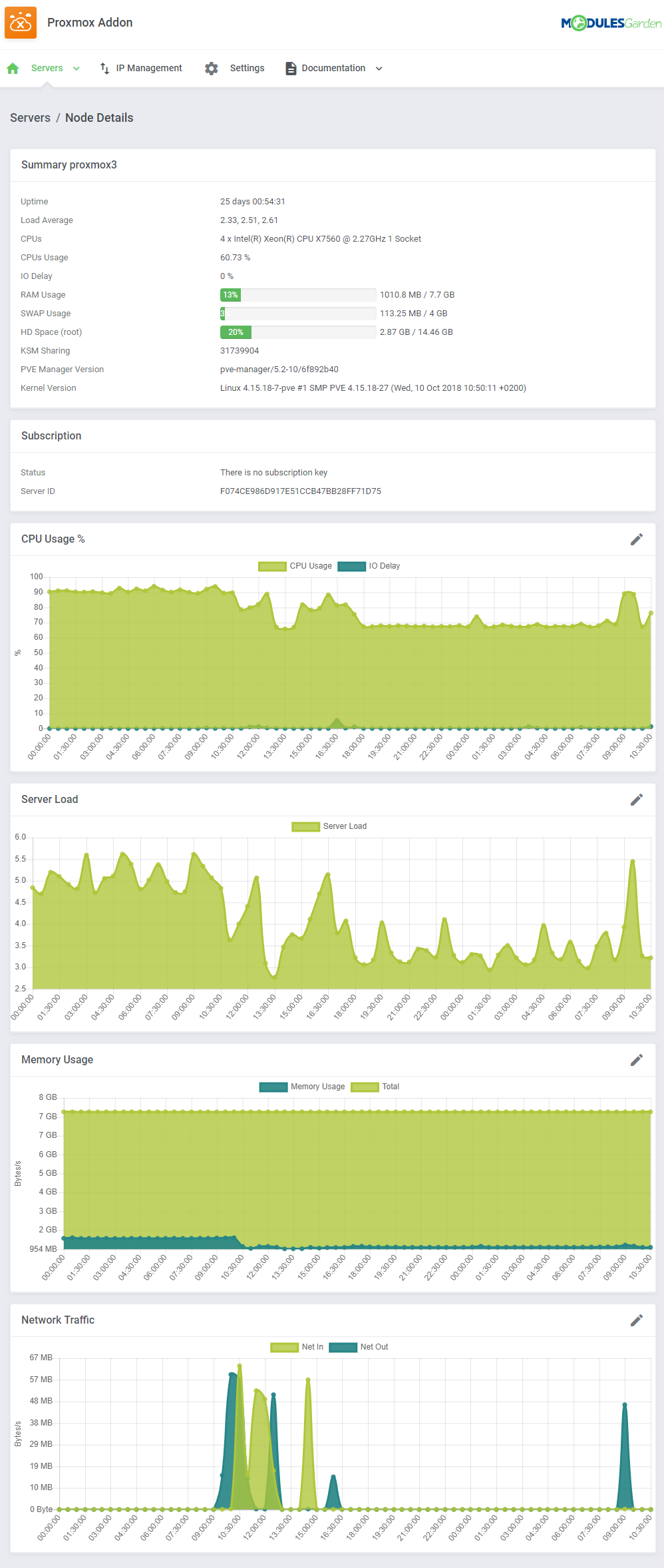
Press 'Node Details' and you will get all the summary and usage graphs:
# VM Cleaner
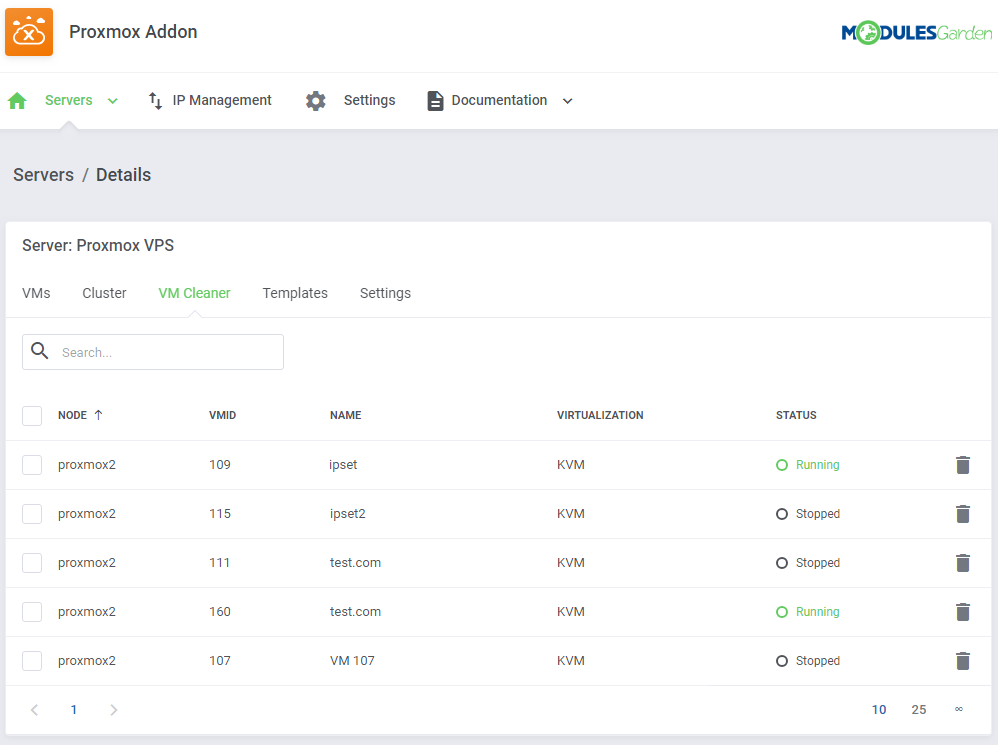
VM Cleaner allows you to track VMs existing only on your Proxmox server and that are not visible in your WHMCS.
Consequently, you are allowed to sort and delete only those VMs that cannot be managed from your WHMCS.
# Templates
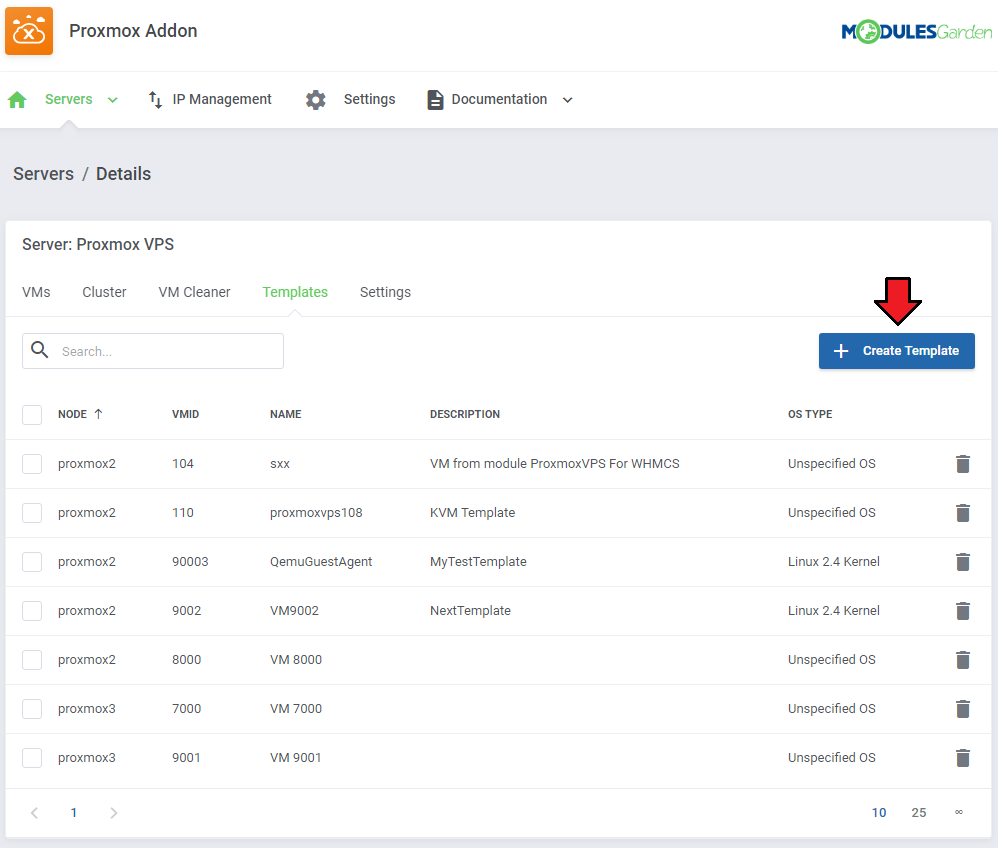
Under this page you can view the list of templates. You can easily convert any KVM VM on your server to a template.
In order to convert a VM, press 'Create Template' button.
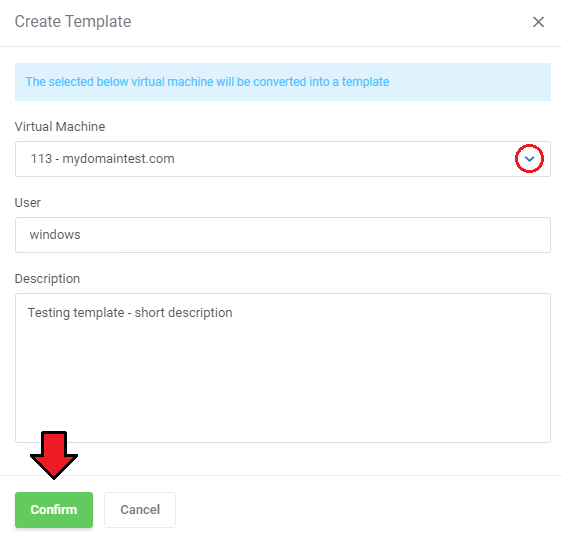
Next, choose a VM to convert.
Fill out 'Description' field and press 'confirm'.
Important: Selected VM will be destroyed in the process.
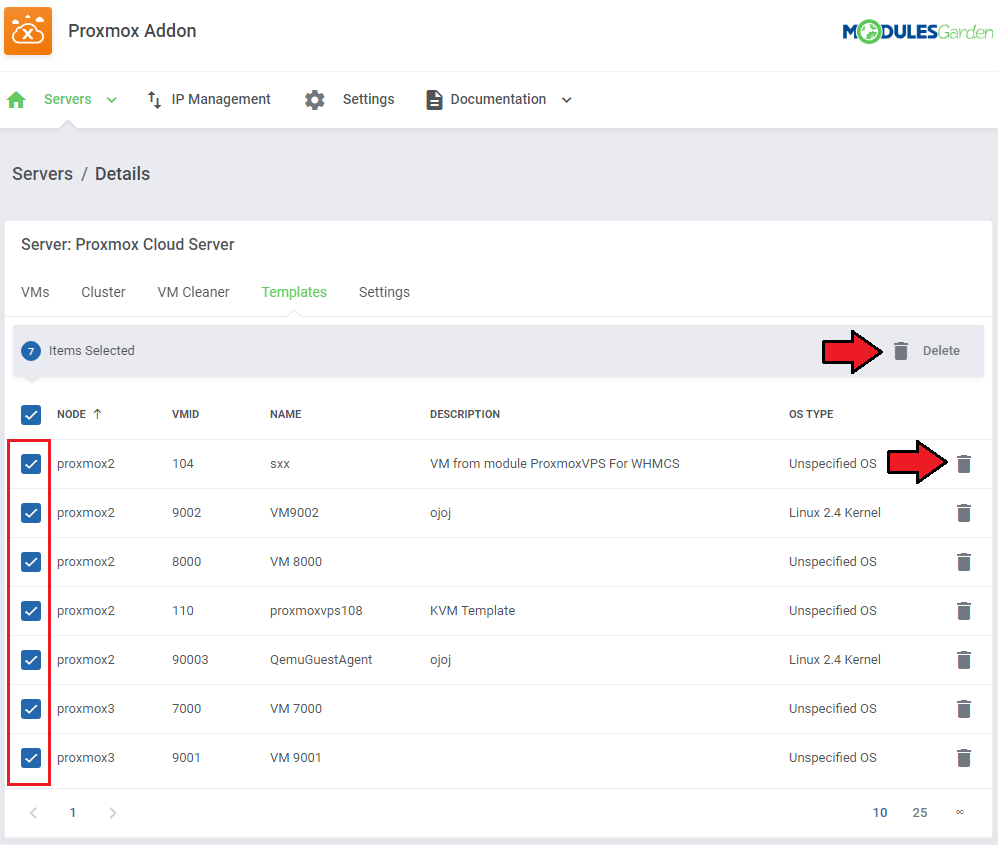
You may also delete unused templates here. Delete single templates or use the mass action to delete templates in bulk.
# Settings
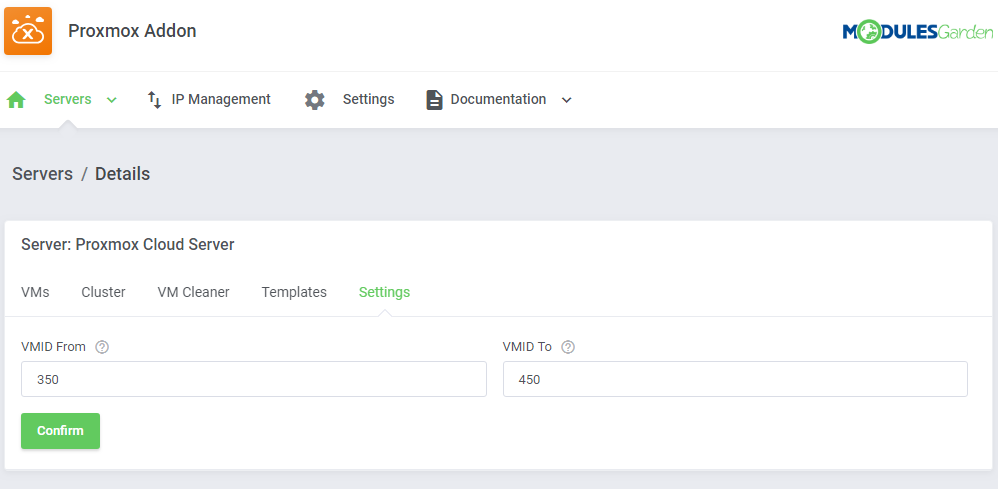
Here you can define the VM IDs range that will be used for newly created VMs on this server. Please note that to use this feature, you also need to enable the "Use VM Ranges" setting in the product configuration.
Define ID range and save changes.
Note: VM ID range allows you to sort created VMs depending on the server they were created on..
# VMs List
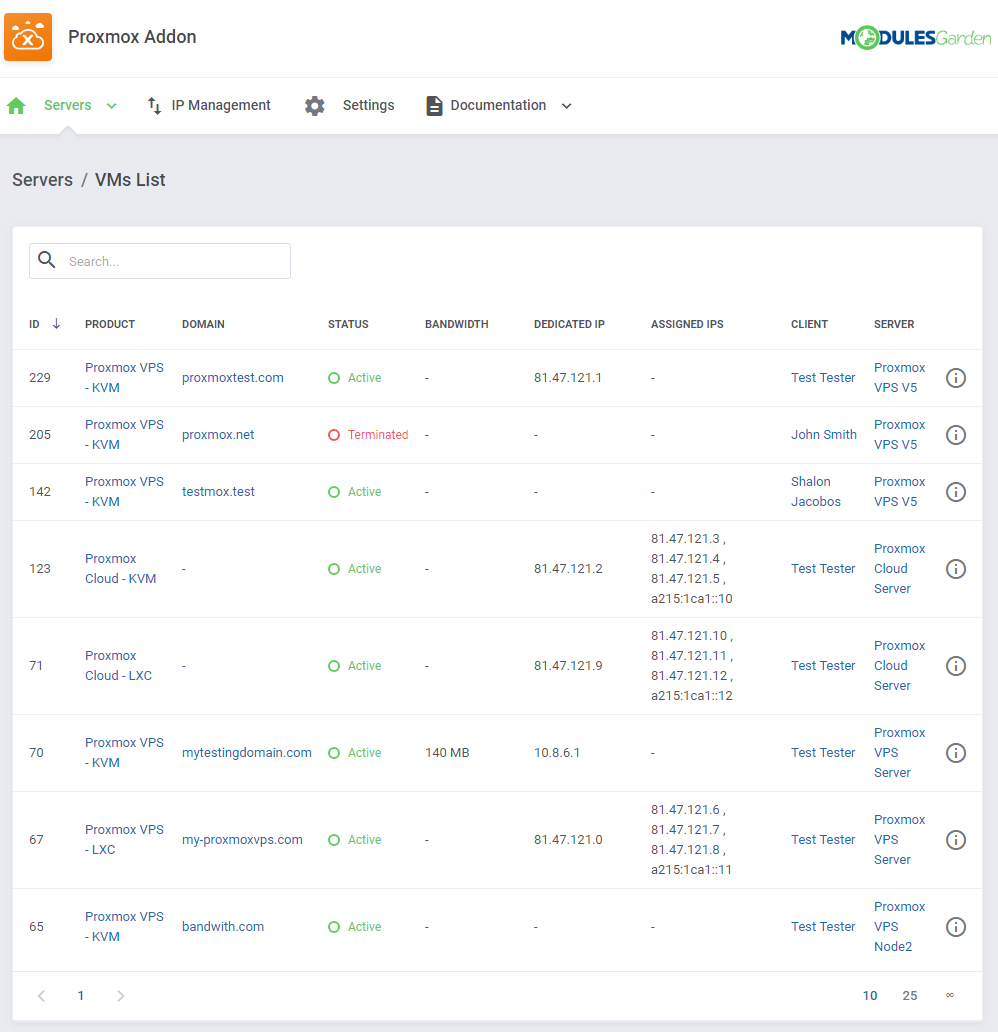
In 'Addons' → 'Proxmox Addon' → 'Servers' → 'VMs List' you can find details of any Proxmox product.
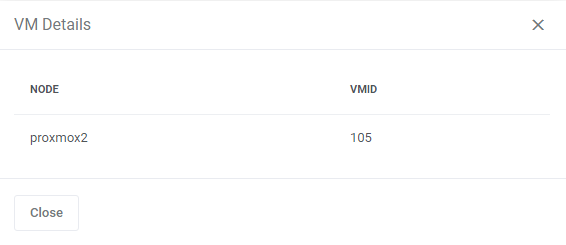
Press 'More Details' button to get the node and VMID information.
# Recovery VM Lists
In 'Addons' → 'Proxmox Addon' → 'Servers' → 'Recovery VM List' you can view details on the created VM.
Run the 'VM recovery synchronization' cron job to create and store full backups of VMs configuration, you can find it at point no 26 of the configuration instructions.
Use the 'Export to File' button to save information in a TXT copy file.
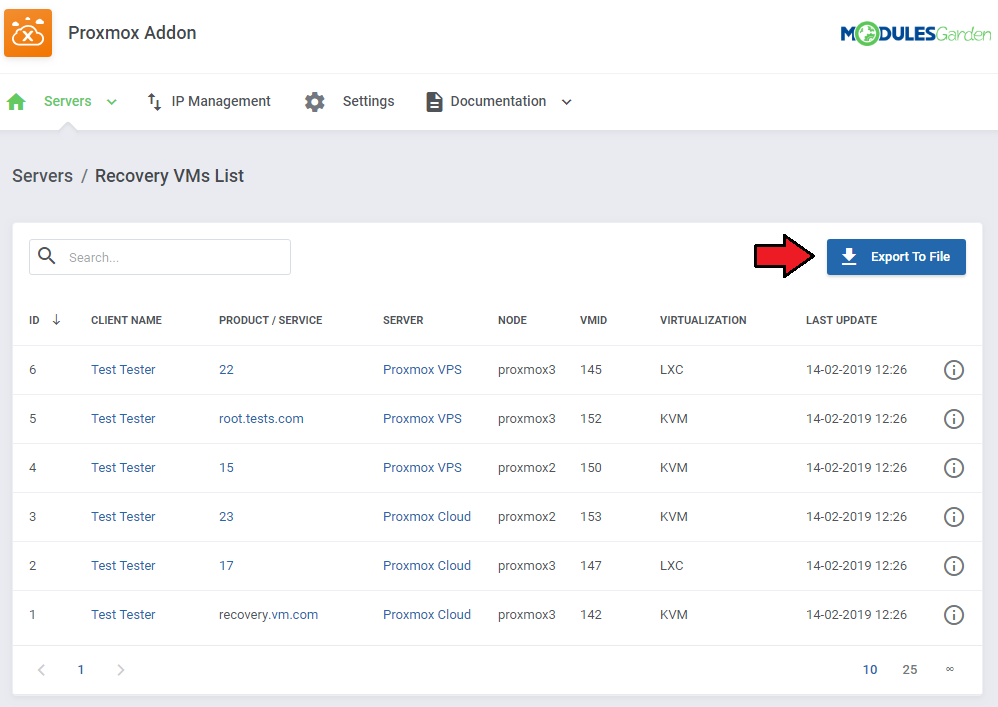
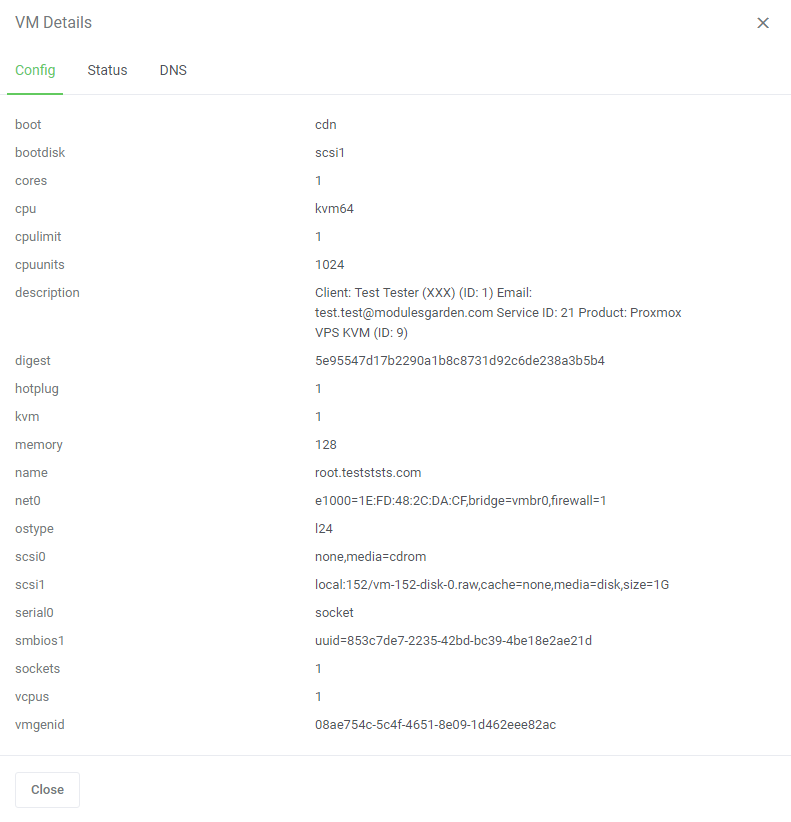
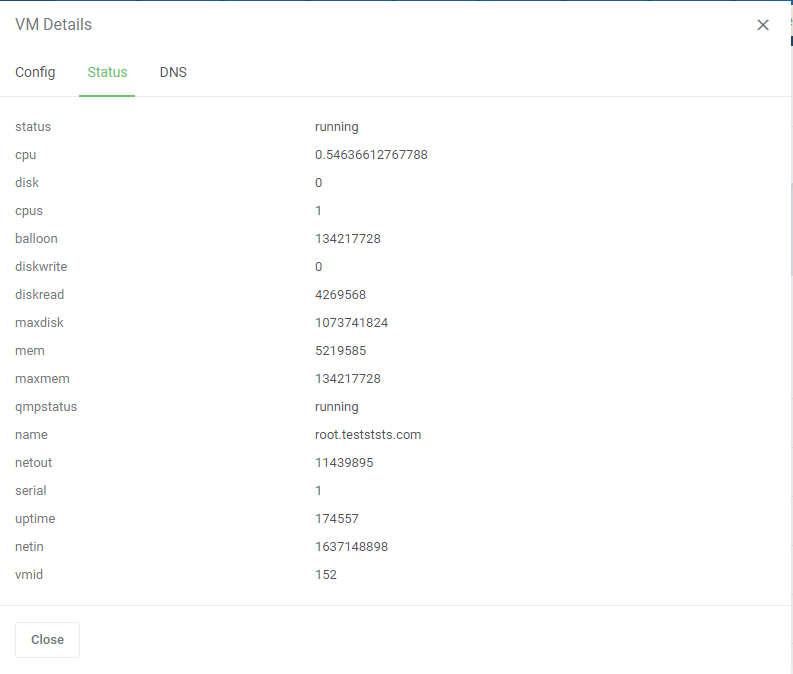
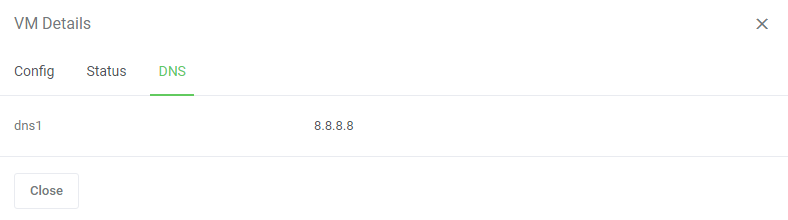
On pressing the 'Details' icon, you will get any information on Configuration, Status and DNS:
# Tasks History
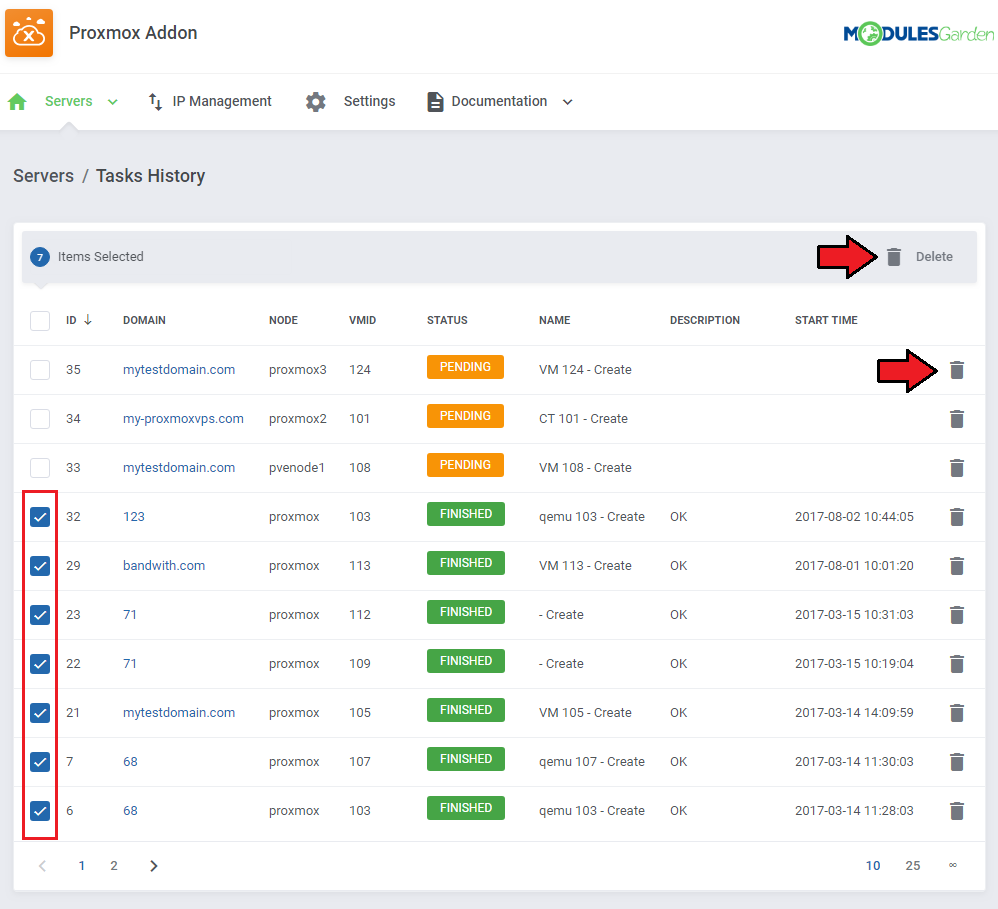
Tasks History includes a list o all module tasks with the most crucial details on them.
You may delete single tasks or use mass action button to remove them in bulk.
Run the 'Tasks synchronization' cron job to synchronize the tasks and view all tasks from the server, you can find it at point no 26 of the configuration instructions.
# IP Management
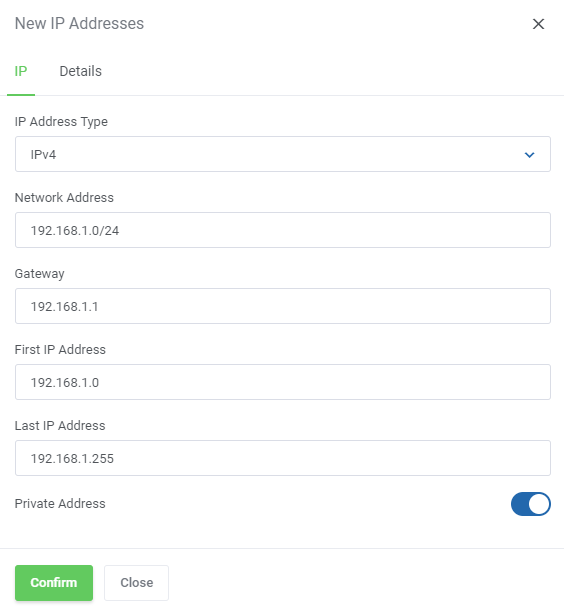
In the 'IP Management' tab you can manage the IP addresses of Proxmox products.
You can create both single IP addresses and IP pools which then can be assigned to created VMs.
When you are creating a new IP address or a pool, you may define:
- private/public address
- servers or nodes that will use them
- virtualization types (different VMs will use different IP pools)
# IP Manager Integration
Owing to the integration with IP Manager For WHMCS (opens new window), you are able to easily create subnets with IP addresses and assign them to the desired products.
By activating the IP Manager submodule, settings concerning IP addresses such as 'Configurable Options' and 'Default Options' will be ignored by Proxmox VPS.
Note: This integration works for LXC and KVM virtualization types.
Proceed to the IP Manager For WHMCS → Subnets tab in order to prepare IP addresses subnet for Proxmox VPS For WHMCS.
Edit the previously created IP addresses subnet and create a custom field 'MAC Address' with a desired MAC address at each IP address in the subnet.
Note: Setting up MAC address is optional and can be skipped.
More details about creating custom fields can be found here.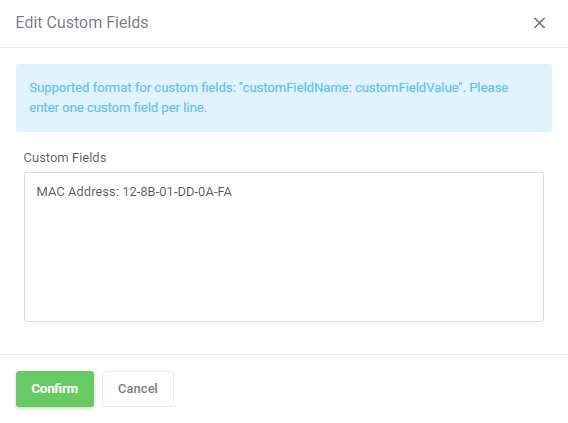
Afterward, create a new configuration and assign the previously created subnet to it.
Note: Multiple IP addresses subnets can be assigned to a single configuration.Now, link the configuration with Proxmox VPS product via a product, a server or a configurable option.
On the following screen we have linked them via the configurable option assigned to the Proxmox VPS product.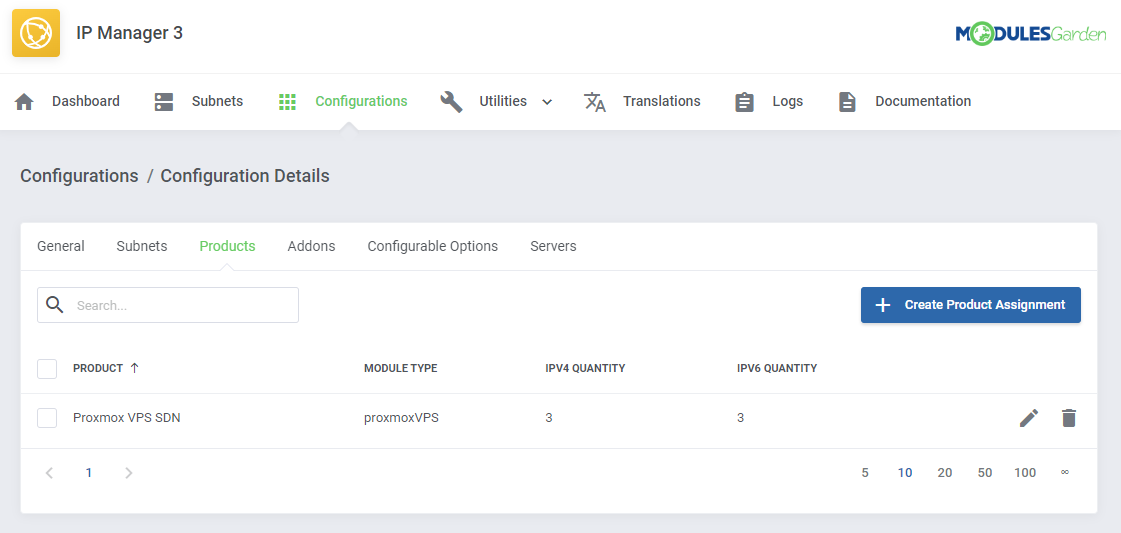
Now, enable the integration by proceeding to the '3rd Party Integration' tab.
Press 'Activate' next to the 'proxmoxVPS' module type as shown on the following screen.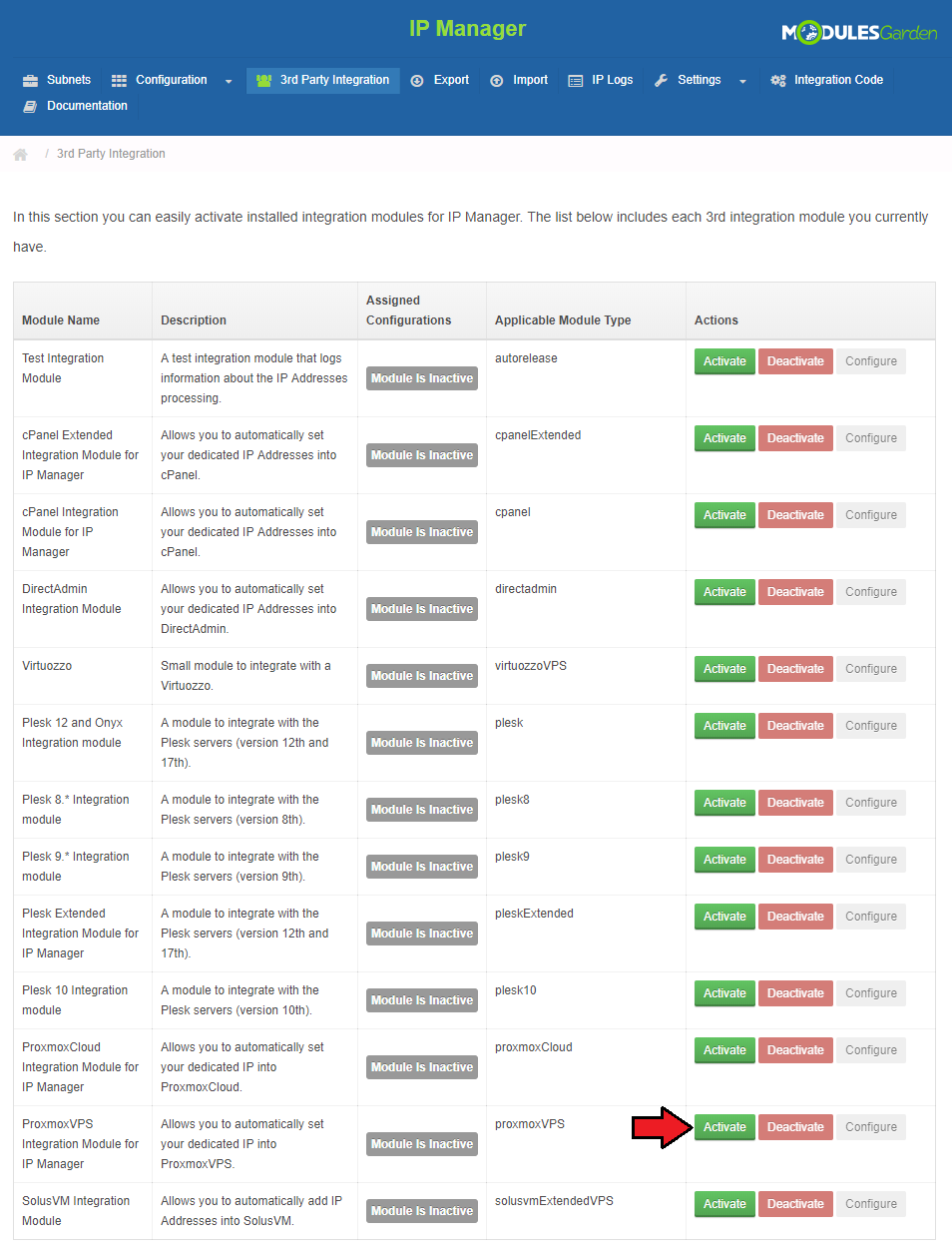
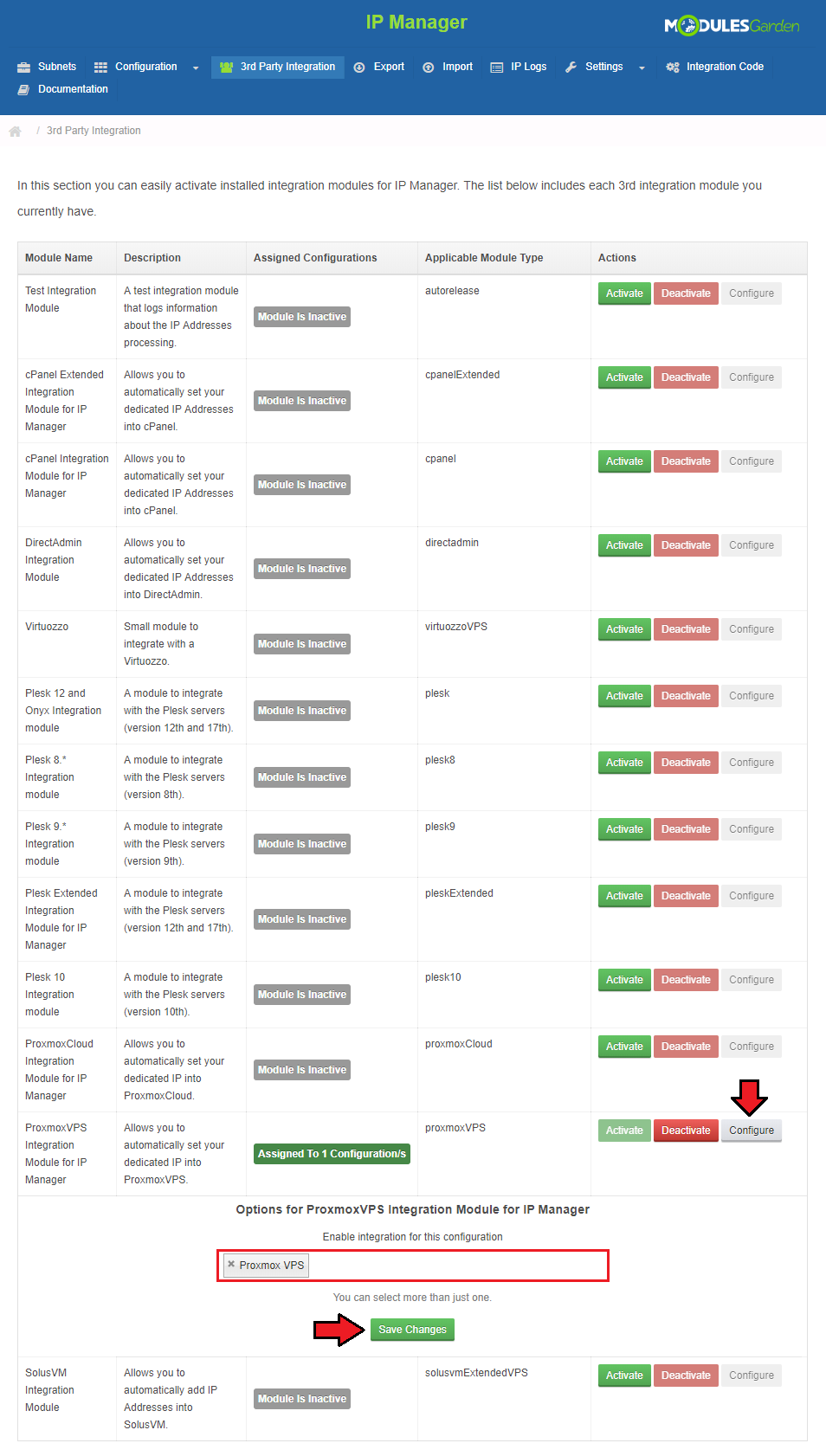
Next, assign the previously created configuration to the submodule.
Press 'Configure', choose a configuration and press 'Save Changes'.
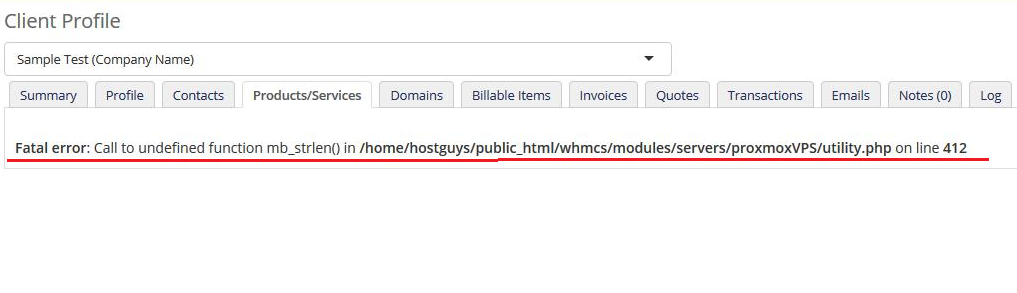
If you encounter an error like the one on the below screen while integrating the two products, probably the function 'mb_strlen' is not enabled by default.
Please read the manual here (opens new window) for installation instructions.
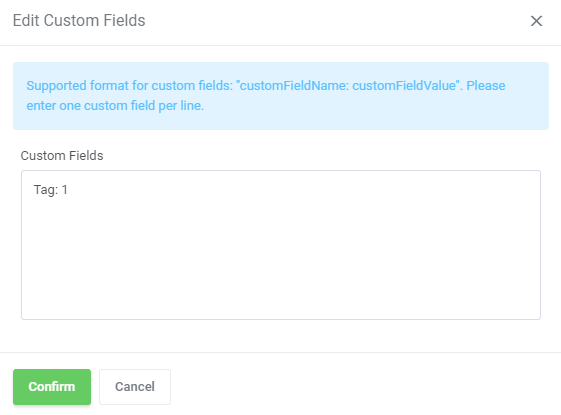
It is possible to add a VLAN Tag Custom Filed in the very same way as the MAC Address field.
Look above for the detailed instruction on how to proceed, follow steps 1-6 to create the new custom field.
The only thing you need to change is the custom field name, which should be 'Tag' in this case.
# Settings
# Load Balancer
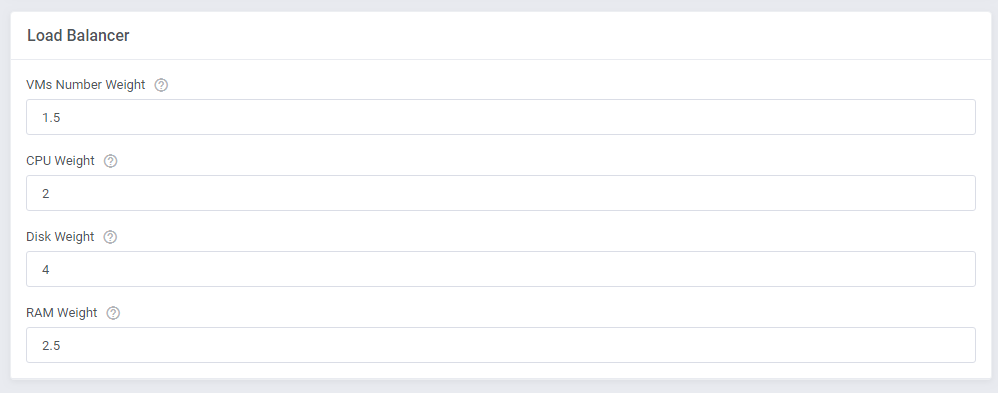
Load Balancer is an advanced tool that allows smooth rotation between nodes to find the most preferable one and create virtual machine on it.
Set the weight of the resource that will prioritize its selection when sorting the Nodes according to the free resources.
Note: The lowest possible weight is 1. You cannot set for example 0,5.
In order to use Load Balancer you must previously enable it in the product's configuration:
Define the behavior of the tool:
- On Upgrade - select action to perform:
- None - if selected, no action will be triggered
- Block - the upgrade process will blocked as there are insufficient resources on the node
- Migrate - the upgrade process will be performed after previous migration of the VM to a server with sufficient free space
- Shutdown VM on Upgrade
- Stop VM If Shutdown Fails

# Node Prioritization Method
Let us take a look at how the sorting process works and the rules that it obeys.
Let's take exemplary weights for each resource just like presented on the screen above.
VMs Number Weight: 1,5
CPU Weight: 2
Disk Weight: 4
RAM Weight: 2,5
Disk Weight with the highest weight which means it has the highest priority and VMs Number Weight as the least crucial factor on a given node.
In our situation, there are four nodes created, named A, B, C, D with current resources as shown below:
Node A (Free Ram: 60%, Free CPU: 20%, Free Disk Space: 50%, Number of VMs: 5)
Node B (Free Ram: 30%, Free CPU: 70%, Free Disk Space: 40%, Number of VMs: 10)
Node C (Free Ram: 90%, Free CPU: 50%, Free Disk Space: 20%, Number of VMs: 20)
Node D (Free Ram: 80%, Free CPU: 60%, Free Disk Space: 70%, Number of VMs: 15)
The next step is sorting the nodes according to each resource, by assigning them corresponding priorities from 1 to 4.
The higher the priority, the more free resources available.
| Priority | Free Ram | Free CPU | Free Disk Space | Number of VMs |
|---|---|---|---|---|
| 4 | Node C | Node B | Node D | Node A |
| 3 | Node D | Node D | Node A | Node B |
| 2 | Node A | Node C | Node B | Node D |
| 1 | Node B | Node A | Node C | Node C |
Now, the final calculation to sort nodes according to free resources, taking into account previously defined weights, is performed
Sorting nodes is based on the following calculation method:
Final Node Priority = (RAM Priority x RAM Weight) + (CPU Priority x CPU Weight) + (Free Disk Priority x Disk Weight) + (No. VMs Priority x VMs Weight)
The results for nodes A, B, C and D (with weights and sorting priority) are following:
Node A: (2 x 2,5) + ( 1 x 2 ) + ( 3 x 4 ) + ( 4 x 1,5 ) = 25
Node B: (1 x 2,5) + ( 4 x 2 ) + ( 2 x 4 ) + ( 3 x 1,5 ) = 23
Node C: (4 x 2,5) + ( 2 x 2 ) + ( 1 x 4 ) + ( 1 x 1,5 ) = 19,5
Node D: (3 x 2,5) + ( 3 x 2 ) + ( 4 x 4 ) + ( 2 x 1,5 ) = 32,5
As you can see, Node D has got the highest priority value with a result: 32,5.
It will be selected by Load Balancer to create a new VM there, to migrate or upgrade an existing VM if its current node does not have sufficient resources.
The above described calculations are performed every time, a 'Create' or 'Upgrade' actions are executed based on the current usage of resources on available nodes.
Important: In case a given client already has an existing VM on a node, this very node will NOT be taken into account during the prioritization of resources process.
This is due to security measures to make sure, that in case of failure of this node, the client will still have access to the other VM server, created on another, working node.
However, if this client has VMs on every node already, all of them will be taken into account during the selection prioritization process again.
If you decide to use Load Balancer tool, define the resources weights to adjust their prioritization of nodes according to your needs.
# Client Area
Client area interface of Proxmox VPS For WHMCS should look like the one on the screen below.
As you can see, control panel contains options useful for managing a VM.
The module allows your customers to easily 'boot', 'reboot', 'stop' and 'shutdown' their servers through pressing specific buttons.
Clients can also access the 'noVNC' and 'SPICE' consoles. Among 'Additional Tools' you will find options to 'reinstall' server, create 'backup' and set up 'backup jobs'.
Your clients are able to access resource usage 'graphs', view VM 'history', manage 'network' interface device and set up 'firewall' rules.
Additionally, in case of Proxmox VPS (KVM) clients may take 'snapshots' and manage 'disks'.
On the main product page in the client area, under the 'Details' headline your clients can find information about current usage of CPU, memory, disk (LXC only)
and SWAP (LXC only).
Customers can also view 'DNS' (LXC only) and 'IP Addresses'.
# Client Area - VM Management
# noVNC Console
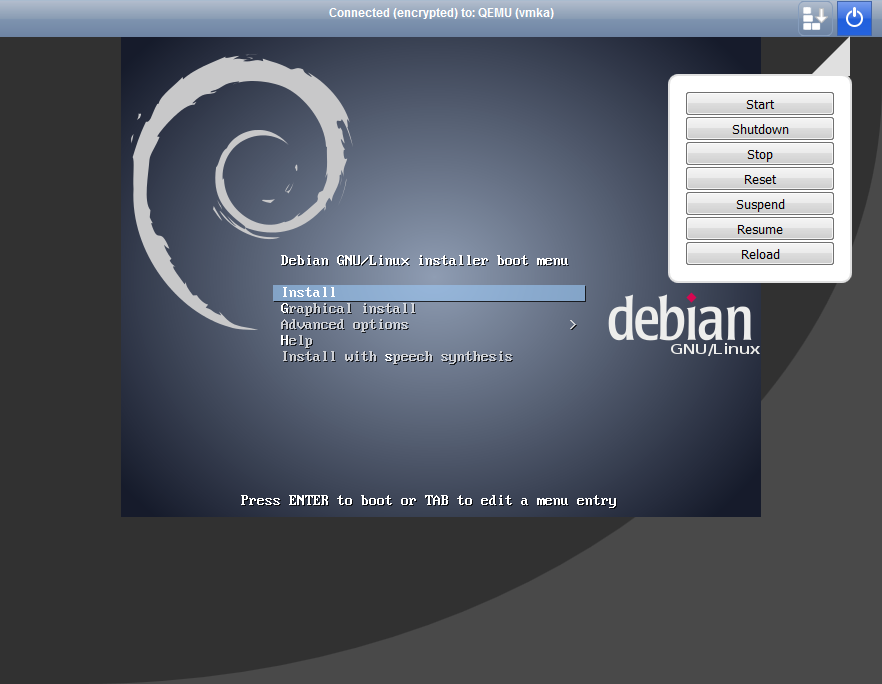
noVNC console allows your clients to connect to their server in the easiest possible way.
# SPICE Console
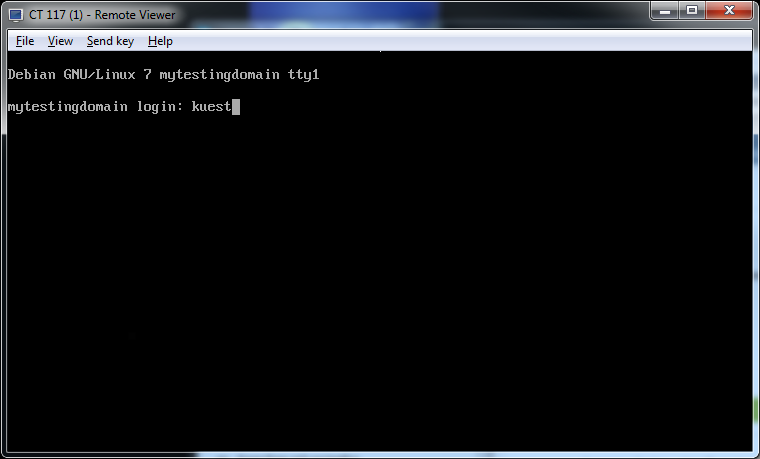
SPICE console enables you to connect to virtual machine using SPICE.
Note: Your client needs to download (opens new window) and install client side SPICE application in order to connect with a VM.
# Xterm.js Console
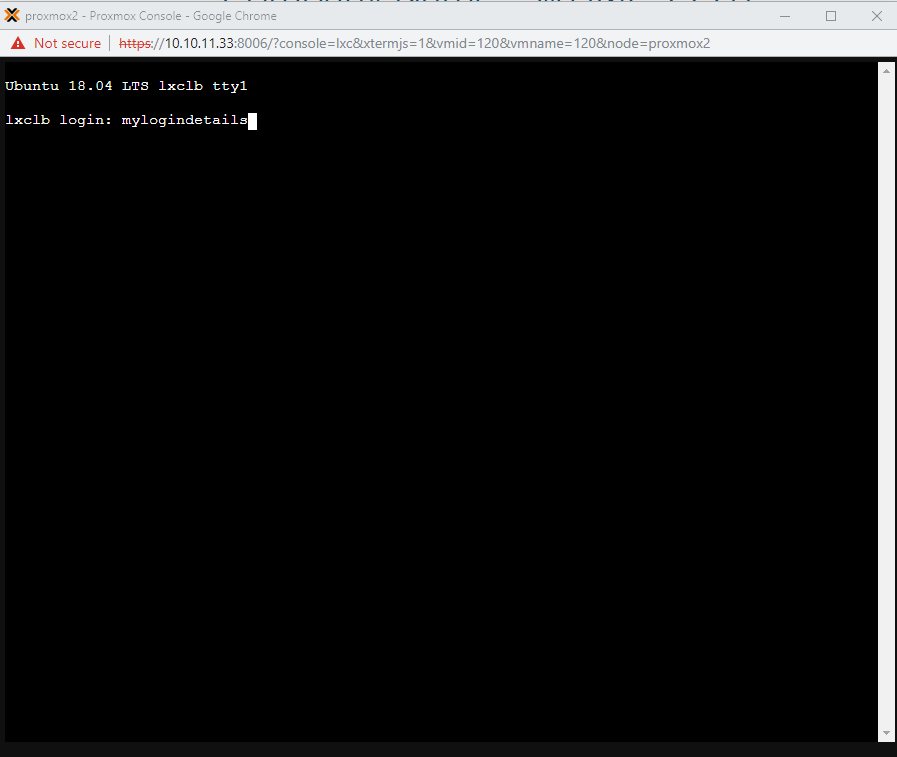
Xterm.js console enables you to connect to virtual machine using Xterm.js.
You must update the scripts on Proxmox v2.6.0. To do so open folder: UploadOnProxmoxServer/5.2-10 and upload content on all your proxmox servers.
# Client Area - Additional Tools
# Reinstall
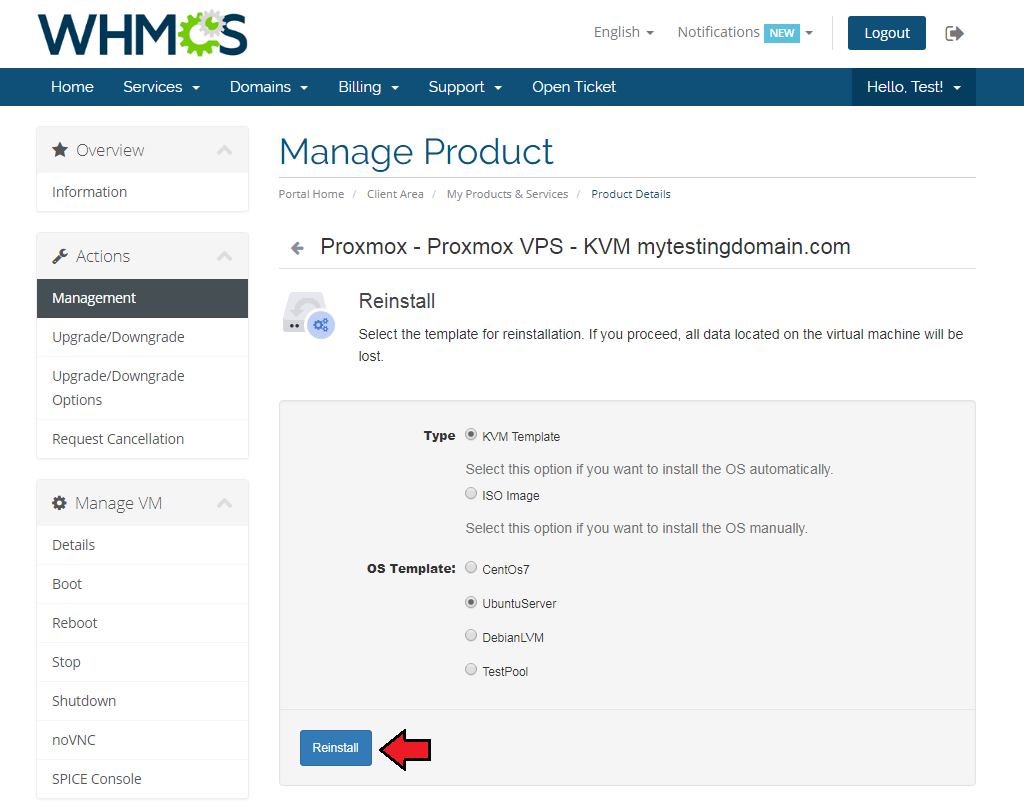
Reinstall feature can be used to reinstall a new OS on the VM by the clients on their own.
You can allow your clients to either select a new OS from the provided KVM templates to automatically replace the system, or let them choose the ISO image for manual system installation.
Note: The ISO images can only be used for the KVM virtualization type, while VM templates can be used either for KVM or LXC.
Additionally, the new OS password for the KVM OS reinstallation will be set based on the previous service password while for the LXC user can define the OS password before a new installation.
You can choose the available 'ISO Images' from 'CD/DVD-ROM Drive'.

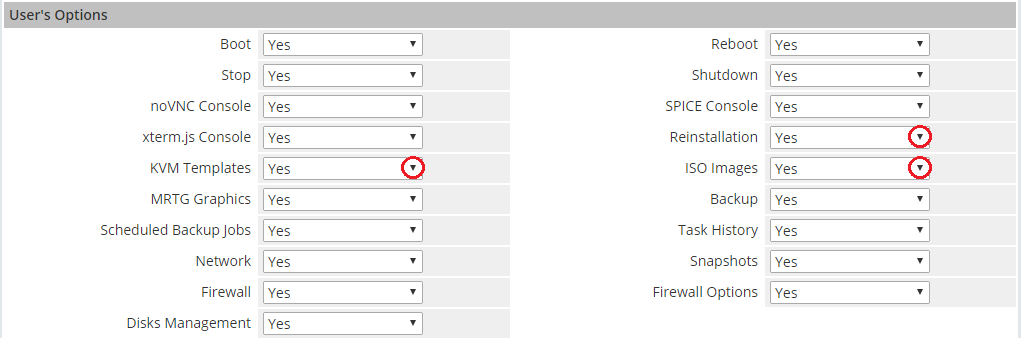
Remember to also give your clients access to the selected reinstallation types in the 'User's Options'.
# Backups
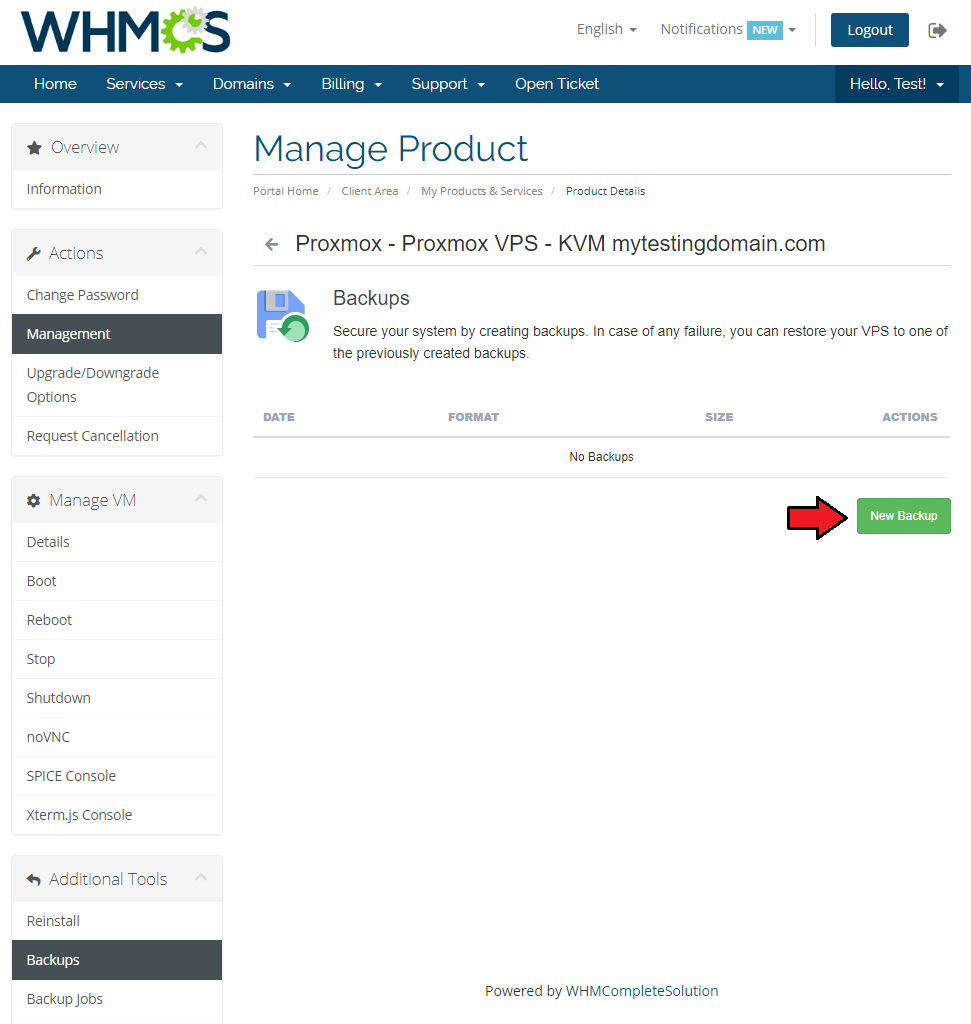
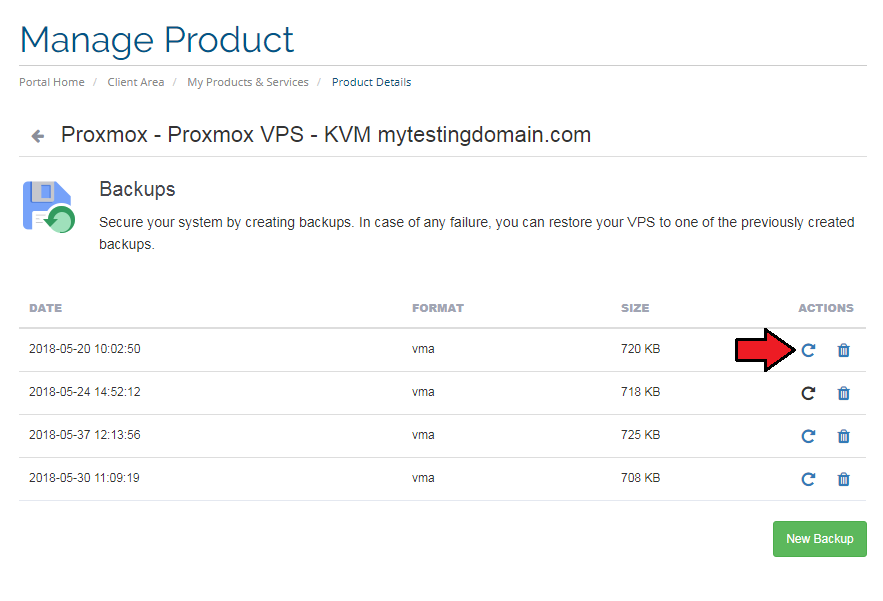
To create a single backup, press the 'Backups' button and click on 'New Backup' as shown on the following screen.
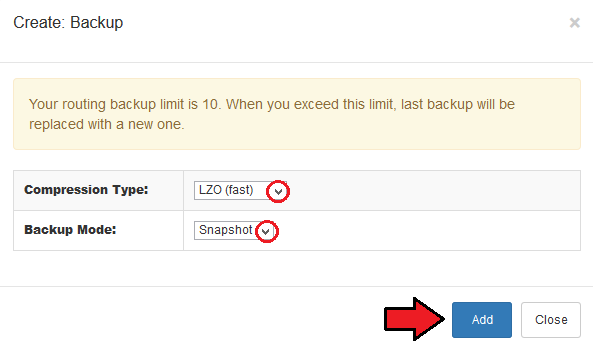
Now, choose 'Compress Dump File' and 'Backup Mode' from dropdown menus.
Afterward, press 'Add'.
To restore a VM from backup, press 'Restore' and then click the 'OK' button in a popup window to confirm.
# Backup Jobs
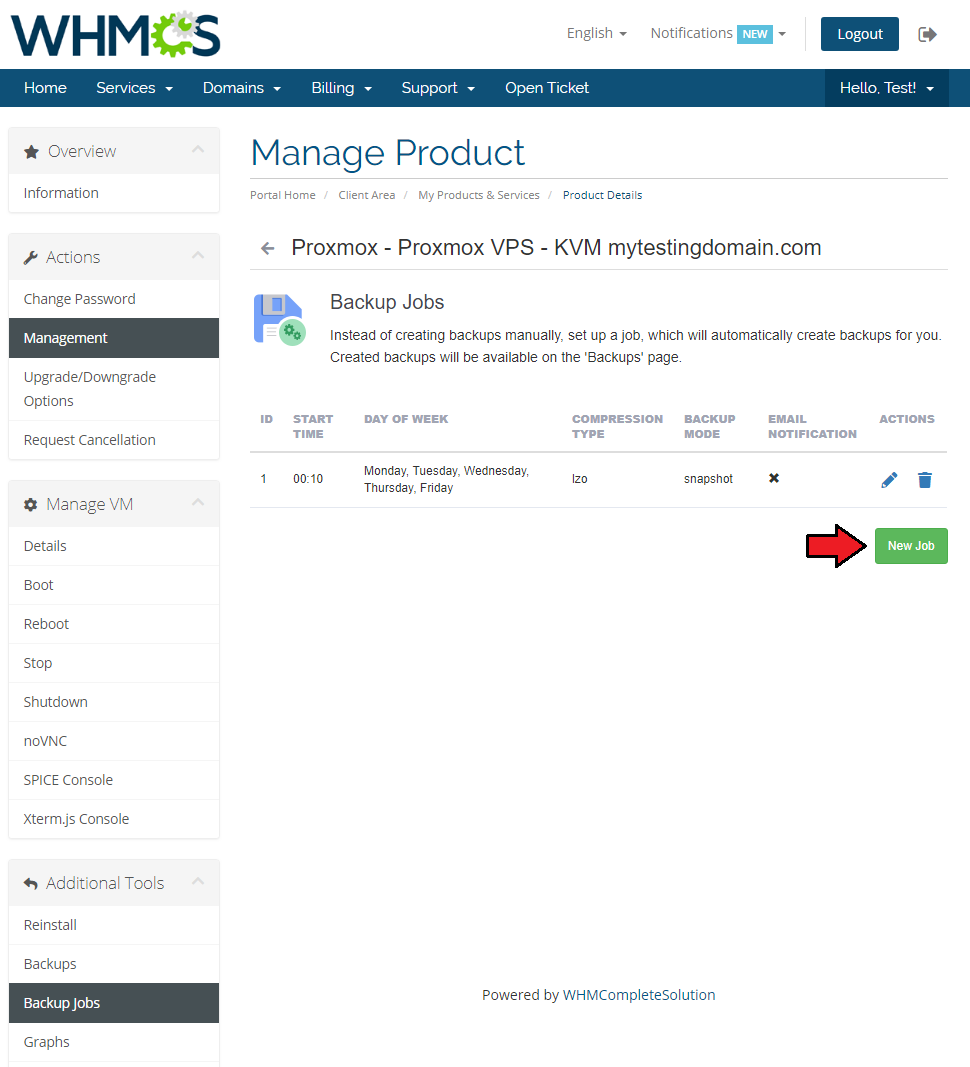
By pressing 'Backup Jobs' in the client area, you will be forwarded to the backup jobs management page.
There you can easily edit/delete and preview details of existing backup jobs.
To add a new backup job, press 'New Job' as shown on the following screen.
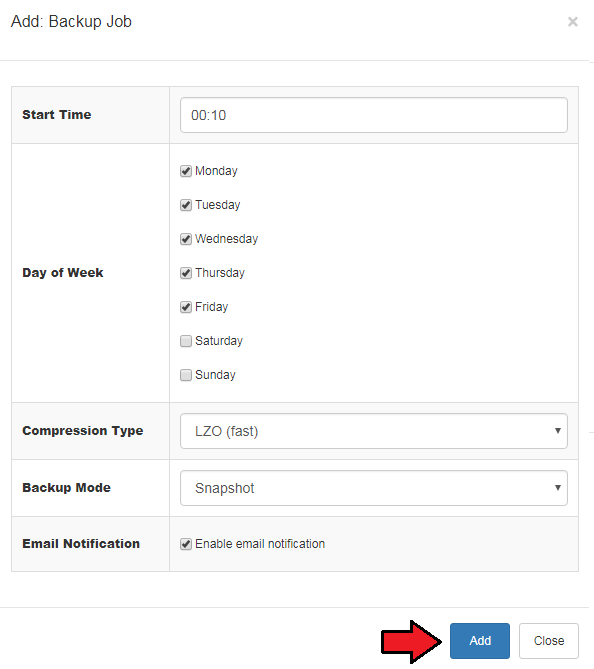
Now, define a backup time, mark days to run it and choose 'Compression Dump File' and 'Backup Mode' from dropdown menus.
Next, press the 'Add' button.
# Graphs
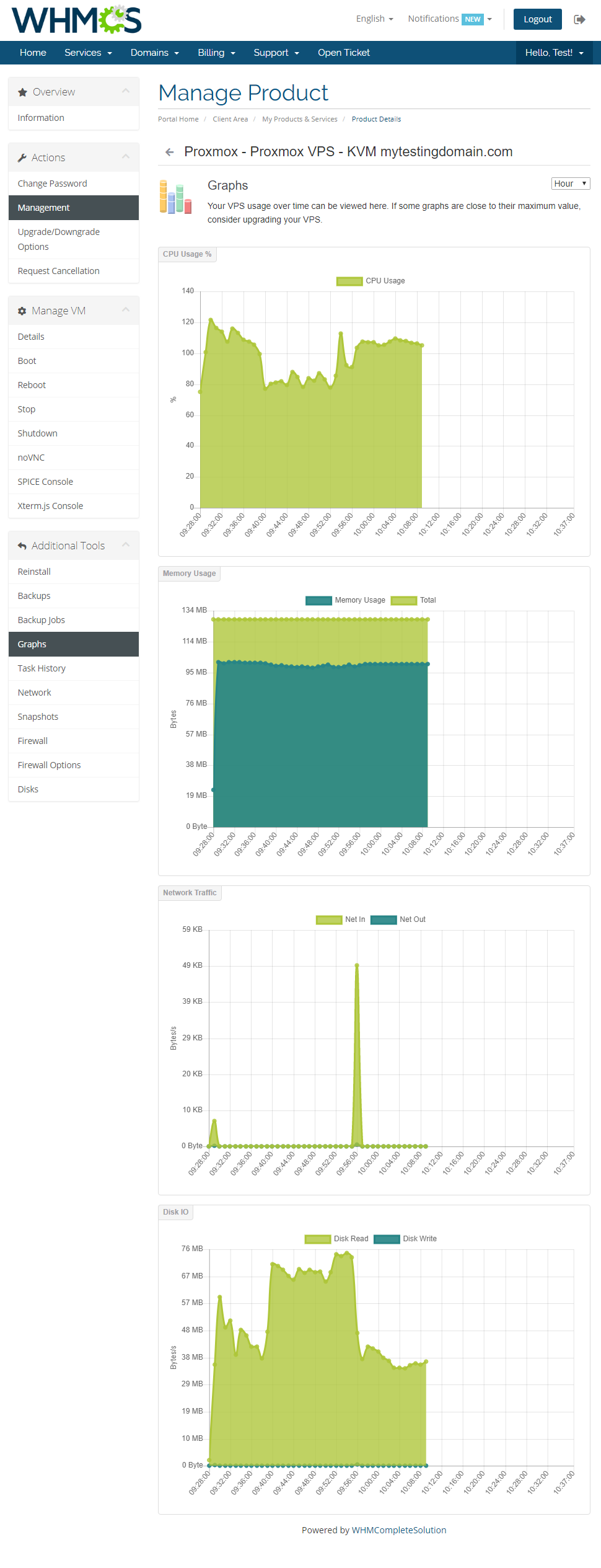
Through pressing the 'Graphs' button clients will be moved to the page with generated graphs of CPU usage, memory usage, network traffic and disc I/O.
They can also switch the timeline of graphs by choosing it from a dropdown menu pointed on the following screen. Choose from 'Hour', 'Day', 'Week', 'Moth' and 'Year'.
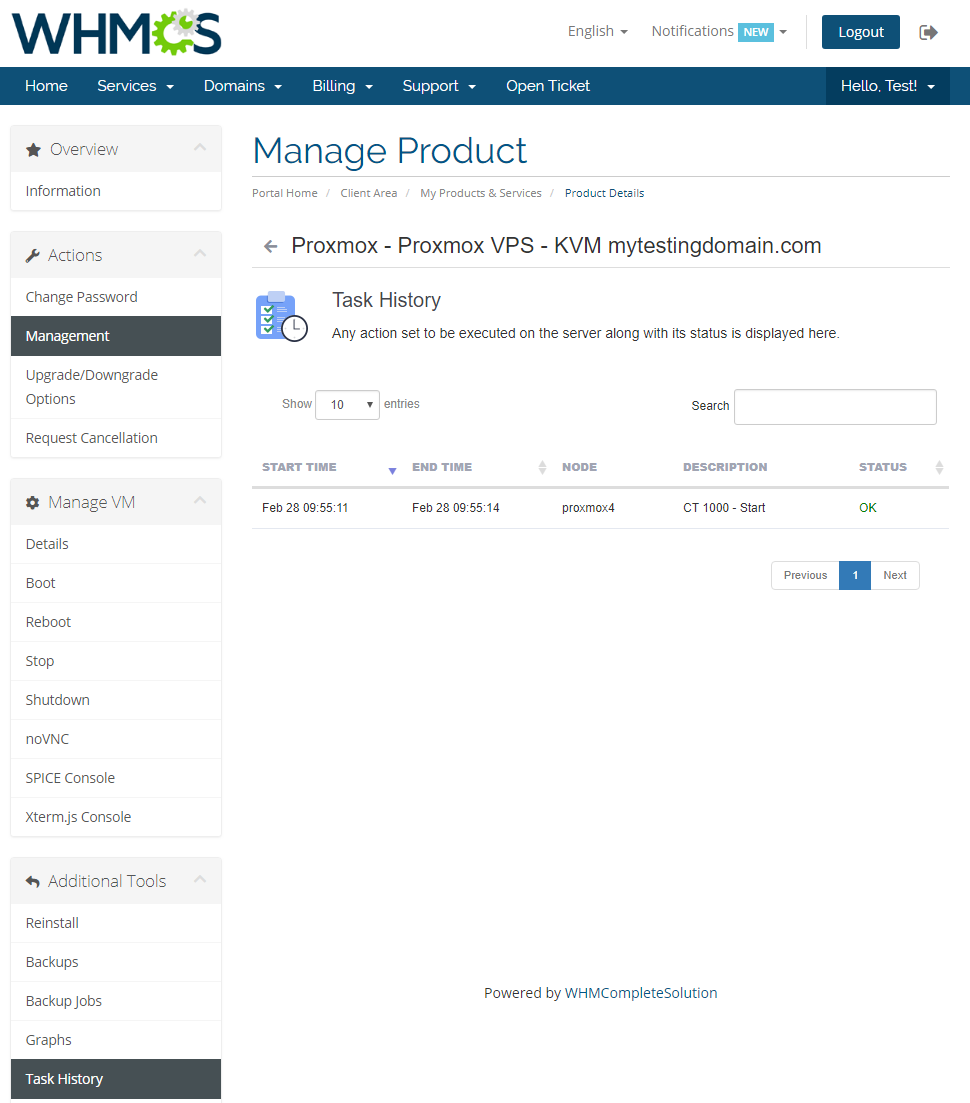
# Task History
To access the history of a VM, simply press the 'Task History' button.
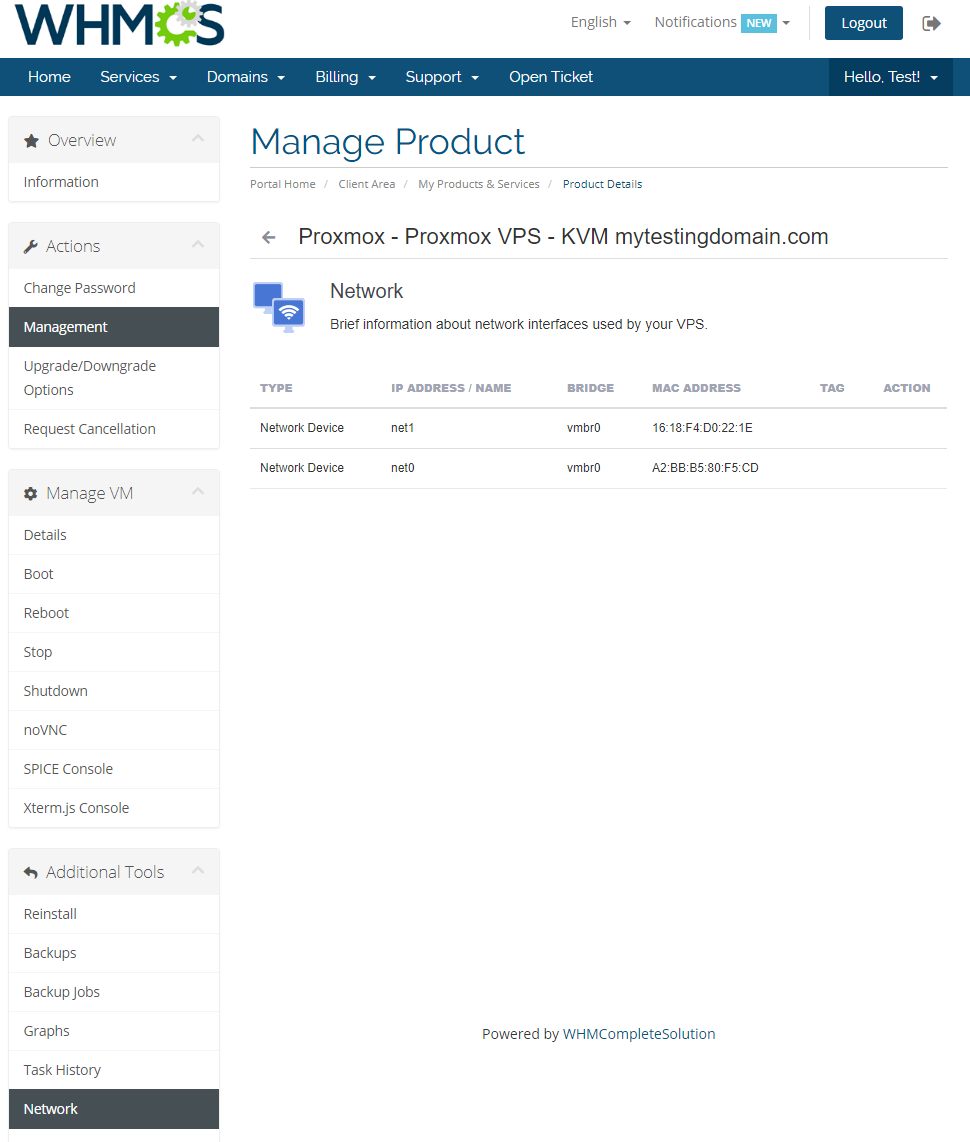
# Network
Your clients are allowed to add/remove only private network interface devices.
Keep in mind that ' Network device' options must be set to 'Private'.
# Snapshots (KVM only)
Use a snapshot to remember a current state contents of the virtual machine memory. You may use them later to restore the VM's settings.
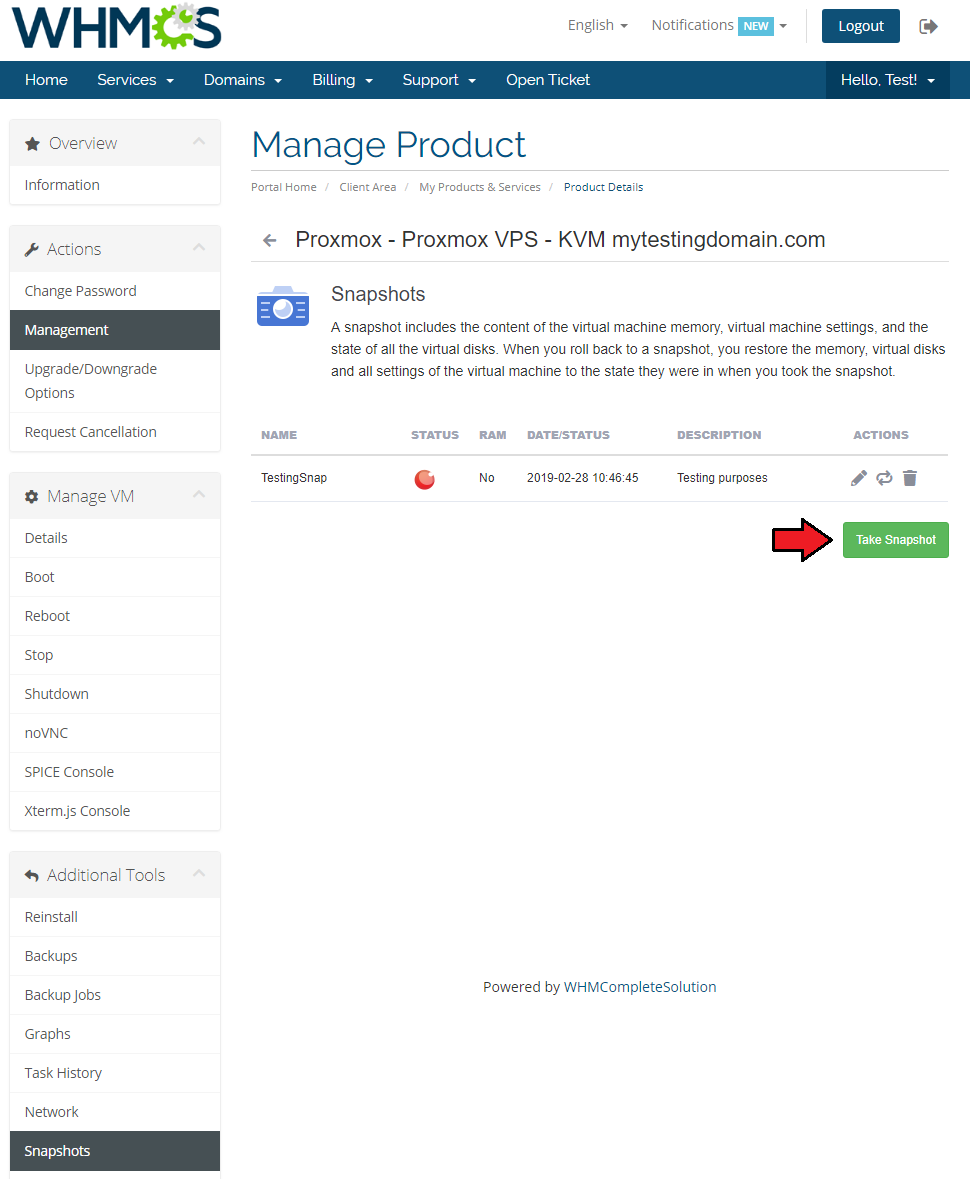
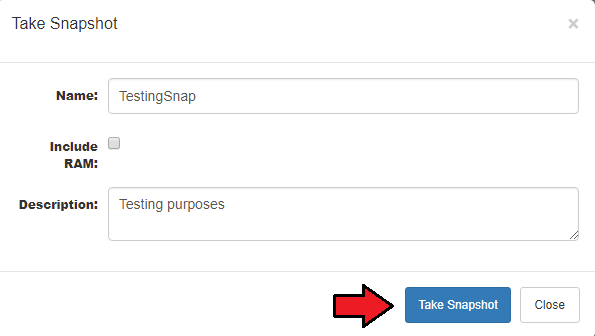
Press the 'Take Snapshot' button and fill out the form to take a snapshot.
Name it (use alphabetical characters only), choose whether to include RAM and add a description.
# Firewall
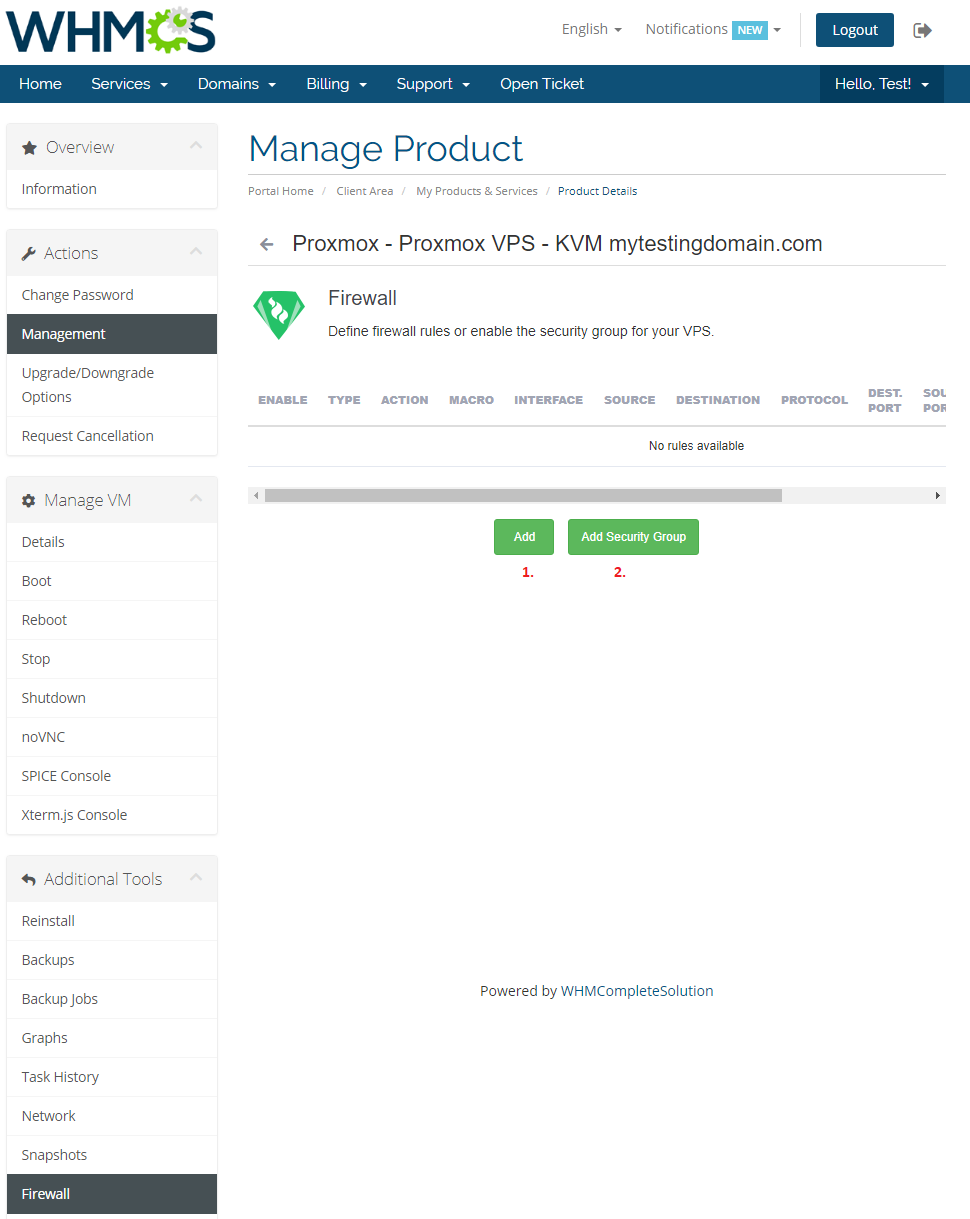
Owing to the 'Firewall' page, your clients can set up firewall rules and enable a security group for their servers from the WHMCS client area.
As you can see, you can easily modify and remove the previously added rules and security groups.
To add a new firewall rule (1) or a predefined security group (2), use the buttons marked on the following screen.
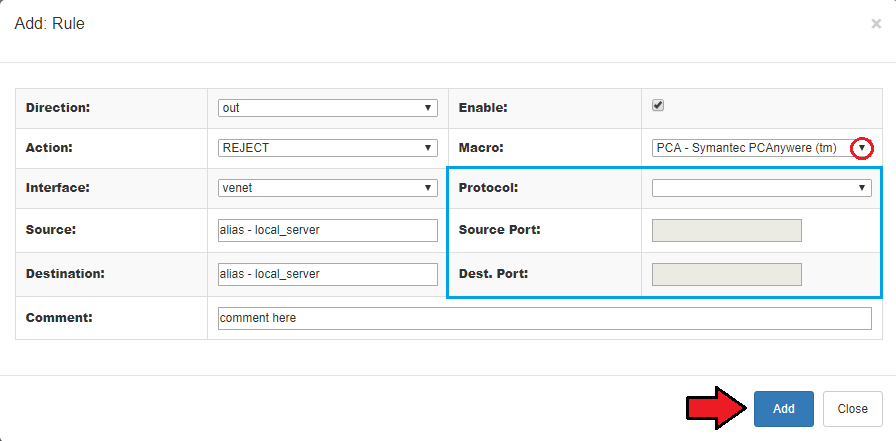
You can add a firewall rule in two ways. Both of them require choosing a direction, action, interface, source and a destination.
The first way (red) is to choose macro from the 'Macro' dropdown field.
The second way (blue) requires you to choose a protocol and fill in both source and destination ports.
Additionally, you can enable a rule and add a comment to it.
Press 'Add' to create a rule.
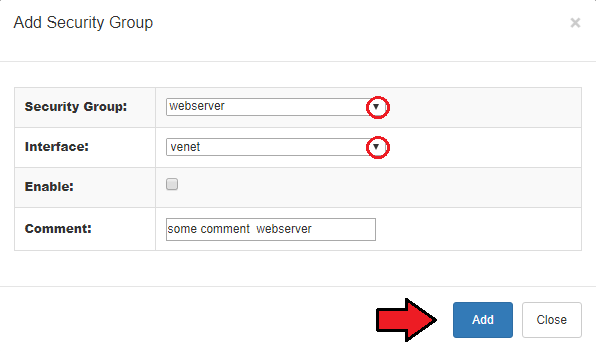
Choose a security group and an interface on which the group will be used.
Additionally, you can enable a security group and add a comment to it.
Click 'Add' to use the security group.
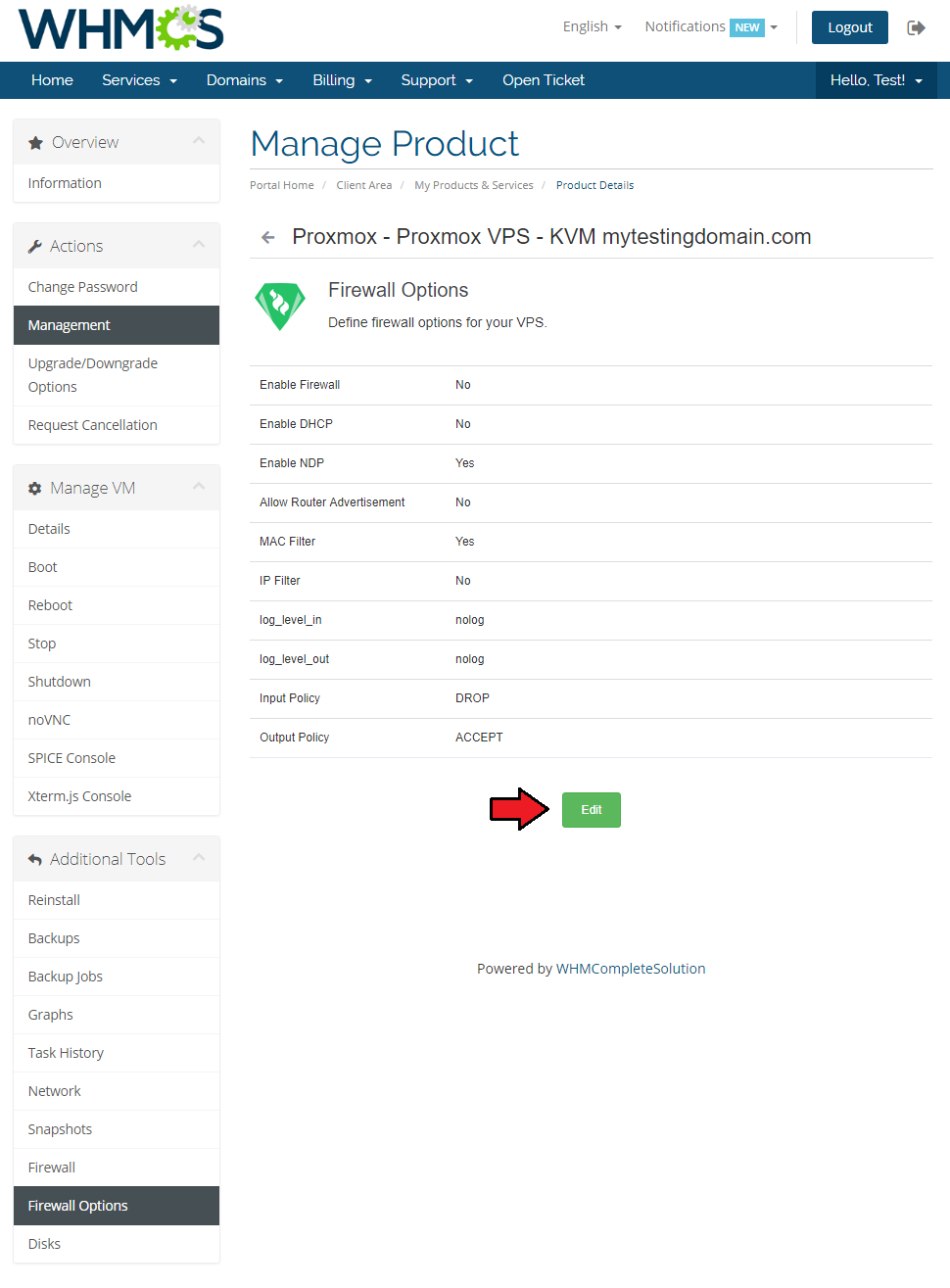
# Firewall Options
View and edit firewall options.
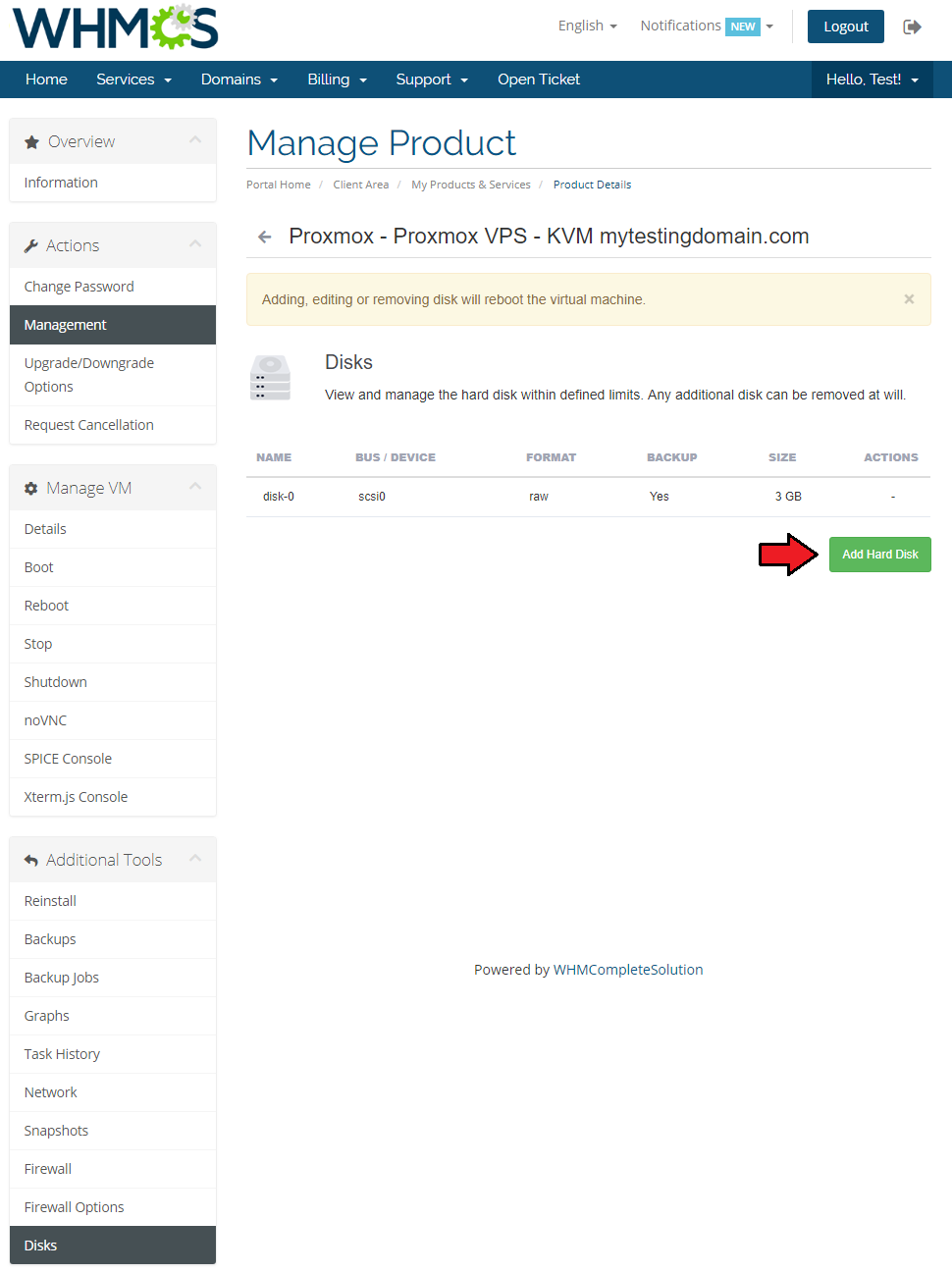
# Disks (KVM only)
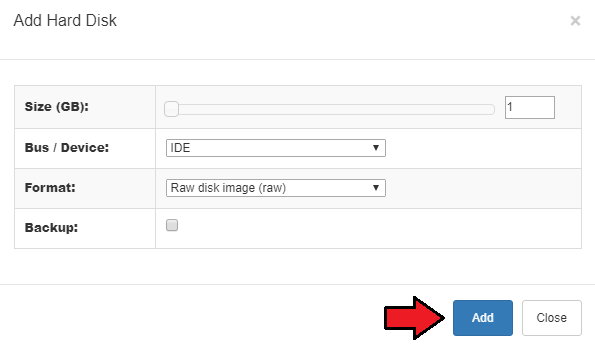
View available disks and add new ones.
# Configurable Options
When you successfully set up a product, your client can order it by choosing from the default configurable options.
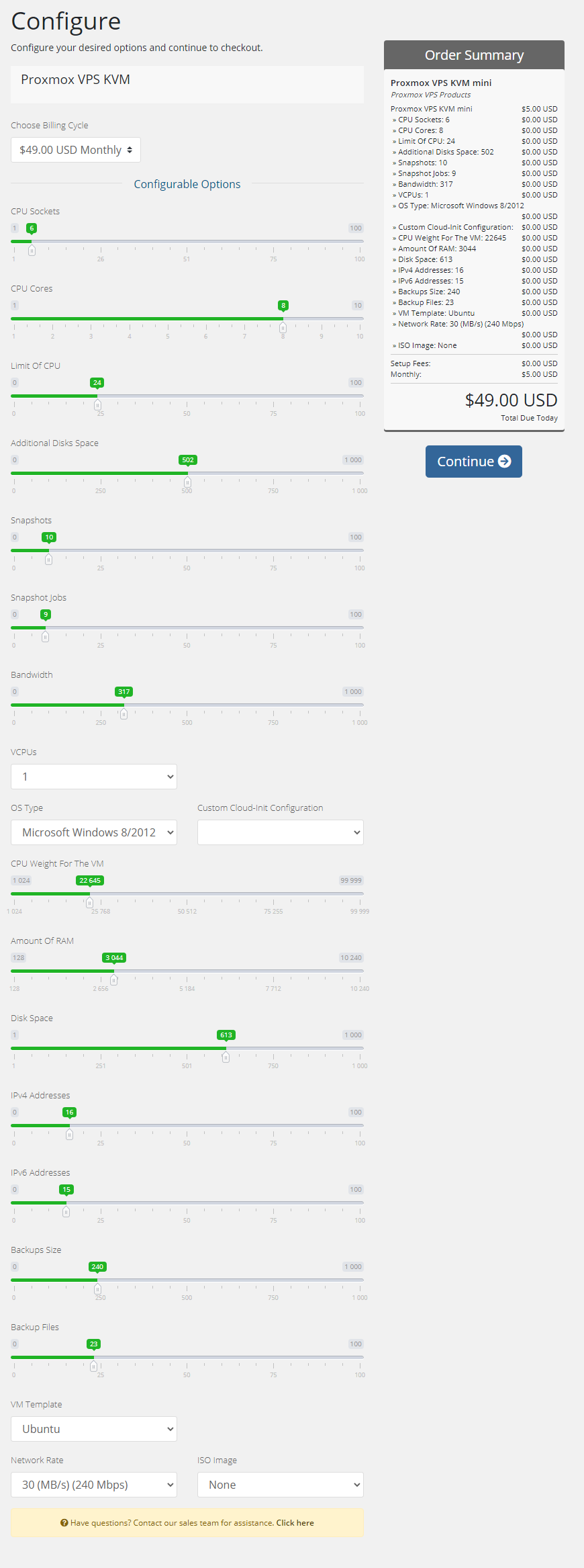
In case those options do not suit your needs, you can edit them.
Go to 'Setup' → 'Products/Services' → 'Configurable Option' and press the edit button next to the configurable option used by your product.
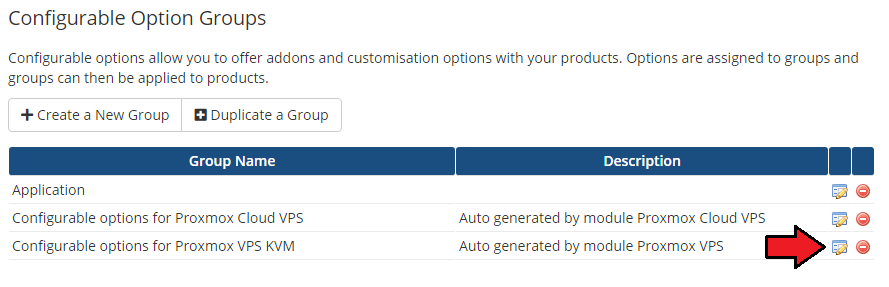
Here you can view all the products this configurable option group is assigned to.
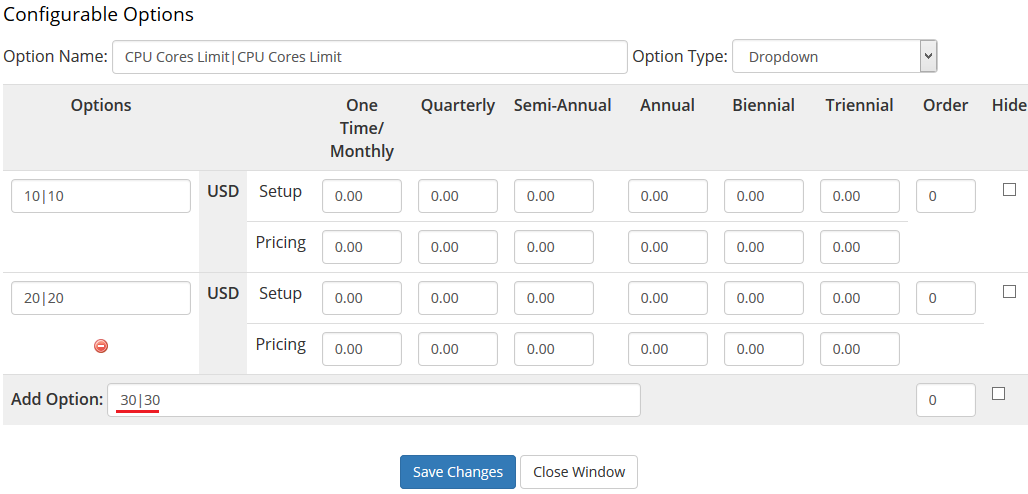
Now, we will show you how to edit options. Let's say you want to add an option to order a VPS with 4 cores per socket.
To do so, edit 'The number of cores per socket' by pressing the edit button as shown on the screen below.
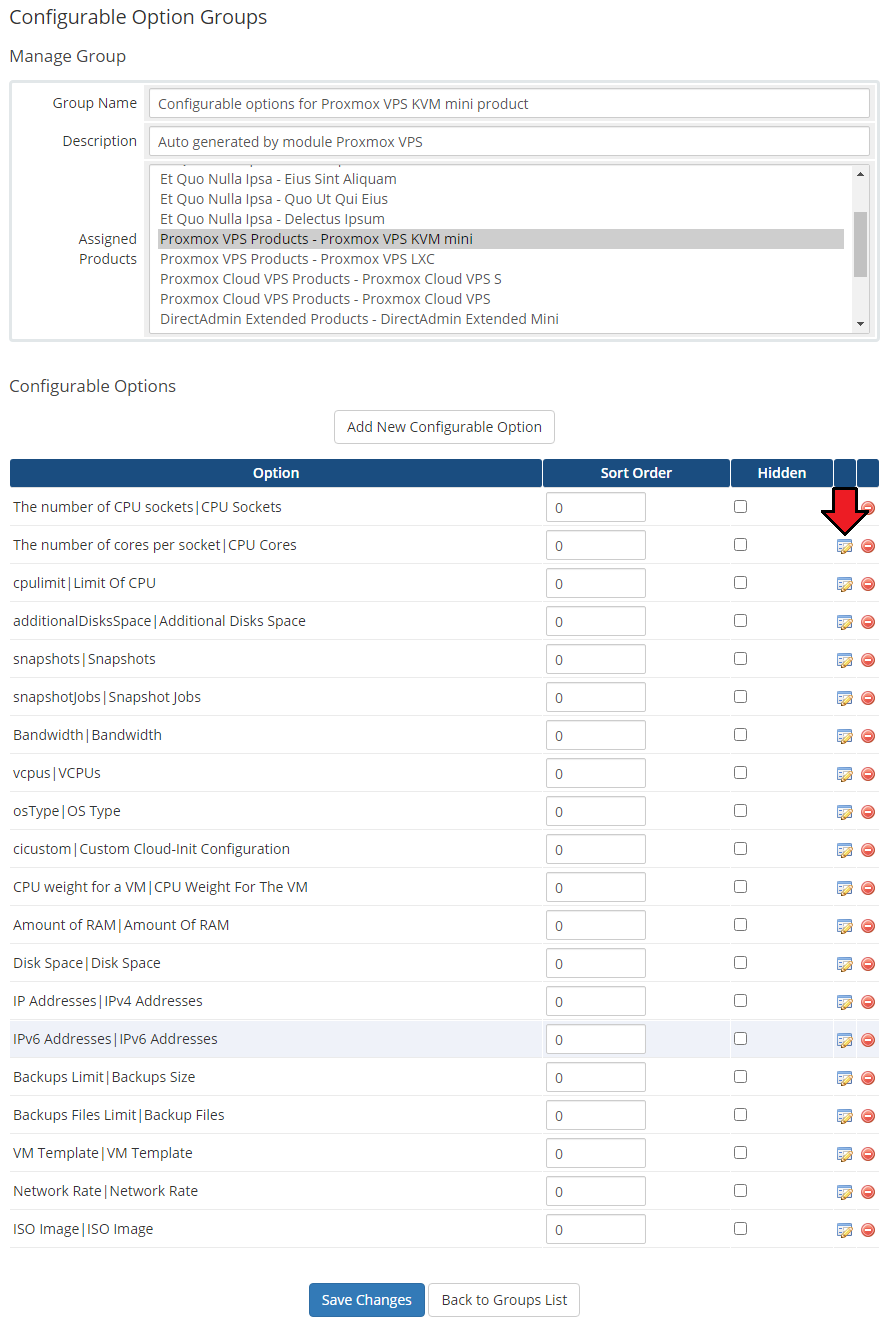
You will see a popup window, so make sure your browser does not block it.
To add a new option, enter it in the textbox below all other options. If you want to replace the option you currently have, simply edit the textbox.
Finish by pressing 'Save Changes'.
# List of Configurable Options
The table below lists all configurable options used by the module for the chosen virtualization type.
Note that the name on the left is a variable (which you should not edit) separated by the | from the editable custom name.
| KVM | LXC |
|---|---|
| The number of CPU sockets|CPU Sockets | cores|CPU Cores |
| The number of cores per socket|CPU Cores | cpulimit|Limit Of CPU |
| cpulimit|Limit Of CPU | CPU weight for a VM|CPU Weight For The VM |
| CPU weight for a VM|CPU Weight For The VM | Amount of RAM|Amount Of RAM |
| Amount of RAM|Amount Of RAM | Disk Space|Disk Space |
| Disk Space|Disk Space | Amount of SWAP|Amount Of SWAP |
| additionalDisksSpace|Additional Disks Space | IP Addresses|IPv4 Addresses |
| IP Addresses|IPv4 Addresses | IPv6 Addresses|IPv6 Addresses |
| IPv6 Addresses|IPv6 Addresses | Backups Limit|Backups Size |
| Backups Limit|Backups Size | Backups Files Limit|Backup Files |
| Backups Files Limit|Backup Files | Bandwidth|Bandwidth |
| Bandwidth|Bandwidth | VM Template|VM Template |
| VM Template|VM Template | Network Rate|Network Rate |
| Network Rate|Network Rate | |
| vcpus|VCPUs | |
| ISO Image|ISO Image | |
| osType|OS Type |
# Management of Billing
When you combine Proxmox VPS For WHMCS with Advanced Billing For WHMCS, you will be able to set up additional billing options.
The module allows you to charge your customers basing on the server resources used by them.
Note: Advanced Billing supports OpenVZ (prior to Proxmox v2.3.0), KVM and the LXC virtualization type.
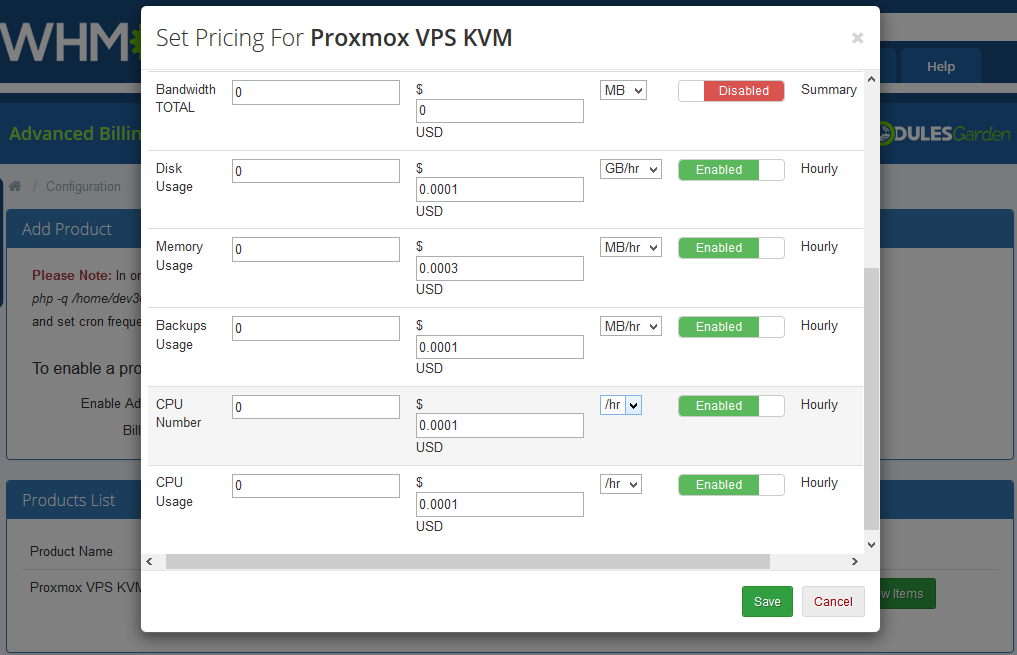
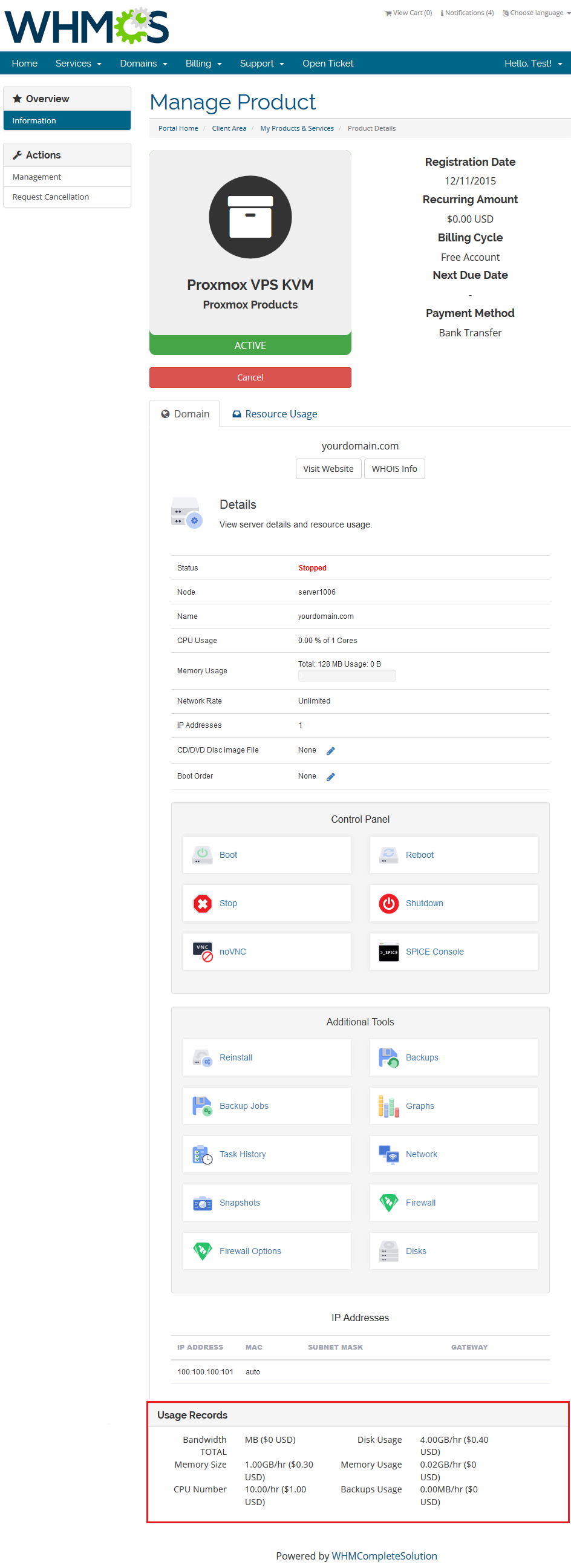
With Advanced Billing For WHMCS module, you can also display the current resource usage of your customer's server and its total cost.
# Management of Existing Accounts
You can easily use Proxmox VPS module with your existing Proxmox accounts. To do so, follow the instructions below:
Create and configure a Proxmox VPS server and a server group.
Create and configure a Proxmox VPS product.
Place a new order with a previously created product for your customer. Do not activate the product yet.
Access the just created product from the admin area via client profile → 'Products/Services' section and fill out 4 custom fields.
They are 'vmid' and 'node'.If possible, enter IP addresses into fields 'Dedicated IP' and 'Assigned IPs'.
Set the product status to 'Active'.
Remember not to click the 'Create' button during the entire process. That would unnecessarily create a new virtual machine.
# Servers Location Management
Important: Server Allocator For WHMCS is required to allow locations management.
In order to allow defining locations for Proxmox VPS, follow the below steps:
In your product's 'Module Settings' set up 'Default Node' to 'Server-Node'.
Create a WHMCS server for each Proxmox node.
Manually create a configurable option, name it for example: 'Location'. Add options for each server within that config option.
Install our Server Allocator For WHMCS module and configure it properly.
It must assign a server to a product depending on the selected option in 'Location' configurable option.
Keep in mind that all locations must have exactly the same configuration.
Now, a client may order a VPS and select 'Location'. Server Allocator For WHMCS will change the server assigned to the product.
Create action is triggered on the assigned server due to the 'Server-Node' option enabled.
# Tips
Operations performed on the virtual servers are not executed immediately. Give your Proxmox Virtual Environment some time to process the request and execute the operation.
Multiple physical Proxmox servers can be joined into one cluster.
When they are joined into one cluster, you can access all of them by connecting to just one.- auto-node - Creates a new VM on the server (node) with the most free resources, so the administrator cannot control it.
- server-node - Creates a VM on the server node which IP address or node host (e.g. node1.yourproxmox.com) was provided during the WHMCS's server configuration,
allowing the administrator to control the node choice.
If you set the product type as 'Hosting Account' when adding a new product, you will not need to fill out nameservers as they will be automatically set up.
OS Templates are not automatically downloaded while configuring a product.
For each virtualization type, templates are downloaded from the Proxmox server depending on which one they are generated.OS Templates are loaded from the Storage. Make sure the module can access its content by selecting appropriate permissions for the chosen Storage.
KVM virtualization supports only graphs concerning 'Bandwidth'. Other virtualizations support all graphs.
This is due to API limitations.When PAM authentication is used, it is necessary to create a client first in order to change the password correctly. Read more about it here (opens new window).
As this module supports templates system, any changes made in the module's templates files will be saved after the upgrade process.
If you are currently using the module in the 2.3.2 version or previous, and would like to migrate to Proxmox VE V5.X, you need to update the files on your Proxmox server to the new version from the 'UploadOnProxmoxServer' folder.
OS Templates serve only as operating systems for a VM, while VM Templates contain complete configuration of a VM, the amount of resources included.
You can use the {$service_assigned_ips} tag in your welcome email template to display automatically assigned IP addresses for created VM (either KVM or LXC virtualization type).
'One User Per VPS' option allows you to either create a new username for each new client's VM, or create only one that will be then used for every new VM owned by your client.
You can use the 'IPSet IP Filter' option for firewall to prevent IP spoofing. Click here (opens new window) to read more about IP Sets.
In the product details view in admin area you can preview the current IP Sets on VM:
You can enable 'Admin Notifications' on product configuration to be informed via email about certain actions. These are:
- Service Creation Failed - if there were any errors that prevented a VM from being successfully created, then the selected email template will be sent to the administrator
- Upgrade - select the email notification template you want to receive if the client requests the product upgrade.
This will also block the automatic sending of an upgrade request to the Proxmox API so the administrator can review it first.
Note that if chosen, the product will be still upgraded in the WHMCS itself but the upgrade request will not be passed to the API.
To finalize the upgrade use the 'Change Package' module command in your admin area. - To-Do List - if checked, in addition to sending any of the above notifications, it will also add them as tasks on the WHMCS To-Do List (opens new window).

'Minimum Network Rate Limit' option allows you to change the previously entered 'Network Rate Limit' value to a new one if the current 'Bandwidth Limit' is already reached.
Note that the 'Bandwidth Limit' can also be used for WHMCS overage billing calculation as described here (opens new window).
'Default Username Prefix' - when filling in this field you may use the {$serviceid} parameter to avoid problems with creating usernames that already exist.
# Update Instructions
Essential guidance through the process of updating the module is offered here.
Please note that each time you update the module, you have to also update the files on the Proxmox server described in the step 4 of the installation guide.
Keep in mind there is a quick and easy option in our client area that will let you upgrade the license of your module to an open source version at any time - and at a lower price!
To take advantage of it, simply use the License Upgrade button located on the product's page and a discounted invoice will be generated automatically.
# Common Problems
When you have problems with connection, check whether your SELinux or firewall does not block ports.
Error 'Could not create PVE2_API object' during connecting via the noVNC console.
Reason: User account does not have permission to access the noVNC console.
Solution: Proceed to the product's 'Module Settings' tab and check whether selected a user permission grants access for the noVNC console.
Afterward, proceed to the client's hosting and run 'Change User Role' on it.
To change user role for all clients please use the 'Cron job users synchronization (run only once)' cron command.
You will find it in the 'Proxmox Addon' → 'General Settings'.Error 'This connection is untrusted' during connecting via the noVNC console.
Reason: Your certificate is not valid.
Quick Solution: Your client needs to add the Proxmox address to the certificate exception list.
Best Solution: Configure a valid certificate.Blank page during connecting via noVNC console.
Reason: You have not uploaded the additional files on the Proxmox server.
Solution: Open 'UploadOnProxmoxServer' and upload content of proper version on all Proxmox servers into the '/usr/share/novnc-pve/' folder.Error 'Change password failed: user 'xxx' does not exist'
Reason: You have not created a client yet.
Solution: When PAM authentication is used, it is necessary to create a client first in order to change the password correctly. Read more about it here (opens new window).Error 'Function "ssh2_connect" does not exist. Please Install SSH2 PECL before you start using the script.'
Reason: You have not updated the php.ini file
Solution: After SSH2 PECL installation be sure that you have updated php.ini files for CLI and webserver.Once you have updated your Proxmox VPS For WHMCS to Proxmox VPS For WHMCS V2.0.0, it is always required to save your product configuration
in module settings again.The current disk usage for the KVM virtualization type is not properly displayed.
This is due to API limitations which currently do not return the correct value, which is always set to '0'.If you want to use cloud-init on Debian, we recommend using the cloud-init's version 18.2 or later to avoid assorted problems occurring in previous versions.
Error: "Only root can set 'serial0' config".
Solution: Turn off the Xterms.js console in the product configuration.Error "Parameter verification failed. ([maxfiles] - Only root may set this option.)"
Reason: User is other than "root" or server authentication is set to Proxmox VE
Solution: In server configuration, set the root details and select PAM as the authentication type.