

# Quotes Automation 1.X For WHMCS
# (opens new window) About Quotes Automation For WHMCS (opens new window)
Quotes Automation For WHMCS will allow you to create templates for quotes. You will be able to add, edit and delete templates as well as manage included products.
The module will also simplify the process of placing an order. Once a quote is ready, both you and your clients will be able to place an order directly from a quote page.
Admin Area Features
- Add Product/Domain To Quote
- Choose Product/Domain Billing Cycle
- Choose Configurable Options
- Define Custom Fields Values
- Attach Addons
- Edit Final Price
- Define Discount
- Save Quote As Template
- Load Quote From Template
- Remove Template
- Place Order - Creates Order And Invoice From Quote
- Choose Product Billing Cycle And Configurable Option
- Define Whether To Apply Changed Price To First Payment Only Or To Billing Cycle Price
- Define Whether To Remove Quote Upon Saving It As Template
- Define Whether To Enable 'Accept Quote & Order' Functionality In Client Area
- Define Whether To Redirect Client To Invoice After Quote Acceptance
- Configure Permissions Per Admin Role
Client Area Features
- Create Orders And Invoices Automatically On Quote Acceptance
- Override Product/Domain Price With Price Shown On Quote
General Info
- Multi-Language Support
- Supports PHP 5.6 Up To PHP 7.2
- Supports WHMCS Template Six
- Supports WHMCS V7.2 And Later
# Installation
This tutorial will show you how to successfully install and configure Quotes Automation For WHMCS.
We will guide you step by step through the whole installation and configuration process.
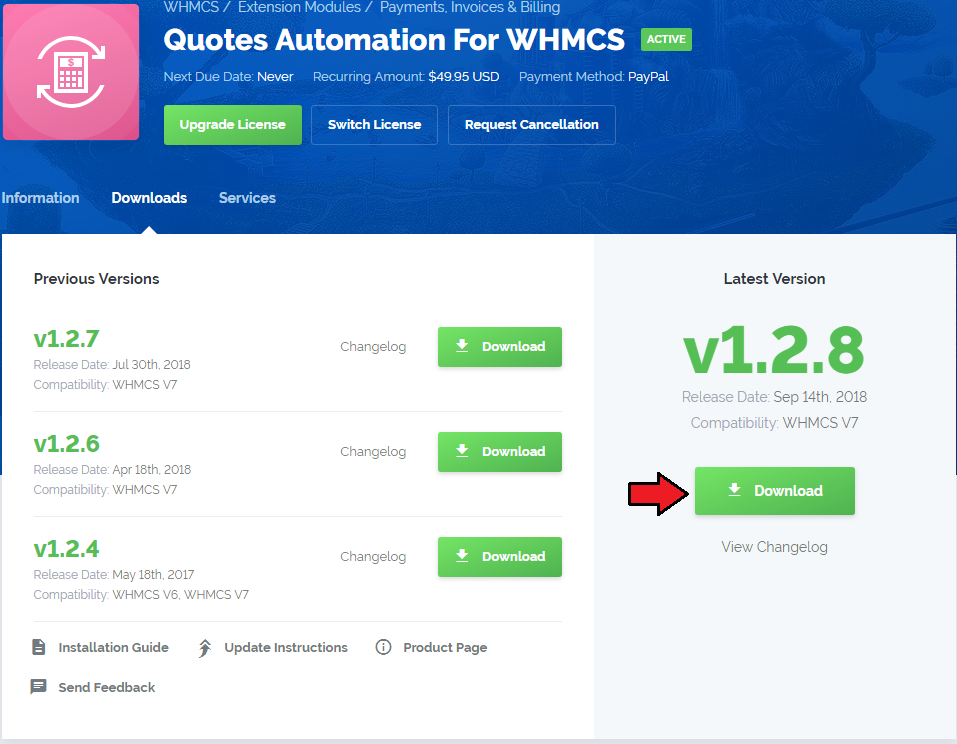
- Log in to our client area and download the module.
In the downloaded file you will find two packages that support different PHP versions.
As presented on the screen below, the first one is dedicated to PHP 5.6 up to PHP 7.0, while the second one is aimed at PHP 7.1 up to PHP 7.2.
It does not apply to open source versions.
Note: You can check the current PHP version in your WHMCS. To do so, proceed to 'Utilities' › 'System' › 'PHP Info'.
Extract the downloaded file and choose the one with the right PHP version. Upload and extract the PHP file into the main WHMCS directory.
The content of PHP version files should look like this.
When you install Quotes Automation For WHMCS for the first time you have to rename 'license_RENAME.php' file.
File is located in 'modules/addons/quotes_automation/license_RENAME.php'. Rename it from 'license_RENAME.php' to 'license.php'.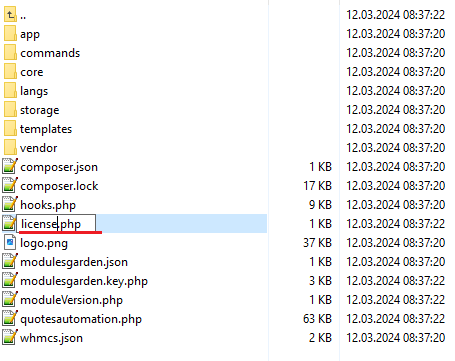
In order to configure your license key, you have to edit the previously renamed 'license.php' file.
Enter your license key between quotation marks as presented on the following screen. You can find your license key in our client area → 'My Products'.
Now you have to activate the module in your WHMCS system.
Log in to your WHMCS admin area. Go to 'Setup' → 'Addon Modules'. Afterwards, find 'Quotes Automation' and press 'Activate' button.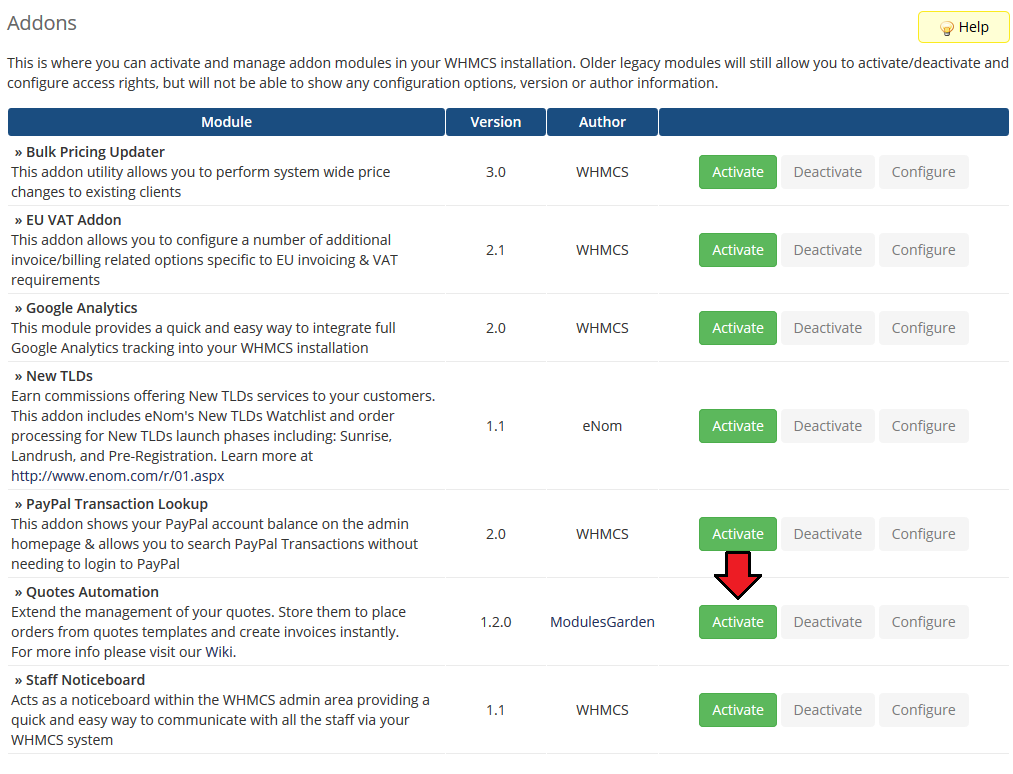
In the next step you need to permit access to this module.
To do so, click on 'Configure' button, tick 'Full Administrator' and press 'Save Changes'.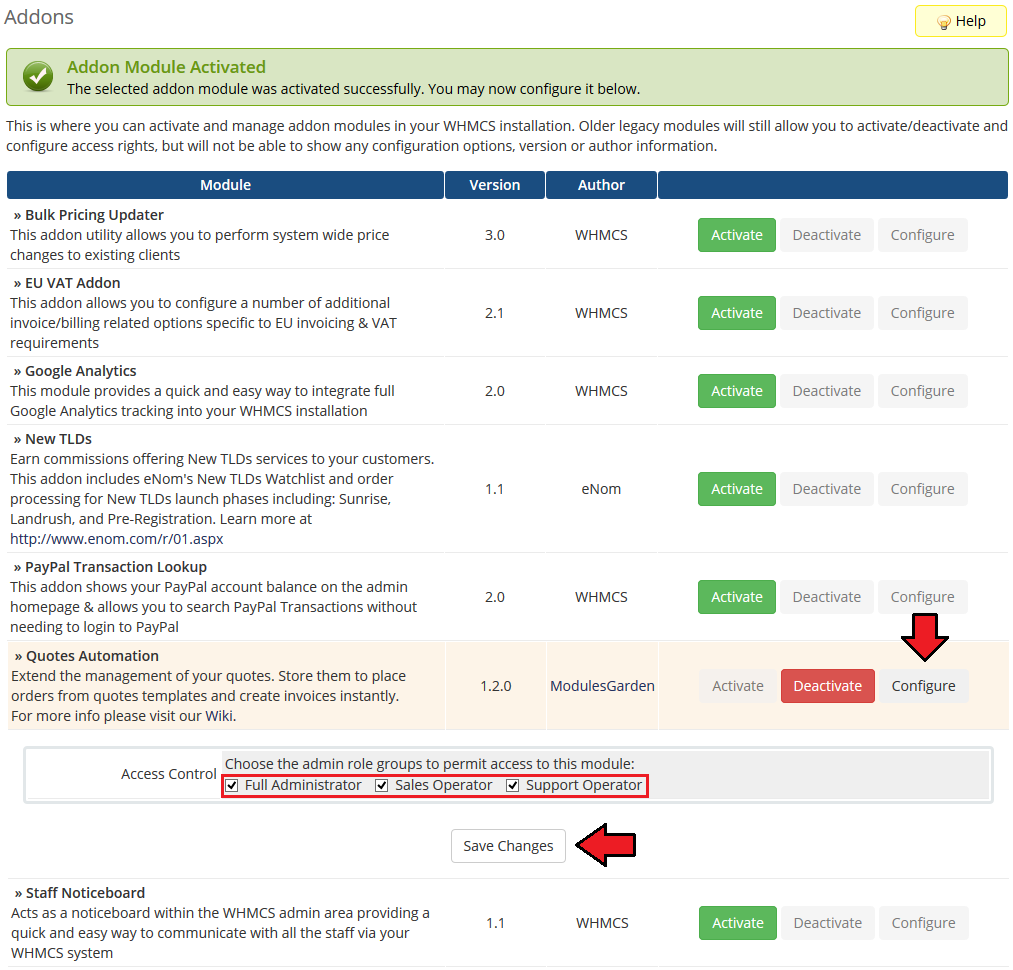
You have just successfully installed Quotes Automation For WHMCS!
You can access your module at 'Addons' → 'Quotes Automation'.
# Configuration and Management
Quotes Automation For WHMCS is a module which allows you to create and use quote templates as well as automatize a part of the process.
# Dashboard
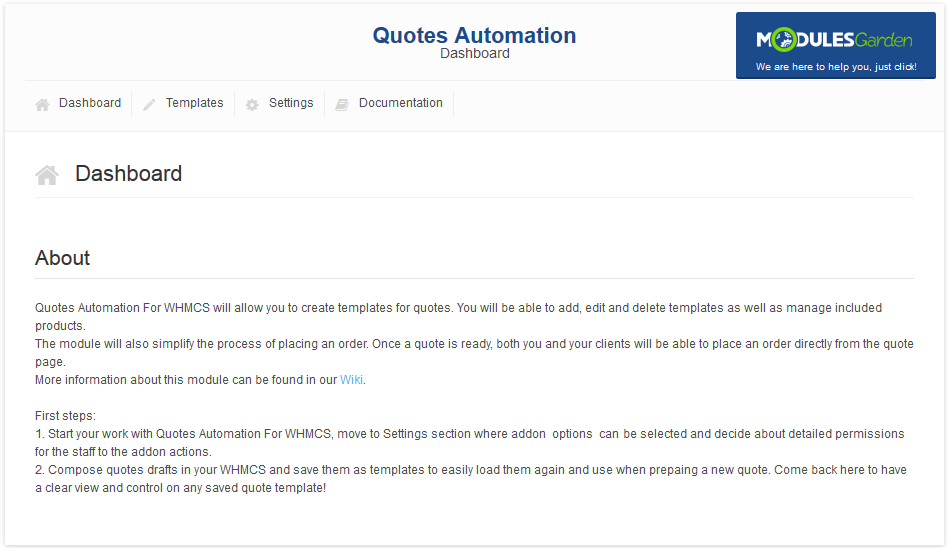
In 'Dashboard' you can find a short description of the module as well as the link to this Documentation article.
Move to 'Settings' tab to configure your addon according to your needs.
# Settings
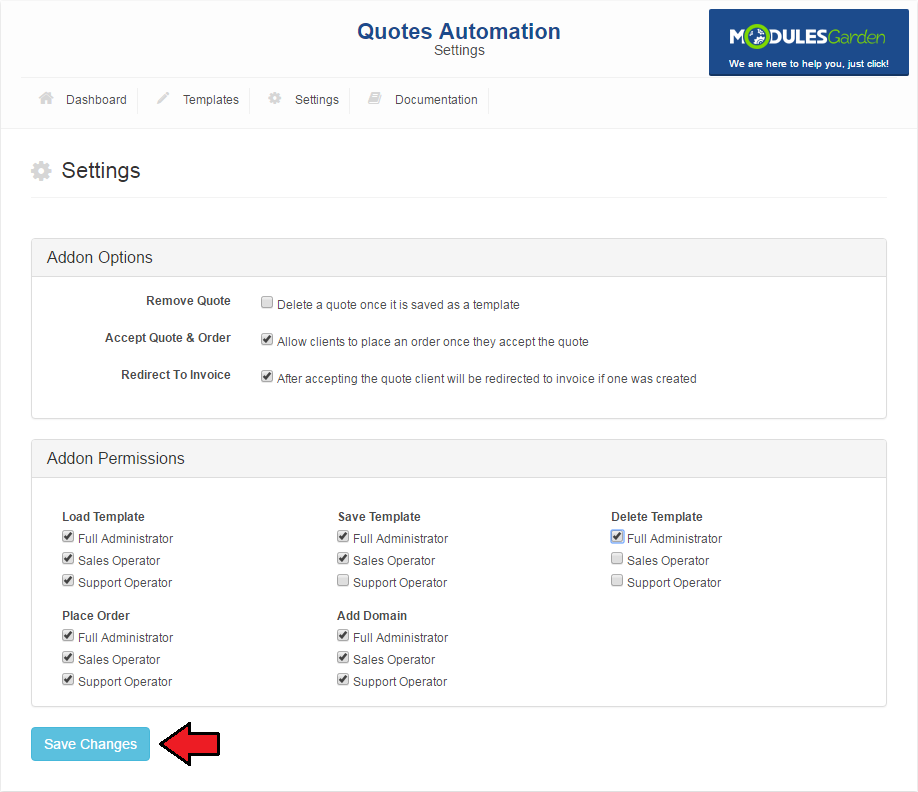
This tab allows you to define behavior of the module and set your staff members' permissions.
# Addon Options
In order to set up permissions and behavior of the module, mark checkboxes and press 'Save Changes'.
Remove Quote - If marked, a quote will be removed after saving it as a template. You can load it any time you will need it again.
Upon removing a quote you are asked to confirm the action, at this point you can cancel the removal of chosen quotes.Accept Quote & Order - If marked, as soon as your client accepts a quote, it will be converted into an invoice and an order.
Redirect To Invoice - When selected, after accepting a quote, the client is automatically redirected to the invoice if such was created.
# Addon Permissions
Load Template - access to quote templates loading.
Save Template - defines admin with saving quote as a template privilege.
Delete Template - ability to remove quote templates.
Place Order - permission to create an order and an invoice from a template.
Add Domain - access to add domain and its addon to quote function.
# Admin Area
# Create a Quote
Proceed to 'Billing' → 'Quotes' → 'Create New Quote'.
As you can see, new buttons are available.
Use buttons marked on the following screen to add domains and products to the quote.
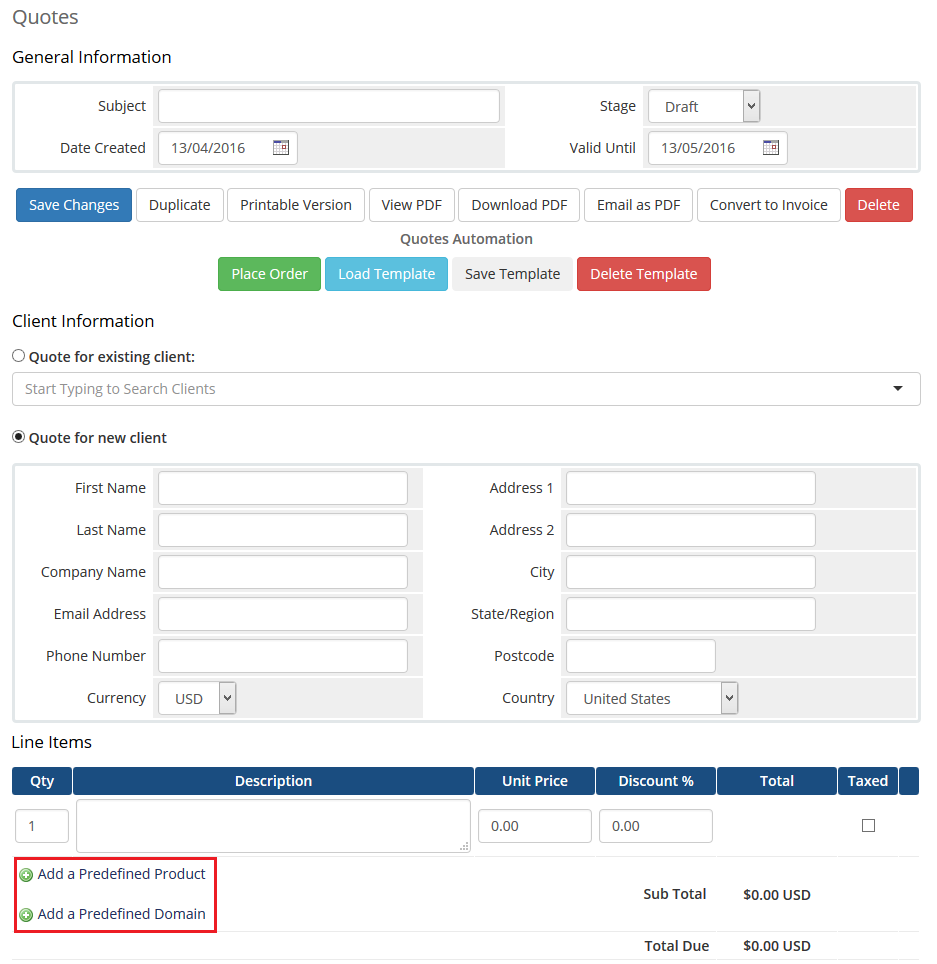
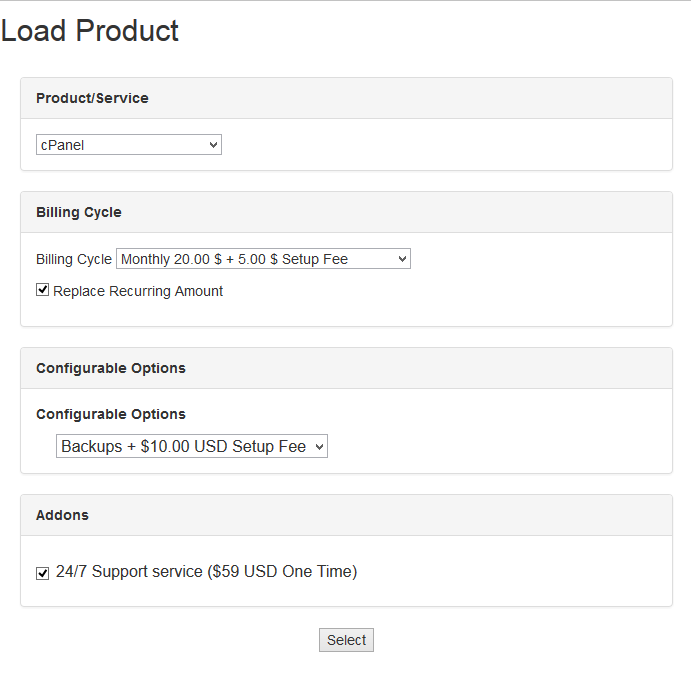
'Add a Predefined Product' button allows you to add products with addons assigned to them.
Upon adding a product, you can choose from configurable options and define its billing cycle.
Additionally, you can decide whether to apply pricing changes from the quote for the first payment only or change the billing cycle price.
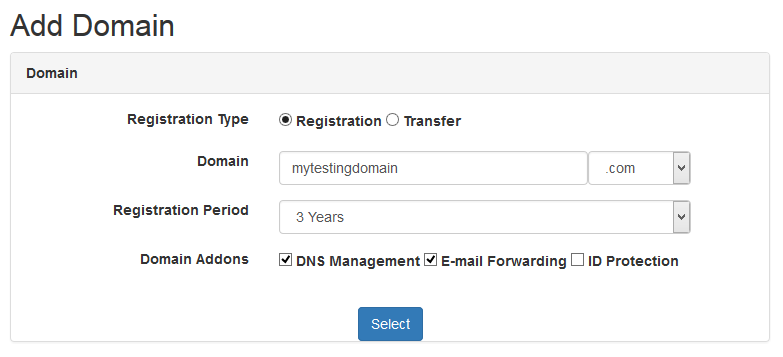
You can also add a domain to quote through using 'Add a Predefined Domain' button.
Our module allows you to choose registration type, domain name and TLD, registration period and addons.
Do not forget to save the changes when the quote is ready.
# Templates
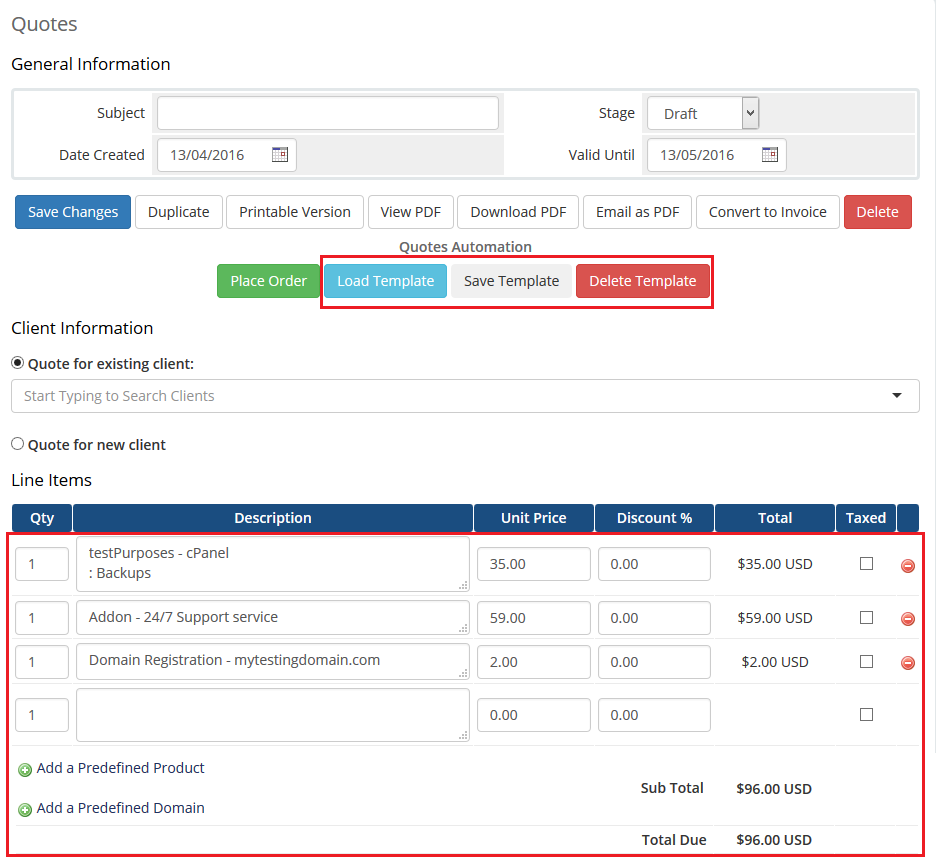
As you can see, all added products and domains with any addons are visible on the list with their current prices.
Use marked buttons to
- Save the template
- Load template
- Delete it
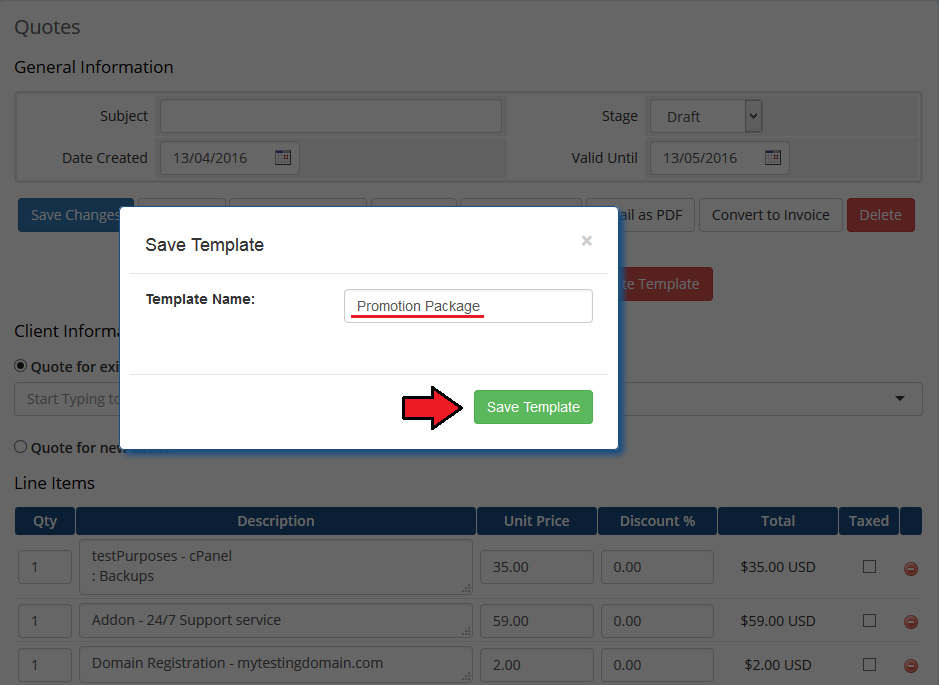
Now, let's save a quote as a template.
To do so, press 'Save Template', fill in template name and press 'Save'.
Note: If 'Remove Quote After Template Creation' is enabled, you will be asked if the quote should be removed.
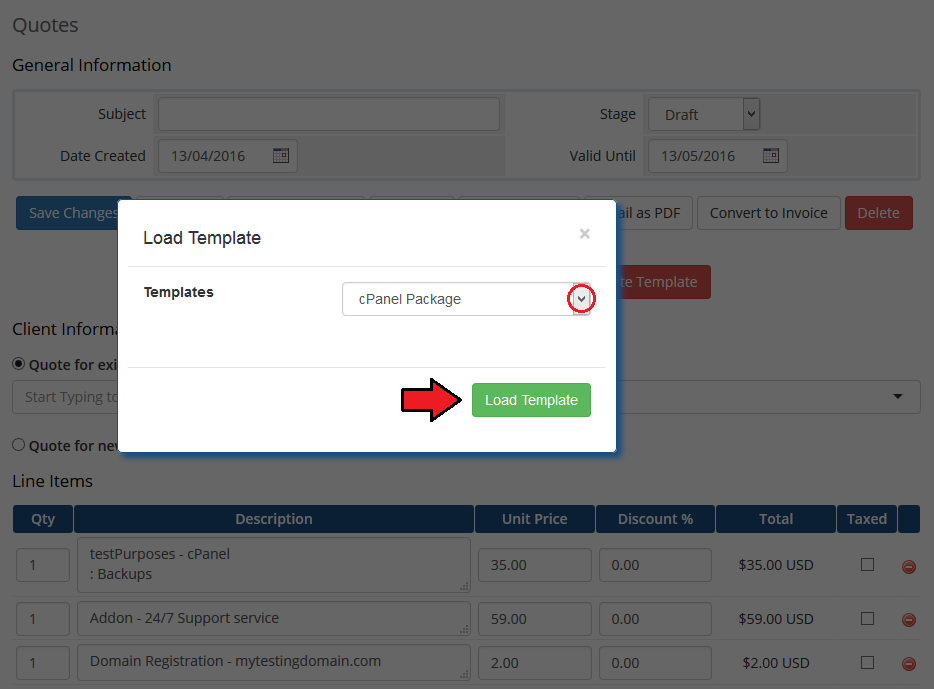
To use the template in a new quote, press 'Load Template', choose it from the list of your templates and click 'Load'.
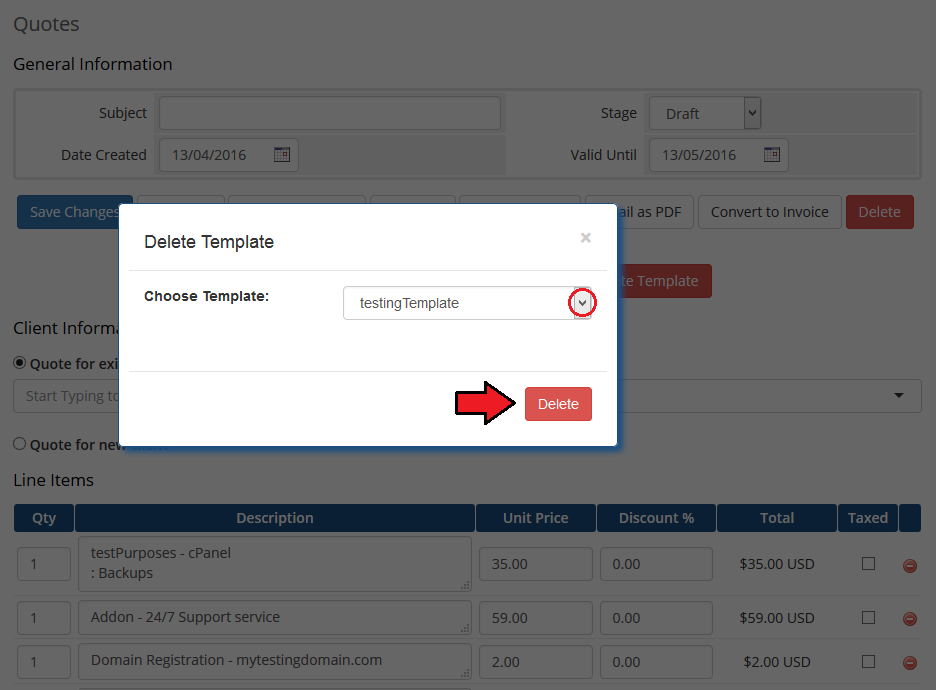
The same way you loaded a template, you can remove it.
Press 'Delete Template', choose a template to be removed and confirm through pressing 'Delete'.
# Available Templates
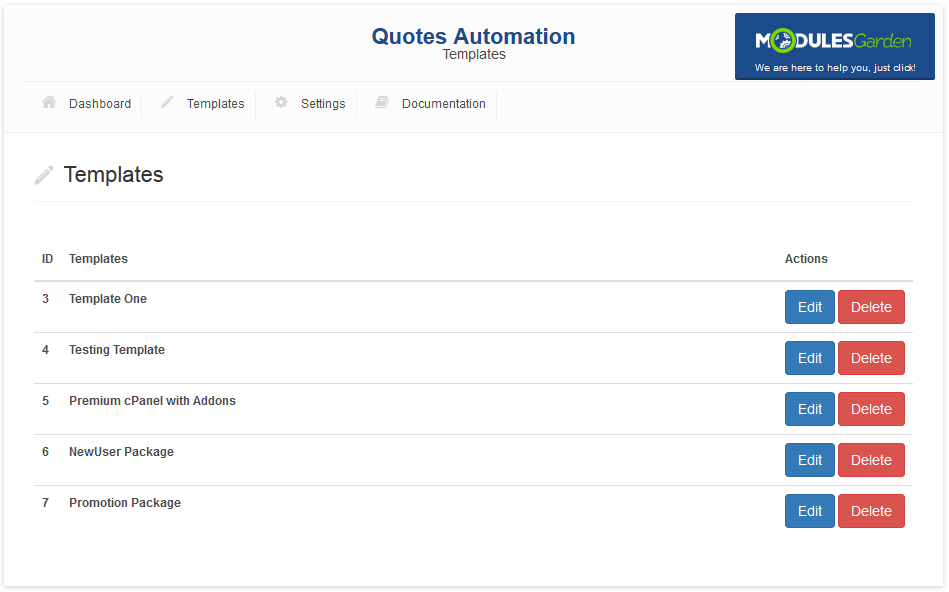
All saved templates are available in your addon. Move to 'Addons' → 'Quotes Automation' → 'Templates'.
You will find there a list of all saved quote templates.
Use action buttons to delete a template or edit it.
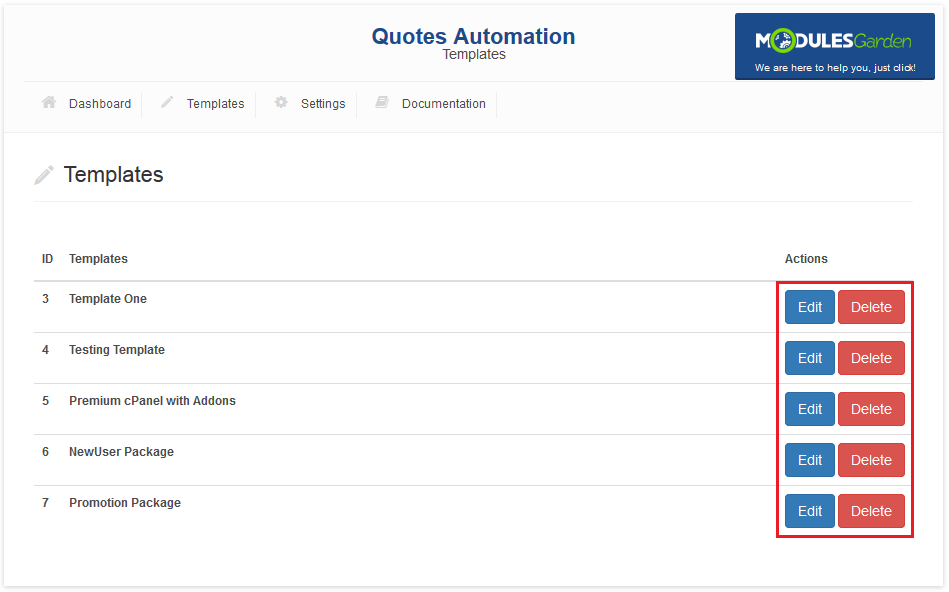
If you press 'Edit' button you will be redirected to the quotes page with a chosen template loaded.
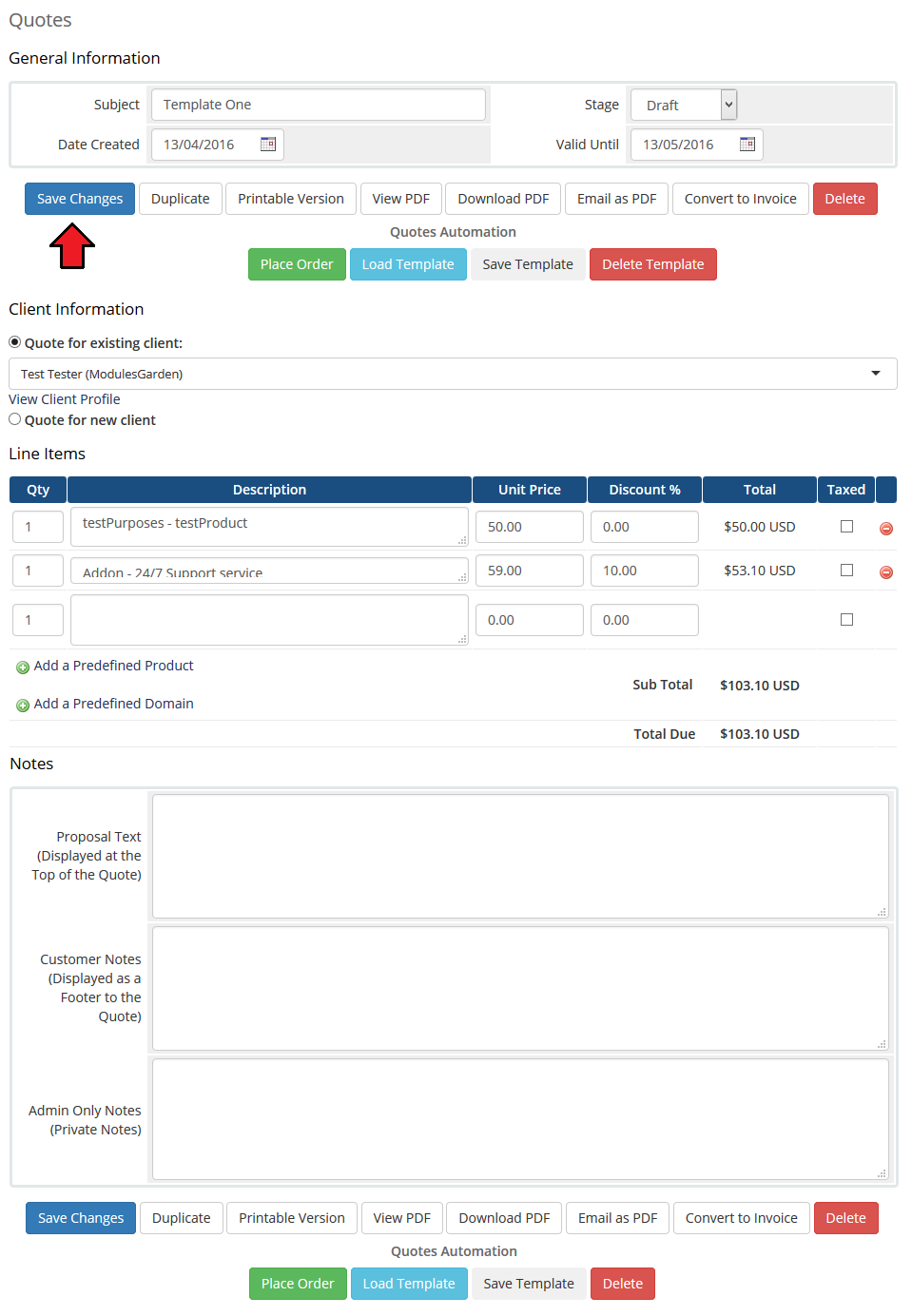
Alter it as you wish and save the changes to change the currently open template.
# Convert Quote To Order
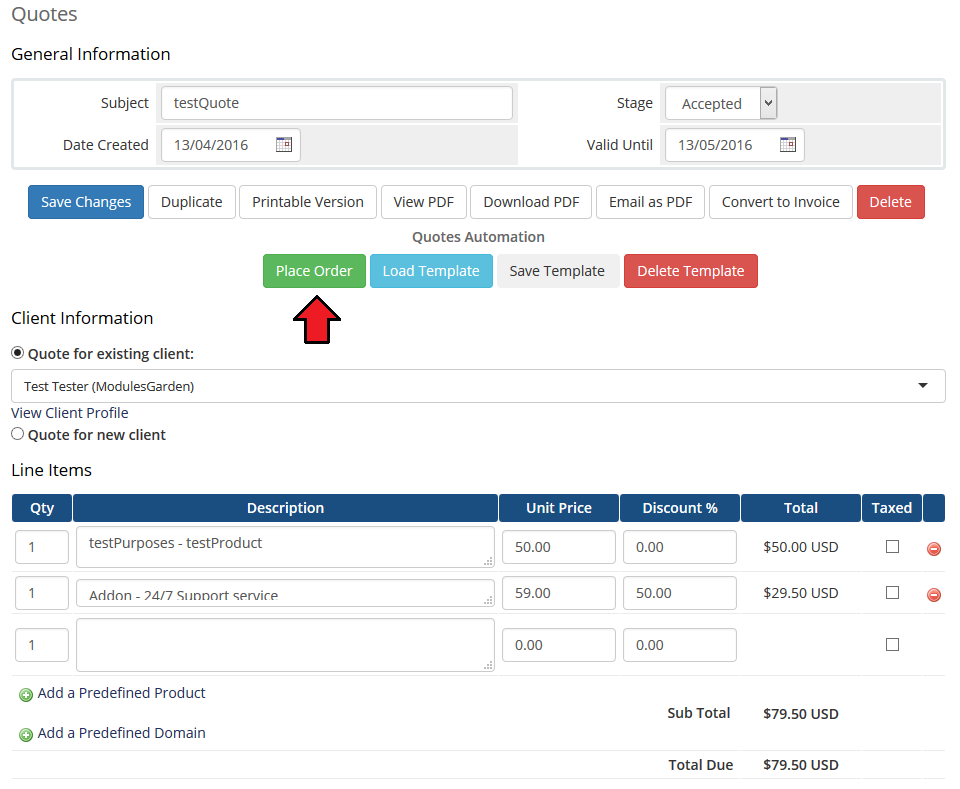
As soon as the customer accepts the quote, you can quickly create an invoice and an order from it. Press 'Place Order'.
Note: The quote visible on the screen below has one product with a 50% discount. 'Replace recurring amount' option has been marked when added.
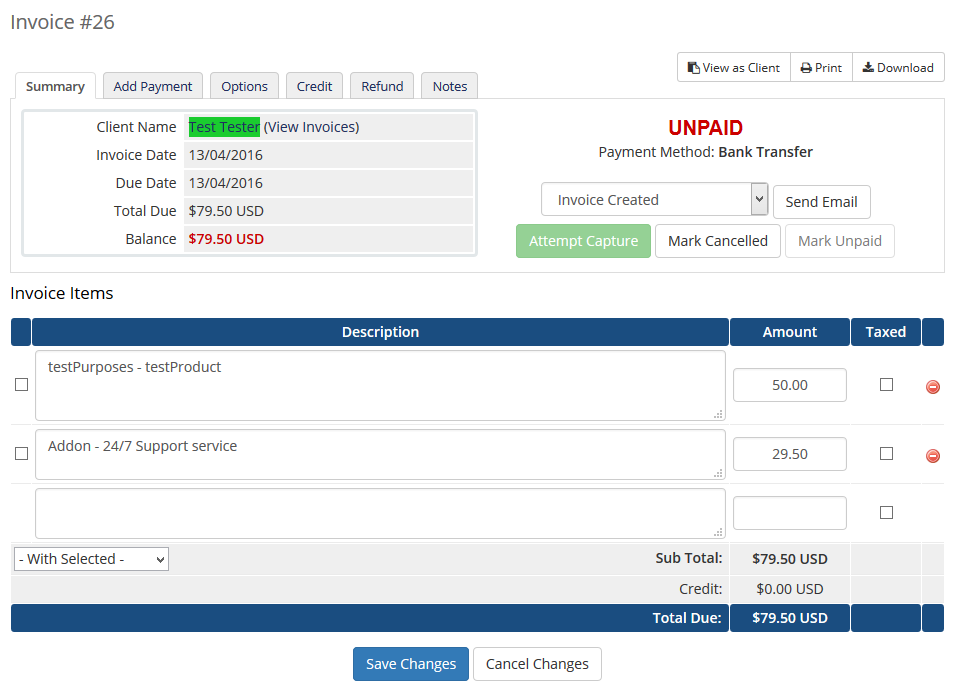
On the screen below you can see the invoice.
As you can see, the 50% discount was applied to the product 'Product X'.
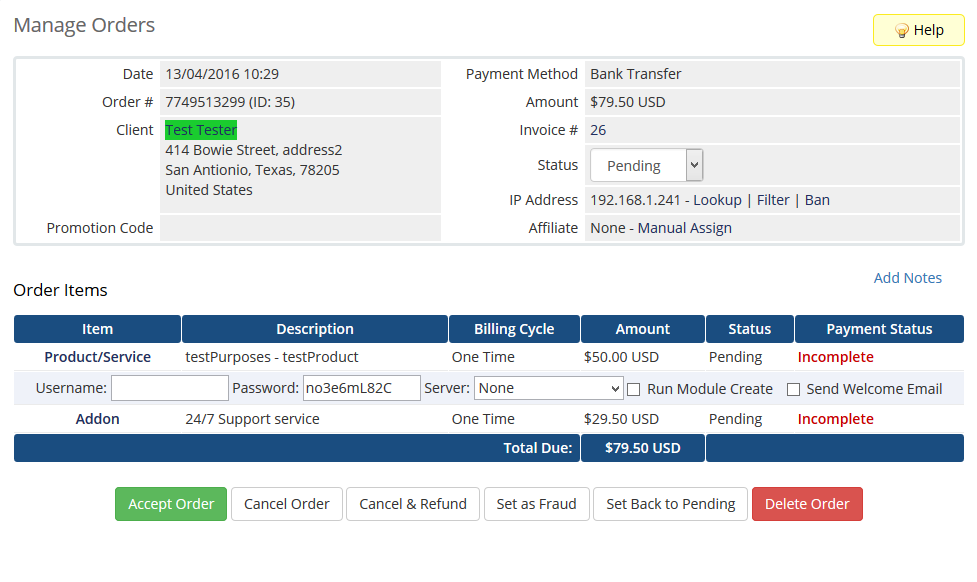
The order is also made right away with the specified price.
# Client Area
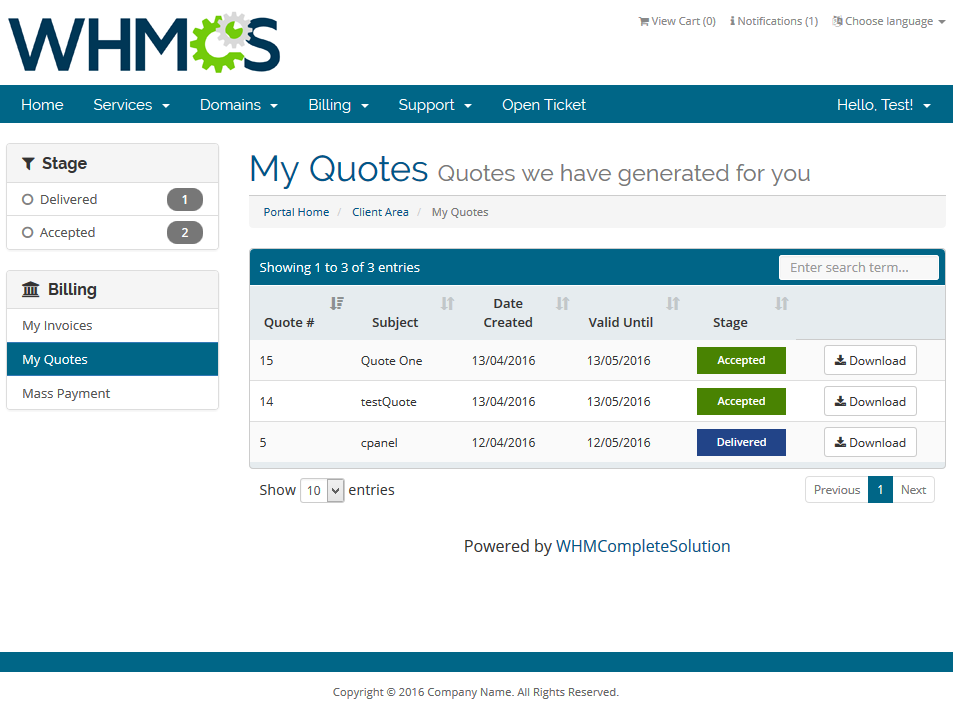
If you have marked 'Accept Quote & Place An Order', the module will alter the quotes in the client area.
Find your quotes and view the ones you want to accept and place order instantly.
# Accept & Order
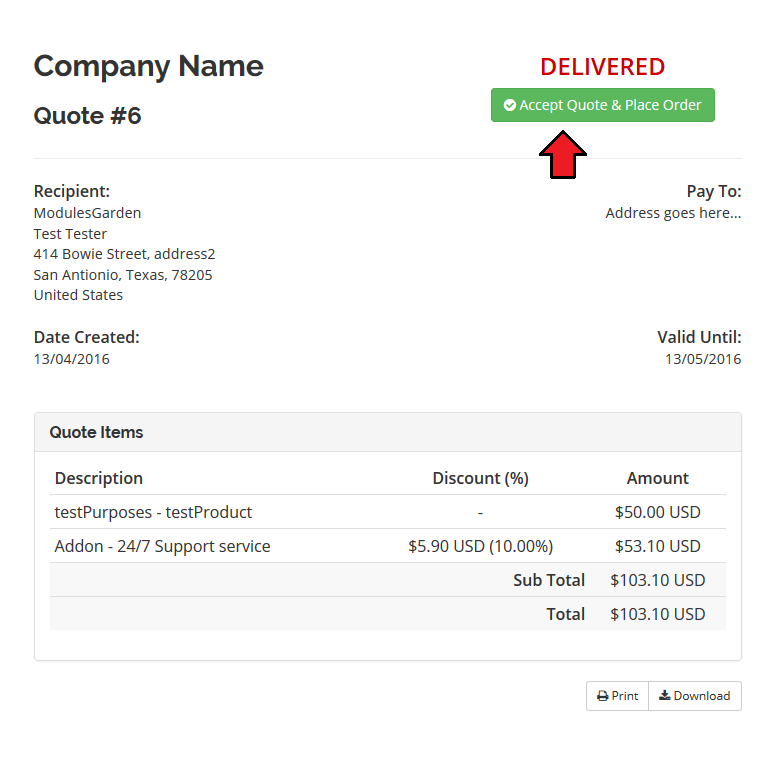
Additional actions will be made upon pressing 'Accept Quote' in the client area.
This way, as soon as the client accepts the quote, the module will automatically generate the invoice and the order from the quote.
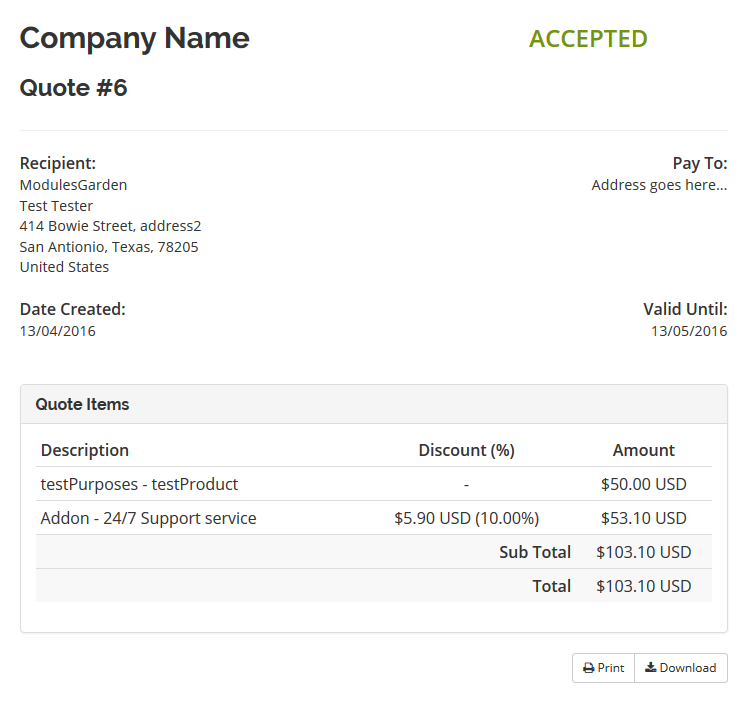
As you can see the status has changed immediately after the quote has been accepted.
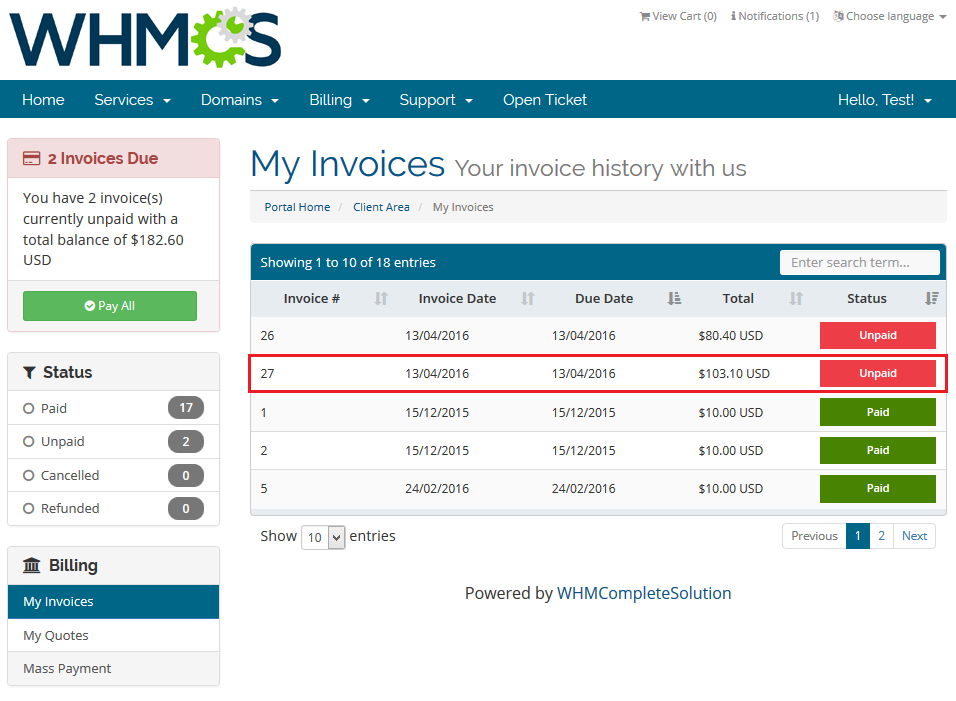
You can find now a new invoice to pay on your list of invoices.
# Tips
- Before you choose a product, an addon or a domain to add to a quote, always make sure it is properly configured in the system to avoid any confusion.
# Update Instructions
Essential guidance through the process of updating the module is offered here.
Keep in mind there is a quick and easy option in our client area that will let you upgrade the license of your module to an open source version at any time - and at a lower price!
To take advantage of it, simply use the License Upgrade button located on the product's page and a discounted invoice will be generated automatically.
# Common Problems
- When you have problems with connection, check whether your SELinux or firewall does not block ports.