

# Amazon EC2 For WHMCS
# (opens new window) About Amazon EC2 For WHMCS (opens new window)
Amazon EC2 For WHMCS will boost your AWS provisioning business by allowing automated management of Amazon EC2 instances in your WHMCS system.
Your clients will be empowered to remotely start, stop, and reboot the server, as well as preview the assignment of IP addresses.
In addition, the module will let you easily control product features, and supervise the status of each sold machine.
# Installation and Configuration
This tutorial will show you how to successfully install and configure Amazon EC2 For WHMCS (opens new window) smoothly.
We will guide you step by step through the whole process.
# Installation
- Log in to our client area and download the module.
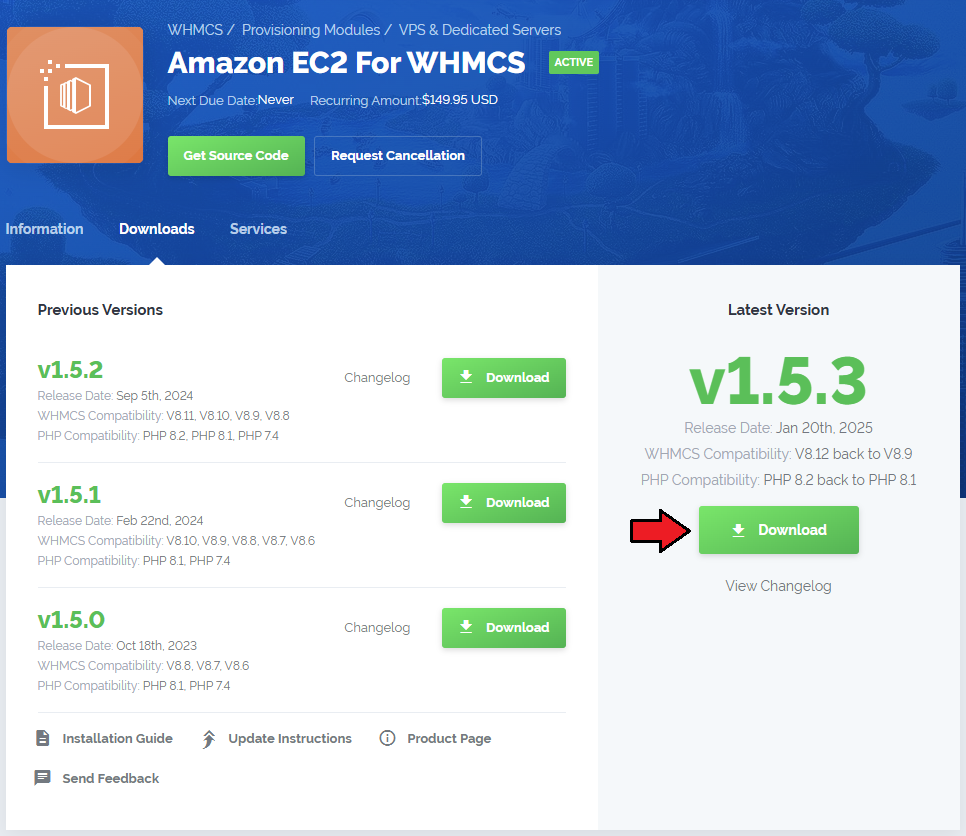
Upload and extract the extension into the main WHMCS directory.
Extracted files in your WHMCS directory should look like this:
When you install Amazon EC2 For WHMCS for the first time, you have to rename the 'license_RENAME.php' file.
The file is located in '/yourWHMCS/modules/servers/AwsEc2/license_RENAME.php'. Rename it from 'license_RENAME.php' to 'license.php'.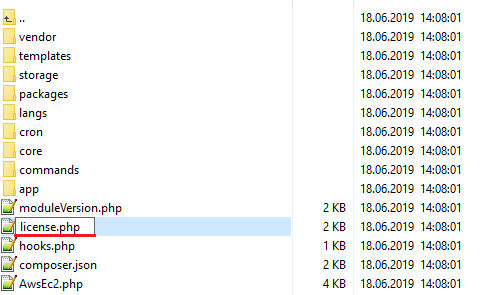
In order to configure your license key, you have to edit the previously renamed 'license.php' file.
Enter your license key between the quotation marks as presented on the following screen.
You can find your license key in our client area → 'My Products'.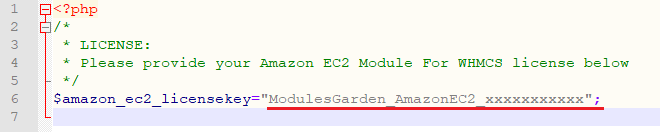
Now, set up the 'storage' folder as recursively writable.
This folder is available at '/yourWHMCS/modules/servers/AwsEc2/'.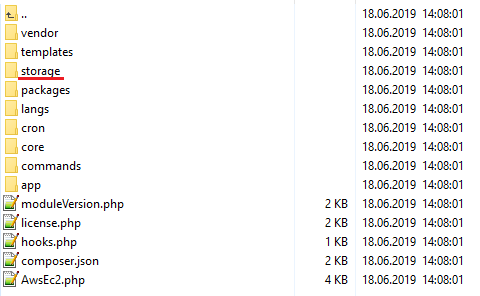
The last step is setting up the queue cron job.
It will be used to execute module commands such as: create, terminate or change package.
php -q /yourWHMCS/modules/servers/AwsEc2/cron/cron.php queue
It is suggested to run the cron every 5 minutes.
# Configuration of Server
Before you can go on, you must generate your Amazon EC2 access details. You will need them to connect with the server successfully.
Underneath, you will find instructions where to find them.
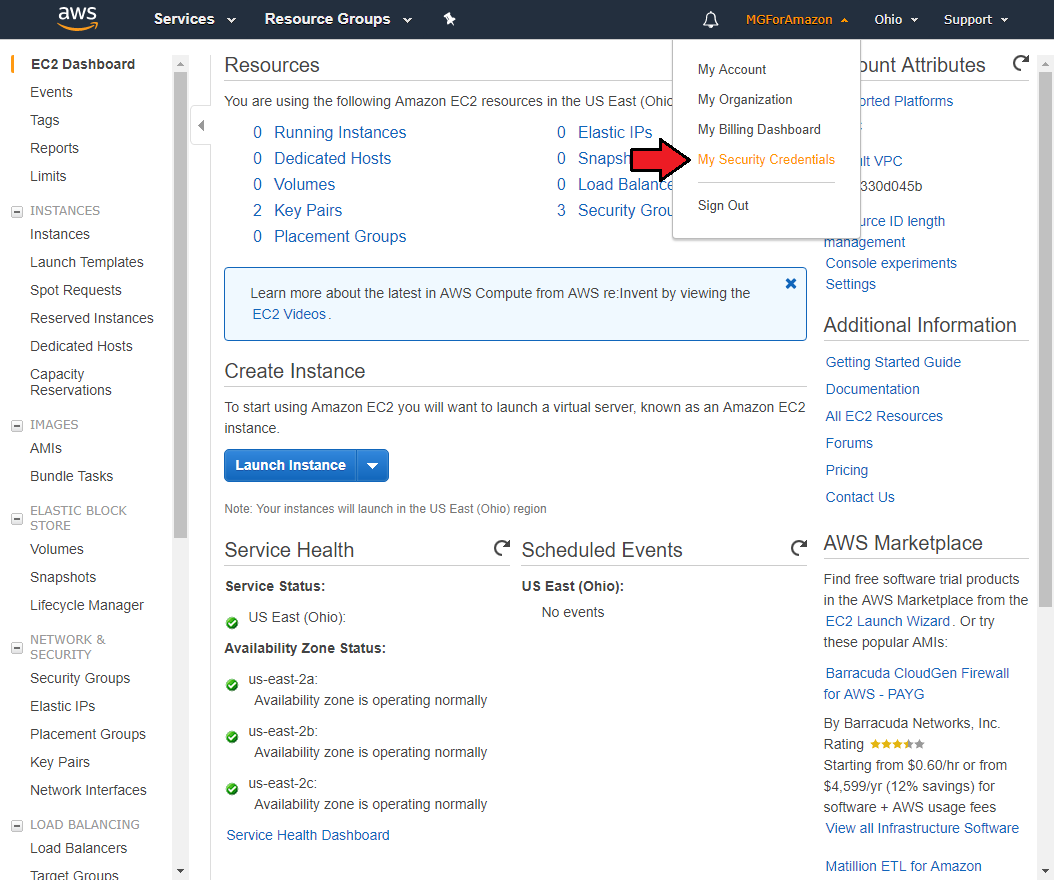
- Firstly, log into your Amazon EC2 account and find 'My Security Credentials' section under your account name dropdown.
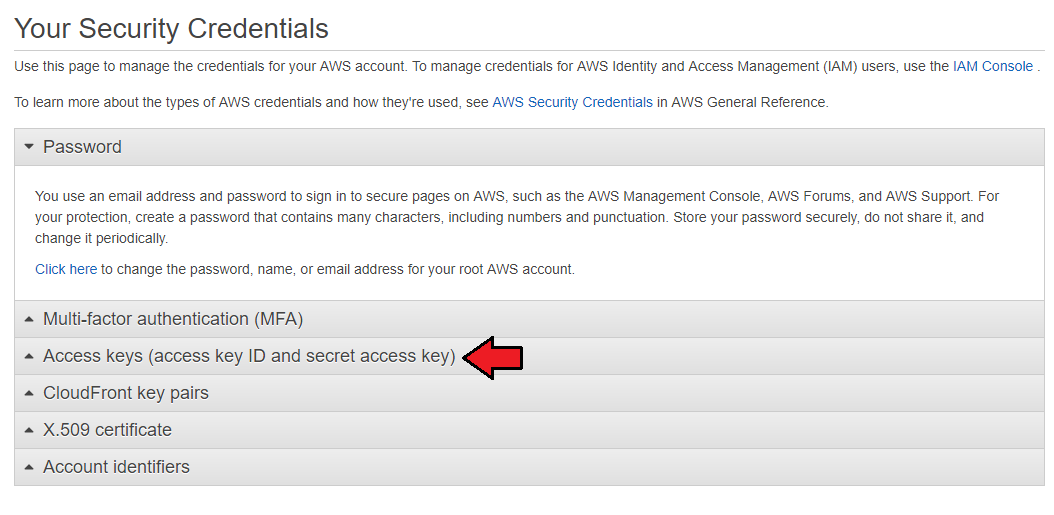
- There, move to 'Access Keys (access key ID and secret access key) section.
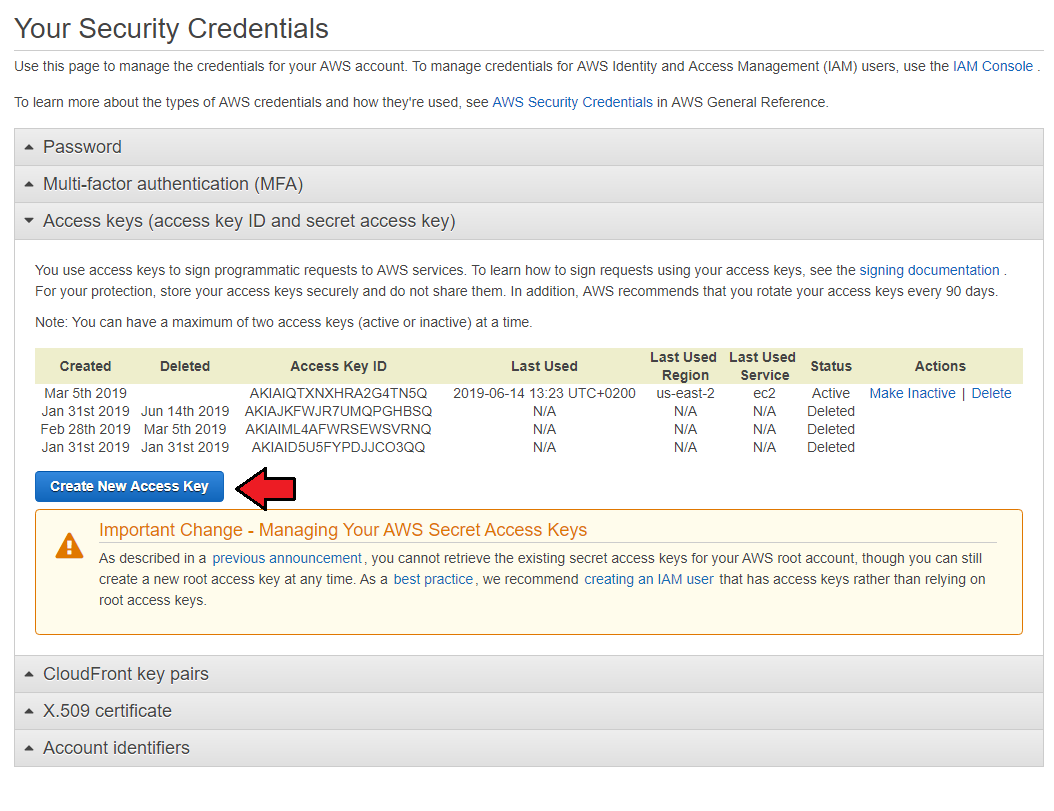
- If you do not have yet any active keys, then press 'Create New Access Key' button to generate a new set of details.
A modal with Access Key ID and Secret Access Key will appear, so copy it and keep safe. You may also download a file with the details.
Note that this is the only place where you can later on find the corresponding secret key, it will not be visible next to the Key ID in the panel.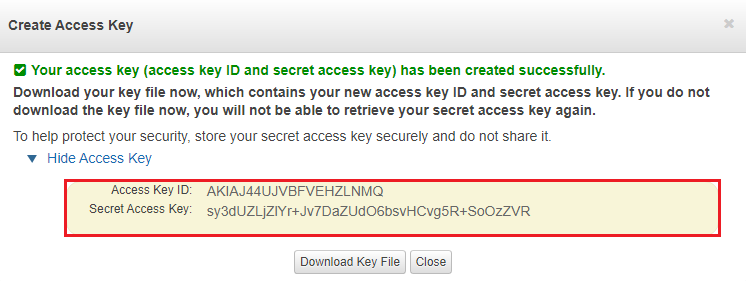
Now, log in to your WHMCS and proceed to 'Setup' → 'Products/Services' → 'Servers' and press 'Add New Server'.
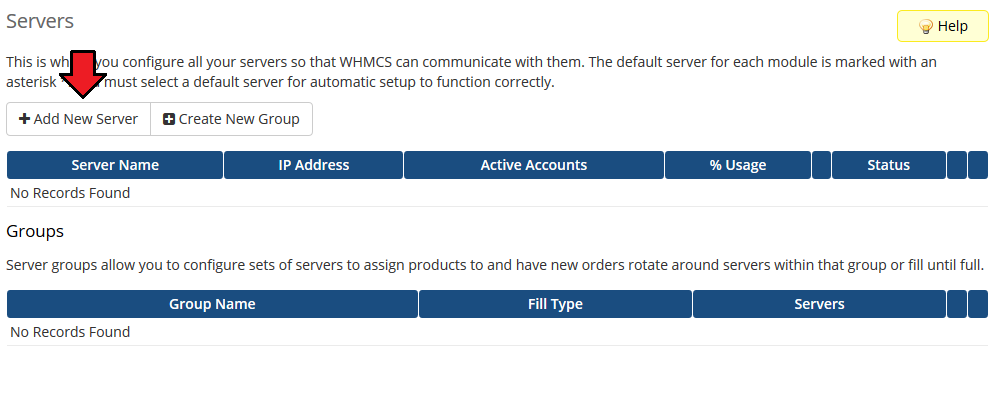
Next, enter your server name and select 'Amazon EC2' from the 'Type' field.
Now, provide the previously generated 'Access Key ID' and 'Secret Access Key'. Then check the connection. If successful, save the changes.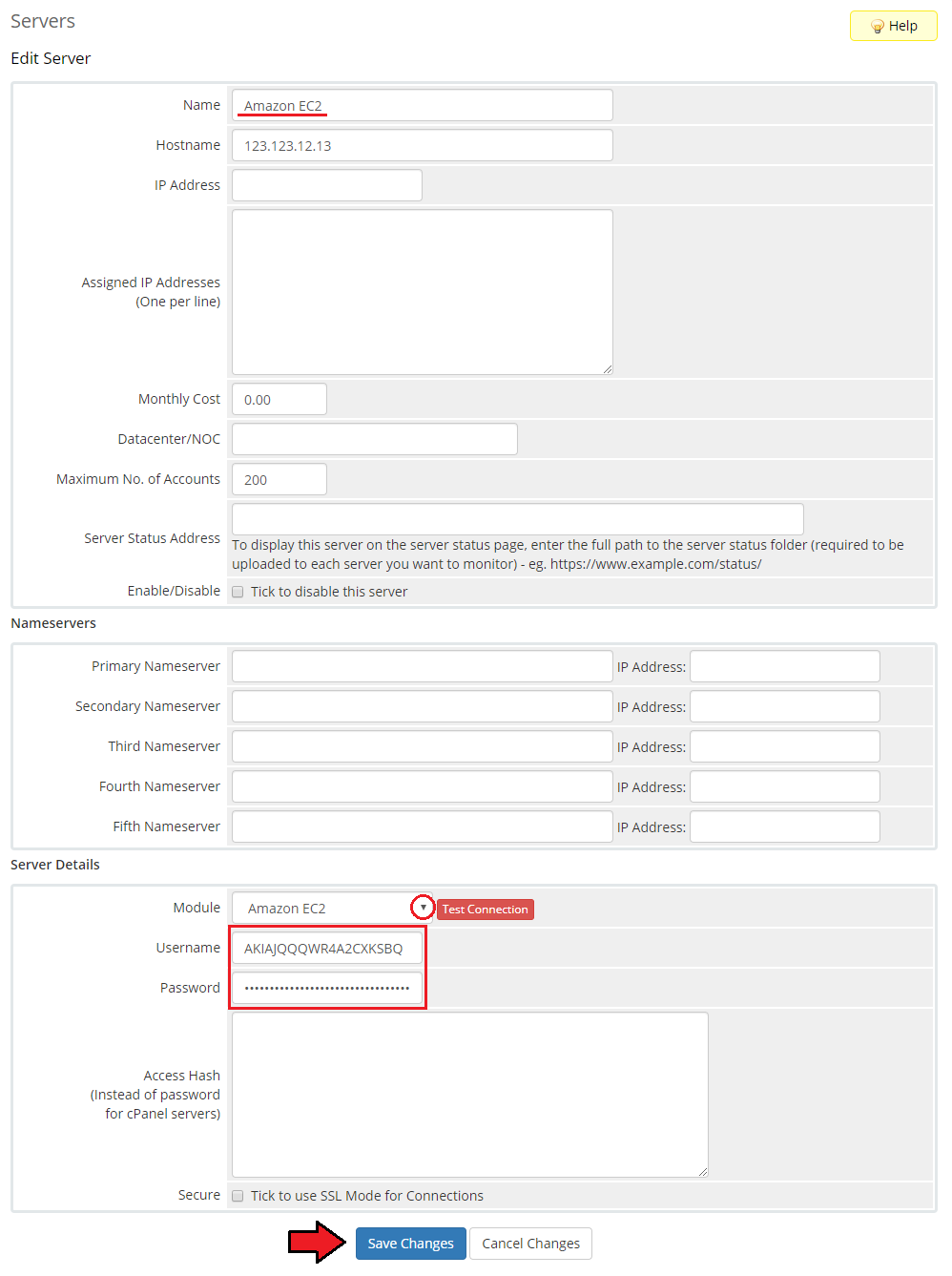
It is time to create a server group. To do so, click on 'Create New Group'.
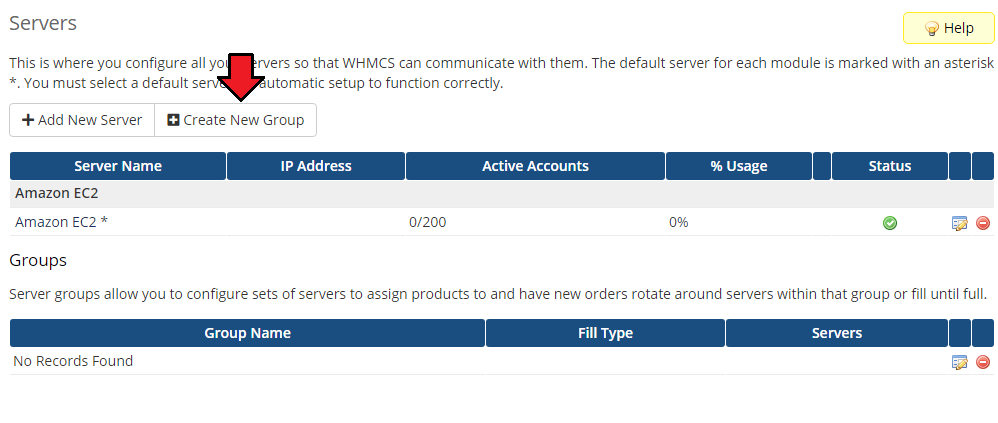
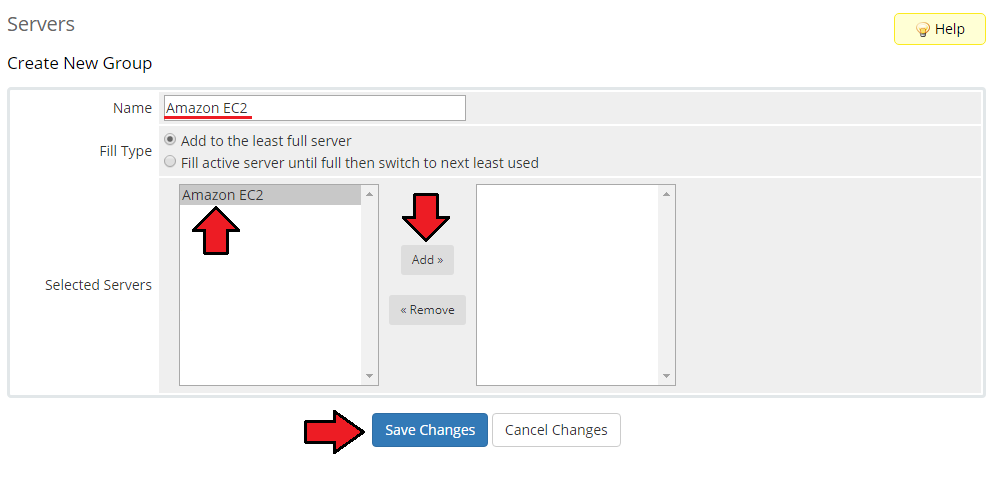
- Enter a name, click on your previously created server, press 'Add' and afterward 'Save Changes'.
# Configuration of Product
In order to create and configure a product, go to 'Setup' → 'Products/Services' → 'Products/Services'.
Click on 'Create a New Group'.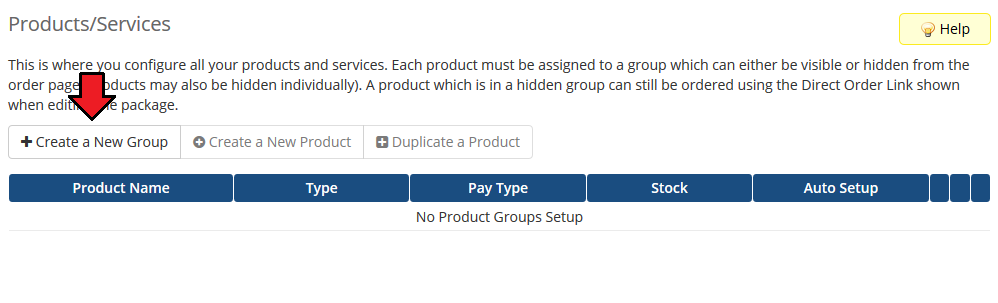
Enter your product group name and press 'Save Changes'.
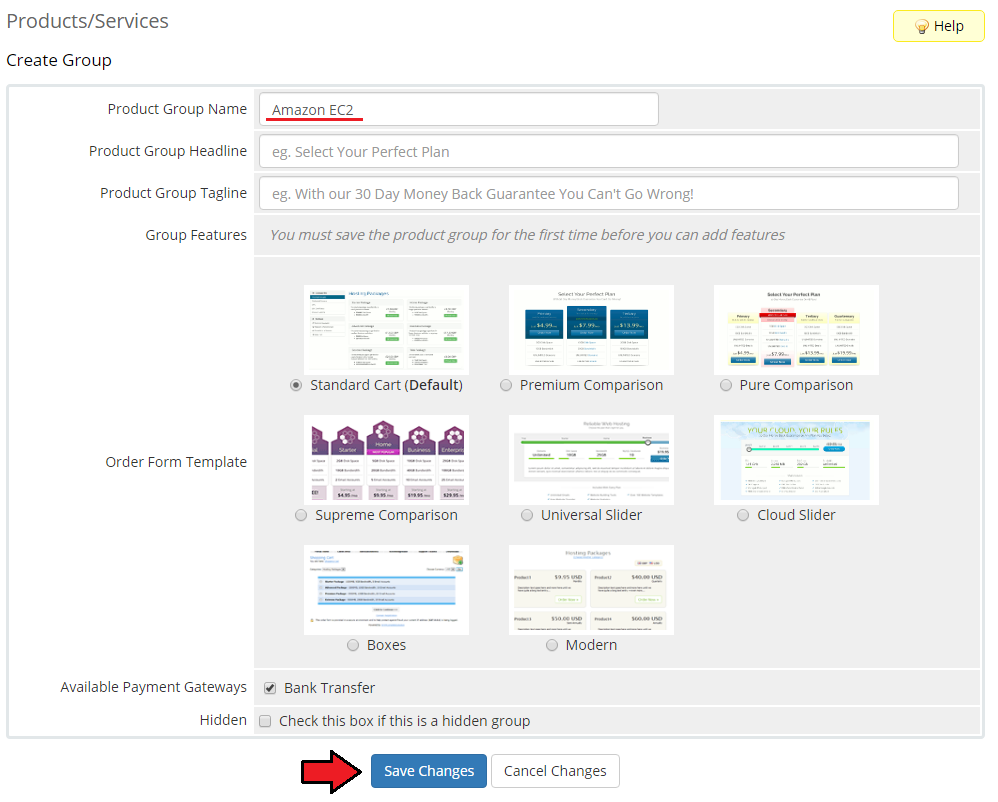
Once you have a product group, you can create a new product.
To do so, first click on 'Create a New Product'.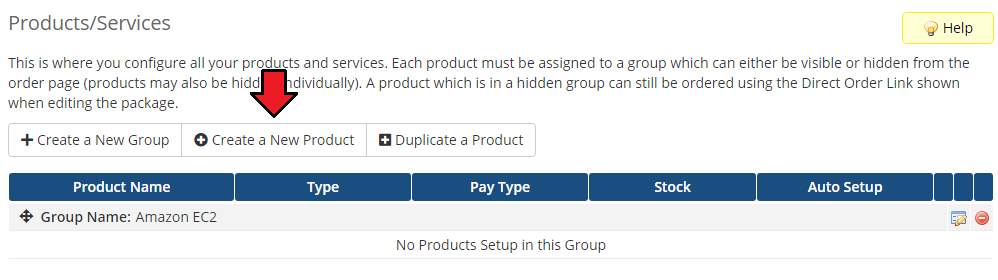
Afterward, choose your product type, enter your product name, choose module and the product group from the dropdown menus. Press 'Continue'.
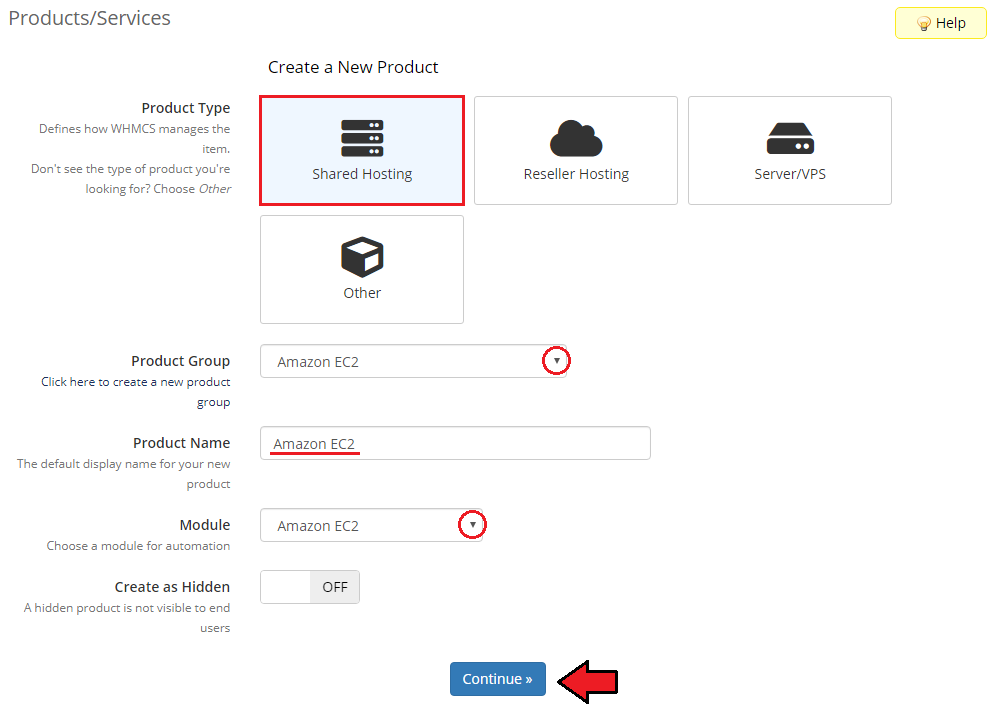
Now, go to the 'Module Settings' section, choose your previously created server group from the dropdown menu.
The module should automatically save and reload the settings. If not, click on the 'Save Changes' option manually.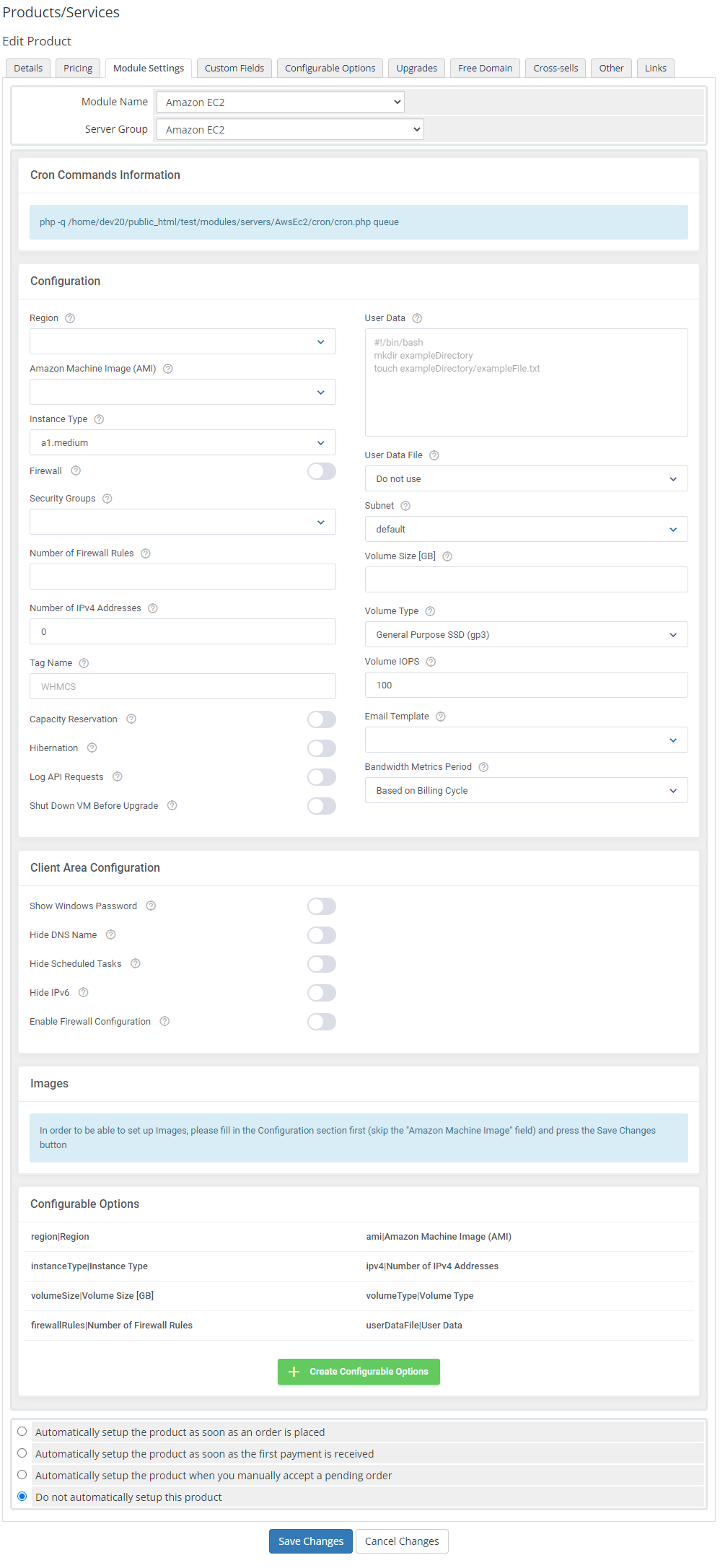
Now, you can start configuring the settings of the server you sell.
Just like when creating a new virtual machine in your EC2 panel, here also you can configure such options as:
- Region - Choose a geographical area with a set of EC2 resources. If you cannot see a specific region, see this use case on how to add it.
- Amazon Machine Image (AMI) - An AMI is a template that contains the software configuration (operating system, application server, and applications) required to launch your instance.
You must have previously added any AMIs into the Selected Images table to be able to select any here. - Instance Type - Select instance type based on the requirements of the application or software that you plan to run on your instance.
- Firewall - If enabled before launching the instance, a separate, dedicated security group will be created for this instance during its creation.
Otherwise, security groups from the Security Groups field will be attached to that instance. - Security Groups - A named set of allowed inbound network connections for an instance. Each security group consists of a list of protocols, ports, and IP address ranges.
- Number of Firewall Rules - Fill in a number of 'Firewall Rules' that can be set up by a client.
- Number of IPv4 Addresses - Enter a maximum number of allowed, public IP addresses (Elastic IP) - once assigned, are not removed when stopping the machine.
If entered "0" value, EC2 will assign a random IP address from one of the default EC2 subnets - such IP is deleted after stopping the machine. - Tag Name - Define a tag name, this label will be assigned to EC2 resources.
- User Data - You can specify user data to configure an instance or run a configuration script during launch. This field is optional.
Tutorial on how to use this option can be found here (opens new window). - User Data File - Choose the execution script which will be used to configure the virtual machine on the first boot. Go here to find more information about how to use these scripts.
Note: User Data scripts are optional for product configuration if you do not want to use them, simply set this field to the 'Do not use' option. - Subnet - A subnet to which an instance will be launched.
- Volume Size - Volume size has to be greater than 0. If you do not specify the volume size, the default is the snapshot size. Provisioned IOPS volumes must be at least 100GB in size.
- Volume Type - General Purpose (SSD) volumes can burst to 3000 IOPS, and deliver a consistent baseline of 3 IOPS/GiB. Provisioned IOPS (SSD) volumes can deliver up to 64000 IOPS and are best for EBS-optimized instances.
Magnetic volumes (previously called standard volumes) can deliver 100 IOPS on average and burst to hundreds of IOPS.
If you want to learn more about volume types, please refer to this website (opens new window). - Volume IOPS - is the requested number of I/O operations per second that the volume can support. For Provisioned IOPS (SSD) volumes, you can provision up to 50 IOPS per GiB.
For General Purpose (SSD) volumes, baseline performance is 3 IOPS per GiB, with a minimum of 100 IOPS and maximum of 16000 IOPS. General Purpose (SSD) volumes under 1000 GiB can burst up to 3000 IOPS. - Capacity Reservation - Capacity Reservations reserve capacity for your EC2 instances in a specific Availability Zone.
You can launch instances into a Capacity Reservation if they have matching attributes (instance type, platform, and Availability Zone), and available capacity. - Hibernation - Enable to allow hibernating your instance. Hibernation stops your instance and saves the contents of its RAM to the root volume.
You cannot enable or disable hibernation after launch
Note: It is possible to hibernate only some of the instances. In case your client's machine does not support hibernation, this option will be disabled. - Log API Requests - Enable to allow storing information on API requests in the 'Module Log' section in your WHMCS.
- Shut Down VM Before Upgrade - Automatically shut down a VM before upgrading it, to prevent potential crashes and errors during the upgrade process.
- Email Template - Choose an email template that will be sent to a client when the VM is created. Please refer to Tips section tip 3 to read more about allowed parameters.
- Bandwidth Metrics Period - Specify bandwidth metrics period by choosing between:
- 'Current month'
- 'Last month'
- 'Based on billing cycle options'
Note: It is advised to set the product billing type to 'Recurring', in case you choose 'One Time', the module will calculate only the past 30 days for bandwidth usage.
Client Area Configuration:
- Show Windows Password - this option works only for Windows instances. After the launch of the instance, password generation and encryption may take up to 15 minutes.
- Hide DNS Name - if enabled, the 'Public DNS Name' field will be hidden in the client area.
- Hide Scheduled Tasks - if enabled, the 'Scheduled Tasks' section will be hidden in the client area.
- Hide IPv6 - If enabled, the 'IPv6 Addresses' section will be hidden in the client area.
- Enable Firewall Configuration - If enabled and the instance was created without the 'Firewall' option enabled, a client will grant the possibility to modify firewall rules.
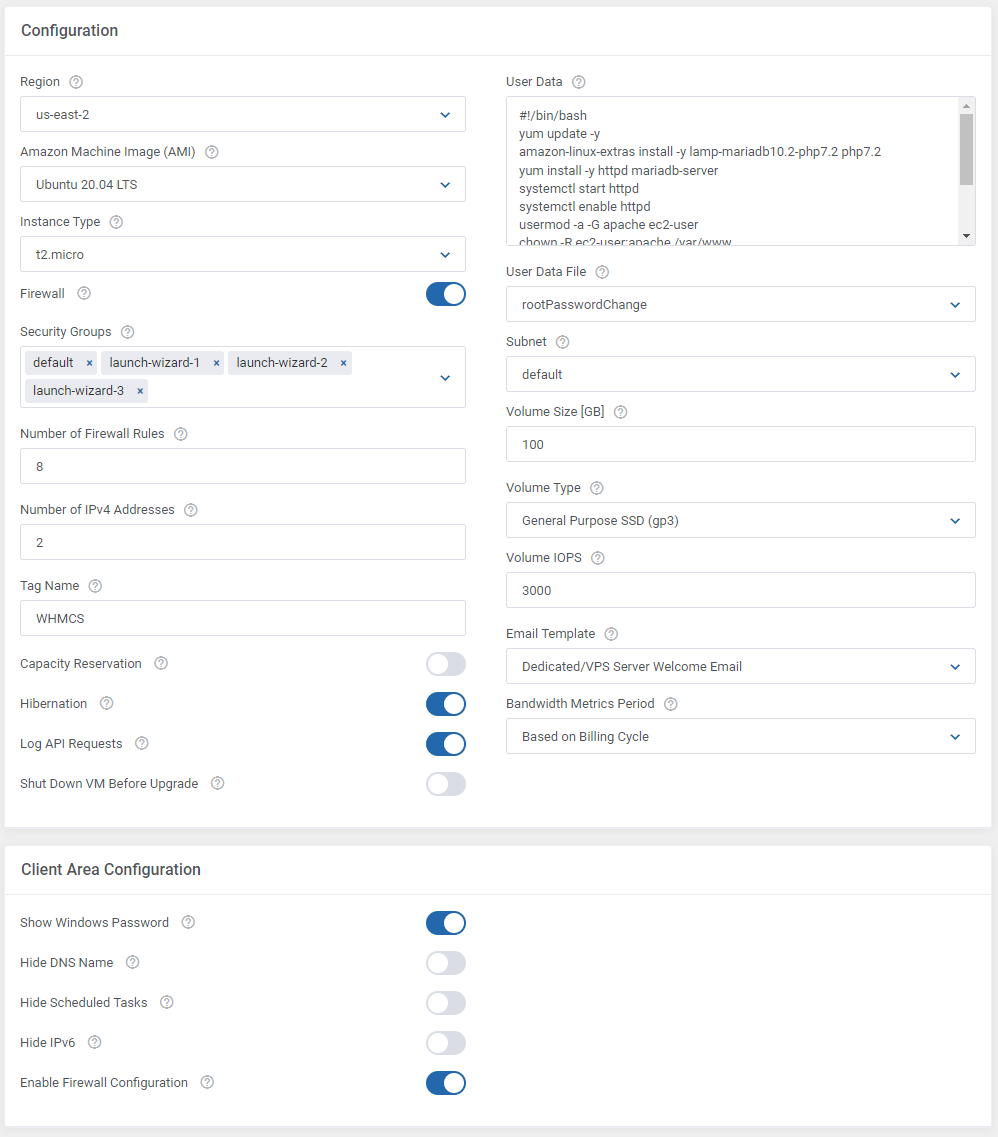
The following section is dedicated to Images.
Here, you may look for and then select single images to be added to the list. They will be available to choose from in the Amazon Machine Images (AMI) field in the main configuration of the product.
First of all, enter as many details as possible to find the images you are interested in. Press the search button when ready.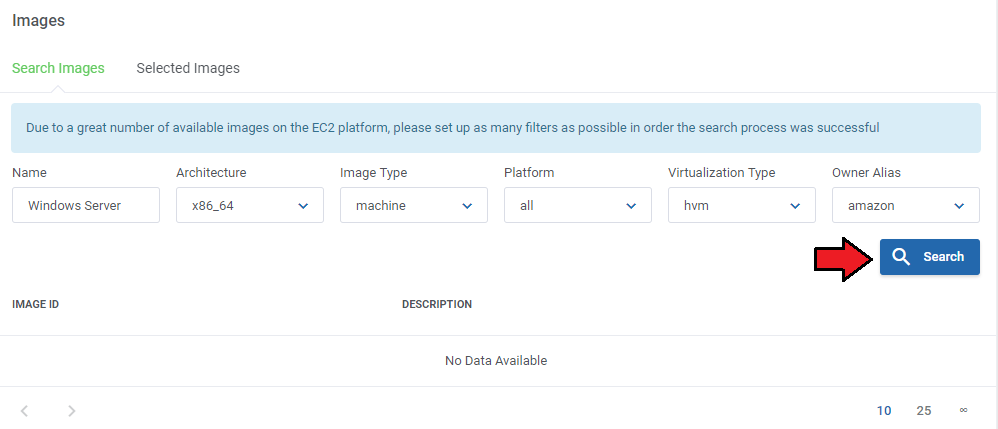
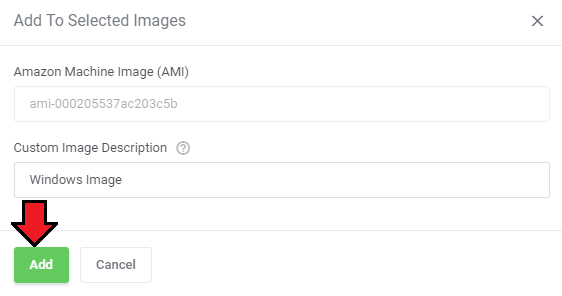
When the list of available images appears, press 'Add' next to the one you wish to add to the list of selected.
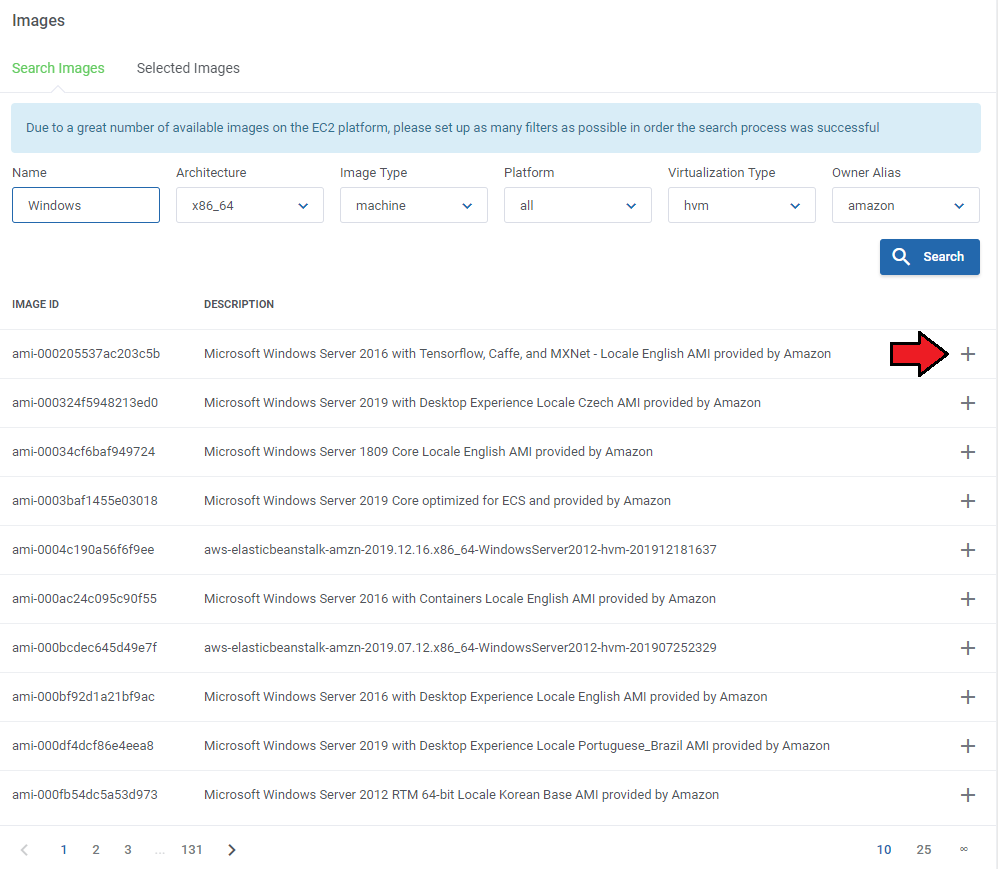
Enter a custom name if you wish and confirm the action.
On the list of selected, there are all images that you have added, and which will be available to select from when setting up the Amazon Machine Images (AMI) configuration field.
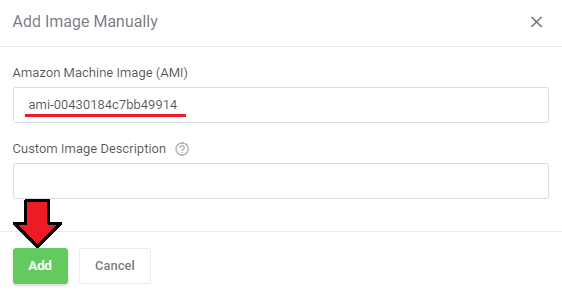
It is also possible to add images manually here. Simply enter the image ID.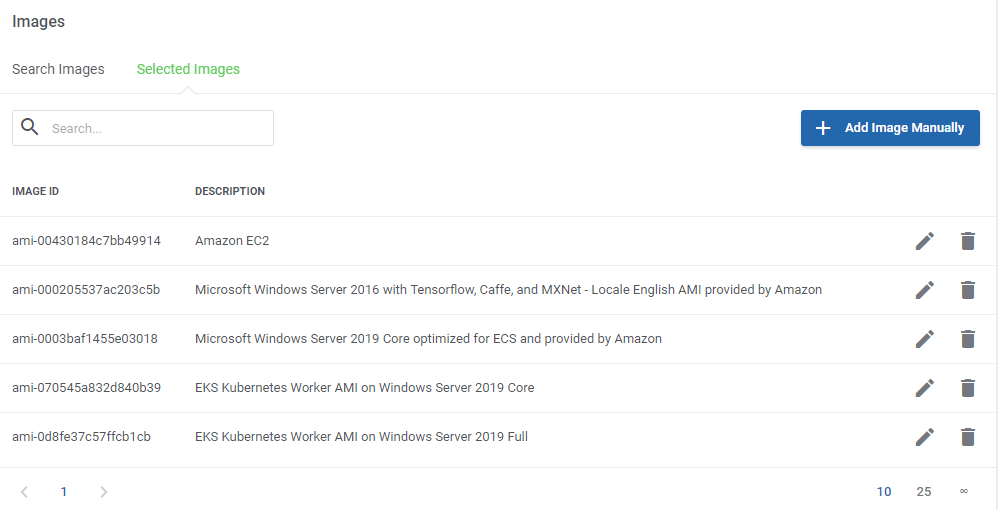
When found, press the 'Add' button.
At the end of the configuration process, you can decide whether you want to generate configurable options for the product.
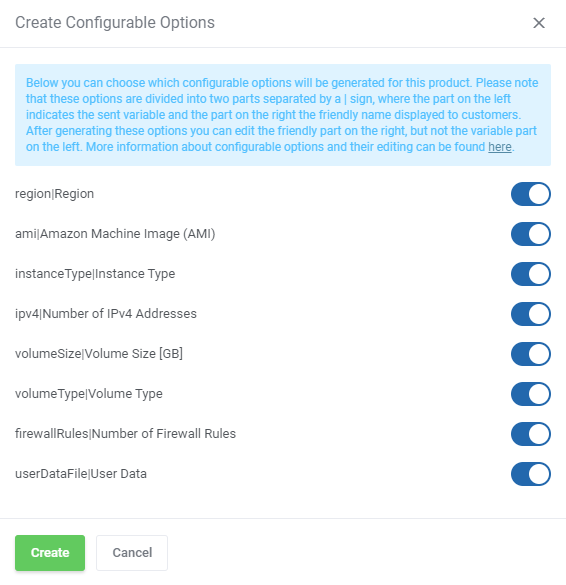
Configurable options can be used by your clients to select each virtual machine parameters individually during order placement.
Otherwise, if configurable options are not defined, then the fixed parameters specified in the earlier configuration will be used instead.
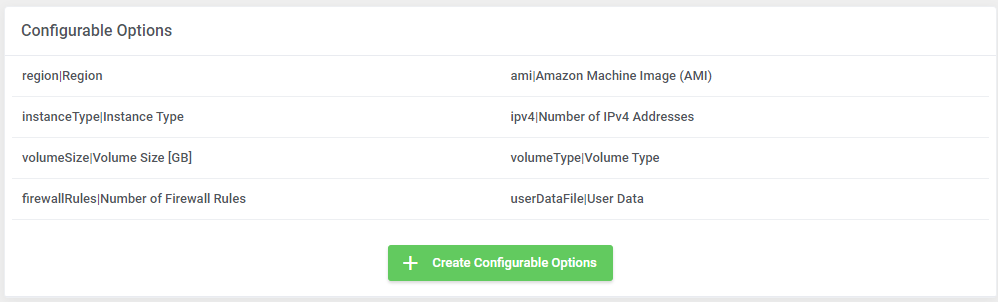
If you decide to use configurable options, press on the 'Create' button and select which options you want to generate.
Note that the configuration for disabled options will still be taken from the configuration of the main product.
More information about how to use configurable options can be found here or in the official WHMCS documentation (opens new window).
# SSH Keys
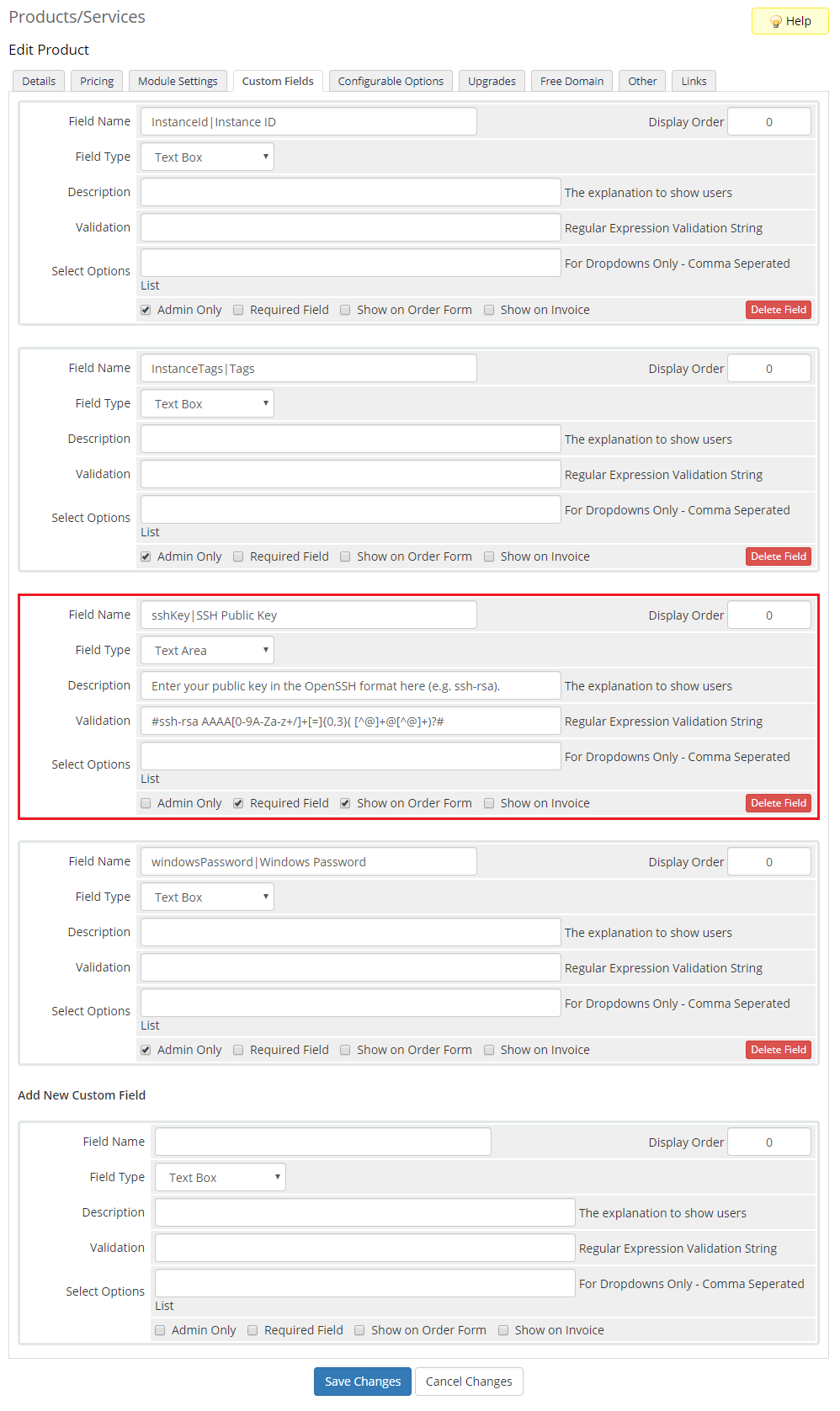
In the 'Custom Fields' tab you will find the 'SSH Public Key' field which is displayed to clients on the order form by default.
The following formats are supported:
- OpenSSH public key format (the format in ~/.ssh/authorized_keys)
- Base64 encoded DER format
- SSH public key file format as specified in RFC4716
- SSH private key file format must be PEM (for example, use ssh-keygen -m PEM to convert the OpenSSH key into the PEM format)
Create an RSA key. Amazon EC2 does not accept DSA keys. The supported lengths are 1024, 2048, and 4096.
If you would like to limit the possibility of entering the key e.g. only to the 'ssh-rsa' format, you can use the regular expression in the validation field, such as:
#ssh-rsa AAAA[0-9A-Za-z+/]+[=]{0,3}( [^@]+@[^@]+)?#
Remember that API allows such action only once, during the initial VM creation.
Note: If you disable the 'Show on Order Form' option, a client will not be able to provide SSH Key while placing an order and needs to know the password built into his/her AMI.
# User Data Scripts
User data is arbitrary data that can be executed during Amazon EC2 virtual machine creation, typically during the first boot of the server.
This allows you to perform tasks or run scripts as the root user which can be extremely useful when provisioning a server.
You can provide your own scripts using 'cloud-config' or 'Bash', keep in mind that module parameters (opens new window) are supported and may be used in the script files.
By default, we provide two exemplary scripts for changing the OS password or inserting SSH key, which you can use as a reference.
The script you want to include has to be located in the '/your_whmcs/modules/servers/AwsEc2/storage/userDataFiles/' directory and may not exceed 64 KiB in size.
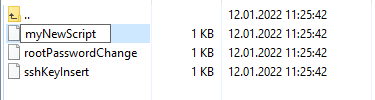
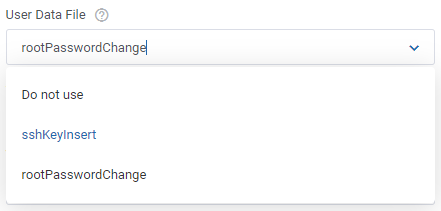
Once you create your own script, it can be chosen for product execution.
You can provide multiple scripts for configurable options, but only one can be chosen for Amazon EC2 server creation.
If you would like to execute several different scripts at once, you should try combining them within a single file.
# Management
# Admin Area
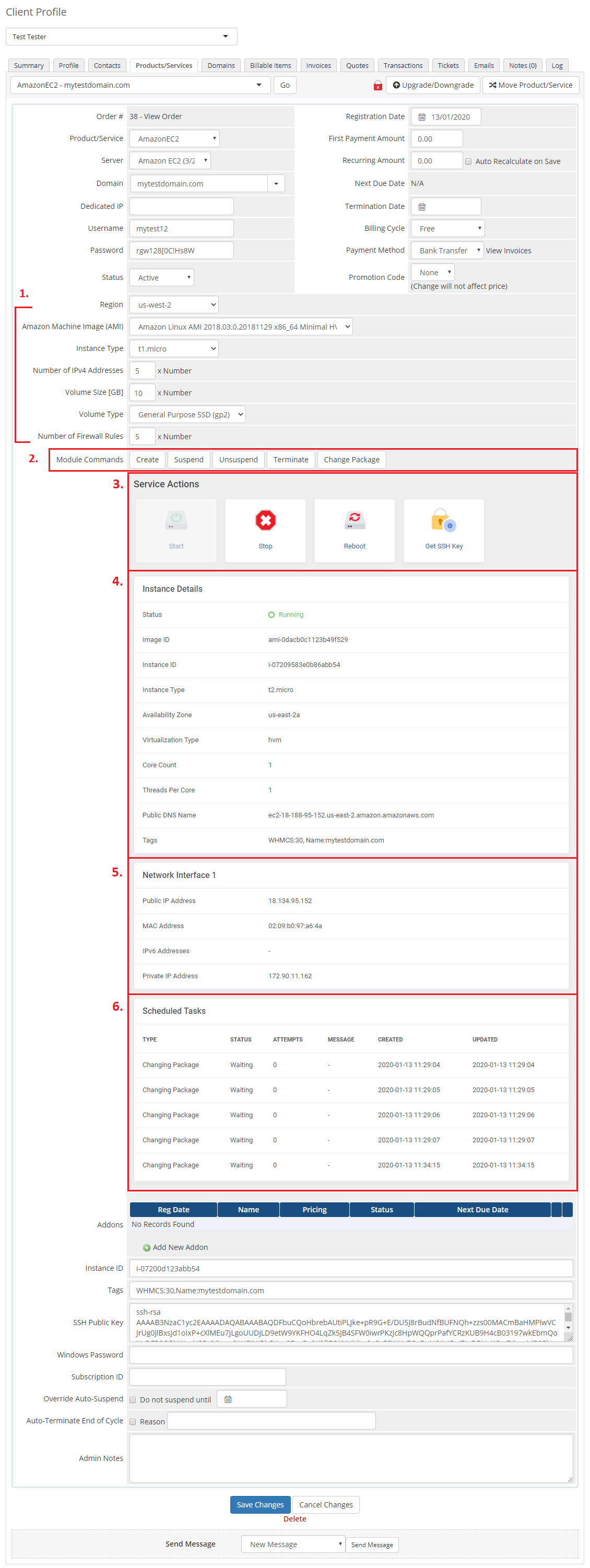
Amazon EC2 For WHMCS allows you to monitor and manage your customer server instance from the admin area of your WHMCS system.
This includes supervision of such features as:
- Configurable options which enable you to view the chosen server details
- Module commands to allow easy and quick management of the server
Important: In order to successfully complete the change package action, the machine must be previously stopped by your client (see the product configuration to enable automation).
Note: When changing the package, a custom security group will be added to the firewall if none has been yet created. - Service actions, including: Start, Stop and Reboot the server
- Instance details that provide the current status, resources and options set.
- Interfaces details
- List of scheduled tasks with their specified type, status and date.
# Ordering
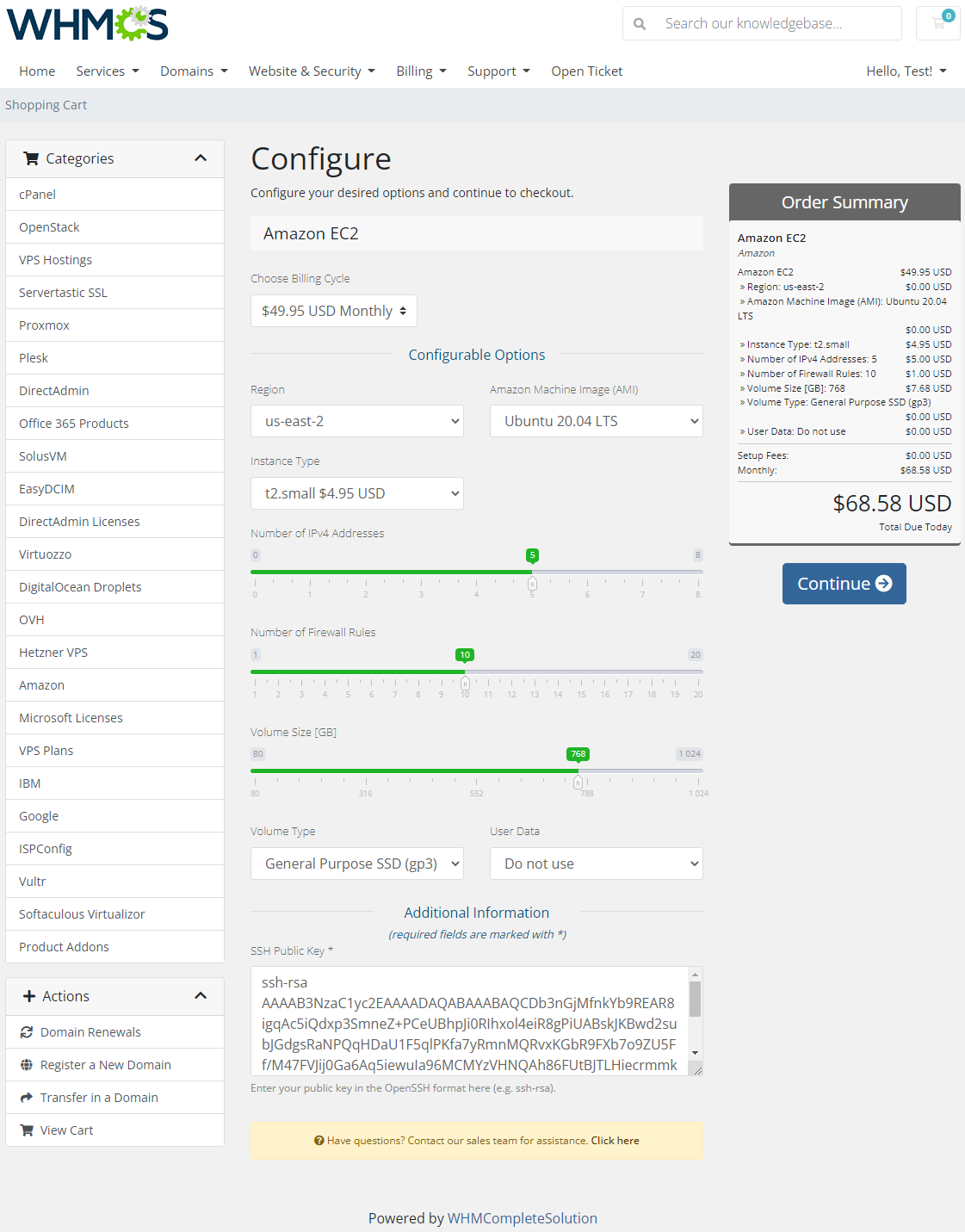
Thanks to configurable options, you are able to offer a product which your clients can tailor according to their needs.
Additionally, you are able to set up pricing for each configurable option, which makes your offer even more competitive.
At this moment you also have to provide the SSH key. Note that this key should be in one of the OpenSSH standard formats which are supported by API, e.g. ssh-rsa.
# Importing Existing Instance
In this section, you can find short instruction on how to connect one of your clients to your already existing instance in the Amazon EC2 panel.
Take the following steps to make sure that the process will be carried out properly.
Firstly, manually create an order for your customer in WHMCS. Choose a client and in the summary, view click on the ' Add New Order' button. Next, select a 'Product/Service' and press 'Submit Order'.
What is important, do not perform the 'Create' action. The status has to remain as 'Pending'.
More info about placing orders can be found here (opens new window)Proceed to the newly created product's card in your admin area. Find the following empty fields:
- Instance ID
The above-mentioned information has to be consistent with the data from your Amazon EC2 panel. Now, complete these fields as presented below.
Important! Remember to make sure that the format of the provided data is compatible with the format supported by the module. You can preview it for another product of the module you have already created and enter it in a similar way.
If you completed the required data, now change the status from 'Pending' to 'Active' and 'Save Changes'.
If the completed data is correct, after refreshing the page, you will see the attached instance from Amazon EC2.
Important! Remember to manually add other missing parameters of the instance such as domains, credentials, IP Addresses, configurable options, SSH Key, billing cycle, etc. so they match the parameters of the attached instance from Amazon EC2.
# Client Area
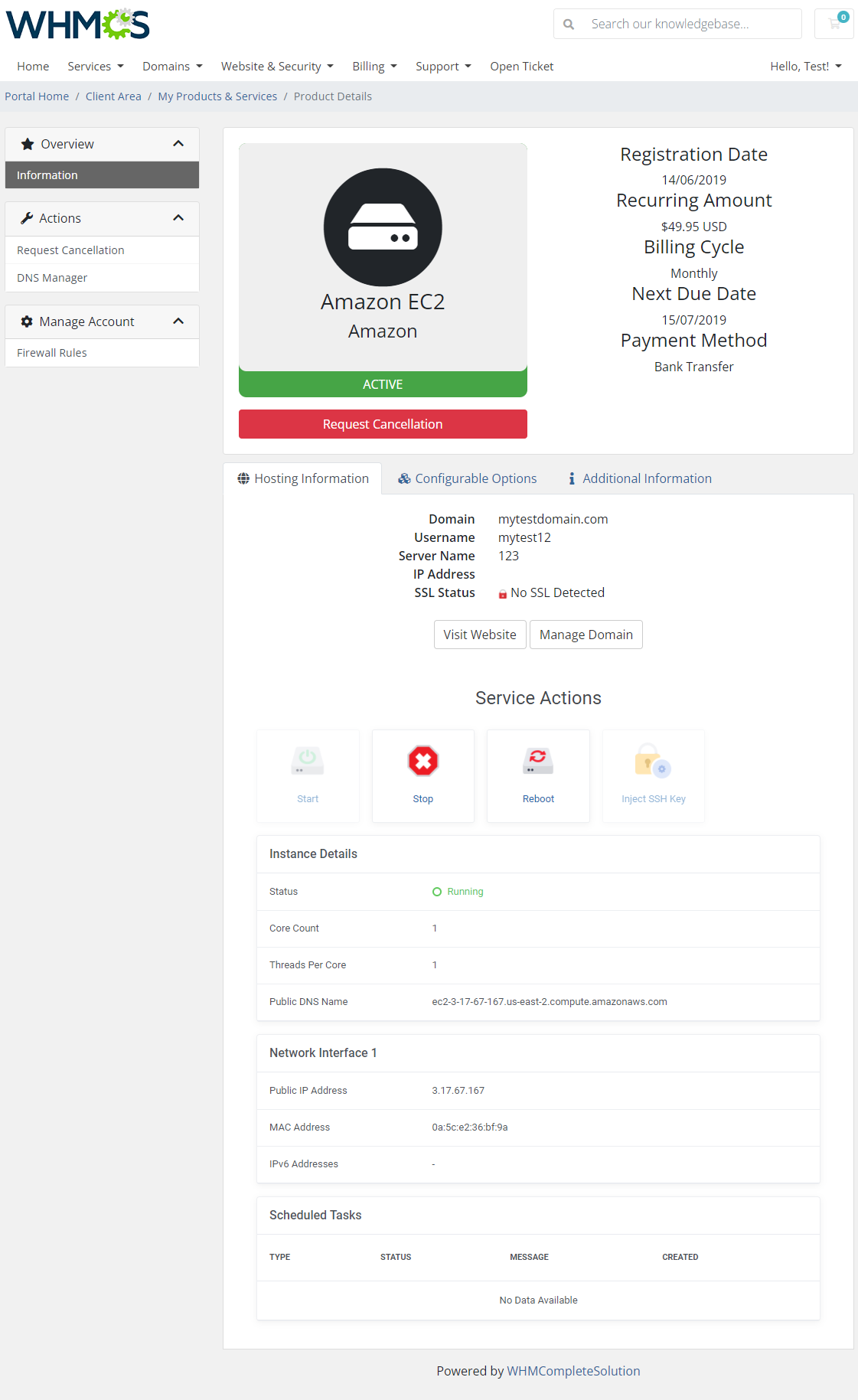
The client area interface of Amazon EC2 should look like the one on the screen below.
As you can see, the control panel contains useful details of the managed server.
The module allows your customers to easily start, stop and reboot their server instance through pressing the corresponding buttons.
Clients can also check the server status with its details, view assigned network interfaces and assigned IP addresses details as well as control the list of currently scheduled tasks.
# Firewall Rules
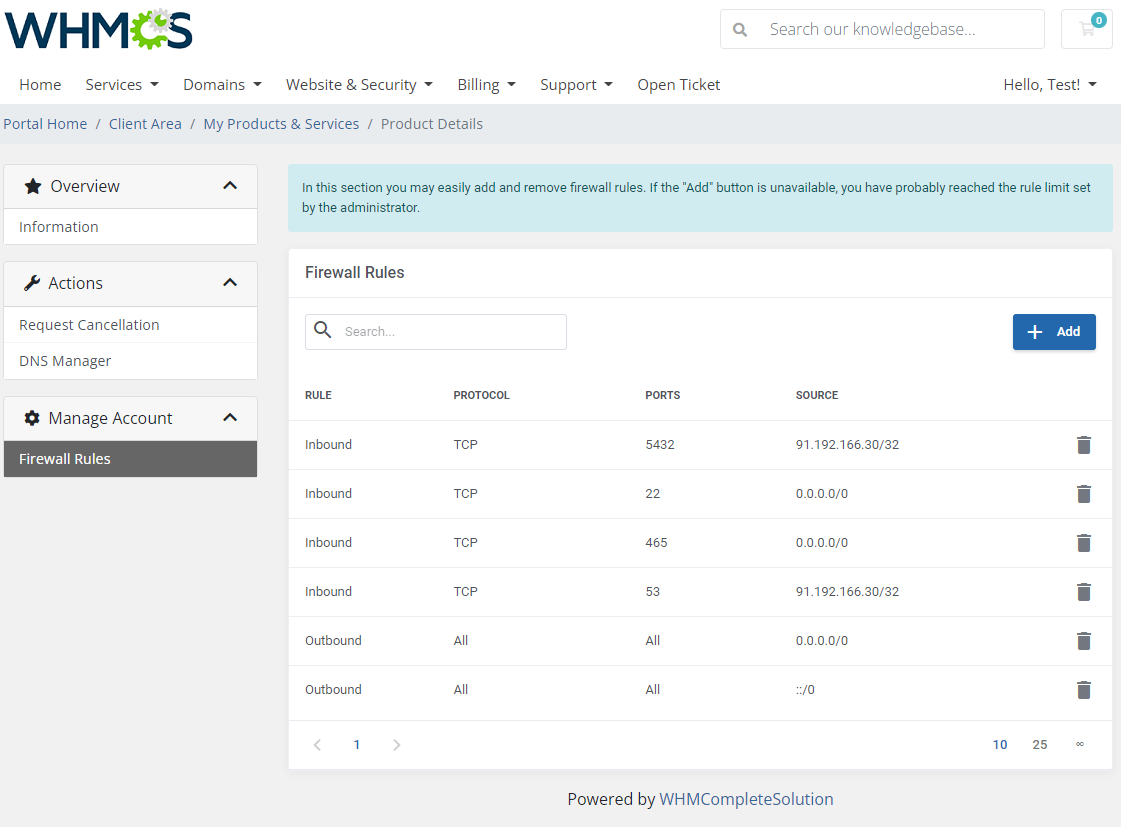
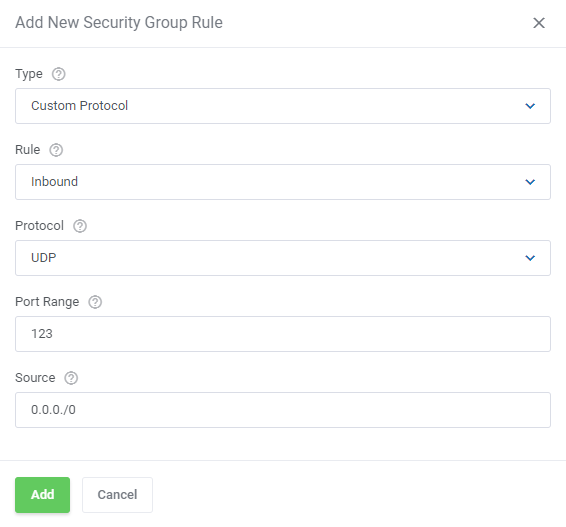
Under the 'Firewall Rules' section, you may quickly add as well as remove 'Firewall Rules'.
Note: Please remember that if the 'Add' button is unavailable, you have probably reached the rule limit set by the administrator.
Complete the details of your new security group rule and confirm by clicking 'Add'.
# Use Cases
This section showcases practical examples of how the module can be implemented in various scenarios.
It presents specific situations that represent common use cases and demonstrates how the module's capabilities can be utilized in real-world applications.
By exploring these examples, you'll gain a deeper understanding of the module's functionality and how to leverage it effectively.
# Creating Virtual Machines in Unavailable Regions
Some regions are enabled by default in the Amazon EC2 panel while others are not. Each region has to be enabled first, before it can be picked while setting up a product in the Amazon EC2 For WHMCS module.
Thankfully this issue can be quite easily fixed, allowing you to sell virtual machines located in more regions, expanding your business opportunities.
Please follow the instructions below to add more regions.
First, log in to your Amazon EC2 panel and find the 'manage regions' section of the account settings.
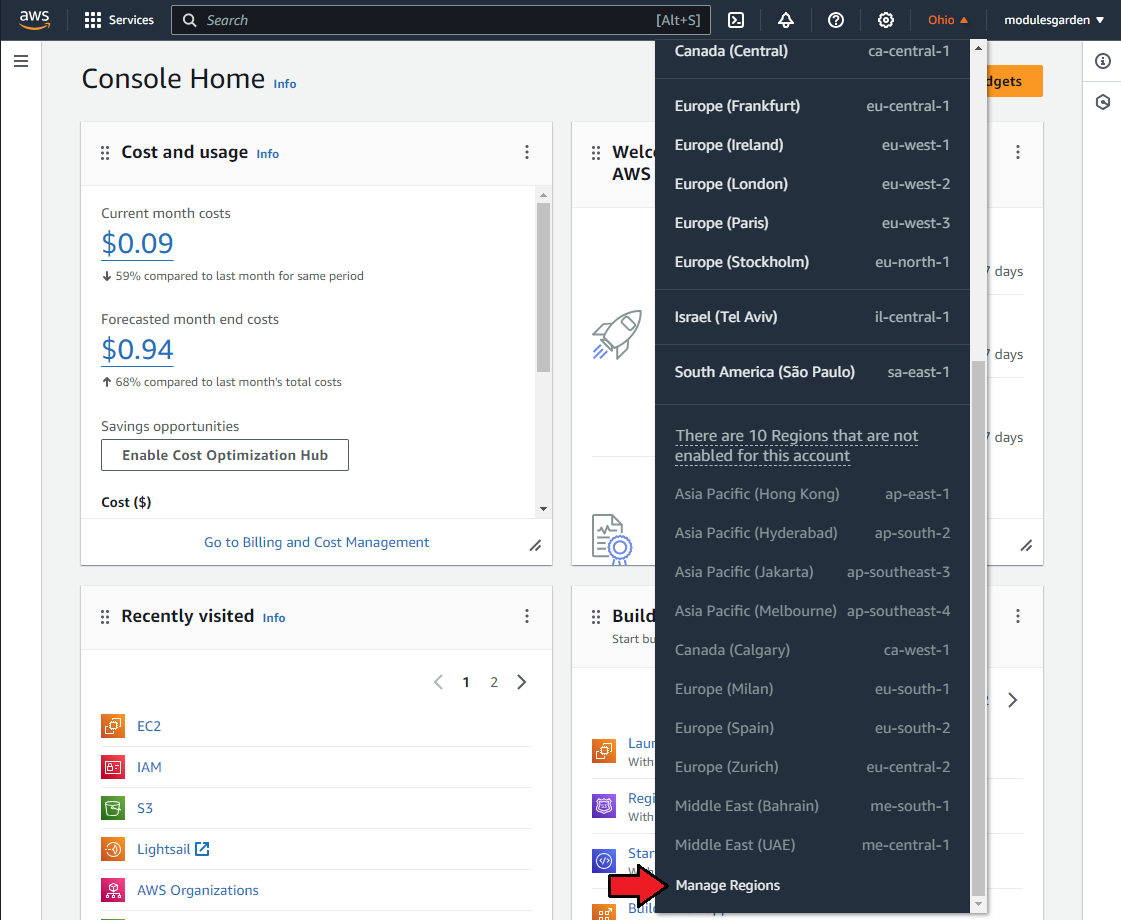
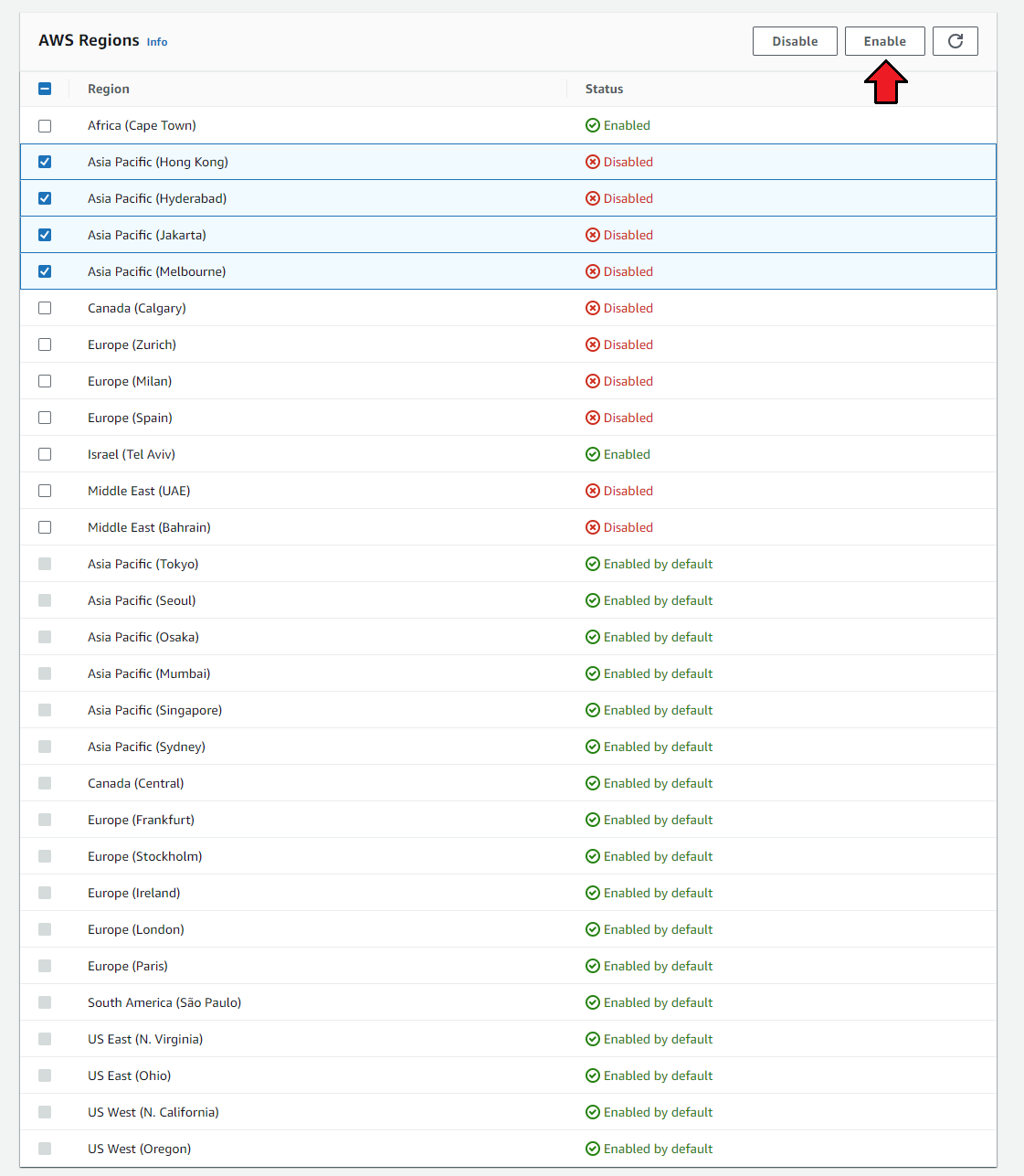
Select the regions you would like to add, then click on 'Enable'.
The process of including the new regions into your account may take about 15 minutes.
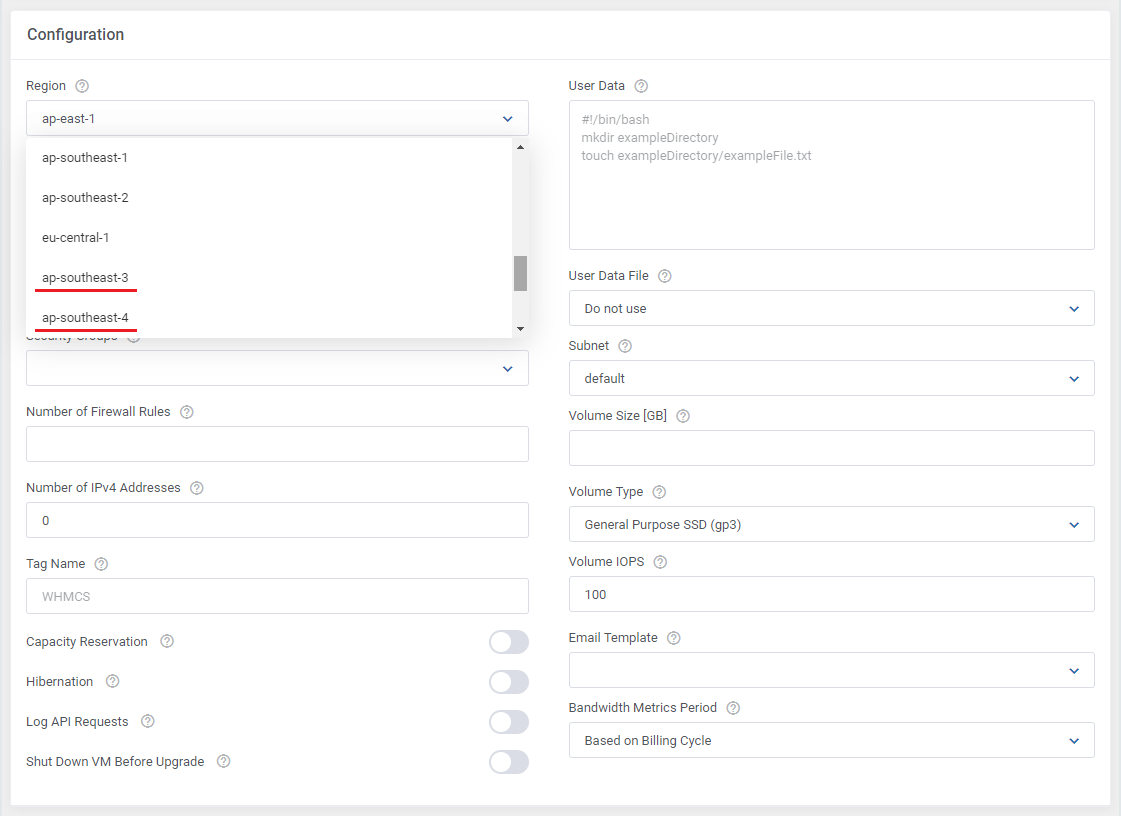
After the new regions are added to your account, you will be able to see them on the region dropdown list in the product module settings.
You can now create products and configure them with the inclusion of new regions.
# Tips
You must firstly stop the machine to let the change package action be successfully completed.
In case you need to generate any of the configurable options once again, you must delete the previously created one.
Only then it will be possible to generate a new configurable option. Read more about configurable options here.Amazon EC2 module supports all the default WHMCS marge field variables, they can be freely used in the welcome email template. Read more about module parameters here (opens new window).
The module also supports the below listed AWS variables:'AmiLaunchIndex', 'ImageId', 'InstanceId', 'InstanceType', 'KeyName', 'Monitoring_State', 'Placement_AvailabilityZone', 'Placement_GroupName', 'Placement_Tenancy', 'PrivateDnsName', 'PrivateIpAddress', 'ProductCodes', 'PublicDnsName', 'State_Code', 'State_Name', 'StateTransitionReason', 'SubnetId', 'VpcId', 'Architecture', 'BlockDeviceMappings', 'ClientToken', 'EbsOptimized', 'EnaSupport', 'Hypervisor', 'NetworkInterfaces_0_Attachment_AttachmentId', 'NetworkInterfaces_0_Attachment_DeleteOnTermination', 'NetworkInterfaces_0_Attachment_DeviceIndex', 'NetworkInterfaces_0_Attachment_Status', 'NetworkInterfaces_0_Description', 'NetworkInterfaces_0_Groups_0_GroupName', 'NetworkInterfaces_0_Groups_0_GroupId', 'NetworkInterfaces_0_Ipv6Addresses', 'NetworkInterfaces_0_MacAddress', 'NetworkInterfaces_0_NetworkInterfaceId', 'NetworkInterfaces_0_OwnerId', 'NetworkInterfaces_0_PrivateDnsName', 'NetworkInterfaces_0_PrivateIpAddress', 'NetworkInterfaces_0_PrivateIpAddresses_0_Primary', 'NetworkInterfaces_0_PrivateIpAddresses_0_PrivateDnsName', 'NetworkInterfaces_0_PrivateIpAddresses_0_PrivateIpAddress', 'NetworkInterfaces_0_SourceDestCheck', 'NetworkInterfaces_0_Status', 'NetworkInterfaces_0_SubnetId', 'NetworkInterfaces_0_VpcId', 'NetworkInterfaces_0_InterfaceType', 'RootDeviceName', 'RootDeviceType', 'SecurityGroups_0_GroupName', 'SecurityGroups_0_GroupId', 'SourceDestCheck', 'StateReason_Code', 'StateReason_Message', 'Tags_0_Key', 'Tags_0_Value', 'Tags_1_Key', 'Tags_1_Value', 'VirtualizationType', 'CpuOptions_CoreCount', 'CpuOptions_ThreadsPerCore', 'CapacityReservationSpecification_CapacityReservationPreference', 'HibernationOptions_Configured', 'MetadataOptions_State', 'MetadataOptions_HttpTokens', 'MetadataOptions_HttpPutResponseHopLimit', 'MetadataOptions_HttpEndpoint'Utilizing the 'Show Windows Password' option in the Client Area:
- To enable the "Show Windows Password" option, navigate to Module Settings → Client Area Configuration.
- During the order placement, the client needs to provide the SSH Public Key in a designated field.
- Wait for the completion of the 'Loading Windows Password' cron process (up to 15 minutes).
- Under "Service Actions," the client should press the 'Get Windows Password' button and input their Private Key. Subsequently, press the 'Get Password' button.
- The Windows password should now be visible.
When creating a virtual machine without a firewall but with a security group (other than the default), you won't be able to activate the firewall rules through the module.
This action is only possible directly within the panel.
# Update Instructions
An essential guidance through the process of updating the module is offered here.
Ensure successful completion of the module update by carefully following each step, thereby preventing data loss or any unforeseen issues.
Additionally, you will find a current list of supplementary actions necessary for a smooth update process there.
# Upgrade Guide
Seeking a solution that offers greater flexibility, customization tailored to your precise needs, and unrestricted availability?
There is an option that not only proves to be cost-effective in the long run but also includes prioritized support services, making it a truly valuable investment.
Opt for the Open Source version (opens new window) of your Amazon EC2 For WHMCS module to unlock these benefits.
Simply click on either the Get Source Code or Upgrade To Lifetime button found on the product's page in our client area to complete the one-step upgrade process, with a dedicated discount already applied.
Follow a comprehensive guide covering the transition process, the advantages it brings, and step-by-step instructions on what to do next after the order has been successfully finalized.
# Common Problems
- When you have problems with connection, check whether your SELinux or firewall does not block ports.