

# Server Monitoring For WHMCS
# (opens new window) About Server Monitoring For WHMCS (opens new window)
Server Monitoring For WHMCS is a powerful tool designed for administrators and their clients, enabling fast and effective verification of server online status through ping and HTTP checks.
Schedule regular checks on VPS services, giving your clients the ability to configure and monitor their checks, and helping them track the health of their services within predefined limits and intervals.
Establish continuous control of server health and empower your customers to monitor the performance of their services.
# Installation
This tutorial will show you how to successfully install and configure Server Monitoring For WHMCS. (opens new window)
We will guide you step by step through the whole installation and configuration process.
- Log in to our client area and download the module.
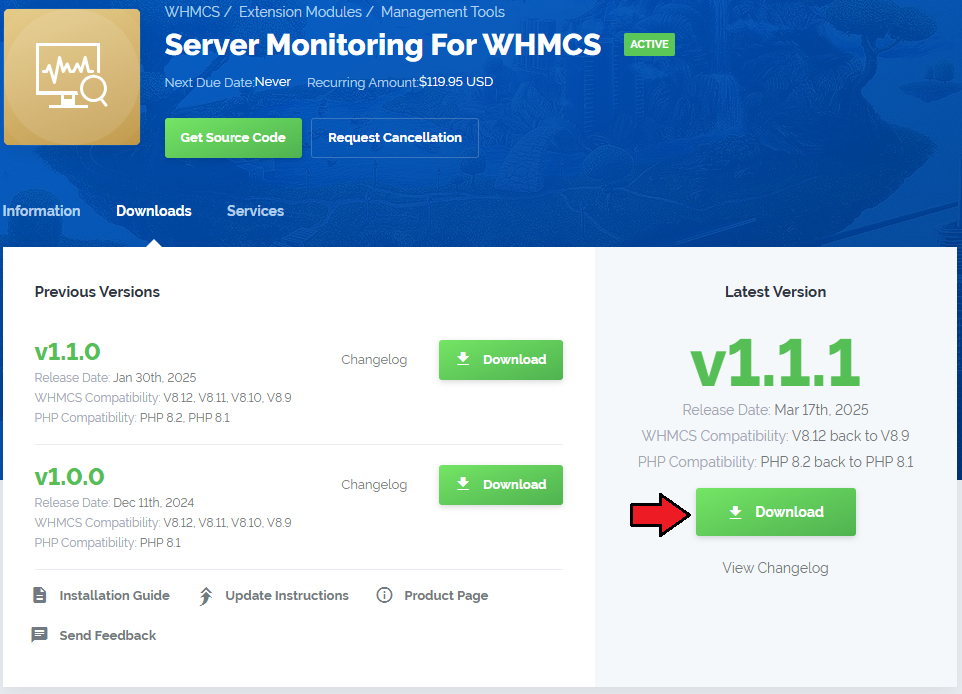
Extract the package and upload its content into the main WHMCS directory.
The content of the package to upload should look like this.
When you install Server Monitoring For WHMCS for the first time you have to rename 'license_RENAME.php' file.
The file is located in 'modules/addons/ServerMonitoring/license_RENAME.php'. Rename it from 'license_RENAME.php' to 'license.php'.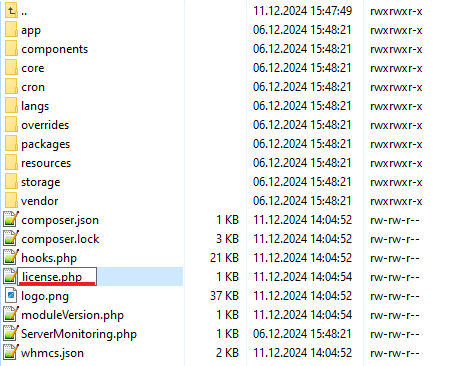
In order to configure your license key, you have to edit the previously renamed 'license.php' file.
Enter your license key between quotation marks as presented on the following screen. You can find your license key in our client area → 'My Products'.
Now you have to activate the module in your WHMCS system.
Log in to your WHMCS admin area. Go to 'System Settings' → 'Addon Modules'. Afterwards, find 'Server Monitoring' and press the 'Activate' button.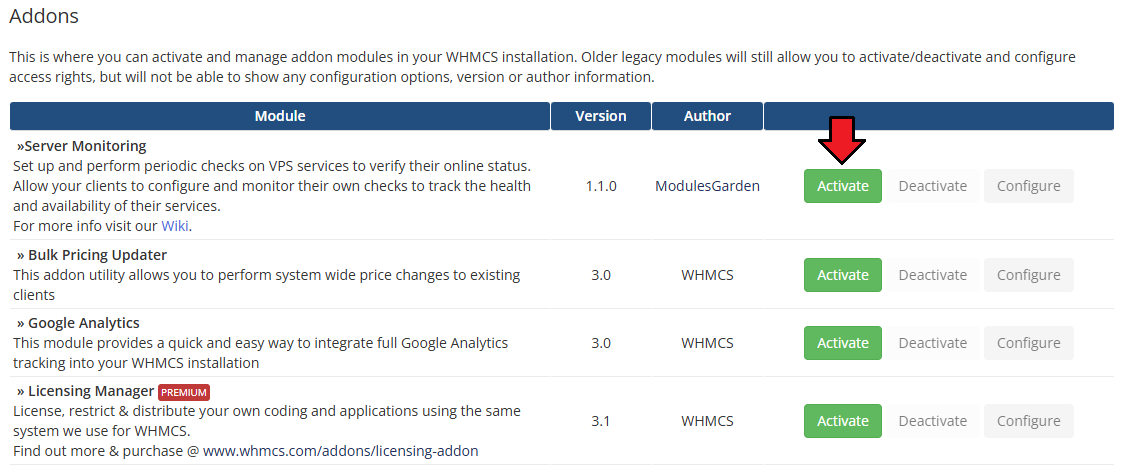
In the next step, you need to permit access to this module.
To do so, click on the 'Configure' button, tick 'Full Administrator' and press 'Save Changes'.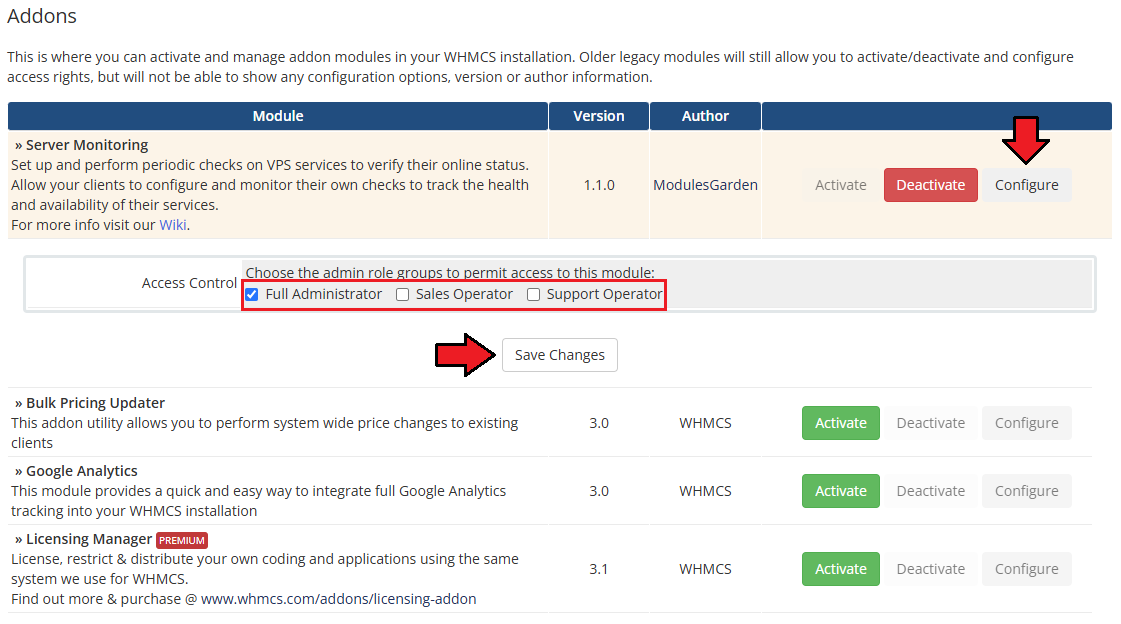
The final step of the module installation is setting up cron commands that are required for several module features to work properly.
php -q /your_whmcs/modules/addons/ServerMonitoring/cron/cron.php checks:generatephp -q your_whmcs/modules/addons/ServerMonitoring/cron/cron.php checks:runThe above directory is exemplary, please adjust the cron lines to your own needs. A 1-minute interval is recommended.
Note: The second cron may require additional steps on some servers, see the Tips section for more information.You have just successfully installed Server Monitoring For WHMCS!
You can access your module under 'Addons' → 'Server Monitoring'.
Read the guide provided on the 'Dashboard' or continue with this documentation.
# Management
Server Monitoring For WHMCS empowers your clients with tools to monitor their services directly from the WHMCS client area.
In this brief guide, we will introduce the module’s capabilities and show you how to make the most of its features.
# Module Addon
The module addon is where all of the setup and management take place for the admin.
It allows you to add products to the module, enabling the creation of checks for services associated with those products.
It also features several management tools like the queue, translations tool and module logs.
# Products
To start creating checks, the module functionality must first be enabled for specific products.
This step is crucial as it defines how checks can be configured later on.
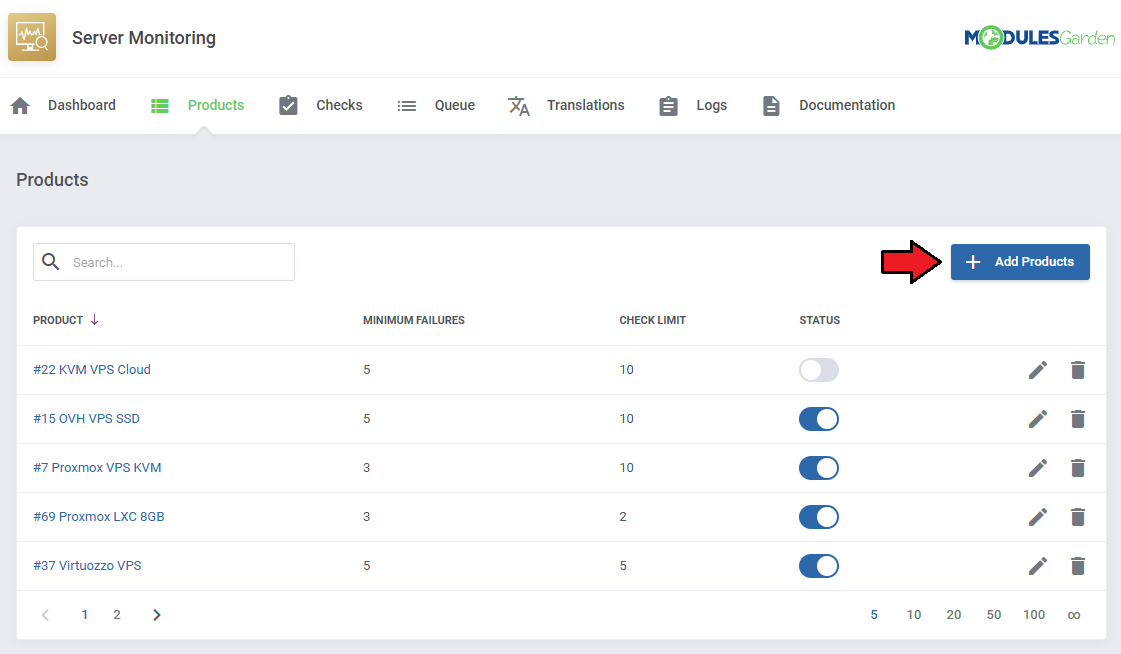
Start by navigating to the 'Products' tab and clicking on the 'Add Product' button.
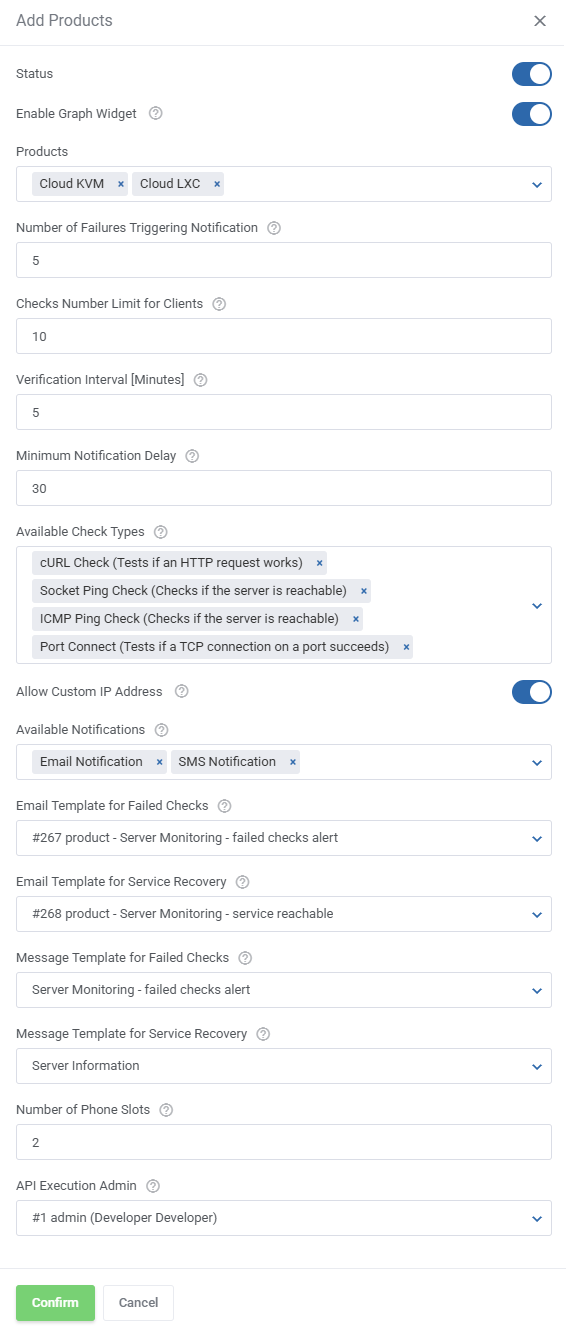
Fill out the necessary fields as you add the products:
- Status - set the initial status for the products, this can be changed later.
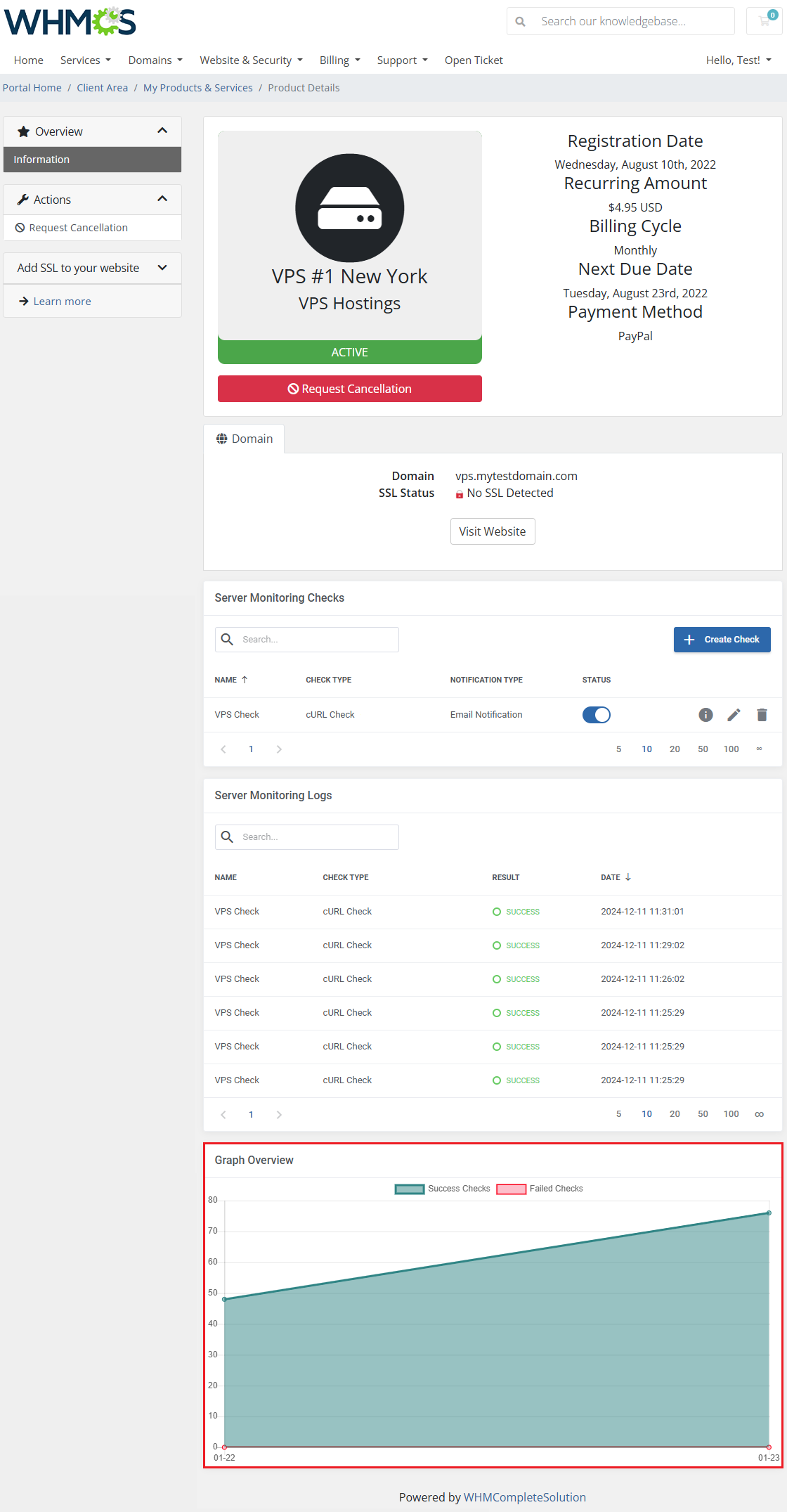
- Enable Graph Widget - enable a widget in the client area to display a 30-day graph comparing successful and failed checks for the service.
- Products - include the products you wish to add with this configuration.
If you add more than one product in a single bundle, they will still be listed by one on the list of products, allowing configuration per product. - Number of Failures Triggering Notification - set the amount of failed checks needed to trigger a notification.
The number you set for the product here will be the minimum clients can set for their services. - Checks Number Limit for Clients - limit how many checks clients can set up for their services.
- Verification Interval - set the minimum check interval clients can set for their services.
- Minimum Notification Delay - set the minimum time, in minutes, between notifications triggered by users.
- Available Check Types - select which check types will be available to set up.
- cURL Check - an HTTP GET request is sent to a server to retrieve data and check its availability.
- ICMP Ping Check - an ICMP ping is sent to a specific IP address to test if the server is reachable.
- Allow Custom IP Address - allow the client to enter a custom IP address instead of selecting from assigned ones.
- Socket Ping Check - a connection attempt is made to a specific IP address and port to check if the service is running and accessible.
Important: This check type requires specific configuration, see the Tips section for details. - Port Connect - a connection attempt is made to a specific IP address and port using the TCP protocol to verify if the service on the specified port is running and accessible.
- Allow Custom IP Address - allow the client to enter a custom IP address instead of selecting from assigned ones.
- Available Notifications - include allowed notification types.
- Email Notification - send email messages when the checks fail, and when the service recovers.
- Email Template for Failed Checks - decide which email template will be used when the failed check threshold is exceeded.
The default email template is named 'Server Monitoring - failed checks alert', it includes merge fields and can be freely edited. - Email Template for Service Recovery - decide which email template will be used when the service has recovered.
The default email template is named 'Server Monitoring - service unreachable', it includes merge fields and can be freely edited.
- Email Template for Failed Checks - decide which email template will be used when the failed check threshold is exceeded.
- SMS Notification - enable SMS notifications to keep clients informed of monitoring events.
Note: SMS notifications require SMS Center For WHMCS (opens new window).- Message Template for Failed Checks - choose the SMS template used to notify clients when a check fails.
- Message Template for Service Recovery - choose the SMS template used to notify clients when a service recovers following downtime.
- Number of Phone Slots - set how many phone number slots are available for adding multiple numbers.
- API Execution Admin - select the admin account that will execute API requests.
- Email Notification - send email messages when the checks fail, and when the service recovers.
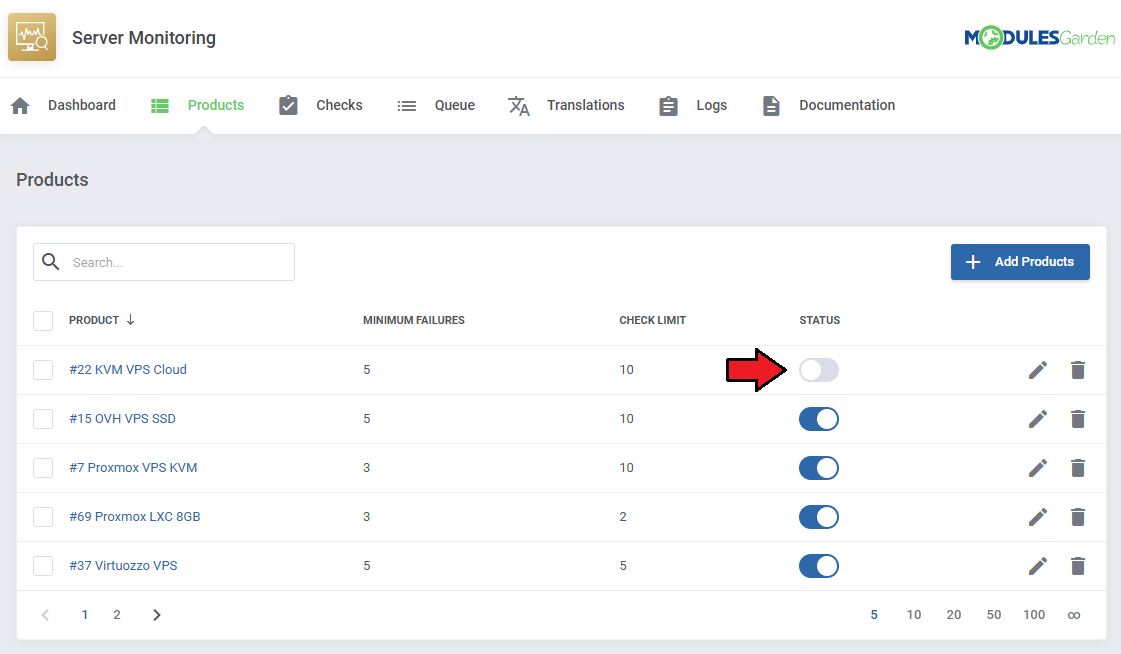
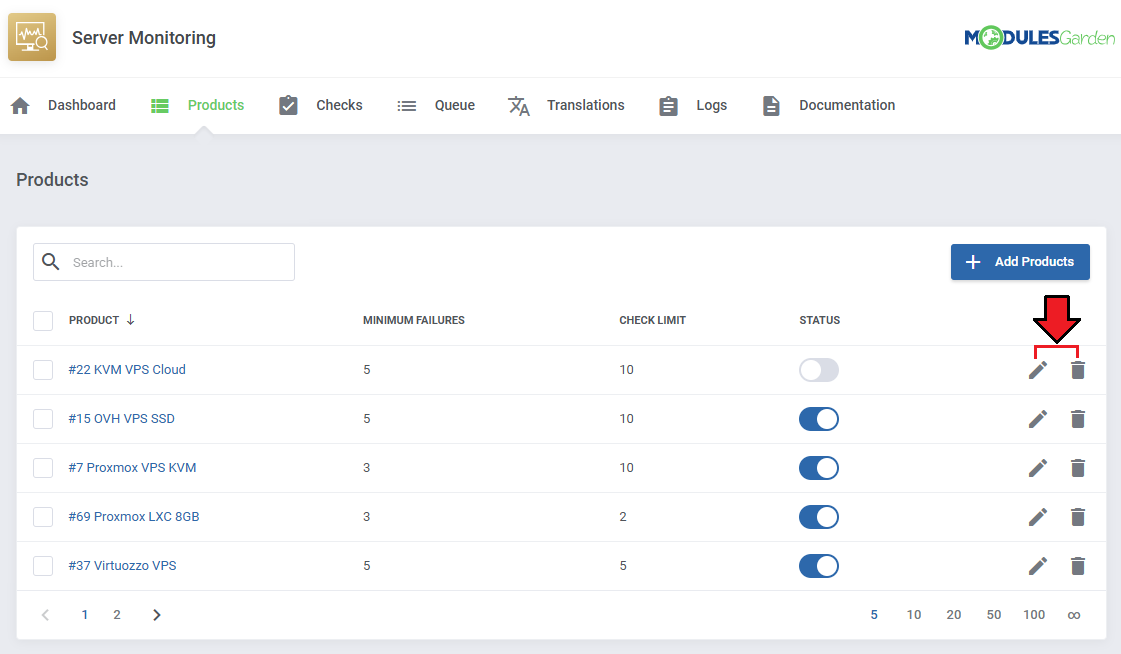
Once products are added, you can disable/enable them with the 'Status' toggle.
Use the action buttons to edit or delete products from the list.
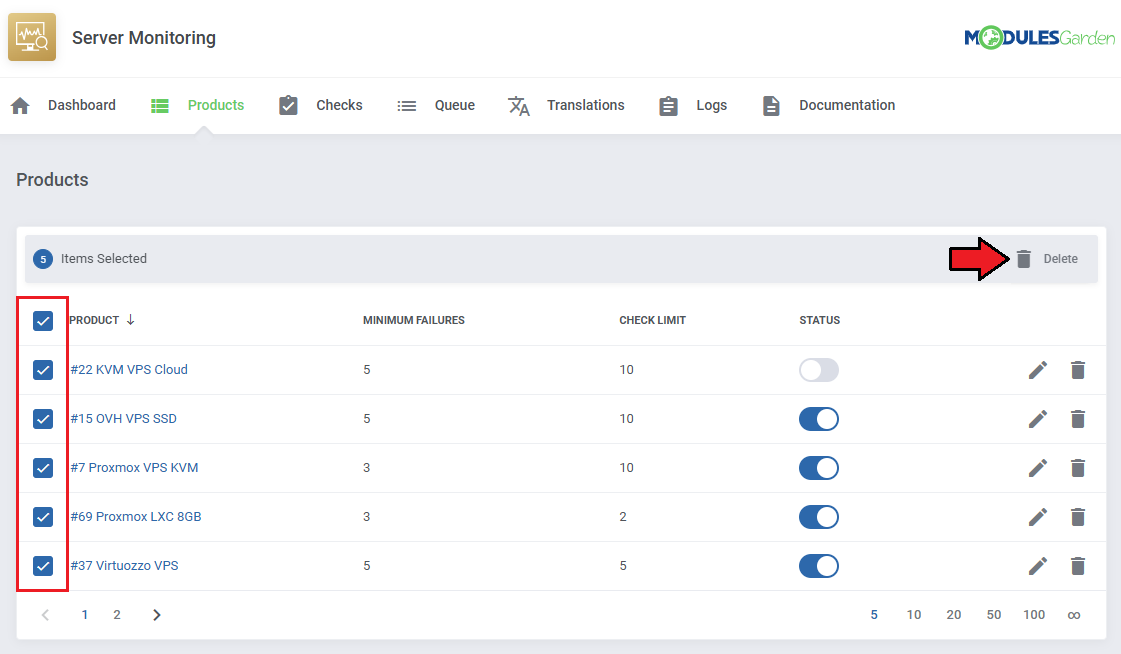
You can also delete multiple products with the mass action button.
# Checks
Once products are added, both admins and clients can create checks for services.
To see how clients can add and monitor checks for their services see the Client Area section.
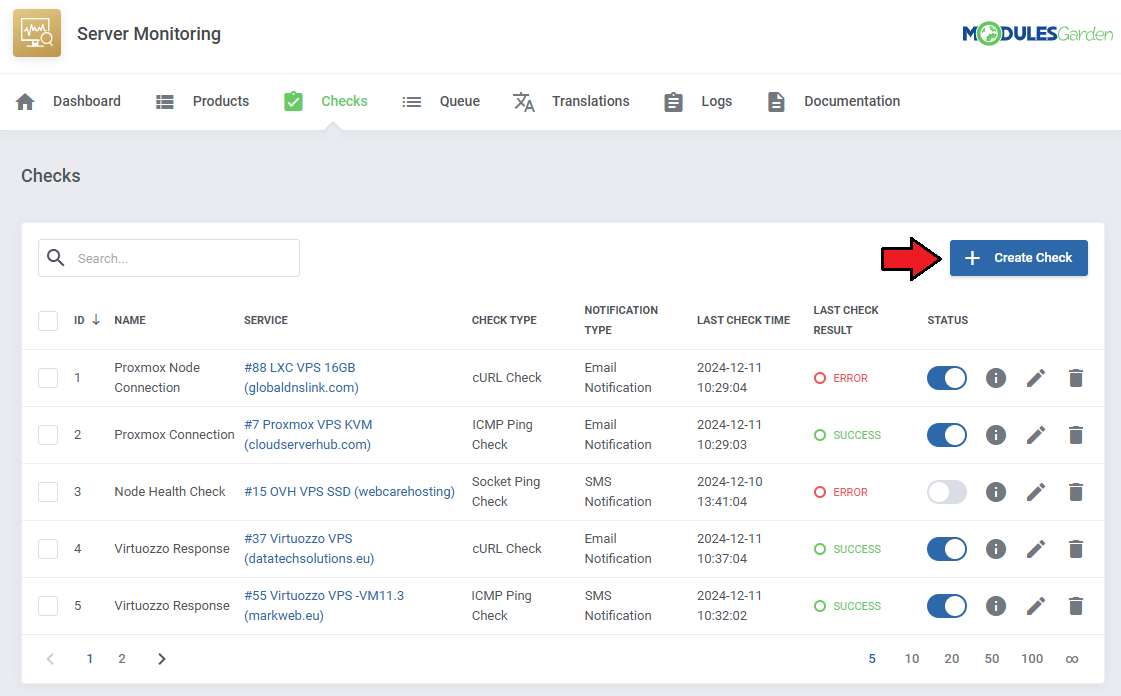
To add checks as an admin, navigate to the 'Checks' section of the module and click on the 'Create Check' button.
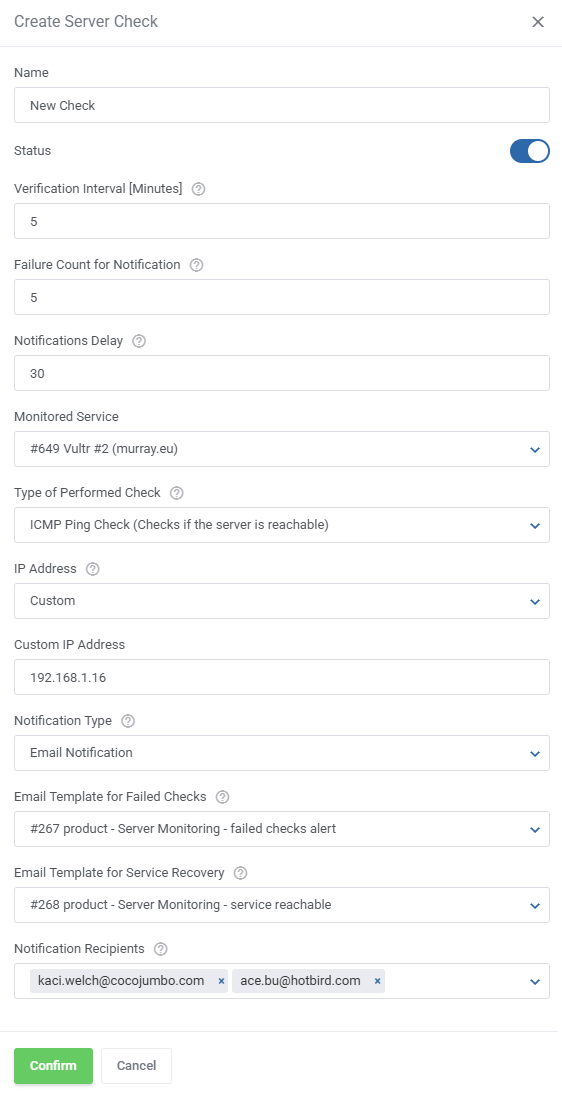
Provide the required fields:
- Name - provide a name for the check.
- Status - select the initial status of the check, this can be changed later.
- Verification Interval - decide how often the check should be performed (in minutes).
- Failure Count for Notification - indicates how many checks need to fail before a notification is sent.
- Notifications Delay - set the notification delay, in minutes, for sending notifications when checks fail.
- Monitored Service - select the service that will be checked.
- Type of Performed Check - pick the check type.
- cURL Check - an HTTP GET request is sent to a server to retrieve data and check its availability.
- Request URL - provide a URL that will return a code upon a GET request.
- Response Code - include the expected HTTP response code.
- ICMP Ping Check - an ICMP ping is sent to a specific IP address to test if the server is reachable.
- IP Address - provide the IP address for the check.
- Socket Ping Check - a connection attempt is made to a specific IP address and port to check if the service is running and accessible.
Important: This ping type requires specific configuration, see the Tips section for details.- IP Address - provide the IP address for the check.
- Port Connect - a connection attempt is made to a specific IP address and port using the TCP protocol to verify if the service on the specified port is running and accessible.
- Allow Custom IP Address - allow the client to enter a custom IP address instead of selecting from assigned ones.
- cURL Check - an HTTP GET request is sent to a server to retrieve data and check its availability.
- Notification Type - select the notification type.
- Email Notification - email messages will be sent out after the threshold for failed checks is exceeded.
- Email Template for Failed Checks - decide which email template will be used when the failed check threshold is exceeded.
The default email template is named 'Server Monitoring - failed checks alert', it includes merge fields and can be freely edited. - Email Template for Service Recovery - decide which email template will be used when the service has recovered.
The default email template is named 'Server Monitoring - service unreachable', it includes merge fields and can be freely edited. - Notification Recipients - select where to send the notification.
- Email Template for Failed Checks - decide which email template will be used when the failed check threshold is exceeded.
- SMS Notification - enable SMS notifications to keep clients informed of monitoring events.
Note: SMS notifications require SMS Center For WHMCS (opens new window).- Message Template for Failed Checks - choose the SMS template used to notify clients when a check fails.
- Message Template for Service Recovery - choose the SMS template used to notify clients when a service recovers following downtime.
- API Execution Admin - select the admin account that will execute API requests.
- SMS Recipients - Provide the phone numbers to which the notification will be sent. Use a valid international format, such as +XX XXXXXXXXXX or +XX.XXXXXXXXX, where 'XX' is the country code.
- Email Notification - email messages will be sent out after the threshold for failed checks is exceeded.
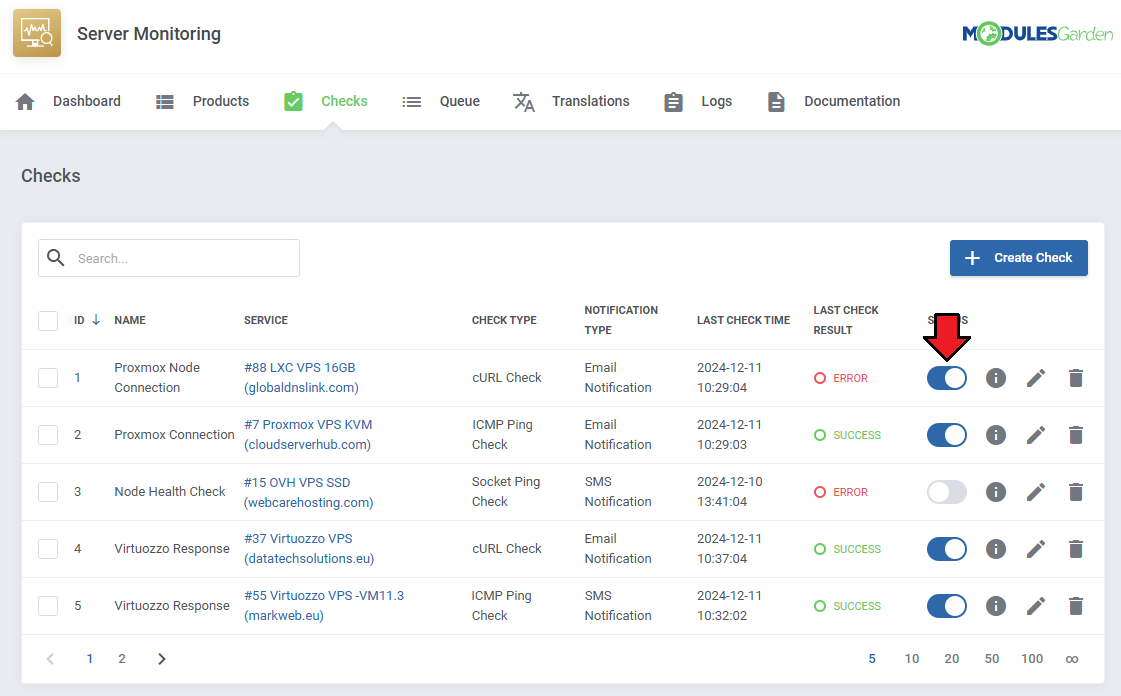
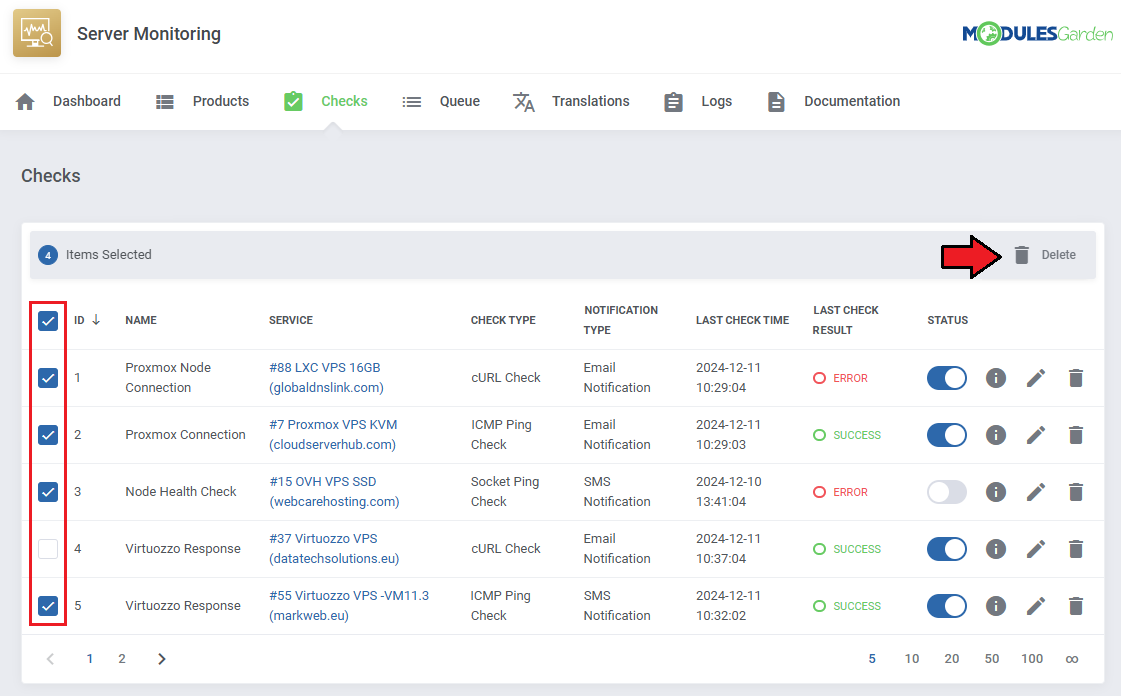
Once checks are added, you can turn them off and on with the 'Status' toggle.
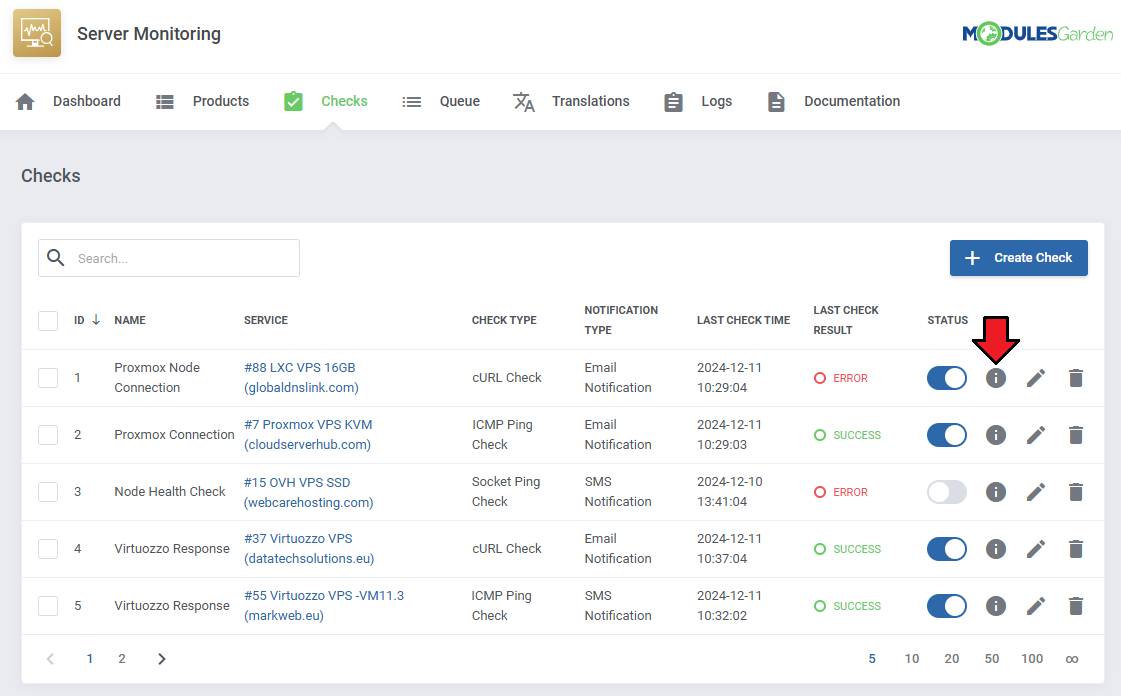
Click the 'Show Logs' button to display logs related to the specific check.
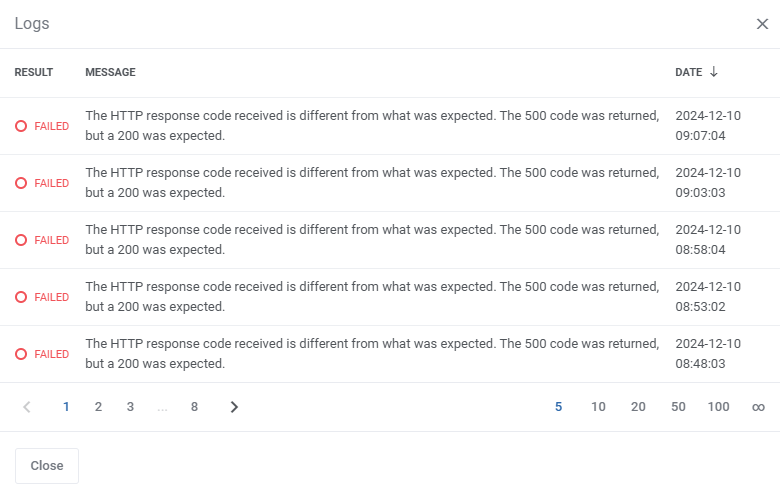
The logs will include:
- The result of the check
- Its message
- Its date
Note that clients will not be able to see messages when checking logs in the client area.
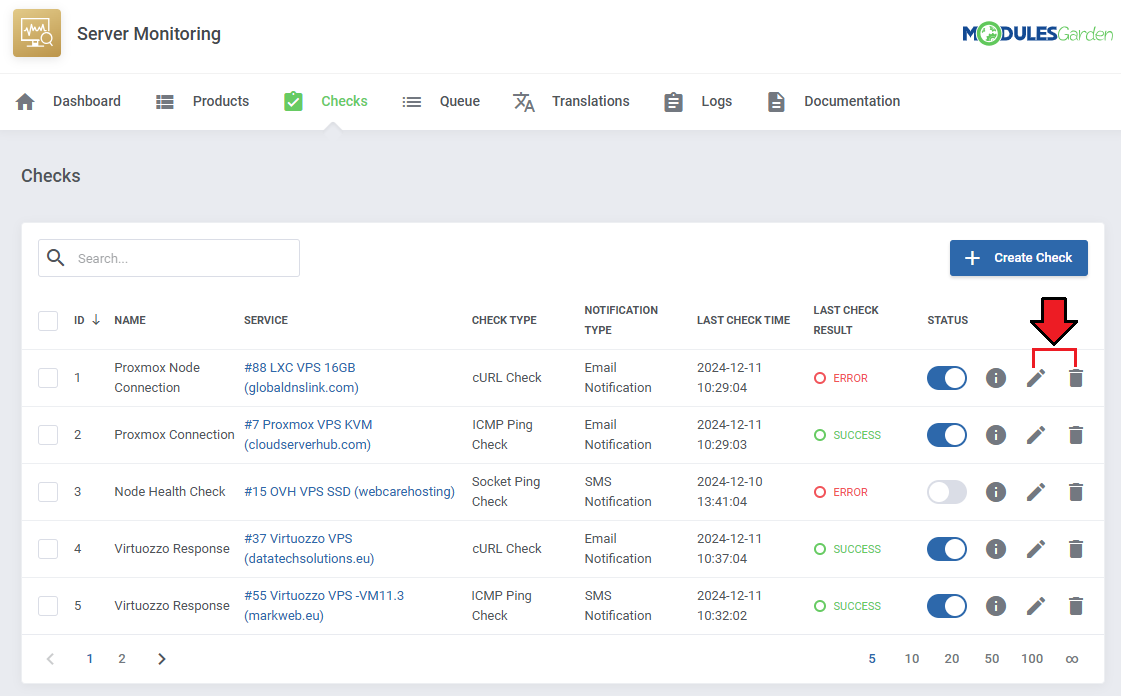
Use the action buttons to edit or delete checks as needed.
The mass action function can be used to delete multiple checks at once.
Queue
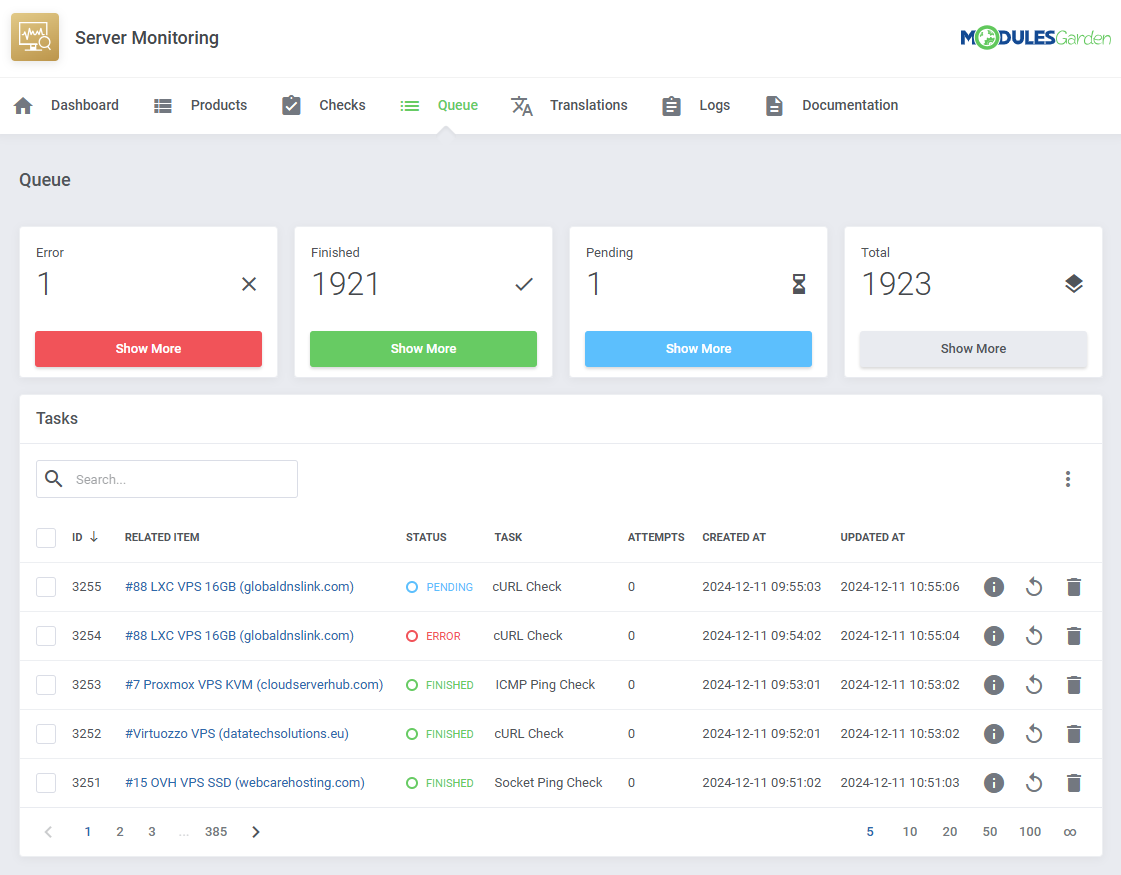
The "Queue" tool helps you track and manage the tasks created by the module.
It allows you to view and interact with task details, including task IDs, statuses, and related items.
You can filter tasks, execute actions like deleting or running tasks, and even use mass actions for bulk operations.
For detailed guidance on using this tool, please refer to the dedicated article available here.
Translations
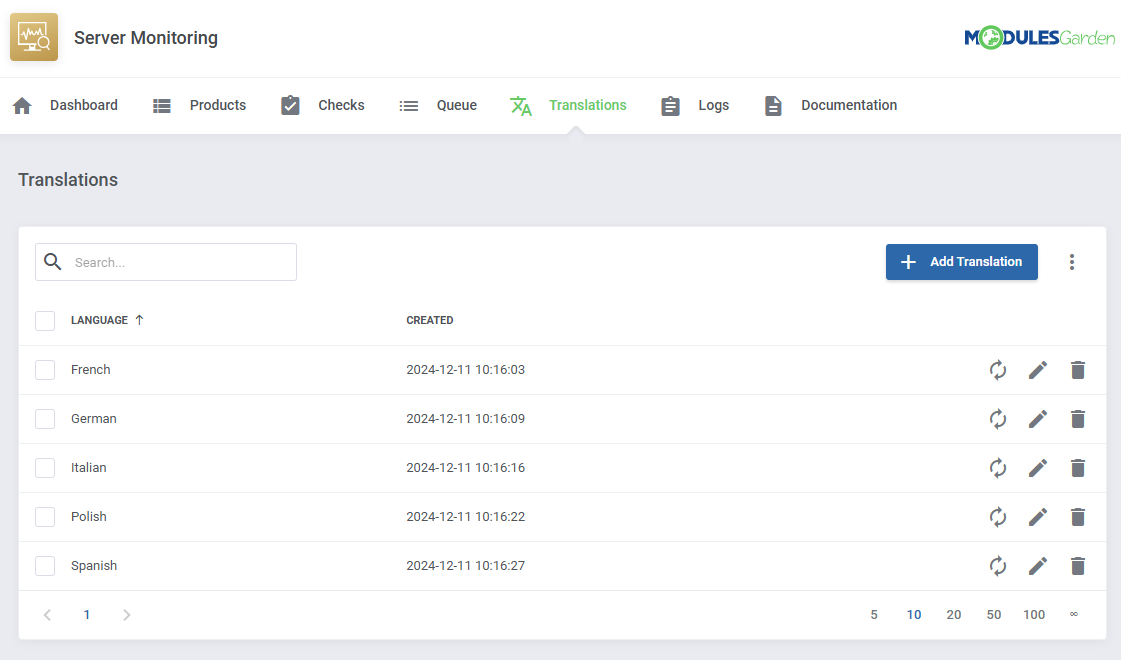
Customizing language files is now extremely easy with the "Translations" tool that is now available directly in the addon.
Its user-friendly design makes managing various language file tweaks a smooth and efficient process. Prepare translations for the original English files with this handy built-in tool.
For specific instructions on how to use this tool please refer to its dedicated article, you will find it here.
Theme
The Theme management tool allows you to control the appearance of module interfaces using ready-to-use presets or fully customizable settings.
It supports separate styling for admin and client areas, enabling you to tailor each environment independently.
With Basic and Expert modes available, you can quickly apply global color schemes or fine-tune individual UI elements as needed.
For full details, see the Theme management documentation page.
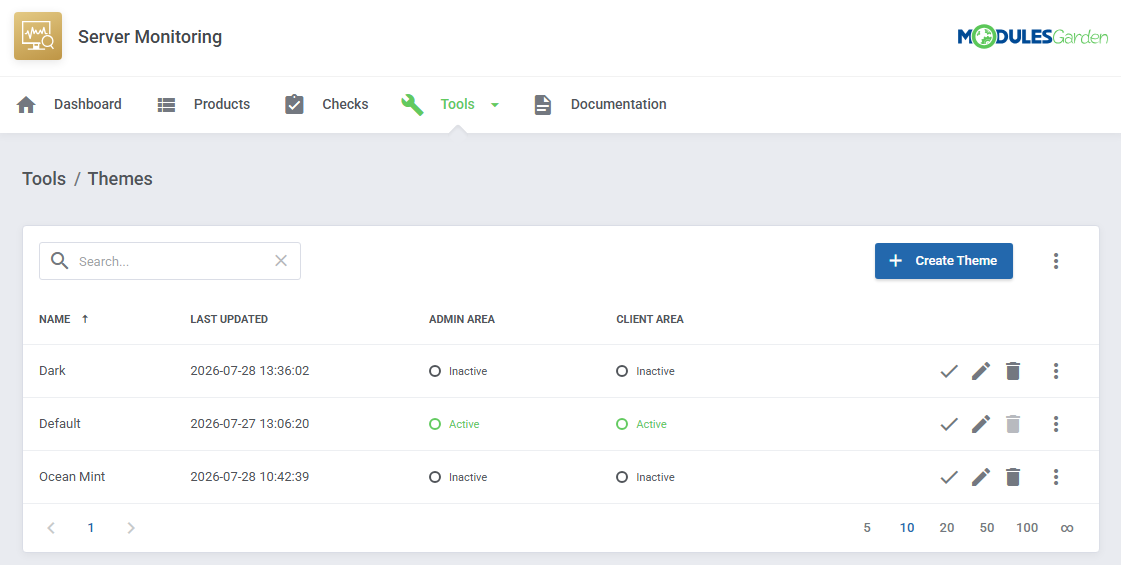
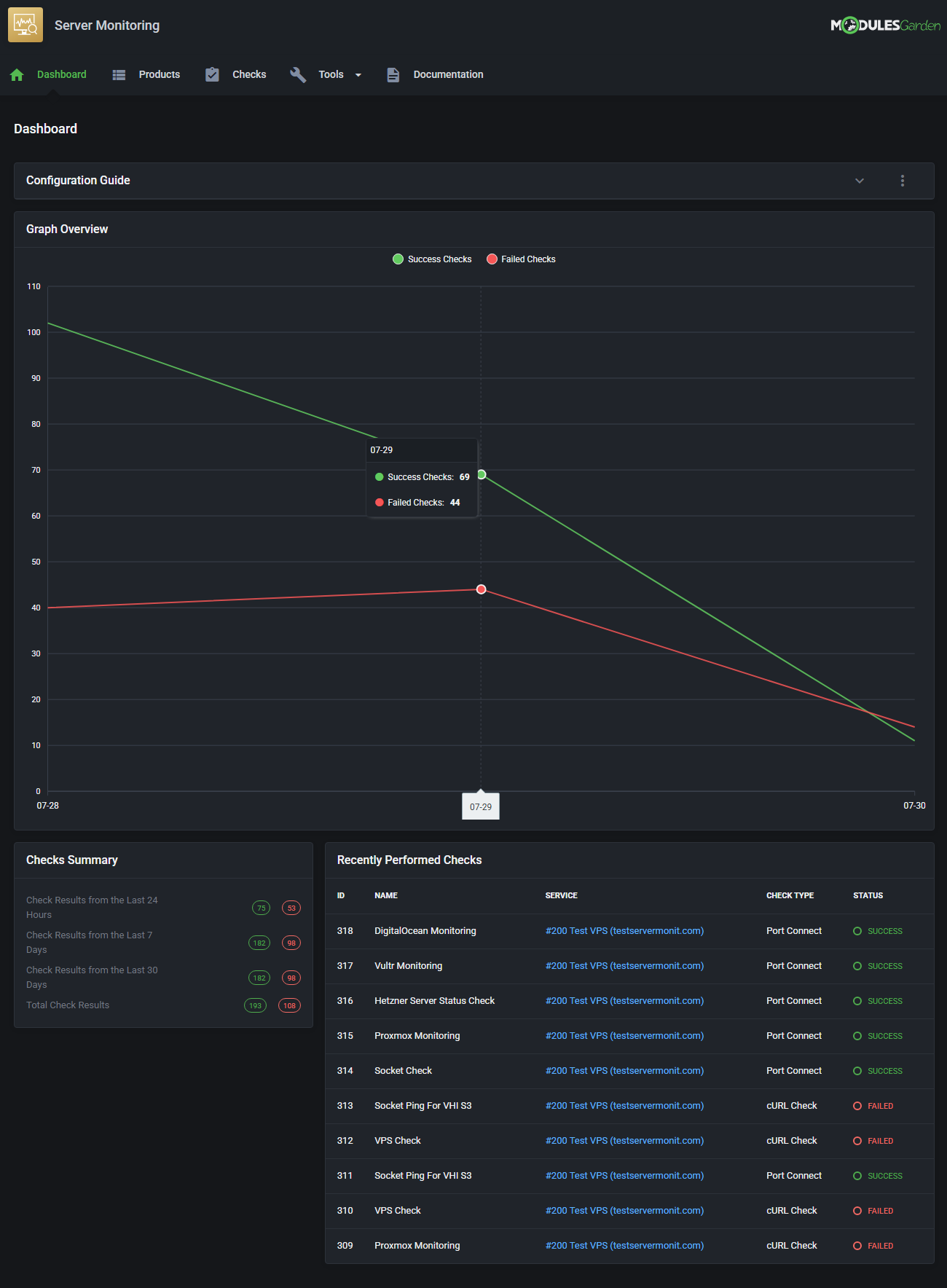
This is how your module might look after implementing custom display changes.
Logs
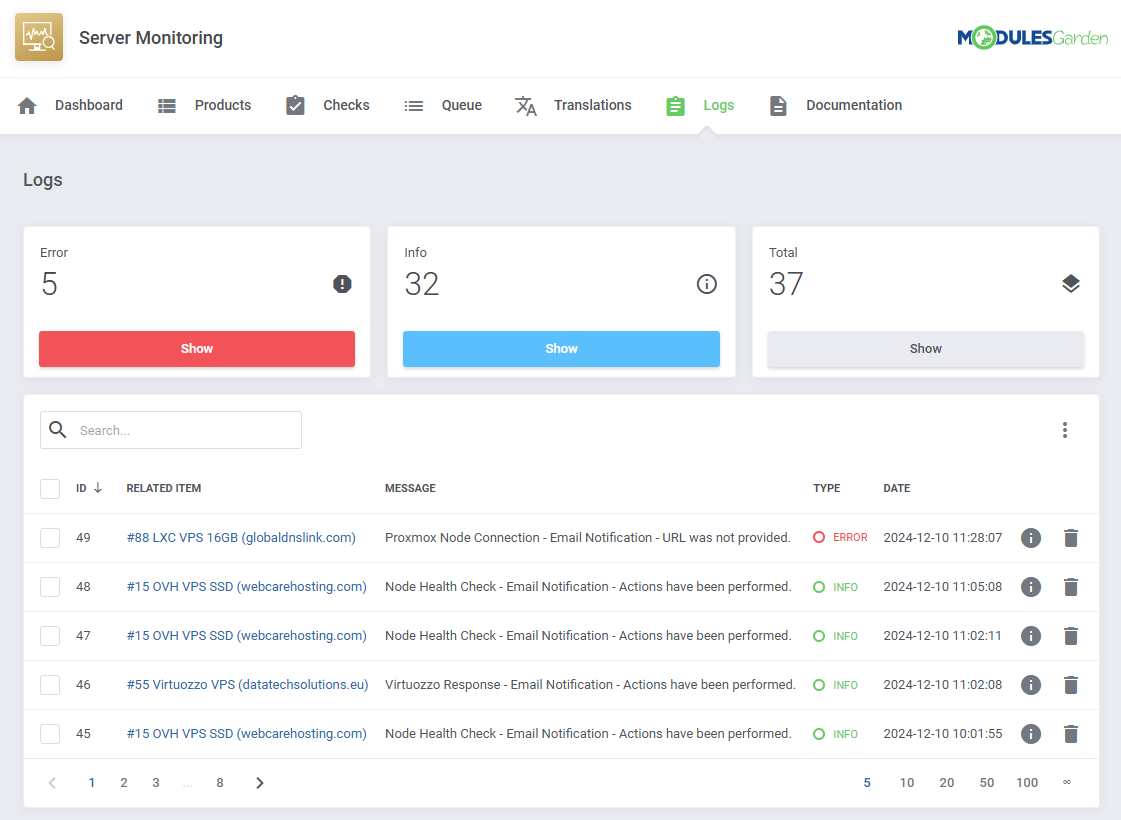
The "Logs" tool makes monitoring and managing module activity records simple and efficient. It provides options to categorize, filter, and view detailed entries, giving you control over the logs.
Features like bulk deletion, rule-based deletion, and export options make it easy to organize and maintain your logs.
For detailed guidance on using this tool, check its dedicated article, which is available here.
# Dashboard
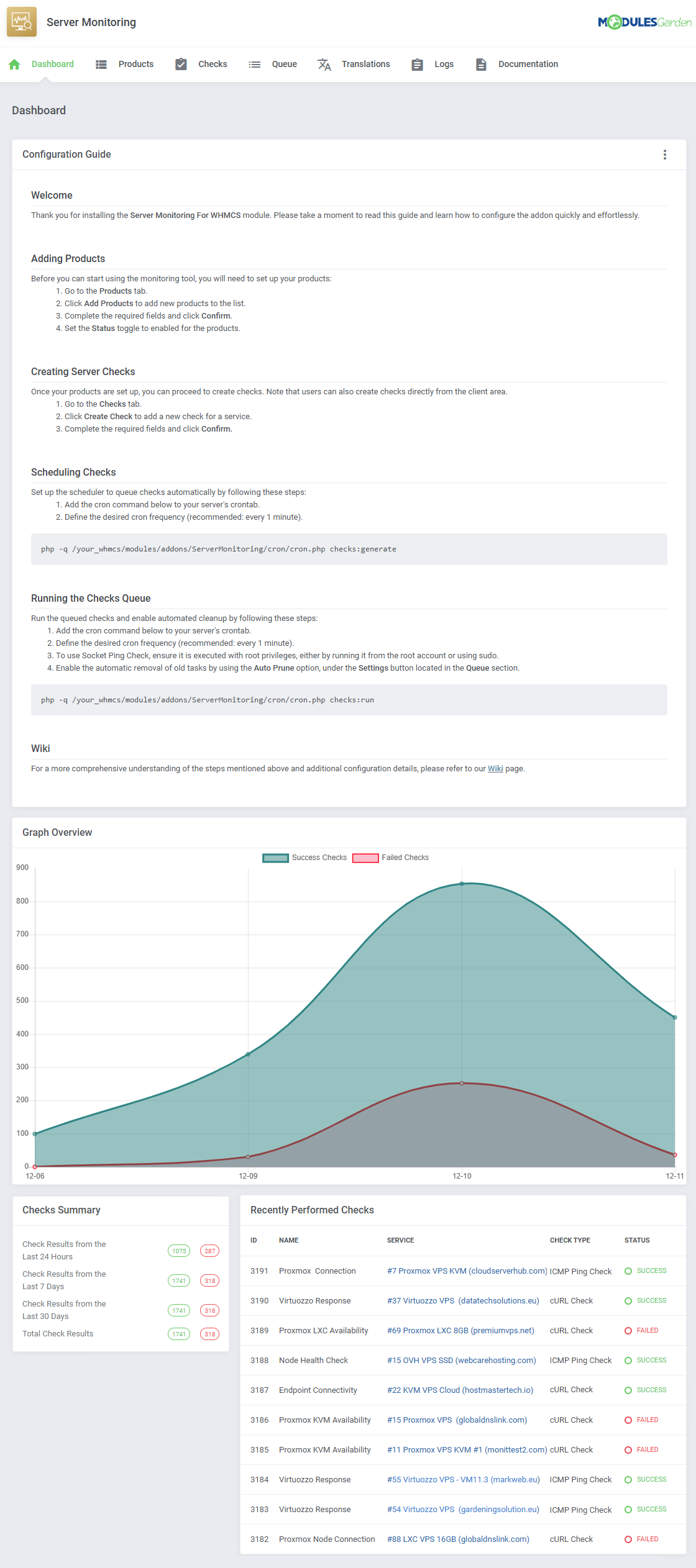
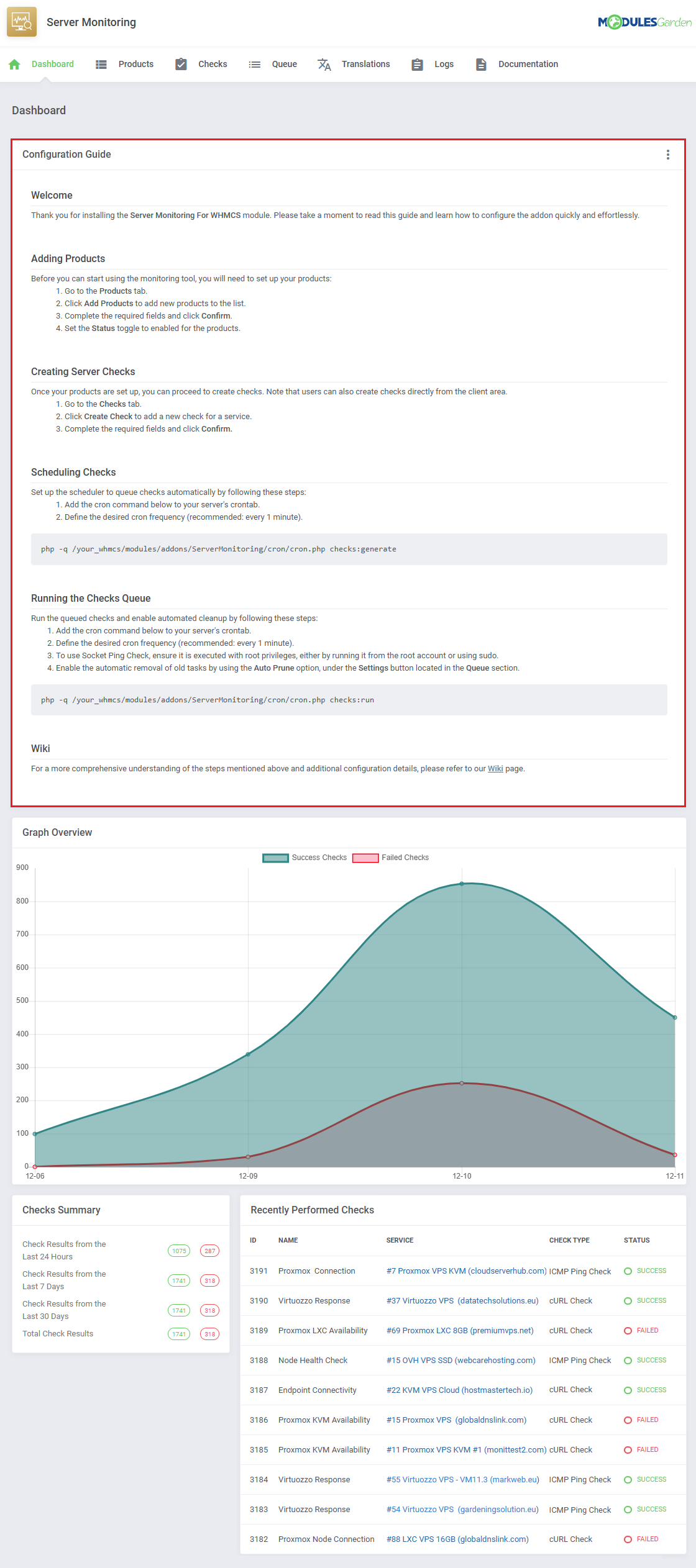
The 'Dashboard' provides information and statistics related to the functions of the module.
At the top, you will find a condensed setup guide, presenting the same information as this documentation.
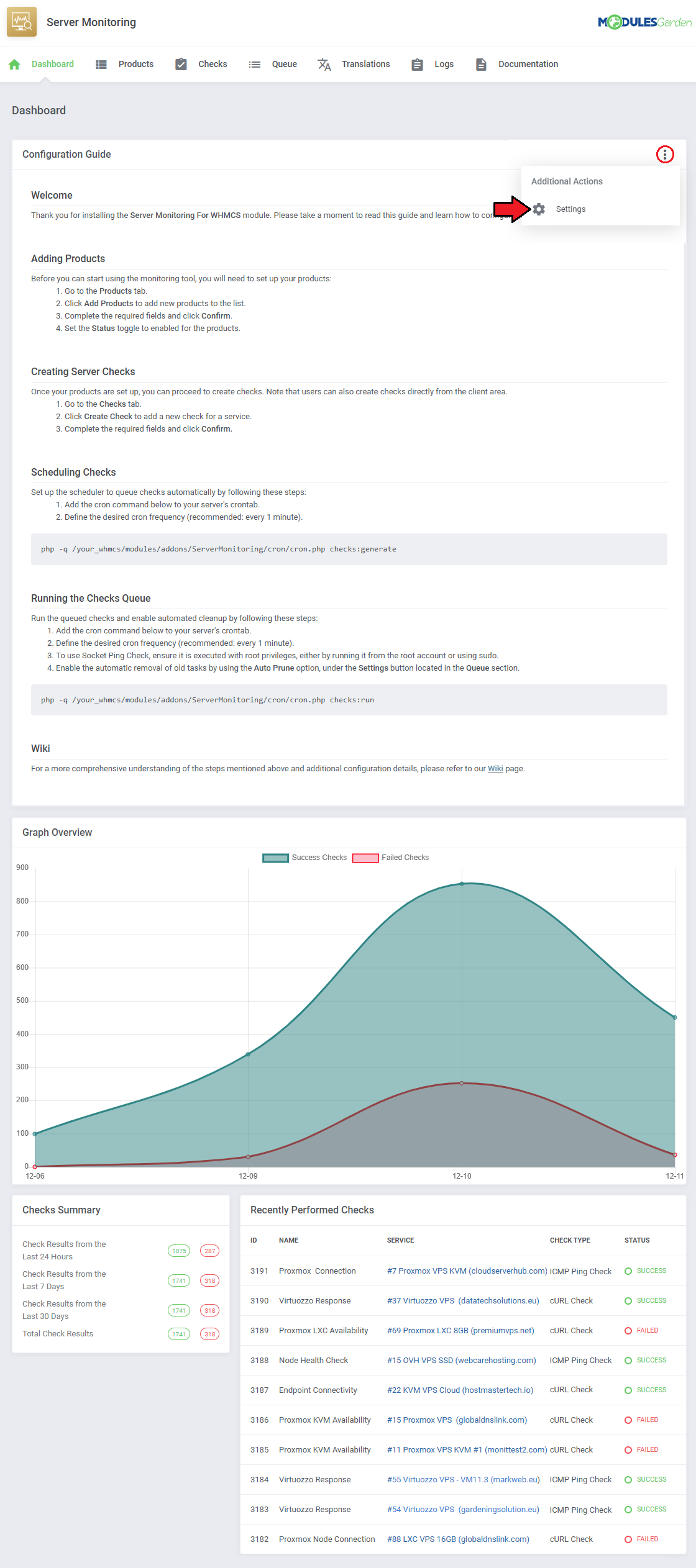
After familiarizing yourself with the guide, you can opt to hide it under 'Additional Actions' → 'Settings'.
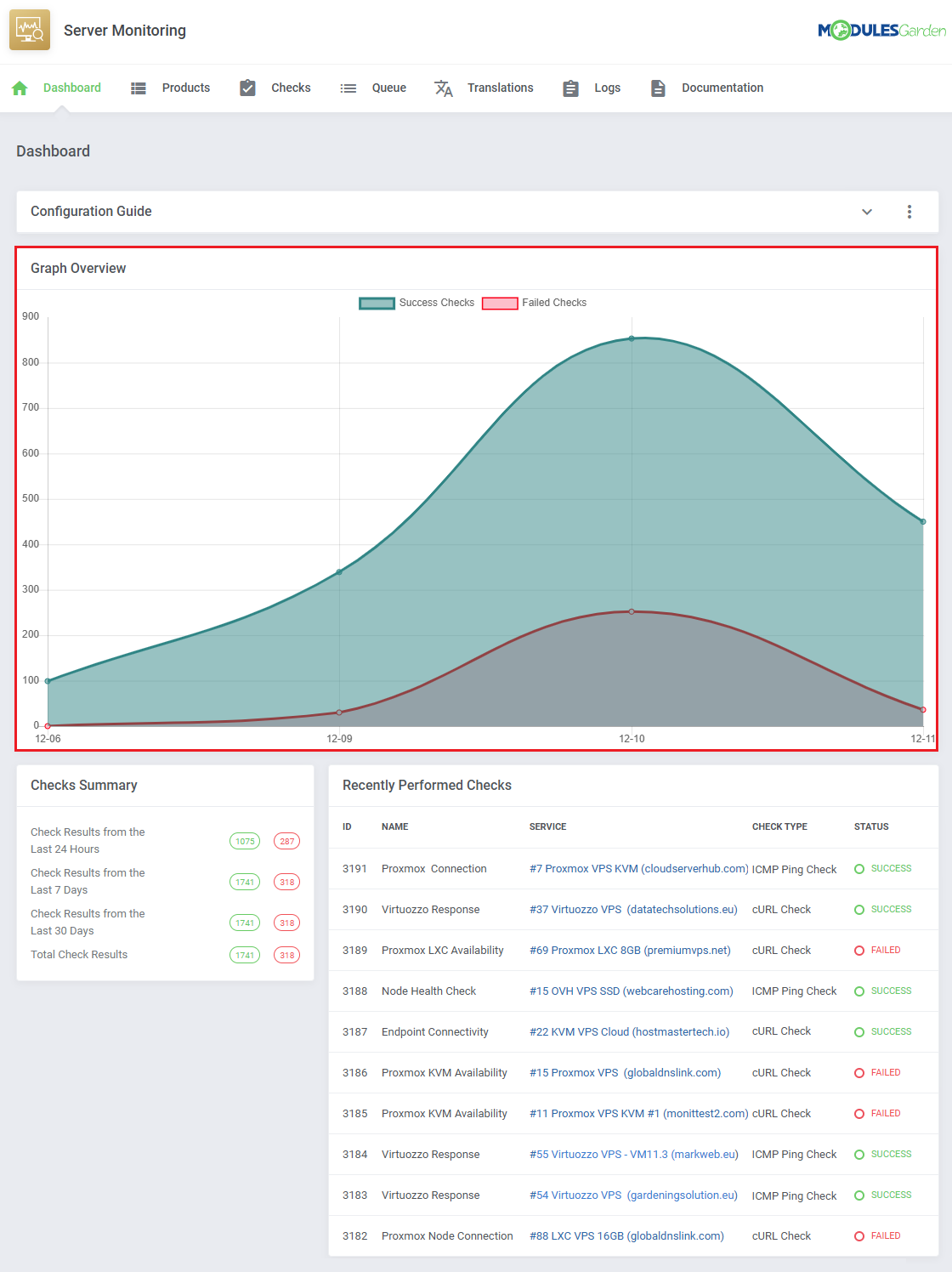
Monitor total check successes and failures over time with the line graph.
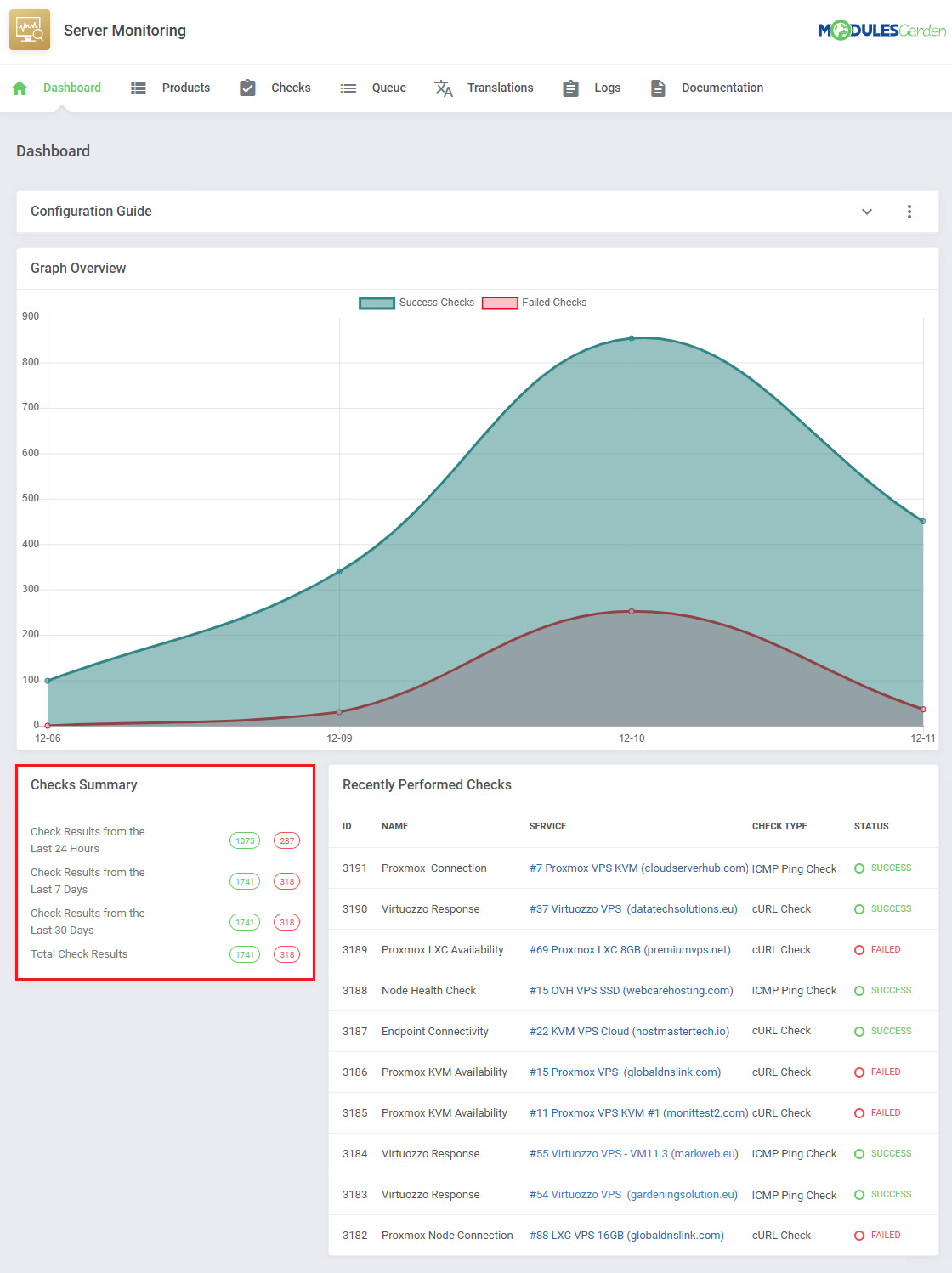
All check successes and failures are counted across different categories:
- Check Results from the Last 24 Hours
- Check Results from the Last 7 Days
- Check Results from the Last 30 Days
- Total Check Results
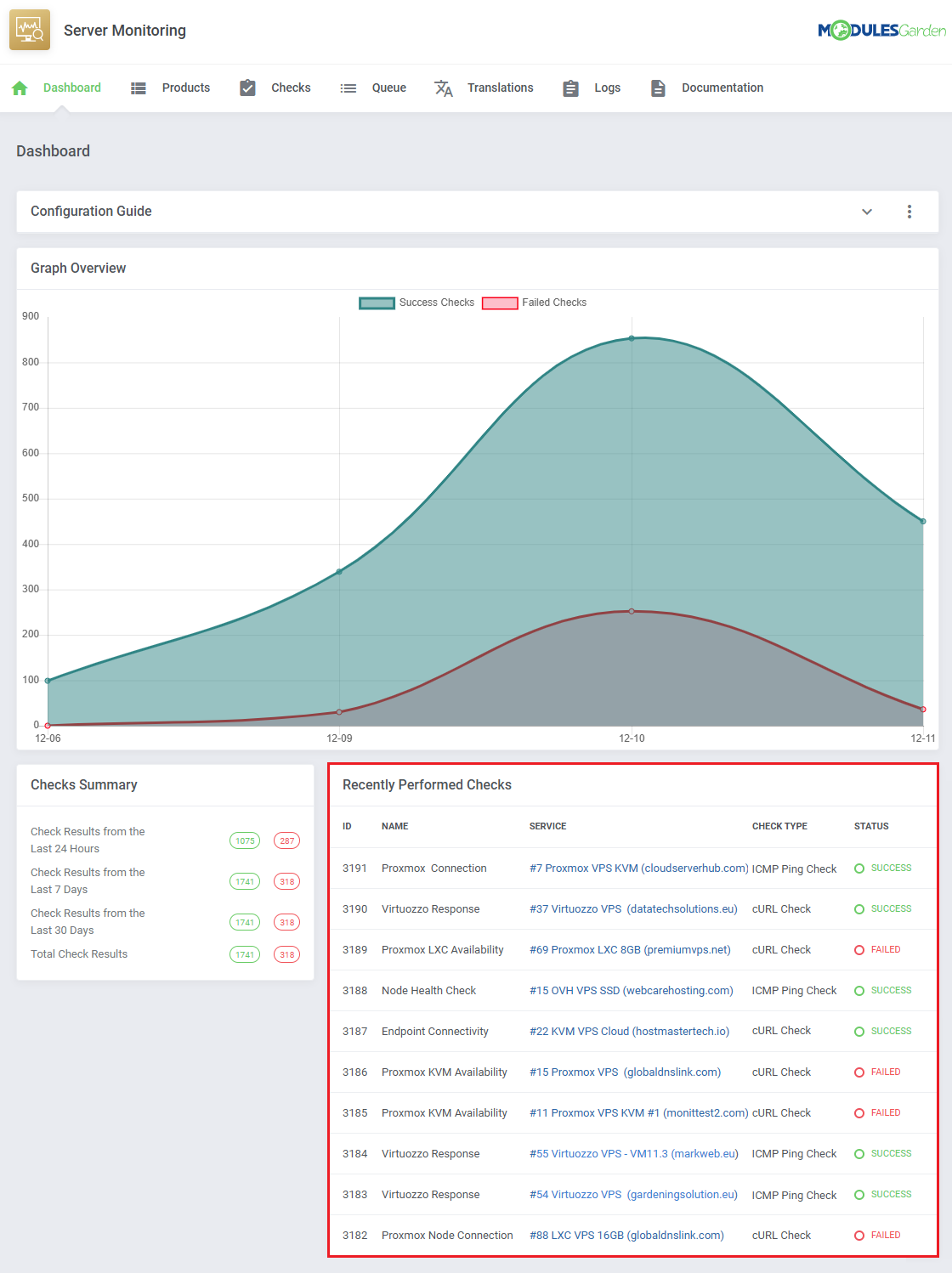
The most recent checks are listed in the 'Recently Performed Checks' table, the information includes:
- Check ID
- Check Name
- Related Service
- Check Type
- Status
# Client Area
Clients will be able to take advantage of Server Monitoring For WHMCS too, as long as they own one of the products you have configured.
The basic client area integration allows them to create and monitor checks for their service, within restrictions impposed by the admin.
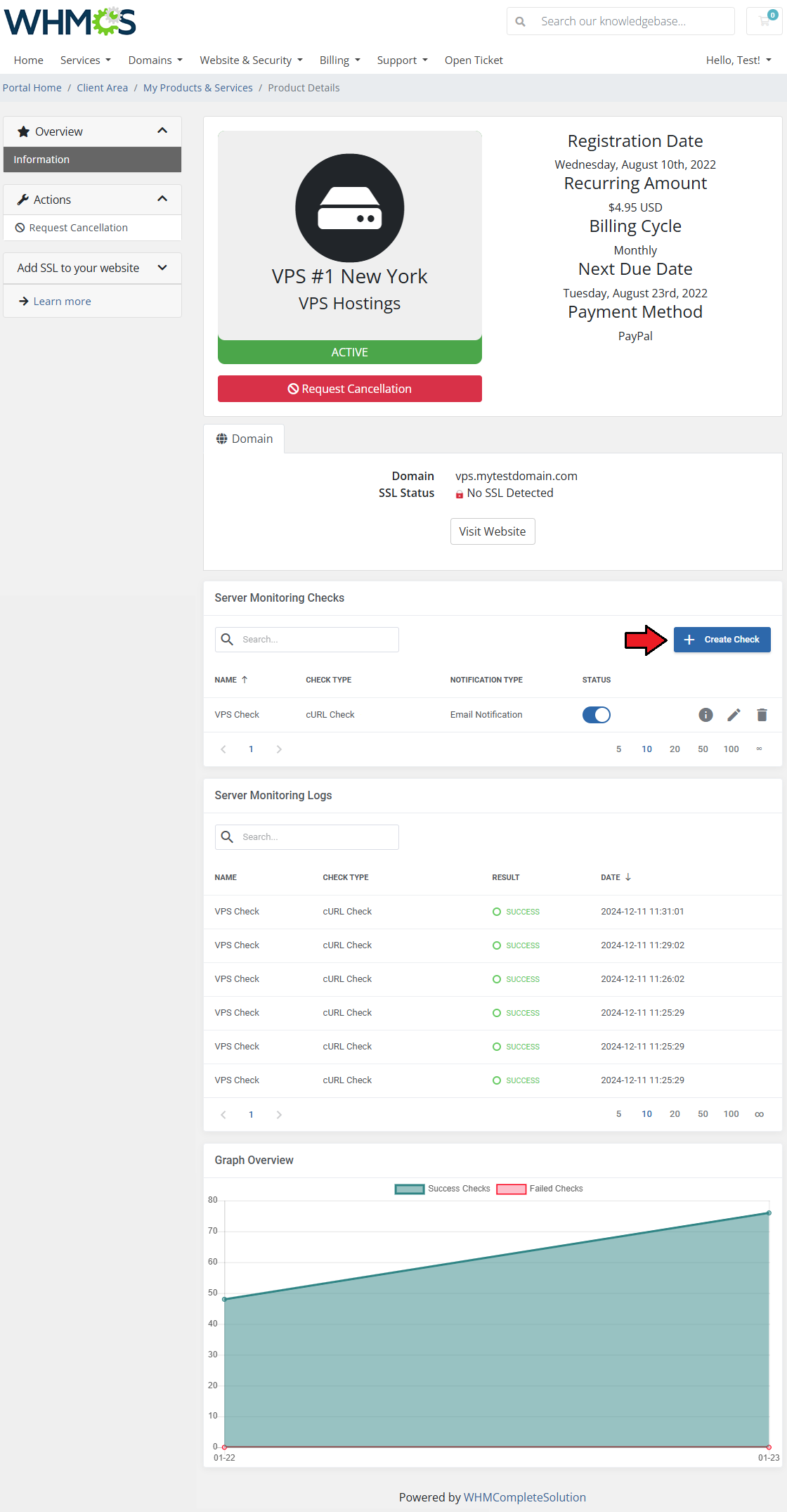
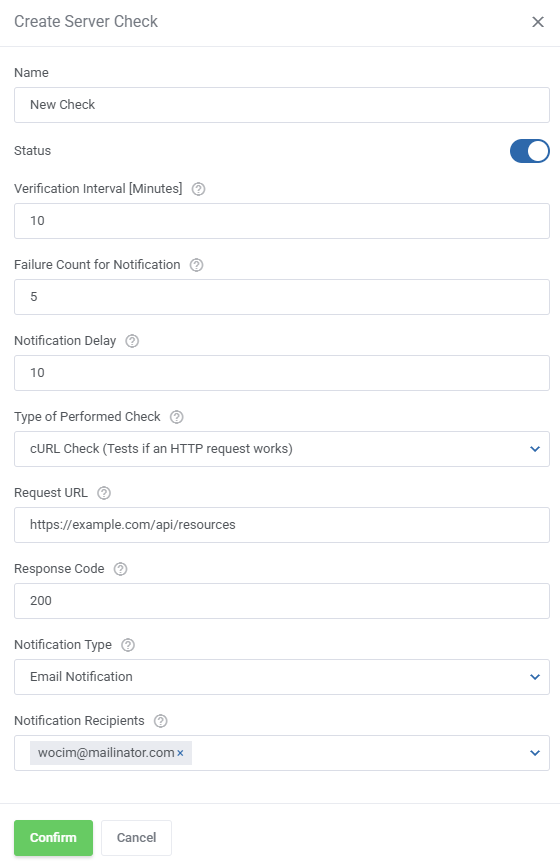
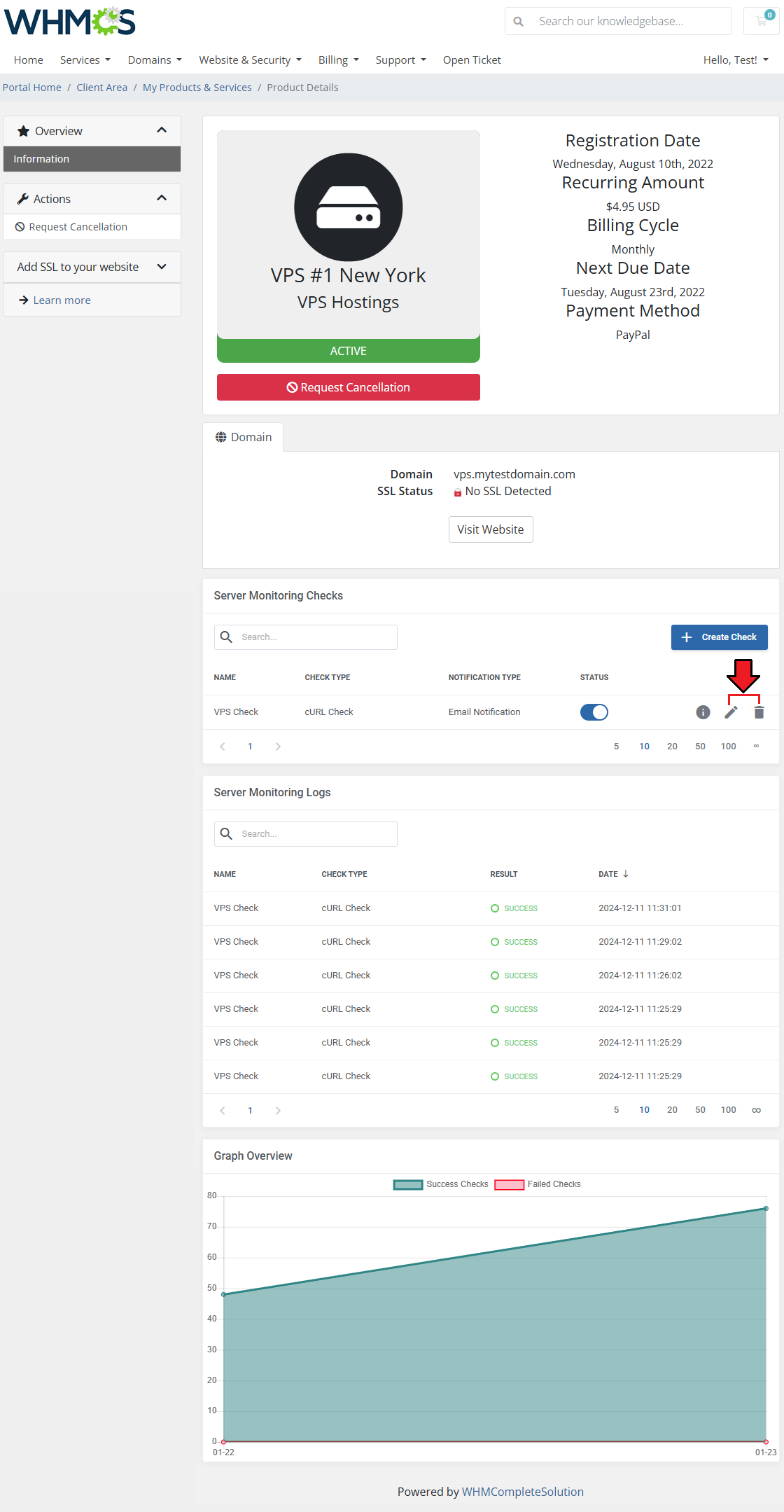
To add a new check, click on the 'Create Check' button.
Fill out the necessary fields:
- Name - provide a name for the check.
- Status - set the initial status of the check, it can be toggled off and on later as well.
- Verification Interval - set how often the check should be performed (in minutes).
- Failure Count for Notification - set how many checks with the failed verification are needed to send a notification.
- Type of Performed Check - select the type of the check.
- IP Address - select/provide an IP address to be checked.
- Notification Type - select the type of the notification.
- Notification Recipients - select where the notification should be sent.
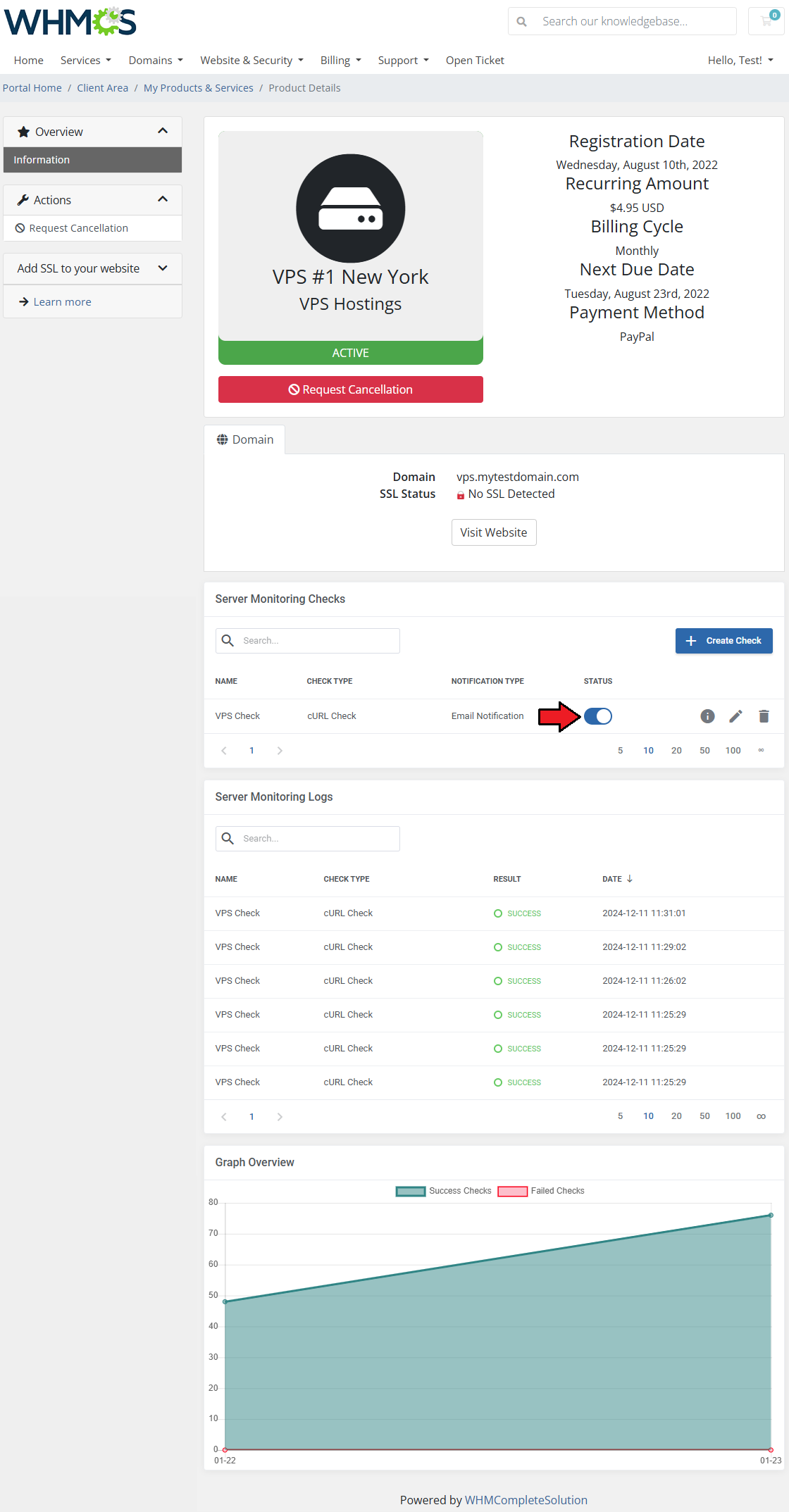
Once the check is added, you can toggle it on/off as needed with the 'Status' toggle.
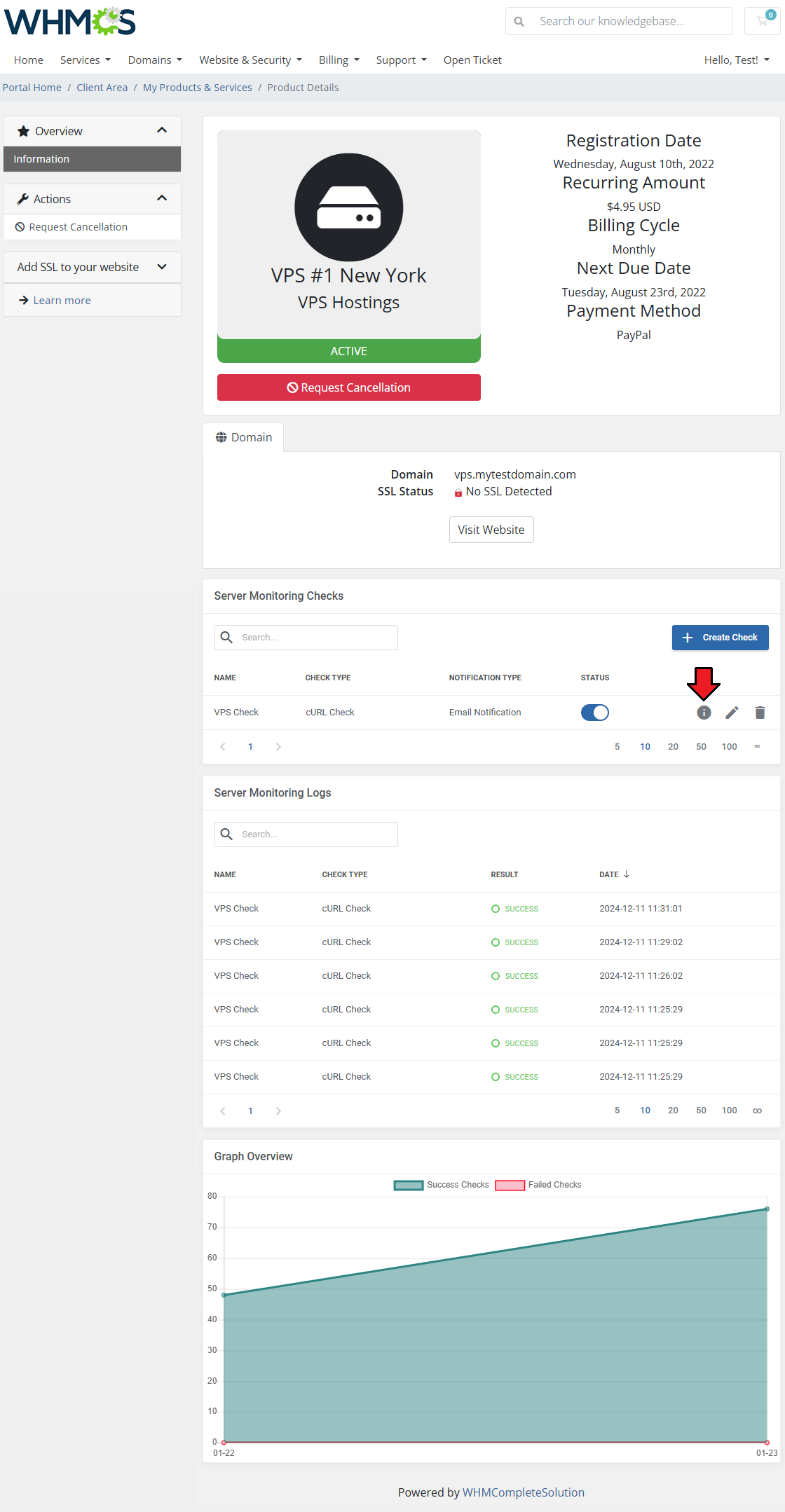
You can display logs for the specific check by clicking on the 'Show Logs' button.
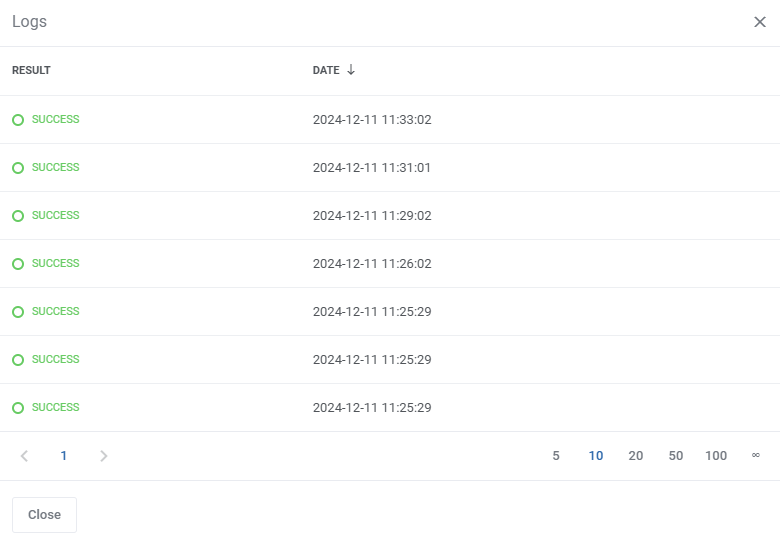
The logs only include results of the selected check, as opposed to all logs in the table below.
Use the action buttons to edit or delete created checks whenever you need to.
Consider disabling a check with the 'Status' toggle before deleting it for good.
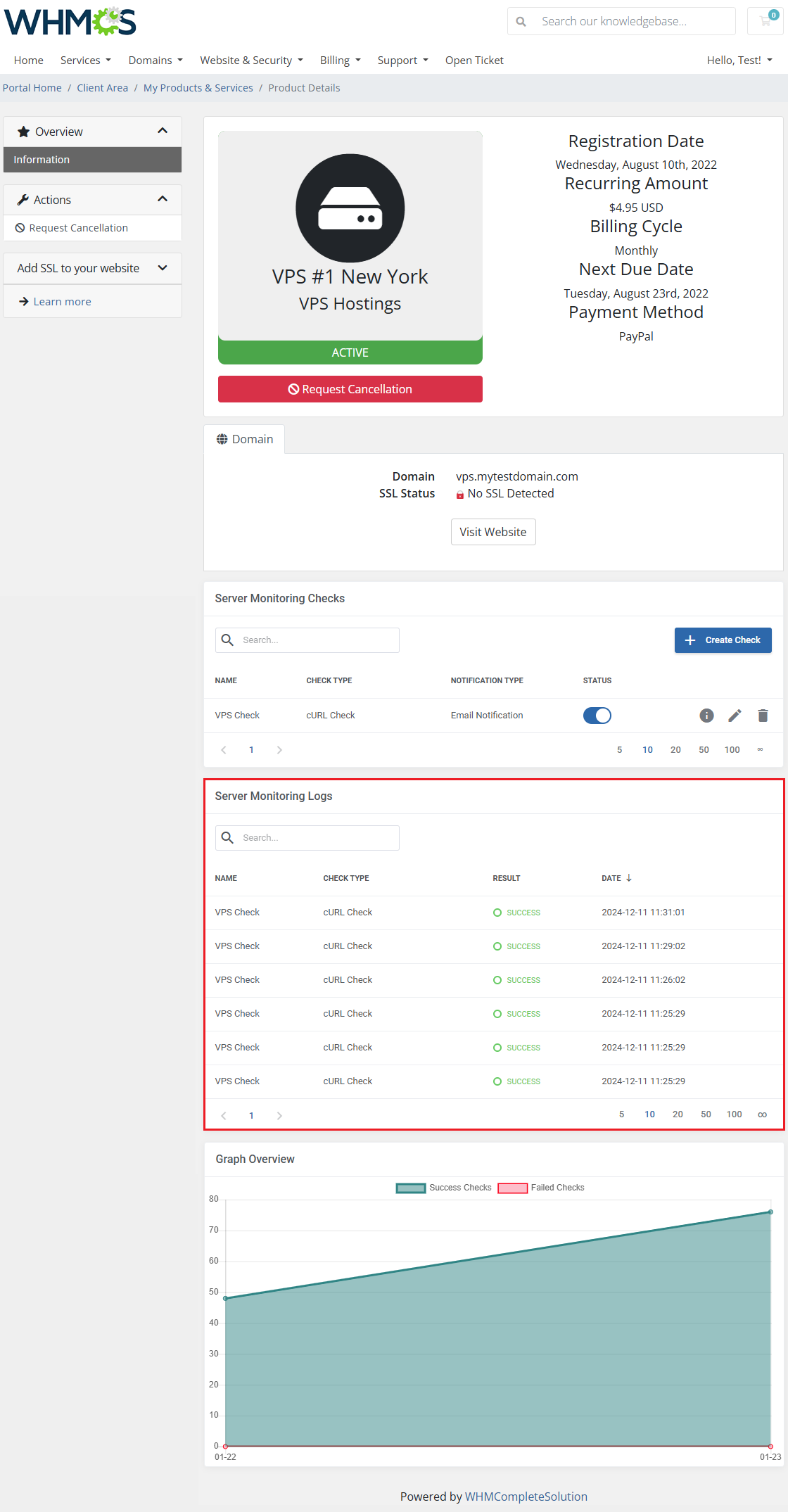
The 'Server Monitoring Logs' list check history of every check related to the service in a single table including:
- Check Name
- Check Type
- Check Result
- Check Date
A graph with check results over time will be drawn for the service as well, provided the function has been enabled.
# Tips
If you plan on using the 'Socket Ping Check' check type, make sure that queue executor cron has admin permissions.
You can do this by running it from an account with sudo permissions or adding 'sudo' before the cron job line like this:sudo php -q /your_whmcs/modules/addons/ServerMonitoring/cron/cron.php checks:runUse the Configurable Option below to enable module features in the client area for the selected service. This option can also be utilized to include additional charges if needed.
Note: Products still have to be added in the module addon.serverMonitoring|Server Monitoring ToolUse the Configurable Option below to allow clients to select their preferred check limit during the ordering process. You may also configure pricing based on the selected limit.
serverMonitoringChecksLimit|Checks LimitDefault User Agent for HTTP Checks
The module sends a default User Agent string for HTTP (cURL) checks defined in theconfiguration.ymlfile.
This avoids issues on some servers that block requests without a User Agent header. If the setting is empty, no User Agent will be sent.
# Update Instructions
An essential guidance through the process of updating the module is offered here.
Ensure successful completion of the module update by carefully following each step, thereby preventing data loss or any unforeseen issues.
Additionally, you will find a current list of supplementary actions necessary for a smooth update process there.
# Upgrade Guide
Seeking a solution that offers greater flexibility, customization tailored to your precise needs, and unrestricted availability?
There is an option that not only proves to be cost-effective in the long run but also includes prioritized support services, making it a truly valuable investment.
Opt for the Open Source version (opens new window) of your Server Monitoring For WHMCS module to unlock these benefits.
Simply click on either the Get Source Code or Upgrade To Lifetime button found on the product's page in our client area to complete the one-step upgrade process, with a dedicated discount already applied.
Follow a comprehensive guide covering the transition process, the advantages it brings, and step-by-step instructions on what to do next after the order has been successfully finalized.
# Common Problems
- When you have problems with connection, check whether your SELinux or firewall does not block ports.