

# OpenStack VPS And Cloud For WHMCS
Important: Please read the upgrade guide before updating to version 3.0.
This release requires manually starting the migration tool to begin the process properly.
Thank you for your understanding!
# (opens new window) About OpenStack VPS & Cloud For WHMCS (opens new window)
OpenStack VPS & Cloud For WHMCS is a powerful module that automates the provisioning of virtual servers for your customers.
It enables them to order and manage their instances, backups, and other resources directly from your WHMCS client area.
At the same time, it provides administrators with full visibility and control over all deployed servers from a single interface.
# Installation and Configuration
This tutorial will show you how to successfully install and configure OpenStack VPS & Cloud For WHMCS. (opens new window)
We will guide you step by step through the whole installation and configuration process.
# Installation
- Log in to our client area and download the module.
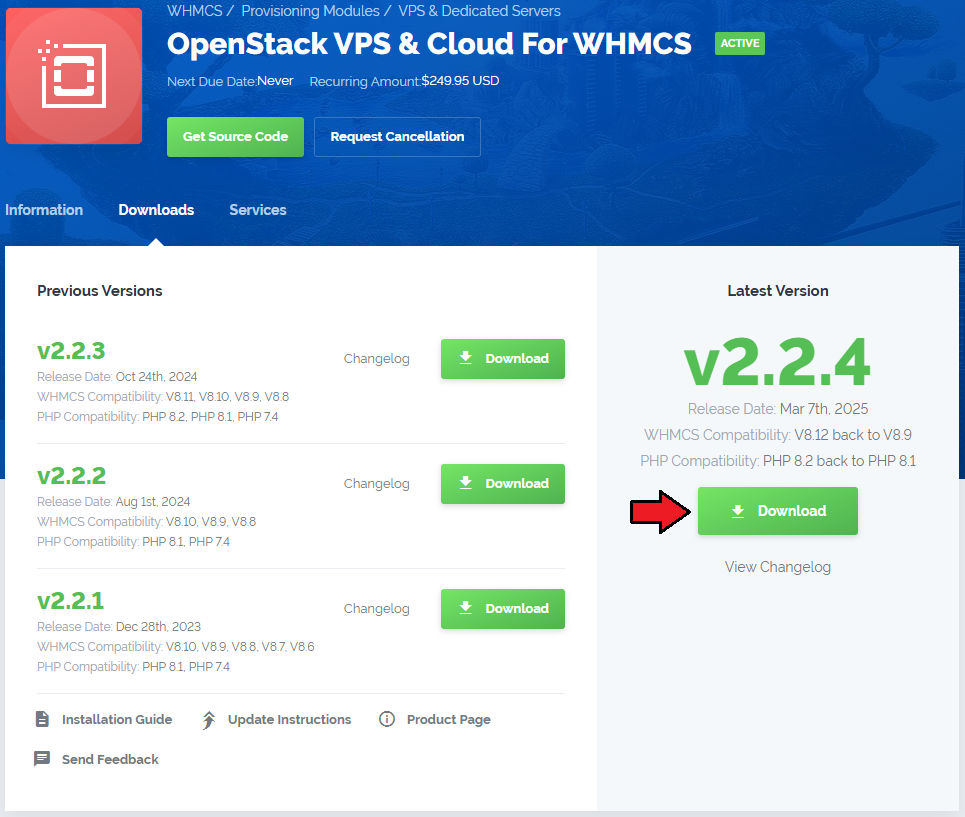
Extract the package and upload its content into the main WHMCS directory.
The content of the package to upload should look like this.
When you install OpenStack VPS & Cloud For WHMCS for the first time you have to rename the 'license_RENAME.php' file.
The file is located in 'modules/servers/OpenStackVpsCloud/license_RENAME.php'. Rename it from 'license_RENAME.php' to 'license.php'.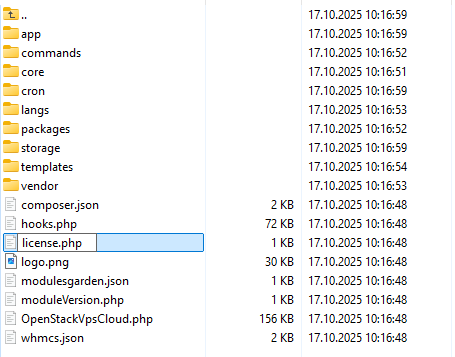
In order to configure your license key, you have to edit the previously renamed 'license.php' file.
Enter your license key between quotation marks as presented on the following screen.
You can find your license key in our client area → 'My Products'.
In the next step, set up the 'storage' folder as recursively writable.
This folder is available at 'your_whmcs/modules/servers/OpenStackVpsCloud'.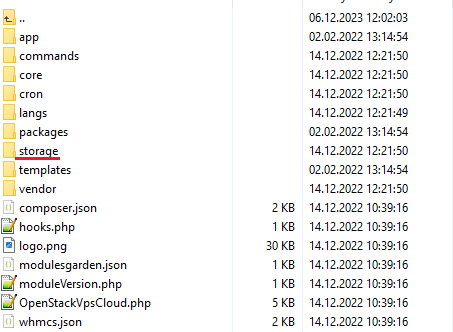
The last step is setting up a cron job (each 5 minutes suggested).
Use cron job below but switch the 'your_whmcs' with your root WHMCS path.
php -q /yourWHMCS/modules/servers/OpenStackVpsCloud/cron/cron.php queue
# Addon Activation
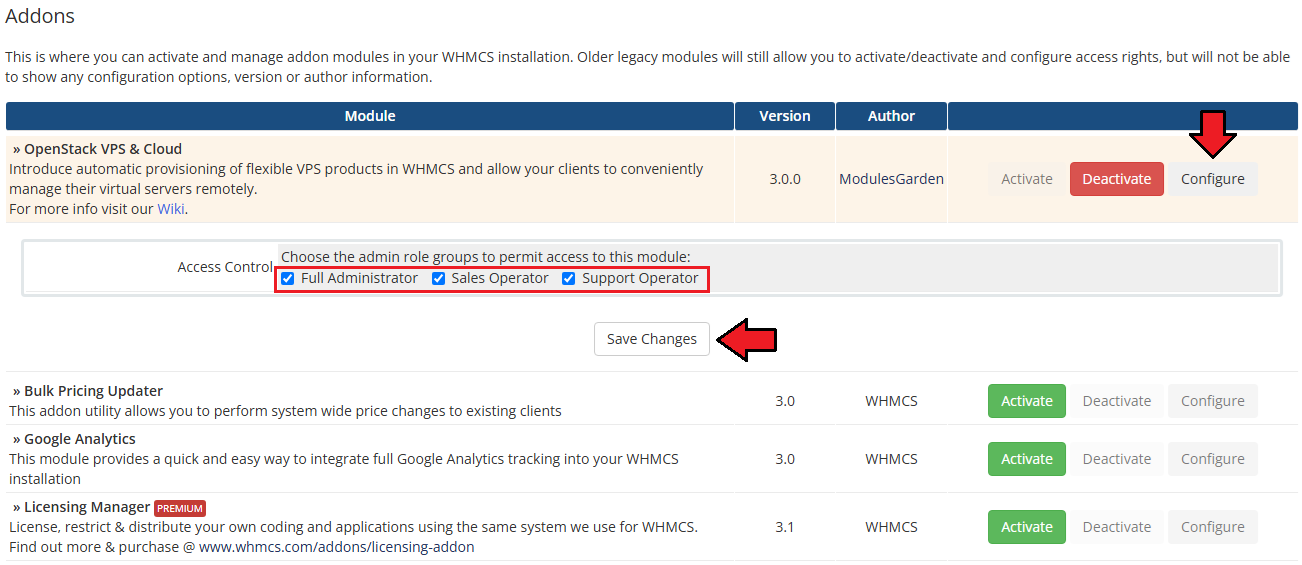
Activate the OpenStack VPS & Cloud addon.
To do so, log in to your WHMCS and navigate to 'System Settings' →'Addon Modules'. Find 'OpenStack VPS & Cloud' and press 'Activate'.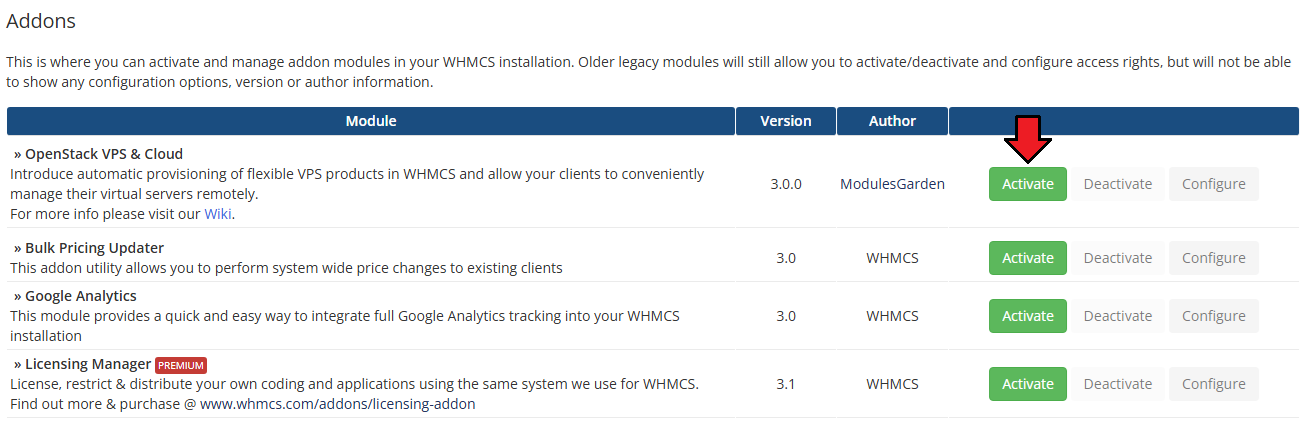
In the next step, you need to grant access to this module.
To do so, click on the Configure button, select Full Administrator, and then press Save Changes.
Important: The administrator responsible for setting up OpenStack products must have access to the addon module.
Otherwise, the server configuration will not be completed successfully.
# Configuration of Server
Now, we will show you how to configure a new product.
Go to the 'Setup' → 'Products/Services' → 'Servers' and press 'Add New Server'.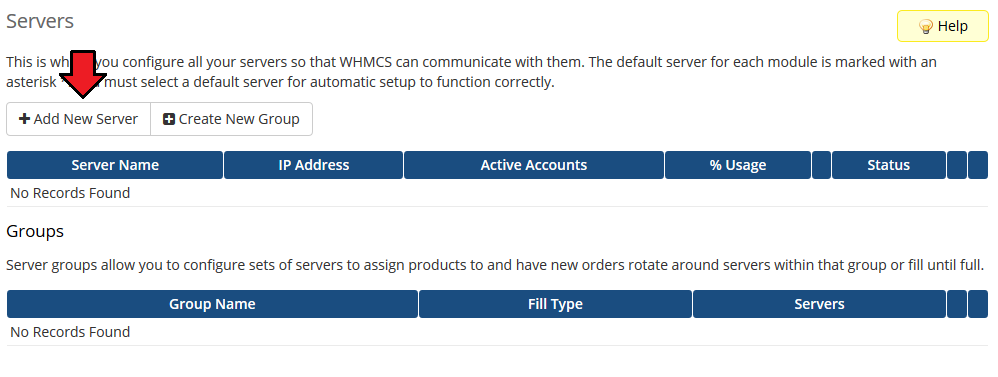
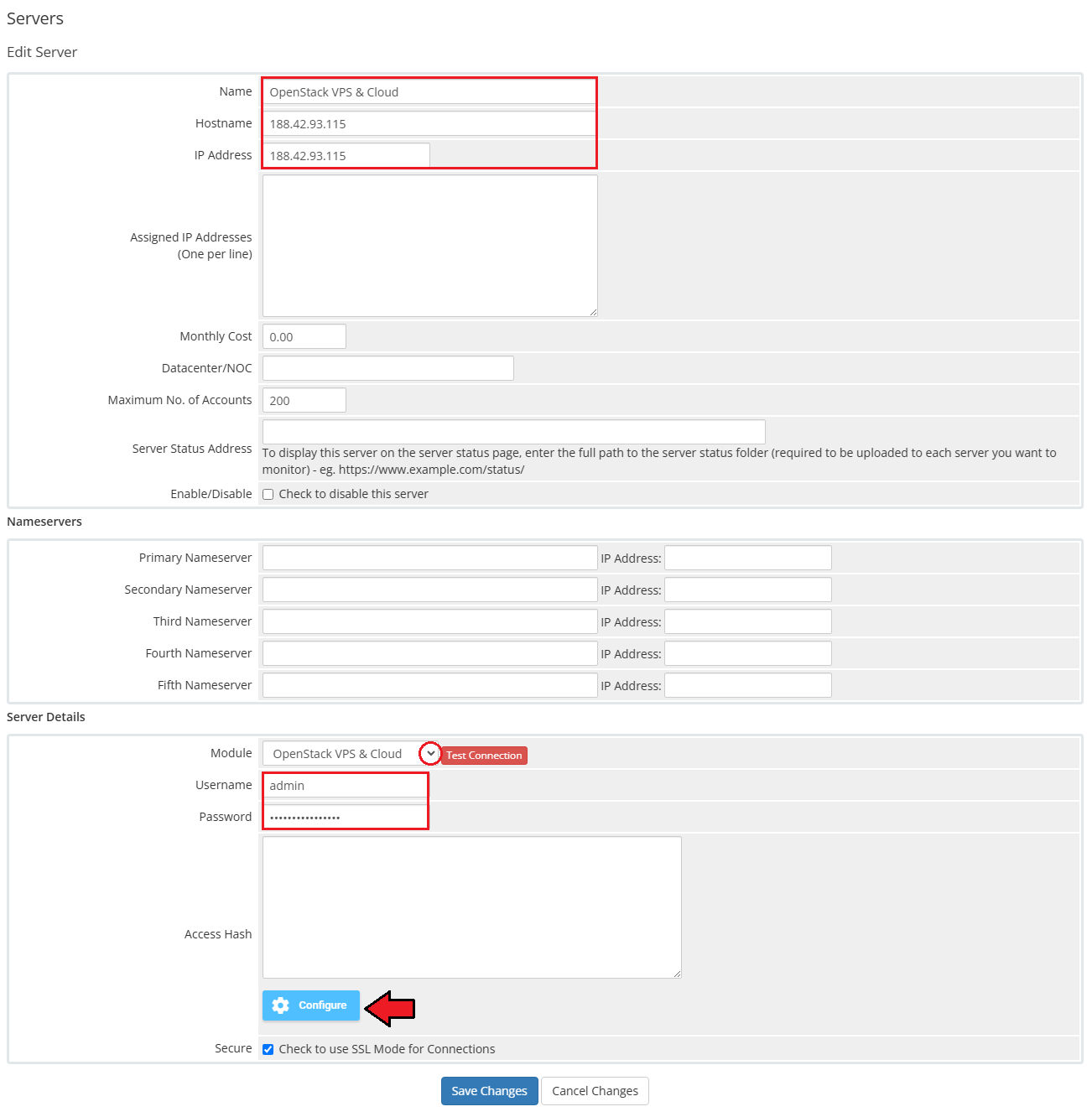
Next, enter your server name and connection details.
Important: The module supports OpenStack providers that allow access to the OpenStack API with project admin-level permissions or higher.
The list in the 'Features' section includes key examples, but other providers can also be used, provided that the account has sufficient permissions to perform the required actions through the API.
Learn more about access roles in the OpenStack API guide. (opens new window)- Provide your OpenStack IP address or hostname.
- Module – select 'OpenStack VPS & Cloud' from the dropdown menu.
- Username and Password – enter your OpenStack administrator credentials.
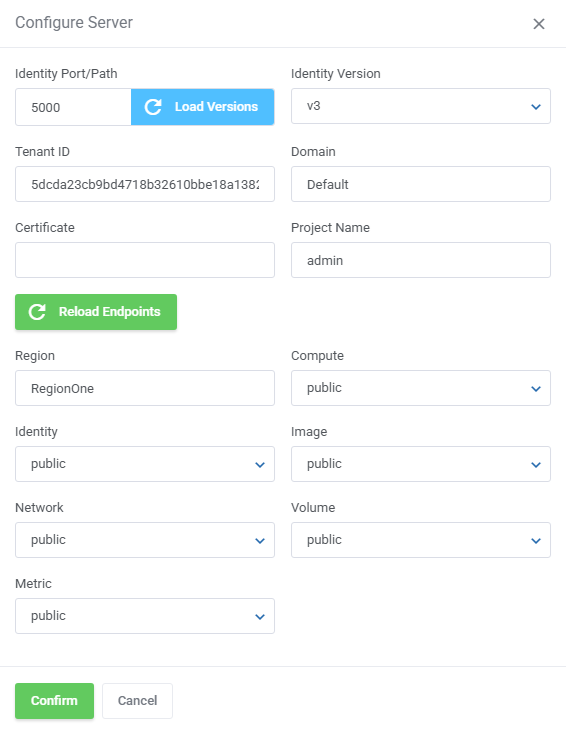
- Click Configure to open the server configuration window:
- Identity Port/Path – specify the API endpoint port or path, if required. You can find it in the OpenStack 'API Access' section under 'Service Endpoint'.
The path segment appears between the hostname/IP address and the API version or port. Leave this field empty if it is not required. - Click Load Versions to retrieve the supported OpenStack Identity API versions.
- Identity Version – select the OpenStack Identity API version (v2 or v3).
Important: If the dropdown list is empty, verify that the 'IP Address/Hostname', 'Identity Port/Path', 'Secure', and 'Port' fields have been configured correctly. - Project ID – enter the ID of the OpenStack project used by the module.
Note: To locate the Project ID, log in to the OpenStack panel and navigate to 'Identity' → 'Projects'. Find the appropriate project and copy the value from the 'Project ID' column. - Domain – optionally, provide your OpenStack domain name or leave 'Default'.
- Certificate – optionally, enter the full path to the SSL certificate used for verification. Leave this field empty if it is not applicable.
- Project Name – enter the name of the project associated with this server. Leave this field empty if it is not applicable.
- Identity Port/Path – specify the API endpoint port or path, if required. You can find it in the OpenStack 'API Access' section under 'Service Endpoint'.
- Click Reload Endpoints to retrieve the available regions and their service endpoints from OpenStack.
- The Endpoints section displays a separate tab for every detected region. Select a region tab and configure the endpoint interface used for each available service:
- Compute
- Identity
- Image
- Network
- Volume
- Metric
- Depending on your OpenStack setup, select the public or internal interface separately for each service in every region.
The module supports multiple regions configured within a single WHMCS server connection.
- If your OpenStack environment uses HTTPS or a custom port, configure them using the Secure and Port fields.
Finally, click Confirm. The system will automatically generate the Access Hash used for server communication.
After you have configured your server correctly, you can check the connection with the OpenStack server.
Simply, edit the previously created server and press 'Test Connection' as shown on the screen below.
During the test, the connection with all related endpoints will be checked.
For more information about connections, visit the Common Problems and Tips sections.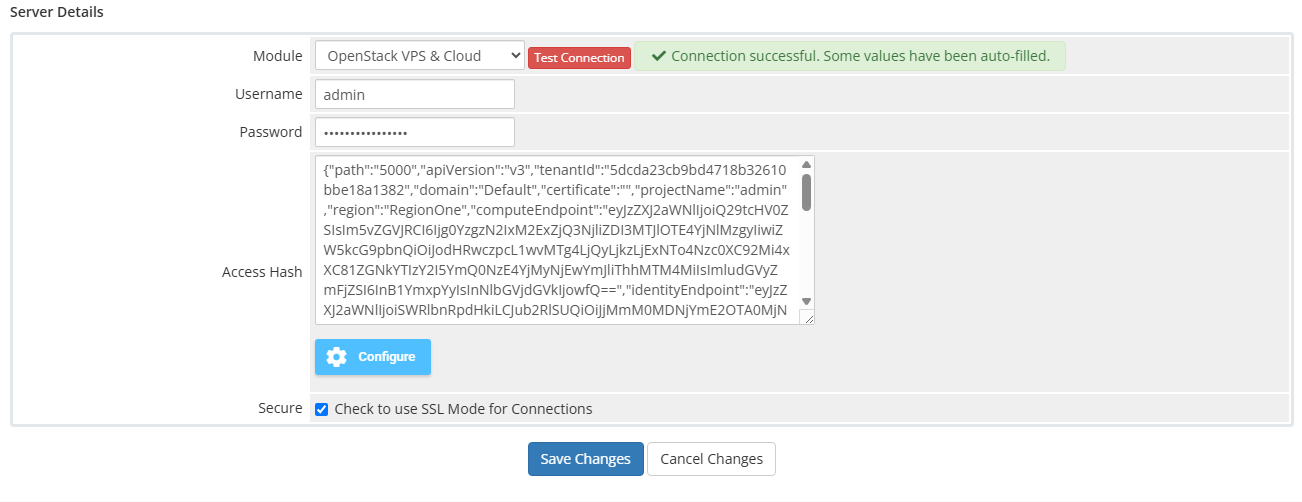
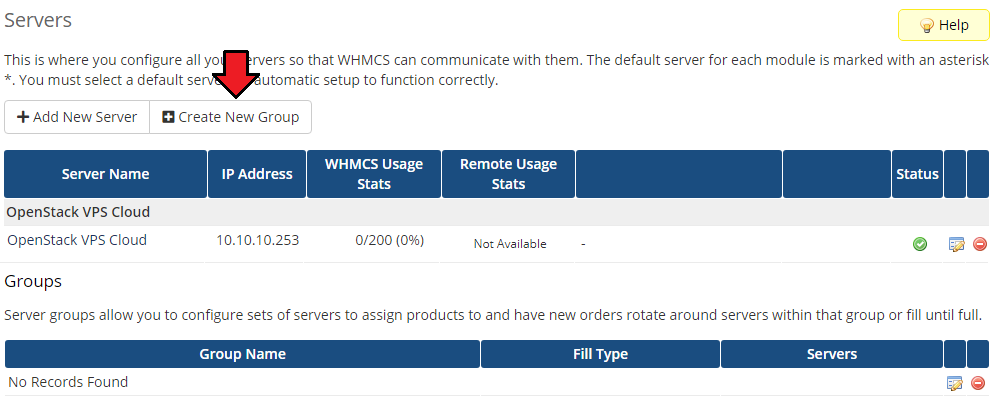
It is time to create a server group. To do so, click on 'Create New Group'.
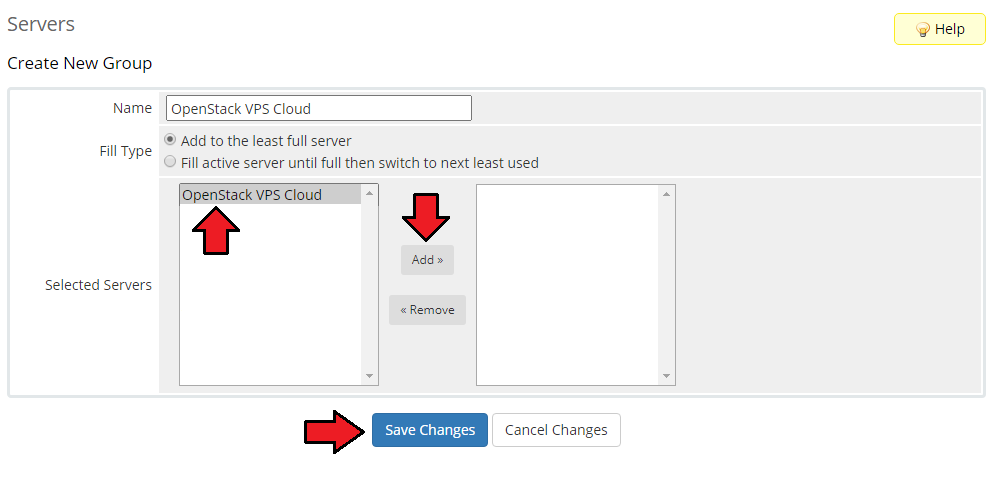
- Enter a name, click on your previously created server, press 'Add' and afterward 'Save Changes'.
# Configuration of Product
In order to create and configure a product, go to 'Setup' → 'Products/Services' → 'Products/Services'.
Click on 'Create a New Group'.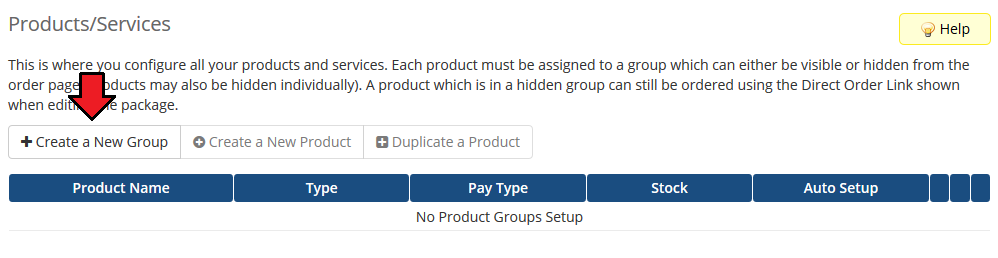
Enter a product group name and press 'Save Changes'.
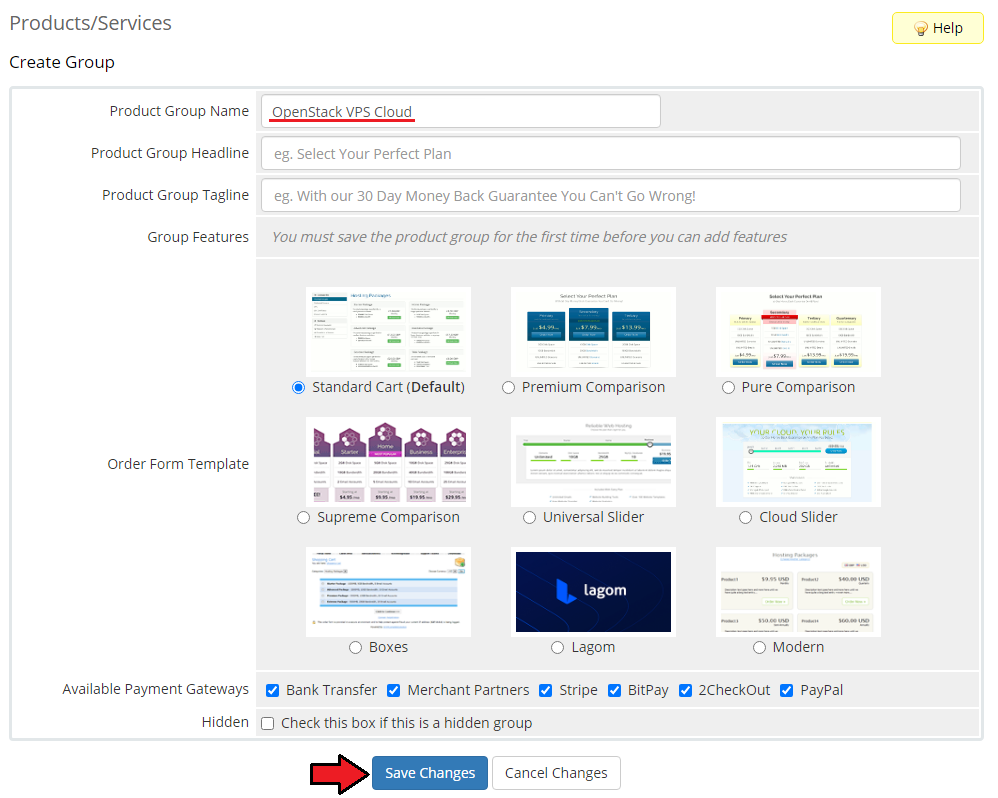
When you have a product group, you can create your product.
To create a product click on 'Create a New Product'.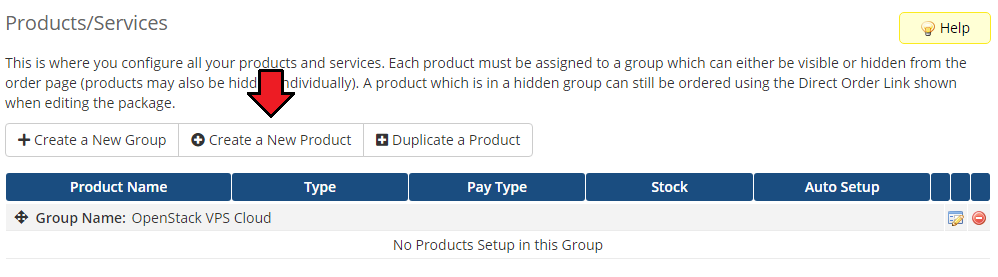
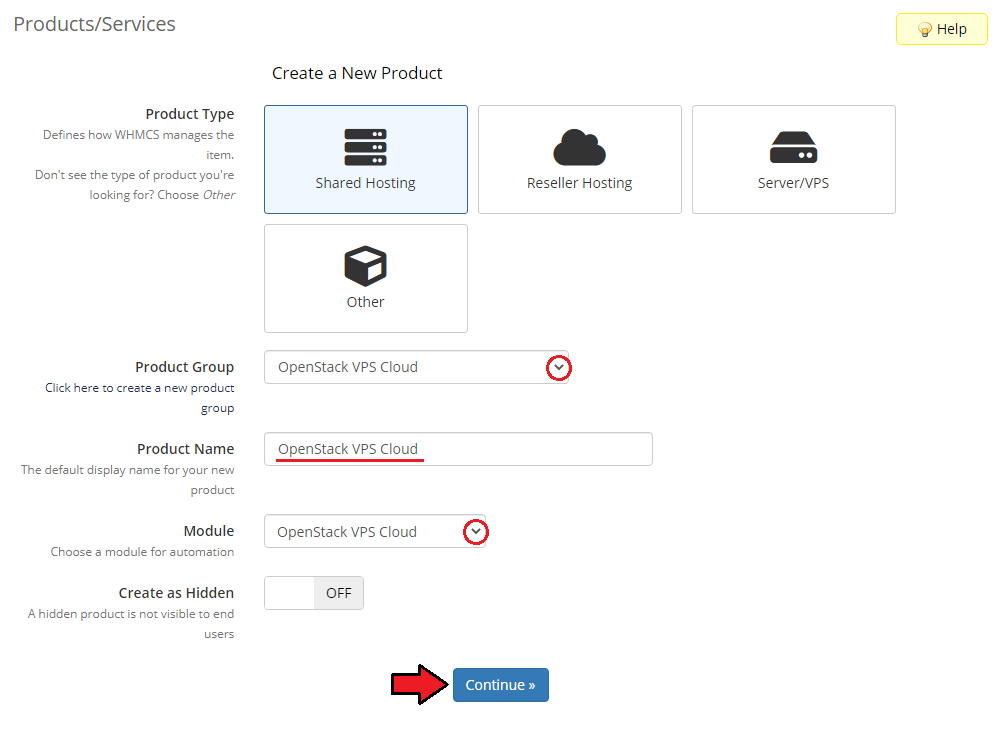
Afterward, choose your product group and type from the dropdown menus, enter your product name and press 'Continue'.
'Product Type' should be set to 'Shared Hosting'.
# App Templates
Before continuing to the product's settings, you must ensure you have at least one application or group of applications ready to use.
Proceed to the addon module → App Templates section and follow below to create a ready application that will be installed by default on the server.
The App Templates section allows you to manage OpenStack images that clients can deploy to their virtual machines directly from the client area.
Use the interface to import, edit, group, and assign application templates to products.
# Applications
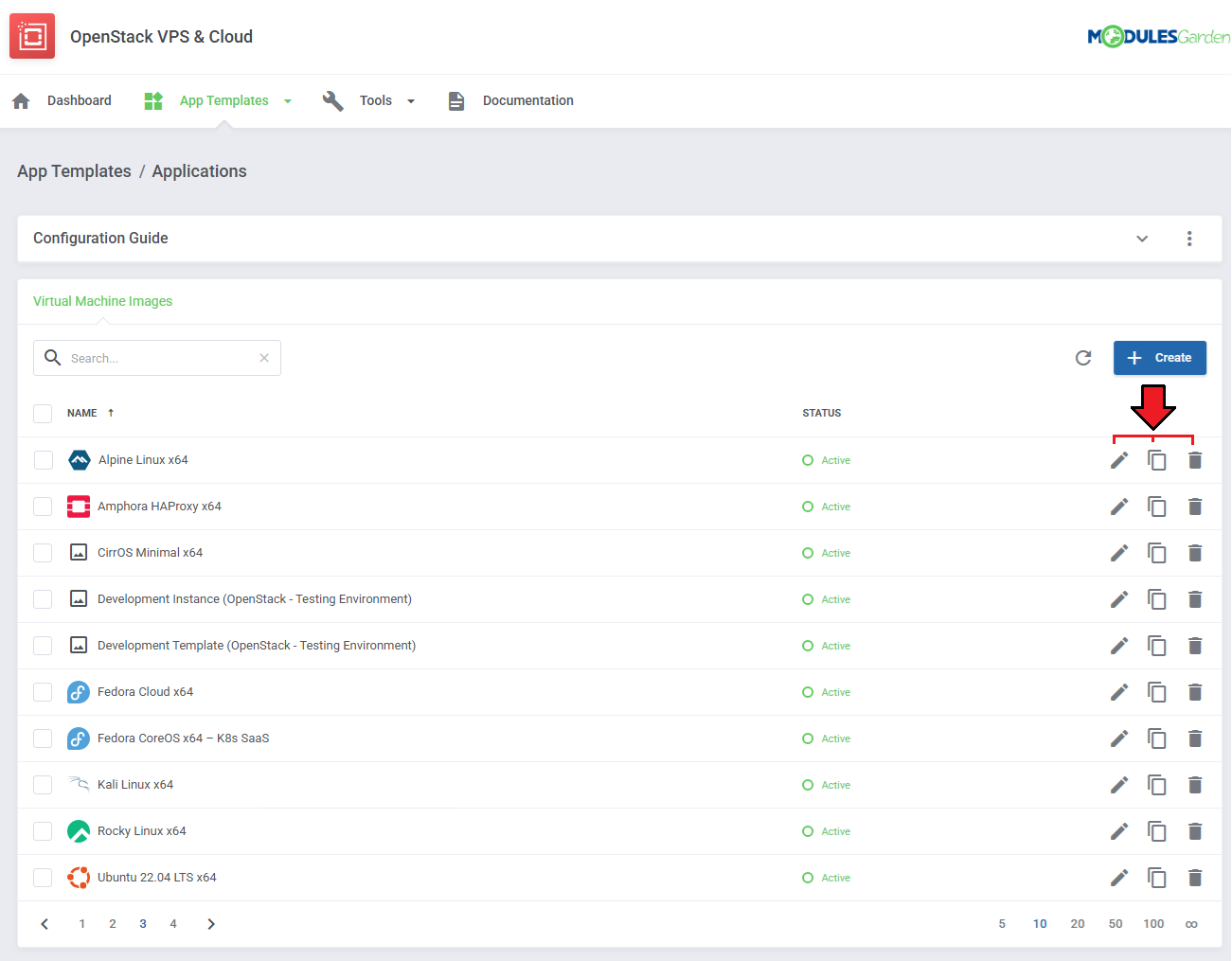
This section allows you to load available templates (Virtual Machine Images) from your connected OpenStack environment and manage them within WHMCS.
- Click the refresh icon to import or update the list of templates from OpenStack.
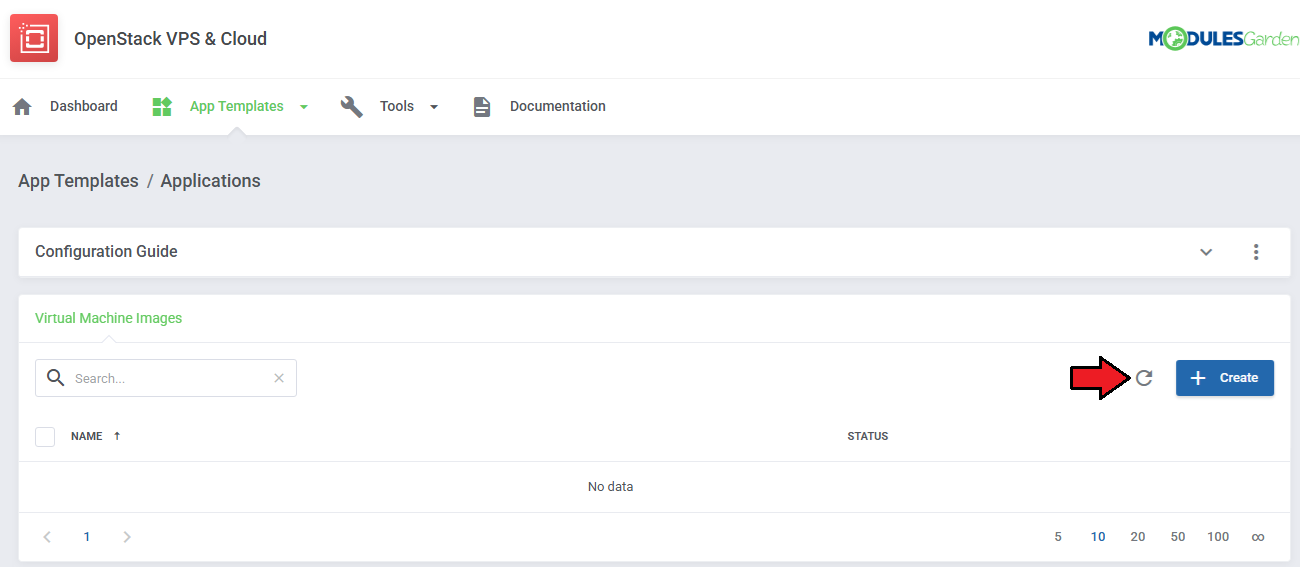
Once templates are imported, you can use action buttons to edit, duplicate, or delete them. Mass actions are also available for bulk management.
# Groups
With the templates ready, all that is left is to gather them into groups and include said groups into products.
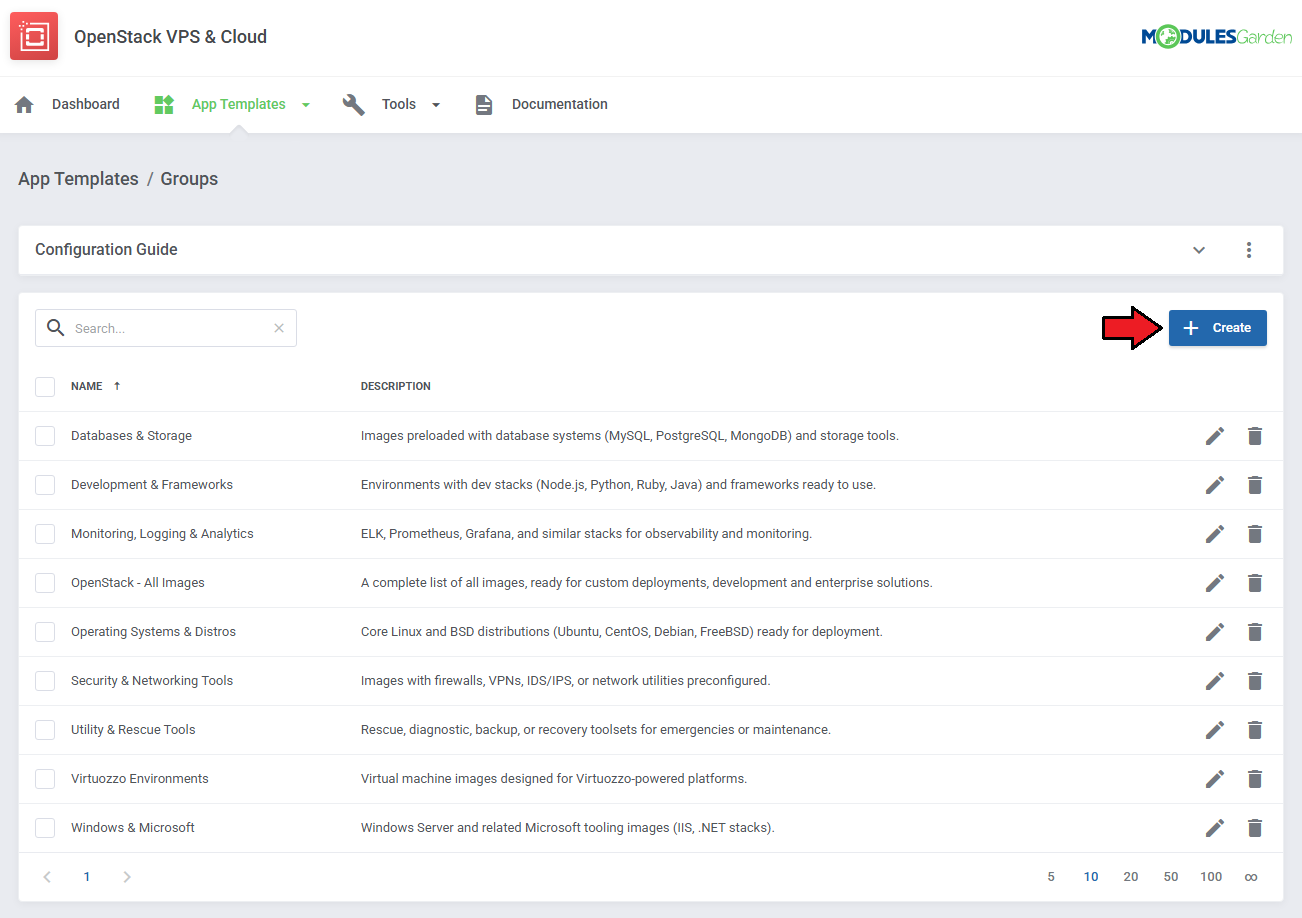
Navigate to 'App Templates' → 'Groups' and click on the 'Create' button.
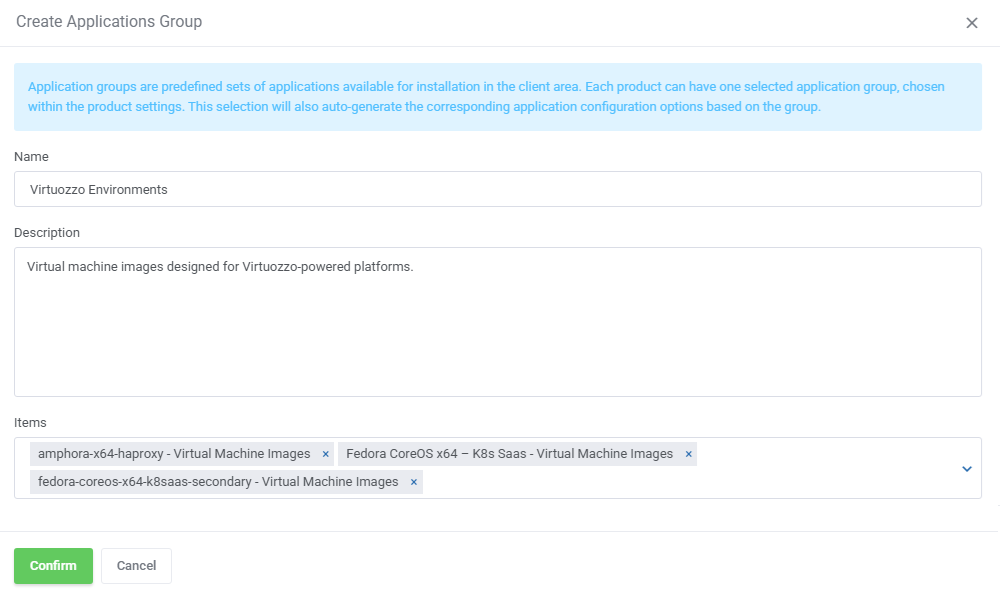
Read the information, then provide the group with:
- Name
- Description
- Items to include
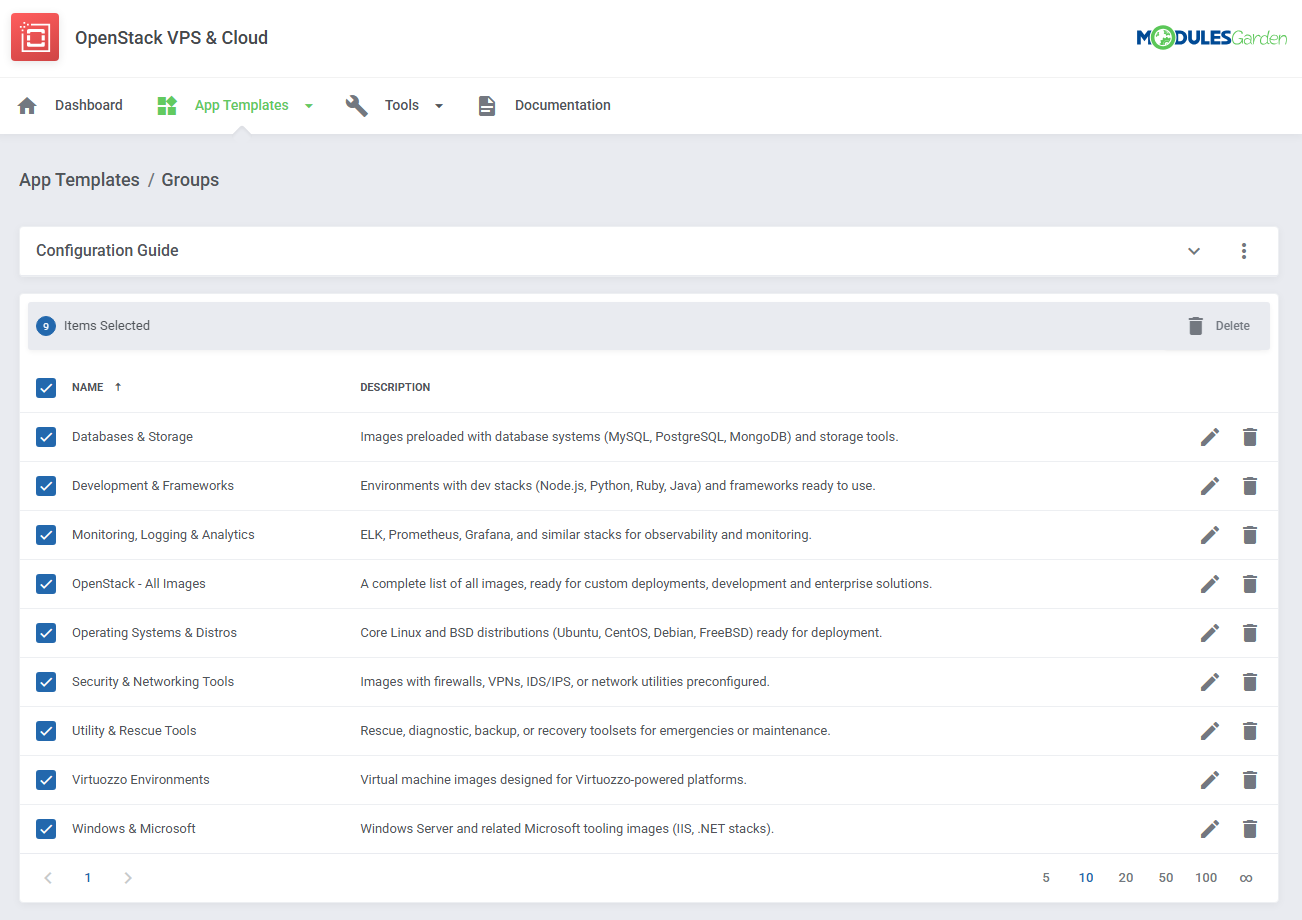
You can use the action button and the mass action function to edit and delete template groups.
Your basic configuration of App Templates is now ready. For more advanced configuration, manual creation guides please refer to App Templates Advanced Configuration section in this documentation.
For now, go back to your product's module settings and complete the configuration there.
# Module Settings
Now, go to the 'Module Settings' section, choose your previously created server group from the dropdown menu.
The module should automatically save and reload settings. If not, click on 'Save Changes' manually.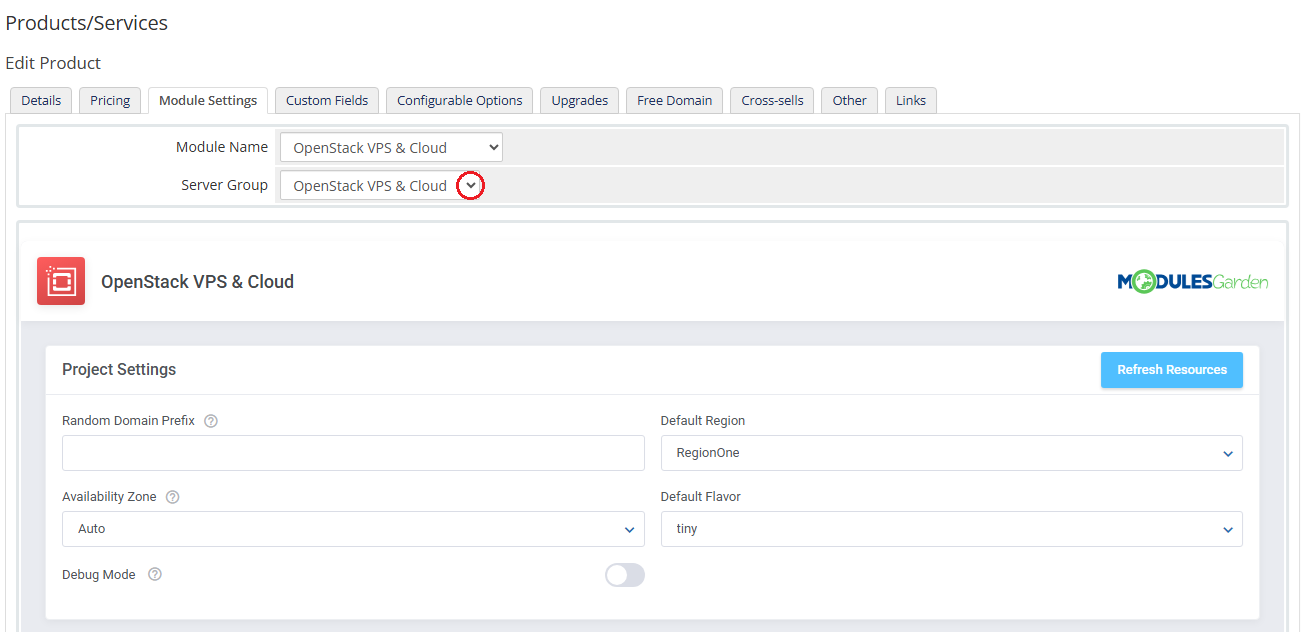
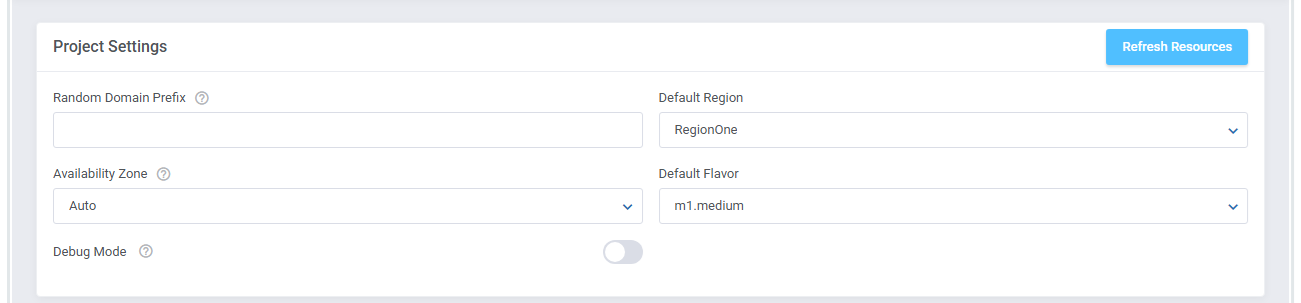
Start from defining 'Project Settings'
Proceed with 'App Templates Configuration'.
App Templates Configuration - To create instances based on operating systems or applications, you must first configure the App Templates in the module's addon.
Once your applications and groups are set up there, you can select the desired application in the product's Module Settings tab to be used during instance creation.
Please refer to the App Templates and App Templates Advanced Configuration sections of the documentation for detailed setup instructions.- Default Application Group - The group of applications available for reinstalls. See the Groups section for more details.
- Default Application - The application that will be installed by default during creation. See the Applications section.

Afterward, configure the network settings. Choose 'Fixed Network', 'Floating Network', and define the 'Default Number Of IP Addresses'.
The network can be configured in two different ways. More details are available here.
In this example, the network is created without assigning a floating IP address, as shown in the screen below.
Specify the number of IP addresses assigned to the product by entering the value in 'Default Number Of IP Addresses'.
If the 'Single Network Interface' option is enabled, multiple IPv4 addresses will be assigned to a single network interface instead of creating separate interfaces for each address.
Note: This option supports IPv4 only. Dual-stack configurations are not supported — enabling IPv6 will result in only one IPv6 address being attached.
At this step you can configure the backup and snapshot settings.
- Backups
Enable 'Backups Rotation' if you want to allow replacing the oldest backup with a new one when the backup files limit has been reached.
Afterward, enter a number of allowed backups that can be created into the 'Default Backups Files Limit' field. Enter '-1' for unlimited.
You may also let your clients define the backups tasks, they will be then created automatically according to the defined time interval.
Select the 'Scheduled Backups' option and then set the minimum time interval which your clients will have to obey when defining their task schedule at 'Backups Time Interval'.
'Client Scheduled Backups' - if enabled client may manually add tasks to the scheduled tasks.
Note: The number of backups created manually and those scheduled and created automatically is counted together and their overall sum cannot be higher than the defined limit.- Snapshots
Define a default number of allowed snapshots. Enter '-1' to set it to 'Unlimited'.
Important: The option Use Volumes must be enabled under the 'Virtual Machines Settings' in order to let clients create snapshots.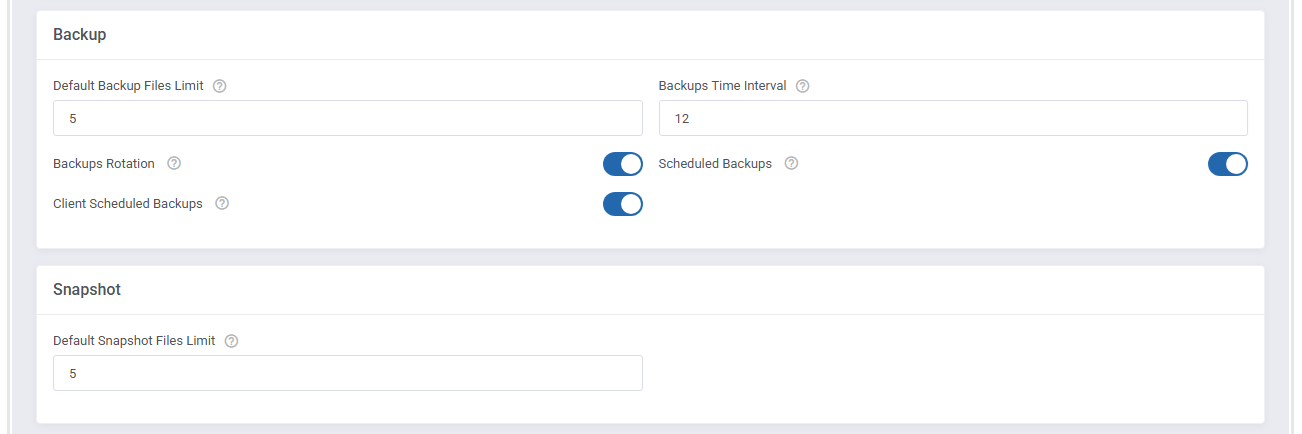
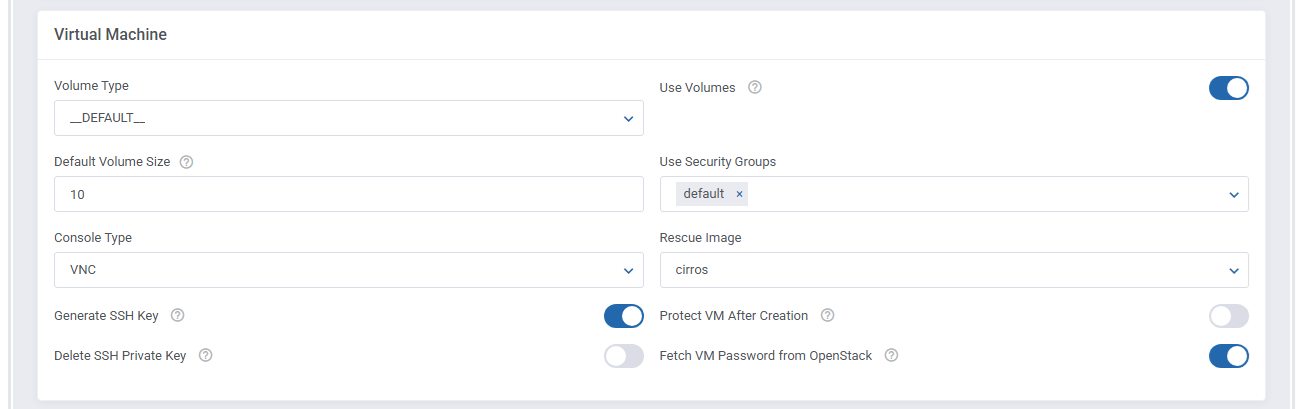
Define the virtual machine settings.
- Mark a security group from 'Use Security Groups' and select 'Console Type'.
Apart from the selected here groups you may also apply custom rules to the VM. You can learn more about them at Custom Security Group section. - If you wish to use SSH keys, leave 'Generate SSH Key' marked (virtualization has to support the 'Inject File' feature).
Full list of supported features can be found here (opens new window).
Important: It is recommended to leave 'Delete SSH Private Key' marked.- The following types of console can be chosen: 'VNC', 'RDP', 'SPICE' and 'Serial'.
- Mark a security group from 'Use Security Groups' and select 'Console Type'.
You can also take advantage of the dedicated Volume and set it as the location of your Virtual Machine Disk,
To do so, make sure to tick the 'Use Volumes' checkbox and enter the desired number into the 'Default Volume Size' field.
Once this option is enabled, your clients will no longer have access to the 'Rescue' function, so you may as well leave the respective fields empty.
Note: Scheduled backups cannot be generated when volumes are in use; only manual backups are available.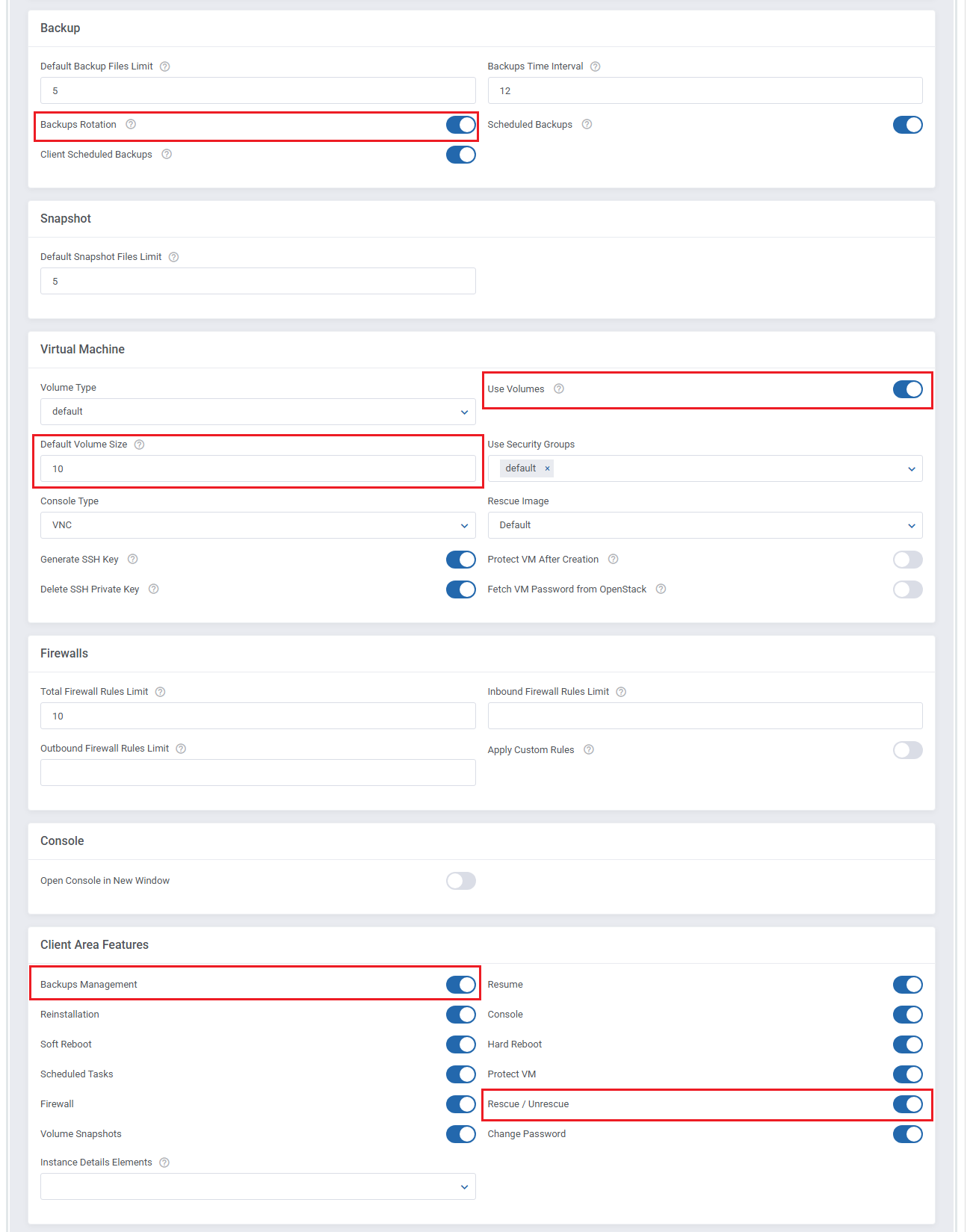
In the next step you may define the firewall rules settings.
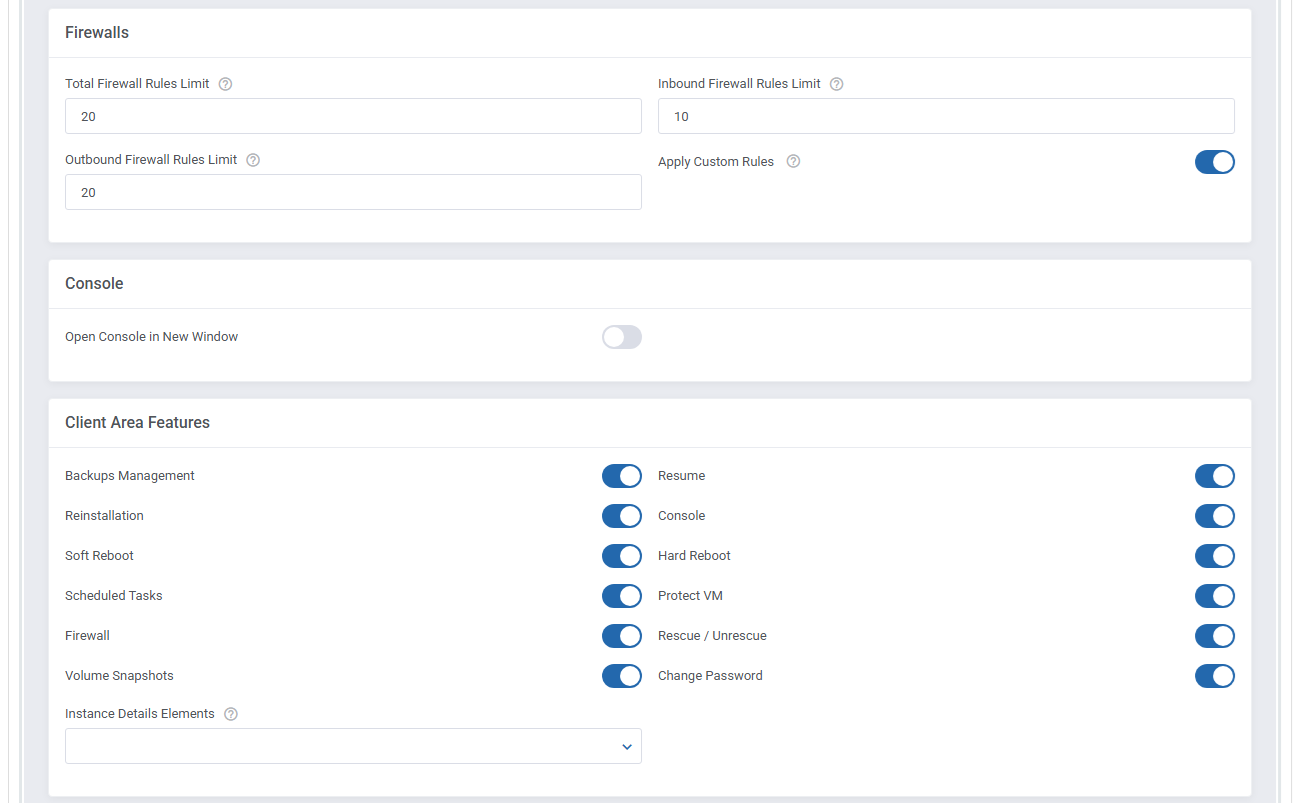
Enter the firewall inbound, outbound and total rules limits. When the limit is reached, the client will not be able to create a new rule until one of the existing rules has been removed.
Next, select features available at the client area.
You can also decide which images used to rebuild the server will be available to your customers.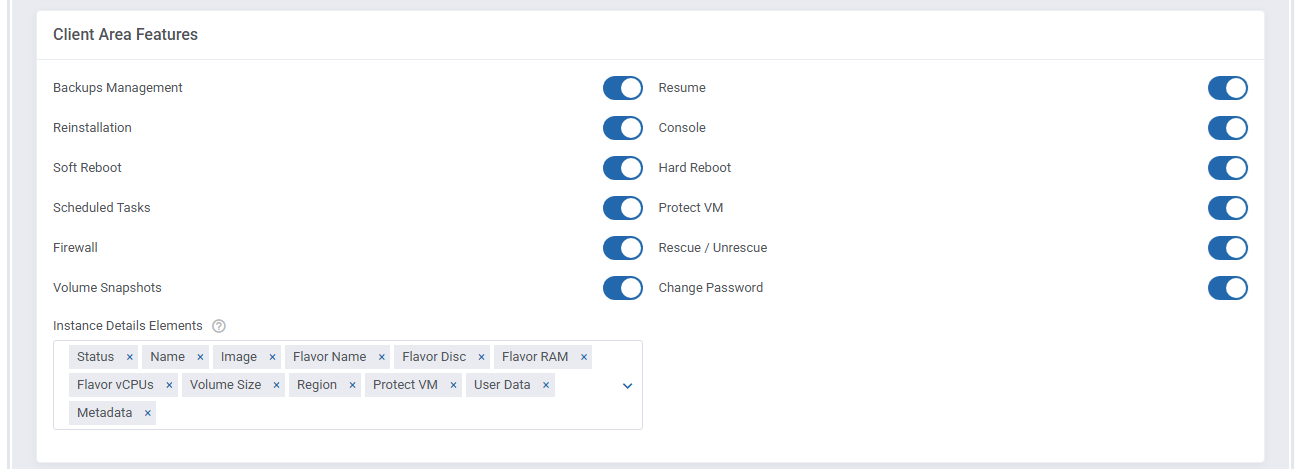
Finally, enable features available for the administrator on the service page.
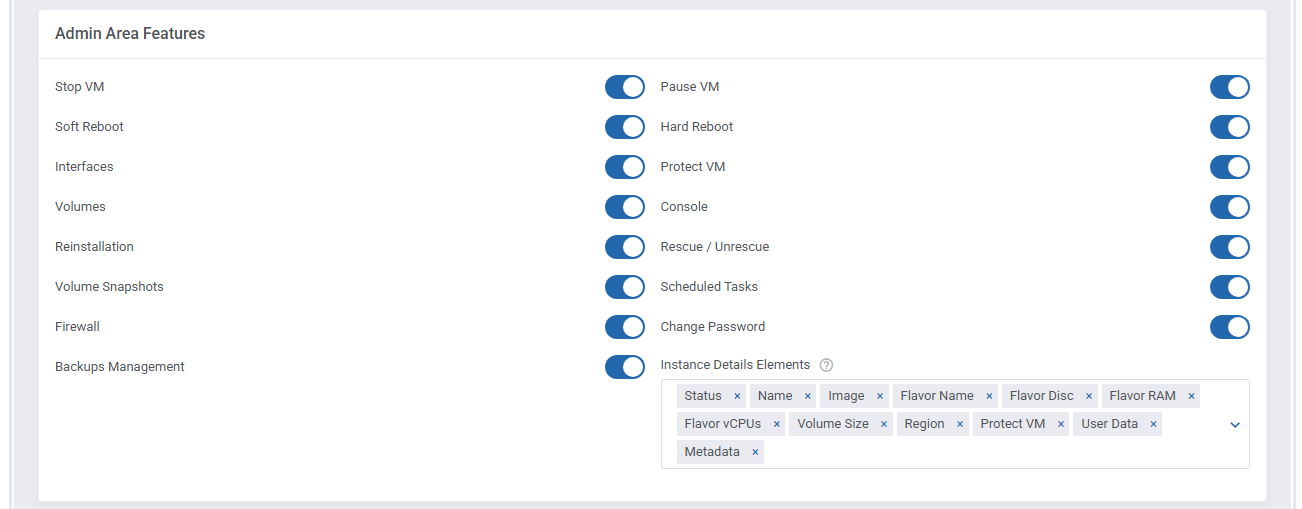
- In addition, you can also choose whether you want to send a welcome email after the VM has been successfully created by cron.
This feature can prove useful if you want clients to receive the notification once their VM is ready rather than immediately after product activation.
If you decide on this option, we suggest that you also set the standard WHMCS configuration of the 'Welcome Email' to 'None' in the 'Details' tab of a product.
Otherwise, the customer will receive both emails - after the product has been activated and after the VM has been successfully created on OpenStack.
Press 'Save Changes' when you are done.

# VPS With Predefined Resources
Our module allows you to offer OpenStack VPS & Cloud to your clients in two ways, with either predefined or configurable resources.
In this section, we will show you the configuration of a VPS with predefined resources.
Detailed information about the configuration of VPS with resources chosen by a client can be found here.
- Select a 'Default Flavor' and 'Default Application'.
'Default Flavour' defines resources assigned to a VM, while 'Default Application' allows you to choose the VM image used to create a new VM.
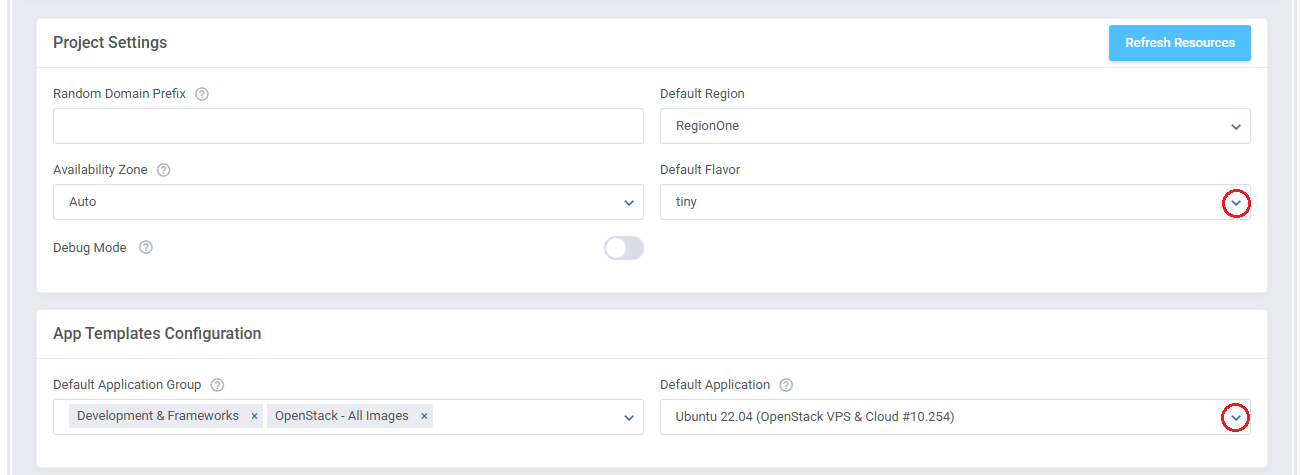
Congratulations! You have just finished the installation and configuration of the module with predefined resources.
# VPS With Configurable Resources
- Preparing VPS with configurable options consists of pressing 'Create Configurable Options' as shown on the following screen.
It will prepare default configurable options which can be easily edited afterward as described in this article.
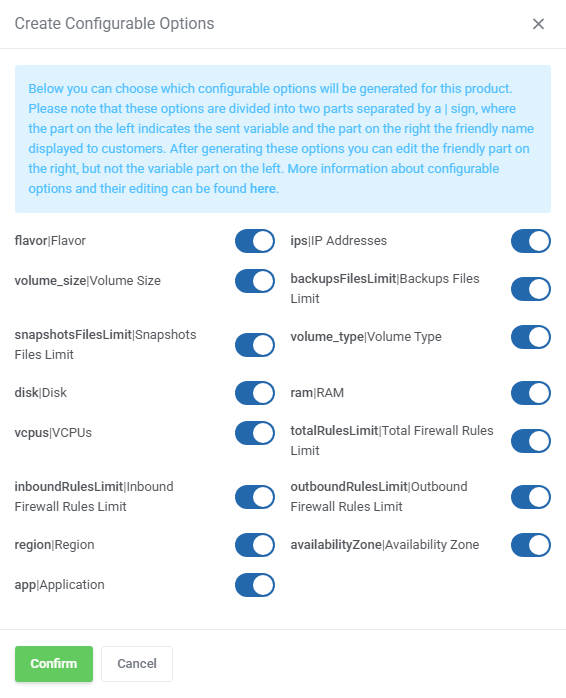
Important: Configurable option 'flavor|Flavor' will be overwritten by 'disc|Disc', 'ram|RAM' and 'vcpus|VCPUs'.
Therefore, you can solve this in three ways:- Disable 'disk|Disk', 'ram|RAM' and 'vcpus|VCPUs' configurable option and rely completely on 'flavor|Flavor'.
- Disable 'disk|Disk' and 'vcpus|VCPUs', and allow 'flavor|Flavor' being overwritten by 'ram|RAM' (multiple combinations are allowed here).
- Disable 'flavor|Flavor' and rely completely on 'disk|Disk', 'ram|RAM' and 'vcpus|VCPUs'.
Note: The second and the third options result in the creation of a new flavor on your server each time a new order is made.
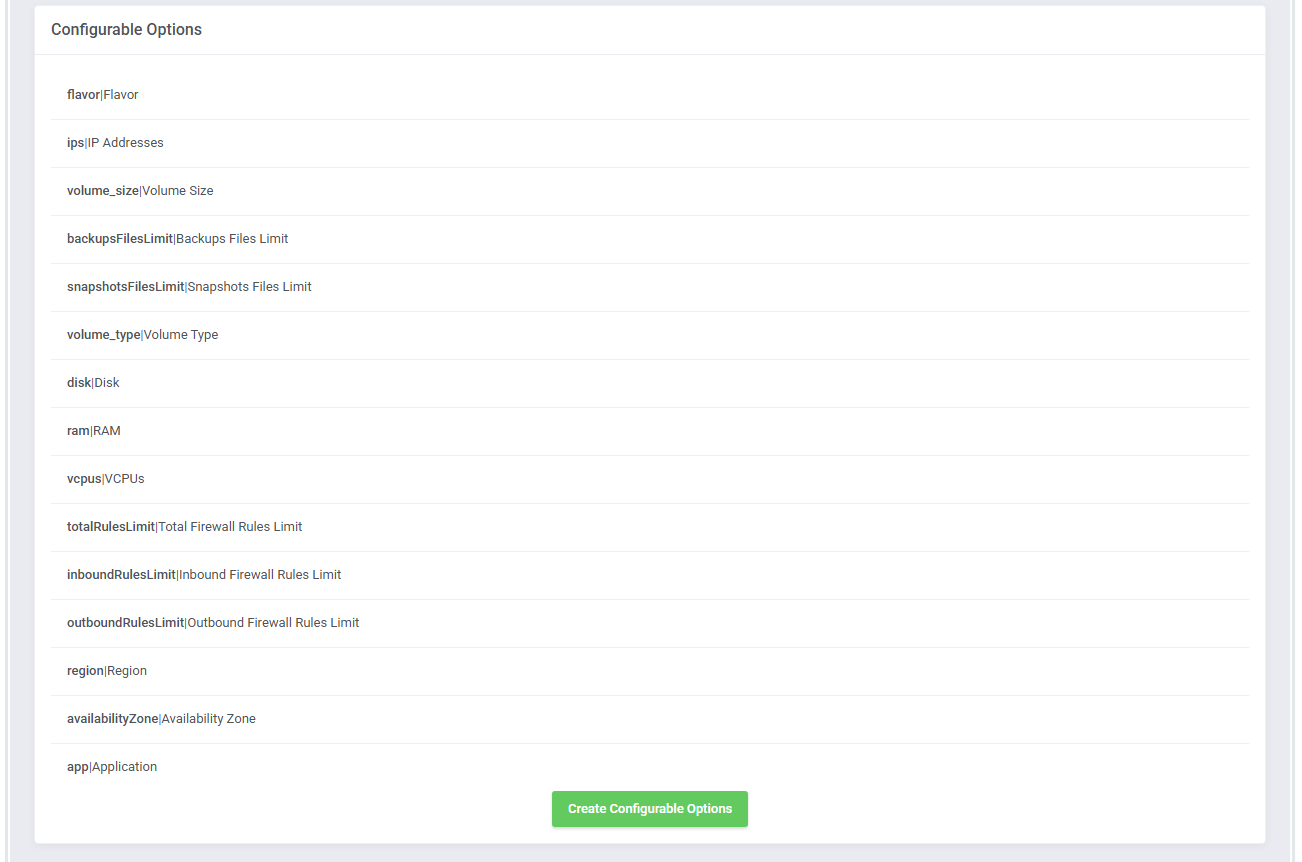
You can now decide which options should be included in configurable options.
# Custom Flavor Specification
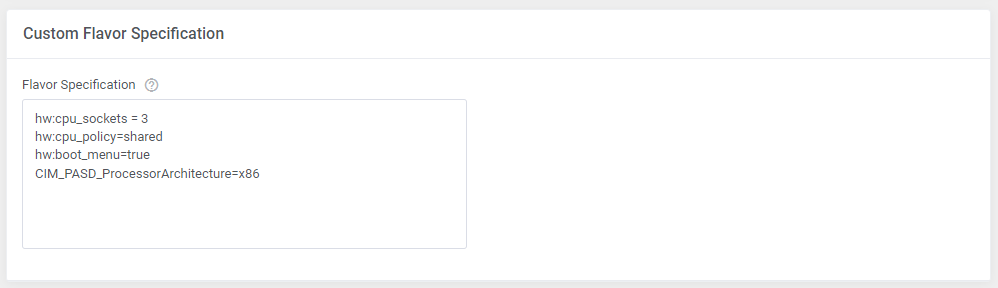
- You may also use a customized 'Flavor Specification' as key and pair property of your product configuration.
Supported 'Custom Flavor Specification' format:
key1=value1
key2=value2
for example:
hw:cpu_sockets = 3
CIM_PASD_ProcessorArchitecture=x86
# Custom Security Group
- Optionally, you may create a custom security group with customized rules that will be added while creating the virtual machine.
Select 'Apply Custom Rules' option at Virtual Machine Settings and enable 'Firewall' option in the client area.
Edit the additionalRules.json_sample file content located at modules/servers/OpenStackVpsCloud/app/Config/additionalRules.json_sample directory.
Start with renaming it from additionalRules.json_sample to additionalRules.json.
That is what a default content of the additionalRules.json file looks like:
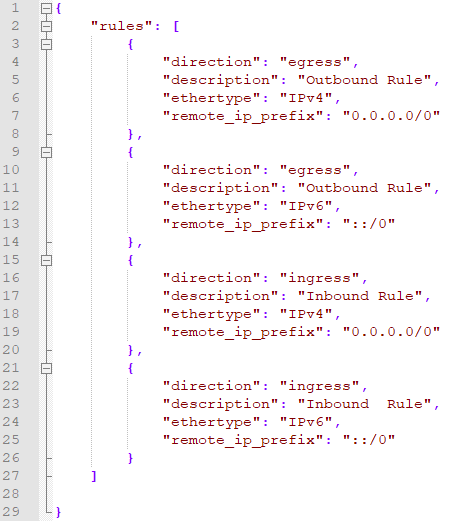
Customize the rules according to your needs by providing:
- direction - "egress" or "ingress"
- ethertype - "IPv4" or "IPv6"
- description - "your rule description" - visible in the panel only
- remote_ip_prefix - IP address, format bound to the ethertype field, e.g.: "::/0"
- port_range_min - value between 1 and 63535, eg: "101"
- port_range_max - value between 1 and 63535, e.g.: "200"
In case you enter the same value in the 'port_range_min' and 'port_range_max', then one port will be set, not a range of ports. - protocol - enter one of the following: "tcp", "udp", "icmp", "custom"
Important: 'Protocol' must be provided if 'port_range' has been defined.
Now, that your file is ready, a new security group will be created in your OpenStack panel and visible in the product's Module Settings under 'Use Security Groups' on the product creation.
The rules are visible for the client in the 'Firewall' section. If you terminate the product, this group will be deleted as well.
Important: When you are updating your module, and you do not want to overwrite your personalized additionalRules.json file you do not have to do anything.
The file in the newest version of the module is named: additionalRules.json_sample and it will not overwrite the file in your system.
# Management
# Addon Configuration
Let’s begin by exploring the key features available in the addon.
To access it, navigate to 'Addons' → 'OpenStack VPS & Cloud' in your WHMCS.
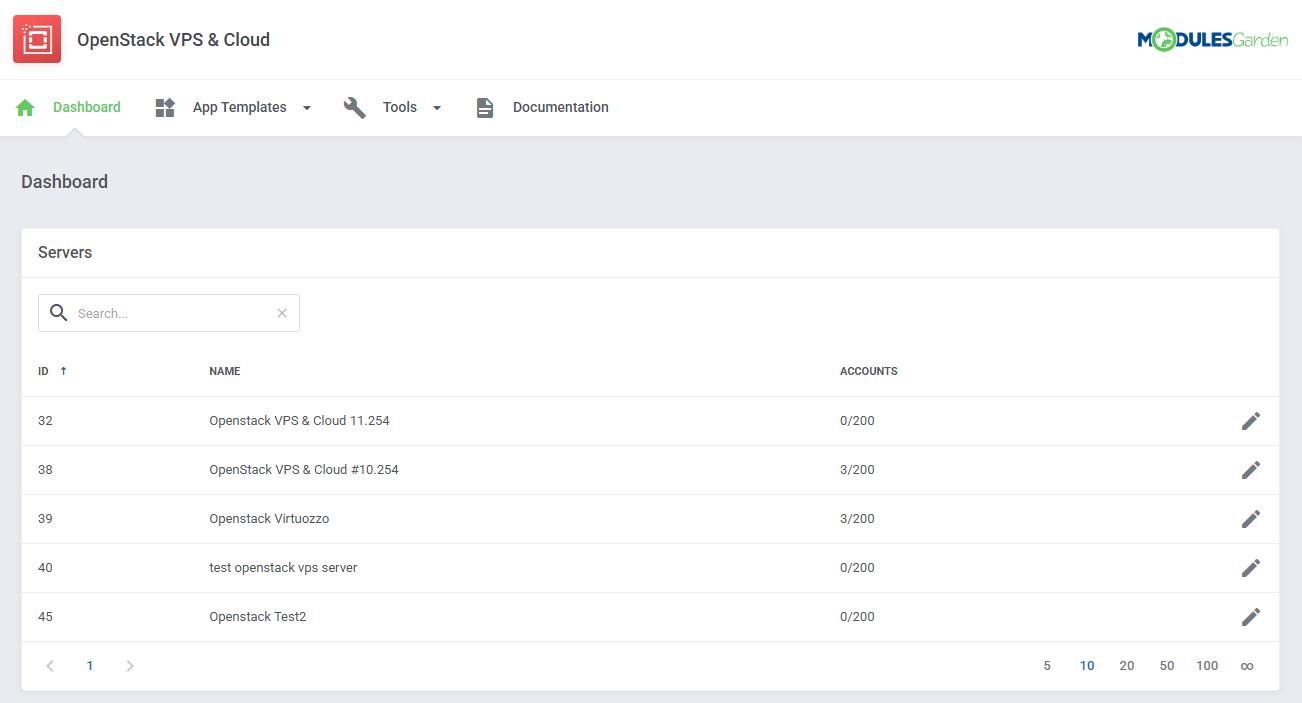
# Dashboard
The 'Dashboard' section ufdsfsdfdsfsd
# App Templates Advanced Configuration
Before you proceed, make sure you’ve reviewed the App Templates section for basic configuration steps.
This section is intended for advanced users and administrators who want to manually manage imported virtul machine images.
Images are created and maintained directly in your OpenStack control panel. The module automatically pulls this data and displays it in the App Templates section of the addon module.
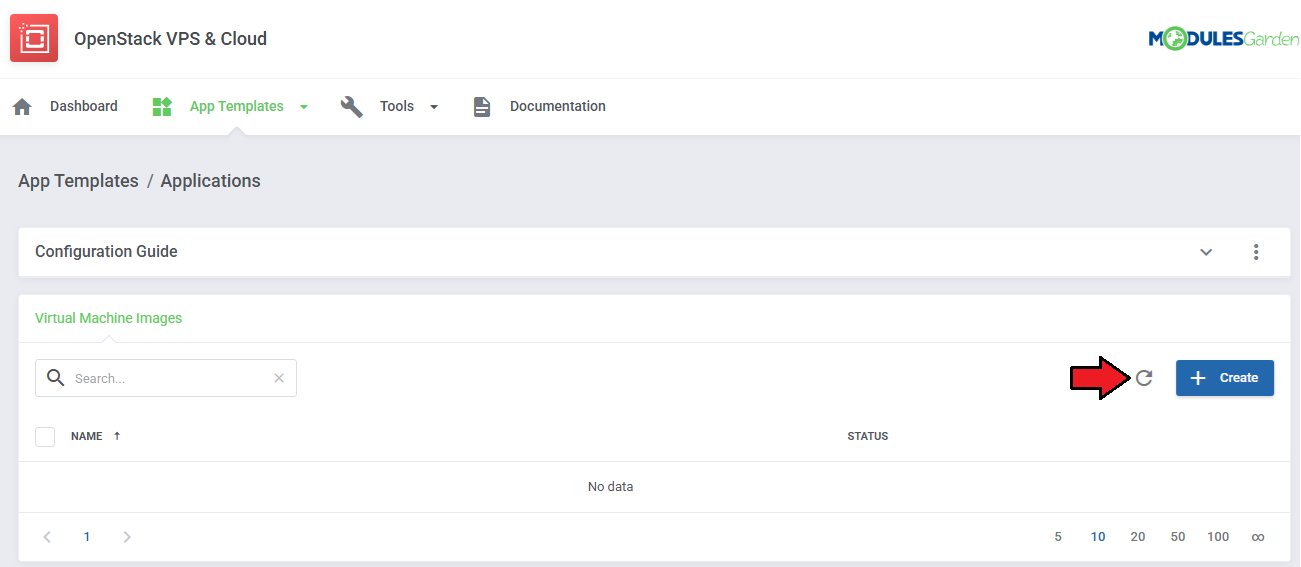
To import or refresh templates in WHMCS:
- Navigate to Addon Module → App Templates.
- Use the refresh icon to load the latest images from your OpenStack server.
Once imported, the image templates can be grouped and assigned to specific products within WHMCS, no further manual steps are required.
Important! Only images that already exist in OpenStack are supported. There is no need to create templates manually in WHMCS.
Once imported, templates can be:
- Grouped under App Templates → Groups
- Assigned to specific WHMCS products in the product module settings.
No additional manual configuration is required for them to be used in provisioning.
# Editing Imported Templates
To view or update template details:
- Click the Edit icon next to a template.
- In the Virtual Machine Image Details section, you can:
- Update the name, description, and status
- Upload or change a custom icon for visual presentation
- Review internal configuration values (Setting Details)
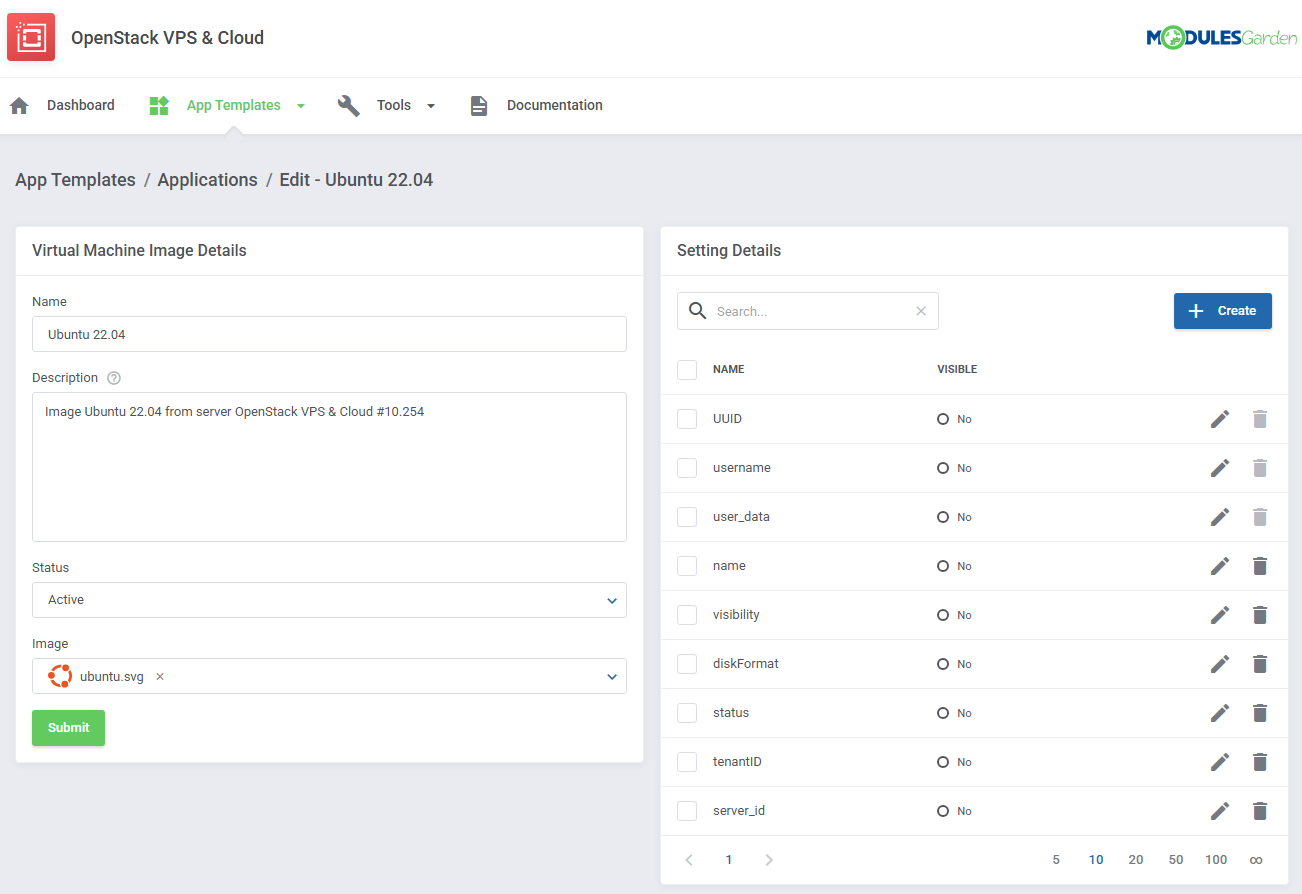
These setting detils are automatically assigned by the module. Do not modify these values unless you are an advanced user who understands OpenStack internal mechanics.
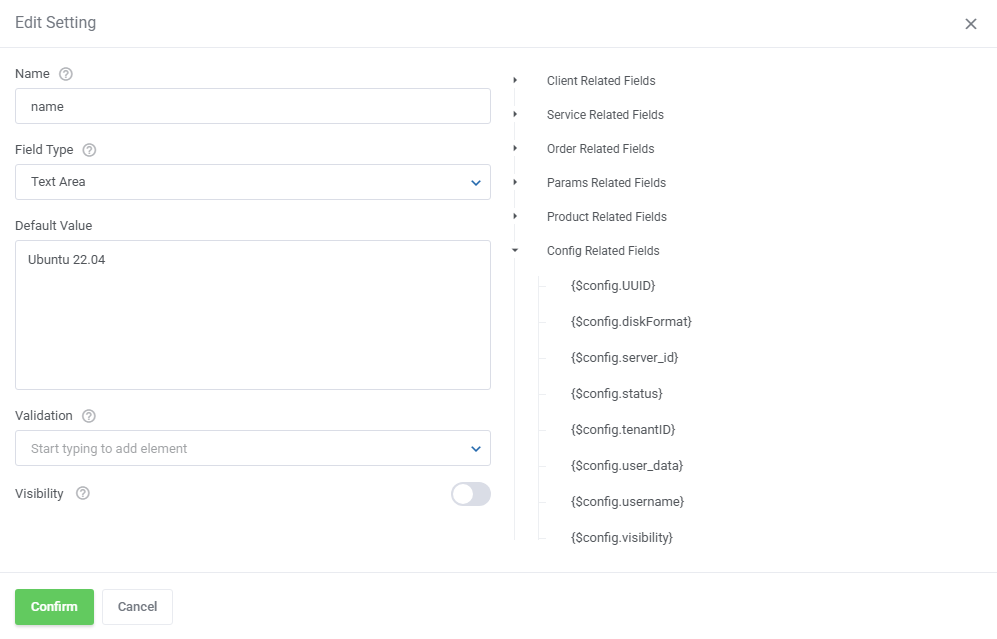
# Custom Metadata in App Templates
Starting from version 3.0.0, metadata handling has been moved from the module settings to the App Templates section. You will now find a dedicated metadata field within each template.
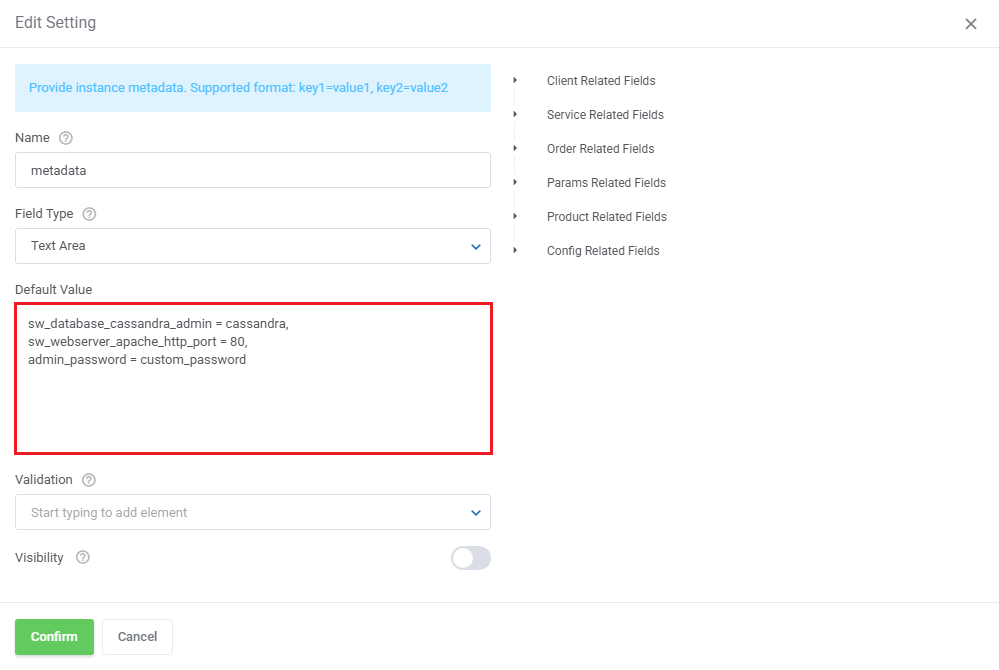
Metadata is now applied per individual application (image) instead of per product as in previous versions. If needed, simply fill in the metadata details as shown in the example below.
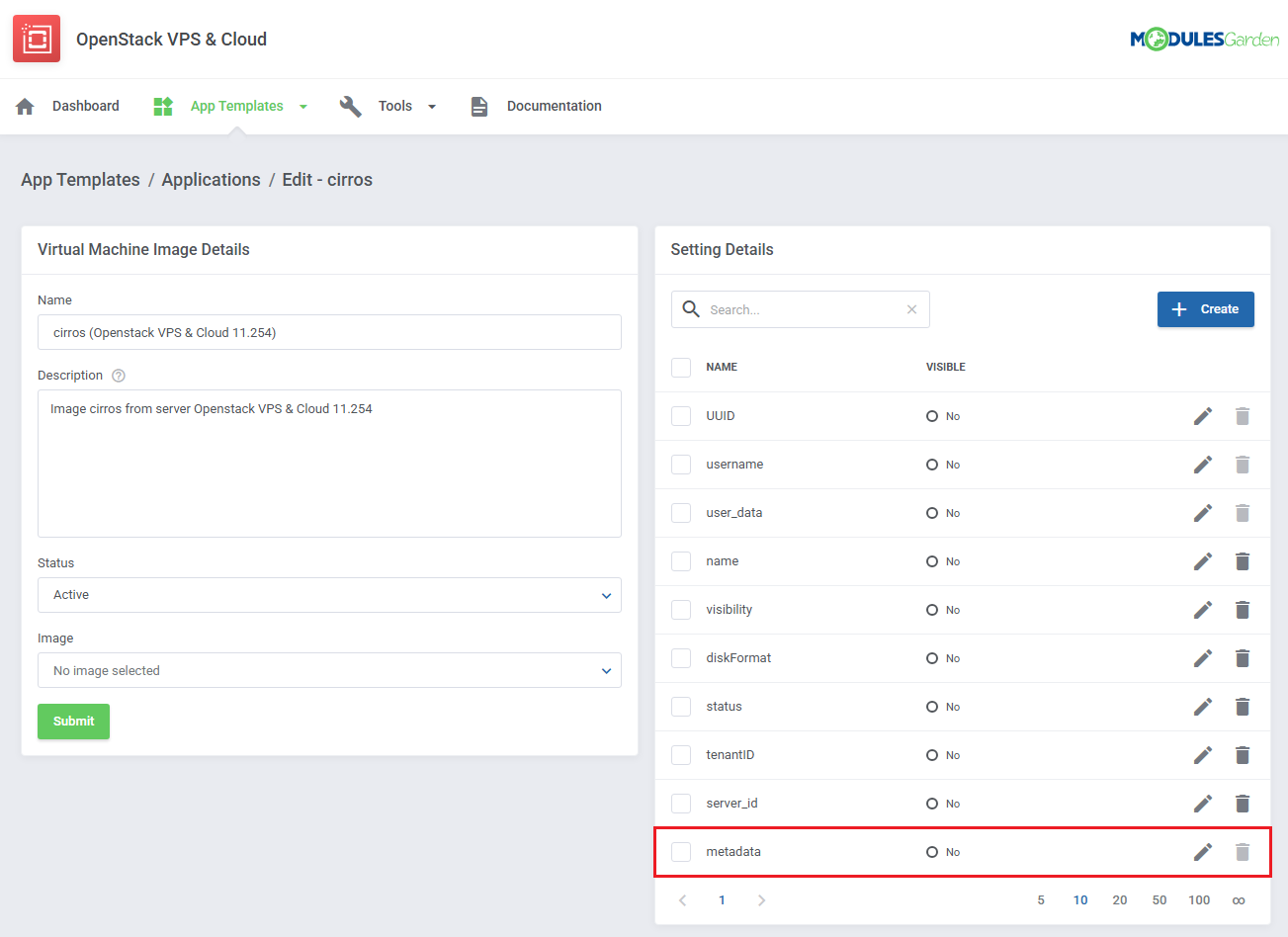
Supported Metadata format that can be added:
key1=value1
key2=value2
For example:
sw_database_cassandra_admin=cassandra
sw_webserver_apache_http_port=80
admin_password=custom_password
# Custom Scripts in App Templates
The configuration of custom initialization scripts (Cloud-Init) has been moved from the module settings to the App Templates section in the addon module.
Each application (image) can now include its own script defined in the user_data field, which will be executed automatically when the instance is created and booted for the first time.
This approach allows scripts to be managed directly per application template, just like metadata.
Important notes
- Scripts can be written in standards such as Bash or YAML (opens new window).
- You can find example Cloud-Init configuration scripts here (opens new window).
- The script must be supported by the operating system used by the VPS instance.
- Use only if you are familiar with Cloud-Init syntax; an incorrect script may prevent the instance from booting properly.
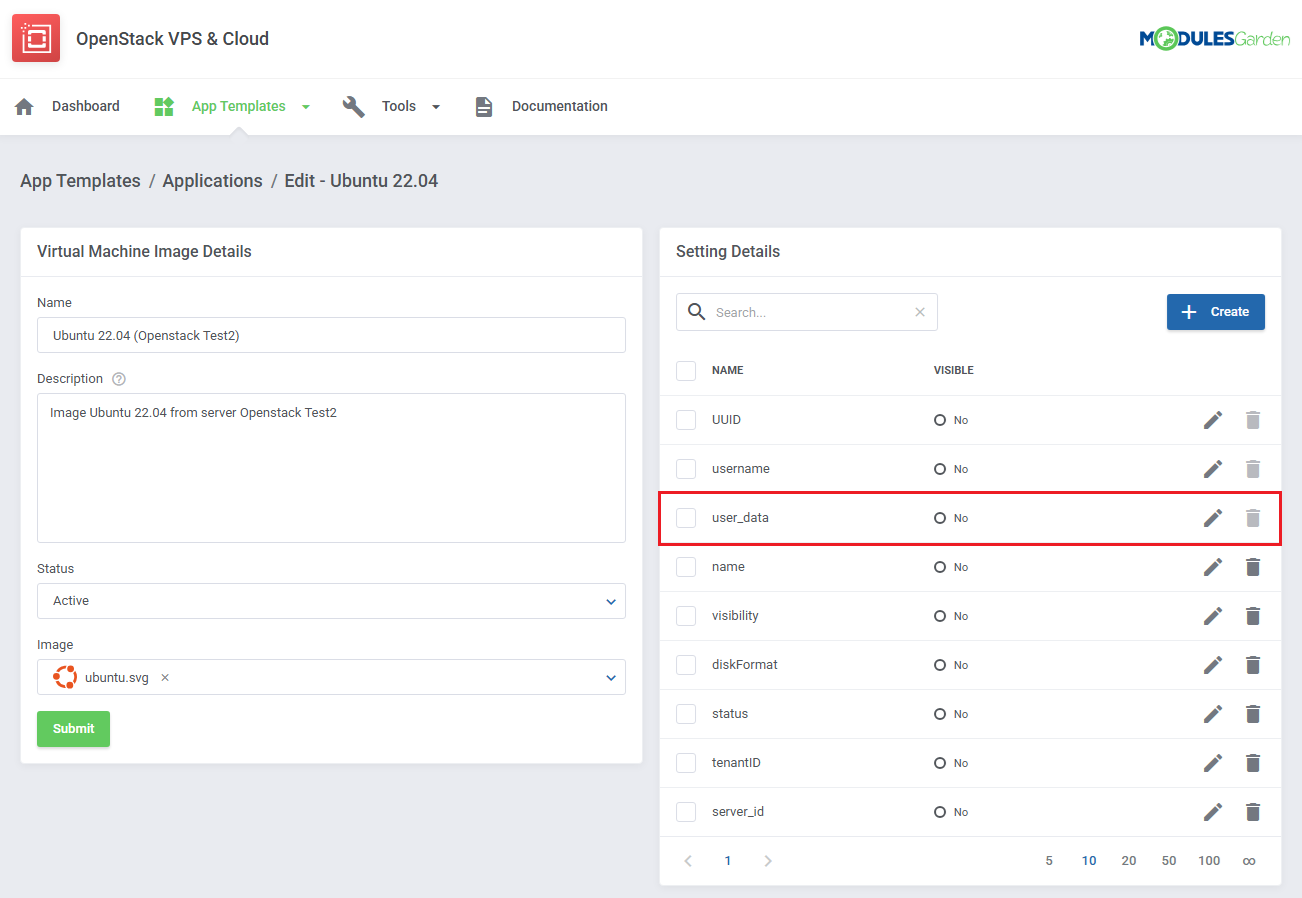
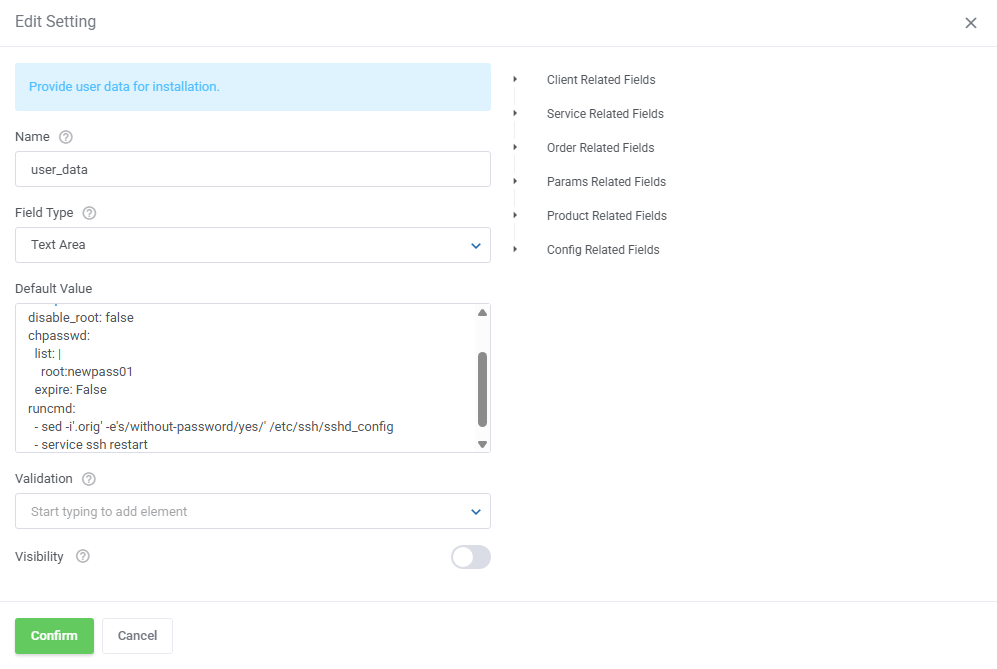
Below is an example of a simple Cloud-Init script defined in the user_data field that sets a new root password for Ubuntu:
#cloud-config
debug: True
ssh_pwauth: True
disable_root: false
chpasswd:
  list: |
    root:newpass01
  expire: False
runcmd:
  - sed -i'.orig' -e's/without-password/yes/' /etc/ssh/sshd_config
  - service ssh restart
This configuration ensures that the root password is updated and SSH access is properly enabled when the instance starts.
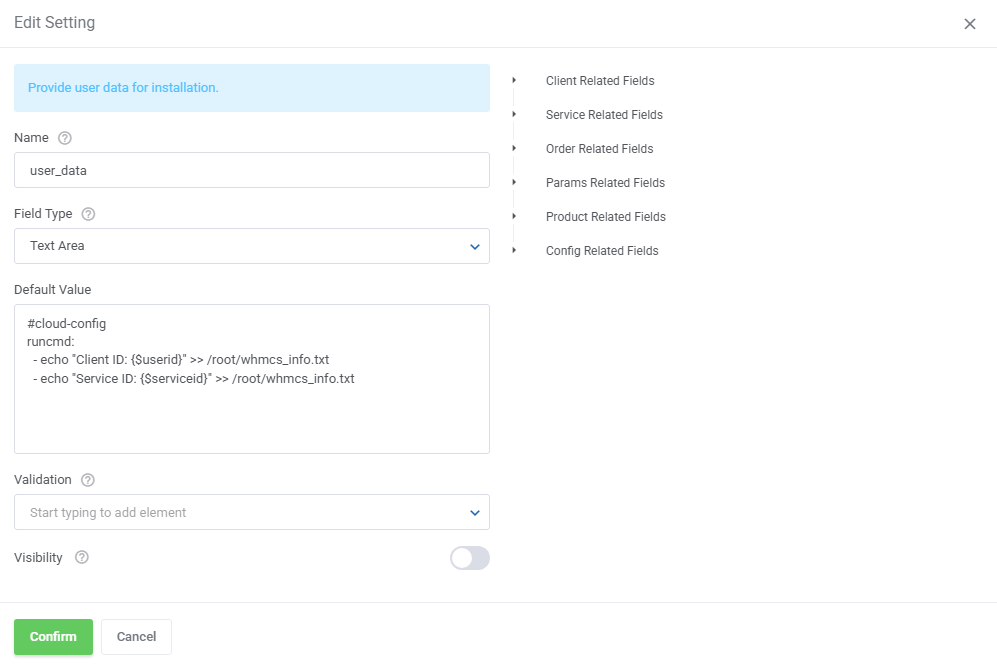
You can use the Related Field inside the user_data script to dynamically pass product or client information.
#cloud-config
runcmd:
  - echo "Client ID: ___SMARTY0___" >> /root/whmcs_info.txt
  - echo "Service ID: ___SMARTY1___" >> /root/whmcs_info.txt
Important: If you want to use braces { } in your script without including a variable, wrap them with {literal}{/literal} to avoid template parsing errors.
# Media Library
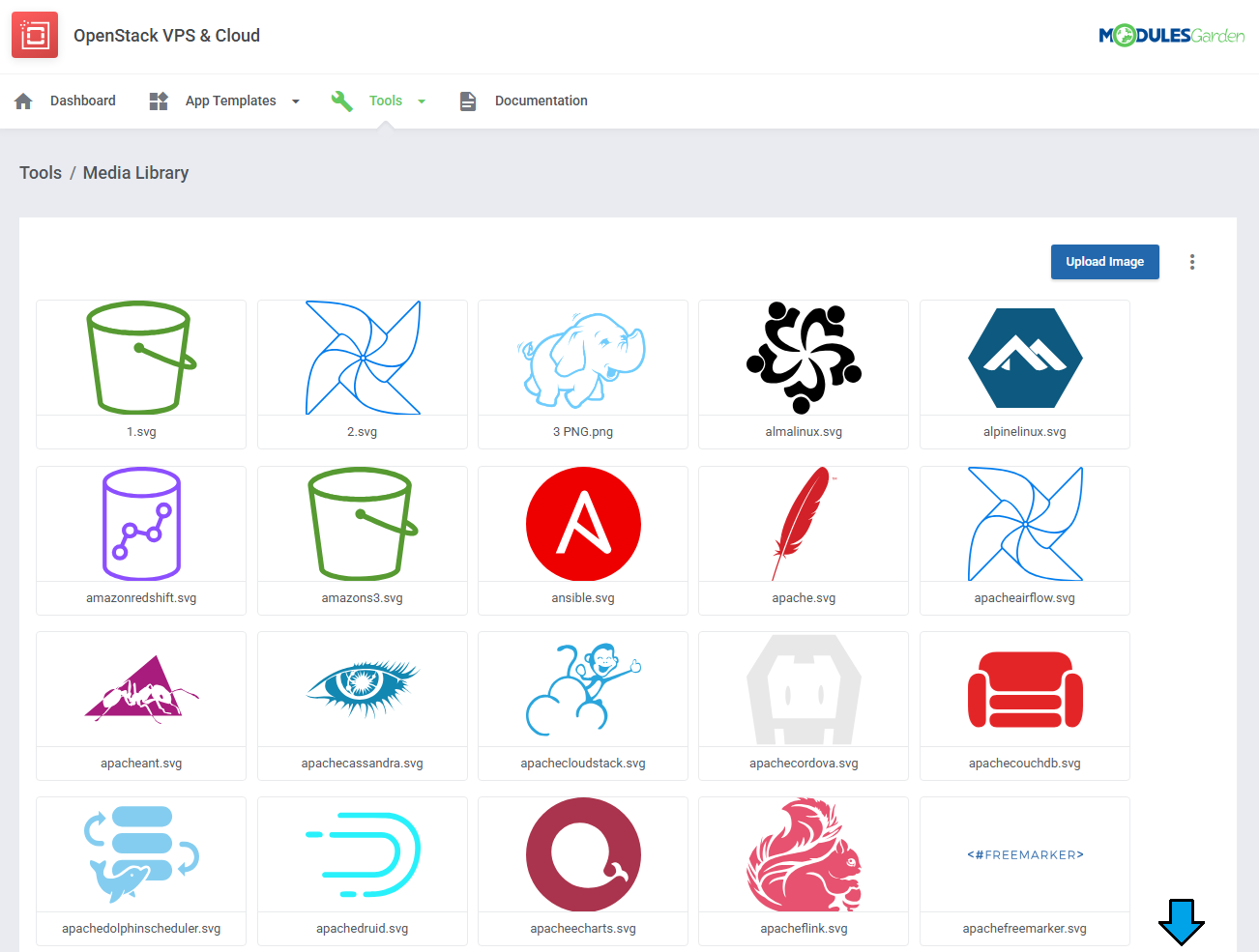
The 'Media Library' section stores images that can be used as thumbnails for your operating system and application images.
Use the Additional Actions to delete all images at once.
To upload a new image, use the 'Upload Image' button.
Task Queue Tool
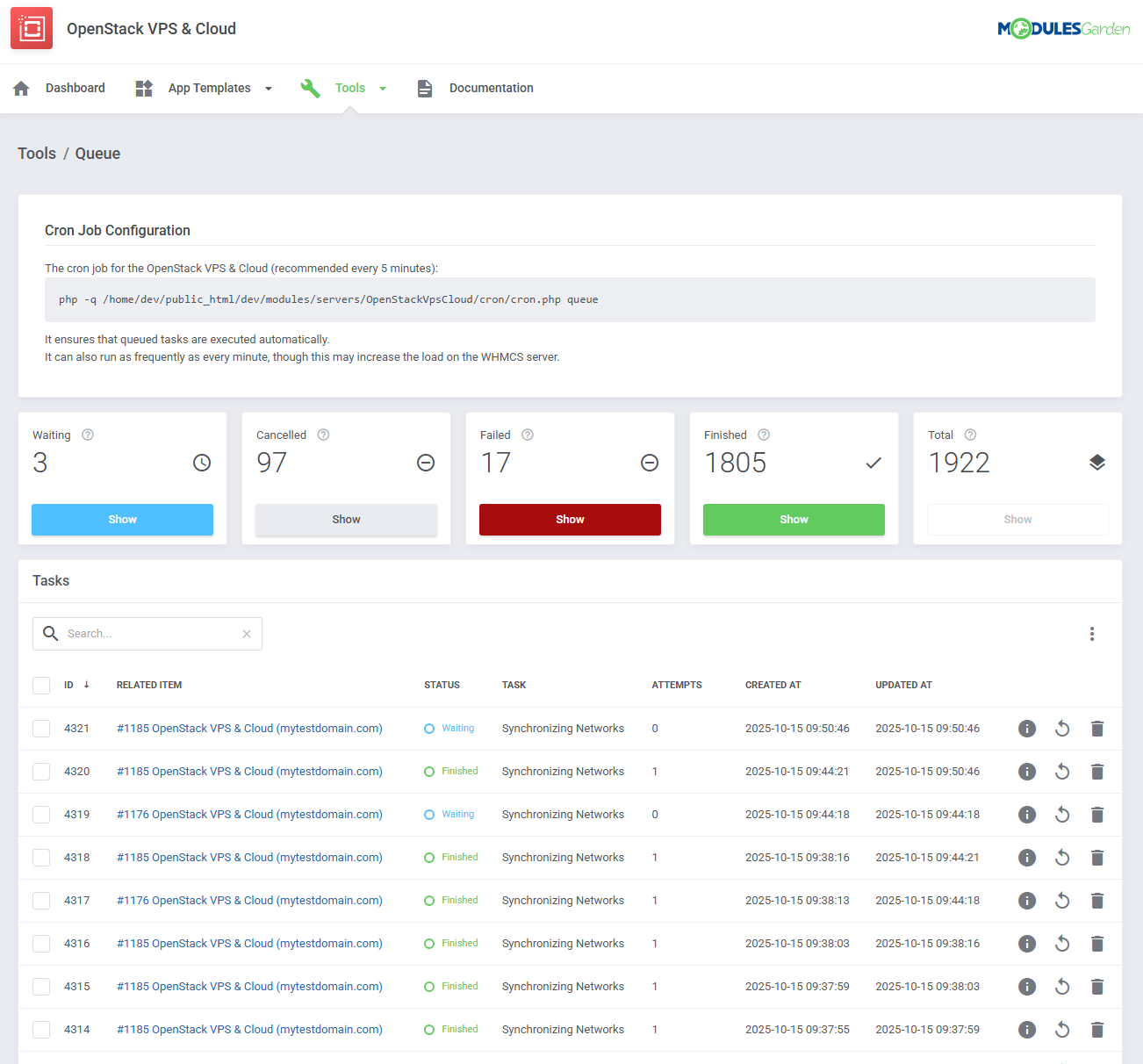
The "Queue" tool helps you track and manage the tasks created by the module.
It allows you to view and interact with task details, including task IDs, statuses, and related items.
You can filter tasks, execute actions like deleting or running tasks, and even use mass actions for bulk operations.
For detailed guidance on using this tool, please refer to the dedicated article available here.
Translations
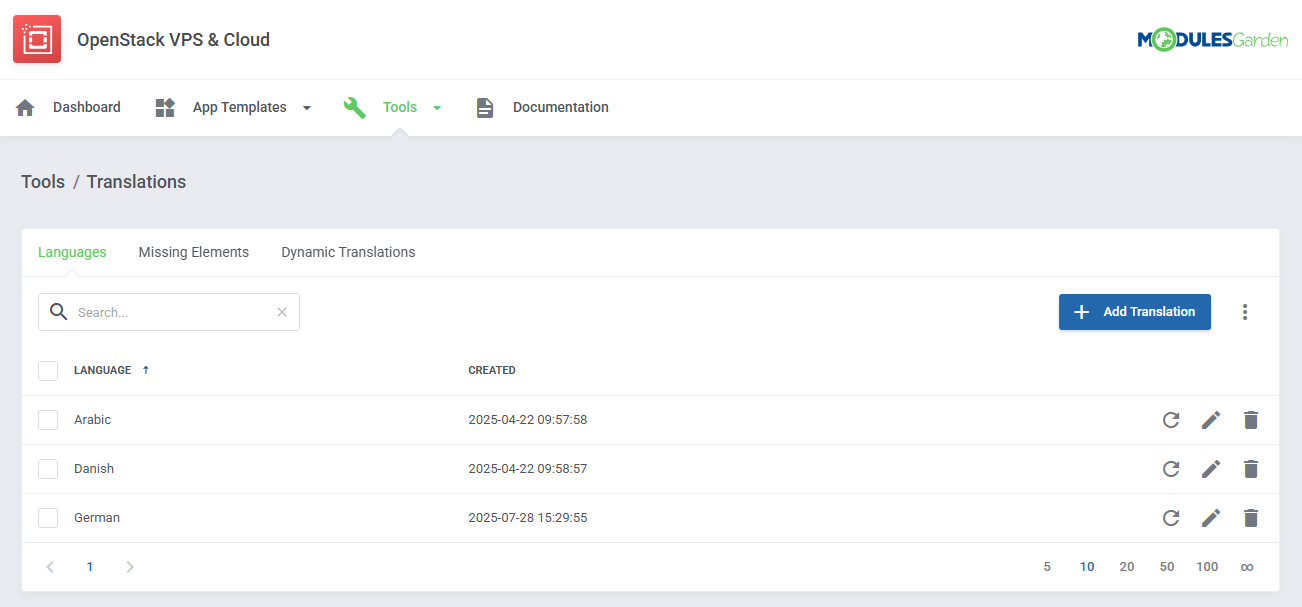
Customizing language files is now extremely easy with the "Translations" tool that is now available directly in the addon.
Its user-friendly design makes managing various language file tweaks a smooth and efficient process.
Prepare translations for the original English files with this handy built-in tool. For specific instructions on how to use this tool please refer to its dedicated article, you will find it here.
Logs
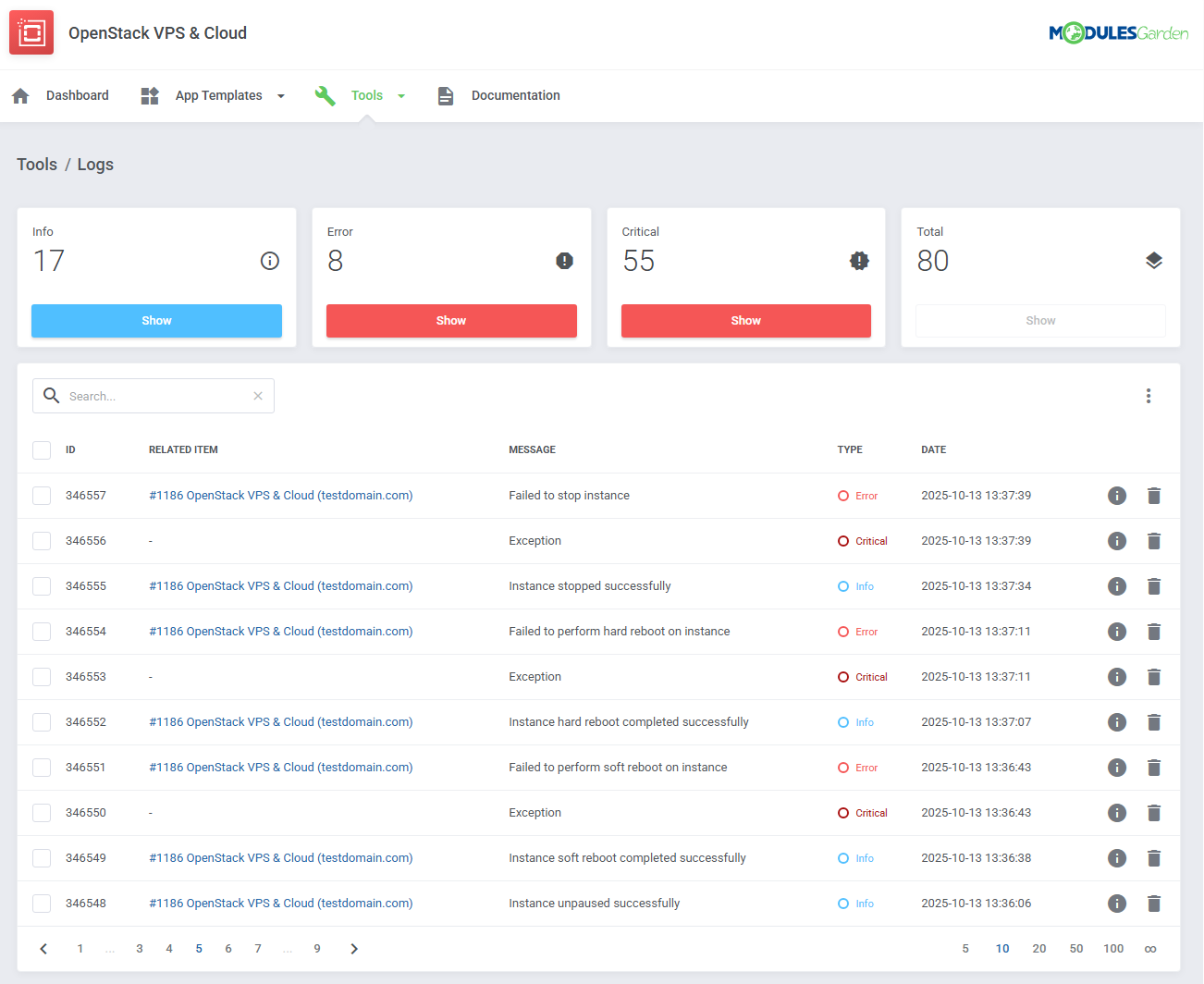
The 'Logs' section under the 'Tools' tab is where the module logs are stored.
You can filter the module logs by type with the 'Show' buttons.
For precise details on Logs, please refer to our dedicated documentation article, which you may find here.
# Admin Area View
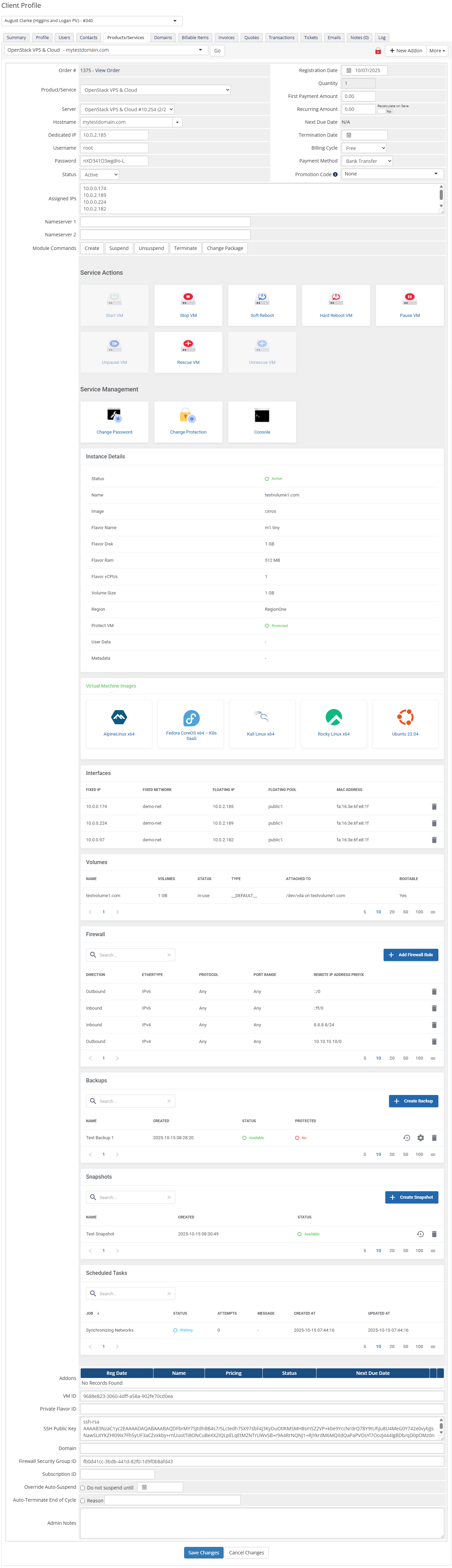
OpenStack VPS & Cloud For WHMCS allows your customers to manage their servers via the client area in your WHMCS system.
You can monitor and manage each product from your WHMCS admin area.
Module commands (Create, Suspend/Unsuspend, Change Package)
Service actions (Start/Stop VM, Pause/Unpause VM, Soft/Hard Reboot, Rescue/Unrescue VM, Change Protection)
Service management (Change Password, Change Protection, Console)
Instance details along with
- Interfaces,
- Volumes (you will see the 'Volumes' section if you enabled the 'Use Volumes' feature),
- Virtual Machine Images available for reinstallation
- Firewall: add/delete rule
- Backups: create, restore, manage, delete
- Snapshots: create, restore, delete
- Schedule Tasks: run, delete
# Ordering
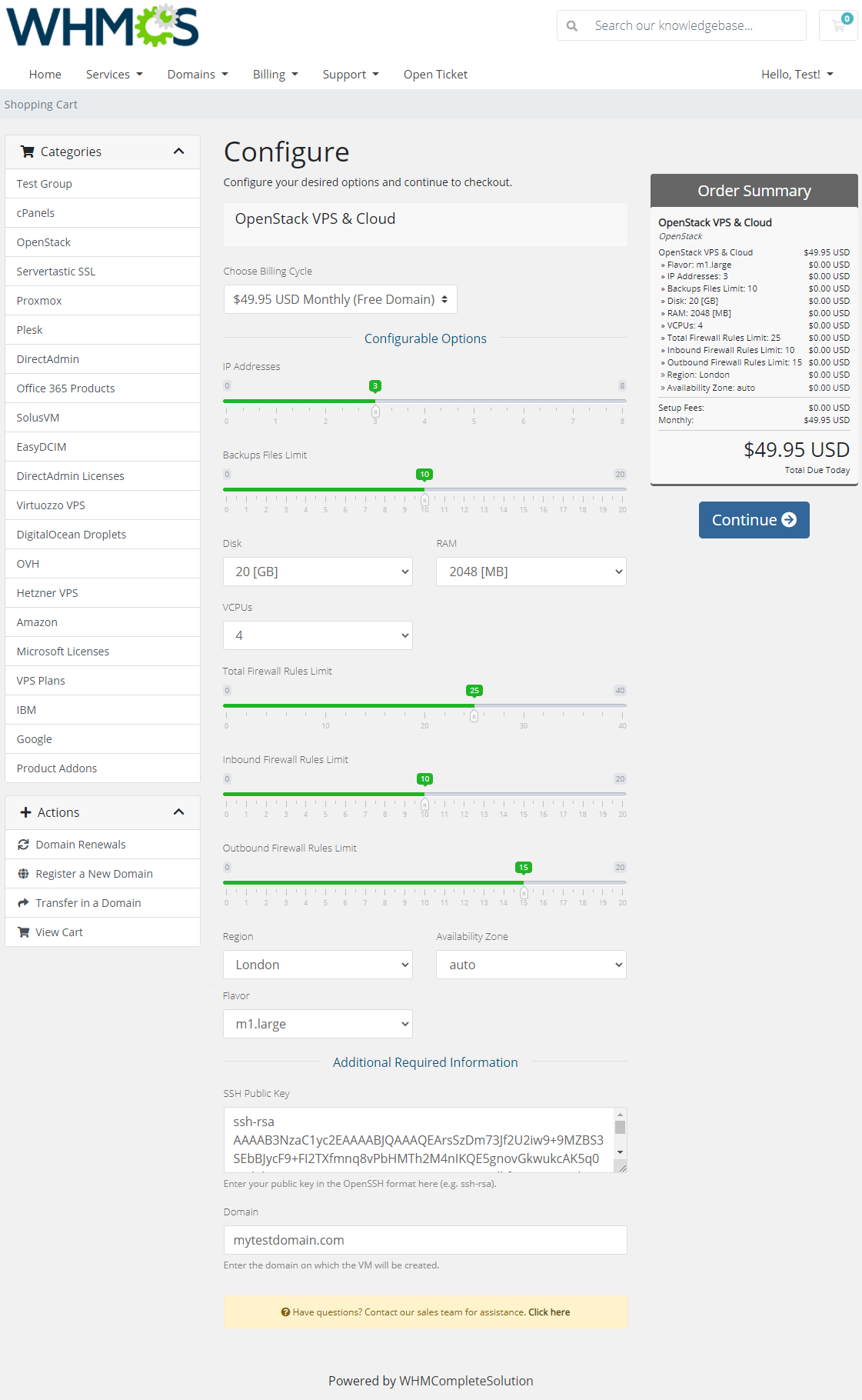
Owing to configurable options, you are able to offer a product which your clients can tailor according to their needs.
Additionally, you are able to set up pricing for each configurable option, which make your offer even more competitive.
Important: VPS is not created immediately after ordering 'Create'. Therefore, it is wise to inform your clients about the delay.
# Importing Existing Instance
In this section, you can find short instruction on how to connect one of your clients to your already existing instance in the OpenStack panel.
Take the following steps to make sure that the process will be carried out properly.
Firstly, manually create an order for your customer in WHMCS. Choose a client and in the summary view, click on the ' Add New Order' button. Next, select a 'Product/Service' and press 'Submit Order'.
What is important, do not perform the 'Create' action. The status has to remain as 'Pending'.
More info about placing orders can be found here (opens new window)Proceed to the newly created product's card in your admin area. Find the following empty fields:
- VM ID
The above-mentioned information has to be consistent with the data from your OpenStack panel. Now, complete these fields as presented below.
Important! Remember to make sure that the format of the provided data is compatible with the format supported by the module. You can preview it for another product of the module you have already created and enter it in a similar way.
If you completed the required data, now change the status from 'Pending' to 'Active' and 'Save Changes'.
If the completed data is correct, after refreshing the page, you will see the attached instance from OpenStack.
Important! Remember to manually add other missing parameters of the instance such as domains, credentials, IP Addresses, configurable options, SSH Key, billing cycle, etc. so they match the parameters of the attached instance from OpenStack.
# Client Area
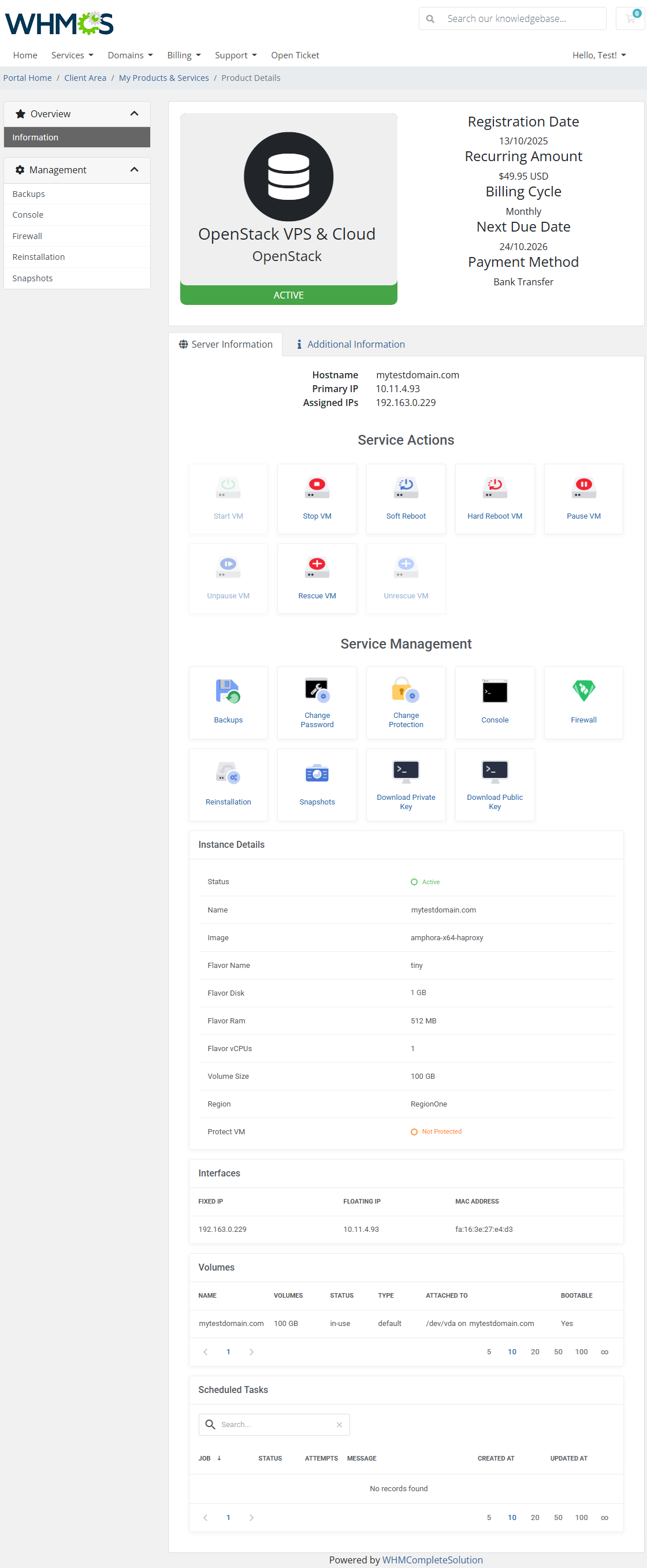
Client area interface of OpenStack VPS & Cloud should look like the one on the screen below. As you can see, the control panel contains useful options needed for managing a virtual machine.
The module enables your customers to easily start/stop, pause/unpause, resume, soft reboot, and hard reboot their servers by pressing the corresponding button.
Clients can also rebuild the server, access the VNC console, create a backup, manage firewalls, and view scheduled tasks.
At 'Scheduled Tasks', your customers can view all requested tasks that were not yet completed.
Each task has additional information bound to it, like the type of task, the number of attempts to perform tasks, or the last returned response.
# Volumes
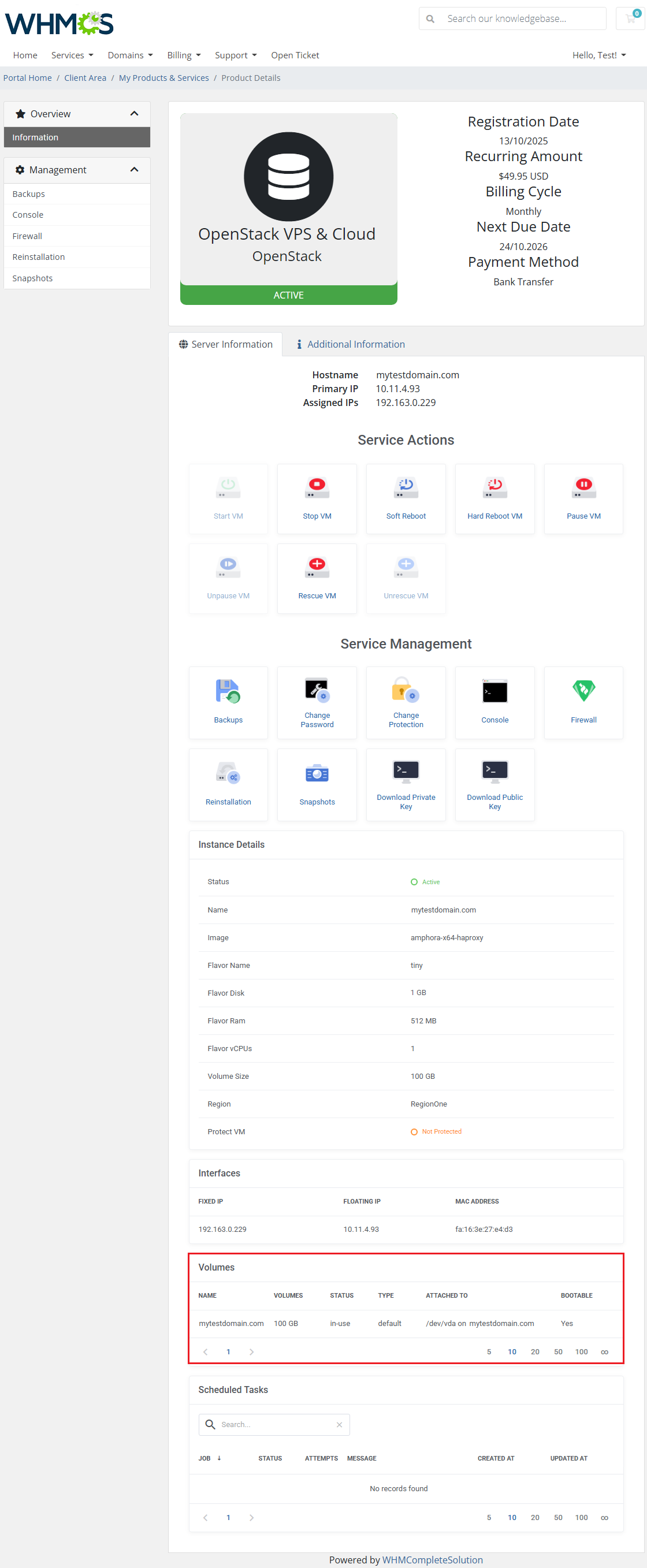
In case your OpenStack VPS & Cloud is running with the 'Use Volumes' option, the client area may look a bit different. It will now include an additional section named Volumes.
# Reinstallation
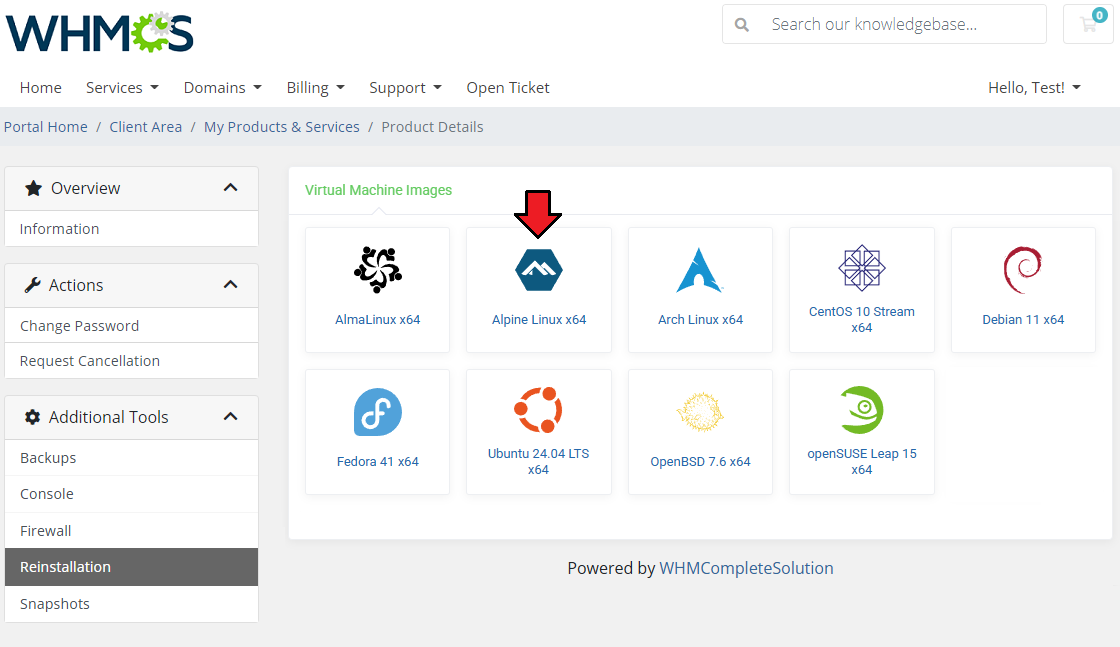
The reinstallation option allows your clients to change a server image.
To reinstall your server, choose an image and confirm through pressing the 'Reinstallation' button and confirm the action.
# Rescue Mode
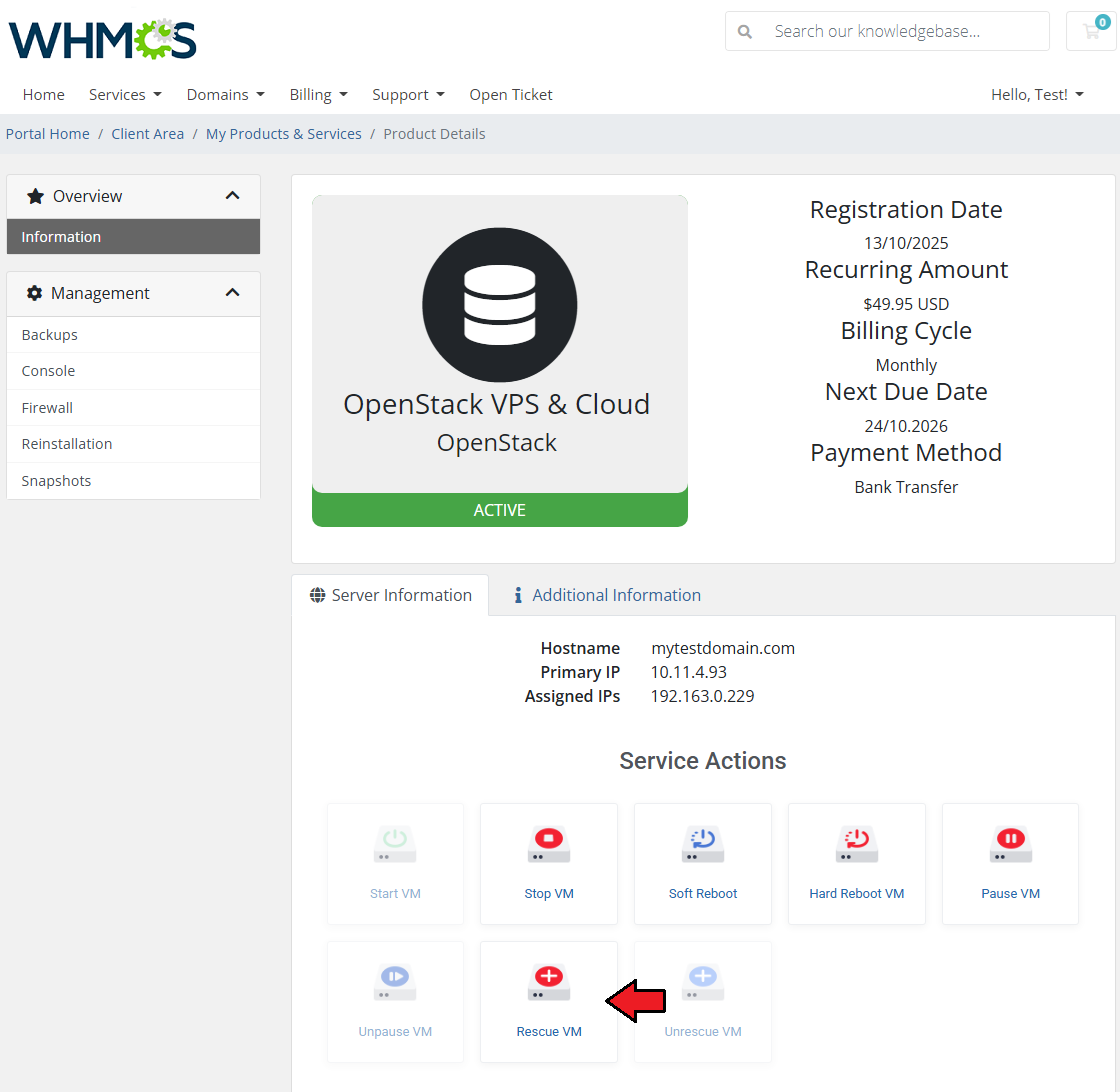
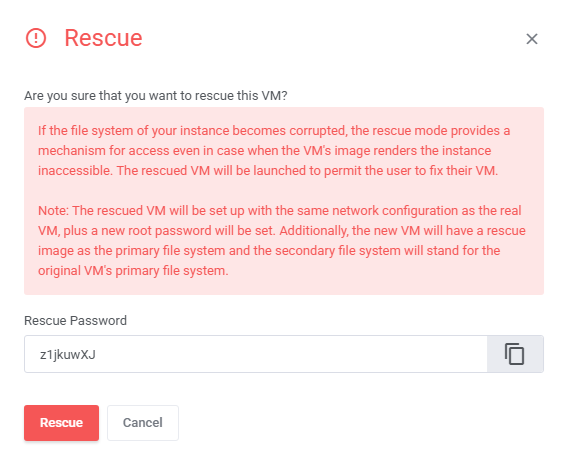
The rescue mode provides a mechanism for a VM access even in case the VM's image renders the instance inaccessible - e.g. if instance's filesystem becomes corrupted.
The rescue VM will be launched to permit the user to fix their VM.
When you want to disable the rescue mode, click the 'Unrescue' button. The VM status will then also return to 'ACTIVE'.
Before you continue, please note that the rescue VM will be set up with the same network configuration as the real VM.
Moreover, a new root password will be generated and the VM status will change to 'RESCUE'.
The new VM will also have a rescue image as the primary filesystem and the secondary filesystem would be the original VM's primary file system.
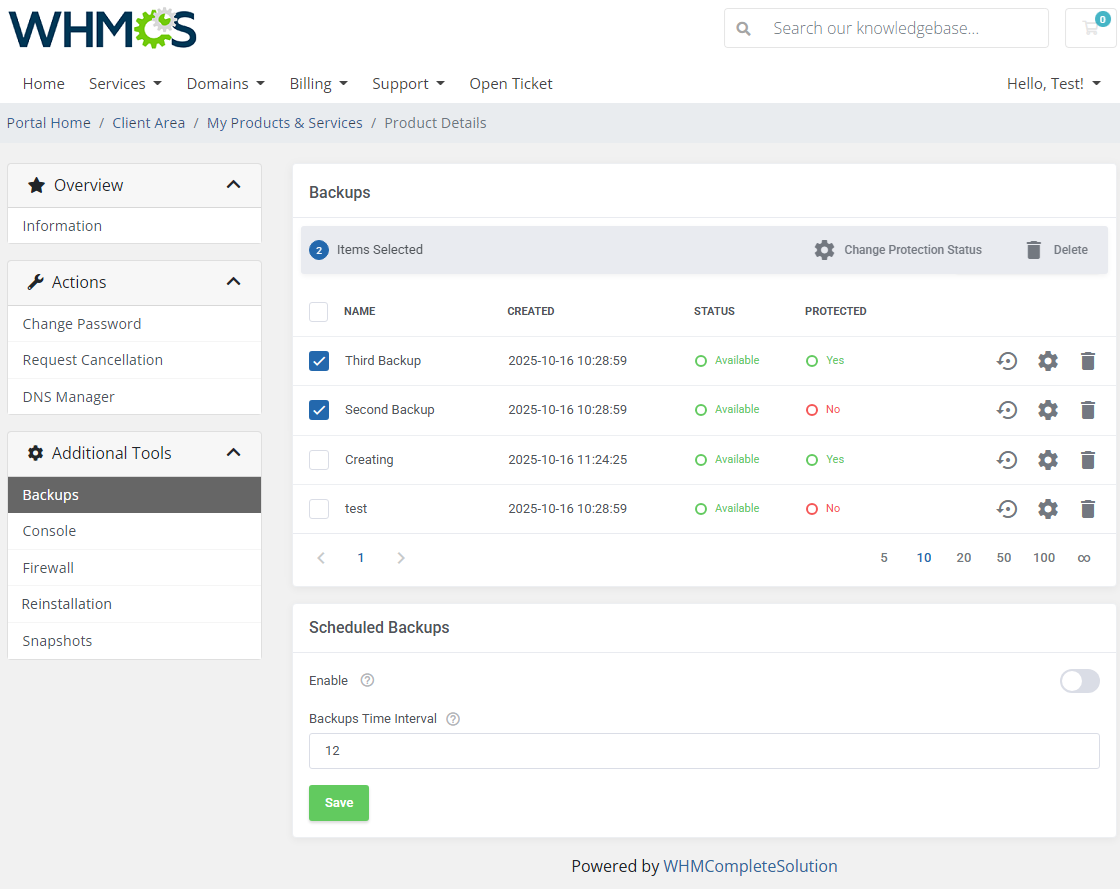
# Backups
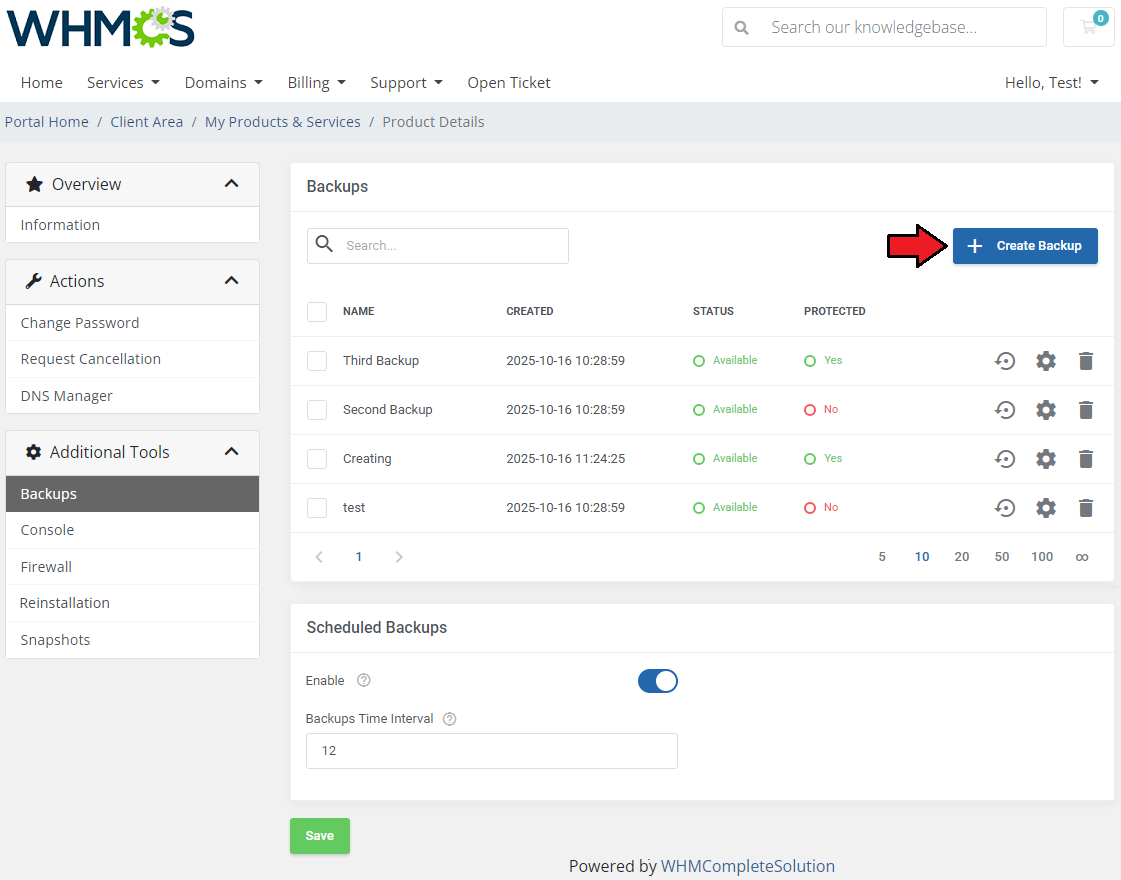
Your customers can also create backups of their resources. To do so, press the 'Create Backup' button.
In this section, you will find three different categories related to backups and their management.
At the very top, you will find a current list of existing and available backups with details on their status, creation date, pinned information and action buttons.
Underneath, you may create backups manually at any moment you need. From the 1.9.0 module version, volume backups on demand are also supported.
Manual backups can be created on:
- virtual machines with volumes
- virtual machines without volumes
Scheduled backups can be created on:
- virtual machines without volumes
Note: If your backup is 'Pinned', then it will not be overwritten by the next scheduled backup. You may pin more than just one backup.
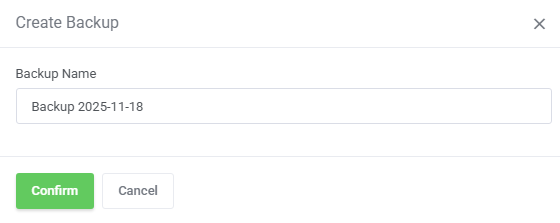
Simply, type in a custom name of your backup and press the 'Confirm' button.
Note 1: Sometimes it may take up to several dozen minutes to finish creating the backup. Please wait until the process is complete.
Note 2: If there has been a limit set on the number of allowed backups and you have just reached that restriction, then a backup with the earliest creation date will be removed to make room for the new on.
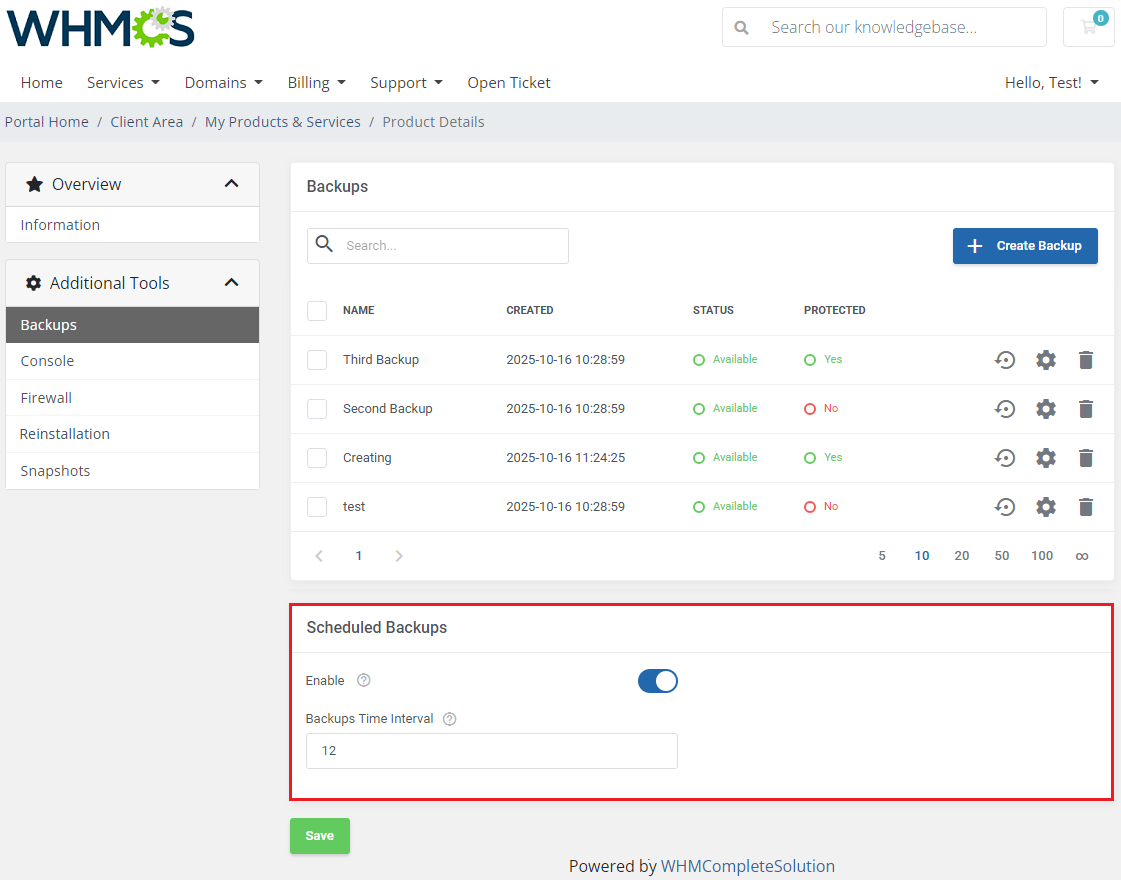
Clients are also given the opportunity to create backups automatically by enabling the option: 'Schedule Backups'.
When enabled, provide a time interval to wait until the next backup is created to define the task's routine. The entered time interval must be higher than or equal to the limit specified by your administrator.
Note: The number of backups created manually and those scheduled and created automatically is counted together, and their overall sum cannot be higher than the defined limit.
To restore a VPS from backup, simply press the 'Restore' button next to it.
If selected backups are no longer needed, you may easily delete them.
# VNC Console
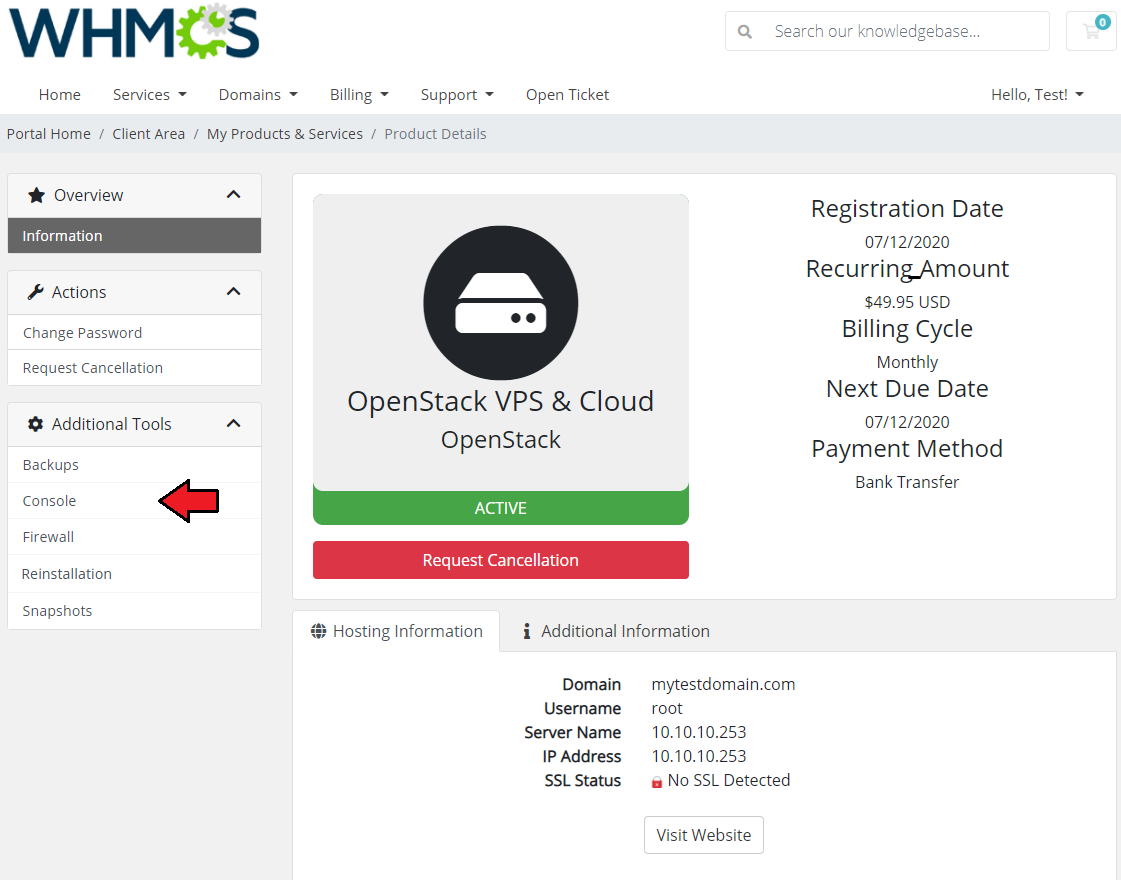
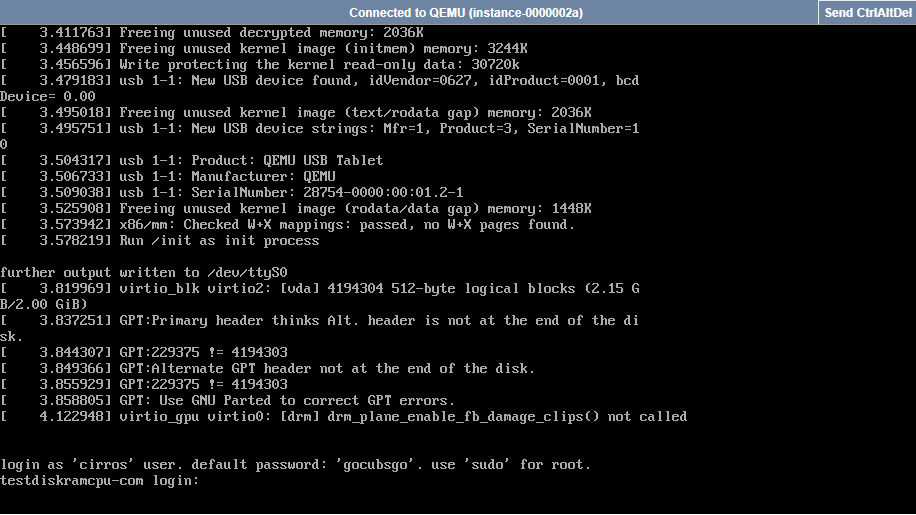
One of the most interesting functionality is a VNC console where your clients can remotely manage their servers.
To access it, simply click on the 'Console' button.
VNC is a browser based VNC client. It was implemented using HTML5 Canvas and WebSockets.
# VM Protection
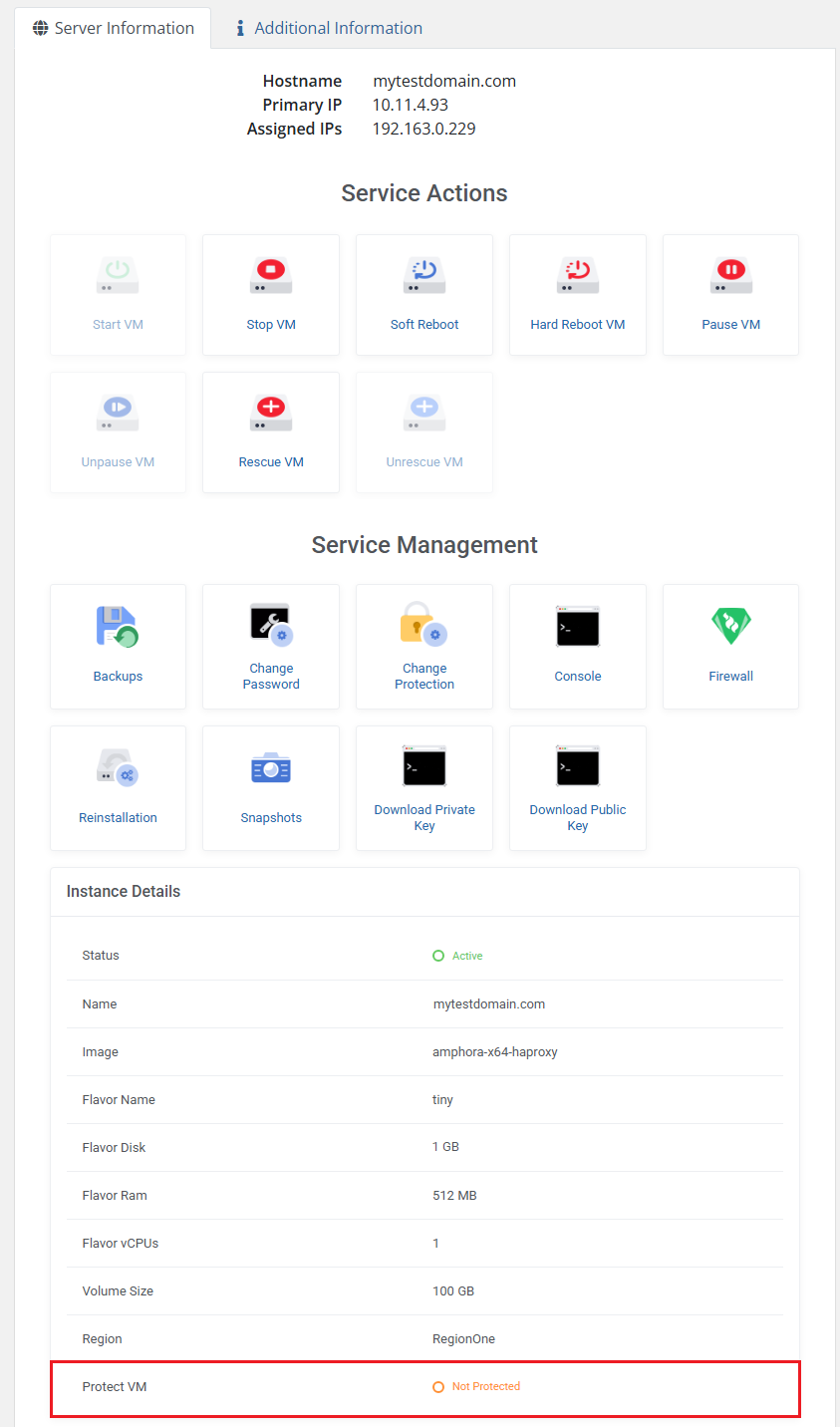
In the product configuration page you can enable the 'Protect VM After Creation' option which prevents the rebuilt of VM.
The selected status of this protection will be applied to both admin area and client area.
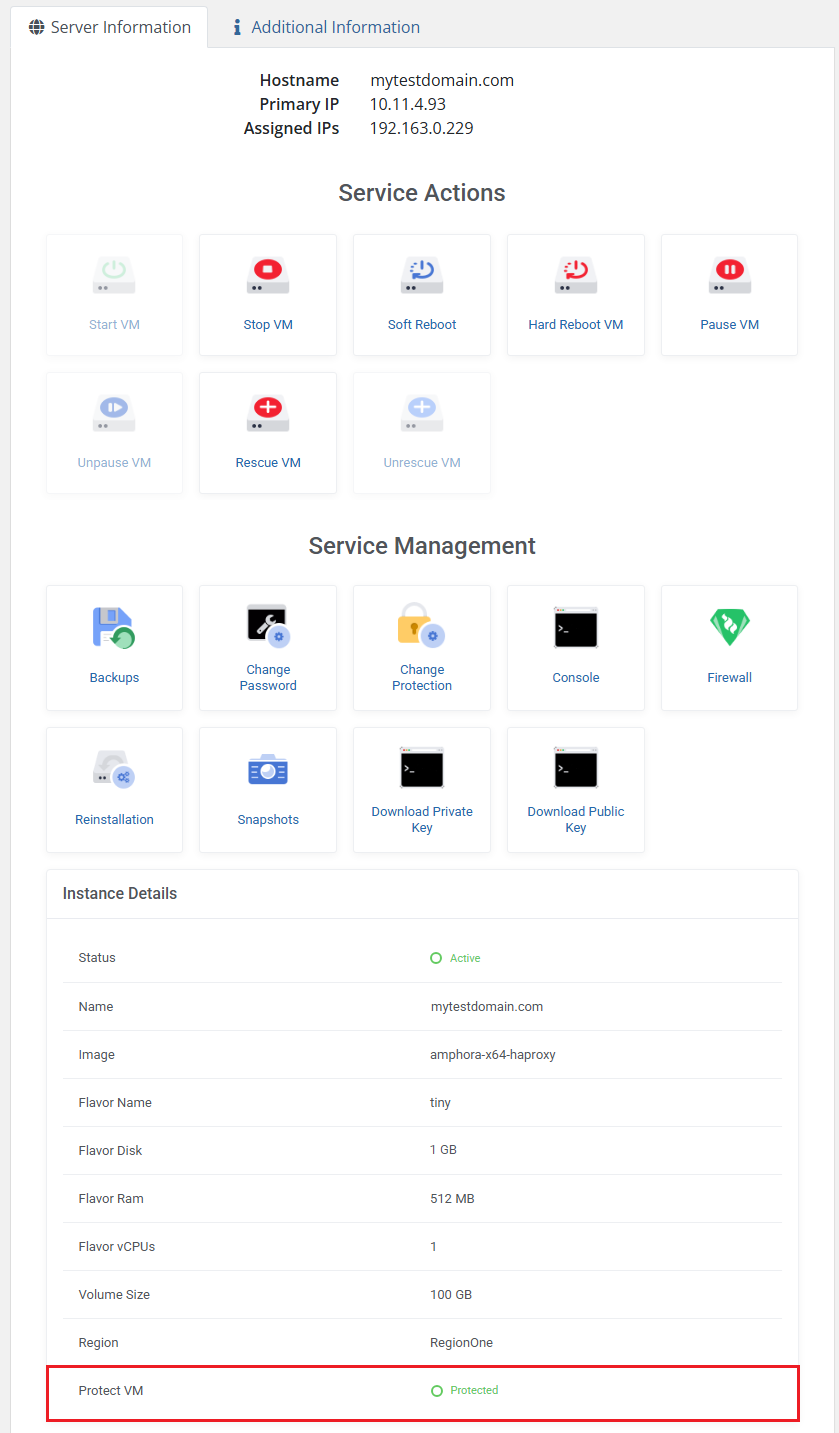
Moreover, if the 'Protect VM' option is enabled in the client area, the client will be empowered to toggle the current protection status.
# Firewall
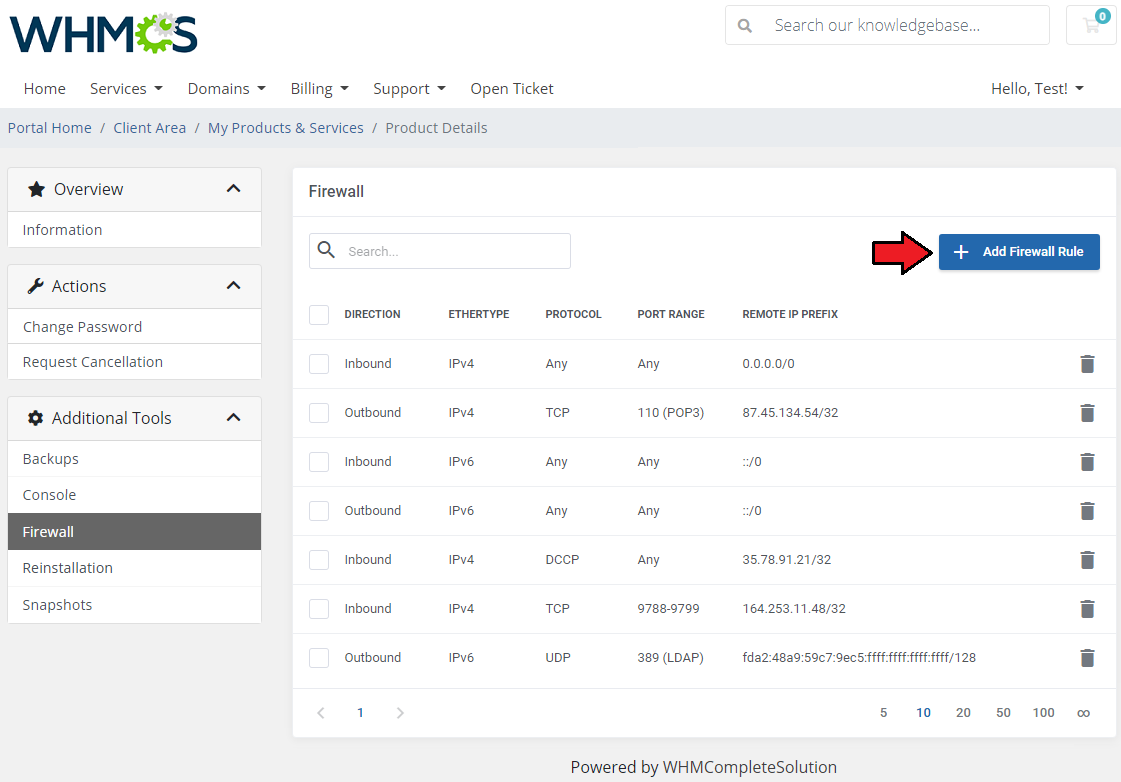
The firewall management page allows your customers to view, add or delete existing rules on a security group assigned to the product.
To add a new firewall rule, use the button marked on the following screen.
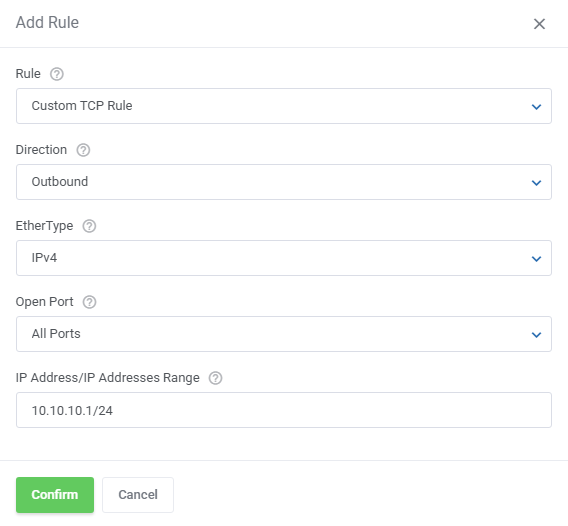
Next, choose the rule type (TCP, UDP, ICMP or Other Protocols), direction (inbound or outbound) and ether type (IPv4 or IPv6).
Depending on the port you choose, you will be able to add a rule for a single port only, a range of ports or all ports at once. You can also select one of the predefined ports or use a custom one.
Finally, provide a single IP address or specify the range of addresses using the CIDR format (e.g. 10.10.10.1/24).
Press 'Confirm' when ready.
# Snapshots
Creating snapshots allows customers to quickly restore any changes to a virtual machine in case of any problems.
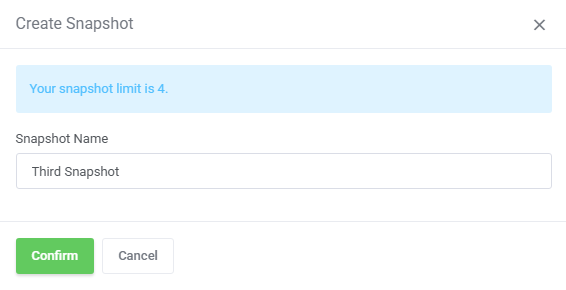
Clients can create as many snapshots as they are allowed by the admin in the product configuration or chosen in the configurable option.
Once the shutter has been created, the customer can restore it, change its description or delete it.
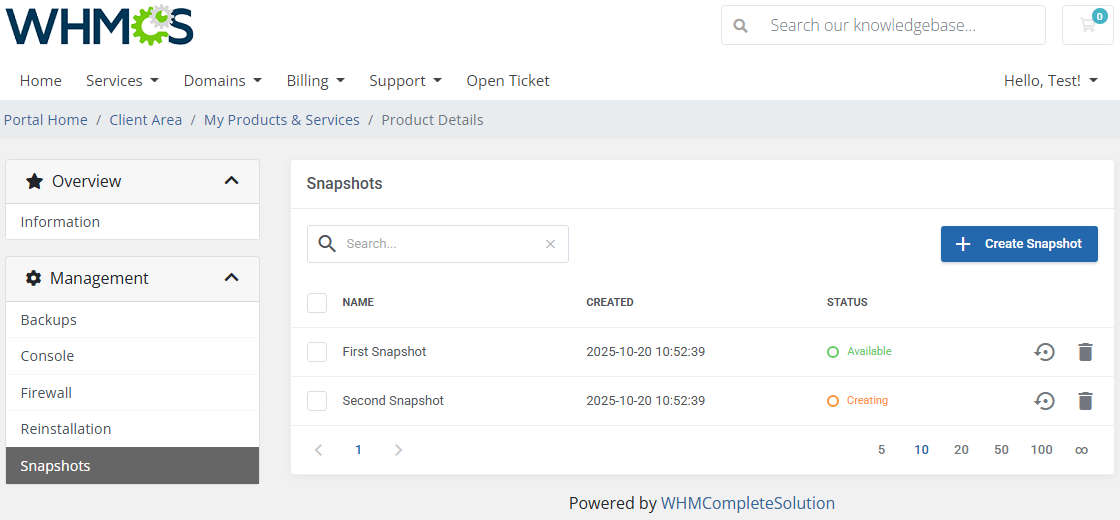
After pressing the 'Create Snapshot' button, the new window will pop up along with your limit number and the possibility to specify the snapshot name.
Please note that taking a new snapshot may take a while to process.
# Network Configuration Cases
OpenStack VPS & Cloud For WHMCS allows you to set up two types of network.
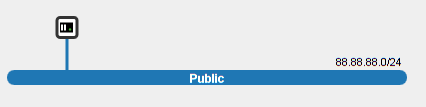
The first one is a network without a floating IP address.
To set up this type of network, choose 'Public' as 'Fixed Network' and 'Disabled' as 'Floating Network'.
On the following screen you can view an exemplary topology of such a network.
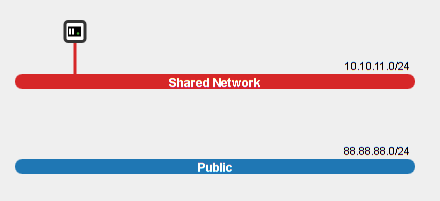
The second type of network is the network with a floating IP address.
Select 'Shared Network' as 'Fixed Network' and 'Public' as 'Floating Network'.
# Configurable Options
In case that standard configuration does not meet your needs, you can adjust it through configurable options.
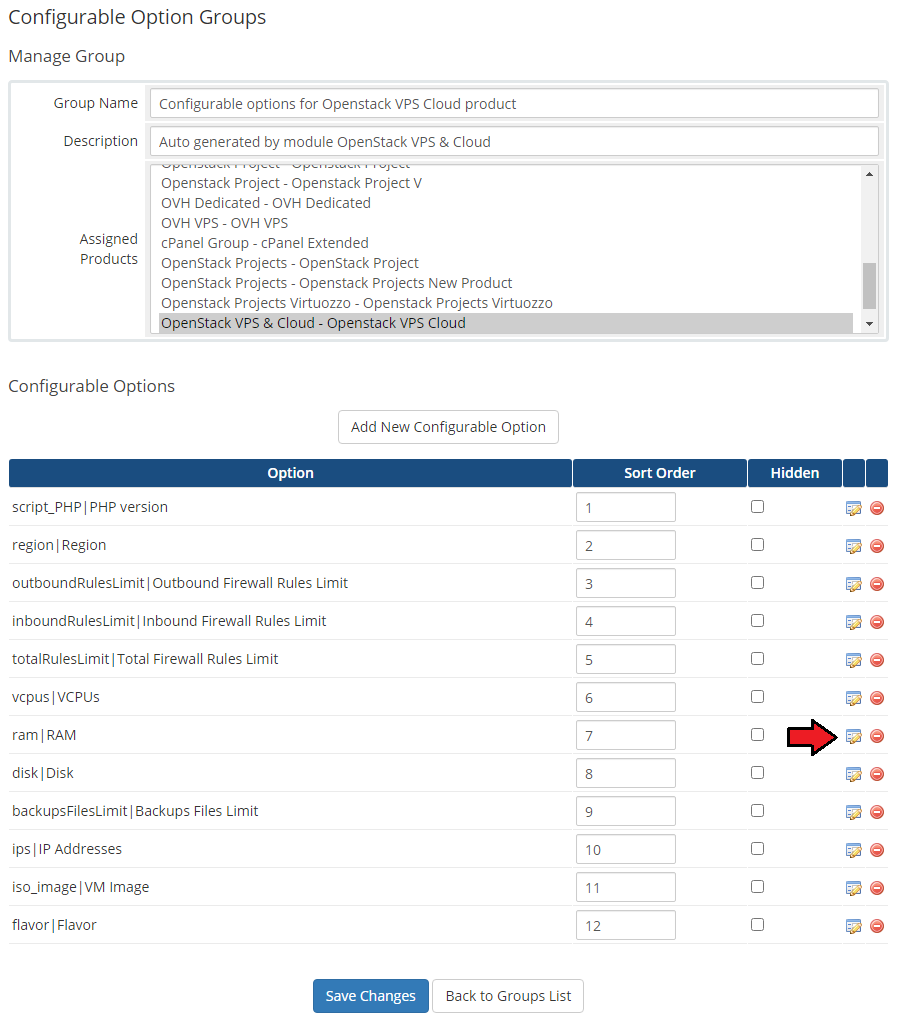
To do so, go to 'Setup' → 'Products/Services' → 'Configurable Option' and press the edit button next to a configurable option used by your product.
Its name is 'Configurable options for your_product_name'.
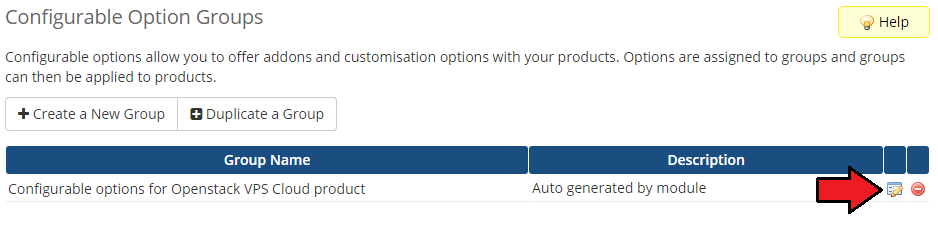
Here you can view the products that this configurable option group is assigned to.
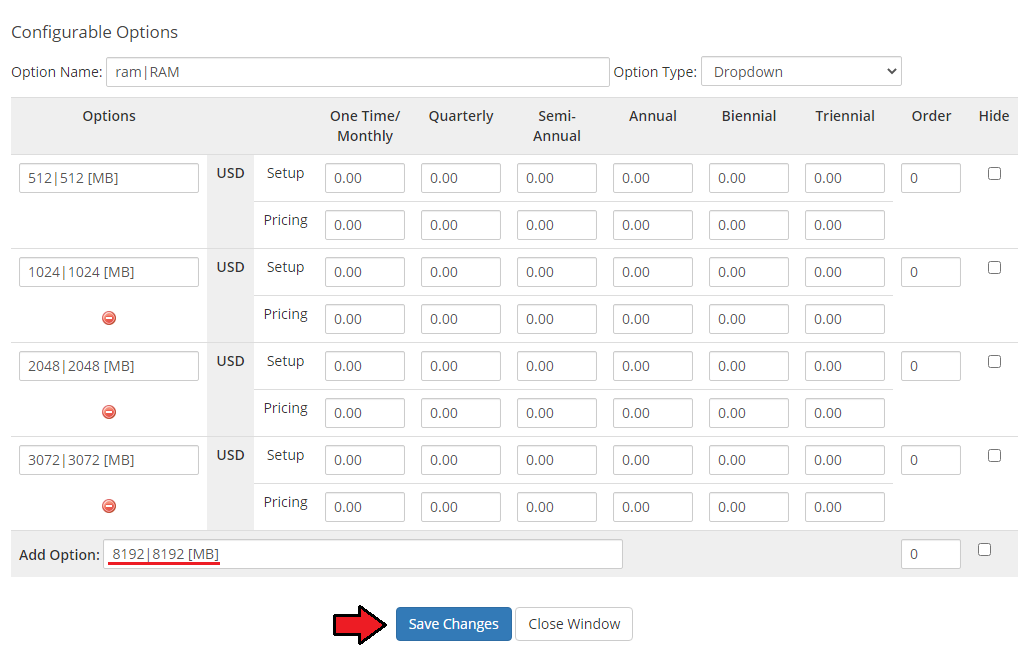
Now we will show you how to edit options. Let's say that you want to add an option to order VPS with 8GB (8192 MB) RAM.
To do so, edit 'ram|RAM' by pressing the edit button as shown on the screen below.
You will see a popup window, so make sure that your browser will not block it.
To add a new option, enter it in a textbox under all other options. If you want to replace it with an option you currently have, simply edit its text box.
Next, press 'Save Changes'.
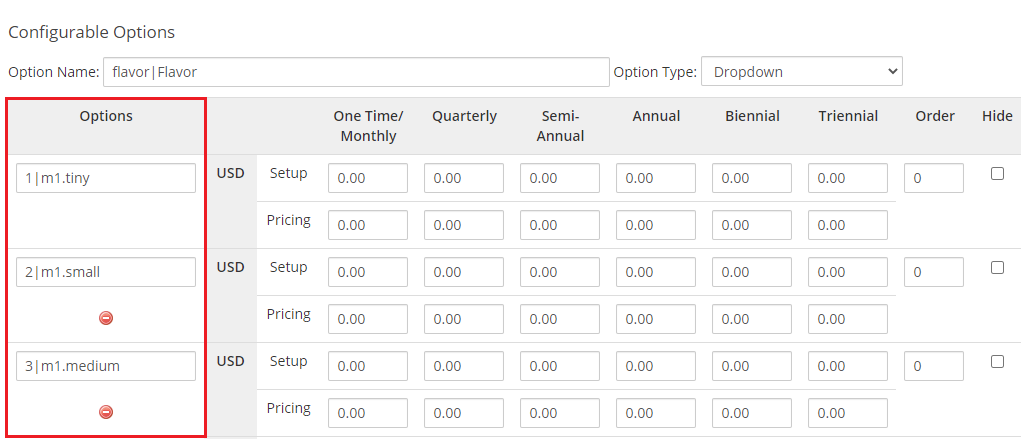
Please remember that names of 'Options' for configurable options such as 'Flavor', 'Network' as well as 'Image' should NOT be modified in WHMCS.
These names should remain the same as in your OpenStack panel.
# Tips
The module supports OpenStack providers that grant access to the OpenStack API on project admin level or higher.
To ensure proper operation, use an account with the necessary rights to perform actions through the API. For more details, see the OpenStack API documentation (opens new window).Due to some requests may take time to be completed, we implemented 'Scheduled Tasks'.
Tasks visible at 'Scheduled Tasks' are subsequently performed by a cron job.
Full list of tasks supported by 'Scheduled Tasks' are: create, terminate, change package, remove IP address and remove backup.Important: module has to use admin endpoints instead of public endpoints.
In a properly configured OpenStack server, wget from WHMCS server should be able to get any data from any admin endpoint.
Sample successful requests:wget openstack:9292 --2014-03-31 09:35:24-- http://openstack:9292/ Resolving openstack(openstack)... 192.168.1.222 Connecting to openstack(openstack)|192.168.1.222|:9292... connected. HTTP request sent, awaiting response... 300 Multiple Choices Length: 520 [application/json] Saving to: `index.html' 100%[==================================================>] 520 --.-K/s in 0s 2014-03-31 09:35:24 (118 MB/s) - `index.html' saved [520/520] wget openstack:8777 --2014-03-31 09:41:05-- http://openstack:8777/ Resolving openstack(openstack)... 192.168.1.222 Connecting to openstack(openstack)|192.168.1.222|:8777... connected. HTTP request sent, awaiting response... 401 Unauthorized Authorization failed.A primary IP address is always assigned by the OpenStack server when a VM is created. Therefore, if you decide to order 2 IP addresses, then 3 addresses will be assigned.
The primary one and the two additionally ordered. If you wish only one IP address to be assigned to a single product, please set the filed 'Default Number Of IP Addresses' to '0'
or leave it empty in the product's 'Module Settings'.'Scheduled Backups' functionality is available also for VPS using volumens since 2.0.0 module version and later.
How to set up a password to a VM:
When creating a VM
- set up the password using a custom script, details are described here
- the module sends the password entered by a user, however, in order to set this password correctly, injecting passwords option must be enabled.
Read more about password injection (opens new window).
When resetting a VM
- In order to reset a password you must have the 'quemu guest agent' installed
How to set up the username based on the used image:
- open file 'imageUsernames.yml' located at: /yourwhmcs/modules/servers/OpenStackVpsCloud/app/Config
- change the file content according to the pattern:
image name (use name displayed in the databse): 'newUsername'For example:
ca6628a6-f627-480f-8aeb-07fdc372712a: 'cirros'Take a look at the screen to see how an exemplary, correctly modified file content might look like:

- Supported Integrations:
- Integrated With Advanced Billing For WHMCS (opens new window) - Actual Server Resource Usage Billing
- Integrated With Server Allocator For WHMCS (opens new window) - Automatic Assignment Of Most Suitable Servers To Products
# Update Instructions
An essential guidance through the process of updating the module is offered here.
Keep in mind that there is a quick and easy option in our client area that will let you upgrade the license of your module to an open source version at any time - and at a lower price!
To take advantage of it, simply use the License Upgrade button located on the product page and a discounted invoice will be generated automatically.
# Migration To Version 3.X
The migration process from version 2.X. to 3.X is fully automated. You only need to follow the steps described in the following article: Update Guide.
All your existing settings, products, and client data will be preserved during the update.
Make sure all tasks are completed.
Delete all files from the previous version of the module.
Upload the new module files.
Activate the new addon module and set the appropriate access control level for administrators.
Note: The administrator responsible for configuring the product must have access to the OpenStack VPS & Cloud module addon.The migration tool must be triggered manually, then your existing data will be automatically transferred to the new module. Use the following cron command to initiate the migration:
php -q /YOUR_WHMCS/modules/servers/OpenStackVpsCloud/cron/cron.php upgrade run 3.0.0After a successful migration, run the
synchronize:networkscron task to synchronize network information (IP addresses from OpenStack) with WHMCS for services created before the migration.
php -q /YOUR_WHMCS/modules/servers/OpenStackVpsCloud/cron/cron.php synchronize:networks
# Upgrade Guide
Seeking a solution that offers greater flexibility, customization tailored to your precise needs, and unrestricted availability?
There is an option that not only proves to be cost-effective in the long run but also includes prioritized support services, making it a truly valuable investment.
Opt for the Open Source version (opens new window) of your OpenStack VPS & Cloud For WHMCS module to unlock these benefits.
Simply click on either the Get Source Code or Upgrade To Lifetime button found on the product's page in our client area to complete the one-step upgrade process, with a dedicated discount already applied.
Follow a comprehensive guide covering the transition process, the advantages it brings, and step-by-step instructions on what to do next after the order has been successfully finalized.
# Common Problems
When you have problems with connection, check whether your SELinux or firewall does not block ports.
In case of persisting connection problems, please make sure you have the following ports open:
8774, 35357, 9292, 5000, 8777, 9696, 8776If you come across an error with downloading endpoints during the server configuration process, please save the incomplete configuration, refresh a page and then try to finish your server configuration again.
In case you encounter any issues with the cloud-int script or it seems not to be working please follow the below steps:
- Log in to virtual machine via FTP or noVNC
- Check content of the directory: /var/lib/cloud/instance/user-data.txt
- If content is the same as you have defined it in the module, it means that the problem is not connected with the module itself
- In order to verify if the script includes any errors, please run the below command from the console and analyze the results searching for any errors:
cloud-init --debug initIf you come across the "This flavor - flavor_name_or_id - is not available in the region region_name." error when creating a VM, you should refresh the server configuration page and update Configurable Options.
If this error is still occurring, please make sure that you have the same flavor names set for all regions.If you encounter a connection error in the module settings:
'Error:Connection Error: No route to host (Action: GET https://compute-api.svc.vstoragedomain.:8784/v2.1/5dcda23cb9bd4718b32610bbe18a1382/os-availability-zone). Check WHMCS module log for more information'
Please make sure the API IP address is public or there is a domain setup. For more details please refer to the official Virtuozzo Hybrid Infrastructure documentation (opens new window).