

# Advanced Billing 3.X For WHMCS
# (opens new window) About Advanced Billing For WHMCS (opens new window)
Advanced Billing For WHMCS allows you to set up additional billing models for your products based on the actual usage of bandwidth, CPU and other server resources.
The module features multi-currency support, and enables such variants as hourly billing, ticket billing, credit billing, and recurring billing, to name but a few.
In addition, it will automatically generate invoices in the preferred way and at freely adjusted time intervals, then send them to your customers.
Moreover, your clients will be allowed to create email reminders to be sent when a specified resource usage limit is reached or exceeded.
Advanced Billing For WHMCS is integrated with many popular modules, including not only cPanel, Plesk and SolusVM, but also a range of ModulesGarden products.
Core Features
- Hourly Billing For Any WHMCS Module
- Ticket Billing
- Configure Billing Per Product
- Manage Extensions And Configure Them Per Product
- View Current List Of Billable Items For Next Invoices
- View Resource Usage History Of Any Item
- Manage Awaiting Invoices And Convert Them To Invoices
- Define Summary Calculation Method
- Define Time Period Between Resource Usage Checks
- Define Whether To Store Logs In Files Or Database
- Define Number Of Days To Pass To Clear Log Records
- View Logs
'Recurring Billing' Extension Features:
- Bill On Account Termination
- Bill When Invoice Is Generated For Hosting
- Bill Each X Day Of Month
- Bill Each X Days
- Define Minimum Billing Amount
- Automatically Generate Invoice
- Define Invoice Payment Due Date
- Automatically Apply Credits
- Display Advanced Billing Cycle Info
- Apply Discounts To Client Groups
'Prepaid Billing' Extension:
- Enable Clients To Top Up Account With Credits Available For Hosting
- Define Minimum Amount Of Credits To Top Up Account
- Generate Summation Each X Days
- Access Summations Of Credit Usage By Client
- Send Email When Client's Credit Balance Falls Below Defined Credit Amount
- Automatically Suspend Account When Client Is Out Of Credits
- Automatically Refill Client's Credit Balance With Needed Amount Using Their WHMCS Credits
- Define Invoice Payment Due Date When Topping Up Account
'Credit Billing' Extension Features:
- Generate Invoice Each X Days
- Define Minimum Amount Of Credits To Charge
- Send Email When Client's Credit Balance Falls Below Defined Credit Amount
- Automatically Suspend Account When Client Is Out Of Credits - With Override Support
- Define Invoice Payment Due Date
- List Summary Credit Billing Charges Of Any Hosting
- Refund Credit Payment To Client
- Pay Invoices With Client Credits
'Fixed Pricing' Extension
- Bill Clients With Fixed Amount For Active Service Usage After X Hours
- Define Number Of Hours For Service To Be Active
- Toggle Credits To Be Automatically Applied If Available In Client's Balance
- Toggle Tax To Be Added To Generated Invoices
- Define Invoice Payment Due Date
- Define Fixed Payment Amounts In Available Currencies
'Product Auto Upgrade' Extension
- Live Upgrade/Downgrade Of Products Along With Their Configurable Options Depending On Used Resources
- Admin Area:
- Define Product Auto Upgrade Groups
- Enable/Disable Product Auto Upgrade Groups
- Create Product Auto Upgrade Options
- Assign Product To Option - Configurable Options Support
- Define Options Upgrade/Downgrade Rules
- Set Up Minimal Upgrade/Downgrade Interval
- Enable/Disable Any Product Auto Upgrade Option
- Drag & Drop To Reorder Options
- Define Client Area Features
- View List Of Hosting Accounts Altered By Product Auto Upgrade
- Access Product Auto Upgrade History Of Any Hosting
- Client Area:
- Enable/Disable Product Auto Upgrade And Product Auto Upgrade Options
- Manage Product Auto Upgrade Options Rules
- Set Up Minimal Upgrade/Downgrade Interval
- View Product Auto Upgrade History Per Product
- Set Up Notifications Rules
- Define Minimal Notification Interval
'Notifications' Extension:
- Allow Clients To Create Multiple Resource Usage Reminders:
- Define Frequency Of Resource Checks
- Define Frequency Of Notifications
- Define Resource Usage Limits
- Define Maximum Number Of Reminders That Clients May Create
- Send Email Reminders To Clients Once Limit Is Reached Or Exceeded
- Choose Reminder Email Template
- Allow Clients To Create Multiple Resource Usage Reminders:
'Resource Usage' Extension Features:
- Define Period For Counted Resource Usage
- Define Resource Usage Counting Precision
- Show History Of Resource Usage
- Define Number Of Usage Records Displayed Per Page
'Graphs' Extension Features:
- View Graphs In Admin And Client Area
- Generate Time Graphs Of Chosen Resource Usage
- Show Data For Selected Time Period
- View Disk Storage Used To Archive Data
- Flush Archived Data Immediately Or After X Days
'Free Limit' Extension Features:
- Use Product Configurable Options To Define Maximum Amount Of Usage Records That Will Not Be Charged
Supported Modules
- cPanel & cPanel Extended (opens new window) Integration: Hourly, Bandwidth, Storage, Databases, Addon Domains, Subdomains, Parked Domains, Domain Forwarders, FTP Accounts, Installed Applications, Email Accounts
- DigitalOcean Droplets (opens new window) Integration: Hourly, Memory, Disk, Backups, Volumes, vCPUs, Size, Snapshots
- DirectAdmin & DirectAdmin Extended (opens new window) Integration: Hourly, Bandwidth, Storage, Subdomains, Domain Pointers, FTP Accounts, MySQL Databases, Virtual Domains, Mailing Lists, POP Accounts, Email Forwarders, Email Autoresponders
- EasyDCIM Dedicated Servers (opens new window) Integration: Bandwidth IN/OUT/TOTAL, 95th Percentile IN/OUT/TOTAL Bandwidth Overages
- EasyDCIM Colocation (opens new window) Integration: Bandwidth IN/OUT/TOTAL, 95th Percentile Bandwidth IN/OUT/TOTAL Overages, Power Usage
- Hetzner Cloud Servers (opens new window) Integration: Backups, CPU Usage, CPUs, Disk, Disk Bandwidth Read, Disk Bandwidth Write, Disk IOPS Read, Disk IOPS Write, Floating IPs, Hourly, Ingoing Traffic, Memory, Network Bandwidth In, Network Bandwidth Out,
Network PPS In, Network PPS Out, Outgoing Traffic, Snapshots, Volumes - OpenStack Projects (opens new window) Integration: CPU Time, Disk Device Read Bandwidth, Disk Device Read Requests, Disk Device Write Bandwidth, Disk Device Write Requests, Floating IPs, Image Size, Memory, Memory Usage, Network Incoming Bytes Bandwidth,
Network Incoming Packets, Network Outgoing Bytes Bandwidth, Network Outgoing Packets, OS Images, Snapshot Size, Storage Volumes, Usage Record, VCPU Cores, Volume Size - OpenStack VPS & Cloud (opens new window) Integration: Hourly, vCPU Cores, Memory Usage, CPU Utilization, Incoming Bandwidth, Outgoing Bandwidth, Disk Root Used, Disk I/O Read, Disk I/O Write, Floating IP, Fixed IP, Backups Number
- Plesk & Plesk Extended (opens new window) Integration: Hourly, Subdomains, Disk Space, Email Boxes, Sites, Redirects, Mail Groups, Autoresponders, Mailing Lists, Users, Databases, Webapps, Traffic
- Proxmox VE Cloud VPS (opens new window) Integration: Disk Usage (LXC), Disk Size, Bandwidth IN, Bandwidth OUT, Bandwidth Total, Memory Usage, Memory Size, Backups, CPU Number, CPU Usage, CPU Cores Usage, Snapshots
- Proxmox VE VPS (opens new window) Integration: Hourly, Disk Usage (LXC), Bandwidth IN, Bandwidth OUT, Bandwidth Total, Memory Usage, Backups Usage, CPU Number, CPU Usage, CPU Cores Usage, Snapshots
- Rackspace Email Extended (opens new window) Integration: Hourly, Mailbox Storage, Mailboxes, Sync Licenses, Blackberry Licenses, Exchange Storage, Exchange Mailboxes
- SolusVM Extended Cloud (opens new window) Integration: Available Disk Size, Disk Usage, Available Bandwidth, Available Memory, Cores, IP Addresses, Disk Usage, Memory Usage (except KVM virtualization), Bandwidth Used
- SolusVM & SolusVM Extended VPS (opens new window) Integration: Hourly, Disk Usage, Available Disk Size, Memory Usage (except KVM virtualization), Available Memory, Bandwidth Used, Bandwidth Total, CPUs Number, Swap-Burst, IPv4, IPv6, Internal IPs
- Virtualizor Integration: Bandwidth Usage, CPU Units, CPU Cores, CPU Usage, Disk Size, Disk Usage, RAM Size, RAM Usage, Network Speed IN, Network Speed OUT, I/O Disk Read, I/O Disk Write, IPv4 Addresses, IPv6 Addresses
- Virtuozzo Hybrid Infrastructure S3 Integration: OPS Other, OPS GET, OPS PUT, OPS LIST, OPS Total and Uploaded, Downloaded, Storage
- Virtuozzo Hybrid Server (opens new window) Integration: Templates, CPU Usage, Memory, Bandwidth IN, Bandwidth OUT, Disk Used, Backups Usage
- Zimbra Email (opens new window) Integration: Hourly, Mailboxes, Email Aliases, Domain Aliases, Storage
General Info
- Store Usage Records In WHMCS Or External MongoDB Database (4.0 And Higher)
- Count Usage Of All Accounts Assigned To Reseller - cPanel, cPanel Extended (opens new window), DirectAdmin & DirectAdmin Extended (opens new window)
- Fast Billing Calculation Via Multithreading Cron Jobs
- Multi-Currency Support
- Multi-Language Support
- Supports PHP 8.2 Back To PHP 7.4
- Supports WHMCS Themes "Six" And "Twenty-One"
- Supports WHMCS V8.11 Back To WHMCS V8.8
- Requires ionCube Loader V13 Or Later
- Easy Module Upgrade To Open Source Version (opens new window)
# Installation
In this tutorial we will show you how to successfully install and manage Advanced Billing For WHMCS. (opens new window)
We will guide you step by step through the whole installation and configuration process.
- Log in to our client area and download the module.
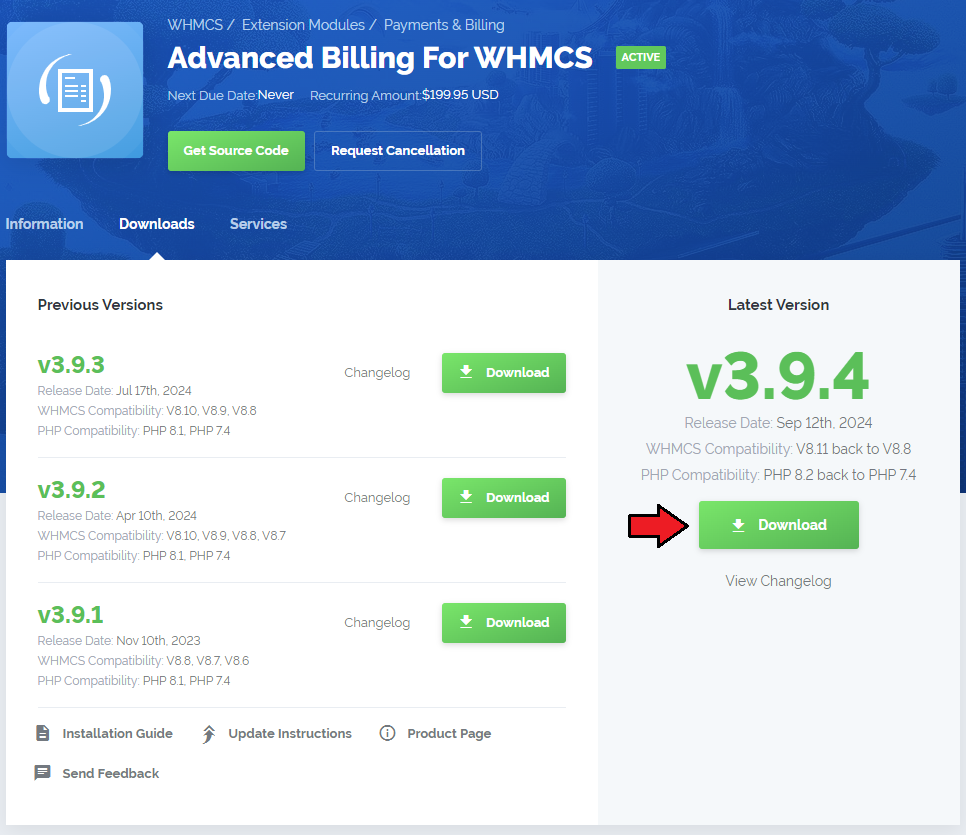
In the downloaded file you might find one or two packages that support different PHP versions.
In the most recent versions of the module, you will find only one package that supports PHP 7.2 and later.
Previous updates of the module may contain two packages dedicated to various PHP versions.
The first one that supports PHP 5.6 up to PHP 7.1, and the second one addressed to PHP 7.2 up to PHP 7.4.
Note: Keep in mind that PHP versions 5.6 up to 7.1 are no longer officially supported and their security issues are not fixed or released any more. Find more info here (opens new window).
Note: You can check the current PHP version in your WHMCS. To do so, proceed to 'Utilities' → 'System' → 'PHP Info'.
Extract the package and upload its content into the main WHMCS directory.
The content of the package to upload should look like this.
Now you have to activate the module in your WHMCS system.
Log in to your WHMCS admin area. Click 'Setup', then choose 'Addon Modules'.
Afterwards, find 'Advanced Billing' and press the 'Activate' button.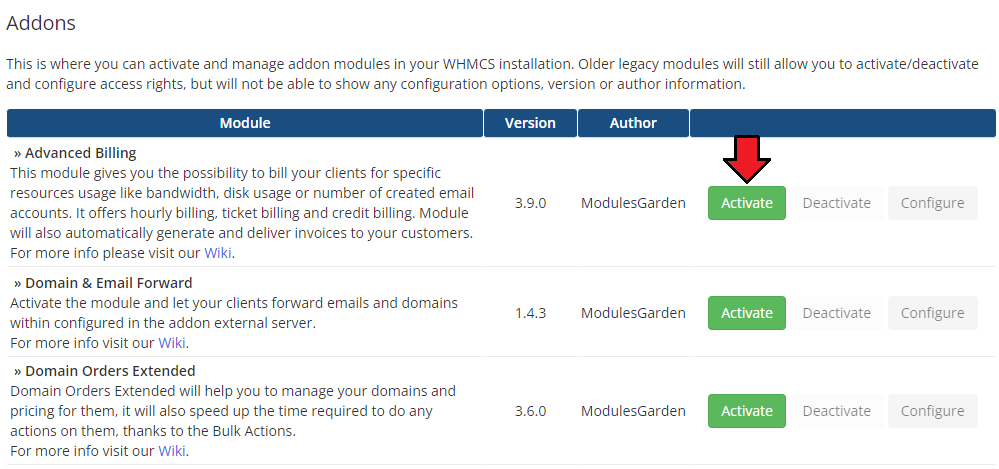
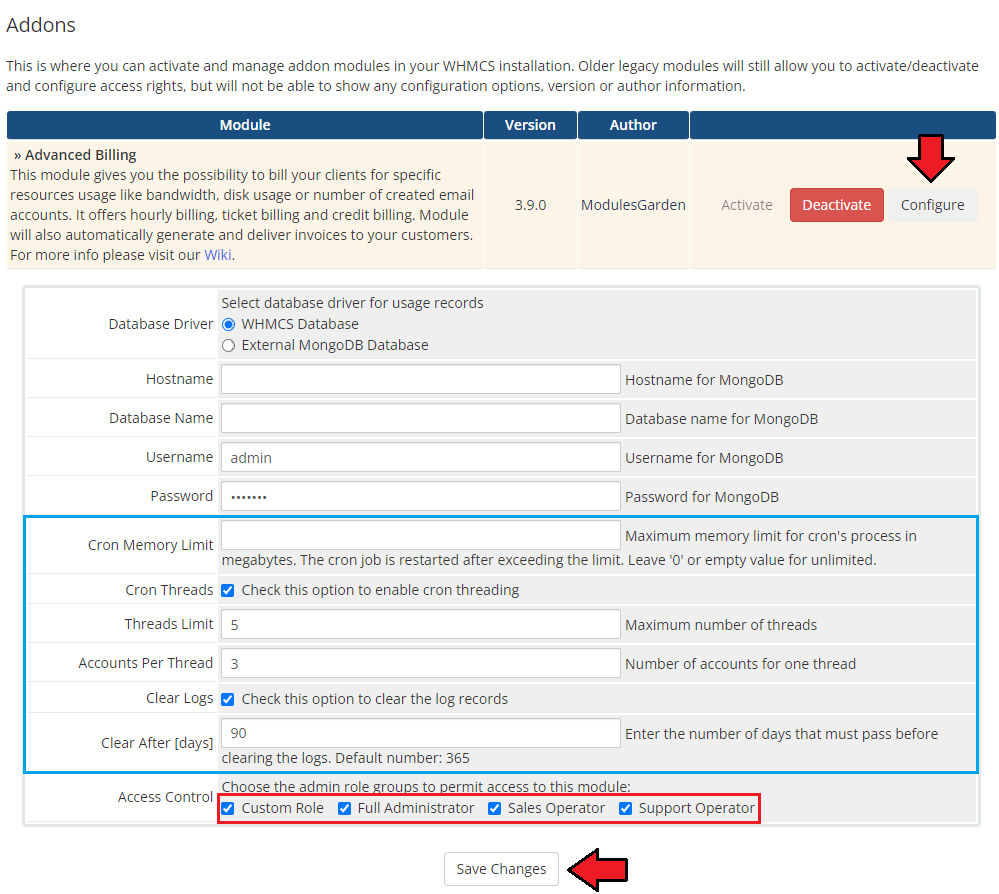
In the next step you need to configure your module. To do so, press the 'Configure' button.
Select database driver for usage records:- WHMCS Database
- External MongoDB Database (the module supports MongoDB in version 4.0 and higher)
If you choose MongoDB, you will additionally have to provide:
- Hostname
- Database Name
- Username
- Password
Here, you may enable the Cron Threads option.
- Cron Memory Limit - specify the maximum memory limit for the cron process, in megabytes. If the limit is surpassed, the cron job will be restarted. Enter '0' or leave the field empty for an unlimited limit.
- Cron Threds - check to enable the option to speed up the cron tasks execution.
- Threads Limit - enter a maximum number of allowed threads run simultaneously.
- Accounts Per Thread - enter the number of accounts that can be included in a single thread.
Note 1: PHP extension PCNTL (opens new window) must be available to be able to use this feature correctly.
Note 2: This feature is optional, yet it is advised to turn it on for systems with a big number of products. If turned off, cron tasks will be executed in the standard manner, that is one by one.
Next, decide if you wish to enable option to regularly clear the log records.
- Clear Logs - check to clear the log records automatically (run once a day).
- Clear After [days] - type in the number of days that must pass to clear the logs. If left empty, 365 is treated as a default number.
Choose the desired admin roles groups to grant access to the module and 'Save Changes'.
Now, proceed to the Extensions section to find more about configuring the license.
The last step is setting up a cron job. You can find it following the path: WHMCS → 'Addons' → 'Advanced Billing' → 'Configuration' page.
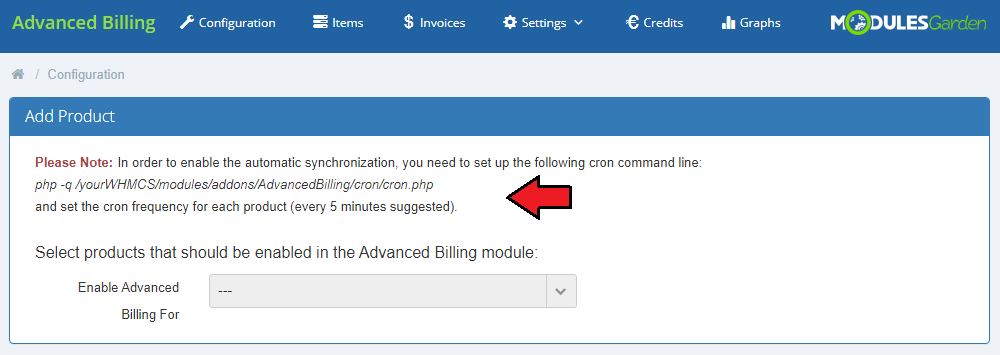
Well done, you have just successfully installed your Advanced Billing For WHMCS!
If you used the previous version of Advanced Billing For WHMCS and you would like to migrate the data to the current version,
please see the How To Update section and follow the instructions listed there.
# Configuration and Management
Now, let us learn more about the functionalities of the module. We will show you the possibilities of our product, using cPanel Extended For WHMCS as an example.
Please note that the billing features are different in both modules, but the core functionality of Advanced Billing remains the same.
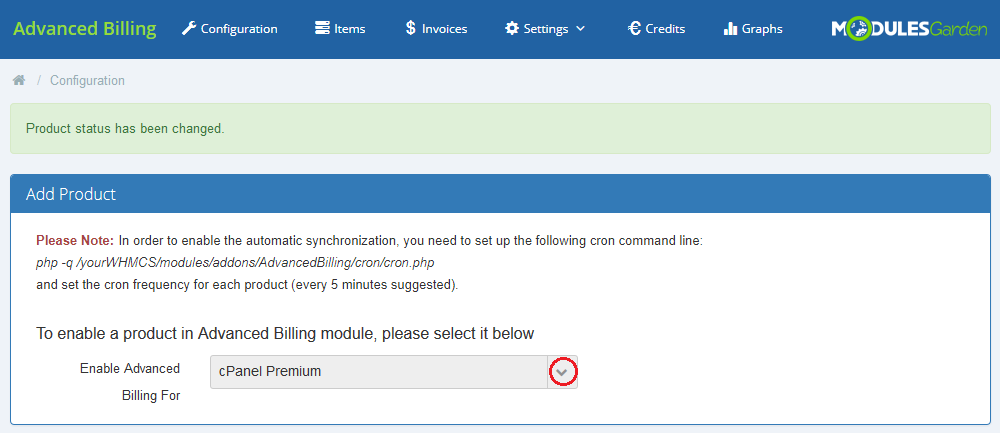
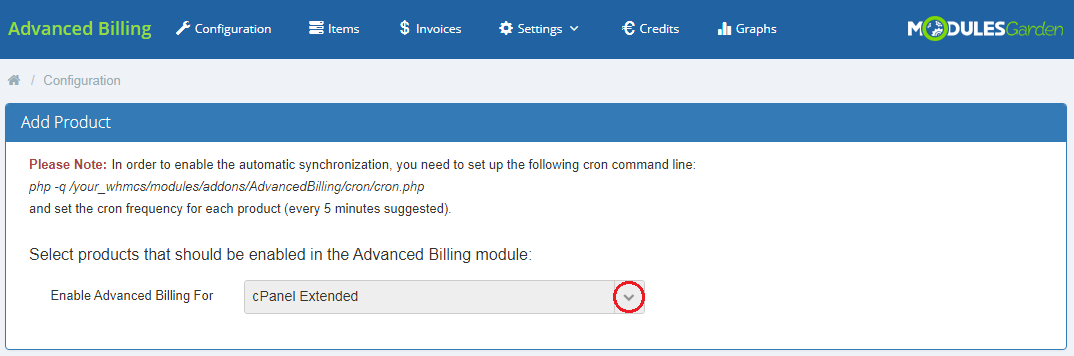
First, choose your module from the 'Enable Advanced Billing For' dropdown menu as shown on the screen below.
For demonstration we have chosen 'cPanel Premium' with the cPanel Extended module.
# Core
Our module core has been designed in such a way so as to allow the collection of records and invoices management.
Any extra features are handled by extensions which can be easily enabled/disabled, and are always configured per product.
# Product List
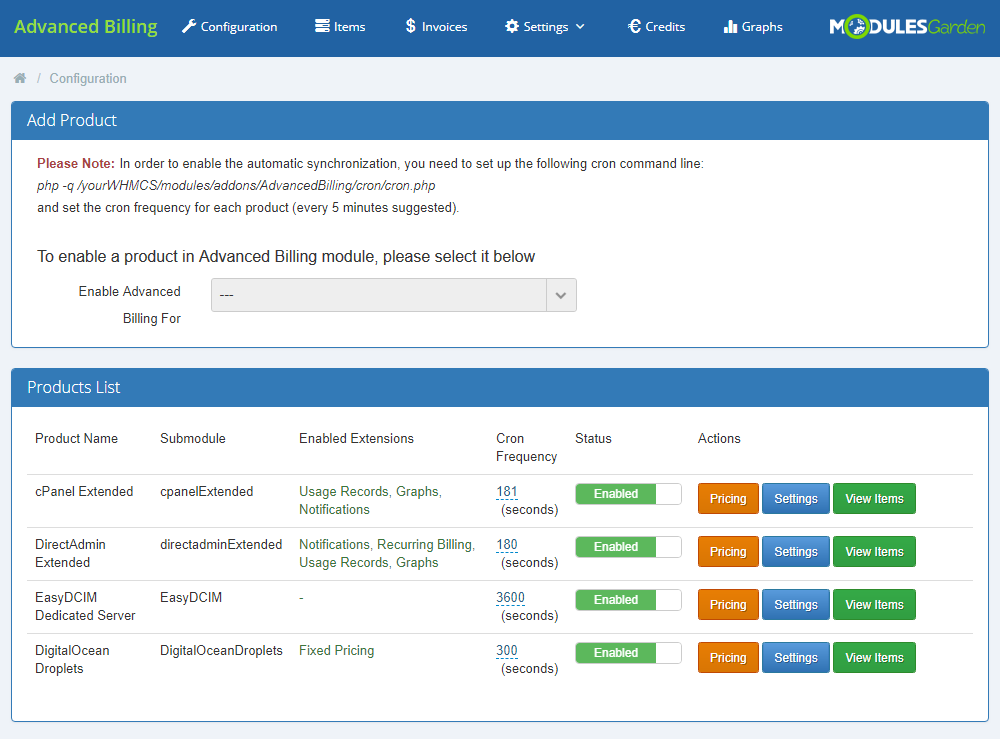
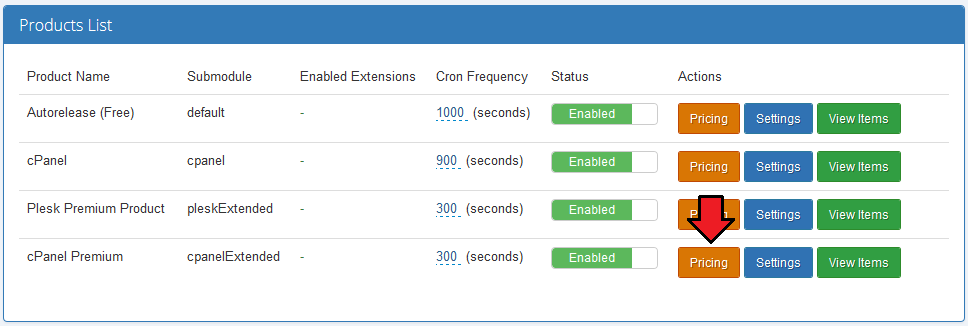
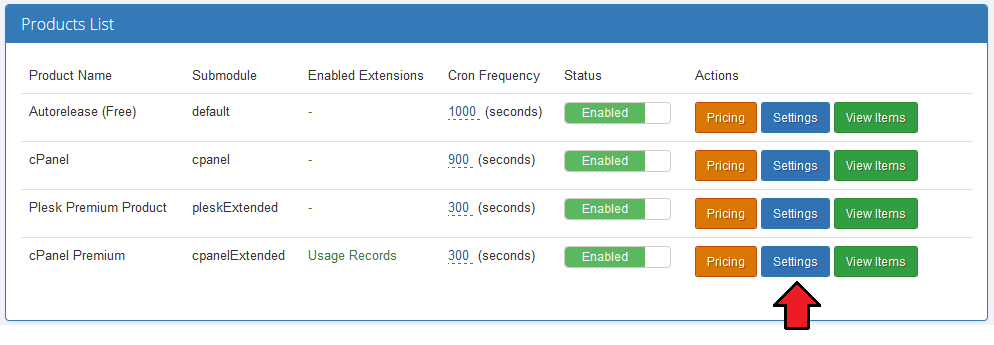
On the Products List you can find all products which have Advanced Billing enabled.
If the product's submodule is not supported, the 'default' mode will be used instead. It enables you to bill your client only for an hourly usage of the product.
Apart from the products and their submodules, the 'Products List' contains also the following options:
- Control the status of your product billing, enable/disable Advanced Billing for a product
- Manage cron frequency
- Use action buttons:
- Pricing
- Settings
- View Items
# Settings
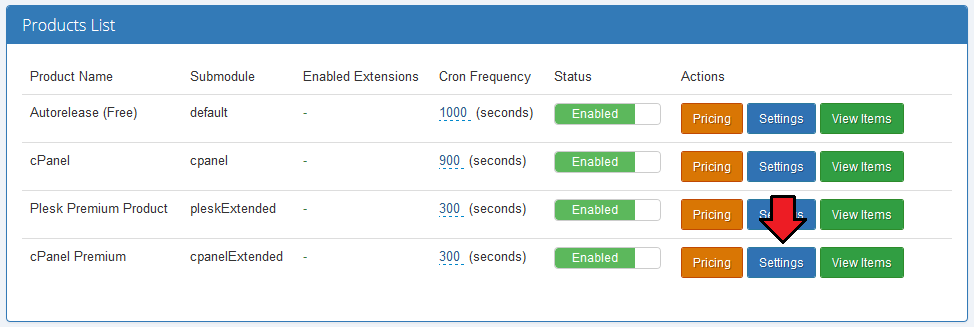
Clicking on the 'Settings' button will allow you to see the 'Module Settings' and 'Global Settings' only for cPanel/cPanel Extended modules and other enabled extensions. We will discuss them later.
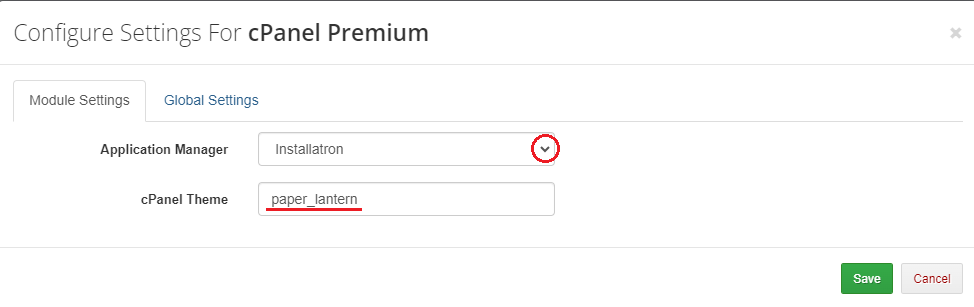
Here you can set both Application Manager (Softaculous/Installatron) and cPanel theme.
Simply enter a theme name as shown on the screen below.
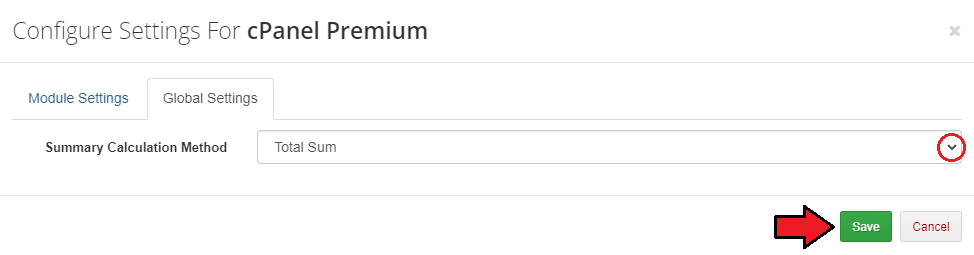
Under 'Global Settings' you may change the summary calculation method to display it as the total sum (default choice) or total average results.
Note: The alternative "Total Average" method applies to the calculations of "Hourly" results, for example, storage or CPU time.
# Used Resource Pricing
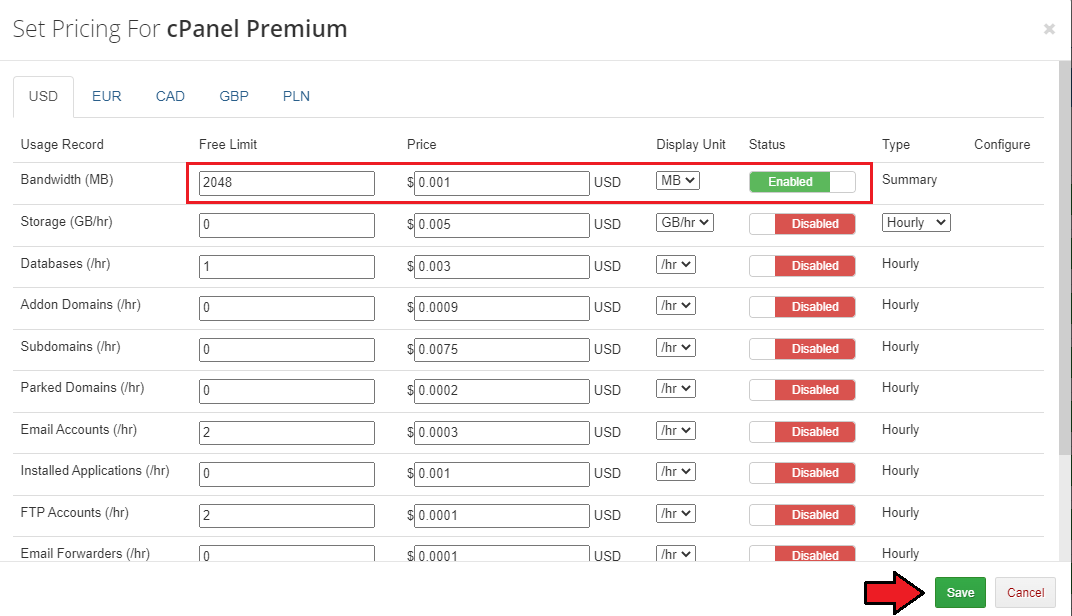
Moving to the 'Pricing' section will allow you to set up billing for a specific server resource usage like bandwidth.
Manage each usage record by setting up its:
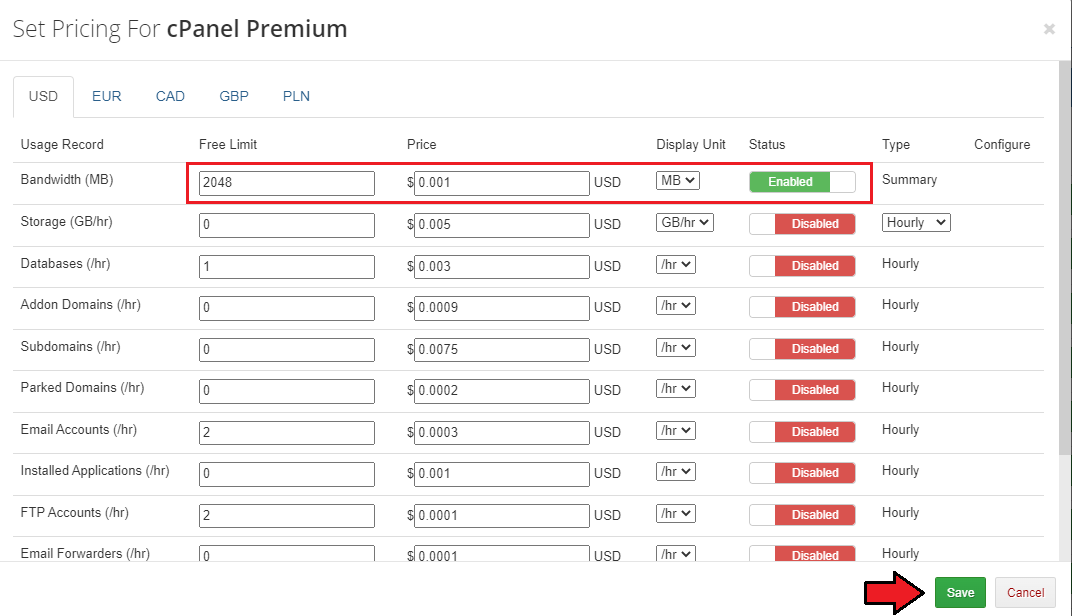
- Free Limit - used to set the amount of usage records for which a customer will not be charged.
In our case, as you can see on the screen below, a customer will not be charged for 2GB (2048MB) bandwidth.
Note: Free limits can be also set up based on the product configurable options, read more about the dedicated extension. - Price - defines how much your client will have to pay for a specific resource. Note that we provide two types of charging: units per hour and units used since the last cron run.
For example, users pay for a quantity of subdomains each hour, but when the traffic is generated, bandwidth used since the last cron run will have to be paid once only. - Display Unit - defines the manner in which the record usage will be displayed. It does not affect free limit and pricing - they are calculated in a basic unit.
If you select the 'GB' option, free limit will be still 1024 MB, and the price will be MB/hr, not GB/hr. - Status - allows you to enable/disable billing for this resource.
To proceed, choose your usage records, units, statuses, set up the prices and free limits. Afterwards, press 'Save'.
Important: Remember to set up the pricing rules in every currency that you offer the product in.
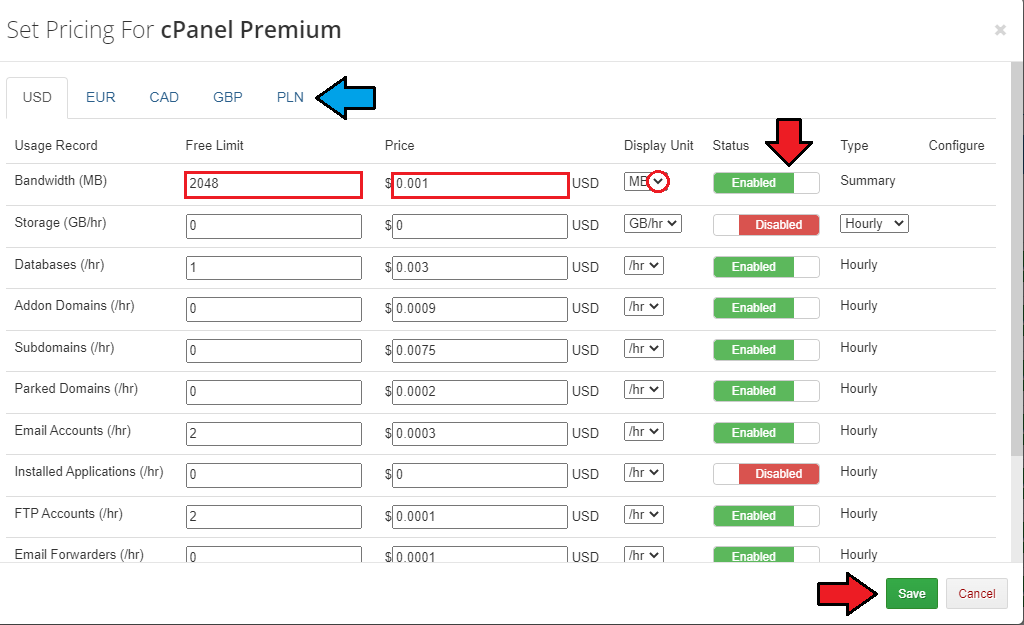
As you probably noticed, there is also the 'Configure' column to the right.
It allows you to set up different free limits and pricing depending on the resource origin.
Currently, only 'Virtuozzo' and 'Openstack VPS & Cloud' submodules support this feature.
# Items
To view the counted resource usage, go to the 'Items' tab.
Each cron run will create an item for each customer (if it does not exist at the moment) and add new records to the existing ones.
In this way you can see the resource usage of the current server for the last billing period.
Automatic generation of invoices is based precisely on the previously created items.
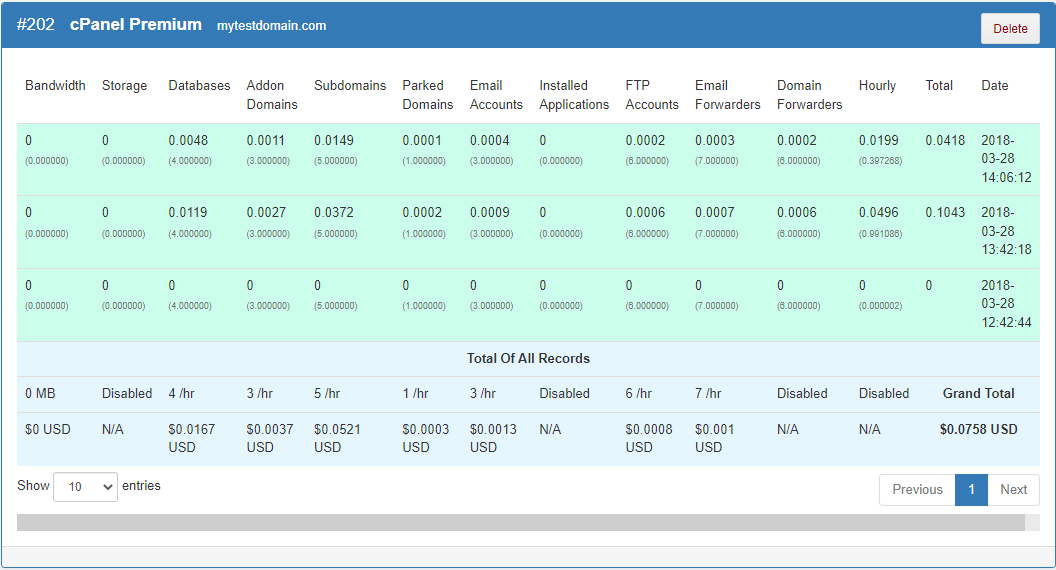
To view more details, click on 'View Details' as shown on the following screen.
You can also easily remove billing for a specific hosting. To do so, press 'Delete Records' in the 'Actions' column.
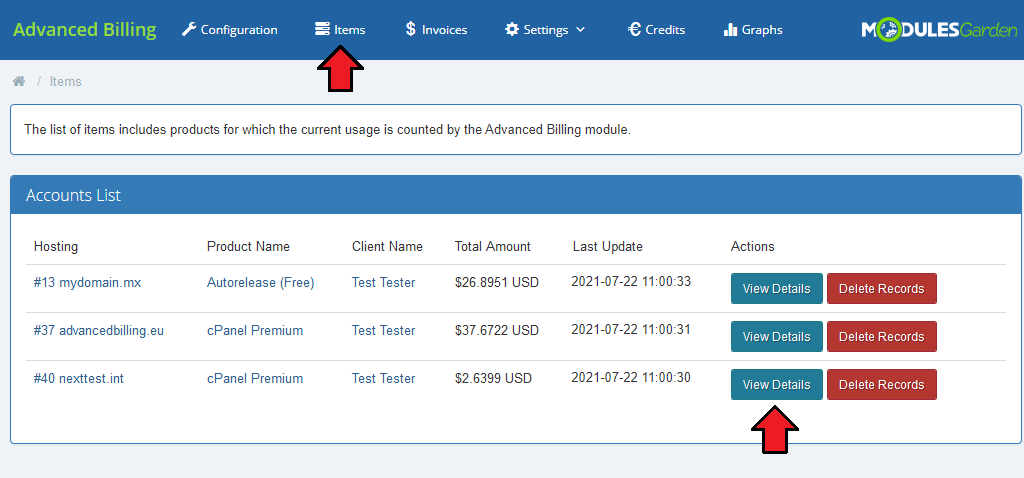
This section will show you some more detailed information on Bandwidth, Storage, Domains and other enabled records.
See the price and usage, the last cron run date and the total records summary.
Press the 'Delete' button to remove entries.
# Invoices
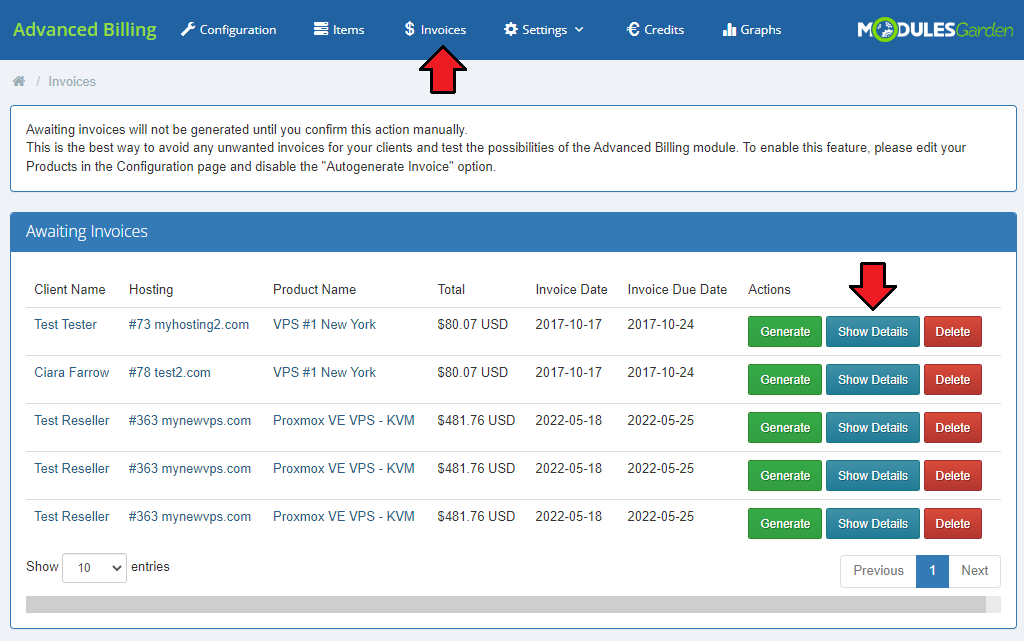
In the 'Invoices' section you can manage all of your awaiting invoices. They can be generated both automatically and manually.
On the screen below you can see a previously generated invoice for our cPanel Extended account.
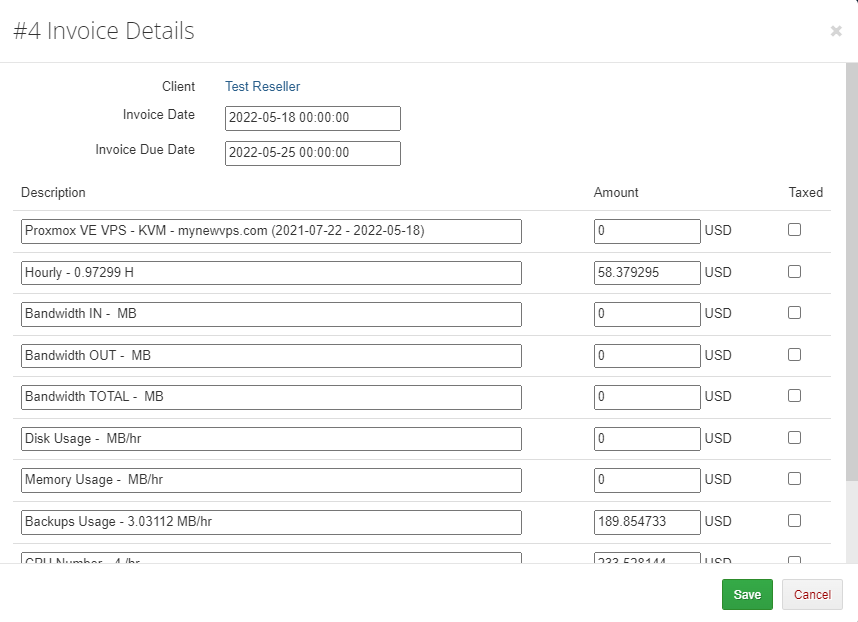
To view more detailed information about a particular invoice, press the 'Show Details' button.
Here you can verify and modify your awaiting invoices. To avoid any risks, you should double check that all your invoices have been generated correctly.
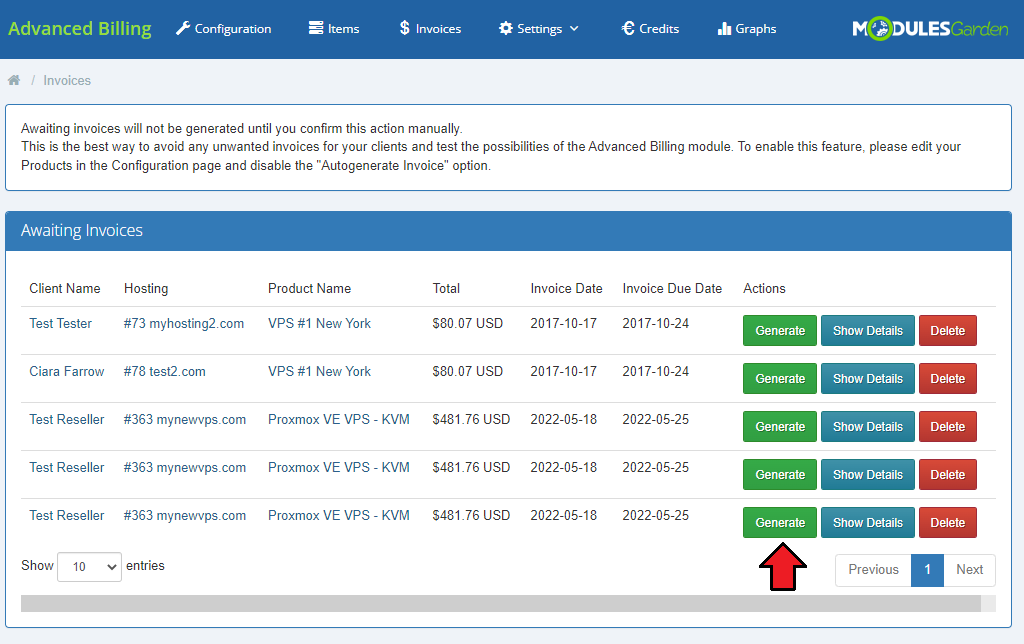
Now, let us manually generate a sample invoice for your customer.
For this purpose, simply click on 'Generate' next to the chosen invoice.
After changing the product's package, the invoice will be automatically generated for an old package.
# Settings
In the 'Settings' tab you can find pages such as 'Logs', 'Integration' and 'Extensions'.
# Integration Code
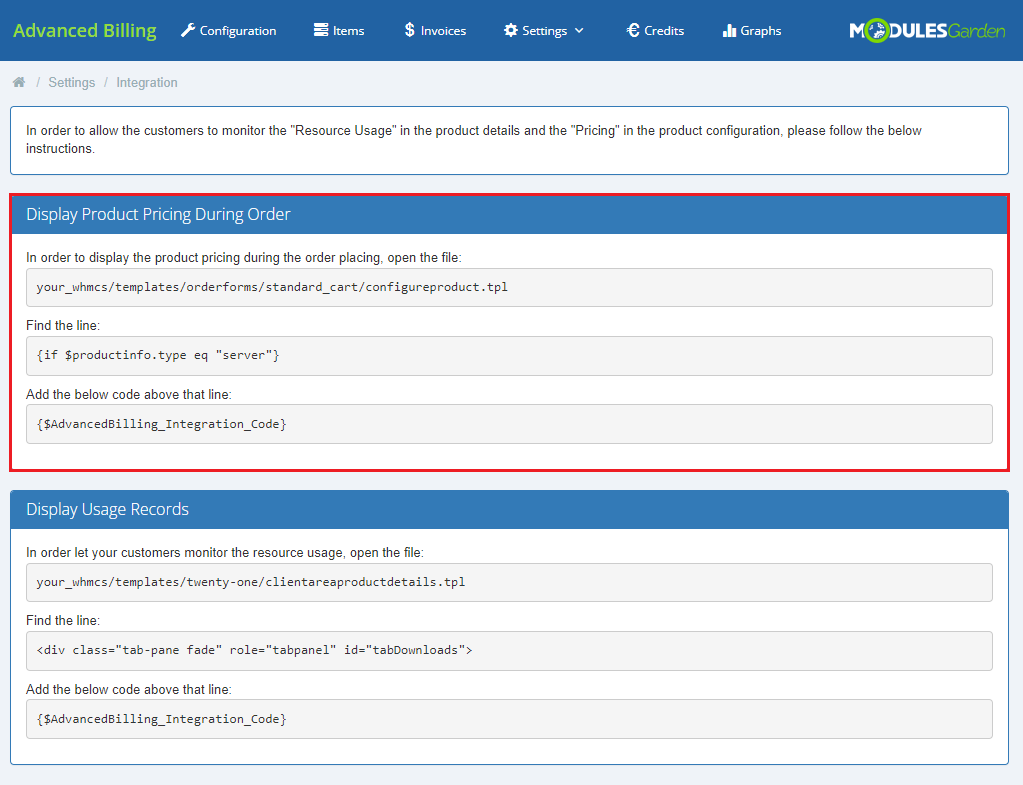
The 'Integration' page contains codes required to integrate Advanced Billing For WHMCS with your client area.
The first code allows you to display product pricing while placing an order.
Note: The integration code path may vary depending on the order template you use.
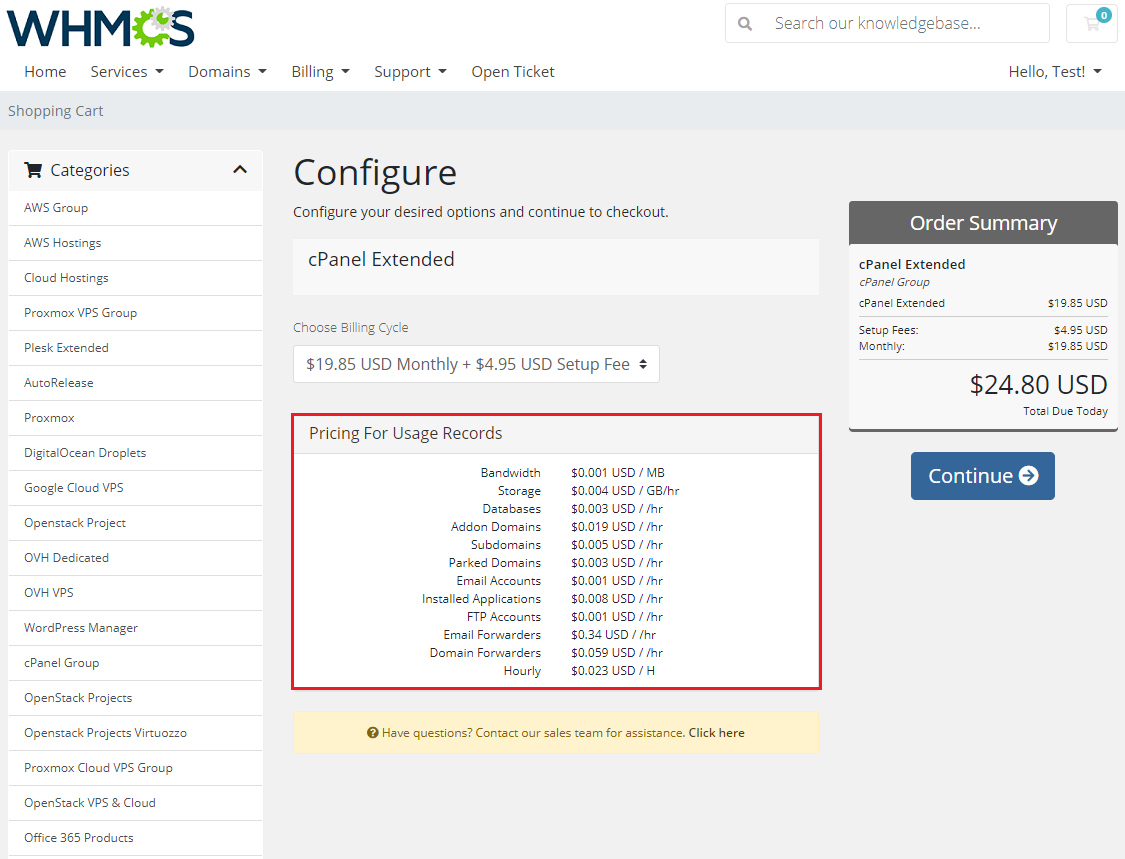
If the code has been typed in correctly, the sample order should look like this:
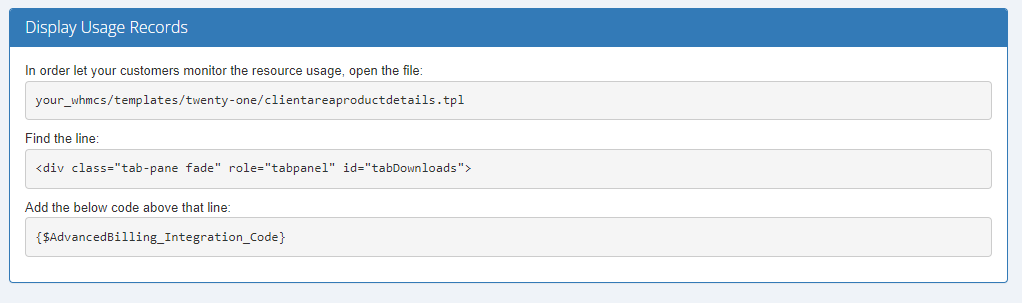
The second integration code is responsible for displaying usage records in the client area.
Note: To display usage records in the client area, you need to enable 'Usage Records' or 'Notifications' extension for the product.
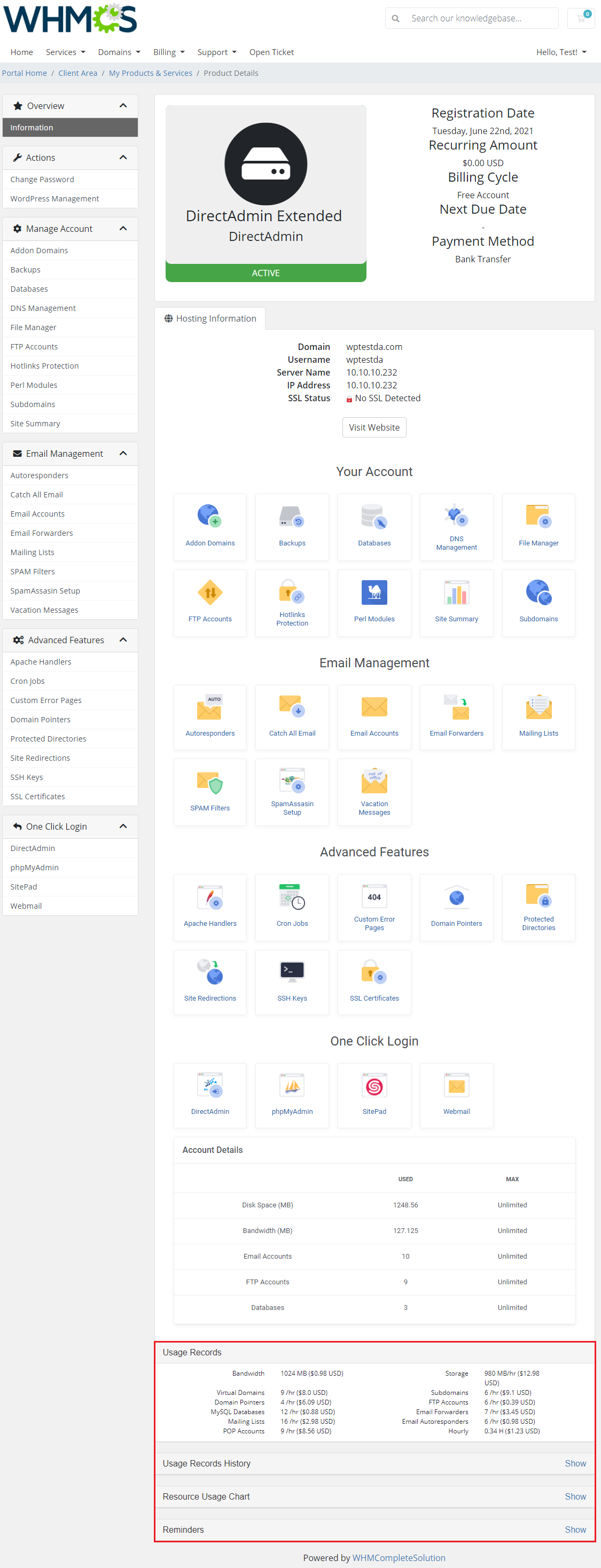
If the code has been typed in correctly, the sample resource usage should display like this:
# Items Archive
On this page, you can find information regarding the archived usage records. Once a client has paid for the used resources, the usage history will be automatically moved to the archive.
There is a number of archived items along with the space they take up on the disk.
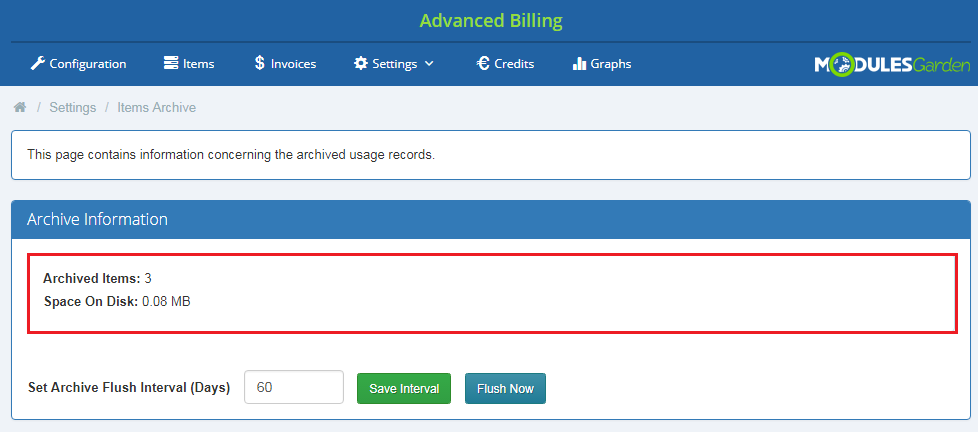
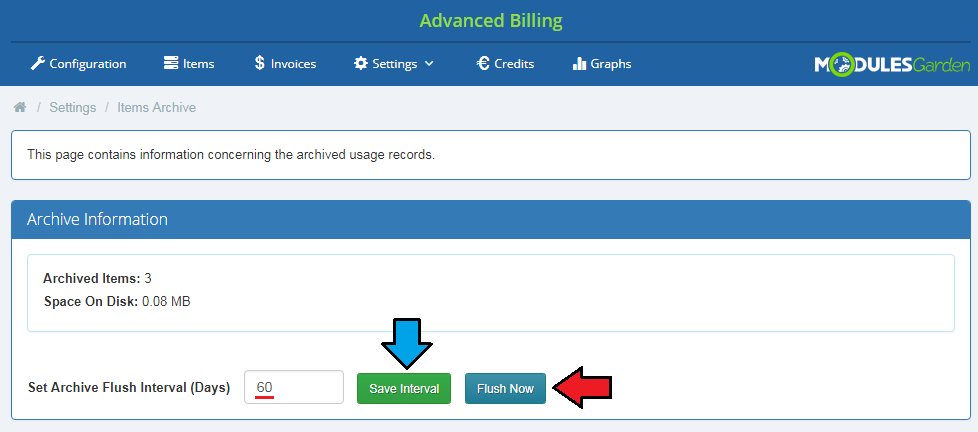
Use the 'Flush' option to clear the archive and remove all stored data. You can also set the time interval to indicate the number of days after which the archive will be cleaned automatically.
# Logs
On the 'Logs' page you will find information about the module's activity.
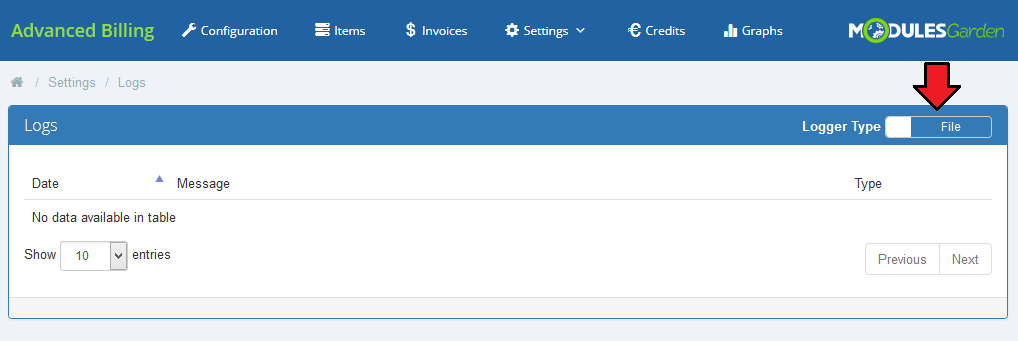
You can view logs in the form of a 'Database' or a 'File'. You can select it in the place marked on the screen below.
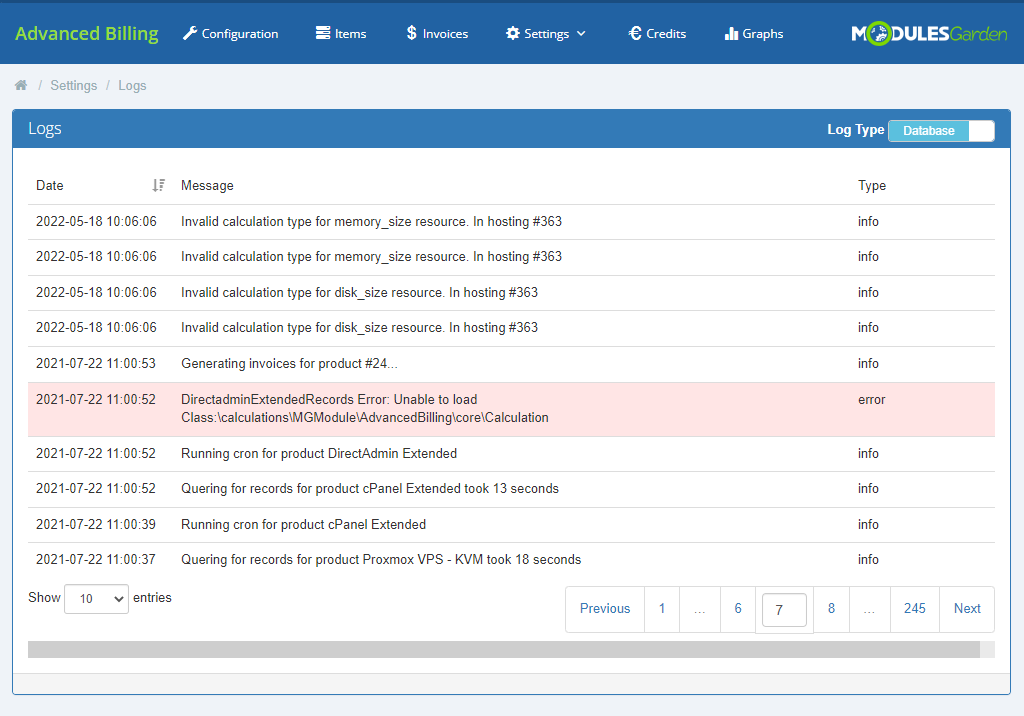
Here you will see different types of logs including informative logs, error logs and critical logs.
New log files are created every day to help you always find the information you are interested in.
# Extensions
In this section, we will describe each extension step by step.
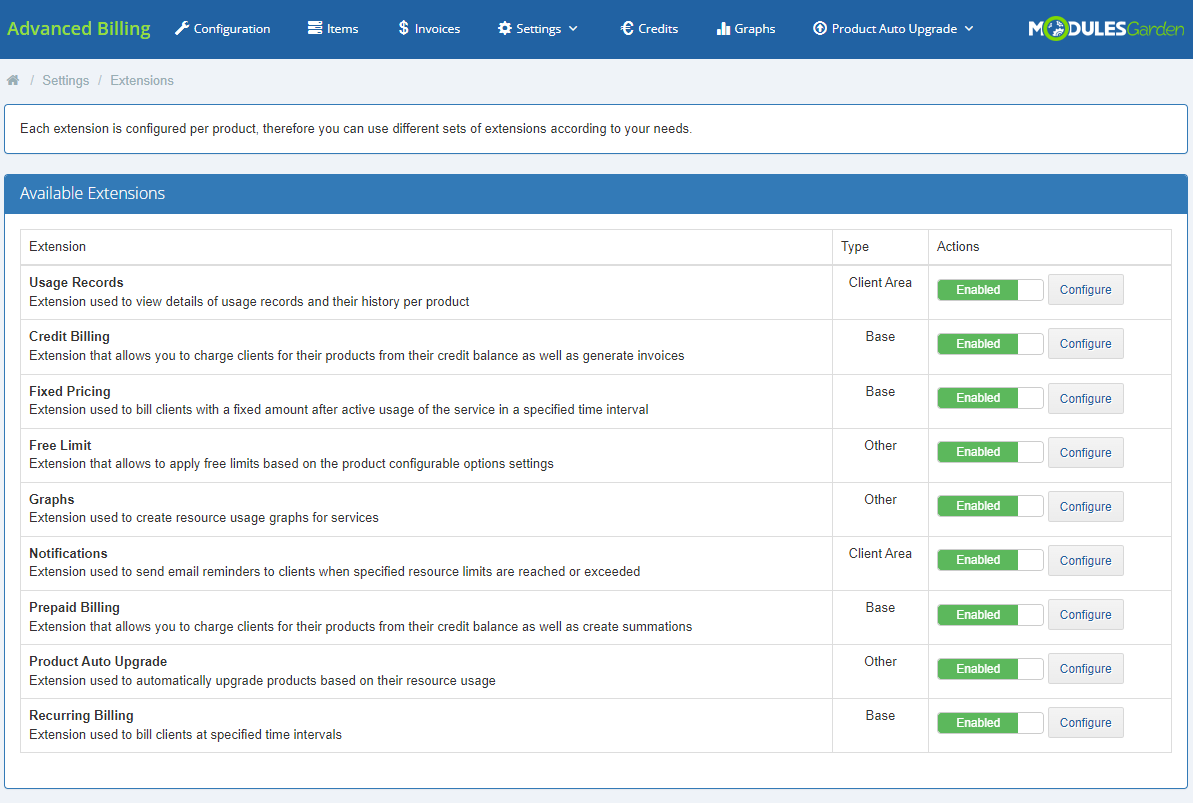
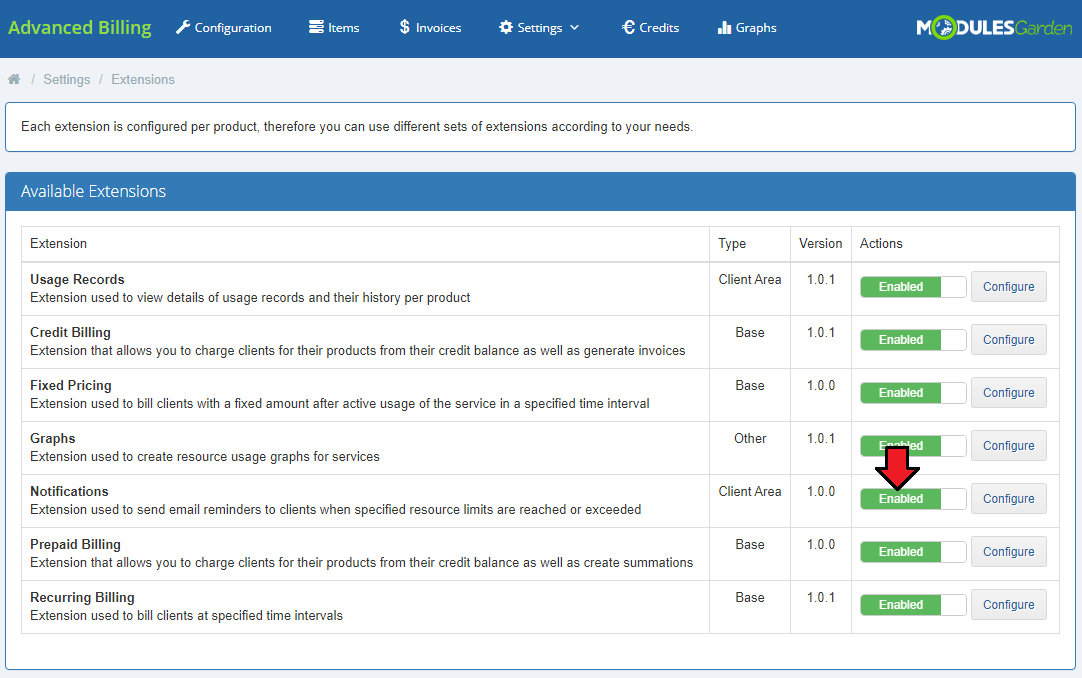
Important: Only five of them are included in Advanced Billing For WHMCS. You can enable each one of them after moving to the 'Settings' → 'Extensions' section.
You can see all five extensions on the screen below. The rest of the extensions listed there can be obtained separately.
The five default extensions in Advanced Billing For WHMCS include 'Recurring Billing', 'Usage Records', 'Credit Billing', 'Graphs' and 'Notifications'.
Note: Do not mistake Recurring Billing extension for Advanced Billing with the Recurring Contract Billing For WHMCS (opens new window) module.
Each extension can be configured per product, thus allowing you to use different sets of extensions according to your needs.
To start using an extension, you need to first activate it. To do that, go to 'Settings' → 'Extensions' page.
Afterwards, 'enable' the extension you wish to use, and new options will appear in Advanced Billing For WHMCS.
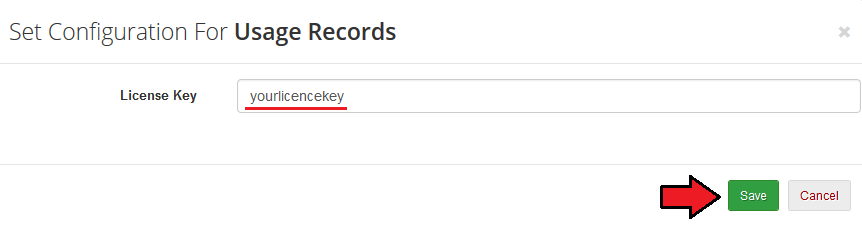
If you skip the steps 3-4 from the installation instruction, you have to configure the license for each of the 4 base extensions.
Note that each of them uses the Advanced Billing license key.
Press 'Configure', paste your license key and confirm changes.
# Usage Records
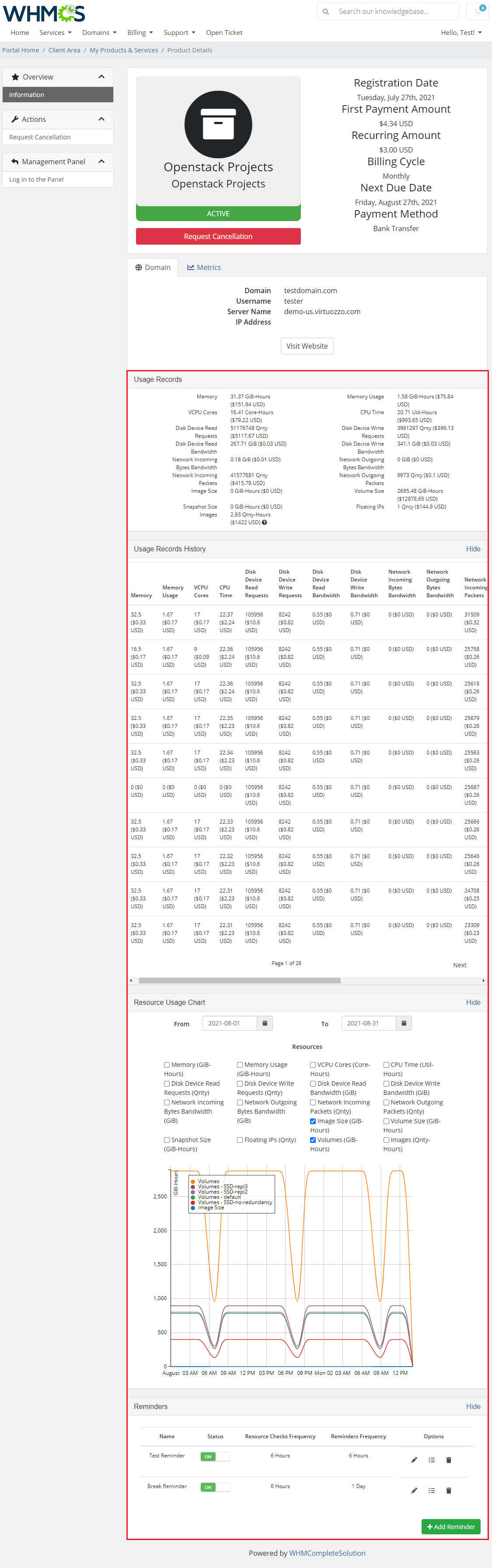
This extension displays usage records and usage records history in the client area products page.
To use it, you need to of course first enable it, and then place an integration code.
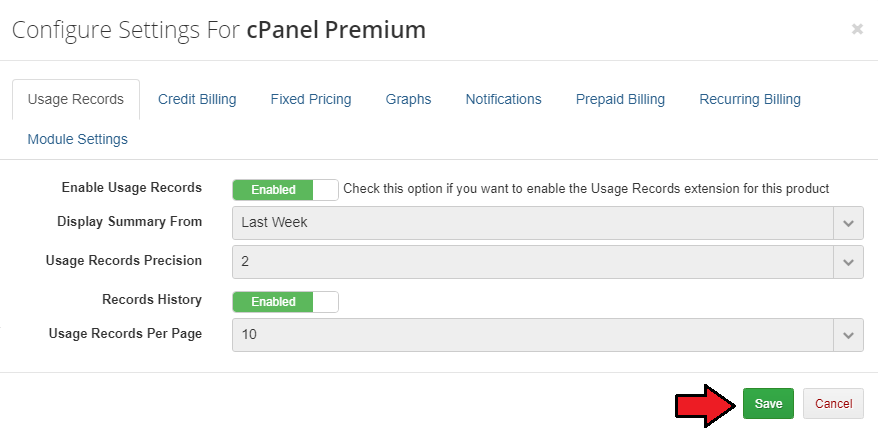
This extension can be configured per product. To do so, proceed to the product configuration in Advanced Billing.
As you can see, a new tab is available.
- Enable - enables the display of usage records for that product in the client area.
- Display Summary From - defines the period from which usage records will be counted.
- Usage Records Precision - the number of decimal digits indicating the precision of usage records.
- Records History - displays history of usage records.
- Usage Records Per Page - defines how many usage records should be displayed per page.
For example, the client area with the DirectAdmin Extended product will look like this:
As another example, have a look at the client area for the OpenStack Projects product.
# Credit Billing
'Credit Billing' extension allows you to charge your clients for a product from the client credit balance.
To enable this option for a single product, click on the 'Settings' button next to the chosen product. If the extension is enabled, a new tab will appear.
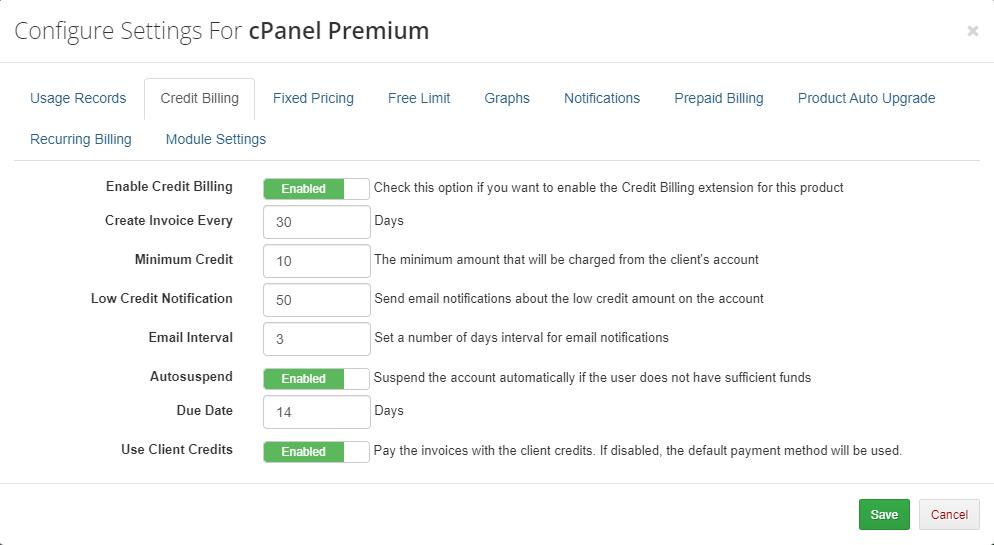
- Enable Credit Billing - this option enables/disables credit billing for this module (if credit billing is enabled, standard billing will be turned off).
- Create Invoices Each - this option defines how often an invoice will be generated for this product (30 days is a default value).
- Minimum Credit - minimum amount that will be charged from the client account credit balance.
- Low Credit Notification - if this value is higher than credits on the client's account, an email to your client about low credit amount will be sent.
- Email Interval - defines how often low credit notification email will be sent, the interval refers to the number of days.
- Autosuspend - when credit balance reaches 0, the product ordered by the client is automatically suspended and an invoice reminding of the lacking amount will be generated.
Note: This function also takes account of the ''Override Auto-Suspend' (opens new window) feature. - Due Date - the number of days when your customers have to pay for the invoice.
- Use Client Credits - if enabled, the invoices can be paid with the client credits. If disabled, the default payment method will be used.
When the option 'Autosuspend' is enabled and your client's credit balance reaches 0, the client's product will be suspended. Additionally, an invoice reminding of the lacking amount will be generated.
If it is disabled and the credit balance reaches 0, the client's product will not be suspended and an invoice will be generated according to the number of days set in the 'Create Invoices Each' field.
# Credits
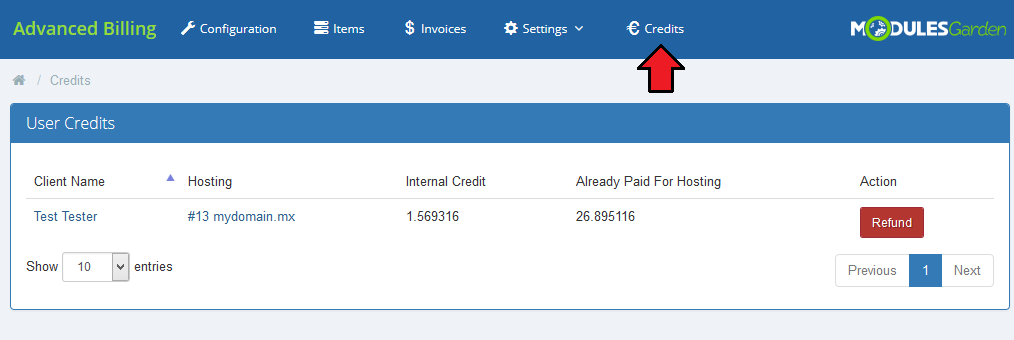
All information related to the credit payment for hosting can be found in the 'Credits' tab that will appear in your menu when enabled.
As you can see, there are two columns with credits.
The first one, 'Internal Credit' contains credits which were not used for payment, but are reserved for it. It was created to increase the accuracy of credit billing.
The second column, 'Already Paid For Hosting' contains a summary of the credit payment for hosting.
You can order a refund of any hosting by pressing the 'Refund' button next to the hosting service. The client will receive a sum of 'Internal Credit' and 'Already Paid For Hosting' rounded down to 0.01.
# Prepaid Billing
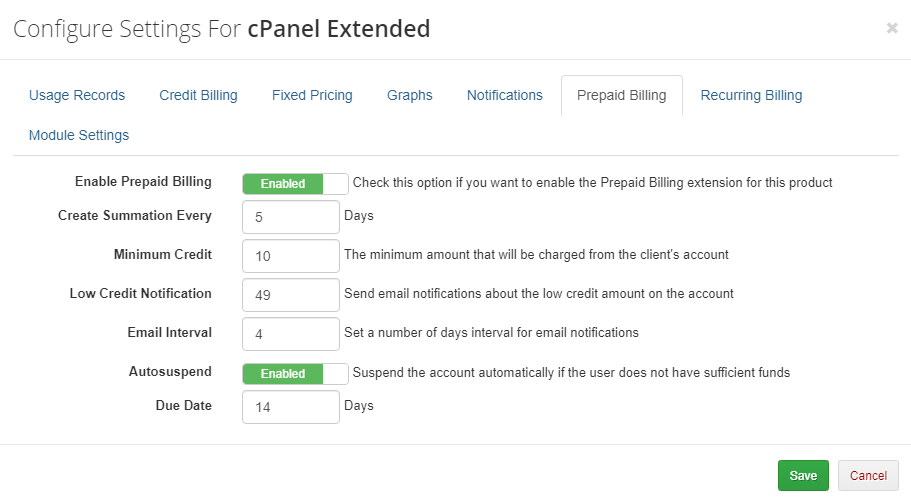
This extension allows you to charge clients for their products from their prepaid credit balance as well as create summations instead of generating invoices.
- Enable Prepaid Billing - check to enable this billing type (remember that Fixed Pricing, Recurring Billing, Credit Billing, and Prepaid Billing extensions cannot be enabled simultaneously)
- Create Summation Every - define how often summations should be generated.
- Minimum Credit - determine the minimum amount that will be charged from the client's account.
- Low Credit Notification - send email notifications about the low credit amount in the account.
- Email Interval - set a number of days interval for email notifications.
- Autosuspend - suspend the account automatically if the user does not have sufficient funds.
- Due Date - the number of days in which your customers will have to pay the invoice.
# Recurring Billing
This extension allows you to set up recurring billing for your product.
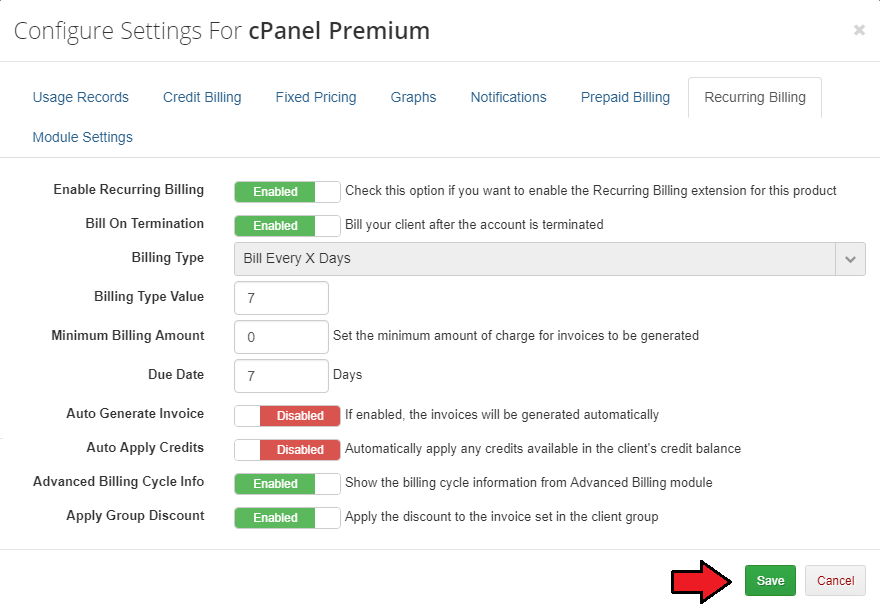
- Enable Recurring Billing - check to enable this billing type (remember that Recurring Billing and Credit Billing cannot be both enabled at the same time)
- Bill On Termination - when the account connected with your module is terminated, an invoice for the account will be generated.
- Billing Type - enables you to choose how to bill your client.
- Bill On Invoice Generation - new items will appear on the renewal invoice for the hosting account just after that is generated by WHMCS.
- Bill On Specific Day - generates invoices each month on the day specified in the Billing Type Value.
- Bill Each X Days - as the very name suggests, generates an invoice each X days where X is the number specified in the Billing Type Value field.
- Due Date - the number of days in which your customers will have to pay the invoice.
- Auto Generate Invoice - if enabled, the invoices are automatically generated and sent directly to your customers.
- Auto Apply Credits - automatically applies any available credits when an invoice is created. Works only if the 'Autogenerate Invoice' option is enabled.
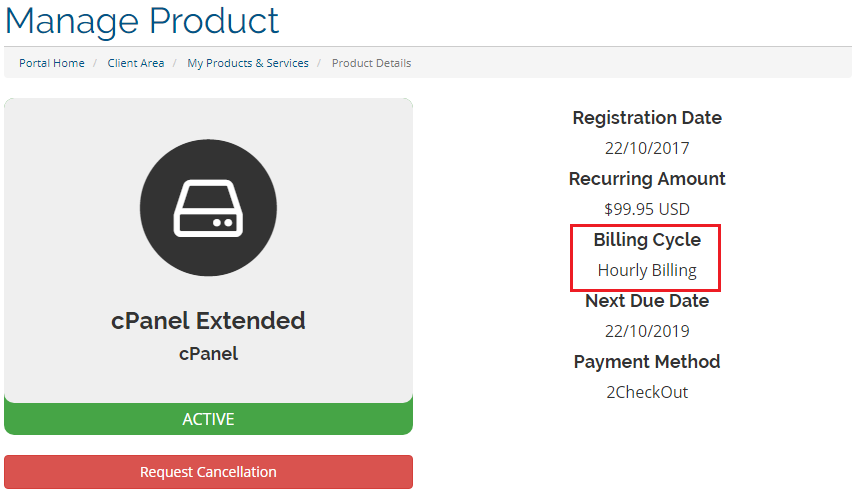
- Advanced Billing Cycle Info - if enabled the billing cycle information in client area product view will be replaced to 'Hourly Billing'.
- Apply Group Discount - enable if you want to apply the discount to the invoice set in the client group (opens new window).
# Fixed Pricing
Use the 'Fixed Pricing' extension to bill your customers after a specified number of hours of active service usage. Set a defined amount that will be billed per product.
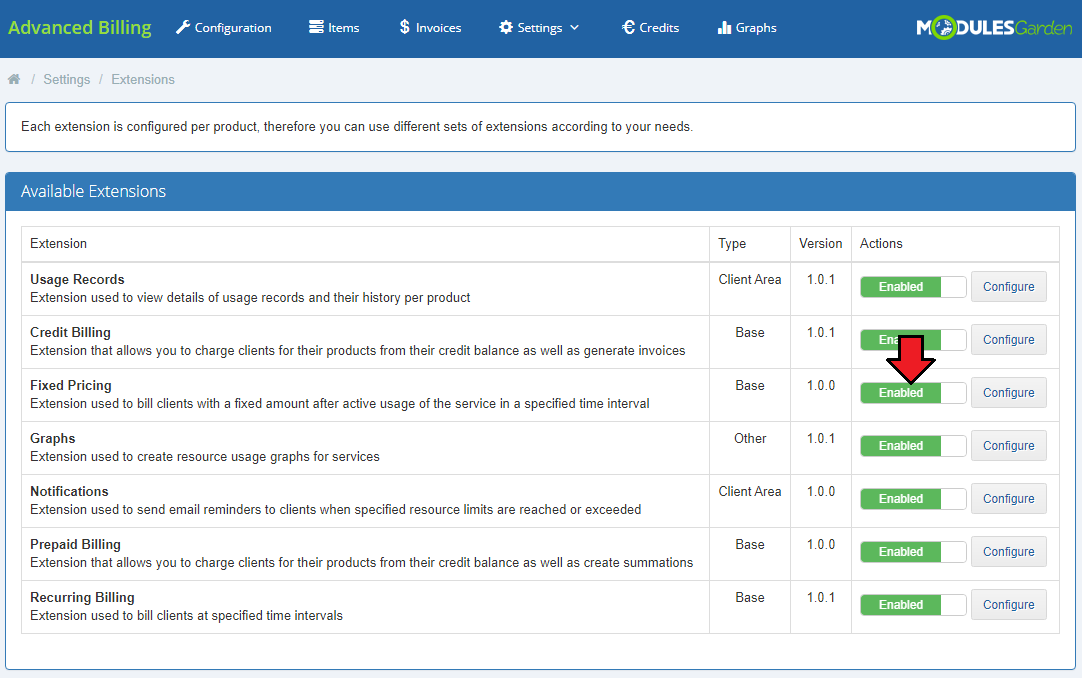
First of all, enable the extension for a single product. Keep in mind that 'Fixed Pricing' cannot be enabled together with 'Credit Billing' and 'Recurring Billing' extensions.
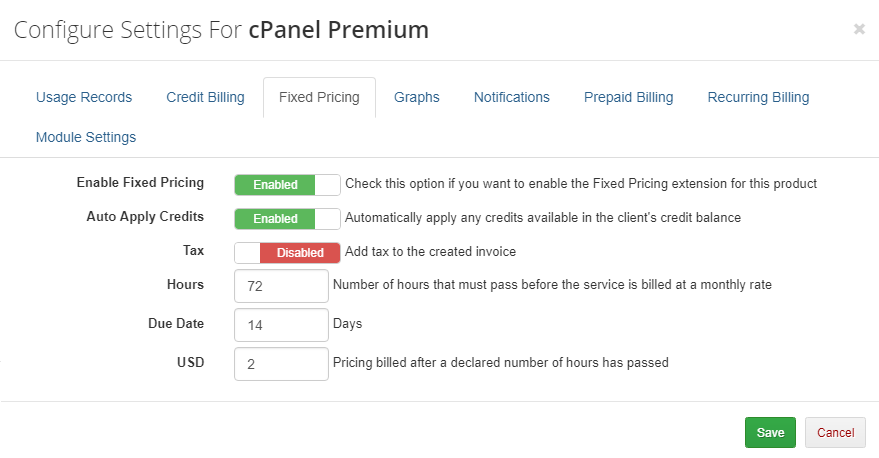
- Auto Apply Credits - enable to automatically apply credits if there are any available in the client's credit balance.
- Tax - if enabled, tax will be added to the created invoice.
- Hours - define a number of hours that must pass before the service is billed at a monthly rate.
- Due Date - define payment due date.
- USD or any available currency - set the pricing amount in any currency to bill clients after a declared number of hours has passed.
In case the defined in 'Settings' hour threshold is not reached, the client will be billed for generated usage in a standard manner.
# Free Limit
Enable the 'Free Limit' extension to allow defining such limits with the means of the product configurable options.
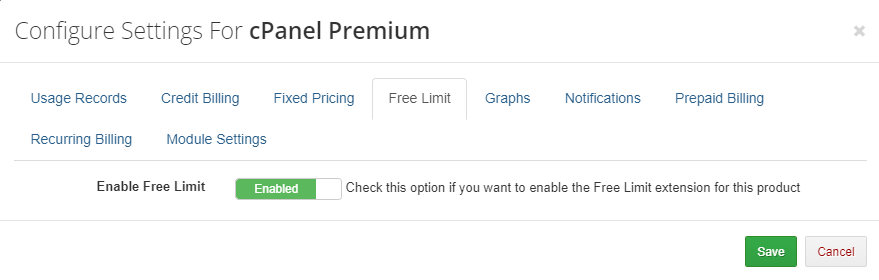
How to set up free limit per single configurable option:
Open the JSON file located in: modules/addons/AdvancedBilling/config/configurable-free-limits.json and find:
 {
     "configOptionName": "resourceName"
 }
Check your available configurable options for the product you are going to set up the free limits at: 'System Settings' → 'Configurable options' → e.g.: 'Configurable options for cPanel Extended product'
Find the appropriate section with the desired product details on documentation in the Measurement Units section.
Use data after 'Resource name' marked in bold. For example: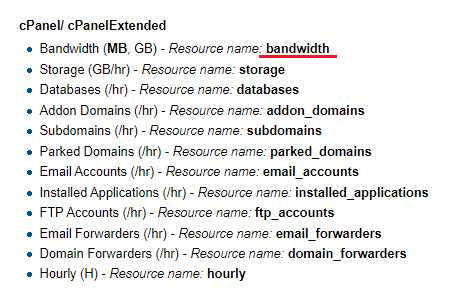
Based on the available CO and the resource name, you can now set up for cPanel, for example:
 {
     "MyStorageLimit": "storage",
     "databases": "databases",
     "FTP Accounts": "ftp_accounts",
     "dropdownlimit": "email_forwarders"
 }
Now, provided the 'Free Limit' extension has been enabled in Advanced Billing addon and the single configurable options values are numerical, these configurable options' values will be now considered as free limits.
# Graphs
Enable the 'Graphs' extension to gain access to the graphical display of usage records for every configured service in your Advanced Billing module.
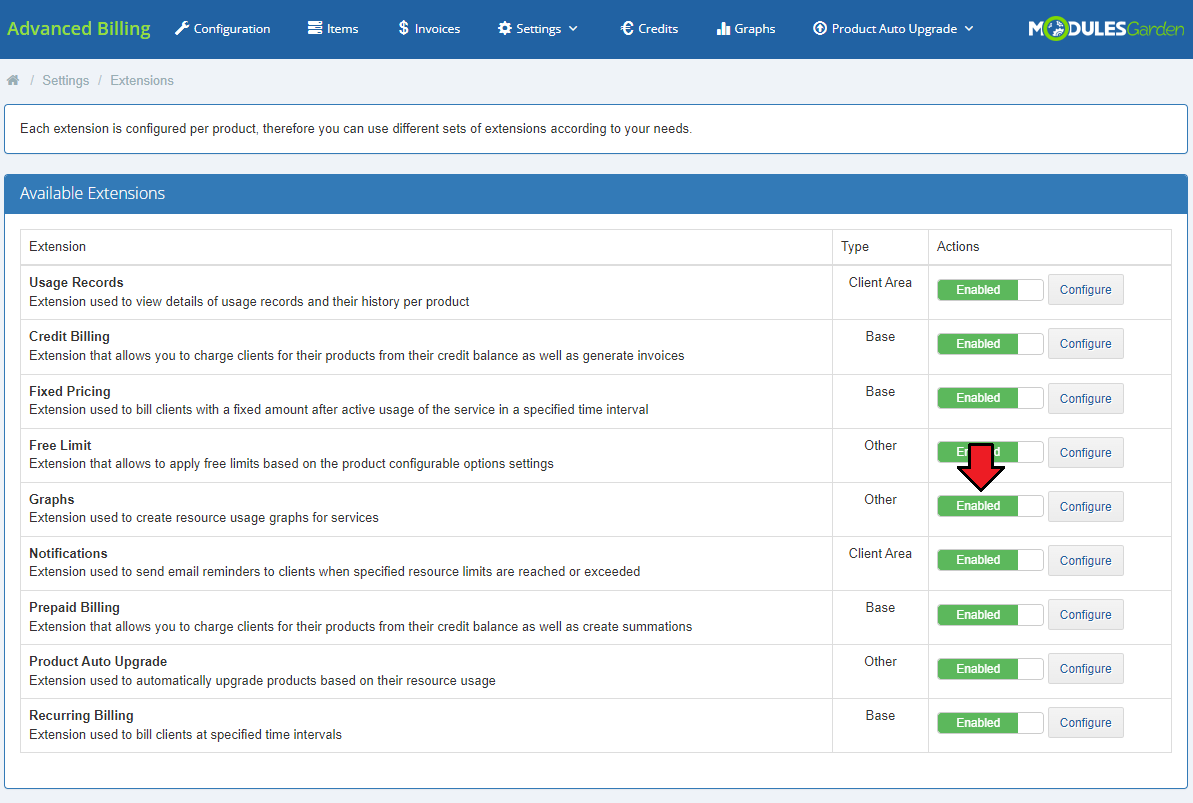
When enabled, a new entry in your navigation menu appears → 'Graphs'.
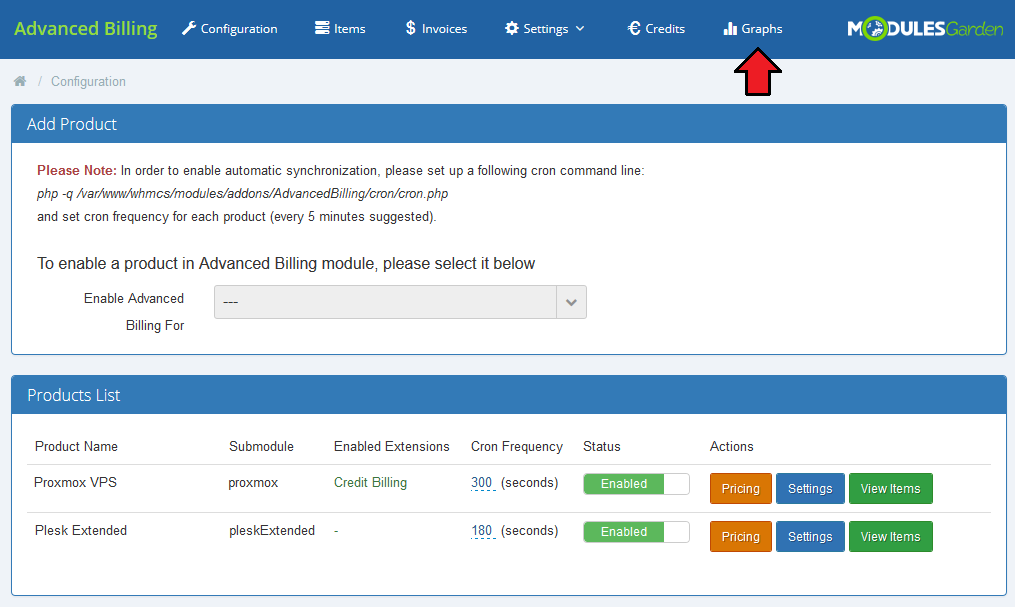
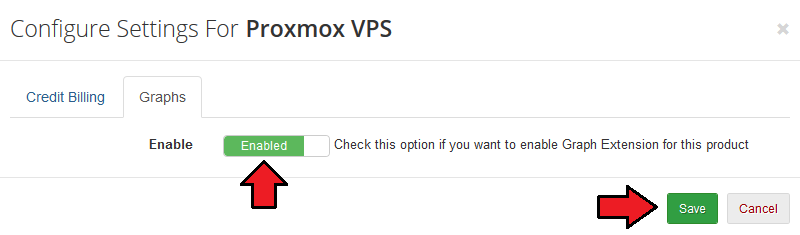
Please note that before proceeding, you must also enable the 'Graphs' extension for the product. To do so, move to 'Configuration' → 'Products List' → 'Settings' → 'Graphs'.
Enable the extension and save the changes.
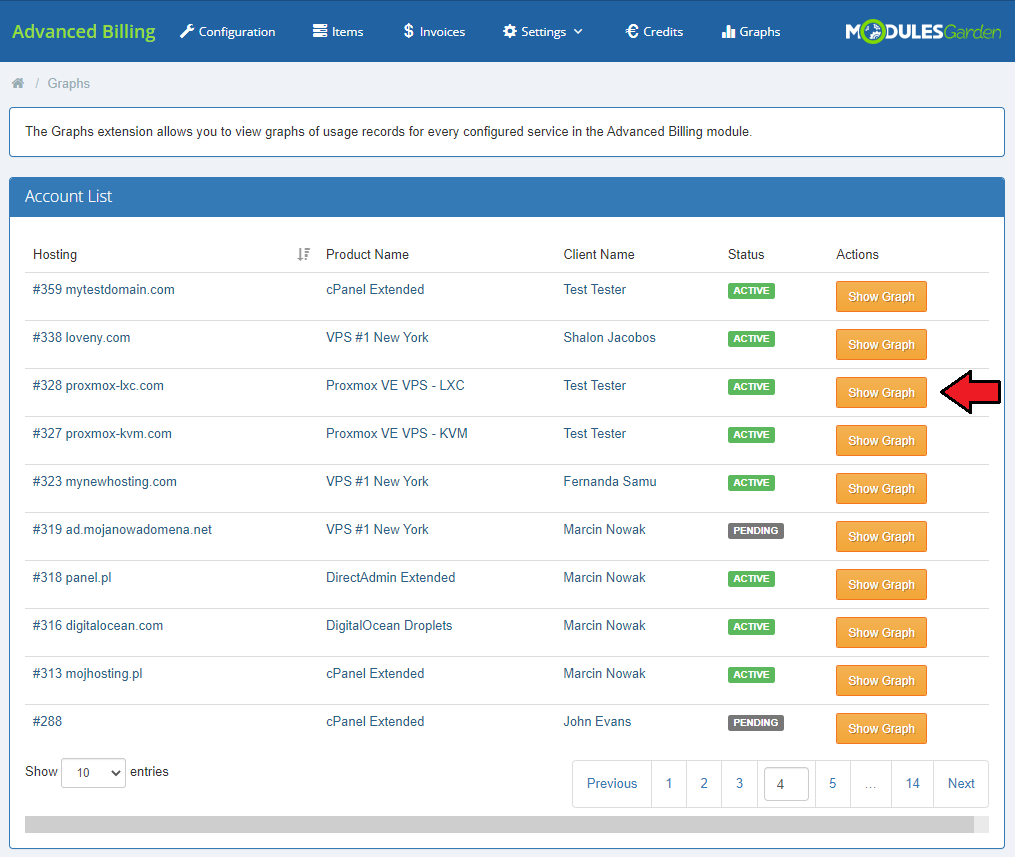
In the 'Graphs' section you will find an extended list of all services in your system.
Press the 'Show Graph' button and you will be moved to the generated line chart.
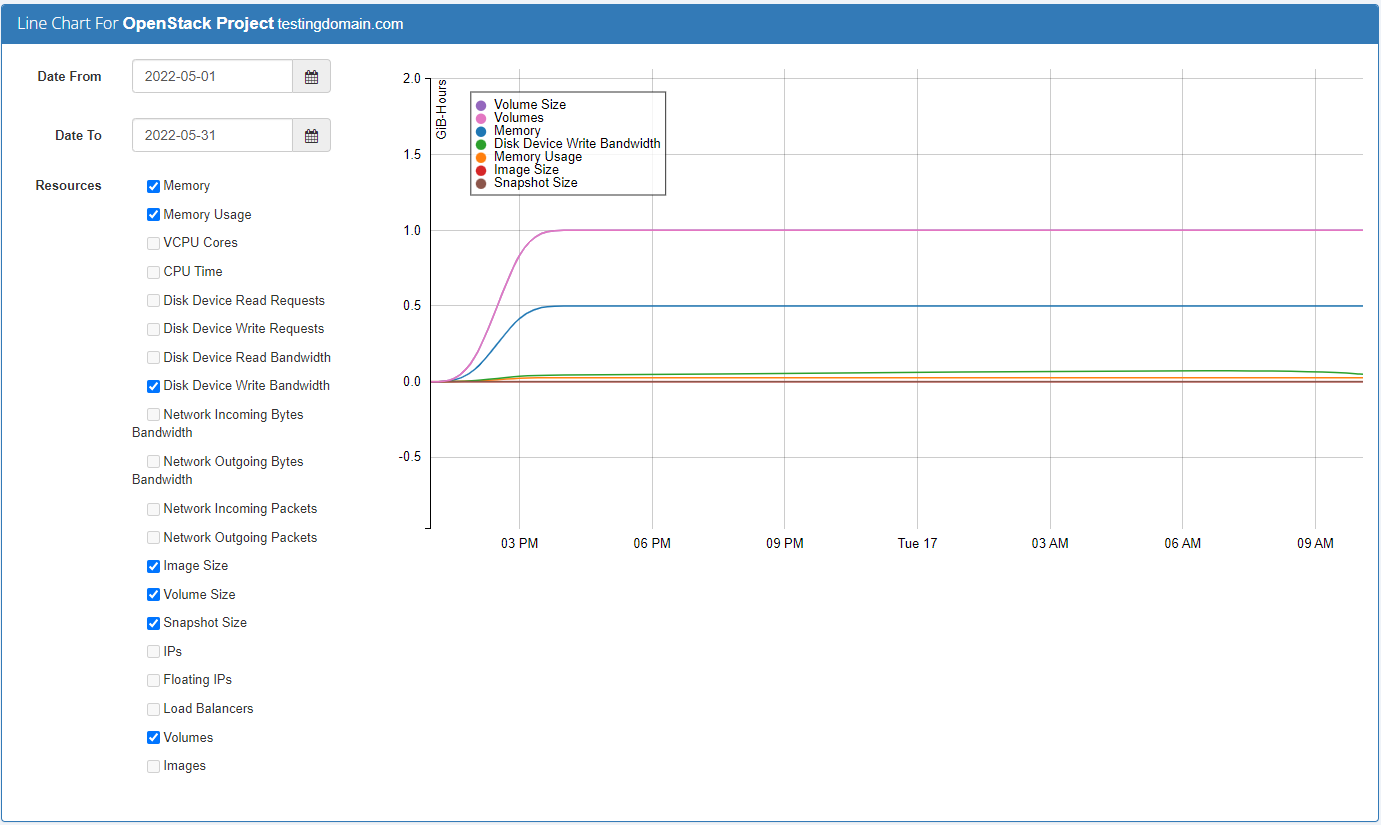
You will immediately see a line chart generated for a default resource usage and time period.
You may change the requirements at any time to see a customized version of the graph with data that you actually need, and the time period you desire.
Use options located to the left of the graph to personalize the chart statistics.
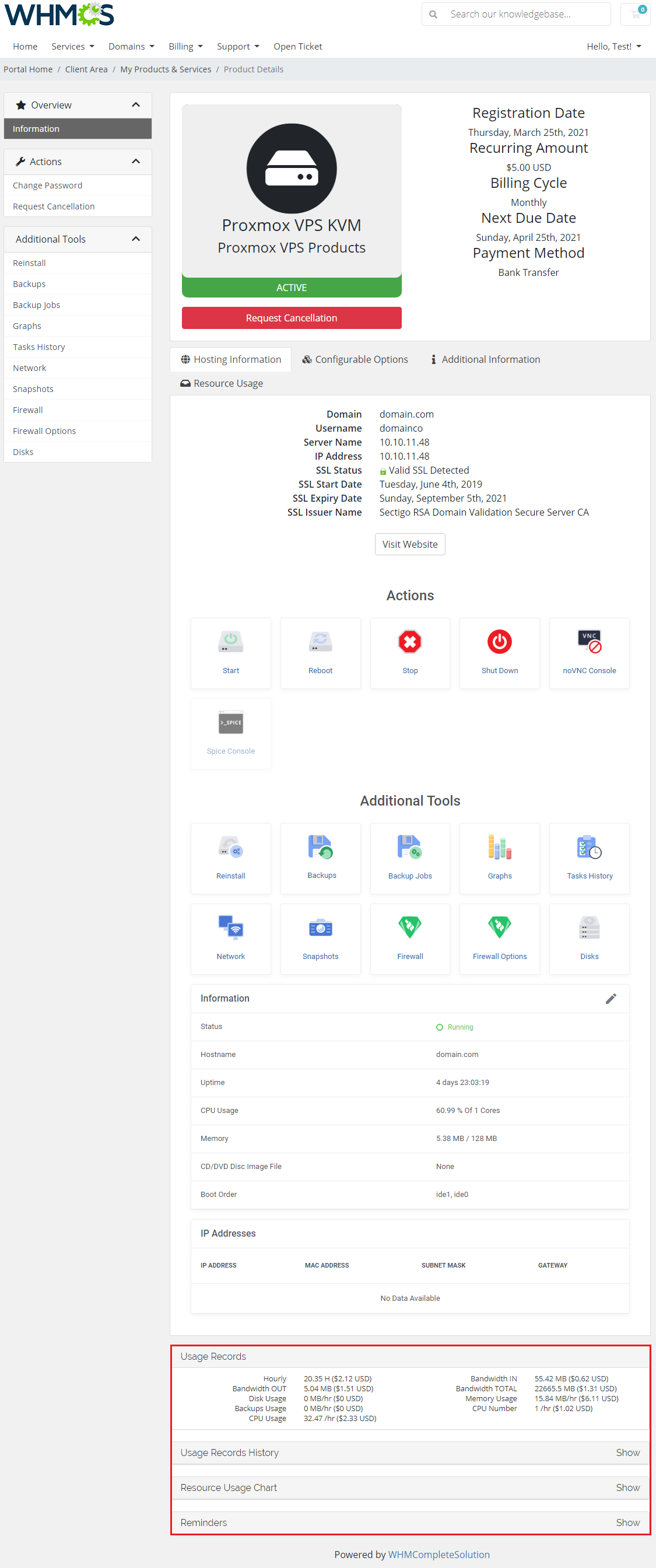
Line charts can be displayed not only by administrators in their panel but the clients as well.
Find 'Resource Usage Chart' in the product's details to preview the generated graph.
Clients, just like admins in the admin area may specify the time range and select resources which they wish to see in the graphical mode.
# Notifications
Enable the 'Notifications' extension to allow your clients to set email reminders that will be sent when a specified resource usage limit is reached or exceeded.
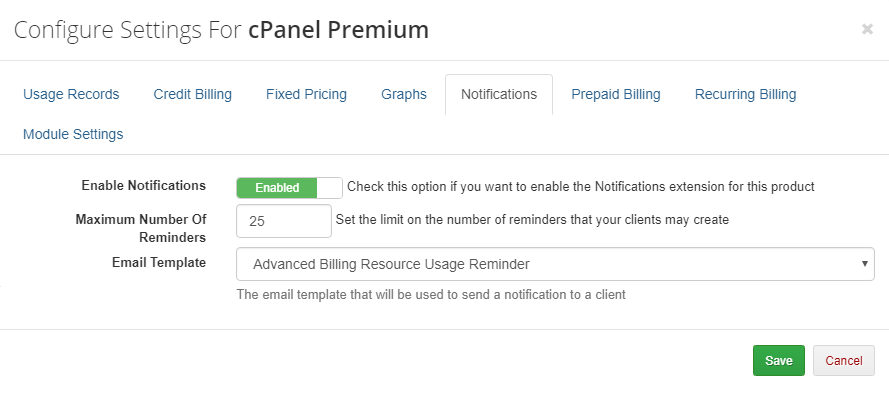
Before your clients will be able to configure reminders, you have to enable the 'Notifications' extension for the product. To do so, move to 'Configuration' → 'Products List' → 'Settings' → 'Notifications'.
Enable the extension and, if you wish, define a maximum nuber of notifications a client may create and change the default email template.
Save the changes when ready.
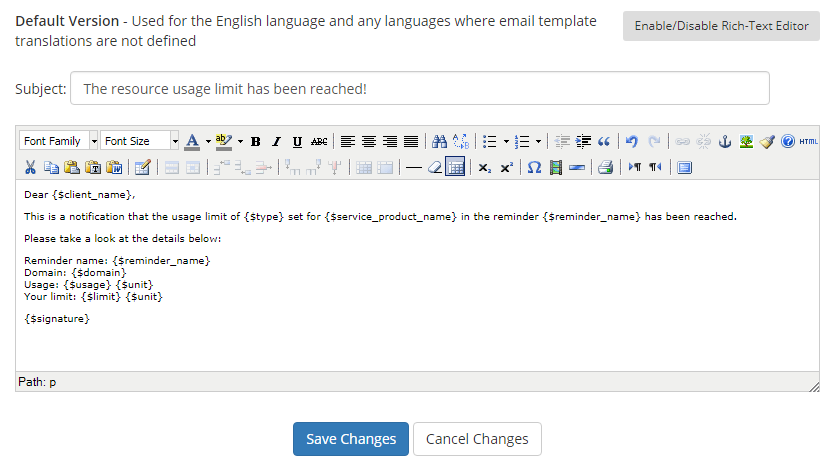
You will find a list of email templates in the 'WHMCS' → 'Setup' → 'Email Templates' section.
By default, the 'Advanced Billing Resource Usage Reminder' template in 'Product/Service Messages' is used.
You can modify the template to your needs, or alternatively create a new one, then assign it in a previous step.
Note that beside the WHMCS default 'Available Merge Fields' you can also use the following variables for the extension purposes:
- {$reminder_name} - the name of a reminder set by a client
- {$type} - the resource type for which the limit has been set by a client. E. g. 'Storage', 'Bandwidth' etc.
- {$usage} - the current recorded usage value of the resource type the limit is set for
- {$limit} - the limit value defined by a client whose reaching or exceeding results in sending the notification
- {$unit} - the unit of the billed record. E.g. 'MB', 'GB' etc.
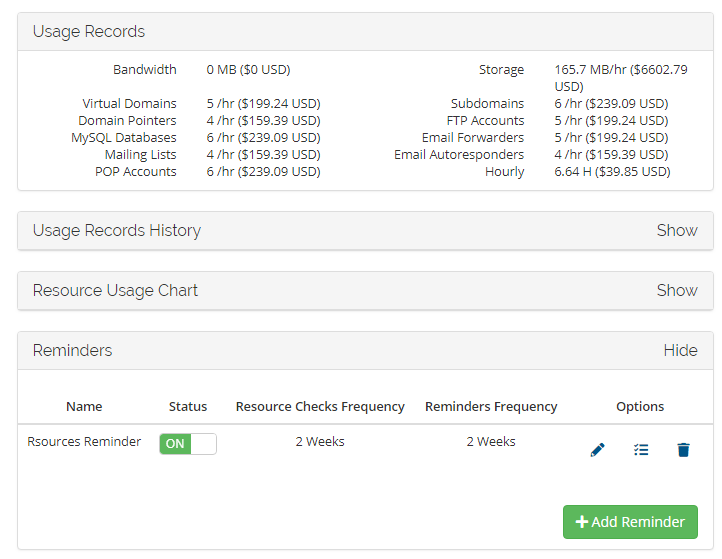
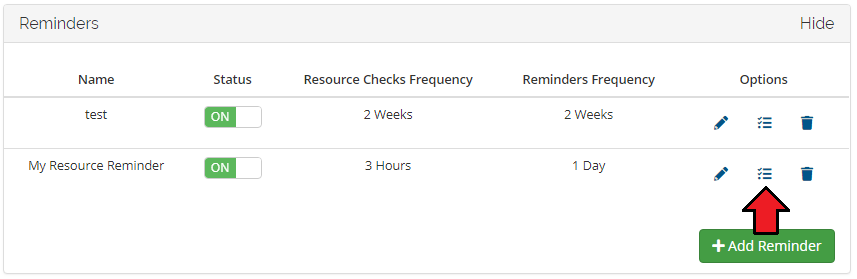
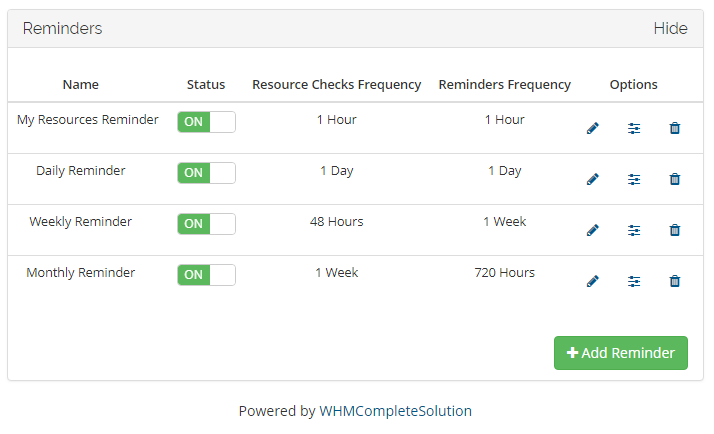
Now, while in the client area, you can see the tab with new reminders.
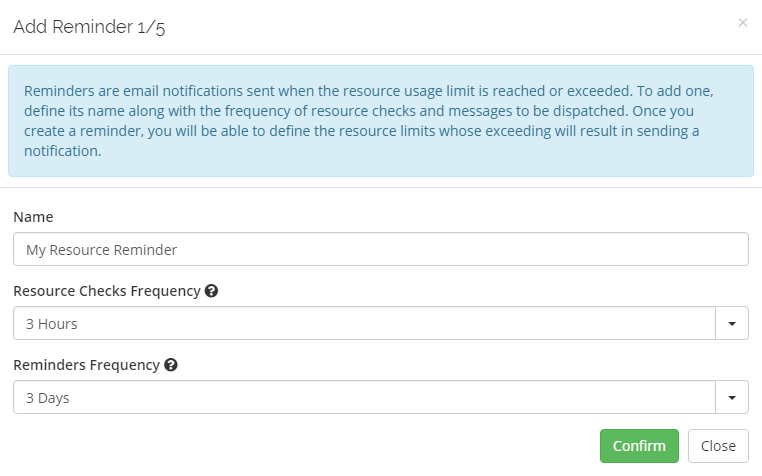
Press 'Show' to expand it and click on the 'Add Reminder' button.
Set the name of a reminder name along with the frequency with which the module will check the usage and send notification emails once the limits are reached or exceeded.
Note that in addition to selecting the default frequency option from the dropdown menu, you can enter a different numeric value that will determine the frequency in hours.
Now you can define resource limits on the basis of which notifications will be sent.
Determine if reminders shall be dispatched after a particular value is reached, exceeded or both.
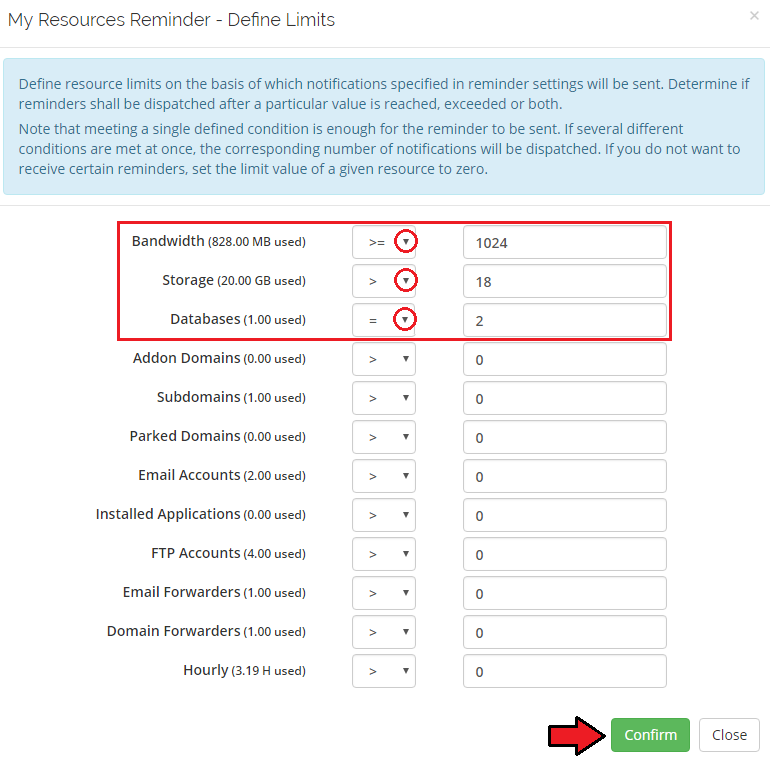
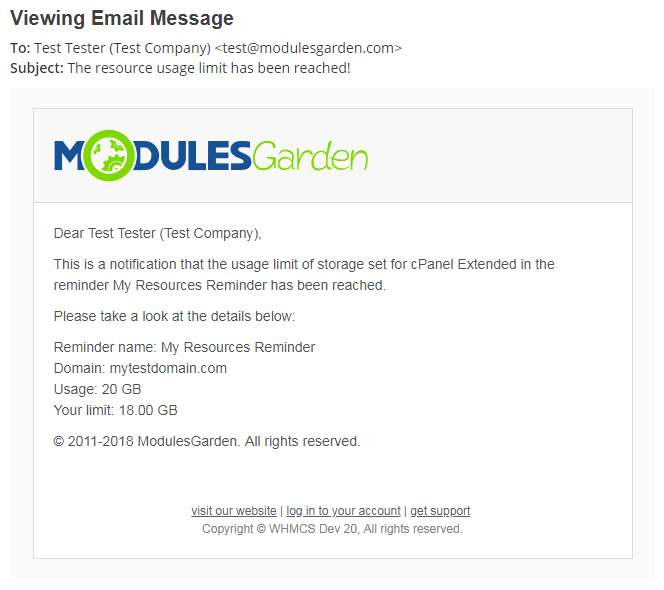
If any of the defined conditions are fulfilled, the reminder is sent to the client with the frequency set in the previous step.
The reminder will no longer be sent if, after the resource usage check, it turns out the level of a given resource type is once again below a defined limit.
Keep in mind that you can add multiple reminders, each with different limits and different frequencies of checking resources and sending notifications.
Once created, you can easily toggle the status of every notification, as well as modify its settings whenever required.
# Product Auto Upgrade
Product Auto Upgrade For WHMCS extension is an automatic upgrade/downgrade of a product according to its usage.
It will allow you to set rules related to the server resource usage according to which the module will resize your products and their configurable options.
You will also be able to let your clients decide if they want their products to be modified as well as enable them to set the rules on their own.
Important: Product Auto Upgrade For WHMCS uses 'Change Package' functionality to switch the products.
Therefore it is required that the products also support this feature.
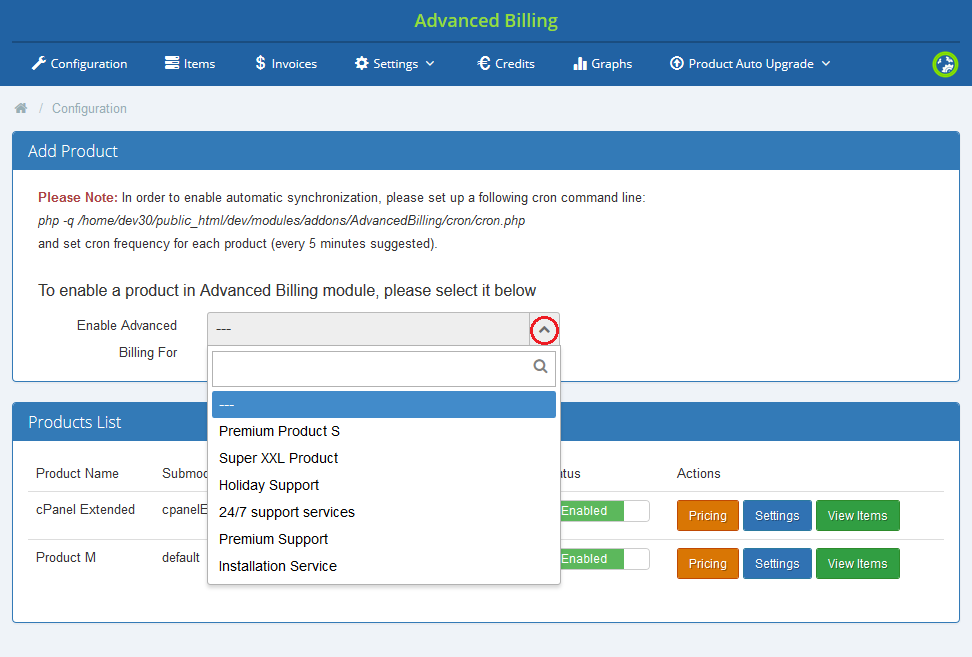
Before you can do anything you must enable the products you want to work with for Advanced Billing.
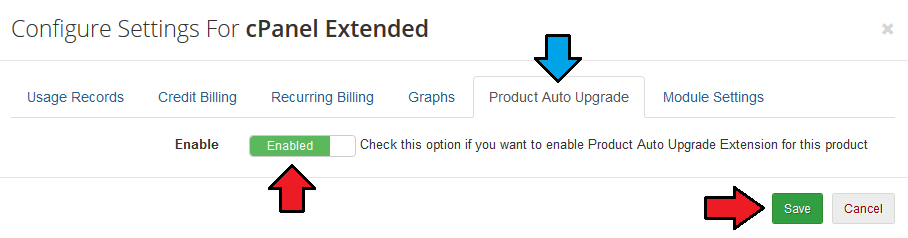
Only then you have to enable the extension Product Auto Upgrade For WHMCS for each of the products.
Move to 'Settings', find appropriate section and enable the extension.
# Configuration
As you might have already noticed, a new tab dedicated to the extension appeared on your Advanced Billing For WHMCS module main menu.
Under this section there is located the whole management of the extension.
Let's move to 'Configuration' firstly.
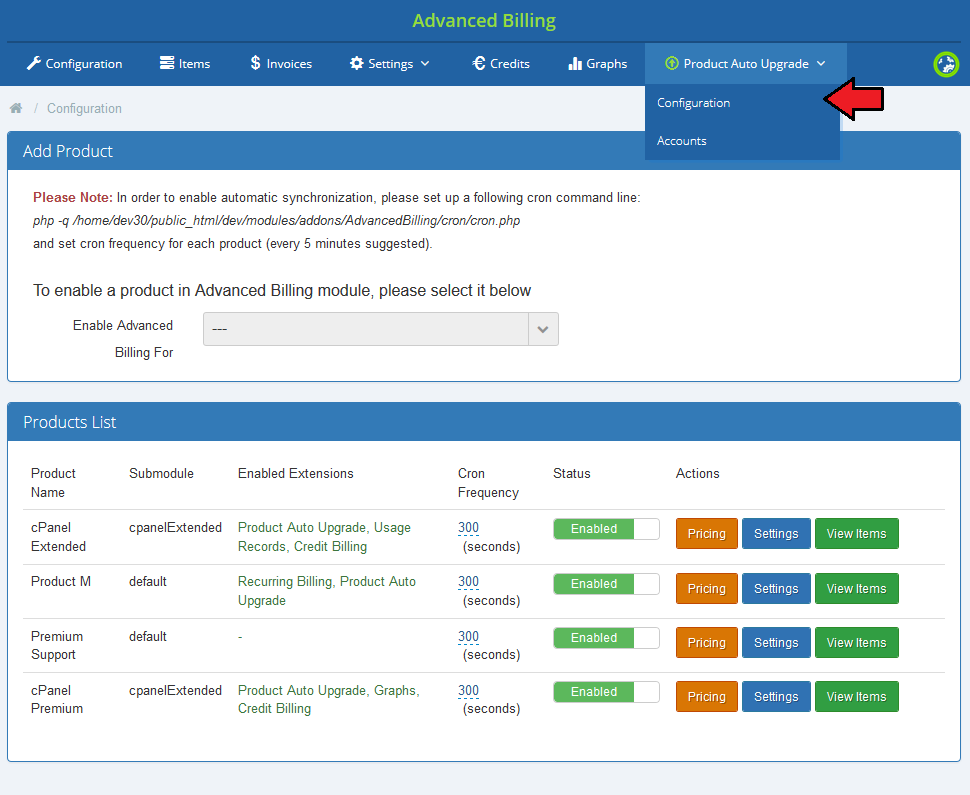
What you will find there is a full list of autoscaling groups displayed.
Here you can find information such as status of a group, its name and used submodule.
What is more, you can manage groups through using buttons in 'Actions' column to prepare rules for scaling services.
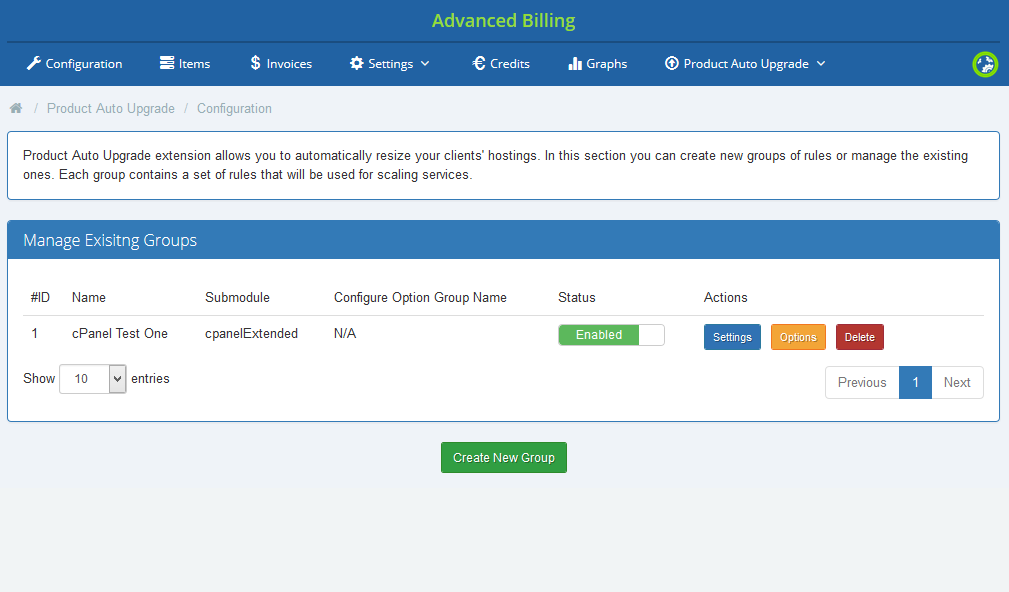
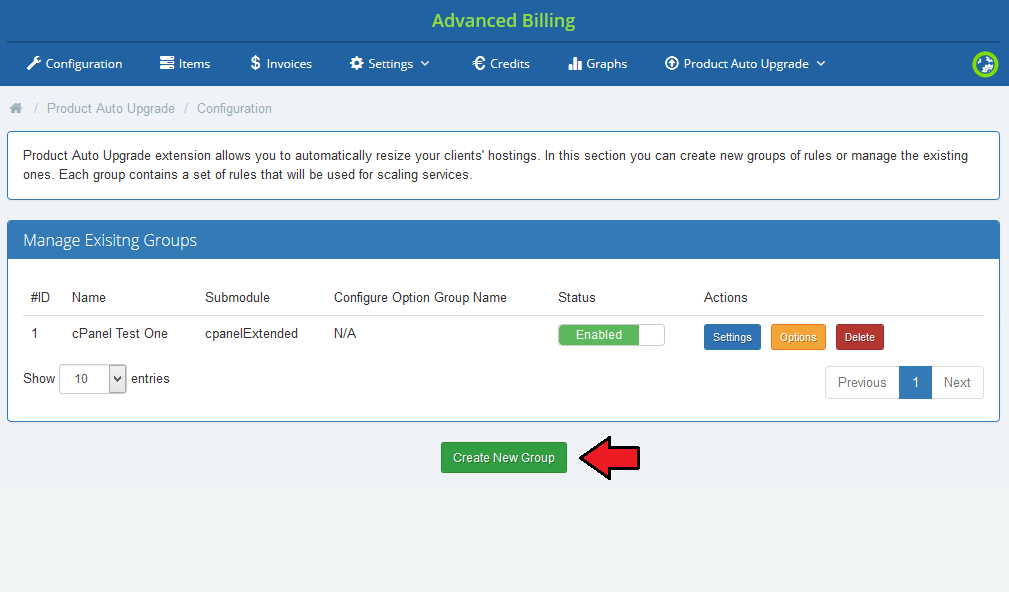
Let's see now how to create a new group.
Press 'Create New Group' button and a short formula will appear.
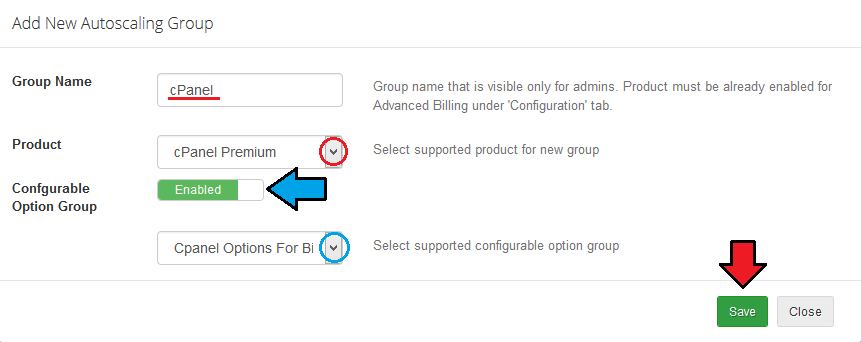
You can add products and define rules inside of the group which will result in upgrading/downgrading client's hosting.
Name your new group - this name is only for your information and convenience. Then select the product that can be automatically upgraded or downgraded according to resource usage count.
Optionally, you can enable and choose configurable option group that will be used to define products options.
Save the group when it is ready.
Your newly created group appeared on the list. Now you can configure it according to your specific needs.
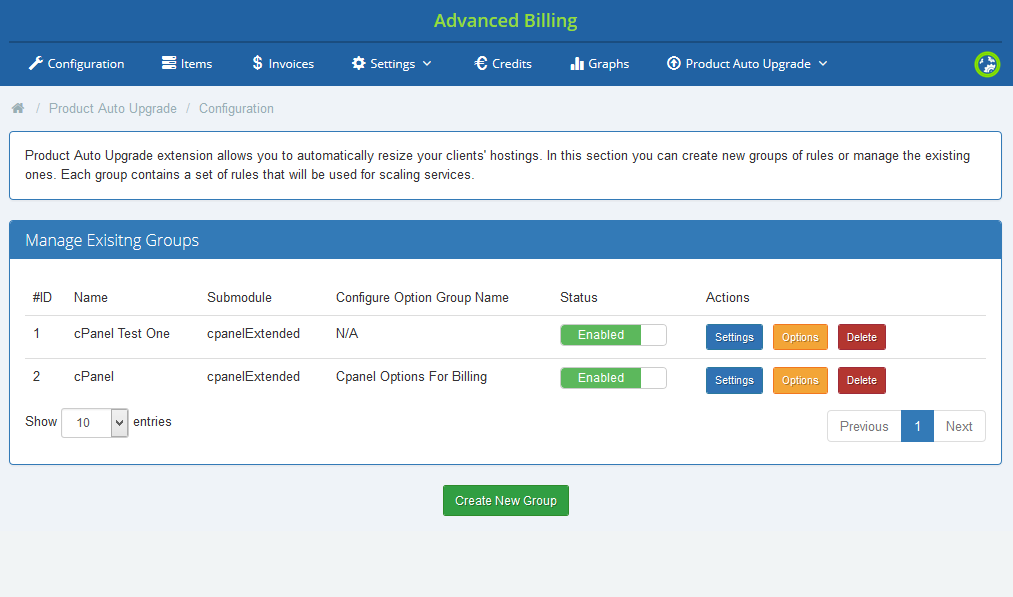
There are two main sections where a group can be configured.
- 'Settings' - a place where general and client area configuration is set up.
- 'Options' - detailed configuration of rules to scale services automatically.
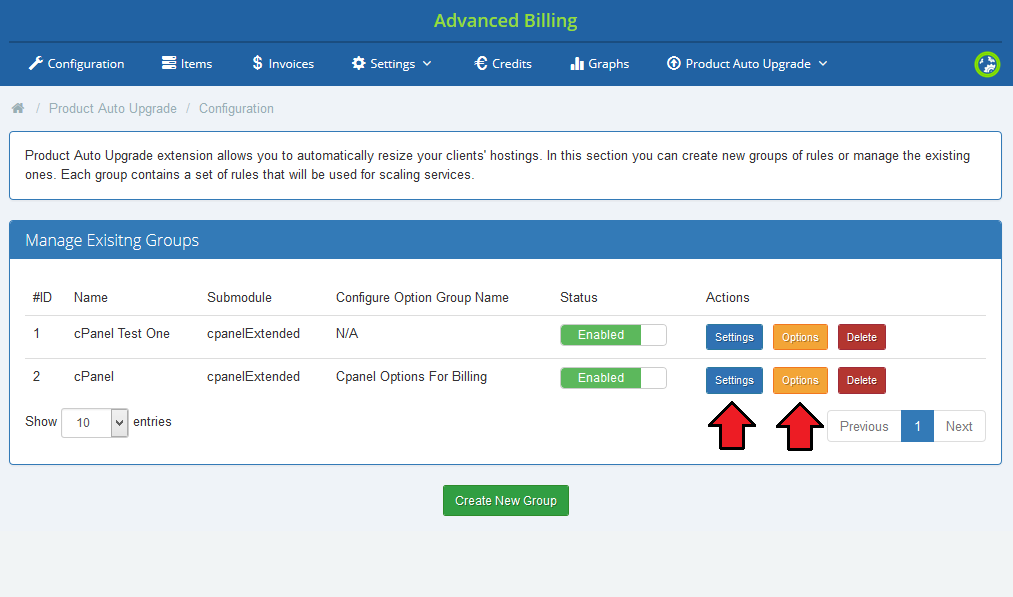
# Group Settings
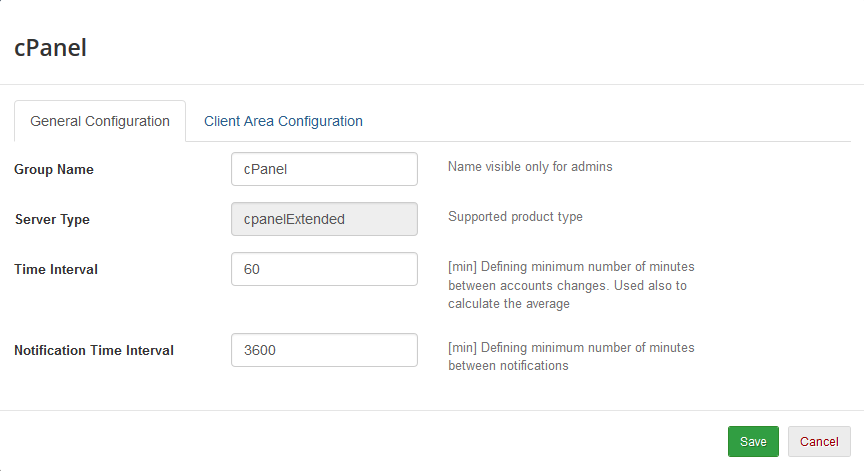
General Configuration
- Group Name - name of a group, can be changed at any time and is visible only to the admin.
- Server Type - module type of the product allowed in the group.
- Time Interval - minimum time period between the two products changes that can be made on a single hosting.
- Notifications Time Interval - defines time between notifications sent to a client.
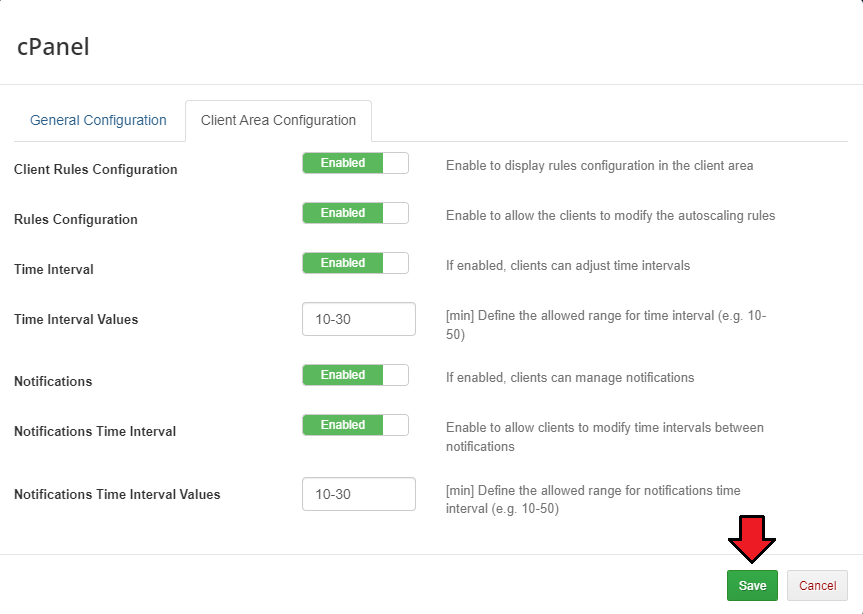
Client Area Configuration
- Client Rules Configuration - shows rules of this group for clients with products configured in the group.
- Rules Configuration - client can modify group rules, changes will affect their product only.
- Time Interval - client can modify the minimum time between two switches on a single hosting.
- Time Interval Values - specifies what time interval a client can use (they will be displayed in the form of a dropdown menu or a textbox with a limited range).
- Notifications - allows the client to enable/disable notifications.
- Notifications Time Interval - allows the client to modify minimum time between two notifications.
- Notifications Time Interval Values - defines values which can be used by client.
Do not forget to save the configuration when it is ready.
# Group Options
The second place where the group rules are configured is Options section.
These rules will be used by the extension to determine which service should be changed.
Service will be changed according to the parameters set in rules options if the condition of either downgrade rules or upgrade rules has been met.
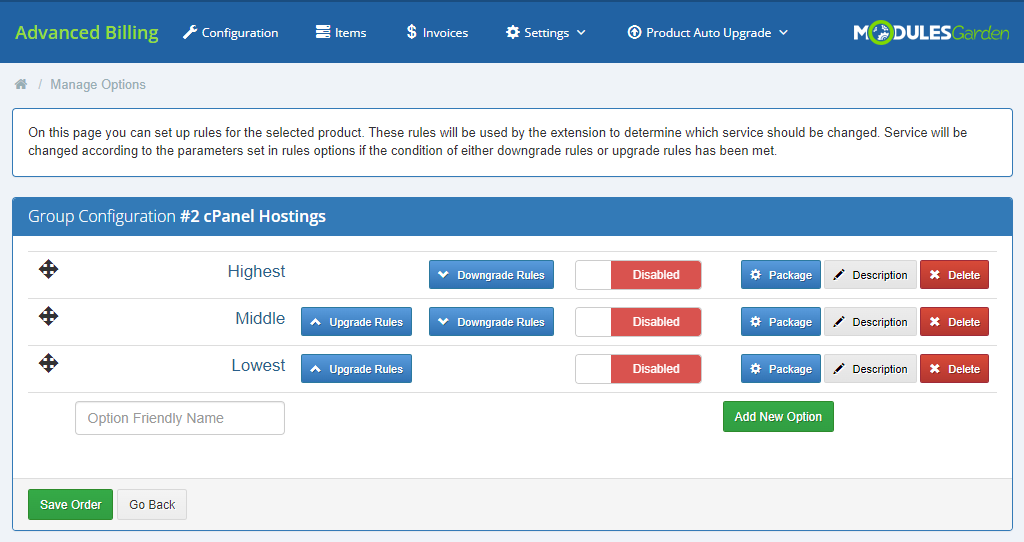
Every group has already some predefined basic options - disabled at the start.
You can base your rules configuration on them or add your own ones in case they are not sufficient.
Let us show how to set the autoscaling rules on the basis of these options.
Before you can do anything, you must configure the upgrade and downgarade rules.
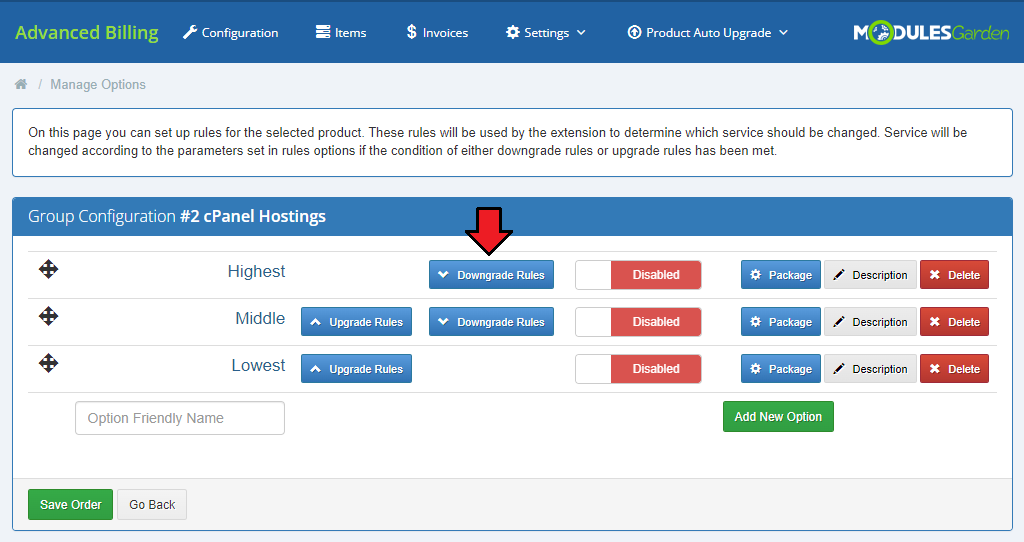
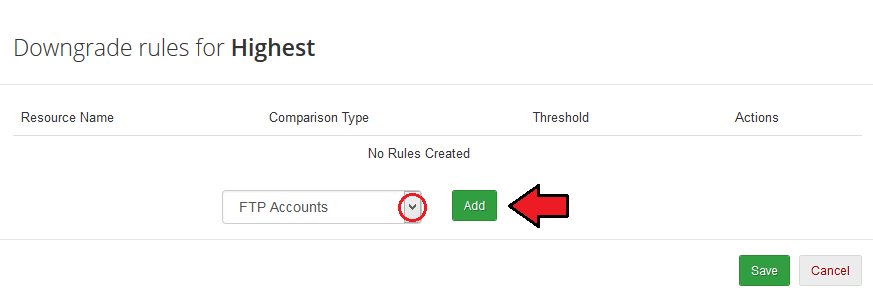
'Upgrade Rules'/'Downgrade Rules' can have multiple rules defined.
To add a new rule, select it from a dropdown menu marked on the following screen and press 'Add'.
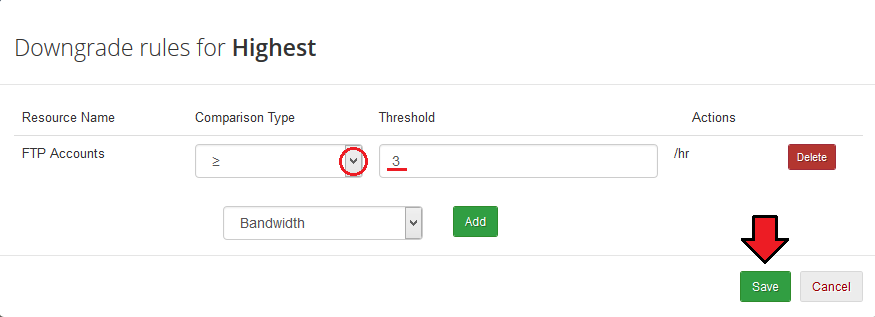
You can define comparison type and threshold of any added rule.
To add a rule which will be fulfilled when the product has more or equal than 3 FTP accounts, choose '≥' from 'Comparison Type' and type '3' into 'Threshold' field.
This example can be seen on the following screen.
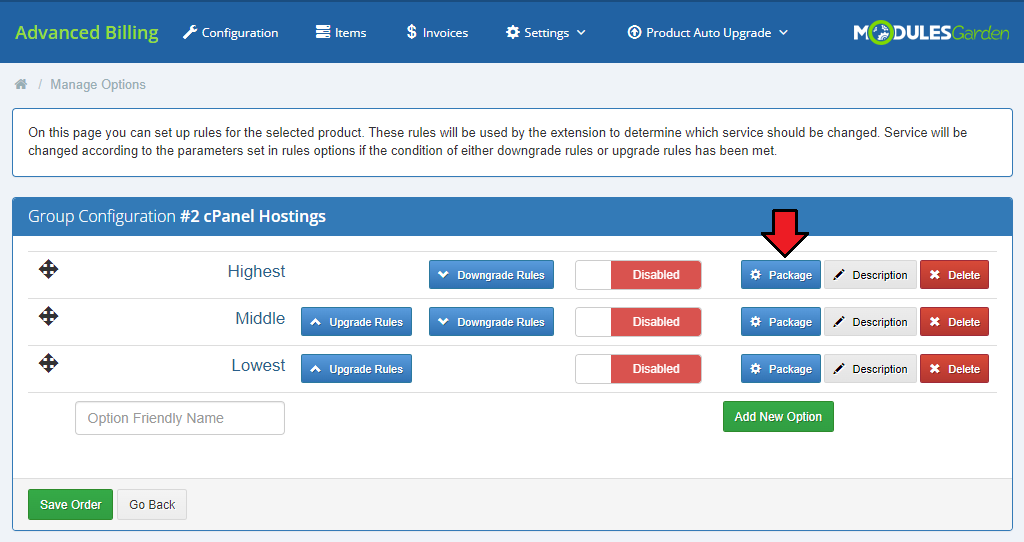
You also have to define a product for each package that will be used when upgrading/downgrading.
Press button marked on the screen to go on.
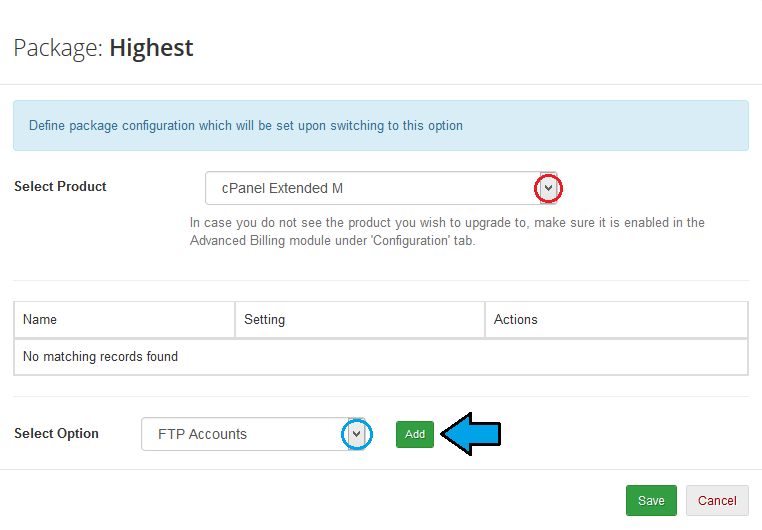
Select the product you need from the available in the dropdown menu.
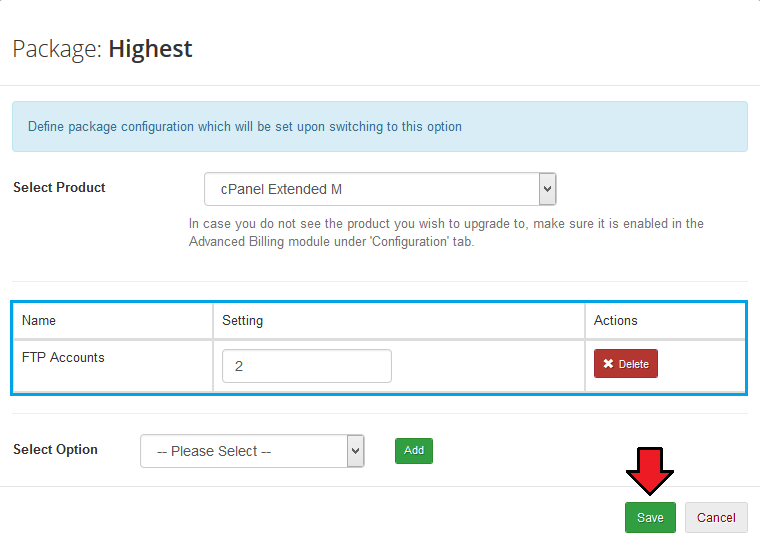
Then select option you wish to be used by clients and add it. Save the changes.
Important! Options selection is available only if a supported configurable options group has been enabled for the group of rules on its creation.
Every selected option appears in the box above. Here you can specify available selection under 'Setting' or delete it.
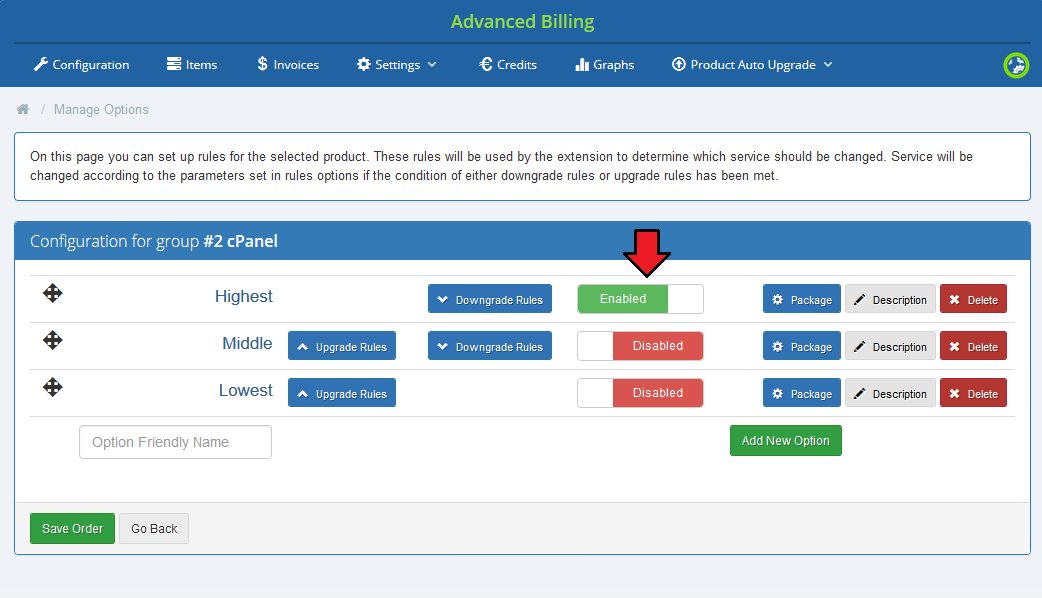
Repeat that for all packages that you want to enable.
Note that only packages with selected products can be enabled!
Additionally, you can change the order the rules are displayed, simply drag and drop a rule and make a previously downgrade rule an upgrade.
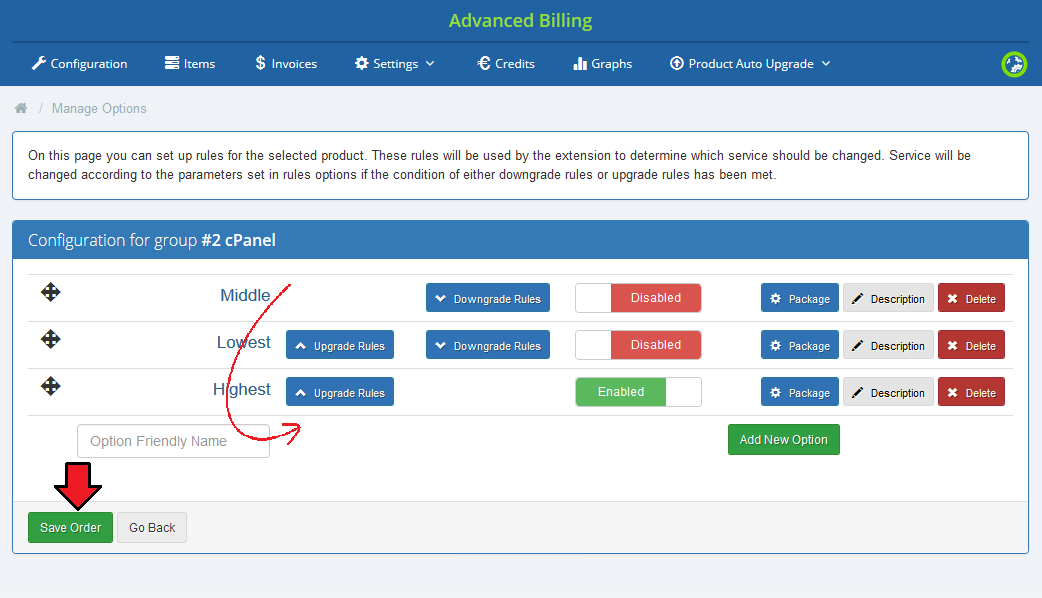
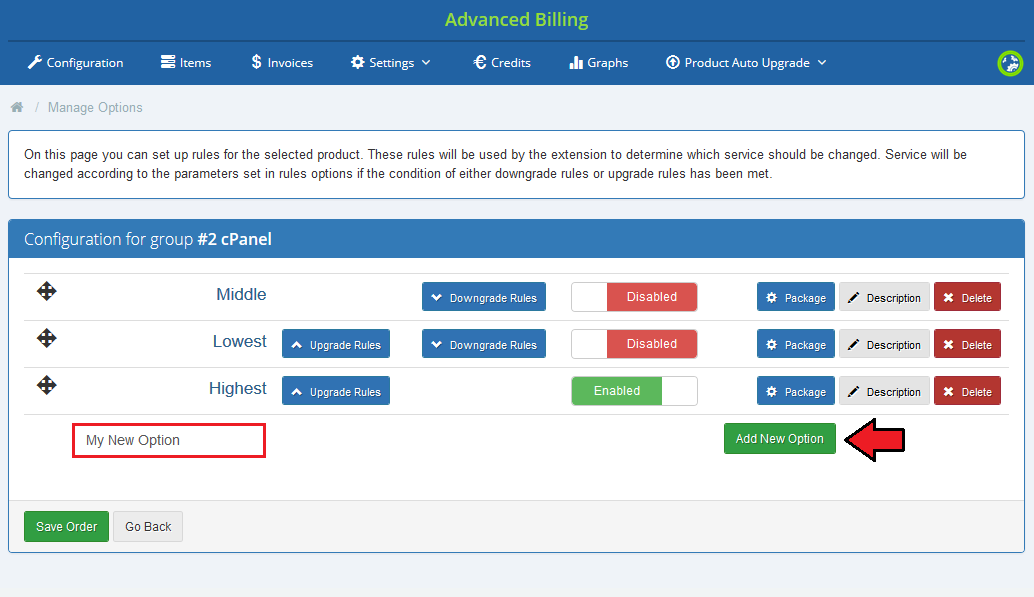
Add new option, just type in its name, press 'Add New Option' and then configure it like the previous ones.
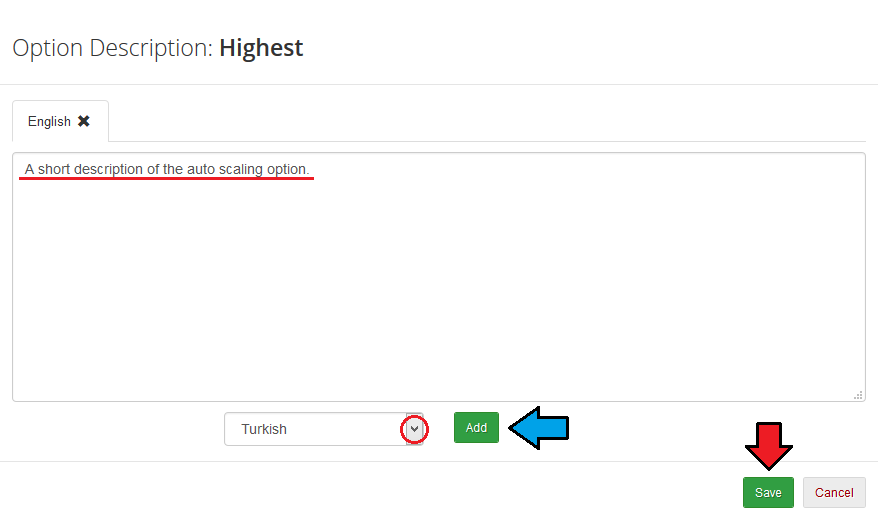
Finally, you can describe shortly each option. Press ' Description' and a text area will appear.
Type in your description there. As you can see you can prepare a few language versions of the description.
# Accounts
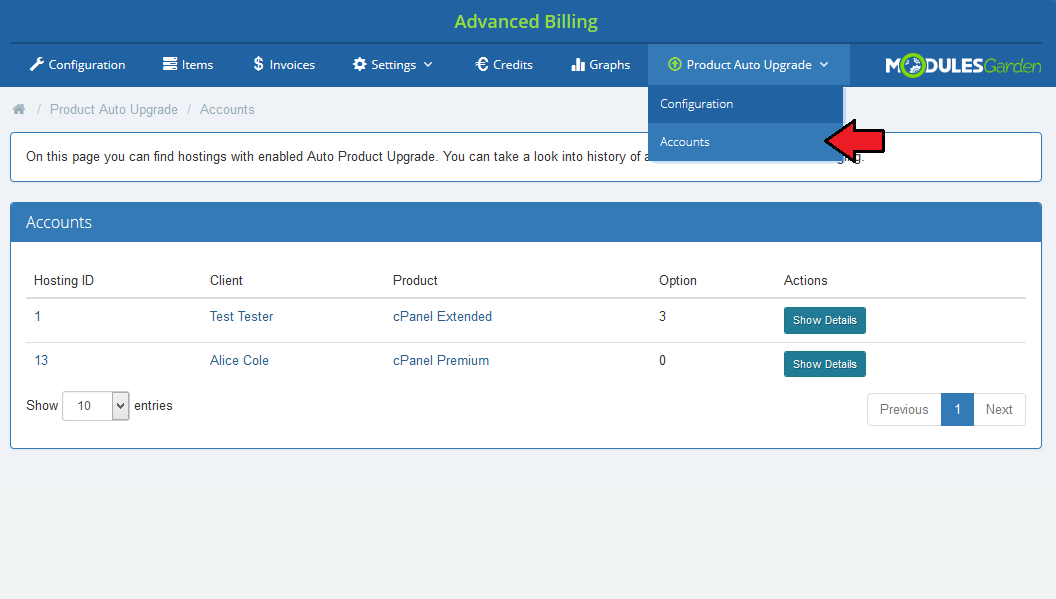
To access the list of hostings affected by the autoscaling groups proceed to 'Product Auto Upgrade' → 'Accounts'.
Information about each hosting can be found here along with access to the hosting history.
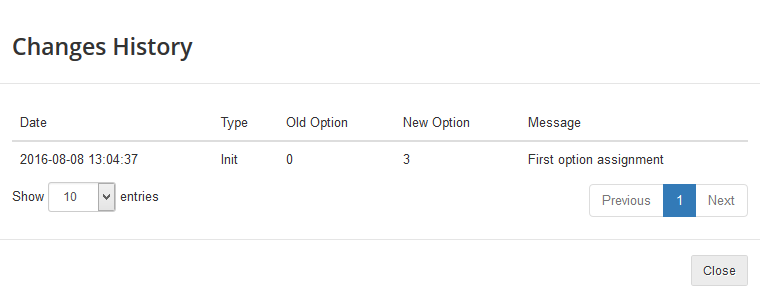
Press 'View History' near desired hosting to view its history of changes.
Hosting history contains the list of changes ever made for the hosting.
# Client Area
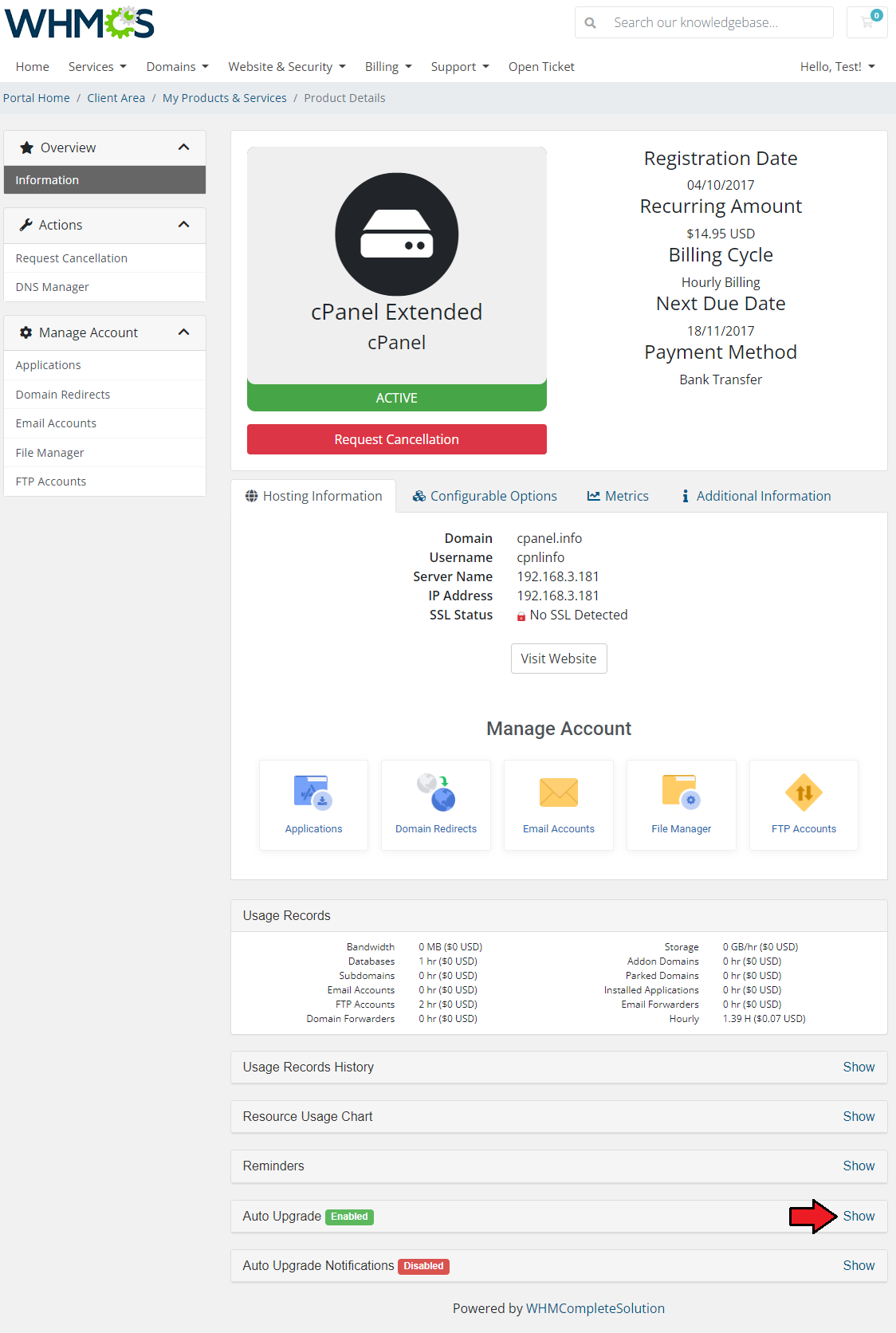
In the following section we will show you client area with all autoscaling features enabled.
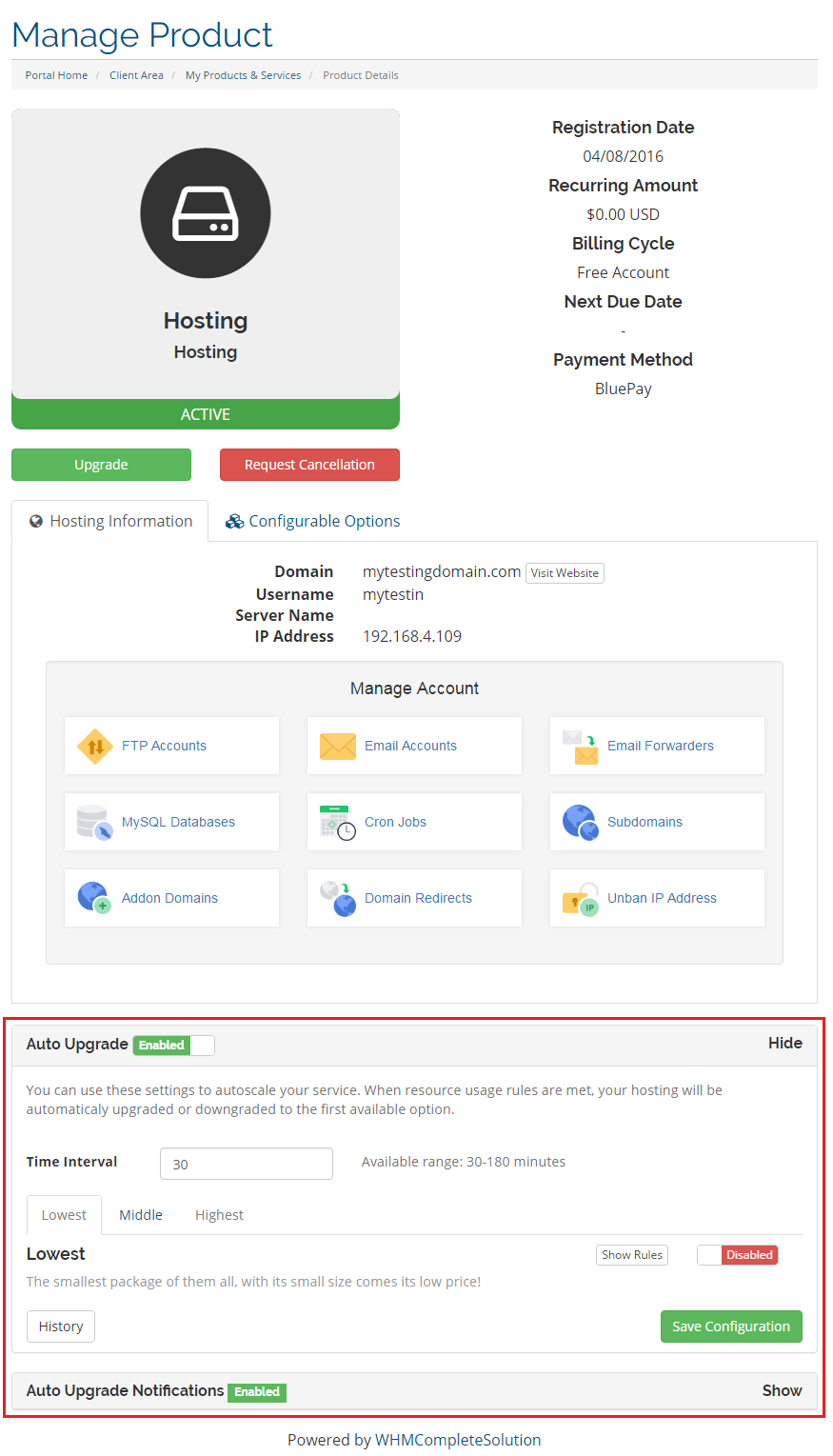
As you can see, autoscaling is displayed on the main page of a product right below the Advanced Billing For WHMCS usage records.
Press 'Show' to view details.
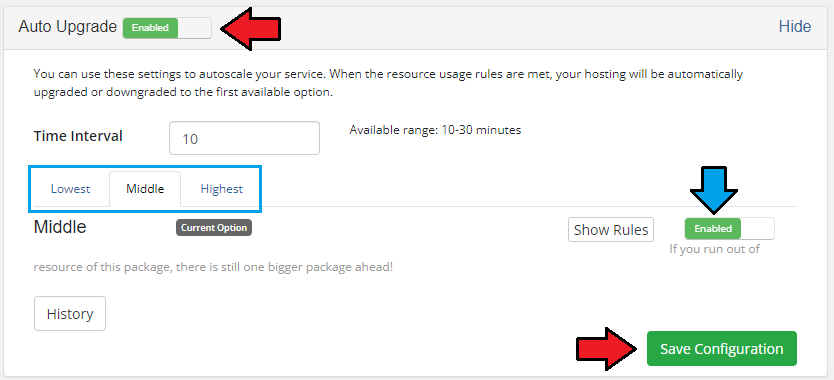
You can easily enable/disable autoscaling (red) or a selected option (blue) through pressing 'Enabled'/'Disabled' button and saving the changes.
To browse other options, use their names marked on the following screen.
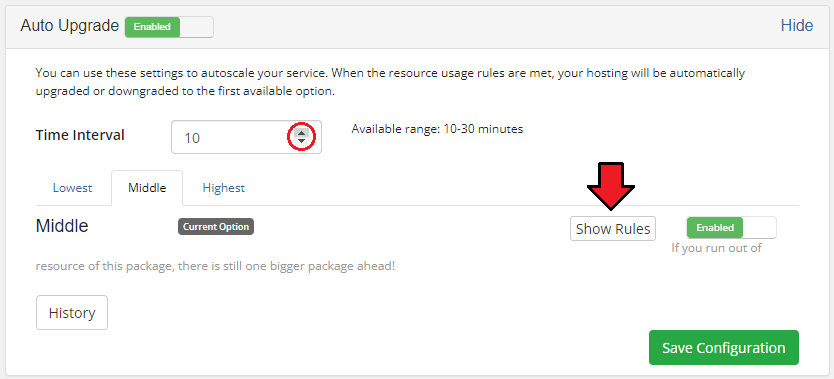
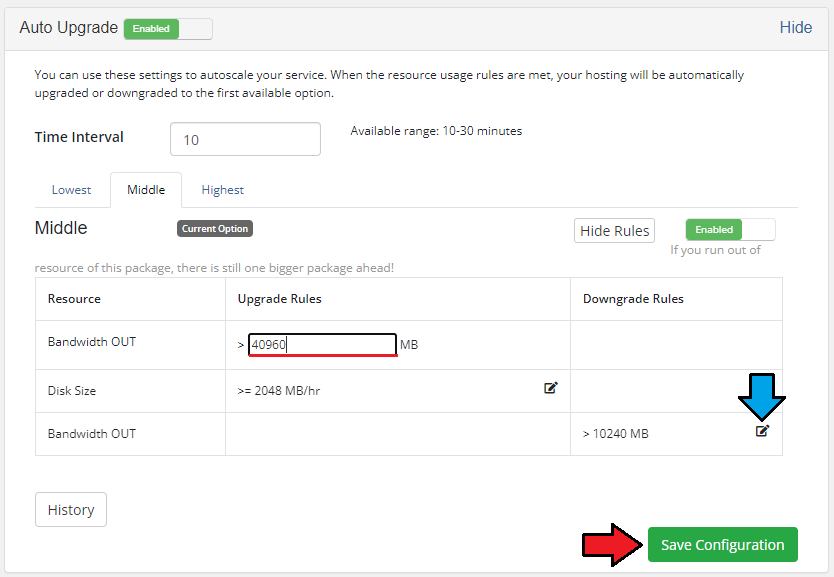
Through pressing 'Show Rules' you can manage switching rules of currently displayed option.
Additionally, you can change the minimum interval between the changes through using marked field.
Rules are displayed in a table, press pencil icon next to the rule you wish to change.
Do not forget to save changes when you finish.
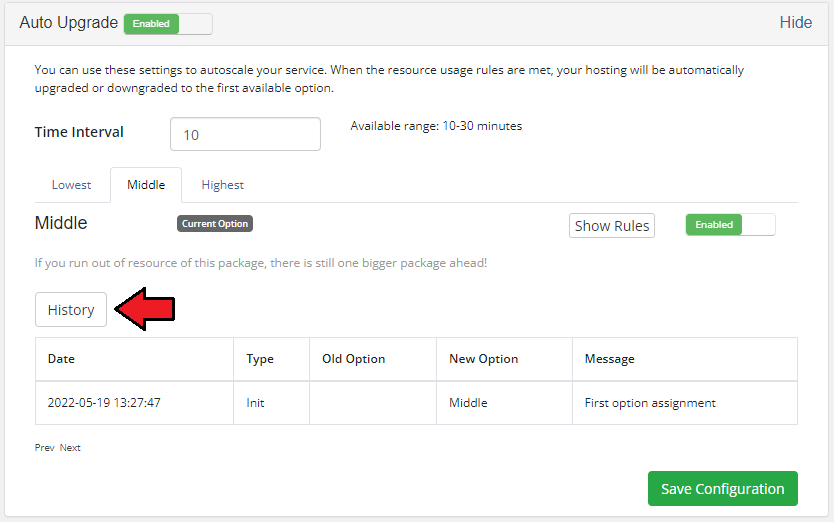
Besides the management of autoscaling, you can view the history of switches made on a hosting through pressing 'History'.
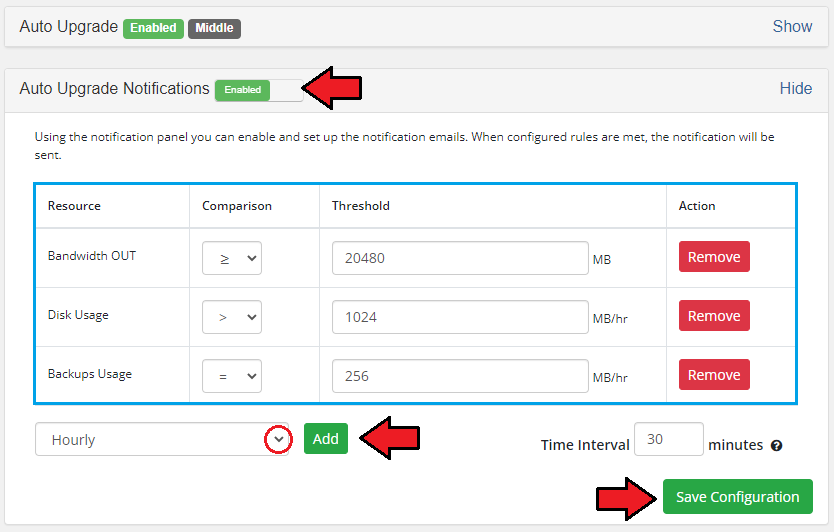
Client can also set up notifications, they will be sent when requirements defined by a client are met.
For the settings shown on the following screen, notification will be sent once in ten minutes if the following rules are met.
The product number of Installed applications is equal or higher than 10.
# Sample Usage
In this section we will show you a sample situation when Product Auto Upgrade For WHMCS is used simultaneously with another built-in extension to Advanced Billing - Recurring Billing.
Let's say you have configured 3 cPanel Extended products enabled for Advanced Billing.
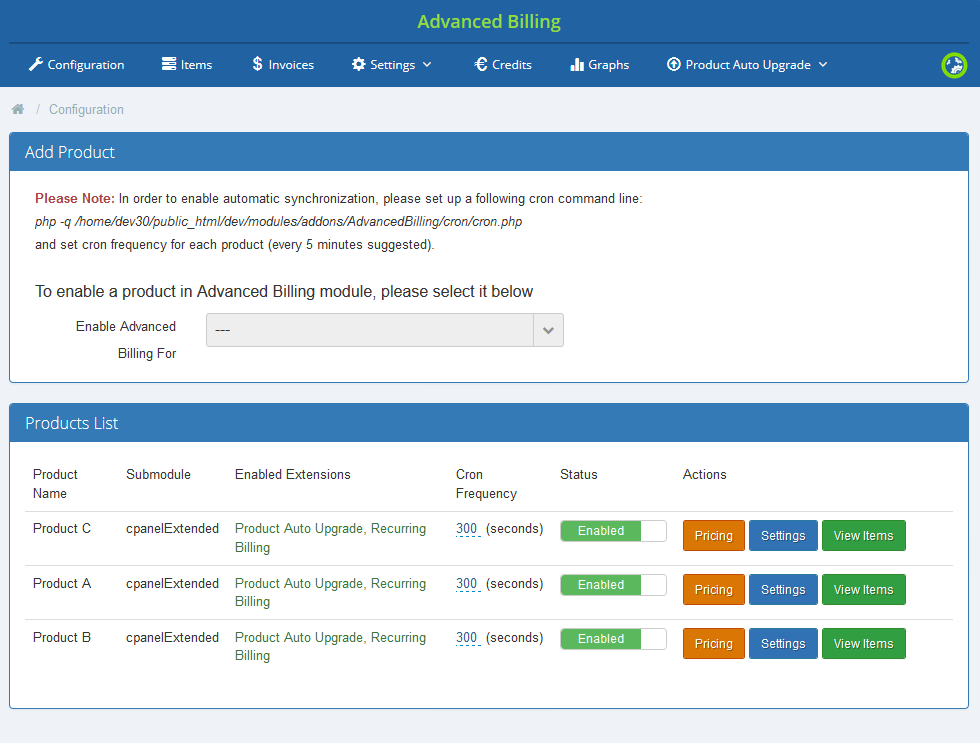
Each of the products has different limits set:
- Product A: Max 4 FTP accounts and 500 MB storage.
- Product B: Max 10 FTP accounts and 1 GB storage.
- Product C: Max 20 FTP accounts and 5 GB storage.
Afterwards, you have created an autoscaling group, added products listed above to it and defined them with following rules.
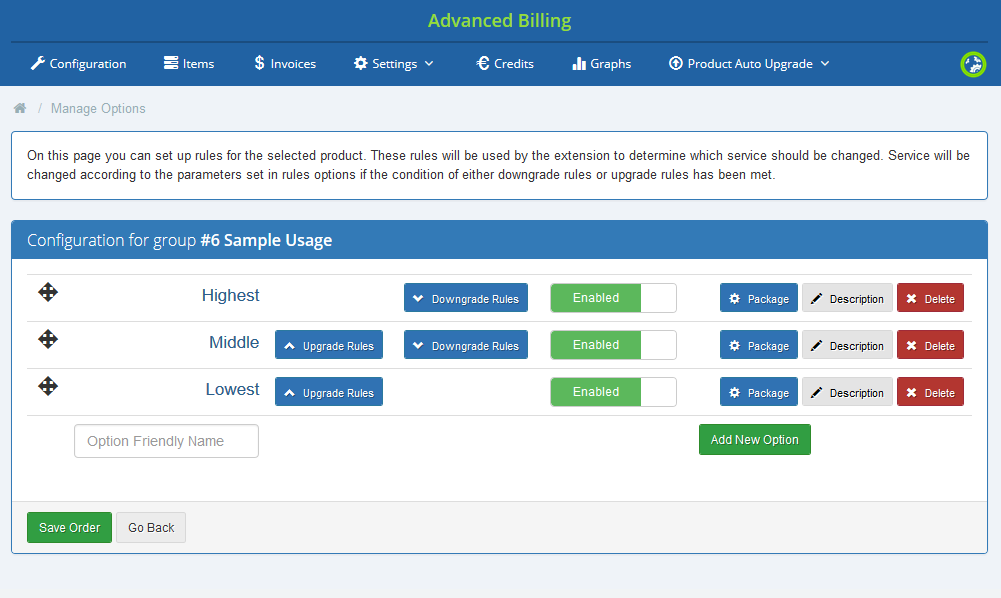
Product A - Lowest
- Upgrade Rule: ≥ 3 FTP accounts & ≥ 400 MB storage
Product B - Middle
- Upgrade Rule: ≥ 9 FTP accounts & ≥ 8 GB storage
- Downgrade Rule: ≤ 3 FTP accounts & ≤ 300 MB storage
Product C - Highest
- Downgrade Rule: ≤ 8 FTP accounts & ≤ 7 GB storage
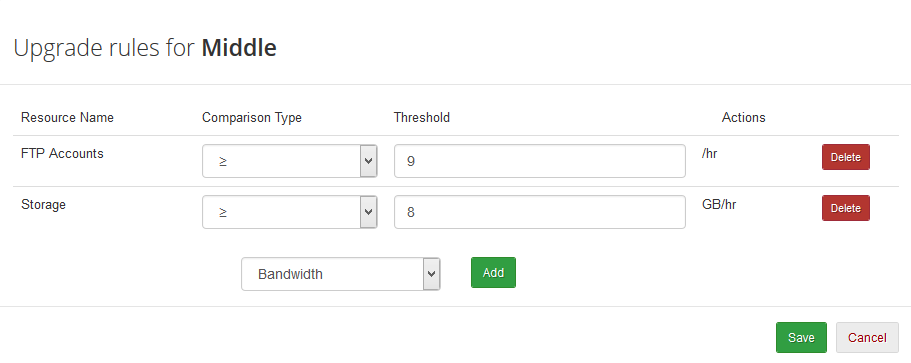
Now, this is which is going to happen:
A client, John orders product C and creates 3 FTP accounts in it.
Advanced Billing cron job changes product C to product B with the first run, and further to product A in the second run (if provided minimum time interval has passed).
John uploads 450 MB of files, so now his product meets product A top rule requirement.
Cron runs again, and changes his product to product B.
John creates additional 7 FTP accounts and uploads files with total size of 550 MB.
Now, his product meets product B upgrade rules only partially, therefore cron run does nothing.
Some time passes and total amount of storage used by John reaches 8 GB.
This time his product meets product B upgrade rules completely and is updated to product C.
John removes 4 of his FTP accounts and 1 GB of files.
Therefore his product meets product C bottom rules requirements and is downgraded to product B.
That was all about upgrading/downgrading the products, but let us now see how the payments look like.
If your client orders product C and their product gets downgraded to product B, they will be billed with product C price.
However, if the prices and free limits are set per resources, you will help your clients to avoid additional payments if their resource usage is low.
If you do it this way, clients will pay fixed price each month, but additional payment will depend on the resource they use.
In case you own only limited amount of resources, Product Auto Upgrade For WHMCS extension will allow you to use them more efficiently.
Whereas the core Advanced Billing For WHMCS features will let you bill your clients adequately.
# Billing Types
Hourly billing allows you to charge your customers for each hour of use of the product (hourly billing calculations are based on the 'Registration Date' product).
You can enable hourly billing for any product type.
Regardless of whether it is a server, web hosting account or other type, customers will be billed for each hour of using the product.
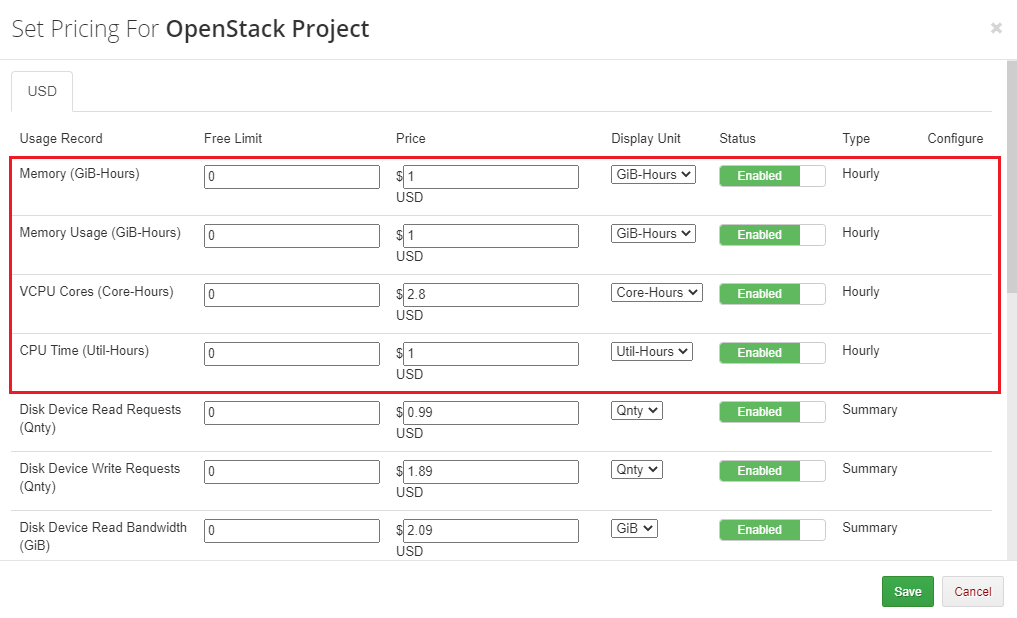
With the Summary billing type, you can charge your customers for the summed usage over the billing period.
For example, if a client uses 200 MB over the first hour, 0 MB over the second hour, and 300 MB over the third hour, the summed usage is 500 MB.
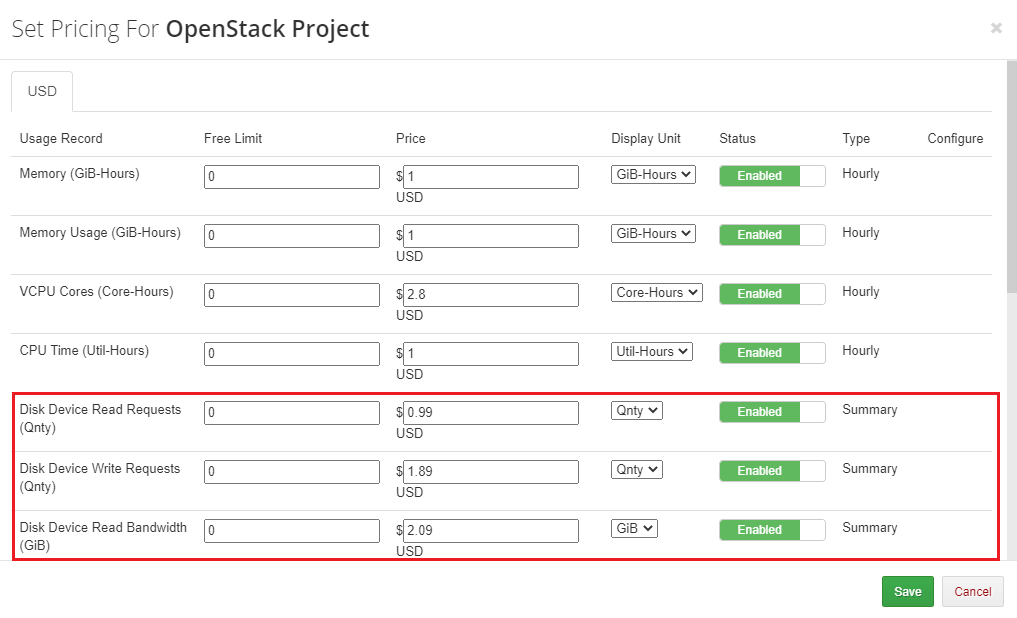
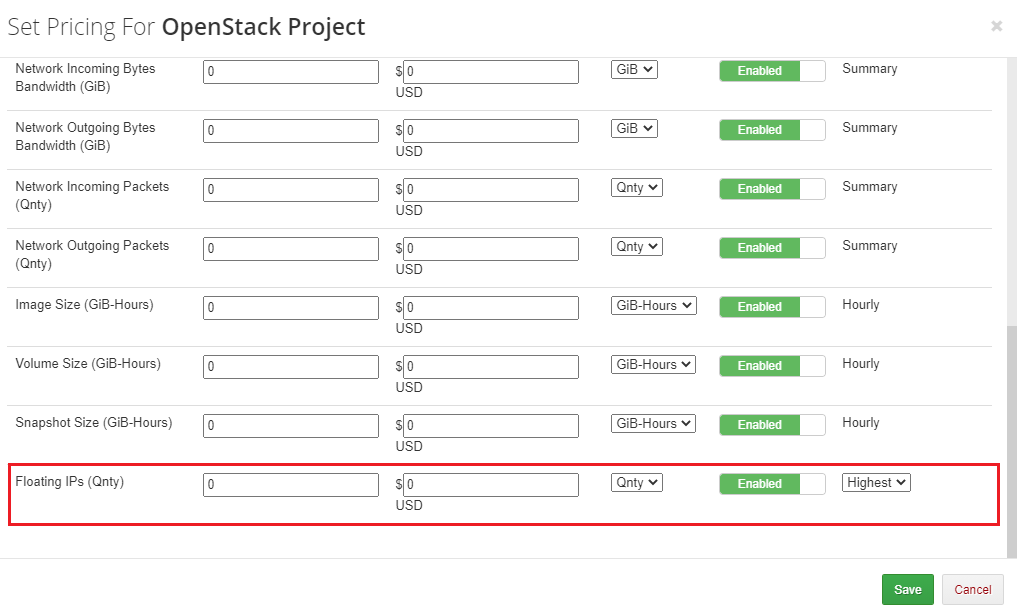
The Highest billing type enables you to charge your customers basing on the highest value.
For example, if a client has 5 Floating IPs and removes 2 of them, the module will take into account the highest value which is 5, even when a client now has 3 Floating IPs.
# Ticket Billing
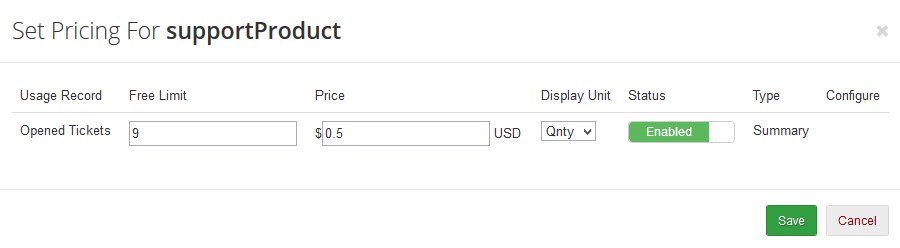
Ticket billing works exactly as it sounds. When enabled, it bills your customers for each opened ticket.
Remember that you must have a product with Ticket Billing submodule assigned to it.
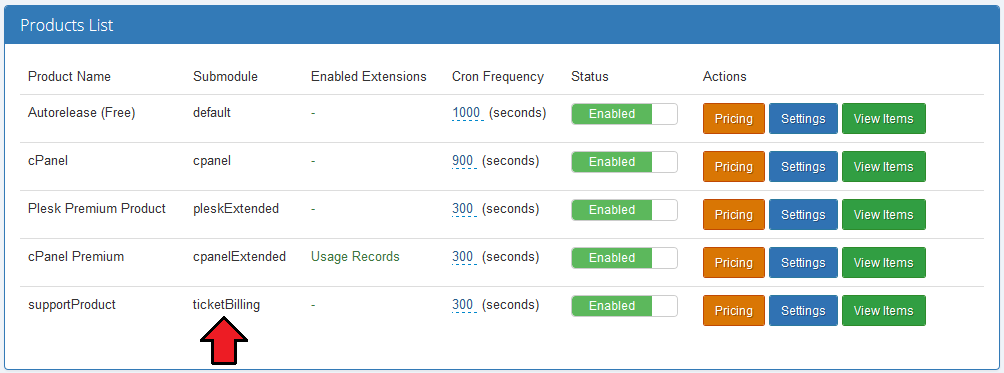
As in the case of hourly billing, you can enable ticket billing for any product type.
# Sample Configuration
In this section, we will show you two samples of configuration of Advanced Billing.
# Two Weeks Billing
In order to set up the invoice generation for resource usage every 2 weeks, follow these steps:
- Go to 'Addons' → 'Advanced Billing' and select your product from 'Enable Advanced Billing For:'
Go to 'Products List' → (your product's) 'Settings' → 'Recurring Billing', enable the extension together with the 'Bill on Termination' option.
Additionally, choose 'Bill Every X Days' from the 'Billing Type' dropdown menu. Enter '14' into the 'Billing Type Value' textbox and set 'Due Date' to '7' days.
Afterwards, press 'Save' to save changes.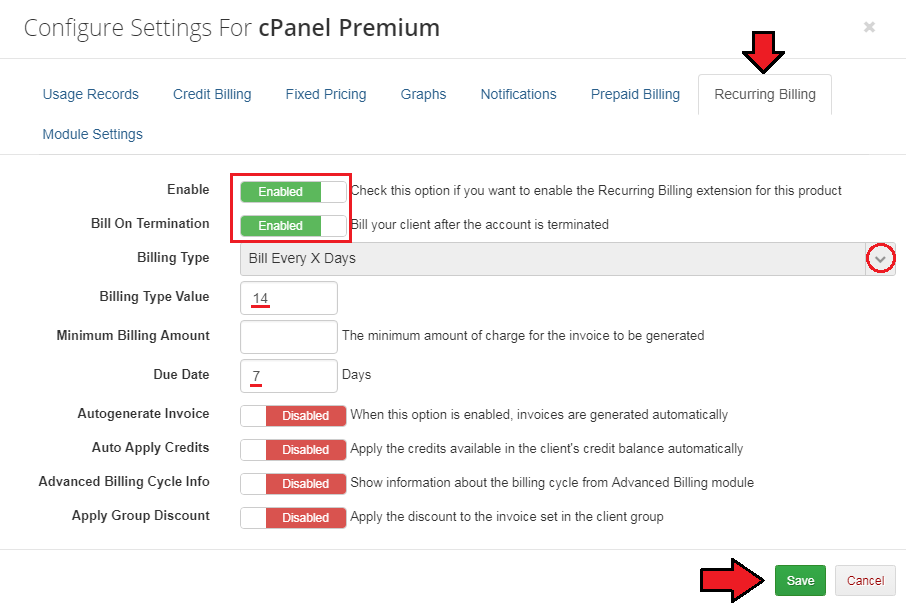
Remember to enter your pricing settings.
Congratulations, you have just successfully configured your billing options!
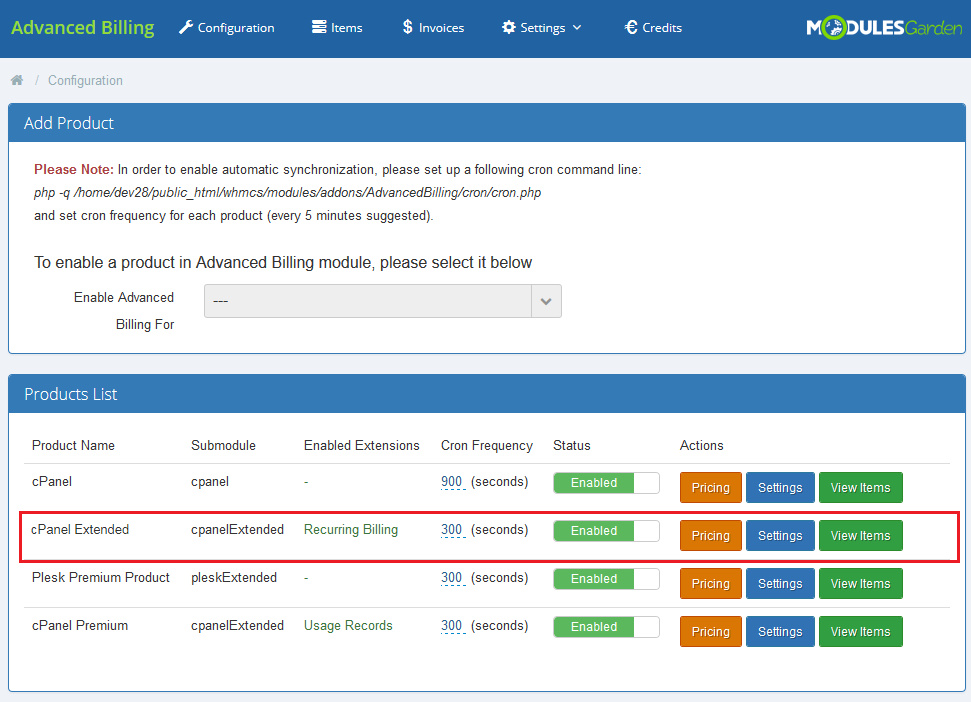
Your Advanced Billing main page should look like the screen below.
Note that you can also change Cron Frequency per product here.
# $20 Billing
To bill your client as frequently as possible, follow these steps:
1.Go to 'Addons' → 'Advanced Billing' and select your product from 'Enable Advanced Billing For:'
Go to 'Products List' → (your product's) 'Settings' → 'Credit Billing' and press 'Enable'.
Afterwards, enter '1' into 'Create Invoices Each', '20' into 'Minimum Credit' and '50' into 'Low Credit Notification'.
With these settings your client will be billed from credit balance as soon as the payment for resource usage has reached $20.
They will also receive an email if their credit balance falls below $50.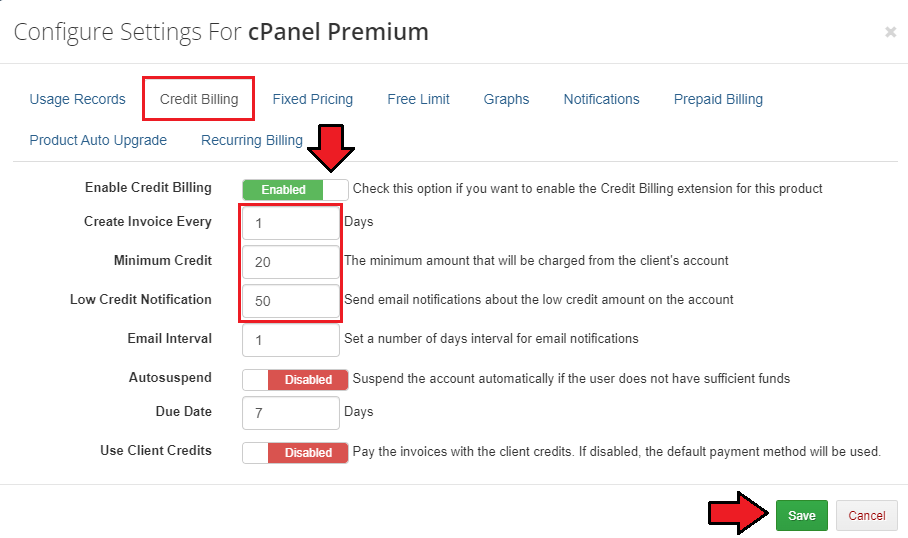
Remember to set up your pricing.
Congratulations, you have just successfully configured your billing options!
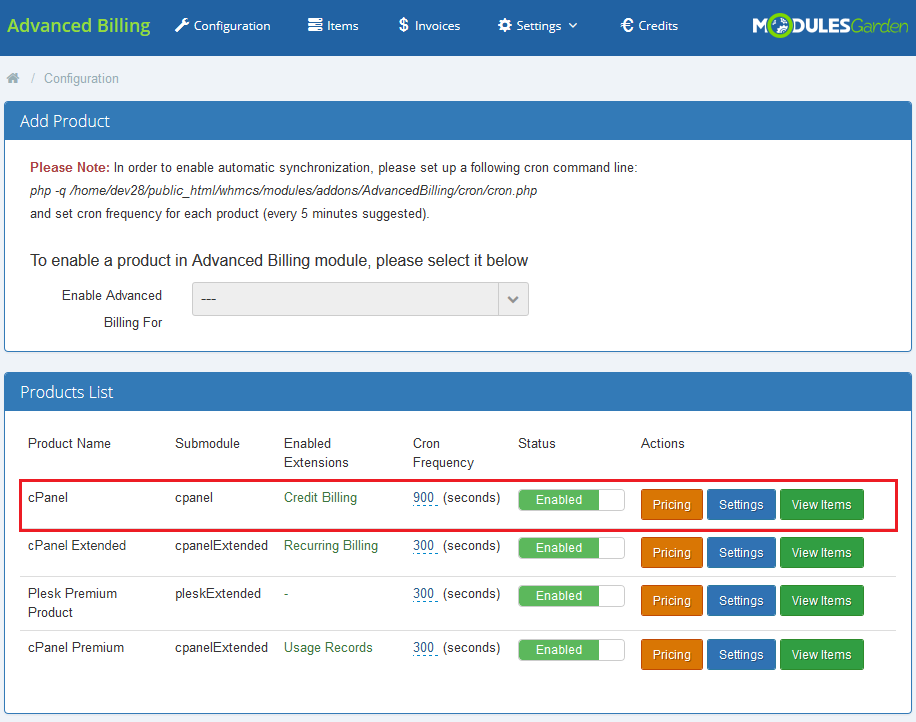
Your Advanced Billing main page should look like the screen below.
Note that you can also change 'Cron Frequency' per product here.
# Measurement Units
Take a look at the table below, you will find precise data on the measurement units used for billing purposes per each supported submodule.
Resource → unit; default units are marked in bold → Resource name. Mentioned resource name is strictly connected with the Free Limit extension.
Default
- Hourly (H) - Resource name: hourly
cPanel/ cPanelExtended
- Bandwidth (MB, GB) - Resource name: bandwidth
- Storage (GB/hr) - Resource name: storage
- Databases (/hr) - Resource name: databases
- Addon Domains (/hr) - Resource name: addon_domains
- Subdomains (/hr) - Resource name: subdomains
- Parked Domains (/hr) - Resource name: parked_domains
- Email Accounts (/hr) - Resource name: email_accounts
- Installed Applications (/hr) - Resource name: installed_applications
- FTP Accounts (/hr) - Resource name: ftp_accounts
- Email Forwarders (/hr) - Resource name: email_forwarders
- Domain Forwarders (/hr) - Resource name: domain_forwarders
- Hourly (H) - Resource name: hourly
Digital Ocean Droplets
- Memory (/hr) - Resource name: memory
- Vcpus (/hr) - Resource name: vcpus
- Disk (/hr) - Resource name: disk
- Size (/hr) - Resource name: size
- Backups (/hr) - Resource name: buckups
- Snapshots (/hr) - Resource name: snapshots
- Volumes (/hr) - Resource name: volumes
- Hourly (H) - Resource name: hourly
Direct Admin/Direct Admin Extended
- Bandwidth (MB, GB) - Resource name: bandwidth
- Storage (MB/hr, GB/hr) - Resource name: storage
- Virtual Domains (/hr) - Resource name: vdomains
- Subdomains (/hr) - Resource name: nsubdomains
- Domain Pointers (/hr) - Resource name: domainptr
- FTP Accounts (/hr) - Resource name: ftp
- MySQL Databases (/hr) - Resource name: mysql
- Email Forwarders (/hr) Resource name: nemailf
- Mailing Lists (/hr) - Resource name: nemailml
- Email Autoresponders (/hr) - Resource name: nemailr
- POP Accounts (/hr) - Resource name: nemails
- Hourly (H) - Resource name: hourly
Hetzner Cloud Servers
- CPUs (CPU/hr) - Resource name: cpus
- Memory (GB/hr) - Resource name: memory
- Disk (GB/hr, TB/hr) - Resource name: disk
- Backups (/hr) - Resource name: backups
- Floating IPs (1/hr) - Resource name: floatingips
- Snapshots (/hr) - Resource name: snapshots
- Volumes (GB/hr, TB/hr) - Resource name: volumes
- CPU Usage (%/hr) - Resource name: cpu
- Outgoing Traffic (B, kB, MB, GB, TB) - Resource name: outgoingTraffic
- Ingoing Traffic (B, kB, MB, GB, TB) - Resource name: ingoingTraffic
- Disk Iops Read (op/hr) - Resource name: diskIopsRead
- Disk Iops Write (op/hr) - Resource name: diskIopsWrite
- Disk Bandwidth Read
(B/hr, kB/hr, MB/hr, GB/hr, TB/hr) - Resource name: diskBandwidthRead - Disk Bandwidth Write
(B/hr, kB/hr, MB/hr, GB/hr, TB/hr) - Resource name: diskBandwidthWrite - Network Pps In (packet/hr) - Resource name: networkPpsIn
- Network Pps Out (packet/hr) - Resource name: networkPpsOut
- Network Bandwidth In
(B/hr, kB/hr, MB/hr, GB/hr, TB/hr) - Resource name: networkBandwidthIn - Network Bandwidth Out
(B/hr, kB/hr, MB/hr, GB/hr, TB/hr) - Resource name: networkBandwidthOut - Hourly (H) - Resource name: hourly
Openstack VPS/Openstack VPS Cloud
- Hourly (H) - Resource name: hourly
- VCPU Cores (Core-Hours) - Resource name: vcpus
- Memory Usage (MiB-Hours, GiB-Hours) - Resource name: memory
- CPU Utilization (Qnty) - Resource name: cpuUtil
- Incoming Bandwidth (MiB-Hours, GiB-Hours) - Resource name: incomingMegaBytes
- Outgoing Bandwidth (MiB-Hours, GiB-Hours)- Resource name: outgoingMegaBytes
- Disk Root Used (GiB-Hours) - Resource name: diskRootGBSize
- Disk Read Requests (Requests) - Resource name: diskReadRequests
- Disk Write Requests (Requests) - Resource name: diskWriteRequests
- Floating IP (IP-Hours) - Resource name: floatingIP
- Fixed IP (IP-Hours) - Resource name: fixedIP
- Backups Number (Qnty) - Resource name: backupNumber
Openstack Projects
- Memory (GiB-Hours) - Resource name: memory
- Memory Usage (GiB-Hours) - Resource name: memory.usage
- VCPU Cores (Core-Hours) - Resource name: vcpus
- CPU Time (Util-Hours) - Resource name: cpu
- Disk Device Read Requests (Qnty) - Resource name: disk.device.read.requests
- Disk Device Write Requests (Qnty) - Resource name: disk.device.write.requests
- Disk Device Read Bandwidth (GiB, MiB, KiB) - Resource name: disk.device.read.bytes
- Disk Device Write Bandwidth ((GiB-Hours) GiB, MiB, KiB) - Resource name: disk.device.write.bytes
- Network Incoming Bytes Bandwidth (GiB, MiB, KiB) - Resource name: network.incoming.bytes
- Network Outgoing Bytes Bandwidth (GiB, MiB, KiB) - Resource name: network.outgoing.bytes
- Network Incoming Packets (Qnty) - Resource name: network.incoming.packets
- Network Outgoing Packets (Qnty) - Resource name: network.outgoing.packets
- Image Size (GiB-Hours, MiB-Hours) - Resource name: image.size
- Volume Size (GiB-Hours) - Resource name: volume.size
- Snapshot Size (GiB-Hours) - Resource name: snapshot.size
- IPs (Qnty) - Resource name: ips
- Floating IPs (Qnty) - Resource name: floating.ips
- Loadbalancers (Qnty) - Resource name: loadbalancers
Openstack Projects Dynamic Resources
- Volumes (GiB-Hours) - Resource name: volumes
- Images (Qnty-Hours) - Resource name: images
Plesk/Plesk Extended
- Subdomains (/hr) - Resource name: subdomains
- Disk Space (MB/hr) - Resource name: disk_space
- Email Boxes (/hr) - Resource name: postboxs
- Redirects (/hr) - Resource name: redirects
- Mail Groups (/hr) - Resource name: mail_groups
- Autoresponders (/hr) - Resource name: mail_resps
- Mailing Lists (/hr) - Resource name: mail_lists
- Users (/hr) - Resource name: web_users
- Databases (/hr) - Resource name: data_bases
- Webapps (/hr) - Resource name: webapps
- Traffic (MB, GB) - Resource name: traffic
- Domains (/hr) - Resource name: sites
- Hourly (H) - Resource name: hourly
Proxmox VPS/Proxmox Cloud VPS
- Hourly (H) - Resource name: hourly
- Bandwidth IN (MB, GB) - Resource name: bandwidth_in
- Bandwidth OUT (MB, GB) - Resource name: bandwidth_out
- Bandwidth TOTAL (MB, GB) - Resource name: bandwidth_total
- Disk Usage (MB/hr, GB/hr) - Resource name: disk
- Disk Size (MB/hr, GB/hr) - Resource name: disk_size
- Memory Usage (MB/hr, GB/hr) - Resource name: memory
- Memory Size (MB/hr, GB/hr) - Resource name: memory_size
- Backups Usage (MB/hr, GB/hr) - Resource name: backups
- CPU Number (/hr) - Resource name: cpu_number
- CPU Usage (/hr) - Resource name: cpu_usage
- CPU Cores Usage (/hr) - Resource name: cpu_cores_usage
- IPv4 (Qnty) - Resource name: ipv4
- IPv6 (Qnty) - Resource name: ipv6
- Snapshots (Qnty) - Resource name: snapshots
Rackspace Email Extended
- Mailbox Storage (MB/hr, GB/hr) - Resource name: mailbox_storage
- Mailboxes (/hr) - Resource name: mailboxes
- Sync Licenses (/hr) - Resource name: sync_licenses
- Blackberry Licenses (/hr) - Resource name: blackberry_licenses
- Exchange Storage (MB/hr, GB/hr) - Resource name: exchange_storage
- Exchange Mailboxes (/hr) - Resource name: exchange_mailboxes
- Hourly (H) - Resource name: hourly
Solusvm Extended Cloud
- Available Disk Size (MB/hr, GB/hr) - Resource name: disk_size
- Disk Usage (MB/hr, GB/hr) - Resource name: disk_used
- Available Bandwidth (MB/hr, GB/hr) - Resource name: total_bandwidth
- Bandwidth Used (MB, GB) - Resource name: bandwidth_used
- Memory Usage (MB/hr, GB/hr) - Resource name: memory_used
- Available Memory (MB/hr, GB/hr) - Resource name: total_memory
- Cores (/hr) - Resource name: cores
- IP Addresses (/hr) - Resource name: ipaddresses
Solusvm Extended VPS
- Hourly (H) - Resource name: hourly
- isk Size (MB/hr, GB/hr) - Resource name: disk_size
- Disk Usage (MB/hr, GB/hr) - Resource name: disk
- Bandwidth Total (MB, GB) - Resource name: bandwidth_total
- Bandwidth (MB, GB) - Resource name: bandwidth
- Available Memory (MB/hr, GB/hr) - Resource name: memory
- Memory Usage (MB/hr, GB/hr) - Resource name: total_memory
- CPUs Number (/hr) - Resource name: cpus
- IPv4 (Qnty) - Resource name: ipv4
- IPv6 (Qnty) - Resource name: ipv6
- Swap-Burst (MB/hr, GB/hr) - Resource name: swap_burst
- Internal IPs (Qnty) - Resource name: internalips
Solusvm Pro
- Hourly (H) - Resource name: hourly
- isk Size (MB/hr, GB/hr) - Resource name: disk_size
- Disk Usage (MB/hr, GB/hr) - Resource name: disk
- Bandwidth Total (MB, GB) - Resource name: bandwidth_total
- Bandwidth (MB, GB) - Resource name: bandwidth
- Available Memory (MB/hr, GB/hr) - Resource name: memory
- Memory Usage (MB/hr, GB/hr) - Resource name: total_memory
- CPUs Number (/hr) - Resource name: cpus
- IPv4 (Qnty) - Resource name: ipv4
- IPv6 (Qnty) - Resource name: ipv6
- Swap-Burst (MB/hr, GB/hr) - Resource name: swap_burst
- Internal IPs (Qnty) - Resource name: internalips
Ticket Billing
- Opened Tickets (Qnty) - Resource name: opened_tickets
Virtualizor
- Bandwidth Usage (MB, GB) - Resource name: bandwidthUsed
- CPU Units (/hr) - Resource name: cpuUnits
- CPU Cores (/hr) - Resource name: cpuCores
- CPU Usage (/hr) - Resource name: cpuUsed
- Disk Size (GB/hr) - Resource name: diskSize
- Disk Usage (GB/hr) - Resource name: diskUsed
- RAM Size (MB/hr, GB/hr) - Resource name: ram
- RAM Usage (MB/hr, GB/hr) - Resource name: ramUsed
- Network Speed IN (MB/hr, GB/hr) - Resource name: networkIn
- Network Speed OUT (MB/hr, GB/hr) - Resource name: networkOut
- I/O Disk Read (MB/hr, GB/hr) - Resource name: ioRead
- I/O Disk Write (MB/hr, GB/hr) - Resource name: ioWrite
- IPv4 Addresses (/hr) - Resource name: ipv4
- IPv6 Addresses (/hr) - Resource name: ipv6
Virtuozzo Hybrid Infrastructure S3
- OPS Other (K ops/min) - Resource name: other
- OPS GET (K ops/min) - Resource name: get
- OPS PUT (K ops/min) - Resource name: put
- OPS LIST (K ops/min) - Resource name: list
- OPS Total (K ops/min) - Resource name: opsTotal
- Uploaded (GiB) - Resource name: uploaded
- Downloaded (GiB) - Resource name: downloaded
- Storage (GiB) - Resource name: storage
Virtuozzo
- Template (/hr) - Resource name: template
- CPU Cores (Qnty) - Resource name: cpu_cores
- CPU Usage (/hr) - Resource name: cpu_usage
- CPU Limit (MHz) - Resource name: cpu_limit
- Memory Usage (MB/hr, GB/hr) - Resource name: memory
- Memory Limit (MB, GB) - Resource name: memory_limit
- Incoming Bandwidth (MB, GB) - Resource name: bandwidth_incoming
- Outgoing Bandwidth (MB, GB) - Resource name: bandwidth_outgoing
- Disk Used (GB/hr) - Resource name: disk_used
- Disk Limit (GB) - Resource name: disk_quota
- Public IP (Qnty) - Resource name: ip_number
- Private IP (Qnty) - Resource name: ip_number_secondary
- Disk I/O Limit (/hr) - Resource name: io_limit
- Disk I/O ps Limit (/hr) - Resource name: iops_limit
- Backup Space Used (GB/hr) - Resource name: backup_usage
Virtuozzo Hybrid Server
- Template (/hr) - Resource name: template
- CPU Cores (Qnty) - Resource name: cpu_cores
- CPU Usage (/hr) - Resource name: cpu_usage
- CPU Limit (MHz) - Resource name: cpu_limit
- Memory Usage (MB/hr, GB/hr) - Resource name: memory
- Memory Limit (MB, GB) - Resource name: memory_limit
- Incoming Bandwidth (MB, GB) - Resource name: bandwidth_incoming
- Outgoing Bandwidth (MB, GB) - Resource name: bandwidth_outgoing
- Disk Used (GB/hr) - Resource name: disk_used
- Disk Limit (GB) - Resource name: disk_quota
- Public IP (Qnty) - Resource name: ip_number
- Private IP (Qnty) - Resource name: ip_number_secondary
- Disk I/O Limit (/hr) - Resource name: io_limit
- Disk I/O ps Limit (/hr) - Resource name: iops_limit
- Backup Space Used (GB/hr) - Resource name: backup_usage
Zimbra Email
- Hourly (H)- Resource name: hourly
- Mailboxes (/hr) - Resource name: mailboxes
- Email Aliases (/hr) - Resource name: aliases
- Domain Aliases (/hr) - Resource name: domain_aliases
- Storage (MB/hr, GB/hr) - Resource name: storage
# Tips
Deactivation of the module removes products' configuration, usage records and awaiting invoices.
'Installed Applications' usage record supports both Softaculous and Installatron.
You can set up as many products as you want.
If your client uses currency that is not WHMCS base currency (for example, WHMCS base currency is €, while client uses $):
An invoice for such client will be generated in the chosen currency, while usage record and calculation in Advanced Billing will use base currency.You can modify record names along with their format that are displayed in the 'Usage Records' section of the client area.
To do this, you need to find a file that is located here: modules\addons\AdvancedBilling\extensions\ClientAreaUsageRecords\lang\english.php.
Next, provide the preferred names of records that should be shown up to clients. Please take a look at the below example to see which part of the line can be altered:$_LANG['ClientAreaUsageRecords']['Databases'] = 'Your Translation'If you would like to edit the translation of extensions, you need to proceed to the following file:
your_whmcs\modules\addons\AdvancedBilling\extensions\your_extension\lang
The translation for the module can be found here: your_whmcs\modules\addons\AdvancedBilling\langs
# Update Instructions
Essential guidance through the process of updating the module is offered here.
If you switch from Advanced Billing v2.x to v3.x, all data from your previous version of the module have to be migrated to the latest one.
To do so, simply follow the basic steps below:
Copy new files to a correct directory in your WHMCS.
Proceed to 'Setup' → 'Addon Moduels', find 'Advanced Billing' on the list, press 'Configure' to select a proper database you wish to use.
Move to the addon: 'Addons' → 'Advanced Billing' and run the following script:
/your_whmcs/modules/addons/AdvancedBilling/migrationScript.php
If you already own Advanced Billing v3.x and would like to switch to a newer version, just overwrite the files as you would do during a regular update.
# Upgrade Guide
Seeking a solution that offers greater flexibility, customization tailored to your precise needs, and unrestricted availability?
There is an option that not only proves to be cost-effective in the long run but also includes prioritized support services, making it a truly valuable investment.
Opt for the Open Source version (opens new window) of your Advanced Billing For WHMCS module to unlock these benefits.
Simply click on either the Get Source Code or Upgrade To Lifetime button found on the product's page in our client area to complete the one-step upgrade process, with a dedicated discount already applied.
Follow a comprehensive guide covering the transition process, the advantages it brings, and step-by-step instructions on what to do next after the order has been successfully finalized.
# Uninstallation Process
If you no longer wish to use Advanced Billing For WHMCS, you may safely uninstall the module. Steps to follow to successfully and safely remove the module from your system:
Remove files from the following directories:
[yourWHMCS]/modules/addons/AdvancedBilling
[yourWHMCS]/modules/servers/ticketBilling
Remove all tables that begin with Advanced Billing_ from the database.
That is all, the module is completely uninstalled now.
# Common Problems
When you have problems with connection, check whether your SELinux or firewall does not block ports.
You have problems with finding the specified line in clientareaproductdetails.tpl.
Cause 1: You use Classic or Portal template.
Solution 1: If this is the case, place the required code after this line:<div align="center">{$moduleclientarea}</div>Cause 2: You use extensively customized template.
Solution 2: Create a ticket and one of our specialists will help you set up the module.If your cron has encountered an error and cannot start again, please check the cron folder in the 'yourWHMCS/modules/addons/AdvancedBilling/cron' path.
If there is the 'pid.php' file, delete it and try to execute the cron again. If there is still an error occur, check the details in the logs.Cron Threads feature currently does not work for the EasyDCIM submodule. In case you have enabled Cron Threads, cron tasks for EasyDCIM submodule will be executed in a basic way.
This option will be implemented into the Advanced Billing module the future releases.