

# Quotes Automation For WHMCS
# (opens new window) About Quotes Automation For WHMCS (opens new window)
Quotes Automation For WHMCS will allow you to create templates for quotes. You will be able to add, edit and delete templates as well as manage included products.
The module will also simplify the process of placing an order. Once a quote is ready, both you and your clients will be able to place an order directly from a quote page.
# Installation
This tutorial will show you how to successfully install and configure Quotes Automation For WHMCS. (opens new window)
We will guide you step by step through the whole installation and configuration process.
Note: If you are still using any of the module's previous versions prior to v2.x, follow these instructions.
- Log in to our client area and download the module.
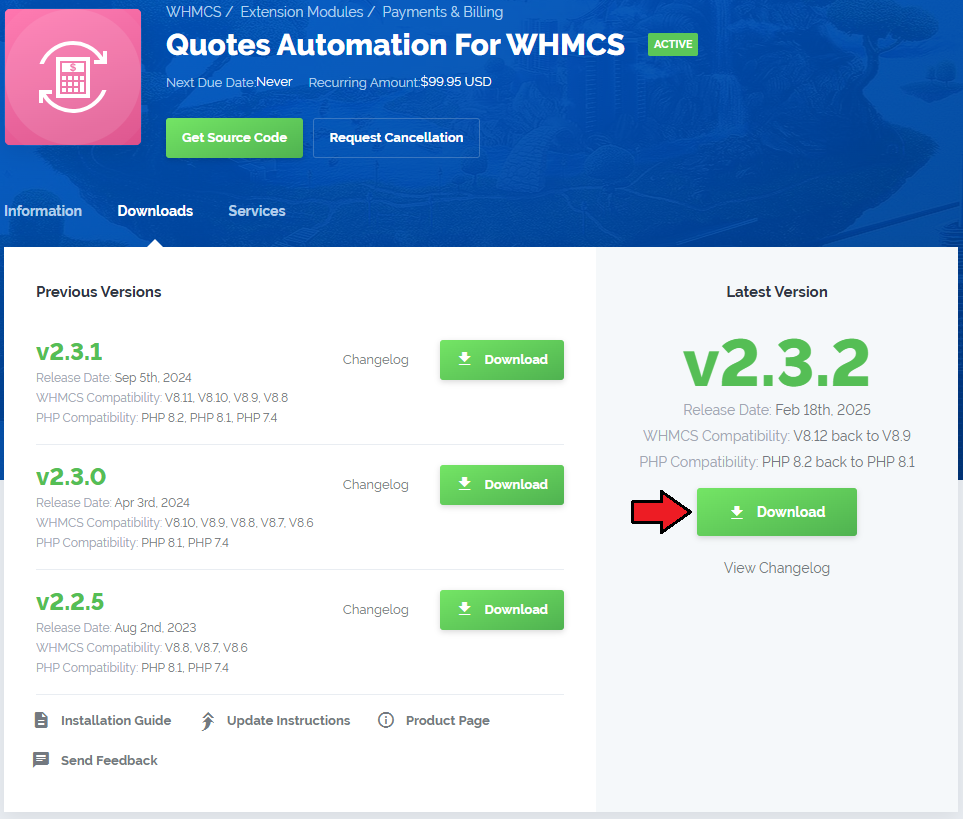
Extract the package and upload its content into the main WHMCS directory.
The content of the package to upload should look like this.
When you install Quotes Automation For WHMCS for the first time you have to rename the 'license_RENAME.php' file.
The file is located in 'modules/addons/quotesautomation/'. Rename it from 'license_RENAME.php' to 'license.php'.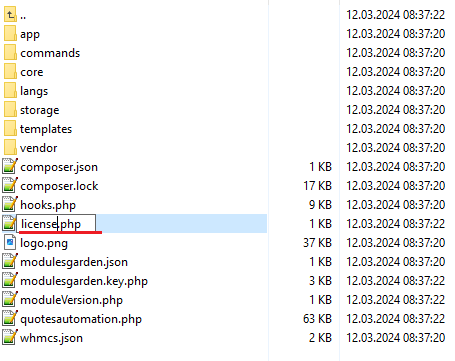
In order to configure your license key, you have to edit the previously renamed 'license.php' file.
Enter your license key between quotation marks as presented on the following screen. You can find your license key in our client area → 'My Products'.
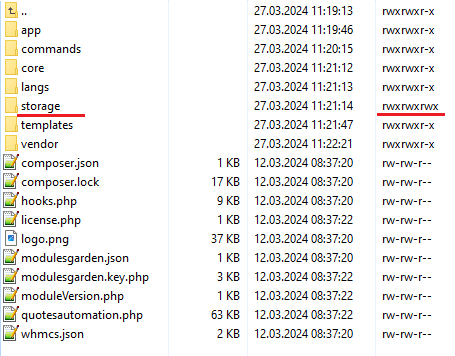
In the next step, set up the 'storage' folder as recursively writable.
This folder is available at 'yourWHMCS/modules/addons/quotesautomation/'.
# Addon Activation
Now you have to activate the module in your WHMCS system.
Log in to your WHMCS admin area. Go to 'Setup' → 'Addon Modules'. Afterwards, find 'Quotes Automation' and press the 'Activate' button.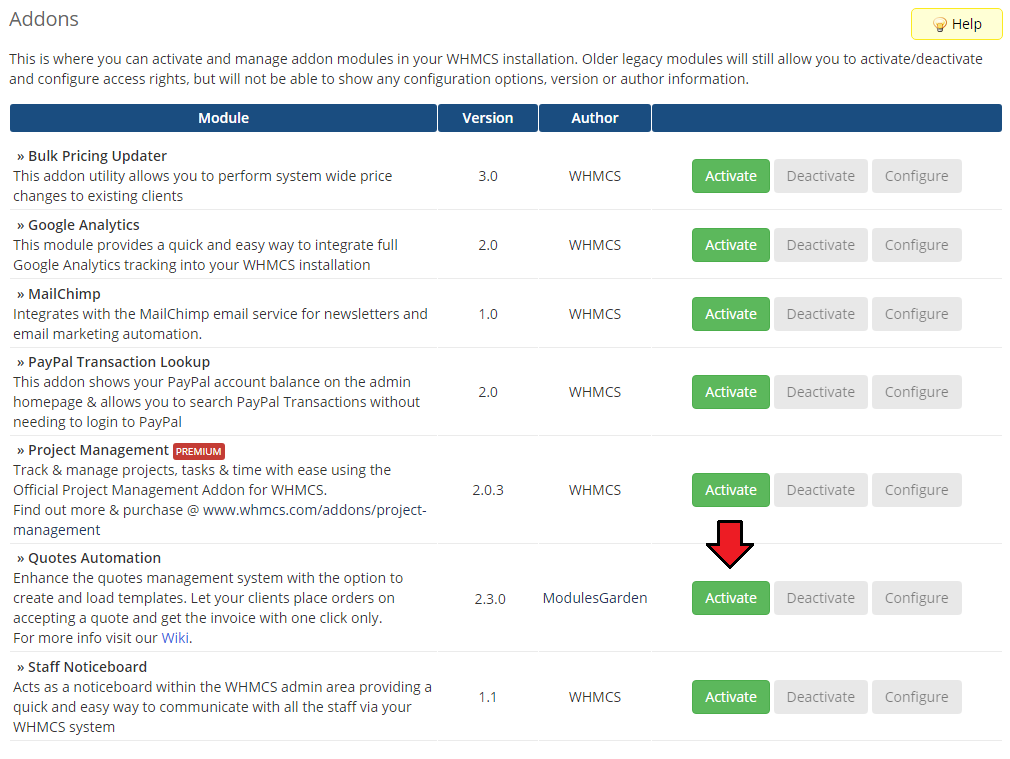
In the next step, you need to permit access to this module.
To do so, click the 'Configure' button, tick 'Full Administrator' and press 'Save Changes'.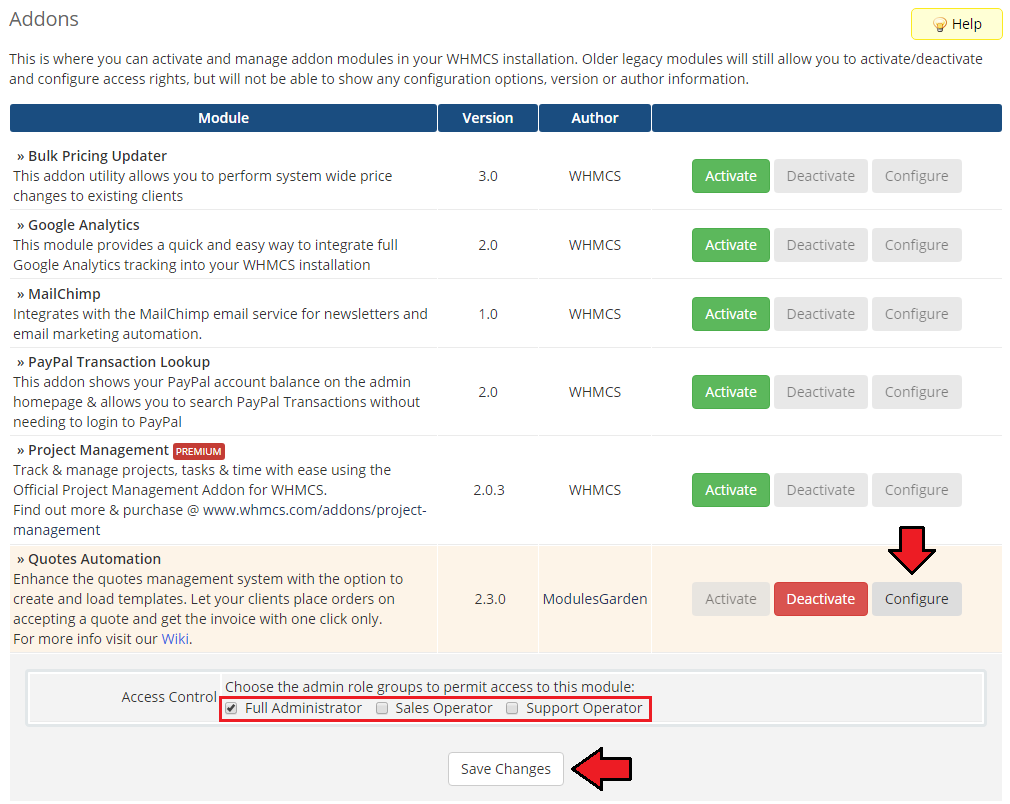
You have just successfully installed Quotes Automation For WHMCS!
You can access your module at 'Addons' → 'Quotes Automation'.
# Configuration and Management
Quotes Automation For WHMCS is a module which allows you to create and use quote templates as well as automate the ordering process.
# Addon
# Home
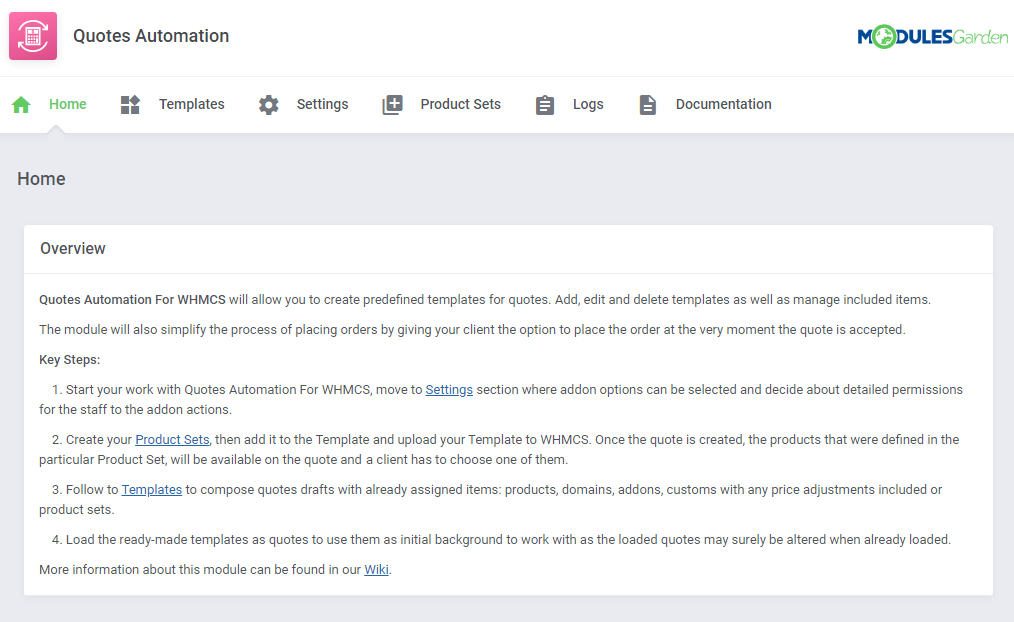
In the 'Home' section you can find a short description of the module as well as the link to this Documentation article.
Move to the 'Settings' tab to configure your addon according to your needs.
# Settings
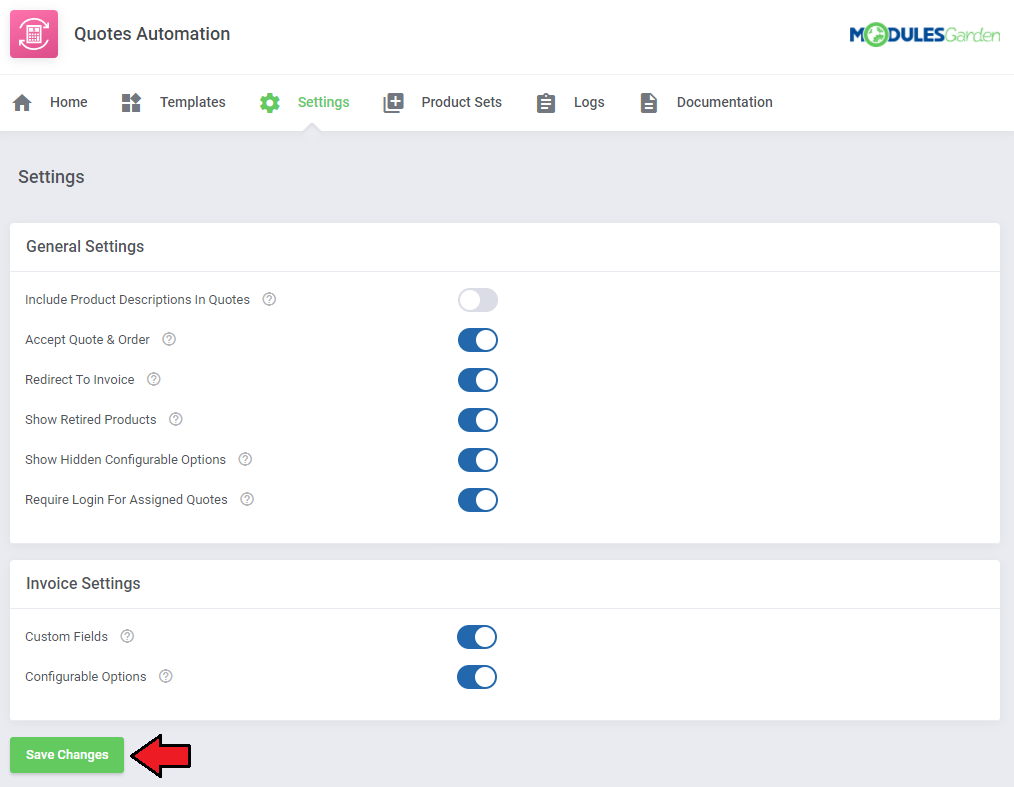
This tab allows you to define the behavior of the module.
In order to set up the behavior of the module, mark checkboxes and press 'Save Changes'.
- General Settings
Include Product Descriptions In Quotes - if chosen, the description of products from their configuration in WHMCS will be automatically filled in the item description field when adding a predefined product to a quote.
If the description has the HTML code, it will be removed from the quotation.Accept Quote & Order - if marked, as soon as your client accepts a quote, it will be converted into an invoice and an order.
Redirect To Invoice - when selected, after accepting a quote, the client is automatically redirected to the invoice if such was created.
Show Retired Products - switch it off if you do not want to show items from product dropdown menus, which are marked as retired in their configuration options.
Show Hidden Configurable Options - toggle on if you want to display hidden product configurable options on the quote.
Require Login For Assigned Quotes - if enabled, the client will have to be logged in to be able to view the quote. If left disabled, the client will be allowed to open and view the quote, but the option to accept it will remain blocked.
- Invoice Settings
Custom Fields - toggle on if you want to display product custom fields on the invoice.
Configurable Options - when enabled, product configurable options will be shown on the invoice.
# Templates
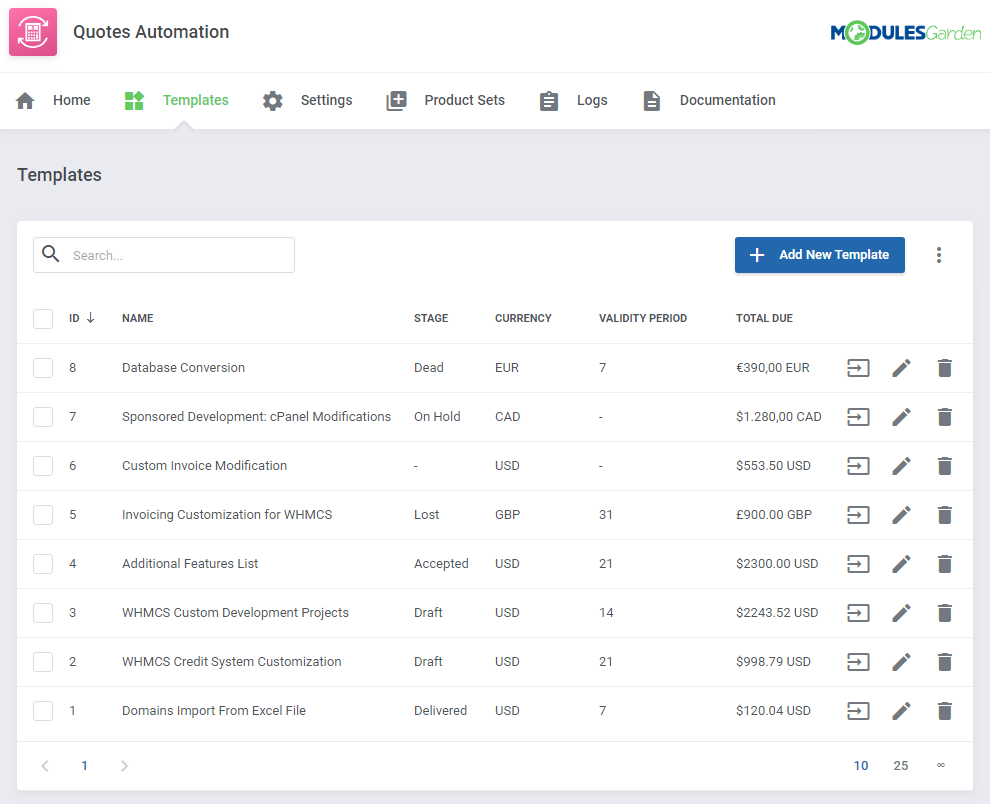
Move to 'Addons' → 'Quotes Automation' → 'Templates'.
You will find there a list of all created quote templates.
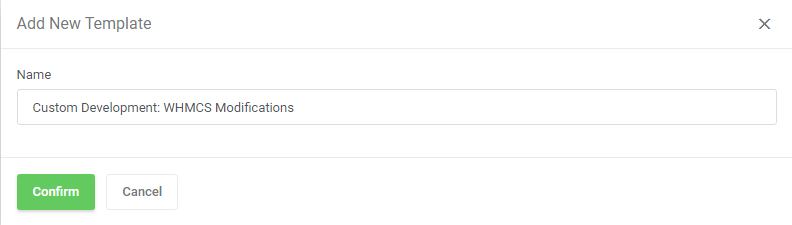
Let's see now what the process of creating a quote template looks like. Start by clicking the 'Add New Template' button.
Give your template a unique name.
You will be moved to the template edit form. This part is divided into two sections: 'General' and 'Items'. We will take a look at the first one.
Here, you must specify the basic information that will be used in a quote such as:
- Quote Subject
- Stage - Draft/Delivered/On Hold/Accepted/Lost/Dead
- Currency - change the template currency used to calculate the price on the quote
- Validity Period - enter the number of days the quote will remain valid once delivered
- Proposal Text - used as a header
- Customer Notes - used as a footer
- Admin Notes - not included in the final quote
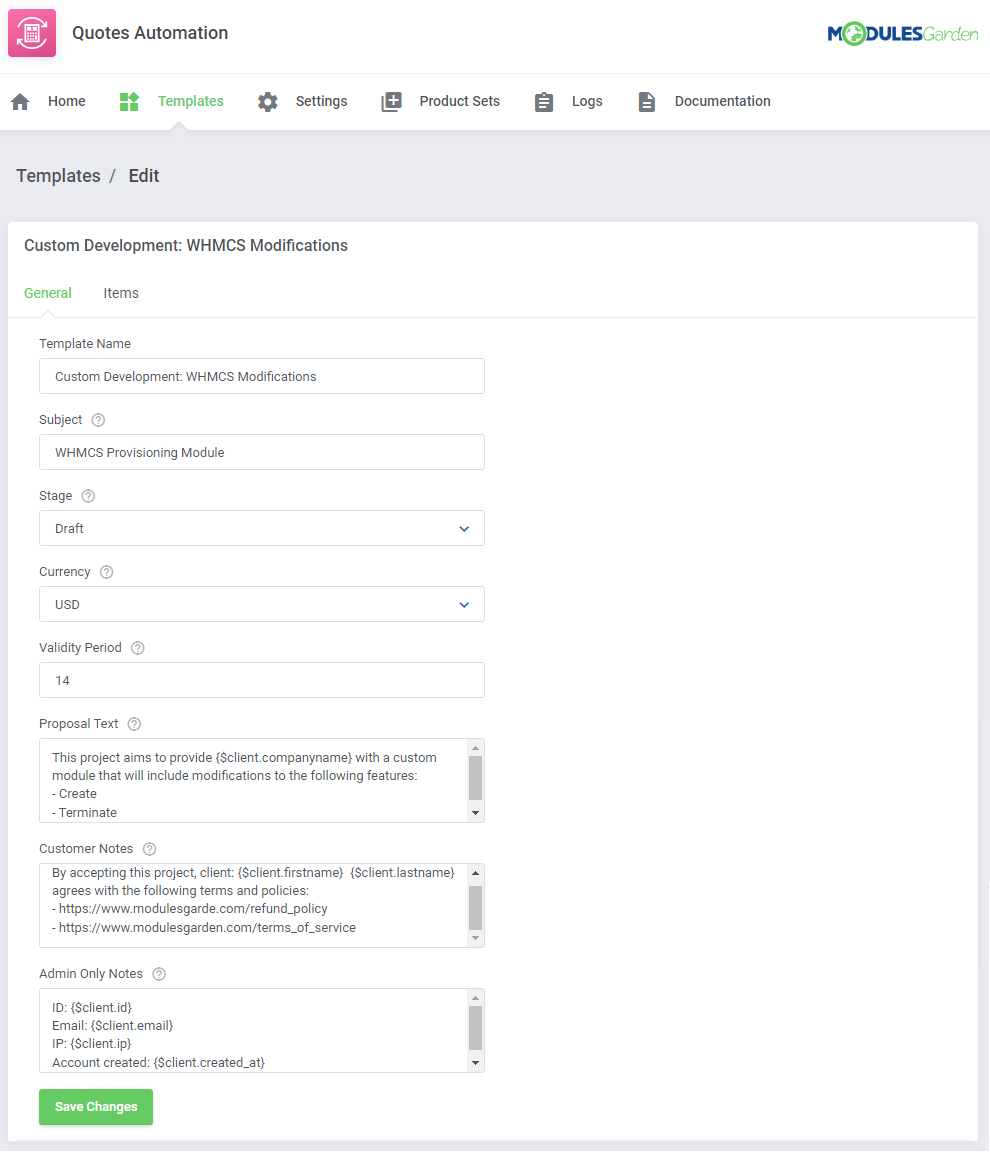
Please be informed that you may use WHMCS 'Client Related' merge fields to compose 'Proposal Text' as well as 'Customer' and 'Admin Notes'.
Here is a list of all available merge fields:
{$client.id}                    {$client.taxexempt}                {$client.bankacct}
{$client.uuid}                  {$client.latefeeoveride}           {$client.gatewayid}
{$client.firstname}             {$client.overideduenotices}        {$client.lastlogin}
{$client.lastname}              {$client.separateinvoices}         {$client.ip}
{$client.companyname}           {$client.disableautocc}            {$client.host}
{$client.email}                 {$client.datecreated}              {$client.status}
{$client.address1}              {$client.notes}                    {$client.language}
{$client.address2}              {$client.billingcid}               {$client.pwresetkey}
{$client.city}                  {$client.securityqid}              {$client.emailoptout}
{$client.state}                 {$client.securityqans}             {$client.marketing_emails_opt_in}
{$client.postcode}              {$client.groupid}                  {$client.overrideautoclose}
{$client.country}               {$client.cardtype}                 {$client.allow_sso}
{$client.phonenumber}           {$client.cardlastfour}             {$client.email_verified}
{$client.tax_id}                {$client.cardnum}                  {$client.email_preferences}
{$client.password}              {$client.startdate}                {$client.created_at}
{$client.authmodule}            {$client.expdate}                  {$client.updated_at}
{$client.authdata}              {$client.issuenumber}              {$client.pwresetexpiry}
{$client.currency}              {$client.bankname}                 {$whmcs_company_name}
{$client.defaultgateway}        {$client.banktype}                 {$whmcs_url}
{$client.credit}                {$client.bankcode}                 {$whmcs_email}
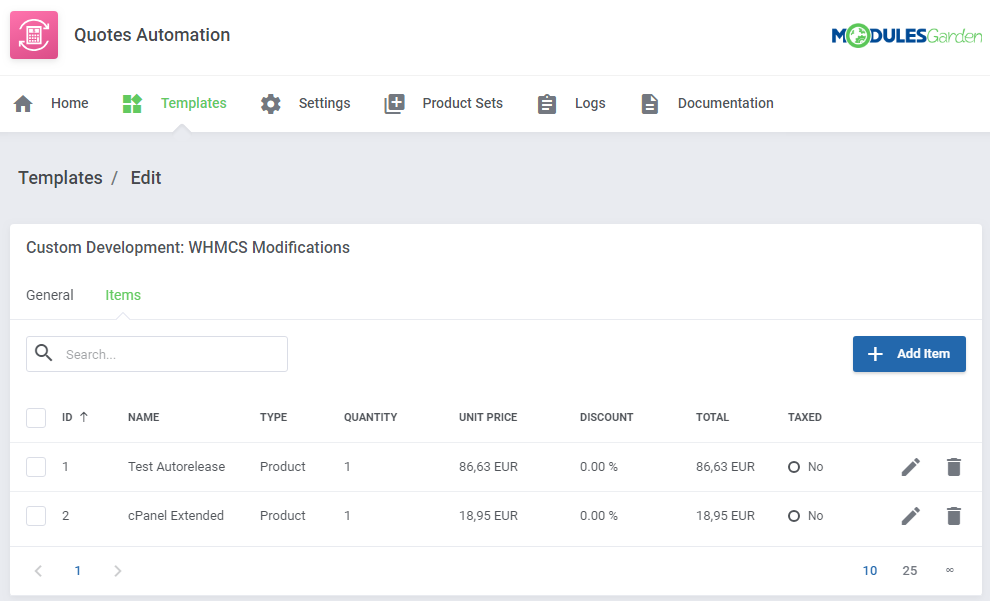
Now move to the 'Items' part. There is a list of all already added items to this template. Press 'Add Item' to start.
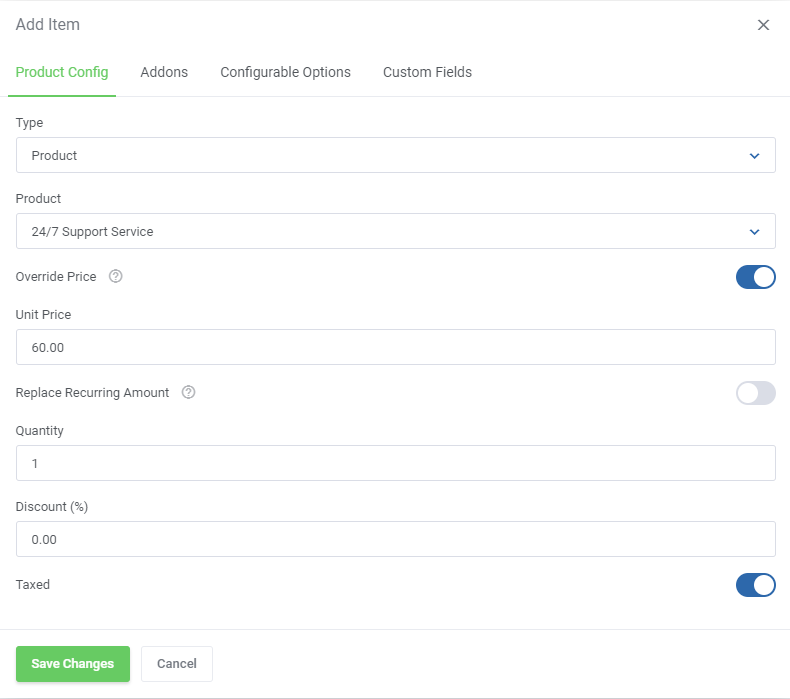
In the beginning, you need to select the item type: 'Product', 'Domain', 'Addon' or a 'Custom'. Then:
- Select the actual item
- Depending on the selected type, appropriate options to choose will appear (TLD, addon name, etc.)
- Override Price - if selected a new unit price will be bound to the item in this template only
- Replace Recurring Amount - toggle to apply pricing changes the billing cycle price, not only the first payment
- Discount - you may also add a discount to the item, just provide a percentage value
- Taxed - toggle this option to tax the item
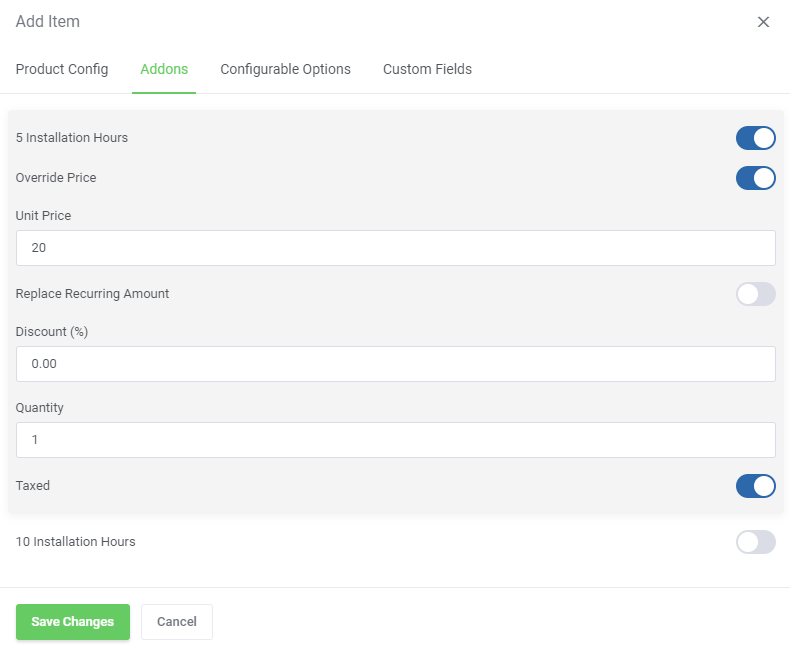
If you have set up product addons in your WHMCS, you can include them with the product. As seen on the screen below, its configuration is quite similar.
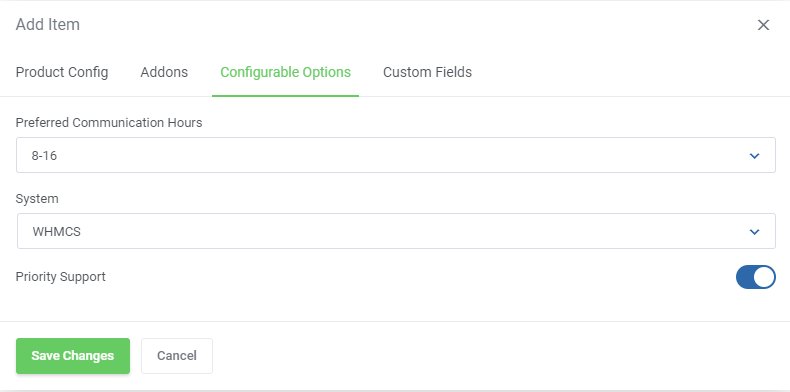
If the product you have selected in 'Product Config' has configurable options assigned to it, you will find another section where you can specify these.
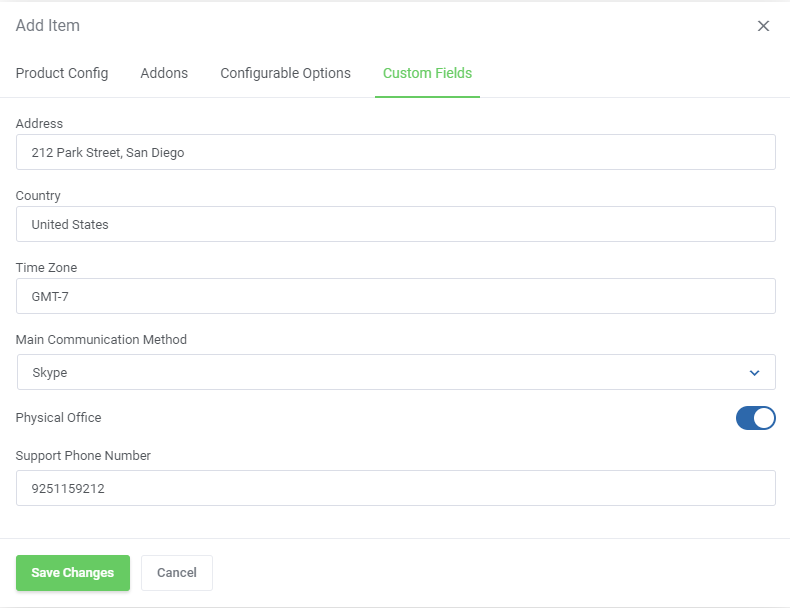
The same applies to the product's custom fields. See an example on the screen below.
Remember to save the changes when ready.
Below the configuration, there is a summary view of the sub total, tax and total due amounts of the template items.
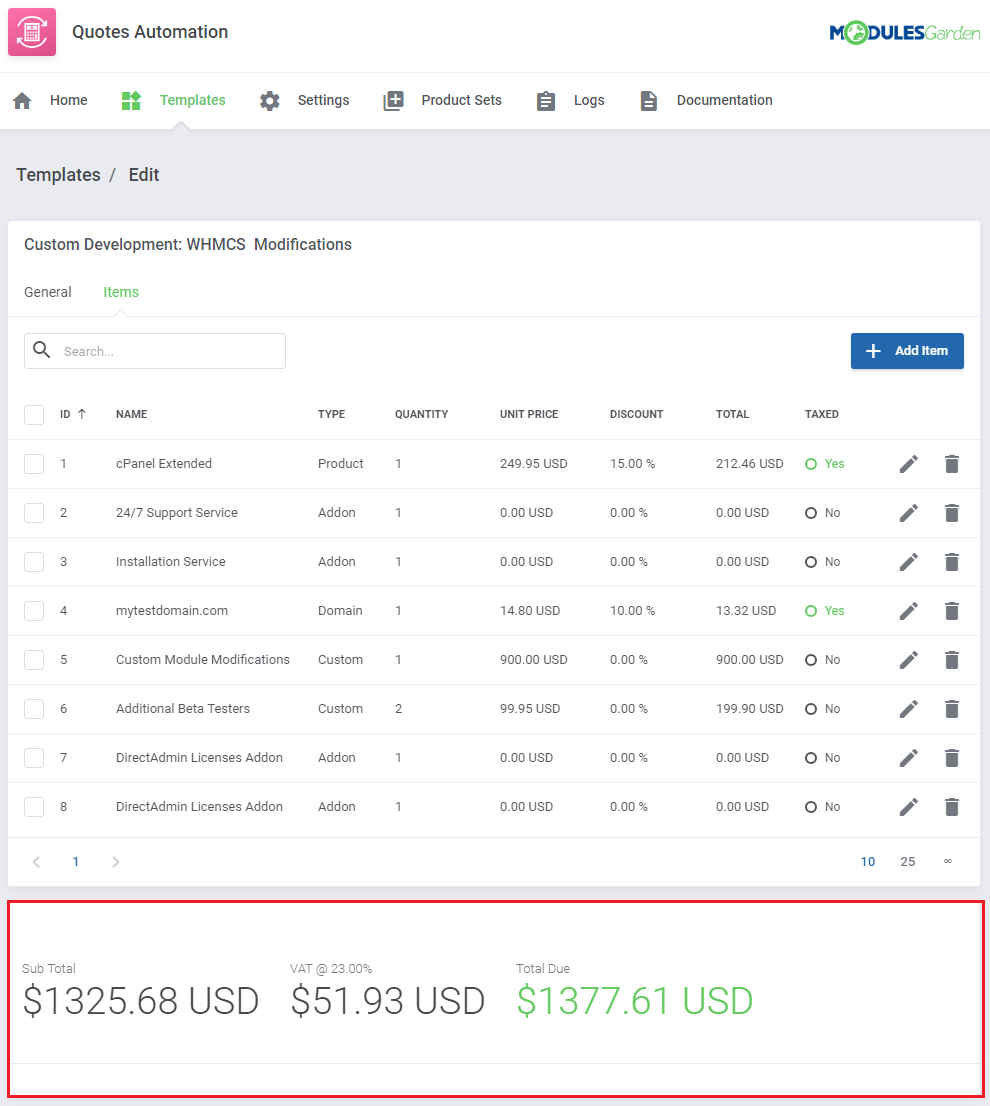
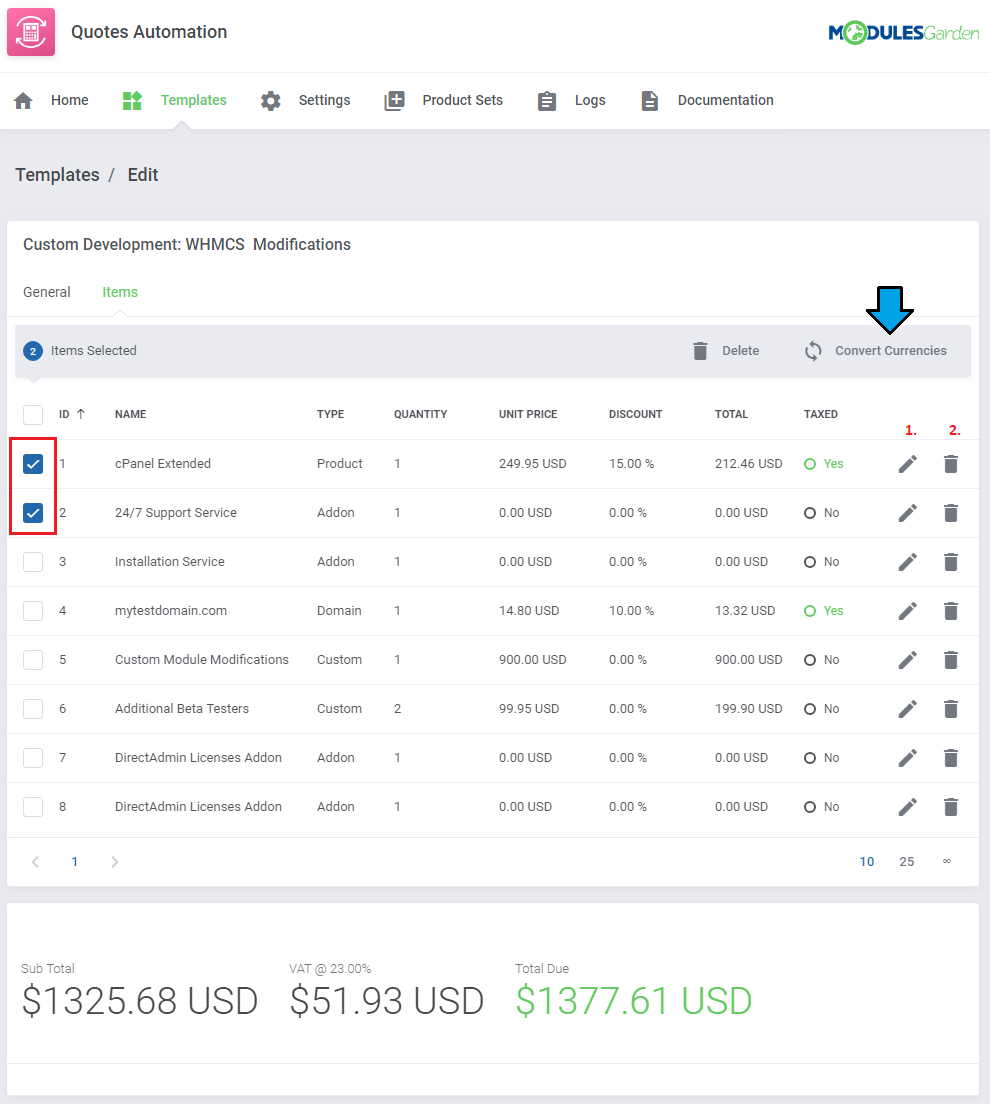
You may add several different items to one template of course. Use action buttons to: (1.) edit an item and (2.) delete the item.
If the currency of the template has been previously changed, then here the items prices can be converted and recalculated with the current Base Conv. Rate set at the WHMCS currency settings.
Select the items if you want to recalculate the final price.
Keep in mind that templates, once loaded to a quote still can be modified and items added or removed.
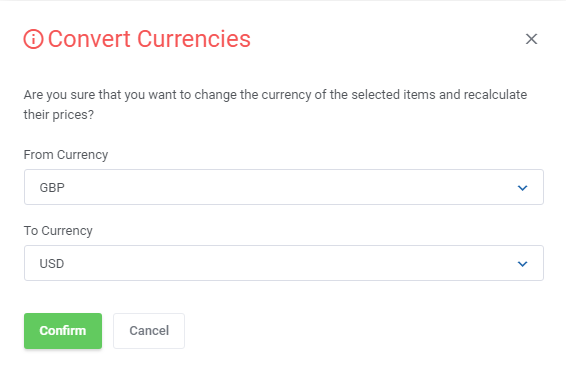
Select the initial currency and the one that will be used for the selected items. The items price will be automatically recalculated adequately.
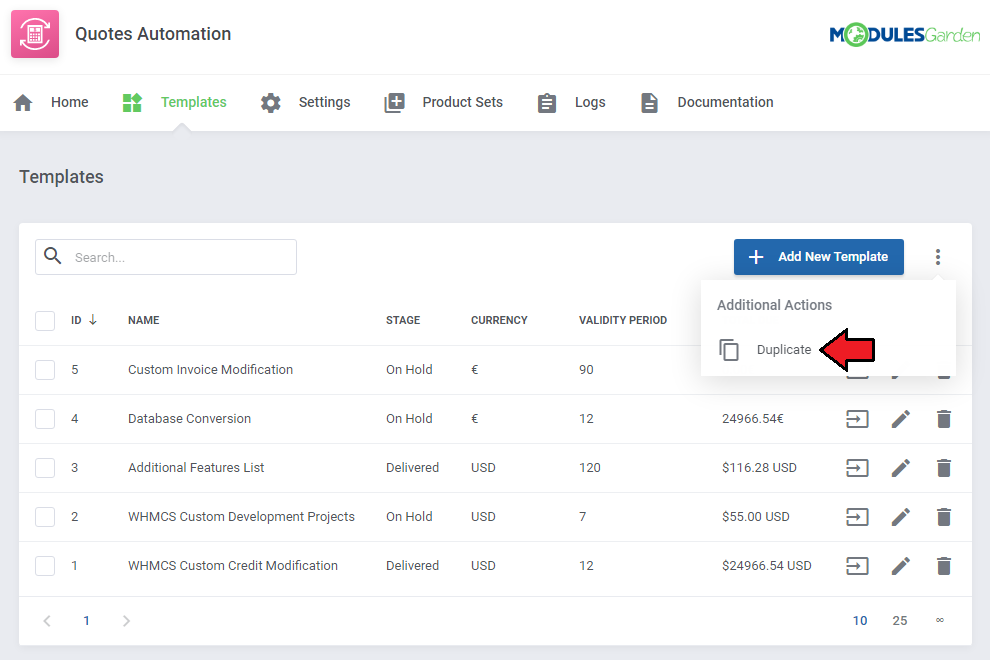
There is also the possibility to 'Duplicate' the preferred 'Templates'. Simply, click on the following button:
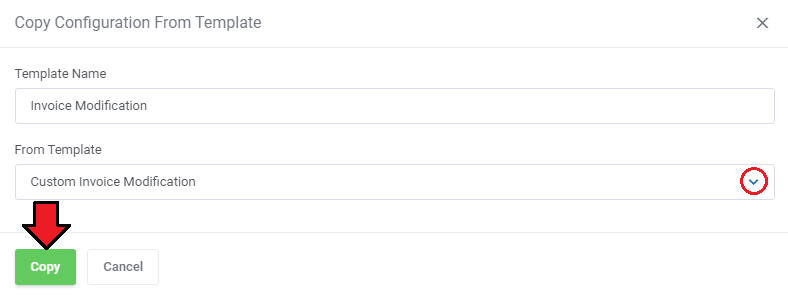
Now, provide a name of your new 'Template' and choose one of the existing templates that the configuration should be copied from.
Once selected, do not forget to press 'Copy'.
# Product Sets
This section grants you the possibility to create your 'Product Sets' with the selected products.
Later, your new 'Product Set' can be added to the 'Template' and then your 'Template' may be loaded to WHMCS and finally you can 'Generate URL' of the quote there.
Please note that:
All products that belong to the particular 'Product Set' will have the same billing cycle and price.
When you add a product that has Configurable Options or Custom Fields determined, you will not be able to define Configurable Options nor Custom Fields here.
A client will have to choose one of the products specified in your 'Product Set' (currently there is no possibility to select a few products or none of them on the quote).
We are currently working to solve all the above limitations in the future version of the module.
In order to create a new 'Product Set' click on the following button:
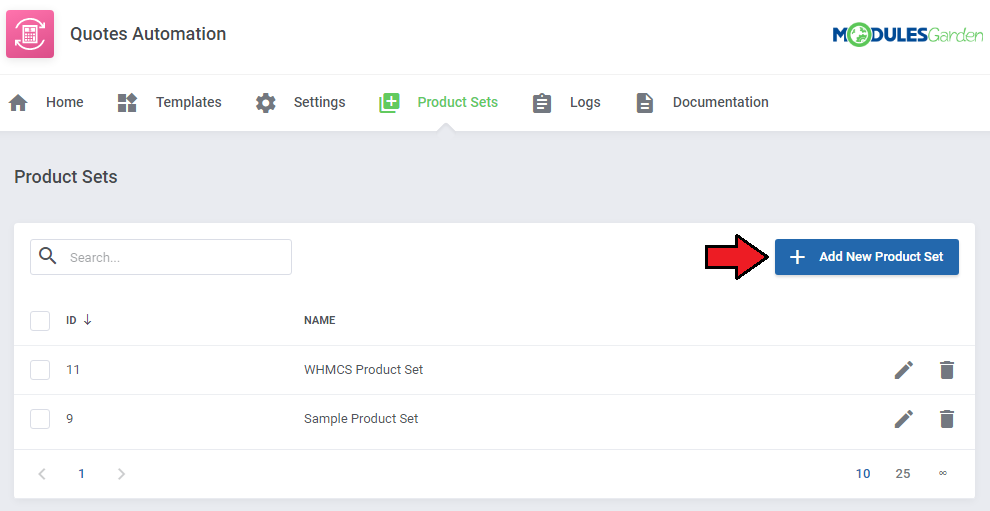
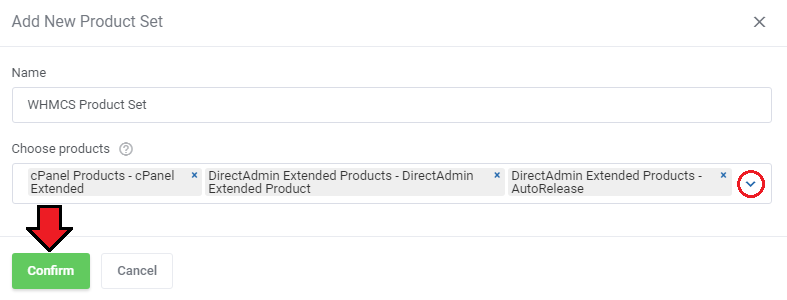
Provide a name of your 'Product Set' and select the preferred products from the dropdown menu. Once ready, confirm your changes.
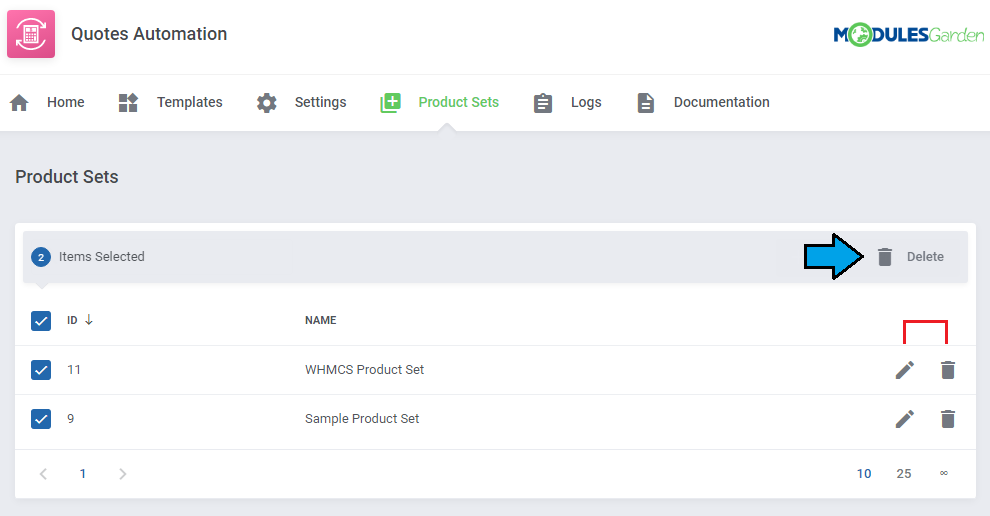
If you want to modify the name or choose products in your 'Product Set' then click on the edit icon.
If some 'Product Sets' are no longer needed, you can easily delete them using the mass delete button.
# Logs
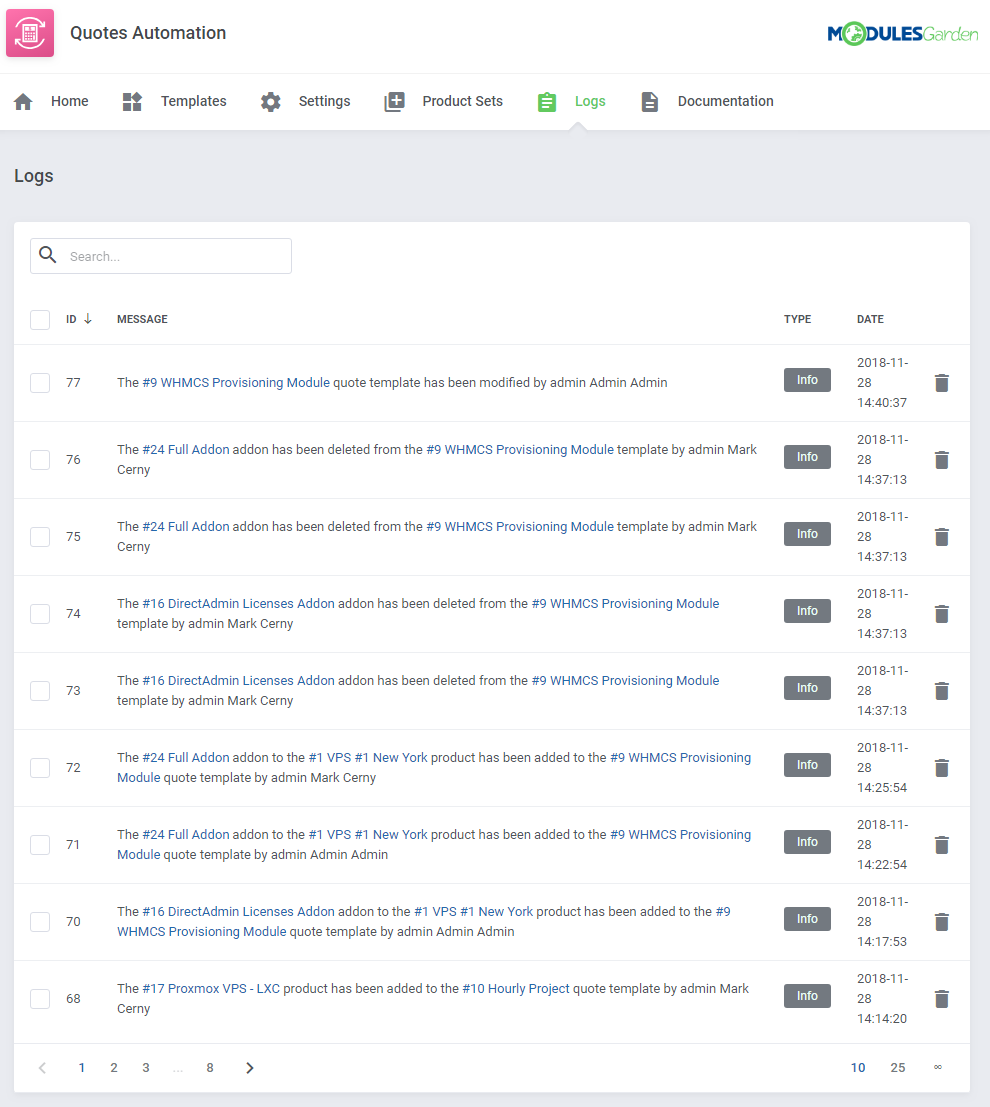
The last section in the addon gives detailed information on any actions with templates. Check logs to follow all the processes.
# Quotes
# Load Template To Quote
There are two ways to load a template as quote.
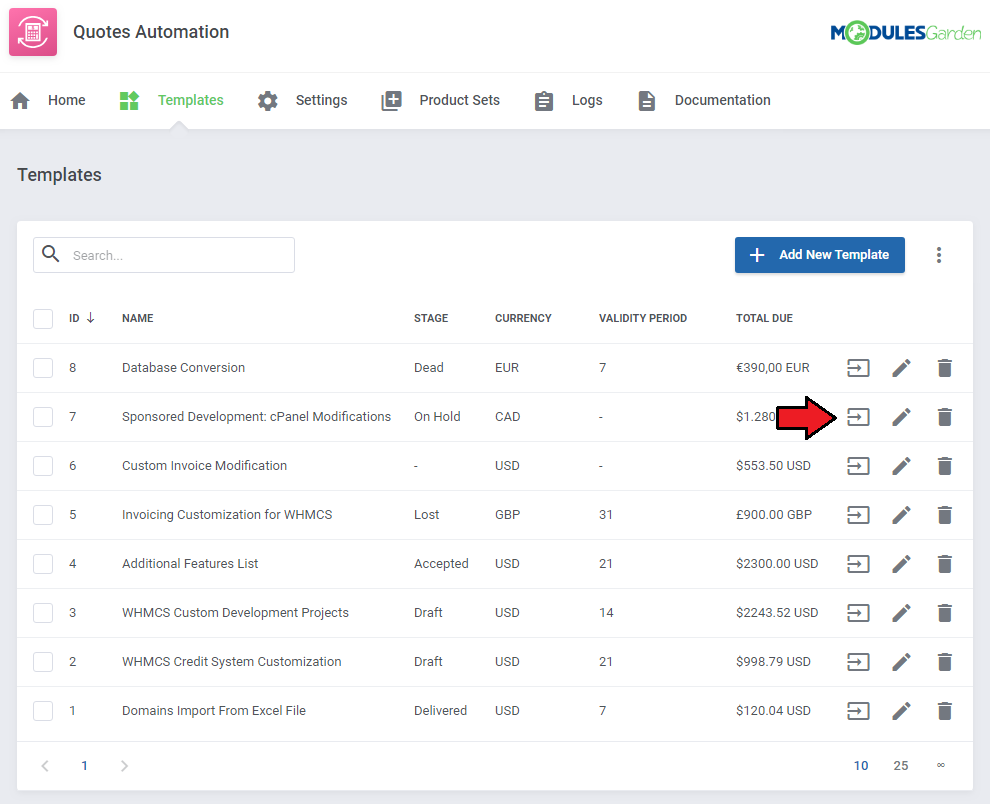
The first way - load a template directly from the addon → 'Templates' section. Press the 'Load To Template' button next to a desired draft.
You will be automatically redirected to the WHMCS quote page.
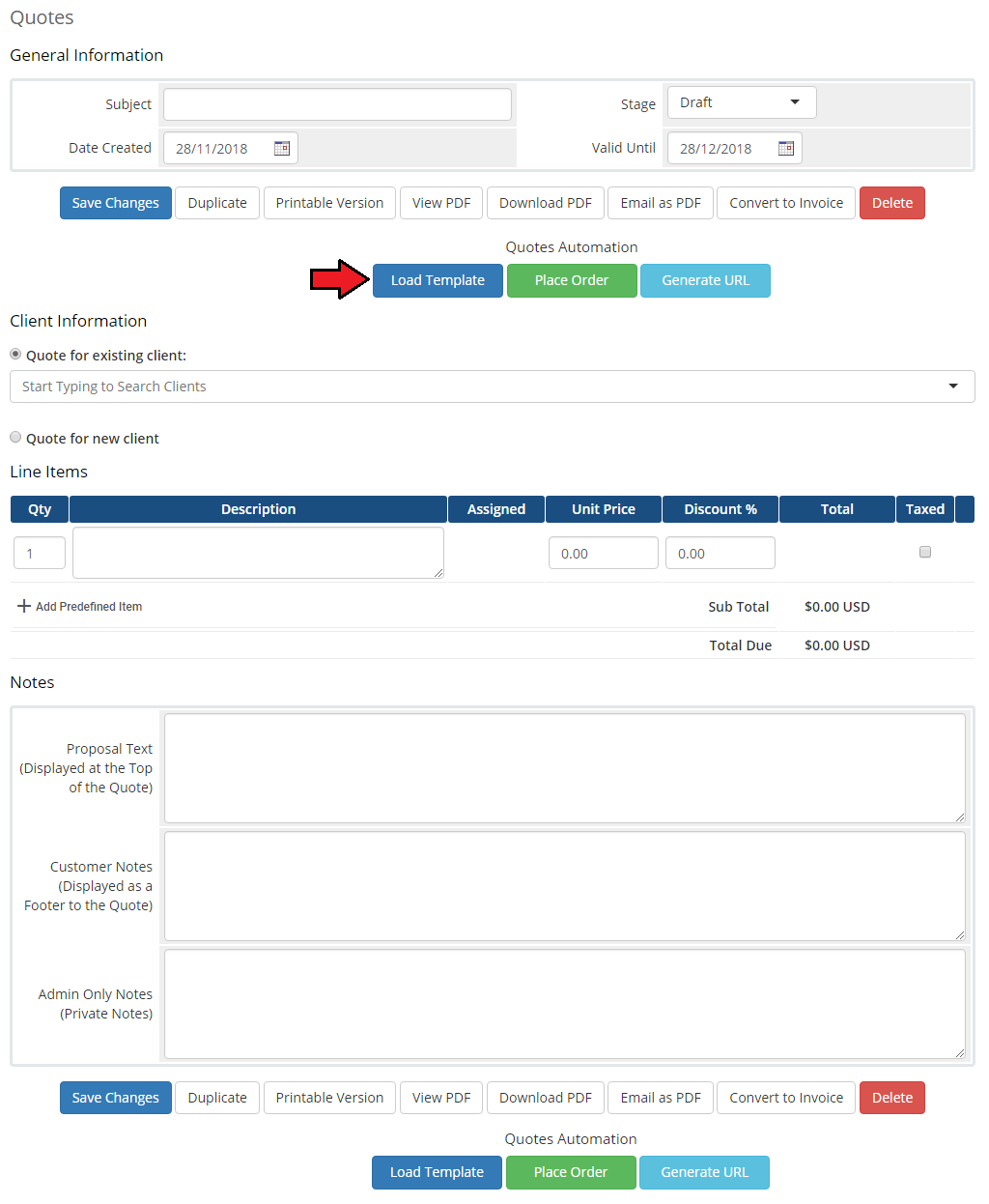
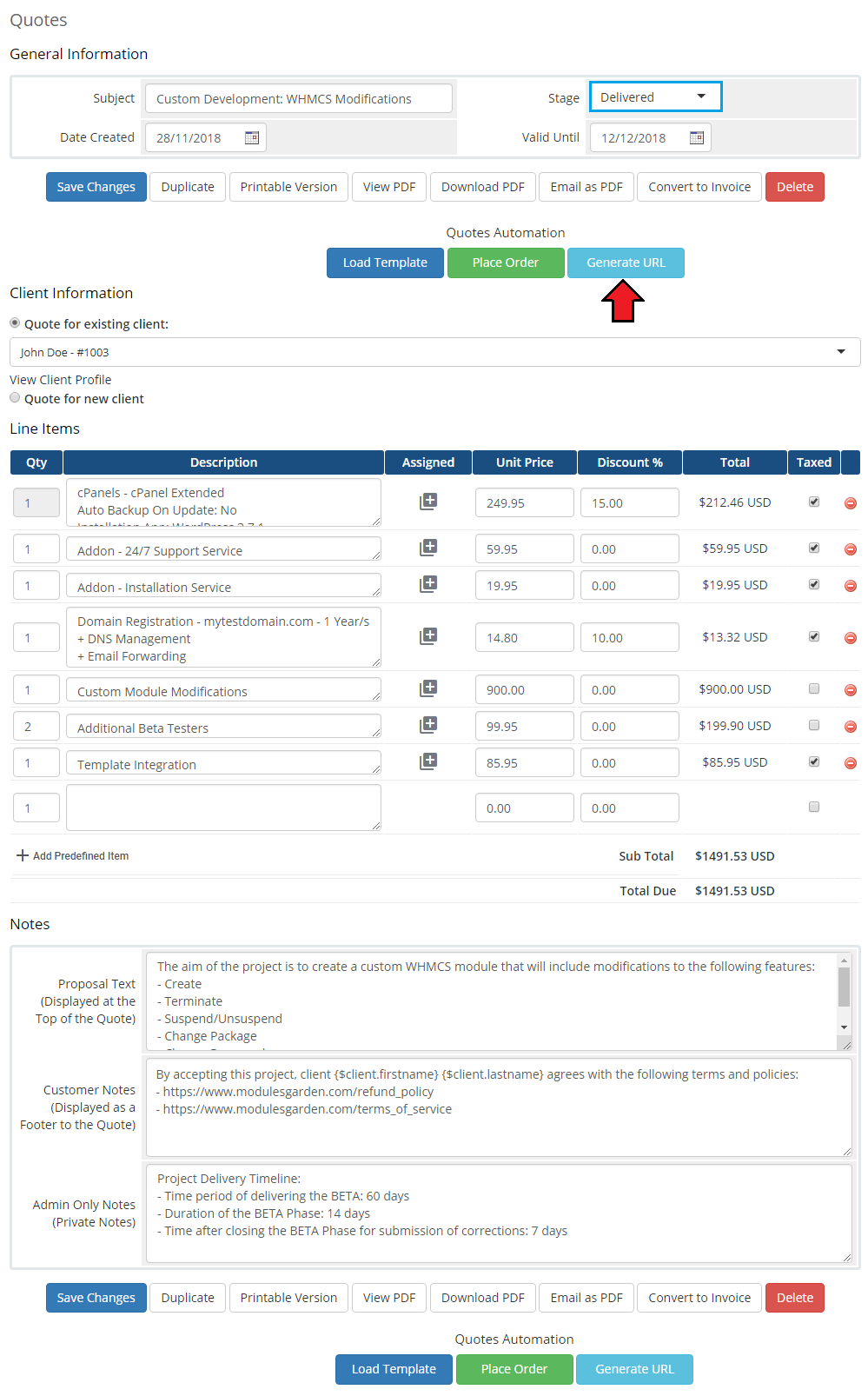
Alternatively, move to 'WHMCS' → 'Billing' → 'Quotes'. Create a new quote or open any existing quote.
There you will see the Quotes Automation dedicated buttons: 'Load Template' and 'Place Order'.
Press the former one to load the template.
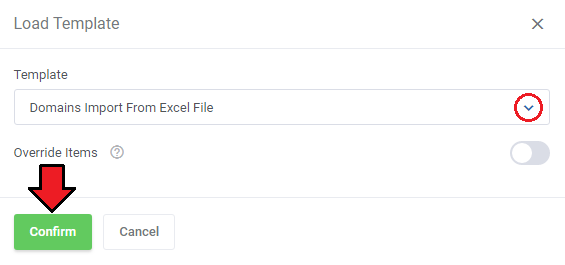
A new window where you may select from the module templates will appear. Choose a quote draft of your need.
At this point you may also override the already existing items on the quote (if any have already been added).
# Manage Quote
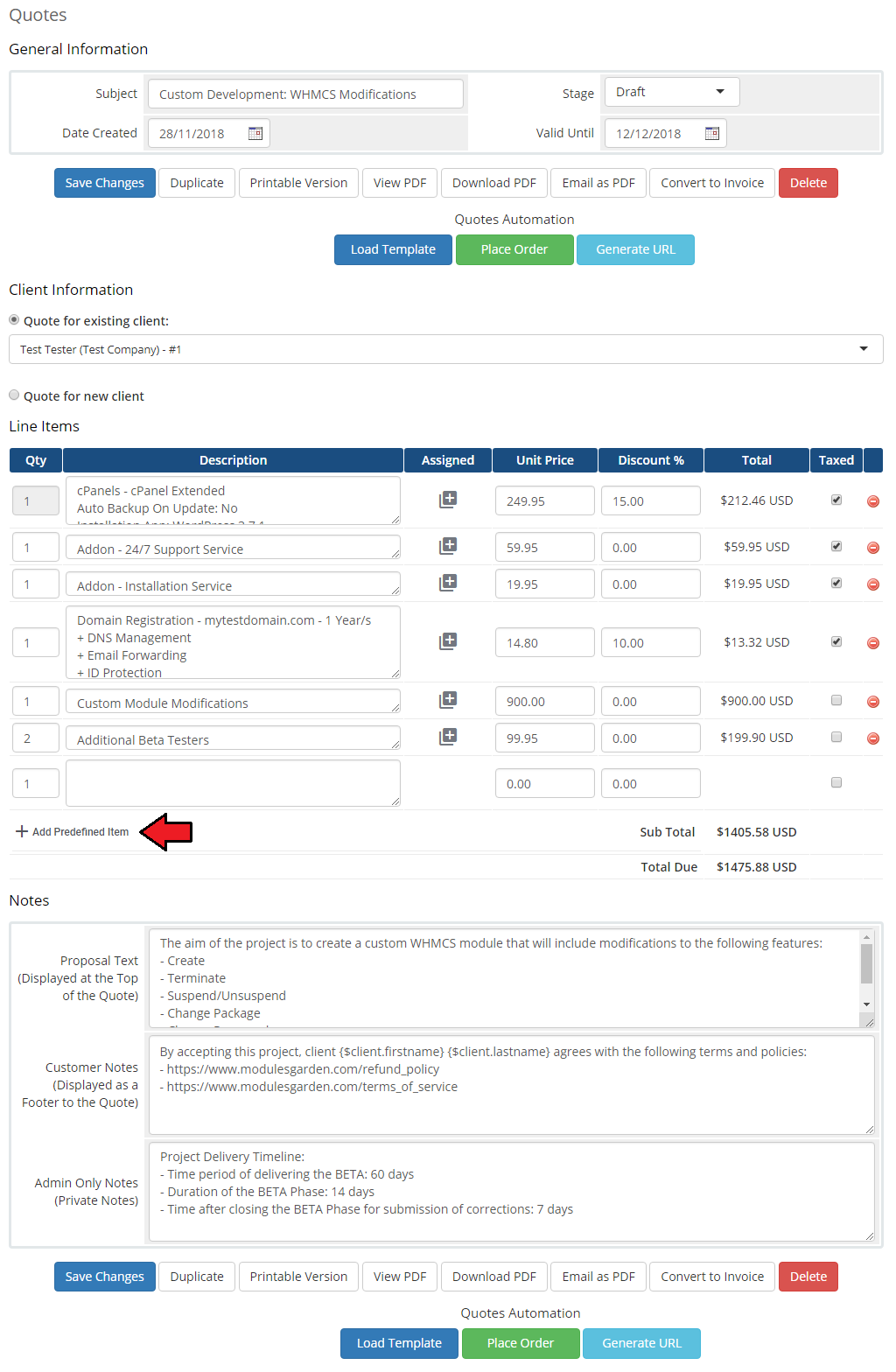
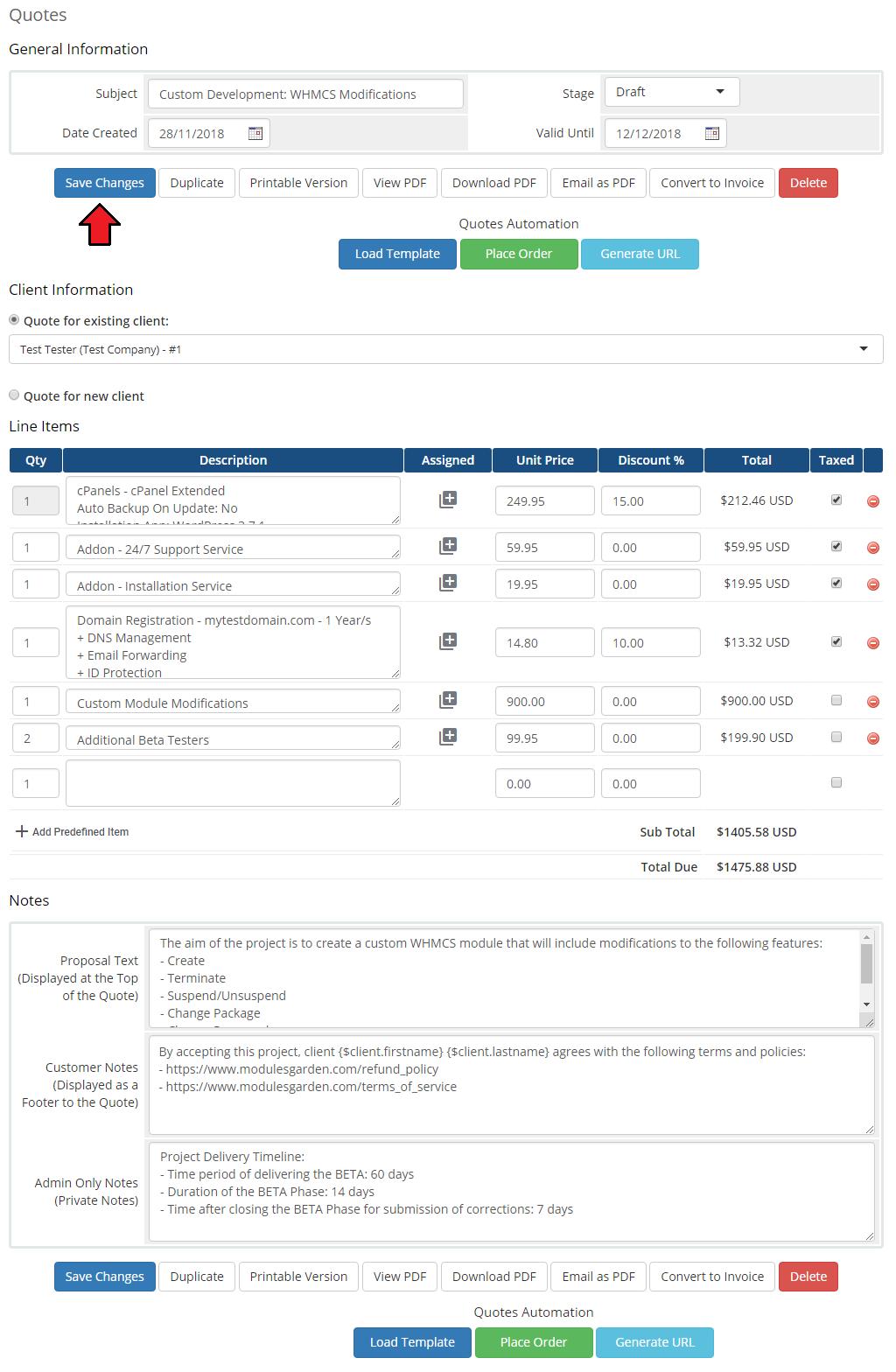
A template draft has been loaded to a quote. Underneath the client details, all items included in the template are visible, with unit prices and applied discounts if and have been set up for the items.
At the very bottom, there are all the notes and proposal text which can still be modified.
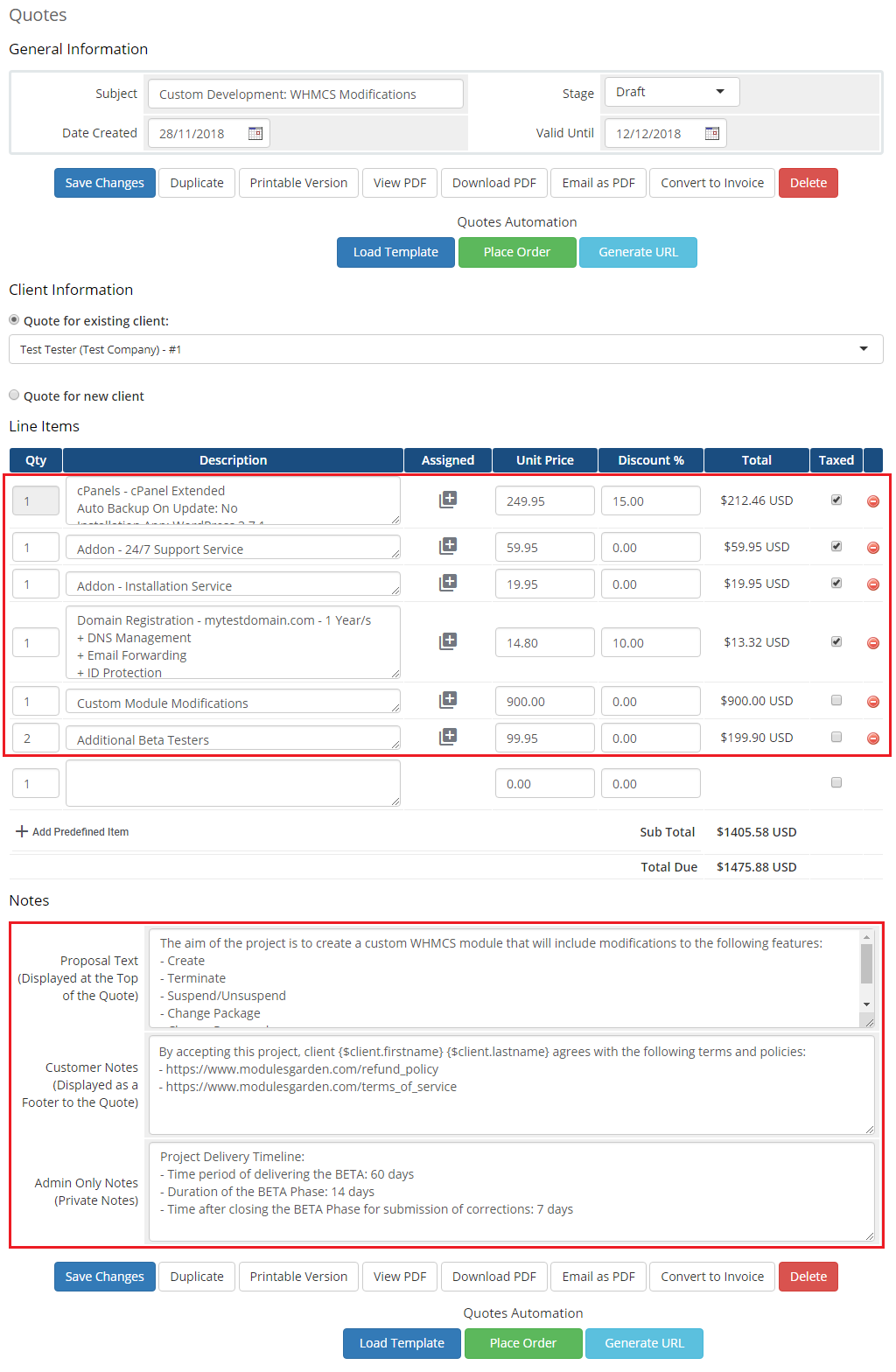
Use the 'Add Predefined Item' button to add more items to the list.
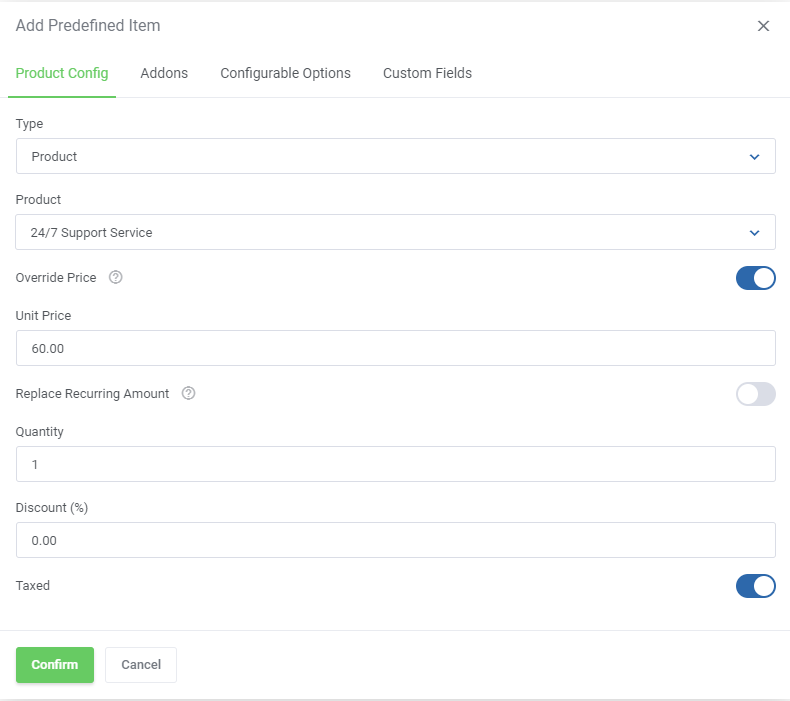
A new window where items can be composed with all module options will appear.
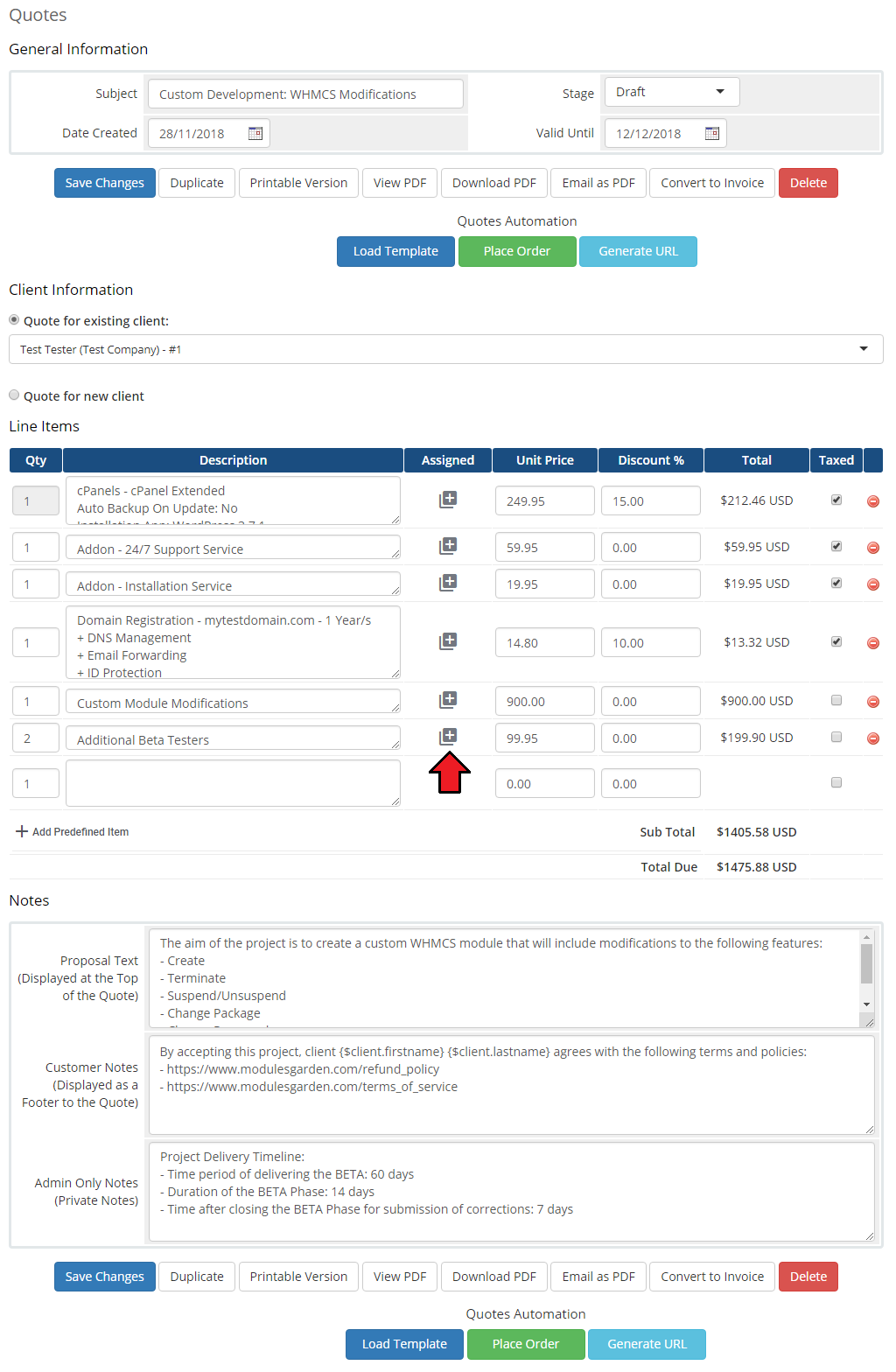
The module offers also the option to assign additional custom items to those already on the list.
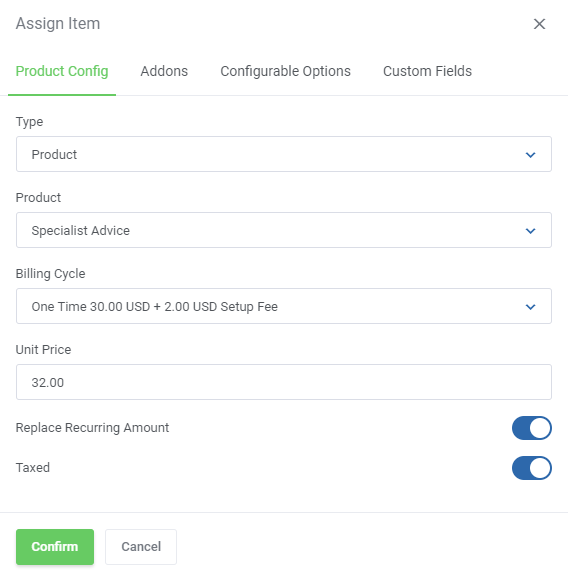
Prepare the item to be assigned and press 'Confirm' when ready.
In case you no longer want to assign any item to that product, simply leave the item type field as 'Not Assigned'.
Remember to save the changes if you have made any changes in the loaded quote. Otherwise, all of them will be gone.
# Convert Quote To Order
As soon as the customer accepts the quote, you can quickly create an invoice and an order from it. Press 'Place Order'.
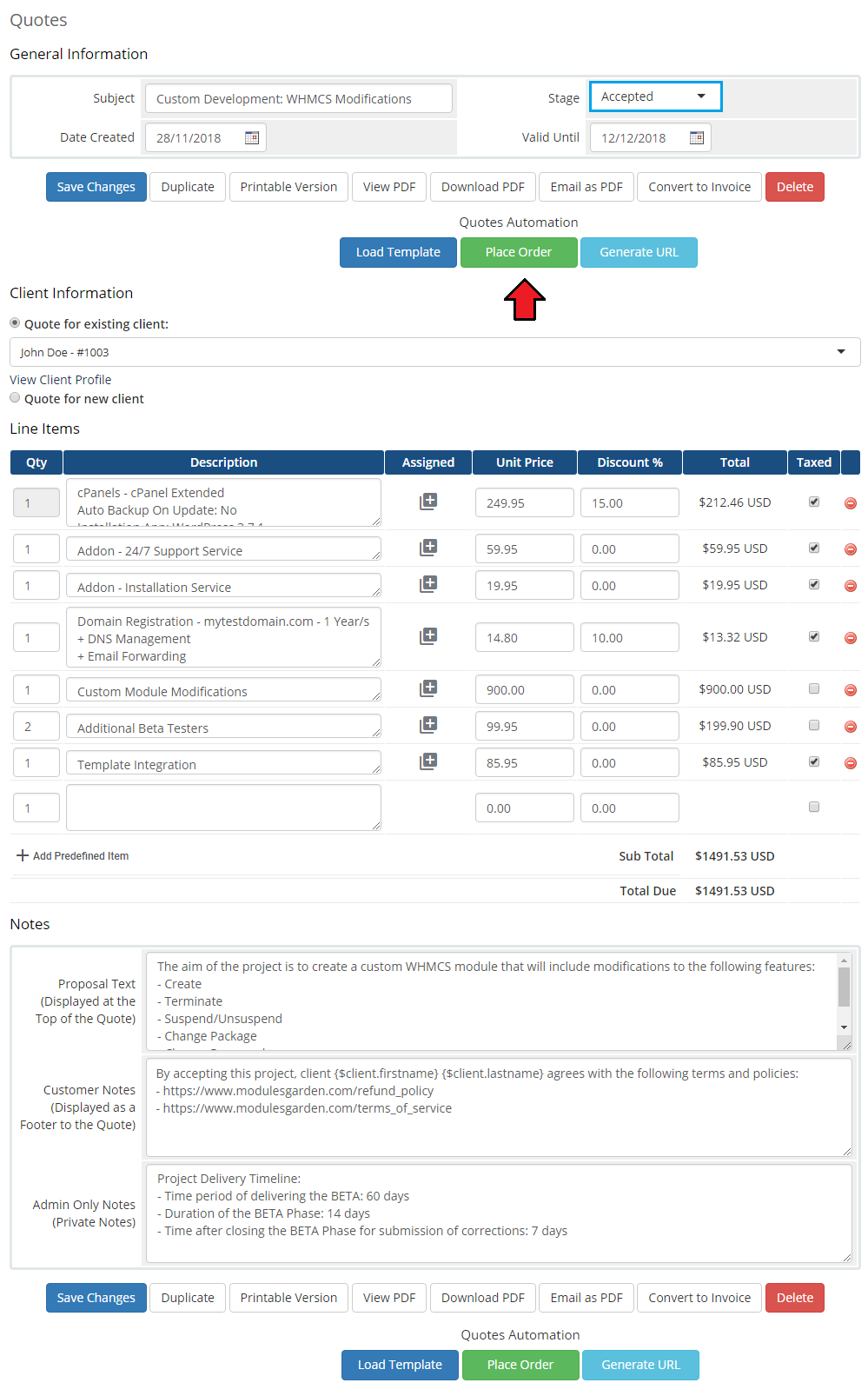
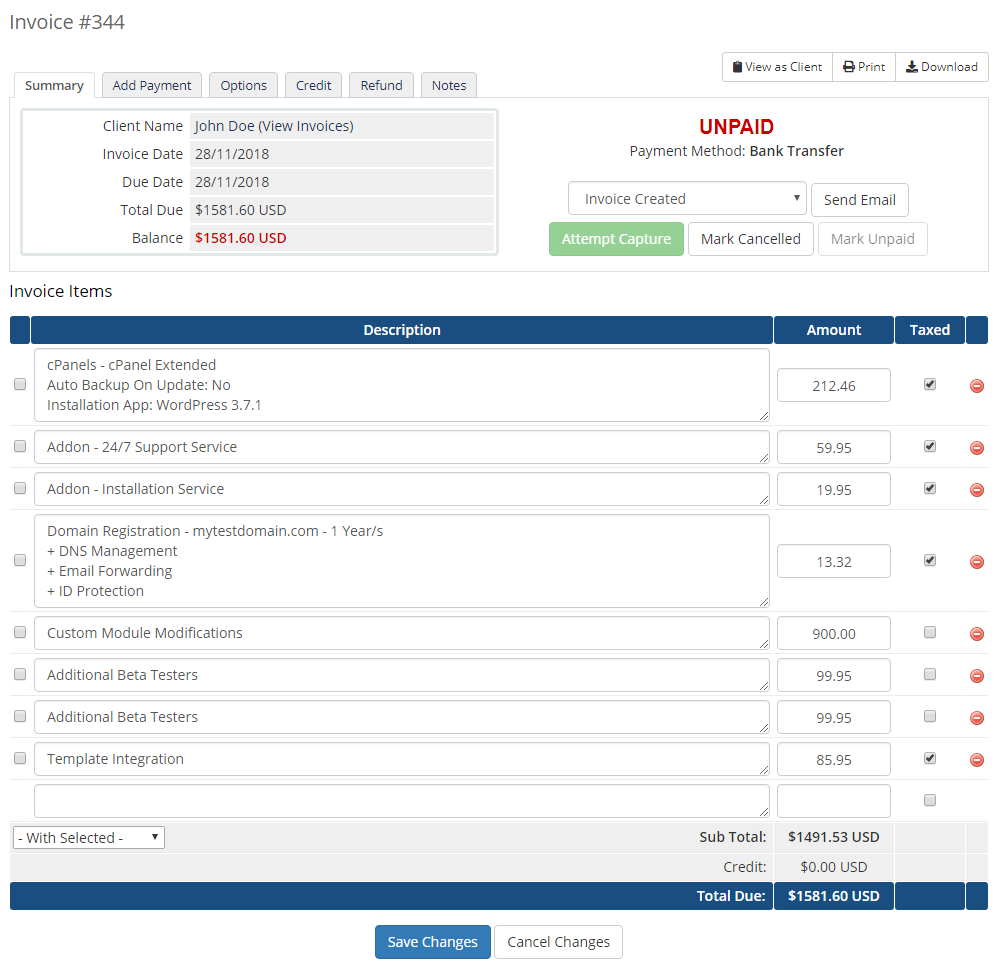
On the screen below you can see the invoice based on the accepted quote.
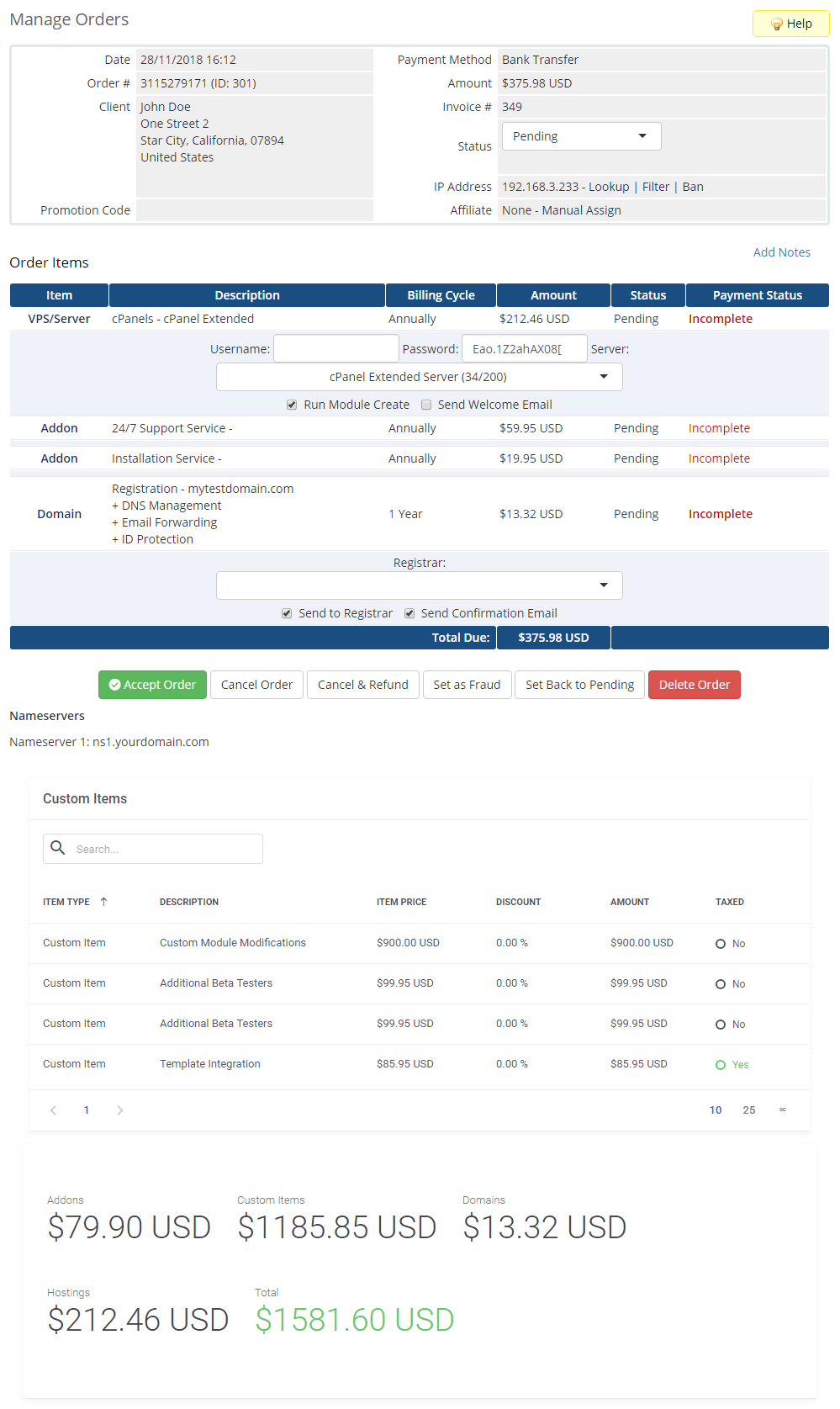
The order is also made right away with the specified price.
At the bottom of the order there are listed any assigned custom items (WHMCS does not include them in ordered items by default) with calculated values.
# Generate URL
If you added your 'Product Set' to the 'Template' that is loaded here, now you can use the 'Generate URL' button to get a direct link to the quote.
Copy the generated link and send it to your client who will have to choose one of the products from the quote.
# Client Area
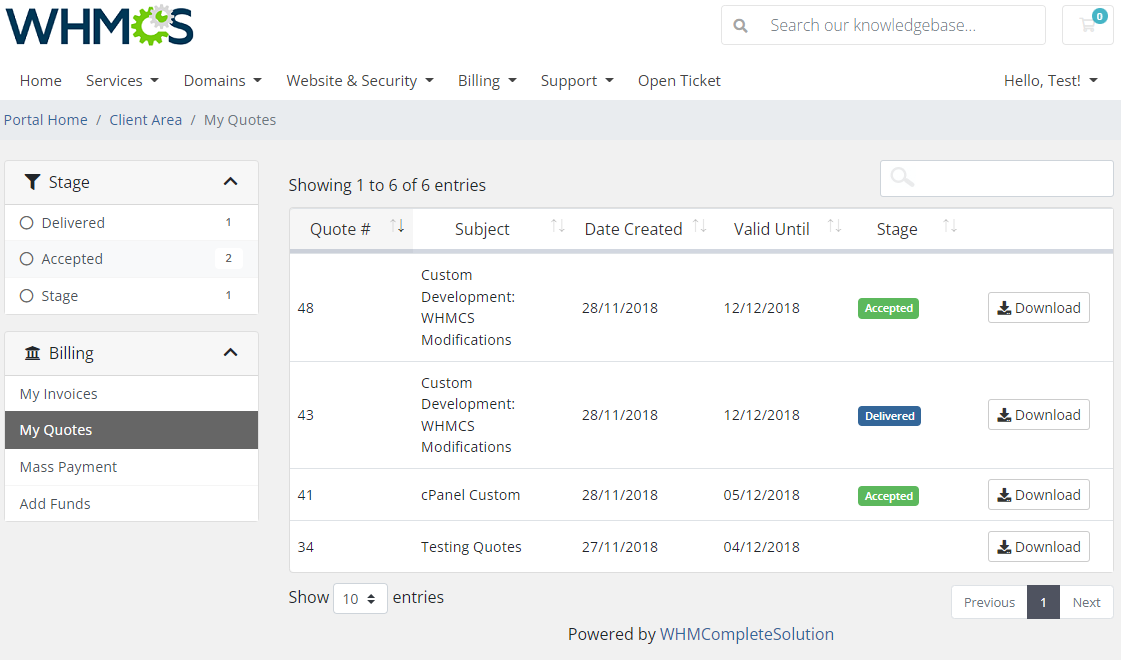
If you have marked 'Accept Quote & Order', the module will alter the quotes in the client area.
Find your quotes, view the ones you want to accept, and place an order instantly.
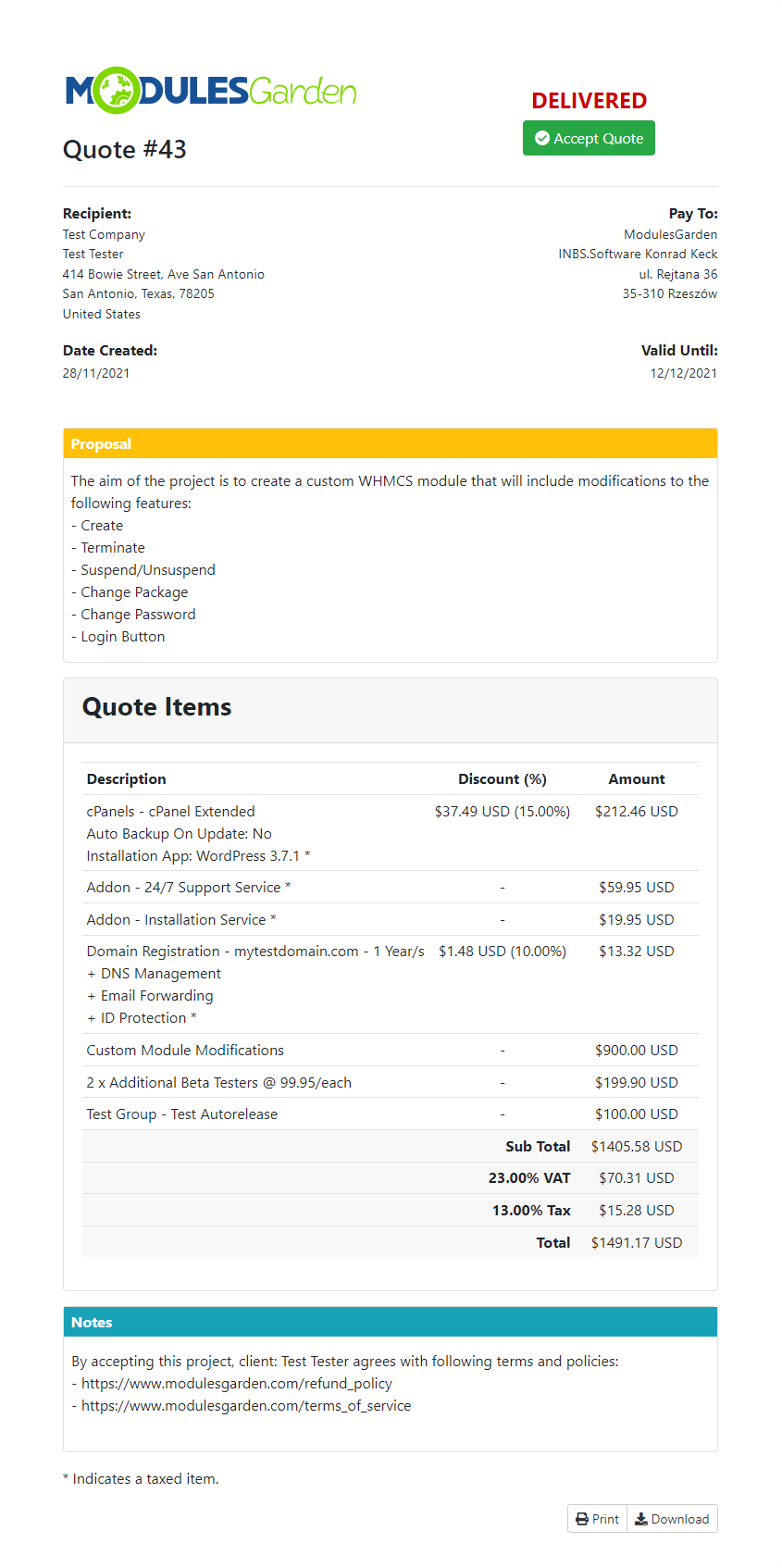
# Accept & Order
Additional actions will be made upon pressing 'Accept Quote & Place Order' on the order itself.
This way, the module automatically generates the invoice and the order from the quote.
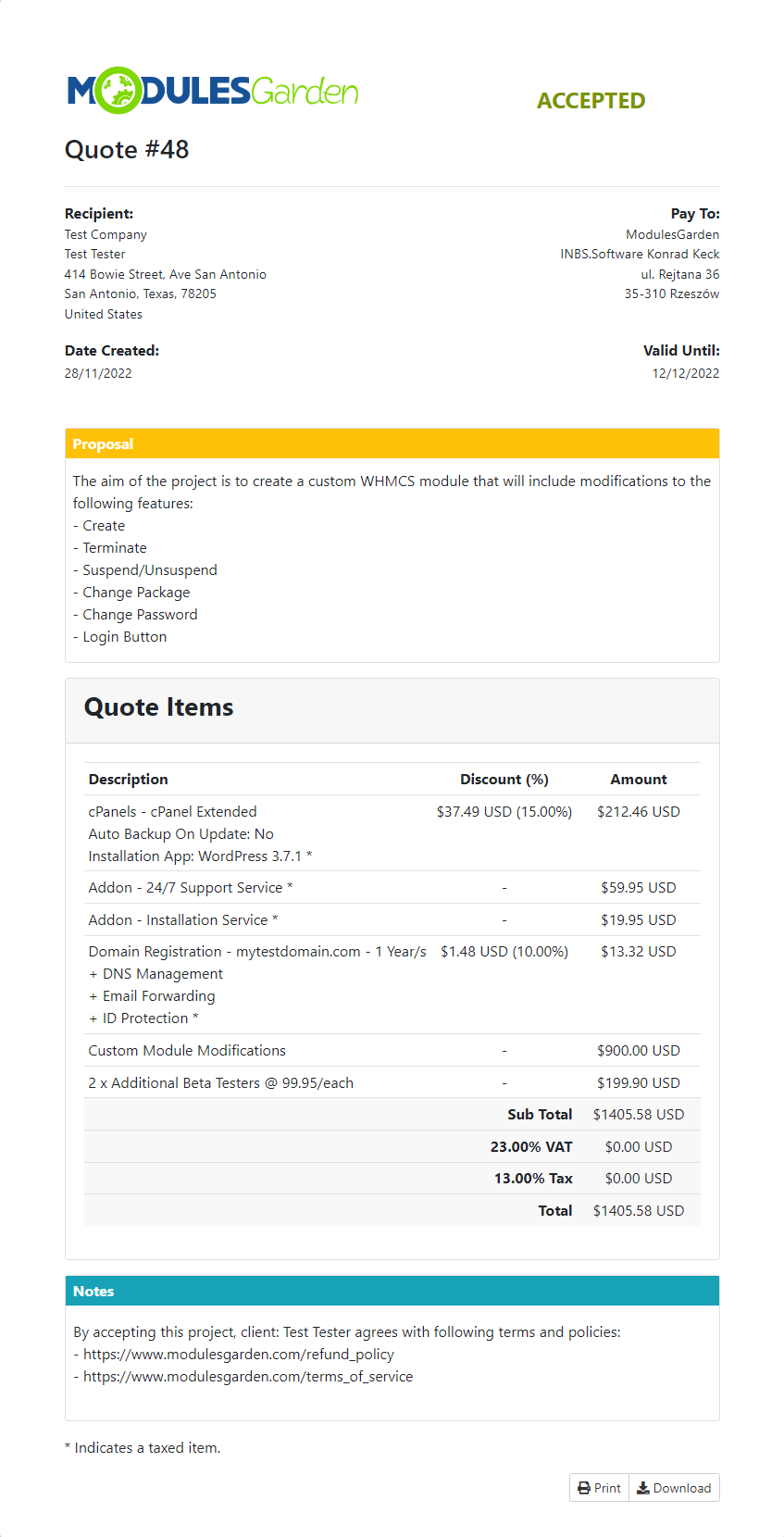
As you can see, the status changes immediately once the quote has been accepted.
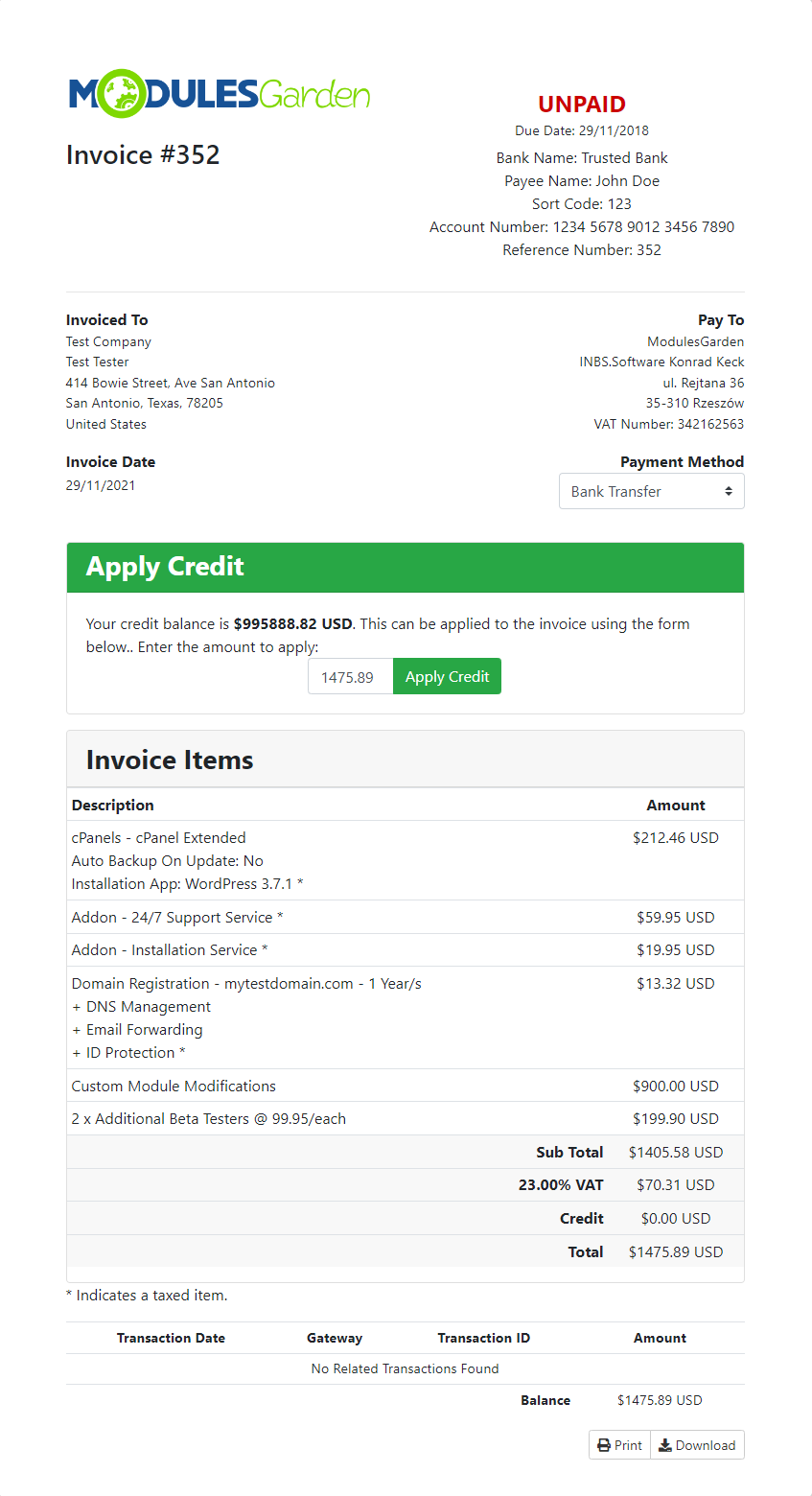
You can find now a new invoice to pay, generated after the automatically placed by the module order.
# Tips
Before you choose a product, an addon, or a domain to add to a quote, always make sure it is properly configured in the system to avoid any confusion.
Always save the changes when you make any alterations to a quote. Before you load a template and after adding any extra items or otherwise you will lose all the data.
"Lara" admin theme requirements:
If you wish to switch to the "Lara" admin theme, you have to previously change the theme's files location.
From:
modules/addons/quotesautomation/templates/admin/assets/css/lara/
To:
modules/addons/quotesautomation/templates/admin/assets/css/
# Update Instructions
An essential guidance through the process of updating the module is offered here.
Ensure successful completion of the module update by carefully following each step, thereby preventing data loss or any unforeseen issues.
Additionally, you will find a current list of supplementary actions necessary for a smooth update process there.
Please be informed that when migrating the module from version 1.x to 2.0 and later, all your existing templates, items and addon settings are migrated.
Although you should lose no data during the process, it is advised to verify your templates due to huge changes in the storing system and make any alterations if necessary.
# Upgrade Guide
Seeking a solution that offers greater flexibility, customization tailored to your precise needs, and unrestricted availability?
There is an option that not only proves to be cost-effective in the long run but also includes prioritized support services, making it a truly valuable investment.
Opt for the Open Source version (opens new window) of your Quotes Automation For WHMCS module to unlock these benefits.
Simply click on either the Get Source Code or Upgrade To Lifetime button found on the product's page in our client area to complete the one-step upgrade process, with a dedicated discount already applied.
Follow a comprehensive guide covering the transition process, the advantages it brings, and step-by-step instructions on what to do next after the order has been successfully finalized.
# Common Problems
When you have problems with connection, check whether your SELinux or firewall does not block ports.
"Replace Recurring Amount" option is applicable only to items of a product type.
The addon type items assigned to products must have the same billing cycle as the main product, otherwise the addons will not be included in the quote.
This restriction is caused by WHMCS API limitation and will be solved in the upcoming versions of the module.We do not recommend using Quotes Automation For WHMCS module either with Multibrand For WHMCS or with Resellers Center For WHMCS.
Integration between these modules is hampered due to specific features of each one of them and their individual workflow.