

# Domains Reseller 1 X For WHMCS
- About Domains Reseller For WHMCS
- Installation
- Configuration and Management
- Tips
- Update Instructions
- Common Problems
# (opens new window) About Domains Reseller For WHMCS (opens new window)
Domains Reseller For WHMCS allows you to resell TLDs as well as manage obtained income and resellers. All these in a single pane of glass.
The module facilitates its own API which can be used by your resellers to offer domains within various systems like WHMCS, HostBill, Blesta and others.
Just generate your own registrar module with just a couple of clicks, hand it over to your resellers and admire the sales they generate.
Provider Features
- Utilize Your Own API For Domains Reselling
- Generate Domain Registrar Module For WHMCS & HostBill
- Enable/Disable API
- Whitelist Reseller IP Addresses
- Set API Requests Limit
- Disable API For New Users Automatically
- Generate API Key For New Users Automatically
- Toggle SSL Connection
- Manage API User:
- View Details Of API User
- Enable/Disable User API
- Assign Promo Codes
- Generate Key
- Restrict IP Addresses
- Define API Requests Restriction
- Order Mass Actions On API User:
- Generate Keys
- Enable Keys
- Disable Keys
- Send Low Credit Notification
- Choose TLDs Enabled For Reselling via API
- Allow Chosen Resellers To:
- Pay After Order - No Credits Required
- Pay After Registration - No Credits Required
- Set Up IP Addresses Restrictions And Their Limits
- Define Type Of Refund Upon Unsuccessful Domain Registration
- Overwrite Registrar Message Displayed To End Customers
- Generate API Knowledgebase
- View API Logs
API Functionality
- Register/Transfer/Renew Domain
- Release/Delete Domain
- Modify Contact Details
- Get EPP Code
- Get/Save DNS Records
- Get/Modify Nameservers
- Register/Modify/Delete Nameserver
- Registrar Lock
- Get/Save Email Forwarding
- ID Protection
- Domain Cron Synchronization
End User Features
- Manage Contact Information
- Manage Email Forwarders
- Manage DNS Records
- Register/Manage Private Nameservers
- Enable/Disable ID Protection
General Info
- Orders Paid By Resellers' Credit
- Reseller Can Manage API From The WHMCS Client Area
- Integrated With Domain Orders Extended For WHMCS - Innovative Way Of Selling TLDs & gTLDS (read more) (opens new window)
- Multi-Language Support
- Supports PHP 5.6 Up To PHP 7.2
- Supports WHMCS Template Six
- Supports WHMCS V7
- Easy Module Upgrade To Open Source Version (opens new window)
# Installation
This tutorial will show you how to successfully install and configure Domains Reseller For WHMCS.
We will guide you step by step through the whole installation and configuration process.
# Module Installation - Provider
- Log in to our client area and download the module.
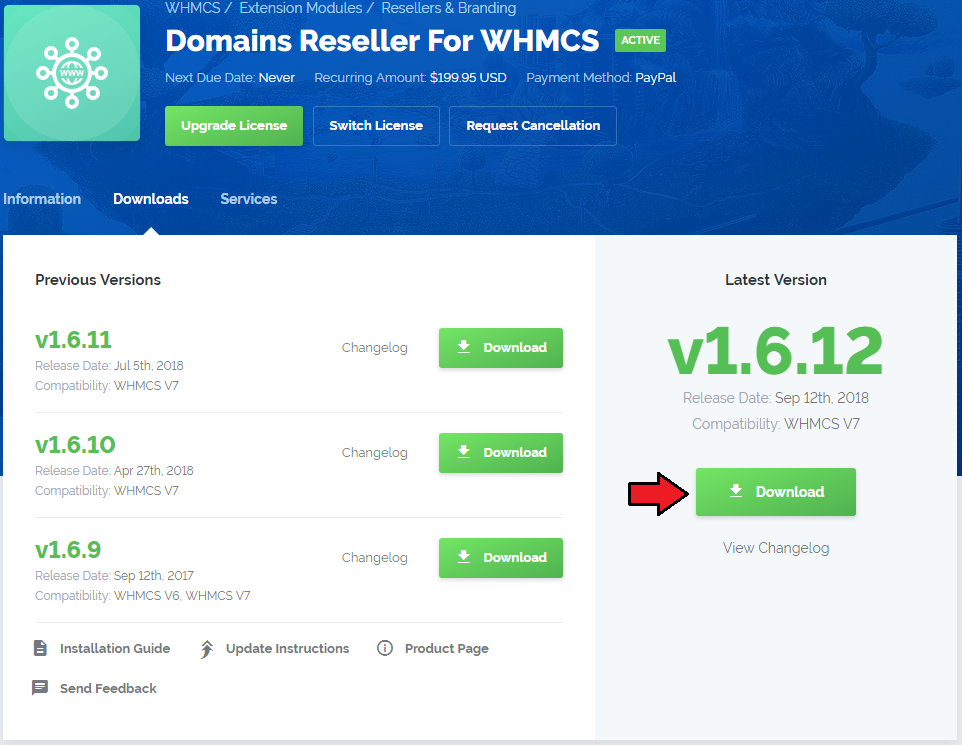
In the downloaded file you will find two packages that support different PHP versions.
As presented on the screen below, the first one is dedicated to PHP 5.6 up to PHP 7.0, while the second one is aimed at PHP 7.1 up to PHP 7.2.
It does not apply to open source versions.
Note: You can check the current PHP version in your WHMCS. To do so, proceed to 'Utilities' › 'System' › 'PHP Info'.
Extract the downloaded file and choose the one with the right PHP version. Upload and extract the PHP file into the main WHMCS directory.
The content of PHP version files should look like this.
When you install Domains Reseller For WHMCS for the first time you have to rename 'license_RENAME.php' file.
File is located in 'modules/addons/domainsReseller/license_RENAME.php'. Rename it from 'license_RENAME.php' to 'license.php'.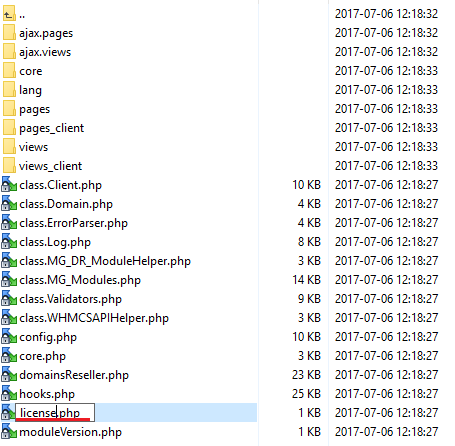
In order to configure your license key, you have to edit a previously renamed 'license.php' file.'
Enter your license key between quotation marks as presented on the following screen. You can find your license key in our client area→ 'My Products'.
Edit 'header.tpl' file located in 'your_whmcs/templates/default/header.tpl'.
Important! This edition is required only if you use WHMCS V5x.x.
There are no alterations in templates for WHMCS V6x.x.
Add this code:{if $DR2_show_button}<li><a href="index.php?m=domainsReseller">Reseller Registrar Credentials</a></li>{/if}After:
<li><a id="Menu-Domains-Whois_Lookup" href="domainchecker.php">{$LANG.navwhoislookup}</a></li>Take a look at the screenshot below and verify your changes:
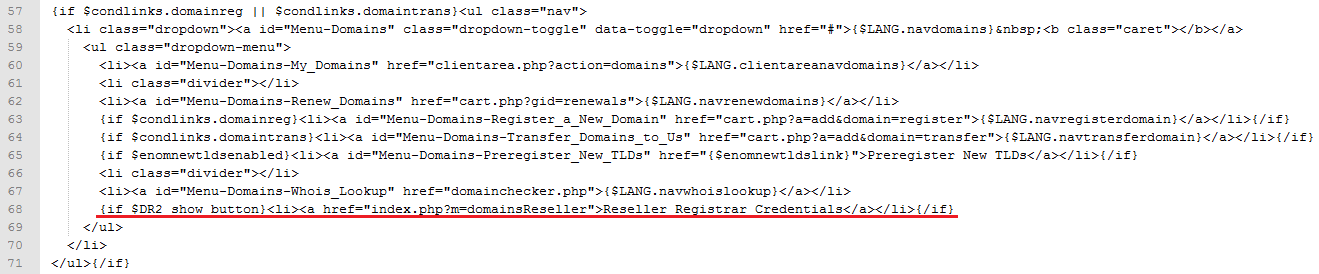
Now you have to activate the module in your WHMCS system.
Log in to your WHMCS admin area. Go to 'Setup' → 'Addon Modules'. Afterwards, find 'Domains Reseller' and press 'Activate' button.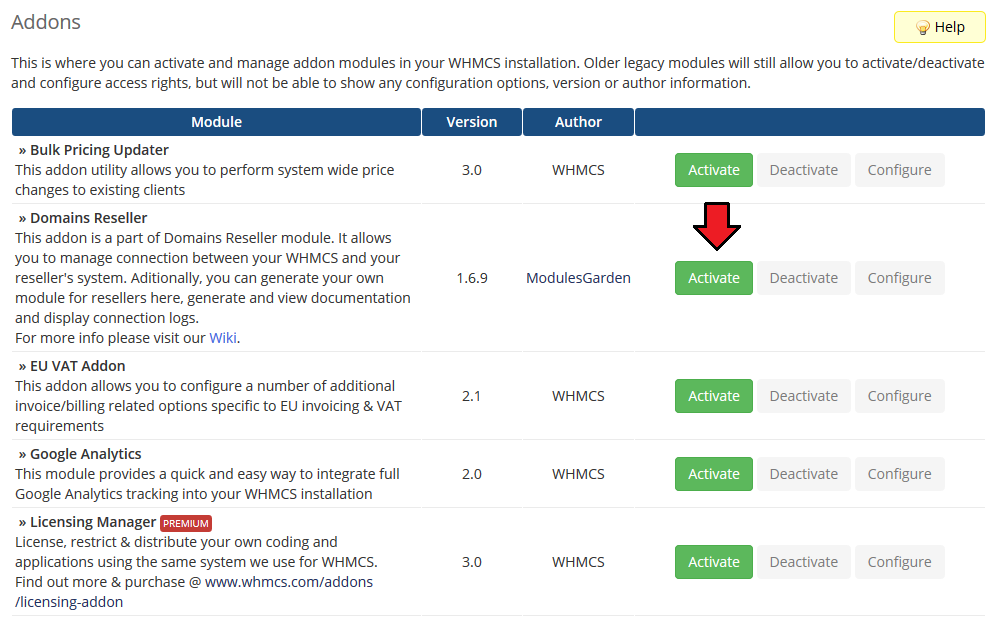
In the next step you need to permit access to this module.
To do so click on 'Configure' button, tick 'Full Administrator' and press 'Save Changes'.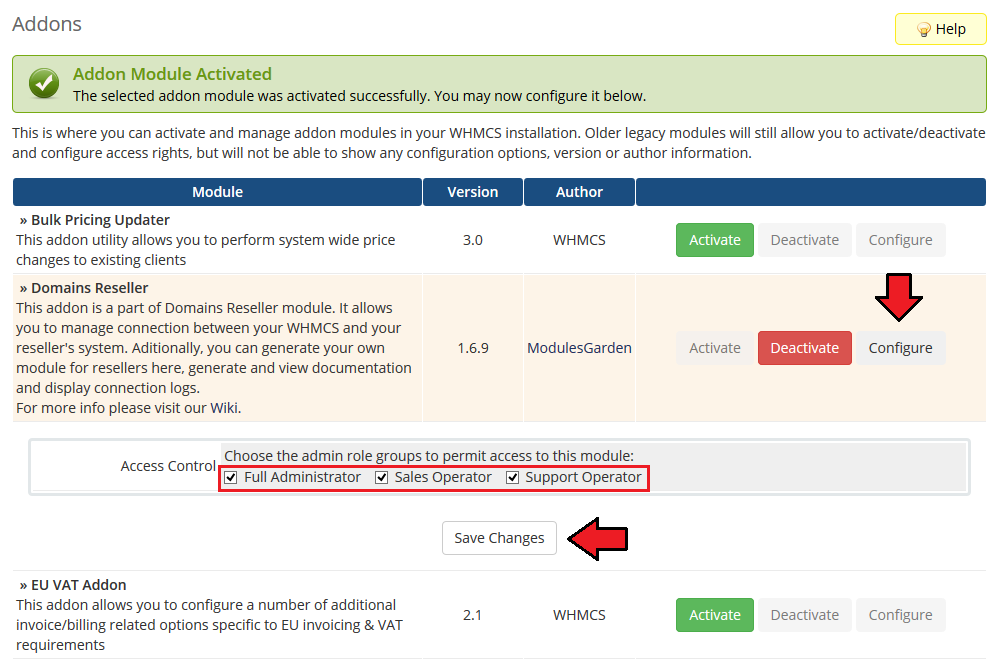
You have just successfully installed Domains Reseller!
You can access your module at 'Addons' → 'Domains Reseller'.
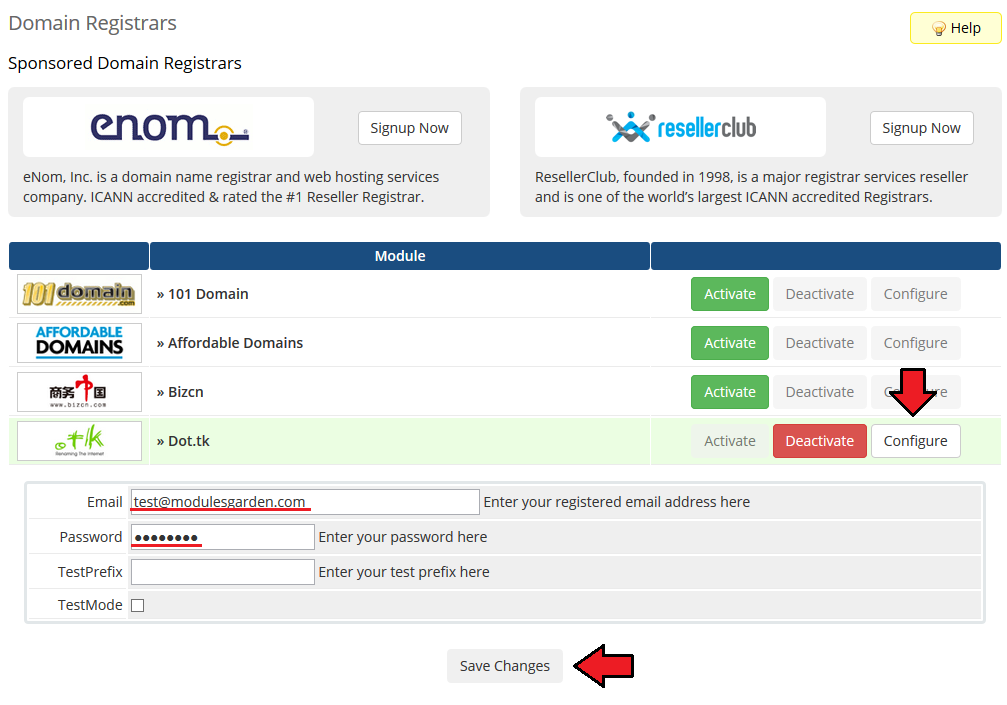
Now it's time to set up registrar module, it will be used by your resellers registrar to manage domains.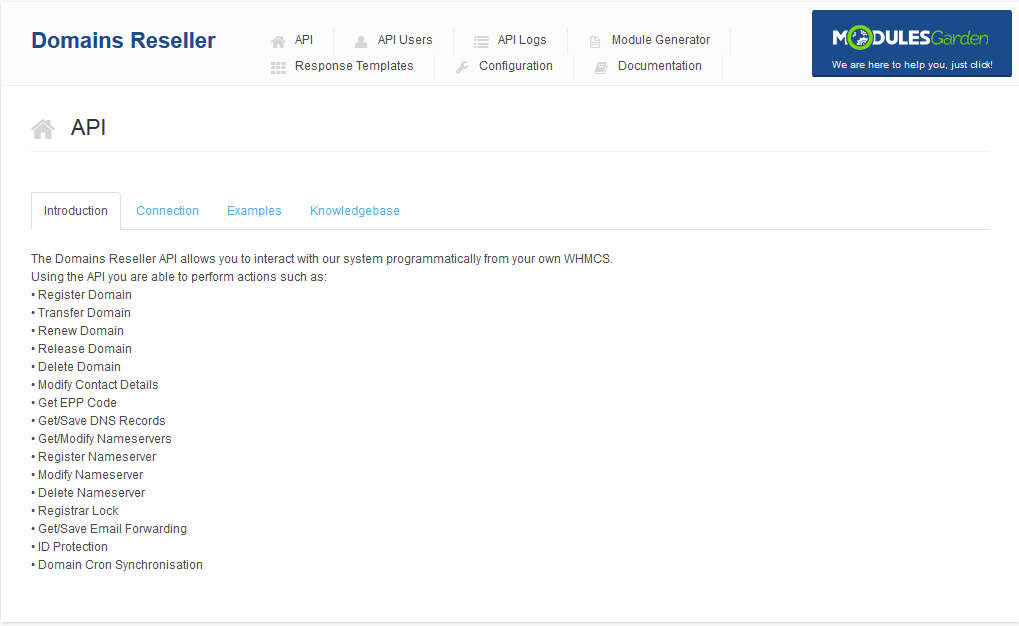
Activate and configure registrar at 'Setup' → 'Products/Services' → 'Domains Registrar'.
Go to 'Setup' → 'Products/Services' → 'Domains Pricing'.
Add TLD, set pricing for it and choose automatic registrar you have just configured.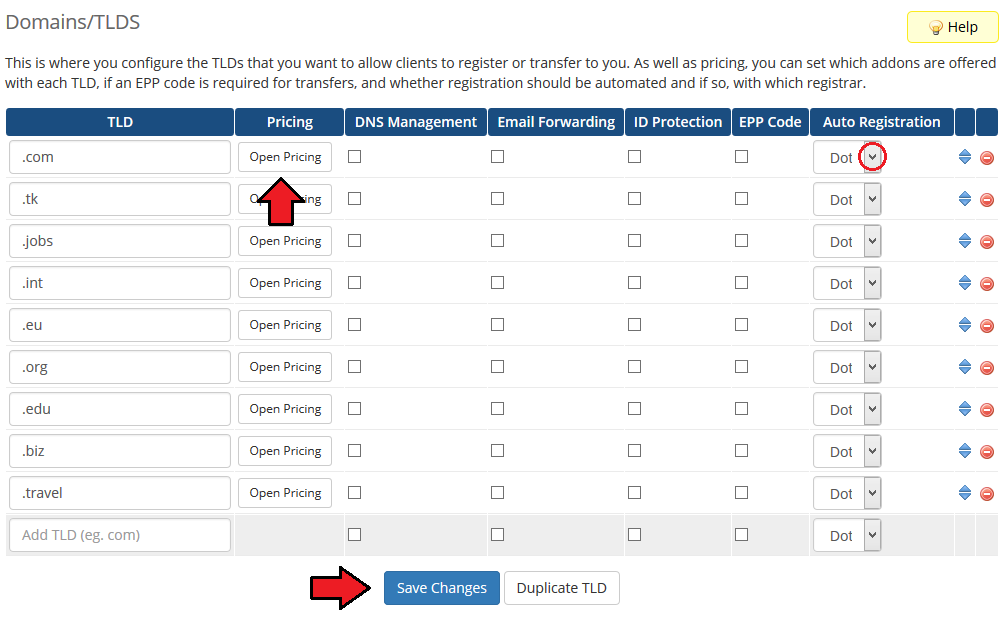
To generate registrar for your resellers, make sure that 'module_generator' folder has chmod set to '755' or '777'.
Folder is located in 'your_whmcs/modules/addons/domainsReseller/pages/ '.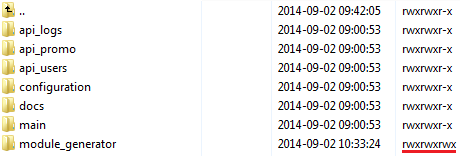
Go to Domains Reseller addon and switch to 'Configuration' tab.
Mark checkbox next to TLD you want to resell and press 'Save Changes' button.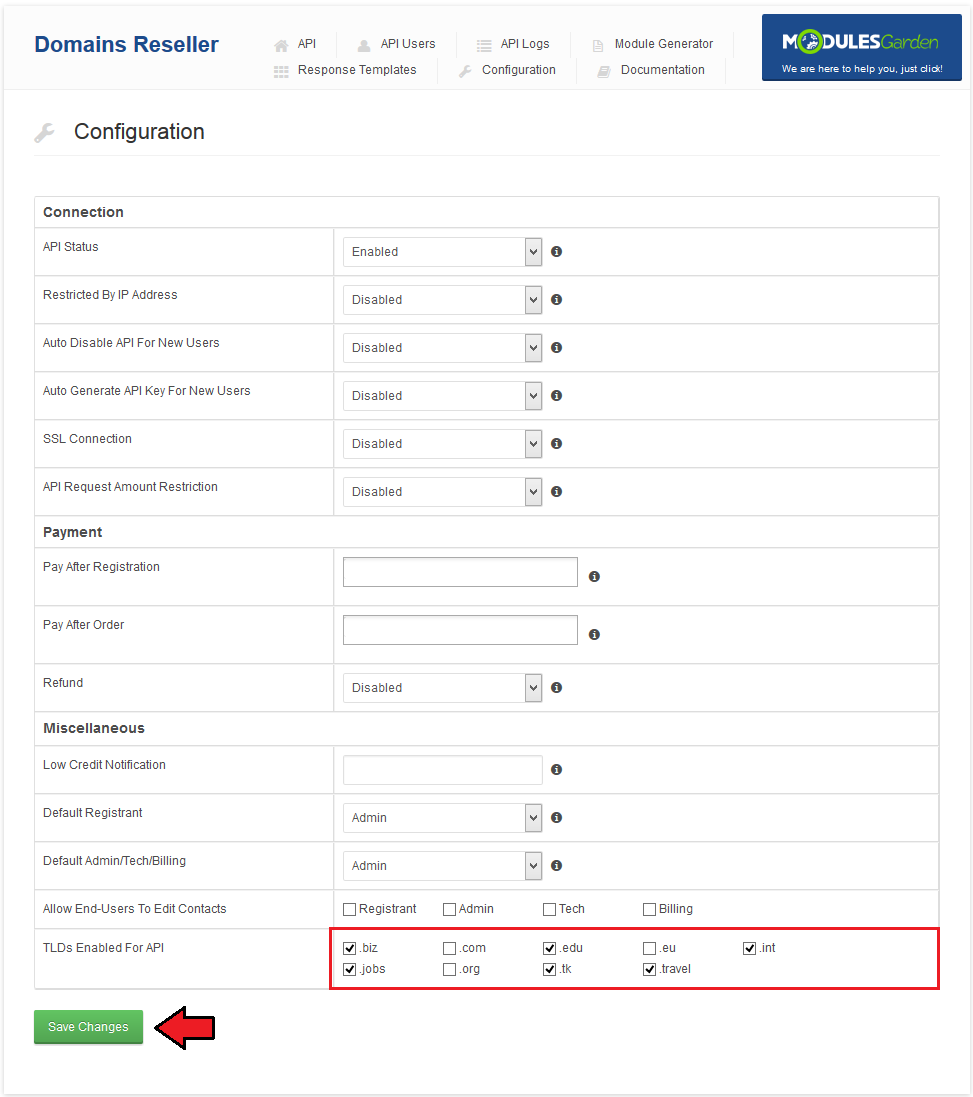
In 'Module Generator' tab enter module name into textbox and press 'Generate Module' button.
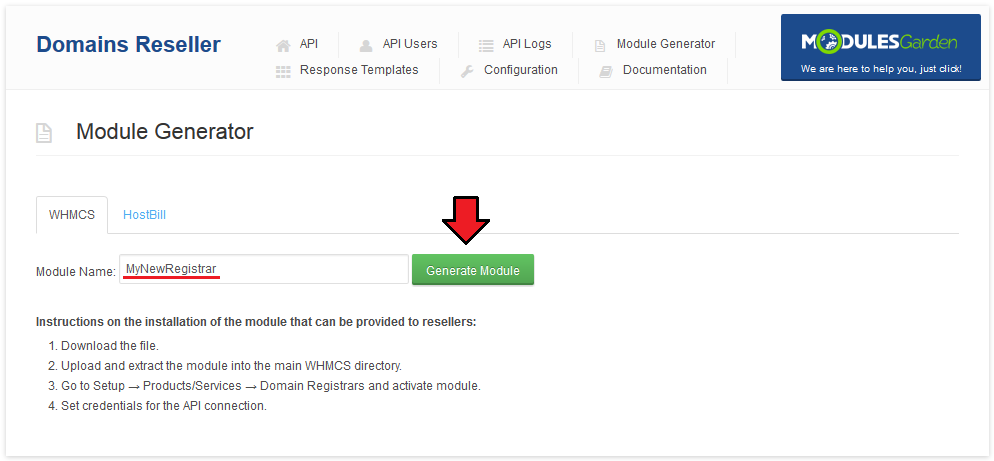
Download of the module you have just generated will start shortly.
You can provide registrar module for your resellers in two ways, by sending them a file or a link to it.
The link should appear right after the module has been generated.
Important: Save the link and the installation instruction marked on the screen below, it will not appear again.
Note: You have to provide integration code (step 5. of installation instructions) to your resellers.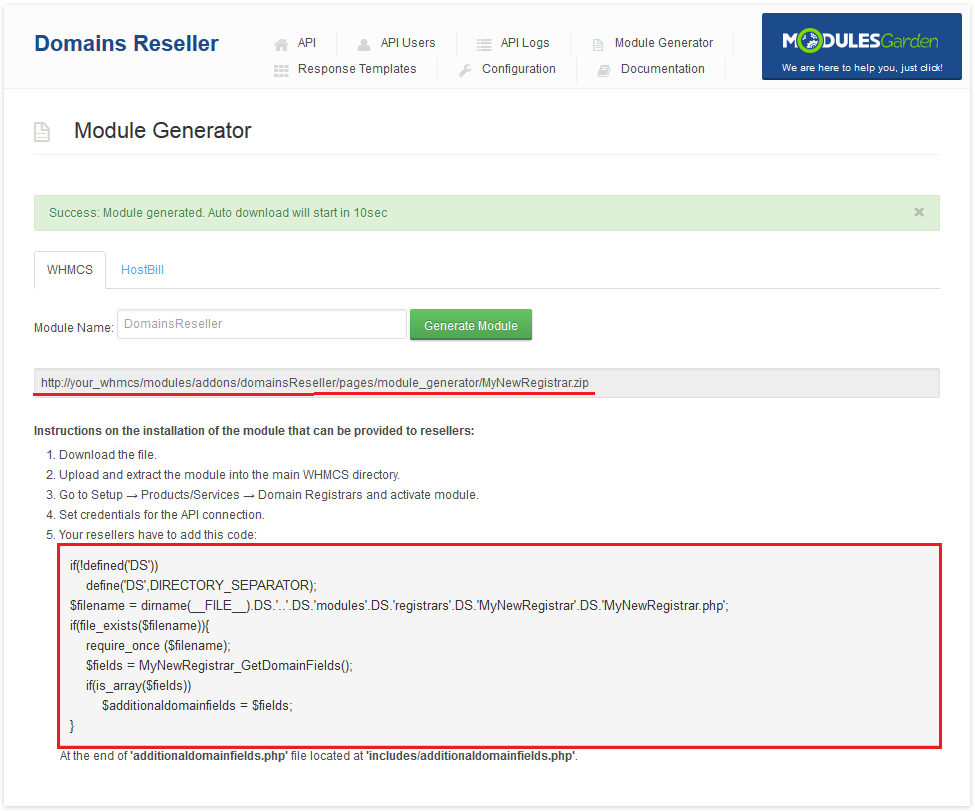
Now you have to generate API key for your client. Go to 'API Users' tab.
Afterwards, press 'Generate New Key' next to the user you want to generate API key for.
Note that API key and the user's email are needed as credentials at the registrar module you have just generated.
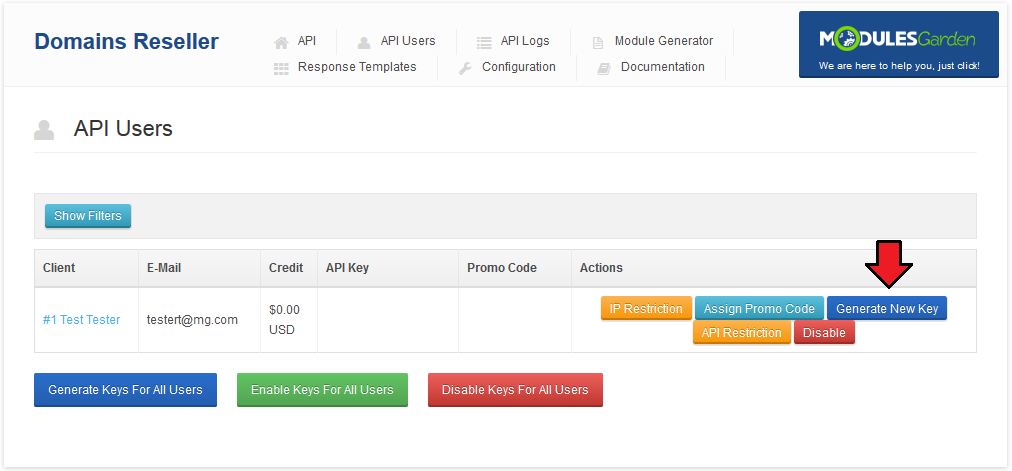
Your Domains Reseller module is ready to use!
Your clients can use their registrars as soon as they install them on their WHMCS and add credits to their accounts in your WHMCS.
# Module Installation - Reseller
Below you can find instructions for installation of the registrar module on reseller WHMCS.
- Upload and extract the registrar module into your WHMCS.
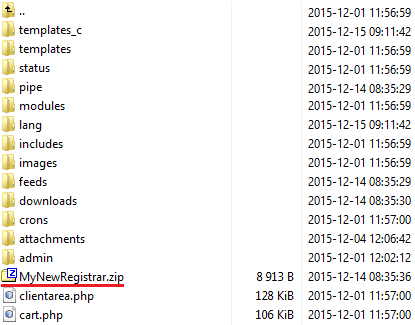
Enter integration code that you got from your provider.
Please move to yourWHMCS/resources/domains directory and find 'dist.additionalfields.php' file.
This file should not be edited. If you do not have 'additionalfields.php' file yet, create it manually and paste the code you received at the end of the file.
Note that the path '/resources/domains/additionalfields.php' refers to WHMCS V7.
For WHMCS V5 and V6 paste the code into '/includes/additionaldomainfields.php' file.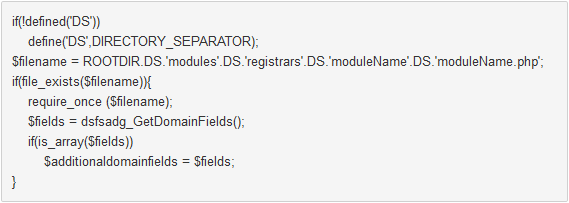
Go to 'Setup' → 'Products/Services' → 'Domains Registrar', find the module you have just uploaded and press 'Activate' next to it.
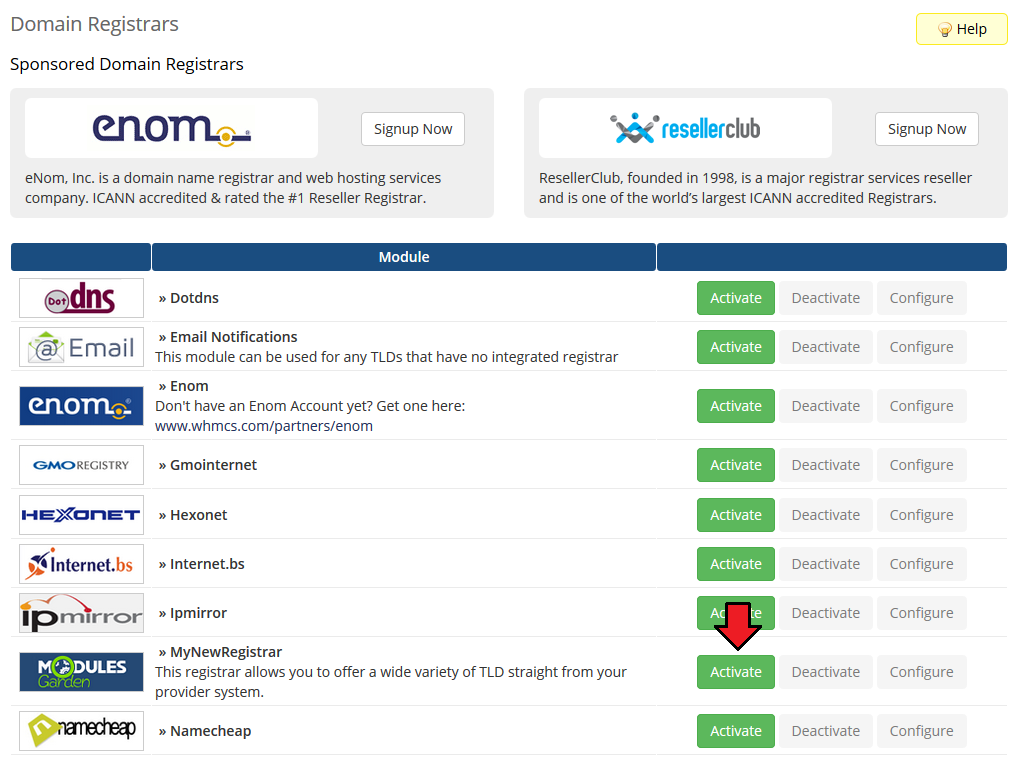
Now, press 'Configure' button, enter 'User Email' and 'API Key' provided along with the module.
Afterwards, press 'Save Changes'.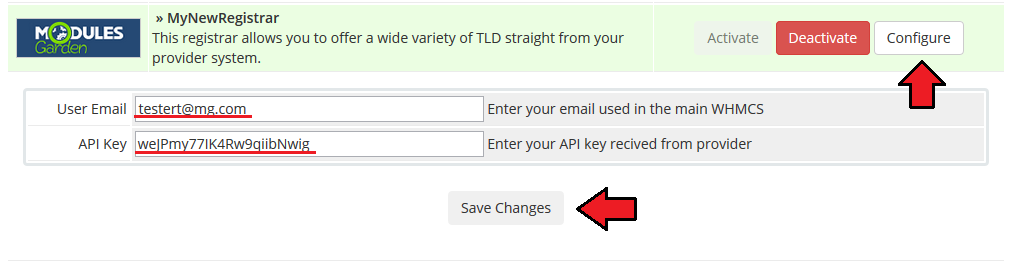
To continue, go to 'Setup' → 'Products/Services' → 'Domains Pricing'.
Set up TLD your provider allows you to resell, select additional features, choose registrar you have just installed from a dropdown menu and save it through pressing 'Save Changes'.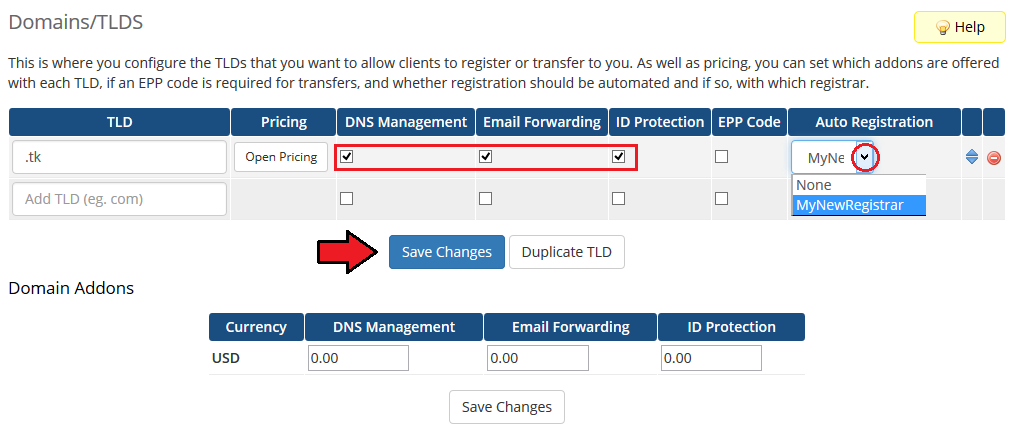
Afterwards, set pricing for your TLD. To do so, press 'Open Pricing' text.
It will open in a new window, so make sure your browser does not block it.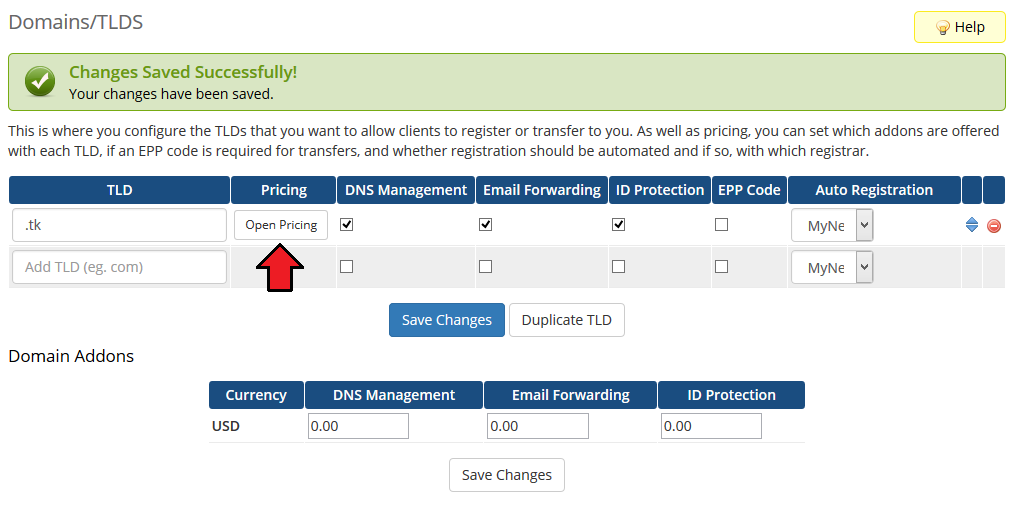
Next, enter prices for specific actions. Press 'Save Changes' to confirm.
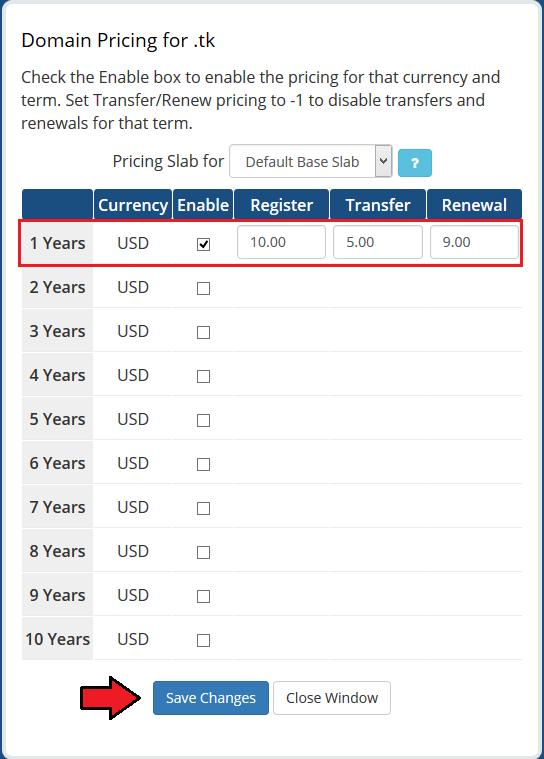
- Congratulations, you have just successfully installed your registrar!
You can start using registrar as soon as you add credits to your account on provider's WHMCS.
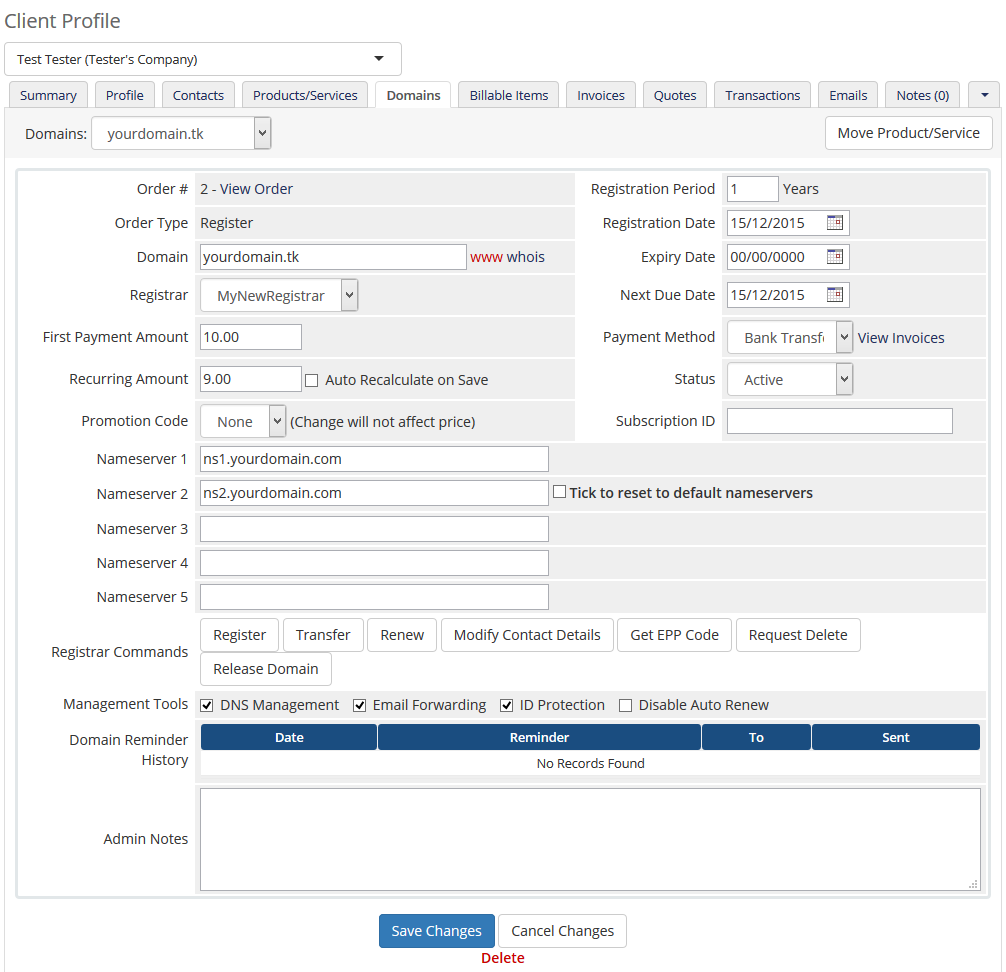
If you order a domain using this registrar, you should see in your admin area something similar to the screen below.
# Configuration and Management
Domains Reseller For WHMCS allows your customers to resell domains on their own WHMCS.
# Configuration
'Configuration' tab allows you to access general settings of your Domain Reseller API.
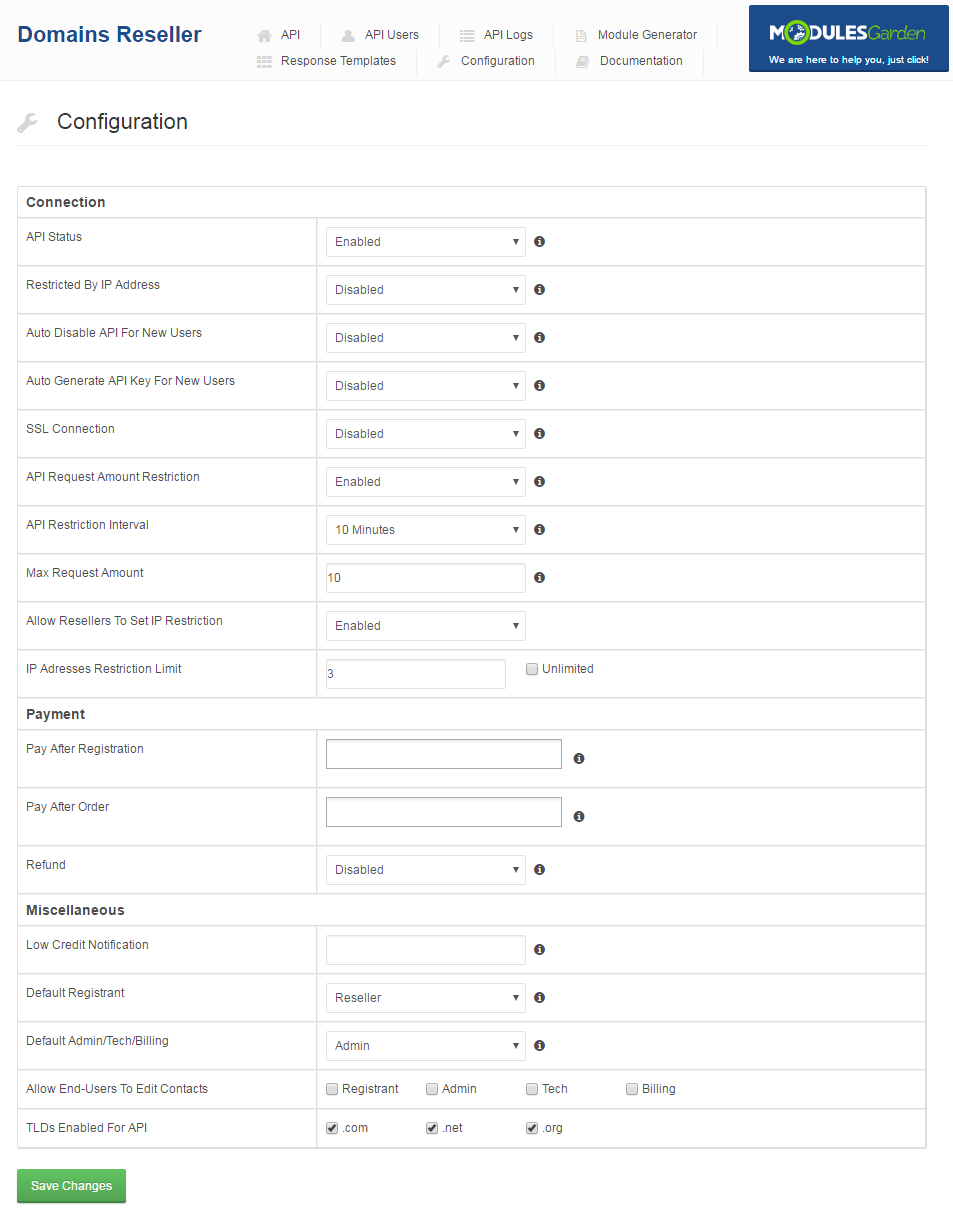
We will describe these options below.
Connection related section:
- 'API Status ' - enable/disable Domains Reseller API.
- 'Restricted By IP Addresses' - enable/disable restricting connection to Domains Reseller API only for IP addresses specified in the 'Allowed IP Addresses' field.
- 'Auto Disable API For New Users' - API will be disabled for newly created clients.
- 'Auto Generate API Key For New Users' - API key will be generated automatically when client's account is created.
- 'SSL Connection' - define here, if connection with your API will use SSL or not. When you change it, you will need to generate new registrars for your resellers.
- 'API Request Number Restriction' - enable option to restrict the number of API requests.
- 'API Restriction Interval' - select time interval within which API responses can be called.
- 'Max Request Number' - define a maximum number of API responses that can be called within the previously defined time interval.
- 'Allow Resellers To Set IP Restriction' - enable and set a limit, if you want to allow your resellers to define their own restricted IP addresses.
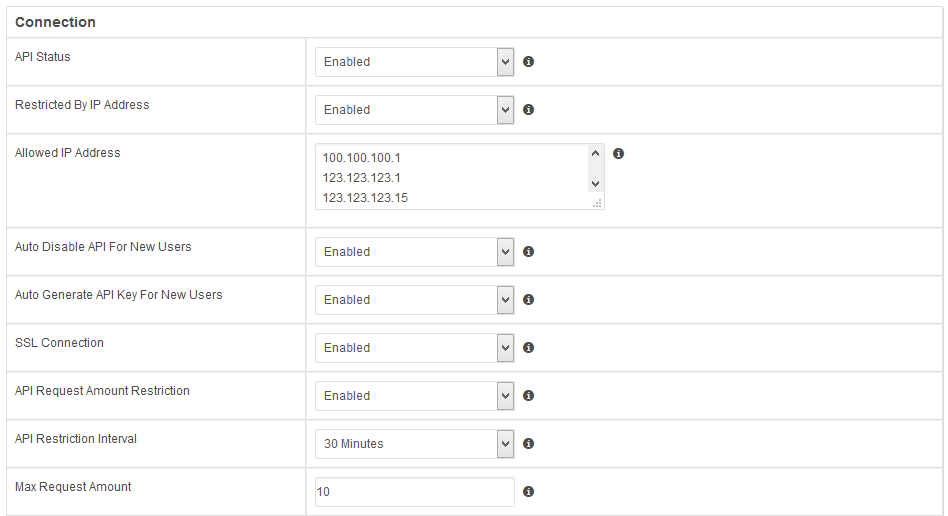
To restrict access to the Domains Reseller API by IP address, simply choose 'Enable' from 'Restrict IP Addresses' dropdown menu.
New text field should appear, enter IP addresses you want to whitelist, one IP address per line.
Payment related options:
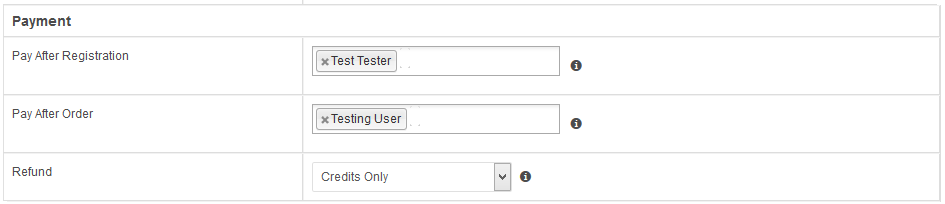
- 'Pay After Registration' - select resellers that will be allowed to register domains without any credits.
- 'Pay After Order' - a list of resellers who are able to pay for a domain after ordering it.
- 'Refund' - defines behavior of the module upon unsuccessful domain registration.
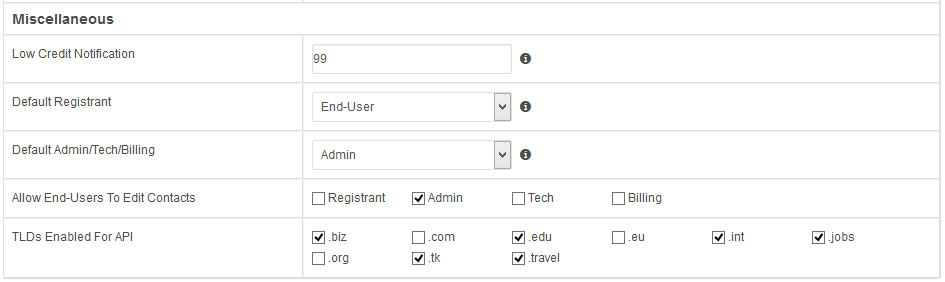
Miscellaneous
- 'Low Credit Notification' - a notification to your client will be sent when credit balance on client's account falls below entered value.
- 'Default Registrant' - select default contact that will be used during registration. This option is available only if registrant contact uses WHMCS details.
- 'Default Admin/Tech/Billing' - select default admin that will be used for contact. This option is available only if Admin/Tech/Billing contact uses admin details from WHMCS.
- 'Allow End-Users To Edit Contacts' - select which of the End-Users will be allowed to edit contact details.
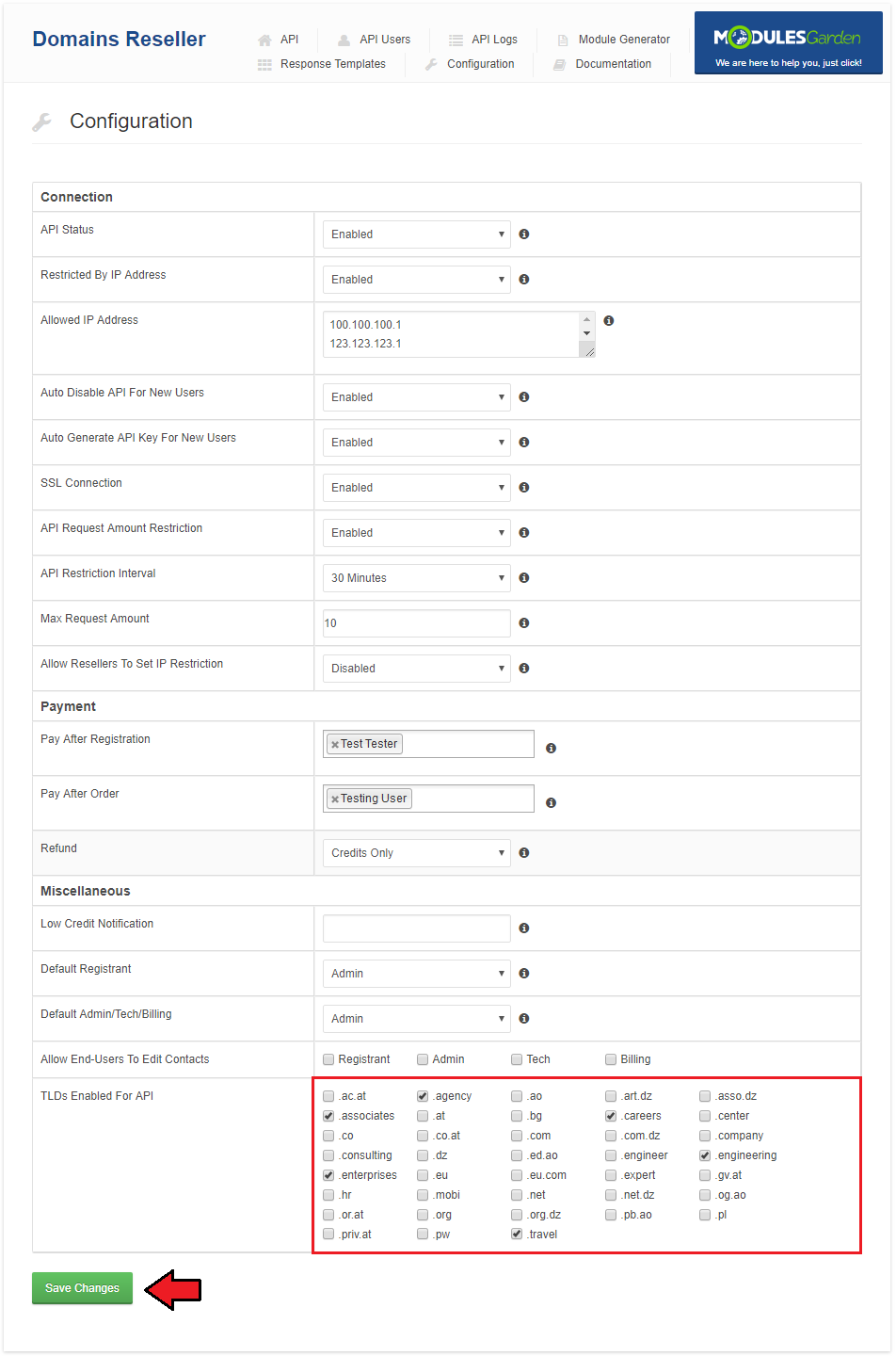
- 'TLDs Enabled For API' - available TLDs to offer.
Last, but not least important thing you can do here is enabling TLD for resell.
It can be done simply by ticking TLD.
Remember to save the changes, once you have finished.
# API
At the 'API' tab you can find a lot of information about Domains Reseller API, as well as generate and share API knowledgebase.
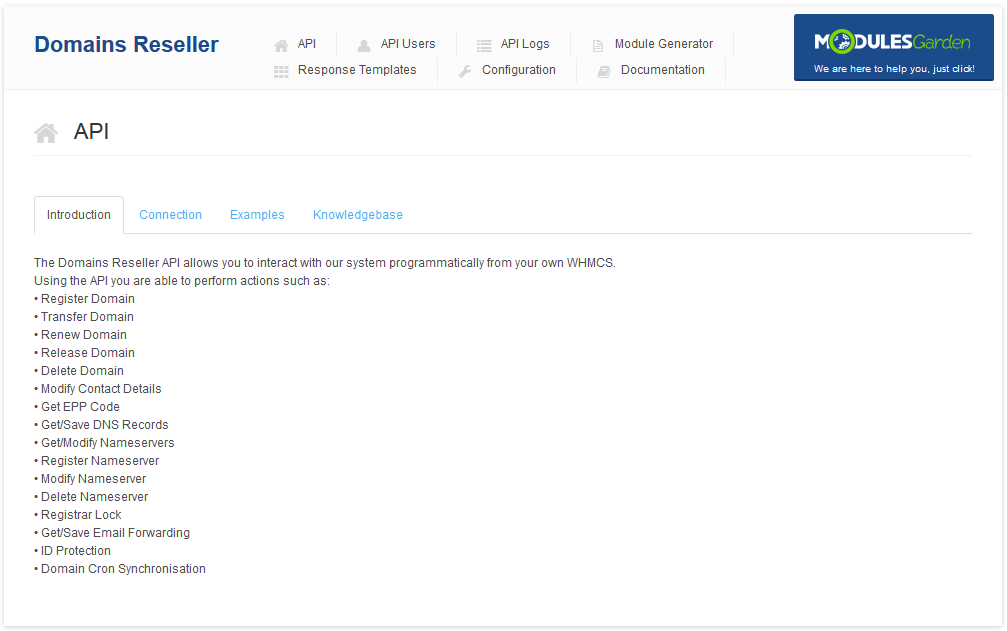
# Introduction
'Introduction' subtab contains information about actions supported by the API.
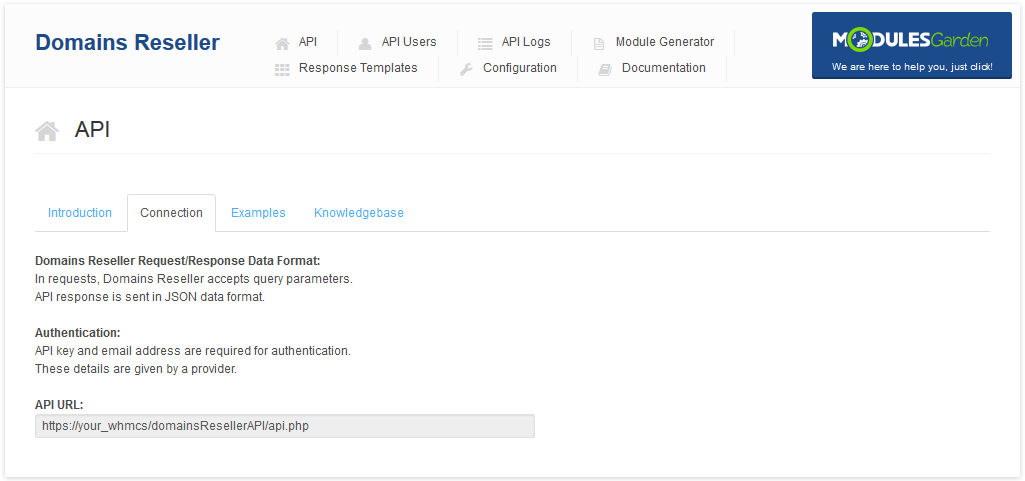
# Connection
In this subtab you can read about request and response data format as well as authentication.
You can also find URL to the API here.
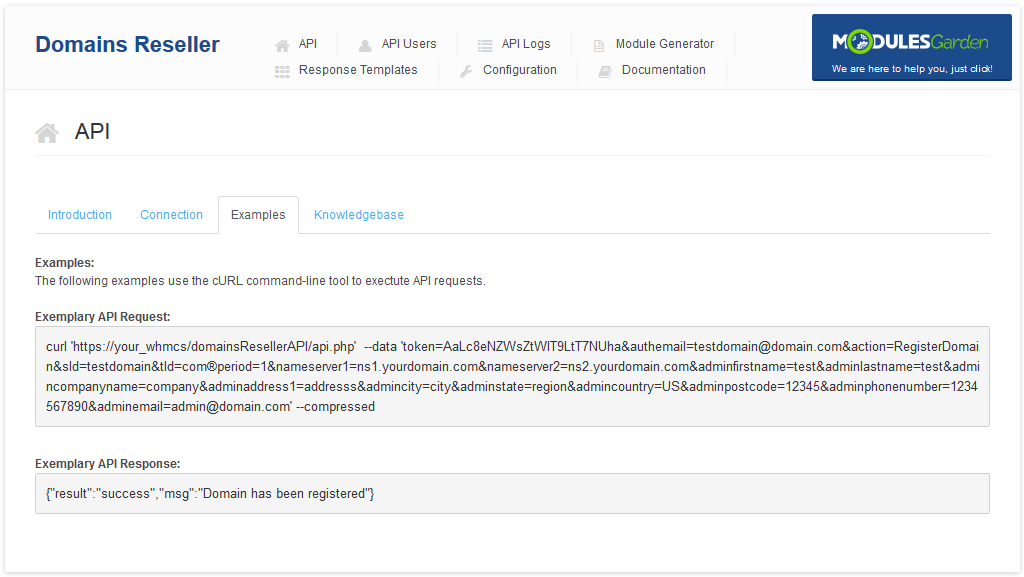
# Examples
Here you can find sample API request and response.
# Knowledgebase
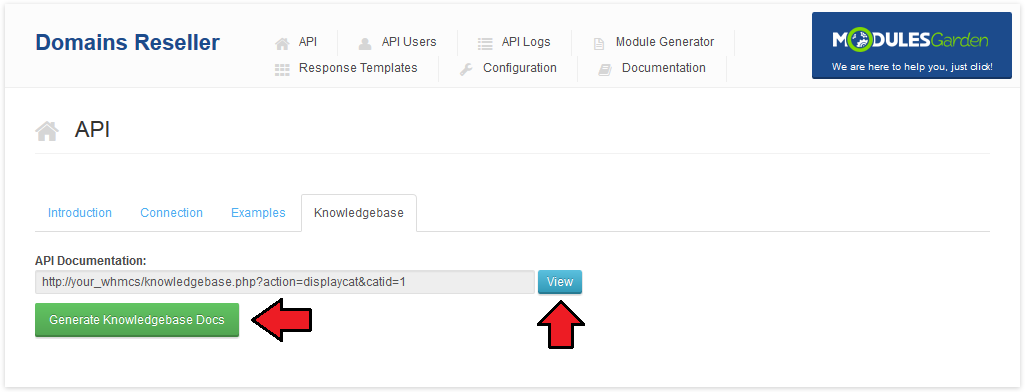
'Knowledgebase' subtab allows you to generate API knowledgebase for your resellers in your WHMCS client area and locate link to it (if already generated).
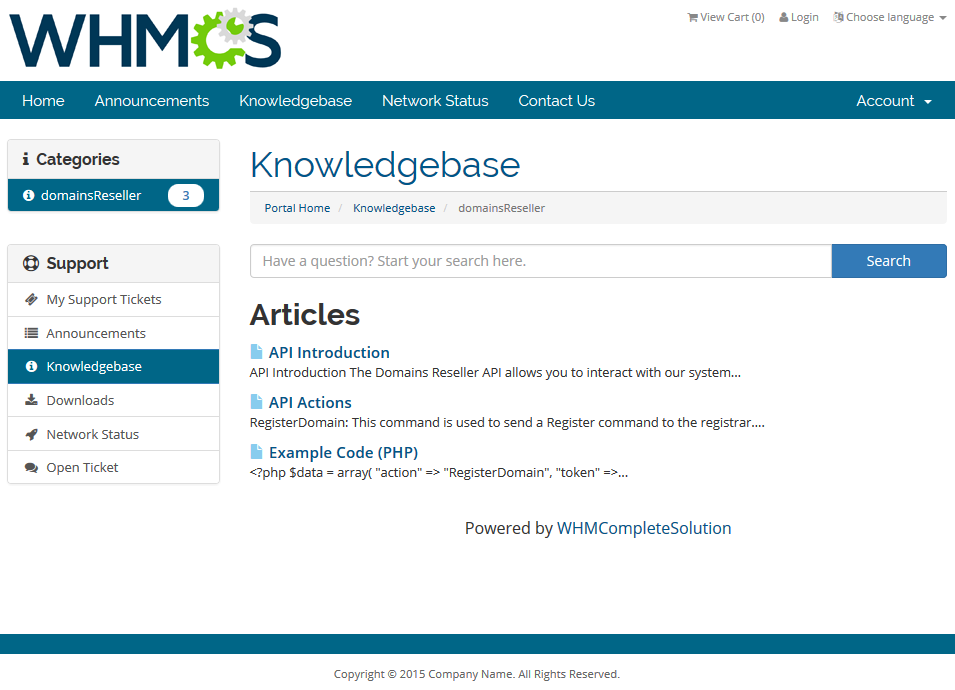
When your clients follow a link to the knowledgebase they should see something similar to the screen below.
# API Users
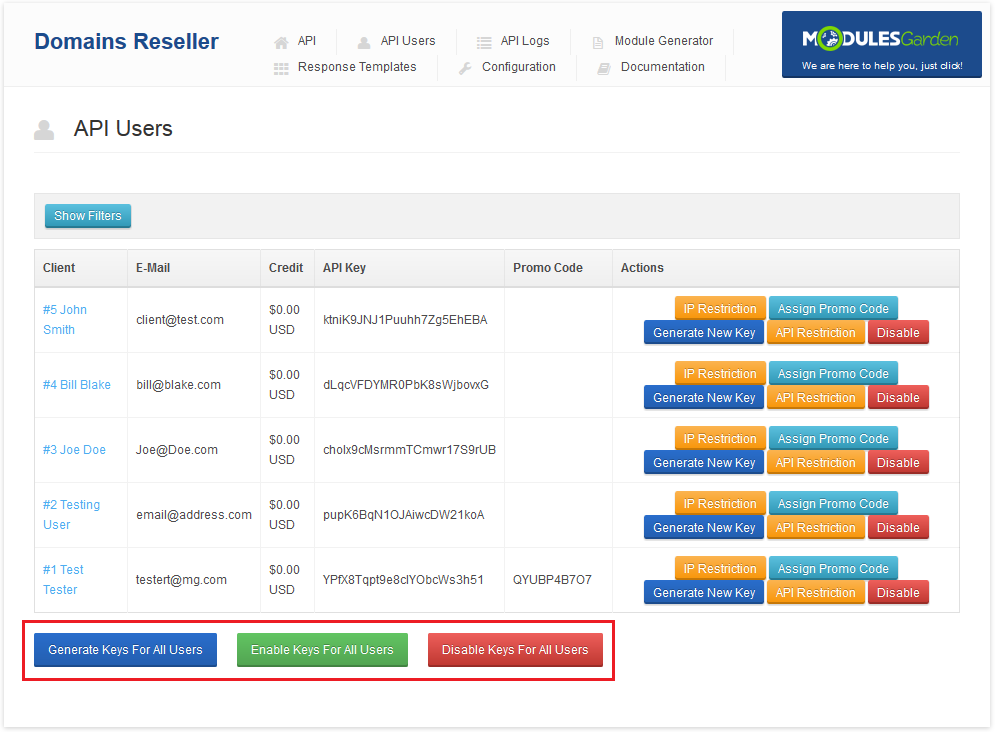
At the 'API Users' tab you can manage all aspects related to your resellers.
For your convenience we also implemented filters, you can use them to find a specific user or a group of users.
Note: Remember to set default payment method for every reseller. It can be set up at client profile in 'Payment Method' dropdown menu.
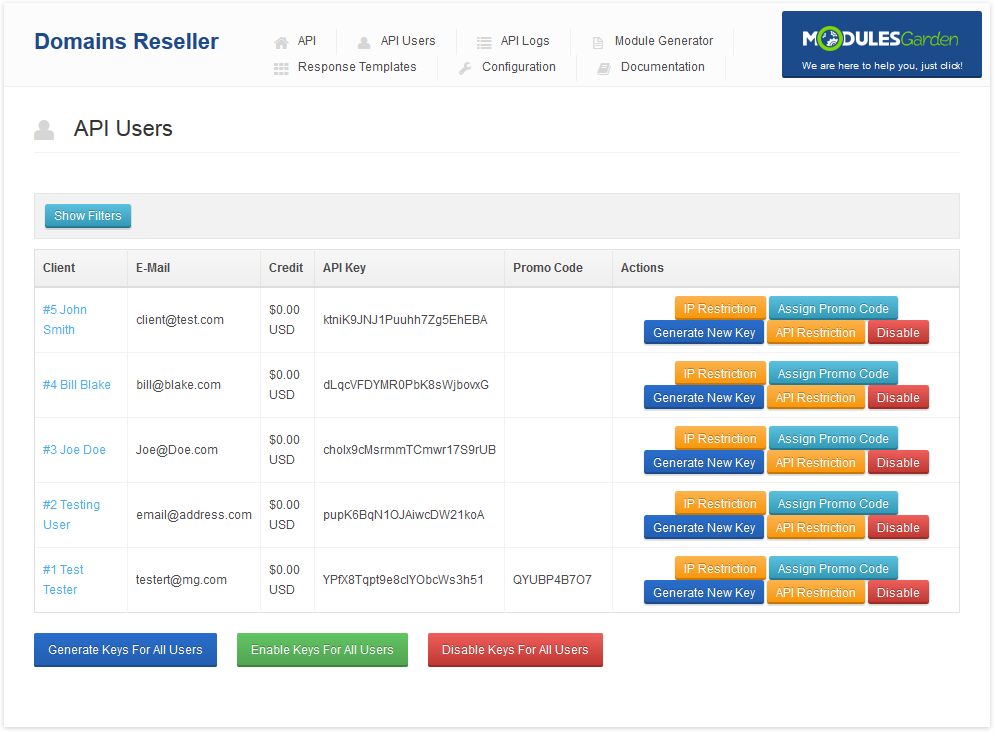
You can set up IP restriction per client (1), assign a promotion code to a single user (2), generate a new key for them(3), set up API restriction (4) and disable API key for this client (5).
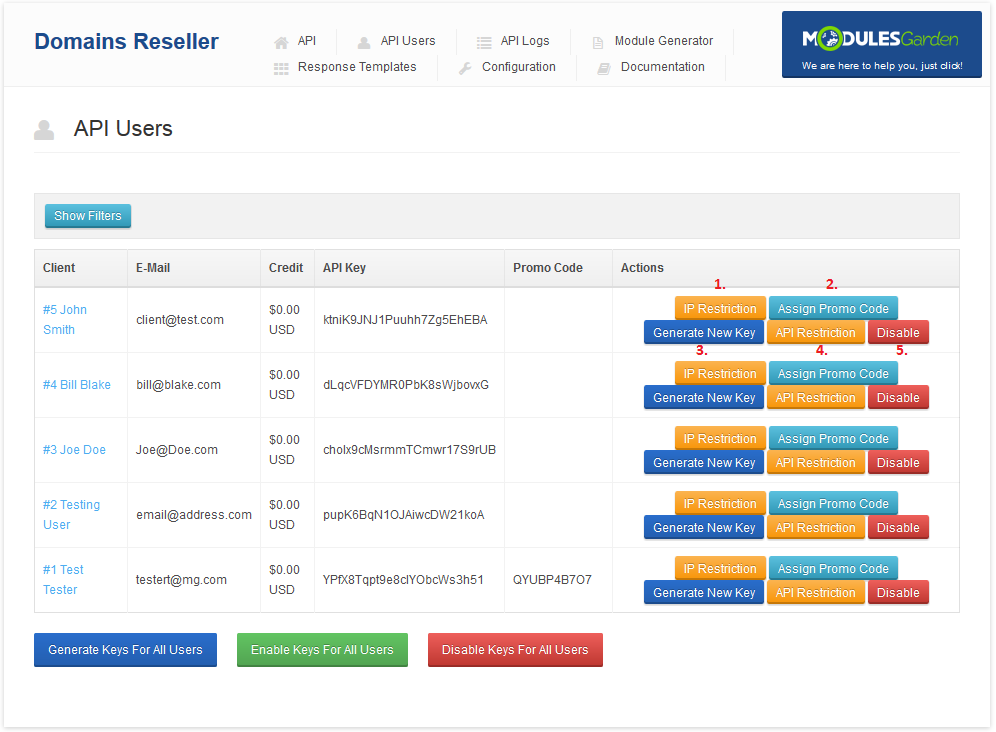
Our module also allows performing these actions for all clients at once.
# IP Restriction
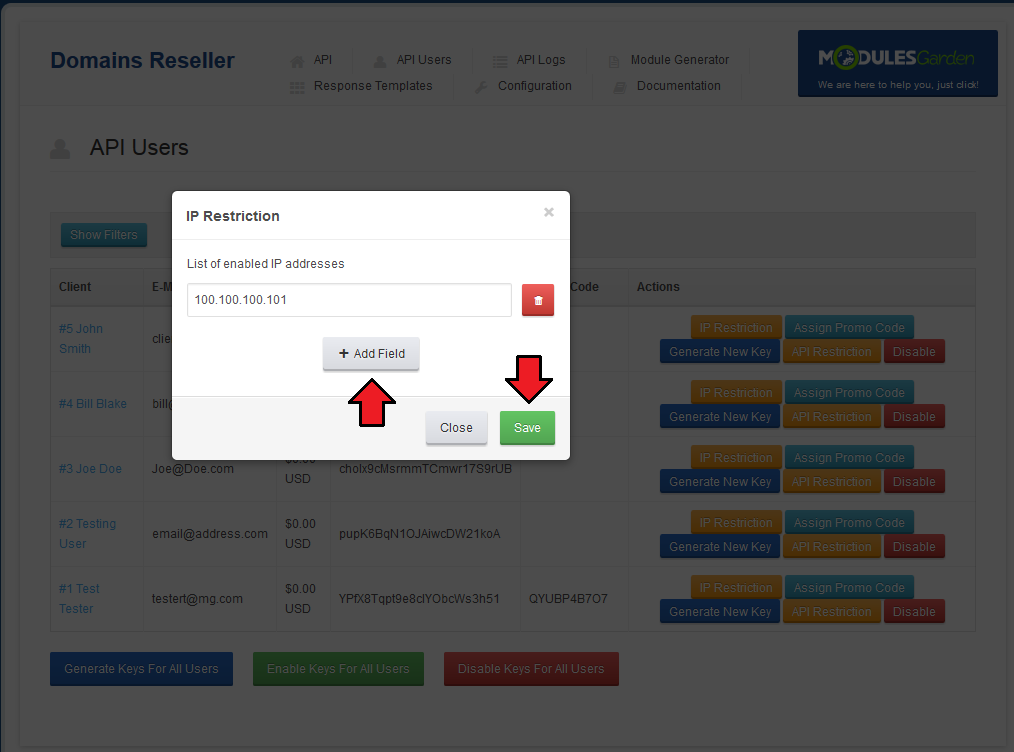
Let's ensure, that specific clients are able to connect with Domains Reseller API only from defined IP addresses.
Press 'IP Restriction', fill in IP address and press 'Save'.
Note: To add multiple IP addresses, press 'Add Field'.
# API Restriction
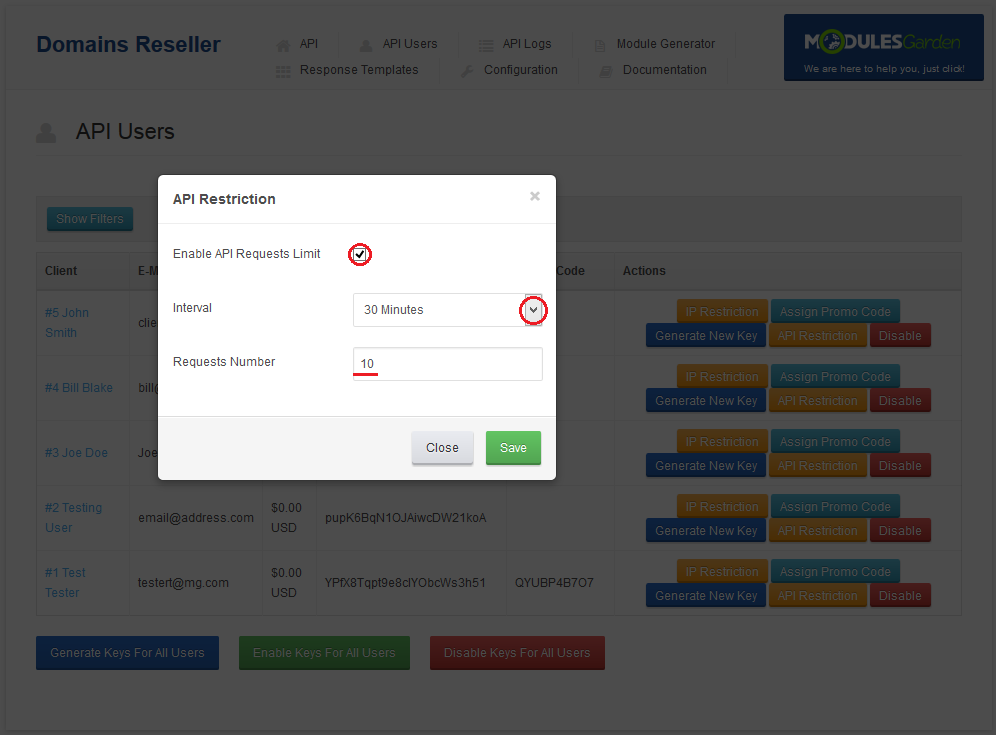
If you want to force API restriction limit for a single client check the adequate box.
Then choose time interval within which not more than a declared 'Requests Number' can be called. 'Save Changes' as usual.
# Assigning Promotion Codes
You can create and assign promotion codes to your users.
Firstly, go to 'Setup' → 'Payments' → 'Promotions' and press 'Create New Promotion'.
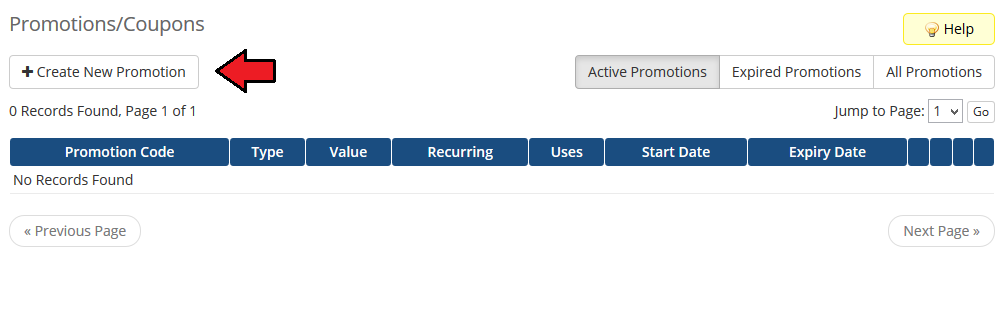
Afterwards, press 'Auto Generate Code', select type from a dropdown menu, enter value and save through pressing 'Save Changes'.
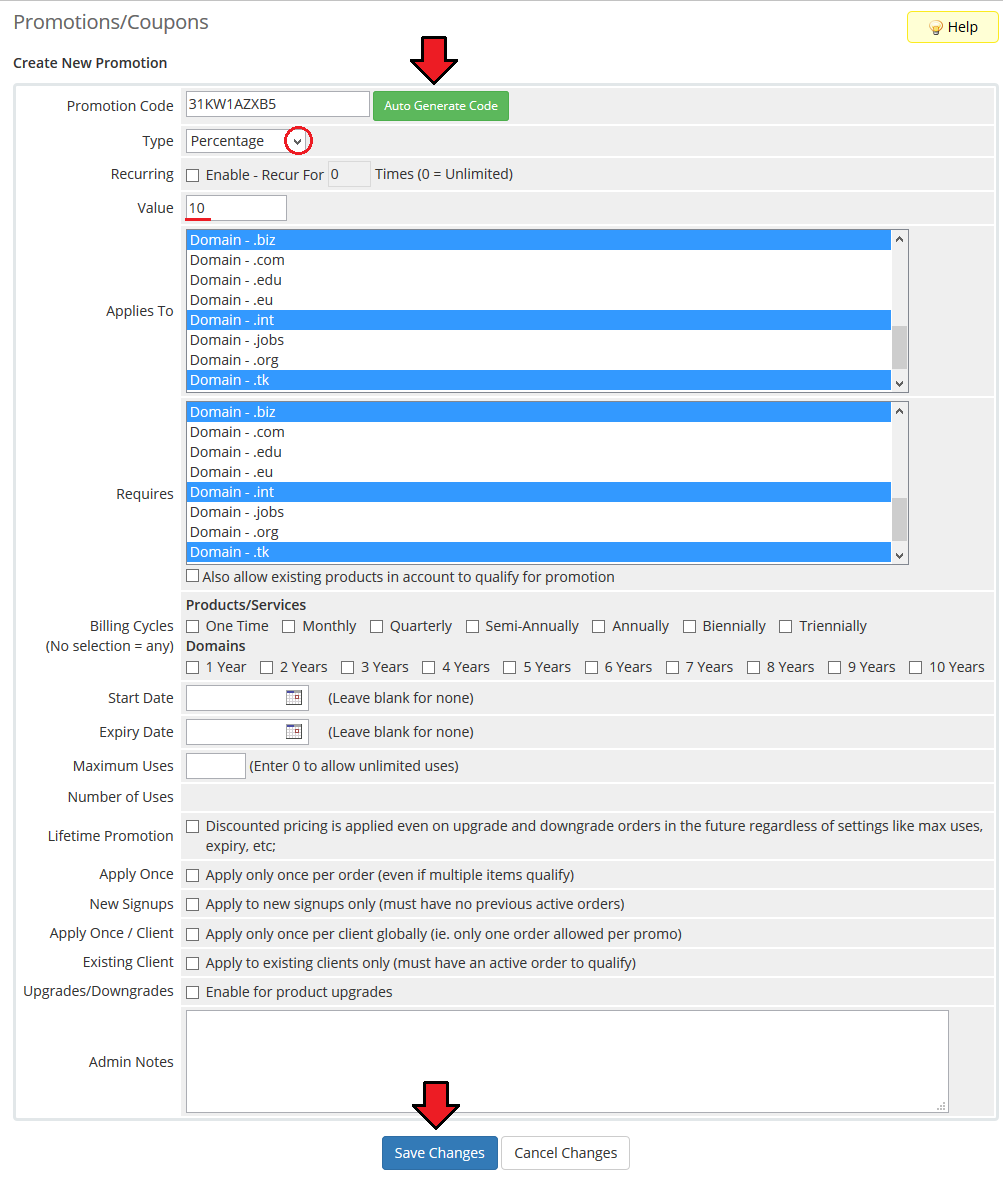
Your promotion is ready to use, let's assign it to a single user.
Move to 'Addon' → 'Domains Reseller' → 'API User' and press 'Assign Promocode' next to the user you want to assign the promotion to.
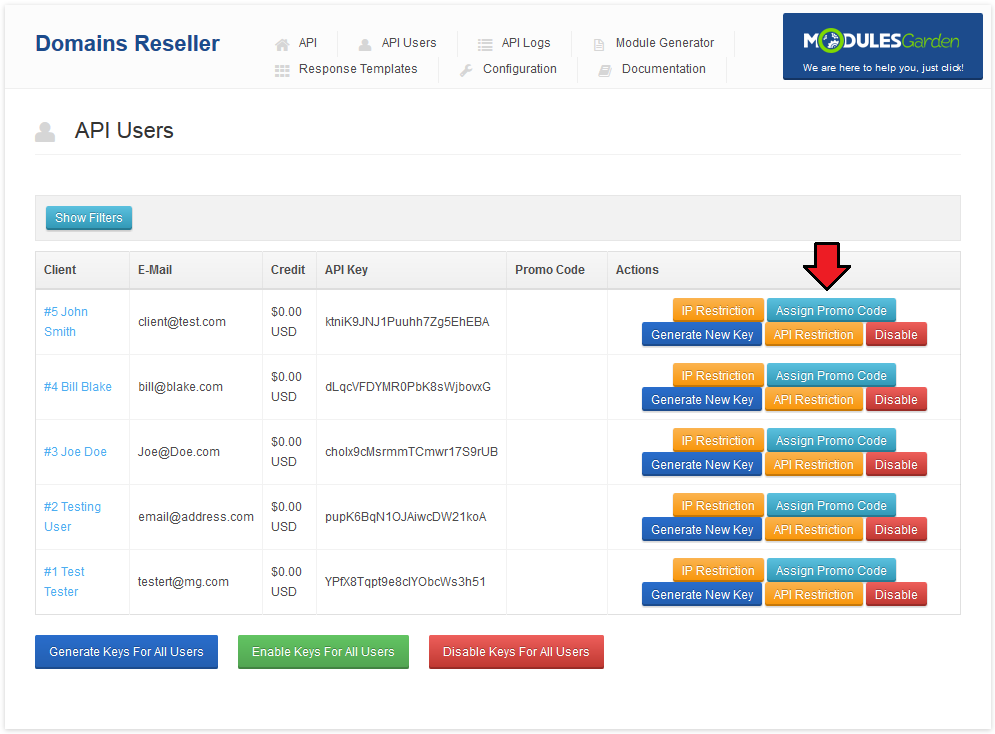
Now, select the previously created promotion and press 'Save Changes'.
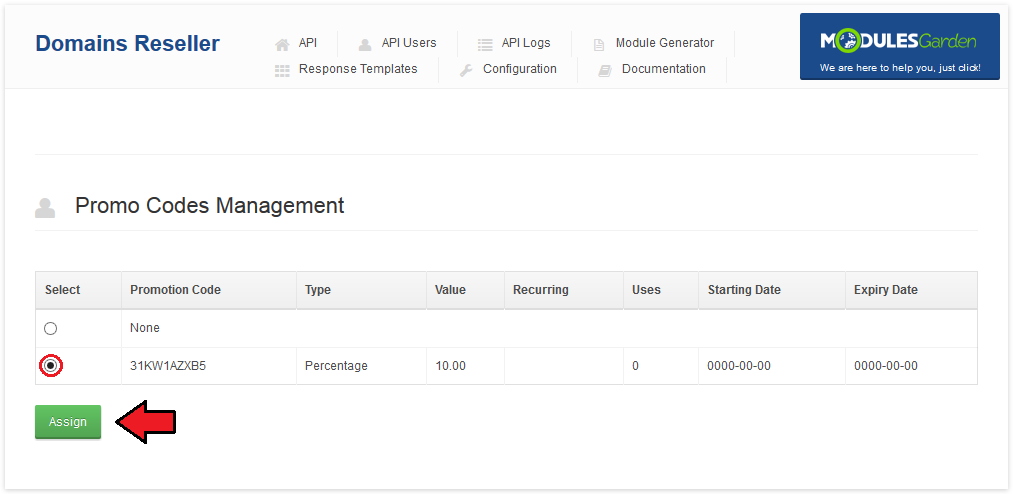
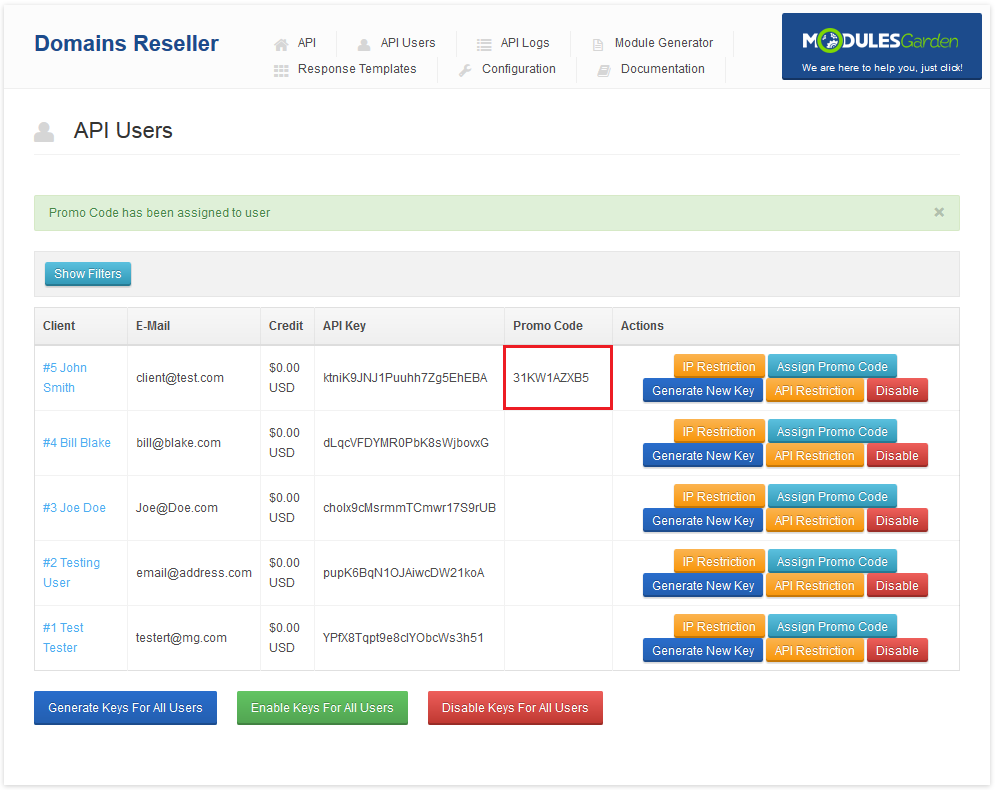
You should see, that the promotion code appeared next to the client, as shown on the following screen.
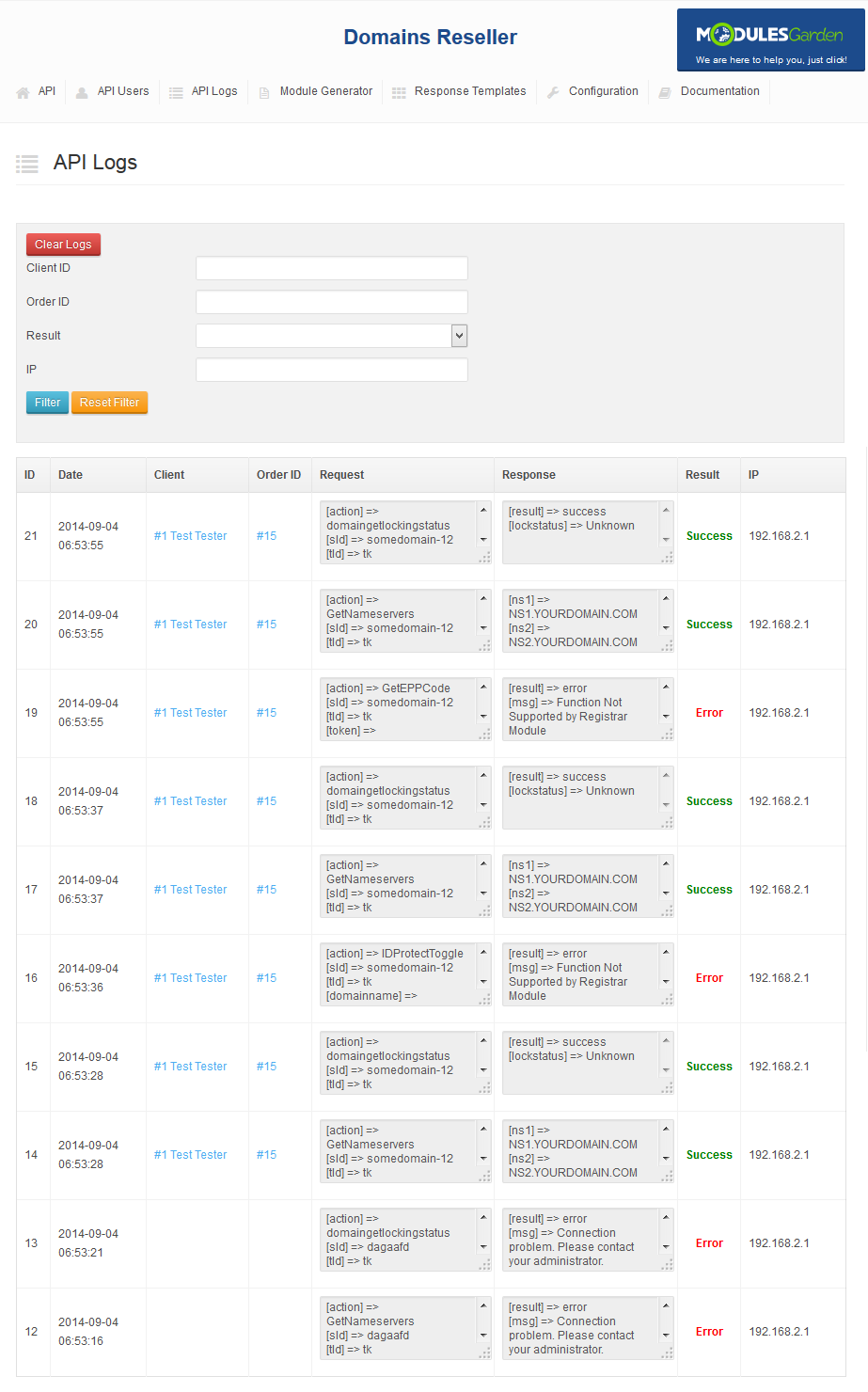
# API Logs
You can display the logs of requests to the API. As well as responses to these requests and information about who sent the request to the API.
You can find the desired log using filters. Fields left empty will not be considered during the search.
# Module Generator
Rebranding registrar module has never been easier. With our generator all you have to do is fill in its name and press 'Generate Module'.
Note: You can generate registrar module both for WHMCS and HostBill systems.
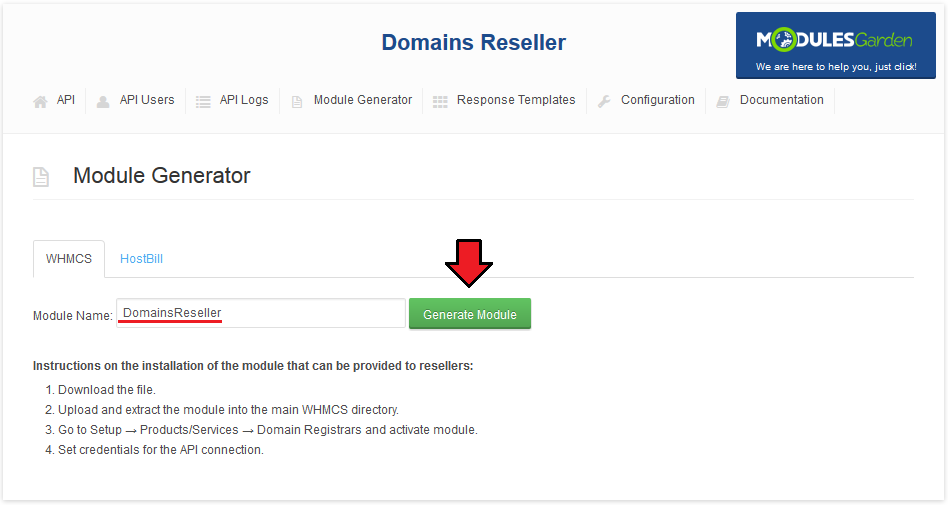
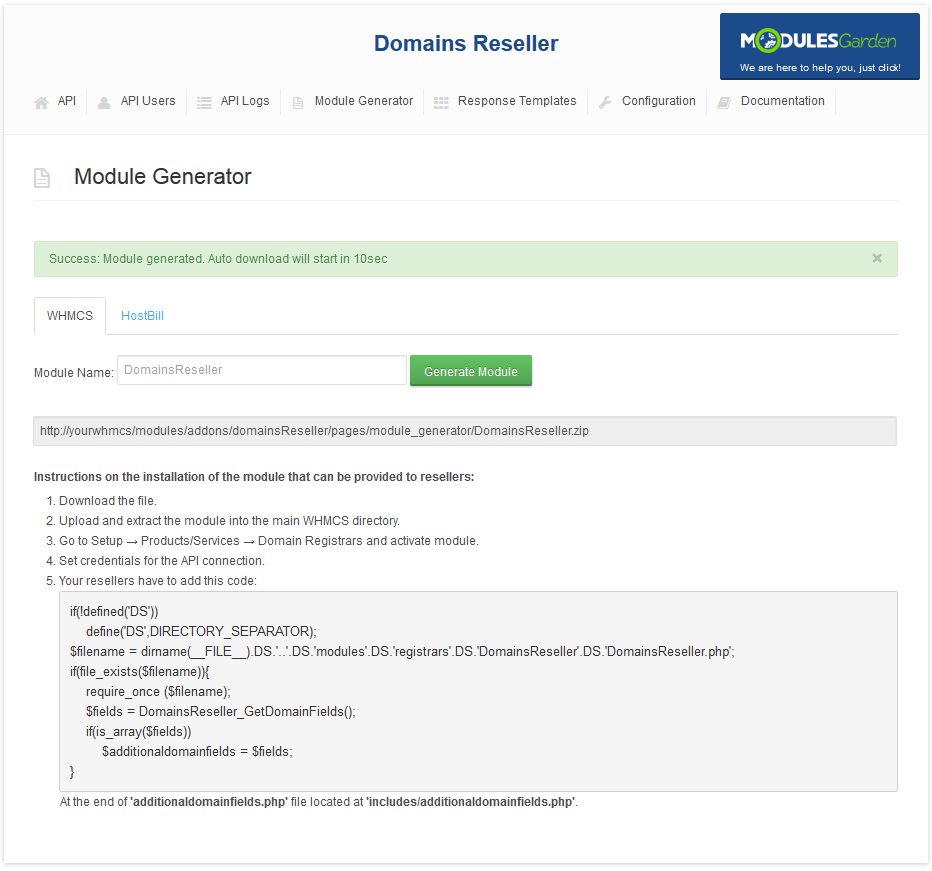
As soon as you do that, the module will be generated. Save the link to it and copy installation instructions.
Important: As soon as the new module is generated, integration code for it will appear as the 5th step of installation instruction.
It is crucial to save the code and deliver it to resellers in installation instructions along with the link to the module.
# Response Templates
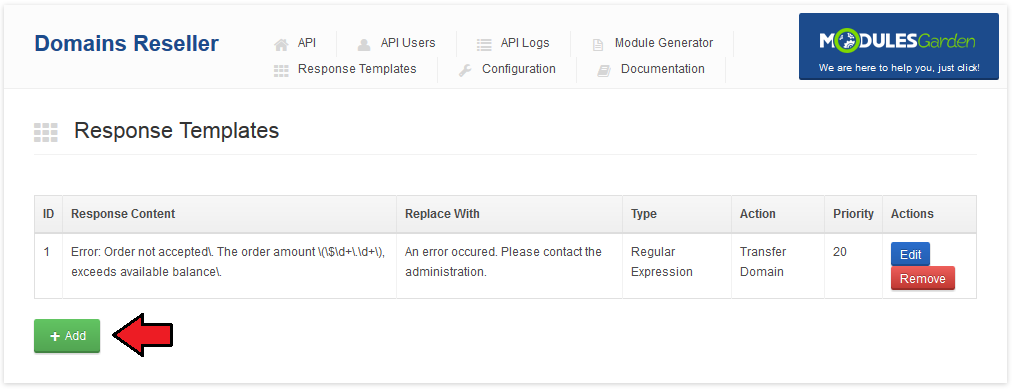
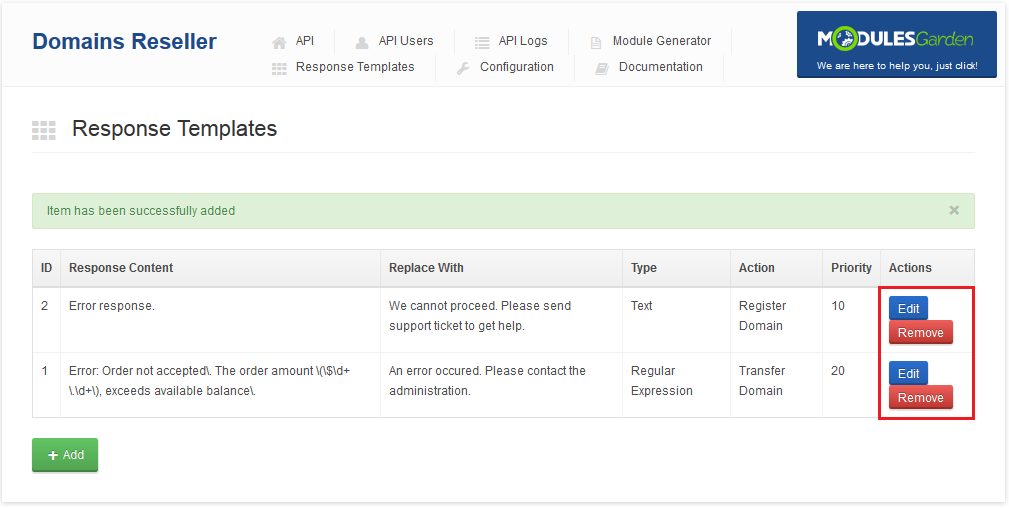
In 'Response Templates' section you may add and edit new templates with text messages/information that are sent to clients instead of defined here system responses.
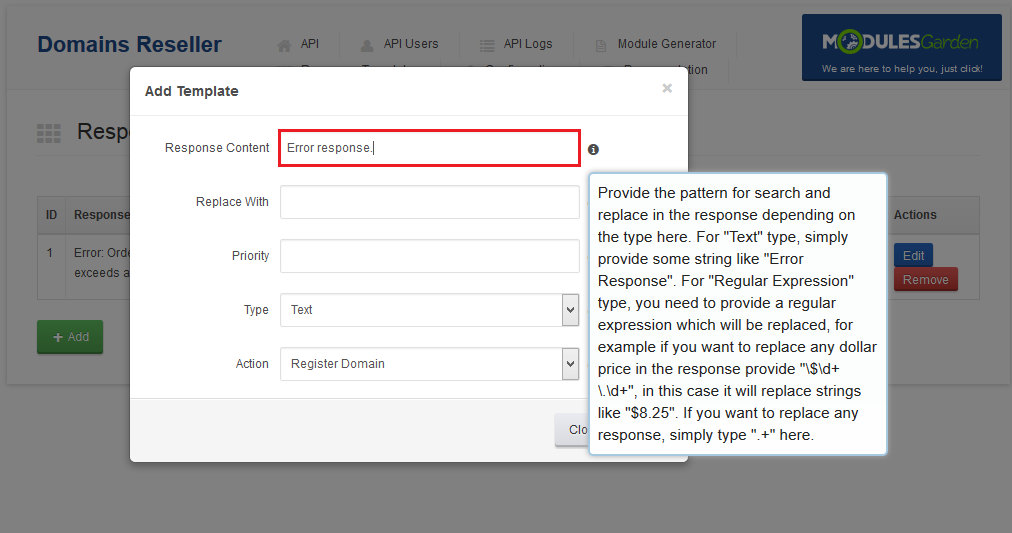
In order to add a new response template press Add button and then follow the below instructions.
Provide the pattern for search and replace in the system response depending on the type.
- For Text type, simply provide a string like 'Error Response'.
- For Regular Expression type, you need to provide a regular expression which will be replaced.
For example, if you want to replace any dollar price in the response provide '\$\d+\.\d+', in this case it will replace strings like '$8.25'. - If you want to replace any response, simply type '.+' in here.
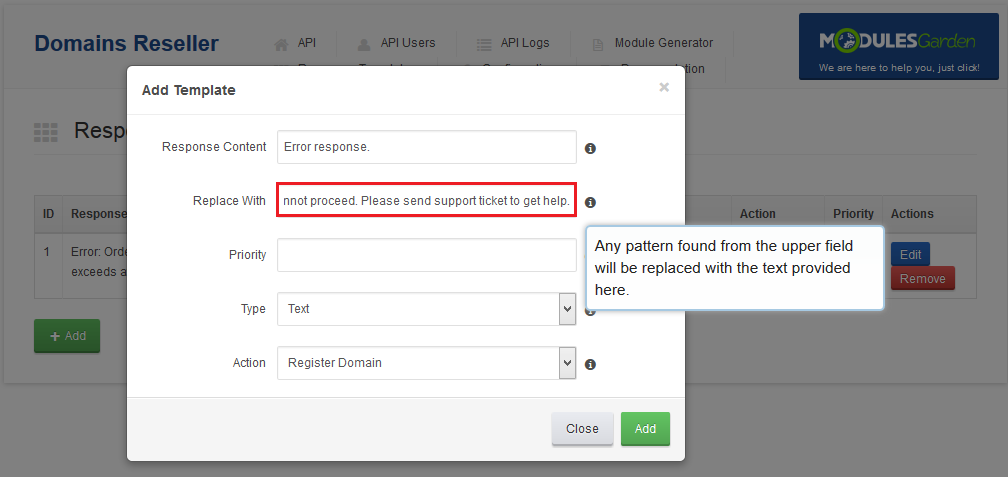
In he second step Replace With you need to enter a text message that will be sent to a client when the above entered pattern is found.
The two messages will be replaced with one another.
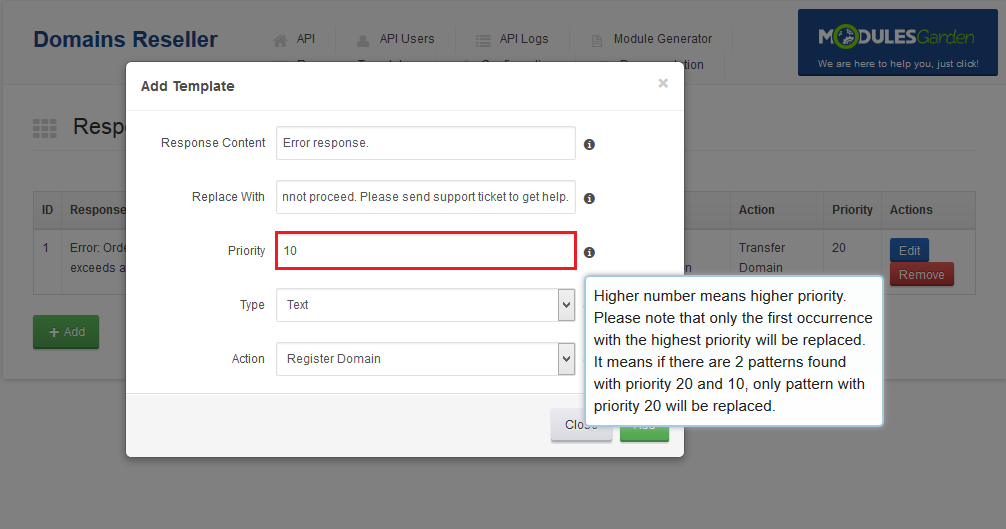
Define Priority. The higher number you enter, the higher priority will be assigned.
Important! Only the first occurrence with the highest priority will be replaced.
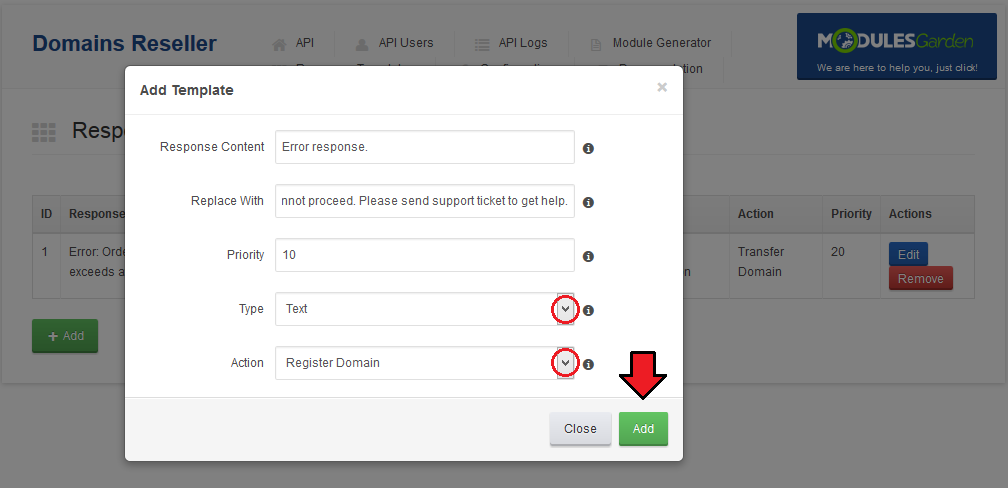
Finally,
- choose 'Text' or 'Regular Expression' from Type dropdown menu.
It will specify if provided text in the first field should be treated as a text or a regular expression while searching for a pattern.
- Registrar Action - must be chosen from dropdown menu as well to specify upon which action provided patterns will be searched for.
Remember, to finish successfully you need to press 'Add' button.
Now you can see a newly configured response is visible on the list. You may edit the added response or remove it any time you need.
Just use action buttons marked on the screen.
# Documentation
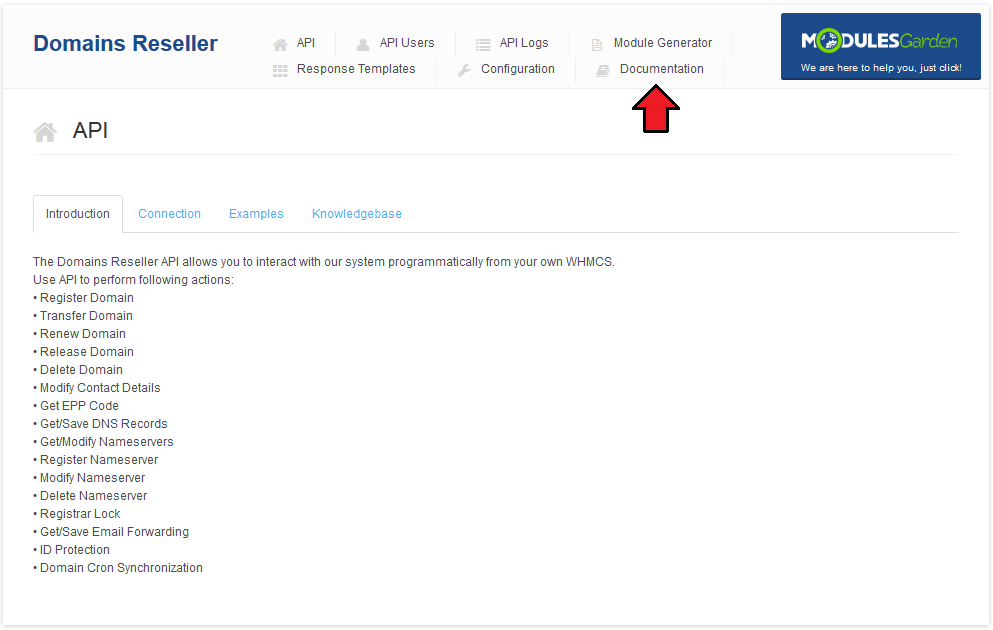
This tab is a hyperlink. It leads to Domains Reseller For WHMCS Documentation article you are currently reading.
# Email To Reseller
Email to your reseller should consist of:
Registrar module you generated or link to its download.
Installation instructions (with integration code).
Connection credentials (user API key and email).
# Provider Client Area
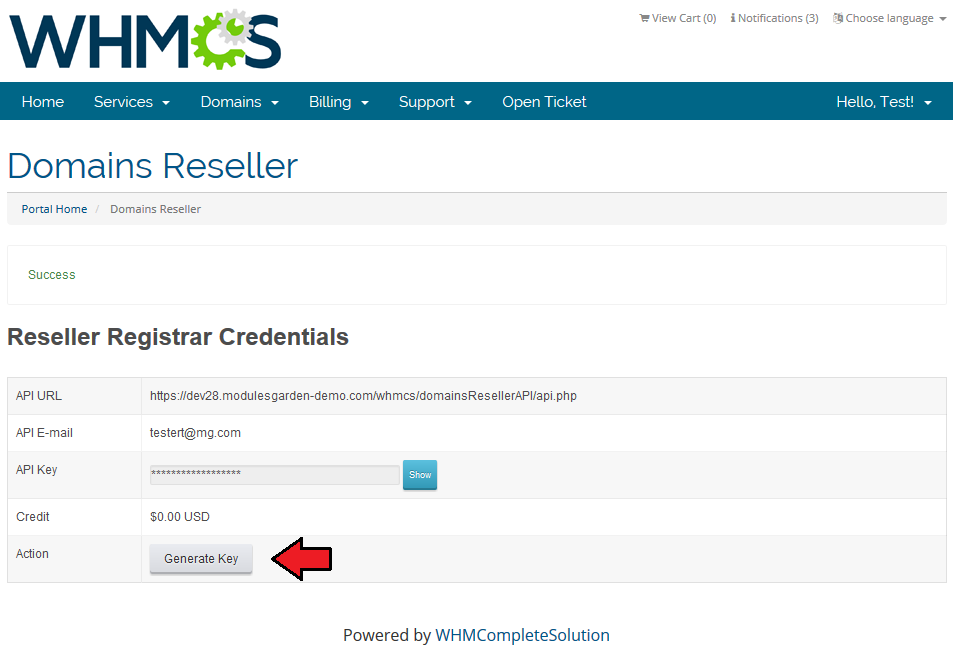
Resellers can manage API connection credentials directly from the provider WHMCS client area.
Go to 'Domains' → 'Reseller Registrar Credentials' to access them.
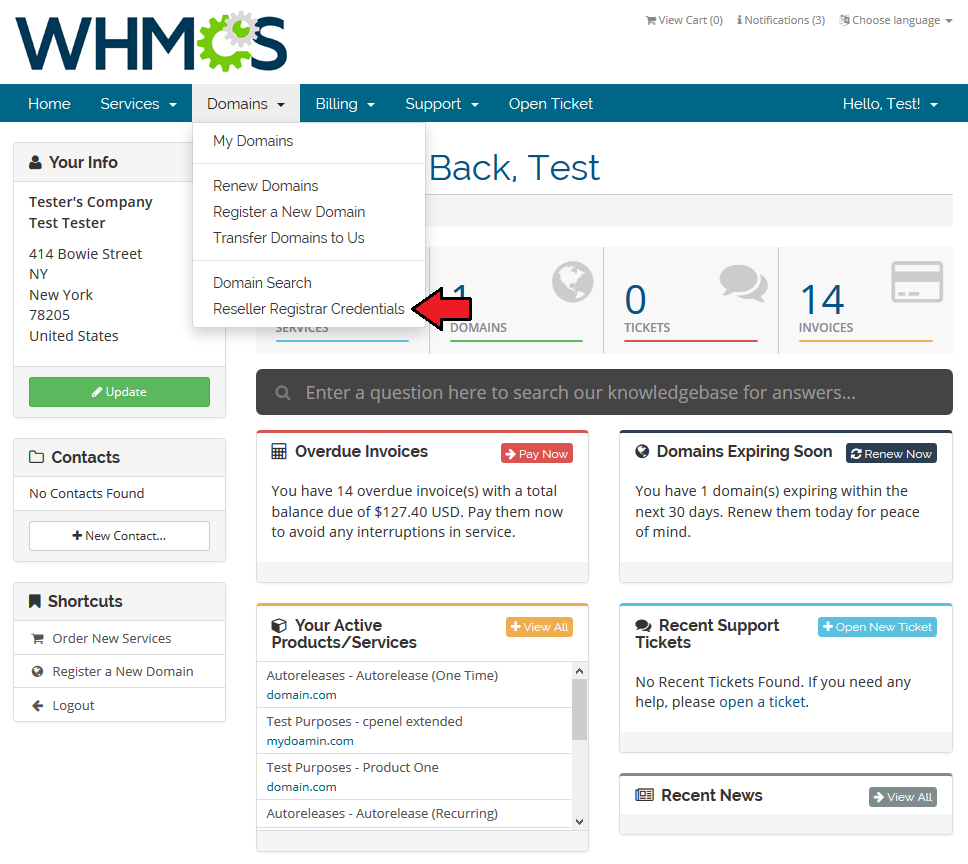
As you can see, you can find all the information linked with your registrar.
To view your API key, press 'Show' button.
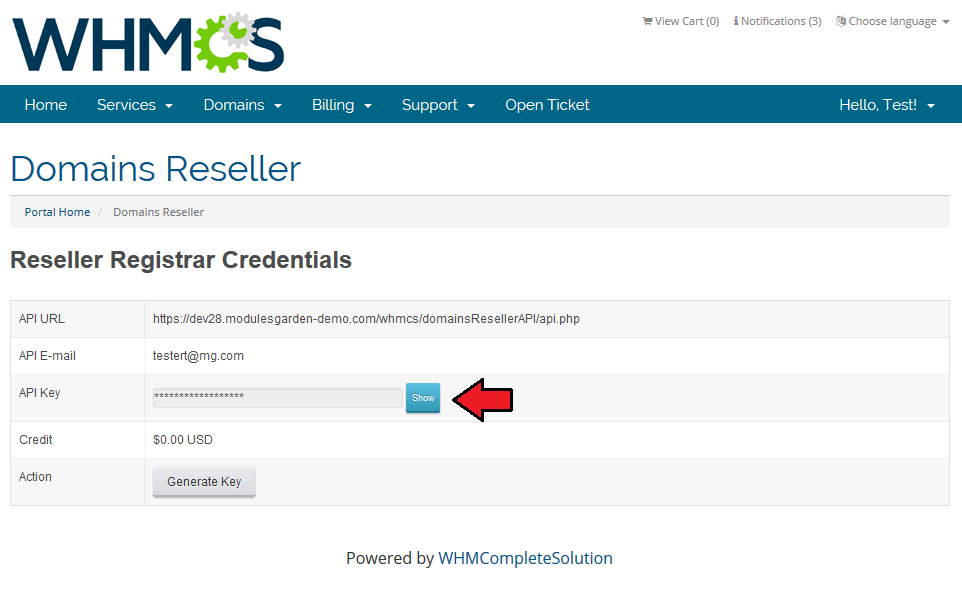
If your API key was exposed, generate a new one through pressing 'Generate Key'.
# End User Client Area
Domains Reseller registrar module allows an end user to register, transfer and renew domain.
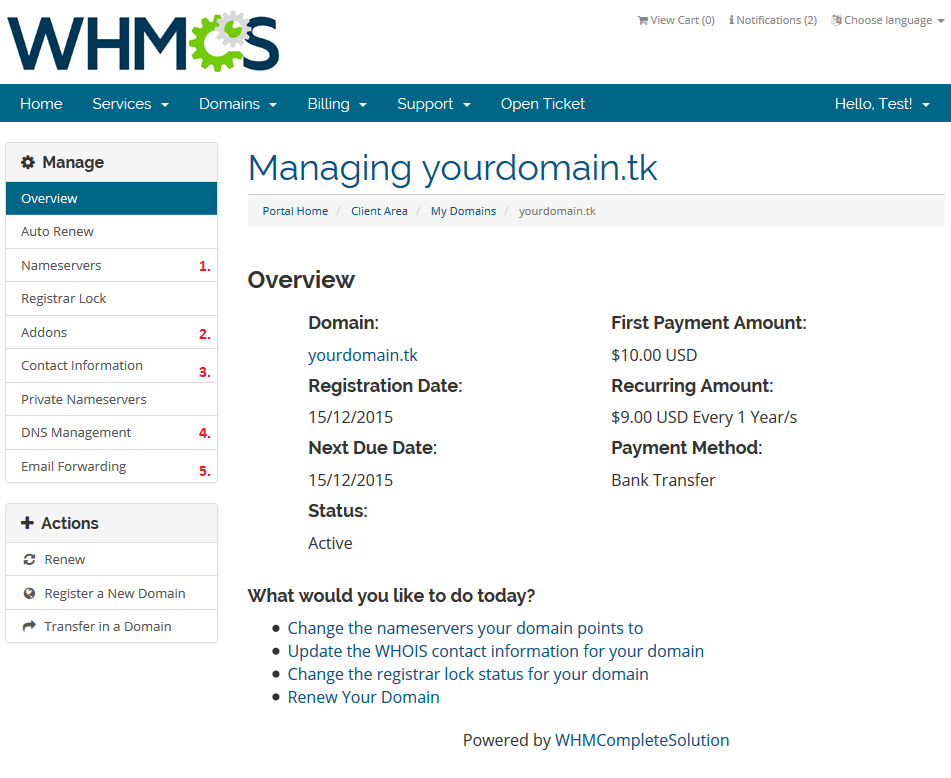
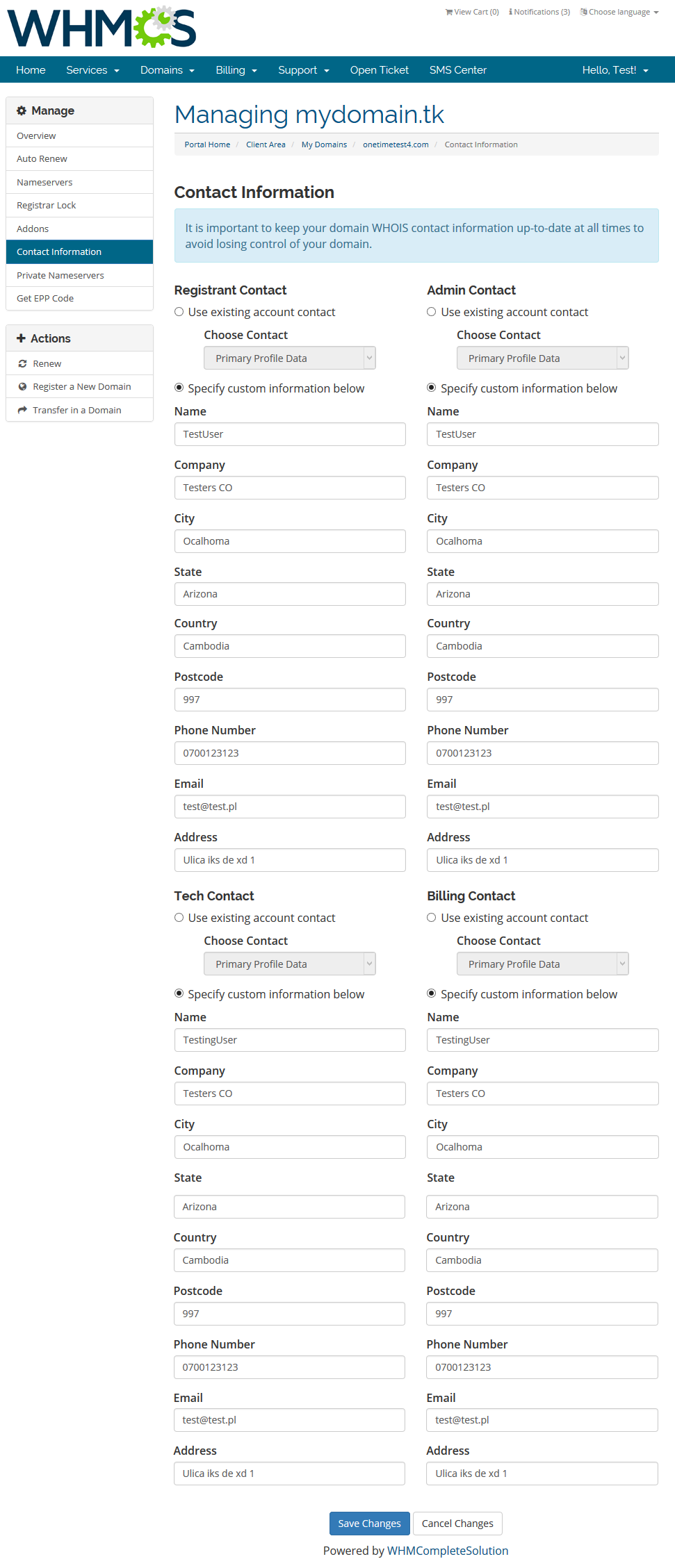
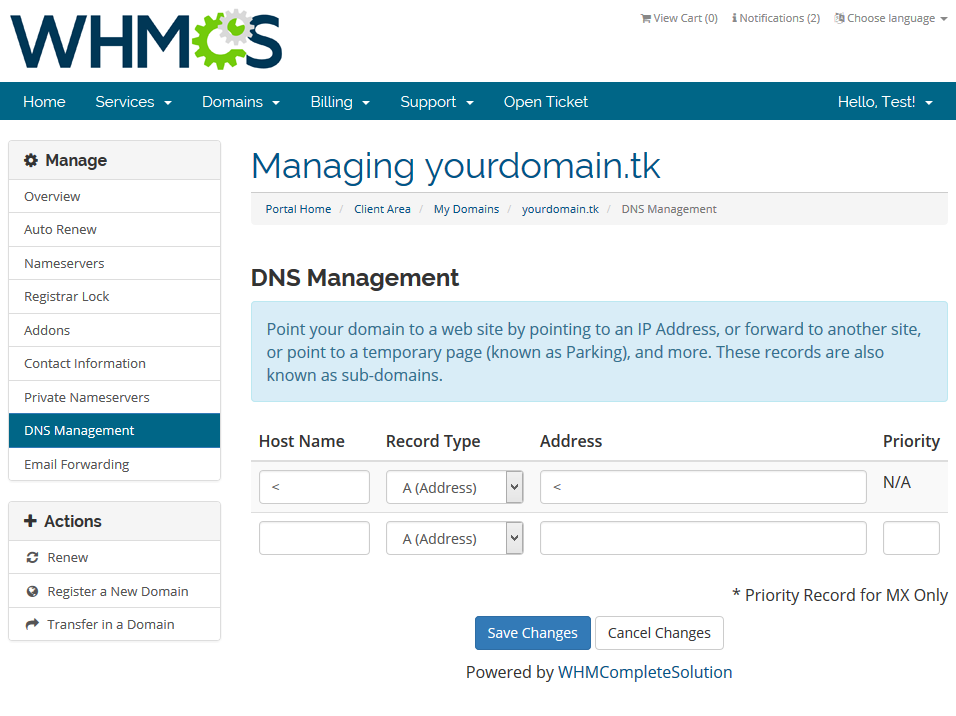
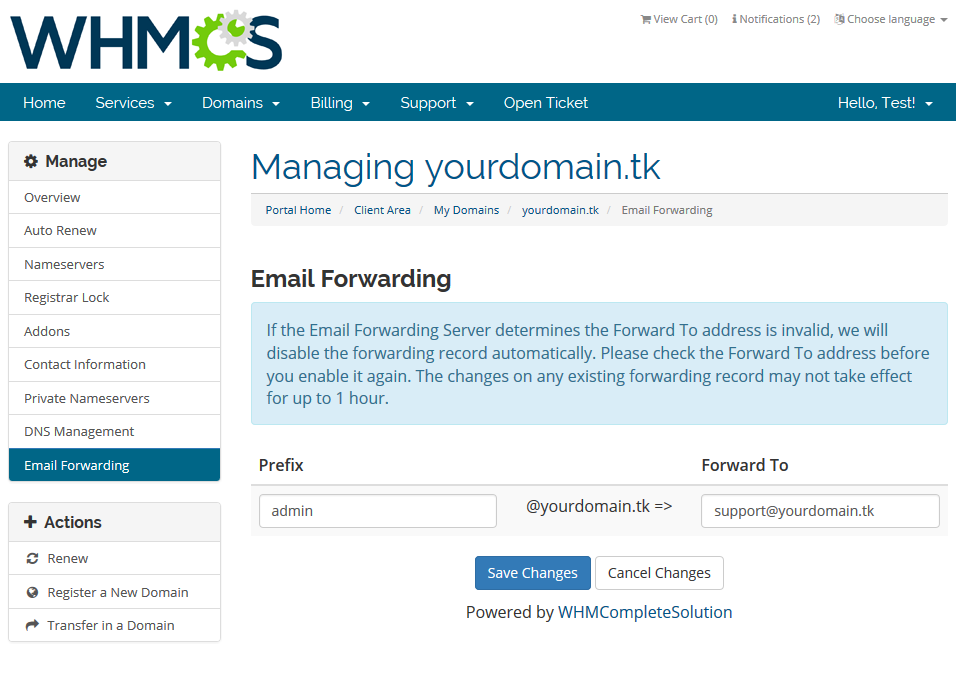
Client can also manage private nameservers (1), enable/disable ID protection (2), modify contact information (3), manage DNS records (4) and set up email forwarding (5).
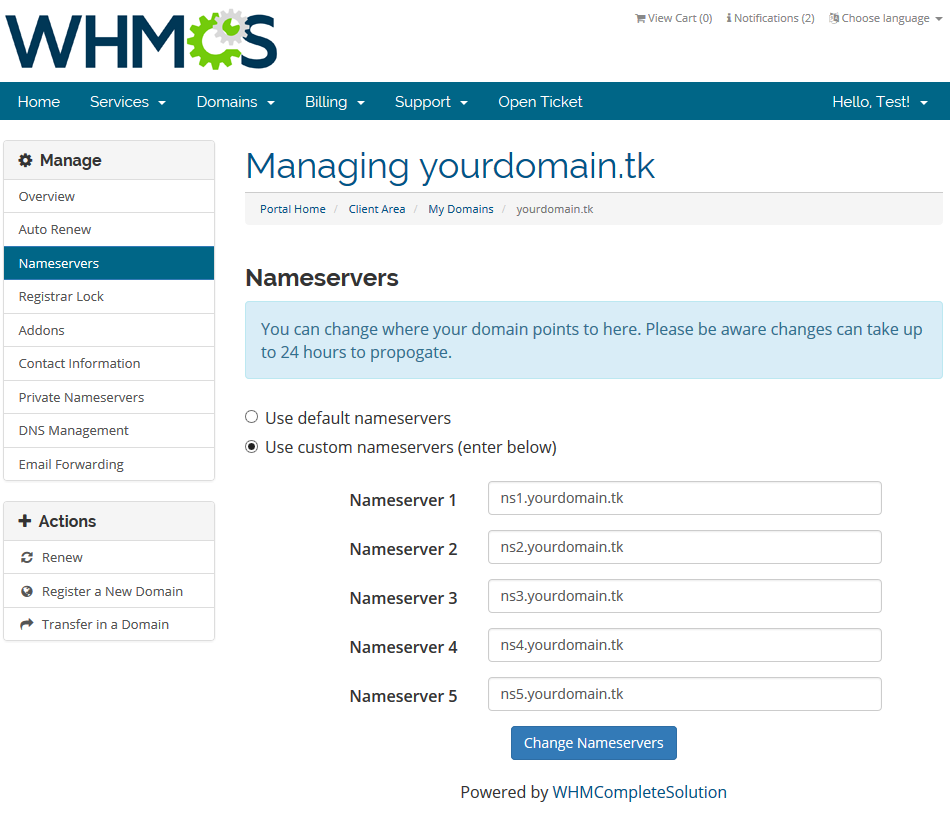
At the 'Register Nameservers' (1) you can manage your custom nameservers.
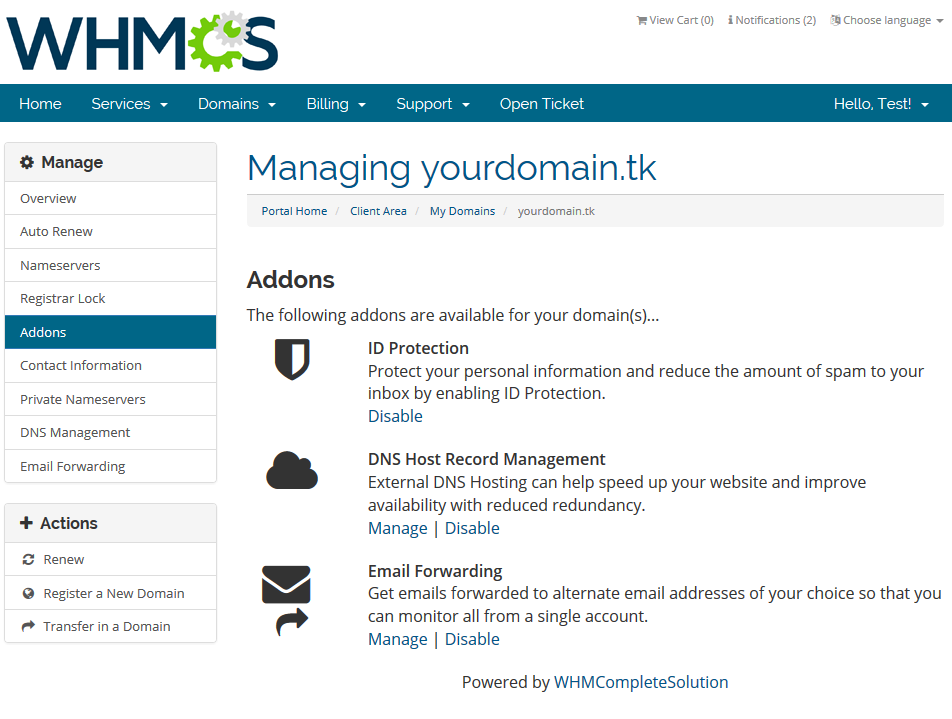
To enable/disable ID protection (2), proceed to the 'Addons' subtab.
At 'Contact Information' (3) you can decide which contact information use for registrant and admin/tech/billing contact:
your existing account contact or custom information.
'Manage DNS' (4) allows you to manage your DNS records.
At the 'Manage Email Forwards' (5) you can redirect your emails to another domain.
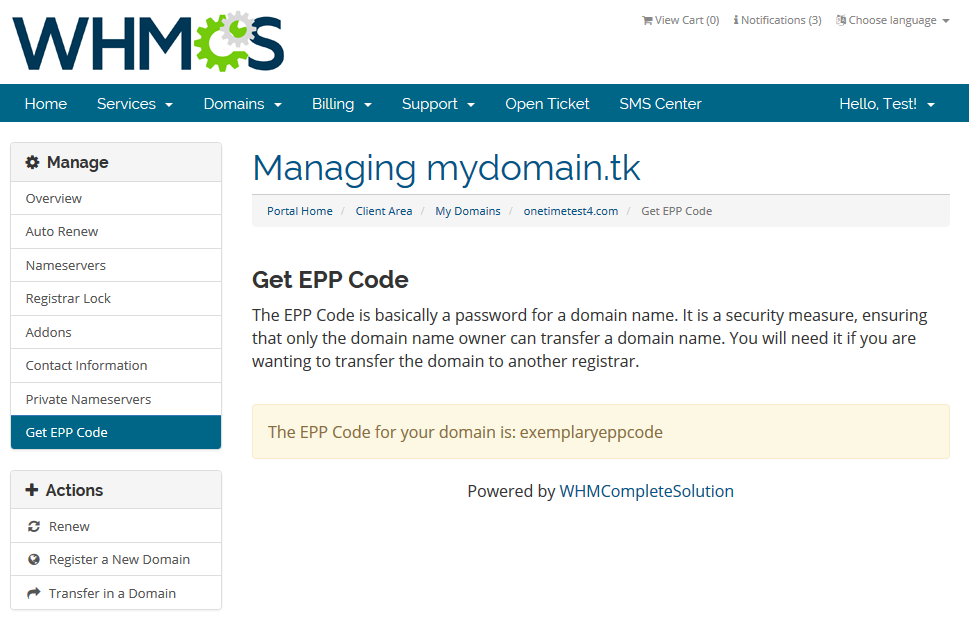
Get EPP code for your domain:
# Workflow
In this section we will present to you a sample workflow of the module.
In a basic workflow 3 characters take part:
Provider – a person with Domains Reseller For WHMCS installed in their system.
Reseller - a person with a client account in the provider's WHMCS system.
Additionally, the reseller has its own system with registrar generated by Domains Reseller For WHMCS.
End-Customer – a person with a client account in the Reseller's system.
Additionally, there also must be a product, which in this case will be domain 'sample.com'.
Provider Part
Let's start from the beginning. Provider installs Domains Reseller For WHMCS in the system.
He or she already has a few TLDs in the offer and wishes to allow the reseller to offer them from their systems.
Now, the provider configures Domains Reseller For WHMCS through enabling its API and enabling .com TLD for API.
Afterwards, he or she proceeds to API Users, enables Reseller and generates API key for them.
Additionally, he or she assigns a 10% discount for Reseller under API Users tab.
Reseller
From this moment, Reseller is able to access API details from the client account in the Reseller area.
Additionally, he or she receives an email form the Provider with registrar module and instruction on how to install it.
Reseller installs the registrar in the system according to the instruction received.
He or she also sets up .com TLD in the system and assigns the previously installed registrar to it.
Now, there is one step that separates them from offering the domain from their system.
Reseller top-up his credit balance in the provider system.
Provider creates an invoice for the Reseller, the Reseller pays the invoice and then again the Provider manually adds the same amount to Reseller's credit balance.
Form now on, any .com domain can be ordered.
End-Customer
End-Customer orders 'sample.com' domain from his or her client area in the Reseller system.
They are now able to fully manage the domain.
Last Word About Payment
Payment goes to the Reseller while, during registration process, credits from Reseller balance are withdrawn.
It is worth mentioning that the amount a customer paid is defined by a Reseller.
Credits withdrawn are equal to a domain price in the Provider system minus the promocode assigned to the Reseller.
Extended TLDs Management - Integration With Domain Orders Extended For WHMCS
Domain Orders Extended For WHMCS allows quick and easy management of multiple TLDs and lets you offer these TLDs to your resellers at hand!
In this part we are going to present how fluently these two modules may work together to let you gain the most from the integration.
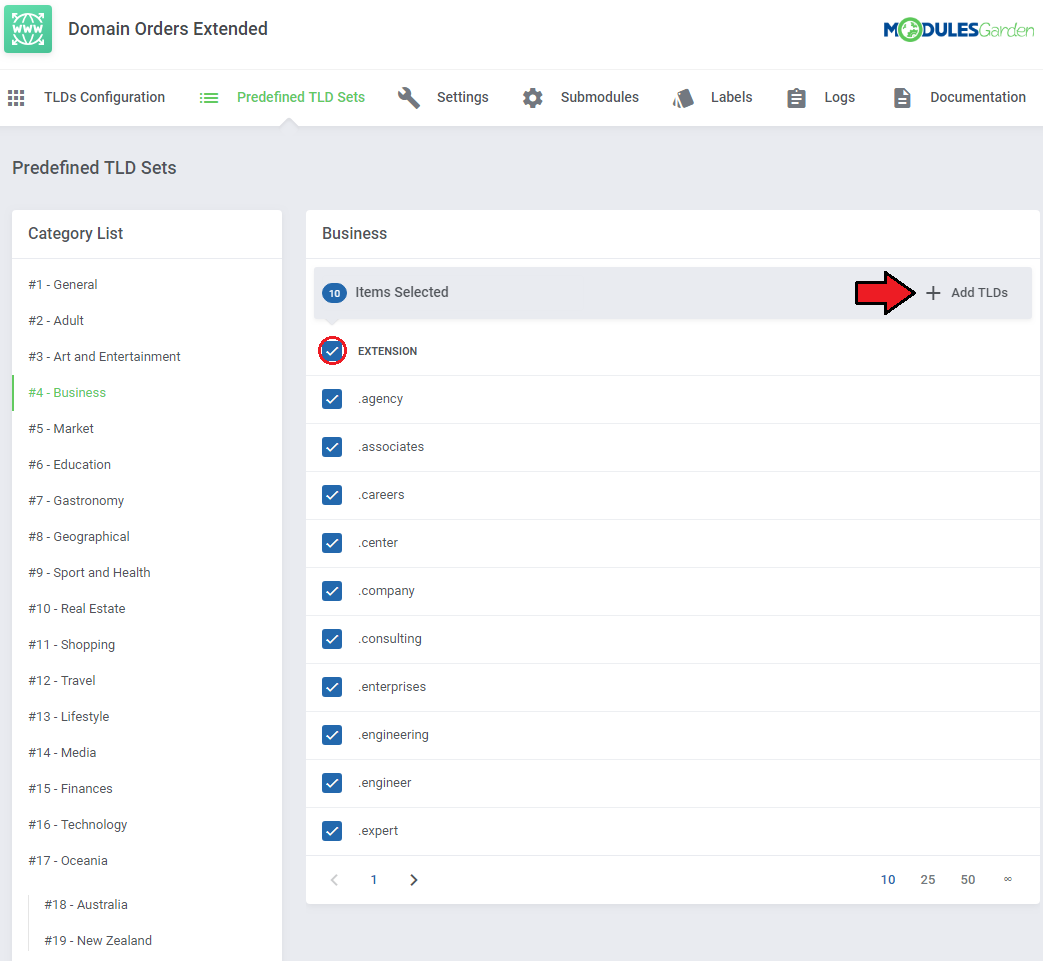
Open your Domain Orders Extended For WHMCS addon module, move to 'Predefined TLD Sets' section and install one of the TLD groups of your wish.
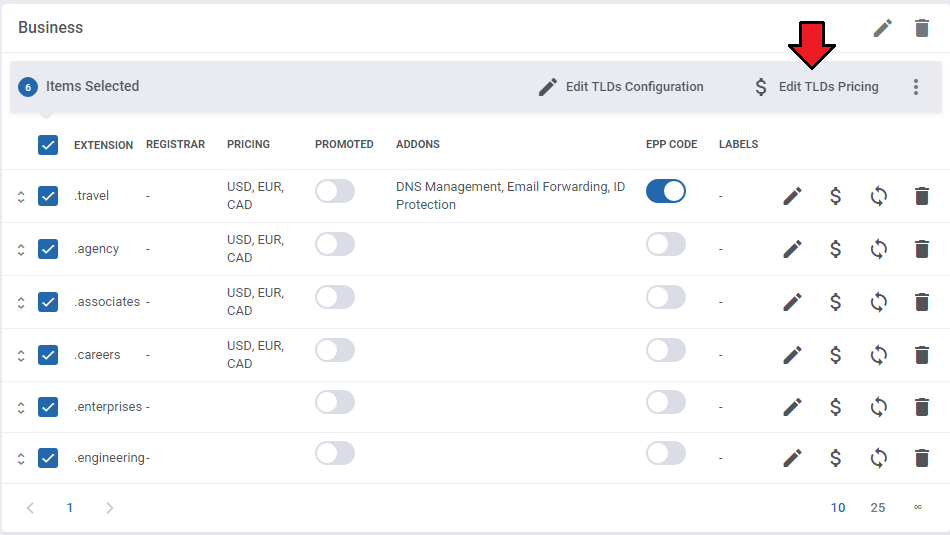
Come back to the 'TLDs Configuration', find your group with newly assigned TLDs and define pricing for each of them. To make it faster, select all TLDs and use a mass action button.
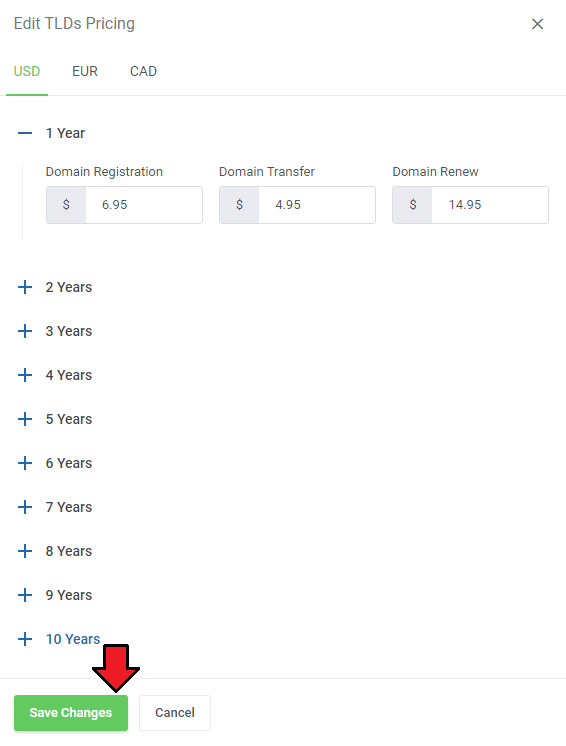
It is time to set up the pricing. Save the changes once ready.
You can find more information about the pricing in Domain Orders Extended For WHMCS here.
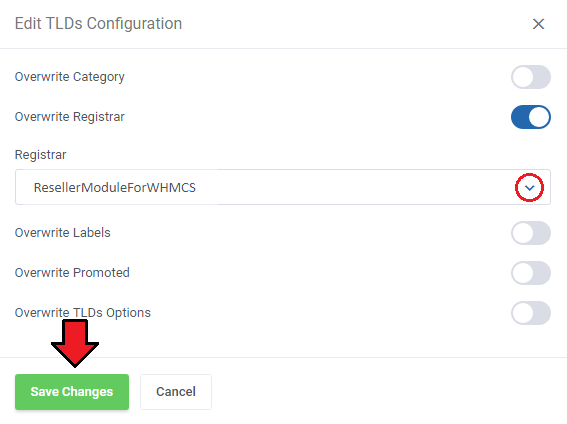
Select all TLDs the same way you did earlier and 'Edit TLDs Configuration'.
There, find 'Overwrite Registrar' option and toggle it. A dropdown menu with available registrars will appear. Select the one used in Domains Reseller module.
It is time to go back to 'Domains Reseller' module. Move to the 'Configuration' section to enable the previously configured TLDs.
Your TLDs are now ready to be offered by your resellers.
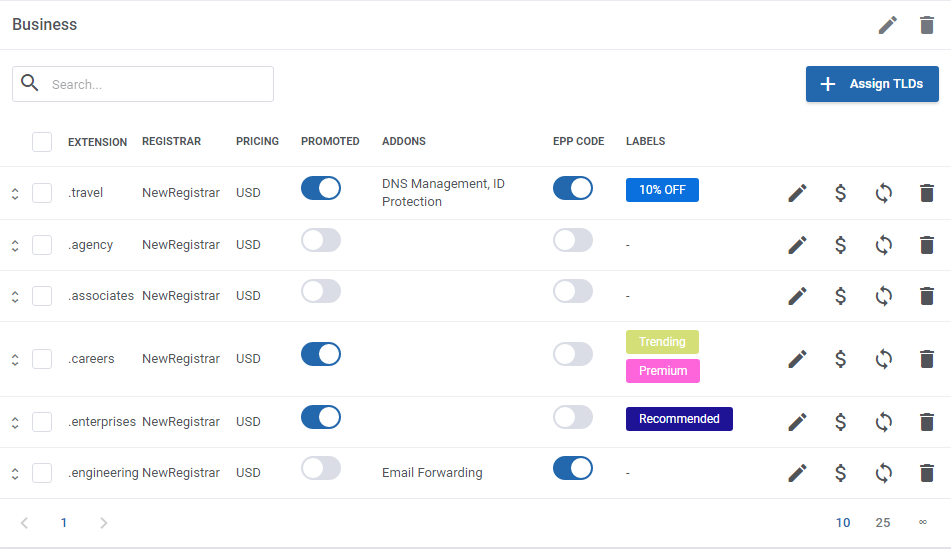
Your resellers, who also own Domain Orders Extended For WHMCS, can quickly update their offer by installing the very same gTLD category.
The next steps are exactly the same as those you have just performed: setting up the pricing and assigning the TLDs to the Domains Reseller For WHMCS registrar module generated by you.
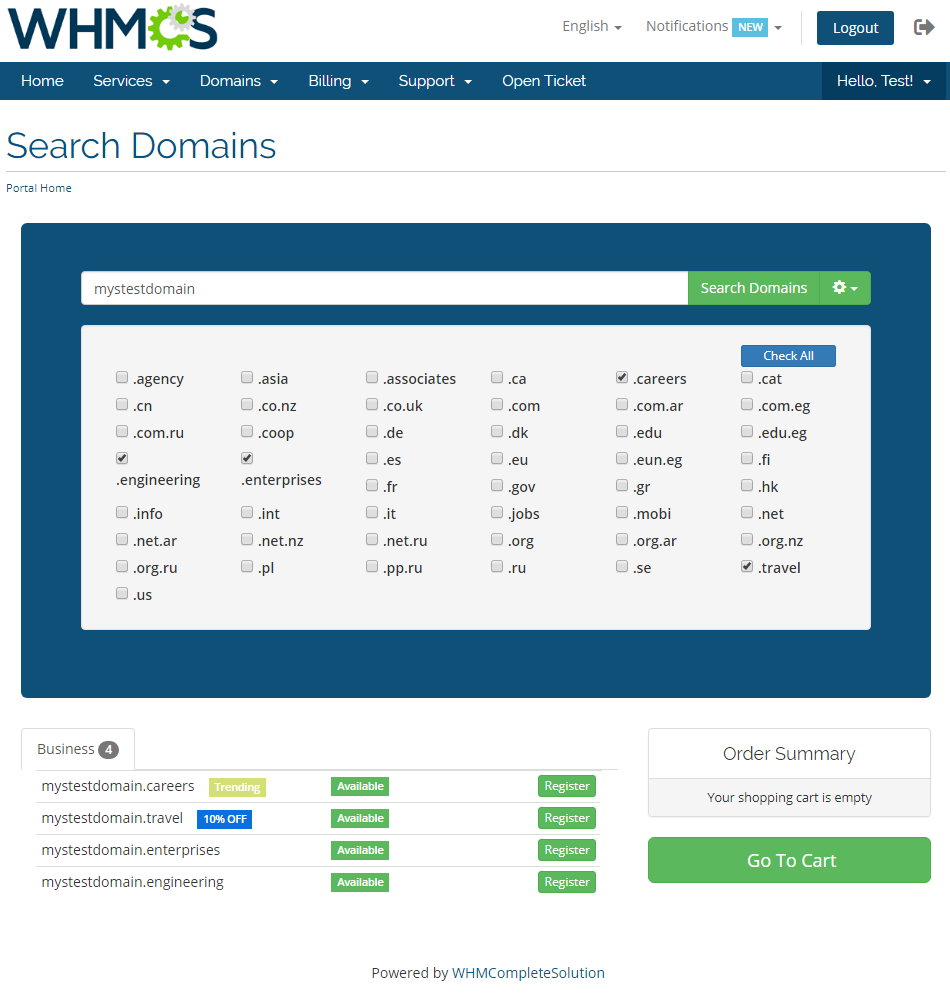
Most importantly, the offer can be now extremely client-friendly due to a high range of selection of Domain Orders Extended domain registration forms including:
- Lagom theme
- General Category View
- Multi Category View
- List View
There is surely a solution for resellers who do not own Domain Orders Extended (opens new window) module yet.
They will simply have to add and set up each TLD separately at the 'Setup' → 'Products/Services' → 'Domain Pricing', which may be time consuming.
That is why we highly recommend using the modules together to manage your time optimally.
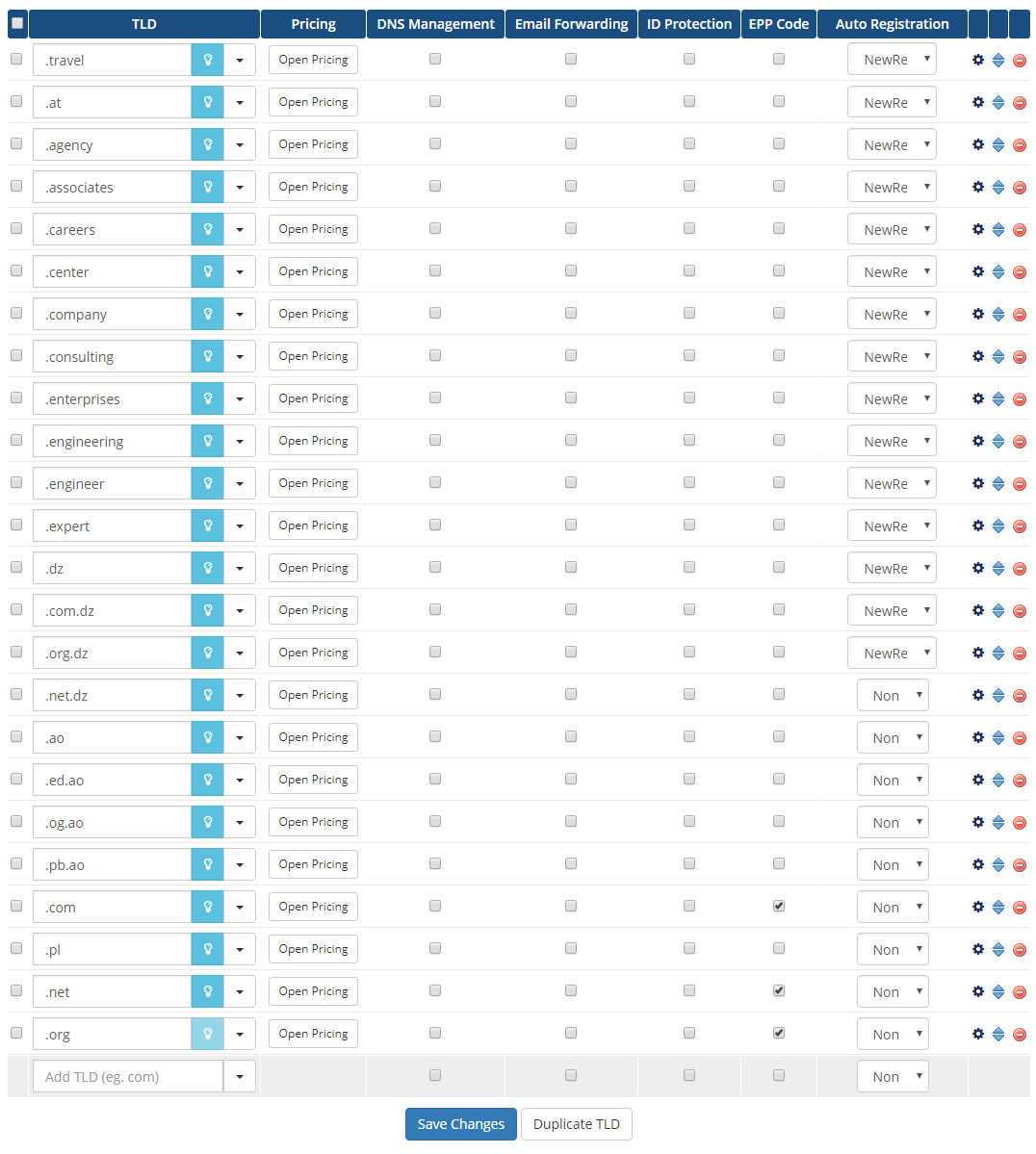
As you can see, integrating of Domains Resellers For WHMCS with Domain Orders Extended For WHMCS allows you to offer vast array of TLDs with ease.
A win-win situation with benefits for all: you expanding and perfecting your offer, your resellers managing the TLDs and surely for the end-clients enjoying the final outcomes!
# Tips
If you forget to save the link to the registrar module you generated or integration code for it, do not worry, there is a way!
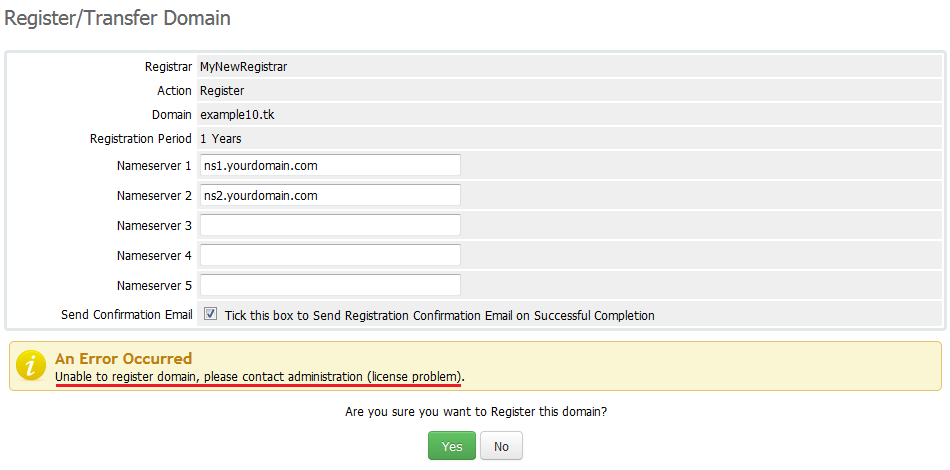
Simply generate the module with the same name and save what you forgot to save the last time.If your reseller gets an error 'Unable to register domain, please contact administration (license problem).', that means your license is invalid or expired.
Make sure that you are not blocking access to the 'domainsResellerAPI' catalog by your '.htaccess' file.
Domains Reseller For WHMCS enables you to resell your domains not only to WHMCS and HostBill systems.
You are able to easily prepare registrar module for any system (Blesta, Clientexec, BoxBilling and many more) using Domains Reseller For WHMCS API.
All you need is knowledge of for example PHP programming language and knowledgebase of our module's API.
# Update Instructions
Essential guidance through the process of updating the module is offered here.
Keep in mind there is a quick and easy option in our client area that will let you upgrade the license of your module to an open source version at any time - and at a lower price!
To take advantage of it, simply use the License Upgrade button located on the product's page and a discounted invoice will be generated automatically.
# Common Problems
When you have problems with connection, check whether your SELinux or firewall does not block ports.
Error 'Function Not Supported by Registrar Module' means that registrar on main WHMCS does not support the operation you were trying to do.