

# EURid Registrar For WHMCS
# (opens new window) About EURid Registrar For WHMCS (opens new window)
EURid Registrar For WHMCS is a domain registrar module that introduces automated provisioning and management of (.eu) domains in WHMCS for the region of Europe.
The module will let your clients manage European domains straight in your client area as well.
# Installation
This tutorial will show you how to successfully install EURid Registrar For WHMCS. (opens new window)
We will guide you step by step through the whole installation and configuration process.
- Log in to our client area and download the module.
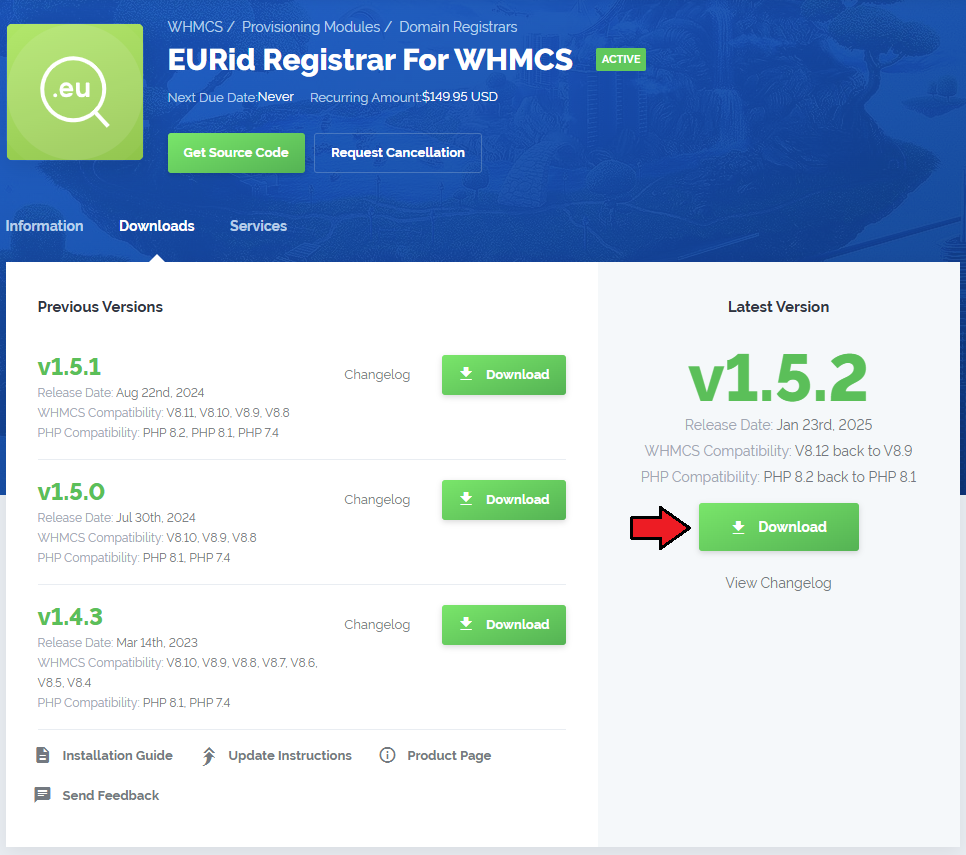
Extract the package and upload its content into the main WHMCS directory.
The content of the package to upload should look like this.
When you install EURid Registrar For WHMCS for the first time you have to rename 'license_RENAME.php' file.
File is located in 'modules/registrars/eurid/license_RENAME.php'. Rename it from 'license_RENAME.php' to 'license.php'.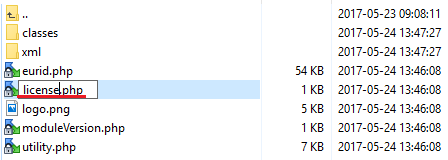
In order to configure your license key, you have to edit a previously renamed 'license.php' file.
Enter your license key between quotation marks as presented on the following screen. You can find your license key in our client area → 'My Products'.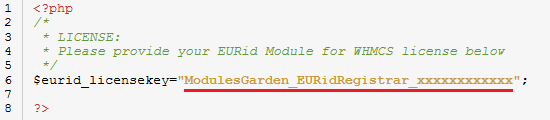
Now you have to activate the module in your WHMCS system.
Log in to your WHMCS admin area. Go to 'Setup' → 'Products/Services' → 'Domain Registrars'.
Afterwards, find 'EURid' and press 'Activate' button.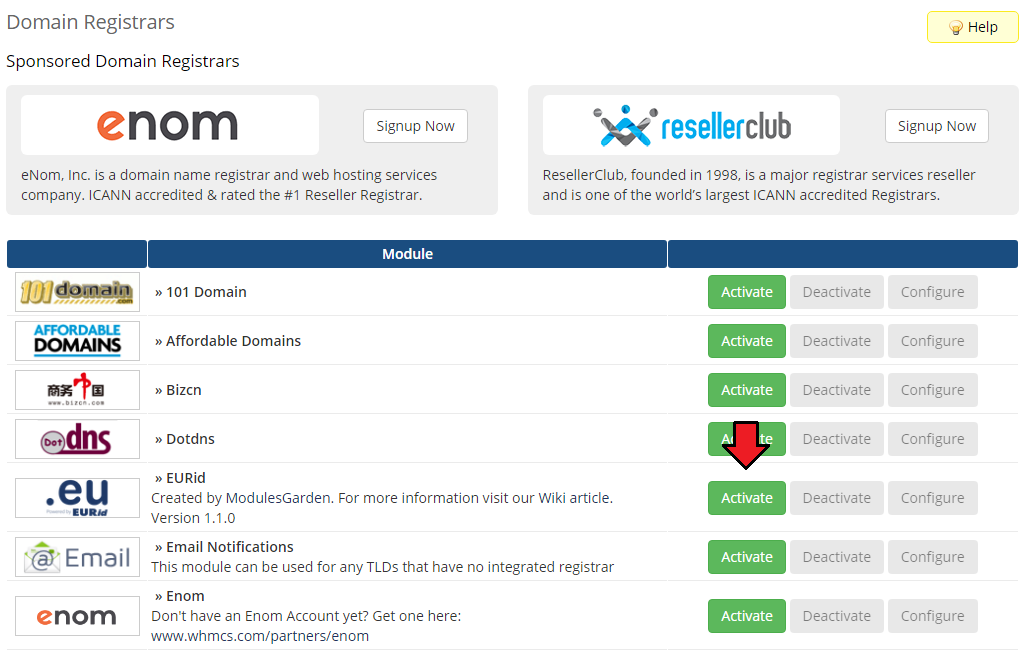
In the next step you need to set up access to EURid API.
To do so, fill in 'EPP Username' and 'EPP Password' fields with your EURid access details.
Additionally, you have to fill out the 'Server', 'Billing Contact ID' and 'Tech Contact ID' fields.
Next, confirm through pressing 'Save' button.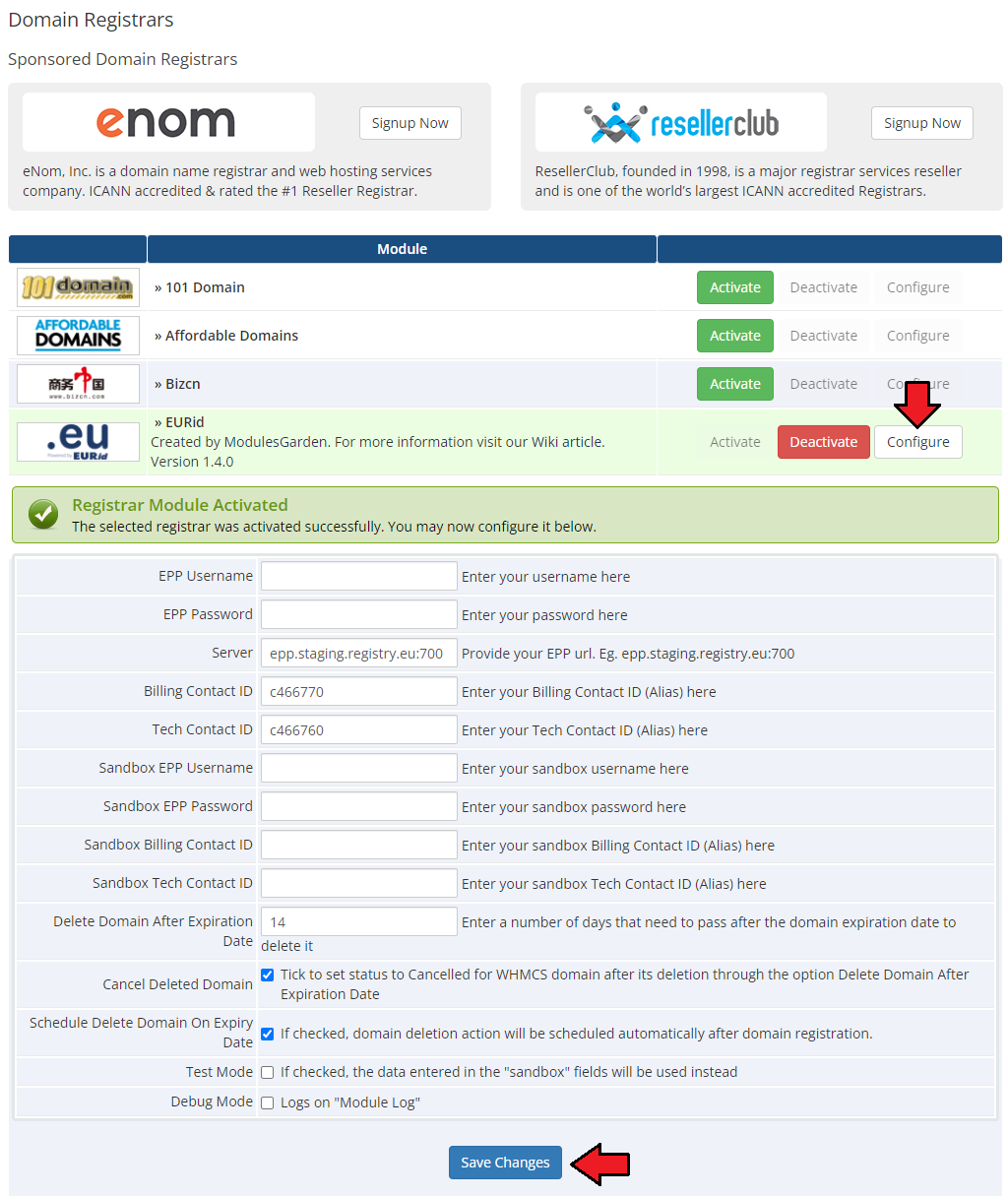
You can find 'Billing Contact ID' and 'Tech Contact ID' in your EURid account. Proceed to 'Domain Management' → 'Domain Names'. → 'Contacts'
Search by contact type 'Billing' and 'Tech', press 'Search' button. Then copy values from the 'Alias' field.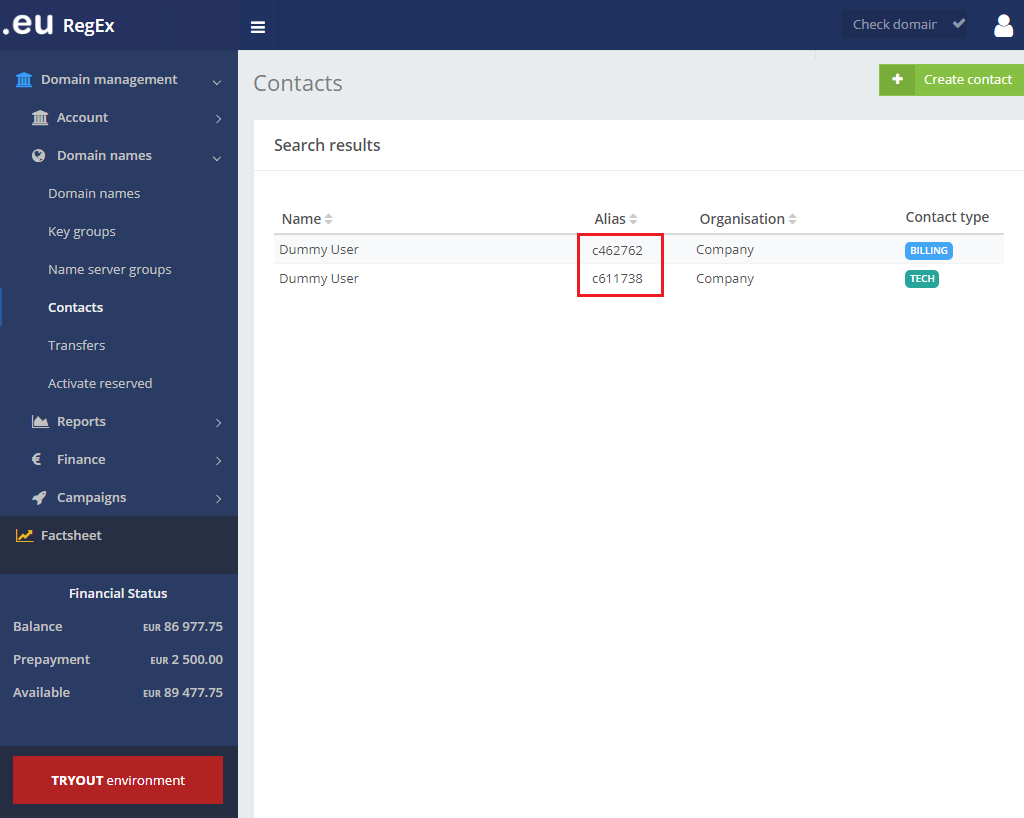
You have just successfully installed EURid Registrar For WHMCS!
# Configuration and Management
EURid Registrar For WHMCS allows you to sell TLDs from EURid via WHMCS system.
Additionally, EURid Registrar For WHMCS allows your customers to manage their domains from the WHMCS client area.
# Management of TLDs
Begin your work with the registrar by assuring that the .eu TLD exists in your WHMCS and Eurid registrar has been assigned to it.
Proceed to 'Setup' → 'Products/Services' → 'Domain Pricing'. Enter your TLD and choose 'Eurid' from the 'Auto Registration' dropdown menu as shown on the screen below.
Decide whether to offer your customers access to 'Request EPP Code' feature.
Then press 'Save Changes' button.

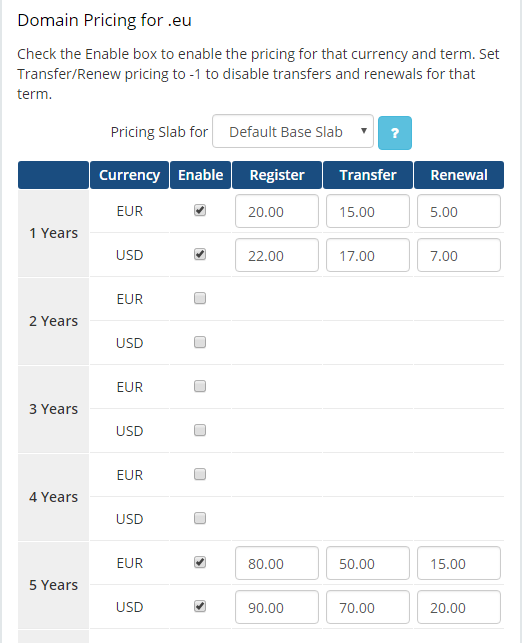
Move to the 'Open Pricing' section and set up the pricing for the domain TLD.

In a newly opened window you can set up your prices. Remember to save the changes!
This is it! From now on your customers can start ordering '.eu' domains directly in your WHMCS.
# Ordering
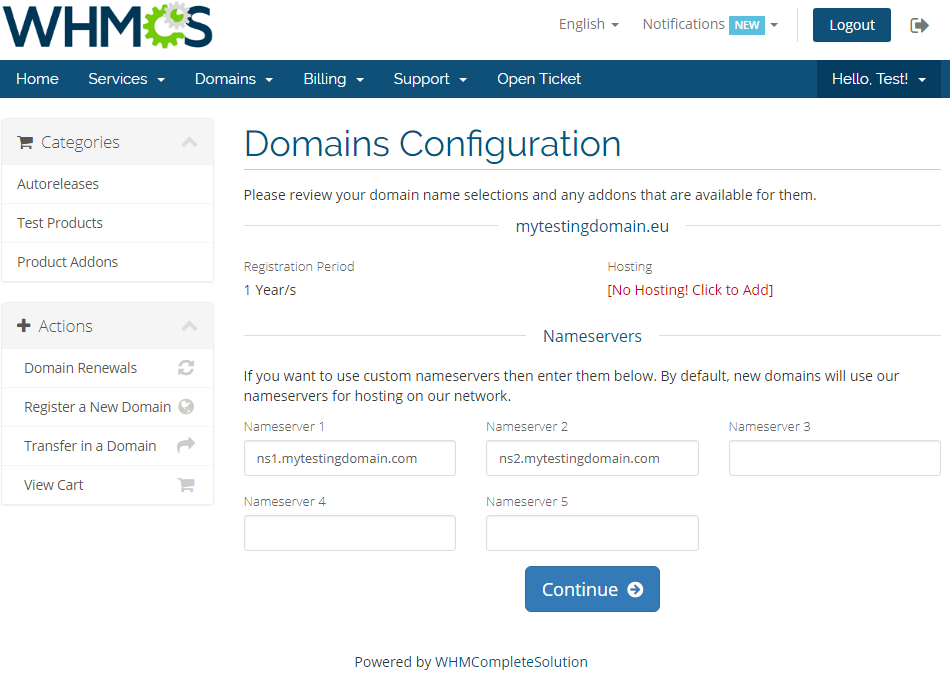
The process of ordering an EURid domain goes alike ordering any other domain.
Simply search whether the domain is available, add to cart, add nameservers if you need and complete the order.
# Domain Management
In the admin area client overview → 'Domains' tab you can manage all the aspects of the domain.
Along with basic actions like 'Register', 'Renew' and 'Transfer', you are allowed to use the 'Modify Contact Details', 'Request Delete', 'Get EPP Code' and 'Schedule Delete on Expiry Date' features.
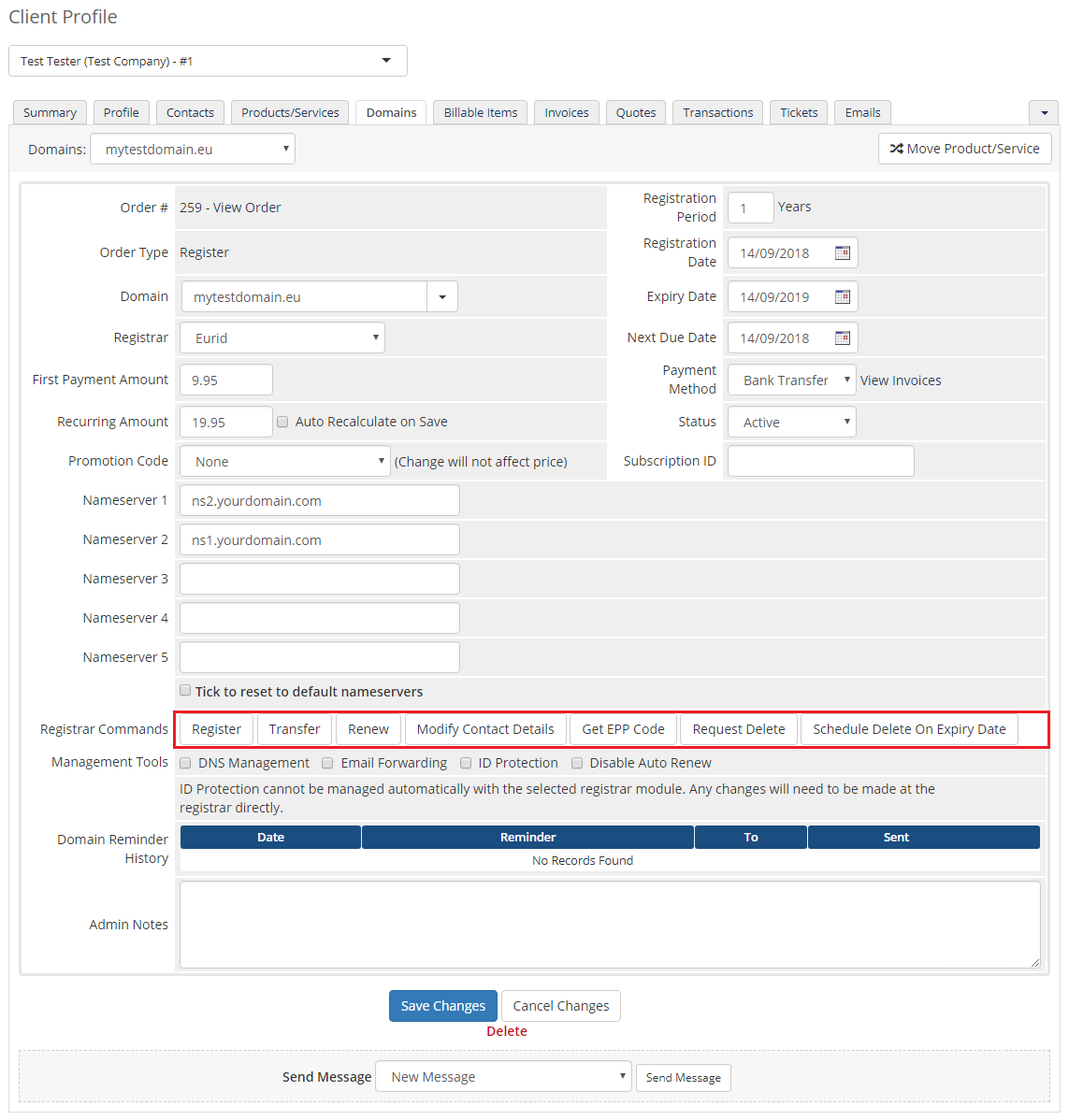
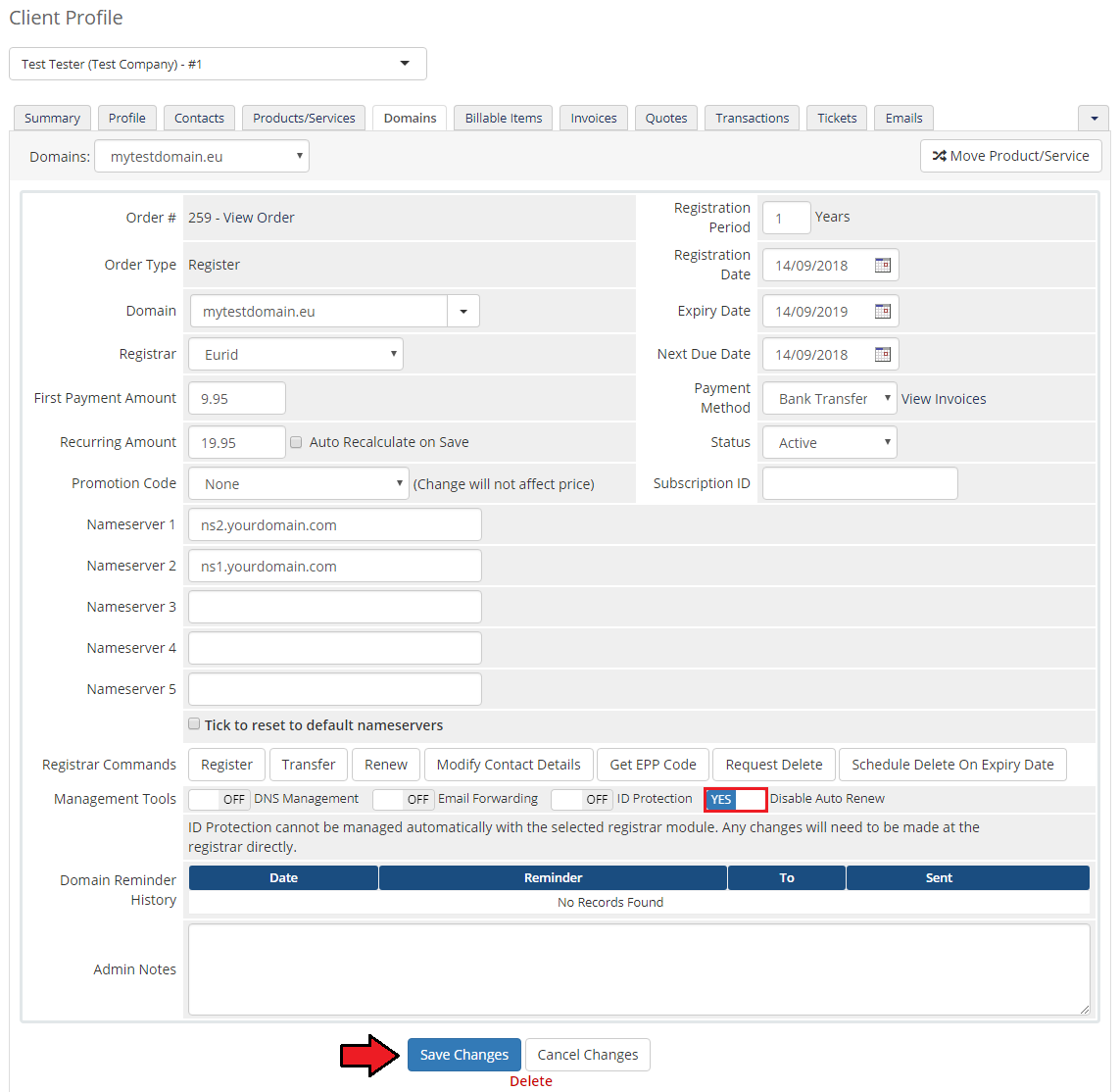
You can also disable/enable auto renewal through marking/unmarking the corresponding to this option checkbox.
Confirm changes through clicking on 'Save Changes' button.
# Client Area
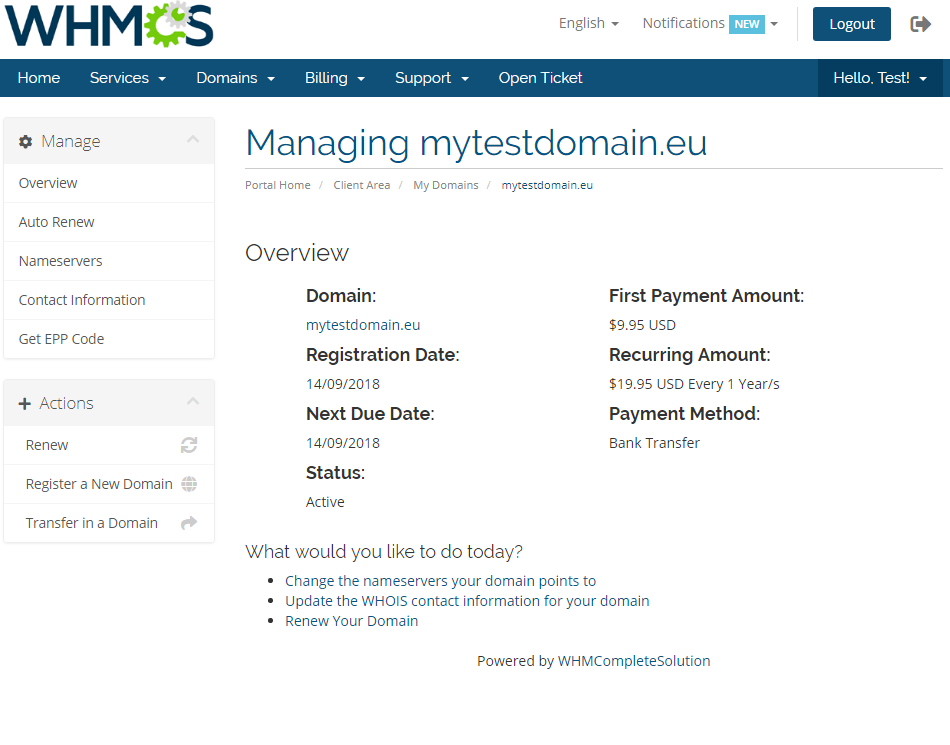
Your customers can order various actions on their EURid Registrar domain in the client area.
View basic information related to the European (.eu) domain.
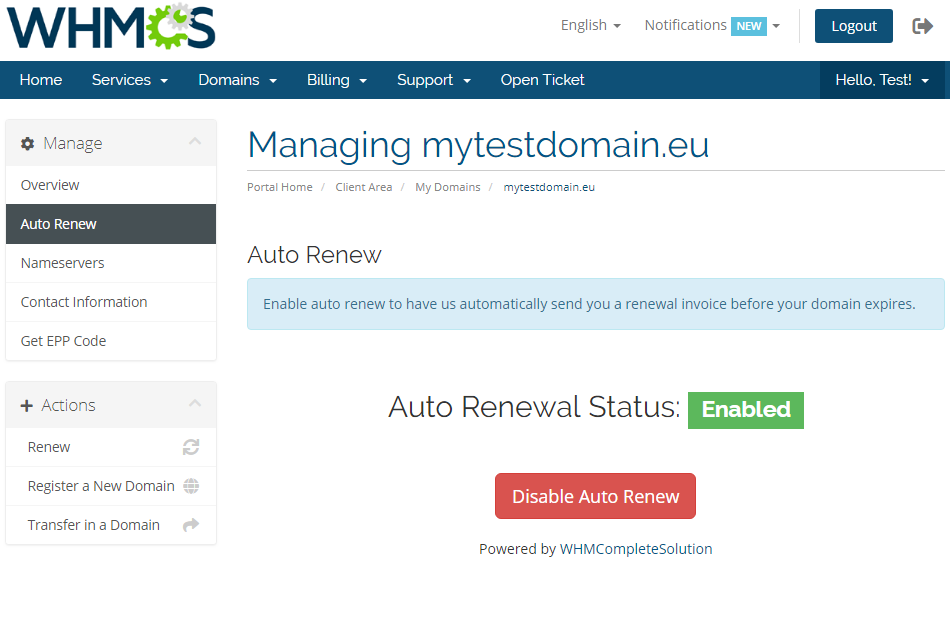
At 'Auto Renew' tab clients can enable/disable auto renewal by pressing 'Enable Auto Renew'/'Disable Auto Renew' button.
'Nameservers' tab allows clients to change nameservers used by their domain.
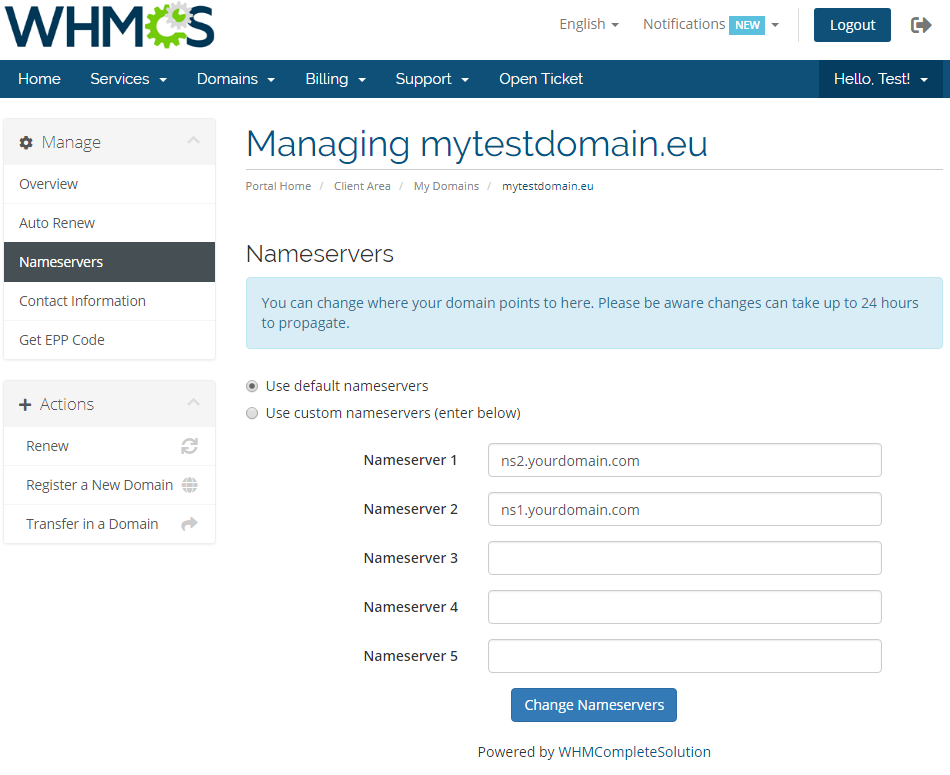
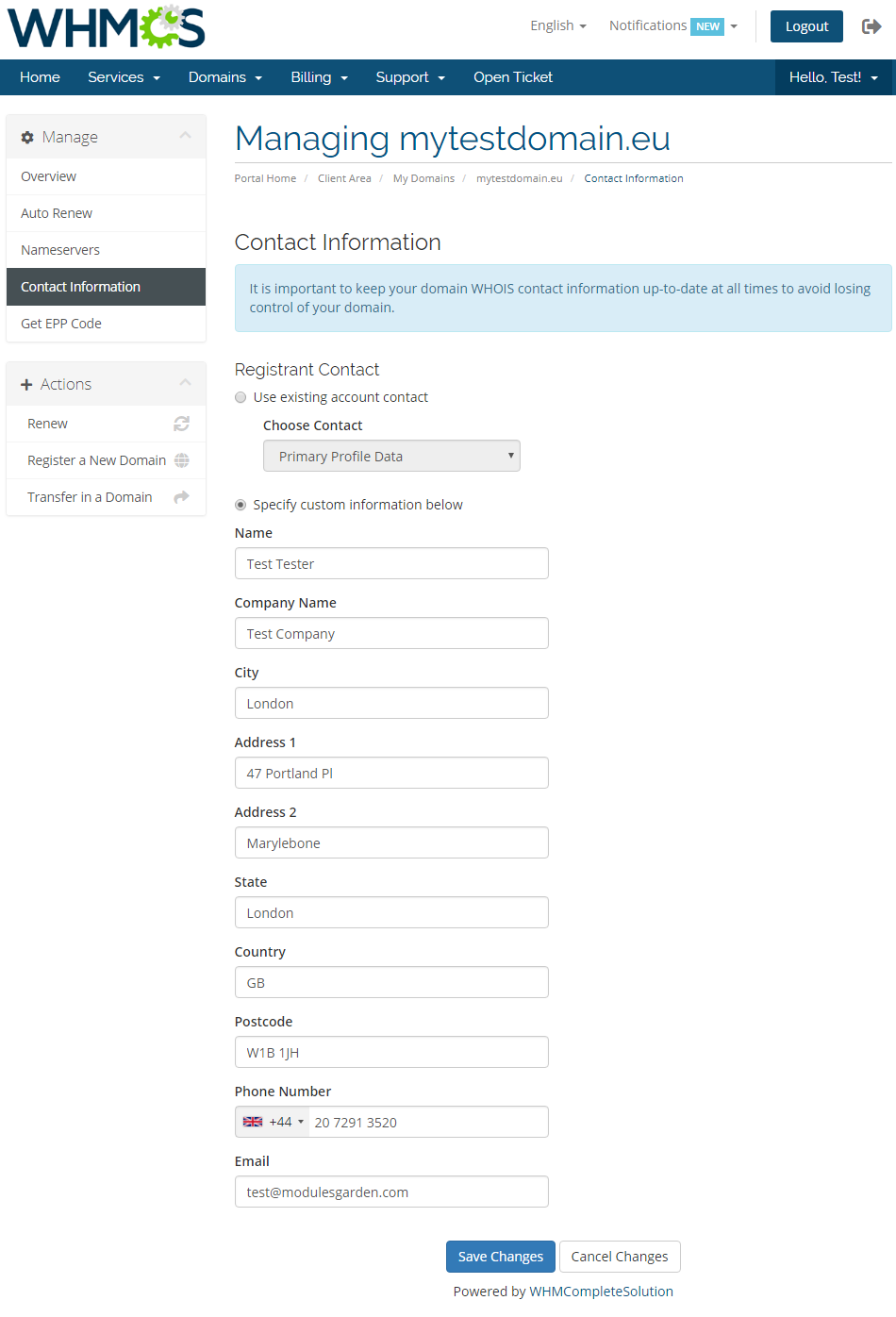
Under 'Manage' → 'Contact Information' your clients can also view and modify the registrant contact information.
Note: Billing and Tech contacts' details may be edited in the admin area only. The two contacts details should be always the same.
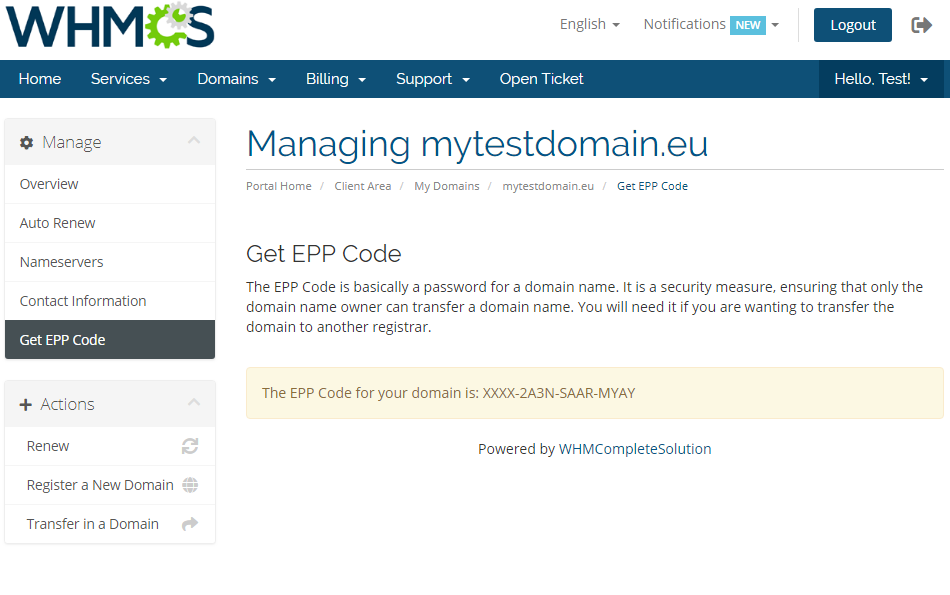
Request EPP Code for your domain by pressing 'Get EPP Code'.
# Tips
As soon as a domain expires, its status in WHMCS system is synchronized.
Transfer synchronization changes domain status to active right after the domain transfer status on EURid server is set to pending.
You are able to enter an IP address in to the nameserver field.
Note: Please do not use a colon ':' sign between 'ns1.somedomain.eu' and an IP address. Just leave a 'space' in between.
Example:ns1.somedomain.eu 176.31.211.16 ns2.somedomain.eu 176.31.211.18The actions on domains: status synchronization, transfer and delete x days after expiration are performed with the main WHMCS cron task.
If you want to allow domain registration by 'Natural Person', you need to add the following additional domain fields to the 'yourWHMCS/resources/domains/additionalfields.php' file:
$additionaldomainfields['.eu'][] = [
'Name' => 'Natural Person',
"LangVar" => "naturalPerson",
'Type' => 'dropdown',
'Options' => '1|Yes,0|No',
'Default' => '1|Yes' ,
'Description' => 'Choose if the contact should be identified either as a natural person or not a natural person'];
If the file does not exist, please create it according to this documentation (opens new window). Thanks to this field, the 'Natural Person' can be set for the domain registration contact.
# Update Instructions
An essential guidance through the process of updating the module is offered here.
Ensure successful completion of the module update by carefully following each step, thereby preventing data loss or any unforeseen issues.
Additionally, you will find a current list of supplementary actions necessary for a smooth update process there.
# Upgrade Guide
Seeking a solution that offers greater flexibility, customization tailored to your precise needs, and unrestricted availability?
There is an option that not only proves to be cost-effective in the long run but also includes prioritized support services, making it a truly valuable investment.
Opt for the Open Source version (opens new window) of your EURid Registrar For WHMCS module to unlock these benefits.
Simply click on either the Get Source Code or Upgrade To Lifetime button found on the product's page in our client area to complete the one-step upgrade process, with a dedicated discount already applied.
Follow a comprehensive guide covering the transition process, the advantages it brings, and step-by-step instructions on what to do next after the order has been successfully finalized.
# Common Problems
When you have problems with connection, check whether your SELinux or firewall does not block ports.
If your firewall is enabled, you need to add your WHMCS server IP address in your EURid panel.
Go to the 'Domain Management' → 'IP Addresses' and add IP address into table 'Allowed IP addresses for Registrar WHOIS'.
Additionally, open up a port 43 in your WHMCS server firewall and restart it.If one of the TLDs you have configured is unavailable, please make sure you set up the pricing in a default currency.
If a lookup of any .eu domain returns 'Sorry, your_domain.eu is already taken', you need to modify the 'whois.json' file located in '/resources/domains/whois.json'.
Read more in the WHMCS official documentation (opens new window).If you are getting 'Data management policy violation If the contact is a natural person then naturalPerson flag must be set to true' error please check out step 5. of the Tips section.