

# Email Notifications Organizer For WHMCS
# (opens new window) About Email Notifications Organizer For WHMCS (opens new window)
Email Notifications Organizer For WHMCS is a simple module designed to reduce the number of email notifications delivered to your clients.
Keep a tight rein on the number of email messages your clients receive regarding domains that are about to expire and invoices with upcoming due date.
Use this tool to take full control over the consolidate messages management.
# Installation & Configuration
This tutorial will show you how to successfully install and configure Email Notifications Organizer For WHMCS. (opens new window)
We will guide you step by step through the whole installation and configuration process.
- Log in to our client area and download the module.
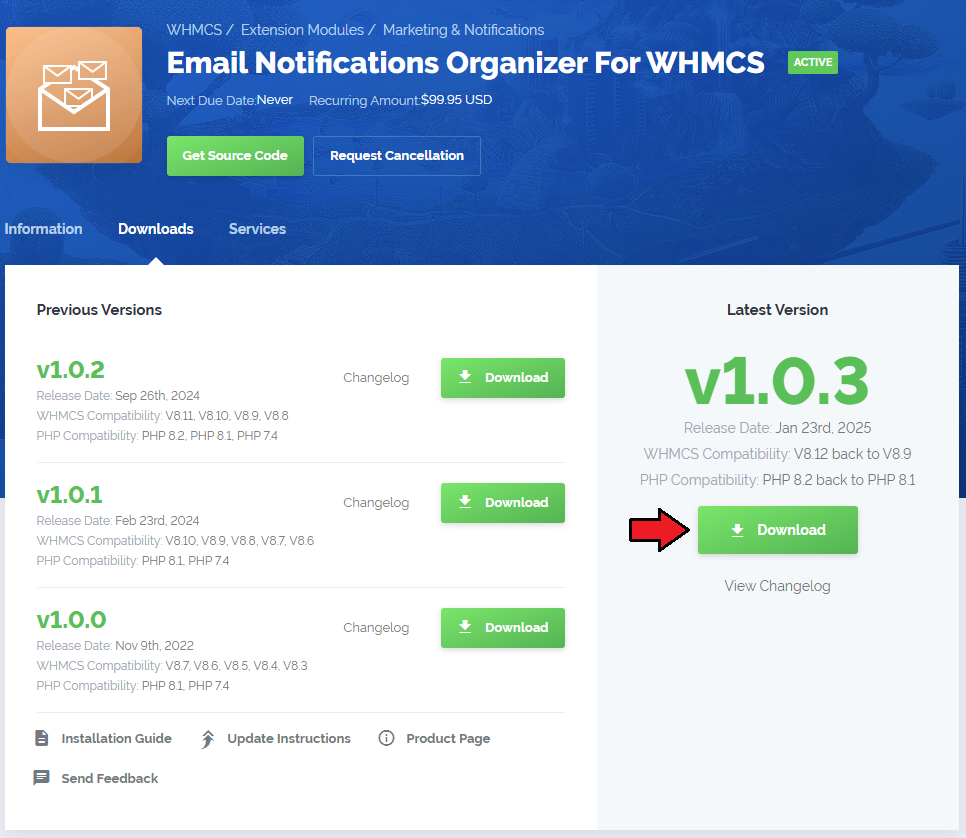
- Extract the package and upload its content into the main WHMCS directory.
The content of the package to upload should look like this.

When you install Email Notifications Organizer For WHMCS for the first time you have to rename 'license_RENAME.php' file.
The file is located in 'modules/addons/EmailNotificationsOrganizer/license_RENAME.php'. Rename it from 'license_RENAME.php' to 'license.php'.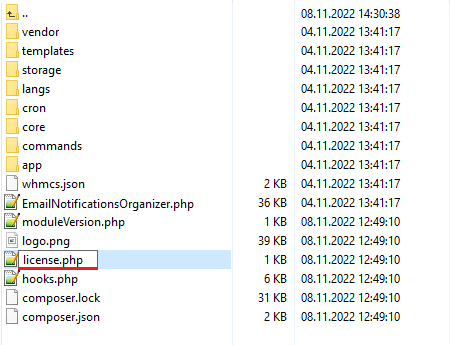
In order to configure your license key, you have to edit the previously renamed 'license.php' file.
Enter your license key between quotation marks as presented on the following screen. You can find your license key in our client area → 'My Products'.

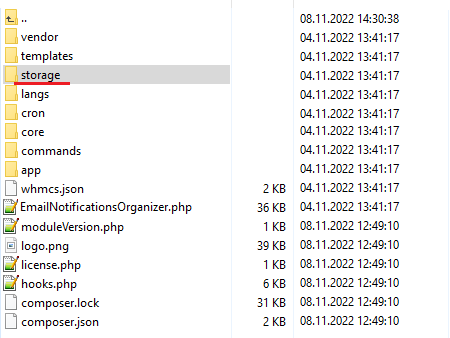
- Now, set up the 'storage' folder as recursively writable.
This folder is available at 'your_whmcs/modules/addons/EmailNotificationsOrganizer/'.
# Configuration of Addon
Now you have to activate the module in your WHMCS system.
Log in to your WHMCS admin area. Go to 'System Settings' → 'Addon Modules'. Afterwards, find 'Product Free Trial Manager' and press the 'Activate' button.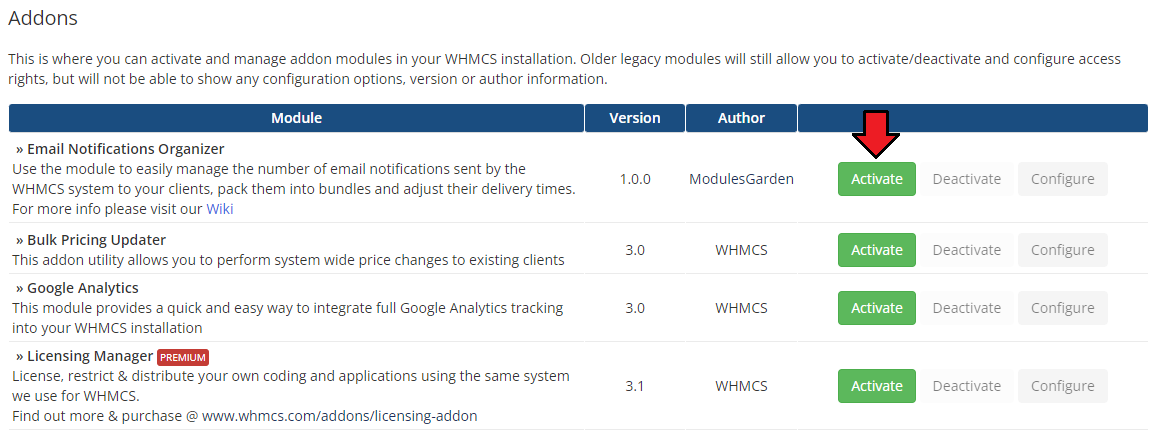
In the next step you need to permit access to this module.
To do so, click on the 'Configure' button, tick 'Full Administrator' and press 'Save Changes'.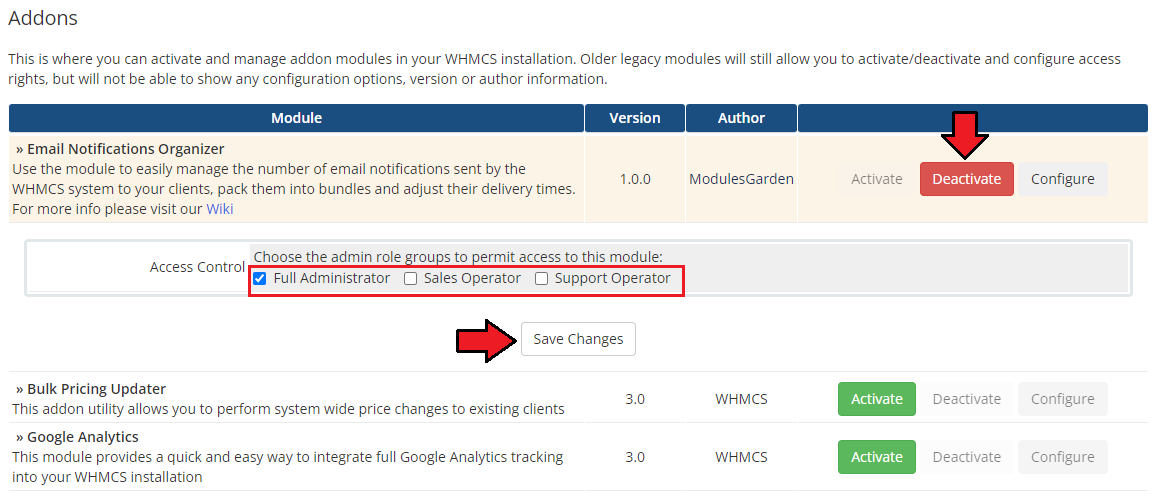
Congratulations, you have just successfully installed Email Notifications Organizer For WHMCS!
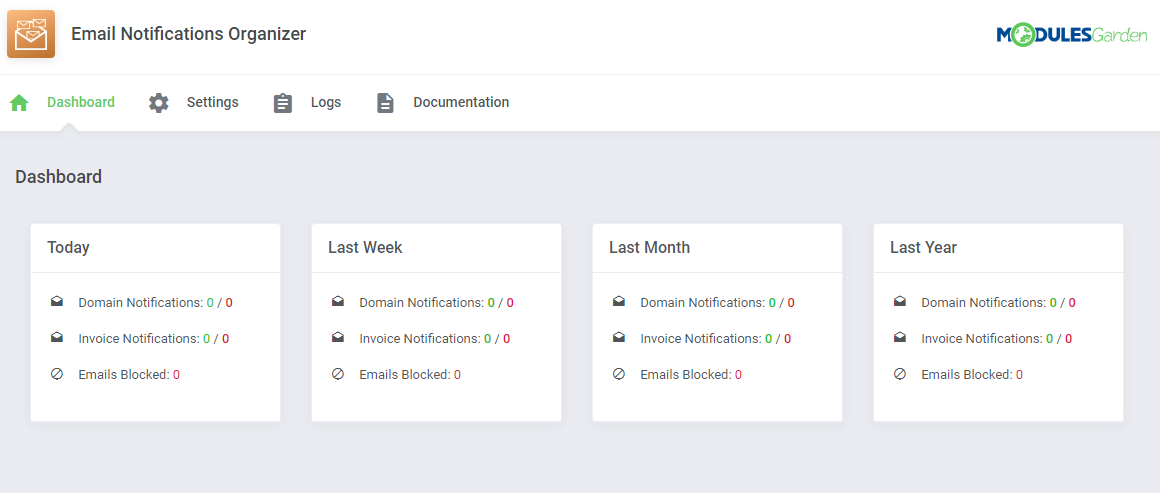
You can access your module under 'Addons' → 'Email Notifications Organizer'.
# Management
Email Notifications Organizer For WHMCS is a module which allows to control the number of email notifications sent from your system and block the outgoing ones.
Read the below guidelines to get clear insight into the module assignments.
# Addon Management
# Dashboard
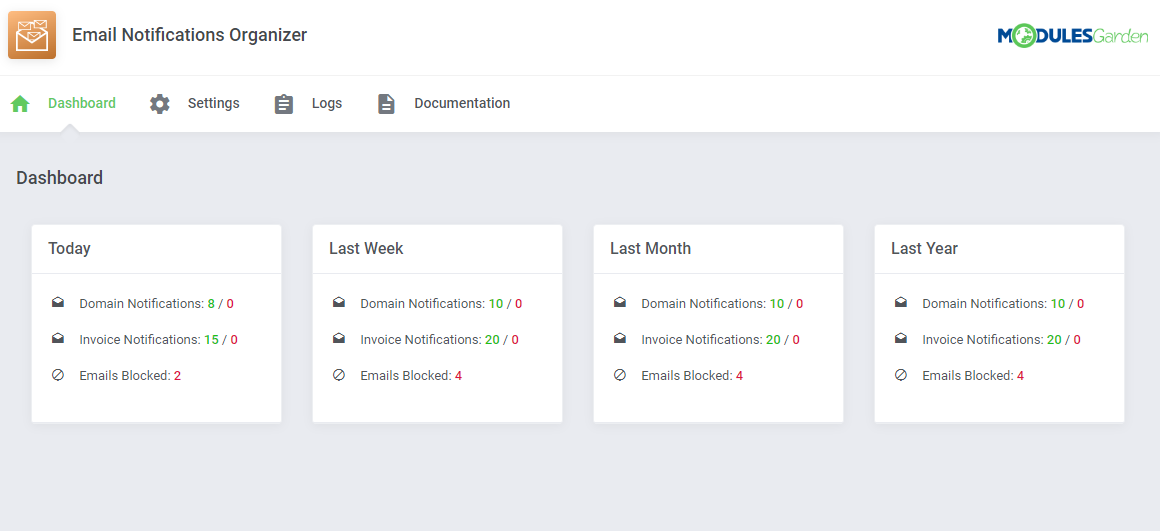
The very first section includes a short but fully detailed and comprehensive summary of the module actions. Take a look at the tables to check:
- how many email notifications, related to domains, have been successfully delivered in the provided time frames
- the number of email notifications, related to invoices, have been successfully delivered in the provided time frames
- the statistics of email messages blocked by the module
# Settings
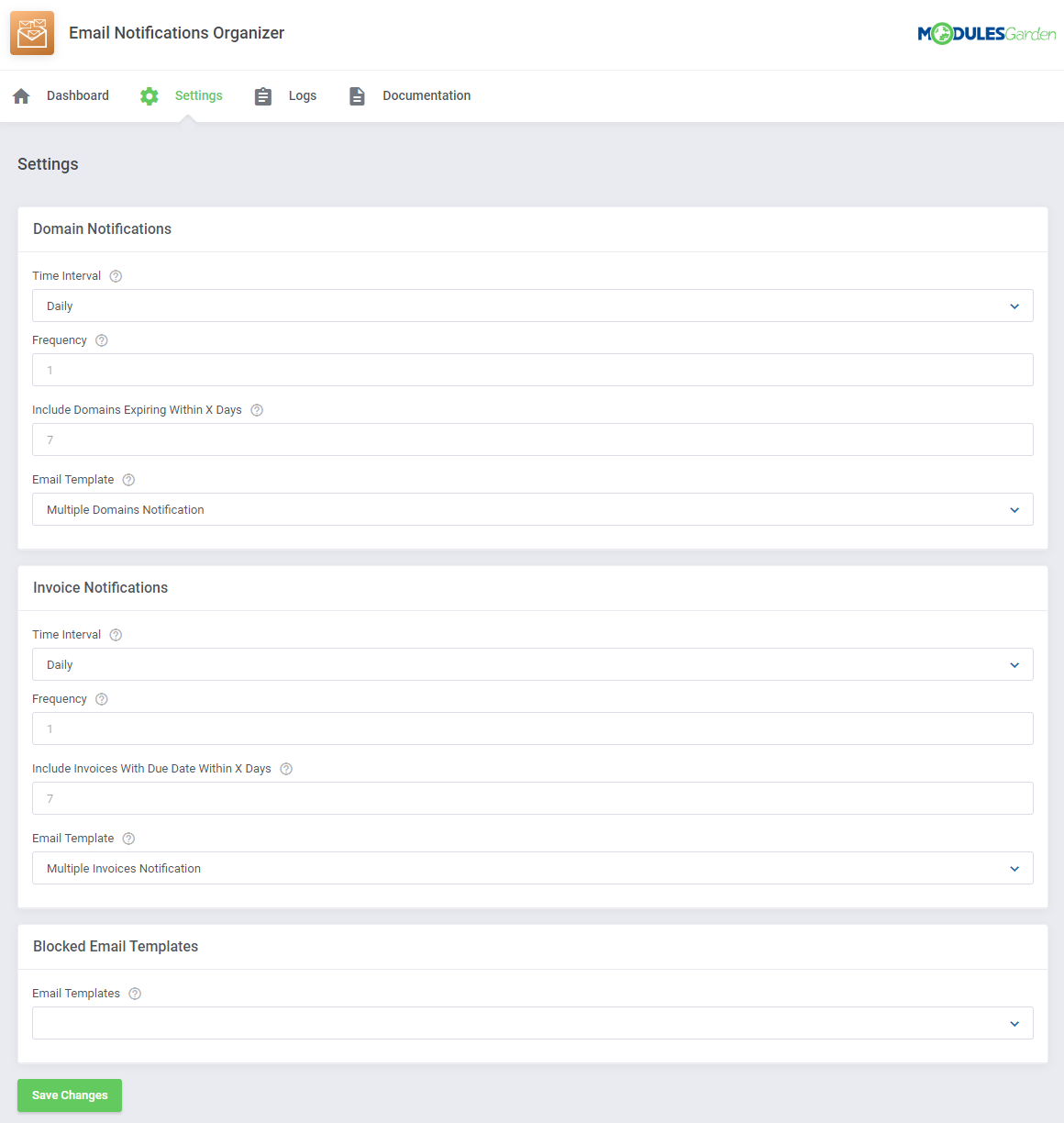
The 'Settings' section allows easy configuration of the module behavior. Define settings to compose bundled messages with domain and invoice notifications.
This is where you may also select which of the currently used email templates shall be blocked and based on them emails seized from being sent.
# Domain Notifications
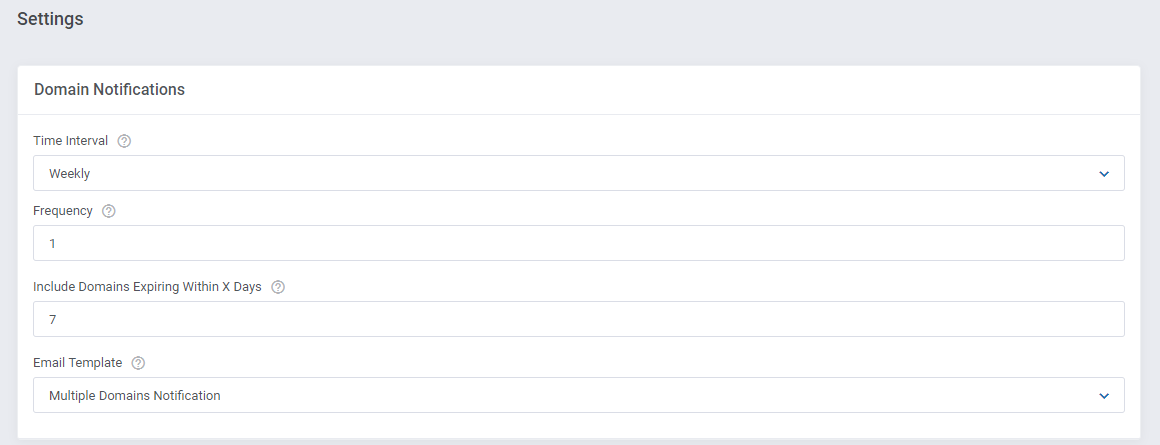
If you wish to combine numerous email notifications informing about domains close to their expiration, here you may set up the rules.
Select the Time Interval of sending your bundled emails, choose from the following options:
- Daily
- Weekly
- Monthly
- In Specified Day Of Month
- In Specified Day Of Week
Next, in the 'Frequency' field enter the number that will specify the frequency of sent notifications.
For example, enter "2" to send the email:- every two days (for 'Daily' time interval)
- every two months (for 'Monthly' time interval)
- on the second day of every month (for 'Day Of Month' time interval), etc
'Include Domains Expiring Within X Days' - enter here a number that will stand for the X number of days.
Information on domains that are expected to expire within that number of days will be included in the email notification.'Email Template' - select one of the available email templates, it will be used to remind clients about their domains that are about to expire soon.
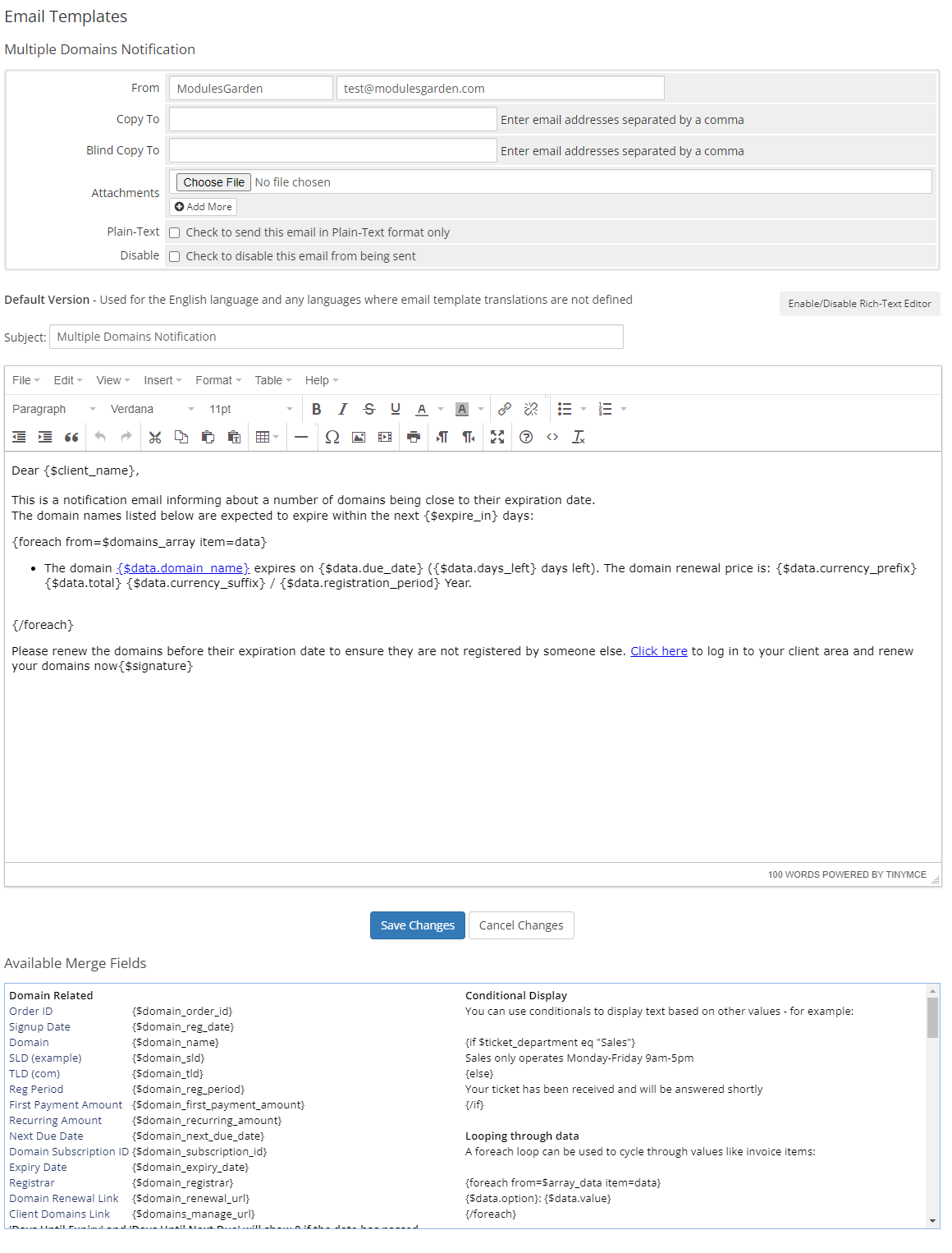
You may use a predefined module template called: 'Multiple Domains Notification' or any other customized for your needs template.
Move to the Email Notifications section to learn more about the module email templates.
# Invoice Notifications
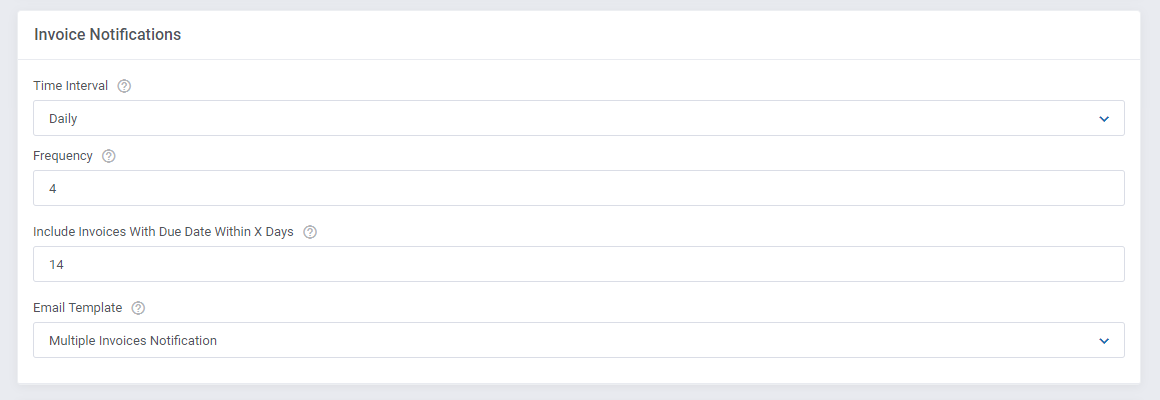
Alike the above described Domain Notifications, set up here the rules of sending bundled email notifications informing about invoices which due date is coming closer.
Select the Time Interval of sending your bundled emails, choose from the following options:
- Daily
- Weekly
- Monthly
- In Specified Day Of Month
- In Specified Day Of Week
Next, in the 'Frequency' field enter the number that will specify the frequency of sent notifications.
For example, enter "2" to send the email:- every two days (for 'Daily' time interval)
- every two months (for 'Monthly' time interval)
- on the second day of every month (for 'Day Of Month' time interval), etc
'Include Invoices With Due Date Within X Days' - enter here a number that will stand for the X number of days.
Information on invoices which due date is within that number of days will be included in the email notification.'Email Template' - select one of the available email templates, it will be used to remind clients about the incoming due date of their invoices.
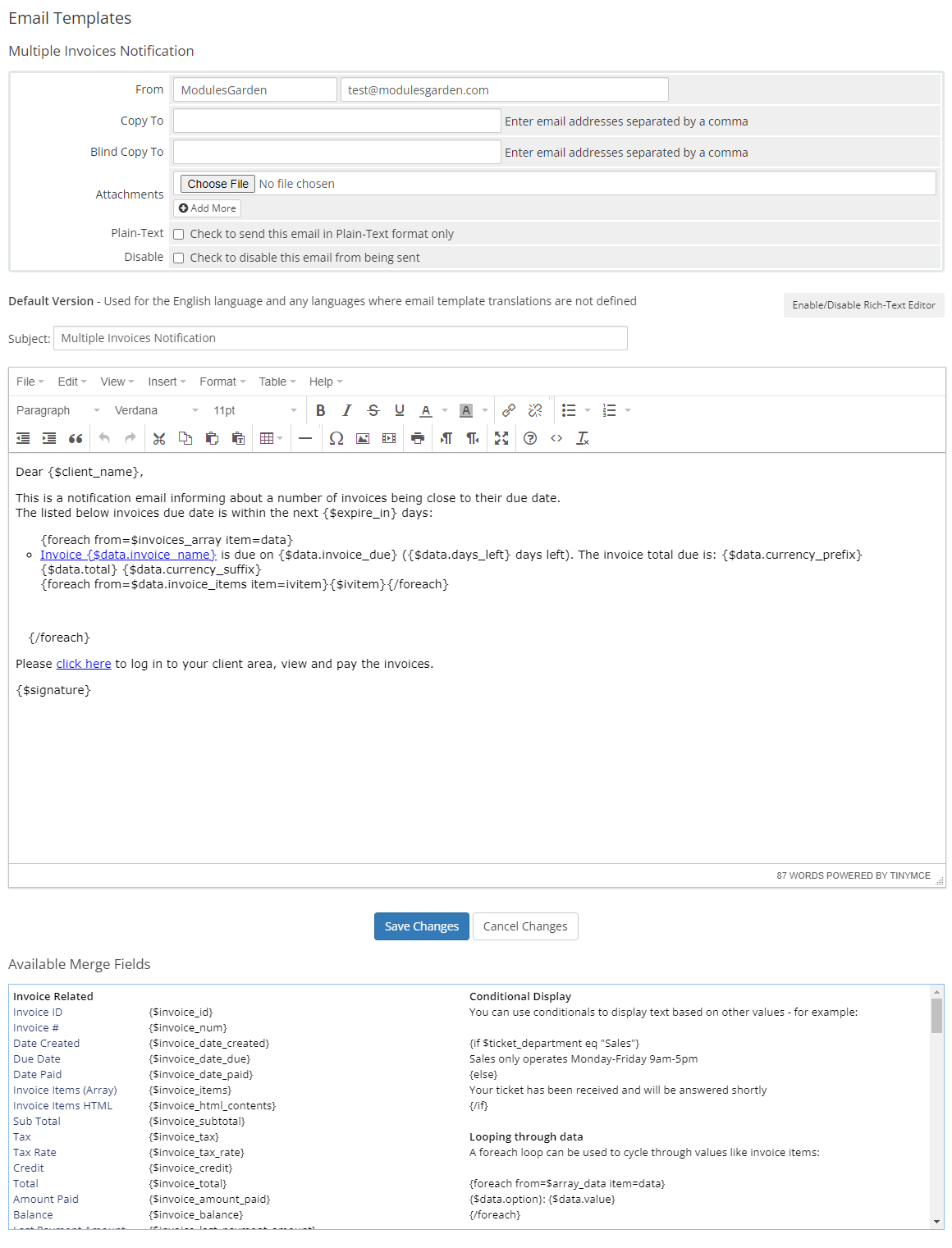
You may use a predefined module template called: 'Multiple Invoices Notification' or any other customized for your needs template.
Move to the Email Notifications section to learn more about the module email templates.
# Blocked Email Templates
Select here all the email templates that you wish to stop from being individually sent to your clients. They will be replaced with the module pre-configured multiple notifications.
Please do not forget to press the 'Save Changes' button when you are ready with your configuration.

# Logs
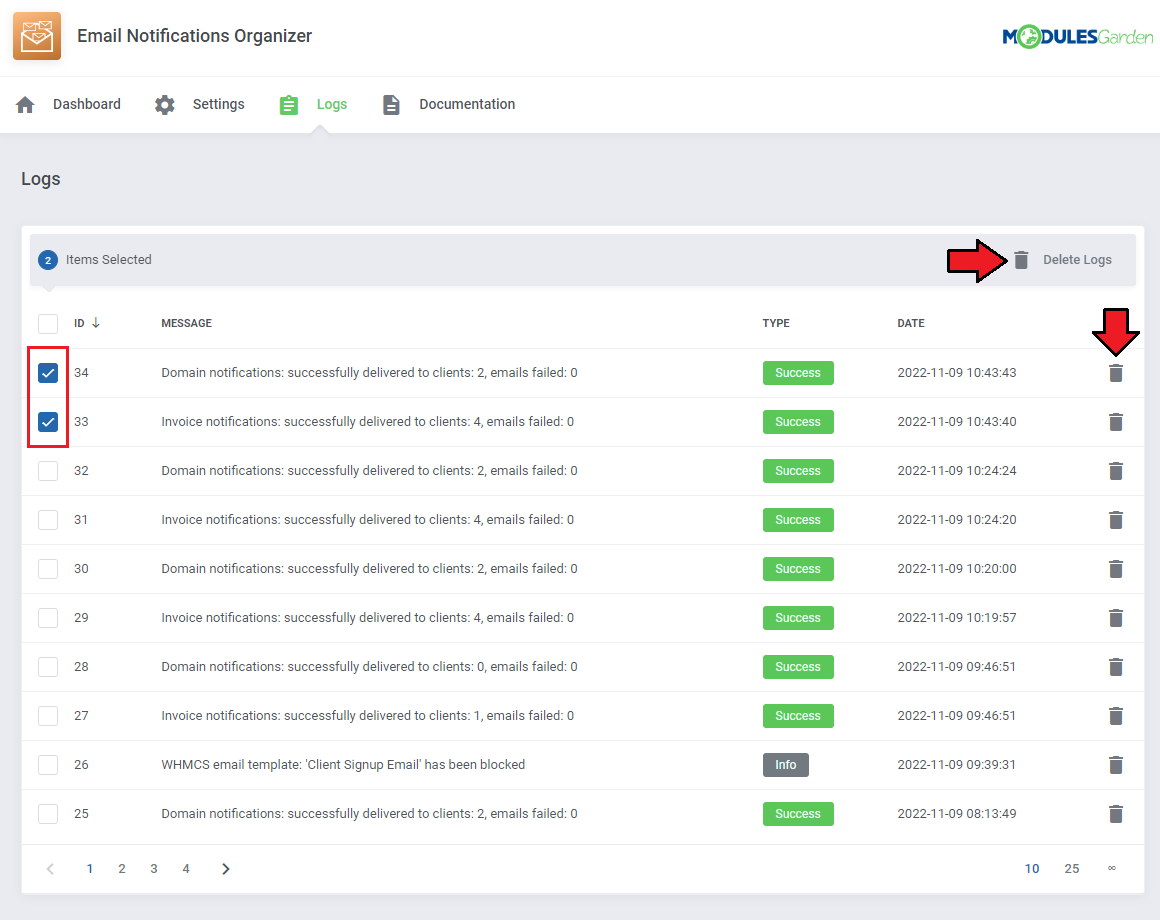
All the information about attempts, bot the successful and unsuccessful ones, are logged in the module 'Logs' section.
- Find here entries on:
- domains related notifications
- invoices related notifications
- blocked messages with specified email template name that was to be used
- Check the action type: 'Success', 'Info', 'Error'
- Check the action date and hour
- Delete single logs or use mass action to delete numerous entries at once
# Documentation
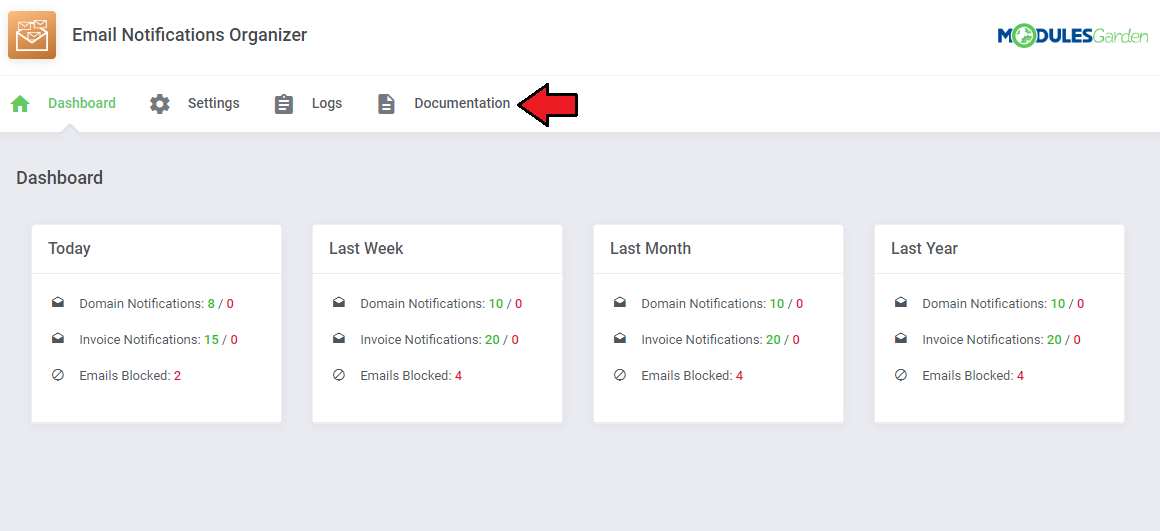
The last position in your navigation menu, when pressed, redirects to the article you are currently reading.
# Email Notifications
The email notifications setup and sent to clients by the module can be found at 'System Settings' → 'Email Templates' → 'Domain Messages'.
Open your email template to check what data exactly will be sent to clients, surely you may alter the message content according to your needs.
Note: Please bear in mind that no attachments are sent altogether the email message in contrary to the replaced WHMCS invoice notifications.
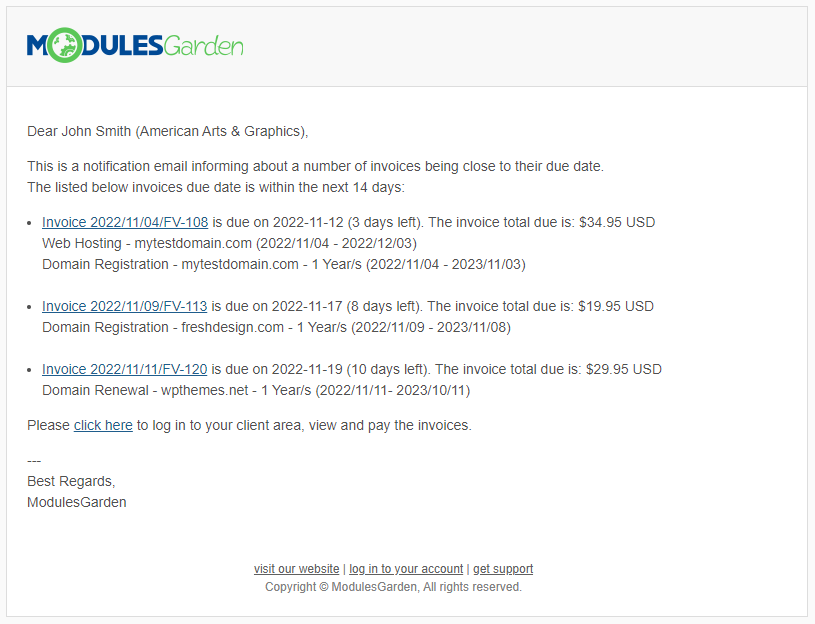
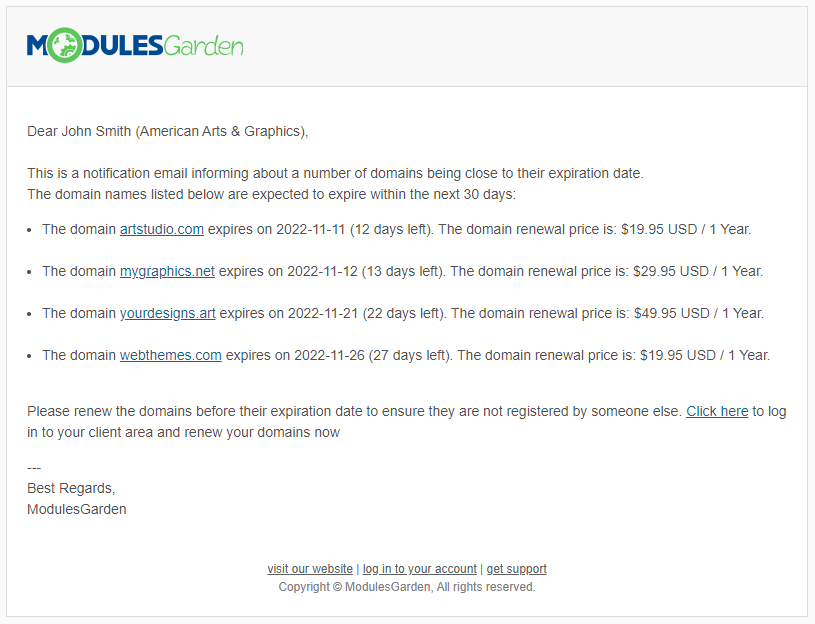
That is how the exemplary email messages regarding the unpaid invoices and domains about to expire might look like once delivered and opened by the client.
# Tips
- The Email Notifications Organizer module uses the standard WHMCS daily cron job. You do not need to set up any other crons to take all the advantages of the module options.
# Update Instructions
An essential guidance through the process of updating the module is offered here.
Ensure successful completion of the module update by carefully following each step, thereby preventing data loss or any unforeseen issues.
Additionally, you will find a current list of supplementary actions necessary for a smooth update process there.
# Upgrade Guide
Seeking a solution that offers greater flexibility, customization tailored to your precise needs, and unrestricted availability?
There is an option that not only proves to be cost-effective in the long run but also includes prioritized support services, making it a truly valuable investment.
Opt for the Open Source version (opens new window) of your Email Notifications Organizer For WHMCS module to unlock these benefits.
Simply click on either the Get Source Code or Upgrade To Lifetime button found on the product's page in our client area to complete the one-step upgrade process, with a dedicated discount already applied.
Follow a comprehensive guide covering the transition process, the advantages it brings, and step-by-step instructions on what to do next after the order has been successfully finalized.
# Common Problems
- In case of connection problems, please check whether your SELinux or firewall does not block ports.