

# Product Feedback Center For WHMCS
# (opens new window) About Product Feedback Center For WHMCS (opens new window)
Product Feedback Center For WHMCS allows to quick gather the opinion of your clients on the products you offer, support services you deliver and any other aspects of your business that you only wish to ask about.
The module will empower you to design short questionnaires that will help you collect targeted feedback from clients and compose rules to show the survey just to a closed group of clients.
At the same time you will be enabled to overview and analyze assembled information in a comfortable graph form, as well as preview the answers given by your clients.
# Installation
This tutorial will show you how to successfully install and configure Product Feedback Center For WHMCS. (opens new window)
We will guide you step by step through the whole installation and configuration process.
- Log in to our client area and download the module.
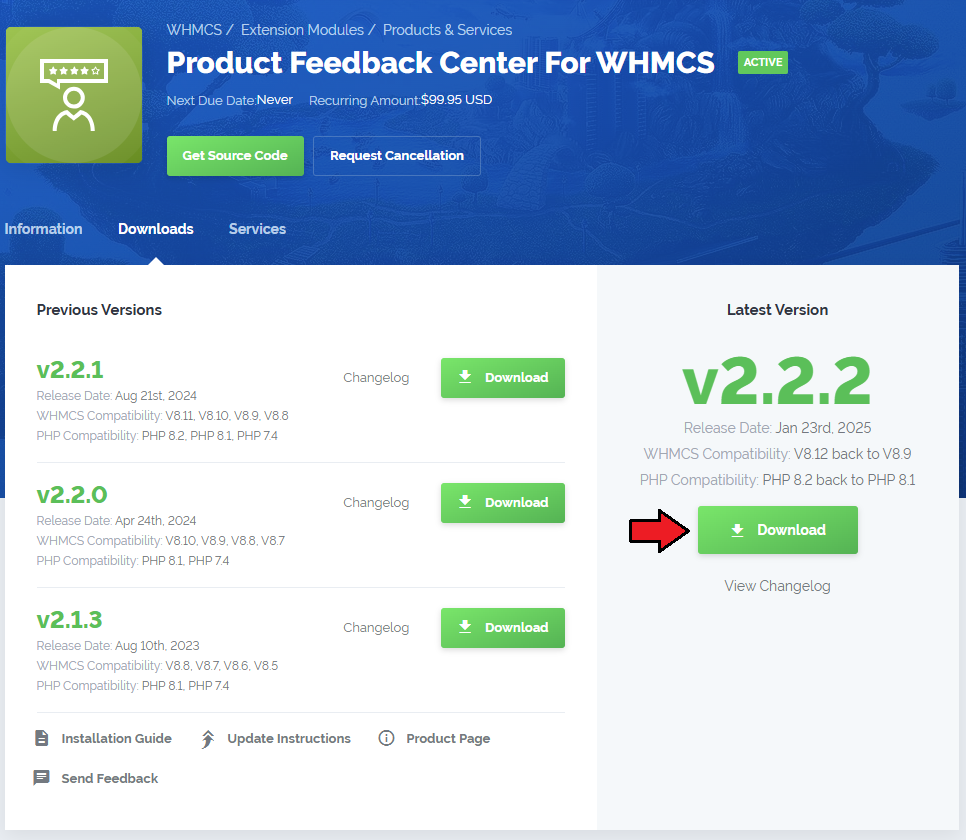
Upload and extract the extension into the main WHMCS directory.
Extracted files in your WHMCS directory should look like this:
When you install Product Feedback Center For WHMCS for the first time, you have to rename the 'license_RENAME.php' file.
This file is located in 'modules/addons/cancellationCenter/license_RENAME.php'. Rename it from 'license_RENAME.php' to 'license.php'.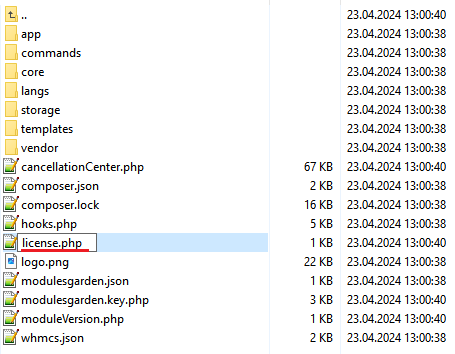
In order to configure your license key, you have to edit the previously renamed 'license.php' file.
Enter your license key between the quotation marks as presented on the following screen. You can find your license key in our client area → 'My Products'.
In the next step, set up the 'storage' folder as recursively writable.
This folder is available at 'your_whmcs/modules/addons/cancellationCenter/'.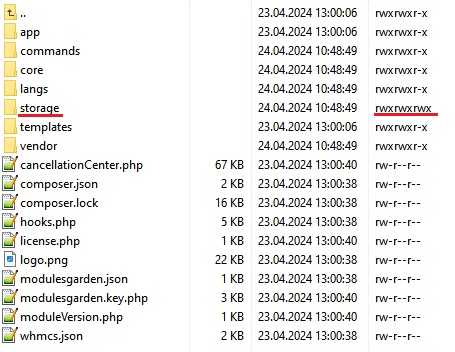
Now you have to activate the module in your WHMCS system.
Log in to your WHMCS admin area. Go to 'System Settings' → 'Addon Modules'. Afterwards, find 'Product Feedback Center' and press the 'Activate' button.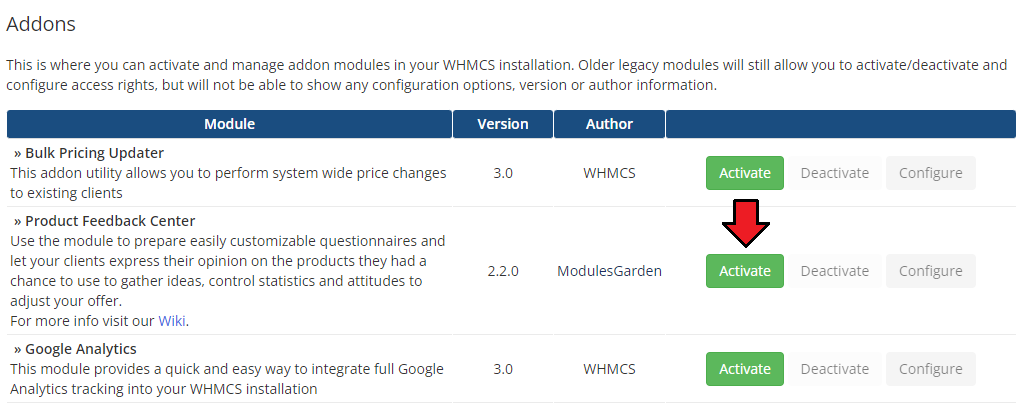
In the next step you need to permit access to this module.
To do so, click on the 'Configure' button, tick 'Full Administrator' and press 'Save Changes'.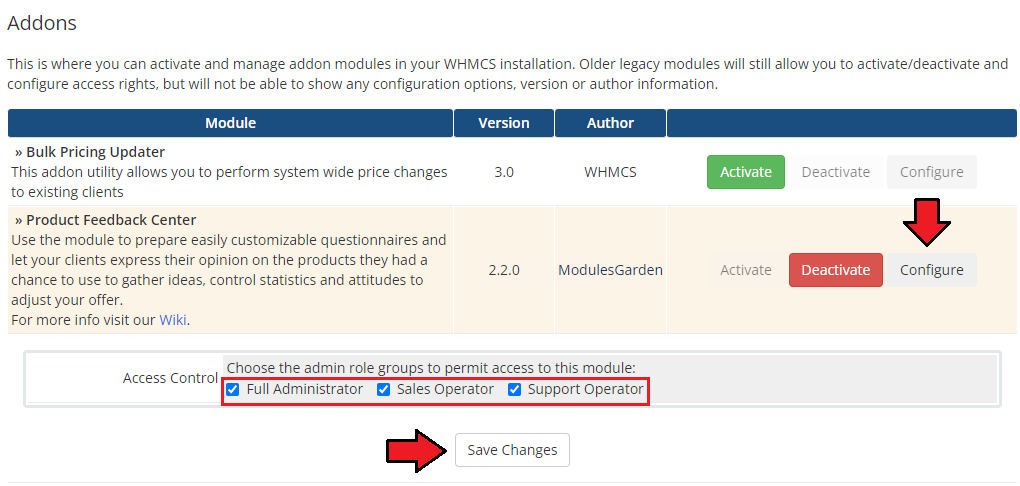
You have just successfully installed Product Feedback Center For WHMCS!
You can access your module at 'Addons' → 'Product Feedback Center'.
# Configuration and Management
Product Feedback Center For WHMCS allows you to create simple forms with questions and possible answers that will be displayed when a customer submits a cancellation request.
Additionally, in the module you can see summaries of the number of submitted requests and view the answers given.
# Dashboard
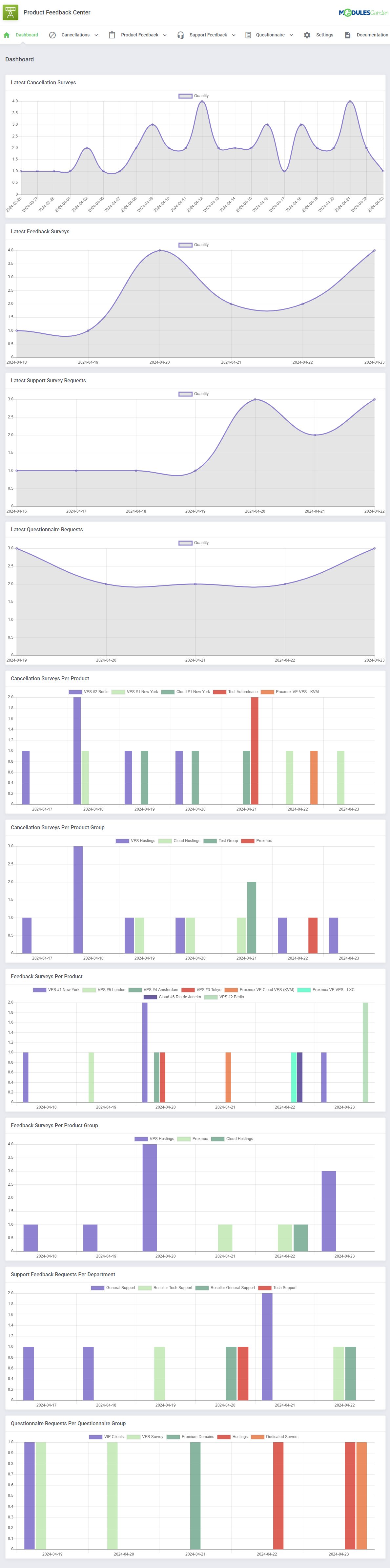
In the dashboard you can find the summary graphs of recently submitted product cancellations and product feedback surveys.
The first two graphs show the summary of cancellation and feedback requests in particular days from the past month. The next ones show cancellation and feedback requests per product or product groups submitted in the last 7 days.
# Cancellations
# Client Cancellations
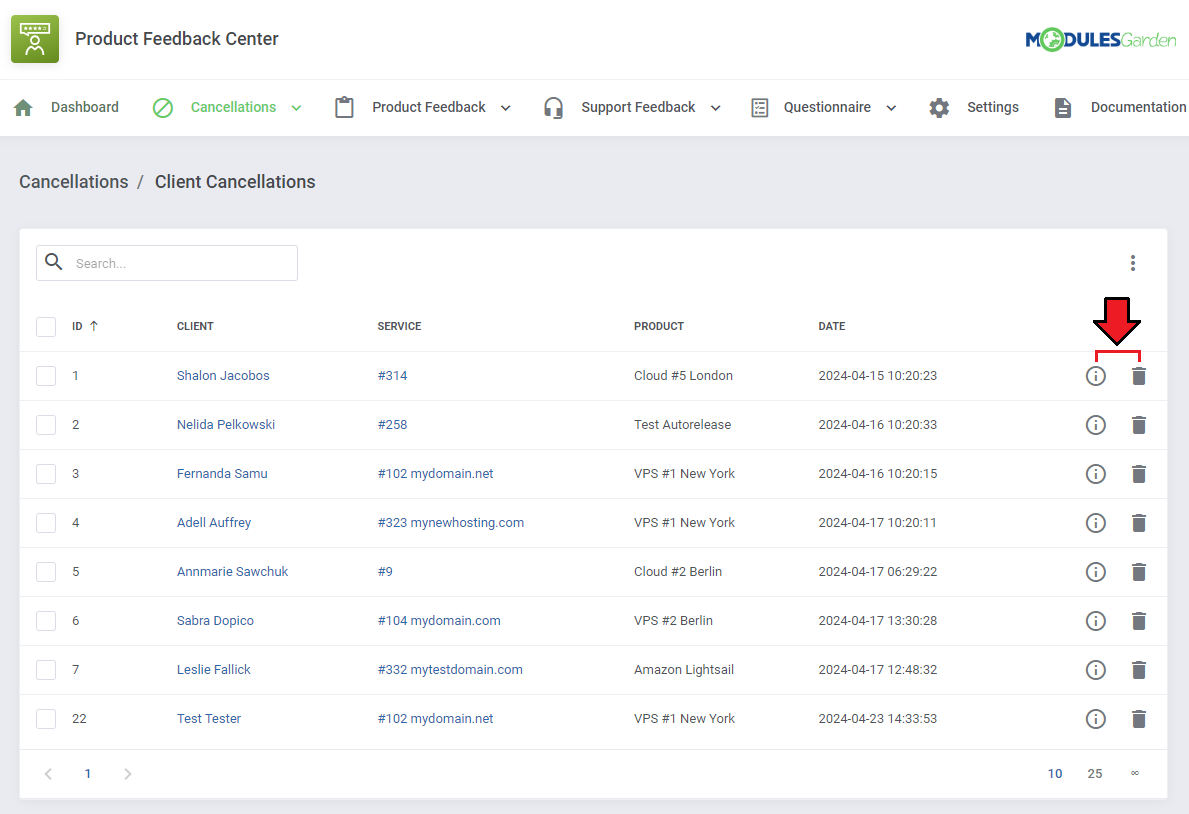
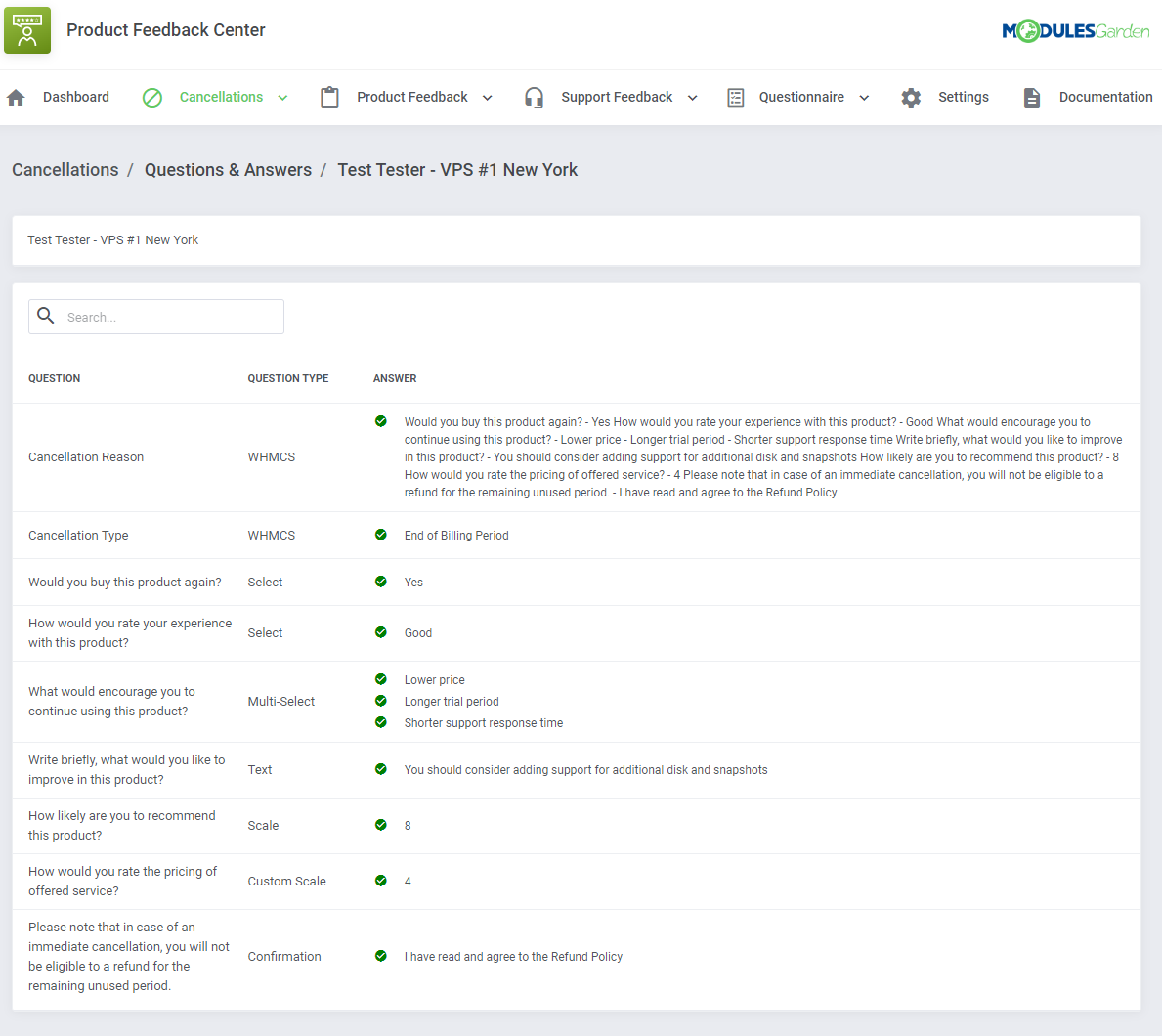
In the 'Client Cancellations' section you will find a list of submitted product cancellation requests along with customer answers to the prepared sets of questions.
Click on the 'Questions & Answers' icon to see the filled-in survey for the given request.
You may also delete single cancellation details at any moment.
You will see a preview of the questions asked, their type, and the answers given by the client.
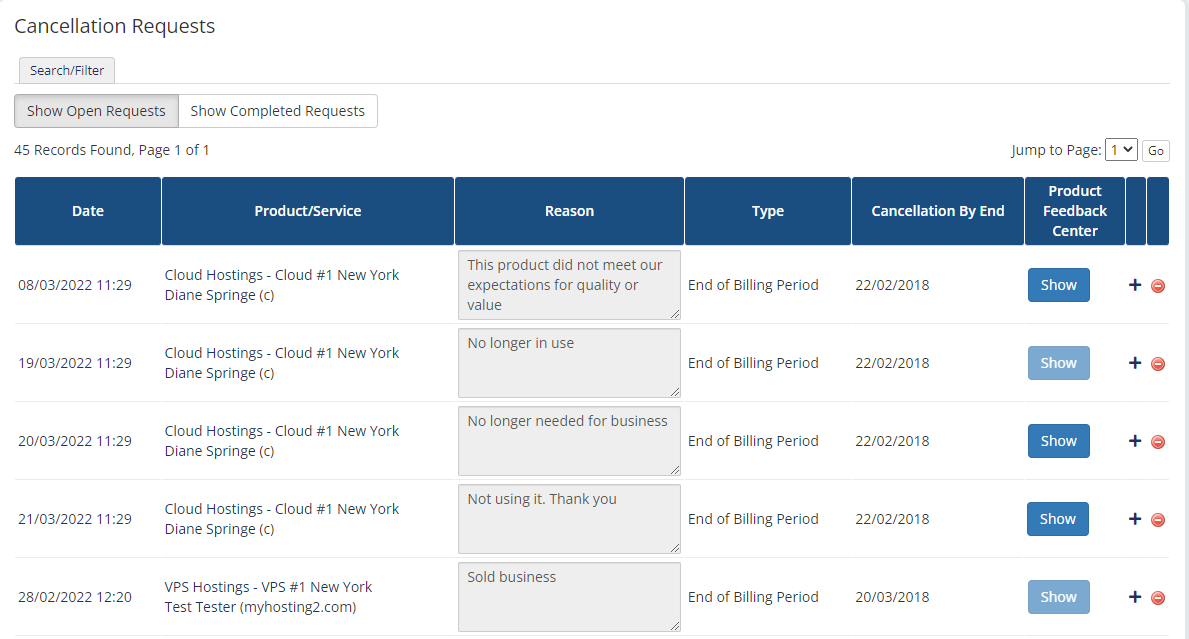
The module also integrates with the WHMCS built-in list of cancellation requests.
If the request for cancellation sent by the customer also contains a submitted survey, the active 'Show' button will appear in the table. Press this button to be transferred directly to the completed questionnaire.
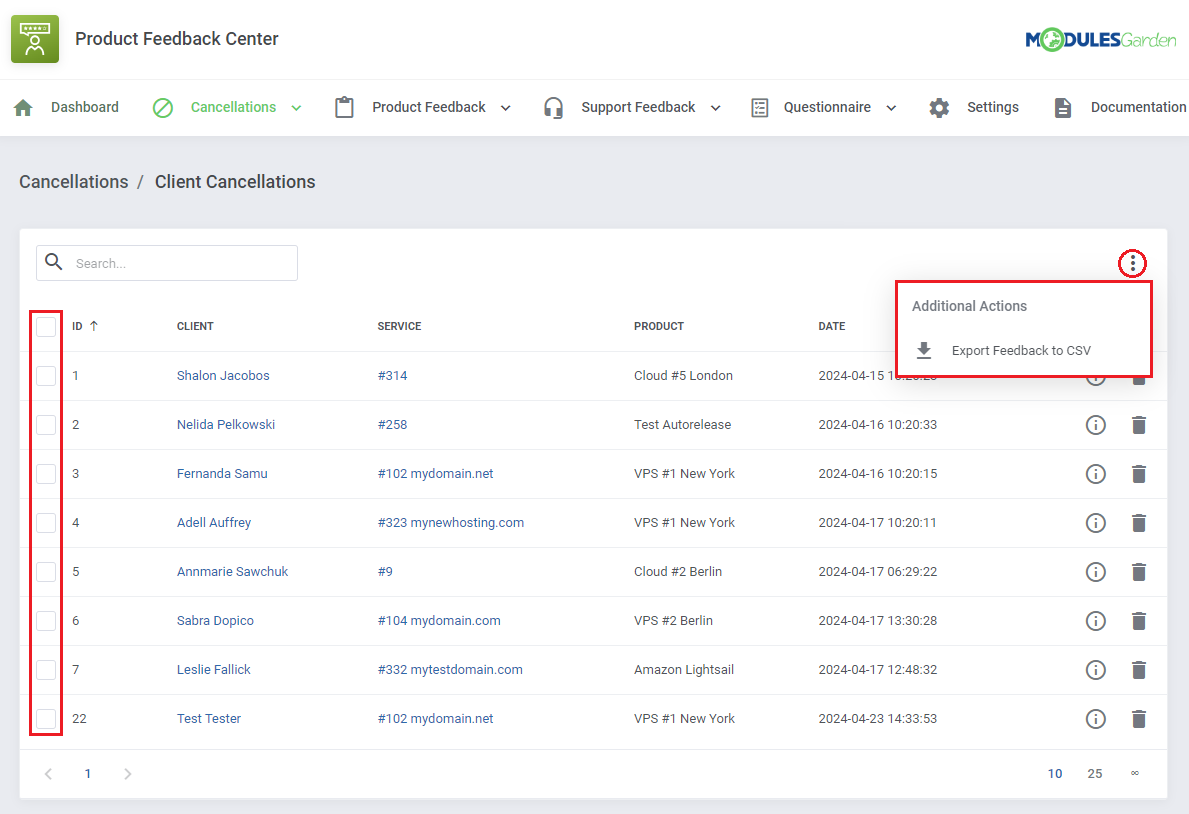
Moreover, you can export feedback to a compiled '.csv' file, either select multiple requests by utilizing the mass action feature or click on 'Additional Actions' and define the date range for selection.
# Cancellations Groups
Before you start adding questions and answers, you need to create a questionnaire group first.
The Cancellation Groups are created in order to assign them to individual products at a later date. With the groups you can create different sets of questions for different products.
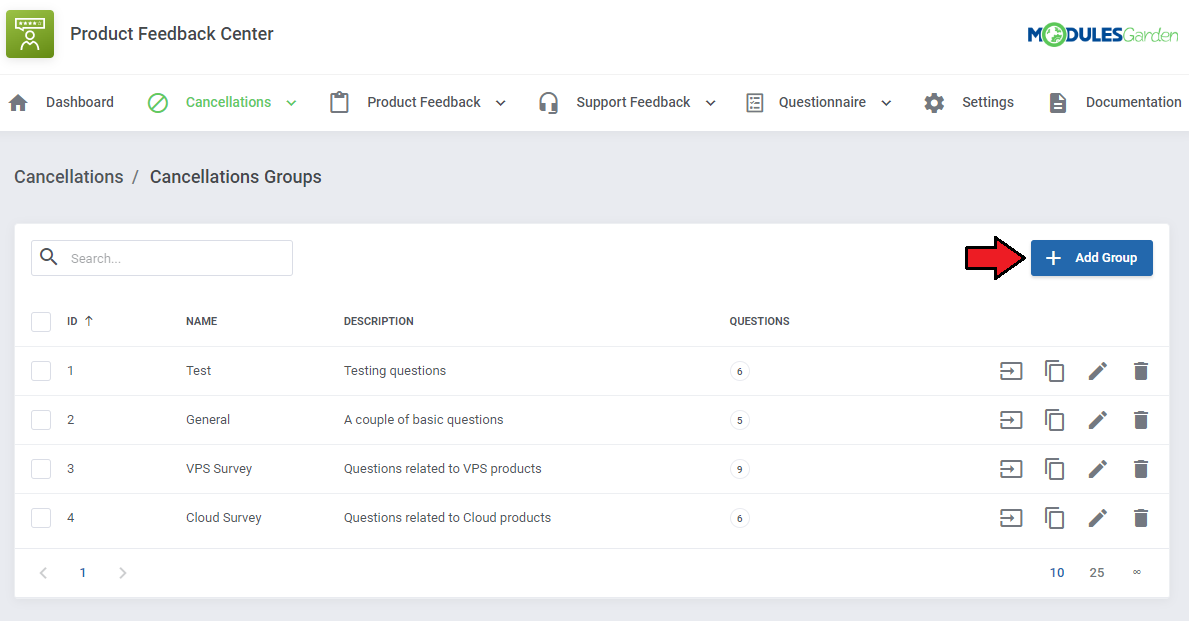
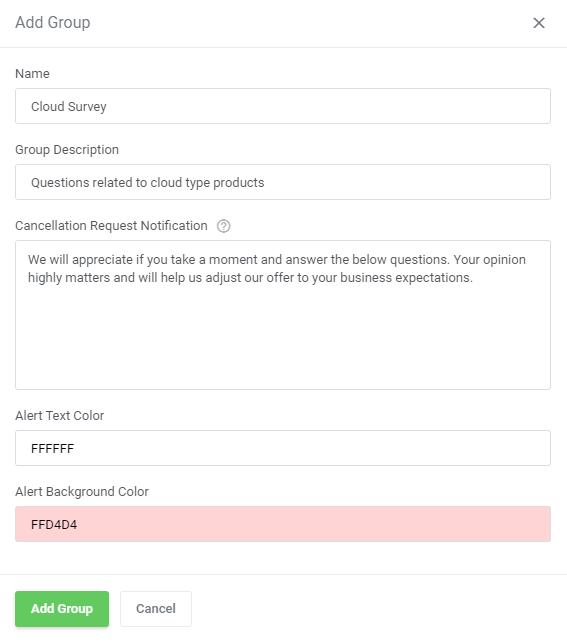
Go to the 'Cancellation Groups' section and click the 'Add Group' button.
Next, give the group a name and provide a description. You can also enter a message for clients that will appear above the survey.
You may now also adjust the text and background color of the displayed alert. Press 'Add Group' when ready.
# Configuration of Questions and Answers
When you create a new question group, you will be automatically redirected to the page where questions can be formed.
You can also access this page by clicking on the 'Questions' icon next to the chosen record on the groups list.
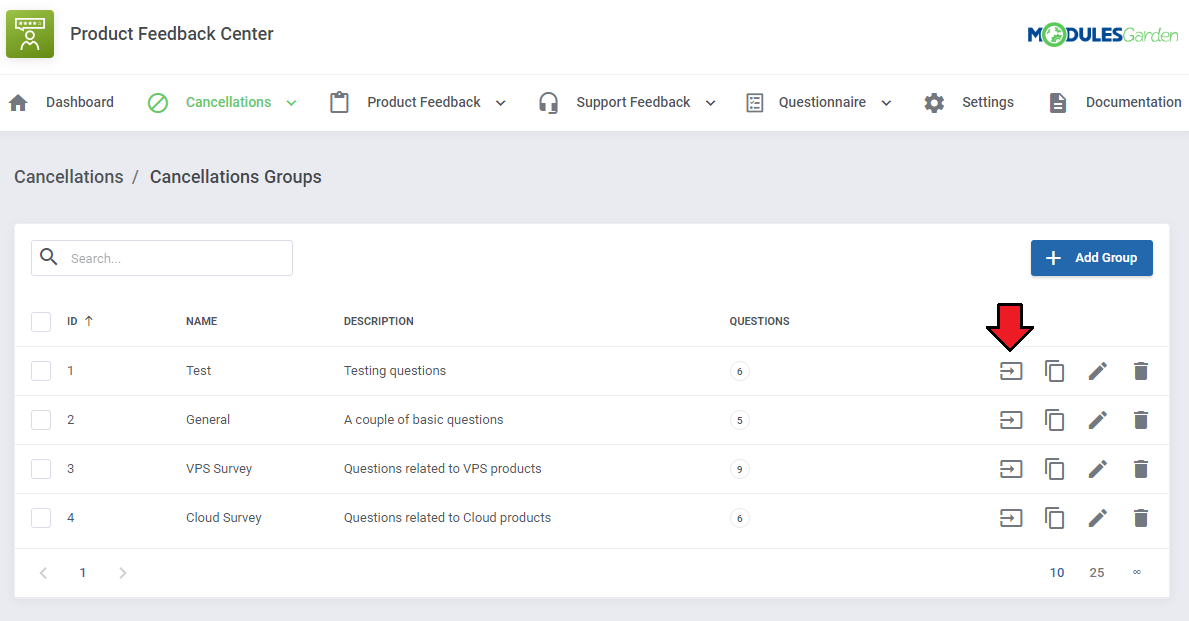
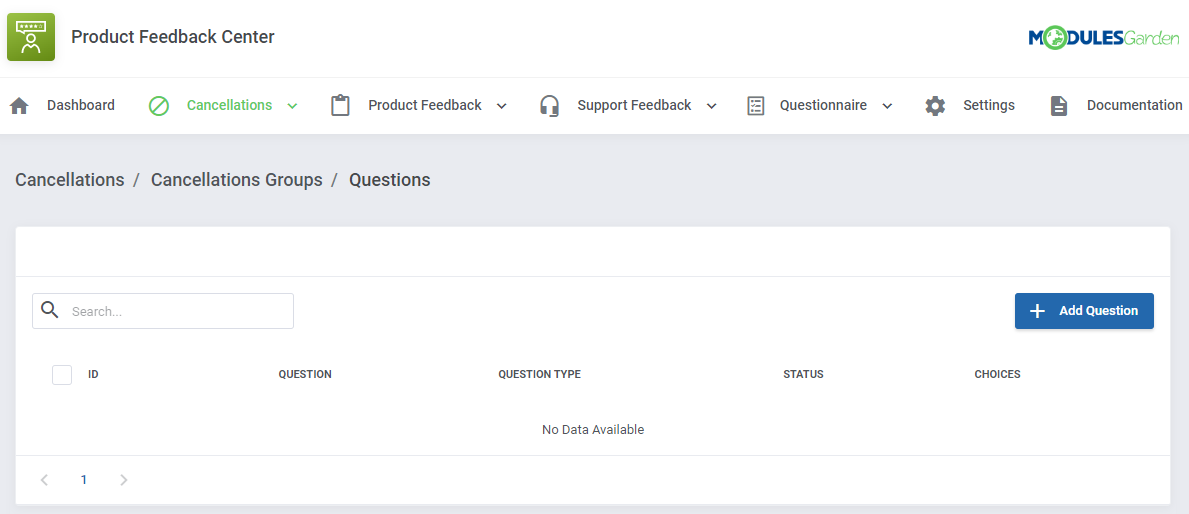
Now click the 'Add Question' button.
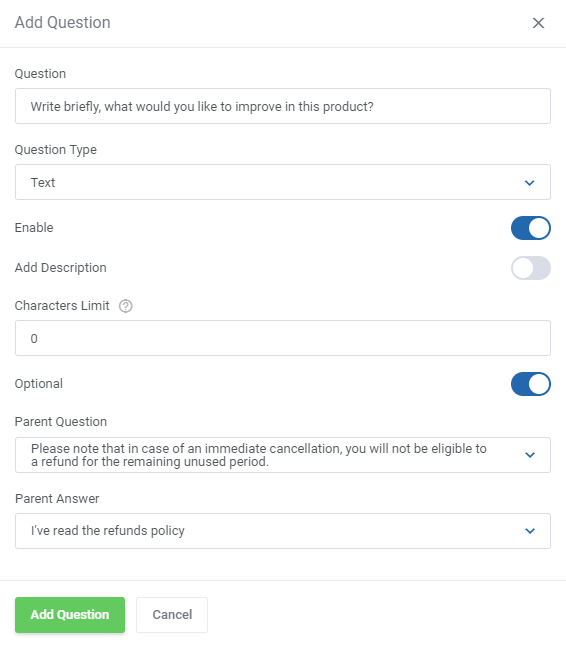
Enter the first question you want to ask clients and select its type.
You can choose between the following types:
- Confirmation - a select type of question, but each of its options, regardless of their number, will be required to agree upon in order to submit a cancellation request form.
It may be useful for accepting the required agreements by the customer. - Text - an open type of question that will require from the customer to enter a brief answer. It will be not possible to add any other options to it.
- Select - for this type of question the customer can choose only one of the available answers.
- Multi-Select - is similar to the select type, but the client can pick many different answers, not just one.
- Scale - a rating scale that allows clients to allocate their answer on a from 1 to 10 scale.
- Custom Scale - a rating scale that allows clients to allocate their answer on a customized scale.
Define additional options of the newly created questions. Note that available settings highly depend on the previously chosen type:
- Enable/Disable - set the question status
- Add Description - if enabled a text box will appear, add any additional info on the question
- Characters Limit ('Text' only) - define the allowed limit of characters for clients to express their opinion
- Answers Limit Type ('Multi-Select') - define the minimal, maximal, or exact number of answers the client might check
- Required Answers Number ('Multi-Select') for the selected limit type
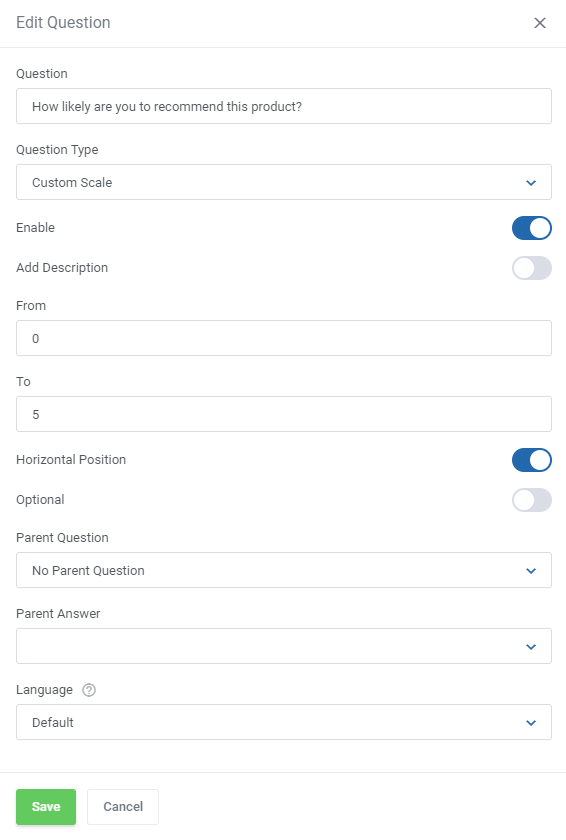
- From/To ('Custom Scale' only) - create a custom scale to rate the product
- Horizontal Position ('Scale' and 'Custom Scale' only) - choose the scale position to be vertical (default option) or horizontal
- Optional - if enabled, the question will not be obligatory
- Random Order ('Select' and 'Multi-Select') - if enabled, the possible answers will appear in a random order
- Last Answer ('Select' and 'Multi-Select') - pin one of the question options to the end of the choice list
- Parent Question/Answer - create the logic of showing additional questions.
Select a question ('Parent Question') to which a client must give a specific answer ('Parent Answer') in order for the created now question to appear.
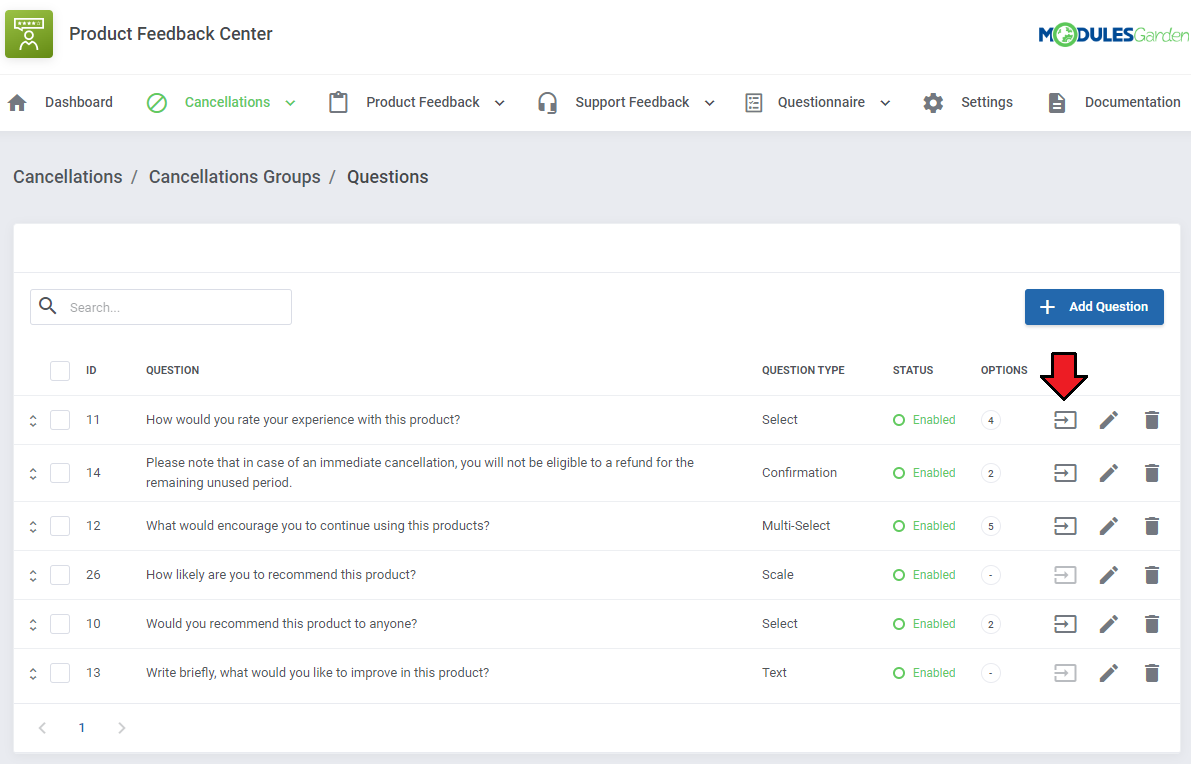
After creating the question you will be automatically redirected to the page where you can formulate available answer options (except for the 'Text' question type).
You will also be able to access this page by clicking the 'Options' icon for the chosen record in the questions list.
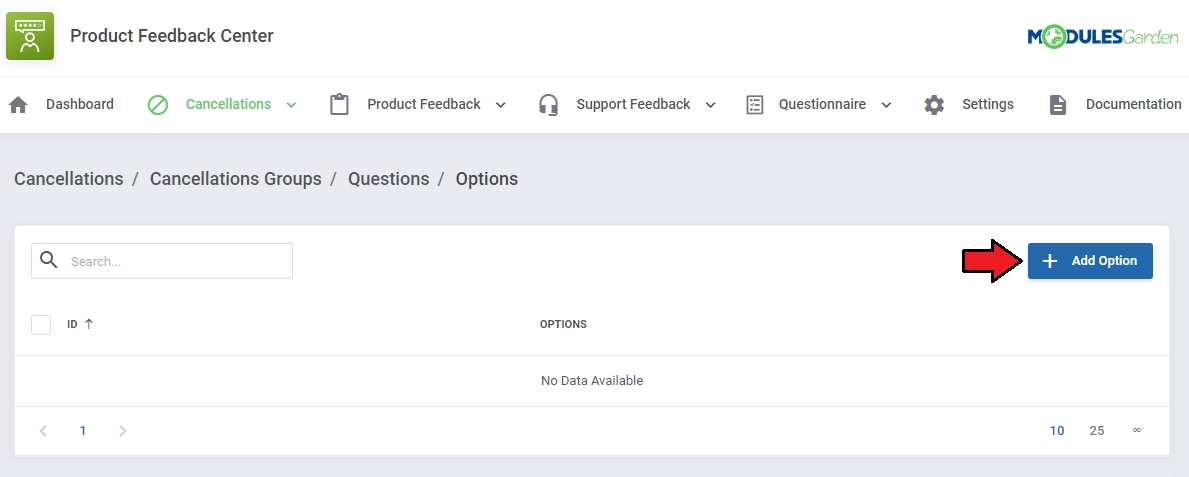
Next press the 'Add Option' button and create as many answer options as you need for your question.
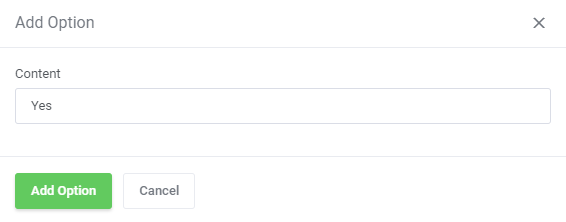
Repeat the above steps until you create the desired number of questions and answers.
If you want to personalize the questions for your clients, you may create their versions in different languages.
All you need to do is edit the question and add its language translation.
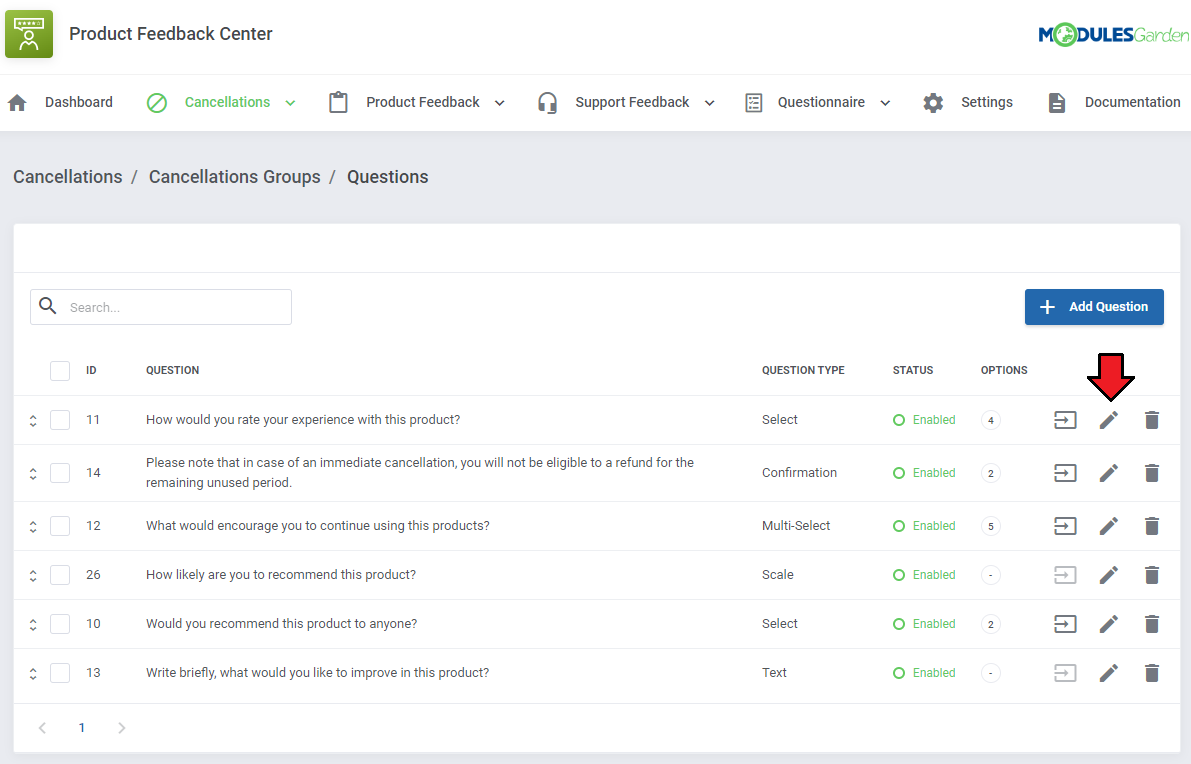
Change the language to any of the available and then type in its translated version in the text field.
Please refer to Tip 2 in 'Tips' section to learn how to enable numerous languages in your WHMCS system.
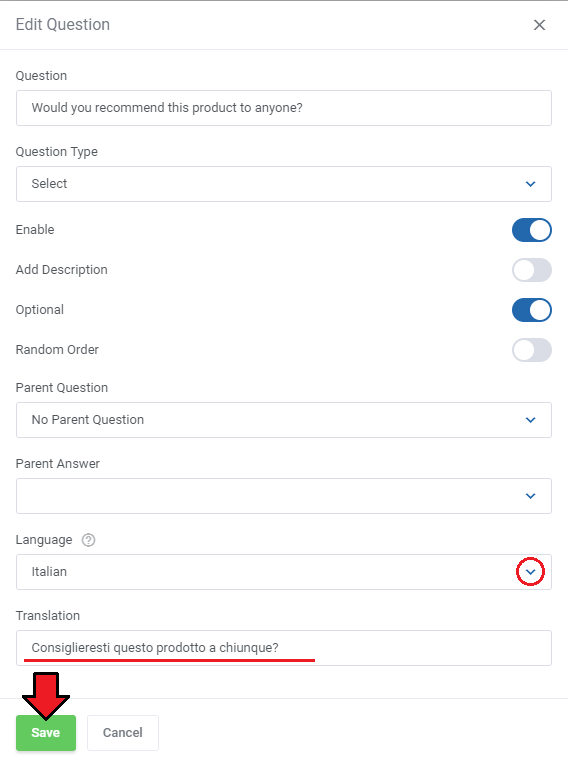
You may add numerous translations here. Simply select another language from the drop down menu and a new empty field will appear, type in the translated question there.
Depending on the client's preferred language in the client area, the questions will be displayed in an adequate language, provided such translation has been added here.
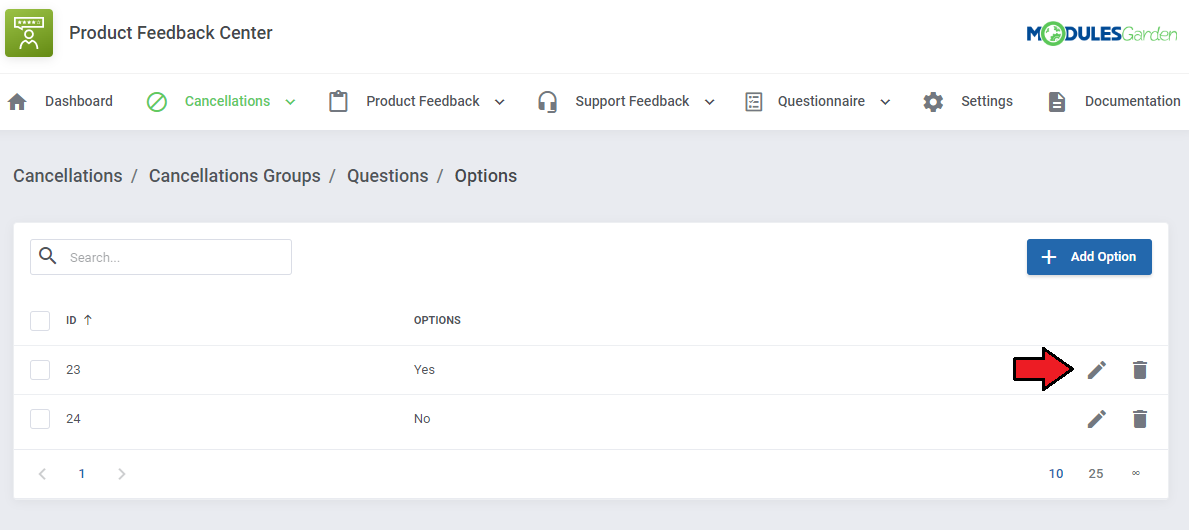
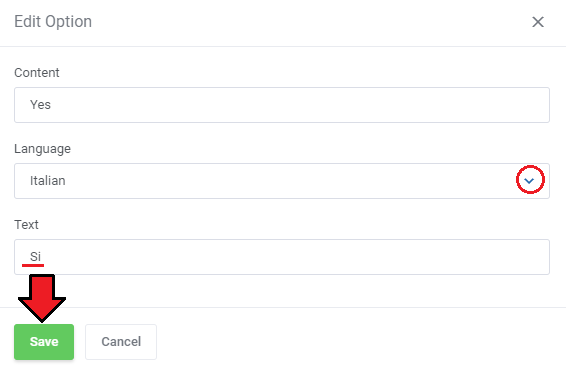
If you decided to add translations to questions of the select, multi-select or confirmation type, do not forget to translate its possible answer options as well.
You may do that in the same way as question translations, simply edit the required option, select the required language add the translated answer.
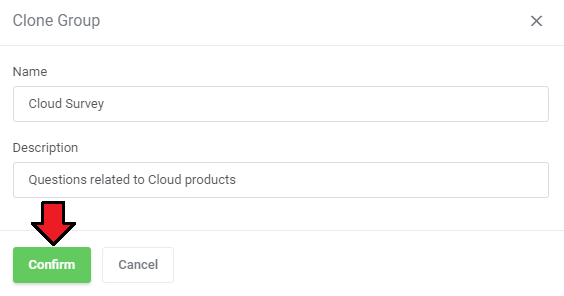
If you need to create more question groups with questions and answers that are similar to the existing ones, you can speed up the process by using the 'Clone' option.
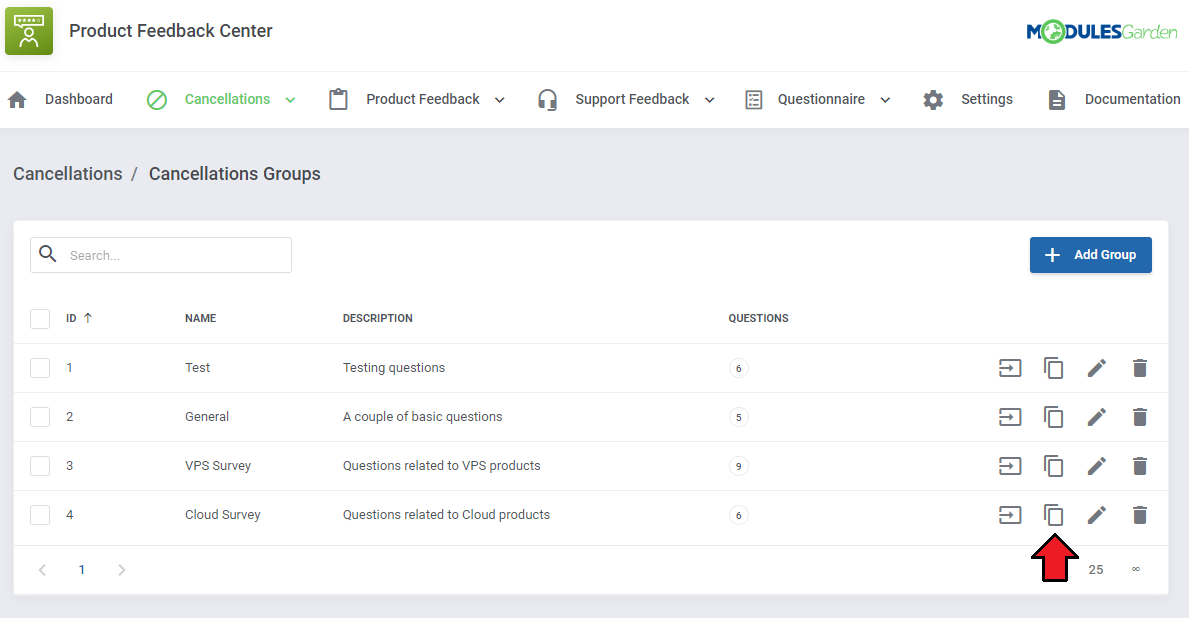
Enter the new name and description of the group. All previously created questions and answers will be automatically added to the new group, which you will now be able to modify independently.
# Product Relations
Once you have created a group (or groups) of questions, in the 'Groups' section you can choose which services you want to assign them to.
Only after assigning a questionnaire group to a product, products or product groups the survey will be displayed in the client area when submitting a cancellation request.
Press 'Create Relation' to start.
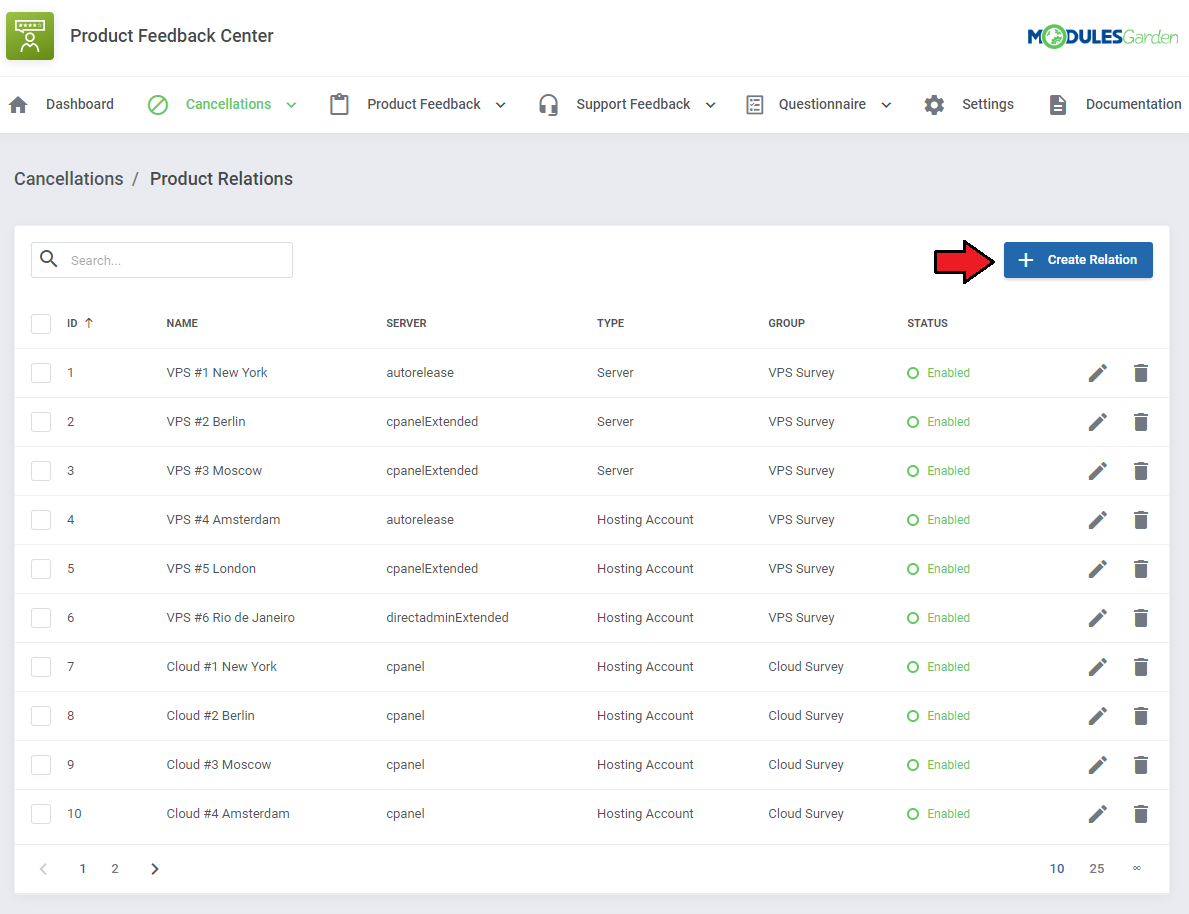
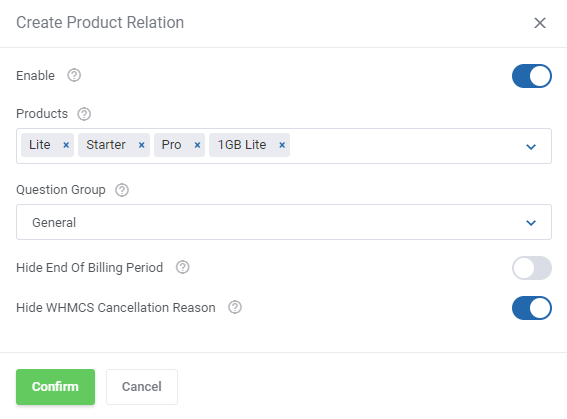
Select the question group and the products to which you want to assign it.
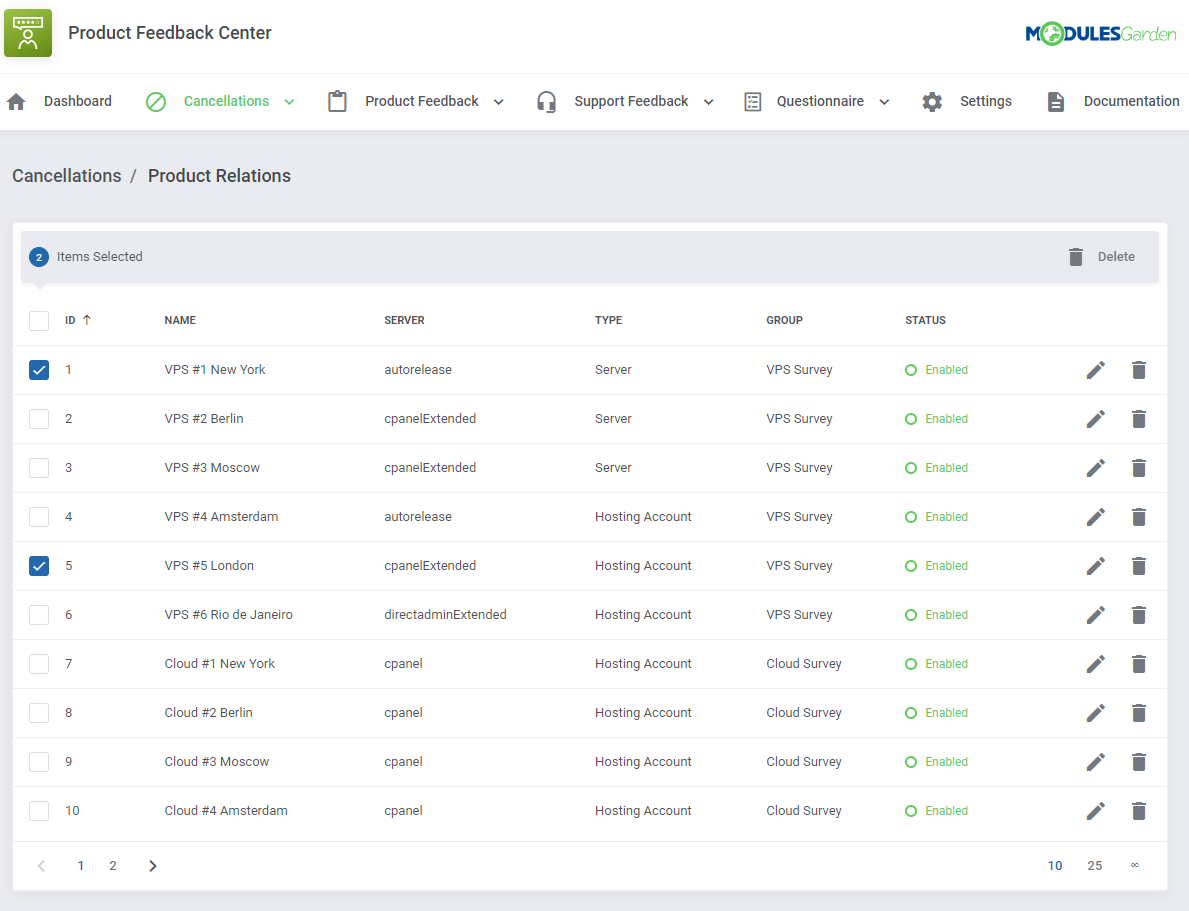
After creating the relation to selected products, you will be able to manage each of them separately, including the option to view the current status of relation. You can also delete many relations at once using mass actions.
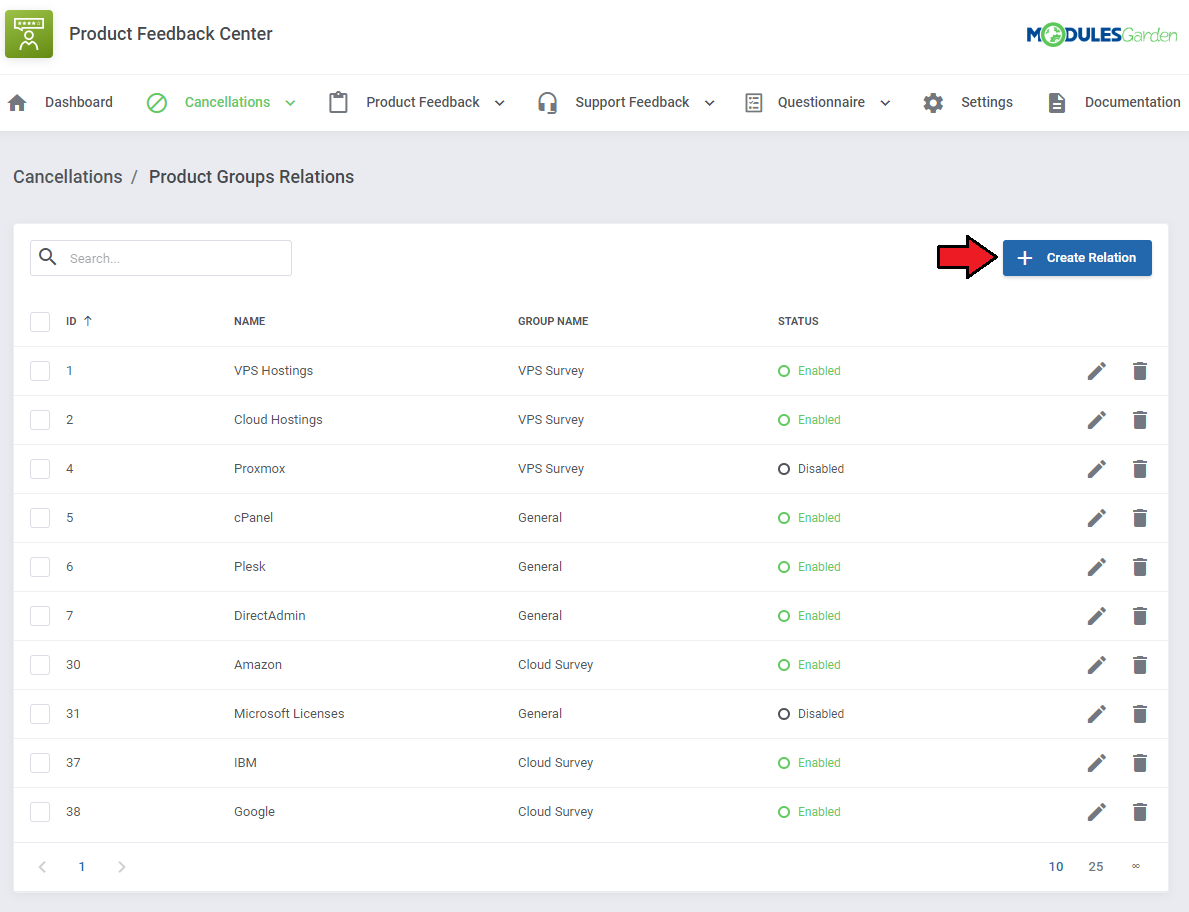
# Product Groups Relations
Press 'Create Relation' to start.
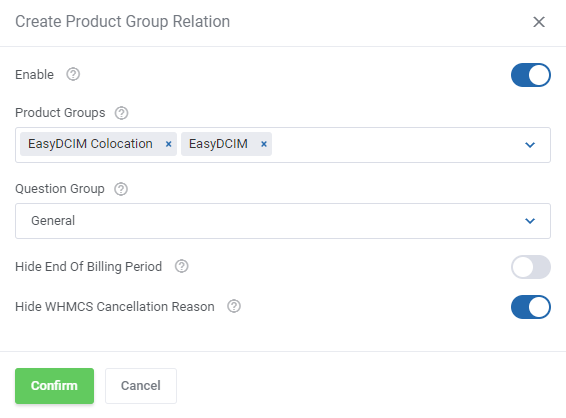
Select the question group and the product groups to which you want to assign it.
At this point you may also enable the option 'Hide End Of Billing Period' and hide the WHMCS inbuilt 'Briefly describe your reason for cancellation' that is displayed in the client area when requesting product cancellation.
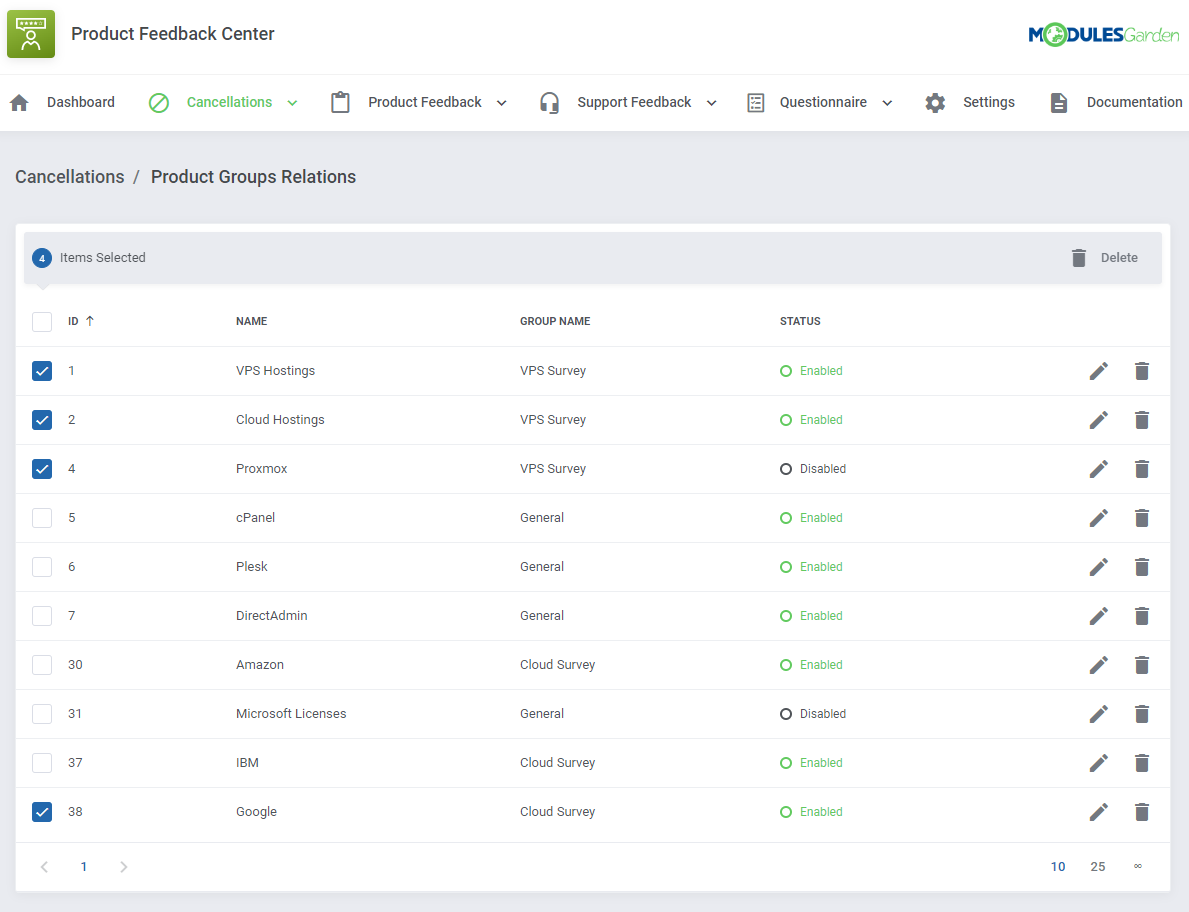
After creating the relation to selected product groups, you will be able to manage each of them separately, including the option to view the current status of relation.
You can also delete many relations at once using mass actions.
# Product Feedback
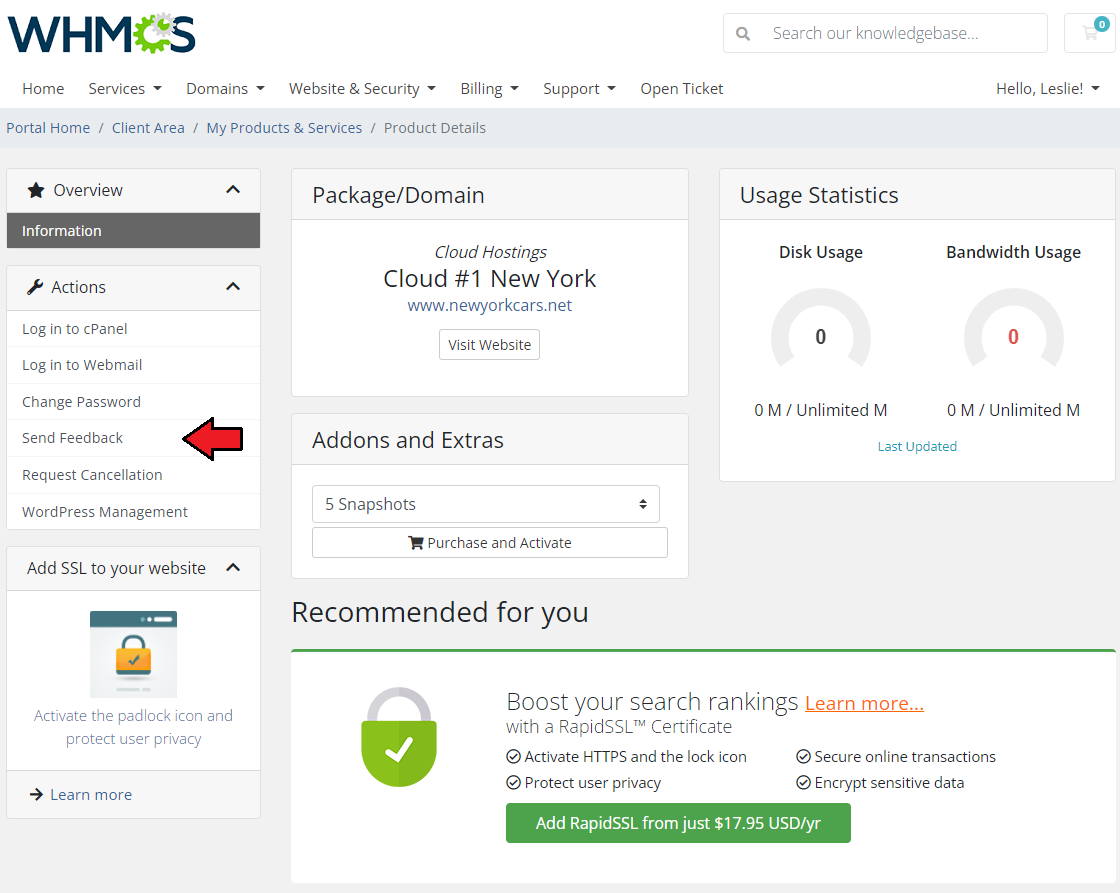
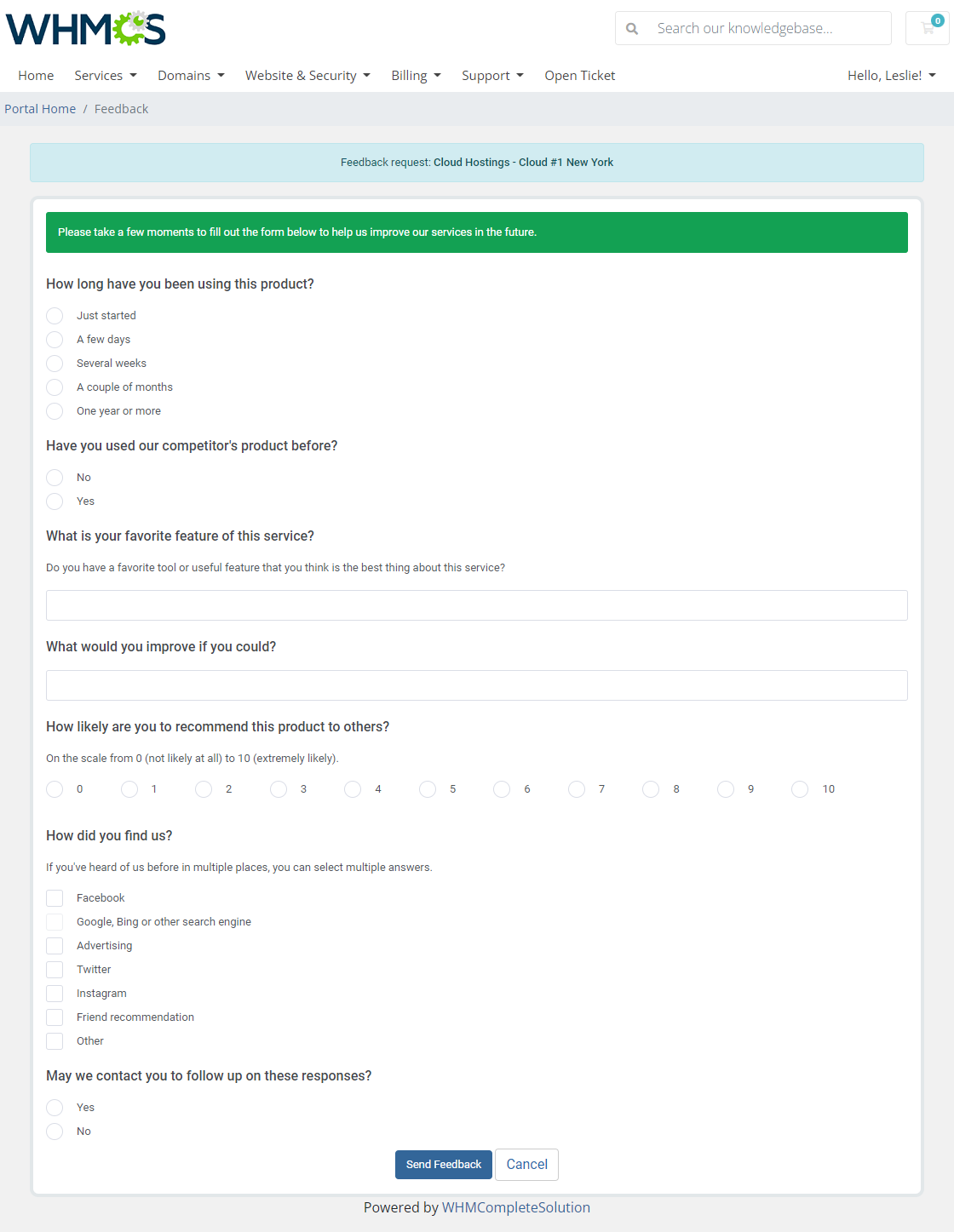
The 'Feedback' section is dedicated to creating surveys for clients to let them express their opinion on the products that are currently using.
If a certain product has teh survey assigned, the client has access to 'Send Feedback' section in the client area and may rate the product at any moment.
# Product: Client Feedback
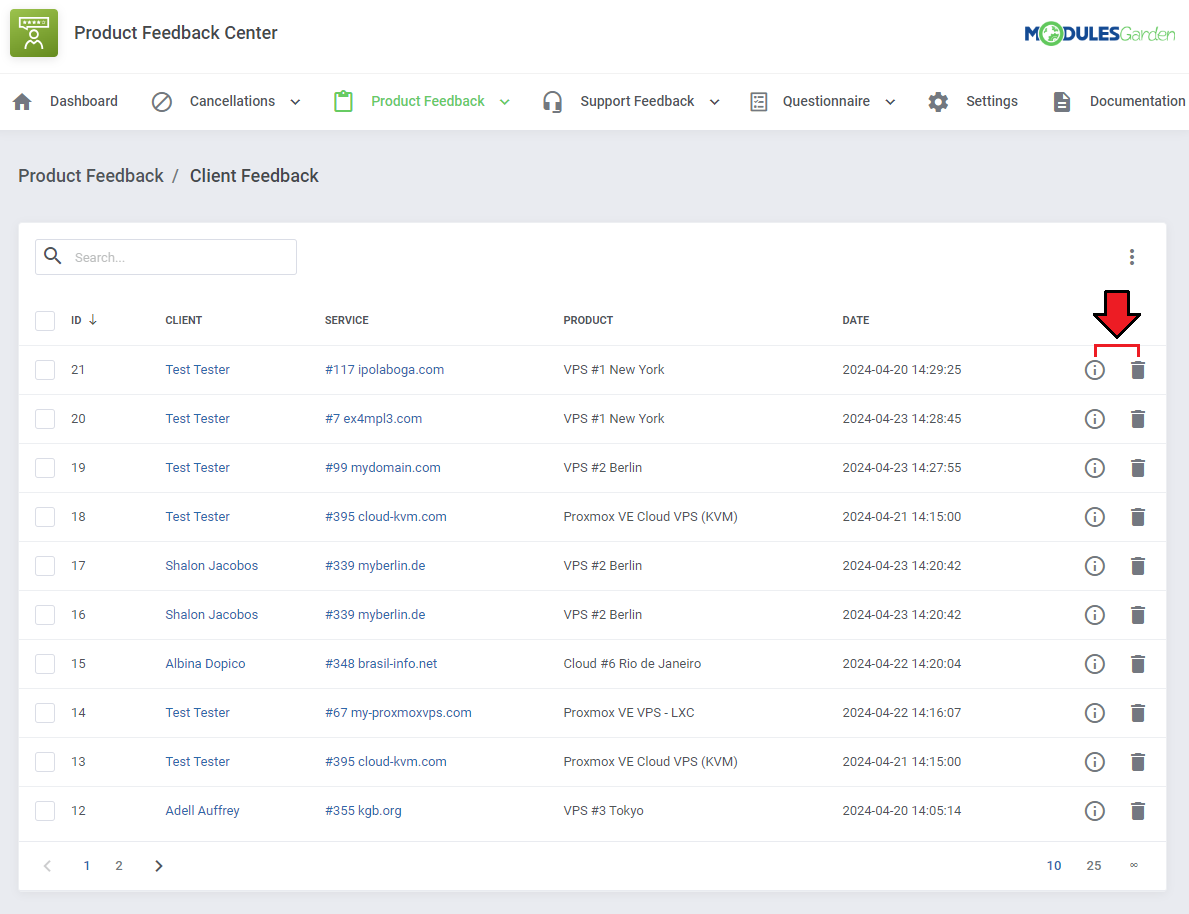
Move to 'Feedback' → 'Client Feedback' section, you will find there a list of submitted product feedback with the customer answers to the prepared sets of questions.
Click on the 'Questions & Answers' icon to see the filled-in survey for the given feedback.
You may also delete single feedback submissions if you want.
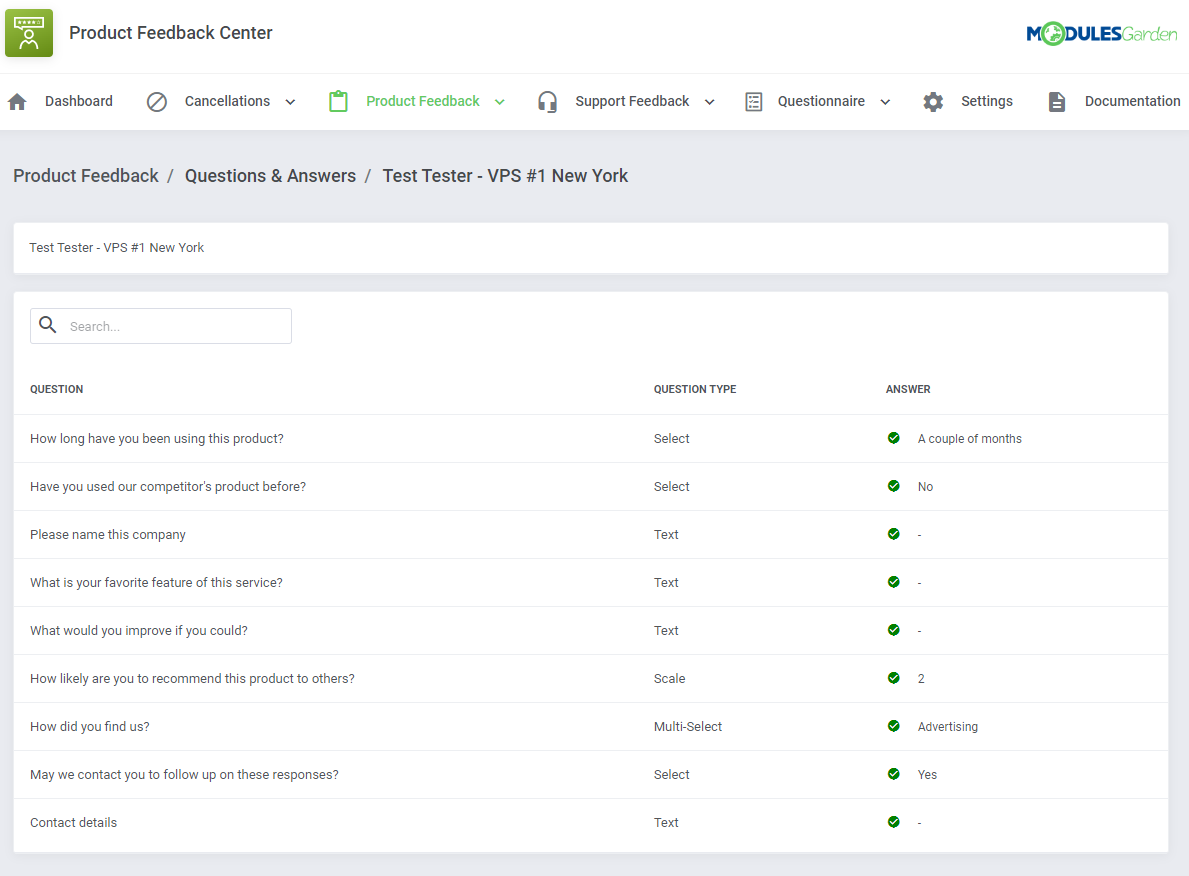
You will see a preview of the questions asked, their type, and the answers given by the client.
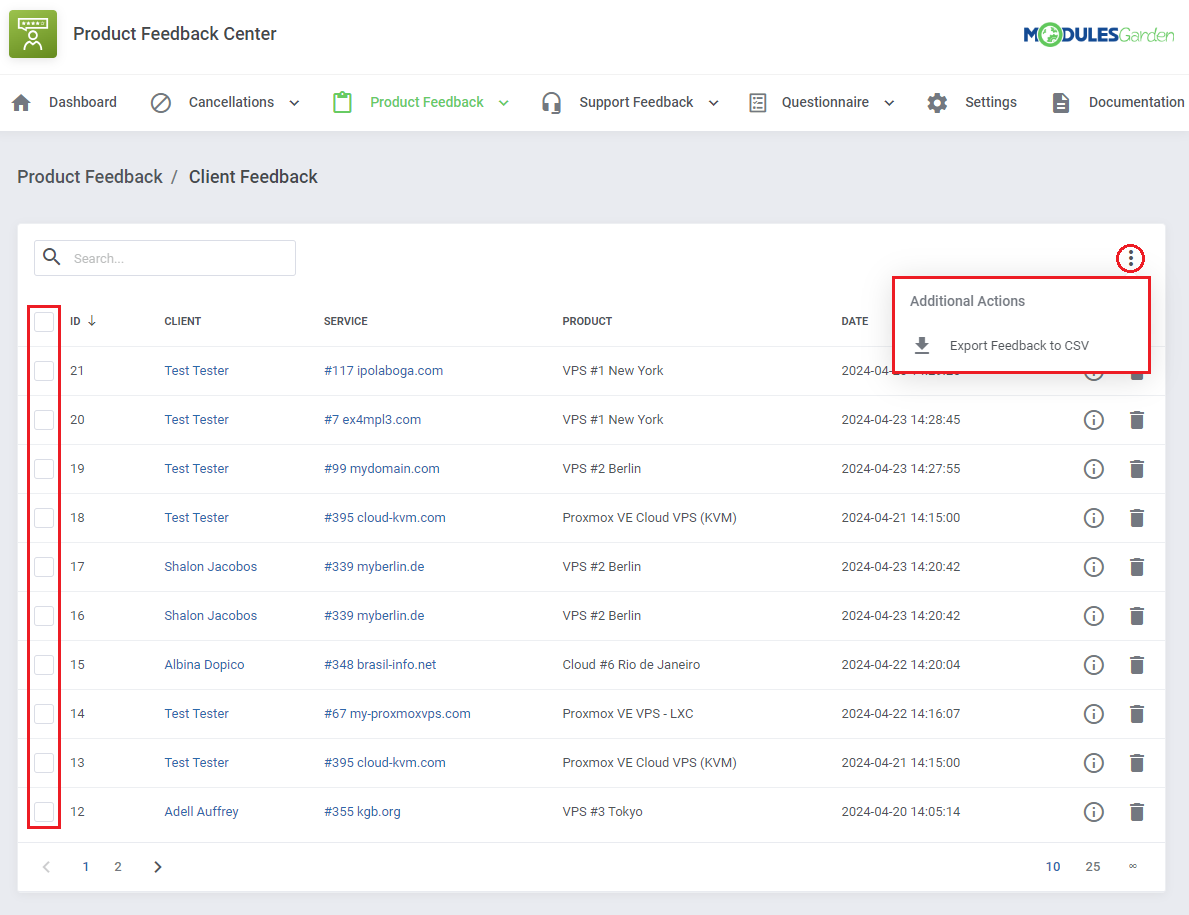
Moreover, you can export feedback to a compiled '.csv' file, either select multiple requests by utilizing the mass action feature or click on 'Additional Actions' and define the date range for selection.
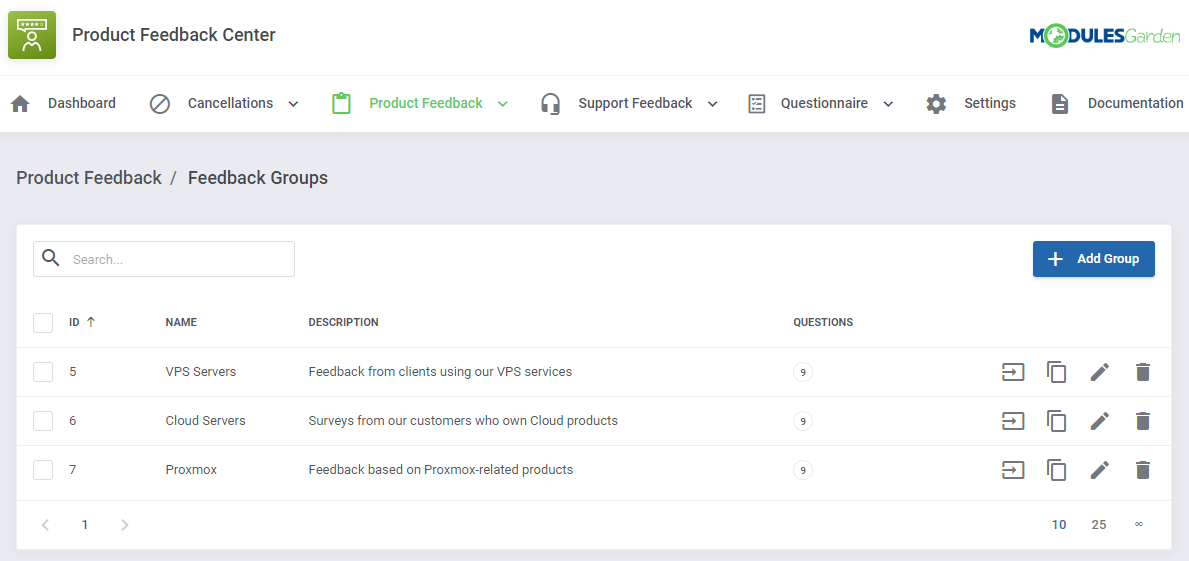
# Product Feedback: Groups, Product And Product Groups Relations
Before you let your clients give feedback on single products they use, you need to configure the whole net of products, product groups and questions.
Feedback Groups are created in exactly the same way as the Cancellations Groups.
Please refer to the detailed descriptions in the Cancellations section to learn how to manage Groups, Product Relations and Product Groups Relations.
# Survey Configuration
When you create a new question group, you will be automatically redirected to the page where questions can be formed.
You can also access this page by clicking on the 'Questions' icon for the chosen record in the groups list.
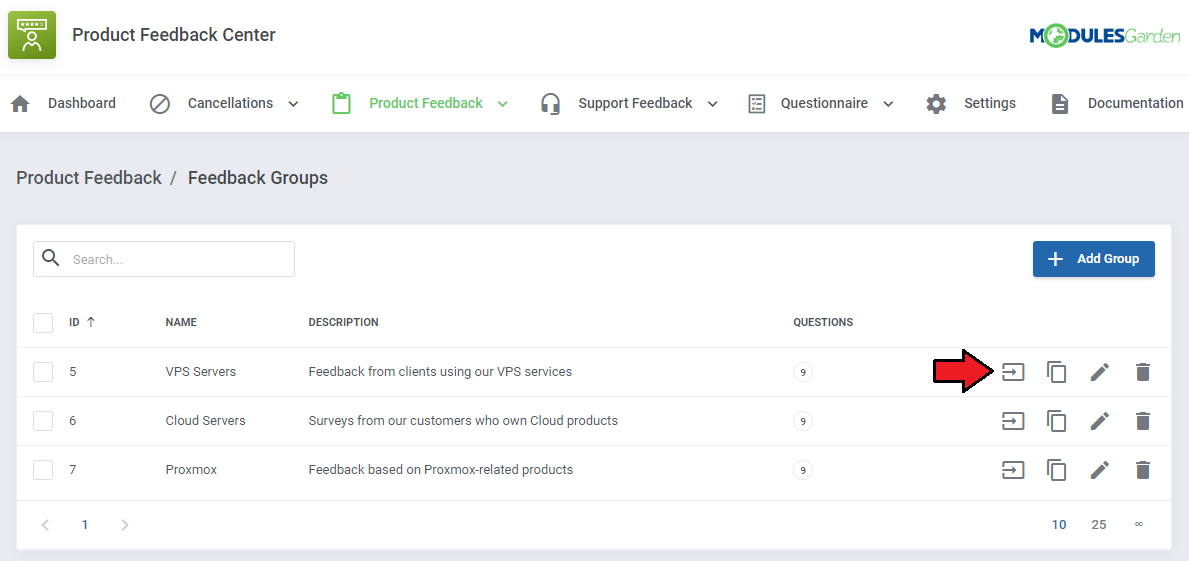
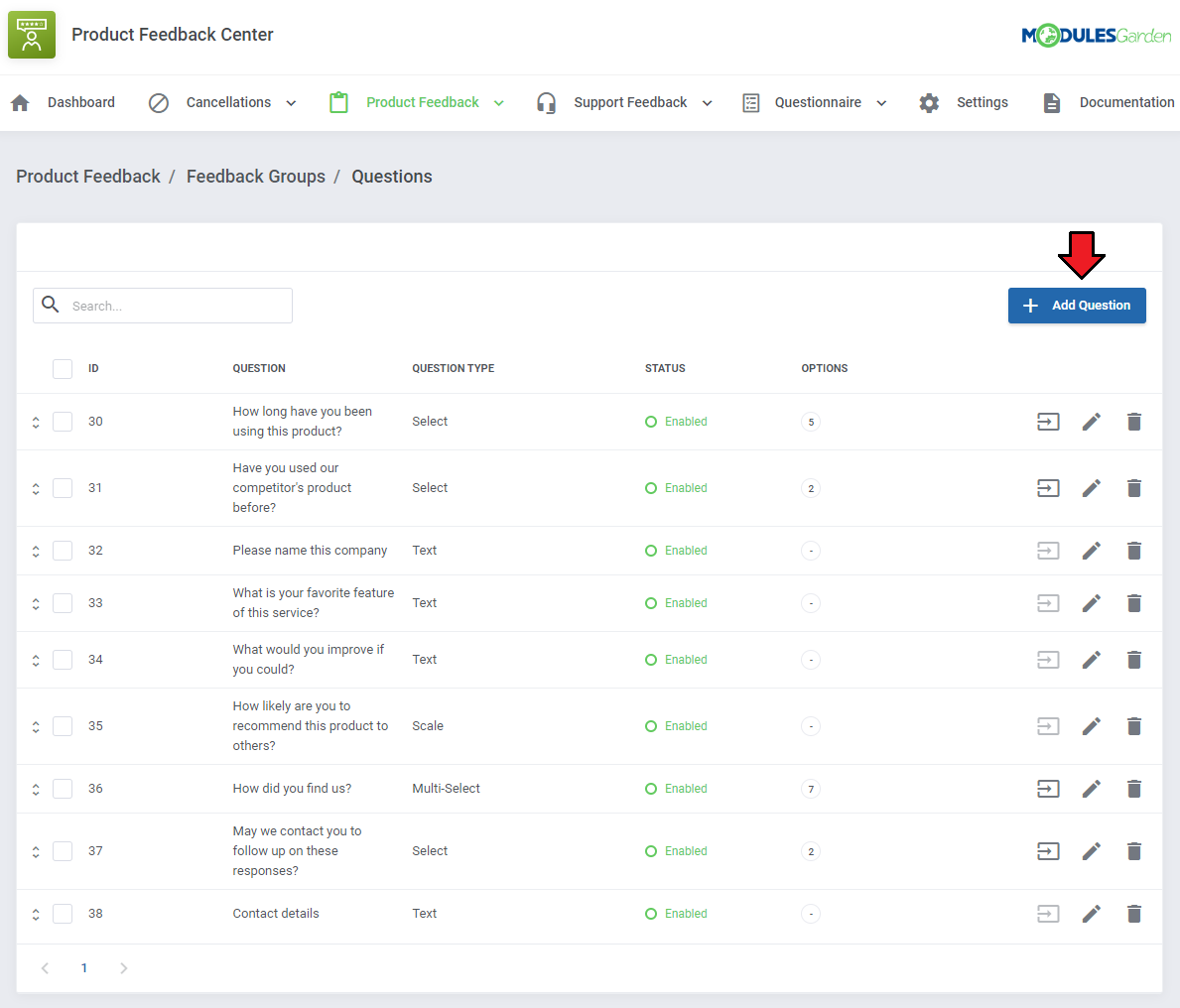
Now click the 'Add Question' button.
Enter the first question you want to ask clients and select its type.
You can choose between the following types:
- Confirmation - a select type of question, but each of its options, regardless of their number, will be required to agree upon in order to submit a cancellation request form.
It may be useful for accepting the required agreements by the customer. - Text - an open type of question that will require from the customer to enter a brief answer. It will be not possible to add any other options to it.
- Select - for this type of question the customer can choose only one of the available answers.
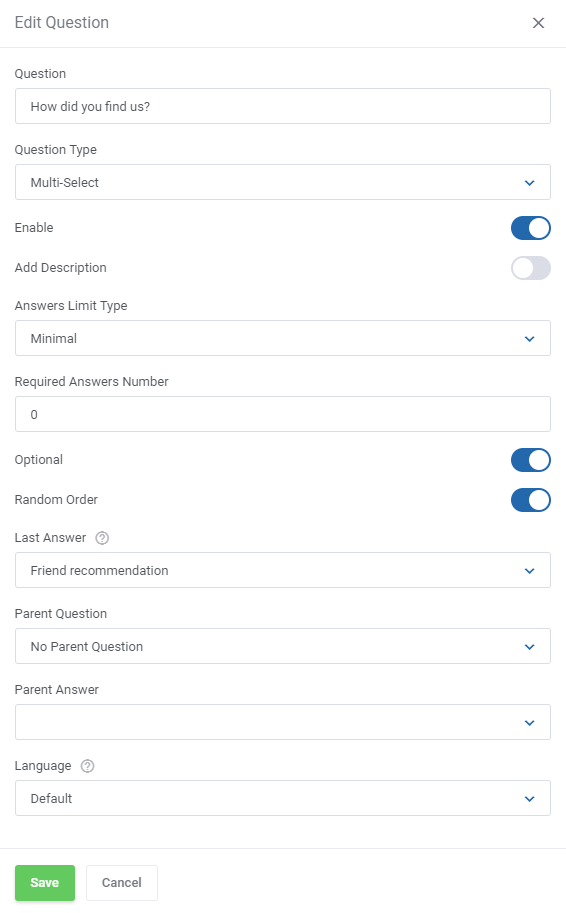
- Multi-Select - is similar to the select type, but the client can pick many different answers, not just one.
- Scale - a rating scale that allows clients to allocate their answer on a from 1 to 10 scale.
- Custom Scale - a rating scale that allows clients to allocate their answer on a scale.
Define additional options of the newly created questions. Note that available settings highly depend on the previously chosen type:
- Enable/Disable the question status
- Add Description - if enabled a text box will appear
- Characters Limit ('Text' only) - define the allowed limit of characters for clients to express their opinion
- Answers Limit Type ('Multi-Select')
- Minimal/Maximal/Exactly
- Required Answers Number ('Multi-Select') for the selected limit type
- From/To ('Custom Scale' only) - create a custom scale to rate the product
- Horizontal Position ('Scale' and 'Custom Scale' only) - choose the scale position to be vertical (default option) or horizontal
- Optional - if enabled, the question will not be obligatory
- Random Order ('Select' and 'Multi-Select') - if enabled, the questions will appear in a random order
- Last Answer ('Select' and 'Multi-Select') - pin one of the question options to the end of the choice list
- Parent Question/Answer - create the logic of showing additional questions.
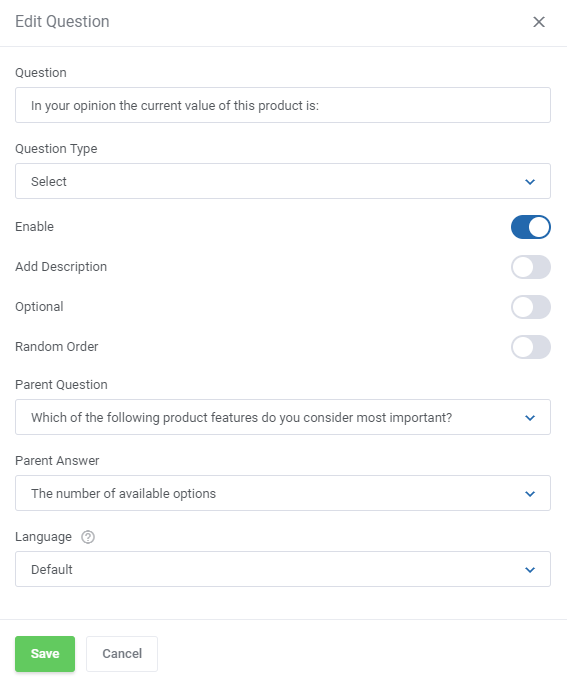
Select a question ('Parent Question') to which a client must give a specific answer ('Parent Answer') in order for the created now question to appear.
Below you can see an example of Multi-Select question type:
Custom Scale type, with available rating from 0 to 5. The position of the scale is horizontal.
After creating the question you will be automatically redirected to the page where you can formulate available answer options (except for the 'Text' question type).
You will also be able to access this page by clicking the 'Options' icon for the chosen record in the questions list.
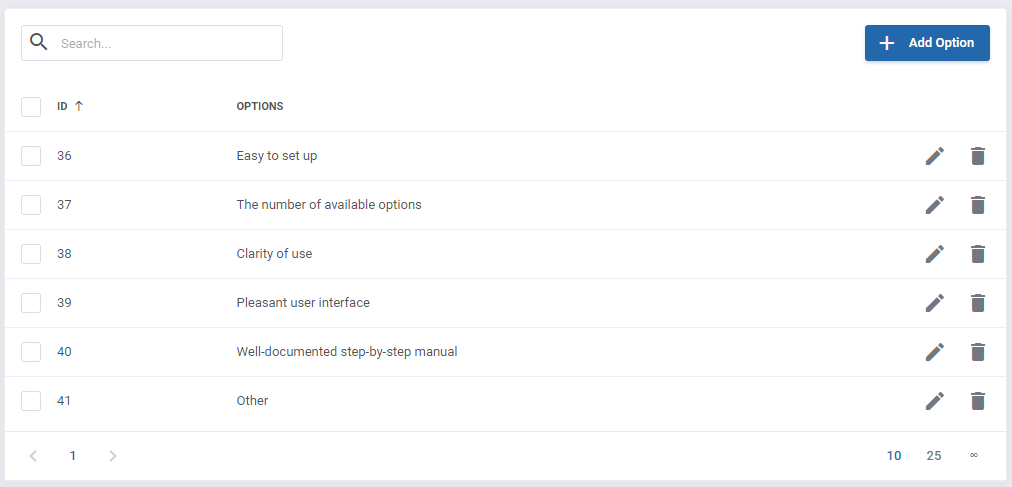
Again, you may personalize the questions for your clients, you may create their versions in different languages. Change their status or delete.
Select question type with pointed 'Parent Question' and 'Parent Answer' to force showing this question only after pointing a required answer.
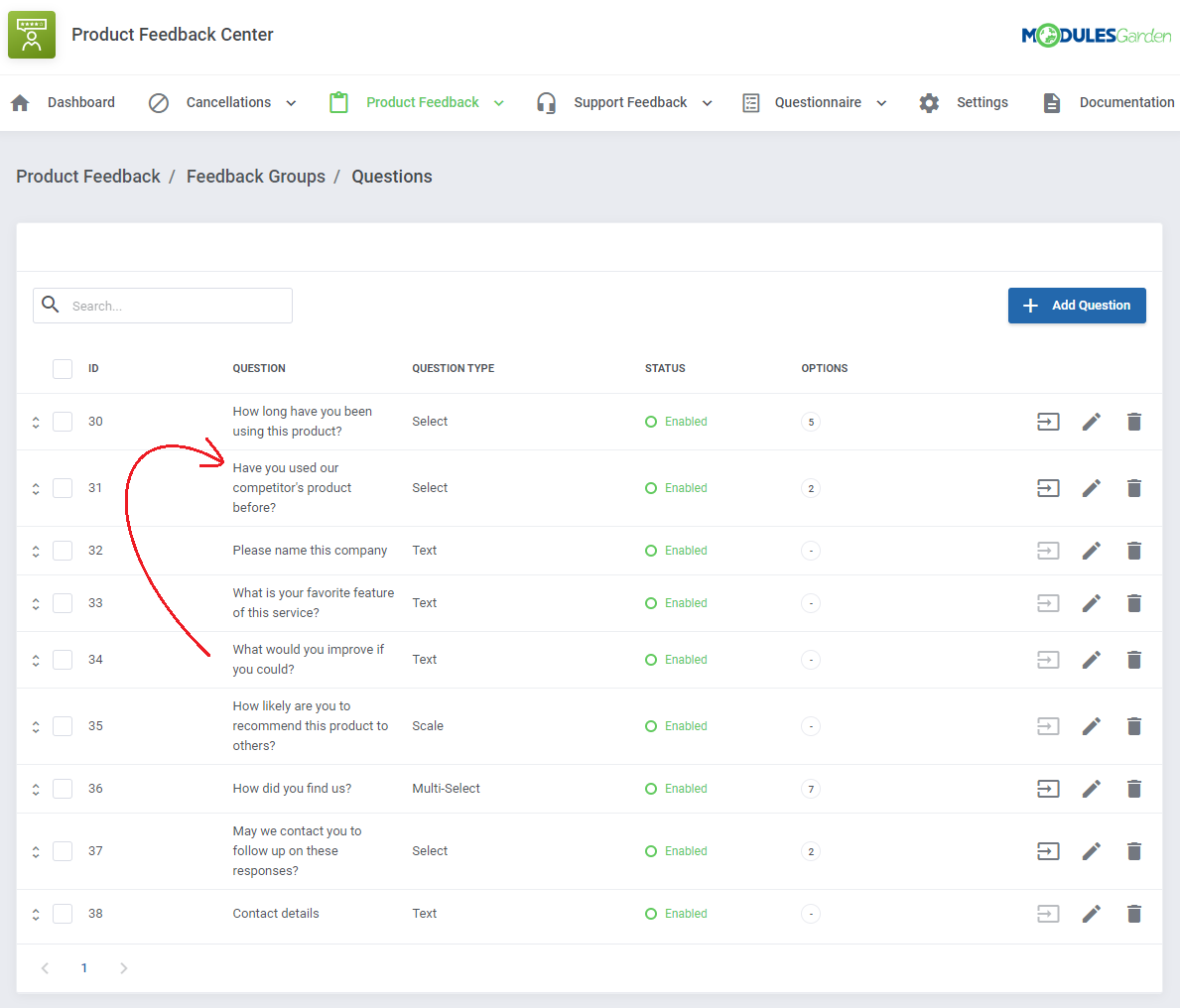
Created questions can be easily re-positioned with a 'Drag&Drop' functionality. Simply drag a single questions and drop in a place where you wish to locate it.
# Support Feedback
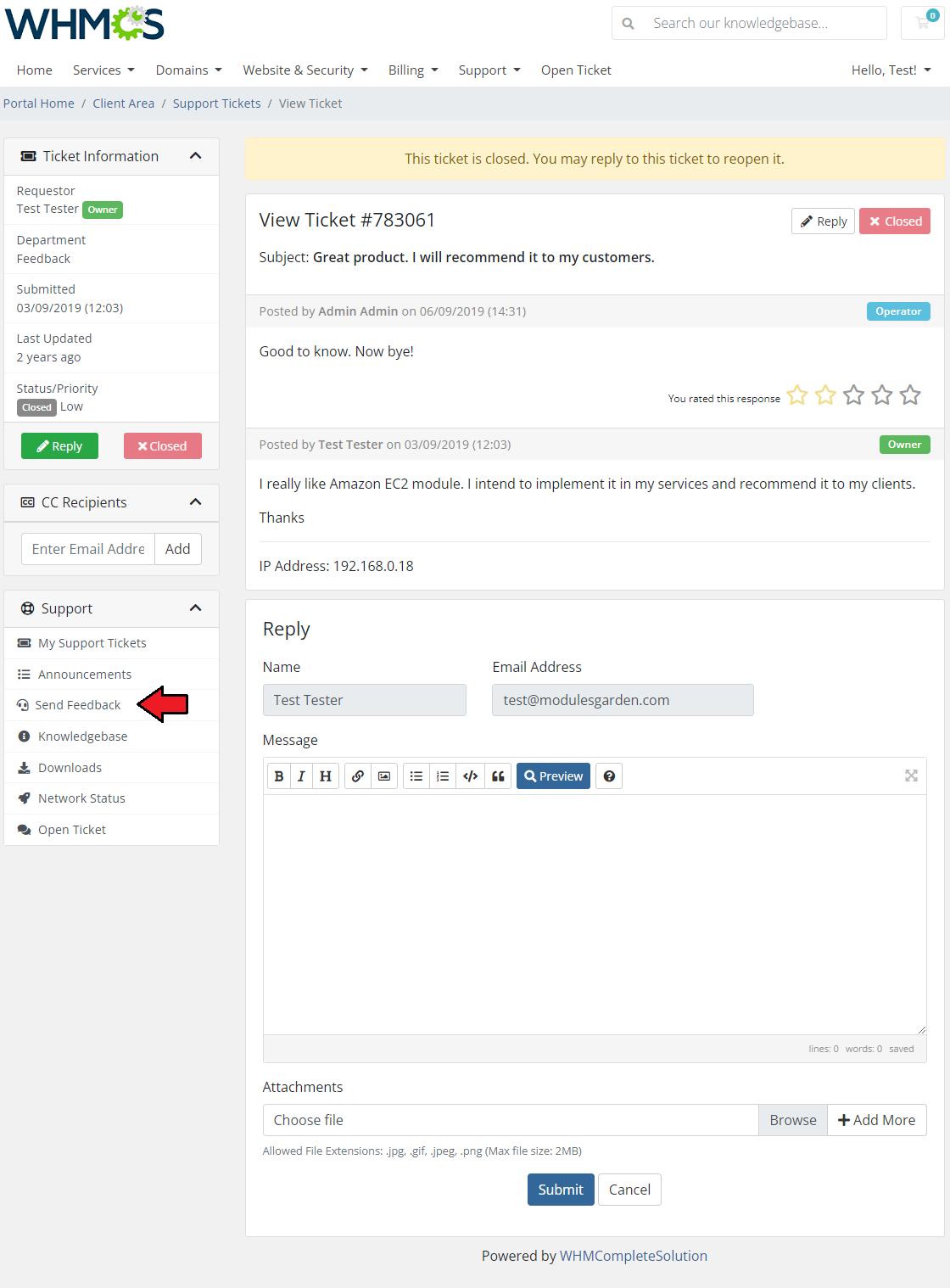
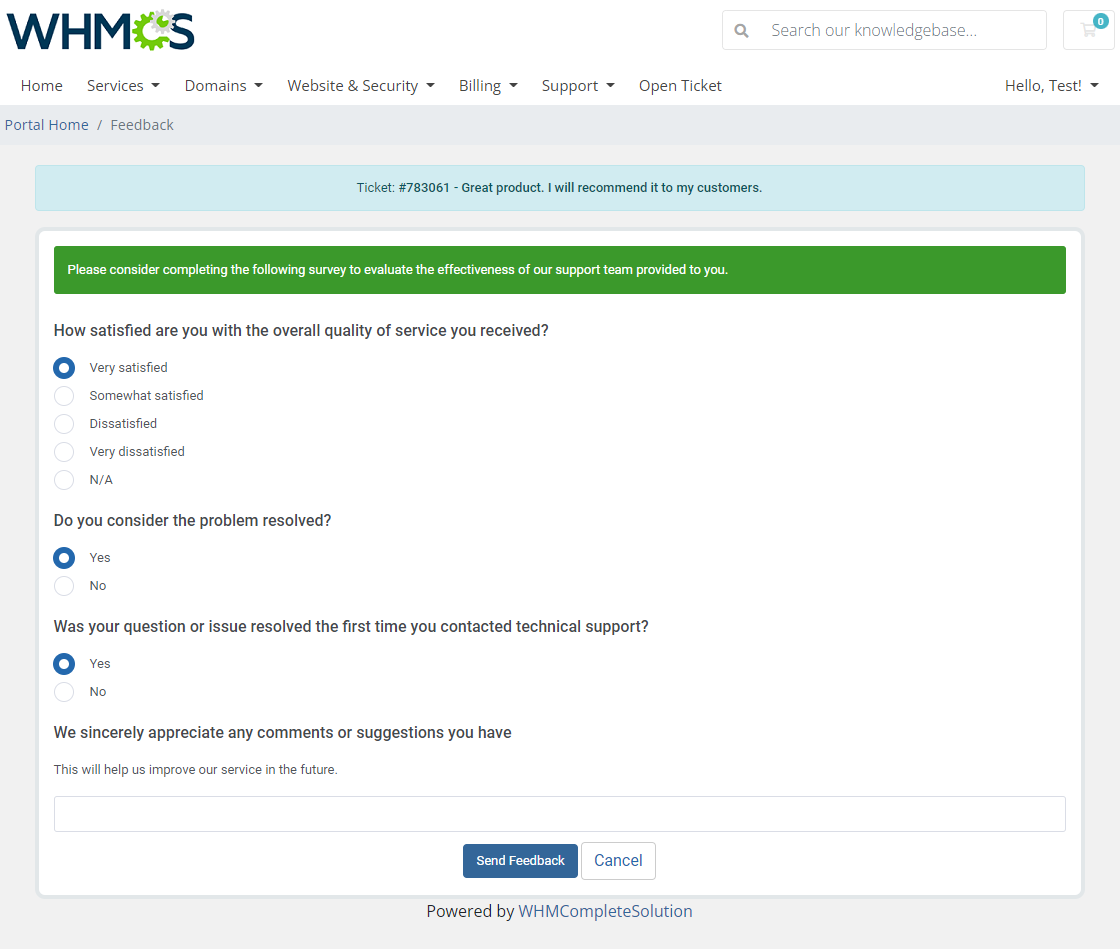
The 'Support Feedback' section is dedicated to creating surveys for clients to let them express their opinion on their tickets and the way they are handled by our staff.
Once a ticket gets the 'Closed' status, a client may rate it by sending feedback with the previously prepared survey.
# Support: Client Feedback
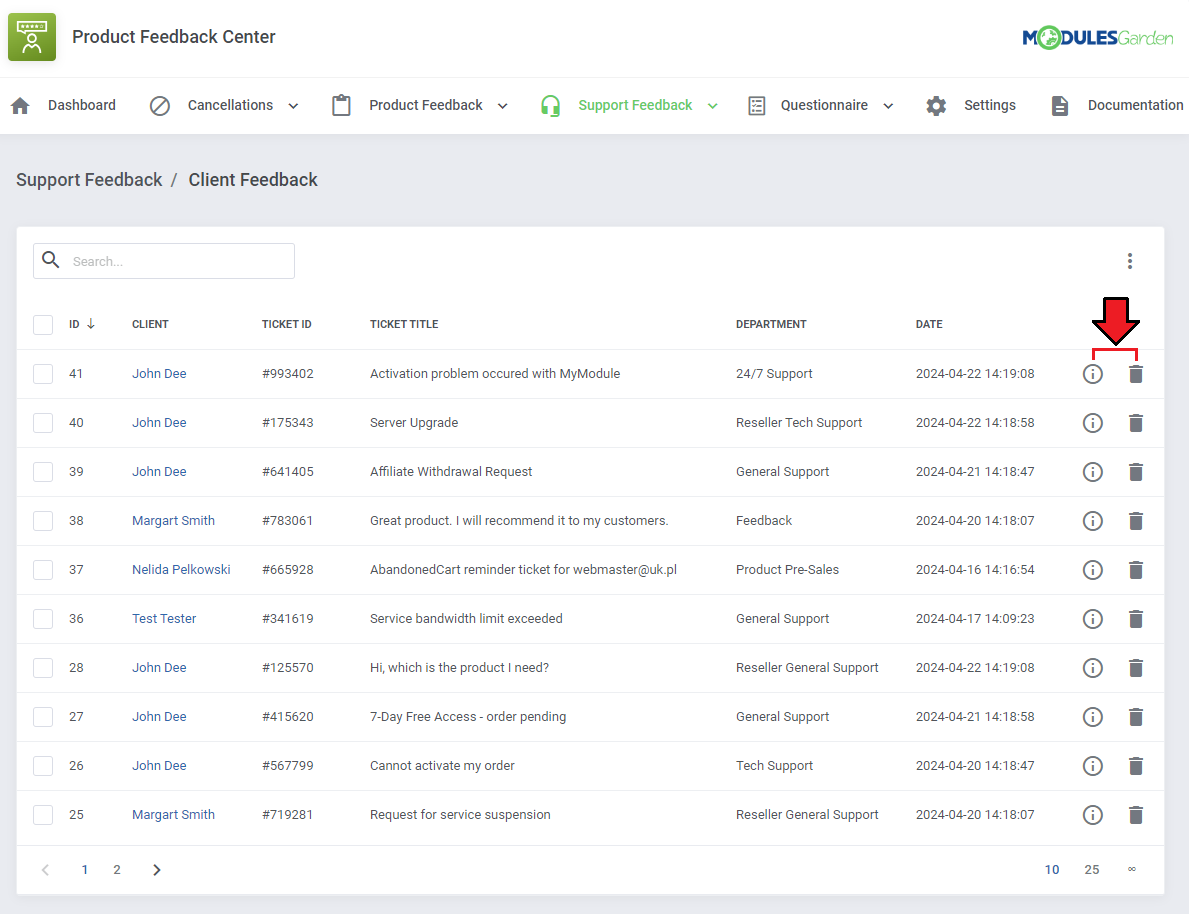
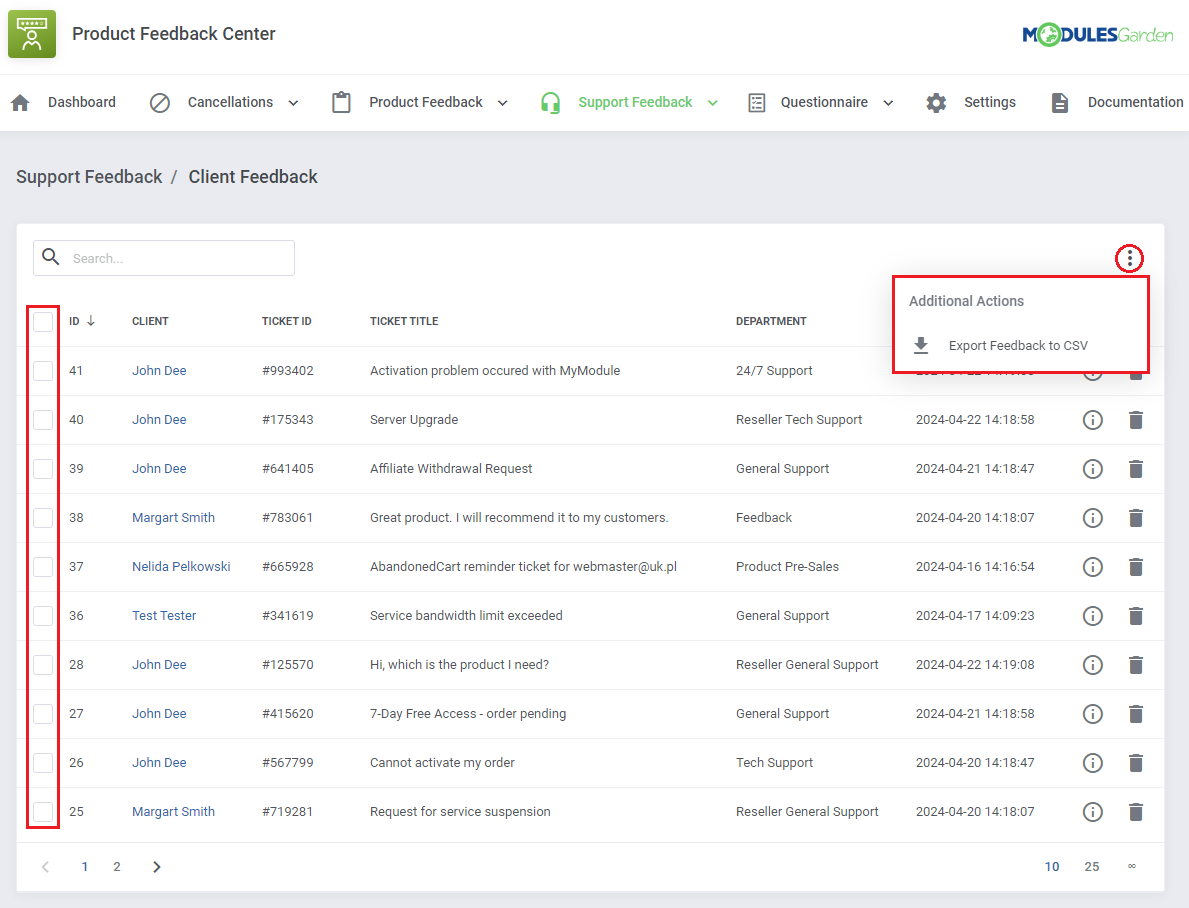
Move to 'Support Feedback' → 'Client Feedback' section, you will find there a list of submitted support feedback surveys with the customer answers to the prepared sets of questions.
Click on the 'Questions & Answers' icon to see the filled-in survey for the given feedback.
You may also delete single feedback submissions if you want.
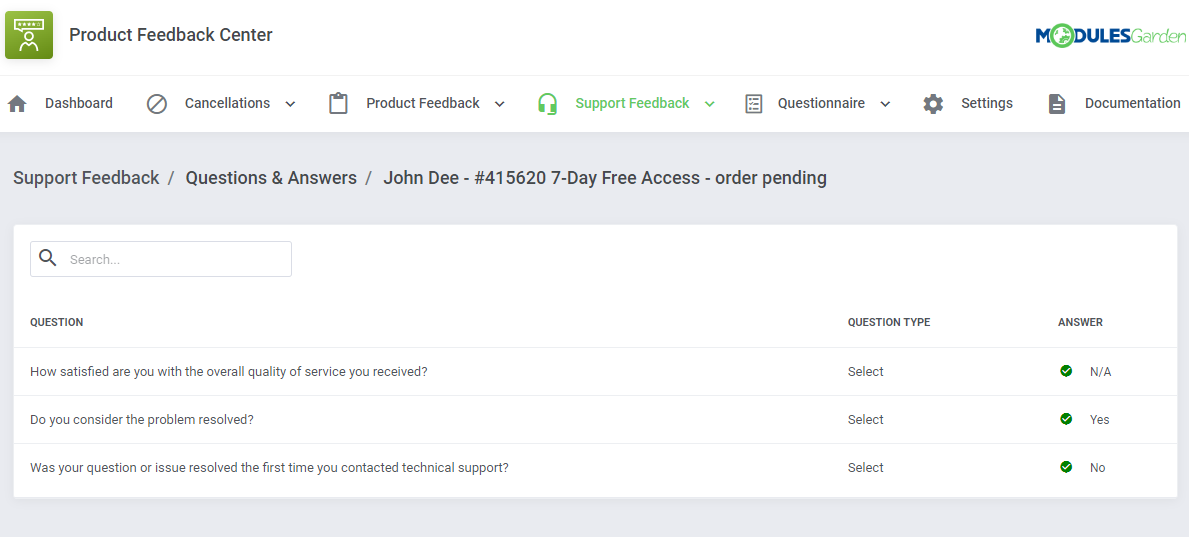
You will see a preview of the questions asked, their type, and the answers given by the client.
Moreover, you can export feedback to a compiled '.csv' file, either select multiple requests by utilizing the mass action feature or click on 'Additional Actions' and define the date range for selection.
# Support Feedback: Groups And Department Relations
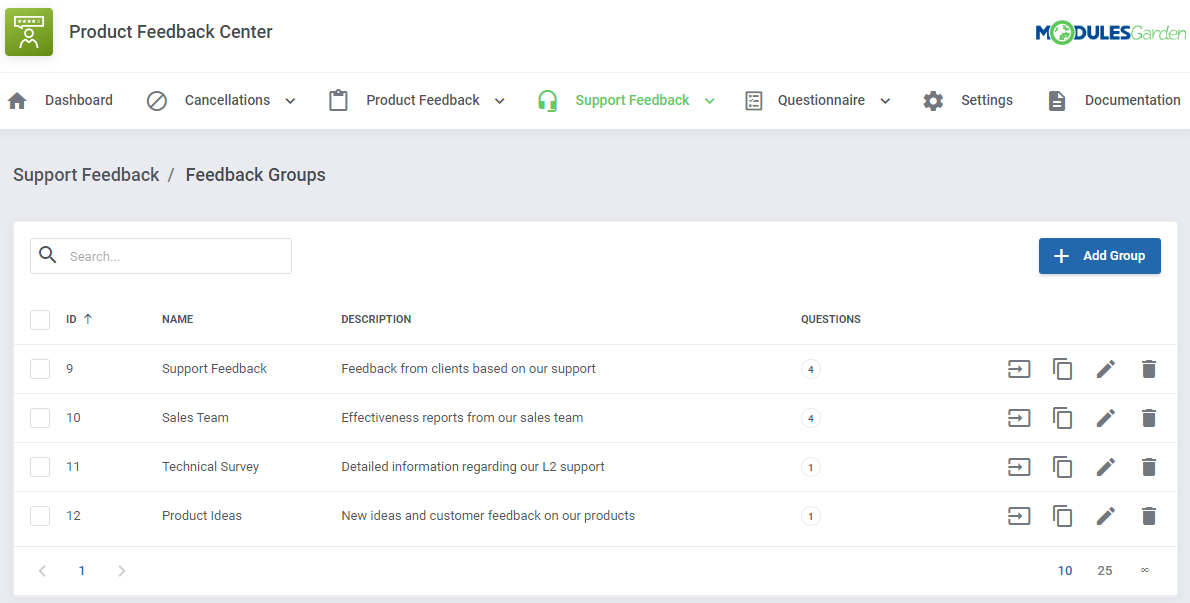
Before you let your clients give feedback on a single, closed ticket, you need to configure the whole net of groups and questions.
Support: Feedback Groups and Department Reations are created in exactly the same way as the Cancellations And Product Feedback Groups.
Please refer to the detailed descriptions in the Cancellations section to learn how to manage Groups and Relations.
# Questionnaire
# Questionnaire: Client Feedback
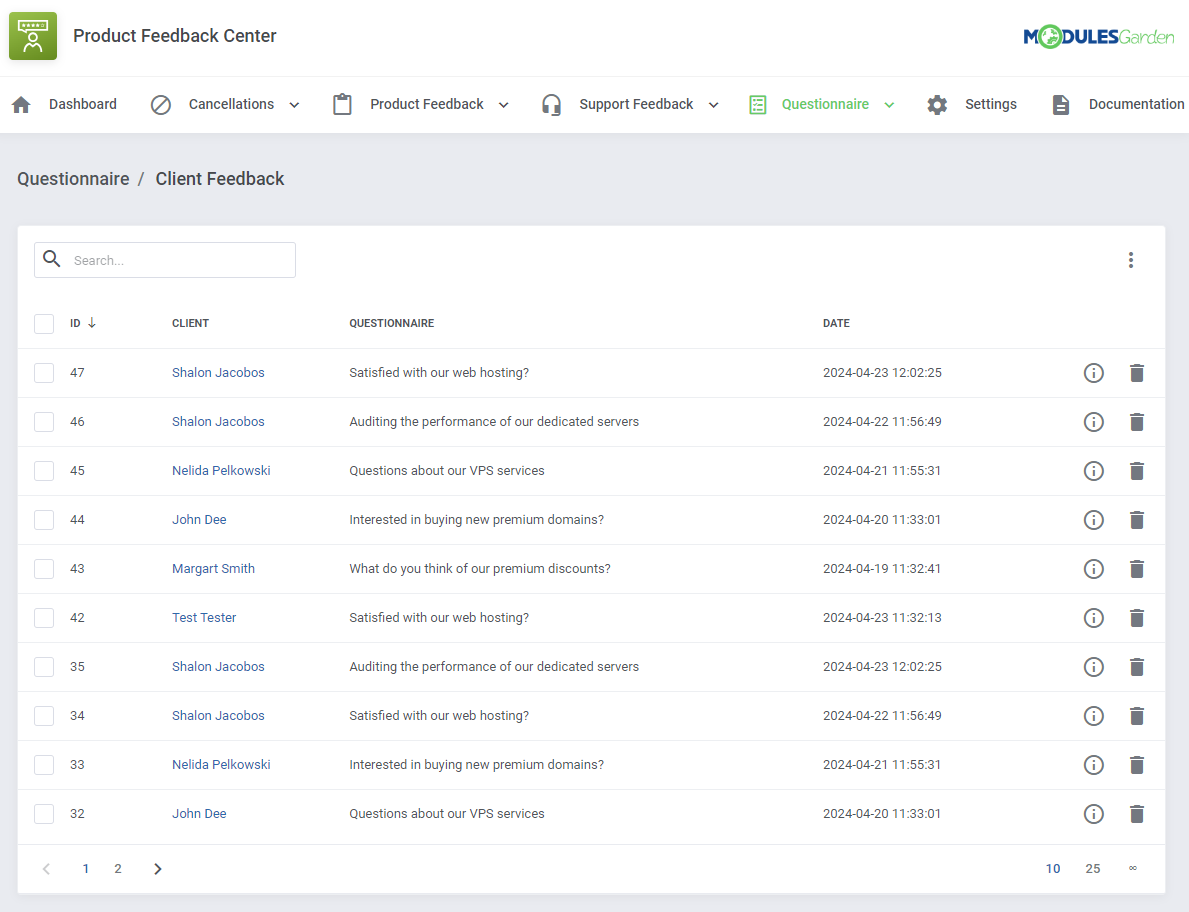
This section is dedicated to unrelated questionnaires that can be freely configured here and then displayed to clients based on certain parameters.
Such as: owned products, product addons or domains, account registration date or client group assignment.
Just like in the case of the previously described sections: Cancellations, Product and Support Feedback, the very first section is dedicated to the already submitted surveys by clients.
# Question Groups
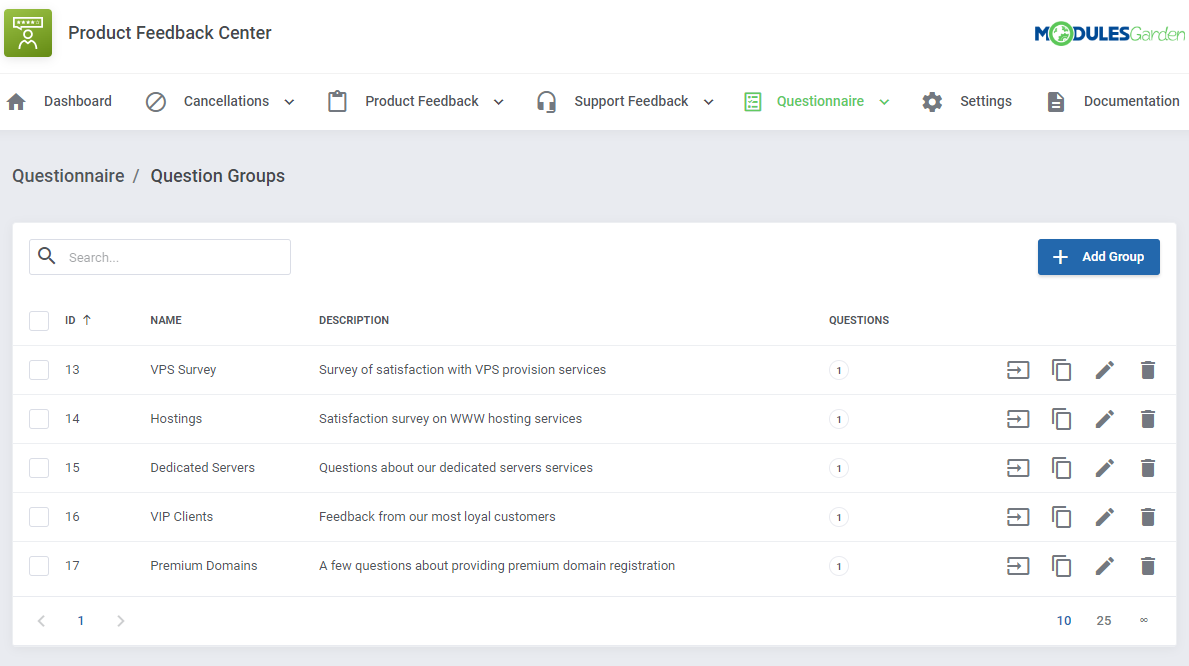
To begin, you must start with creating groups and questions with options to choose, in case of select and multi select question type.
To learn all about configuring Questions&Answers please refer to section: Survey Configuration above.
# Questionnaire Relations
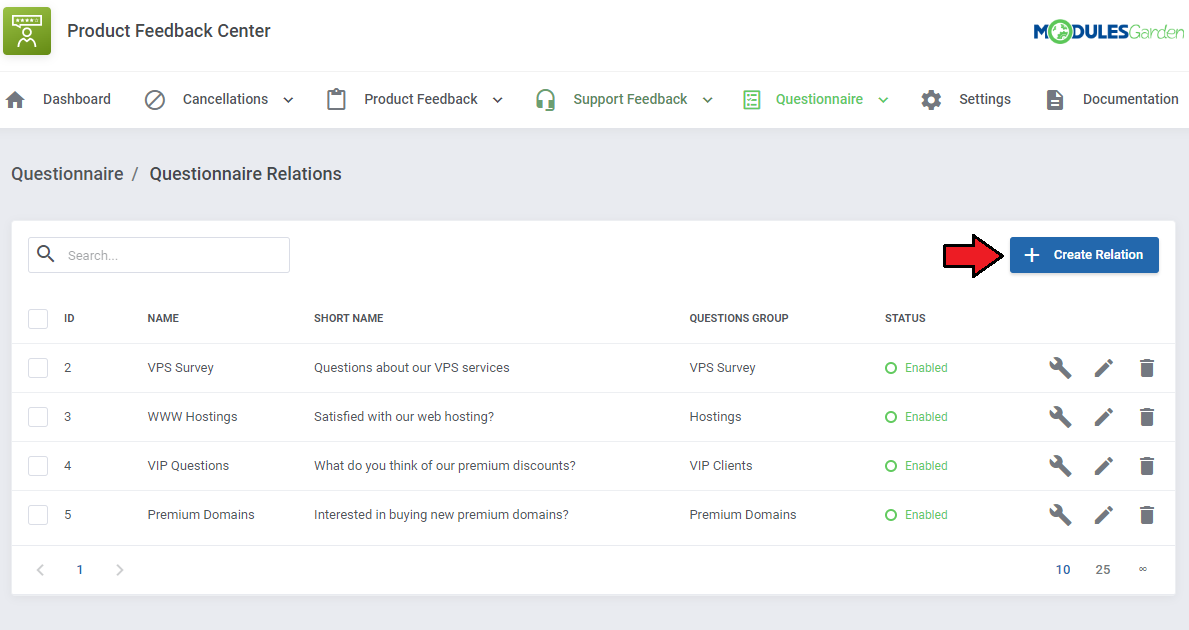
Under "Questionnaire Relations" you have to arrange all the relations and activation rules to show the survey to single clients based on their owned services, domains etc.
Press 'Create' to form the first relation.
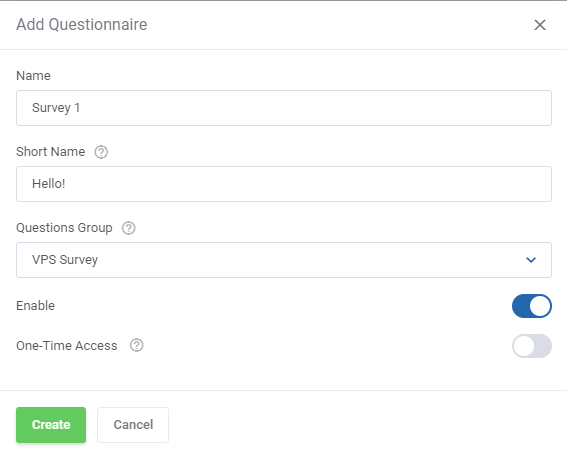
Fill out all the required data:
- Name - name of the relation for your insight only
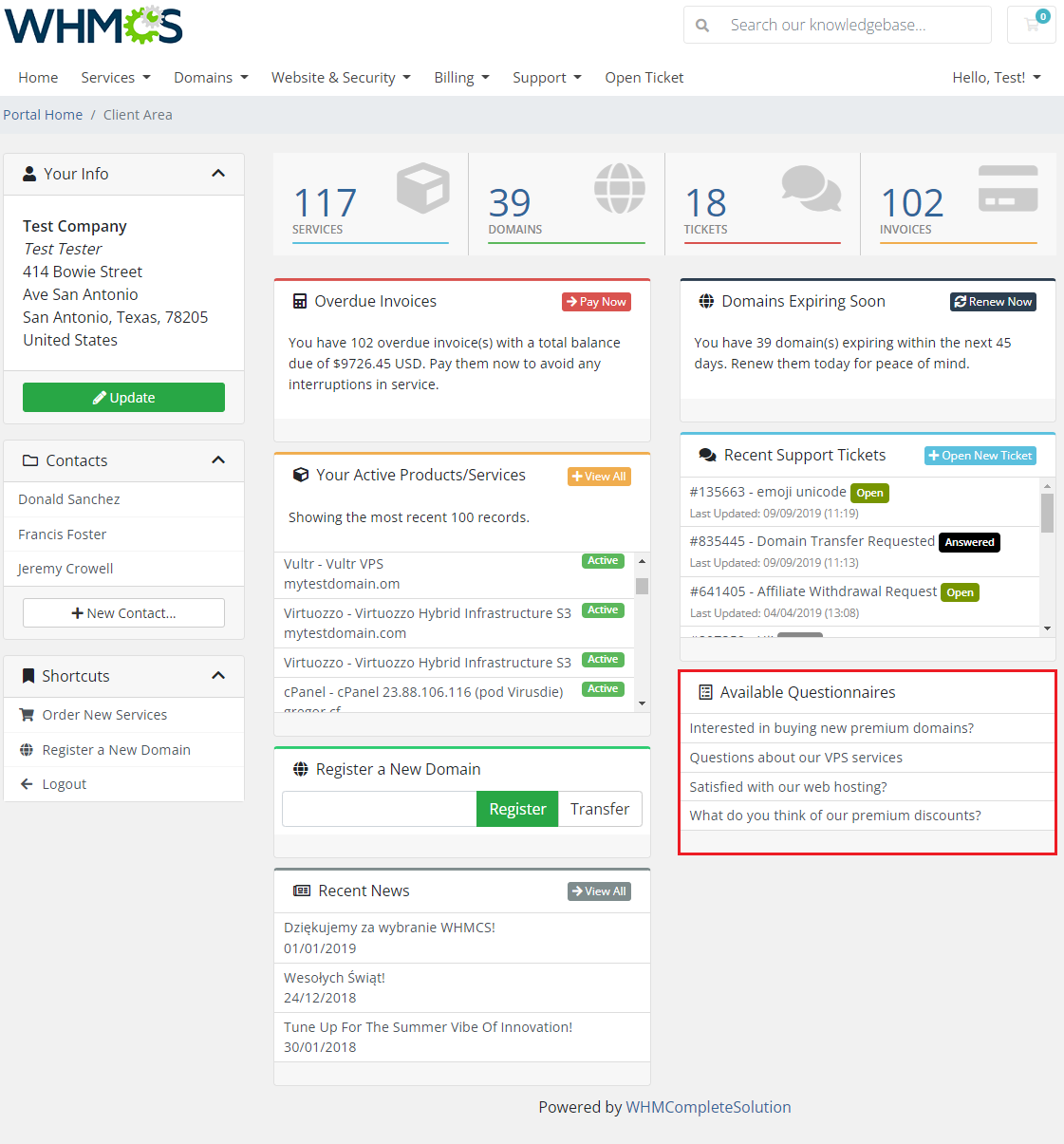
- Short Name - name visible in the "Available Questionnaires" table in the Client Area home page
- Questions group - select on of the previously created groups of questions that will be visible after opening the survey by the client
- Enable - trigger to activate the questionnaire relation
- One-time Availability - if enabled, the client will get access to this single questionnaire once only. After submitting the survey, they will have no option to open it again.
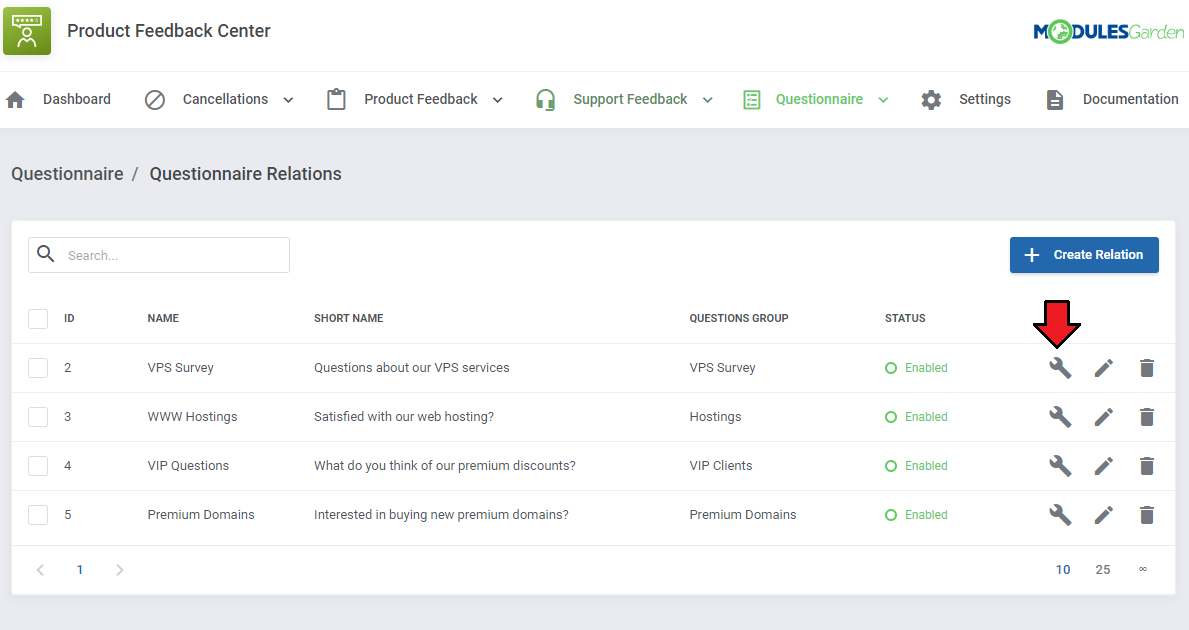
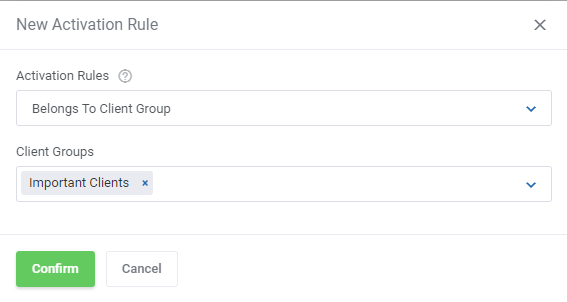
When ready, move to the section responsible for assigning activation rules. Press 'Add Rule' to see available options.
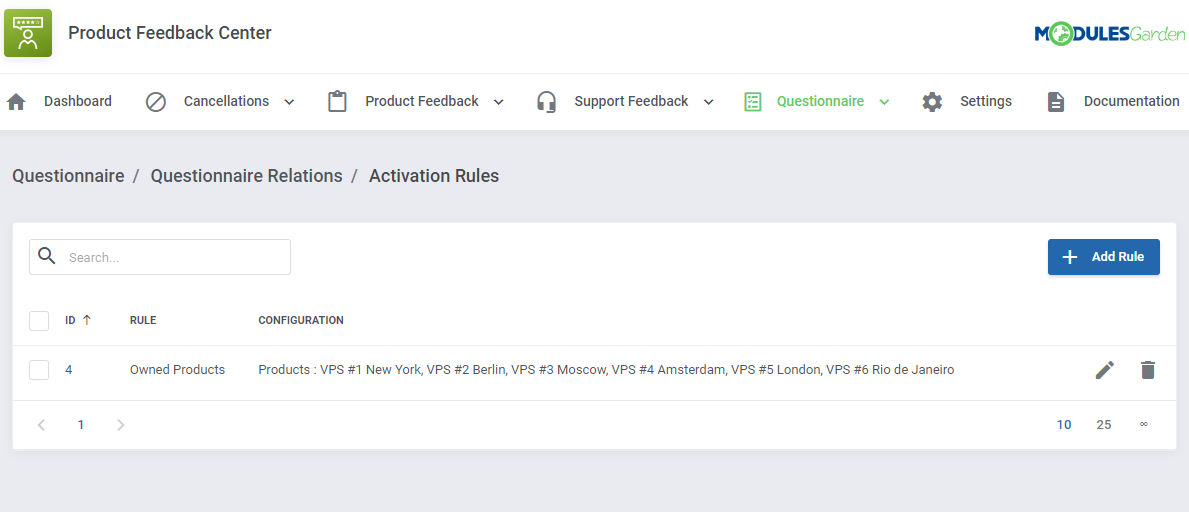
Available rules that can trigger the survey visibility for a single client:
- Belongs To Client Group - select the group or groups
- Has Addons - point the addon or addons
- Has Domains - point the domain or domains
- Has Products - point the product or more products
- Is New Customer for X days
- Is Old Customer for X days
Important: In order to display the question ire to a client, all active rules must be met, NOT any of them.
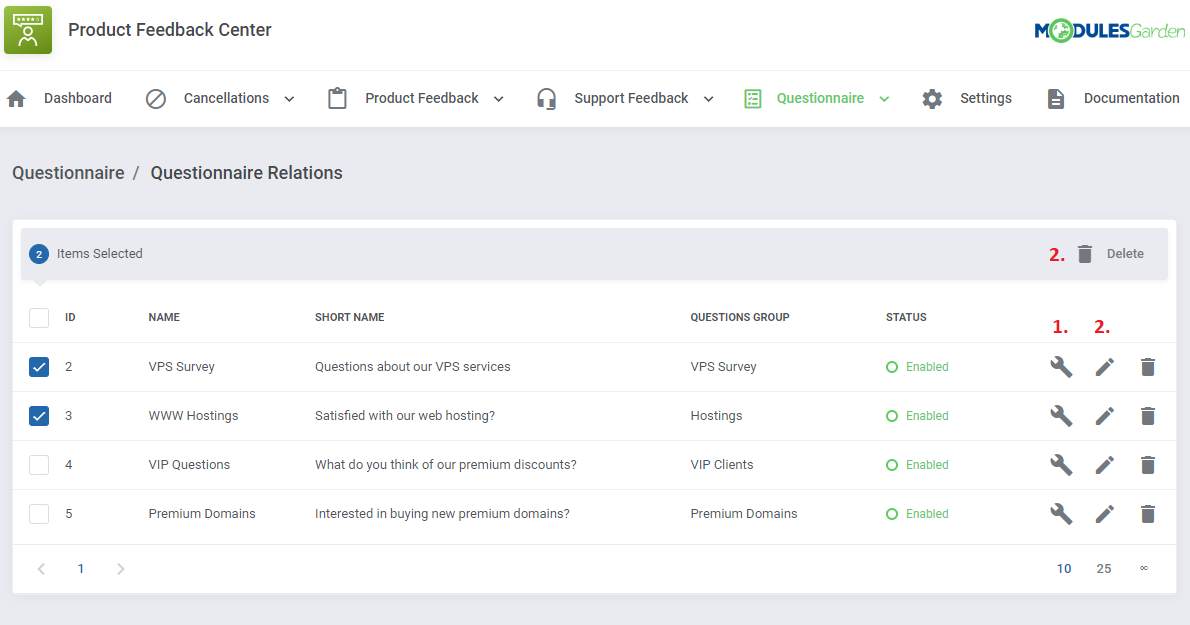
Create as many rules as needed, you may always delete (2.) them or alter(1.) their configuration.
Localize the survey applicable to a single client, if the activation rules are met, at the client area home page.
# Settings
'Settings' → 'General' section allows to quickly configure email notifications supported by the module.
You may enable the Automatic Email Notification option - then an email message will be delivered to clients when a related ticket is closed with a feedback survey request.
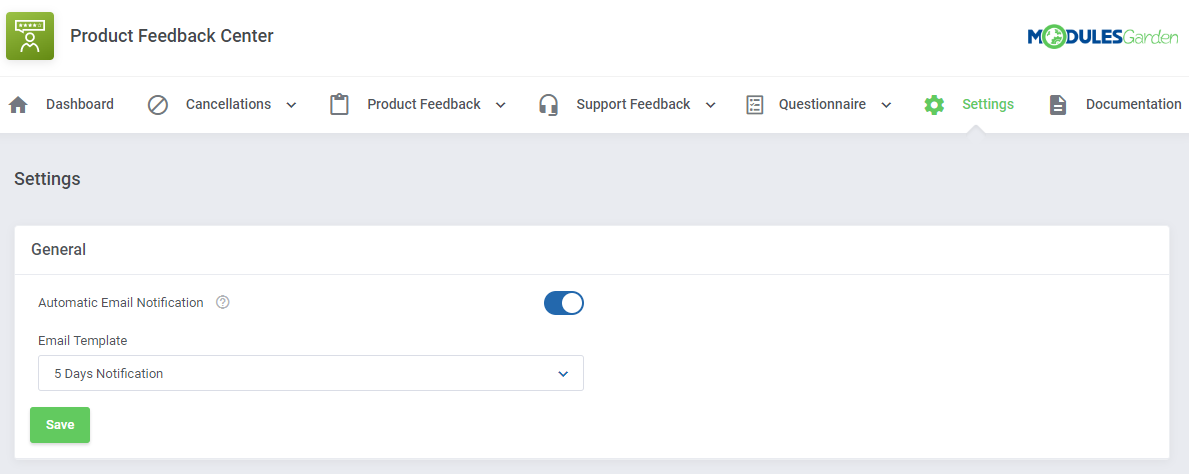
Email Template - pick one of the available system templates. You may find them and modify at: 'System Settings' → 'System' → 'Email Templates' in your WHMCS.
Surely, you may create your own, new template in teh 'General' templates section, instead of modifying any of the existing ones.
Additional variables to add into the template in order to allow sending the link to a survey once a ticket has been closed:
{$client_name}
{$feedback_link}
# Client Area
# Request Cancellation
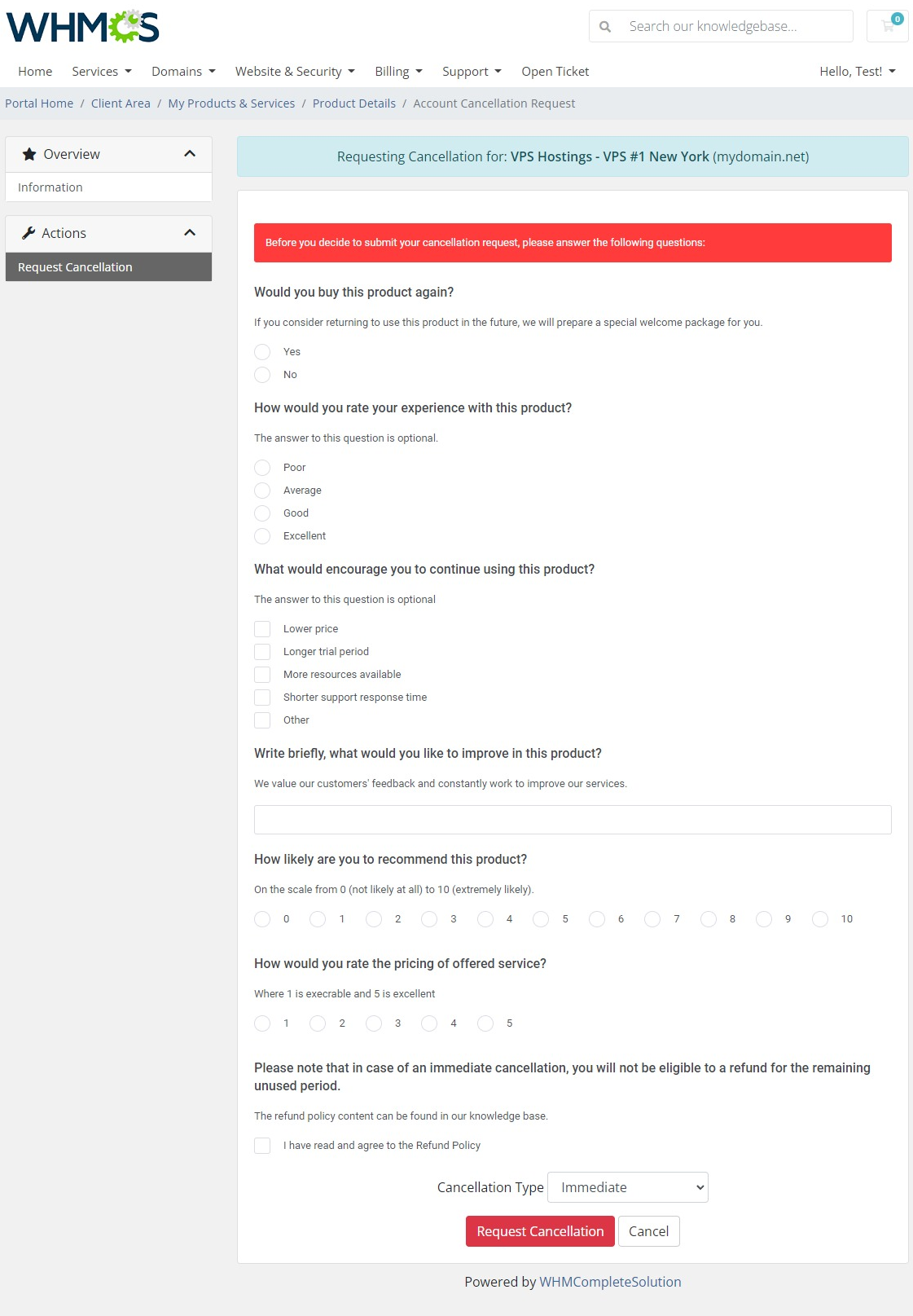
For products that have been assigned a relation with a particular question group, the given survey form will be included in the 'Request Cancellation' section.
Please note that clients will be required to answer each of the prepared questions, before they will be able to submit the cancellation request.
# Send Product Feedback
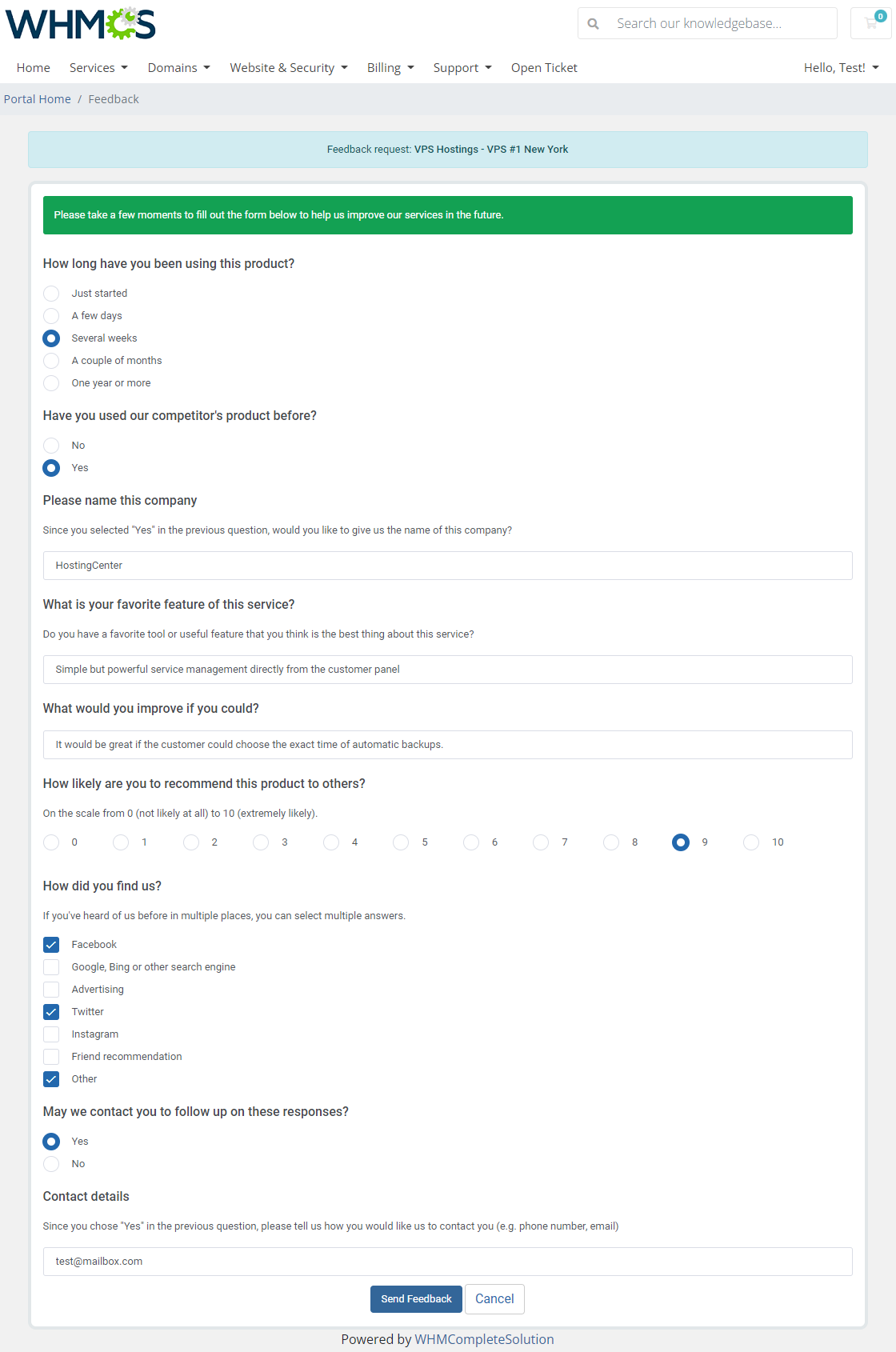
For products that have been assigned a relation with a particular question group, the given survey form will be included in the 'Send Feedback' section.
Note that an opinion on a single product or group of products may be sent only once. Think twice before you submit an answer!
# Rate Support Services
Are you satisfied with the ticket response time? All of the submitted issues have been solved right away?
Share your opinion with your admin to praise, or just the opposite, disapprove and leave suggestions for the team.
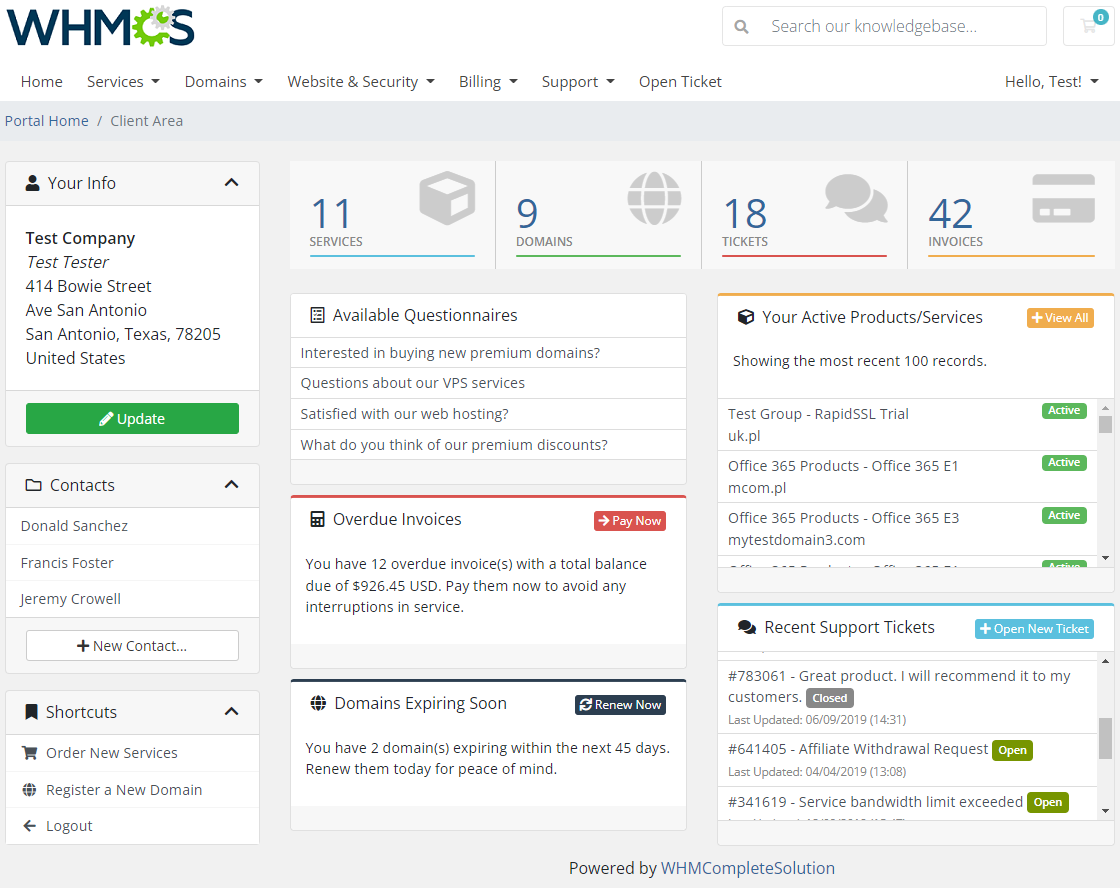
# Available Questionnaires
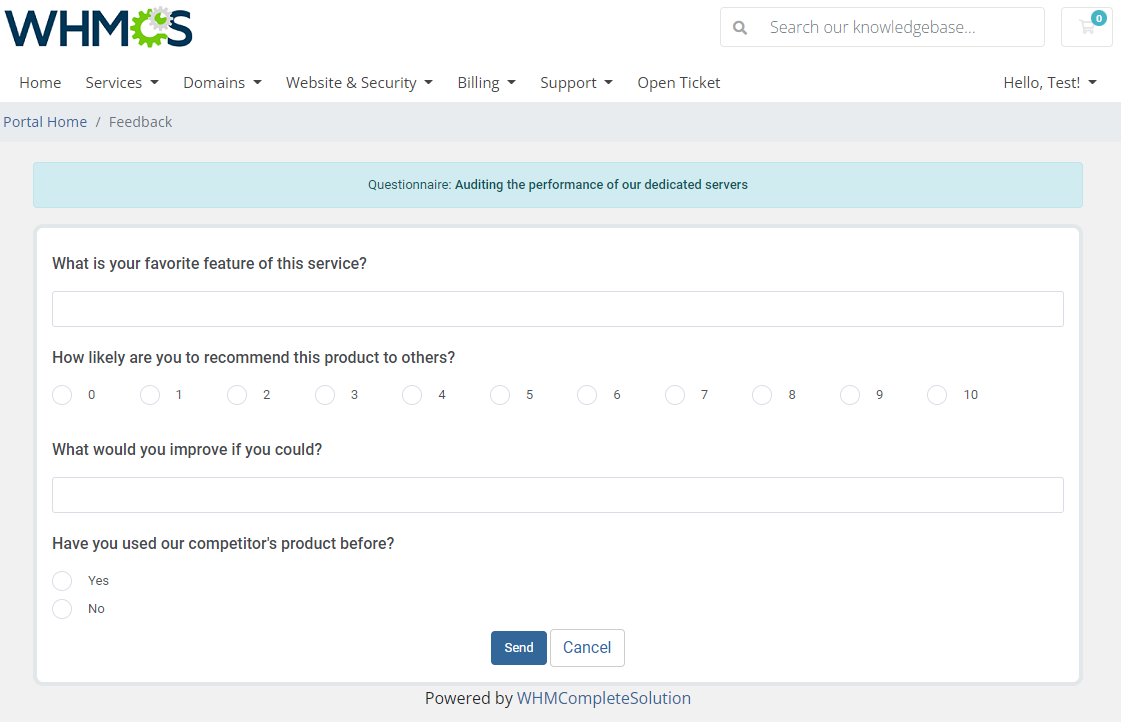
If only you meet the activation rules dictated by your admin, you will get access to all applicable questionnaires. Open whenever you wish and send your feedback.
Keep in mind that some of the surveys may be submitted once only so rethink your answers!
# Tips
Please note that in the current version of the module, the customer has to answer all created and assigned questions to the product before submitting the cancellation request.
Therefore, we do not recommend creating questions which seem to be optional.If you want to add translated questions and options in other than the default language, you must enable required languages in your WHMCS.
To do so move to 'System Settings' → 'Email Templates' → 'Manage Languages'. There find and activate languages you need. They will be than avialle in the 'Language' dropdown in the addon.
# How To Use Language Overrides
Incorporating language customizations - the module readily accommodates language overrides, allowing you to tailor the language files to your preferences.
The language file english.php remains unencoded and can be modified to suit your needs. However, it's recommended to avoid altering the core file itself, and instead, leverage the capability of using overrides.
Here's how to apply language overrides:
- Navigate to the ~/langs/ directory located within the following yourWHMCS/modules/servers/moduleName/langs/ path.
- Within this directory, create a new file or duplicate the language file you intend to modify. For instance, if you wish to create an override for the English language, establish the following directory structure:
~/langs/overrides/english.php - Open the newly created override file to edit its contents.
- At the beginning of the file, indicate the used code, for instance, you can use: <?php for PHP code.
- Adapt the file content according to your requirements. You can either selectively modify specific variables or opt to revise the entire content of the language file.
For example:
Original yourWHMCS/modules/servers/moduleName/langs/english.php:
$_LANG['Search'] = 'Search';
Override yourWHMCS/modules/servers/moduleName/langs/overrides/english.php:
$_LANG['Search'] = 'Look for';
By following these steps, you can seamlessly implement language customizations without altering the core language file, ensuring your changes will not be lost after every module update.
Remember that some of the modules have more than one language file, located under /addons and /servers paths. You may create the override files for both of them.
Note that you do not need to paste all the original content of the lang file into the override file. Enter there only the lines that you wish to change, every other line will be fetched from the original module lang file.
Consequently, the override lang file might include only one or just a few lines.
# Update Instructions
An essential guidance through the process of updating the module is offered here.
Ensure successful completion of the module update by carefully following each step, thereby preventing data loss or any unforeseen issues.
Additionally, you will find a current list of supplementary actions necessary for a smooth update process there.
# Upgrade Guide
Seeking a solution that offers greater flexibility, customization tailored to your precise needs, and unrestricted availability?
There is an option that not only proves to be cost-effective in the long run but also includes prioritized support services, making it a truly valuable investment.
Opt for the Open Source version (opens new window) of your Product Feedback Center For WHMCS module to unlock these benefits.
Simply click on either the Get Source Code or Upgrade To Lifetime button found on the product's page in our client area to complete the one-step upgrade process, with a dedicated discount already applied.
Follow a comprehensive guide covering the transition process, the advantages it brings, and step-by-step instructions on what to do next after the order has been successfully finalized.
# Common Problems
- In case of connection problems, please check whether your SELinux or firewall does not block ports.