

# Theme Management Tool
# About Theme Managemnt Tool
The Theme management tool allows you to customize the appearance of the module interface using configurable templates.
A theme template defines colors used across the UI, including backgrounds, text, buttons, inputs, and system messages, and can be assigned independently to the Admin Area, Client Area, or both.
Create your own themes or use the built-in and officially supported Default and Dark themes to maintain a consistent appearance across all ModulesGarden modules.
# Management
The Theme section in your addon allows you to create, manage, and apply visual configurations for ModulesGarden modules wherever they are accessible.
# Themes
To access the theme management section, navigate to your addon module menu: Navigation → Tools/Others → Themes or find it directly in the main menu, depending on the module.
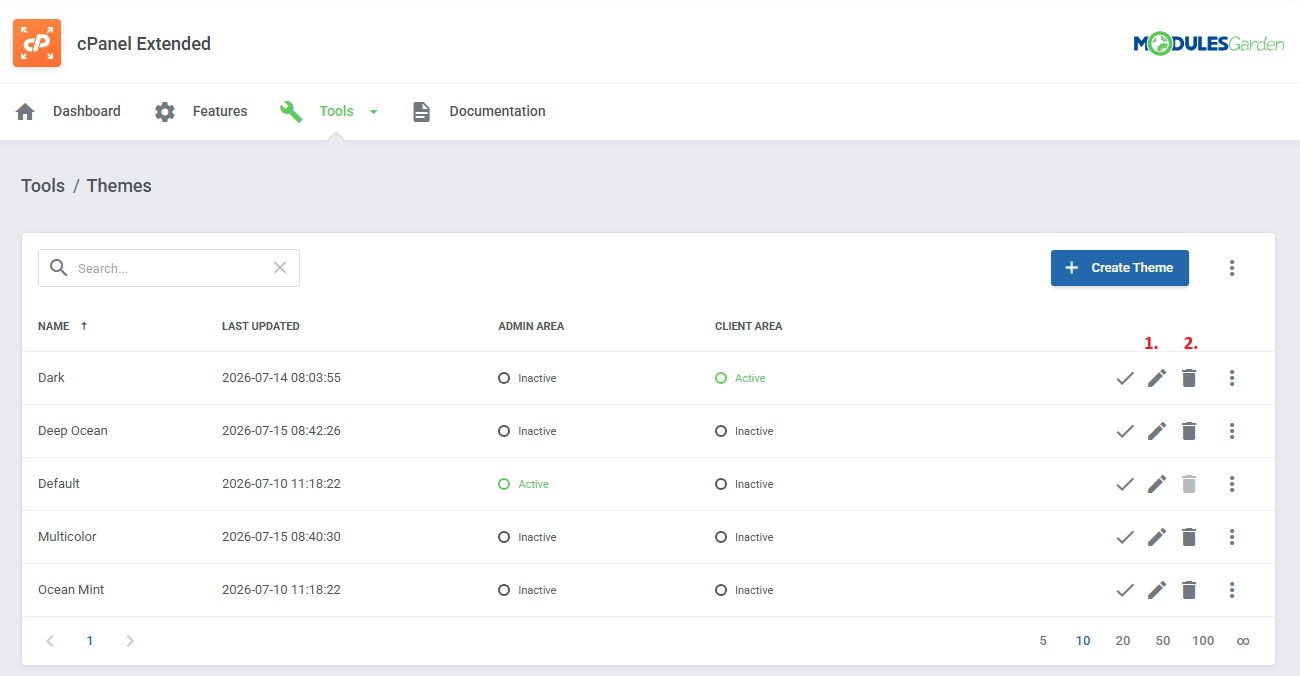
The main view displays all available themes along with their status and assigned areas.
The standard package includes the following built-in themes:
- Default – used across all ModulesGarden modules; this theme is protected and cannot be modified or deleted. To make changes, create a new preset based on it.
- Dark – pre-configured, officially supported dark theme intended for use as is or for further customization.
- Ocean Mint – sample custom preset available for modification.
Important: The "Default" and "Dark" themes are the only officially supported themes. The remaining ones are provided as examples and may require adjustments before use.
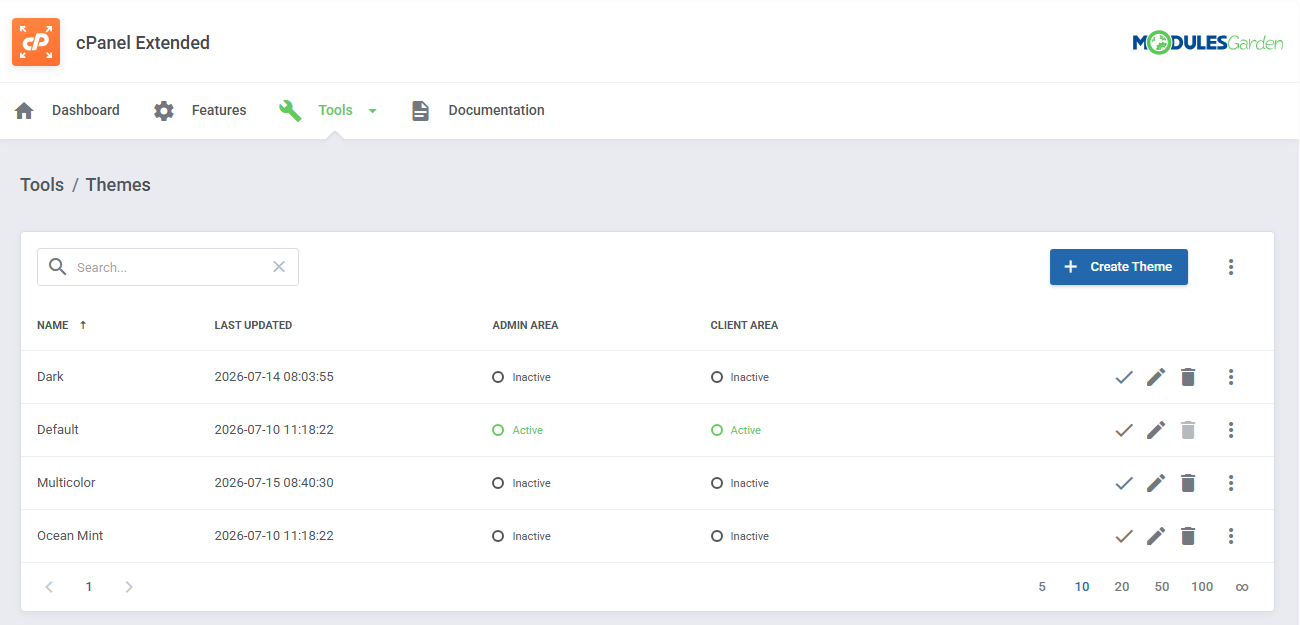
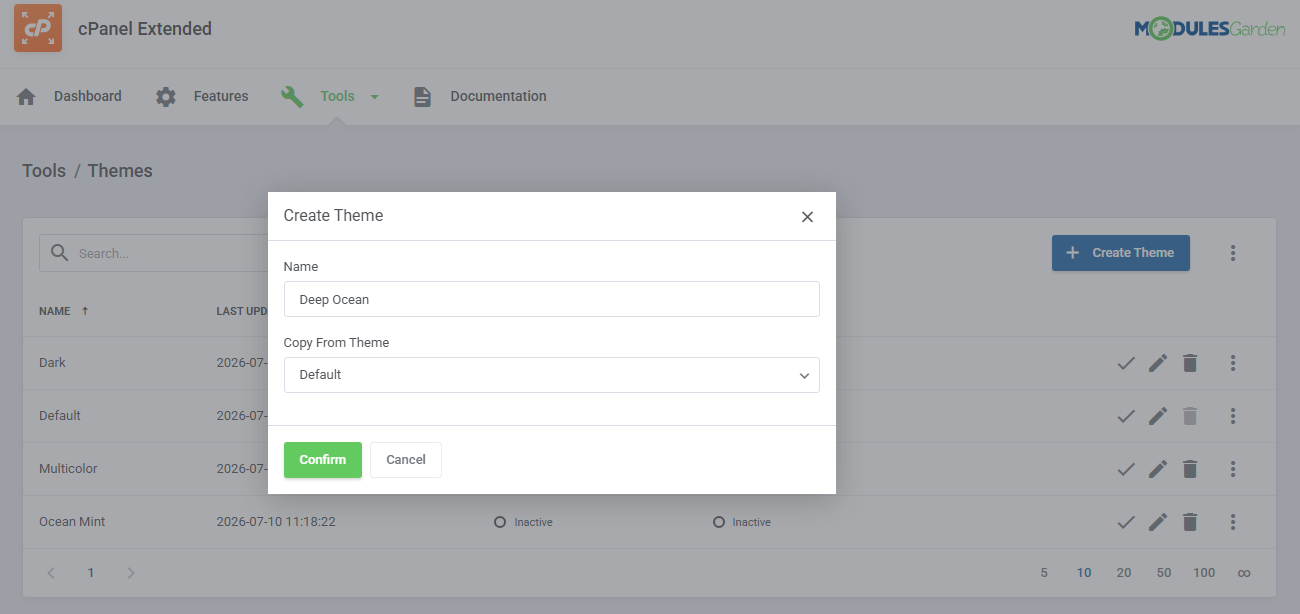
To create a new theme:
- Click Create Theme
- Enter a Name
- Select a theme to copy settings from
- Confirm creation
The newly created theme will appear on the list. You can then edit its settings to match your needs.
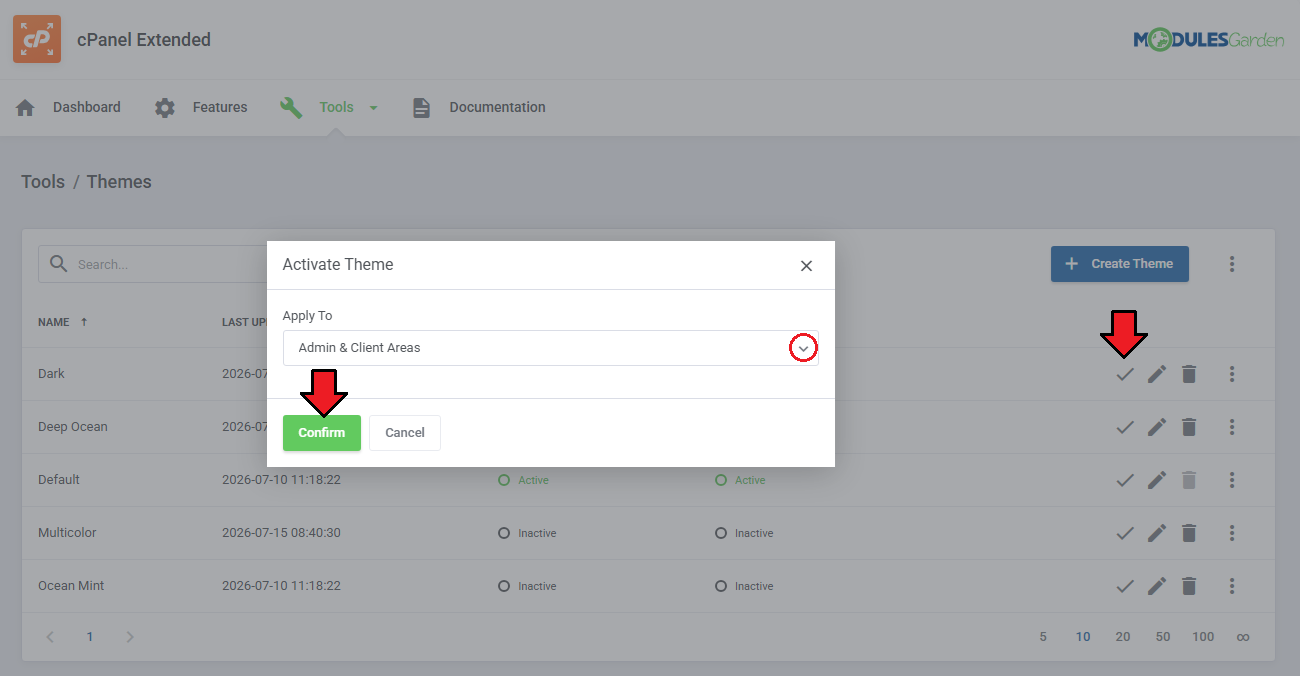
To activate a selected theme:
- Click Activate
- Choose the destination:
- Admin Area
- Client Area
- Both
- Confirm changes
You can assign different themes to the admin and client areas to better match your preferred appearance.
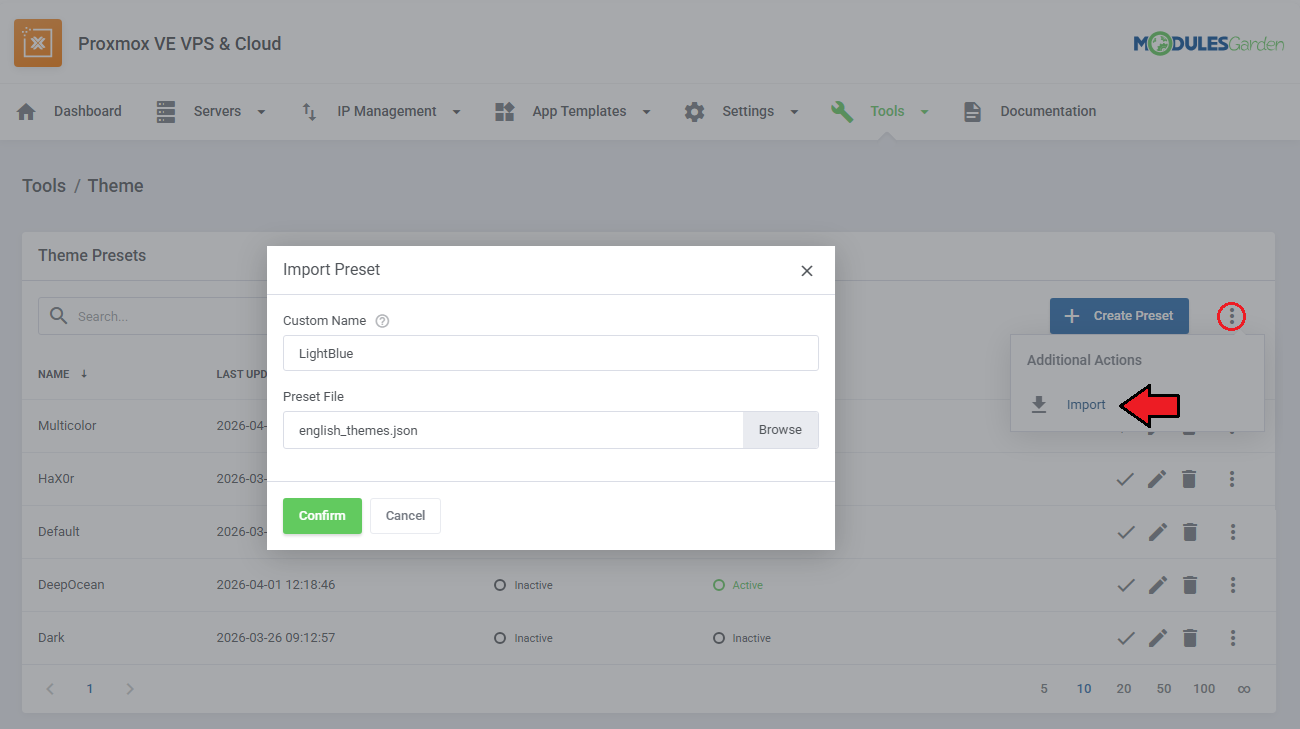
Themes can be saved as files and reused across environments.
- Export - download a theme as a JSON file for reuse in another module
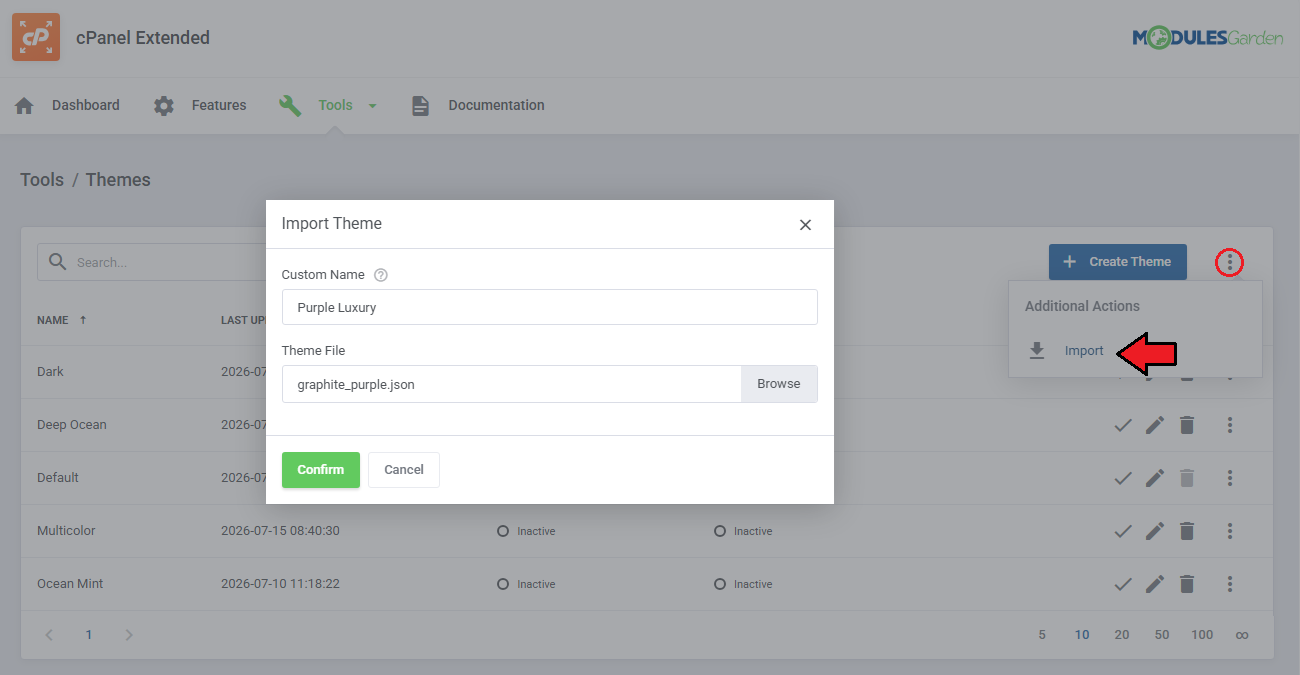
- Import - upload an existing theme file and optionally rename it for the current module
Edit theme to adjust the module's appearance.
Remove any unused themes. Note that the "Default" theme and any theme currently assigned to an area cannot be deleted.
# Editing in Basic Mode
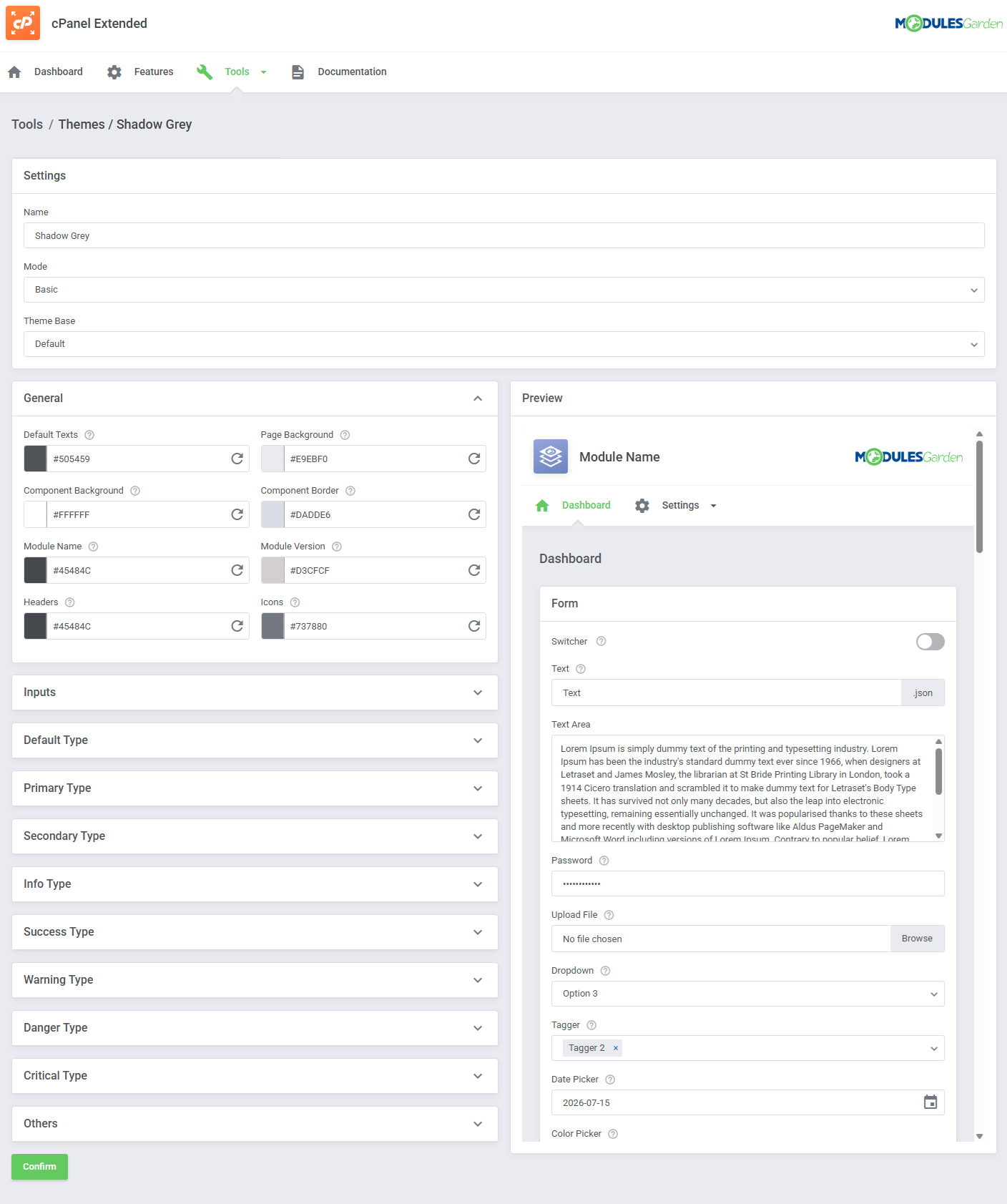
When editing a theme, you can switch between two modes depending on the level of control required:
Mode
- Expert Mode - detailed customization; explained in the next section
- Basic Mode - simplified configuration
Allows you to quickly define a consistent appearance using global color groups.
Theme Base
- Default – the theme is based on the default style. The original ModulesGarden logo will be used.
- Dark – the theme is based on the dark style. A dedicated ModulesGarden logo optimized for dark backgrounds will be used.
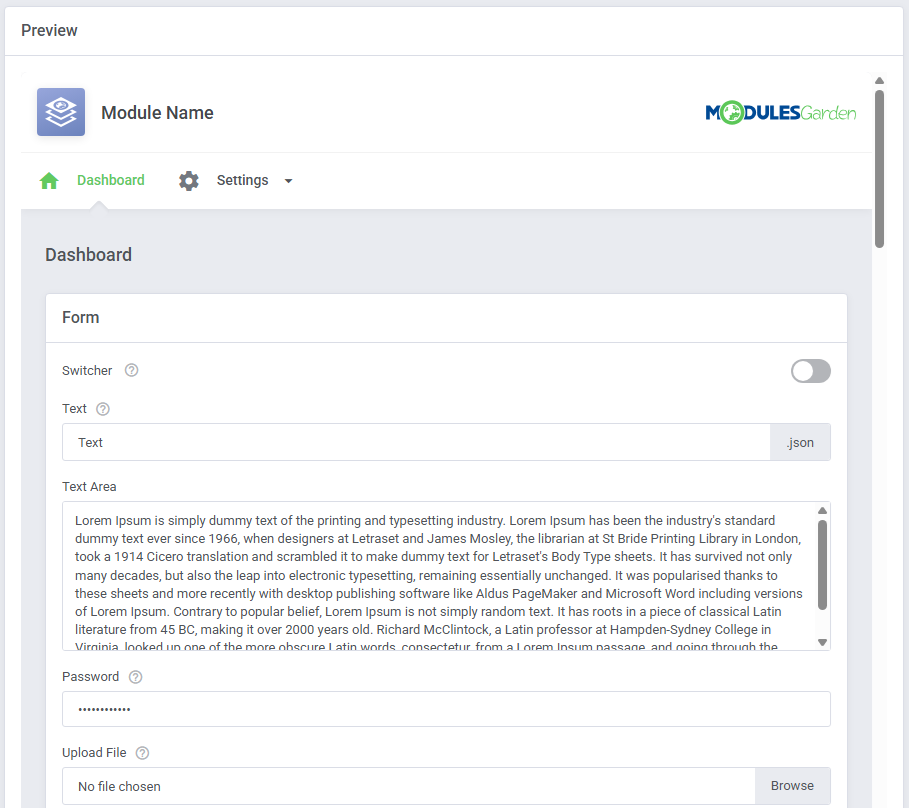
Preview
- On the left side, you will find specific areas with default colors configured and open for customisation.
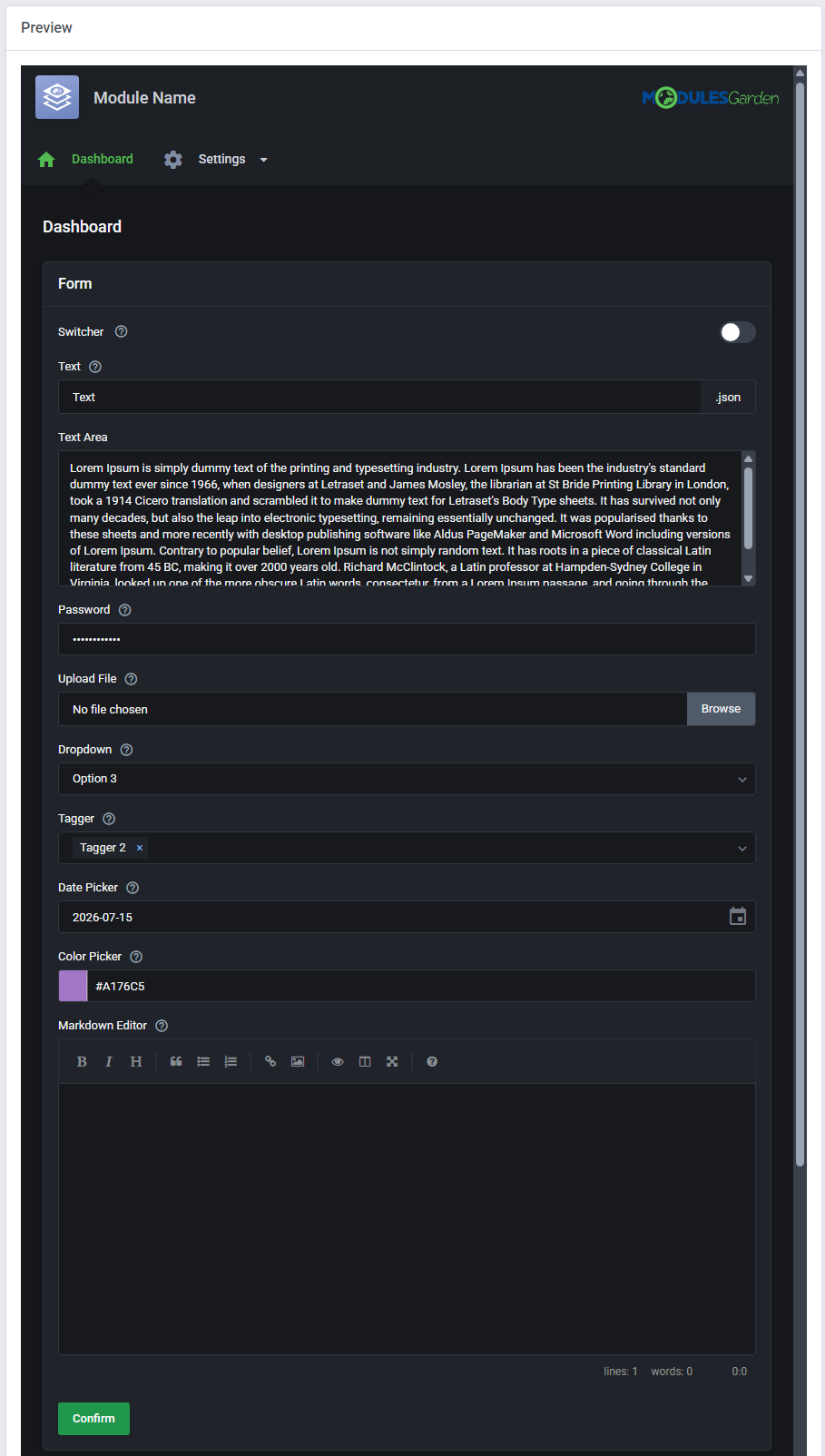
- On the right side, you will find a live preview of the display modification.
Whenever you change a color on the left, its live preview will display the change. To revert to default colours, just press the 'Reset to default' icon next to each setting.
Remember to save the changes when your custom theme is ready.
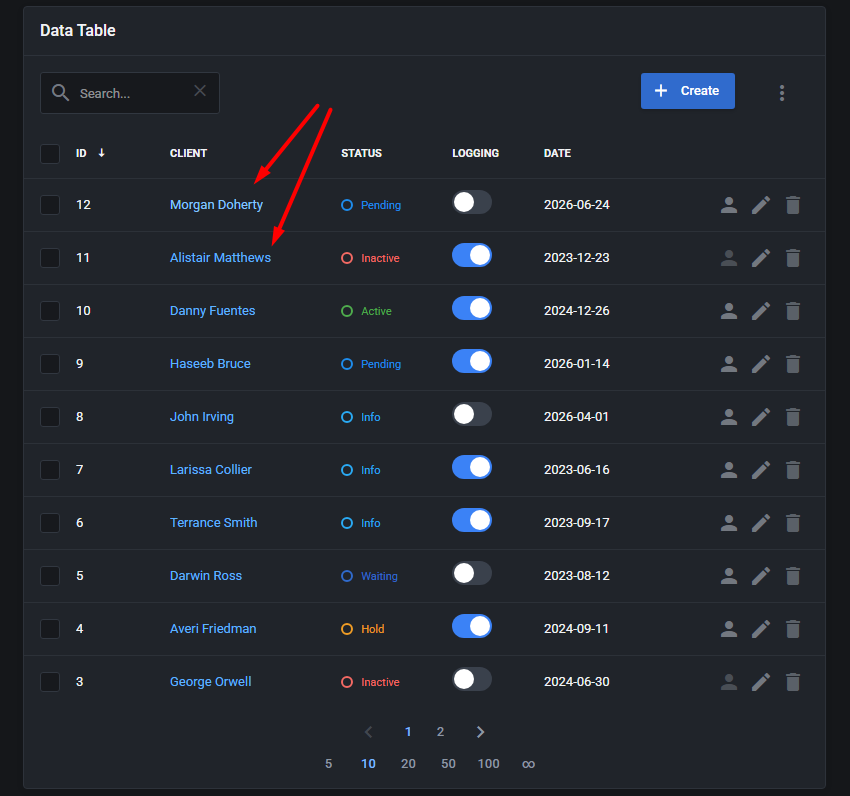
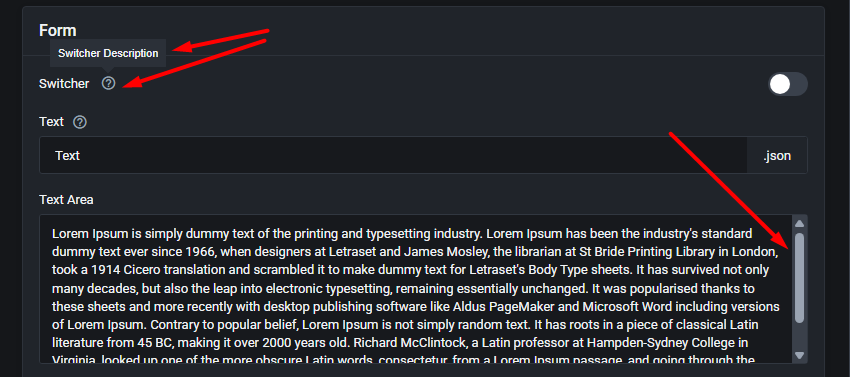
For your convenience, each option includes a tooltip with the corresponding CSS variable name. This makes it easy to identify which variable controls a given element and locate it directly in the configuration.
# General
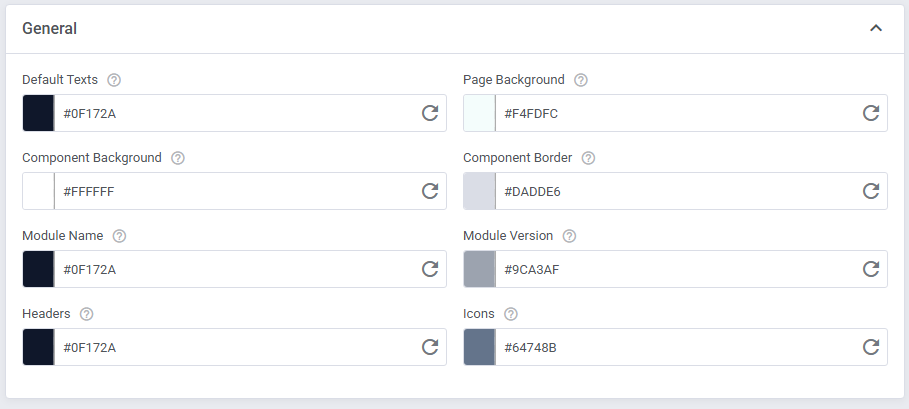
General settings include:
- Default text - Default text color used across the interface.
- Page background - Background color of the entire page.
- Component background - Background used for containers like tables and cards.
- Component border - Border color for containers and separators.
- Module name - Color of the module name next to the logo (logo colors do not apply to changes).
- Module version - text with the used version number located at the very bottom of each module page.
- Headers - Color of header texts.
- Icons - Color of icons used in navigation and UI elements.
# Inputs
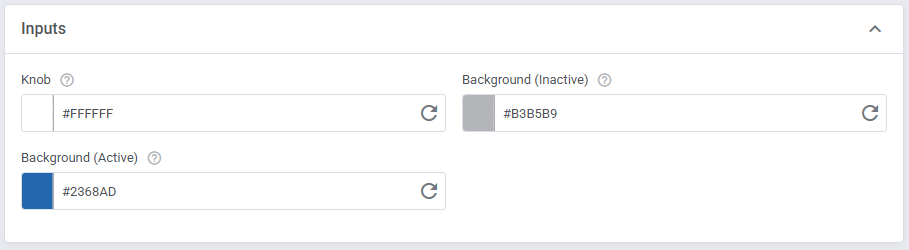
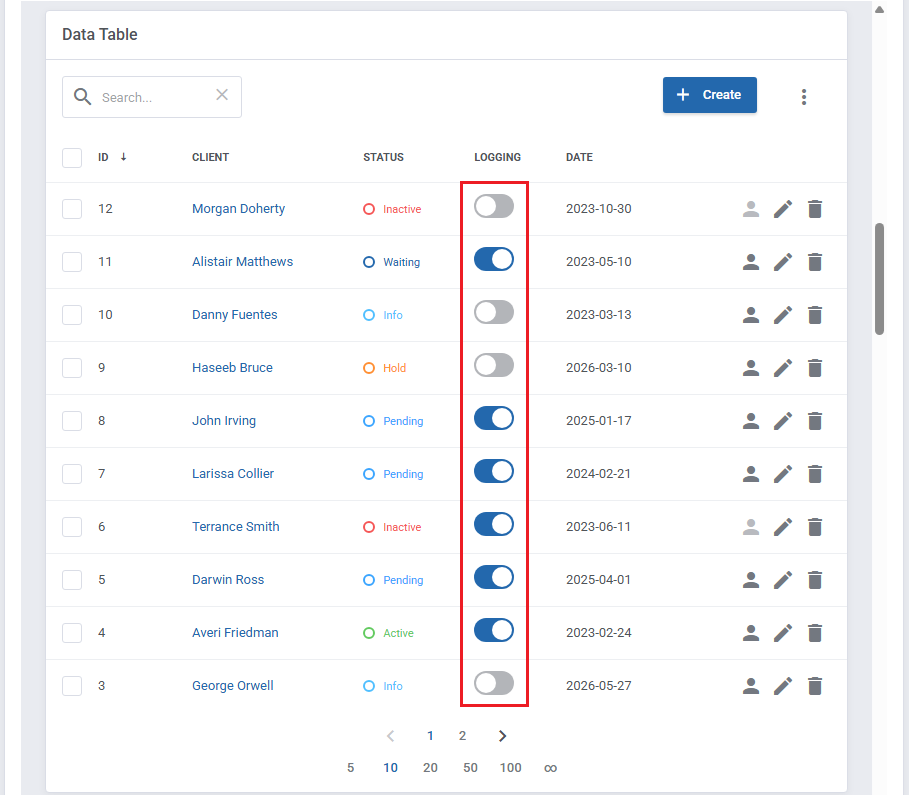
Input element settings:
- Knob
- Background (Inactive)
- Background (Active)
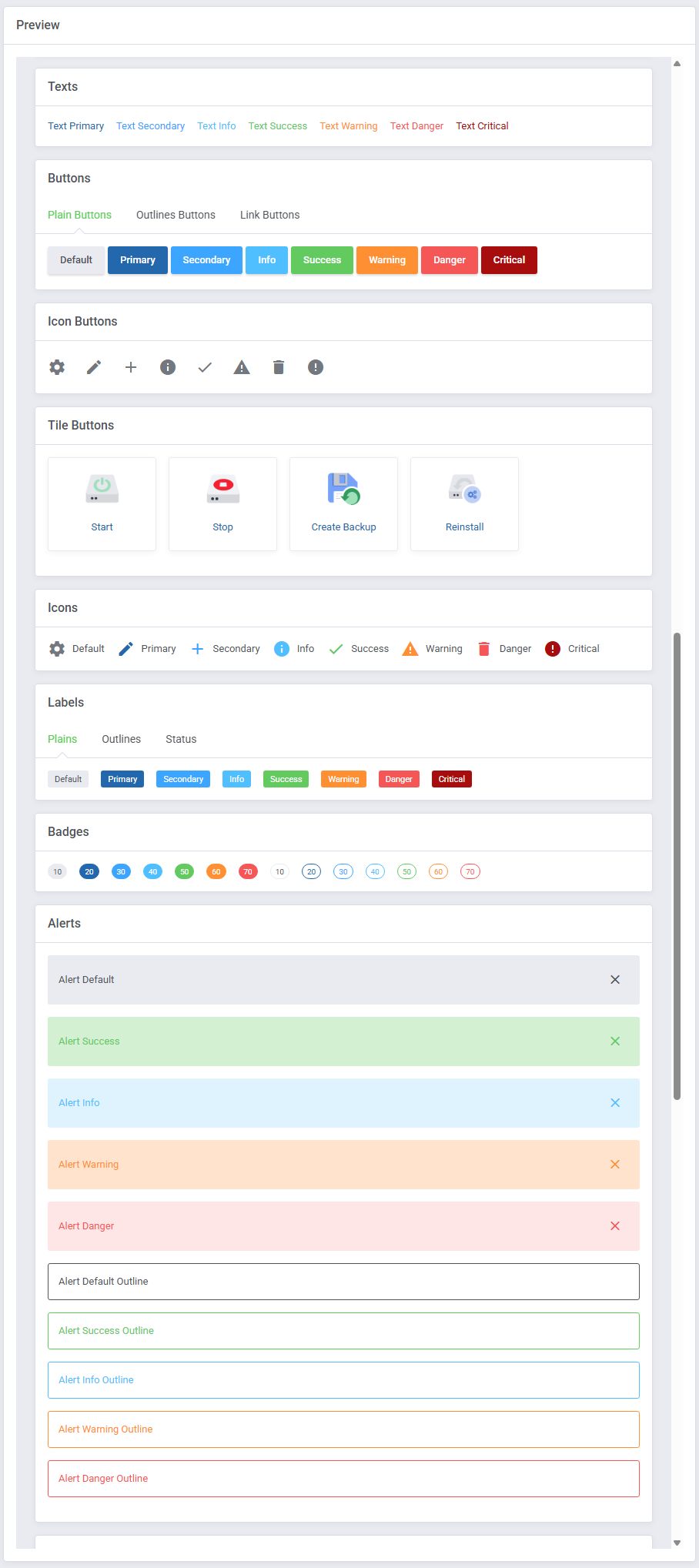
# Color Types
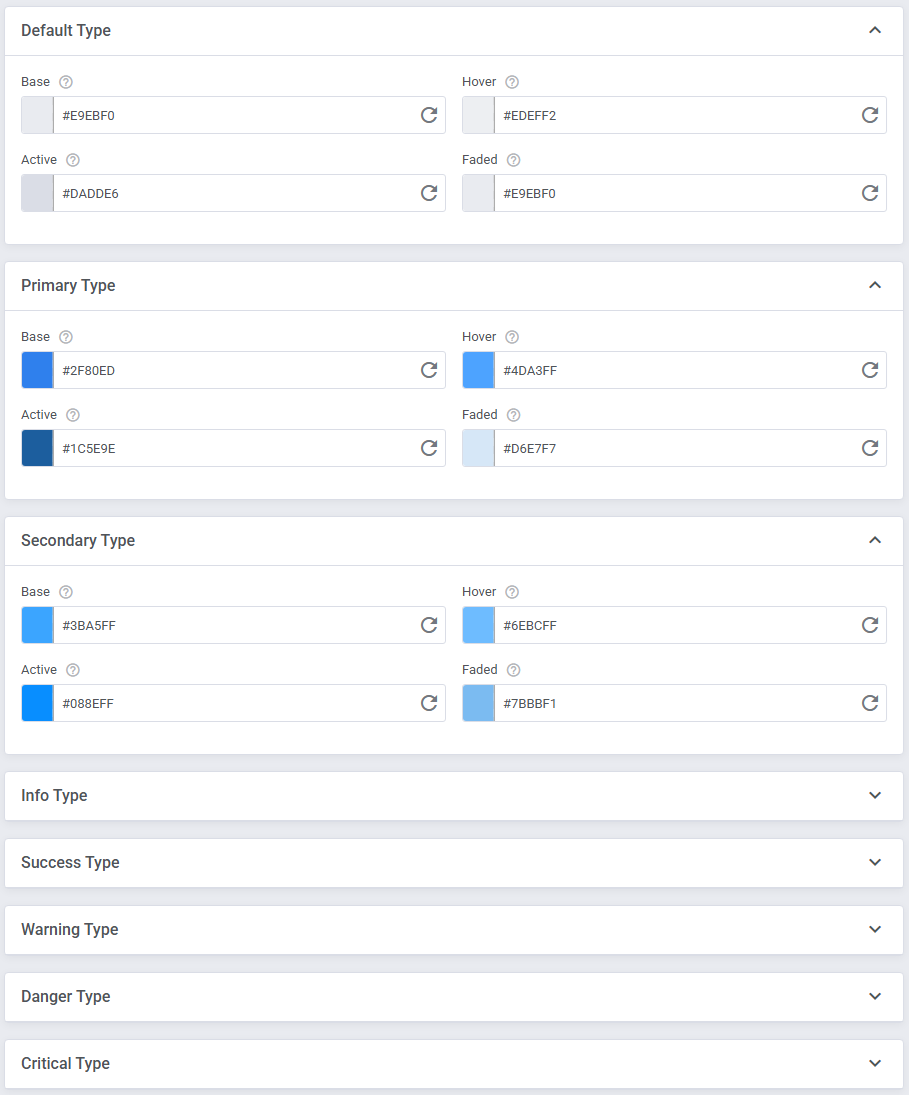
Color Types define the main color variants for texts, buttons, icons, labels, badges, alerts and hints:
- Default
- Primary
- Secondary
- Info
- Success
- Warning
- Danger
- Critical
Each type includes the following states: - Base
- Hover
- Active
- Faded
# Others
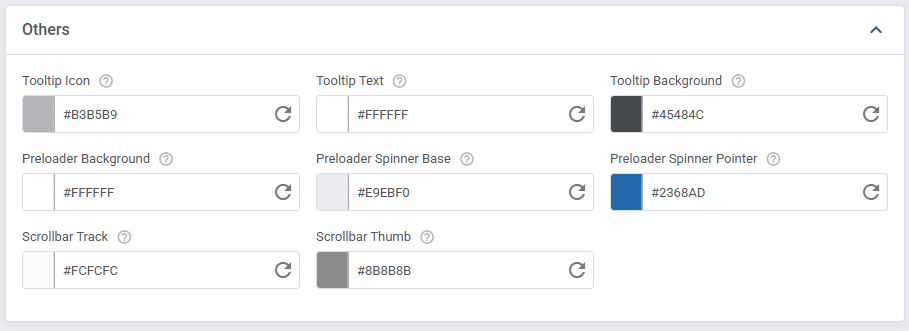
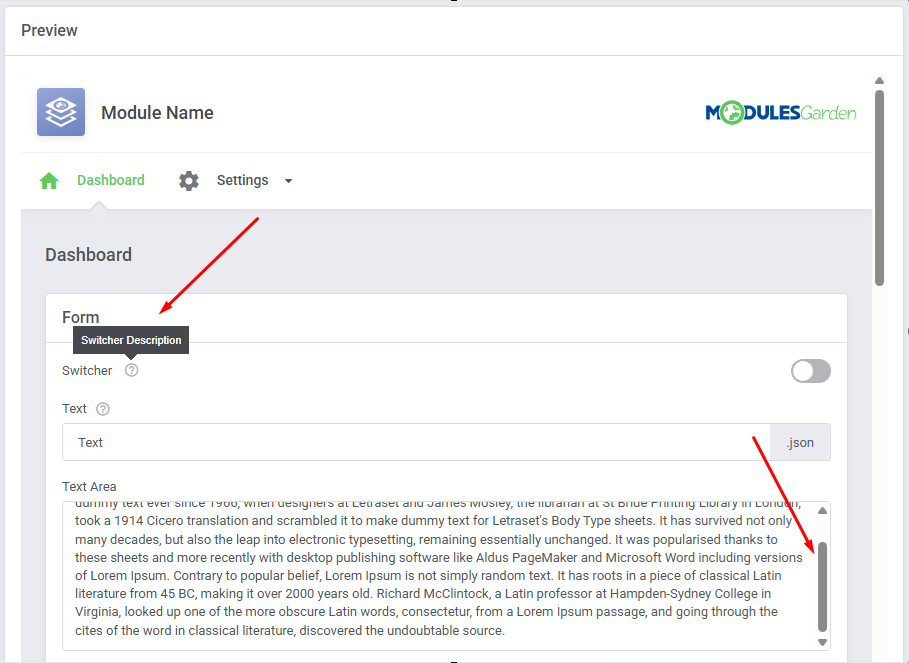
Others with tooltip appearance settings:
- Icon - Color of the tooltip icon.
- Text - Text color inside tooltips.
- Background - Background color of tooltips.
# Editing in Expert Mode
Expert Mode provides full control over every interface element, allowing you to customize the module's appearance in detail.
- Tooltip - Each option includes a tooltip with the assigned CSS variable name, allowing you to clearly identify which variable controls a specific element and reference it in the configuration.
- Target - Use the target icon to locate the currently customized item with its live preview on the right side.
- Reset - To revert to default colours, just press the 'Reset to default' icon next to each setting.
# General
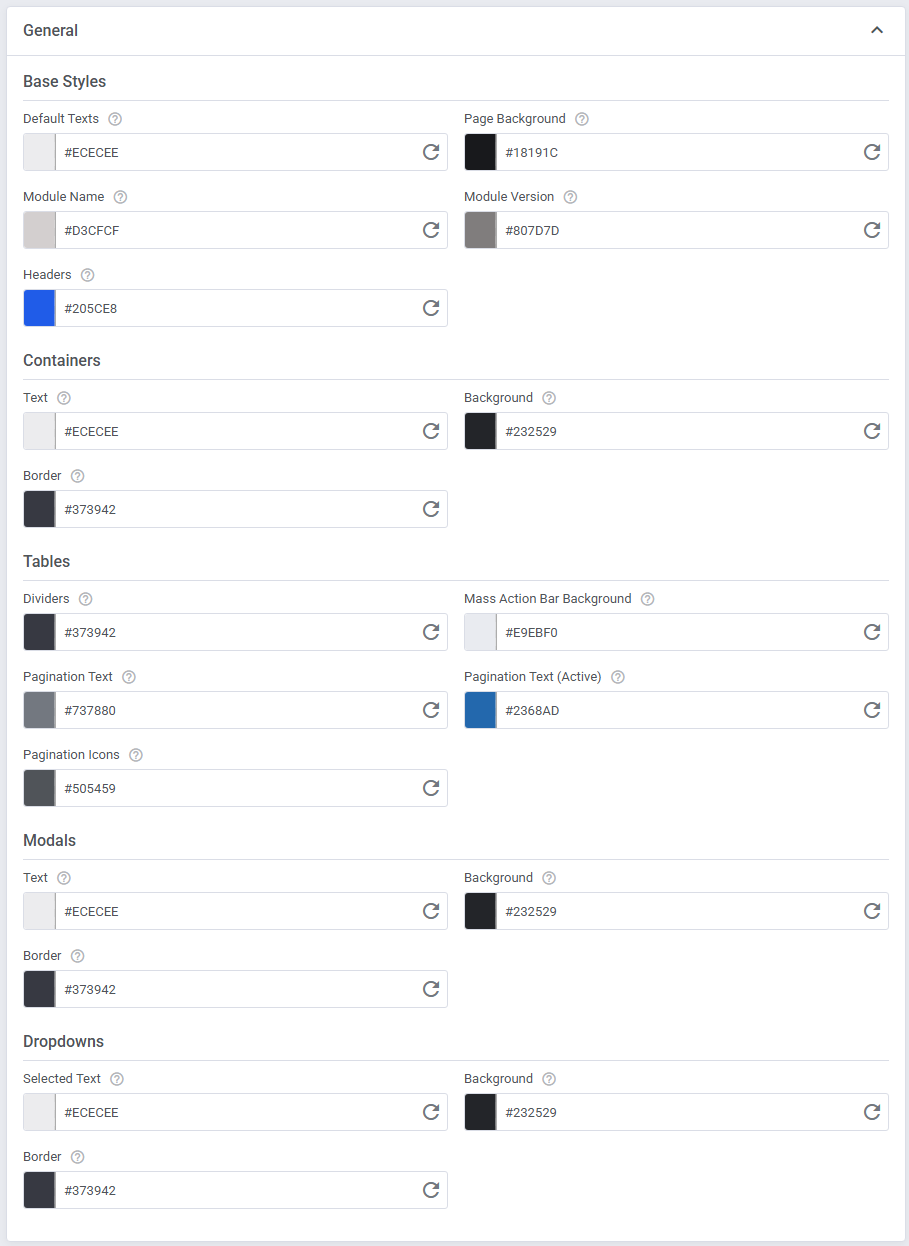
Base Styles – default text and page background
- Default Texts – default text color used across the interface
- Page Background – background color of the entire page
- Module Name – module name text style
- Module Version – module version text style
- Headers – header text style
Containers – text, background, and borders
Tables
- Dividers – lines separating table sections
- Mass Action Bar Background – background of the mass action bar
- Pagination Text – pagination text color
- Pagination Text (Active) – active pagination text color
- Pagination Icons – pagination icon color
Modals – text, background, and borders
Dropdowns
- Selected Text – text of the currently selected value
- Background and Borders – dropdown background and border styling
# Navigation
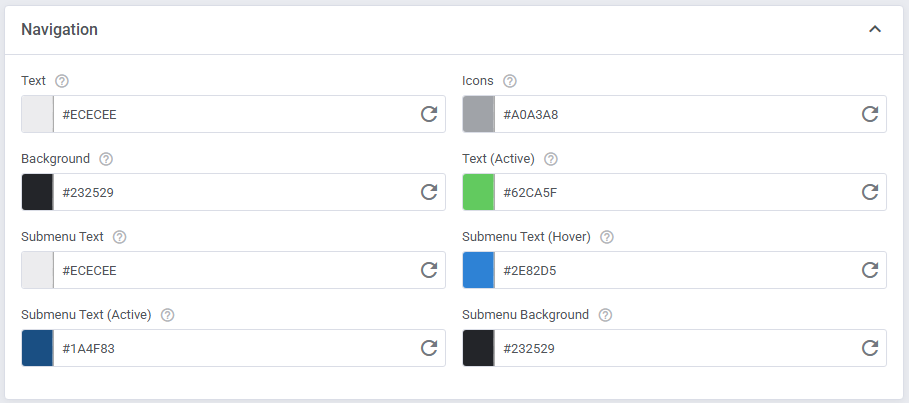
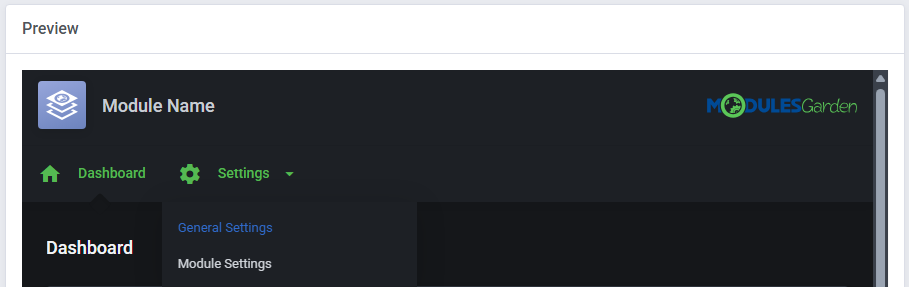
Navigation – controls the appearance of the menu and its elements:
- Text – main navigation text color
- Icons – navigation icon color
- Background – background of the navigation bar
- Text (Active) – text color of the currently selected menu item
- Submenu Text – default submenu item text color
- Submenu Text (Hover) – submenu text color on hover
- Submenu Text (Active) – active submenu item text color
- Submenu Background – background of the submenu area
# Inputs
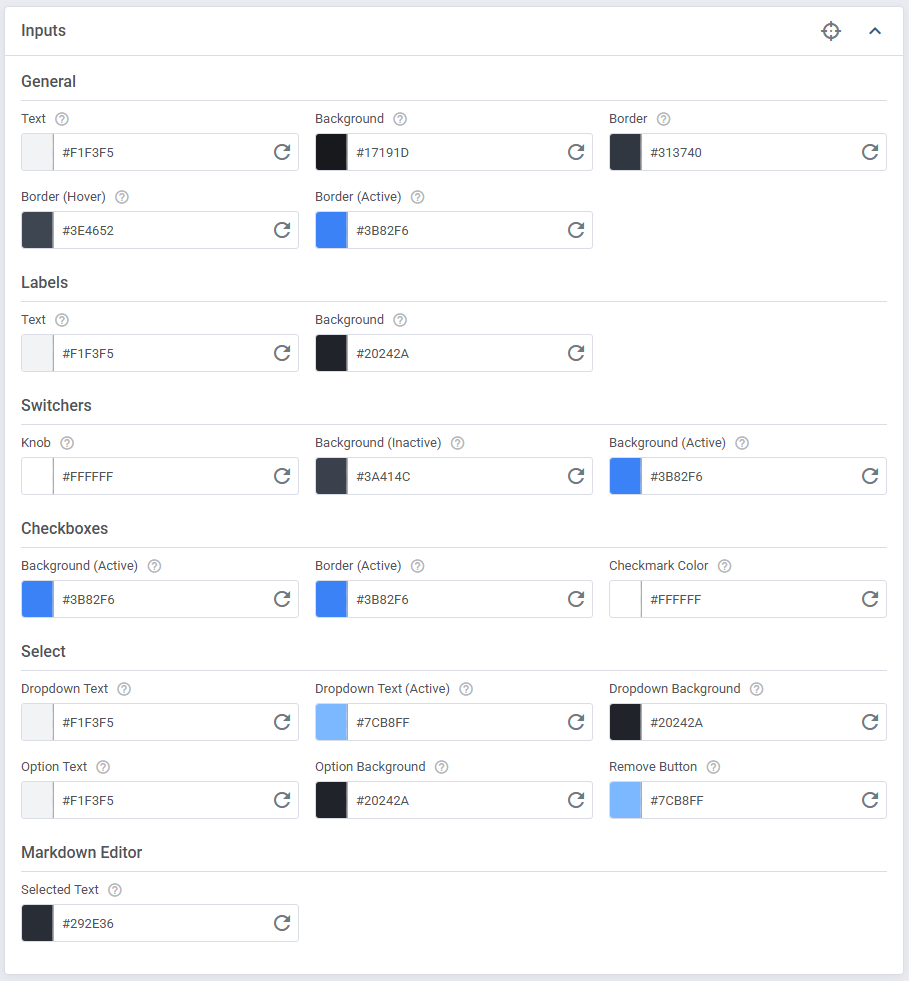
- General Fields – text, background, and border
- Labels - text & background
- Switchers – knob, background (inactive), and background (active)
- Checkboxes – background (active), border (active), and checkmark color (color of the checkmark inside the checkbox)
- Select – dropdown text, active text, and background, along with:
- Option Text – text color of options in the dropdown list
- Option Background – background of options in the dropdown list
- Remove Button – color of the remove button in multi-select fields
# Text
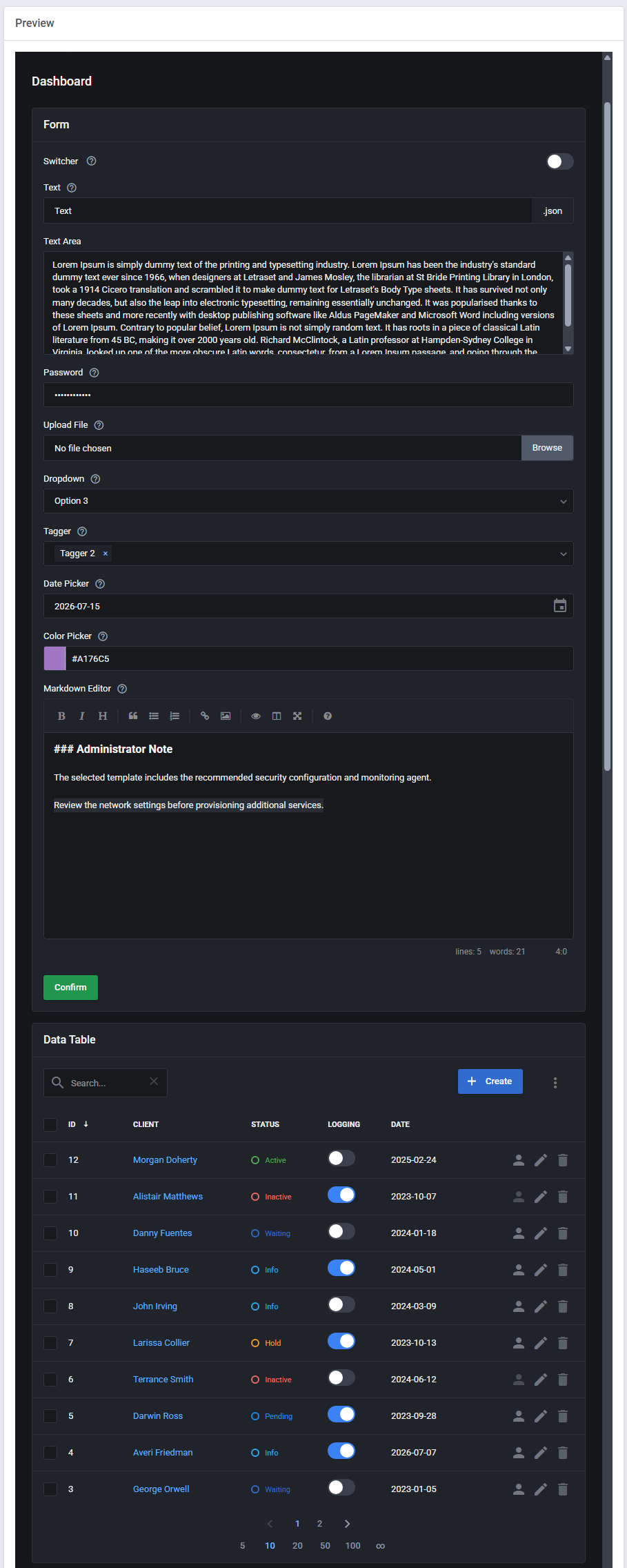
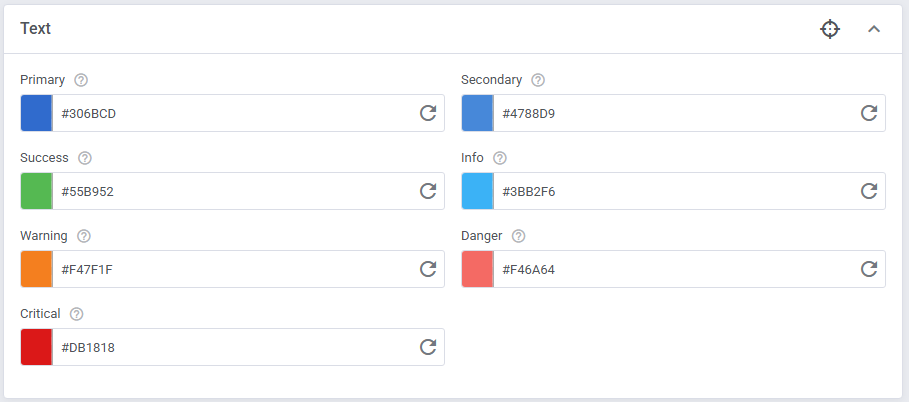
Text color variants used across the interface:
- Primary – used for general texts
- Secondary – supporting or less prominent text
- Info – informational messages and highlights
- Success – success states and confirmations
- Warning – warnings and important notices
- Danger – errors and critical messages

# Buttons
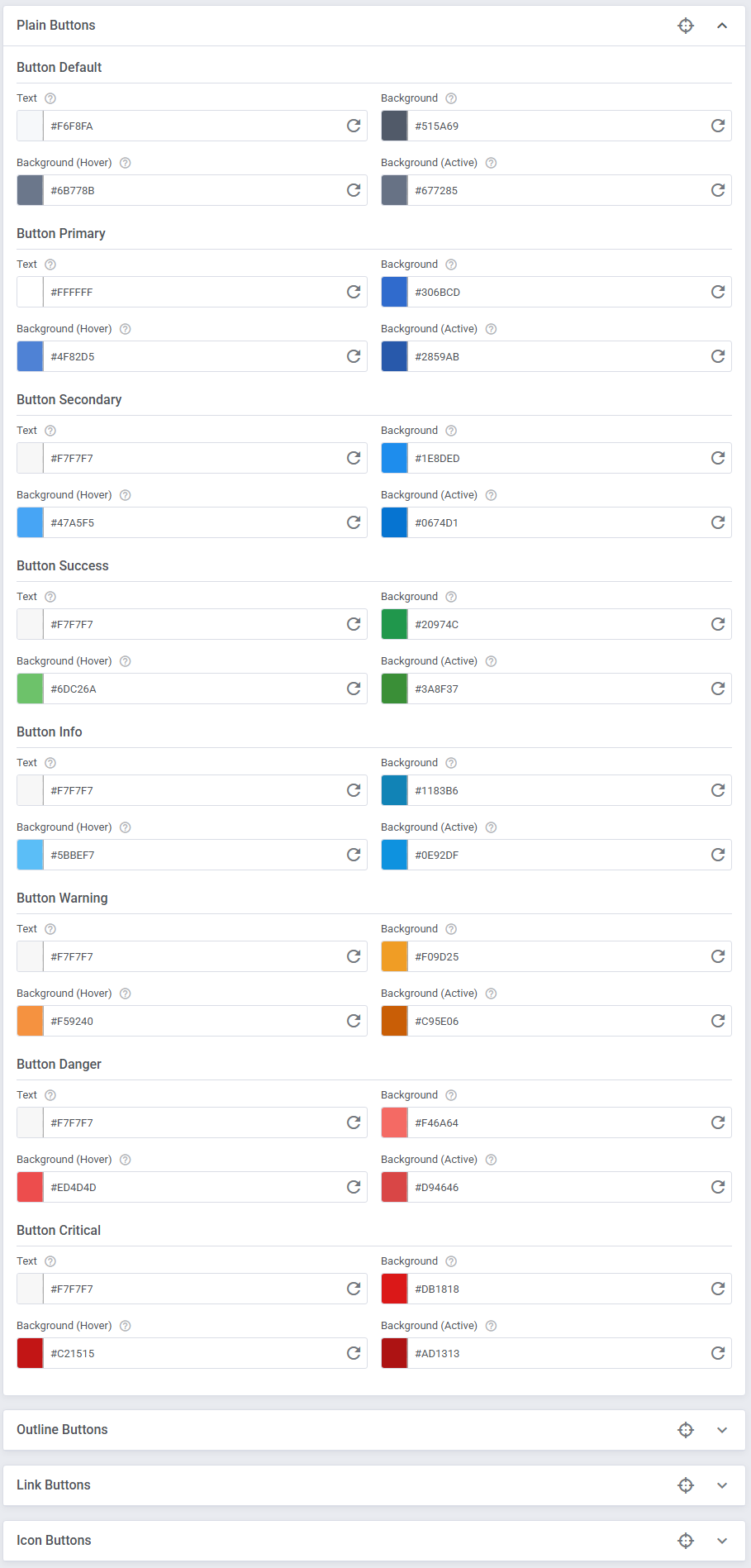
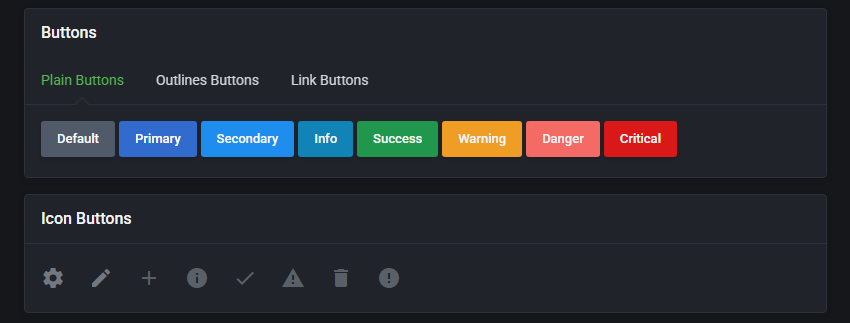
Buttons - plain, outline, link, and icon styles.
Each style includes the following types:
- Default
- Primary
- Secondary
- Success
- Info
- Warning
- Danger
- Critical
Each type includes color settings for: - Text - Text color displayed inside the button.
- Background - Default background color of the button.
- Background (Hover) - Background color on hover.
- Background (Active) - Background color when the button is clicked.
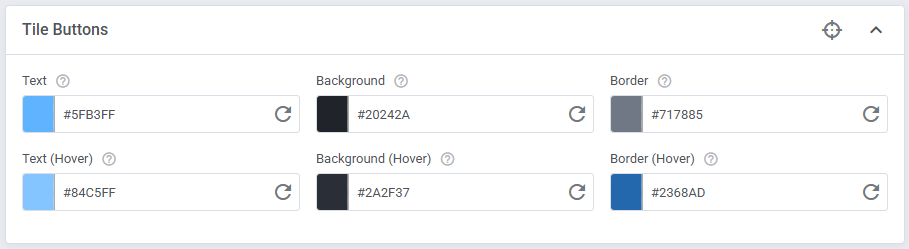
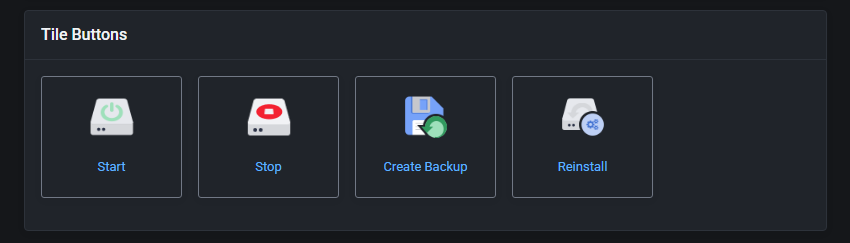
# Tile Buttons
Icon color variants for standard and on hover views:
- Text
- Background
- Border
# Icons
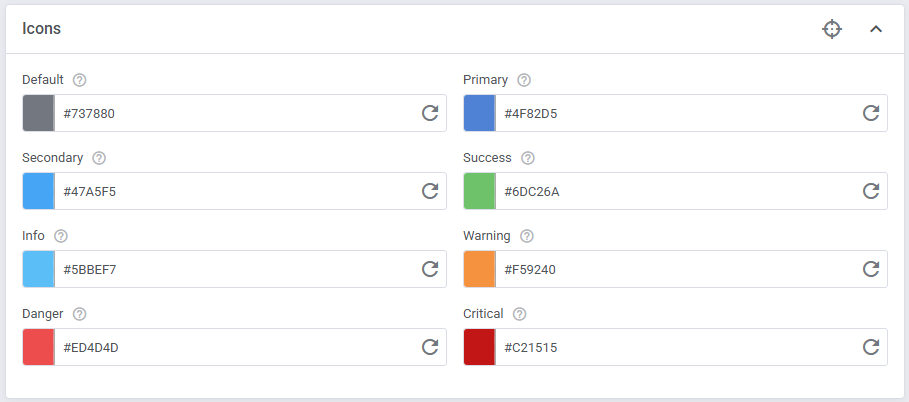
Icon color variants:
- Default
- Primary
- Secondary
- Info
- Success
- Warning
- Danger
- Critical

# Labels
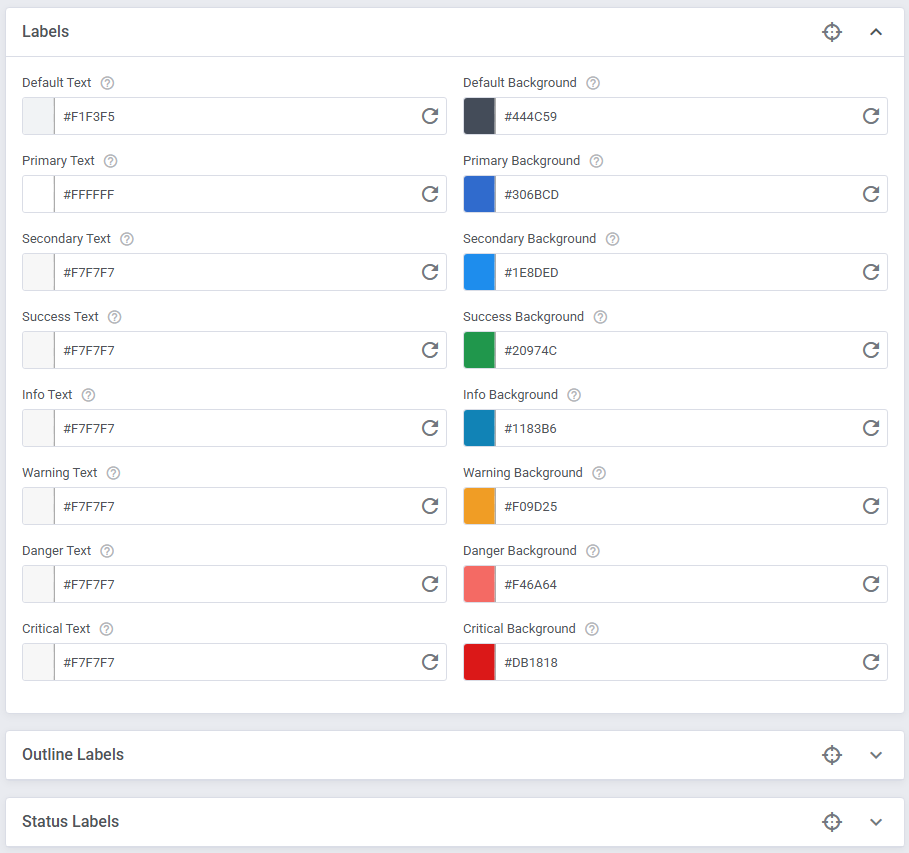
Set colors for text and background of plain, outline, and status type labels:
- Default
- Primary
- Secondary
- Info
- Success
- Warning
- Danger
- Critical

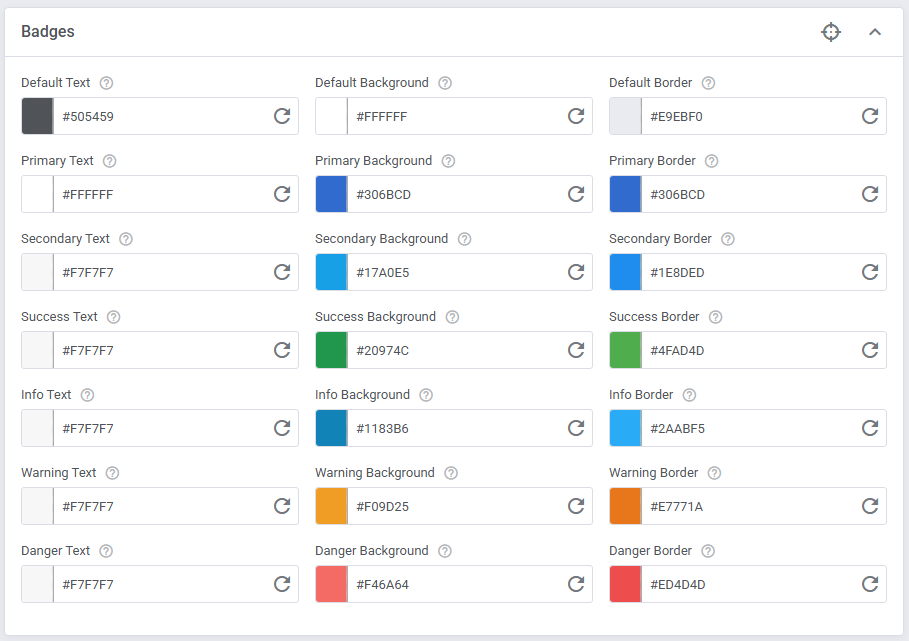
# Badges
Text, background, and border for standard badges and outline badges:
- Default
- Primary
- Secondary
- Info
- Success
- Warning
- Danger

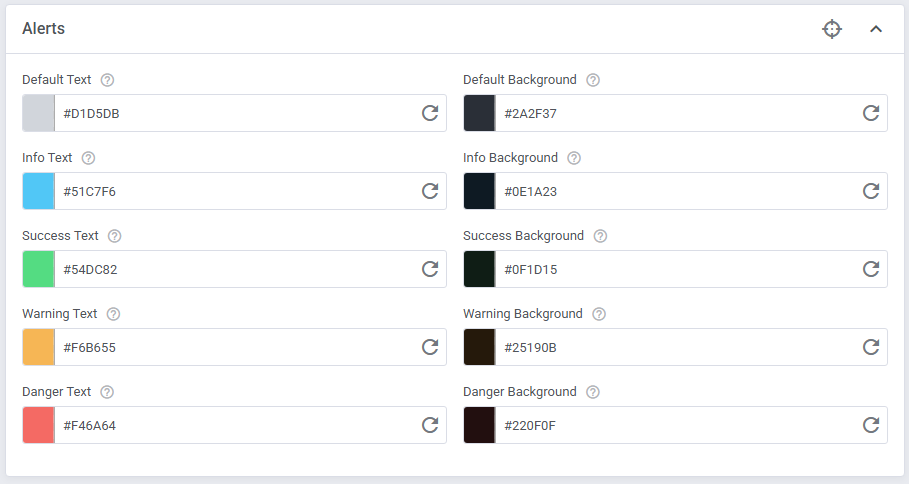
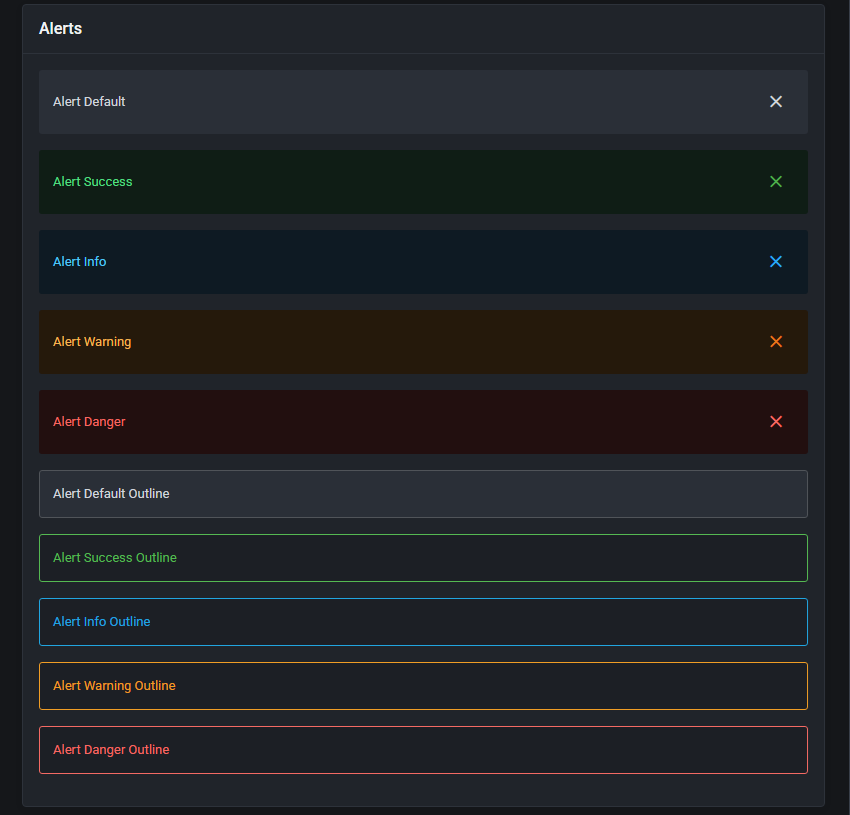
# Alerts
Text and background for alerts and outline alerts of following types:
- Default
- Info
- Success
- Warning
- Danger
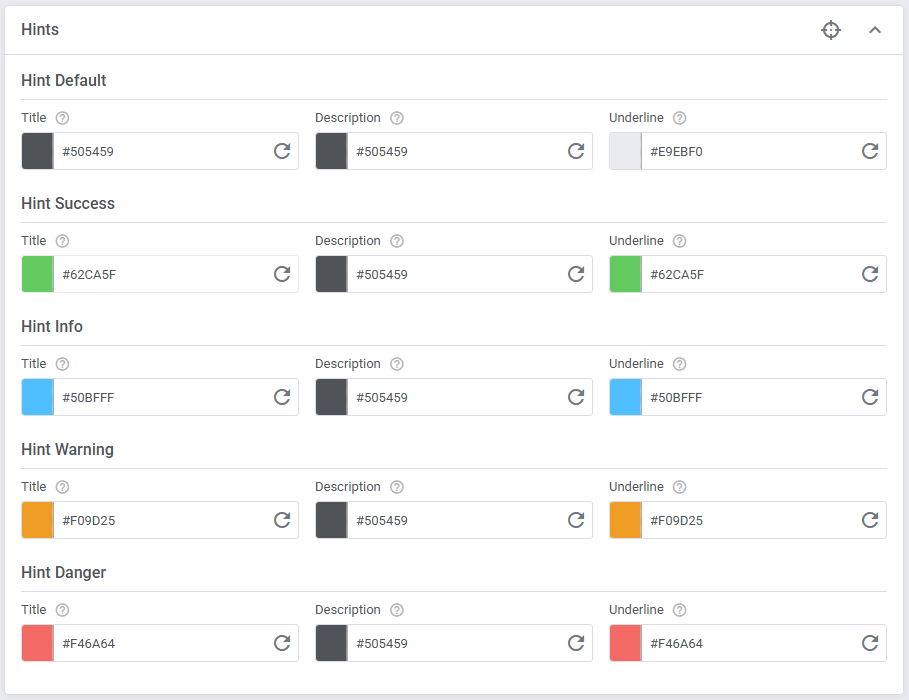
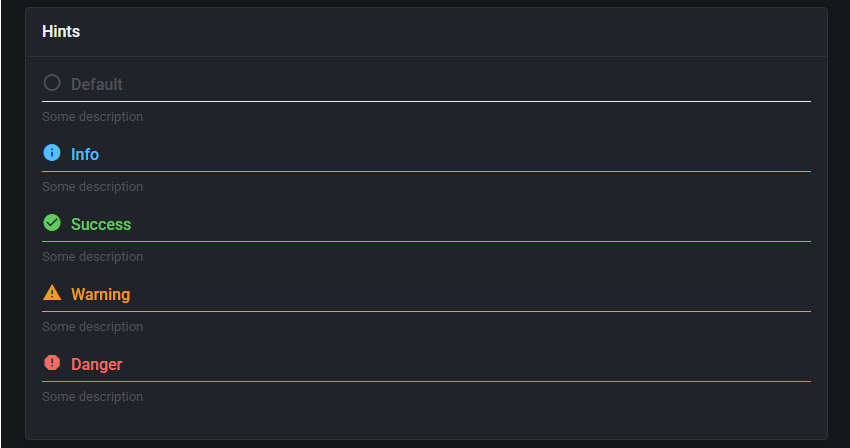
# Hints
Define color pattern for hints:
- Default
- Info
- Success
- Warning
- Danger
# Progress Bars
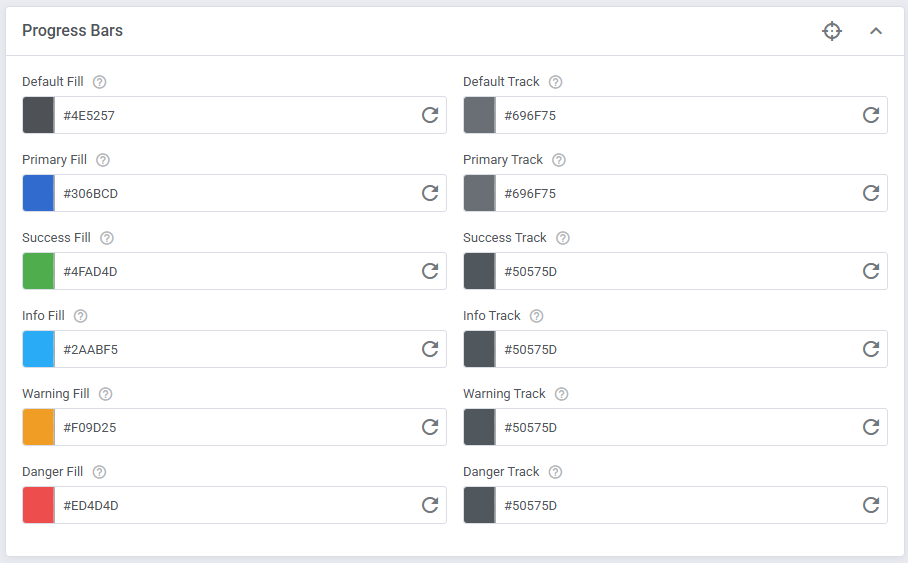
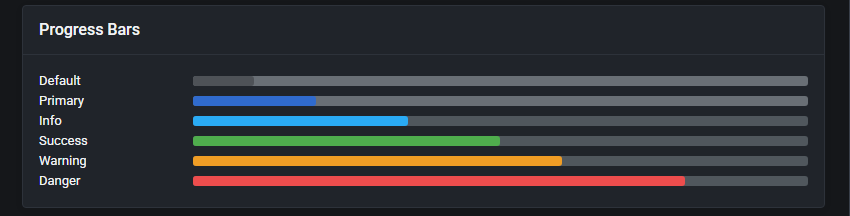
Configure progress bar colors, including:
- Fill - the portion representing the current value
- Track - the background representing the remaining value
Available color variants: - Default
- Primary
- Info
- Success
- Warning
- Danger
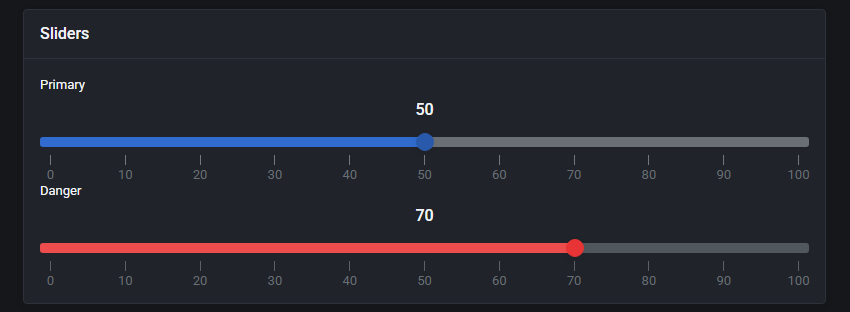
# Sliders
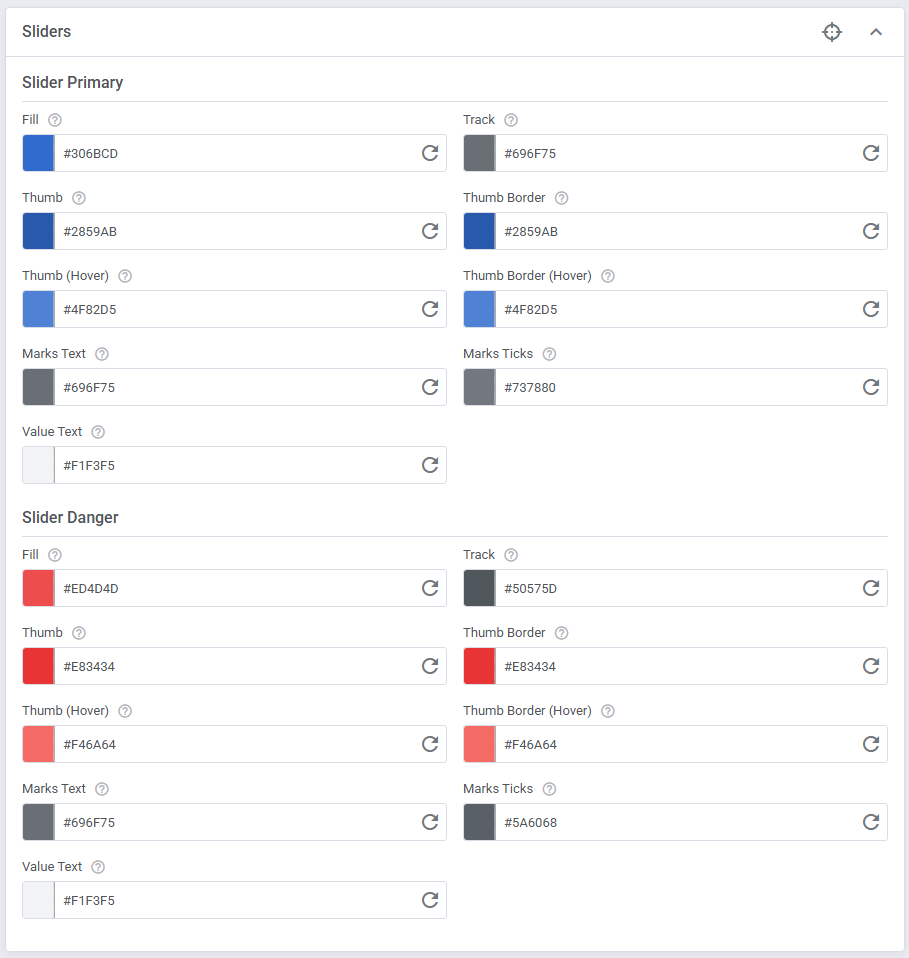
Configure slider colors (Primary and Danger), including:
- Fill - color of the filled portion of the slider track
- Background - background of the slider track
- Thumb - color of the draggable slider handle
- Thumb Border - border color of the slider handle
- Thumb (Hover) - color of the slider handle when hovered
- Thumb Border (Hover) - border color of the slider handle when hovered
- Marks Text - color of the labels displayed below the slider
- Marks Ticks - color of the tick marks on the slider scale
- Value Text - color of the currently selected value displayed above the slider
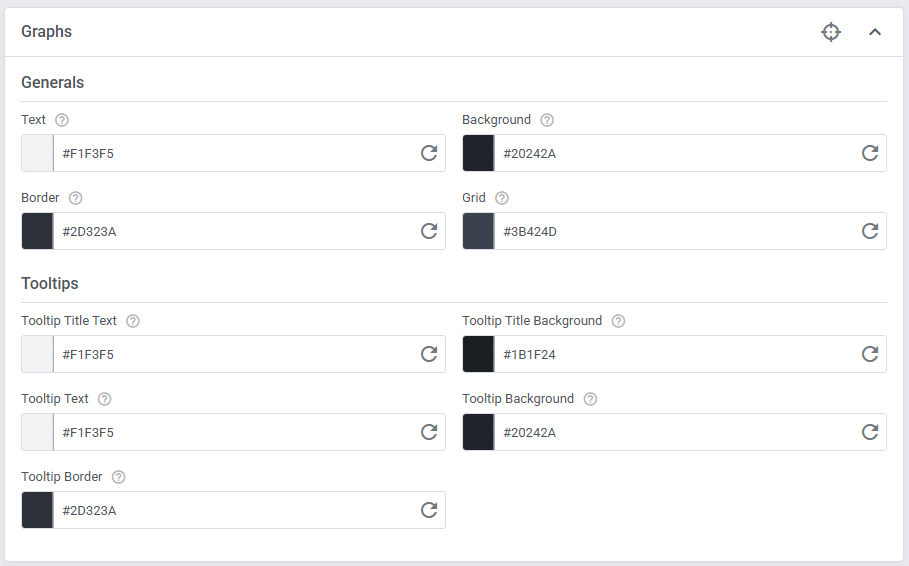
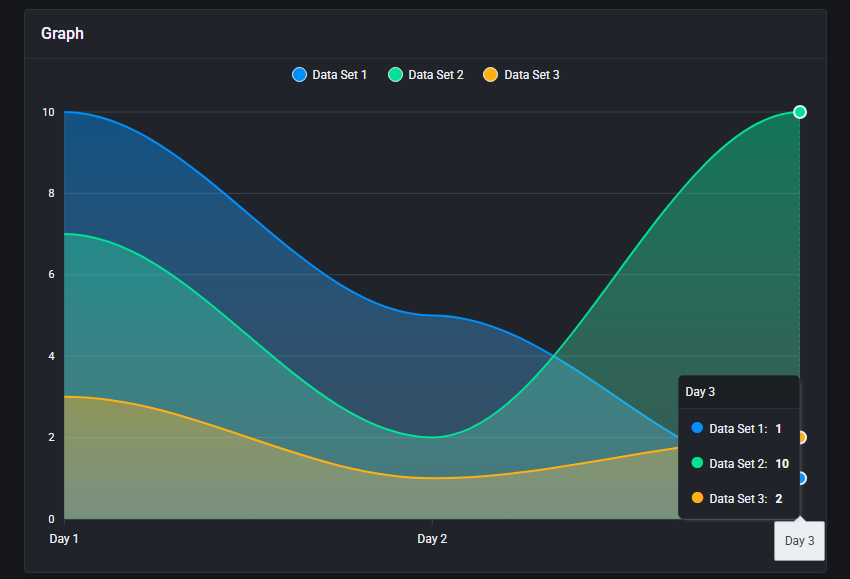
# Graphs
Configure graph general colors and tooltip details display.
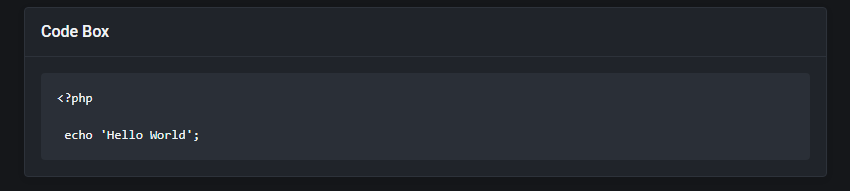
# Code Box
Code text box display styling options.

# URLs
Styling options for links, links on hover and active (pressed) ones.

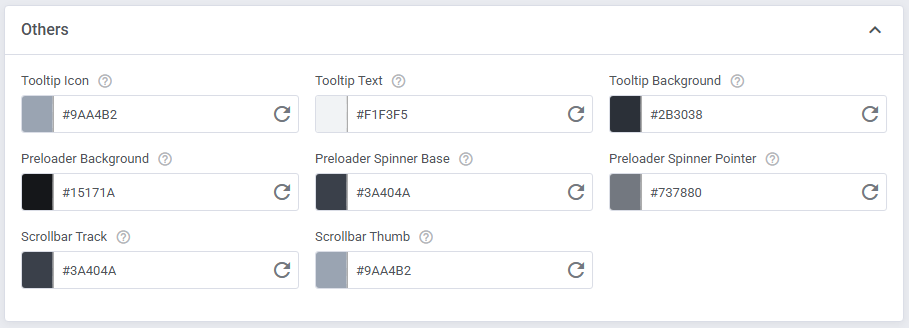
# Others
Tooltip elements:
- Icon - color of the tooltip icon
- Text - text color inside tooltips
- Background - background color of tooltips
# Examples
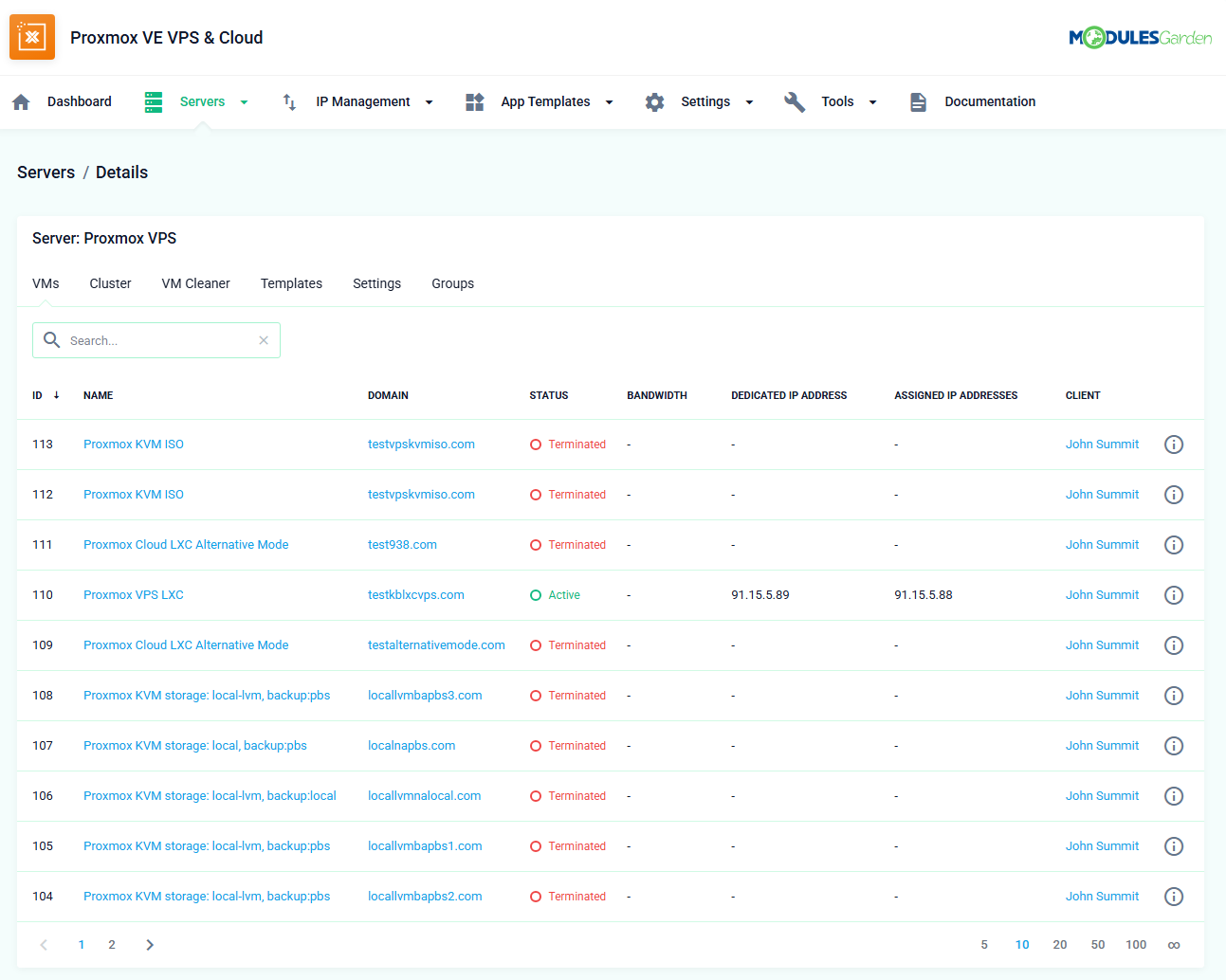
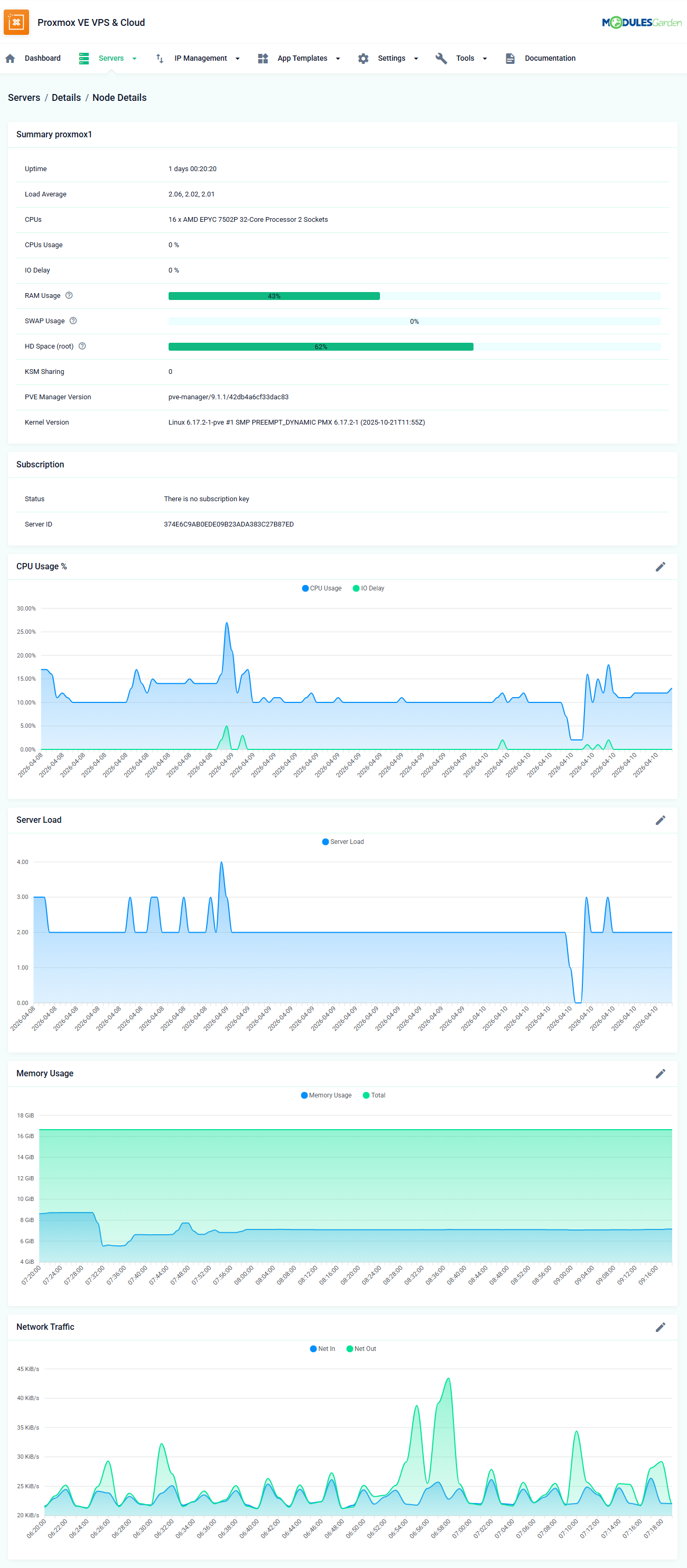
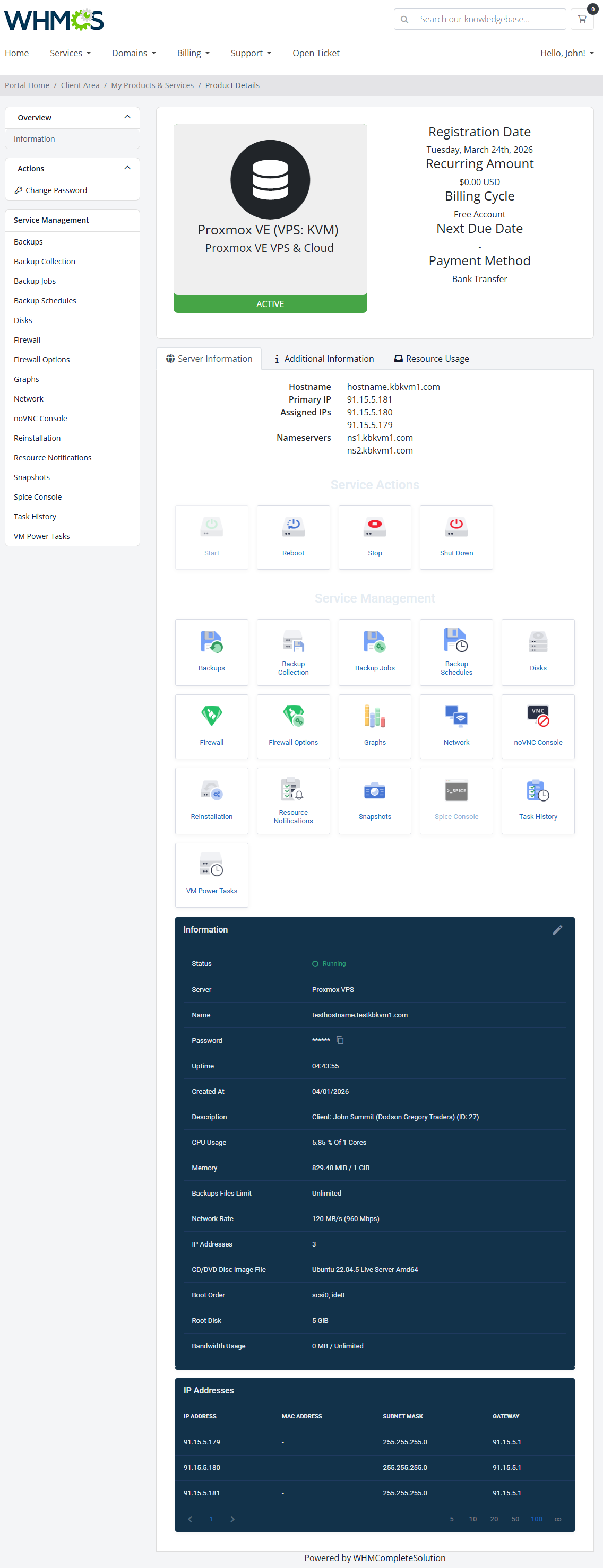
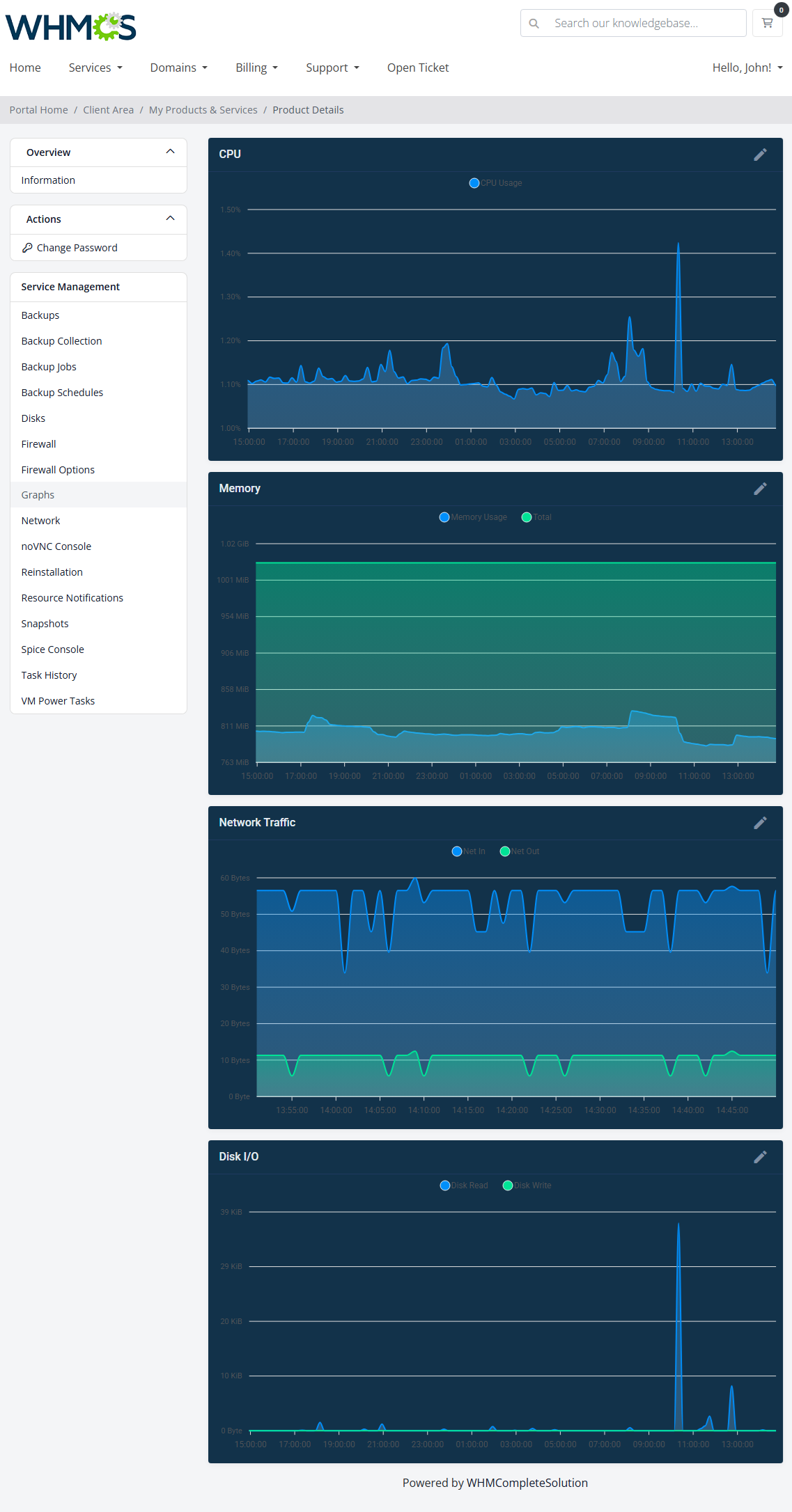
Here we are illustrating how a module display may change when a fully customized theme is used across the admin and client areas.
Proxmox VE VPS & Cloud For WHMCS module addon view:
Proxmox VE VPS & Cloud client area product view:
# Tips
Export presets to keep backup copies of your configurations and reuse them across other ModuelsGarden modules.
Test changes in both admin and client areas, using separate presets is often more effective due to different user needs.
Built-in presets are provided as examples and can be freely modified. They are not officially supported or guaranteed to be fully compatible with all ModulesGarden modules.
If you encounter any issues, adjust the styles as needed.