# Google Cloud Virtual Machines For WHMCS
Google Cloud Virtual Machines For WHMCS has reached End of Support (EOS) and is no longer actively maintained. The module remains available for purchase in the Open Source version, along with License Upgrade option at a discounted price. Current license subscriptions continue and stay valid for future renewals.
# (opens new window) About Google Cloud Virtual Machines For WHMCS (opens new window)
Google Cloud Virtual Machines For WHMCS is a carefully and thoroughly planned module that allows you to provision and have charge of Google Cloud instances directly from your WHMCS system.
Your customers will be entitled to carry out all key actions such as start, stop, and reboot the server remotely.
What is more, you may easily oversee product features and monitor the status of each sold machine.
# Installation and Configuration
Google Cloud Virtual Machines For WHMCS has reached End of Support (EOS) and is no longer actively maintained. The module remains available for purchase, including the Open Source version and License Upgrade at a discounted price. Current license subscriptions continue and stay valid for future renewals.
This tutorial will show you how to successfully install and configure Google Cloud Virtual Machines For WHMCS (opens new window) smoothly.
We will guide you step by step through the whole installation and configuration process.
# Installation
- Log in to our client area and download the module.
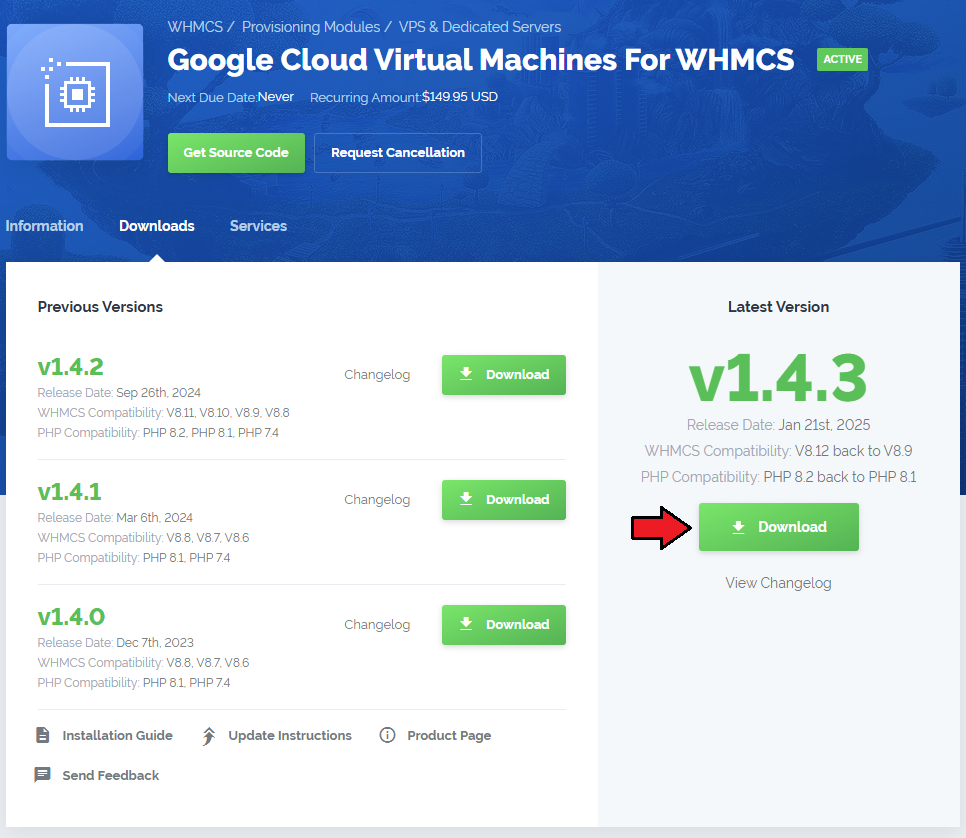
Upload and extract the extension into the main WHMCS directory.
Extracted files in your WHMCS directory should look like this:
When you install Google Cloud Virtual Machines For WHMCS for the first time, you have to rename the 'license_RENAME.php' file.
The file is located in '/yourWHMCS/modules/servers/GoogleCloudVirtualMachines/license_RENAME.php'. Rename it from 'license_RENAME.php' to 'license.php'.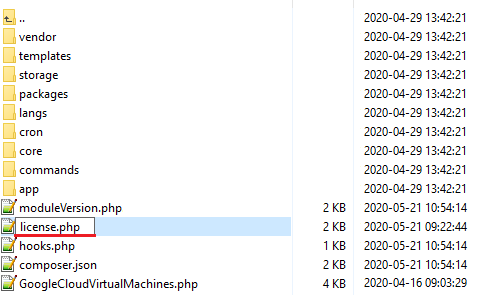
In order to configure your license key, you have to edit the previously renamed 'license.php' file.
Enter your license key between the quotation marks as presented on the following screen.
You can find your license key in our client area → 'My Products'.
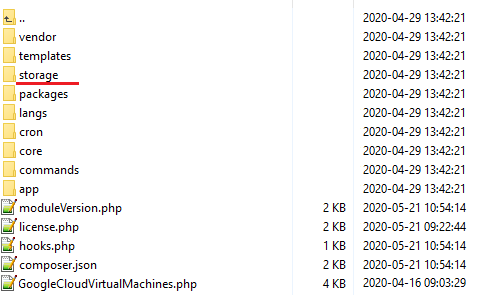
Now, set up the 'storage' folder as recursively writable.
This folder is available at '/yourWHMCS/modules/servers/GoogleCloudVirtualMachines/'.
# Configuration of Server
Before you can go on, you must generate your access details. You will need them to connect with the server successfully.
Underneath, you will find instructions where to find them.
Firstly, log in to your account and go to https://cloud.google.com/.
Click 'Go to APIs overview' as presented below.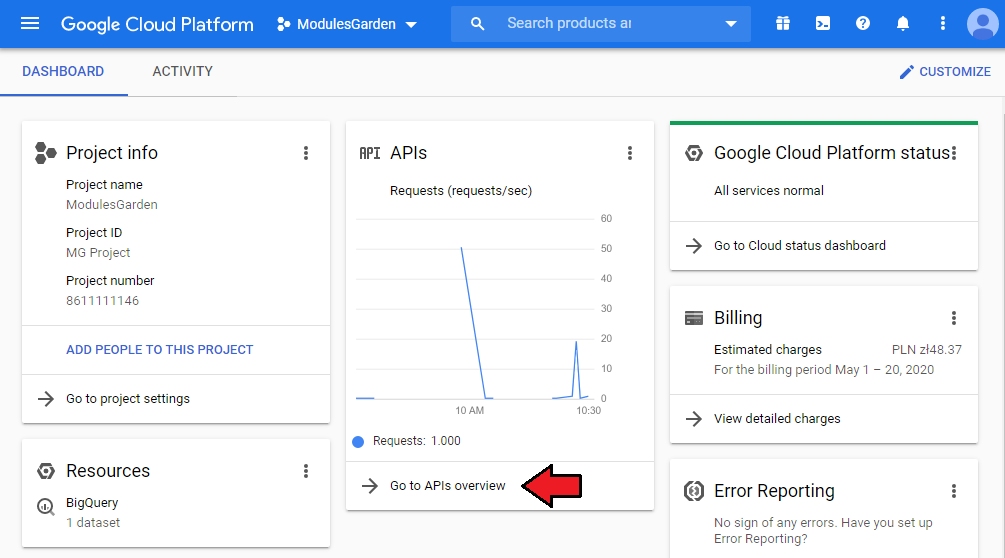
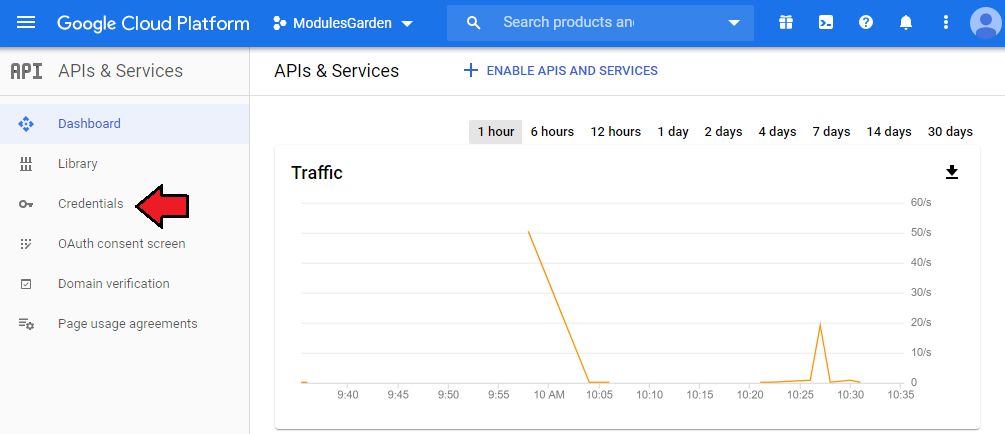
Now, go to the 'Credentials' section.
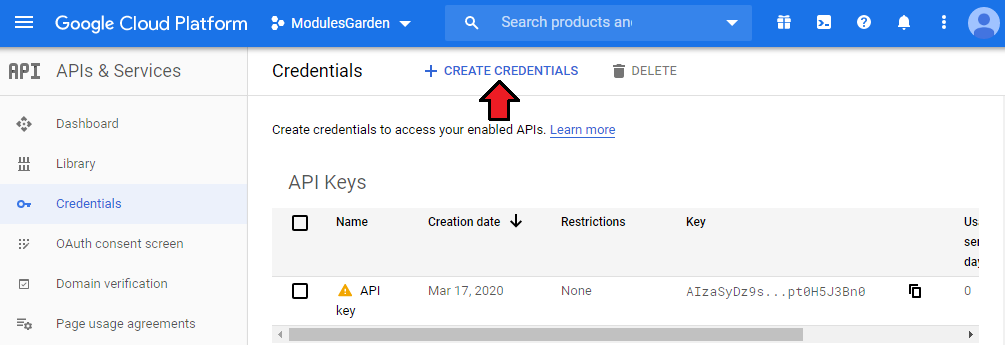
- Click 'Create Credentials'.
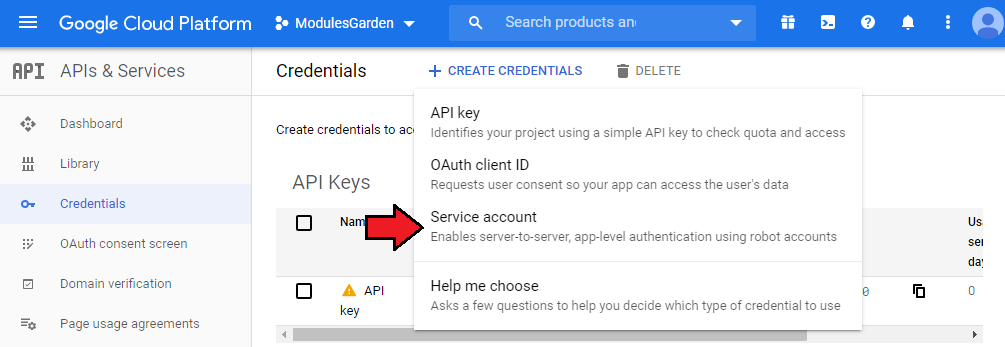
- Here, choose the 'Service account' type.
- In this part, you need to complete your service account name. Once ready, press 'Create'.
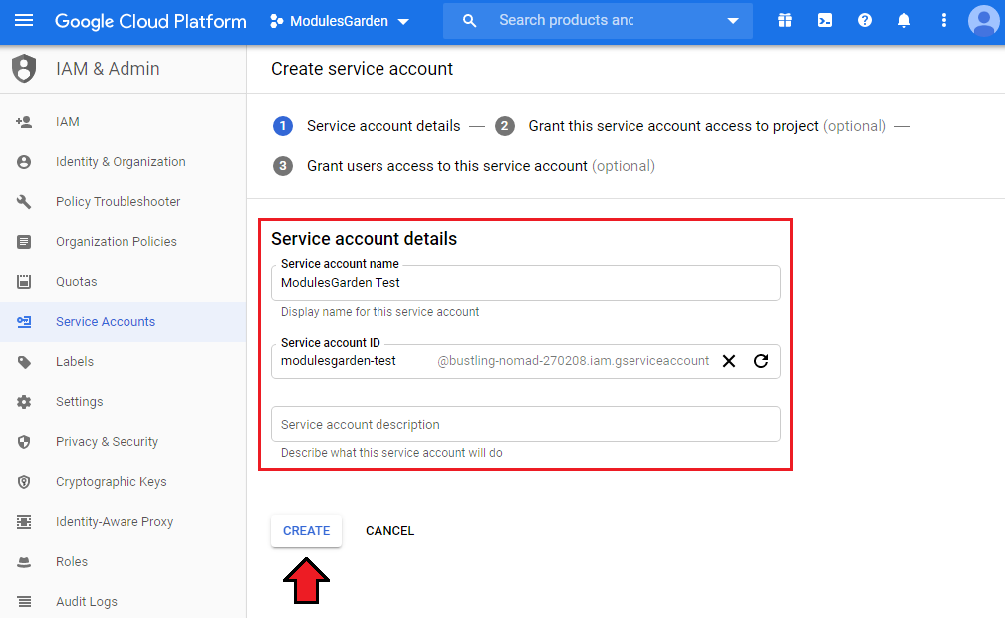
It is time to specify service account permissions. So, select the 'Compute Admin' role from the dropdown menu and click 'Continue'.
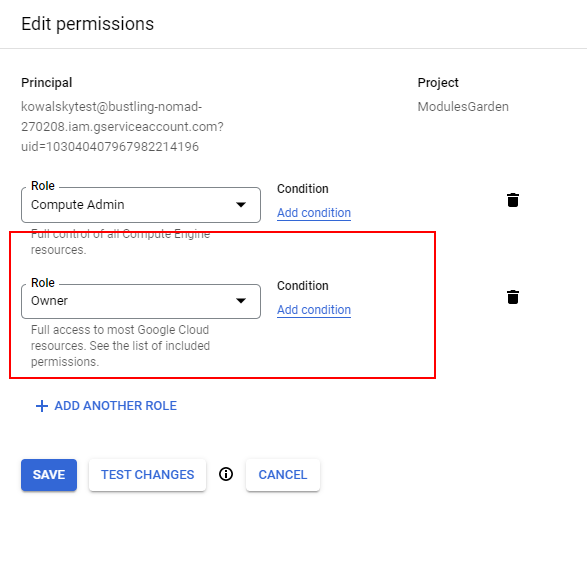
Note: if any errors with API connection occur, please add another role: 'Owner'. Check common problems section to learn more.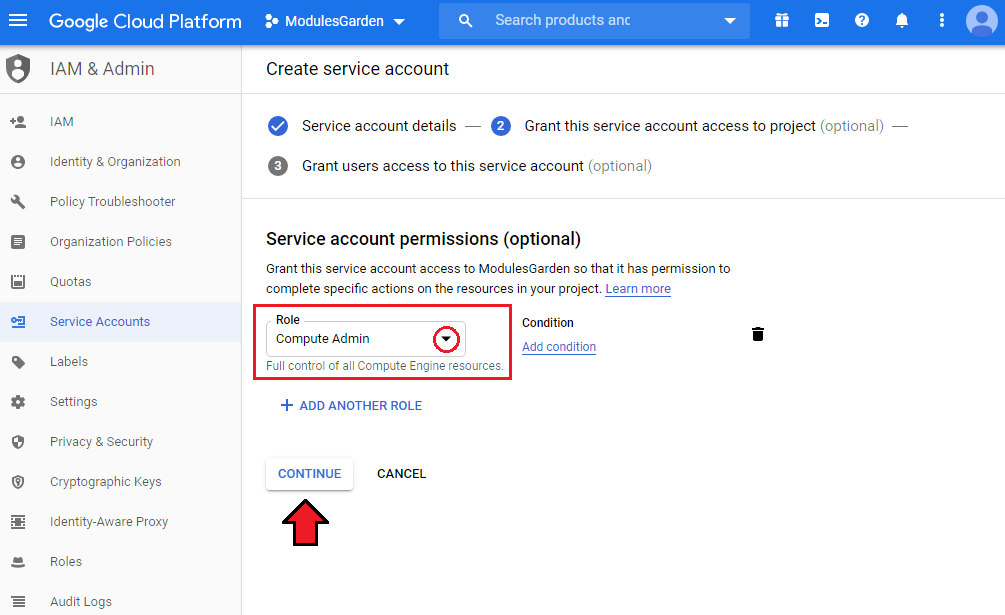
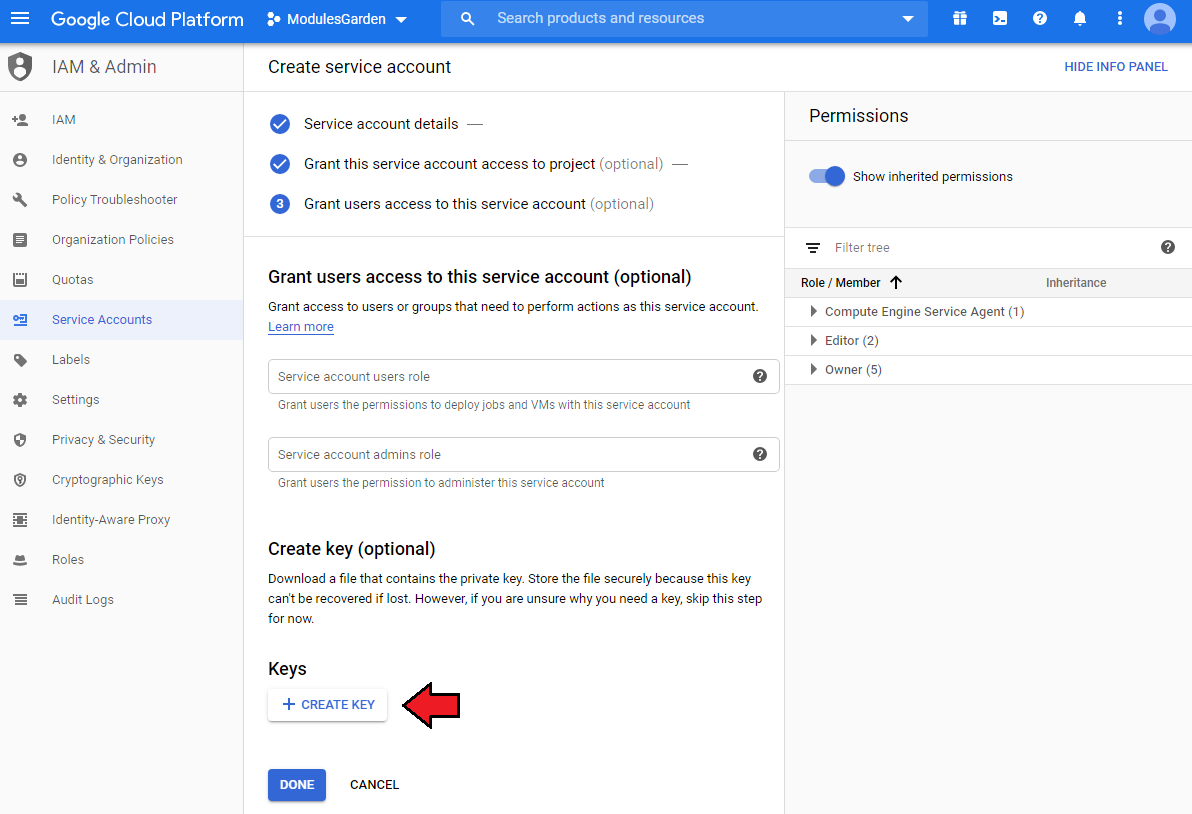
In this step, you have to create your key. Click the appropriate button as shown below.
Select the key type. It is recommended to use the 'JSON' type. Finally, click 'Create'.
Important! Once you proceed, the file with your private key will be downloaded to your computer.
Remember to store this file in a secure place because it is not possible to regain the key when the file is lost.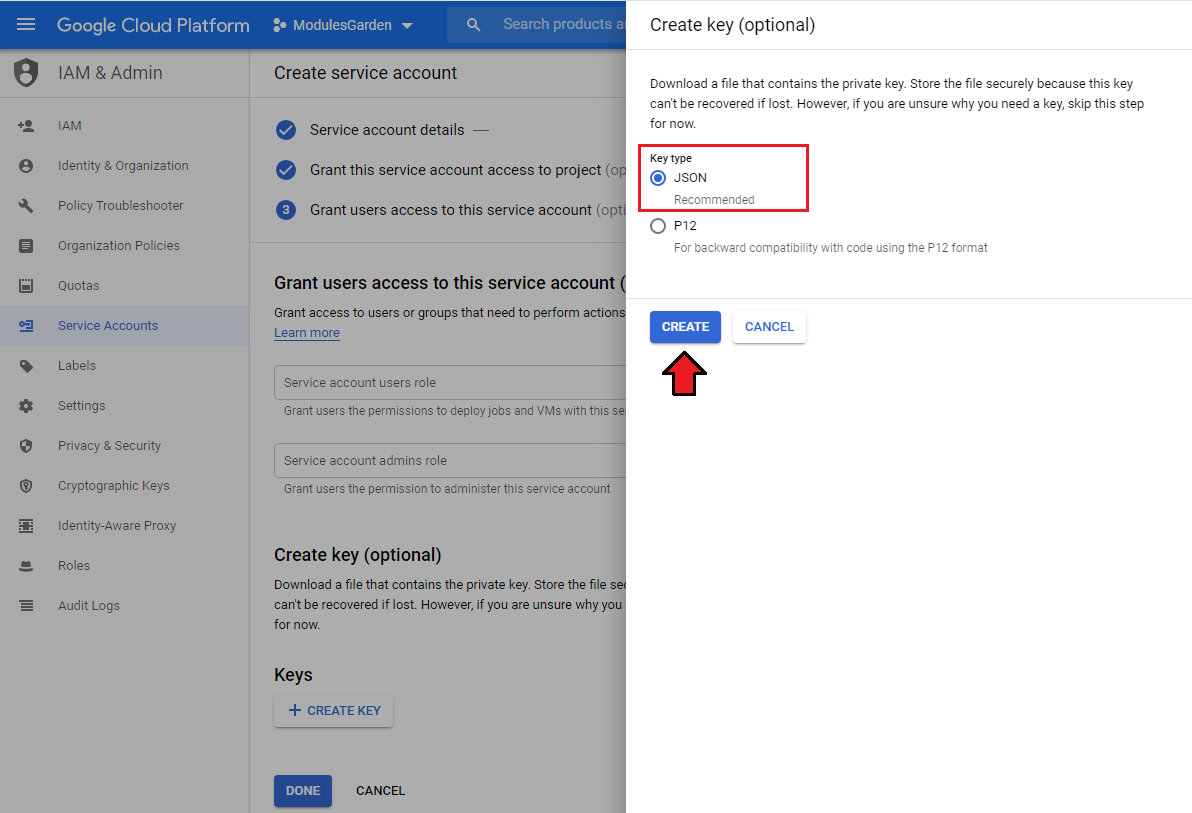
Now, log in to your WHMCS and proceed to 'Setup' → 'Products/Services' → 'Servers' and press 'Add New Server'.
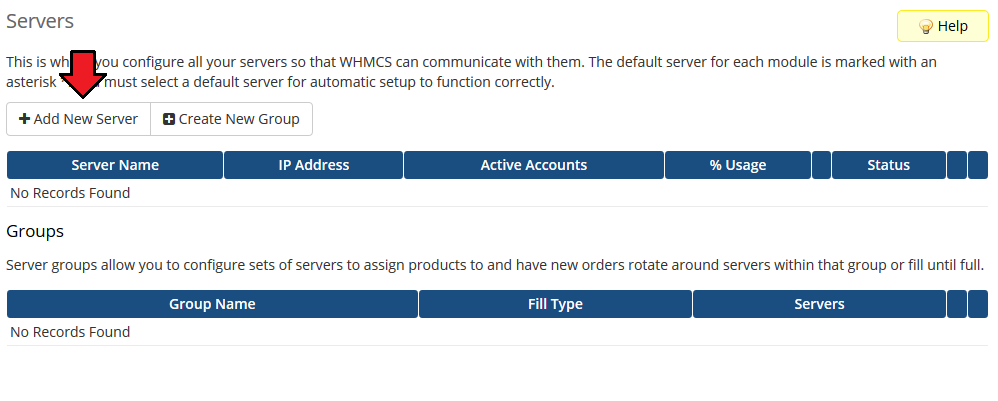
Next, enter your server 'Name', 'Hostname', 'IP Address' and select 'Google Cloud Virtual Machines' from the 'Module' field.
Now, provide your Google Cloud project ID as 'Username' and paste the content of the previously downloaded file with your key details in the 'Access Hash' field.
Finally, check the 'Test Connection' and save the changes.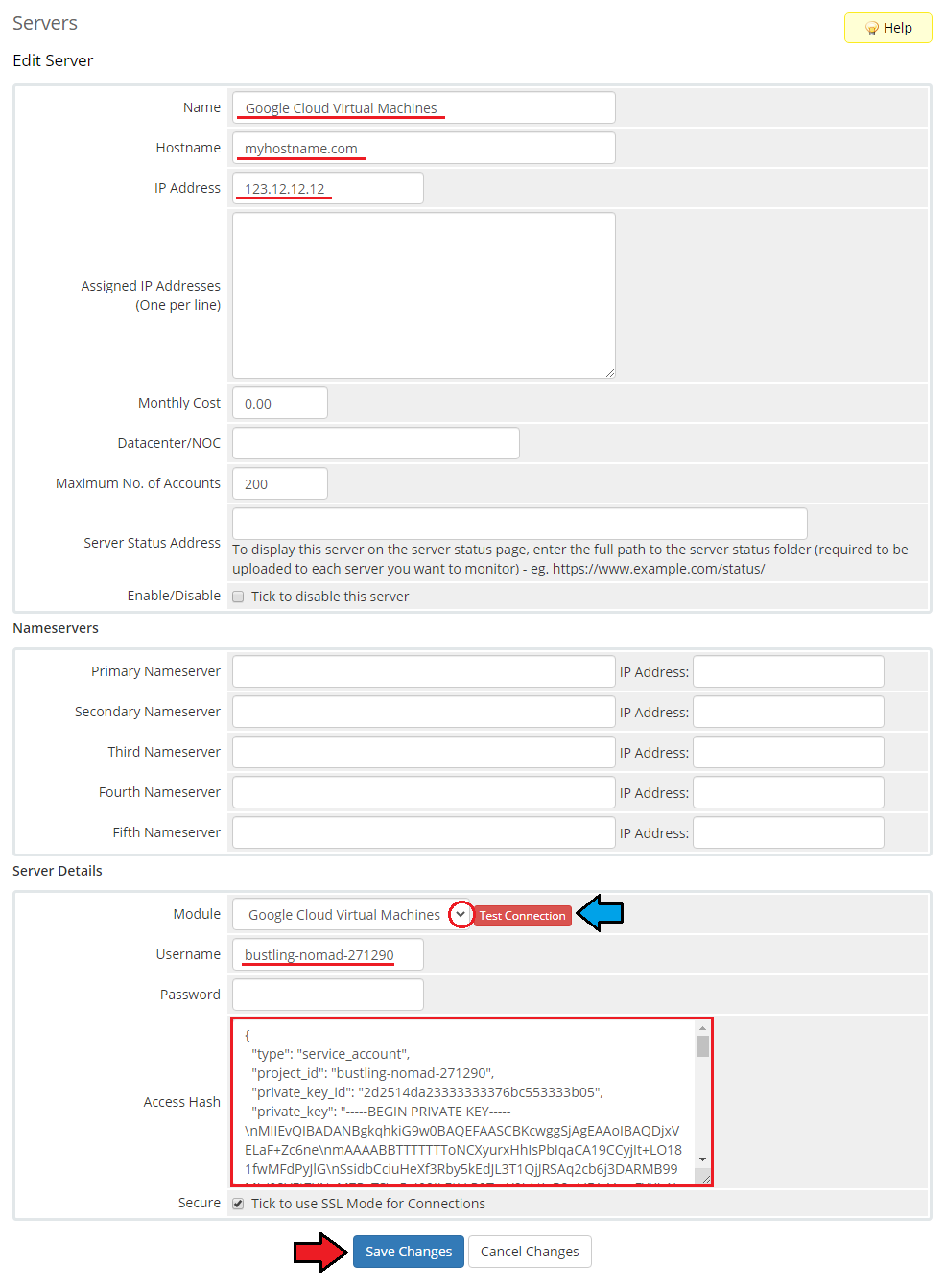
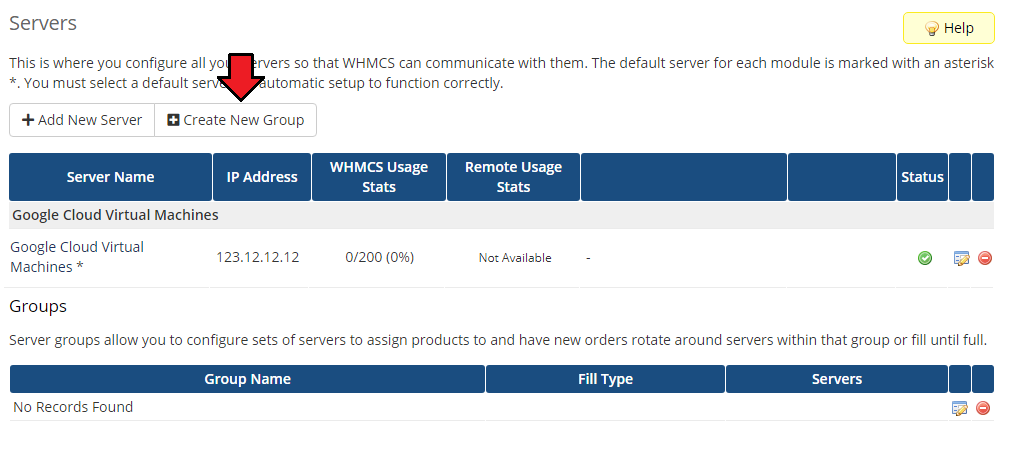
It is time to create a server group. To do so, click on 'Create New Group'.
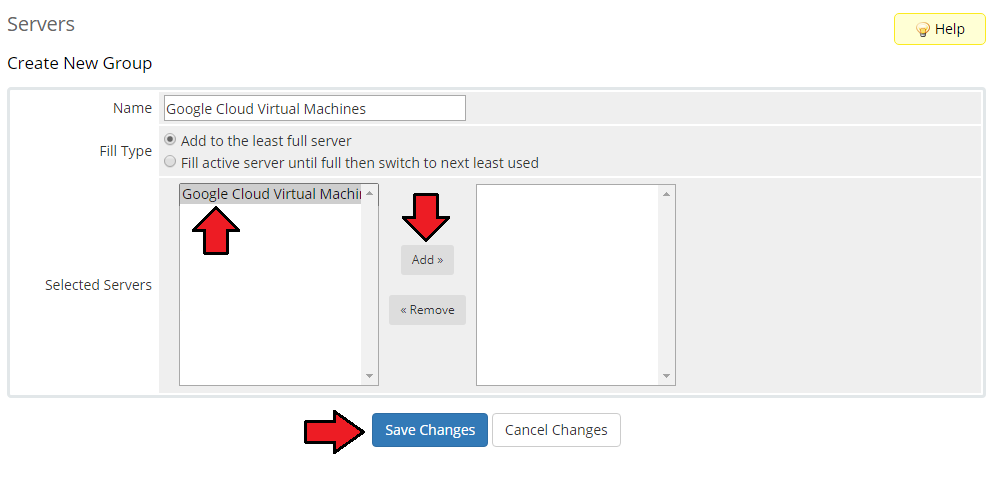
- Enter a name, click on your previously created server, press 'Add' and afterward 'Save Changes'.
# Configuration of Product
In order to create and configure a product, go to 'Setup' → 'Products/Services' → 'Products/Services'.
Click on 'Create a New Group'.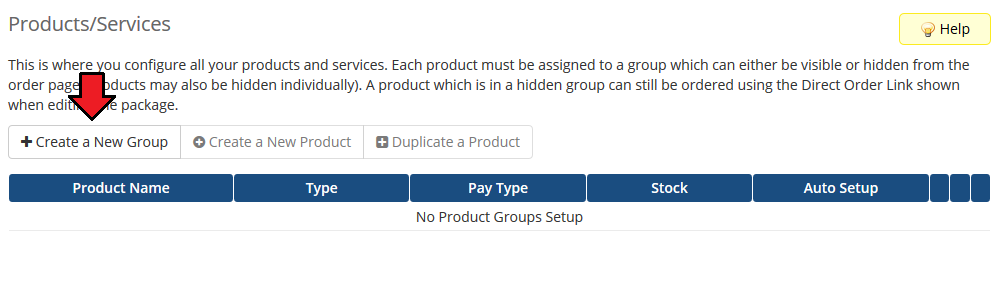
Enter your product group name and press 'Save Changes'.
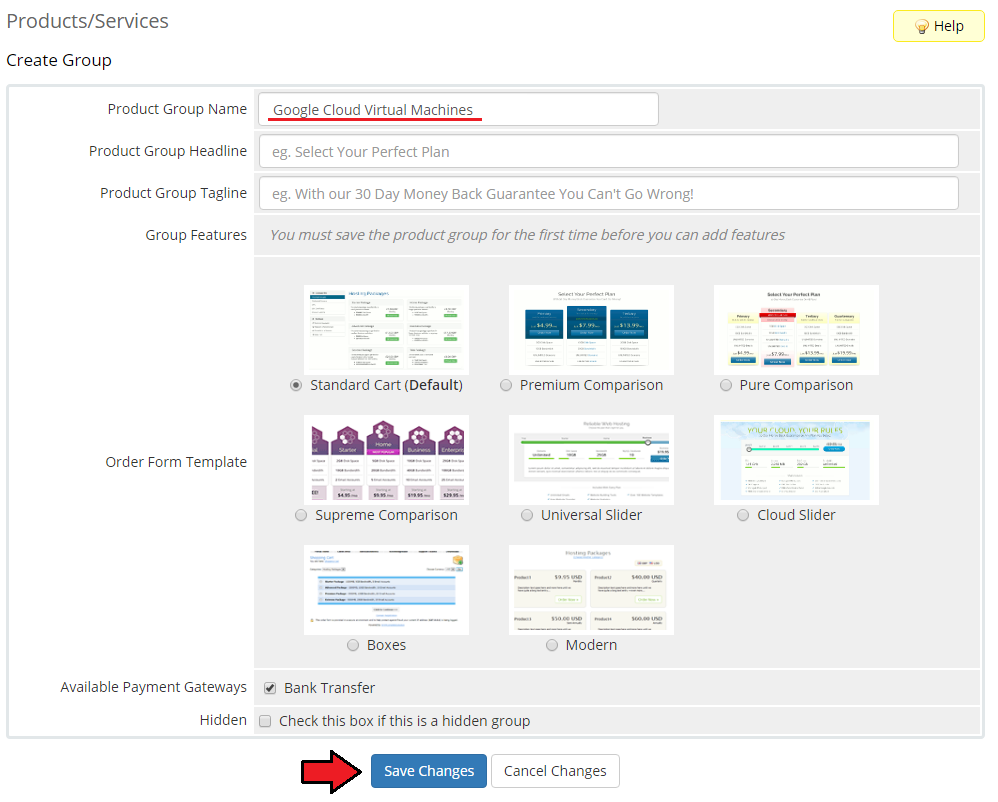
Once you have a product group, you can create a new product.
To do so, first click on 'Create a New Product'.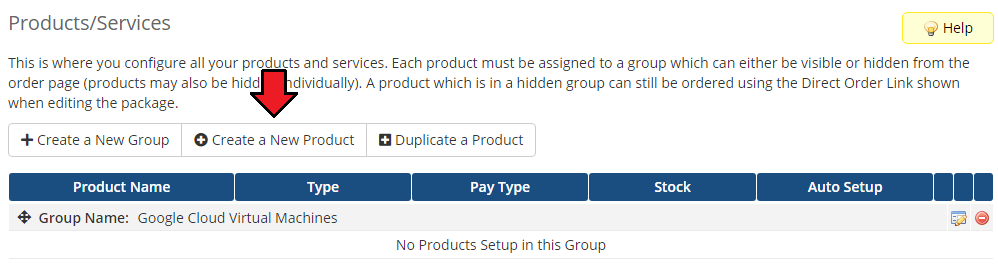
Afterward, choose your product type, enter your product name, choose module and the product group from the dropdown menus. Press 'Continue'.
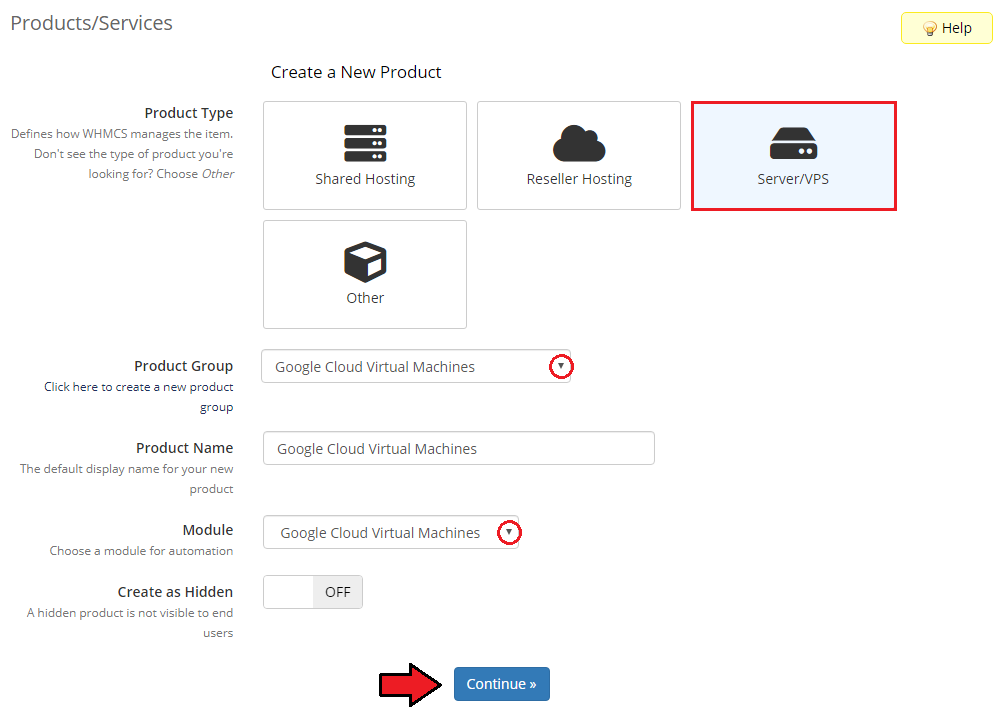
Now, go to the 'Module Settings' section, choose your previously created server group from the dropdown menu.
The module should automatically save and reload the settings. If not, click on the 'Save Changes' option manually.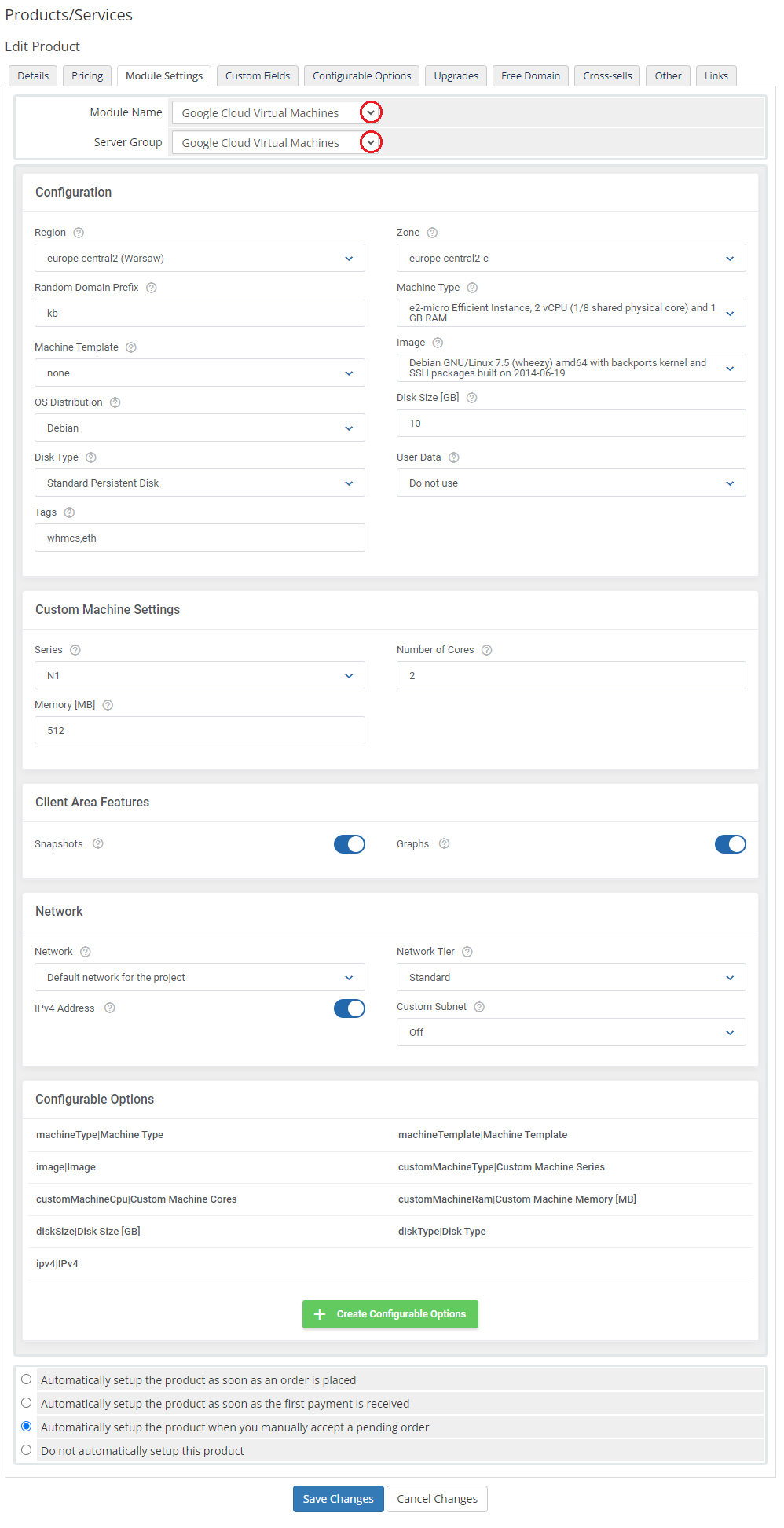
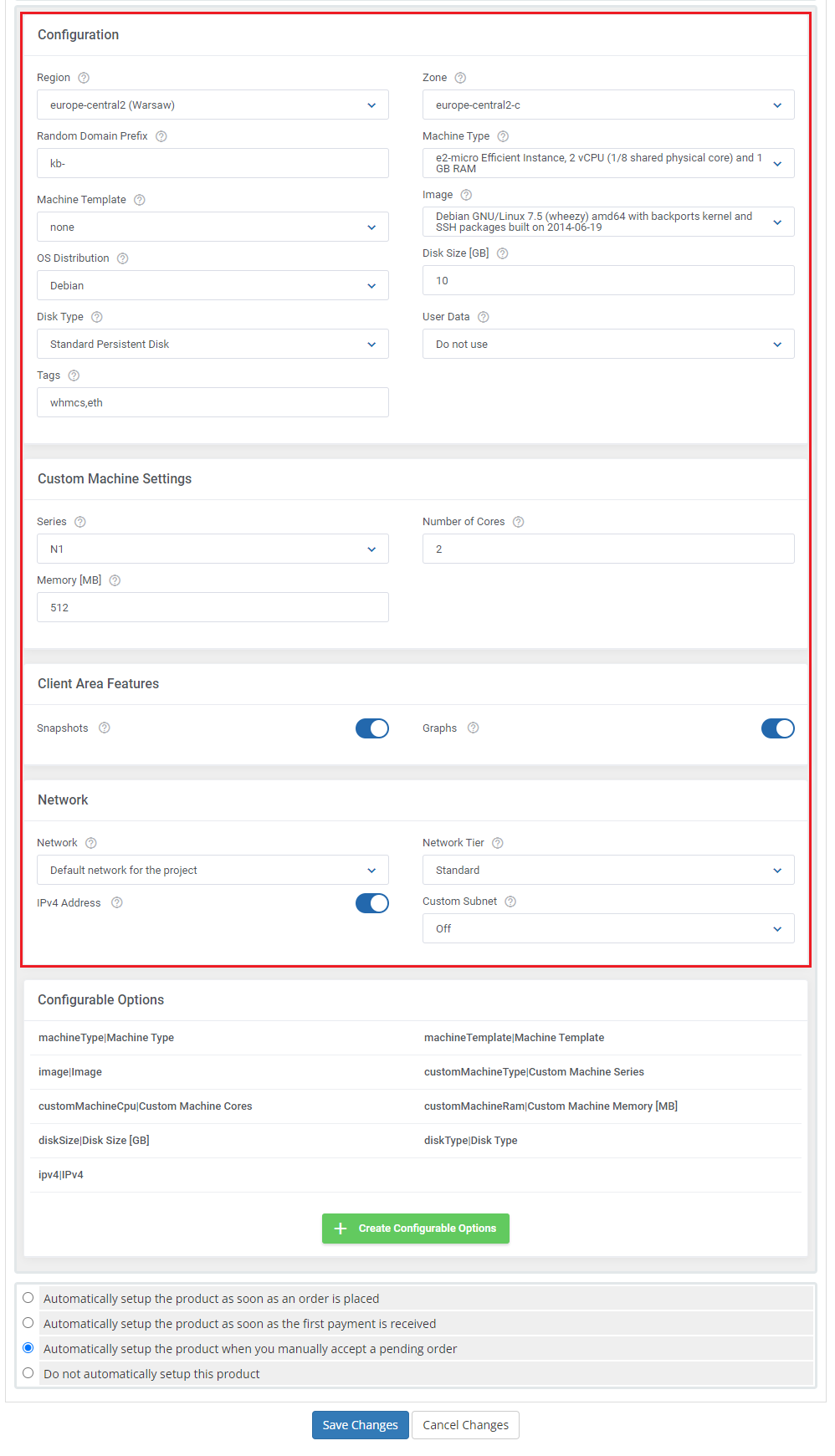
Now, let's start configuring the settings of the server that you sell.
Configuration:
- Region - is a particular geographical location where you can host your resources. Each region consists of one or more zones.
- Random Domain Prefix - enter here the domain prefix for instances where a specific domain is not provided. Only valid hostname characters, including letters (a-z), numbers (0-9), and hyphens (-), are permitted.
- Machine Template - select a template to create a new VM based on the selected machine template. Note that only new VMs can be created based on templates, this option is not related to upgrades.
- OS Distribution - choose a preferred OS distribution from the dropdown menu.
- Disk Type - Standard persistent disks are efficient and practical for handling sequential read/write operations while SSD persistent disks are dedicated to enterprise applications
and high-performance database needs that demand lower latency and more IOPS. - Zone - is a location within a region. Once the 'Region' is selected, then you can define a zone.
- Machine Type - you can choose from many predefined machine types in each machine type family.
- Image - select a preferred OS image.
- Disk Size - provide the disk size in GB.
- Tags - you may fill in network tags separated by commas or spaces.
- User Data - choose the 'cloud-config' file or 'Bash' script which may be used to configure the virtual machine on the first boot.
Custom Machine Settings:
- Series - Select the custom machine type from available.
- Number Of Cores - Define the number of cores that will be used.
- Memory [MB] - Define the allocated memory amount for the machine, use MBs.
Client Area Features:
- Snapshots - enable if you want clients to access the 'Snapshots' section in the client area.
- Graphs - enable to assure access to the 'Graphs' section in the client area.
Network:
- Network - choose a network.
- Network Tier - there are two tiers available, 'Standard' and the ' Premium' one. More about the differences between them can be found here (opens new window)
- IPv4 Address - you can enable the IPv4 Address.
Note: This is required for the "Download RDP File" function in the client area. - Custom Subnet - select the 'Custom Subnet' option when manually configuring VMs. Enable this setting during subnet creation. If a custom subnet is chosen, the selection will override any declaration in the 'Network' field.
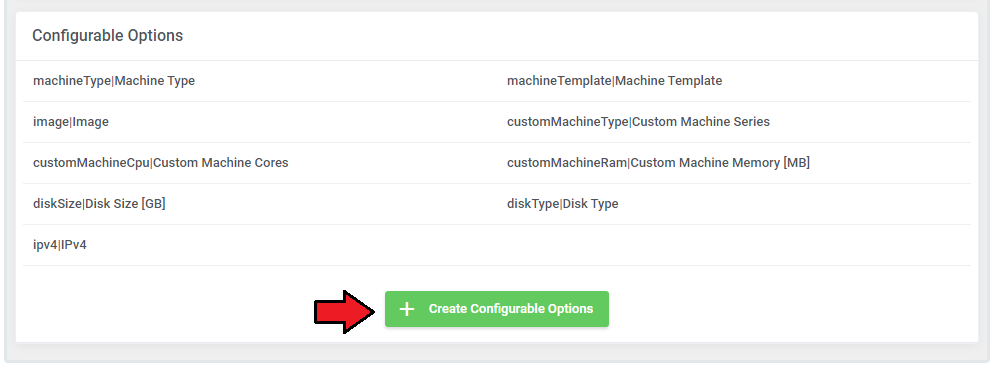
At the end of the configuration process, you can decide whether you want to generate configurable options for the product.
Configurable options can be used by your clients to select each virtual machine parameters individually during order placement.
Otherwise, if configurable options are not defined, then the fixed parameters specified in the earlier configuration will be used instead.
If you decide to use configurable options, press on the 'Create Configurable Options' button.
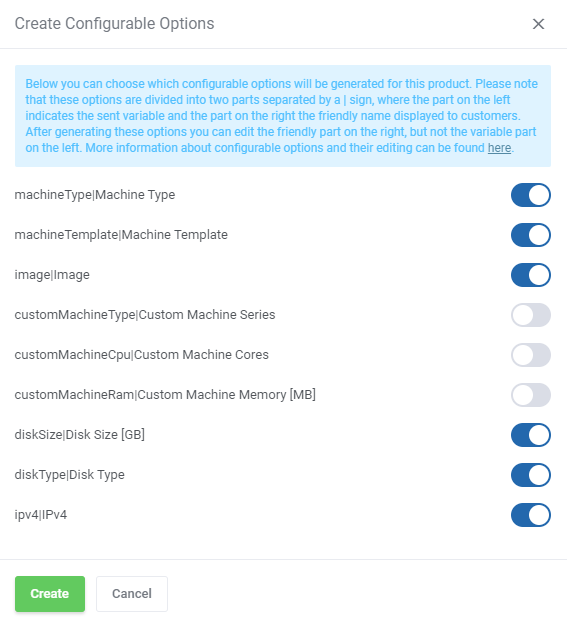
Now, select which options you want to generate and confirm by clicking 'Create'.
Note that the configuration for disabled options will still be taken from the configuration of the main product.
More information about how to use configurable options can be found here or in the official WHMCS documentation (opens new window).
Important: Remember that you may enable either Machine Type configurable option or Custom Machine Series with its sub-options.
# SSH Keys
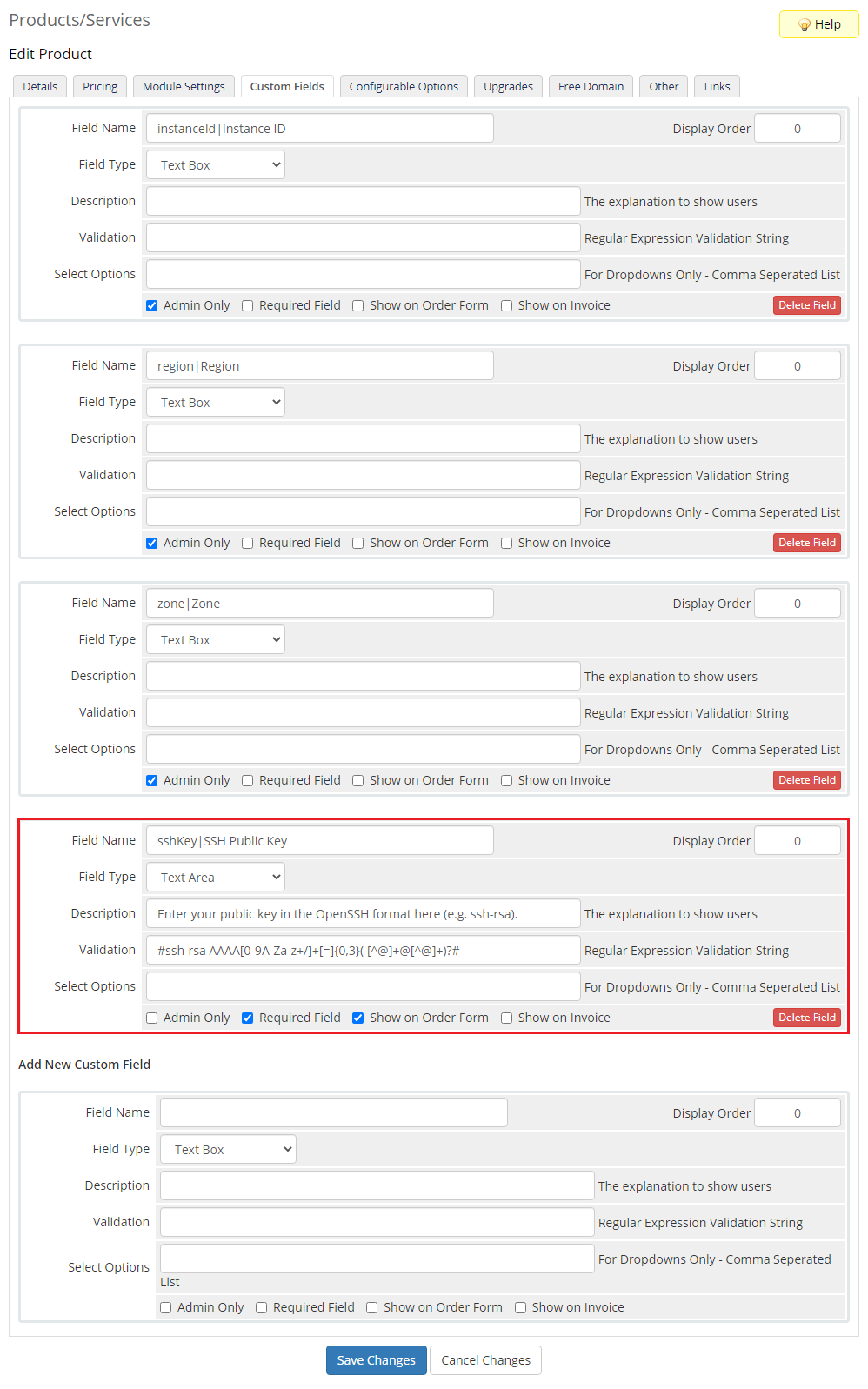
In the 'Custom Fields' tab you will find the 'SSH Public Key' field which is displayed to clients on the order form by default.
Your SSH key must be an RSA key with a key size of either 2048 bits or 4096 bits.
If you would like to limit the possibility of entering the key e.g. only to the 'ssh-rsa' format, you can use the regular expression in the validation field, such as:
#ssh-rsa AAAA[0-9A-Za-z+/]+[=]{0,3}( [^@]+@[^@]+)?#
Remember that API allows such action only once, during the initial VM creation.
Note: If you disable the 'Show on Order Form' option, a client will not be able to provide SSH Key while placing an order.
# Management
# Admin Area
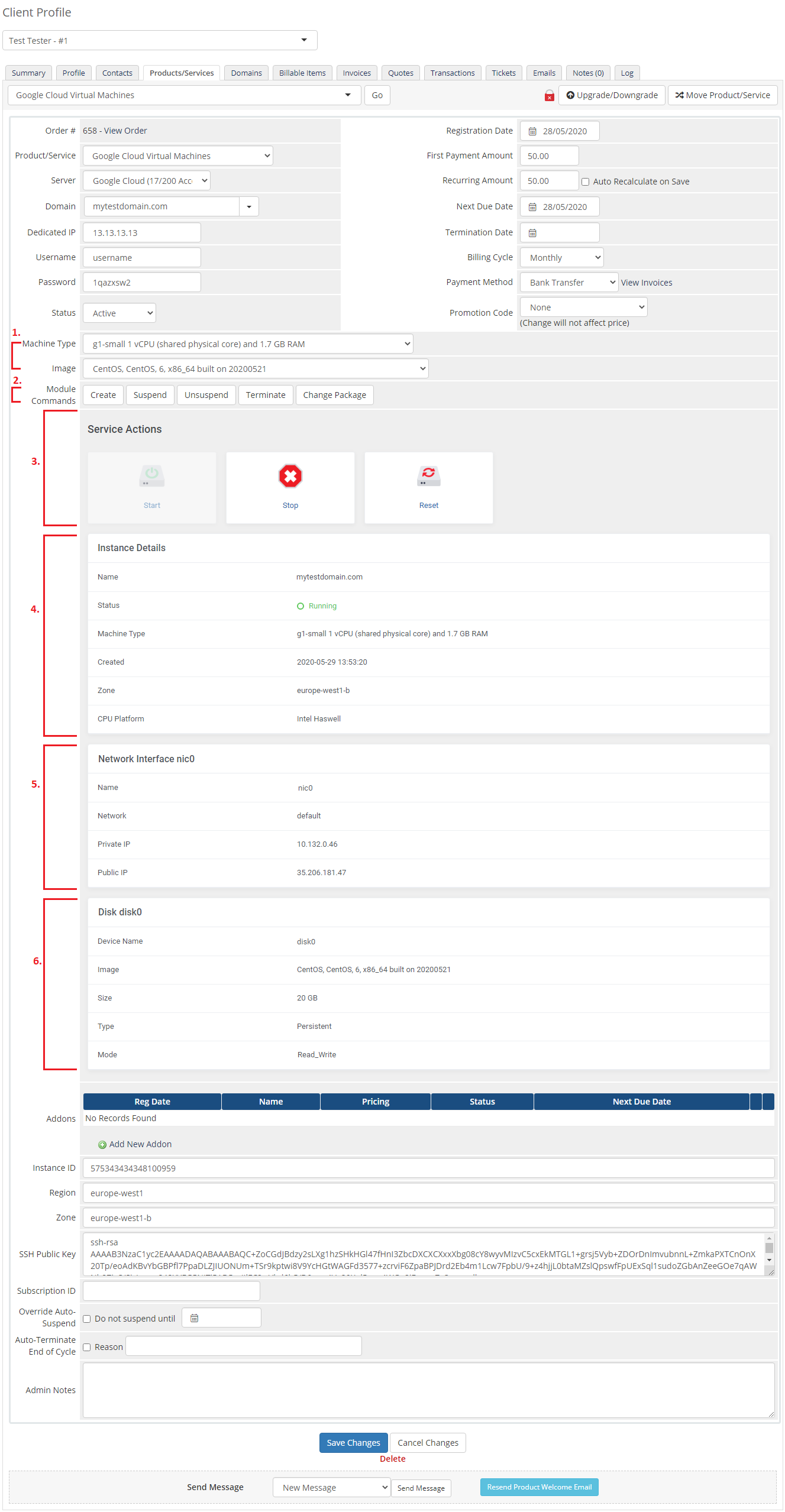
Google Cloud Virtual Machines For WHMCS allows you to supervise and manage your customer server instance from the admin area of your WHMCS system.
This includes supervision of such features as:
- Configurable options which enable you to view the chosen server details
- Module commands to allow easy and quick management of the server
- Service actions, including: Start, Stop and Reboot the server
- Instance details that provide the current status, resources and options set.
- Network Interface section that informs about the chosen network, private and public IPs.
- Disk section that gathers all the information about the disk.
# Ordering
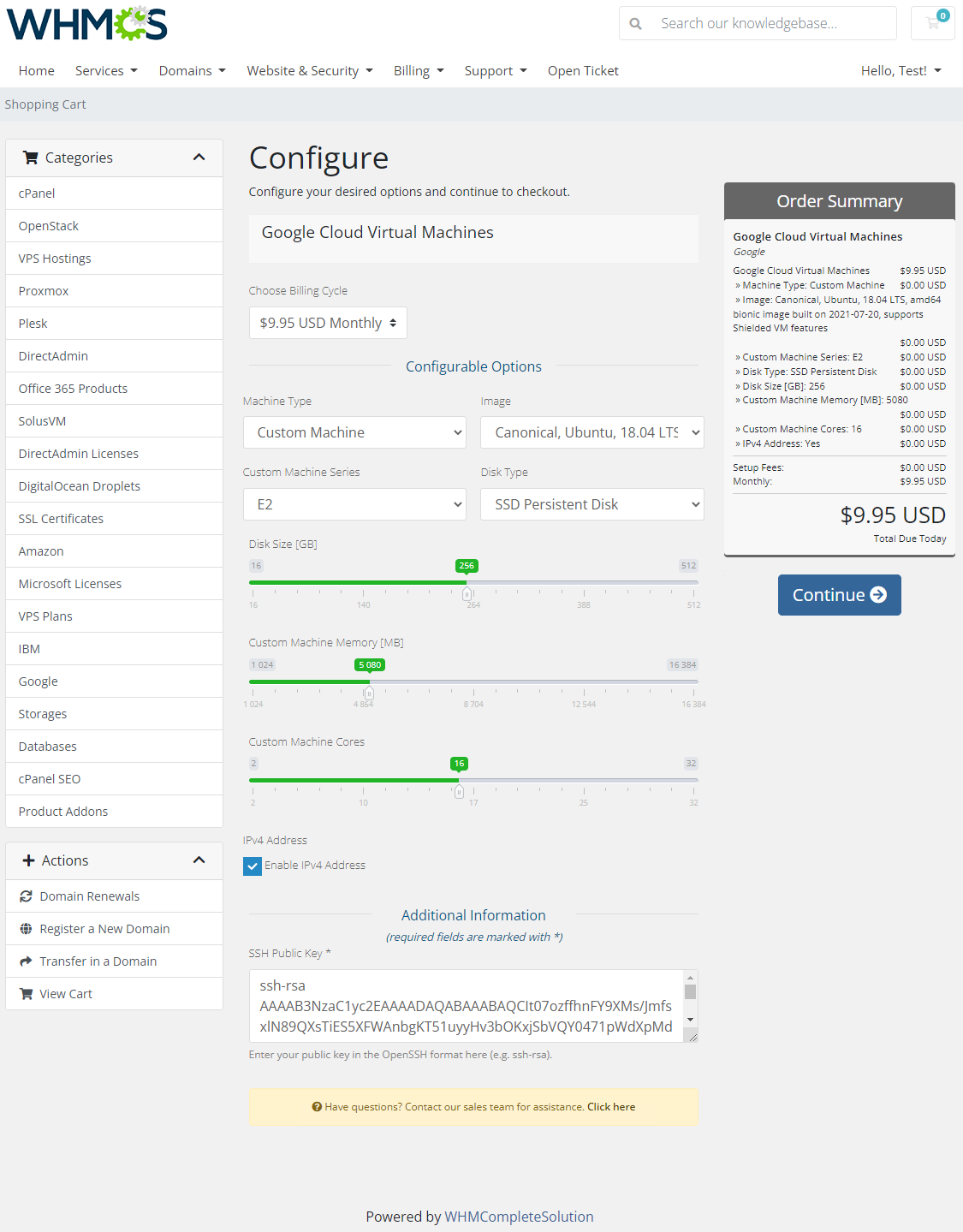
Thanks to configurable options, you are able to offer a product which your clients can match to their needs.
Additionally, you are able to set up pricing for each configurable option, which makes your offer even more competitive.
At this moment you also have to provide the SSH key. Note that this key should be in one of the OpenSSH standard formats which are supported by API, e.g. ssh-rsa.
# Importing Existing Instance
In this section, you can find short instruction on how to connect one of your clients to your already existing instance in the Google Cloud panel.
Take the following steps to make sure that the process will be carried out properly.
Firstly, manually create an order for your customer in WHMCS. Choose a client and in the summary, view click on the ' Add New Order' button. Next, select a 'Product/Service' and press 'Submit Order'.
What is important, do not perform the 'Create' action. The status has to remain as 'Pending'.
More info about placing orders can be found here (opens new window)Proceed to the newly created product's card in your admin area. Find the following empty fields:
- Instance ID
- Region
- Zone
The above-mentioned information has to be consistent with the data from your Google Cloud panel. Now, complete these fields as presented below.
Important! Remember to make sure that the format of the provided data is compatible with the format supported by the module. You can preview it for another product of the module you have already created and enter it in a similar way.
If you completed the required data, now change the status from 'Pending' to 'Active' and 'Save Changes'.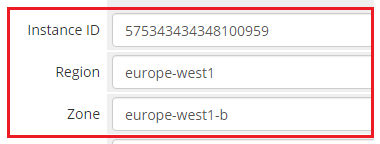
If the completed data is correct, after refreshing the page, you will see the attached instance from Google Cloud.
Important! Remember to manually add other missing parameters of the instance such as domains, credentials, IP Addresses, configurable options, SSH Key, billing cycle, etc. so they match the parameters of the attached instance from Google Cloud.
# Client Area
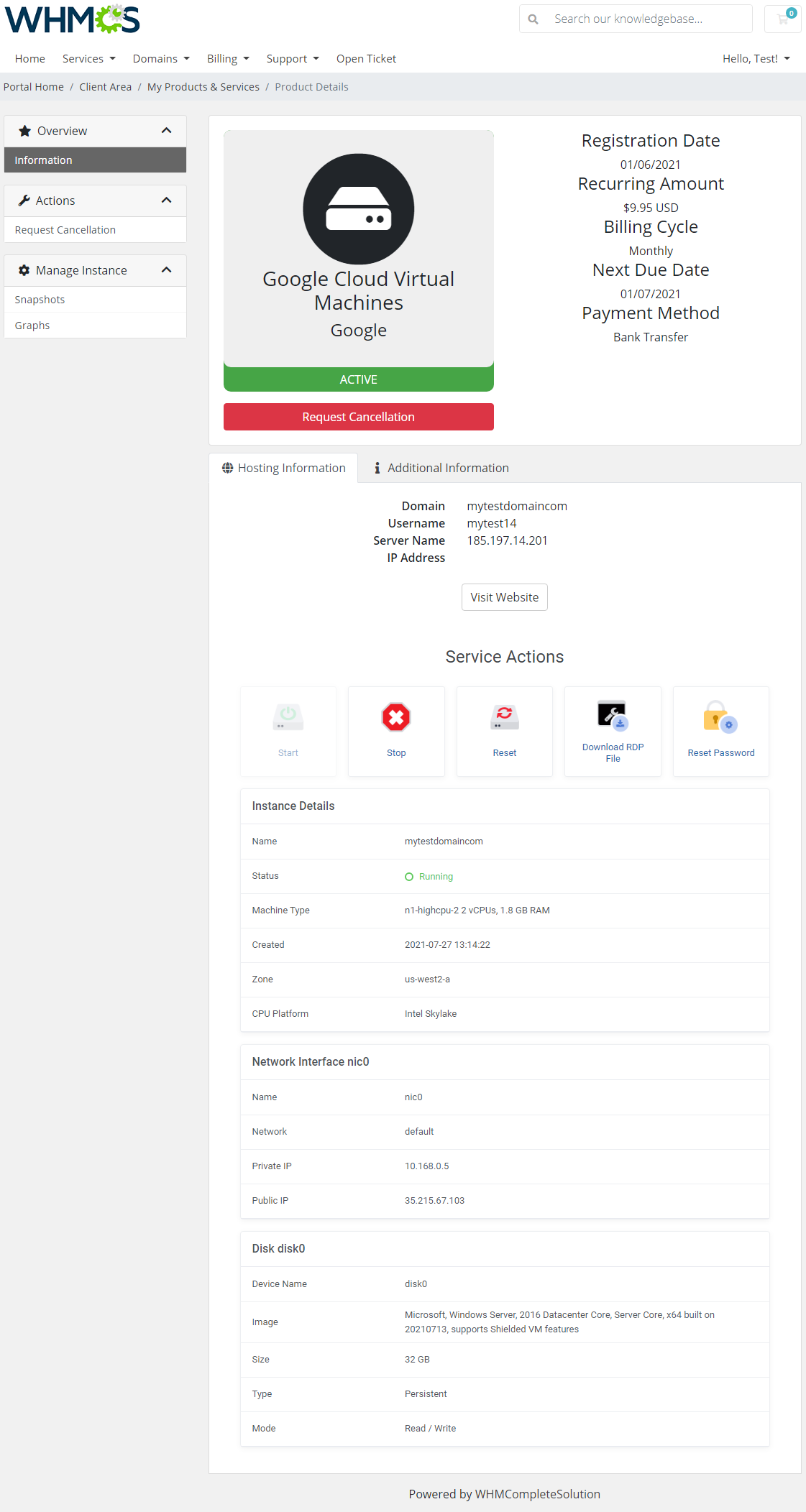
The client area interface of Google Cloud Virtual Machines For WHMCS looks like below.
As you can see, the control panel contains useful details of the managed server.
The module allows your customers to easily start, stop and reboot their server instance through pressing the appropriate buttons.
It is also possible to download the RDP file and reset the password, just press adequate buttons.
# Snapshots
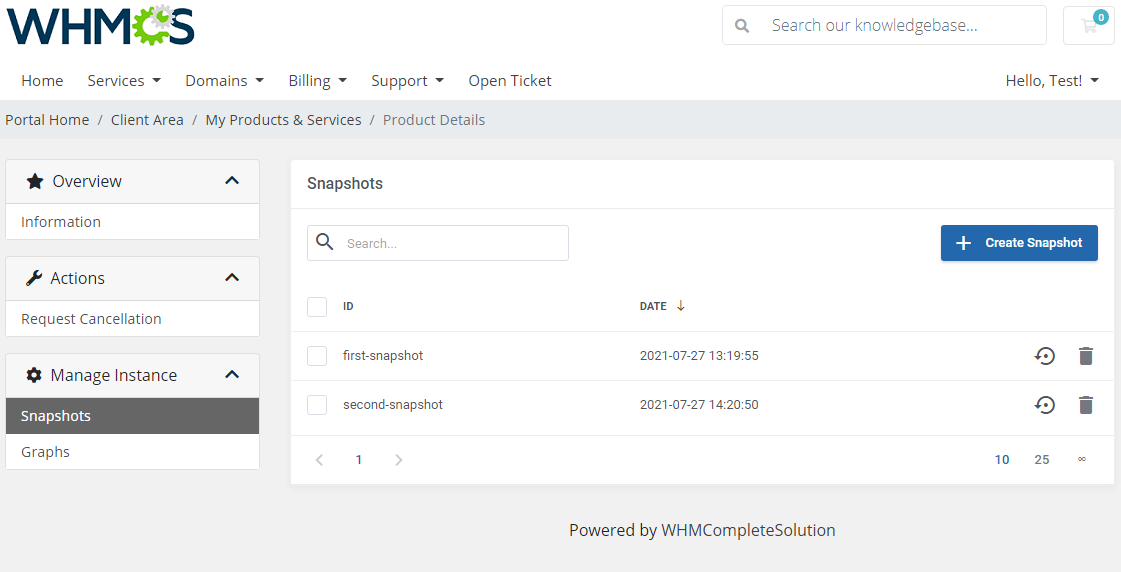
In the 'Snapshots' section, you may create a new snapshot as well as manage the existing ones.
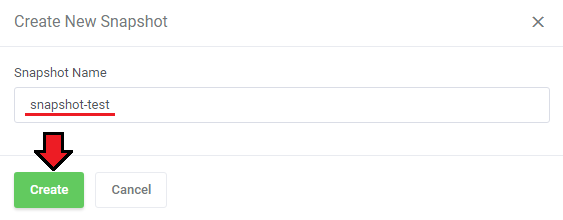
Simply, click on the 'Create Snapshot' button, then provide a name of this new snapshot. Please wait a while until the process is completed.
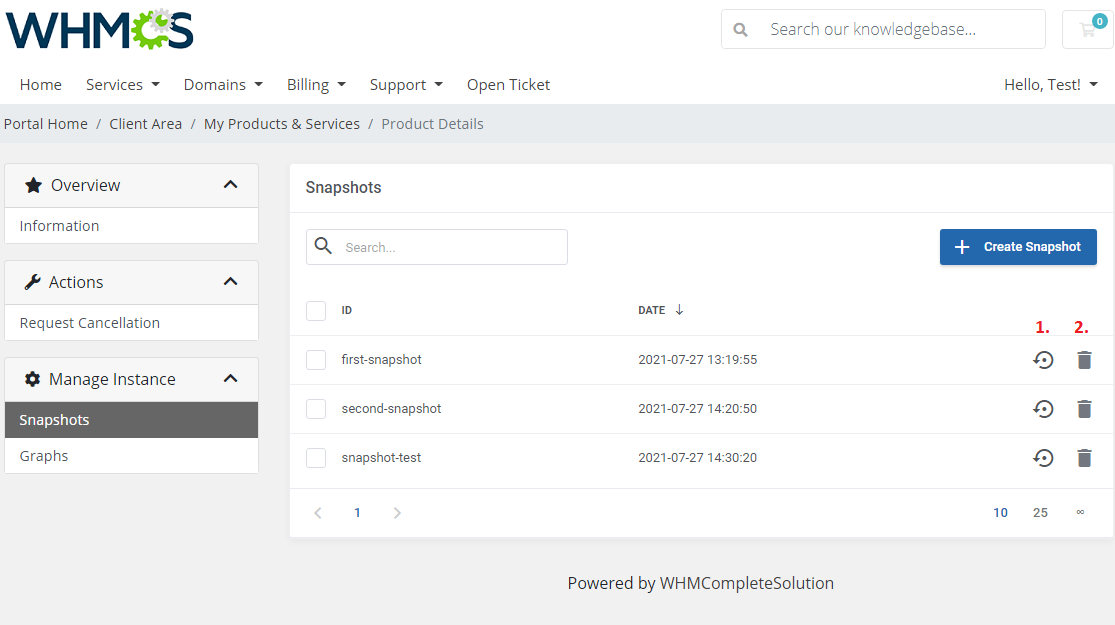
Moreover, you can restore (1) or delete (2) a particular snapshot if it is no longer needed.
# Graphs
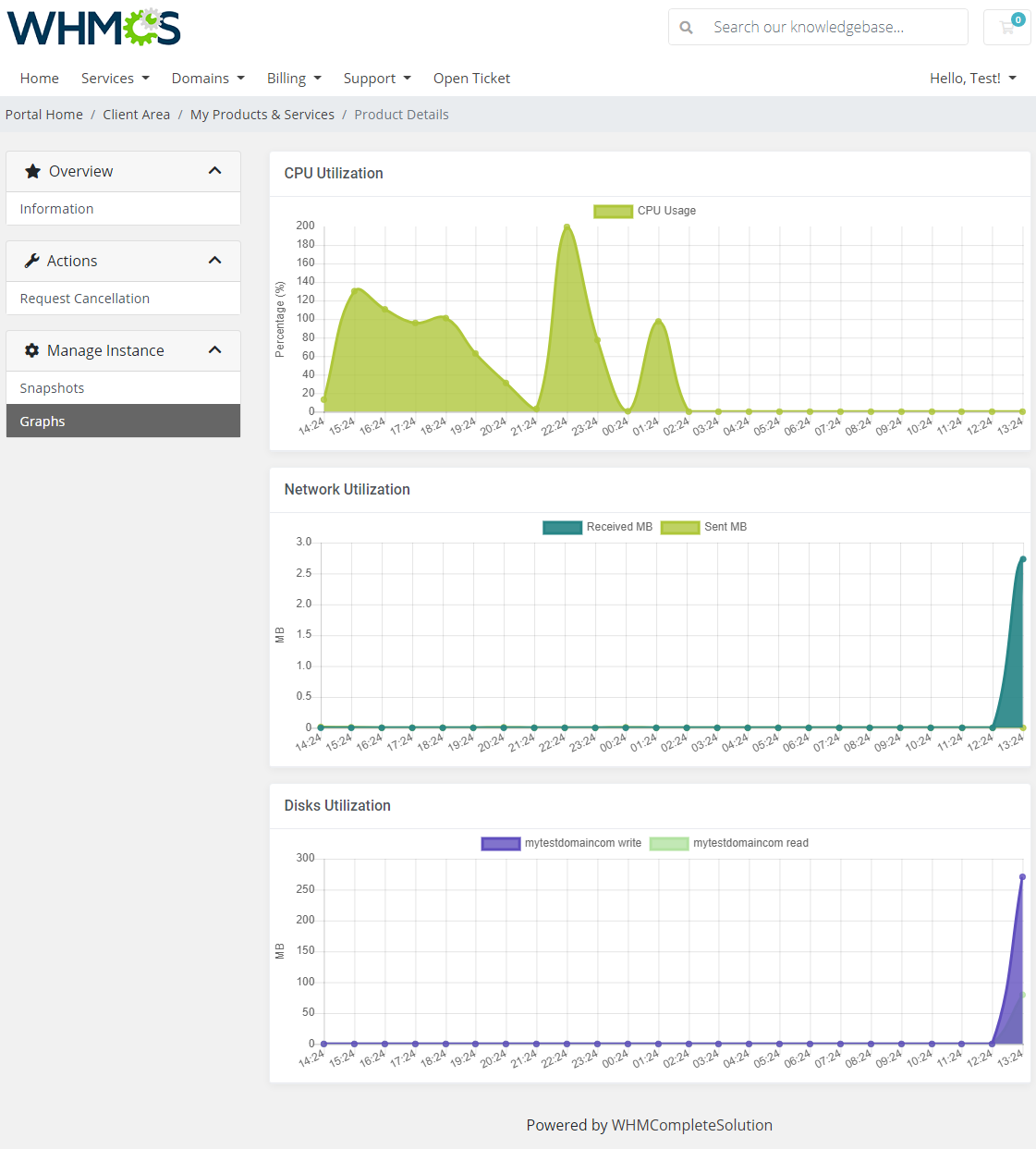
The 'Graphs' section grants quick preview of the CPU, Networ and Disks utilization.
Take a look at the available graphs to get the gist.
# Update Instructions
An essential guidance through the process of updating the module is offered here.
Ensure successful completion of the module update by carefully following each step, thereby preventing data loss or any unforeseen issues.
Additionally, you will find a current list of supplementary actions necessary for a smooth update process there.
# Upgrade Guide
Seeking a solution that offers greater flexibility, customization tailored to your precise needs, and unrestricted availability?
There is an option that not only proves to be cost-effective in the long run but also includes prioritized support services, making it a truly valuable investment.
Opt for the Open Source version (opens new window) of your Google Cloud Virtual Machines For WHMCS module to unlock these benefits.
Simply click on either the Get Source Code or Upgrade To Lifetime button found on the product's page in our client area to complete the one-step upgrade process, with a dedicated discount already applied.
Follow a comprehensive guide covering the transition process, the advantages it brings, and step-by-step instructions on what to do next after the order has been successfully finalized.
# Common Problems
When you have problems with connection, check whether your SELinux or firewall does not block ports.
User permissions errors: in case you encounter errors connected with access to API, make sure the user has appropriate permissions (Owner) set up in the Google Cloud panel.
Change the permissions here:- Google Cloud → Dashboard → Go to project settings
- IAM and admin → IAM
- Find the user and edit the principal permissions
- Add new role: Owner (Full access to most Google Cloud resources) and save the changes