

# Products Reseller For WHMCS
- About Products Reseller For WHMCS
- Installation
- Configuration and Management
- Dashboard
- General Settings
- Groups
- Resellers
- Response Templates
- Module Logs
- Documentation
- Reseller Area
- Integration Modules
- Integration Module Installation In Reseller's WHMCS
- Proxmox VE VPS & Cloud For WHMCS Integration
- EasyDCIM Dedicated Servers For WHMCS Integration - Servers Reselling
- SSL Products Integration
- OpenStack Projects For WHMCS Integration
- Plesk Key Administrator For WHMCS Integration
- Virtualizor By Softaculous Module Integration
- WHMCS Licensing Addon
- Products Reseller - Provisioning Product
- Sample Workflow
- Upgrade Instructions
- Importing Existing Product Into Reseller Store
- Tips
- Update Instructions
- Upgrade Guide
- Common Problems
# (opens new window) About Products Reseller For WHMCS (opens new window)
Products Reseller For WHMCS brings you automation and comfort into reselling your products, following income as well as managing the reseller groups.
As a provider, you are able to handle all details of your reseller groups and set up pricing rates for each product in a particular group effortlessly.
Moreover, your resellers grant all crucial information about placed orders along with API documentation. As for end clients, they are able to buy preferred products and perform basic actions on them later.
# Installation
This tutorial will show you how to successfully install and configure Products Reseller For WHMCS. (opens new window)
- Log in to our client area and download the module.
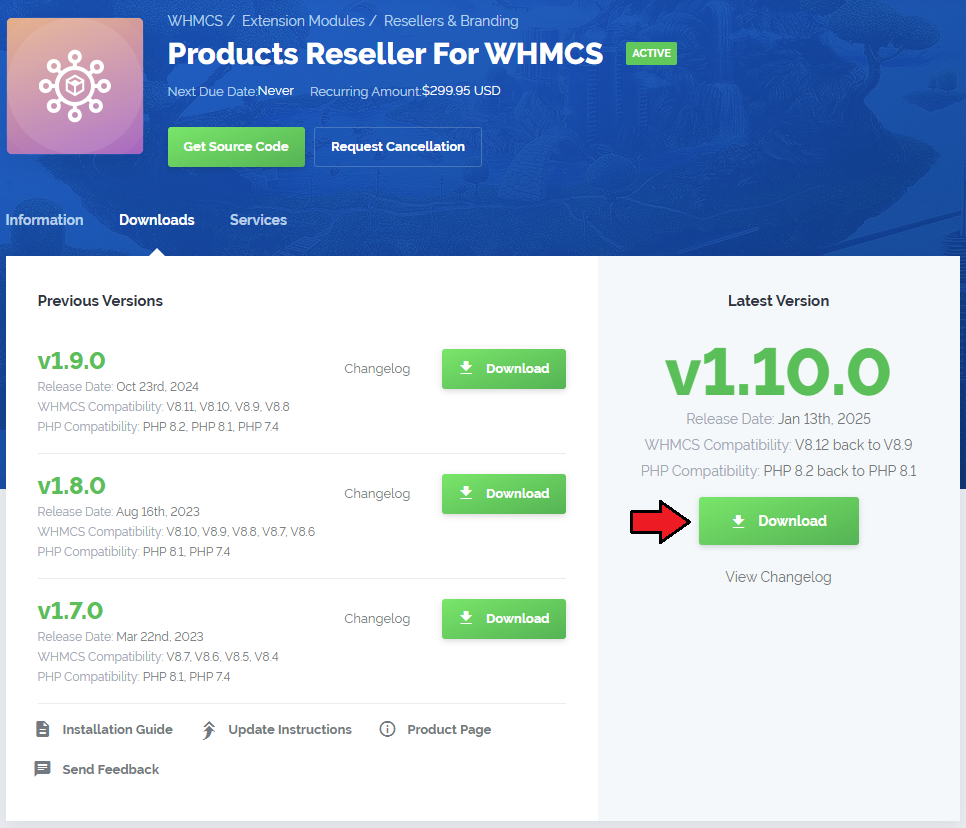
Extract the package and upload its content into the main WHMCS directory.
The content of the package to upload should look like this.
When you install Products Reseller For WHMCS for the first time you have to rename 'license_RENAME.php' file.
File is located in 'modules/addons/ProductsReseller/license_RENAME.php'. Rename it from 'license_RENAME.php' to 'license.php'.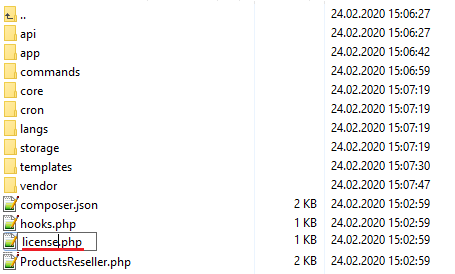
In order to configure your license key, you have to edit the previously renamed 'license.php' file.
Enter your license key between quotation marks as presented on the following screen. You can find your license key in our client area→ 'My Products'.
In the next step, set up the 'storage' folder as recursively writable.
This folder is available at 'yourWHMCS/modules/addons/ProductsReseller/'.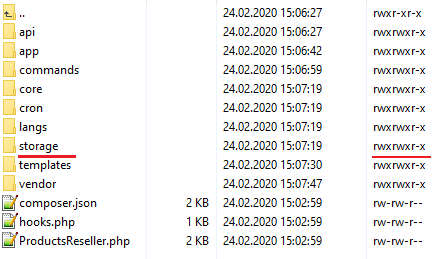
Now you have to activate the module in your WHMCS system.
Log in to your WHMCS admin area. Go to 'WHMCS Admin Area' → 'System Settings' → 'Addon Modules'. Afterwards, find 'Products Reseller' and press the 'Activate' button.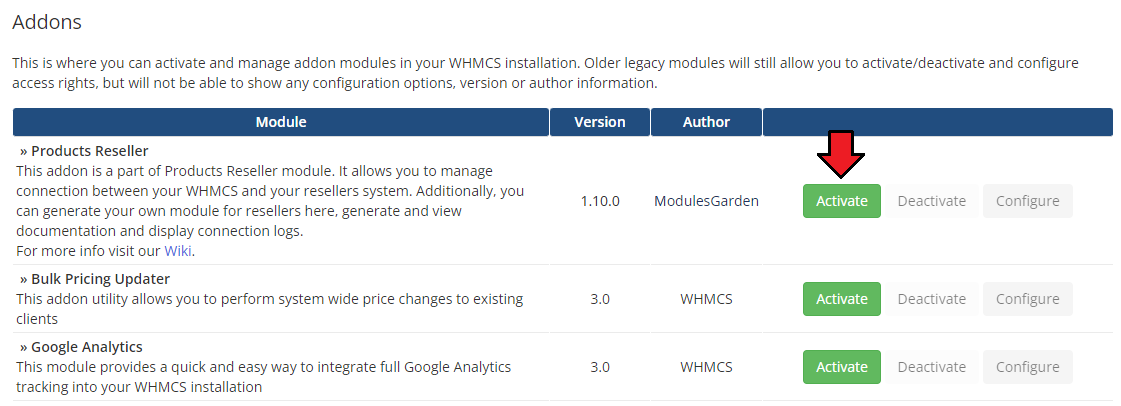
In the next step you need to permit access to this module.
To do so click on the 'Configure' button, tick 'Full Administrator' and press 'Save Changes'.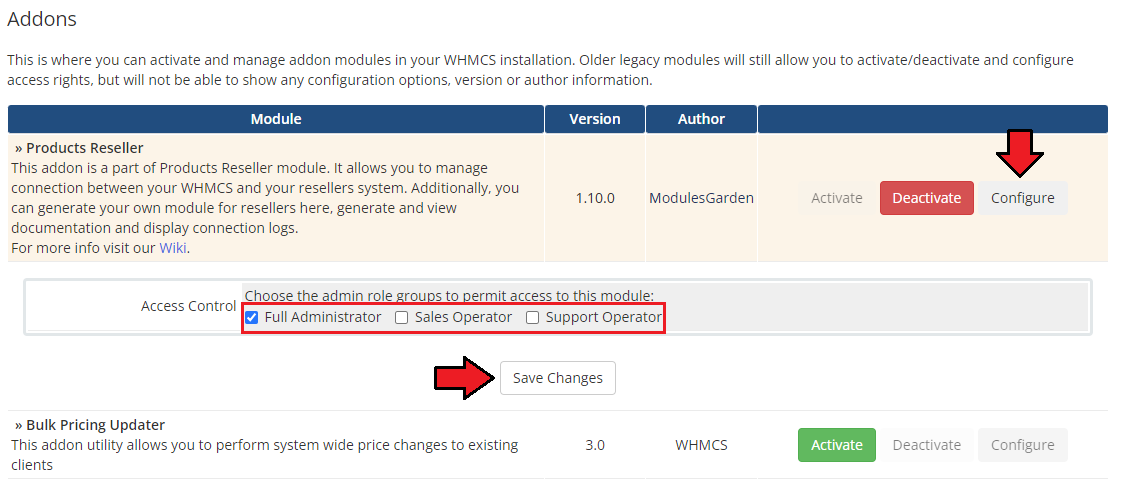
You have just successfully installed Products Reseller!
You can access your module at 'Addons' → 'Products Reseller'.
# Configuration and Management
Products Reseller For WHMCS allows your customers to resell products on their own WHMCS.
# Dashboard
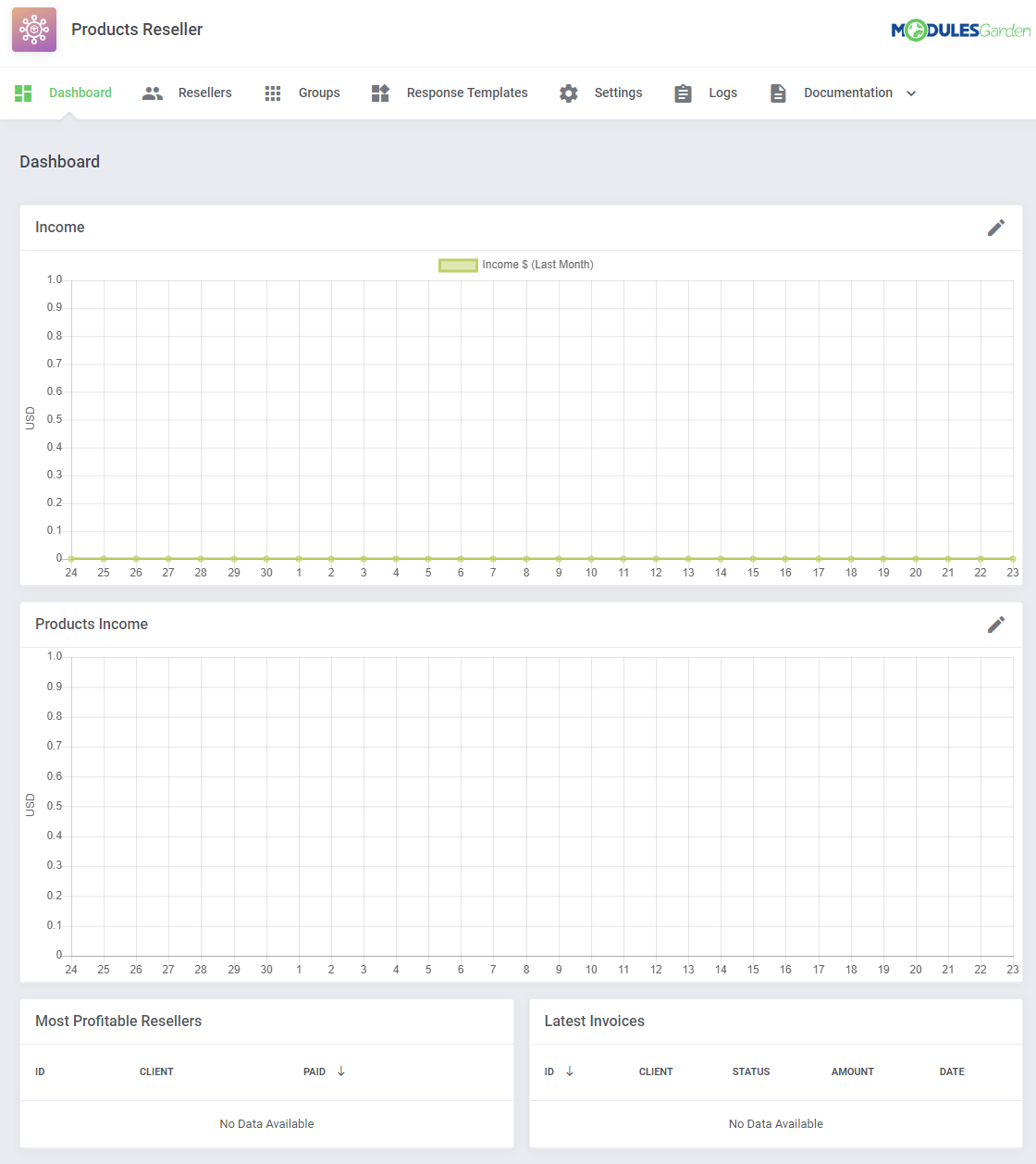
The 'Dashboard' page presents some useful graphs and summaries on income generated from reselling products.
The 'Income' section presents your income which is converted into USD basing on 'Base Conv. Rate' in System Settings → Currencies.
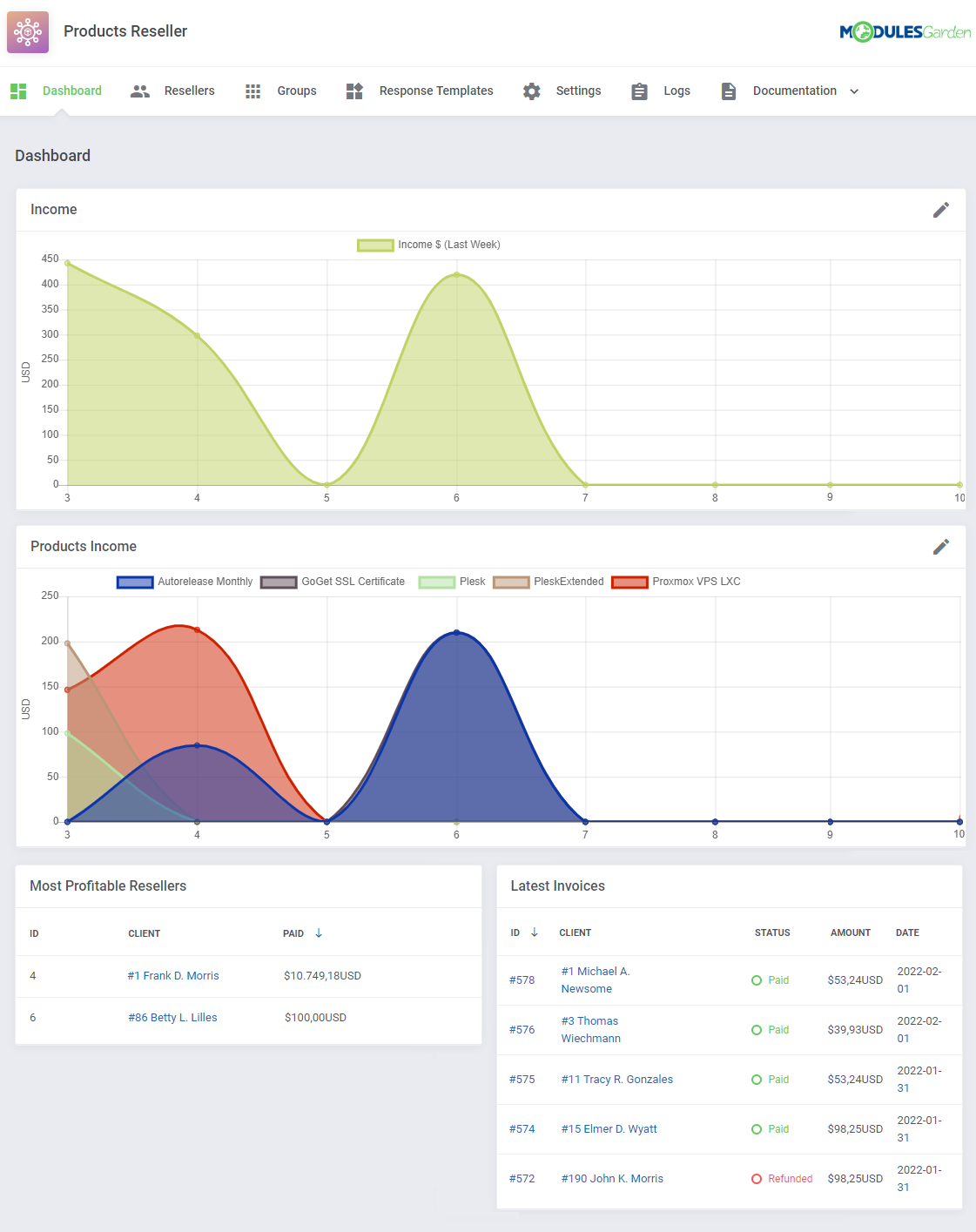
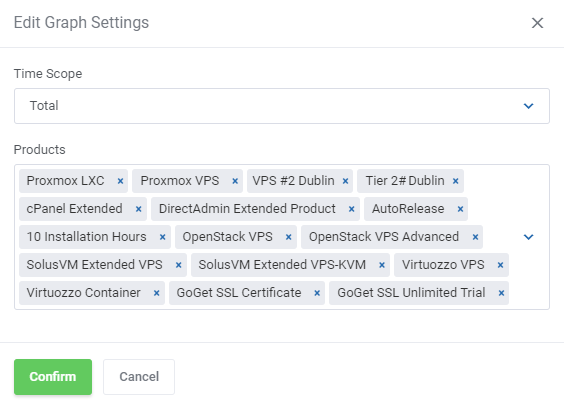
You may easily change the graph settings by changing the time scope and choosing products you are interested in.
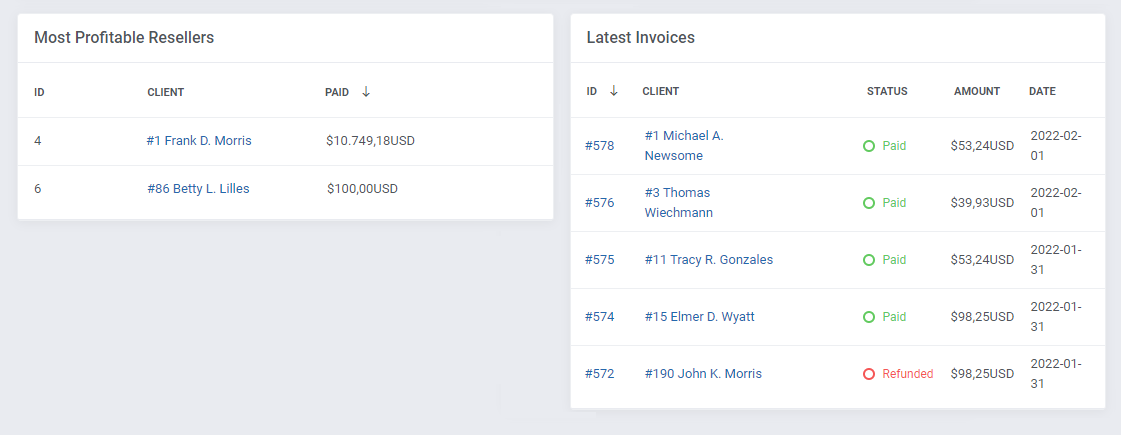
The summary of the most profitable resellers & the latest invoices:
# General Settings
'Settings' tab allows you to access general settings of your Products Reseller API.
Here you may set up general options but still, you will be able to change them per single group. If you skip group settings, this configuration will be taken into account.
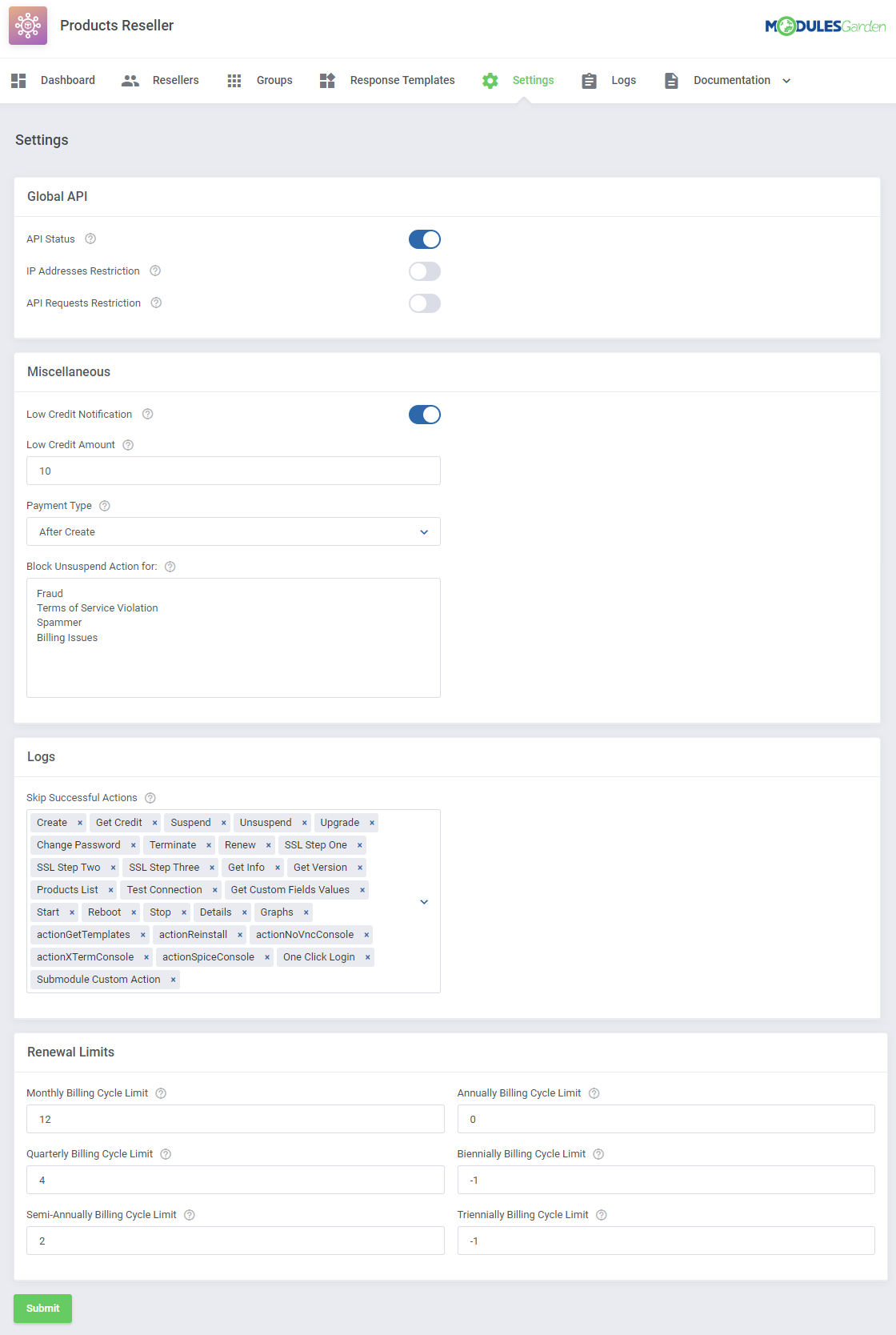
We will describe these options below.
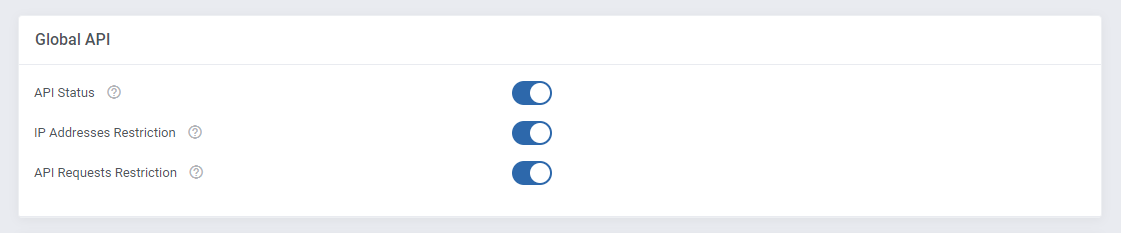
Global API related section:
- API Status - enable/disable Products Reseller API.
- IP Addresses Restriction - enable/disable restricting connection to Products Reseller API only for IP addresses specified in the 'Allowed IP Addresses' field.
- API Requests Restriction - enable option to restrict the number of API requests.
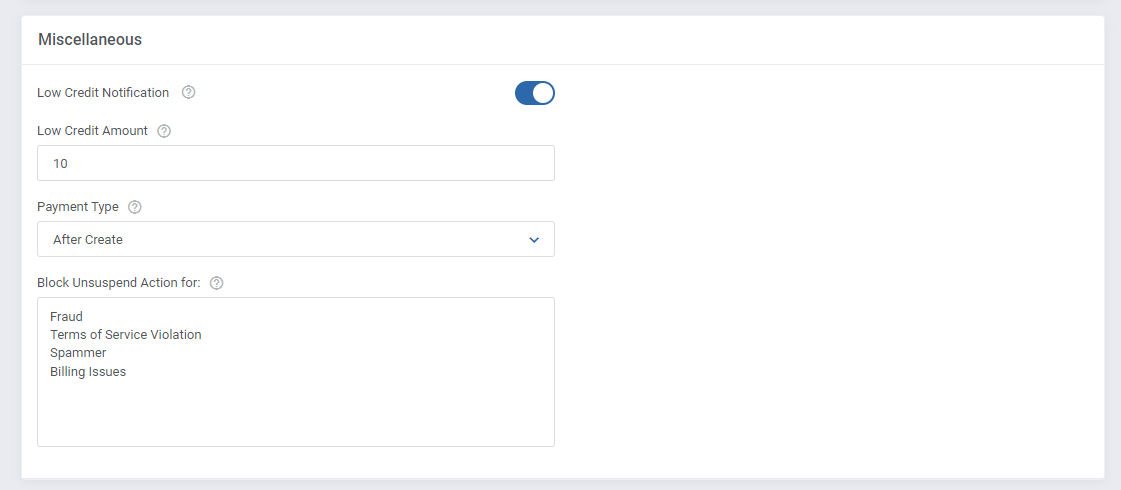
Miscellaneous:
- Low Credit Notification - a notification to your client will be sent when credit balance on client's account falls below entered value.
You may view and edit the "Low Credit Notification" custom email template sent to clients at 'System Settings' → 'Email Templates'. This email message is sent with the main WHMCS cron job.- Low Credit Amount - amount of credits, when reached a notification will be sent.
- Payment Type options:
- After Create - resellers must have sufficient credits amount, but he is charged only after a product has been successfully created.
- After Order - resellers must settle the payment just after the order, the amount due is taken from his account instantly.
- Block Unsuspend Action for - enter phrases, one per line; if any phrase is used as a suspension reason, the related product will not be automatically unsuspended
Logs:
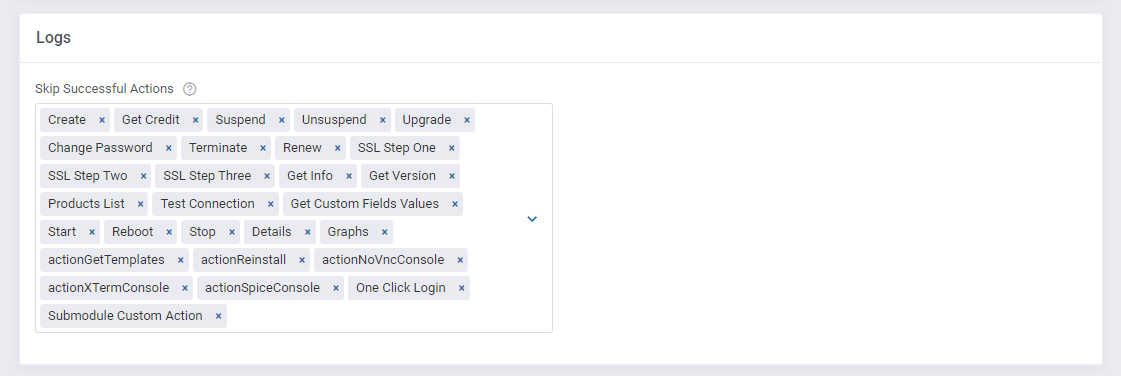
- Skip Successful Actions - select from available actions which you do not need to be logged on the 'Logs' section.
Note that only successful messages will be omitted, all unsuccessful actions will be still logged.
Automatic Top-Ups:
- Payment Methods - select which payment methods will be available for resellers to use for Automatic Top-Ups.
This function will automatically charge resellers when their balance is insufficient upon invoice generation.
Remember to submit the changes, once you have finished.

Renewal Limits:
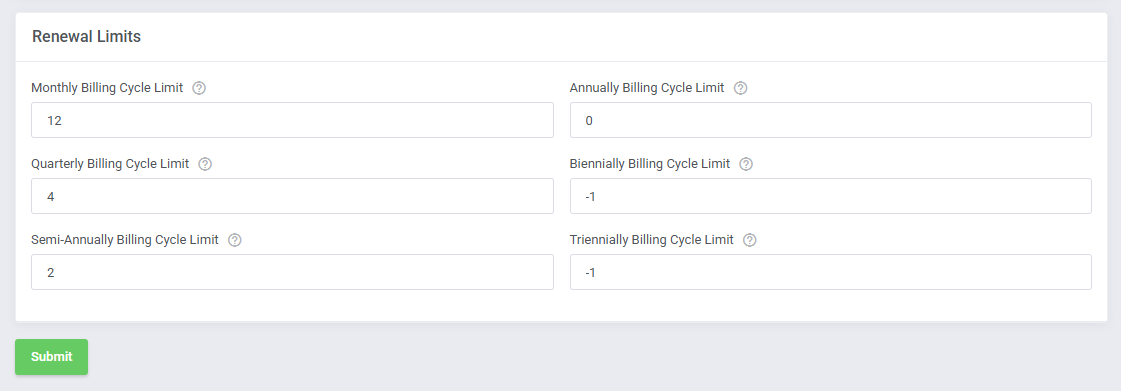
You can limit how many product renewals can be made ahead of the regular billing cycle.
There is a separate limit for each billing cycle type. Only one limit will be applied to a product, based on its billing cycle.
Setting the value to '0' will disable renewals for products with the given billing cycle. Setting it to '-1' will disable the limit, allowing for unlimited renewals.
Remember to submit the changes, once you have finished.
# Groups
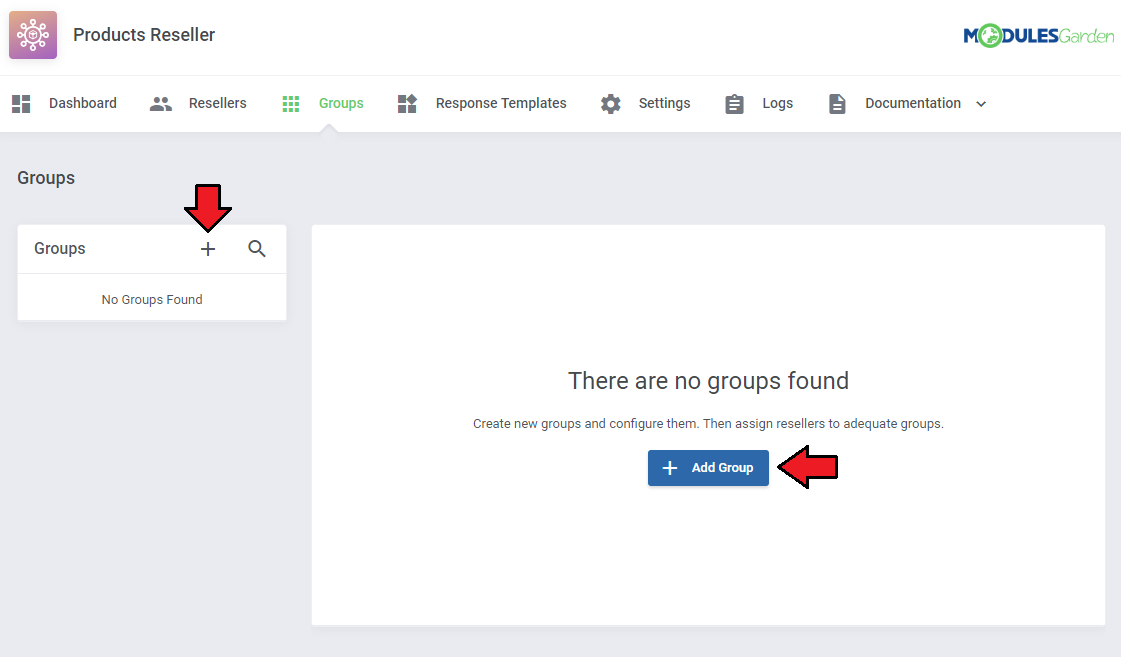
Let's start by creating the first group for your resellers. Use either of the buttons marked on the screen below.
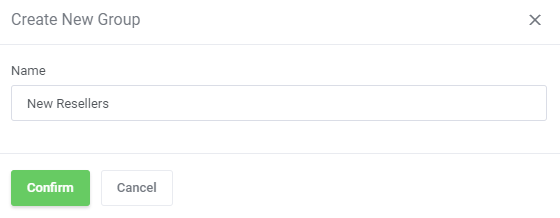
Then, simply type in a unique name of your group.
Create as many groups as you will need and set up different configuration to adjust them and then assign resellers to adequate groups.
# Configuration Per Group
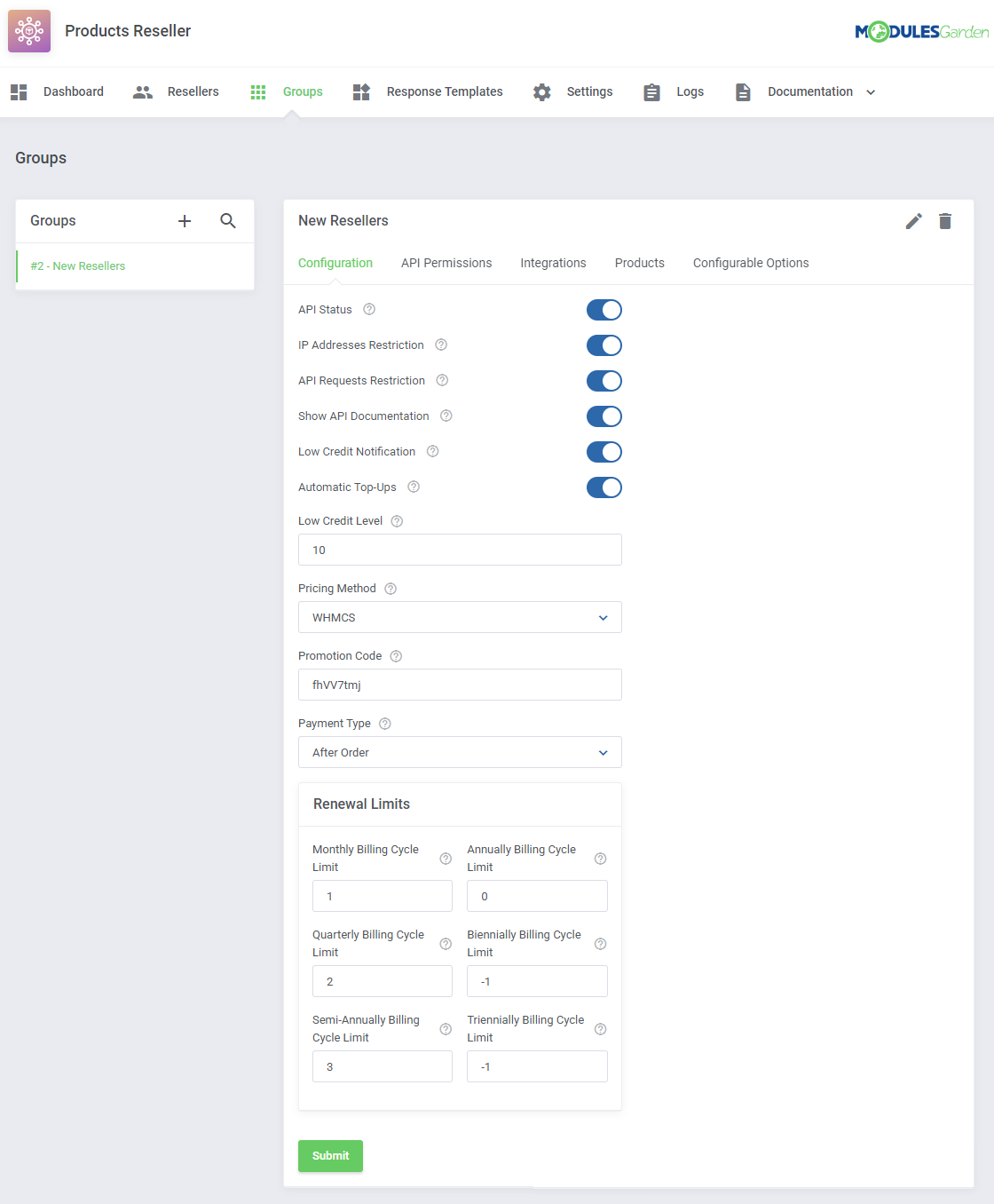
You can set up configuration for resellers assigned to this group only.
These settings will overwrite the general settings defined in the previous step.
- API Status - enable/disable Products Reseller API for Resellers only assigned to this group.
- IP Address Restriction - enable/disable restricting connection to Products Reseller API only for IP addresses specified in the 'Allowed IP Addresses' field.
- API Requests Restriction - enable option to restrict the number of API requests.
- Show API Documentation - toggle to allow resellers access to API documentation directly from their Reseller Area.
- Low Credit Notification - turn on sending notifications to your client when the credit balance on the client's account falls below-entered value.
You may view and edit the "Low Credit Notification" custom email template sent to clients at 'System Settings' → 'Email Templates'. This email message is sent with the main WHMCS cron job. - Low Credit Amount - the amount of credits, when reached a notification will be sent.
- Automatic Top-Ups - if enabled funds will be automatically added when the balance is low during invoice payment.
- Pricing Method - choose what pricing method should be used to charge the resellers:
- WHMCS - applies the default pricing you set up for a product in WHMCS. The 'Free' WHMCS payment type is not supported.
If you wish to offer a product for free please ensure that you configure the product price as a one-time charge, set to 0.00. - Overwrite - allows you to set up separate pricing under the 'Products' tab for the group.
- WHMCS - applies the default pricing you set up for a product in WHMCS. The 'Free' WHMCS payment type is not supported.
- Promotion Code - if the 'WHMCS' pricing method is selected, you may include a WHMCS promotion code to be applied for the group.
- Payment Type options:
- After Create - resellers must have sufficient credit amount, but he is charged only after a product has been successfully created.
- After Order - resellers must settle the payment just after the order, the amount due is taken from their account instantly.
Note: Please remember that upon unsuccessful product creation, the module does not take any credits from the Reseller Account.
- Renewal Limits - you can limit how many product renewals can be made ahead of the regular billing cycle.
There is a separate limit for each billing cycle type. Only one limit will be applied to a product, based on its billing cycle.
Setting the value to '0' will disable renewals for products with the given billing cycle. Setting it to '-1' will disable the limit, allowing for unlimited renewals.
Save the changes when ready.
# API Permissions
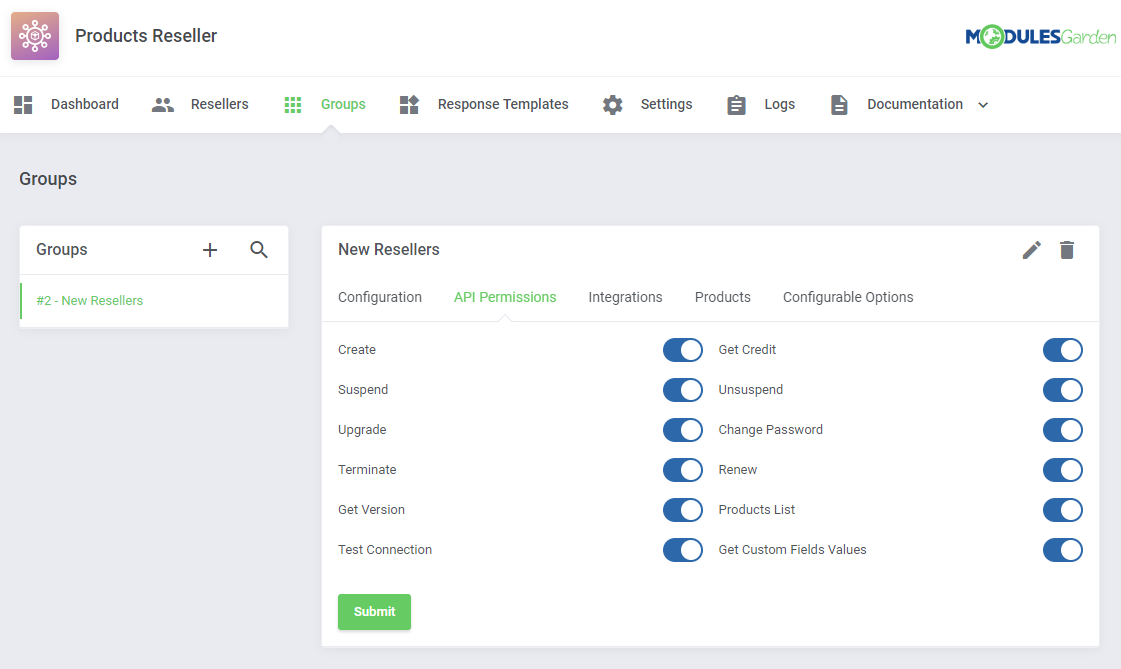
Toggle options that resellers will be allowed to use via API.
# Integrations
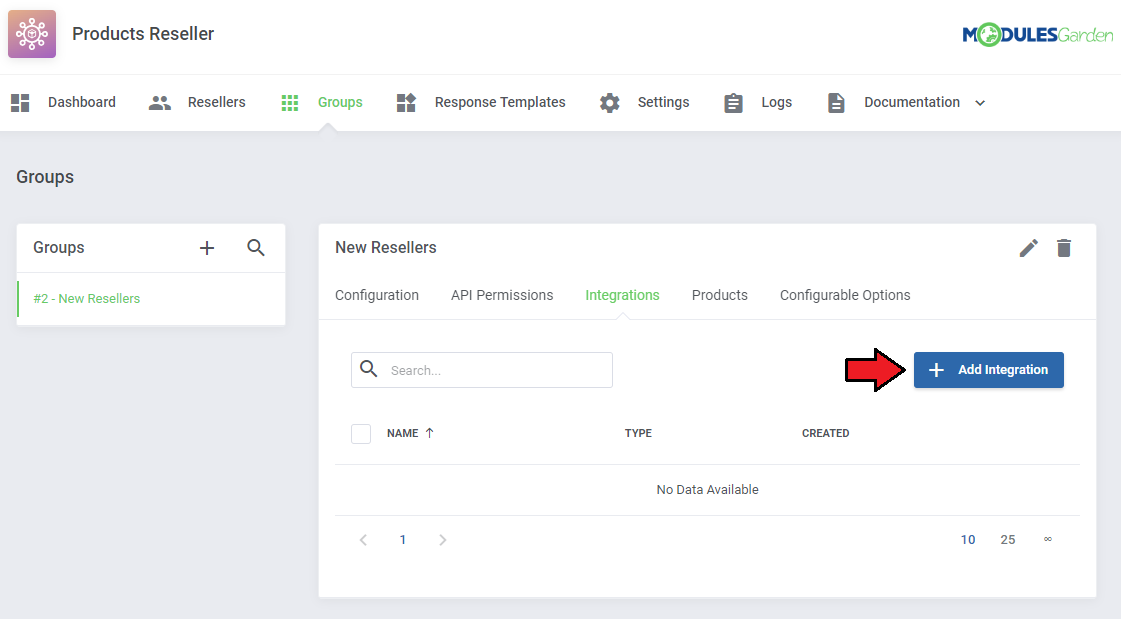
In this section you can create and manage integration modules which resellers will need to upload and activate to be able to resell products you offer them.
Press 'Add Integration' to begin.
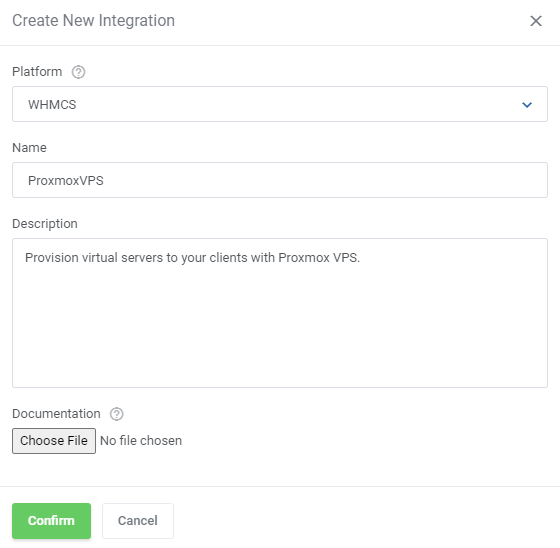
To generate a new integration module you need to provide following data:
- Enter your module unique name
- Type in a short description of the module, it will be visible on the activation page of the registrar
- Upload a file with documentation if you have prepared any - you may use any format.
The provided documentation may be a form of guidebook for Resellers on how to install and configure the module.
It is the responsibility of Providers to inform their Resellers about essential reselling tips and others.
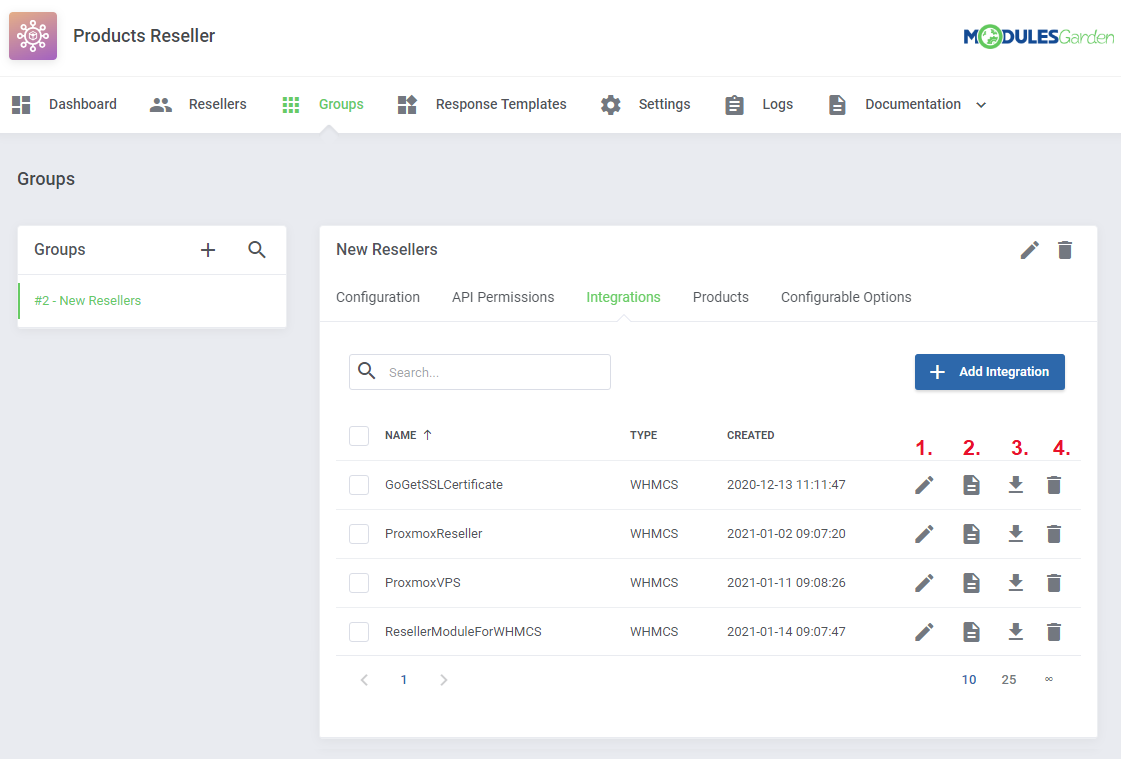
Newly created Integration will appear on the list. You may:
- Edit its details (change name, description, or file) at any time
- Download the documentation
- Download the integration package
- Delete the integration
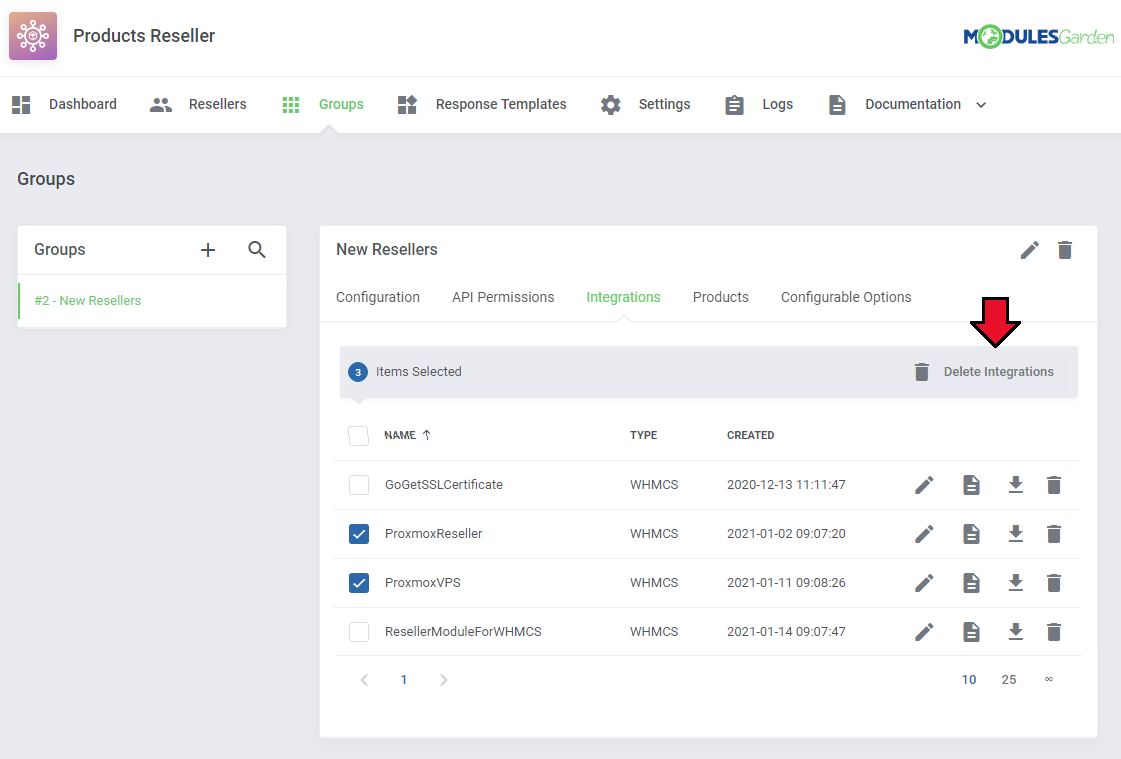
In order to delete numerous integration at once, use the mass action button.
# Products
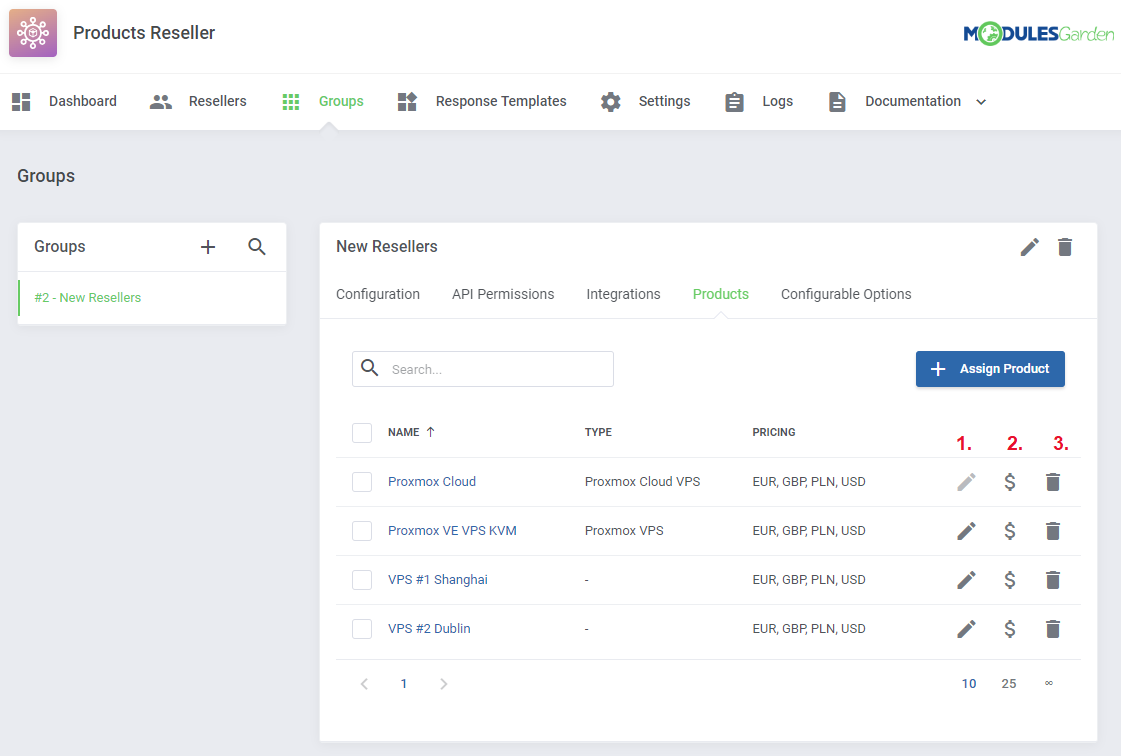
Here you can create a list of products along with their custom pricing details that resellers assigned to this group will be allowed to offer to their clients.
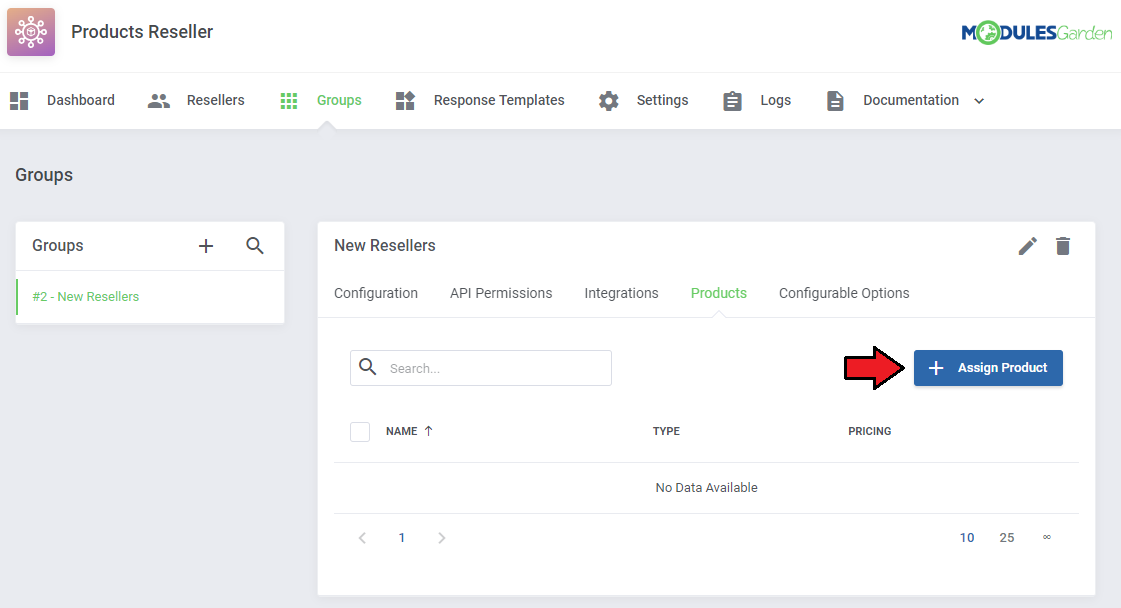
Press the 'Assign Product' button to begin.
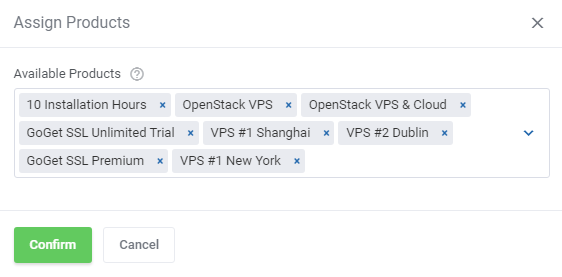
Select products from the available and press 'Confirm'.
Assigned products will appear on the list where the following options are available:
- Settings
- Set Pricing
- Unassign Product
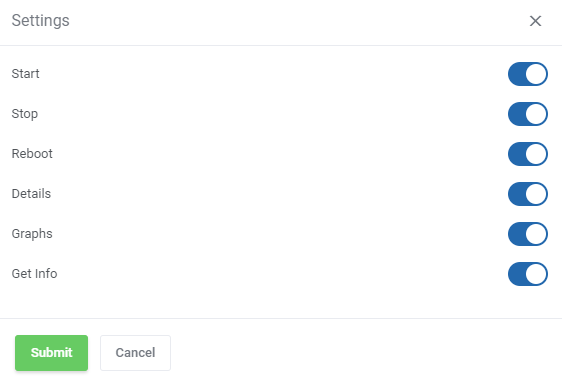
Depending on the product, there can be different actions enabled in the 'Settings' section.
Note: The following options such as 'Start', 'Stop', 'Reboot', 'Details','Graphs' are available only for Proxmox VE VPS & Cloud products.
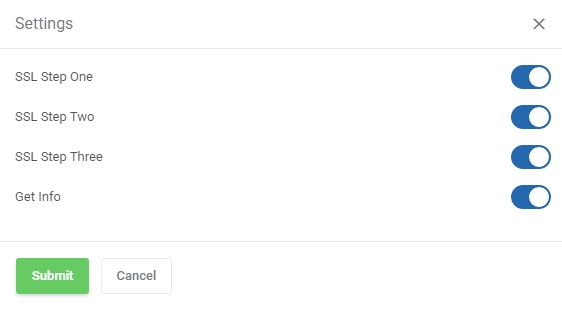
The 'Settings' section for the SSL Certificates products (for example GoGetSSL) will look as presented here:
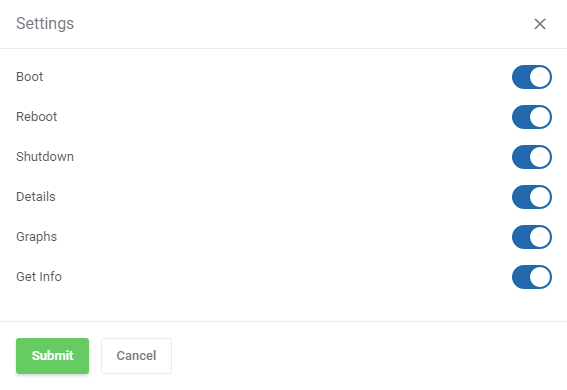
The below options in 'Settings' section are available for EasyDCIM Dedicated Servers products:
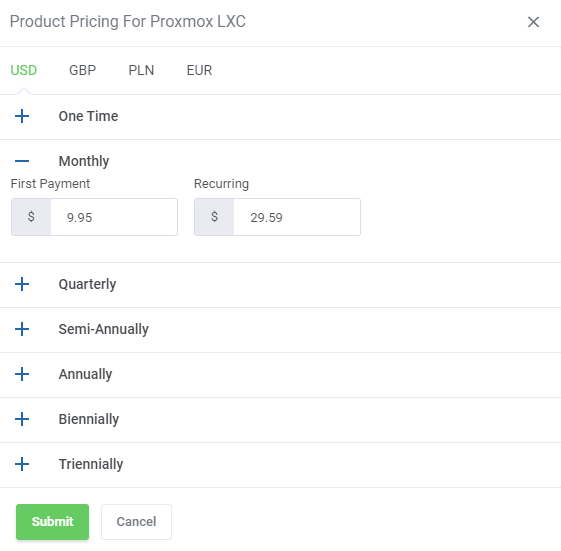
Then, set pricing for a particular item.
Important: The default pricing is set to '-1' (minus one) which is treated as disabled.
To enable the preferred pricing method, simply provide a price of the product.
Note 1: Please remember that ' First Payment' does not stand for ' Setup Fee'.
Note 2: If you decide to set pricing for a particular period, keep in mind that you need to complete both fields - 'First Payment' as well as 'Recurring'
in order for the pricing to be displayed in the Reseller Area.
Note 3: The module does not support 'Free' billing cycle. If you wish to offer a product for free please ensure that you configure the product price as a one-time charge, set to 0.00; One Time = 0.00.
It is crucial that the reseller's product settings align with this configuration to prevent any issues for end-clients in relation to their purchased products. This includes the 'WHMCS' payment type as well.
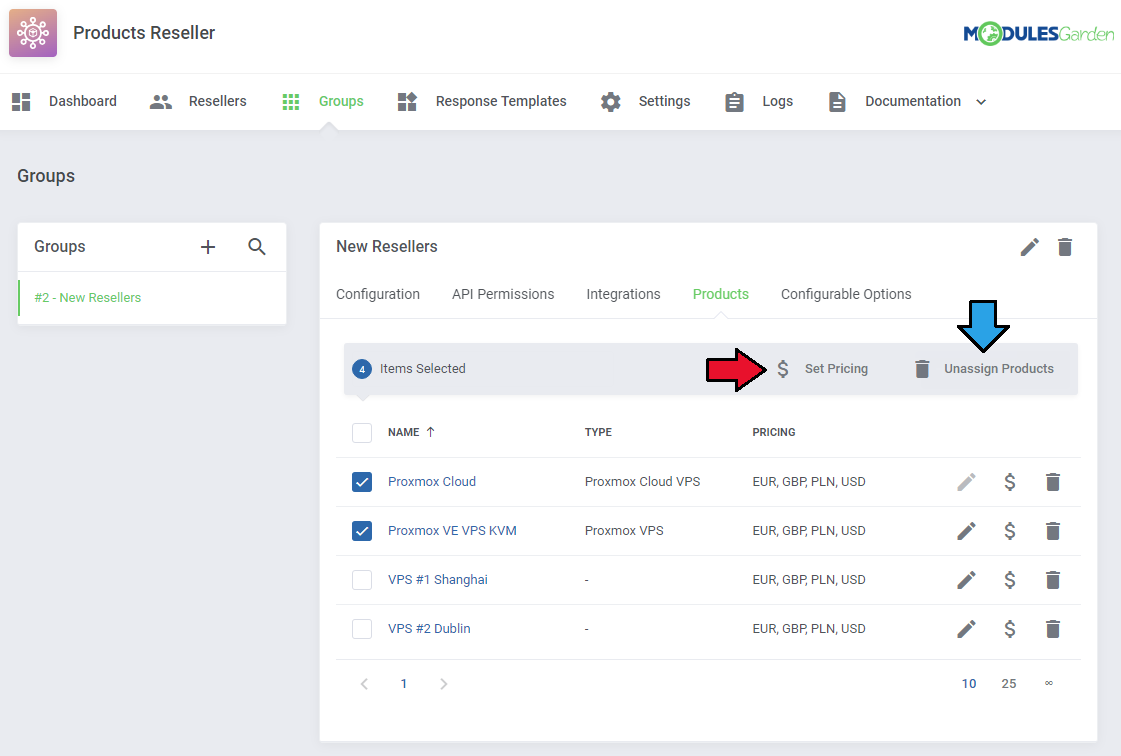
Moreover, there is the possibility to set pricing for a few selected products. Simply, use the mass action button to do it with one click.
In the same way, you may also unassign the preferred products.
# Configurable Options
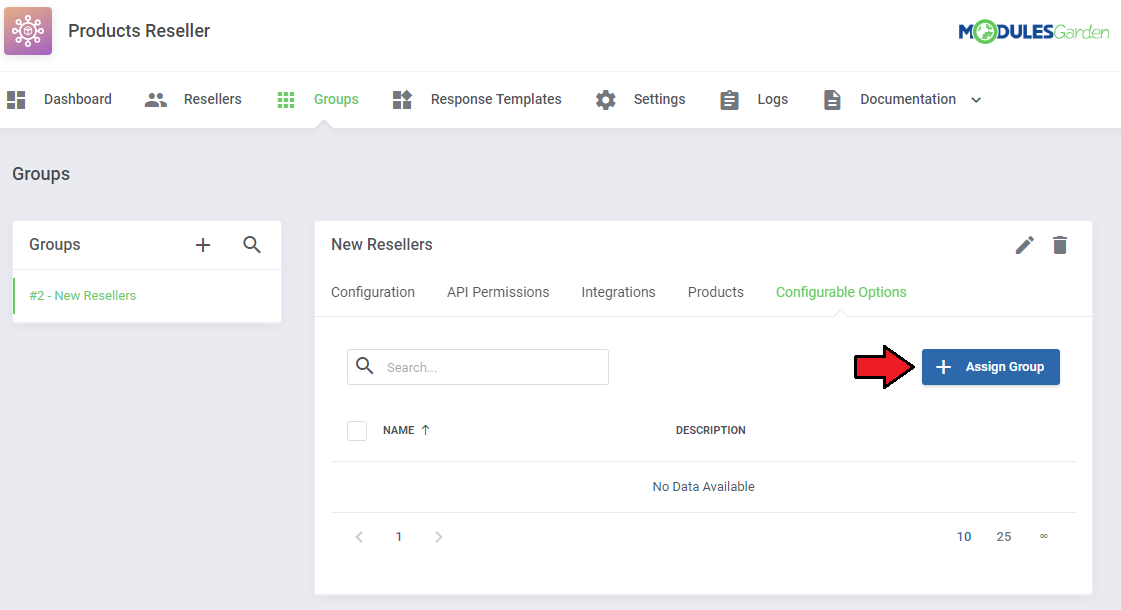
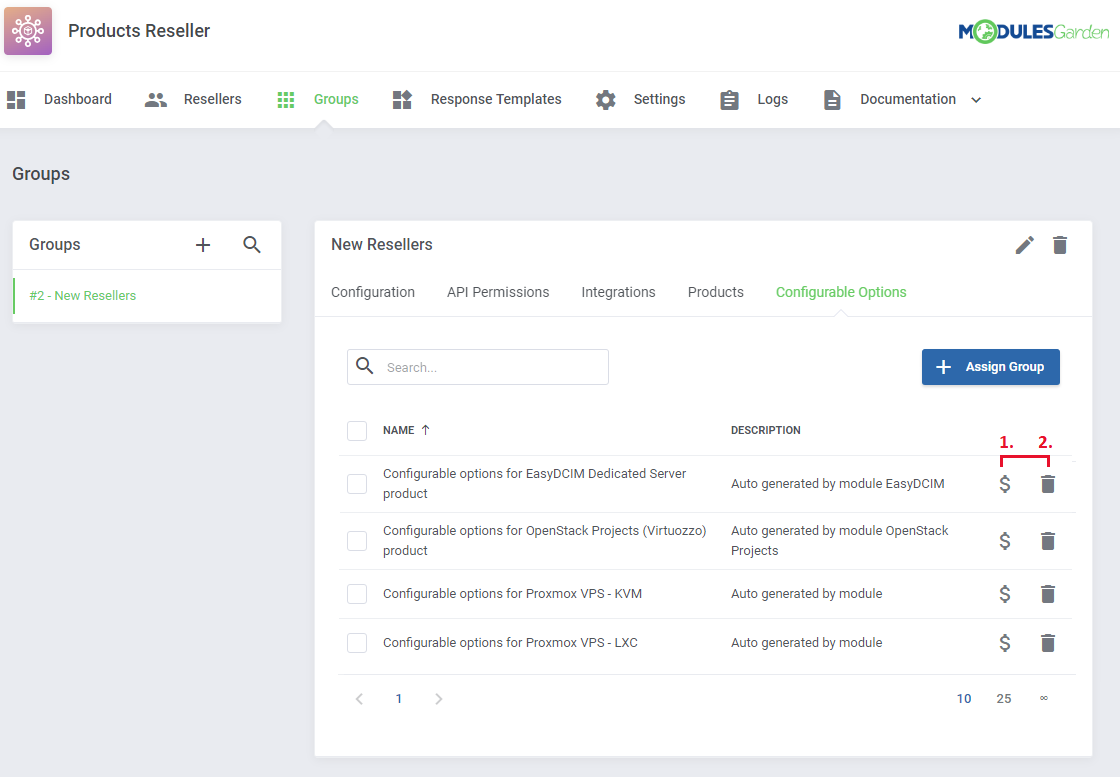
The last section allows for assigning groups to configurable options existing in your WHMCS.
Press 'Assign Group' to begin.
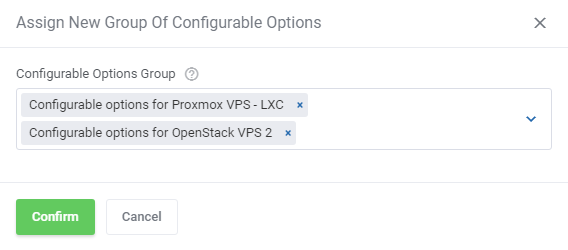
Select from the available configurable options groups, they will be then assigned to this group of resellers.
Assigned configurable options groups will appear on the list, you may:
- Update Pricing (1)
- Unassign Configurable Options Group (2)
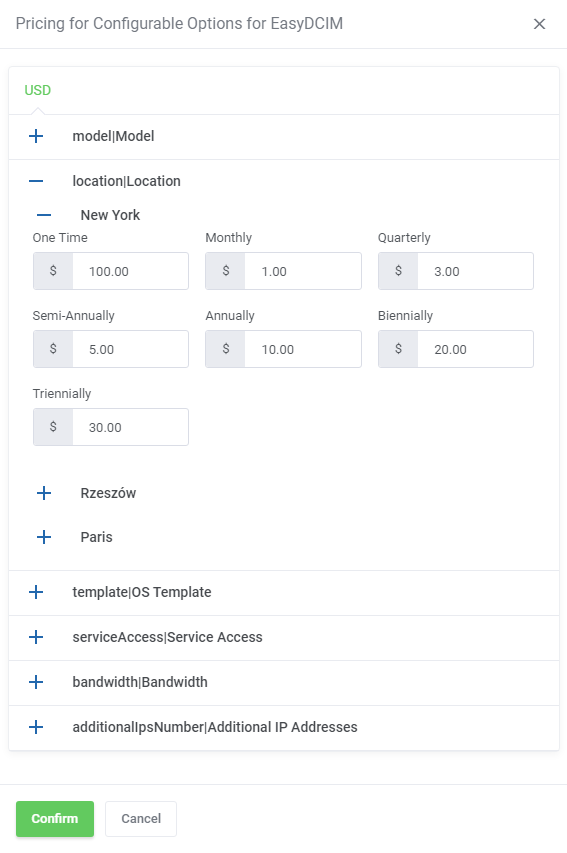
Change pricing for available configurable options.
By default, configurable option prices defined in WHMCS are used until you change them in the addon.
Once the config option price is updated here, its price visible in the Reseller Area is changed as well.
Important: It is not possible to disable the config option from sale by entering '-1' in contrast to products.
Important 2: If you change the config option price to 0.00 such config option will be free of charge.
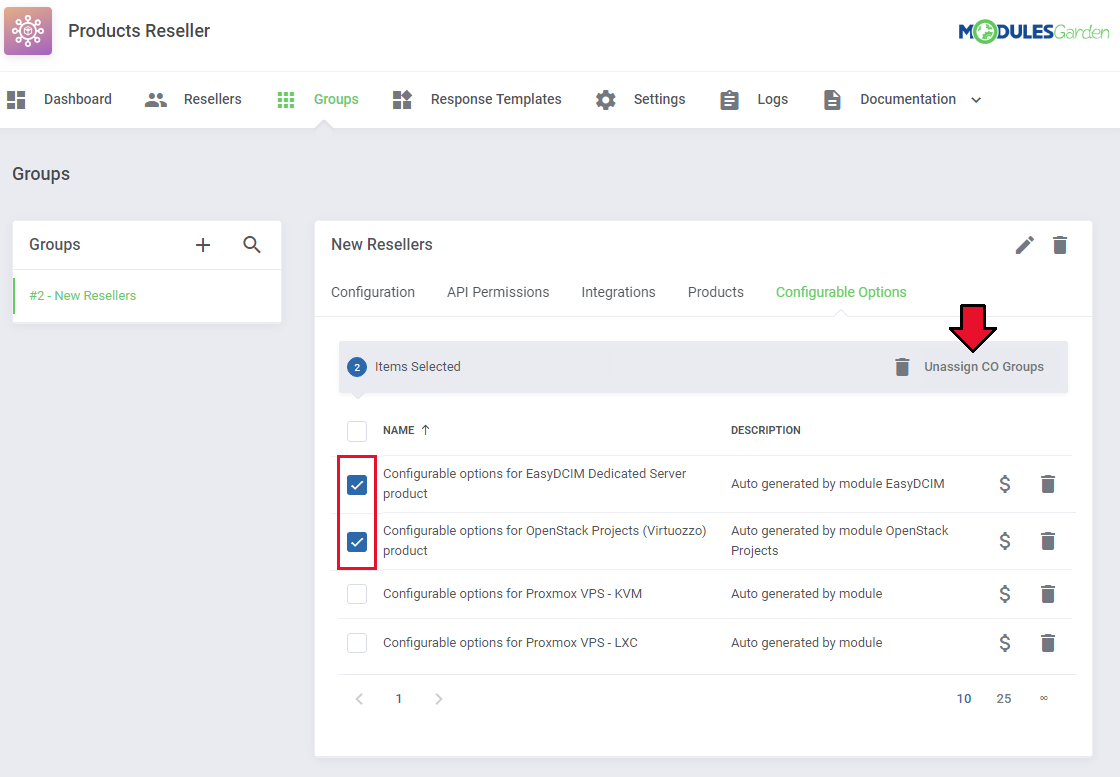
In order to delete configurable options groups simply press the bin icon or use the mass action button to unassign numerous groups at once.
Now, your group configuration is ready. If you have more groups, simply repeat these steps for each of them.
Remember that you are always able to edit the single group name or delete if no longer needed. Just click on adequate buttons to do so.
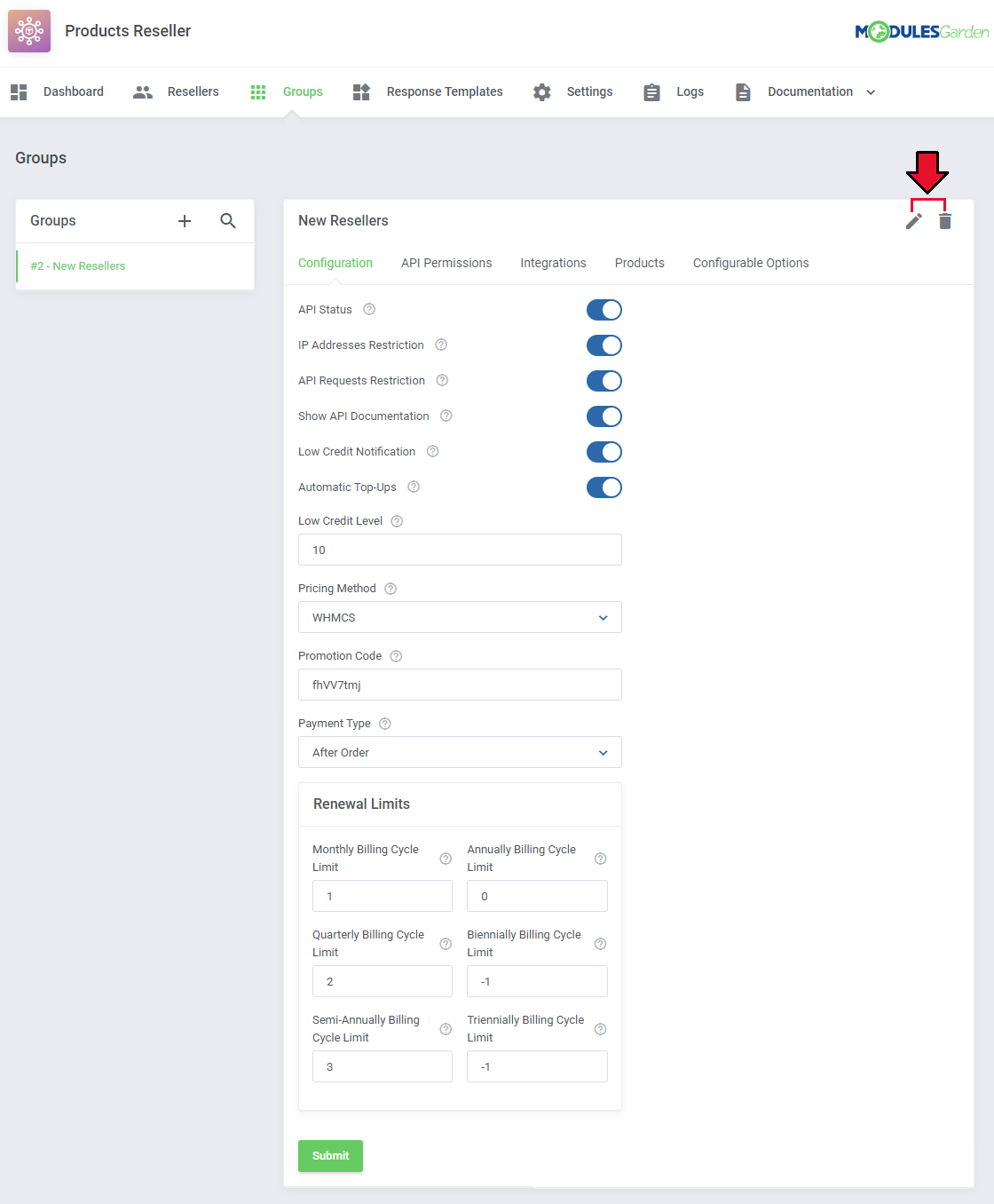
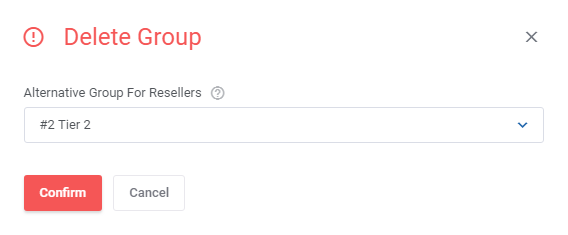
Keep in mind that you may never delete a group if there are any resellers assigned to the group.
Before deleting it, you must choose an alternative group to which the resellers will be reassigned.
# Resellers
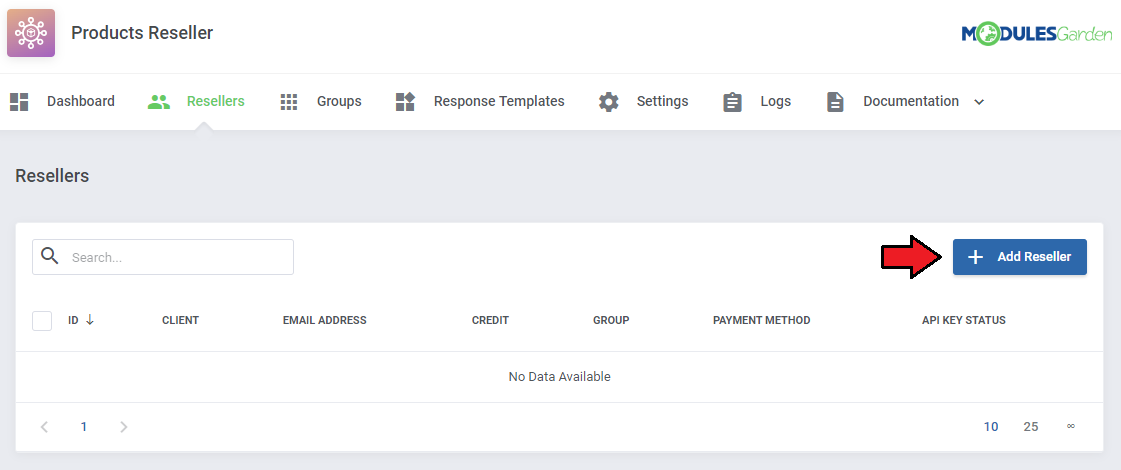
In this section you will find a list of your active Resellers. Press 'Add Reseller' to make one of your clients a reseller.
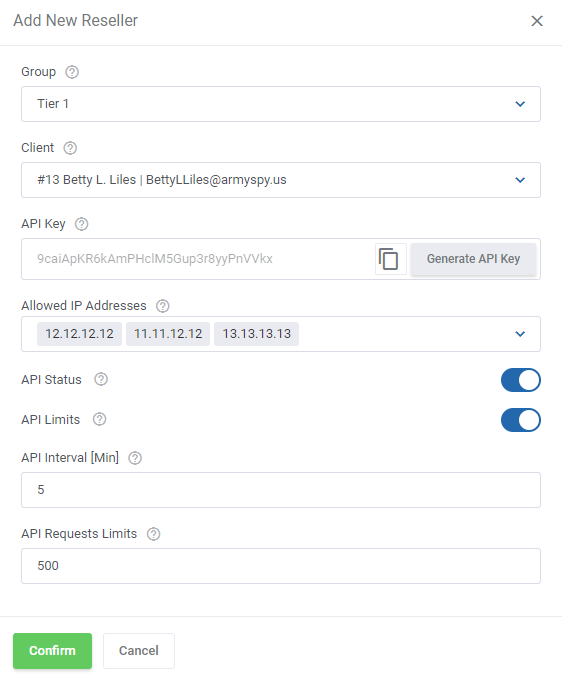
- Select one of your previously created groups, to which the reseller should be assigned.
- Then select one of your clients from the dropdown, start typing to see a list of clients
- Generate an API Key for the Reseller, it will be necessary when configuring the integration module with the Reseller's platform
- Prepare a list of allowed IP addresses, use comma or space to separate - note that this option must have been enabled previously in the module general settings here
- API Status - toggle to allow reseller generate the API key in the Reseller Area
- API Limits - toggle to be able to define precise limits
- API Interval [Min] - enter a time interval in minutes in which a number of API requests provided below can be called
- API Requests Limit - maximum number of API requests in the time interval
# Reseller Details
# API Configuration
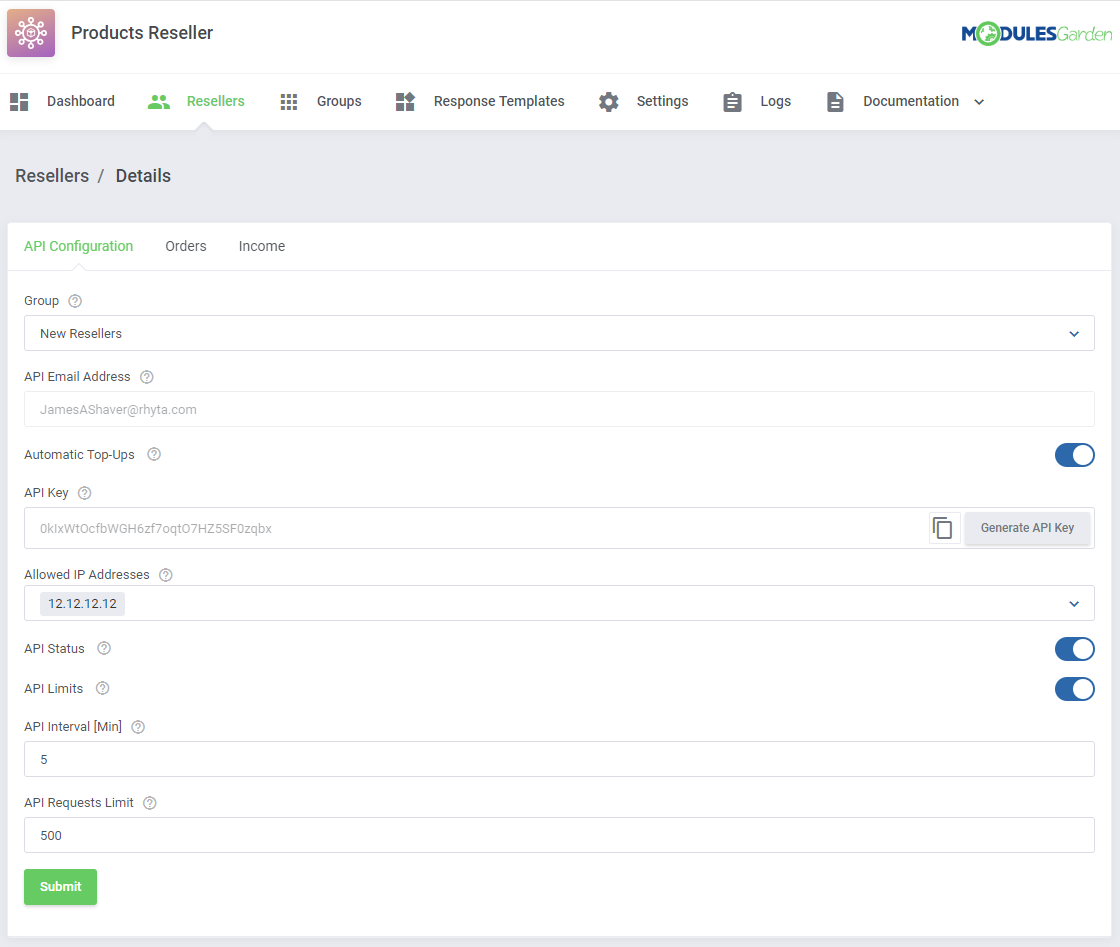
Here you may easily alter the settings that you have defined when creating the reseller.
Apart from them, you may preview the API Email Address and API Key required to activate and configure the integration module.
You may also enable or disable the 'Automatic Top-Ups' function for each reseller.
# Orders
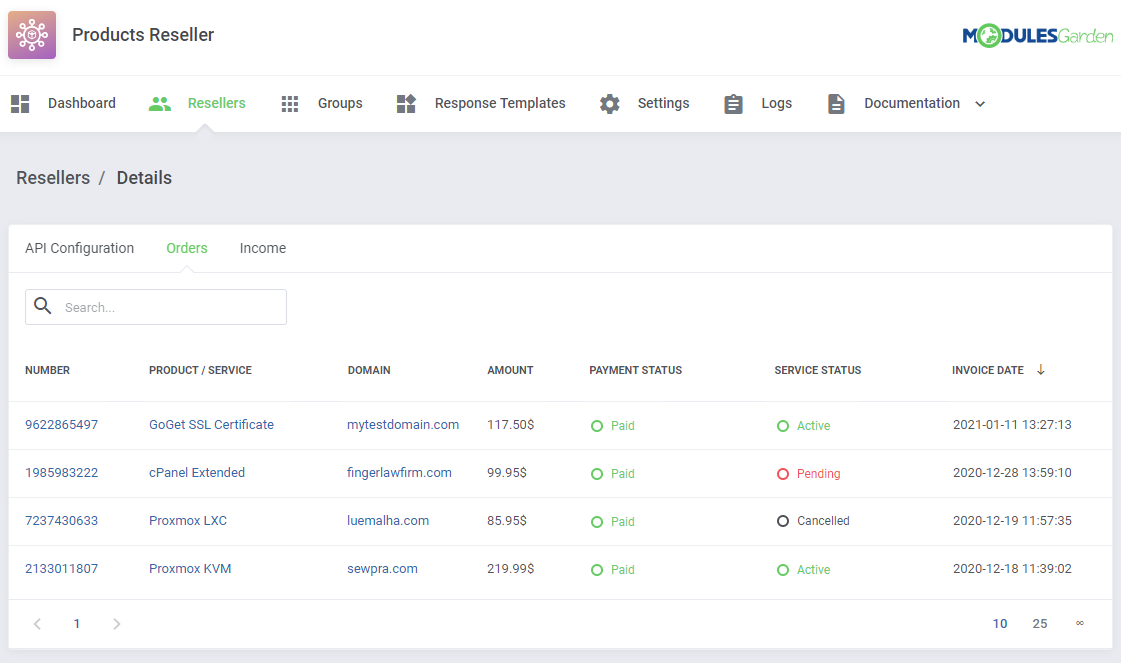
This section includes a list of all bought products which are offered by this reseller.
Take a look at any crucial details on the orders.
# Import Existing Services
The Import Service option allows you to assign already existing WHMCS services to the reseller without creating a new order.
This is useful when the module is installed after services have already been sold and need to be linked to a reseller account.
To import a service:
- Click the Import button.
- Select a service from the dropdown list.
- Confirm the action.
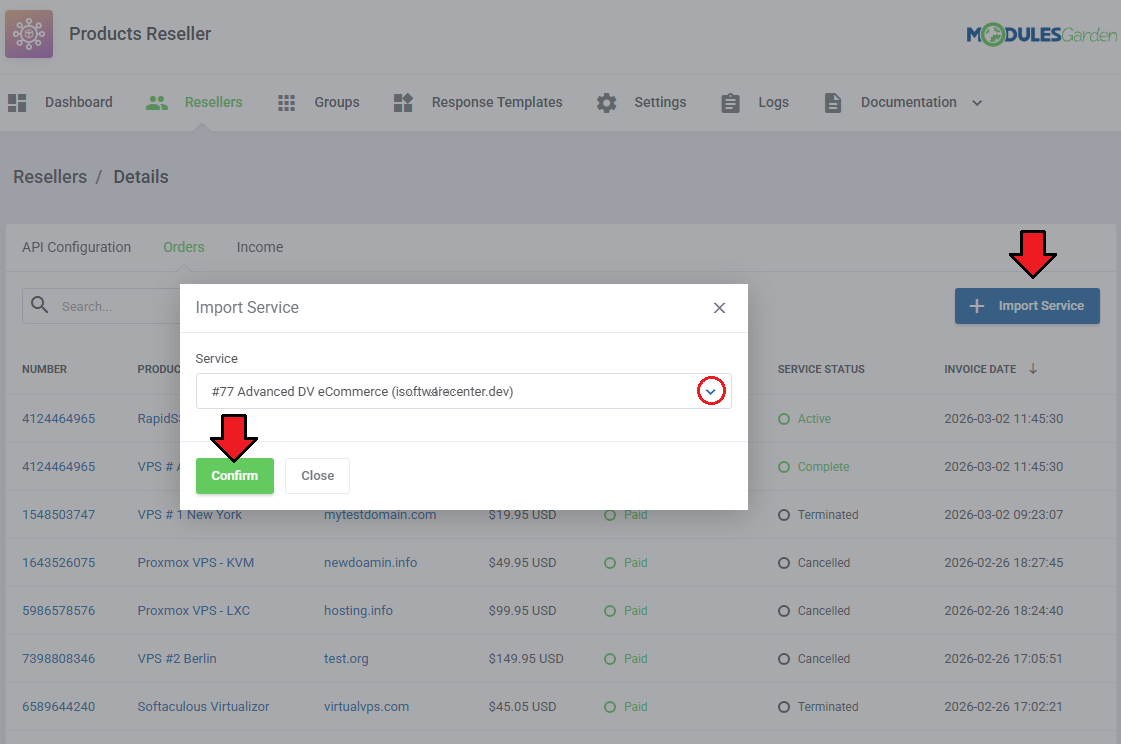
After a successful import, the service is linked to the reseller. No new order is created for the imported service.
# Income
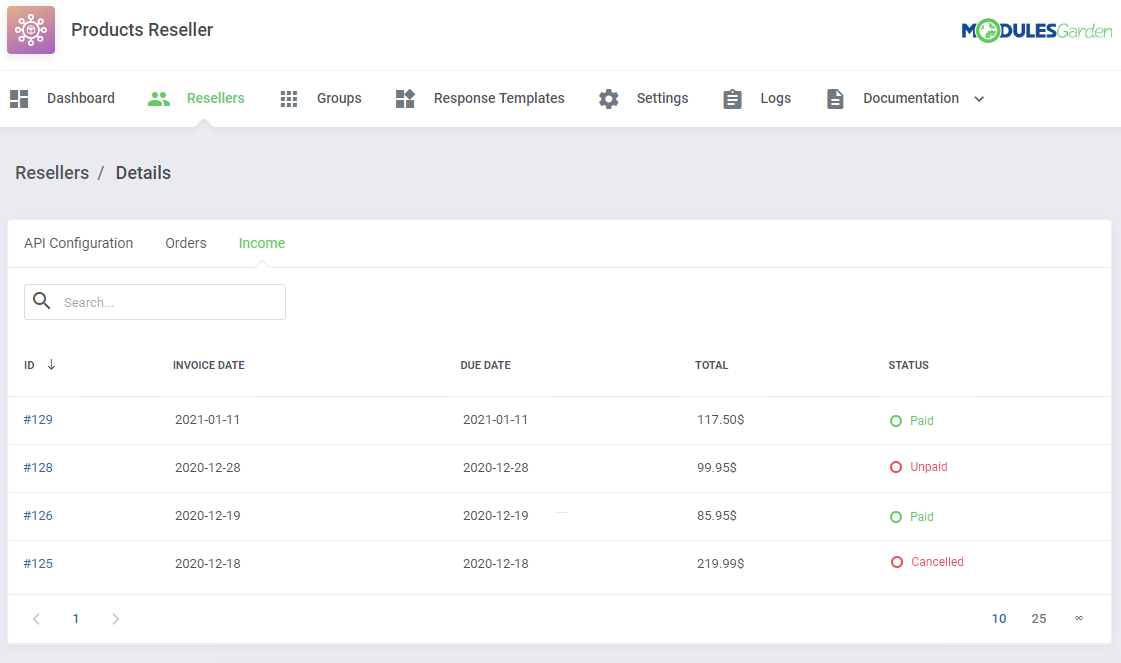
The 'Income' tab contains a current list of invoices that generate any income for the reseller.
Press the invoice ID and you will be redirected to the invoice summary.
# Response Templates
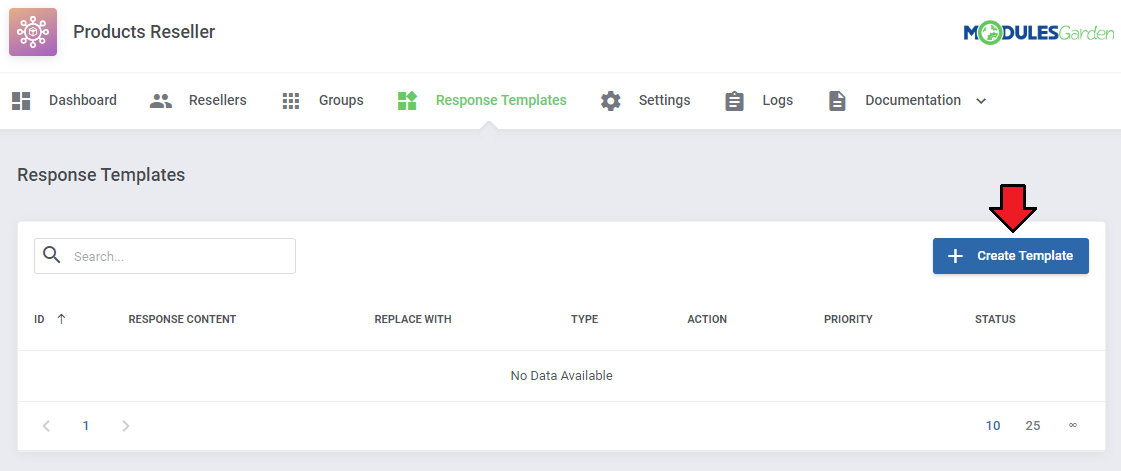
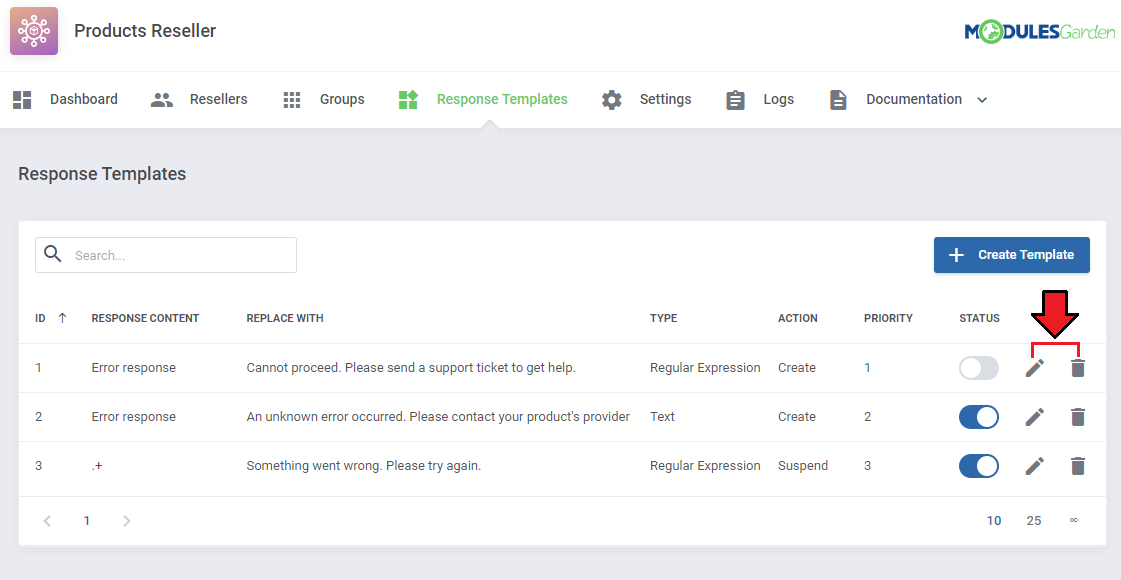
In the 'Response Templates' section you may add and edit new templates with text messages/information that are sent to clients instead of defined here system responses.
In order to add a new response template press the 'Create Template' button and then follow the below instructions.
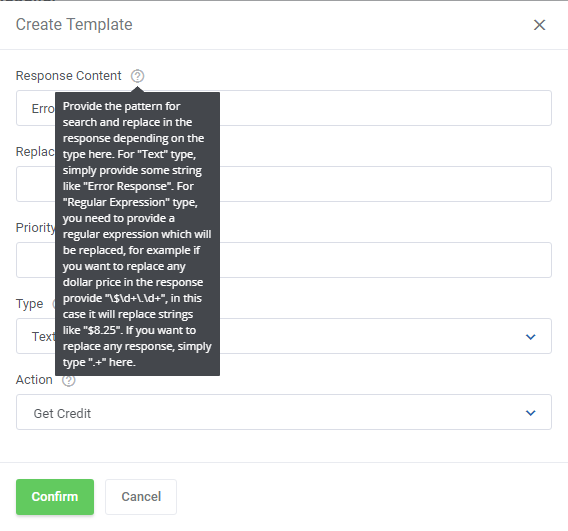
Provide the pattern for search and replace in the system response depending on the type.
- For Text type, simply provide a string like 'Error Response'.
- For Regular Expression type, you need to provide a regular expression which will be replaced.
For example, if you want to replace any dollar price in the response provide '\$\d+\.\d+', in this case it will replace strings like '$8.25'. - If you want to replace any response, simply type '.+' in here.
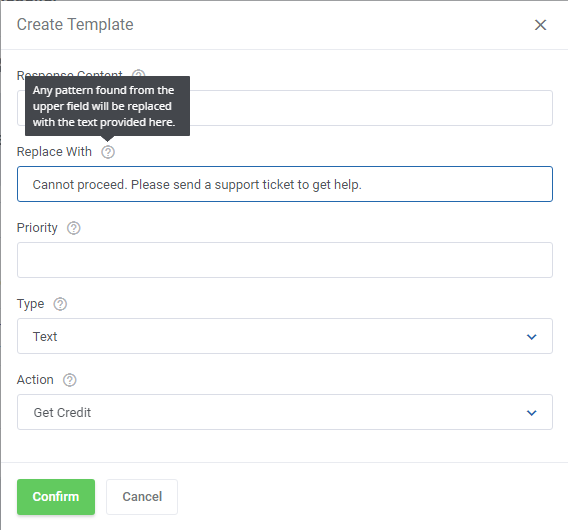
In the second step Replace With you need to enter a text message that will be sent to a client when the above entered pattern is found.
The two messages will be replaced with one another.
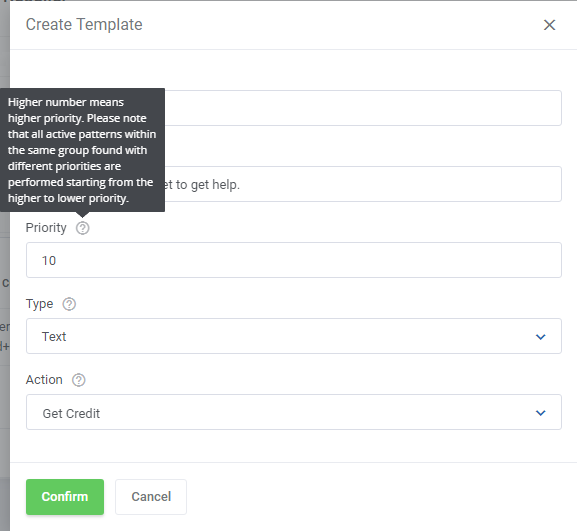
Define Priority. The higher number you enter, the higher priority will be assigned.
Important! All active patterns within the same group found with different priorities are performed starting from the higher to lower priority.
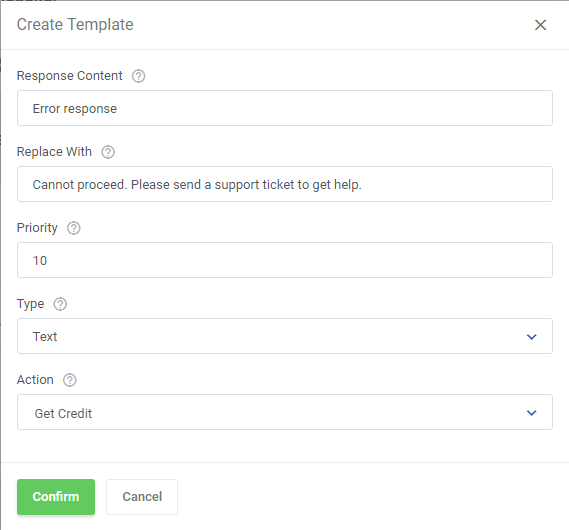
Finally,
- choose 'Text' or 'Regular Expression' from Type dropdown menu.
It will specify if provided text in the first field should be treated as a text or a regular expression while searching for a pattern.
- Registrar Action - must be chosen from dropdown menu as well to specify upon which action provided patterns will be searched for.
Remember, to finish successfully you need to press the 'Confirm' button.
Now you can see a newly configured response is visible on the list. You may edit the added response or remove it any time you need.
To do so, just simply click on the appropriate action button.
# Module Logs
In 'Logs' section you may preview a list of API requests and responses, including errors with the most important details on them.
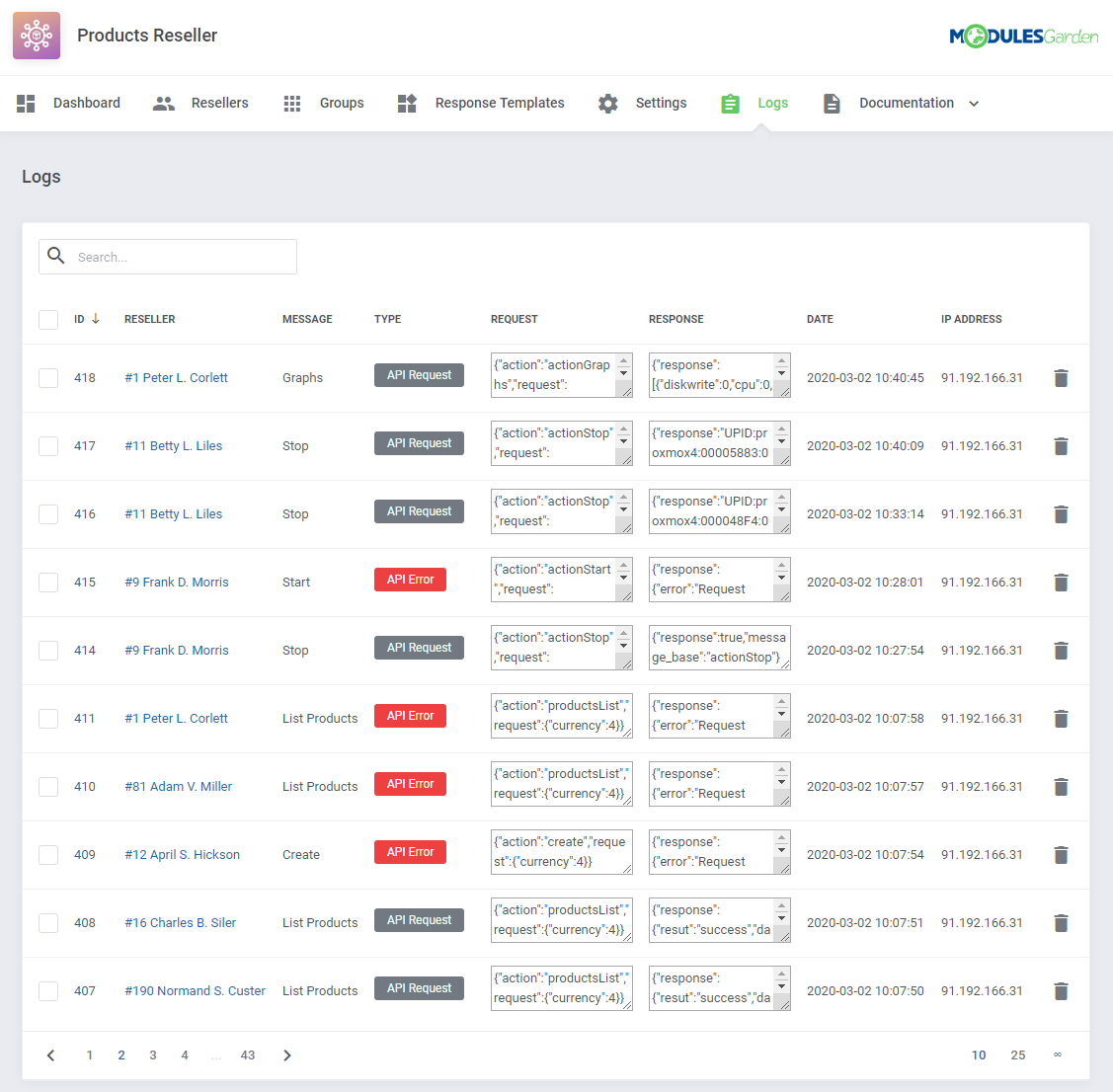
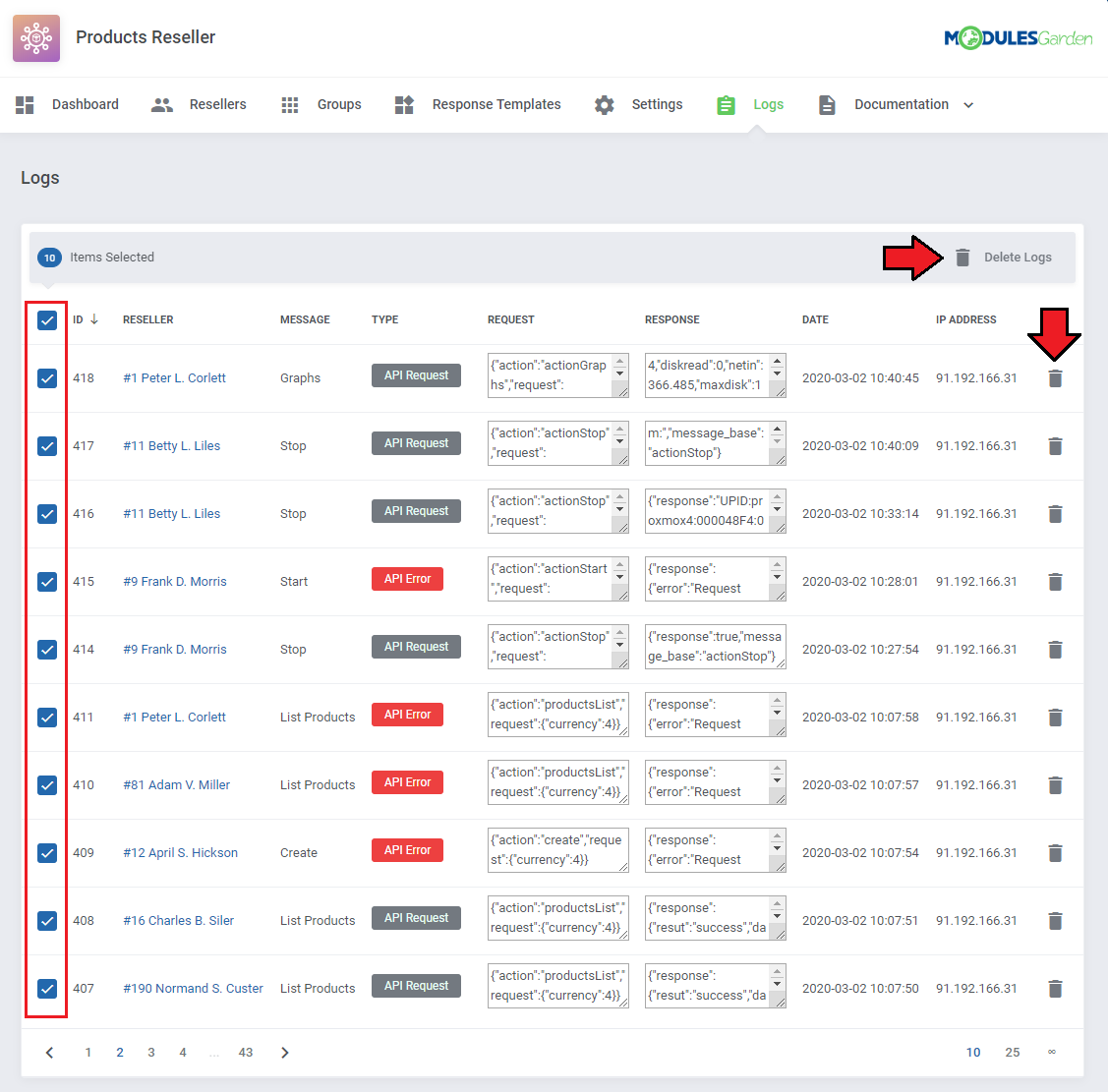
Use action buttons to delete all logs or just single entries.
# Documentation
# API Documentation
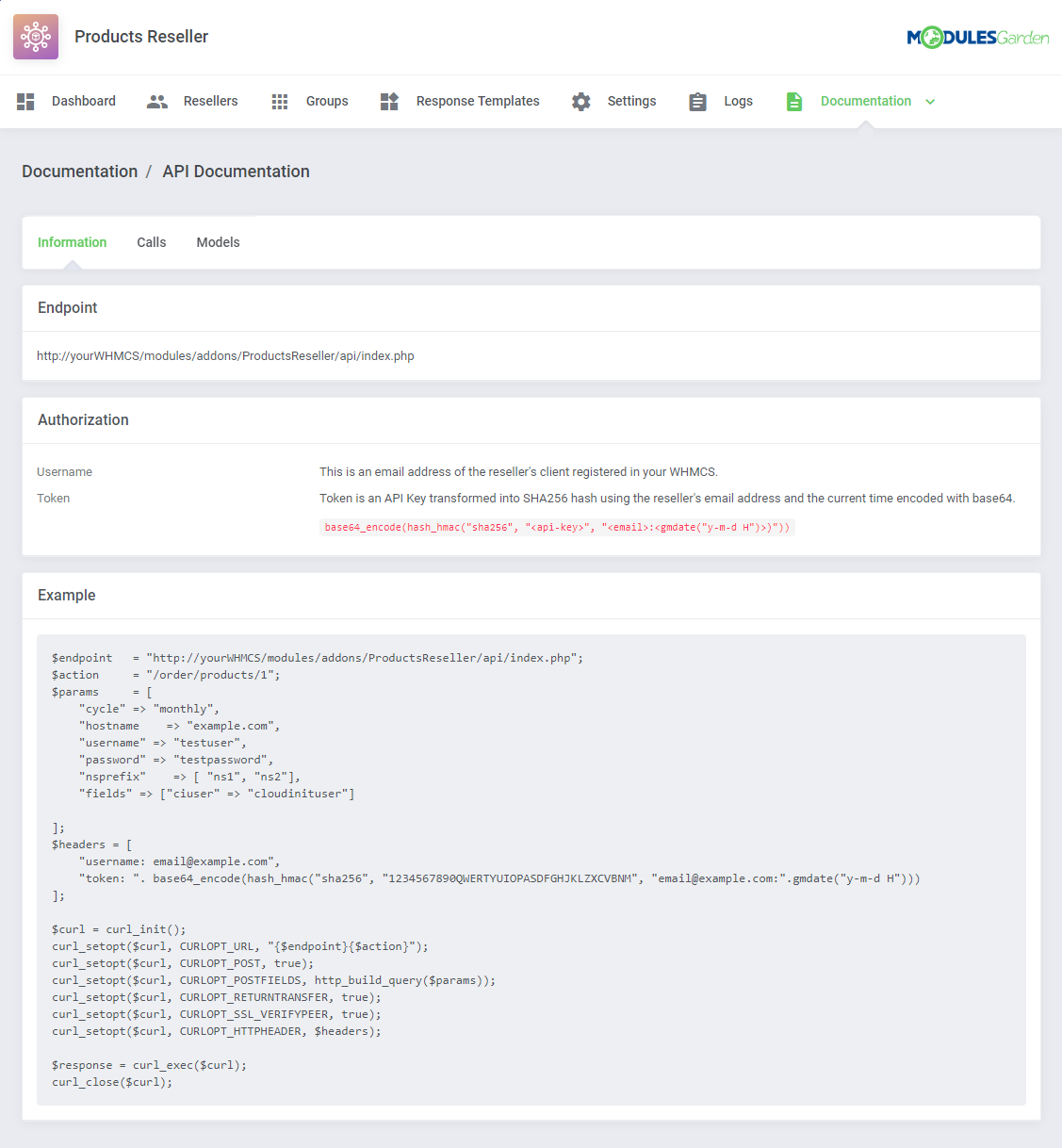
Under the 'Documentation' tab you will find two subsection. The first one is dedicated to API.
This API documentation has been prepared to allow you to write your own integration modules for platforms other than WHMCS.
The 'Information' subtab contains:
- Endpoint - URL to which all the API requests are directed
- Authorization - Username and token parameters to authenticate the client in the API request
- Example - exemplary request to API to renew a product
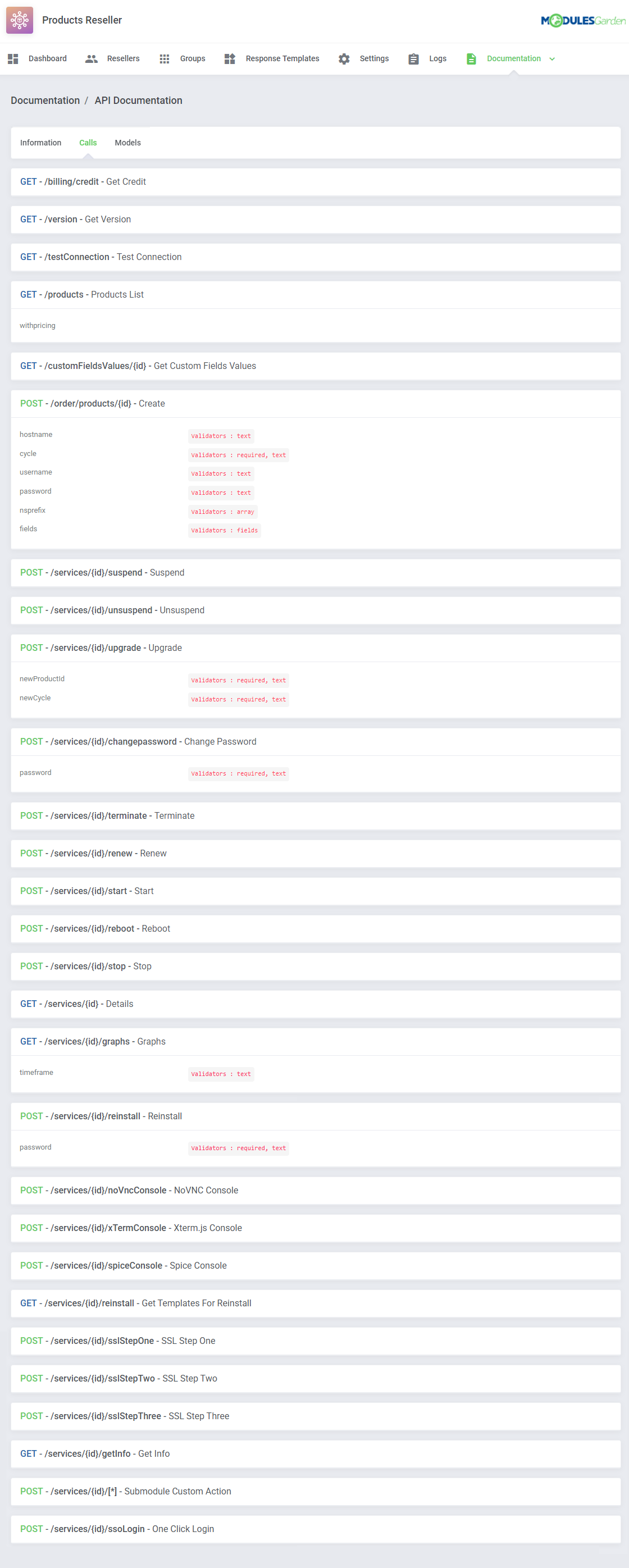
'Calls' subtab contains information about actions supported by the API.
Important! Please remember that the following API Calls: 'Start', 'Reboot', 'Stop', 'Details', 'Graphs' are currently available only for Proxmox VE VPS & Cloud products
while actions such as 'SSL Step One', 'SSL Step Two', 'SSL Step Three', 'Get Info' work only for SSL Certificates products.
Note: The screen below does not capture all the supported functions.
Full API functionality can be found on the module features list at the top of this documentation.
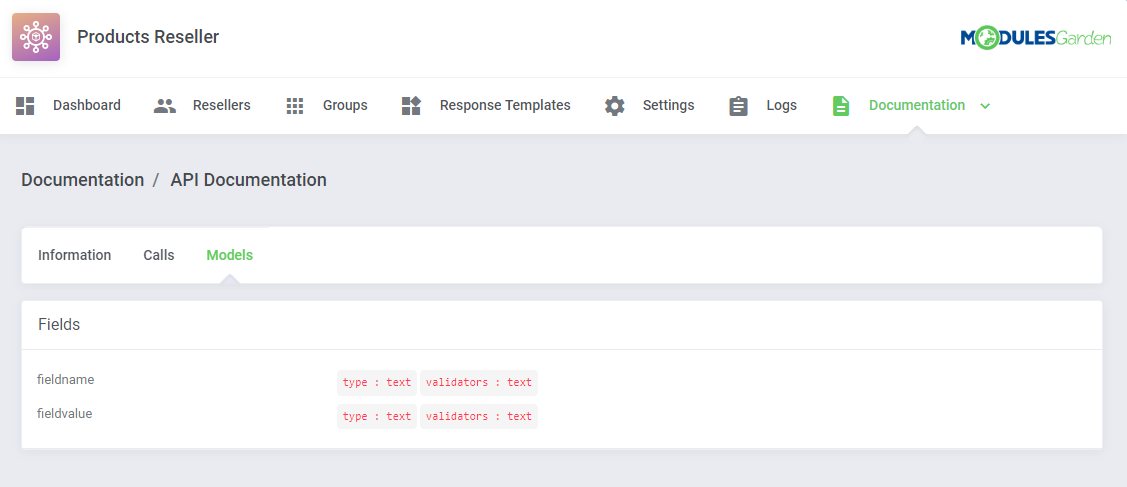
The last section includes 'Models' details.
# Module Documentation
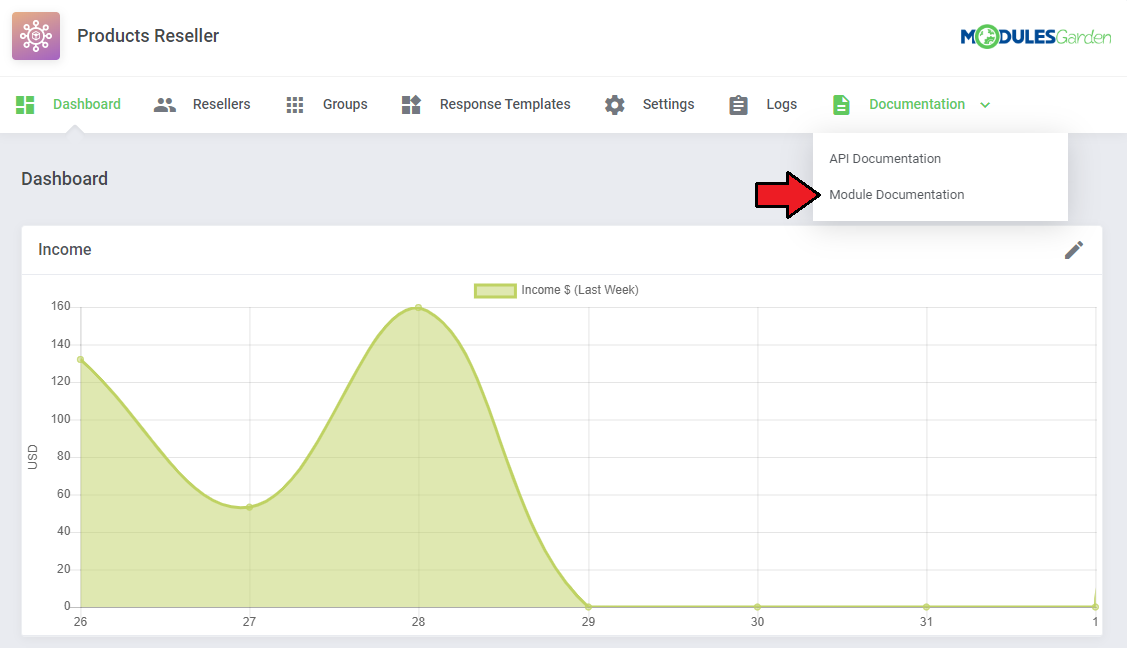
'Module Documentation ' is a hyperlink. It leads to the 'Products Reseller For WHMCS' documentation article you are currently reading.
# Reseller Area
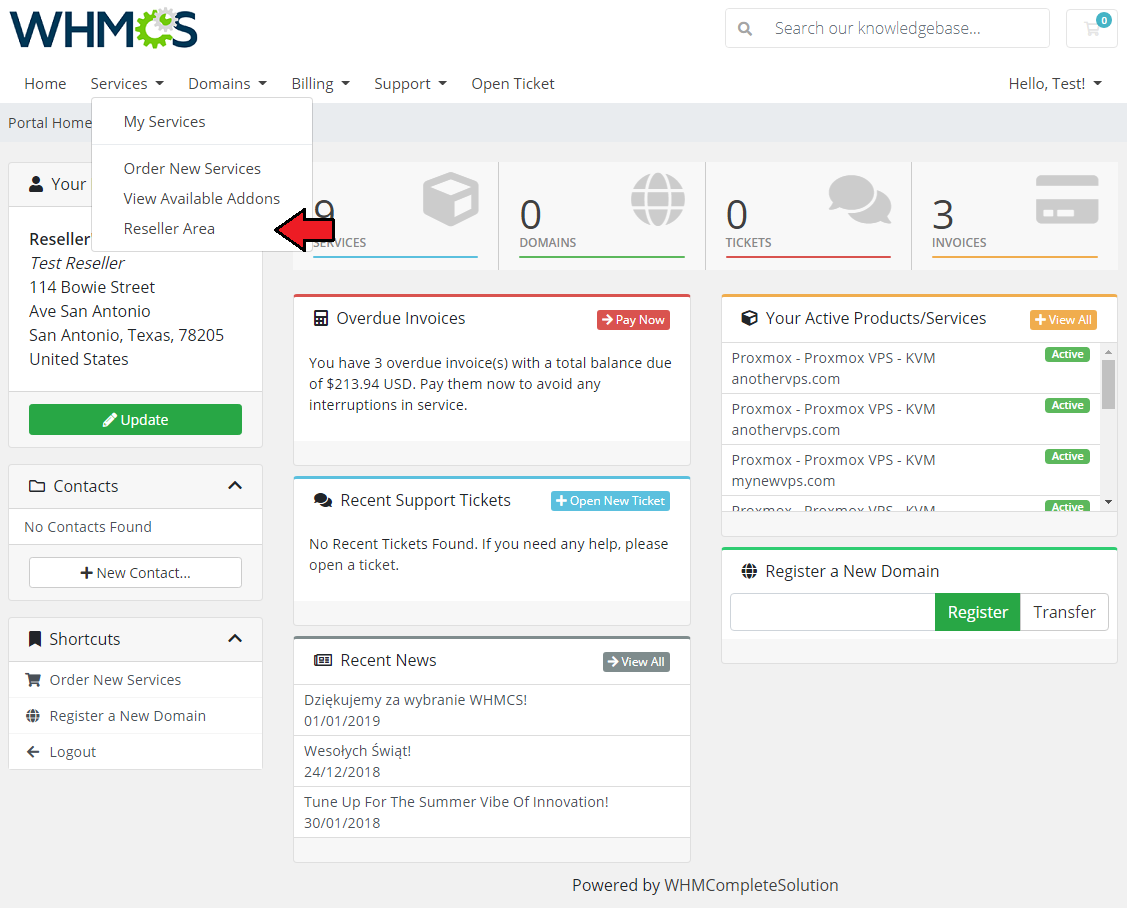
Resellers can manage API connection credentials directly from the provider WHMCS client area as well as see any details on its products offer.
Go to 'Services' → 'Reseller Area' to access them.
# Orders
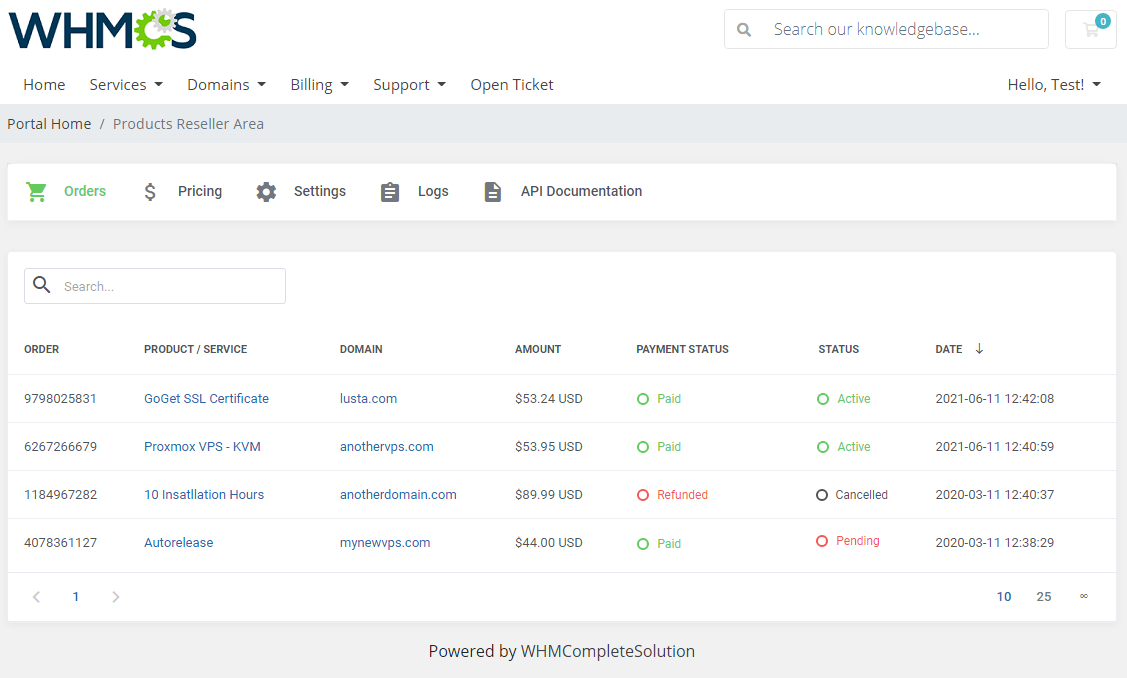
As you can see, the 'Orders' section includes a detailed list of orders placed by end-clients in the reseller's system.
Moreover, you can check not only the ordered products but also payment details and order dates.
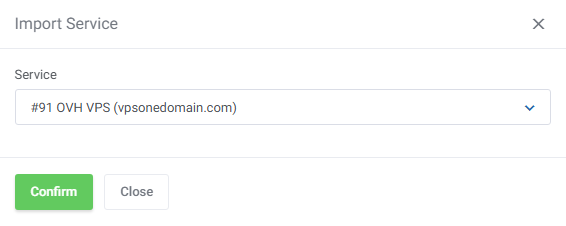
If you want to import an existing service, press the 'Import Service' button and select the service of your interest from the dropdown menu.
No new order will be created for such a service, but it will be assigned to the reseller.
# Pricing
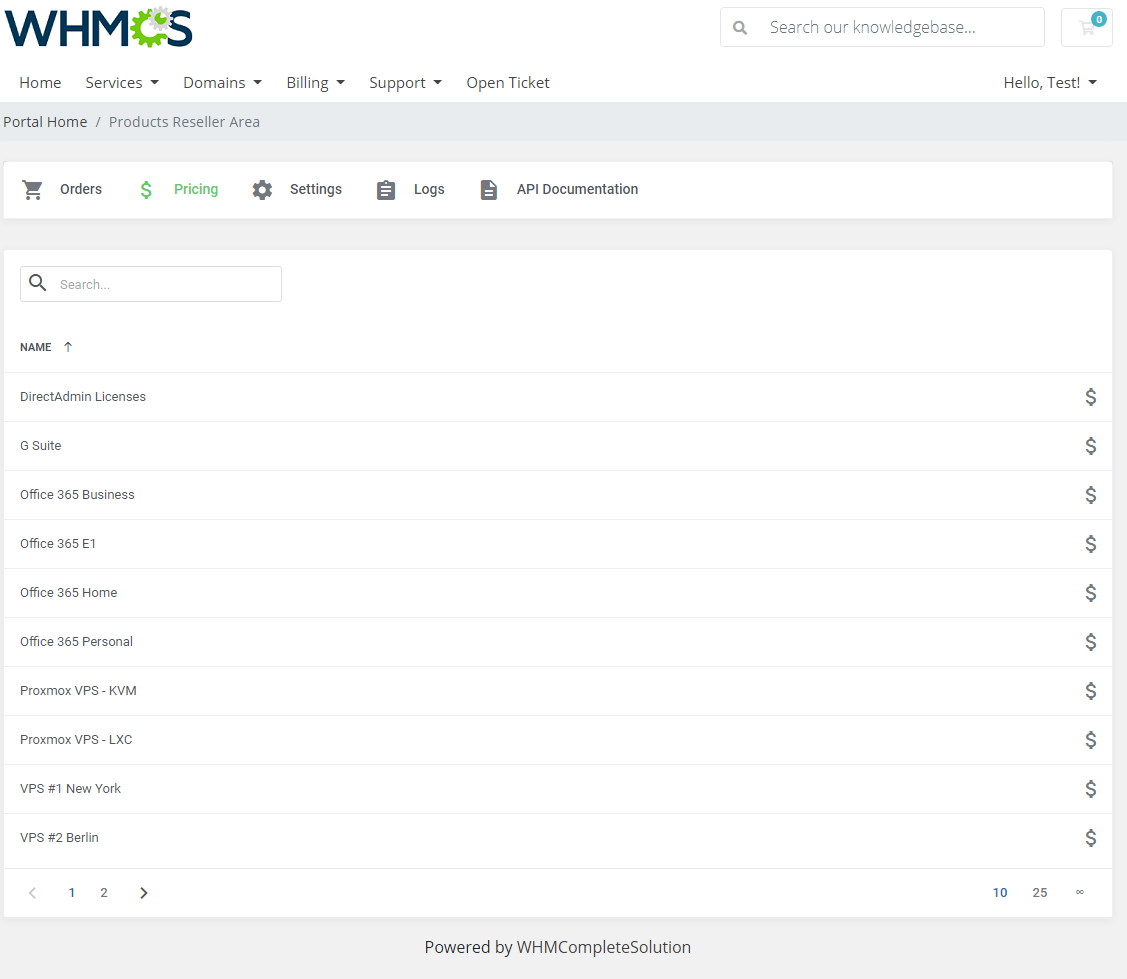
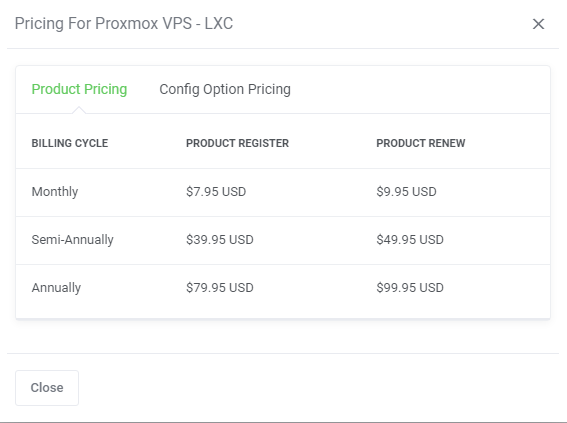
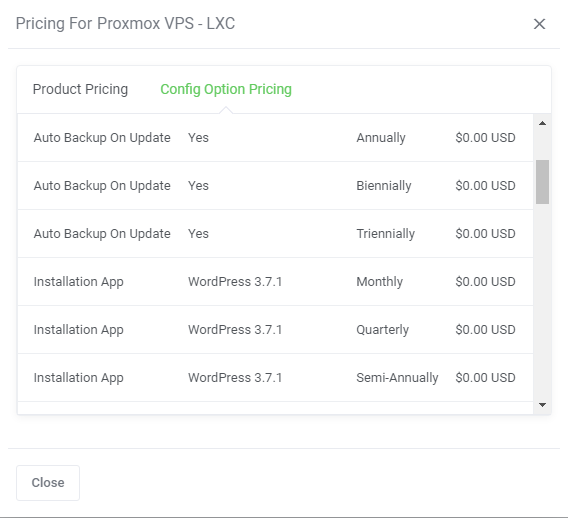
The 'Pricing' section includes a list of the Reseller's products with the option to preview its pricing set up by the provider.
# Settings
Under the 'Settings' section you will find any API details necessary to install and activate the integration module along with:
- Credits - Your current credit balance.
- Top-Up Payment Method - The gateway you want to be used to charge your account for credits automatically, when you balance is insufficient.
You may also disable the function by selecting the appropriate option. - Top-Up Amount - Input the amount that will be added to your account during an automated top-up.
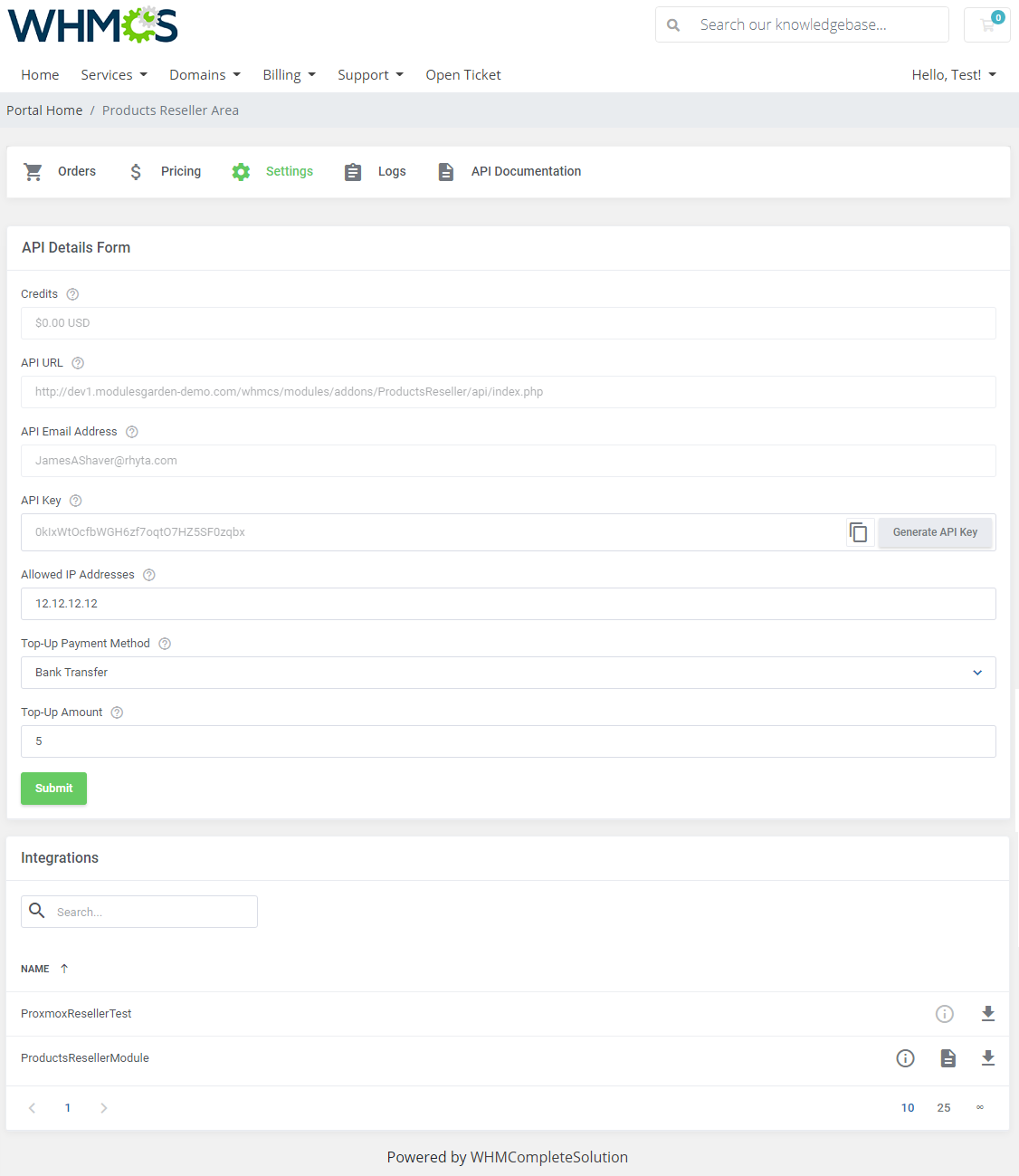
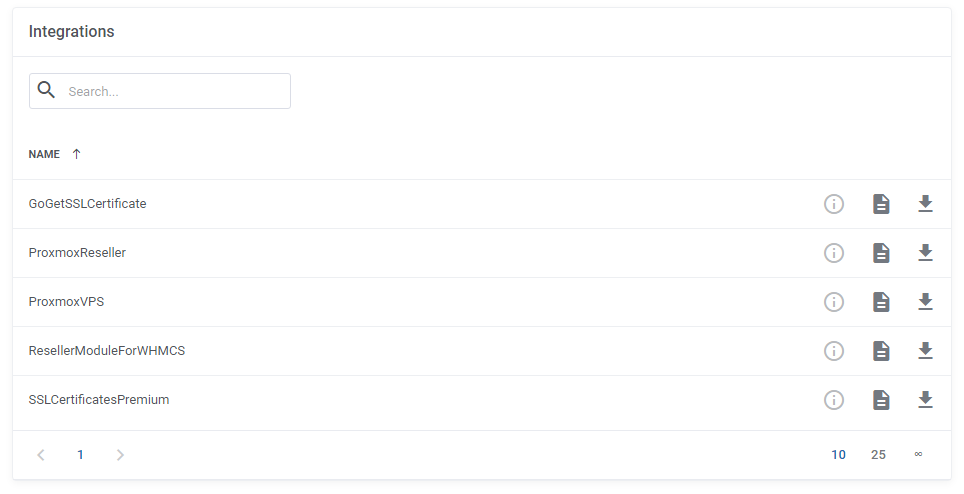
Underneath the API details you will find a list of generated integrations.
Depending on the provider, you may download the packages, download the additional fields and documentation per Integration.
# Logs
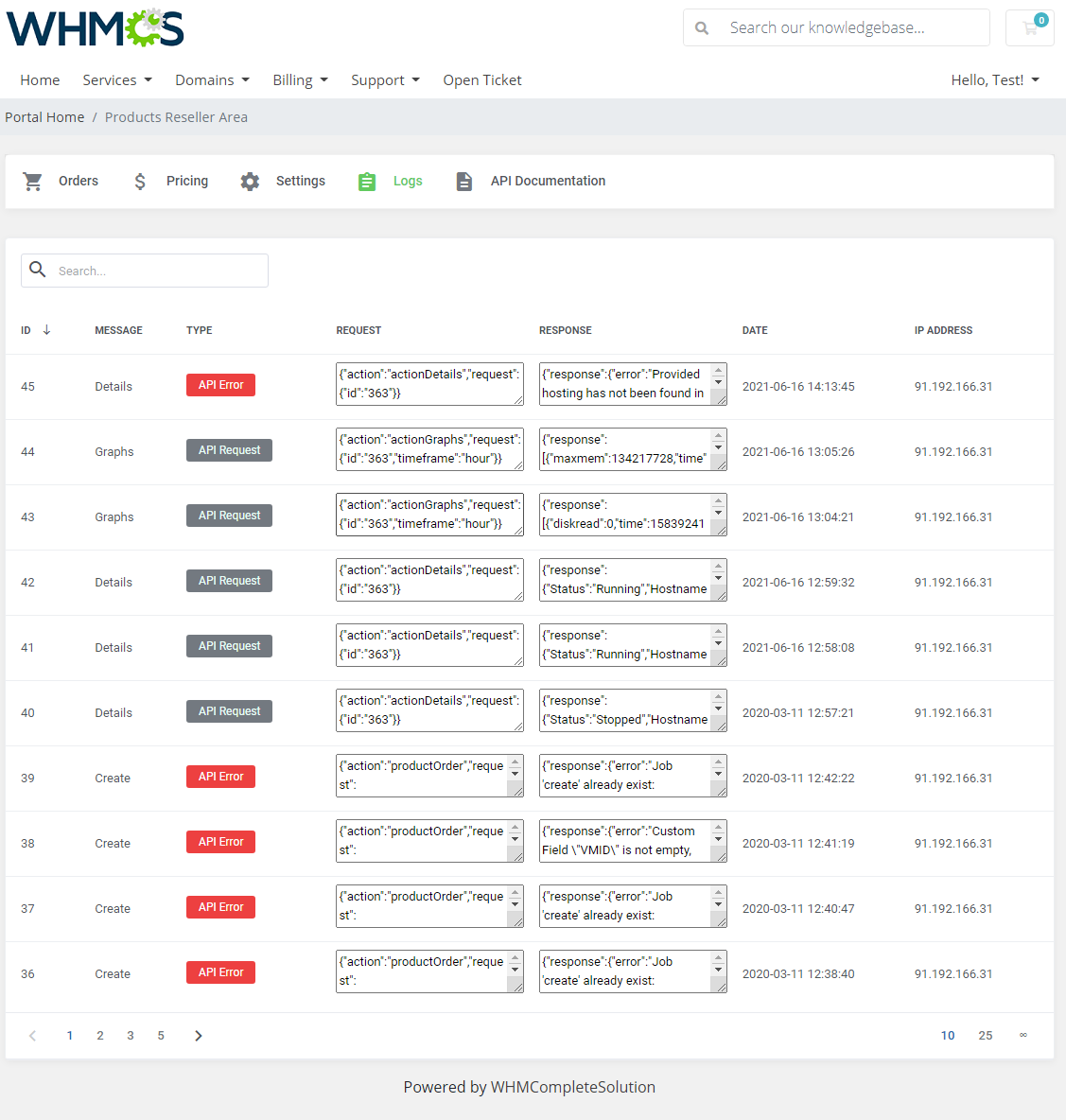
Preview a list of logs on API requests and responses, including errors stored in the module.
# API Documentation
Access API documentation details with basic information and API Calls and Models.
This API documentation has been prepared to allow you to write your own integration modules for platforms other than WHMCS.
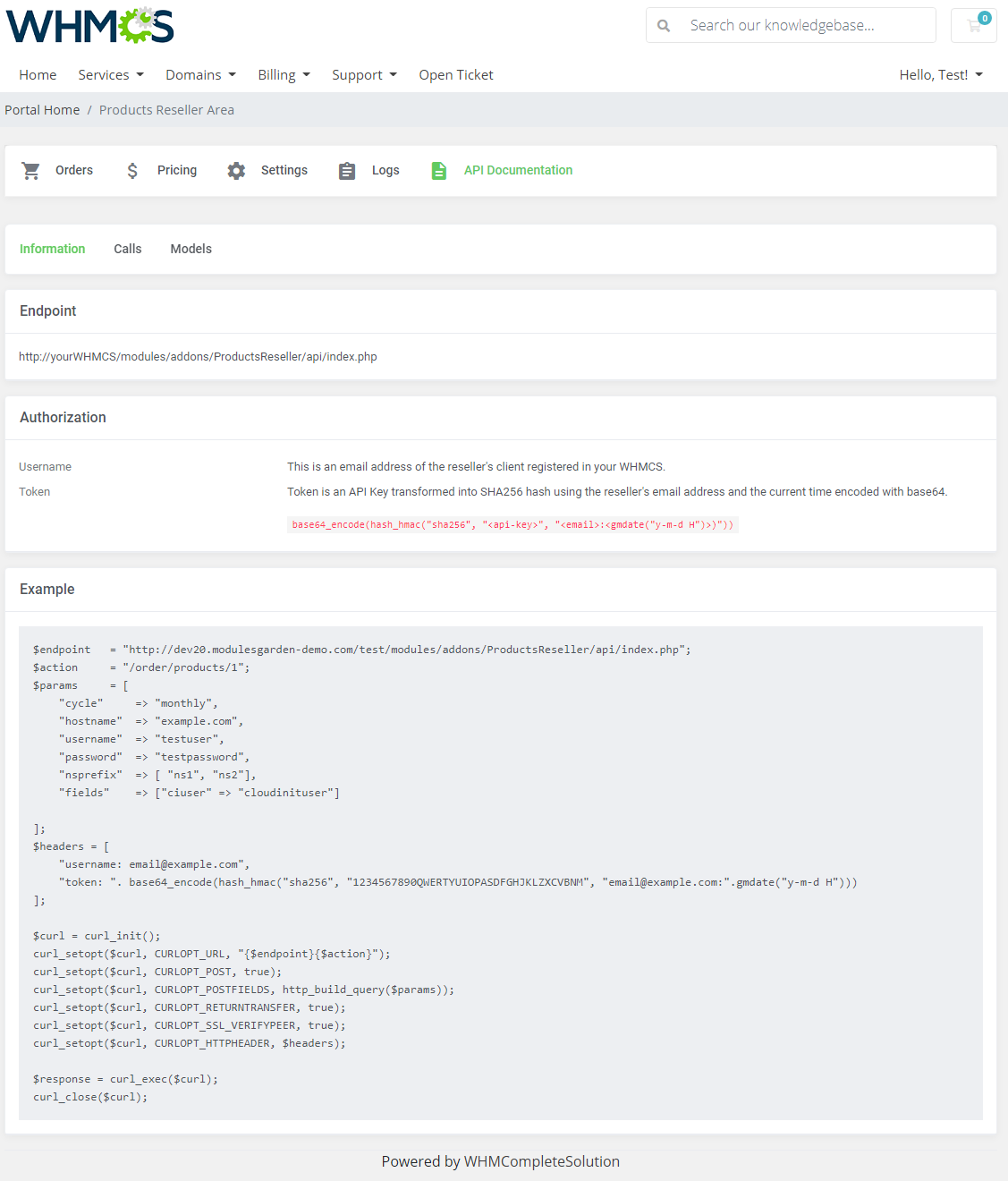
'Information' tab contains:
- Endpoint - URL to which all the API requests are directed
- Authorization - Username and token parameters to authenticate the client in the API request
- Example - exemplary request to API to renew a product
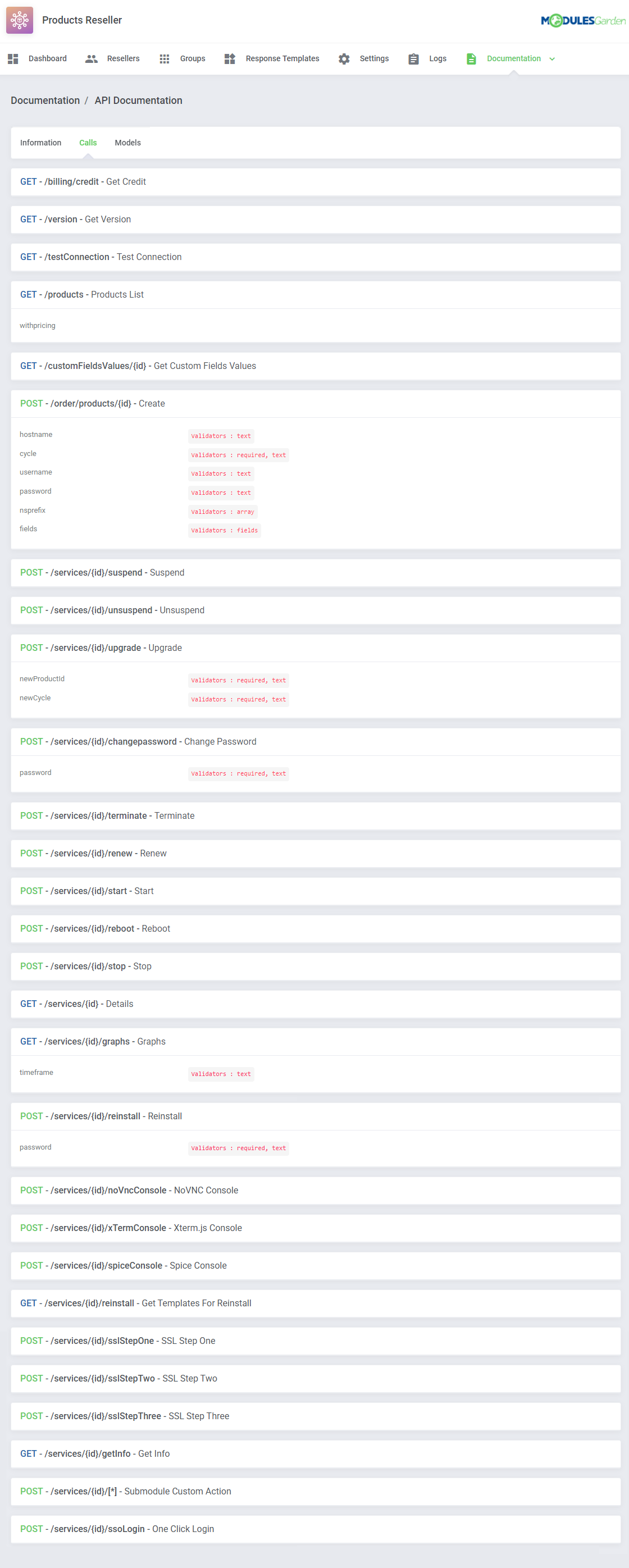
Available 'Calls' list:
Important! Please remember that the following API Calls: 'Start', 'Reboot', 'Stop', 'Details', 'Graphs' are currently available only for Proxmox VE VPS & Cloud products
while actions such as 'SSL Step One', 'SSL Step Two', 'SSL Step Three', 'Get Info' work only for SSL Certificates products.
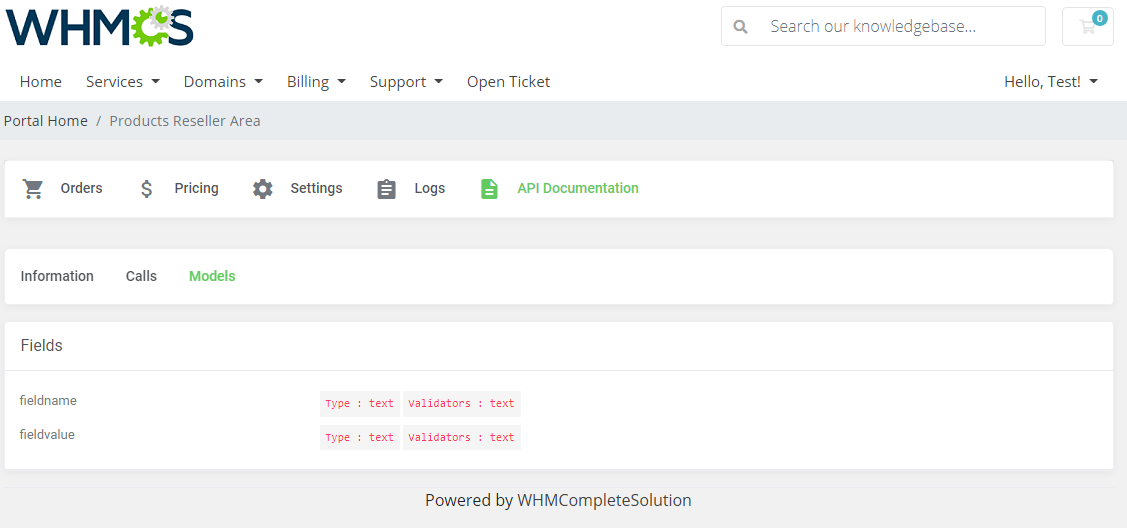
Available 'API Models' list:
# Integration Modules
If you have product integration modules generated with Product Reseller in version 1.4.x, there is NO NEED to prepare the packages again.
Only new integrations (generated with v1.5.0 and later) require 'Server' and 'Server group'.
# Integration Module Installation In Reseller's WHMCS
Below you can find instructions for installation of the integration module on the reseller's WHMCS.
Please refer to section Integrations to learn how to generate an integration module for your resellers.
Extract and upload the integration module into the reseller's main WHMCS directory.
Once you have uploaded the integration module, you should find a new folder with this module in 'resellerWHMCS/modules/servers/' directory as presented below.
Important: The folder and module name as well as a description of the extracted integration module are customized by the provider and will be different than the one presented in the example below.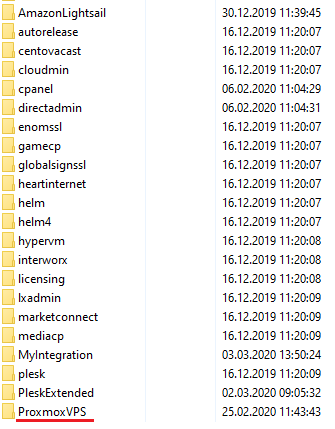
Now, you will have to configure a new server.
To do so, move to 'System Settings' → 'Servers'. Once you are there, press 'Add New Server'.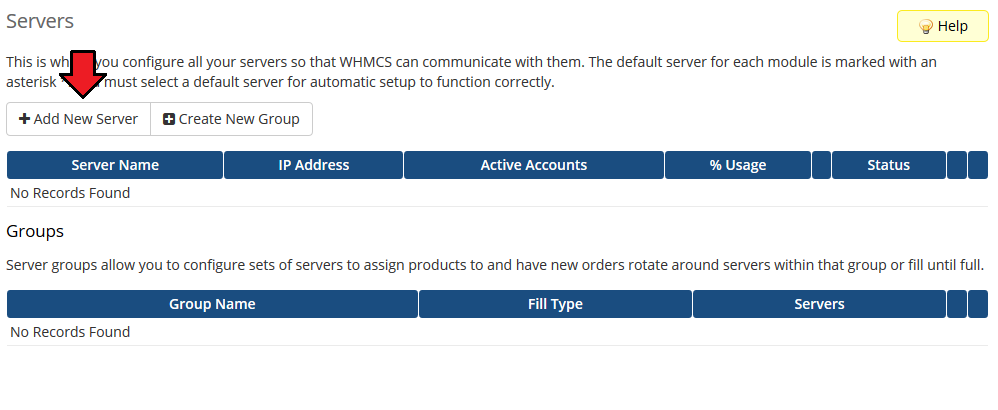
Next, fill in the fields according to the below described pattern
- Name - server free name
- Hostname - provide any hostname
- Module - your integration module name
- Username - API email address
- Password - API Key
- Access Hash - Endpoint
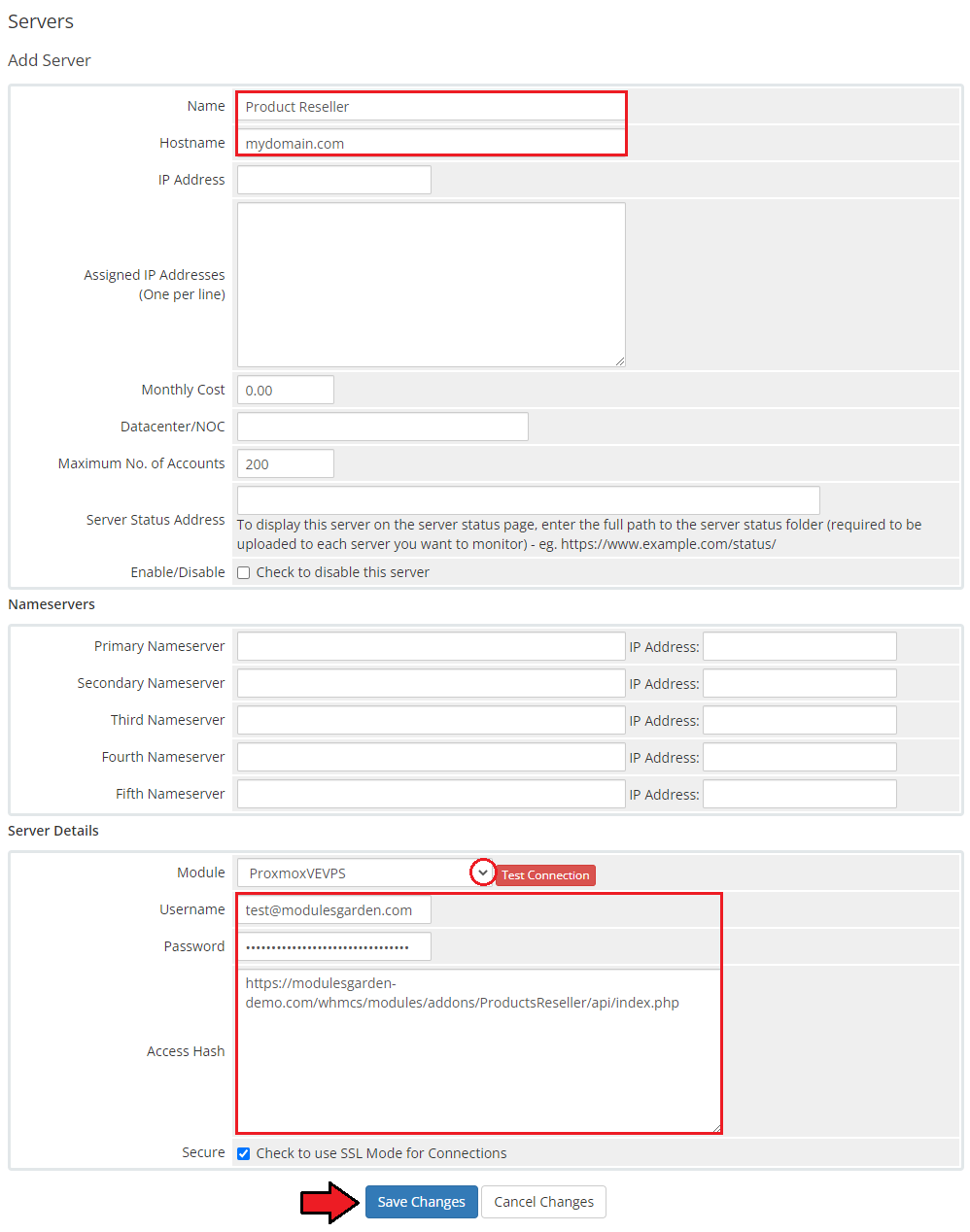
After you configure your server correctly, you will see the following screen.
At this point, you need to create a new group for your server. For that purpose, press 'Create New Group'.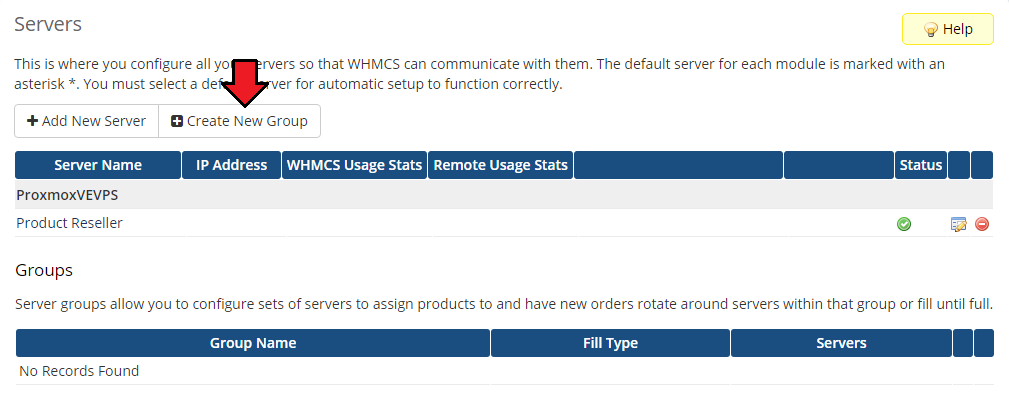
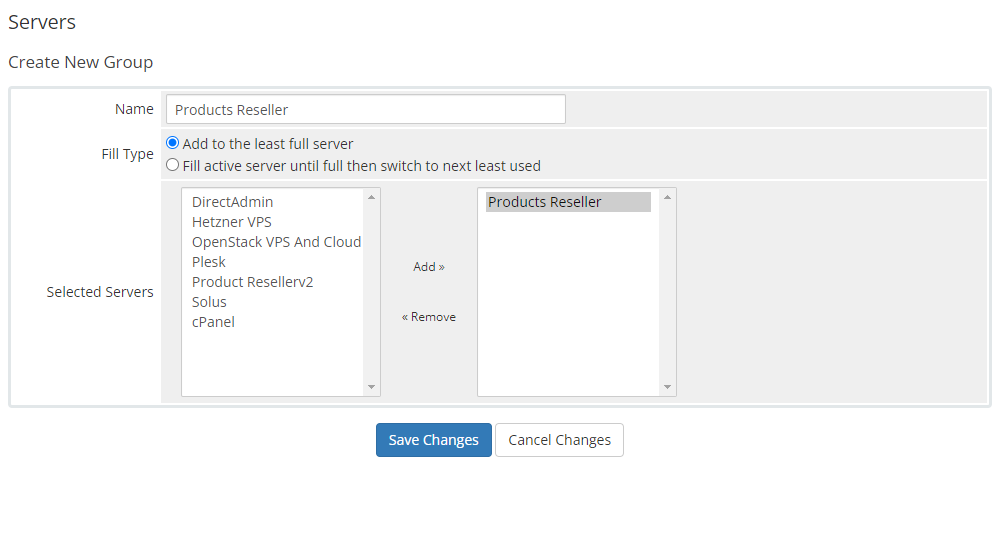
Enter the name, click on your previously created server, press 'Add' and then 'Save Changes'.
The next step to follow is creating a product and its group.
Forward to 'System settings' → 'Products/Services' → 'Products/Services' and create a new group.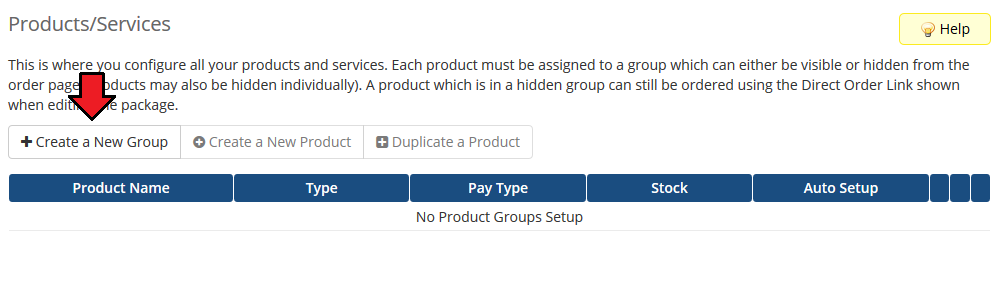
Enter a product group name and press 'Save Changes'.
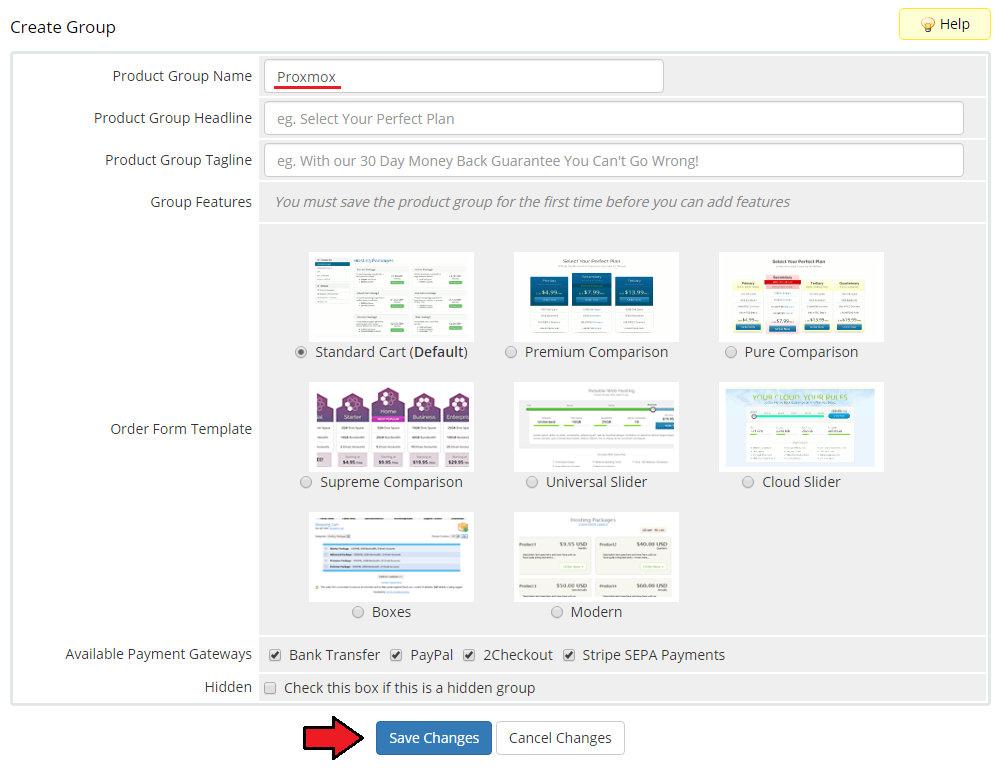
When you have a product group, you can assign your product to it.
To create a product, click on 'Create a New Product'.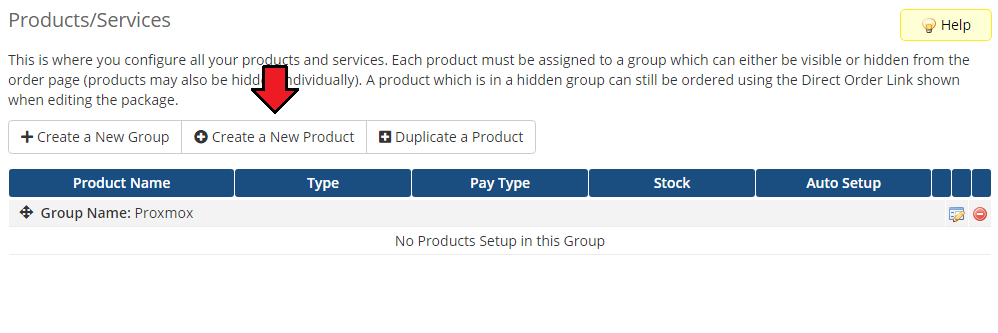
Afterwards, choose a product type, then select the previously created product group from the dropdown menu and provide a product name.
Finally, find the uploaded integration module in the dropdown menu. Do not forget to save changes.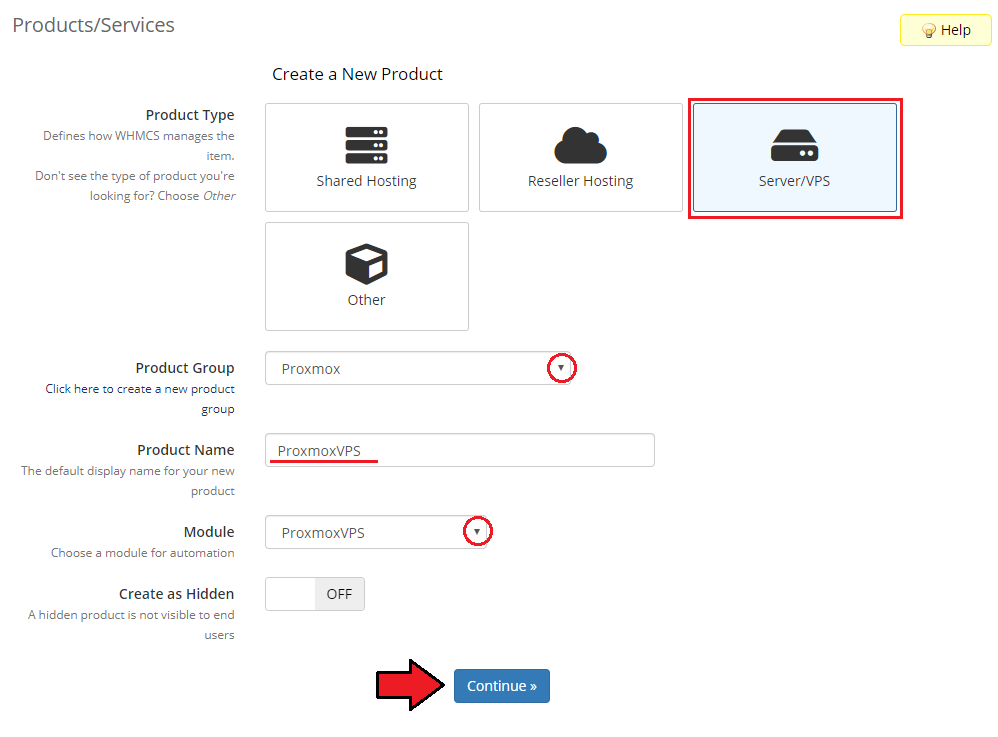
In the 'Details' tab of the product configuration, we highly recommend setting up your 'Welcome Email' template first.
Welcome emails are sent to the end-client once the product creation is completed and contain important details such as account/service credentials, server information, assigned IP addresses etc.
Before you choose or create your own product's 'Welcome Email', please make sure which of the merge fields variables in the email template are currently supported by the product.
You can find more information about setting up email templates and using merge fields variables here (opens new window).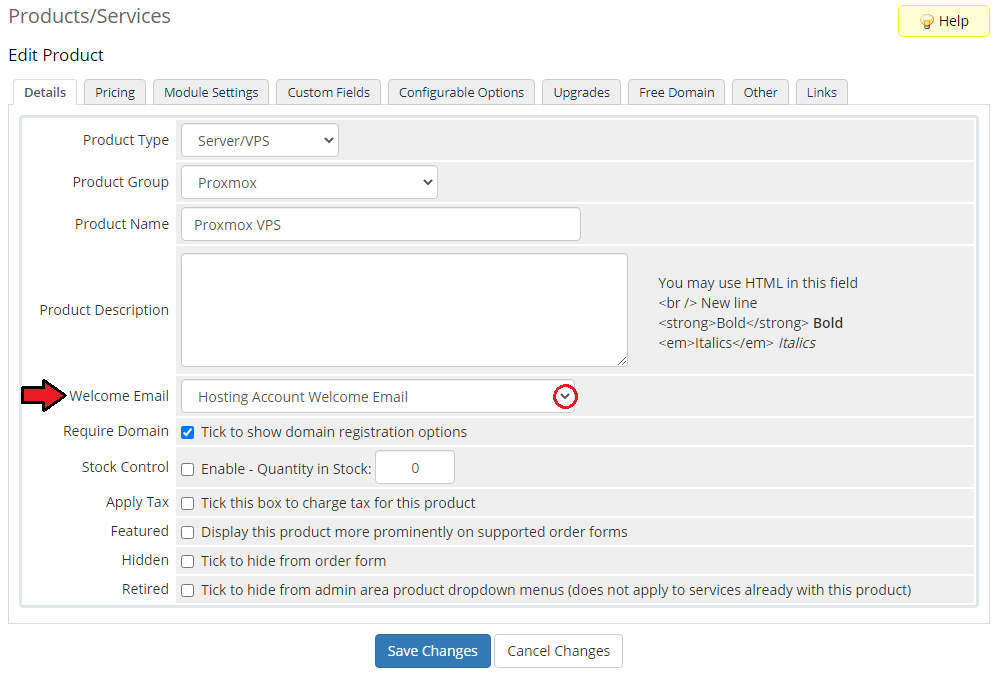
Set up the pricing for your product.
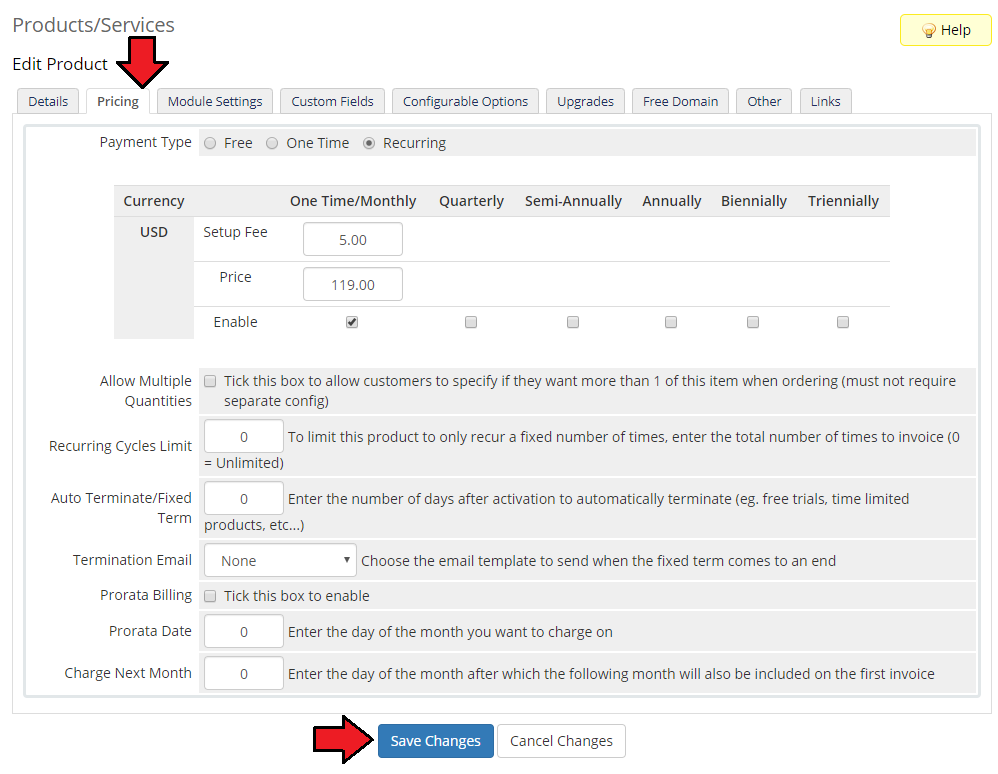
- Finally, after saving previous changes, go to the 'Module Settings' and select the integration module server that you created in the below steps.
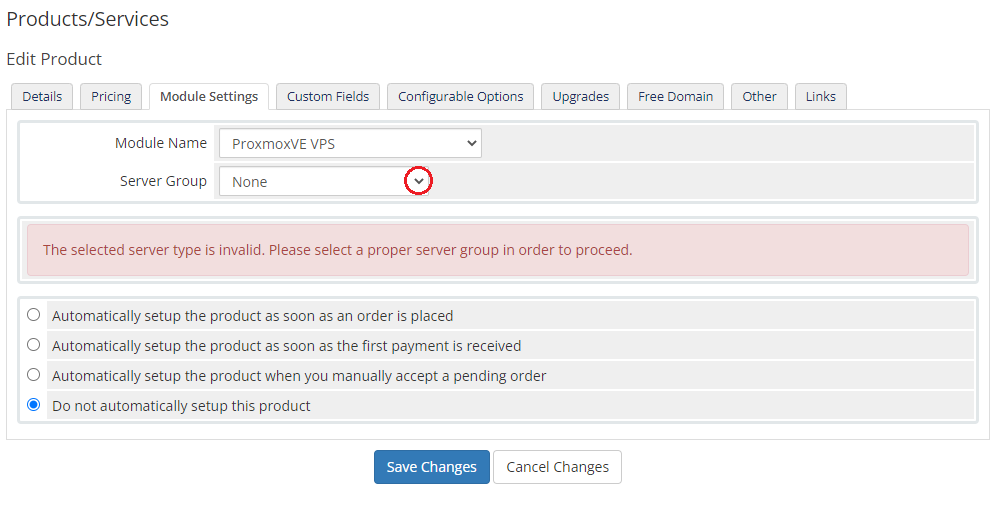
Now, in the 'Base Configuration' you may select the ' Reseller Product' and a 'Billing Cycle' for that product from available (if you have created some in the previous steps).
Note that if you select Auto, original billing cycle from your WHMCS will be assigned to this product.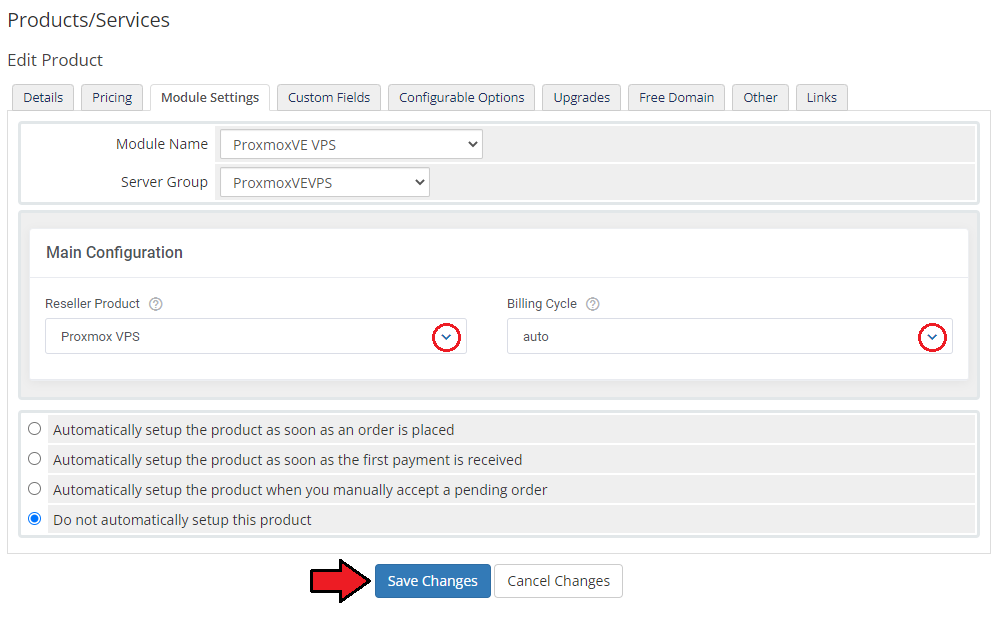
Finally, 'Product Details' section will appear. Decide which actions of the available you wish to enable. Simply check the preferred options.
Please remember that actions visible on the below screen are available only for Proxmox VE VPS & Cloud products.
Every other integration module has its own options, see the features list to check options of every integration.
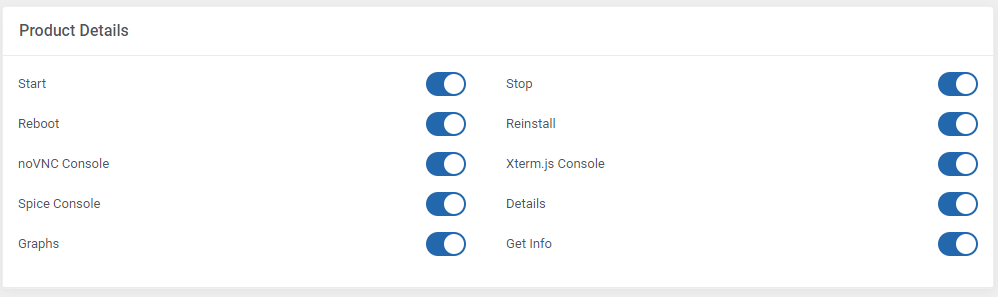
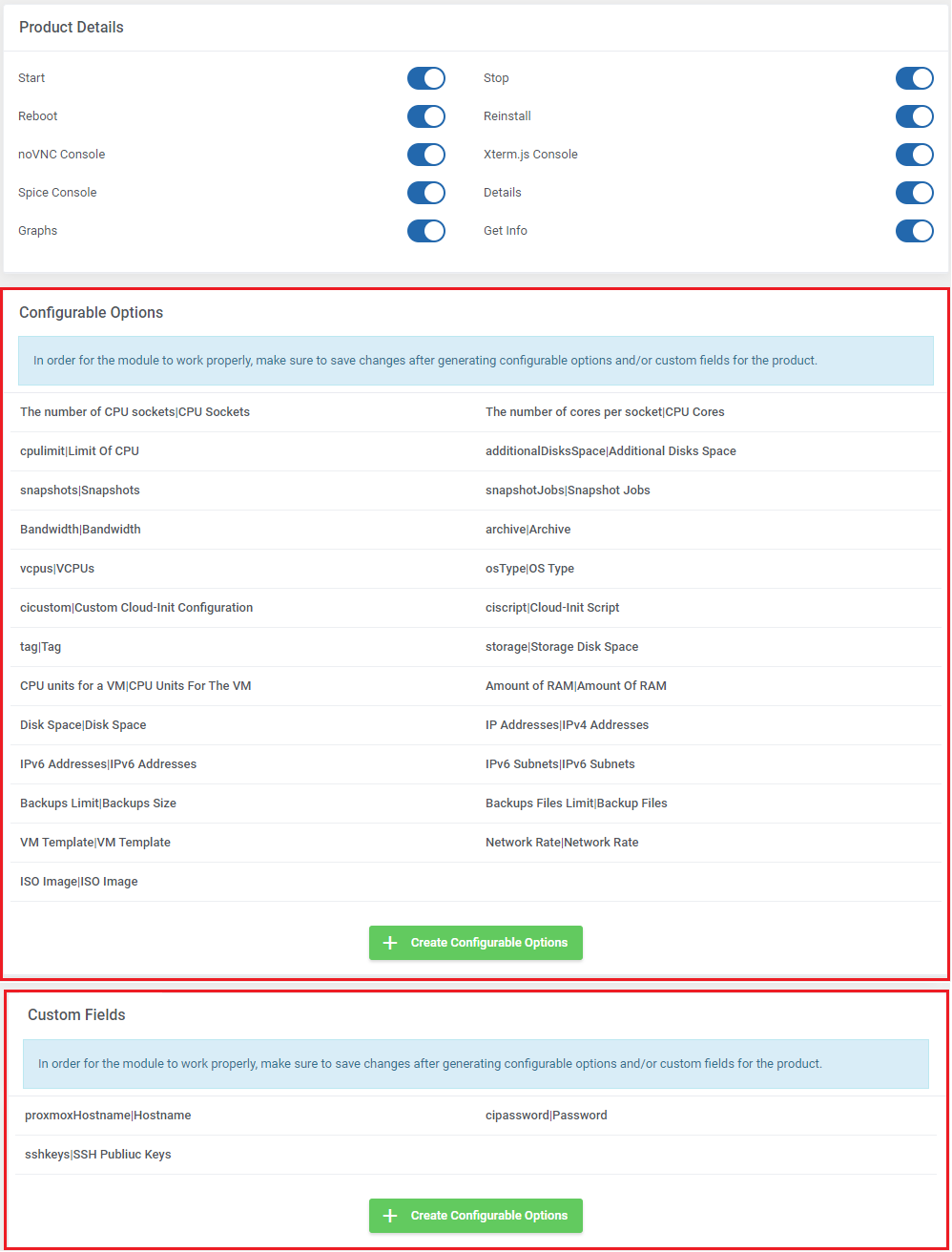
If there are any configurable options or custom fields available, you may now generate them, press the button and then select options you wish to offer.
Remember to save the changes in the end.
Please note that the below screen stands for Proxmox VE VPS & Cloud integration product module settings.
# Proxmox VE VPS & Cloud For WHMCS Integration
After placing an order, the client area may appear differently depending on the purchased product.
Below you can browse the examples of what the client area will look like upon the integration of Products Reseller For WHMCS with other ModulesGarden modules.
Dedicated integration with Proxmox VE VPS & Cloud For WHMCS that allows smooth and remote management of the resold VPS servers.
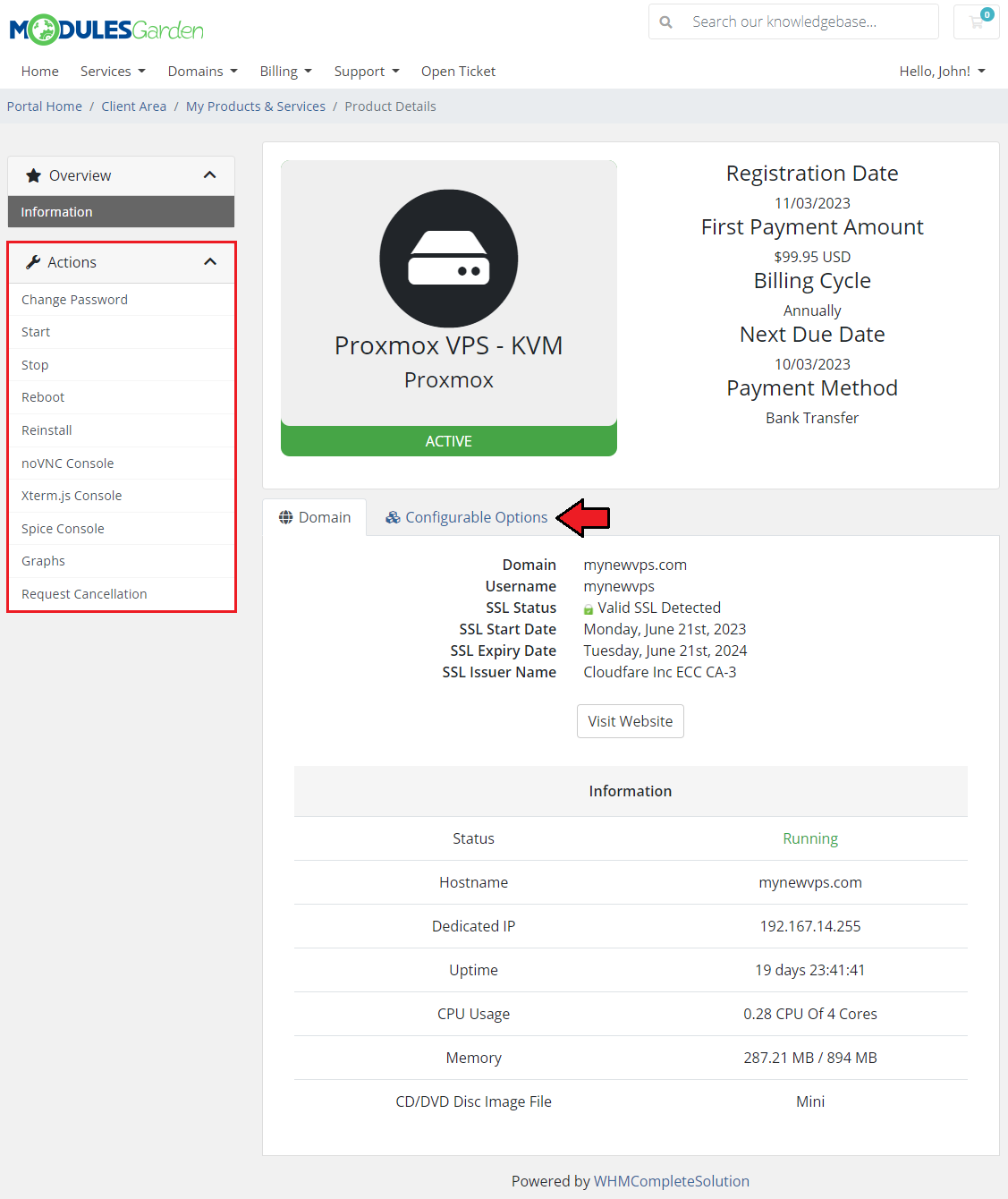
The following picture presents a Proxmox VE VPS & Cloud product. As you can see, the enabled options appear in the side menu with additional information about the product at the bottom of the page:
- Get VM Details
- Get VM Graphs
- Start VM
- Stop VM
- Reboot VM
- Reinstall VM
- Access noVNC, Xterm.js and Spice Console
You may find details of the Configurable Options assigned to this product in the next tab.
Note: Please remember that the options presented below are dedicated to Proxmox VE VPS & Cloud products.
Important! For other modules, the side menu section with supported features will look like for products based on the 'Auto Release' module. For more info click here (opens new window).
# EasyDCIM Dedicated Servers For WHMCS Integration - Servers Reselling
Neat integration with EasyDCIM Dedicated Servers For WHMCS allows quick and easy reselling of dedicated servers as well as their effortless billing.
Please follow the EasyDCIM official documentation (opens new window) to learn everything you need to know about the scope of possibilities.
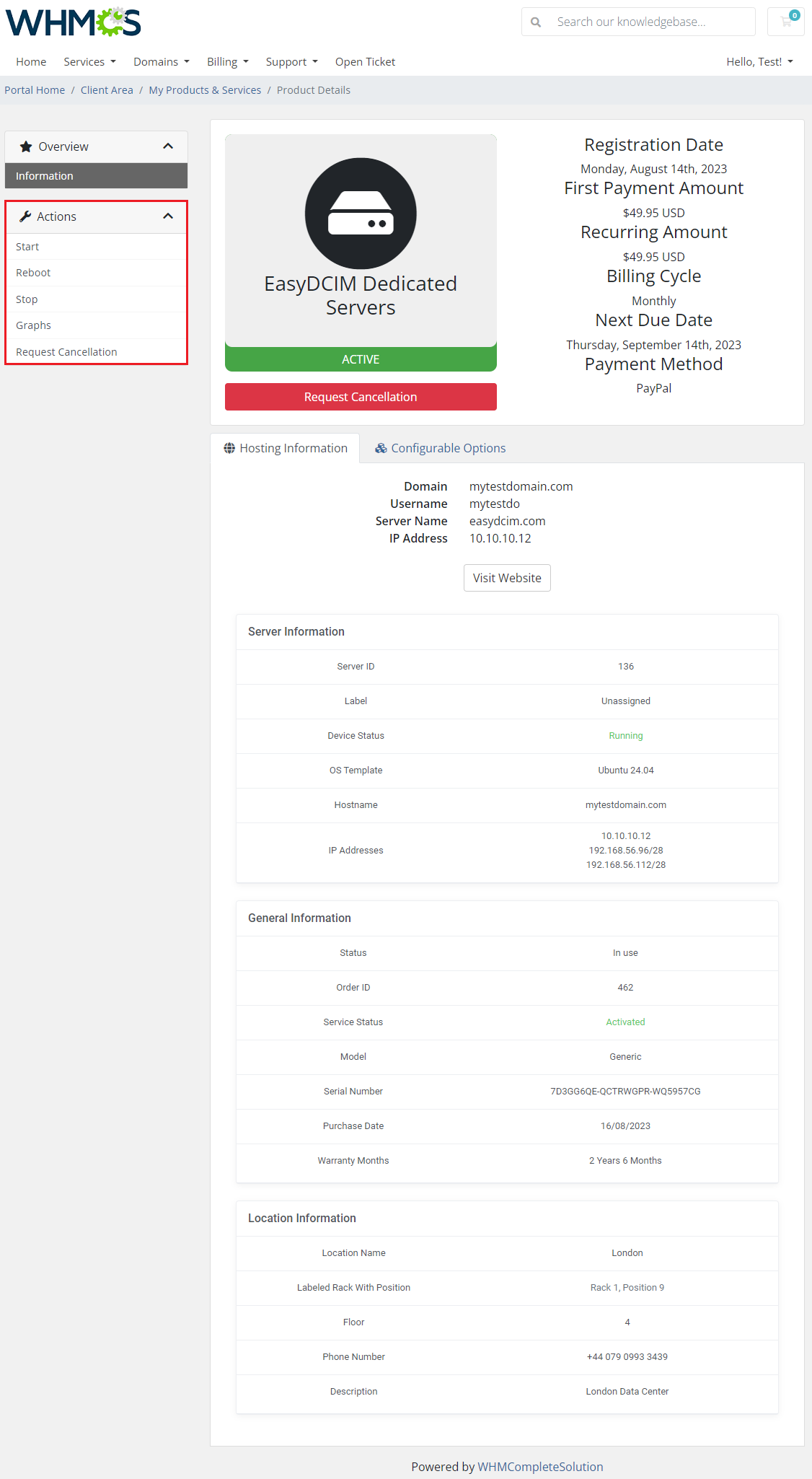
For now, have a look below for the picture of the client area view in the case of the EasyDCIM Dedicated Servers product.
Supported actions:
- Get VM Details
- Get VM Graphs
- Boot VM
- Reboot VM
- Shutdown VM
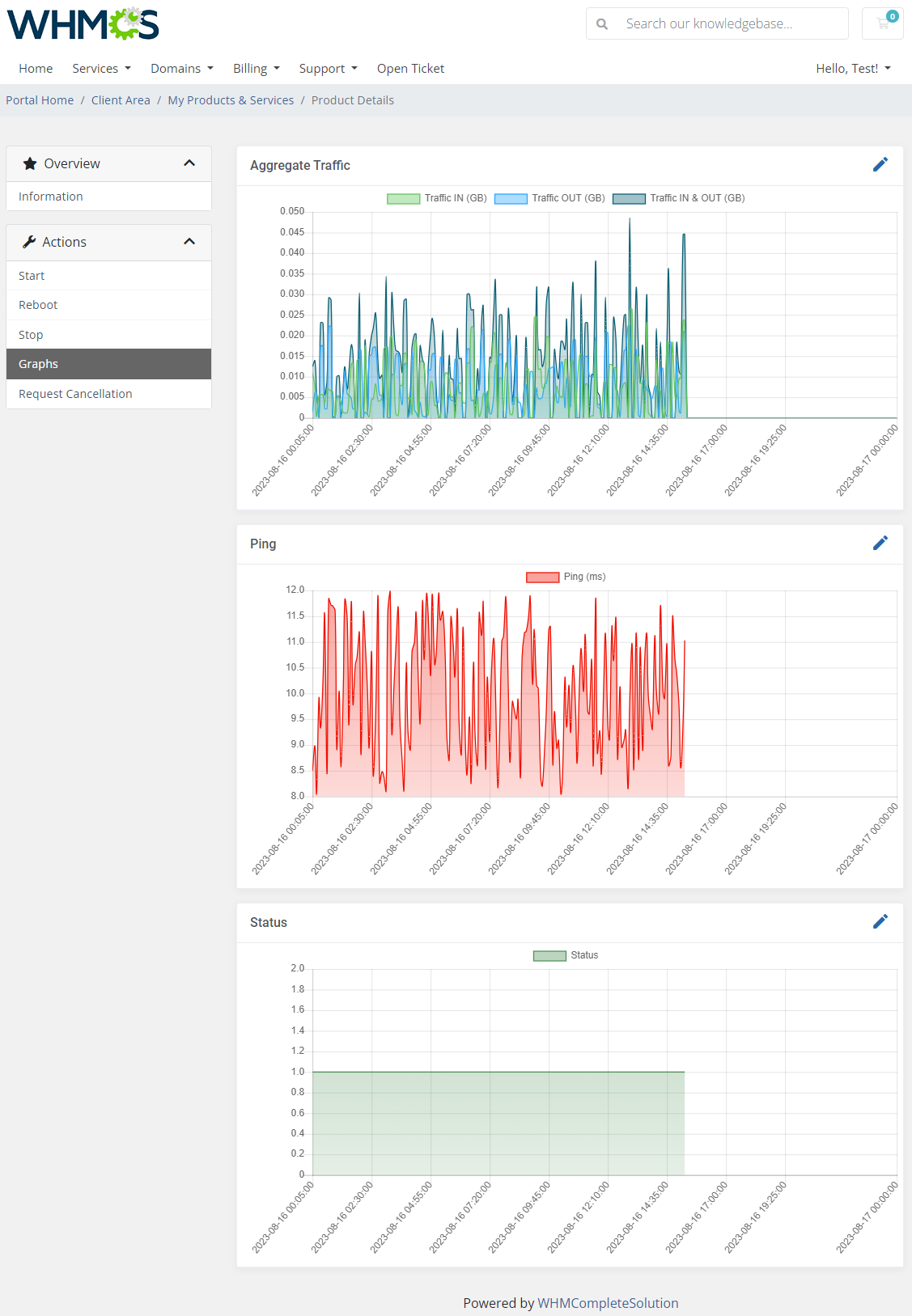
Exemplary graph section view:
# SSL Products Integration
Dedicated integration with GoGetSSL For WHMCS (opens new window) allows complete provisioning and remote supervision over SSL certificates.
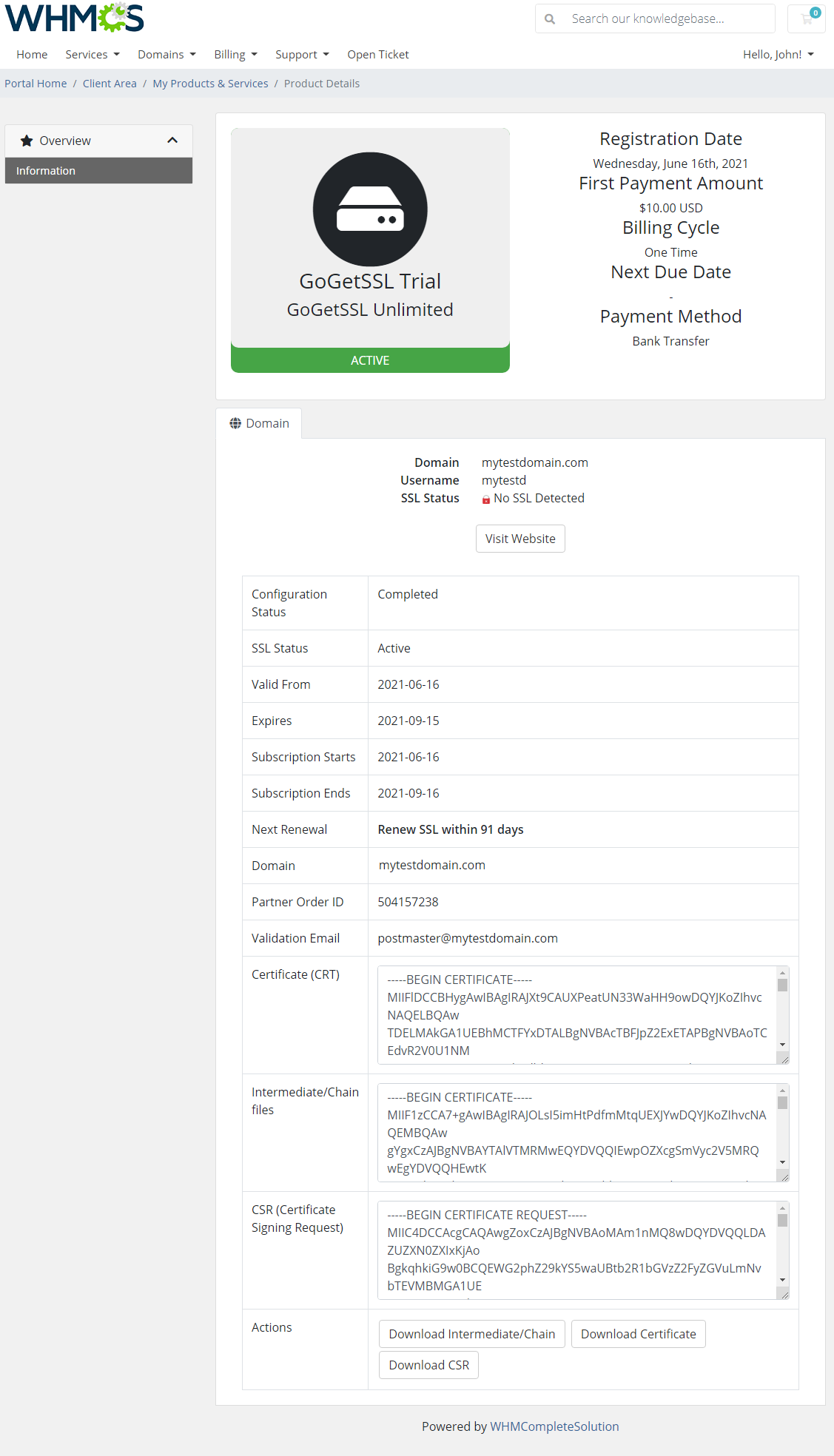
If the resold product is an SSL certificate, here that of GoGetSSL, you are allowed to manage the product in the client area as shown below:
# OpenStack Projects For WHMCS Integration
Integration between Products Reseller For WHMCS and OpenStack Projects For WHMCS permits automated provisioning and supervision of OpenStack projects'
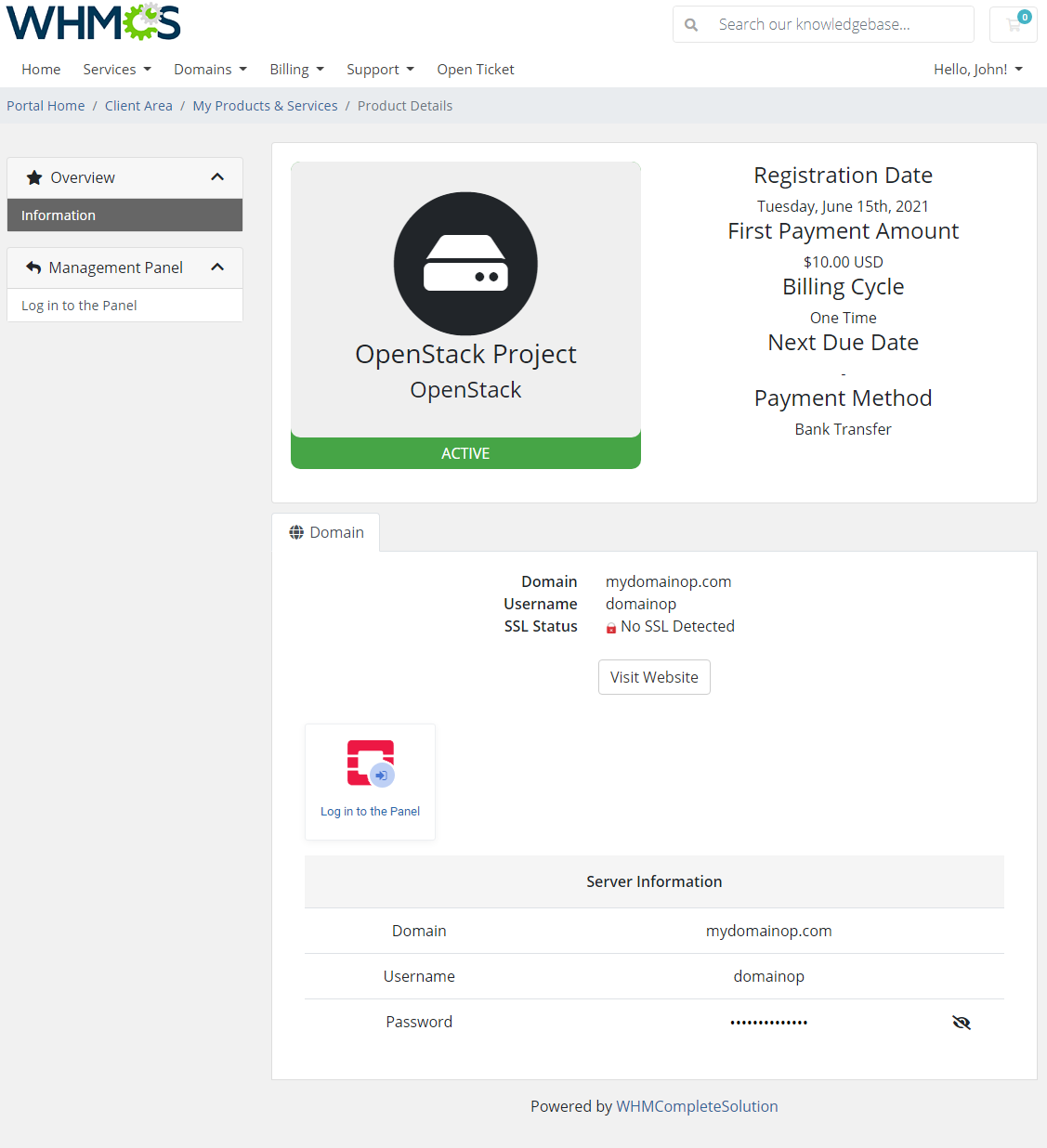
When OpenStack Projects product is resold, the client area will look as below.
Supported actions:
- Get Project Details
- Log In To Control Panel
# Plesk Key Administrator For WHMCS Integration
Dedicated integration with Plesk Key Administrator For WHMCS allows provisioning of various kinds of Plesk licenses.
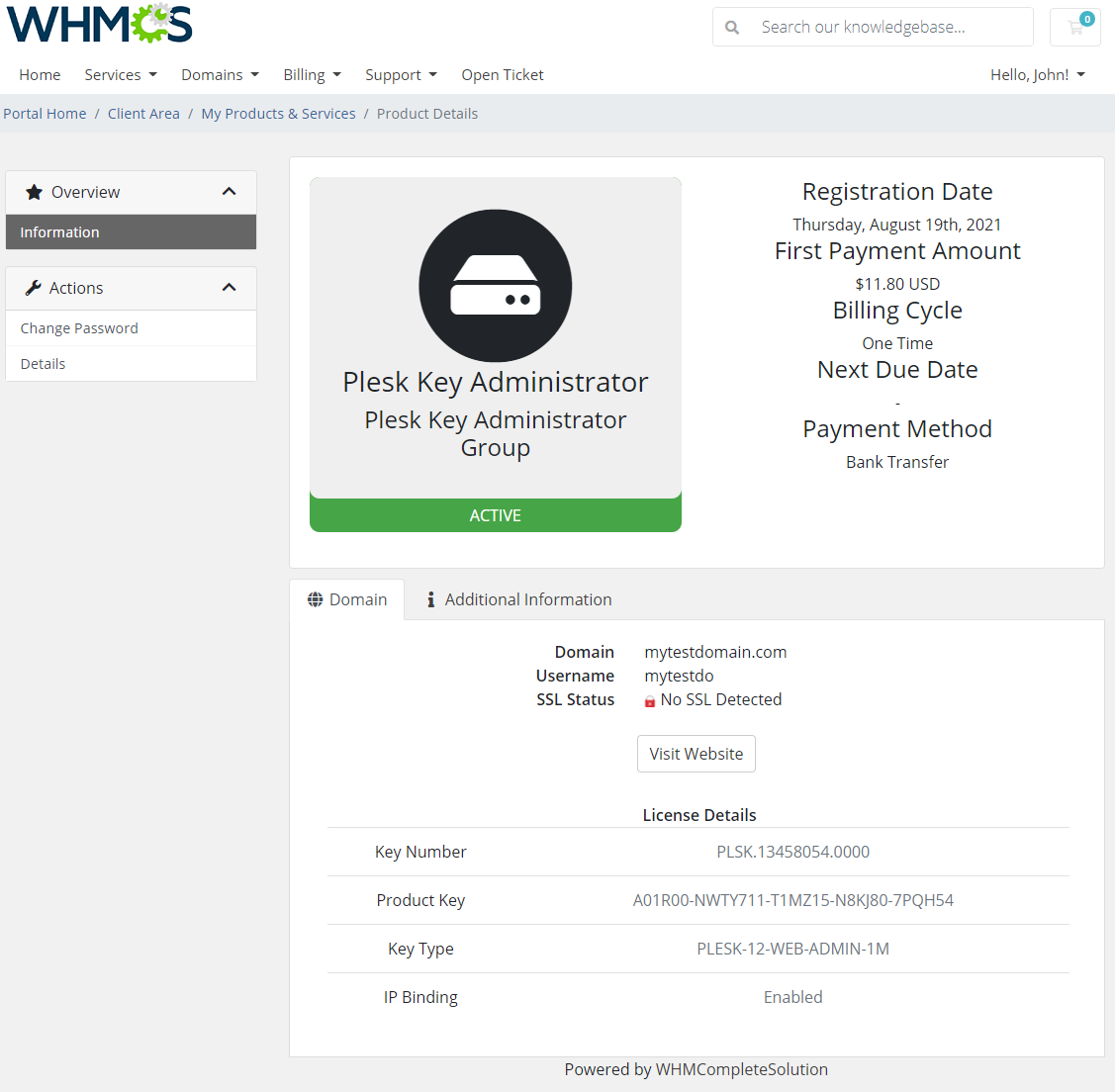
The picture below presents what the client area looks like in the case of the Plesk Key Administrator product.
# Virtualizor By Softaculous Module Integration
Virtualizor is a powerful web based VPS Control Panel using which a user can deploy and manage VPS on servers with a single click.
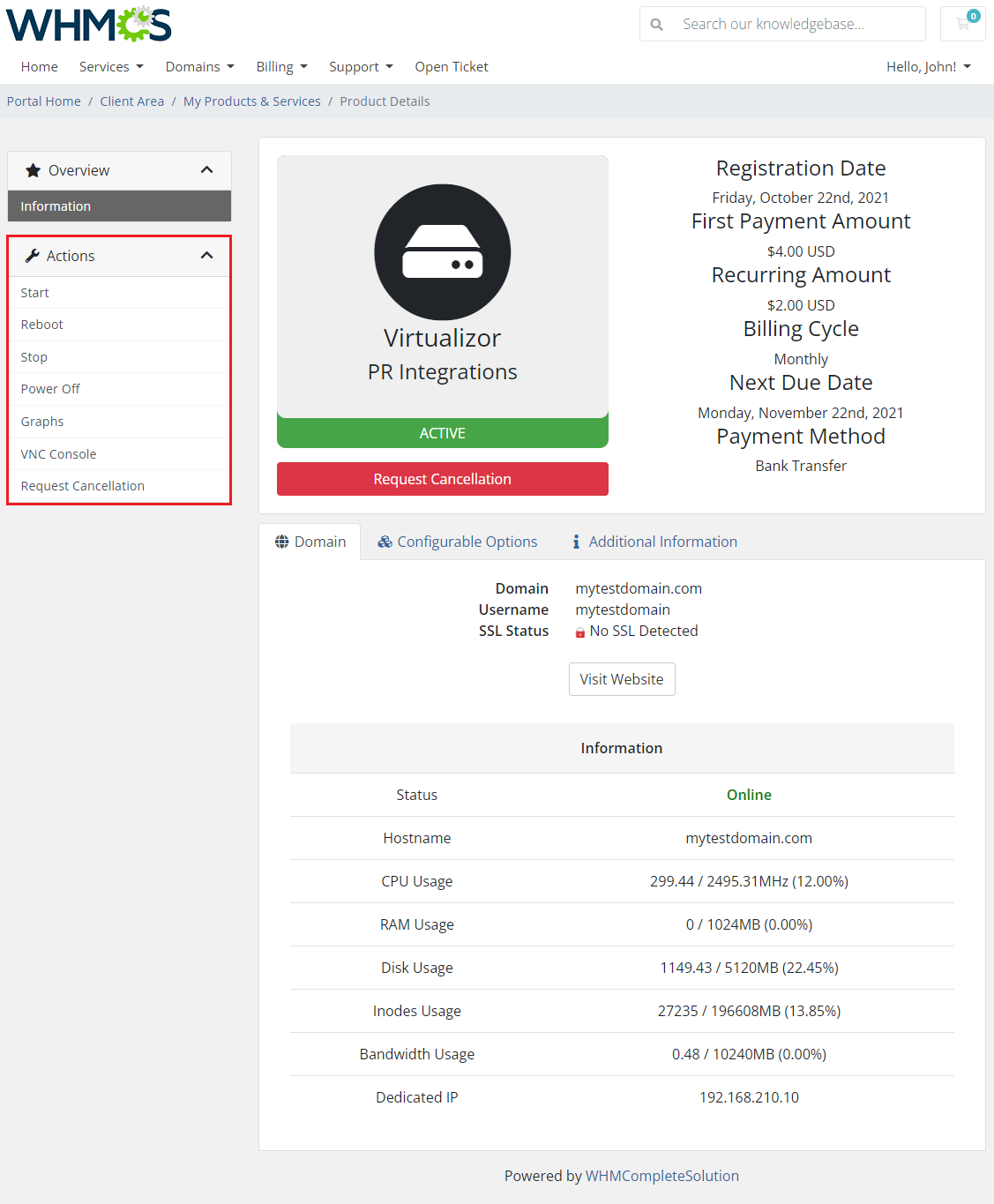
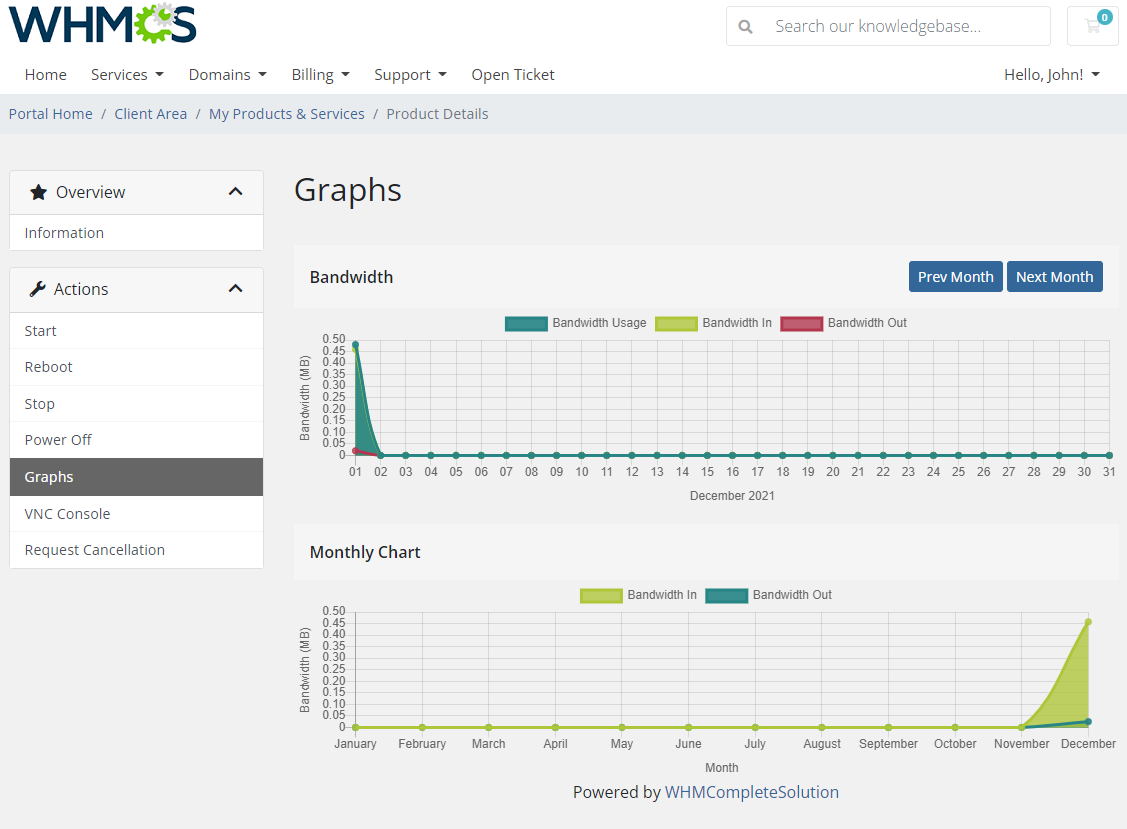
Dedicated integration between Products Reseller For WHMCS and the Virtualizor WHMCS Module (opens new window) allows provisioning of servers and access to VNC console and selected graphs.
- Start
- Reboot
- Stop
- Power Off
- Graphs
- VNC Console
- Request Cancellation
# WHMCS Licensing Addon
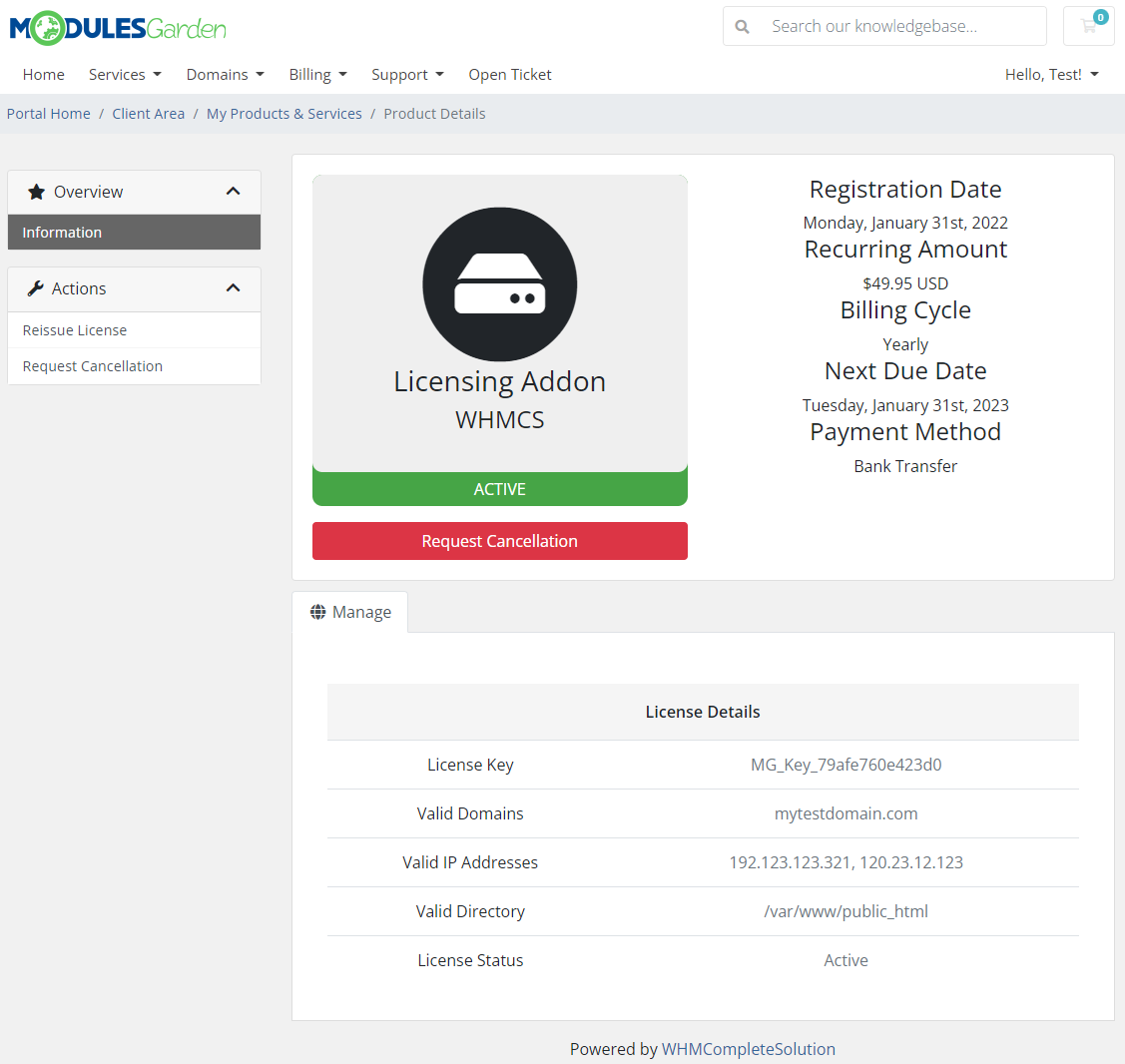
The WHMCS licensing addon module allows you to license your own web applications for selling to end users and restrict their use according to your licensing agreements.
- Reissue License
- Request Cancellation
# Products Reseller - Provisioning Product
Products Reseller For WHMCS module may also be configured as a provisioning module. You will have to create a new product that will be offered to purchase for resellers.
This simple trick will allow you to skip the manual configuration of all resellers. The process will be automatized once the reseller orders such product.
Follow the steps below to create and configure the Products Reseller product:
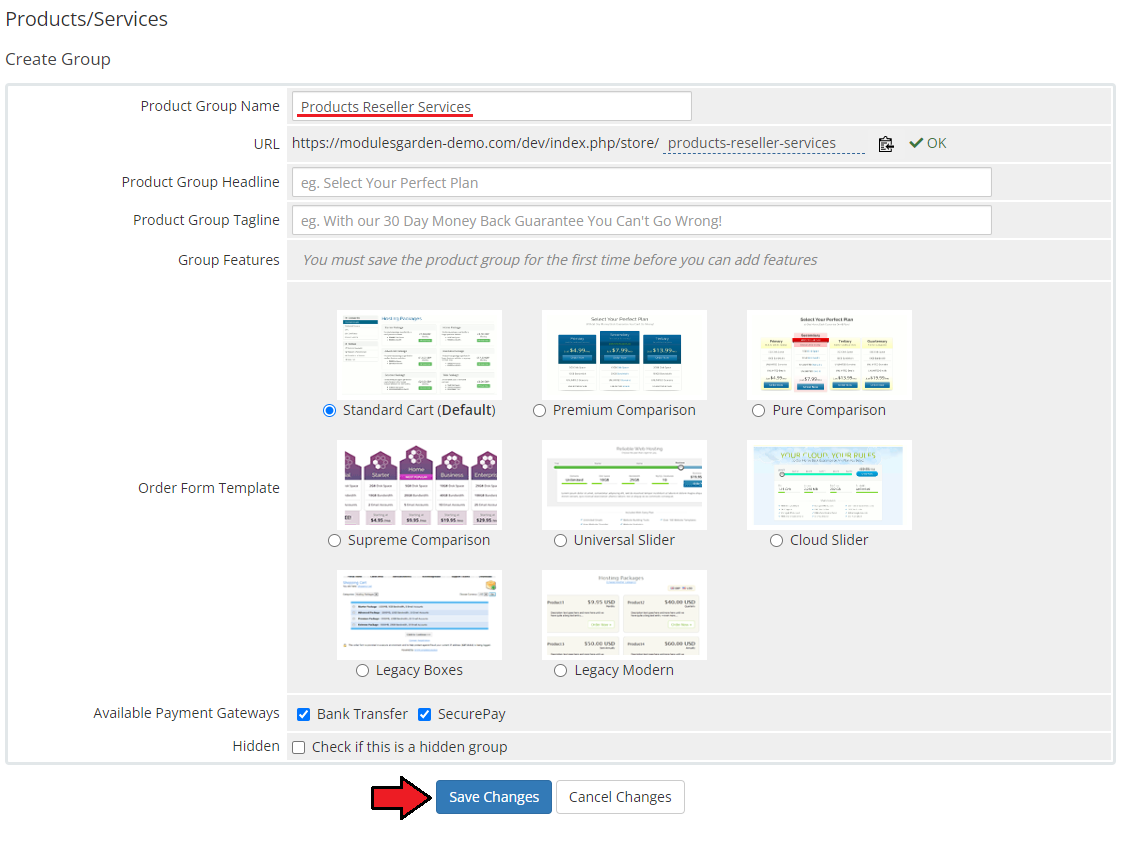
In order to create a new Products Reseller product, go to 'System Settings' → 'Products/Services'.
Press 'Create New Group' to add a new one.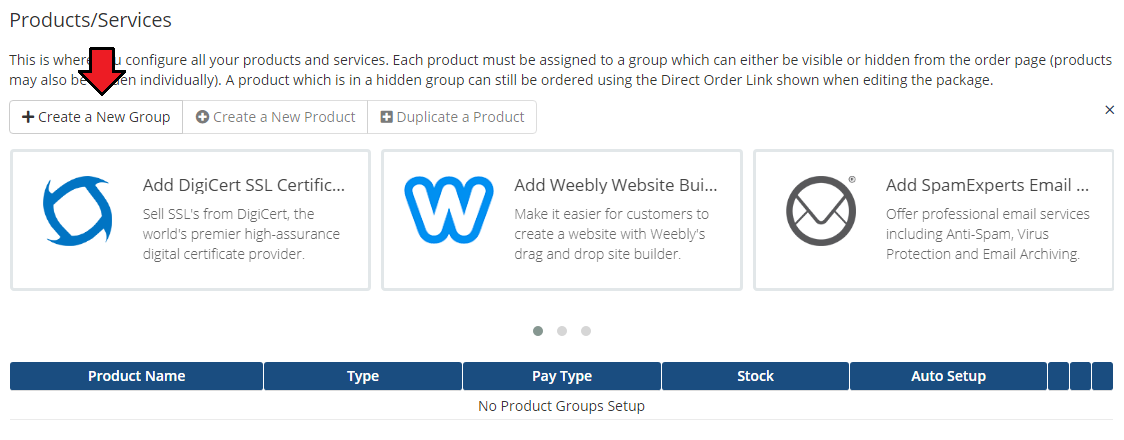
Fill in a product group name and press 'Save Changes'.
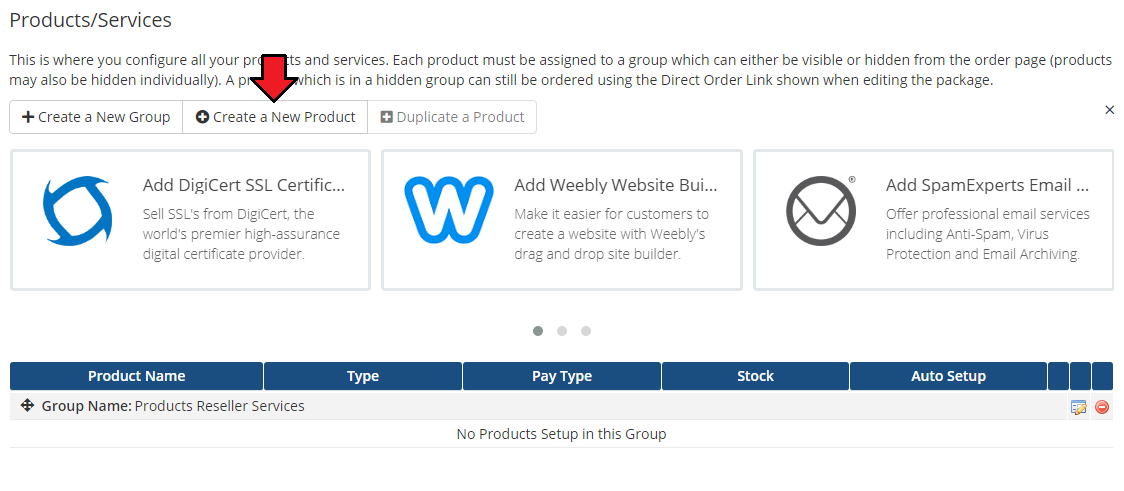
- Next, add a new product in the previously created group.
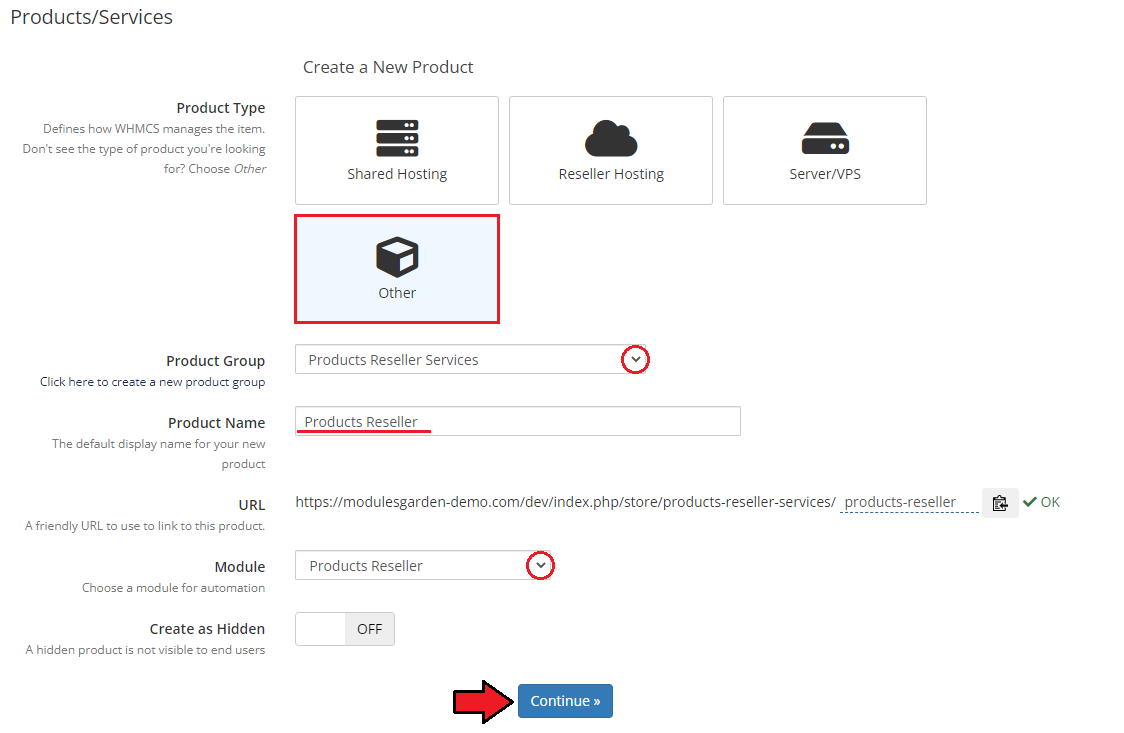
- Set the product type to 'Other', name the product and assign it to the Products Reseller module.
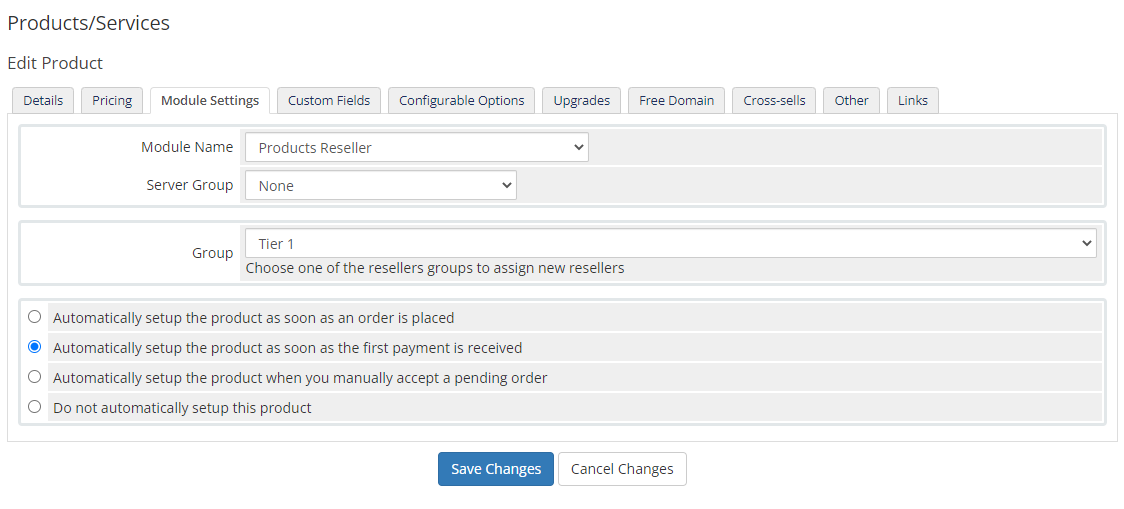
- Now, go to the 'Module Settings' section and choose one of the previously created in the addon groups of resellers from dropdown menu. Press 'Save Changes' .
Note that there is no server that shall be selected. Your product is ready to order!
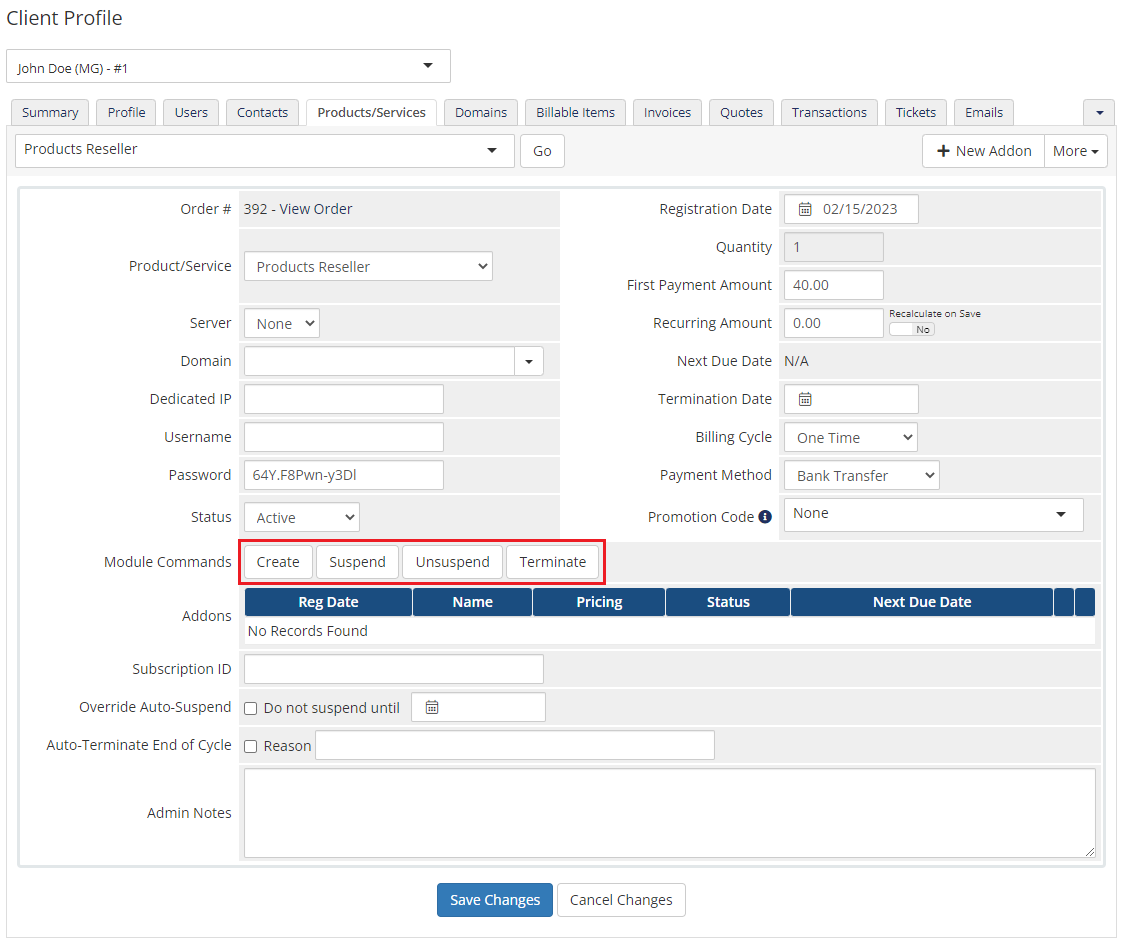
Allowed actions on the product:
- Create - once a client orders the product, go to Client's Products/Services and run the 'Create' action.
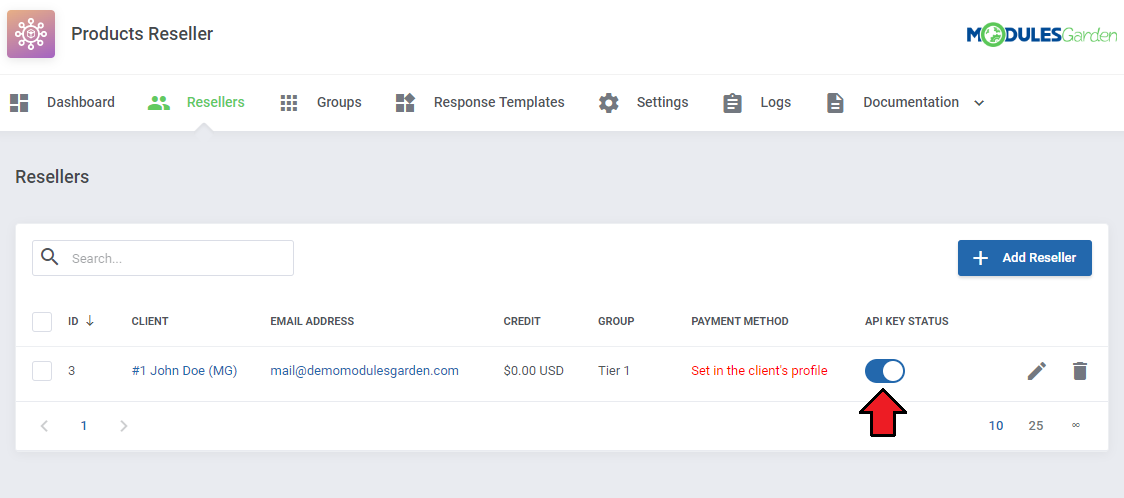
When successful, the client appears on the list of resellers in your addon (see the screen below) - Suspend - after successful Suspend action in the Client's Products/Services, the ' API Key Status ' of this reseller is switched off
- Unsuspend - run 'Unsuspend ' command to again switch on the reseller's 'API Key Status '
- Terminate - when the product is terminated, the Reseller's 'API Key Status' is again switched off
Addon view:
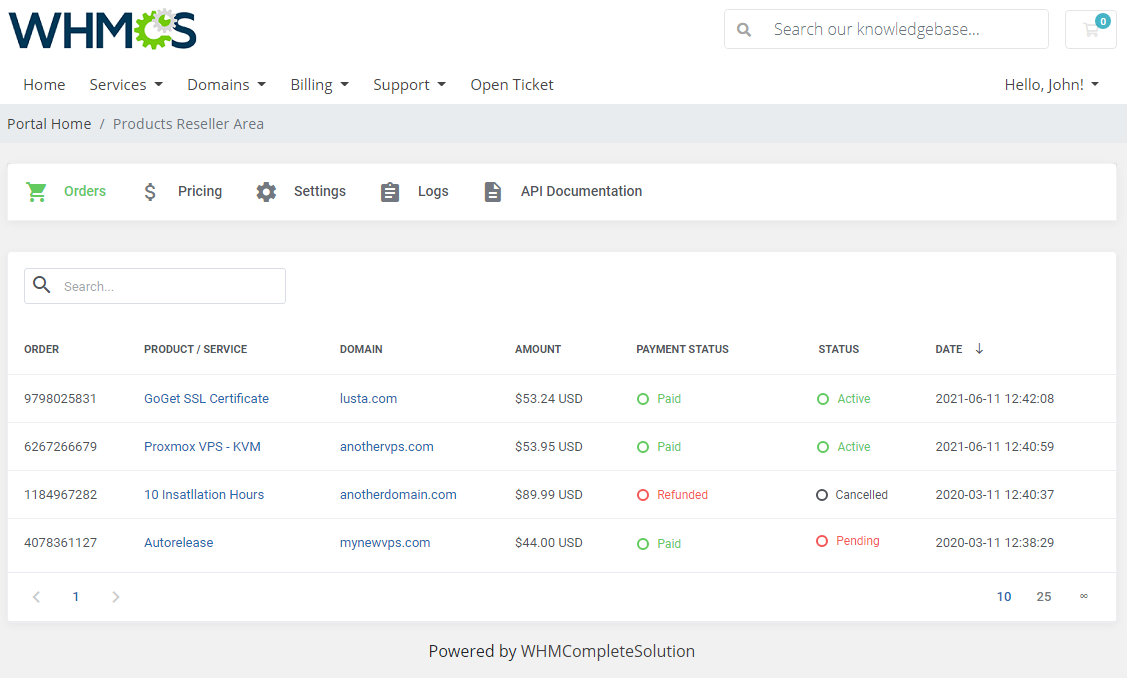
Once any of your clients orders this product, they will automatically become resellers.
They will get access to 'Reseller Area', where from they can resell the products, that belong to the pricing group, further.
# Sample Workflow
In this section we will present to you a sample workflow of the module.
In a basic workflow 3 users take part:
Provider – a person with Products Reseller For WHMCS installed on the WHMCS system.
Reseller - a provider's client who aims at reselling products offered to him by the provider.
The reseller must own a system with integration module generated for him by the provider with Products Reseller For WHMCS.
End Client – a person with a client account in the Reseller's WHMCS.
Provider's Part
Let us start from the beginning. Provider installs Products Reseller For WHMCS in the system.
He already has some products in the offer and wishes to allow the reseller to resell them.
Now, the provider configures Products Reseller For WHMCS, creates groups, configures them and assigns products, config options and defines their pricing for the reseller who is assigned to one of the groups.
Finally, selects which of the clients will become resellers, assigns them to previously created groups and generates access details.
Reseller Part
The Reseller has access to the Reseller Area once logged into the provider's client area.
There, he can download both the integration module and its documentation as well as generate and copy any API details required to activate the integration module in his own system.
Then, the reseller needs to set up products that the provider allows him to resell with the integration module delivered by the provider. Defines the pricing (prices must be higher than the ones the provider has set up to generate any income).
There is one step that separates the reseller from offering the product from his system.
The reseller must add funds (opens new window) to his credit balance in the provider system to be able to pay off the charges and settle the amounts owed to the provider for his resold products.
Provider creates an 'add funds invoice' for the Reseller, the Reseller pays the invoice and then again the Provider adds the same amount to Reseller's credit balance.
From now on, any product can be ordered.
End Client
End Client orders a product from his client area in the Reseller's system.
Once the payment is complete, details of the ordered product (i.e account credentials) are sent to the end-client mail address using the selected reseller's welcome email template.
Last Word About Payment
Now, that the End-Client has ordered and paid the reseller for the product, at the provider's system a new invoice for that product is created automatically (on behalf of the reseller).
Depending on the selected "Payment Type" configuration the invoice will be paid with credits and product attempted to be created or attempt to create the product and if successful, the invoice will be paid with credits.
In case the reseller does not have sufficient credits on his account to pay for the product creation, the process is stopped until the invoice is manually paid by the reseller.
The reseller's income is the difference between the price of the sold product to the End-Client and the price he paid to the provider.
# Upgrade Instructions
Products Reseller For WHMCS allows to upgrade both the product and the configurable options.
When the 'Change Package/Upgrade' action in the reseller's WHMCS is started, the same action is started in the main module environment.
The request contains information on both the product and its configurable options (if there are any assigned).
If it turns out that there are some differences between the requested config options and the currently assigned to the service, then only Configurable Options will be upgraded. Otherwise, Product Upgrade will be performed.
# Product Upgrade
Supported by the module product upgrade scenarios:
- Product A (without any config options) → Product B (without any config options) - additional payment is required or adequate amount of money is returned, depending on the number of days remaining until the end of the billing cycle
- Product A (with config options) → Product B (without any config options) - additional payment is required or adequate amount of money is returned, depending on the number of days remaining until the end of the billing cycle
- Product A (without any config options) → Product B (with config options):
- Case 1: products A and B have the same Configurable Options Group assigned - additional payment is required or adequate amount of money is returned, depending on the number of days remaining until the end of the billing cycle
- Case 2: products A and B have different Configurable Options Groups assigned - this upgrade scenario is not supported
- Changing billing cycle within one product (with or without configurable options) - additional payment is required or adequate amount of money is returned, depending on the number of days remaining until the end of the billing cycle
# Configurable Options Upgrade
When you change the price of a single configurable option, e.g. from Y to Z, the price is simply calculated for option Y (within the service billing cycle defined in WHMCS with Products Reseller module).
# Importing Existing Product Into Reseller Store
It is possible to manually add an existing product to the reseller's store. Follow the steps below to do so.
In the provider's WHMCS:
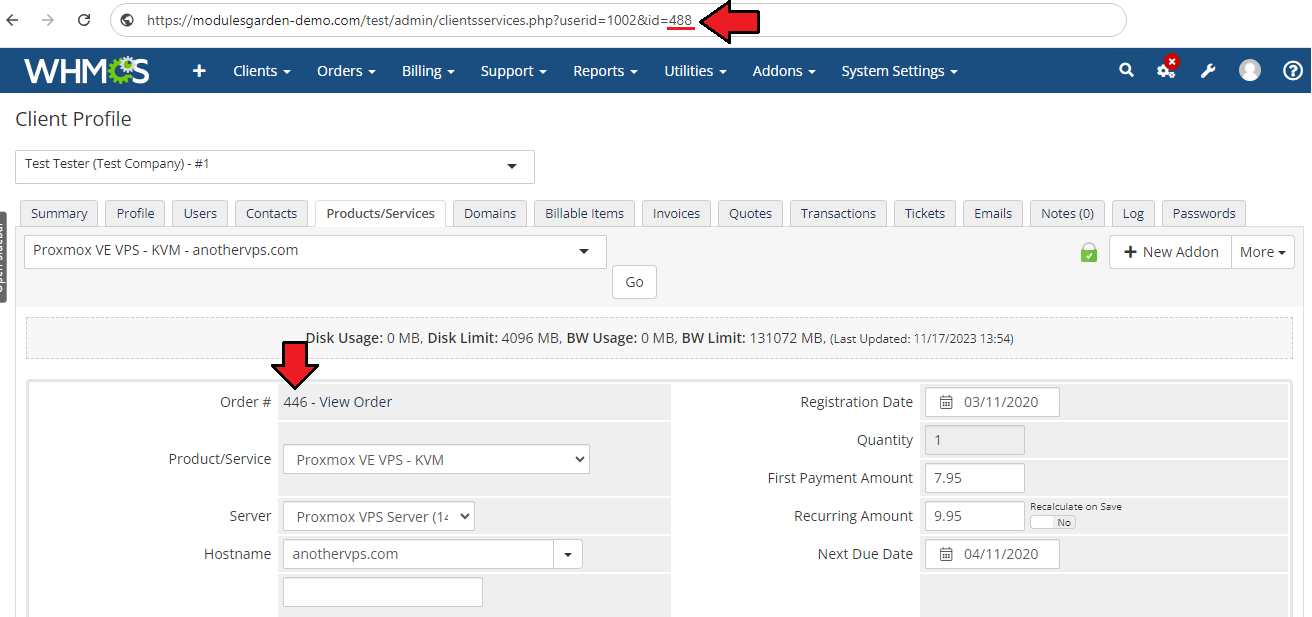
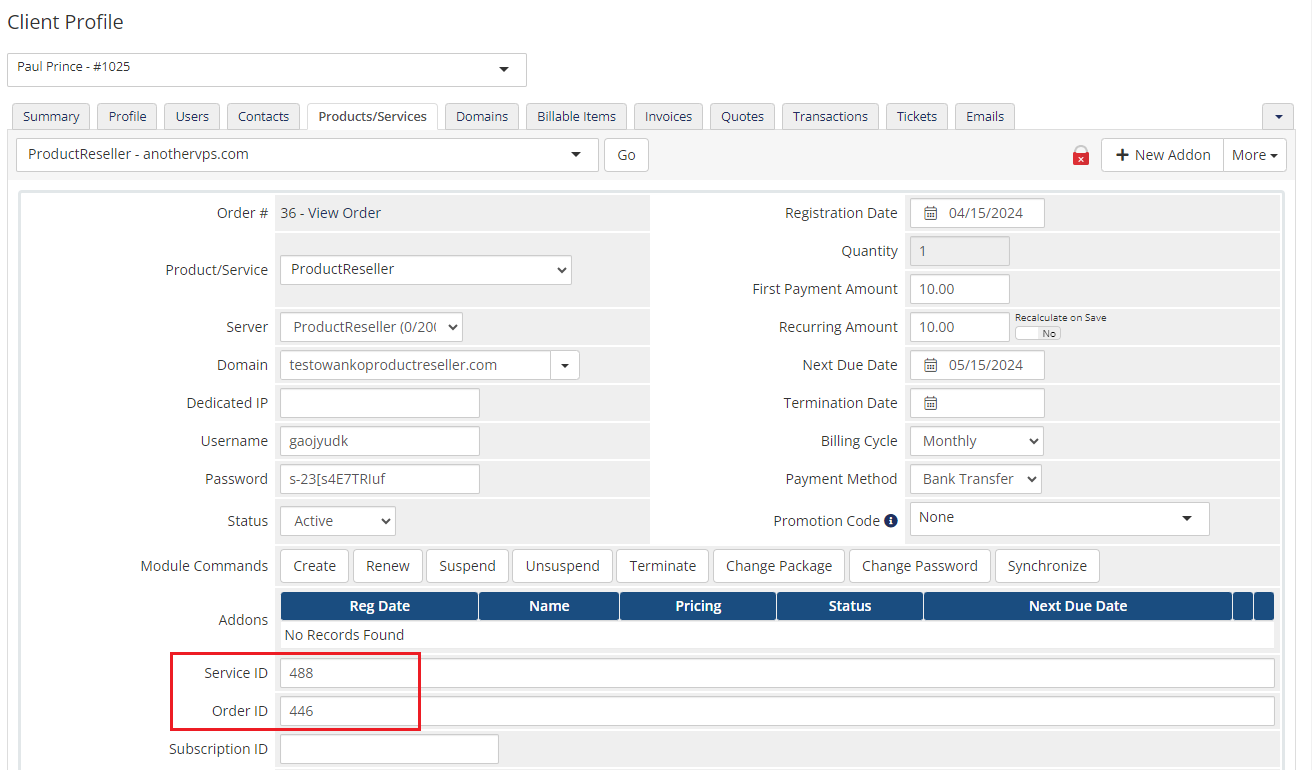
First, you need to track the Service ID number and the Order ID number, both of which can be found in the provider's WHMCS system.
Open the service details page by navigating to: WHMCS Admin Area → Clients → Products/Services → [Your Service].- When you open the service page, look at the URL; it ends with a number, which is the Service ID. You will need this number to import the product into the reseller's store. Copy it and keep it for later use.
- While on the same page (Product/Service Details), find the Order ID number under "Order #." Copy this as well, as it will be needed in the next steps.
In the reseller's WHMCS:
Next, you need to order the product for your client account without processing the create command.
Ensure that the order includes only this single product. If you add more, the process might be interrupted.- In the client's 'Products/Services' management tab within your admin area, fill in the 'Service ID' and 'Order ID' custom fields with the corresponding ID numbers from the previous step.
In the provider's WHMCS Database:
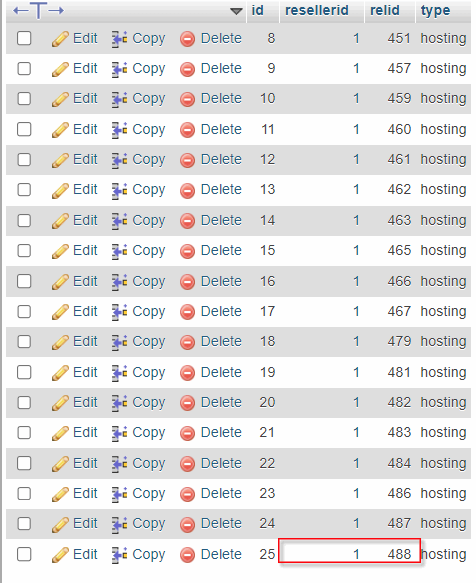
This is the final step. In the provider's database, open the 'ProductsReseller_ResellerRelations' table and add an entry with the newly ordered service details. Ensure that you provide the following:
- 'resellerid': The 'Admin ID' number.
- 'rellid': The 'Service ID' custom field value.
When ready, change the service status to 'Active'.
Completion:
That's it! The service has been successfully imported and can now be managed by the end user in the reseller's client area.
# Tips
When you update your Products Reseller module to a newly released version (full number update), it is required to update the integration module as well.
Products Reseller For WHMCS can be integrated with other ModulesGarden products to extend the range of available features,
e.g. the integration with Proxmox VE VPS & Cloud For WHMCS provides such additional actions as: get VM details, get VM graphs, start VM, stop VM, reboot VM.Make sure that you are not blocking access to the 'api' catalog by your '.htaccess' file.
Products Reseller For WHMCS enables you to resell your products not only via WHMCS system.
You are able to easily prepare integration module for any system (Blesta, HostBill, Clientexec, BoxBilling, and many more) using Products Reseller For WHMCS API.
All you need is knowledge of, for example, the PHP programming language and our module's API.If a client buys a product from the reseller and pays in a different currency than the reseller's default currency
then the amount will be converted into the reseller's default currency basing on the 'Base Conv. Rate' (your WHMCS → System Settings → Currencies).Renewal limits control how many license renewals a client can schedule in advance, based on the billing cycle.
After each billing cycle passes, one slot in the renewal limit is freed, allowing the client to schedule another renewal.
These limits reset according to the billing cycle (e.g., monthly, quarterly, etc.).Supported Integrations:
- Transactions Between Resellers And Provider Settled With Credits
- Integrated With cPanel And cPanel Extended For WHMCS (opens new window) - Complete Provisioning Automation And Remote Management Of Web Hosting Accounts
- Integrated With DirectAdmin And DirectAdmin Extended For WHMCS (opens new window) - Provision Accounts In Fully Automated Manner With Single Sign-On Option
- Integrated With EasyDCIM Dedicated Servers For WHMCS (opens new window) - Provision And Manage Dedicated Servers Of EasyDCIM Automatically
- Integrated With GoGetSSL For WHMCS (opens new window) - Provisioning And Remote Supervision Of Personalized SSL Certificates
- Integrated With OpenStack Projects For WHMCS (opens new window) - Automated Provisioning And Supervision Of OpenStack Projects
- Integrated With Plesk Key Administrator For WHMCS (opens new window) - Provision Various Kinds Of Plesk Licenses
- Integrated With Proxmox VE VPS & Cloud For WHMCS (opens new window) - Fully Automated Provisioning And Management Of Virtual Servers
# How To Use Language Overrides
Incorporating language customizations - the module readily accommodates language overrides, allowing you to tailor the language files to your preferences.
The language file english.php remains unencoded and can be modified to suit your needs. However, it's recommended to avoid altering the core file itself, and instead, leverage the capability of using overrides.
Here's how to apply language overrides:
- Navigate to the ~/langs/ directory located within the following yourWHMCS/modules/servers/moduleName/langs/ path.
- Within this directory, create a new file or duplicate the language file you intend to modify. For instance, if you wish to create an override for the English language, establish the following directory structure:
~/langs/overrides/english.php - Open the newly created override file to edit its contents.
- At the beginning of the file, indicate the used code, for instance, you can use: <?php for PHP code.
- Adapt the file content according to your requirements. You can either selectively modify specific variables or opt to revise the entire content of the language file.
For example:
Original yourWHMCS/modules/servers/moduleName/langs/english.php:
$_LANG['Search'] = 'Search';
Override yourWHMCS/modules/servers/moduleName/langs/overrides/english.php:
$_LANG['Search'] = 'Look for';
By following these steps, you can seamlessly implement language customizations without altering the core language file, ensuring your changes will not be lost after every module update.
Remember that some of the modules have more than one language file, located under /addons and /servers paths. You may create the override files for both of them.
Note that you do not need to paste all the original content of the lang file into the override file. Enter there only the lines that you wish to change, every other line will be fetched from the original module lang file.
Consequently, the override lang file might include only one or just a few lines.
# Update Instructions
An essential guidance through the process of updating the module is offered here.
Ensure successful completion of the module update by carefully following each step, thereby preventing data loss or any unforeseen issues.
Additionally, you will find a current list of supplementary actions necessary for a smooth update process there.
# Upgrade Guide
Seeking a solution that offers greater flexibility, customization tailored to your precise needs, and unrestricted availability?
There is an option that not only proves to be cost-effective in the long run but also includes prioritized support services, making it a truly valuable investment.
Opt for the Open Source version (opens new window) of your Products Reseller For WHMCS module to unlock these benefits.
Simply click on either the Get Source Code or Upgrade To Lifetime button found on the product's page in our client area to complete the one-step upgrade process, with a dedicated discount already applied.
Follow a comprehensive guide covering the transition process, the advantages it brings, and step-by-step instructions on what to do next after the order has been successfully finalized.
# Common Problems
When you have problems with connection, check whether your SELinux or firewall does not block ports.
If the reseller encounters the 'Order Accept Encountered Problems. Invoice for the hosting has not been paid' error while the create action,
then the provider should make sure that:- The product that is offered to the reseller has the 'Recurring' pricing set properly.
- The reseller has enough credits on his account to pay for the product.
- The 'Automatic Credit Use' option is enabled in WHMCS → General Settings → Credit.
If you use the nginx server and get 404 errors, please make sure you have set a proper declaration in your '/etc/nginx/conf.d/' configuration file.
This can be e.g.:location /client/modules/addons/ProductsReseller/api/ { try_files $uri $uri /client/modules/addons/ProductsReseller/api/index.php; }but may differ depending on your configuration (e.g. the '/portal/' path may be used instead of the '/client/' one).
It is recommended to disable the global WHMCS option "Automatic Credit Use (opens new window)".
If enabled, WHMCS will automatically pay invoices for recurring services assigned to resellers using available credits.