

# Advanced Billing For WHMCS
- About Advanced Billing For WHMCS
- Installation
- Configuration and Management
- Use Cases
- Tips
- Update Instructions
- Upgrade Guide
- Common Problems
Planning to update this module? Before uploading new files, make sure to review our Major Version Update Guide and the module-specific Update Instructions at the bottom of this page. Some updates require additional migration steps to prevent errors or data loss.
# (opens new window) About Advanced Billing For WHMCS (opens new window)
Advanced Billing For WHMCS enables you to implement flexible billing models based on the actual usage of resources such as bandwidth, CPU, and other server capabilities.
This module supports multiple currencies and offers various billing options, including hourly billing, credit billing, and recurring billing.
It automatically generates invoices according to your preferred settings and at customizable intervals, sending them directly to your customers.
Additionally, clients can set up email reminders to notify them when they reach or exceed specified resource usage limits.
Advanced Billing For WHMCS is compatible with many popular modules, including cPanel, Plesk, and SolusVM, as well as a variety of ModulesGarden products.
The Documentation page for Advanced Billing For WHMCS 3.x can be found here.
# Installation
In this tutorial, we will show you how to successfully install and manage Advanced Billing For WHMCS. (opens new window)
We will guide you step by step through the whole installation and configuration process.
- Log in to our client area and download the module.
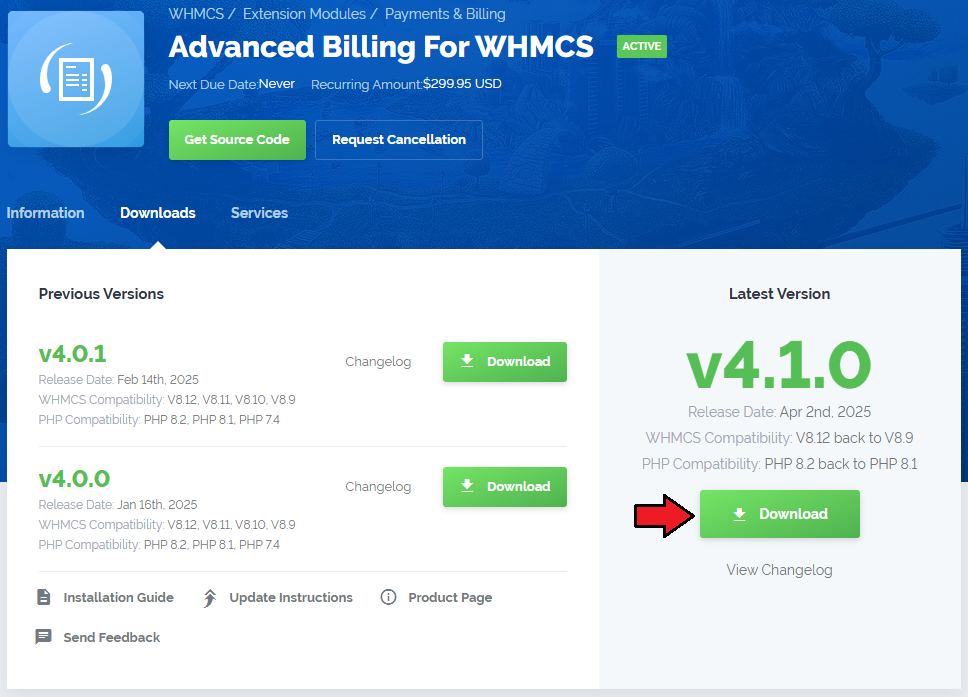
Extract the package and upload its content into the main WHMCS directory.
The content of the package to upload should look like this.
When you install Advanced Billing For WHMCS for the first time you have to rename 'license_RENAME.php' file.
File is located in 'modules/addons/AdvancedBilling4/license_RENAME.php'. Rename it from 'license_RENAME.php' to 'license.php'.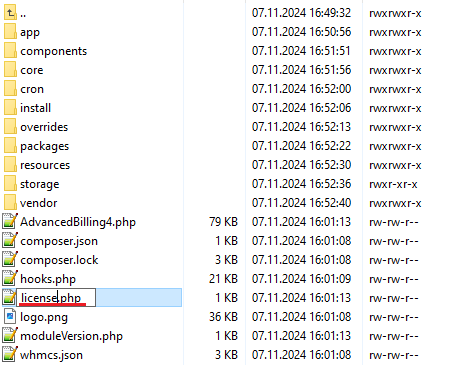
In order to configure your license key, you have to edit a previously renamed 'license.php' file.
Enter your license key between the quotation marks as presented on the following screen. You can find your license key in our client area→ 'My Products'.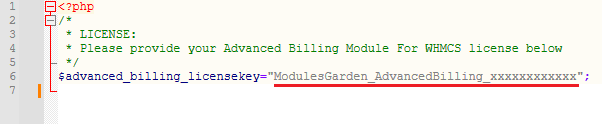
Now you have to activate the module in your WHMCS system.
Log in to your WHMCS admin area. Click 'System Settings', then choose 'Addon Modules'.
Afterward, find 'Advanced Billing' and press the 'Activate' button.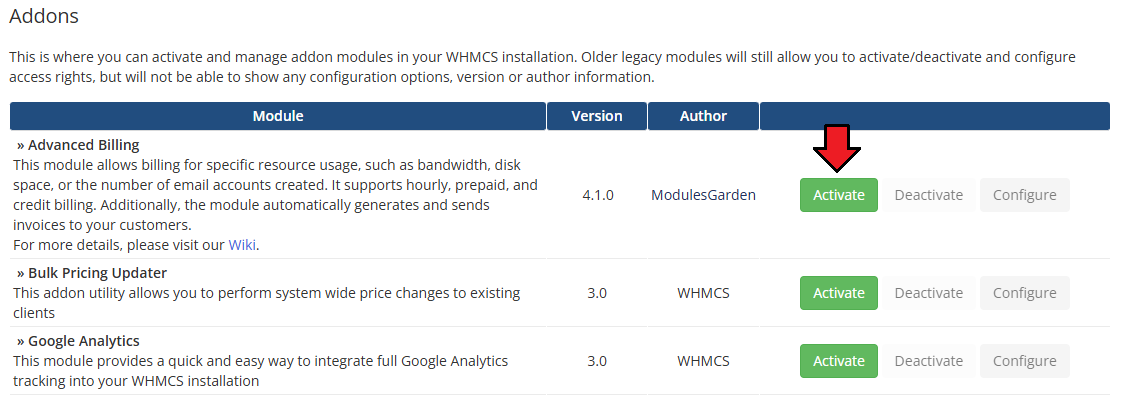
In the next step, you need to permit access to this module.
To do so, click on the 'Configure' button, tick the desired admin roles, and press 'Save Changes'.
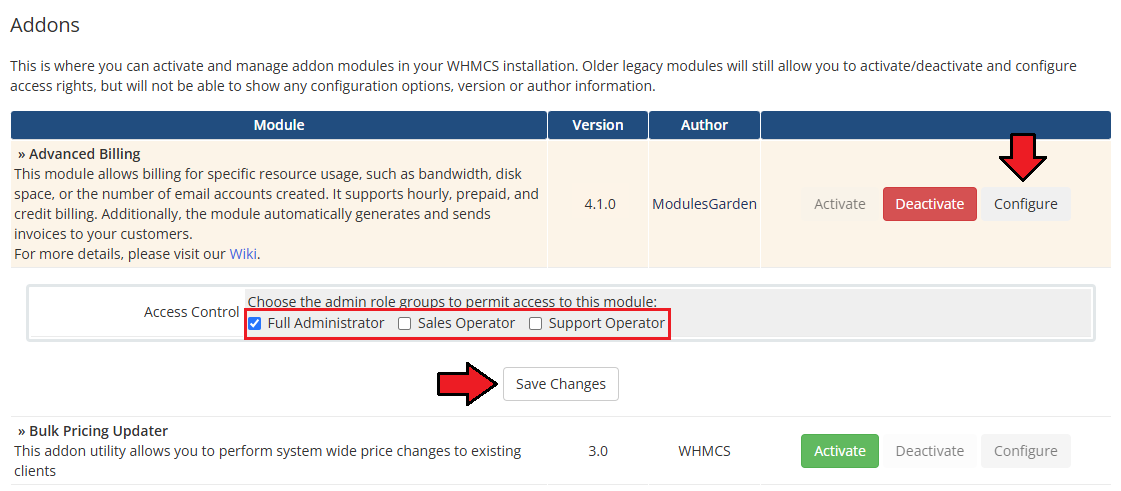
7. The final step is to configure the cron job.
Navigate to: WHMCS → Addons → Advanced Billing → Settings → Cron Job Settings page to obtain the correct cron command.
Once you have the command, manually add it to your server's crontab. We recommend setting it to run every 5 minutes:
php -q /your_WHMCS/modules/addons/AdvancedBilling4/cron/cron.php cron
Note: This cron starts a background, continuous process. The 5-minute interval is a backup mechanism that ensures the process restarts automatically if it stops for any reason.
In normal operation, only one process remains active at a time.
# Configuration and Management
Advanced Billing For WHMCS is a module that allows you to set up flexible billing models based on your client's actual usage of resources like bandwidth and CPU.
Refer to the manual below to learn how to configure the module and make full use of its extensive features.
# Products
To enable Advanced Billing For WHMCS features for a product, navigate to 'Addons' → 'Advanced Billing' → 'Products' and click on the 'Add Product' button.
Select your product from the dropdown list.
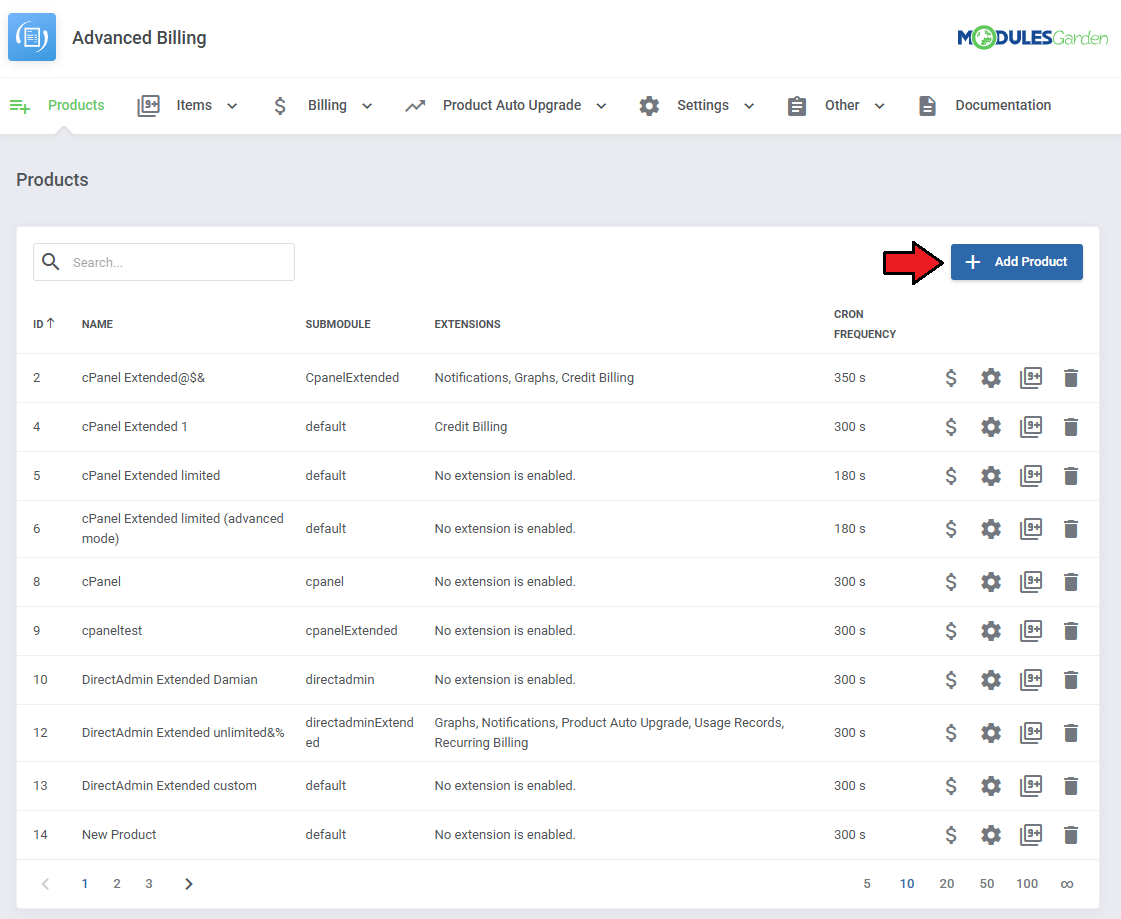
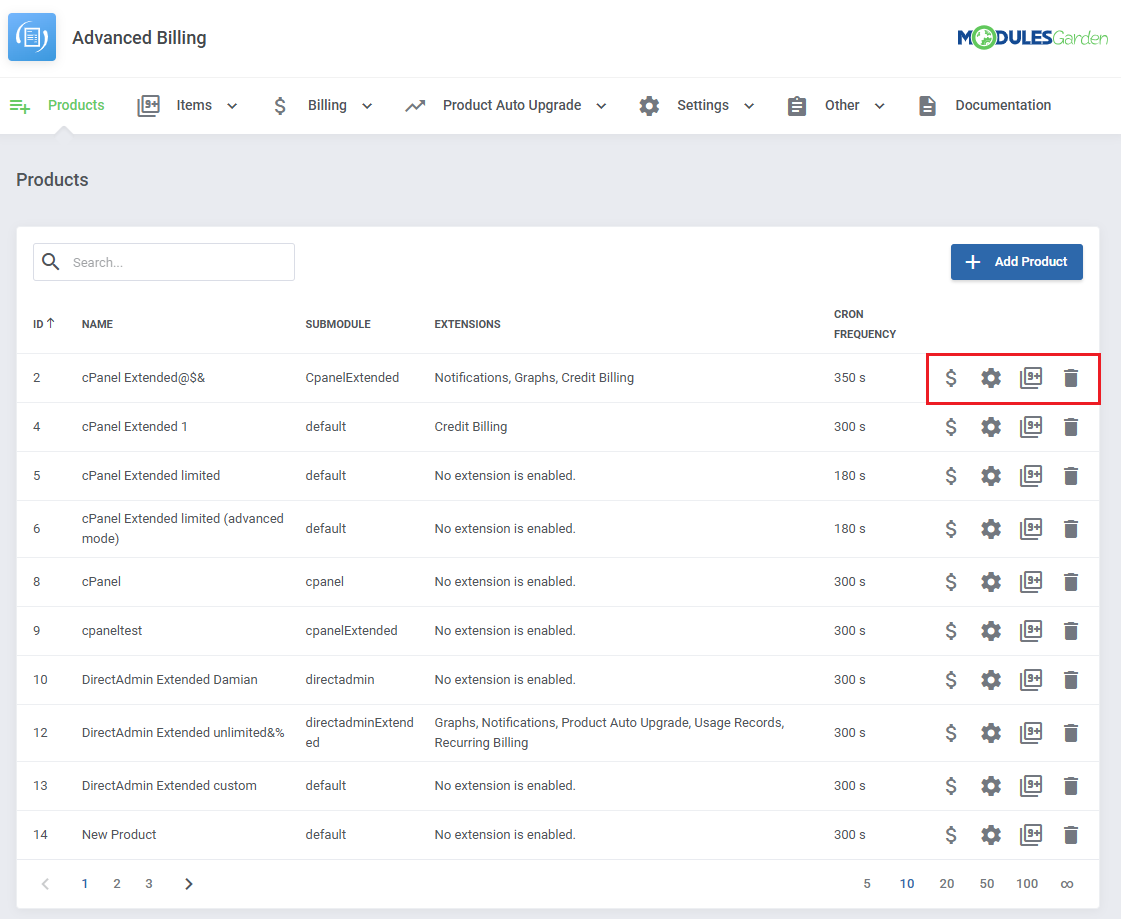
Once your products are added use the action buttons to:
- Set Pricing
- Configure Settings
- Show Related Items
- Delete Product from the List
# Pricing
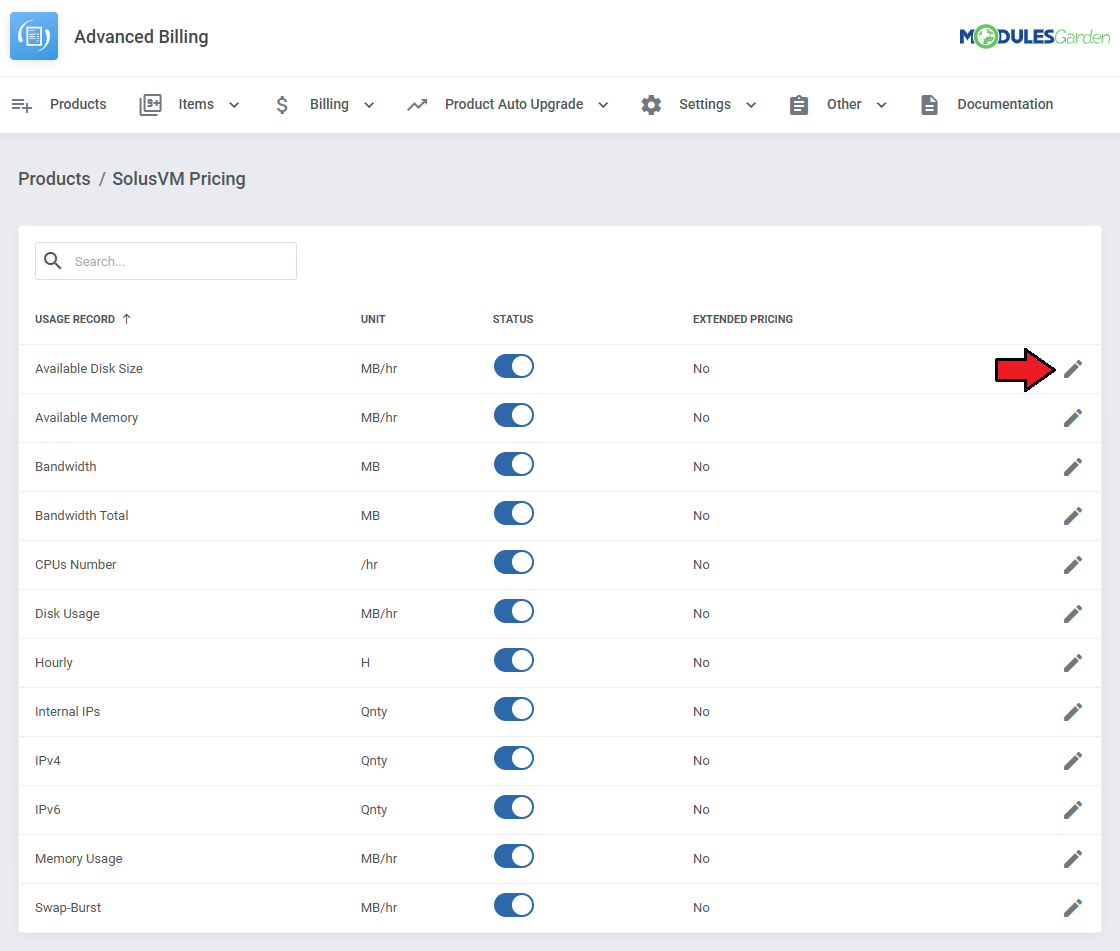
Set pricing for each usage record for a product.
The pricing list includes information on each usage record:
- Name
- Unit
- Billing Status
- Extended Pricing
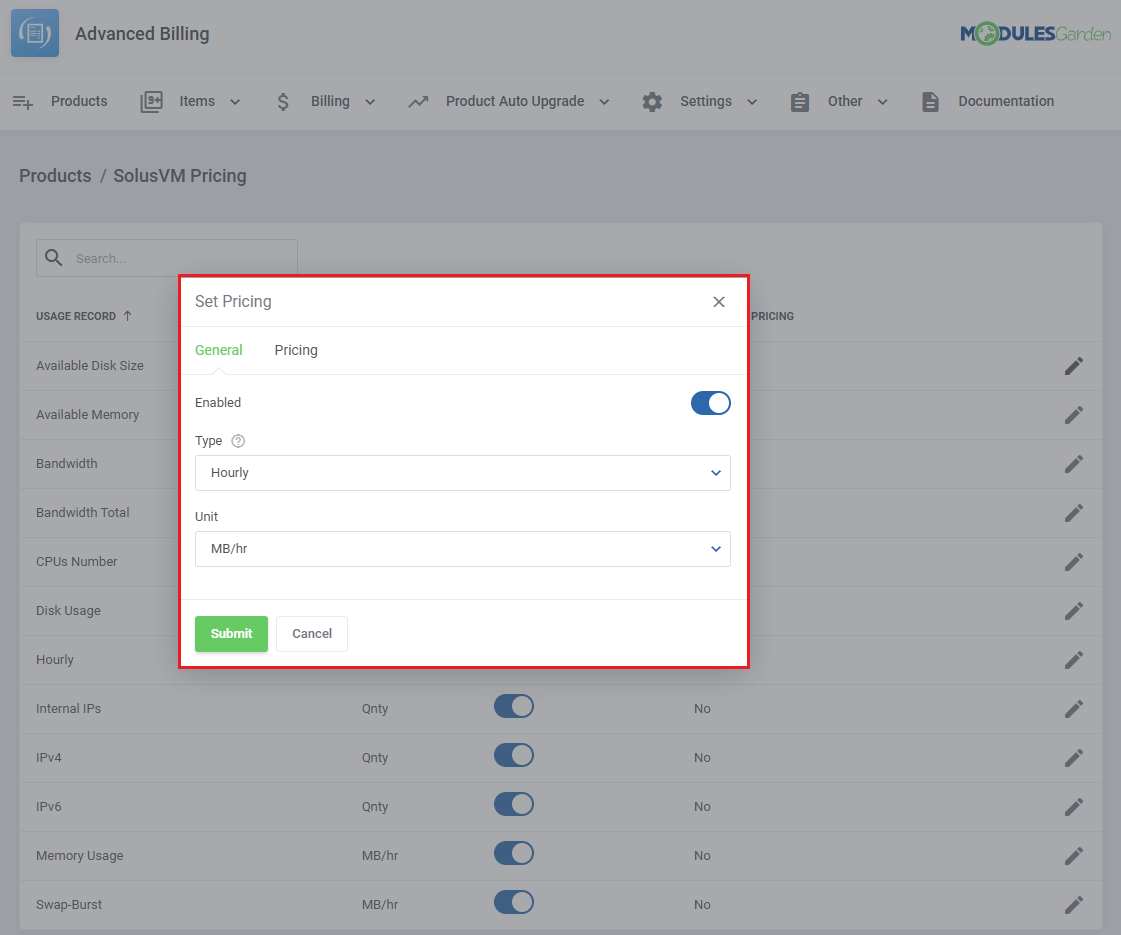
Click on the 'Edit' button to set up billing for a usage record.
After clicking 'Edit', you will be redirected to a dedicated configuration page divided into two sections: General Settings and Pricing.
In the General Settings section you can:
- Enable Billing - enable or disable billing for the selected record.
- Billing Type
- Last - calculates the total based on the most recent reading only.
- Summary - sums all collected records and bills based on the cumulative amount.
- Hourly - averages hourly readings and bills according to that average.
- Highest - charges based on the highest recorded value during the billing period.
Note: The availability of billing types depends on the module you are currently configuring. For the list of supported resources, see Supported Resources Per Module.
- Display Unit - define how usage is presented (e.g., Qty/hr).
- Pricing Method
- Flat - a single price applied to all usage.
- Tiered - pricing depends on defined usage thresholds.
- Extended Pricing Configuration - enable to define the billing rules and pricing for additional resource attributes such as VM state, disk type, CPU type, or operating system.
In the Pricing section you can define billing rates:
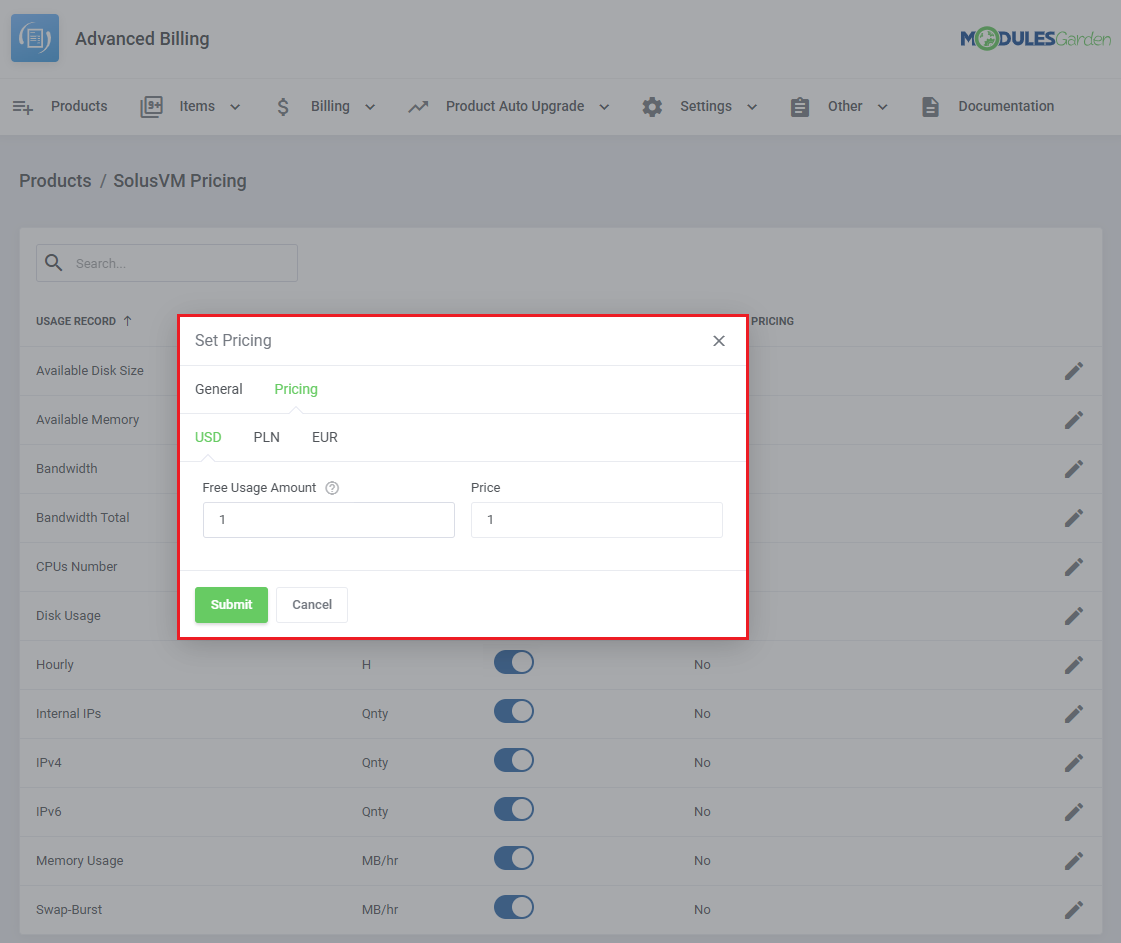
- For Flat Pricing:
- A single pricing record is available and can be edited.
- For Tiered Pricing:
- Multiple pricing records can be added, edited, and deleted.
- Each record defines a threshold from which the given price applies.
After saving changes, the pricing table is automatically refreshed and sorted by threshold values.
Note: To define free usage for a specific range, set the price to '0'.
On the screen below you can see pricing configured for the cPanel Extended Addon Domains resource, billed using the Flat calculation method.
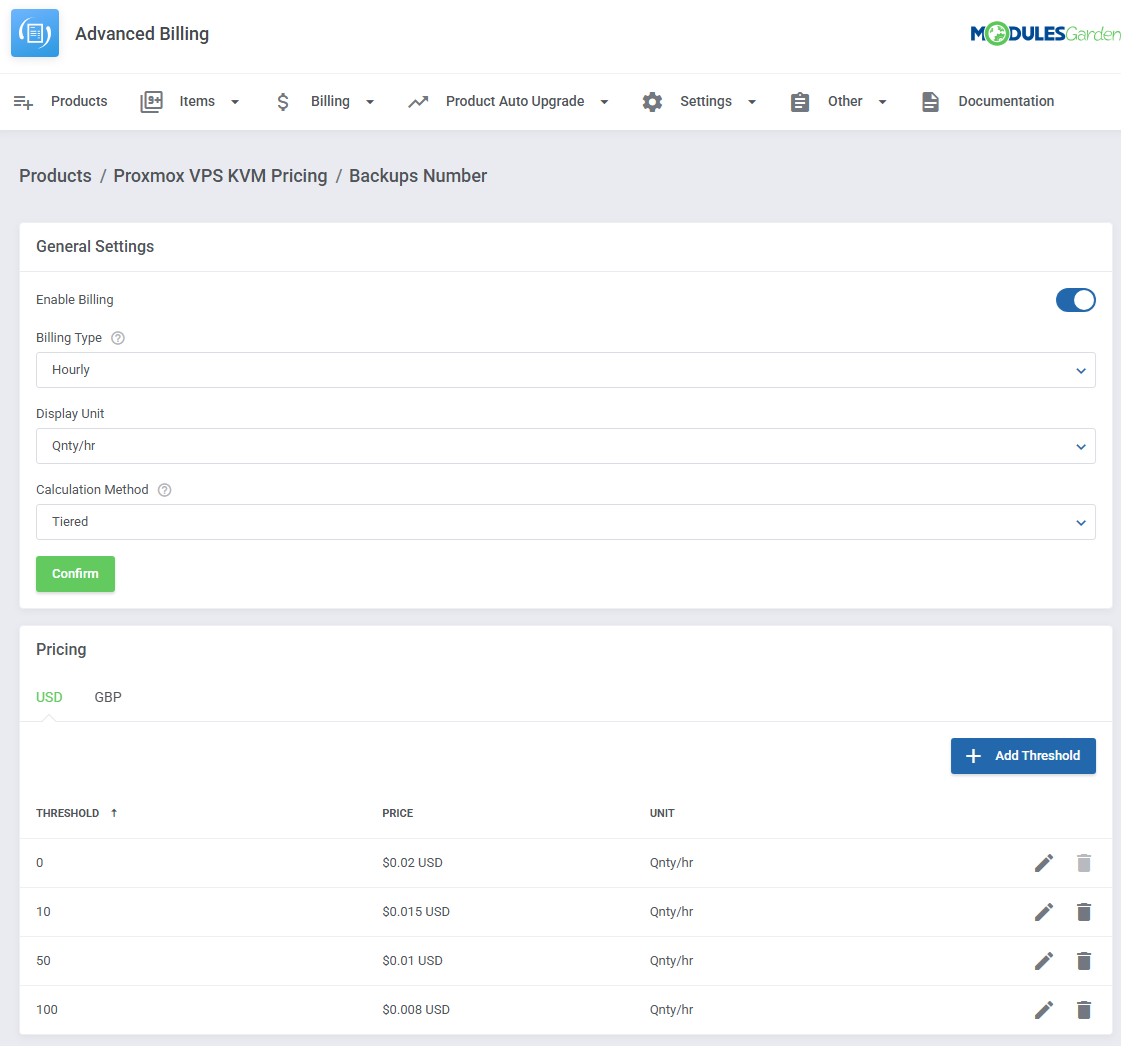
Below is an example of pricing configured for Backups Number (Proxmox module), billed using the Tiered calculation method with defined thresholds.
Each threshold defines the minimum usage value from which the given price applies, and only the price for the highest matched threshold is used.
# Product Configuration
The 'Settings' action will take you to the configuration window where you can adjust various features for the product.
# Module Settings
Configure product module-specific settings such as:
cPanel Extended
- Application Manager
- cPanel Theme
Proxmox VE Cloud VPS
- Free IPv4 Addresses
- Free IPv6 Addresses
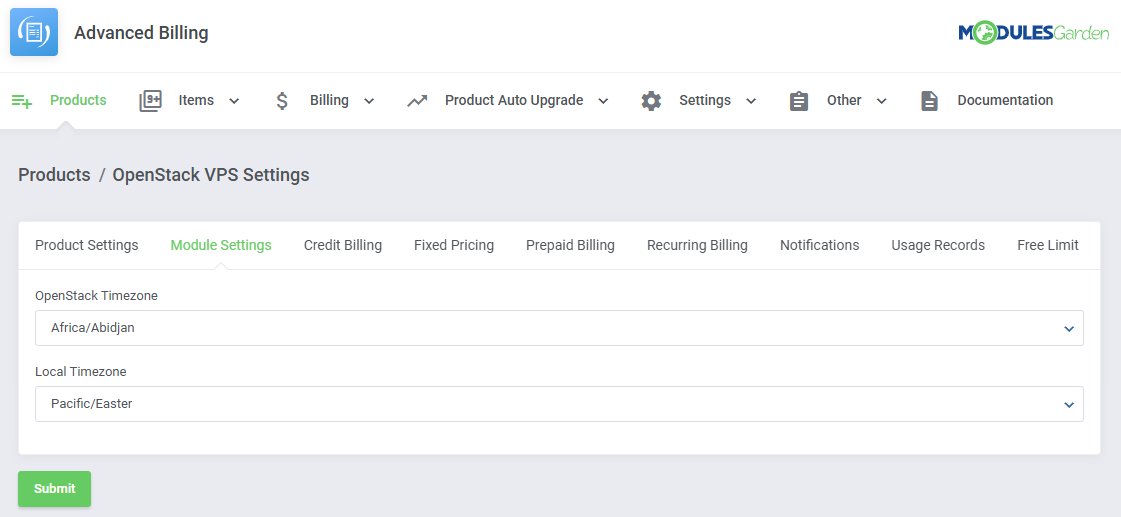
OpenStack
- OpenStack Timezone
- Local Timezone
and more.
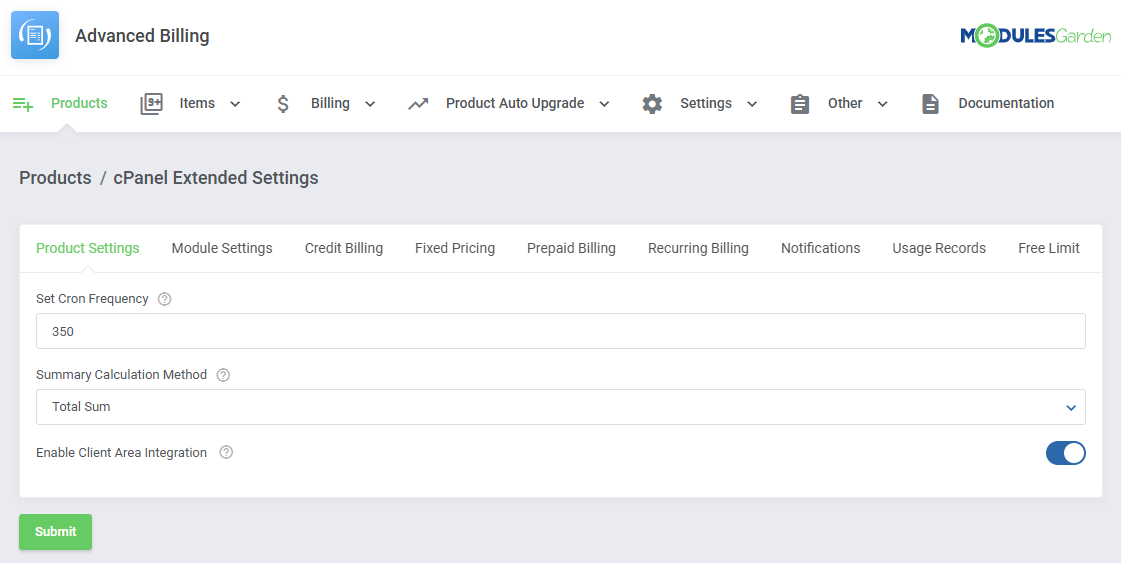
# Product Settings
Set general product settings related to summaries, cron frequency and client area integration.
- Cron Frequency - define how often the cron will run for the product. Use seconds as the unit.
- Price Decimal Places - Specify the number of decimal places used when calculating and displaying prices.
- Summary Calculation Method - choose how summaries are calculated:
- Total Sum
- Total Average (Hourly only)
- Client Area Integration - toggle to enable client area integration for the product, this option does not add features on its own but is a requisite for other functions to be displayed in the client area.
# Credit Billing
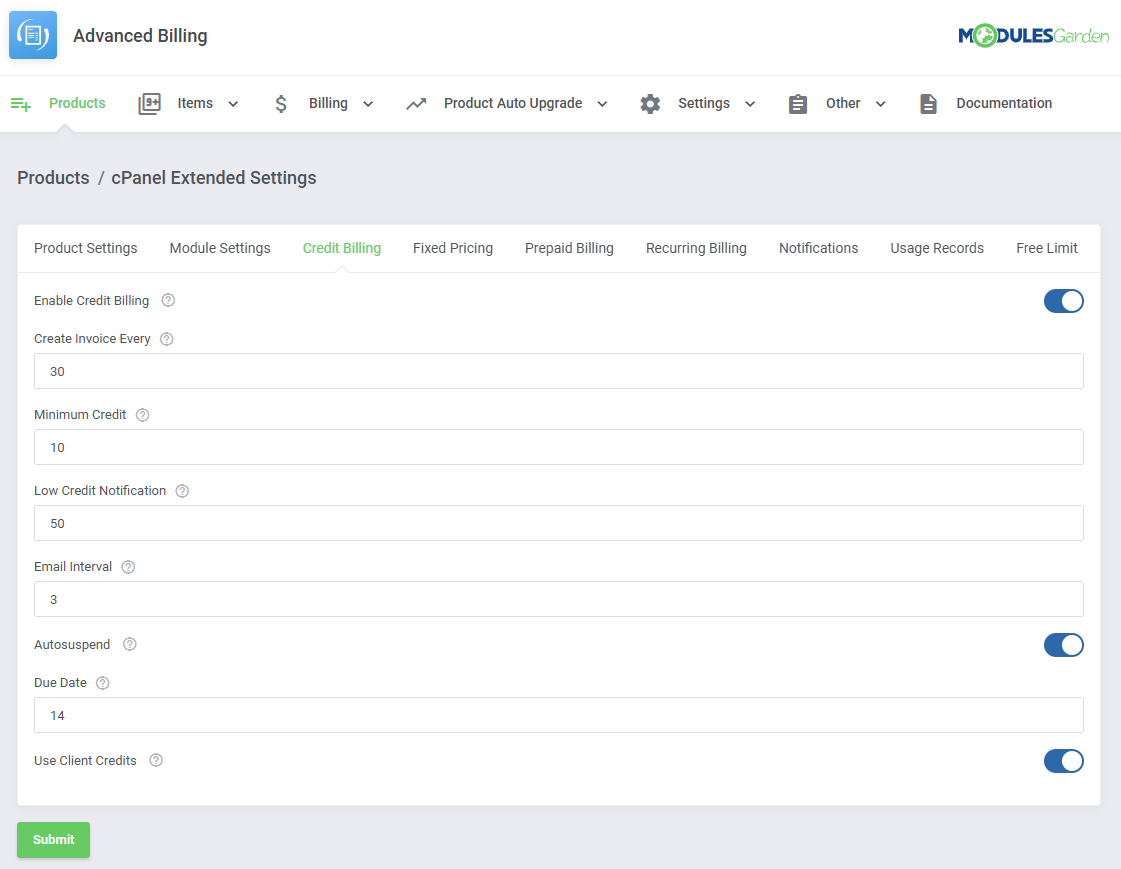
Credit Billing allows your clients to be charged with their credits instead of the standard methods.
Note: This function is separate from the WHMCS 'Credit Balance'.
Enable the functionality with the 'Enable Credit Billing' toggle and configure the details:
- Create Invoice Every - dictates how often invoices are generated for the product.
- Minimum Credit - the minimum amount that will be charged from the client account credit balance.
- Low Credit Notification - if this value is higher than the credits on the client's account, an email will be sent to your client regarding the low credit amount.
- Email Interval - defines how often low credit notification email will be sent, the interval refers to the number of days.
- Autosuspend - when the credit balance reaches 0, the product ordered by the client is automatically suspended and an invoice reminding of the lacking amount will be generated.
Note: This function also takes account of the ''Override Auto-Suspend' (opens new window) feature. - Due Date - determines how many days after the invoice is generated the payment is due.
- Use Client Credits - if enabled, the invoices can be paid with the client credits. If disabled, the default payment method will be used.
# Fixed Pricing
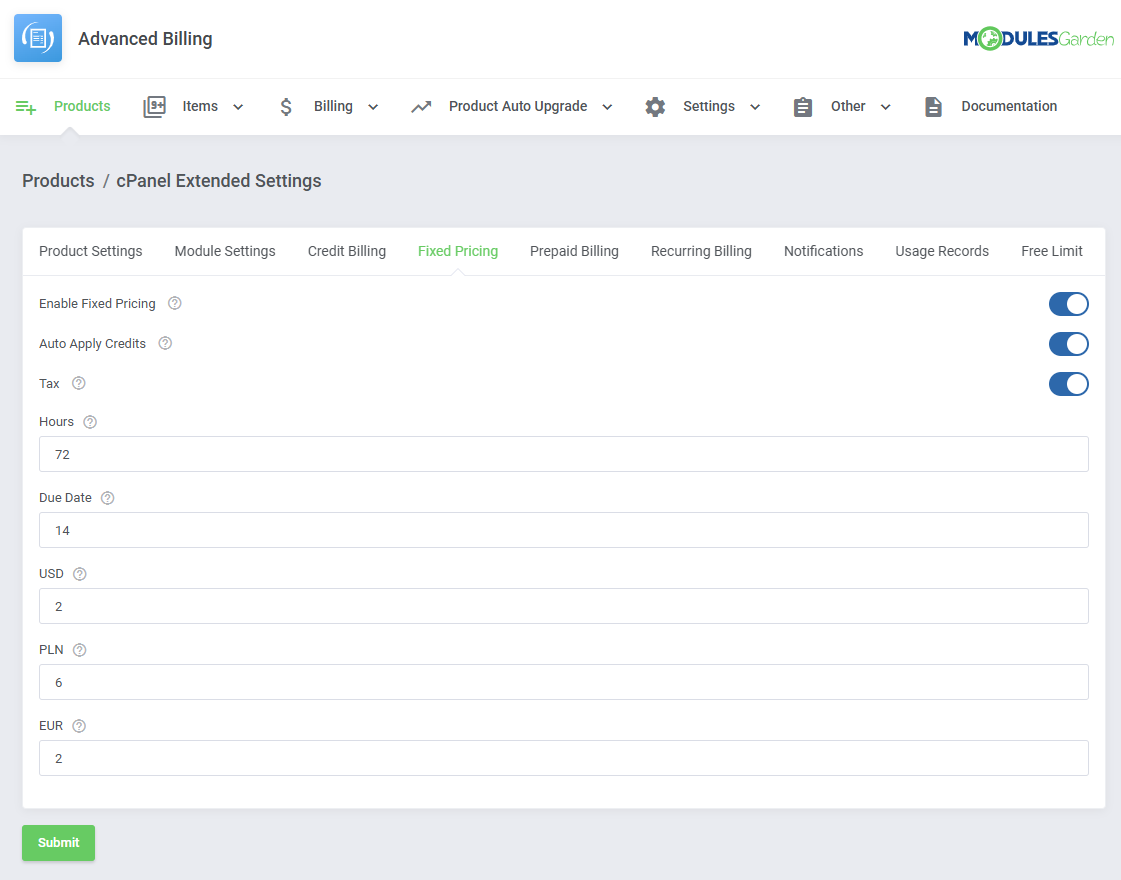
Fixed Billing charges clients a set amount after a specified number of hours of active service usage.
This feature lets you define a fixed price per product, billed automatically once the usage threshold is reached.
- Auto Apply Credits - enable to automatically apply user credits if available.
- Tax - if enabled, the tax will be added to the created invoice.
- Hours - define a number of hours that must pass before the service is billed at a monthly rate.
- Due Date - define payment due date.
- Currency - set the pricing amount in any currency to bill clients after a declared number of hours has passed.
# Prepaid Billing
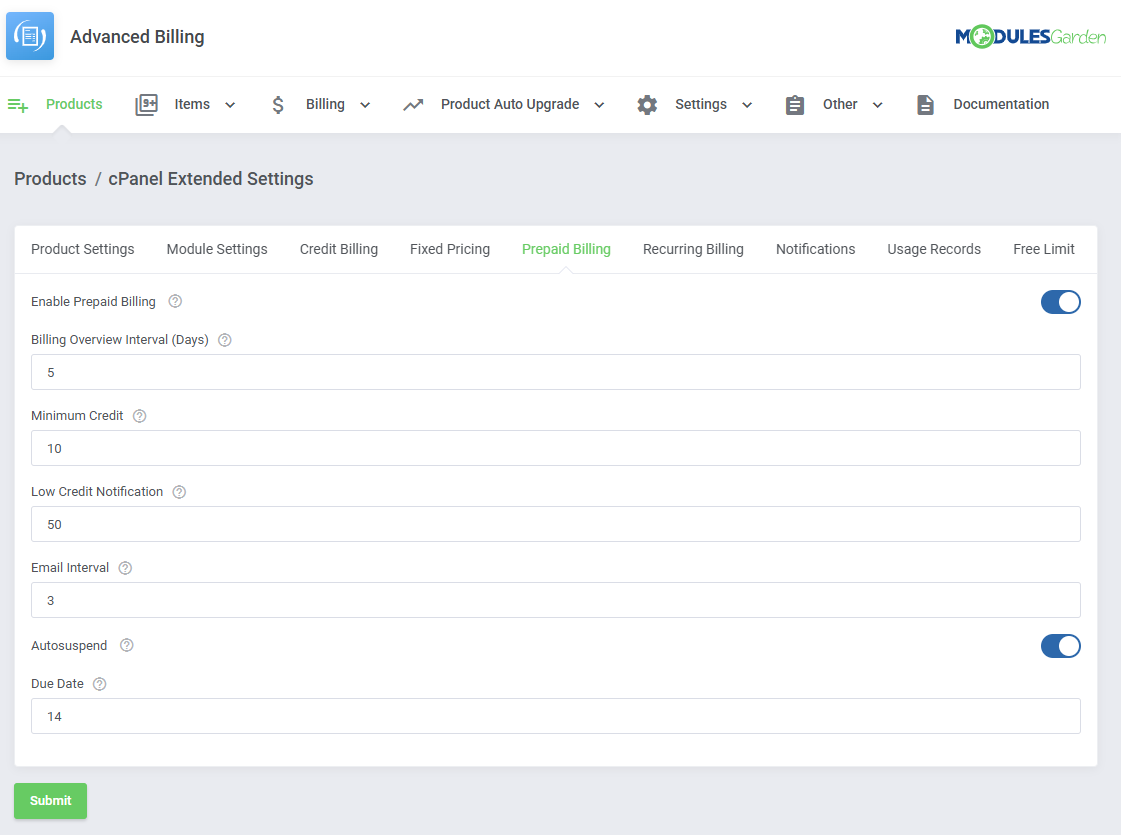
Prepaid Billing enables charging clients directly from their prepaid credit balance.
It also provides summary billing, combining charges into a single summary instead of generating separate invoices.
- Billing Overview Interval (Days) - define how often billing overviews should be refreshed.
- Minimum Credit - determine the minimum amount that will be charged from the client's account.
- Low Credit Notification - define the credit balance low point when an email notification will be sent.
- Email Interval - set interval for email notifications, measured in days.
- Autosuspend - suspend the account automatically if the user does not have sufficient funds.
- Due Date - number of days between the invoice being generated and due date.
- Top-up on New Orders - If enabled, adds credits only when a new service is purchased. Can be combined with “Top-up on Recurring Payments” if both are enabled.
- Top-up on Recurring Payments - If enabled, adds credits only for recurring service payments. Can be combined with “Top-up on New Orders” if both are enabled.
- Block Creation Without Sufficient Credit - Prevent automatic service provisioning if the client’s credit balance is below the defined minimum at the time of ordering.
Once the balance is topped up, the service will be created automatically if still in a pending state. - Restrict Access Without Sufficient Credit - When enabled, client access to service features will be restricted if their credit balance falls below the required minimum.
Essential actions like topping up the account remain accessible. - Minimum Credit Threshold - Defines the minimum credit balance required to allow service creation and continued access.
The balance can be validated using either the module’s internal credit system or WHMCS credits.
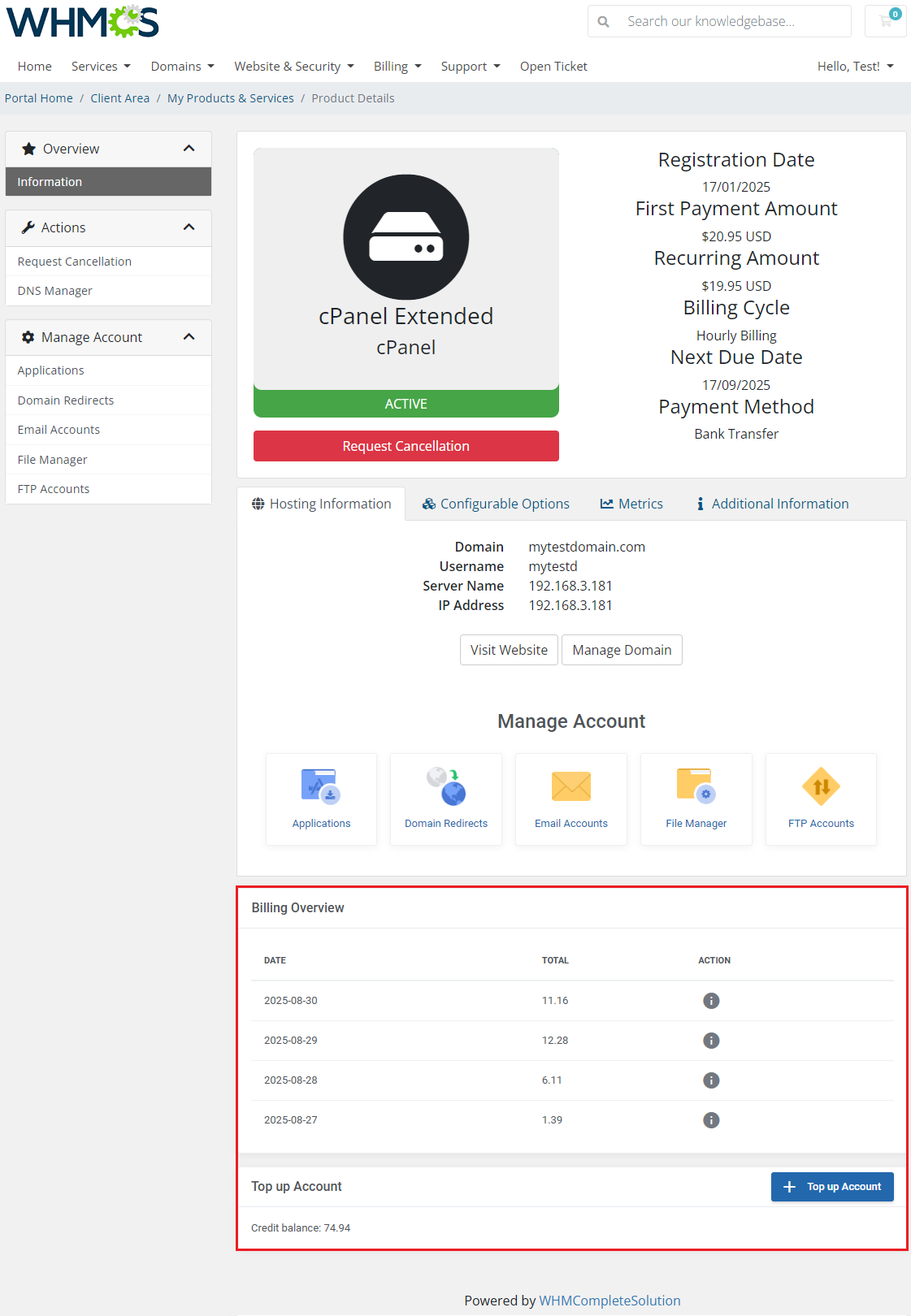
The client area will include the summations and a way for the client to top up his credit balance.
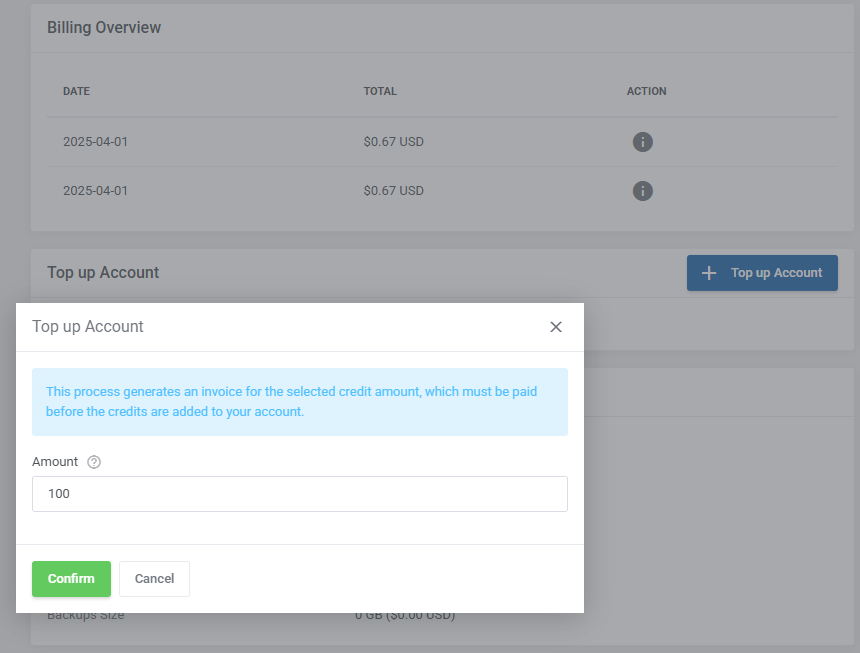
After the client indicates the amount of credits to be added to his account, an invoice will be generated for it.
Only after the invoice is paid, will the client receive the credits.
# Recurring Billing
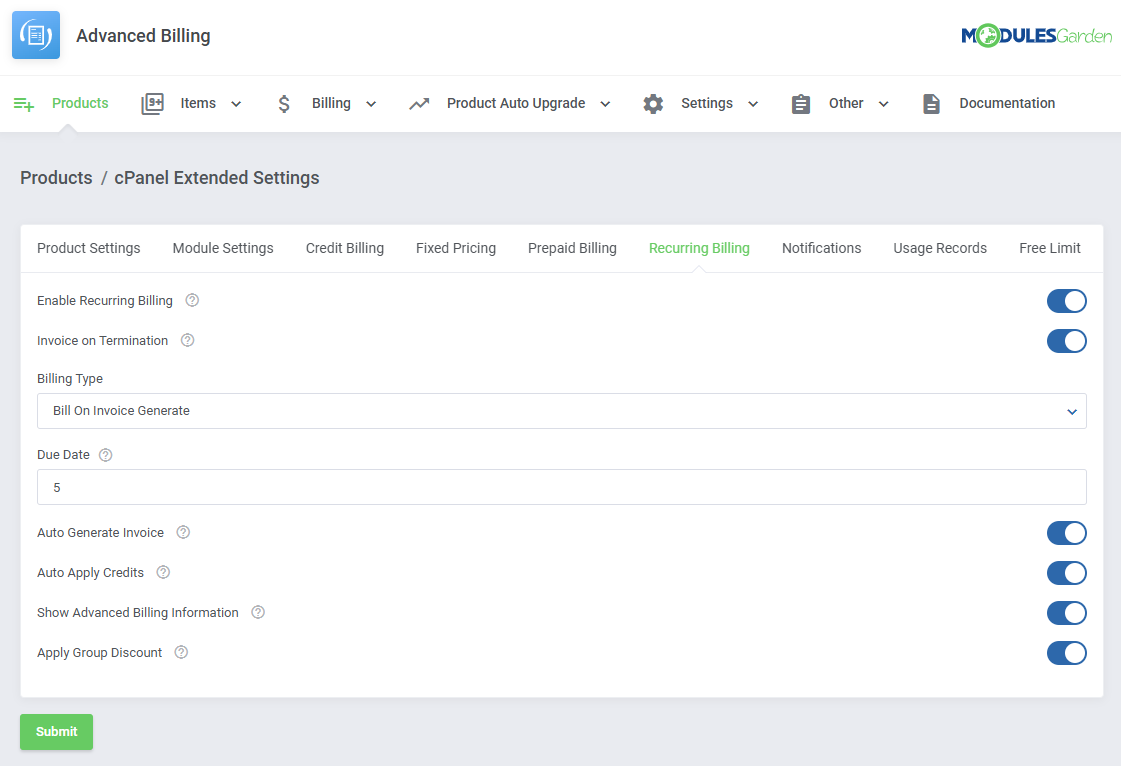
Recurring Billing automatically charges clients on a regular schedule for their products.
This feature simplifies ongoing payments by setting up recurring billing cycles.
- Invoice on Termination - when the account connected with your module is terminated, an invoice for the account will be generated.
- Billing Type - enables you to choose how to bill your client.
- Bill On Invoice Generated - new items will appear on the renewal invoice for the hosting account just as it is generated by WHMCS.
- Bill On Specific Day - generates invoices each month on the day specified in the 'Billing Type Value'.
- Bill Every X Days - generates an invoice each X days where X is the number specified in the 'Billing Type Value' field.
- Due Date - the number of days in which your customers will have to pay the invoice.
- Auto Generate Invoice - if enabled, the invoices are automatically generated and sent directly to your customers.
- Auto Apply Credits - automatically applies any available credits when an invoice is created. Works only if the 'Auto Generate Invoice' option is enabled.
- Show Advanced Billing Information - this will replace any 'Billing Cycle' with 'Hourly Billing' on the product management page in the client area.
- Apply Group Discount - enable if you want to apply the discount to the invoice set in the client group (opens new window).
# Notifications
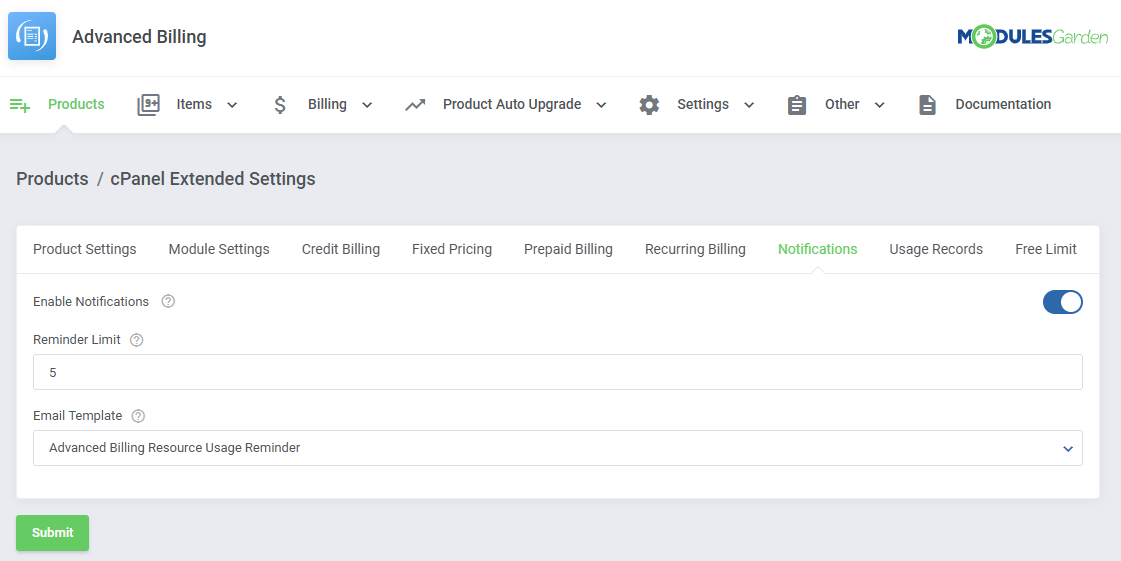
Notifications allow clients to set up email reminders that are sent when their resource usage reaches or exceeds specified limits.
This feature helps clients stay informed about their usage and avoid unexpected charges.
- Reminder Limit - limit how many reminders a client can create.
- Email Template - email template that will be used.
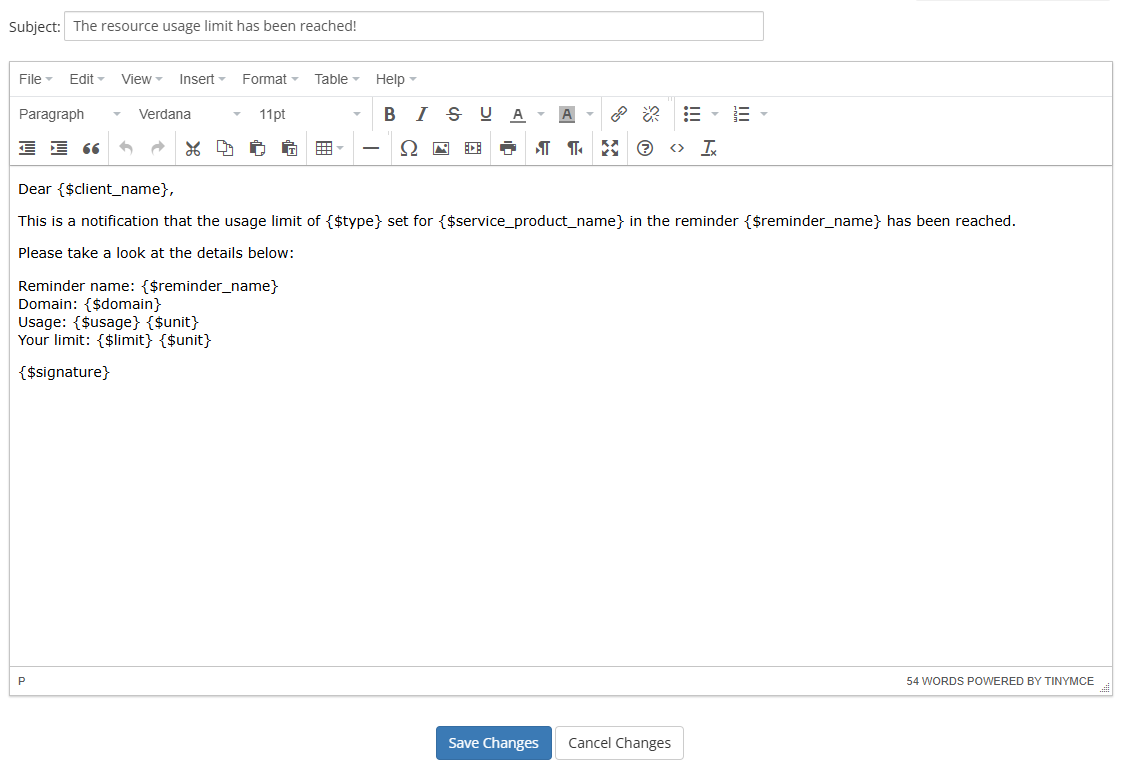
The predefined 'Advanced Billing Resource Usage Reminder' features variables that you can also use in your own templates:
- {$reminder_name} - the name of a reminder set by a client.
- {$type} - the resource type for which the limit has been set by a client. E. g. 'Storage', 'Bandwidth' etc.
- {$usage} - the current recorded usage value of the resource type the limit is set for.
- {$limit} - the limit value defined by a client whose reaching or exceeding results in sending the notification.
- {$unit} - the unit of the billed record. E.g. 'MB', 'GB' etc.
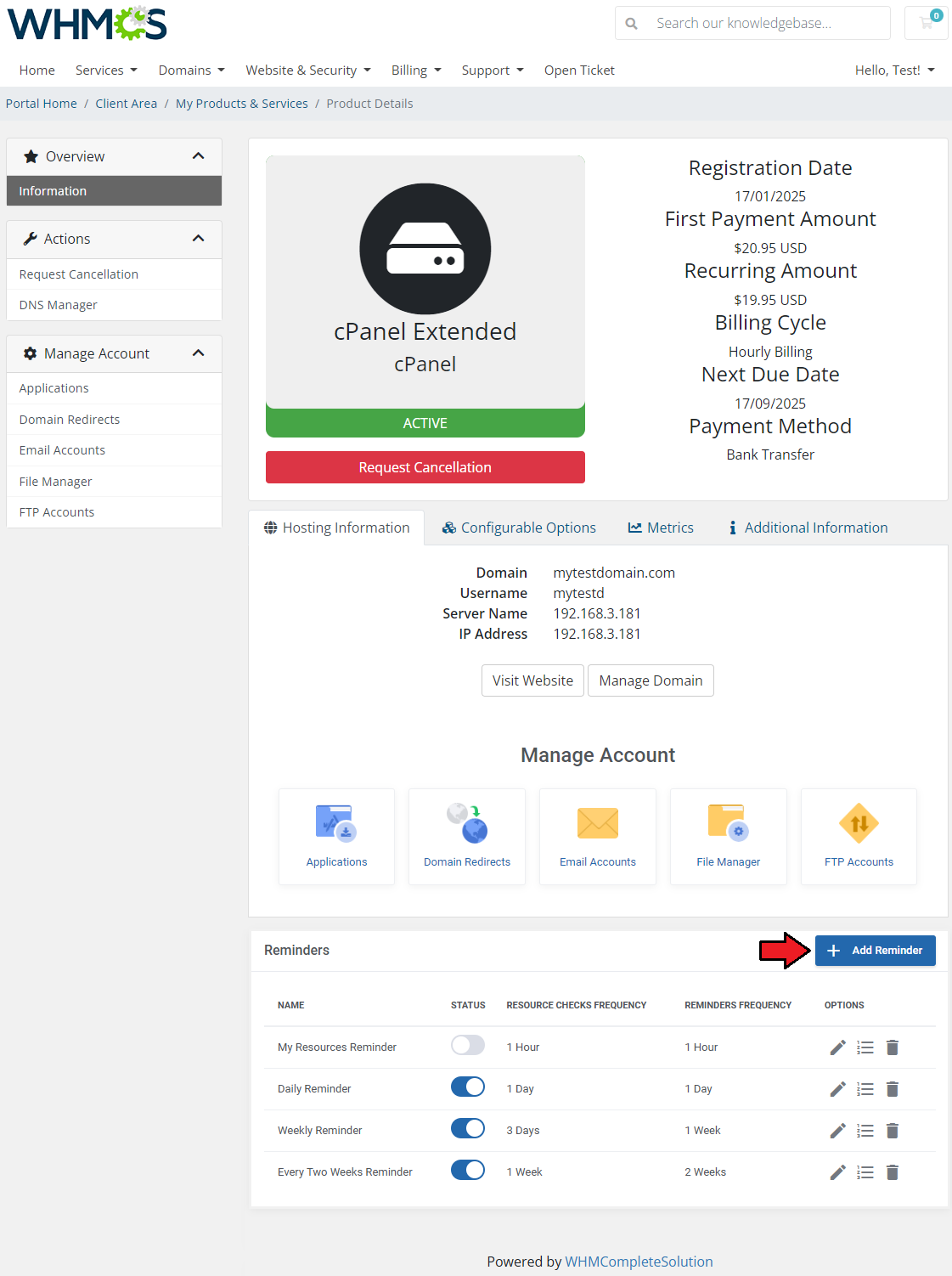
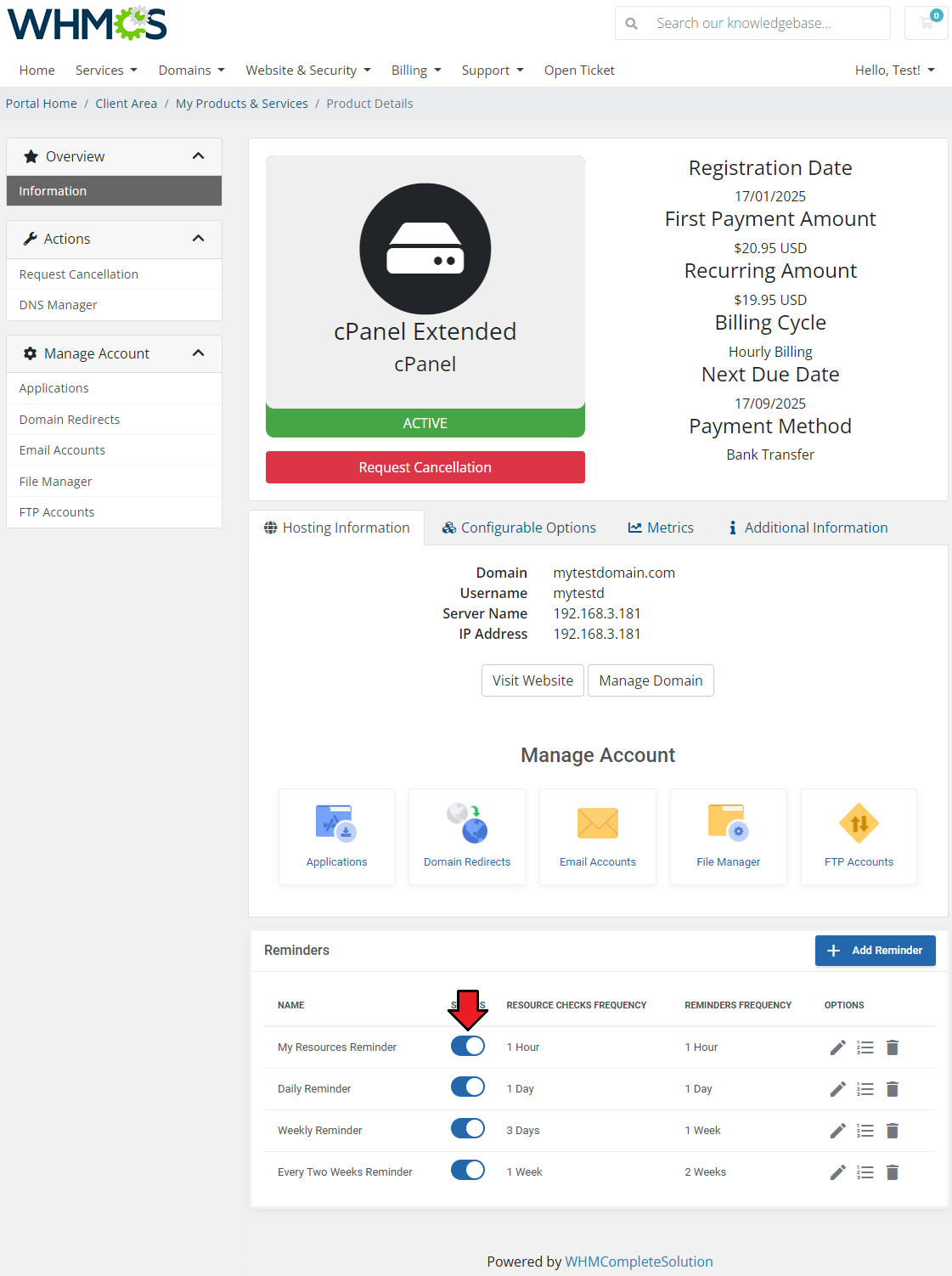
Once the function is enabled, clients will see the 'Reminders' table where they can add and manage their notifications.
To add a new notification click on the 'Add Reminder' button.
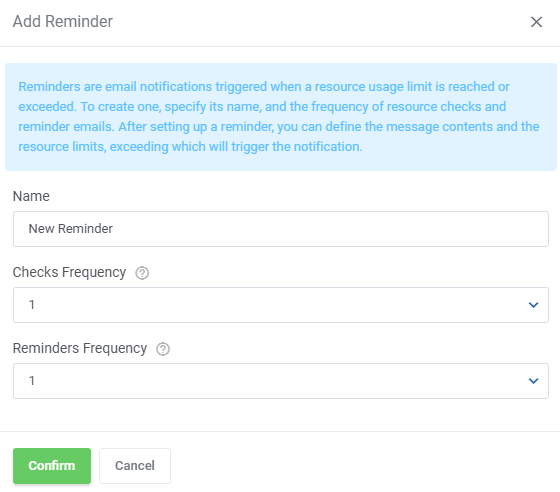
Provide the following:
- Name - name your reminder, it is used in the default notification template.
- Checks Frequency - how often a resource check is performed, in hours.
- Reminders Frequency - limits how often a reminder can be sent, in hours.
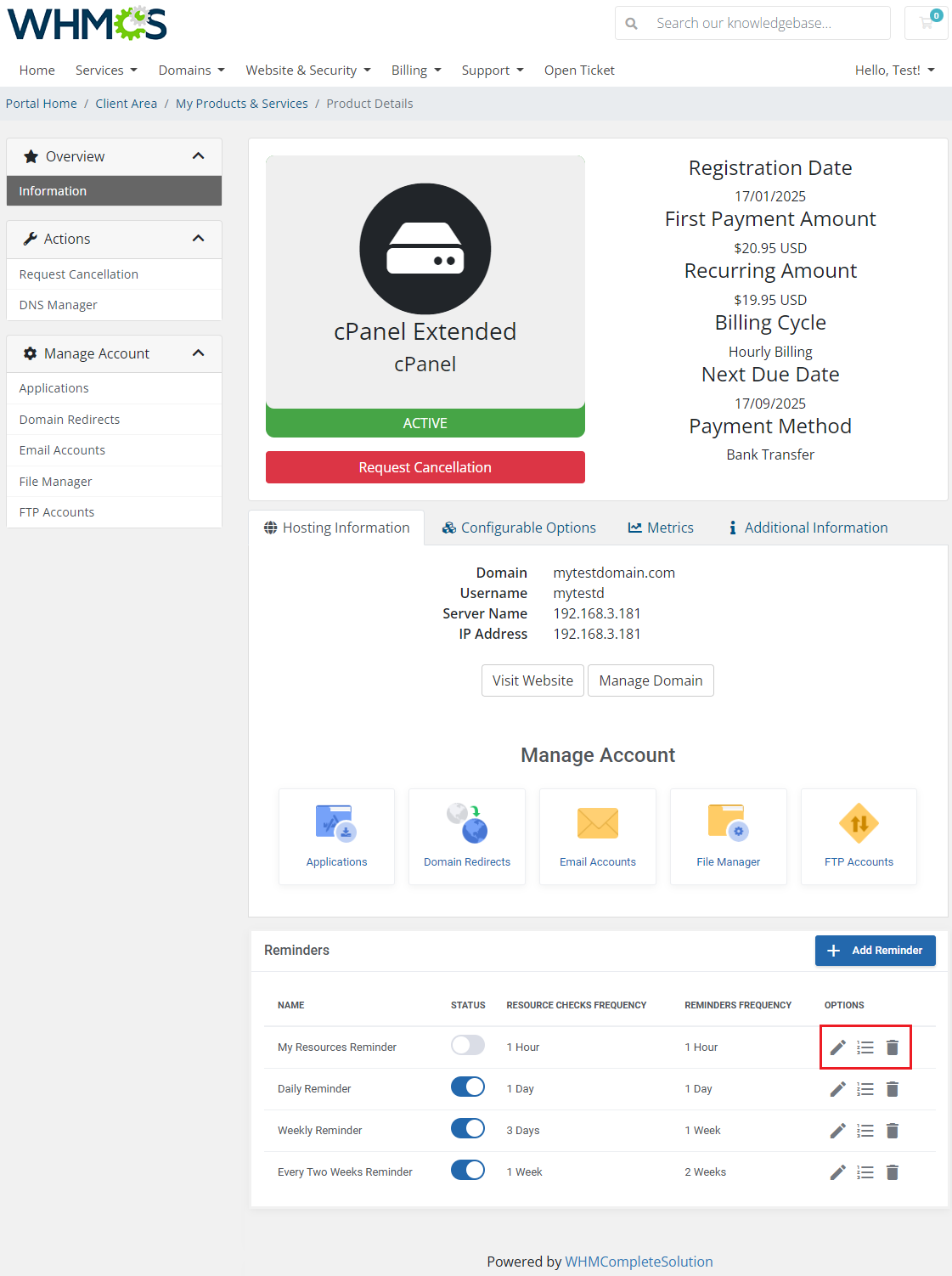
Once the reminder is added, it can be managed using the action buttons:
- Edit Reminder
- Define Limits
- Delete
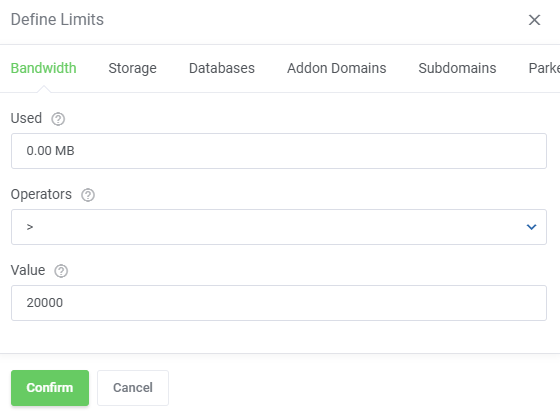
While defining the limits, you can scroll the list of resources horizontally.
The fields for each include:
- Used - current recorded usage of the given resource.
- Operator - logical operator used for the argument.
- Value - the value for the logical operation.
For example, we can set the reminder to be sent after the bandwidth is 'is more' than 20000MB, as shown on the screen below.
Make sure to enable the reminder after the limits are defined for it.
# Usage Records
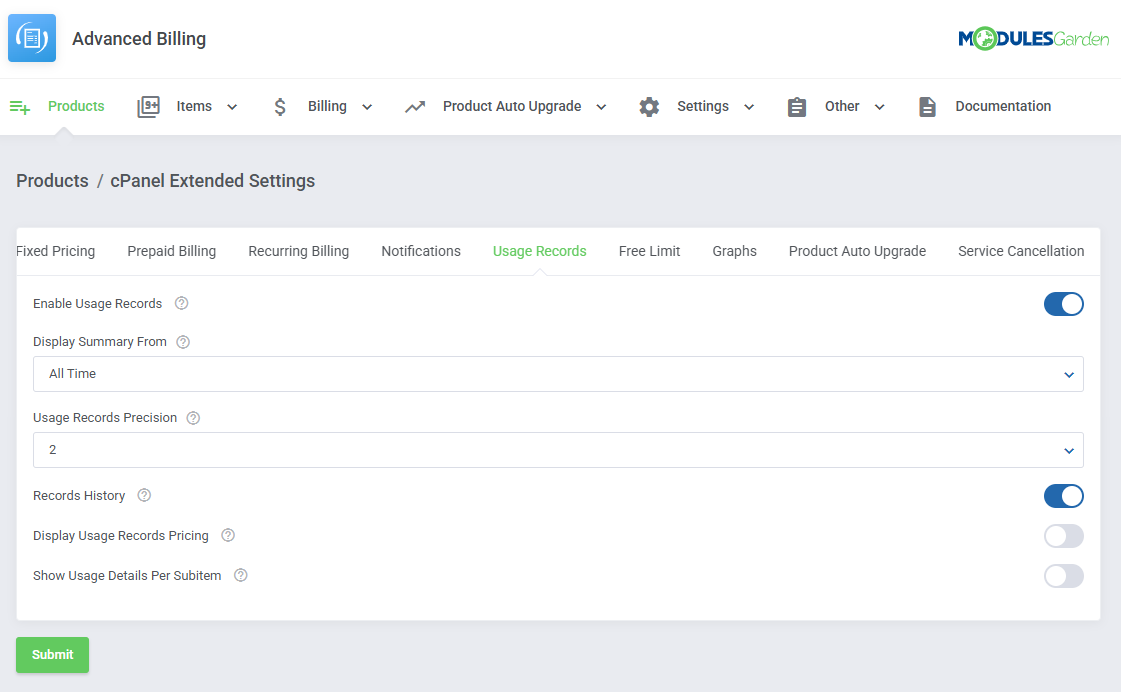
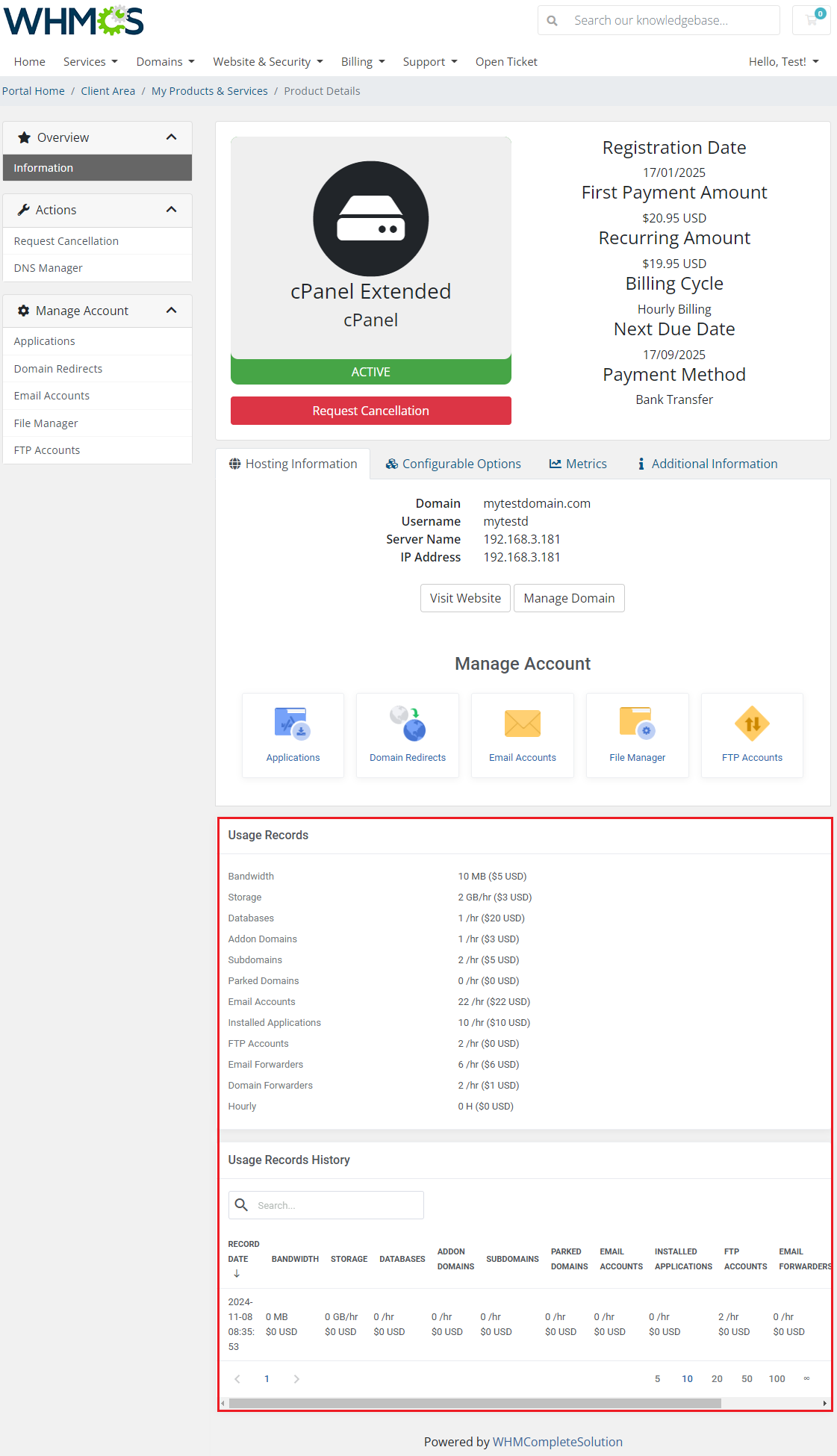
Usage Records displays clients' resource usage data and usage history directly on the product page in the client area.
This feature allows clients to easily track their resource consumption over time.
- Display Summary From - defines the period for which usage records will be counted.
- Usage Records Precision - the number of decimal digits indicating the precision of usage records.
- Records History - displays history of usage records.
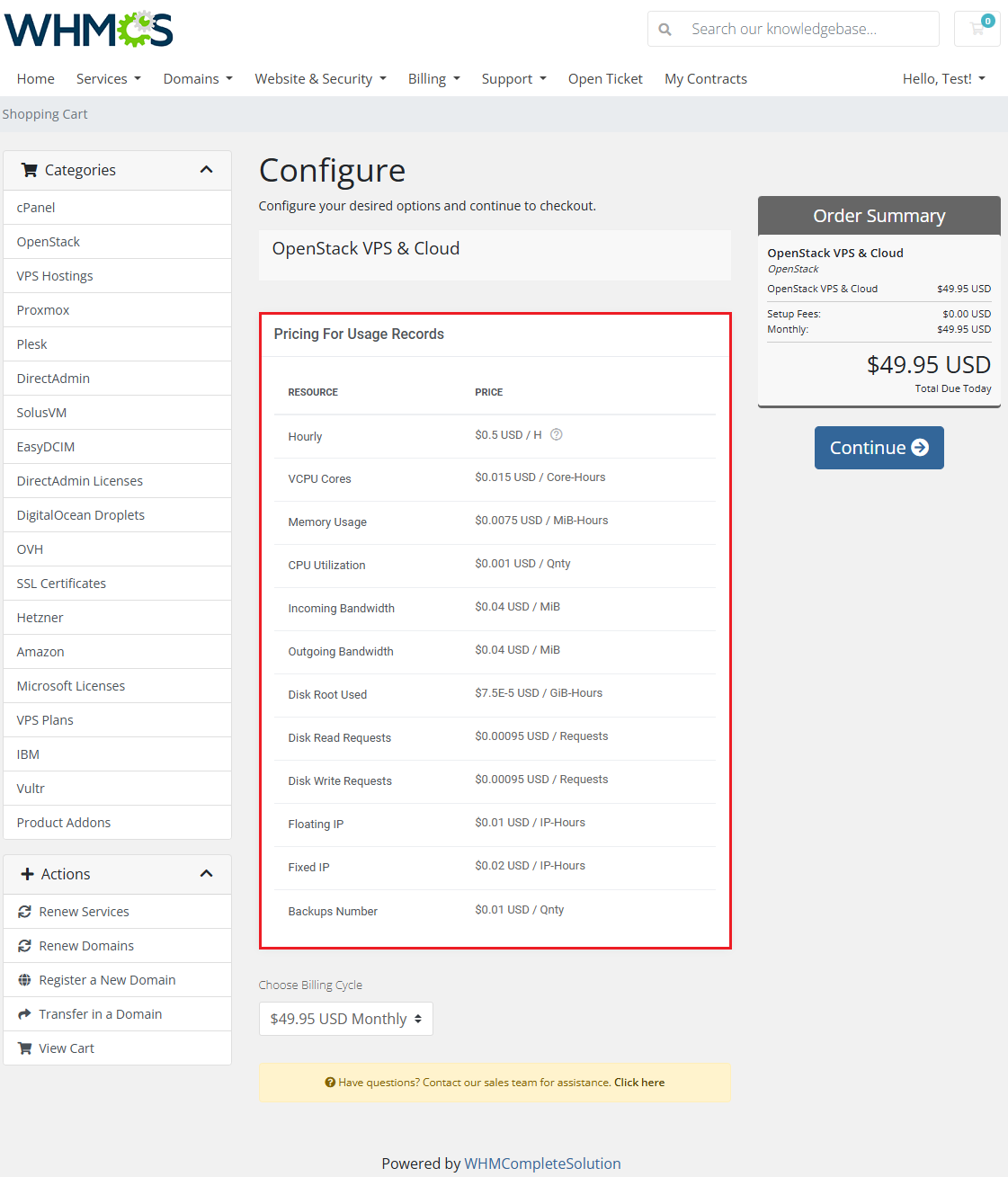
- Display Usage Records Pricing - displays usage record pricing for the product during the order process.
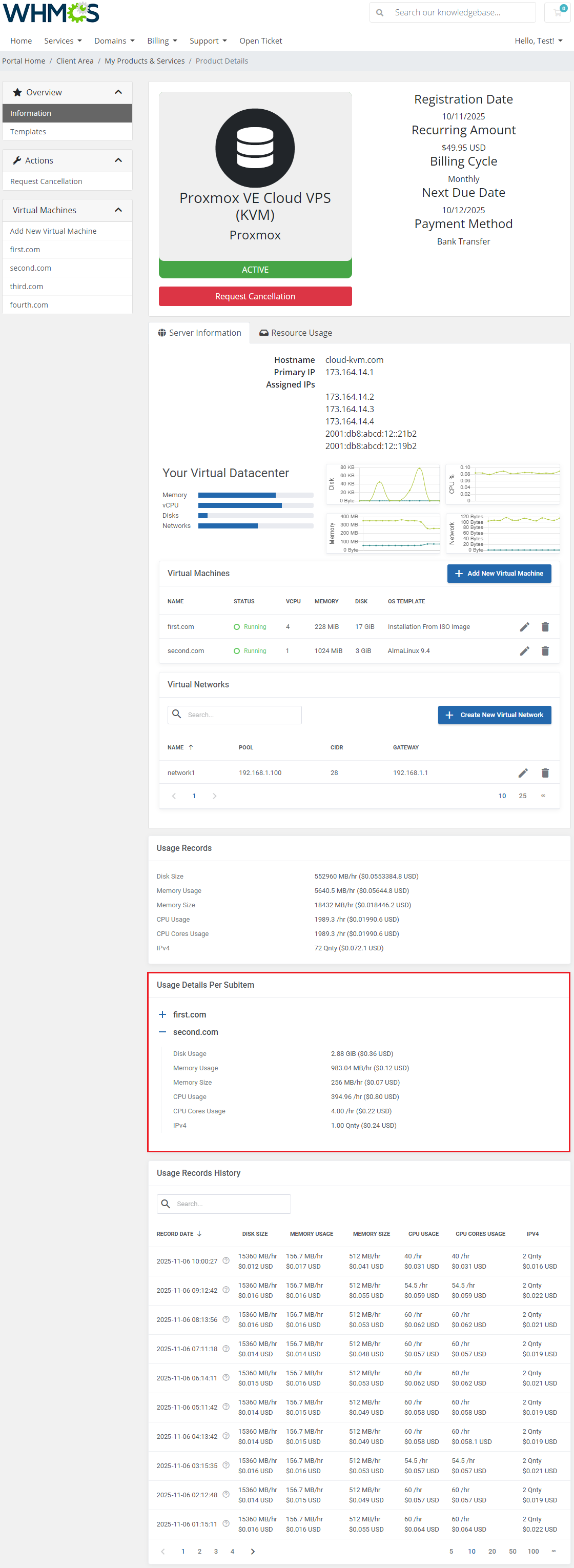
- Show Usage Details Per Subitem - display detailed usage history for subitems in cloud services.
Additional usage details will be listed in the 'Usage Details Per Subitems' on the service page in the client area.
Enabling the extension will display the current usage in the client area. Enabling the 'Records History' function will also display usage from previous periods.
There is a convenient option to download the data into a CSV file at the top right corner → Additional Actions → Export Data.
This option applies to data in: 'Billing Overview', 'Usage Records', 'Usage Records History', and 'Usage Details Per Item'.
The 'Display Usage Records Pricing' will display the pricing table when clients prepare thier order.
The 'Show Usage Details Per Subitem' will display detailed usage history for subitems in cloud services.
Additional usage details will be listed in the Usage Details Per Subitems on the service page in the client area.
Note: The screen below is taken from the Proxmox VE Cloud VPS product view, not cPanel Extended, as all other illustrations in this section.
# Free Limit
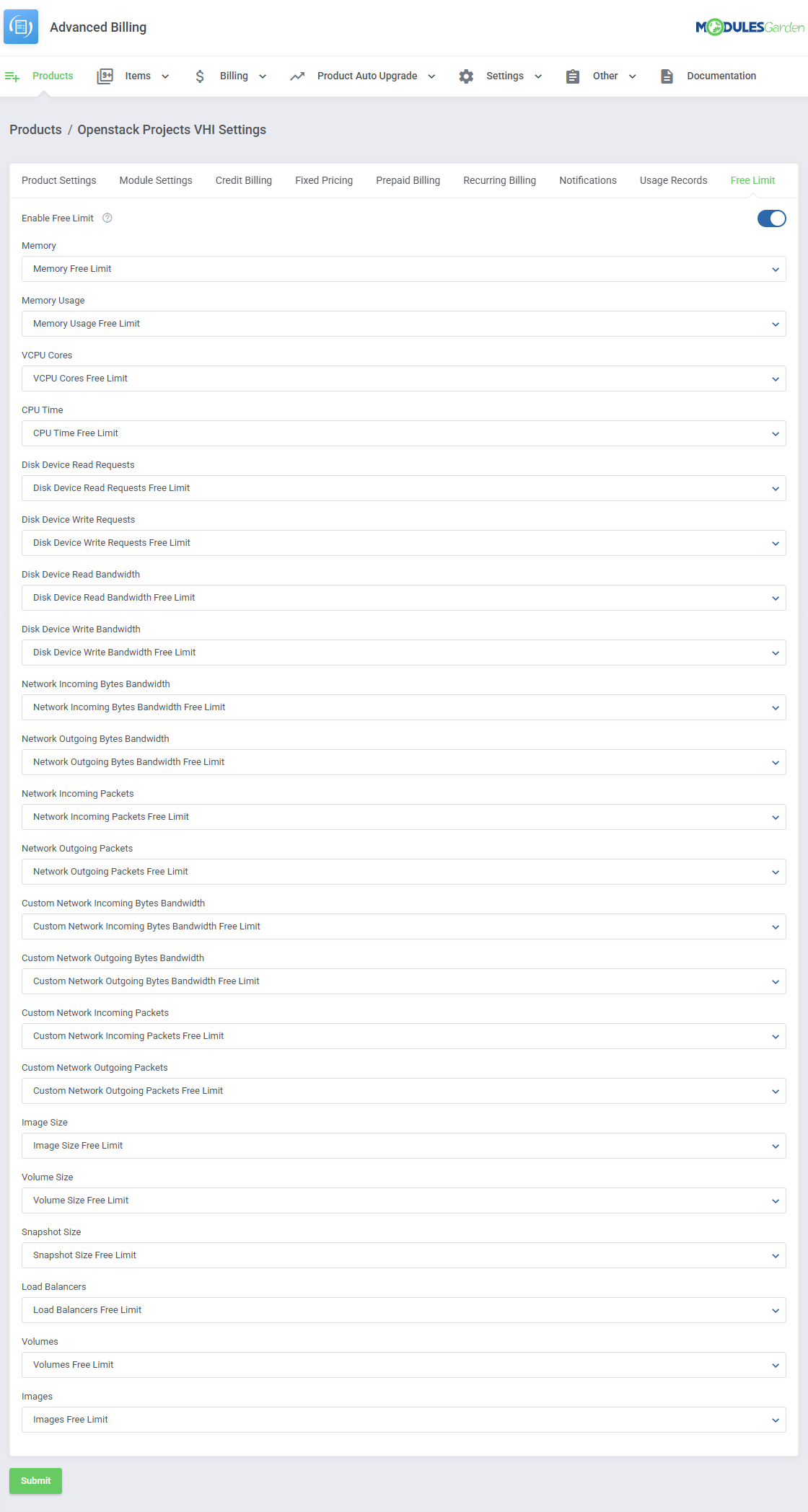
Free Limit allows you to set free usage limits for a product based on its Configurable Options.
This feature enables precise control over complimentary usage thresholds before charges apply.
After enabling the feature with the 'Enable Free Limit' toggle, select the configurable options responsible for the resources below.
The configurable option has to be created for the product first. The configurable option value represents the resource in units selected under 'Products' → 'Pricing'.
Leave fields empty, to not enable the free limit on selected resources.
# Graphs
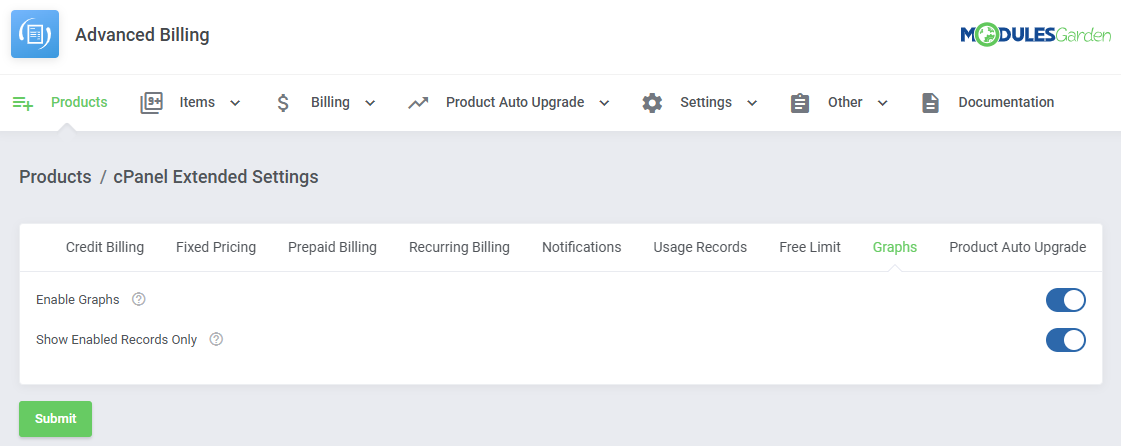
Graphs provide a graphical display of usage records for each configured service.
This feature helps visualize resource consumption trends over time.
Use the 'Show Enabled Records Only' option to hide records with no pricing enabled.
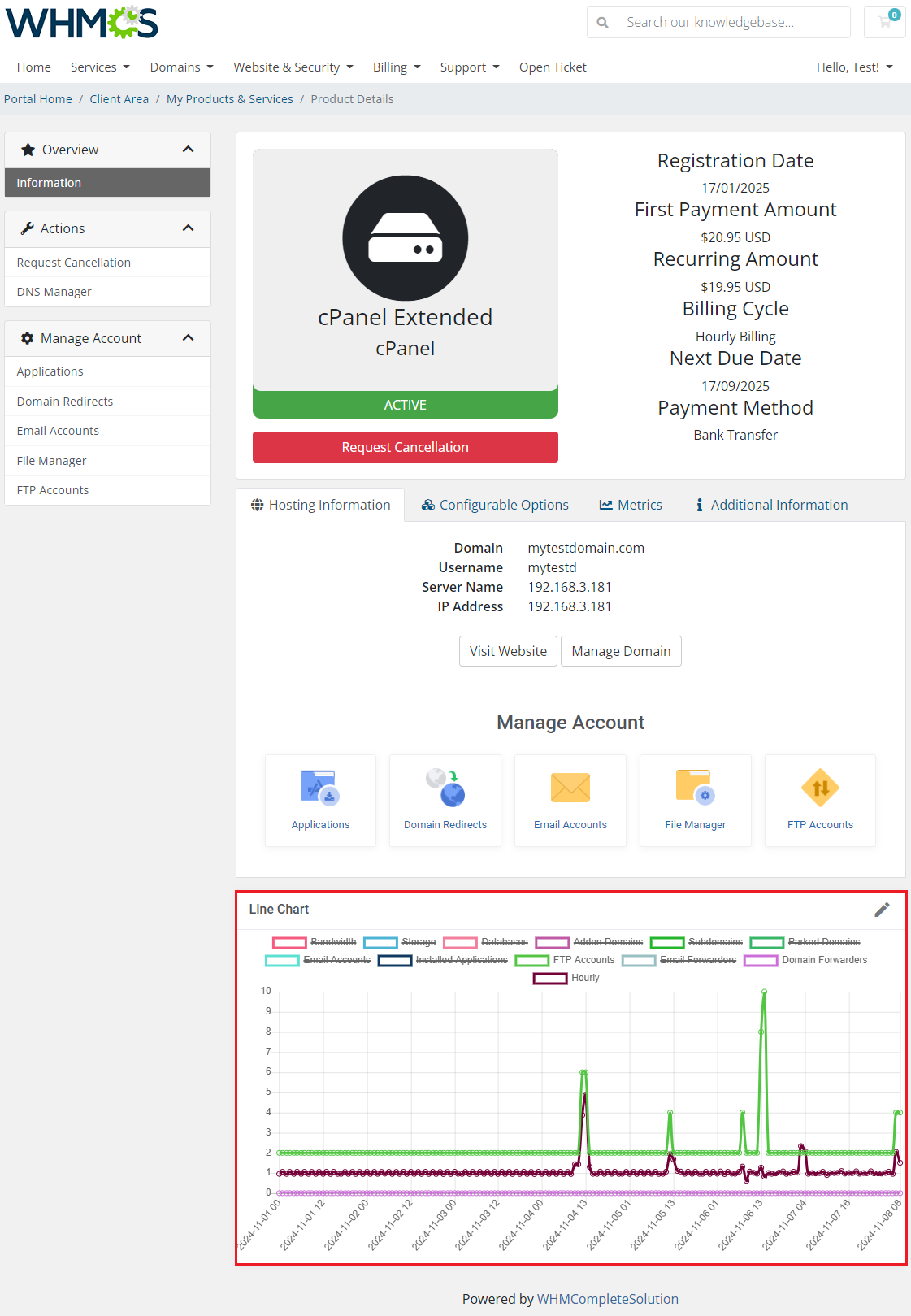
With the functionality enabled, clients will find a graph of their usage displayed in the client area.
They will be able to change the graph's scope and resources displayed.
# Product Auto Upgrade
Product Auto Upgrade automatically upgrades or downgrades products based on resource usage, following the rules you set.
Clients can choose whether to allow automatic adjustments and can even configure their own rules for product resizing.
For more information on available settings, visit the Product Auto Upgrade Management section.
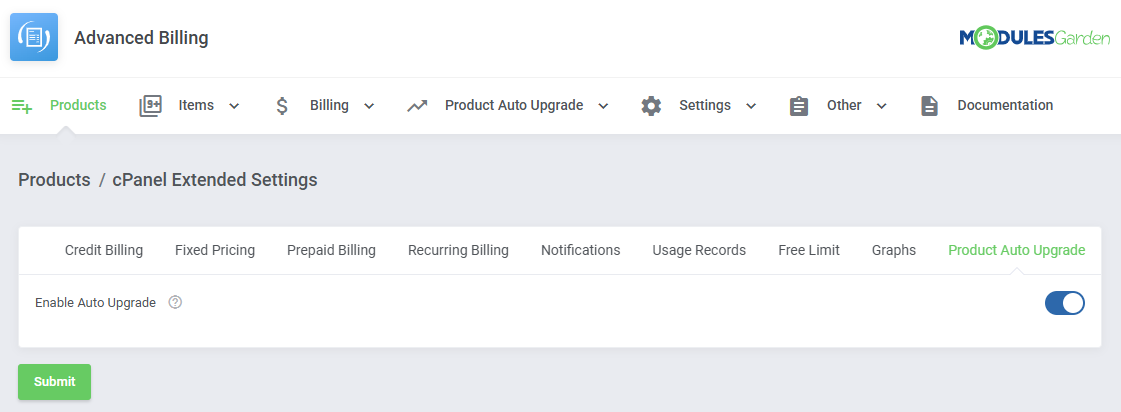
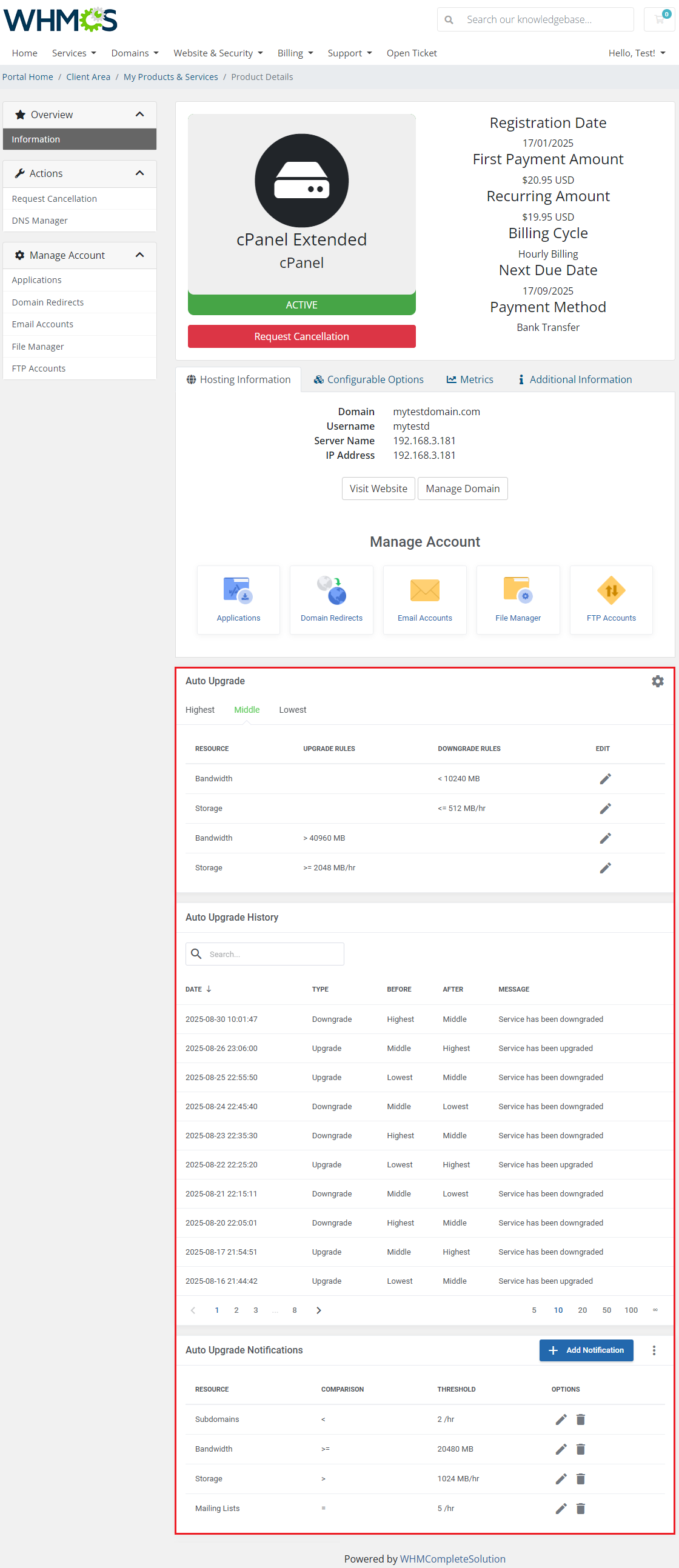
Depending on the settings, clients will be able to:
- Enable/disable automatic upgrades for their product.
- Set a minimum time interval that has to pass between upgrades.
- Include/exclude certain upgrade options.
- See and/or change upgrade conditions.
- See their upgrade history.
- Set upgrade notifications based on resource usage.
# Service Cancellation
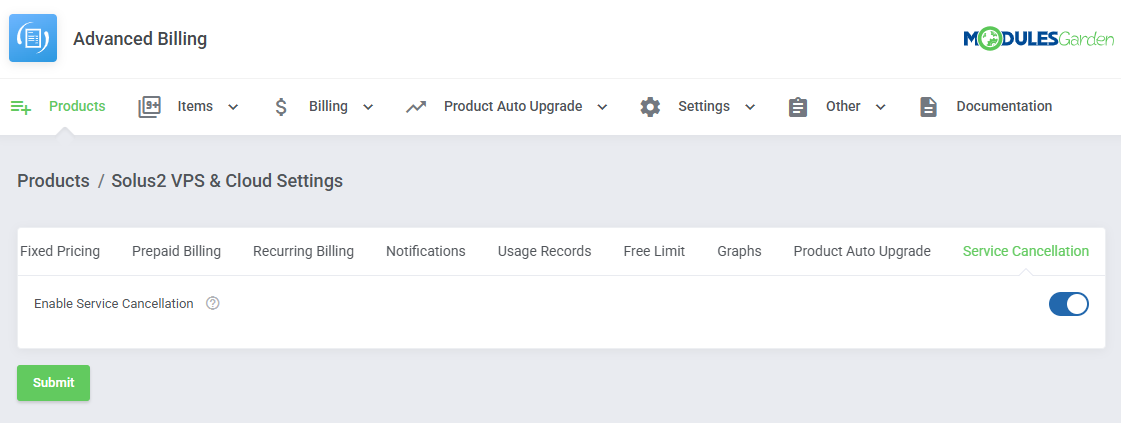
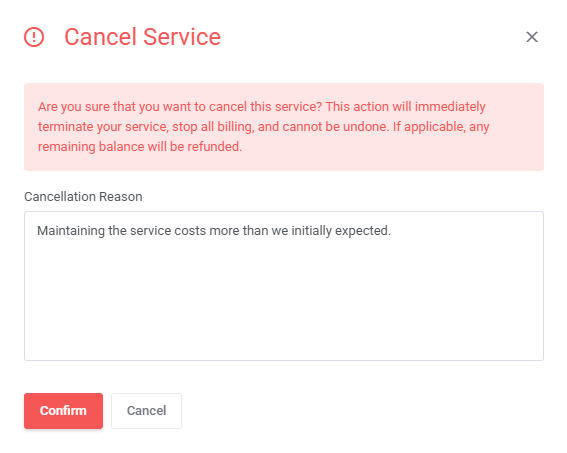
When enabled, this setting allows clients to immediately terminate their service directly from the product page in the client area.
The cancellation bypasses the standard queue, and the service is terminated right away.
Billing is stopped instantly, and if applicable, any remaining balance is refunded.
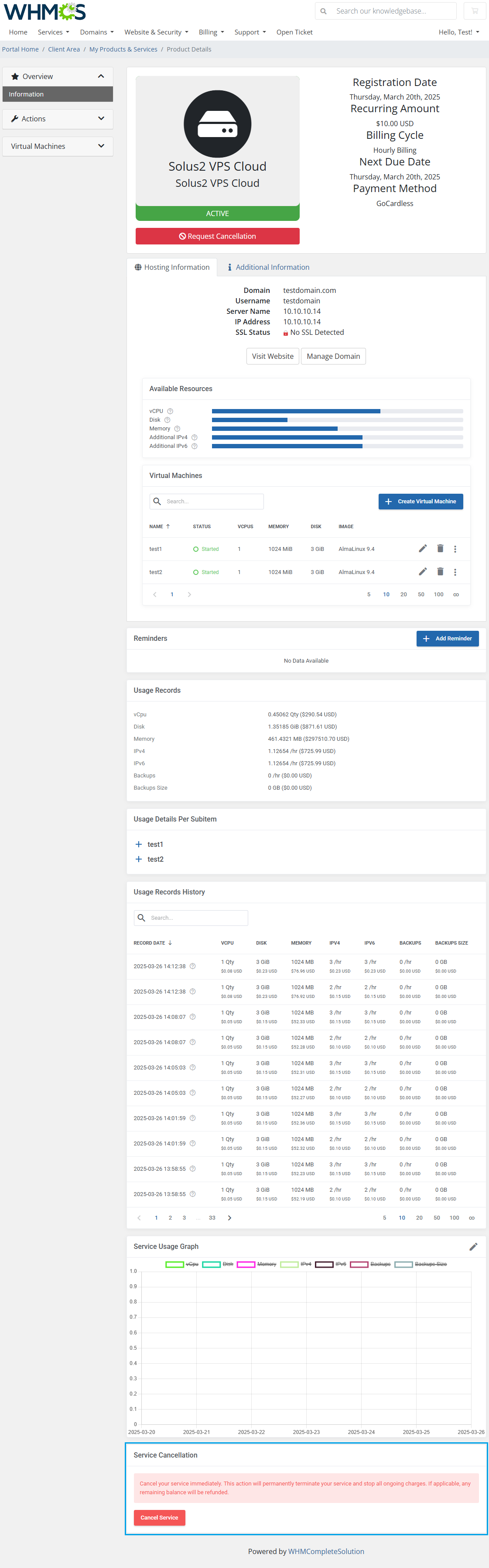
In the client area, an additional box will appear at the very bottom of the product page with a "Cancel Service" button.
Clients can click this button, provide a reason for cancellation, and confirm the action. The service will then be terminated immediately.
# Items
Items with resource usage counted can be found in the 'Items' section.
The 'Item List' includes current billable items, while the 'Item Archive' lists historical items that are already billed.
# Item List
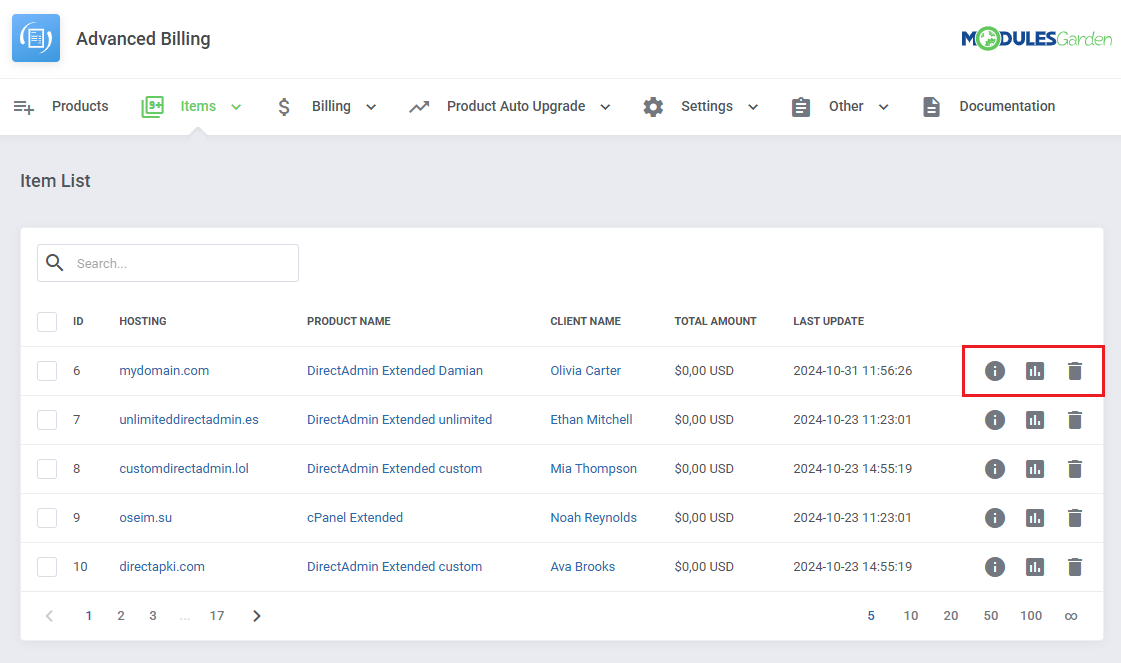
You can find the 'Item List' under 'Items'.
The list includes information such as:
- Item ID
- Hosting Name
- Client Name
- Total Amount
- Last update
And action button responsible for:
- Viewing details
- Viewing the graph
- Deleting the item from the list
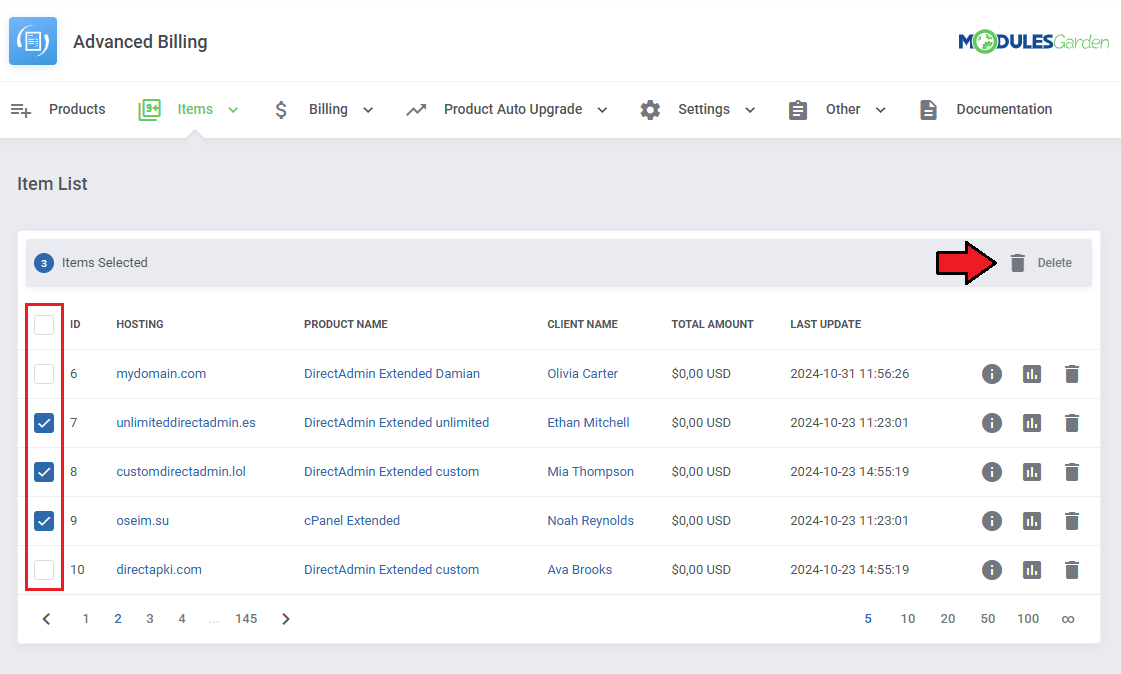
You can mark multiple items with the mass delete function when necessary as well.
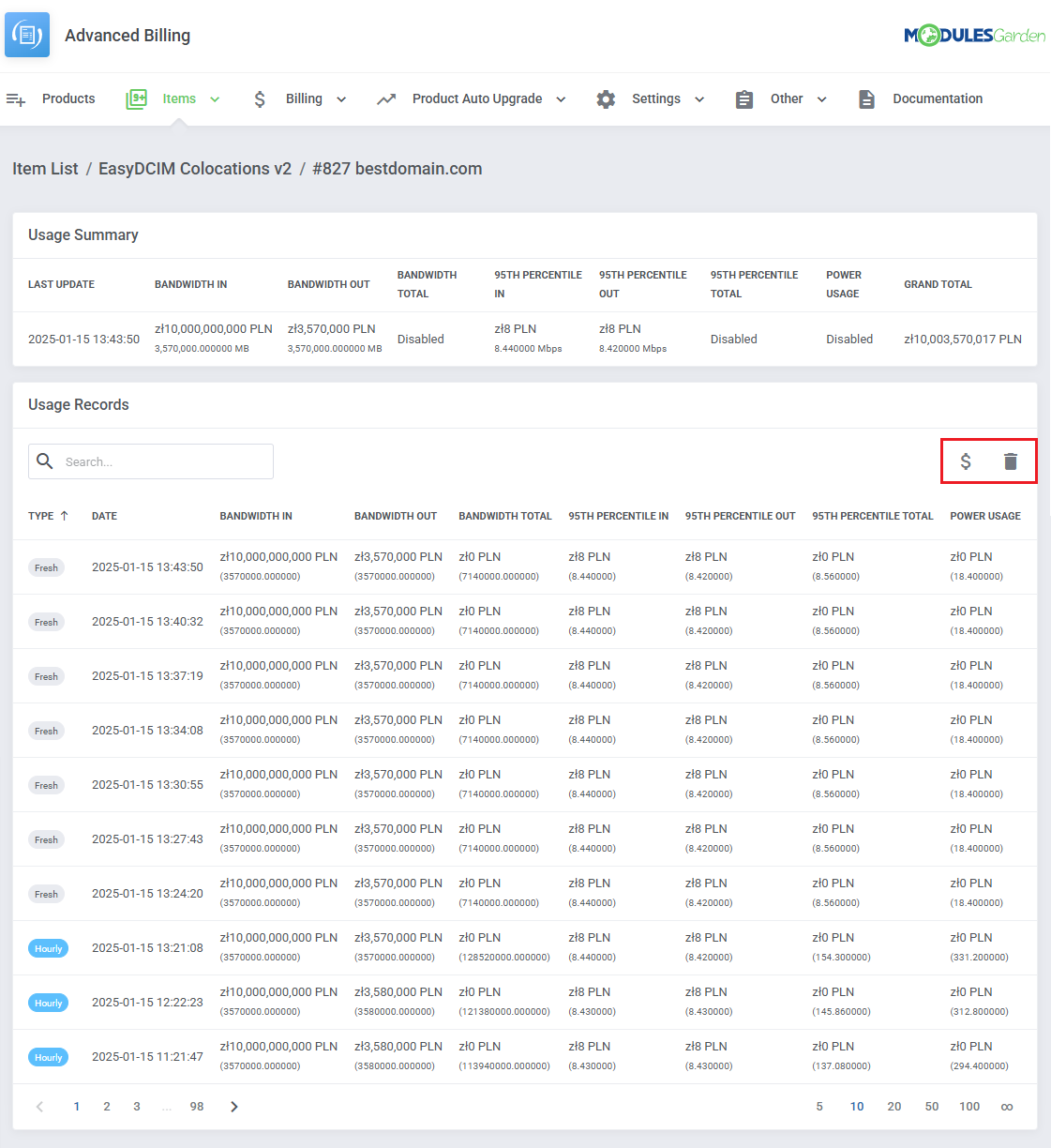
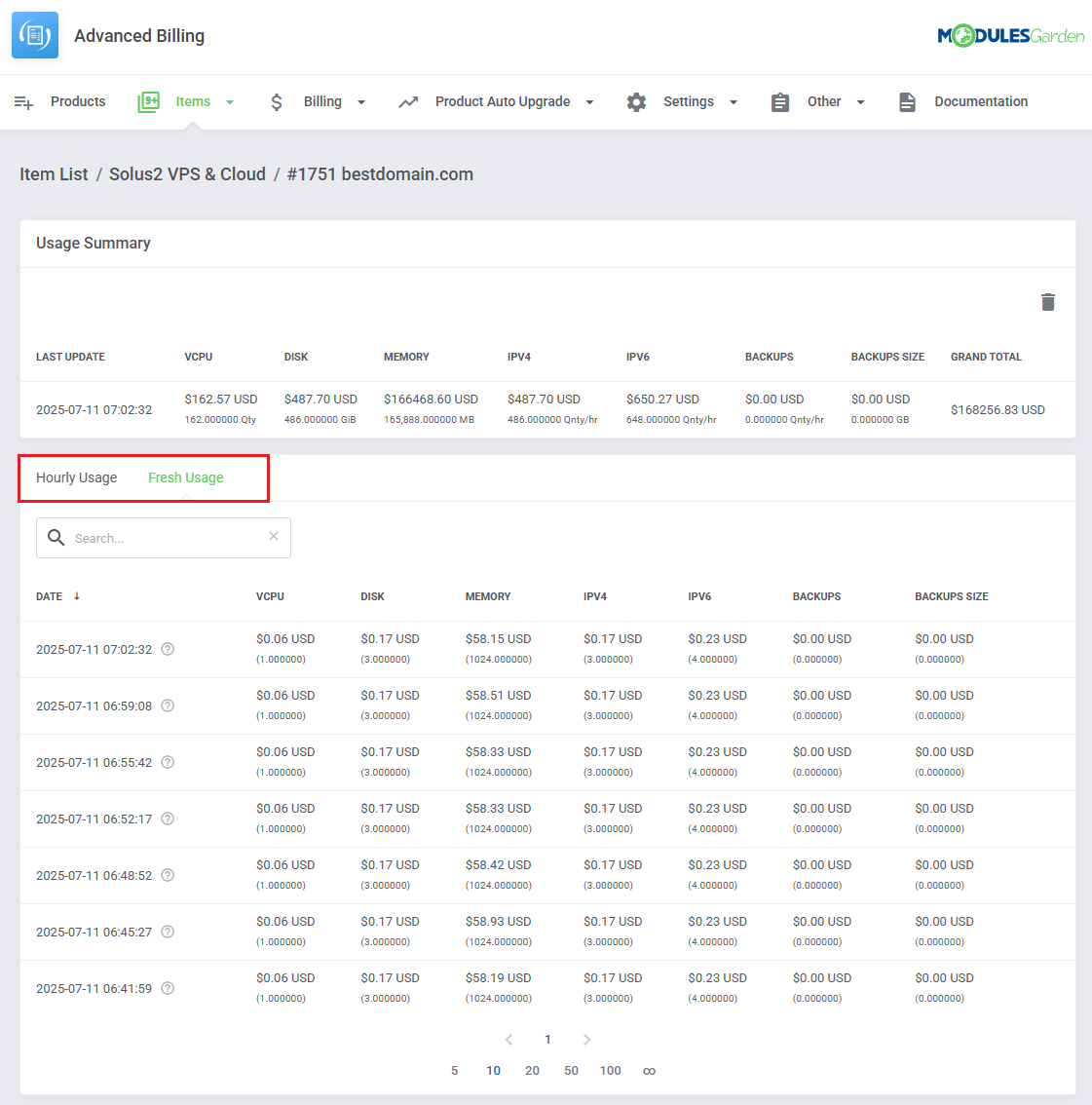
Clicking on the 'View Details' button will display the page with all the usage recorded for Fresh and Houly usage records.
The page includes action button responsible for Deleting the item.
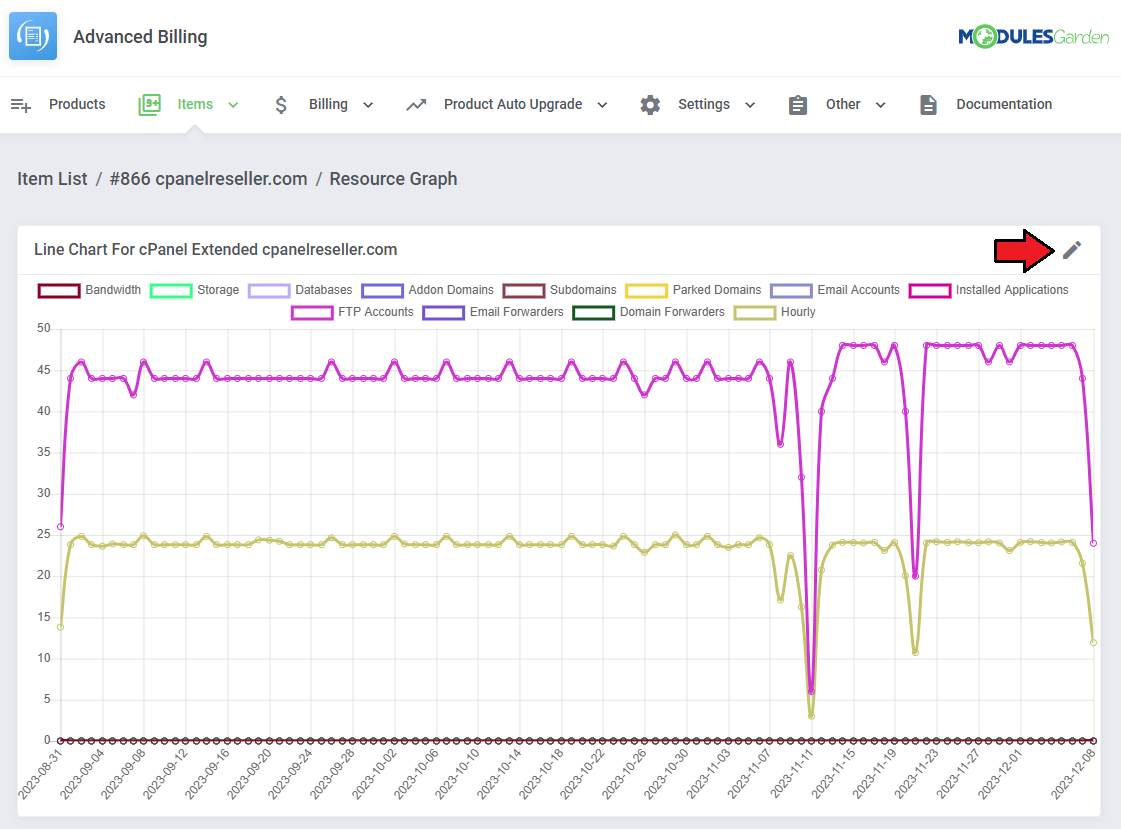
The 'View Graph' button will, in turn, display a resource usage graph for the item.
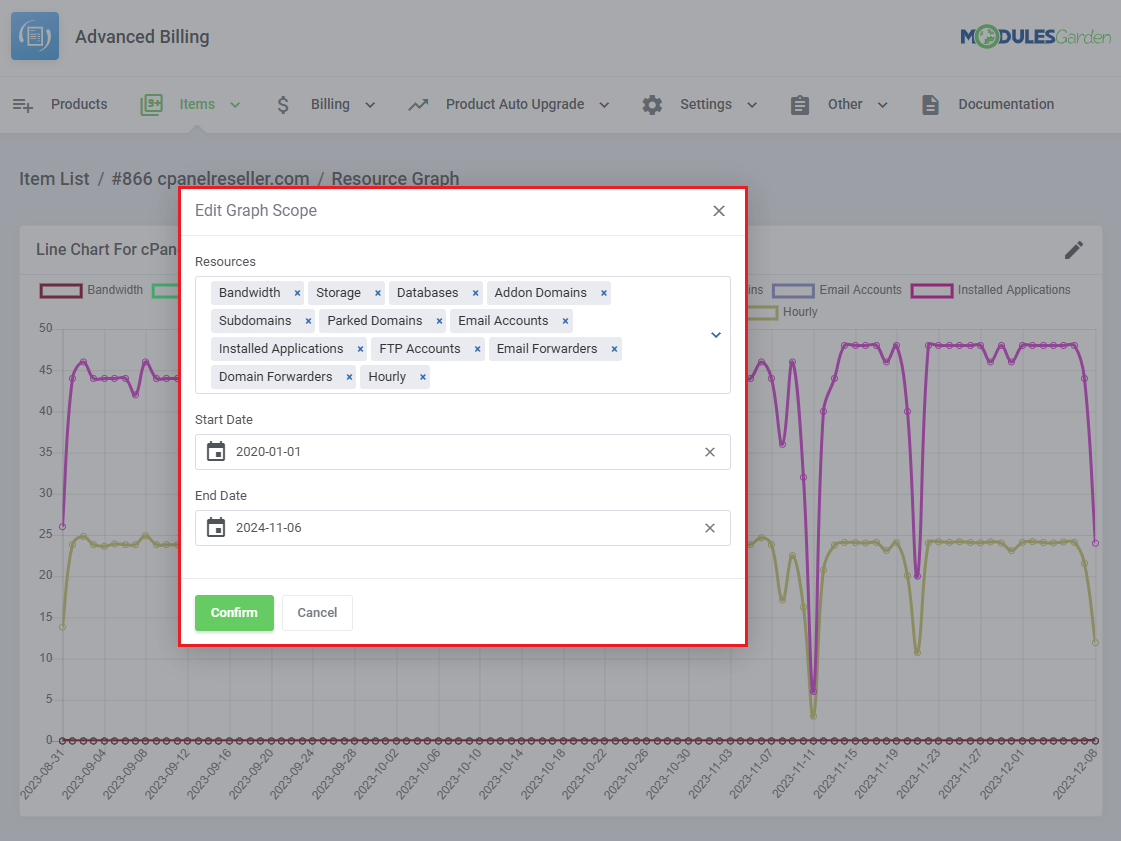
You can change aspects of the graph scope by clicking on the 'Edit' button.
Select the resources and time scope you would like the graph to include.
# Item Archive
You can find the 'Item Archive' under 'Items'.
It included items that are already billed.
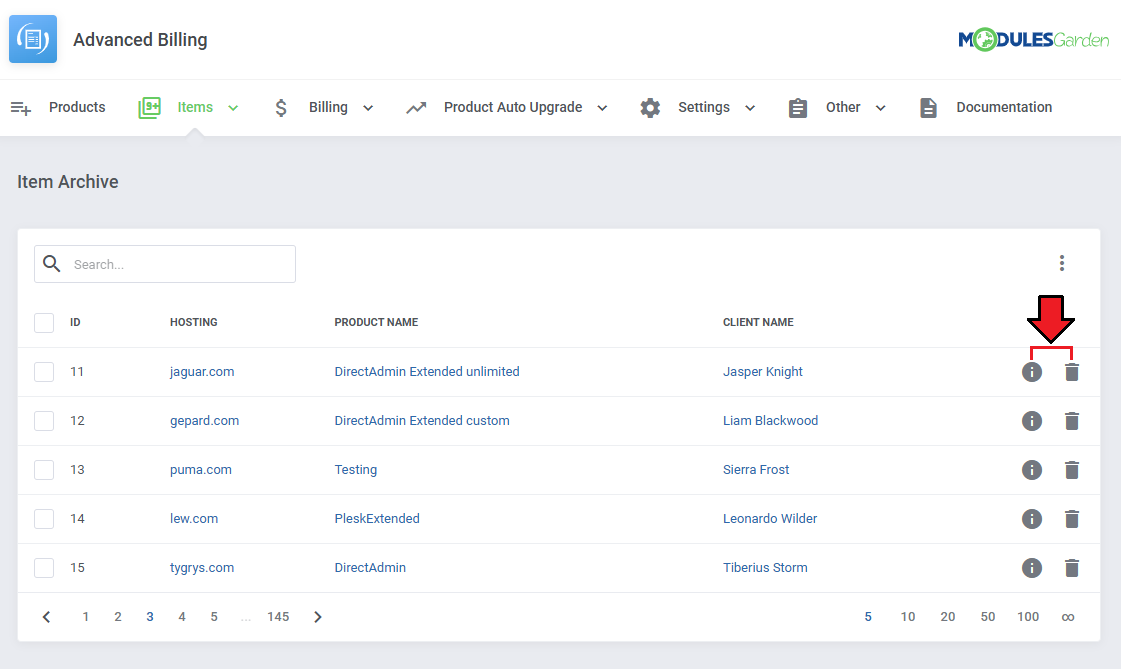
The list includes information such as:
- Item ID
- Hosting Name
- Client Name
And action button responsible for:
- Viewing details
- Deleting the item from the list
You can mark multiple items with the mass delete function when necessary as well.
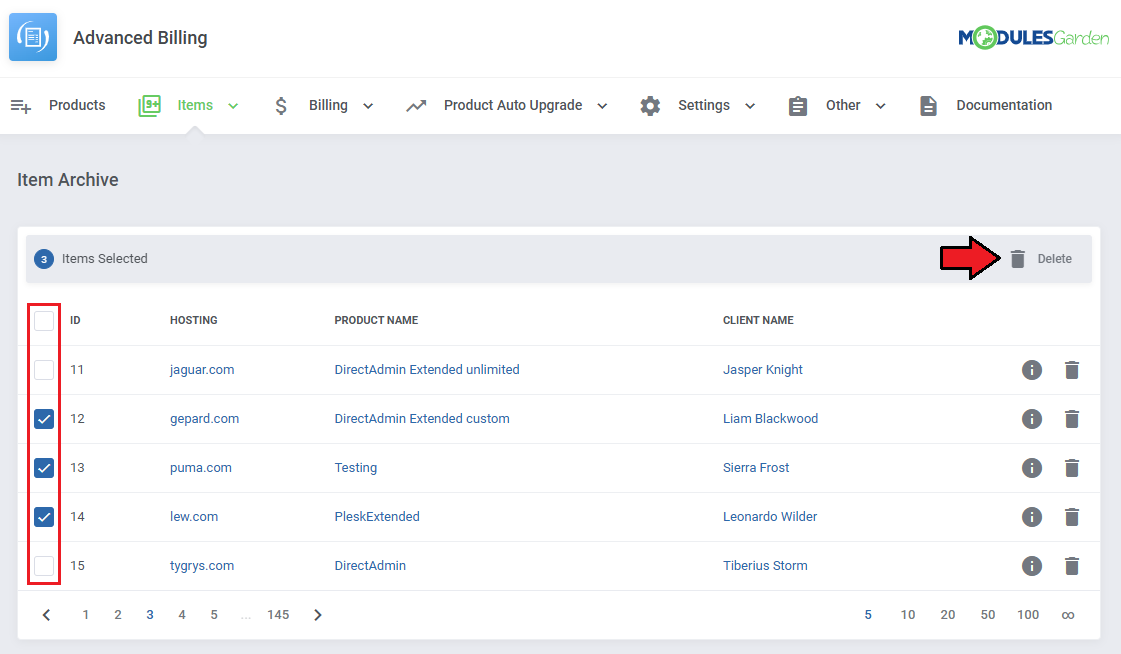
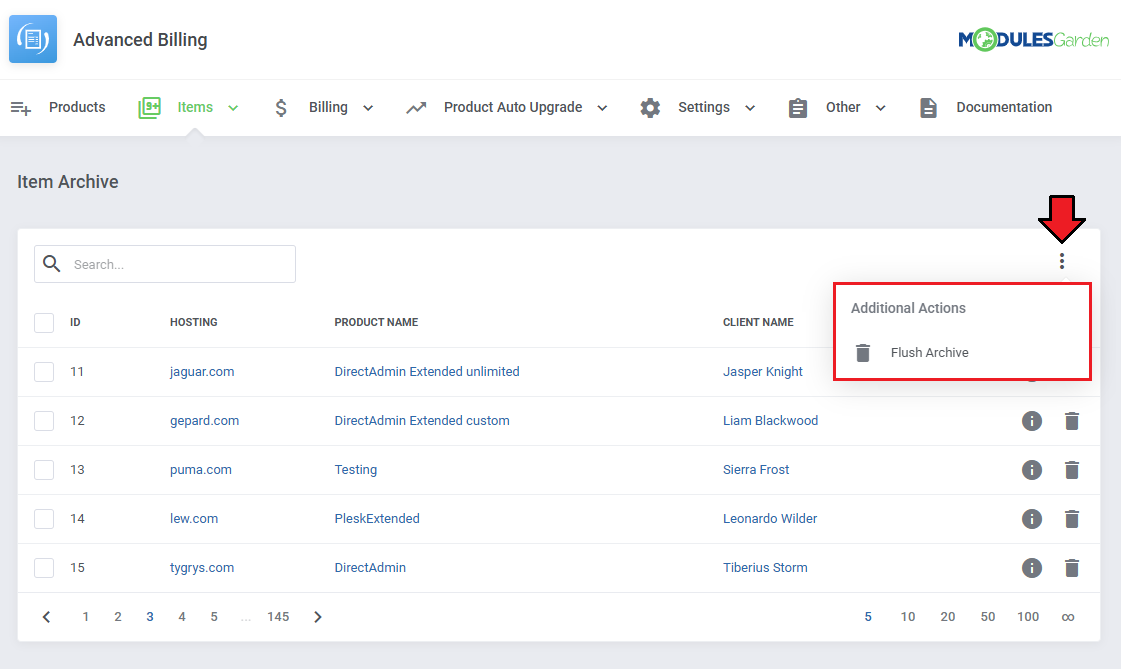
Finally, you can flush your archive, deleting items meeting the criteria set in Item Archive Configuration.
# Billing
All billing related management can be found under the 'Billing' section.
This includes 'Invoices' and 'Credits'.
# Invoices
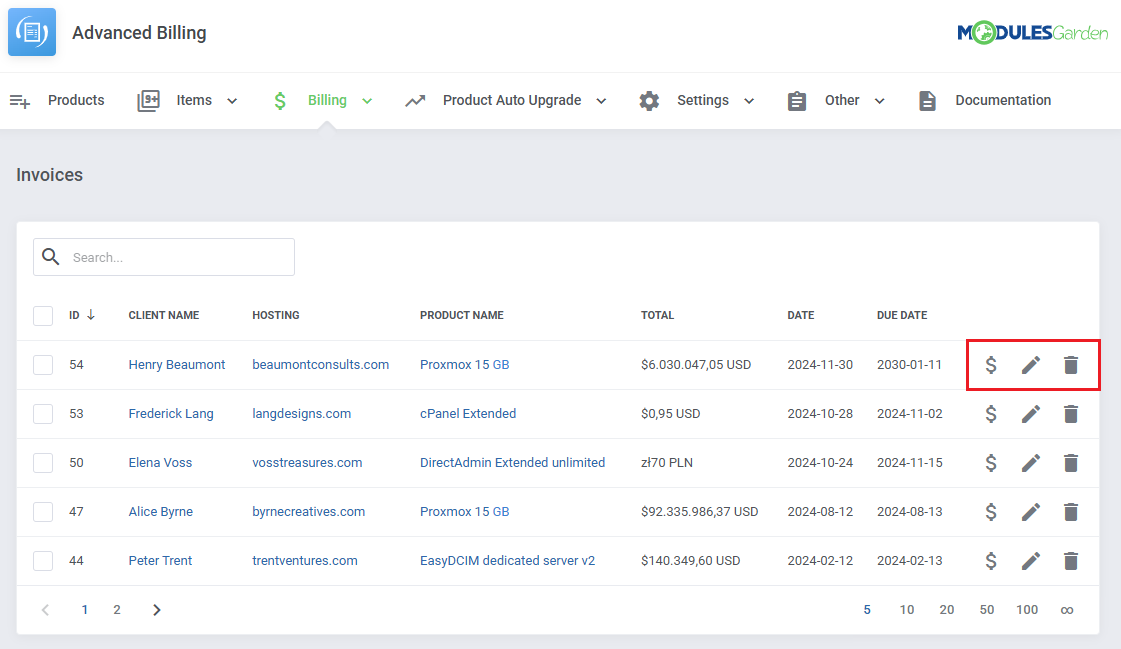
Invoices created both automatically and manually can be found here. The invoice list includes:
- Invoice ID
- Client Name
- Hosting Name
- Product Name
- Total
- Date
- Due Date
And action buttons are responsible for:
- Generating the invoice
- Displaying details
- Deleting the invoice
Important: When "Auto Generate Invoice" is disabled, awaiting invoices will not be issued automatically until you manually approve them.
This ensures full control over the billing process, allowing you to safely explore the features of the Advanced Billing module without triggering unexpected charges.
To use this mode, navigate to Products → Settings → Recurring Billing and turn off the Auto Generate Invoice option.
When "Auto Generate Invoice" is enabled, invoices are generated directly in WHMCS and are not added to 'Billing' → 'Invoices' in Advanced Billing. Therefore, an empty list in this section is expected when automatic invoice generation is enabled.
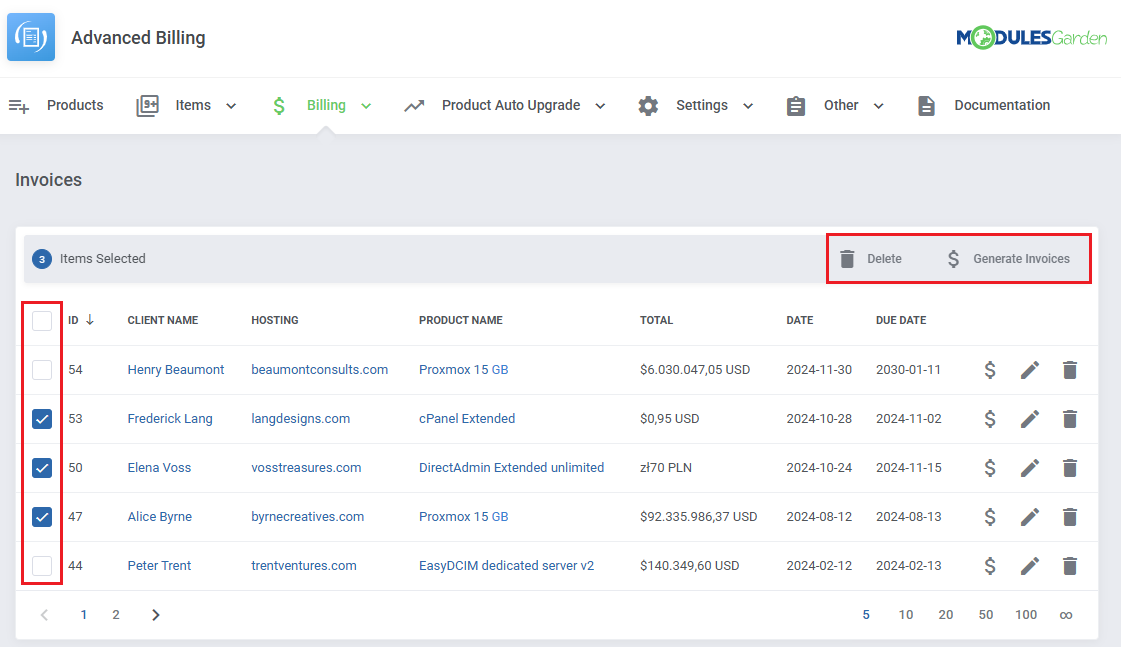
You can also utilize the mass function to generate or delete multiple invoices at once.
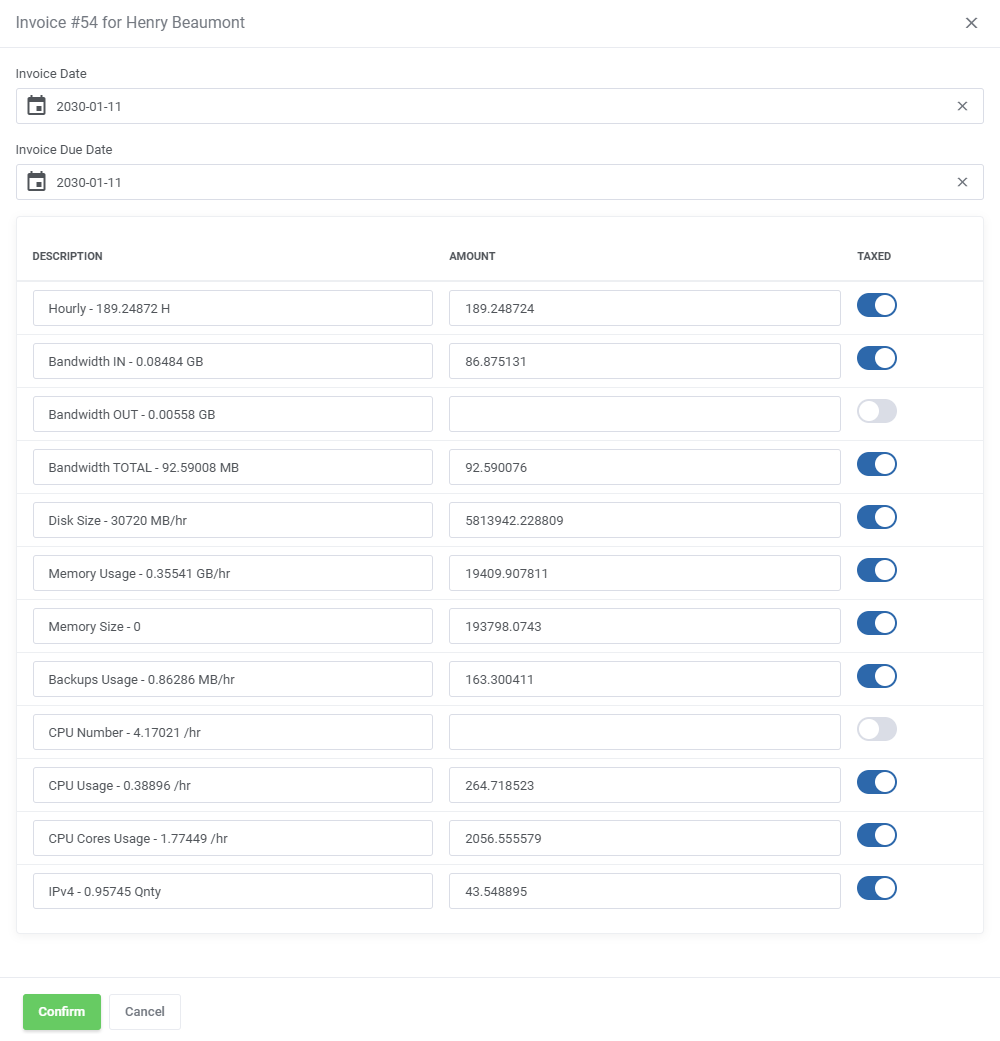
Invoice details consist of editable fields such as:
- Invoice Date
- Invoice Due Date
and every billed item with its:
- Description
- Amount
- Tax toggle
# Prepaid Balance
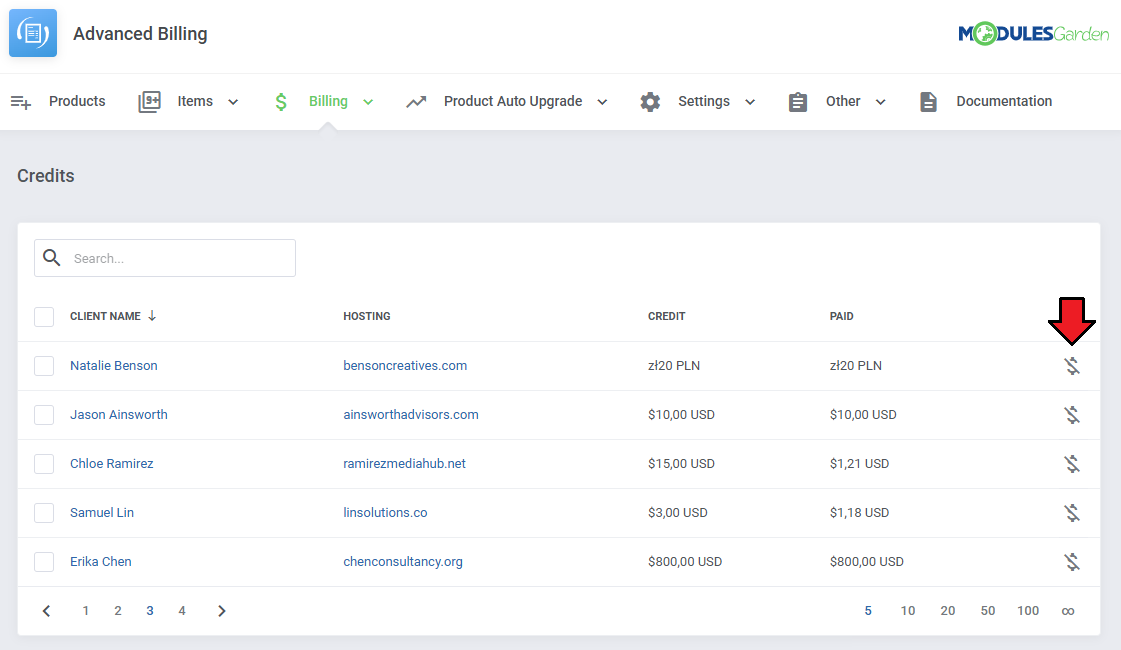
This tab lists credits paid in advance by clients and used within the Prepaid Billing model.
The list includes:
- Client Name
- Hosting
- Credits Reserved
- Amount Paid
An action button allows the admin to refund selected credits back to the client's WHMCS Credit Balance.
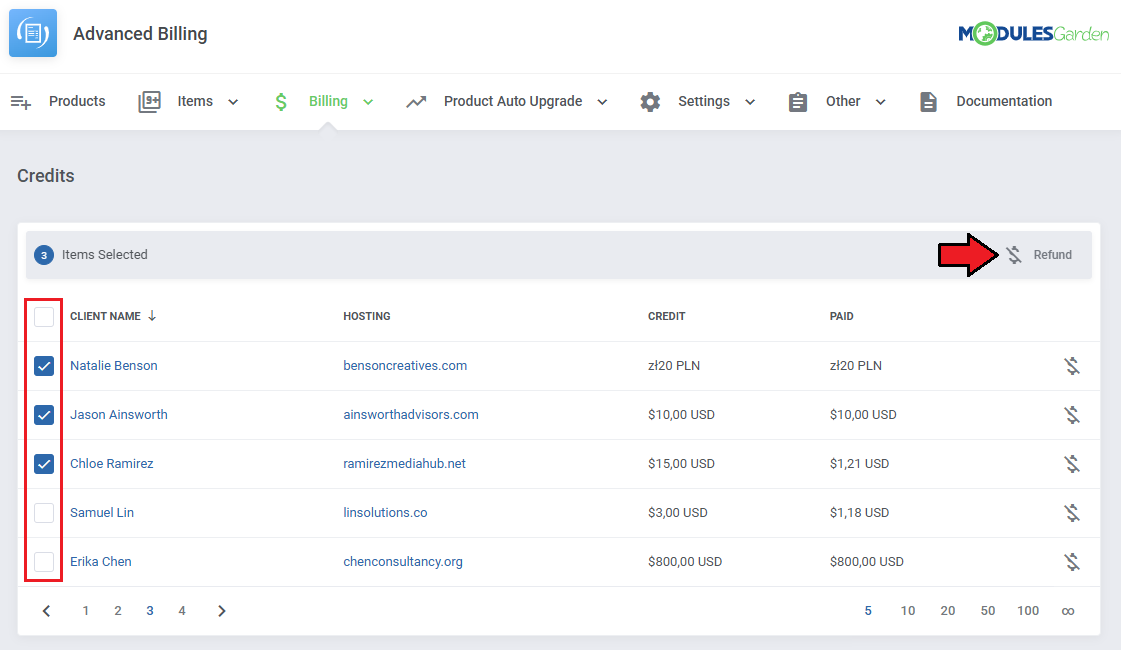
Multiple records can be selected and refunded at once.
# Credit Balance
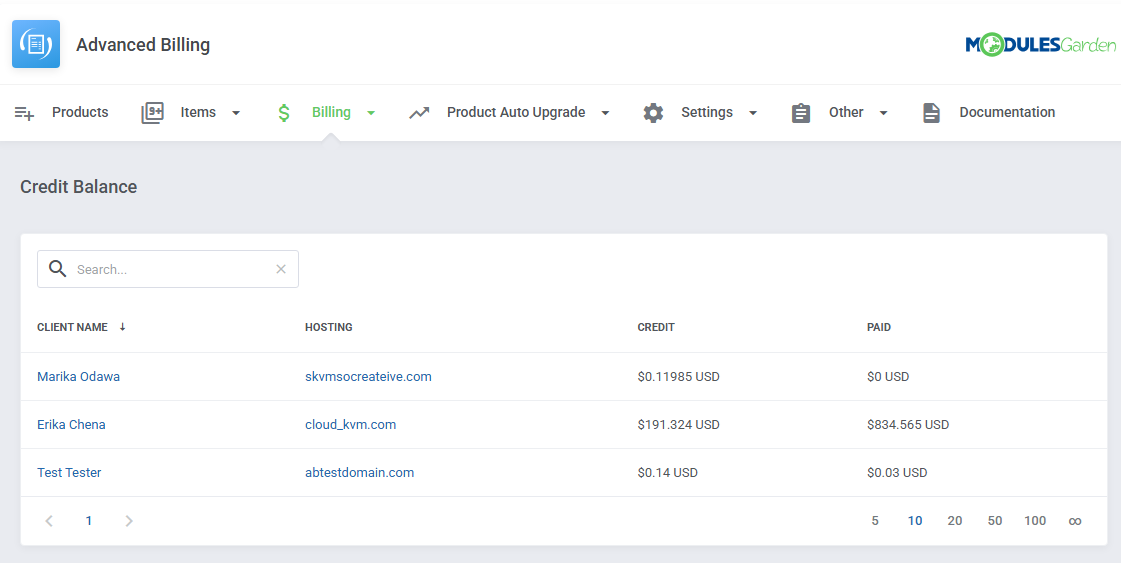
This tab displays usage charges accumulated for clients within the Credit Billing model.
The list includes:
- Client Name
- Hosting
- Credit (total usage value)
- Amount Paid
The values are based on service usage and WHMCS credit handling, and are updated according to the product configuration.
Note: Refund option is not available for Credit Billing entries.
Distinction:
- Prepaid Balance: Client pays before usage
- Credit Balance: Client pays after usage
# Product Auto Upgrade Management
Under the 'Product auto Upgrade' you will be able to find tools to create and manage the auto upgrades based on resource usage.
This section is only relevant for products with the Product Auto Upgrade function enabled.
# Configuration
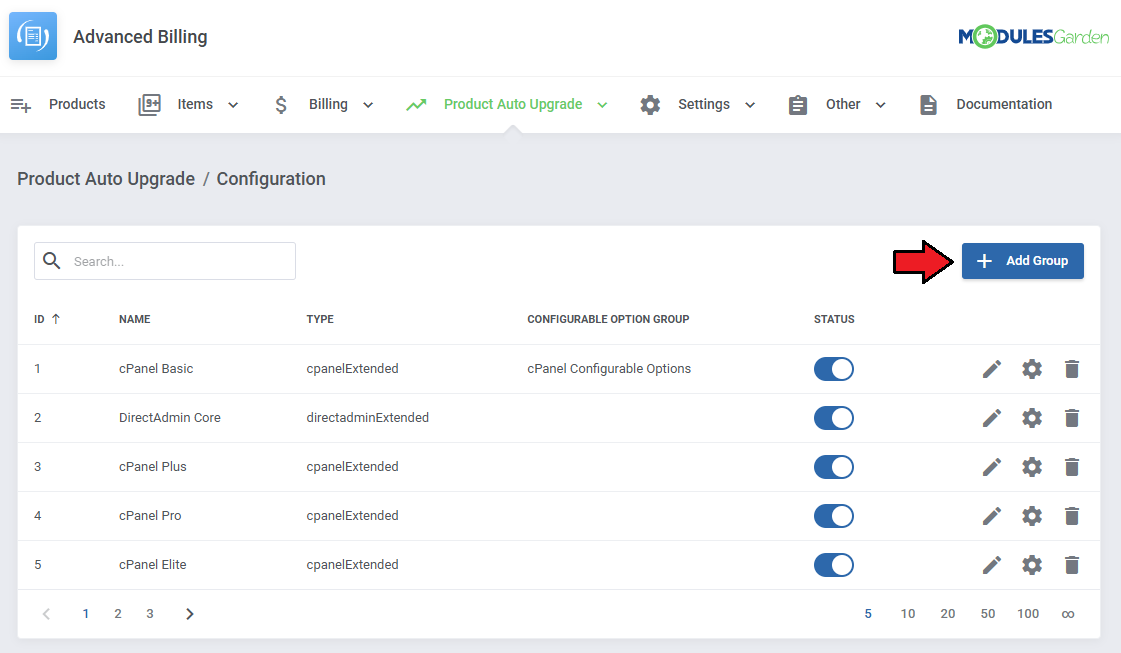
Find the 'Configuration' tab under ' Product Auto Upgrade' and click on 'Add Group' to add a new group.
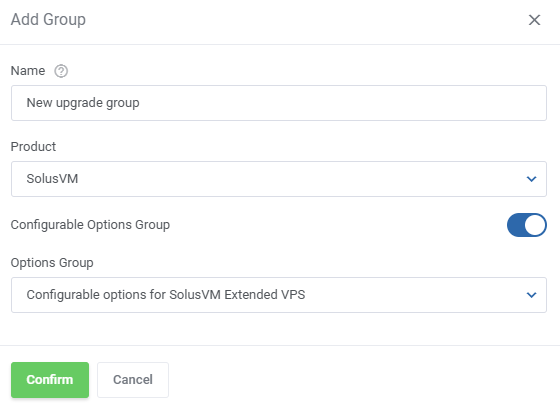
As you create the group, complete the following fields:
- Name - name the group, the name will not be visible to clients.
- Product - select the product the group will be applicable for.
- Configurable Options Group - optionally include a configurable options group.
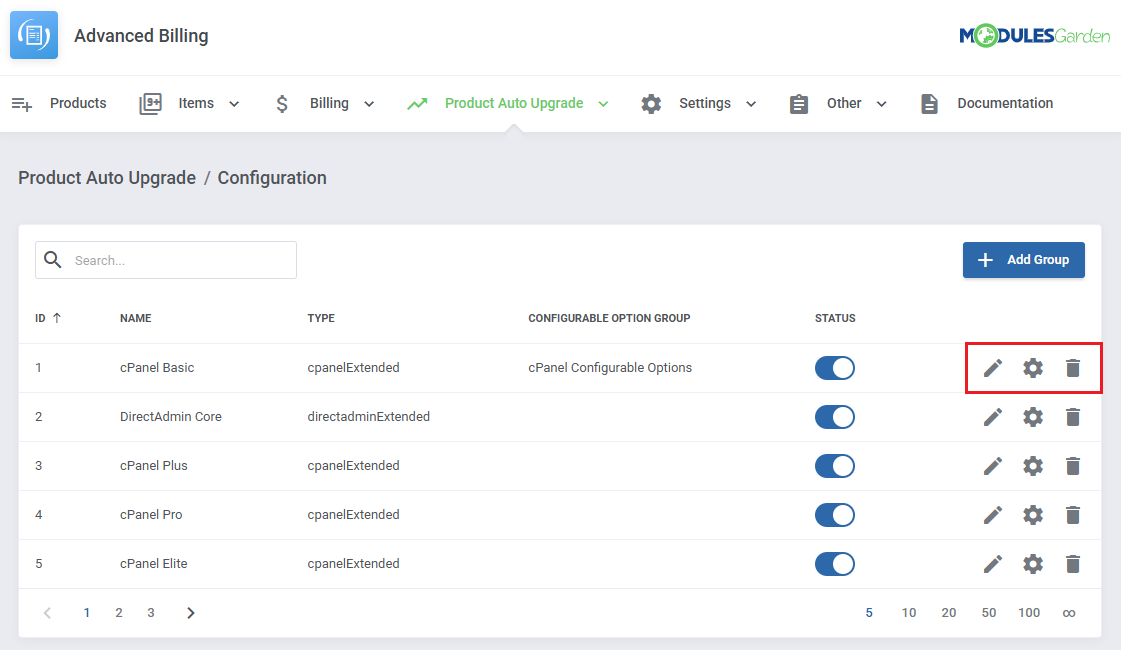
Once the group is added, the action buttons will allow you to:
- Edit the group's settings.
- Add and manage upgrade options within the group.
- Delete the group from the list.
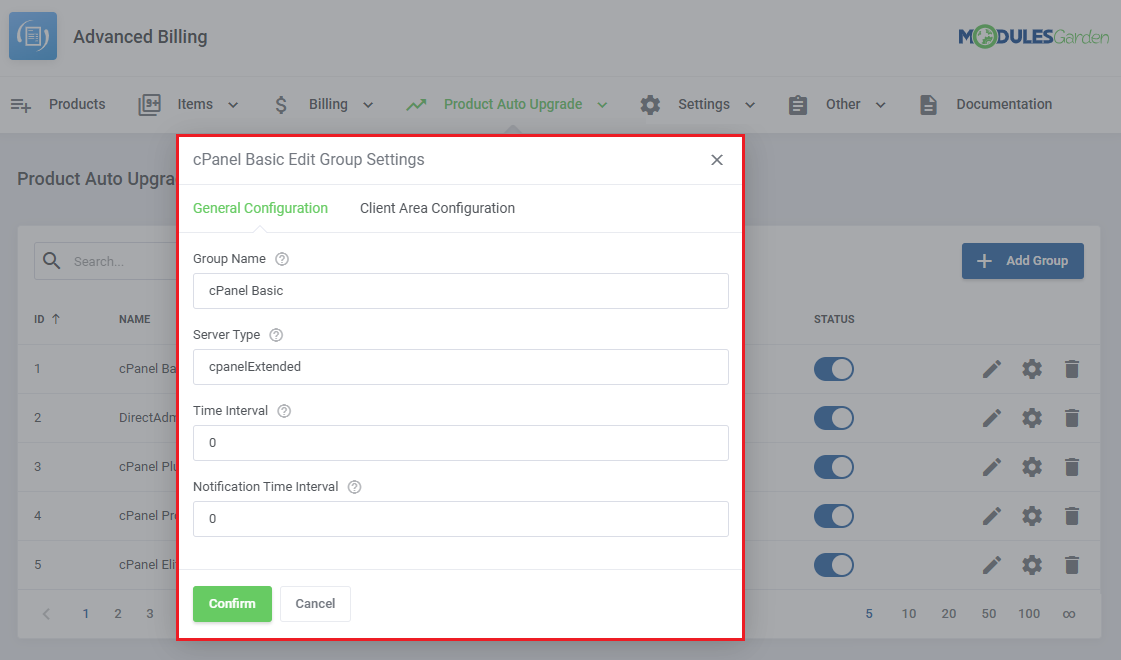
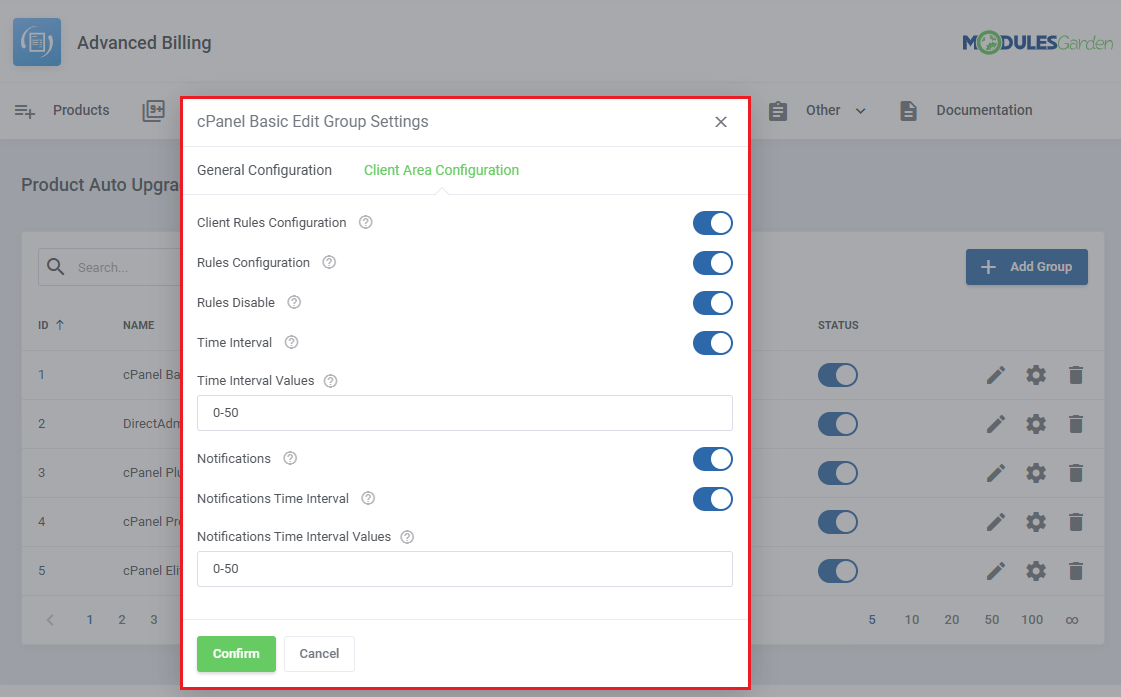
While editing the settings you will be able to change:
Group Name
Server Type
Time Interval - how often upgrades can happen (in minutes).
Notification Time Interval - how often the notification can be sent (in minutes).
You can also change what the client is allowed to do:
- Client Rules Configuration - display rules configuration in the client area.
- Rules Configuration - enable clients to change the upgrade rules for themselves.
- Rules Disable - permit clients to disable some of the upgrade rules.
- Time Interval - give clients the option to modify upgrades time interval.
- Time Interval Values - define the allowed range for upgrades time interval (minutes).
- Notifications - allow clients to manage notifications.
- Notifications Time Interval - allow clients to modify notifications time interval.
- Notifications Time Interval Values - define the allowed range for notifications time interval (minutes).
Notification Email Template:
The module uses a dedicated email template to send notification messages to clients. You can edit this template to adjust the content and tone of the emails.
Template location: WHMCS → System Settings → Email Templates → "Product Auto Update Notification Email." Open the template and modify its content as needed.
# Option Configuration
The 'Options' action will take you to a page where you can define upgrade/downgrade options within the group and manage their status.
Before you can enable the Product Auto Upgrade single option, make sure the following configuration steps are completed:
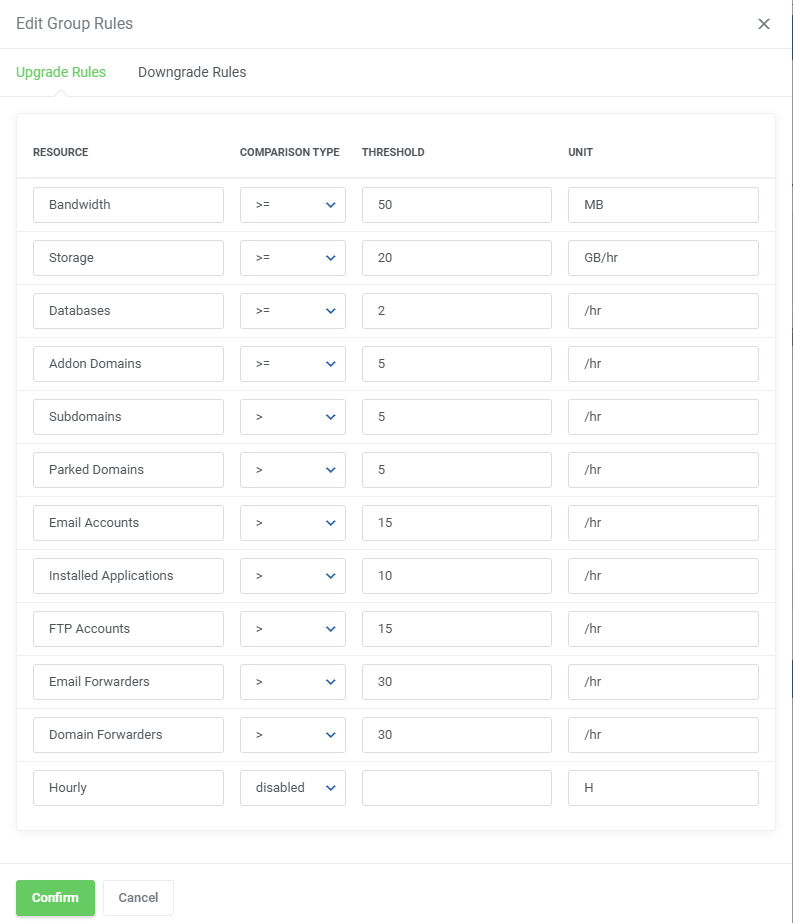
- Define "Upgrade Rules" – Go to the "Upgrade Rules" tab and set how resources or products should be upgraded. (Use Edit icon in action buttons).
- Define "Downgrade Rules" – Open the "Downgrade Rules" tab and set up the conditions for product downgrades. (Use Edit icon in action buttons).
- Confirm the "Change Package" – Once the rules are set, complete the configuration by approving the Change Package process.
All three steps must be completed before the toggle can be set to Enabled. Otherwise, you may encounter the following error message: You cannot enable the option. Please check the option configuration.
To start, simply click the Add Option button and name your new option.
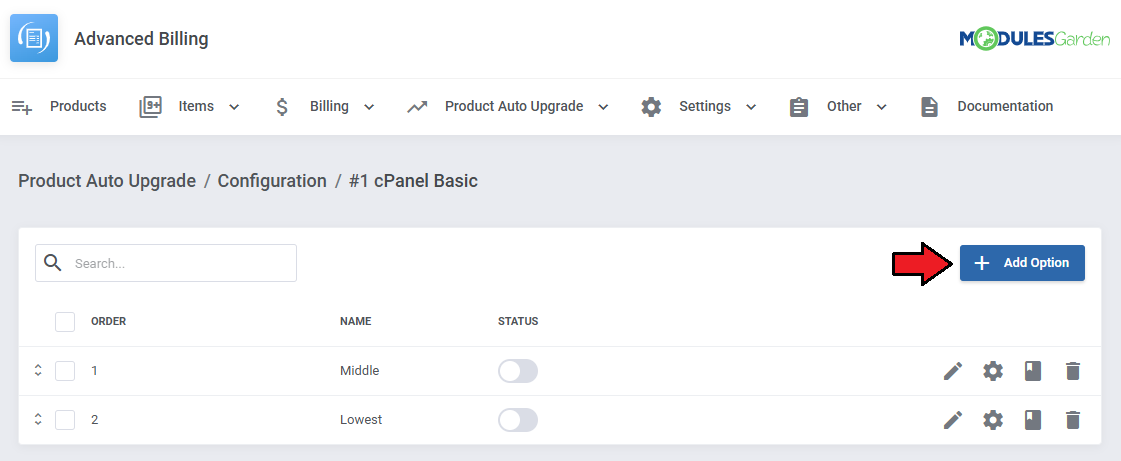
After the option is added, it will appear on the list. Use the action buttons to perform actions:
- Edit – Define the upgrade and downgrade rules by selecting the appropriate Comparison Type and Threshold for each option.
- Change Package – Select the package that will be used for this option. This step is required to finalize the rule configuration.
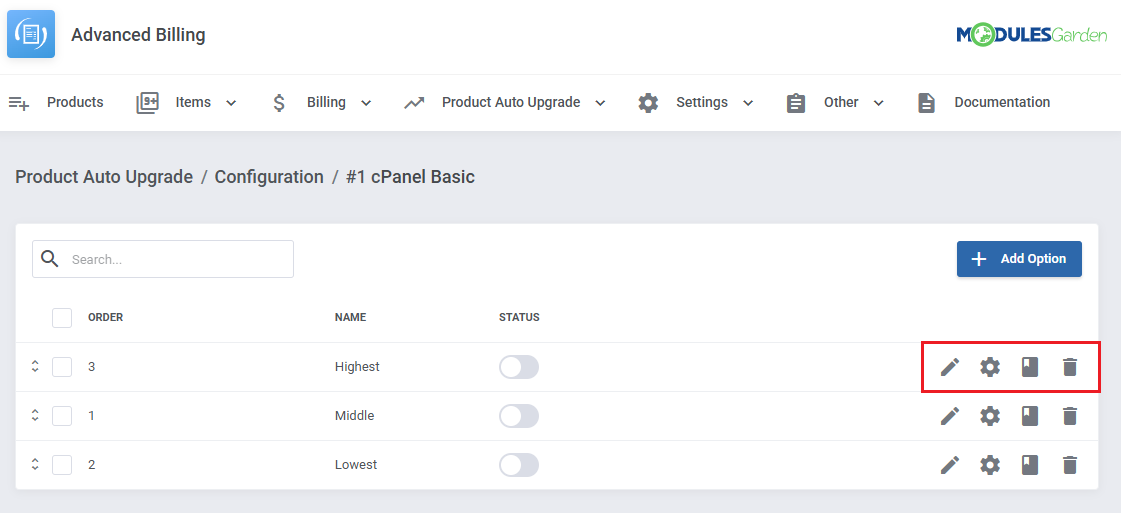
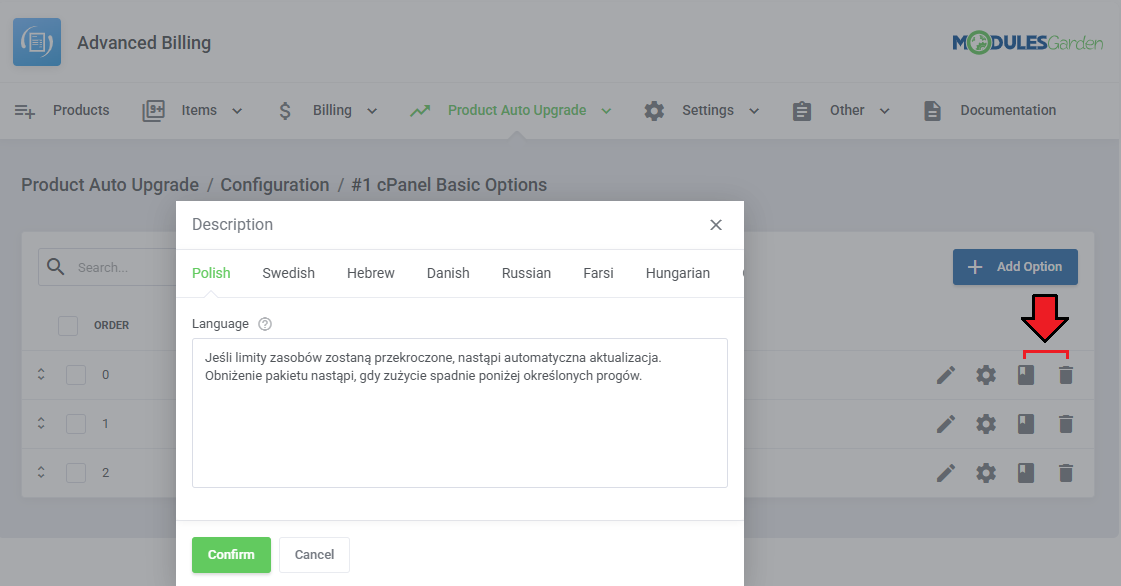
- Change Description – Add custom descriptions for each option configuration.
- Delete – Remove the option from the group.
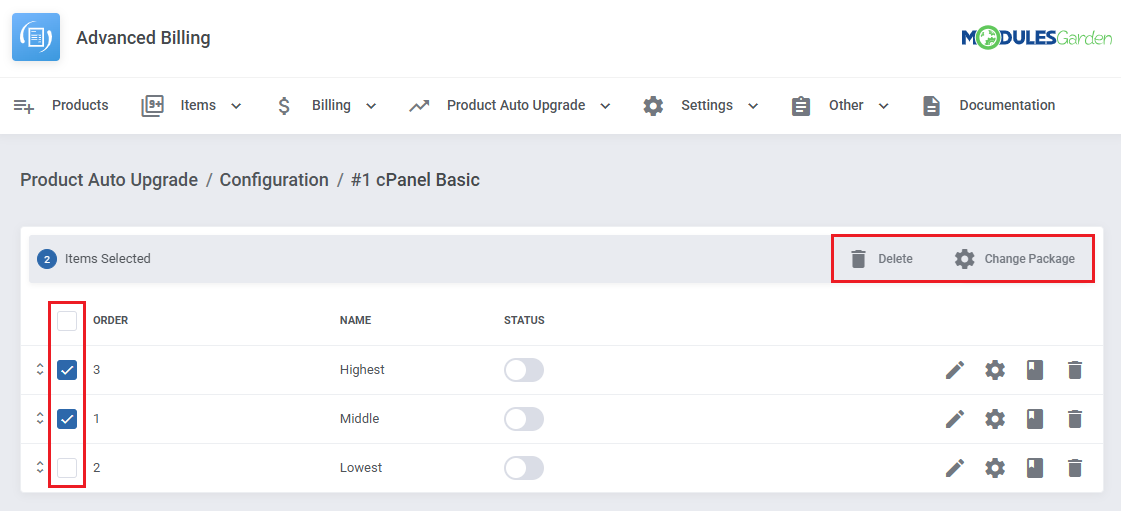
You can also use the mass action tools to delete or change packages for multiple options at once.
# Accounts
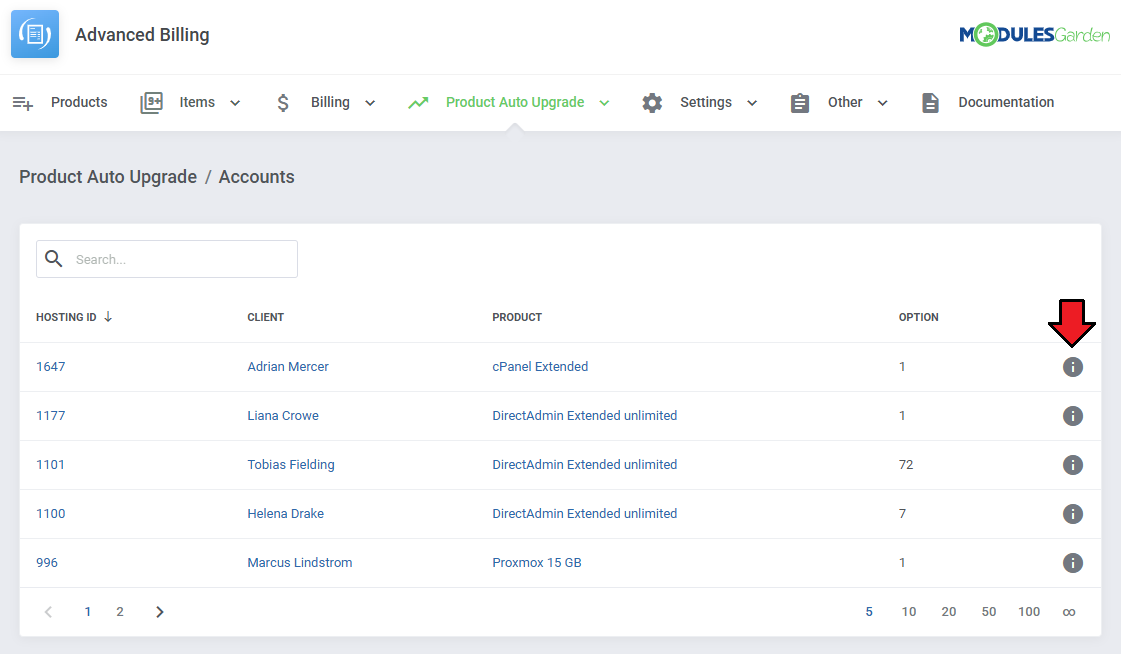
Services or 'Accounts' that make use of the 'Product Auto Upgrade' are recorded and listed in the 'Accounts' section under 'Product Auto Upgrades'.
The list includes information such as:
- Hosting ID
- Client Name
- Product Name
- Option ID
The 'Details' action button will display more information on a specific account.
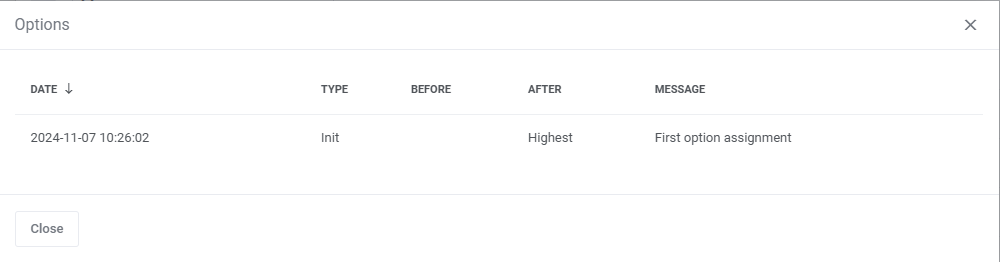
The details include a list of auto upgrades complete with:
- Date of the update
- Type
- Option before the upgrade
- Option after the upgrade
- Message regarding the action taken
# Client Area
Depending on the option's setting, several features can be made available to the client.
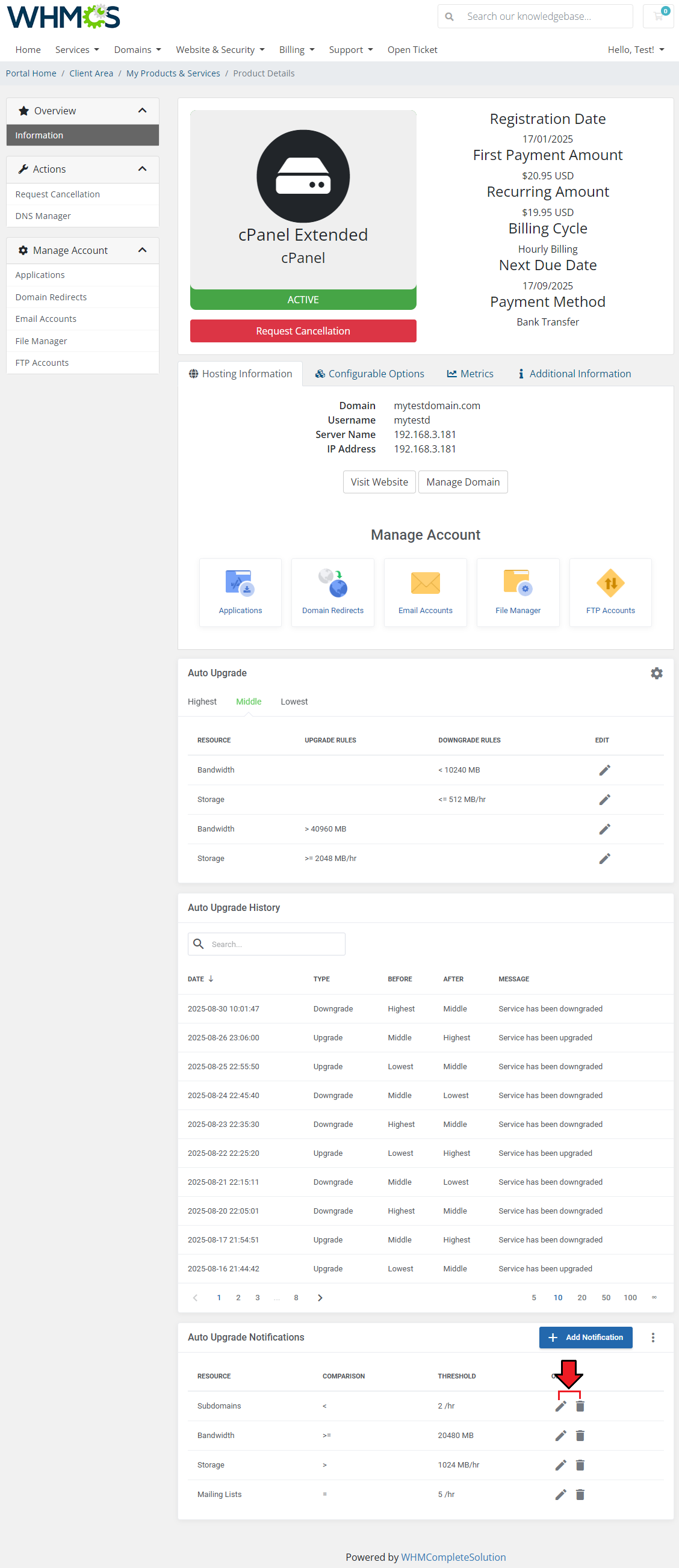
Assuming 'Client Rules Configuration' is enabled, clients will be able to change how their service interacts with the system by clicking on the 'Settings' icon under 'Auto Upgrade'.
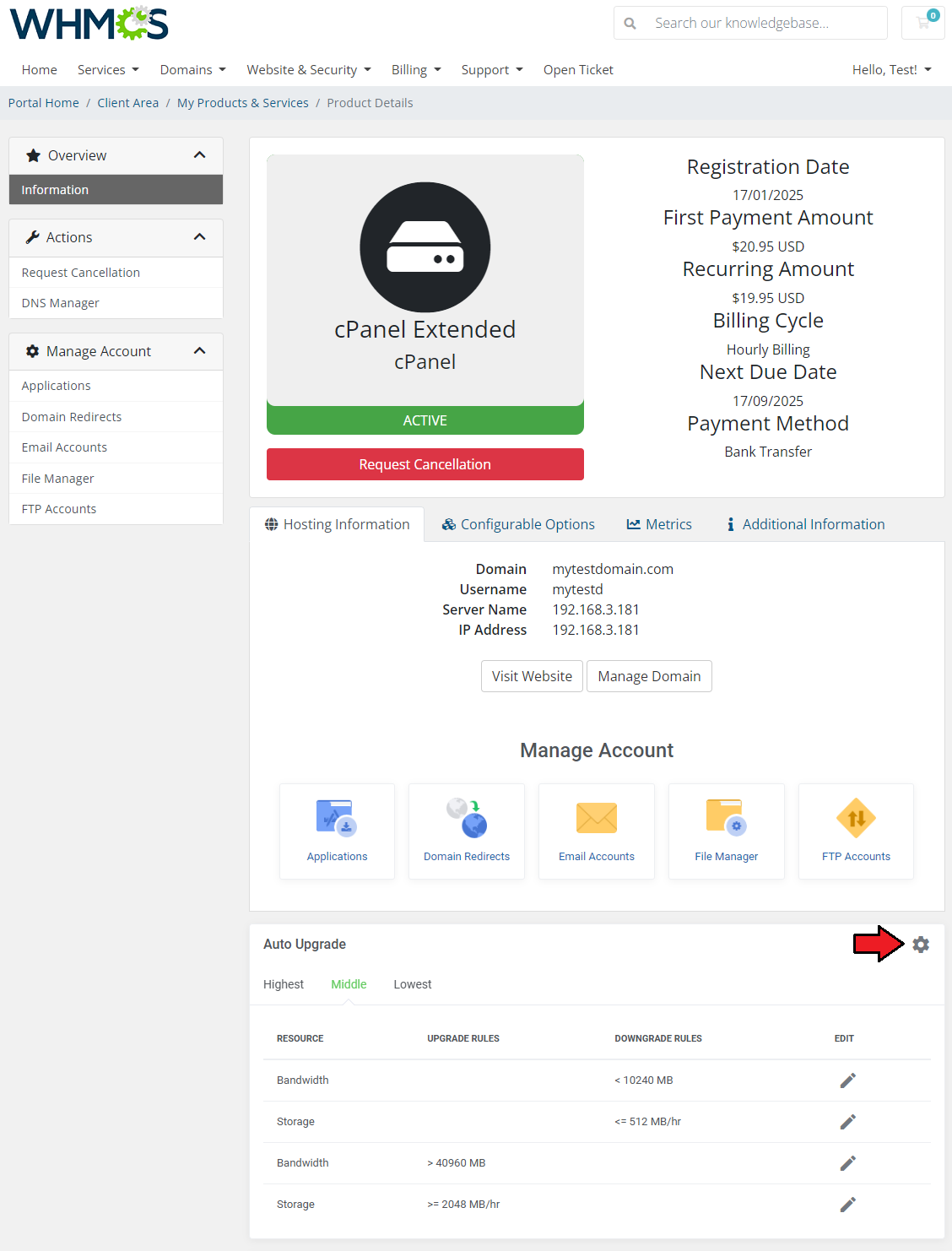
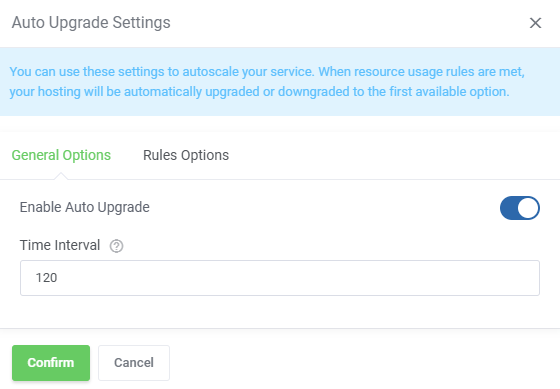
Options may include:
- Enable Auto Upgrade - can be turned off to disable auto upgrades altogether.
- Time Interval - change the minimum time that has to pass between upgrades.
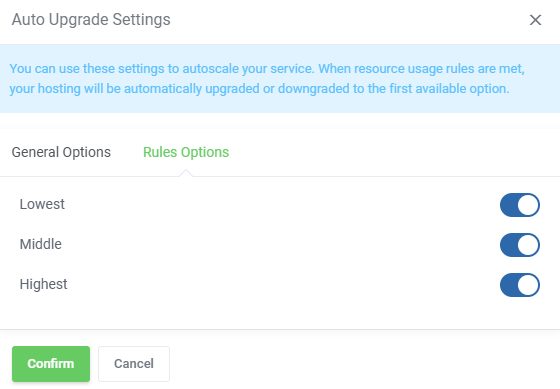
Under the 'Rules Options' tab, the client can select which rules to enable.
Service upgrades are recorded and displayed in the 'Auto Upgrade History' table.
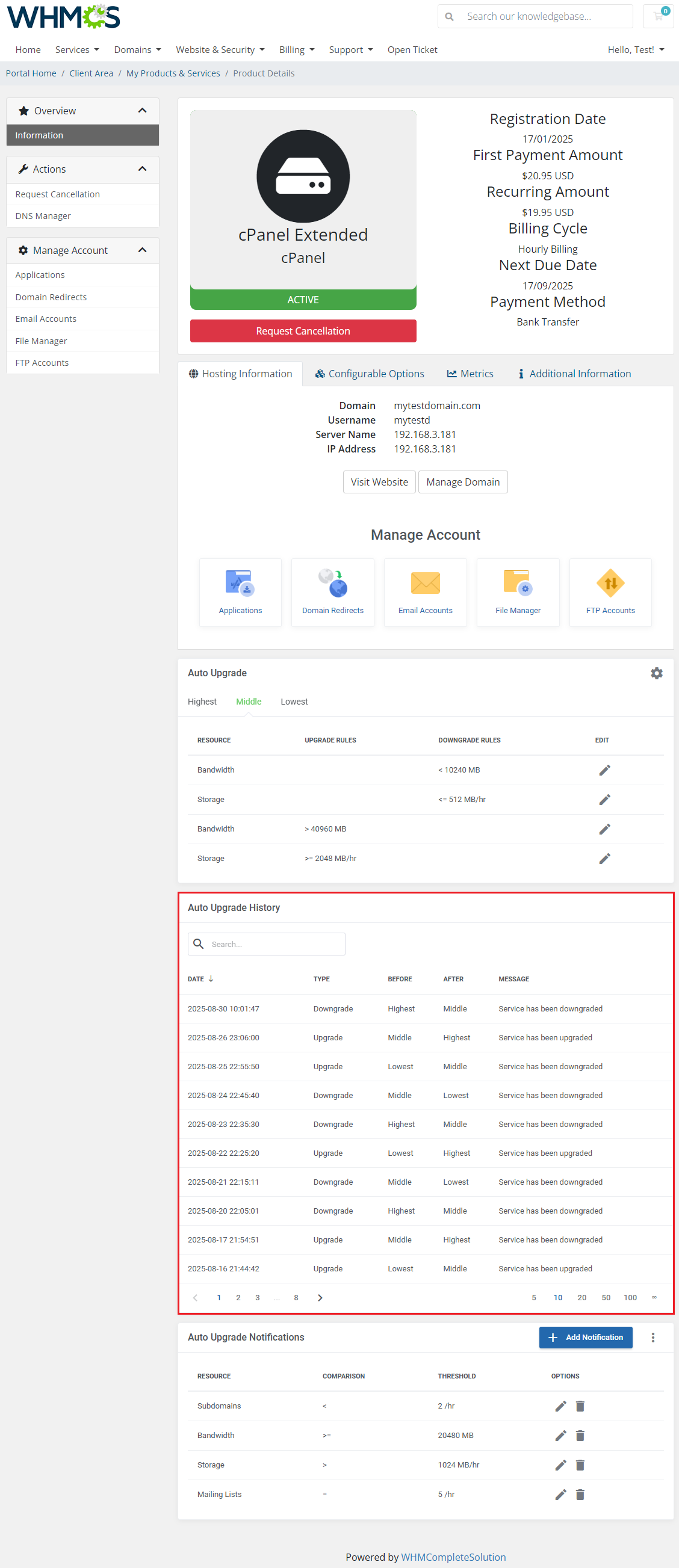
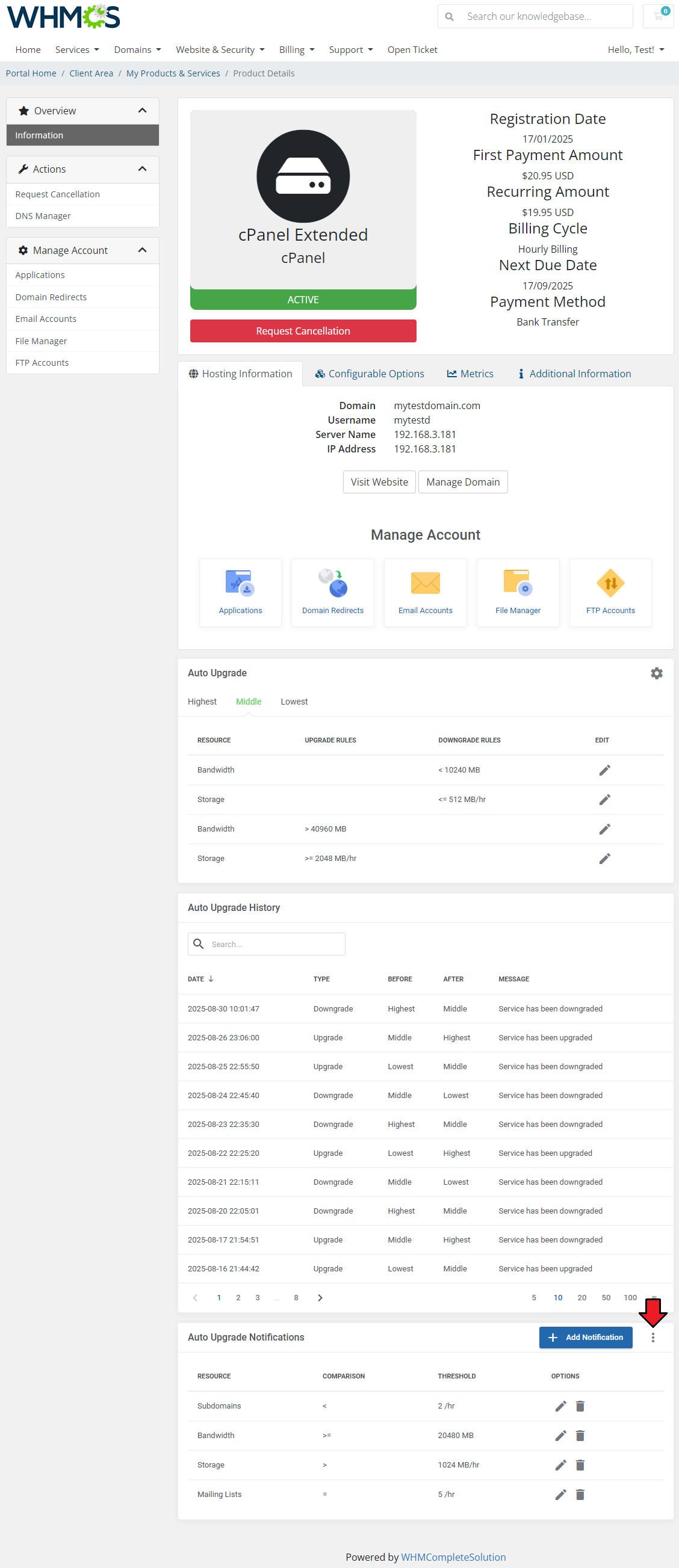
Notification messages for upgrades can be set up by the user, first, click on the additional actions button.
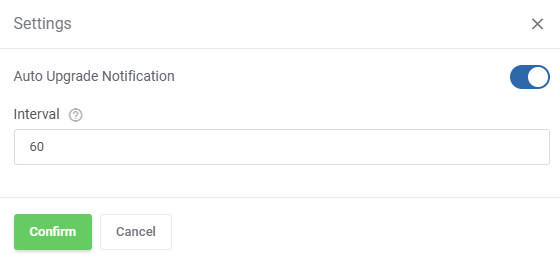
Enable the function and select the interval between each message.
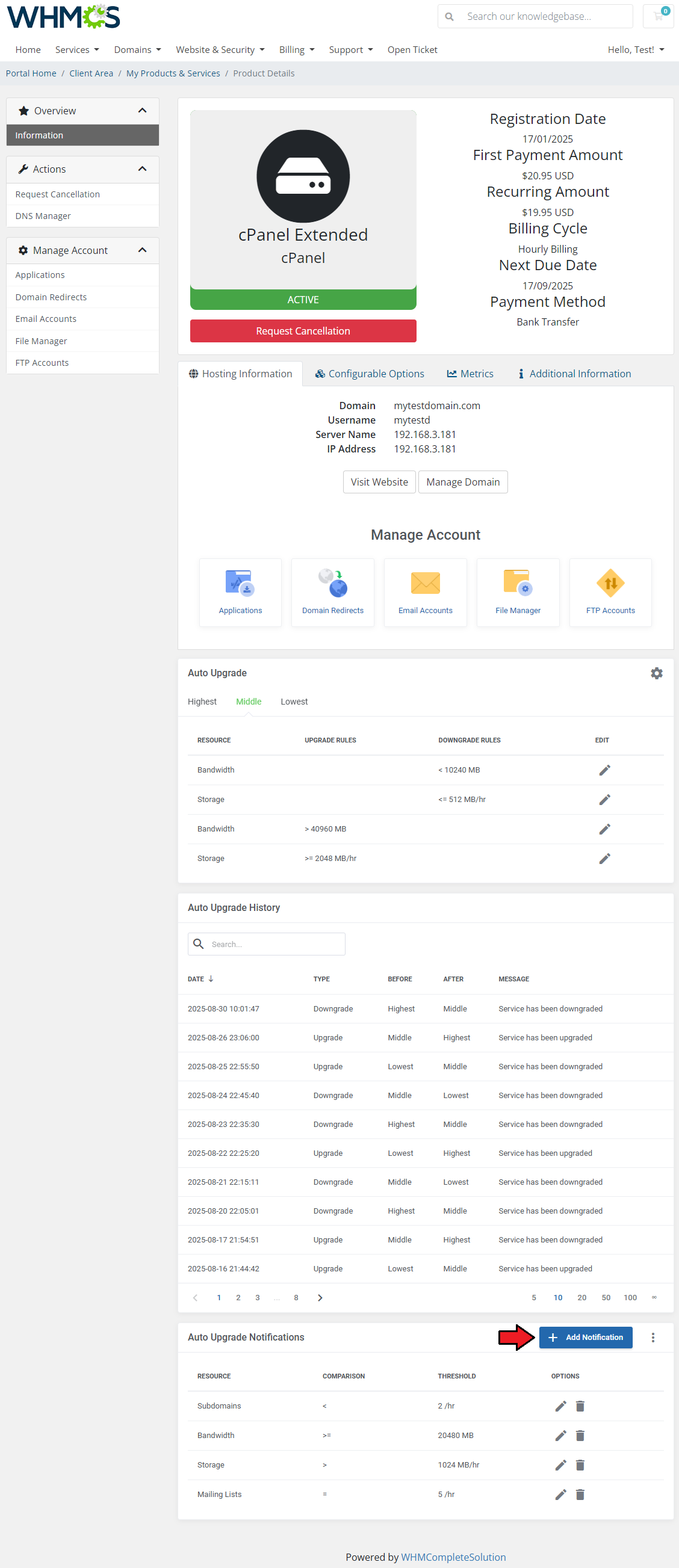
To add a new notification use the 'Add Notification' button.
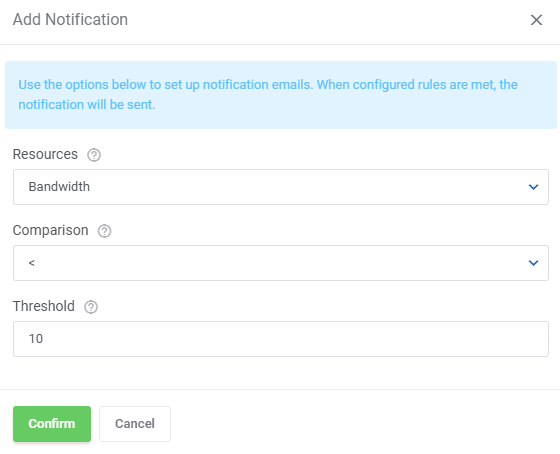
Select the resource, comparison and unit for the notification.
You can add as many notifications as you would like.
Action buttons allow you to edit or delete the notification.
# Settings
# Cron Job Settings
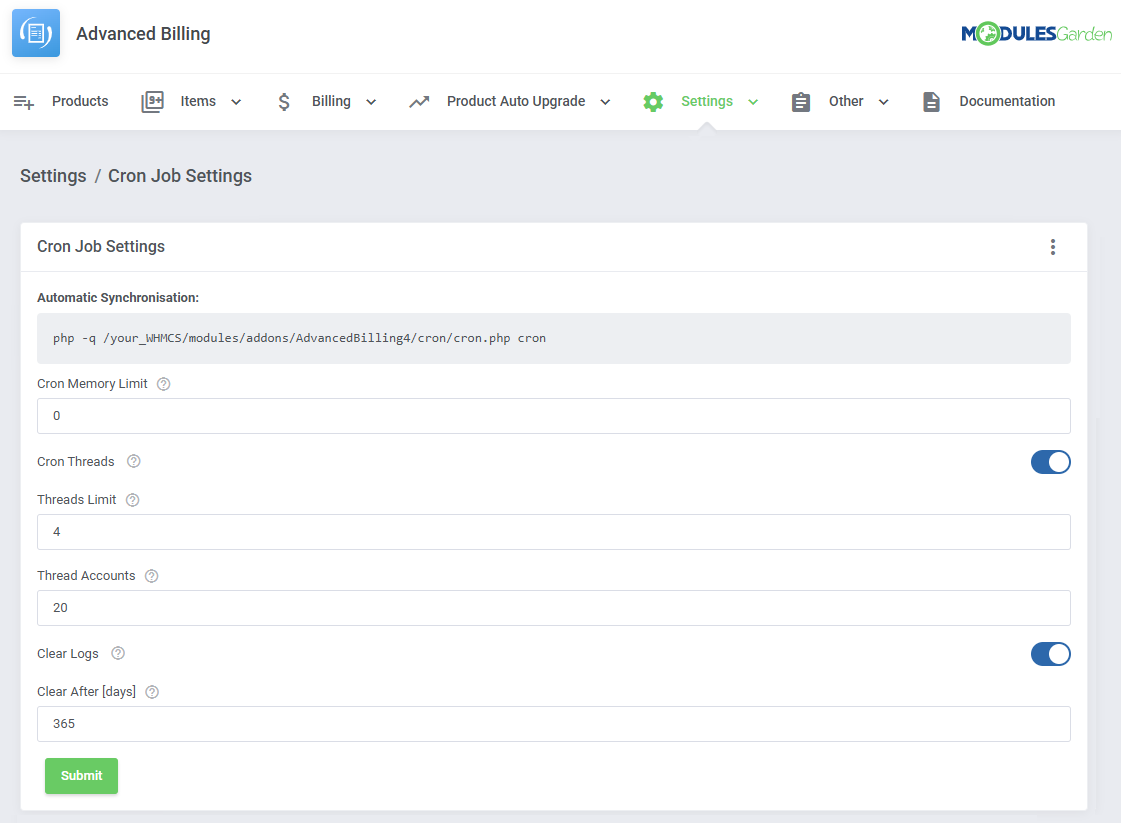
This section provides the command required to initiate the billing process handled by the module. The cron job is essential to perform automated billing actions in the background.
Please manually add the below command to the crontab, remember to adjust the path to match your WHMCS installation:
php -q /your_WHMCS/modules/addons/AdvancedBilling4/cron/cron.php cron
The cron can be customized with the following options:
- Cron Memory Limit - limit how much memory the cron can use (in megabytes). If exceeded, the cron will restart. Leave empty or set to 0' to disable the limit.
- Cron Threads - toggle to enable cron threading.
- Threads Limit - limit the number of threads for the above function.
- Thread Accounts - limit the number of accounts per thread
- Clear Logs - toggle to have the cron clear logs.
- Clear After [days] - enter how old the logs have to be to be subject to clearing (in days). The default is 365 days.
Cron job additional options
--force→ Runs a single cron loop immediately.--single→ Forces execution of the module-specific cron.--ignore-product-frequency→ Runs cron without applying product frequency settings.
Note: If you prefer not to run the module in daemon mode (as the module runs continuously by default), you can use these cron options to control execution manually.
# Item Archive Configuration
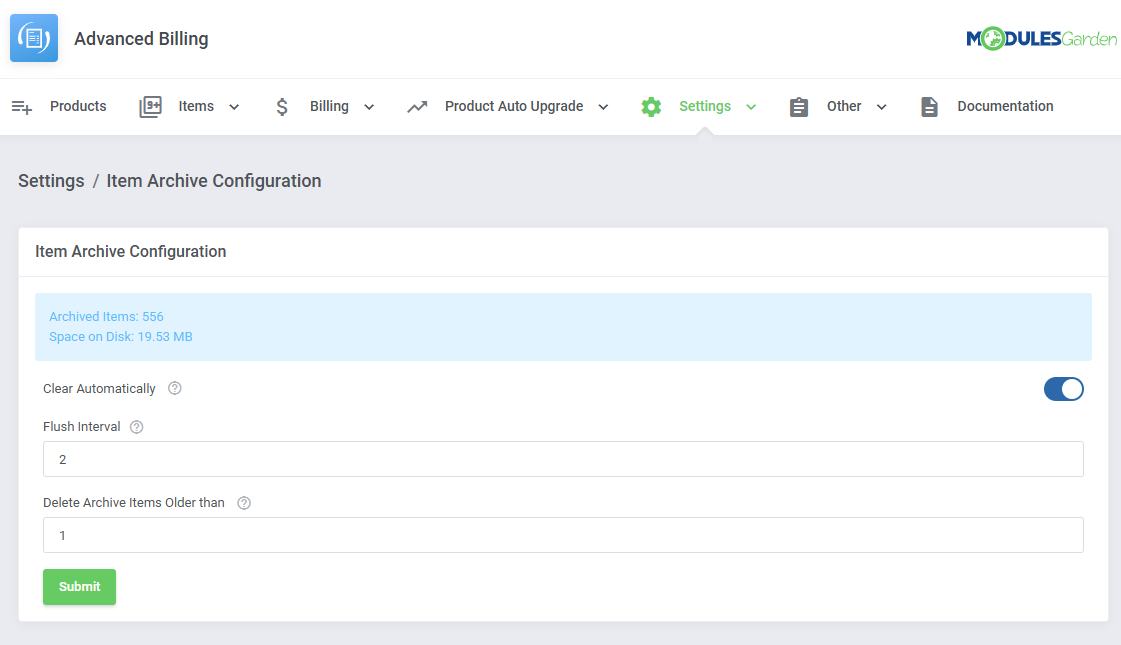
In this section, you can set up the item archive to your preferences. The top of the tab includes a counter that lists the total archived items and how much disk space it occupies.
- Clear Automatically - Enable to automatically clear the item archive under specified conditions.
- Flush Interval - Decide how often (in days) the flush should happen.
- Delete Archive Items Older than - Decide how old the archive items have to be to be subject for deletion during flush.
# Other
Other useful tools and features directly related to the module functioning can be found in the 'Other' section.
This includes:
- Translations Tool
- Access Control
- Module Logs
Translations
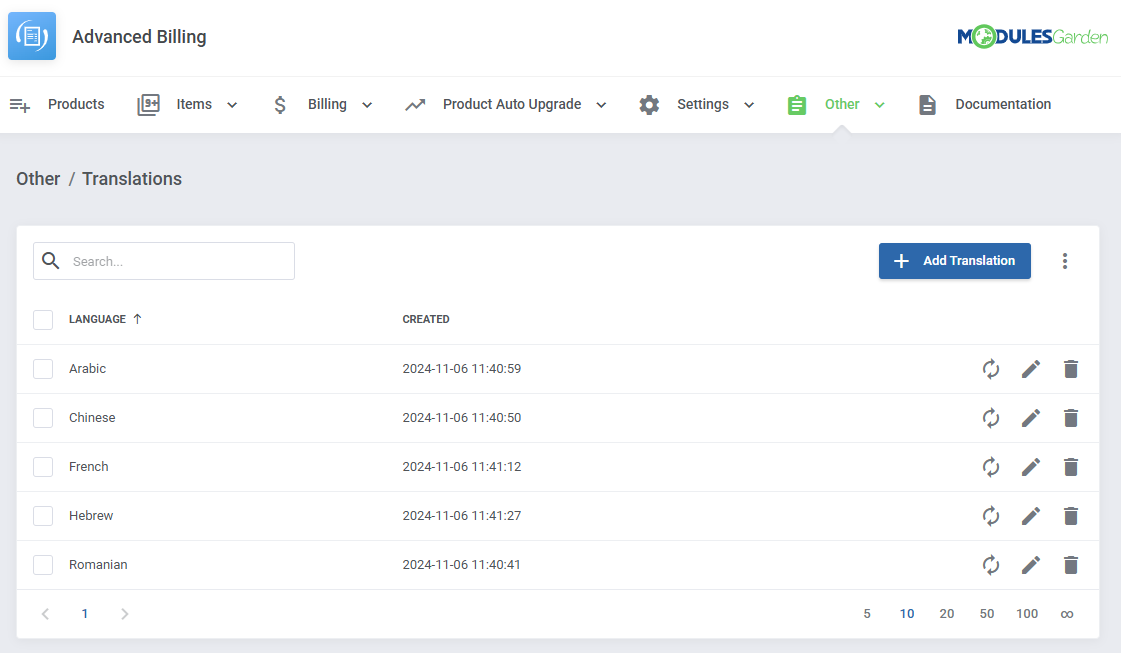
Customizing language files is now extremely easy with the "Translations" tool that is now available directly in the addon.
Its user-friendly design makes managing various language file tweaks a smooth and efficient process.
Prepare translations for the original English files with this handy built-in tool. For specific instructions on how to use this tool please refer to its dedicated article, you will find it here.
# Access Control
'Access Control' allows you to specify and control exactly which sections of the module can be accessed by your administrators.
The way it works is that you create access control rules in which you decide if a specific admin, or admin role has full access, or is restricted to only specific sections.
For more detailed information on the available modules that include this tool, please refer to the Access Control Tools Documentation Page.
# Rules
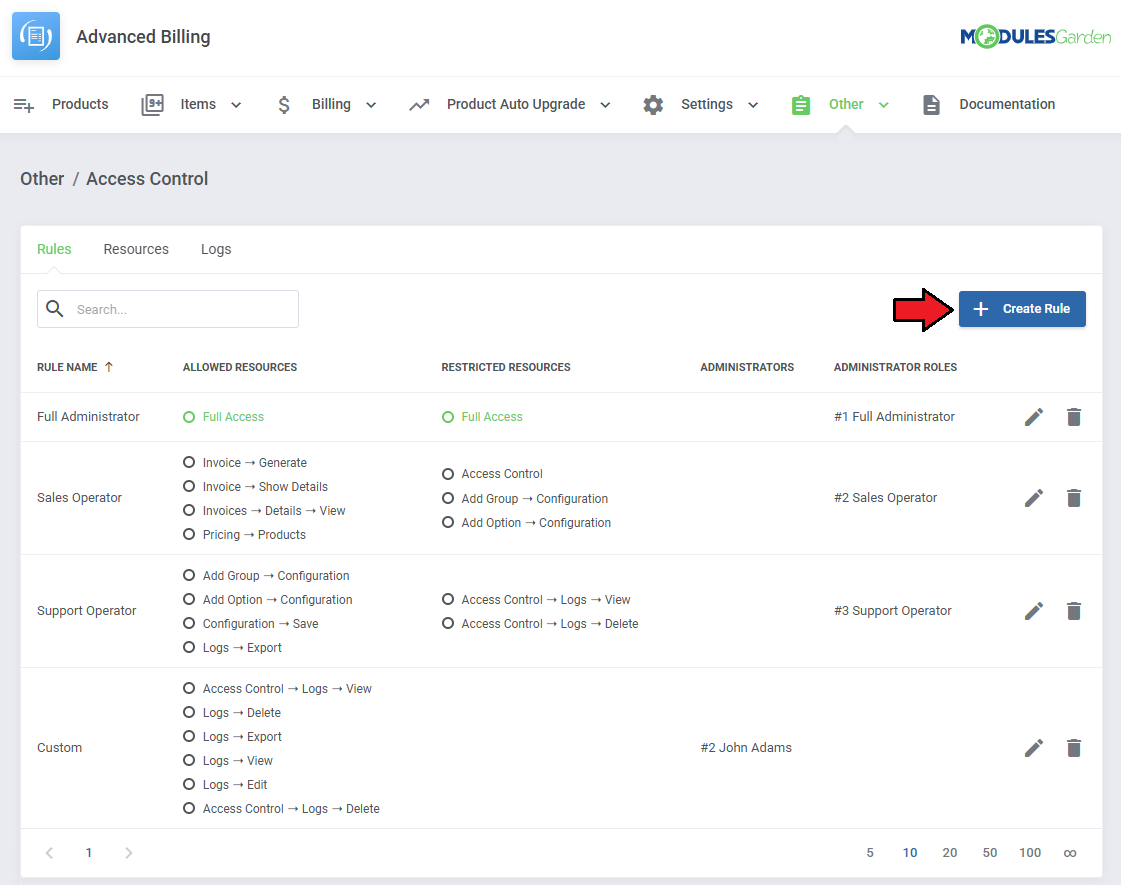
Start with creating a new rule, click on the 'Create Rule' button and a dedicated form will appear. Below you will find a description of every field required in the form.
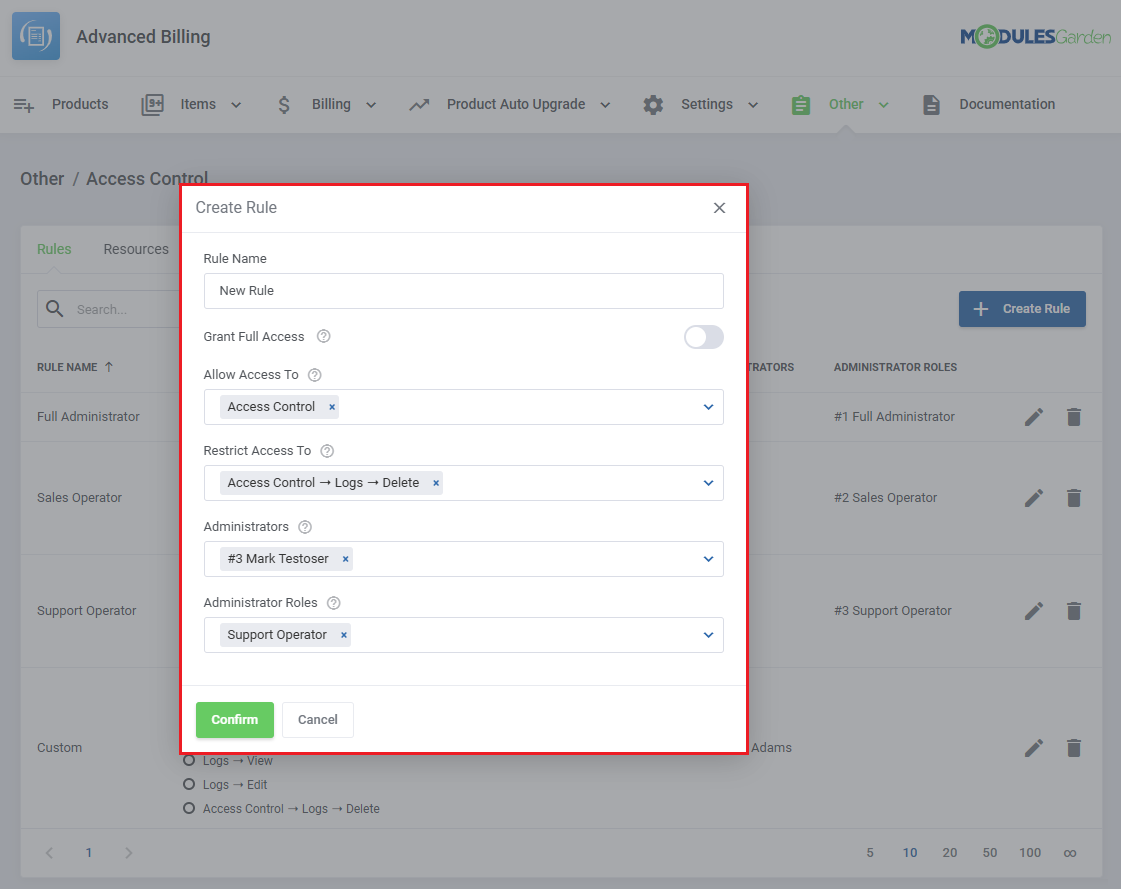
Fill out the following fields to create resources access rule:
- Rule Name - Pick a name for your rule.
- Grant Full Access - Enable to grant full access to all sections of the module to the specified personnel. Disable to specify in two additional fields below, to which resources access will be granted, and to which it will be denied.
- Allow Access To - Designate the resources that the specified personnel will have access to.
- Restrict Access To - Specify the resources that the specified personnel will not have access to.
- Administrators - Specify which singular administrators will be subject to the new rule. If the specific administrator is already included in the group you have picked, you do not need to add him separately.
Note: All restrictions for specific administrators are summed with the restrictions on their role groups, across all rules. - Administrator Roles - Specify which administrator role groups will be subject to the new rule.
Important: When picking specific sections, keep in mind that allowing a parent section will also allow all of its children.
For example by allowing 'Access Control' you allow every section of it
If you would like to give access to everything about Access Control, but the ability to delete logs, you can pick 'Access Control' in 'Allow Access To' and then 'Access Control → Logs → Delete' in 'Restrict Access To.'
Restrict takes precedence over Allow, so if a specific section is included in both, it will be restricted.
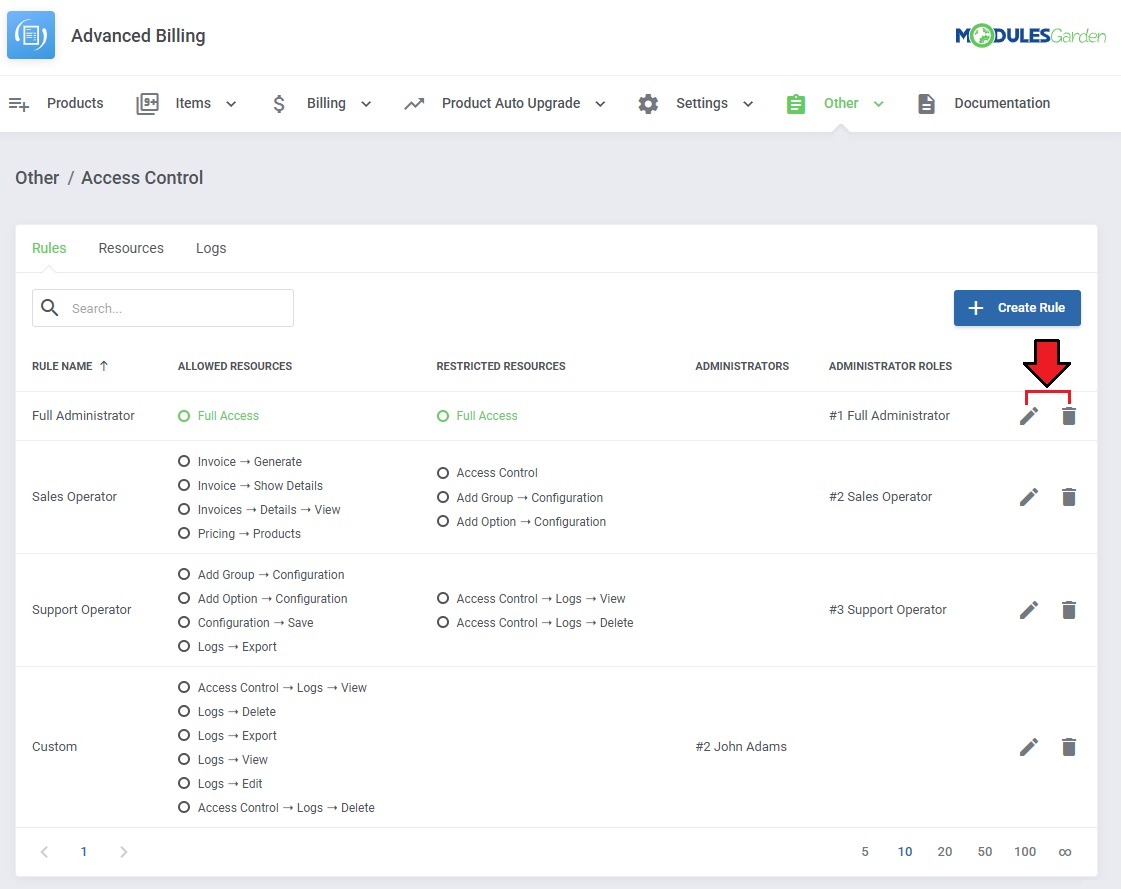
To edit or delete existing rules, use the icons to the right.
# Resources
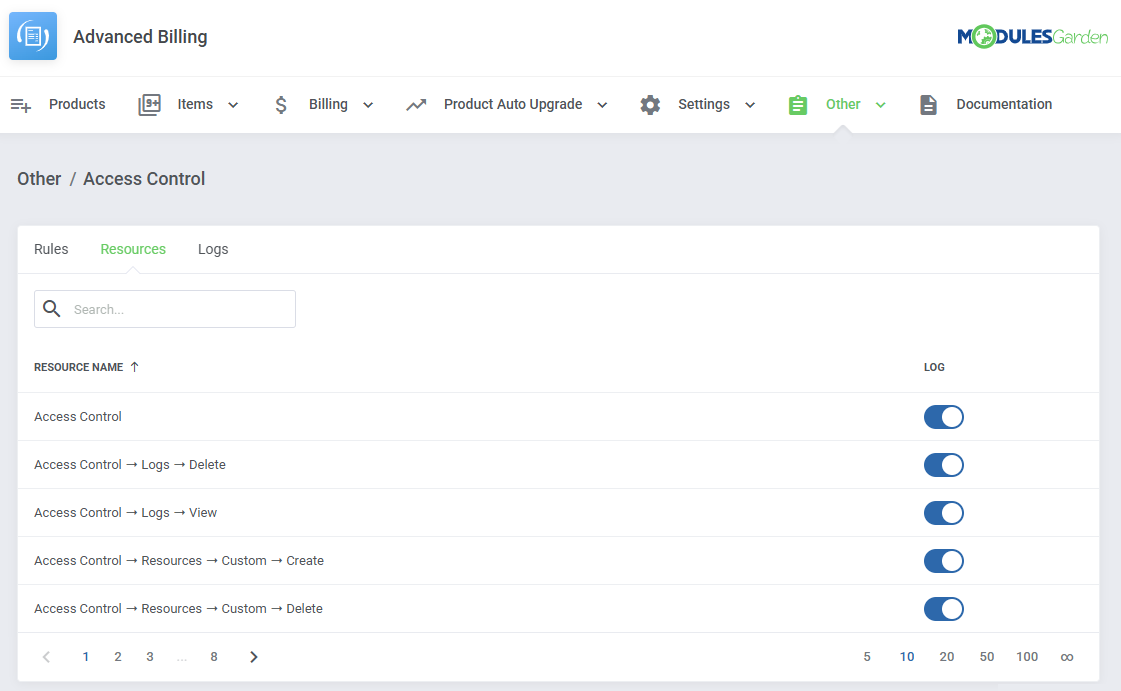
Use the toggles in the 'Resources' section to specify which of them should be subject to logging, found in the 'Logs' section.
Every time an administrator requests a toggled resource, it will be recorded.
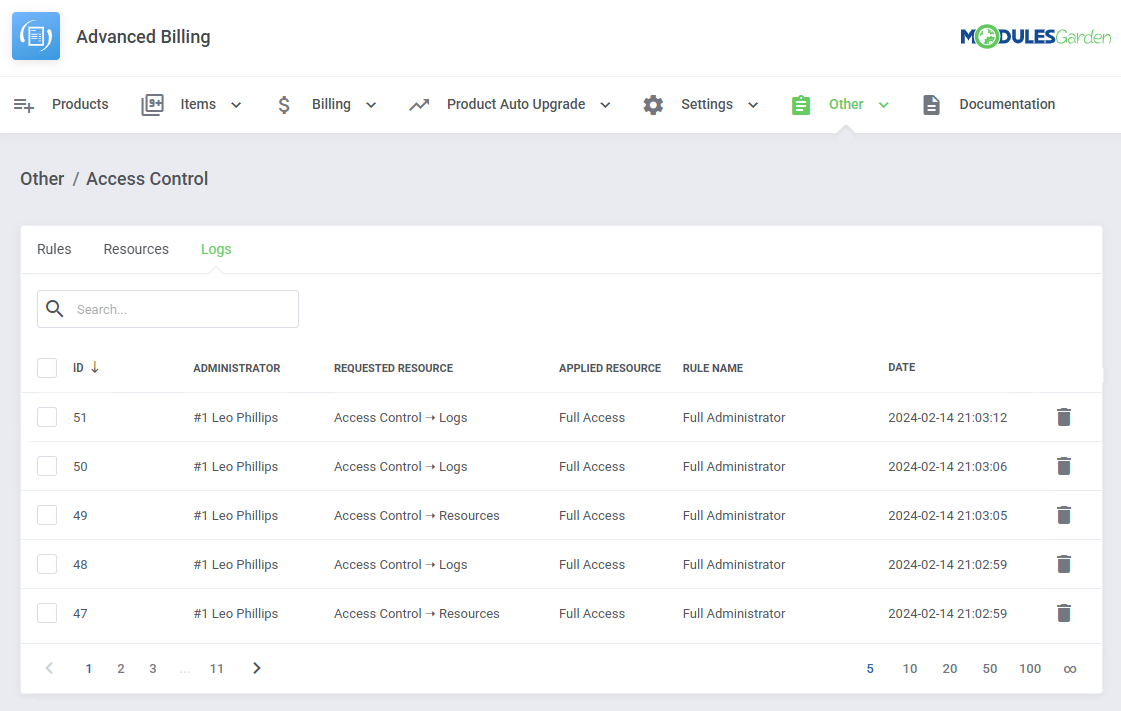
# Access Control Logs
The logs section includes:
- Log ID
- Name of the administrator
- Requested resource
- Applied Resource
- Rule Name
- Date
Use the trash bin icons to delete specific logs, or utilize the mass action function to delete multiple logs at once.
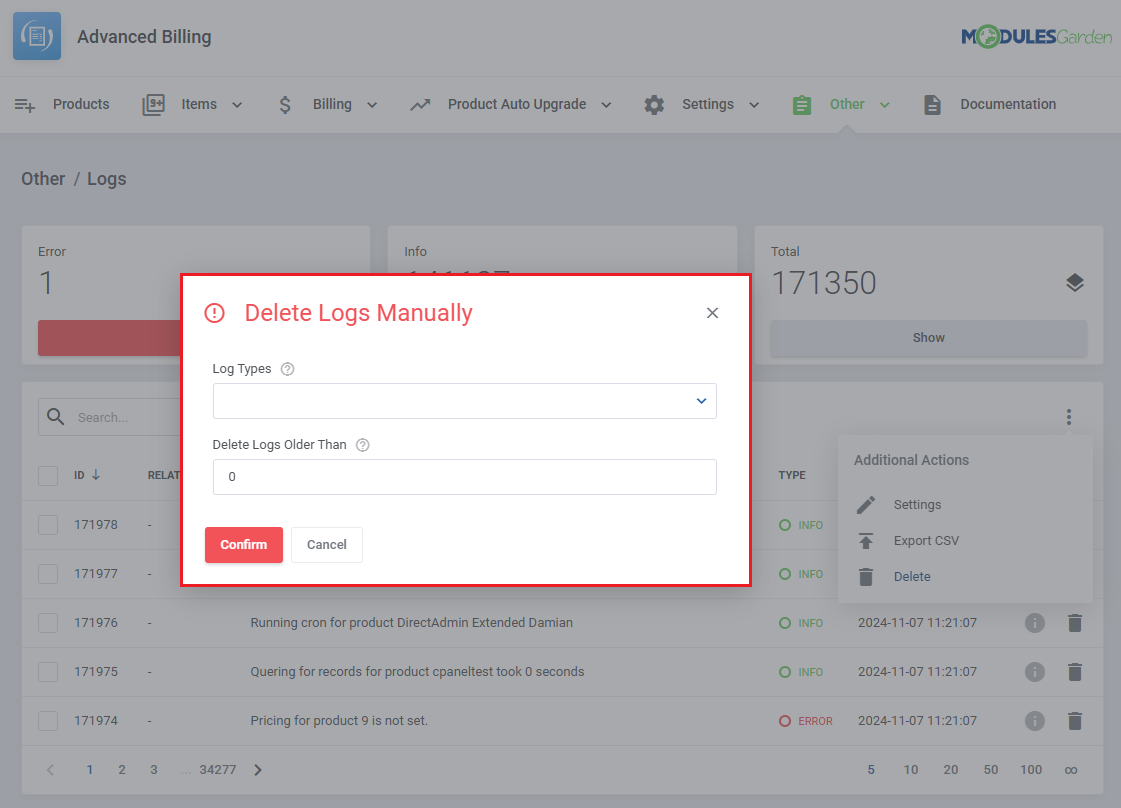
Logs
The 'Logs' section is where the module logs are stored. You can filter the module logs by type with the 'Show' buttons.
For precise details on Logs, please refer to our dedicated documentation article, which you may find here.
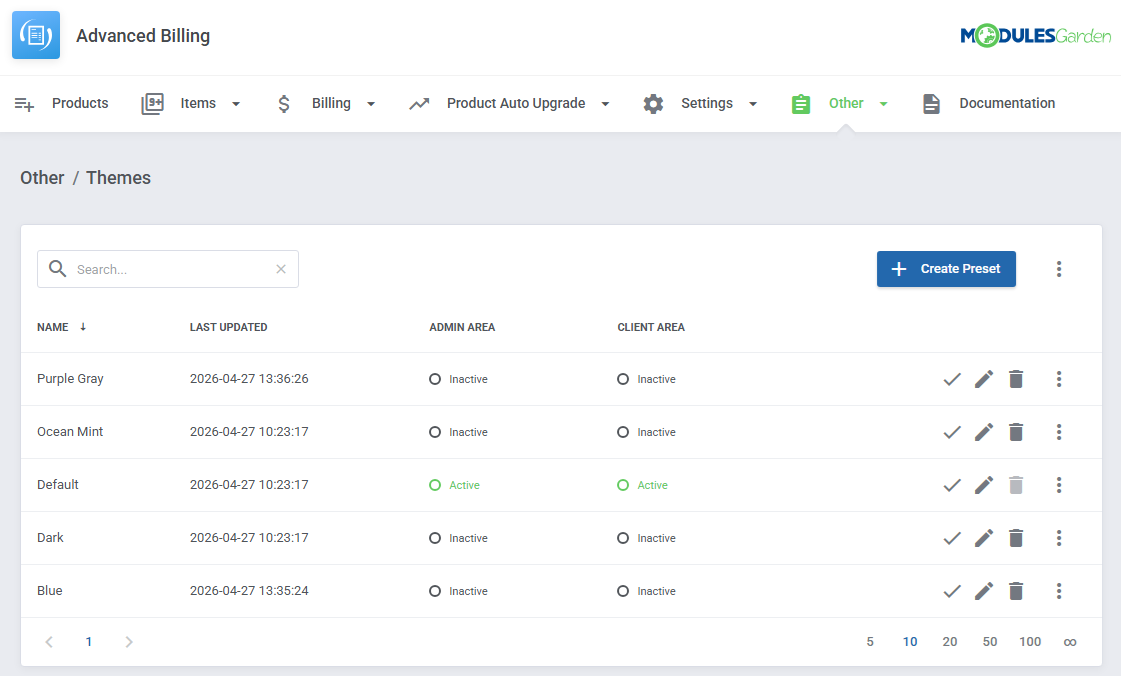
Theme Management
The Themes management tool allows you to control the appearance of module interfaces using ready-to-use presets or fully customizable settings.
It supports separate styling for admin and client areas, enabling you to tailor each environment independently.
With Basic and Expert modes available, you can quickly apply global color schemes or fine-tune individual UI elements as needed.
For full details, see the Theme management documentation page.
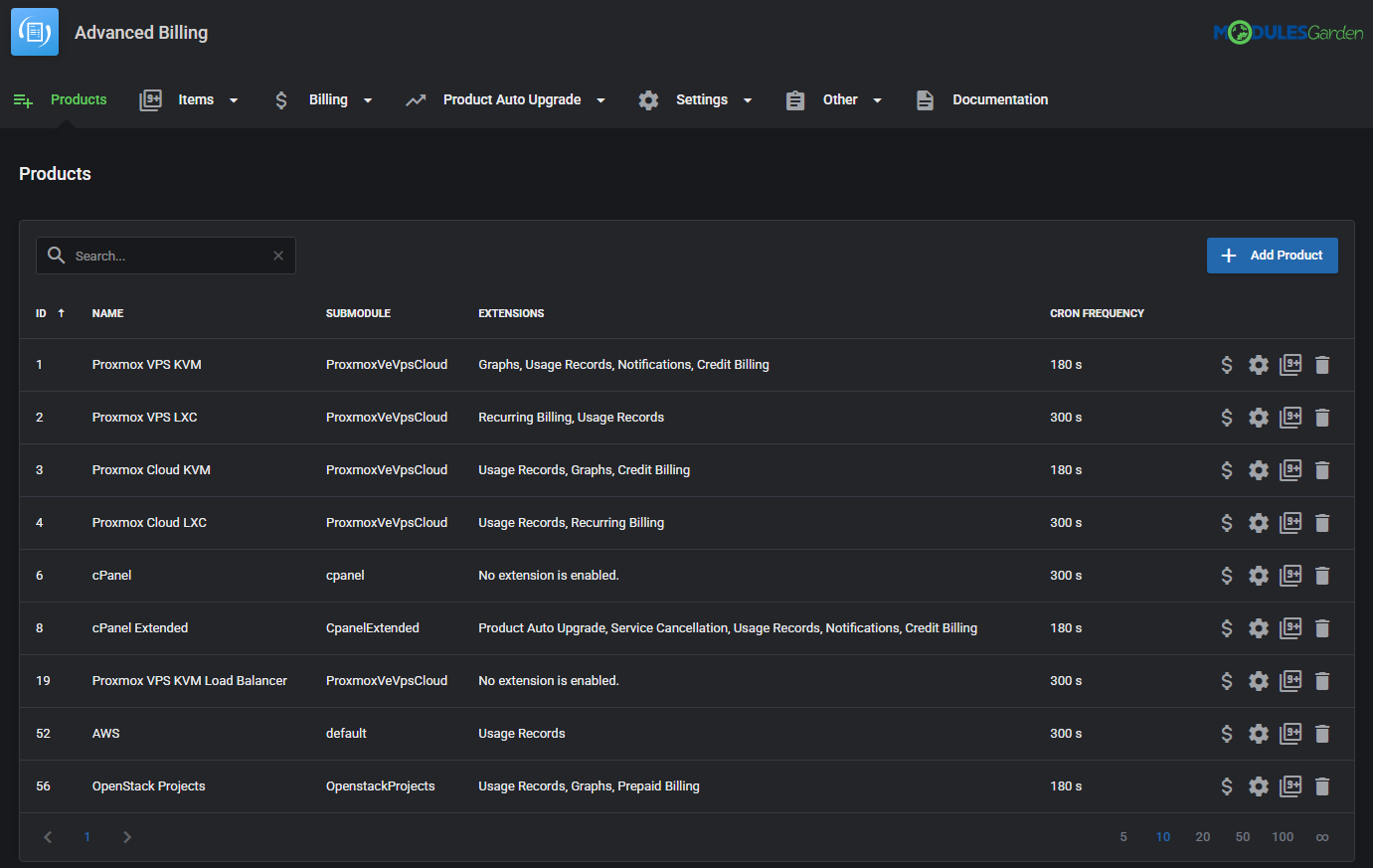
This is how your module might look after implementing custom display changes.
# OpenStack Projects Configuration
# Configuration in Files
To use this feature, the client must have OpenStack Projects For WHMCS (opens new window) version 1.11.0 or later.
Additionally, the default metric provider must be changed in the following file: modules/addons/AdvancedBilling4/app/Config/openstackprojects/metrics.yml
At the top of this file, you will find the following lines:
#metricProvider: "quotas"
metricProvider: "gnocchi"
The metricProvider variable defines which metric source Advanced Billing should use for OpenStack Projects.
Supported values:
- "gnocchi" - Standard metrics returned by Gnocchi (method used by default). Read more (opens new window)
- "quotas" - Metrics based on OpenStack project quota usage (alternative method). Read more (opens new window)
The rest of the app/Config/metrics.yml file contains detailed configuration for retrieving and calculating specific metrics.
# Example Configuration - Quotas
quotas:
   metrics:
     cores:
       resource:
         unit: "Core-Hours"
         availableUnits:
           "Core-Hours": 1
     fixed_ips:
       resource:
         availableTypes:
           "Hourly": "Hourly"
           "Highest": "Highest"
         availableUnits:
           "Qnty-Hours": 1
           "Qnty": 1
     floating_ips:
       resource:
         unit: "Qnty-Hours"
         availableTypes:
           "Hourly": "Hourly"
           "Highest": "Highest"
         availableUnits:
           "Qnty-Hours": 1
           "Qnty": 1
     injected_file_content_bytes:
       resource:
         unit: "Byte-Hours"
         availableUnits:
           Byte-Hours: 1
           KiB-Hours: 1024
           MiB-Hours: 1048576
           GiB-Hours: 1073741824
     injected_file_path_bytes:
       resource:
         unit: "Byte-Hours"
         availableUnits:
           Byte-Hours: 1
           KiB-Hours: 1024
           MiB-Hours: 1048576
           GiB-Hours: 1073741824
     ....
For any quota not defined in this file, a default configuration will be used:
friendlyName: "quota_name"
description: "Billing for quota_name"
unit: "Qnty"
availableTypes:
  Hourly: "Hourly"
availableUnits:
  Qnty: 1
  GiB-Hours: 1
  MiB-Hours: 1
  Qnty-Hours: 1
Explanation of configuration fields
- friendlyName - Display name of the metric in Advanced Billing
- description - Description shown in the billing configuration.
- unit "Qnty" - Default metric unit, must match one of the
availableUnits. - availableTypes - Available billing types defined as
Type: "Type", for example:Hourly: "Hourly":AverageHighestHourlyLastSummary
- availableUnits - Allowed units for the metric, defined as
unit: multiplierfor example:GiB-Hours: 1:
# Example Configuration - Gnocchi
providers:
 gnocchi:
   metrics:
     "memory":
       query:
         resource_type: 'instance'
         operations: "(aggregate sum (metric memory mean))"
         search: 'project_id={$project_id}'
       request:
         start: "{$start}"
         stop: "{$stop}"
         groupby: 'project_id'
         details: "False"
         needed_overlap: "0.0"
       metricUnit: 'mb'
       unit: 'gb'
     ....
Explanation of configuration fields
- "memory" - Metric name
- query - Filtering and aggregation, sent in request body. Please refer to the gnocchi documentation (opens new window) for more.
- request - Pagination and grouping, sent in request URL query string. Please refer to the gnocchi documentation (opens new window) for more.
- metricUnit - Unit in which metrics are retrieved from gnocchi. Available values: 'b', 'kb', 'mb', 'gb', 'tb', 'pb'. Leave an empty string to use the default.
- unit - Display unit to which metricUnit will be converted. Available values: 'b', 'kb', 'mb', 'gb', 'tb', 'pb'. Leave an empty string to use the default.
Replacement fields
Several replacement fields dynamically pulling values from the module can be used:
| Replacement Fields | Description |
|---|---|
| $project_id | Project ID |
| $start | Start of timeframe |
| $stop | End of timeframe |
| $volumes | Array of volumes |
| $volume.type_id | Volume type ID |
| $volume.type_name | Volume type name |
| $images | Array of images |
| $image.type | Image type name |
# Additional Configuration Files
In the modules/addons/AdvancedBilling4/app/Config/openstackprojects/ directory, apart from metrics.yml you will also find: auth.yml and quotas.json files.
- auth.yml - Defines the scope configuration used by Advanced Billing when querying OpenStack for metrics. Further explanation is available in the OpenStack Projects For WHMCS documentation.
- quotas.json - Lists the quotas whose usage will be tracked by Advanced Billing when metricProvider: "quotas" is selected. Adding or removing a quota in this file will automatically add or remove corresponding metrics in Advanced Billing.
It is strongly recommended to keep this file aligned with the quota definitions in the OpenStack Projects module. See the Quota Configuration Guide for more details.
# Configuration in Addon
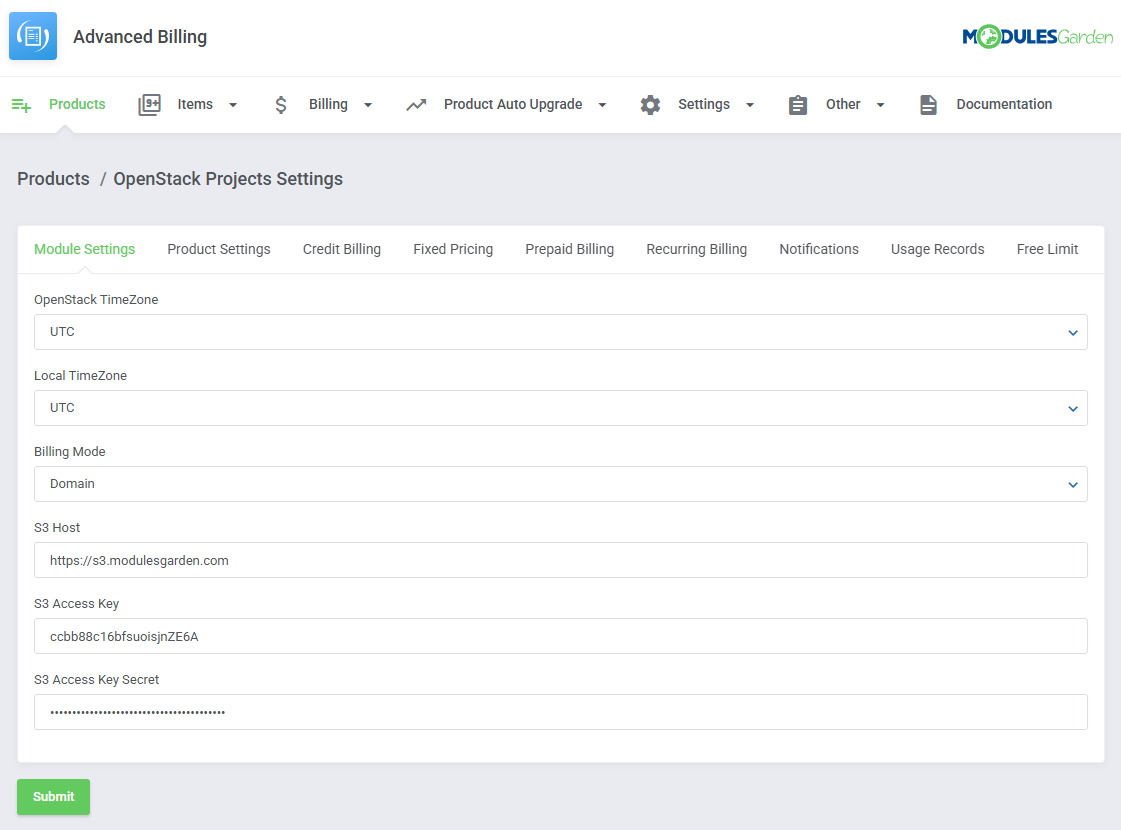
The addon interface allows for configuration of key OpenStack Projects billing parameters directly from the WHMCS admin area.
Available settings:
OpenStack TimeZone
Local TimeZone
Billing Mode - Determines whether metrics should be collected per project or for an entire domain (all projects within it):
- Project (default setting)
- Domain - If 'Domain-Only Mode' is enabled in the OpenStack Projects module, this should be set to Domain. In all other cases, the default setting Project should be used.
S3 Storage Configuration - To enable S3 Storage metric collection, the following S3 credentials must be provided:
- S3 Host
- S3 Access Key
- S3 Secret Key
The "S3 Storage" metric is available for both gnocchi and quotas providers. It only works when Billing Mode is set to Domain. If set to Project, the metric value will always be 0.
When a domain contains multiple projects, the metric is applied only to the first project in that domain.
Quotas Configuration Example:
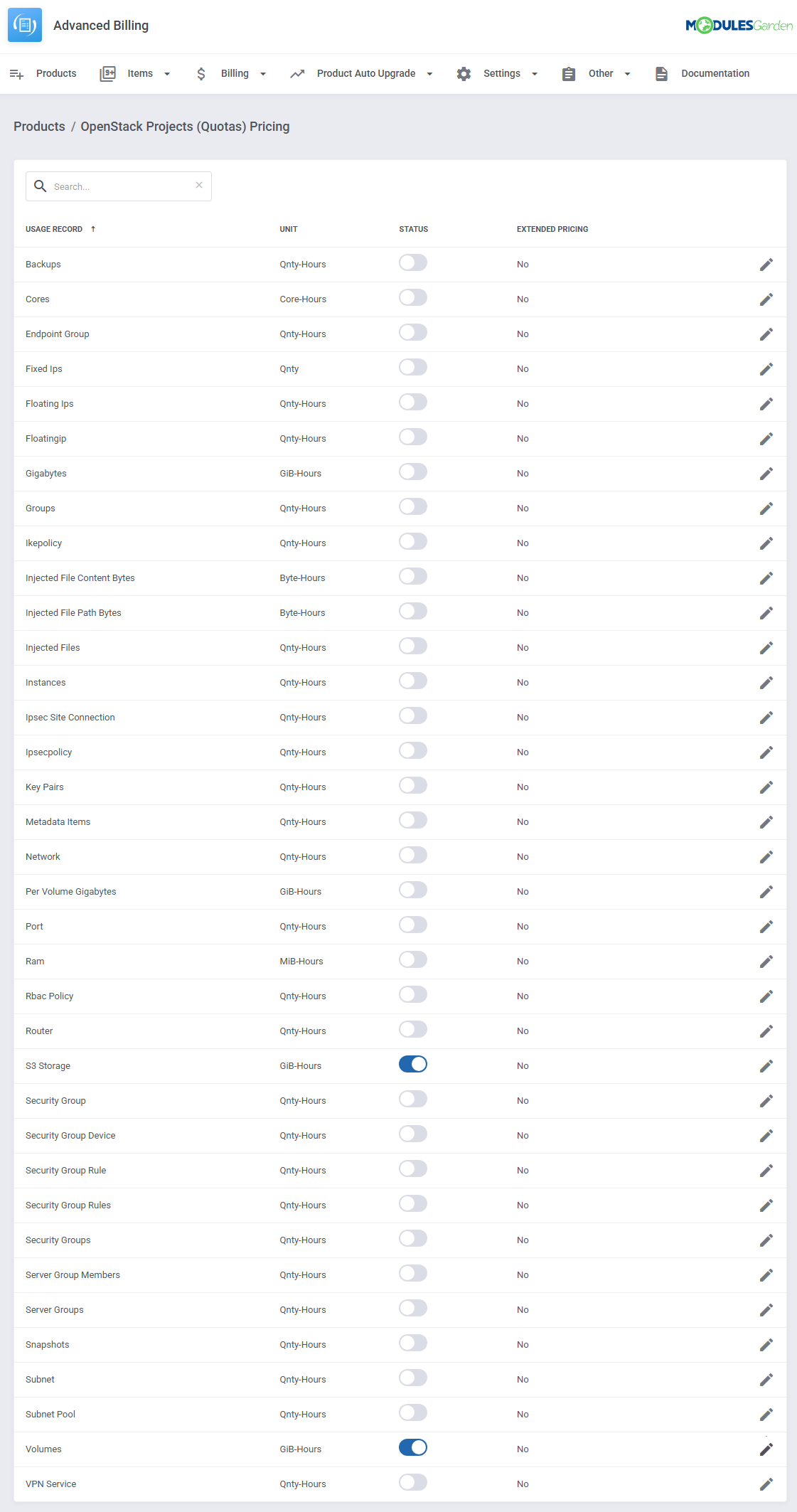
Related metrisc list:
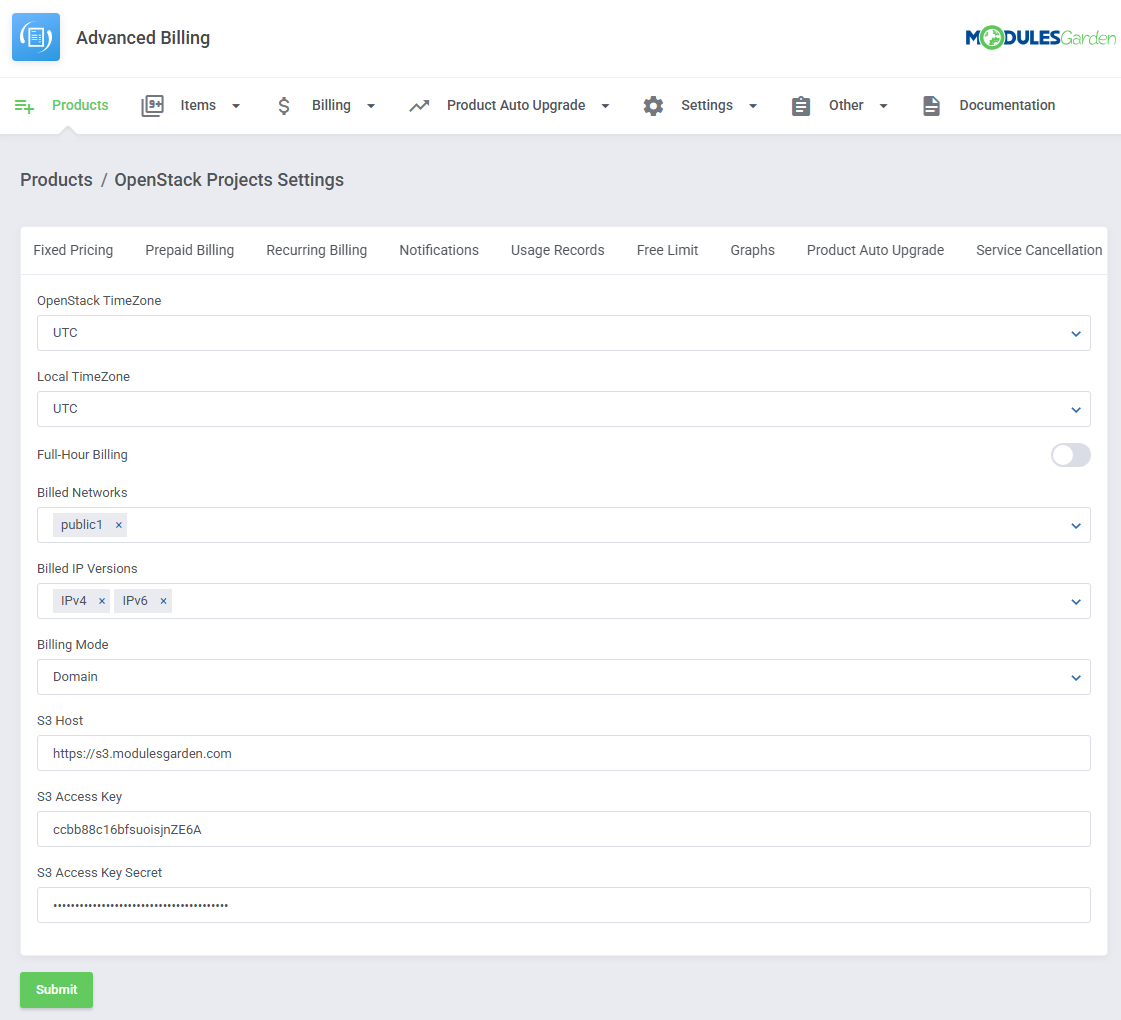
Gnocchi Configuration Example
The following options are managed directly in the Advanced Billing addon, apart from the standard ones mentioned above:
- Full-Hour Billing - When enabled, metrics are only collected using timestamps aligned to full hours.
- Billed Networks - Defines which networks should be included in the Custom Network metrics (e.g., incoming/outgoing bytes and packets).
- Billed IP Versions - Specifies which IP versions (IPv4/IPv6) should be counted in Custom IP metrics, such as Custom IPs and Custom Floating IPs.
Important: Virtual Machines are billed only when they are directly connected to a custom network marked for billing by the administrator.
If a VM is connected to the administrator's network via an intermediary router, that network will not be billed. Only networks directly assigned to the VM are considered billable.
Related metrisc prewiev:
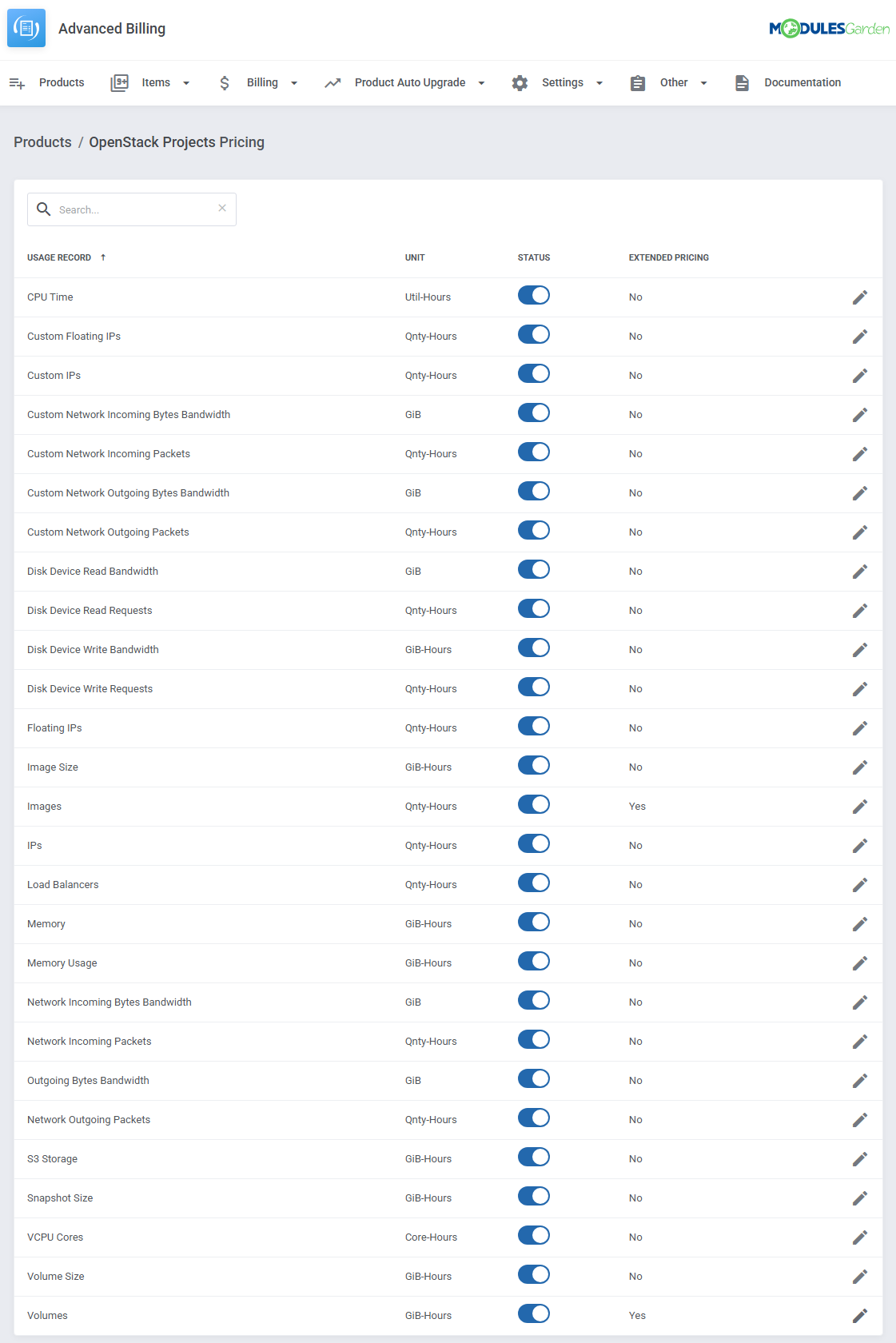
Important: Changing the metricProvider setting (in metrics.yml) will alter the available metrics shown in the interface.
The S3 Storage metric is the only one that remains consistent across both providers.
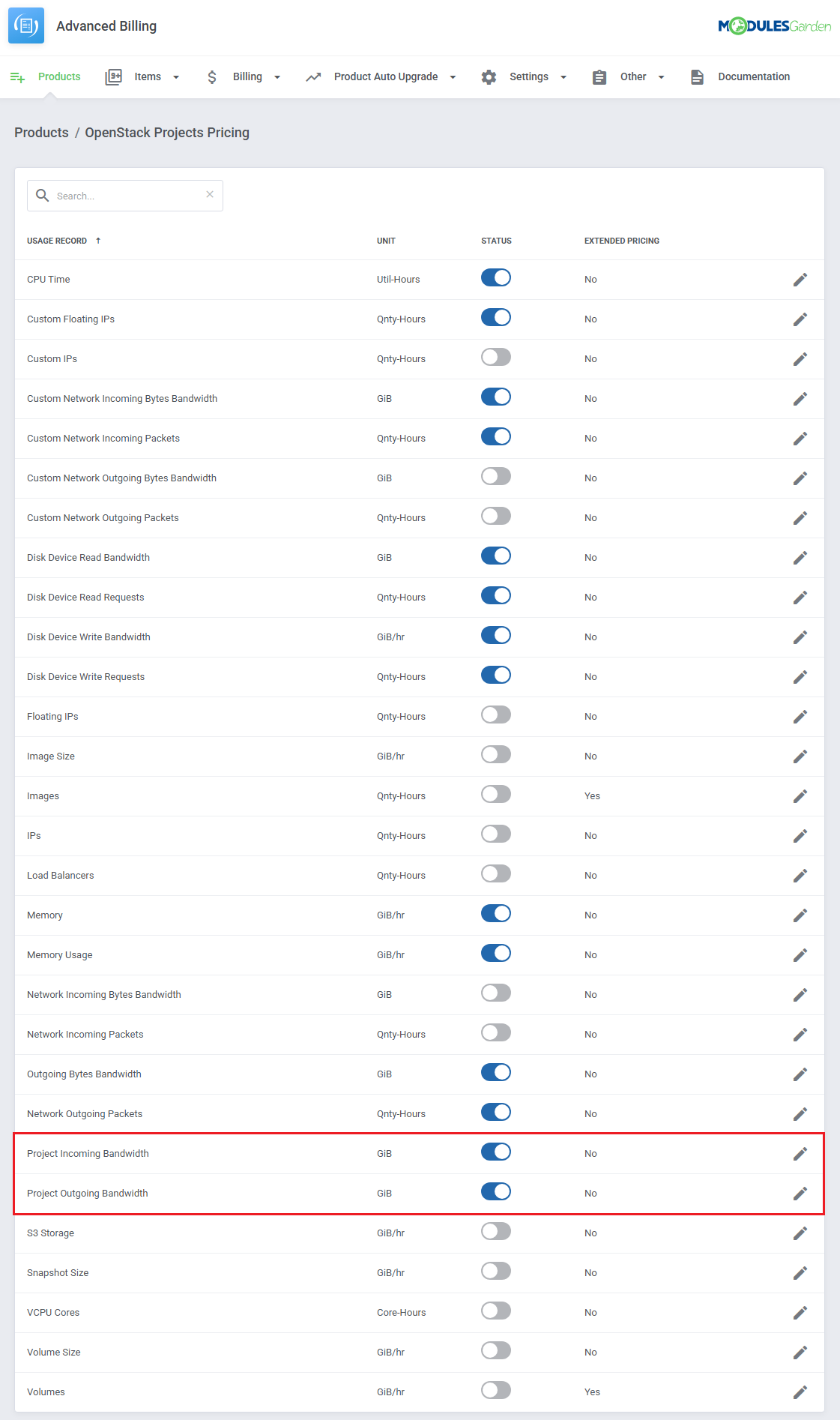
# Project Incoming / Outgoing Bandwidth
Project Incoming Bandwidth and Project Outgoing Bandwidth are billing metrics that calculate network traffic per project based on OpenStack metering labels.
The metrics use data collected from Gnocchi and aggregate bandwidth usage for each project.
To enable billing for these metrics:
- Make sure metering labels are configured in the OpenStack Projects module.
- Go to Advanced Billing → Products → Pricing.
- Enable Project Incoming Bandwidth and Project Outgoing Bandwidth for the selected product.
# RAM Quota Unit Conversion (MiB → GiB)
Starting from version 4.4.0, the default unit for RAM quotas in OpenStack Projects has been changed from MiB to GiB.
This ensures more consistent billing aligned with commonly used memory units.
During the upgrade process:
- Existing usage records are automatically converted from MiB to GiB.
- Only usage values are recalculated to match the new unit.
- Pricing values remain unchanged and should be reviewed manually after the upgrade.
- Internal multipliers are updated, while display units stored in the database remain unchanged.
# Update Instructions For OpenStack Projects Integration
The conversion is performed automatically during the upgrade to version 4.4.0.
If needed, the upgrade can be executed manually:
php -q /home/your_path/modules/addons/AdvancedBilling4/cron/cron.php module:upgrade run 4.4.0
Important
- Run the upgrade only once.
- Do not combine automatic and manual execution, as this may lead to double conversion.
After the upgrade:
- Verify that RAM usage is calculated in GiB.
- Adjust RAM pricing if required (price per GiB).
Important Notes
- Remember to make a backup copy of your WHMCS first in case any unexpected issues occur during the conversion.
- The conversion applies only to the quotas metric provider (skipped for gnocchi).
- Usage is recalculated automatically; pricing is not modified.
- It is recommended to disable the Advanced Billing cron during the upgrade to avoid mixed-unit records.
- New records will be stored in GiB after the migration.
# Reverting Conversion
To revert the conversion, update metrics.yml and then rerun the upgrade process.
conversions:
  metricUnit: "mb"
  toUnit: "gb"
Change to:
conversions:
  metricUnit: "gb"
  toUnit: "mb"
# Proxmox VE VPS & Cloud For WHMCS – Extended Pricing
The Proxmox VE VPS & Cloud For WHMCS integration supports extended pricing based on virtual machine state and additional resource usage.
This allows defining different pricing depending on VM status, selected resources, and service configuration.
Extended pricing can be configured per resource and applied dynamically during usage calculation.
# Billing Based on VM State
Selected resources support pricing depending on the current VM state.
Supported VM states:
- running
- stopped
- paused
- prelaunch
- error
Each state can have a separate pricing value defined in the Extended Pricing configuration.
# Supported Resources
The following resources are available for Proxmox extended billing:
- Hourly
- Memory
- CPU Number
- Storage Size
- Backups Number
- Used Template
- Template vCPU Matrix
- Public IPs
- Private IPs
Resource Configuration Details:
Hourly / Memory / CPU Number
Billing is calculated based on VM state.
Each state (e.g. running, stopped) can have different pricing values assigned.
Backups Number
Billing is based on the number of backups assigned to the VM.
Unit: Qnty/hr
Snapshots Size
Billing is based on the size of snapshots, if this data is available from the Proxmox API.
Note: Snapshot size billing depends on API availability and may not be supported in all environments.
Storage Size
Billing is based on disk size and storage type (e.g. local, SSD, NVMe).
Unit: GiB/hr
Used Template
Billing is based on the template used to create the VM.
Templates are retrieved from the App Center configuration.
If the template cannot be identified, default pricing is applied.
Template vCPU Matrix
Billing is based on template usage multiplied by the number of vCPU cores.
Example calculation:
Number of vCPUs × template price
Public IPs / Private IPs
Billing is based on the number of assigned IP addresses.
IP classification depends on the product network configuration:
- Public IPs - based on selected public bridges
- Private IPs - based on private networks and SDN configuration
Note: This is separate from VLAN-based billing, where networks themselves can be billed independently of IP count.
VLAN Billing
VLANs
Billing is based on entries from the ProxmoxVeVpsCloud_VirtualNetwork table.
Each VLAN (virtual network) is treated as a separate billable item.
- In Cloud mode, usage is calculated per service, but assigned only to the first related item (
relid), while the remaining items receive 0 usage. - In VPS mode, the full VLAN usage is applied directly to the single service instance.
Note: In VPS mode, configurable options (if defined) may additionally affect the final usage value.
VM VLANs
Billing is based on VM network interfaces stored in the ProxmoxVeVpsCloud_VirtualInterface table.
Usage is calculated per virtual machine (vm_id) based on the number of unique VLANs the VM is connected to.
This means:
- If a VM is connected to multiple interfaces within the same VLAN, it is counted as one VLAN
- Only distinct VLANs are considered, not the number of interfaces
Note: This allows billing either per VLAN (service-level) or based on VM participation in distinct VLAN networks.
Important Notes:
- Extended pricing must be configured individually for each resource, as it is not applied globally across all metrics.
- Some resources support pricing based on the VM state, allowing different rates depending on whether the machine is running, stopped, or in another state.
- Usage is calculated proportionally based on the cron execution frequency, which means billing reflects the actual time a resource was used.
- Please note that certain metrics, such as snapshot size, may not always be available due to limitations of the Proxmox API.
- For IP-based billing, proper network bridge configuration is required to ensure addresses are correctly recognized as public or private.
# Supported Resources Per Module
This section lists all resources grouped by integrated module. Each table includes the unit and available calculation types.
# cPanel & cPanel Extended
| Resource | Unit | Calculation Type |
|---|---|---|
| Bandwidth | MB | Summary |
| Storage | GB/hr | Hourly, Highest |
| Databases | Qnty/hr | Hourly |
| Addon Domains | Qnty/hr | Hourly |
| Subdomains | Qnty/hr | Hourly |
| Parked Domains | Qnty/hr | Hourly |
| Email Accounts | Qnty/hr | Hourly |
| Installed Applications | Qnty/hr | Hourly |
| FTP Accounts | Qnty/hr | Hourly |
| Email Forwarders | Qnty/hr | Hourly |
| Domain Forwarders | Qnty/hr | Hourly |
| Hourly | H | Summary |
# Proxmox VE VPS & Cloud For WHMCS
| Resource | Unit | Calculation Type |
|---|---|---|
| Backups Number | Qnty/hr | Hourly |
| Backups Usage | MB/hr | Hourly |
| Bandwidth IN | MB | Summary |
| Bandwidth OUT | MB | Summary |
| Bandwidth TOTAL | MB | Summary |
| CPU Cores Usage | Qnty/hr | Hourly |
| CPU Number | Qnty/hr | Hourly |
| CPU Usage | Qnty/hr | Hourly |
| Disk Size | MB/hr | Hourly |
| Disk Usage | MB/hr | Hourly |
| Hourly | H | Summary |
| IPv4 | Qnty/hr | Hourly |
| IPv6 | Qnty/hr | Hourly |
| Memory Size | MB/hr | Hourly |
| Memory Usage | MB/hr | Hourly |
| Private IPs | Qnty/hr | Hourly |
| Public IPs | Qnty/hr | Hourly |
| Snapshots | Qnty/hr | Hourly |
| Storage Size | GB/hr | Hourly |
| Template | Qnty/hr | Hourly |
| Template vCPU Matrix | Qnty/hr | Hourly |
| VLANs | Qnty | Avarage / Highest |
| VM VLANs | Qnty | Avarage / Highest |
# Plesk & Plesk Extended
| Resource | Unit | Calculation Type |
|---|---|---|
| Subdomains | Qnty/hr | Hourly |
| Disk Space | MB/hr | Hourly |
| Email Boxes | Qnty/hr | Hourly |
| Redirects | Qnty/hr | Hourly |
| Mail Groups | Qnty/hr | Hourly |
| Autoresponders | Qnty/hr | Hourly |
| Mailing Lists | Qnty/hr | Hourly |
| Users | Qnty/hr | Hourly |
| Databases | Qnty/hr | Hourly |
| Web Applications | Qnty/hr | Hourly |
| Traffic | MB | Summary |
| Domains | Qnty/hr | Hourly |
| Hourly | H | Hourly |
# DirectAdmin & DirectAdmin Extended
| Resource | Unit | Calculation Type |
|---|---|---|
| Bandwidth | MB | Summary |
| Storage | MB/hr | Hourly |
| Virtual Domains | Qnty/hr | Hourly |
| Subdomains | Qnty/hr | Hourly |
| Domain Pointers | Qnty/hr | Hourly |
| FTP Accounts | Qnty/hr | Hourly |
| MySQL Databases | Qnty/hr | Hourly |
| Email Forwarders | Qnty/hr | Hourly |
| Mailing Lists | Qnty/hr | Hourly |
| Email Autoresponders | Qnty/hr | Hourly |
| POP Accounts | Qnty/hr | Hourly |
| Hourly | H | Summary |
# Default
| Resource | Unit | Calculation Type |
|---|---|---|
| Hourly | H | Summary |
# Zimbra Email
| Resource | Unit | Calculation Type |
|---|---|---|
| Hourly | H | Summary |
| Mailboxes | Qnty/hr | Hourly |
| Email Aliases | Qnty/hr | Hourly |
| Domain Aliases | Qnty/hr | Hourly |
| Storage | MB/hr | Hourly |
# SolusVM 2 VPS & Cloud
| Resource | Unit | Calculation Type |
|---|---|---|
| vCPU | Qnty/hr | Hourly |
| Disk | GiB/hr | Hourly |
| Memory | MB/hr | Hourly |
| IPv4 | Qnty/hr | Hourly |
| IPv6 | Qnty/hr | Hourly |
| Backups | Qnty/hr | Hourly |
| Backups Size | GB/hr | Hourly |
# SolusVM Extended VPS
| Resource | Unit | Calculation Type |
|---|---|---|
| Hourly | H | Summary |
| Available Disk Size | MB/hr | Hourly |
| Disk Usage | MB/hr | Hourly |
| Bandwidth Total | MB | Hourly |
| Bandwidth | MB | Summary |
| Available Memory | MB/hr | Hourly |
| Memory Usage | MB/hr | Hourly |
| CPU Count | Qnty/hr | Hourly |
| IPv4 | Qnty | Hourly |
| IPv6 | Qnty | Hourly |
| Swap Burst | MB/hr | Hourly |
# Calculation Types
| Type | Description |
|---|---|
| Summary | Calculates total usage over the billing period |
| Hourly | Calculates usage per hour |
| Highest | Uses the highest recorded value |
| Last | Uses the last recorded value |
# Unit Abbreviations
| Unit | Meaning |
|---|---|
| MB | Megabytes |
| GB | Gigabytes |
| MiB | Mebibytes |
| GiB | Gibibytes |
| Qnty | Quantity |
| H | Hours |
| MHz | Megahertz |
| Mbps | Megabits per second |
| IP | IP Address |
| Requests | Request count |
# Use Cases
This section provides sample scenarios that demonstrate common use cases, showing how the module’s features can be applied in real-world situations.
Explore the examples below for practical insights into how the module works.
# Flexible Cloud Services with Prepaid Billing and Cost Control
With Advanced Billing For WHMCS, you can deliver a cloud-like experience that gives clients full control over resource selection, deployment, and billing preferences.
Clients can top up their account balance and then deploy and manage virtual machines on demand, eliminating the need for separate orders.
You benefit from full cost transparency, a secure prepaid system, and automated billing, while your clients enjoy fast provisioning and real-time insights into their usage and expenses.
# Key Benefits
- Client autonomy - Clients pay once, top up their accounts, and deploy services anytime, without additional steps for approval.
- Real-time cost overview - Clients can monitor daily costs, projected expenses, and pricing per resource (CPU, RAM, bandwidth).
- Secure prepaid billing - Services activate only after funds are deposited, eliminating unpaid usage risks.
- Self-service top-ups - Clients add credit anytime from the WHMCS client area.
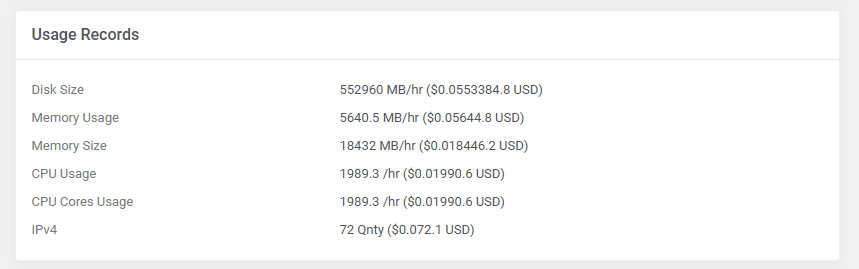
- Usage analytics - Clients gain access to detailed, near real-time tracking of individual resource usage.
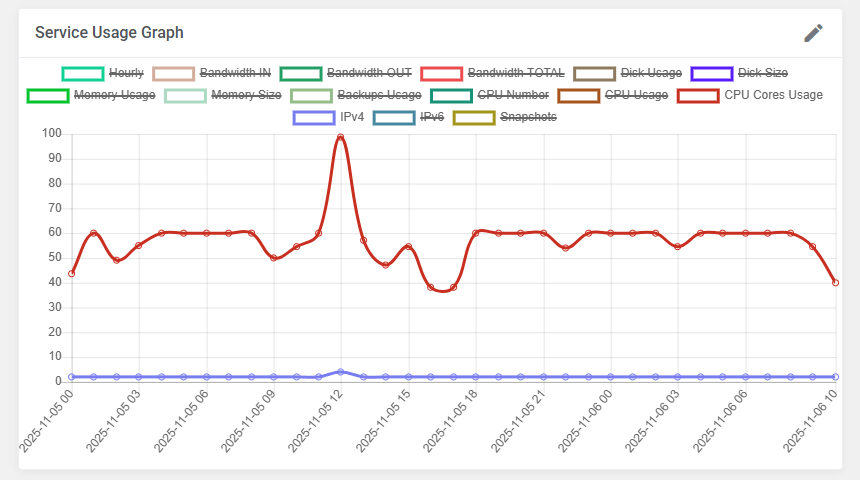
- Visual insights - Clients can view usage patterns through clear, intuitive graphical representations.
Billing options available in the module
- Prepaid Billing - Deducts charges from the client's prepaid credit balance, consolidating multiple charges into a single summary invoice, making it ideal for dynamic cloud environments.
- Credit Billing - Deducts costs from a client's available credit instead of using standard payment methods.
- Recurring Billing - Automatically charges clients at set intervals for their services.
- Fixed Pricing - Bills a fixed amount after a defined number of usage hours. Suitable for predefined pricing plans.
# Recommended Integrations
For cloud deployments, we recommend starting with:
For enterprise-level solutions, you may use:
- OpenStack Projects For WHMCS (opens new window) - fully compatible with Virtuozzo Hybrid Infrastructure.
# Configuration steps
Install and configure your provisioning module. In this example, we use OpenStack Projects For WHMCS module.
Follow the installation guide to prepare the product for Advanced Billing integration.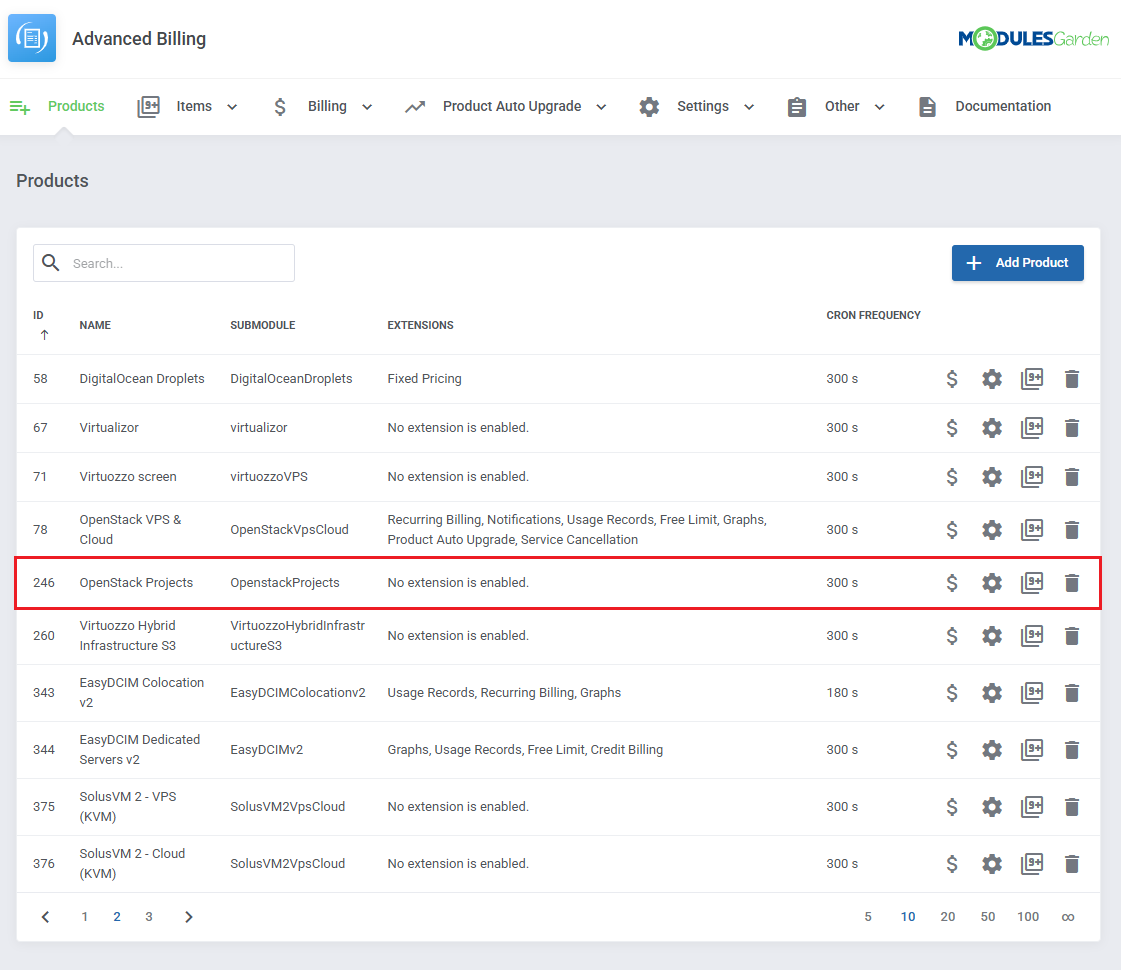
Define pricing for each usage record.
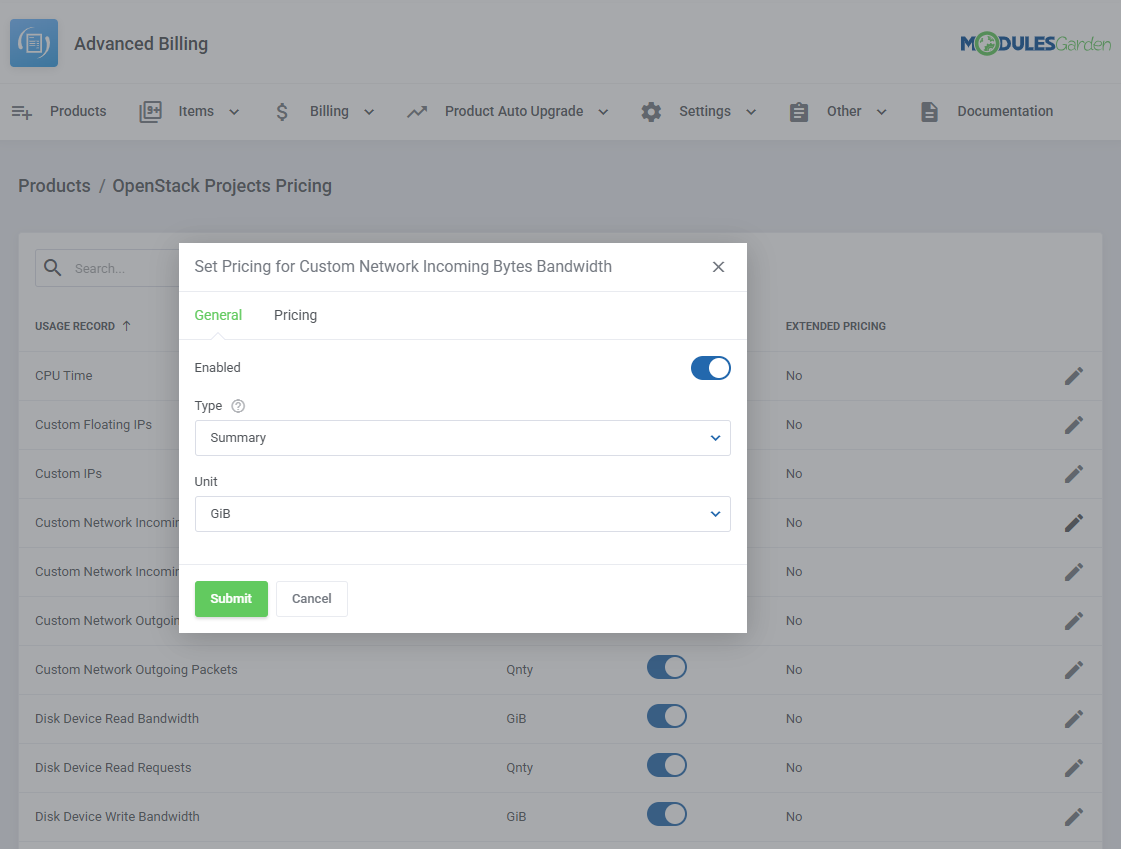
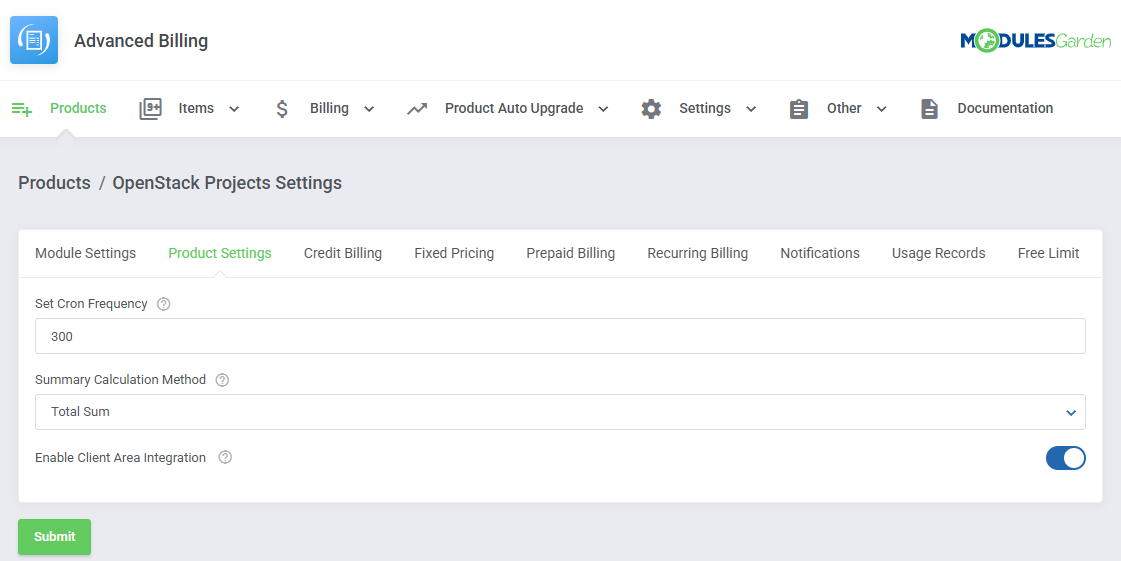
- Move to Product Settings of the OpenStack Projects product and adjust the following:
- Cron Frequency - Set how often the cron should run (in seconds).
- Summary Calculation Method - Choose between:
- Total Sum
- Total Average (Hourly only)
- Client Area Integration - Enable to allow features like usage overviews and resource summaries to appear in the client area.
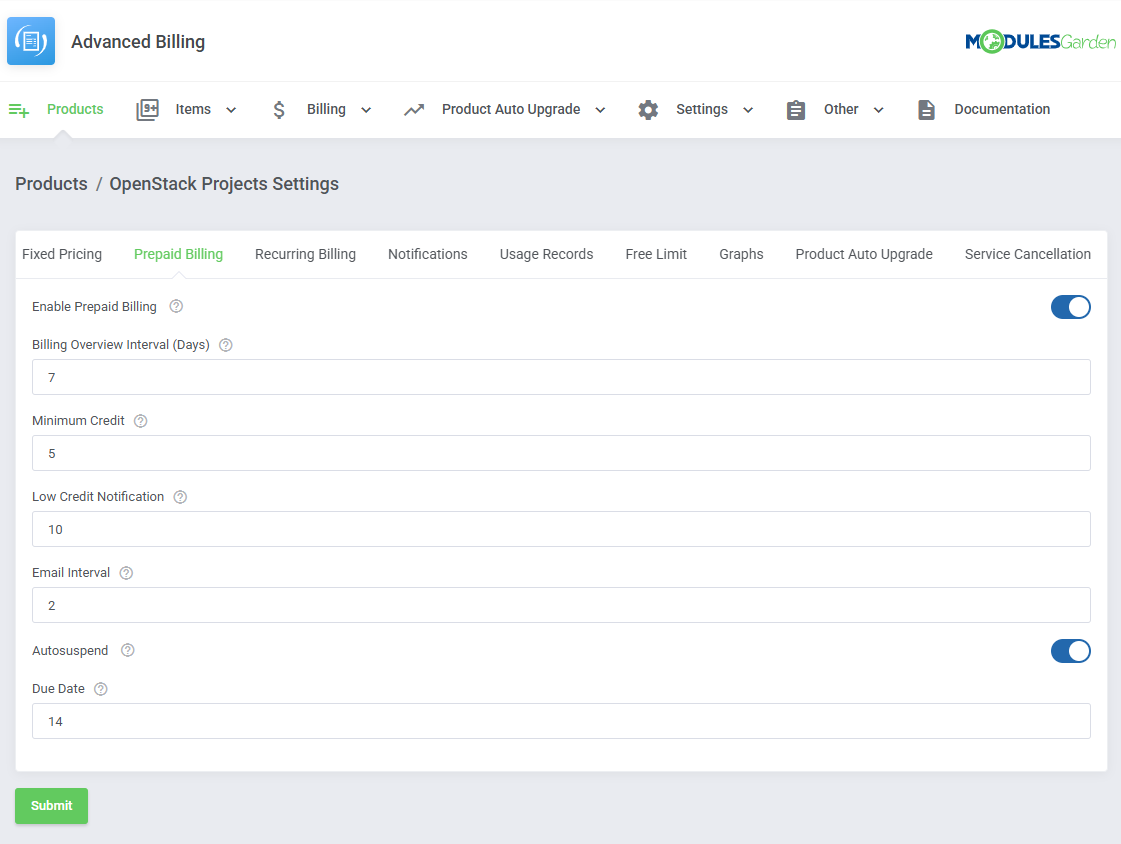
Enable and configure Prepaid Billing for the product and fine-tune the billing behaviour:
- Billing Overview Interval (Days) - Frequency for generating billing summaries.
- Minimum Credit - Minimum charge amount per deduction cycle.
- Low Credit Notification - Credit threshold that triggers a low balance warning.
- Email Interval - Time (in days) between low balance reminder emails.
- Autosuspend - Automatically suspend service if the client has insufficient funds.
- Due Date - Days between invoice creation and due date (used if invoice generation is active).
- Top-up on New Orders - If enabled, adds credits only when a new service is purchased. Can be combined with “Top-up on Recurring Payments” if both are enabled.
- Top-up on Recurring Payments - If enabled, adds credits only for recurring service payments. Can be combined with “Top-up on New Orders” if both are enabled.
- Block Creation Without Sufficient Credit - Prevent automatic service provisioning if the client’s credit balance is below the defined minimum at the time of ordering.
Once the balance is topped up, the service will be created automatically if still in a pending state.- Restrict Access Without Sufficient Credit - When enabled, client access to service features will be restricted if their credit balance falls below the required minimum.
Essential actions like topping up the account remain accessible. - Minimum Credit Threshold - Defines the minimum credit balance required to allow service creation and continued access.
The balance can be validated using either the module’s internal credit system or WHMCS credits.
- Restrict Access Without Sufficient Credit - When enabled, client access to service features will be restricted if their credit balance falls below the required minimum.
Activate optional extensions for advanced usage visibility. We recommend activating:
- Usage Records – for precise, near real-time tracking of resource consumption.
- Graphs – for graphical visualization of usage trends in the client area.
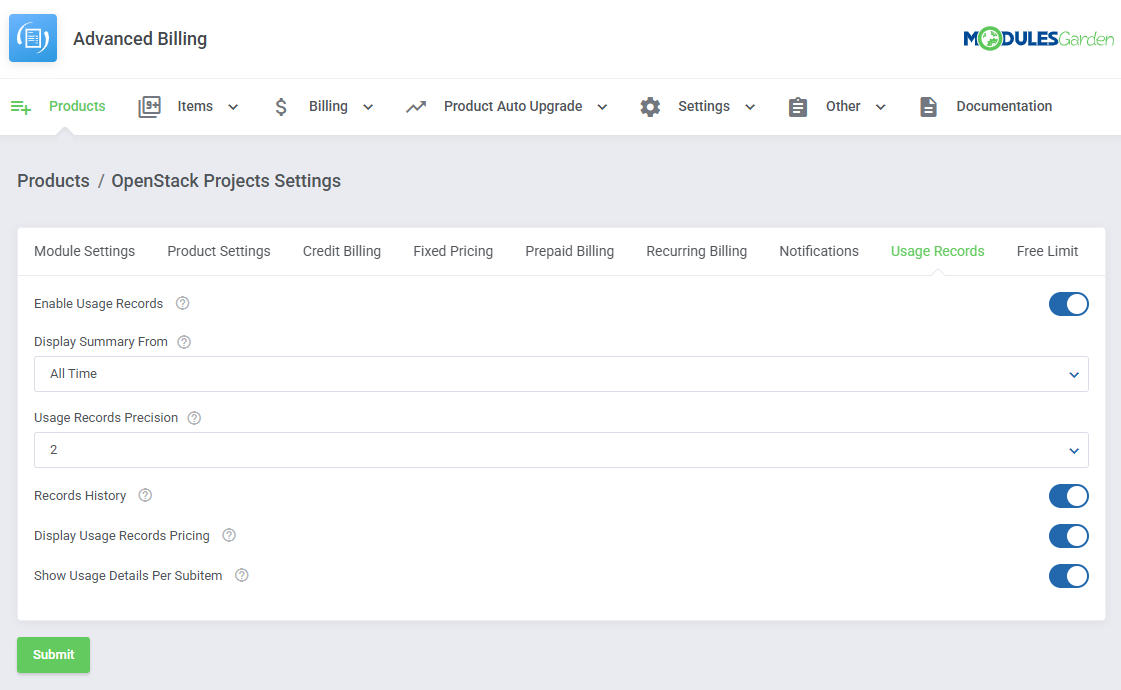
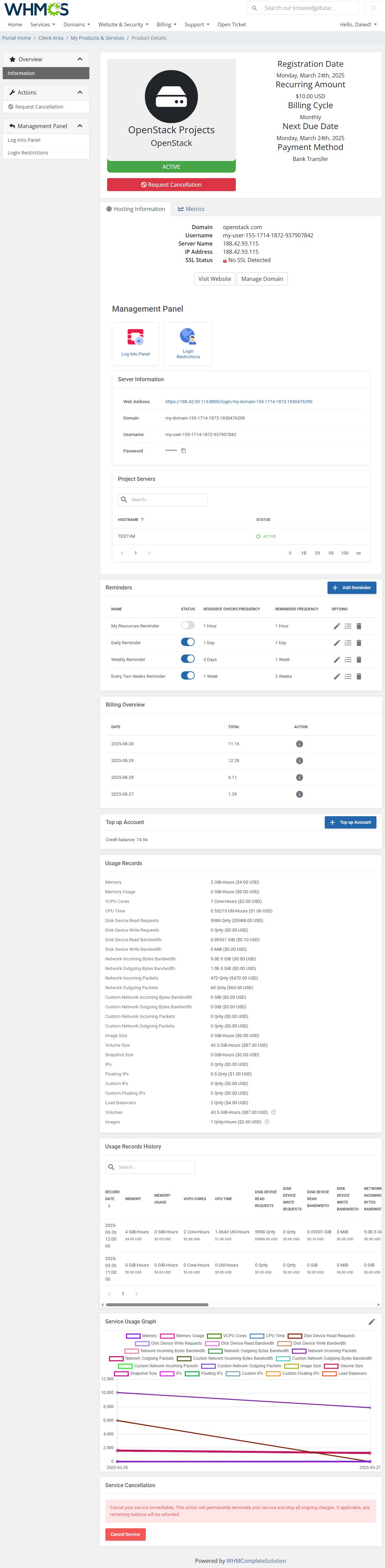
- That is all. Your configuration is complete. From this point on, Advanced Billing For WHMCS will handle cost tracking and charging automatically.
Your clients can now top up their balance, deploy services, monitor usage, and manage everything directly from the WHMCS client area.
# Credit Top-Up via Configurable Options (CO)
This use case allows clients to define how much credit they want to add to a service during order placement.
The amount is selected using a configurable option (CO) and transferred to the service balance after payment.
How it works
A configurable option of type Quantity (e.g. "Top-up Amount") is added to the product.
Each unit represents a defined value, typically set in the Setup Fee field.
During checkout:
- The client selects the desired quantity
- The total invoice is generated
- The full paid amount is added to the service balance as credits
Example:
If 30 units are selected with a value of 1 EUR per unit, the client pays 30 EUR, which is then added to the service balance.
Note: If the product itself has a price, this amount is also included in the credited balance.
Configuration steps
- Set your product pricing type to One Time or Recurring in WHMCS settings
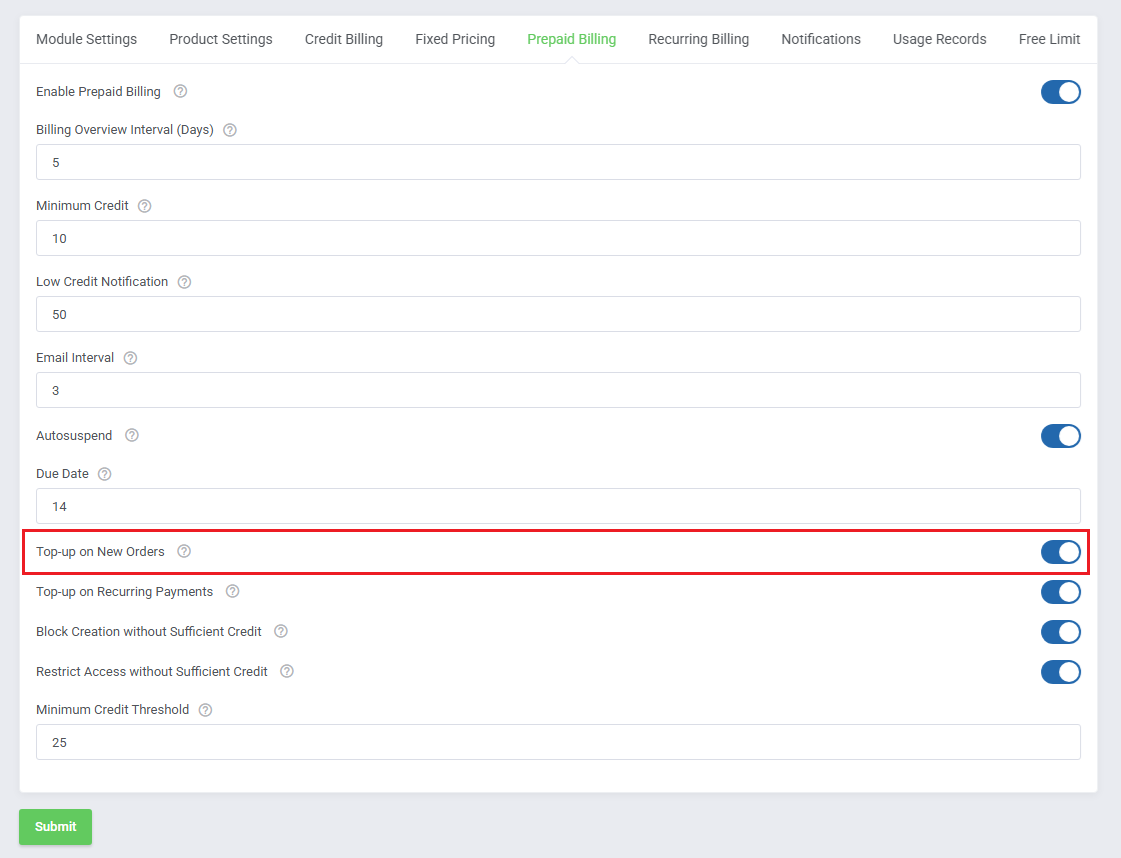
- Enable Prepaid Billing and Top-up on New Order option in the Advanced Billing addon for this product (required for credit top-up)
Create a configurable option (type: Quantity) for the product in WHMCS
- Define values in the Setup Fee field (credit per unit)
- Assign the configurable option group to the product
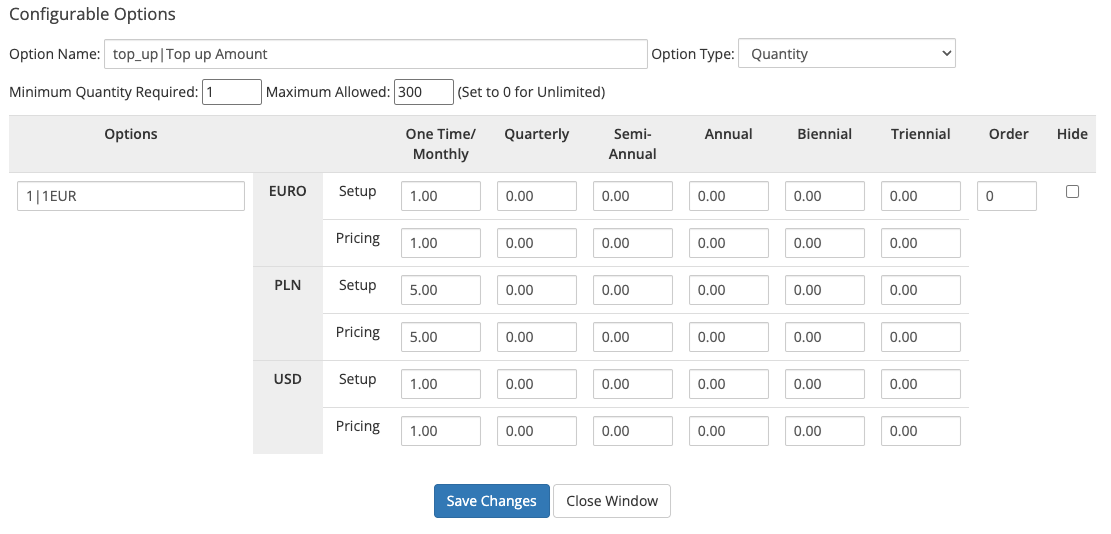
The entire invoice amount is transferred to the service balance. This includes:
- Configurable option values (Setup and Pricing)
- Product price (if defined)
Note: If both Setup and Pricing are configured, both values will be added to the credited amount.
Typical use case
- The base product is free or low-cost
- Clients fund their balance upfront
- All resource usage is deducted from credits
# Tips
In version 4.0, the "Extensions" section has been removed, so the module license must now be placed in the "license.php" file.
If upgrading from version V3.X, re-add the license to the "license.php" file and reissue it from your client area panel.Clients can export table data from the client area to a CSV file using the “Export Data” option available in the action menu.
CSV export is available in the following sections:- Billing Overview
- Usage Records
- Usage Records History
- Usage Details Per Item
The exported file includes the same data currently displayed in the selected table.
Supported Modules
- cPanel Extended (opens new window) & cPanel Integration: Hourly, Bandwidth, Storage, Databases, Addon Domains, Subdomains, Parked Domains, Domain Forwarders, FTP Accounts, Installed Applications, Email Accounts
- DigitalOcean Droplets (opens new window) Integration: Hourly, Memory, Disk, Backups, Volumes, vCPUs, Size, Snapshots
- DirectAdmin Extended (opens new window) & DirectAdmin Integration: Hourly, Bandwidth, Storage, Subdomains, Domain Pointers, FTP Accounts, MySQL Databases, Virtual Domains, Mailing Lists, POP Accounts, Email Forwarders, Email Autoresponders
- EasyDCIM Dedicated Servers (opens new window) Integration: Bandwidth IN/OUT/TOTAL, 95th Percentile IN/OUT/TOTAL Bandwidth Overages
- EasyDCIM Colocation (opens new window) Integration: Bandwidth IN/OUT/TOTAL, 95th Percentile Bandwidth IN/OUT/TOTAL Overages, Power Usage
- Hetzner Cloud Servers (opens new window) Integration: Backups, CPU Usage, CPUs, Disk, Disk Bandwidth Read, Disk Bandwidth Write, Disk IOPS Read, Disk IOPS Write, Floating IP Addresses, Hourly, Ingoing Traffic, Memory, Network Bandwidth In, Network Bandwidth Out, Network PPS In, Network PPS Out, Outgoing Traffic, Snapshots, Volumes
- OpenStack Projects (opens new window) Integration (V1.11.0 And Higher):
- Gnocci: CPU Time, Disk Device Read Bandwidth, Disk Device Read Requests, Disk Device Write Bandwidth, Disk Device Write Requests, (Custom) Floating IPs, Image Size, (Custom) IP Addresses, Load Balancers, Memory, Memory Usage, (Custom) Network Incoming Bytes Bandwidth, (Custom) Network Incoming Packets, (Custom) Network Outgoing Bytes Bandwidth, (Custom) Network Outgoing Packets, Project Incoming Bandwidth, Project Outgoing Bandwidth, OS Images, Snapshot Size, Storage Volumes, S3 Storage, VCPU Cores, Volume Size
- Quota Usage: Backups, Cores, Endpoint Groups, Fixed IP Addresses, Floating IP Addresses, Gigabytes, Groups, IKE Policies, Injected File Content Bytes, Injected File Path Bytes, Injected Files, Instances, IPsec Site Connections, IPsec Policies, Key Pairs, Metadata Items, Networks, Per Volume Gigabytes, Ports, RAM, RBAC Policies, Routers, S3 Storage, Security Groups, Security Group Devices, Security Group Rules, Server Groups, Server Group Members, Snapshots, Subnets, Subnet Pools, Volumes, VPN Services
- OpenStack VPS & Cloud (opens new window) Integration: Hourly, vCPU Cores, Memory Usage, CPU Utilization, Incoming Bandwidth, Outgoing Bandwidth, Disk Root Used, Disk I/O Read, Disk I/O Write, Floating IP Address, Fixed IP Address, Backups Number, Load Balancers
- Plesk Extended (opens new window) & Plesk Integration: Hourly, Subdomains, Disk Space, Email Boxes, Sites, Redirects, Mail Groups, Autoresponders, Mailing Lists, Users, Databases, Webapps, Traffic
- Proxmox VE VPS & Cloud (opens new window) Integration: Backups Number, Backups Usage, Bandwidth IN, Bandwidth OUT, Bandwidth TOTAL, CPU Cores Usage, CPU Number, CPU Usage, Disk Size, Disk Usage, Hourly, IPv4, IPv6, Memory Size, Memory Usage, Private IPs, Public IPs, Snapshots, Storage Size, Template, Template vCPU Matrix, VLANs, VM VLANs
- SolusVM Extended VPS (opens new window) & SolusVM Integration: Hourly, Disk Usage, Available Disk Size, Memory Usage (except KVM virtualization), Available Memory, Bandwidth Used, Bandwidth Total, CPU Number, Swap-Burst, IPv4, IPv6, Internal IP Addresses
- SolusVM 2 VPS & Cloud (opens new window) & SolusVM 2.0 Integration: Backups, CPU Units, Disk, Hourly, Images, IPv4, IPv6, Memory Usage, Network Incoming, Network Outgoing, Network Total
- Virtualizor Integration: Bandwidth Usage, CPU Units, CPU Cores, CPU Usage, Disk Size, Disk Usage, RAM Size, RAM Usage, Network Speed IN, Network Speed OUT, I/O Disk Read, I/O Disk Write, IPv4 Addresses, IPv6 Addresses
- Virtuozzo Hybrid Infrastructure S3 (opens new window) Integration: OPS Other, OPS GET, OPS PUT, OPS LIST, OPS Total and Uploaded, Downloaded, Storage
- Virtuozzo Hybrid Server (opens new window) Integration: Templates, CPU Usage, Memory, Bandwidth IN, Bandwidth OUT, Disk Used, Backups Usage
- Zimbra & Carbonio Email (opens new window) Integration: Hourly, Mailboxes, Email Aliases, Domain Aliases, Storage
# Update Instructions
Before updating this module, carefully review the general module update guide (opens new window), especially when upgrading from an older version.
Important: Follow all module-specific update instructions provided below, including any required database migrations or additional steps. Do not skip intermediate versions if they are required for a successful upgrade.
If the recommended upgrade path is unclear or a required intermediate version is unavailable, please contact our Support Team (opens new window) before proceeding.
# Module Upgrade From V3.X to V4.X
Upgrading from version 3.X to 4.0 requires additional steps due to the changes in the module structure. Please follow the instructions carefully to ensure a smooth transition.
- Optionally backup your language files and license.
- Delete all old module files.
- Upload new module files from version 4.0.
- Re-add the license to license.php and reissue it in your client area.
- Cron Job Update:
- Delete the old cron job.
- Kill the cron process.
- Run the upgrade command:
php -q whmcs/modules/addons/AdvancedBilling4/cron/cron.php upgrade run "4.0.0" - Set the new cron job, make sure to replace 'your_WHMCS' with your WHMCS directory path:
php -q /your_WHMCS/modules/addons/AdvancedBilling4/cron/cron.php cron
Note: Starting from version 4.4.0, the update process includes automatic RAM unit conversion (MiB → GiB) for OpenStack Projects.
Please refer to the dedicated section for details before proceeding.
# Upgrade Guide
Seeking a solution that offers greater flexibility, customization tailored to your precise needs, and unrestricted availability?
There is an option that not only proves to be cost-effective in the long run but also includes prioritized support services, making it a truly valuable investment.
Opt for the Open Source version (opens new window) of your Advanced Billing For WHMCS module to unlock these benefits.
Simply click on either the Get Source Code or Upgrade To Lifetime button found on the product's page in our client area to complete the one-step upgrade process, with a dedicated discount already applied.
Follow a comprehensive guide covering the transition process, the advantages it brings, and step-by-step instructions on what to do next after the order has been successfully finalized.
# Common Problems
When you have problems with connection, check whether your SELinux or firewall does not block ports.
Cron Threads feature currently does not work for the EasyDCIM submodule. In case you have enabled Cron Threads, cron tasks for EasyDCIM submodule will be executed in a basic way.
This option will be implemented in future releases of the Advanced Billing module.If you encounter metric calculation problems with OpenStack Projects products, make sure you are using version 1.9.0 or newer of OpenStack Projects, as earlier versions are not supported.
If you encounter the error message:
"You cannot enable the option. Please check the option configuration."when trying to enable auto upgrade for a group, make sure all the conditions are met:- Upgrade Rules have been properly defined under the Upgrade Rules tab.
- Downgrade Rules have also been set in the Downgrade Rules tab.
- The Change Package process has been reviewed and confirmed.