

# Recurring Contract Billing 1.5.X For WHMCS
# (opens new window) About Recurring Contract Billing For WHMCS (opens new window)
Recurring Contract Billing For WHMCS will allow you to draw up fixed-term contracts for your clients in relation to the offered products and services.
You will be able to define which products require contract acceptance, then set the time span of each contract along with its possible discount and penalty amount.
The module will also let you preview vital statistics and logs gathered in transparent manner on the dashboard.
Admin Area Features
- Create Multiple Contracts Per Product
- View, Create And Manage Signed Contracts
- Send Contract To Sign Upon Creating Order
- Configure Contract Signature Types
- Define Time & Modify Contract End Notifications
- Modify Contract Renewal Notifications
- Define Time After Which Contract Is Defined As Broken
- View Logs
Contact Features
- Define Contract Content In Multiple Languages
- Assign Product To Contract
- Define Promo And Penalty Types
- Define Multiple Contracts Sets:
- Define Contract Length - Up To 10 Years
- Define Promo And Penalty Amounts
- Define Days Before Expiration To Cancel Contract Without Penalty
- Define Trial Period Length
- Define Time To Send Renewal Notification
- View Total And Recurring Prices
- View Amount Of Penalty
- Choose Contract Signature Type:
- Checkbox
- File Upload
- Adobe Sign
- DocuSign
- Define Contract Signature Phrase And Placement
- Define Contract Length Selection Type:
- Dropdown Menu
- Radio Buttons
- Allow Orders Without Contract
- Define Renewal Type
- Renewal Without Contract
- Renewal With Contract
- Cancel
- Toggle Availability Of Cancellation Request
Client Area Features
- Choose Contract Length During Order
- View Contract Content Before Accepting It
- Sign Contract Using Configured Signature Type
- View Details Of All Signed Contracts
- View History Of Any Signed Contract
- Receive Contract Email Notification Upon Order Creation
General Info
- Multi-Language Support
- Supports PHP 8.1 Back To PHP 7.4
- Supports WHMCS Themes "Six", "Twenty-One" And "Lagom WHMCS Client Theme"
- Supports WHMCS V8.9 Back To WHMCS V8.6
- Requires ionCube Loader V12 Or Later
- Easy Module Upgrade To Open Source Version (opens new window)
# Installation
This tutorial will show you how to successfully install and configure Recurring Contract Billing For WHMCS. (opens new window)
We will guide you step by step through the whole installation and configuration process.
# Installation
- Log in to our client area and download the module.
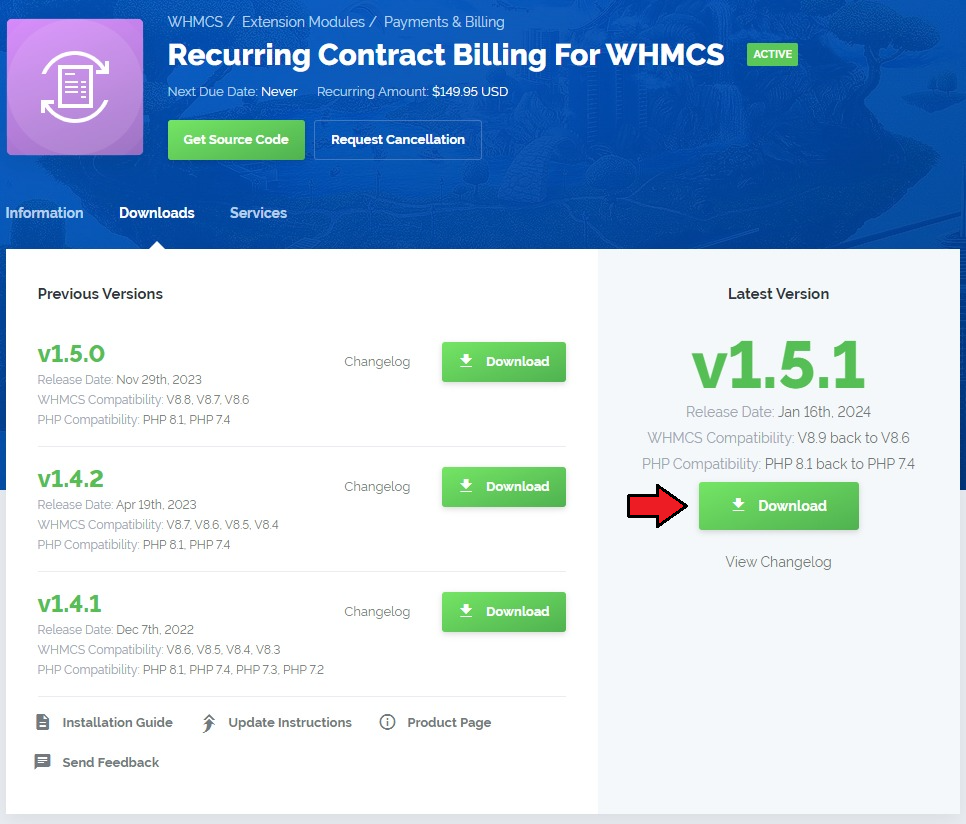
In the downloaded file you might find one or two packages that support different PHP versions.
In the most recent versions of the module, you will find only one package that supports PHP 7.2 and later.
Previous updates of the module may contain two packages dedicated to various PHP versions.
The first one that supports PHP 5.6 up to PHP 7.1, and the second one addressed to PHP 7.2 up to PHP 7.4.
Note: Keep in mind that PHP versions 5.6 up to 7.1 are no longer officially supported and their security issues are not fixed or released any more. Find more info here (opens new window).
Note: You can check the current PHP version in your WHMCS. To do so, proceed to 'Utilities' → 'System' → 'PHP Info'.
Extract the package and upload its content into the main WHMCS directory.
The content of the package to upload should look like this.
When you install Recurring Contract Billing For WHMCS for the first time you have to rename 'license_RENAME.php' file.
File is located in 'modules/addons/recurring_billing/license_RENAME.php'. Rename it from 'license_RENAME.php' to 'license.php'.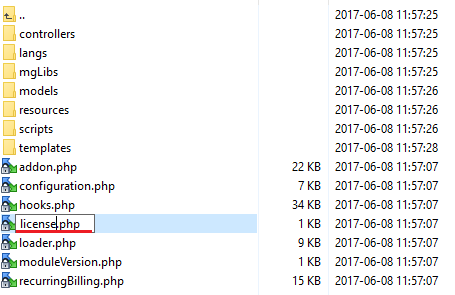
The next step is setting up 'storage' folder as recursively writable.
It is located in 'your_whmcs/modules/addons/recurringContractBilling/'.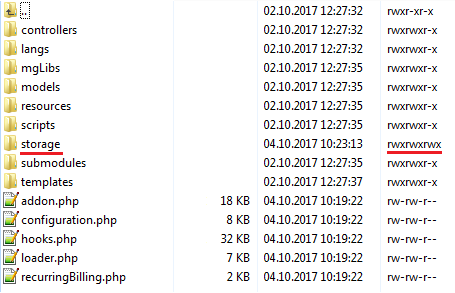
In order to configure your license key, you have to edit the previously renamed 'license.php' file.
Enter your license key between quotation marks as presented on the following screen. You can find your license key in our client area → 'My Products'.

# Activation
Now, you have to activate the module in your WHMCS system.
Log in to your WHMCS admin area and proceed to 'Setup' → 'Addon Modules'.
Afterwards, find 'Recurring Contract Billing' and press 'Activate' button.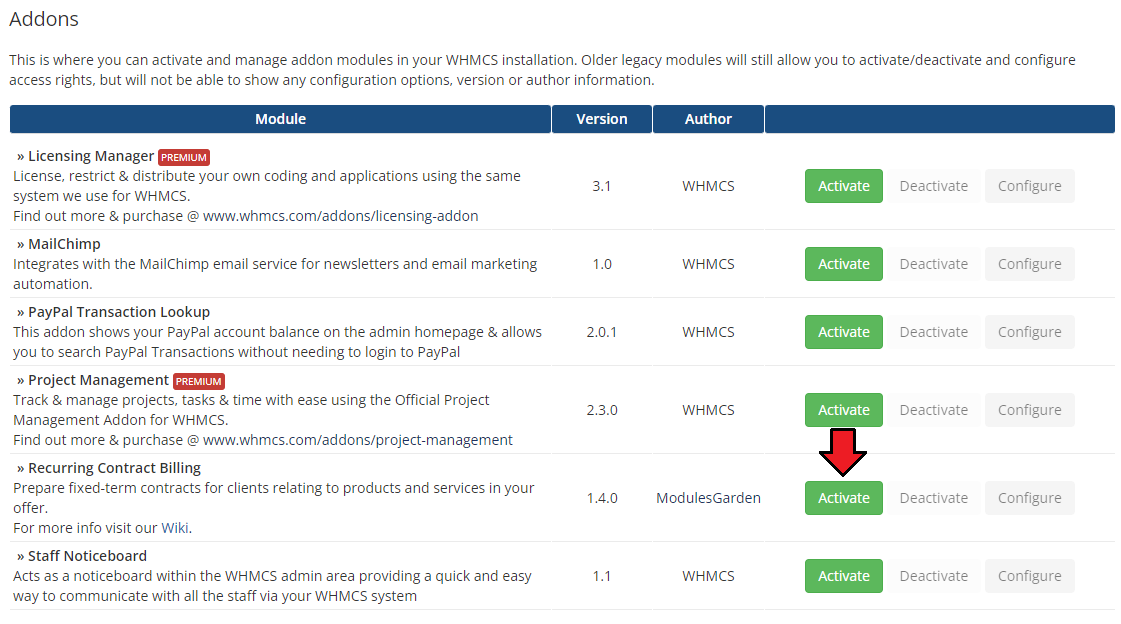
In the next step you need to permit access to this module.
To do so, click on 'Configure' button, tick checkboxes to assign desired admin roles.
Press 'Save Changes'.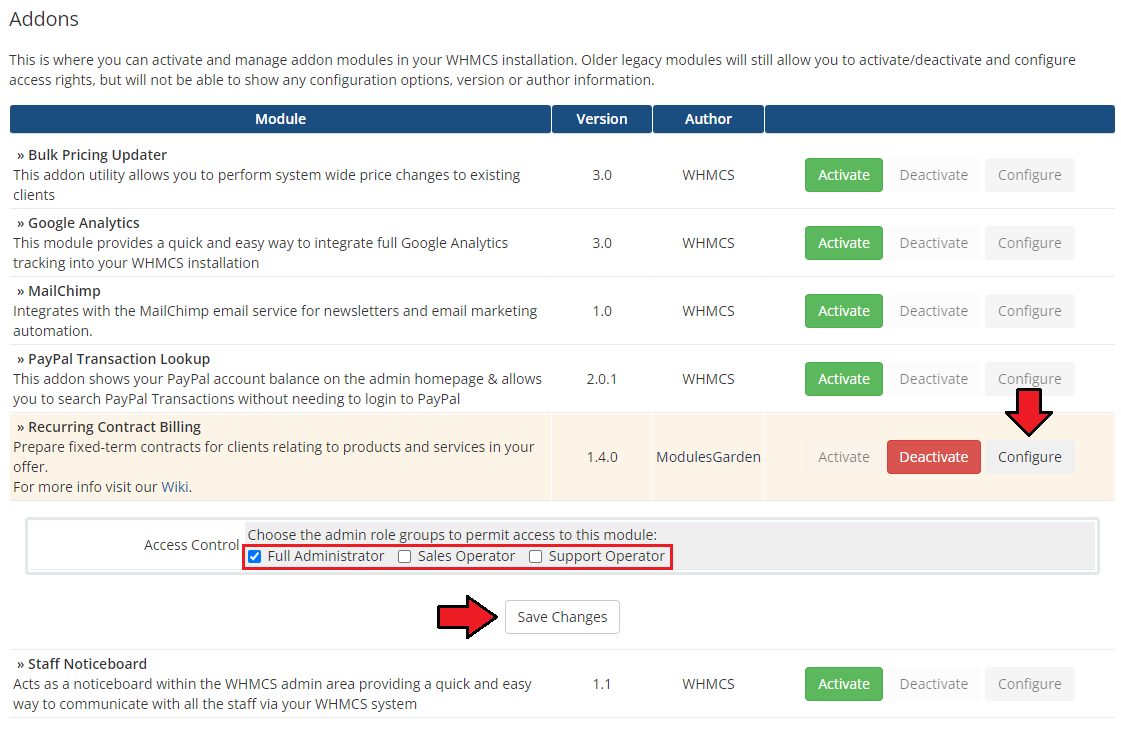
Now it is time to insert proper integration codes.
The module requires alterations into your order form template. Open your currently used order form and follow the instructions.
You will find it in: yourWHMCS/templates/orderforms/yourOrderForm/checkout.tpl
Find line:<div class="sub-heading"> <span>{$LANG.orderForm.paymentDetails}</span> </div>Insert this code snippet above that line:
<div class="sub-heading" id="recurring-biling-contracts">
<span>{$contractTitle}</span>
</div>
{$contractOutput}
This is how a properly inserted code should look like:
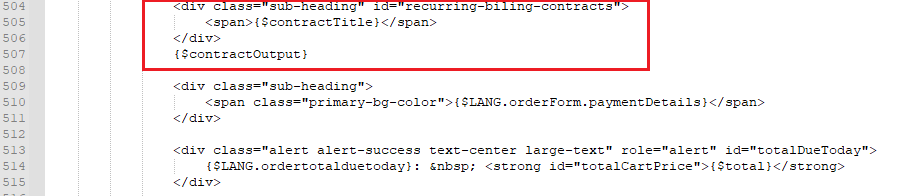
Note: For illustration purposes we have used standard_cart orderform, please make changes in the form you are using!
Remember that the content of other order forms may slightly vary from the description above!
Check the 'Utilities' → 'Integration Code' tab in your module for valid code.
Note: In case you are going to use Lagom WHMCS Client Theme, please check the Tips section to find a dedicated integration code.
Note 2: In case there is no "checkout.tpl" file in your order form, please look for the template "parent" in the theme.yaml file. Place the integrations code in that parent file.You have just successfully installed Recurring Contract Billing For WHMCS!
# Configuration and Management
Once you have properly installed and activated the product you may move to its actual configuration.
Read the below sections to learn how to use Recurring Contract Billing For WHMCS completely.
# Configuration
In order to start using your Recurring Contract Billing For WHMCS move to 'Addons → Recurring Contract Billing'.
By default, you will be moved to the addon's dashboard with a guide opened. You will find there short notes on how to configure the product.
In this article we will expand these instructions a bit more.
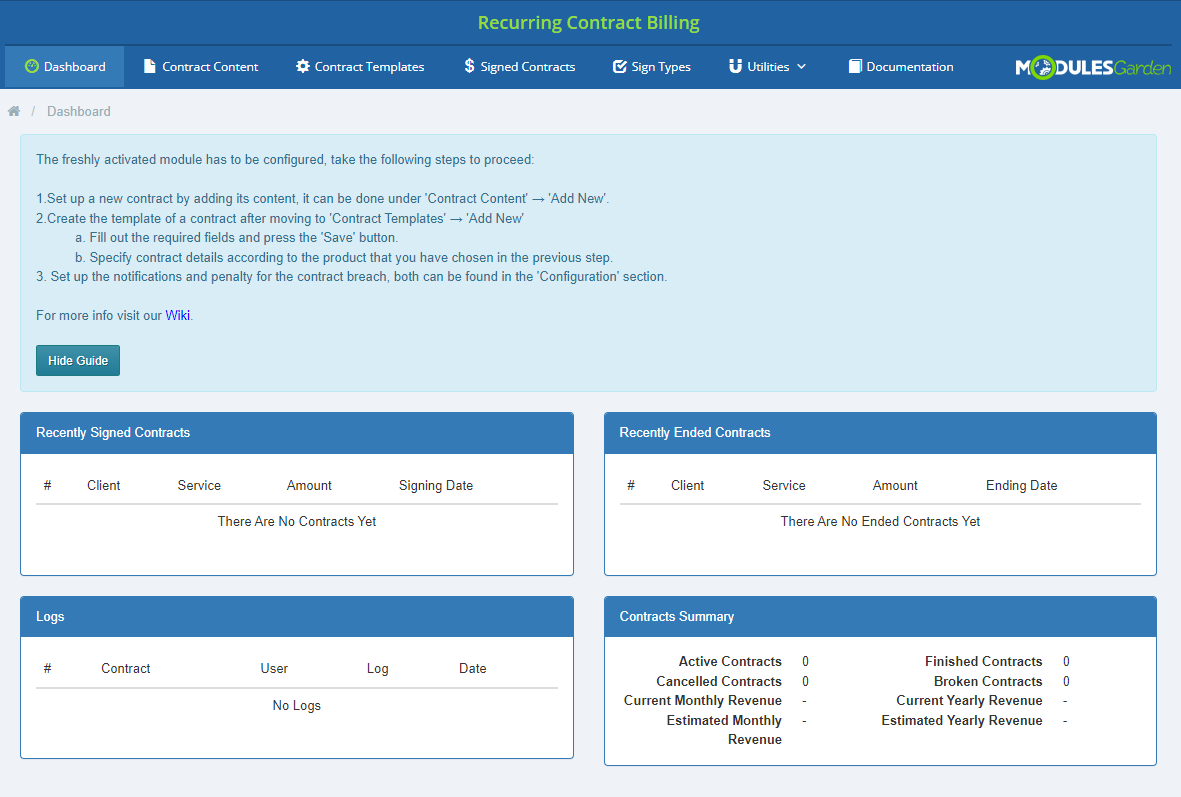
Hide the guide when you have completed the configuration and learned how to reconstruct the process.
# Contract Content
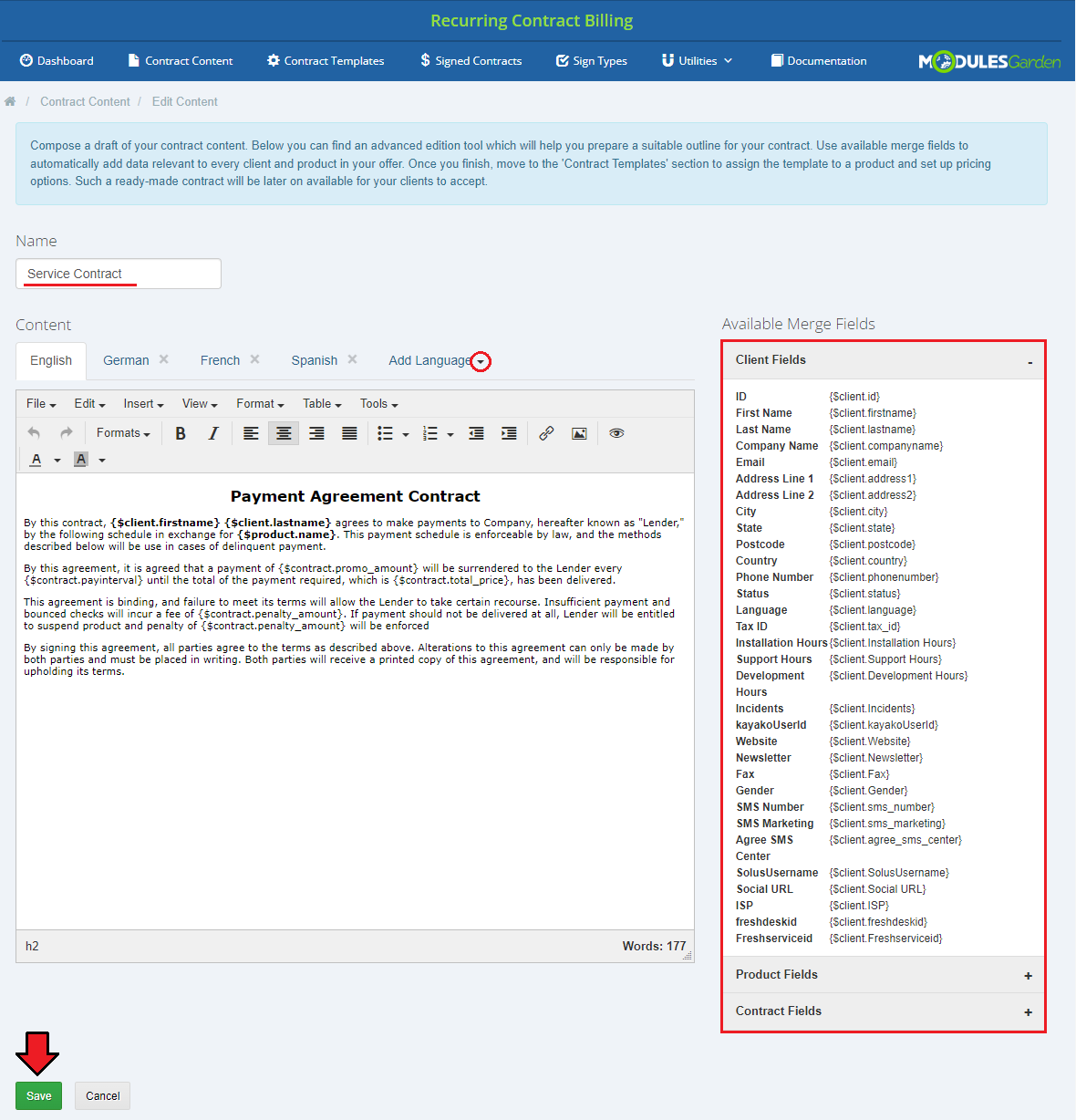
First off all, create your first contract's content. To do so, move to 'Contract Content' section and press 'Add New' button.
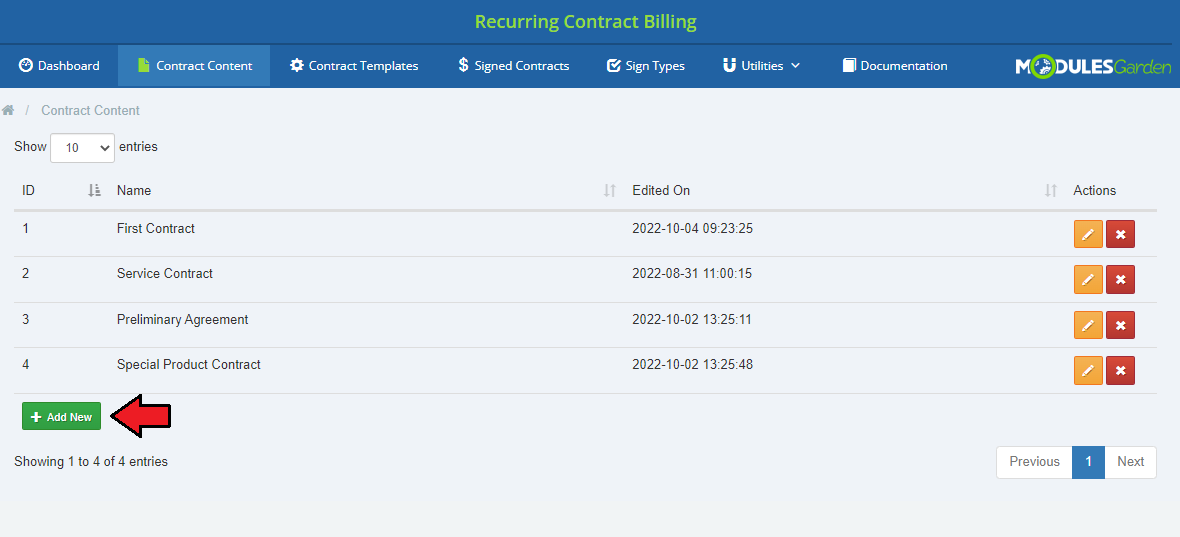
Here you can compose the content of a contract.
- Type in the 'Name' of a contract
- Fill out the filed with 'Content', you may use 'Available Merge Fields' to do so
- Client Fields
- Product Fields
- Contract Fields
- Use advanced edition tool to perfectly shape the contract.
- Compose the contract translation, just select required language from a dropdown menu and type in the translated content.
Do not forget to 'Save' the changes once you have finished.
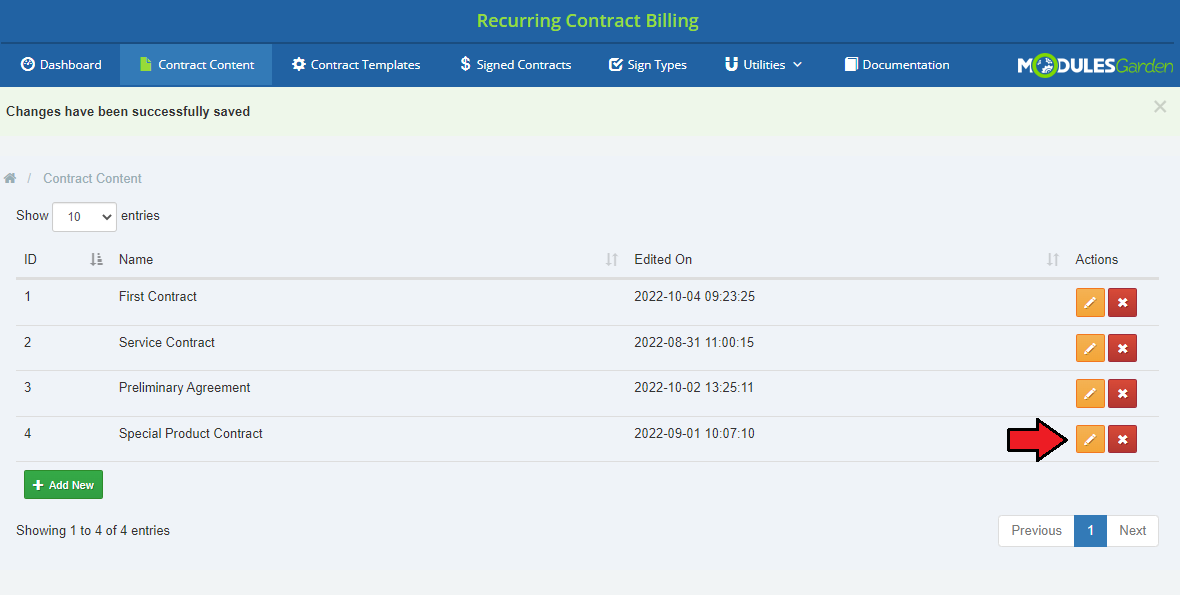
Your newly created contract draft is now visible on the list.
Use action buttons to edit the contract or delete it if you are sure it is useless.
# Sign Types
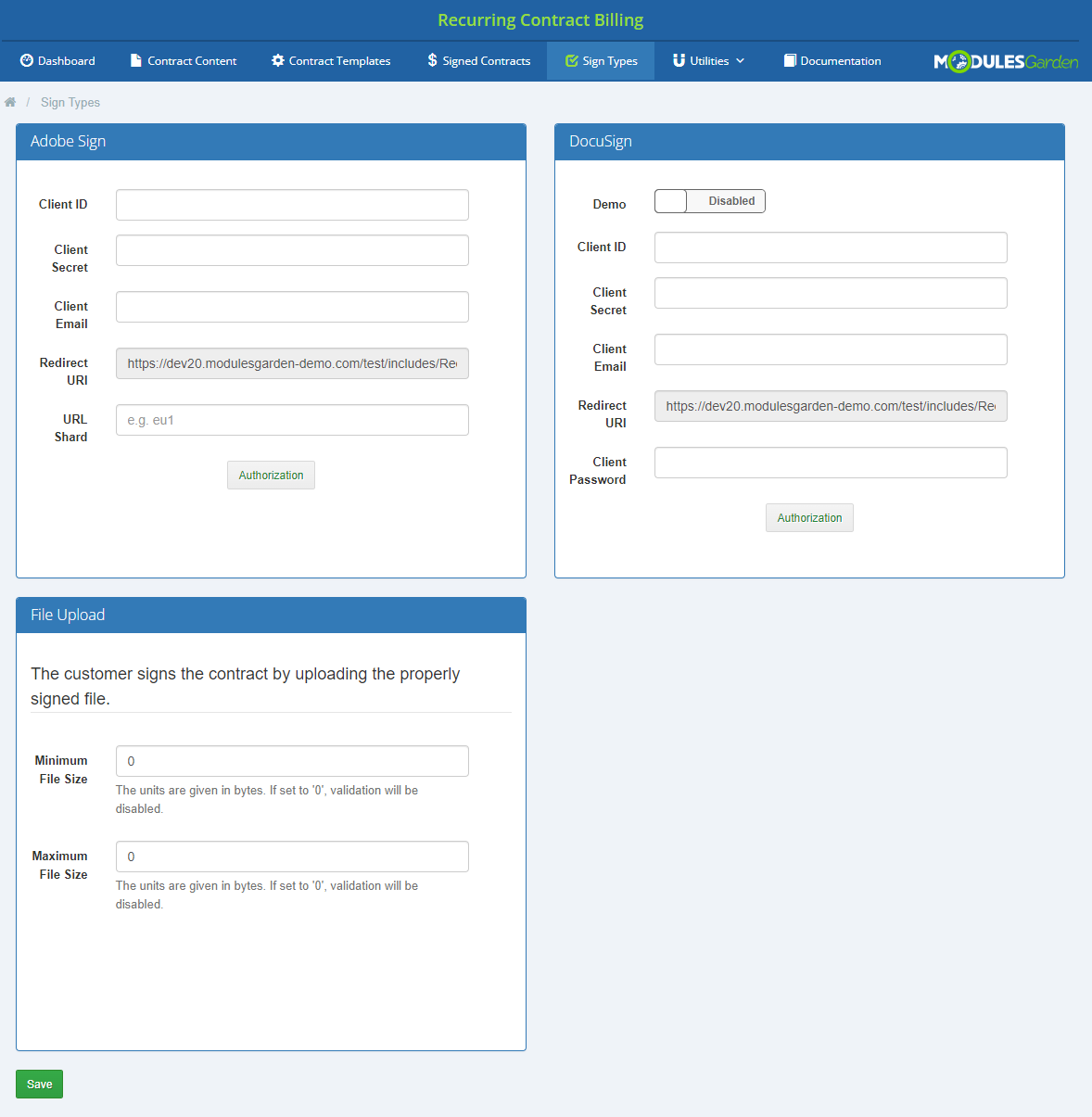
In this tab you can configure the methods of signing contracts, which you will then be able to use for creating a contract template.
You can configure the following methods:
- Adobe Sign
- DocuSign
- File Upload
Note: The checkbox sign method does not require any configuration, so it is not visible in this tab, but you will still be able to select it when creating a contract template.
# Adobe Sign
The Enterprise plan of Adobe Sign (opens new window) is required to use this option. Take the following steps to set it up:
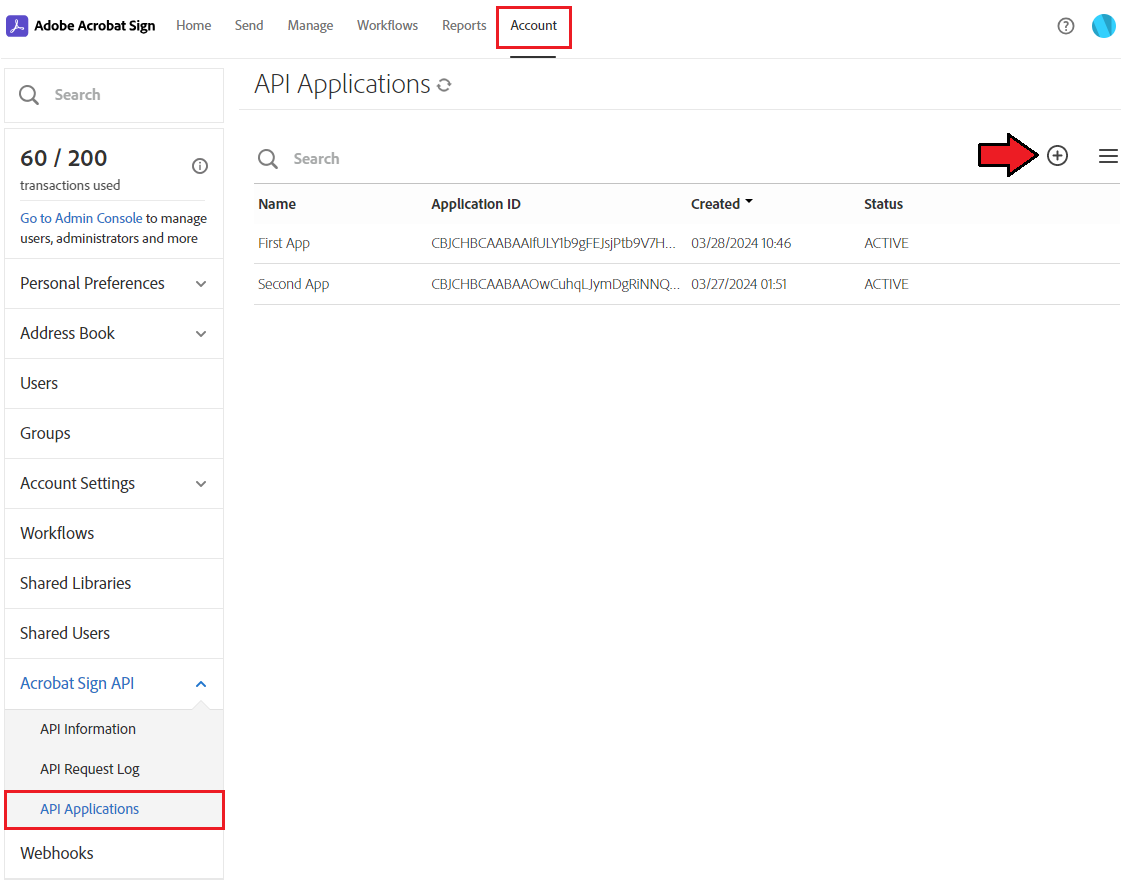
Log in (opens new window) to your Adobe Sign profile.
Go to the API tab (opens new window).
Choose the API Applications (opens new window) from the menu on the left and press the + button
Enter the 'Name' and 'Display Name' of your application and select 'CUSTOMER' domain. Press 'Save' when ready.
Now, select the created application in the list and click on 'Configure OAuth for Application'.
While there, you will find your 'Client ID' and 'Client Secret' which are required for the configuration. Please keep them safe.
Next, you need to provide a proper callback 'Redirect URIs' from your WHMCS installation in the following format:
https://yourdomain.com/includes/RecurringBilling/getCode.phpNote: Provided URI also has to start with https://. You will find the already customized address in your module sign types configuration.
Finally you have to enable all the scopes. Press 'Save' when ready.
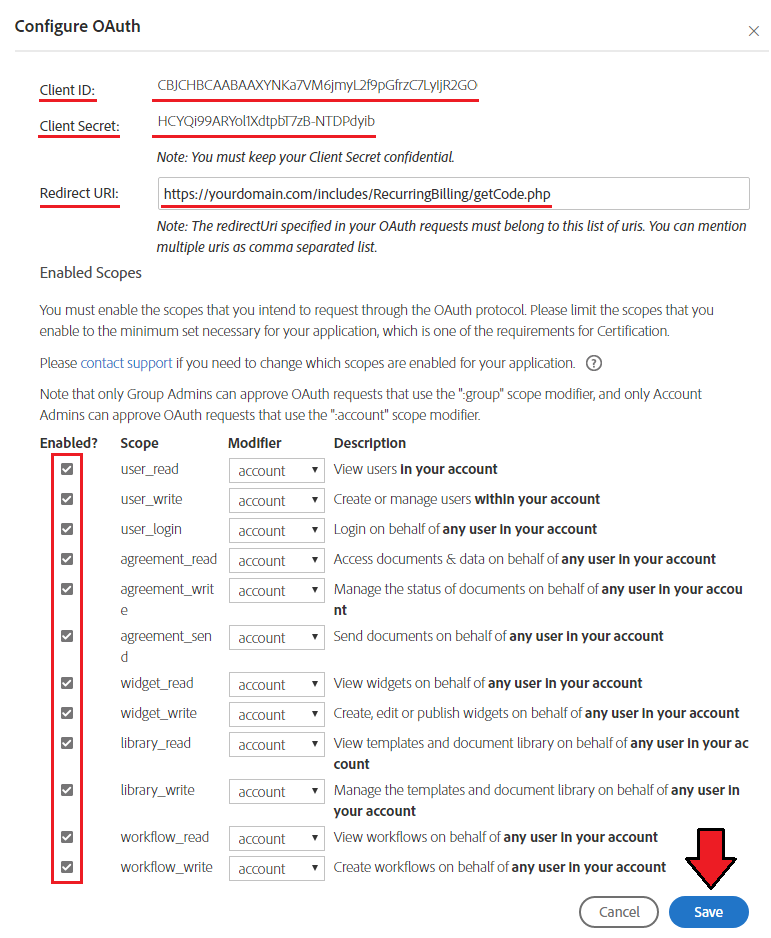
Now return to the configuration of the WHMCS module and enter the previously obtained data.
As the 'Client Email' use the one from your Adobe Sign login. The 'URL Shard' field contains your region identification. To find it, you need to log in to your Adobe Sign.
The environment identifier is found in the URL address, just before the echosign.com (or adobesign.com) portion. For more info, please click here (opens new window)
Do not forget to 'Save' the settings first because only then you will be able to click the 'Authorization' button.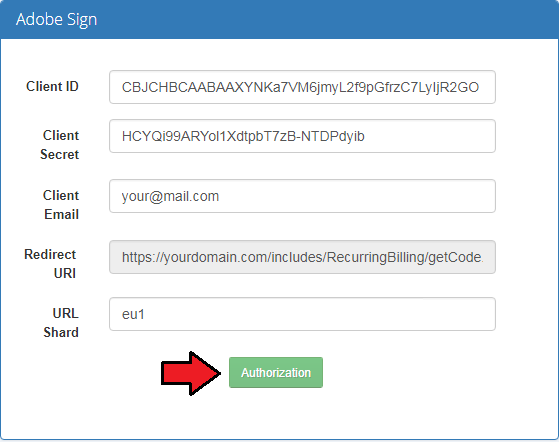
You will have to confirm your access to the authorization for Adobe Sign.
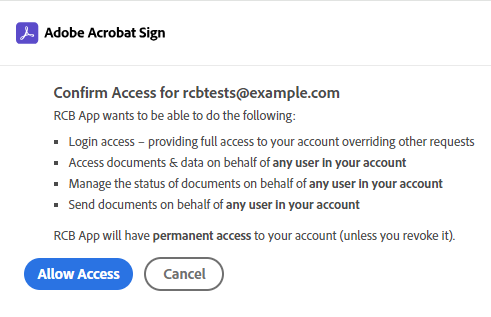
- Finally, if you provided all data correctly you should receive the notice that authorization has been completed successfully.
# DocuSign
You need to have at least the Basic API plan of DocuSign (opens new window) to use this option.
You can set it up in to ways:
- for the 'Demo' environment, log in here (opens new window).
- for the 'Live' environment, log in here (opens new window).
After successful login to the selected environment, select 'Apps and Keys' tab under the 'Integrations' section on the left side menu.
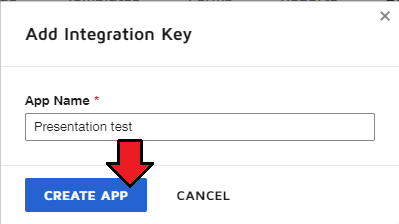
Now press the 'ADD APP/INTEGRATION KEY' button as presented below.
Important: Integrator keys can be created only through a developer demo account. To go live with your API integration, you need a live DocuSign production account to promote the key to!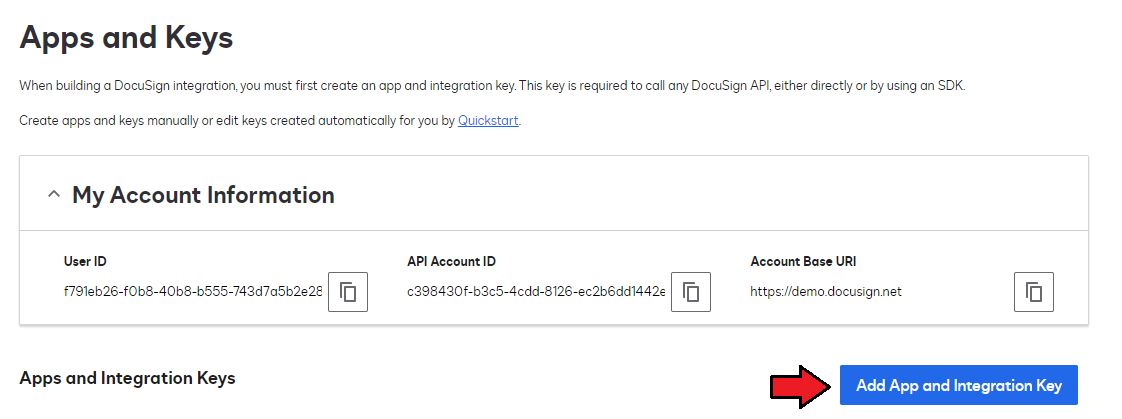
Provide your app name.
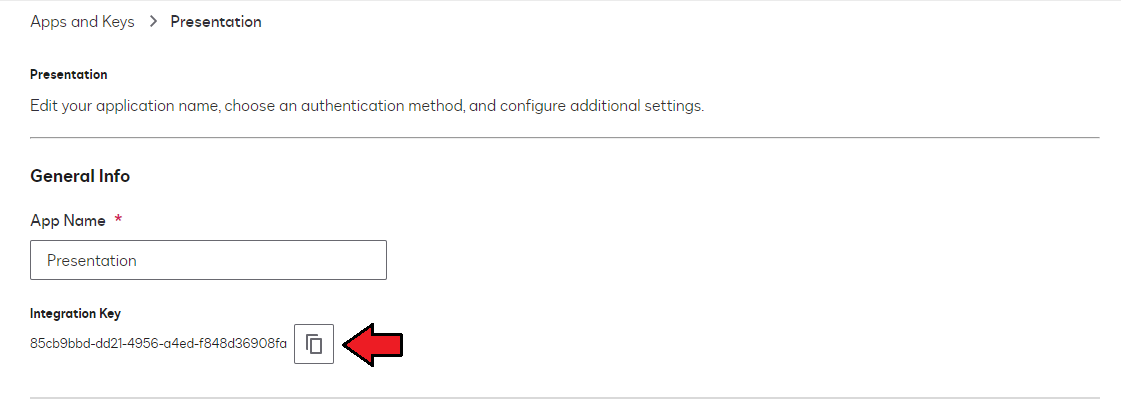
You should now see the 'Integration Key'. Save the 'Integration Key' which is your 'Client Secret' that you will use at a later stage of the configuration.
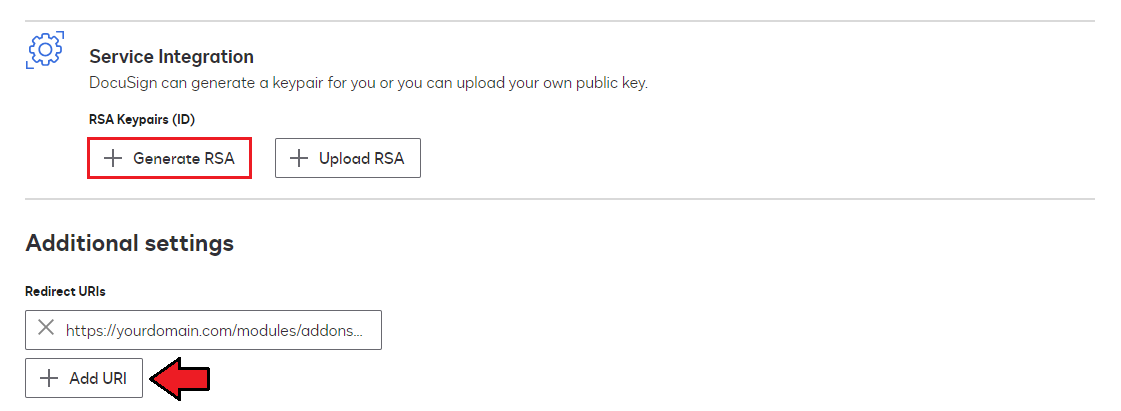
Generate your Private Key, to do so press "Generate RSA" under 'Service Integration'. Once ready a new window with generated keys will appear, copy the private key.
In 'Redirect URIs' tab press 'ADD URI' button. There, you need to provide a proper callback 'Redirect URIs' from your WHMCS installation in the following format:
https://yourdomain.com/includes/RecurringBilling/getCodeESignature.phpNote: You will find the already customized address in your module sign types configuration.
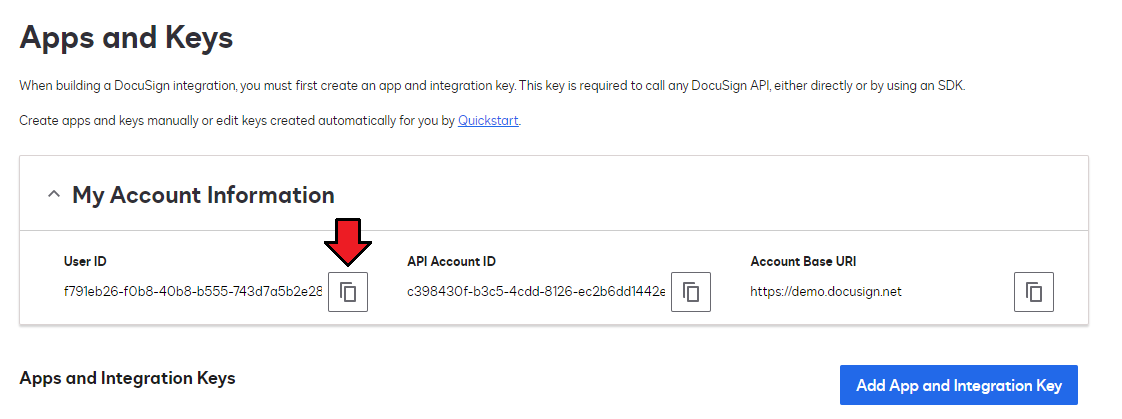
You will also need your 'User ID:
Now return to the configuration of the WHMCS module and where you can enter the previously obtained data, but first choose if you are using demo environment.
Next provide:- Client ID - it is your 'User ID'
- Client Secret - it is your early created 'Integration Key'
- Client Password - 'Private Key' - you ban generate in "Authentication" → "Service Integration" → "Generate RSA"
Do not forget to 'Save' first because only then you will be able to click the 'Authorization' button.
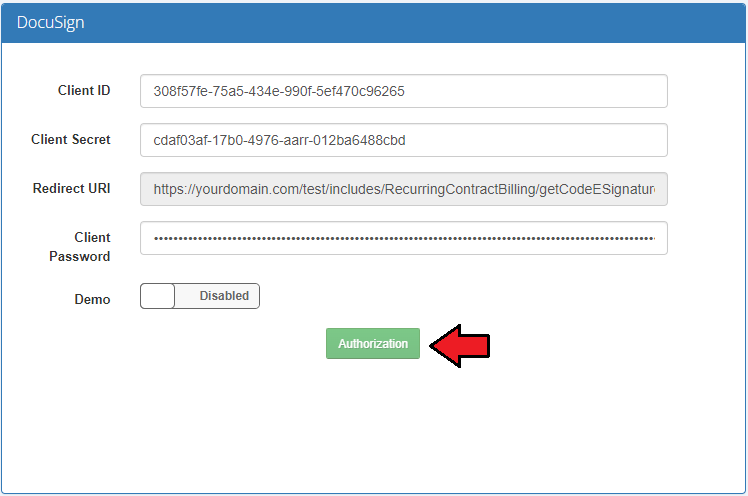
You will have to confirm your access authorization for DocuSign.
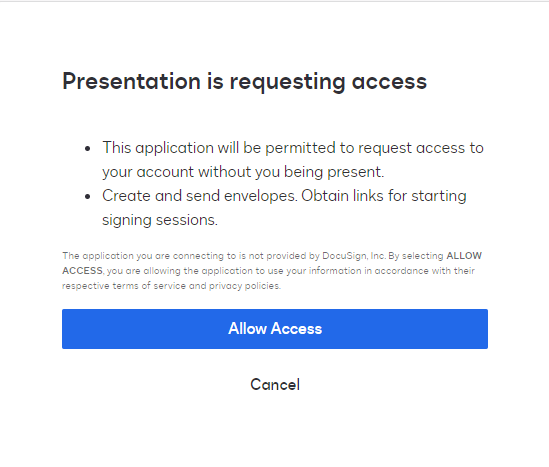
- Finally, if you provided all data correctly you should receive notice that authorization has been completed successfully.
# File Upload
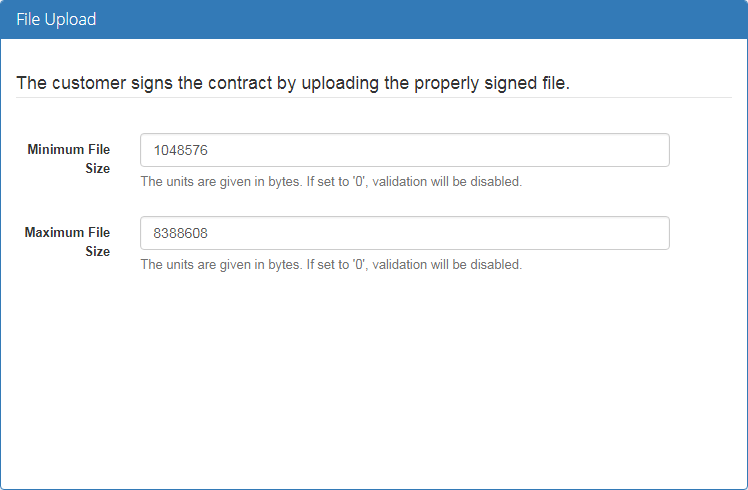
Here you can configure the minimum and maximum size of files uploaded by your clients as contract signs.
Note: Currently all image, MS Word and PDF formats are supported for upload.
The values provided here must be given as bytes (B) units. E.g.:
- 1024 B = 1 KB
- 1048576 B = 1024 KB = 1 MB
- 1073741824 B = 1048576 KB = 1024 MB = 1 GB
So, if you want to allow uploaded files e.g. being in between 1 and 8 megabytes in size provide '1048576' and '8388608' values accordingly.
If you do not want to limit the uploaded file sizes, leave '0' value.
Important: The maximum value of the uploaded file size also depends on the configuration of these values in the php.ini file of the server.
If you want to give a higher value, you must also increase the 'upload_max_filesize' and 'upload_max_filesize' in php.ini file accordingly.
Otherwise, the higher value specified in the module will automatically be decreased to the values specified in the php.ini configuration file.
# Contract Templates
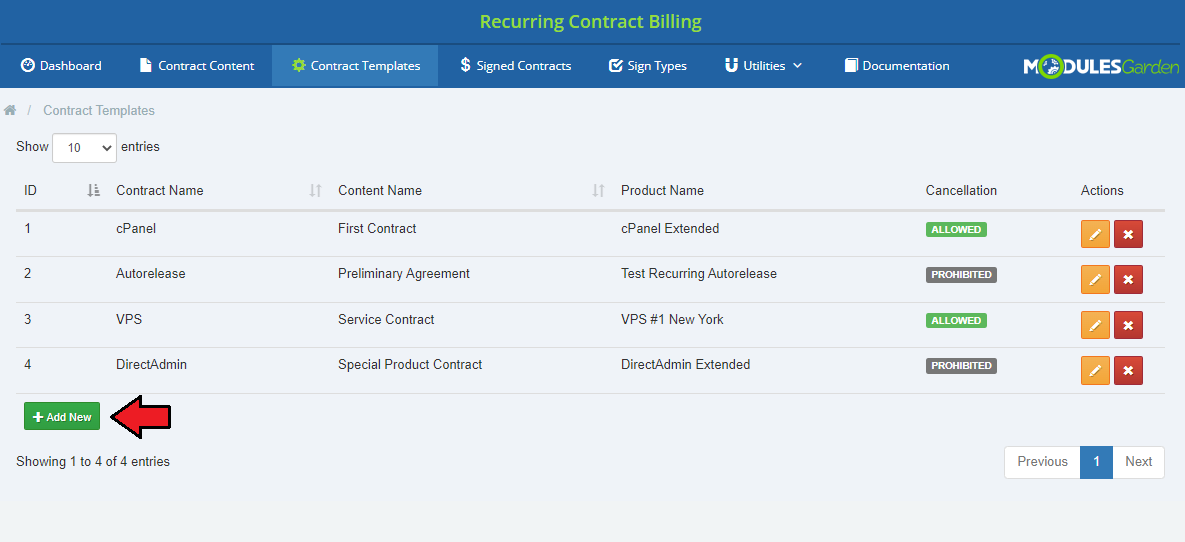
Now, that you have a contract's content draft, move to 'Contract Templates'.
In this section you can predefine which contract content draft a specific product a template will refer to.
Press 'Add New' to begin.
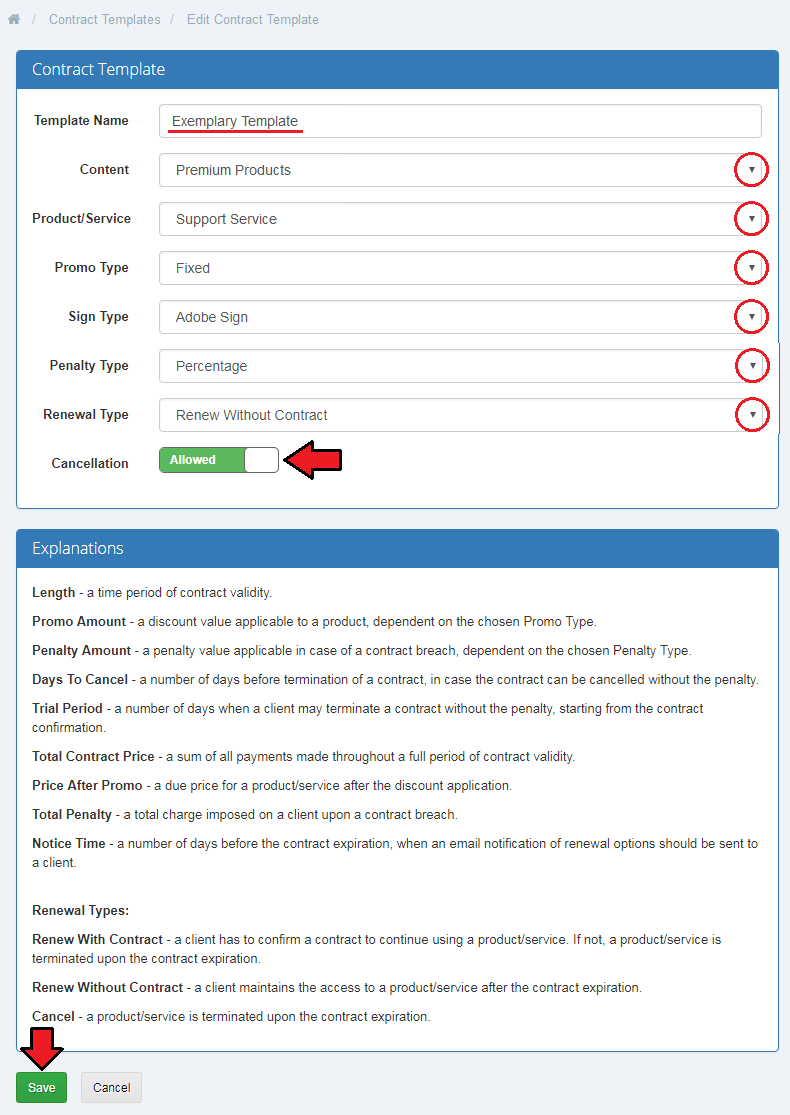
Fill out the contract template form. Name the template, as mentioned before, choose content name from the ones you prepared previously (see 'Contract Content' section).
Select product that this template will be available with.
Note: You can assign only one template to a single product, it is not possible to alter the product assignment once you save the changes!
Define one of the methods by which your customers will be able to sign contracts. Choose from the following:
- Adobe Sign
- Checkbox
- DocuSign
- File Upload
Note: Don't forget to set up their initial configuration.
Choose Fixed or Percentage values for Promotion and Penalty amounts.
Define contract renewal option: - Renew with contract
- Renew without contract
- Cancel
Finally, you may decide whether ta allow your clients to cancel the contract while it is active or not.
Once ready, remember to 'Save' the changes.
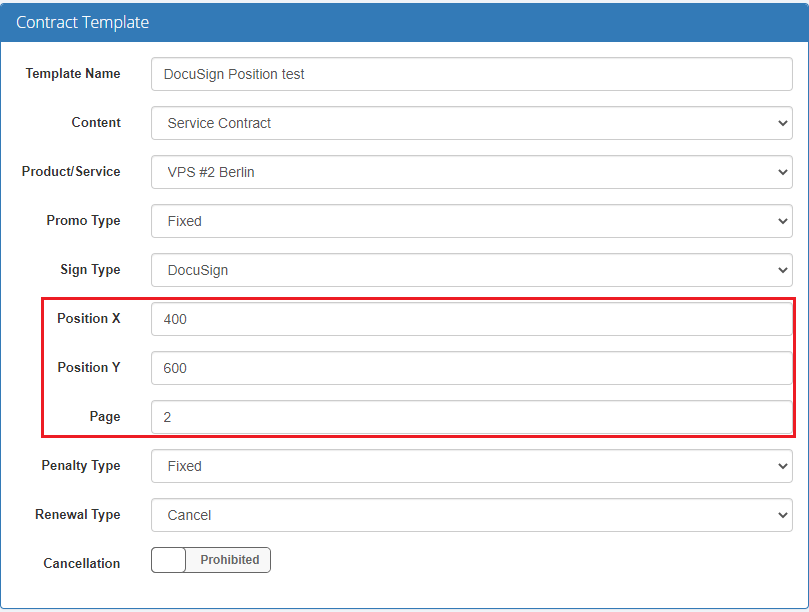
In case of the DocuSign template, you may also define the exact position of the signature on the contract together with the page number.
Please refer to the following article (opens new window) to learn how to position the signature.
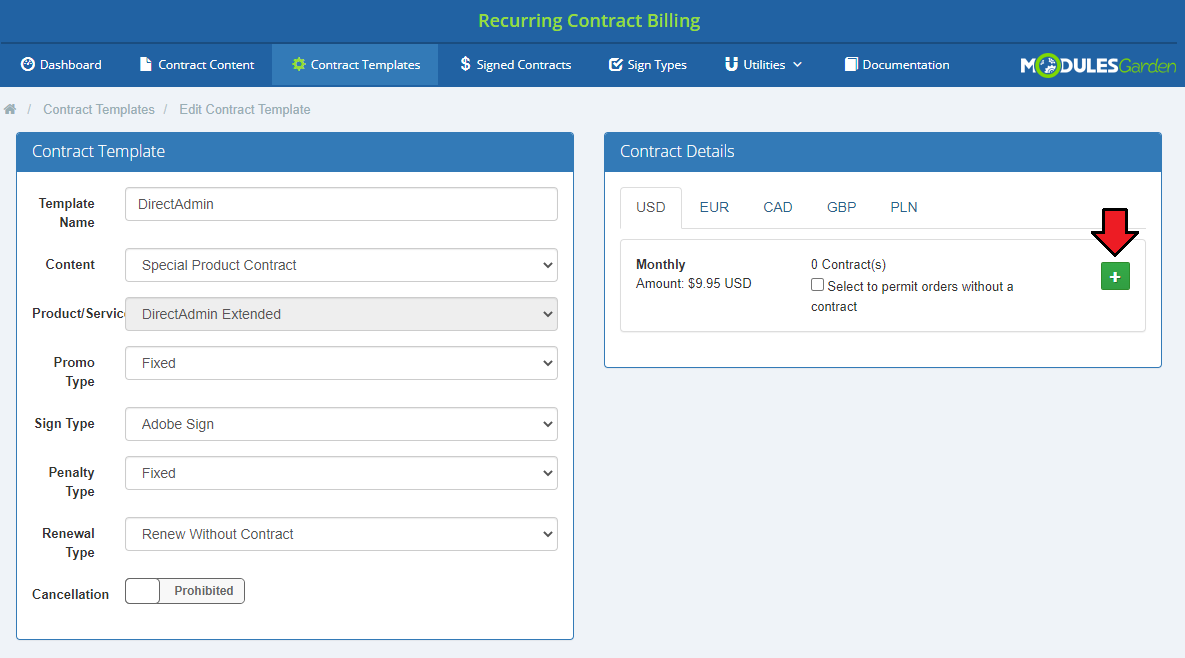
Once you have added a new template, you have to fill out contract's details. An appropriate box should appear next to the template form.
You will find there a payment type and the price, number of signed contracts and a checkbox,
which, when selected, allows to order assigned product without the need to accept this contract.
Press '+' to see more.
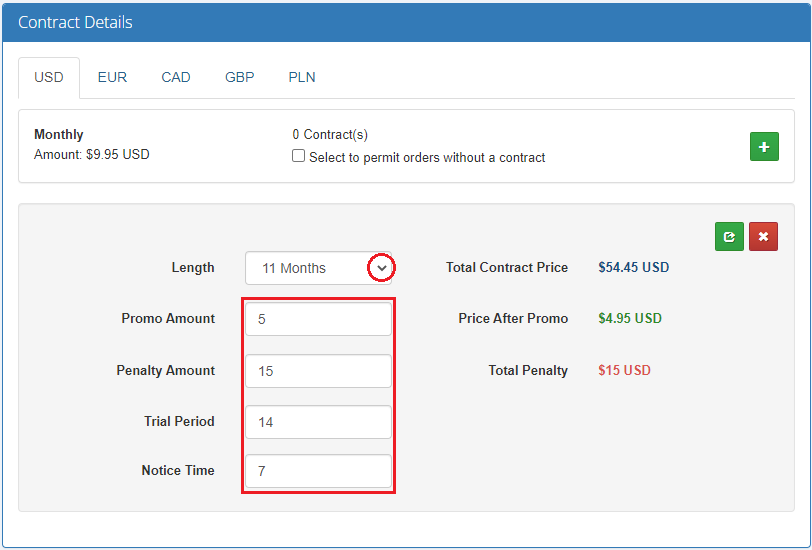
In this form you can define:
- Length - how long such contract shall last
- Promo Amount - as fixed amount or percentage for the discount, depending on the previously selected type in the template form
- Penalty Amount - as fixed amount or percentage, depending on the previously selected type in the template form
- Days To Cancel - number of days to the end of the contract from which the customer will no longer have to pay a cancellation penalty
- Trial Period - number of days when a client may resign from the contact without any consequences or giving reason of resignation
- Notice Time - define time when a renewal notification will be sent
Next to each of the options (except 'Trial Period') there will appear counted pricing of product.
Remember to 'Save' the changes again.
# Configuration
The last step mentioned in the 'Guide' is setting up 'Notifications' and 'Penalty'. These options can be found under 'Configuration' tab in 'Utilities' section.
If you wish to provide the phrase under which a client will sign a contract (this phrase has to be included in its content), please use the 'Sign Phrase' configuration.
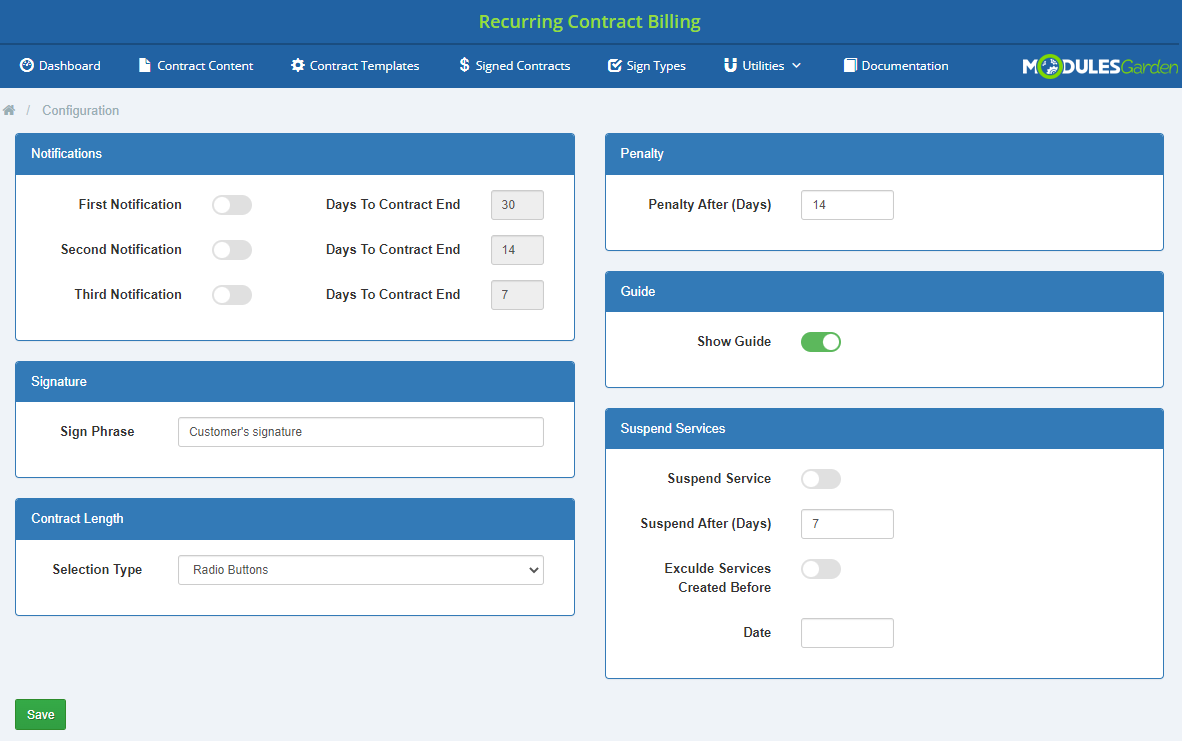
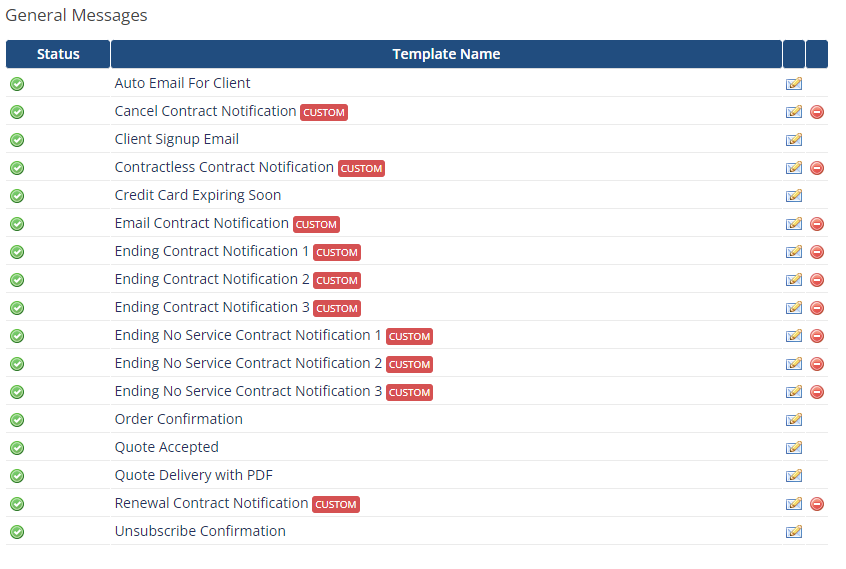
Select which email notifications you want your clients to receive, enter number of days before due date to send the notification.
Move to 'Setup' → 'Email Templates' → 'General Messages' in your WHMCS to view and edit the notifications. You will find them under 'Ending Contract Notification' name.
Enabled notifications are sent automatically with daily cron run.
Define number of days when a client can be late with payment.
If a client misses to make payment for longer than the specified here number of days, a penalty will be imposed on such client.
Note: penalty type and amount are specified in 'Contract Template' details.

Here you can also turn off the guide or turn it on again once you have hidden it.

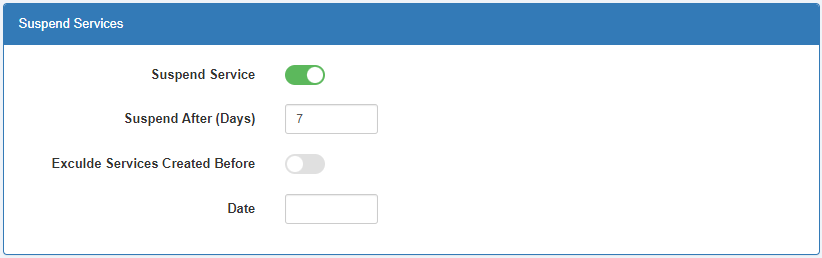
Finally, you may decide if services shall be suspended after the provided number of days pass, without the client signing the contract.
You may exclude services ordered before a certain date from this option.
'Save' the changes once your configuration is ready.
# Management
In the following sections we will try to explain how previously configured contracts are forced on clients.
# Client Area
# Place Order
To illustrate the process, let's say a client orders one of your products with recurring payment (it is important that you have previously prepared a contract for this product).
Once a billing cycle is chosen, in 'Additional Required Information' a client must select the contract length from the available.
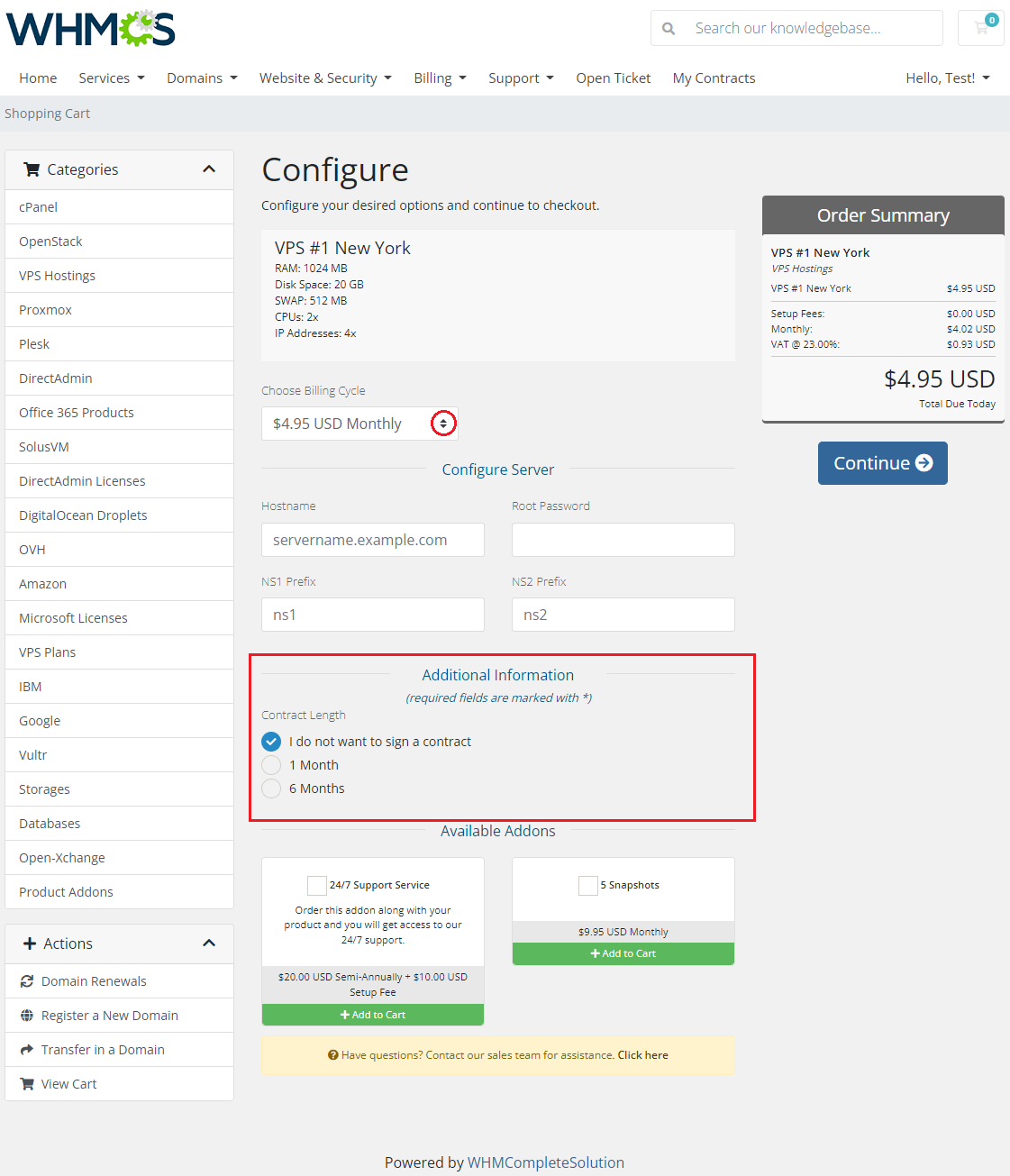
Before accepting any Terms of Use, a client may view the contract and read it.
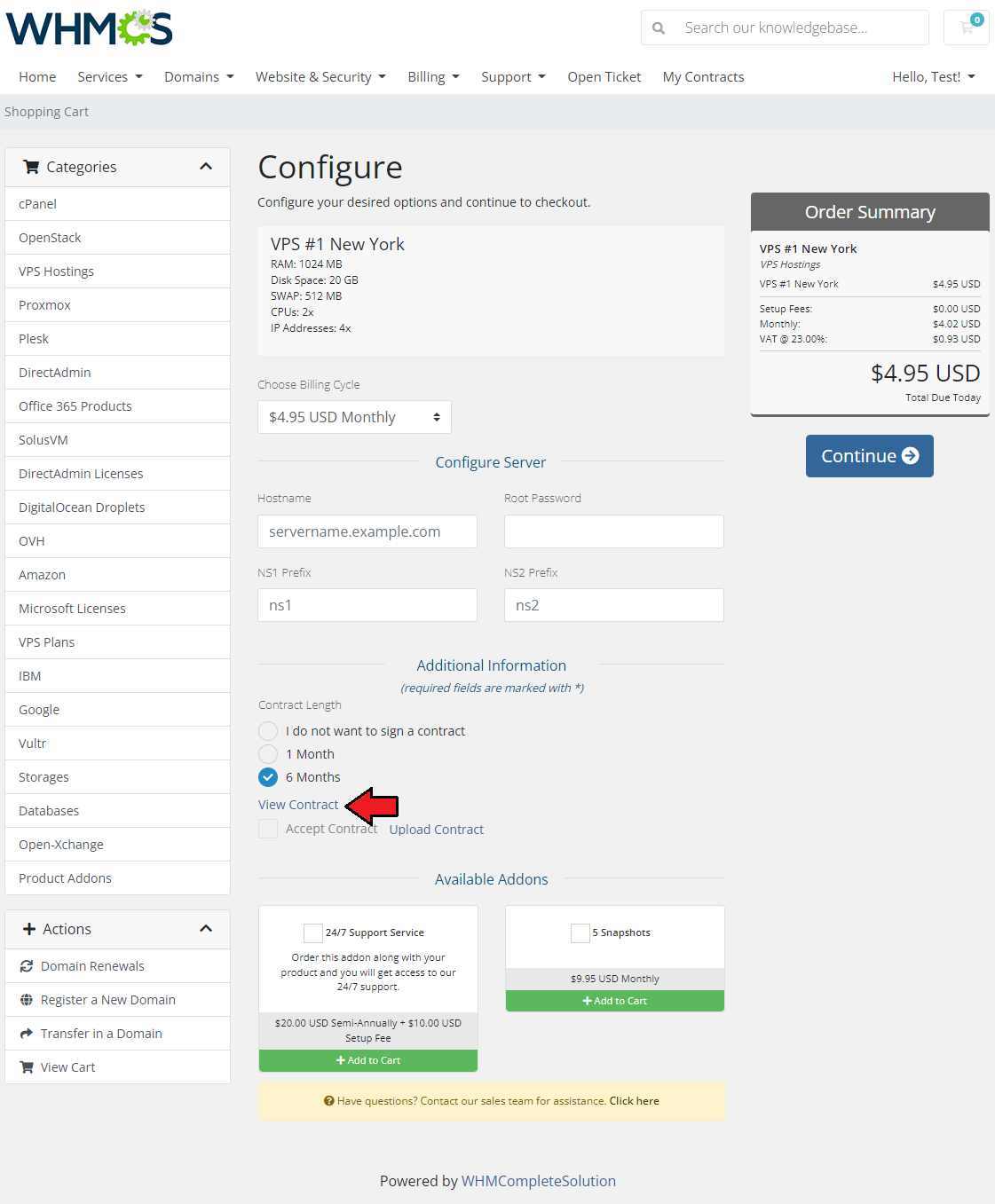
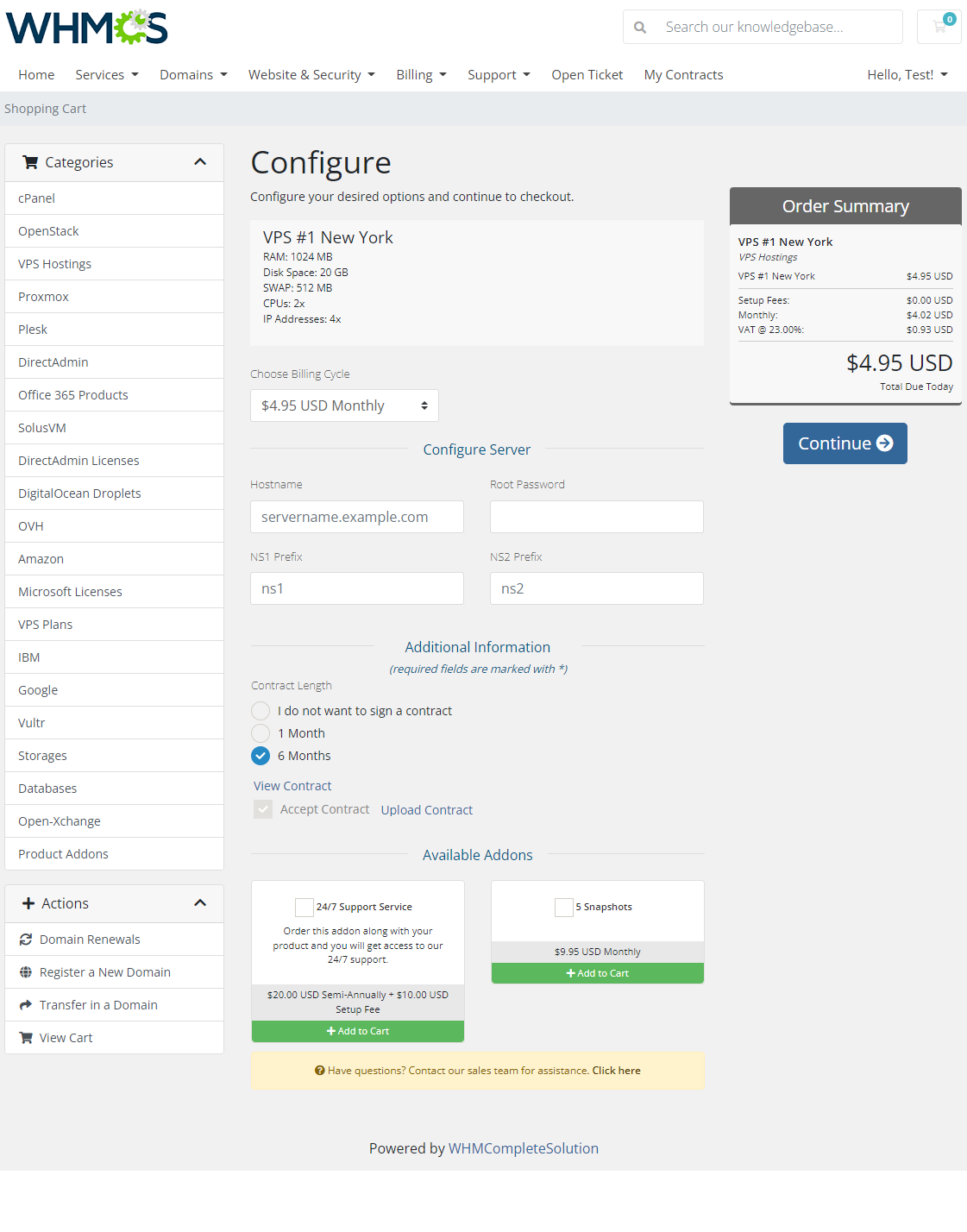
Once familiar with the content of the contract accept 'Contract Terms of Use', only then you will be allowed to view the cart with the selected product.
Note: 'Checkbox' method is used in the following example.
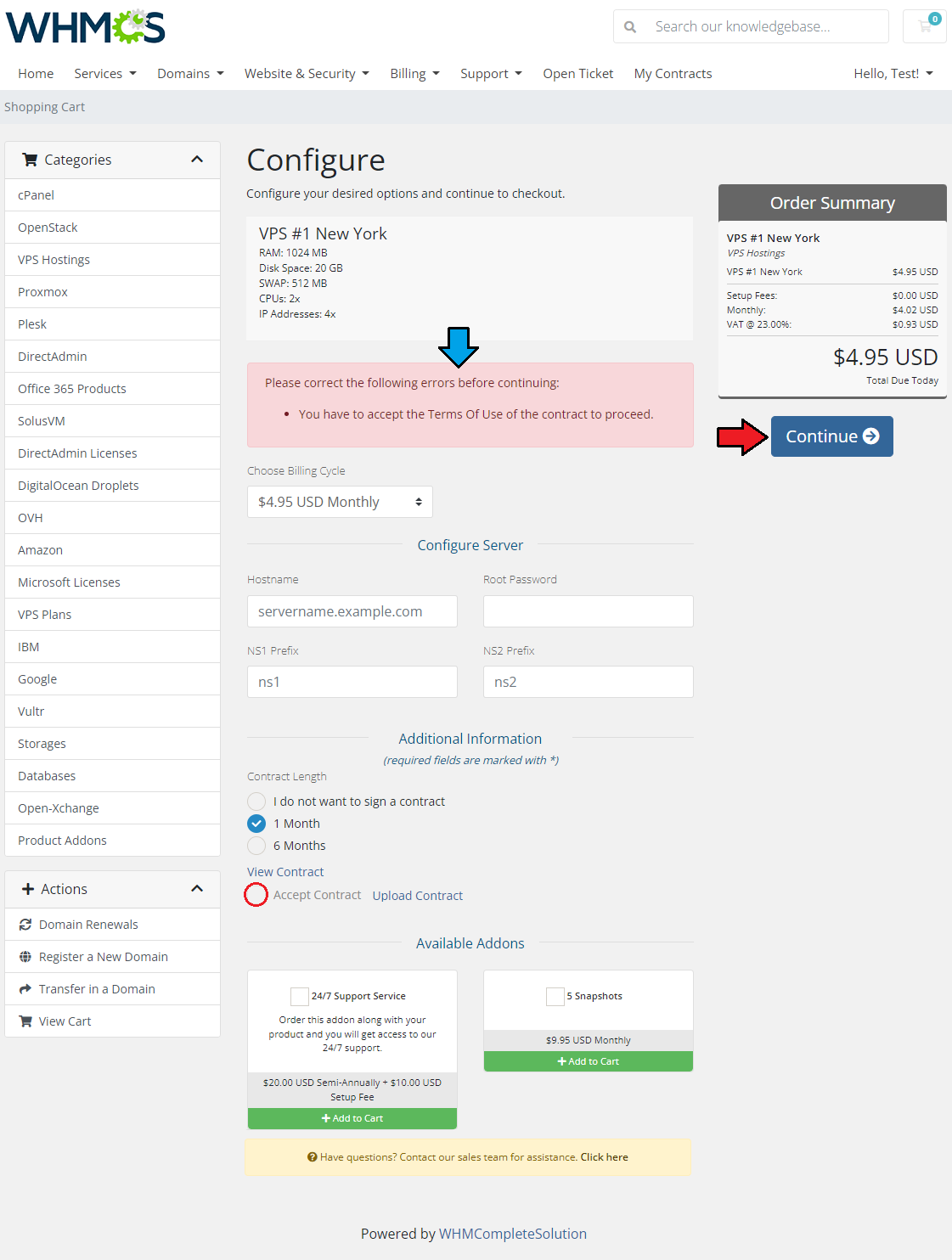
If you do not accept the terms of use you will not be allowed to move to the cart.
# Service Contracts
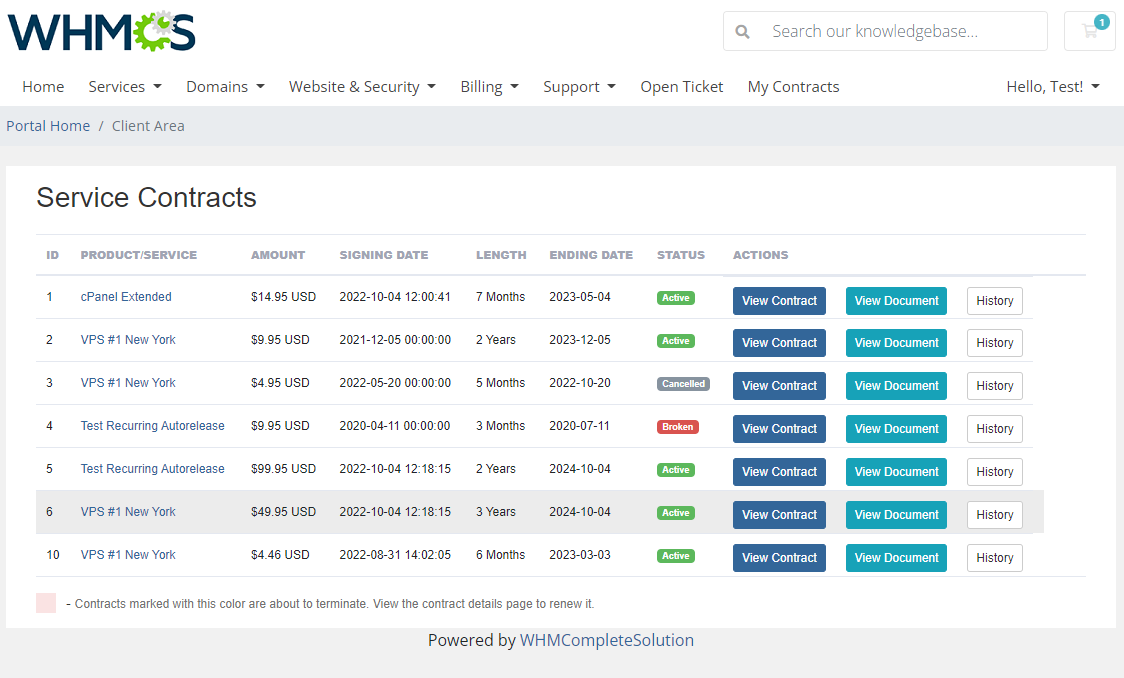
To view all accepted contracts, find 'My Contracts' tab or use a shortcut: 'Service Contracts'.
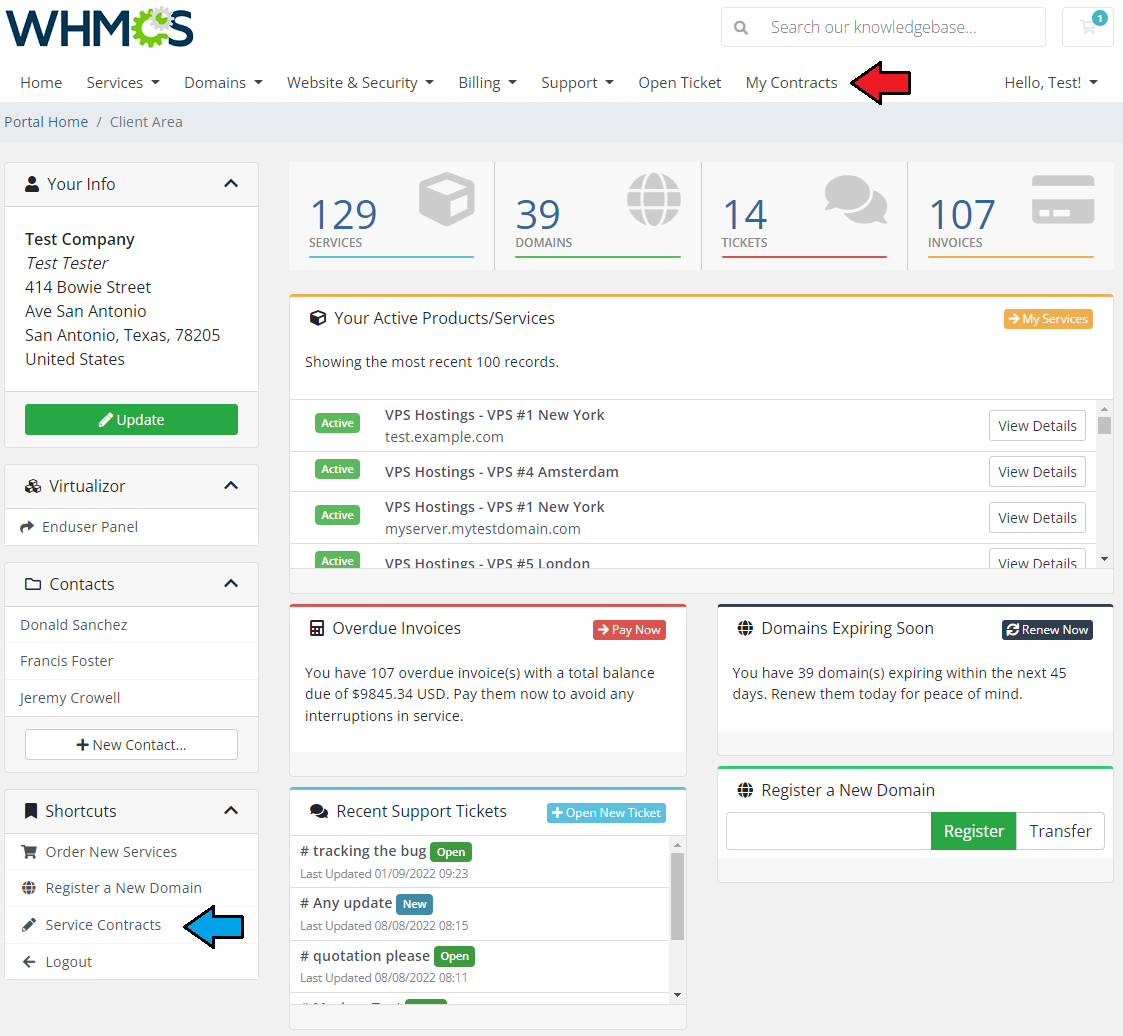
There is a full list of client's contracts with the most important information about them.
Use action buttons to:
- view the contract details page
- open a PDF version of the contract
- see the contract content changes history
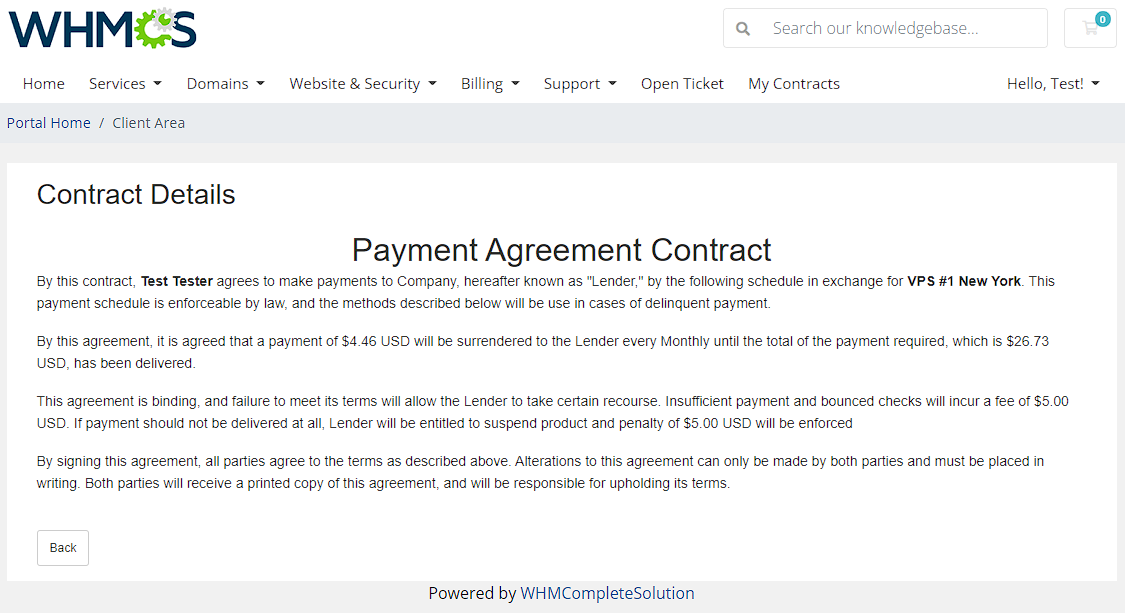
View the contract's details. Press 'Vie Contract' to see its details directly in the client area or press 'View Document' to download its PDF.
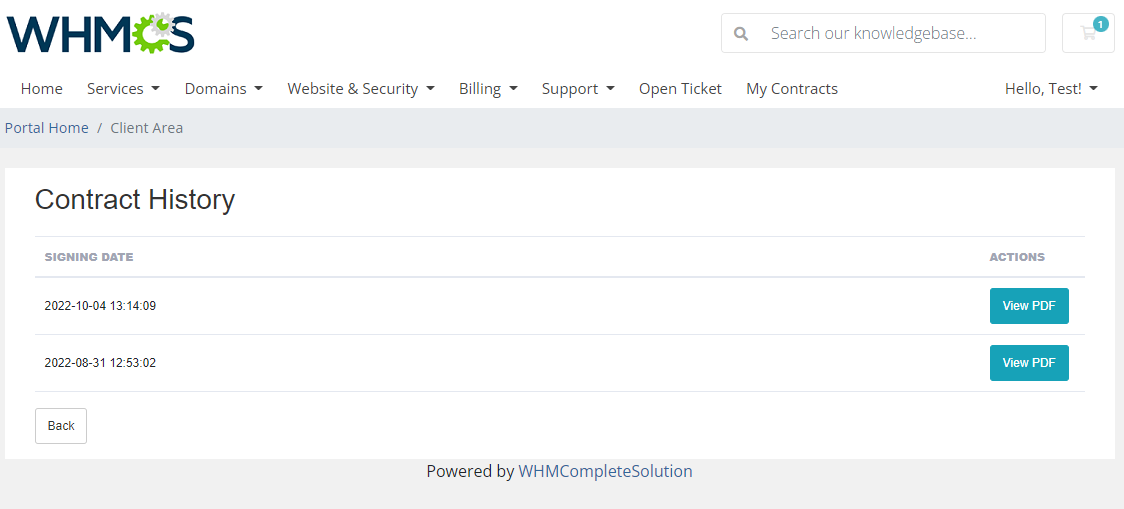
History of any changes in the contract content:
View PDF to see the previous version of the contract.
# Admin Area
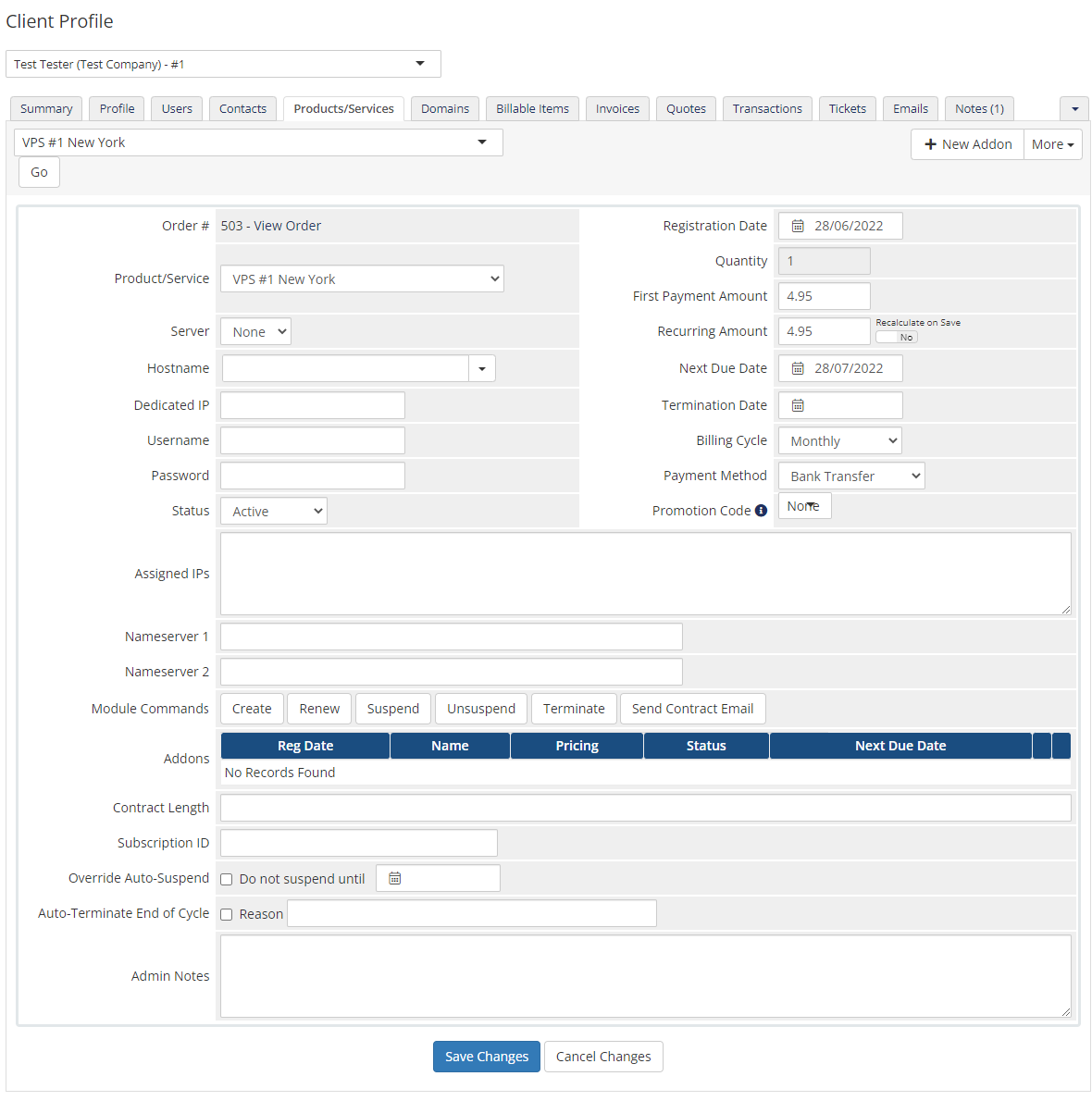
Come back to your admin area product view page.
After submitting a new order from the admin area, an email with a link to view and accept the contract will be sent to the client if only the service has a contract template assigned.
Now, go back to the addon view to manage signed contracts.
# Signed Contracts
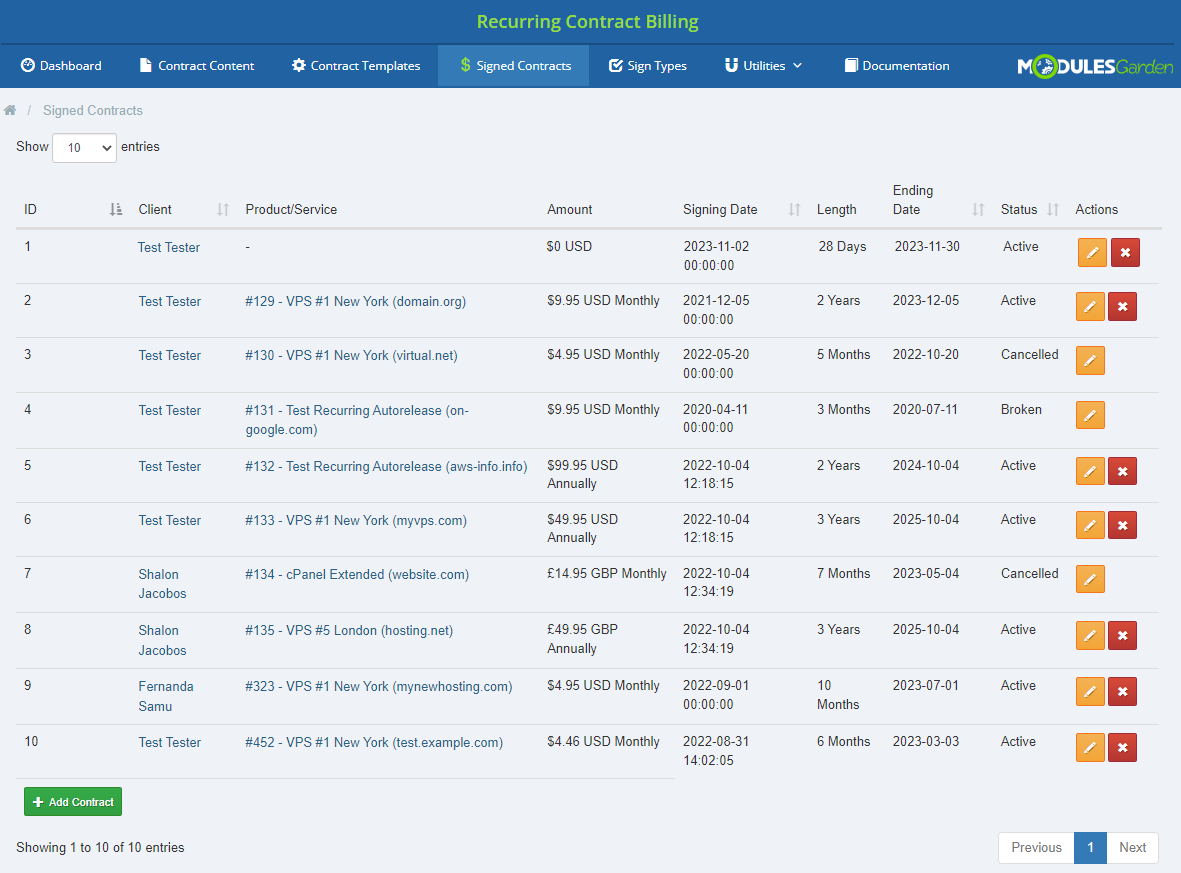
In 'Signed Contracts' section you will find a list of all contracts accepted by your clients.
On the main page you can see name of the client with service used, recurring payment amount for their product and contract details such as signing and ending dates, length and status.
Use action buttons to cancel or edit contracts. If you use edit button, you will be moved to a full view of the contract.
On this page you can see once again details of a contract accepted between a client and you.
You are allowed to modify the content of this very contract. Note that used 'Contract Content' will not be altered, only the signed item.
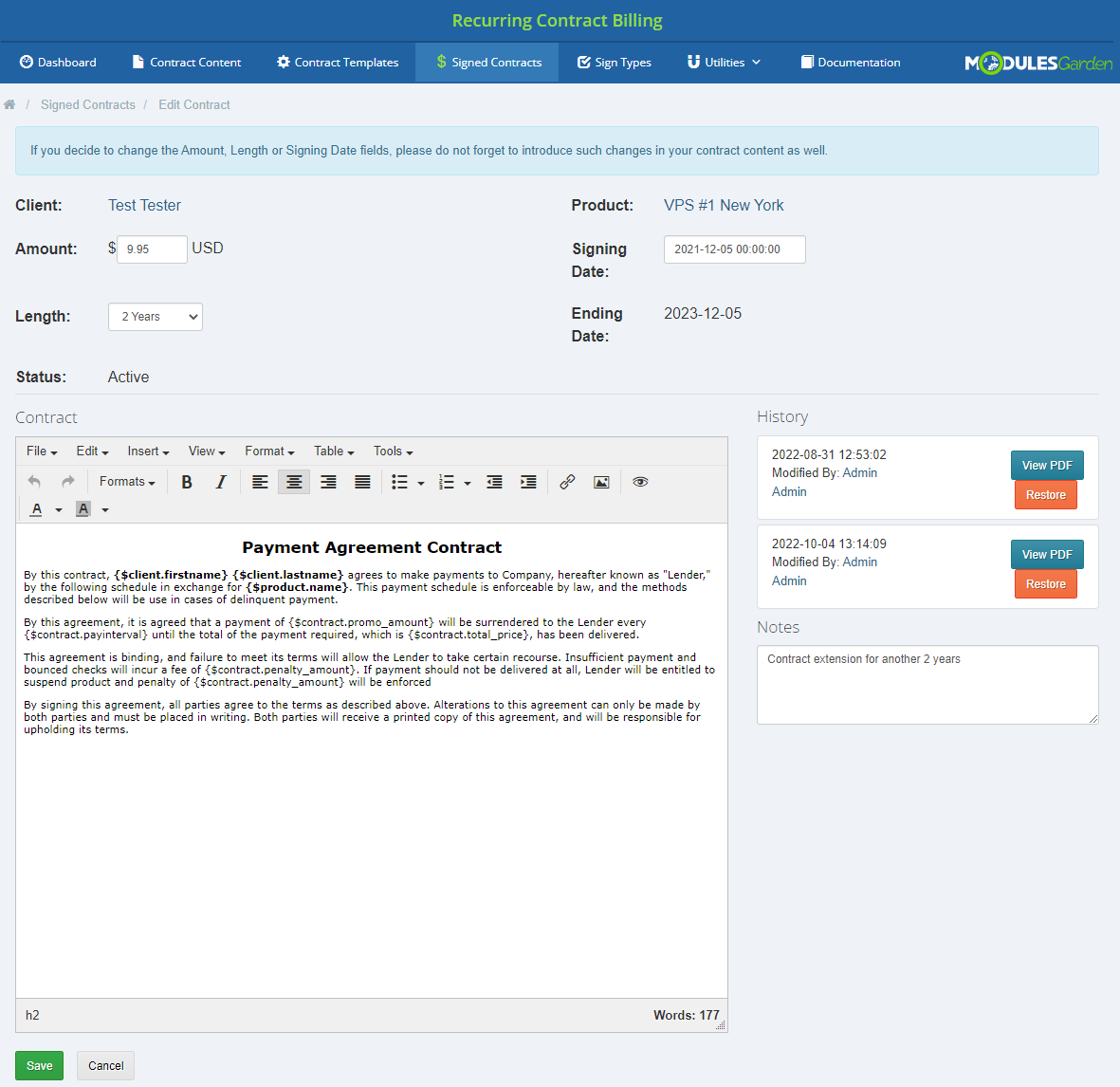
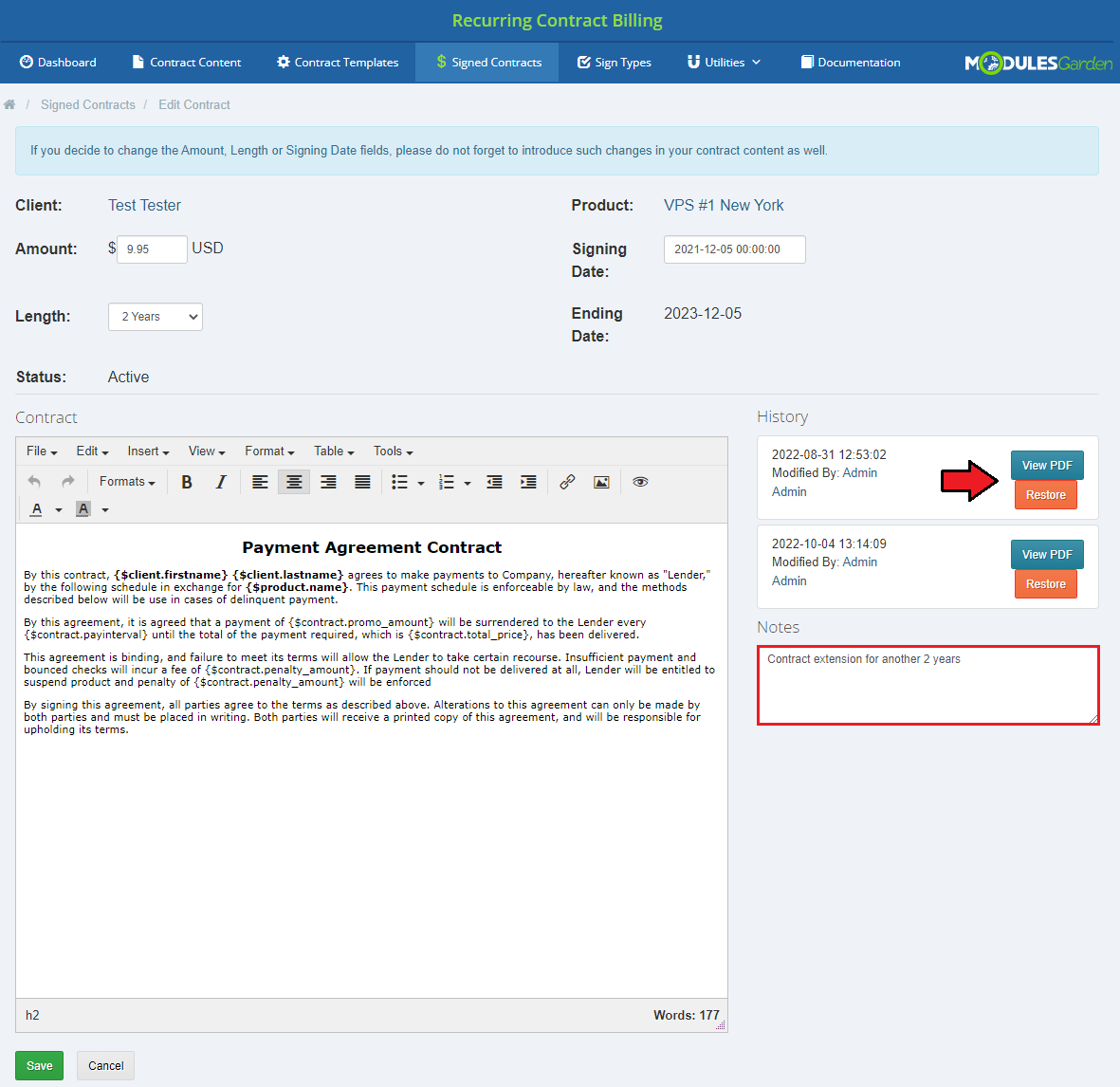
In case you decide to make any changes to the contract, the previous (before changes) version of the contract is added to the 'History'.
Thanks to that, you may always come back to the original, restore it (changes made will be overwritten with the previous content) or view PDF version.
In this step you may also add notes for future reference.
# Upload Signed Contracts
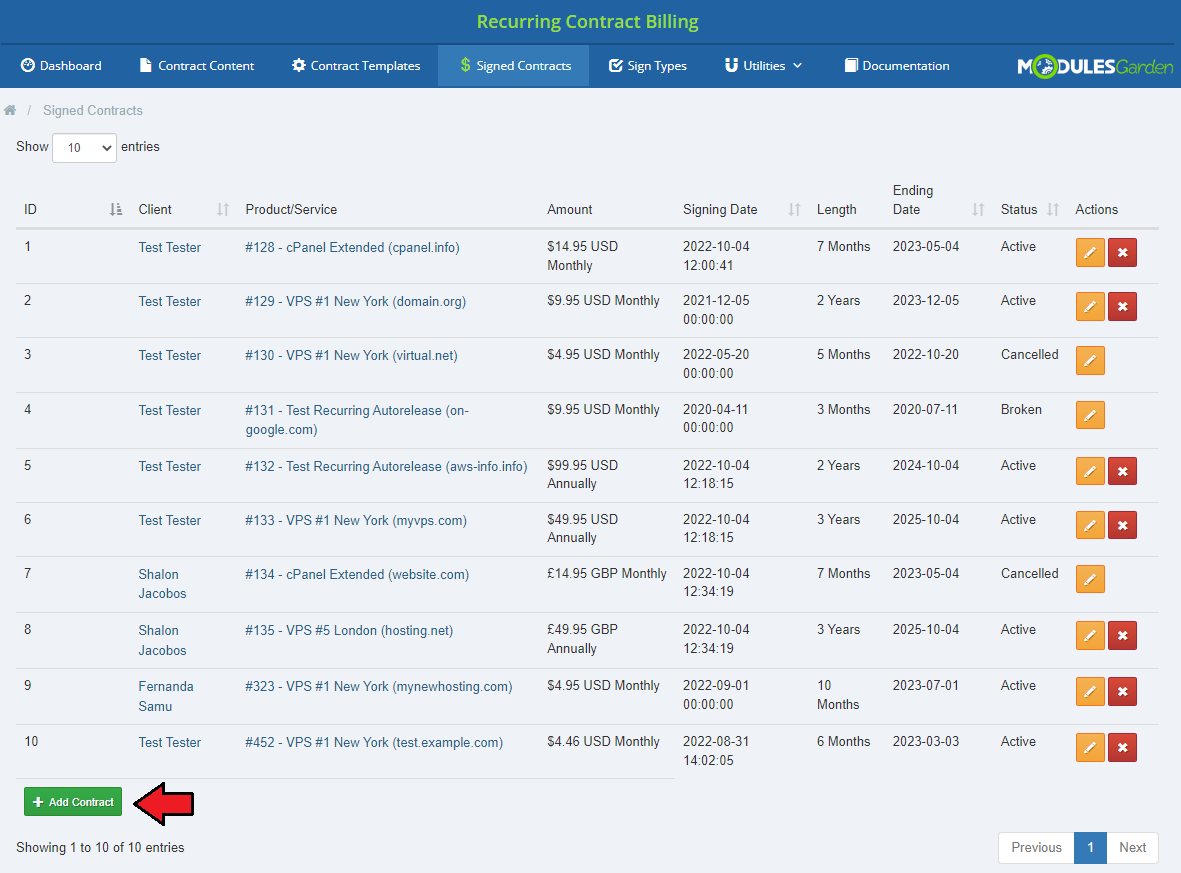
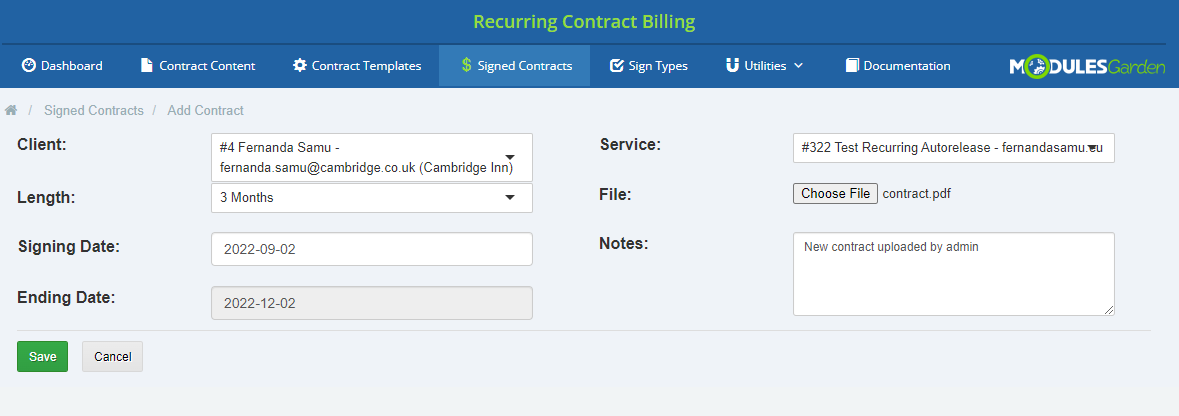
Below the list of 'Signed Contracts', you will find a button redirecting you to the form where existing contracts, for example signed manually, can be uploaded into the module and managed here.
Press the button to see how to do that.
First of all select the client. Then pick the service the uploaded contract is related to, or select 'None' if your contract is an independent document.
Choose the contract length: strict period or a custom length; note that the ending date is selected automatically based on the contract length.
You may also add your private notes. Save the changes to finalize the action.
# Dashboard
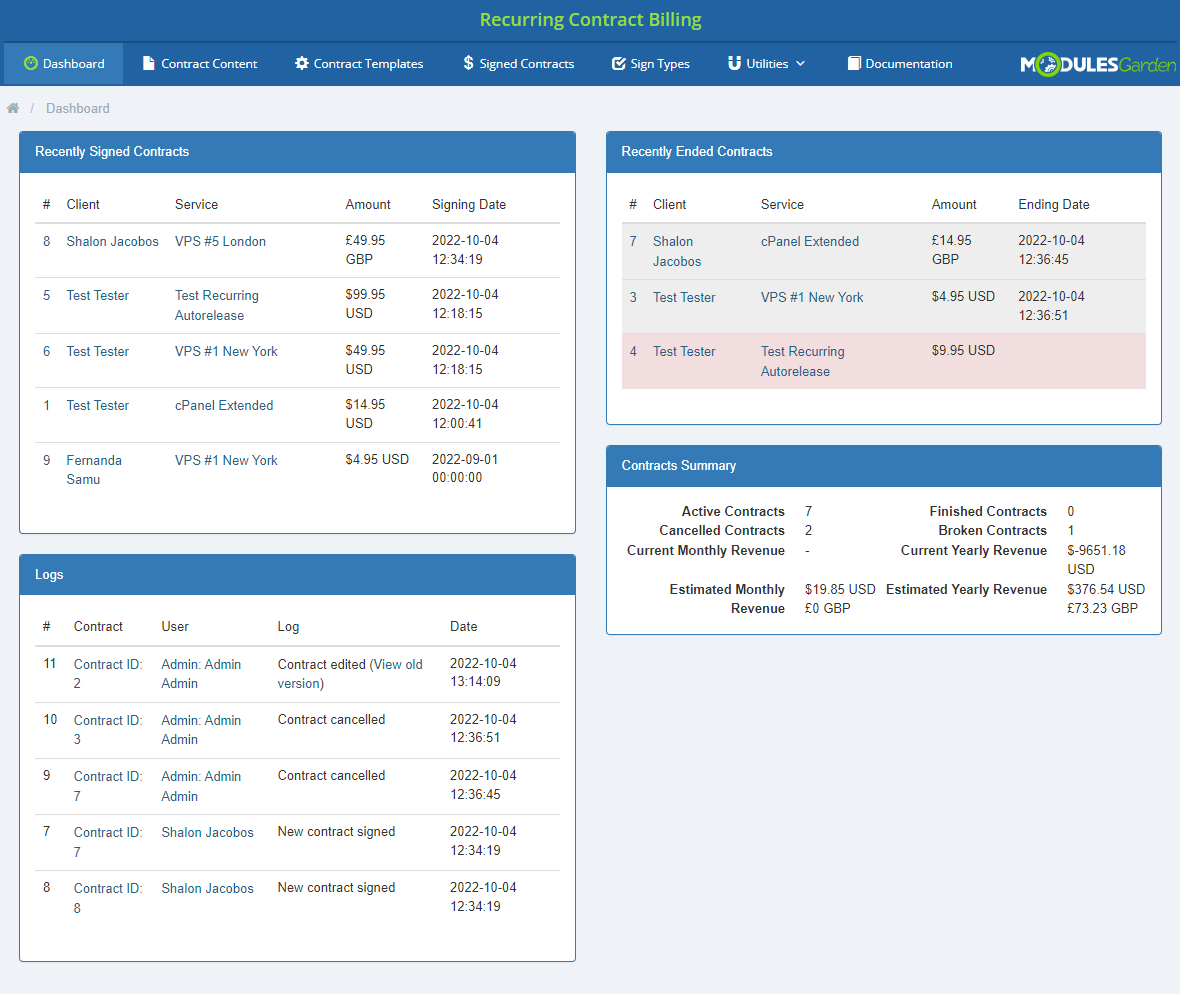
On the Dashboard of your addon you will find the most important information in a nutshell.
These are:
- Recently Signed Contracts
- Recently Ended Contracts (including finished, canceled and broken ones)
- Contract Status
- Logs
# Logs
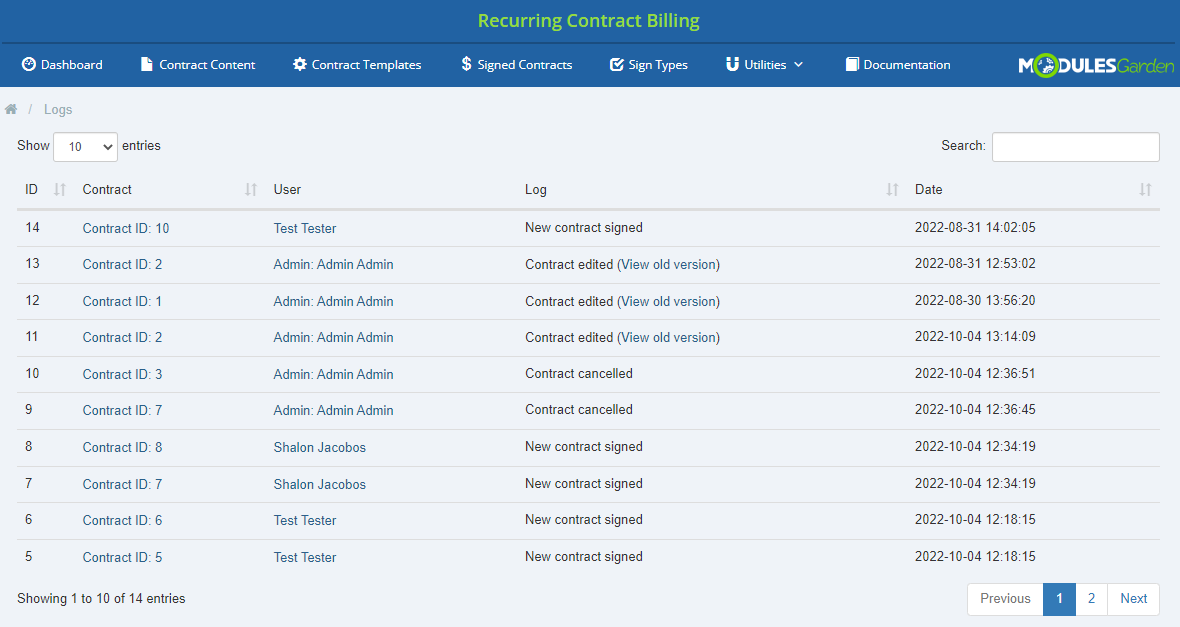
In 'Logs' section you have a full view on any attempted action on any contract.
# Advanced Billing For WHMCS Integration
It is possible to combine your Recurring Contract Billing For WHMCS module with one of our most favored products which is Advanced Billing For WHMCS.
In order to configure the two modules to work together move to 'Advanced Billing addon' → 'Configuration' and find the product you want to work with.
Move to 'Settings' → 'Recurring Billing' section, as billing type select 'Bill On Invoice Generation' option.
Learn more about Advanced Billing configuration here.
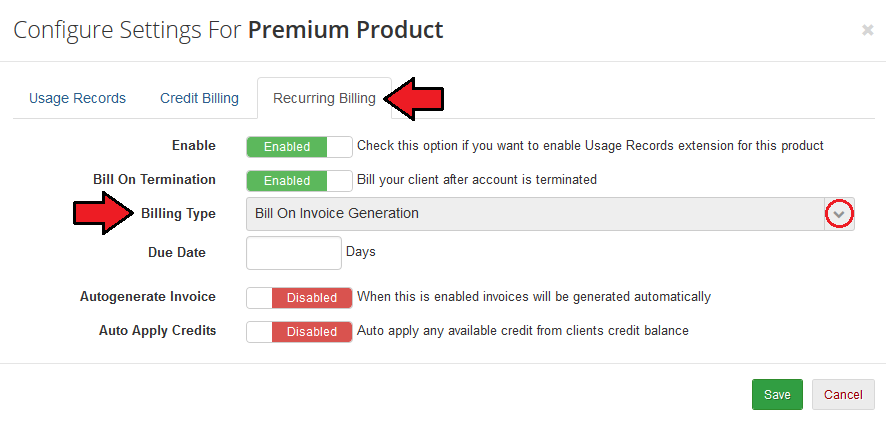
When ready, Recurring Contract Billing For WHMCS will be in constant cooperation with the other module within the configured product. If you want to combine the functionalities
of the two modules for more than one product, please remember to select 'Bill On Invoice Generation' option for all of them!
# Tips
If you mark checkbox 'Select to permit orders without contract' in a contract template, while placing an order a client will be allowed
to select 'I do not want to sign a contract' option form 'Contract Length'.
No 'Terms of Use' will have to be accepted then and the client will not be charged according to the contract's details.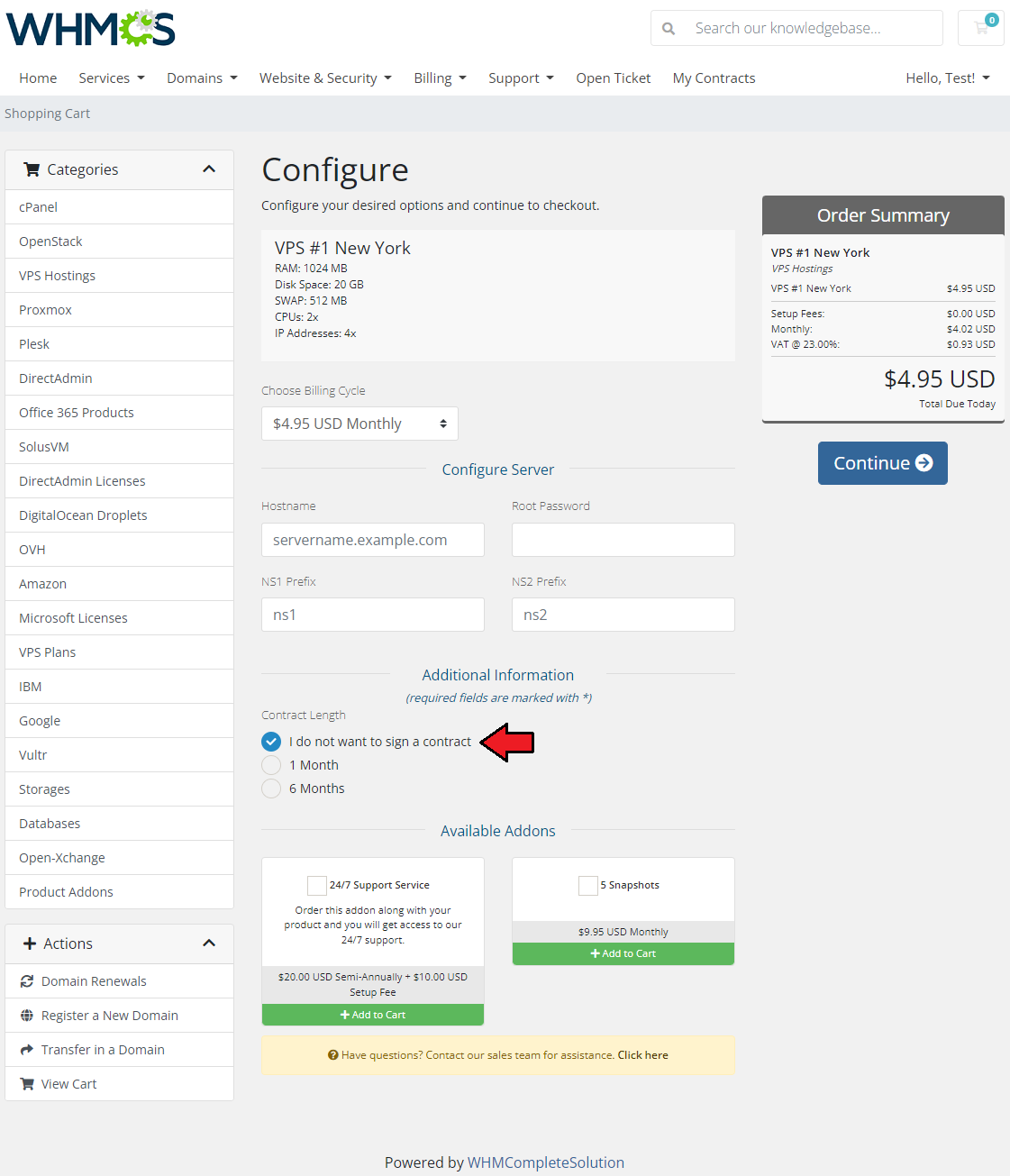
The contracts are automatically broken in two cases:
- The invoice has not been paid - module counts the number of days set up in configuration 'penalty after x days' until the moment the payment is noted in the system.
- Client has sent a cancellation request for the product.
As this module supports templates system, any changes made in the module's templates files will be saved after the upgrade process.
Please remember that the 'Accept Contract' checkbox with the possibility to view the contract in the preview of placing an order is visible only for logged in users.
For not logged in users, it will be visible when they proceed to the checkout step.To assure correct integration of the module with the 'Lagom Client Theme', the following integration code must be added into ' viewcart.tpl'.
Open the ' viewcart.tpl' file at /templates/orderforms/lagom2/viewcart.tpl directory, find following line:
<input type="hidden" name="submit" value="true" />
Insert the following code below that line:
<div class="section mg-recurring-billing">
<div class="section-header">
<div class="section-title h3" id="recurring-biling-contracts">
<span>{$contractTitle}</span>
</div>
</div>
<div class="section-body">
{$contractOutput}
</div>
{literal}
<style>
.mg-recurring-billing p {
display: flex;
align-items: center;
}
</style>
{/literal}
</div>
# Update Instructions
Essential guidance through the process of updating the module is offered here.
Keep in mind there is a quick and easy option in our client area that will let you upgrade the license of your module to an open source version at any time - and at a lower price!
To take advantage of it, simply use the License Upgrade button located on the product's page and a discounted invoice will be generated automatically.
The module rebranding from Recurring Billing For WHMCS to Recurring Contract Billing For WHMCS caused changes in the module file naming.
If you are updating the module from version 1.3.x or lower to 1.4.0 or higher, you must remember to delete the previous module's files from your WHMCS directory. Keeping both recurringBilling and recurringContractBilling will cause errors.
# Common Problems
When you have problems with connection, check whether your SELinux or firewall does not block ports.
Remember that Recurring Contract Billing For WHMCS contracts can be applied to products with recurring payment type only.