

# Cloud Billing For WHMCS
# (opens new window) About Cloud Billing For WHMCS (opens new window)
Cloud Billing For WHMCS is a sophisticated module that consists of:
- AWS Billing For WHMCS
- Google Cloud Billing For WHMCS
- Microsoft Azure Billing For WHMCS
- Microsoft CSP Billing For WHMCS (coming soon)
Cloud Billing For WHMCS offers you a powerful billing model management of Google Cloud, Amazon Web Services and Microsoft Azure to broaden your target audience.
The module allows you to gather all the services in one place, connect to the external platforms in two different ways - with the use of your account or your customer account.
Except for setting percentage billing margin for WHMCS products per service, you are given the possibility to generate detailed reports on billing management, earnings, resource usage per service, and much more.
# Installation and Configuration
This tutorial will show you how to successfully install and configure Cloud Billing For WHMCS (opens new window) smoothly.
We will guide you step by step through the whole process.
# Installation
- Log in to our client area and download the module.
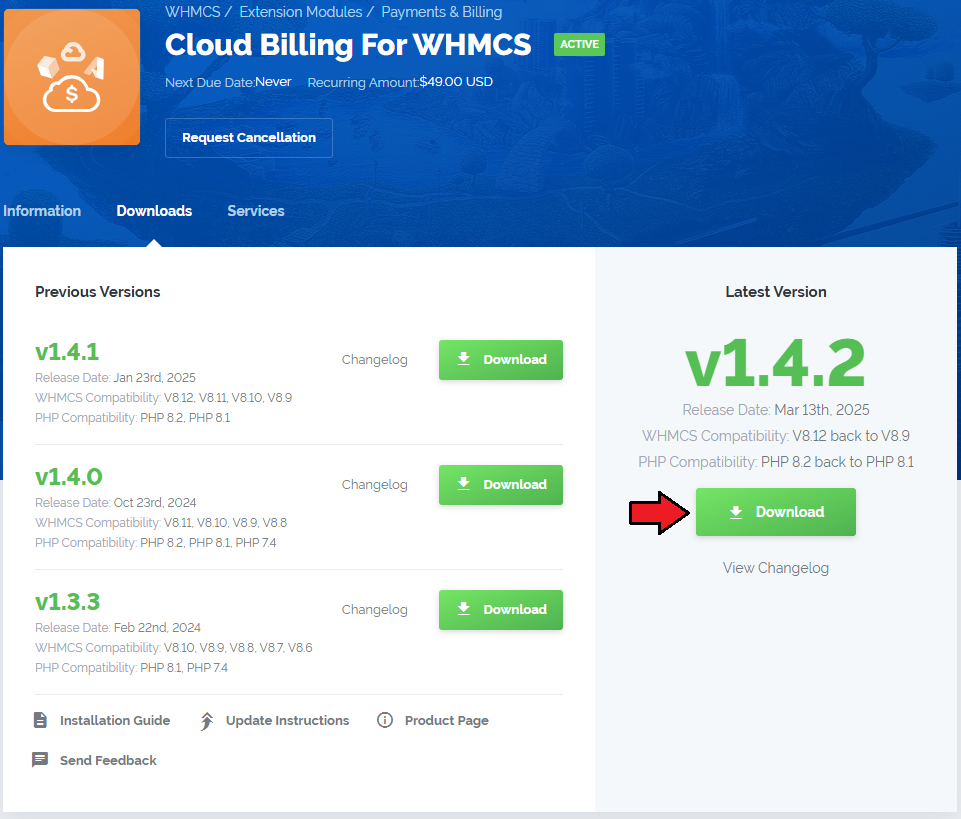
Upload and extract the extension into the main WHMCS directory.
Extracted files in your WHMCS directory should look like this:
When you install Cloud Billing For WHMCS for the first time, you have to rename the 'license_RENAME.php' file.
The file is located in 'modules/addons/CloudBilling/license_RENAME.php'. Rename it from 'license_RENAME.php' to 'license.php'.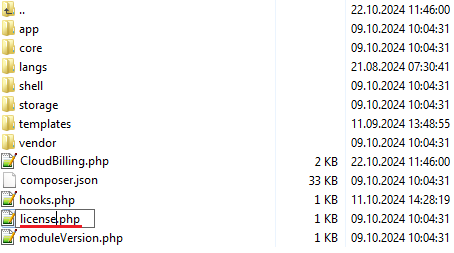
In order to configure your license key, you have to edit the previously renamed 'license.php' file.
Enter your license key between quotation marks as presented on the following screen. You can find your license key in our client area→ 'My Products'.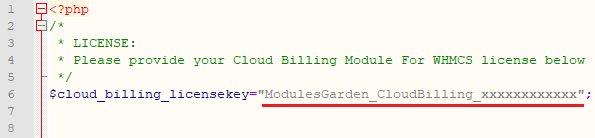
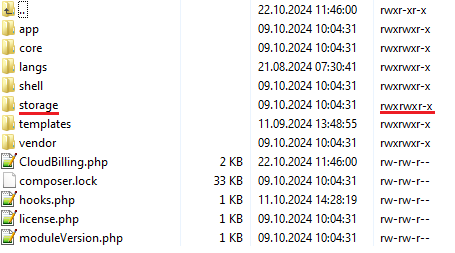
In the next step, set up the 'storage' folder as recursively writable.
This folder is available at 'your_whmcs/modules/addons/CloudBilling/'.
# Activating Addon Module
Now, you have to activate the module in your WHMCS system.
Log in to your WHMCS admin area. Go to 'System Settings' → 'Addon Modules'. Afterward, find 'Cloud Billing' and press the 'Activate' button.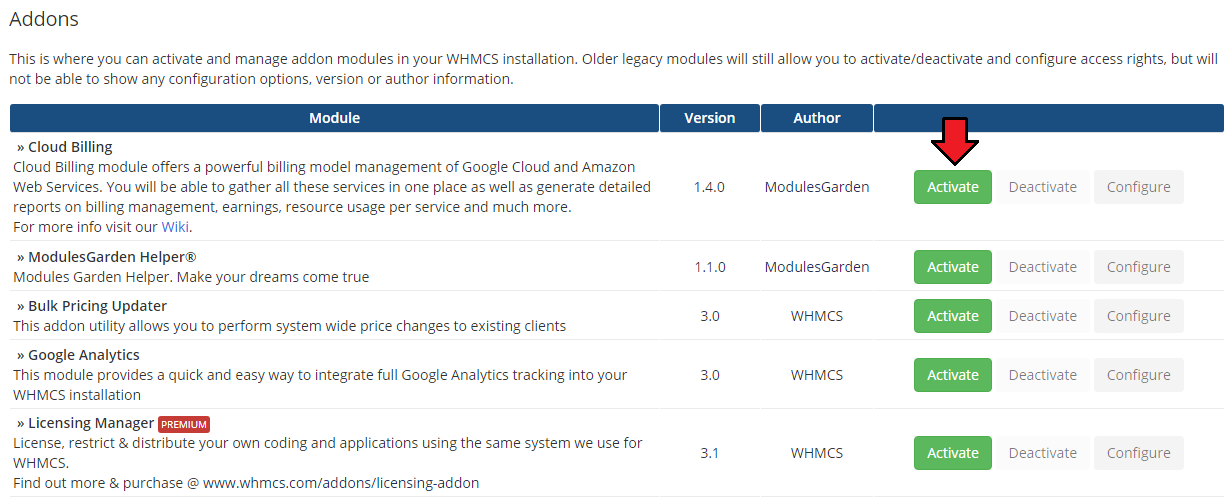
In the next step, you need to grant access to this module.
To do so, click on the 'Configure' button, go to the 'Access Control' area and check the required admin role groups. Press 'Save Changes'.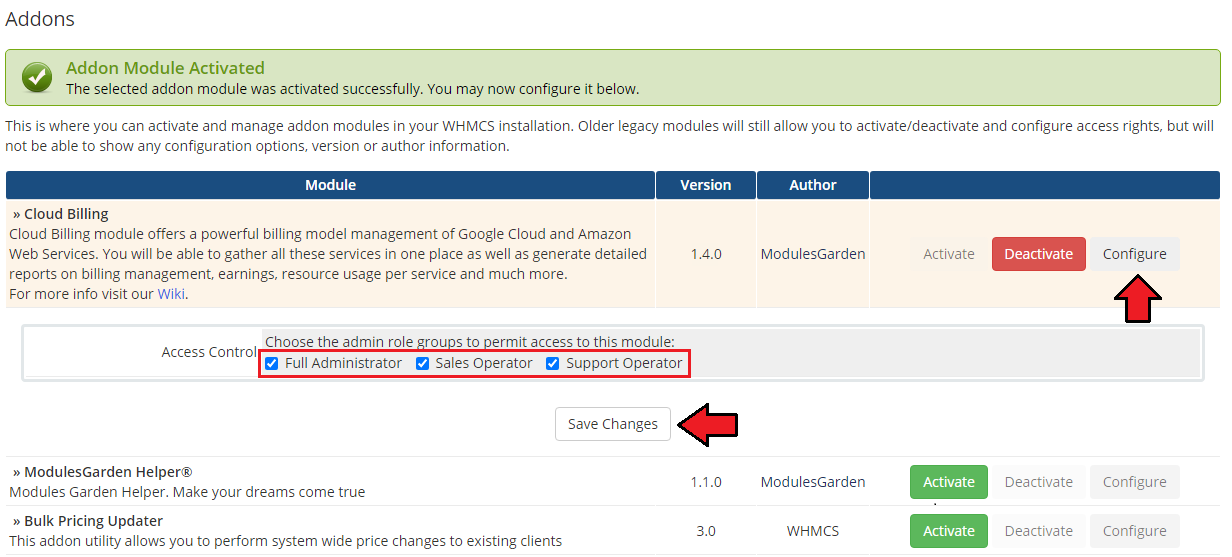
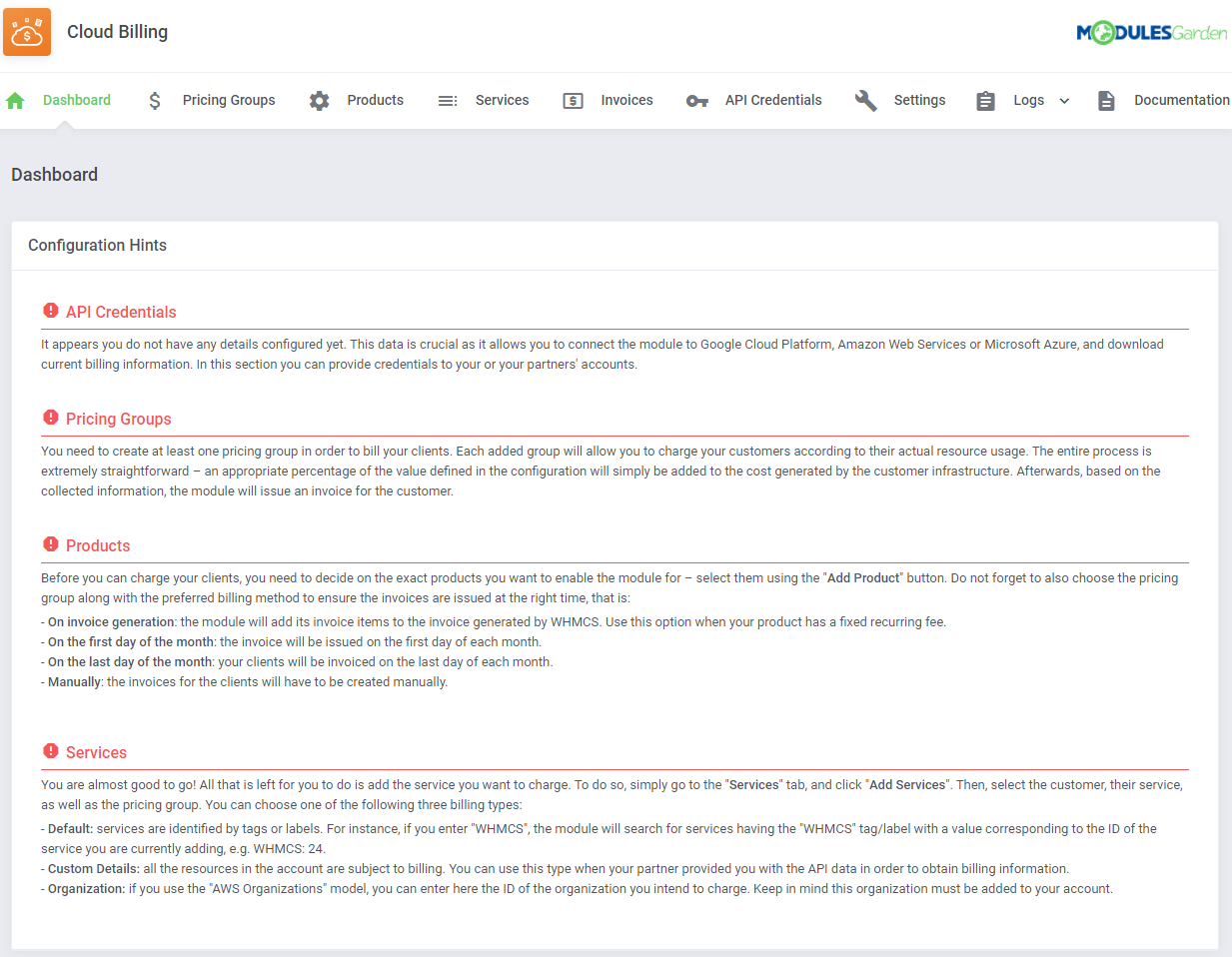
Good job! You have just successfully installed Cloud Billing For WHMCS! Now in your WHMCS press 'Addons' and then 'Cloud Billing'.
# AWS Billing For WHMCS
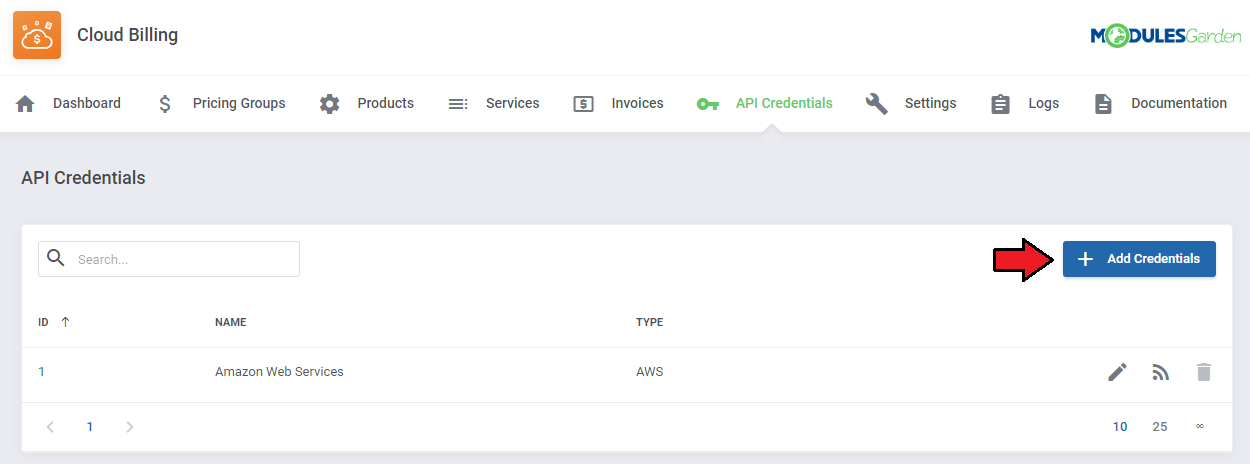
In order to continue the configuration process. At first, proceed to the 'API Credentials' section as presented on the screen.
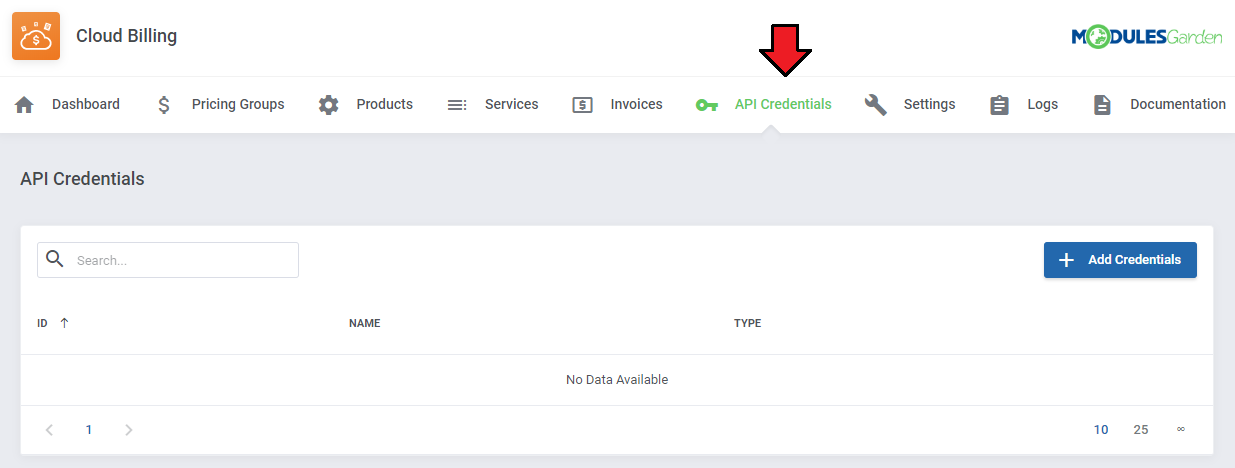
To complete the previous step and connect to the platform properly, you need to generate your AWS access details.
Underneath, you will find detailed instructions on where to find this information.Log in to your Amazon AWS Management Console (opens new window) and find 'My Security Credentials' section under your account name dropdown.
AWS account requirements
- Account with root access or
- User with following permissions (all are required):
- AWSBillingConductorReadOnlyAccess
- AWSBillingReadOnlyAccess
- CloudWatchReadOnlyAccess
- CostExplorerGetTagsPolicy
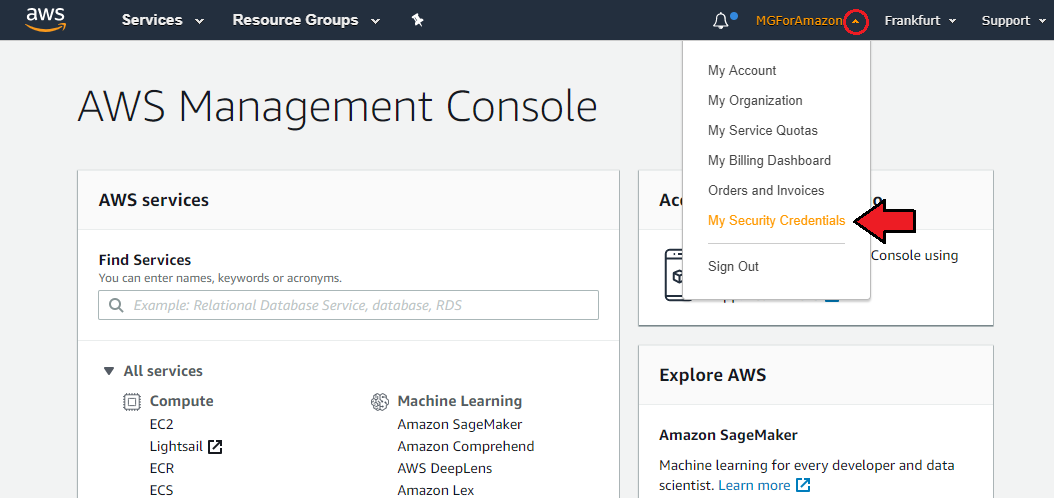
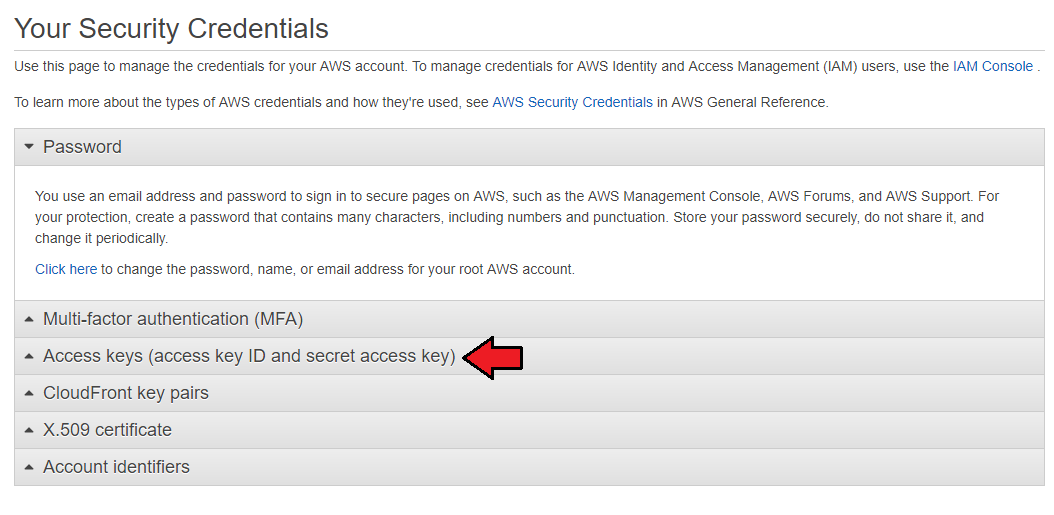
- There, move to the 'Access Keys (access key ID and secret access key)' section.
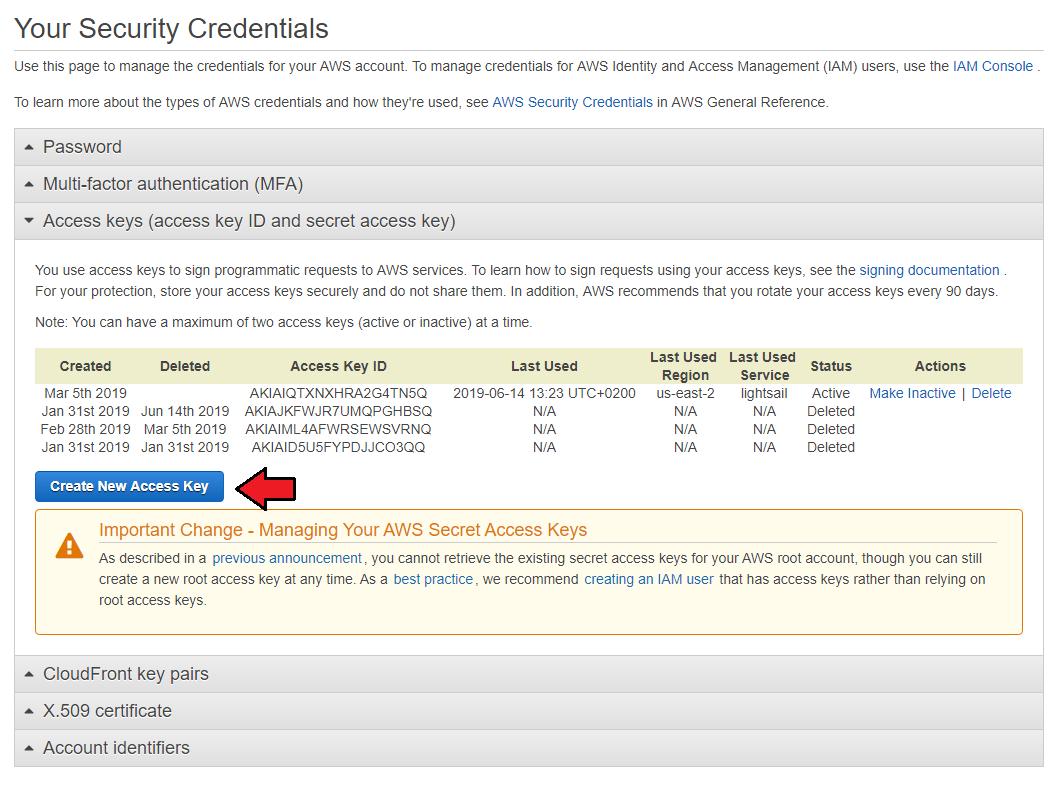
- If you do not have any active keys yet, then press the 'Create New Access Key' button to generate a new set of details.
A modal with Access Key ID and Secret Access Key will appear, so copy this information and keep it safe. You may also download a suitable file with these details.
Note: This is the only place where you can find the corresponding secret key later. It will not be visible next to the Key ID in the panel.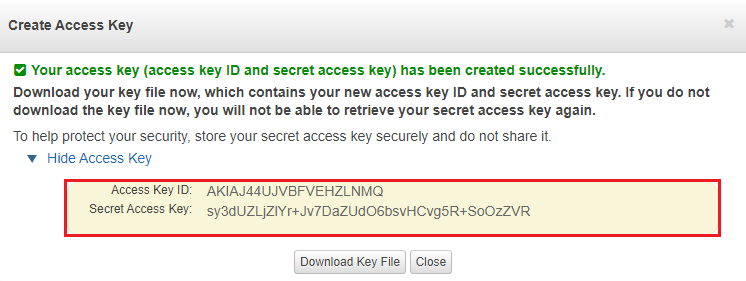
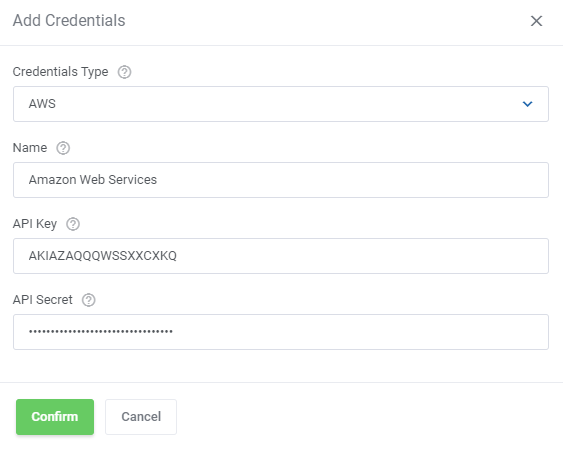
Now, come back the 'API Credentials' section and press the 'Add Credentials' button. In the new pop-up window, provide a name, API Key, API Secret.
In the new pop-up window, provide a name, API Key, API Secret. Press 'Confirm' when ready.
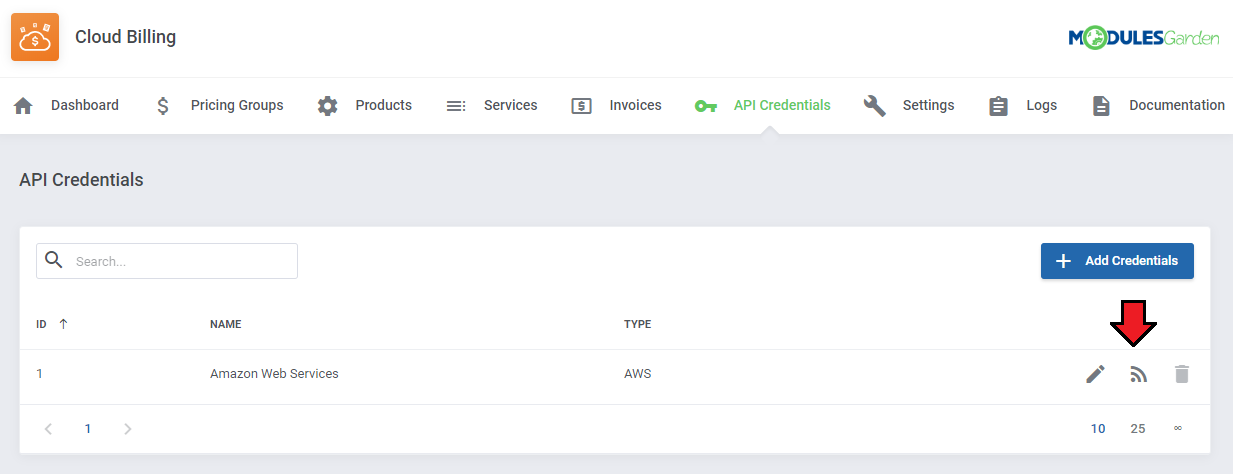
To check if the entered data is correct, click on the 'Test Connection' button.
# Google Cloud Billing For WHMCS
Before you can go on, you must configure your google service account appropriately and then generate your Google Cloud access details. You will need them to create connection between the module and the Google Cloud server.
# Billing Export
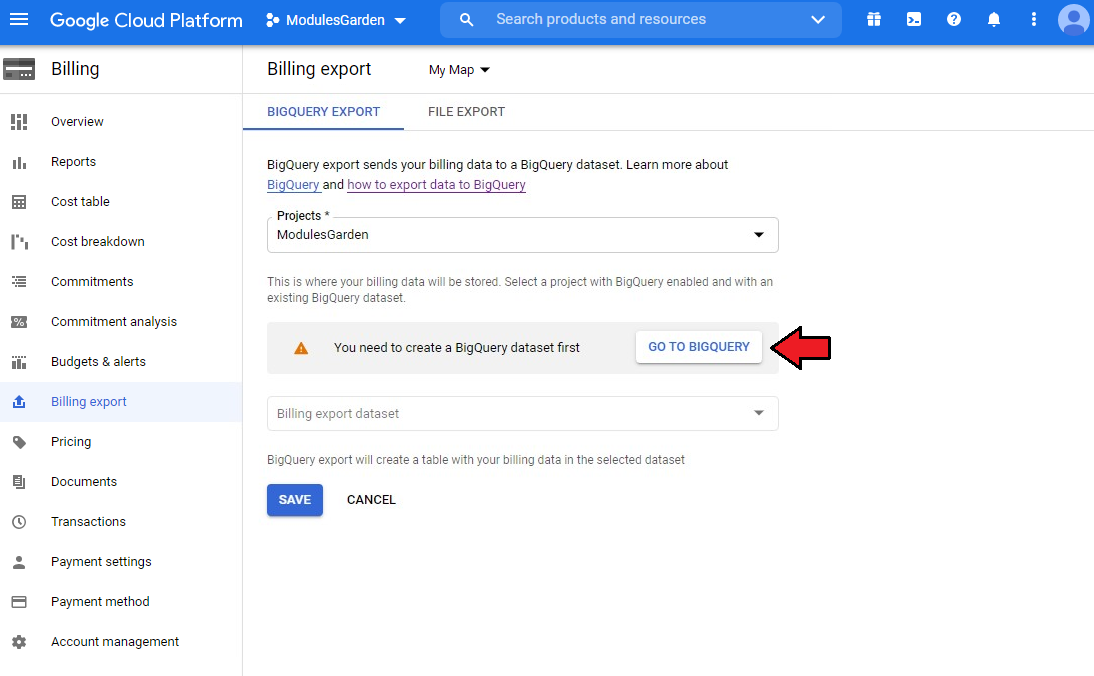
Underneath, you will find instructions on how to export billing data and create datasets. This step is obligatory and without proper configuration here the module will not work correctly.
- At first, proceed to 'Billing' → 'Billing Export' section of your project. There under 'Daily Cost Detail' press 'Edit Settings'.
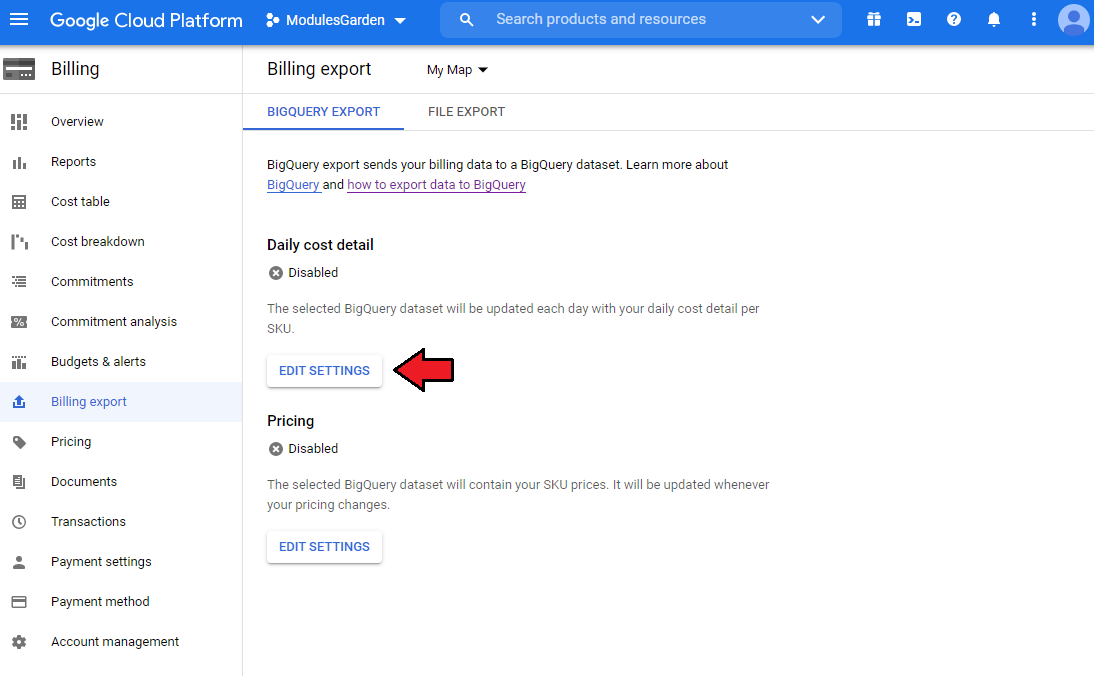
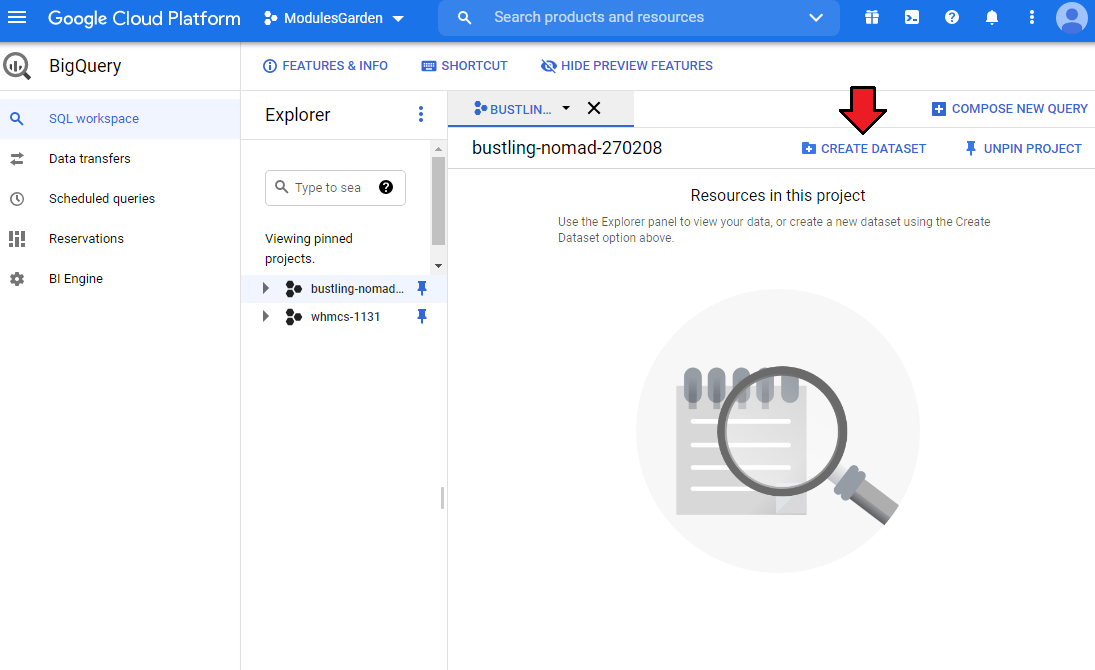
- Now create a BigQuery dataset.
This step is crucial for the whole module managemnt. Billing datasets are generated now, they will be assigned to services in the module to allow their billing.
Press 'Create Dataset'.
Enter the dataset ID and select localisation (the same for the project and the dataset).
# API Credentials
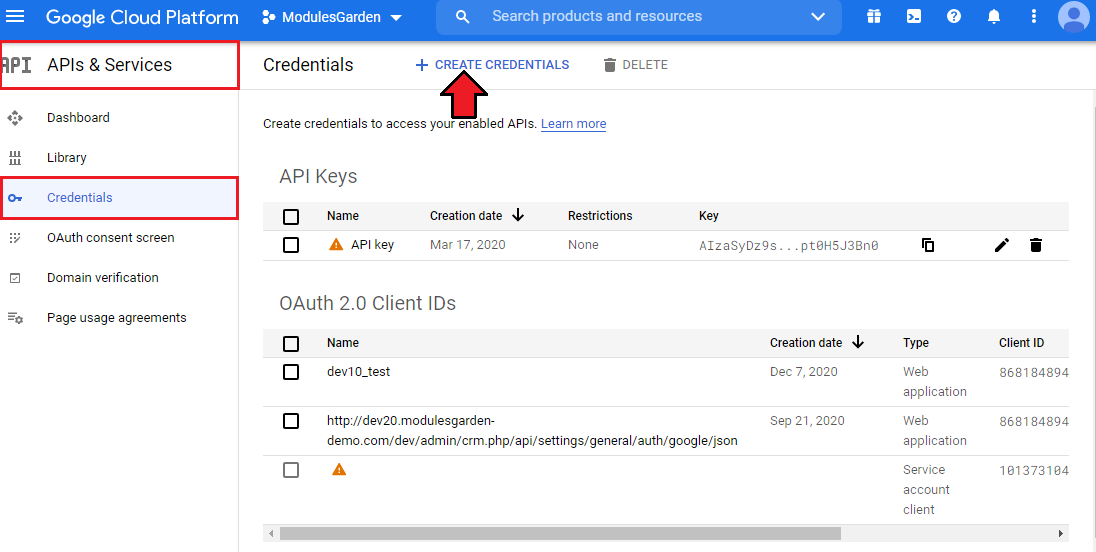
Next, you will have to create your personal login credentials.
You will need them to successfully connect the Cloud Billing module with the platform.
Move to 'APIs & Service' → 'Credentials'. There press '+ Create Credentials' → 'Service Account'.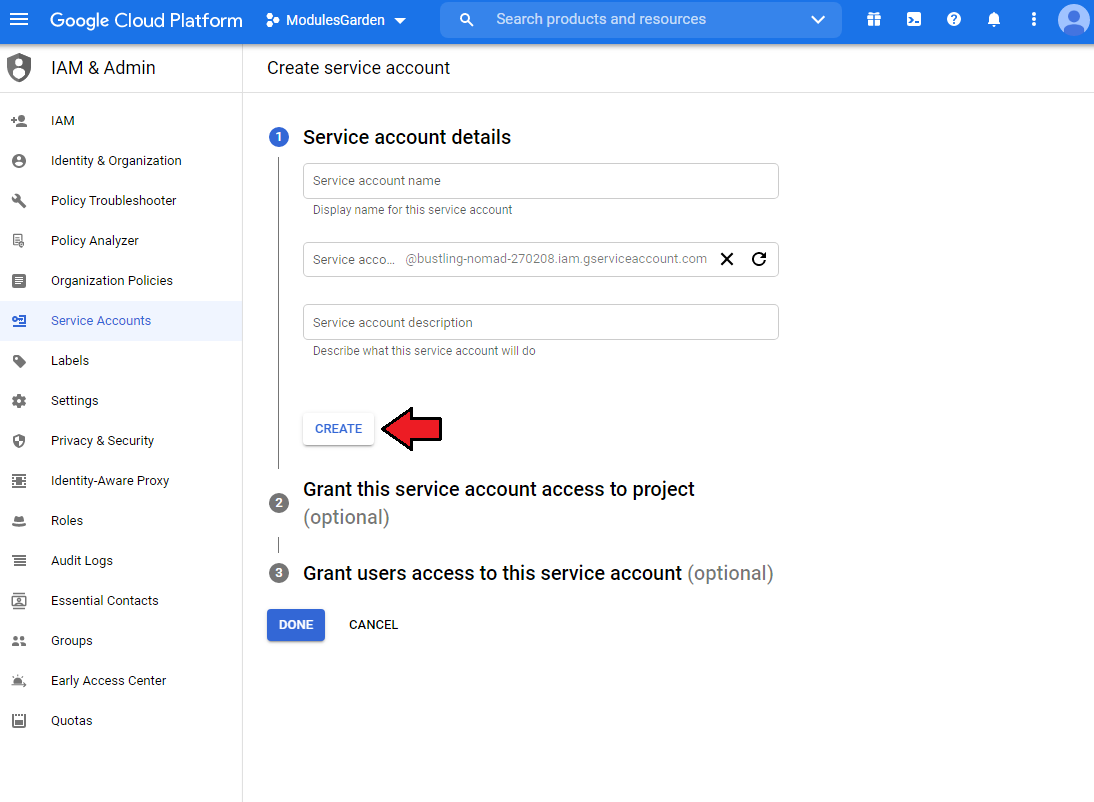
Provide the service account details and press 'Create'. You will be automatically moved to the next step.
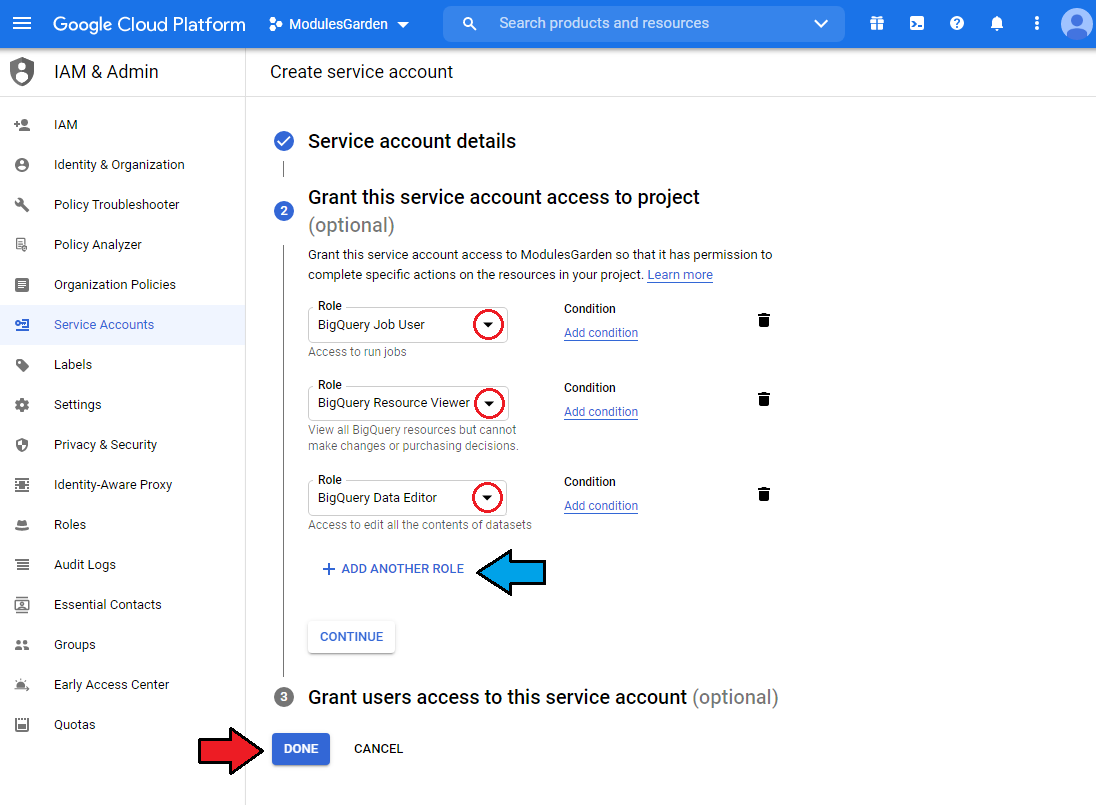
Grant the service account access to the project, add these roles
- BigQuery Job User
- BigQuery Resource Viewer
- BigQuery Data Editor
If you need you may grant users access to the service account, however, this step is not required. Press 'Done' when everything is ready.
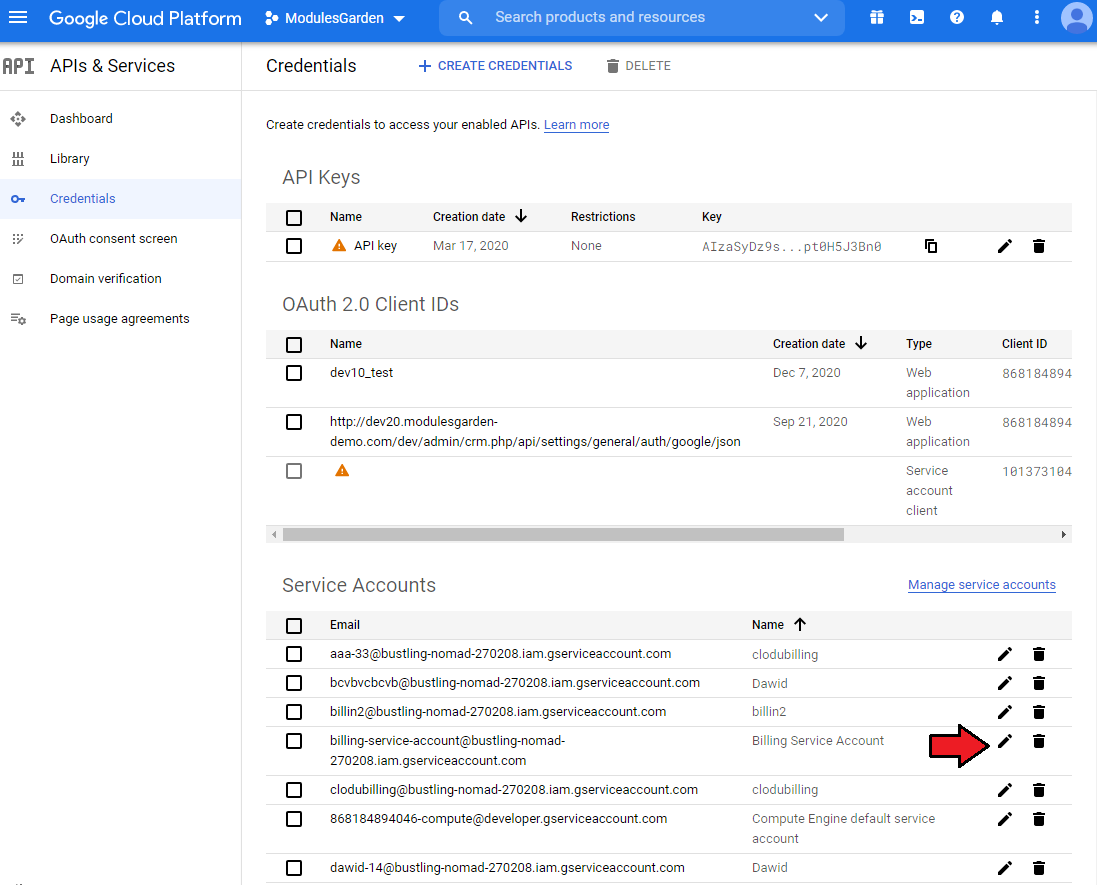
Next, open the service account details by pressing the icon. You will have to add a new JSON key to the just generated credentials.
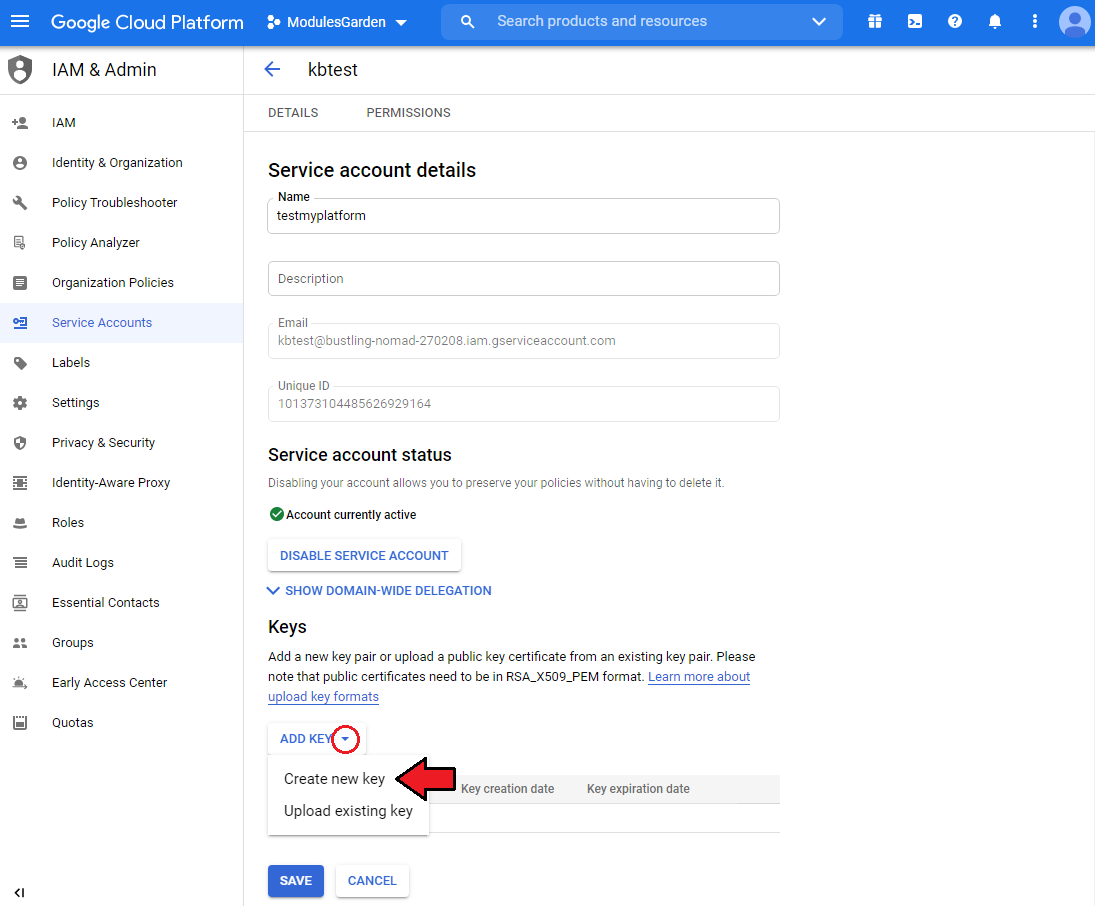
- When you have the service account details open, find 'Keys' → 'Add Key' at the page bottom. Select 'Create new key'.
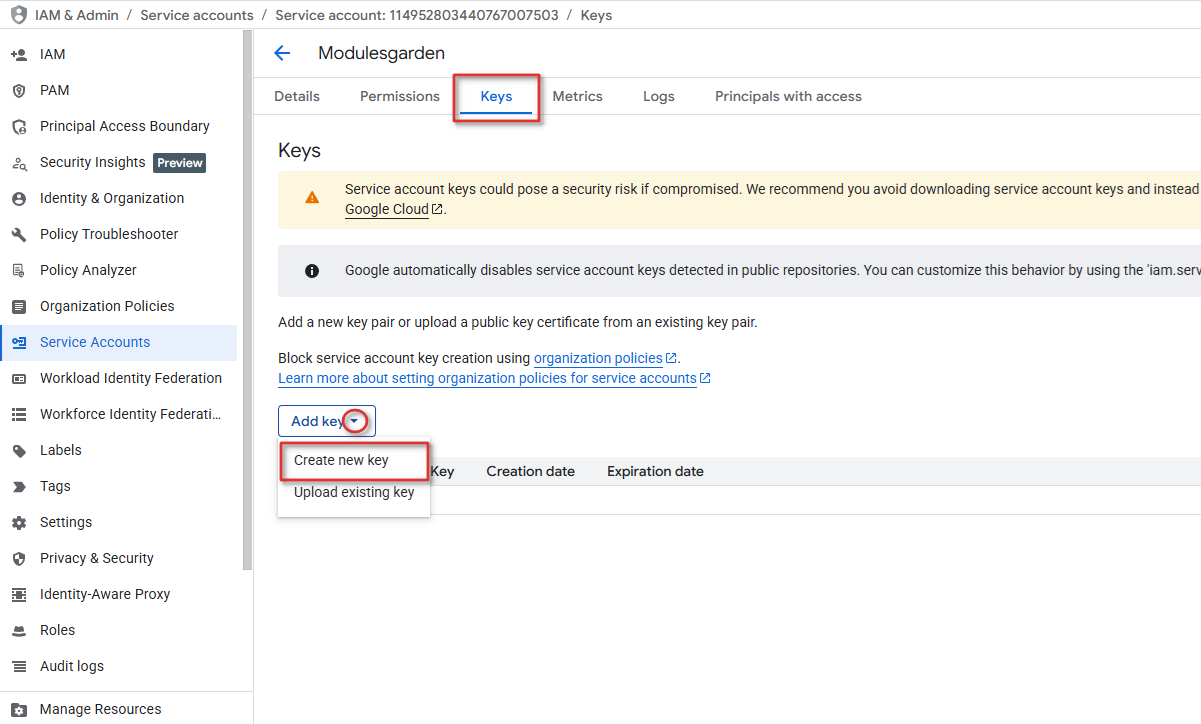
Select the key type - 'JSON' and create it.
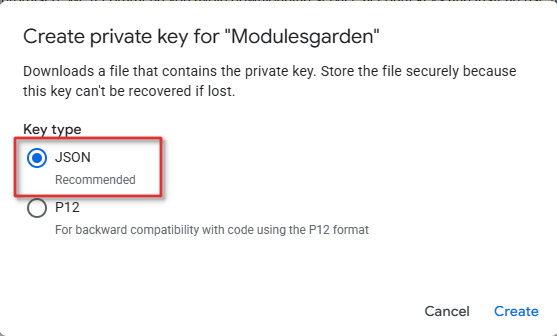
Creating JSON file might be blocked mow. Do the following to bypass the restriction.
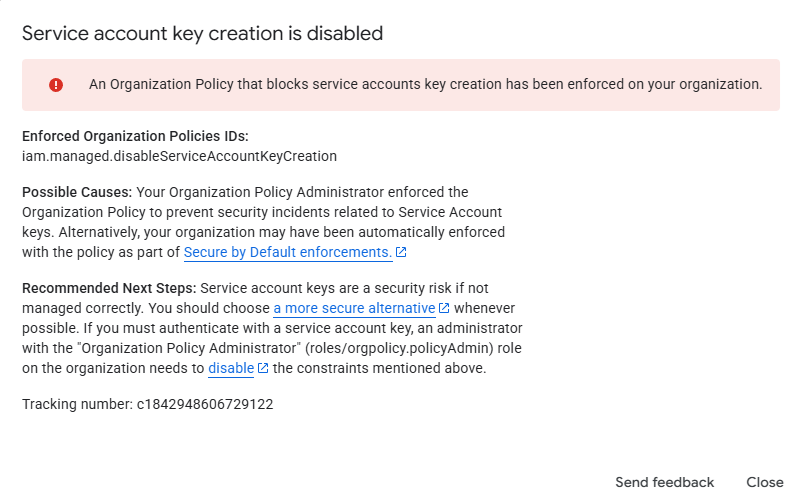
Disable Enforced Organization Policies IDs: iam.managed.disableServiceAccountKeyCreation for:
- Organisation
- Project
- Google Cloud security baseline constraints
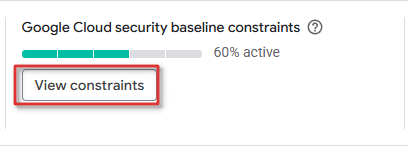

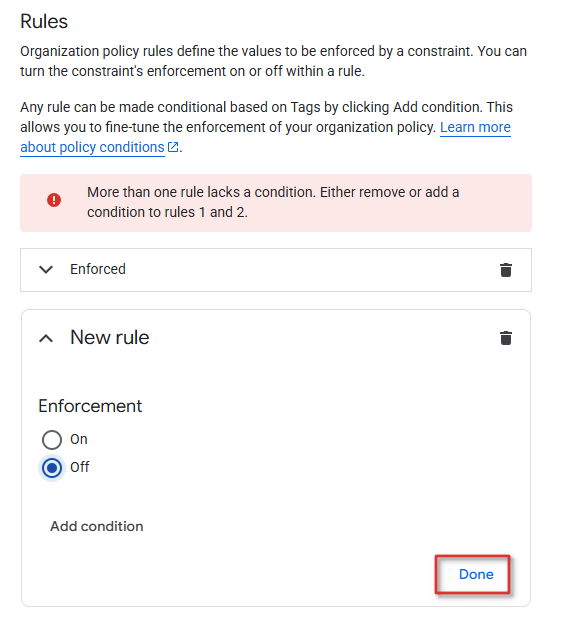
After changes, create the service account again. The JSON file creation will be completed successfully now.

Underneath, you may see what exemplary content of a JSON file may look like.

Move to your 'WHMCS' → 'Addons' → 'Cloud Billing'. There open the 'API Credentials' section and add new credentials.
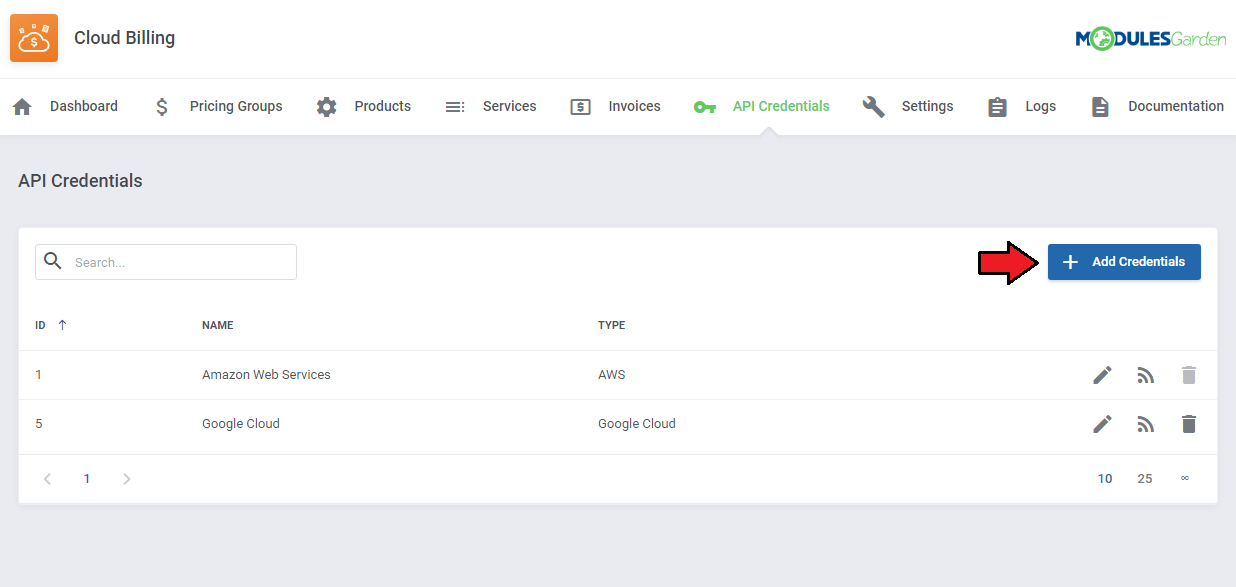
Select credentials type - in our case, that will be 'Google Cloud' and type in your custom name for this entry.
In the 'JSON File Content' field paste the input of the file that you have just saved, make sure you are pasting the exact content of that file, otherwise, the connection will fail.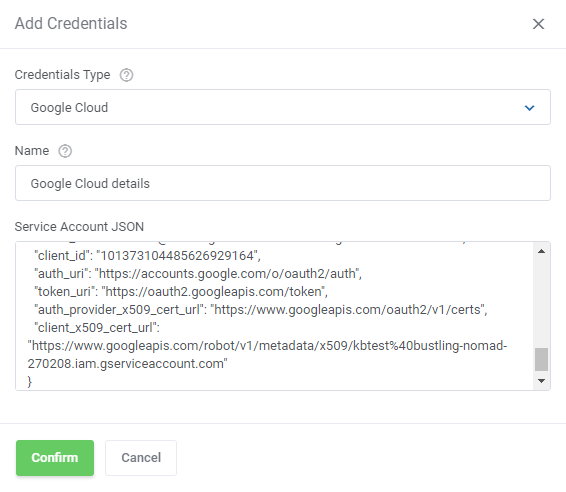
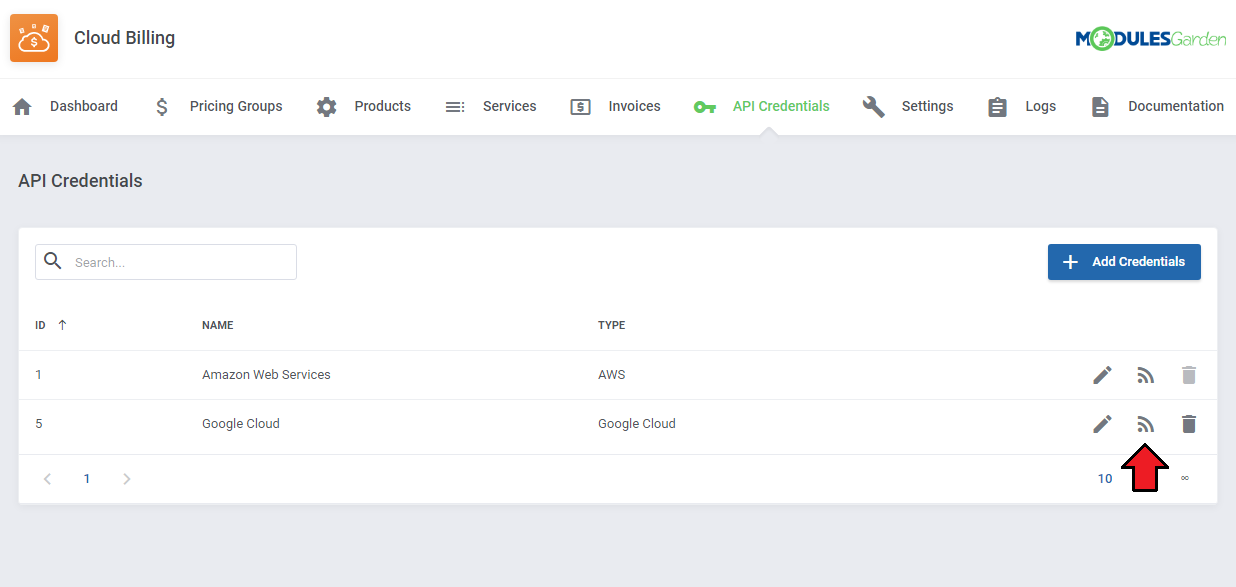
New Credentials appear on the list, test the connection to make sure everything is working as expected.
# Microsoft Azure For WHMCS
In order to successfully connect to the Microsoft Azure server, you need to configure your Azure account appropriately and then generate your access details.
You will need them in the next steps of the module configuration.
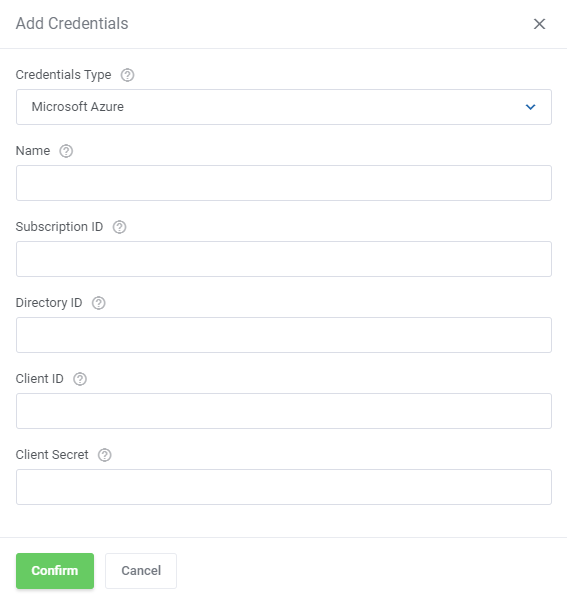
In order to continue the configuration process. First, proceed to the 'API Credentials' section as presented on the screen.
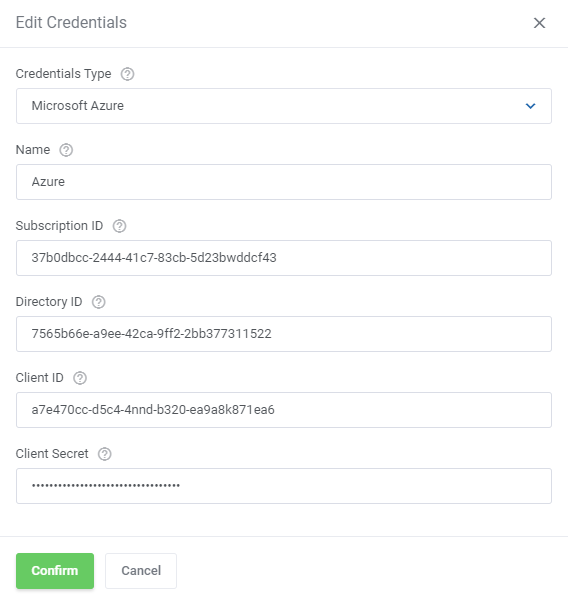
As you can see, you will need several API details to connect:- Subscription ID
- Directory ID
- Client ID
- Client Secret
Take a look at the instructions below to find out where to generate or find these values.
Start with logging in to your Microsoft Azure panel (opens new window). Find the 'Subscriptions' section on the home page.
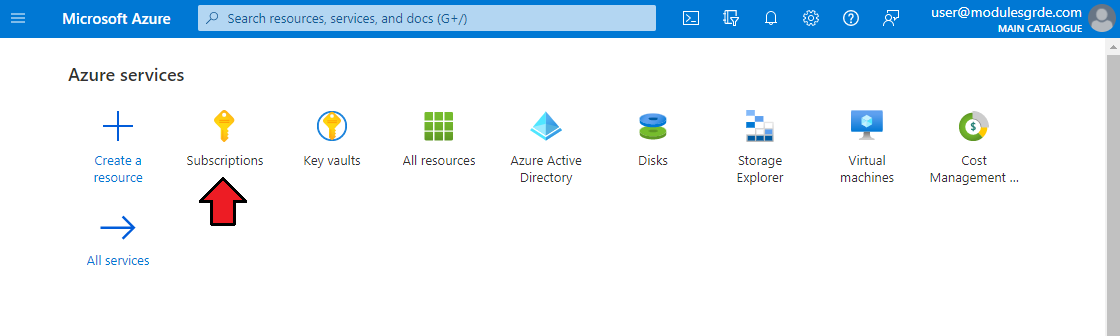
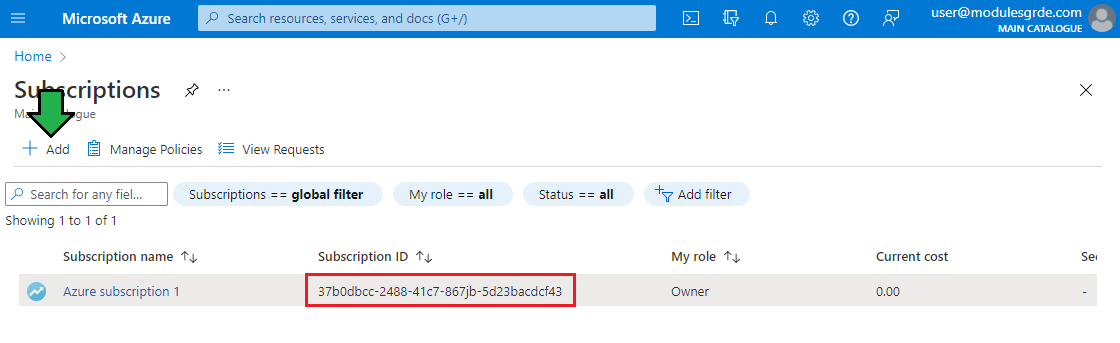
- If you do not have any active subscriptions yet, 'Add' a new one. Then copy its ID and keep it for later use.
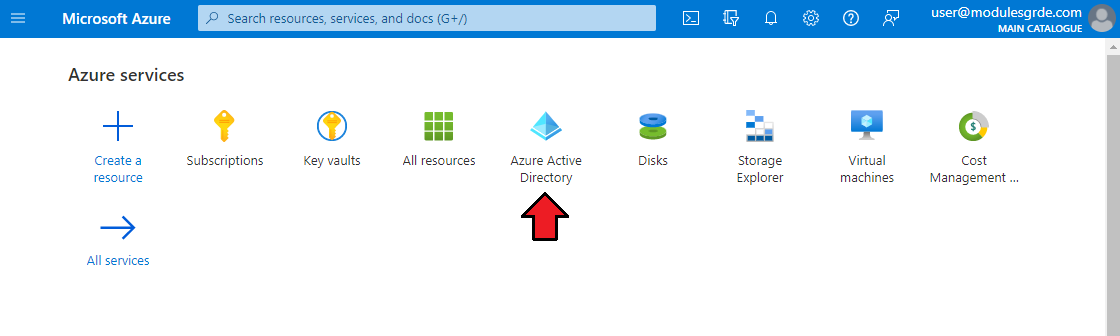
- Go back to the 'Home' page and find 'Azure Active Directory'.
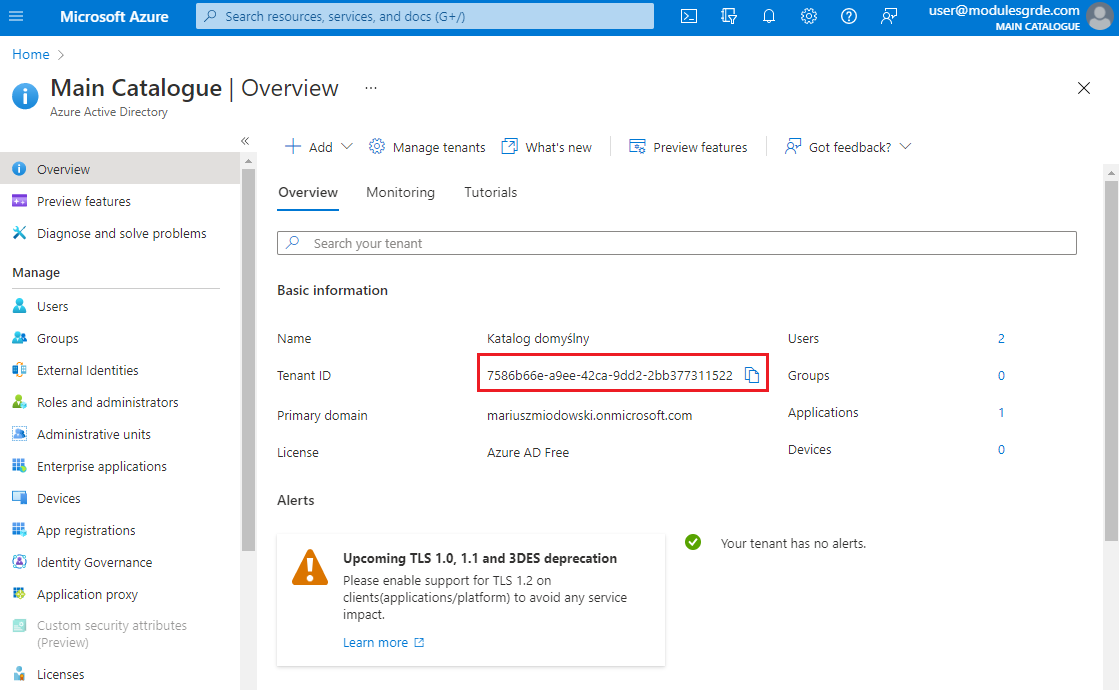
- In the 'Overview' section, which is opened by default, you will find the Tenant ID' - again copy it and keep it safe.
Stay on the same page, and in the side menu find the 'App registrations' tab.
Open 'Owned Applications' tab and press the application name to see its details.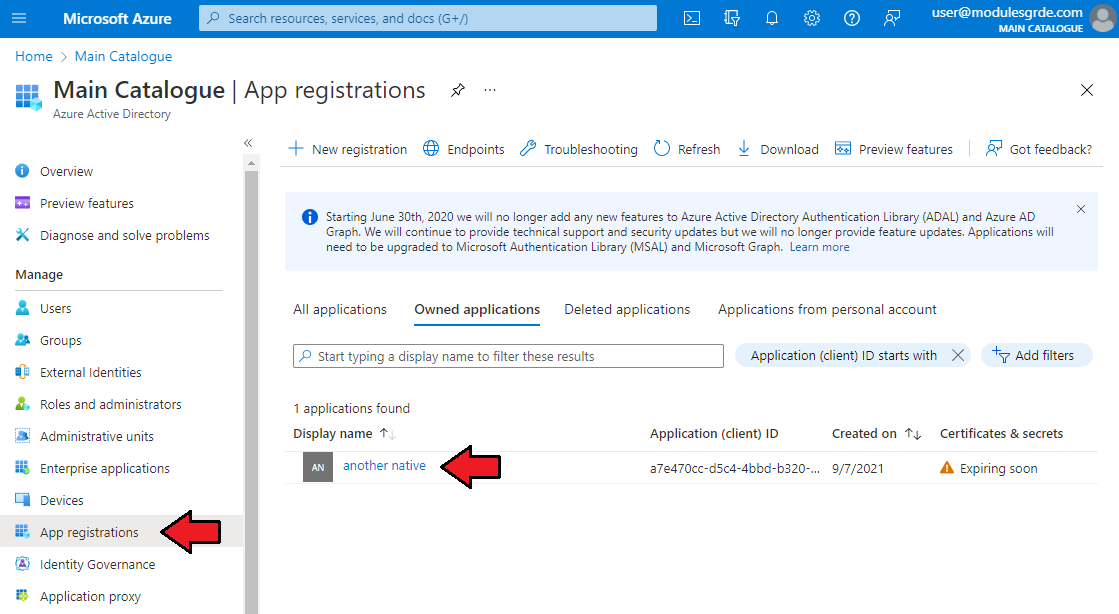
The application essentials will now be visible. Copy the 'Application (Client) ID'.
In the module this value will be used in the 'Client ID' field.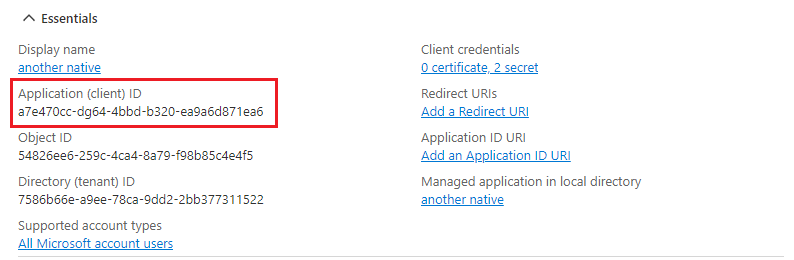
The last step is generating the Client Secret Value.
Move to the 'Certificates & Secrets' tab → 'Client Secrets'. There press 'New Client Secret'.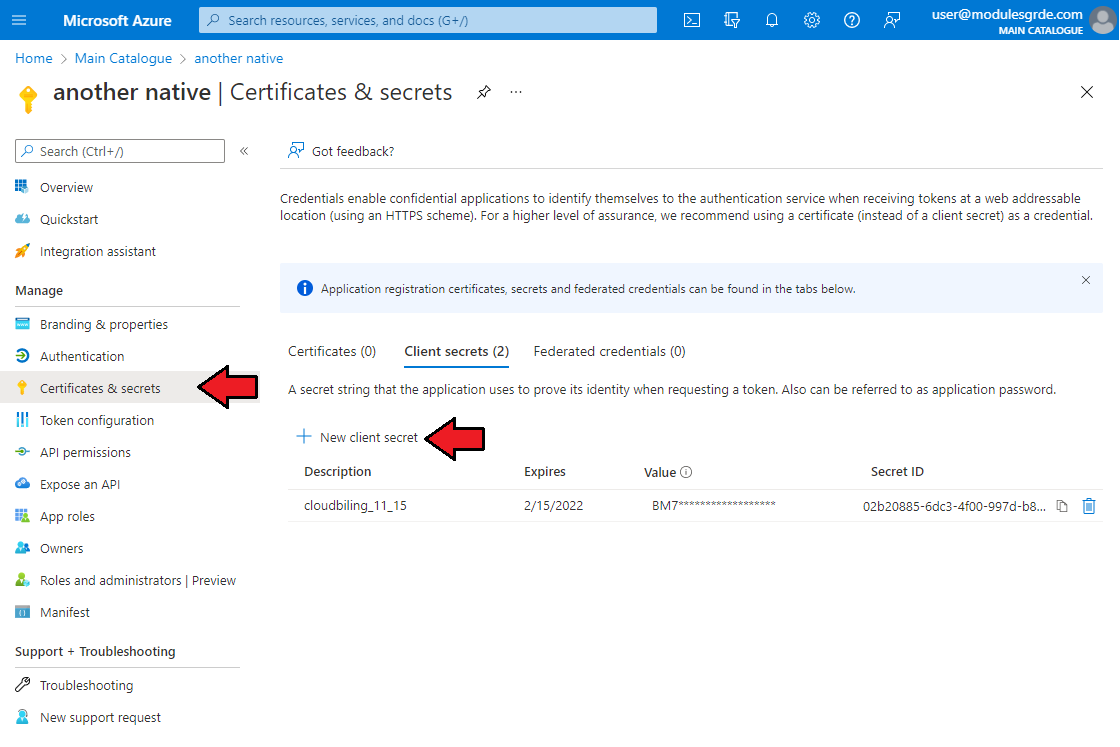
In the new pop-up window, provide a description and set up the expiration date. If you have not reached the limit yet, a new Client Secret will be added.
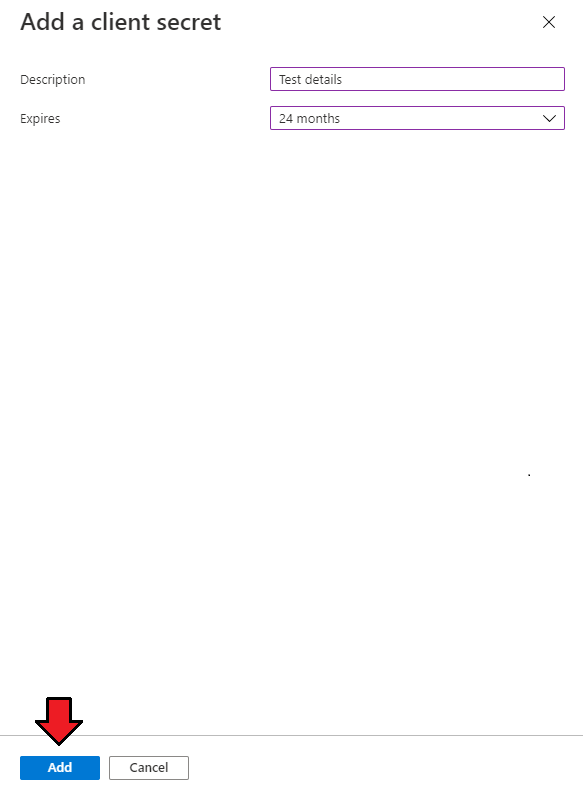
Once ready, the 'Value' will be visible for a very short moment so copy it and keep it in a safe place for later use.
That is all, now you have all the details required to connect your Cloud Billing module with the Microsoft Azure server.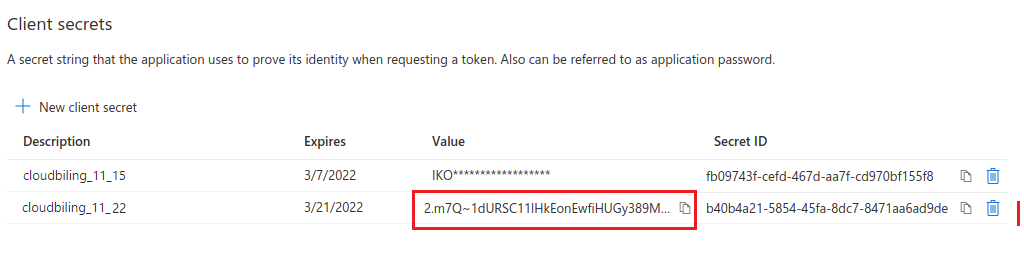
Move back to your WHMCS → Addons → Cloud Billing → API Credentials. Fill out the details for 'Microsoft Azure'.
Remember to test the connection once the API credentials have been saved.
Make sure that you have the same currency added in your WHMCS as the one used on the Microsoft Azure server.
If the currency is missing, errors will occur.
# Management
# Pricing Groups
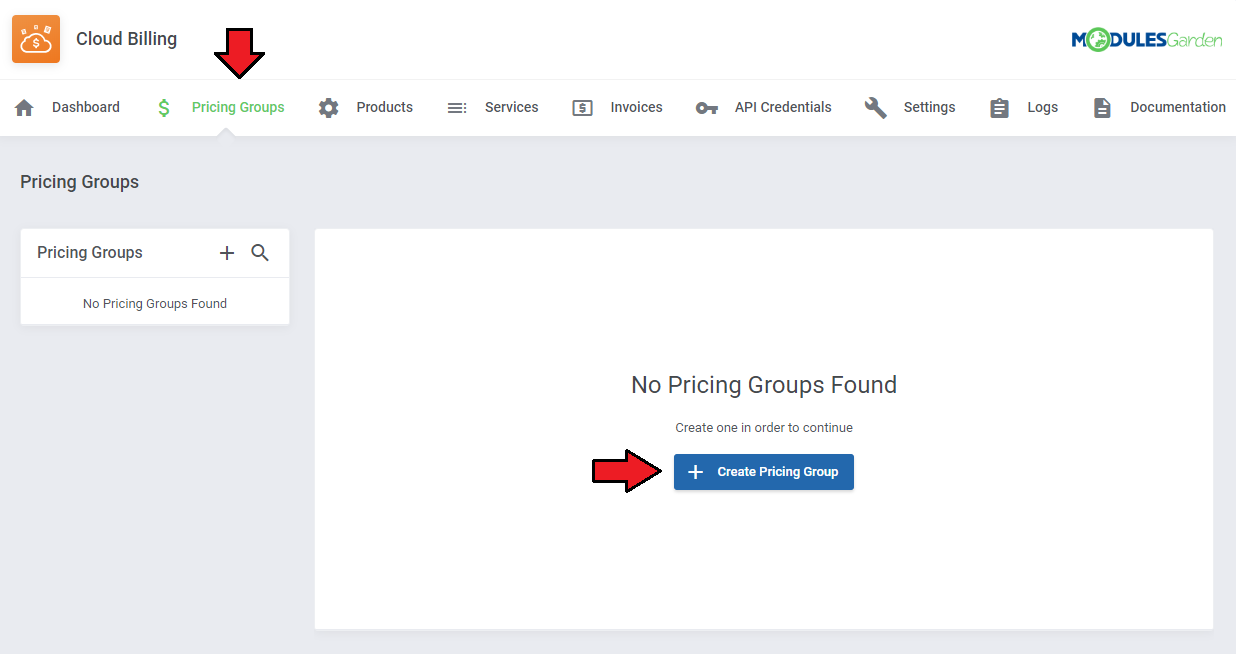
In this section, you can easily create new pricing groups. To do so, please click on the button as shown below.
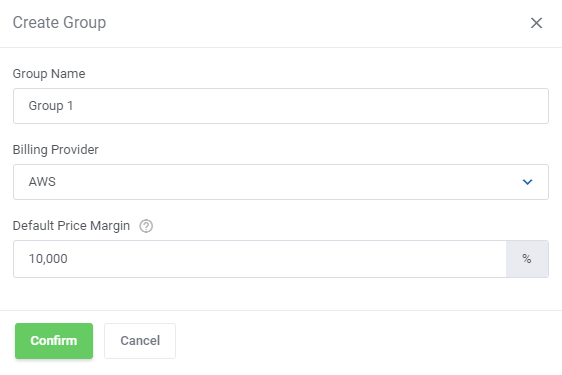
Here, you will be asked to provide a group name and set up the default pricing margin.
Note: The default pricing margin means the percentage that will be added to the invoice.
If you do not define the margin for a particular product, then the module will use the margin which is given in the 'Others' field.
Example: If the Amazon's charge is $10 and we set up 20% margin, the client will receive an invoice for $12.
If you wish to add more payable services, click on the 'Add Billing Service' button to add a new one.
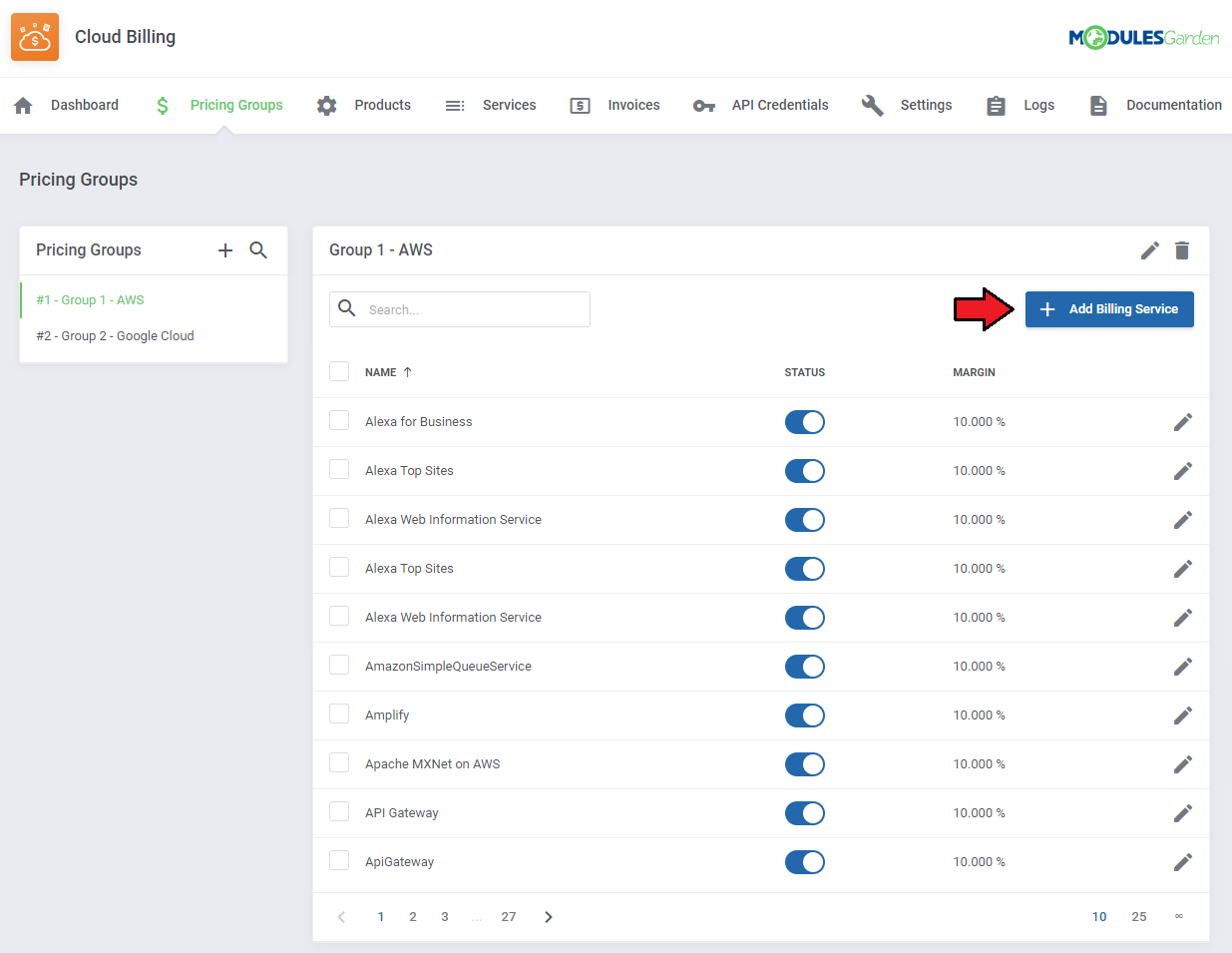
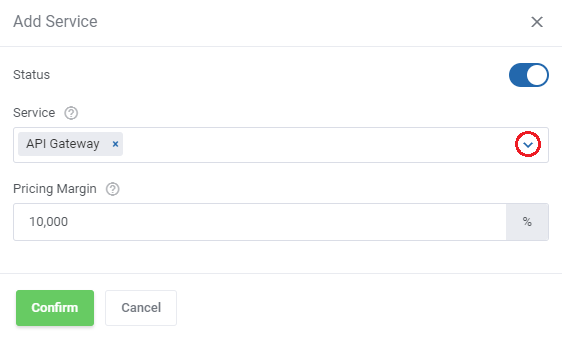
Next, you can choose the services that will be payable.
Note: Please remember that if you do not select any service type from the drop-down list, the pricing margin that you enter will be automatically assigned to the 'Other' service type.
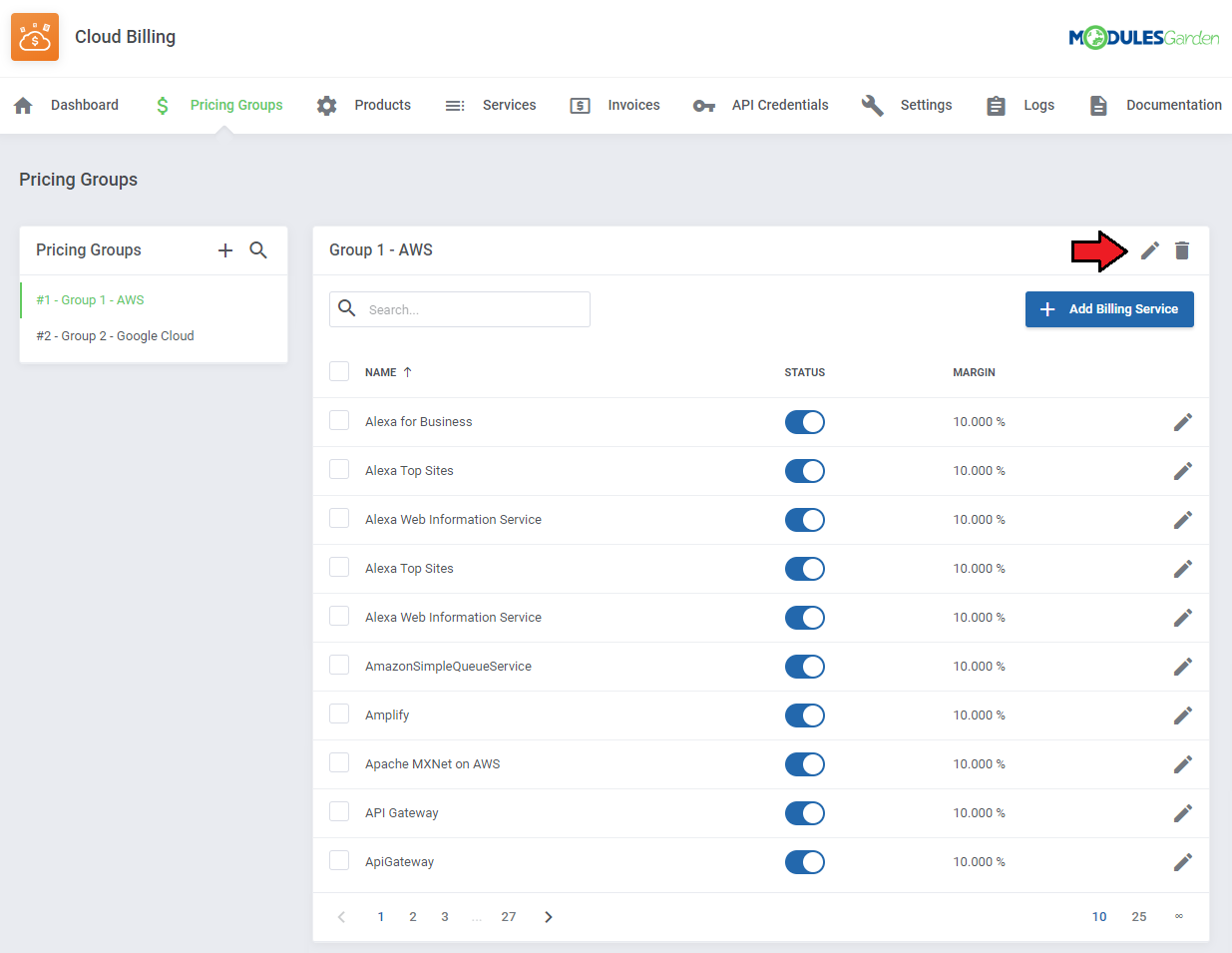
Pricing groups may be easily edited. If you wish to delete any of your pricing groups, firstly, make sure that the particular pricing group is not used anywhere. Otherwise, you will not be able to delete it.
# Products
The 'Products' section grants you a possibility to add a new product and assign a pricing group to it.
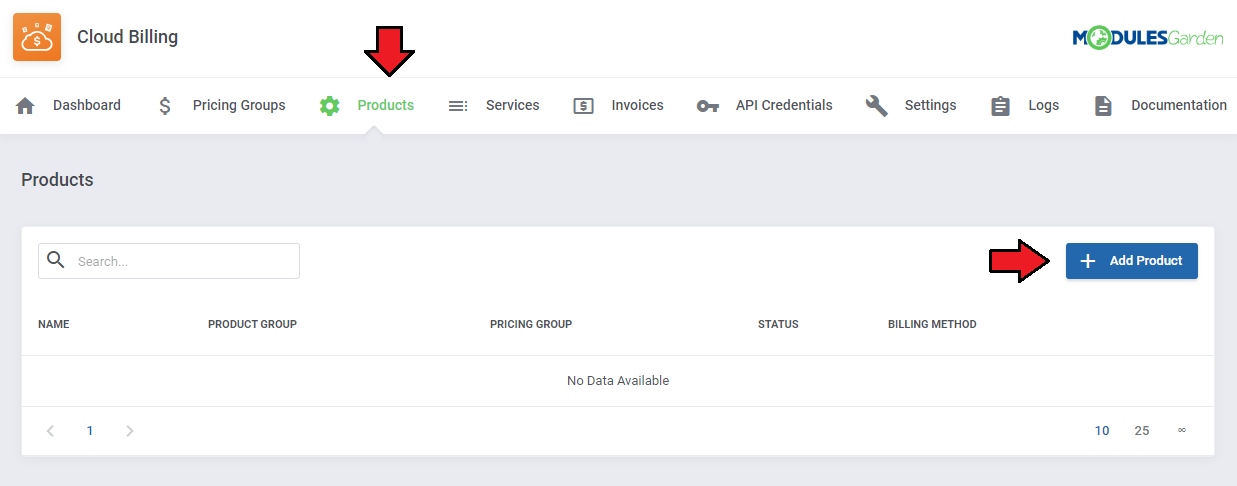
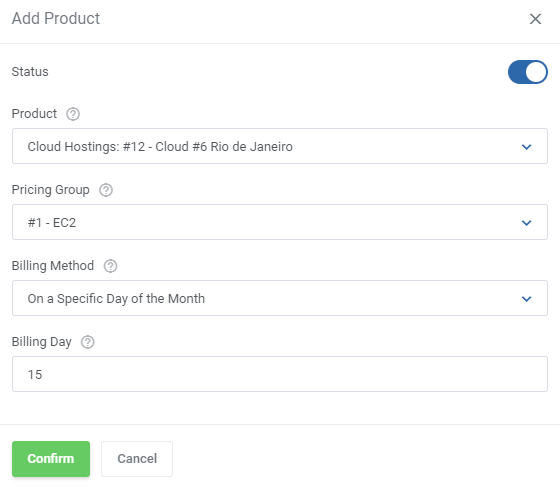
To add a product complete the following fields:
- Status - Define whether the product is available to customers.
- Product - Choose the product you want to add.
- Pricing Group - Assign the previously created pricing group.
- Billing Method - Select how customers will be billed. Options include:
- On Invoice Generation - Set billing to occur when the invoice is generated.
- On the First Day of the Month - Configure billing to occur on the 1st of each month.
- On the Last Dat of the Month - Set billing to take place at the end of each month.
- On a Specific Day of the Month - Choose a custom day.
- Billing Day - Specify the exact day when billing will be applied.
- Manual Billing - Enable manual billing.
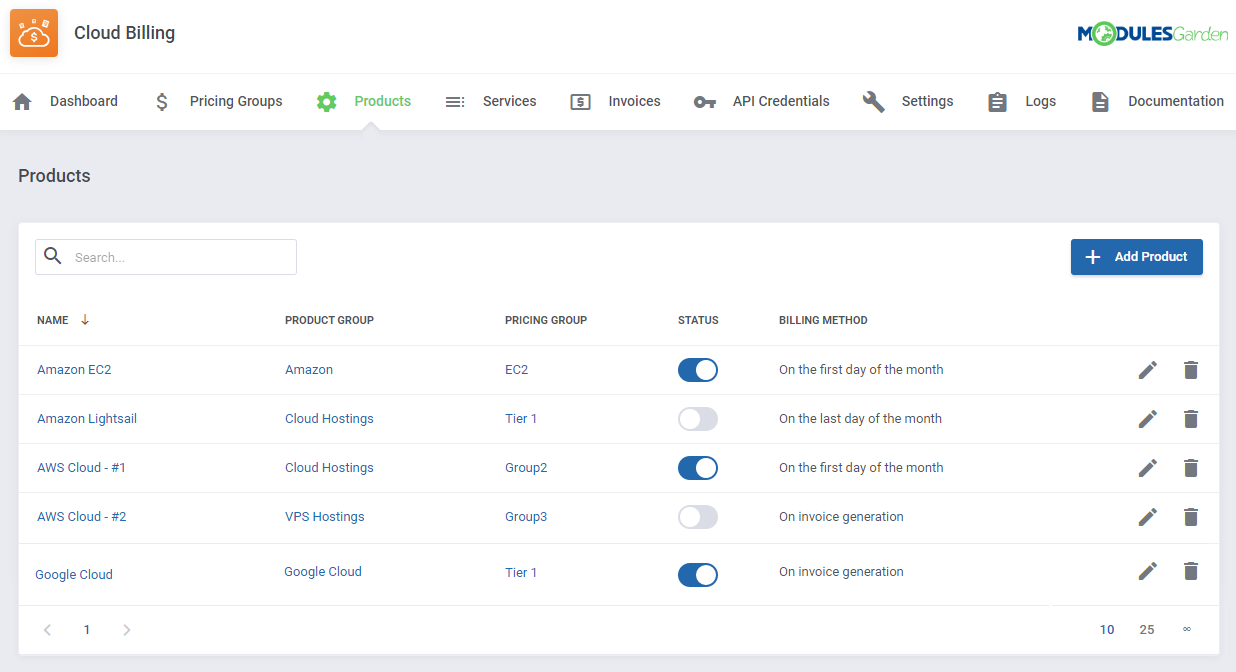
This image presents what the summary of your products should look like:
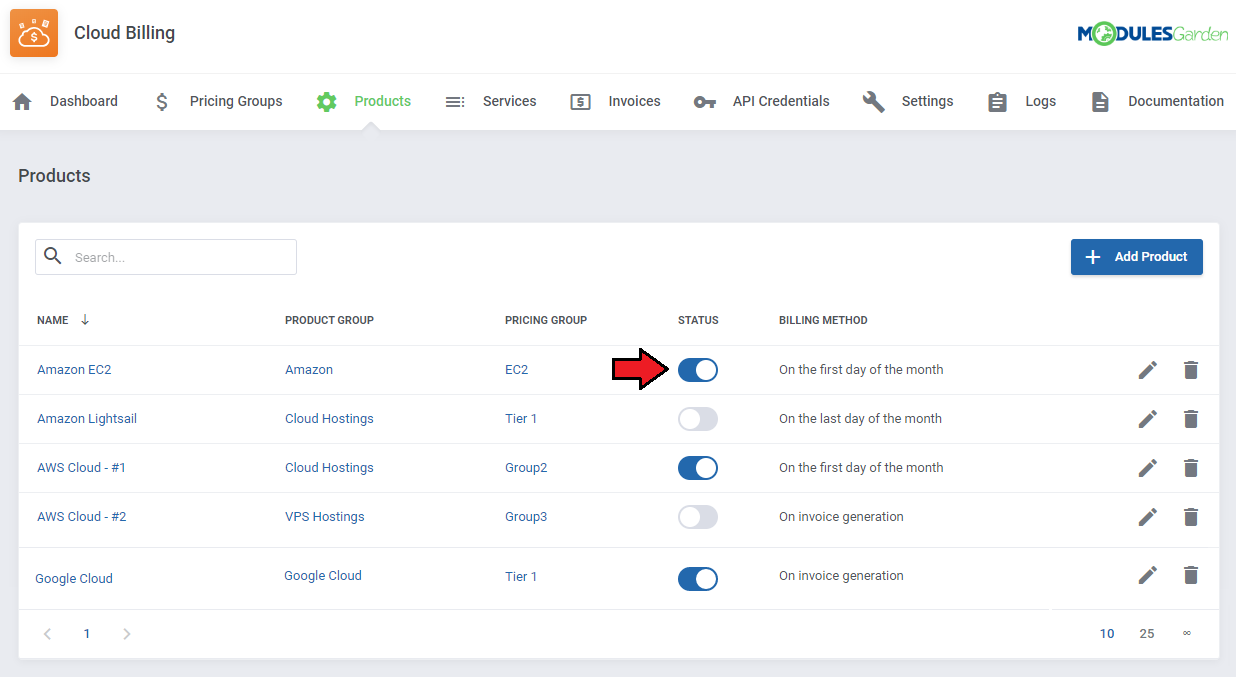
If you wish to disable a particular product, just click the following button:
Note: Please remember that a disabled product may be activated again anytime.
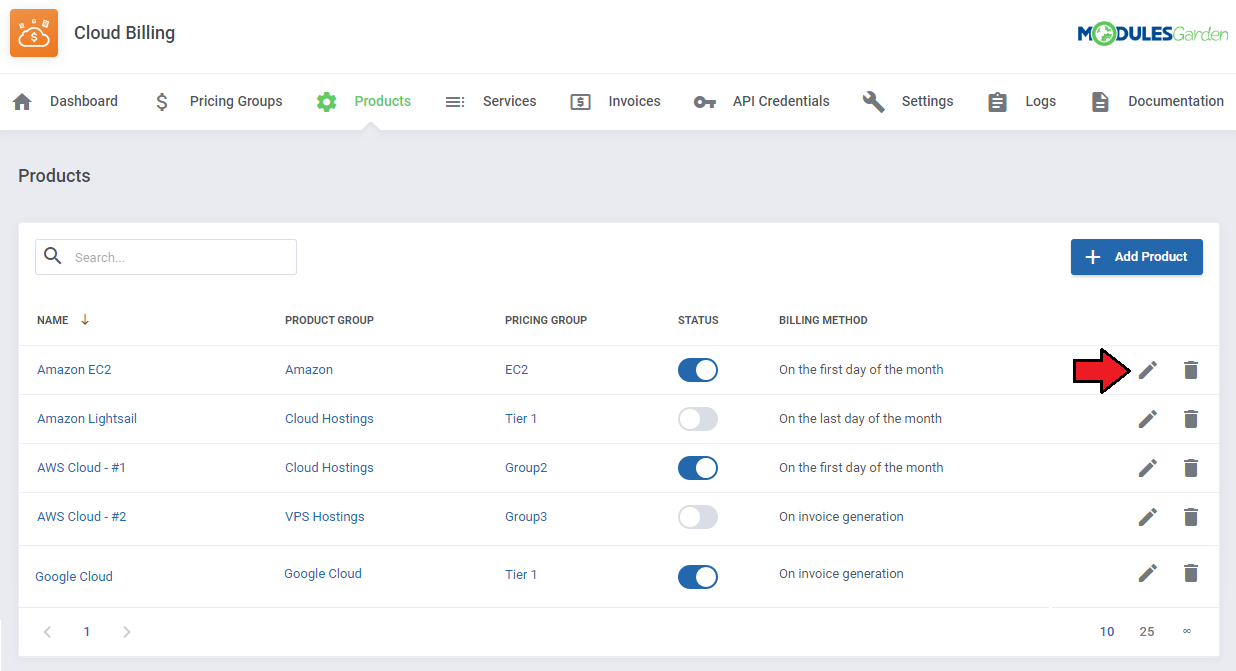
If you need to introduce some changes to your product, then click on the 'Edit' button. If some products are no longer necessary, then 'Delete' them.
# Services
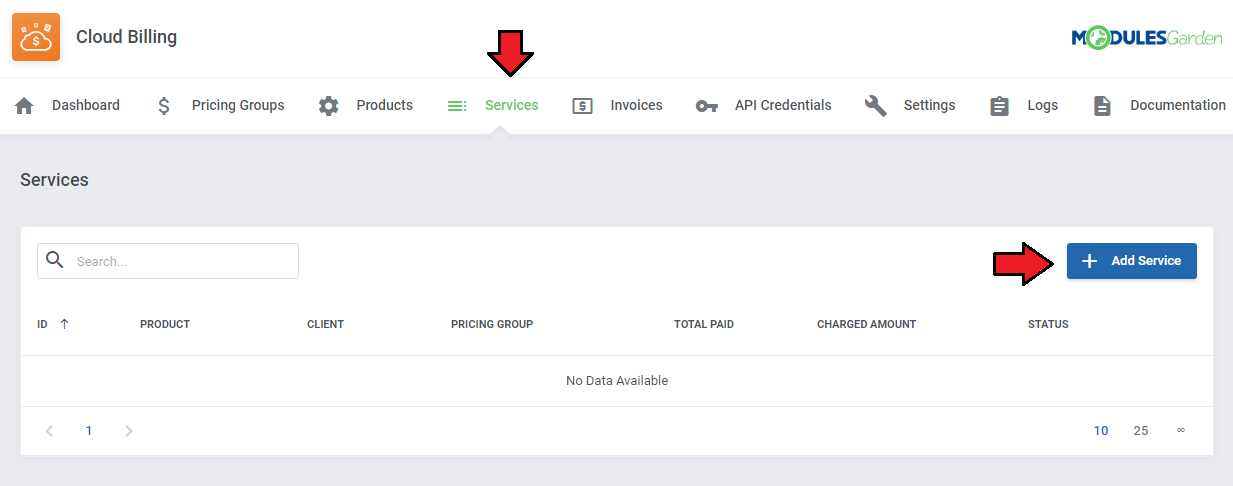
Under this tab, new services can be added. To do so, click the 'Add Service' button.
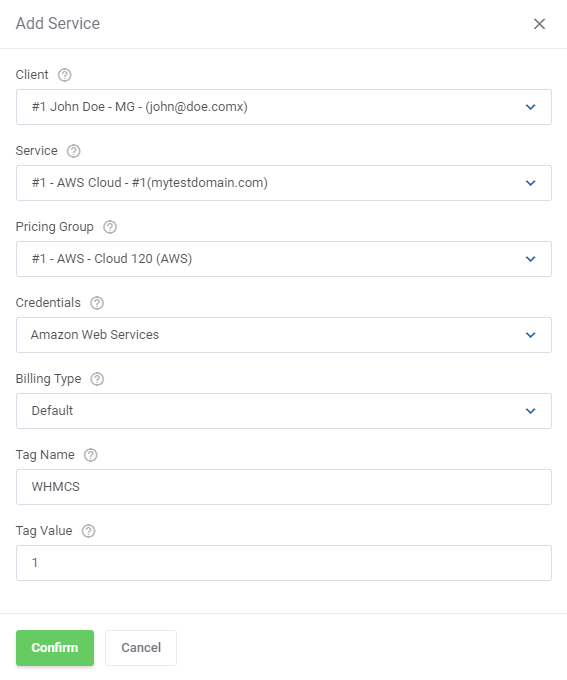
In the newly opened window, you will be asked to complete the following information:
Amazon type services
- 'Client' - select one of your clients,
- 'Service' - choose one service which was ordered by your client,
- 'Pricing Group' - decide which of the previously created pricing groups should be allotted to this service,
- 'Credentials' - if you created more than one credentials then you can define which one will be assigned to this service,
- 'Billing Type' - determines the way of searching the resources that your clients will be billed for, there are three options available:
- 'Default' – all resources containing a tag name provided by you will be billed,
For instance, when you enter ‘WHMCS’ in the 'Tag Name' field and '2' in the 'Tag Value' field, the entry with this exactly value of the service will be automatically searched for in a dedicated platform - 'Organization' – all resources in a particular company will be billed, type in the organization ID then
- 'Custom details' – all resources in a particular account will be billed. The module connects to AWS and sums everything that is available there,
- 'Default' – all resources containing a tag name provided by you will be billed,
- 'Organization ID' - enter the ID if you have selected 'Organization' in the 'Billing Type' selection
- 'Tag Name' – if you wish your services to be filtered according to the particular tag name.
- 'Tag Value' – enter the value for the tag provided in the 'Tag Name' field, then while filtering the services to be billed, services with the provided tag name and precised value will be selected
Important: Make sure the used tag has been activated under 'AWS Billing Dashboard' → 'Cost Allocation Tags'.
Important 2: The tag name entered in the Cloud Billing module must be exactly the same as the tag name provided in the EC2 Amazon EC2 For WHMCS or Lightsail Amazon Lightsail For WHMCS products module settings, whether it is a default 'WHMCS' or a custom one.
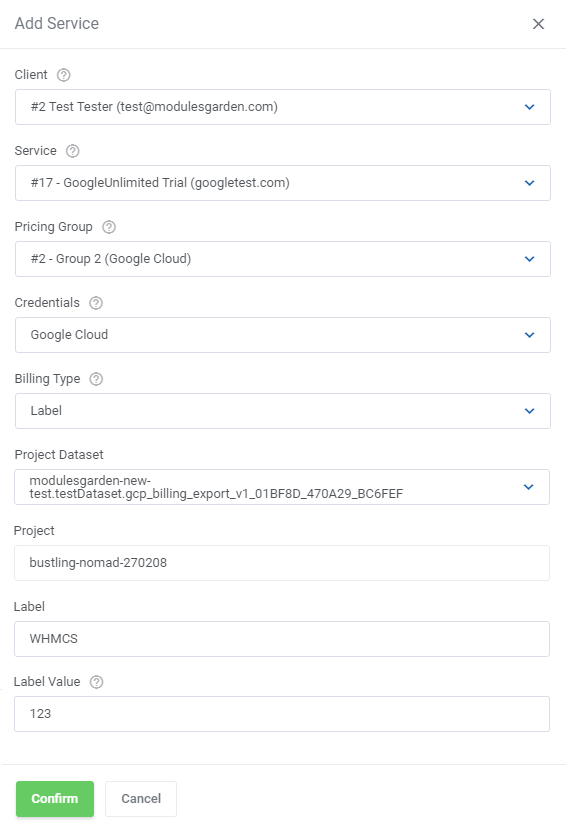
Google Cloud type services
- 'Client' - select one of your clients,
- 'Service' - choose one service which was ordered by your client,
- 'Pricing Group' - decide which of the previously created pricing groups should be allotted to this service,
- 'Credentials' - if you created more than one credentials then you can define which one will be assigned to this service,
- 'Billing Type' - determines the way of searching the resources that your clients will be billed for, there are two options available:
- 'Label' – all resources containing labels provided by you will be billed,
For instance, when you enter ‘WHMCS’ in the 'Label' field, this entry with the value of the service will be automatically searched for in a dedicated platform - 'Project (Custom details)' – all resources in a particular project will be billed. The module connects to Google Cloud and sums everything that is available there,
- 'Label' – all resources containing labels provided by you will be billed,
- 'Project Dataset' - Choose from available the dataset that will be assigned to this service
- 'Project' - Enter the project ID name, instance that will be assigned to this service must belong to this project
- 'Label' – if you wish your services to be filtered according to the particular label
- 'Label Value' – enter the value for the label provided in the 'Label' field, then while filtering the services to be billed, services with the provided label and precised value will be selected
Note that the label value does not have to be a numerical value only, you may use any value that is set in the Google Cloud platform.
Important: The label entered in the Cloud Billing module must be exactly the same as the label manually created in the virtual machine details on the Google Cloud Platform.
Remember to add an appropriate ID number to the label in the Google Cloud Platform when creating it. You will find it in the last position of the service details URL, e.g.: 'http://your_whmcs/test/admin/....id=7'
For example:
Label: WHMCS (module)
Label Value: 7 (module)
Label: WHMCS 7 (Google Cloud platform)
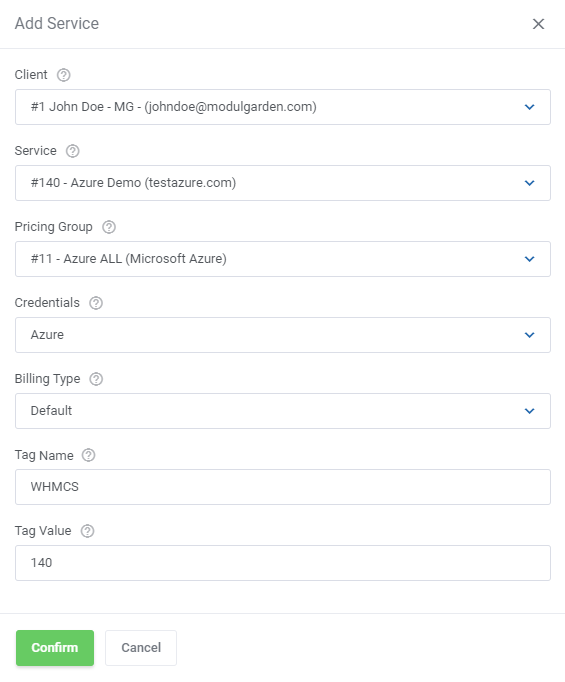
Microsoft Azure services
- 'Client' - select one of your clients,
- 'Service' - choose one service which was ordered by your client,
- 'Pricing Group' - decide which of the previously created pricing groups should be allotted to this service,
- 'Credentials' - if you created more than one credentials then you can define which one will be assigned to this service,
- 'Billing Type' - determines the way of searching the resources that your clients will be billed for, there are two options available:
- 'Default' – all resources in a particular account subscription containing a tag name provided by you will be billed,
For instance, when you enter ‘WHMCS’ in the 'Tag Name' field and '2' in the 'Tag Value' field, the entry with this exactly value of the service will be automatically searched for in a dedicated platform - 'Custom details' – all resources in a particular account subscription will be billed
- 'Default' – all resources in a particular account subscription containing a tag name provided by you will be billed,
- 'Tag Name' – if you wish your services to be filtered according to the particular tag name.
- 'Tag Value' – enter the value for the tag provided in the 'Tag Name' field, then while filtering the services to be billed, services with the provided tag name and precised value will be selected
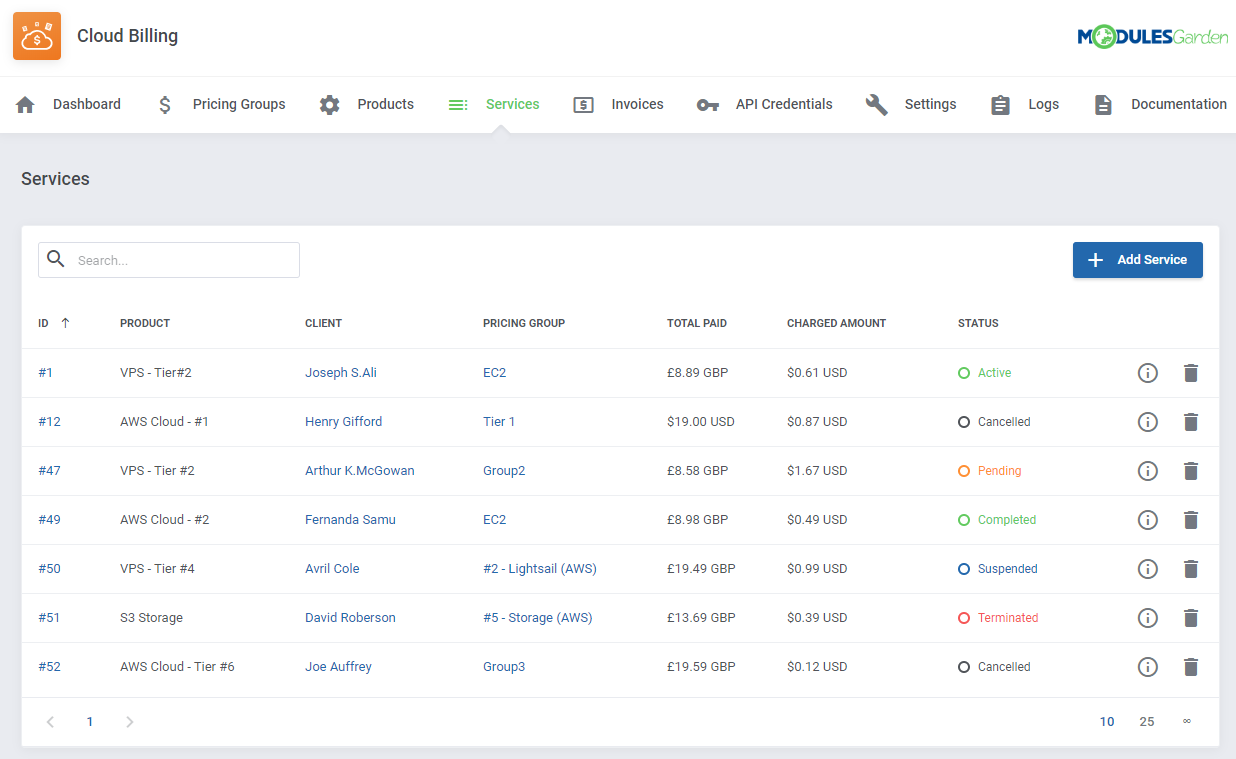
Here you can check what the newly added service looks like:
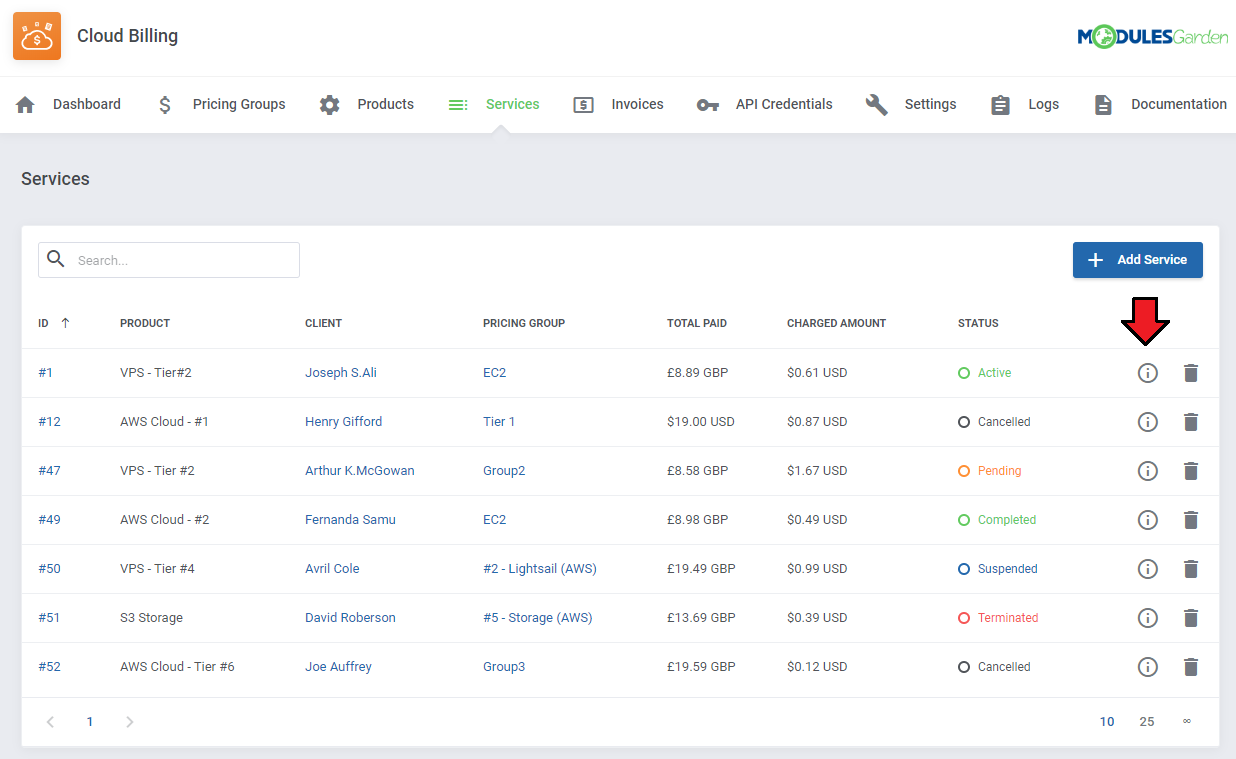
If you wish to check more details, press the following button.
Now, you will be redirected to a new subpage.
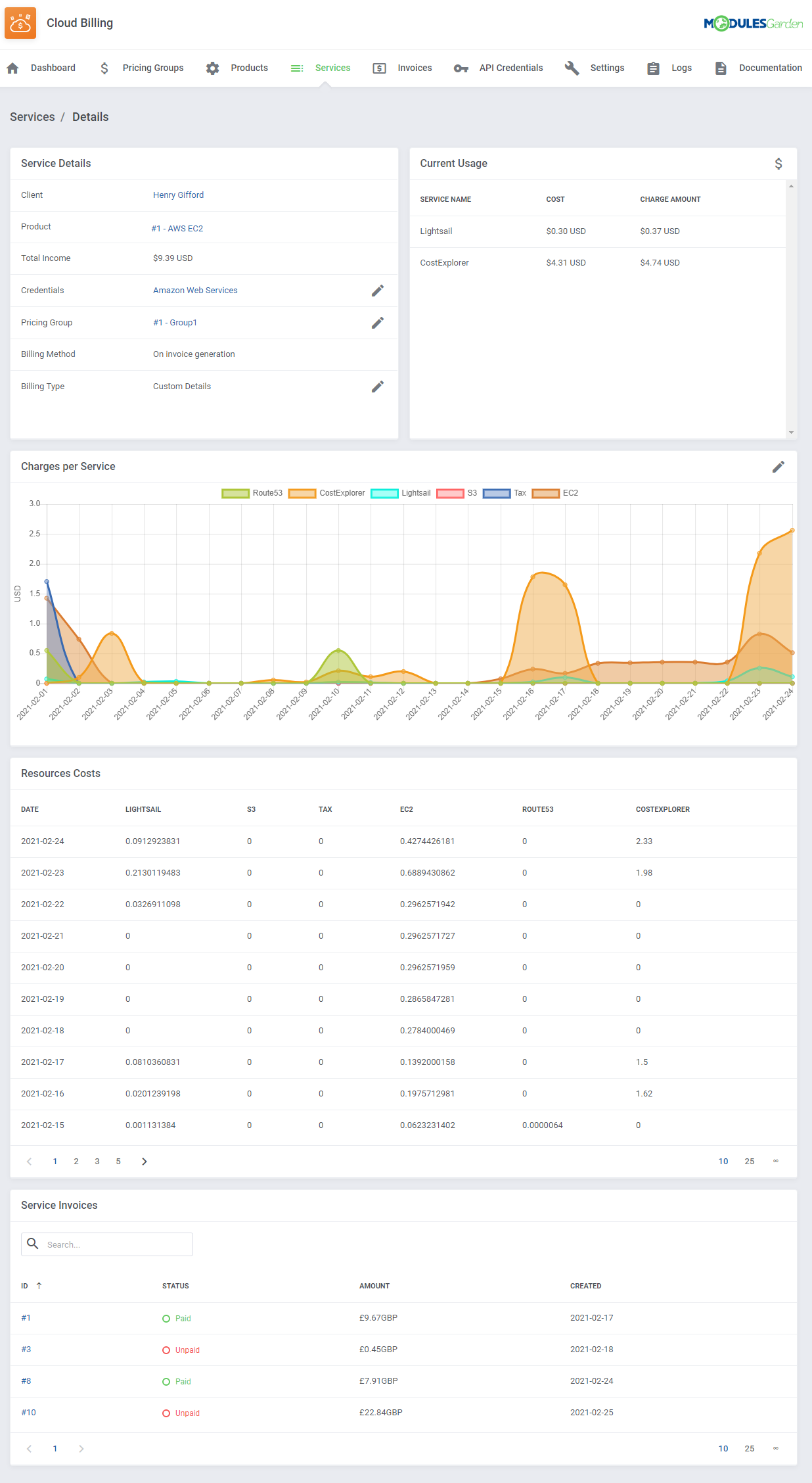
Please remember that there is a difference between 'Cost' and 'Charge Amount' in the 'Current Usage' section.
- 'Cost' refers to the amount that is billed by Amazon.
- 'Charge Amount' is the amount that your client will be billed.
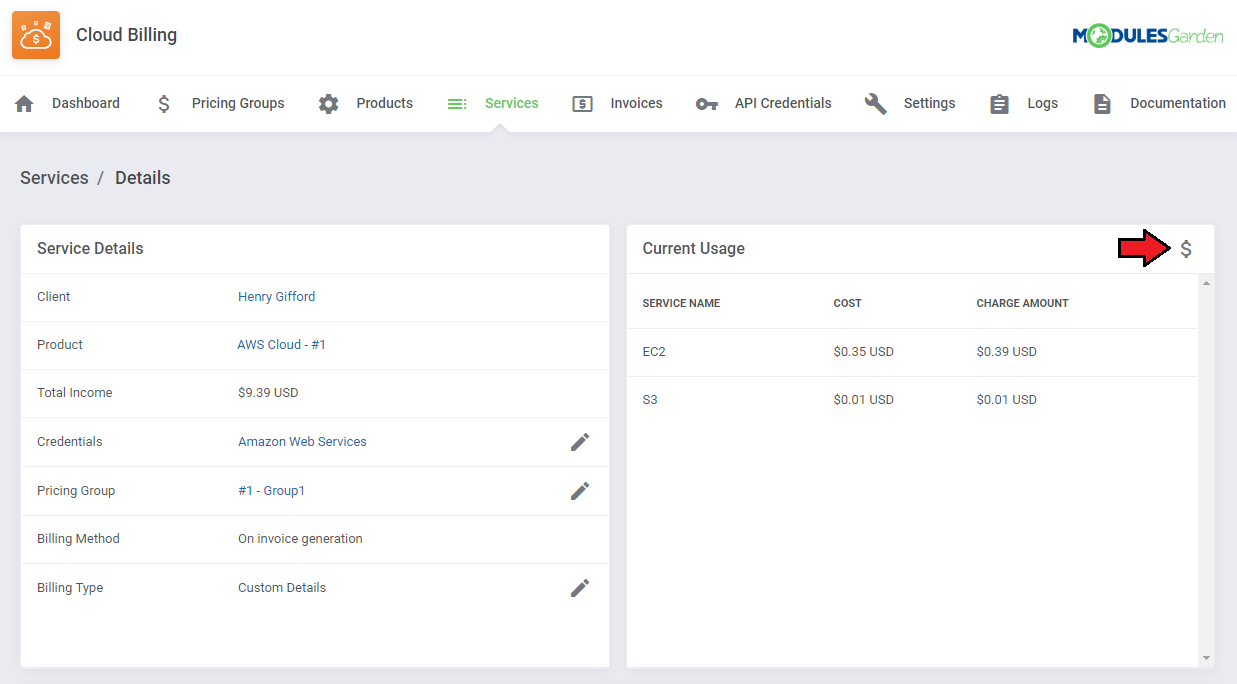
If any values for usage have been counted, there will be a possibility to create invoices. To generate an invoice, simply press the icon as shown in the picture:
# Settings
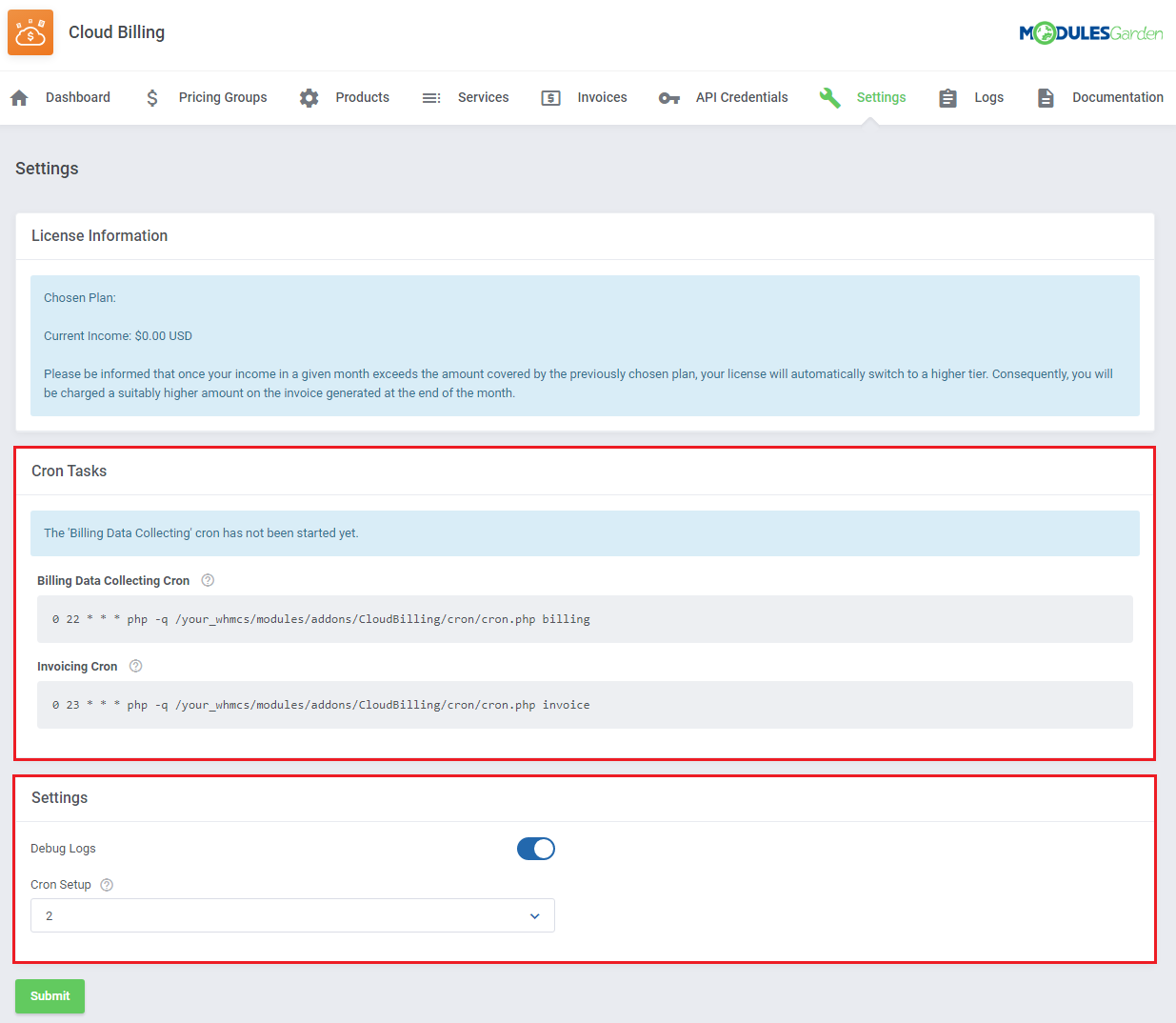
In order to collect the data properly, the following cron tasks may be needed.
Note: Please remember that the following picture is only a suggestion how to set up cron and of course it can be modified by you.
Keep in mind that each cron should be used once a day because Amazon charges for every API request.
Note 1: It is possible to collect your 'Billing Data' from the preferred period of time. To do so, add date range --from --to at the end of your cron command as shown in the following example:
php -q /your_whmcs/modules/addons/CloudBilling/cron/cron.php billing --from 2020-01-05 --to 2020-01-10
Once you enter this command, you will receive the 'Billing Data' from 05.01.2020 to 10.01.2020.
To obtain precise information, we highly recommend performing the 'Billing Data Collecting' cron at 22:00 UTC time and the 'Invoicing' cron at 23:00 UTC time.
Note 2: This solution is recommended for AWS users, as AWS may introduce delays in adding records. To overcome these delays, use a cron task with the parameter described below.
To download data from a specific number of days, add the --days-before X parameter to the billing cron. Here, "X" represents the number of days. For example:
php -q /your_whmcs/modules/addons/CloudBilling/cron/cron.php billing --days-before 2
If you enter this command on 2024-08-15, it will fetch "Billing Data" from 2 days before, specifically from 2024-08-13, and assign the fetched data to the module for that day.
You may also define the 'Cron Setup' by providing one of the following values: 1, 2, 3, 4, 6, 8 that can be selected from the dropdown menu.
These are the factors of 24. As an example, if you choose '4' then the cron task will be run 4 times within 24 hours (about every 6 hours).
# Dashboard
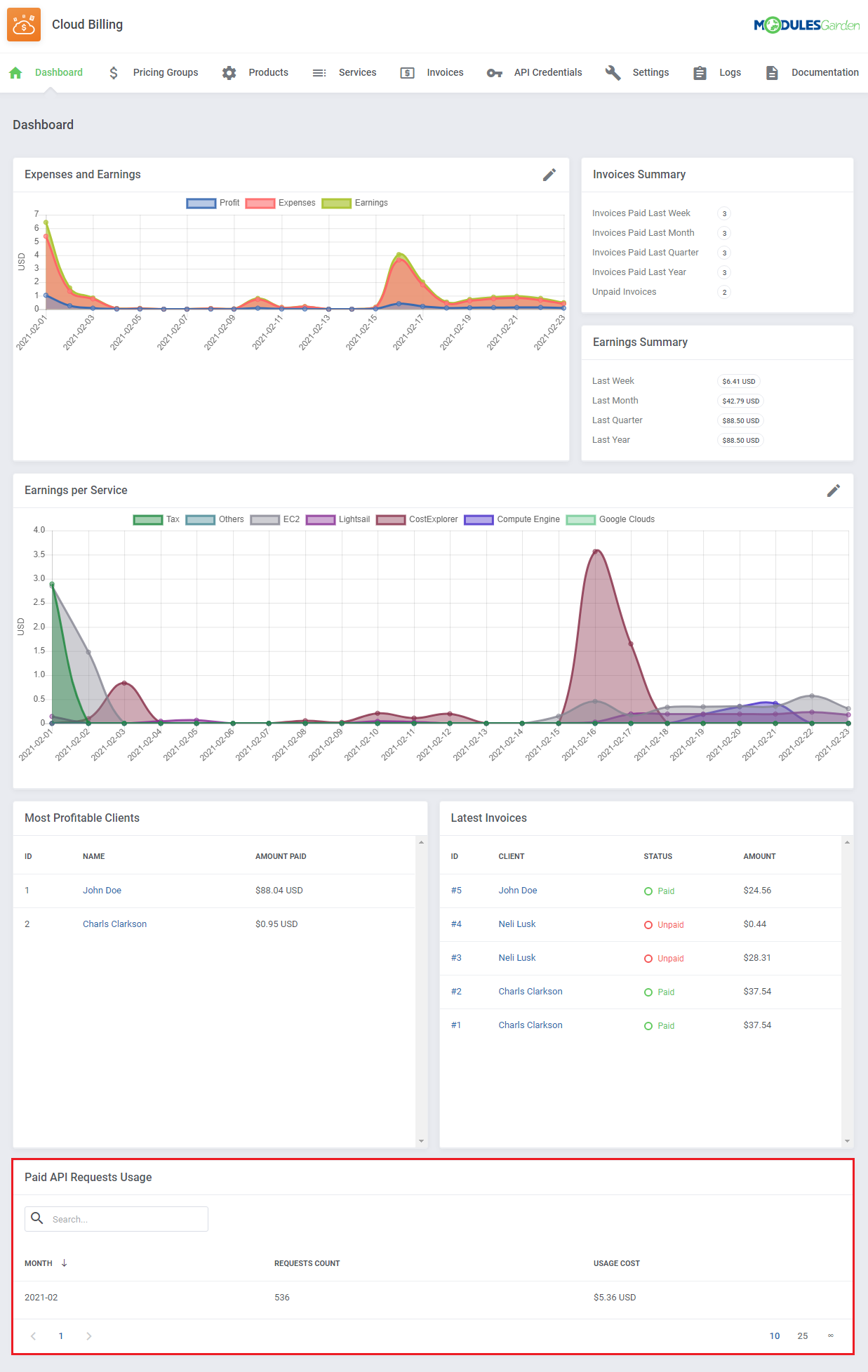
It is possible to count the number of your API requests as well as their cost. This option is located at the bottom of the ‘Dashboard’ section.
# Invoices
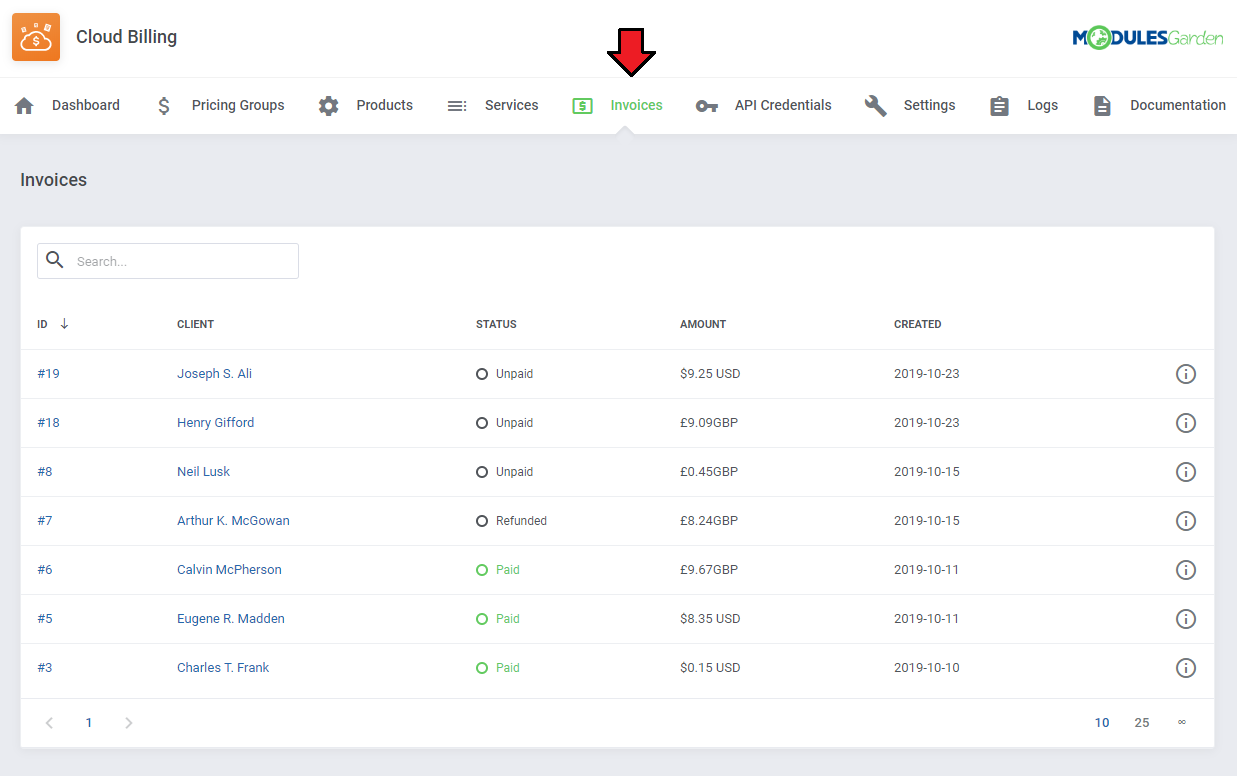
All generated invoices are gathered in the 'Invoices' tab.
Here you can check the most essential information of a particular invoice such as 'ID', 'Client', 'Status', 'Amount' and the creation date. The search box allows you to filter invoices of a particular client.
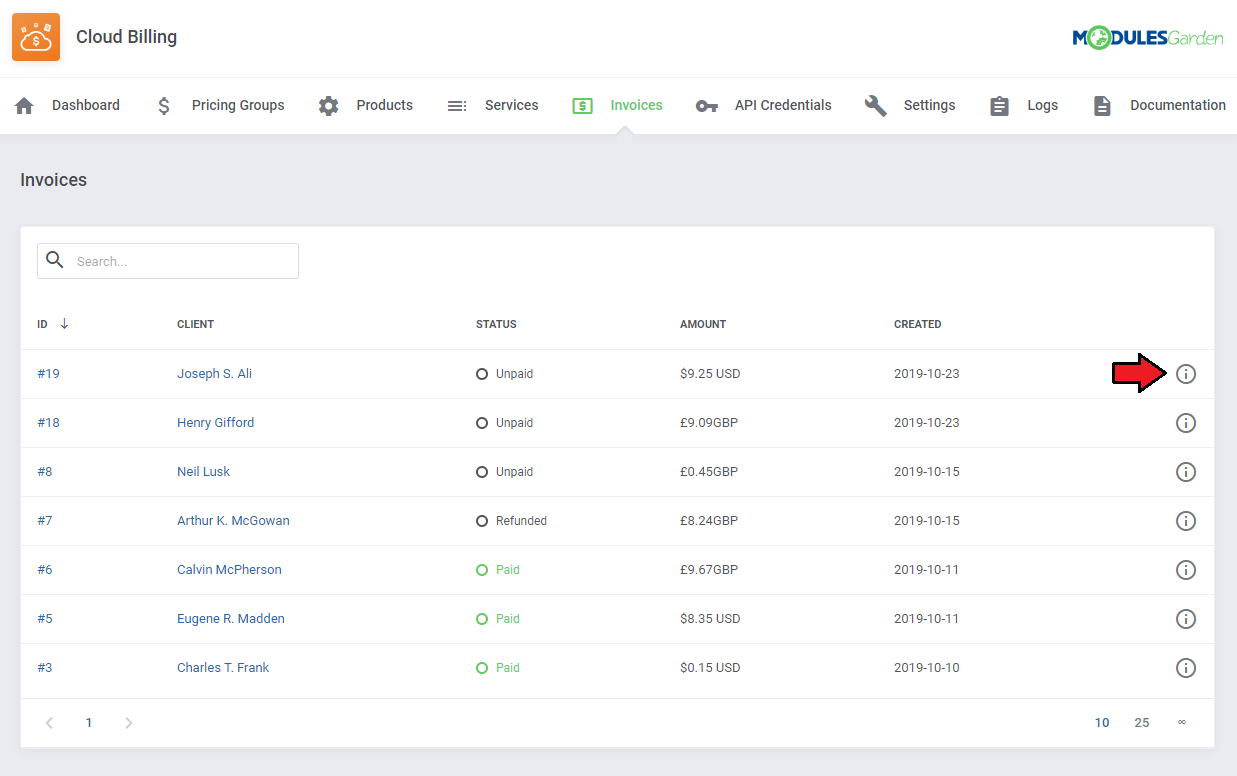
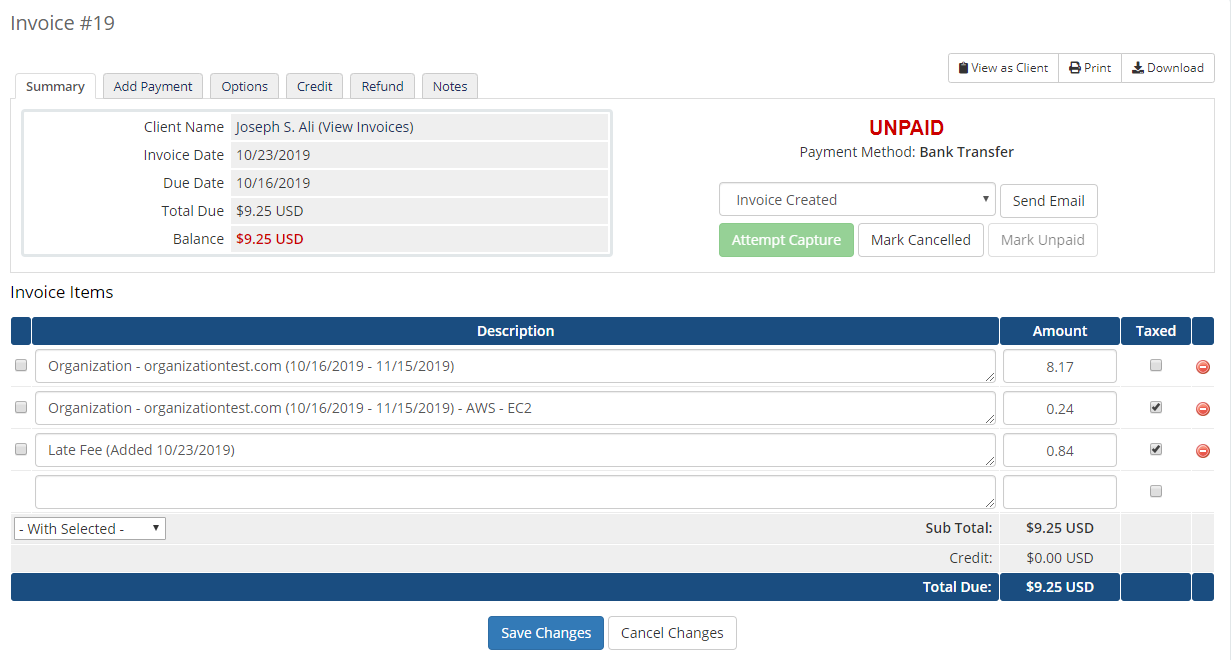
In order to check the details of a specific invoice, please click the info button as presented below:
Next, you will be redirected to the details of the selected invoice.
# Logs
The 'Logs' → 'Logs' section stores the history of all actions performed in the module.
If you wish to filter the history by one of these options: 'ID', 'Service ID', 'Message', 'Type', 'Date', simply click on the preferred one.
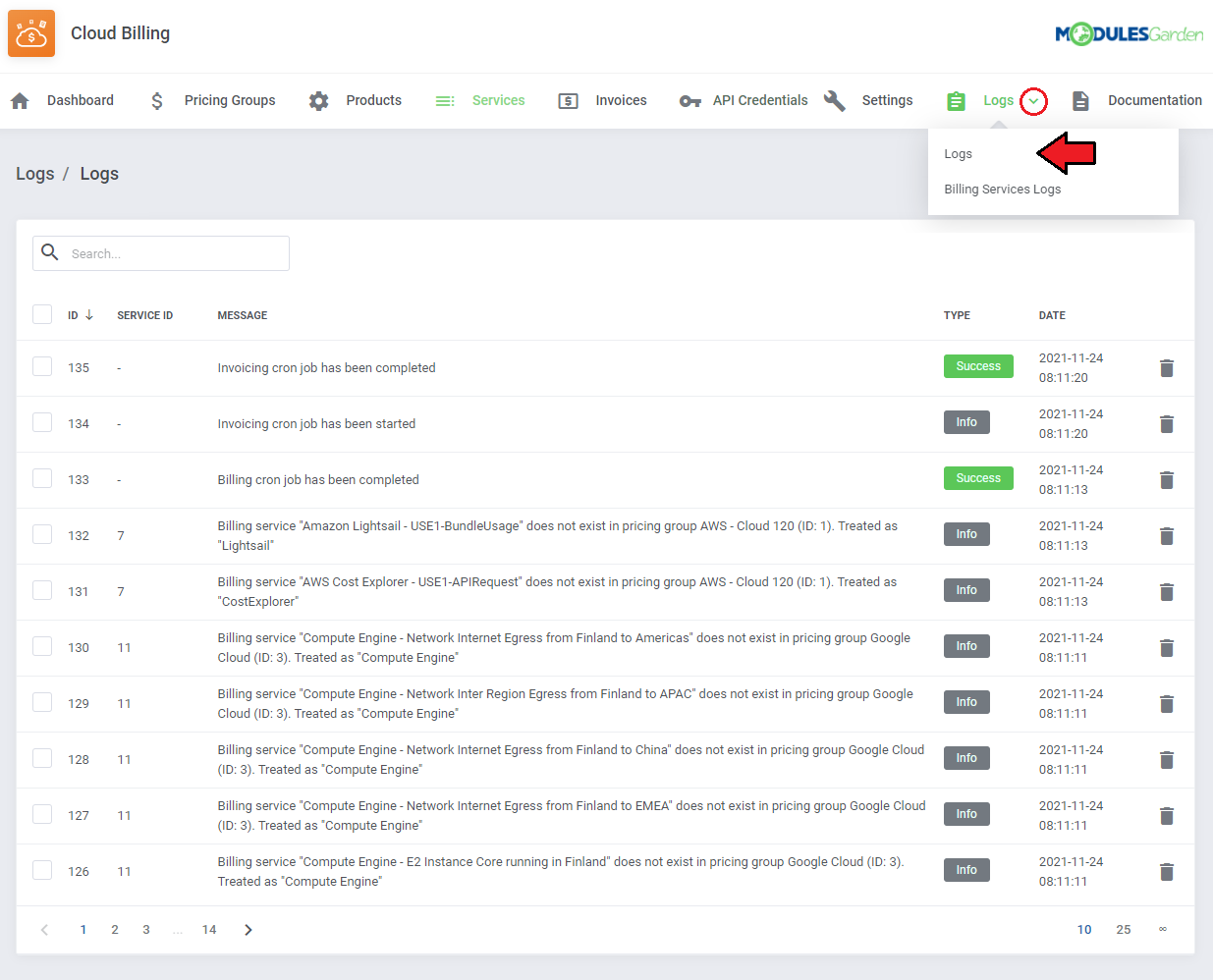
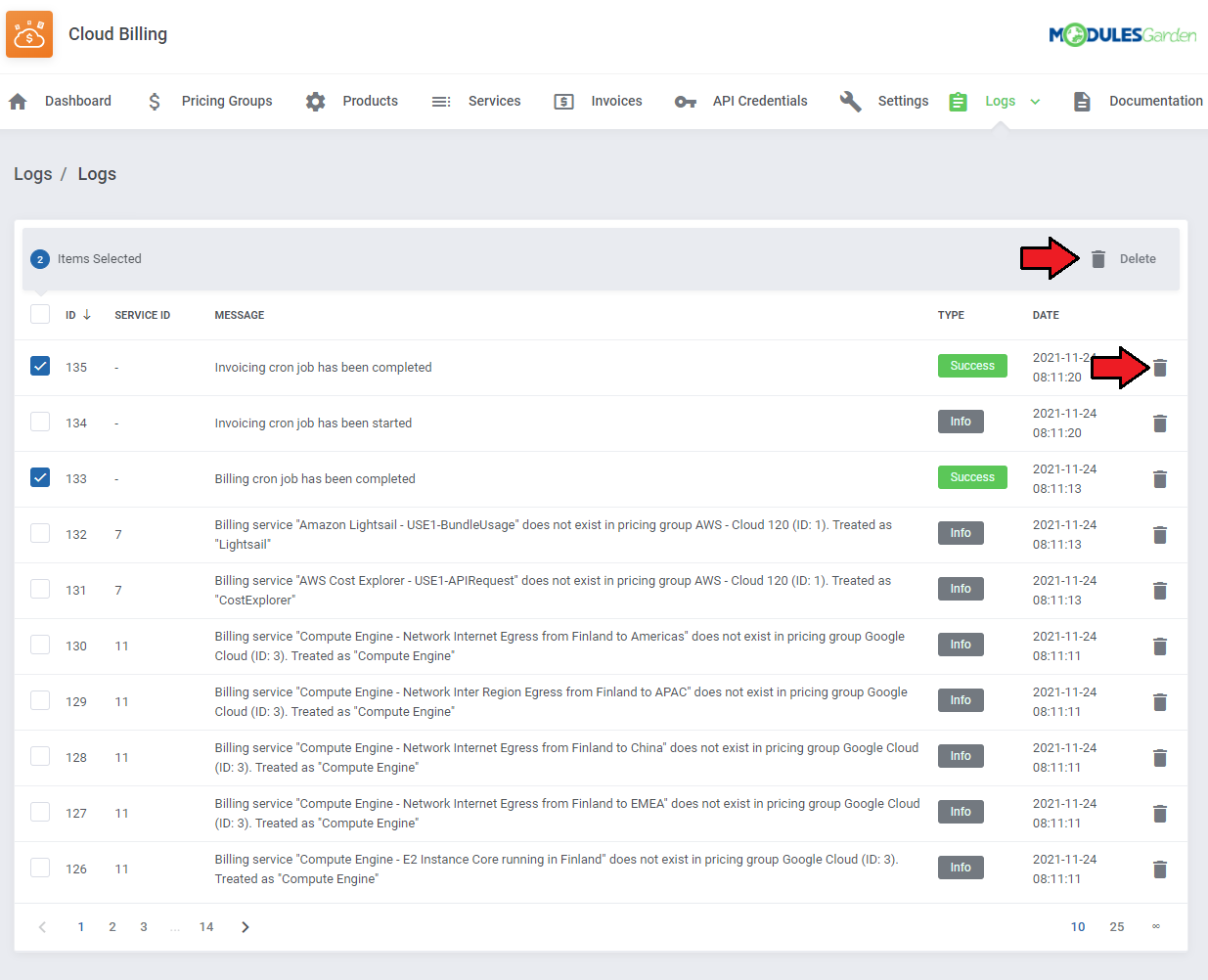
There is a possibility to delete the selected item from the 'Logs' section by pressing the following icon.
# Billing Services Logs
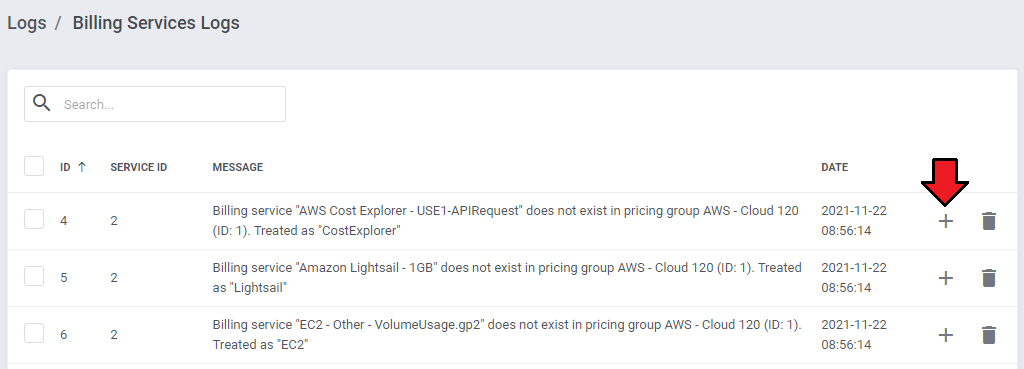
Under 'Logs' → 'Billing Services Logs' you can find information on services that have been billed in other way, that is the cost of a single service has been moved to another service (a service with a different name) in the module.
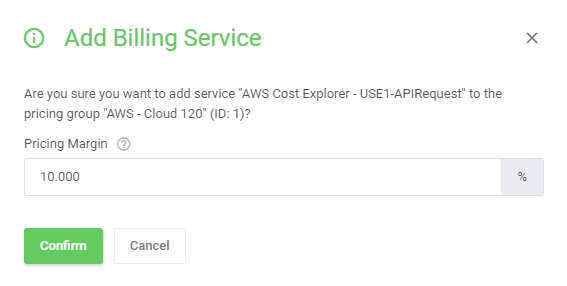
When you open the log details ('+' button), you get the option to manually add this billing service to a pricing group.
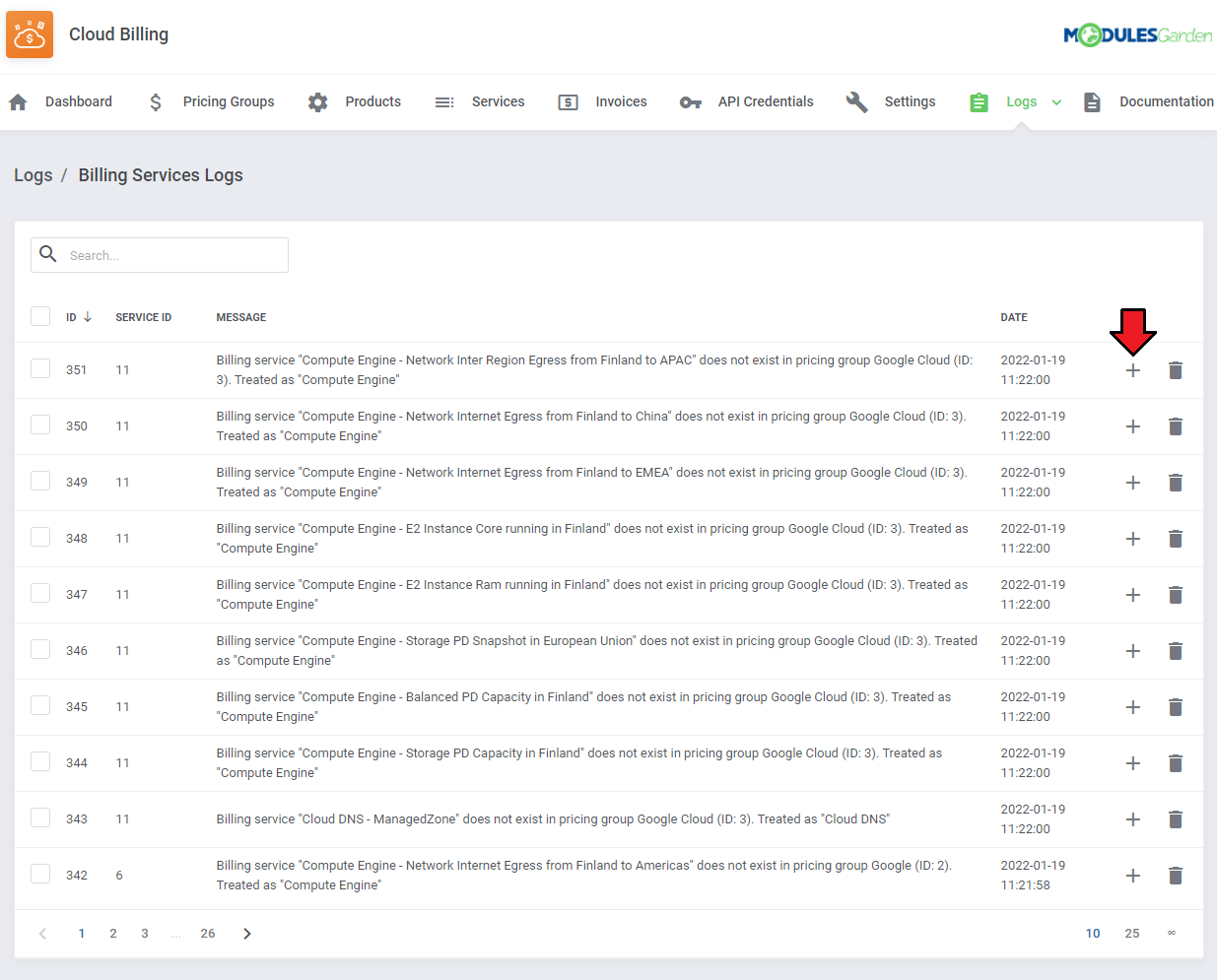
Define the pricing margin and confirm to add this service to a pricing group.
# Documentation
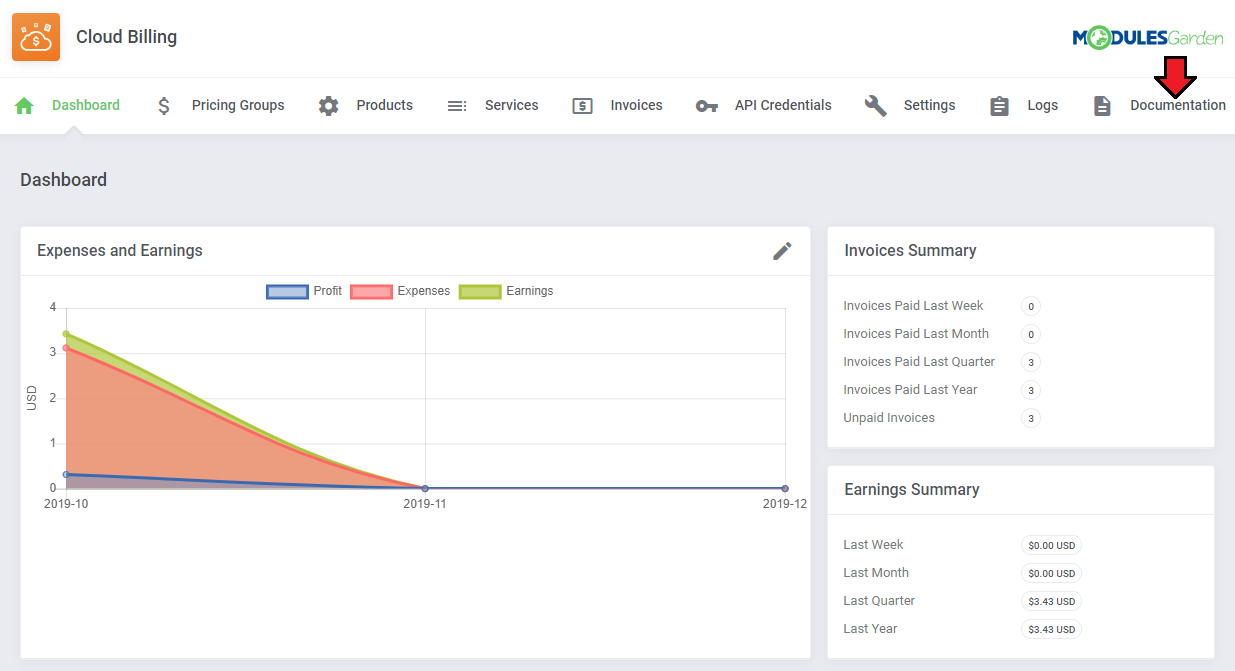
Once you click on the 'Documentation' section, you will be redirected to the website you are currently reading.
# Admin Area
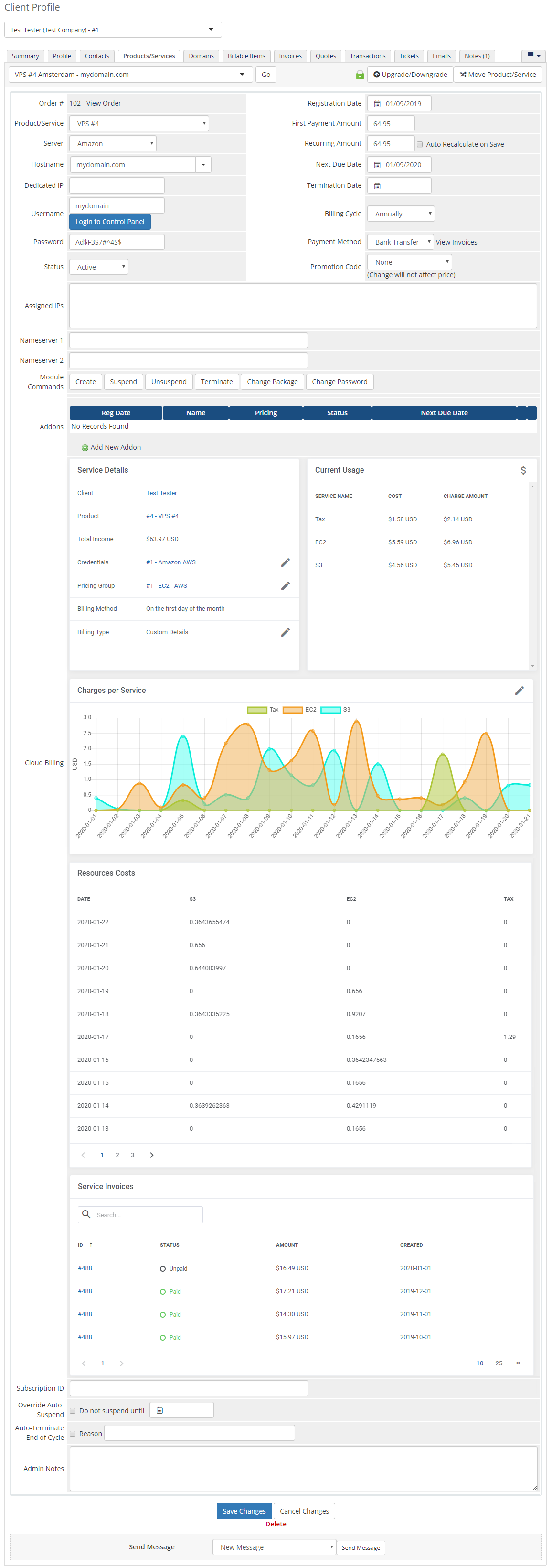
Cloud Billing For WHMCS allows you to monitor and manage your customer services from the admin area of your WHMCS system.
This includes supervision of such features as:
- Module commands to allow easy and quick management of the service,
- Service details
- Current Usage
- Charges per Service
- Resources Costs
- Service Invoices
# Client Area
In the client area, proceed to 'My Products&Services' → 'Product Details'.
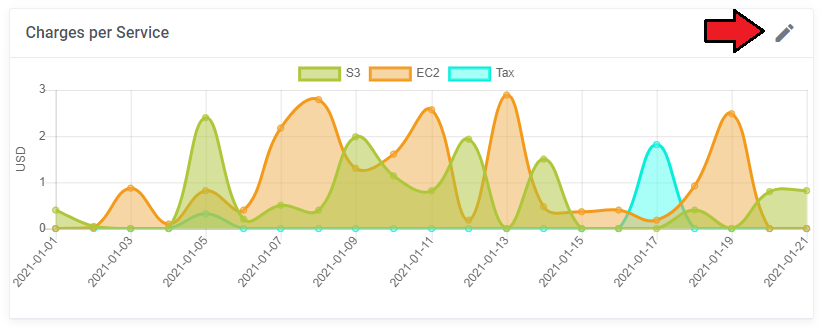
Here, you can check the 'Current Usage' as well as 'Charges per Service' which can be modified according to your preferences.
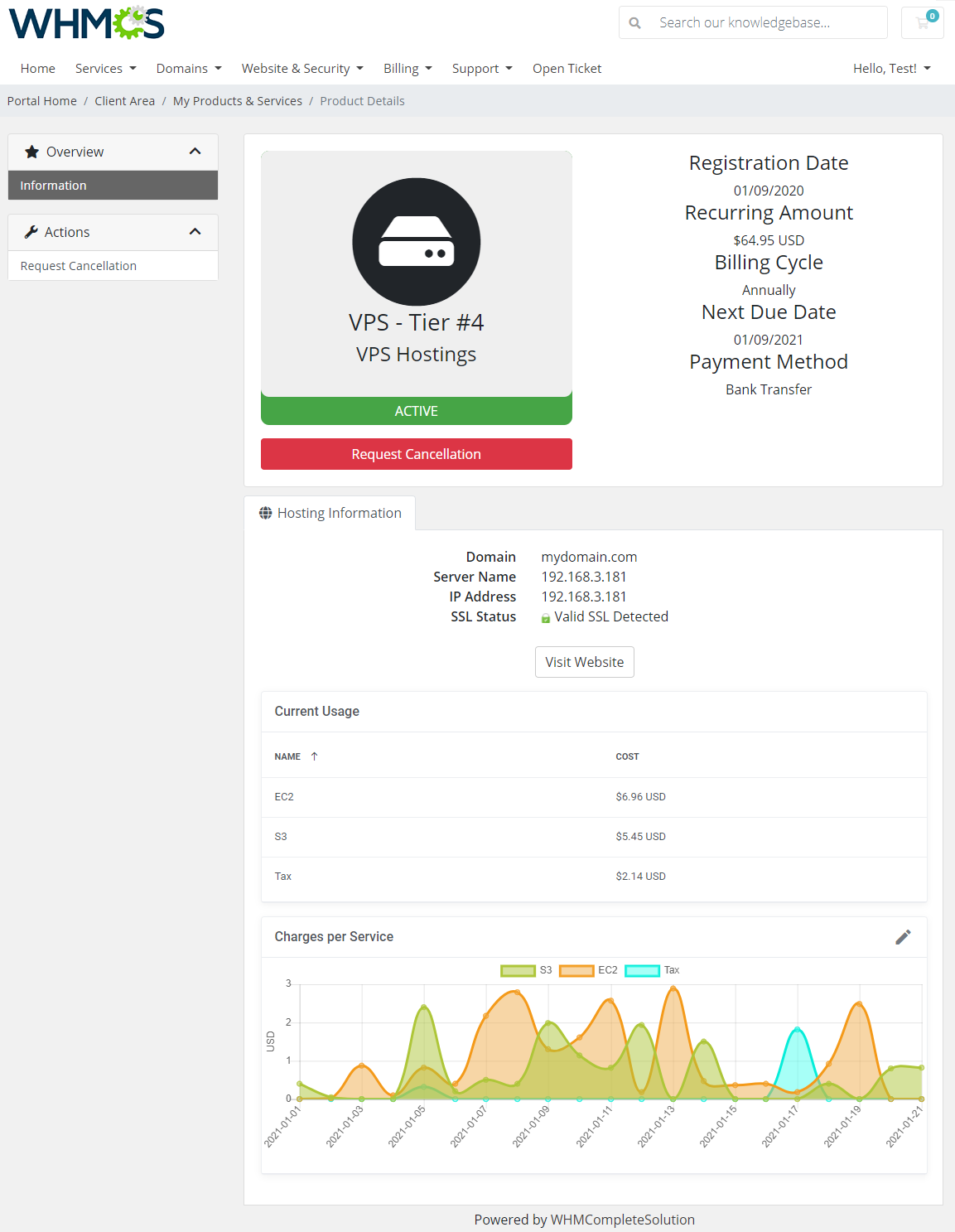
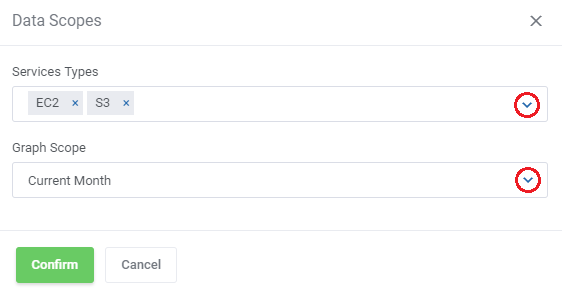
Once clicked on the edit icon, a new pop-up will show up.
Here, you can select a type of your service and choose a time frame for a graph from these available ones: 'Current Month', 'Last Month', 'Last Quarter', 'This Year'.
# Tips
Module method of searching for precise information on the billed items for AWS, Google and Microsoft Azure services.
AWS, Google and Azure APIs return services' names in the following manner: xxx - yyy - zzz, for example:- 'Compute Engine - E2 Instance Core running in Finland' - Google
- 'standard hdd managed disks - s4 lrs - us east' - Azure
- 'Amazon Simple Storage Service - Requests-Tier1' - AWS
- 'virtual machines bs series - b1ls - us east' - Azure
- 'Compute Engine - E2 Instance Core running free tier discount' - Google
In the first step, the whole name is searched in the pricing group, if it is not localized, the searching begins before the last '-' sign, and again is searched in the pricing group. In case it s still not found, the service is considered as 'Others'.
Exemplary searching flow of a Microsoft Azure service:
First step - 'virtual machines bs series - b1ls - us east' is looked for in the pricing group
If it is not found, 'virtual machines bs series - b1ls' is looked for in the pricing group
If not found again, 'virtual machines bs series' is looked for in the pricing group. This service will surely be found as in case of Azure, it is automatically added to a pricing group when it is created.
Again, in case of Azure, there are no items marked as 'Others'.
Exemplary searching flow of an AWS service:
First step - 'EC2 - Other - USW2-DataTransfer-Regional-Bytes' service is looked for in the pricing group
If it is not found, 'EC2 - Other' is looked for in the pricing group
If not found again, 'EC2' is looked for in the pricing group.
If it is still not found, then it is treated as service from 'Others' group.
In 'Logs' there is a dedicated section for 'Billing Services Logs'.
You can find there information on services that have been billed in other way, that is the cost of a single service have been moved to another service (a service with a different name) in the module.
You can find there entries like these:
1. Billing service "Compute Engine - E2 Instance Core running in Finland" does not exist in pricing group Google Cloud (ID: 3). Treated as "Compute Engine".

2. Billing service "standard hdd managed disks - s4 lrs - us east" does not exist in pricing group :pricing_group:. Treated as "Others".
When you open the log details ('+' button), you get the option to manually add this billing service to a pricing group with the defined pricing margin.
# Update Instructions
An essential guidance through the process of updating the module is offered here.
Ensure successful completion of the module update by carefully following each step, thereby preventing data loss or any unforeseen issues.
Additionally, you will find a current list of supplementary actions necessary for a smooth update process there.
# Common Problems
- When you have problems with connection, check whether your SELinux or firewall does not block ports.