

# DirectAdmin Extended For WHMCS
- About DirectAdmin Extended For WHMCS
- Installation and Configuration
- Management
- Use Cases
- Tips
- Update Instructions
- Upgrade Guide
- Common Problems
# (opens new window) About DirectAdmin Extended For WHMCS (opens new window)
DirectAdmin Extended For WHMCS will bring the automation into the provisioning and management of web hosting accounts in your WHMCS.
The module will allow your clients to remotely handle FTP accounts, create backups, install SSL certificates as well as set up various applications with the inbuilt installers.
# Installation and Configuration
This tutorial will focus on how to successfully install and manage DirectAdmin Extended For WHMCS. (opens new window)
We will guide you step by step through the whole installation process.
# Installation
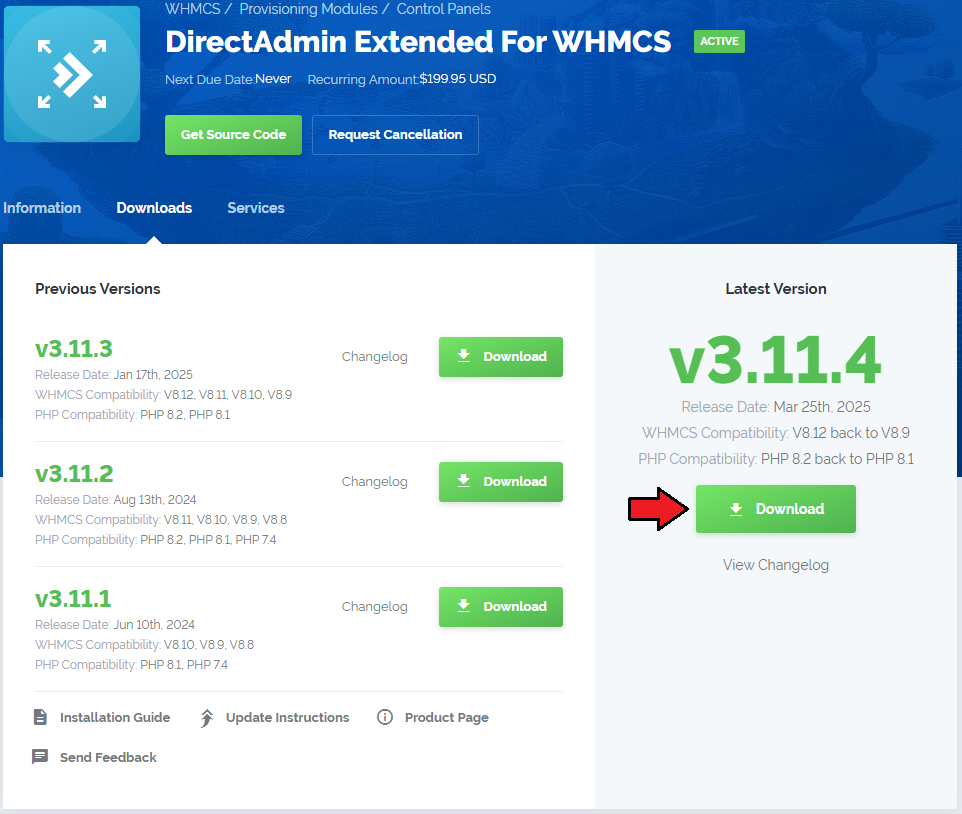
- Log in to our client area and download the module.
Extract the package and upload its content into the main WHMCS directory.
The content of the package to upload should look like this.
When you install DirectAdmin Extended For WHMCS for the first time you have to rename the 'license_RENAME.php' file.
The file is located in 'modules/servers/directadminExtended/license_RENAME.php'. Rename it from 'license_RENAME.php' to 'license.php'.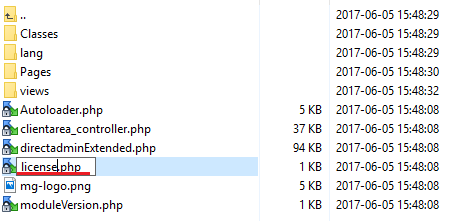
In order to configure your license key you have to edit the previously renamed 'license.php' file.
Enter your license key between quotation marks as presented on the following screen. You can find your license key in our client area → 'My Products'.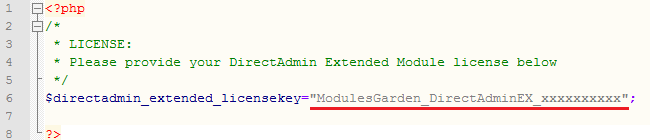
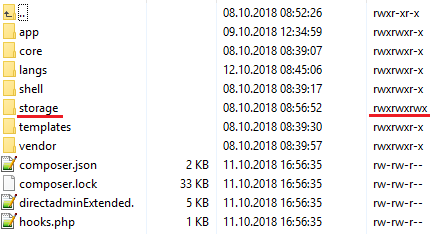
In the next step, set up the two 'storage' folders as recursively writable.
Both folders are available at 'yourWHMCS/modules/addons/DirectAdminExtended/storage' and 'yourWHMCS/modules/servers/directadminExtended/storage'.
# Addon Activation
Now, you have to activate the module in your WHMCS system.
Log in to your WHMCS admin area. Move to 'System Settings' then choose 'Addon Modules'.
Afterwards, find 'DirectAdmin Extended' and press the 'Activate' button.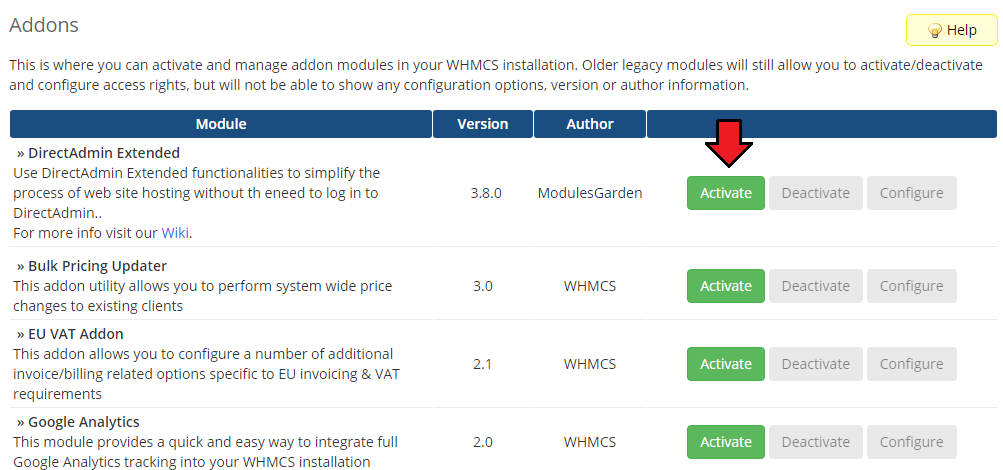
In the next step you need to permit access to this module.
To do so, click on the 'Configure' button, select required administrator groups and press 'Save Changes'.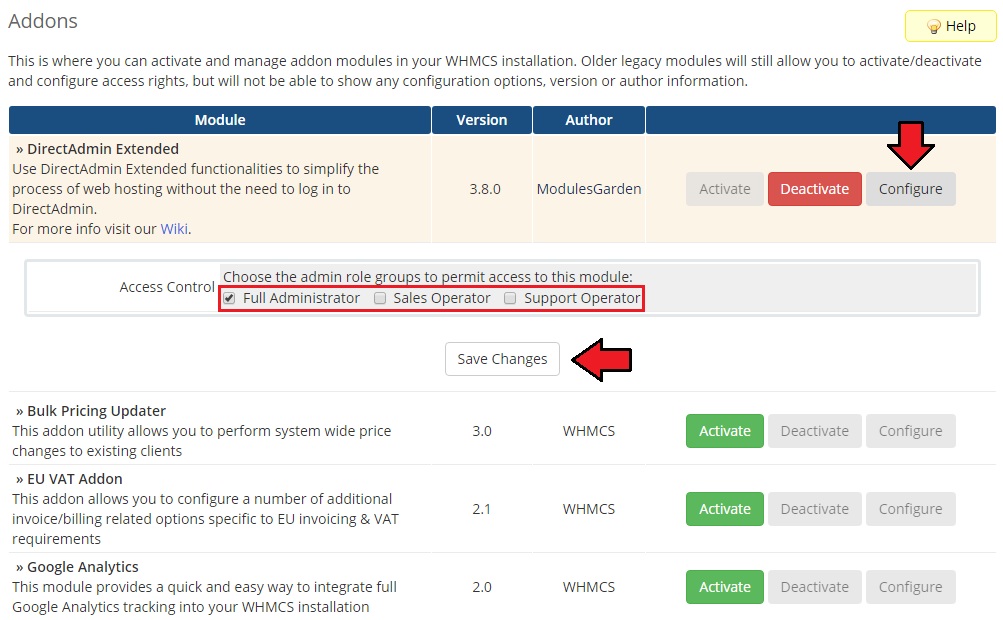
Well done! You have just successfully installed DirectAdmin Extended For WHMCS!
You may access your addon under 'Addons' → 'DirectAdmin Extended'.
# Server Configuration
Now, we will show you how to configure a new server.
To do so, log into your WHMCS and go to 'System Settings' → 'Servers'.
Once you are there, press 'Add New Server'.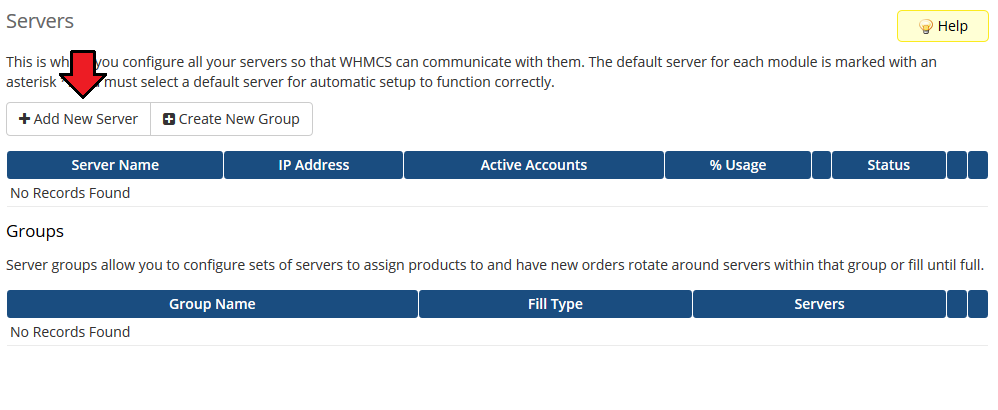
Next, enter your server name, IP address, username and password. Choose 'DirectadminExtended' from a dropdown menu and press 'Save Changes'.
In this section, you can also provide other server details like nameservers or the maximum number of accounts.
Note: Please remember that you can use login credentials of administrator or reseller account (reseller's login credentials can be used from the 3.3.0 version of the module).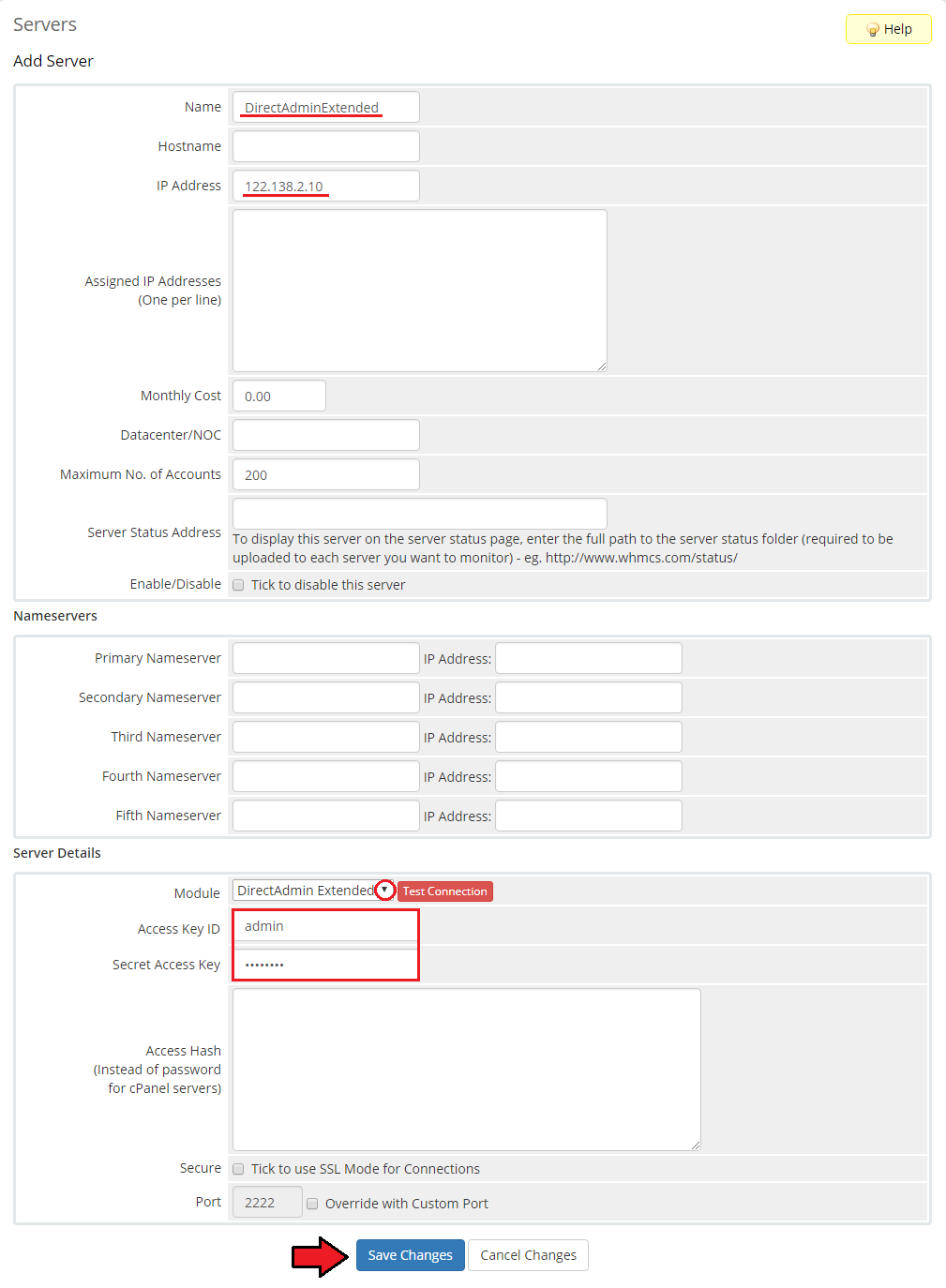
After you configure your server correctly, you will see the following screen.
At this point, you need to create a new group for your server. For that purpose, press 'Create New Group'.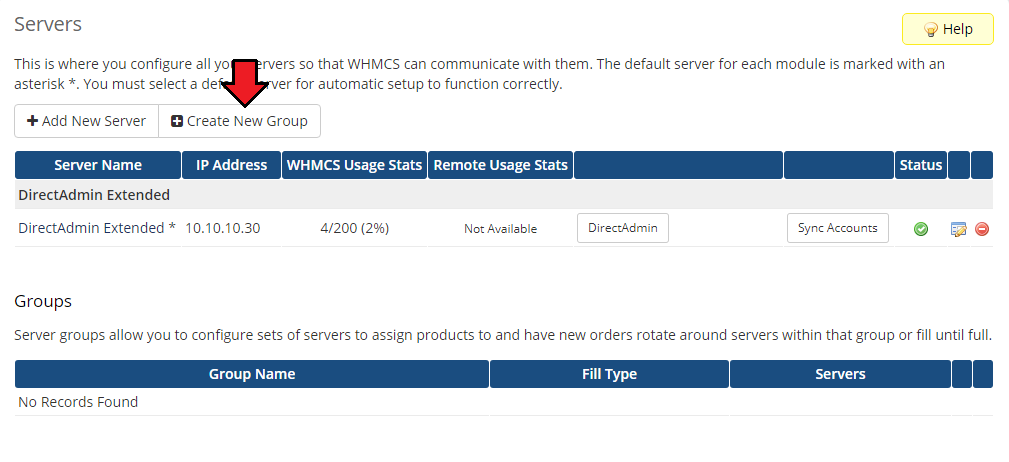
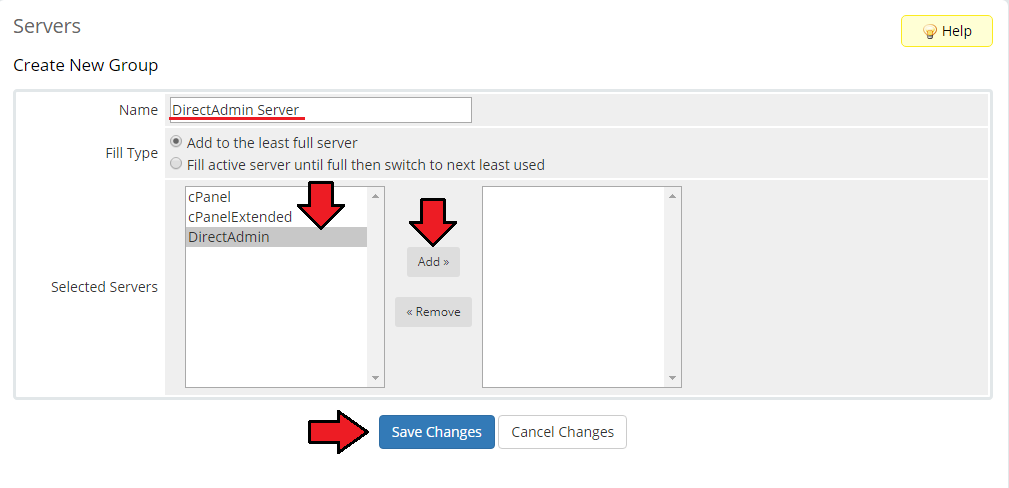
Enter the name, click on your previously created server, press 'Add' and then 'Save Changes'.
# Product Configuration
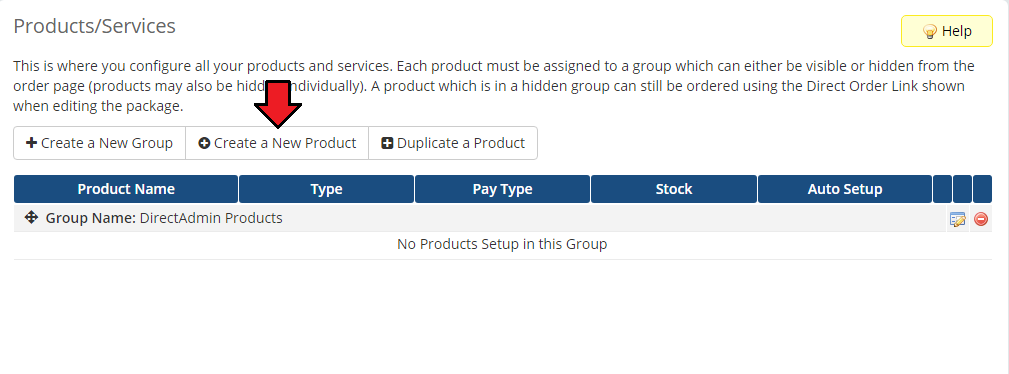
In order to create and configure the product, click on 'System Settings' → 'Products/Services'.
If you do not have a product group, click on 'Create a New Group'. If you do, simply move to the step 15.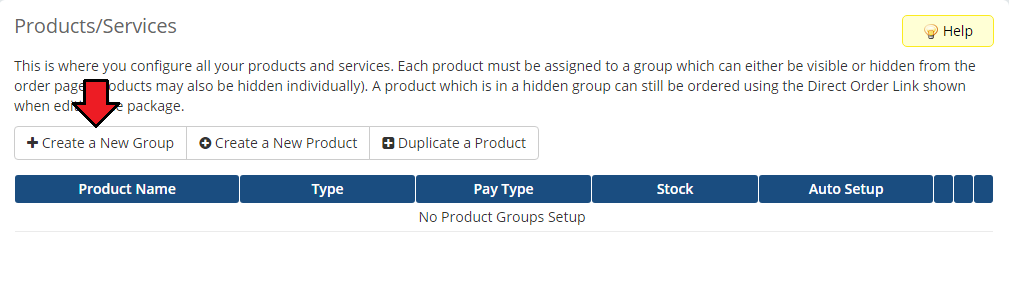
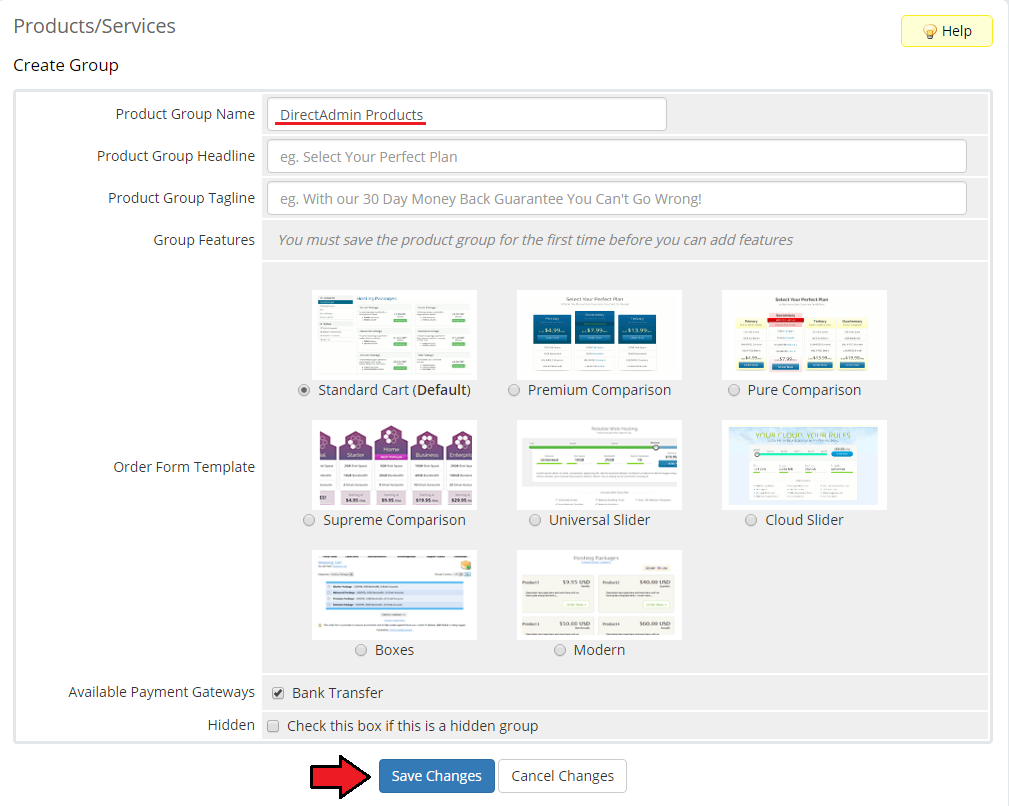
Enter the product group name and press 'Save Changes'.
- When you have a product group, you can create your product and assign it to DirectAdmin Extended. If you already have a product, jump to the step 17.
To create a product, click on 'Create a New Product'.
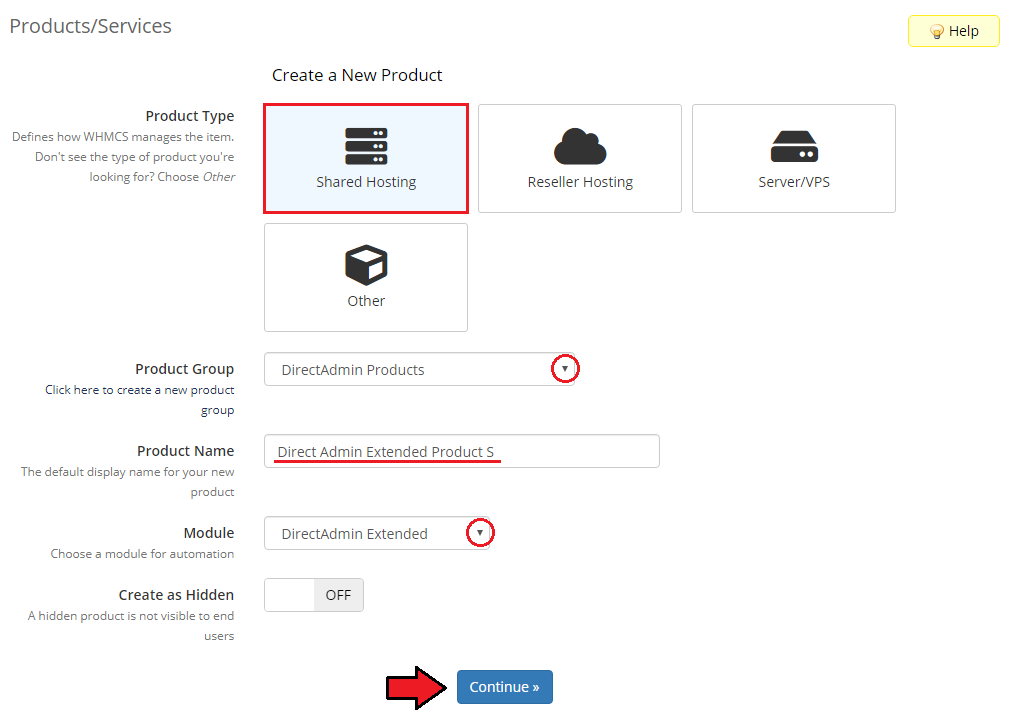
17. Afterwards, choose your product type and product group from dropdown menus, then enter your product name and select the used module: 'DirectAdmin Extended'.
Press 'Continue'.
Then, you need to move to the 'Module Settings' section and choose your previously created server group from dropdown menu.
- Choose a preconfigured 'Package' you want to use
- Select 'Reseller IP Address' if required:
- 'Shared' - the domain will use the server's main IP
- 'Shared - Reseller's IP' - the domain will set the resellers IP to shared and assign the reseller to it
- 'Assigned' - the domain will use one of the reseller's IPs
- 'Share Server IP Address with Reseller' - allow resellers to create sites with the server IP address (resellers only)
- 'IP Addresses Assigned to Reseller' - define the number of IP addresses assigned to a reseller for product configuration (resellers only)
You can also activate the feature to automatically suspend accounts when the bandwidth limit is reached. Simply tick 'Suspend at Limit'.
Don't forget to press 'Save Changes' in the end.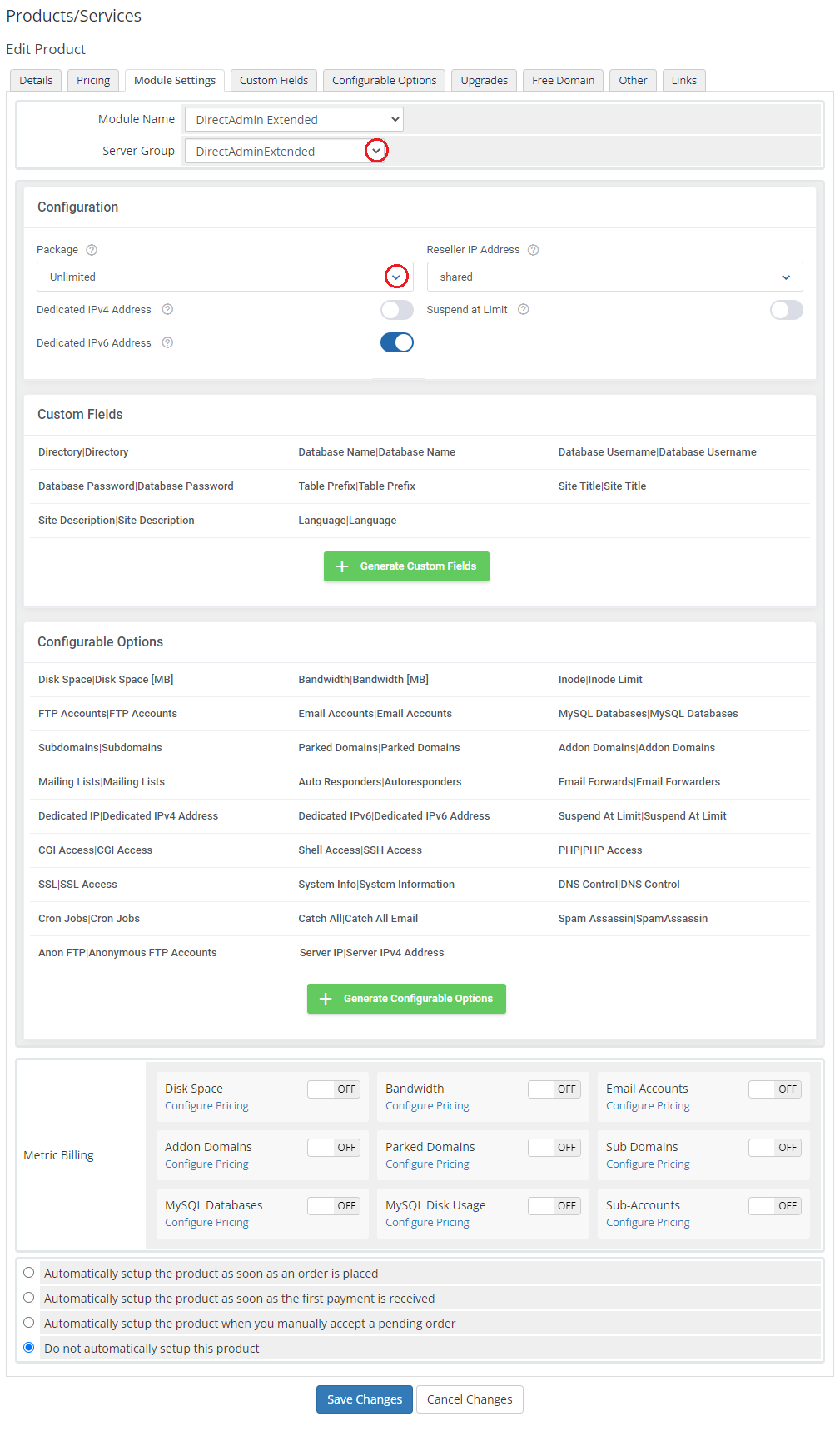
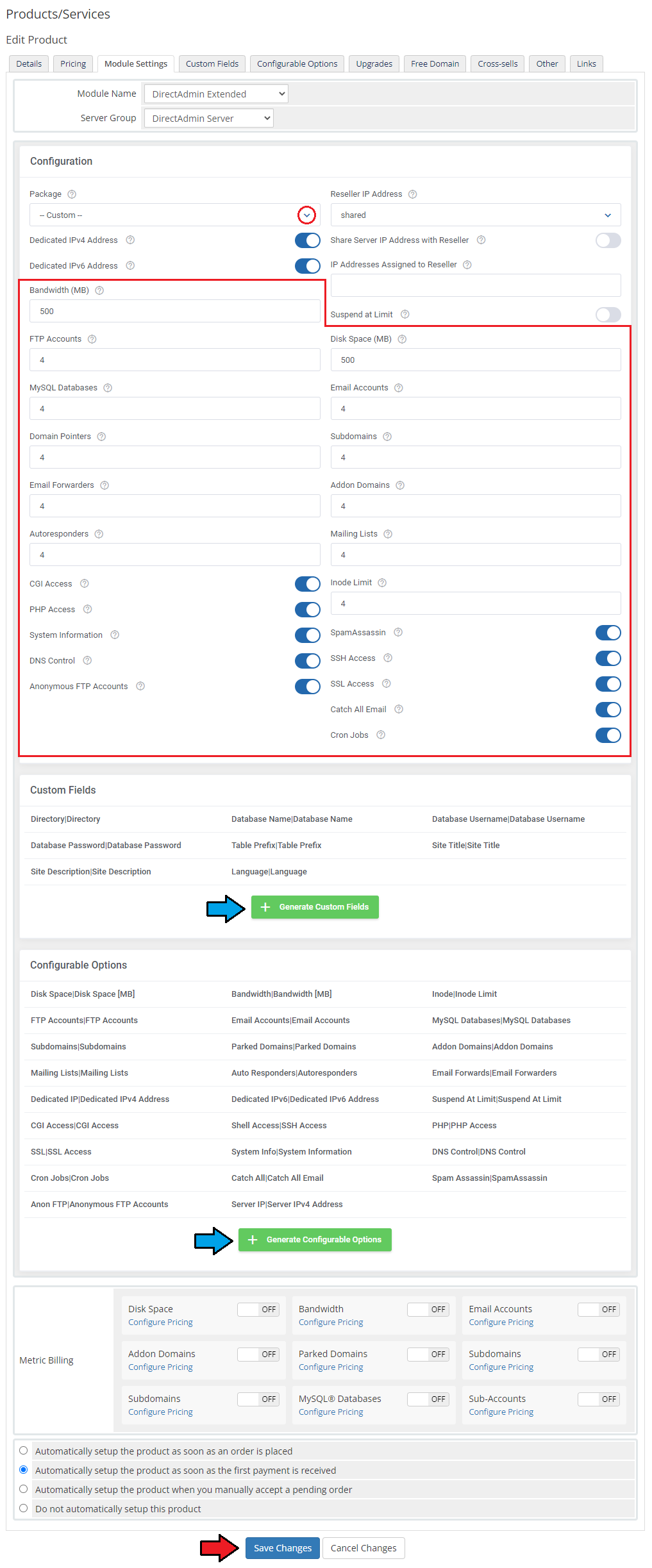
If you would like to set up your own configuration, choose 'Custom' from the 'Package' dropdown.
A list of customizable options will appear. Configure them at your own discretion or generate Configurable Options (opens new window) instead.
Also, you can generate custom fields if you wish to use the product with Auto Installed Applications.
# Addon Configuration
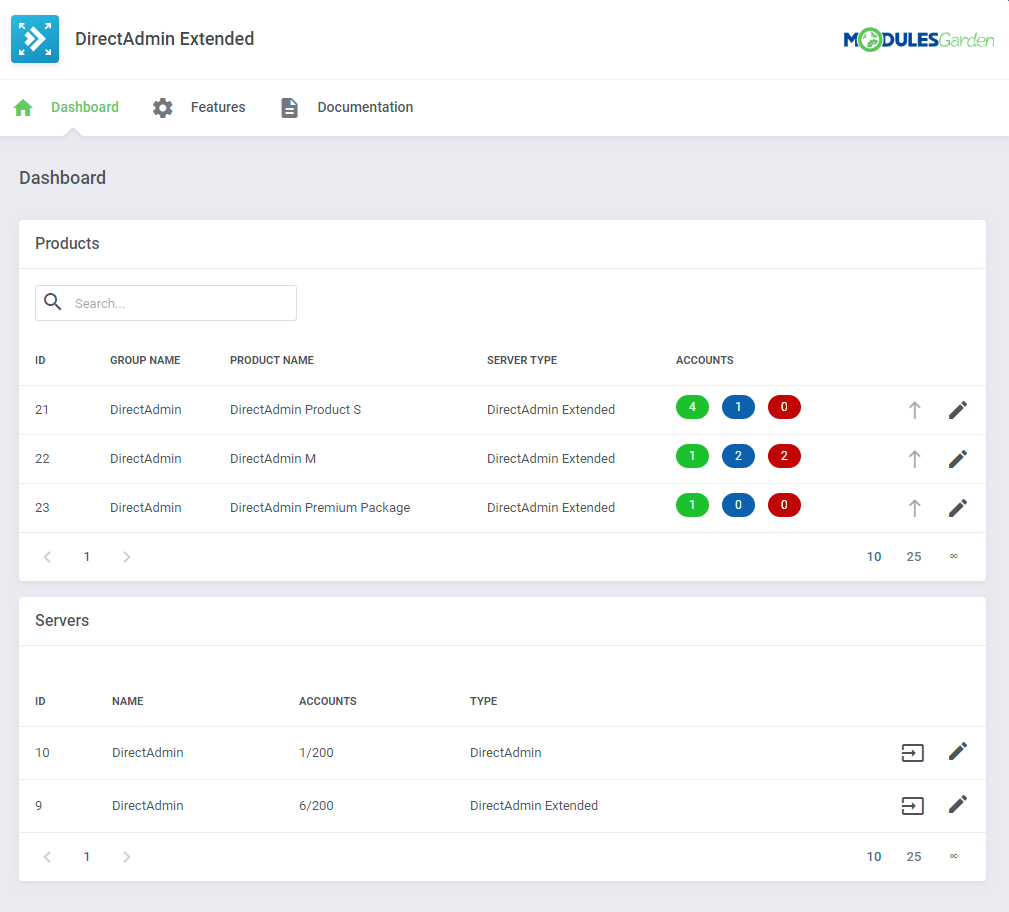
Go to 'Addons' → 'DirectAdmin Extended'.
The dashboard located there contains the precise data on available products and servers:- see the number of active/suspended/terminated products
- check the number of active accounts
- log into panel
- upgrade your DirectAdmin products
- press the 'Documentation' tab to be moved to this very site!
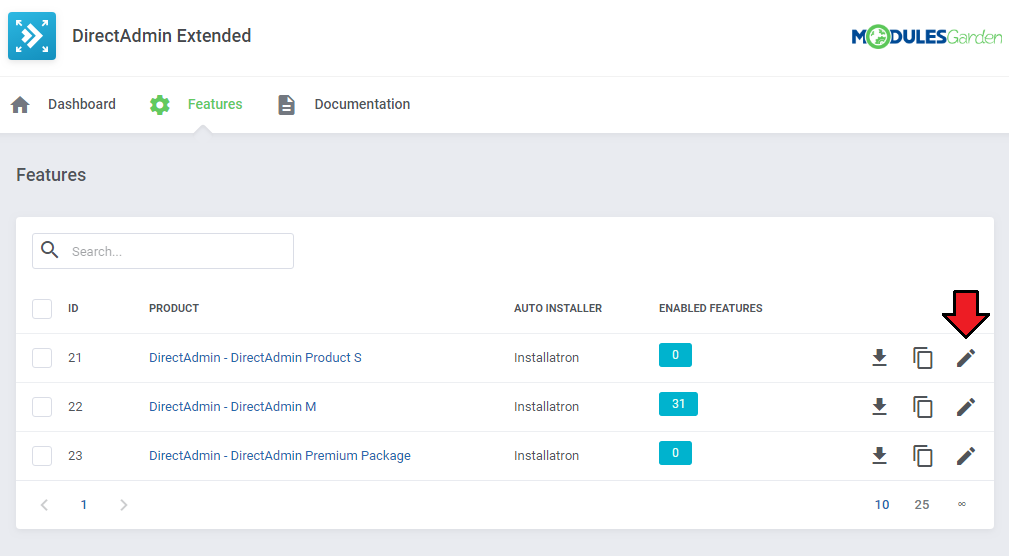
Proceed to the 'Features' section, find the product you are interested in and press the 'Configuration' button next to it.
You should see boxes dedicated to 'Features', 'Applications' and 'Other'
Begin by selecting the features you would like to activate for your customers.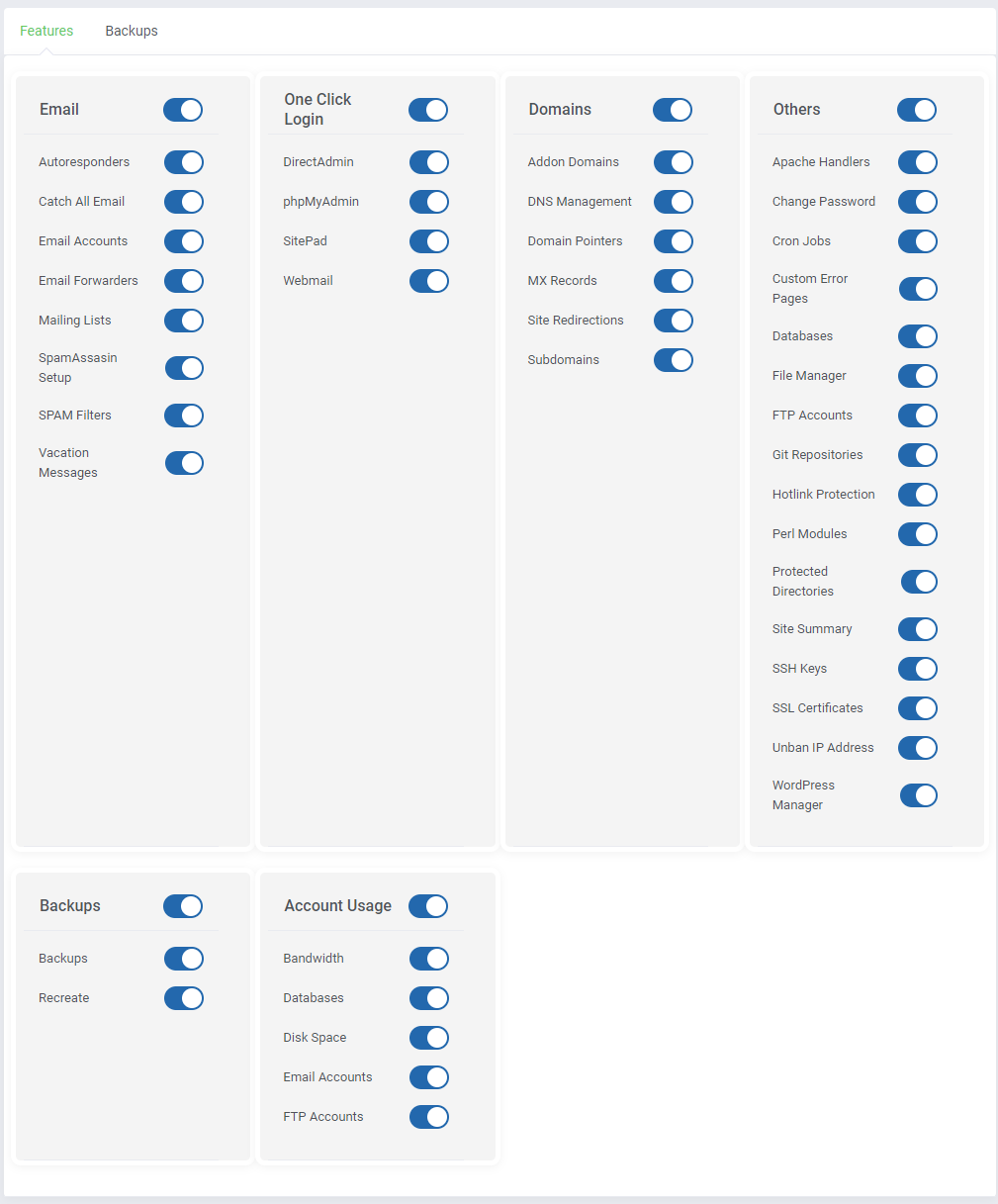
Choose whether to activate the 'Install Applications' option.
In case you wish to enable this feature, you will have to select 'Auto Installer' from a dropdown menu. After, activate 'Install Button' and 'Backup Button'.
You can also choose a desired language of the applications by typing in its two-letter code into the 'Language' field. A complete list of language codes can be found here (opens new window).
If the field is left blank, a default value, which is 'en' (English) will be used.
Note: You can also create a configurable option with app to be installed, you can find the relevant instruction here.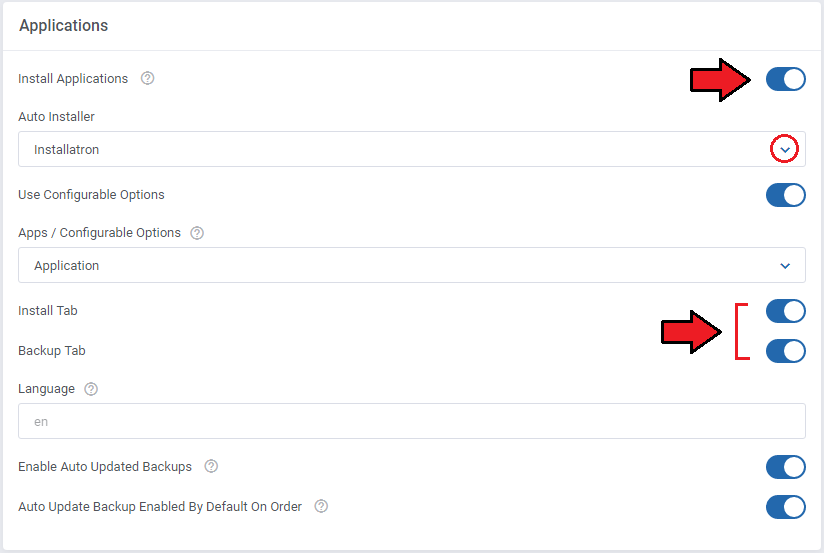
Finally, select the 'Webmail' button redirection from the 'Other' and choose 'Show Server IP' address.
Do not forget to 'Save' changes once the product configuration is ready!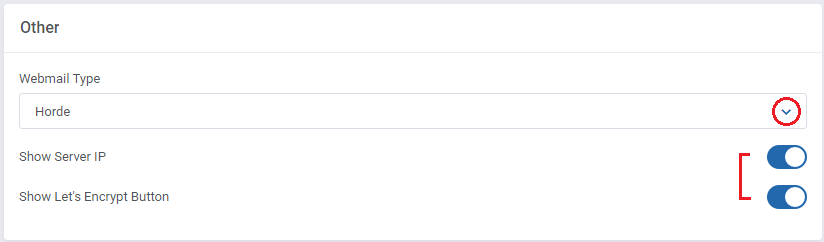
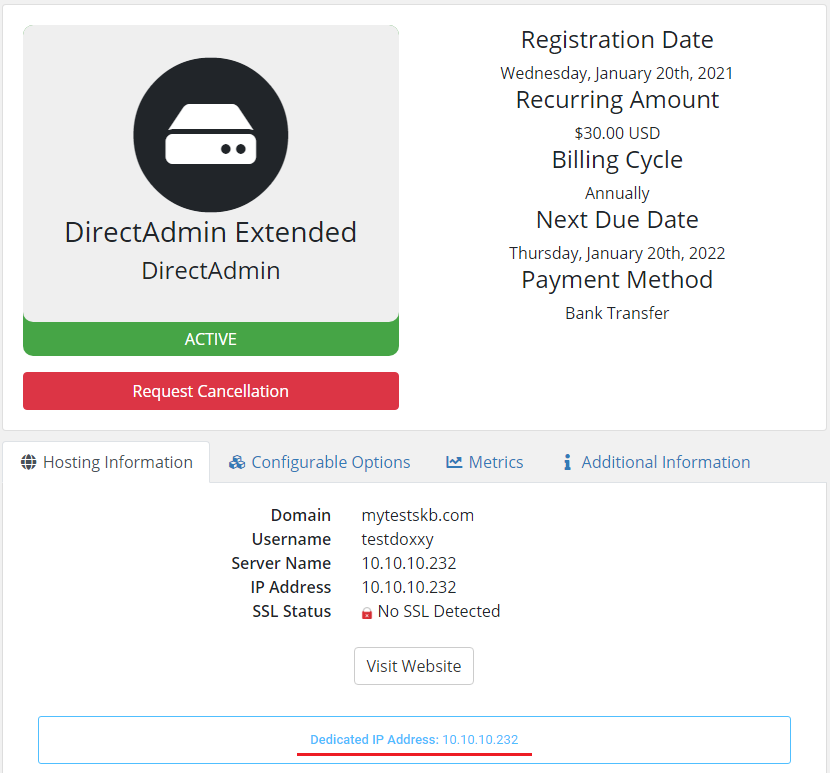
If the 'Show Server IP' address option is on, it will be visible in the client area for customers.
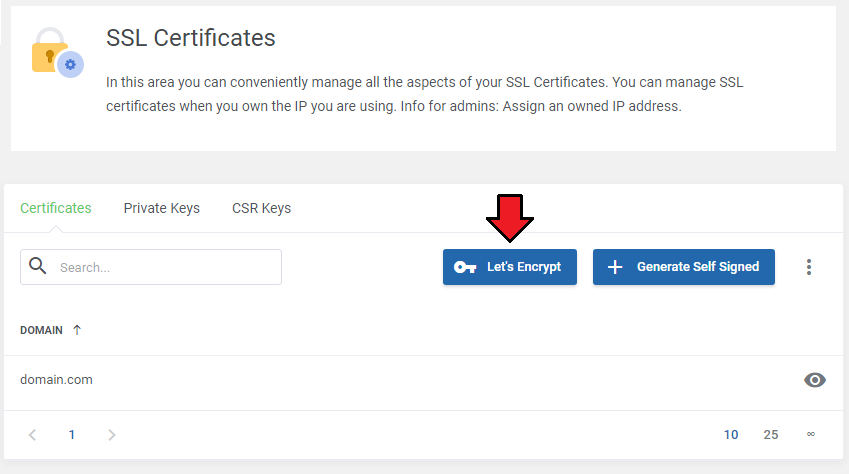
If the 'Let's Encrypt' button is toggled on, your customers will see it under the 'SSL Certificates' menu.
(Optional) Move to the 'Backups' tab where you can define the FTP backup path under 'FTP Backups Endpoints' and 'Backup Directory Path'.
This will allow creating backups on external servers defined by their admin, which then will be available for the clients to choose. Find more about Backups here.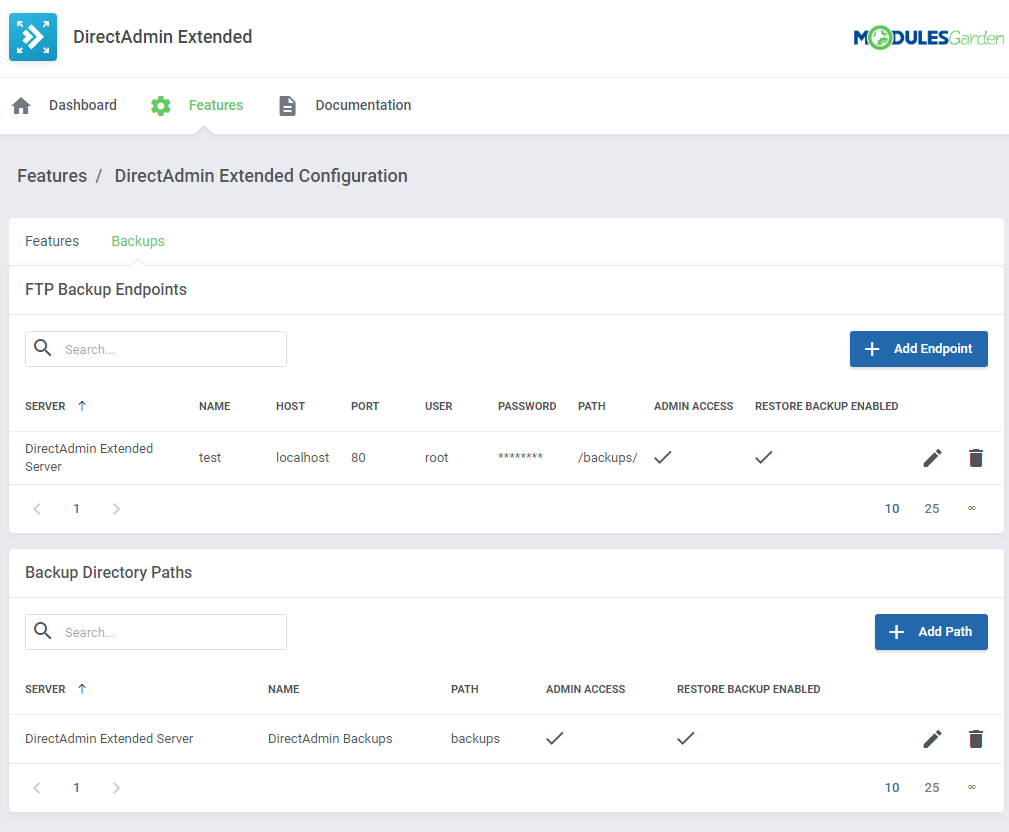
Define the FTP backup path under 'FTP Backups End Points'.
Simply fill out the form with 'Backup Name', 'Host', 'Port', 'User', 'Password' and 'Path to Files'.
Afterwards, save it by pressing the 'Save' button.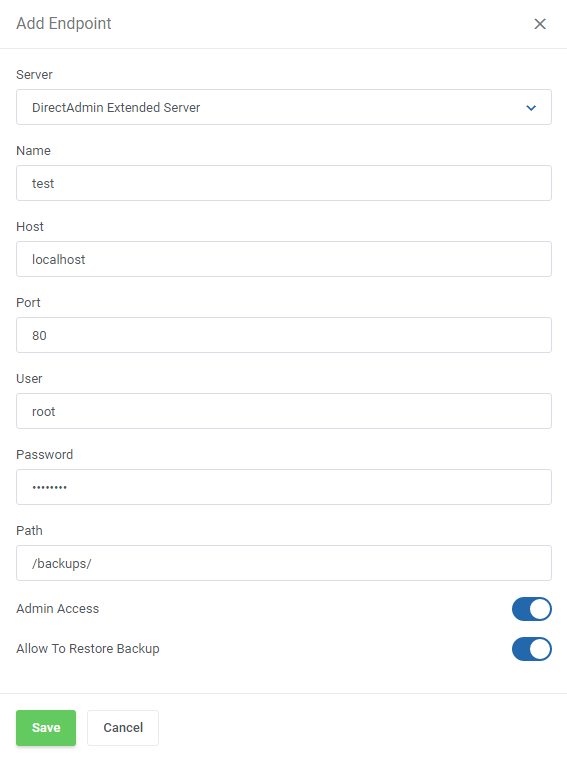
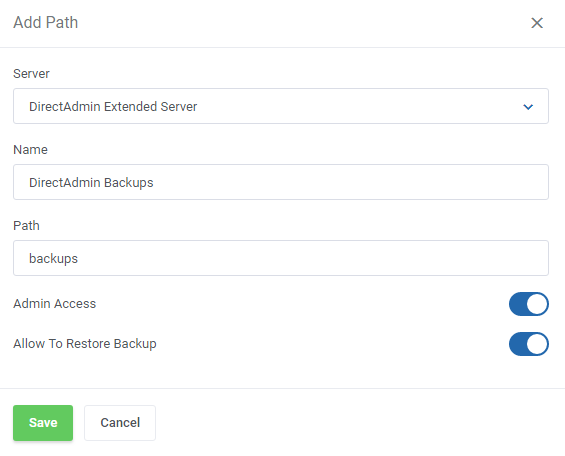
Under the Backup Directory Path, enter the backup path which can be found in your DirectAdmin server → 'Admin Backup/Transfer' → 'Local' textbox.
If you already have another product configured, you may copy its configuration.
Find the 'Copy Configuration' button on the list with products or select multiple items at once.
Then choose the product configuration which settings you wish to copy into the selected products.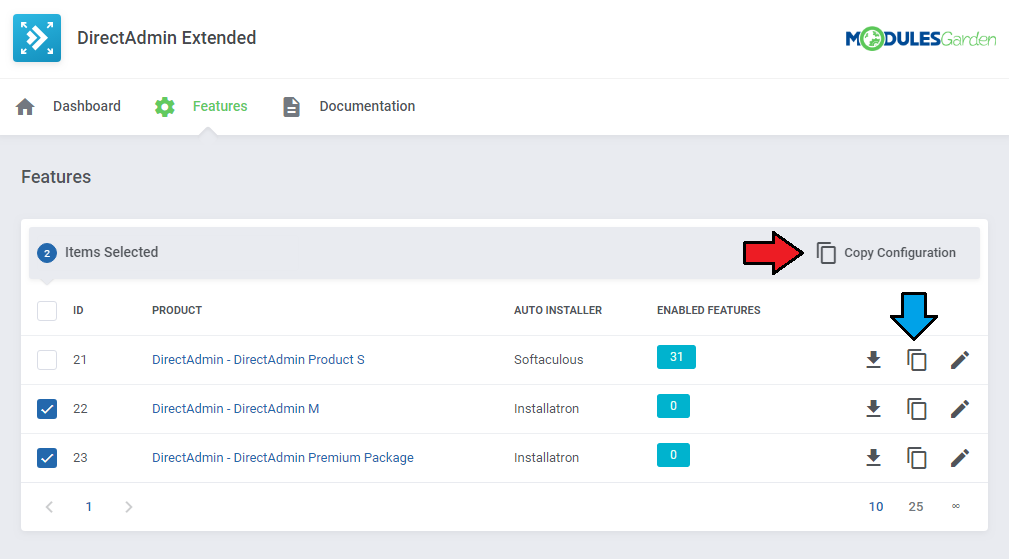
That's all, you have just correctly created and customized a new product, now you can check the results.
This is what your customers should see in your client area.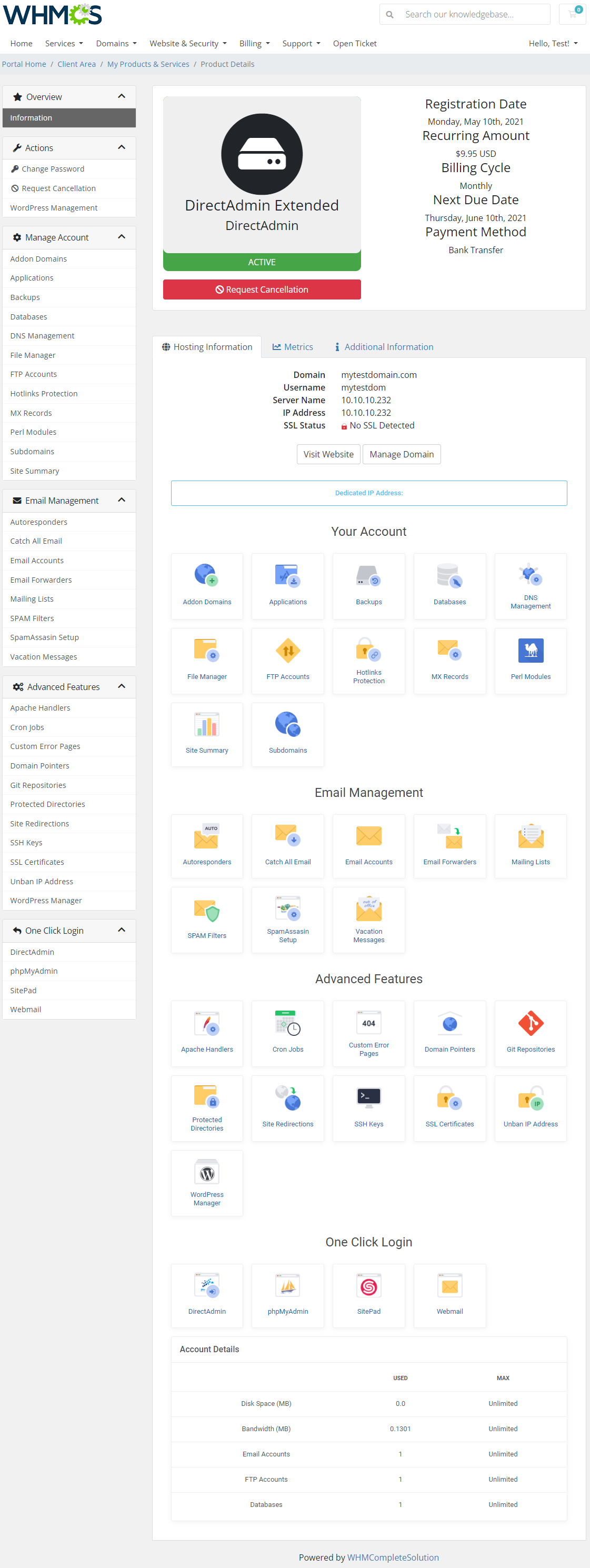
From now on, all your clients who will order the previously created product, will be able to manage their DirectAdmin accounts via your WHMCS system.
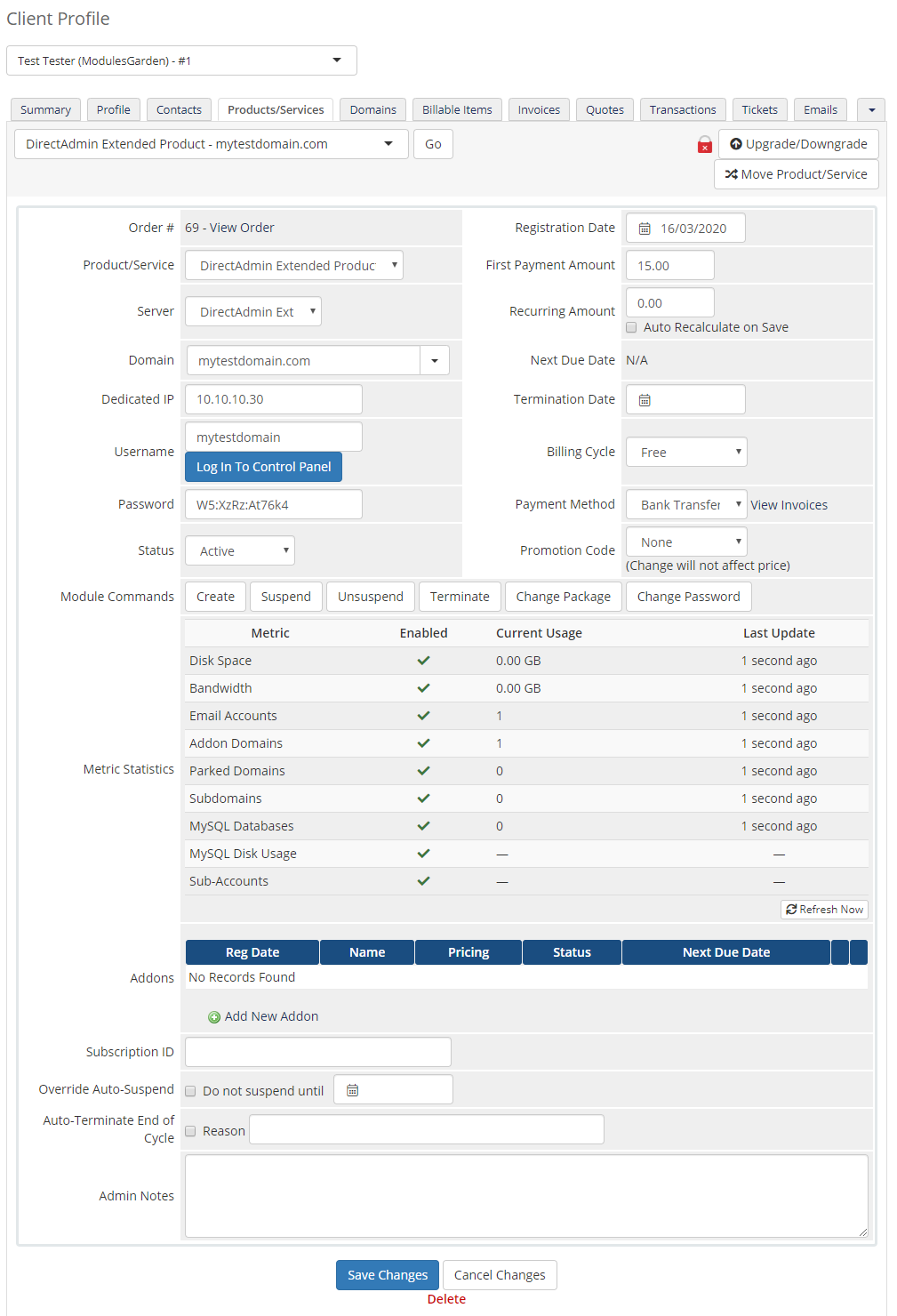
Below you can see the view of the ordered product summary in the admin area. Available actions:- Log In To Control Panel
- Use the module commands: 'Create', 'Suspend', 'Unsuspend', 'Terminate' the product; 'Change Package' and 'Change Password'
# Management
DirectAdmin Extended allows your customers to manage their DirectAdmin accounts directly in your WHMCS client area.
This short guide will present you the possibilities of our addon module.
# Your Account
In the below sections, you will find basic tools used to manage your DirectAdmin account shown and described.
Analyze them carefully to enjoy full and easy management.
# Addon Domains
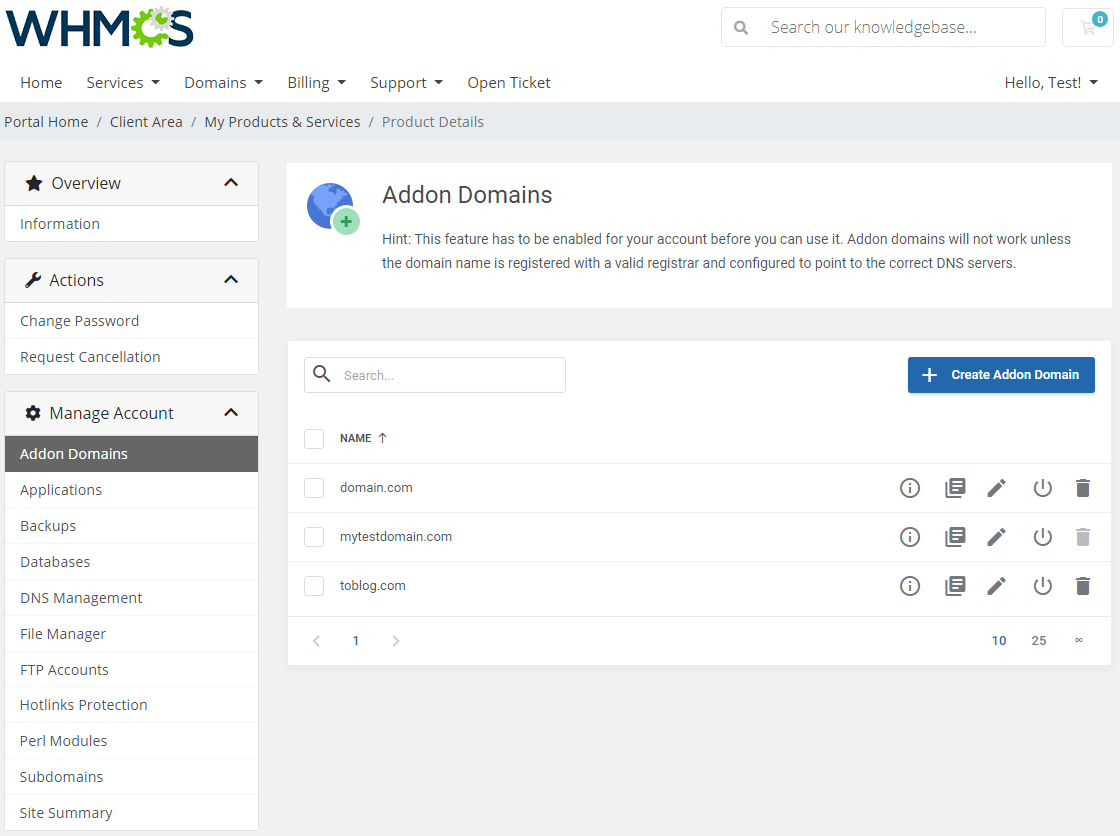
Addon domains allow you add and manage your addon domains.
Take a look at the domain details, view error and usage logs, change the PHP version if applicable and suspend or unsuspend domains.
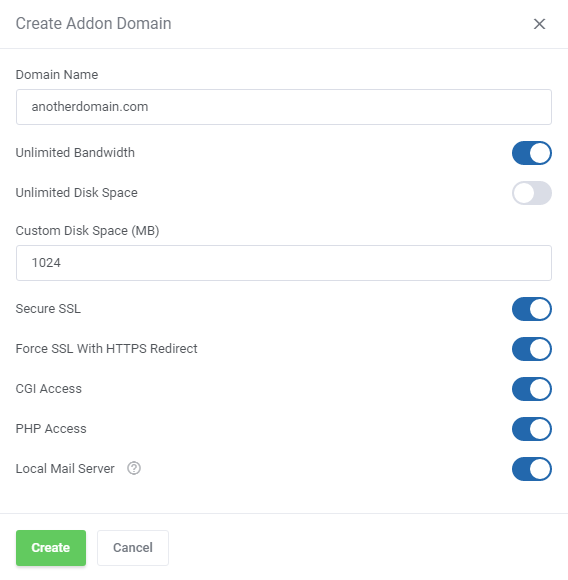
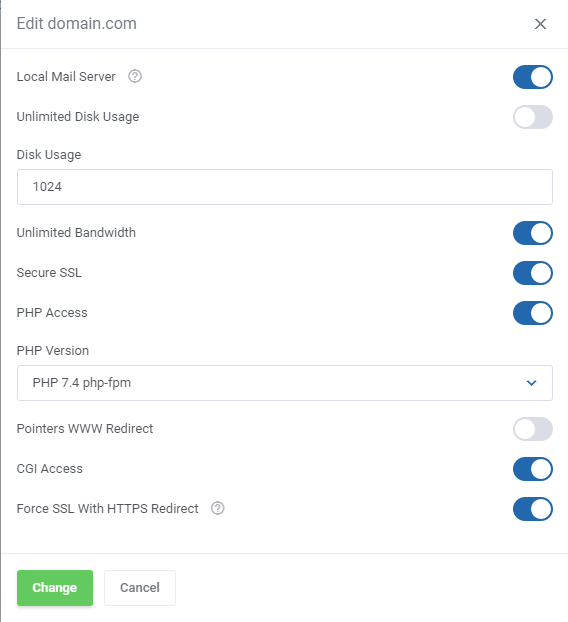
Press the 'Create Addon Domain' button and enter a new domain name, specify bandwidth and disc space, select options you may need:
- 'Secure SSL'
- 'Force SSL With HTTPS Redirect'
- 'CGI Access'
- 'PHP Access'
- 'Local Mail Server'
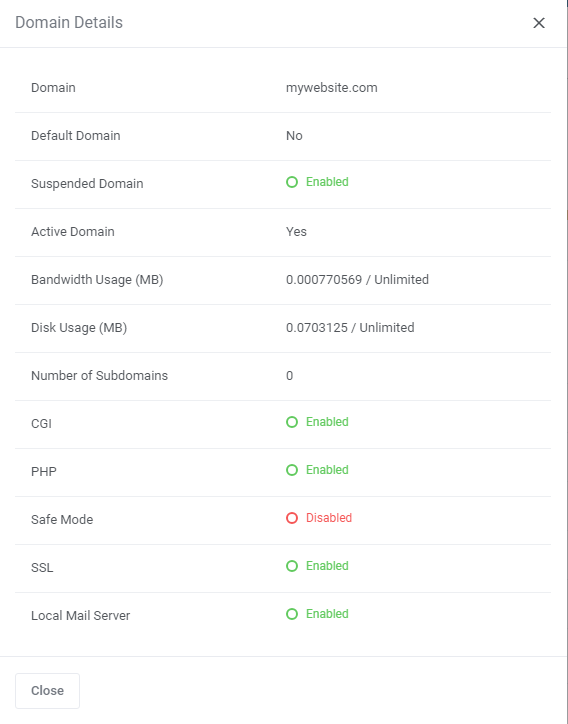
Press the 'Information' icon to see the domain details.
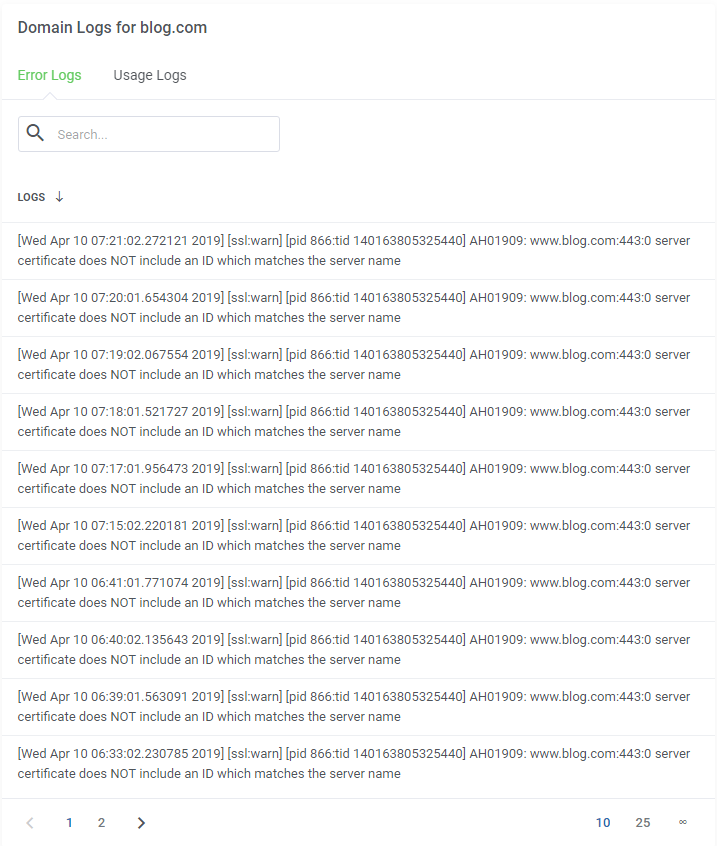
You may also check the list of 'Error' and 'Usage Logs' of each addon domain.
Select a 'PHP Version' and enable/disable the 'Local Mail Server' of the addon domain.
Keep in mind that this option is available only if it is enabled and managed on the product's DirectAdmin server.
Otherwise, the 'There is no PHP Selector Enabled' information will be displayed and the option disabled.
# Applications
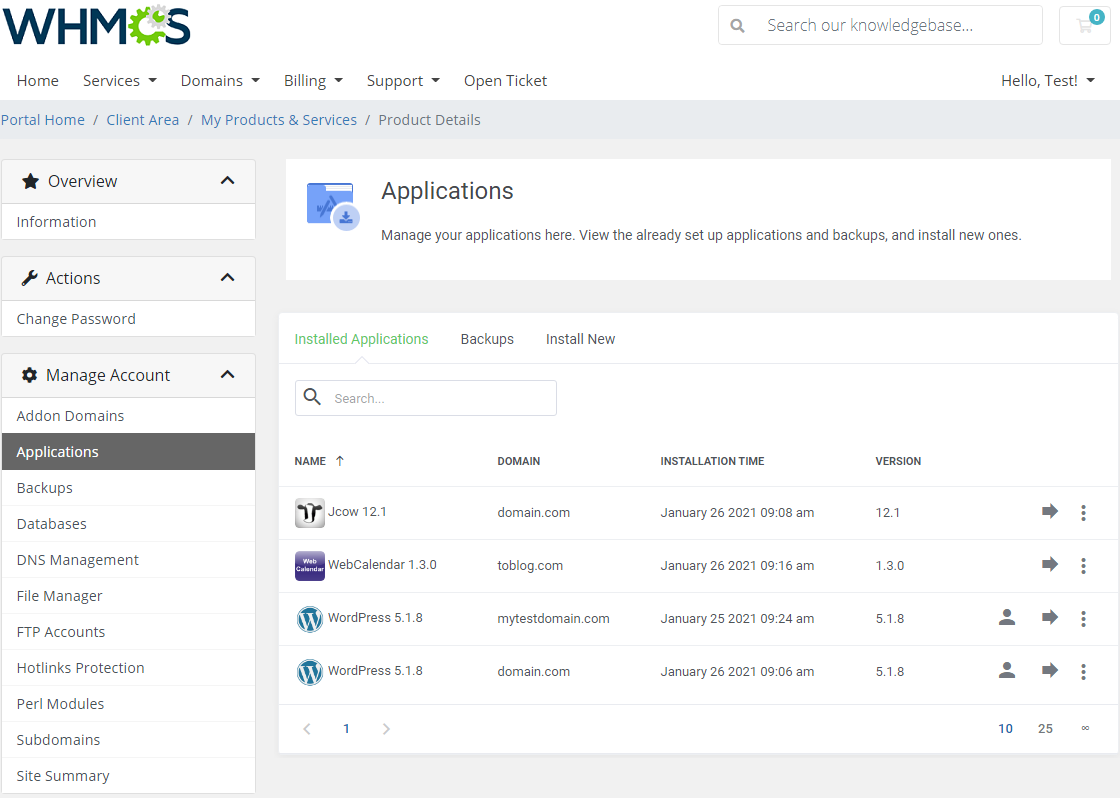
Manage your applications straight from your WHMCS client area. Install new applications, create backups if needed and delete unused apps.
A separate section has been dedicated to applications, please move to section Install Applications to learn how to manage applications and their backups.
# Backups
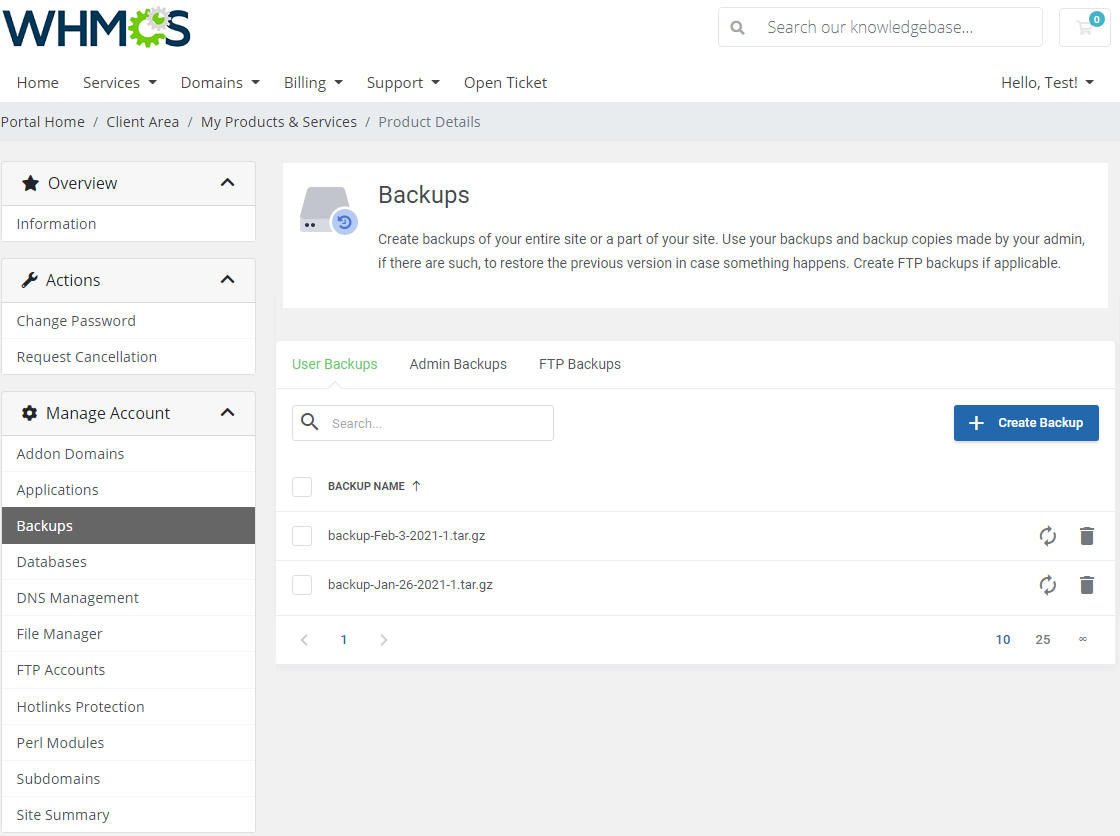
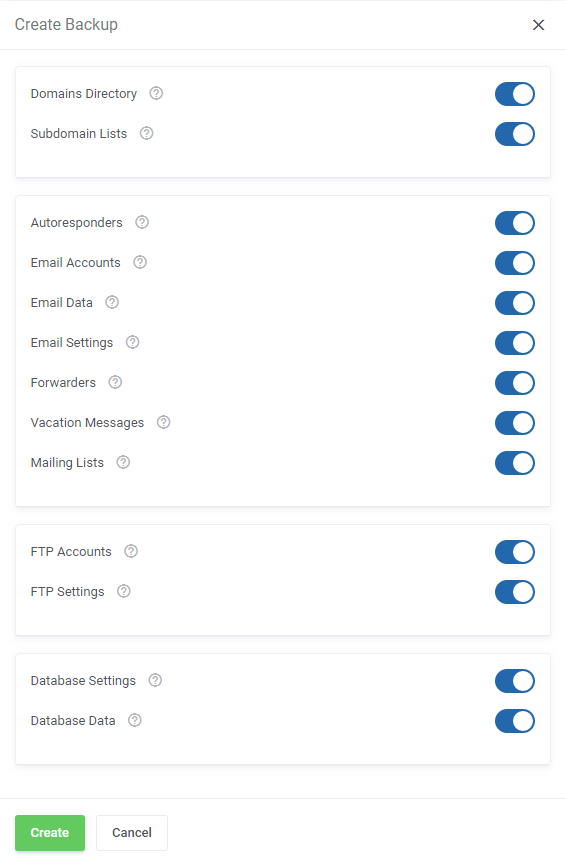
This tab, 'User Backups', allows you to back up your DirectAdmin user account.
To delete backup, simply press an adequate icon.
You can select what exactly you want to backup. Mark checkboxes next to the setting you would like to make the backup of.
Afterwards, press the 'Create' button to order it.
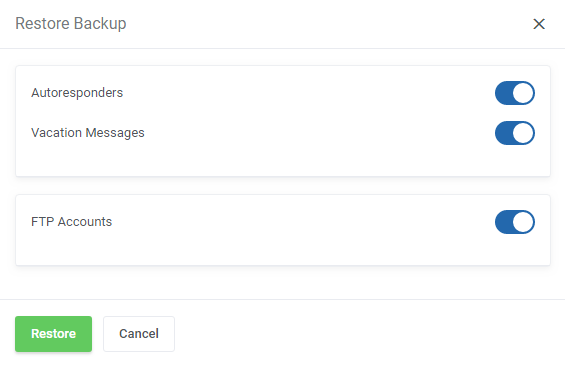
You may restore your backups at any time, you can do it by pressing the 'Restore' button next to the backup.
Then, toggle options that you want to restore with this action.
Note: Only backed up features are available here to choose, all the others are hidden.
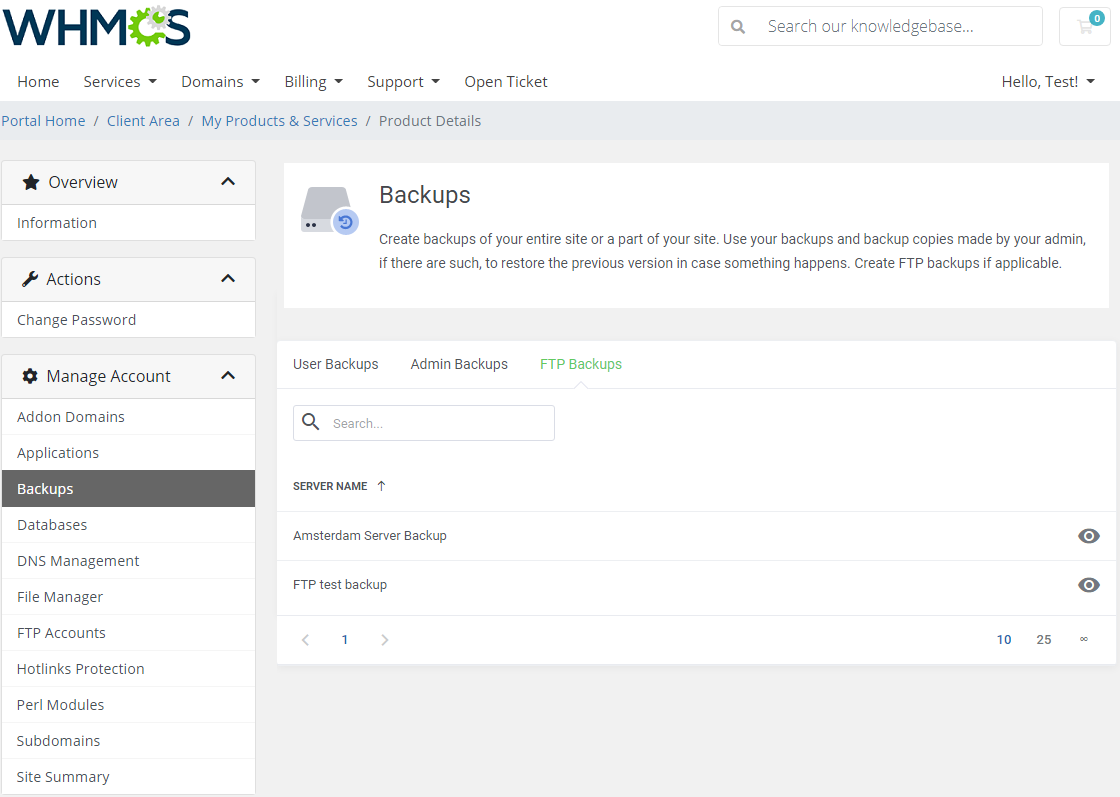
At 'Admin Backups' and 'FTP Backups' sections you will get a list of backups created by your administrator and FTP Backups, you may view a list of backups of a given server.
Note: Please refer to Tips section, point 4, to learn how to manage FTP and Admin backups.
# Databases
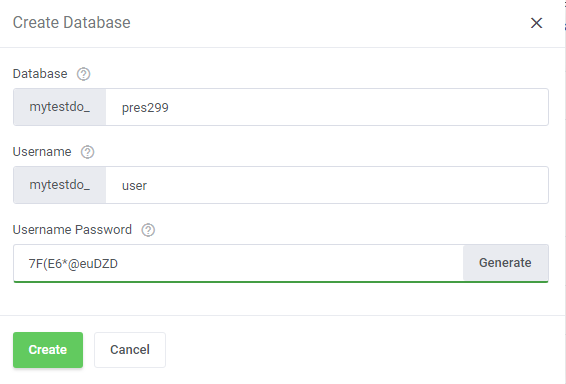
Owing to the MySQL databases management, you can create and delete databases.
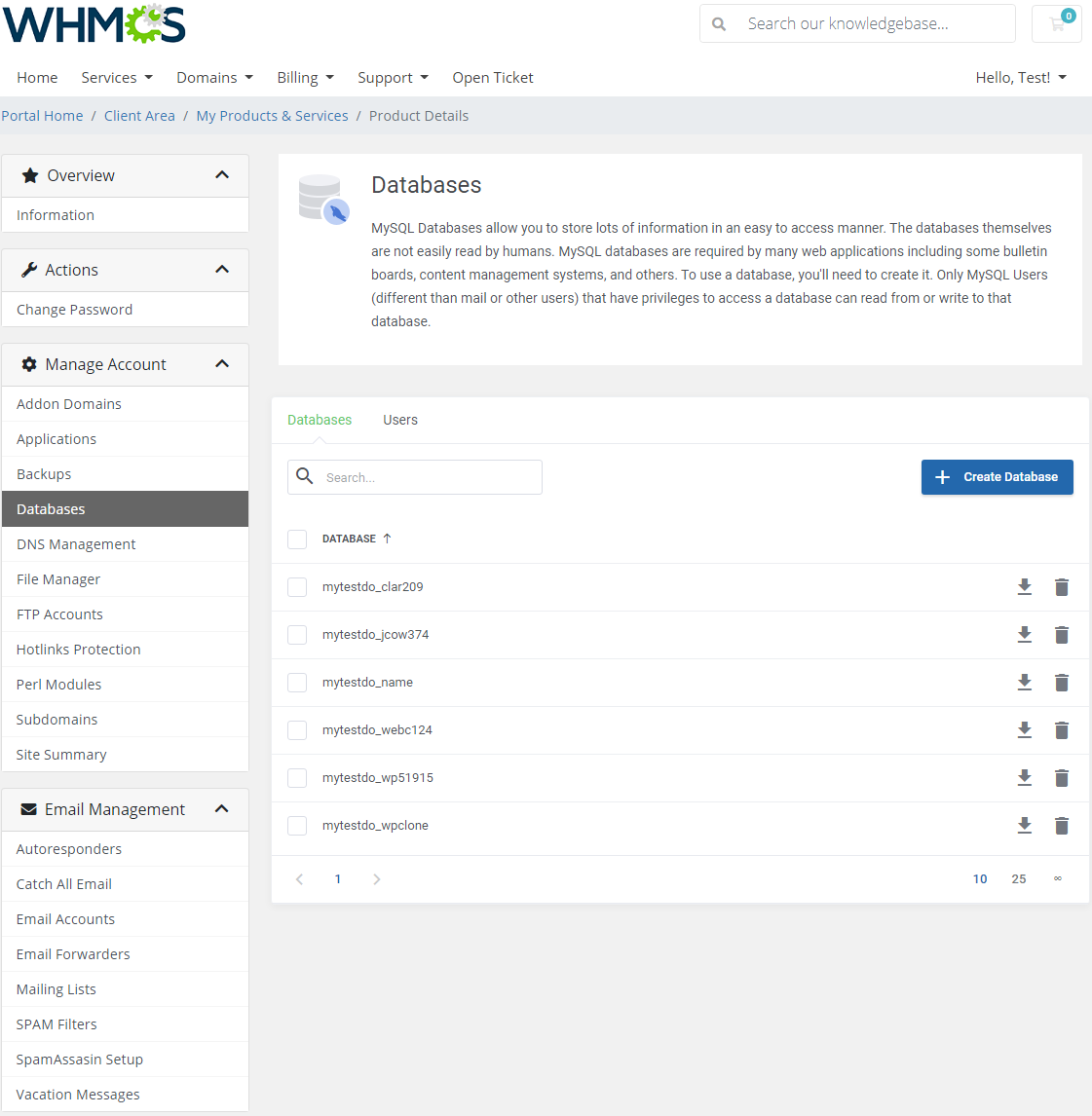
Type in the required information and generate a secure password.
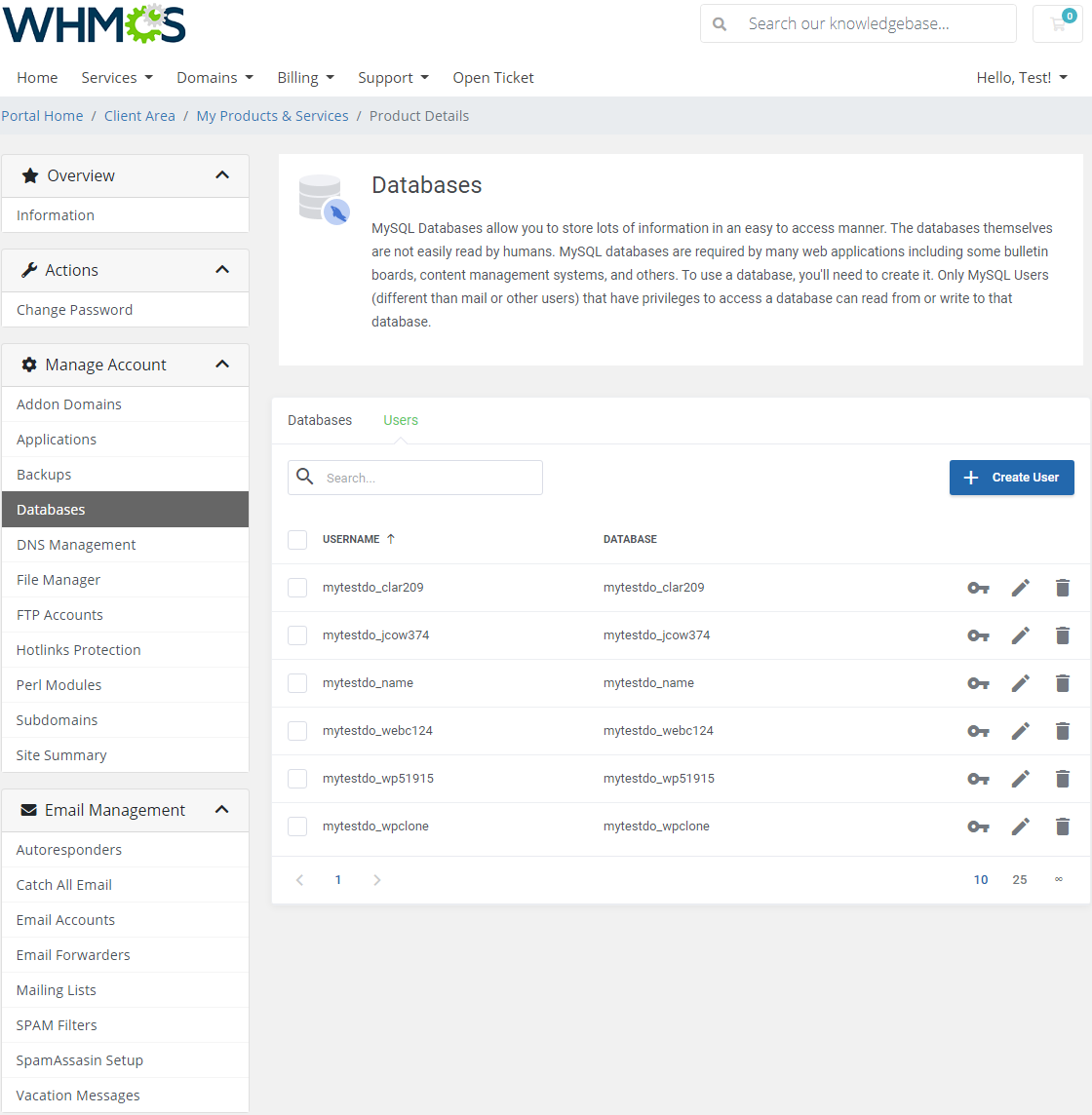
You can also add users to particular databases, use action buttons to delete needless users or change their password.
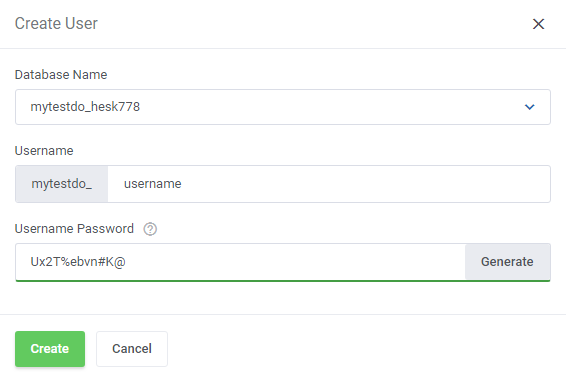
Remember that you should always use the secure password generator while creating a user.
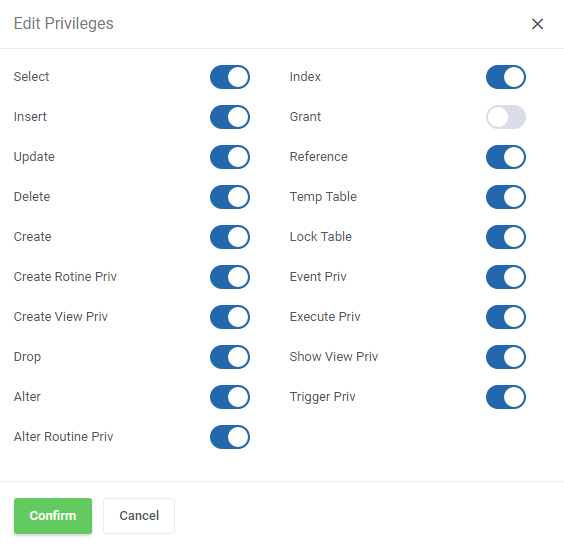
Once the user has been created, you can edit it to set appropriate privileges then.
Toggle privileges you wish to assign to the user and confirm the changes.
It is also possible to change the user's password in case of any need.
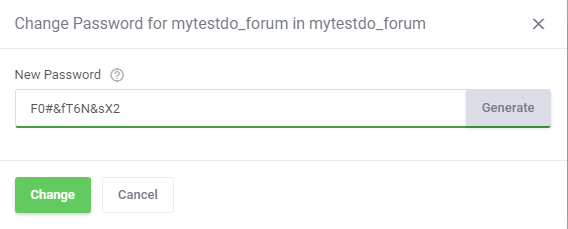
# DNS Management
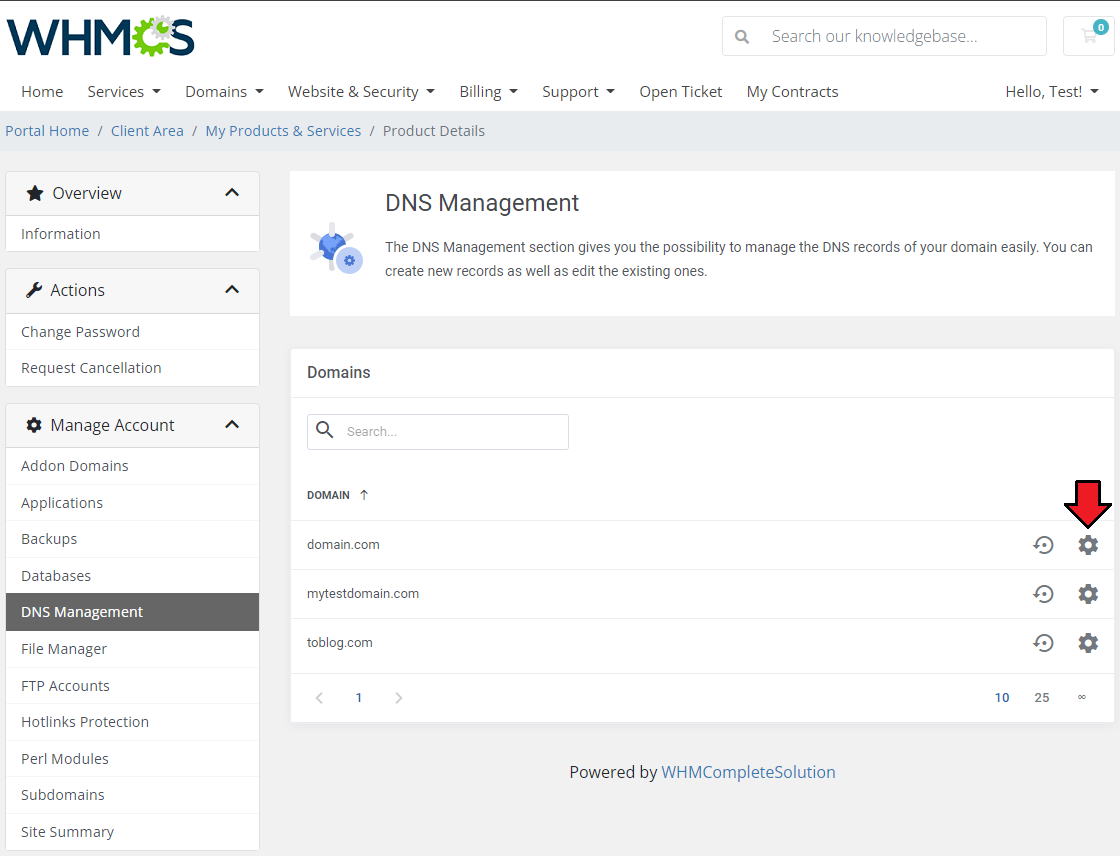
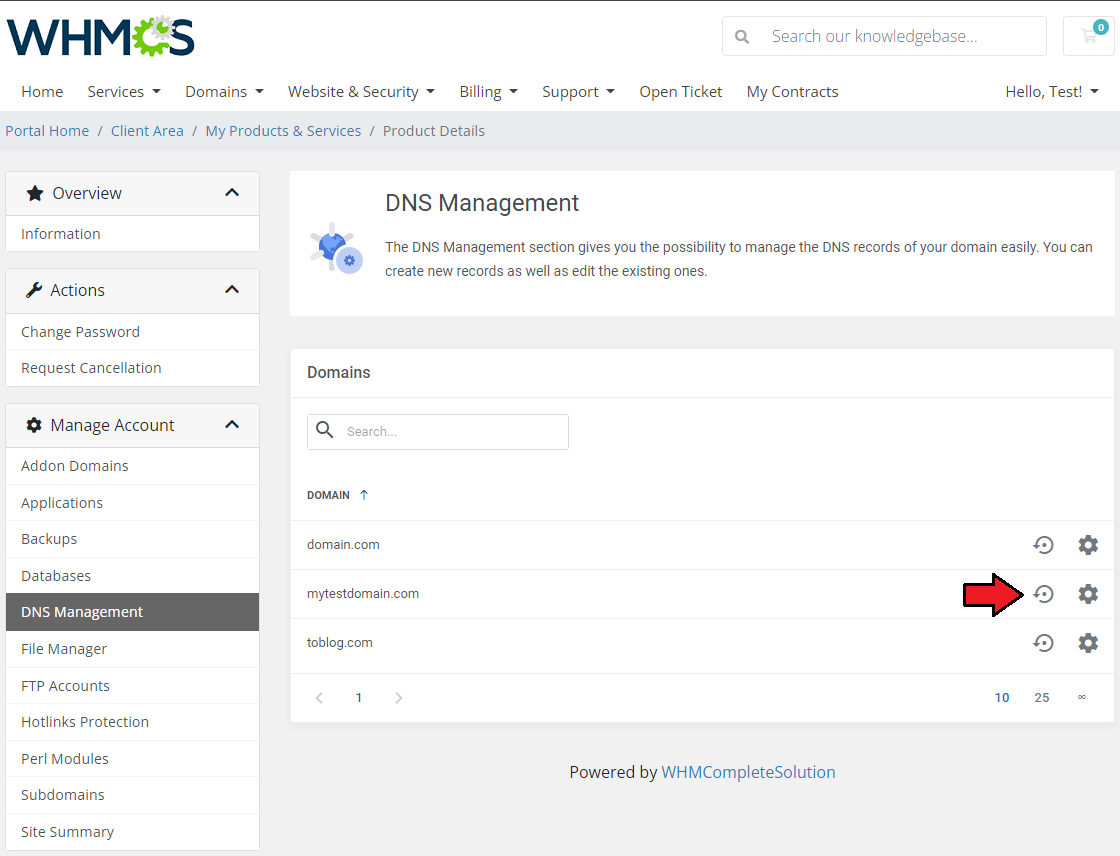
This section gives you the possibility to manage the 'DNS Records' of your domain easily. You can create new records as well as edit the existing ones.
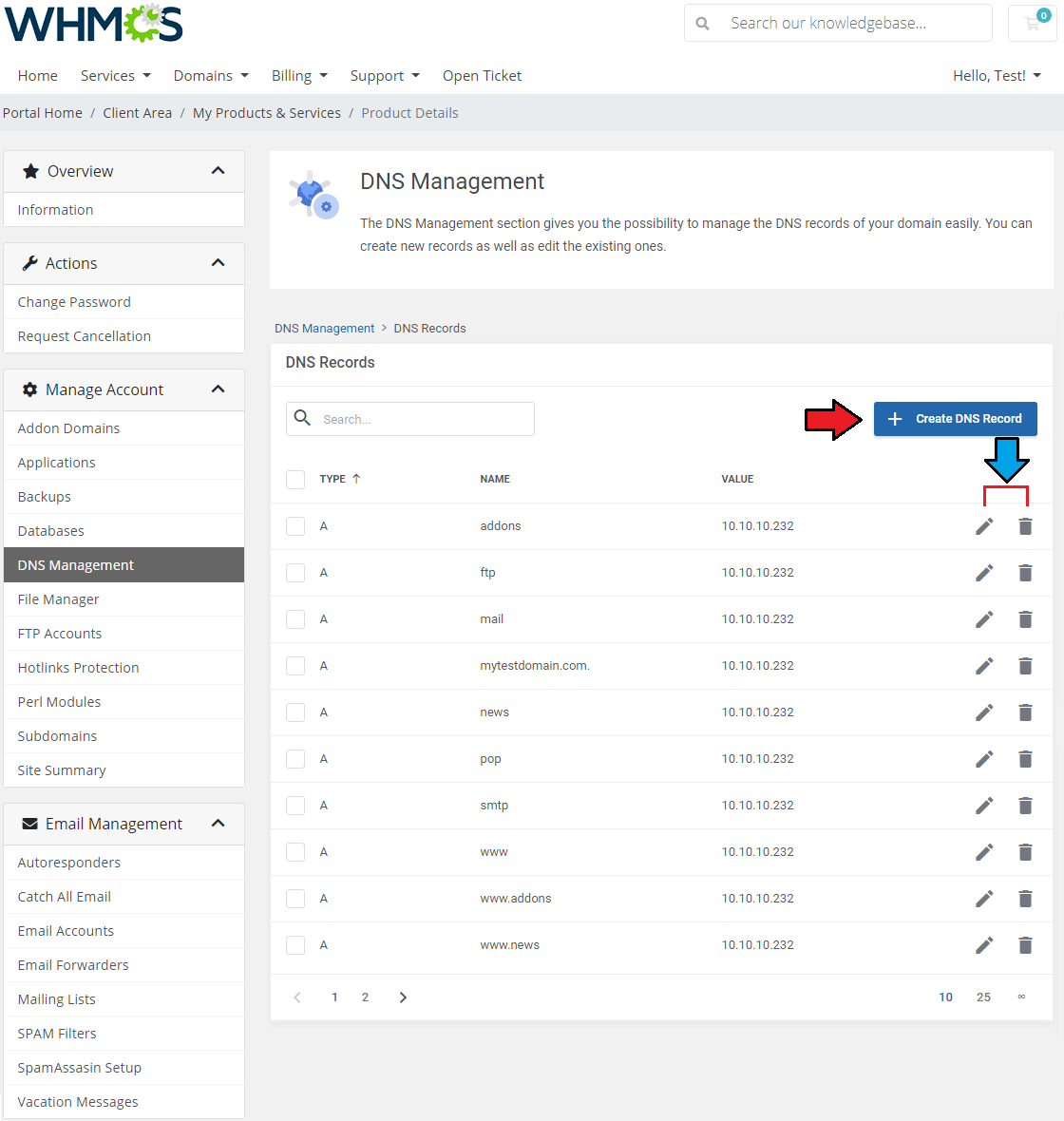
As presented below, there is a list of your existing 'DNS Records'.
You can edit them or delete if they are no longer needed. If you wish to add a new 'DNS Record', simply click on the appropriate button.
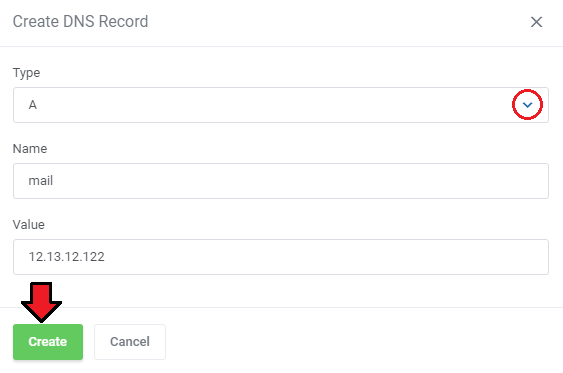
Now, choose the type of your 'DNS Record' and provide its name and value.
Press the button to restore the DNS configuration to default.
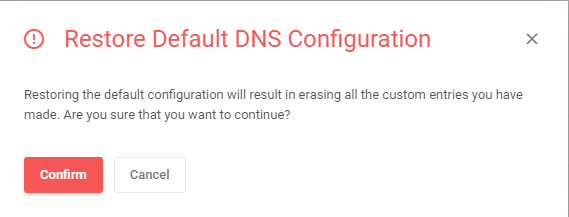
You must be aware that after restoring the default configuration, all the custom entries you have made will be erased.
If you are sure, just press 'Confrirm' button to restore default DNS configuration.
# File Manager
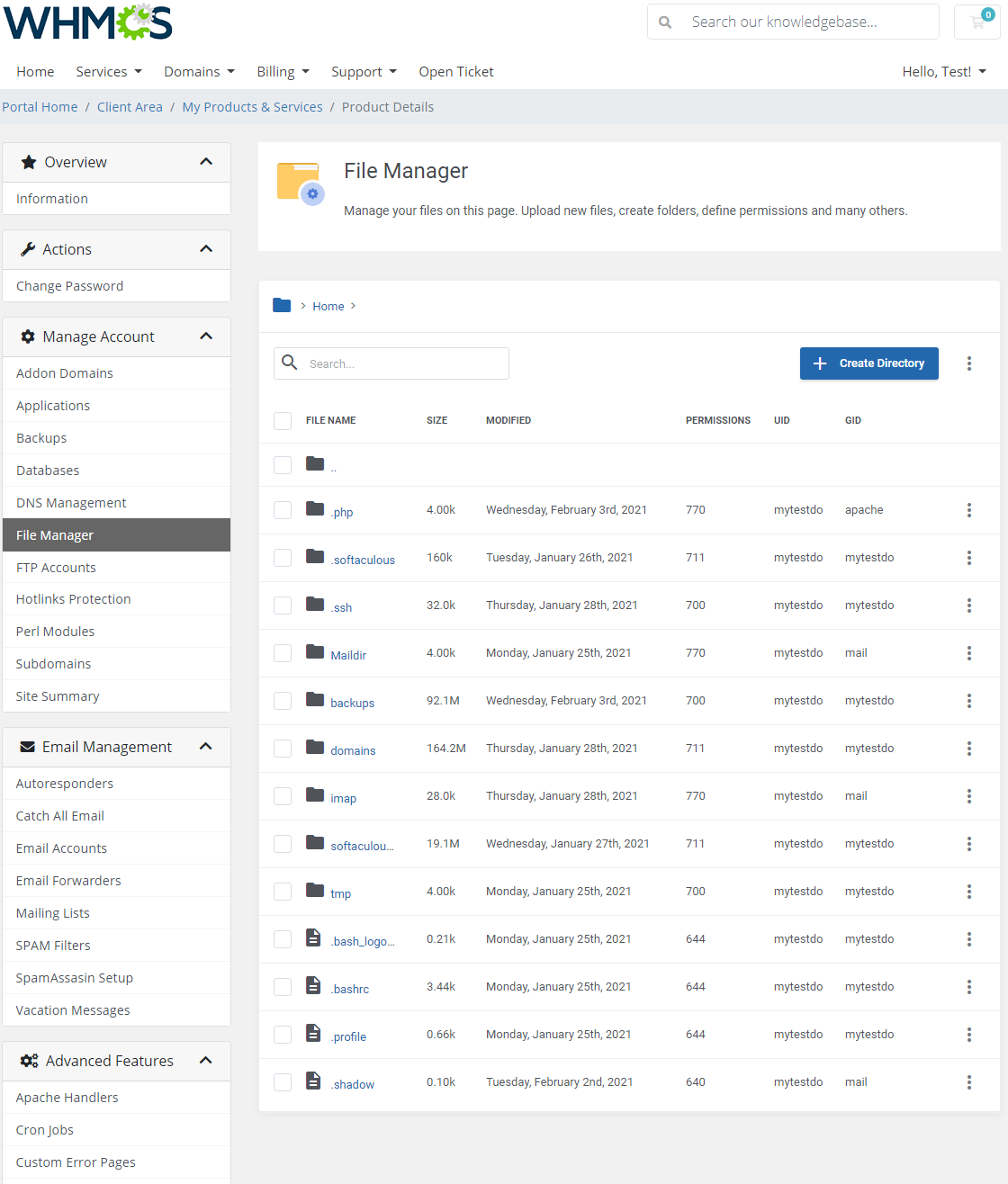
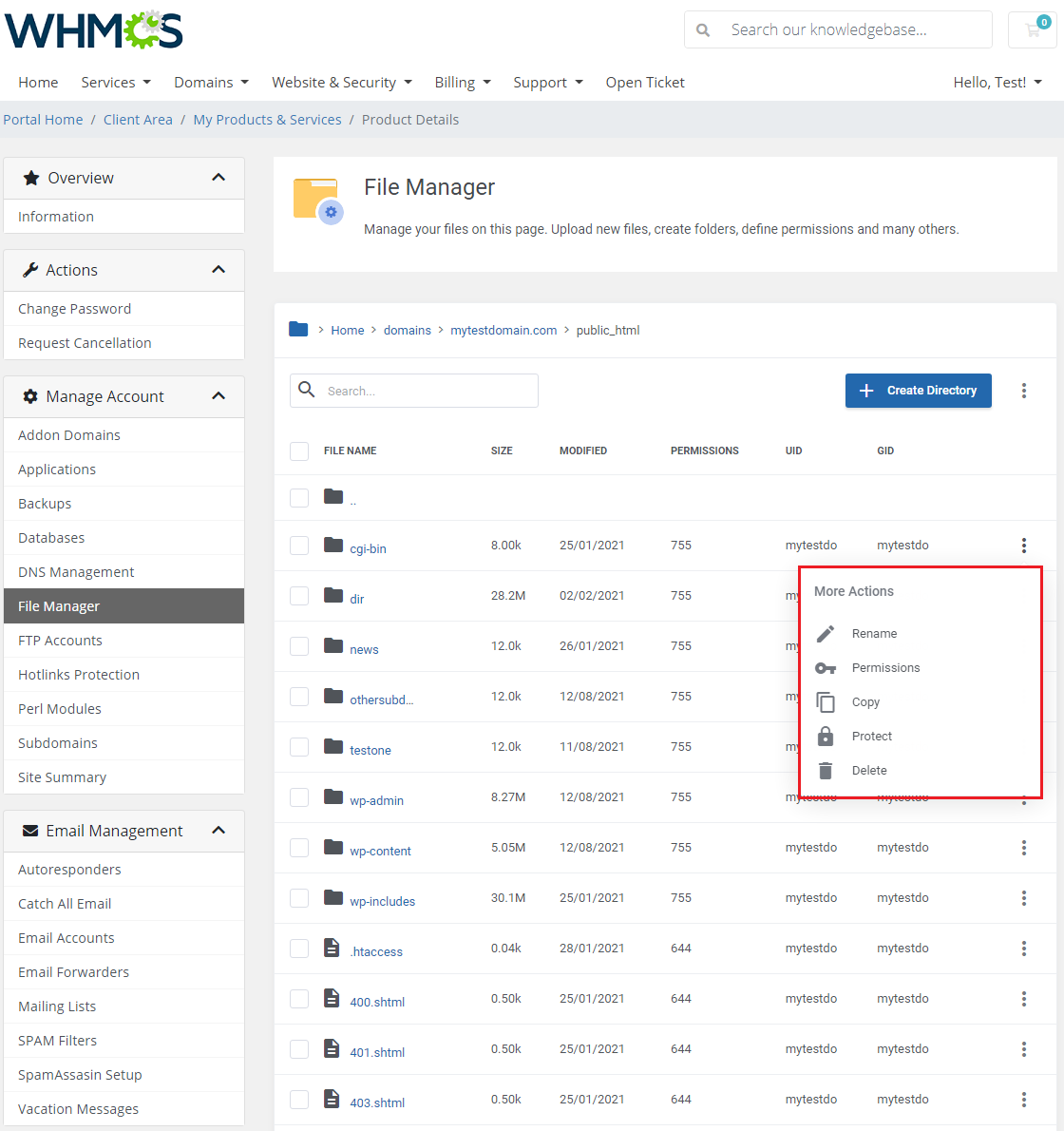
Manage files and folders of your DirectAdmin account. Upload files and create directories.
View the list of files with specific data on them: name, file size, last modification date and given permissions.
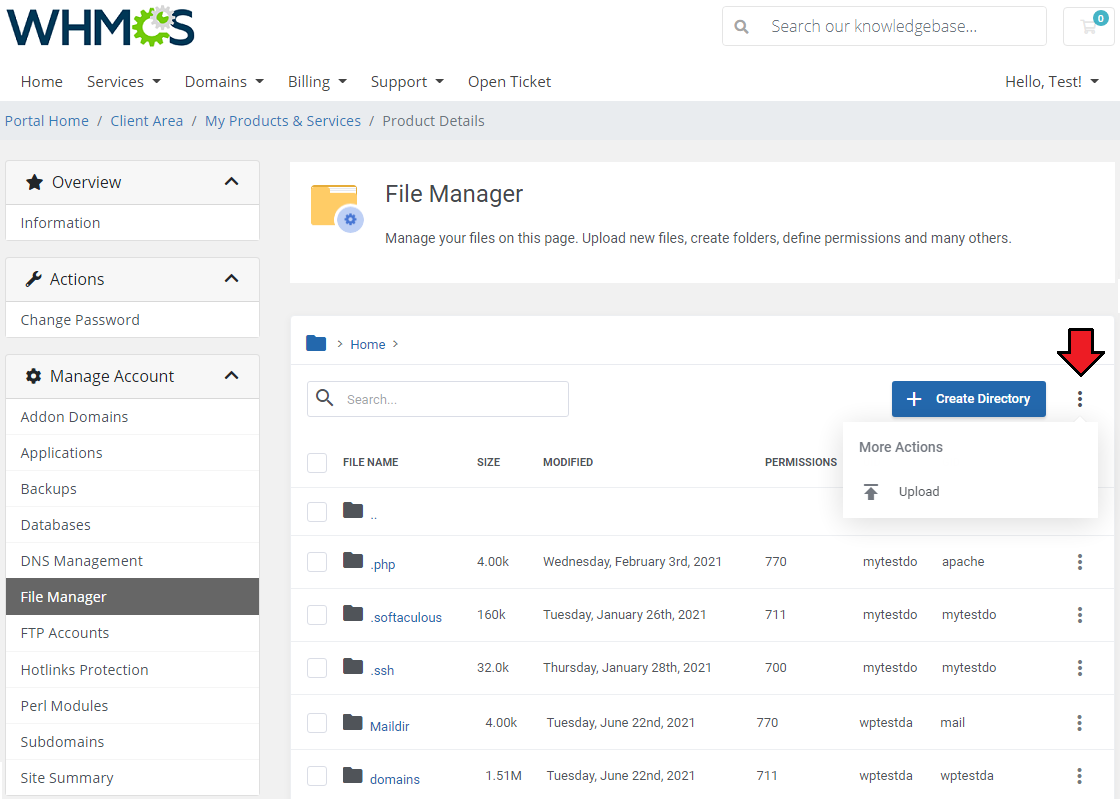
You can create a new directory by pressing a corresponding button as well as upload new files by pressing additional actions.
Rename, change permissions, copy, protect and delete a single file or directory.
Note: Only folders placed in the public_html directory can be protected, no other files have this option.
All files with this opton enalbed will be listed in the Protected Directoiries section.
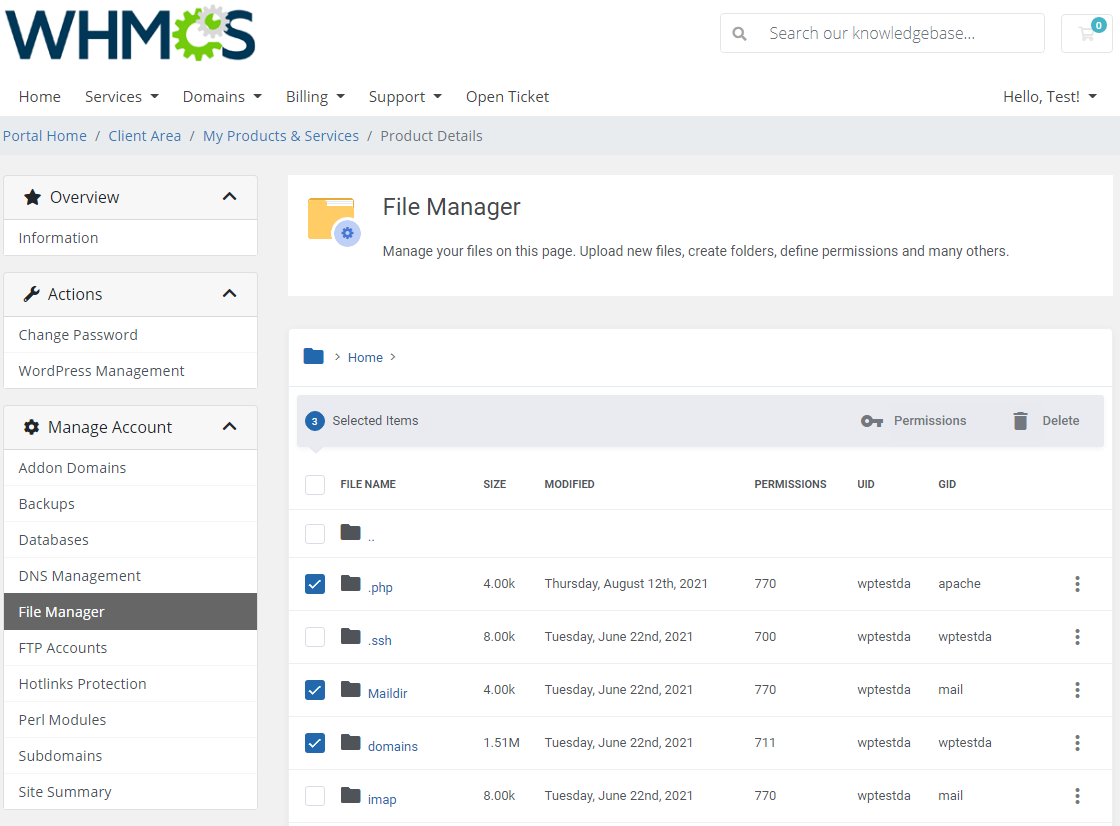
You can also change permissions and remove single or multiple files or directories.
# FTP Accounts
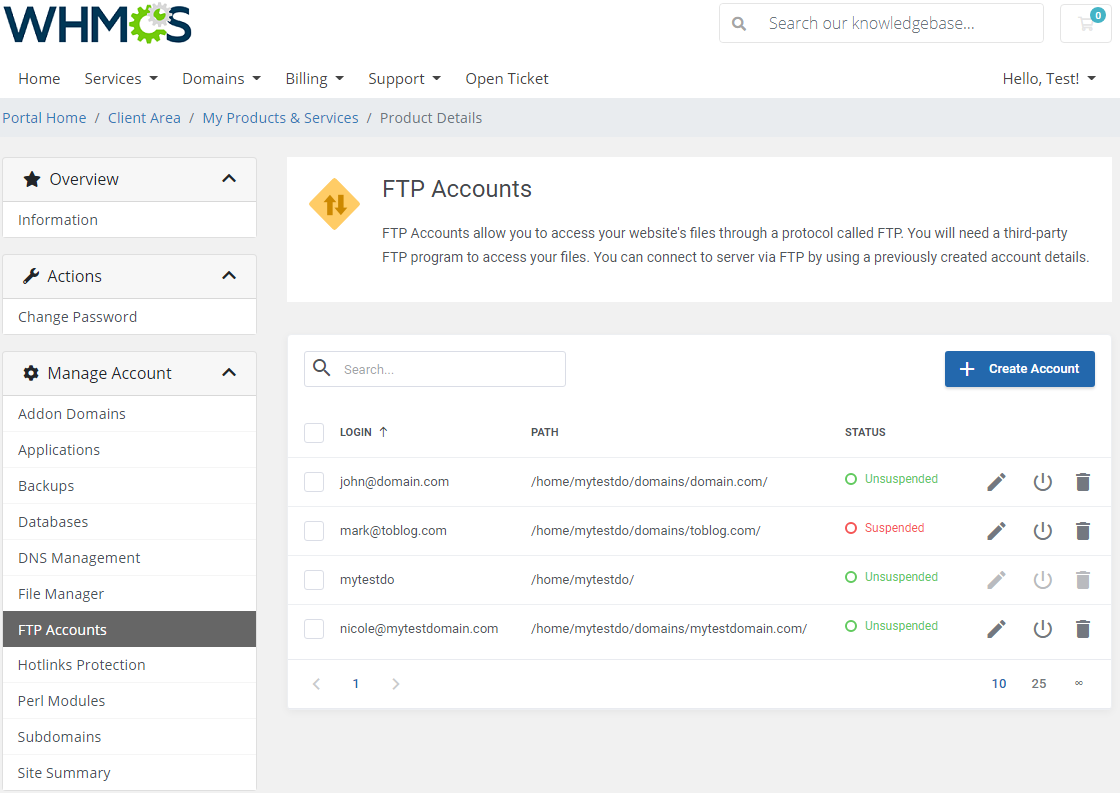
Manage FTP accounts in the easiest possible way. Type in your login, generate a new password and select the directory.
Handle the accounts to be able to access your website files through an FTP protocol. You can also suspend or unsuspend created accounts.
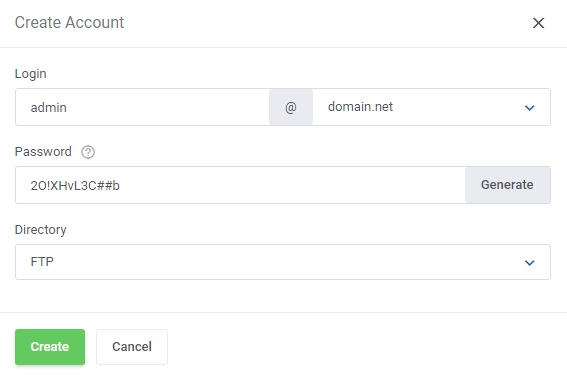
Add and configure FTP Accounts, just type in your login on a selected domain, provide or generate a secure password, select directory: 'Domain', 'FTP', 'User ' or a custom one.
# Hotlinks Protection
'Hotlinks Protection' section is a place where you may enable and disable protection of single links to the content of your website.
This way you mayt avoid your content, for example images, from being stolen or badwidth abused.
Press the icon next to every of your domains to see existings, currently protected URLs.
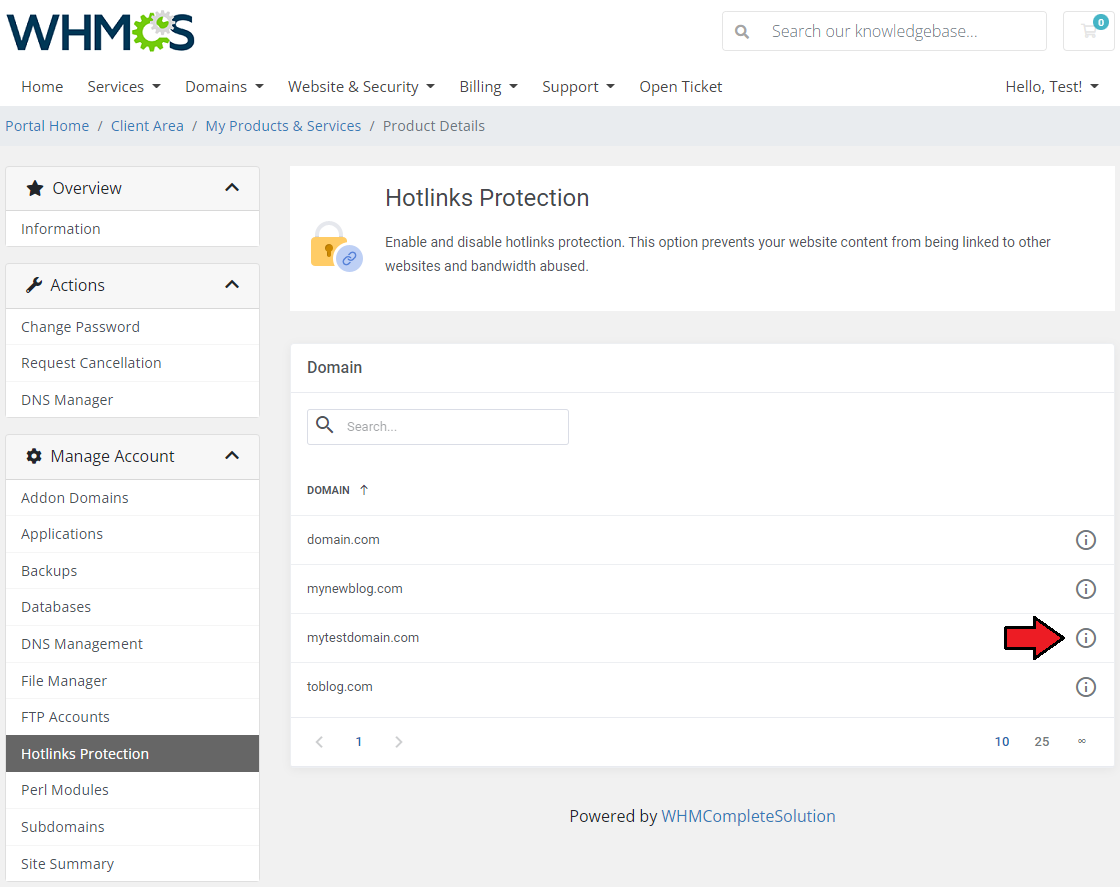
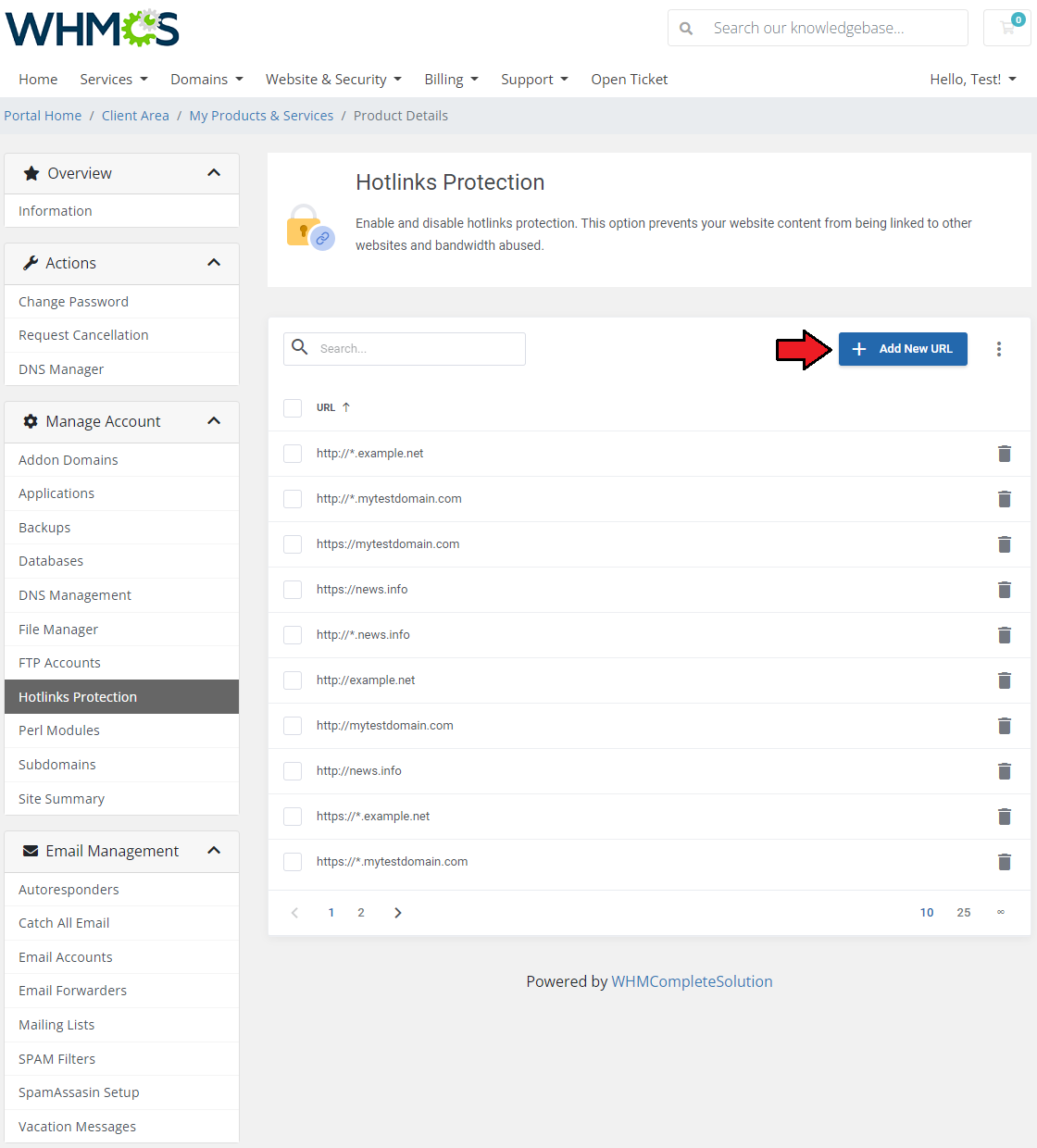
In this section you may add new URLs to protected or remove existing ones from the list of hotlinks.
Press 'Add new URL' to protect another link.
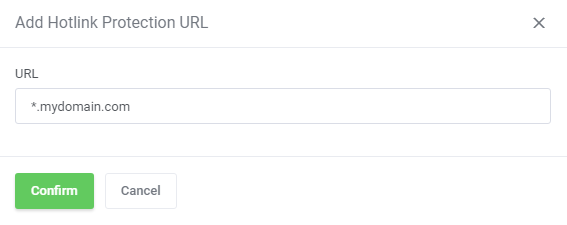
Type in your URL, you may use '*' sign to hide part of the URL and confirm the action.
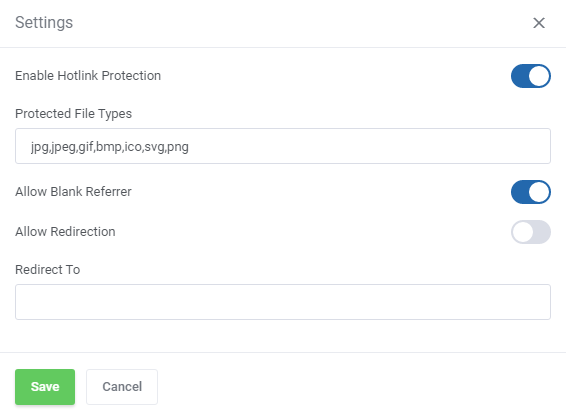
Define protection settings for all the URLs
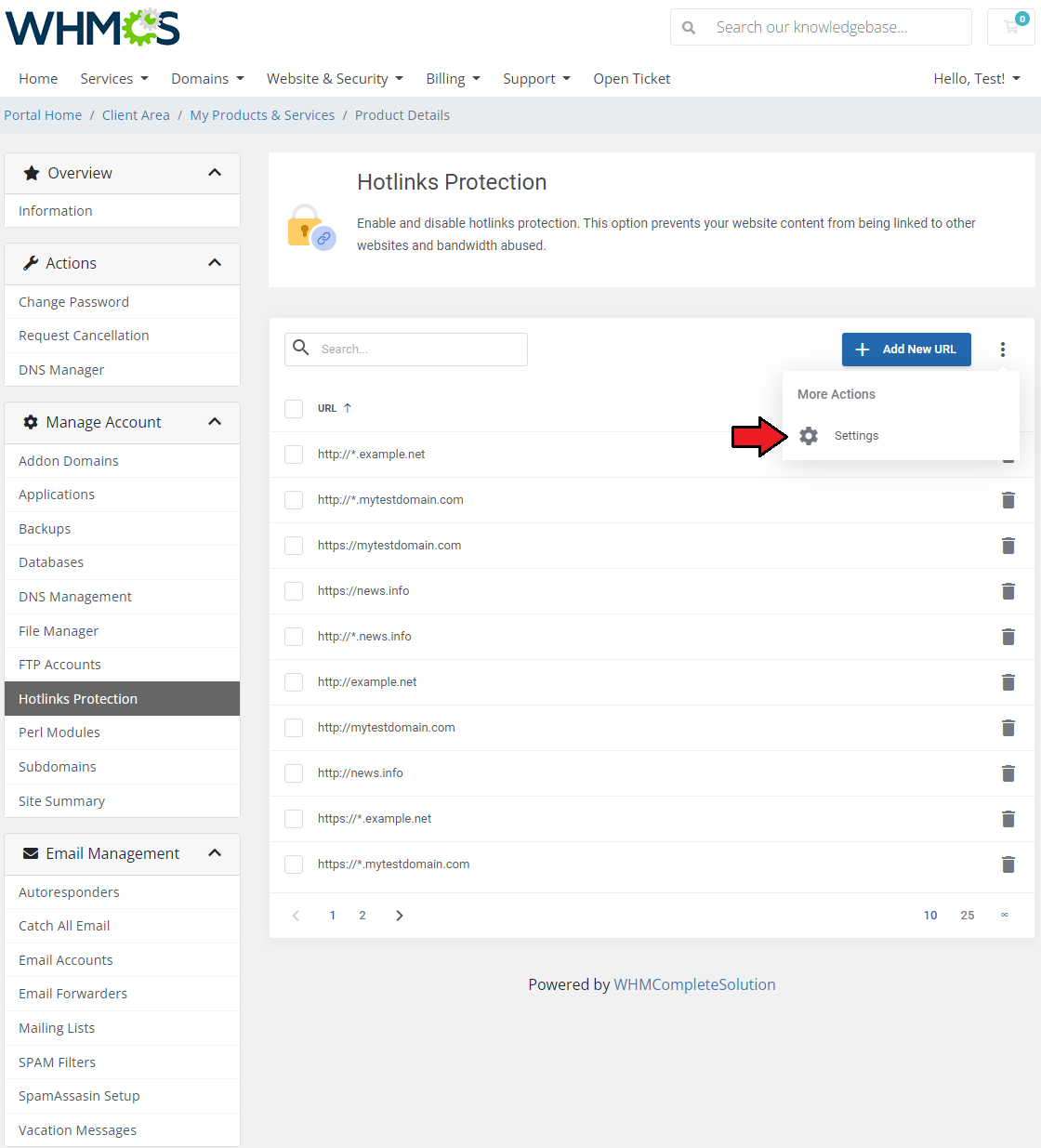
- Enable/disable protection
- Type in the protected file types, use commas to separate, and do not use spaces in between
- Allow blank referrer
- Allow redirection
- Provide redirection URL if enabled
# MX Records
The 'MX Records' section provides a convenient way to handle your domain's MX records. You can both create new records and modify existing ones.
Start by selecting the desired domain first.
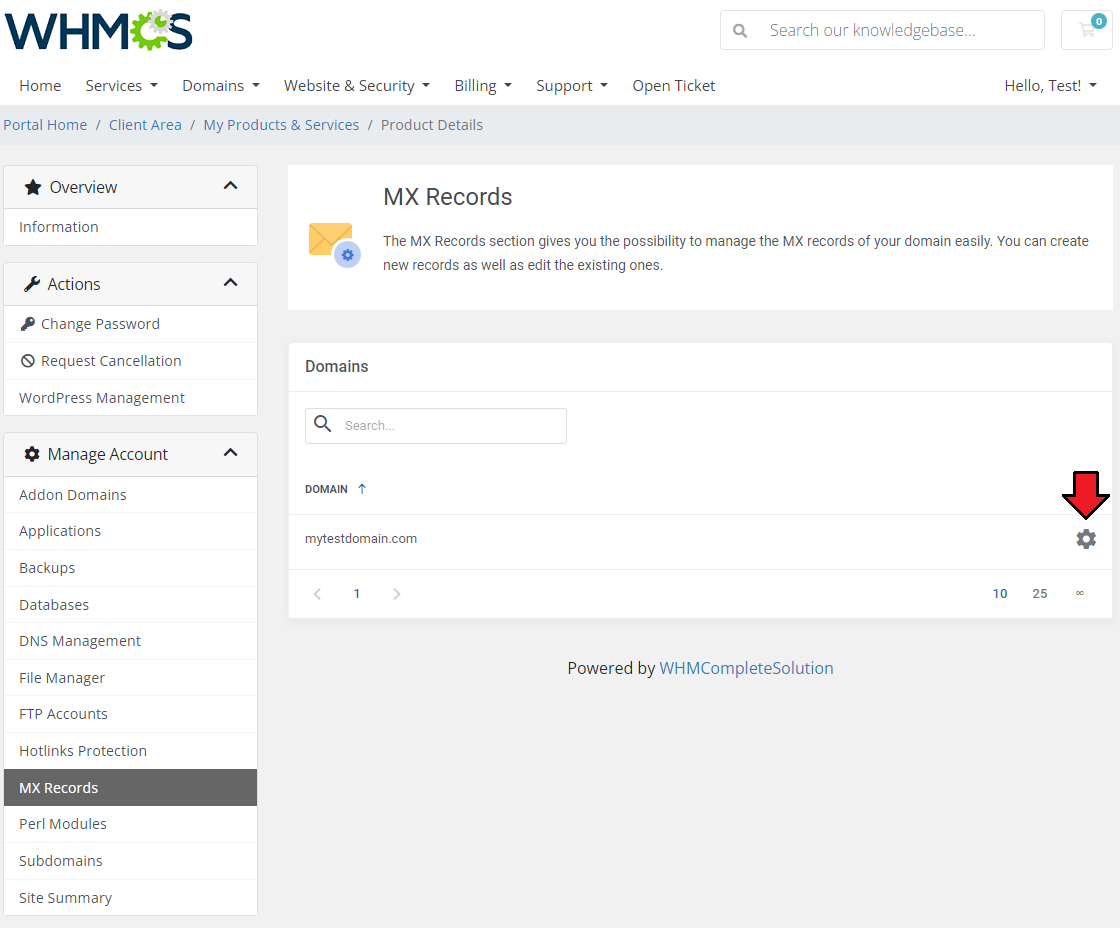
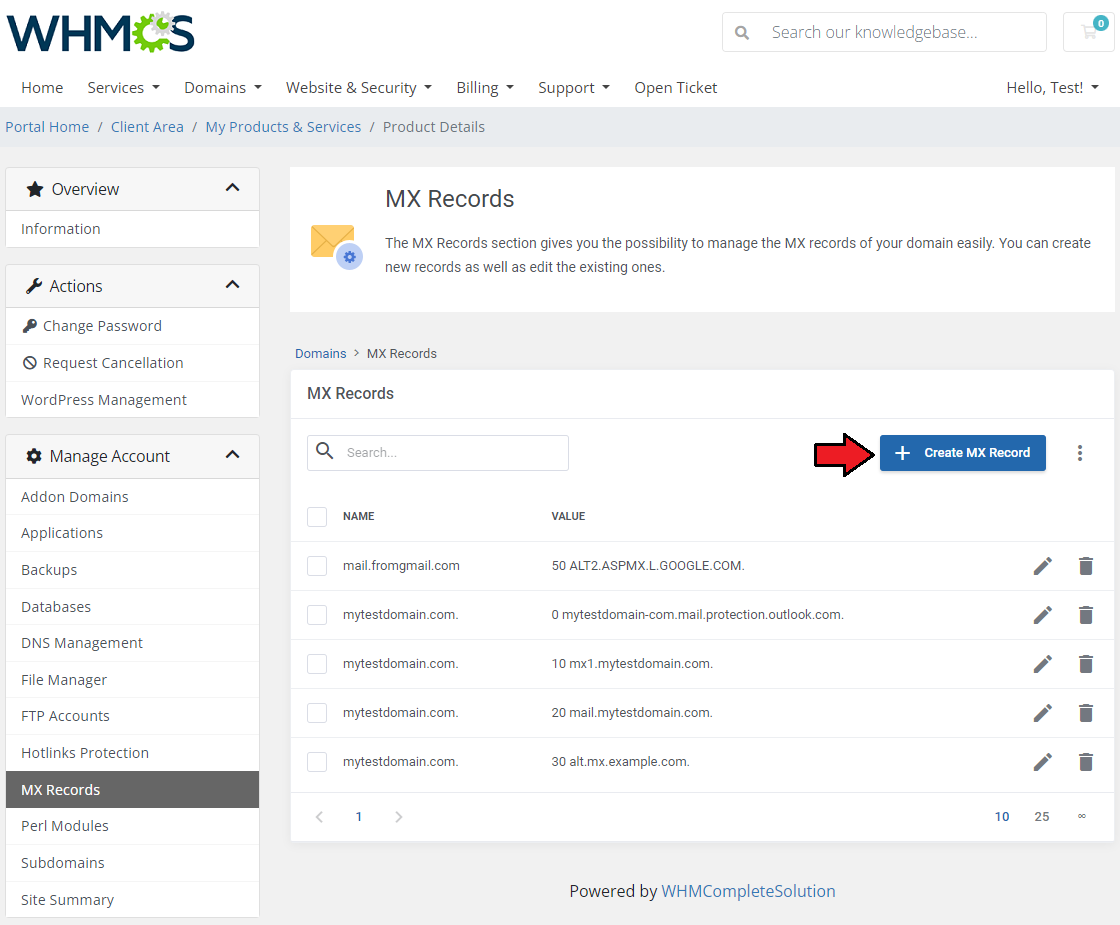
Under Domain → MX Records, you can either manage existing records by editing them or create new records. To do so just press the 'Create MX Record ' button.
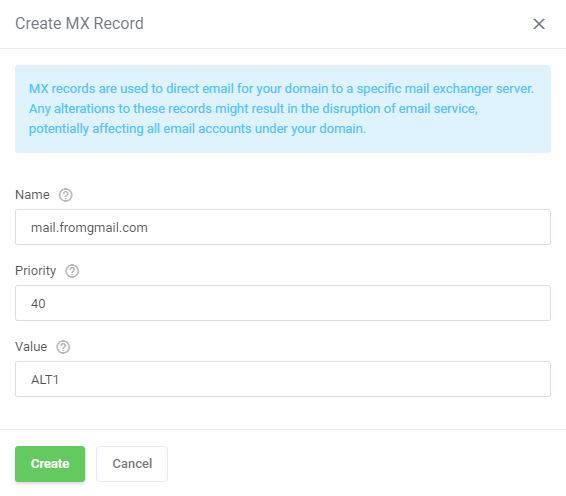
Before creating a new record, it is important to be confident in your actions. MX records are crucial for directing emails to the correct mail server for your domain.
Therefore, modifying these records could disrupt your email service, impacting all email accounts associated with your domain.
If you are certain about creating a new record, please fill out the form with the following information:
- Name - The hostname or domain name to which the record applies. If left empty, the domain name will be used for the created MX record.
- Priority - The priority value, an integer between 0 and 65535, determines the order in which mail exchangers are verified. Lower values indicate a higher priority of the record.
- Value - The mail exchanger (MX) server's hostname or IP address. Please ensure to add a period symbol at the end of the domain name if it should not be auto-appended.
The newly created record immediately appears on the list.
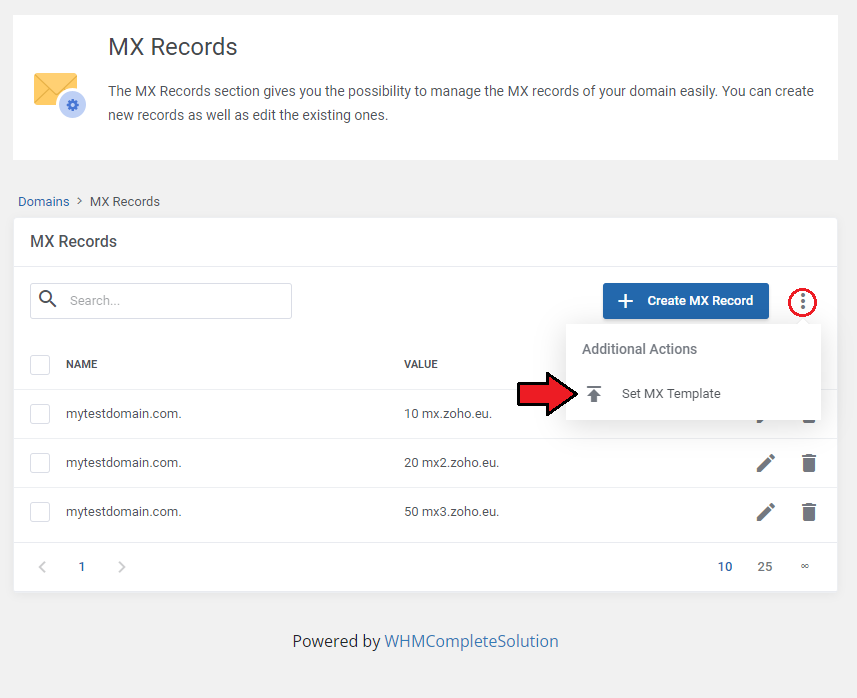
It is also possible to 'Set MX Tmeplate' from this point. You will find this option as marked on the screen below:
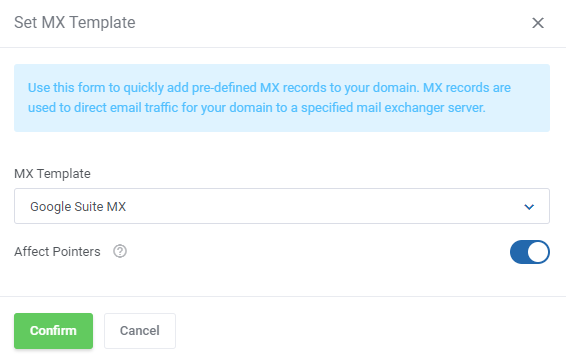
Fill out the form to easily add pre-defined MX records to your domain. Choose the MX template from the list.
You can also activate the 'Affect Pointers' feature to update the pointer records that alias MX records.
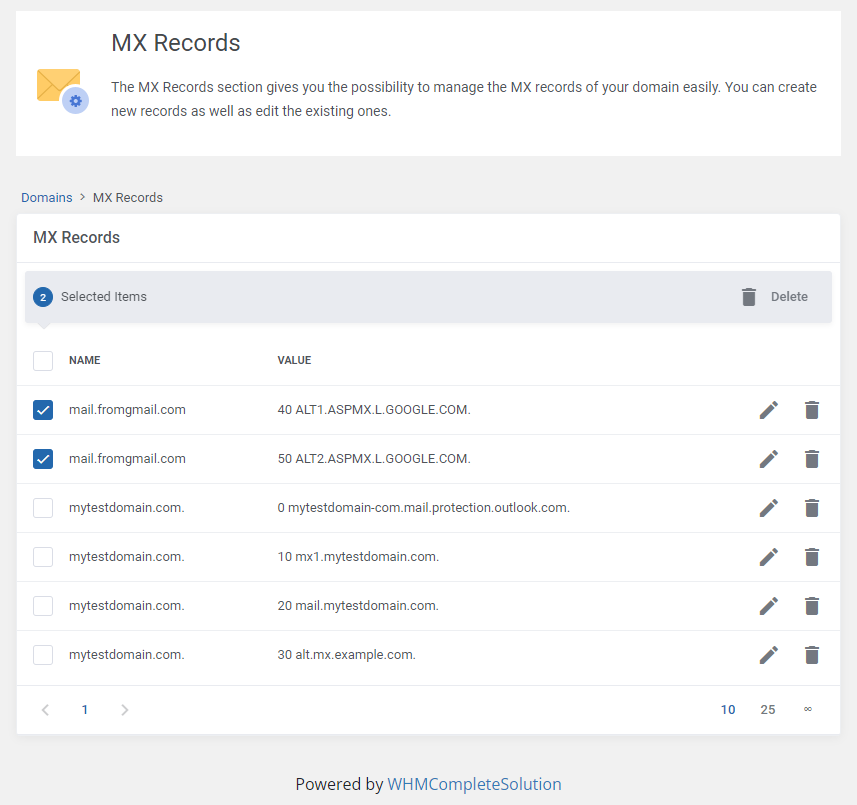
The MX records list will be automatically updated. You can edit individual records, delete them one by one, or use the mass action button to delete multiple records at once.
# Perl Modules
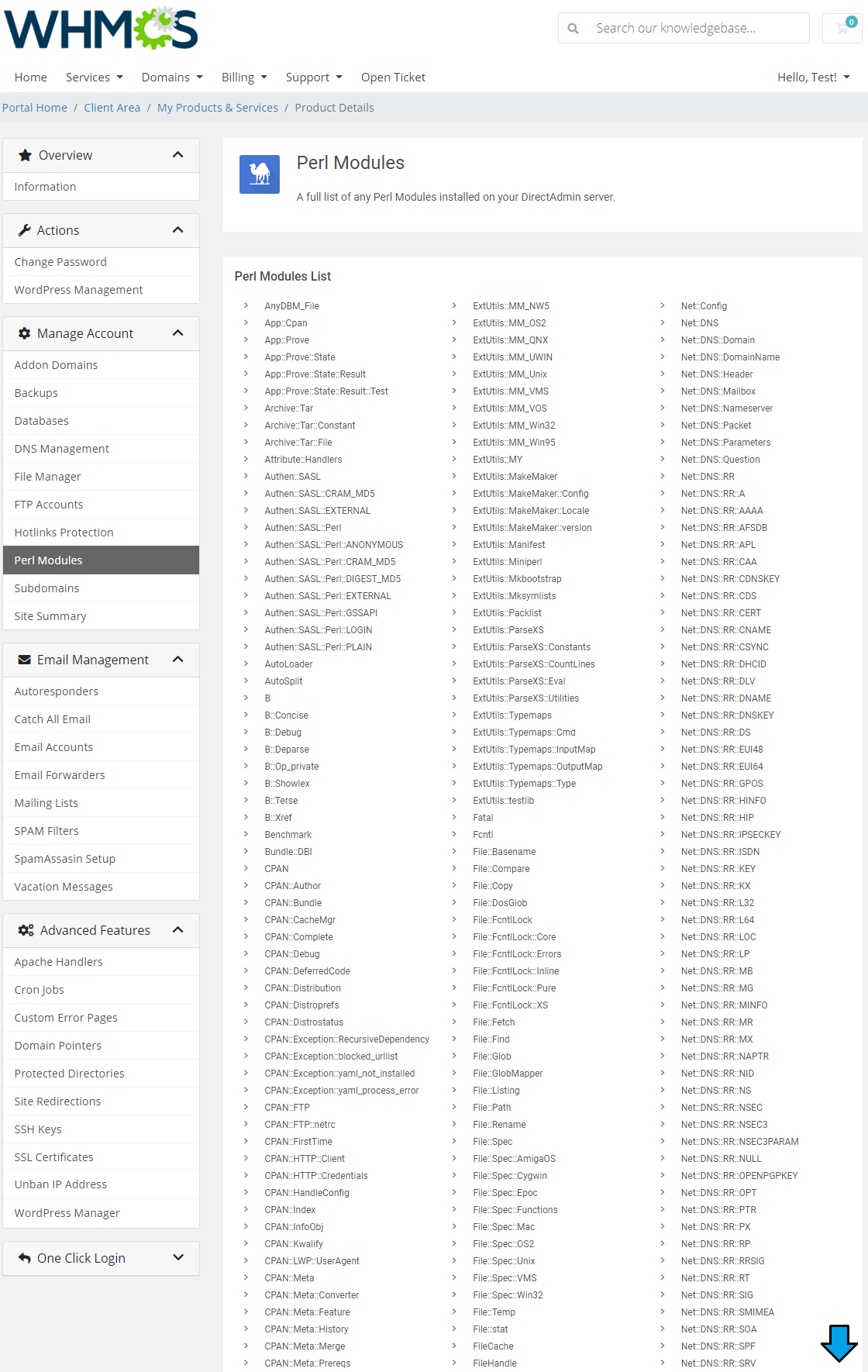
Move to the next section, which is 'Perl Modules'. All Perl based modules installed on your server are listed there.
# Subdomains
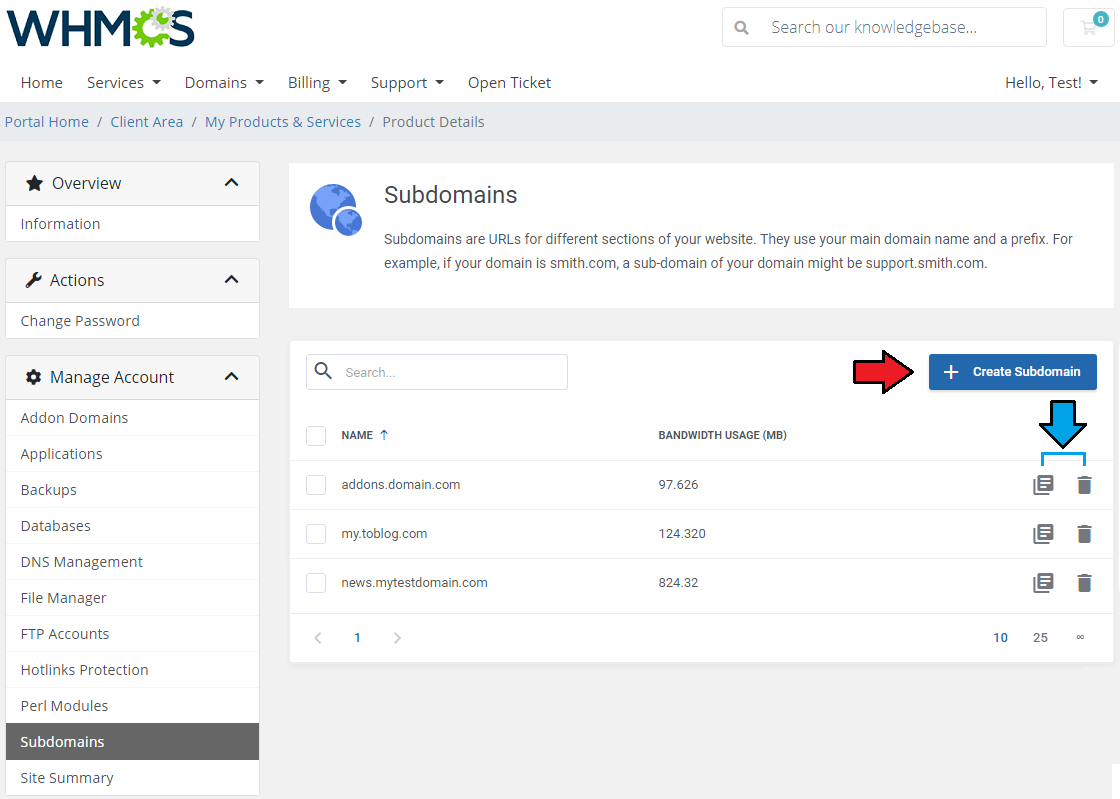
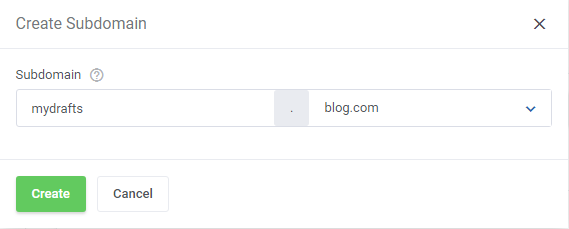
Create subdomains for your website sections. All you need to do is choosing the domain from the list of available domains and typing in the subdomain name.
Once created, you can remove the subdomain if needed, see its bandwidth usage and view a list of subdomain logs.
Choose the domain for your available subdomain from the list.
# Site Summary
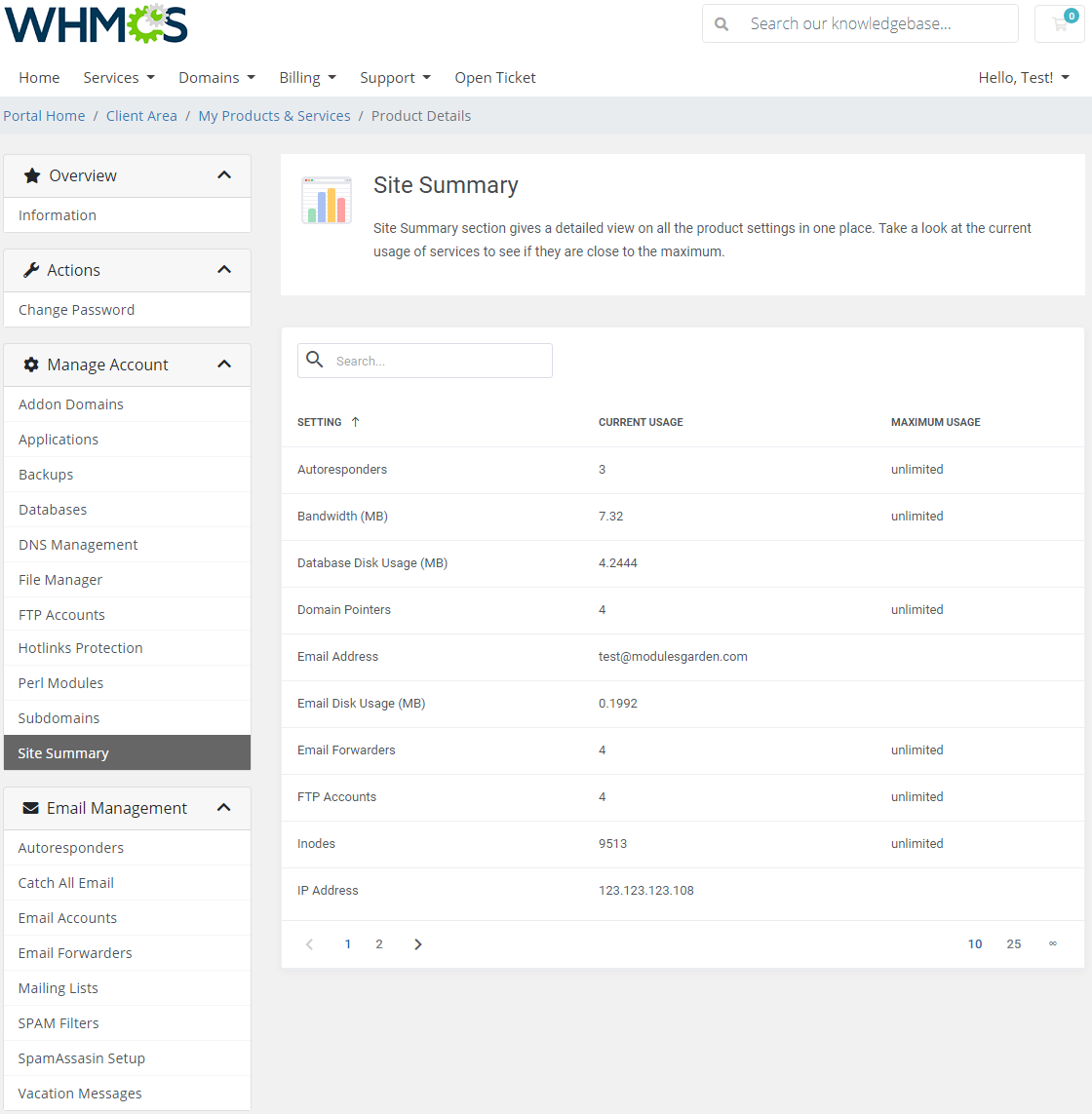
Proceed to the 'Site Summary' section in order to check and analyze precise statistics.
Control usage level for each setting here.
# Email Management
Email management section includes all tools related to emails. Go through them to learn more.
# Autoresponders
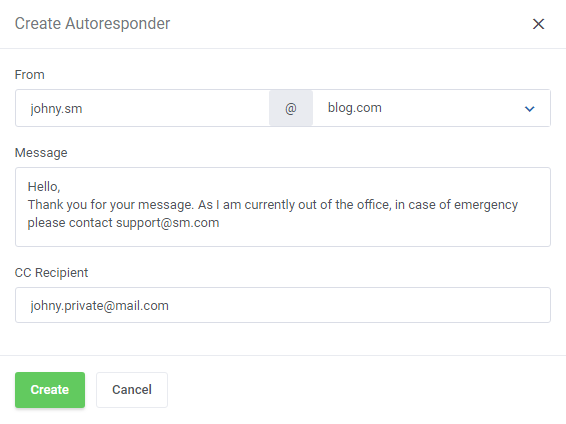
In this section you may compose and add extremely useful default messages.
They will be automatically sent as a response message when you have no access to your mailbox.
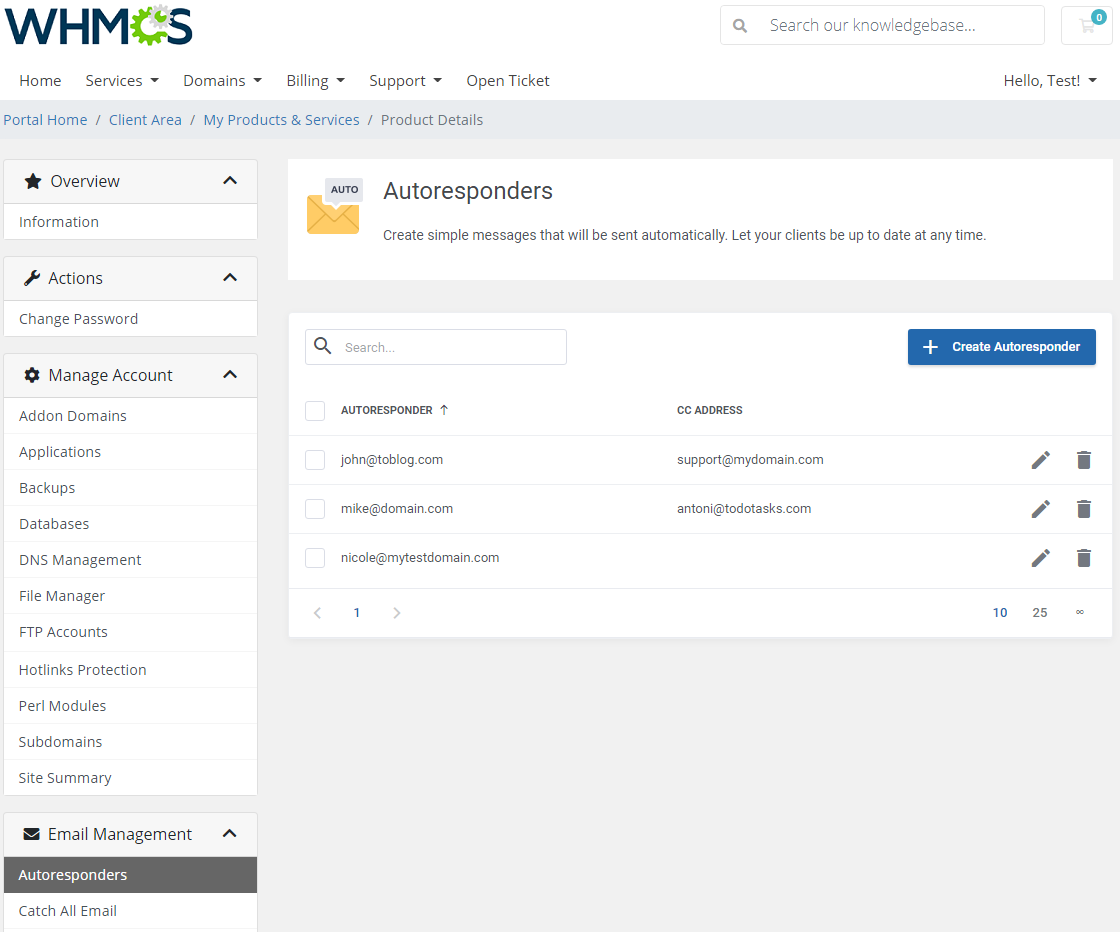
Press 'Add Autoresponder' to create one. Provide the email address and compose the whole message here.
You may also add a CC recipient address if you need to send a copy.
# Catch All Email
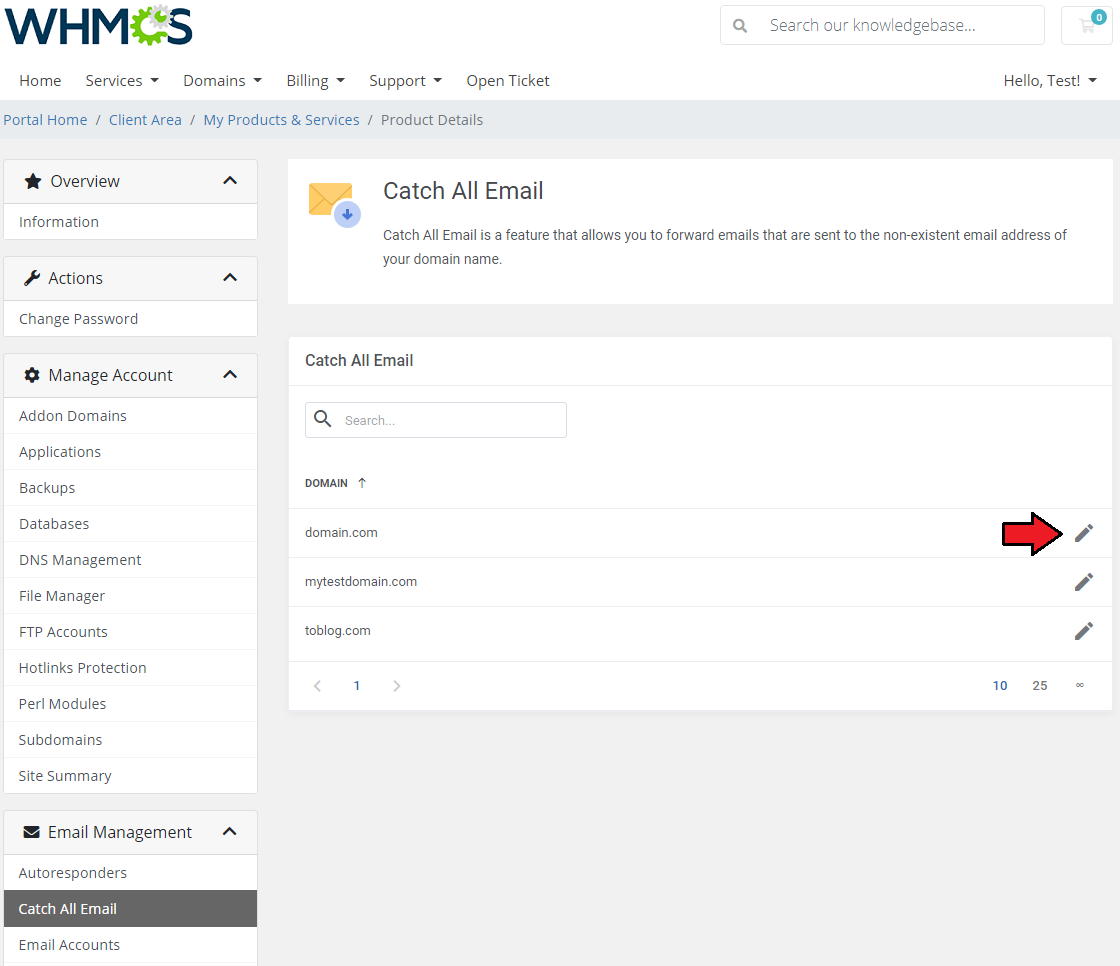
'Catch All Email' is a feature that allows you to forward emails that are sent to the non-existent email address of your domain name.
Click on the 'Edit' button as shown here:
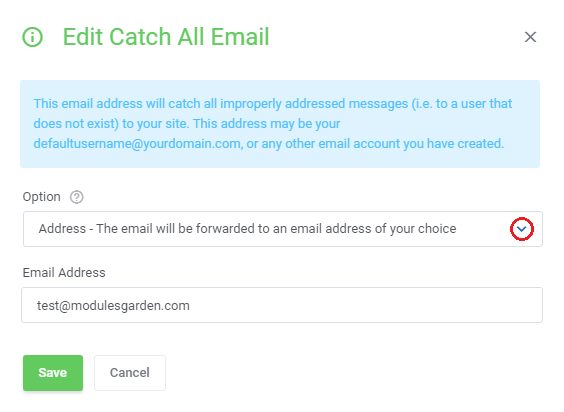
Now, here are three options available. Choose the preferred option and save changes.
- Fail - the sender will be informed that the recipient does not exist
- Ignore - the email is dropped, no message is sent back
- Address - the email will be forwarded to an email address of your choice.
# Email Accounts
View and edit email accounts that are associated with your domains. Use a filter to find required email addresses, preview its selected quota, number of sent messages and manage the account.
- View SMTP Logs - incoming and outgoing
- Change Password
- Edit Limits
- Download Outlook Configuration
- Delete Account
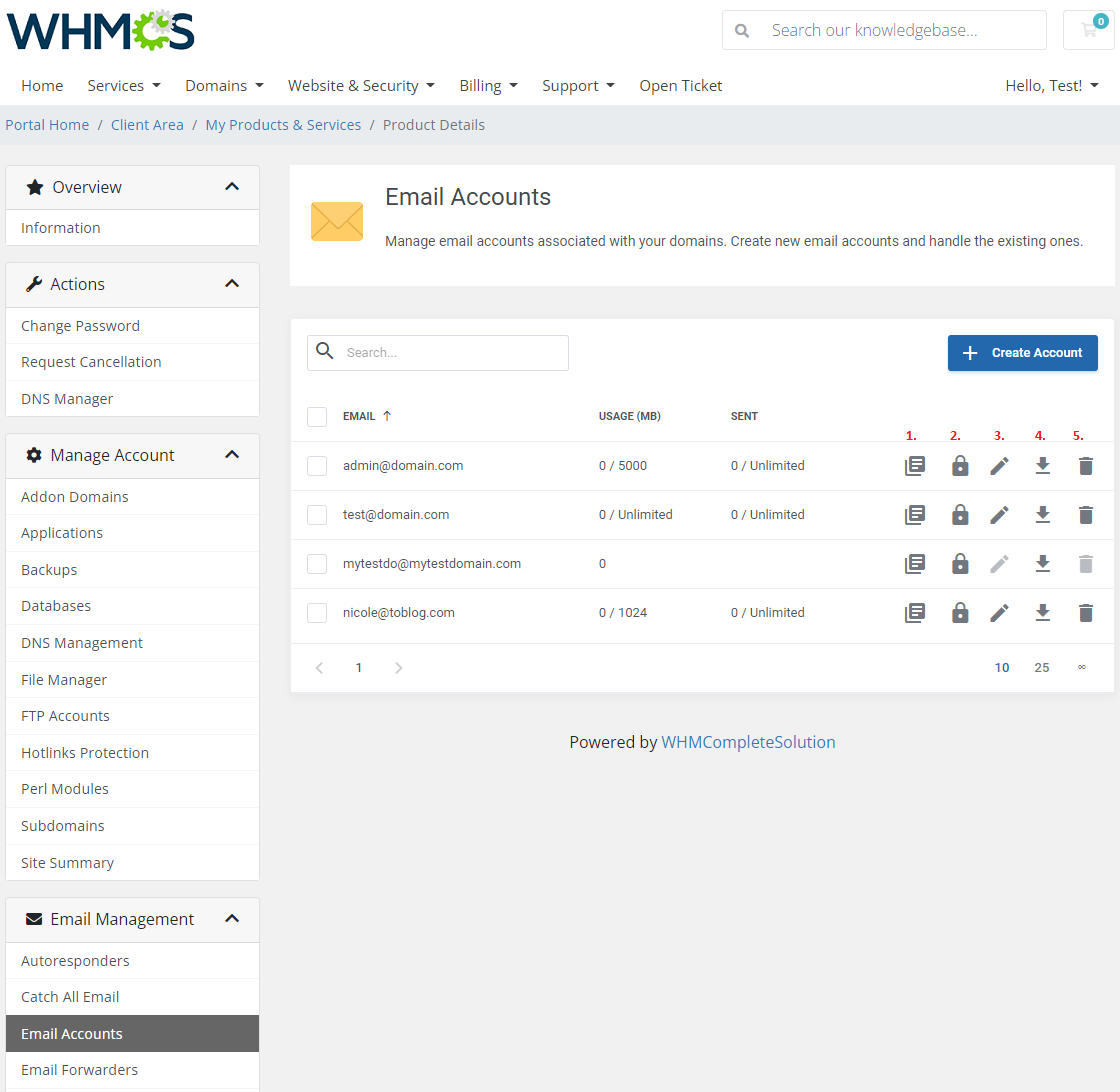
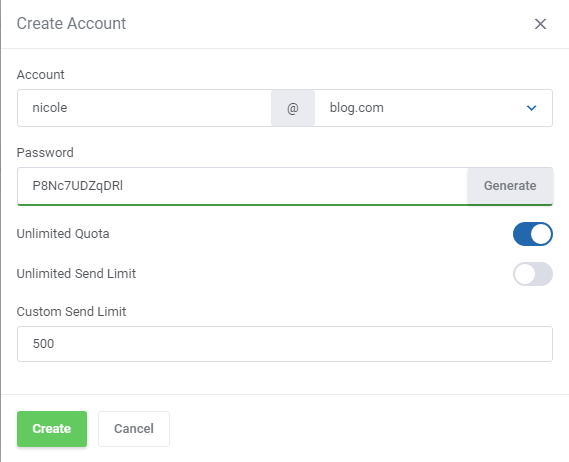
Press 'Create Account' and select to which domain it shall be added, type or generate password, define limited or unlimited quota and limit of messages.
# Email Forwarders
In this section you can set up email forwarders and choose from several destination options to adjust mail forwarding perfectly to your needs.
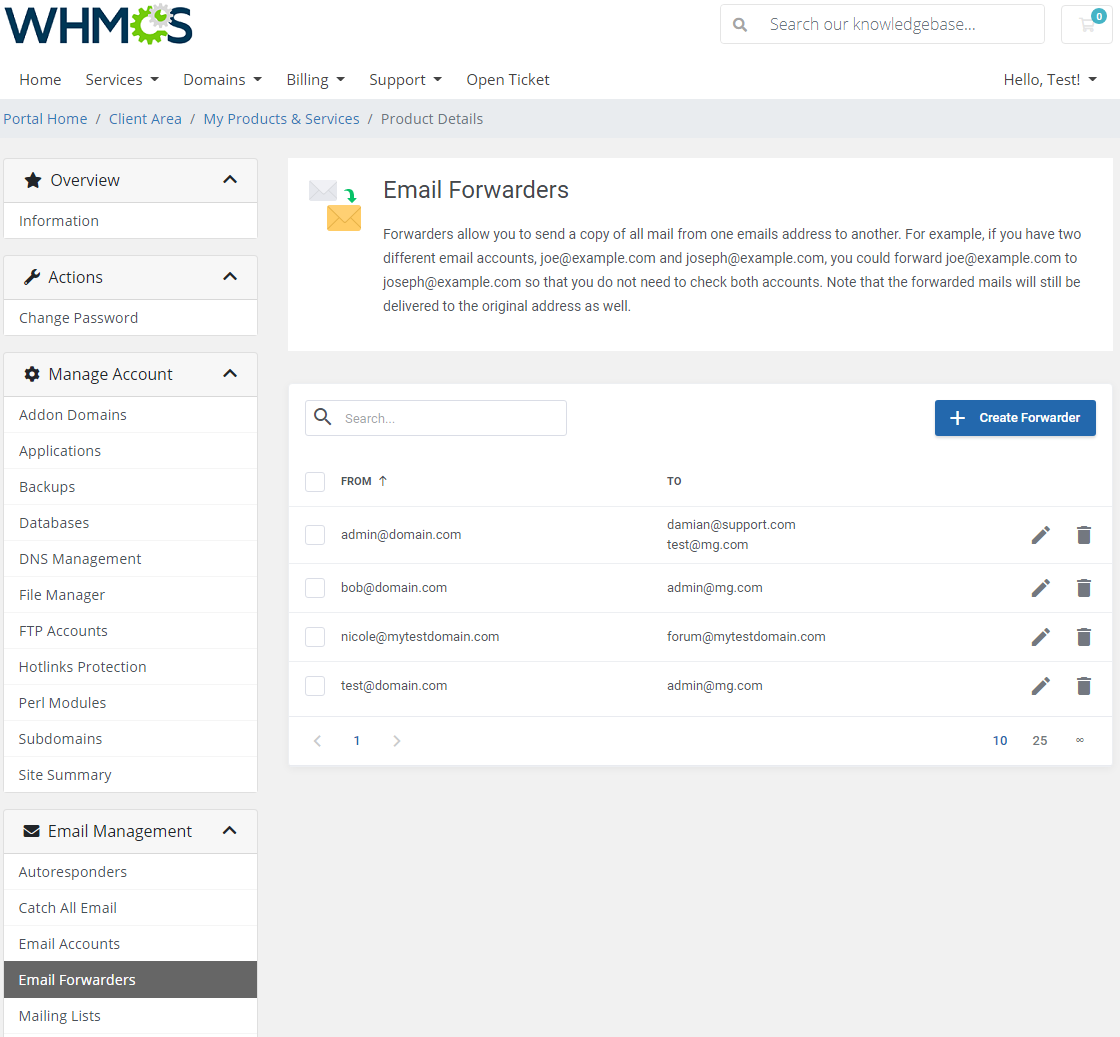
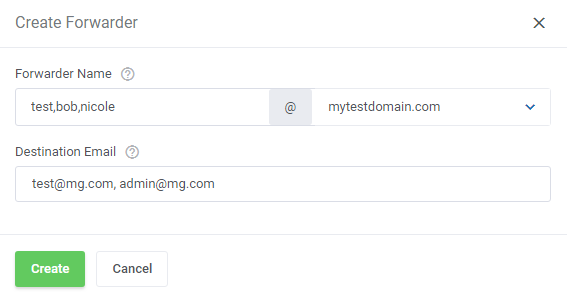
Press the 'Create Forwarder' button, specify the forwarded email and define the destination emails.
You may add more than one forwarder name and destination emails, use a comma to separate them.
# Mailing Lists
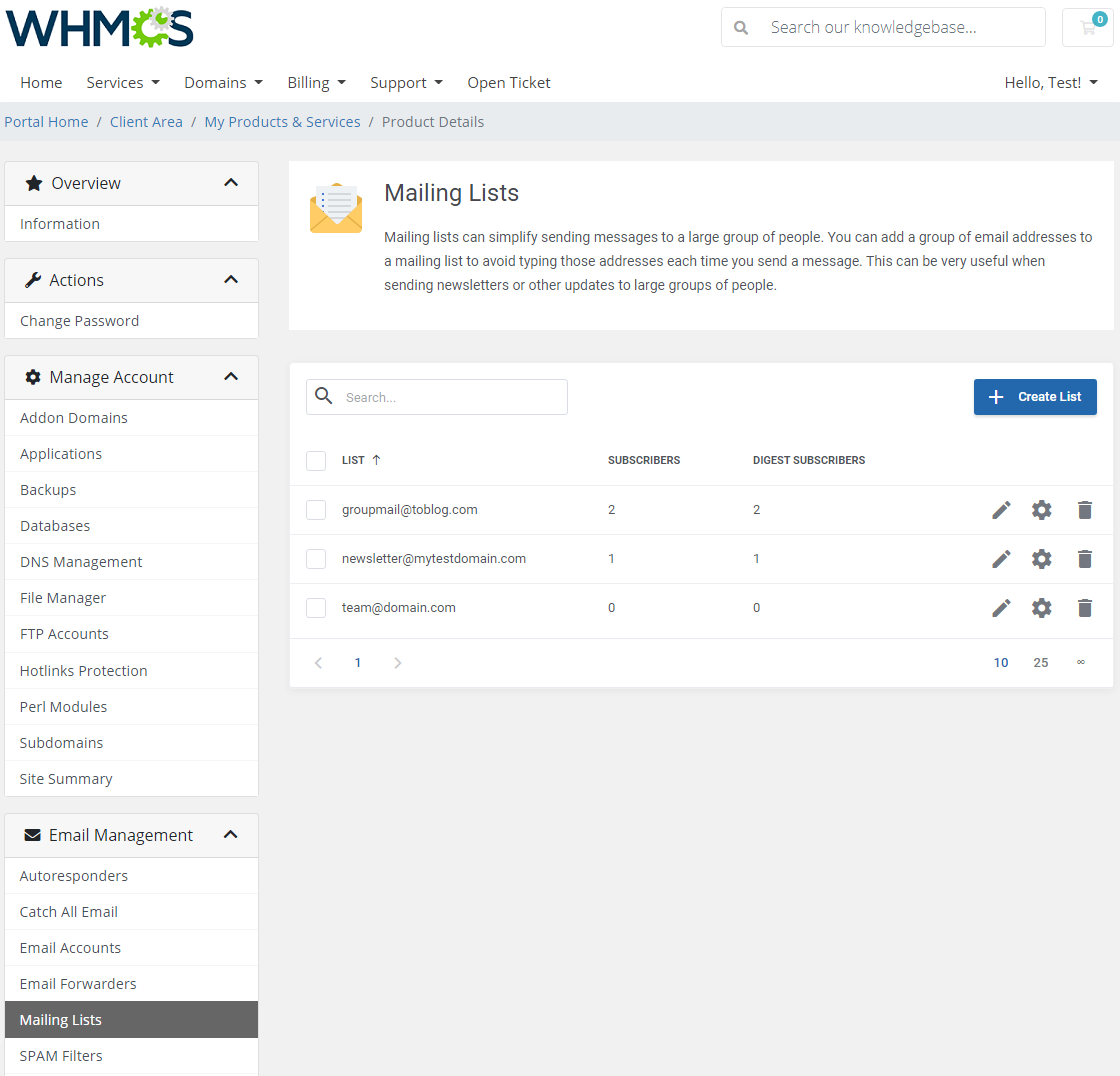
Mailing lists allow you to use a single address to send message to multiple email addresses.
This feature is very useful when you need to send a newsletter or another update to a group of people.
Underneath, you can find a list of your mailing lists. Use action buttons to delete a list, view its details and alter settings.
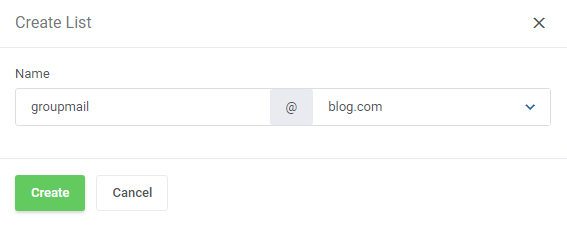
Create a new mailing list by providing its name.
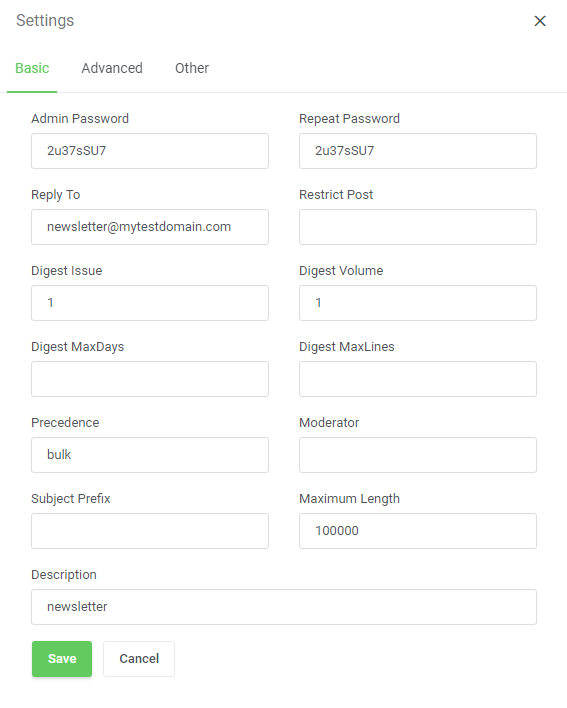
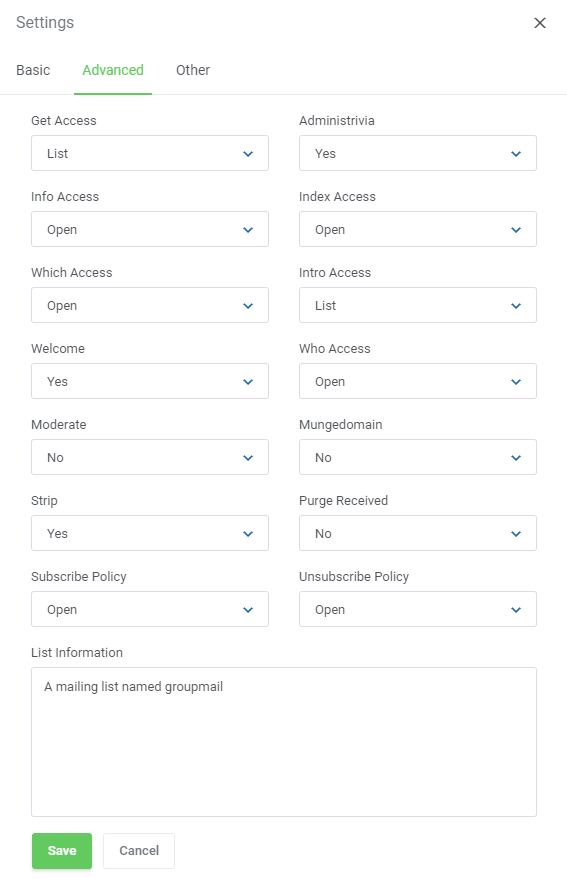
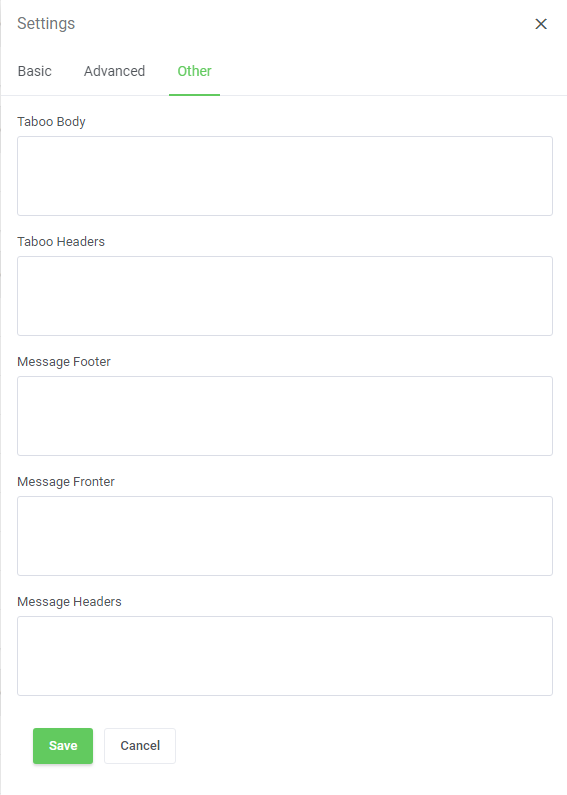
Modify the mailing list in the 'Settings' section.
When you 'Edit' the list, you will be moved to the section where a list of subscribers is available.
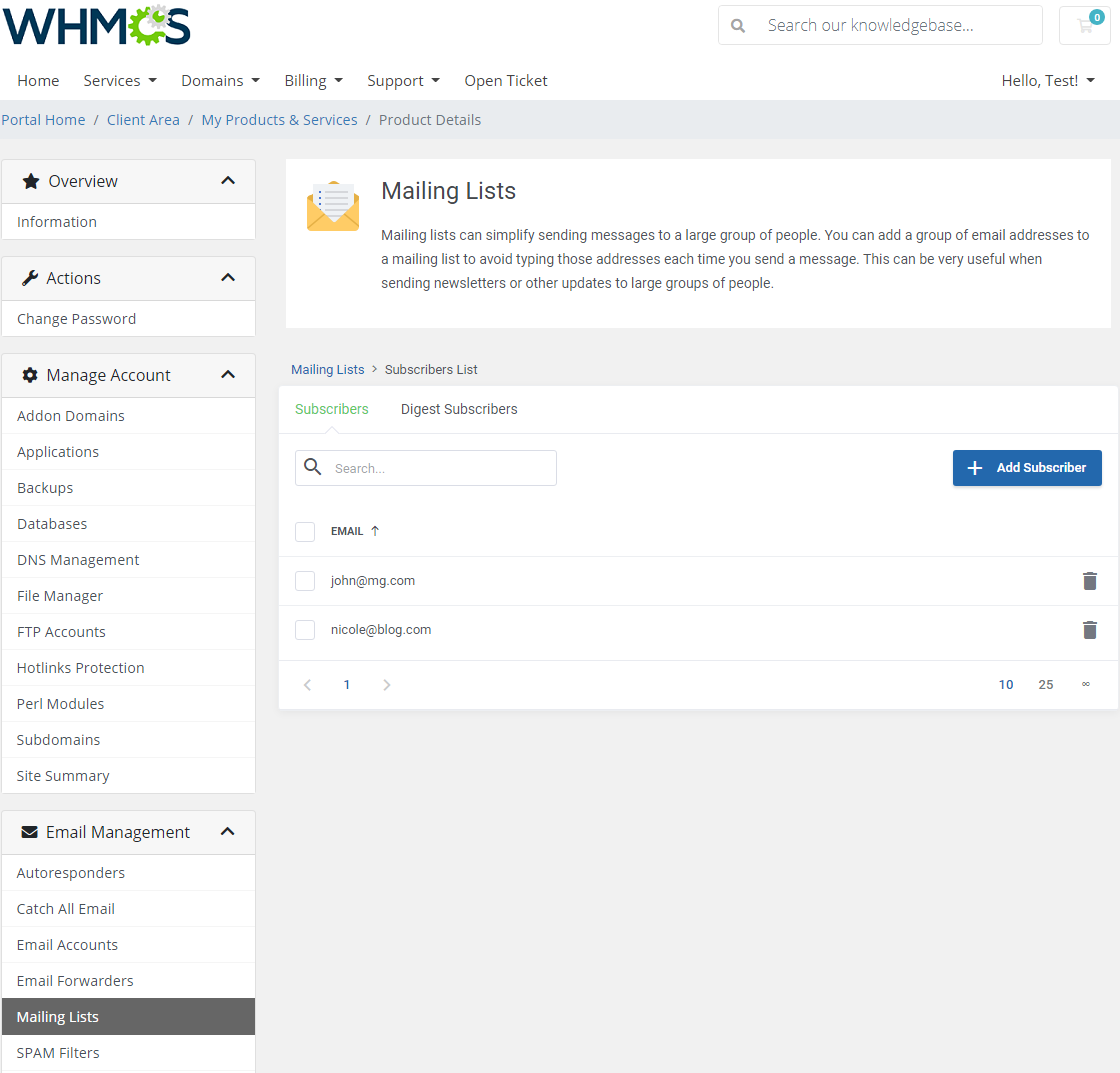
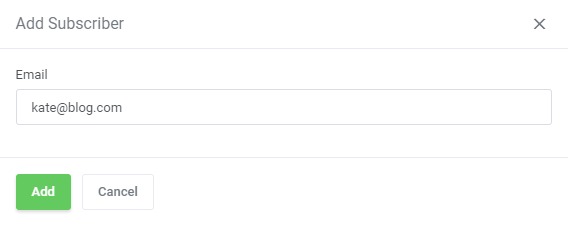
Add new email addresses to the list of 'Subscribers' or 'Digest Subscribers' from the according tab.
# SPAM Filter
SPAM Filters give you the possibility to add numerous filters for a selected domain.
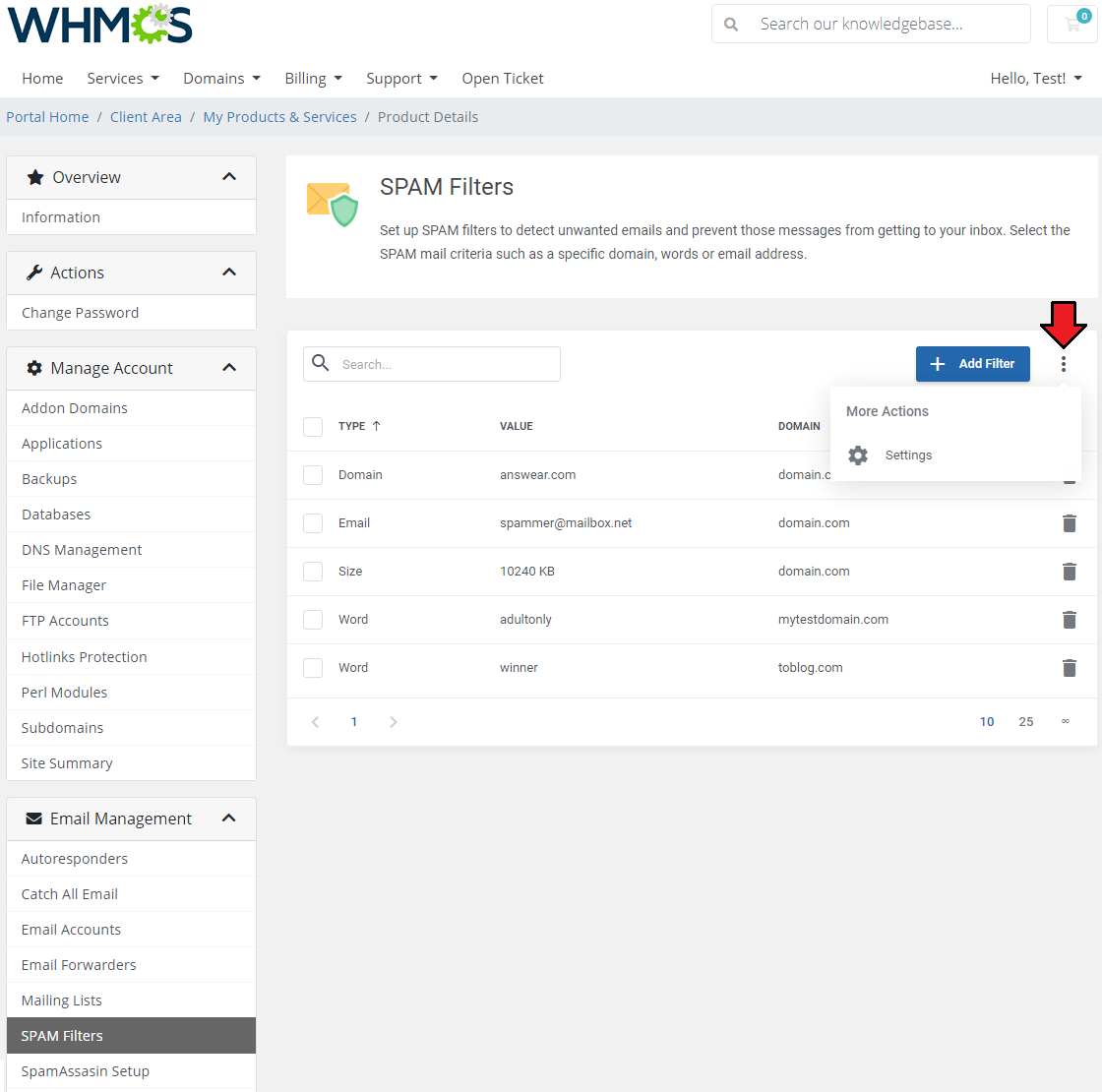
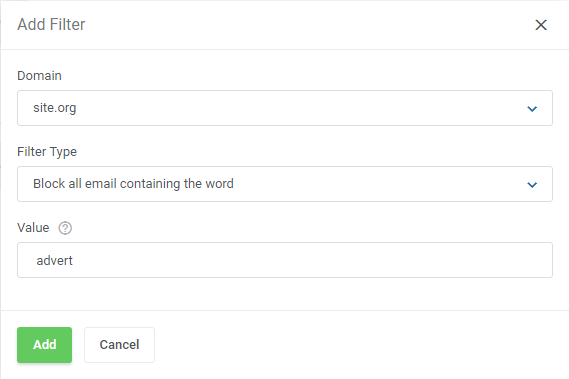
Add and configure the filter as desired for the selected mailbox.
- block email addresses
- block email domains
- block emails with a chosen word
- block emails larger than the specified number of kilobytes
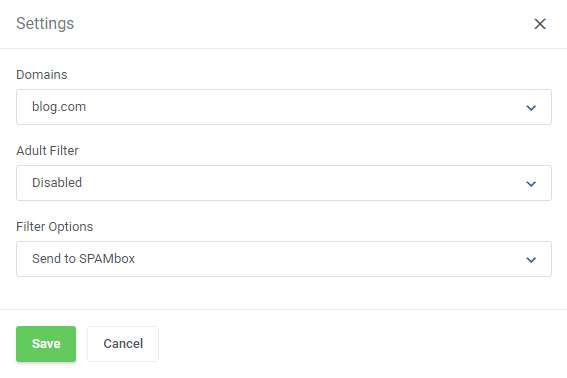
Move to settings and define options per domain:
- define the action for blocked emails: 'Drop Email' or 'Send To SPAMbox'
- adult filter - enable/disable
# SpamAssassin Setup
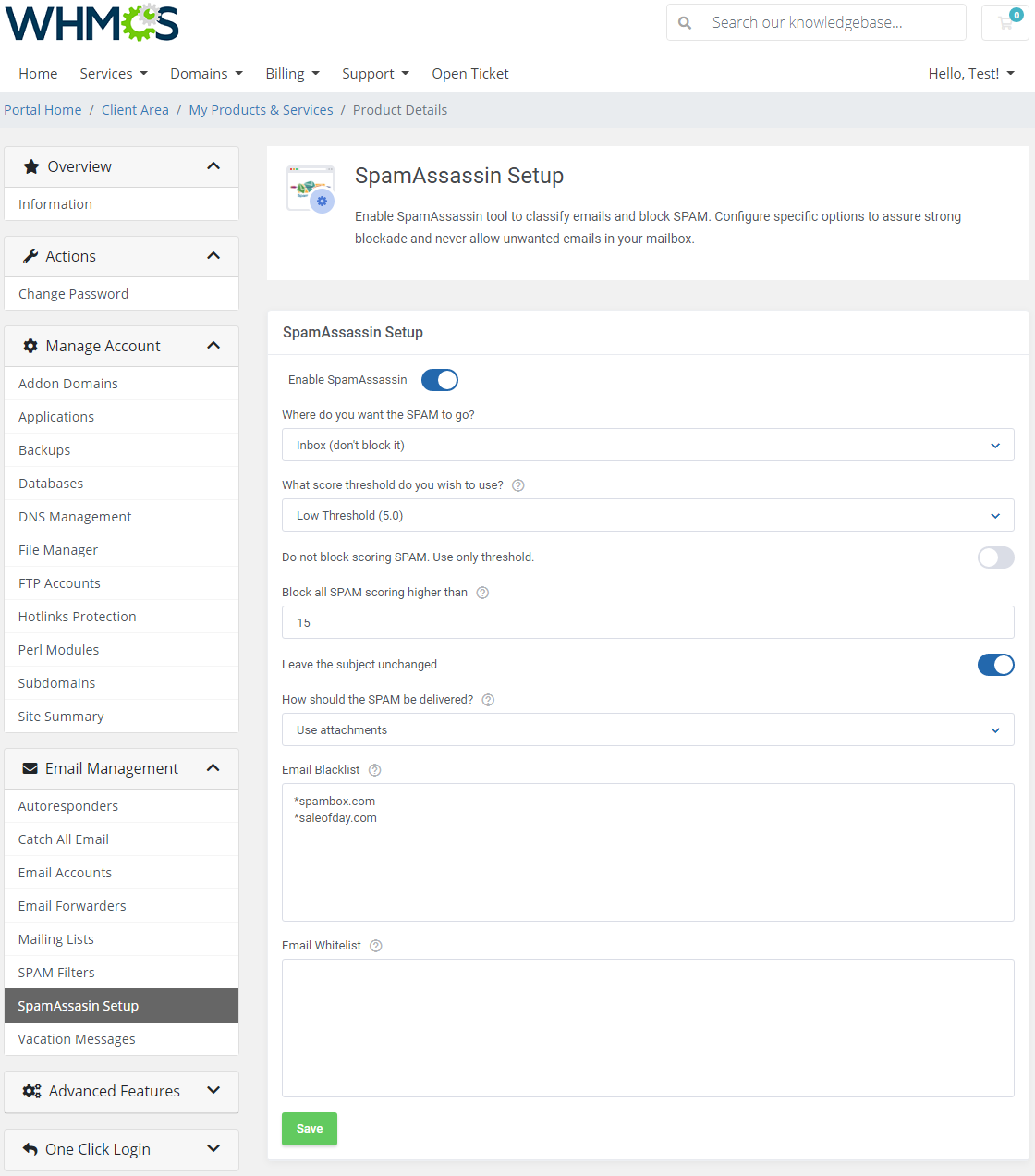
On this page, you can configure your SpamAssassin.
You can set up:
- Action performed on spam emails
- Threshold
- Define separate actions for spam emails of the above defined threshold
- Define whether to change the spam email subject or leave it intact
- Choose how spam should be delivered
- Specify blacklisted email addresses
- Specify whitelisted email addresses
# Vacation Messages
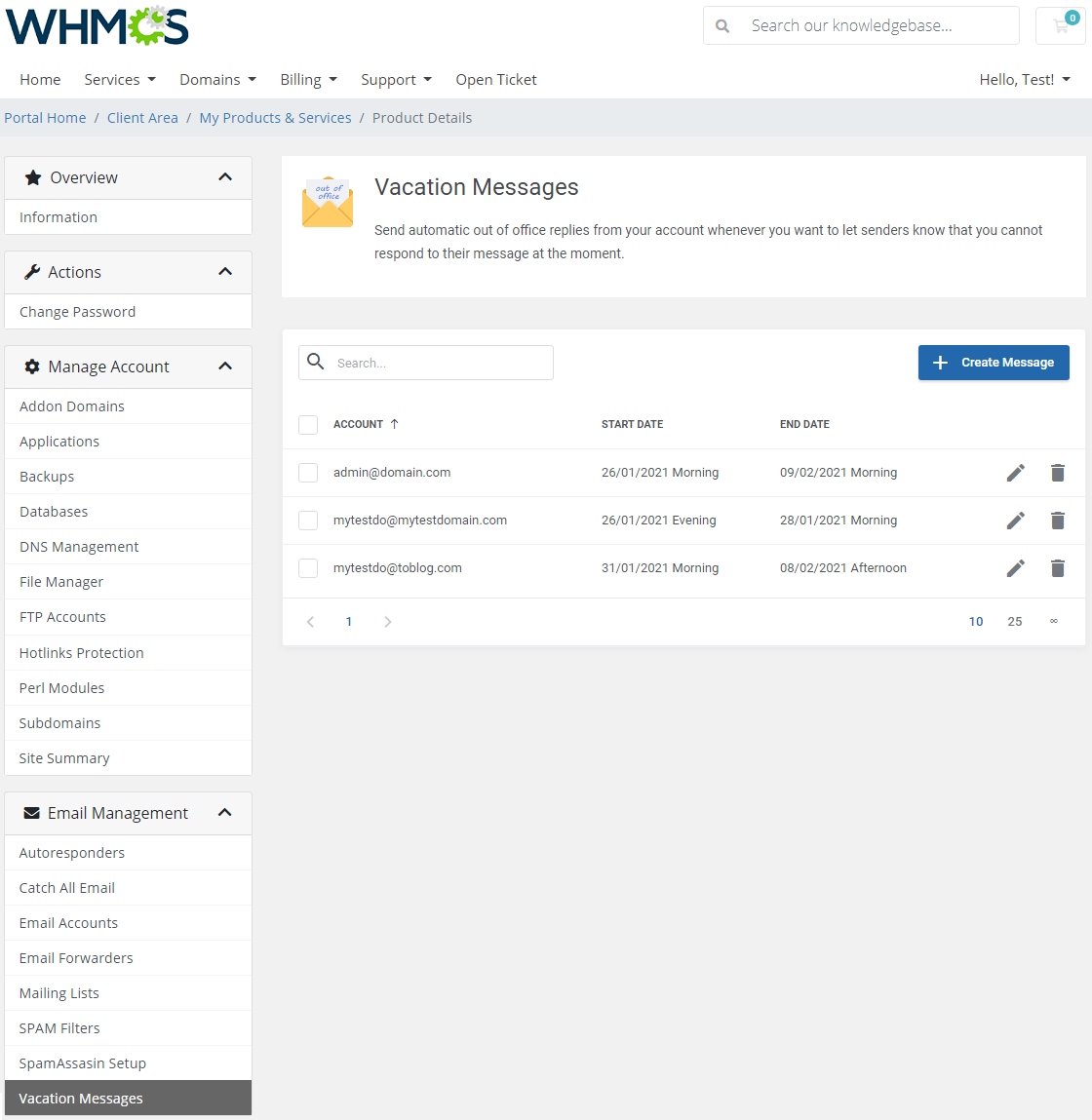
The goal of 'Vacation Messages' is similar to the one of Autoresponder shown above.
The only difference is that the vacation message replies only to the first email received per email address.
Note: If there is already an autoresponder set up for the account, it will be impossible to set a vacation message to that account.
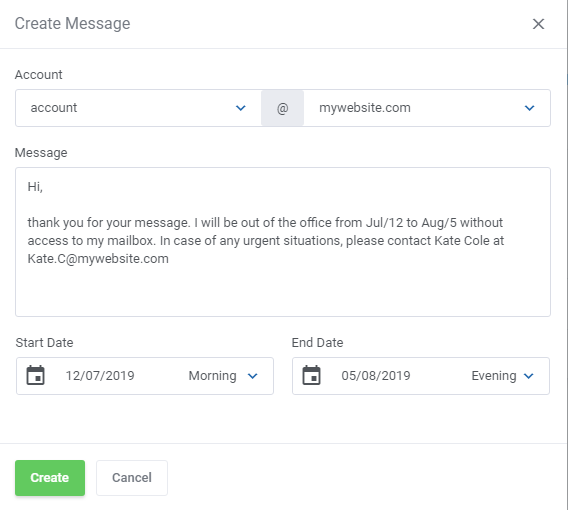
Type in the message content, define your vacation start and end time.
# Advanced Features
Advanced tools are used to configure sophisticated settings of your account.
# Apache Handlers
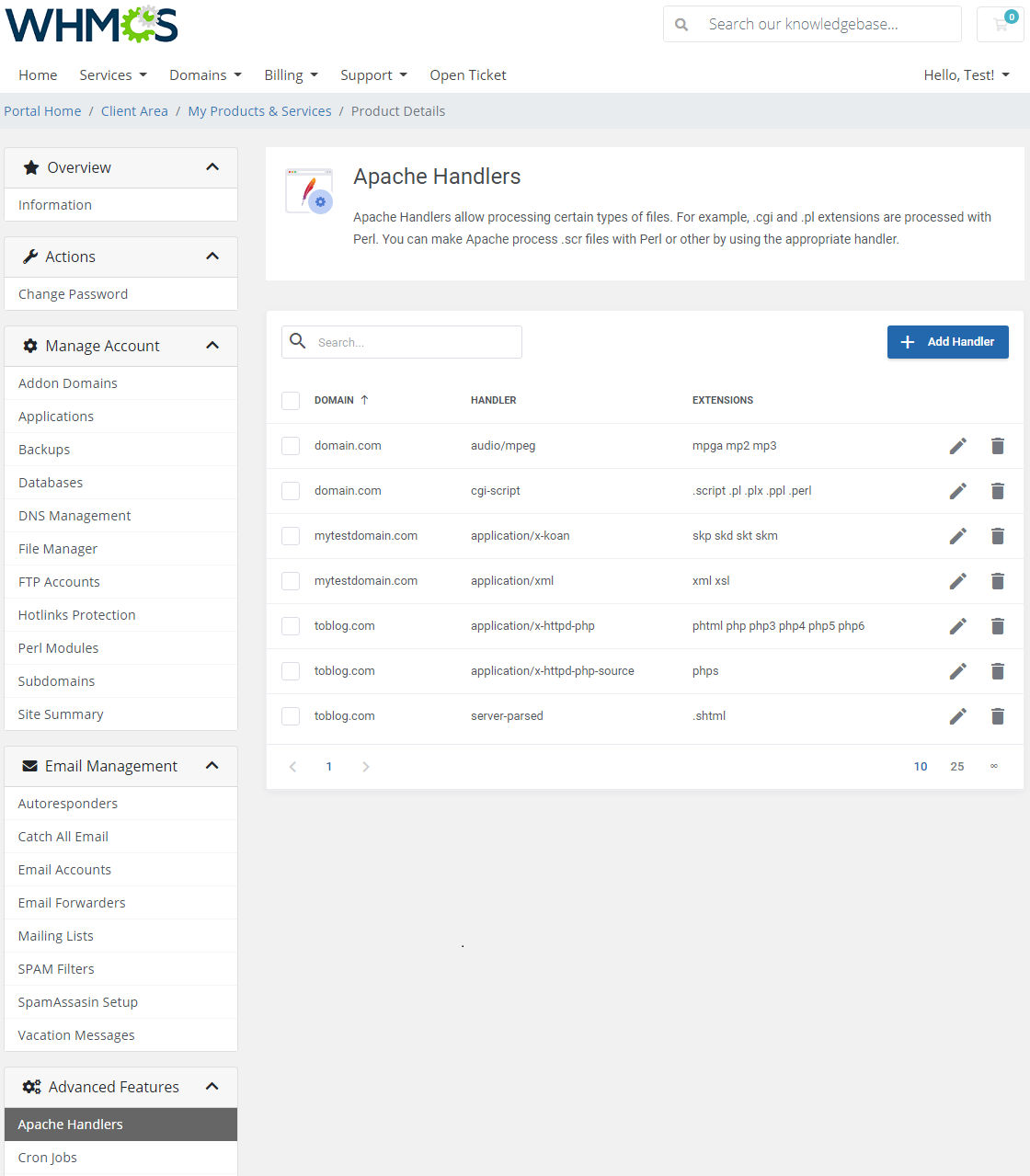
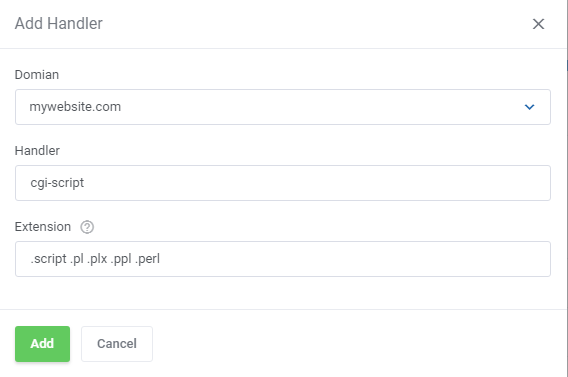
Under the 'Apache Handlers' page, you can define custom handlers for chosen file extensions or specific files. You can read more about Apache Handlers here (opens new window).
To add a new handler, type its name and then extensions it will process.
# Cron Jobs
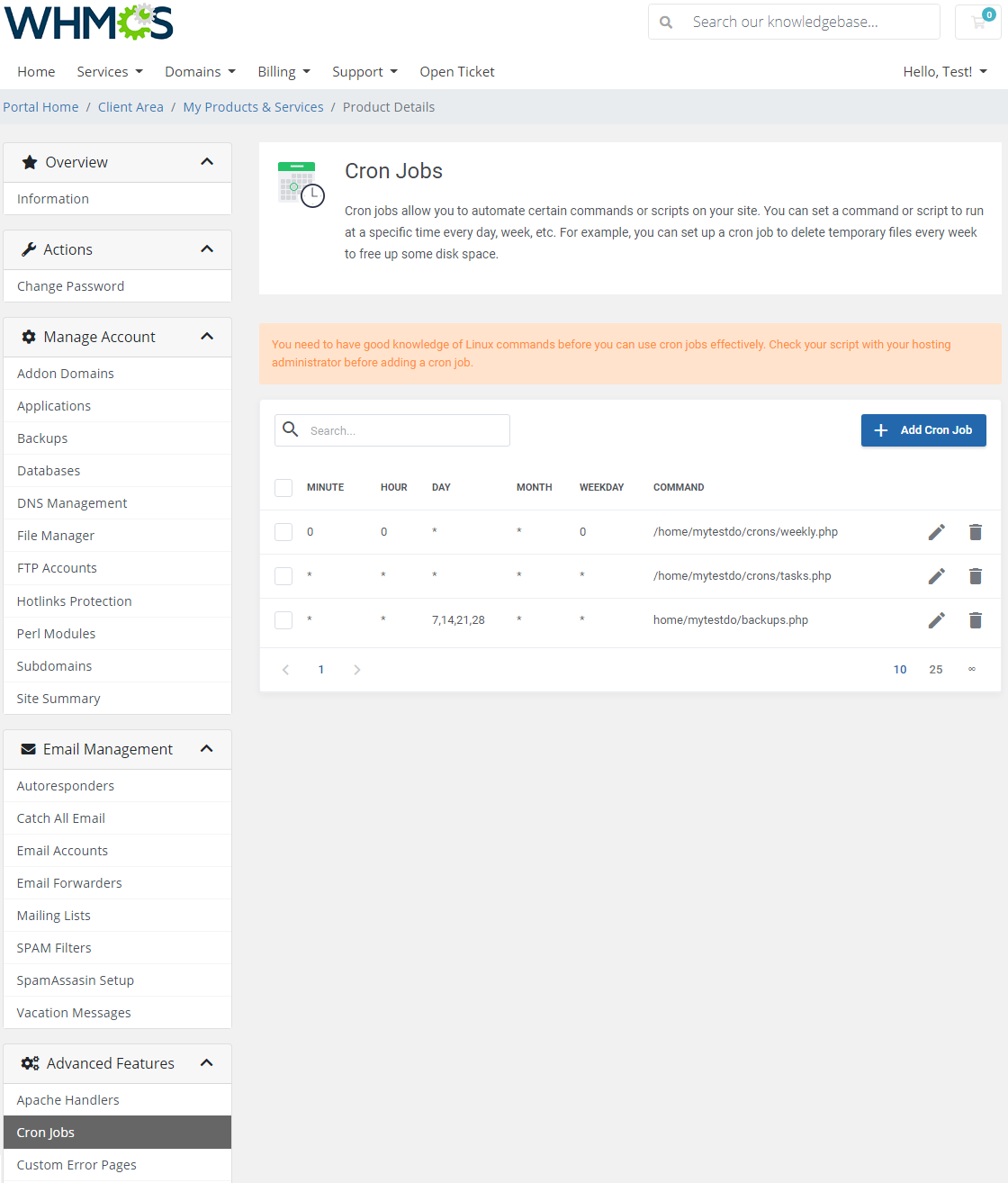
Cron Jobs section allows you to easily add and remove your cron tasks.
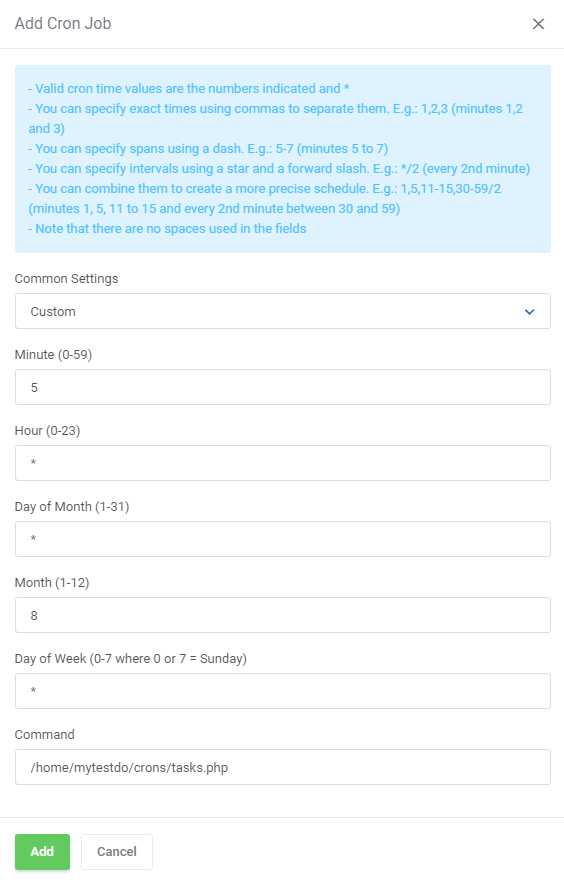
Select cron job settings to fully automate commands and scripts on your site.
# Custom Error Pages
Defining custom apache error pages is easy with 'Error Pages'.
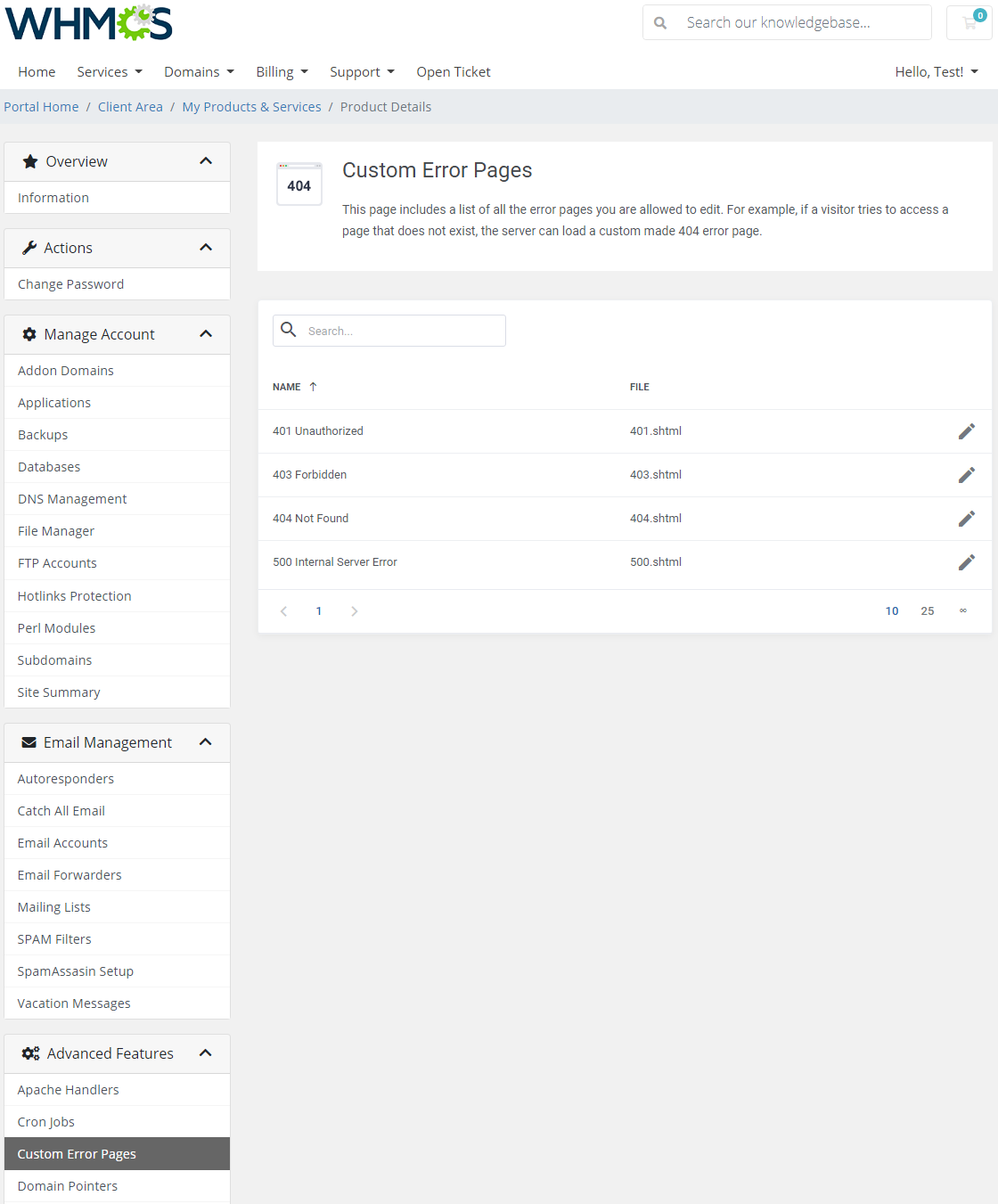
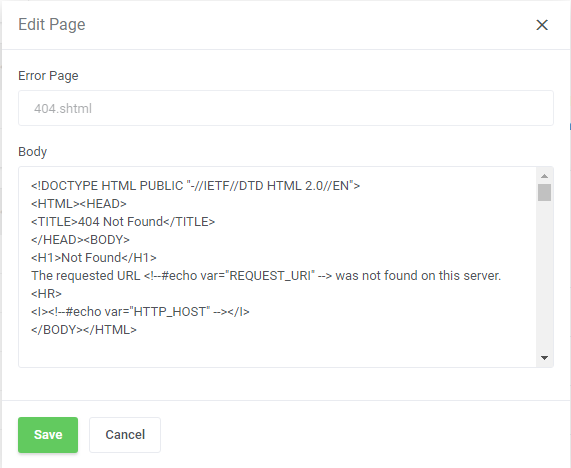
You can alter or define a new HTML code of error pages displayed during 401, 403, 404 and 500 errors.
# Domain Pointers
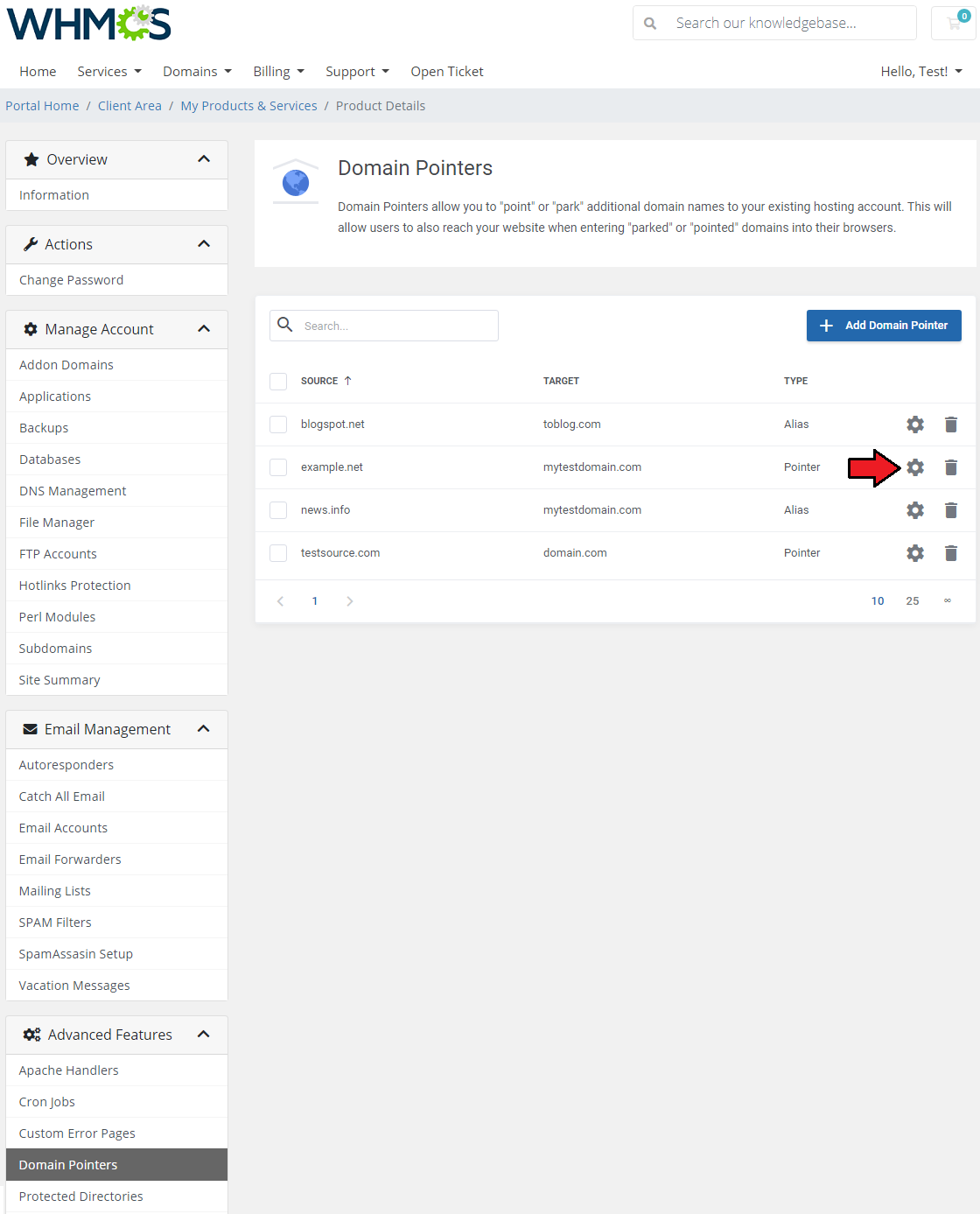
In the 'Domain Pointers' section you can manage your aliases and pointers.
You can have access to the content of one domain from another one!
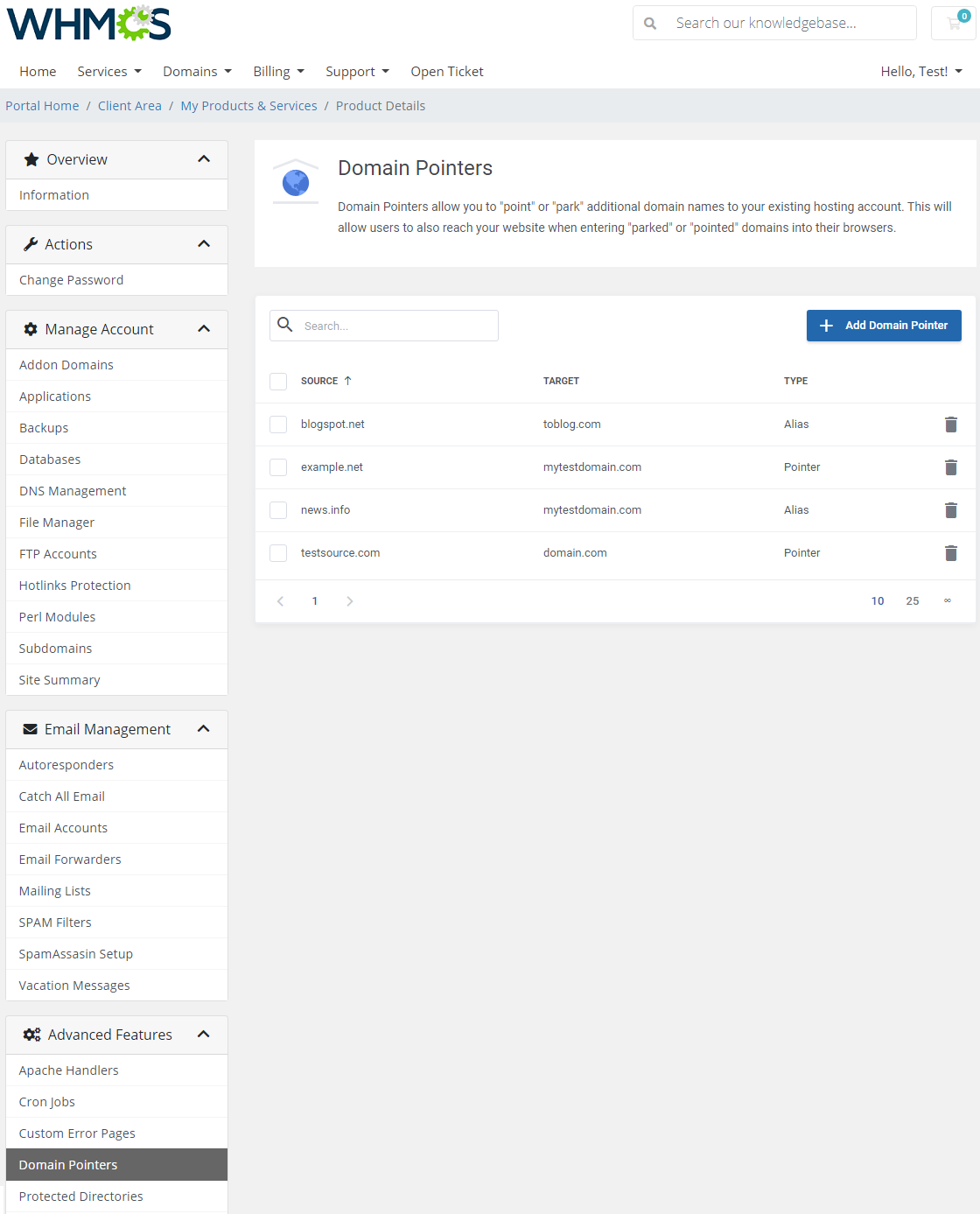
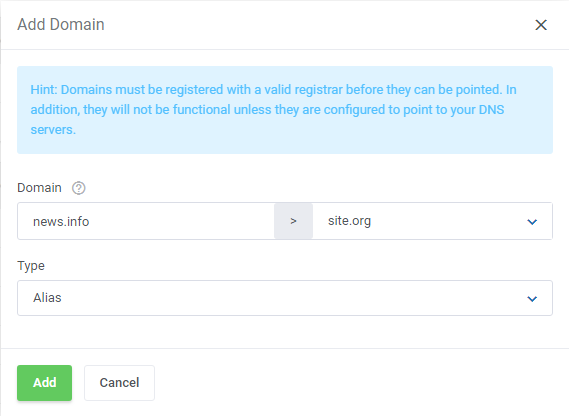
Enter a source domain, then select type: 'Alias' or 'Pointer'.
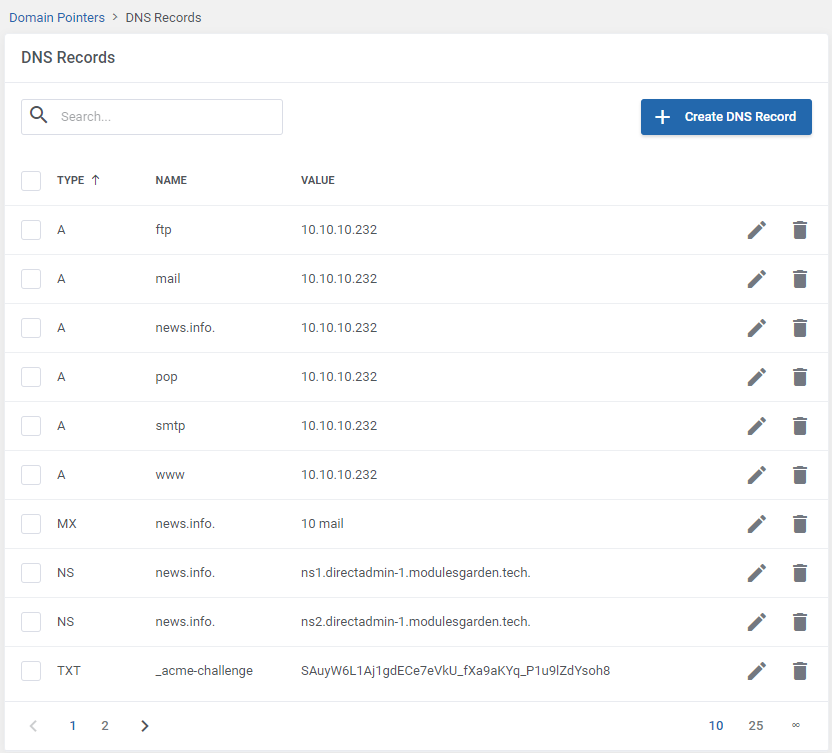
Manage DNS records of the domain pointer.
Edit, delete and create DNS records of a single domain pointer.
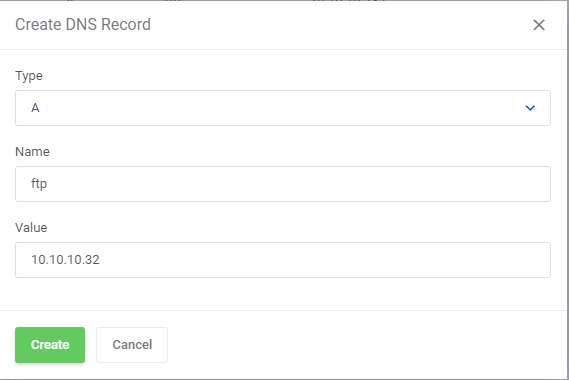
Select record type, enter name and value. In case of 'MX' record type define priority and a hostname.
Note that the lower preference number stands for the higher priority.
# Git Repositories
This section provides you with the possibility to create as well as manage your Git repositories.
Git is a fast and modern implementation of version control. It not only allows you to check the history of content changes but also facilitates collaborative changes to files.
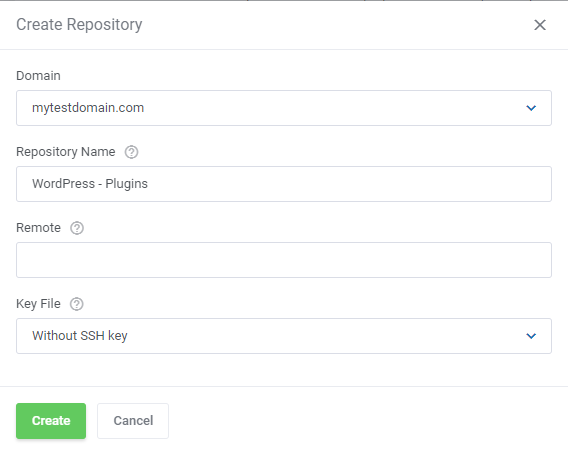
To start tracking, simply click on the 'Create Repository' button.
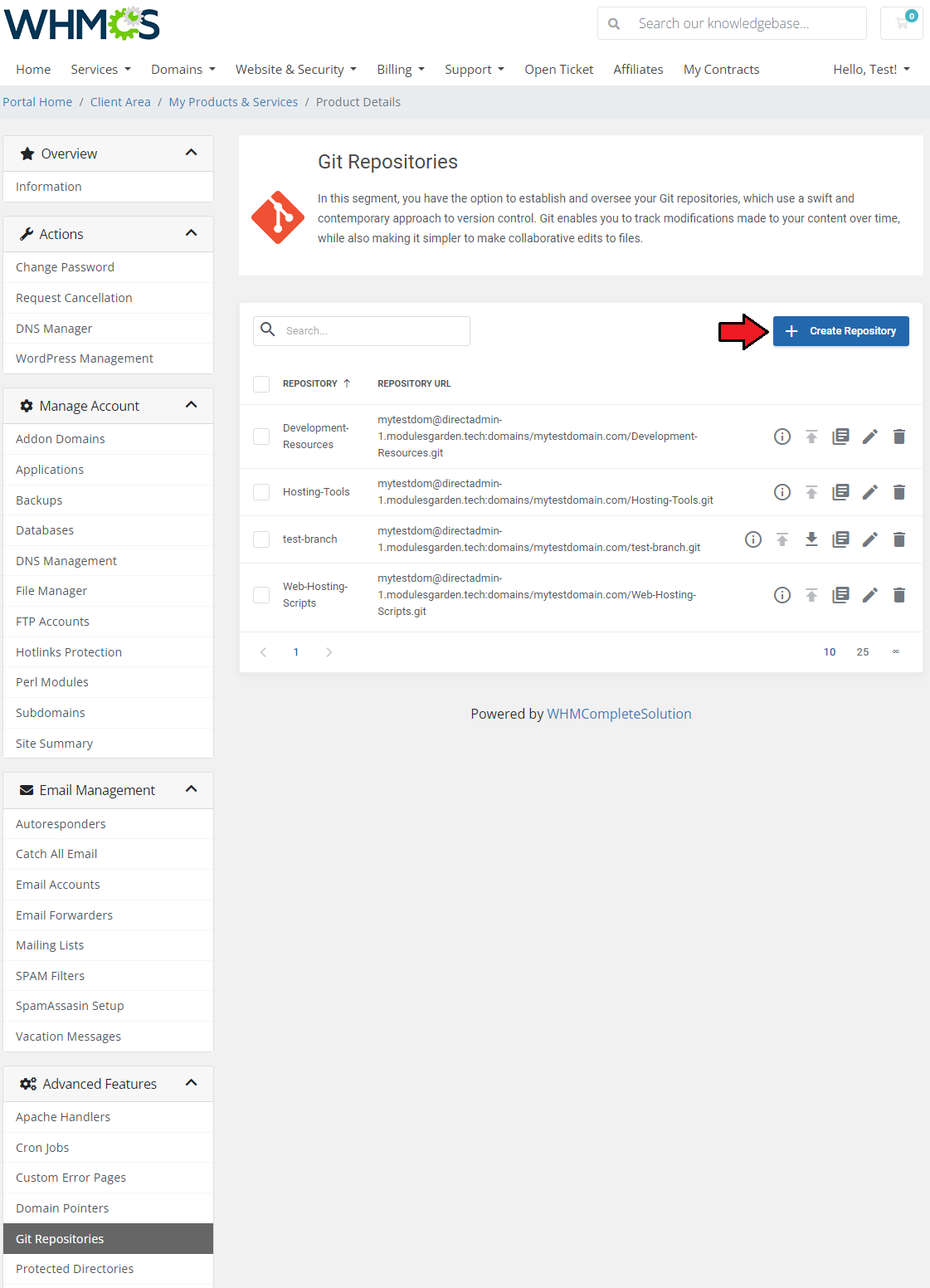
Fill out the simple form to ad dyou repository.
Select the domain and provide a name. You may also provide an optional directory that will direct you to the remote repository. this field is required for synchronization only.
Select your key file or choose the "Without SSH" option. It is an optional public key authorized by the remote repository, required for syncing to a private remote repository only.
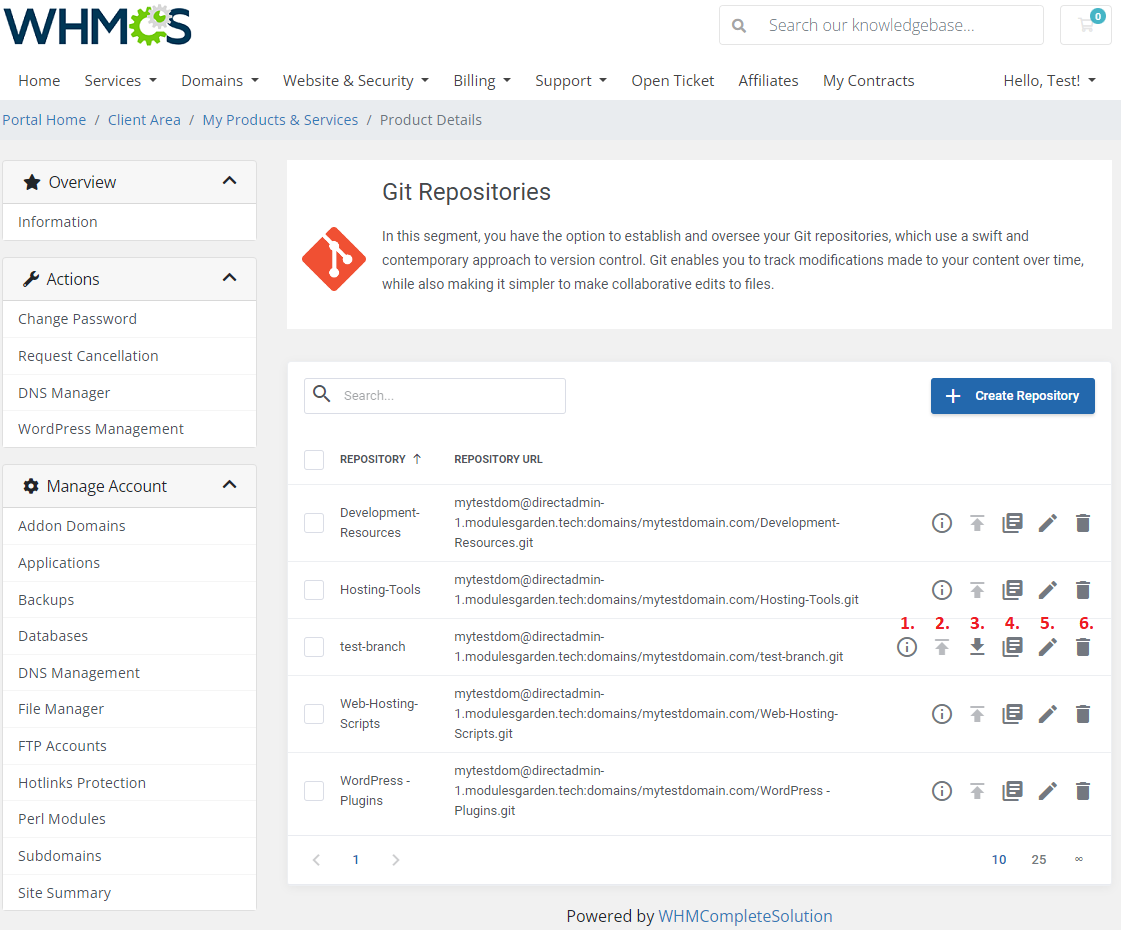
Allowed actions on a repository:
- display repository details (1)
- deploy repository (2)
- fetch repository (3)
- access repository logs (4)
- modify details (5)
- delete repository (6) - accessible via mass actions as well to delete repos in bulk
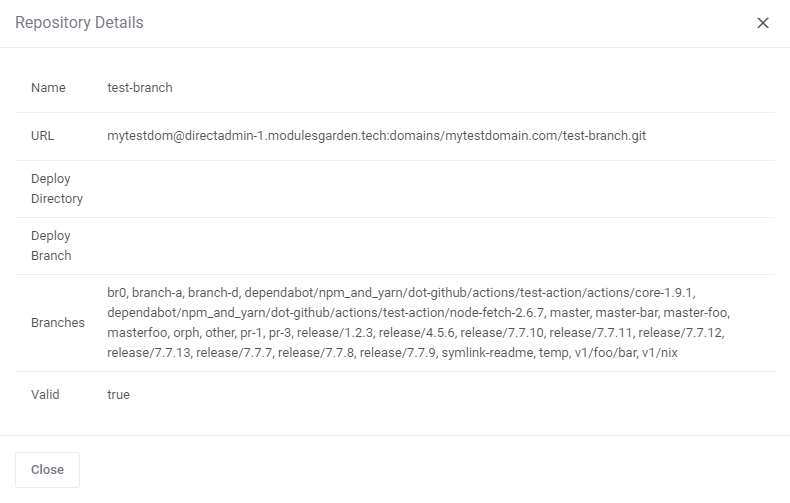
Repository details:
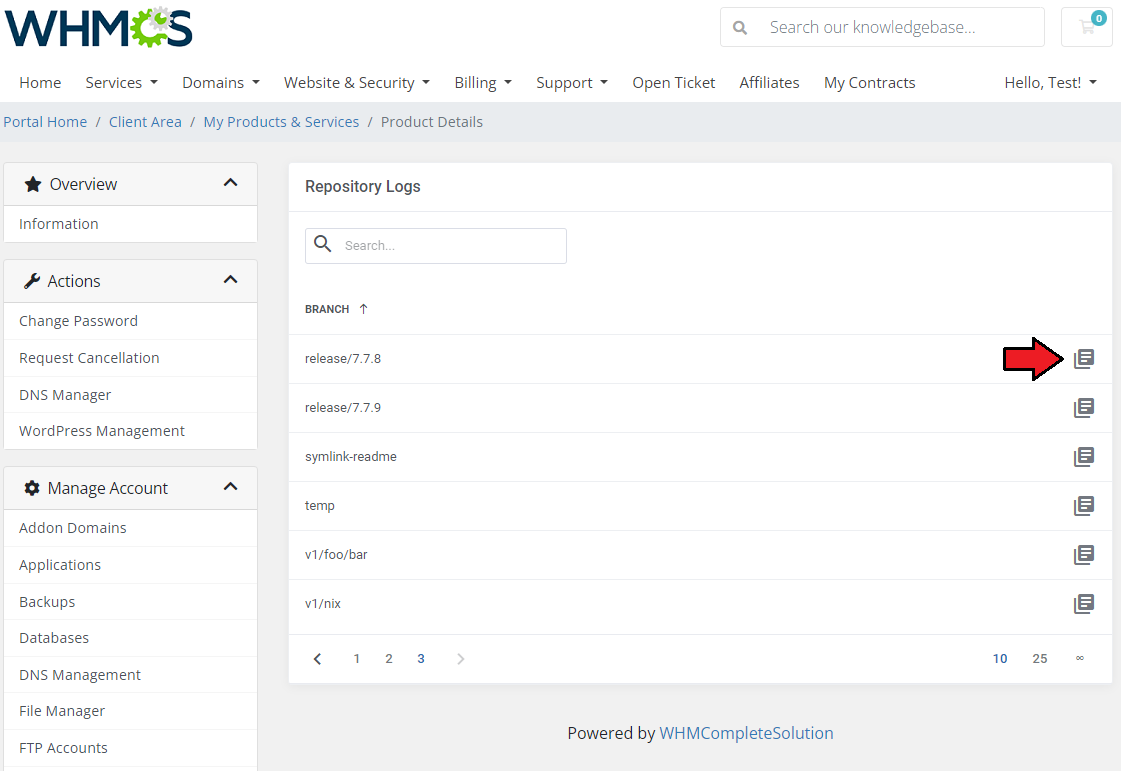
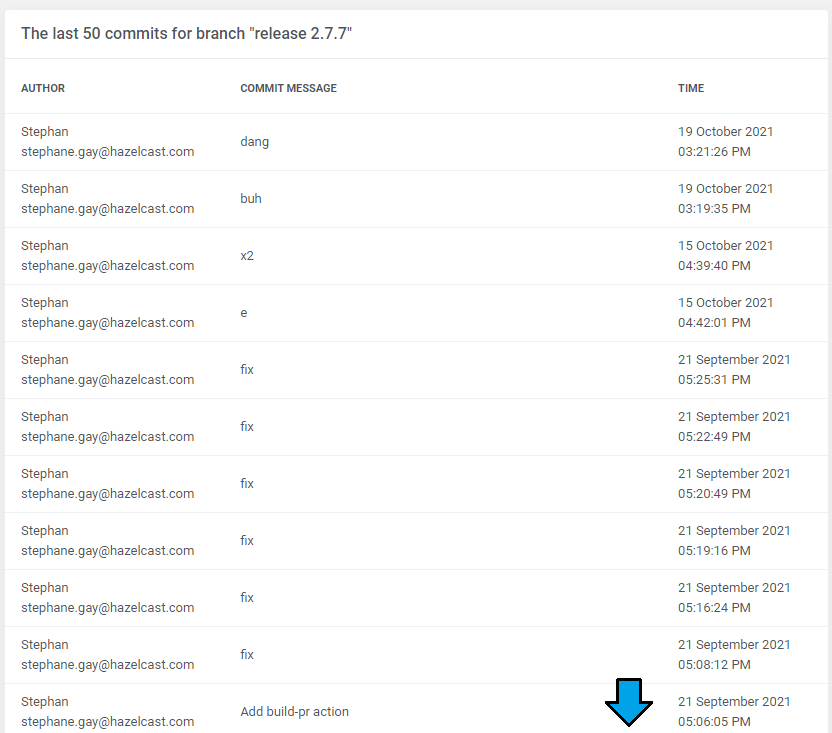
Repository Logs: when accessed, you will see a list of all branches existing on its repo. Check logs for every branch separately:
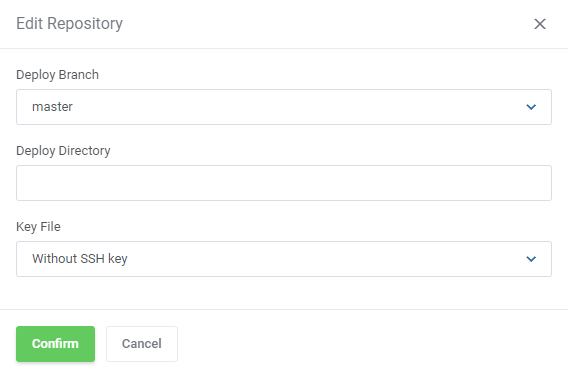
Modify details - select a branch to deploy the repo and (optionally) provide the new directory.
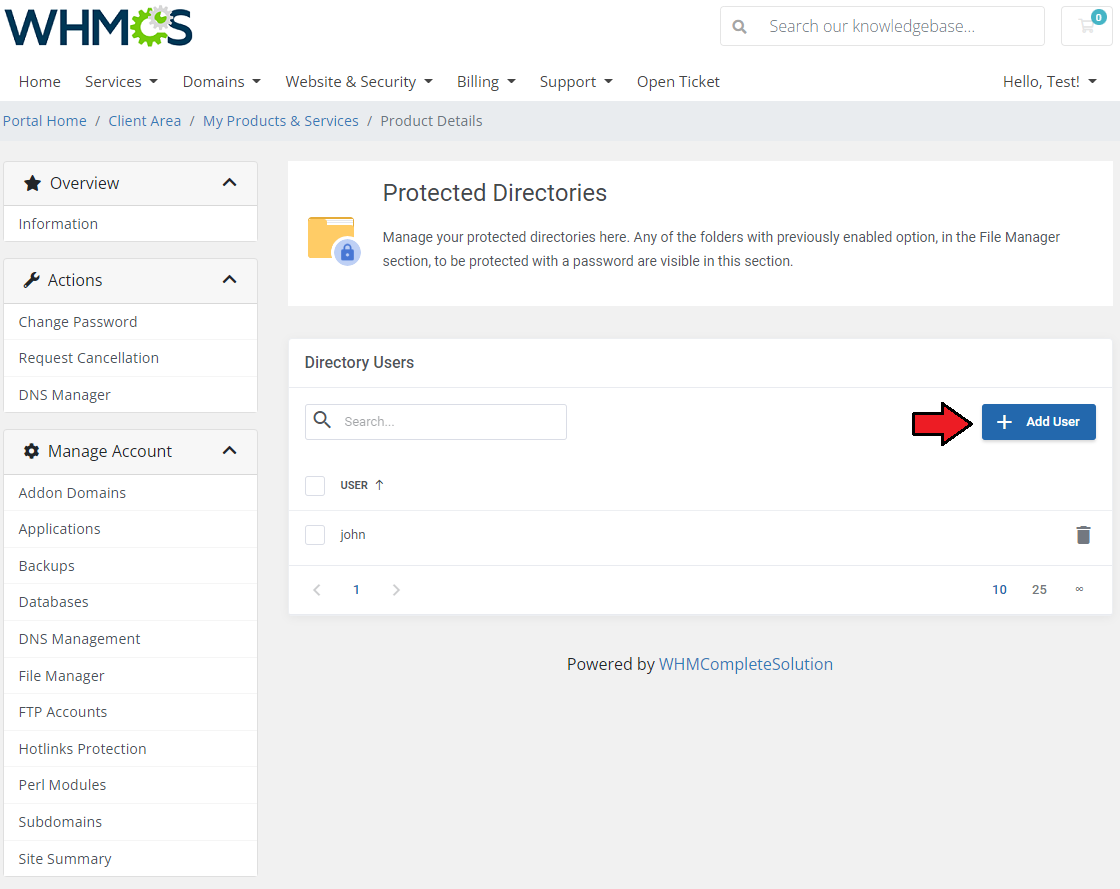
# Protected Directories
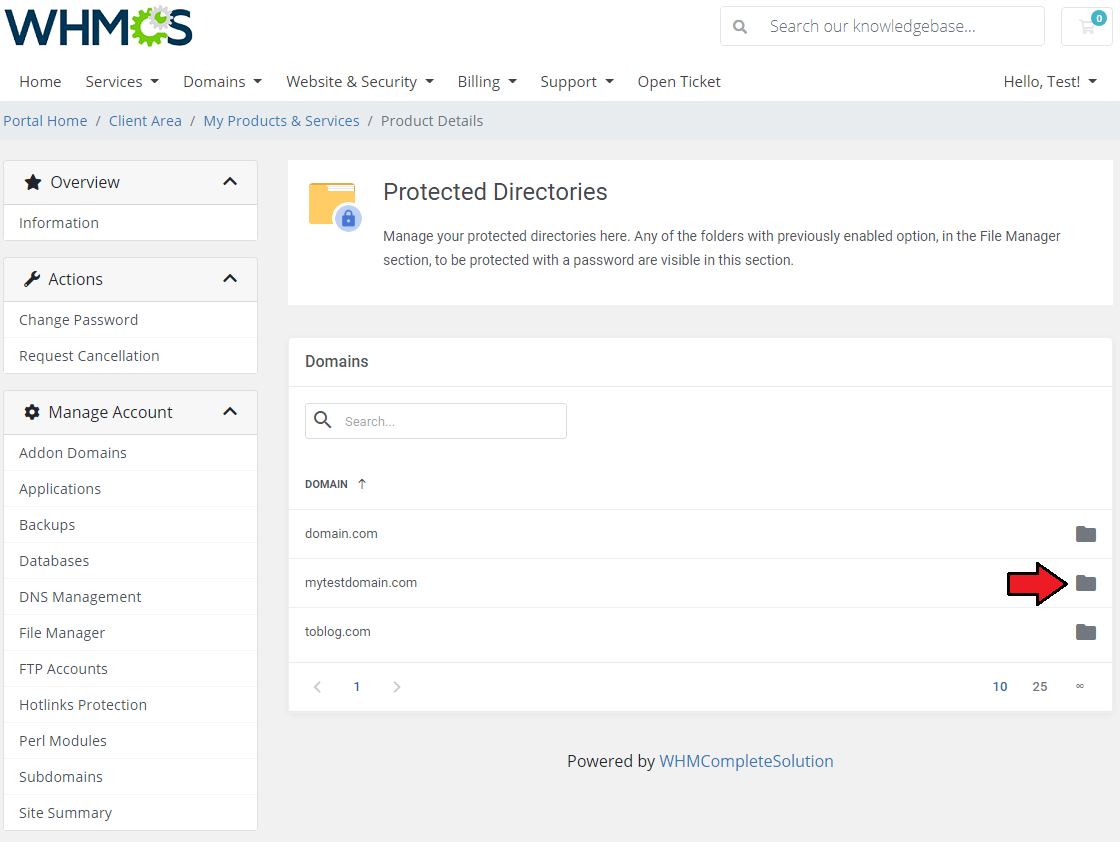
Protected directories section includes a list of domains with any folders protected with a password.
Press the icon to see an exact list of protected folders.
Important: You may protect single folders directly in 'File Manager' section, however, they must be located in the 'public_htlm' directory only.
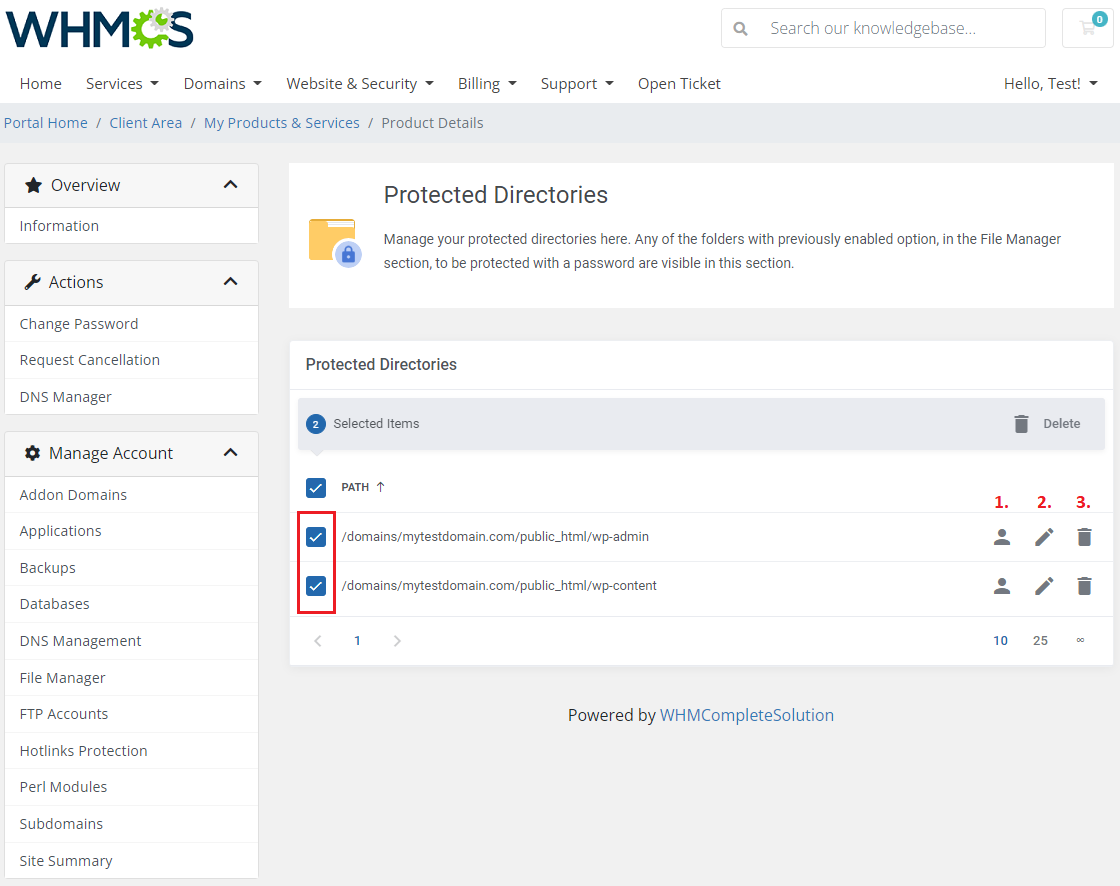
Details section contains a direct path to the protected folder, you may also perform flowing actions on single directories:
- View/Add directory users
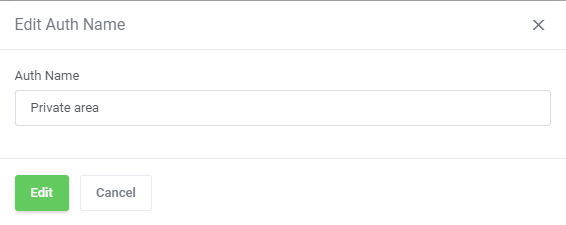
- Edit directory name
- Delete single directory protection
Use mass action button to remove the password protection of the selected directories.
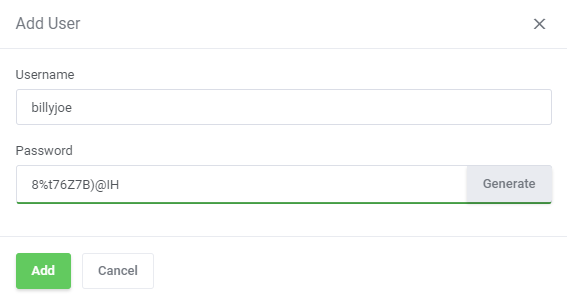
- View existing users and add new ones by pressing button. Then provide the username and a password.
- Change the folder name
# Site Redirections
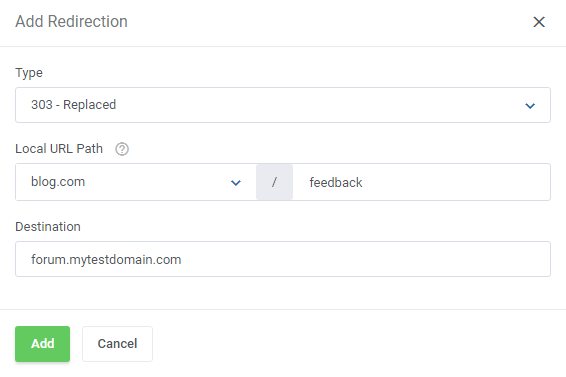
Easy access to site redirections is very advantageous. Within a few seconds, you can redirect the page to another.
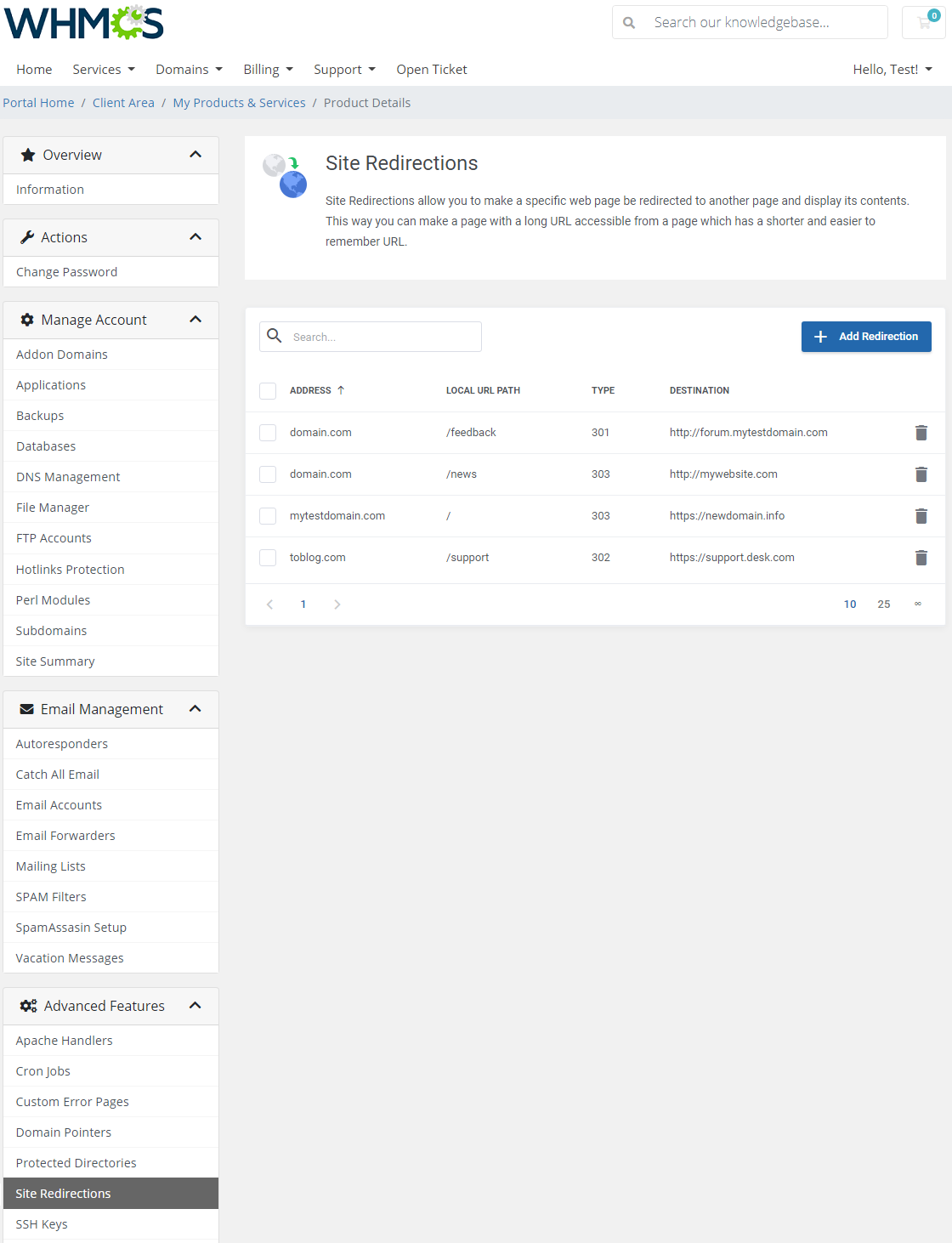
For example, if your main domain is mytestdomain.com, you can forward it like this:
mytestdomain.com/redirect → adomainwithlongname-averylongname.com
Choose the type: 'Permanent', 'Temporary' or 'Replaced'.
# SSH Keys
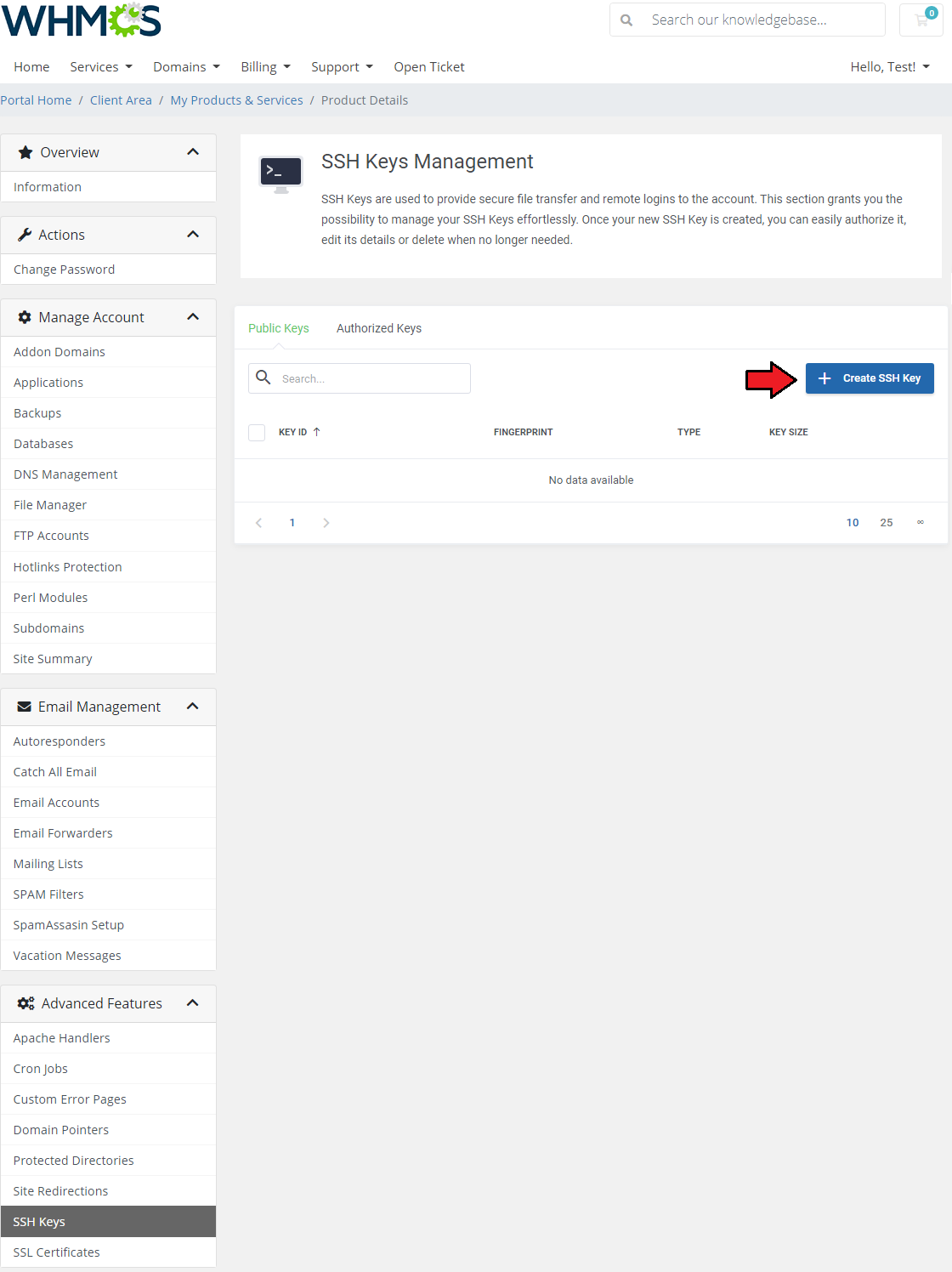
SSH Keys are responsible for providing secure file transfer and remote logins to the account. This section allows you to manage your SSH Keys easily.
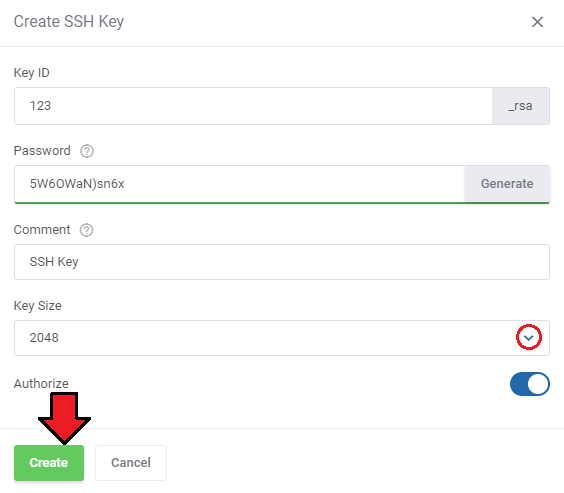
Now, provide 'Key ID' and 'Comment'. Enter a strong ' Password', optionally, you can generate it.
Finally, choose the size of your SSH Key from the dropdown menu and decide if you want to authorize the Key.
Afterwards, click the 'Create' button.
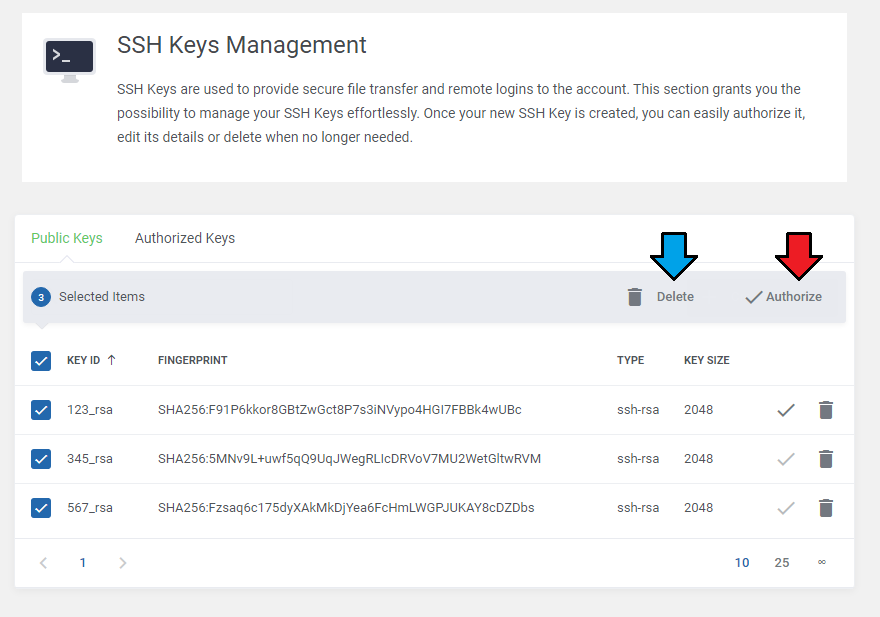
All newly created SSH Keys are visible here. You can 'Authorize' or 'Delete' your SSH Key using the buttons shown below:
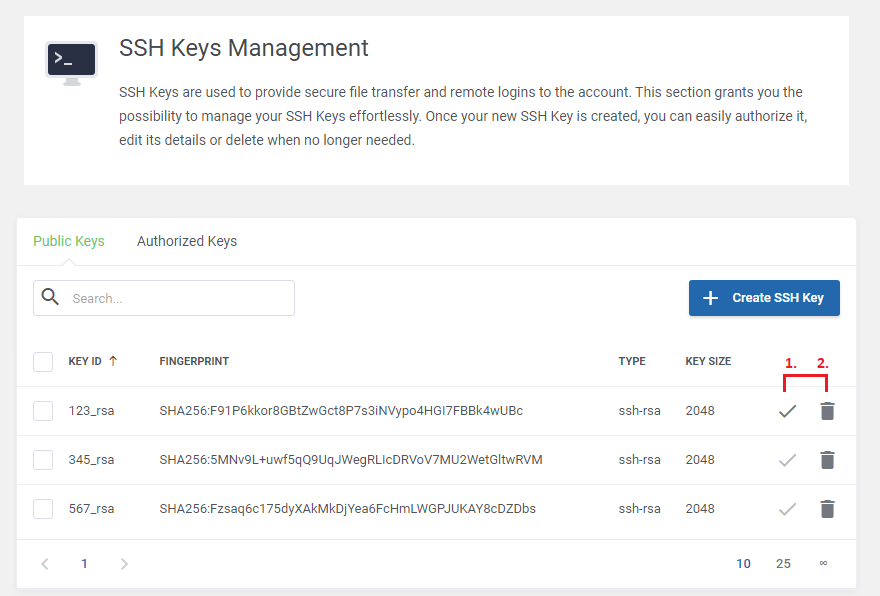
If you wish to 'Authorize' or ' Delete' a few SSH Keys, click the appropriate mass action button.
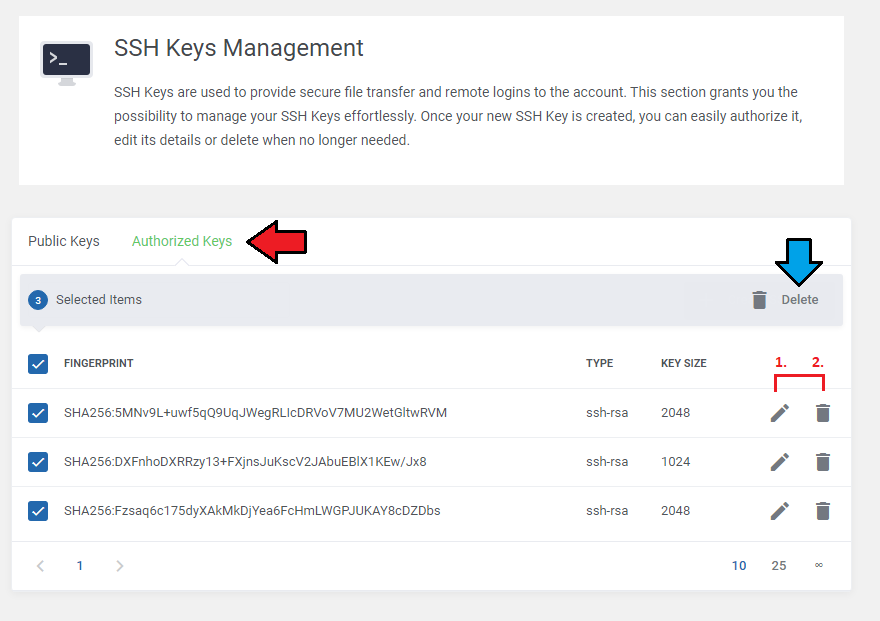
All of authorized SSH Keys are listed in the 'Authorized Keys' section. Here you can edit one of the existing SSH Keys or delete any if no longer needed.
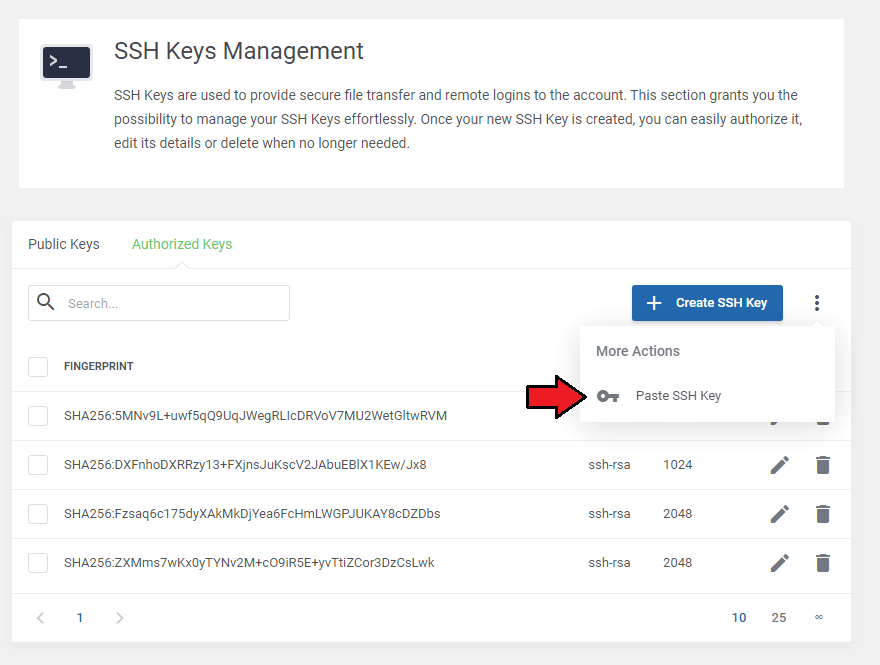
It is also possible to paste an existing, authorixed SSH Key. All you need to do is press the button marked on the creen and then paste your authorized key.
# SSL Certificates
Your customers can benefit from generating free certificates provided by 'Let's Encrypt (opens new window)'. Assuming that this option was previously enabled in the Addon Configuration.
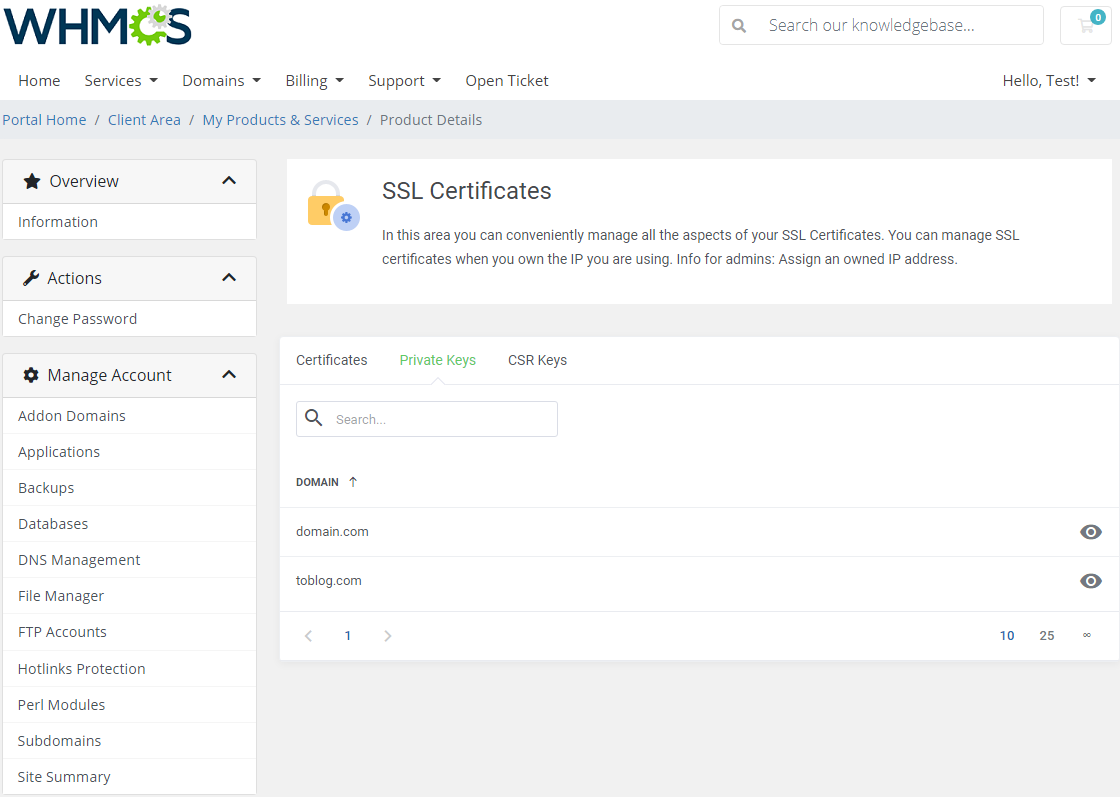
Generating a CSR or a certificate with 'Let's Encrypt' will result with automatically added private keys to the list.
You may also upload a ready certificate with a private key or a CA SSL Certificate (Certificate Authority). Use 'More Actions' to find appropriate buttons.
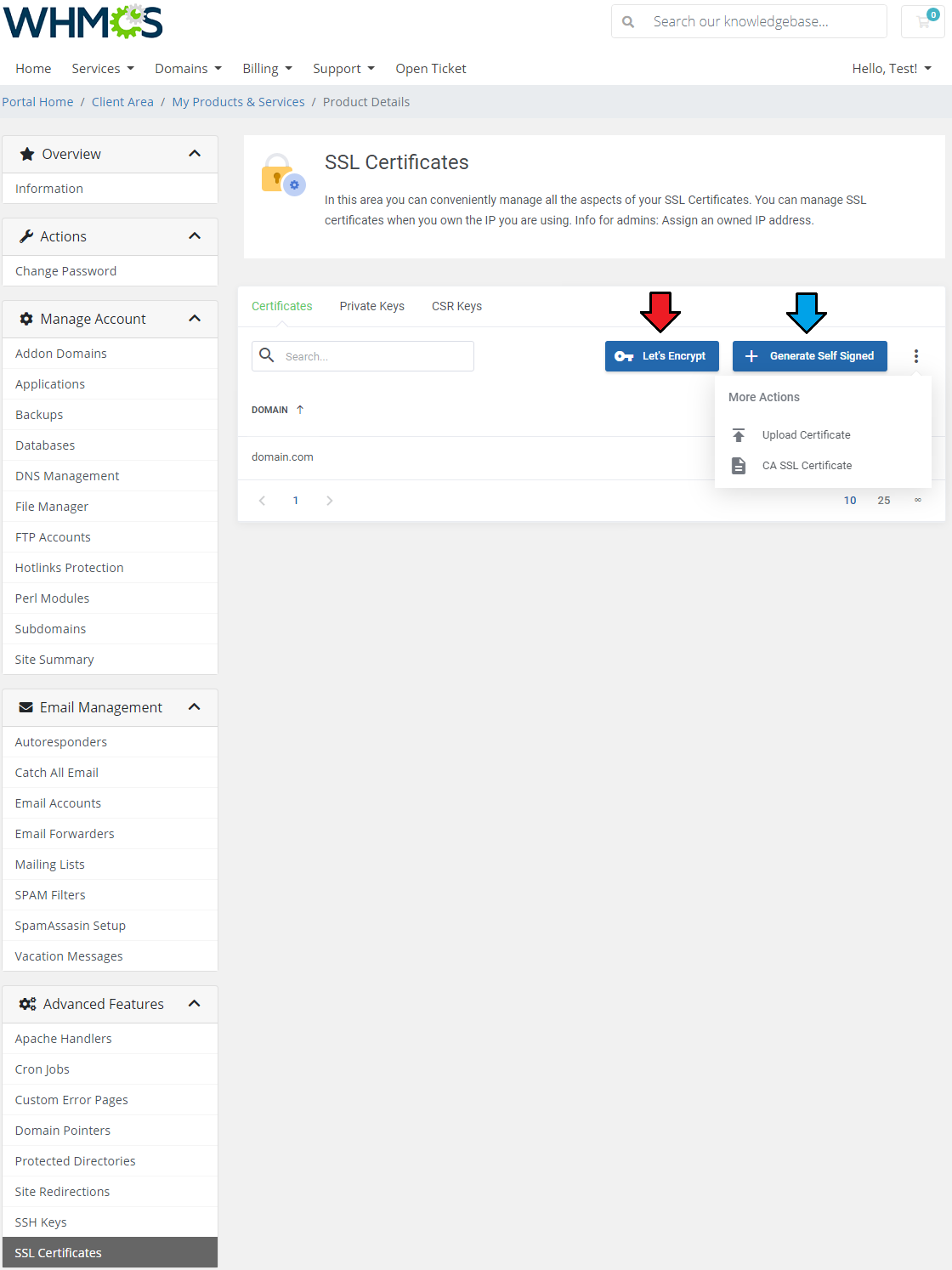
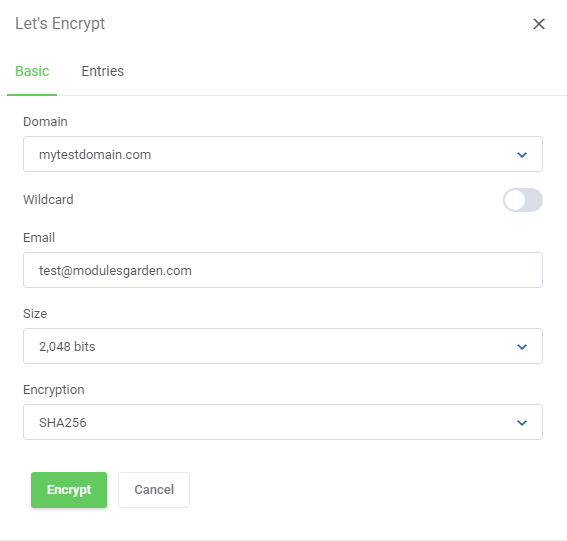
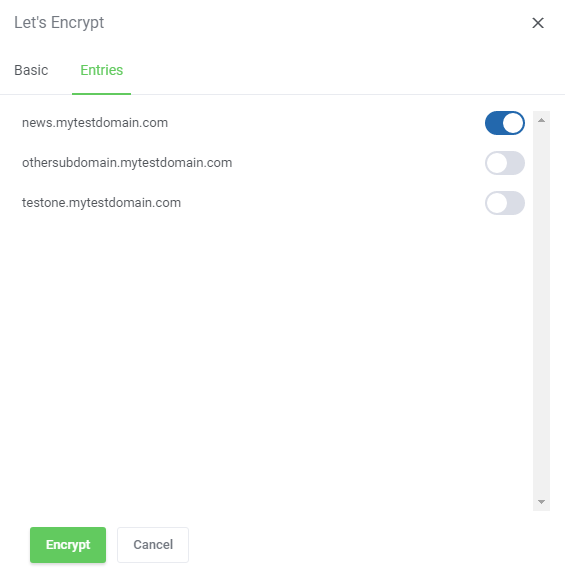
If you decide to use the easiest method of generating cerificates, that is 'Let's Encrypt' option, you will only have to fill in a short form with basic information.
In 'Entries' tab you will find all existing subdomains for the selected domain.
This feature relocates completely the management of your private keys, CSR keys and SSL certificates into your WHMCS client area.
Thanks to it, you can conveniently manage all the aspects of your SSL certificates without the necessity to log in to your DirectAdmin account.
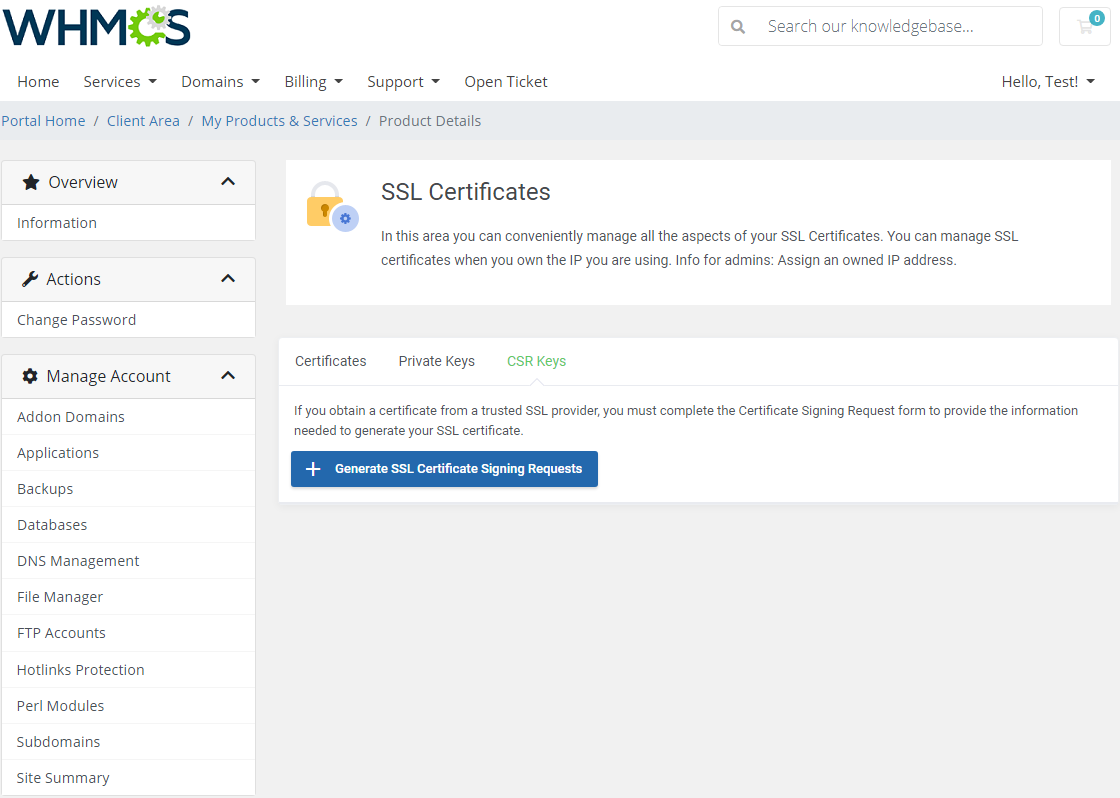
If you want to obtain a certificate from a trusted provider, complete the Certificate Signing Request form to generate a CSR, which will then be used to generate the certificate by that provider.
# Unban IP Address
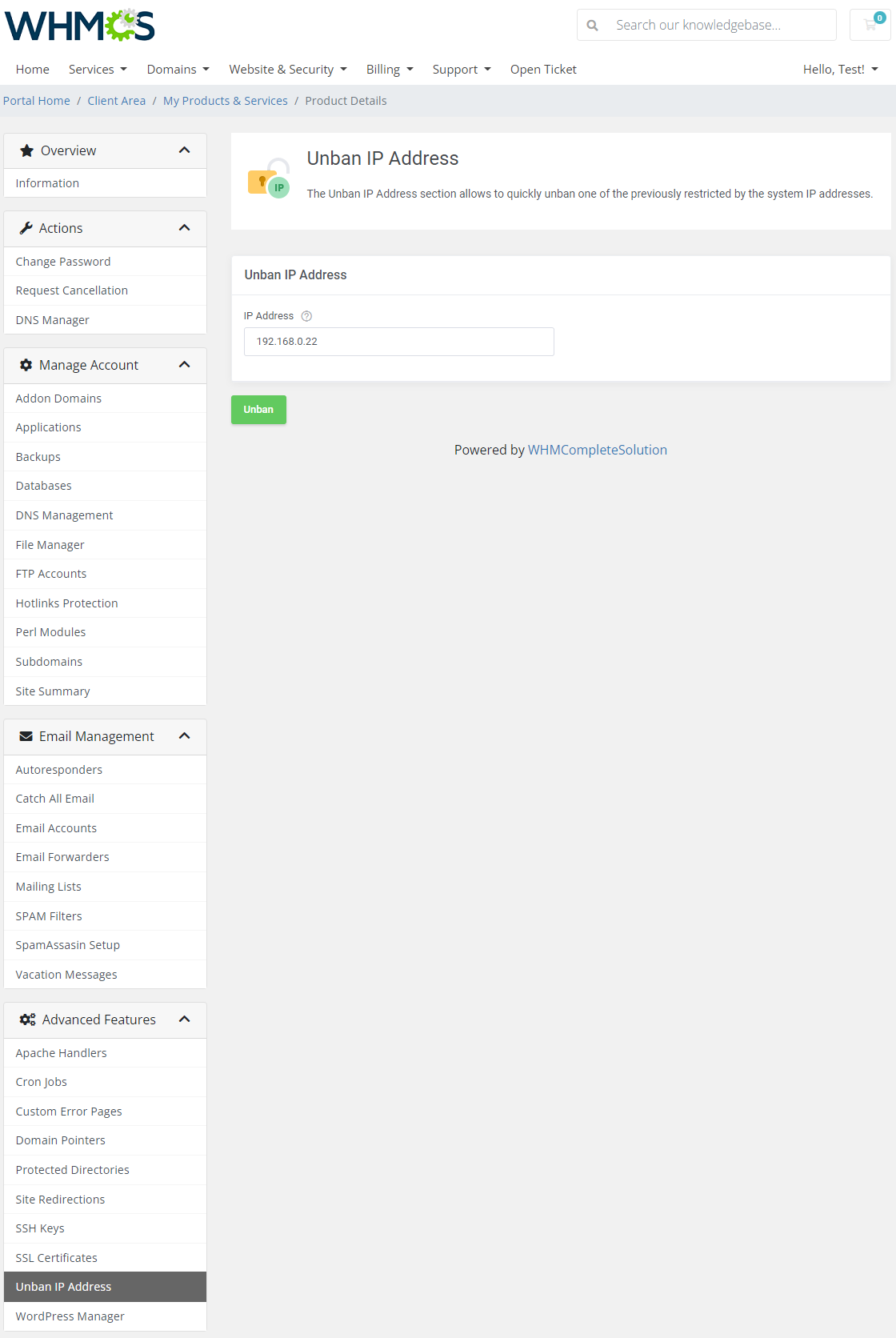
The 'Unban IP Address' section allows clients to unban their IP address if it has been blocked in the DirectAdmin panel.
Both IPv4 and IPv6 addresses can be unbanned here. Simply type in the address, press the 'Unban' button and wait until the action is complete.
# WordPress Manager
If you have WordPress Manager For WHMCS (opens new window) module installed, your customers will fully benefit from its seamless integration with the DirectAdmin Extended For WHMCS module.
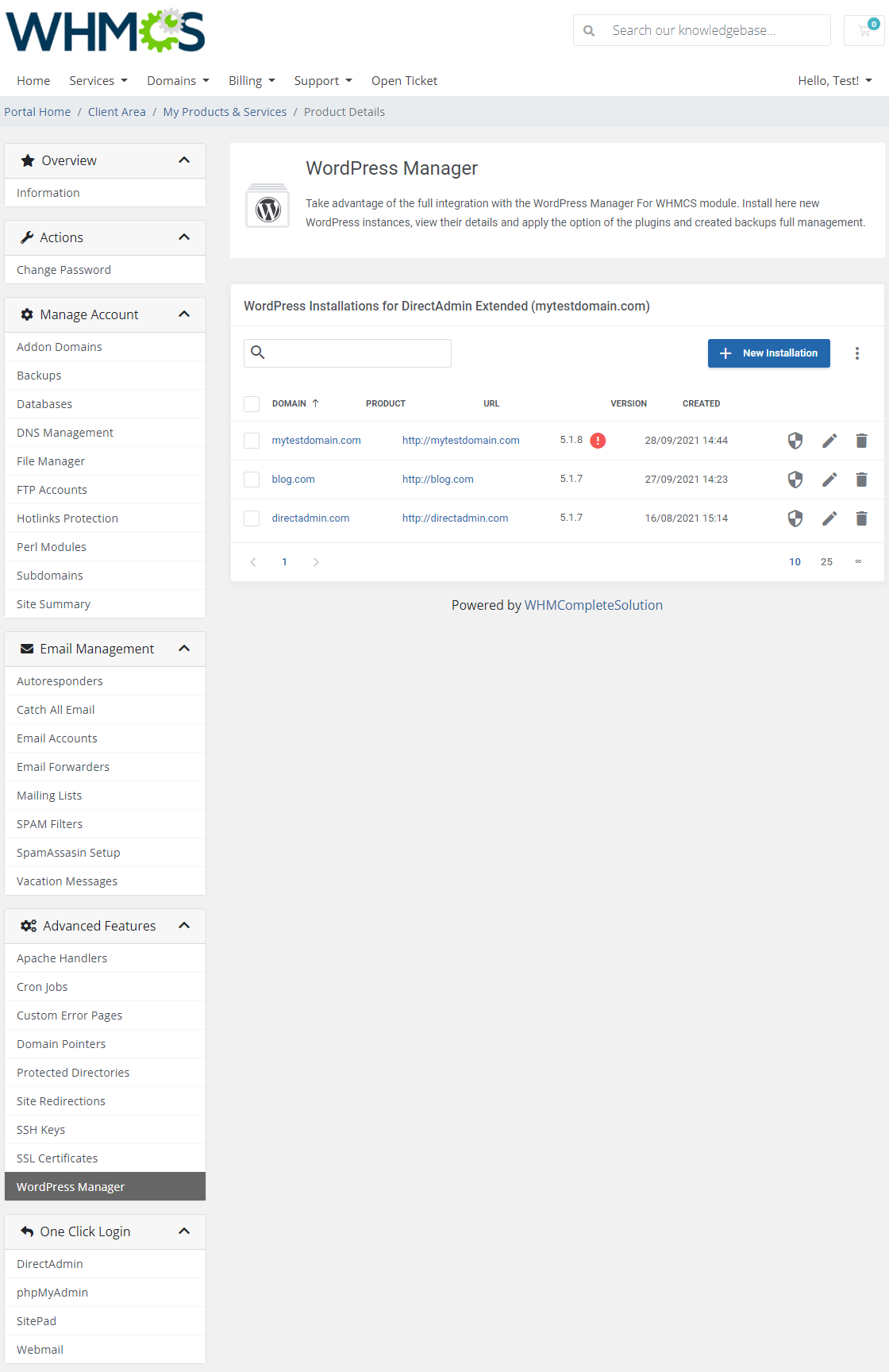
Thanks to this integration, your customers will have the capability to install and manage WordPress instances in detail without the bother of leaving the DirectAdmin Extended panel in your WHMCS client area.
Full and detailed instructions on the 'WordPress Manager' itself is located here.
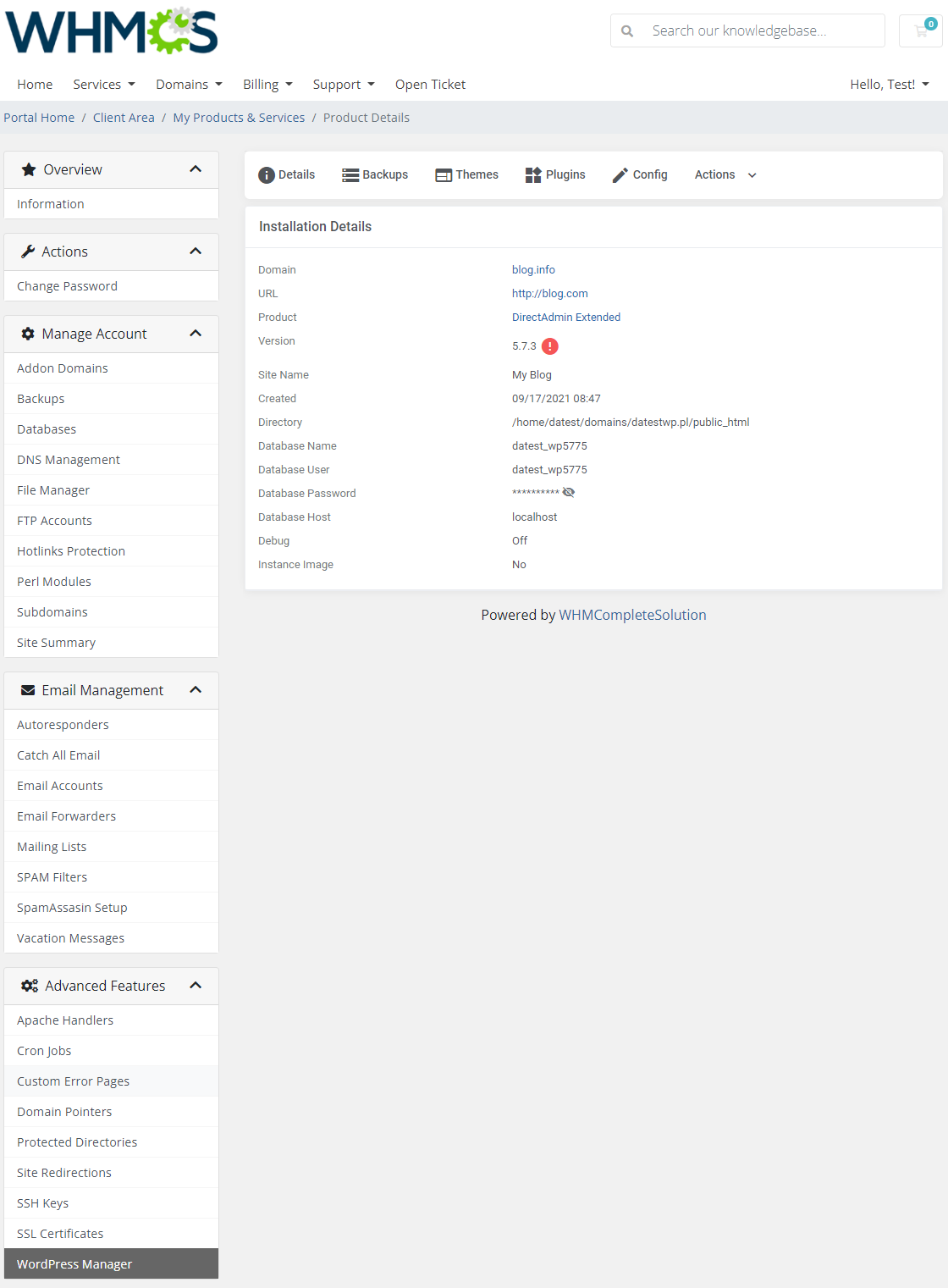
Please note that this entire section can only be available if you have purchased and installed the WordPress Manager For WHMCS (opens new window) module.
# Install Applications
'Install Applications' is a very interesting and time-saving feature of DirectAdmin Extended For WHMCS module. In merely seconds, you can install your favorite applications without even accessing DirectAdmin!
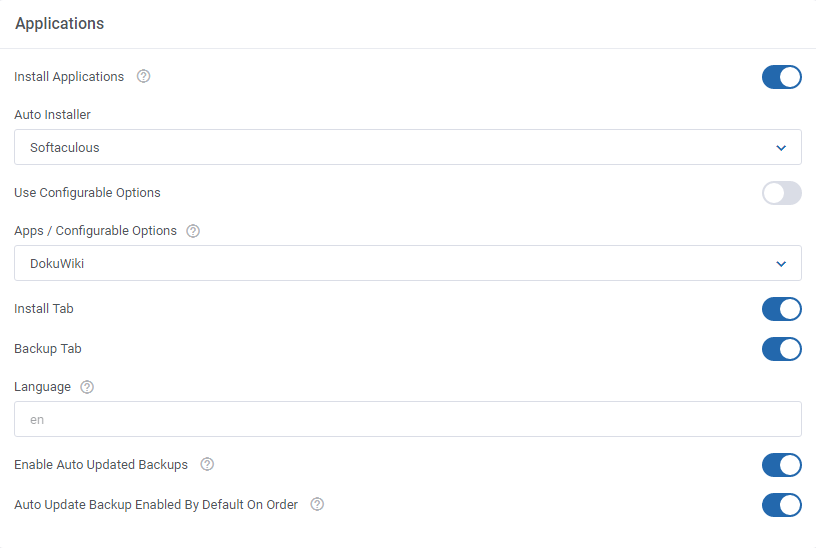
Firstly, you need to enable one of the two auto-installation managers. To do so, go to 'Addons' → 'DirectAdmin Extended' → 'Features'.
Press the 'Configure' button next to the product you are interested in. Then, find the 'Applications ' box.
Enable the 'Install Applications' checkbox, select the autoinstaller from a dropdown menu (you can choose 'Installatron' or 'Softaculous').
You can also choose a desired language of the application by entering value into the 'Language' field. A complete list of language codes can be found here. (opens new window)
If the field is left blank, the default value 'en' (English) will be used.
Finish the process by enabling 'Install Button' and 'Backup Button'. Do not forget to save the changes.
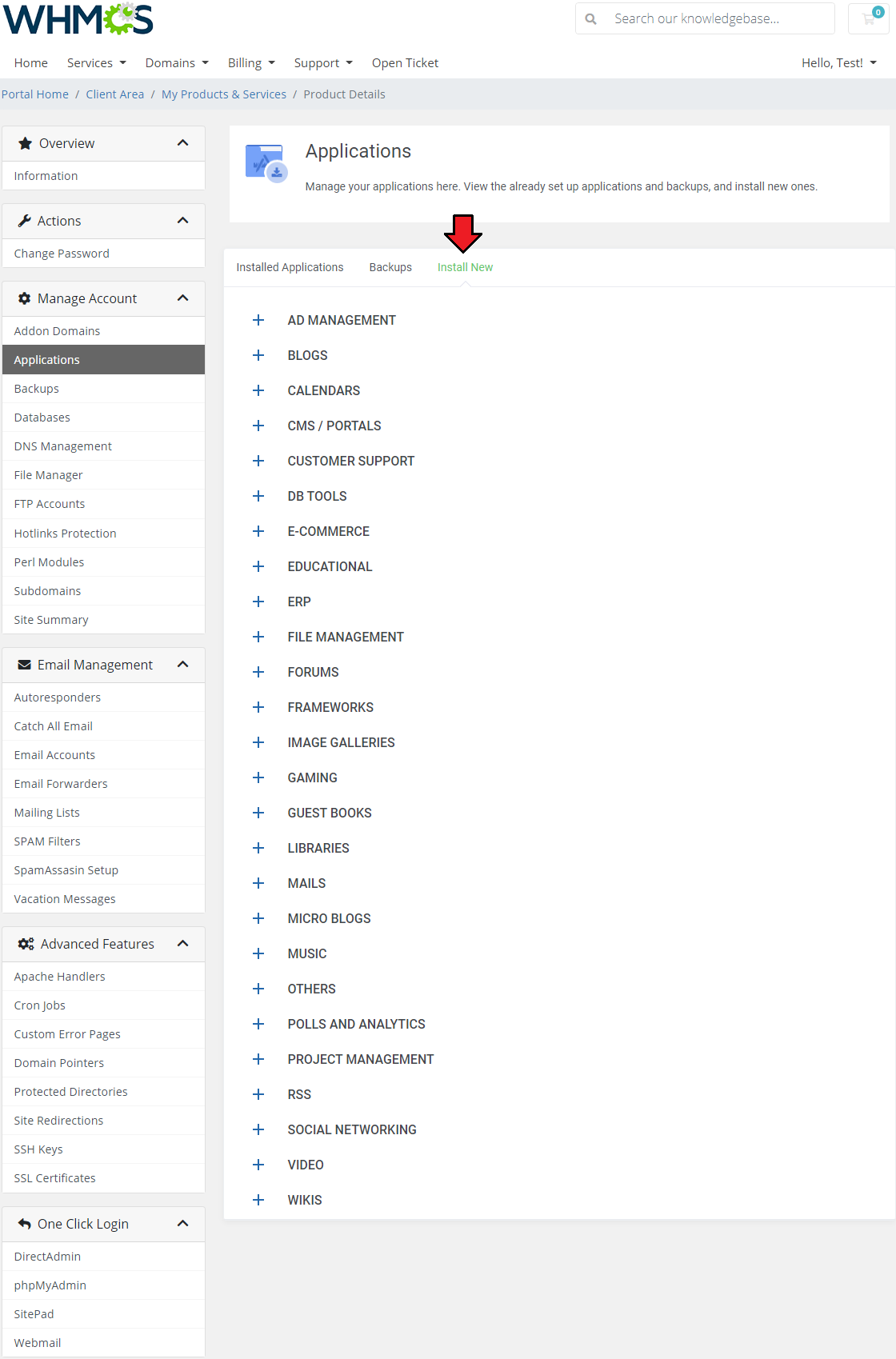
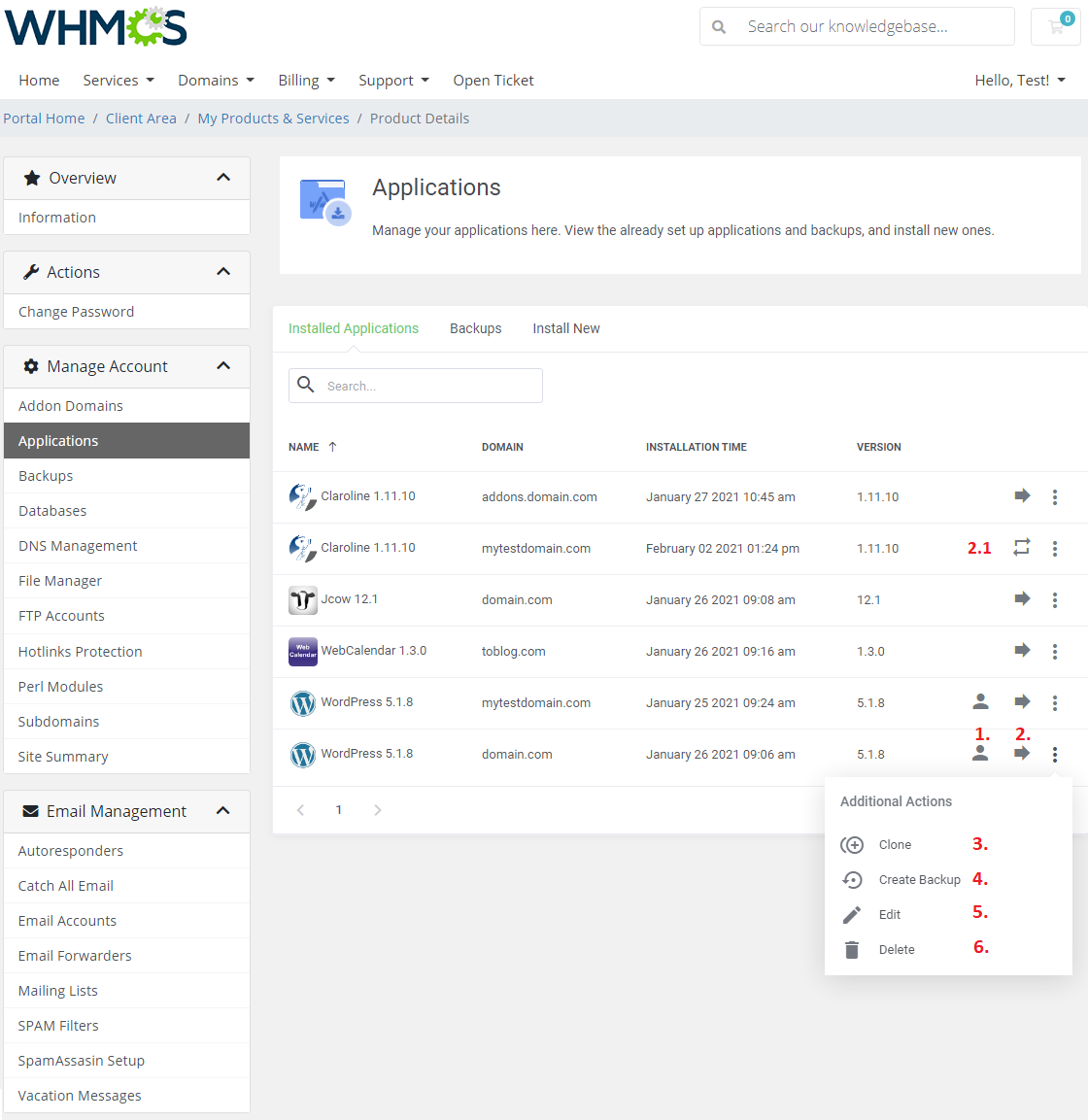
In the client area section, move to the 'Applications' section and then find the 'Install New' tab as shown on the following screen.
You will see an extensive menu of application categories.
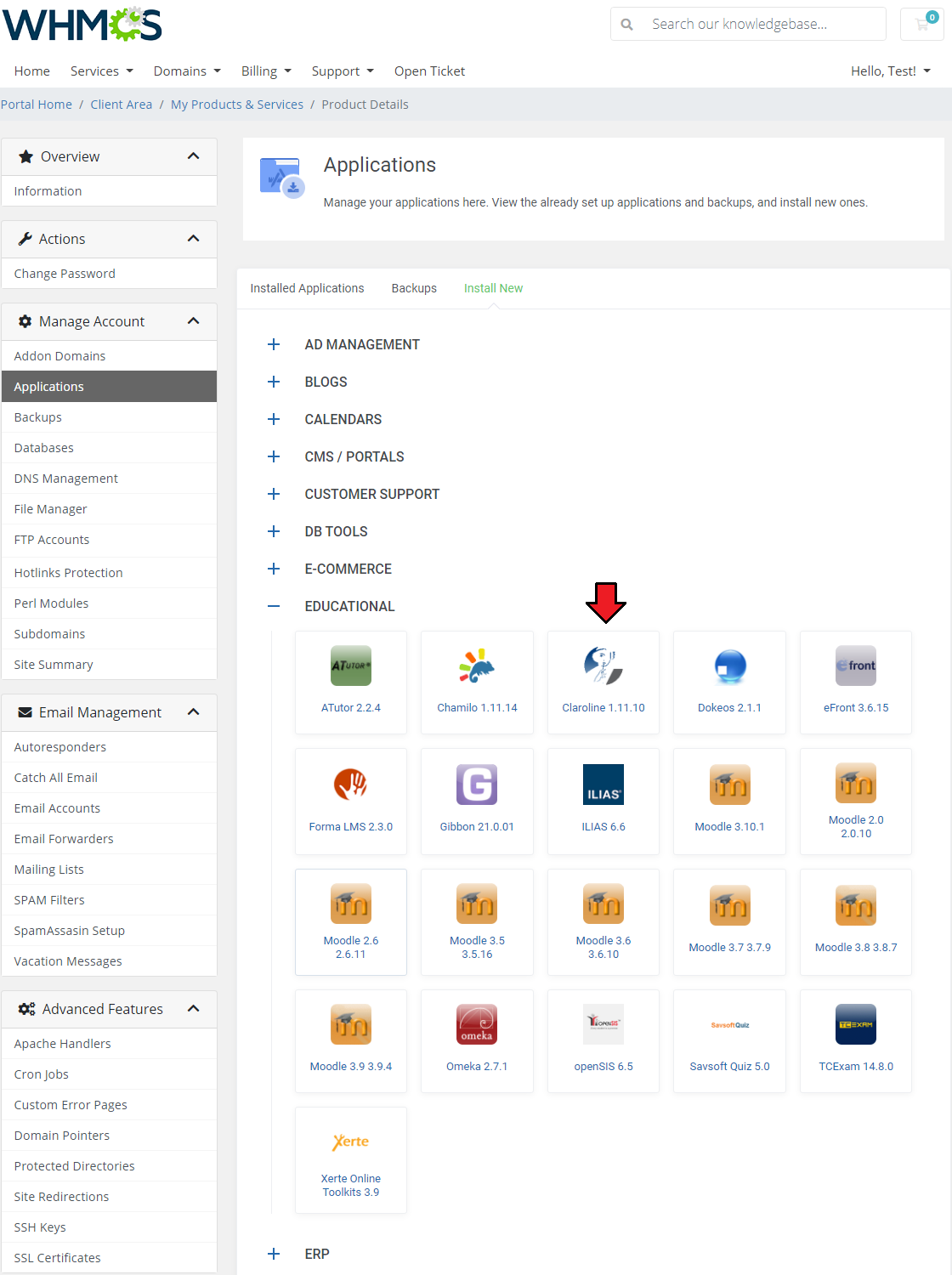
For presentation purposes we will install 'Claroline' located in the 'Educational' section.
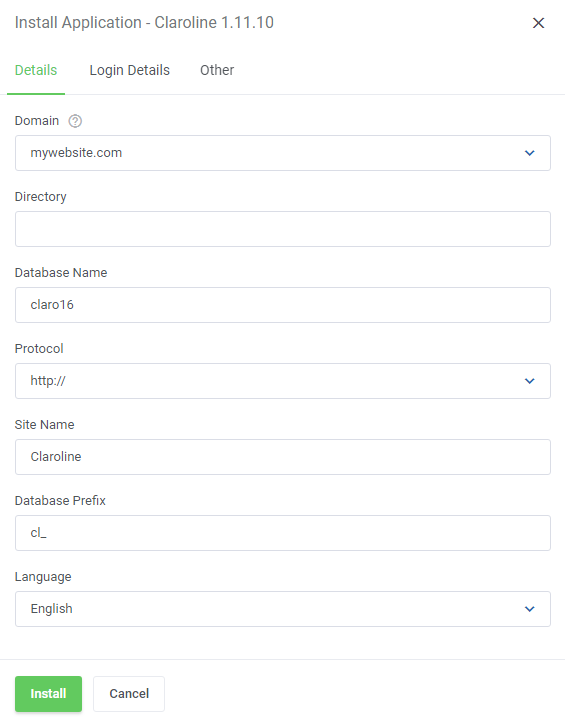
Necessary installation fields should be automatically filled in. In case the 'Directory' field is left empty, the application will be installed in the main folder of the selected domain.
If the installation process has been successful your newly installed application will appear on the list of installed ones when you go back to that tab.
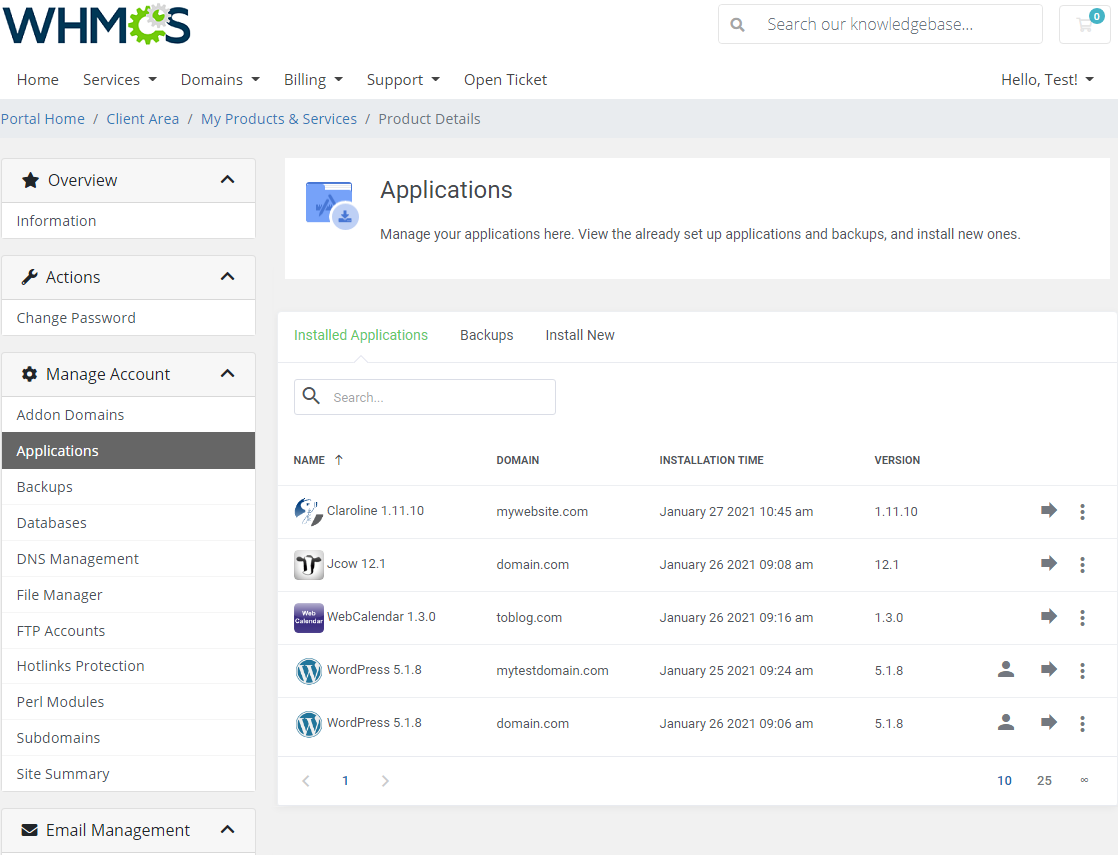
Here you can find the name of the application, its domain, installation time and version.
Available actions on installed applications:
- 'One Click Login' - works with 'WordPress' only, press the icon and you will be automatically moved to the admin panel created while installing 'WordPress' first instance
- 'Create Staging' application - create staging instances from an application, e.g. for testing purposes before pushing them to the live installation ('Softaculous' only)
- 'Push To Live' - push a staging application to the live environment. 'Push To Live' button (2.1) is available for 'Staging' applications only ('Softaculous' only)
- 'Clone' application - clone existing website installations to modify or use them on different domains ('Softaculous' only)
- 'Generate Backup'
- 'Edit' application - a form with pre-filled values will appear, you may easily modify them now.
- 'Delete' application
Note: Please keep in mind that creating staging applications, cloning, and generating backups might last up to a few minutes and the instances are not visible right away.
Please wait until they appear on the list.
# Management of Auto Installed Applications
To set up DirectAdmin Extended products with the auto installed app, follow these steps:
In the beginning, go to 'Product/Services', find your product connected with DirectAdmin Extended and enter the 'Module Settings' tab.
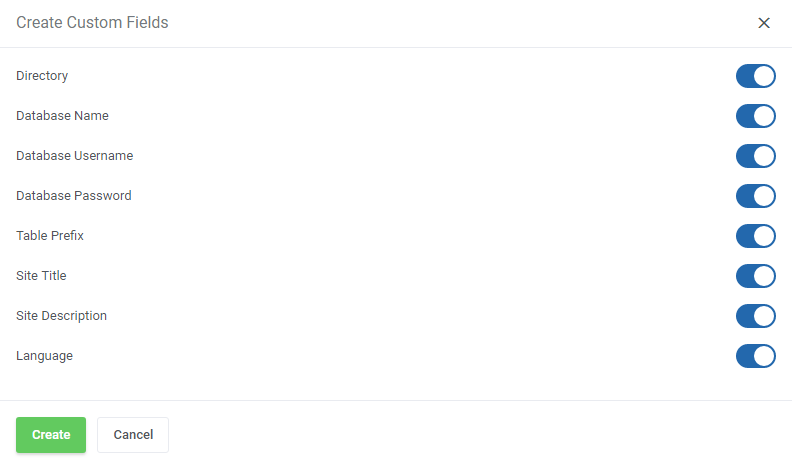
Press 'Generate Custom Fields' to automatically create the required fields.
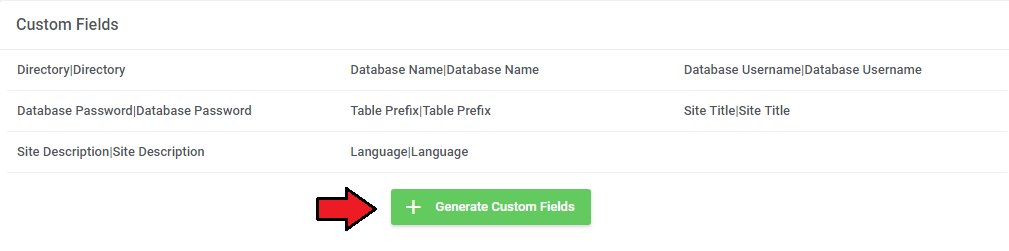
Select which of the available fields you wish to generate.
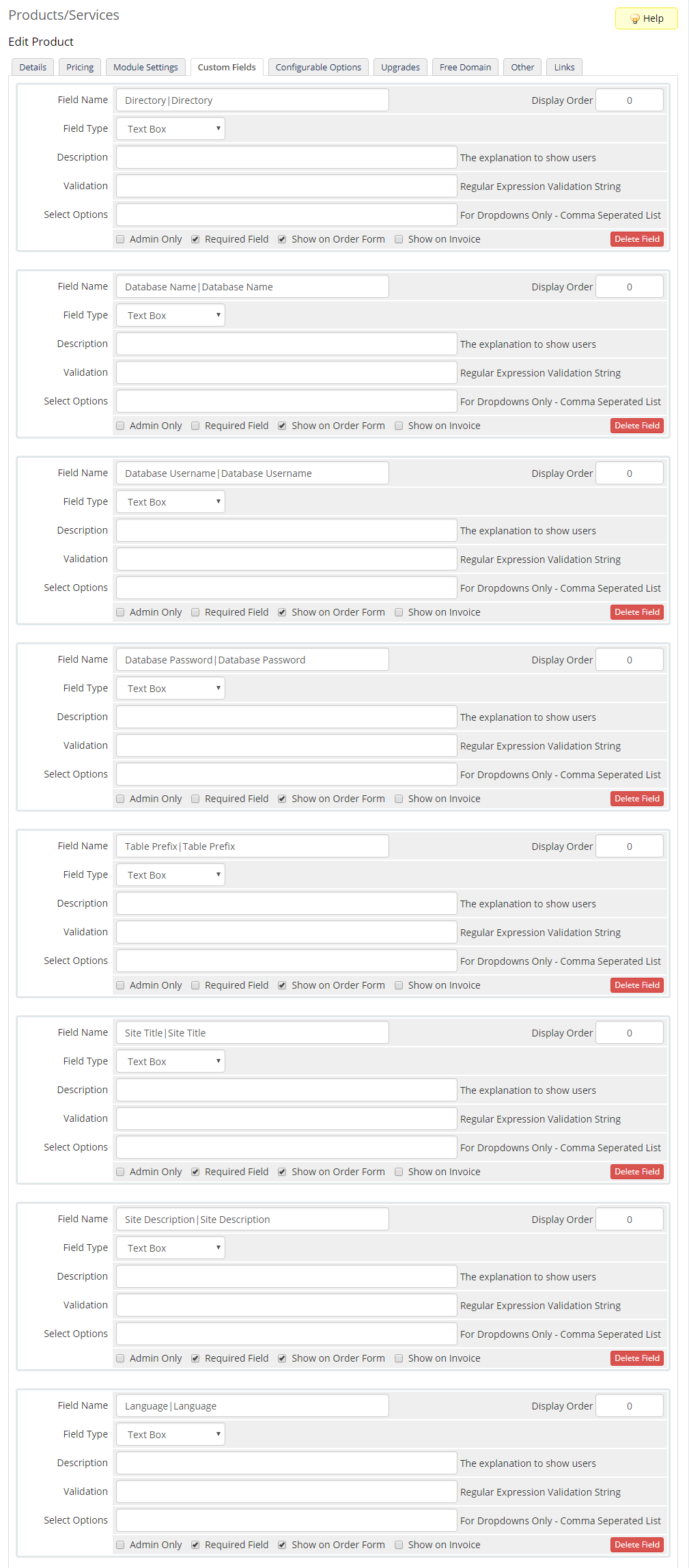
You can also create these fields manually by going to the 'Custom Fields' tab. You will need to add 8 custom fields.
These are: 'Directory', 'Database Name', 'Database Username', 'Database Password', 'Table Prefix', 'Site Name', 'Site Description' and 'Language'.
Remember to set the field type as 'Text Box', tick 'Required Field ' and/or 'Show on Order Form' exactly as it is shown on the screen below.
Note 1: 'Site Description' is needed only for Softaculous autoinstaller.
Note 2: 'Database Name', 'Database Username', 'Database Password' and 'Table Prefix' fields do not need to be filled upon ordering product by a client.
If they are not filled, the database will be automatically generated.
Note 3: For the Installatron auto installer use 'Site Title' in place of 'Site Name'.
Afterwards, go to 'Addons' → 'DirectAdmin Extended' → 'Features' → 'Configuration'.
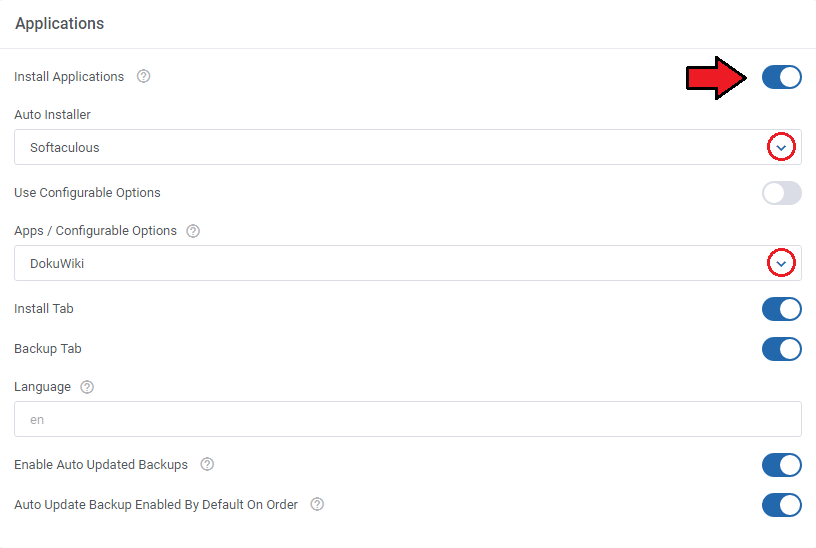
Enable 'Install Applications' in the Applications section. Select the auto installer and application to install from dropdown menus. Confirm by pressing the 'Save' button.
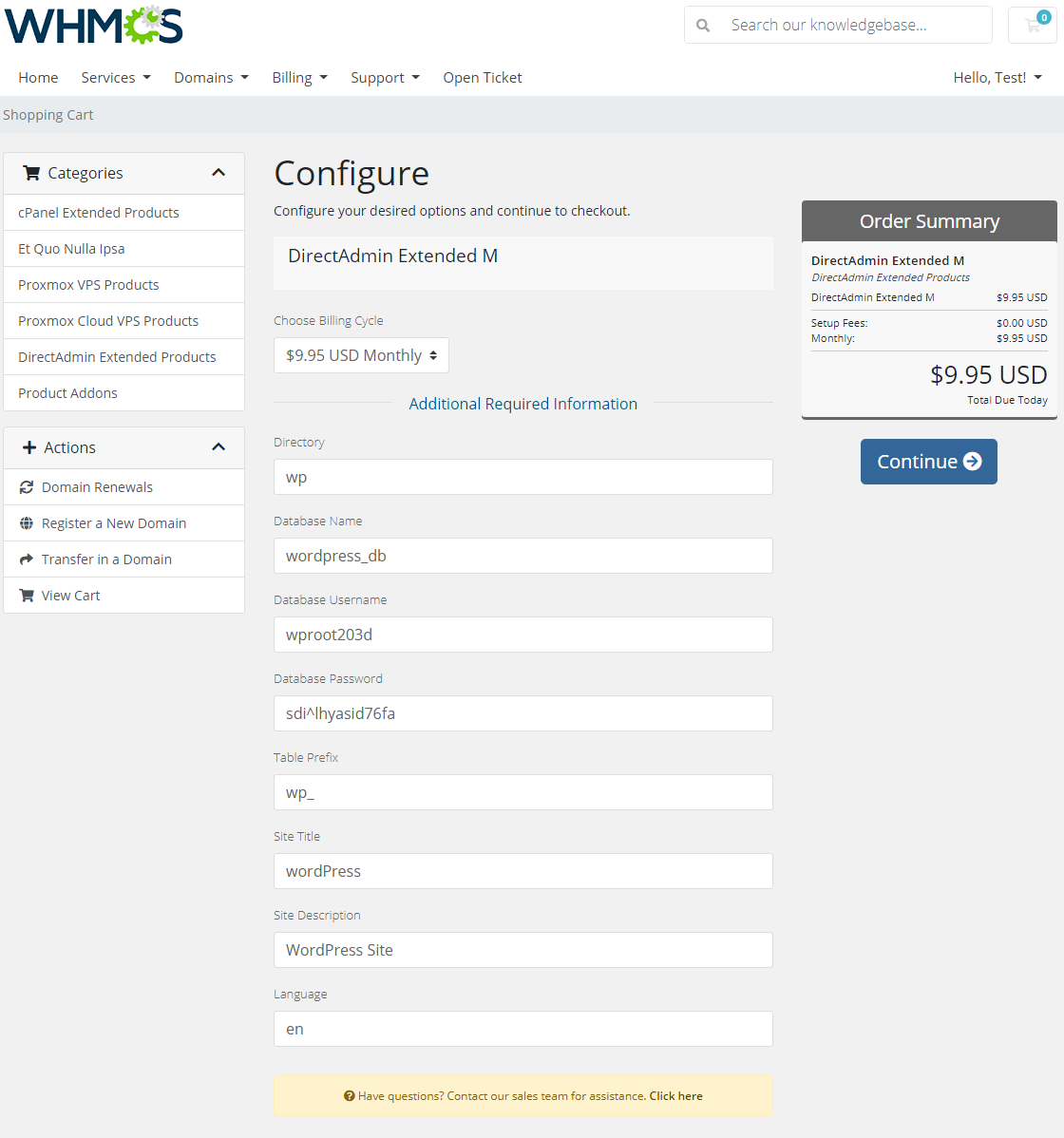
Once you add all the custom fields, they will appear while placing an order.
Voila! Now your customers can personalize each application without the necessity of installing it later on.
# Configurable Options For Application Auto Install
Let your clients decide which application they would like to install on their new DirectAdmin account.
While placing an order, your customer can choose an application which will be installed upon account creation.
There is nothing else you need to do. The application will be ready to use instantly!
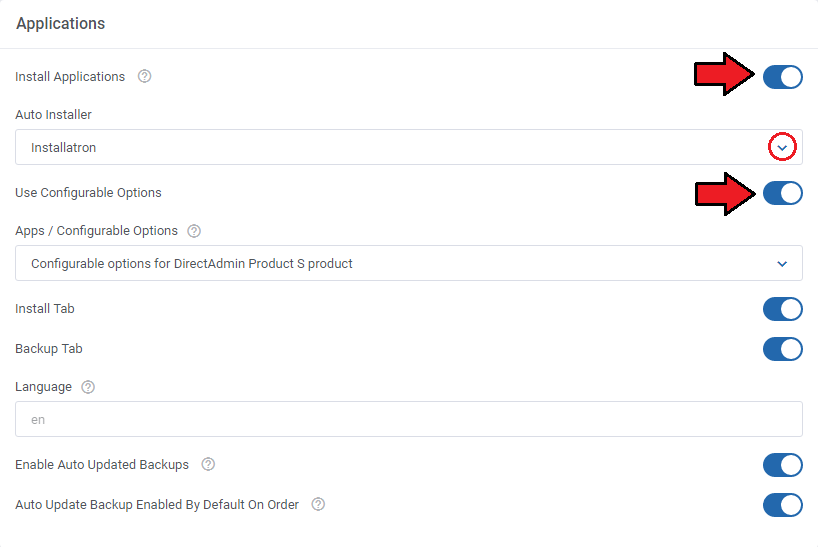
To set up this feature, return to the configuration of your product, find the 'Applications' section, activate 'Install Applications', choose 'Auto Installer' and activate 'Use Configurable Options'.
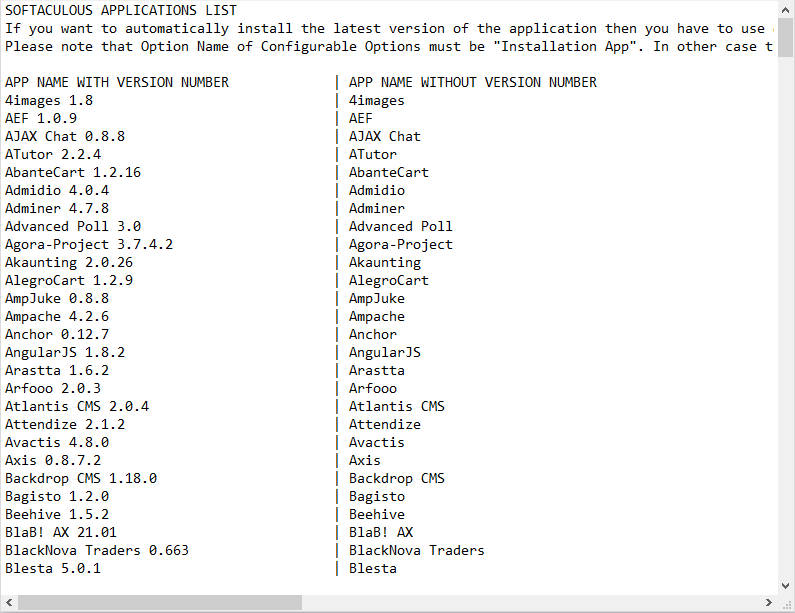
Go back to the list of products and click on a download icon to view the applications list.
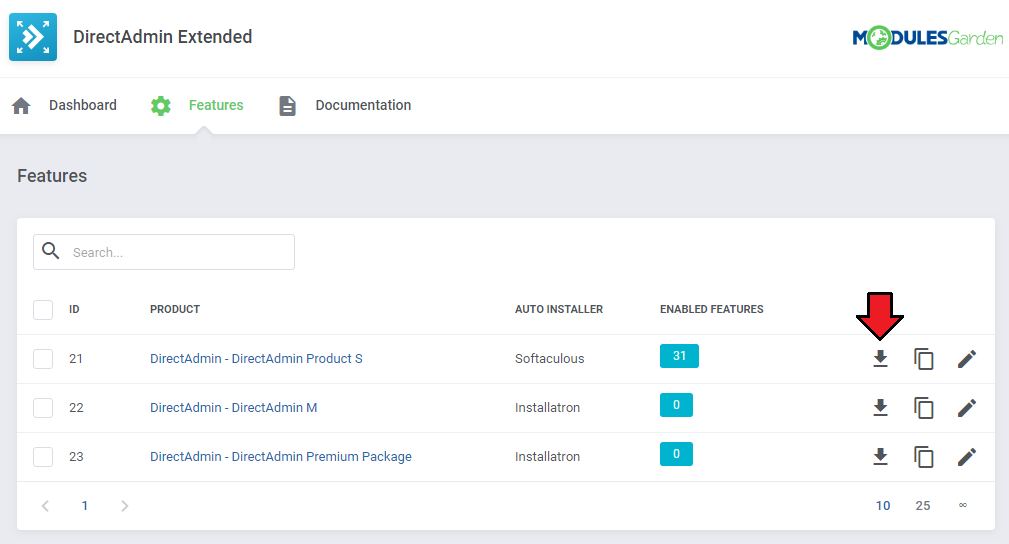
These are the names of values that you can enter in the fields of configurable options. We will configure them in the next step.
For example, if you would like to set up 'Drupal' in your applications list, you will need to enter the 'Drupal 7.59' or 'Drupal' value.
If you make a mistake with the application name, the auto installer will not work.
If you do not enter the version number, the auto installer will install the latest version of the application.
Now that you know what values should be entered in configurable options for particular applications, we can proceed further.
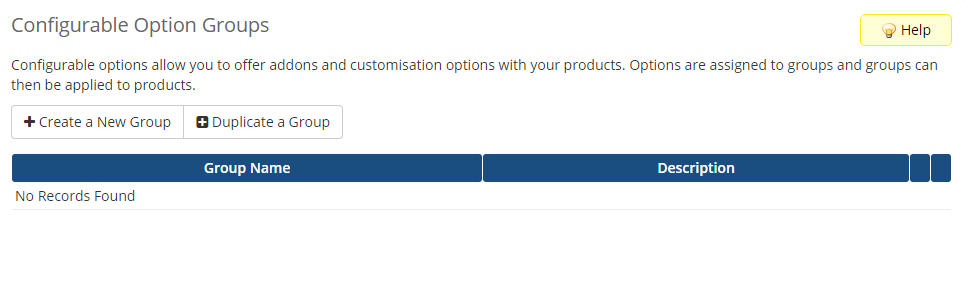
Go to your 'WHMCS' → 'Setup' → 'Products/Services' → 'Configurable Options' and press 'Create a New Group'.
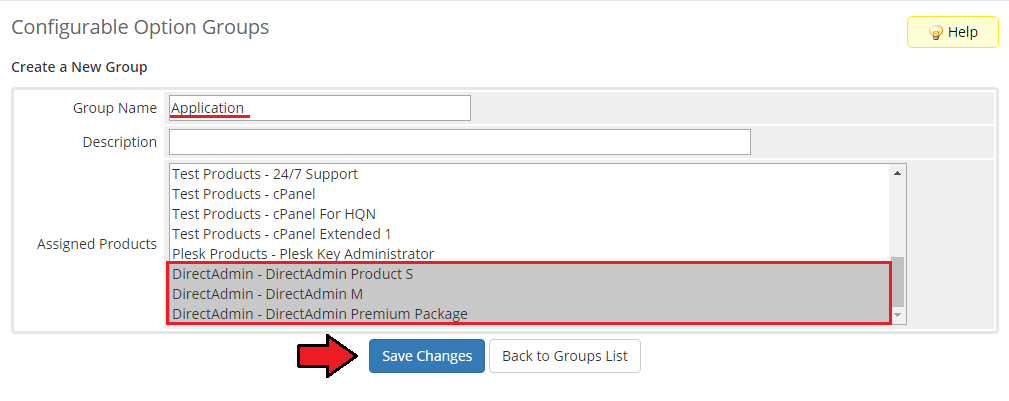
Enter the group name of your choice, select the product to which you want to assign configurable, then press 'Save Changes'.
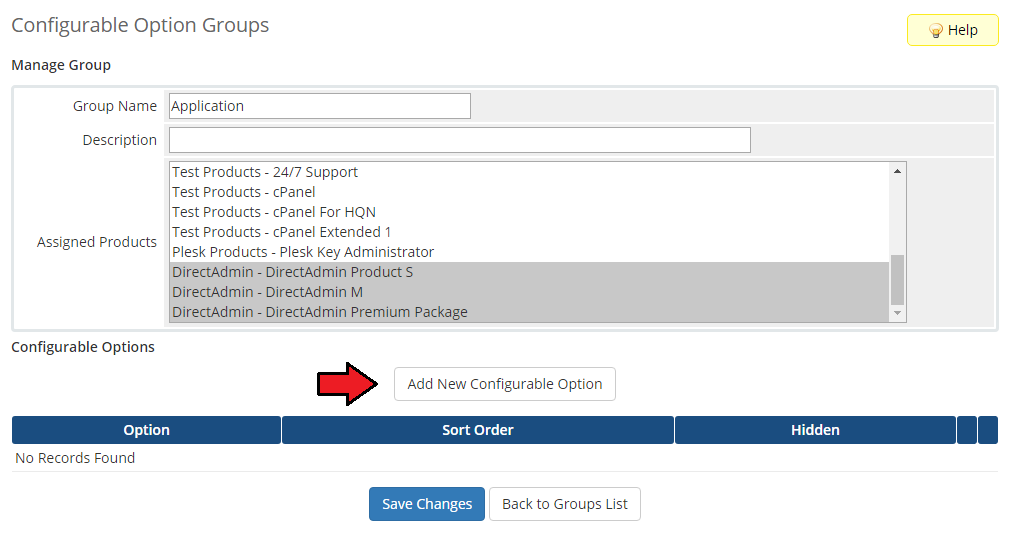
Now click on 'Add New Configurable Option'.
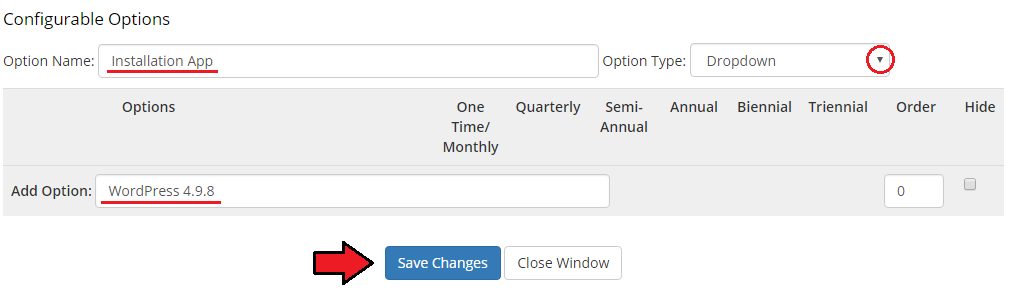
This moment is very important. As 'Option Name', you have to enter 'Installation App'. Otherwise the entire functionality will not work.
Here you can set up as many applications as you want. To do so, enter a value name, e.g. 'WordPress 4.9.8' and press 'Save Changes'.
Repeat this as many times as you need and do not forget to set 'Option Type' to 'Dropdown'.
Remember that if you do not provide the version number of the application, the latest version will be installed.
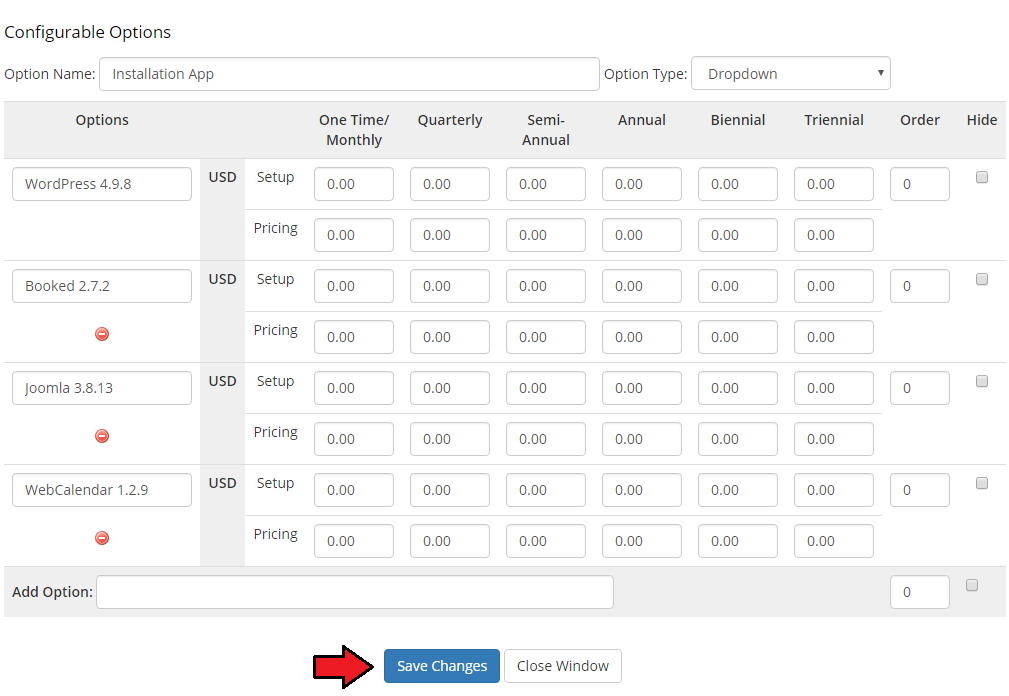
As you can see on the following screen, we decided to offer our customers five applications.
When you finish adding applications, press 'Save Changes' and 'Close Window'.
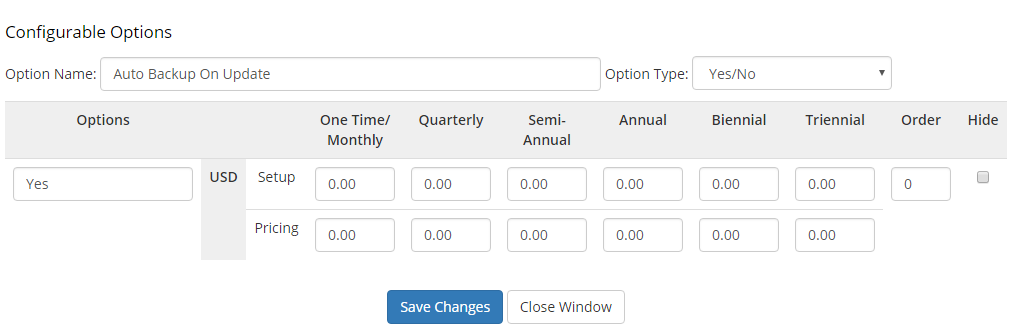
You can also create a new configurable option - Auto Backup On Update with the 'Yes/No' type.
This option is used to enable the creation of auto update backups for the first chosen application after the initial order in WHMCS.
Please note that this option works only with Installatron plugin and Auto Update Backup Enabled By Default On Order setting in the module features has to be disabled to make this configurable option work properly.
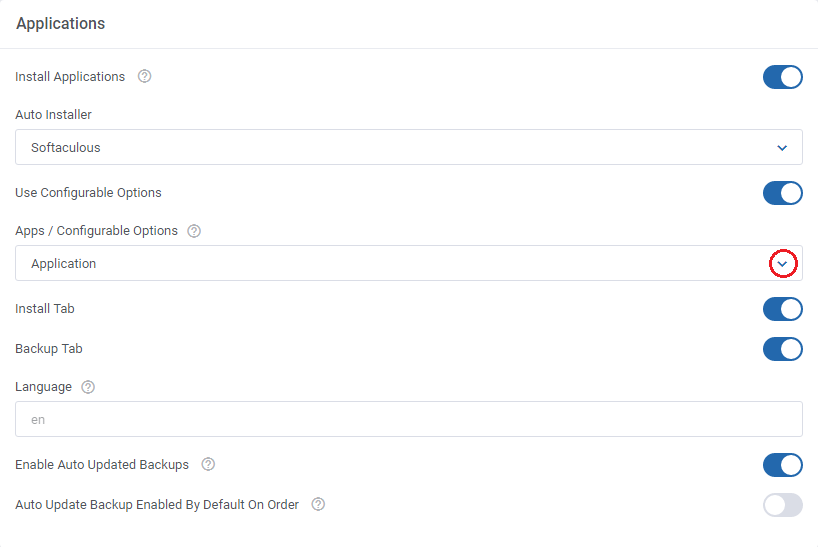
Afterwards, come back to 'DirectAdmin Extended Features' → 'Configuration' → 'Applications', activate 'Use Configurable Options' and choose 'Apps/Configurable Options' from a dropdown menu.
Please note that you can have more configurable options groups at your disposal. Press 'Save'. You have just successfully assigned configurable options to the application autoinstall.
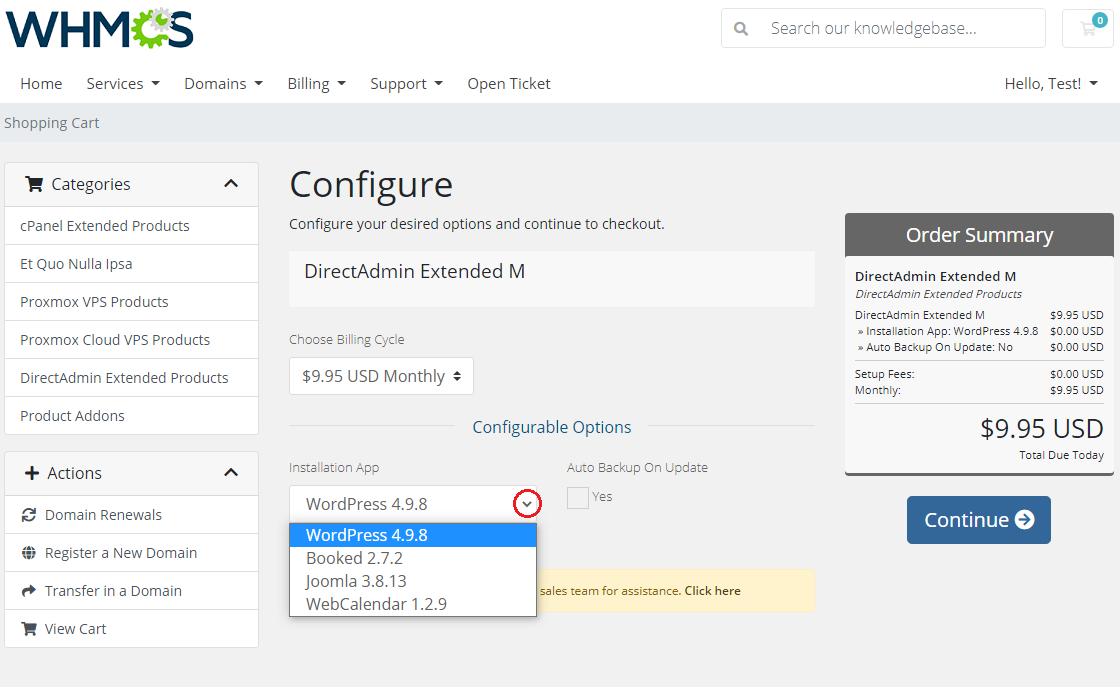
Let us find out what your customers are going to see in your client area while placing an order.
As you can see, a dropdown menu with the previously configured applications has shown up.
# Backups Management For Apps
You can also create a backup of your application. It is very easy! To do so, click 'Create Backup'.
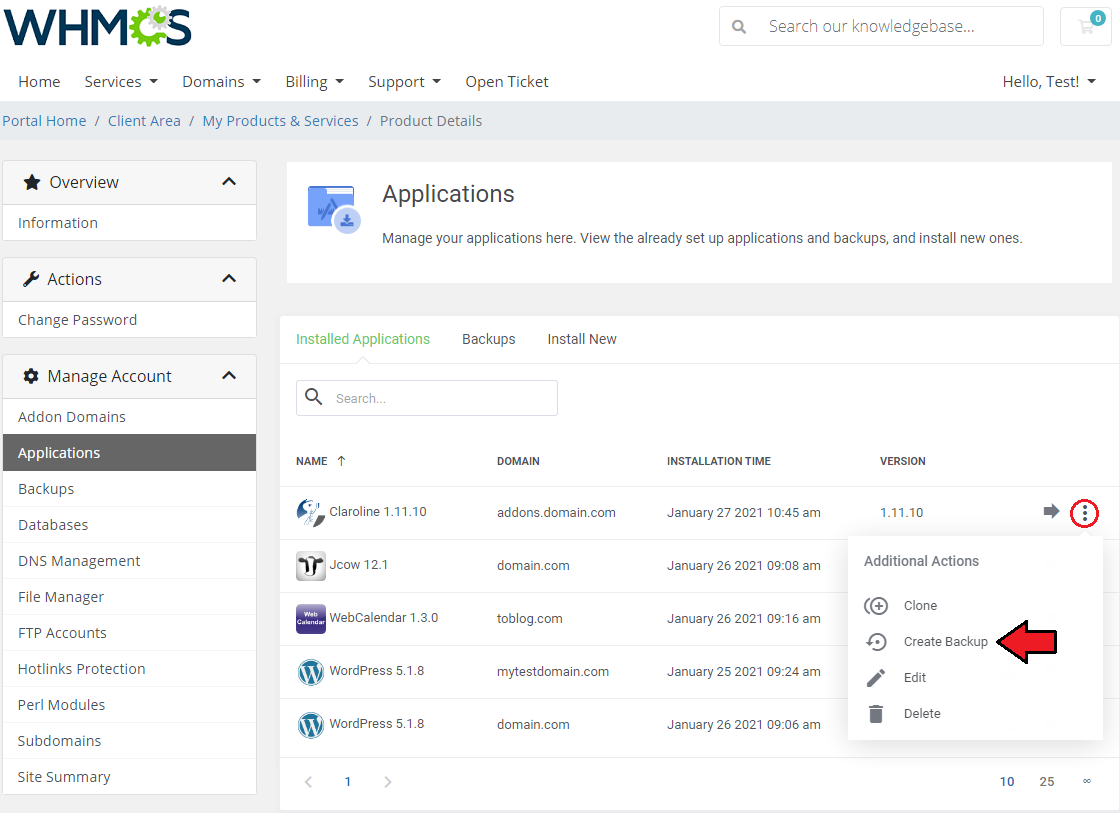
After a few seconds, you should see the 'Success' message as a confirmation of the performed operation.
To manage your backups, simply press 'Backups'.
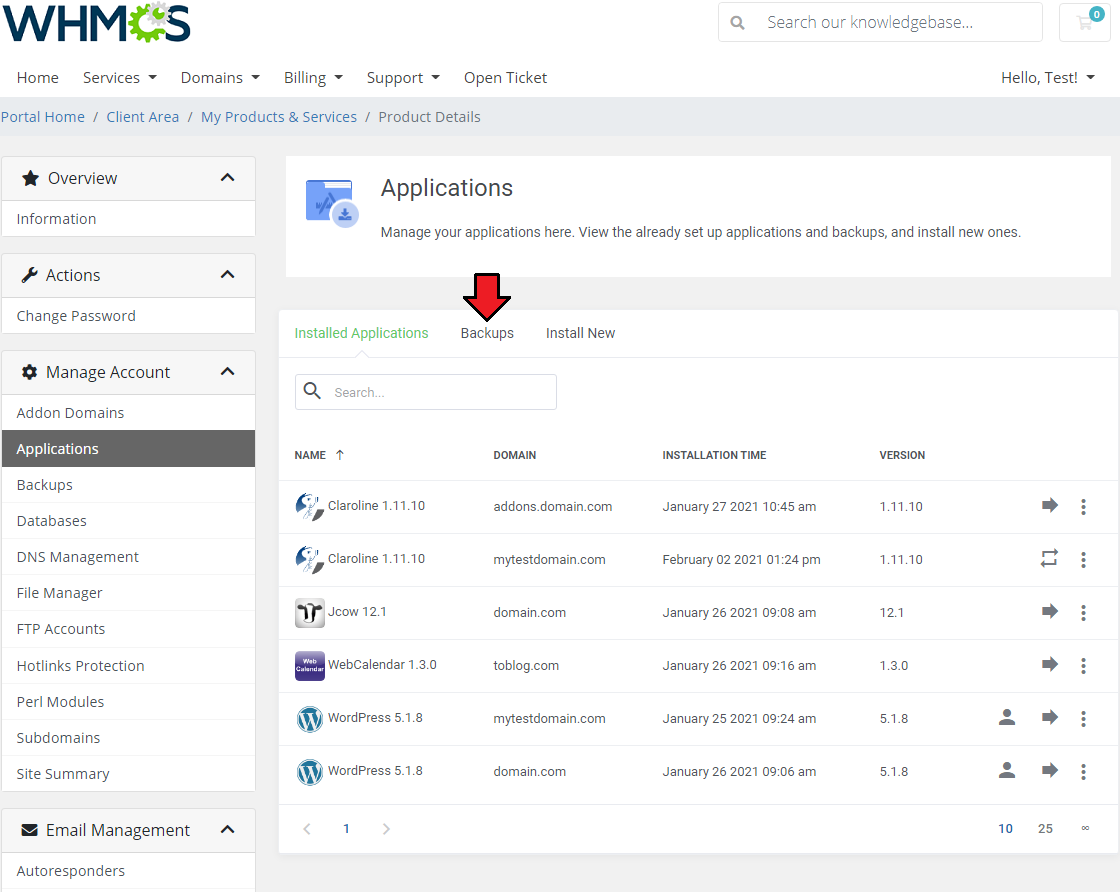
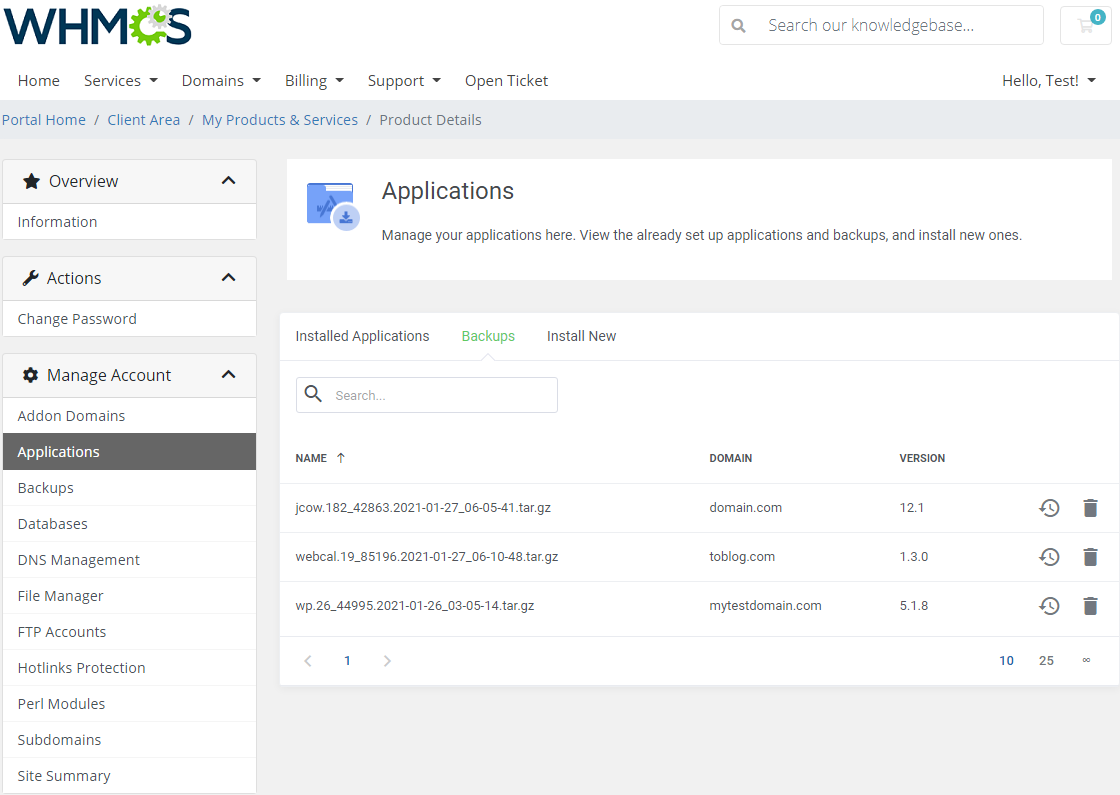
You can quickly view, delete or restore your existing backups.
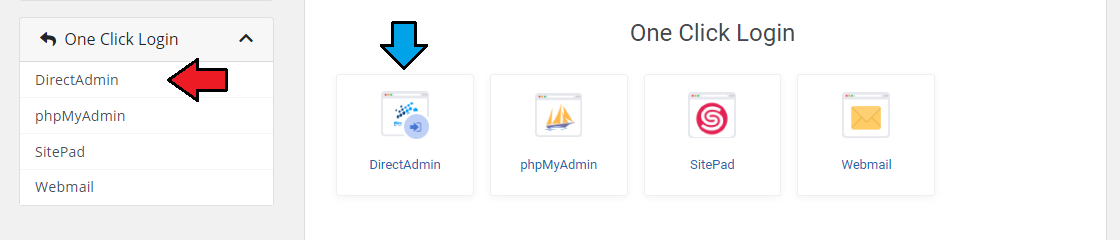
# Log In To DirectAdmin
With a single click on the 'Log In To DirectAdmin' button, you can log in to your DirectAdmin without the necessity to enter login details.
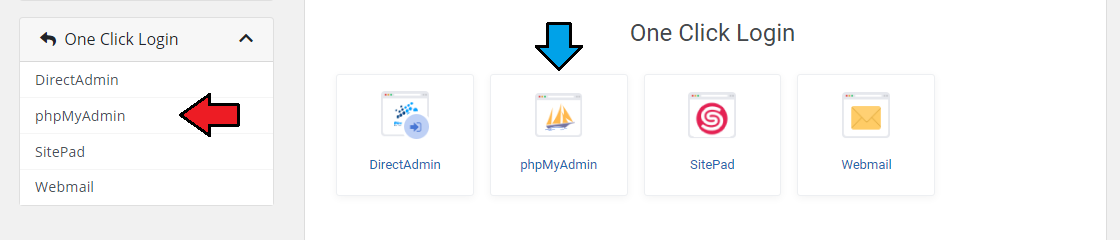
# Log In To phpMyAdmin
You can easily log in to your phpMyAdmin by clicking 'phpMyAdmin'. You will be redirected to that site on the run.
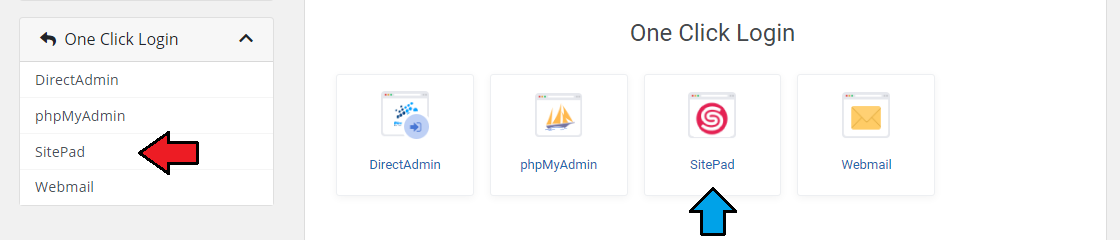
# Log In To SitePad
To be redirected to SitePad, click on the 'SitePad' button as presented below:
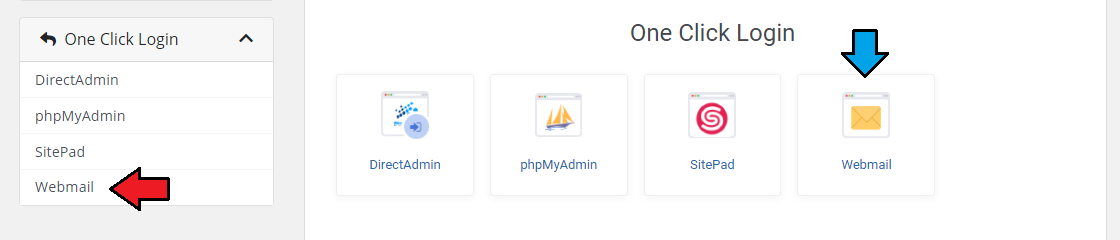
# Log In To Webmail
In order to enter Webmail, press 'Webmail' button as shown on the following screen.
Note: Webmail type login has been defined by the admin and can be either 'Horde', 'Roundcube' or 'Squirellmail'.
# Management of Billing
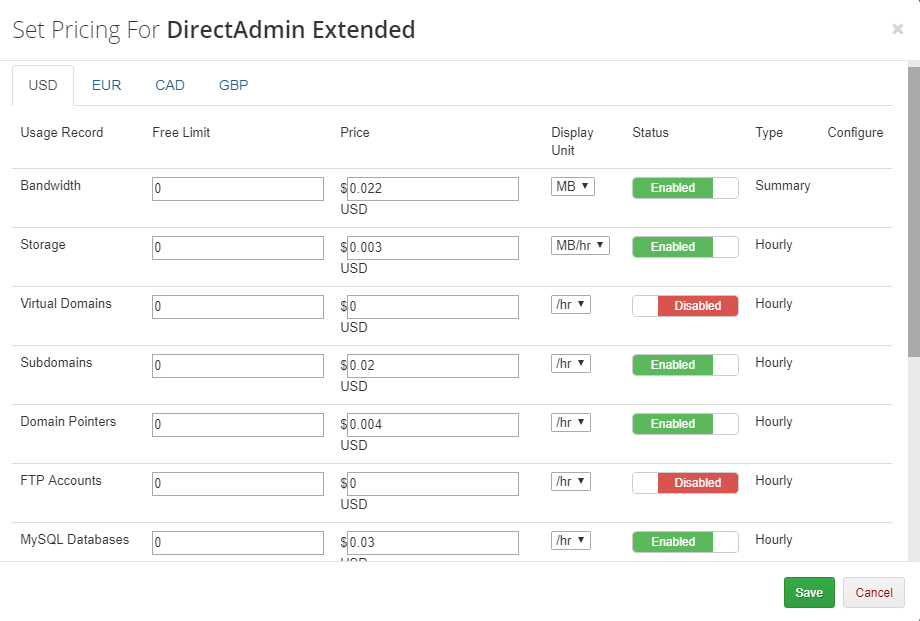
When you combine DirectAdmin Extended For WHMCS with Advanced Billing For WHMCS, you will be able to set up additional billing options.
The module allows you to charge your customers basing on the actual server resource usage.
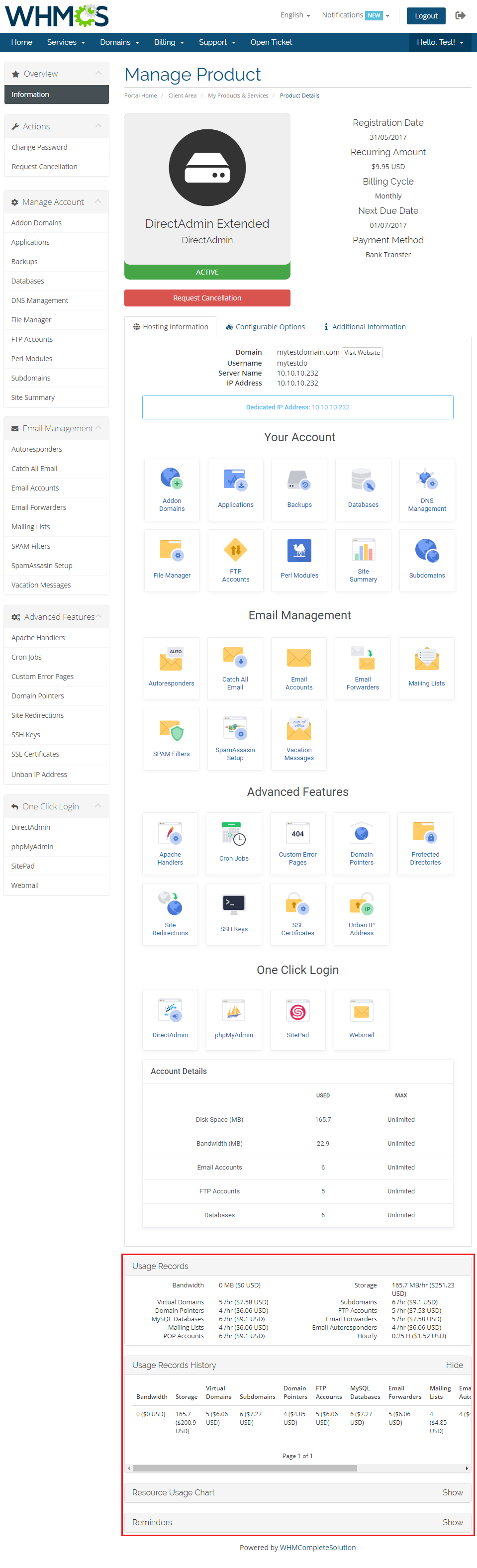
With Advanced Billing module, you can also show your customers the current usage of server resources and their cost.
# Importing Existing Account
In this section, you can find short instruction on how to connect one of your clients to your already existing account in DirectAdmin.
Take the following steps to make sure that the process will be carried out properly.
Firstly, manually create an order for your customer in WHMCS. Choose a client and in the summary, view click on the ' Add New Order' button. Next, select a 'Product/Service' and press 'Submit Order'.
What is important, do not perform the 'Create' action. The status has to remain as 'Pending'.
More info about placing orders can be found here (opens new window)Proceed to the newly created product's card in your admin area. Find the following empty fields:
- Domain
- Username
- Password
The above-mentioned information has to be consistent with the data from your DirectAdmin account. Now, complete these fields as presented below.
Important! Remember to make sure that the format of the provided data is compatible with the format supported by the module. You can preview it for another product of the module you have already created and enter it in a similar way.
Note: You need to enter a password to your DirectAdmin account. If for some reason, you do not remember your password, there has to be the possibility to reset your password and create a new one in your panel.
If you completed the required data, now change the status from 'Pending' to 'Active' and 'Save Changes'.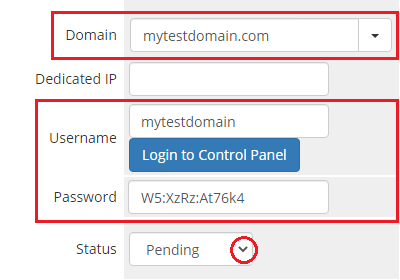
If the completed data is correct, you can log in to the account by pressing the 'Login to Control Panel' button.
Moreover, to make sure that everything works as expected, you can check if the newly-created account can be managed in the client area.
Important! Remember to manually add other missing parameters of the product in configurable options, custom fields, billing cycle, etc. so they match the parameters of the connected account from DirectAdmin.If you have Account Synchronization For WHMCS (opens new window) installed, you can use it to quickly and automatically import and synchronize your DirectAdmin account with WHMCS.
The detailed instruction can be found here.
# Use Cases
This section presents example scenarios that demonstrate typical use cases and practical applications of the module's features.
Review the examples below to see how the module can be used in real-world situations.
# Automatic App Installation With Service Order
You can set up applications to be installed automatically in DirectAdmin Extended For WHMCS products.
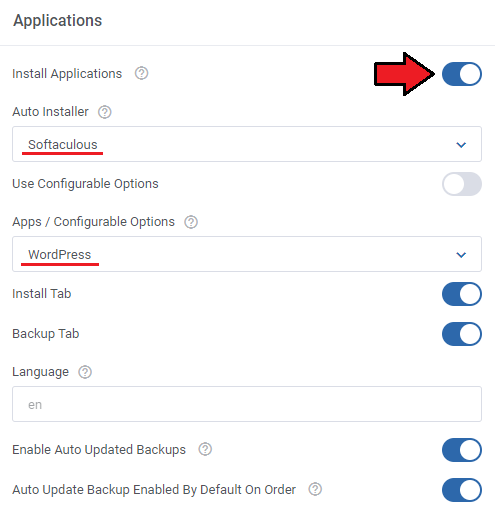
Start by opening the 'DirectAdmin Extended' addon, then navigate to 'Features' → 'Settings' and find the 'Applications' section.
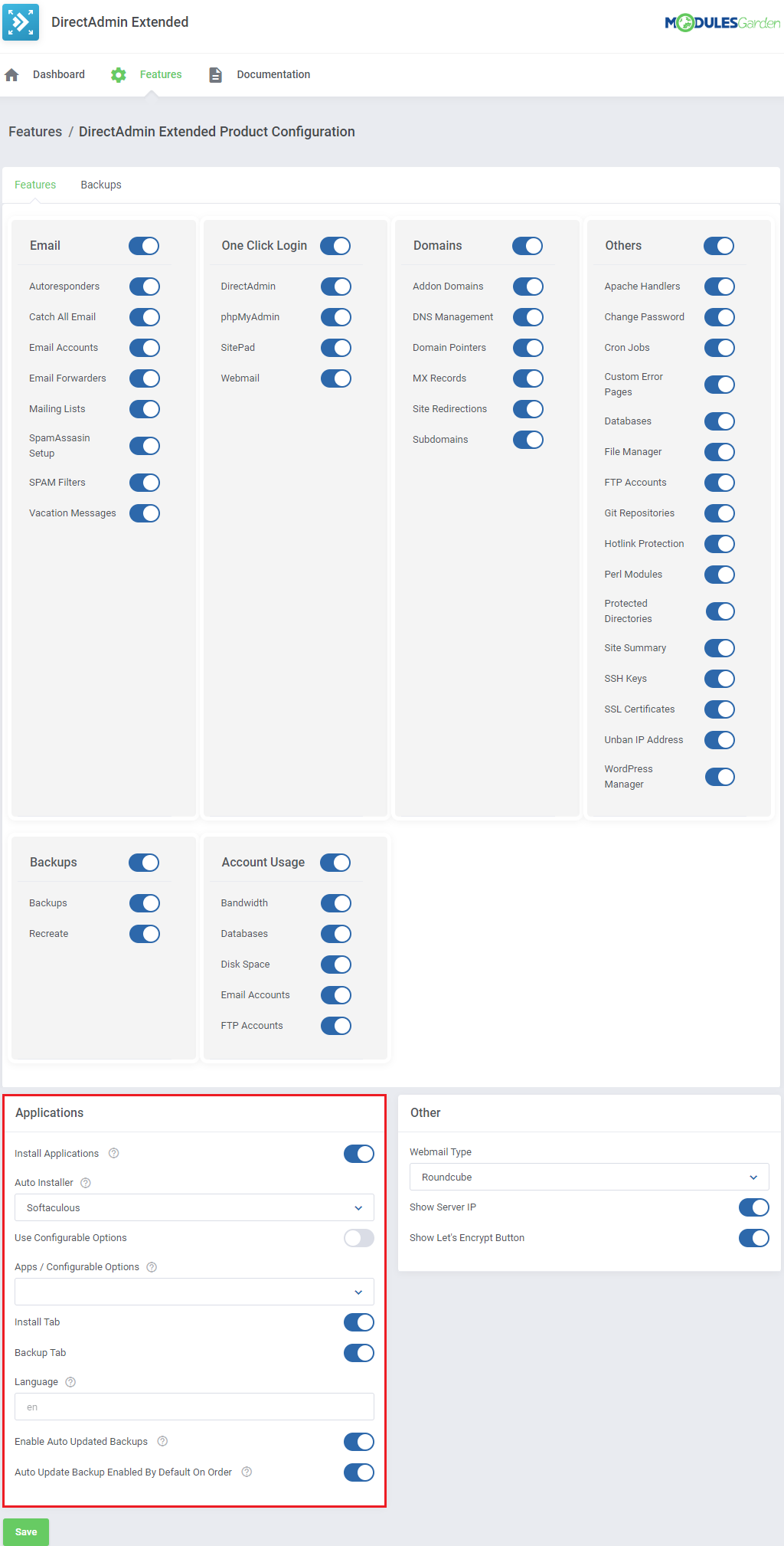
To initiate, enable the 'Install Applications' feature.
You can select an application for automatic installation in new DirectAdmin accounts by choosing the 'Auto Installer Type' and then selecting your preferred application.
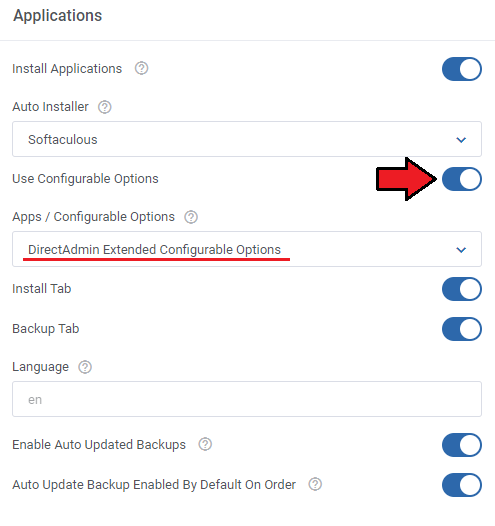
Alternatively, you can enable customers to select an application during their order process.
To do this, toggle on the 'Use Configurable Options' feature and choose from the options available in the dropdown menu.
For a comprehensive guide on how to set up these Configurable Options, refer to the 'Management' section.
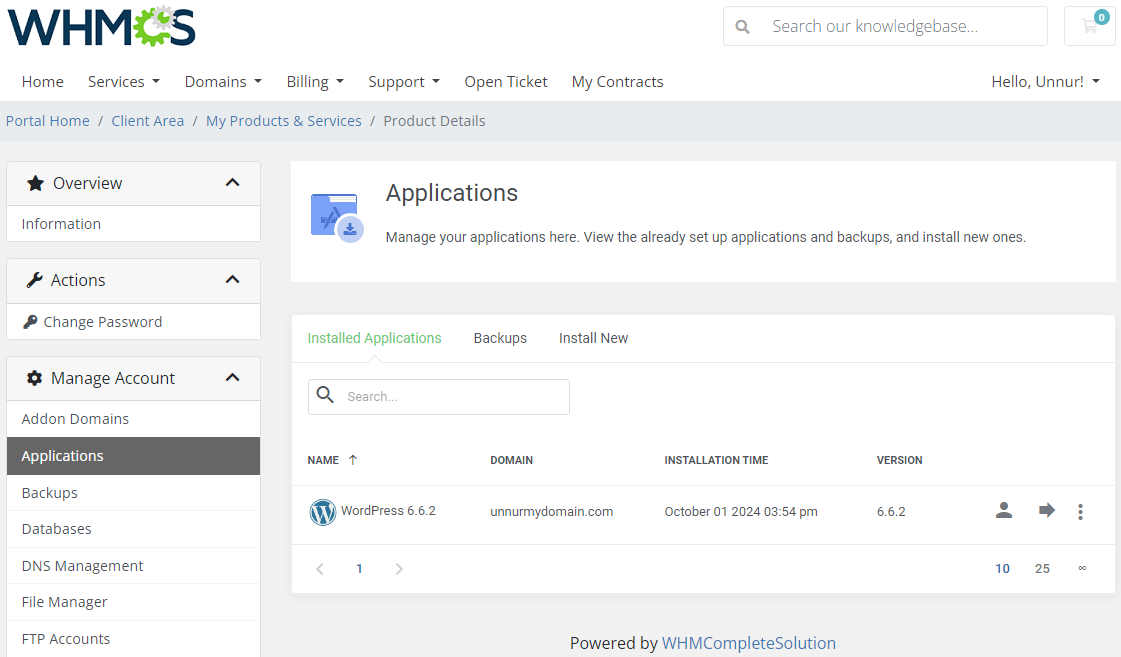
Once the client submits an order and the 'Create' action is completed, the new DirectAdmin account will be set up with the chosen application (for example, a WordPress installation).
# Tips
Keep in mind that user packages and reseller packages are two different things.
When you configure a typical product for your customers in the WHMCS, you would usually need to enter one of your user packages, not the reseller packages.To manage SSL certificates, your customers require the owned IP address.
Otherwise, the module will return the following error: 'You can manage SSL certificates when you own the IP you are using. Info for admins: Assign an owned IP'.To add the owned IP address, log in to your DirectAdmin admin area, go to the 'IP Management' section, add the IP and assign it to the admin.
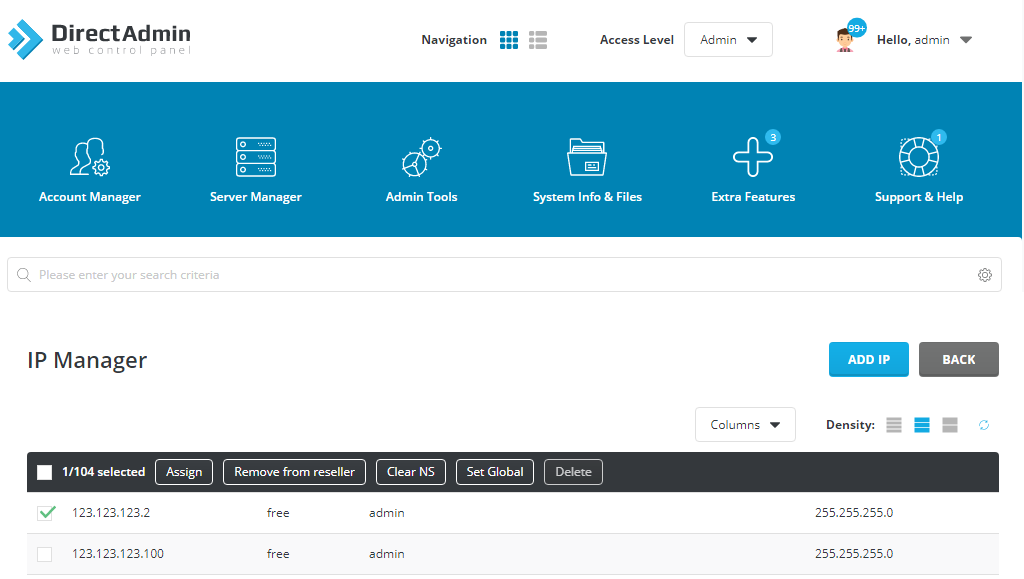
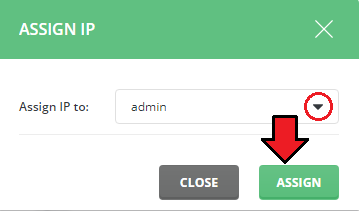
Afterwards, manage the user for whom you want to add the IP address.
Set IP to your previously created IP address, save changes and make sure that this IP will be the current IP address of your customer.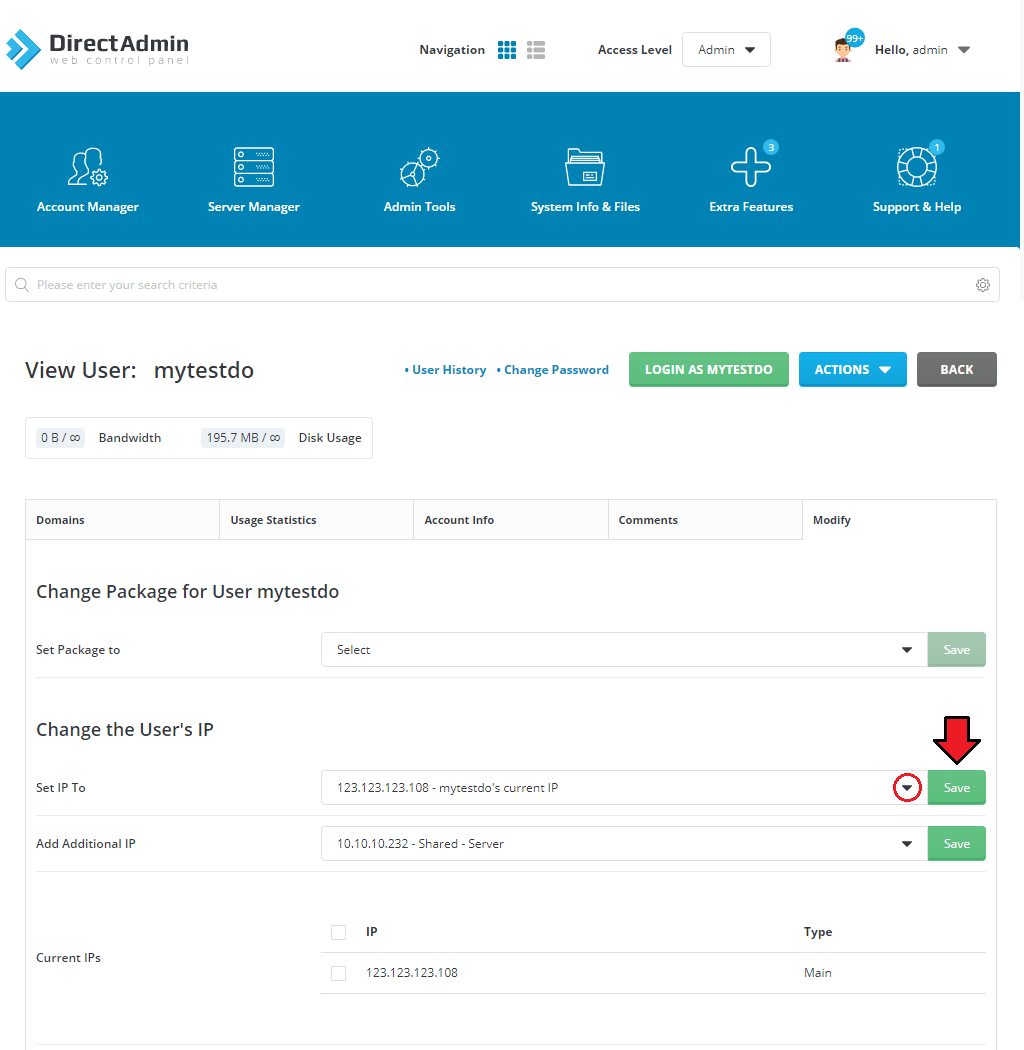
If you add more IP addresses with free status in your DirectAdmin, you can quickly assign those IP addresses to your customers in WHMCS.
For this purpose, simply type the IP in the 'Dedicated IP' field, press 'Enter' on your keyboard and update the product package by clicking on the 'Change Package' button.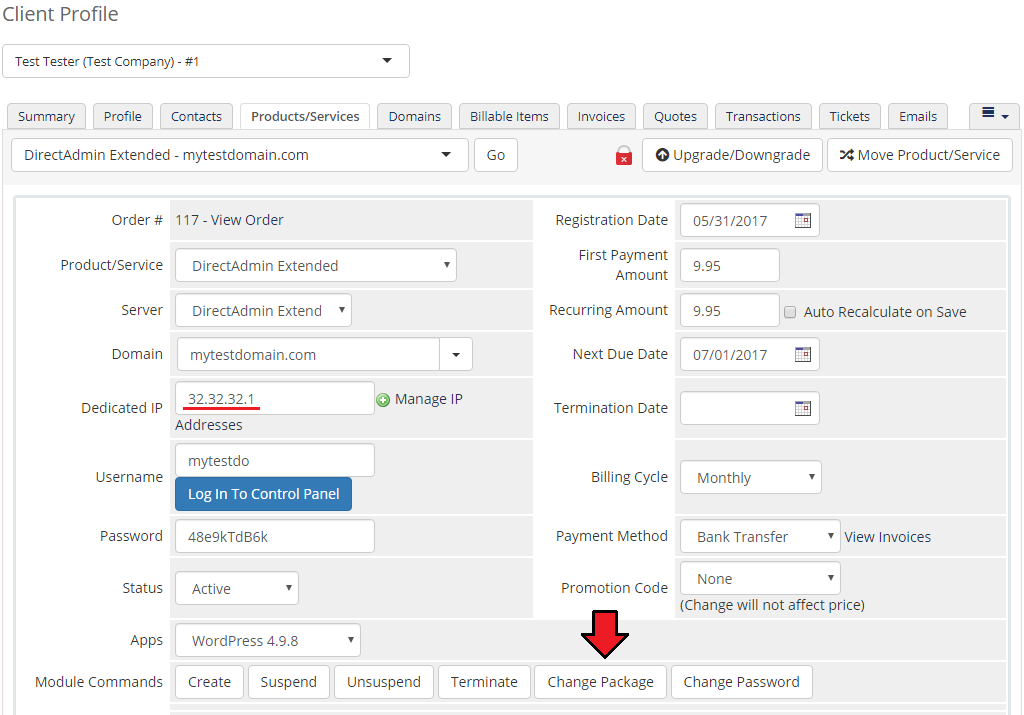
As this module supports templates system, any changes made in the module's template files will be saved after the upgrade process.
Backups management in DirectAdmin panel:
Admin Backups- Log into Your DirectAdmin Panel and find Admin Backup/Transfer and create a new one.
- Select your user and define 'When', 'Where' - set to Local and 'What' to backup.
- Go back to WHMCS → Addons → DirectAdmin Extended → Features (of the backed up product) → Backups. Fill out the 'Backup Directory Paths' with the very same data as in the panel.
FTP Backups
- Log into Your DirectAdmin Panel and find Admin Backup/Transfer and create a new one.
- Select your user ('Who') and define 'When', 'Where' - set to FTP and 'What' to backup.
- Go back to WHMCS → Addons → DirectAdmin Extended → Features (of the backed up product) → Backups. Fill out the 'FTP Backup Endpoints' with the very same data as in the panel.
Please remember that if you want to use Configurable Options then set ' -- Custom -- ' in the 'Package' field of the WHMCS product configuration.
Supported intgrations:
- Integrated With Advanced Billing For WHMCS (opens new window) - Actual Server Resource Usage Billing
- Integrated With IP Manager For WHMCS (opens new window) - Complete Control And Easy Assignment Of IP Subnets
- Integrated With Server Allocator For WHMCS (opens new window) - Automatic Assignment Of Most Suitable Servers To Products
- Integrated With WordPress Manager For WHMCS (opens new window) - Remote Installation And Management Of WordPress Instances
- Fully Integrated With Lagom WHMCS Client Theme (opens new window)
# Update Instructions
The essential guidance through the process of updating the module is offered here.
When migrating your product from version 2.x to 3.x, you must deactivate your old addon (version prior to 3.x.x) and then activate the new one (v3.x.x) to successfully migrate your current settings. (Please ignore point 8 of our modules update instruction).
No other additional steps are required to keep your addon's configuration and products' settings.
# Upgrade Guide
Seeking a solution that offers greater flexibility, customization tailored to your precise needs, and unrestricted availability?
There is an option that not only proves to be cost-effective in the long run but also includes prioritized support services, making it a truly valuable investment.
Opt for the Open Source version (opens new window) of your DirectAdmin Extended For WHMCS module to unlock these benefits.
Simply click on either the Get Source Code or Upgrade To Lifetime button found on the product's page in our client area to complete the one-step upgrade process, with a dedicated discount already applied.
Follow a comprehensive guide covering the transition process, the advantages it brings, and step-by-step instructions on what to do next after the order has been successfully finalized.
# Common Problems
When you have problems with connection, check whether your SELinux or firewall does not block ports.
If you have problems with connection, we recommend that you make sure that the default DirectAdmin port 2222 is open.
You can also change the DirectAdmin port to other than 2222 by using the 'Override with Custom Port' option while configuring the server.If you run into an ionCube encoder problem (wrong version) after the installation, please open a support ticket.
We will provide you with a different version of the module encrypted with the older version of ionCube.DirectAdmin Extended For WHMCS module functions only on the administrator account.
Change Package option currently does not support the Configurable Options.
If you encounter error: 'Unexpected Module Error(Token 'f80e57b1be9752d7d4658434bd55aafa2'). Please Contact Administrator.' displayed in the client area,
reissue your license in our client area, if that does not help, please contact our support department."Applications" and "SSO" functionality issues in DirectAdmin Version 1.671.
The API returns an 'Access Denied' error for "Applications" and "SSO" functionalities when the Login Keys option is disabled in the DirectAdmin account.
To resolve this issue and ensure the proper functionality of the "Applications" and "SSO" options in the DirectAdmin Extended For WHMCS module, make sure the "Login Keys" option is enabled in your DirectAdmin account.
Note: It is recommended to disable Login Keys notifications to prevent sending email alerts on every API request for "Applications" and "SSO" .
To do this, set the following option in the DirectAdmin global configuration to0:login_keys_notify_on_creation
More details can be found in the official DirectAdmin documentation (opens new window).
Example commands:
da config-set login_keys_notify_on_creation 0
systemctl restart directadmin