

# Client Area Designer For WHMCS
# (opens new window) About Client Area Designer For WHMCS (opens new window)
Client Area Designer For WHMCS will allow you to tailor the view of your entire WHMCS client area.
The module will let you alter the order and visibility of displayed elements, adjust existing widgets and add new ones, or even create customizable slideshows.
Additionally, you may set up restrictions rules to show the particular components to selected clients only.
# Installation
This tutorial will show you how to successfully install and configure Client Area Designer For WHMCS. (opens new window)
We will guide you step by step through the whole installation and configuration process.
- Log in to our client area and download the module.
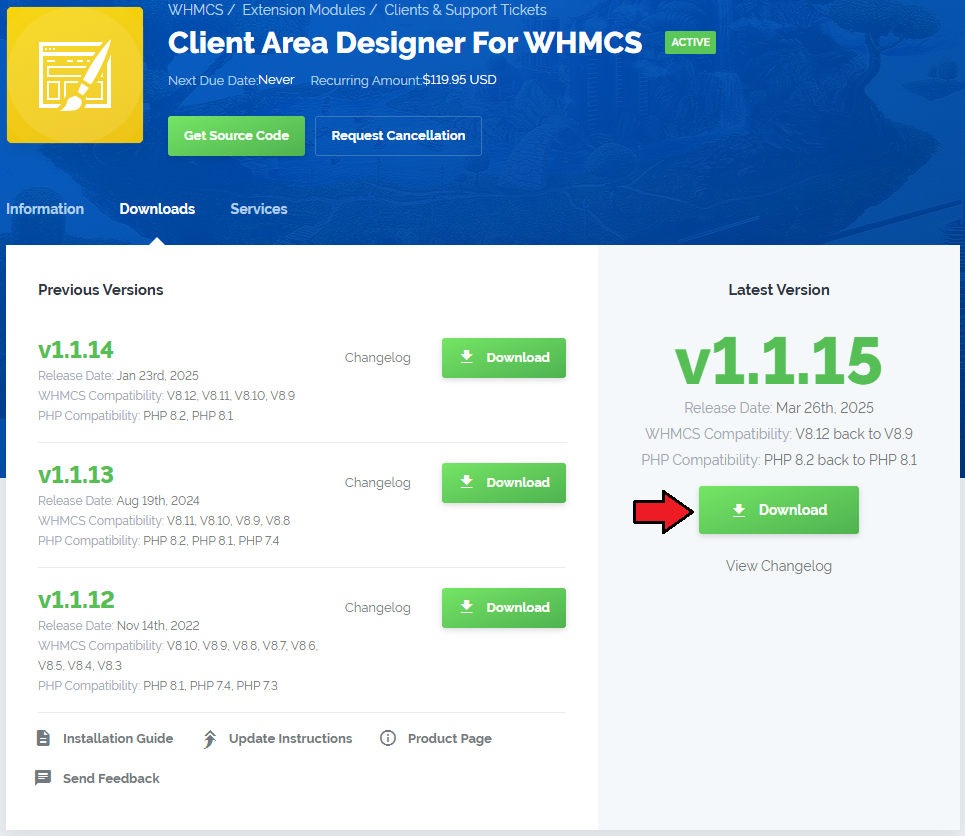
Extract the package and upload its content into the main WHMCS directory.
The content of the package to upload should look like this.
When you install Client Area Designer For WHMCS for the first time you have to rename 'license_RENAME.php' file.
File is located in 'modules/addons/ClientAreaDesigner/license_RENAME.php'. Rename it from 'license_RENAME.php' to 'license.php'.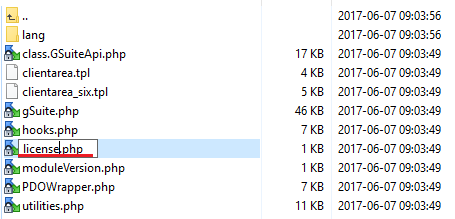
In order to configure your license key, you have to edit the previously renamed 'license.php' file.
Enter your license key between quotation marks as presented on the following screen. You can find your license key in our client area → 'My Products'.
Now you have to activate the module in your WHMCS system.
Log in to your WHMCS admin area. Go to 'System Settings' → 'Addon Modules'. Afterwards, find 'Client Area Designer' and press 'Activate' button.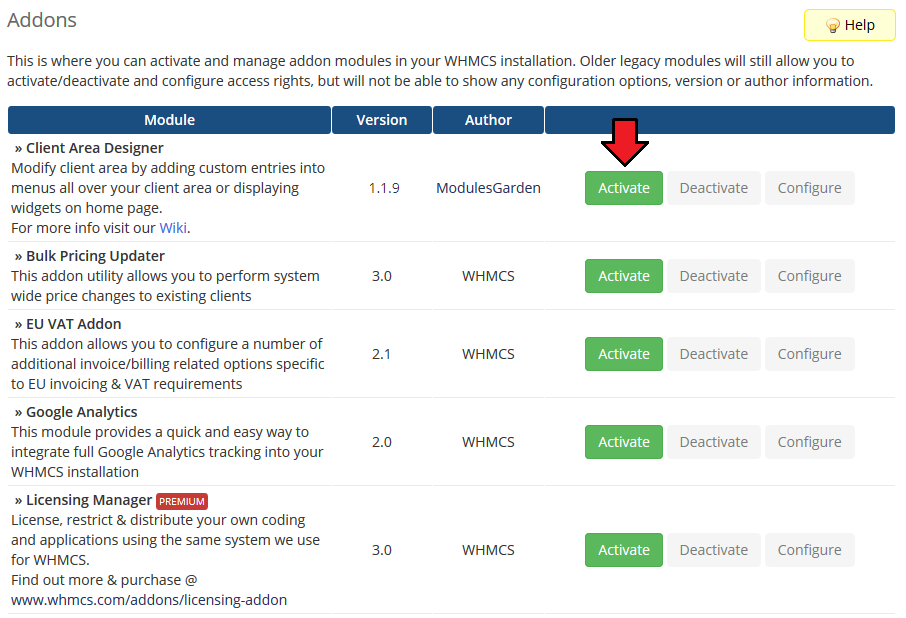
In the next step you need to permit access to this module.
To do so, click on 'Configure' button, tick 'Full Administrator' and press 'Save Changes'.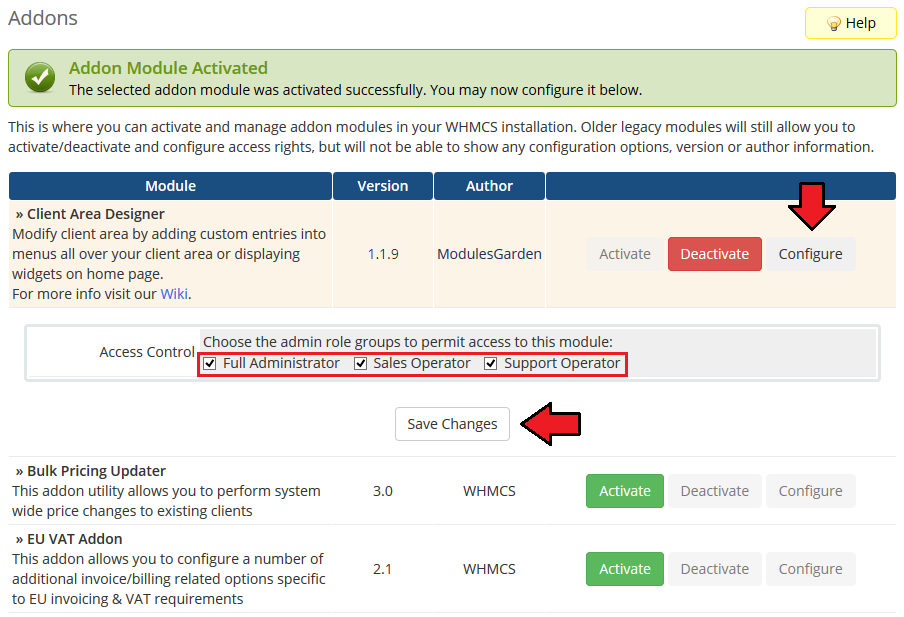
You have just successfully installed Client Area Designer For WHMCS!
You can access your module under 'Addons' → 'Client Area Designer'.
# Configuration and Management
Client Area Designer For WHMCS is a module which allows you to adjust the layout of any panels available on your client area as well as add new widgets.
The module does not require highly advanced configuration.
That is why we will immediately move to the most crucial aspect, which is customizing the panels layout.
# Panels
Under 'Panels' tab you will find three sections dedicated to the visibility of different types of panels in your client area.
- Navbars - Management of positions available on the navigation bar in your client area
- Sidebars - Management of panels available on the left sidebar in your client area
- Homepage Widgets - Modify and create new widgets available on your home page
# Navbars
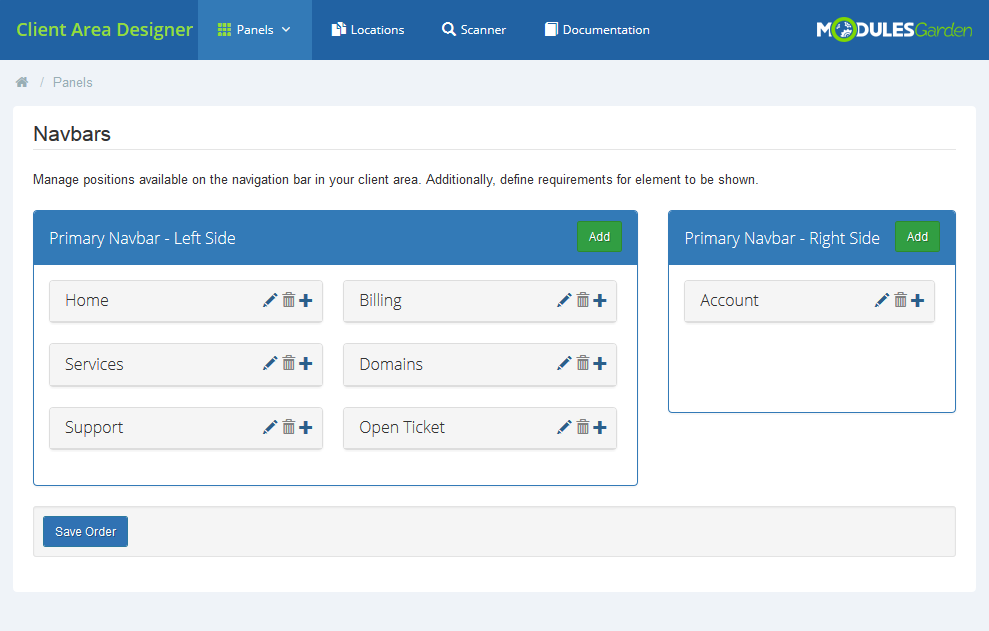
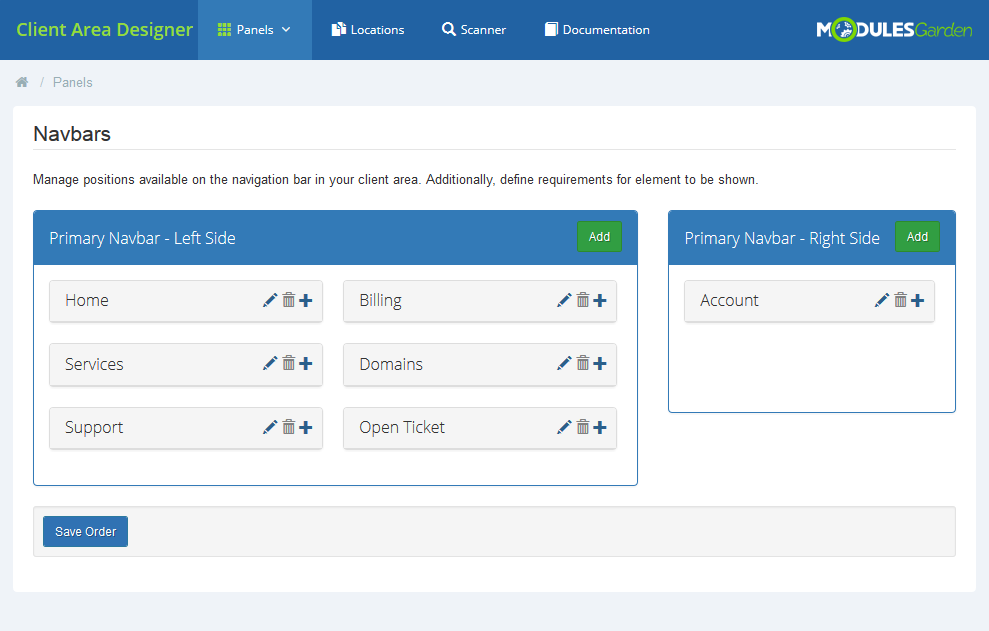
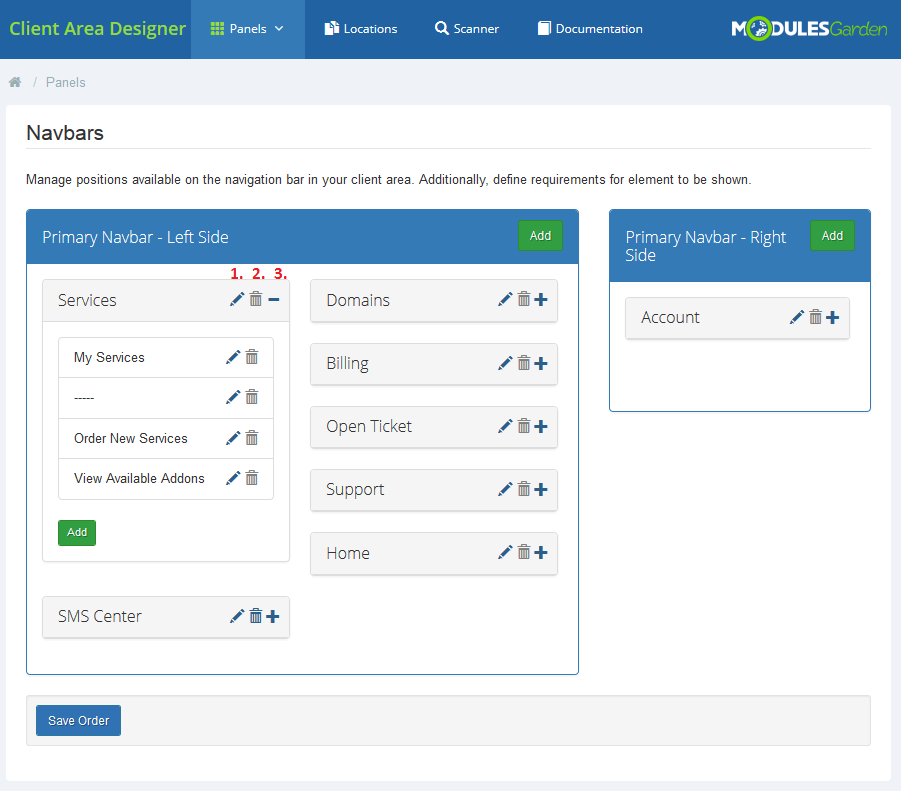
On the first sight you will see two tables, each related to Primary Navbar Left or Right side.
There are already all the predefined sections outlined with their official names and positions.
Info:
If you already see that you have more elements than it is visible in the addon, then use 'Scanner' to search for them.
Read more about scanning option here.
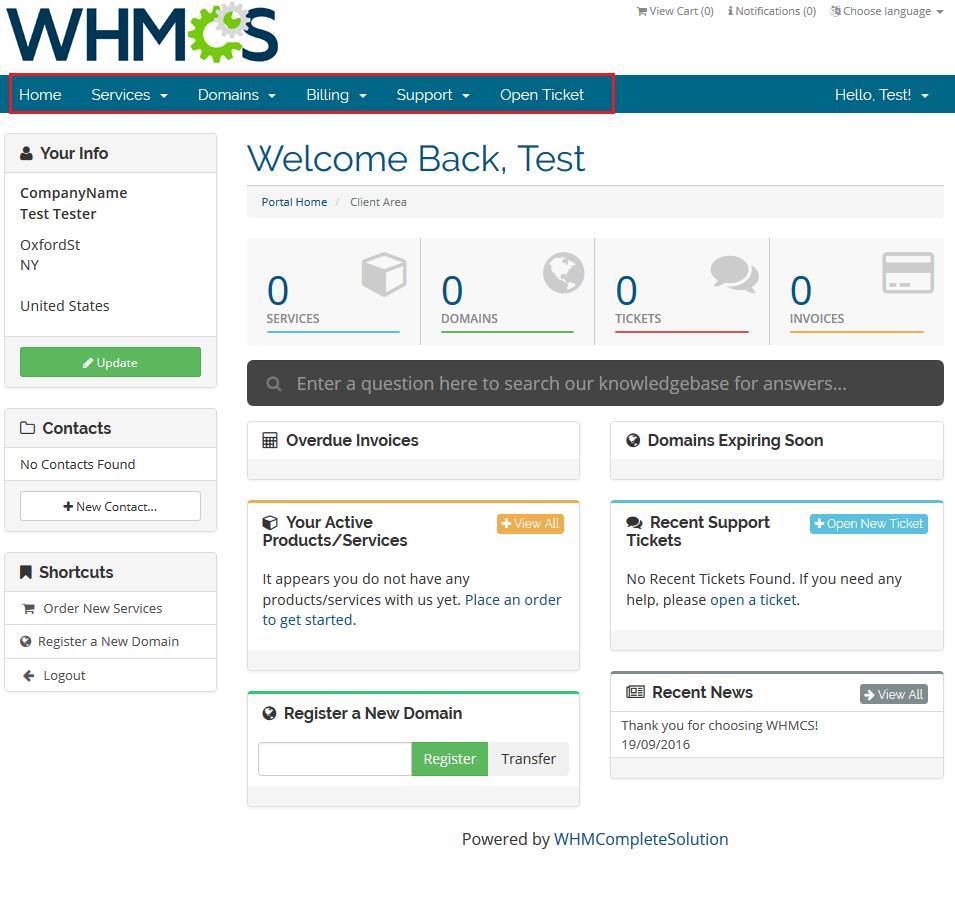
Those are the below navbar panels visible in the client area.
First of all, you may change the position of the elements.
Drag one panel and drop it in the required place.
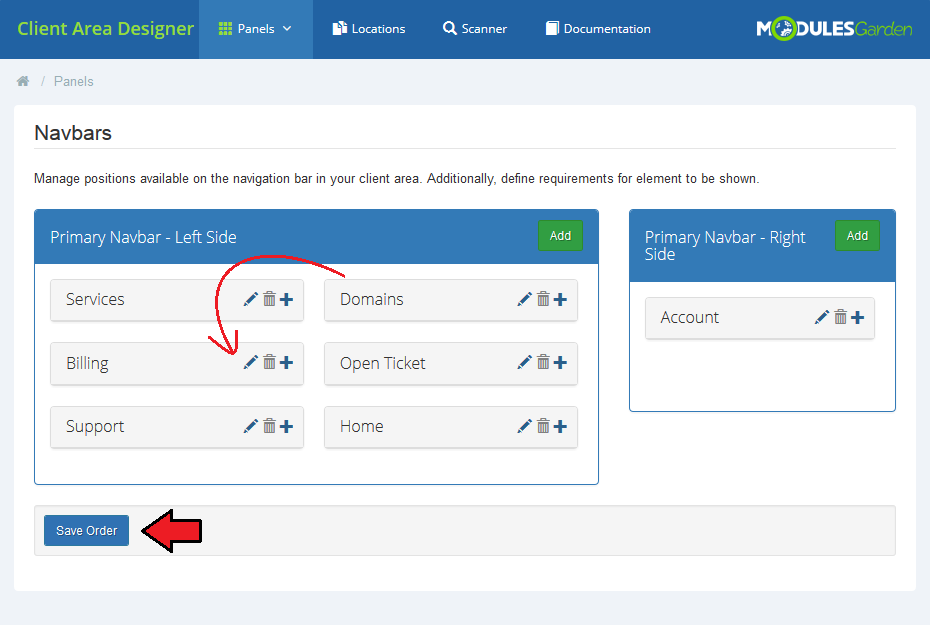
Use action buttons to:
- edit the section
- delete (only custom elements)
- view child elements
# Edit Element
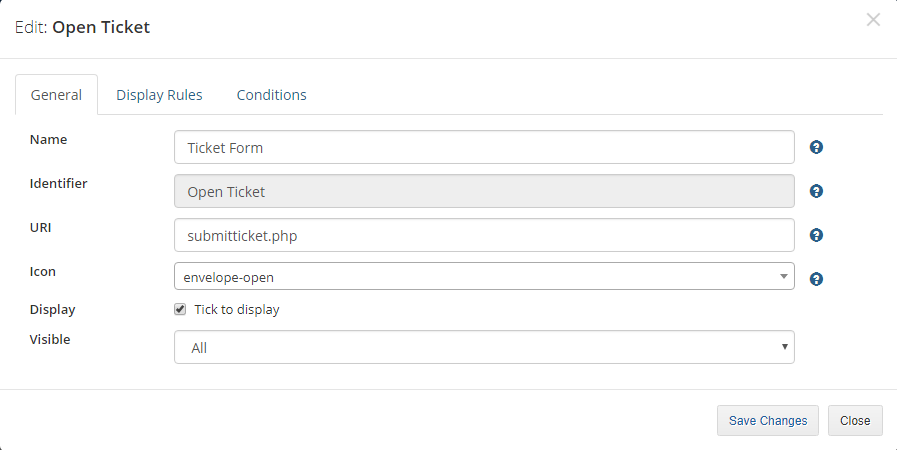
When you are editing an existing parent element, you may:
- Name - change existing or provide a new element name.
Note that displayed name in the client area of a default WHMCS element will still be taken from the chosen client's language file, so you need also to modify it accordingly. - URI - provide a URI
- Icon - add an icon
- Display - hide an element
- Visible - select who it will be visible for: logged in clients, not logged or all clients
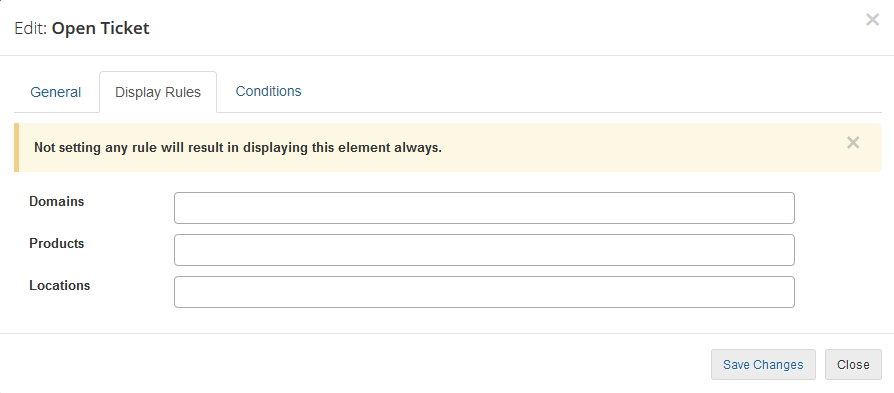
You may also provide some display rules. Only the clients who fulfill the rules will see the element.
If you leave this part empty, the element will be visible to all clients without limitations.
- Domains - select the domains which clients must own
- Products - point the products which clients must own
- Locations - choose the location which clients must enter
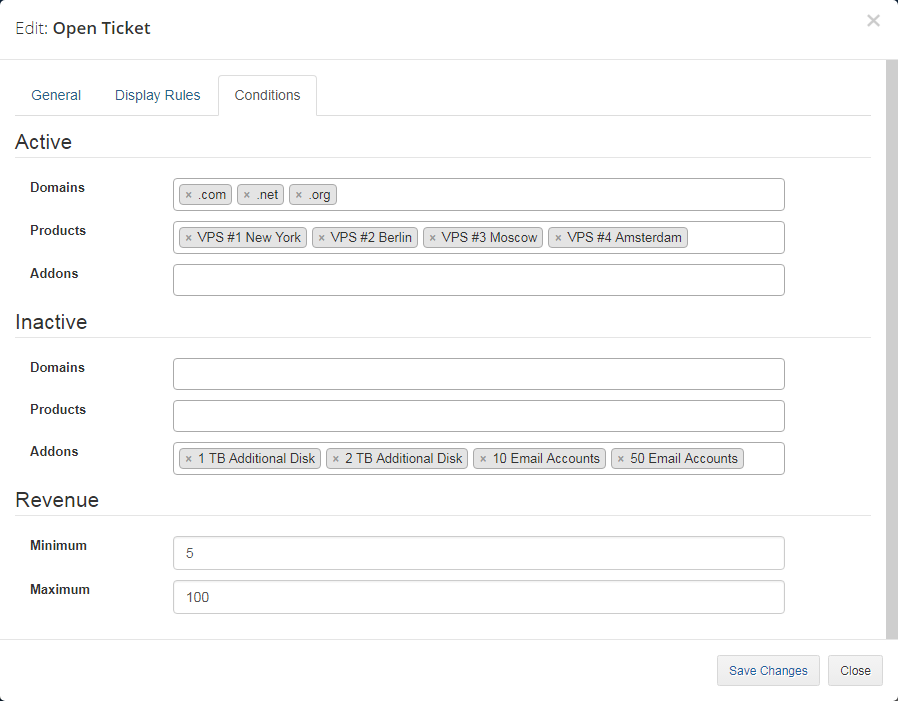
In the last tab, you can specify what conditions have to be met to display an element.
If you leave this part empty, the element will be visible to all clients without limitations.
- Active - choose which services from at least one of each types customers should have active
- Inactive - choose which services from at least one of each types customers should have inactive (terminated, cancelled, suspended or expired)
- Revenue - define the minimum and maximum revenue earned from the customer to display an element
Do not forget to save changes after specifying the conditions.
# New Parent Element
It is possible add a completely new parent element either on left or right side.
To do so, press 'Add'.
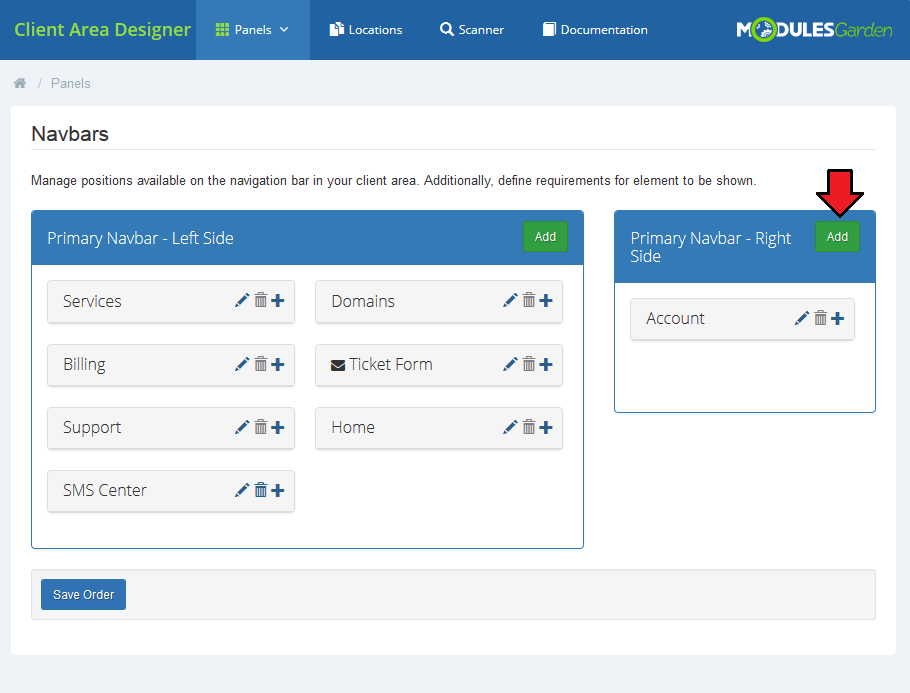
Then you will have to fill out all the general info, content and display rules.
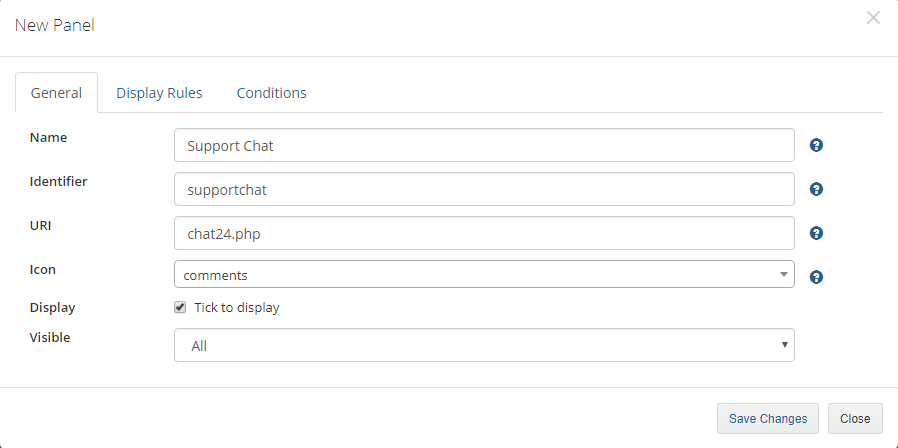
Start with 'General'. Provide:
- name visible for clients
- unique for the system identifier
- URI
- select icon from available
- select 'Display' to make the panel visible
- finally decide who it will be visible for: logged in clients, not logged in or all clients
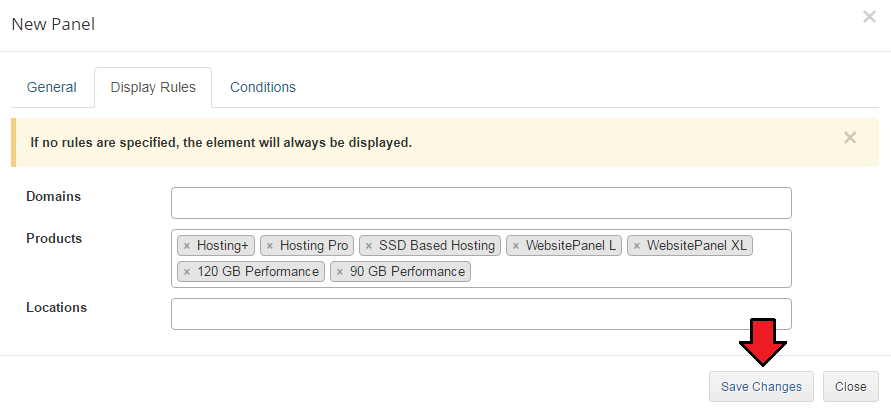
If you want only some of the clients to see the panel, then set up the 'Display Rules'.
In our case, we decided to select products a client must own to get access to 'Support Chat'.
Save changes.
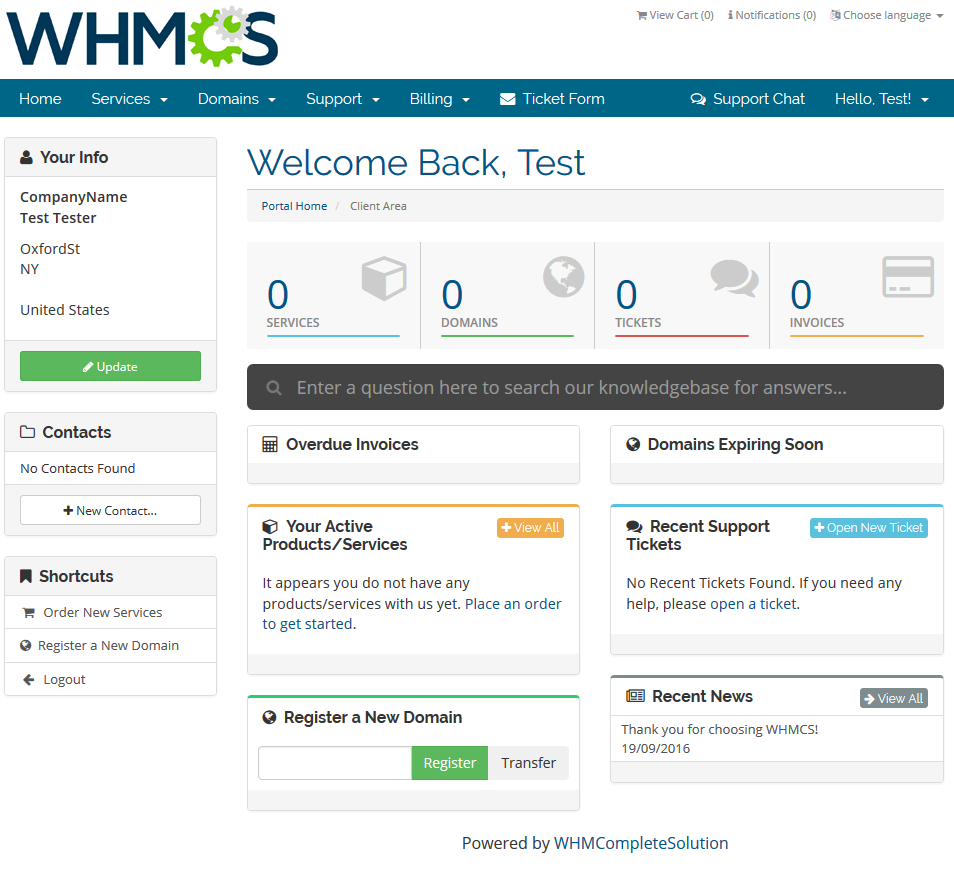
This is what our new panel looks like in the client area:
# New Child Element
Let's now add one more element to the already existing 'Support' panel.
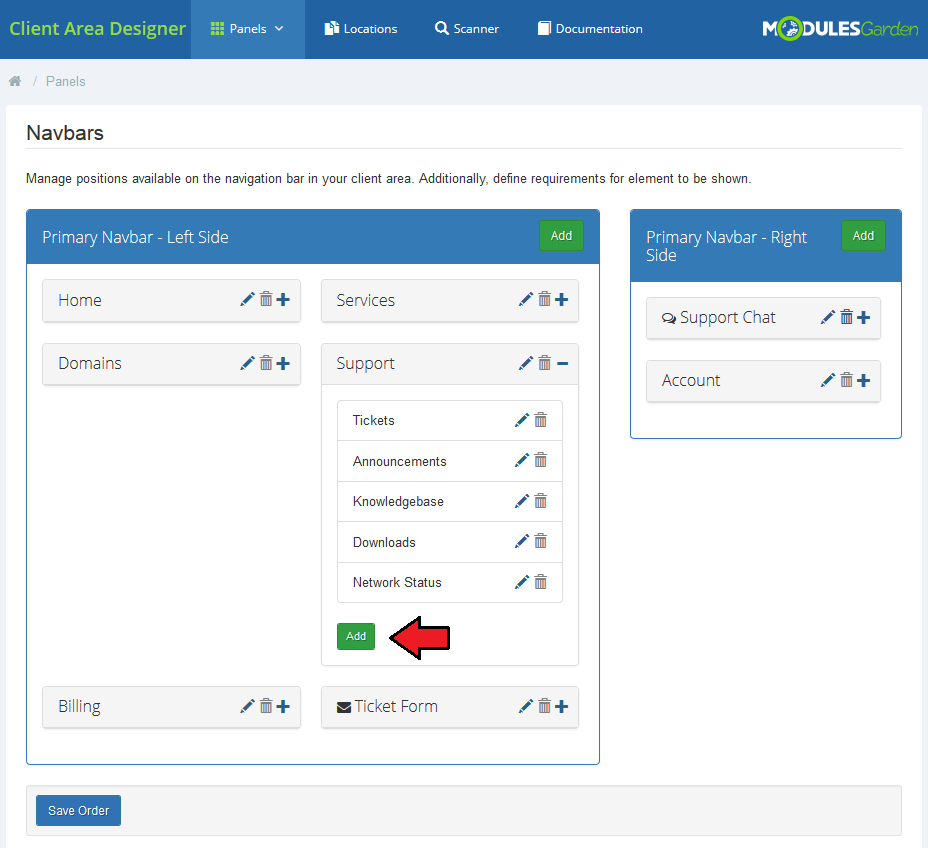
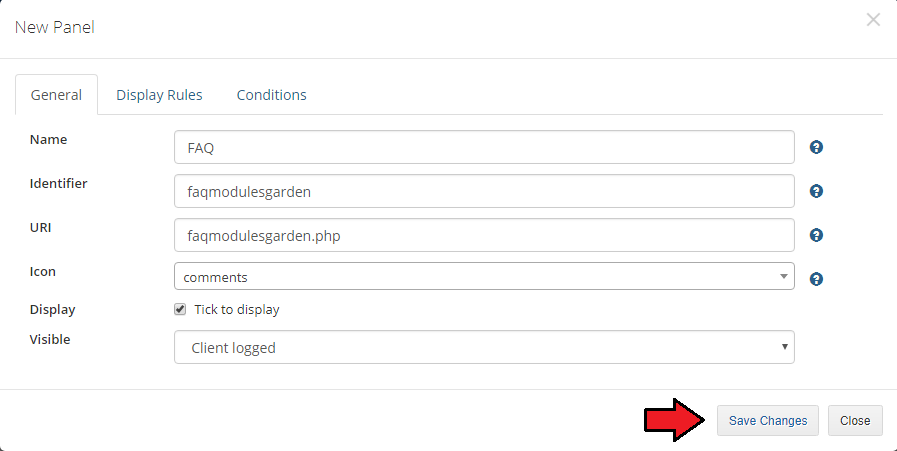
You have to fill out the same data as in case of parent element:
- name
- identifier
- URI
- icon
- select 'Display' to make it visible
- finally select who it will be visible for: logged in clients, not logged or all clients
This time we want all the clients to have access to our FAQ site, so we do no set any 'Display Rules'.
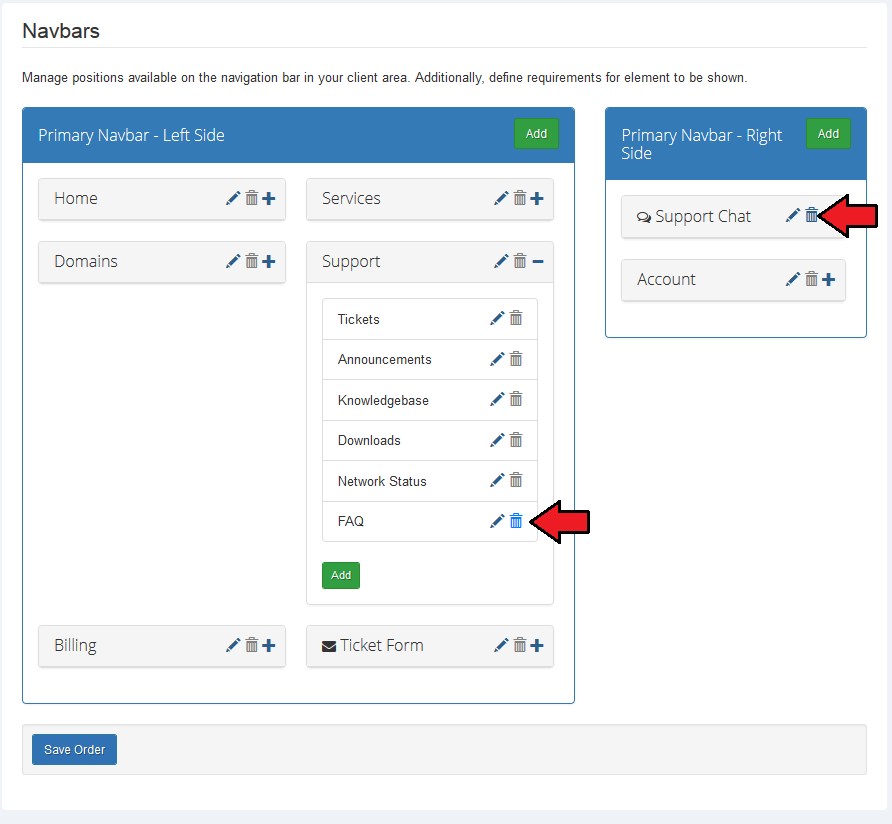
As a custom element, you may delete it completely or edit.
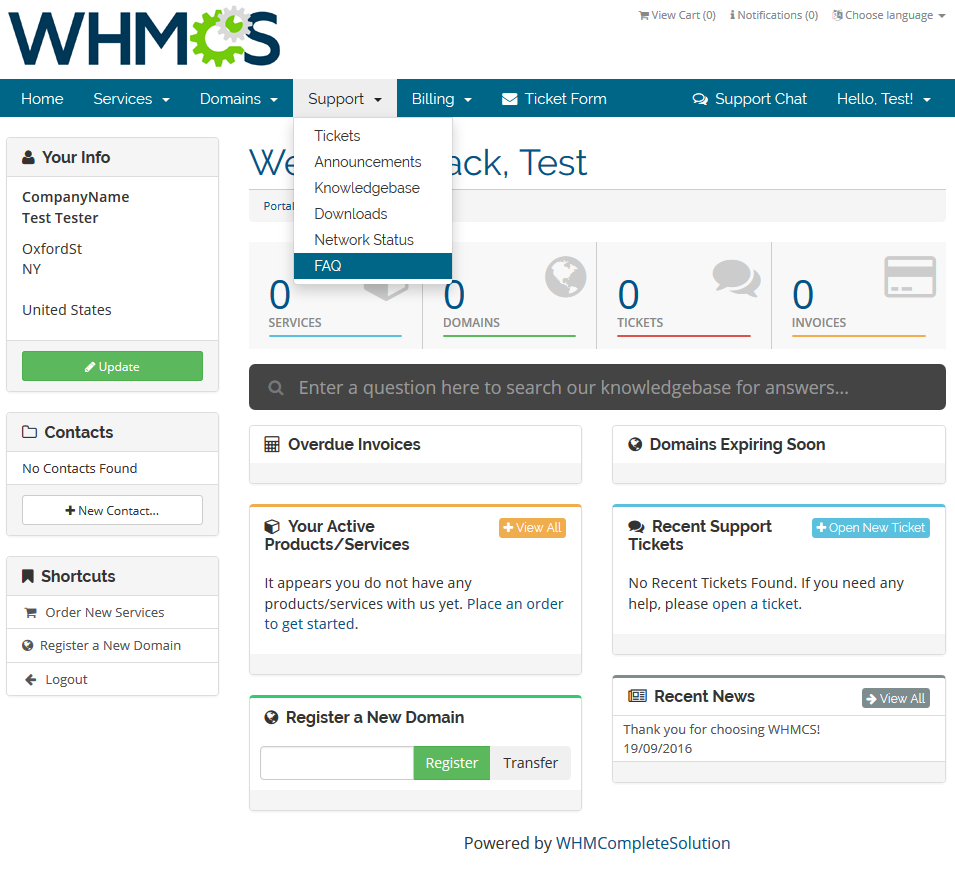
Let's take a look at the new position in the client area:
# Sidebar Panels
Sidebar panels section refers to the elements located on the left side of your client area.
Generally, management of sidebars is very similar to the Navbar panels described in the previous section.
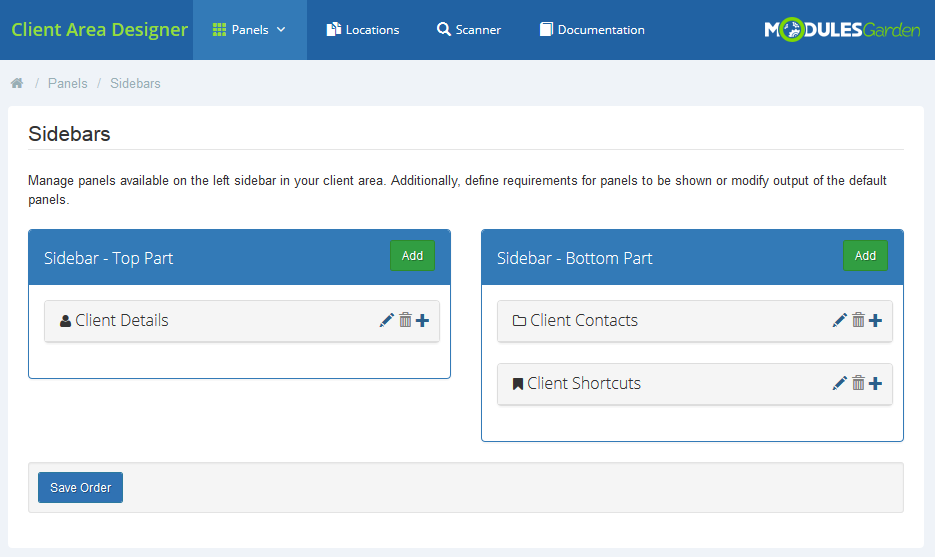
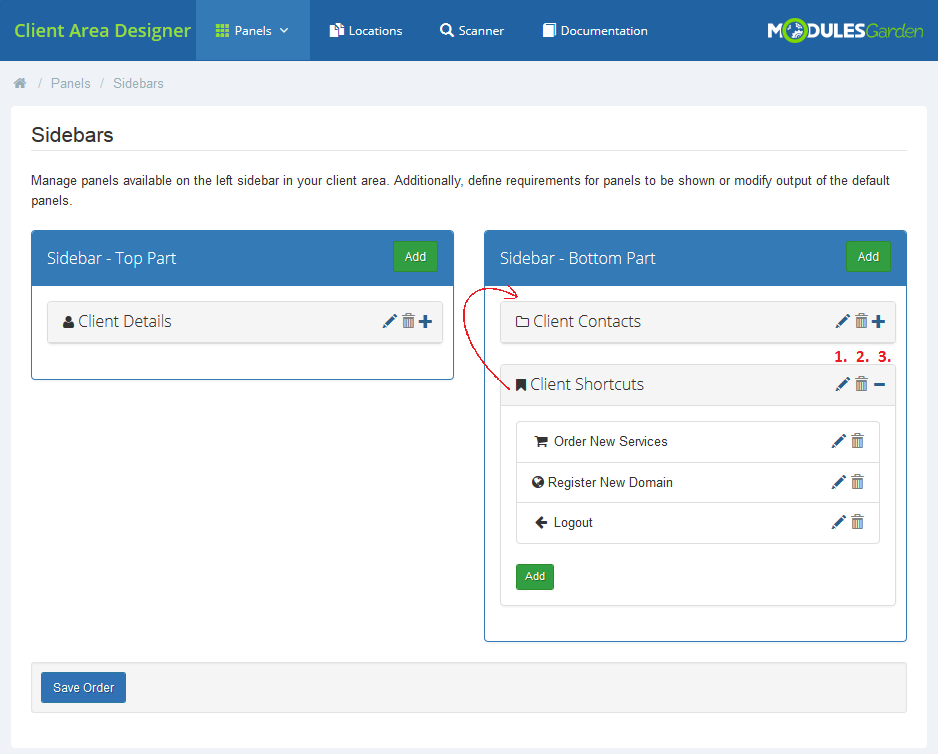
Available actions:
- change positioning by dragging and dropping elements in the selected place
- edit the section - change name, icon, content (if possible), display rules and conditions
- delete elements - this option is available for custom entries only
- view child elements
# Edit Element
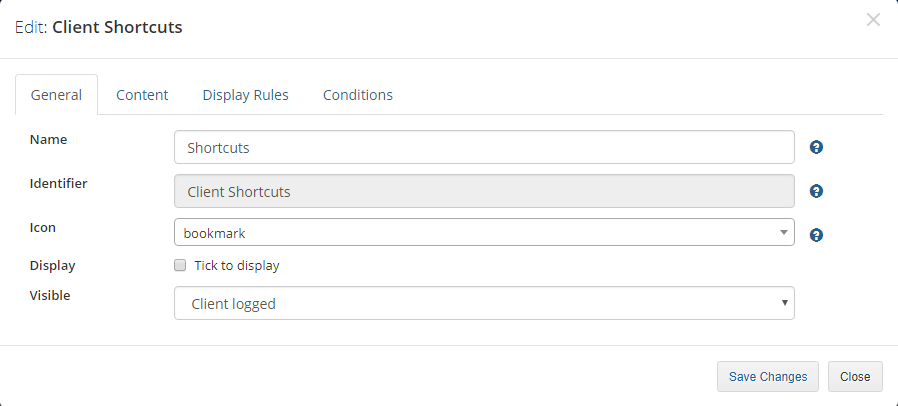
General section:
- provide a new display name
- add icon
- hide/show the element
- change visibility
Content:
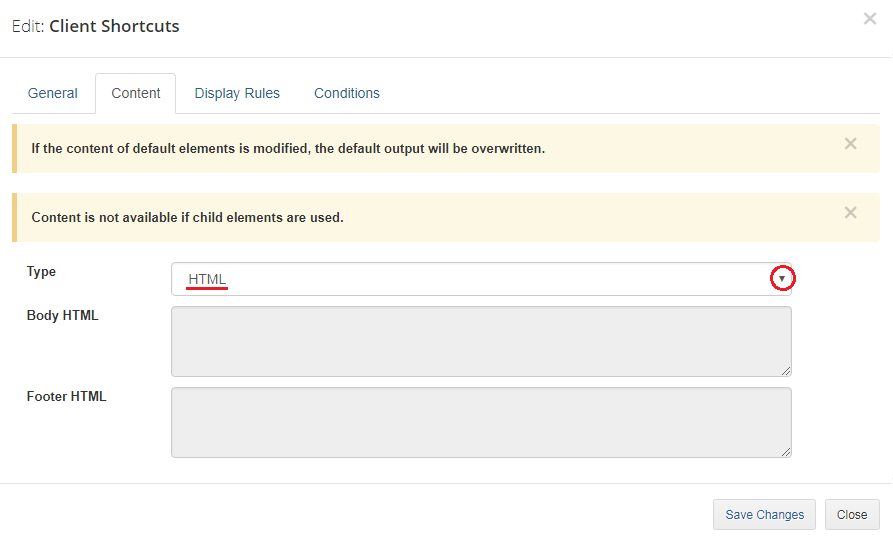
You can add two types of content - HTML and Content Rotator.
Note that it is possible only if the element has no child elements.
- HTML - simply change the Body or Footer content.
- Content Rotator - define how many elements can rotate within specified time intervals and choose the panel navigation elements.
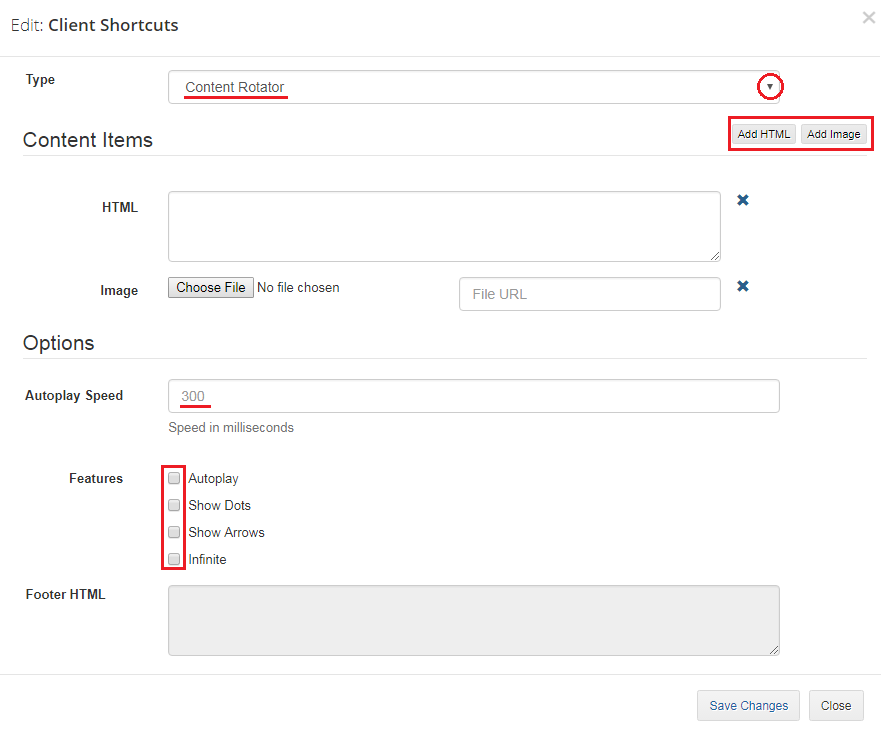
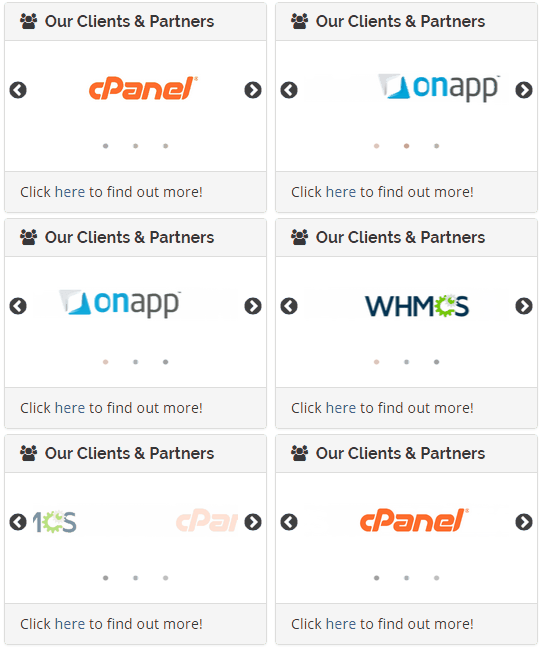
Here is an example of a simple effect that you can achieve with the content rotator.
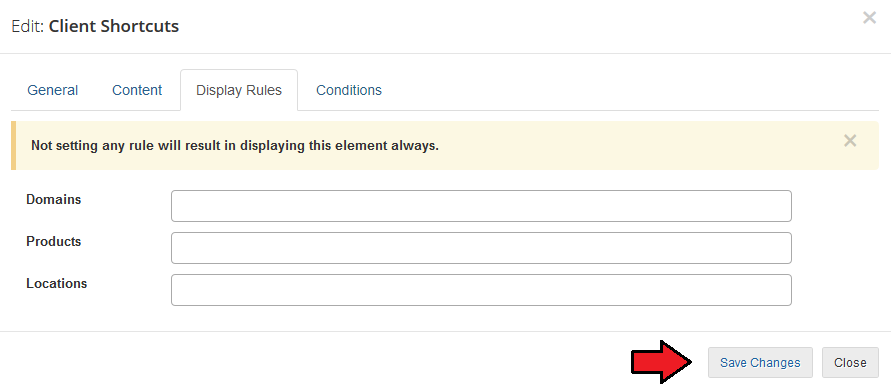
Display Rules - only clients who fulfill the rules will see the element.
If you leave this part empty, the element will be visible for all clients without limitations.
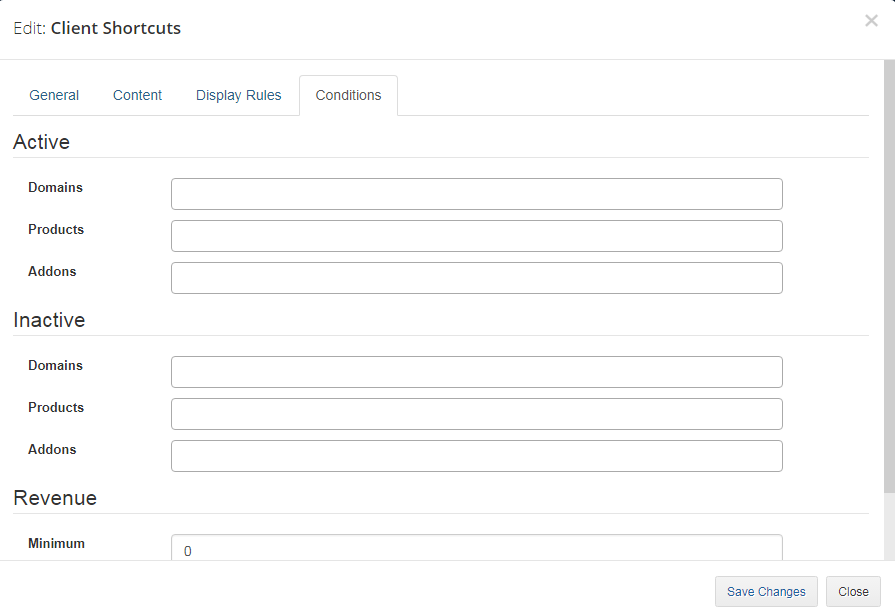
Conditions - specify what conditions have be met to display an element.
If you leave this part empty, the element will be visible to all clients without limitations.
- Active - choose which services from at least one of each types customers should have active
- Inactive - choose which services from at least one of each types customers should have inactive (terminated, cancelled, suspended or expired)
- Revenue - define the minimum and maximum revenue earned from the customers to display an element
Do not forget to save changes after specifying the conditions.
# New Parent Element
You may add a completely new parent element either on left or right side.
Press 'Add'.
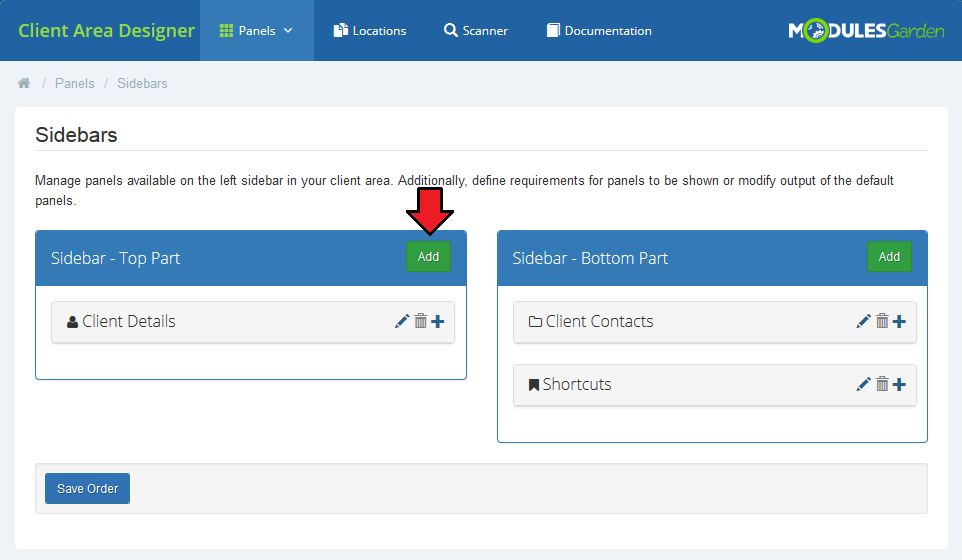
Then you will have to fill out all the general info, content and display rules.
Start with 'General'. Provide:
- name visible for clients
- unique for the system identifier
- select icon from available
- select 'Display' to make the panel visible
- finally decide who it should be visible for: logged in clients, not logged in or all
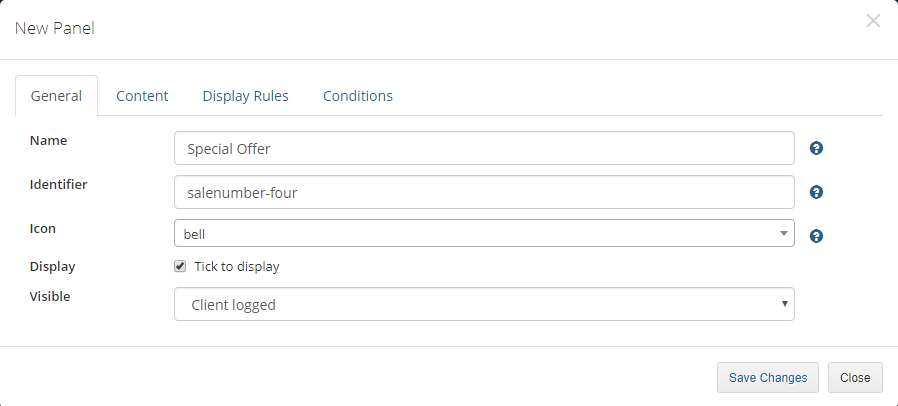
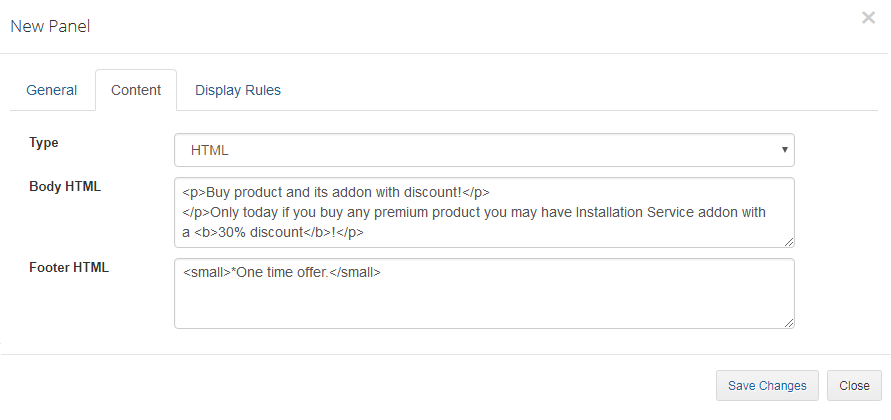
Select content Type and define Body and Footer content.
Note: If you provide the content here, you will not be able to add child elements to this item.
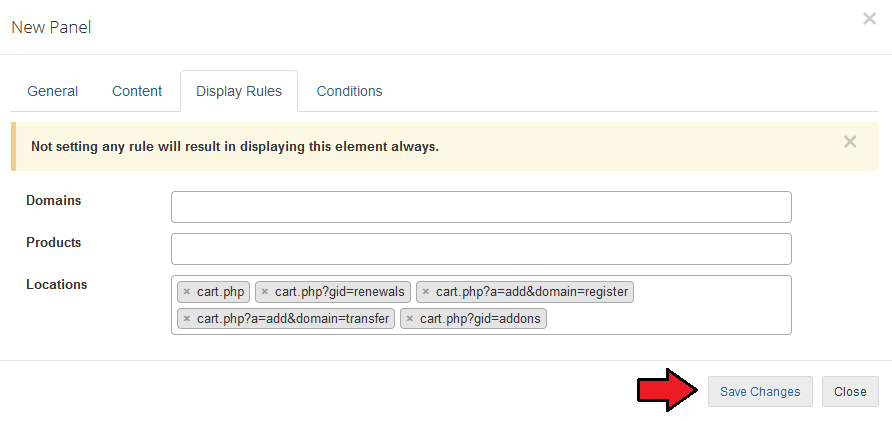
If you want only the specified clients to see the panel, set up the 'Display Rules' or 'Conditions'.
Save changes.
This is what our new panel looks like in the client area:
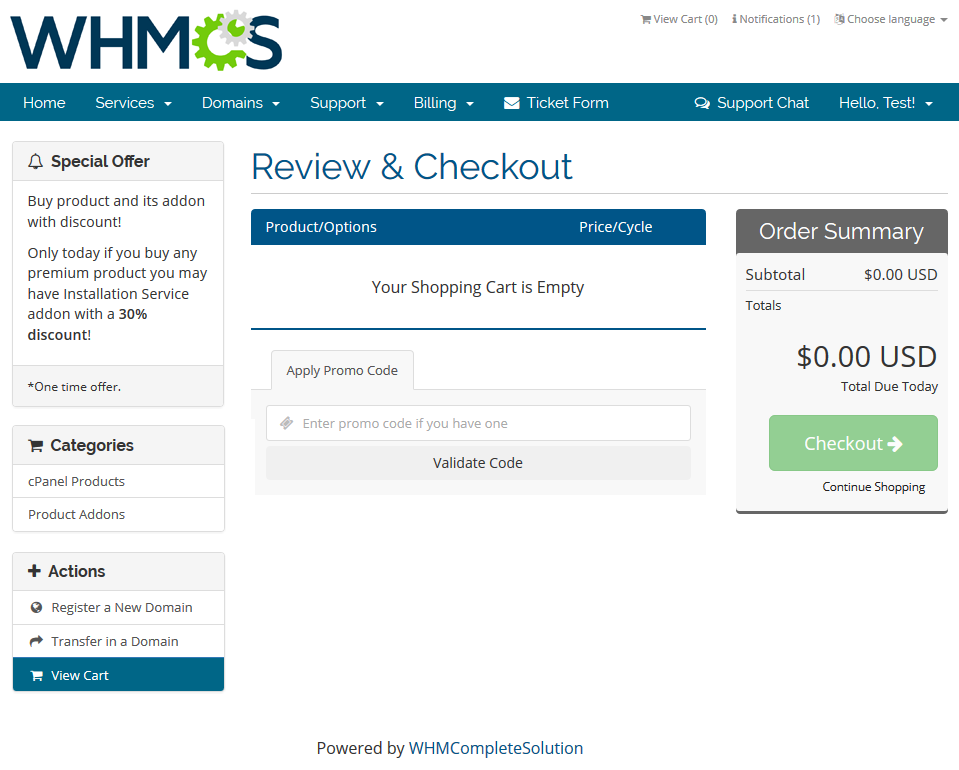
# New Child Element
Let's now add one child element to client's 'Shortcuts'.
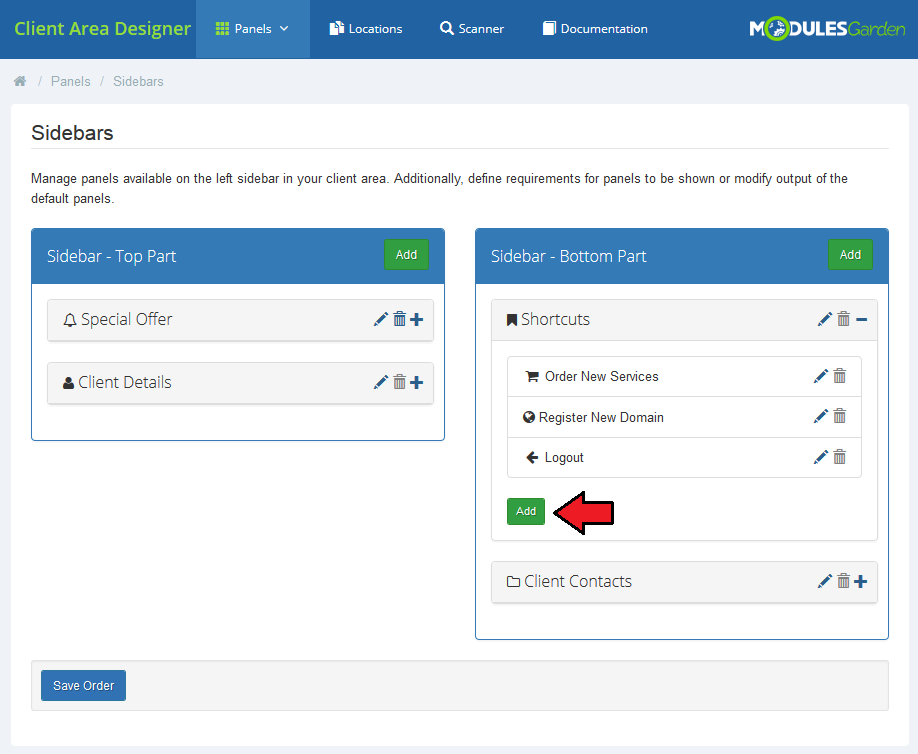
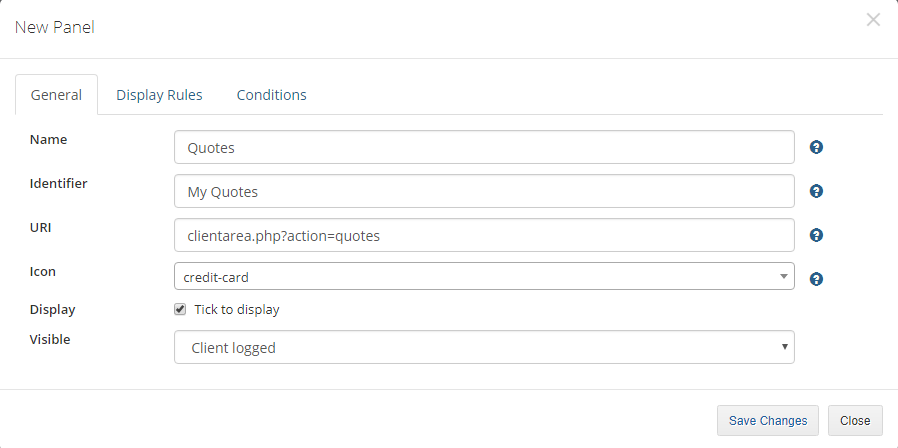
Fill out all the required data to crate a correct link:
- name
- identifier
- URI
- icon
- select 'Display'
- define visibility
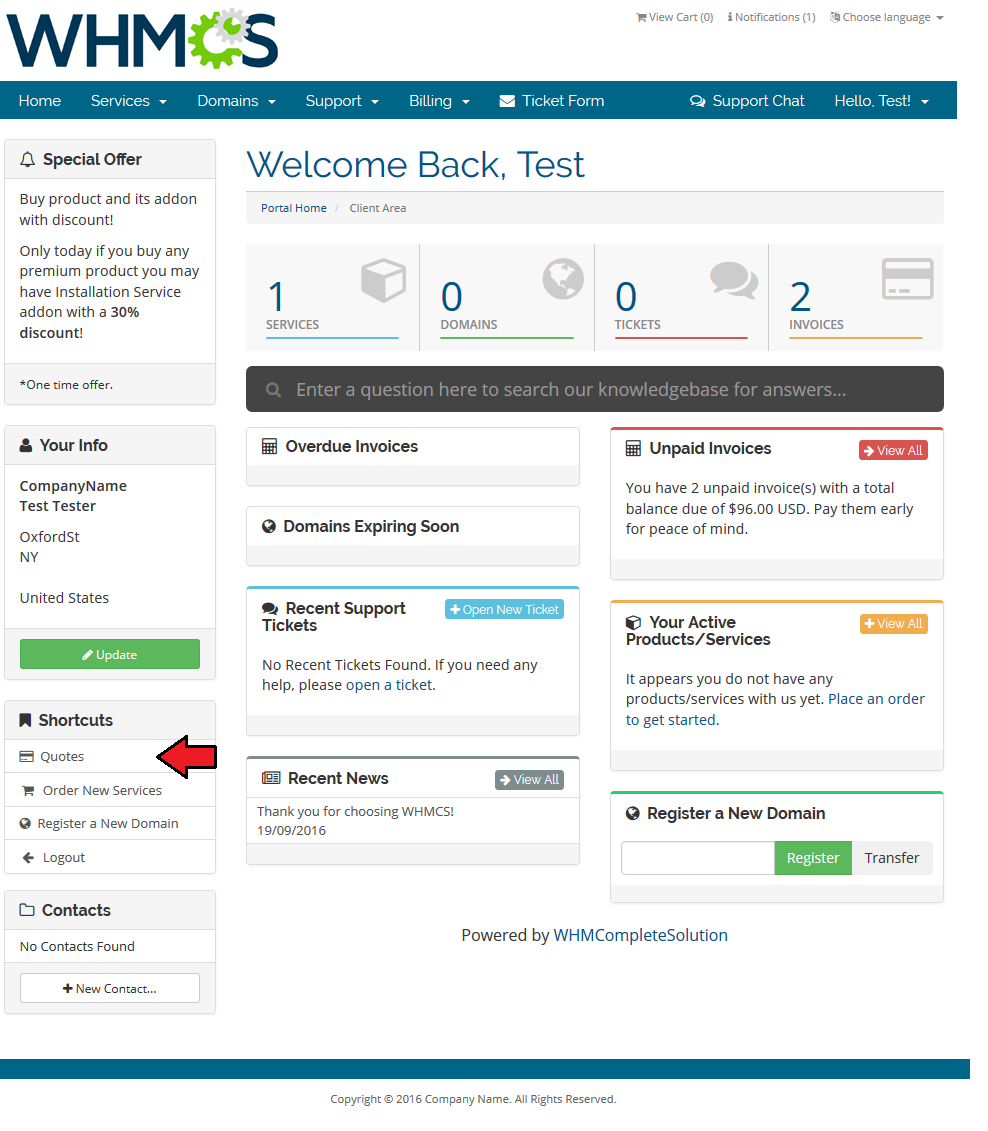
Any custom element can be deleted. In contrast to the default ones which may be only edited and hidden.
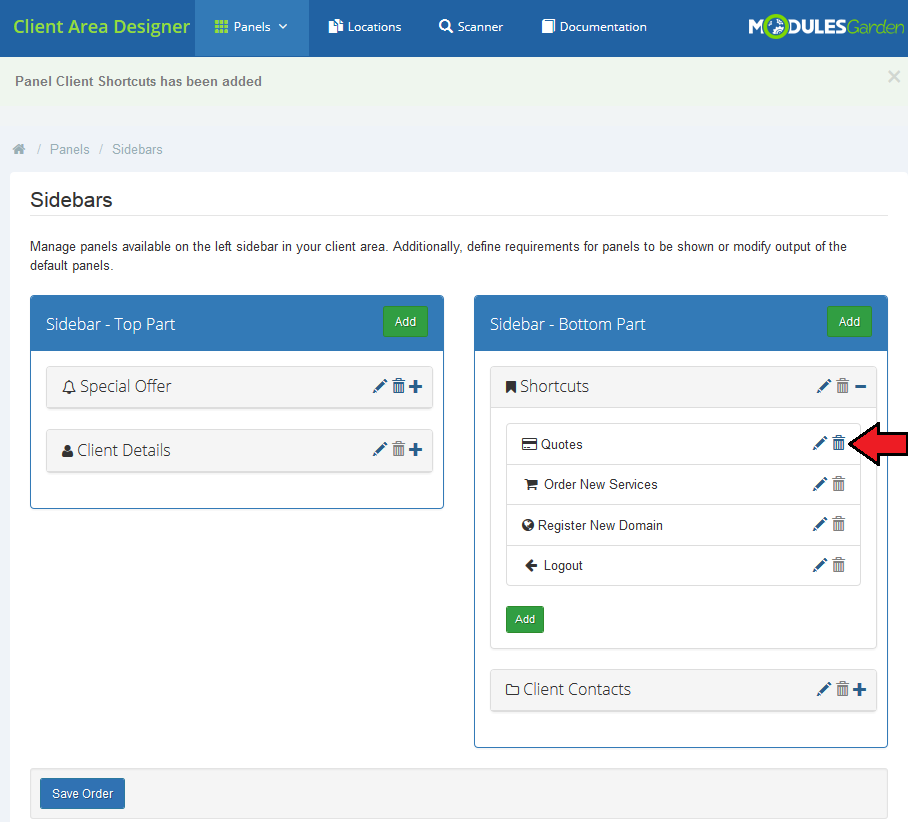
Now, you see an additional link under 'Shortcuts'.
# Homepage Widgets
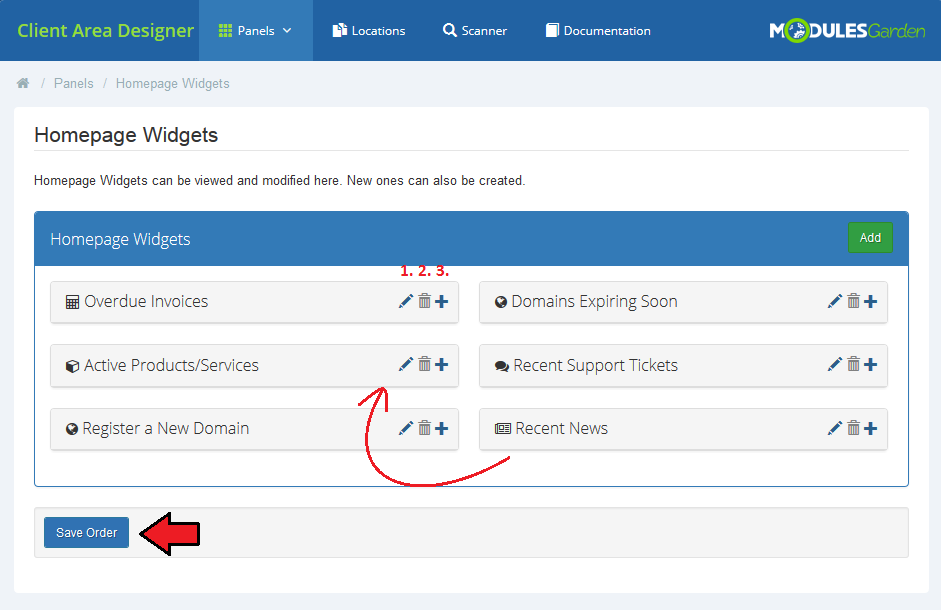
The last type of panels are homepage widgets.
Available actions:
- change positioning by dragging and dropping elements in the selected place
- edit the widget
- view child elements if there are any
- delete custom widgets
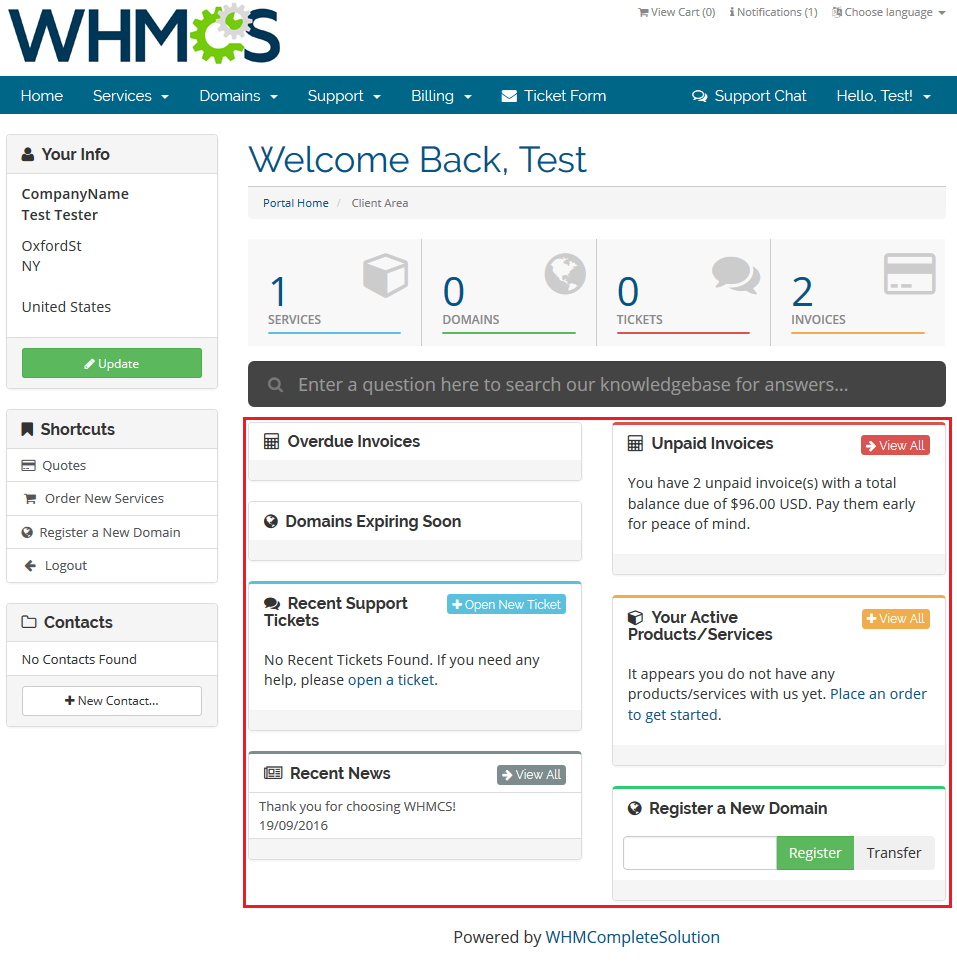
To visualize, these are the client area widgets we are going to alter in a moment:
# Edit widget
General
- provide a new display name
- change icon
- hide the element
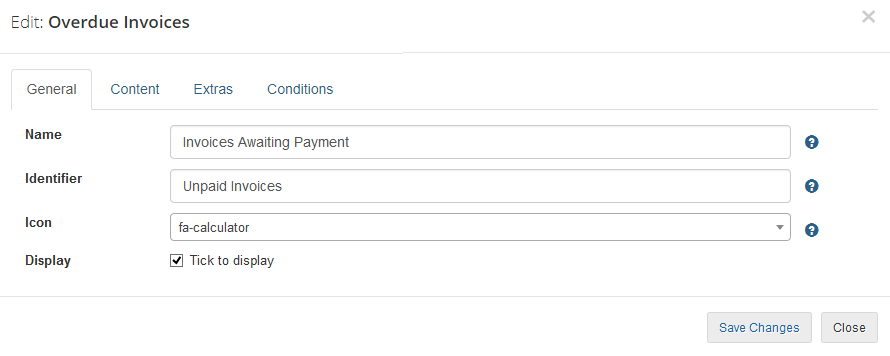
Under 'Content' section you can overwrite the default text.
We will leave it empty as we do not want to change the content, just the look and feel of the widget.
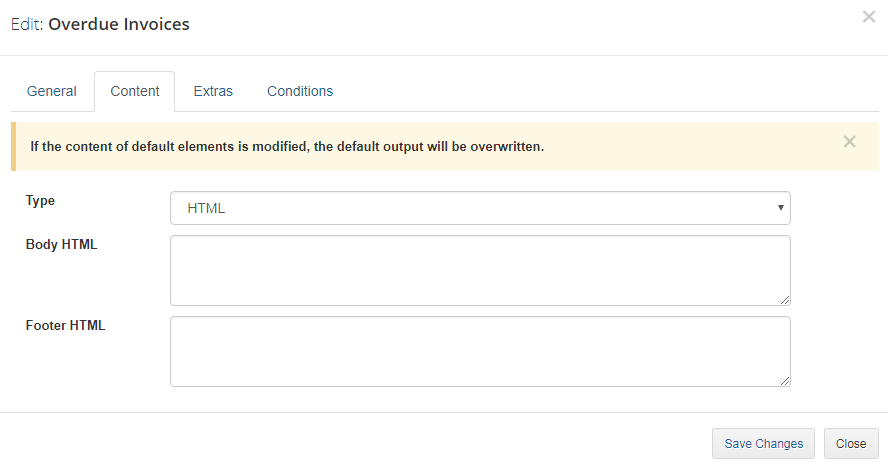
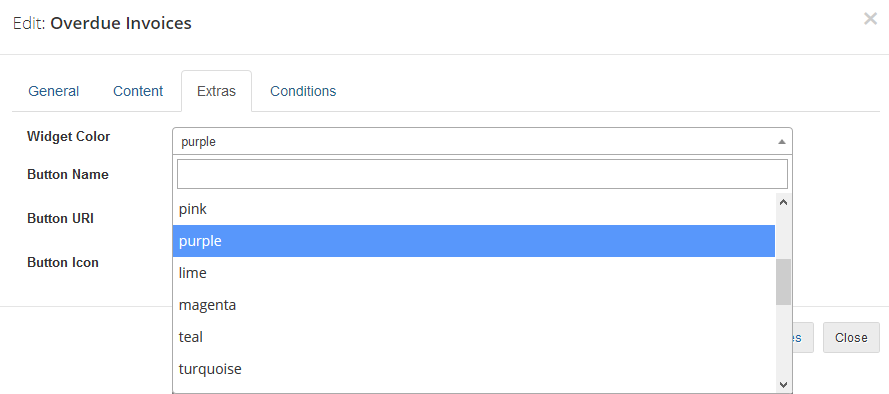
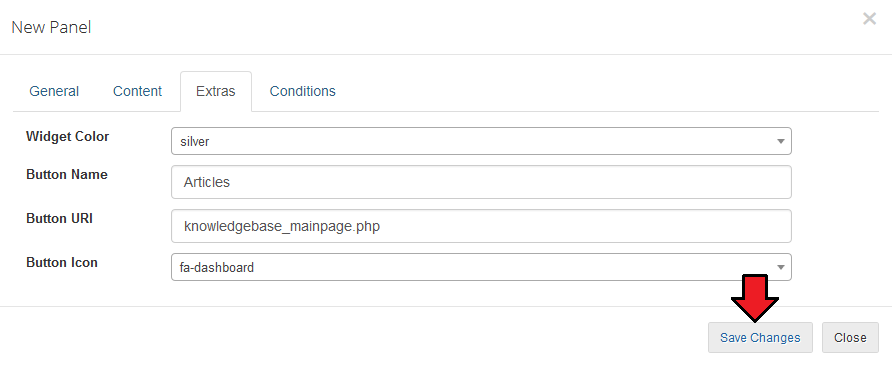
Extras - here you can change the visual parts:
- widget color
- button name, URI and icon
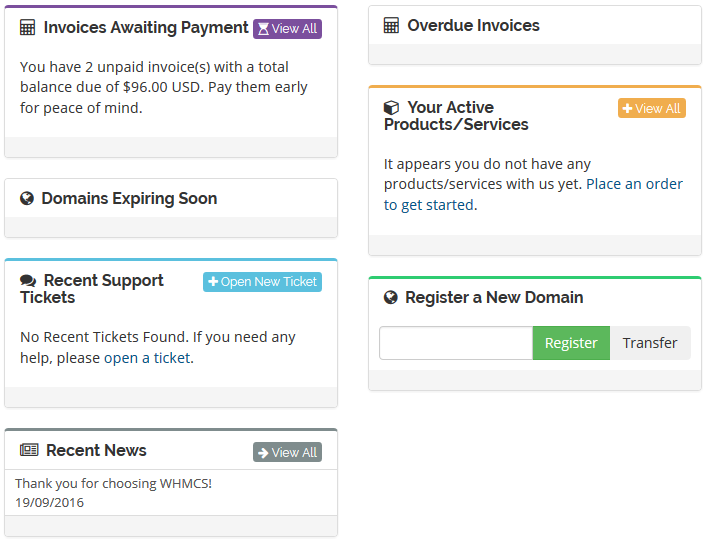
That is what our adjusted widget looks like now:
# Add New Widget
For presentation purposes, we will create now a completely new widget.
It will include a button redirection to our Knowledgebase and two links to FAQ and Upload Files form.
To start, simply press 'Add' button.
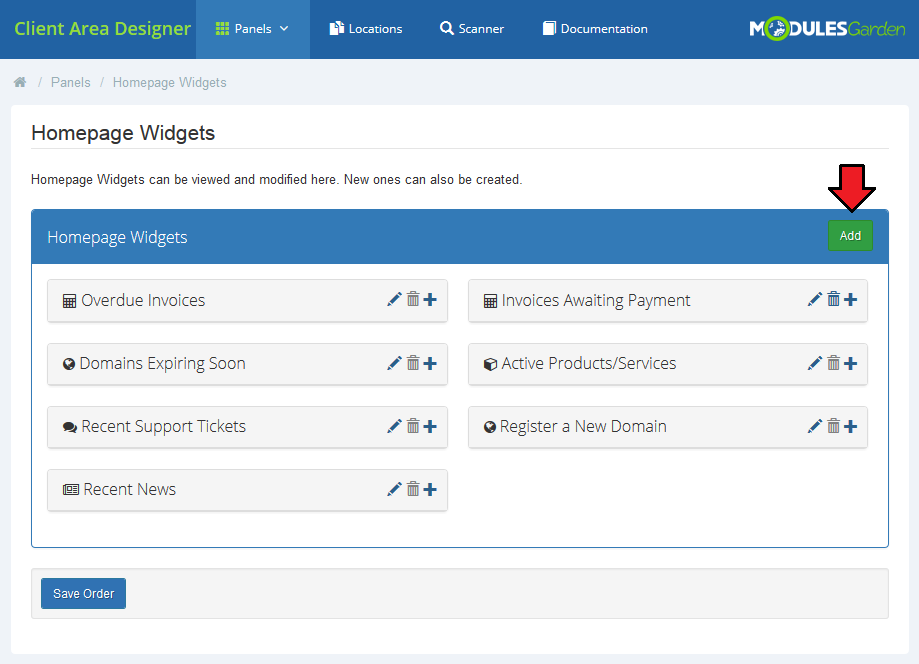
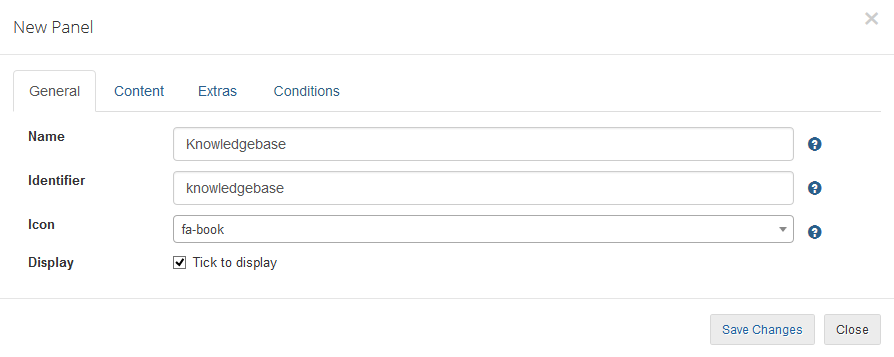
Then fill out all the general info, content and extras.
Start with 'General', provide:
- widget name
- unique for the system identifier
- select icon from available
- finally select 'Display' to make the panel visible
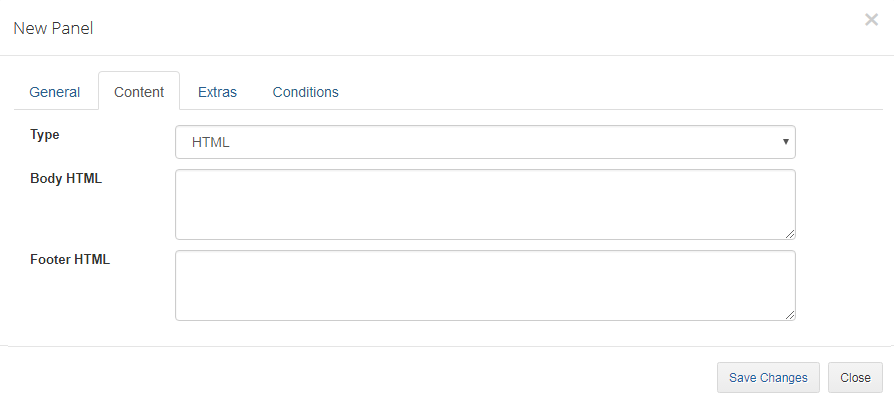
As we are going to add two links inside the widget, so we have to skip this section.
Finally, customize your widget by defining color and button details.
Save changes.
# New Child Widget
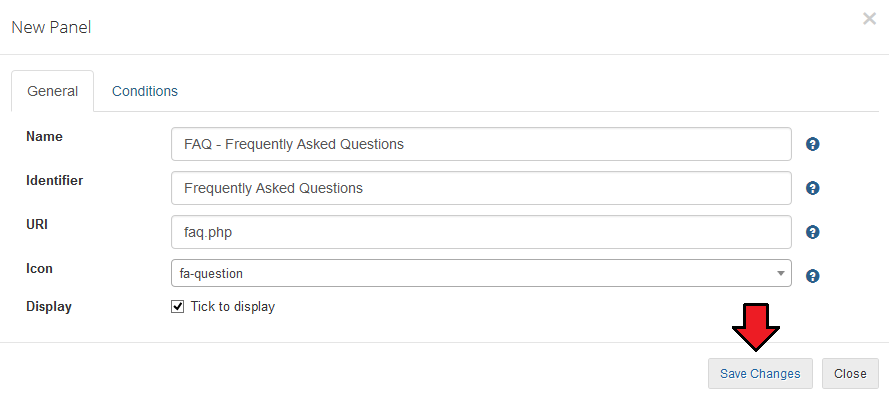
Let's now add a child element to the just created 'Knowledgebase'.
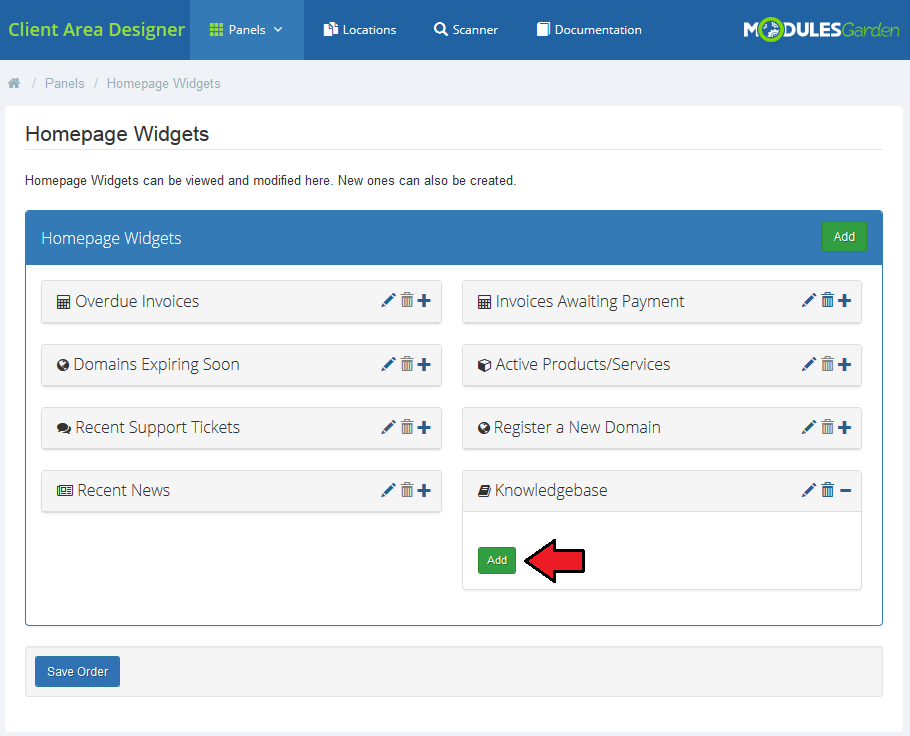
Fill out the required data:
- name
- identifier
- URI
- icon
- select 'Display'
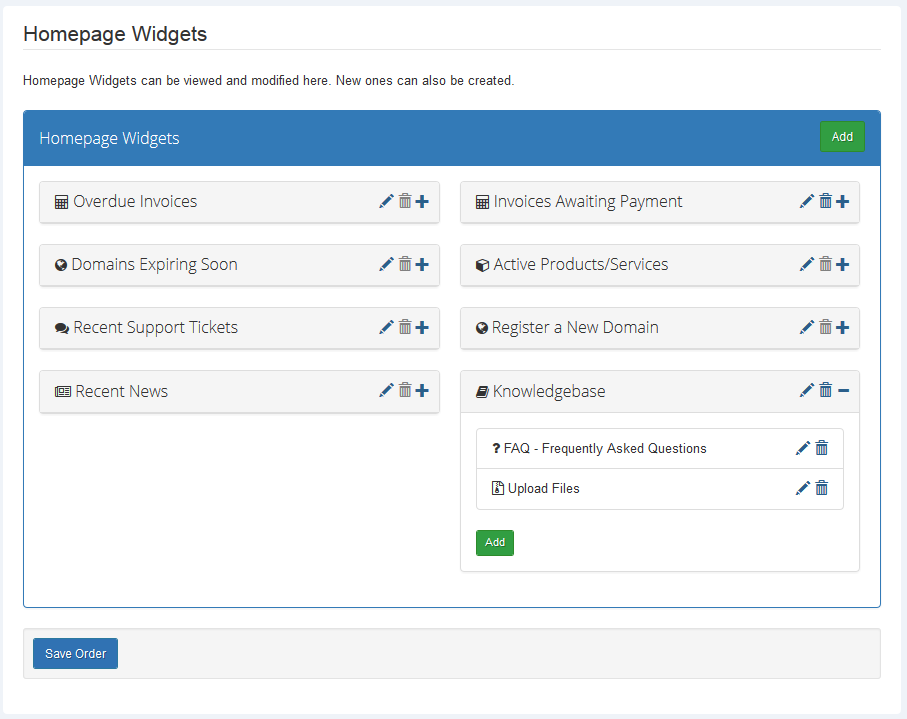
As you can see, we added two new entries under the 'Knowledgebase' widget.
Surely, you can edit each one of them or delete.
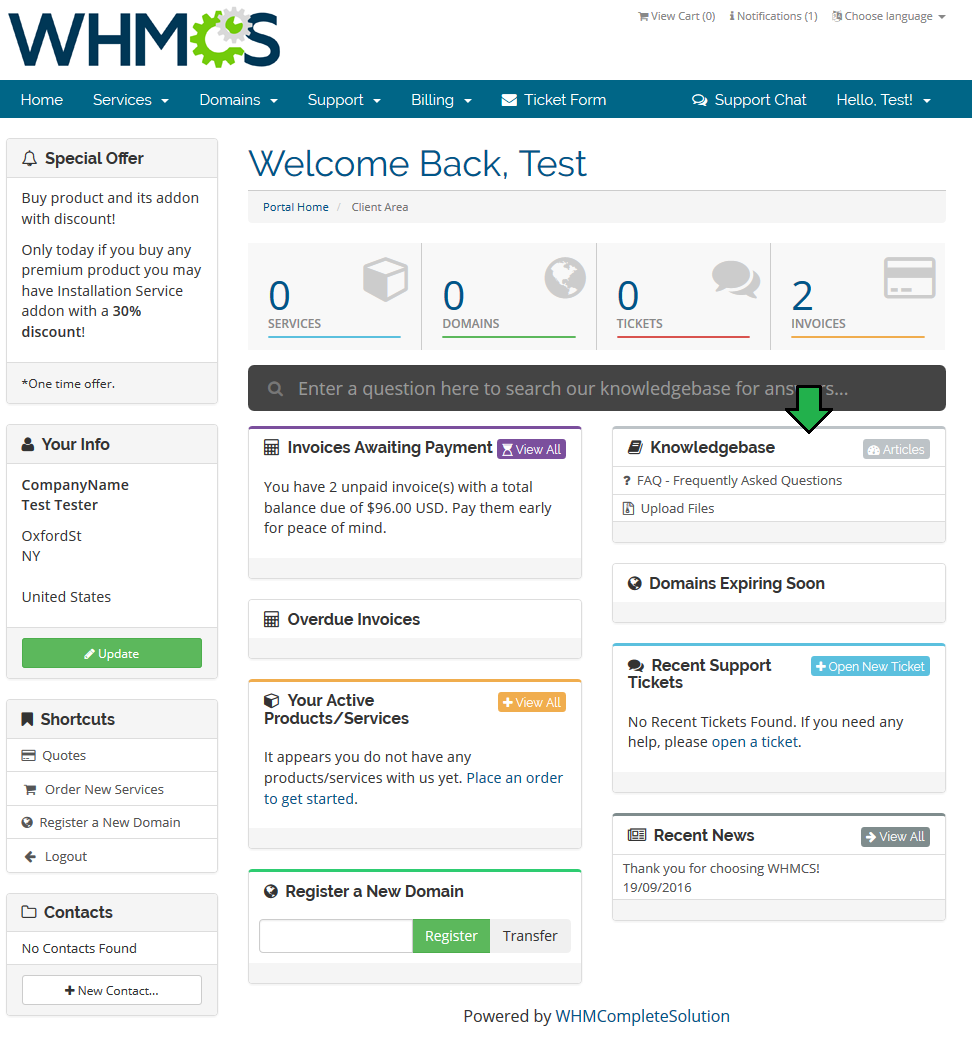
Here is a final view of our customized client area with new elements:
# Locations
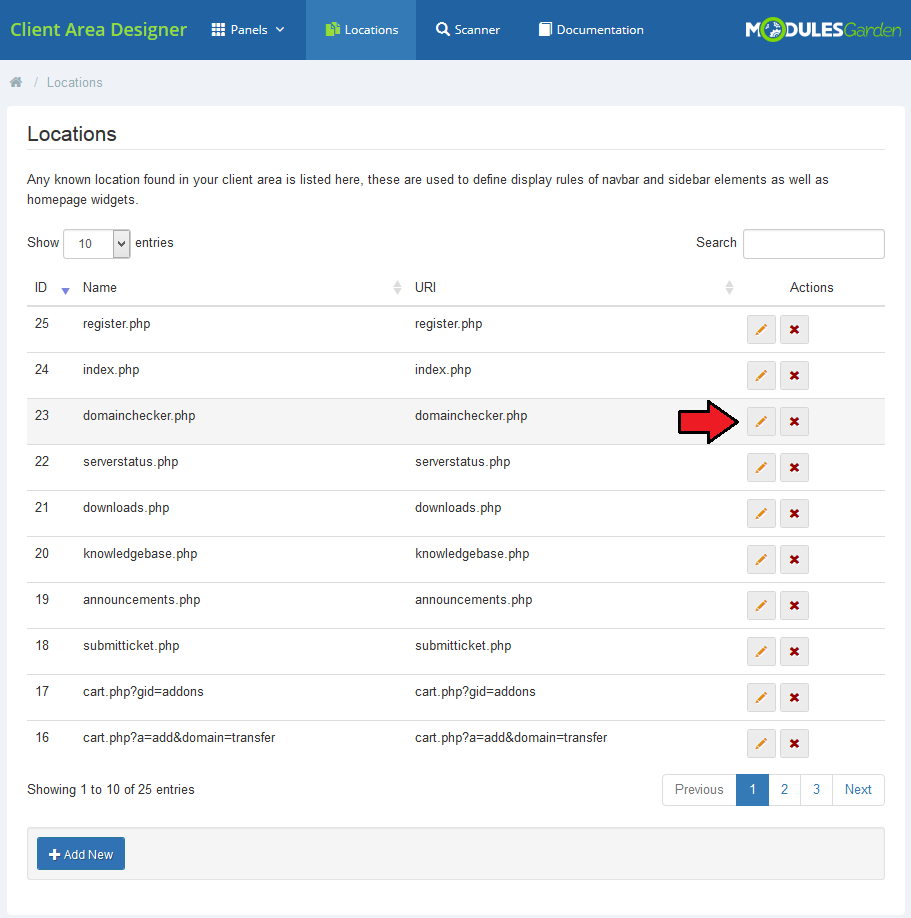
In this you will find an extended list of all standard locations in your client area with its common name and URI.
These locations are searched through by the module scanner in search of custom panels and are available in the 'Locations' field when setting up 'Display Rules'.
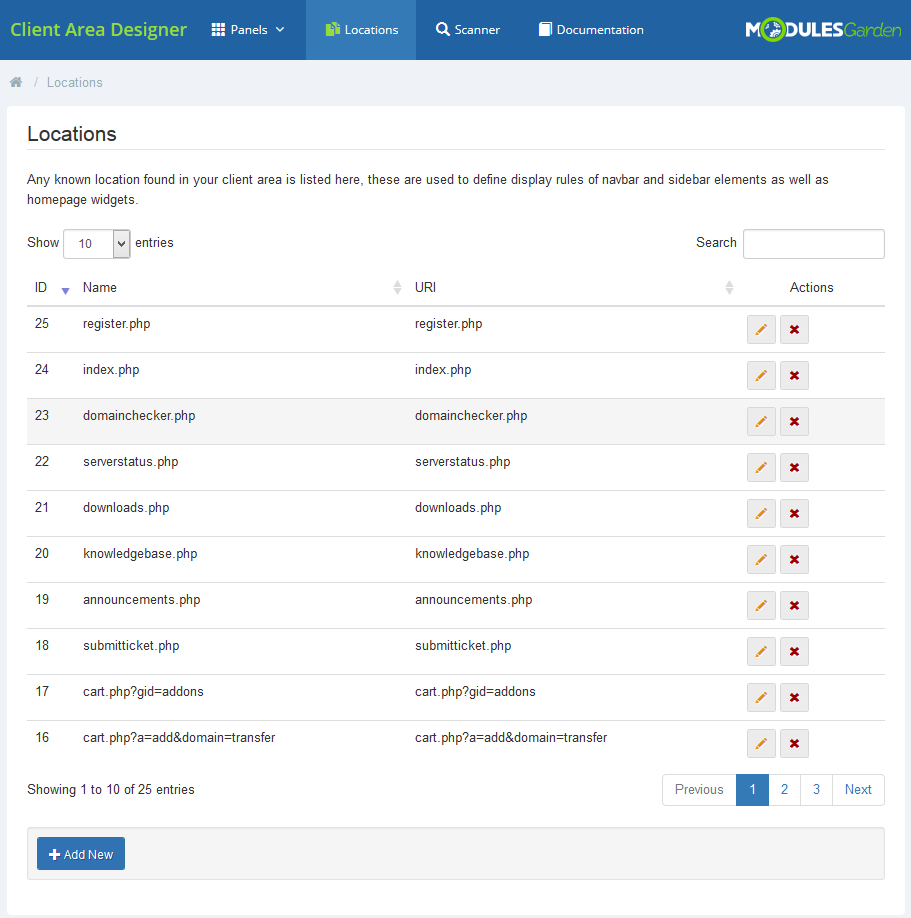
Press the button with pencil icon next to the location you are interested in editing.
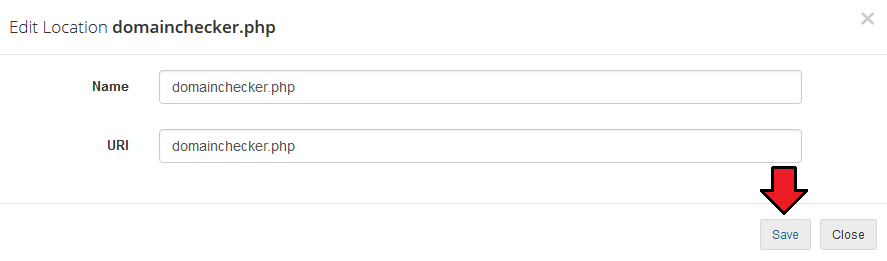
There you can edit the name of existing location and its URI.
# New Location
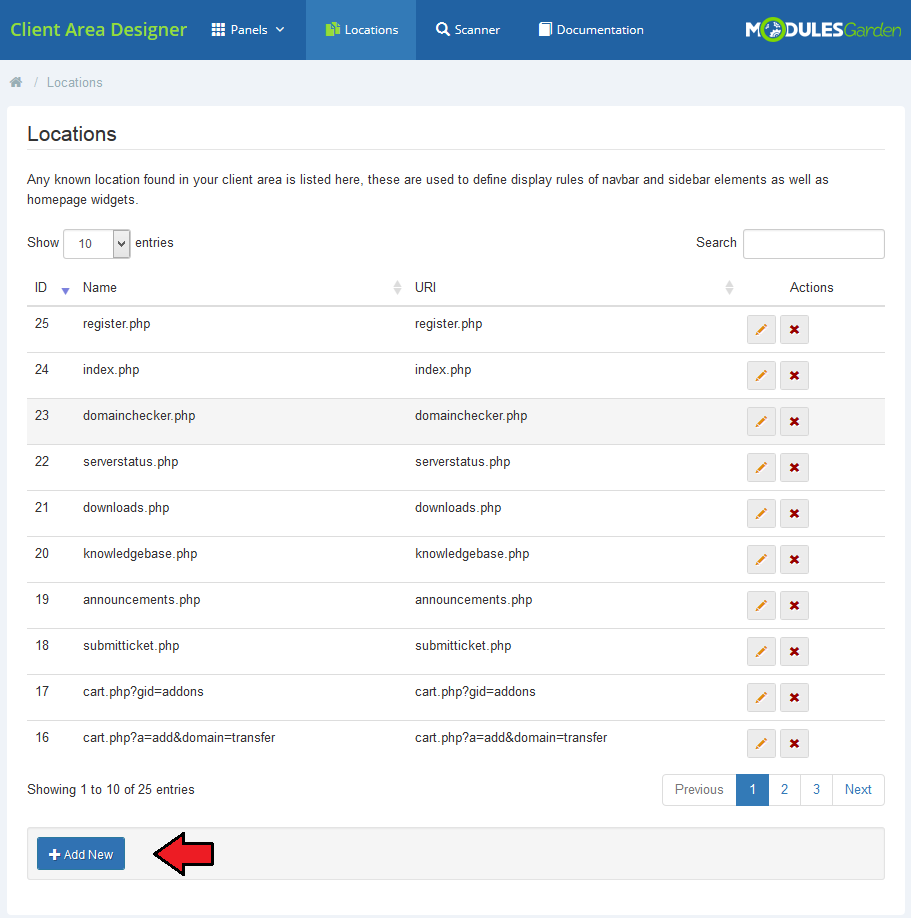
You may also add new if you have some custom locations and you wish to use them in our module.
Please note that your locations have to be manageable by WHMCS.
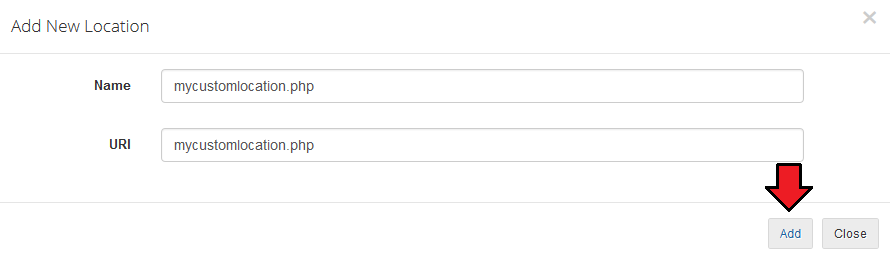
Provide a location name and URI.
When ready, your new location will be from now on used by Client Area Designer module.
# Scanner
Scanner is a tool that allows our module to carefully browse through a chosen client's client area in search of any elements in known locations.
Select a client to log in as one and run the scanner.
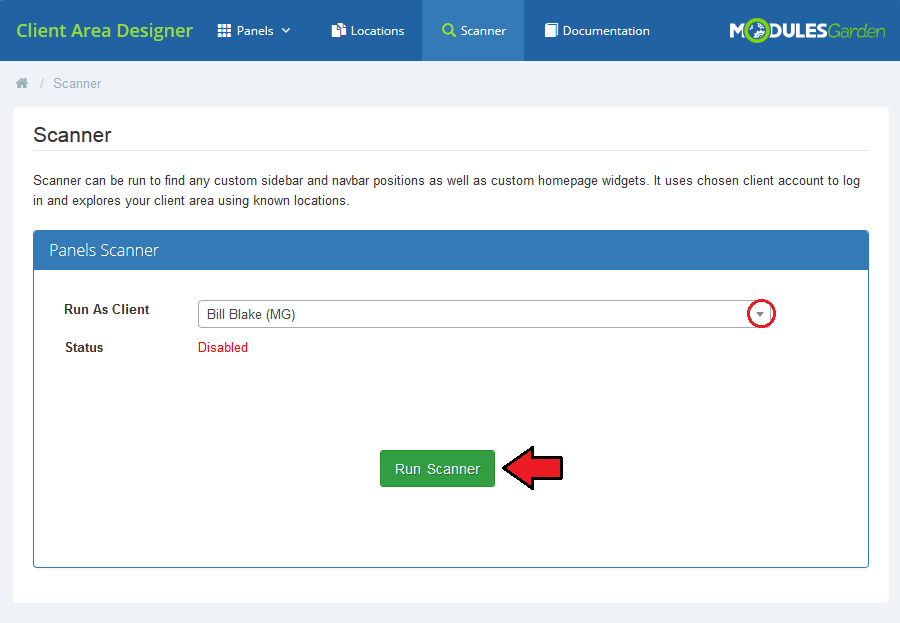
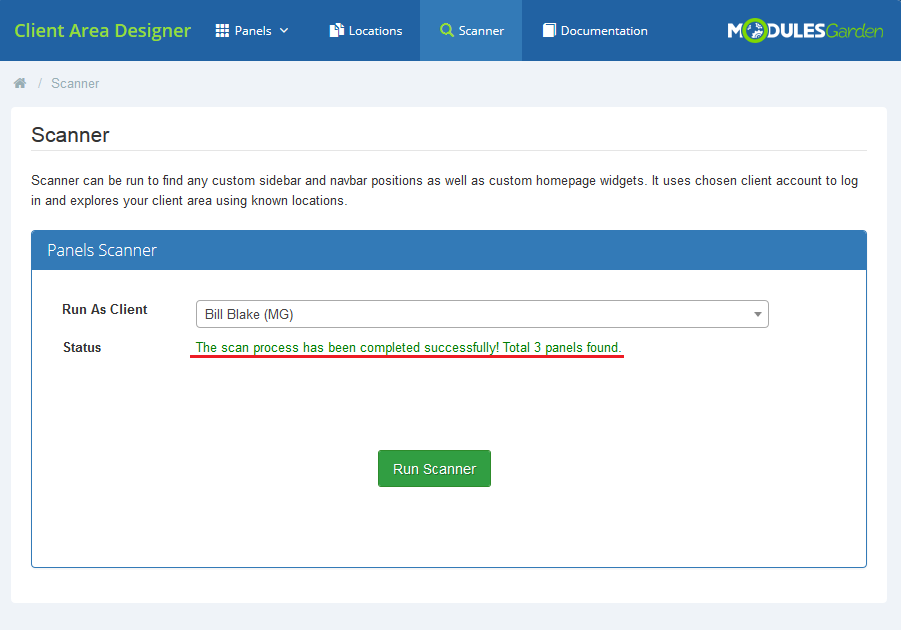
You will see a preview of all locations. When the scan is finished, you will see a summary with the number of found panels.
All newly found elements will be automatically added to proper positions in the addon.
# Documentation
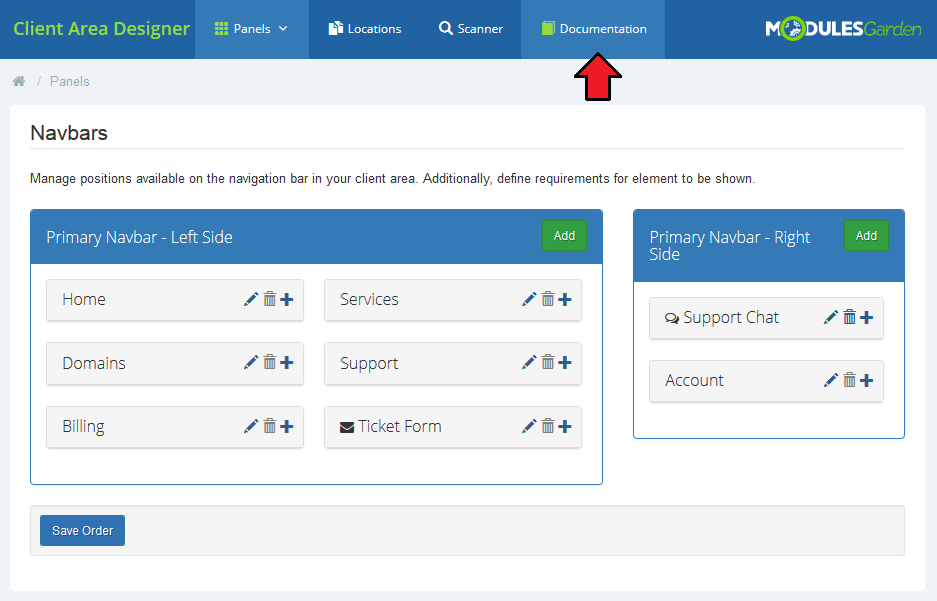
The last position in your navigation menu, when pressed, redirects to the article you are currently reading.
# Smarty Tags
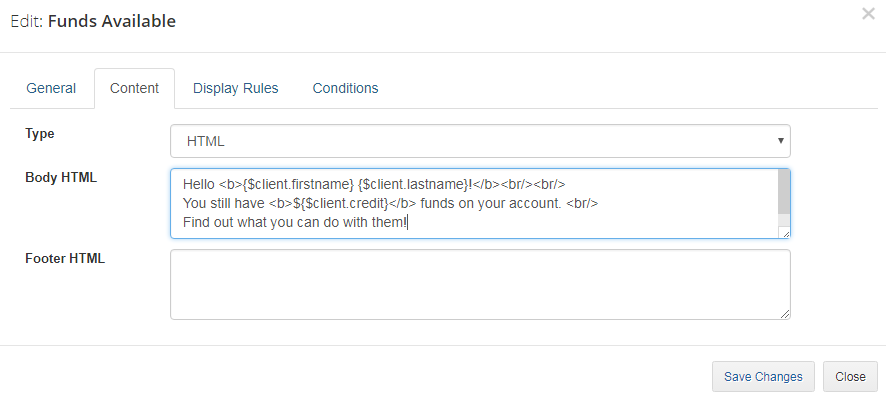
Starting with the 1.1.0 version, the module allows you to use Smarty (opens new window) tags in HTML content.
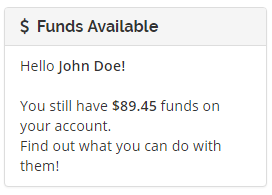
For example, if you use {$client.firstname}, {$client.lastname} and {$client.credit} in the following code:
Hello <b>{$client.firstname} {$client.lastname}!</b>
You still have <b>${$client.credit}</b> funds on your account.
Find out what you can do with them!
The result will be as follows:
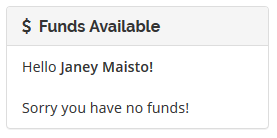
You can, of course, use the full scope of Smarty tags, such as conditional instructions (opens new window):
Hello <b>{$client.firstname} {$client.lastname}!</b>
{if $client.credit gt 0}
You still have <b>${$client.credit}</b> funds on your account.
Find out what you can do with them!
{else}Sorry you have no funds!
{/if}
In this example, if the customer does not have any credit, he will see something like this:
Of course, this is just a very simple example that will only work for the clients who are logged in. In order to build more advanced elements, please check out the Smarty documentation (opens new window).
Note: Remember that the incorrect use of Smarty tags may lead to a website not operating properly.
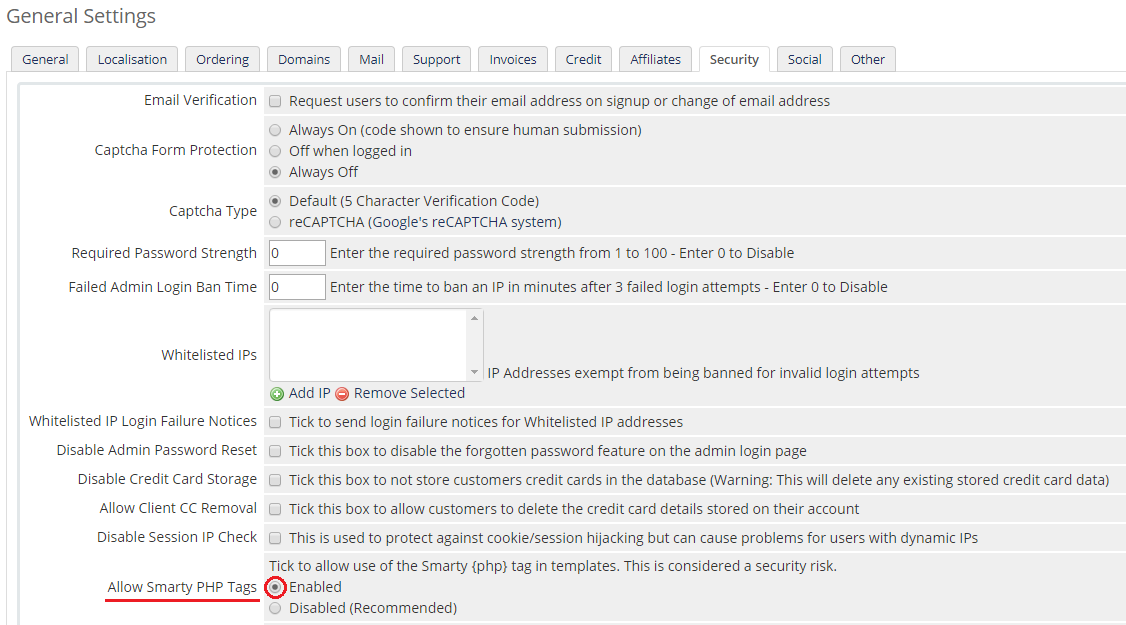
If you need to use a more advanced code using {php} tags, make sure that you have enabled the relevant option in the 'General Settings' → 'Security'.
This function is only supported by WHMCS up to version 8.6. If you plan to update your WHMCS keep in mind {php} tags are no longer supported (opens new window).
For example, you can list all of the template variables using:
<pre>{php}print_r($template->getTemplateVars());{/php}
# Tips
When you are adding a new element into your client area, you may add the langs used in the lang file to enable translations and changes.
To do so:- open your english.php file
- type in a new line in format:
$_LANG['element name'] = 'Element Name';- to change/translate it, simply change the content after the '=' sign.
Client Area Designer module supports custom modification that are based on template six customized according to this documentation (opens new window).
# Update Instructions
Essential guidance through the process of updating the module is offered here.
Ensure successful completion of the module update by carefully following each step, thereby preventing data loss or any unforeseen issues.
Additionally, you will find a current list of supplementary actions necessary for a smooth update process there.
# Upgrade Guide
Seeking a solution that offers greater flexibility, customization tailored to your precise needs, and unrestricted availability?
There is an option that not only proves to be cost-effective in the long run but also includes prioritized support services, making it a truly valuable investment.
Opt for the Open Source version (opens new window) of your Client Area Designer For WHMCS module to unlock these benefits.
Simply click on either the Get Source Code or Upgrade To Lifetime button found on the product's page in our client area to complete the one-step upgrade process, with a dedicated discount already applied.
Follow a comprehensive guide covering the transition process, the advantages it brings, and step-by-step instructions on what to do next after the order has been successfully finalized.
# Common Problems
In case of connection problems, please check whether your SELinux or firewall does not block ports.
The module is not compatible with Lagom One Step Order For WHMCS, and the integration between them is not planned as such due to their individuality and exclusive features.