

# Abandoned Cart For WHMCS
# (opens new window) About Abandoned Cart For WHMCS (opens new window)
Abandoned Cart For WHMCS is a perfect tool that allows you to learn about your clients' habits and prevent unfinished purchases.
Check the content of shopping carts abandoned by your guests and send them customized email messages to remind about incomplete shopping.
Observe statistics on customers' behavior to perfectly adjust your offer to their needs which will quickly result in increased revenue and conversion rates.
# Installation
This tutorial will show you how to successfully install and configure Abandoned Cart For WHMCS. (opens new window)
We will guide you step by step through the whole installation and configuration process.
- Log in to our client area and download the module.
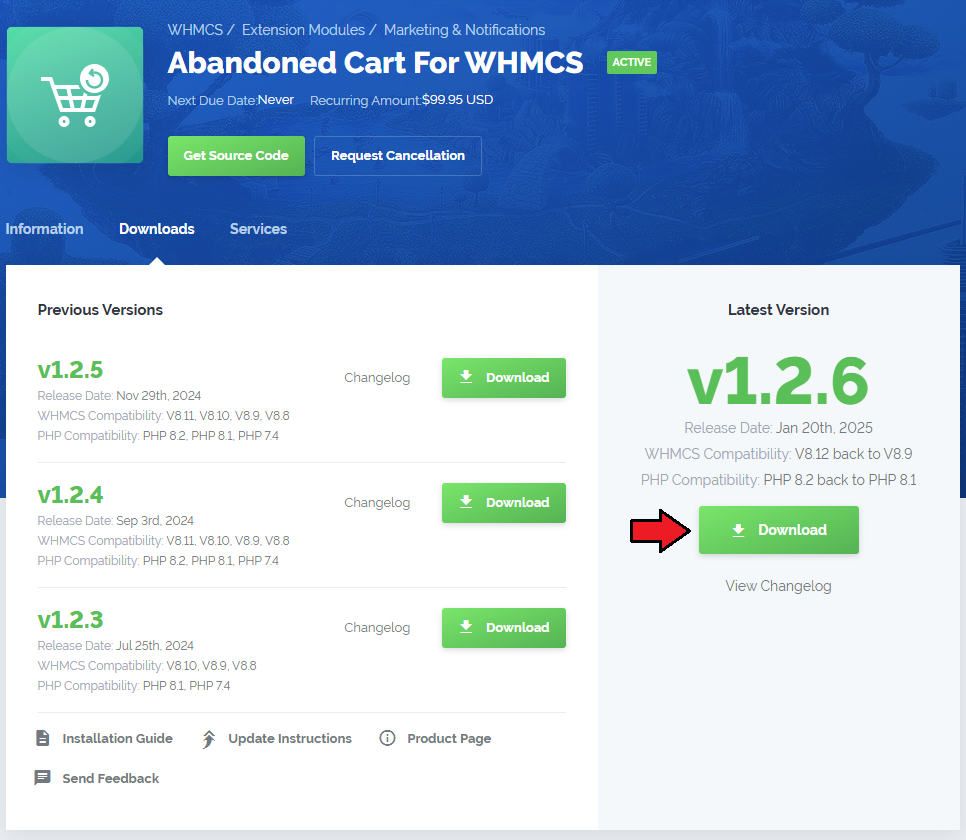
Upload and extract the extension into the main WHMCS directory.
Extracted files in your WHMCS directory should look like this:
When you install Abandoned Cart For WHMCS for the first time, you have to rename the 'license_RENAME.php' file.
This file is located in 'modules/addons/AbandonedCart/license_RENAME.php'. Rename it from 'license_RENAME.php' to 'license.php'.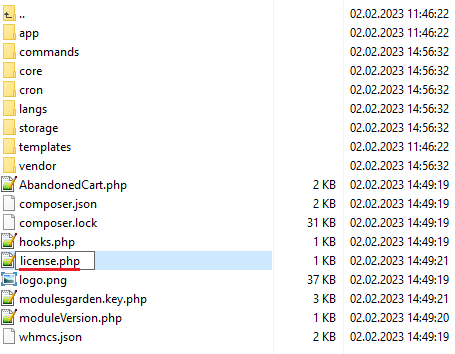
In order to configure your license key, you have to edit the previously renamed 'license.php' file.
Enter your license key between the quotation marks as presented on the following screen. You can find your license key in our client area → 'My Products'.
In the next step, set up the 'storage' folder as recursively writable.
This folder is available at 'your_whmcs/modules/addons/AbandonedCart/'.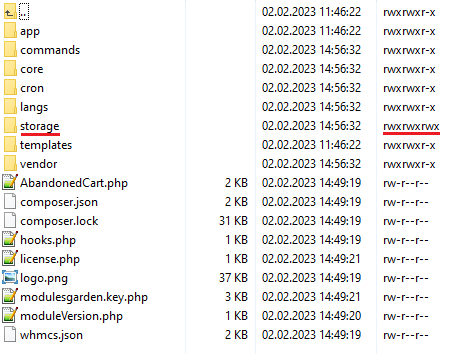
Now you have to activate the module in your WHMCS system.
Log in to your WHMCS admin area. Go to 'System Settings' → 'Addon Modules'. Afterwards, find 'Abandoned Cart' and press the 'Activate' button.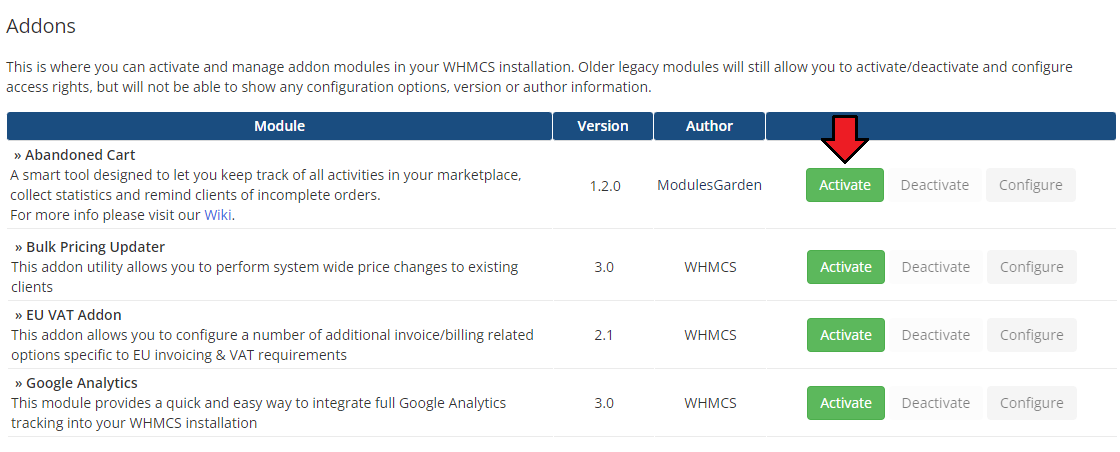
In the next step you need to permit access to this module.
To do so, click on the 'Configure' button, tick 'Full Administrator' and press 'Save Changes'.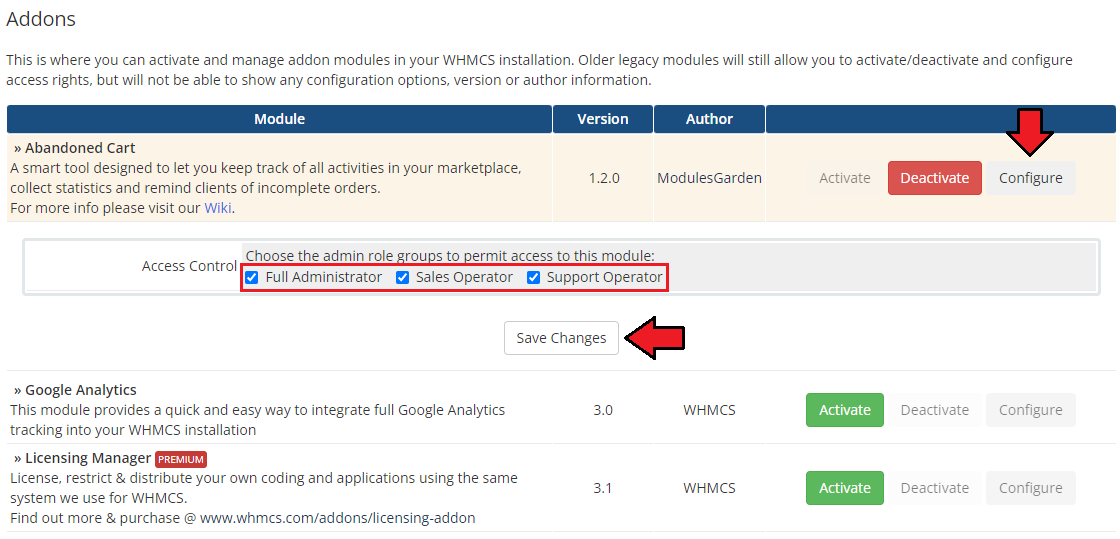
You have just successfully installed Abandoned Cart For WHMCS!
You can access your module at 'Addons' → 'Abandoned Cart'.
# Configuration and Management
Abandoned Cart For WHMCS allows you to control all the actions that take place in your marketplace.
Check the manual below to learn how to configure the module to take all the advantages it has to offer.
# Addon Module
# Dashboard
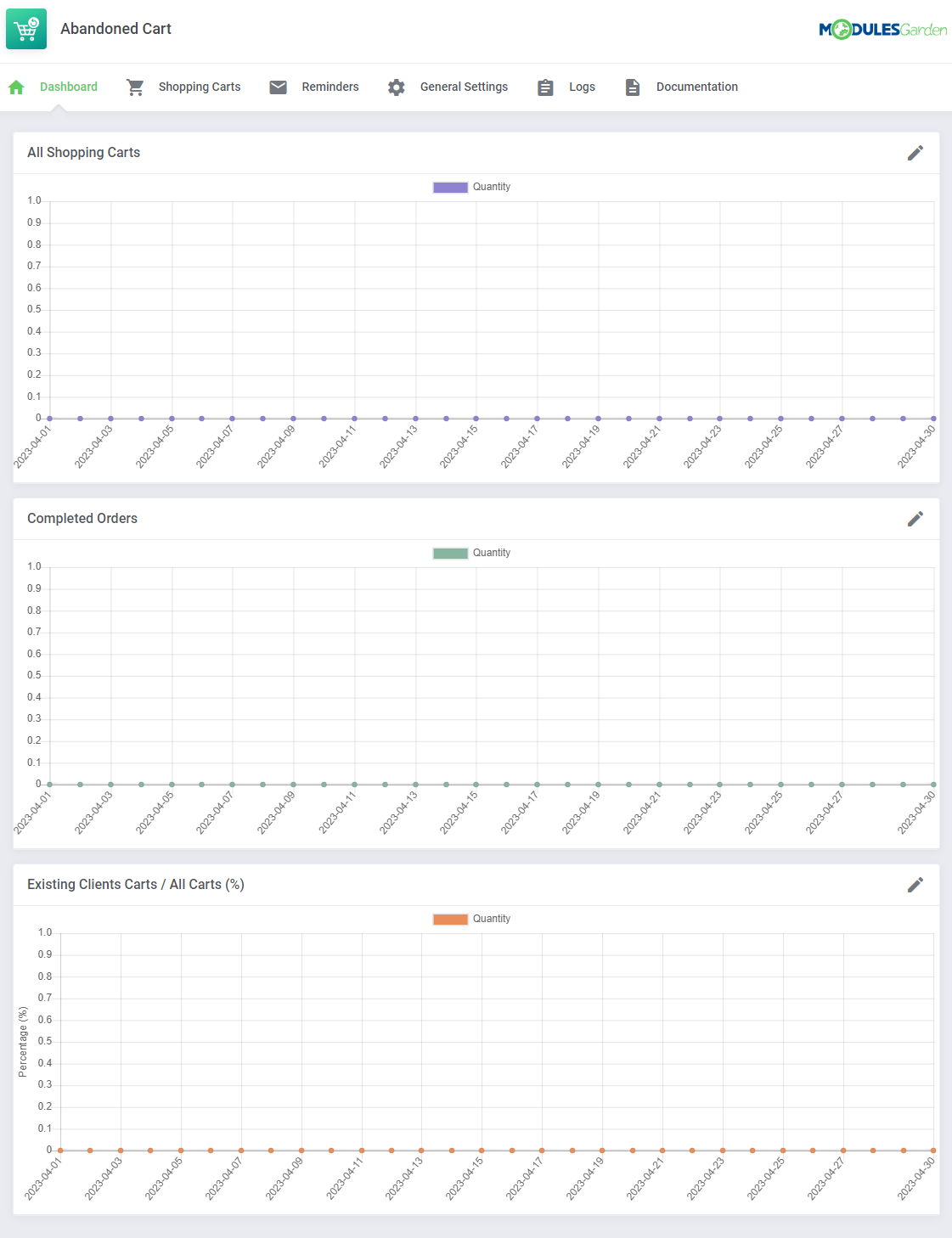
In the dashboard you can find the summary graphs of recently created shopping cart.
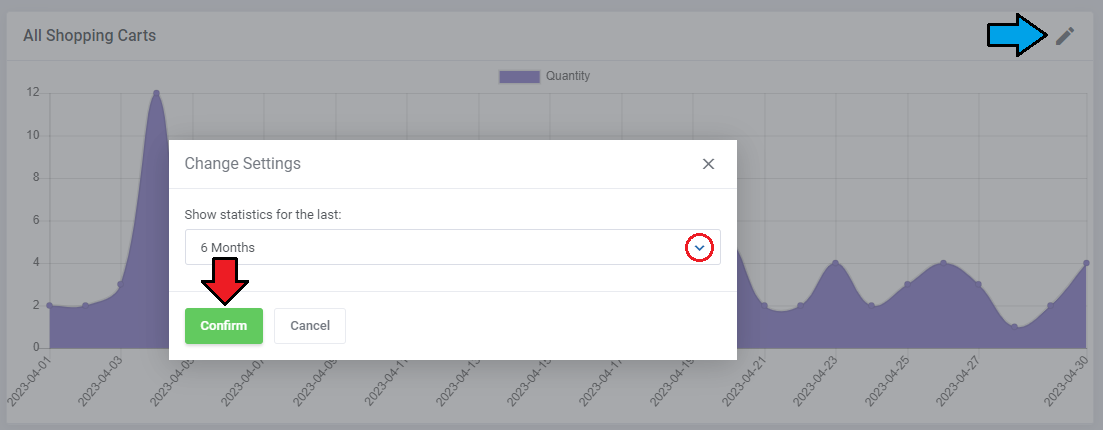
The first graph illustrates the number of all shopping carts created within the selected period of time. You may choose between 1, 3, 6 and 12 months to show the statistics for.
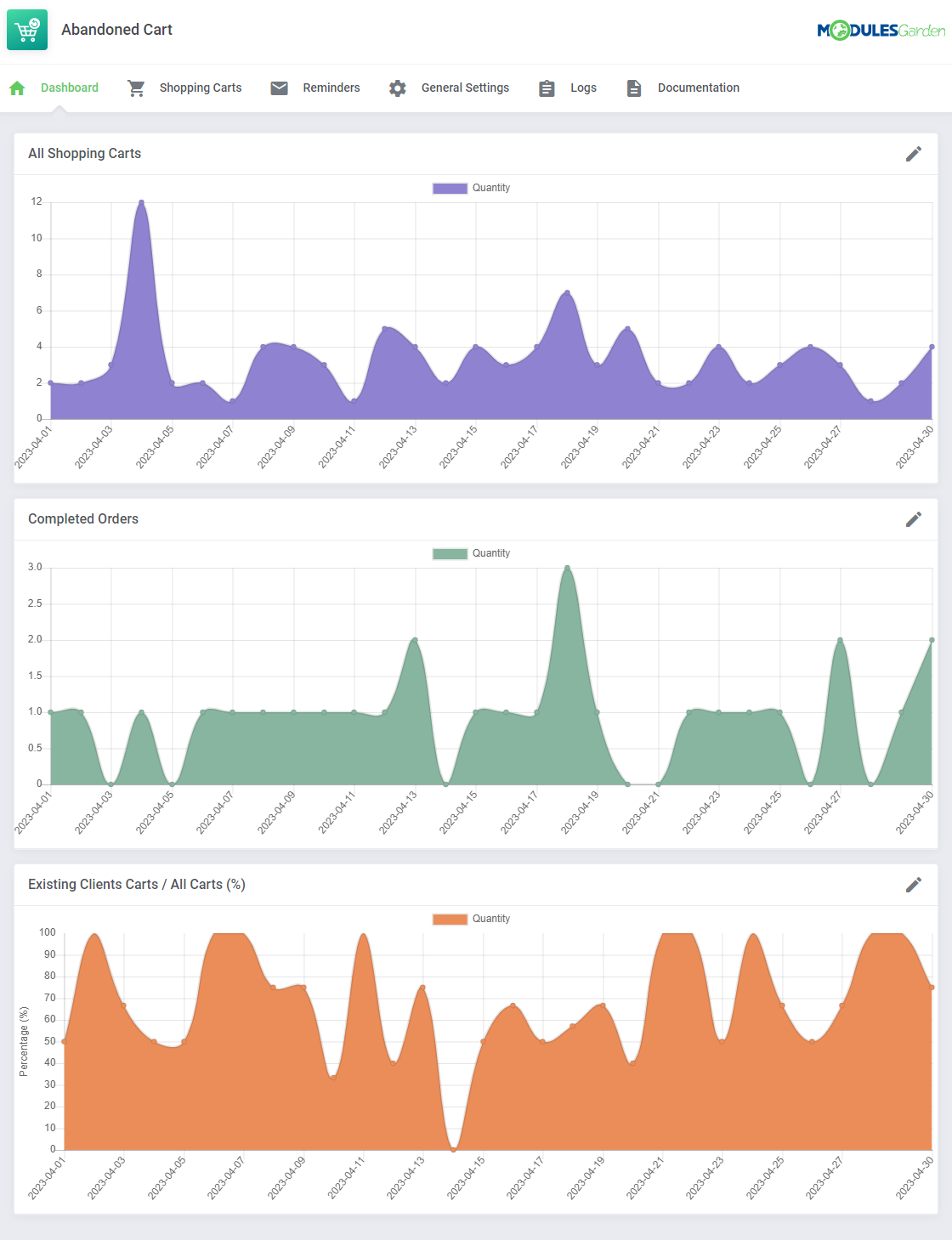
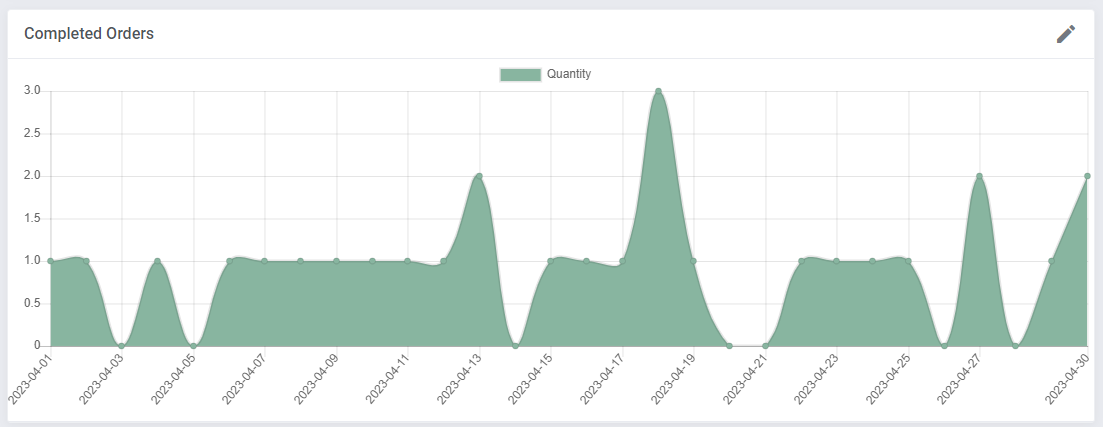
The second graph is dedicated to show the summary of completed orders only.
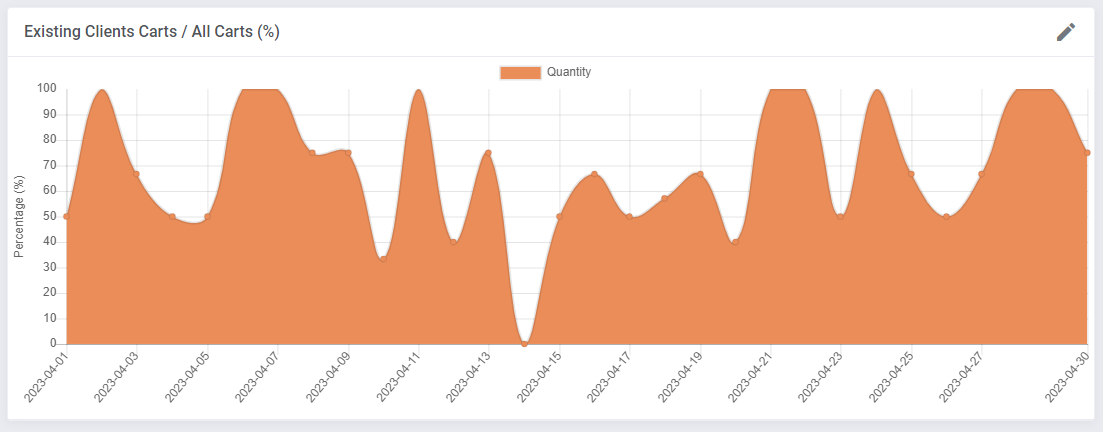
The last graph "Existing Clients Carts / All Carts (%)" represents the percentage of cars created by the existing clients (unlogged guests are not taken into consideration)
towards the number of all carts (created by existing clients and guests together).
# Shopping Carts
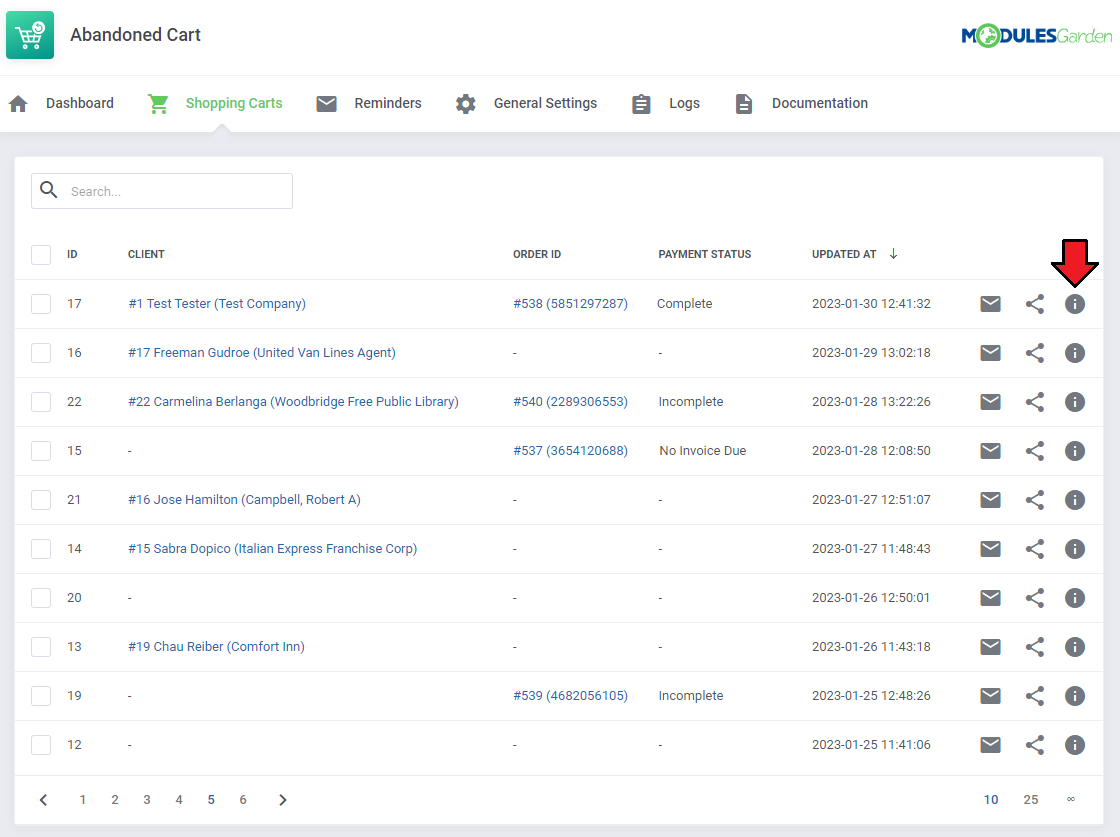
The 'Shopping Carts' section, as its name suggests, contains a list of all identified carts, with details included, as follows:
- client full name and its company name (if known)
- the URL to the order if created
- the cart details
Press the "Snapshots" button to find more specific information on the cart content and actions performed within that cart.
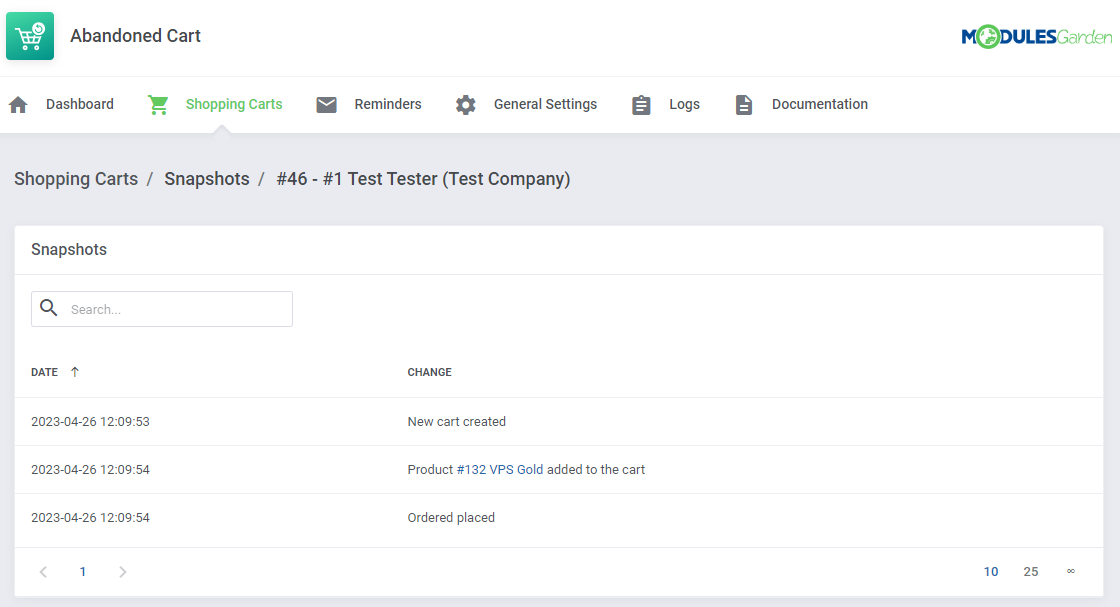
Under "Snapshots" there are details on the cart content, visible at the moment of the last snapshot being taken.
You will find there also the history of changes made by the client, such as:
- adding a new product/addon/domain
- removing a product/addon/domain
Right next to the shopping cart details you will find a button which after pressing shows a direct URL to the abandoned cart.
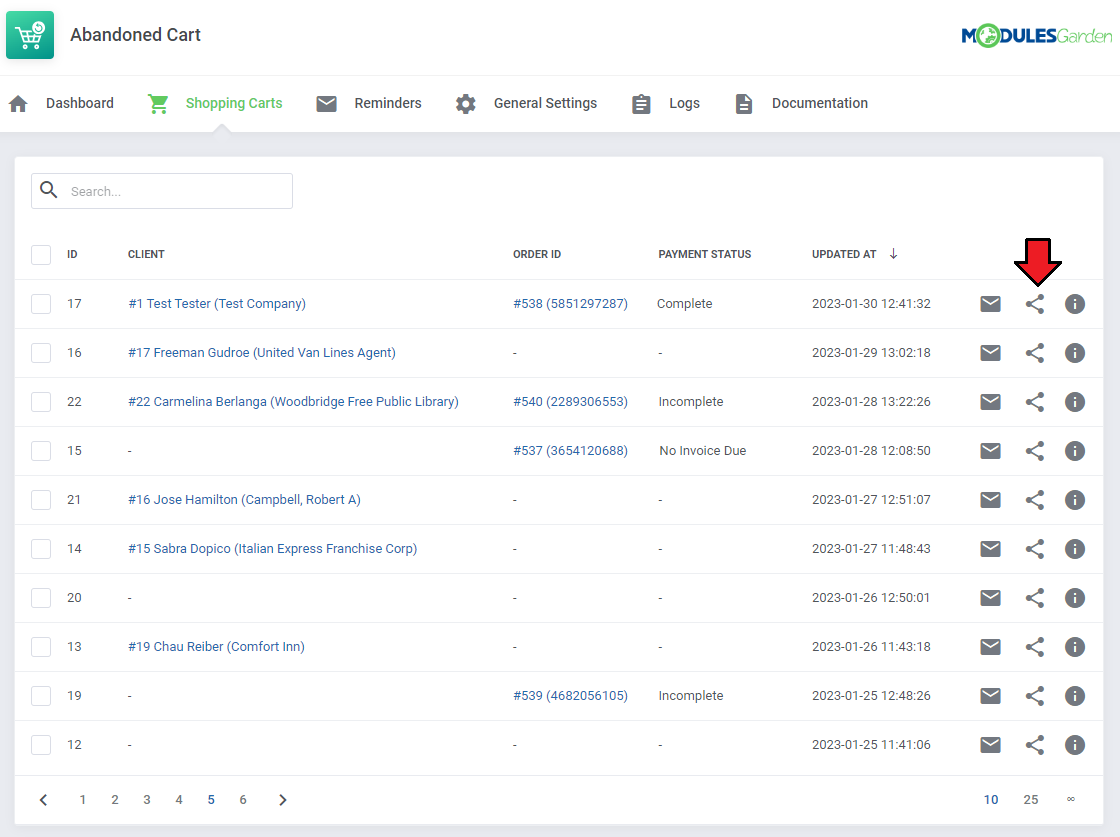
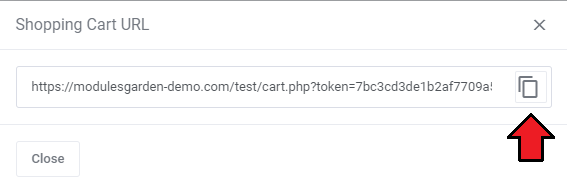
This URL can be automatically placed in the email message sent to a client provided a dedicated "Restore Abandoned Cart" option has been previously enabled (more here).
On pressing, the client can get his abandoned cart restored and he will be allowed to continue shopping with the already filled in cart with all the items.
You may also use this URL to resend it manually.
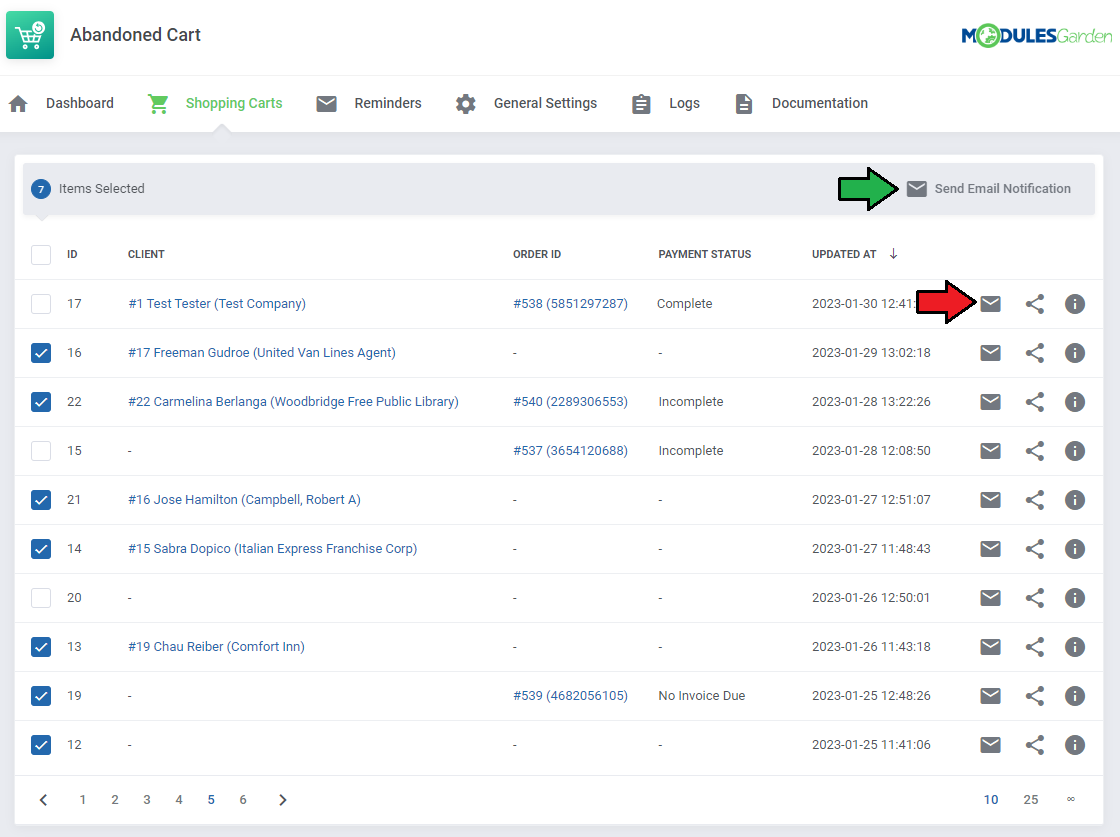
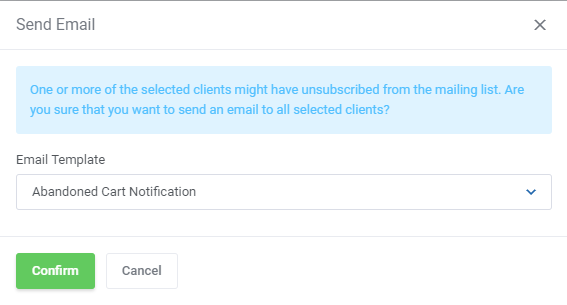
You may send email template reminders to preferred clients directly from the shopping carts list. Send emails to single clients or choose several recipients.
# Reminders
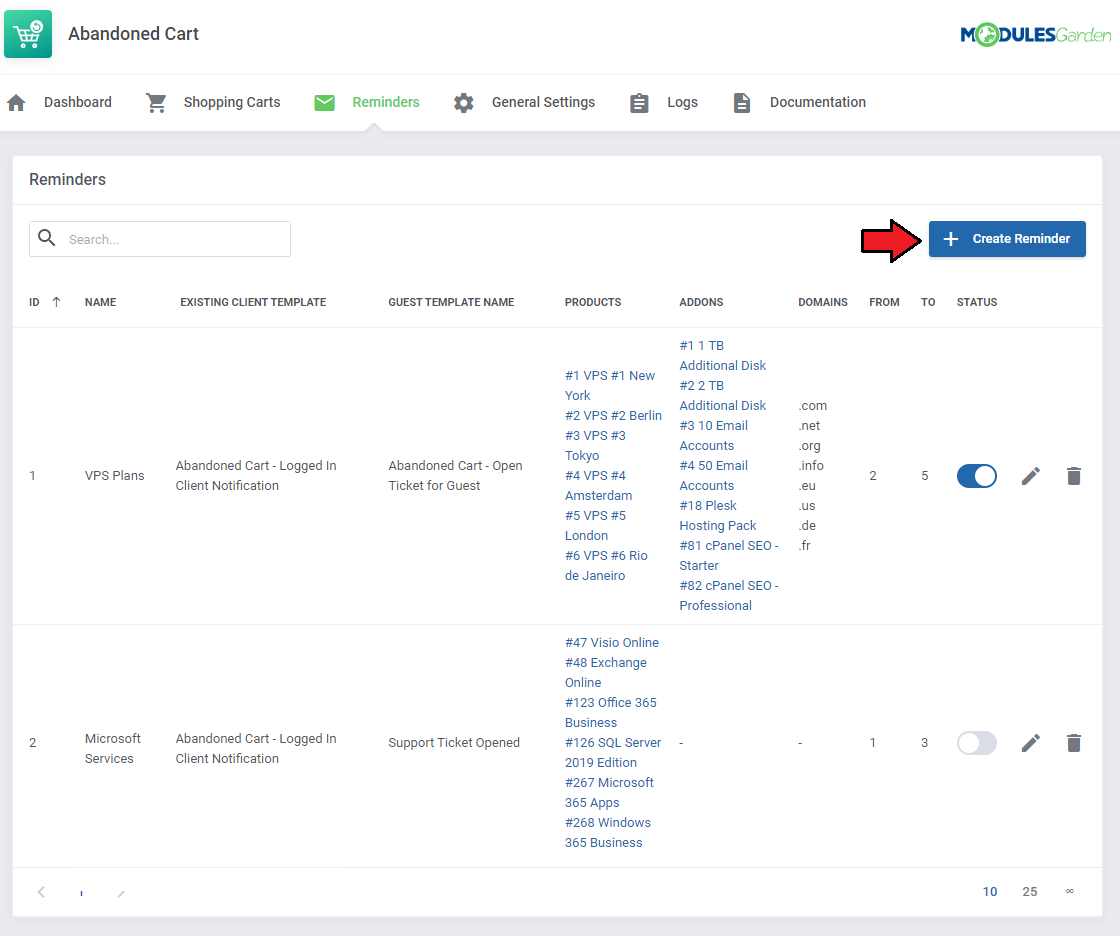
"Reminders" is the clue section of the whole module. Compose the reminders settings to deliver adjusted notifications to clients who abandoned their cart.
Press 'Create Reminder' button to create your first rule.
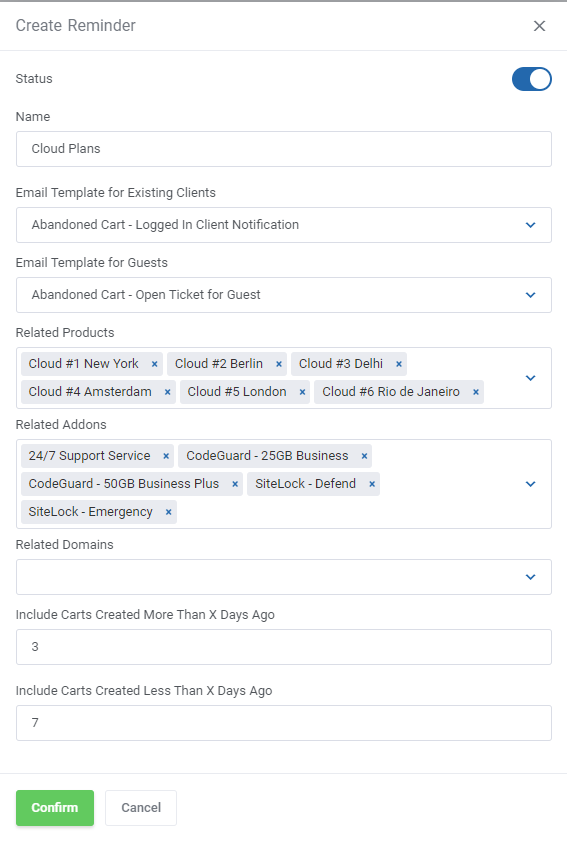
Configure the reminder by providing the details as explained below:
- Status - enable/disable the reminder
- Name - give the reminder a unique name
- Email Template for Existing Clients - choose the email template that will be used to send an email message notifying your already logged in/registered client; "Abandoned Cart - Logged In Client Notification" is the default module template.
- Email Template for Guests - choose the email template that will be used send an email message notifying your guest clients who visited your client area and started shopping; "Abandoned Cart - Open Ticket For Guest" is the default module template.
You may preview and adjust the email templates content at your WHMCS → System Settings → Email Templates.
Note: A support ticket is opened at the same time within a dedicated support department. - Related Products/Addons/Domains - select items; if any has been added to the cart, a related reminder will be sent to the interested client (logged in or guest who provided the email address)
- Include Carts Created More Than X Days Ago - type in the number of days, only carts created BEFORE will be verified
- Include Carts Created Less Than X Days Ago - type in the number of days, only carts created AFTER will be verified,
as illustrated: only carts created between the last 3 and 7 days will be checked
Press 'Confirm' when your reminder configuration is ready.
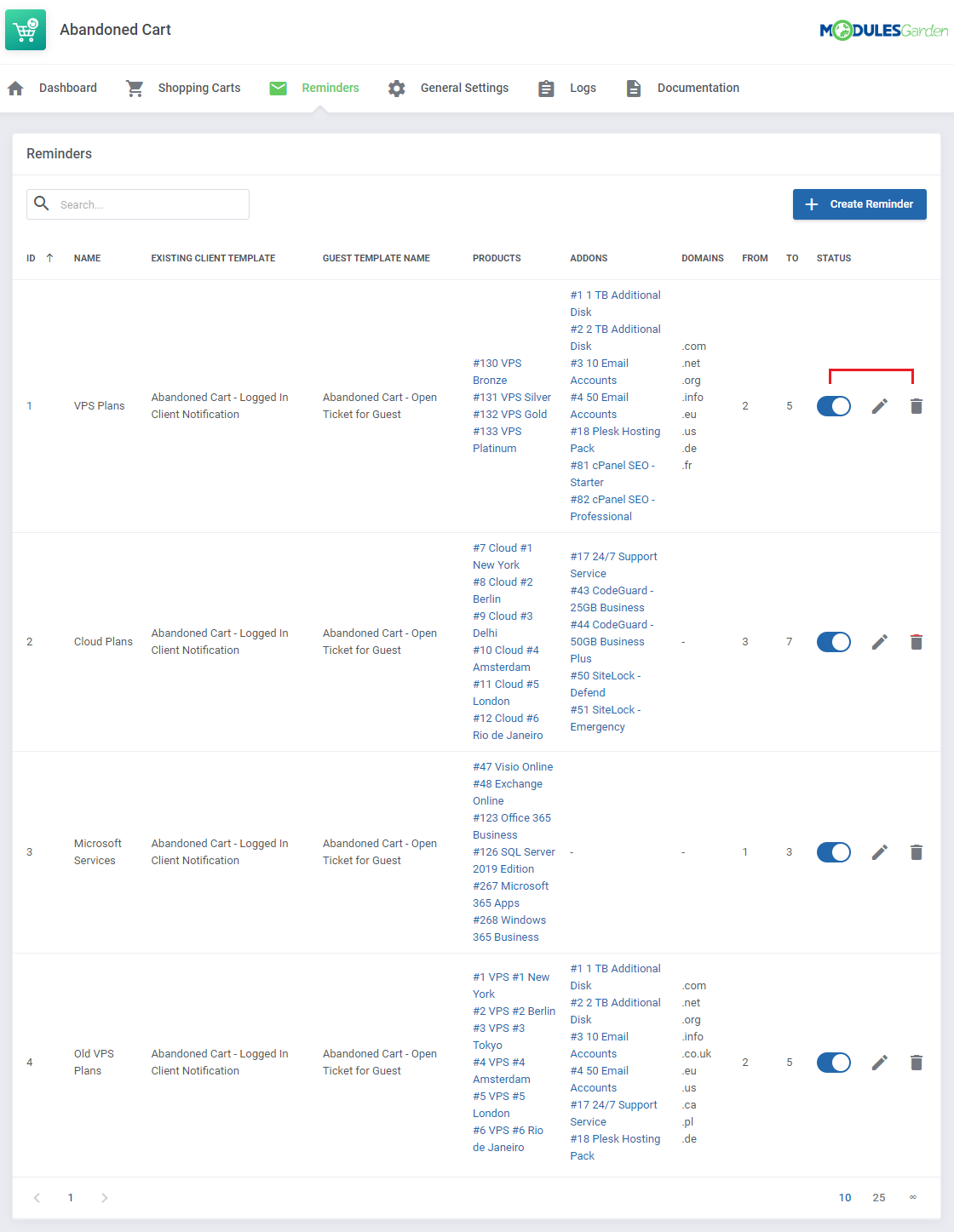
The just created reminder rule will appear on the list with crucial details visible on the front page for a quick and easy preview.
You may enable/disable the reminder, edit and delete it using the actions buttons.
# General Settings
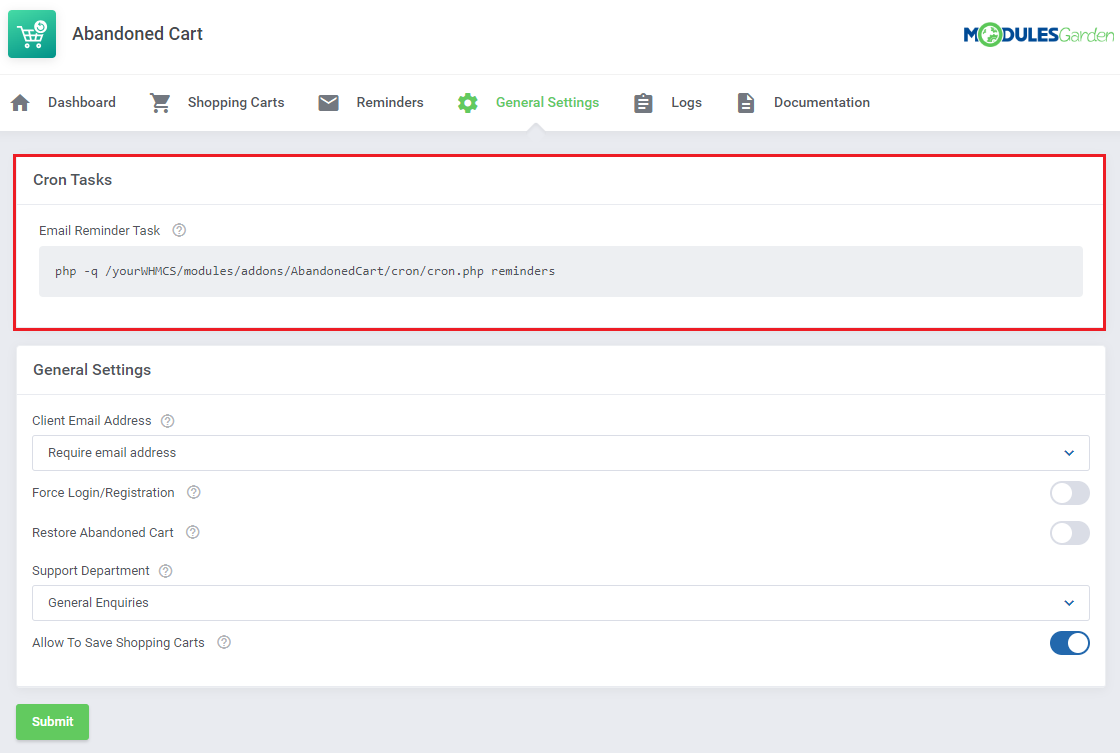
Under the 'General Settings' section you will find the cron details - setting it up is crucial for the module's correct behavior and configuration.
Cron Task
Set up the cron that is responsible for sending email messages, based on created reminders as explained in the previous step. Once a day is recommended to assure fluent module performance.
General Settings
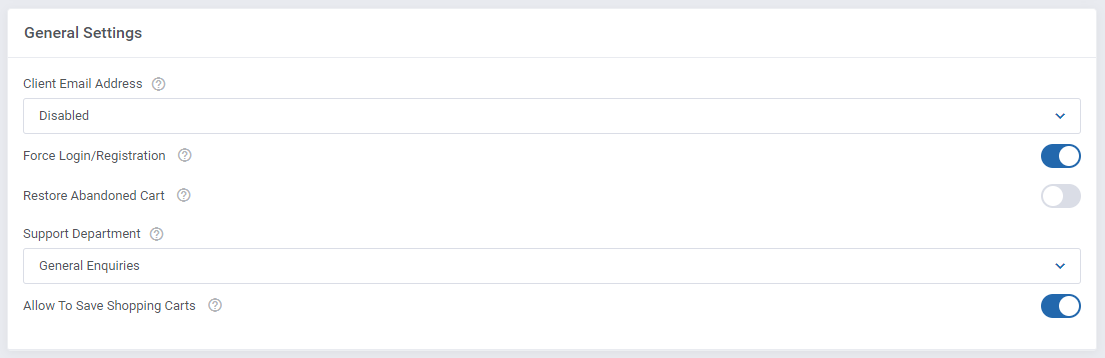
- Client Email Address - related to new visitors only; when a guest client starts to browse your store, he or she will be asked to provide an email address before being allowed to continue and complete the order:
- Disabled
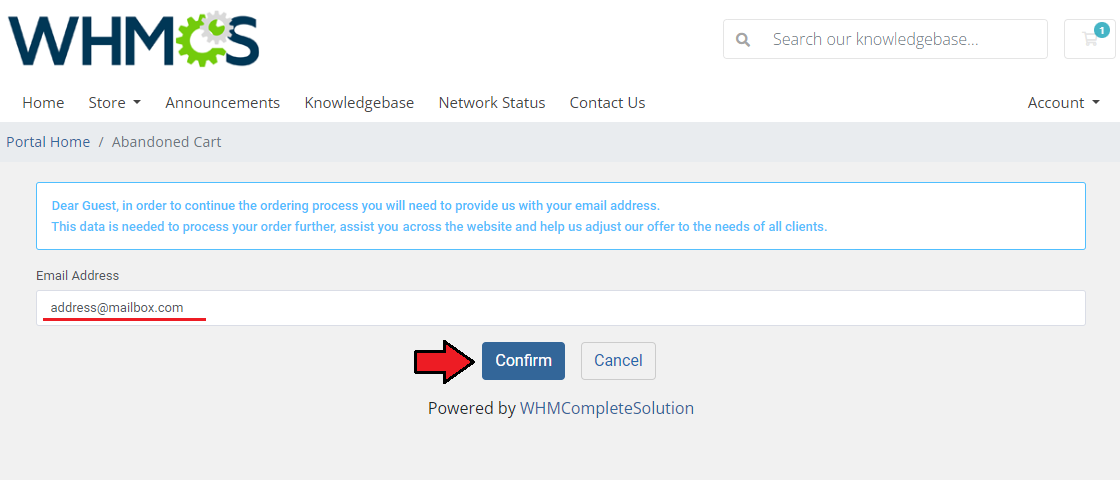
- Require email address - the client will be forced to enter the email address to be able to continue the shopping
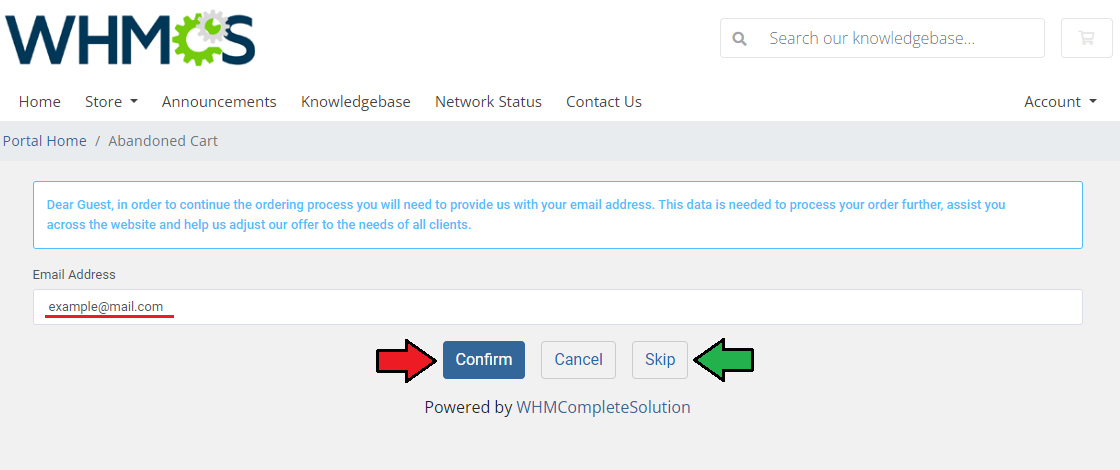
- Allow to skip this step - the client can type in the email address or press "Skip" to continue shopping, if "Skip" is pressed, no data will be collected by the module
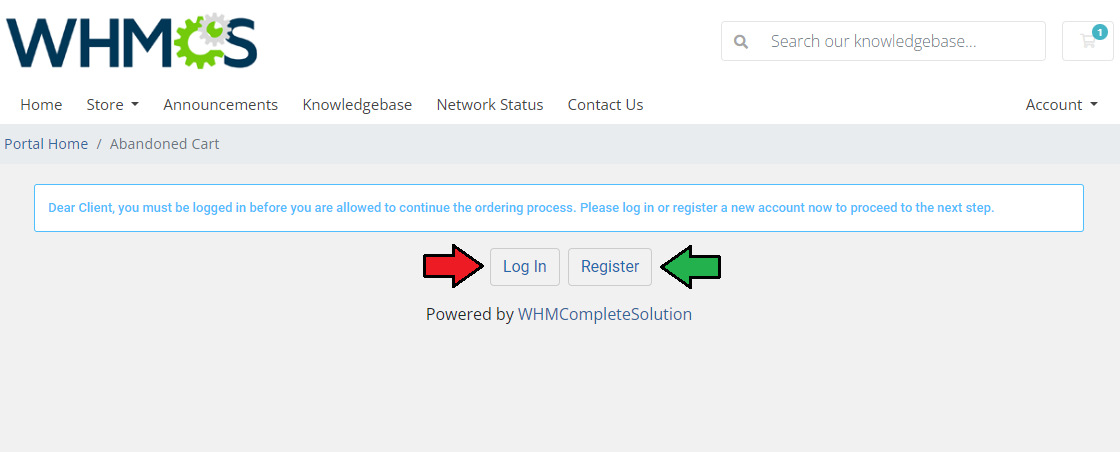
- Force Login/Registration - related to new visitors and unlogged clients; when a client adds an item to the cart, he or she will be forced to either log in (if the account already exists) or register a new account (new clients).
Otherwise, continuing the shopping will be impossible.
Important: Being logged in or at least providing an email address is required for the module correct behavior, without the email address no messages will be sent to remind clients about their abandoned carts.
Note: We highly recommend enabling just one of the options, otherwise, guest clients will be forced to provide an email address in the first step and register an account in the next one. - Restore Abandoned Cart - if enabled, clients will receive a direct link to their abandoned cart, in the module reminding email message, with its all contents restored to easily complete the order.
- Support Department - select one of the available support departments. A ticket to remind the guest clients about their abandoned carts will be opened within this department.
When your configuration is ready, do not forget to press the 'Submit' button to save your changes.
- Allow To Save Shopping Carts - when turned on, customers have the ability to save their shopping carts while placing an order.
They can later access these carts from their profiles and share them with other customers using session URLs, instantly restoring the cart's contents.
# Logs
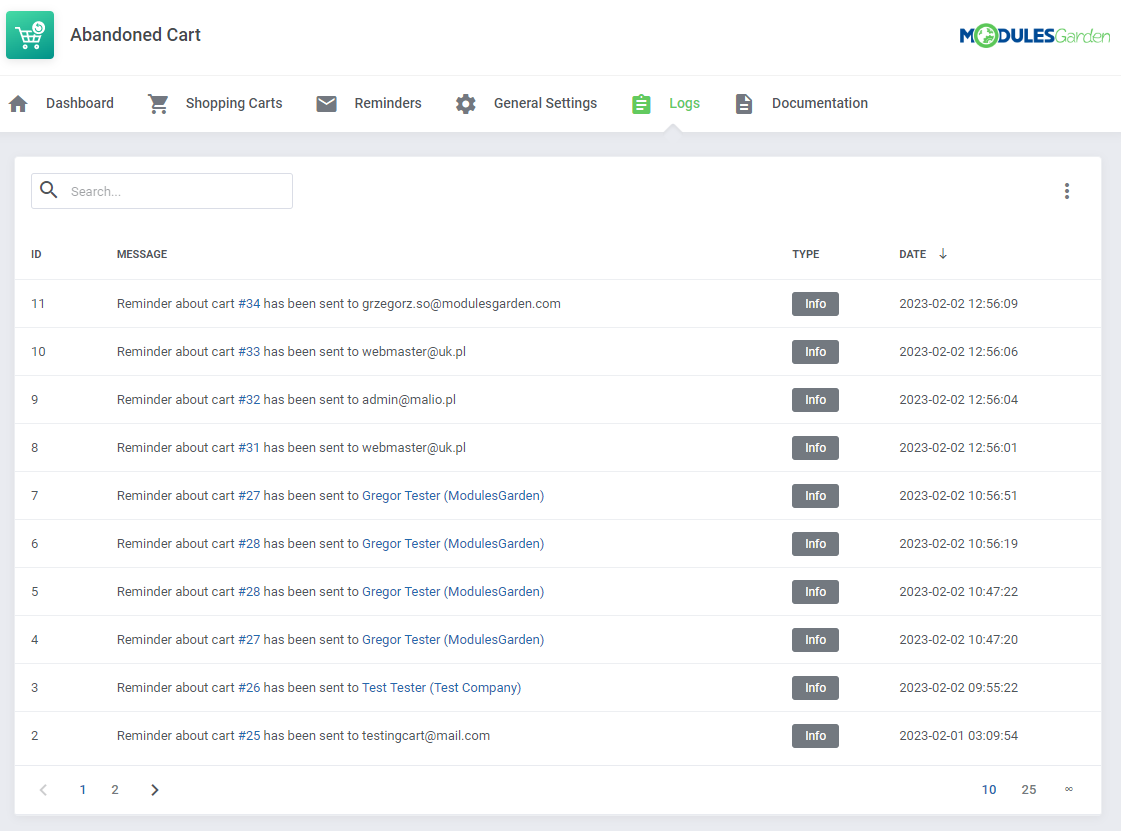
The 'Logs' section contains information an all actions taken by the module.
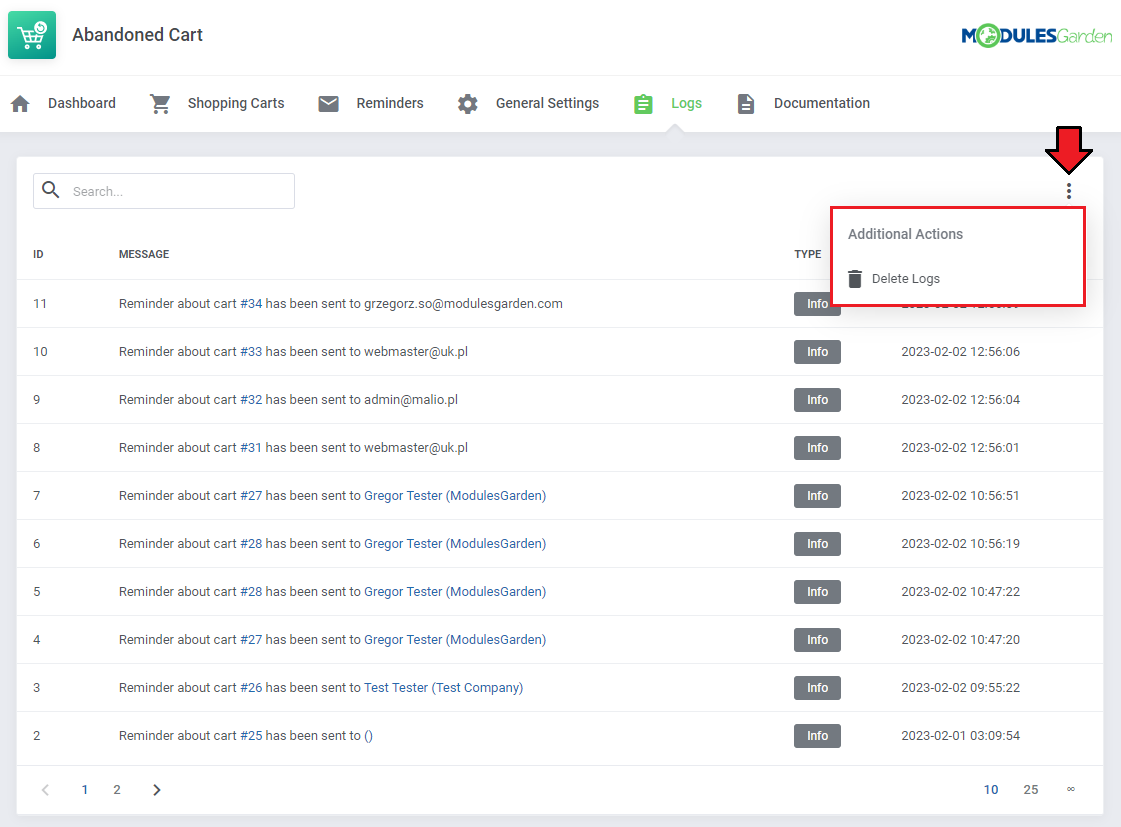
You may always delete the logs if their number is extensive.
Use the action button for mass removal of all existing log entries.
# Client Area
# Email/Login Requirement
Once an unlogged client visits your marketplace, they will be asked to leave some of their personal data. The extent of what exactly must be provided depends on the module configuration.
The moment the client starts browsing your store, they will be either:
- forced to provide an email address in order to be allowed to complete the shopping ("Client Email Address" option is set to "Require email address")
- asked to enter an email address in order to be allowed to complete the shopping ("Client Email Address" option is set to "Allow to skip this step")
- forced to log in or register a new account in order to be allowed to complete the shopping ("Force Login/Registration" option is enabled)
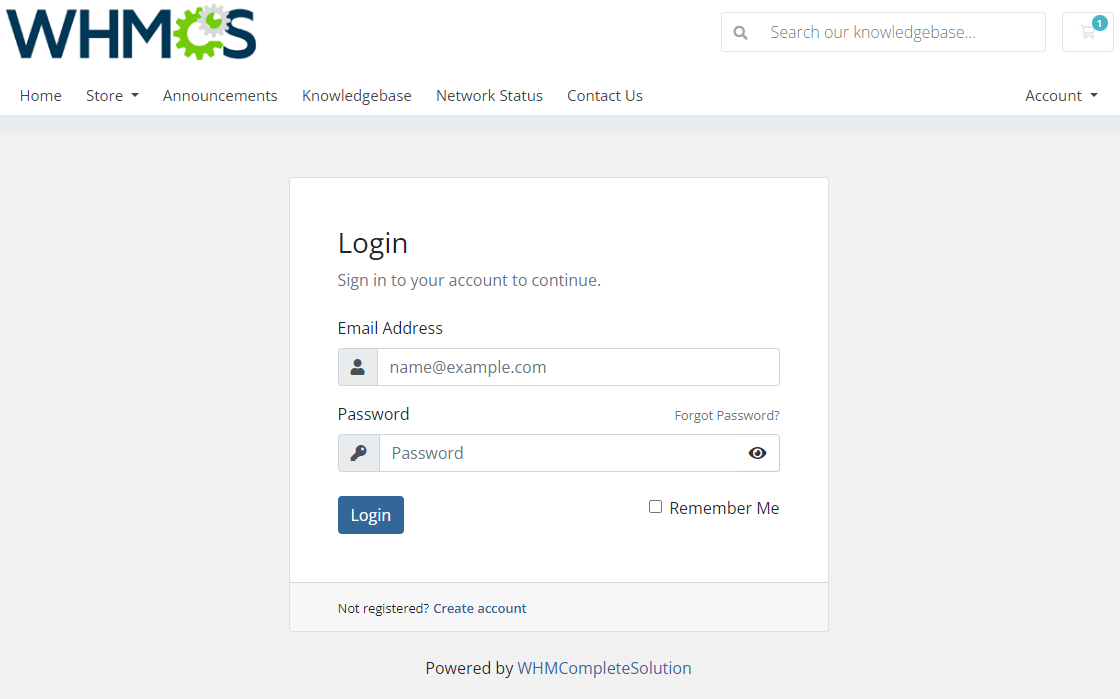
If 'Log in' is selected, the potential customer will be redirected to the standard client area login page.
For 'Register' choice, the visitor will be asked to create a new account using a standard form.
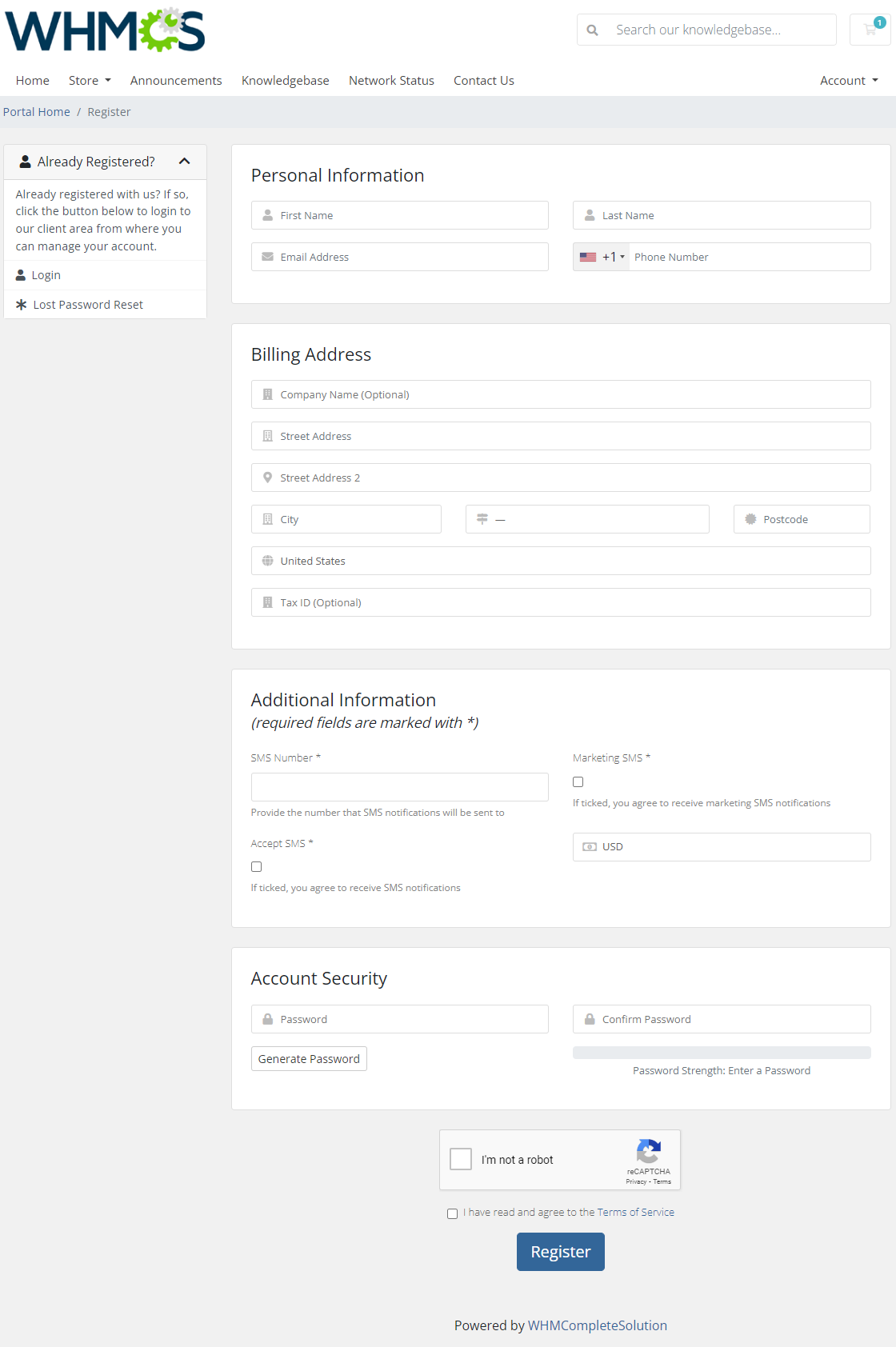
Being logged in or leaving an email address is required for the module to be able to send email messages to clients reminding them about abandoned carts and their content.
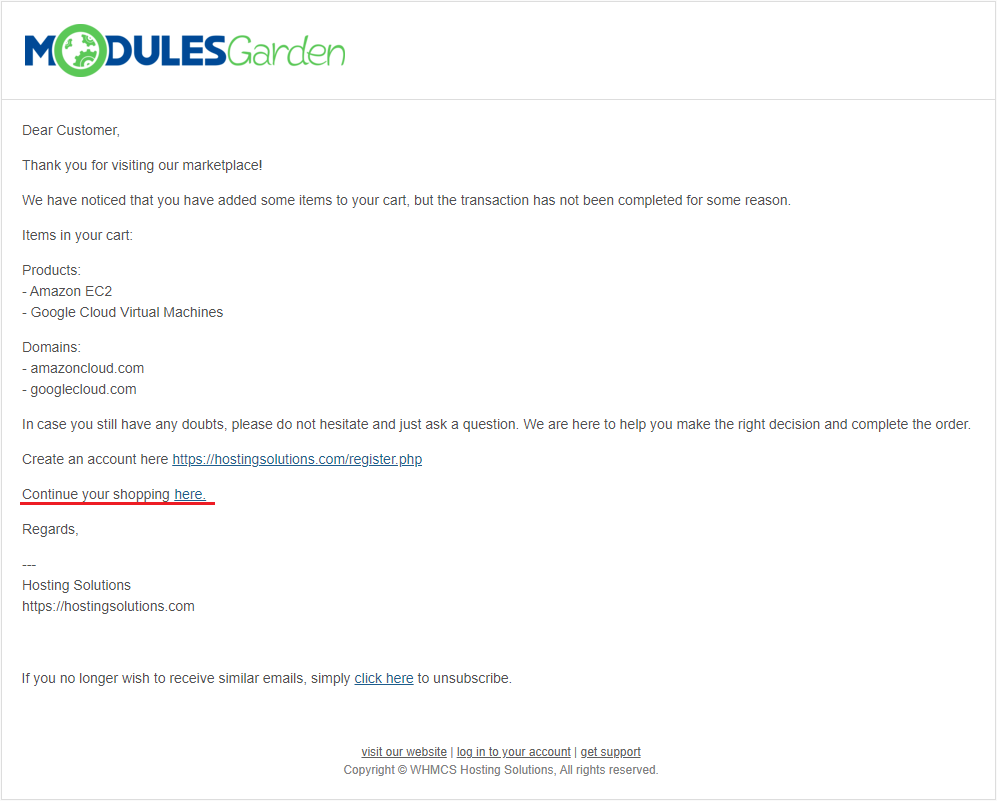
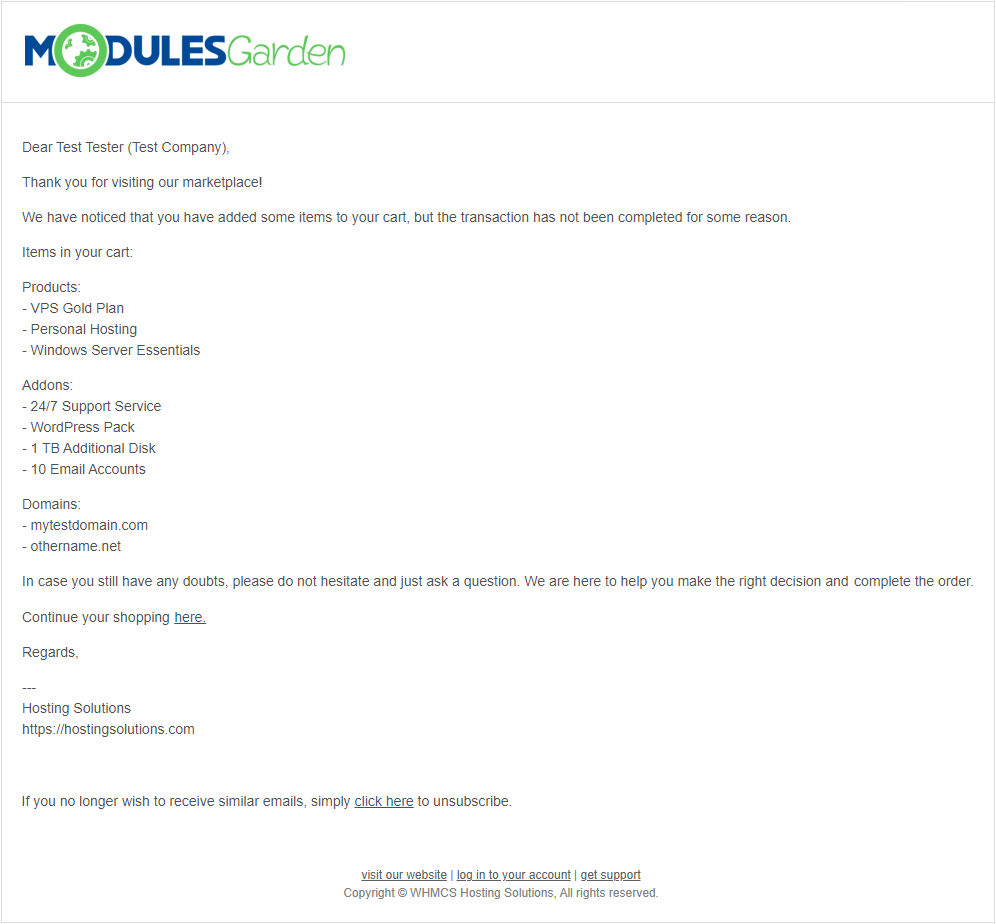
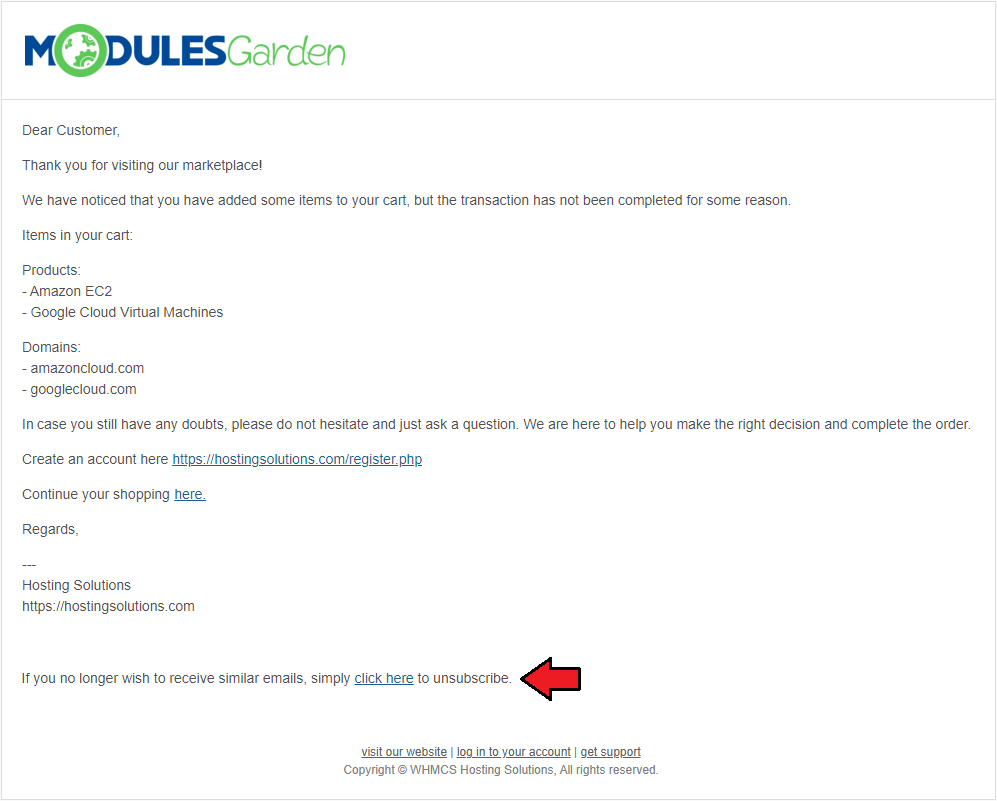
This is how an exemplary email notification sent to a client might look like:
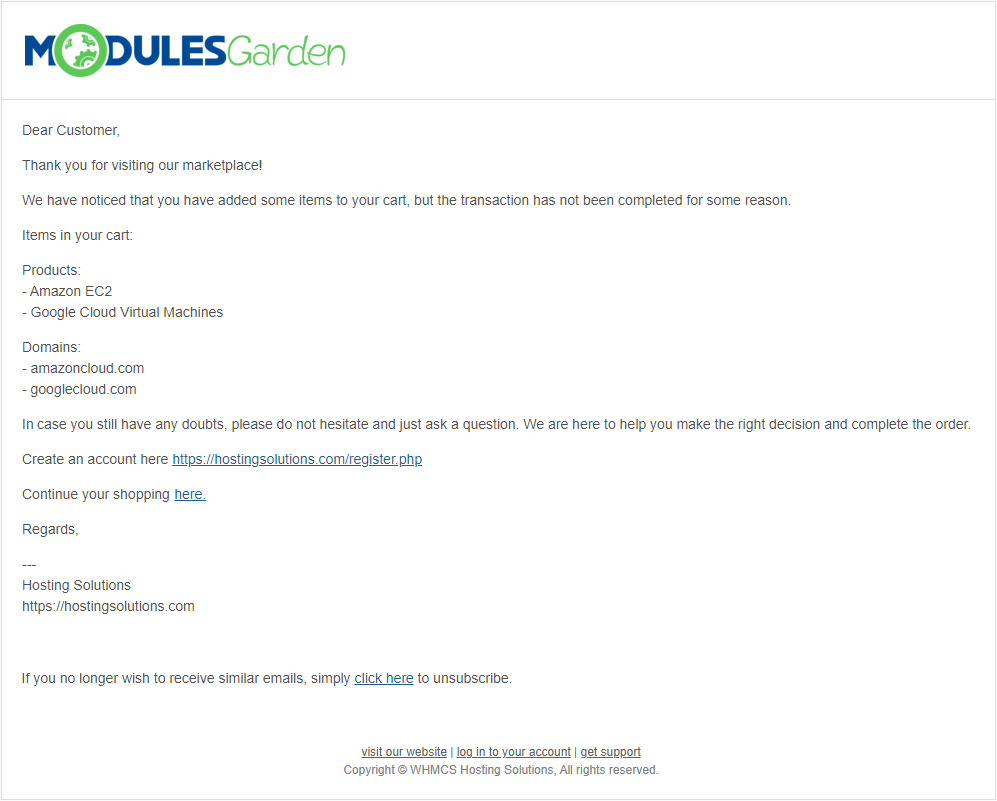
Guest clients who leave only the email address and have no account in your system will get quite a similar notification email.
Note: The system will open a new support ticket in a dedicated department at the same time. Only the assigned admin will have access to this ticket.
# Shopping Lists
Clients have the convenience of storing their shopping carts to be viewed and finalized in the future.
By clicking the "Save Cart" button while in your cart, the current contents of the cart will be promptly saved and stored in your shopping lists.
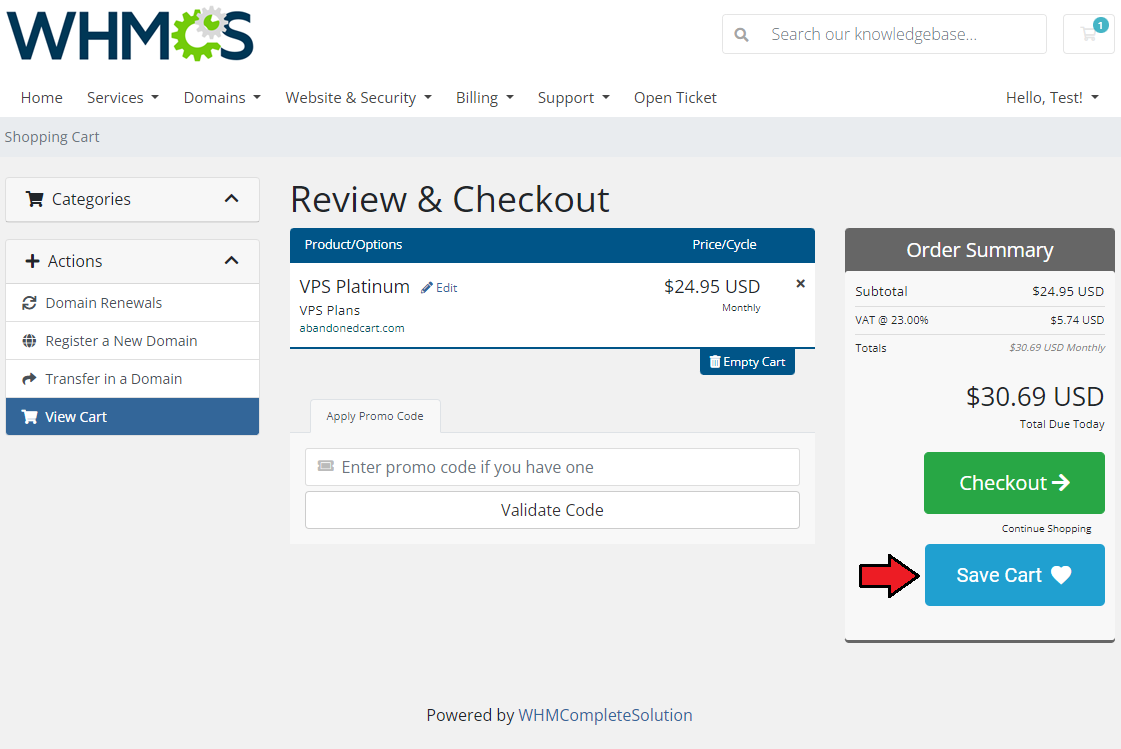
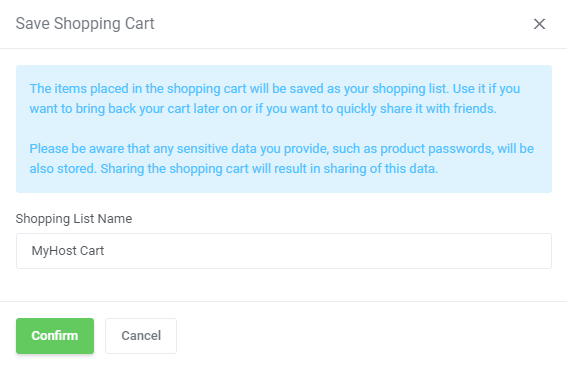
Once you have saved the cart as a shopping list, you can then access the list and manage it according to your needs.
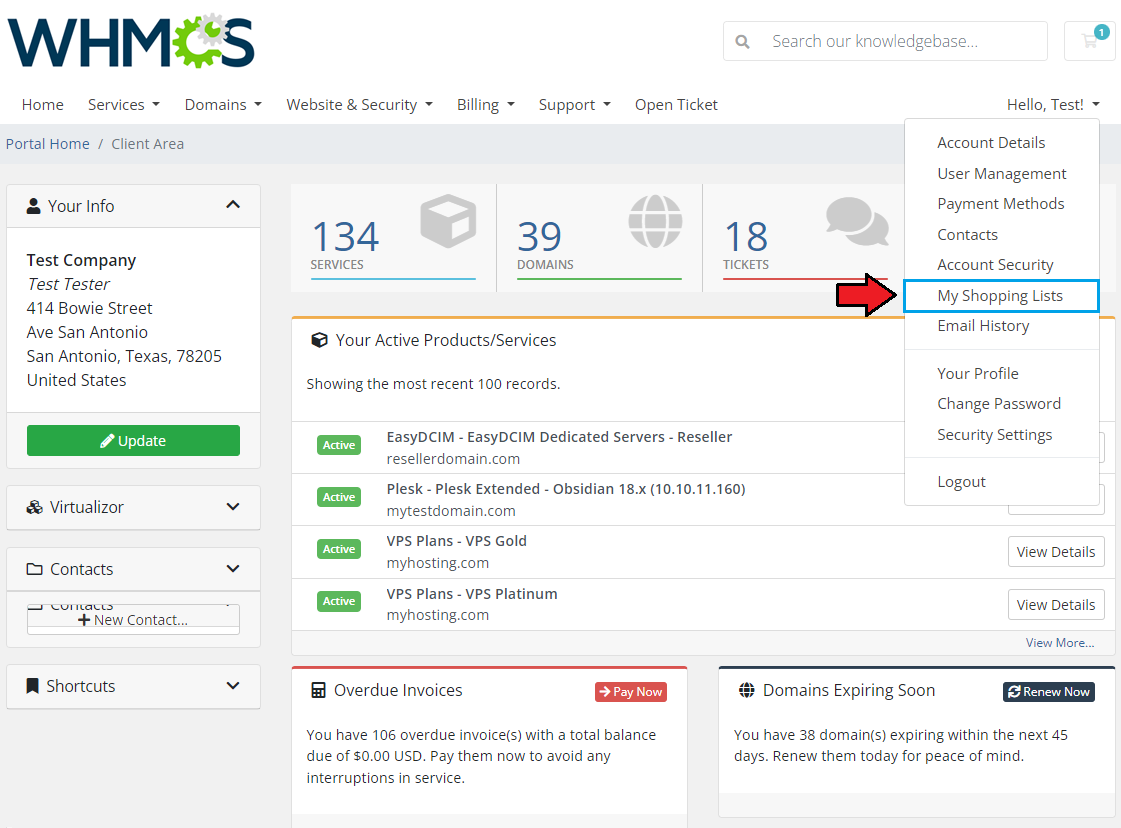
You will find the "My Shopping Lists" button in your account details dropdown menu.
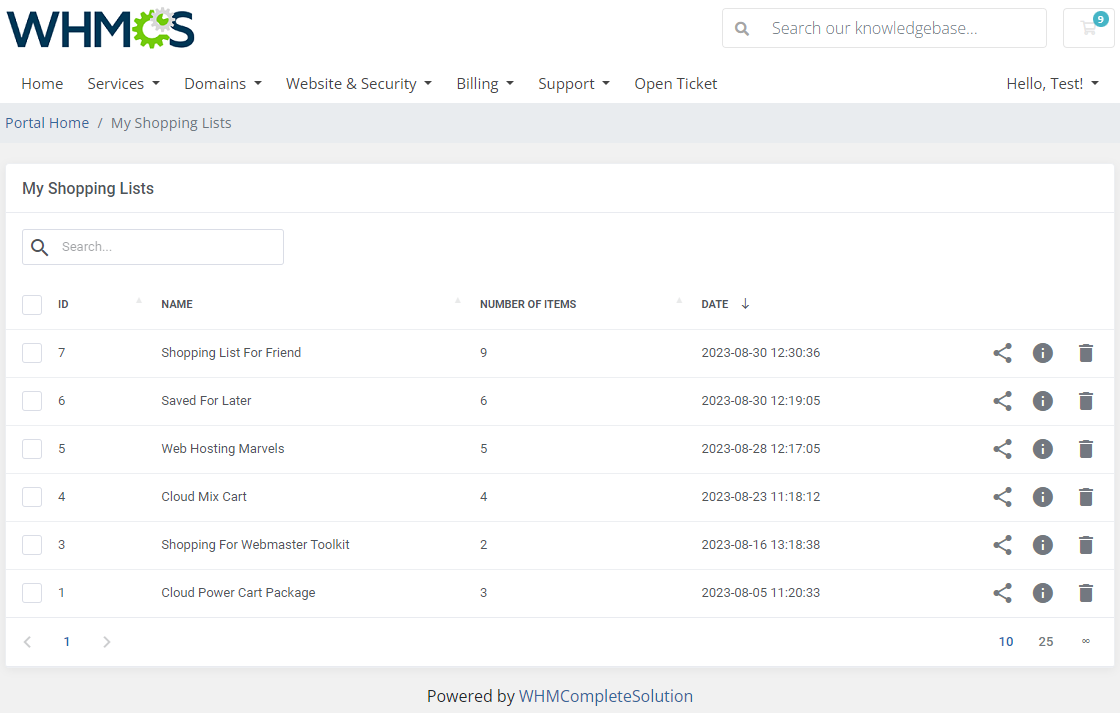
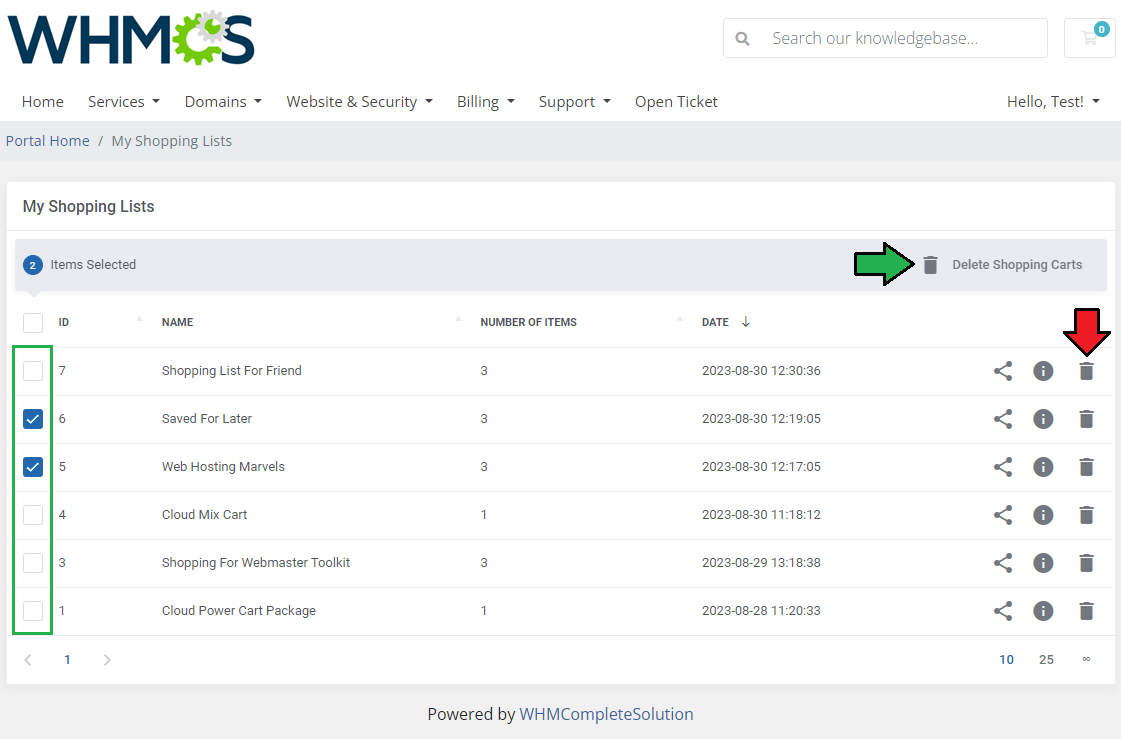
Once you navigate to the "My Shopping Lists" page, you will find all your stored carts with basic details on the dashboard.
Allowed actions on a :
- Shopping cart URL
- Shopping cart items
- Delete saved shopping cart
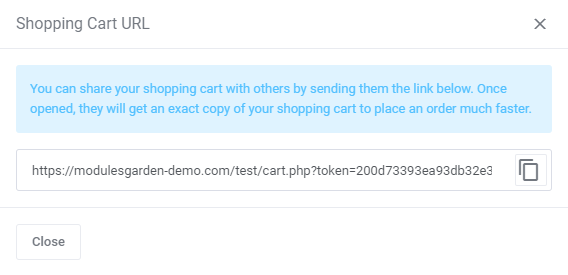
Clients may copy a direct URL to the cart and distribute it to others by providing them with the link. Upon opening the link, they will receive an identical copy of your shopping cart, allowing them to place their orders more quickly.
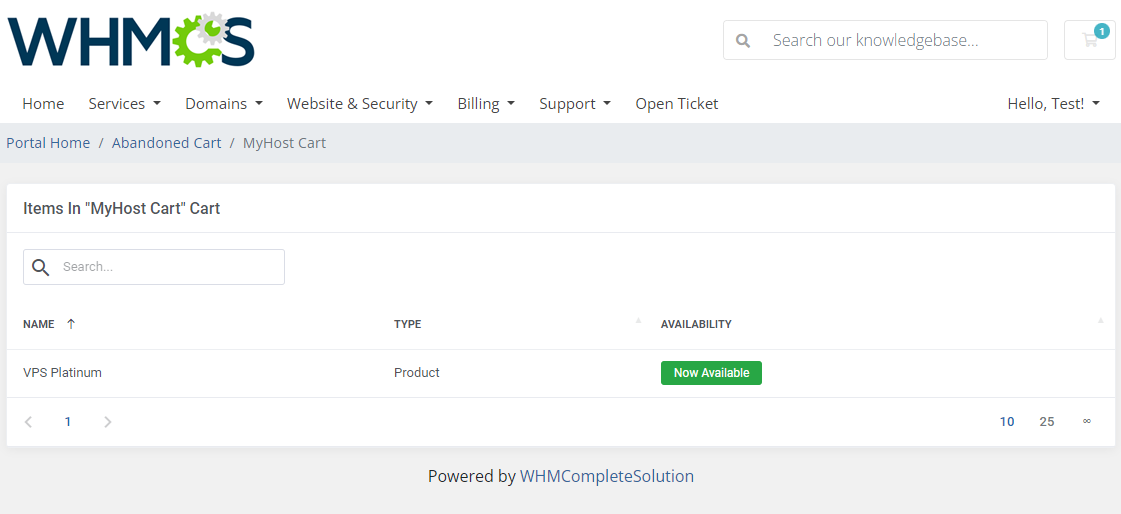
Explore the contents of this shopping list by previewing the items. Check details on the item types and their current availability in the store.
Easily remove individual carts or utilize the mass action button to eliminate multiple items at once.
# Tips
The module collects information on products, addons and domains left in the cart. No data on configurable options, custom fields etc. related to products is stored.
Upon sending an email message to a guest client, i.e. when only email address is provided, a ticket is automatically opened to notify an admin about the fact of sending such notification.
We advise creating a dedicated support department to avoid numerous tickets being visible in your main ticketing system.You can freely customize the content of breadcrumbs and messages visible to guests as well as logged in clients by editing them in the language file.
The language file can be found in the following path: '/modules/addons/AbandonedCart/langs'.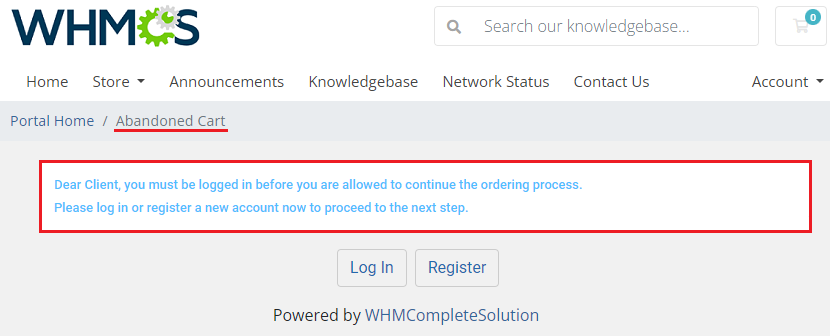
So as to protect your privacy and respect your decisions, clients may easily opt out of the Abandoned Cart module list of recipients.
To do so, simply scroll down the notification email message and press the link to confirm your decision. Once processed, you will get a confirmation message about being successfully unsubscribed.
# How To Use Language Overrides
Incorporating language customizations - the module readily accommodates language overrides, allowing you to tailor the language files to your preferences.
The language file english.php remains unencoded and can be modified to suit your needs. However, it's recommended to avoid altering the core file itself, and instead, leverage the capability of using overrides.
Here's how to apply language overrides:
- Navigate to the ~/langs/ directory located within the following yourWHMCS/modules/servers/moduleName/langs/ path.
- Within this directory, create a new file or duplicate the language file you intend to modify. For instance, if you wish to create an override for the English language, establish the following directory structure:
~/langs/overrides/english.php - Open the newly created override file to edit its contents.
- At the beginning of the file, indicate the used code, for instance, you can use: <?php for PHP code.
- Adapt the file content according to your requirements. You can either selectively modify specific variables or opt to revise the entire content of the language file.
For example:
Original yourWHMCS/modules/servers/moduleName/langs/english.php:
$_LANG['Search'] = 'Search';
Override yourWHMCS/modules/servers/moduleName/langs/overrides/english.php:
$_LANG['Search'] = 'Look for';
By following these steps, you can seamlessly implement language customizations without altering the core language file, ensuring your changes will not be lost after every module update.
Remember that some of the modules have more than one language file, located under /addons and /servers paths. You may create the override files for both of them.
Note that you do not need to paste all the original content of the lang file into the override file. Enter there only the lines that you wish to change, every other line will be fetched from the original module lang file.
Consequently, the override lang file might include only one or just a few lines.
# Update Instructions
An essential guidance through the process of updating the module to a higher version is offered here.
Ensure successful completion of the module update by carefully following each step, thereby preventing data loss or any unforeseen issues.
Additionally, you will find a current list of supplementary actions necessary for a smooth update process there.
# Upgrade Guide
Seeking a solution that offers greater flexibility, customization tailored to your precise needs, and unrestricted availability?
There is an option that not only proves to be cost-effective in the long run but also includes prioritized support services, making it a truly valuable investment.
Opt for the Open Source version (opens new window) of your Abandoned Cart For WHMCS module to unlock these benefits.
Simply click on either the Get Source Code or Upgrade To Lifetime button found on the product's page in our client area to complete the one-step upgrade process, with a dedicated discount already applied.
Follow a comprehensive guide covering the transition process, the advantages it brings, and step-by-step instructions on what to do next after the order has been successfully finalized.
# Common Problems
In case of connection problems, please check whether your SELinux or firewall does not block ports.
The Restore Abandoned Cart option does not support the following:
- selected configurable options amounts
- product custom fields
- additional domains fields
If you aim to restore a cart with the above items, the contents will be reset. We are constantly working on full support, which will be included in a future version of the module.
The Abandoned Cart For WHMCS and Lagom Smart Order Form Wor WHMCS (opens new window) modules can be used simultaneously, yet please bear in mind that the integration between these two is partially limited.
Take a look at the below points to check which of the functionalities will work flawlessly, and which are not yet fully supported.Supported aspects:
- logging actions in the cart, such as:
- adding products, addons, and domains to the cart
- domain transfer and renewal
- sending reminders to clients about abandoned carts with items inside
- forcing guest users to log in or register a new account
- saving carts into "My Shopping List"
Functionalities still awaiting full integration:
- "Restore Abandoned Cart" functionality - direct URL to a cart although generated, always leads to an empty cart
- "Client Email Address" functionality - a guest client is not stopped at any point when browsing your store to provide the email address.
It might be done in a dedicated place, yet it is never an obligatory step, required to complete the order.
Keep in mind that we are constantly working on full integration between the two modules, please follow the changelogs (opens new window) to keep track of the progress.
- logging actions in the cart, such as: