

# Geolocation Hook For WHMCS
Geolocation Hook For WHMCS has reached End of Support (EOS) and is no longer actively maintained.
# (opens new window) About Geolocation Hook For WHMCS (opens new window)
Geolocation Hook For WHMCS is a free tool allowing you to alter the currency, language, and template of your client area based on your client's location.
You can also specify different templates that will be used depending on the user’s device model and domain they have been redirected from to your website.
Take advantage of MaxMind GeoIP2 included in the hook, or add your own submodule to detect the country from where each of your visitors is.
Hook
- Detect User Country With:
- MaxMind GeoIP2 Submodule
- Own Submodule
- Set Up Automatically For Not Logged In Users:
- Currency Per Country
- Language Per Country
- Client Area Template Per:
- Country
- Language
- User Device (Mobile, Tablet)
- Domain User Was Redirected From
- Allow User To Switch Currency
- Allow Client Area Template Change On Language Alteration
- Select Pages Where Hook Should Be Active
- Disable Hook For Specified IP Addresses And IP Pools
- Disable Hook Redirects For Specified User-Agent Identifiers
- Detect User Country With:
General Info
- Supports PHP 8.1 Back To PHP 7.4
- Supports WHMCS V8.10 Back To WHMCS V8.6
- Supports Polish Language Translation For WHMCS (opens new window) - Complete Localization Of Both Client Area And Admin Area
# Installation and Configuration
This tutorial will show you how to successfully set up Geolocation Hook For WHMCS. (opens new window)
Upload the files and then move to the configuration section to learn how to take the most from it.
# Installation
In this tutorial we will show you how to successfully install the hook.
We will guide you step by step through the whole installation and configuration process.
- Log in to our client area and download the hook.
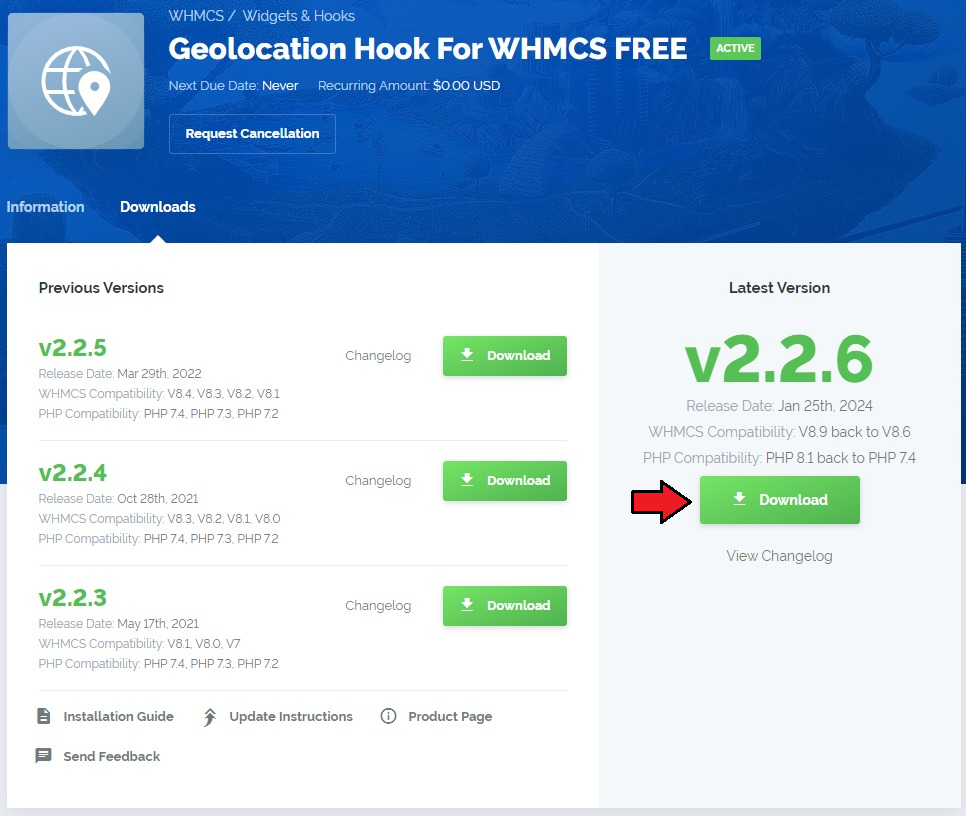
Extract the downloaded file and upload it into the main WHMCS directory.
The content of the file should look like this.
Next, an update of the existing GeoIP database is required.
- Download the GeoIP database from this site (opens new window).
- Extract the downloaded pack and overwrite the following file: includes/Geolocation/Submodules/GeoIP2/GeoLite2-Country.mmdb in your WHMCS.
Note: The database that is included in the hook files is already outdated and requires manual updating.
That is all! You do not need to install or activate it in any place!
# Configuration
Let us proceed to the hook configuration. Move to yourWHMCS/Includes/Geolocation directory and open the config.php file.
Configure the file that will be called on selected pages of the client area in your WHMCS System. Underneath, you will find a detailed instruction on how to configure it step by step.
Define the currency and language rules.
The below code snippet is responsible for assigning an appropriate currency to a client who uses pointed here language.
In the example below we can see that a client who uses the US language, will have the USD currency automatically turned on.
You may now edit this code snippets with our own configuration and add new entries under GB example if needed.
Use the same pattern to configure language for every used country.
Important: Every code line must end with a comma. Do not forget to type it if you decide to add new lines.$countryToCurrency = array( 'default' => 'USD', 'US' => 'USD', 'GB' => 'GBP', // NOTE: You can add more below ); $countryToLanguage = array( 'default' => 'english', 'US' => 'english', 'DE' => 'german', 'NO' => 'norwegian', // NOTE: You can add more below );Define additional template per country and language rules.
We can now configure additional settings: templates per country and language rules. Assign an existing in your WHMCS system template to a country.
Again, edit the exemplary code lines and add new lines if needed. Do not forget about the comma.$countryToTemplate = array( 'US' => 'six', 'default' => 'six', // NOTE: You can add more below ); /** * Now, define the language for each WHMCS template used. * Please note that a template available in WHMCS V7 is: 'six'. * It is important to use a template that exists within your WHMCS system. * Not Logged In Users */ $templateToLanguage = array( 'english' => 'six', 'german' => 'six', 'default' => 'six', // NOTE: You can add more below );Mobile template per a mobile device.
The next part is dedicated to automatic adjustment of a template based on the device that is being used to enter the client area.
In case your WHMCS does not use a responsive template that will automatically adjust to the device size, you may force the template change to aone designed for such device.
Uncomment the below lines and enter the existing templates names for tablets and mobiles to turn on this option.$mobileToTemplate = [ 'mobile' => 'mobile_template', 'tablet' => 'tablet_template', ];Define templates per domain name.
Depending on the domain name that a client enters a template will be adequately altered. Uncomment, edit and add new lines using the presented pattern.$domainToTemplate = [ //'www.example.mobi' => 'mobile_template', //'www.example.com' => 'six', ];Selecting Pages
At this point we can select pages in your WHMCS where the geolocation hook should be activated.
Comment any lines if you do not want to use the hook there, add other pages at the bottom.$allowedScripts = array( 'p1.php', 'index.php', 'clientarea.php', 'cart.php', 'knowledgebase.php', 'announcements.php', 'serverstatus.php', 'affiliates.php', 'contact.php', // NOTE: You can add more below );Point single IP addresses. The hook will be turned off for these addresses.
Uncomment, edit and add new lines using the presented pattern.$disabledForIPs = array( // '91.192.166.22', // '192.168.0.39', // NOTE: You can uncomment or add more below );Point full IP pools. The hook will be turned off for the addresses in these pools.
Uncomment, edit and add new lines using the presented pattern.$disabledForCidrIPs = array( // '192.168.56.0/24', // '192.168.0.39/24', // NOTE: You can uncomment or add more below );Point user agents. The hook will be turned off for the enumerated here devices/browsers.
The user agent can be provided in two forms:- short form, e.g.: 'Chrome'
- full version, e.g.: 'Mozilla/5.0 (Windows NT 10.0; Win64; x64) AppleWebKit/537.36 (KHTML, like Gecko) Chrome/71.0.3578.98 Safari/537.36')'.
Uncomment, edit and add new lines using the presented pattern.
$disabledForBrowsers = array(
//    'Chrome',
//    'Firefox',
//    'Google-Site-Verification',
//    'Mozilla/5.0 (compatible; Googlebot/2.1; +http://www.google.com/bot.html )',
//    'Mozilla/5.0 (compatible; MSIE 10.0; Windows NT 7.1; Trident/5.0)',
//     NOTE: You can uncomment or add more below
);
Getting Country With MaxMind GeoIP2
The example below shows the integration with MaxMind GeoIP2.
You may surely create your own submodule, edit the below line in such case as only one submodule can work at a time.$submodule = 'GeoIP2';Determining Template Setup
We will use the following code to determine whether a current template is set up correctly./** * Currency Session Setup */ $allowCurrencySession = true; /** * Setting up a template to redirect depending on a country */ $allowRedirectCountryToTemplate = false; /** * Setting up a template to redirect depending on a language */ $allowRedirectLanguageToTemplate = true;Creating URL Redirection
The system will be forced to switch the client area template depending on the chosen language. It will also work for already logged in users.
Redirection needs to be executed when switching the language is done by a user or together with changing the language.
/**
 * Setting up URL redirection to allow the user to switch a language
 */
$allowURLRedirection = true;
/**
 * Change template if
 * - current template is NOT correct for this language
 * - current template is NOT default if no language was chosen
 */
$changeTemplateByLanguage = true;
/**
 * Preventing from switching currency by user
 */
$preventSwitchCurrency = true;
/**
 * Preserve Template
 * This option, when set as false, allows template switch along with the language change
 */
$preserveTemplate = true;
# Visualizations
If you are still not sure whether to get this product, take a look at the below screenshot to have a clear view on the hook may adapt your client area.
Taking all the above into consideration we can easily say that our Geolocation Hook For WHMCS, with its automatic setup of currency and language, will allow you to smoothly adjust any offer to the individual needs of each of your client.
So let's make your business even more personal!
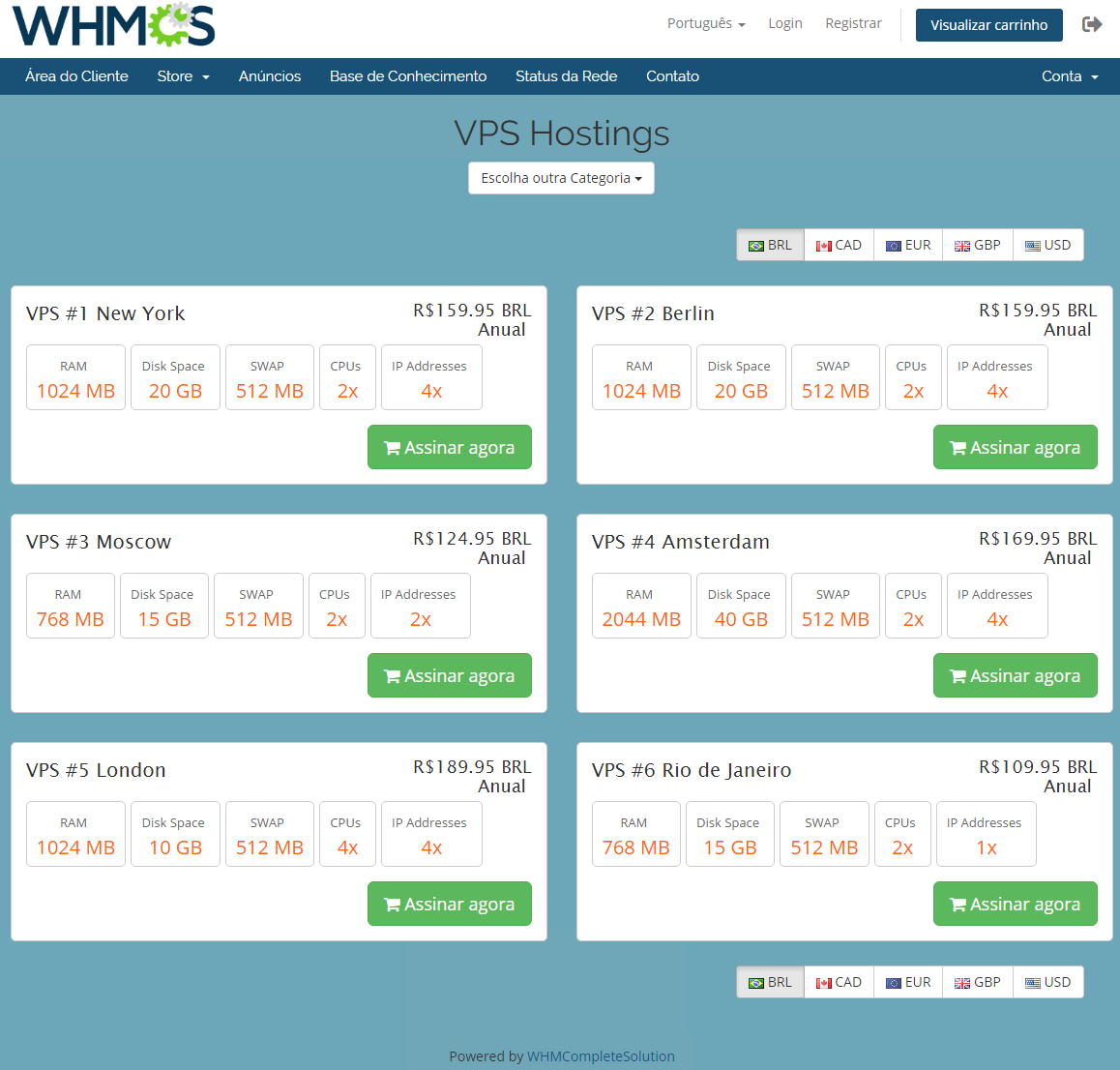
- Underneath, you can see an adjusted cart for a user viewing the site in Brazil, as the currency used is BRL and the language is automatically set to Portuguese:
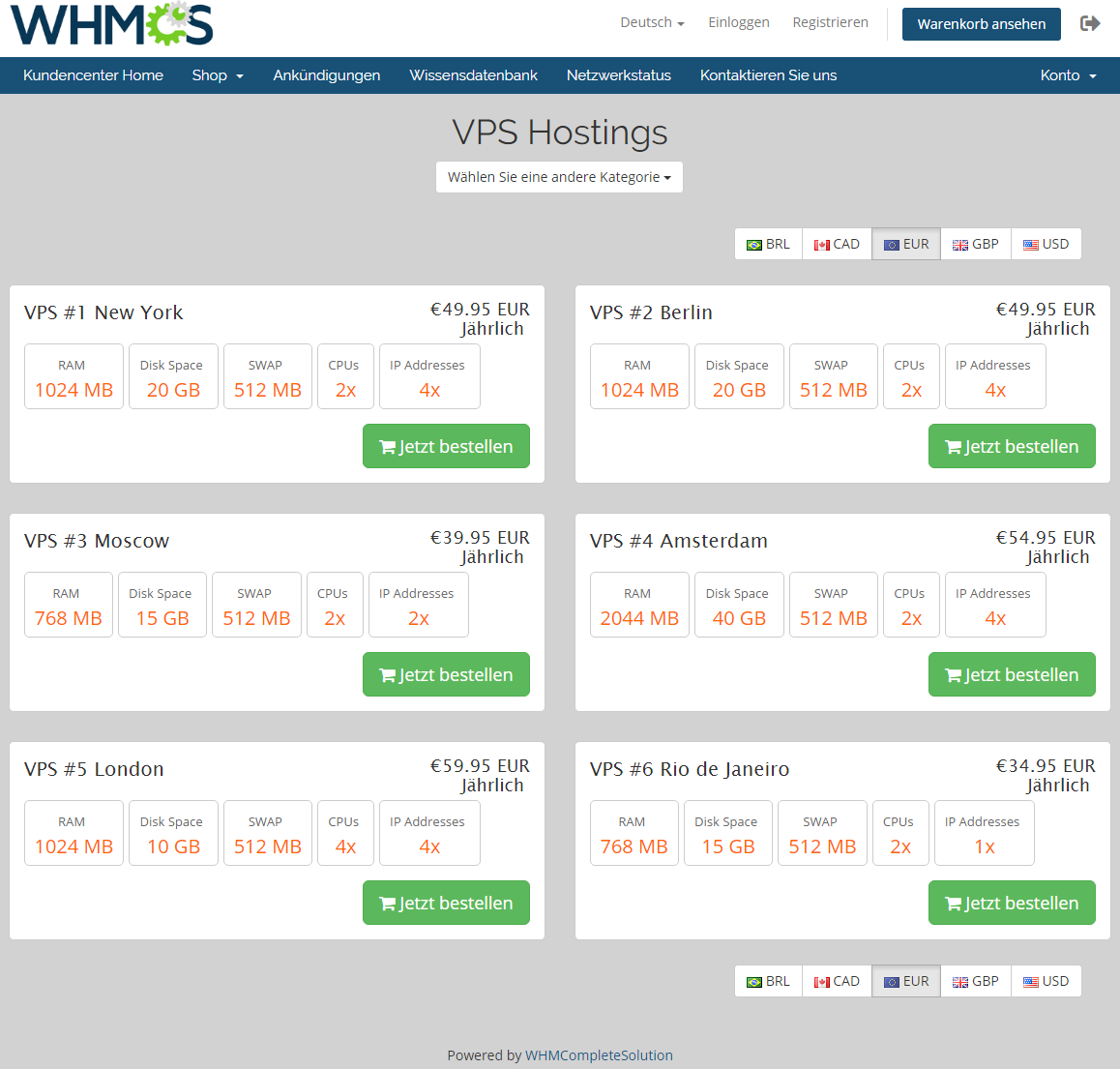
- Personalized cart view for an unlogged user from Germany, using German language and euro as a main currency:
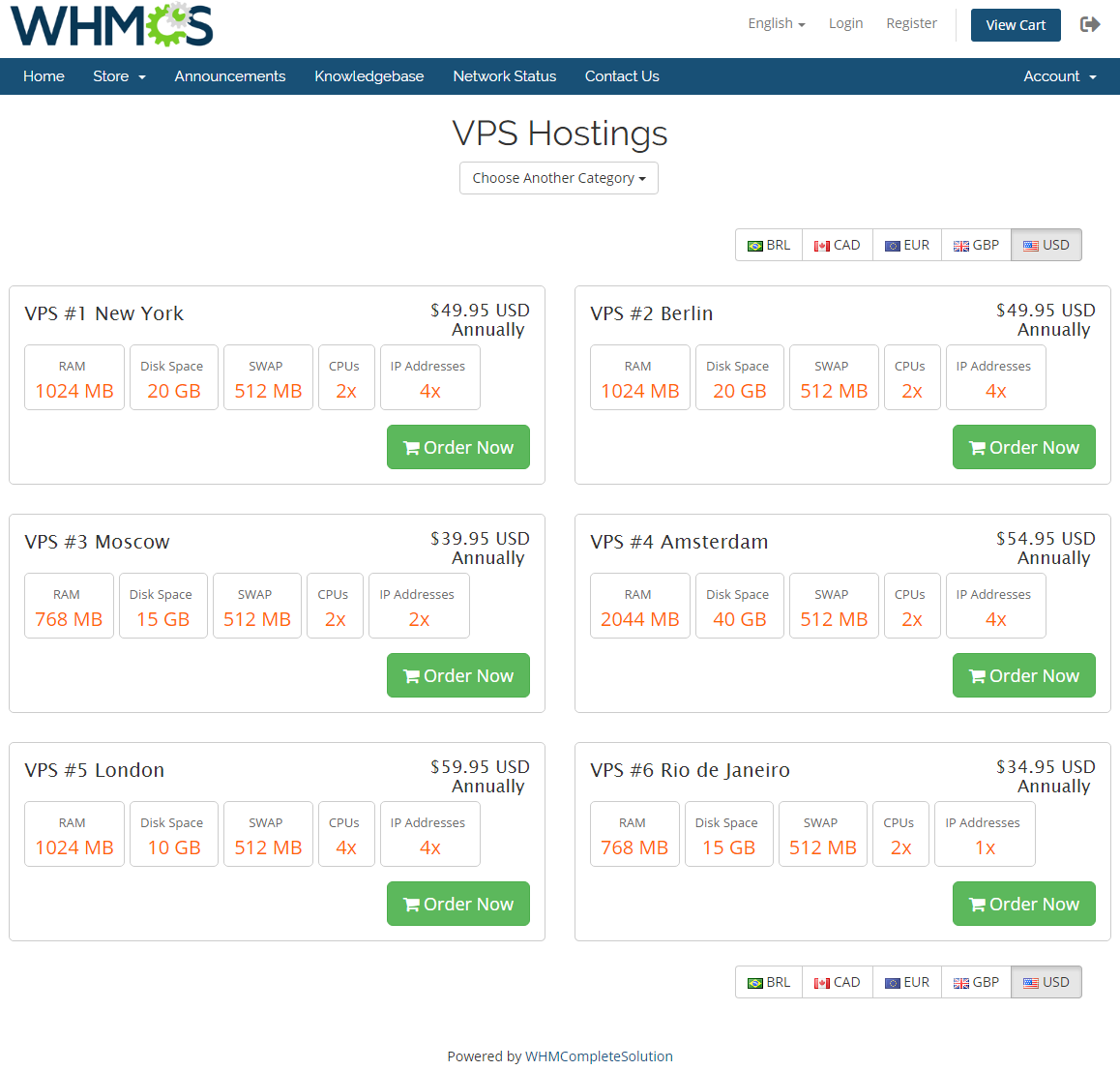
- Customized cart view with the English language and USD currency used for an unlogged user:
# Tips
You are more than welcome to visit our Blog article (opens new window) where you can take part in a live discussion about it.
In case you decide to add new lines in the config.php file below the exemplary ones provided by ModulesGarden, always remember to finish the line with a comma, otherwise your clients will encounter errors.
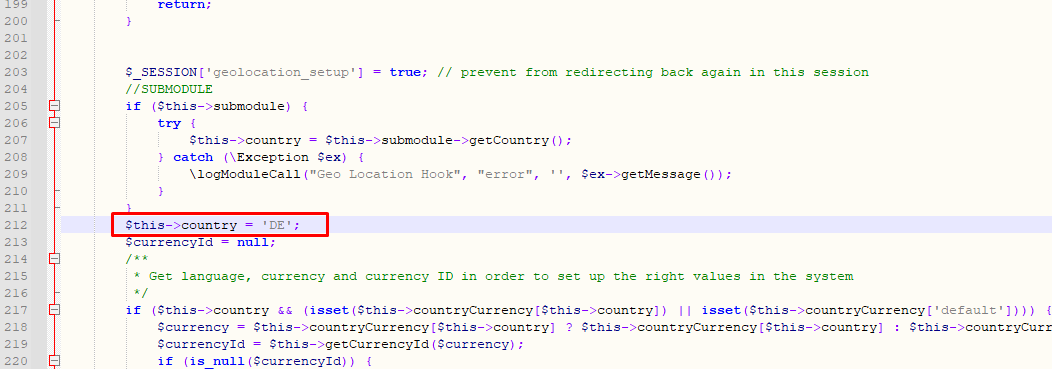
When simulating different locations (testing environment only) we advise using VPNs or setting up a country in 'Geolocation.php' with '$this' variable as presented below:
Find this line in the code:
if (!$this->isEnable()) {
Add '$this' variable below that line as shown in this example:
$this->country = 'DE';
# Update Instructions
Essential guidance through the process of updating the module is offered here.
Ensure successful completion of the module update by carefully following each step, thereby preventing data loss or any unforeseen issues.
Additionally, you will find a current list of supplementary actions necessary for a smooth update process there.
# Common Problems
In case of connection problems, please check whether your SELinux or firewall does not block ports.
When performing tests of Geolocation Hook For WHMCS please always use the incognito mode with a not logged in client (guest). Otherwise previous session and the browser's cookies will block changes and interrupt proper performance of the hook.