# Zimbra Email For WHMCS
# (opens new window) About Zimbra & Carbonio Email For WHMCS (opens new window)
Zimbra & Carbonio Email For WHMCS is a module which allows your customers to manage email accounts of your domain directly in WHMCS.
Your clients will be able to conveniently manage mailboxes, email and domain aliases and quickly move to their webmails.
Our product is simple to use and offers everything you need to conveniently manage Zimbra accounts.
The module features full support for Zextras Carbonio as an alternative to Zimbra.
# Installation and Configuration
This tutorial will show you how to successfully install and configure Zimbra & Carbonio Email For WHMCS. (opens new window)
We will guide you step by step through the whole installation process.
Note: If you still use any of the module's previous versions prior to v2.X, follow these instructions.
# Installation
- Log in to our client area and download the module.
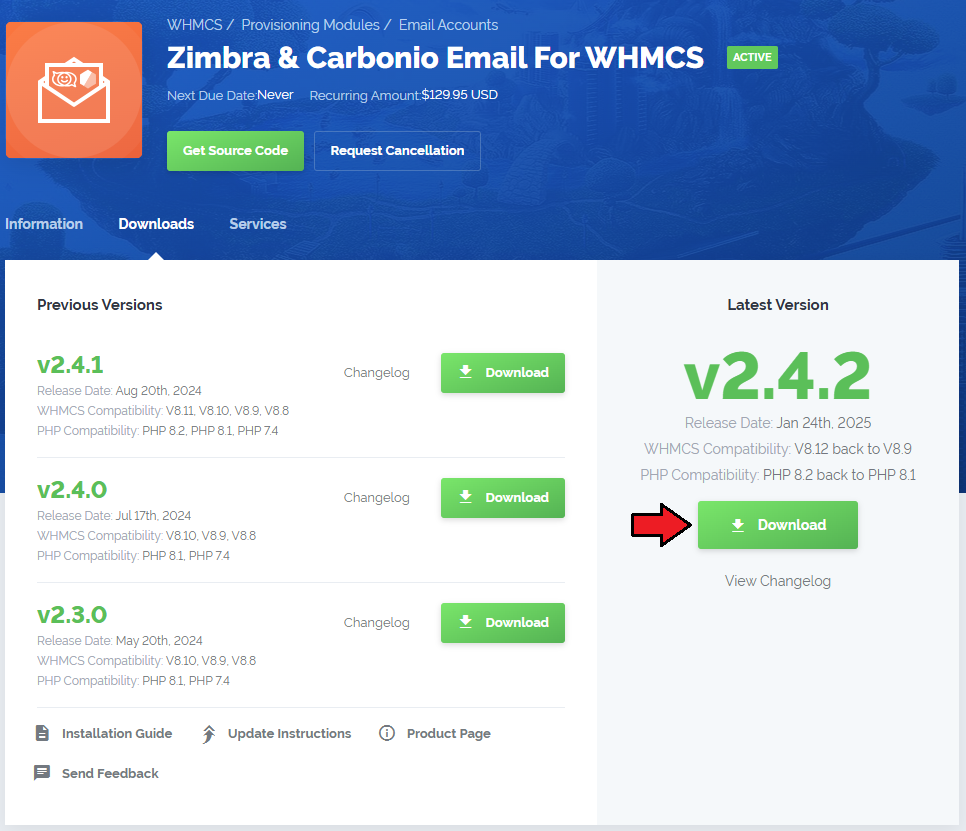
In the downloaded file you will find a package that supports PHP 7.4 up to 8.1.
Note: You can check the current PHP version in your WHMCS. To do so, proceed to 'Utilities' → 'System' → 'PHP Info'.
Extract the package and upload its content into the main WHMCS directory.
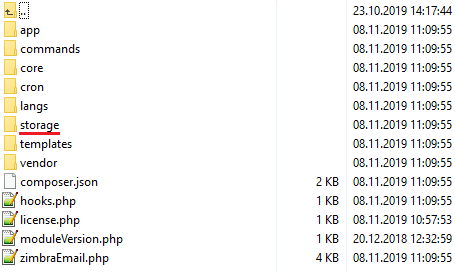
The content of the package to upload should look like this.
When you install Zimbra & Carbonio Email For WHMCS for the first time, you have to rename the 'license_RENAME.php' file.
The file is located in 'modules/servers/zimbraEmail/license_RENAME.php'. Rename it from 'license_RENAME.php' to 'license.php'.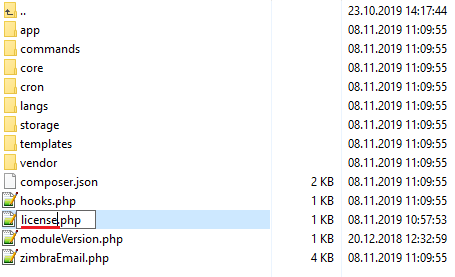
In order to configure your license key you have to edit the previously renamed 'license.php' file.
Enter your license key between quotation marks as presented on the following screen. You can find your license key in our client area → 'My Products'.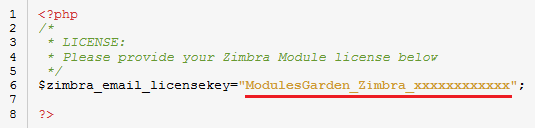
The last step is to set up the 'storage' folder as recursively writable.
This folder is available at '/yourWHMCS/modules/servers/zimbraEmail/'.
# Server Configuration
Now let's configure a new product. Log in to your WHMCS, press 'Setup' → 'Products/Services' → 'Servers'.
Afterwards, press 'Add New Server'.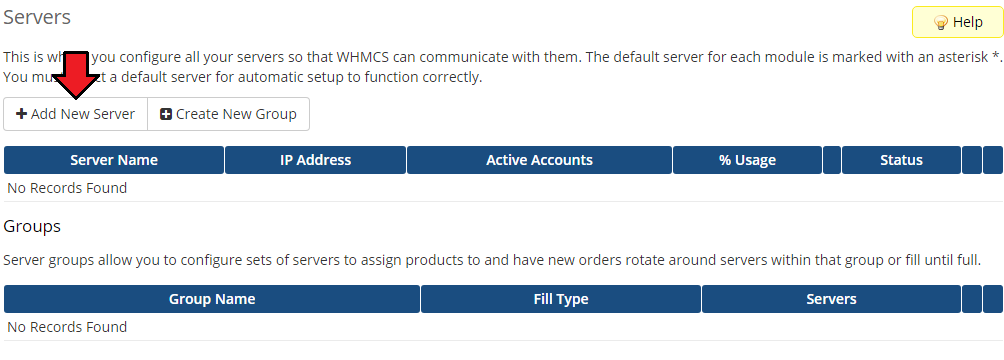
Zimbra & Carbonio Email For WHMCS supports both Zimbra and Zextras Carbonio, first, decide which of the two integrations you aim to use with the module and then proceed to the server configuration.
If you are using Zextras Carbonio, make sure you enable the integration.- Find the configuration.yml file at '/your_whmcs/modules/servers/zimbraEmail/app/Config'.
- Find the
carbonio:variable and set it totrue.
The Zextras Carbonio integration is now enabled.
Note: Zimbra and Zextras Carbonio cannot be used at the same time.
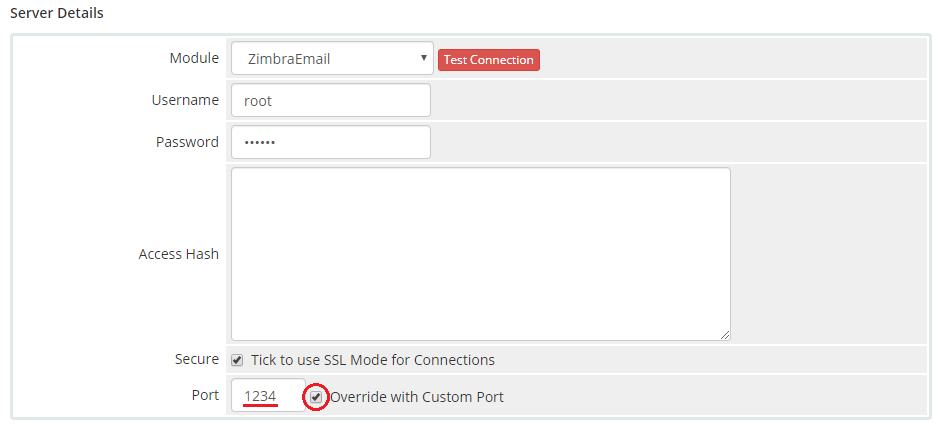
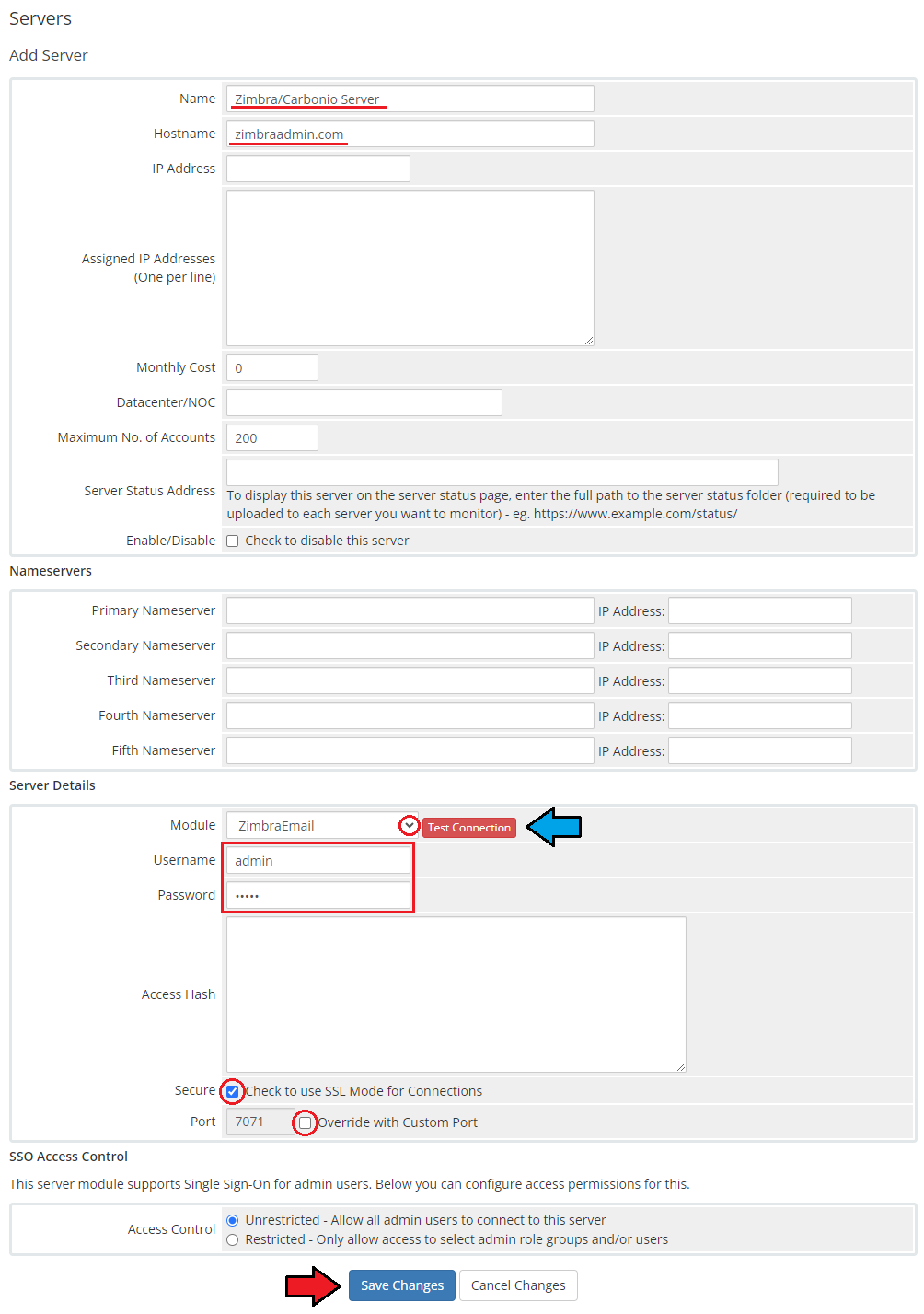
Next, enter your server name along with the Zimbra or Zextras Carbonio server hostname or IP address.
- Choose 'ZimbraEmail' from a dropdown menu.
- Type in your username and password used to log in to your server.
- Select 'Secure' if you use SSL for connection.
- Next, test your connection and press 'Save Changes' if successful.
Optionally, you may also:
- Provide other server details like nameservers or maximum number of accounts.
- Set custom ports using the 'Override with Custom Port' field. By default port 7071 is used.
Note: Leave it unchecked for a Zextras Carbonio server.
The 'Go To Webmail' button in the client area uses the address from the 'Hostname' field. If the field is empty, it will use the 'IP Address' field.
After you configure your server correctly, you will see the following screen.
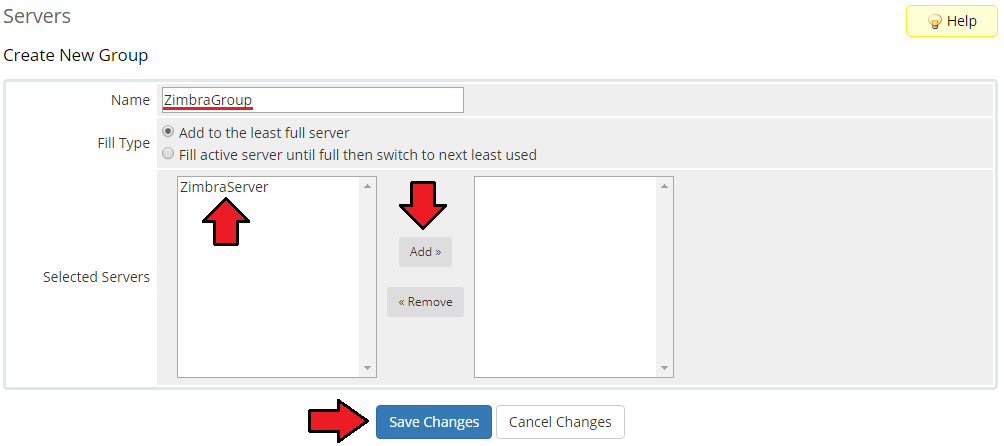
Now you need to create a new group for your server. For that purpose press 'Create New Group'.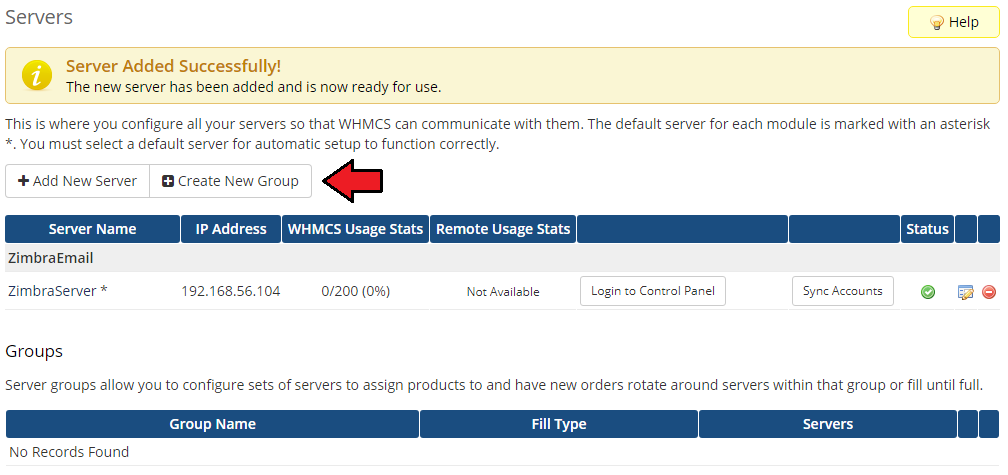
Enter name, click on your previously created server, press 'Add' then 'Save Changes'.
# Product Configuration
In order to create and configure product, click on 'Setup' → 'Products/Services' → 'Products/Services'.
If you do not have a product group, click on 'Create a New Group'. If you do, simply move to step 12.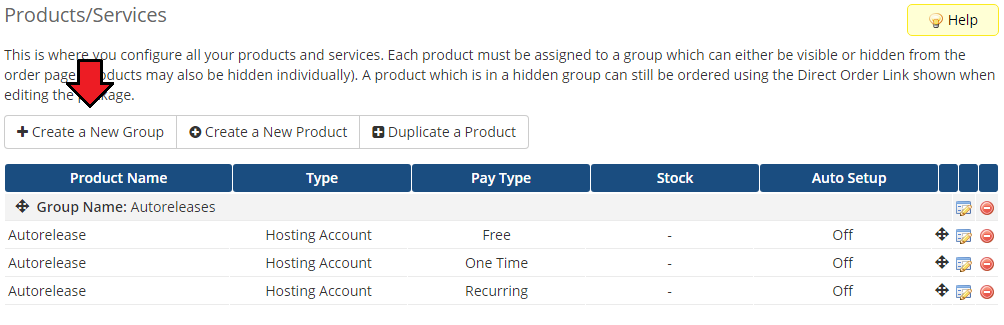
Enter a product group name and press 'Create Group'.
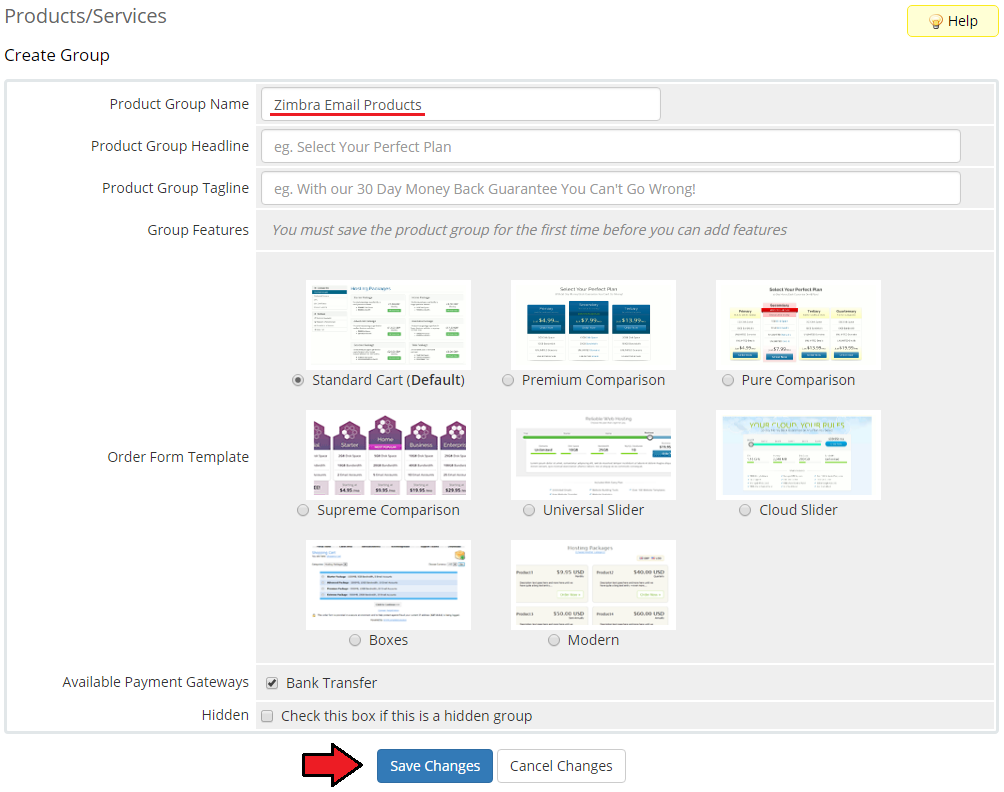
When you have a product group, you can create your product and assign it to Zimbra Email. If you already have a product, go to step 14.
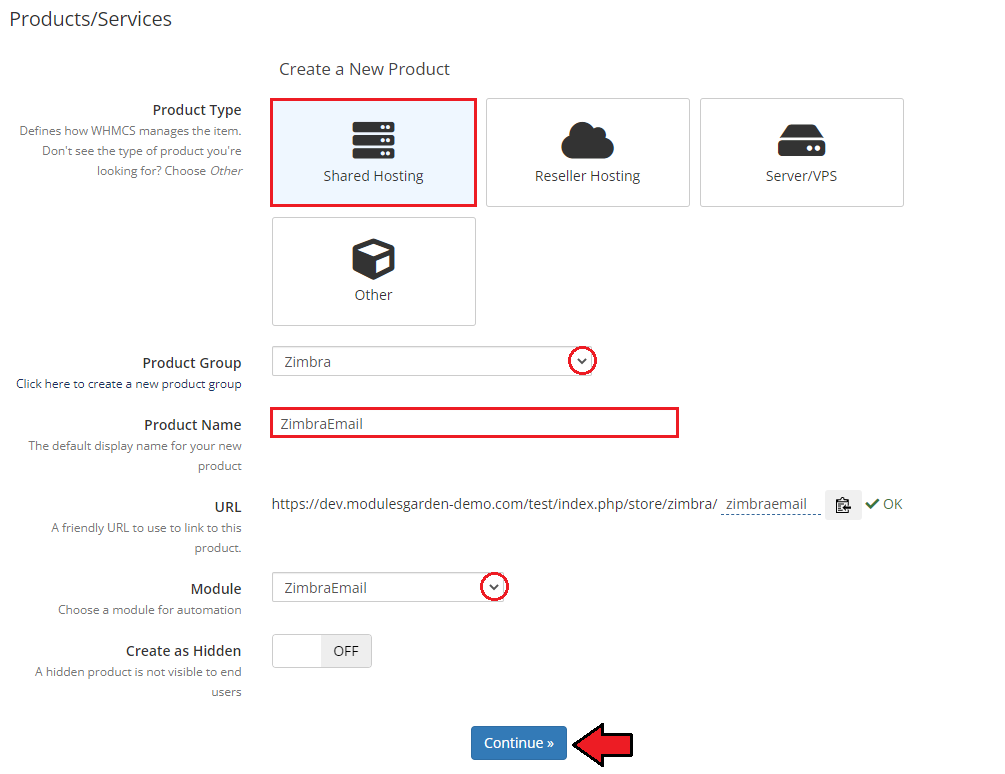
To create a product click on 'Create a New Product'.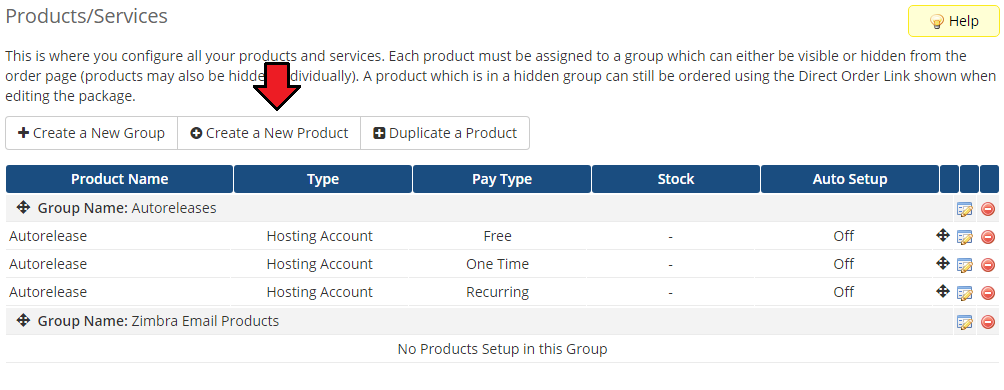
Afterwards, choose your product type and product group from dropdown menus, enter your product name and press 'Continue'.
- Now, go to the 'Module Settings' section, and choose the previously created server group from dropdown menu.
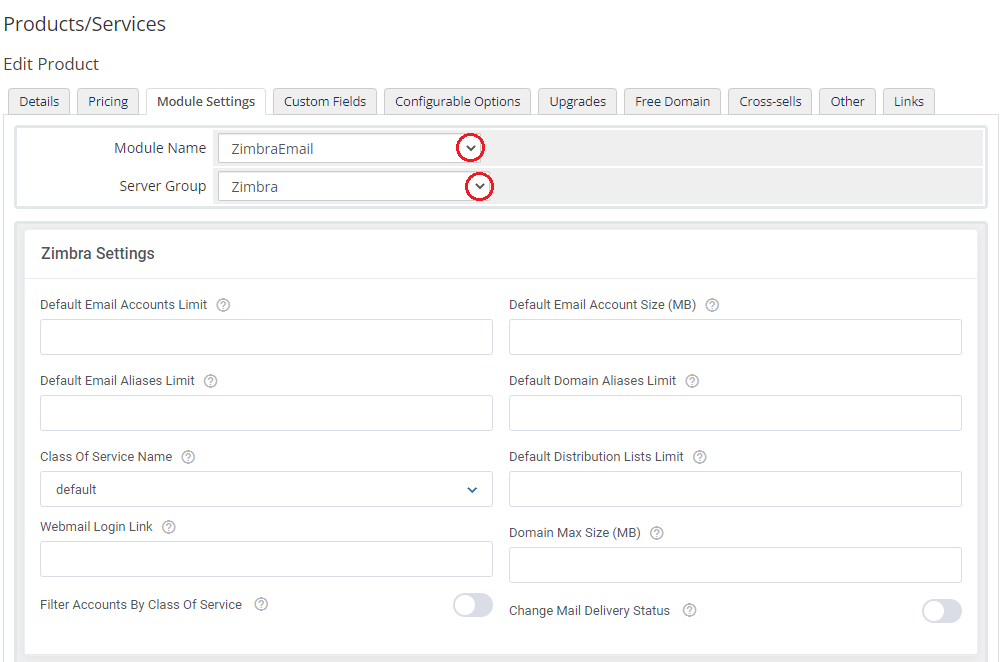
Afterwards, define settings of the module and press 'Save Changes'.
If you choose 'Use Custom Settings' from the 'Class Of Service Name' dropdown menu, you can define your own set of user permissions using the sections below.
This is not supported for Zextras Carbonio.
If you choose 'Allow clients to choose Class Of Service', additional configurable options can also be generated after saving product changes.
Clients will be allowed to set Class Of Service while ordering your product.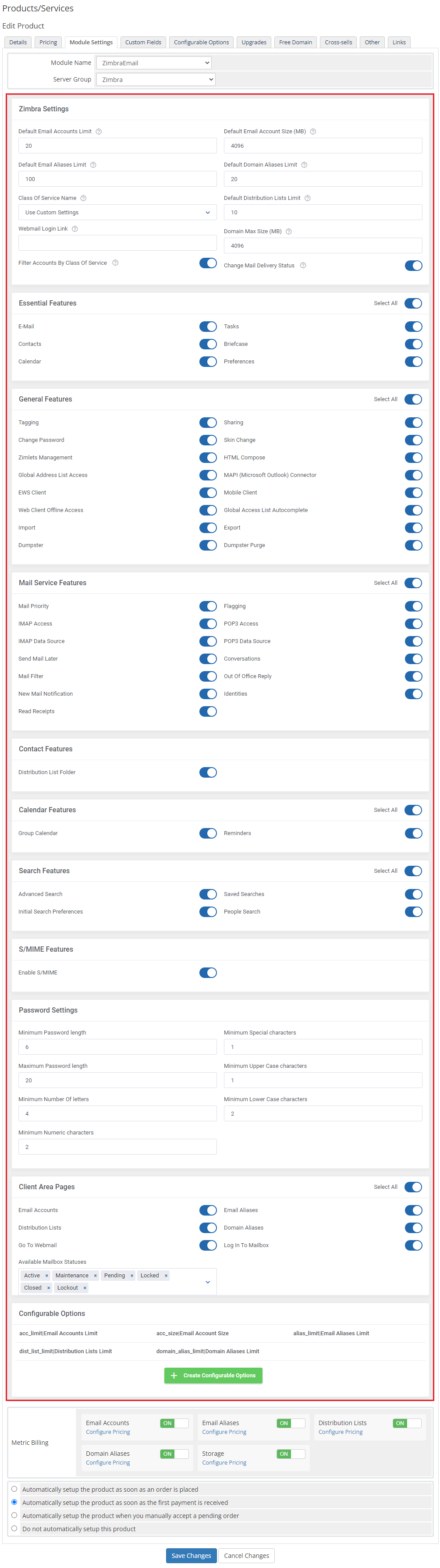
If you select 'Allow Clients to choose Class Of Service Quota Per Account' in Class Of Service Name, the new 'Class Of Service For Mailbox Accounts' settings will appear.
Define the number of account limits for each available size. Your clients will be allowed to order a product with limits defined in configurable options and create mailboxes within the defined quota size.
Note: The new 'Configurable Options' based on the above settings will be also available to generate, but they will appear only after saving product changes first!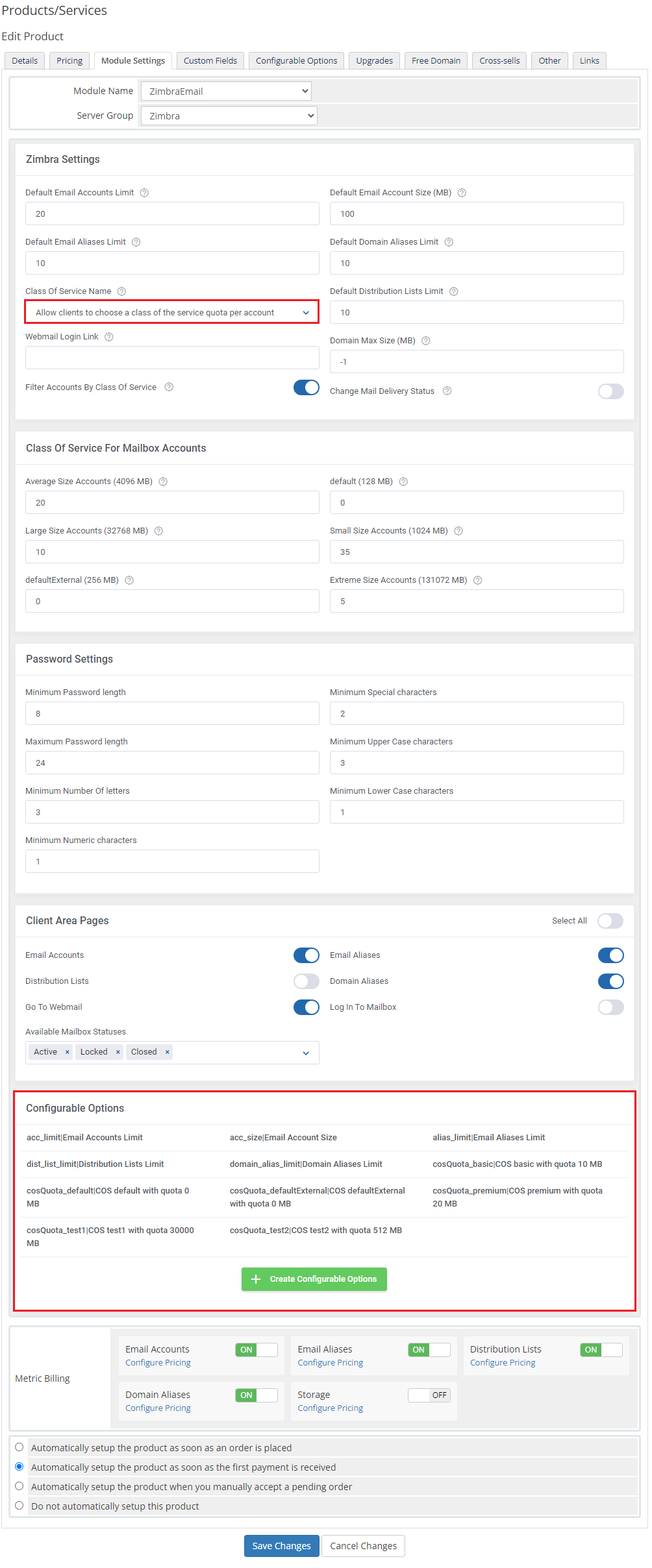
Additionally, you can replace the module's static limit with a dynamic one in the form of configurable options.
Press 'Generate Default' near 'Configurable Options' to generate default set of them.
More about the management of configurable options can be found here.
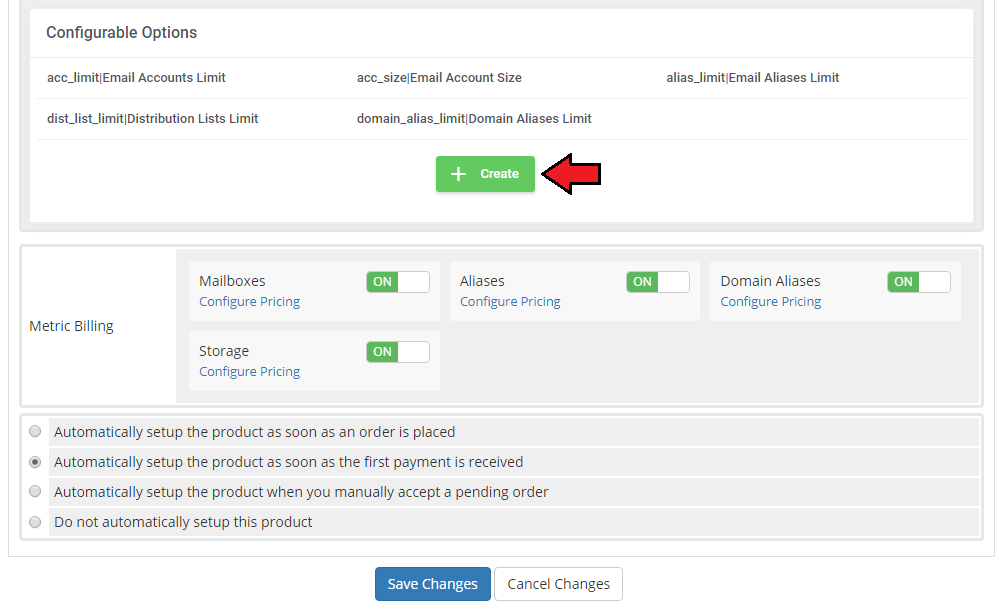
This is what a properly created and configured product should look like from the administrator site.
# Management
Let's customize your Zimbra & Carbonio Email For WHMCS and see what features it has in the offer.
# Admin Area
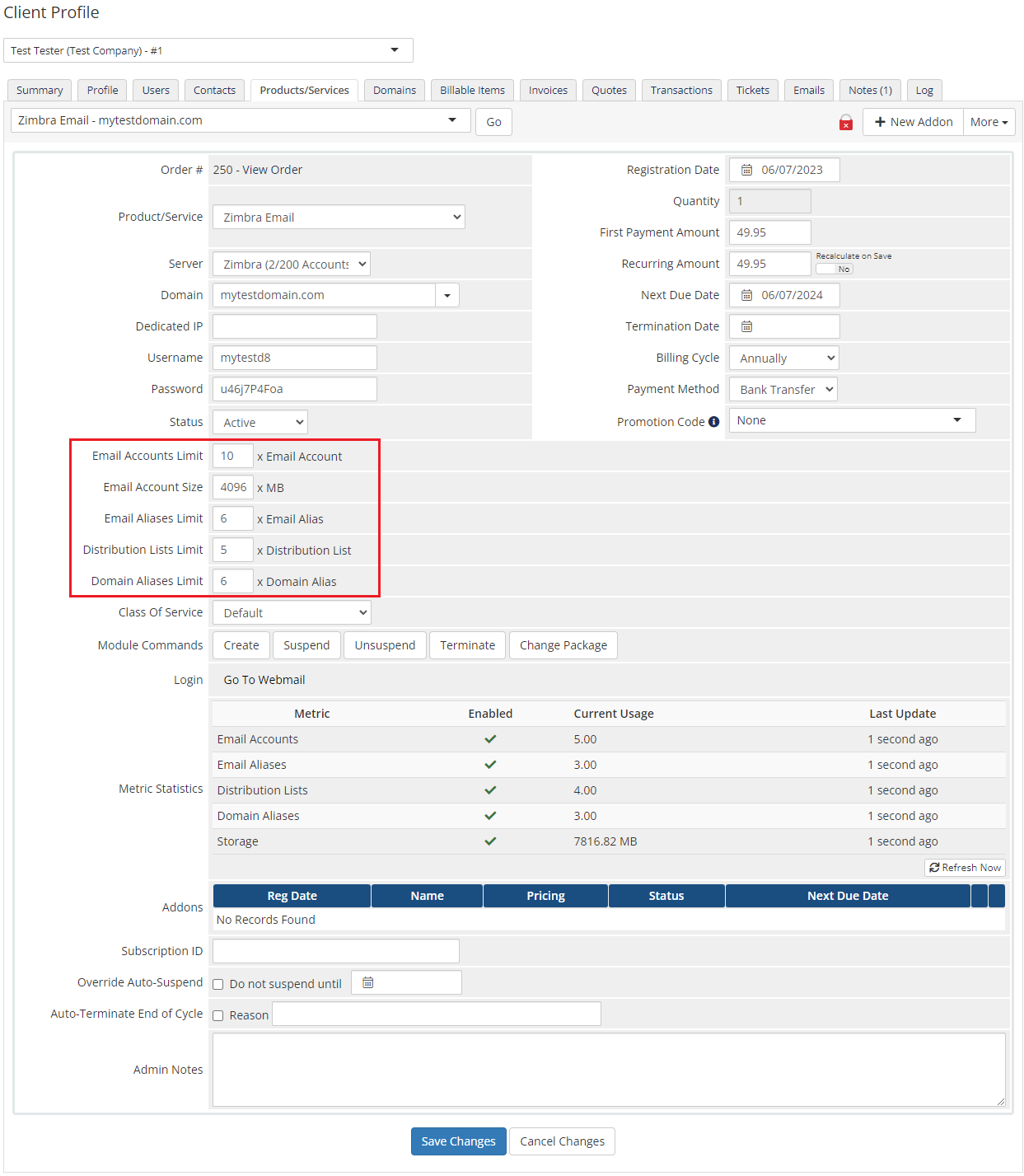
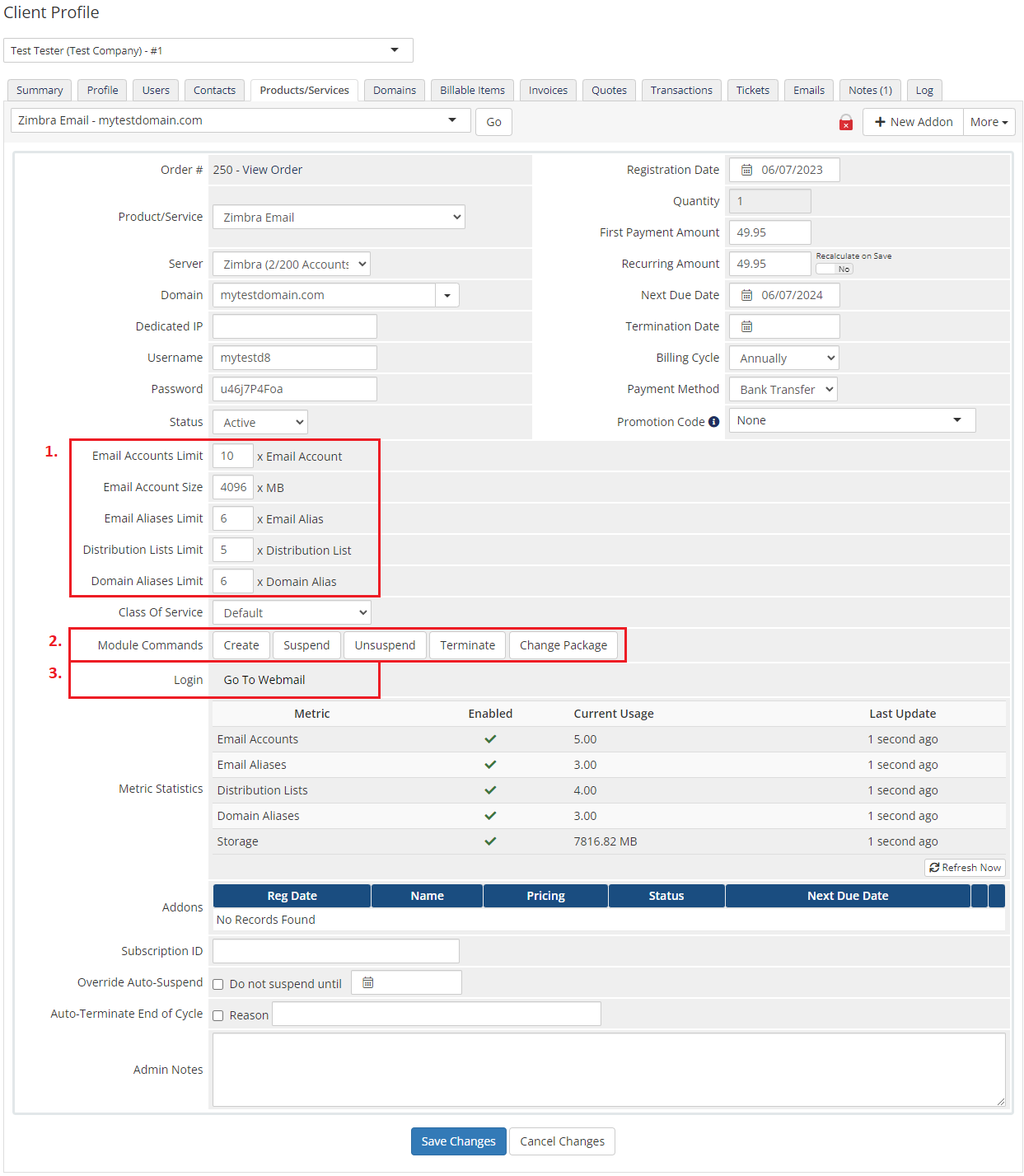
Zimbra Email product management site:
- Go To Webmail
- Edit configurable options values - available options depend on the configuration in 'Module Settings'
- Module Commands:
- Create
- Suspend/Unsuspend
- Terminate
- Change Package
# Client Area
# Ordering Process
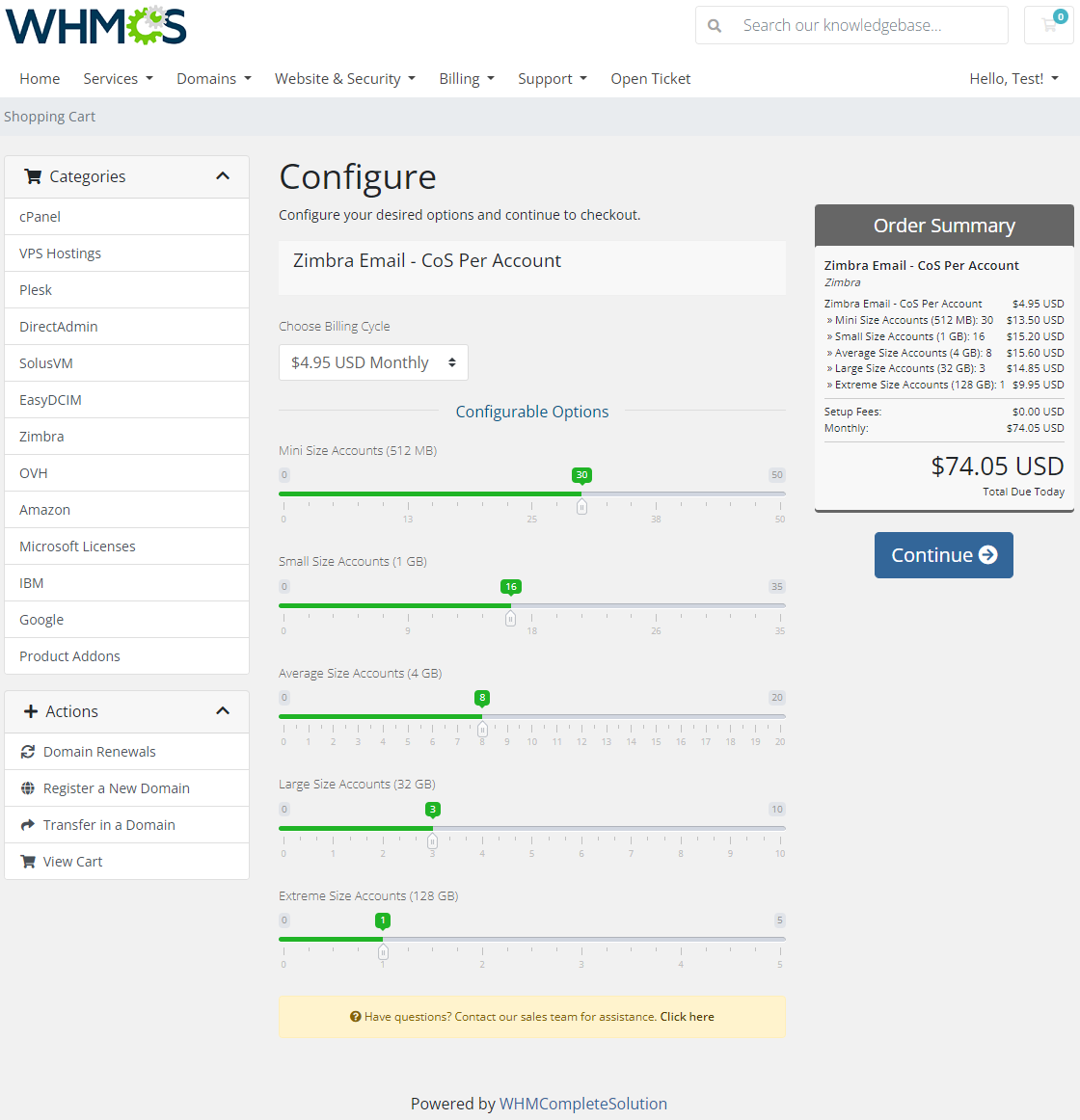
Order page view of a product with the 'Allow clients to choose Class Of Service' option selected:
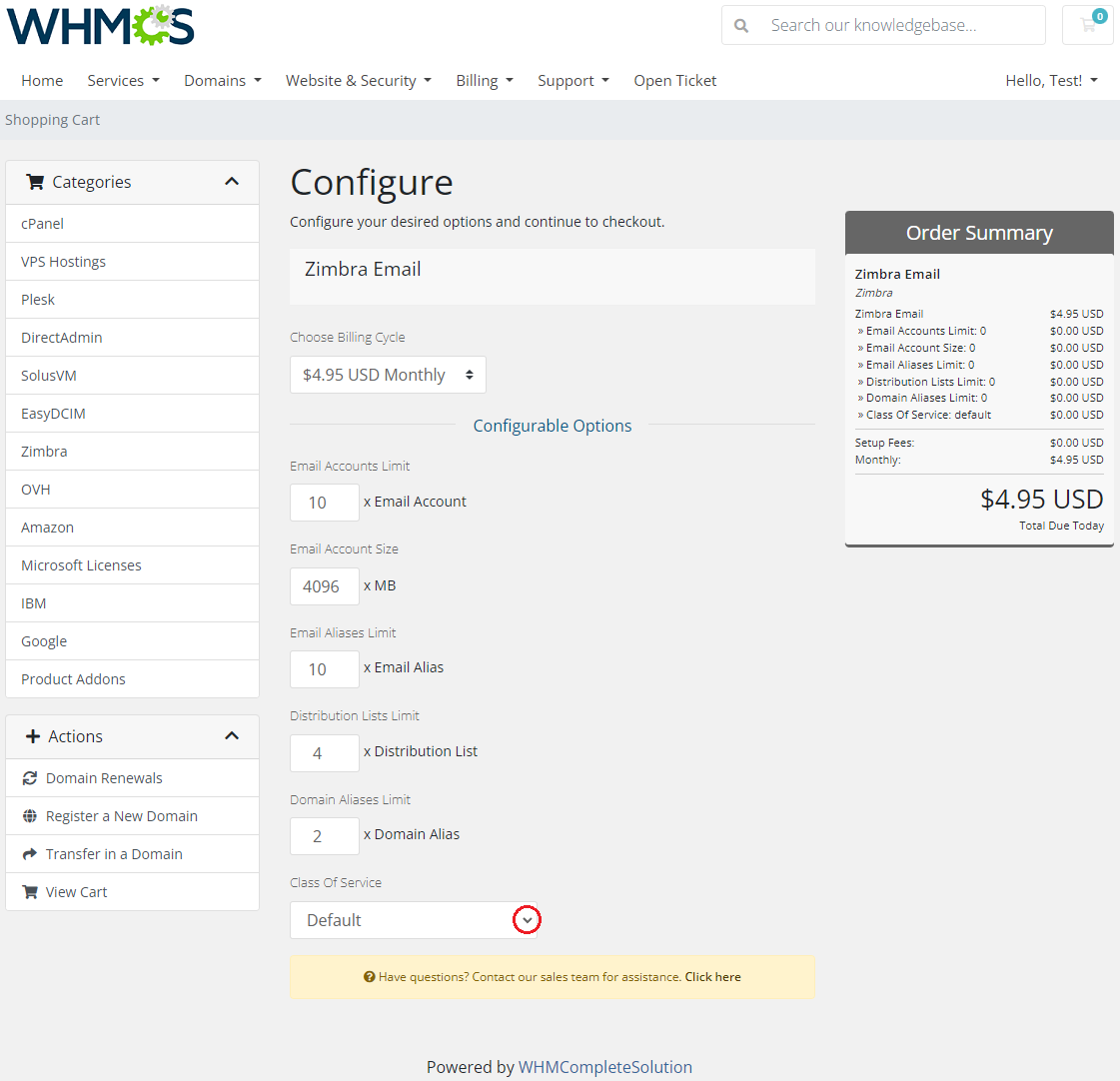
Order page view of a product with the 'Allow Clients to choose Class Of Service Quota Per Account' option selected:
# Management
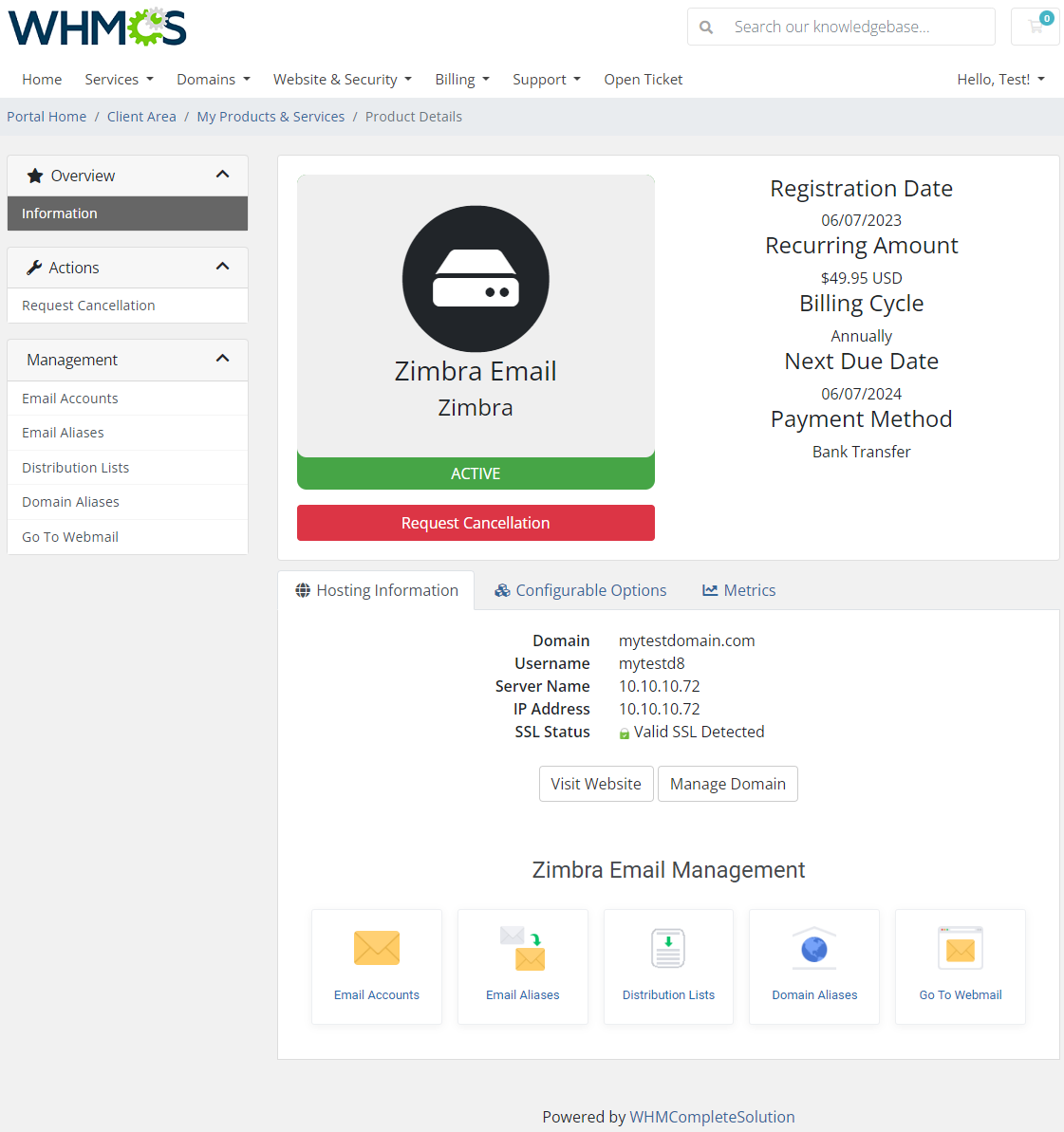
Zimbra Email allows your customers to manage their Zimbra email accounts from your WHMCS client area.
This is what its management page looks like in the client area. Move to the below sections to learn more details.
# Email Accounts
Email Accounts section enables full management of accounts associated with your domain.
You may edit existing accounts with a wide range of options and create new ones within defined limits.
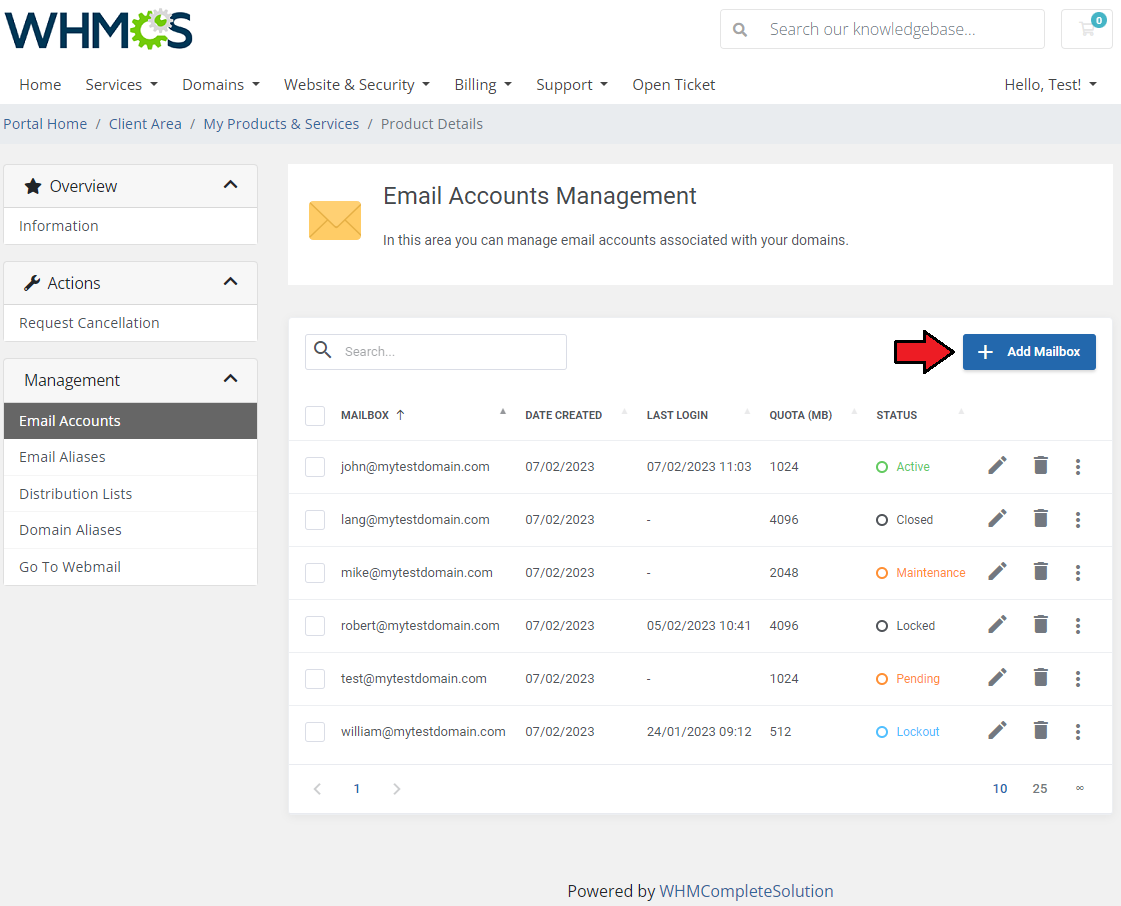
Press 'Add Mailbox' to create a new account.
Fill out the fields to provide any details on the account owner. Only fields marked with an asterisk are obligatory.
Note: The 'Quota' field is available to select only if Class of service 'Quota Per Account' is used for the product. If the limit has been reached, the client will not be able to create an account.
Important: Remember that password is also verified by Zimbra. It is advised to set up default limits in Zimbra panel, within which the password settings can be modified in the module.
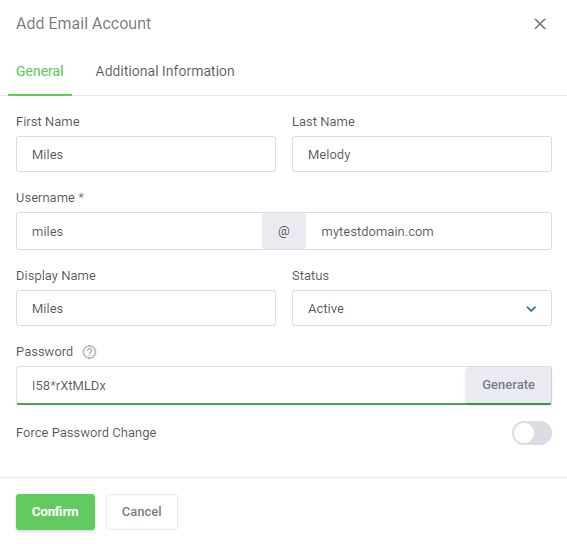
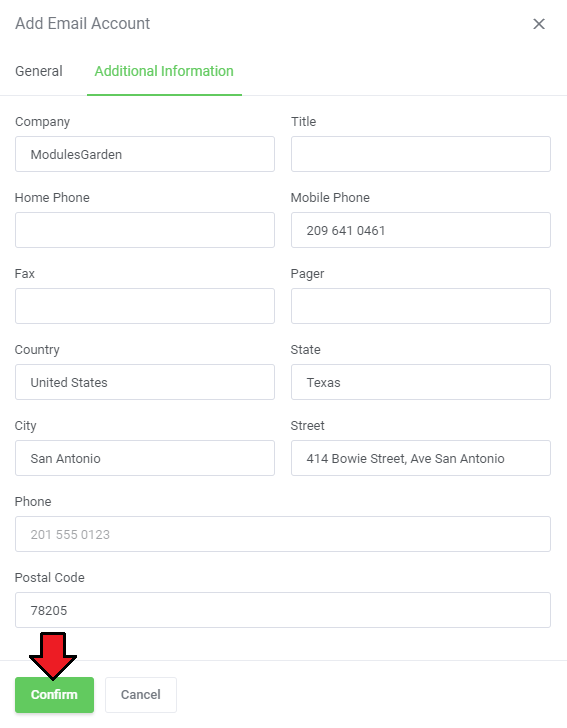
If you wish, you can provide more details of a new account in the 'Additional Information' tab, although it is not required for the account creation.
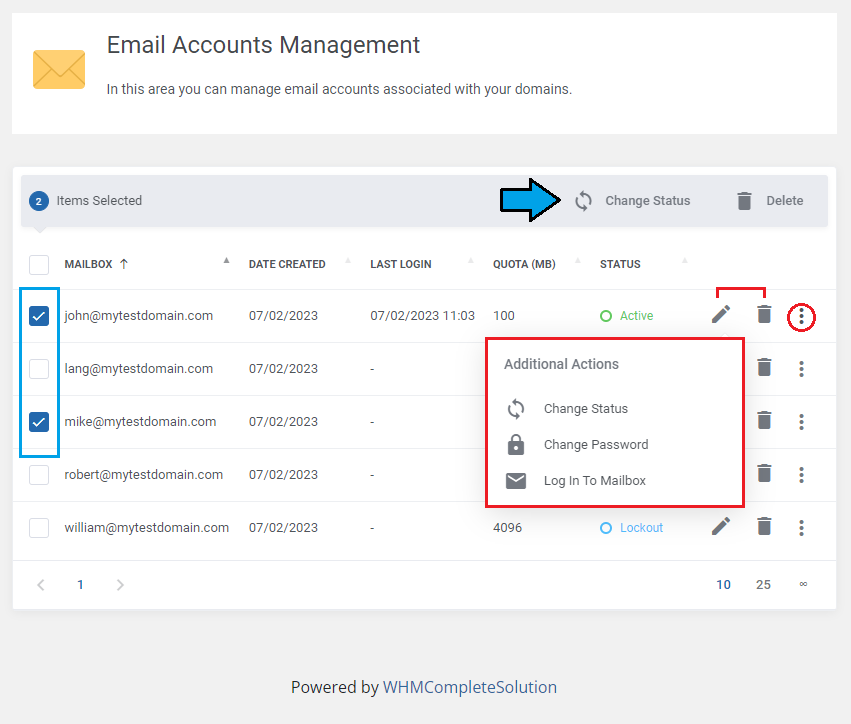
You can order various operations on a single account using buttons marked on the screen.
You are allowed to change the account's status and password, log in directly to a mailbox, edit its details, or delete it.
Alternatively, you can select multiple accounts and issue commands on them as well using buttons above the list of accounts.
Note: The 'Last Login' column shows only the date of the last manual login. When using the "Log In To Mailbox" feature, its date is not registered by the API here.
# Email Aliases
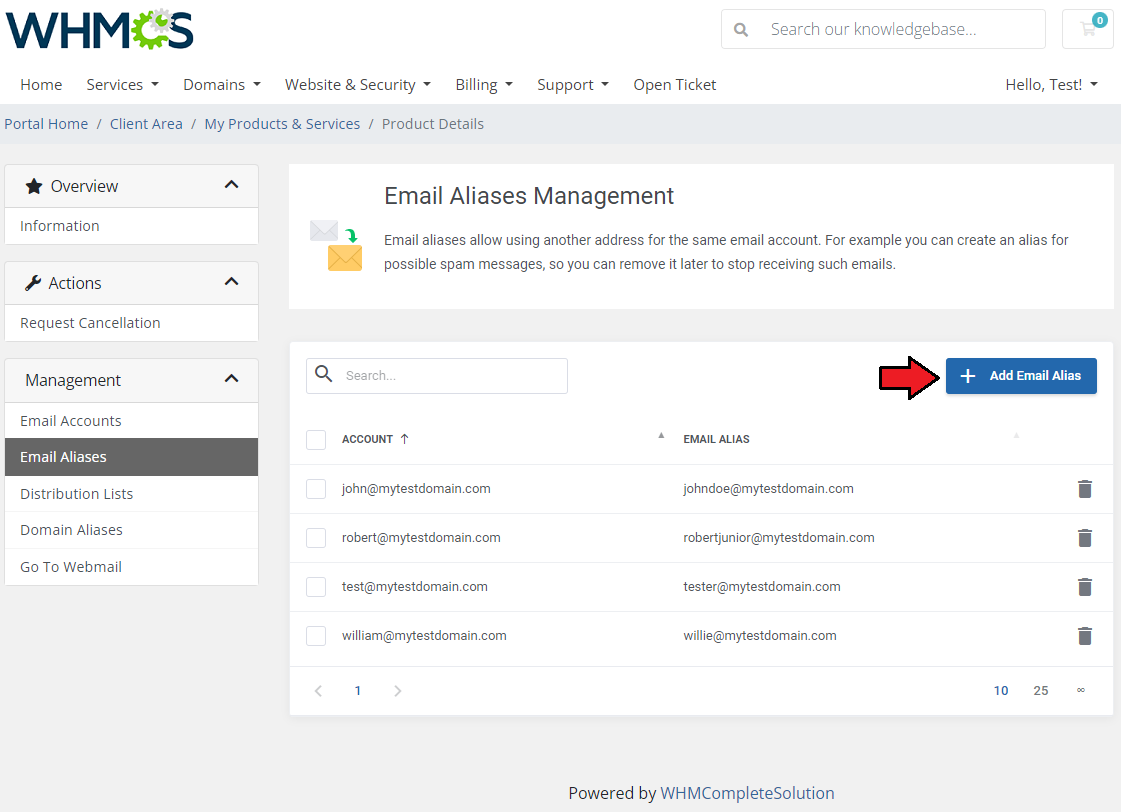
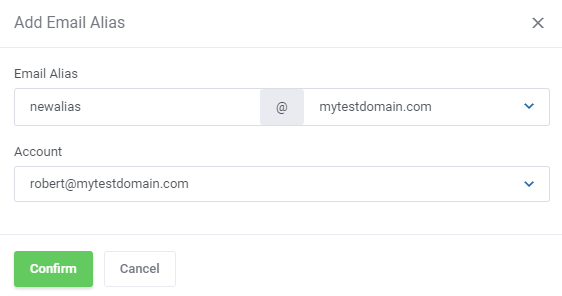
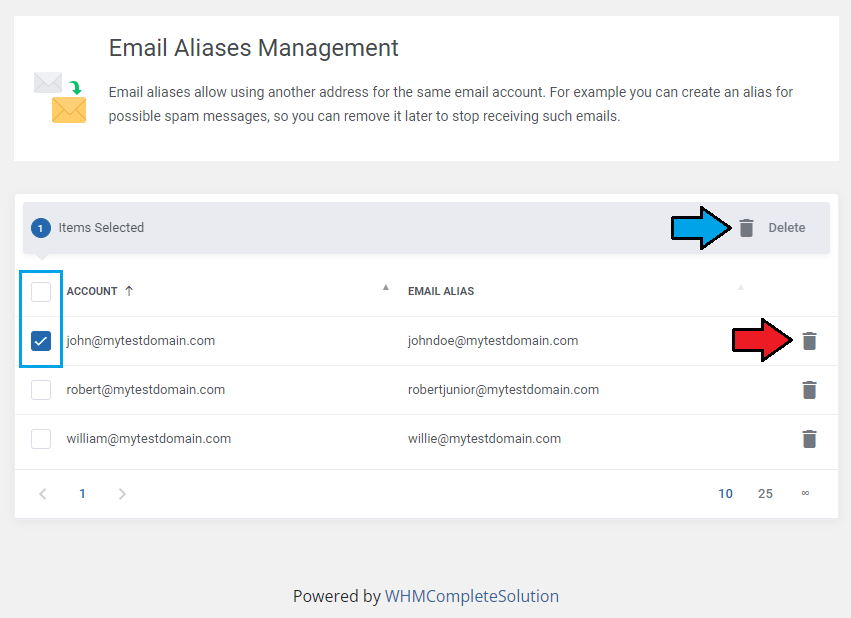
Email Aliases enable you to create and use additional addresses for the same e-mail account.
Note: You can pick which domain alias you would like to use for the email alias by selecting it on the dropdown list.
Read more about Domain Aliases below.
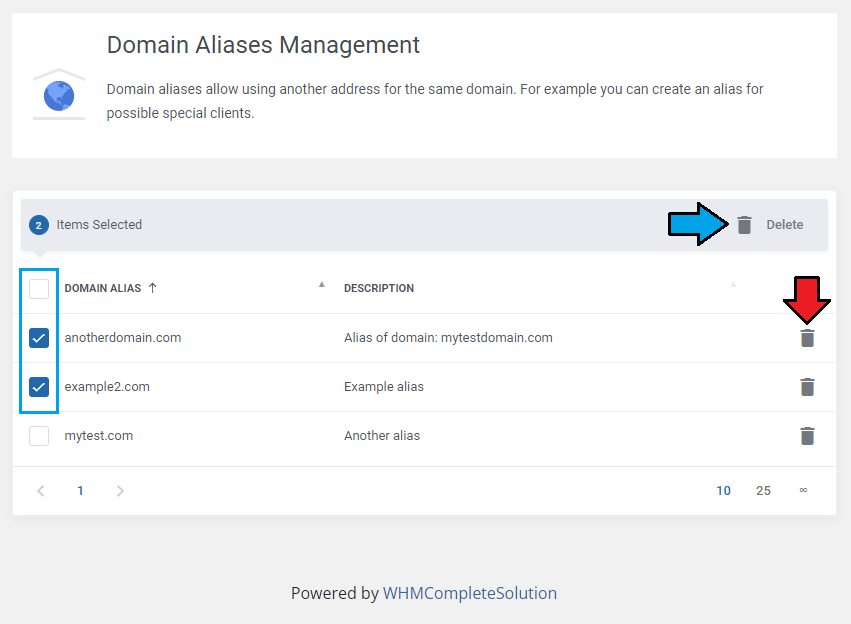
Any aliases can be quickly removed by pressing an adequate icon or using mass actions.
# Distribution Lists
Distribution lists enable you to create and manage them without the necessity to log in to Zimbra panel.
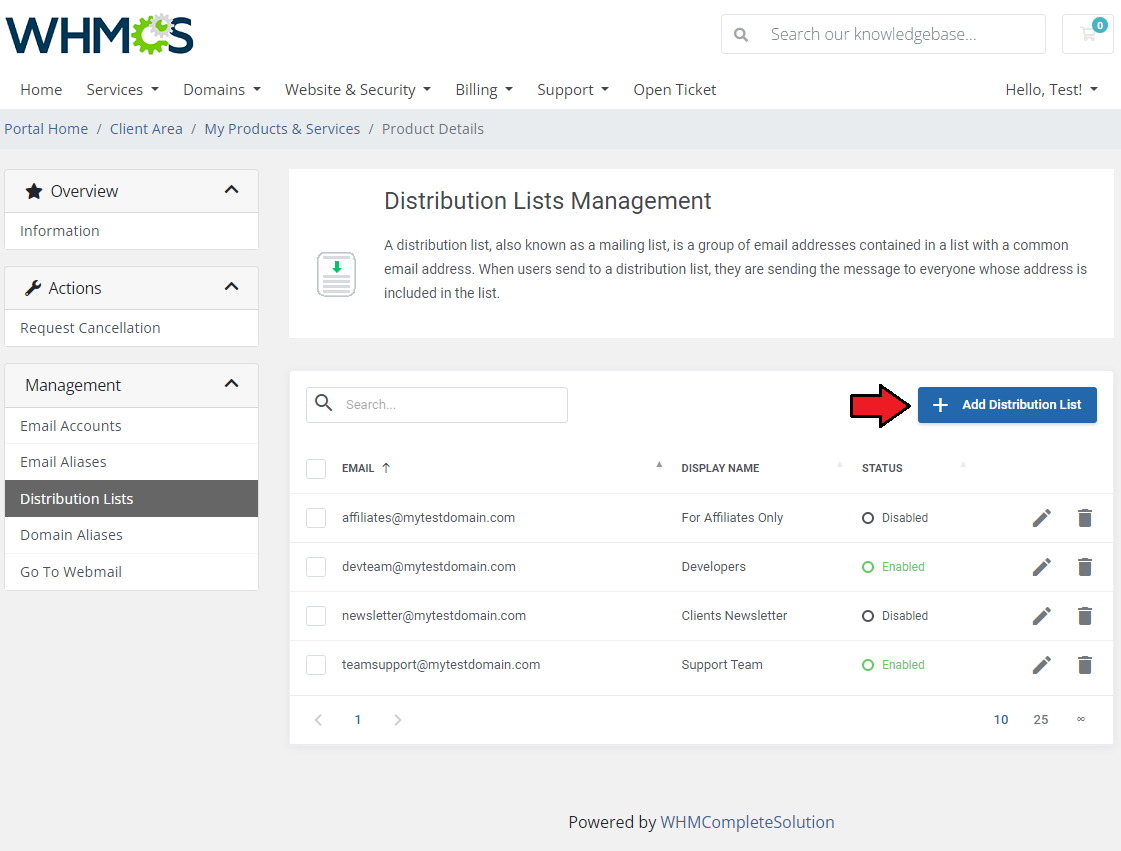
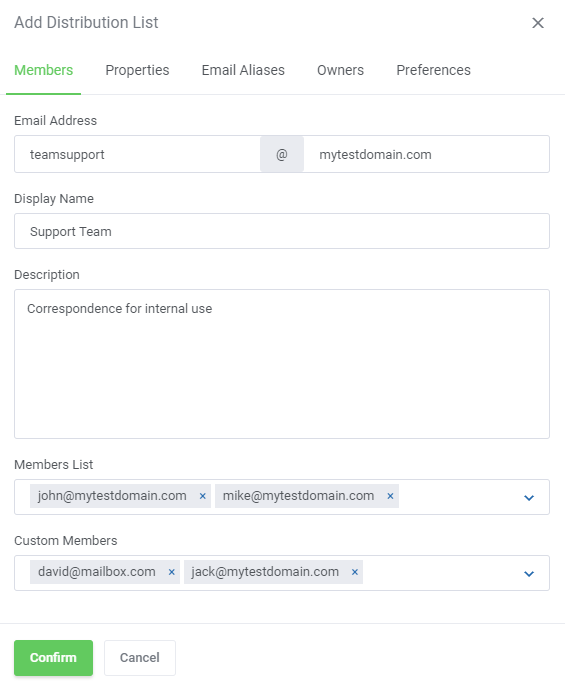
Create them in the same way you would do that in Zimbra panel. Start with entering an email address, then move to assigning members to the list.
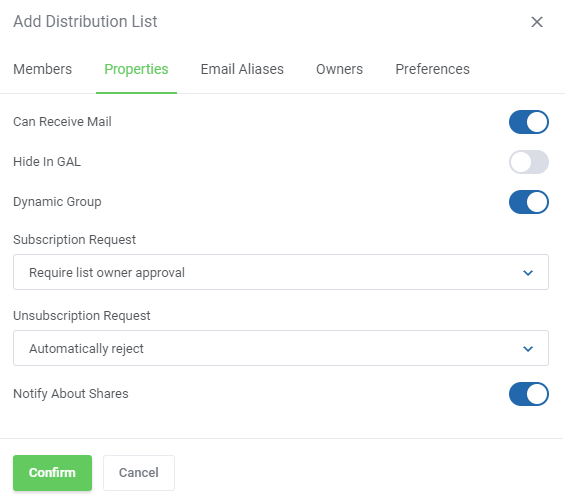
Proceed with setting detailed options.
Remember that in order to enable the distribution list on its creation, you must select the option 'Can Receive Mail' in the 'Properties' section.
Assign email aliases if you have any.
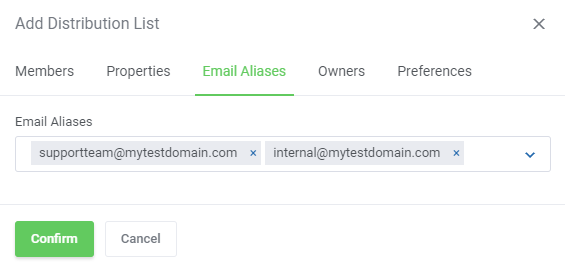
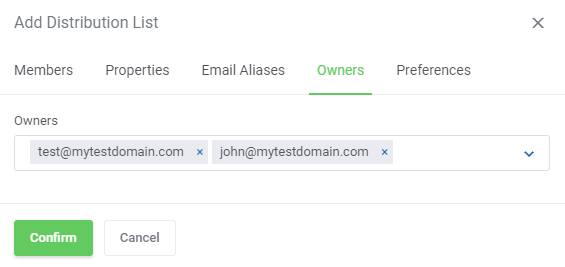
You may also add/remove owners of the list.
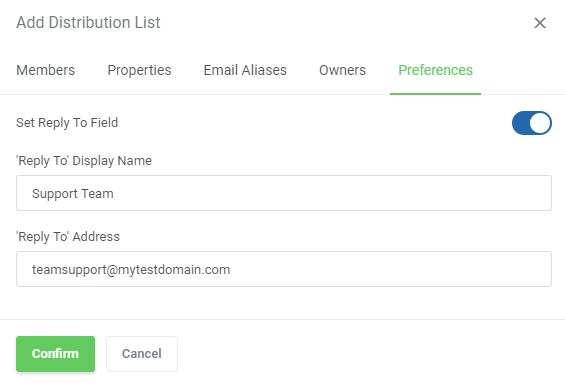
As soon as you set the last preferences, press 'Confirm' to finally create the distribution list.
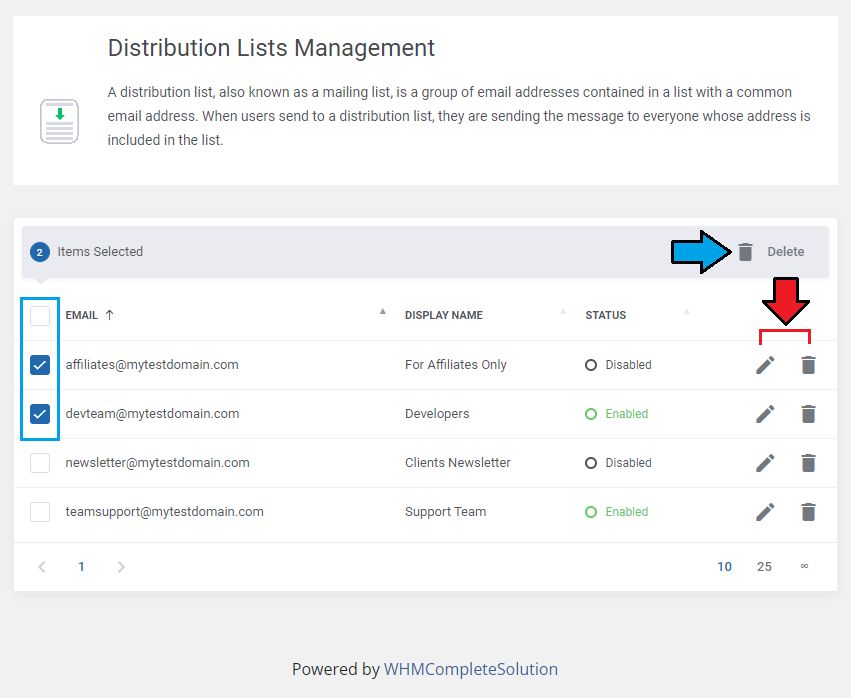
If you made a mistake while creating a list, you can quickly edit it or remove it completely.
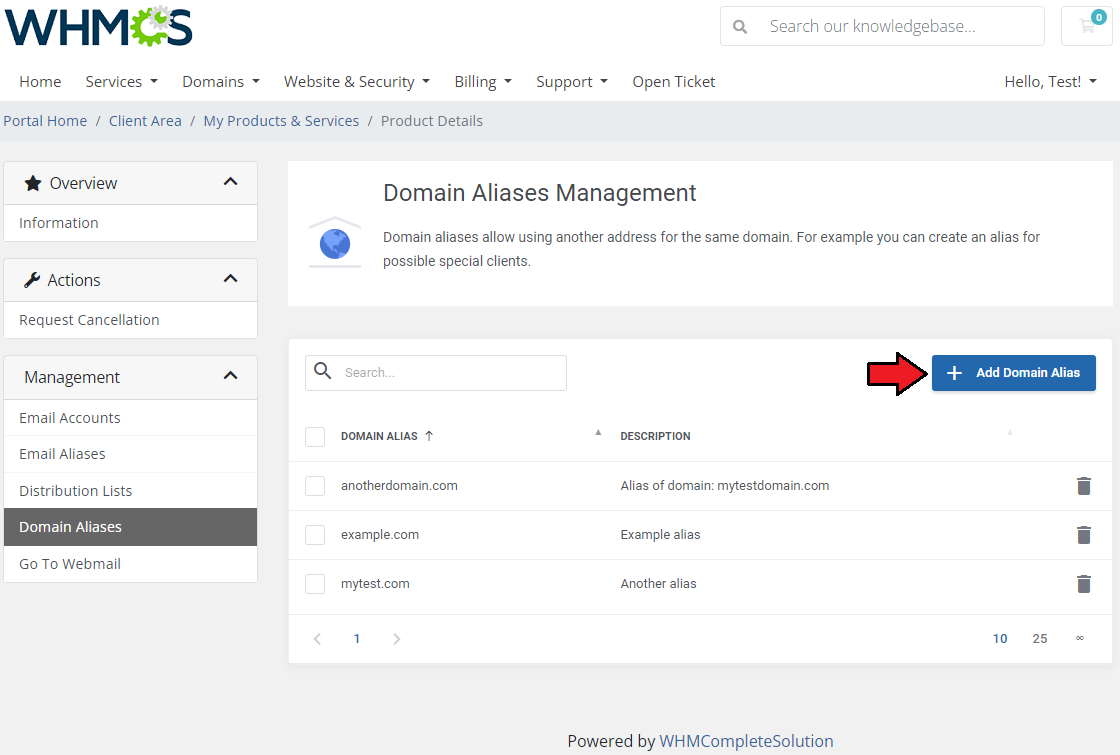
# Domain Aliases
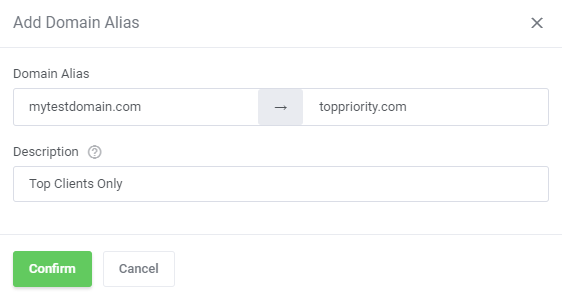
Domain Aliases option allows you to create more than one domain name that will refer to the same account.
Add a new domain alias, like on the below screen, and no matter which address is used, emails will be delivered to the same mailbox.
When a domain alias is no longer needed, simply delete it by pressing an icon.
# Management of Billing
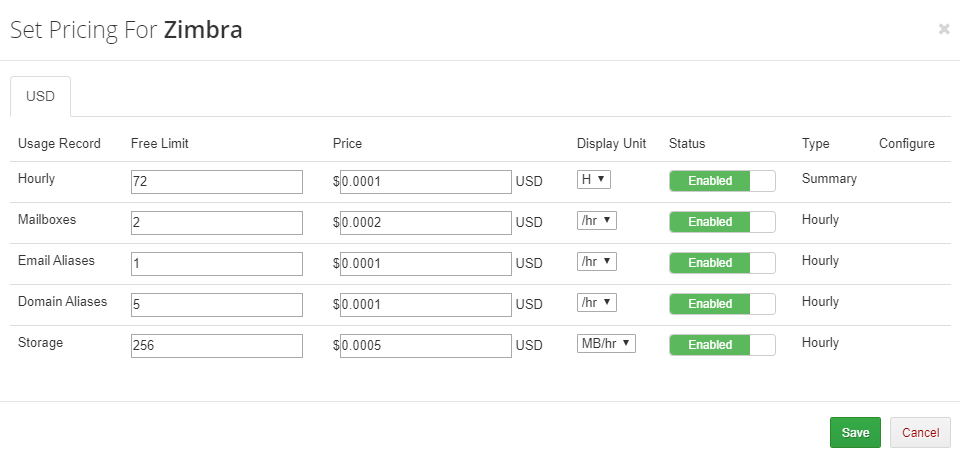
When you combine Zimbra & Carbonio Email For WHMCS with Advanced Billing For WHMCS (opens new window), you will be able to set up additional billing options.
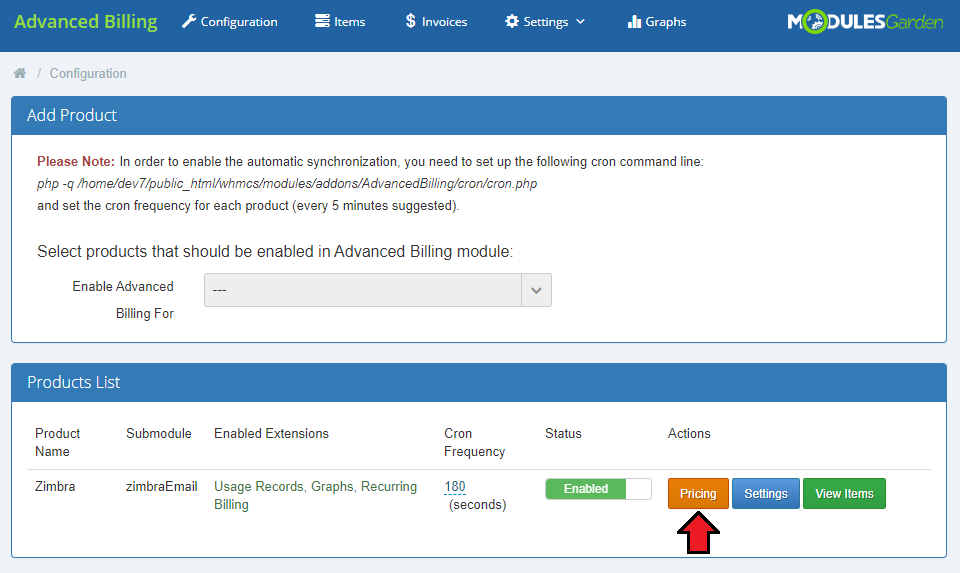
Module allows you to charge your customers based on the server resources used by them.
For more detailed information on the configuration please refer to our Advanced Billing For WHMCS documentation.
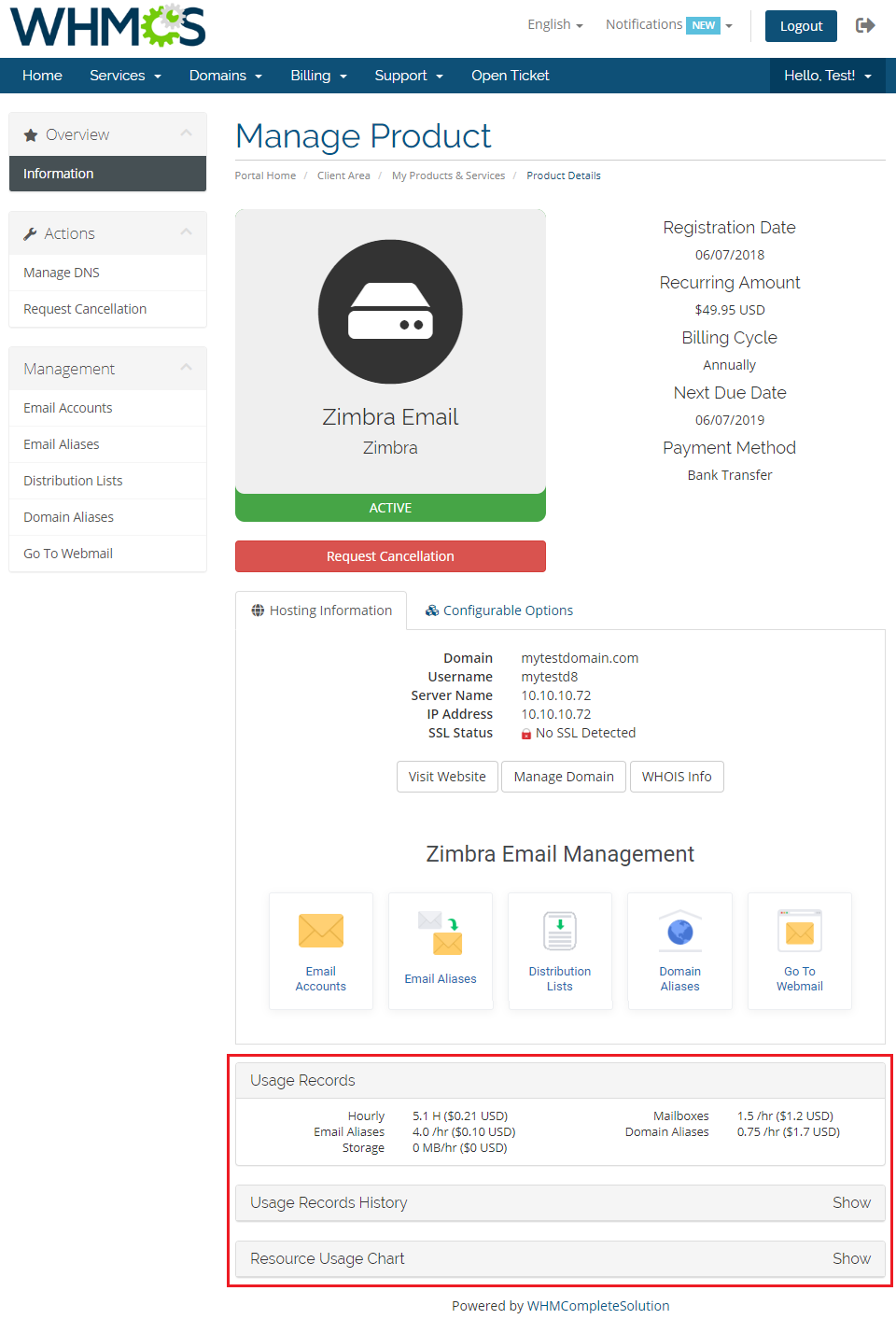
With the Advanced Billing module, you can also display the current server resource usage and their cost and let your customers see it.
# Tips
Zimbra & Carbonio Email For WHMCS requires SOAP installed on your server.
You can set your own custom ports which will be applied only by clients in order to connect to their accounts when the 'Log In To Mailbox' option is used.
To do so, please go to the file located here<whmcs>/modules/servers/zimbraEmail/app/Config/configuration.yml.
Find the 'clientPortSecure' and 'clientPort' fields and provide the ports used by clients.
Please remember that these ports will be used regardless of the custom port specified in the WHMCS server configuration with Zimbra connection.To update the 'diskusage' table in 'tblhosting', you need to run the following cron command.
php -q /your_whmcs/crons/cron.php do --UpdateServerUsage
# How To Use Language Overrides
Incorporating language customizations - the module readily accommodates language overrides, allowing you to tailor the language files to your preferences.
The language file english.php remains unencoded and can be modified to suit your needs. However, it's recommended to avoid altering the core file itself, and instead, leverage the capability of using overrides.
Here's how to apply language overrides:
- Navigate to the ~/langs/ directory located within the following yourWHMCS/modules/servers/moduleName/langs/ path.
- Within this directory, create a new file or duplicate the language file you intend to modify. For instance, if you wish to create an override for the English language, establish the following directory structure:
~/langs/overrides/english.php - Open the newly created override file to edit its contents.
- At the beginning of the file, indicate the used code, for instance, you can use: <?php for PHP code.
- Adapt the file content according to your requirements. You can either selectively modify specific variables or opt to revise the entire content of the language file.
For example:
Original yourWHMCS/modules/servers/moduleName/langs/english.php:
$_LANG['Search'] = 'Search';
Override yourWHMCS/modules/servers/moduleName/langs/overrides/english.php:
$_LANG['Search'] = 'Look for';
By following these steps, you can seamlessly implement language customizations without altering the core language file, ensuring your changes will not be lost after every module update.
Remember that some of the modules have more than one language file, located under /addons and /servers paths. You may create the override files for both of them.
Note that you do not need to paste all the original content of the lang file into the override file. Enter there only the lines that you wish to change, every other line will be fetched from the original module lang file.
Consequently, the override lang file might include only one or just a few lines.
# Update Instructions
An essential guidance through the process of updating the module is offered here.
Important: If you migrate the module from version 1.X to version 2.X, the following steps are needed to be performed additionally:
- Open any of your Zimbra product configurations and go to the 'Modules Settings' tab
- Then connect to your WHMCS server through the terminal and go to the following directory using cd command in the console:
yourWHMCS/modules/servers/zimbraEmail/commands
- Now run the migration script using the command below:
php commands.php migration:v1_v2
# Upgrade Guide
Seeking a solution that offers greater flexibility, customization tailored to your precise needs, and unrestricted availability?
There is an option that not only proves to be cost-effective in the long run but also includes prioritized support services, making it a truly valuable investment.
Opt for the Open Source version (opens new window) of your Zimbra & Carbonio Email For WHMCS module to unlock these benefits.
Simply click on either the Get Source Code or Upgrade To Lifetime button found on the product's page in our client area to complete the one-step upgrade process, with a dedicated discount already applied.
Follow a comprehensive guide covering the transition process, the advantages it brings, and step-by-step instructions on what to do next after the order has been successfully finalized.
# Common Problems
When you have problems with connection, check whether your SELinux or firewall does not block ports.
If you got 'A problem with module occurred. Please contact the administration' error, please validate the correctness of your module license key first and you may also try to reissue the key in your ModulesGarden control panel.
The error 'Could not connect to host' is connected with SOAP. To fix it, make sure that port default 7071 is open.
Otherwise, you can change the communication port by selecting 'Override with Custom Port' in the Zimbra server configuration.
Note: If you upgraded a module prior to 2.X version, the custom port was given in the 'Access Hash' field, which will no longer be used after the upgrade to 2.X version.