

# AdminBolt Licenses For WHMCS
# (opens new window) About AdminBolt Licenses For WHMCS (opens new window)
AdminBolt Licenses For WHMCS is a provisioning module that integrates your WHMCS system with the AdminBolt reseller platform, allowing you to sell and manage software licenses automatically.
The module handles the full lifecycle of a license, including creation, renewal, suspension, and termination, based on client orders and billing events in WHMCS.
License details such as the license key, assigned domain, IP addresses, and installation directory are synchronized with AdminBolt and displayed directly in the WHMCS client area.
Note: Valid AdminBolt reseller API credentials are required to use the module.
# Installation
This tutorial will show you how to successfully install and configure AdminBolt Licenses For WHMCS (opens new window).
Follow the steps below to complete the installation and initial configuration.
- Log in to our client area and download the module.
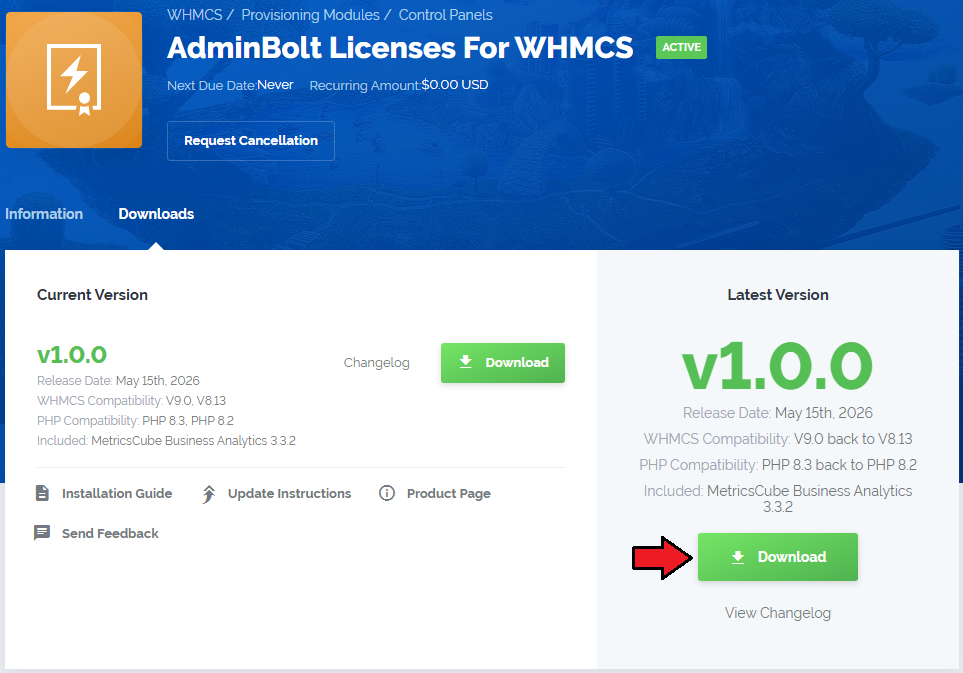
- Extract the package and upload its content into the main WHMCS directory.
Upload the files to: modules/servers/adminboltLicenses/

# Configuration of Server
Obtain your AdminBolt API credentials.
Log in to your AdminBolt panel and in the Reseller Area find the API key assigned to your email address.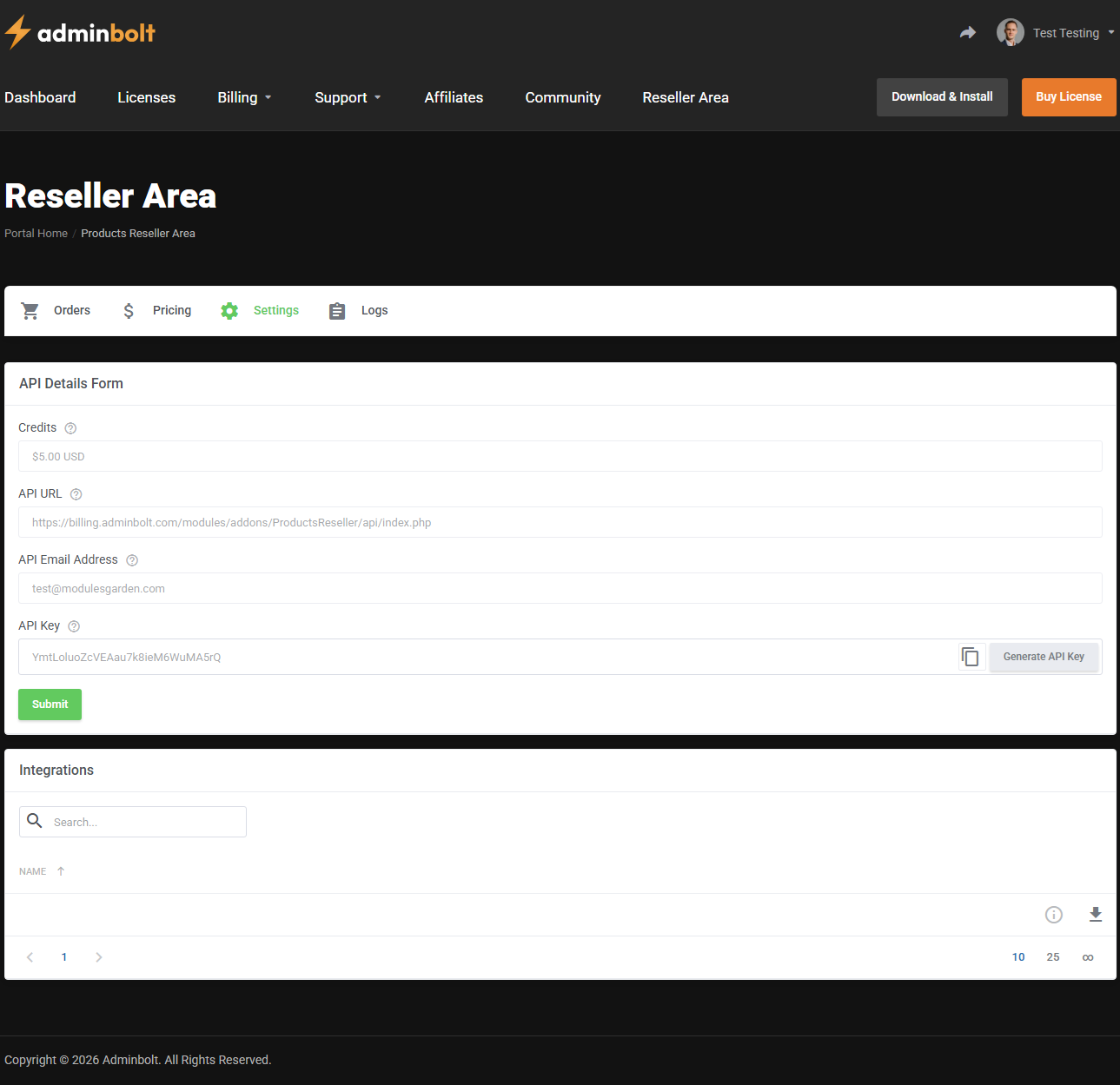
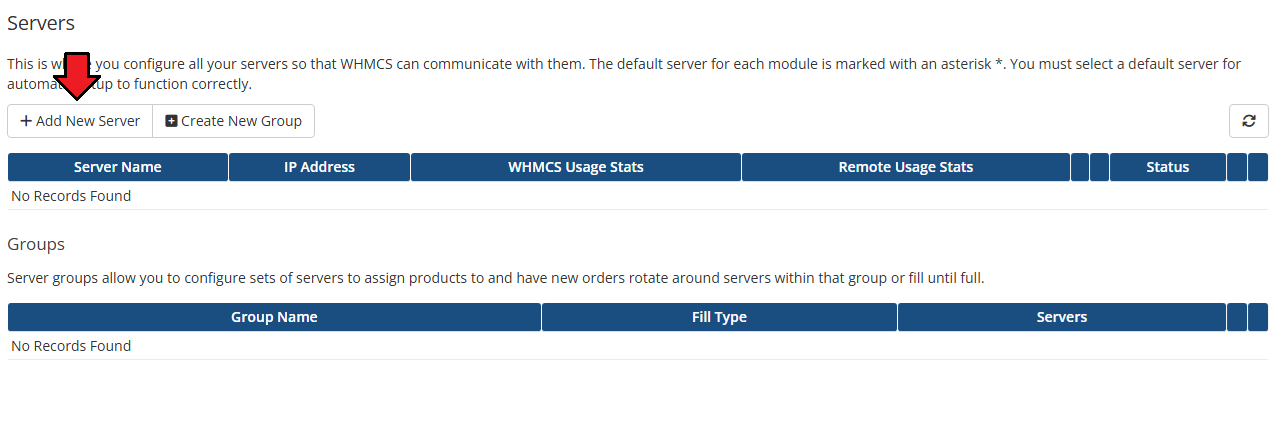
Go to System Settings → Servers and click Add New Server.
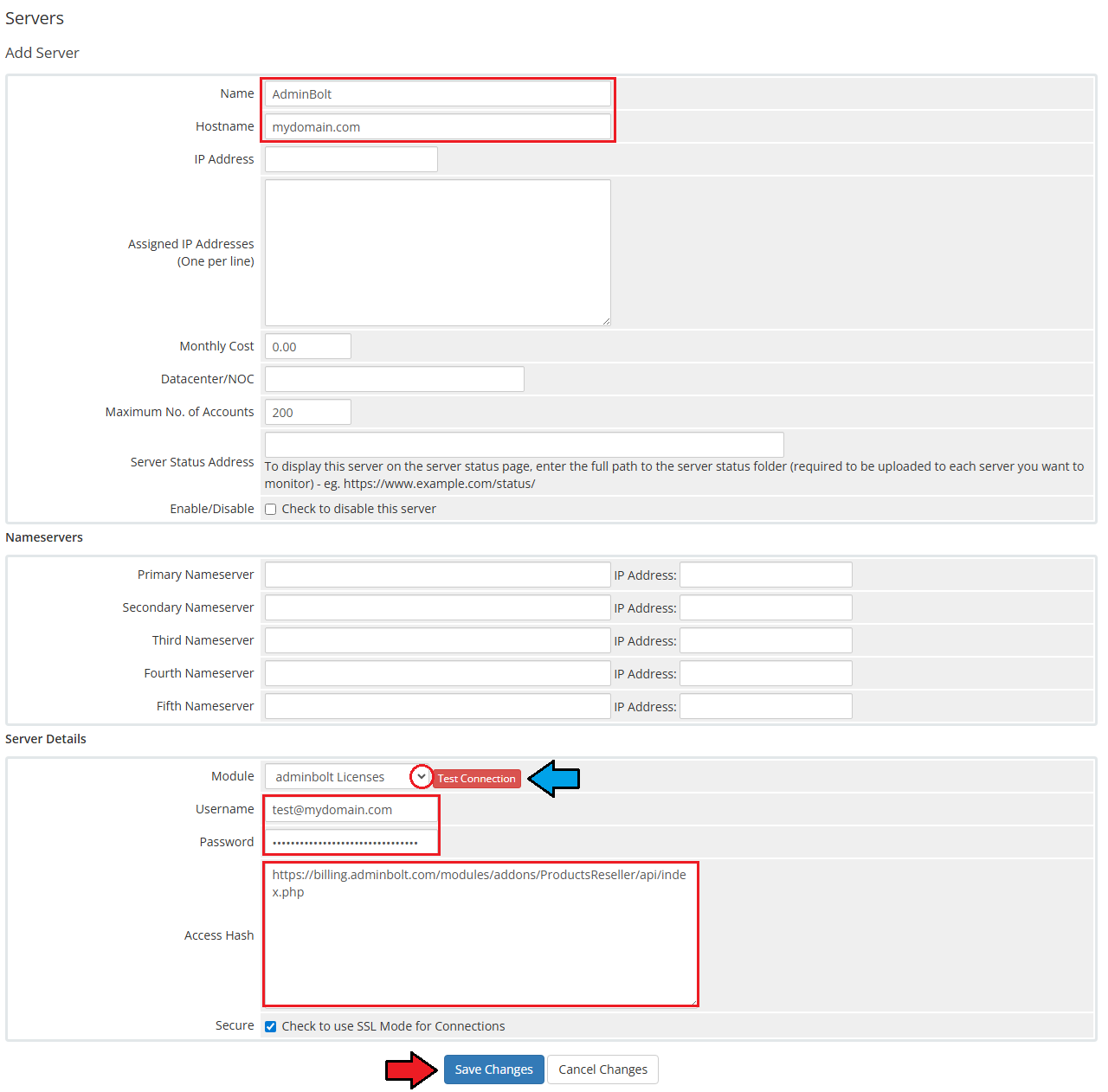
- Switch to the 'Advanced Mode' of server configuration and fill in the server details:
- Name - enter any name for identification purposes
- Hostname - provide any valid hostname (not used for connection)
- Module - select adminbolt Licenses
- Username - your AdminBolt reseller account email address
- Password - your API Key (opens new window)
- Access Hash - API endpoint:
https://billing.adminbolt.com/modules/addons/ProductsReseller/api/index.php
Create a server group.
Click Create New Group to group your server for product assignment.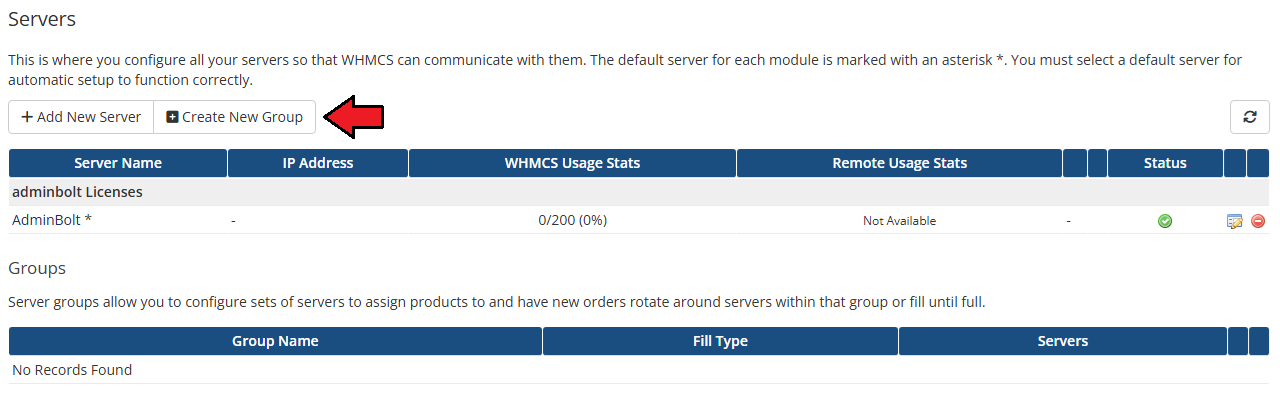
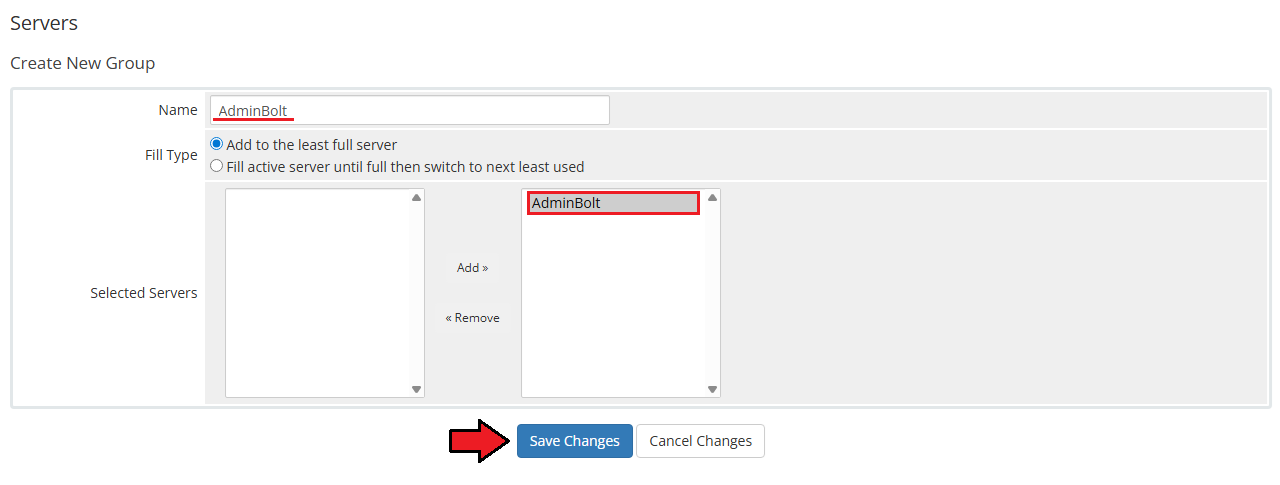
Configure the server group.
Enter a group name, select your previously created server, click Add, and then click Save Changes.
# Configuration of Product
Create a product group.
Navigate to System Settings → Products/Services and click Create a New Group.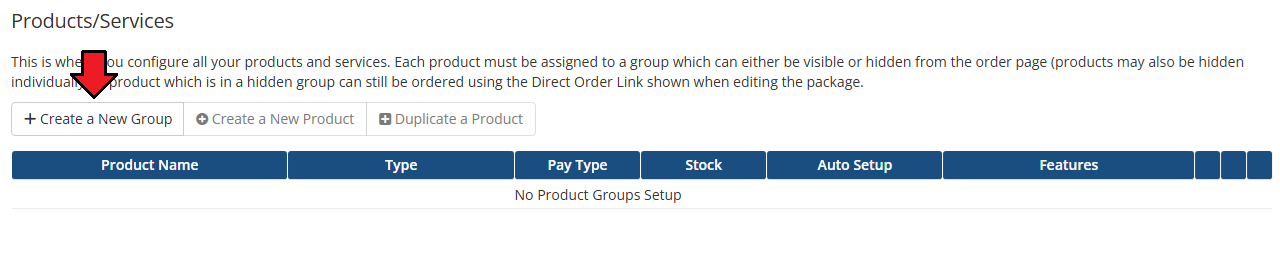
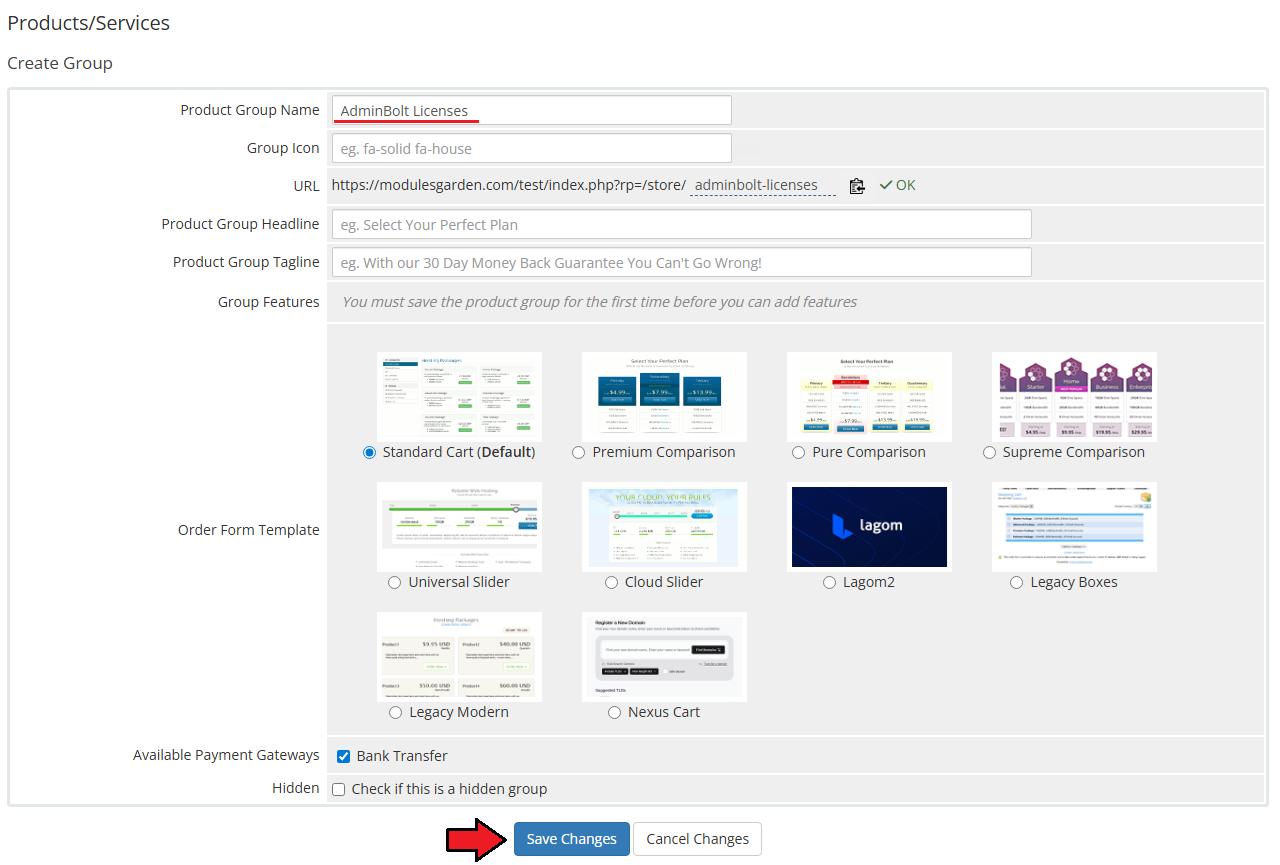
Enter a name for your product group and click Save Changes.
Create a new product.
Click Create a New Product.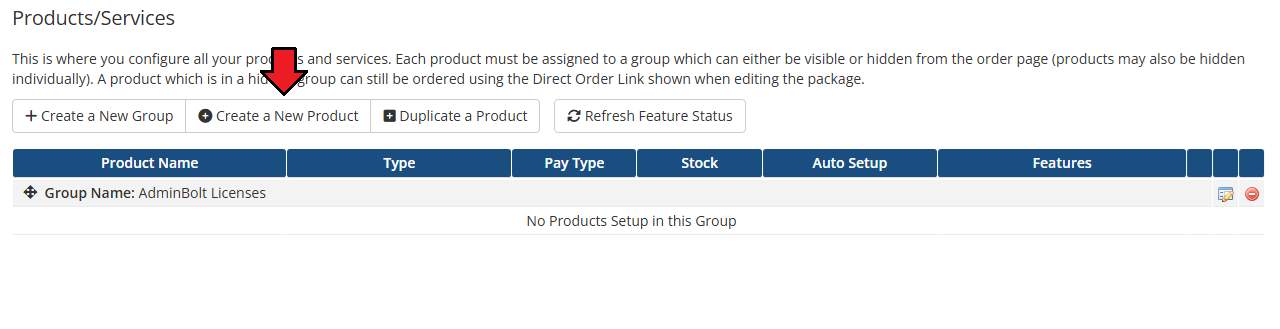
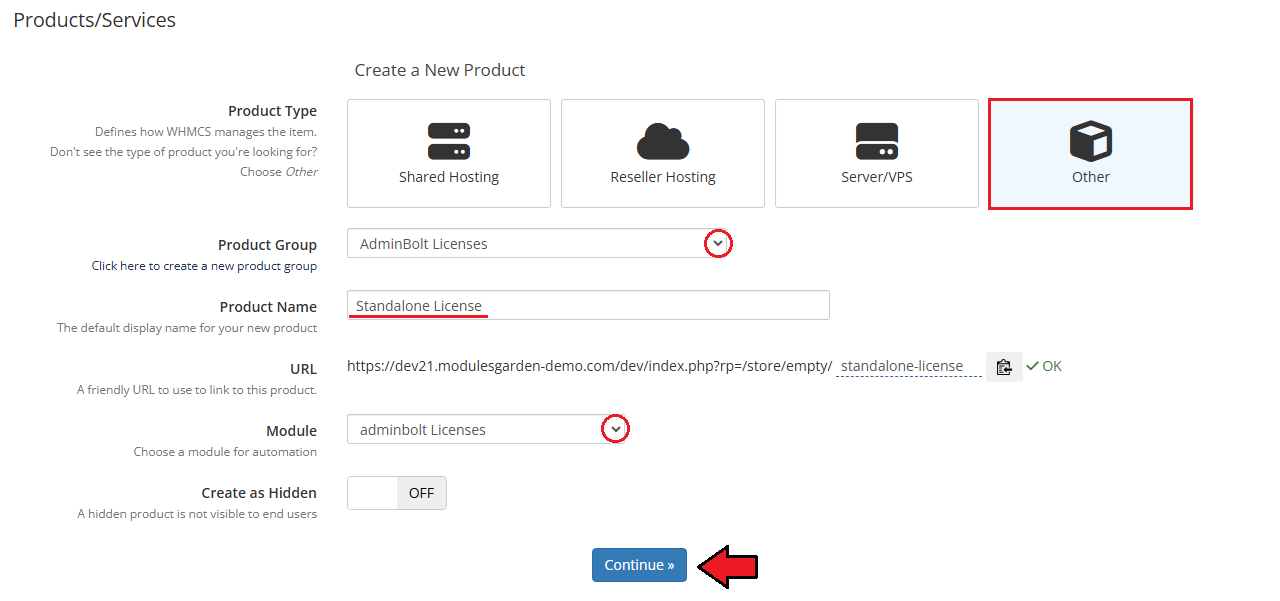
Configure the basic product settings:
- Product Type - set to Other
- Product Group - select the group created earlier
- Module - choose adminbolt Licenses
Make sure the Create as Hidden option is disabled if you want the product to be visible to clients. Then click Continue and save the changes.
Configure the Details tab.
We recommend setting up a Welcome Email template at this stage.
The email will be sent automatically after successful provisioning and should include essential service details such as the license key and assigned parameters.
More information about email templates can be found here (opens new window).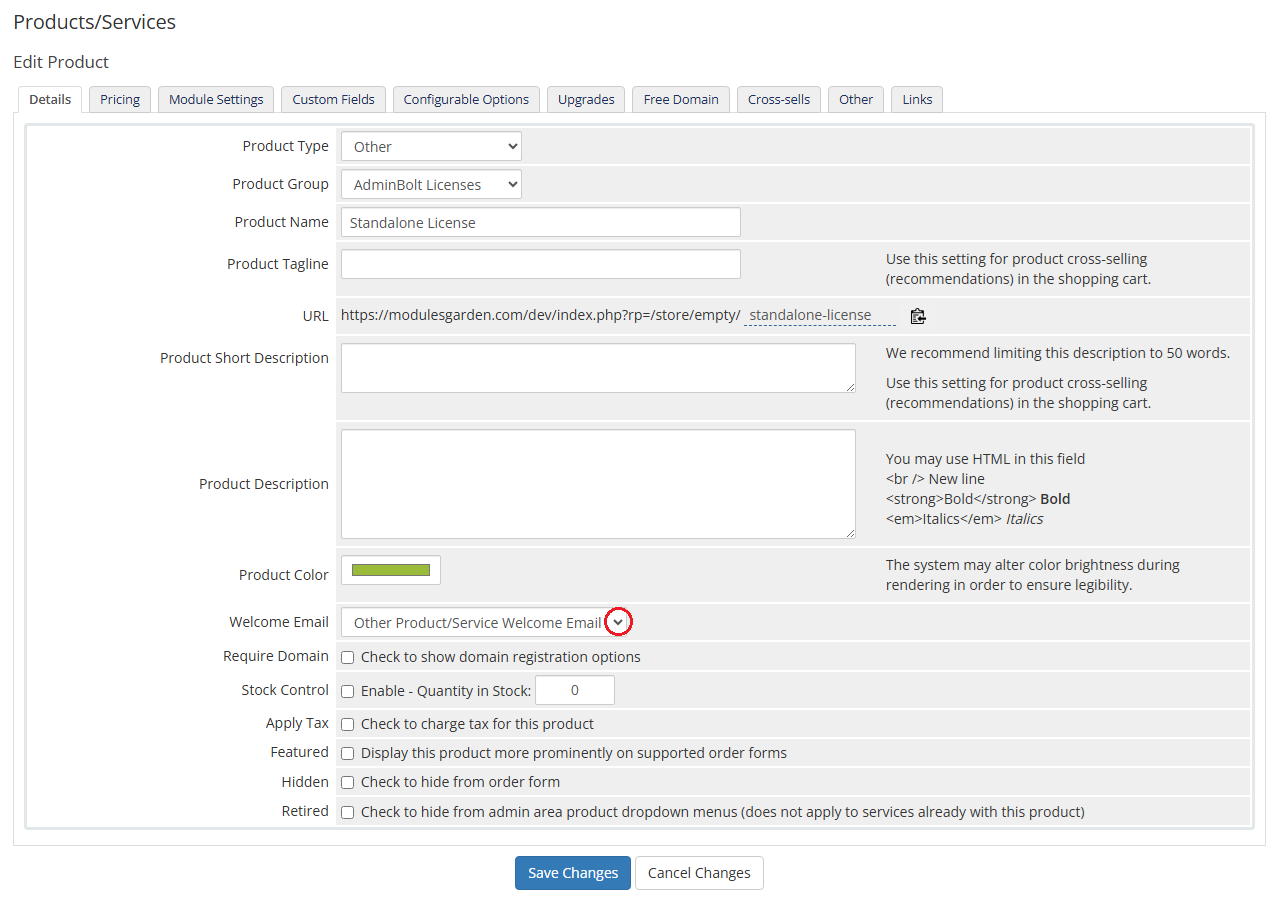
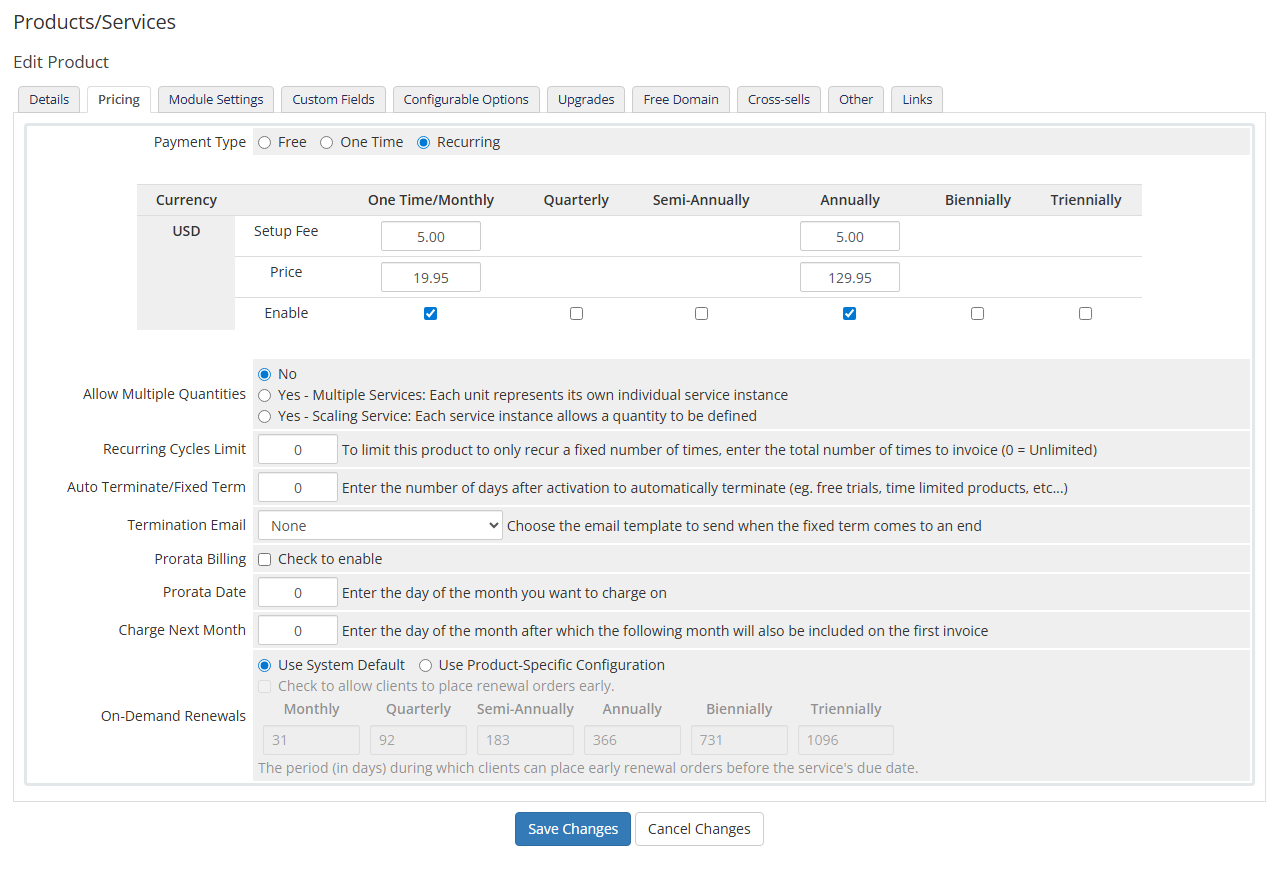
Set up pricing for your product in the Pricing tab.
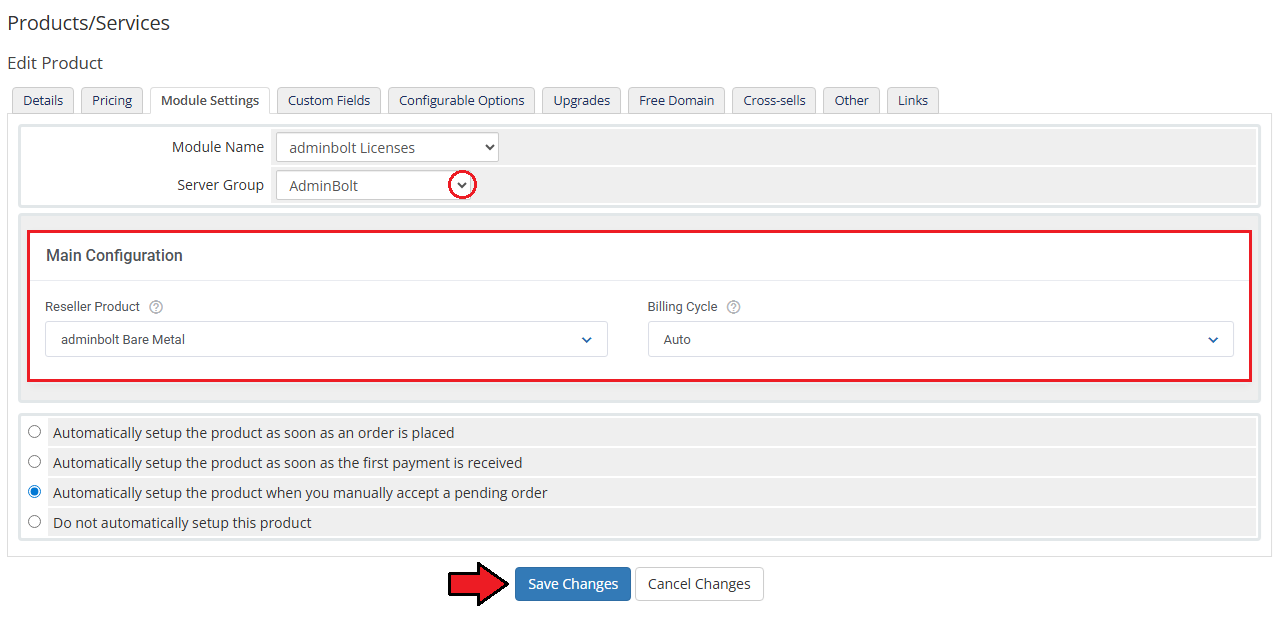
Configure Module Settings.
Select the previously created server group; only then will additional configuration options appear.
Configure the Main Configuration options:- Reseller Product - select the AdminBolt product that will be provisioned for the client
- Billing Cycle - defines how the license billing is handled; when set to Auto, it follows the WHMCS product billing cycle
Save the changes once configured.
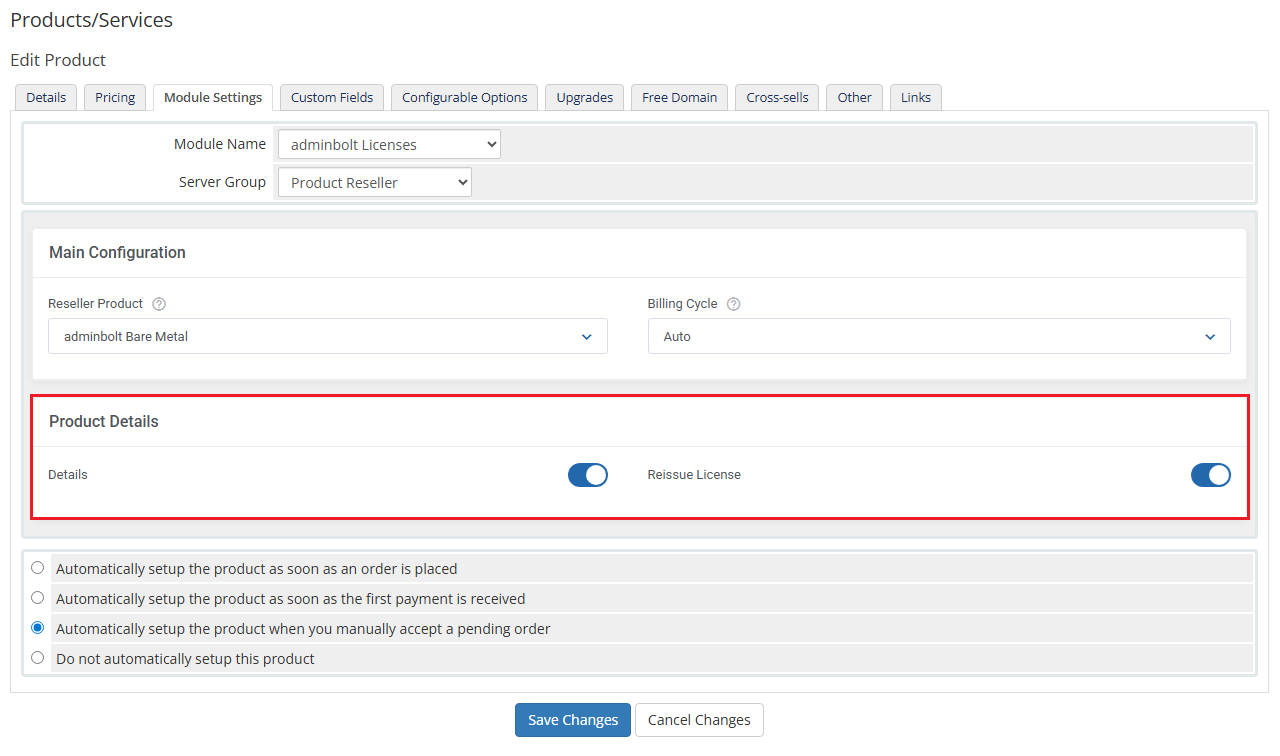
Configure Product Details options.
Enable the features available in the client area:- Details - displays license information such as license key, status, domains, IP addresses, and directory
- Reissue License - allows clients to reset license bindings (e.g. domain or IP)
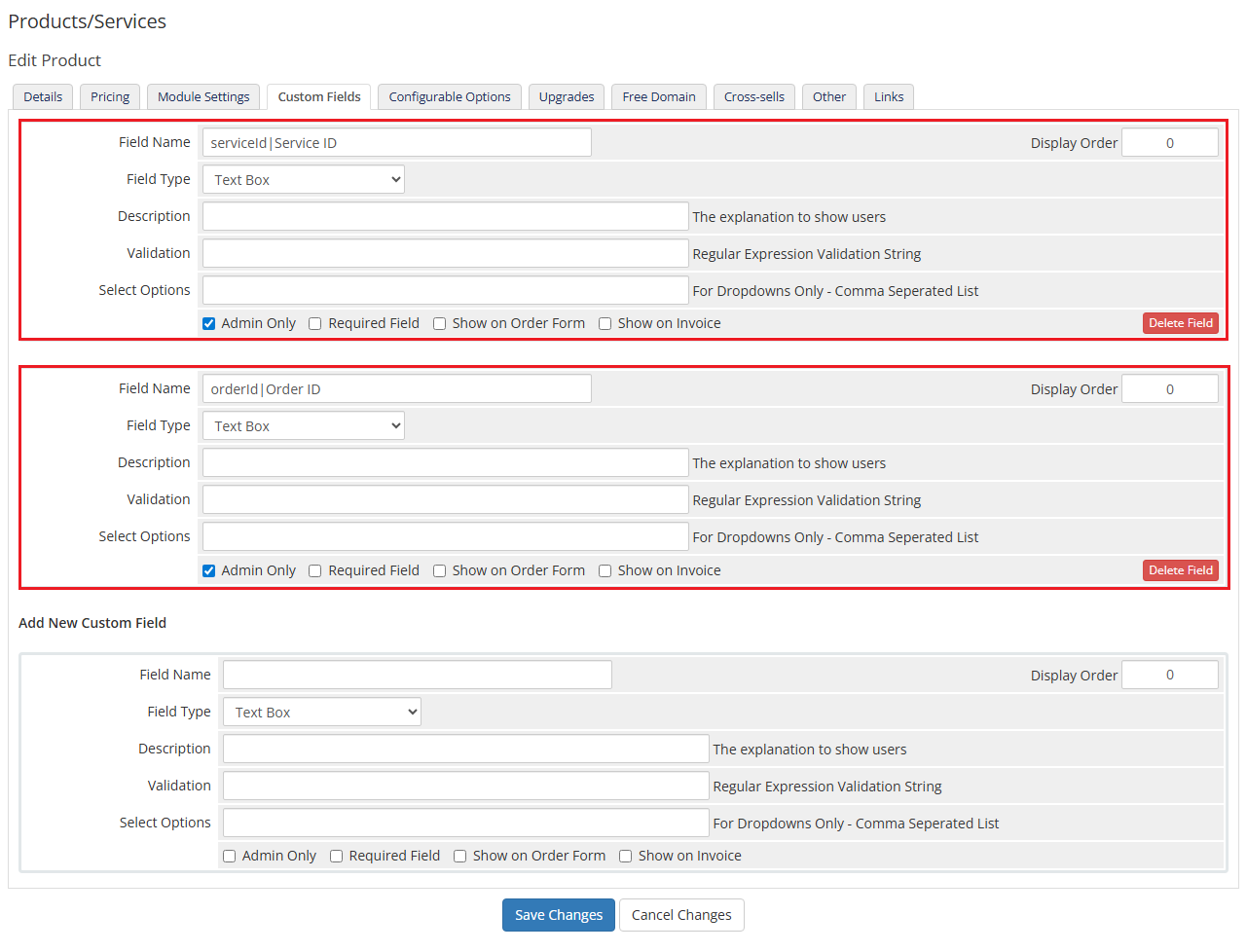
Custom Fields are generated automatically after the first module usage
serviceId– Service ID (visible in admin area only)orderId– Order ID (visible in admin area only)
These fields are used internally to synchronize data with the AdminBolt system.
# Management
The module integrates AdminBolt license management directly into both the WHMCS admin area and client area, allowing convenient access to all essential license information and management sections described in detail below.
# Admin Area
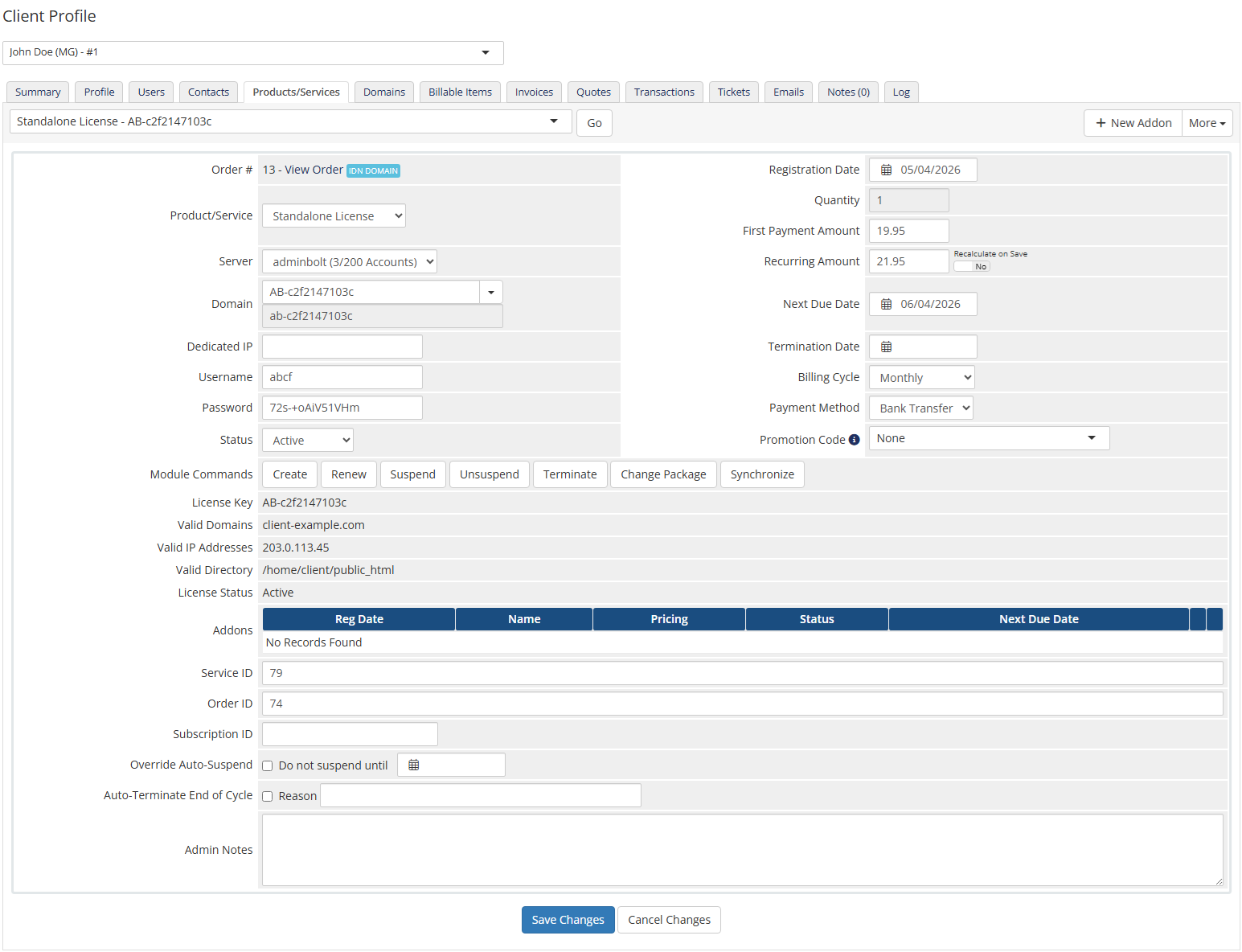
In the admin area, you can manage all services created by the module directly from the WHMCS product details page.
Available Actions
- Create License
- Renew License
- Suspend / Unsuspend License
- Terminate License
- Change Package
- Synchronize License Data
License Details Preview
- License Key
- License Status
- Valid Domains
- Valid IP Addresses
- Installation Directory
# Client Area
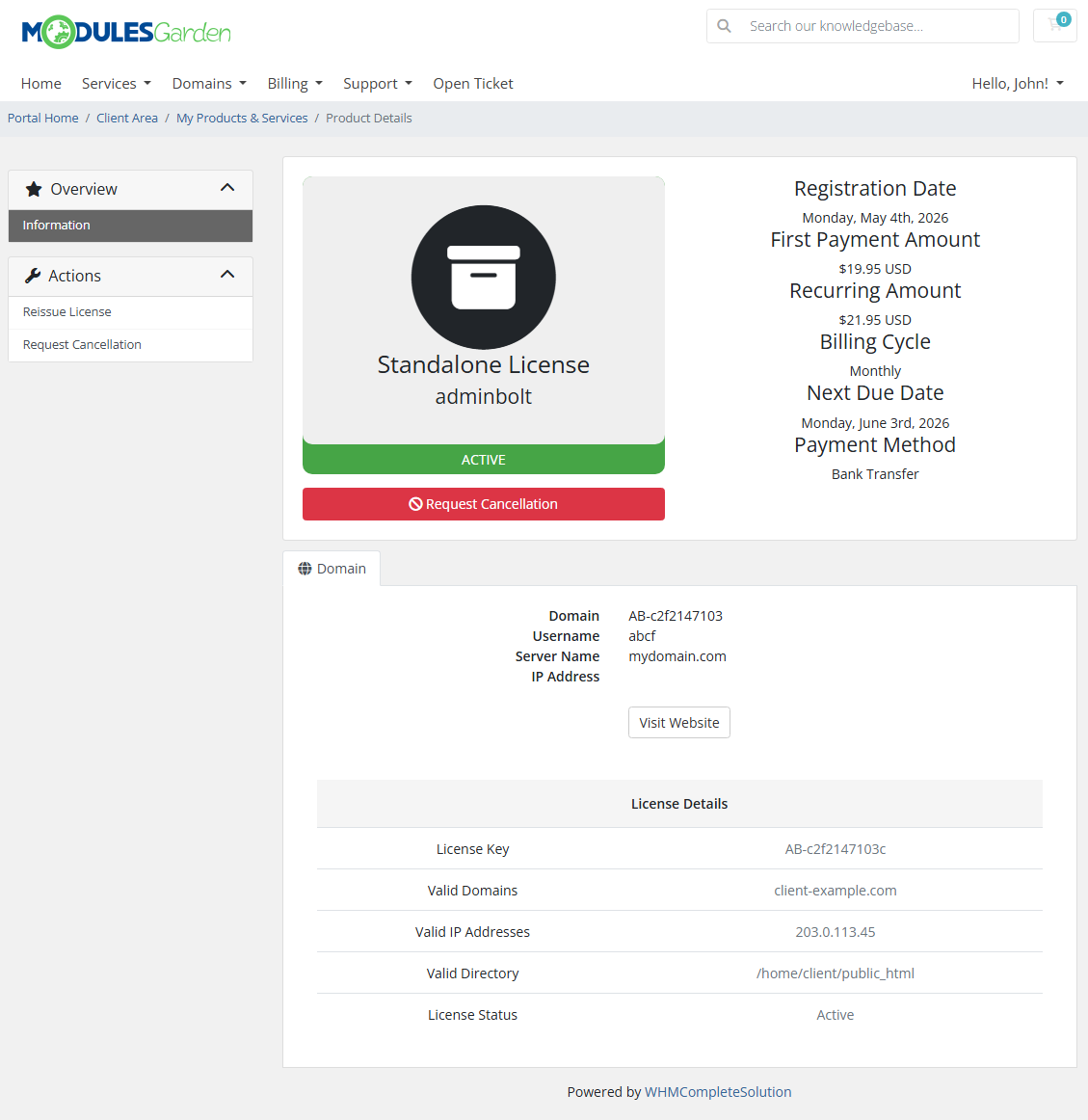
Clients can manage their licenses directly from the WHMCS client area without accessing the AdminBolt panel.
License Details
- License Key
- Valid Domains
- Valid IP Addresses
- Installation Directory
- License Status
Available Actions
- Reissue License - reset bound data such as domain/IP/directory
- Request Cancellation
# Tips
Verify API Credentials
Ensure that the reseller email, API key, and endpoint are correct before testing the connection.Use Welcome Emails
Configure a proper email template to deliver license details automatically to clients.
# Update Instructions
An essential guidance through the process of updating the module is offered here.
Ensure successful completion of the module update by carefully following each step, thereby preventing data loss or any unforeseen issues.
Additionally, you will find a current list of supplementary actions necessary for a smooth update process there.
# Common Problems
- When you encounter problems with connection, check whether your SELinux or firewall does not block ports.