

# Vultr VPS For WHMCS
Updating your Vultr VPS For WHMCS module to version 2.0.0? Make sure to follow the update instruction.
# (opens new window) About Vultr VPS For WHMCS (opens new window)
Vultr VPS For WHMCS is a module that allows fully automated management of Vultr VPS servers.
The module will allow your clients to remotely control the status of a server, access the console, rebuild the VPS and many others.
You will be also allowed to adjust your offer to even the most demanding needs of your clients with a wide range of configurable options.
# Installation and Configuration
This tutorial will show you how to successfully install and configure Vultr VPS For WHMCS. (opens new window)
We will guide you step by step through the whole installation and configuration process.
# Installation
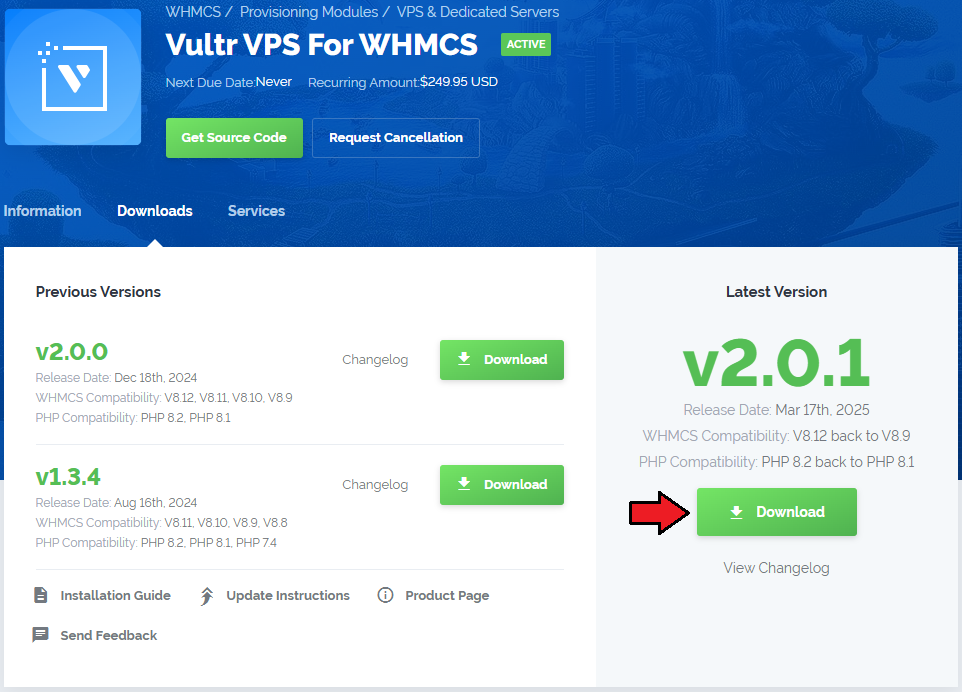
- Log in to our client area and download the module.
- Extract the package and upload its content into the main WHMCS directory.
The content of the package to upload should look like this.

When you install Vultr VPS For WHMCS for the first time you have to rename the 'license_RENAME.php' file.
The file is located in 'modules/servers/VultrVps/license_RENAME.php'. Rename it from 'license_RENAME.php' to 'license.php'.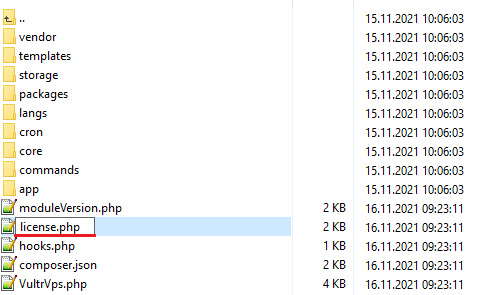
In order to configure your license key, you have to edit the previously renamed 'license.php' file.
Enter your license key between quotation marks as presented on the following screen.
You can find your license key in our client area → 'My Products'.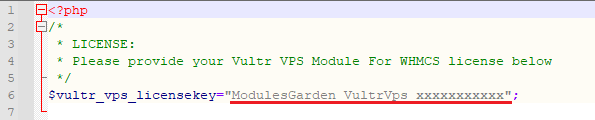
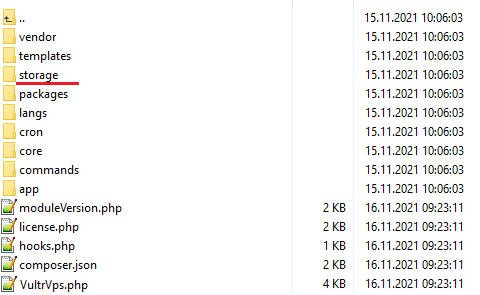
Now, set up the 'storage' folder as recursively writable.
This folder is available at '/yourWHMCS/modules/servers/VultrVps/'.
# Activating Addon Module
Now, you have to activate the module in your WHMCS system.
Log in to your WHMCS admin area. Go to 'System Settings' → 'Addon Modules'. Afterward, find 'Vultr VPS' and press the 'Activate' button.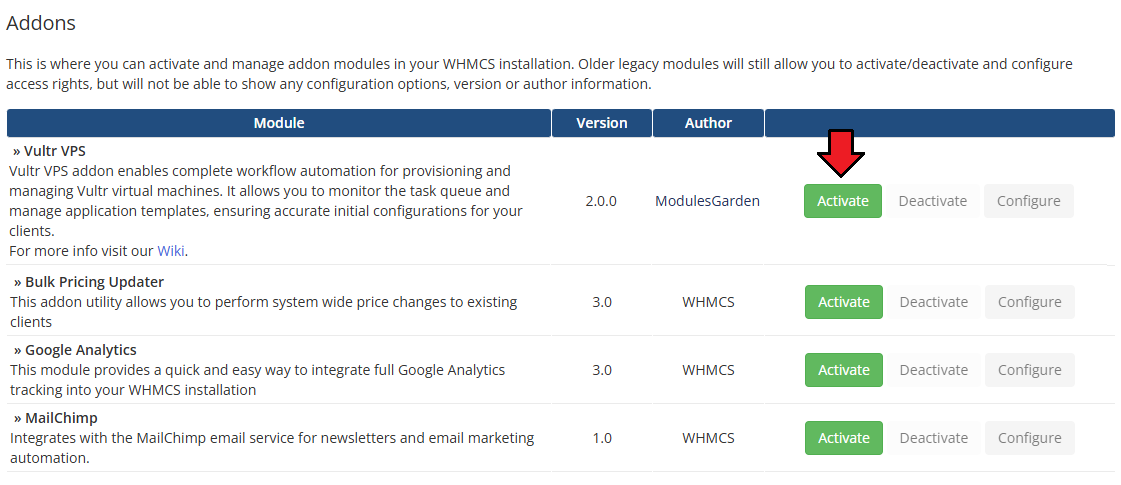
In the next step, you need to grant access to this module.
To do so, click on the 'Configure' button, go to the 'Access Control' area, and check the required admin role groups. Press 'Save Changes'.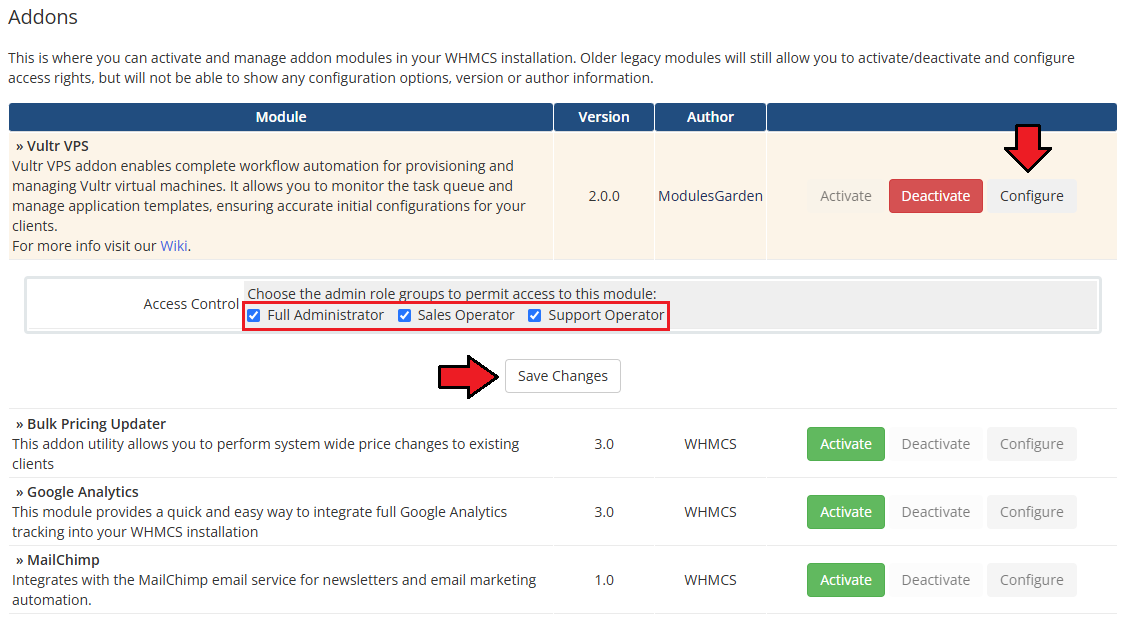
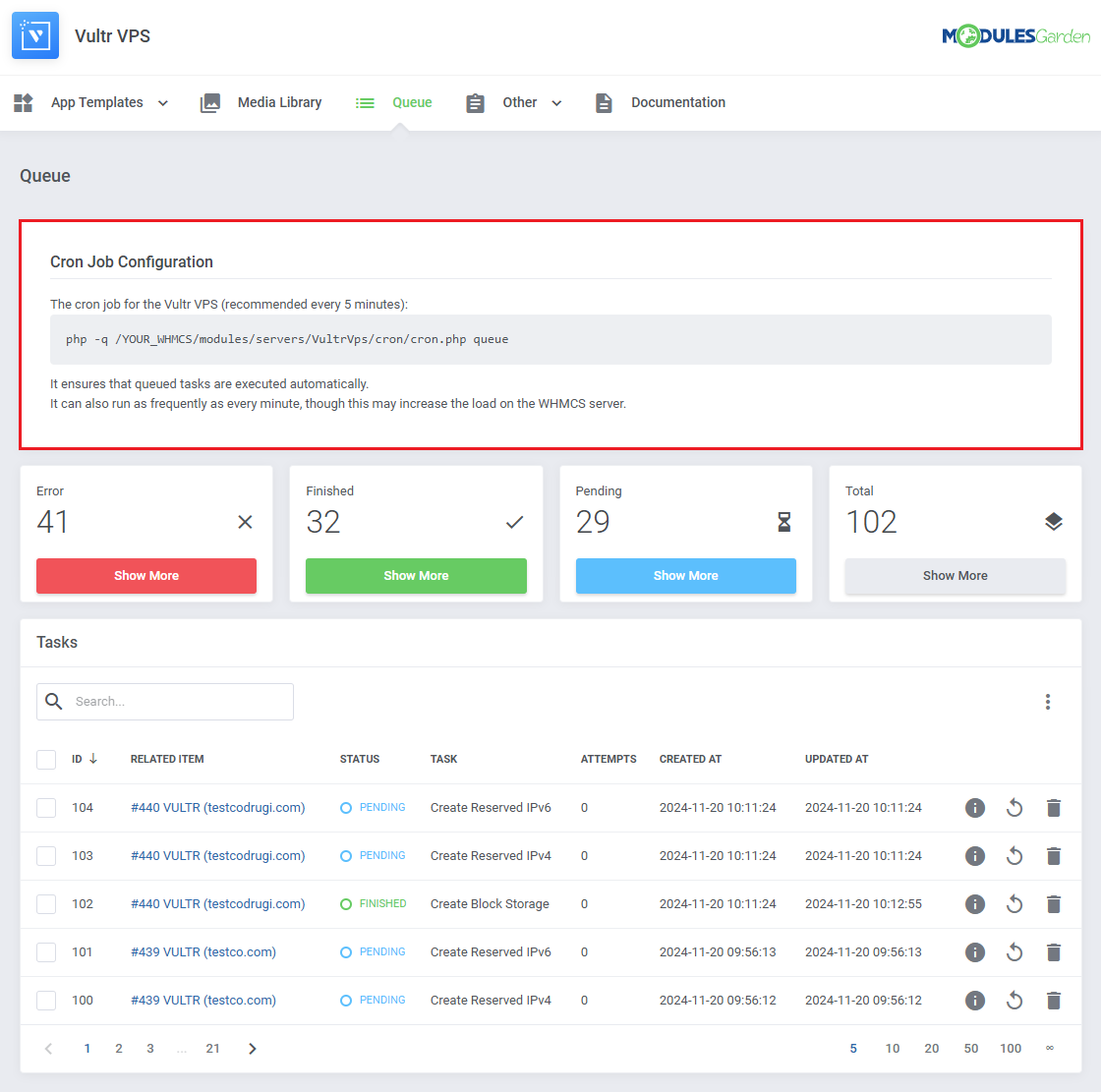
The final step of the module installation is setting up a cron command that is required for several module features to work properly.
Note: The cron execution is required for products in version 1.1.0 and later.
php -q /yourWHMCS/modules/servers/VultrVps/cron/cron.php queue
Remember to replace "yourWHMCS" with a proper directory.
The suggested time interval for cron execution is 5 minutes.
# Configuration of Server
Before you can go on, you must generate your Vultr API Token. You will need it to connect with the server successfully.
Underneath you will find instructions on where to find your API details.
- Firstly, log into your Vultr account at: https://my.vultr.com/.
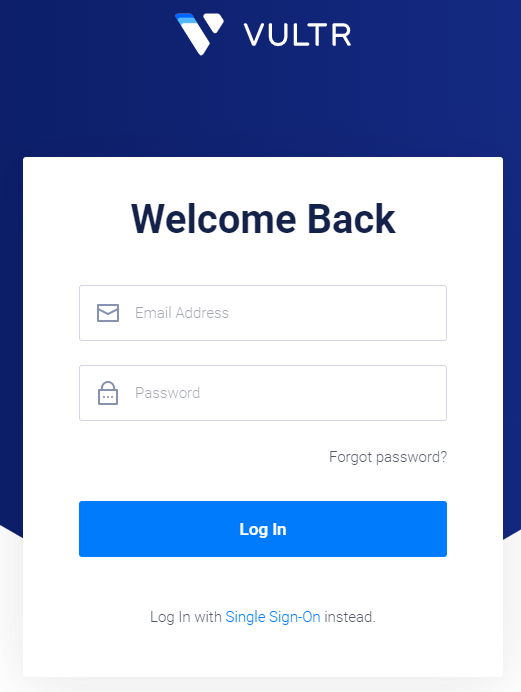
Move to the 'API' details section under your account.
There find the 'Personal Access Token' section and generate your API Key.
You must previously enable API to be able to generate the API key. Copy the key as you will need in the next steps of the server configuration.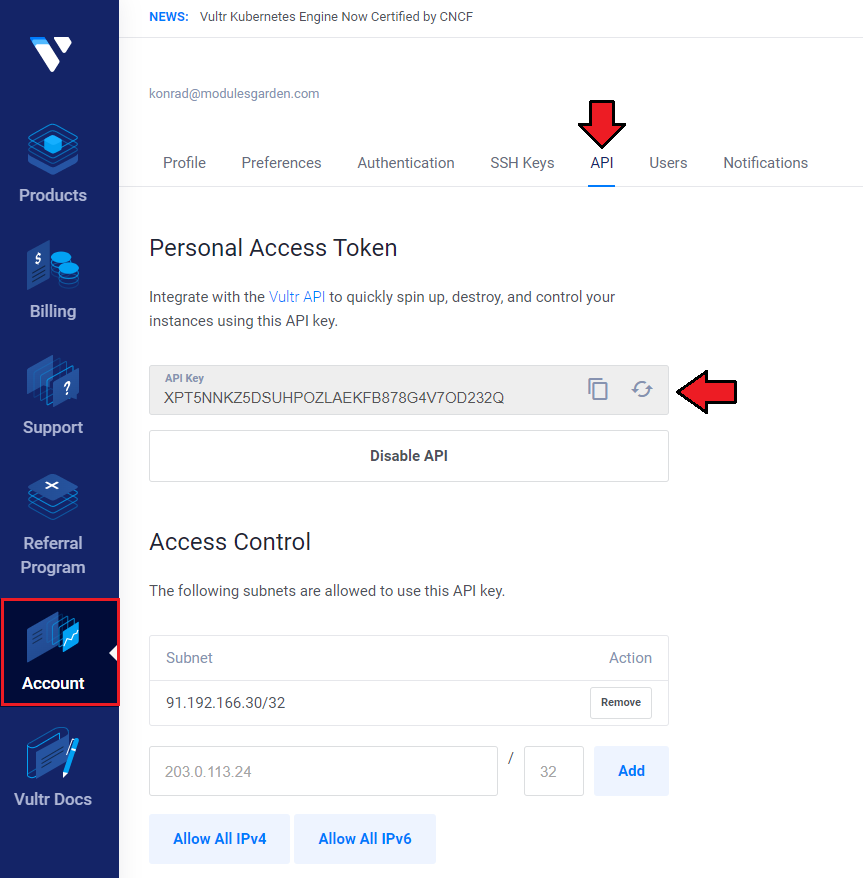
Now, log in to your WHMCS and proceed to 'System Settings' → 'Servers' and press 'Add New Server'.
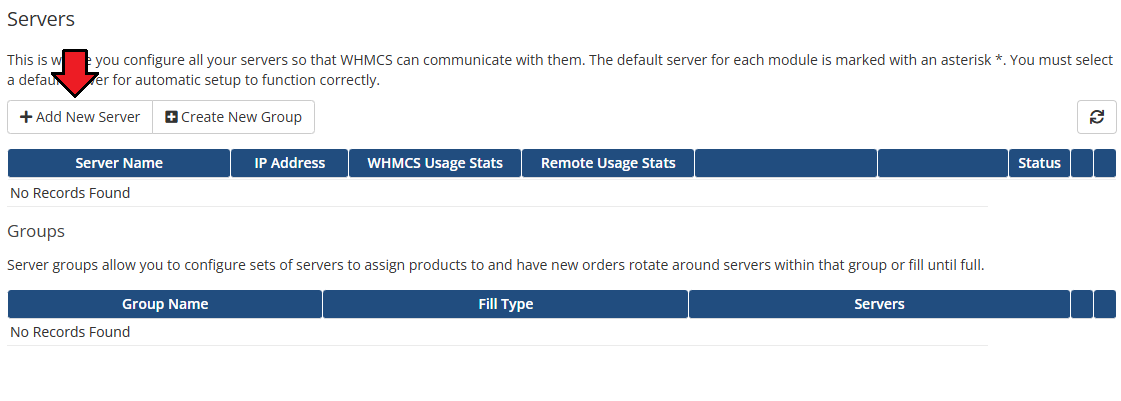
Next, enter your server name and a hostname or an IP address. Then select 'Vultr VPS' from the 'Type' field.
Now, provide the previously generated API token in the 'Password' field. Then check the connection, if successful, save the changes.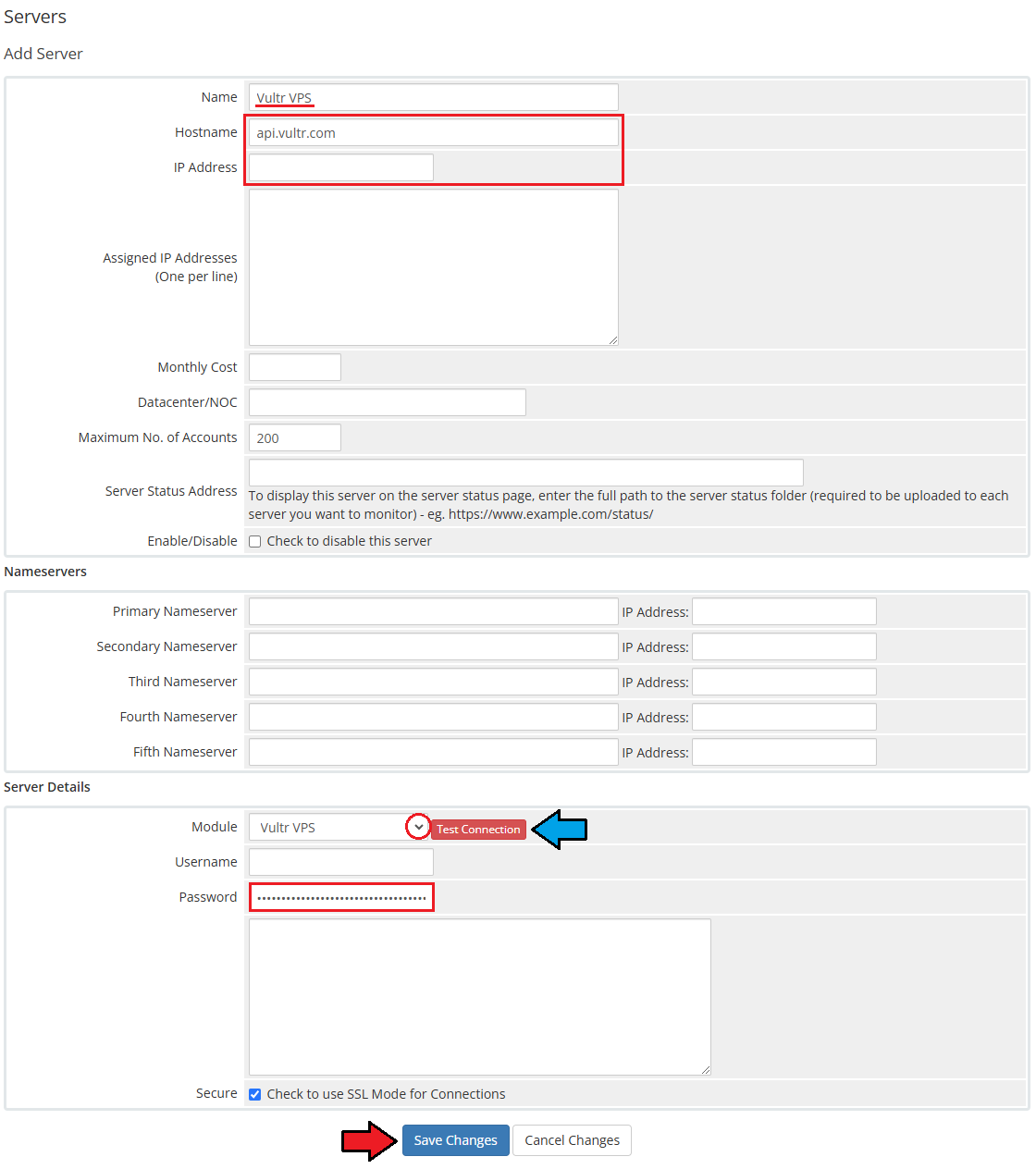
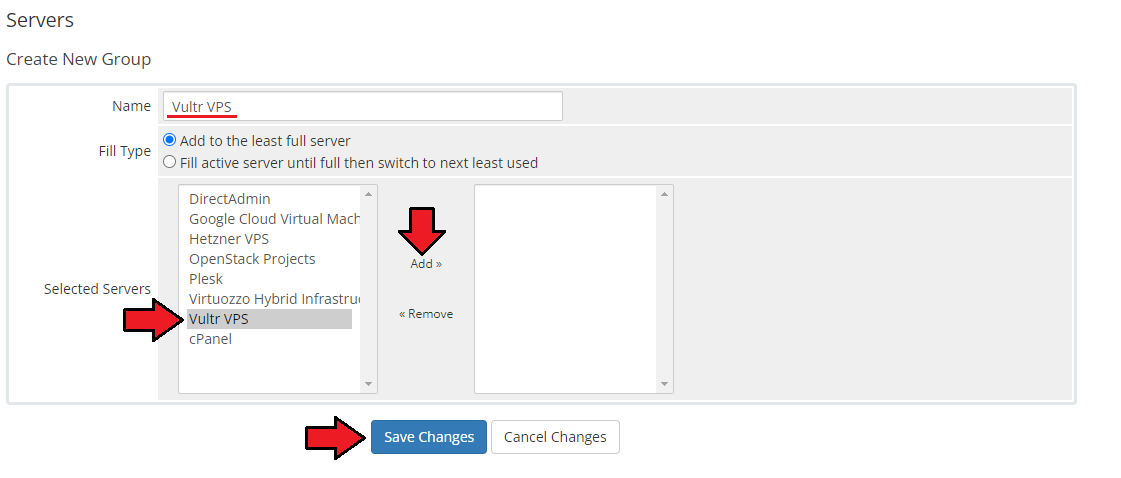
It is time to create a server group. To do so, click on 'Create Server Group'.
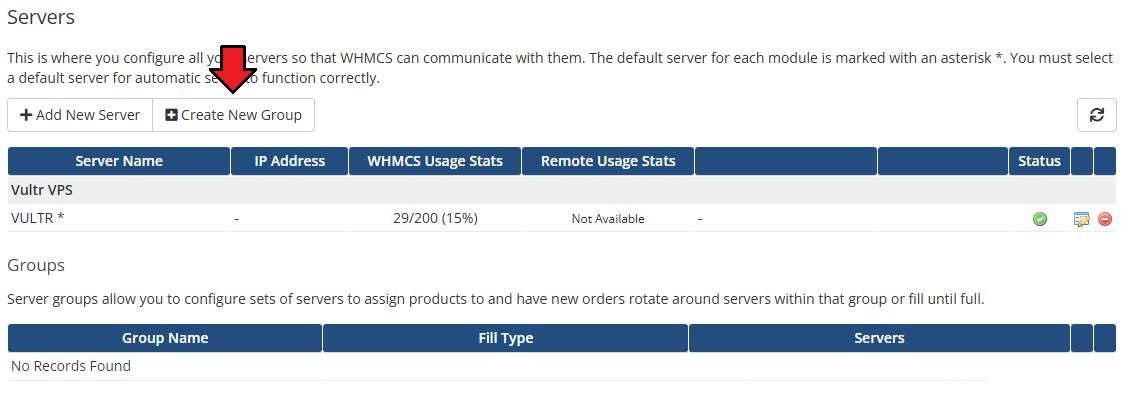
- Enter a name, click on your previously created server, press 'Add' and afterward 'Save Changes'.
# Configuration of Product
In order to create and configure a product, go to 'System Settings' → 'Products/Services'.
Click on 'Create a New Group'.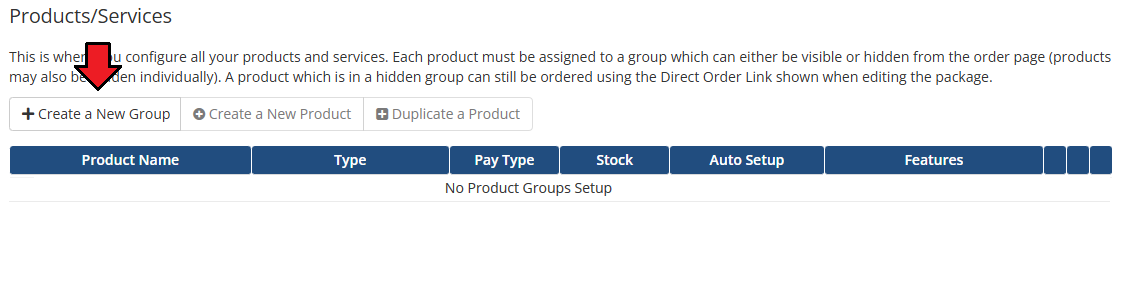
Enter a product group name and press 'Save Changes'.
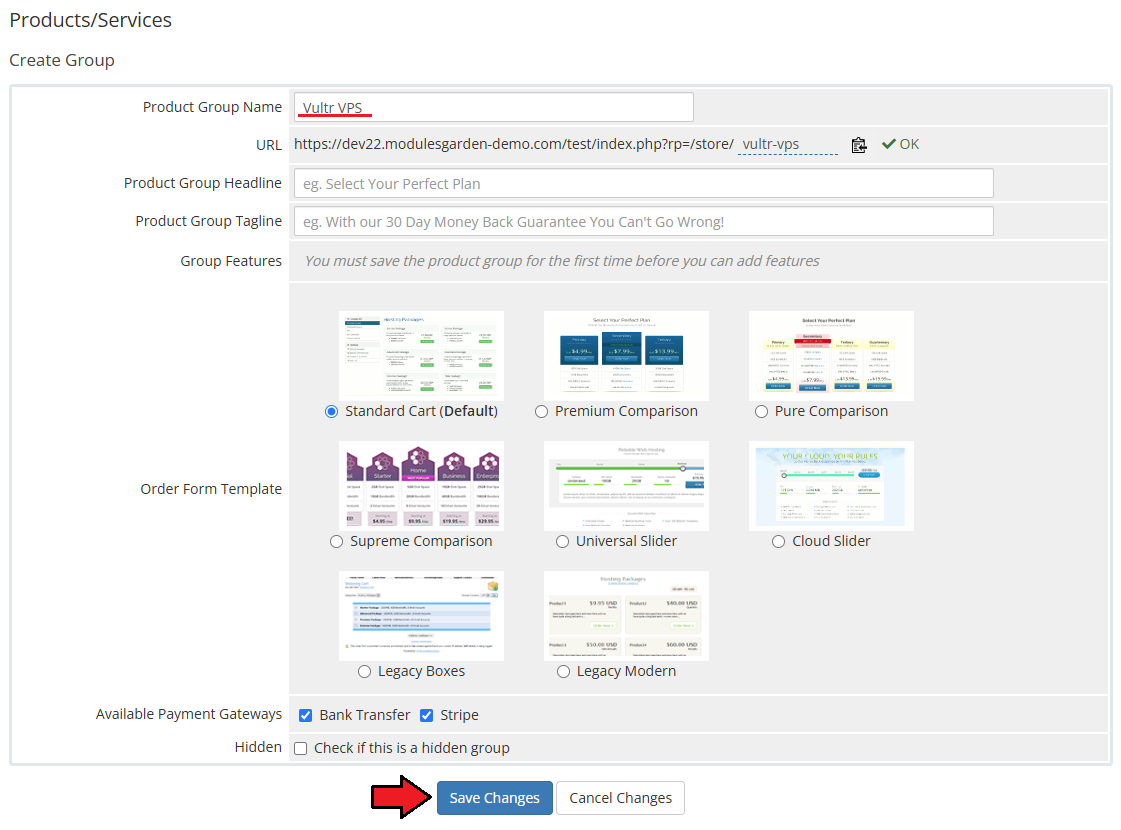
When you have a product group, you can create your product.
To create a product click on 'Create a New Product'.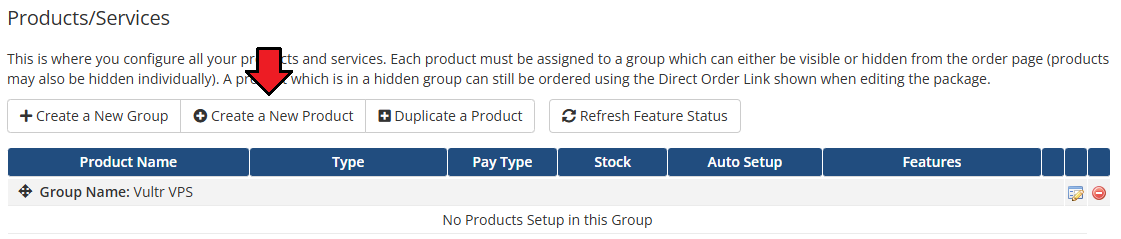
Afterward, choose your product group and type from the dropdown menus, enter your product name and press 'Continue'.
'Product Type' should be set to 'Shared Hosting'.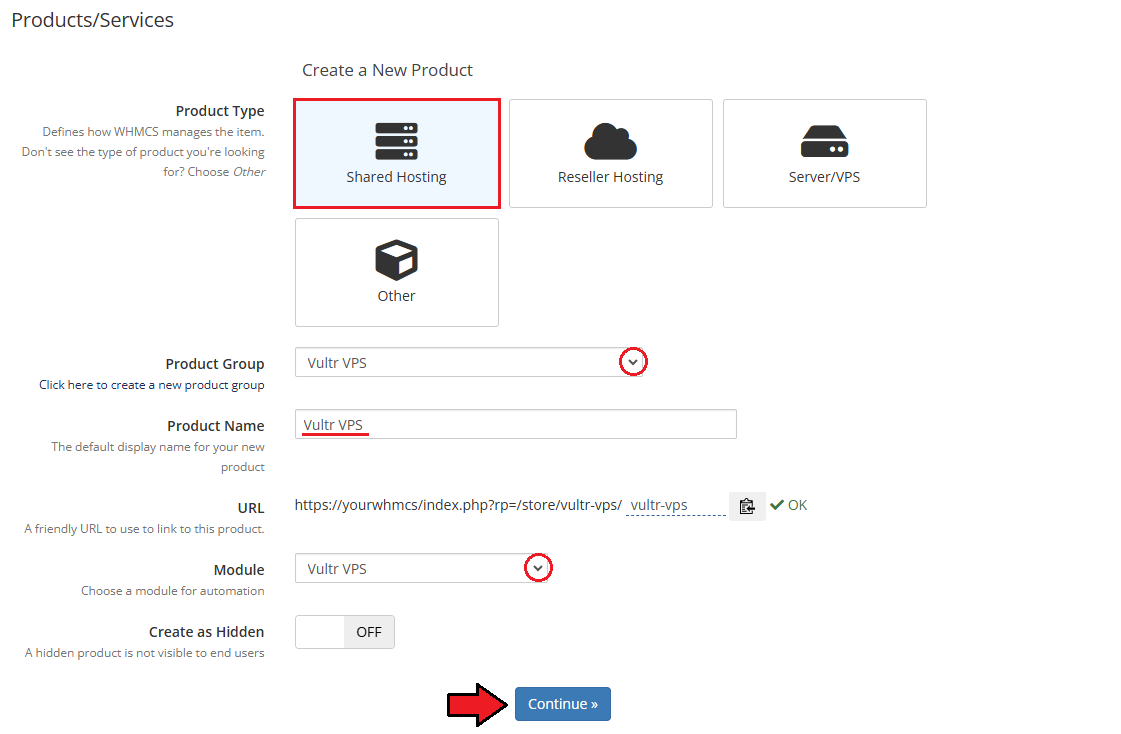
Now, go to the 'Module Settings' section, choose both 'Vultr VPS' and your previously created server group from the dropdown menus.
The module should automatically save and reload settings. If not, click on 'Save Changes' manually.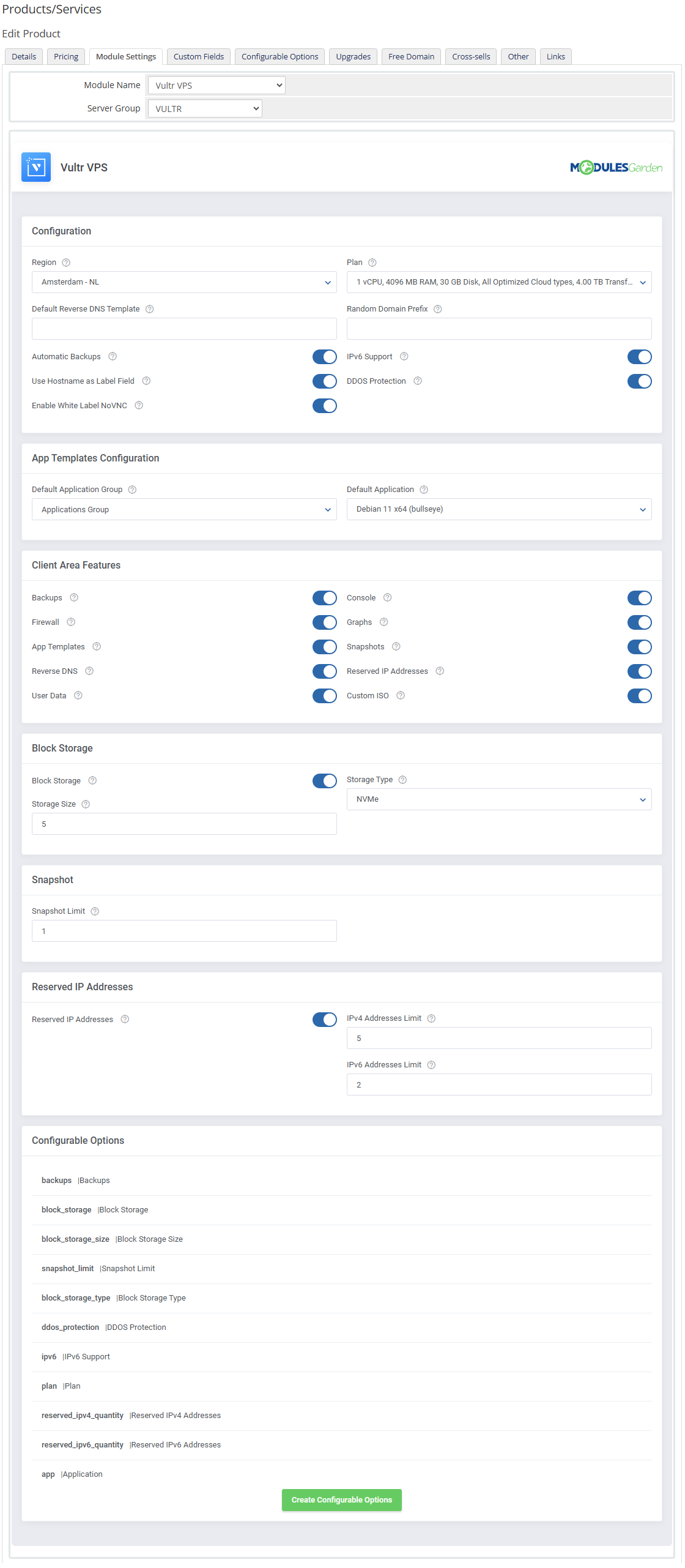
Proceed to 'Configuration'.
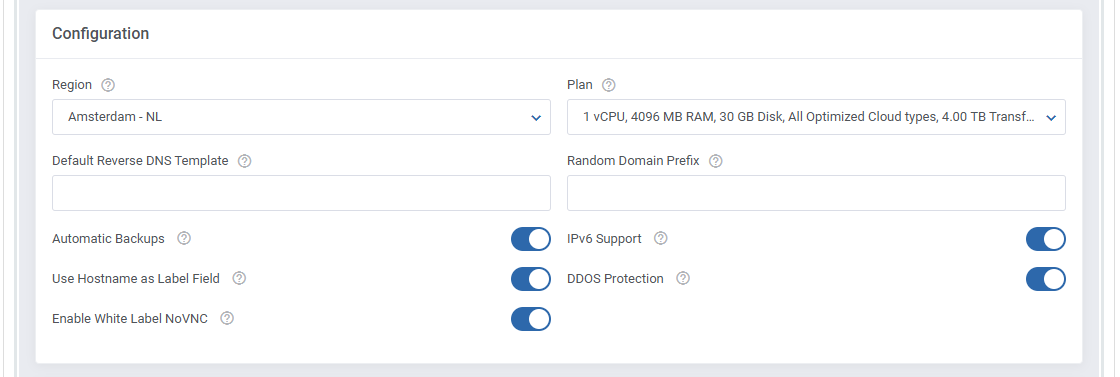
Region - choose one of the geographical areas with the preferred predefined set of resources for your VPS.
Plan - choose a plan to install the virtual machine.
Default Reverse DNS Template - define the default format for reverse DNS entries using supported Smarty variables to represent parts of the IP address.
Random Domain Prefix - enter the domain prefix that will be used when a domain is not provided.
Automatic Backups - turn on automatic backups creation.
IPv6 Support - enable to use the IPv6 addresses type for the VPS.
Use Hostname in Label Field - enable this option to be allowed to provide the hostname into the Label field.
DDOS Protection - add an extra layer of security by enabling DDOS protection.
- Enable White Label noVNC Console - toggle this option to enable the noVNC console without any Vultr labels.
Important: To use a white-label console, please contact the Vultr support first!
- Enable White Label noVNC Console - toggle this option to enable the noVNC console without any Vultr labels.
Proceed with 'App Template Configuration'.
- Default Application Group - group of applications allowed for reinstalls, see the groups section.
- Default Application - default application to be installed on the VPS, see the applications section.

- Next, select features available at the client area.
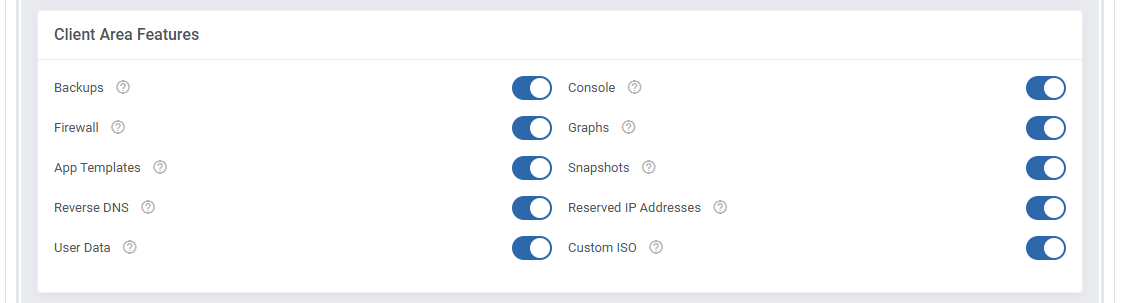
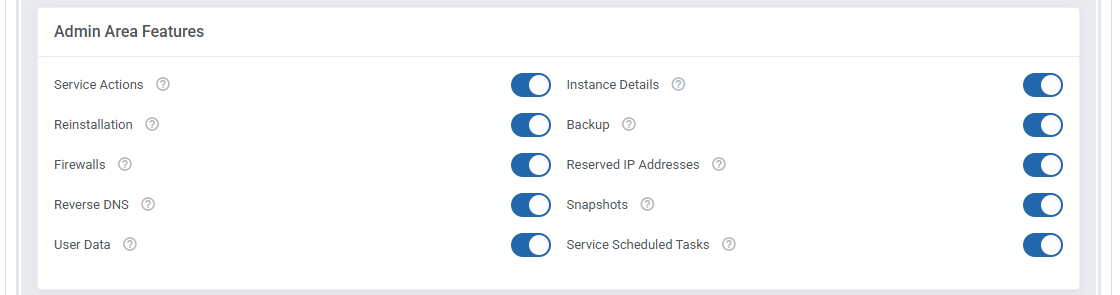
- Similarly, select features that will be available at the product page in the admin area.
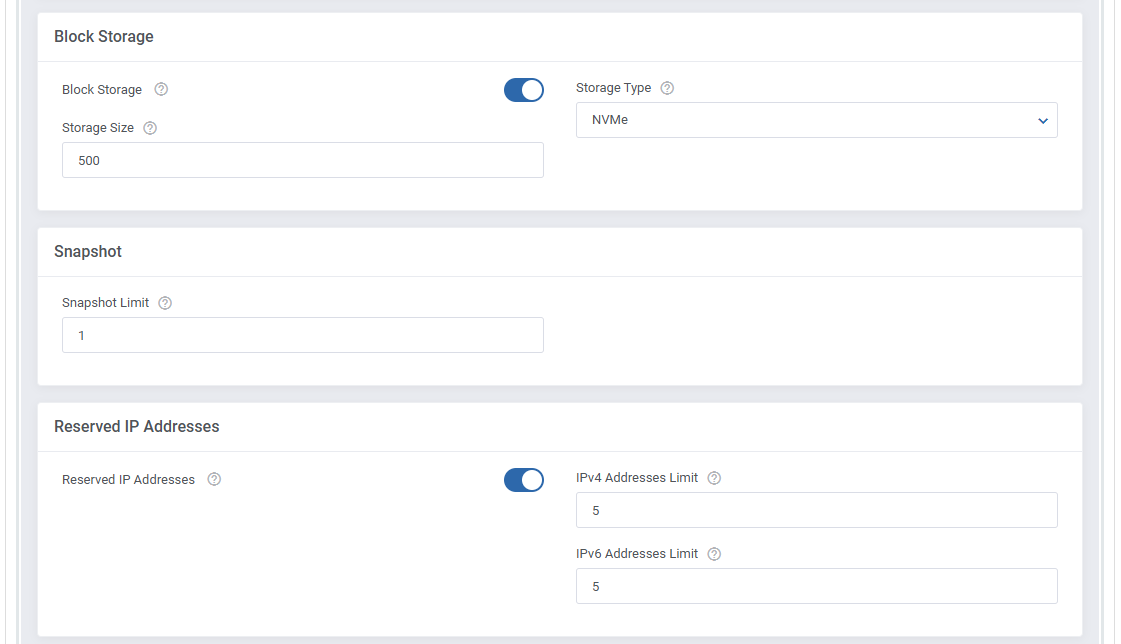
Enable additional options and set up configuration per each one of them
Block Storage - enable block storage.
Important: It is impossible to successfully downgrade block storage.- Storage Type - select the block storage type.
- Storage Size - define the storage size between 10 and 10 000 GB, note that if you also decide to enable this configurable option, it will overwrite the general product settings.
- Snapshot Limit - define the snapshot limit that the client is allowed to create.
- Reserved IP Addresses - enable reserved IP addresses feature.
- IPv4 Addresses Limit - enter the limit of addresses for IPv4.
- IPv4 Addresses Limit - enter the limit of addresses for IPv6.
At the end of the configuration process, you can decide whether you want to generate configurable options for the product.
Configurable options can be used by your clients to select each virtual machine parameter individually during order placement.
Otherwise, if configurable options are not defined, then the fixed parameters specified in the earlier configuration will be used instead.
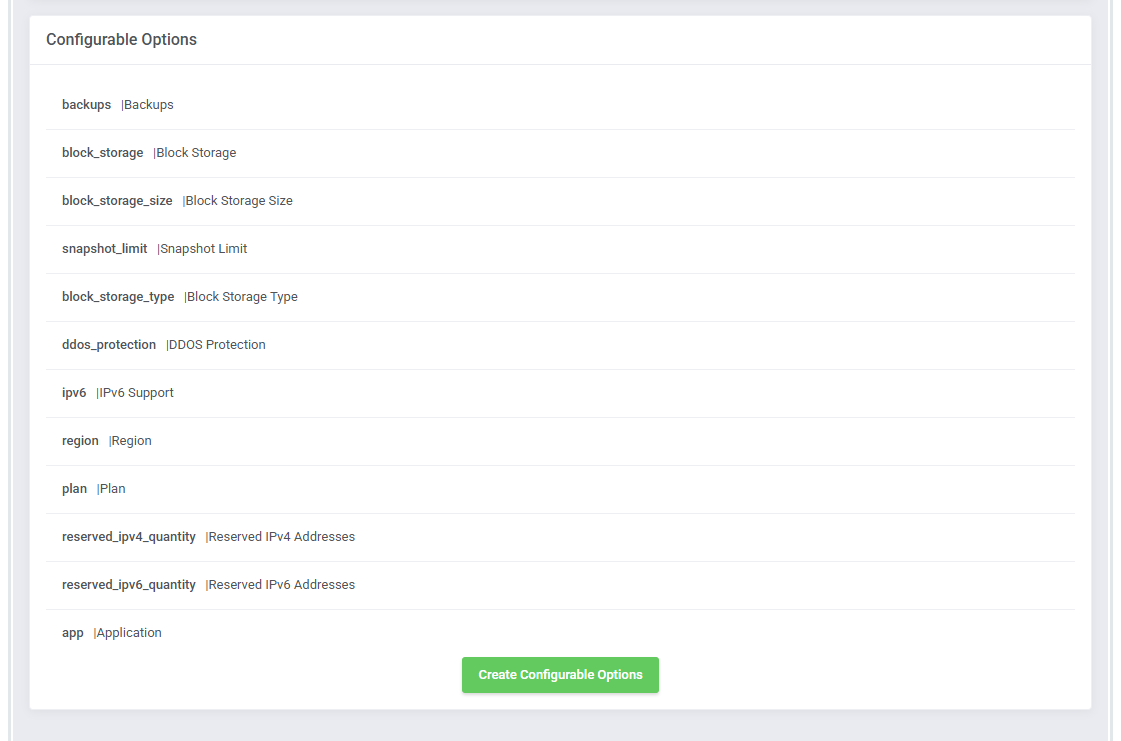
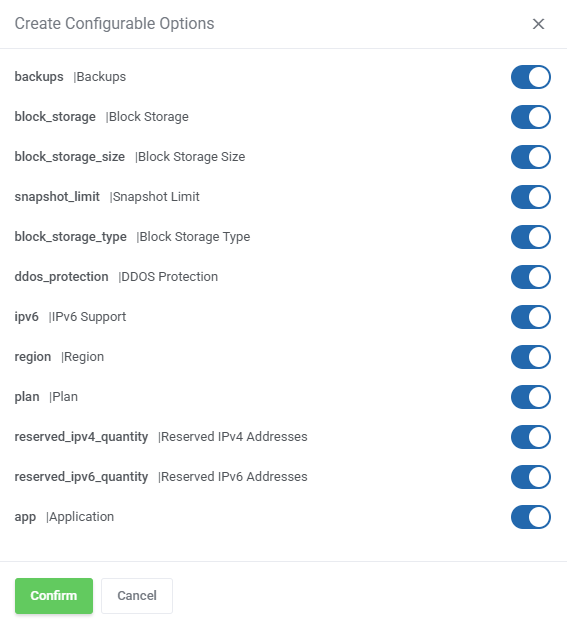
If you decide to use configurable options, press the 'Create' button and select which options you want to generate.
We recommend using either block_storage or a combination of block_storage_size and block_storage_type, but not both at the same time, as they serve the same purpose in different ways.
Note that the configuration for disabled options will still be taken from the configuration of the main product.
More information about how to use configurable options can be found here or in the official WHMCS documentation (opens new window).
# Management
This guide is divided into three main sections to provide a clear and comprehensive understanding of the module's functionality.
The first section, 'Addon', covers the basic configuration and management of the module addon.
The second section, 'Admin Area' focuses on VPS management from the admin area.
Finally, the third section, 'Client Area' delves into the client area, explaining how users can manage their VPS.
Each part is designed to give you an easy-to-understand overview of the module's features.
# Addon
The addon provides administrators with the tools to efficiently monitor and manage the module's functionality, while also offering customization options tailored to client needs.
It includes a task 'Queue' for managing pending actions, a 'Logs' section for tracking activity, and 'App Templates' for preparing applications for clients.
Additionally, the media library allows for the easy upload of images to be used within the module.
Queue
In this section, you will find a list of all the tasks issued by the module.
You can filter tasks by type with the 'Show More' buttons.
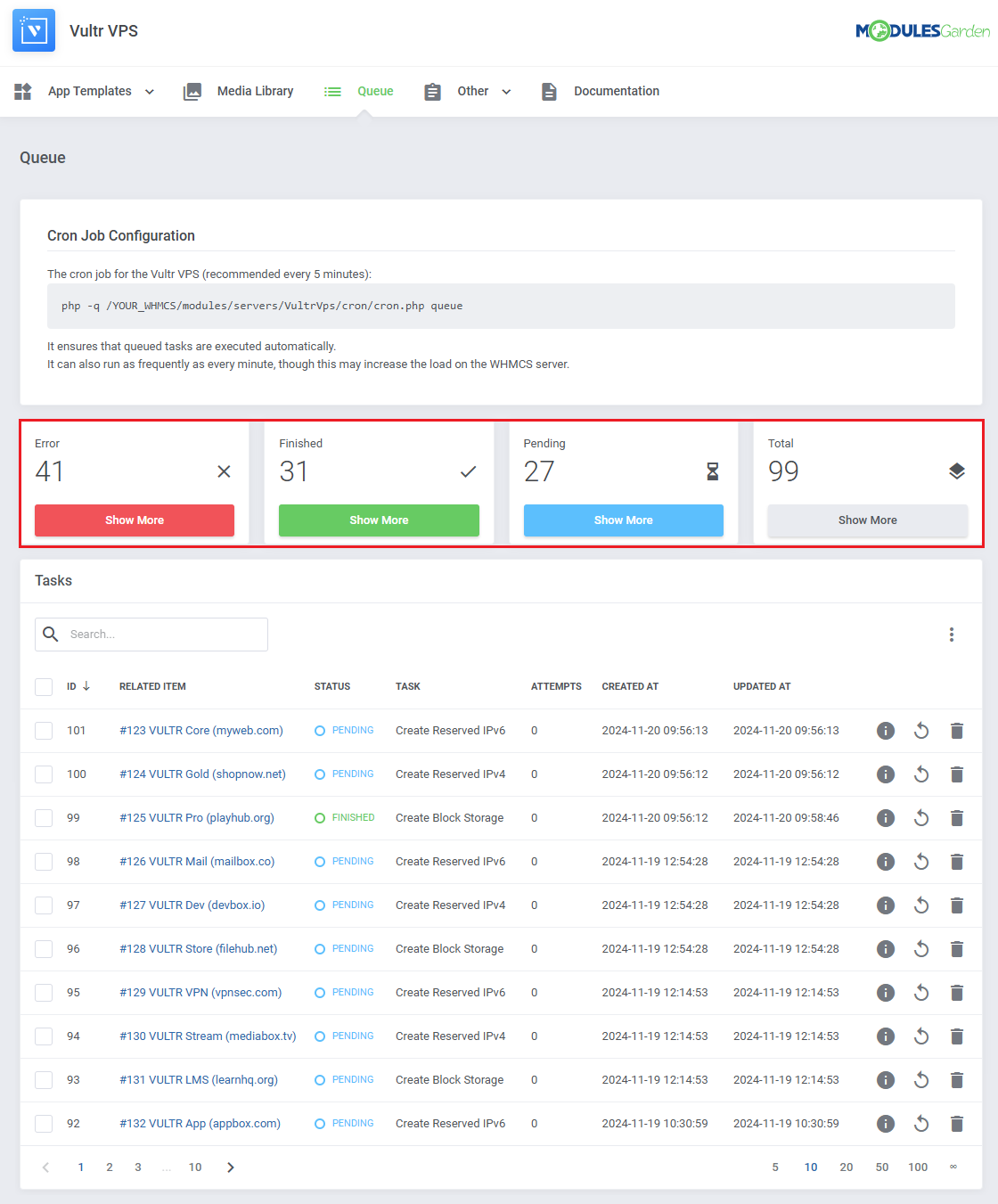
The information on each task includes:
- Task ID
- Related item
- Task status
- Task type
- Attempts taken
- Date of creation
- Date of the last status update
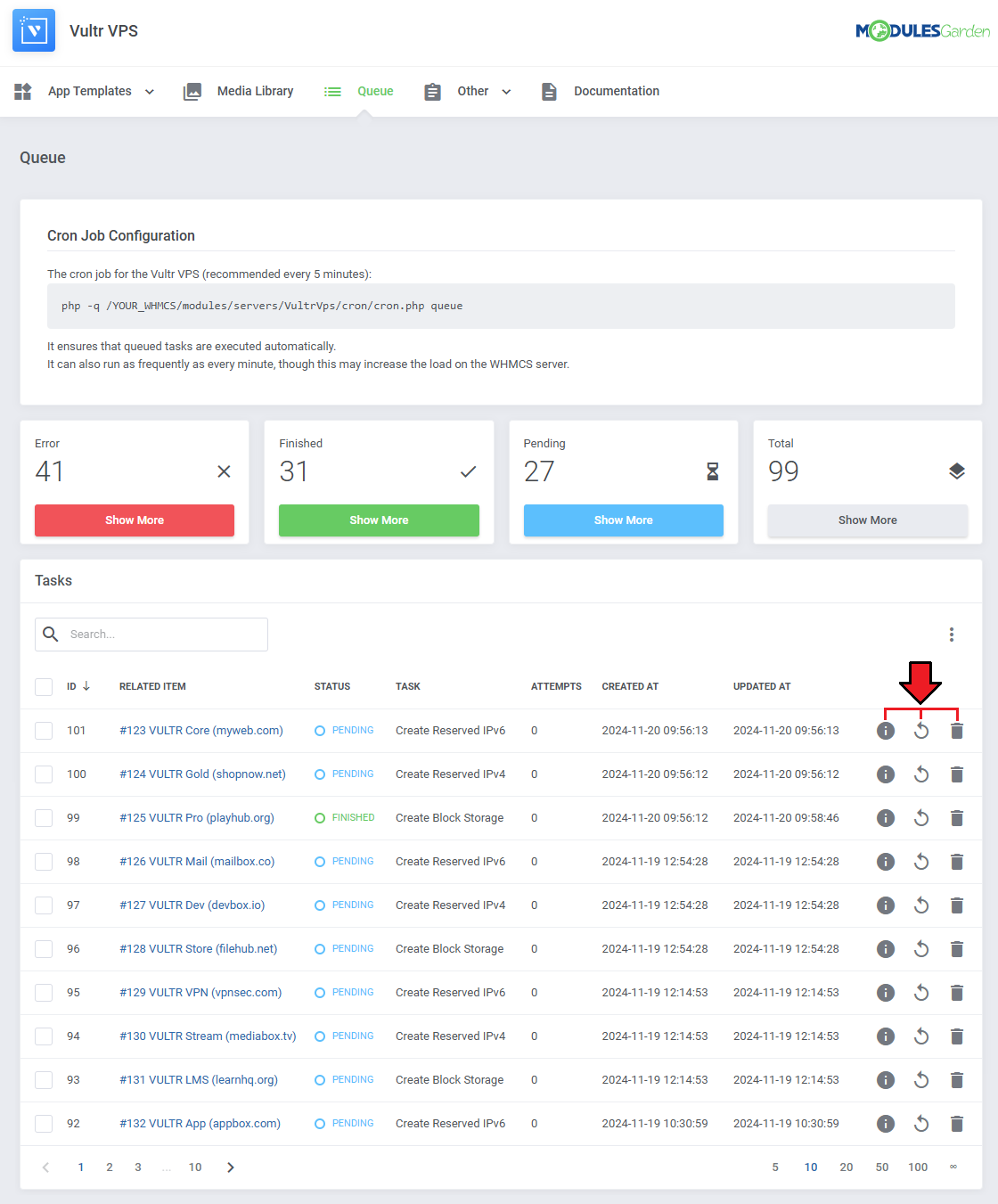
You may also use the action buttons to:
- See task details
- Manually run the task
- Delete the task
To find specific tasks use the search and sorting functions.
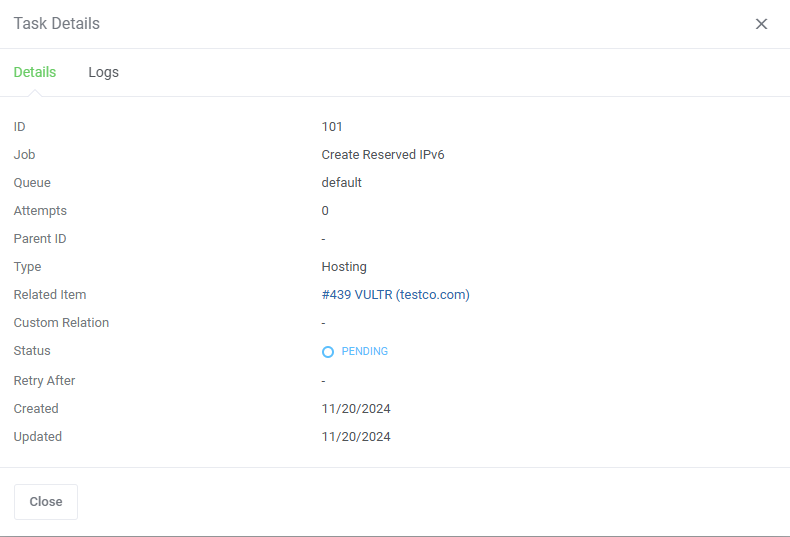
Task details include:
- Task ID
- Job
- Queue
- Retry Count
- Parent ID
- Type
- Related Item
- Custom Relation
- Status
- Retry After Date
- Created At Date
- Updated At Date
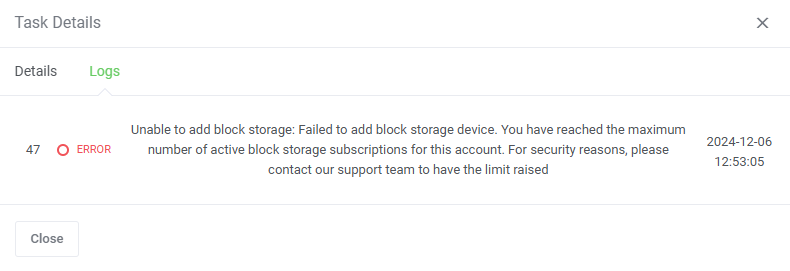
Related log entries can be found in a separate tab.
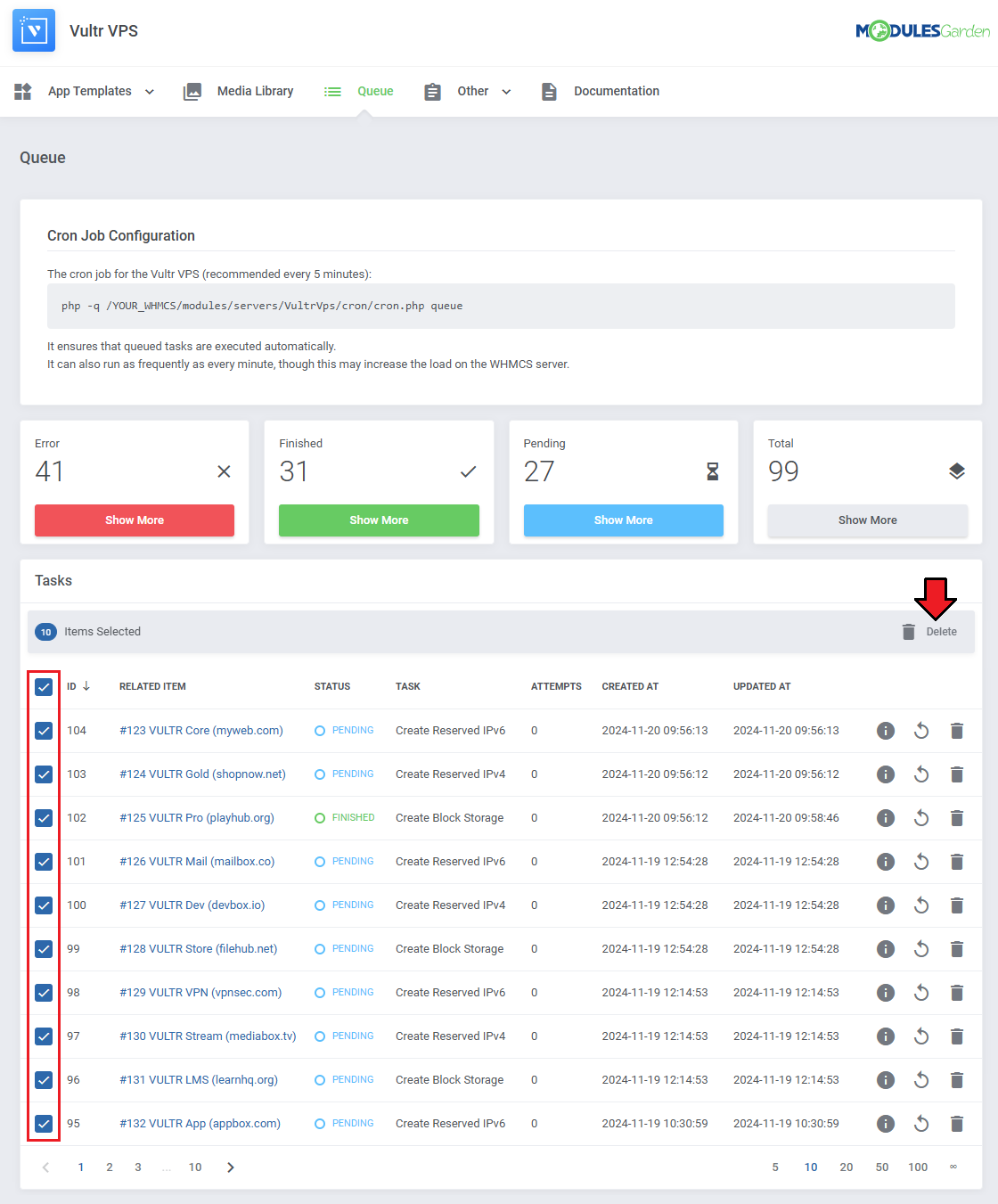
Tasks can also be deleted with the mass action function.
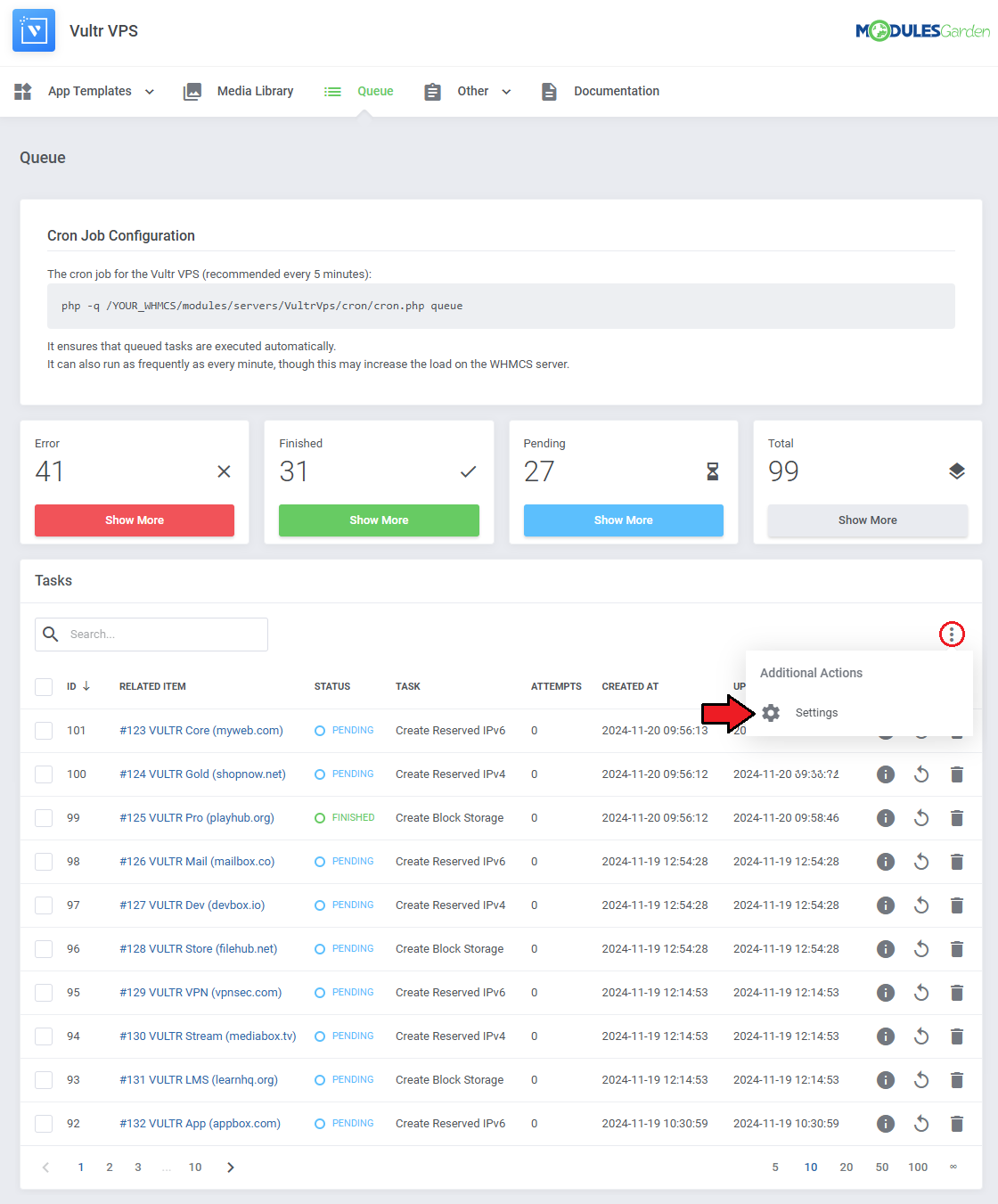
Additional actions include the 'Auto Prune' system, which will automatically delete tasks after a predefined number of days and an option to disable cron job information.
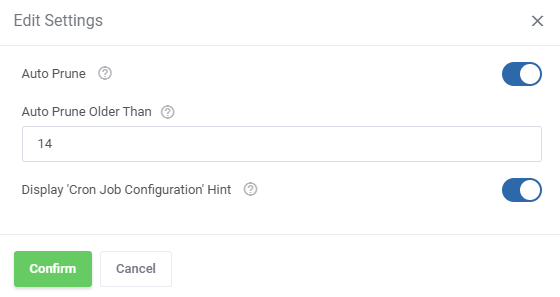
The options are in order:
- Auto Prune - enable or disable the auto prune system, which will automatically delete tasks after a specified time.
- Auto Prune Older Than - specify the time period for auto prune system, tasks older than provided number of days will be deleted.
- Display 'Cron Job Configuration' Hint - display or hide the 'Cron Job Configuration' hint at the top of the page.
# App Templates
'App Templates' allow you to manage and ultimately provide applications, ISO images, operating systems, and snapshots to your clients.
Prepare templates in the 'Applications' tab and gather them into groups in the 'Groups' tab.
For clients to be able to install templates on their VPS, their product has to include an 'Application Group' and allow 'App Templates' in the client area.
# Applications
Read the guide carefully, as it contains crucial information on how to use 'App Templates'.
You can change the settings and have the guide collapsed by default. Clicking on the 'Additional Actions' button, select 'Options' and 'Collapse Guide'.
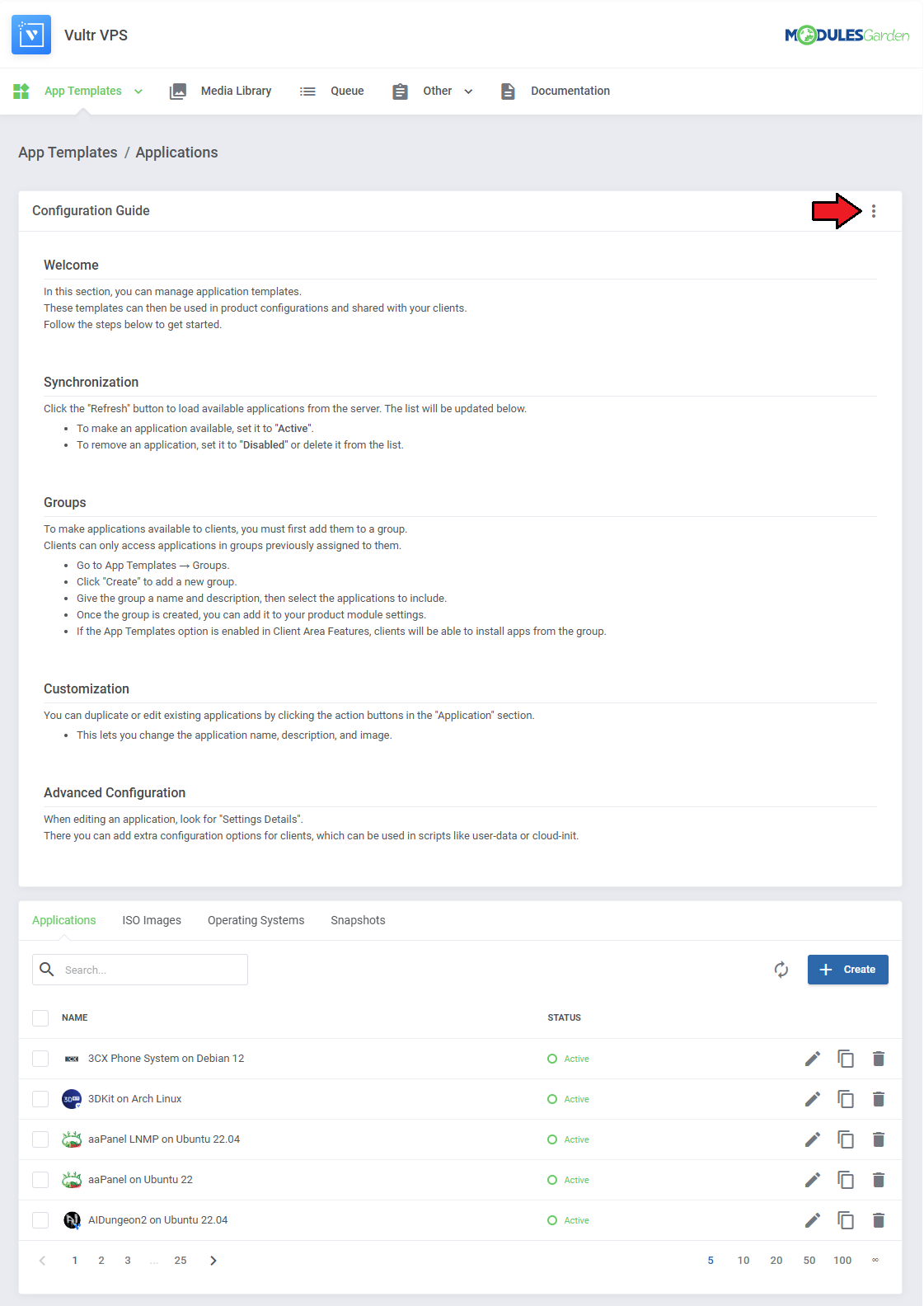
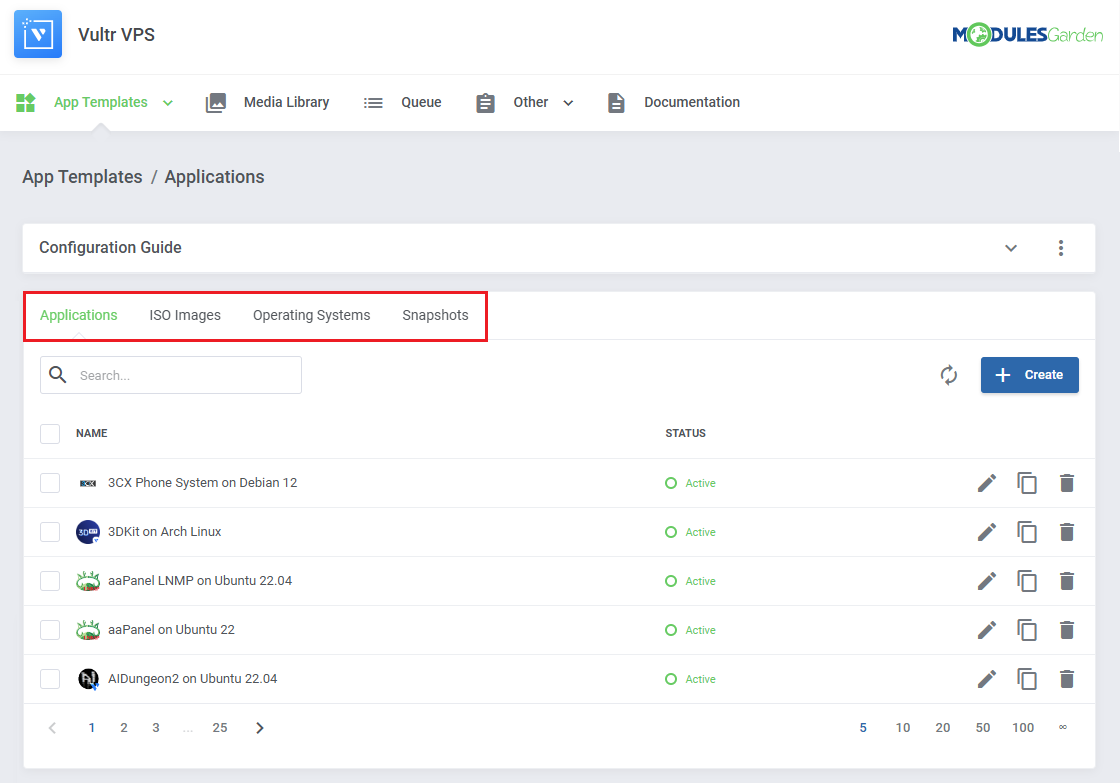
You can switch between Applications, ISO Images, Operating Systems, and Snapshots by clicking on relevant tabs.
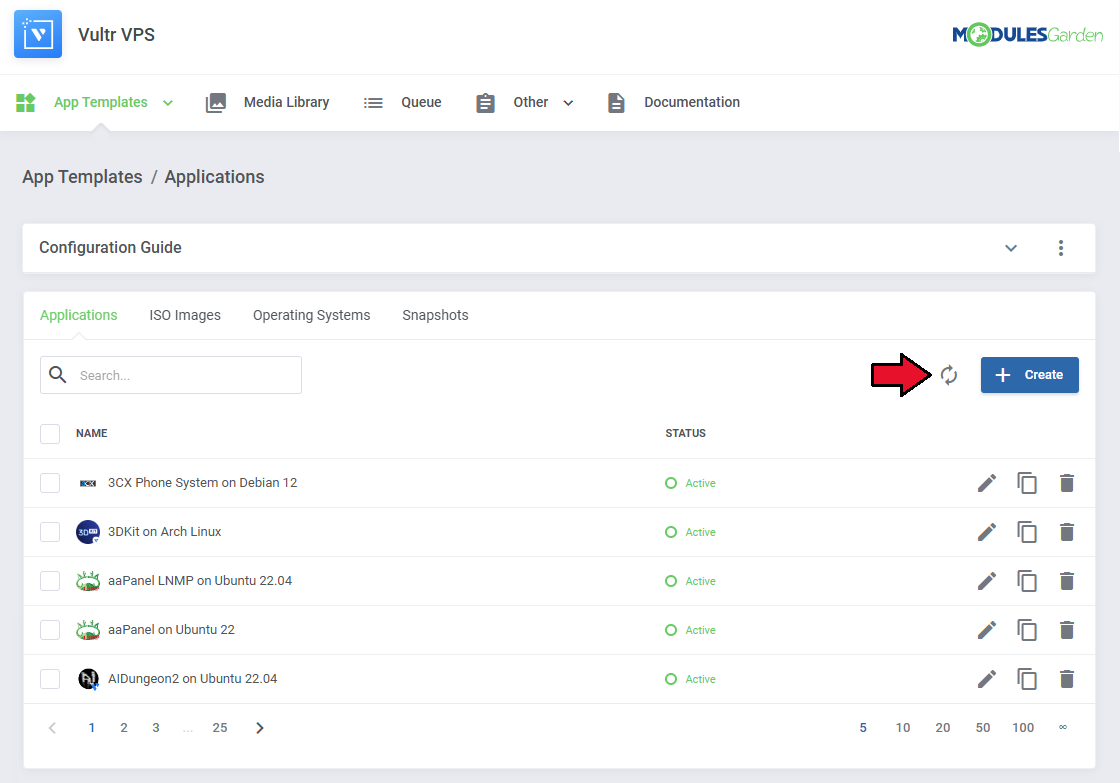
You can use the refresh button to download and later update templates from the server.
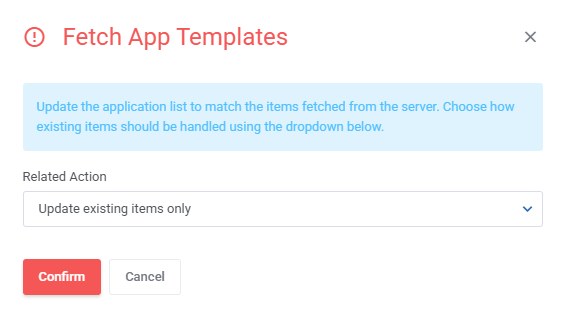
Please note that when refreshing the application list with templates fetched from the server, the module will behave differently towards already visible items on the list.
You can decide whether the module should:
- Update existing items only
- Delete all existing items
- Delete only automatically loaded items
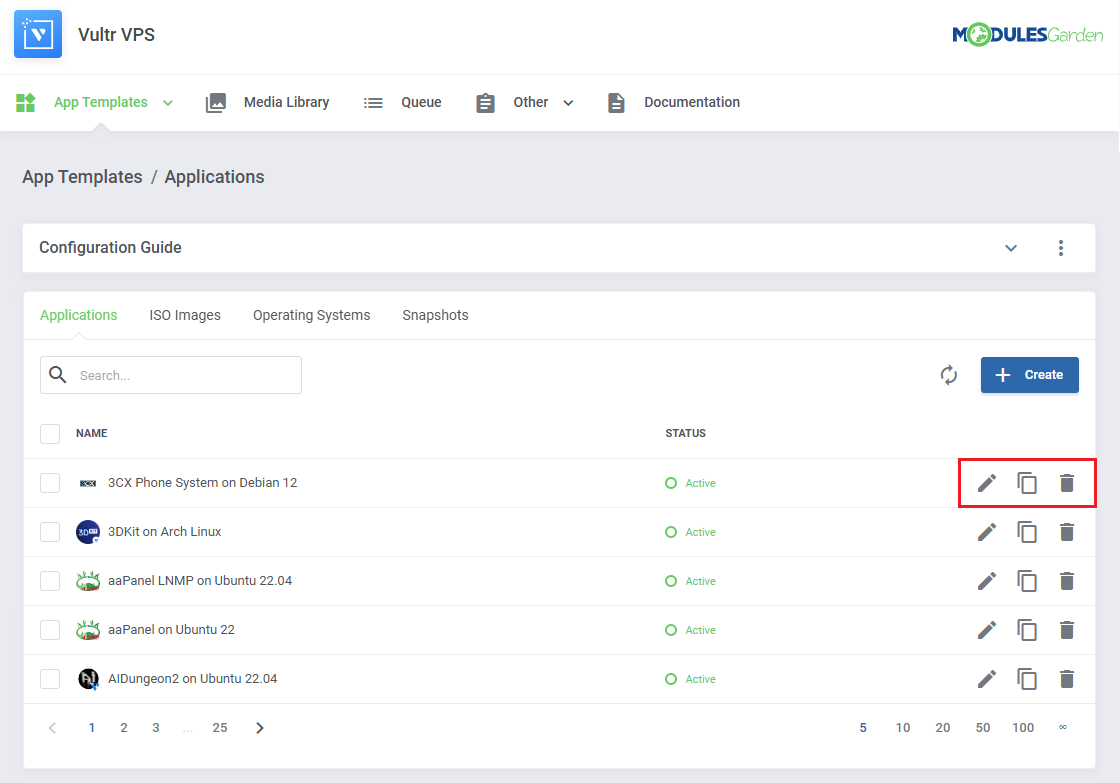
Once the items are loaded, you can use the action buttons to edit, duplicate or delete them from the list.
You can also use the mass action buttons to manage multiple templates at once.
# Groups
With the templates ready, all that is left is to gather them into groups and include said groups into products.
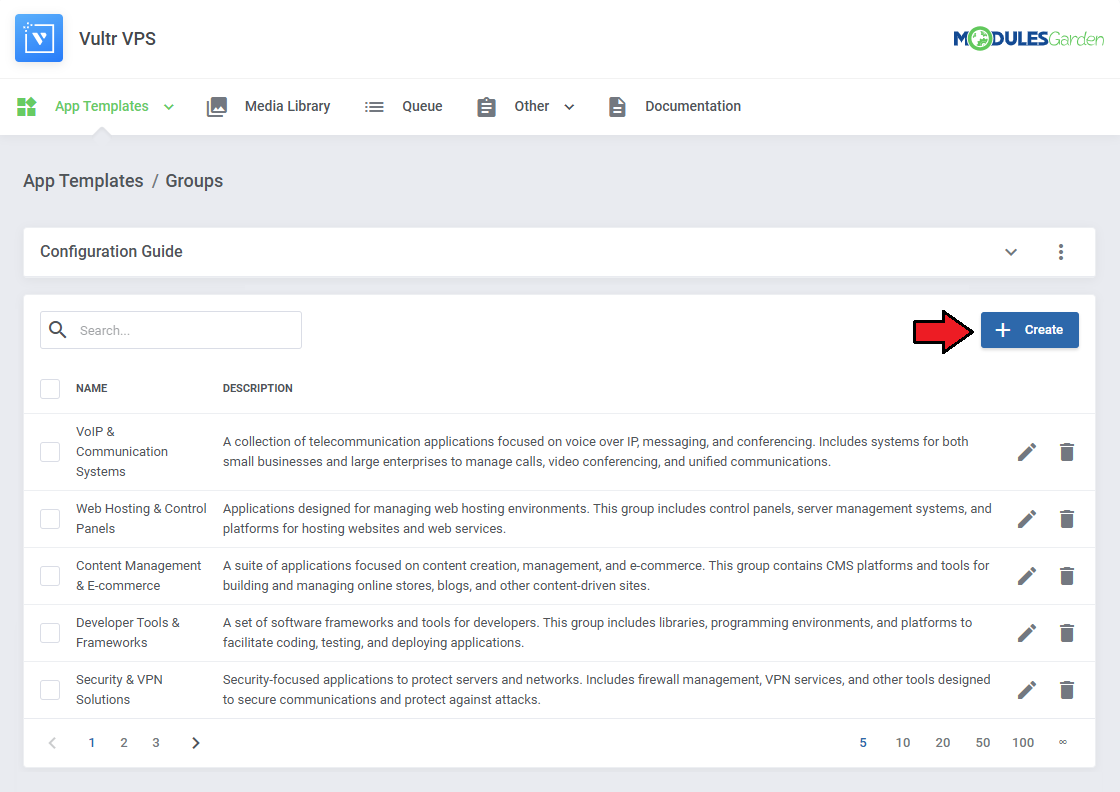
Navigate to 'App Templates' → 'Groups' and click on the 'Create' button.
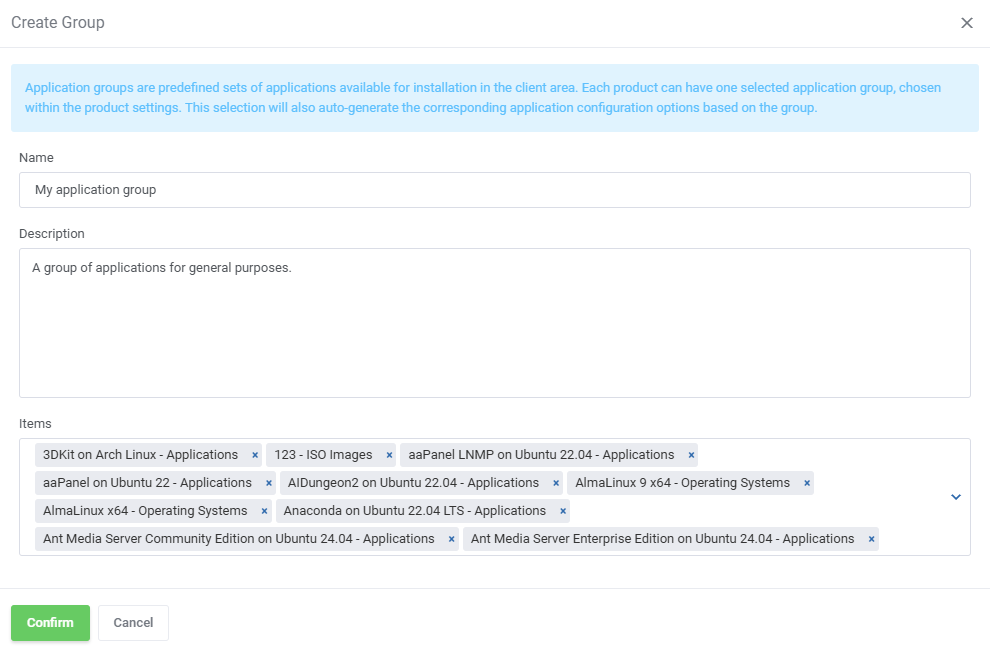
Read the information, then provide the group with:
- Name
- Description
- Items to include
Note: Keep in mind that Vultr includes Windows licenses (Core and Standard) in their Plans and charges a monthly fee for them.
Since this will affect the Plan price, we recommend not including Windows with other systems in one product.
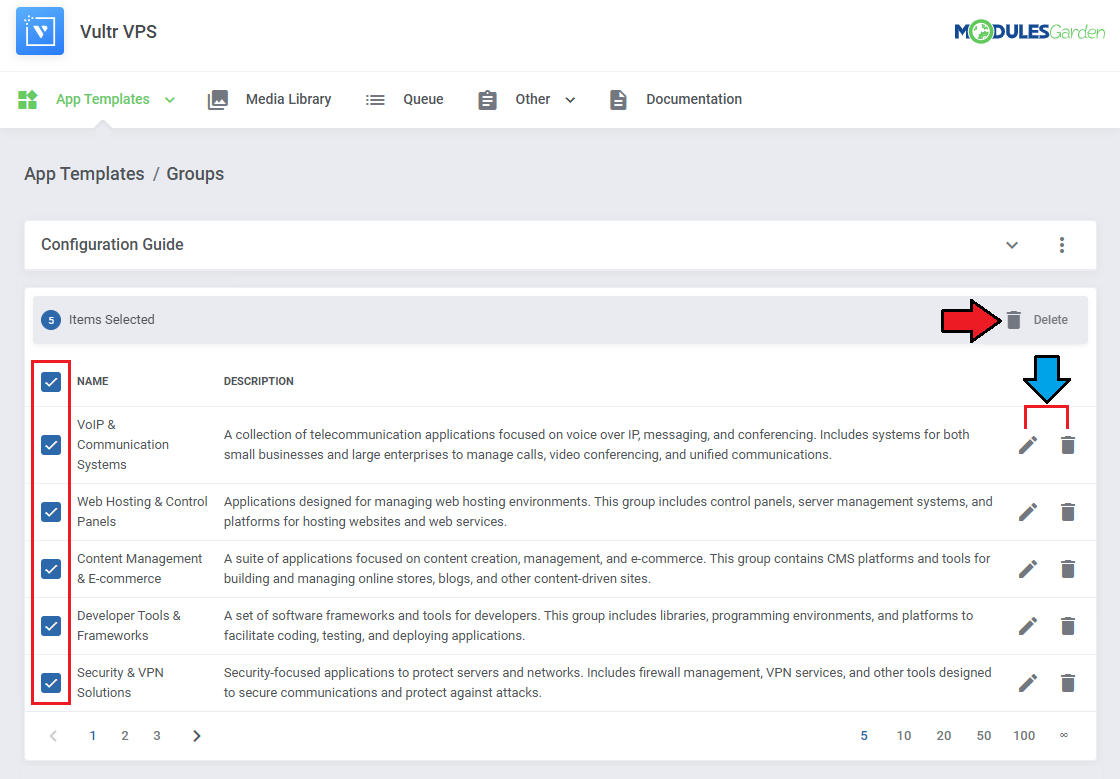
You can use the action button and the mass action function to edit and delete groups.
For the client to take advantage of the application templates, the product module settings has to include the group.
Find the 'App Templates Configuration' section and 'Default Application Group' field.
Include a chosen group for the product.

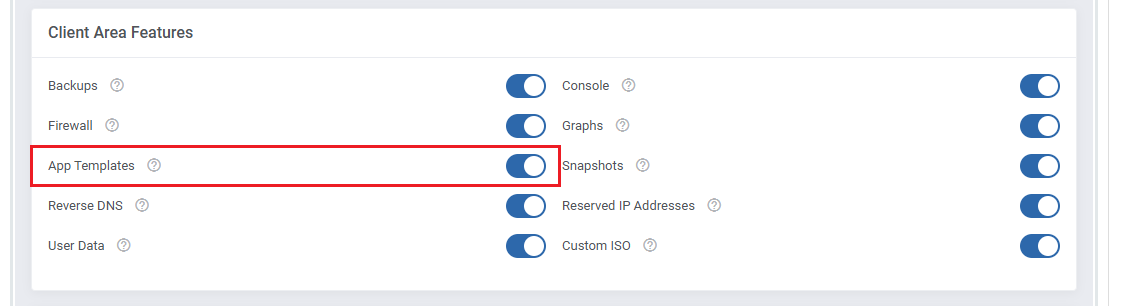
Make sure 'Reinstallation' section is enabled under 'Client Area Features'.
# Advanced Configuration
App templates allow for even more in-depth management with the ability to create and edit custom applications.
See the examples below to learn about the most important options.
# Adding Applications Manually
Manually add a single application, instead of loading all your applications at once.
- Navigate to 'App Templates' → 'Applications' and click on 'Create'.
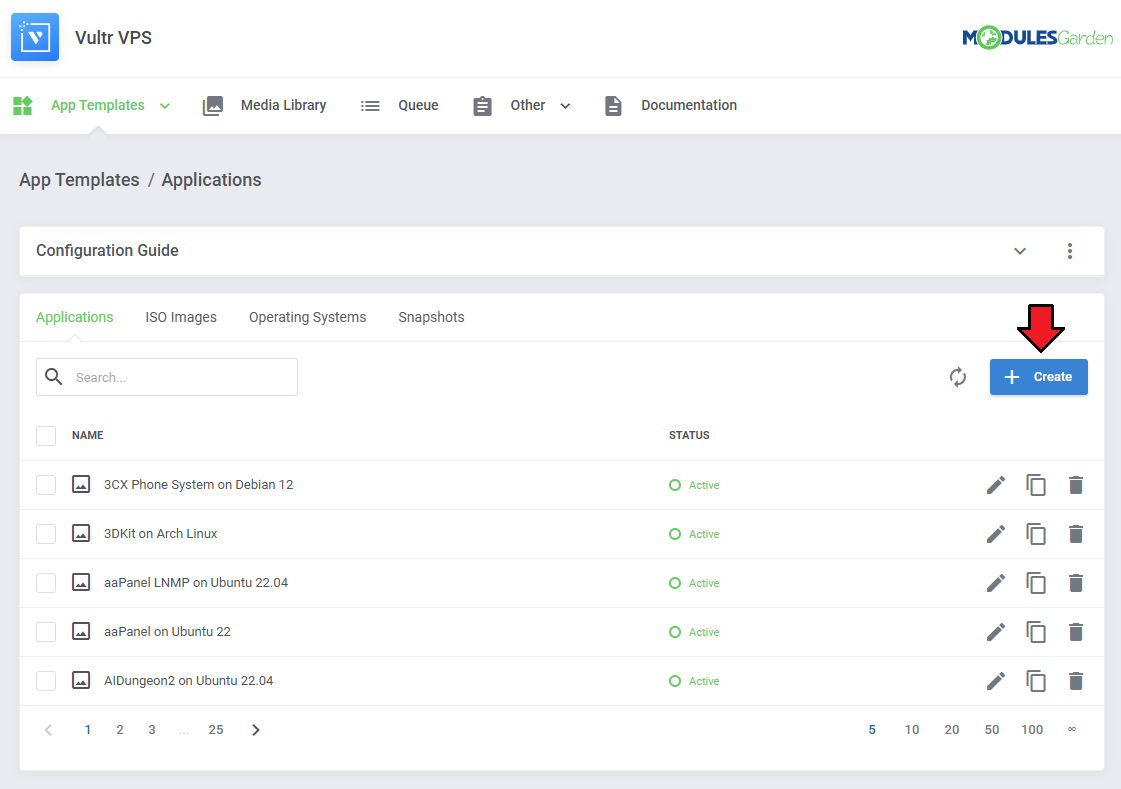
Download the list of applications from you panel's API.
See the official official Vultr documentation (opens new window) too learn how.
Make sure to include your API Key, the request looks like this:curl "https://api.vultr.com/v2/applications" \ -X GET \ -H "Authorization: Bearer ${VULTR_API_KEY}"Example result:
{
"applications": [
{
"id": 1,
"name": "LEMP",
"short_name": "lemp",
"deploy_name": "LEMP on CentOS 6 x64",
"type": "one-click",
"vendor": "vultr",
"image_id": ""
}
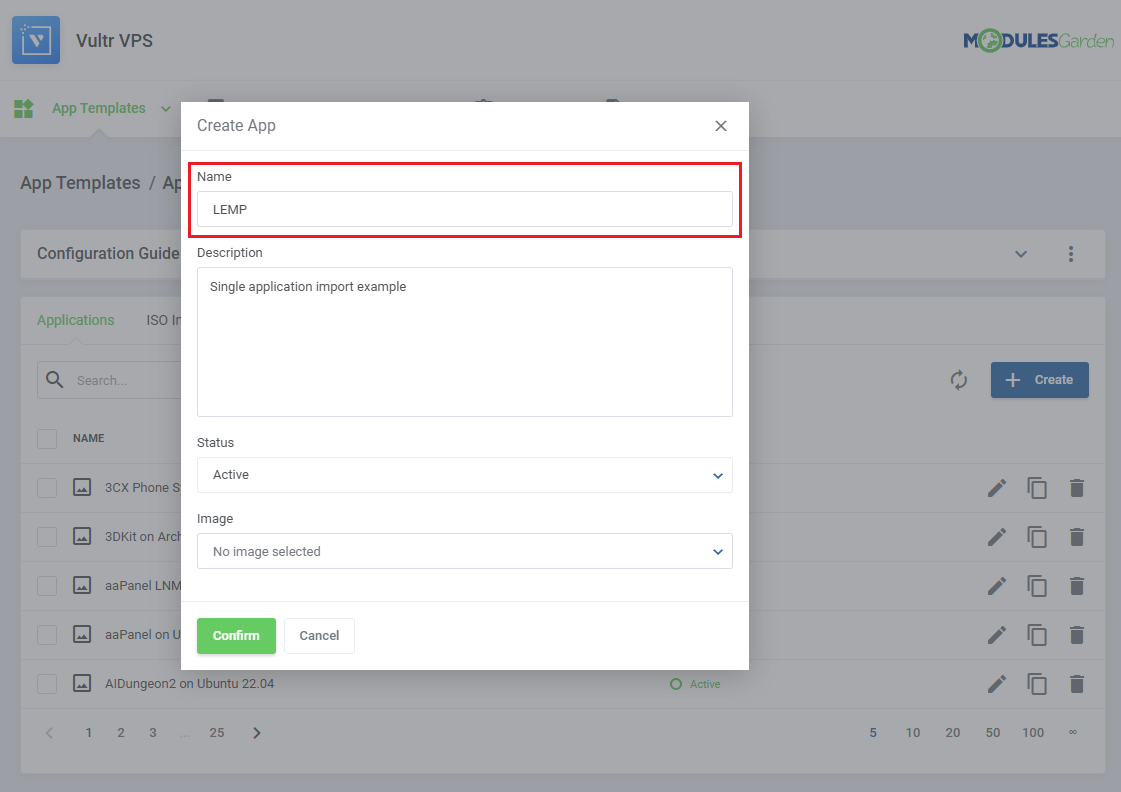
In the 'Name' field we recommend including the value of the '"name": "$name"' field.
For example 'LEMP' from:"name": "LEMP",Note: If you include a 'name' setting detail (see step 4) with the name from the request as its value, you can safely rename the application to something else here.
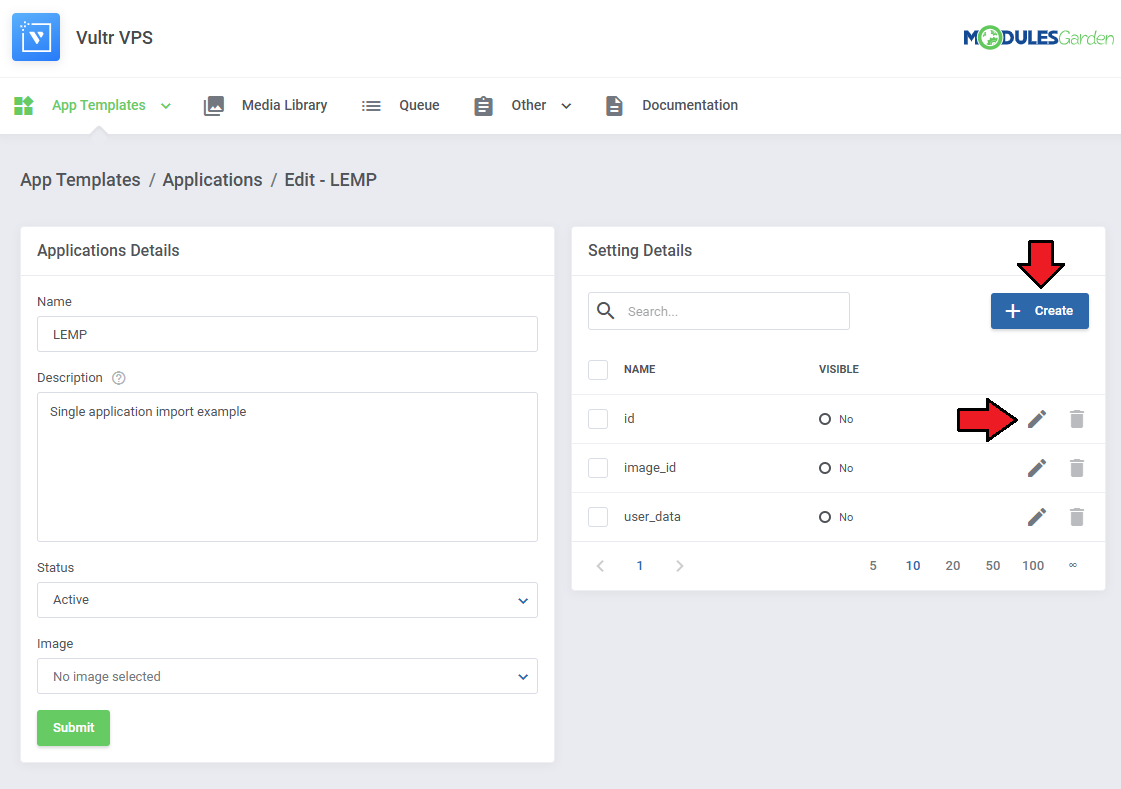
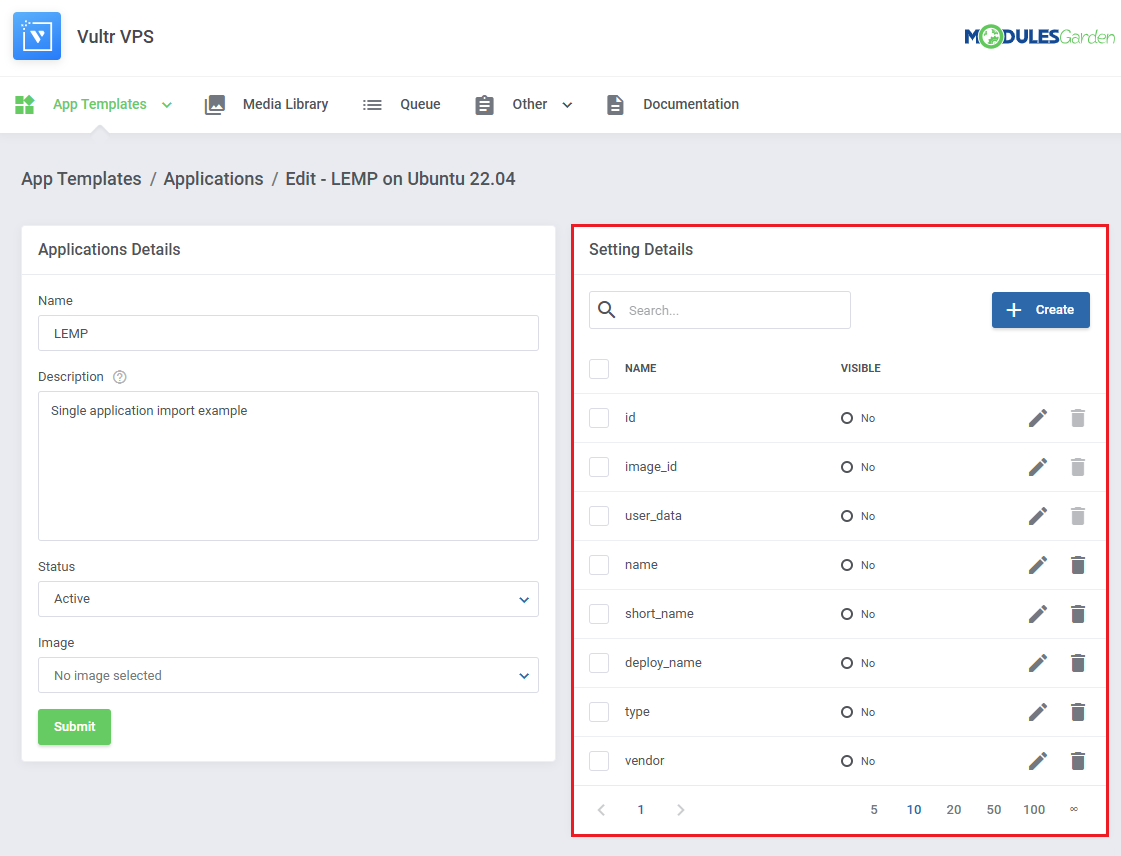
Edit your newly added application, and under 'Settings Details' edit/create application details outputted by the panel's API.
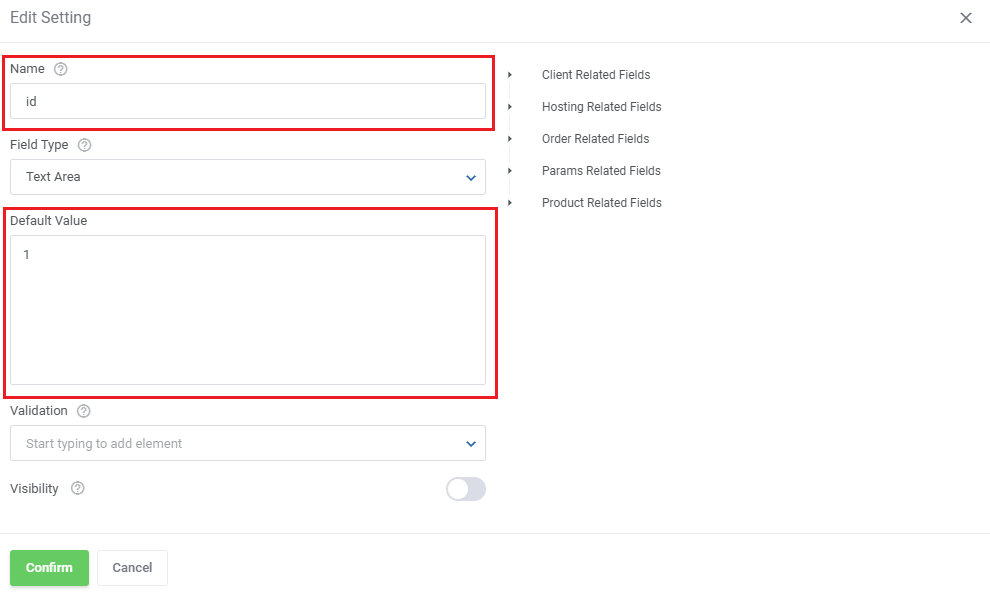
Carefully look at the API output and fill out the 'Name' and 'Default Value' fields with you application details.
In our case it is:
"id": 1,
Add the remaining settings following the same pattern of filling the 'Name' and 'Default Value' fields.
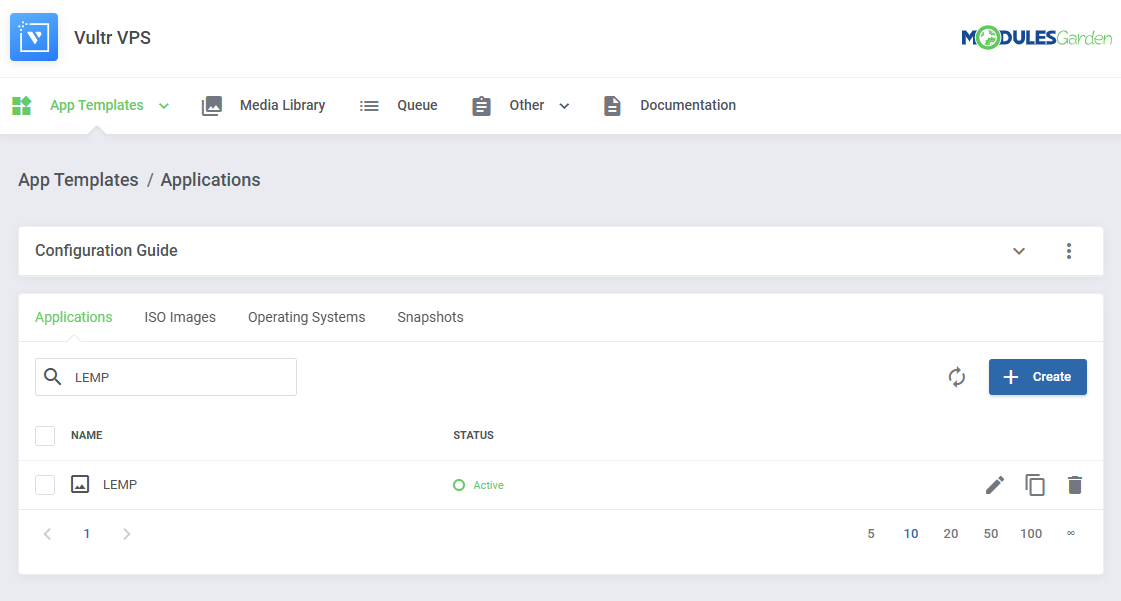
The application will be available on the list and ready to be included in a group.
# Including Cloud-Init / User-Data Scripts
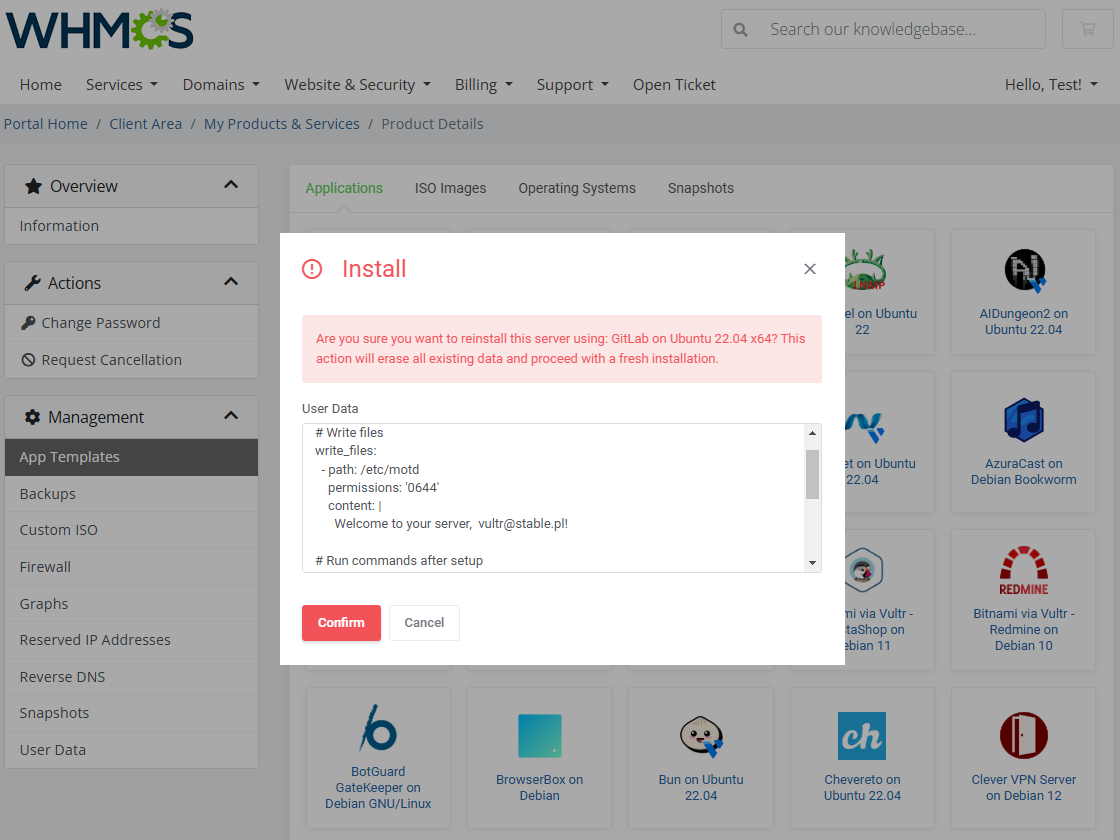
Enter the user data to run common configuration tasks when the instance starts. You can run cloud-init directives or shell scripts for Linux images. You may use smarty variables, e.g. {$password}.
Note: Please refer to the following article to find a list of supported module parameters (opens new window) and their descriptions.
If an application supports scripts, the responsible setting will always be added automatically.
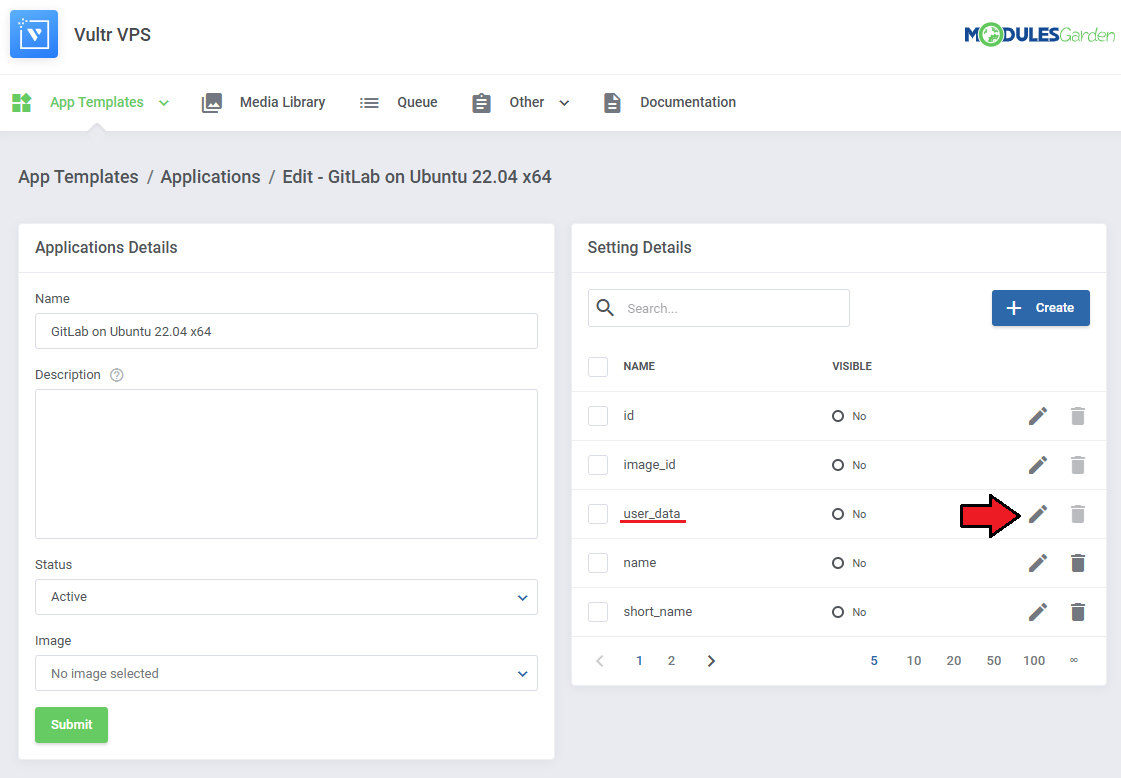
To include a script, edit the setting by clicking on the 'Edit' button next to it.
See the list below to learn how to set up the setting.
- Name - do not change this value, this is the setting identifier.
- Field Type - if the 'Visibility' setting is toggled on, this field decides the type of field, we recommend leaving it as is.
- Default Value - this is where you include your script. If 'Visibility' is toggled on, this will be the default value that clients can modify.
Note: Use the merge field list on the right for reference. - Validation - optionally, provide Laravel validation rules (opens new window) like 'required'.
- Visibility - this will allow the client to modify the script before installation.
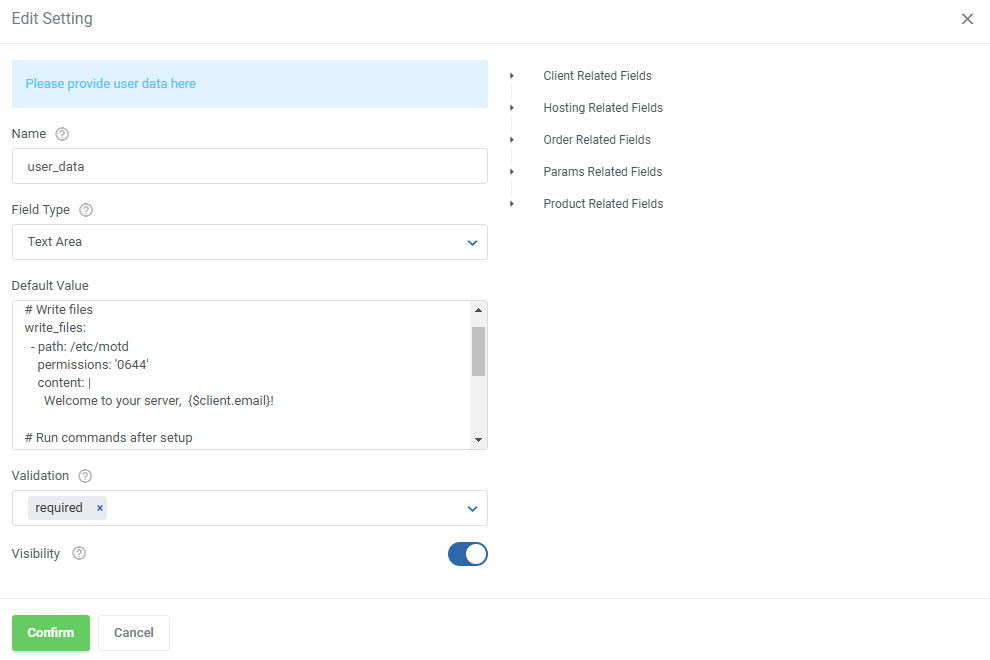
If the 'Visibility' toggle is on, the script will be accessible before the installation, if not, the script will just be performed as normal.
# Media Library
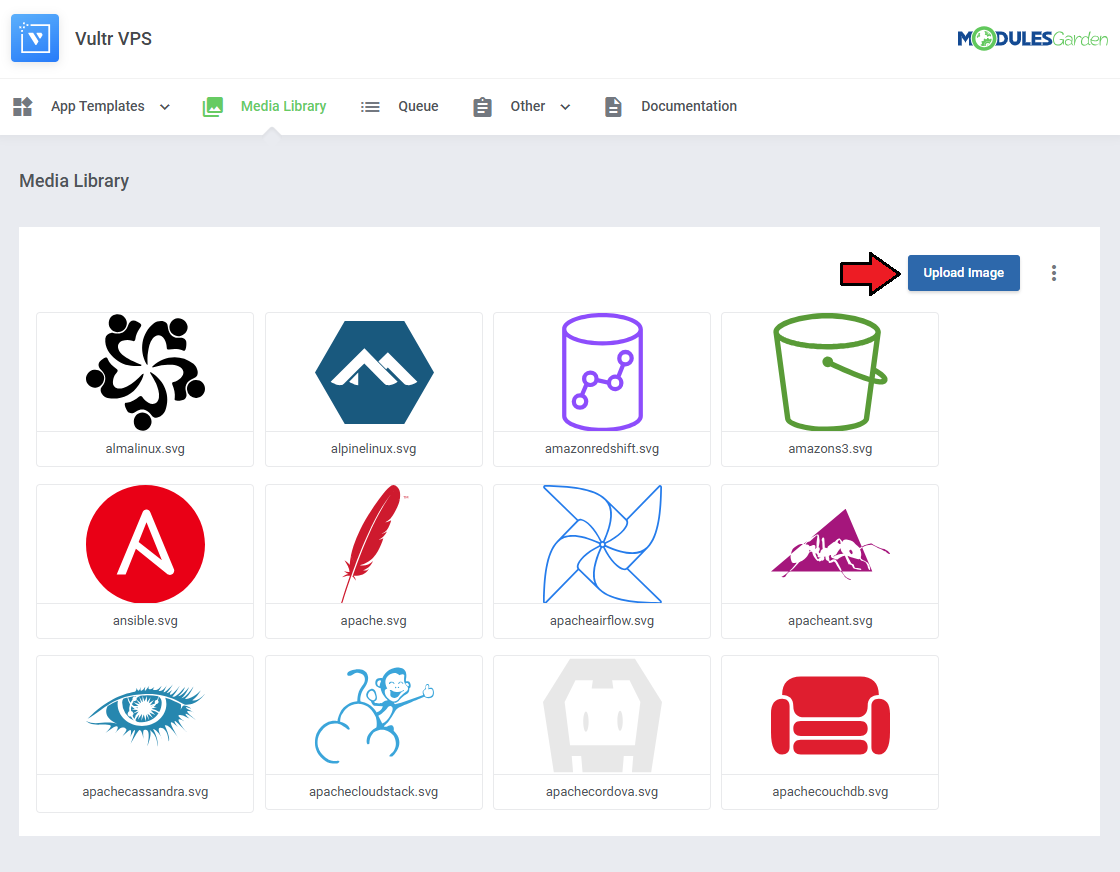
The media library allows you to upload images for use elsewhere in the module by admins and clients.
To upload a new picture, click on the 'Upload Image' button.
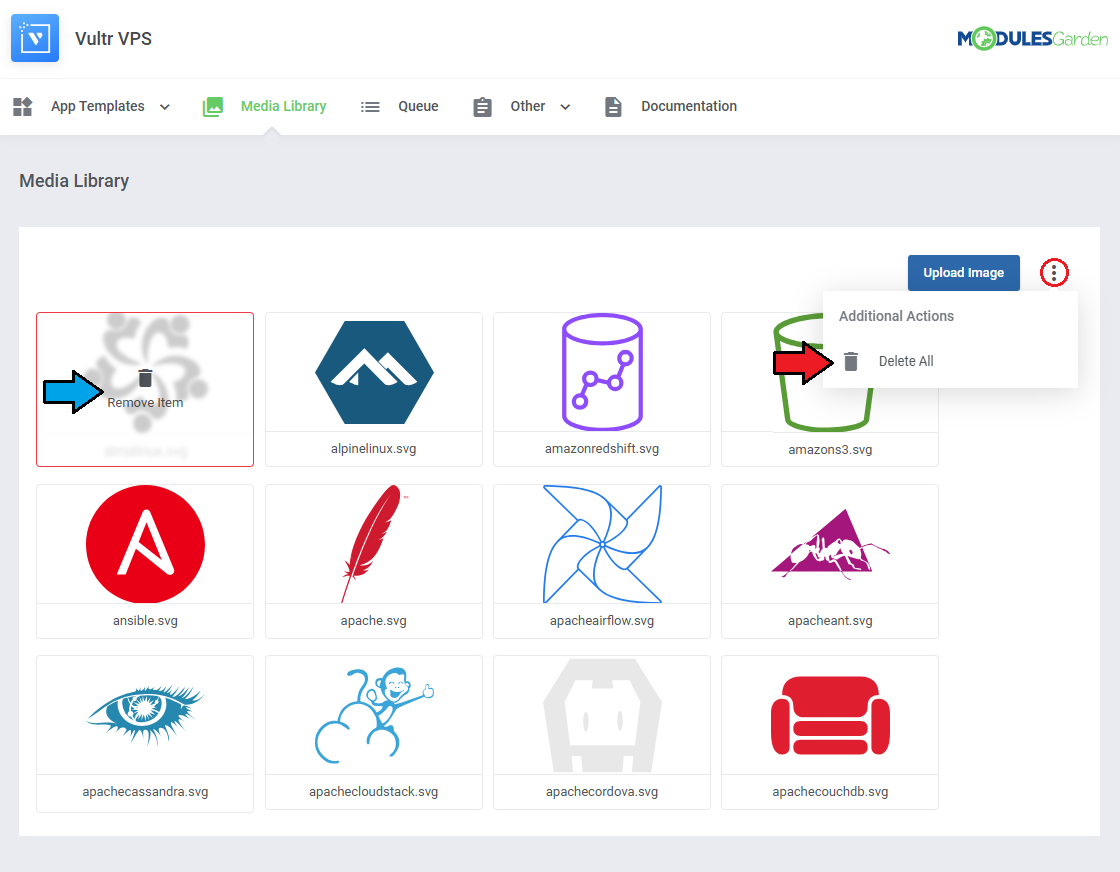
You can delete images one by one by clicking on them.
To delete all images at once, use the additional action button.
# Other
Translations
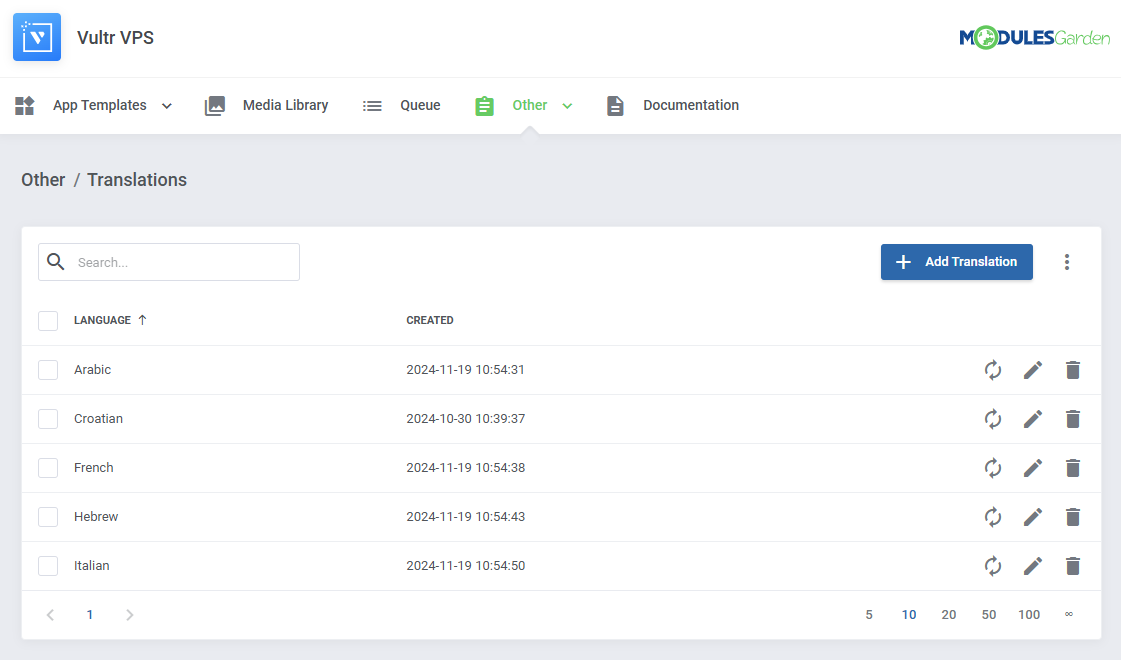
Customizing language files is now extremely easy with the "Translations" tool that is now available directly in the addon.
Its user-friendly design makes managing various language file tweaks a smooth and efficient process.
Prepare translations for the original English files with this handy built-in tool. For specific instructions on how to use this tool please refer to its dedicated article, you will find it here.
# Logs
The 'Logs' section under the 'Other' tab is where the module logs are stored.
You can filter the module logs by type with the 'Show' buttons:
- Critical
- Error
- Notice
- All (Total)
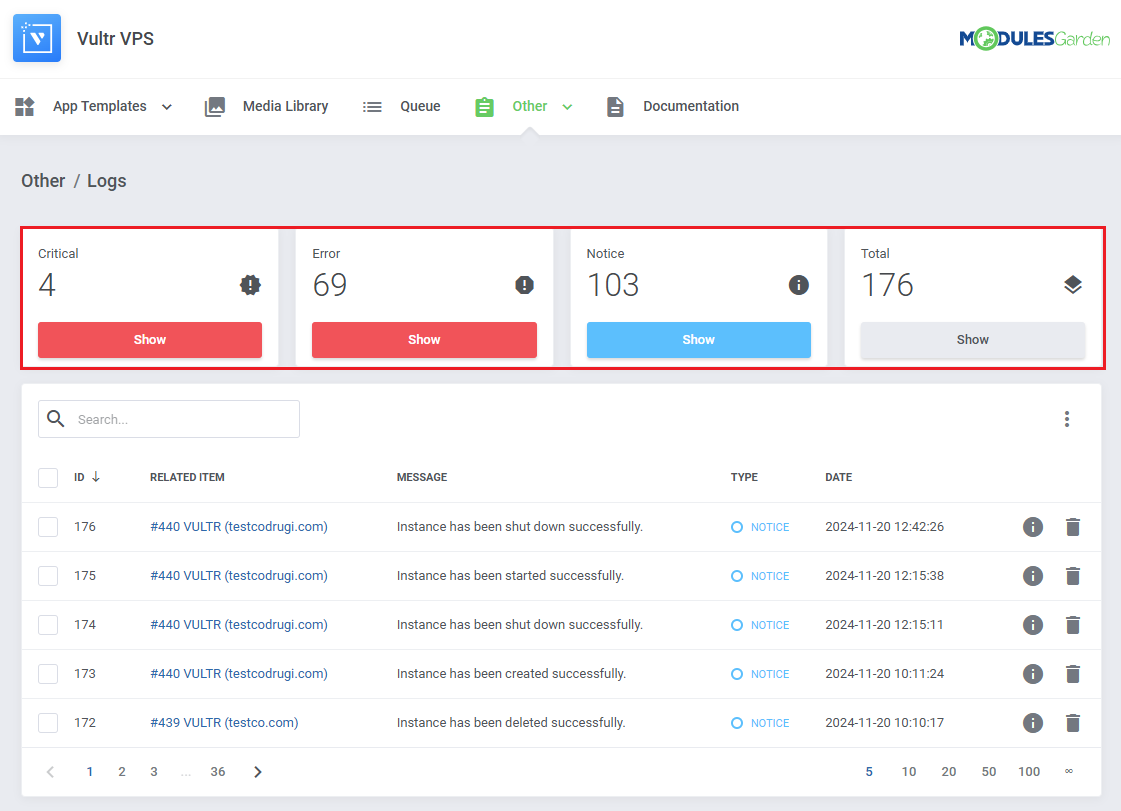
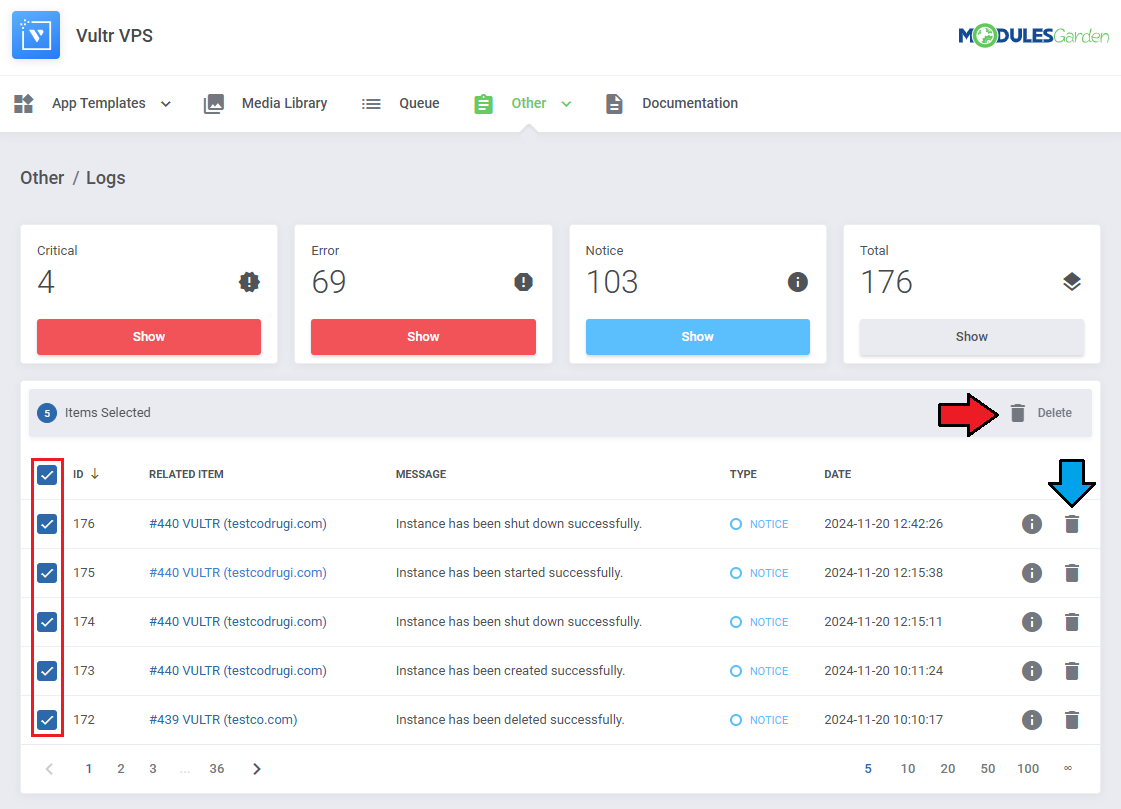
You can delete logs either one by one or with the mass delete function.
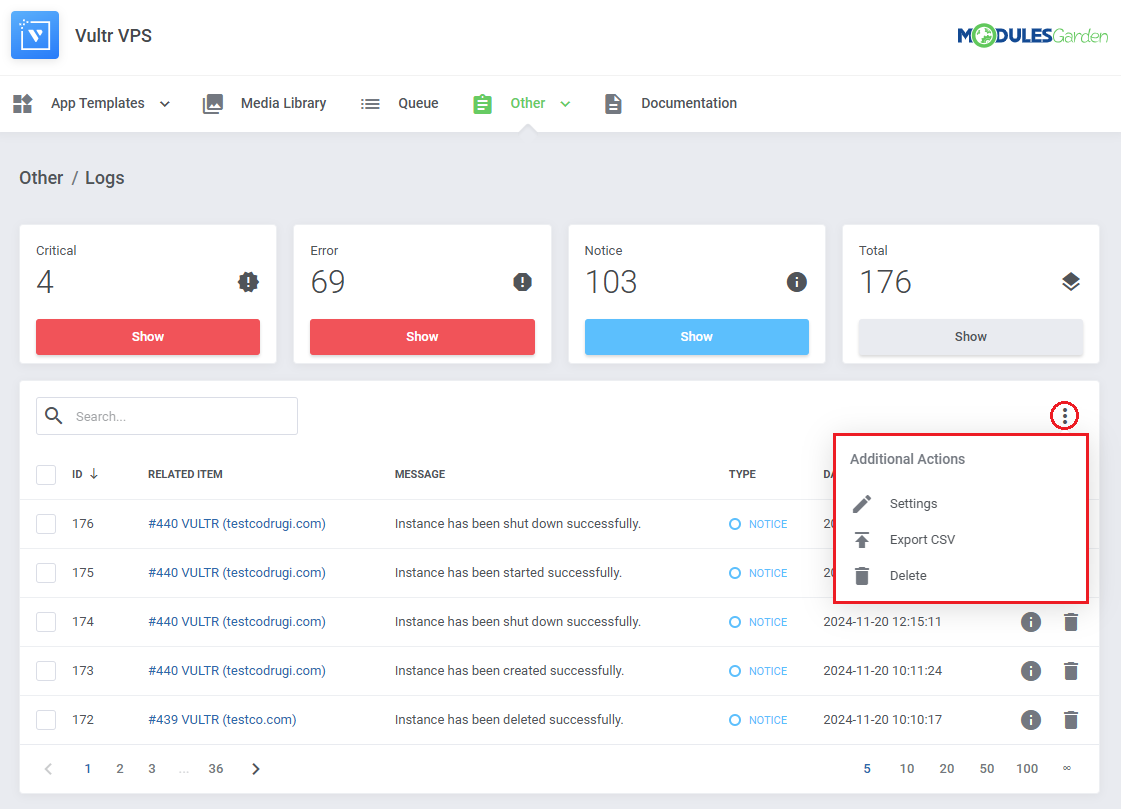
Additional actions include:
- Logging Settings
- Log Export
- Rule Based Deletion
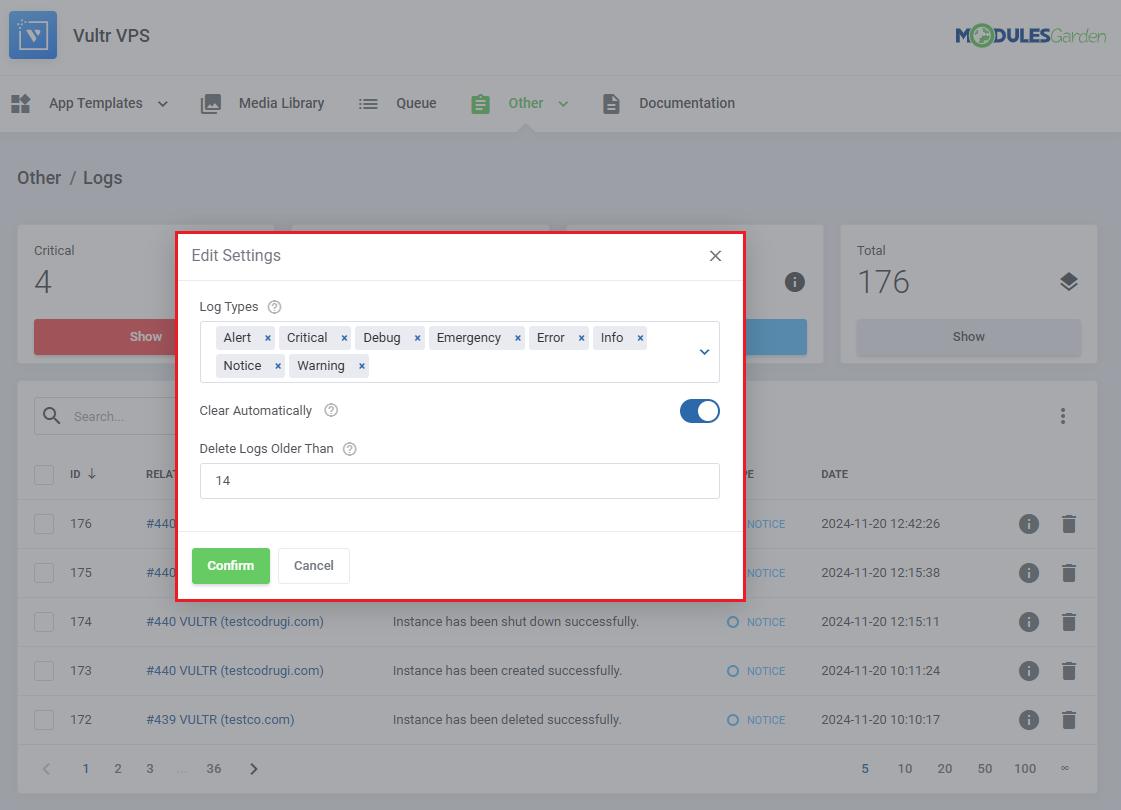
In the settings you may decide:
- Log Types - Specify which types of logs should be recorded.
- Clear Automatically - Choose whether to automatically delete logs older than a defined number of days.
- Delete Logs Older Than - Define the number of days after which logs will be automatically deleted.
While exporting you will have to specify which logs to export:
- From - Define the starting date for logs to export.
- To - Define the ending date for logs to export.
- Log Types - Includes 'Notice', 'Error' and 'Critical' log types.
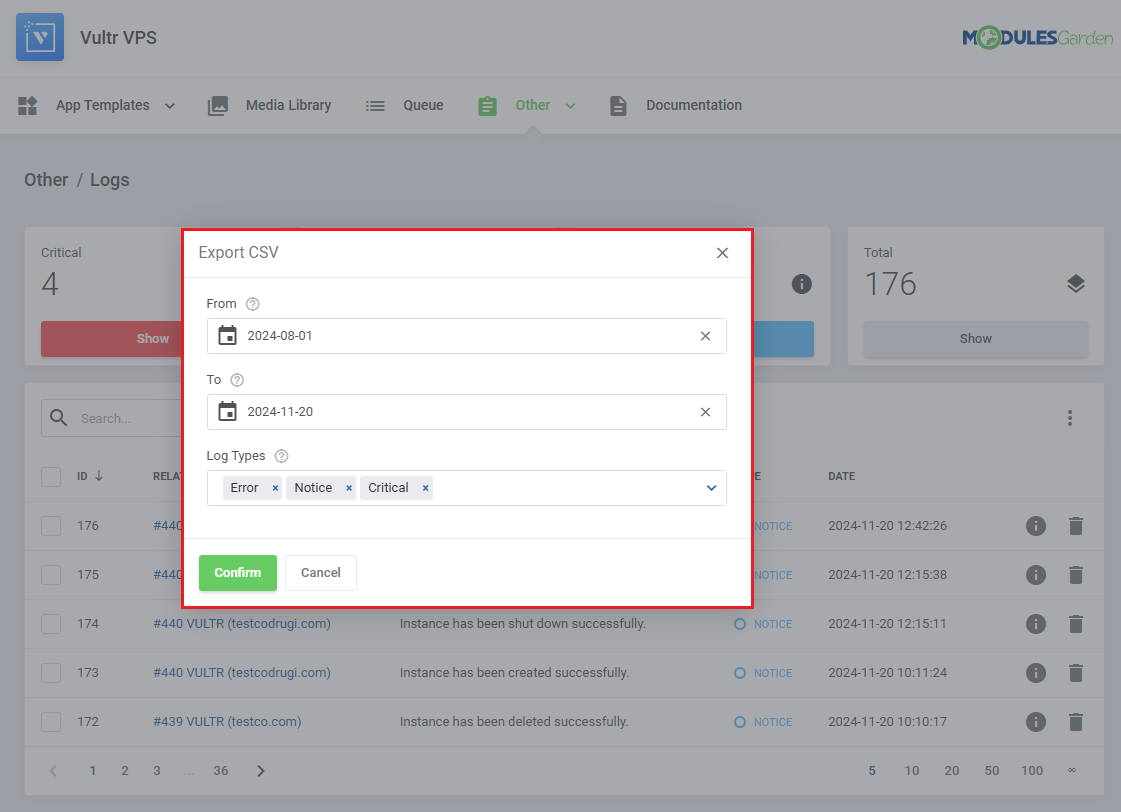
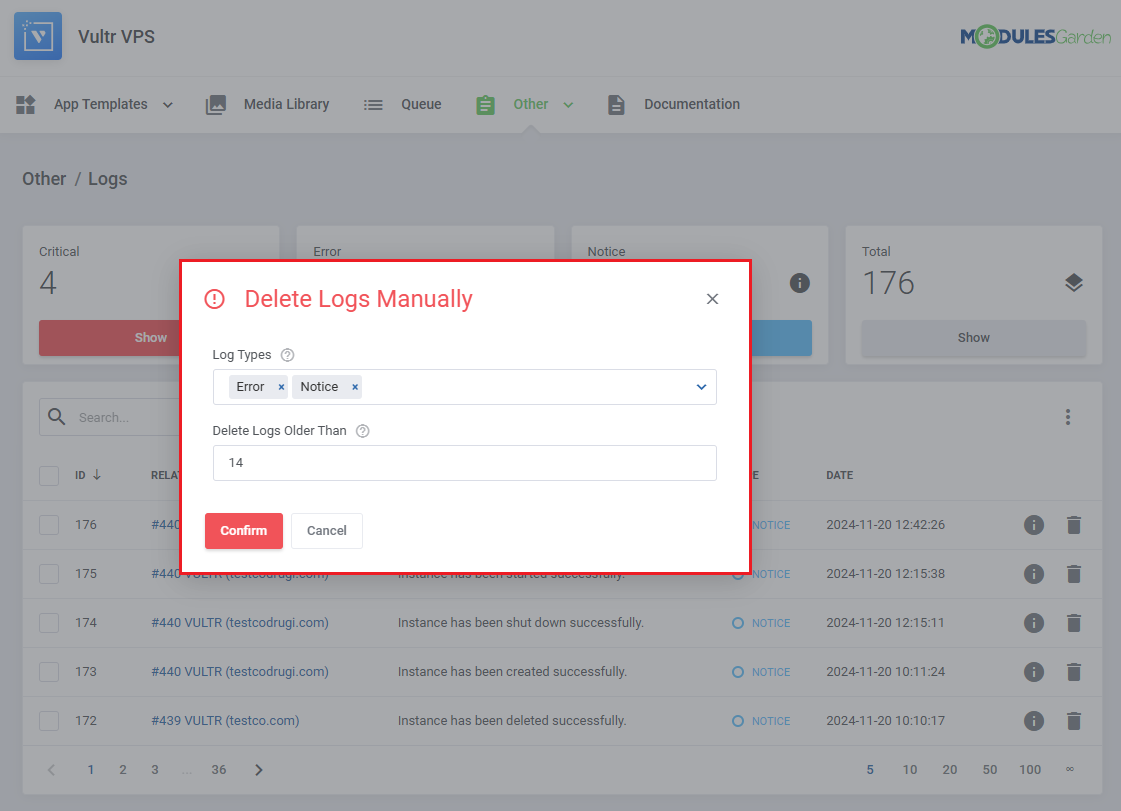
You can also delete specific logs without finding them manually.
Simply define:
- Log Types - Specify which log types should be considered for removal.
- Delete Logs Older Than - Define the number of days after the log occurrence for automatic deletion.
Themes
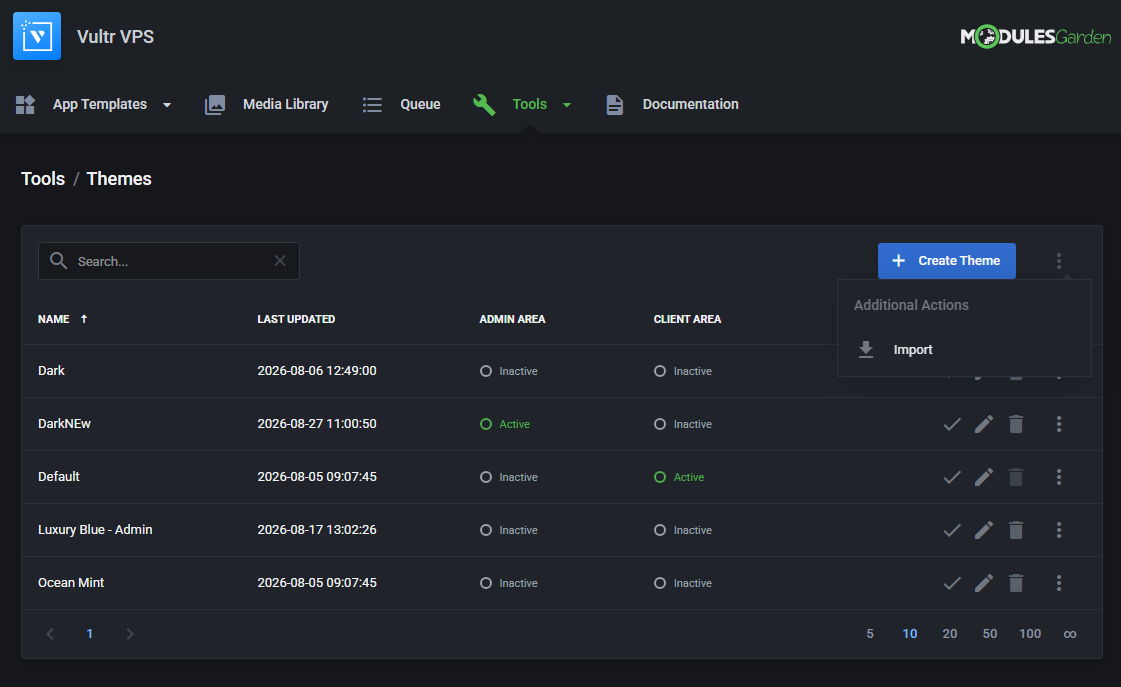
The Theme management tool allows you to control the appearance of module interfaces using ready-to-use presets or fully customizable settings.
It supports separate styling for admin and client areas, enabling you to tailor each environment independently.
With Basic and Expert modes available, you can quickly apply global color schemes or fine-tune individual UI elements as needed.
For full details, see the Theme management documentation page.
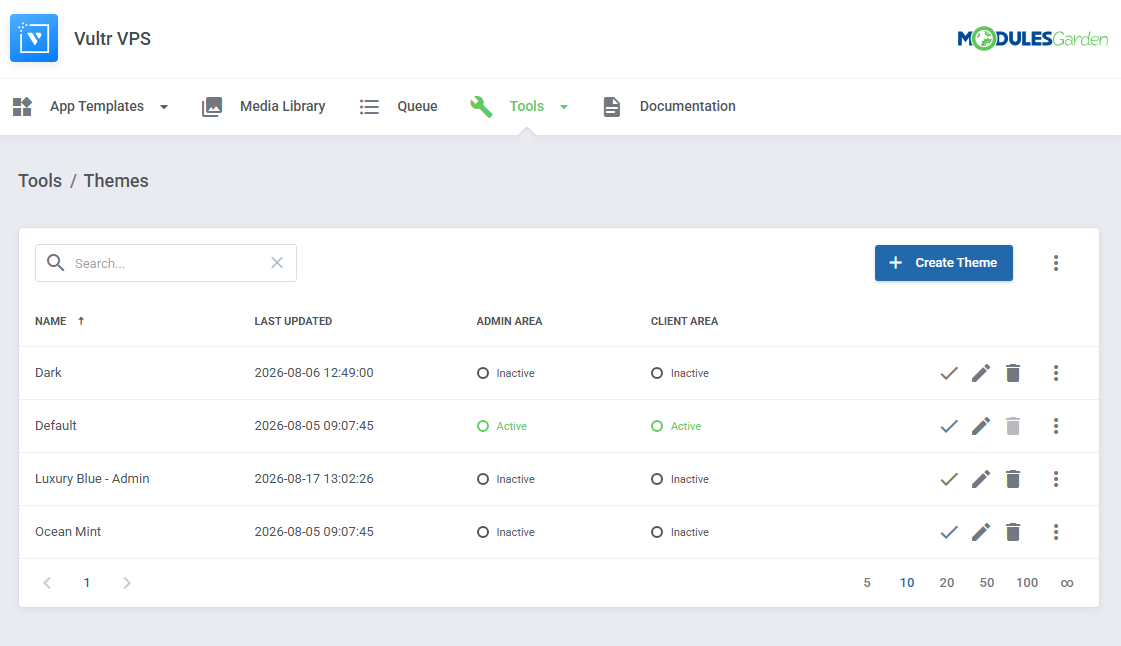
This is how your module might look after implementing custom display changes.
# Admin Area
Vultr VPS For WHMCS allows your customers to manage their servers via the client area in your WHMCS system.
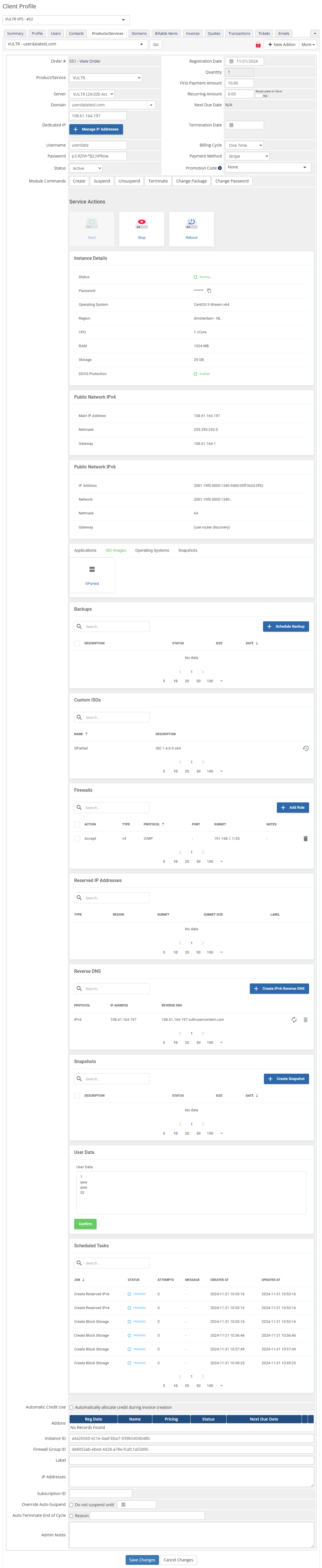
You can monitor and manage each product from your WHMCS admin area.
- Configurable options that enable you to view current resources and change specifications through changing configurable options and pressing 'Change Package'.
- Module commands (Create, Suspend/Unsuspend, Change Package).
- Scheduled tasks - list of tasks to be performed with the cron execution.
- Service actions (Start/Stop VM, Reboot).
- Instance details along with Public Network IPv4 and IPv6 details (the latter one is available only if you enable it in the product's configuration).
- Backups, firewall rules, snapshots management sections.
- Reverse DNS management and a preview of reserved IP addresses.
- Applications list allowing for machine reinstallation with included applications or systems.
# Ordering
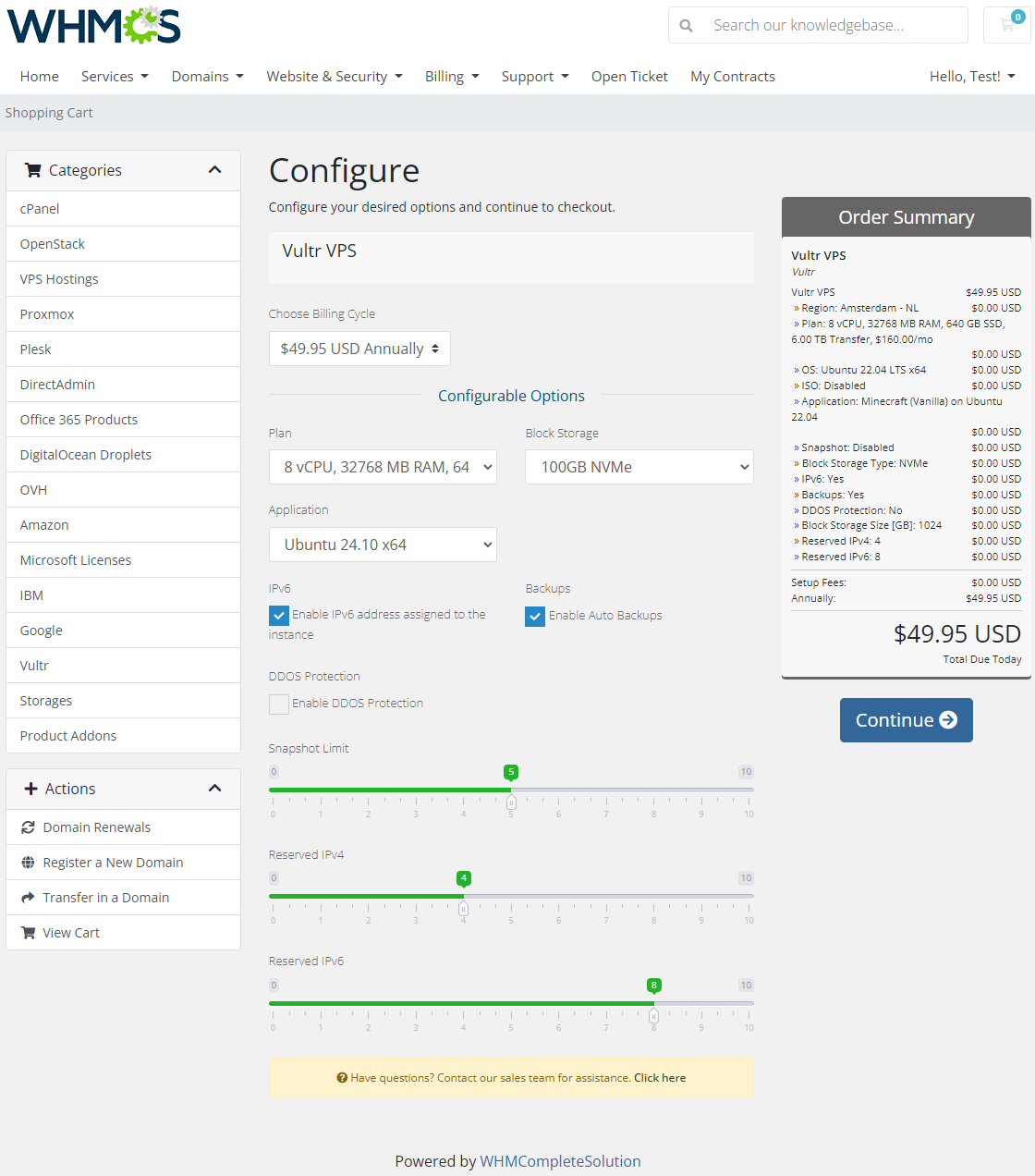
Owing to configurable options, you are able to offer a product that your clients can tailor according to their needs.
Additionally, you are able to set up pricing for each configurable option, which makes your offer even more competitive.
Important: VPS is not created immediately after pressing 'Create'. Therefore, it is wise to inform your clients about the delay.
# Importing Existing Instance
In this section, you can find short instructions on how to connect one of your clients to your already existing instance in the Vultr panel.
Take the following steps to make sure that the process will be carried out properly.
Firstly, manually create an order for your customer in WHMCS. Choose a client and in the summary, view click on the ' Add New Order' button. Next, select a 'Product/Service' and press 'Submit Order'.
What is important, do not perform the 'Create' action. The status has to remain as 'Pending'.
More info about placing orders can be found here (opens new window)Proceed to the newly created product's card in your admin area. Find the following empty field:
- Instance ID
The above-mentioned information has to be consistent with the data from your Vultr panel. Now, complete this field as presented below.
Important! Remember to make sure that the format of the provided data is compatible with the format supported by the module. You can preview it for another product of the module you have already created and enter it in a similar way.
If you completed the required data, now change the status from 'Pending' to 'Active' and 'Save Changes'.

- If the completed data is correct, after refreshing the page, you will see the attached instance from Vultr.
Important! Remember to manually add other missing parameters of the instance such as domains, credentials, IP Addresses, configurable options, etc. so they match the parameters of the attached instance from Vultr panel.
# Client Area
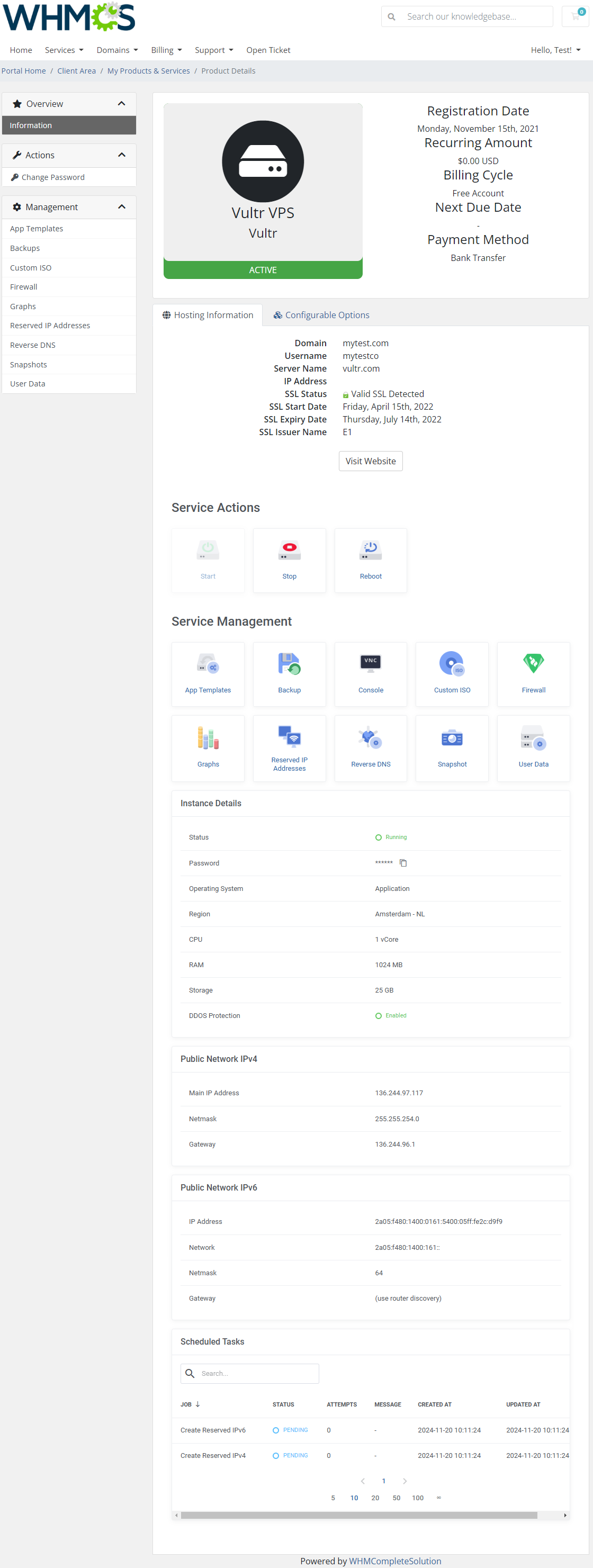
Client area interface of Vultr VPS should look like the one on the screen below. As you can see, the control panel contains useful options needed for managing a virtual machine.
The module allows your customers to easily start, stop, and reboot their servers by pressing a specific button.
Clients can also access the VNC console, manage backups, view bandwidth graphs, and many others.
# Reinstallation
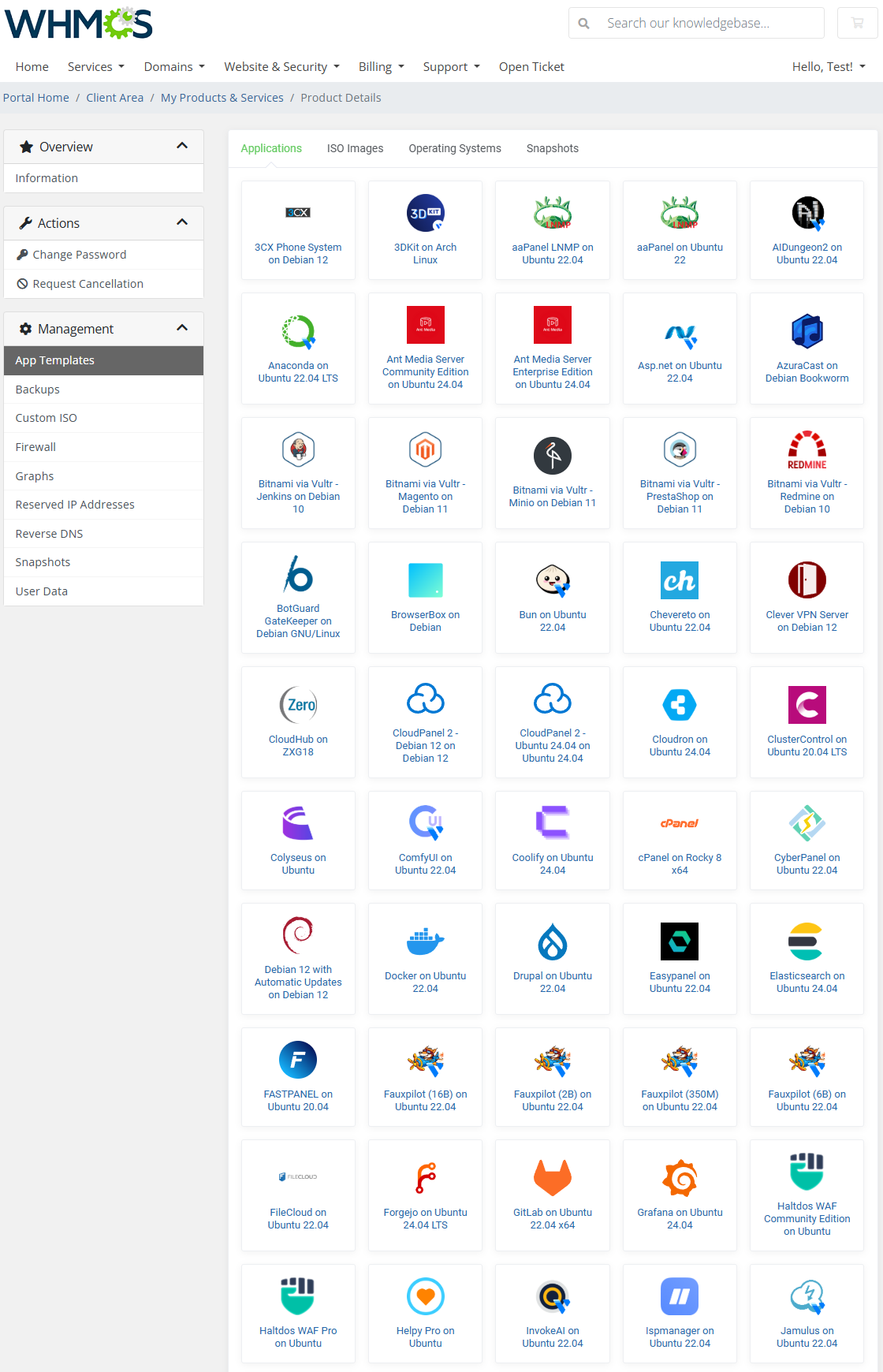
The "Reinstallation" section allows you to easily install applications, ISO images, operating systems and snapshots on your VPS.
Important: Installations will wipe all existing data from the machine.
# Backups
The first section available for clients grants the ability to view the list of existing 'Backups' of your server.
Please remember that 'Backups' are assigned to a particular server and will be removed once the server is deleted.
Note: There is a limit of a maximum of two backups per server. Once a new backup is created, the oldest one is automatically removed.
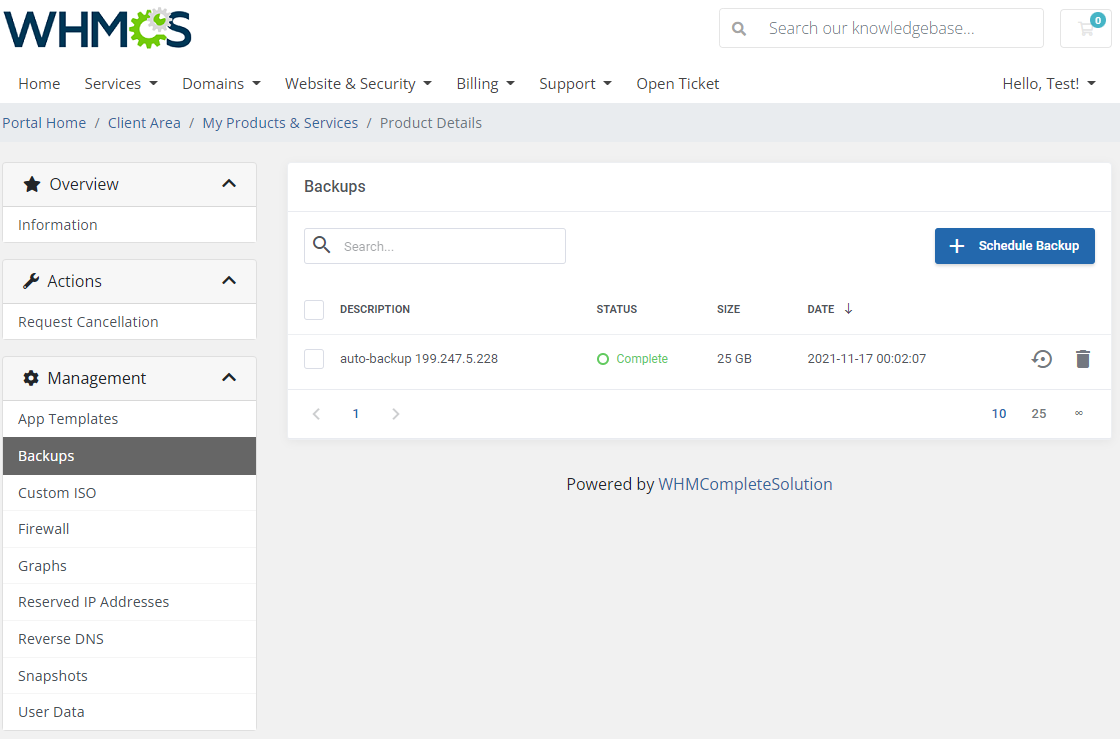
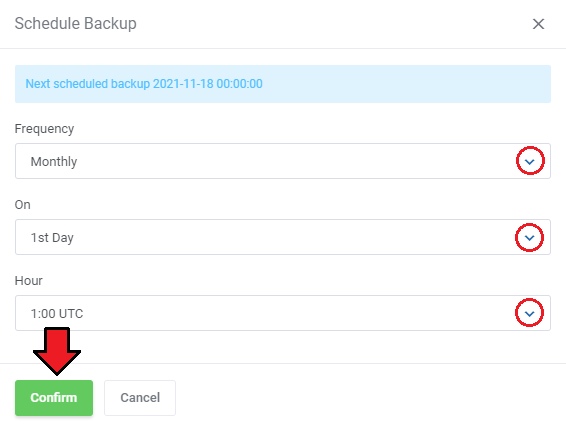
Clients are also given the opportunity to schedule incoming backups by pressing the 'Schedule Backups' button.
Provide a time details to wait until the next backup is created.
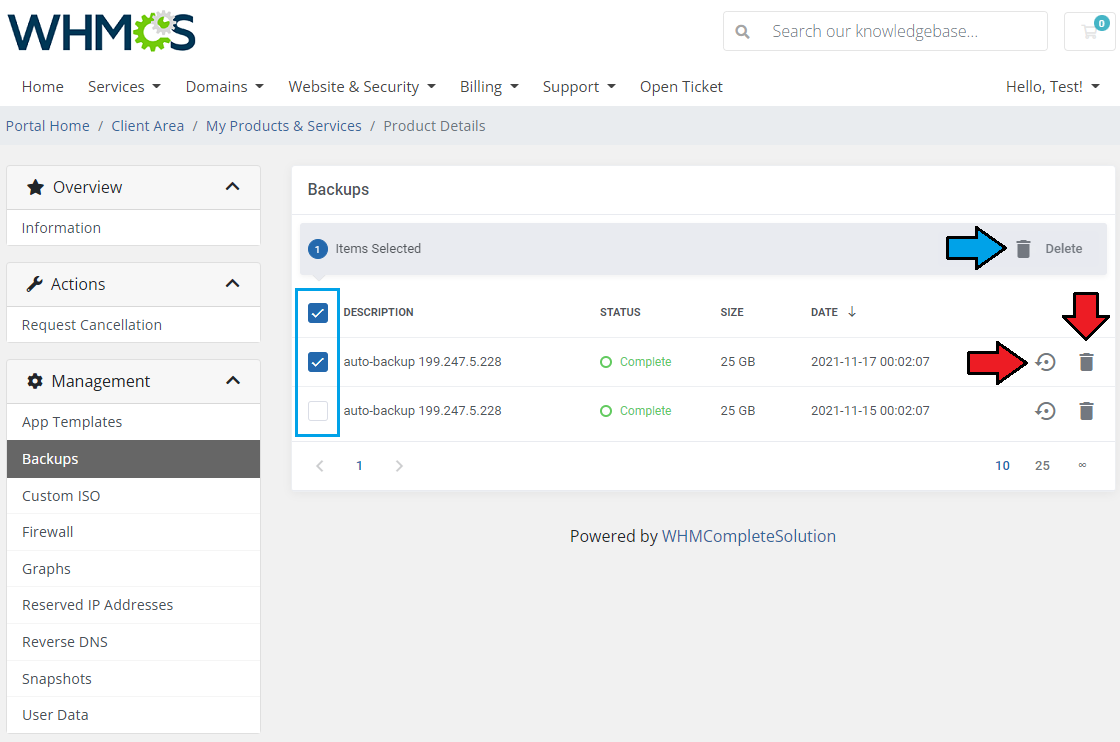
To restore a VPS from backup, simply press the 'Restore' button next to it.
If selected backups are no longer needed, you may easily delete them.
# Console
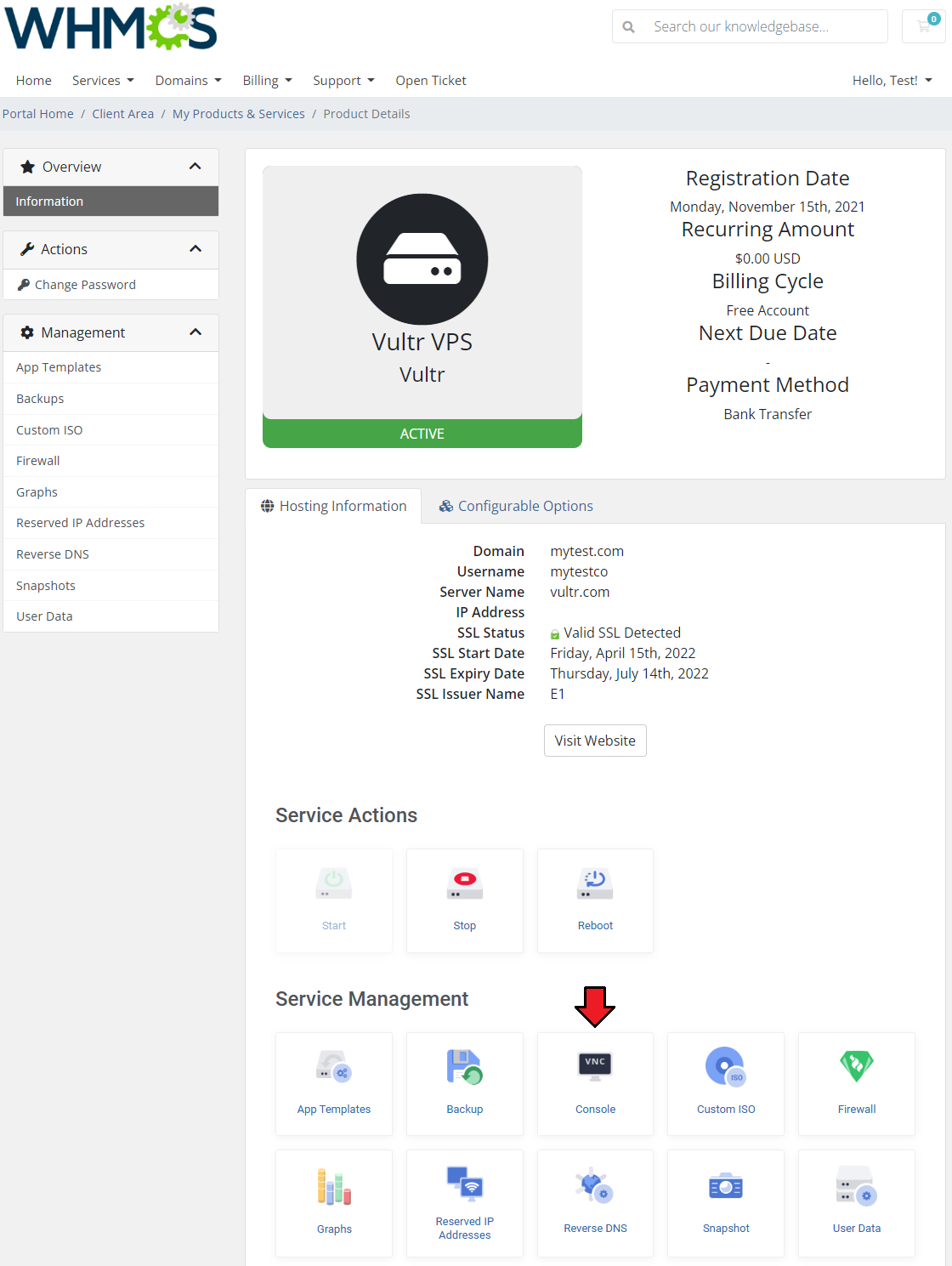
One of the most interesting functionality is a noVNC console where your clients can remotely manage their servers.
To access it, simply click on the 'Console' button.
Note: Vultr offers a generic VNC URL that serves as a white-label URL. If you wish to use a white-label console with the Vulr VPS For WHMCS module, please contact the Vultr support via their official ticketing system.
# Firewall
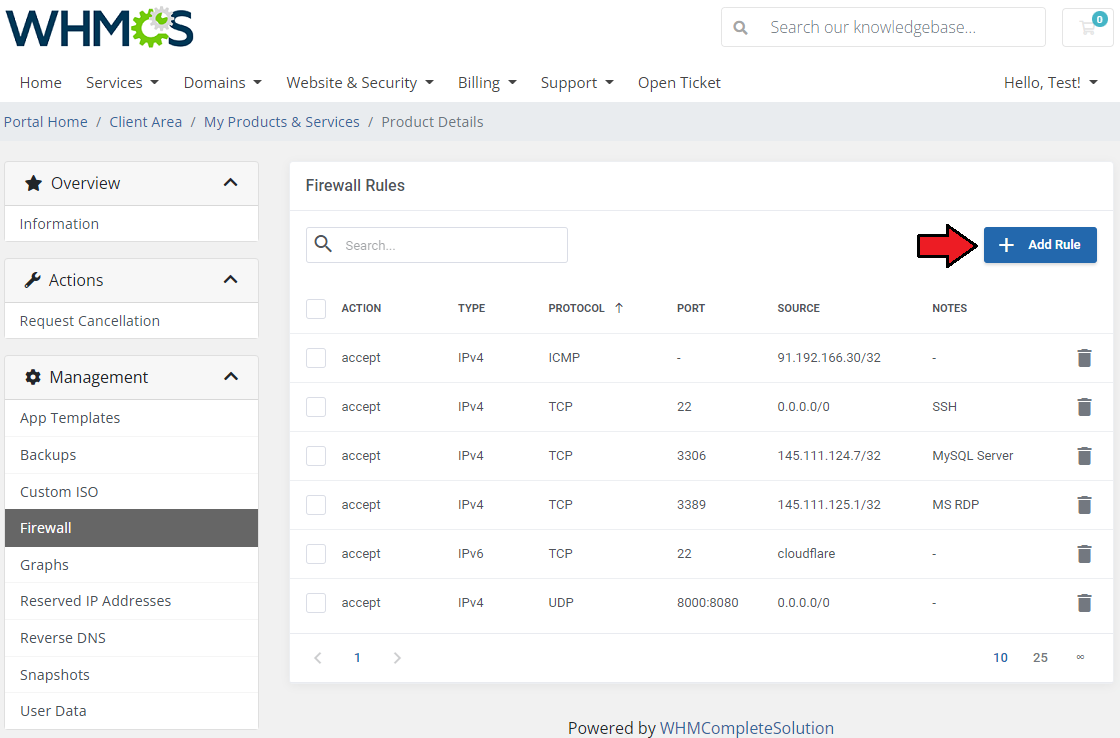
The firewall management page allows your customers to view, add, or delete existing rules on a security group assigned to the product.
To add a new firewall rule, use the button marked on the following screen.
Note: Please remember that there is a limit of 50 firewall rules. If you reach this limit, you will not be allowed to create new ones before removing any existing ones.
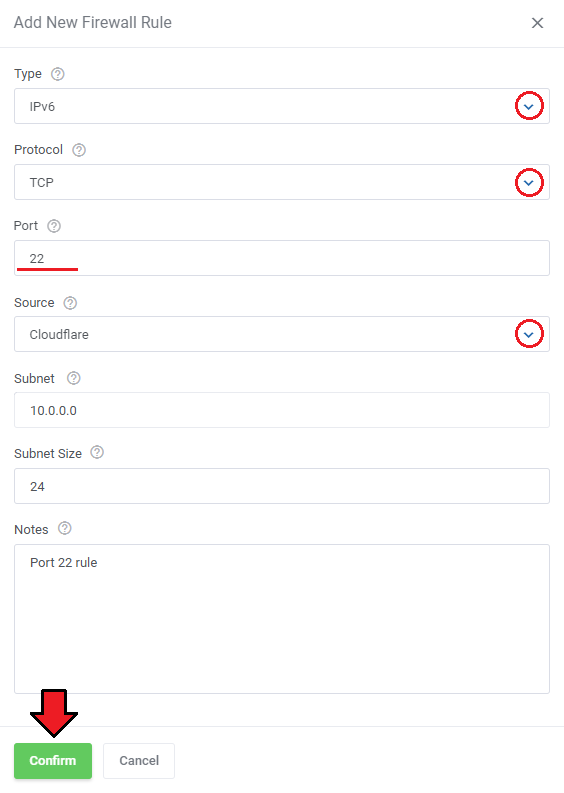
Next, fill out the rule details to create it:
- Type- choose between 'IPv4' and 'IPv6'.
- Protocol - select among TCP, UDP, ICMP, GRE, ESP and AH.
- Port - you may specify a port number or a port range (TCP/UDP only).
- Source - specify a custom source or Cloudflare.
- Subnet - enter the source IP address.
- Subnet Size - define the size of the subnet.
- Notes - include custom notes if needed.
Press 'Confirm' when ready.
# Graphs
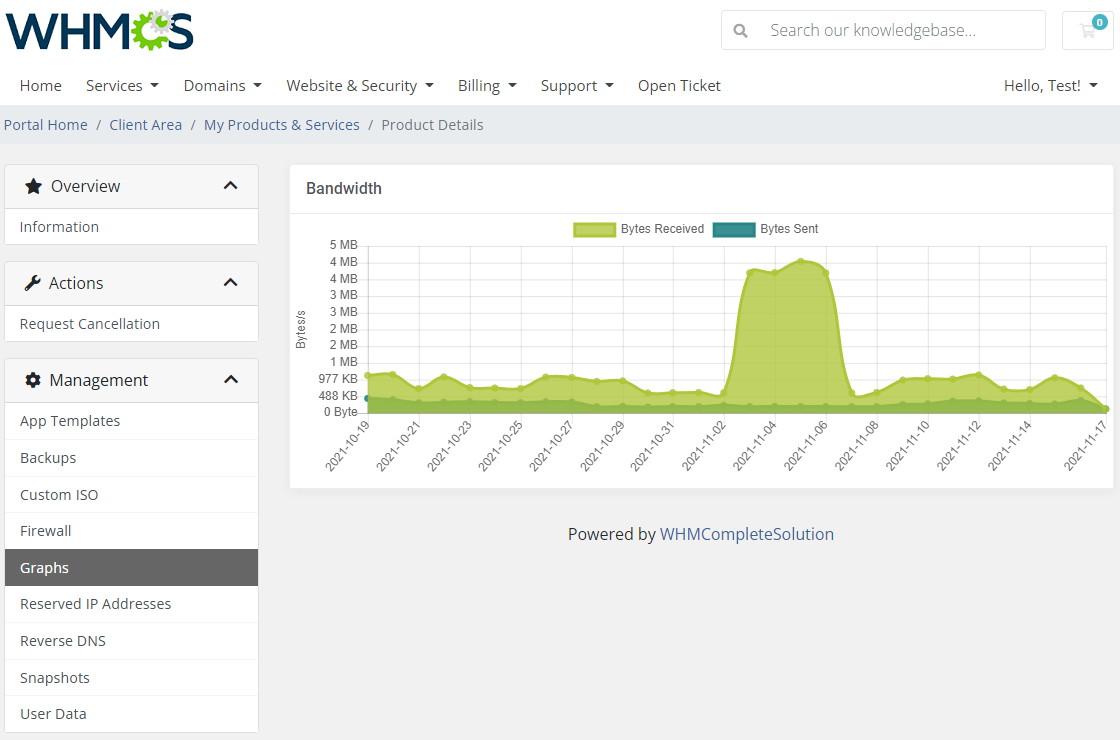
Once entering the 'Graphs' section, clients will be moved to the page with the generated graphs showing the 'Bandwidth' usage.
# Reserved IP Addresses
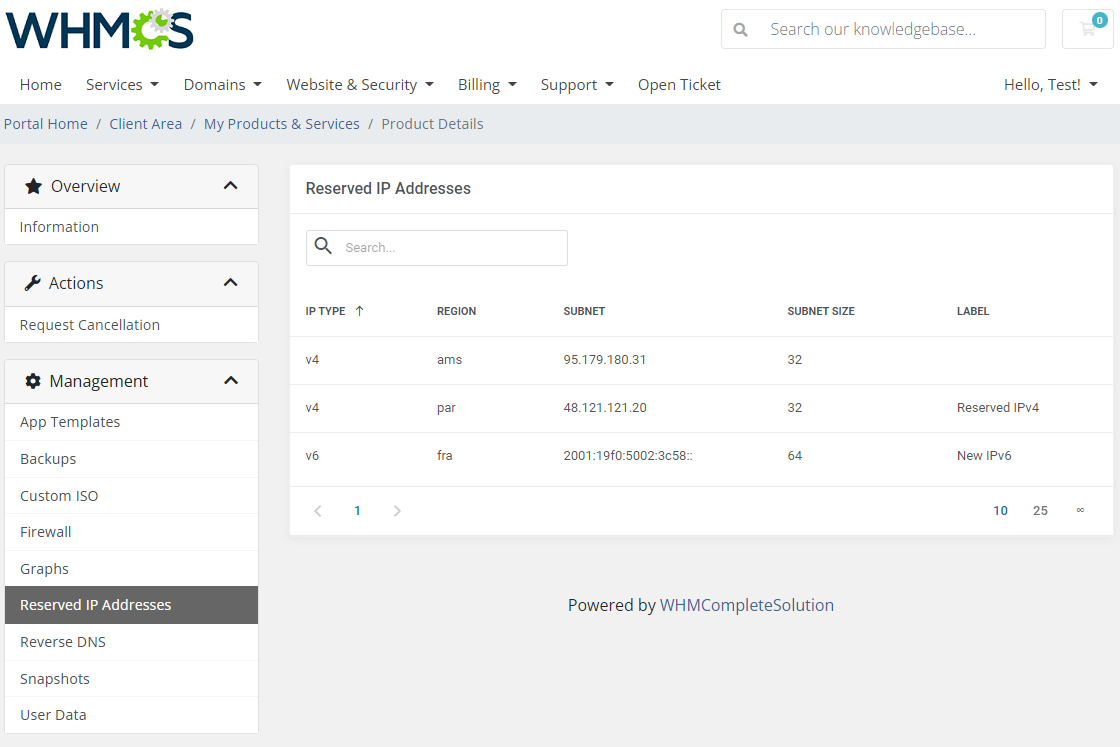
This section includes a list of all existing in the panel reserved IP addresses.
- on the account creations the IP addresses are automatically added to the group
- on the change package action (downgrade/upgrade) the IPs are added or removed accordingly
- on termination, all IPs are removed
# Reverse DNS
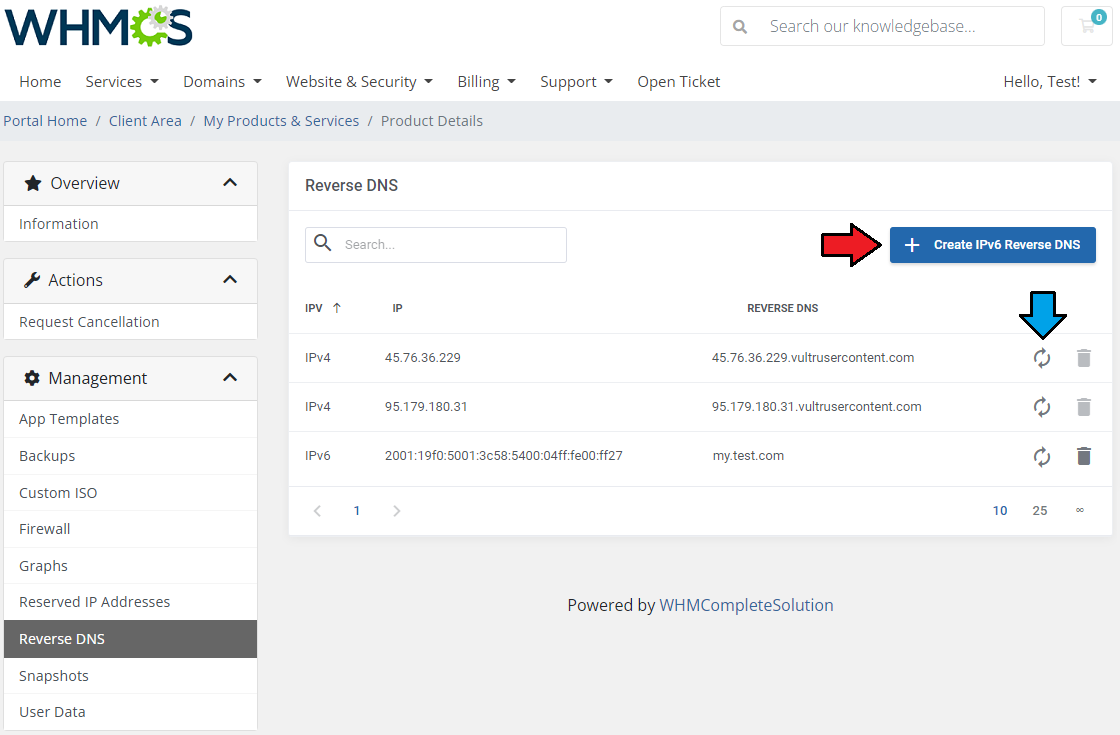
Reverse DNS option allows your clients to manage reverseDNS of the IP addresses assigned to the machine.
You can change the hostname that will appear when getting the hostname belonging to the primary IPs (IPv4 and IPv6) of your server.
To do so, just click on the button presented below.
Note: IPv4 addresses are already added on the list and cannot be deleted
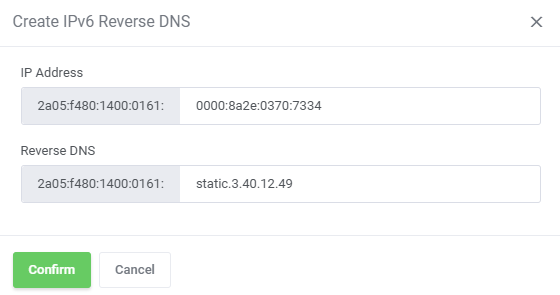
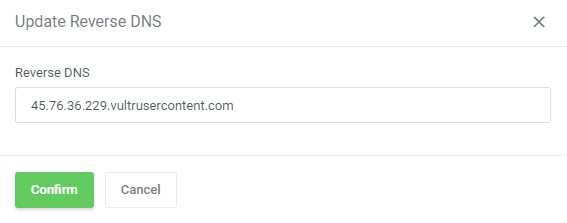
When 'IP' and 'Reverse DNS' are provided, just confirm the action.
# Snapshots
Creating snapshots allows customers to quickly restore any changes to a virtual machine in case of any problems.
Once the shutter has been created, the customer can restore it (1), change its description (2) or delete it (3).
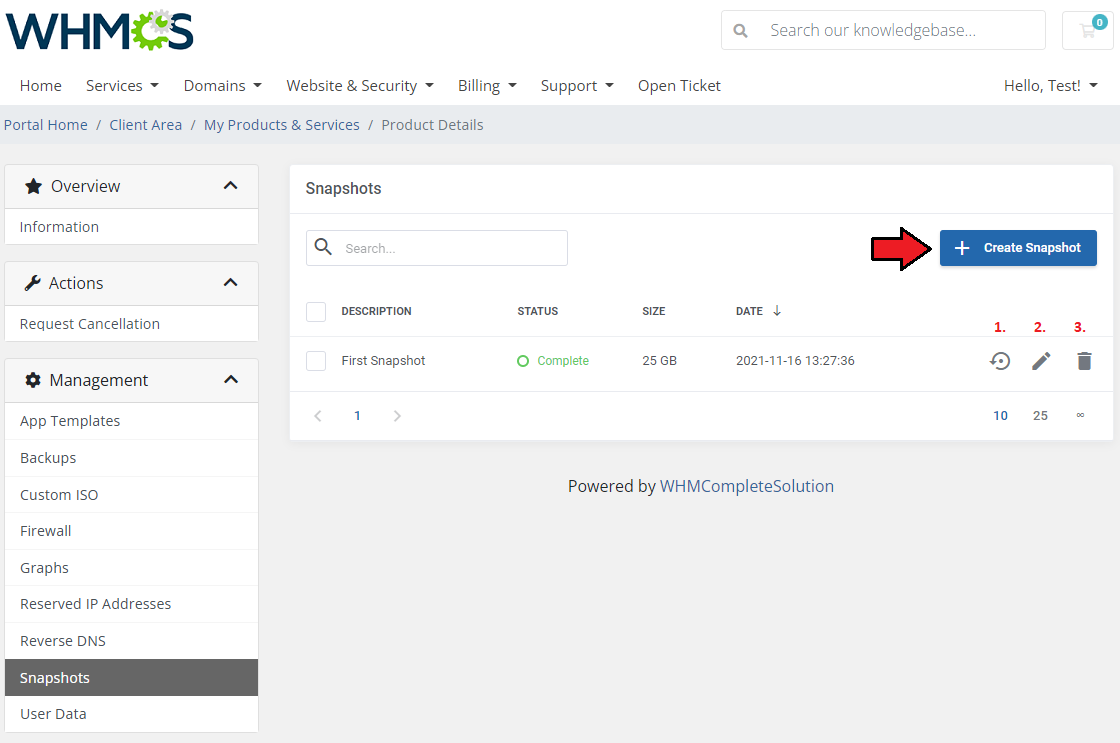
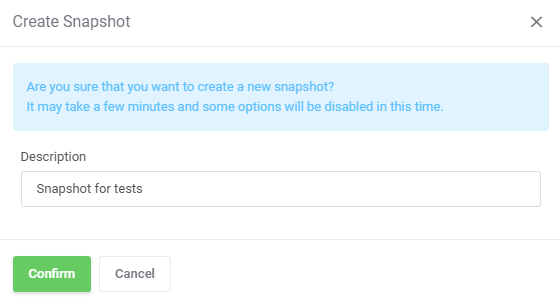
After pressing the 'Create Snapshot' button, the new window will pop up along with the possibility to specify the snapshot description.
Please note that taking a new snapshot may take a while to process.
# User Data
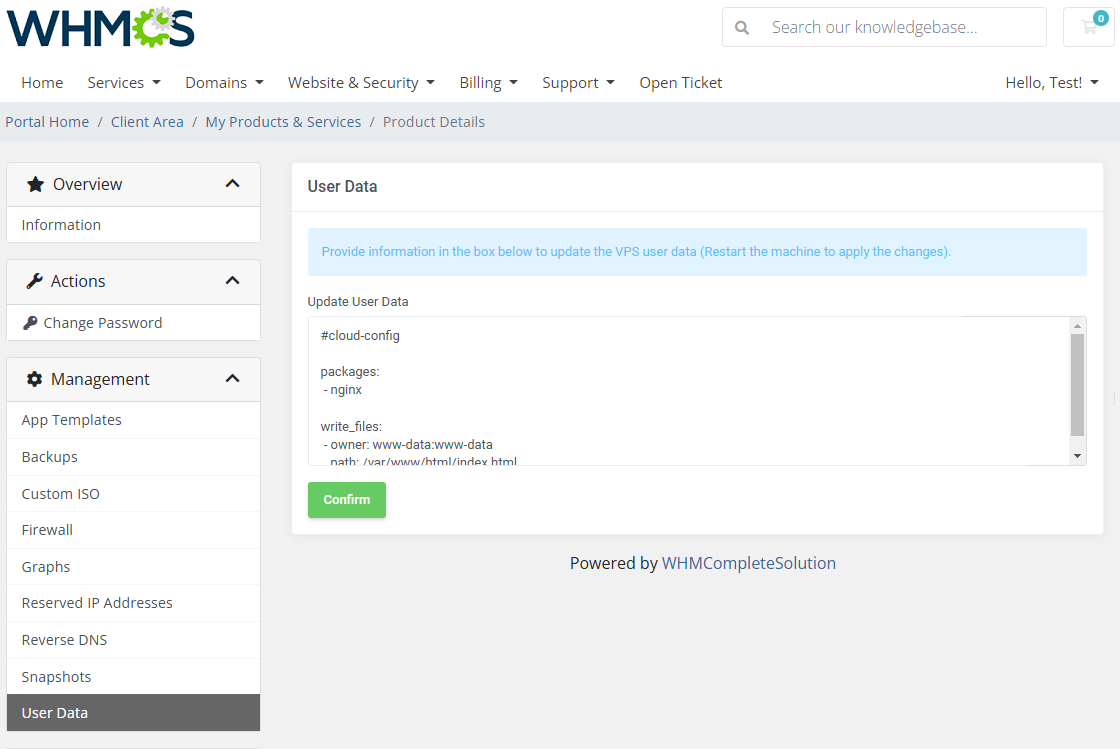
User data can be freely altered in the client area. Remember that after introducing any changes, the machine restart is required to apply the changes.
Note: User data supports smarty variables, such as '{$password}'. Follow to this article to find a full list of supported module parameters (opens new window) and their descriptions.
# Tips
Vultr offers a generic VNC URL that serves as a white-label URL. If you wish to use a white-label console with the Vulr VPS For WHMCS module, please contact the Vultr support team via their official ticketing system.
The "Unmount ISO" action in the client area is only available for products that have a server installed using an ISO image from App Templates.
# Update Instructions
An essential guidance through the process of updating the module is offered here.
Ensure successful completion of the module update by carefully following each step, thereby preventing data loss or any unforeseen issues.
Additionally, you will find a current list of supplementary actions necessary for a smooth update process there.
While upgrading from version 1.x to version 2.x, make sure to follow the guidelines below carefully.
Important: The migration cron command listed in step 6 is required only once during the upgrade from version 1.x to 2.x.
It should not be executed again during future updates between subsequent 2.x versions.
Make sure all tasks are finished, as the migration process will delete them.
Optionally, back up your customized language files.
Back up the gallery directory.
Delete all files from the previous version of the module.
Upload the new module files.
Manually initiate the version upgrade with the cron command:
php -q /YOUR_WHMCS/modules/servers/VultrVps/cron/cron.php upgrade run 2.0.0Restore/replace custom images.
Optionally, restore changes made to the language files.
# Upgrade Guide
Seeking a solution that offers greater flexibility, customization tailored to your precise needs, and unrestricted availability?
There is an option that not only proves to be cost-effective in the long run but also includes prioritized support services, making it a truly valuable investment.
Opt for the Open Source version (opens new window) of your Vultr VPS For WHMCS module to unlock these benefits.
Simply click on either the Get Source Code or Upgrade To Lifetime button found on the product's page in our client area to complete the one-step upgrade process, with a dedicated discount already applied.
Follow a comprehensive guide covering the transition process, the advantages it brings, and step-by-step instructions on what to do next after the order has been successfully finalized.
# Common Problems
When you have problems with connection, check whether your SELinux or firewall does not block ports.
Downgrading virtual machines with block storage is impossible. Move to the official Vultr documentation (opens new window) to find out more.
Due to restrictions of Vultr itself, applications of the 'once-click' type can only be installed on fresh installations (during the 'CreateAccount' action).
They can also only be reinstalled into operating systems, but not different applications.