# Office 365 For WHMCS
Office 365 For WHMCS has reached End of Support (EOS) and is no longer actively maintained. The module remains available for purchase in the Open Source version, along with License Upgrade option at a discounted price. Current license subscriptions continue and stay valid for future renewals.
# (opens new window) About Office 365 For WHMCS (opens new window)
Office 365 For WHMCS has been designed to let you automatically provision Microsoft Office 365 plans and remotely manage their key features.
With this module, you will easily supervise all subscriptions, perform switches and suspensions as well as password changes right in your WHMCS.
# Installation
Office 365 For WHMCS has reached End of Support (EOS) and is no longer actively maintained. The module remains available for purchase, including the Open Source version and License Upgrade at a discounted price. Current license subscriptions continue and stay valid for future renewals.
This tutorial will show you how to successfully install and authenticate Office 365 For WHMCS. (opens new window)
We will guide you step by step through the whole installation and configuration process.
Important: This module configuration requires a Microsoft Partner Network (opens new window) account with CSP Direct Bill Partner (Tier 1) (opens new window).
- Log in to our client area and download the module.
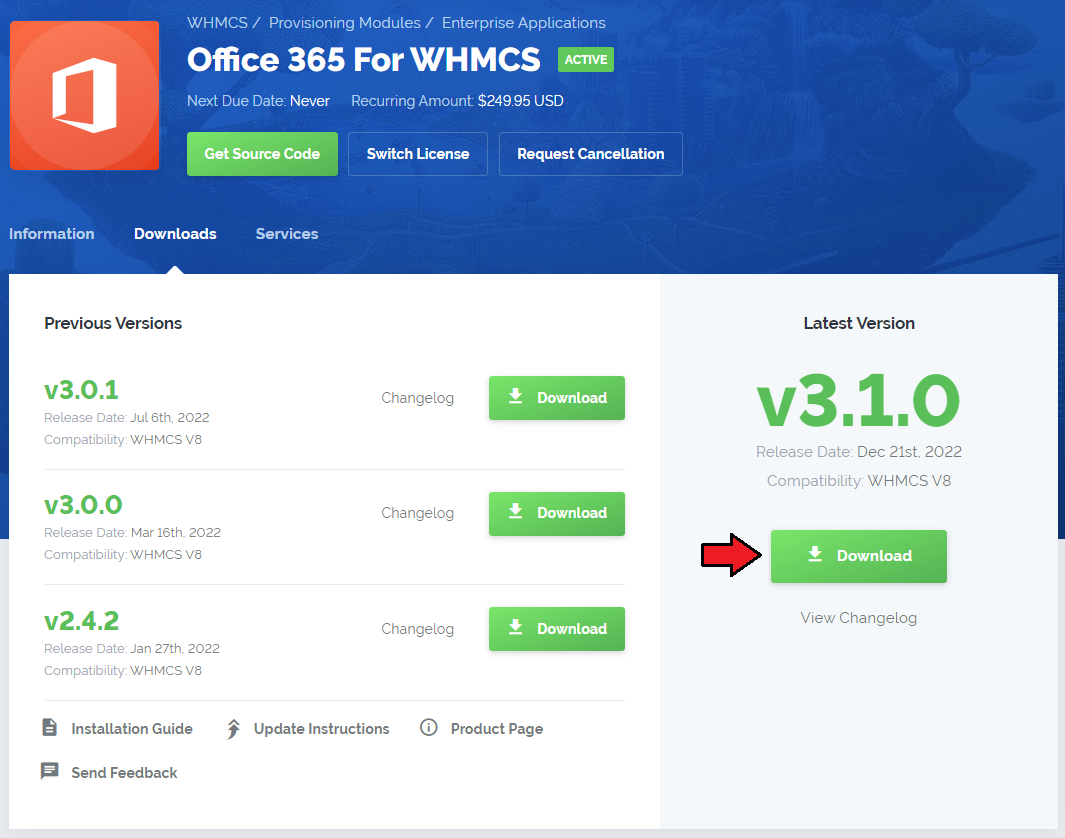
In the downloaded file you might find one or two packages that support different PHP versions.
In the most recent versions of the module, you will find only one package that supports PHP 7.2 and later.
Previous updates of the module may contain two packages dedicated to various PHP versions.
The first one that supports PHP 5.6 up to PHP 7.1, and the second one addressed to PHP 7.2 up to PHP 7.4.
Note: Keep in mind that PHP versions 5.6 up to 7.1 are no longer officially supported and their security issues are not fixed or released any more. Find more info here (opens new window).
Note: You can check the current PHP version in your WHMCS. To do so, proceed to 'Utilities' → 'System' → 'PHP Info'.
Extract the package and upload its content into the main WHMCS directory.
The content of the package to upload should look like this.
When you install Office 365 For WHMCS for the first time, you have to rename the 'license_RENAME.php' file.
The file is located in 'modules/servers/office365/license_RENAME.php'. Rename it from 'license_RENAME.php' to 'license.php'.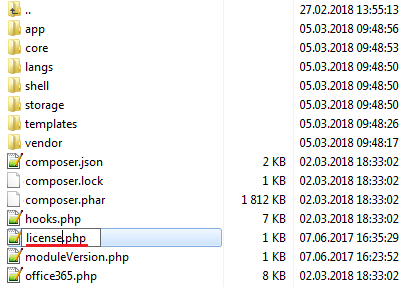
In order to configure your license key, you have to edit the previously renamed 'license.php' file.
Enter your license key between quotation marks as presented on the following screen. You can find your license key in our client area → 'My Products'.
Now, set up the 'storage' folder as recursively writable.
This folder is located in 'your_whmcs/modules/servers/office365'.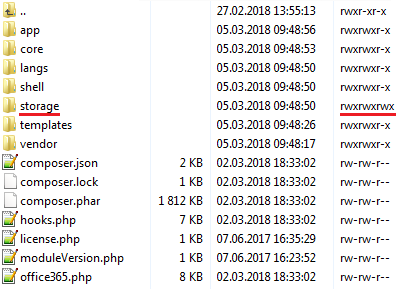
There are two cron commands that should be performed.
- To create a customer, user and make an order (recommended 5 minute intervals):
php -q /your_whmcs/modules/servers/office365/cron/cron.php queue
- To update the API token (recommended once a day):
php -q /your_whmcs/modules/servers/office365/cron/cron.php token:refresh
# Obtaining API Details
Before you start to configure the server, you need to obtain some neccessary data to connect to API.
The data you need:
- APP ID
- APP Secret
- Common Name / Tenant ID
- Key Vault APP ID
- Key Vault Secret ID
- Key Vault Directory ID
- Key Vault Domain
In the next steps, we will guide you through the process of getting the data.
Note: All of the following data is only an example, so please be aware that some discrepancies can appear on the screens below.
The process of obtaining the data needs to be carried out on your Microfost account (or accounts) on your own.
Please keep in mind that since the date of this publication, some changes to the interface or the process of getting the neccessary data from Microsoft may have occured.
Therefore, the steps and screens presented below may not always be accurate and refect the actual starte of affairs.
If any inaccuracies are found, try to adjust to them as much as possible, or contact our support (opens new window) for assistance.
# Creating Application in Microsoft Azure
The first step is to create an application in your Azure Active Directory if you do not have it yet.
Log in to your panel in Microsoft Azure. (opens new window)
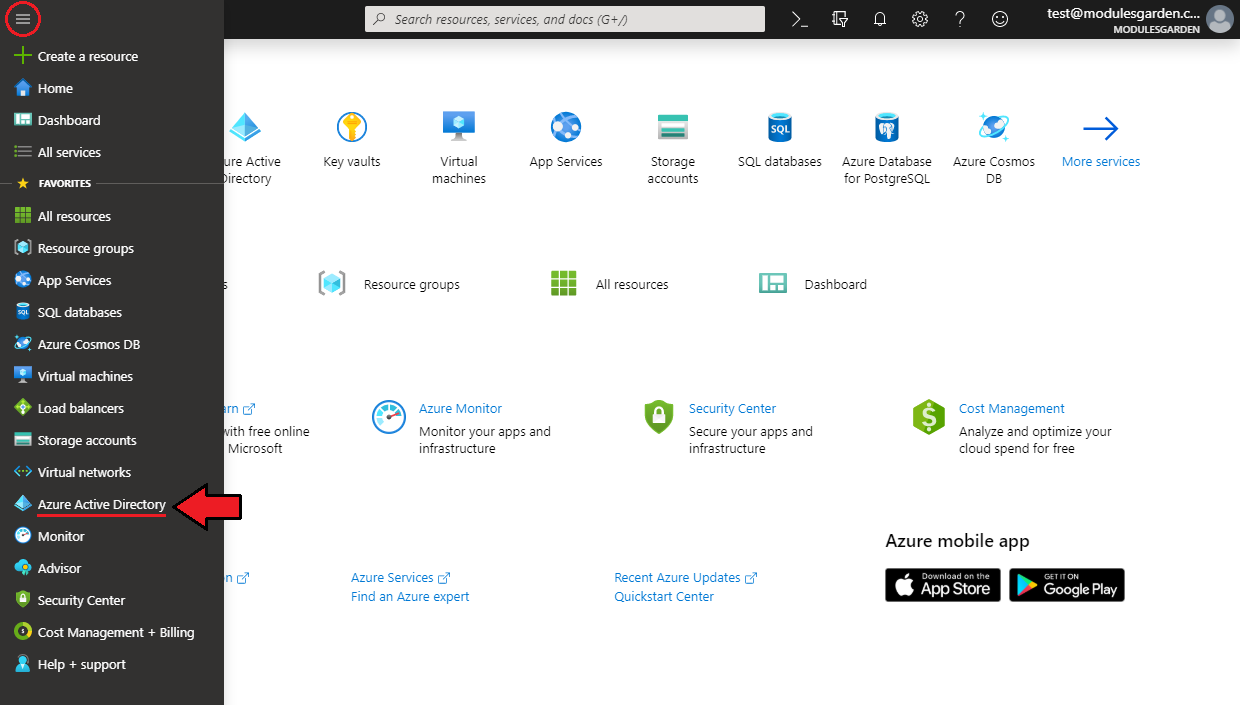
Then, expand the left sidebar and select 'Azure Active Directory' from the menu.
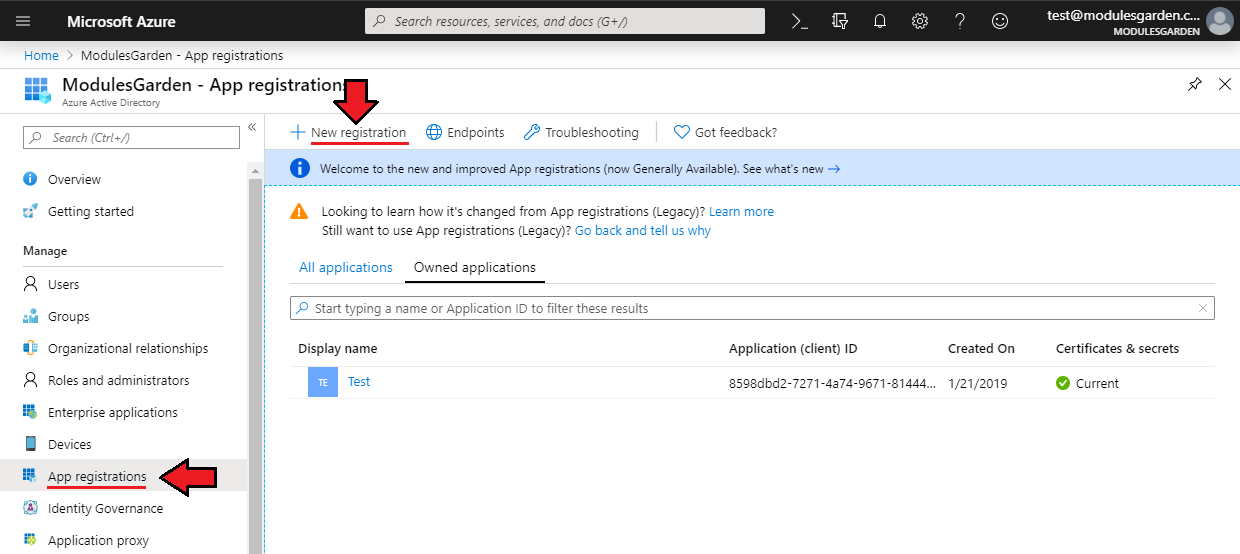
On the newly opened page, choose 'App registrations' from the left menu, and then click on 'New registration'.
Enter an application name on the newly opened page. Leave the selected by default 'Supported account types' unchanged.
Later, you need to provide the web 'Redirect URI'. This address must directly lead to the 'auth.php' file located in the folder with the module on your WHMCS server. For example:
https://my-whmcs.com/modules/servers/office365/auth.php
Please make sure that it is correct and reachable from outside - your WHMCS server must accept SSL connections.
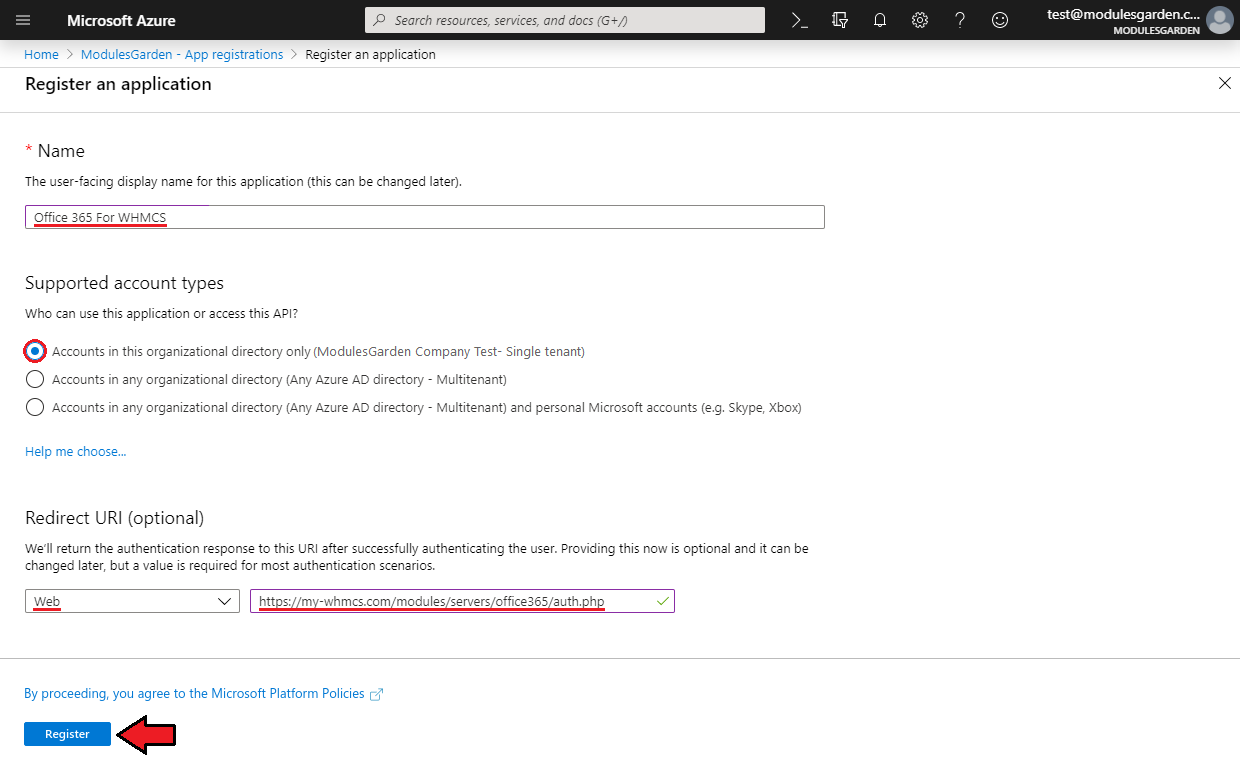
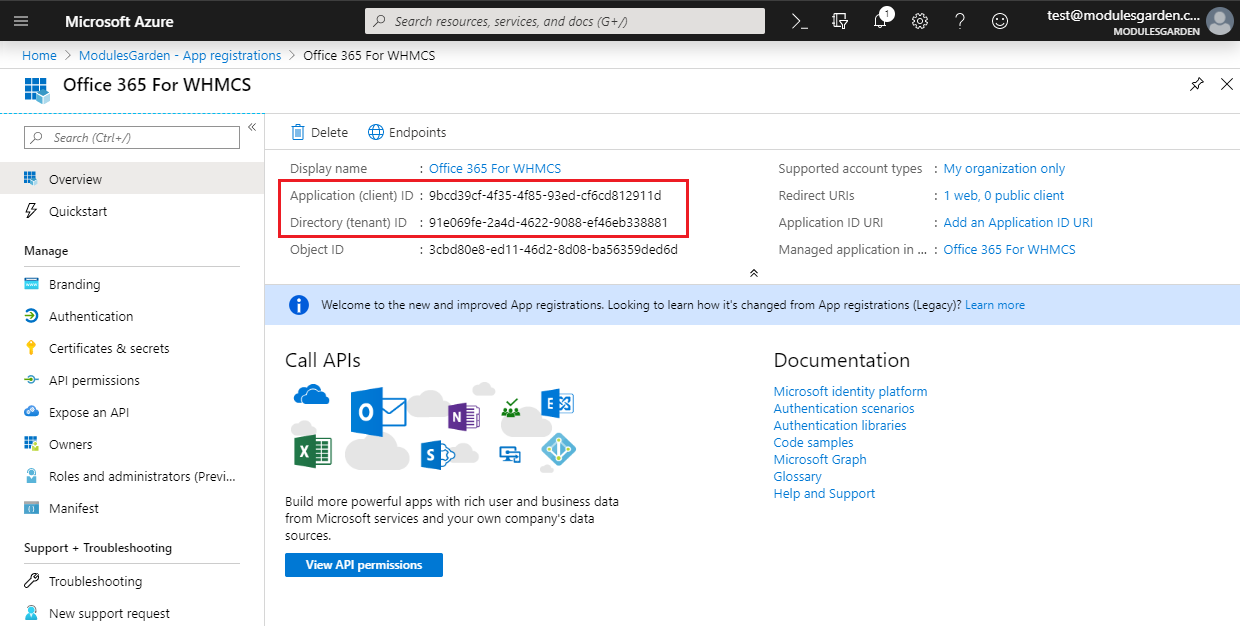
After clicking on the 'Register' button, you will be redirected to the page that generated your application data.
There you will find:
Application (client) ID
Directory (tenant) ID
Copy it and keep safe, as you will need it afterwards to configure the server in WHMCS.
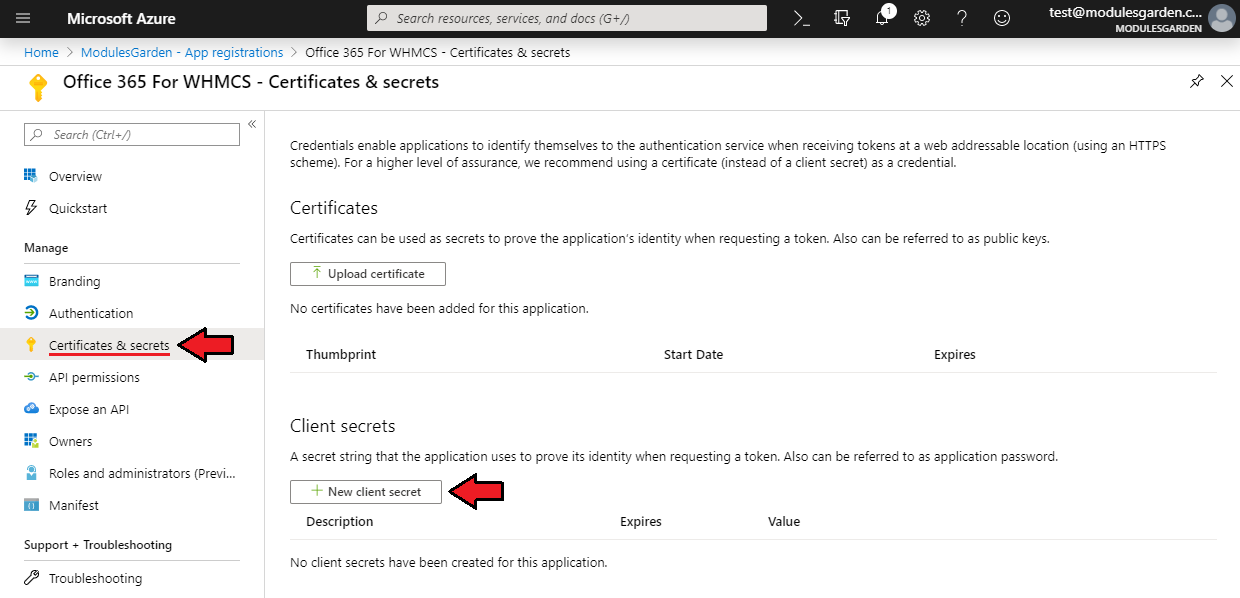
Next, go to the 'Certificates & secrets' tab from the side menu and click on 'New client secret'.
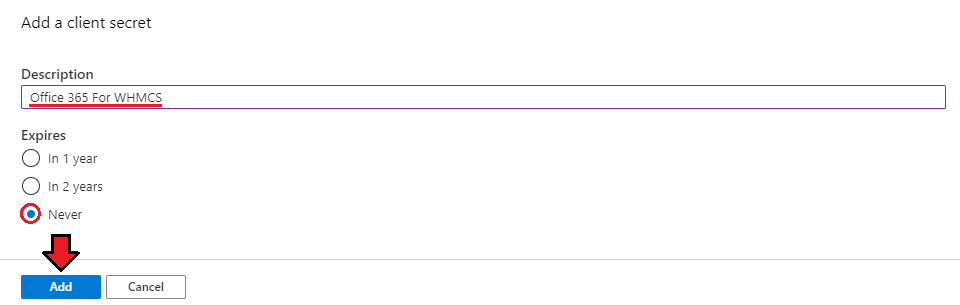
Before adding, provide it with a description and set 'Never' in the 'Expires' option.
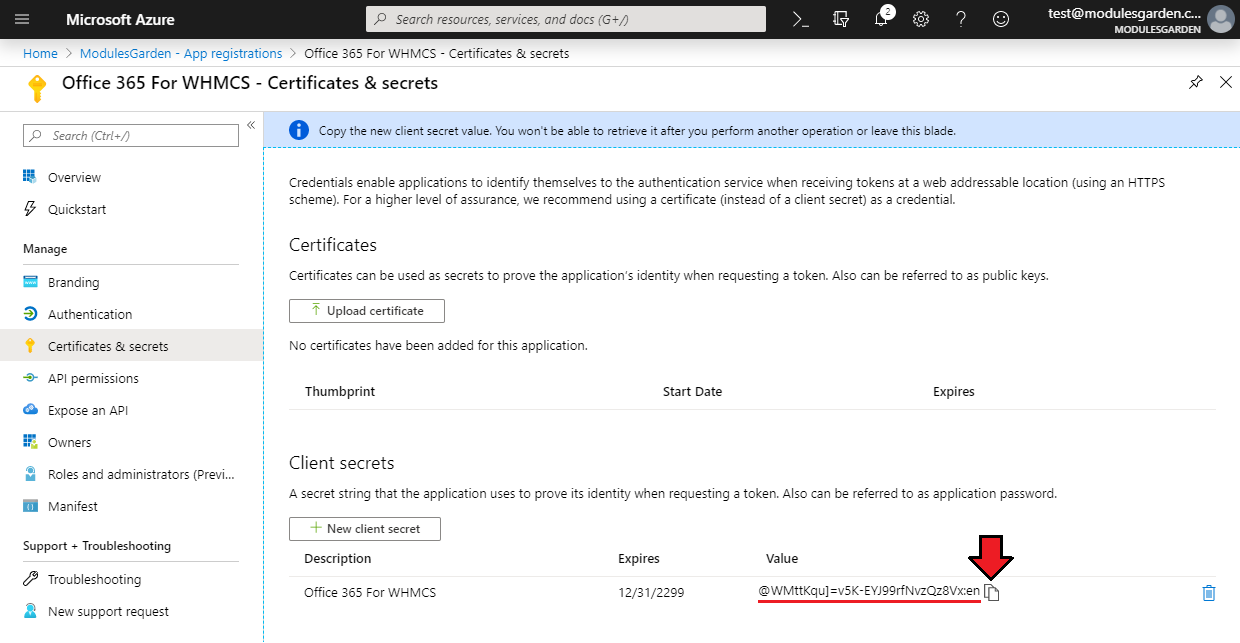
A new Client Secret will be created. Copy it to a safe place, as you will need it later for the server configuration in WHMCS.
Important: Copy the new client secret value now. You will not be able to retrieve it after you perform another operation or leave this blade!
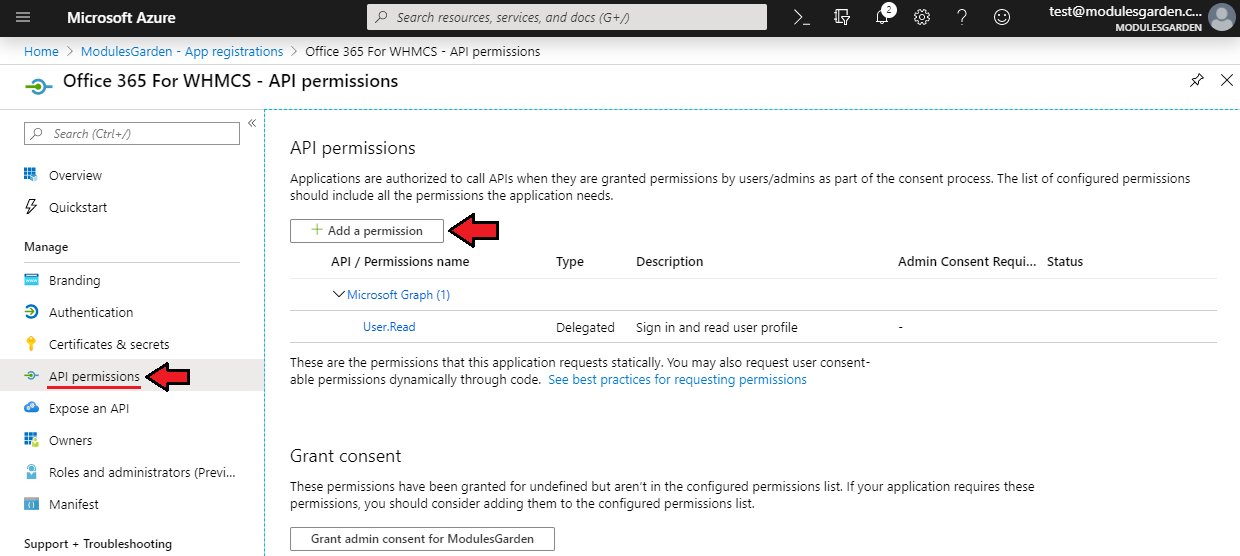
Now, you need to set appropriate permissions. To do so, move to the 'API permissions' tab and click on 'Add a permission'.
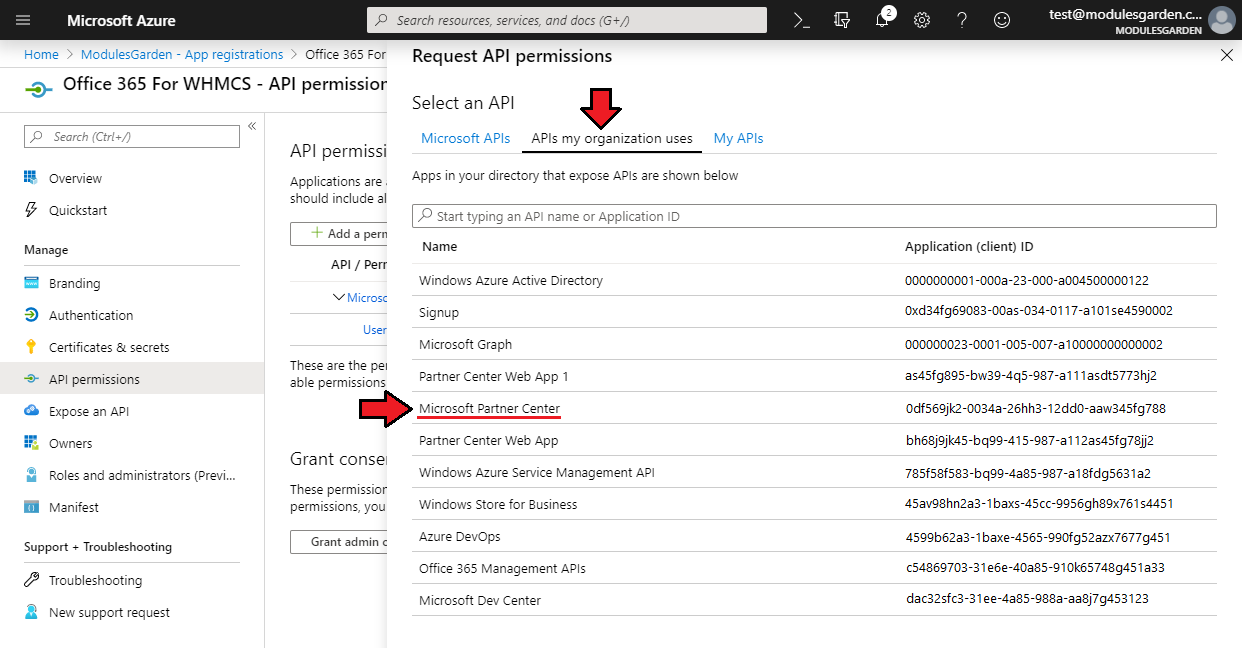
Choose 'APIs my organization uses' and then 'Microsoft Partner Center' from the list.
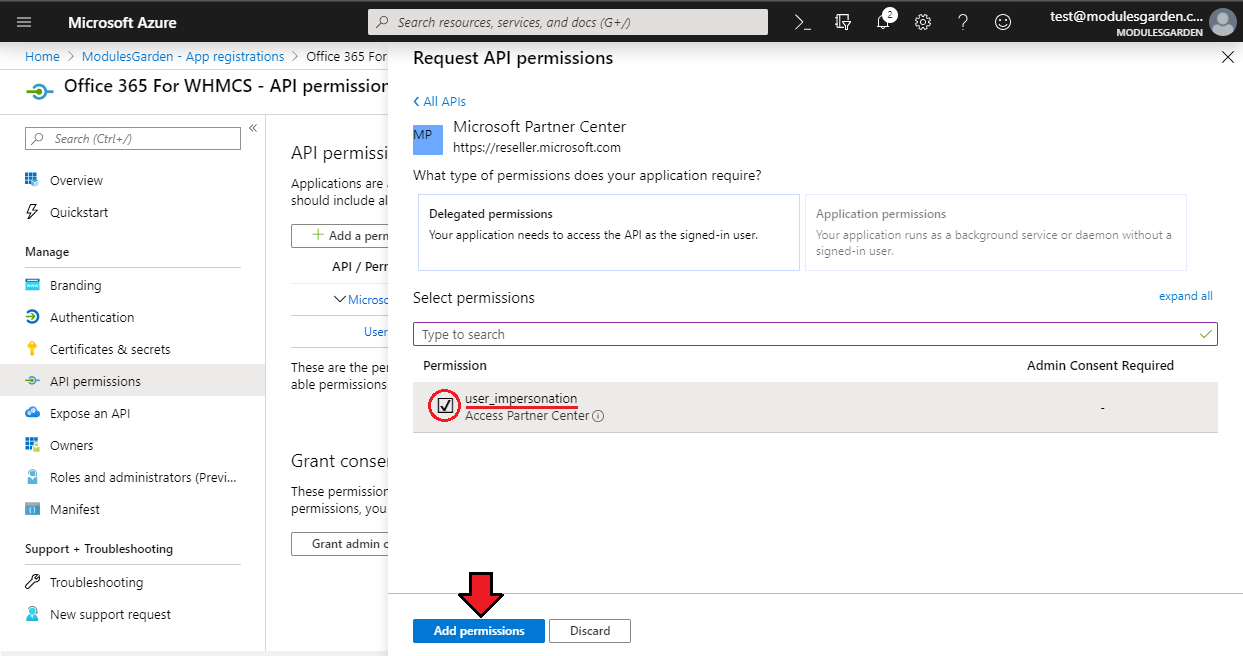
Tick the 'user_impersonation' permission and click on 'Add permissions'.
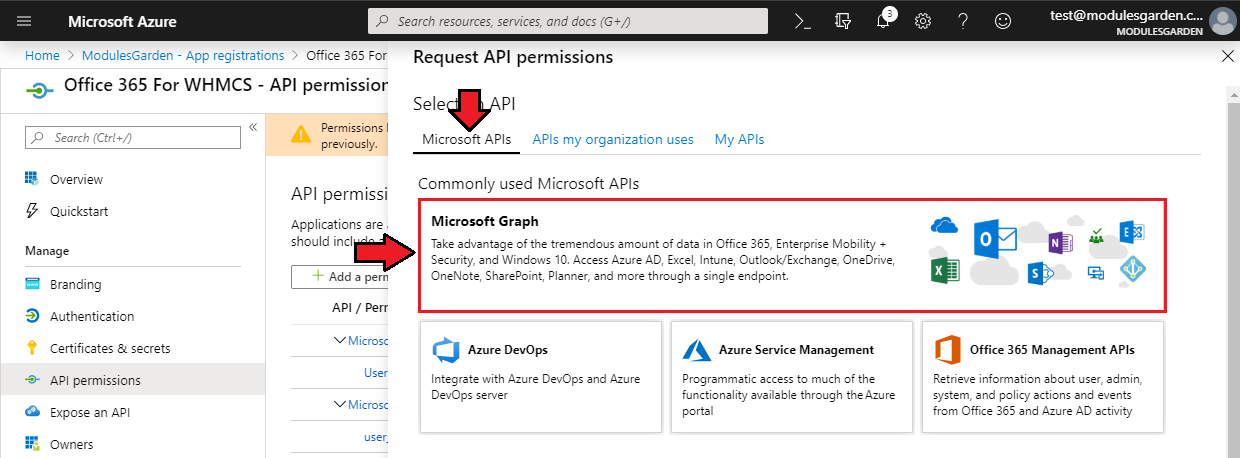
After adding permissions, click again on 'Add a permission' and then, from the 'Microsoft APIs' tab, choose 'Microsoft Graph'
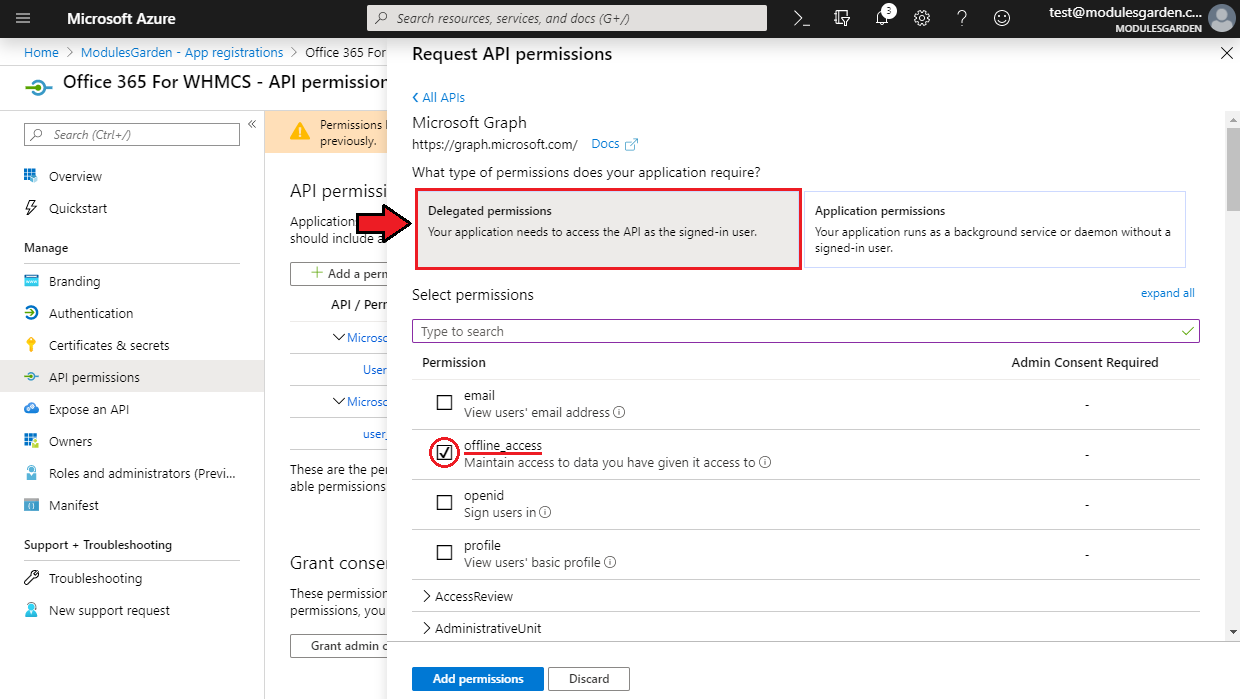
Select the 'Delegated pemissions' type as well as find and tick 'offline_access' on the list.
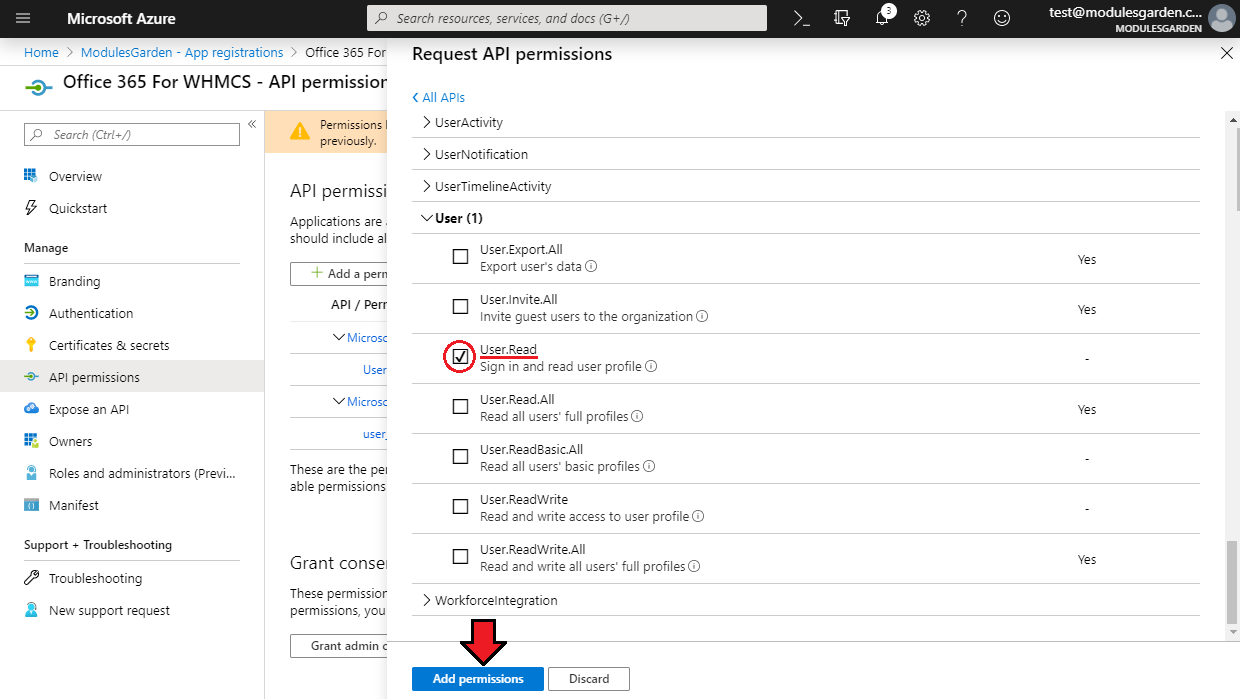
Moreover, on the same list, find and mark 'User.Read' and finally click on 'Add permissions'.
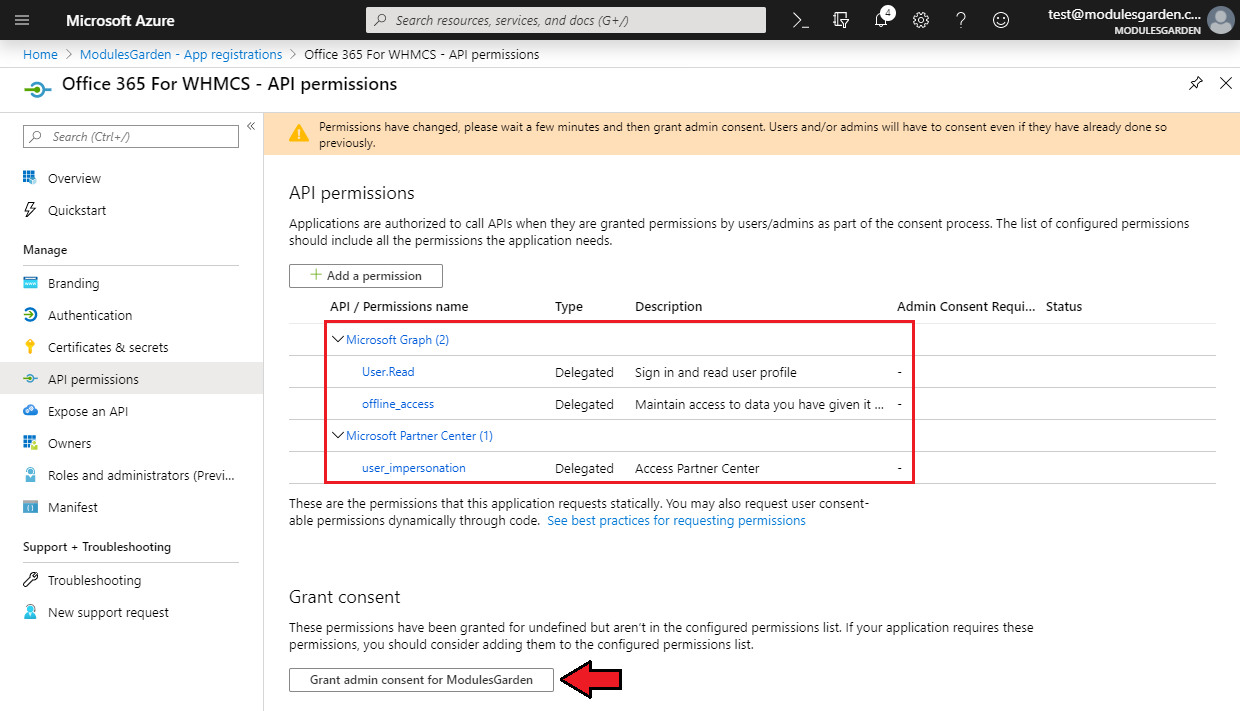
Lastly, the scheme of allocated permissions should look as presented below.
If it is correct, click on 'Grant admin consent for <your company name>' and confirm this action.

# Creating Key Vault
The final step in getting the data needed to connect to API is to generate Key Vault.
Azure Key Vault is a cloud service used to manage keys, secrets, and certificates.
It is required, so that the application and Office 365 For WHMCS that uses it, can operate properly.
To create Key Vault, you will need the application again, but this time with other permissions.
Note: Key Vault can be generated in another Microsoft account, including live environment, if it turns out that you do not have access to it for some reasons, for example from your test environment.
At the beginning, follow the same steps as when setting up the application in Microsoft Azure. That is:
- Go to 'App registrations' and create a new application using the 'New registration' button
- Provide it with a name, for example 'Application For Key Vault' and as previously, enter 'Redirect URI' which leads to the 'auth.php' file in your WHMCS
- After generating the application, copy its 'Application (client) ID' as well as 'Directory (tenant) ID'
- Then, in the 'Certificates & secrets' section, create 'New client secret' and do not forget to copy it after creating
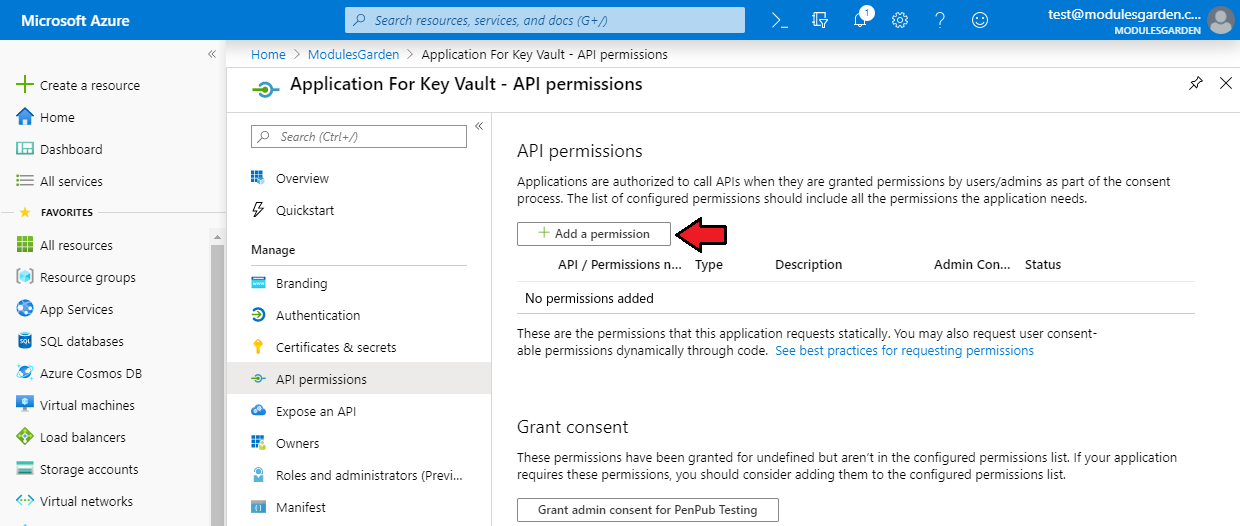
- Move to the 'Api permissions' section
Here, the differences appear, because Application For Key Vault demands different permissions. This is:
- user_impersonation for Azure Key Vault
As before, let's add permissions.
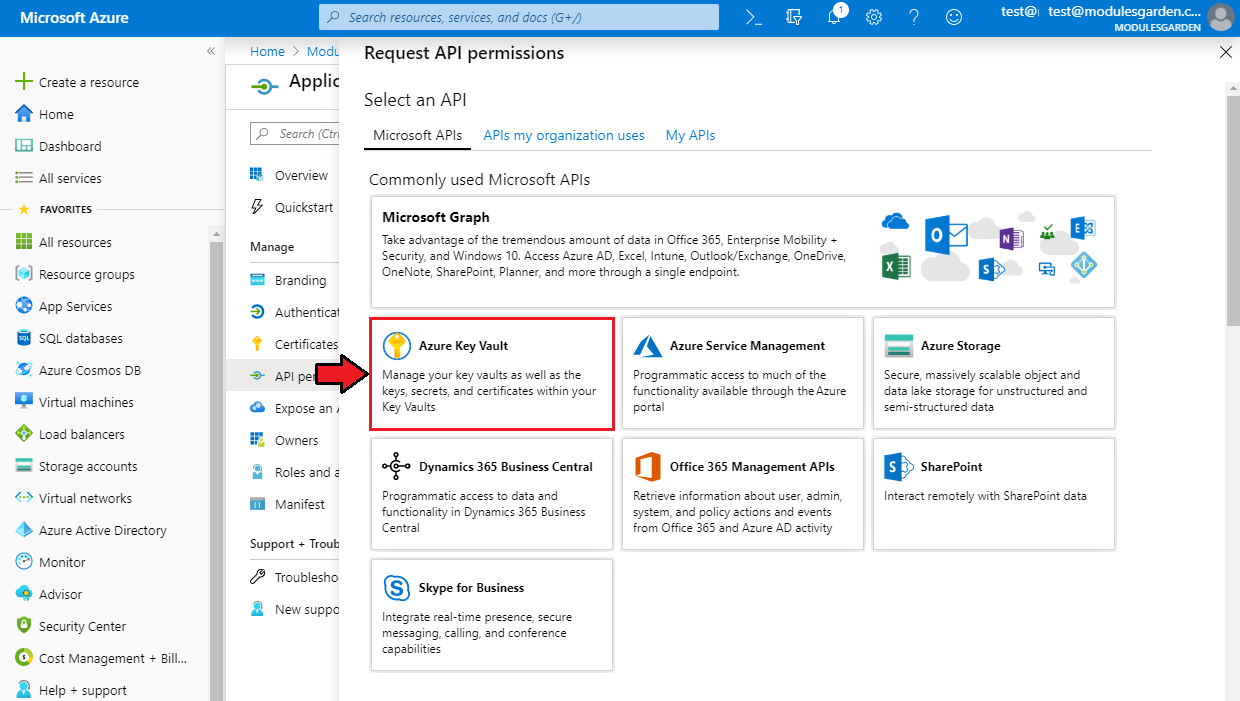
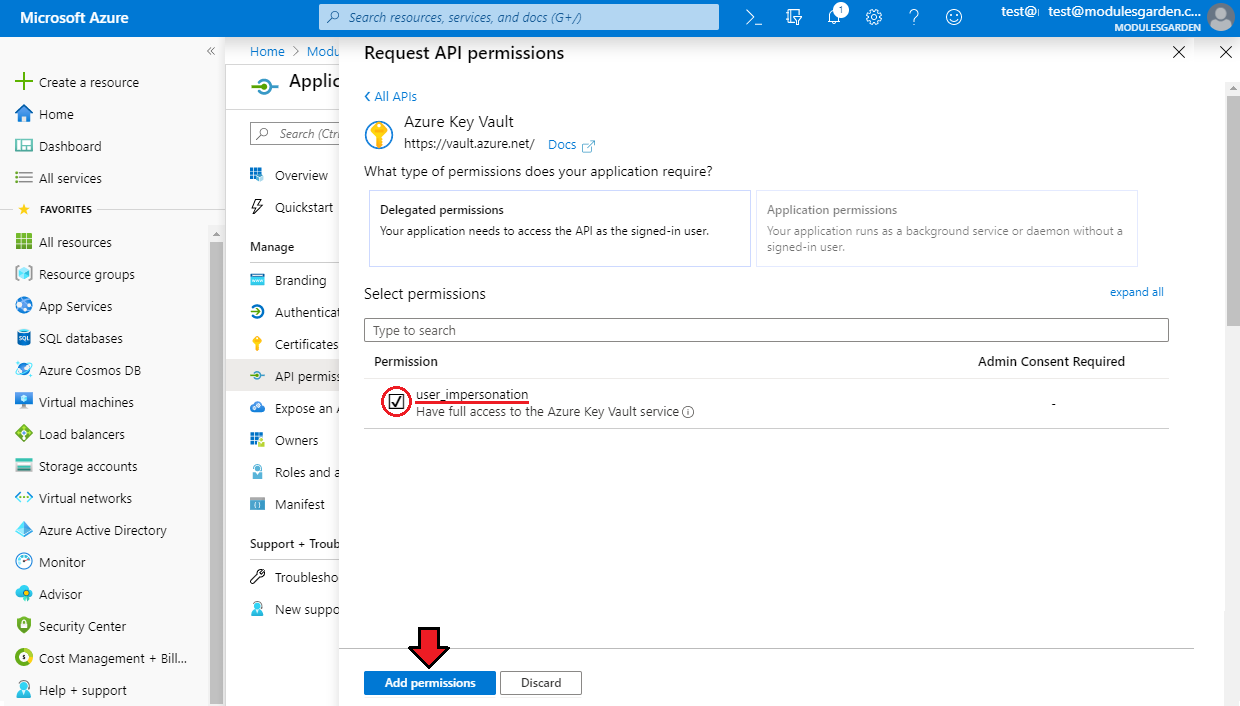
Select 'Azure Key Vault' from 'Microsoft APIs'.
Next, tick 'user_impersonation'.
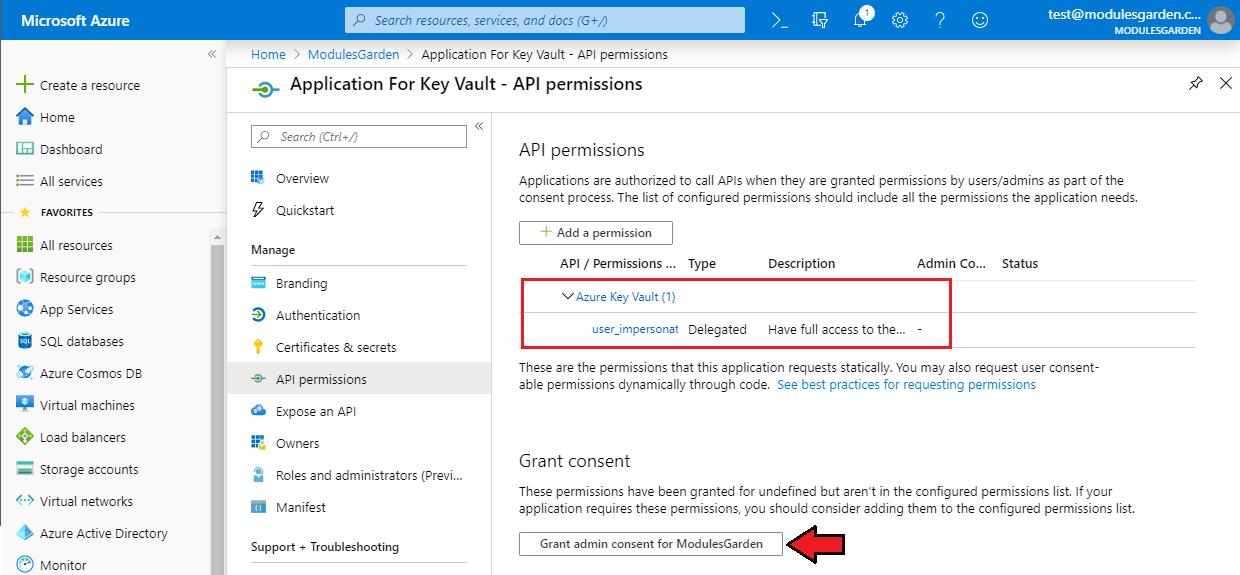
After adding permissions, you should see the same result as below.
Finally, do not forget to click on 'Grant admin consent for <your company name>'.
Note: In theory, it is possible to generate Key Vault with only one application, that combines all the previously granted permissions for two applications in one.
However, while testing and in test environments, we encountered problems, that is why we recommend using two separate applications.
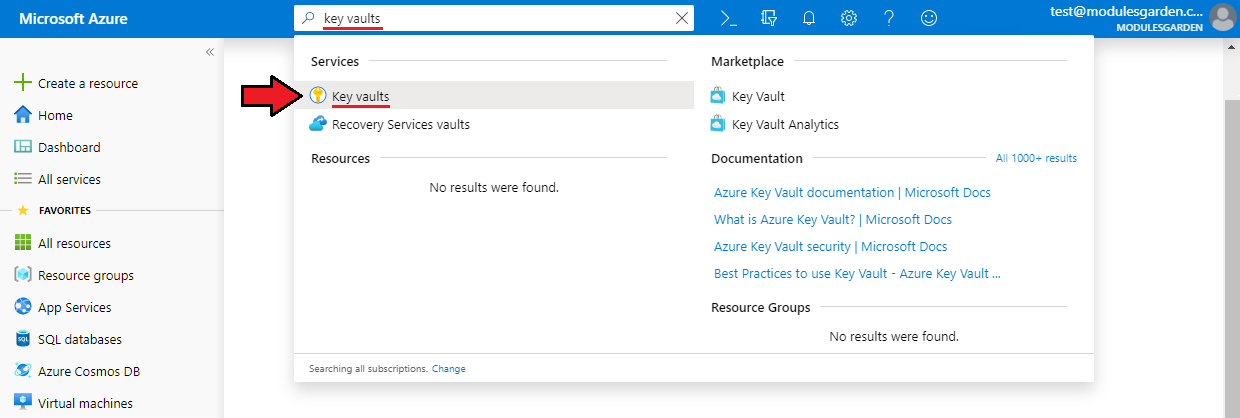
Now, move to the 'Key Vaults' section. The fastest way is to use the search engine.
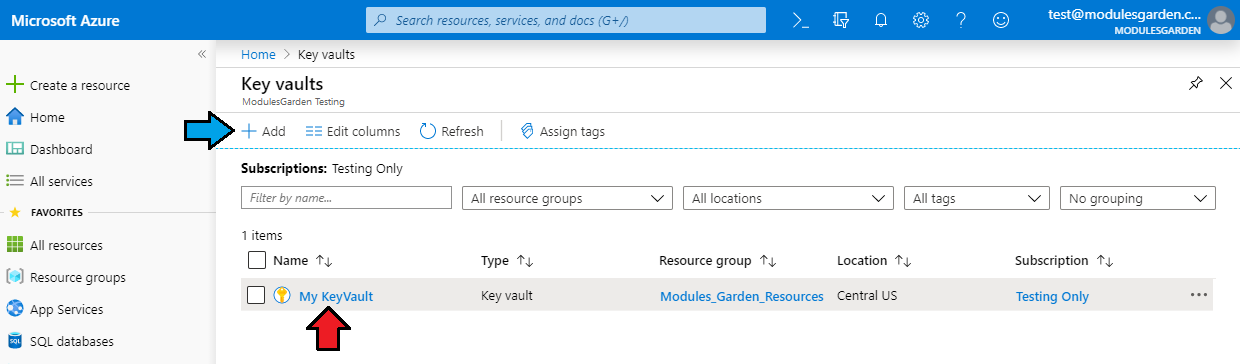
If you do not have Key Vault yet, you can create it here by following the on-screen instructions.
Add a name, subscription, region, pricing tier and other targets.
More info about creating and using Azure Key Vault, can be found here (opens new window).
If you already have Key Vault generated, select it from the list.
Before you gather all required data, you need to give appropriate permissions in your Key Vault to the previously created application.
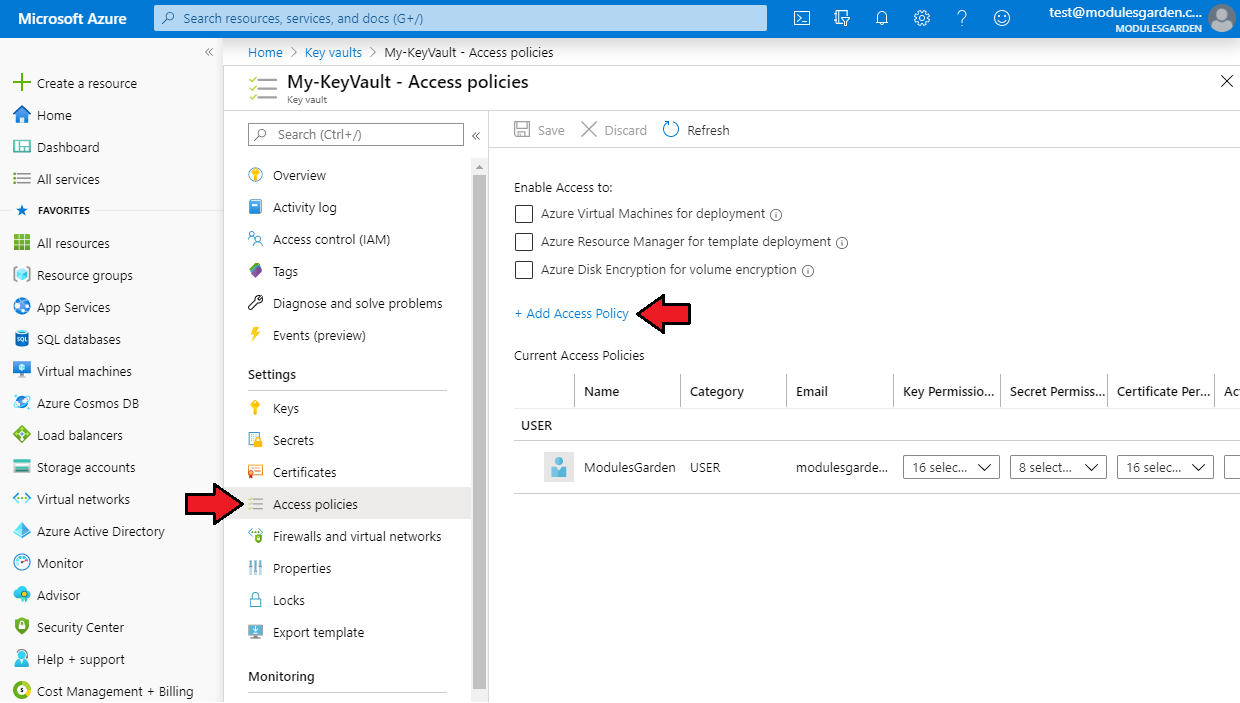
To do so, proceed to the 'Access policies' section in your Key Vault and click 'Add Access Policy'.
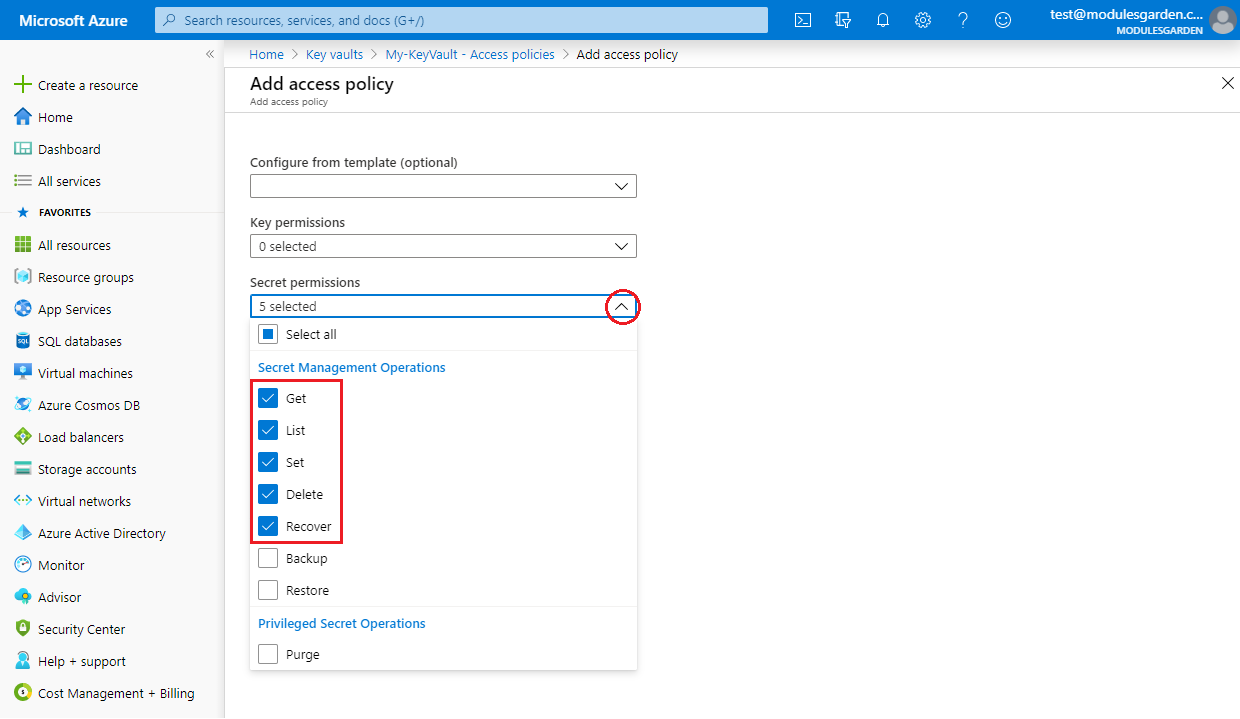
Next, from the 'Secret permissions' dropdown, select the following permissions in the 'Secret Management Operations' part:
- Get
- List
- Set
- Delete
- Recover
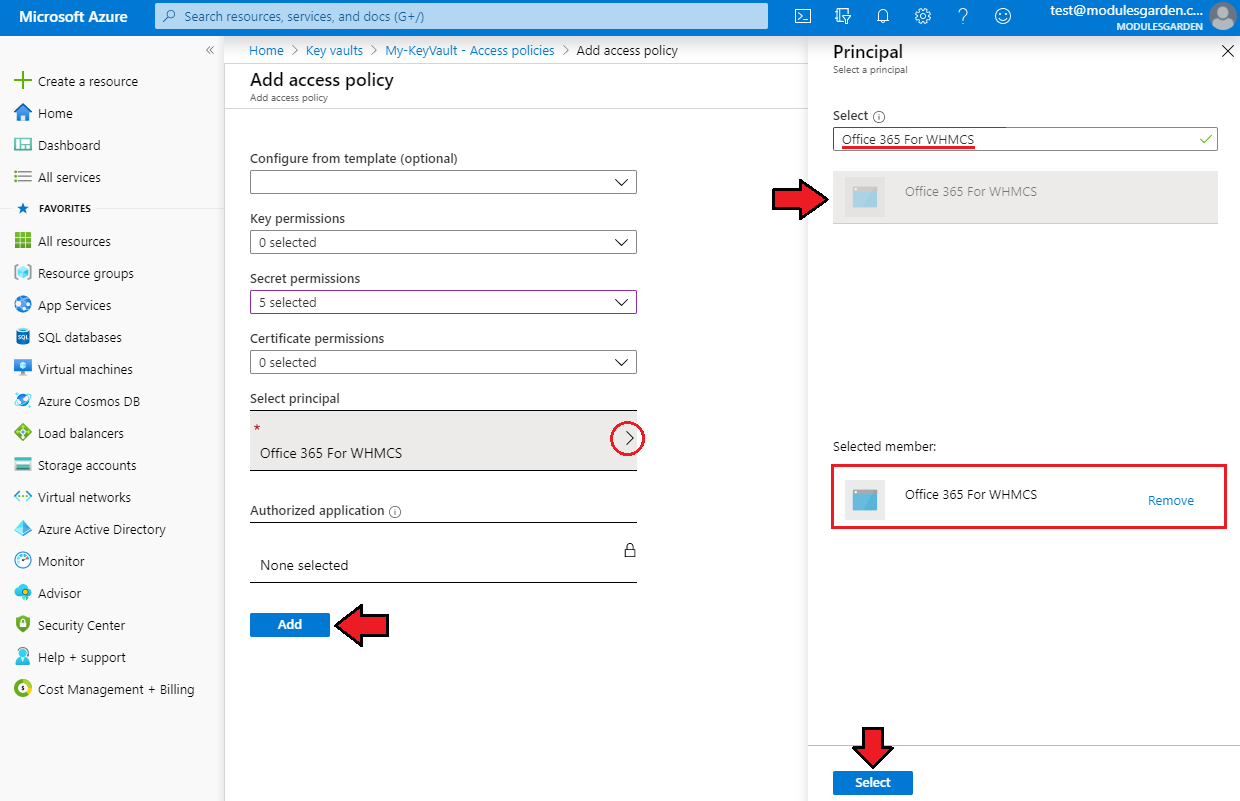
As a next step, in the 'Select a principal' tab, find your previosuly created application then mark it and press 'Select' in order to give your application formerly defined permissions.
Finally, to confirm adding the access policy, click 'Add'.
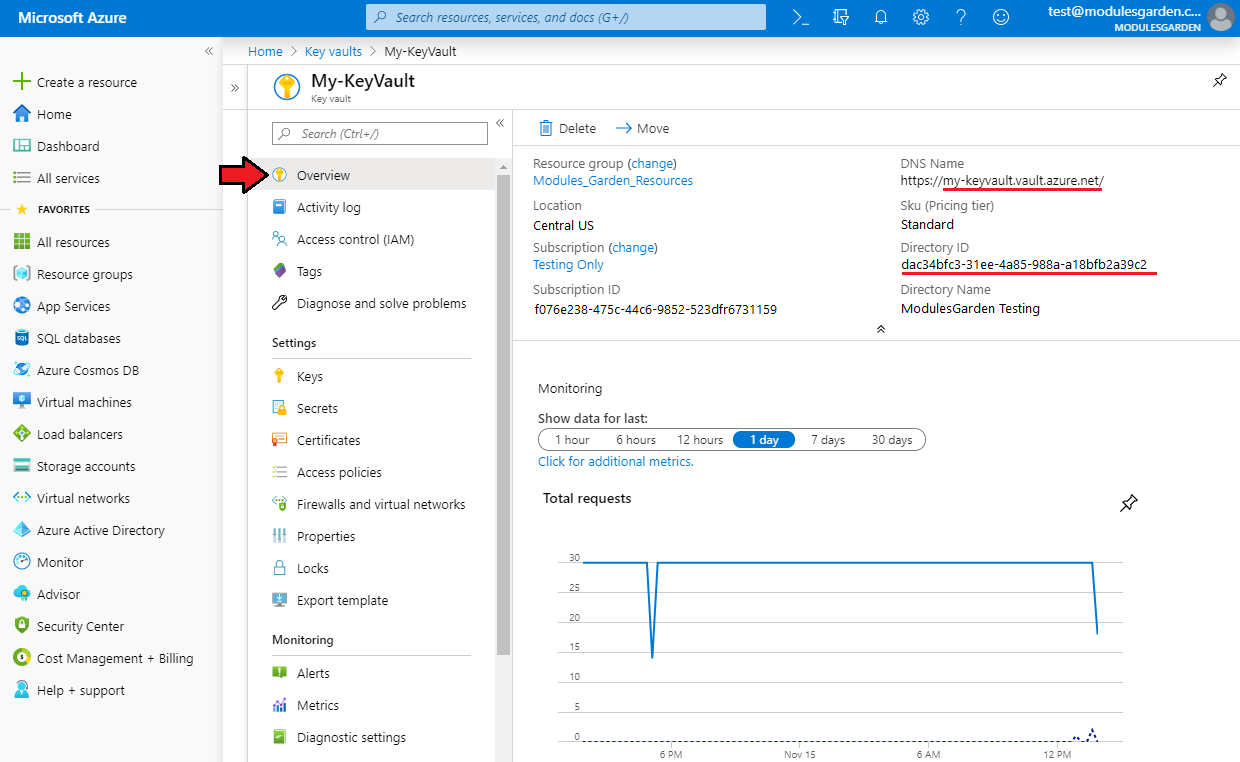
Finally, go to the 'Overview' section and write down the generated:
- DNS Name - but without the 'https://' part
- Directory ID
which are needed to configure the server in WHMCS properly.
# Registration of Application in Microsoft Partner Center
Lastly, once two applications in Microsoft Azure and Key Vault are ready, you need to register the first created application in Microsoft Partner Center.
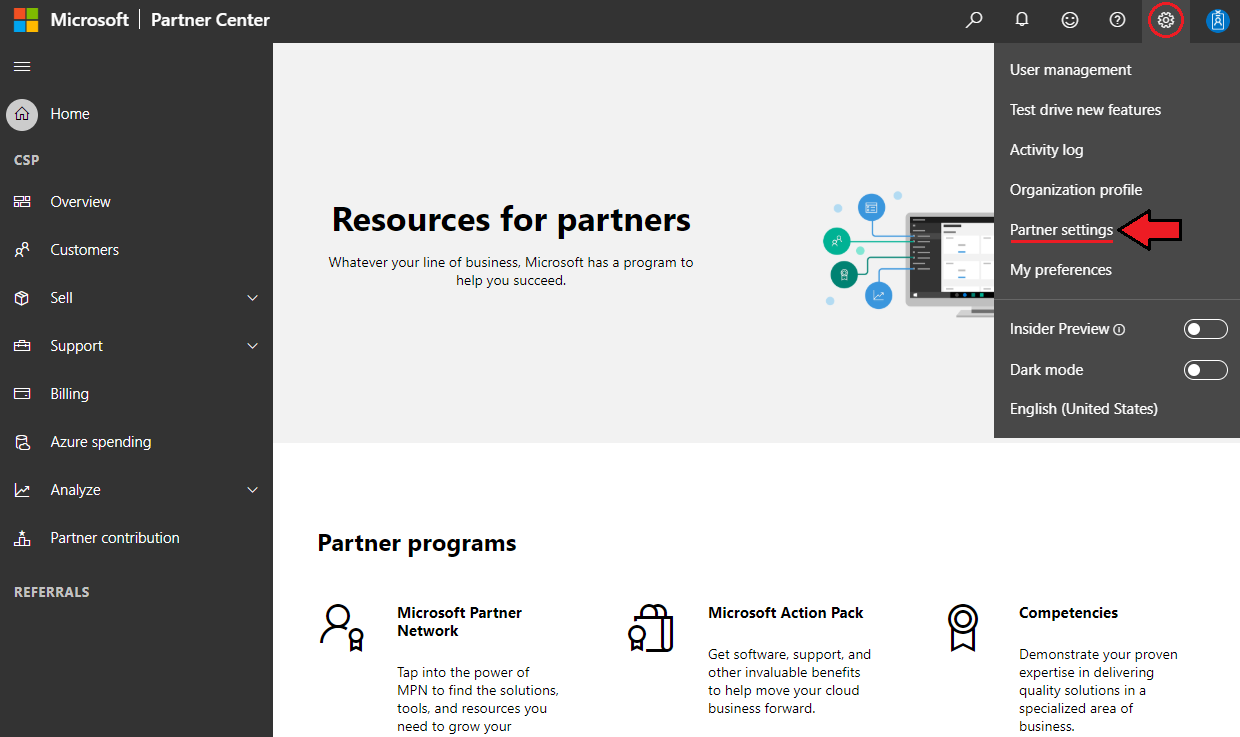
Log in to the dashboard of Partner Center (opens new window), and then go to 'Partner Settings' from the dropdown menu in the top right corner.
Note: To log in, use the account where the first application was created.
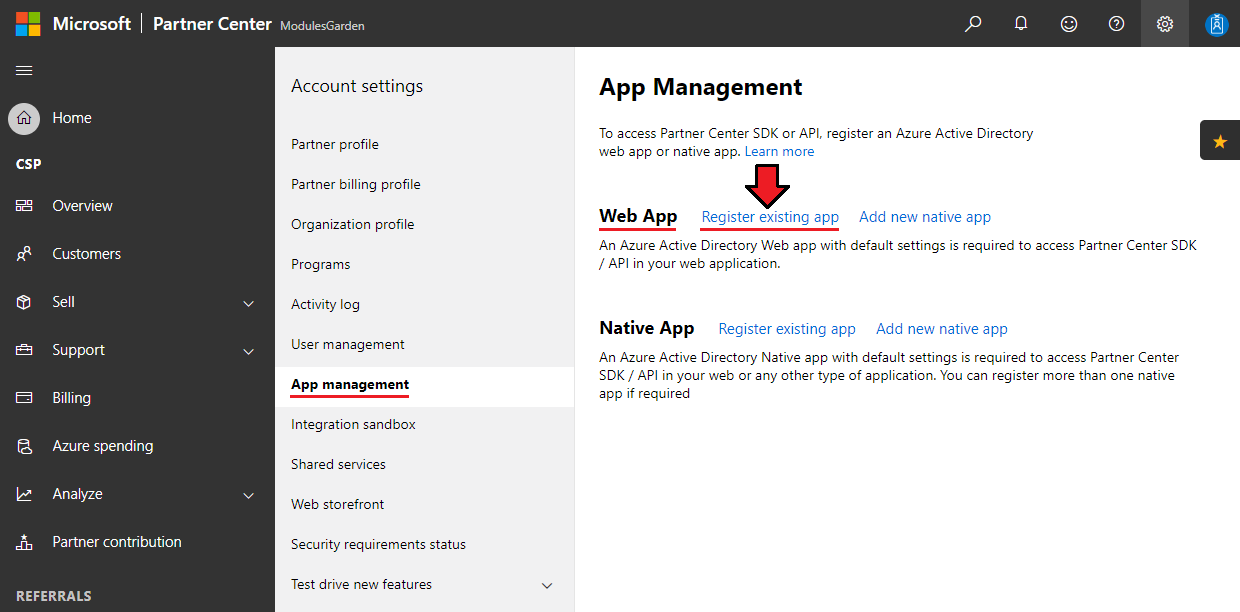
From the 'Account Settings' submenu, choose 'App Management', and for the 'Web App' type, click on 'Register Existing App'.
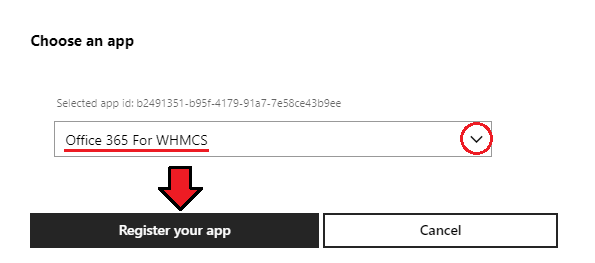
On the list, find the first created application in Microsoft Azure in the previous steps of this manual and click 'Register your app'.
From now on, your application should be properly registered in Microsoft Partner Center, and you already have all the data required to connect the module to API.
# Configuration of Server
To begin, you must add a new server.
Go to 'System Settings' → 'Servers' and press 'Add New Server'.
Note: If you have WHMCS V8.x.x, we recommend using your 'previous experience' of the server configuration instead of the new wizard tool.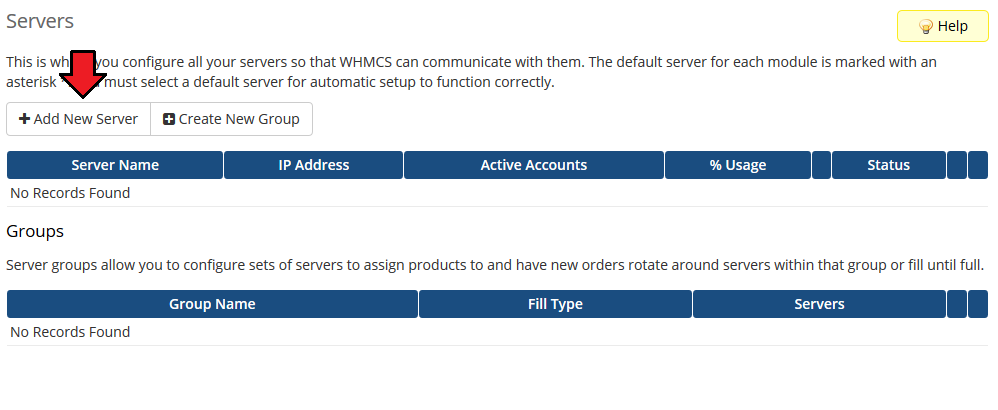
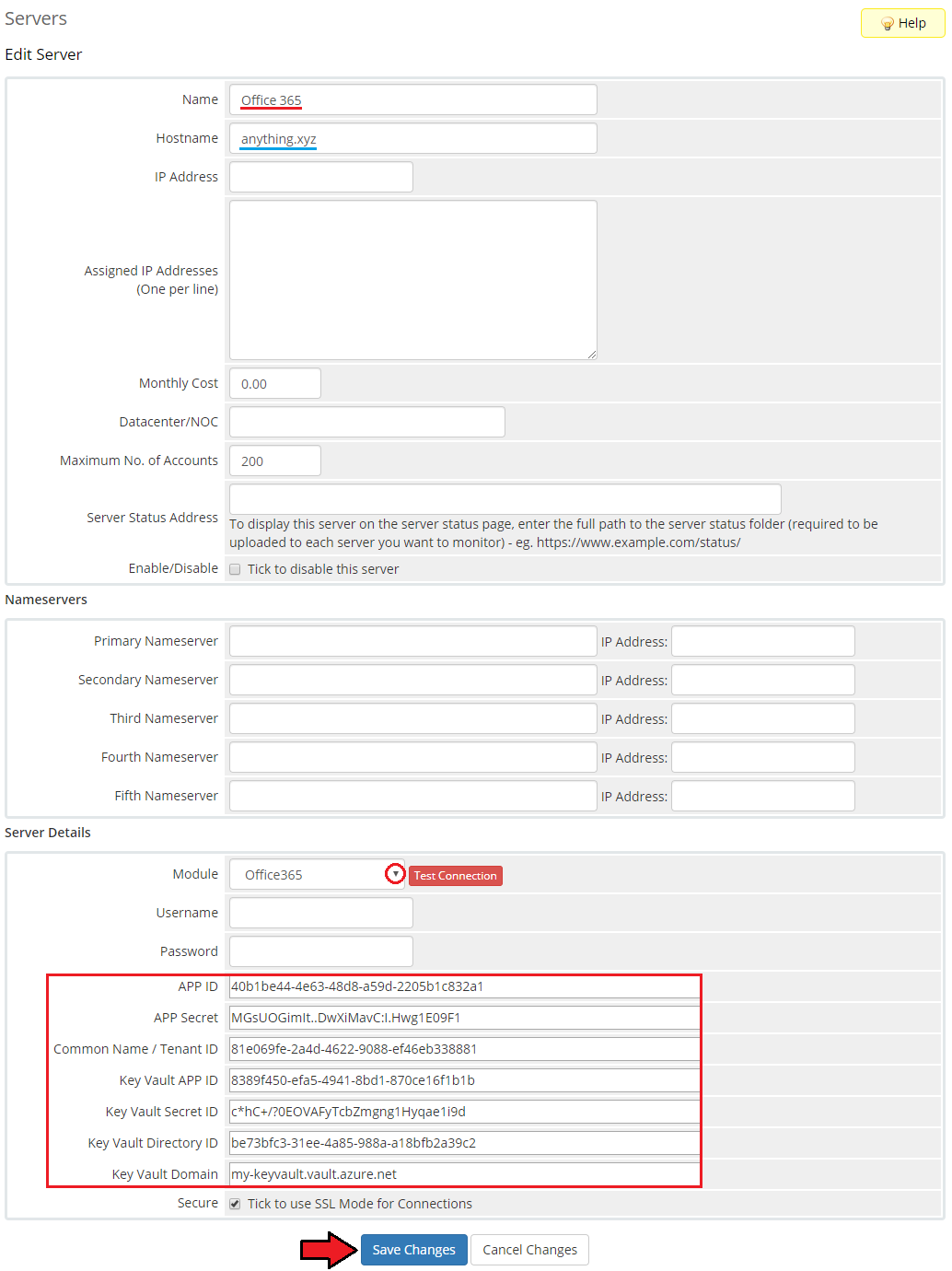
When the server configuration page opens, enter a server name at first.
Note: The 'Hostname' field is not used by the module, but if you use WHMCS V7.8.X, then a fatal error may occur when trying to save server settings without providing any hostname or IP address details.
In this case, try to provide anything in the hostname field. Please note that this is a bug occurring in WHMCS, not the module itself, and it may also occur in further versions of WHMCS.
Next, choose 'Office365' from the dropdown menu.
The 'Username' and 'Password' fields should be felt empty- they are not used by the module.
Now, fill in the previously obtained API data. They are as follows:- APP ID - is the Application (client) ID of the first application that you created here
- APP Secret - stands for the Client secret from the first application which was generated here
- Common Name / Tenant ID - is the Directory (tenant) ID of the first created application here
- Key Vault APP ID - stands for the Application (client) ID of the second application that you formed here
- Key Vault Secret ID - is the Client secret from the second application that was established here
- Key Vault Directory ID - is the Directory ID from Key Vault that you might have received here
- Key Vault Domain - is the DNS Name from Key Vault (but without the https:// part) that you may have got here
After completing the data, remember to 'Save Changes'.
You will be redirected to your Microsoft account for a moment.
Use the same data as for the Azure account, on which you generated the first application.
Finally, you will be asked to grant access to your account - agree.
If everything proceeded correctly, you will be redirected to your WHMCS again.
Now, you can run the test connection of your server to make sure that all data is proper.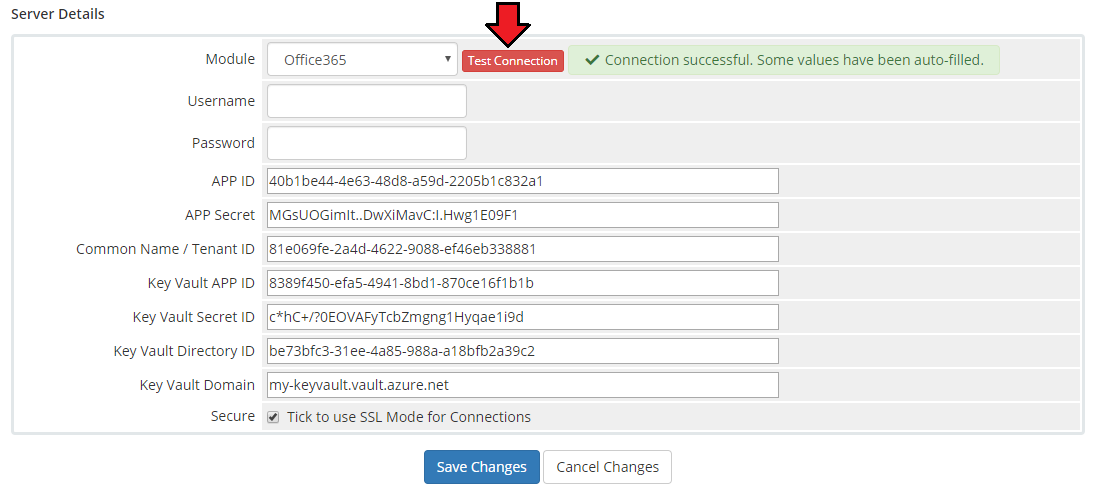
Once your server has been configured correctly, you will see the following screen.
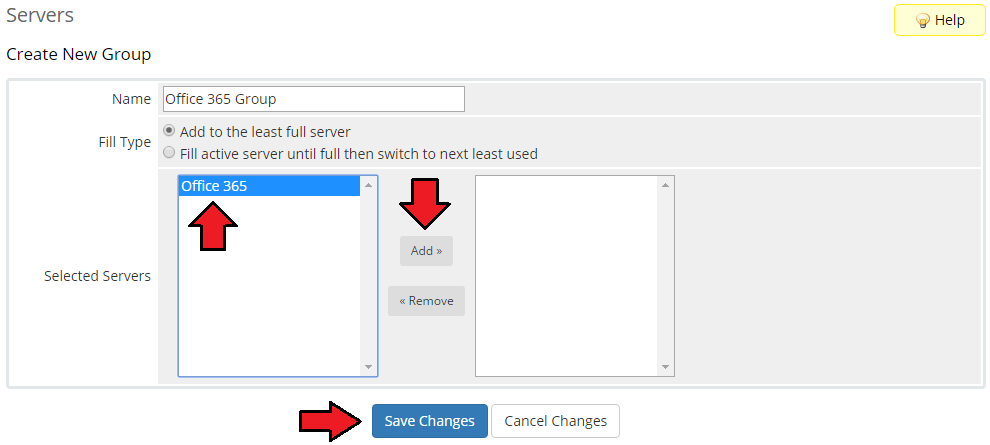
Create a new group for your server. Press 'Create New Group' to follow.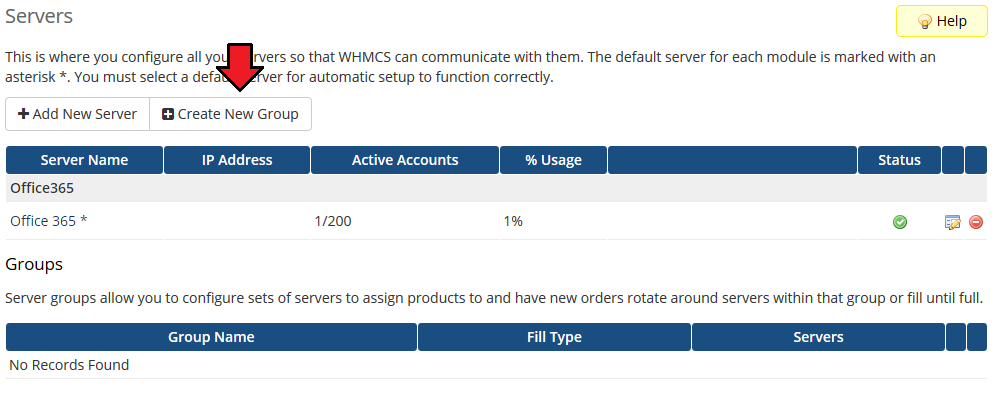
Enter a name, click on your previously created server, press 'Add', then 'Save Changes'.
# Configuration of Product
In order to create a product, go to 'Setup' → 'Products/Services' → 'Products/Services'.
If you do not have a product group, click on 'Create a New Group'. If you do, simply move to the 12th step.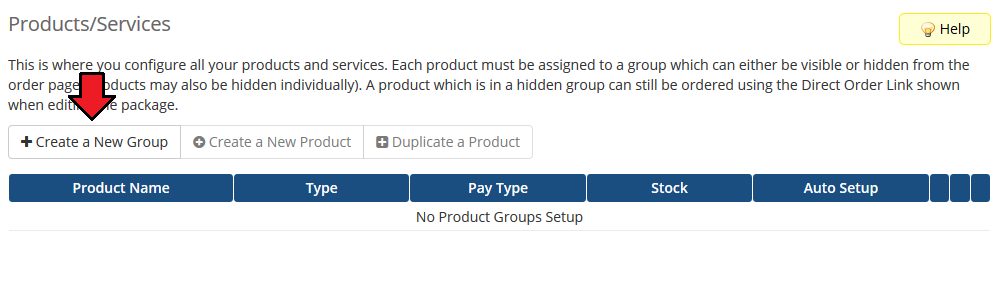
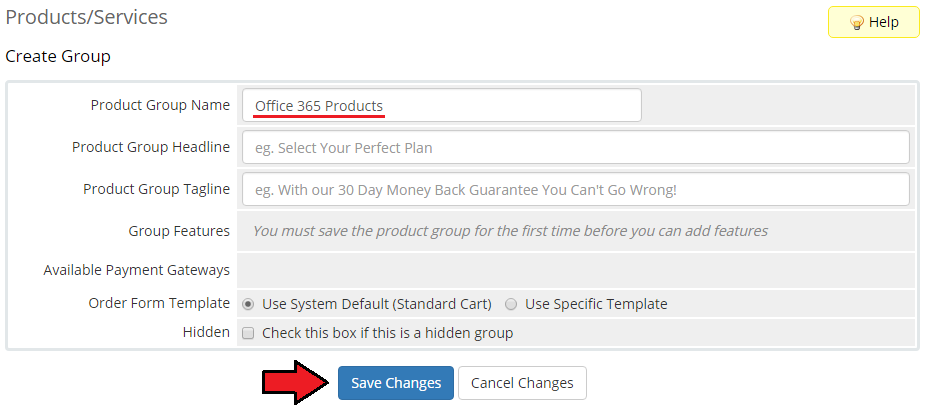
Fill in a product group name and press 'Save Changes'.
- When you have a product group added, you can create your product and assign it to the Office 365 module.
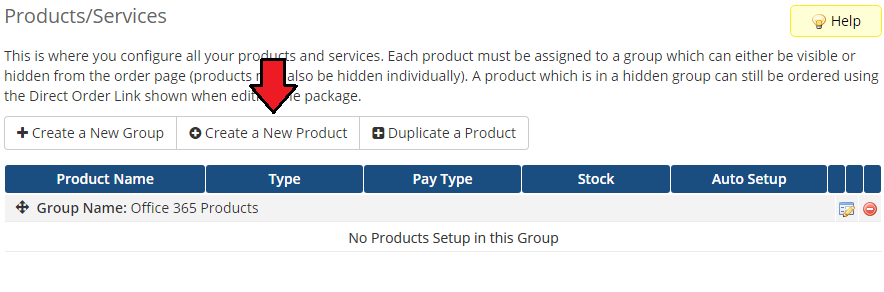
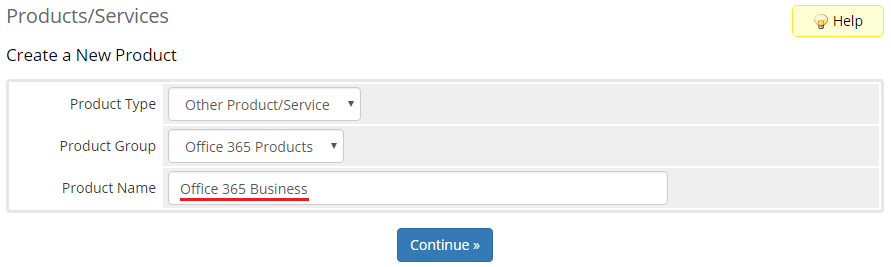
- Afterwards, choose your product type and product group from dropdown menus, enter your product name and press 'Continue'.
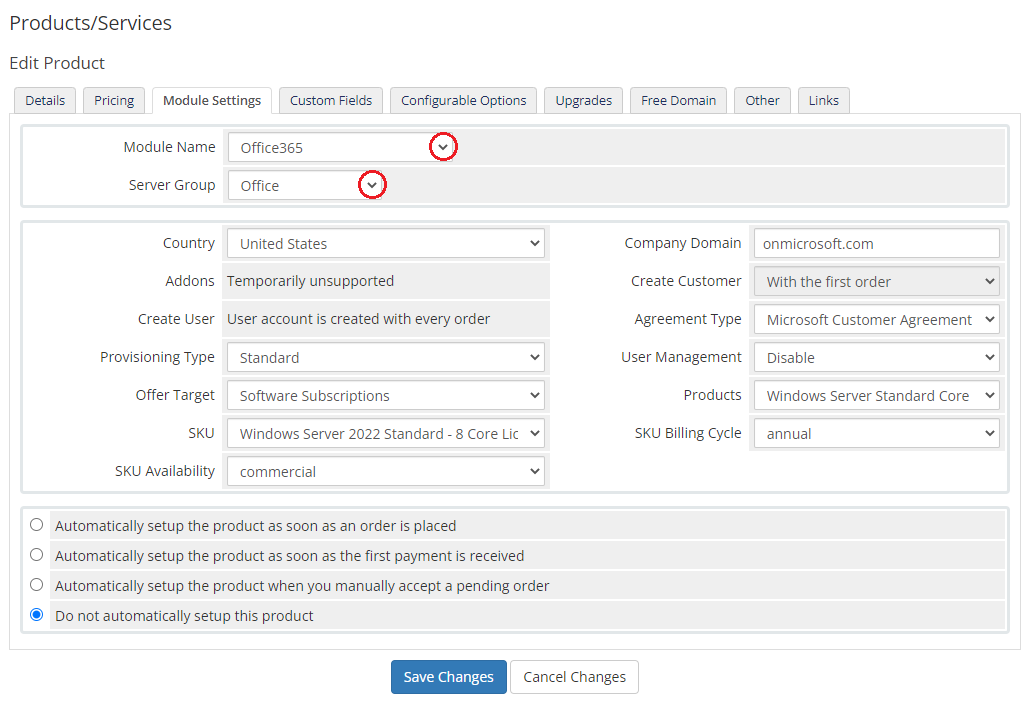
- Now, go to the 'Module Settings' section, choose both 'Office365' and the previously created server group from the dropdown menu, and press 'Save Changes'.
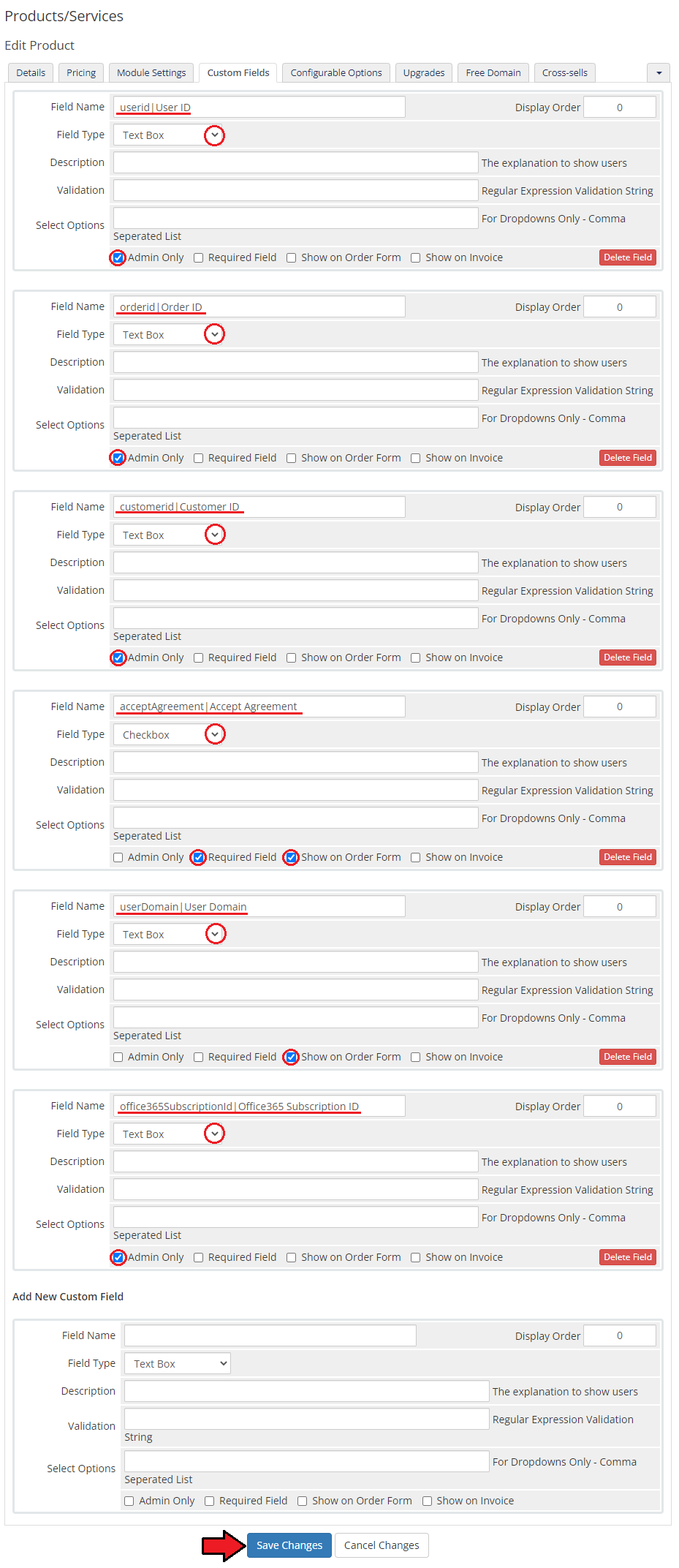
- Then, go to the 'Custom Fields' tab and make sure that it displays the four created 'text box' custom fields.
These are: userid|User ID, orderid|Order ID, customerid|Customer ID, acceptAgreement|Accept Agreement and office365SubscriptionId|Office365 Subscription ID.
If they were not automatically created, then add them manually as shown on the following screen.
Please note that userDomain|User Domain custom field can be also applied to create an account instead of using the default WHMCS 'Domain' field.
# Configuration and Management
Configuration and management of Office 365 For WHMCS is very intuitive.
Before you start, please note that there are two provisioning types you can offer to your clients.
- Standard - this will automatically create for your WHMCS client the new Office 365 customer with user and subscription based on the chosen module settings.
You can also enable/disable the 'User Management' option in the client area. - Extended - this type has two available options:
- 'With first order' - the Office 365 customer is generated only once when the first order is placed.
Next time, when the same WHMCS client makes another order, then it will be assigned to the same Office 365 customer that was created along with the first order. - 'With every order' - creates the Office 365 customer every time the order is placed so there are as many Office 365 customers as orders.
- 'With first order' - the Office 365 customer is generated only once when the first order is placed.
Note that with 'Extended Provisioning Type', it will be also up to the WHMCS client to choose how many licenses to buy during an order.
# Standard Provisioning Type
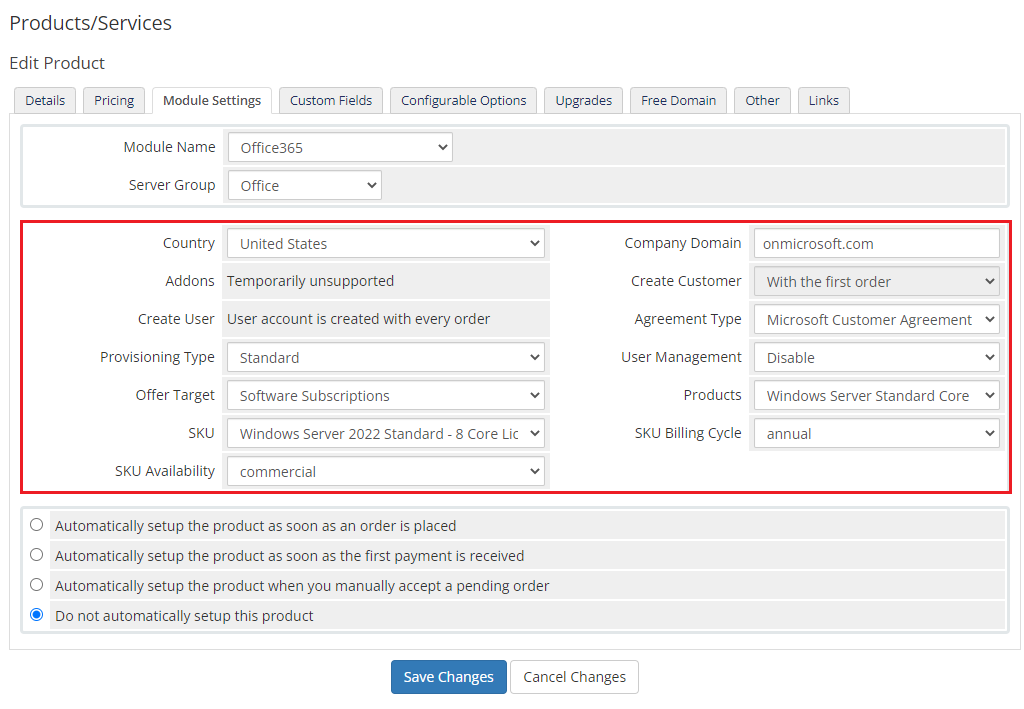
Let's start the module configuration by choosing the 'Standard' provisioning type.
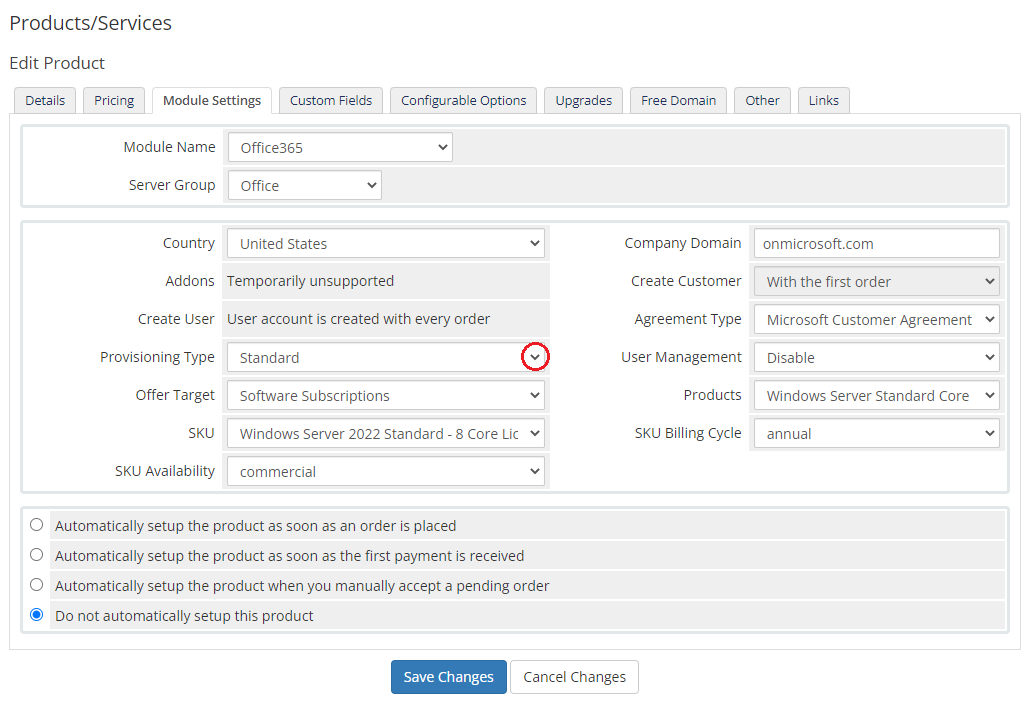
Now, choose 'Country' that you will offer your Office 365 services from.
With the Standard Provisioning Type the user is created automatically.
Moreover, you are allowed to select the 'Agreement Type' if there are more than one available and decide if your client will be able to manage the product.
There are also a few types of 'Billing Cycle' that can be modified according to your preferences.
You may also assign additional services to the main plan as addons - they will be described in further parts of this documentation.
Note: Available subscription offers and additional services depend on your Microsoft membership coverage and may be limited by the location.
# Client Area
Once the product configuration is complete, clients will be able to order the selected subscription and addons.
Moreover, clients have to accept the required agreement which was set in the product configuration.
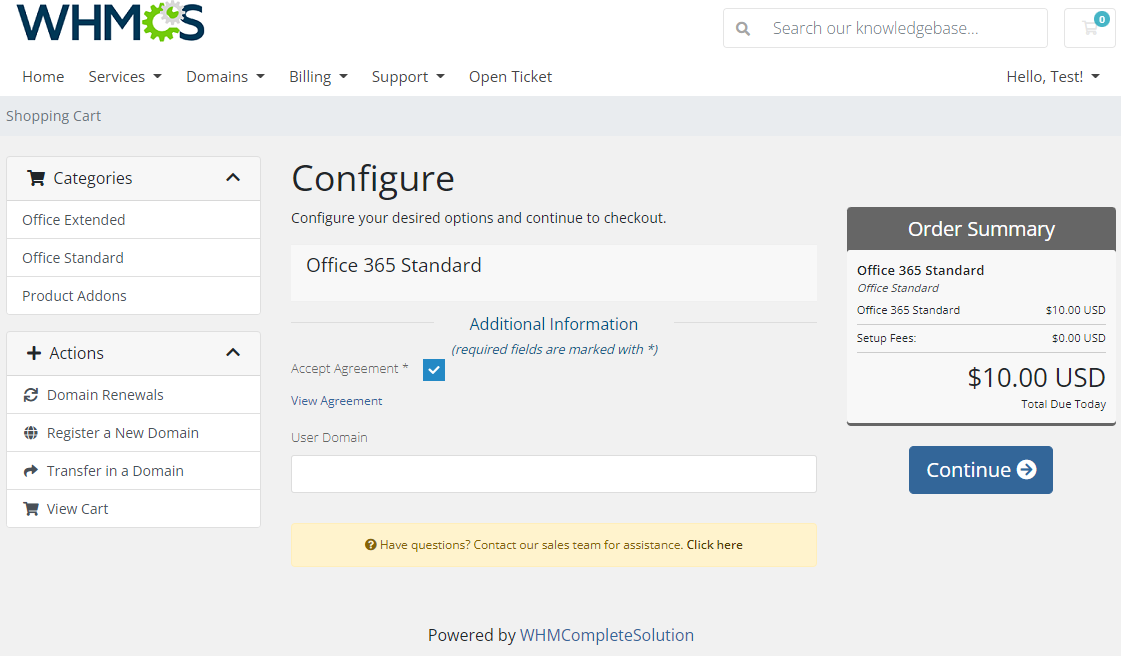
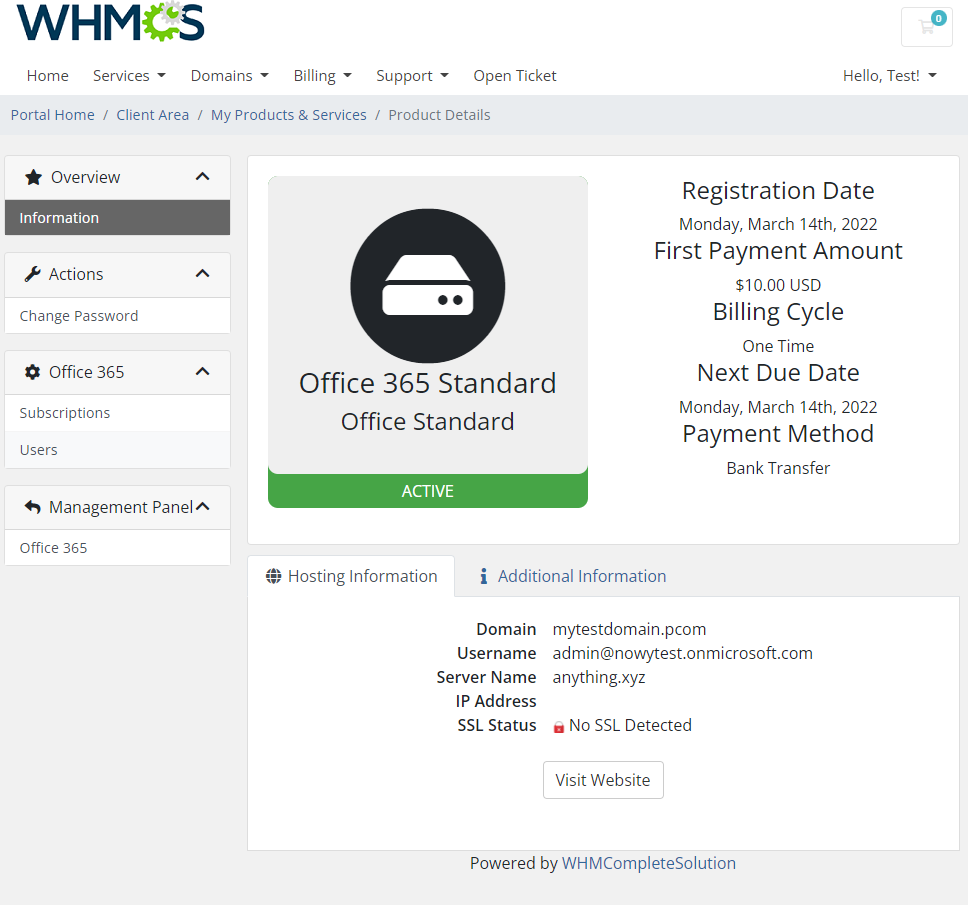
The customer can order additional services to their subscription, change their password to the Office 365 (opens new window) panel, upgrade a subscription plan or request.
If you enable the 'User Management' option in the product configuration section, then clients will be able to add/delete users, check more information about users as well as assign one license to one user.
Office 365 panel can be accessed by pressing the button under 'Management Panel'.
# Extended Provisioning Type
The extended provisioning type allows your client to order the chosen number of licenses using configurable options and then manually redistribute them in their client area among the created Office 365 users.
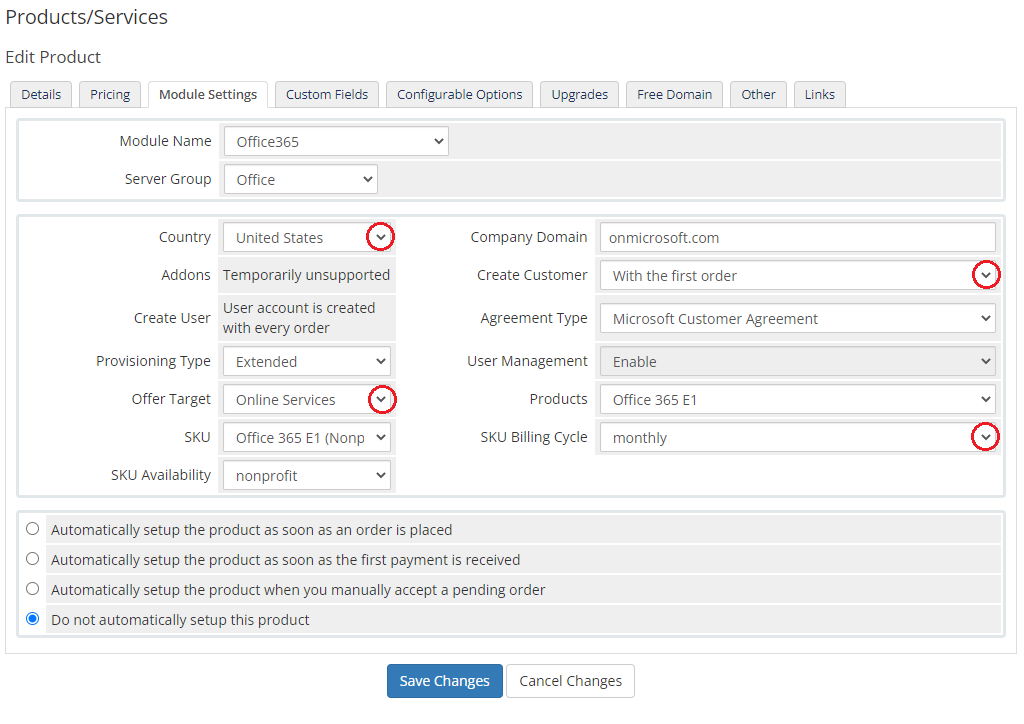
Enable this configuration type by choosing the 'Extended' provisioning type in the module settings of the product.
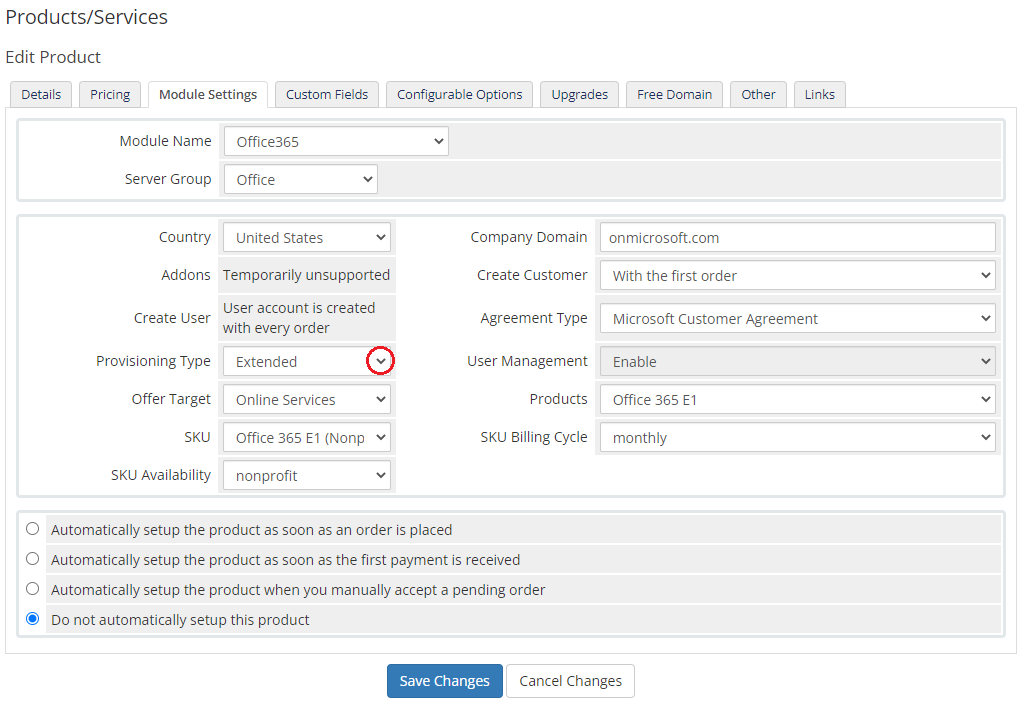
Now, choose 'Country' that you will offer your Office 365 services from.
Similarly as previously, select the 'Company Domain' and 'Agreement Type' if there are more than one available and choose one of the desired Office 365 plan.
There are also a few types of 'Billing Cycle' that can be modified according to your preferences.
In this type of provisioning, the 'User Management' option is enabled by default.
Next, decide which type of generating customers is acceptable for you. There are two possibilities:
- 'With the first order' - the Office 365 customer is generated only once when the first order is placed.
- 'With every order' - creates the Office 365 customer every time the order is placed so there are as many Office 365 customers as orders.
# Configurable Options
To allow your clients to purchase multiple licenses at a single order, you must create configurable options for a product.
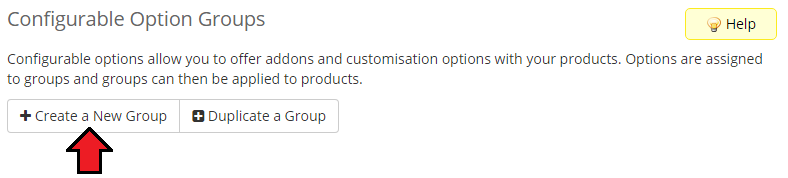
Start by going to 'Setup' → 'Products/Services' → 'Configurable Options' and press the 'Create a New Group' button.
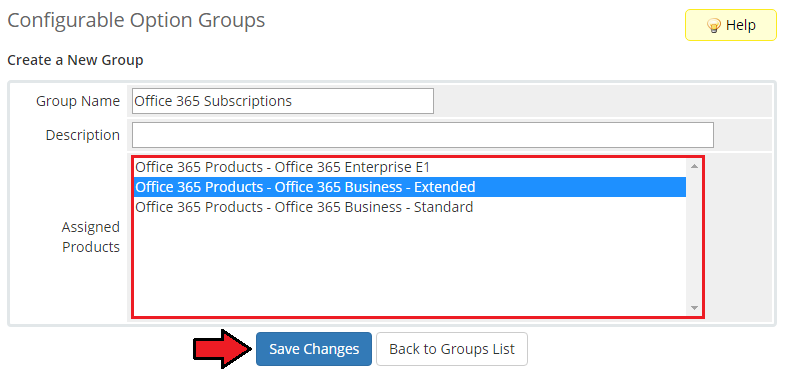
Enter a group name for the addon and select products that you want to offer this option for. Then press the 'Save Changes' option.
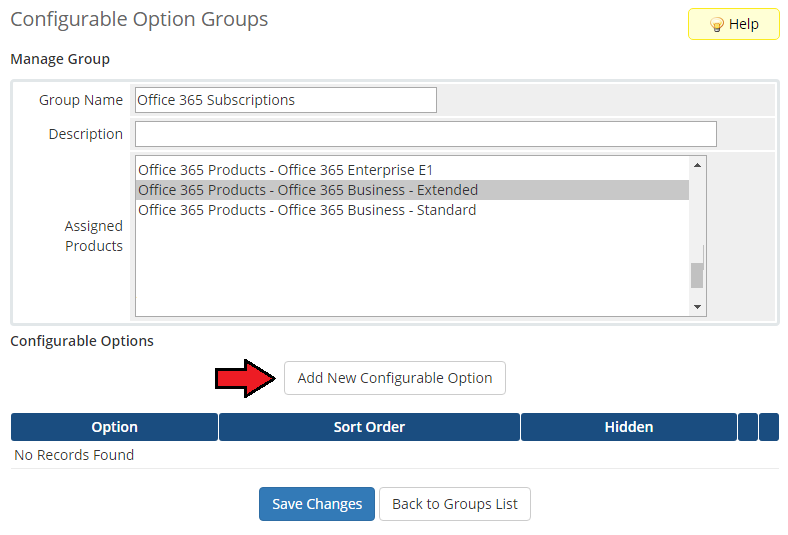
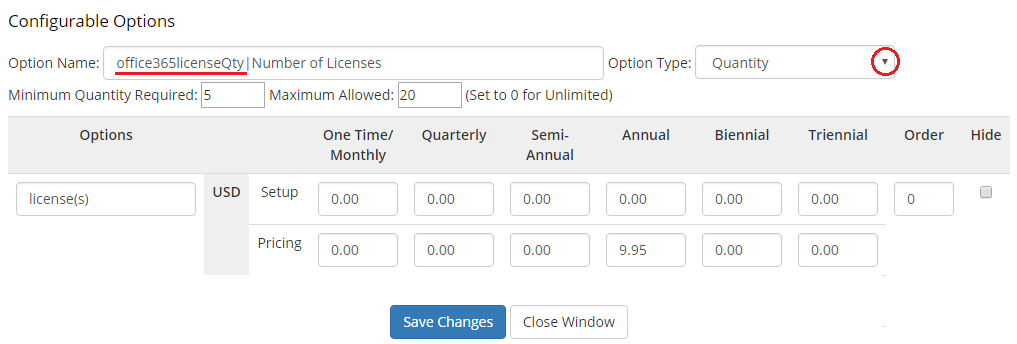
Now, press 'Add New Configurable Option' and a new popup window should open.
Name this configurable option as 'office365licenseQty' with the desired friendly name. Next, chose the 'Option Type' you want to use and add pricing for the desired quantity.
Note: More information about setting up configurable options can be found here (opens new window).
# Client Area
Once the product configuration is complete, clients will be able to order the selected number of licenses.
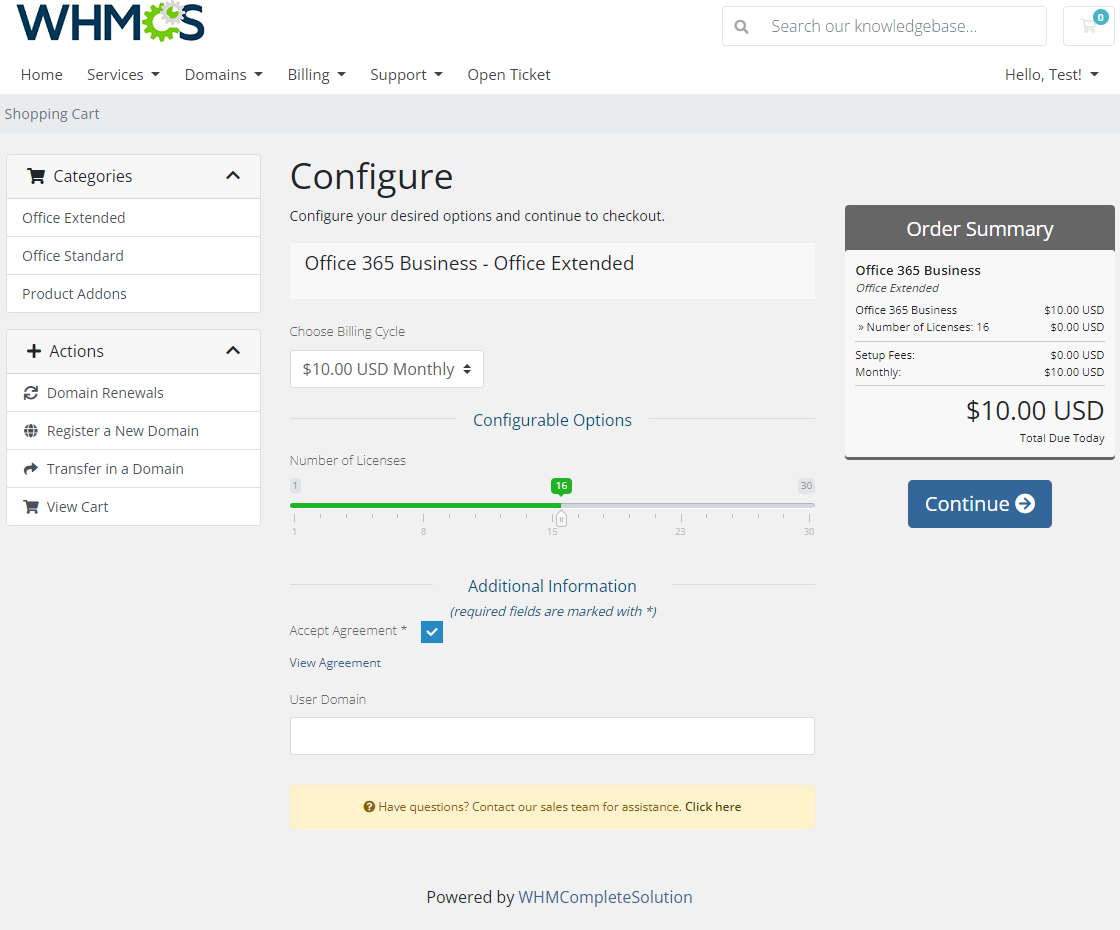
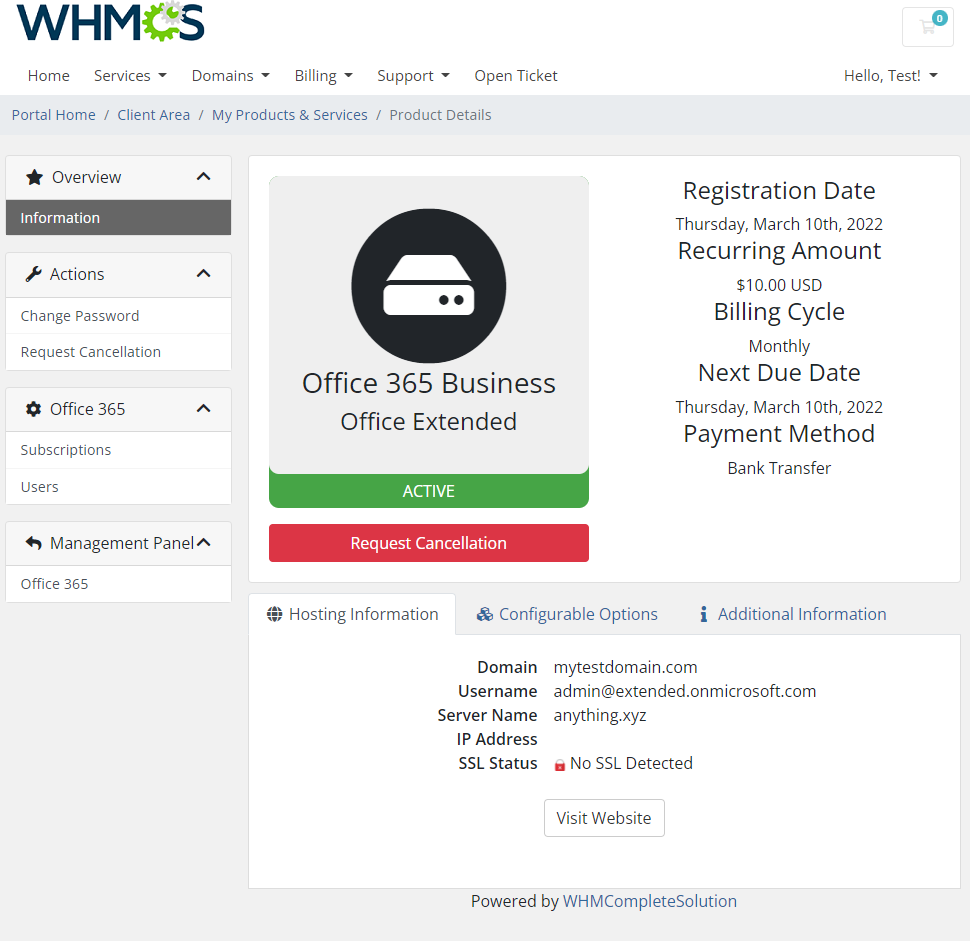
After order your clients will be able to manage Office 365 users, addons, and subscriptions by themselves.
The menu also displays information about the number of ordered and unassigned licenses.
# Users
Before you start assigning licenses, you have to create a new user. By default there is already one Office 365 user created based on the customer account.
Your can add more users and then assign to them the purchased licenses.
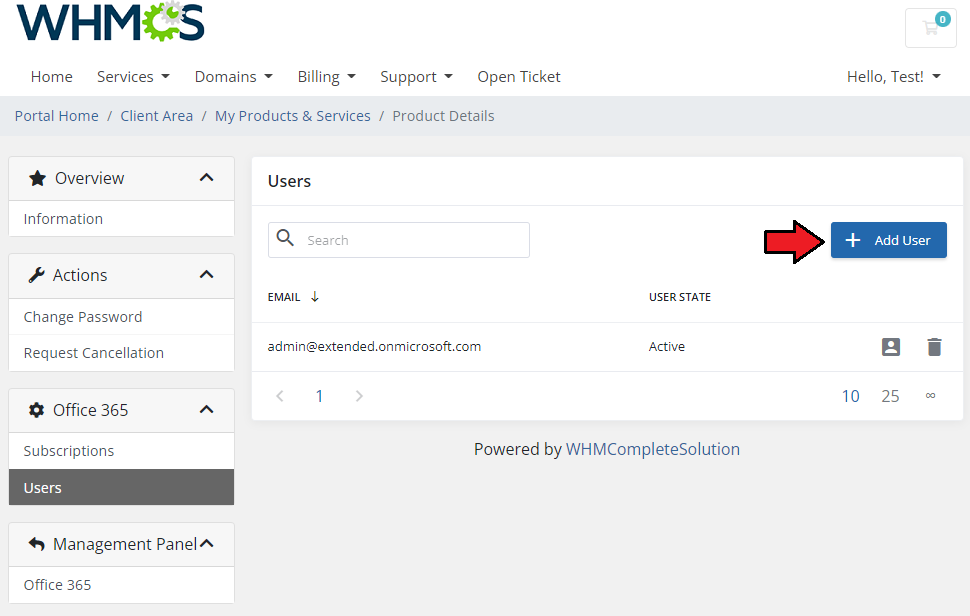
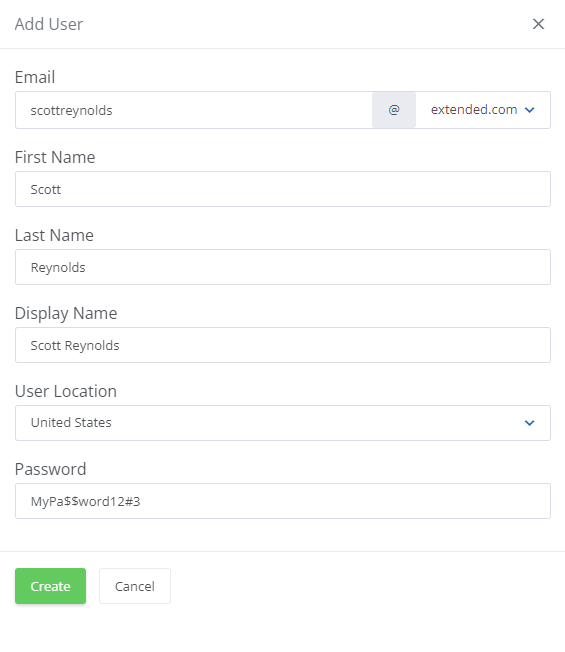
Fill in the required data to create a new user.
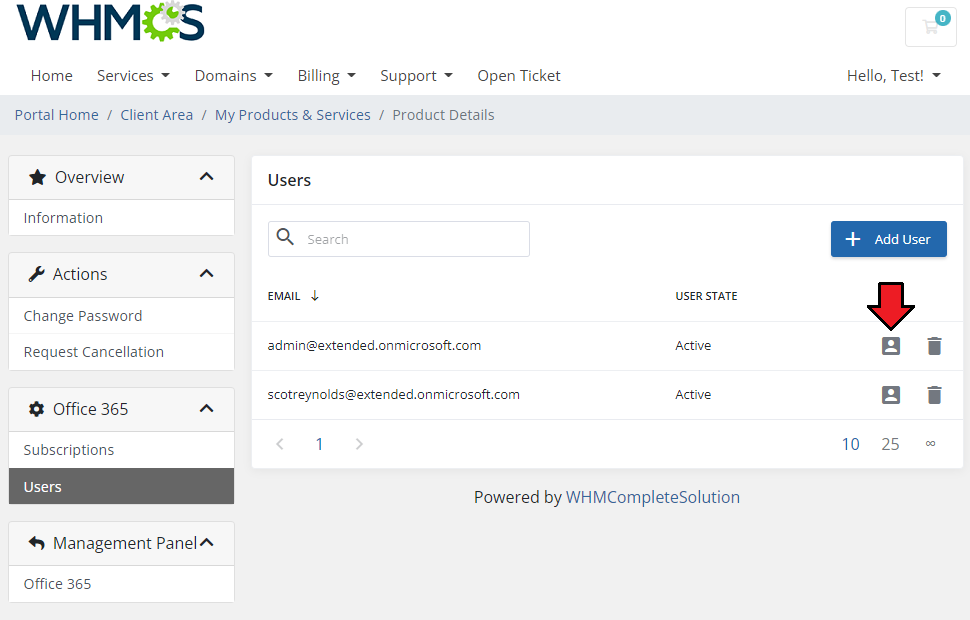
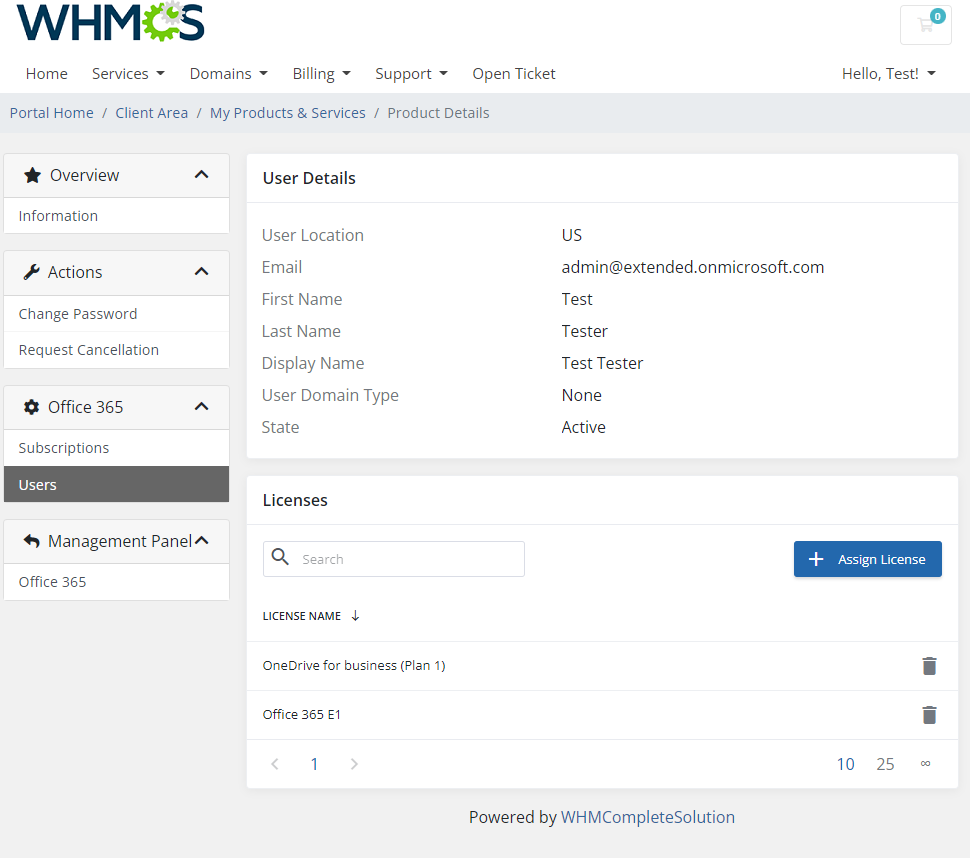
Then, after successfully creating a new user, you can view their account details.
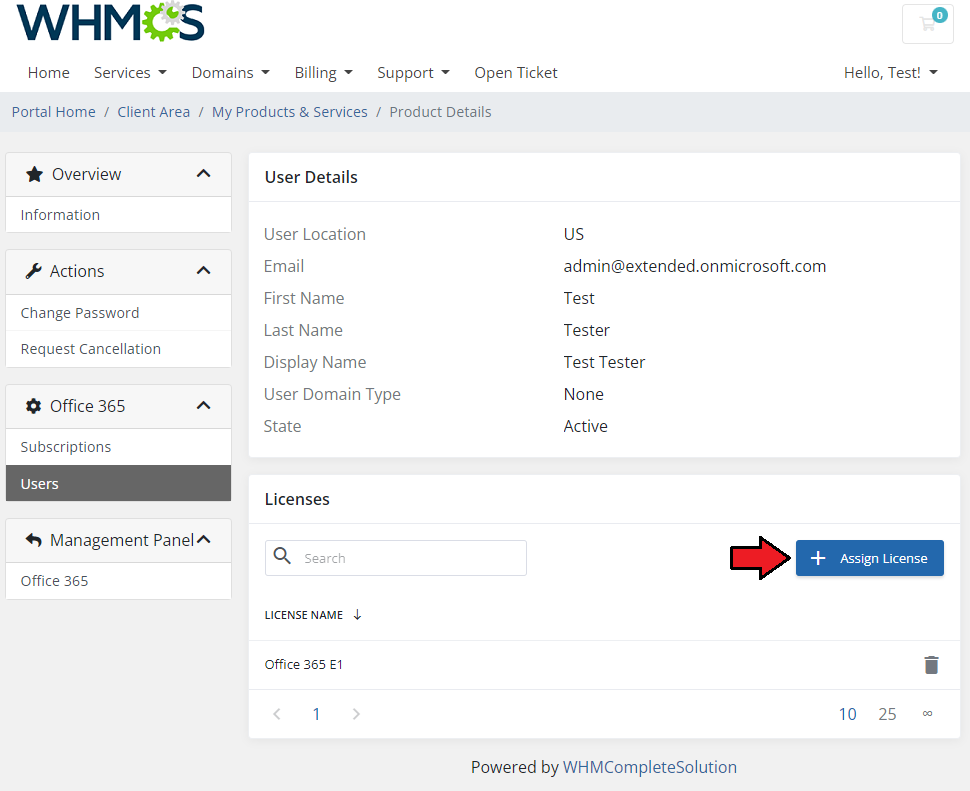
In the user profile you can view account details as well as assigned subscriptions.
Press the 'Assign License' button to assign a new license to this account.
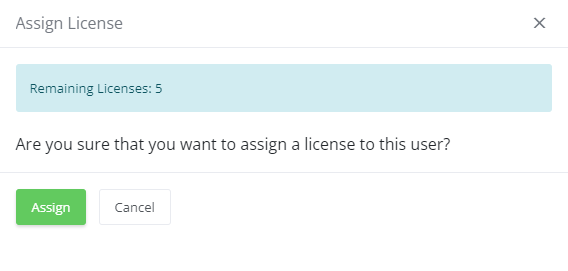
You can assign one license to one user, provided that the number of used subscriptions is not exceeded already.
Once the action is completed, you will see assigned licenses on the list.
If you want to unassign a license, simply click on the 'Delete' button.
# Subscriptions
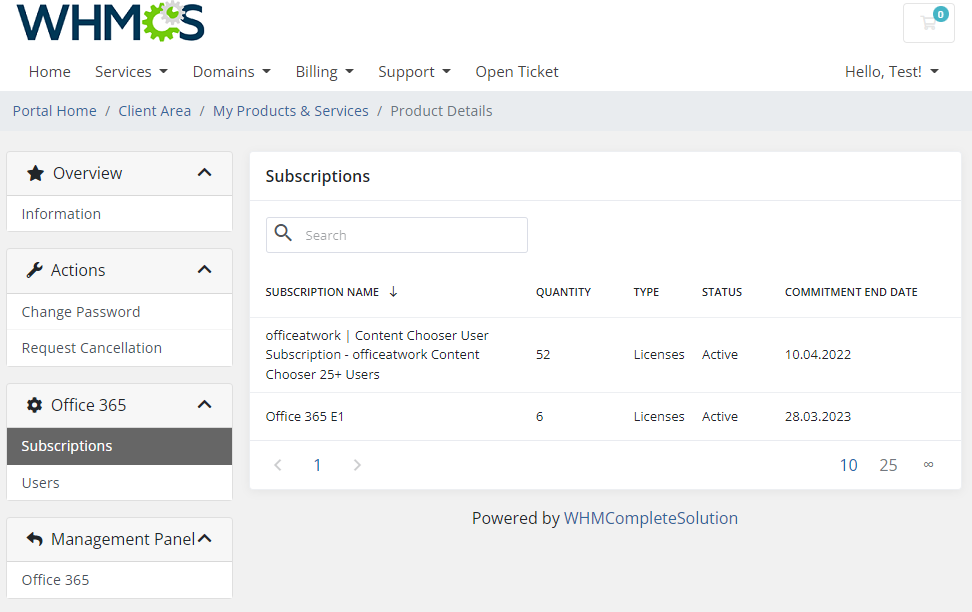
The 'Subscriptions' section displays the number of ordered licenses.
# Admin Area
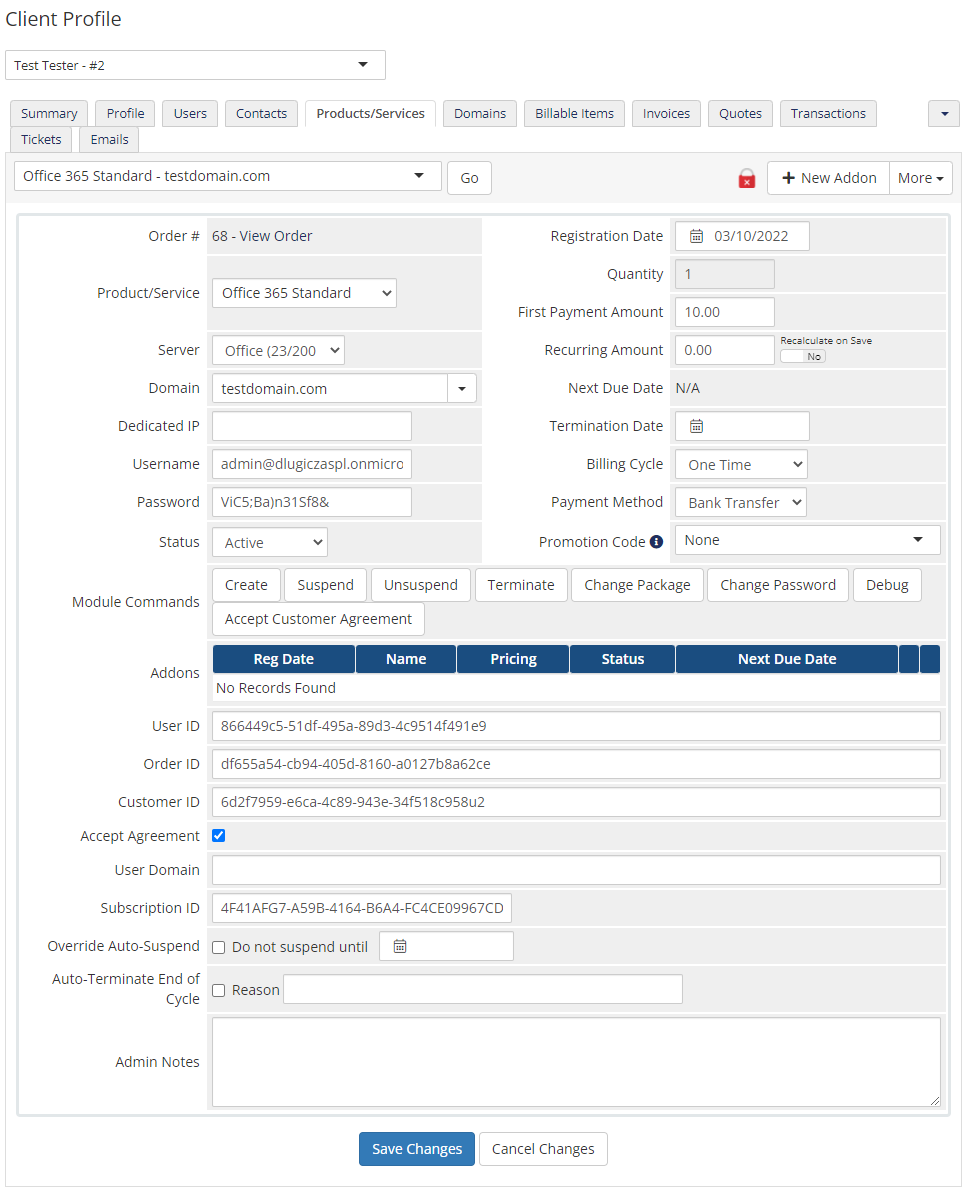
Let's check your new product in the product page in the admin area.
In order to create a customer, user and make an order, the cron job is required as described in point 7 of this section.
After a successful creation, it should look exactly like presented on the screen below.
Note The admin area for both standard and extended provisioning types looks basically the same.
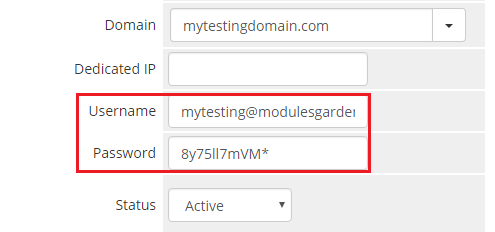
The 'Username' and 'Password' are used to sign up to the Office 365 (opens new window) panel.
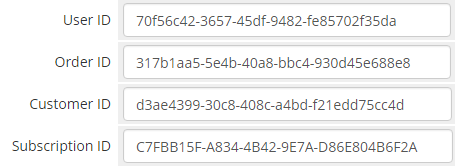
The 'User ID', 'Order ID', 'Customer ID' and 'Subscription ID' are custom fields used to connect the product with the created subscription in your Microsoft Partner Center (opens new window).
Depending on the product settings, the common 'Customer ID' and 'User ID' can be used for connection if one client buys more than one subscription.
# Suspend/Terminate
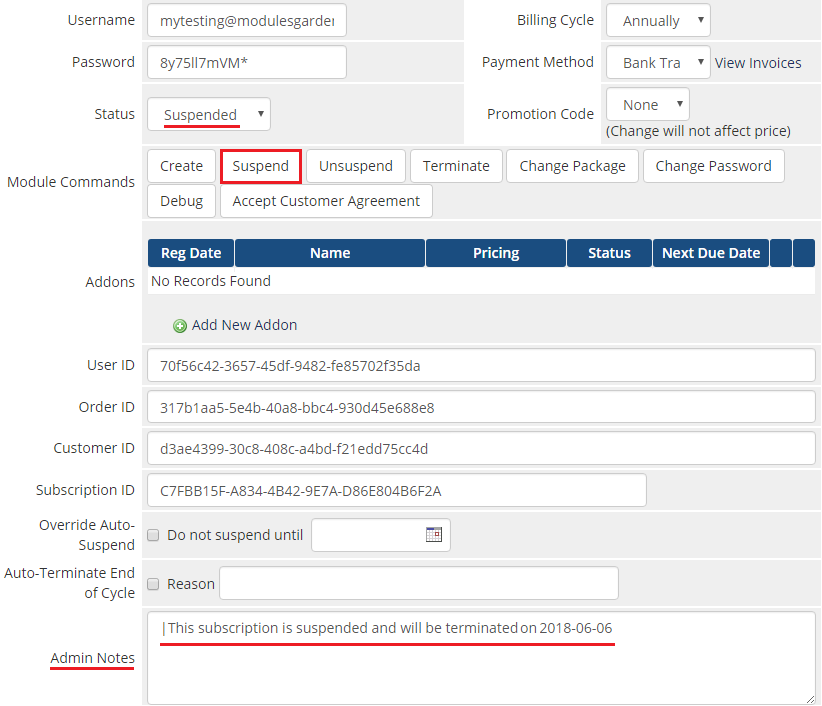
Due to API limitations, ordered subscriptions can only be suspended or unsuspended. For this reason, the 'Terminate' command will work in the same way as the 'Suspend' option.

In case of extended product suspension, all subscriptions assigned to the customer and their users are suspended as well.
Information about product suspension will be shown in the 'Admin Notes' field.
# Change Password
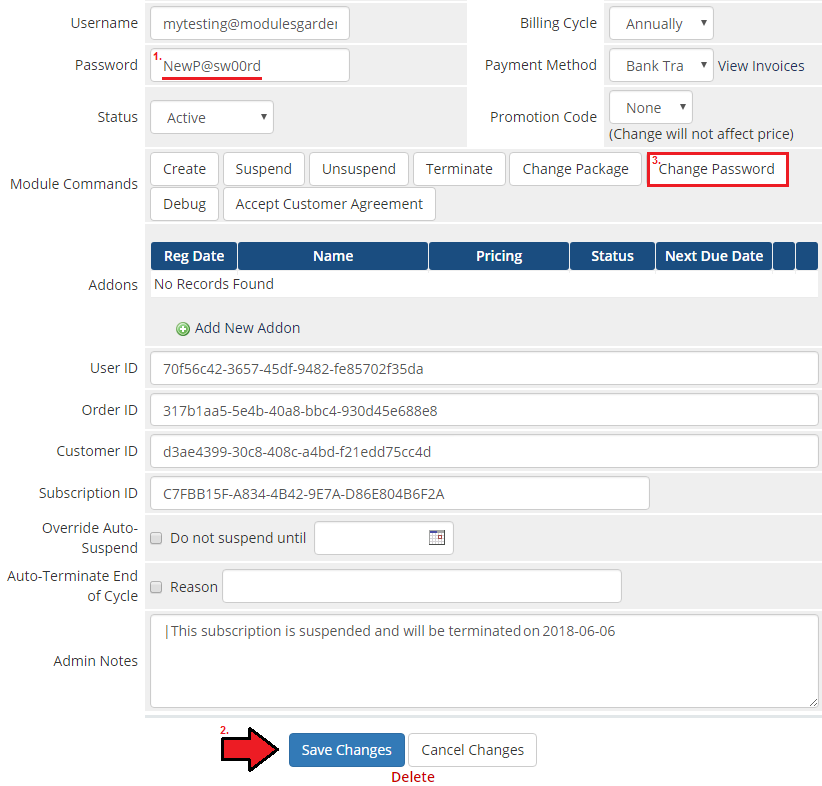
The 'Change Password' option will change the password for all services assigned to the user. To change it into a new one, you need to:
- Provide a new password → Press 'Save Changes' → Press 'Change Password'.
Note that the password must also meet the following requirements:
- At least 8 characters in length
- At least 1 uppercase character
- At least 1 special character
- At least 1 numeric character
# Product Upgrade/Downgrade
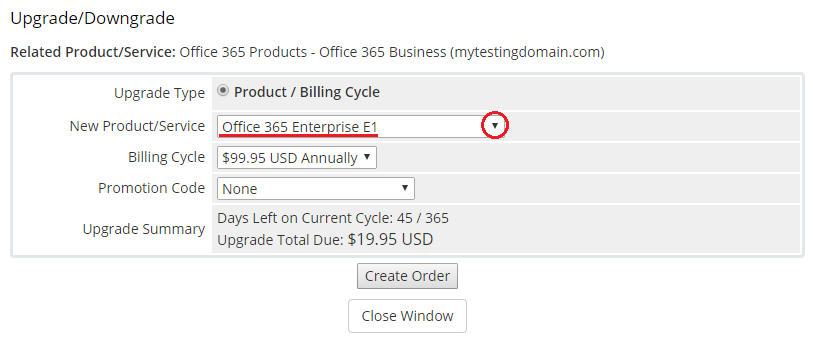
By using upgrade/downgrade feature you can change the subscription type for the standard provisioning type.
However, for the extended provisioning type you can only change the number of assigned licenses by configurable options, not the subscription type itself.
Note that you cannot also downgrade the number of licenses to smaller quantity if that number already exceeds the number of used licenses.
# Importing Existing Customers
If you want to import the existing customers, you need to take the following steps.
Firstly, manually create an order for your customer in WHMCS. Choose a client, and in the summary view click on the ' Add New Order' button. Next, select a 'Product/Service' and press 'Submit Order'.
What is important, do not perform the 'Create' action. The status has to remain as 'Pending'.
More info about placing orders can be found here (opens new window)Proceed to the newly created product's card in your admin area. Find the following empty fields:
- User ID
- Order ID
- Customer ID
- Subscription ID
The above-mentioned information has to be consistent with the data from your Microsoft panel. Now, complete these fields as presented below.
Important! Remember to make sure that the format of the provided data is compatible with the format supported by the module. You can preview it for another product of the module you have already created and enter it in a similar way.
If you completed the required data, now change the status from 'Pending' to 'Active' and 'Save Changes'.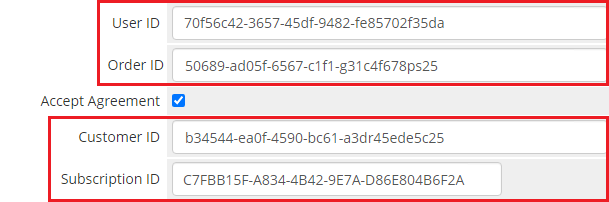
If the service has been created, you have to change the 'Username' field in the admin area view.
You have to provide the email address of the admin from the panel as 'Username'. The format of 'Username' should look like [email protected].
Important! Remember to manually add other missing parameters of the instance such as domains, credentials, IP Addresses, configurable options, SSH Key, billing cycle, etc. so they match the parameters from the Microsoft panel.
# Tips
For more information on how the Microsoft Partner program works, check here (opens new window).
API responses can be translated in the module's language file. To do this, add a new record in the file with the received API message and your translation.
See below to find an exemplary entry:$_LANG['ApiResponse']['Can\'t contain username paramName: User.Password, paramValue: , objectType: System.String'] = 'Password field cannot contain a username.';Please remember that if the product belongs to the 'Standard Provisioning Type' then the 'Upgrade' action is not supported.
It is possible to use a different domain instead of 'onmicrosoft.com'.
Note: You cannot delete the 'onmicrosoft.com' domain.
If you want to use another domain, please remember that it must be verified by Microsoft. For more info, refer to the following pages:- Why there is the 'onmicrosoft.com' ending: here (opens new window)
- How to add a domain to Microsoft: here (opens new window)
Firstly, you need to add a new custom field userDomain|User Domain.
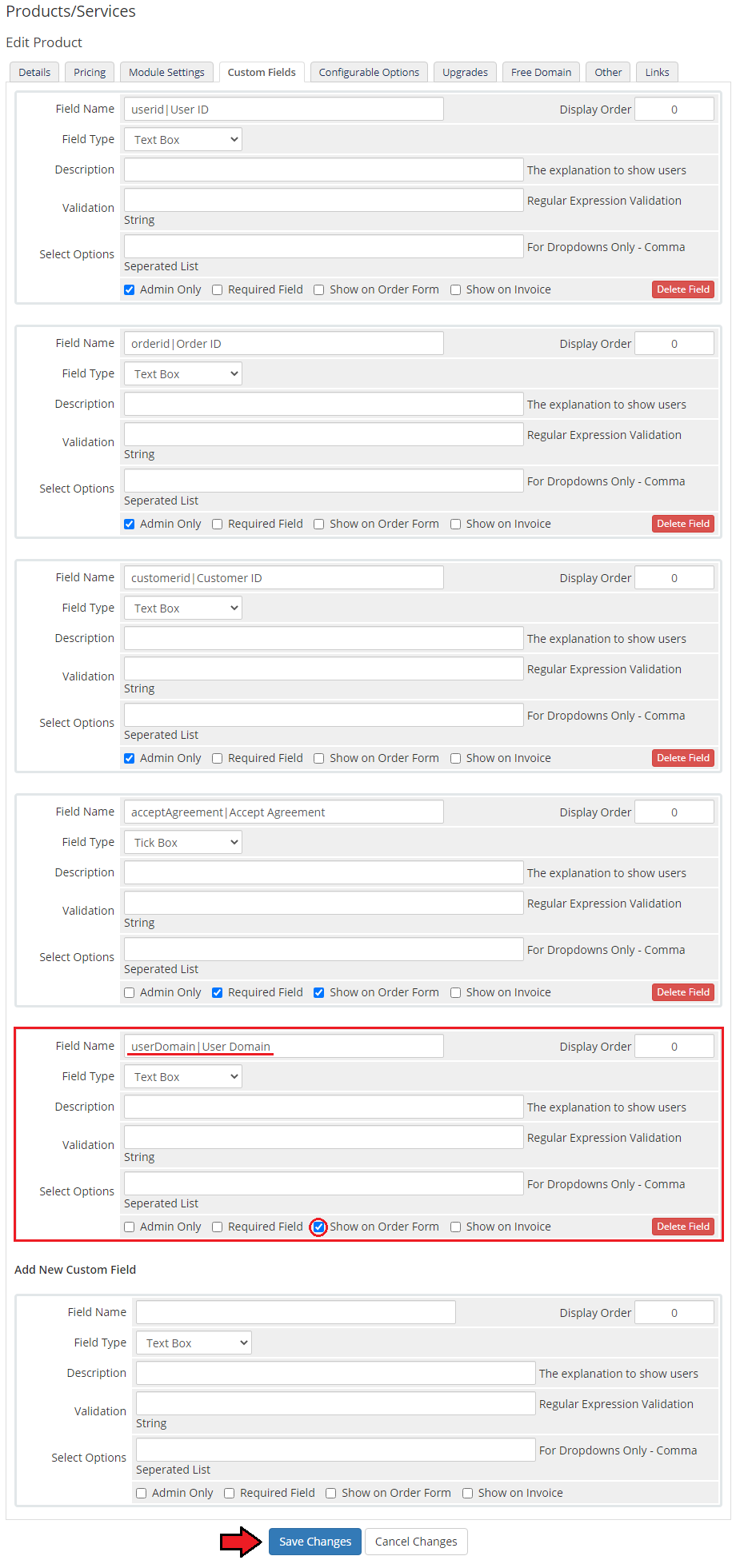
Once you add the custom field, your clients will be able to provide their 'User Domain' while placing orders.
What is more, you can add a 'User Domain' manually here: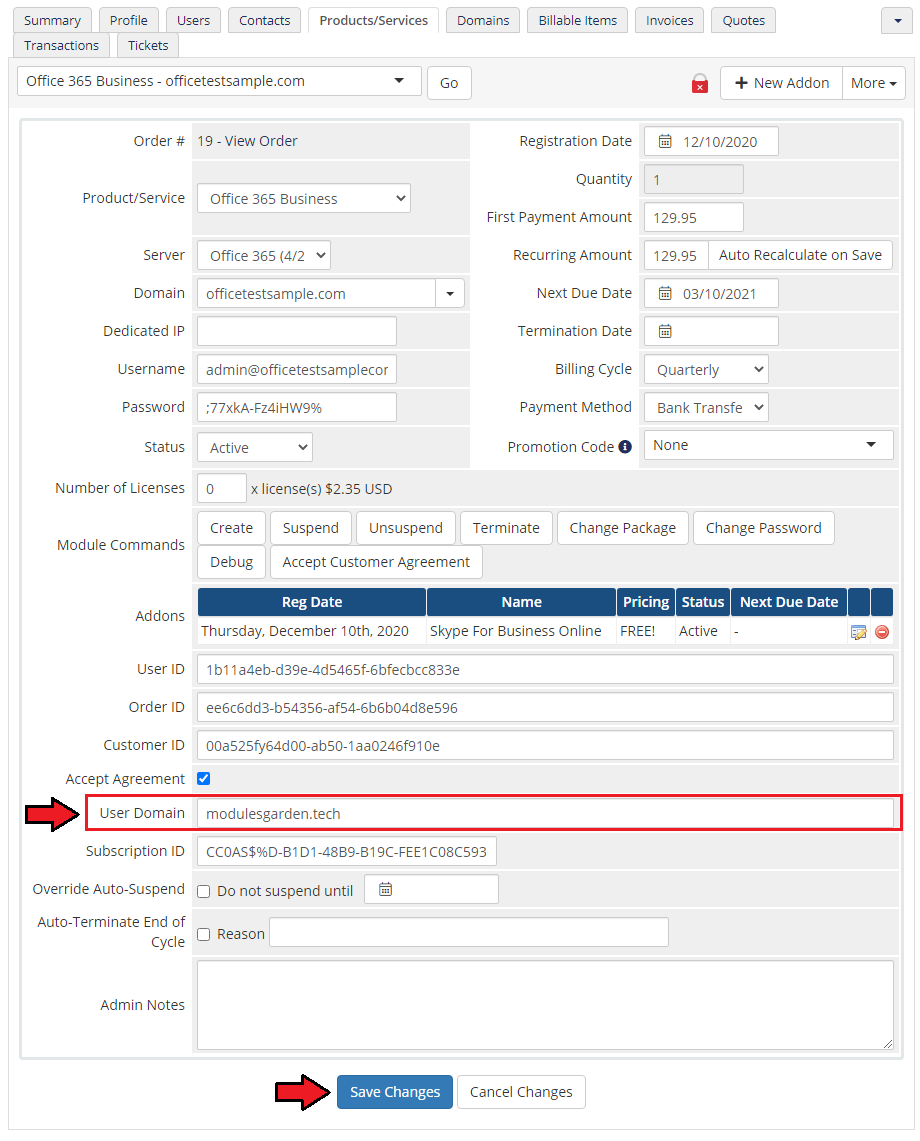
Navigate to the 'Users' section of the client area. From now, if you create a new user, you may decide which domain your users will use.
Important! If a domain used in the 'userDomain' custom field is not validated by Microsoft, you will receive the 'Domain validation failed' error while trying to use it here.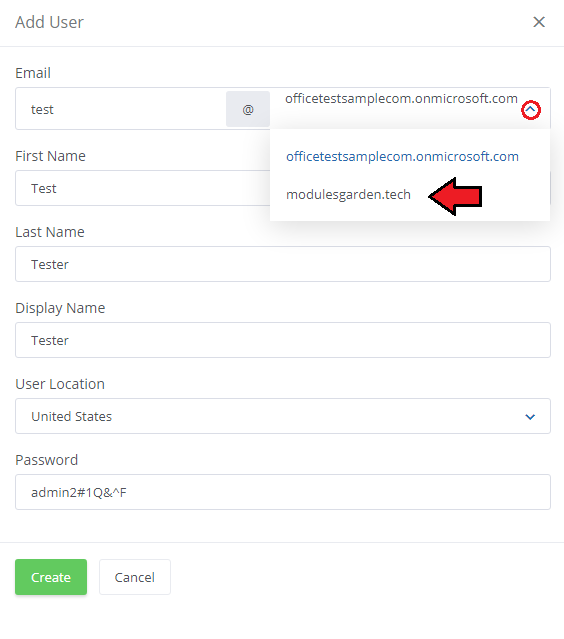
Please remember that when the 'Company Name' field is completed by a client (Client Profile → Profile → Company Name), it will be used by default when a Microsoft account is created.
If the company name does not exist in the record, then 'First Name' and 'Last Name' will be used instead.
# Update Instructions
An essential guidance through the process of updating the module is offered here.
Important: If you update the module from any version prior to 2.2.0 up to 2.2.0 or higher, please remember that due to the changes in the product configuration,
we highly recommend you review the settings and make changes if necessary. From version 2.2.0, to create a customer, user and make an order, the cron job is required as described in point 7 of this section.
# Migration
While using the 3.X version of our module, note that no data can be migrated from the Office 365 For WHMCS version 2.x.x, so the module needs to be configured from scratch.
This also means that previously placed orders for subscriptions will not work on the new version, even after module reconfiguration.
# Upgrade Guide
Seeking a solution that offers greater flexibility, customization tailored to your precise needs, and unrestricted availability?
There is an option that not only proves to be cost-effective in the long run but also includes prioritized support services, making it a truly valuable investment.
Opt for the Open Source version (opens new window) of your Office 365 For WHMCS module to unlock these benefits.
Simply click on either the Get Source Code or Upgrade To Lifetime button found on the product's page in our client area to complete the one-step upgrade process, with a dedicated discount already applied.
Follow a comprehensive guide covering the transition process, the advantages it brings, and step-by-step instructions on what to do next after the order has been successfully finalized.
# Common Problems
When you have problems with connection, make sure that SELinux or firewall does not block ports.
The list of users and their subscriptions assigned to the customer directly in the Microsoft panel are not automatically assign to the WHMCS client and their users.
This is due to the API limitations, so this list is only kept locally on the WHMCS server.
In case of changes made directly in the Microsoft panel, such modifications might then be made manually in the module to reflect changes locally.This error encountered in the module:
Use limit is exceeded for Offer Idindicates that a single customer may purchase only one license (e.g. Office 365 Business, Office 365 Business Essentials, Office 365 Business Premium license).
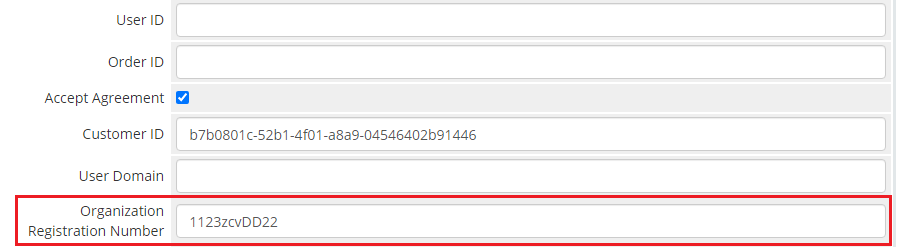
If you come across the following error "Organization registration id information is missing" when creating a customer account, you need to add organizationNumber|Organization Registration Number custom field and then provide the INN number.
The error occurs for customer accounts located in these countries: Armenia(AM), Azerbaijan(AZ), Belarus(BY), Hungary(HU), Kazakhstan(KZ), Kyrgyzstan(KG), Moldova(MD), Russia(RU), Tajikistan(TJ), Uzbekistan(UZ), Ukraine(UA), India, Brazil, South Africa,
Poland, United Arab Emirates, Saudi Arabia, Turkey, Thailand, Vietnam, Myanmar, Iraq, South Sudan and Venezuela.
For the customer’s company/organization located in other countries, this should not be specified.
Firstly, provide a new custom field.
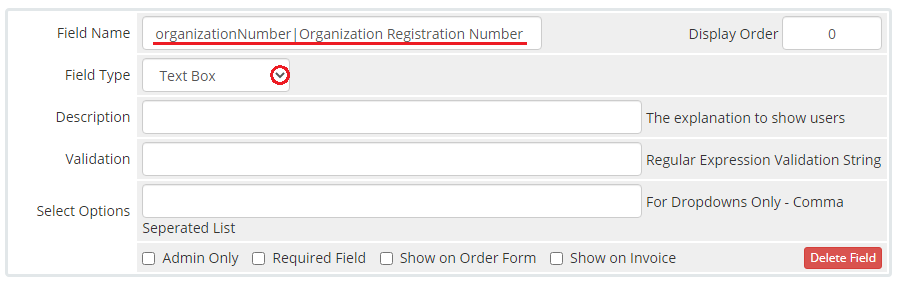
Now, place the customer’s organization registration number (also referred to as INN number in certain countries).