

# Domain And Email Forwarding For WHMCS
# (opens new window) About Domain & Email Forwarding For WHMCS (opens new window)
Domain & Email Forwarding For WHMCS is a module which allows your clients to create and manage forwarders directly in your client area.
The extent of management depends on the administrator, who needs to define the level of allowed domain management per each TLD.
Your client can create redirections for domains or directories as well as emails.
# Installation
This tutorial will show you how to successfully install and configure Domain & Email Forwarding For WHMCS. (opens new window)
We will guide you step by step through the whole installation and configuration process.
- Log in to our client area and download the module.
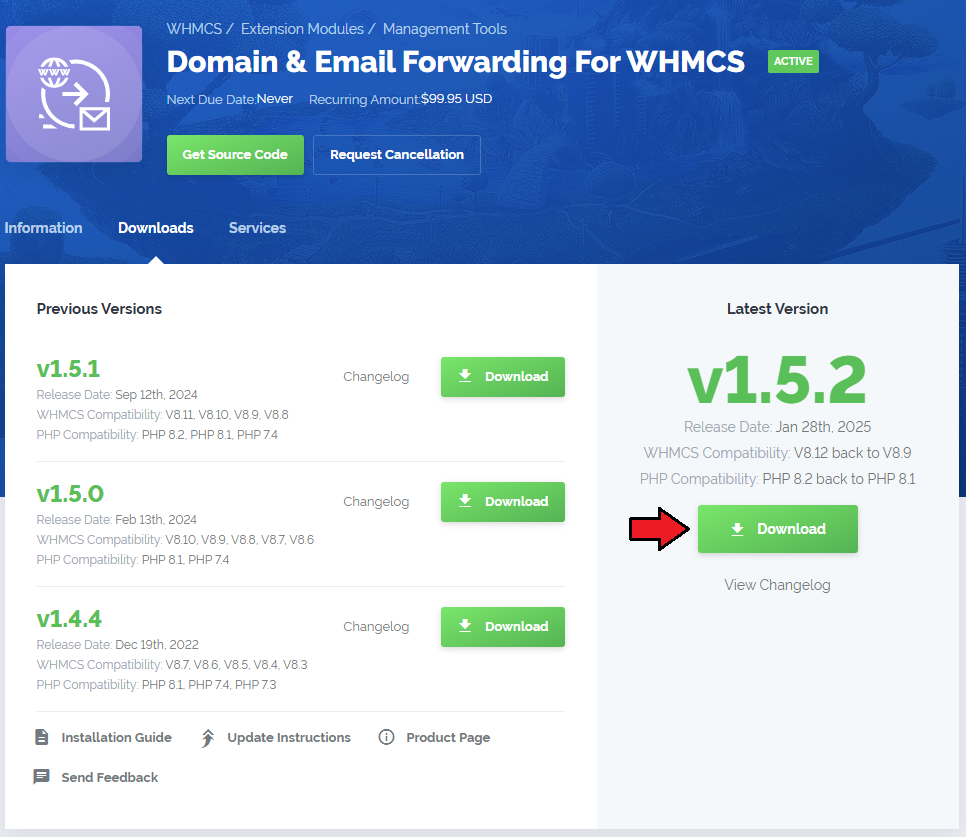
Extract the package and upload its content into the main WHMCS directory.
The content of the package to upload should look like this.
When you install Domain & Email Forwarding For WHMCS for the first time you have to rename 'license_RENAME.php' file.
File is located in 'modules/addons/DomainAndEamilForwarding/license_RENAME.php'. Rename it from 'license_RENAME.php' to 'license.php'.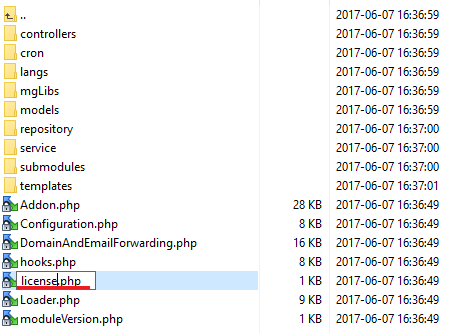
In order to configure your license key, you have to edit the previously renamed 'license.php' file.
Enter your license key between quotation marks as presented on the following screen. You can find your license key in our client area → 'My Products'.
Now you have to activate the module in your WHMCS system.
Log in to your WHMCS admin area. Go to 'System Settings' → 'Addon Modules'. Afterwards, find 'Domain & Email Forward' and press 'Activate' button.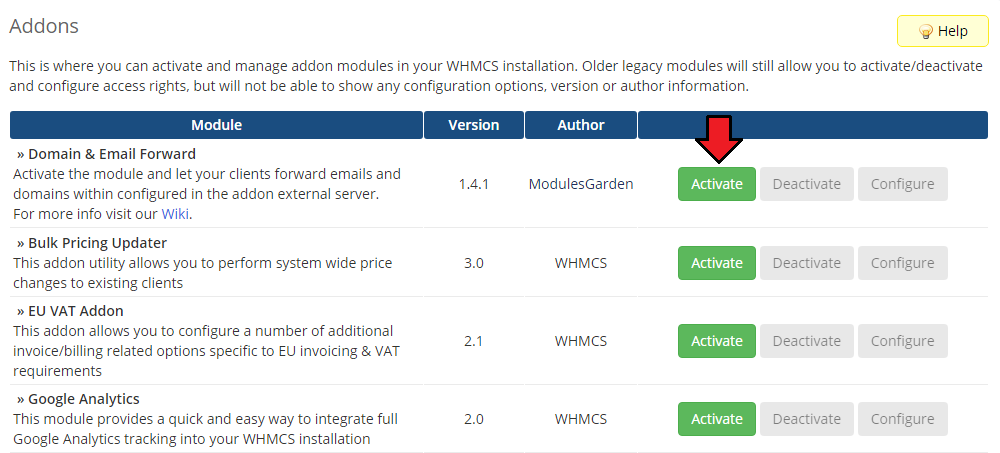
In the next step you need to permit access to this module.
To do so, click on 'Configure' button, tick 'Full Administrator' and press 'Save Changes'.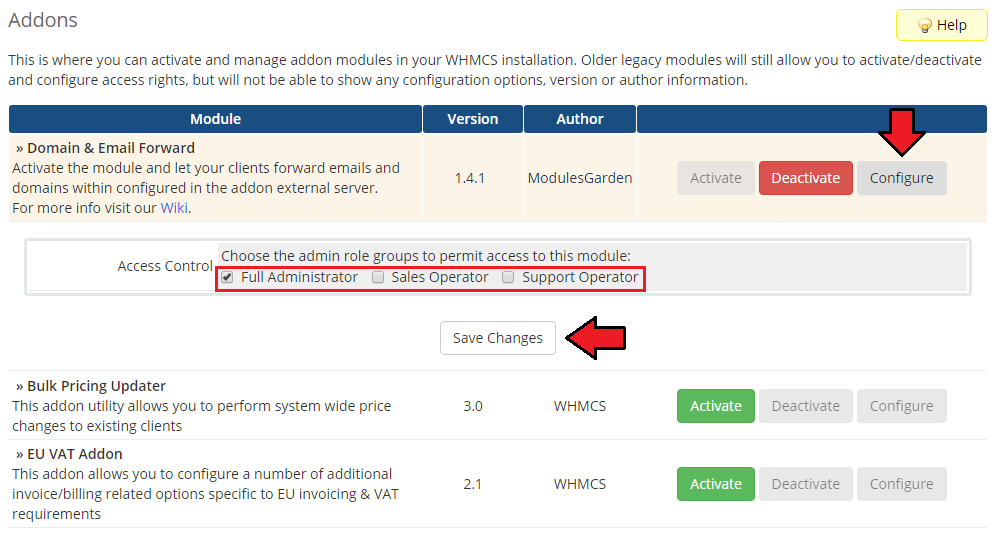
You have just successfully installed Domain & Email Forwarding For WHMCS!
You can access your module under 'Addons' → 'Domain & Email Forward'.
# Configuration and Management
Domain & Email Forwarding For WHMCS brings some of the management actions on domains from your external servers to your client area.
Underneath, you will find a complete guide which will show you how to take a full advantage of the module.
# Dashboard
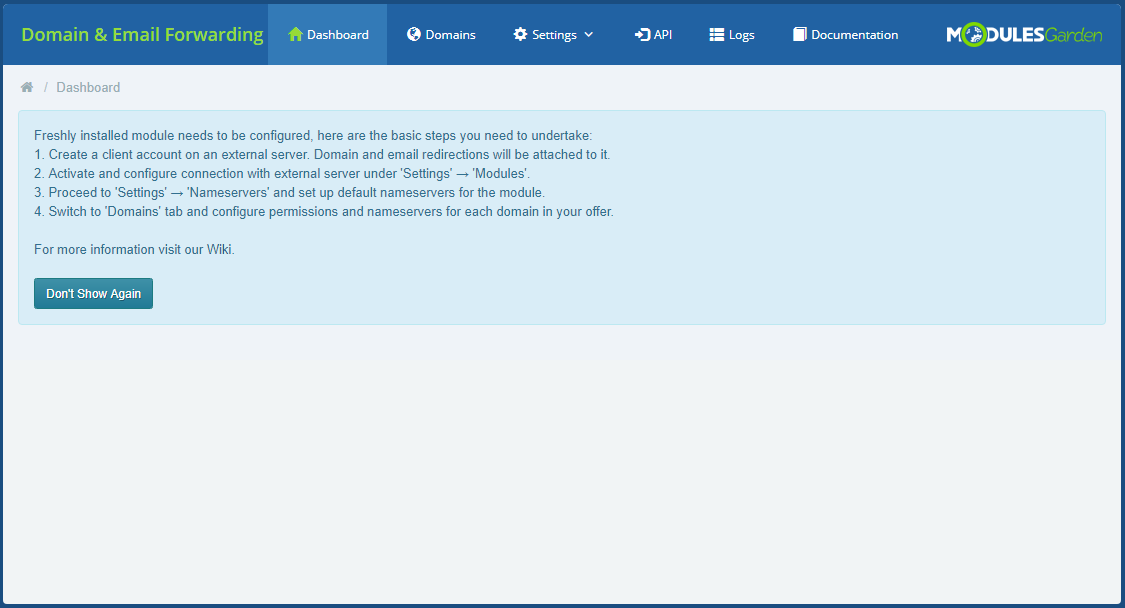
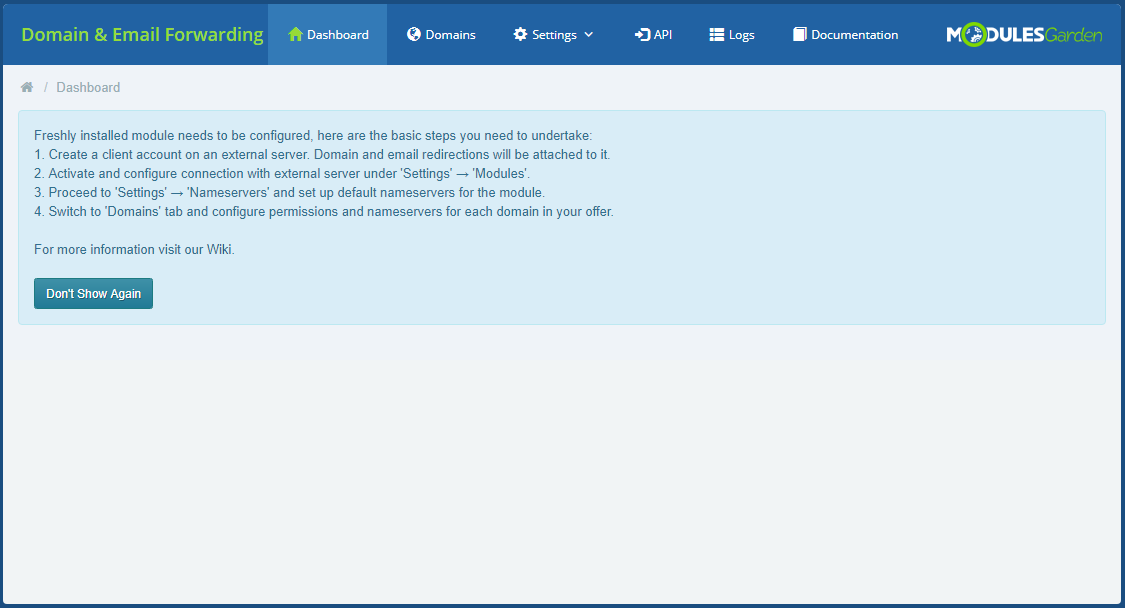
'Dashboard' of the addon includes only a short guide that is placed to help you quickly move through the configuration.
If you are already familiar with it, you may press 'Don't Show Again' button.
Then the 'Settings' page will be claimed as the home page and there you will be redirected when pressing home icon or addon name.
# Settings
The module is currently compatible with three outside servers, these are cPanel, DirectAdmin and Plesk.
Before you can completely work with the module, you must have an account created on the server. Domain and email redirection will be attached to this account.
Important: Keep in mind that a root access is required, otherwise the connection will fail.
# Modules
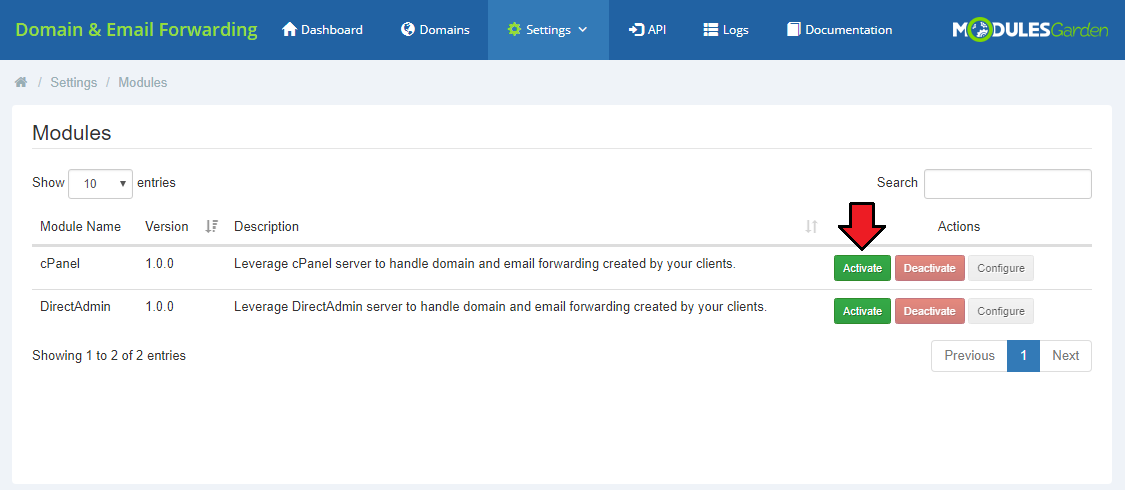
Let's finally move to the addon itself. The first step of the configuration includes activating the module you want to work with.
Move to 'Domain & Email Forwarding' → 'Settings' → 'Modules' and 'Activate' the module you need to connect to the external server.
For presentation purposes, we will show how to properly activate and then configure the cPanel module.
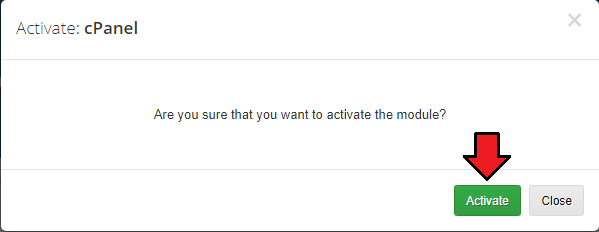
Confirm the action to continue.
When a module is active, you must configure the connection with its server. Press 'Configure' to do so.
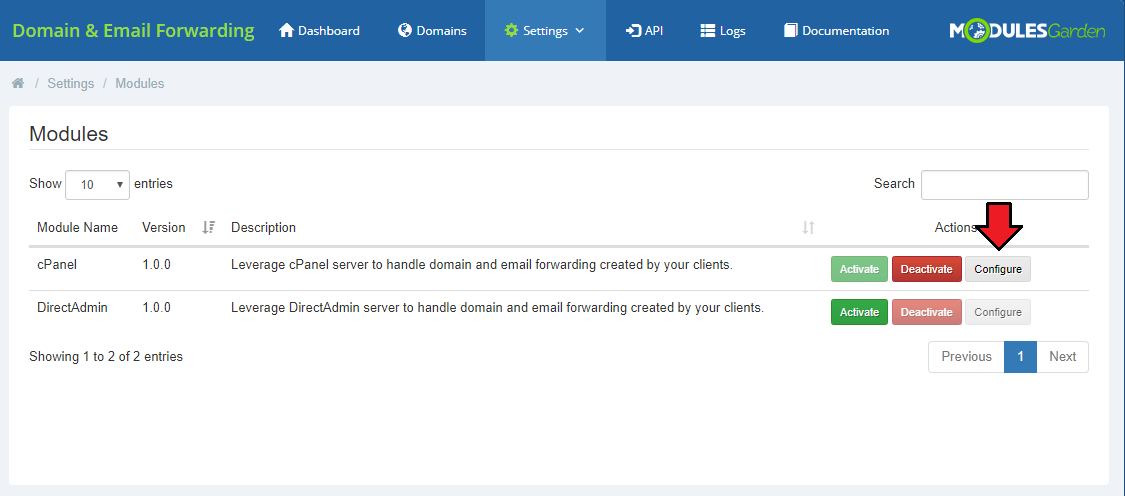
Here, you have to provide all the necessary details to successfully connect to the server:
- Host or IP address
- Port - this field is not obligatory, if you leave it empty a default cPanel port will be used to connect
- WHM username and password
- SSl Connection
- Account - name of the previously created account on your cPanel server with no or a very high limit.
All redirections will be assigned to this account.
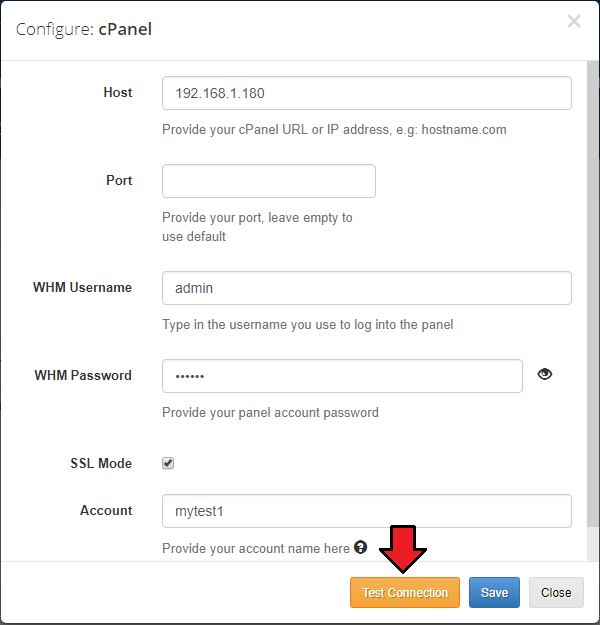
Press ' Test Connection' button to make sure everything is working properly.
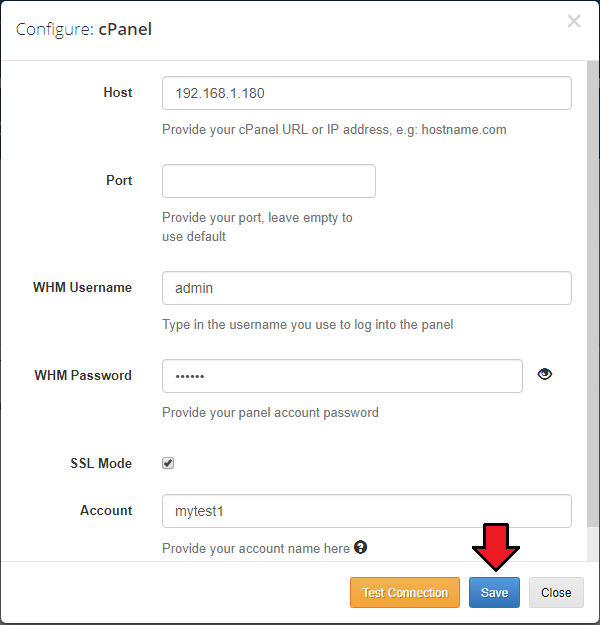
Finally, save the configuration.
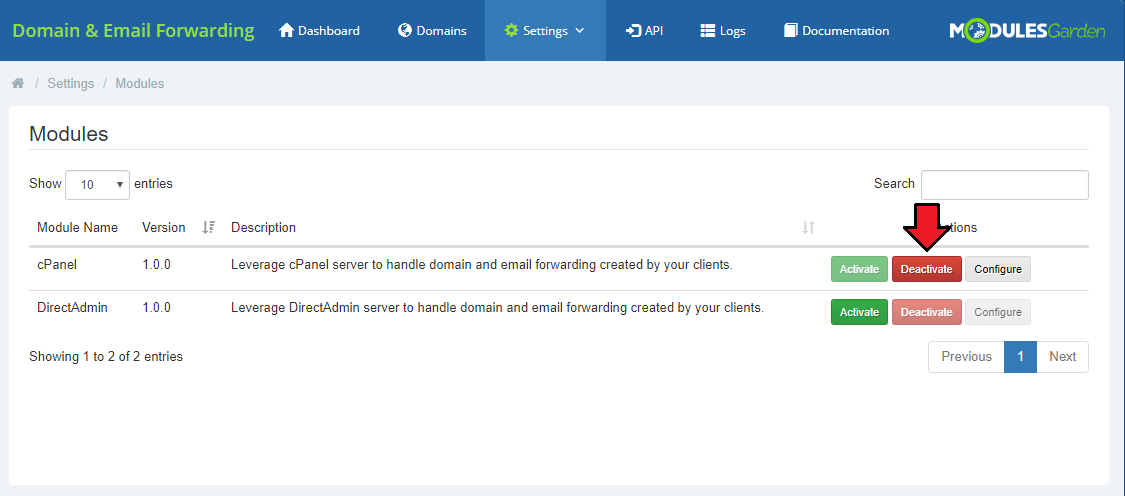
You may deactivate the used module at any moment. Simply press the button marked on the screen.
# General
Once you have active and properly configured connection with the outside server of your cPanel, you may move to the general settings of the module.
You can find them under 'Settings' → 'General'.
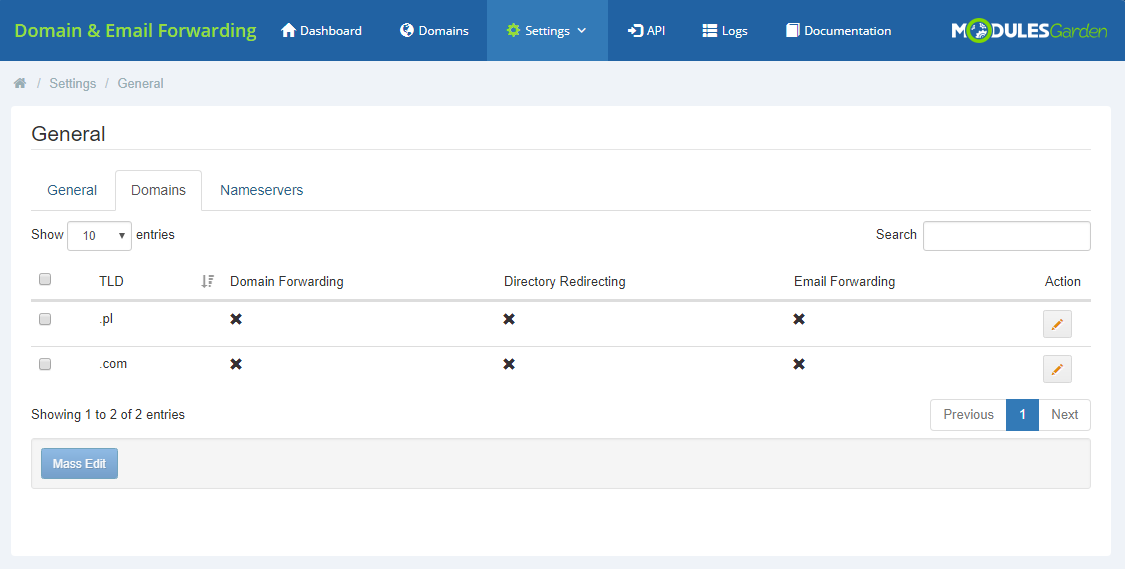
There are three sections: 'General', 'Domains' and 'Nameservers'. We will start with 'Nameservers'.
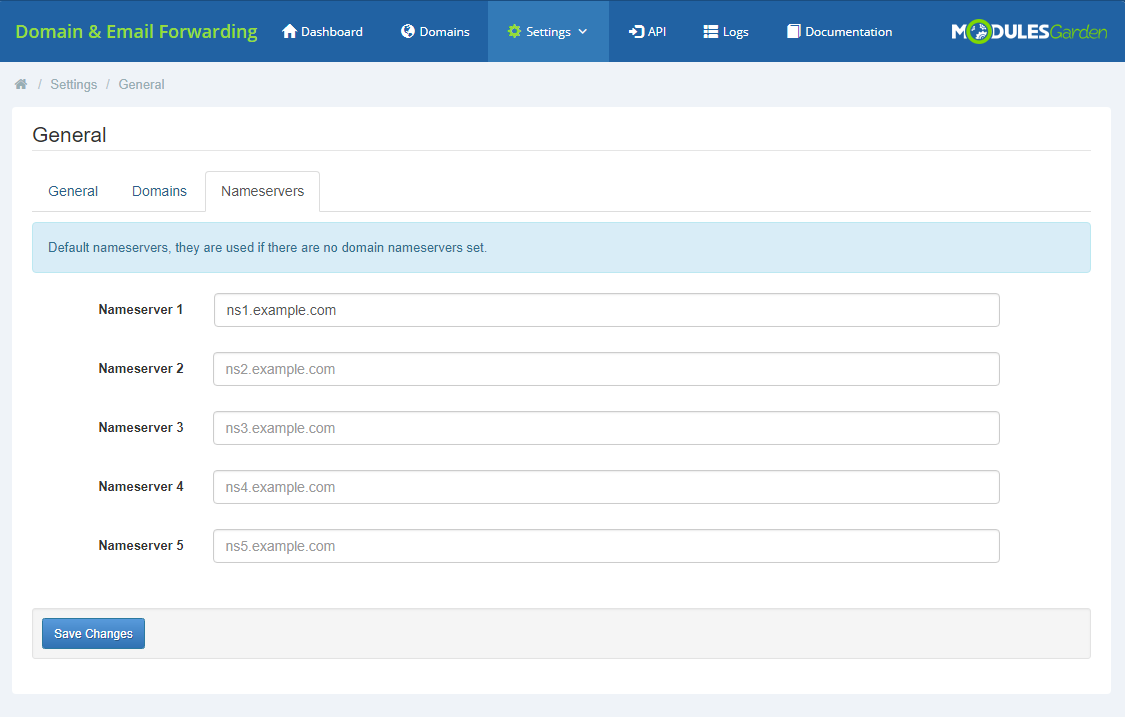
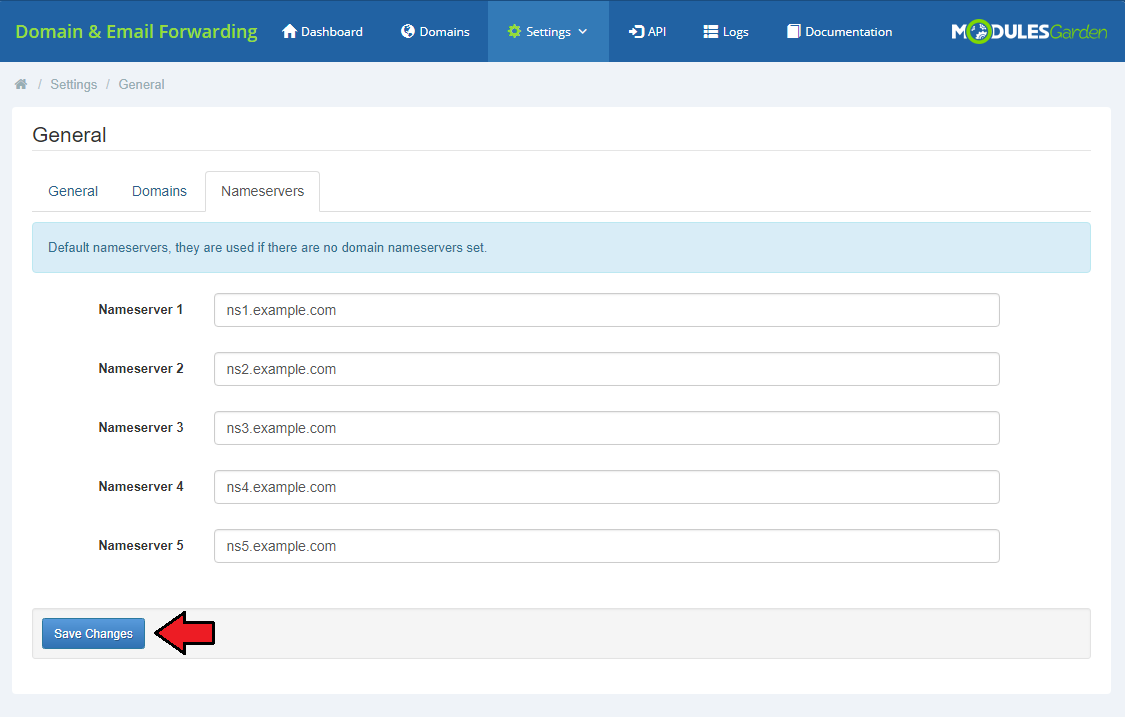
'Nameservers' section includes default entries that will be used in case domain nameservers are not provided.
Prepare a list of your standard nameservers here.
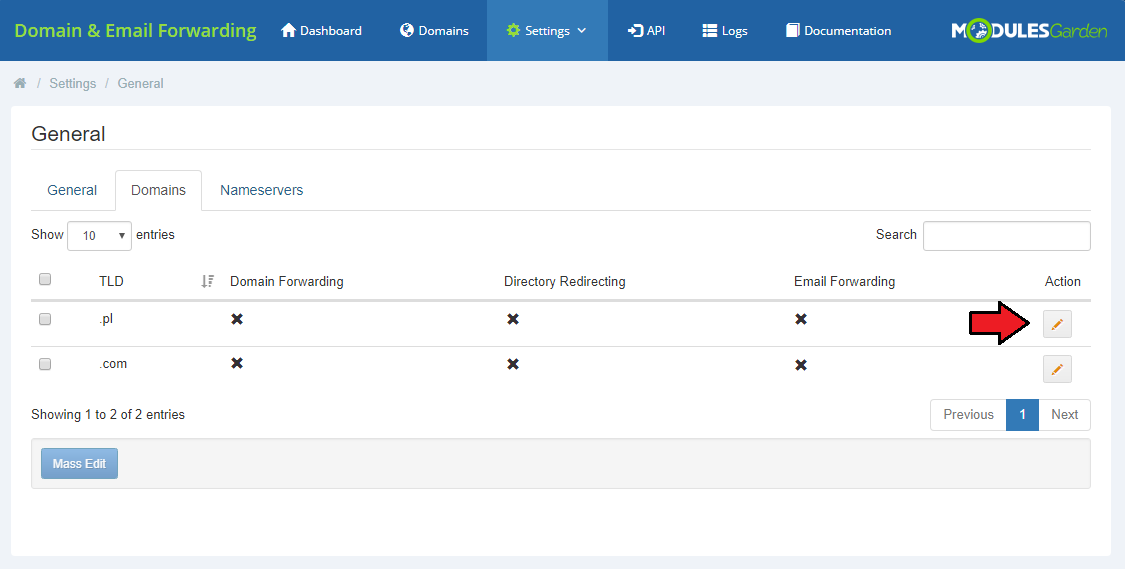
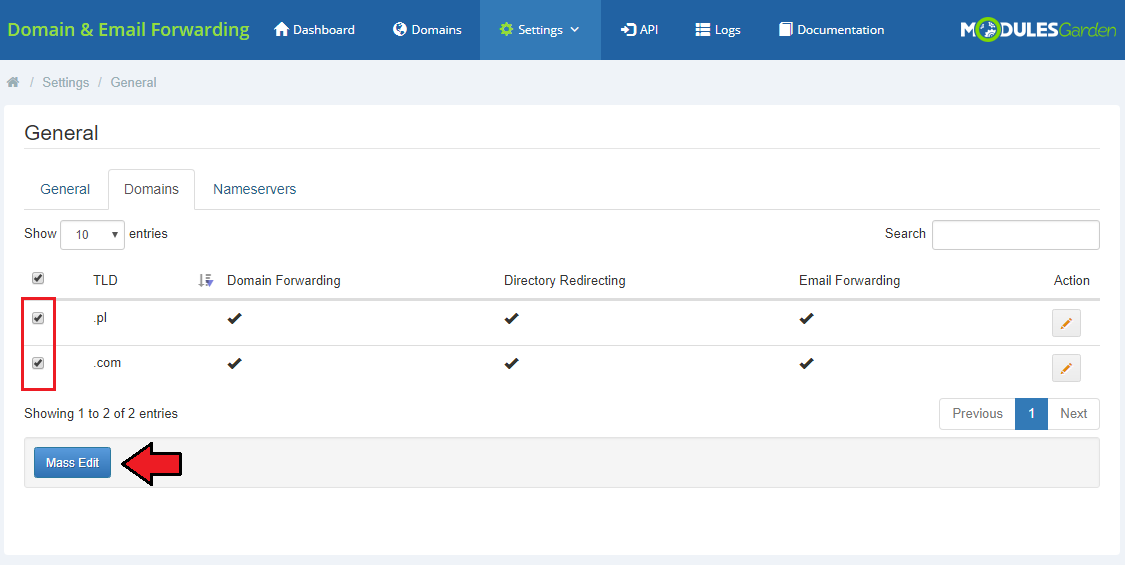
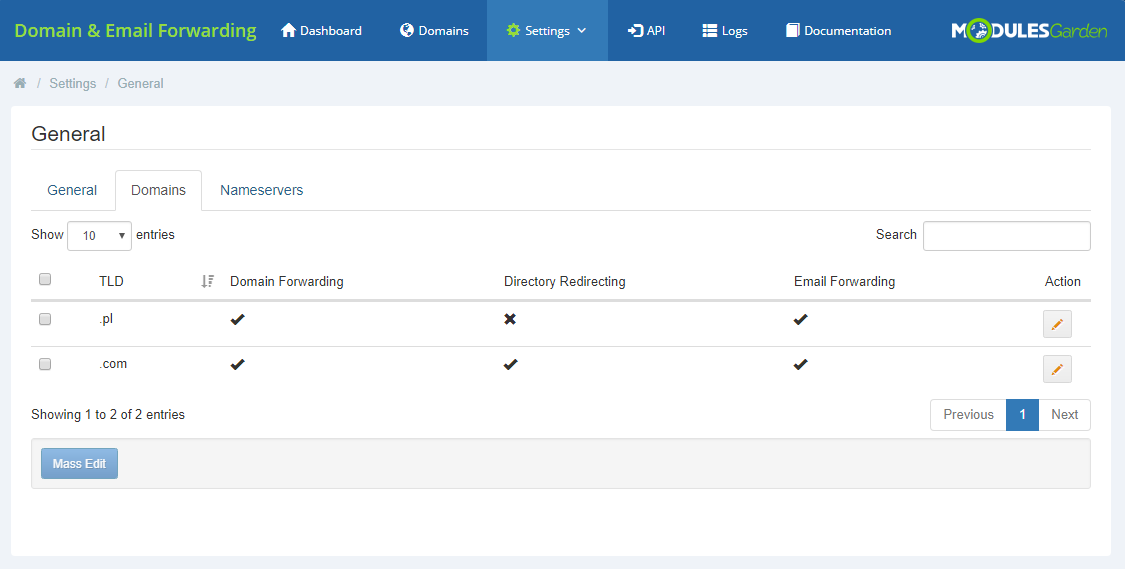
Under 'Domains' there is a complete list of allowed in your WHMCS TLDs.
Press pencil icon under 'Action' to set up the forwarding options for each of the TLDs.
Use the mass edit button to set configuration to all or selected domains with one action only.
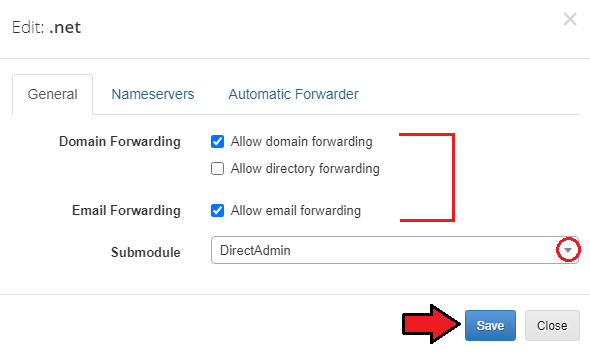
'General' subsection allows several options per TLD, such as:
- domain forwarding
- directory forwarding (only if domain forwarding is allowed)
- email forwarding
Select which module it should be applied to (if more than one is active).
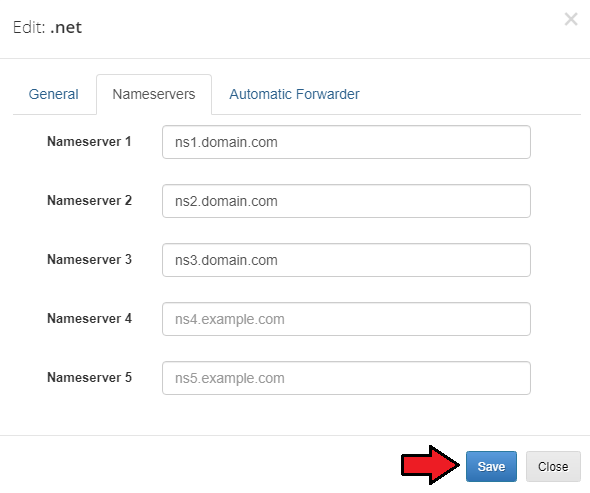
You may also provide nameservers per single TLD. If you do not do it, the default nameservers will be used.
Finally, you can use the following option if you want forwarders to be automatically set once a domain is registered.
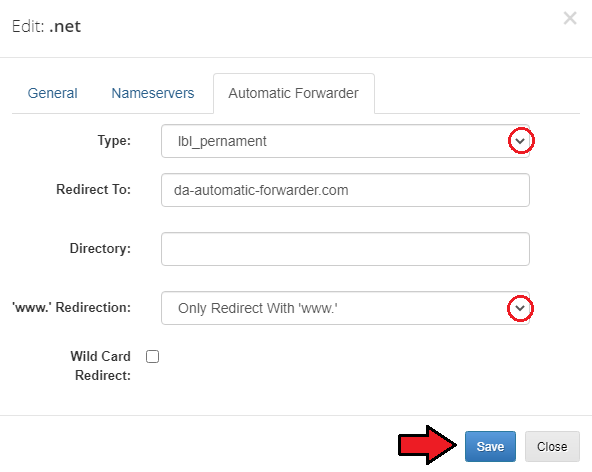
Prepare configuration for each of the TLDs according to your needs.
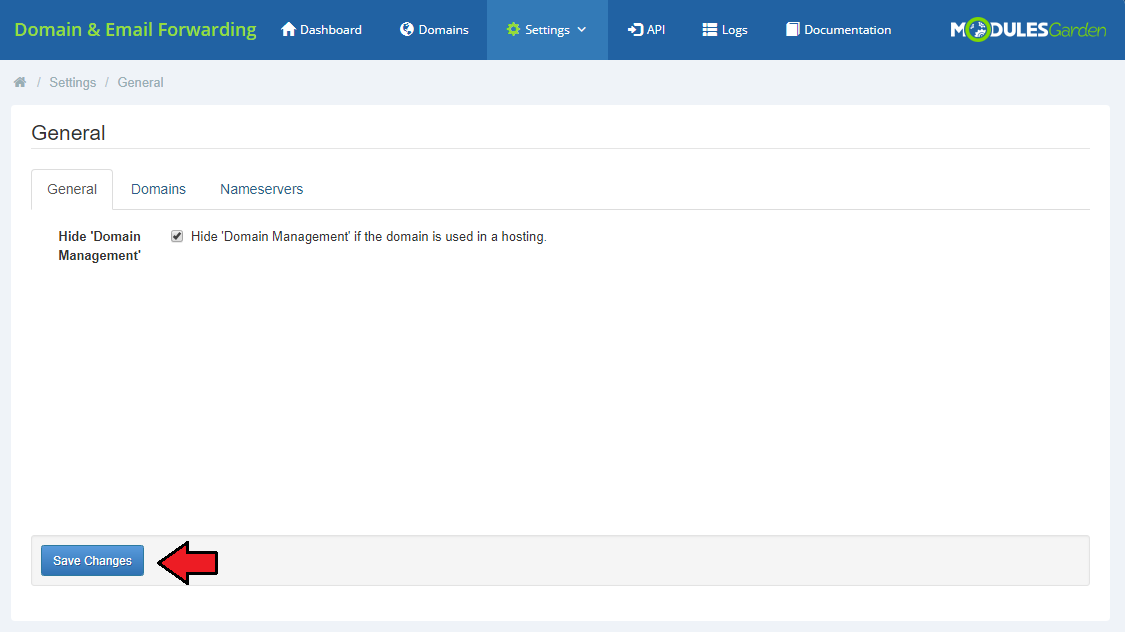
In the last section, 'General', you may decide whether you wish to hide the 'Domain Management' box in the client area if the domain is used in a hosting.
# Domains
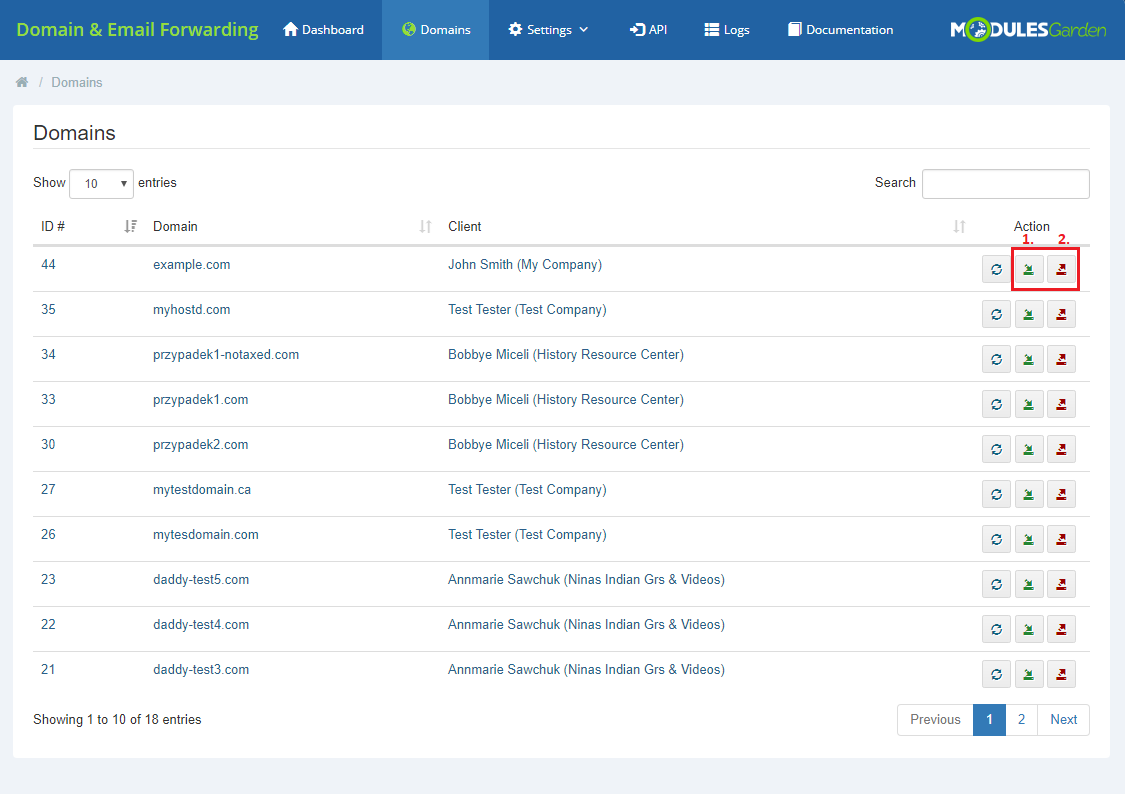
Under 'Domains' tab, there are all existing domains listed.
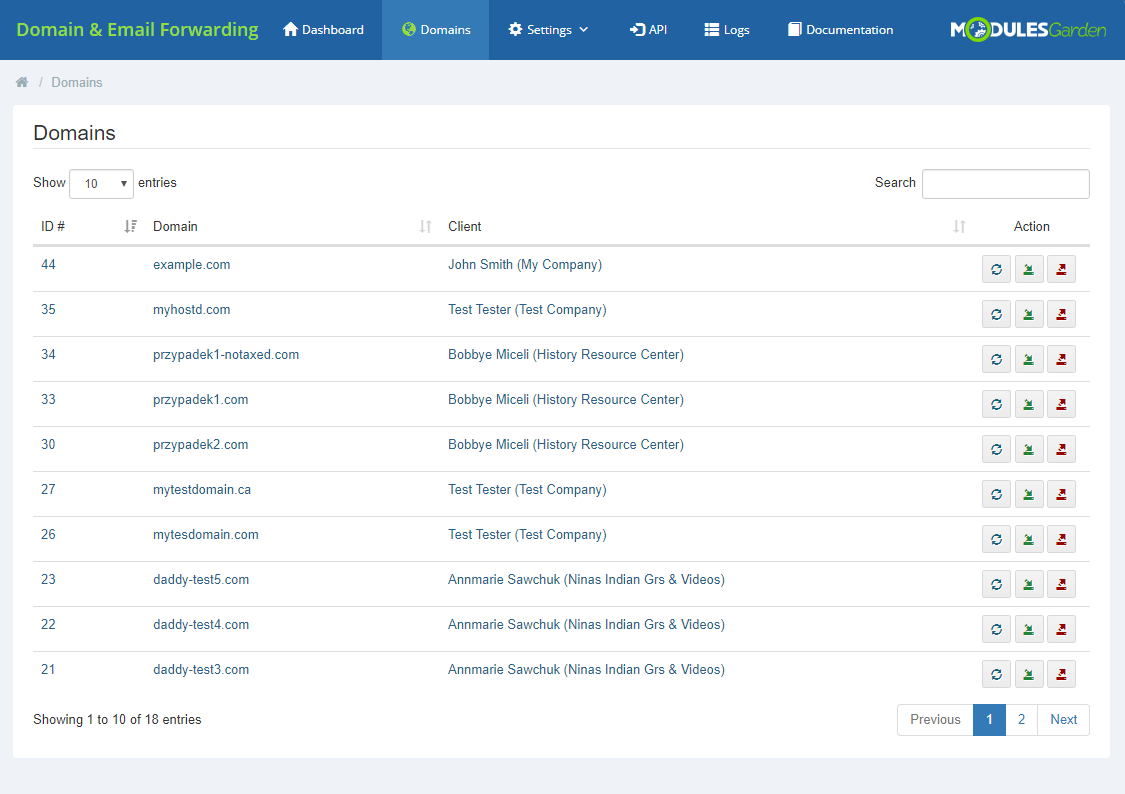
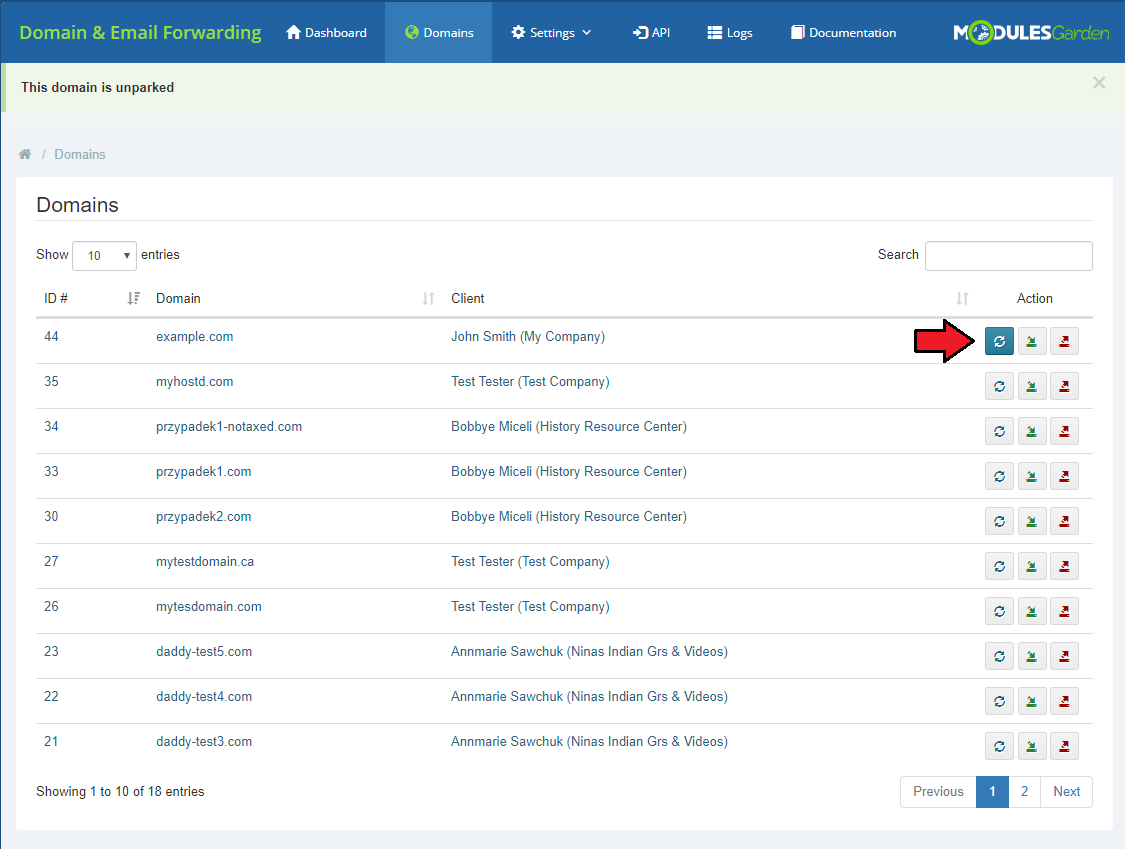
Here, the administrator may check the current status of the domain.
Just press the marked button and a notification will appear with information whether the domain is parked or not.
Use the action buttons to either park(1) or unpark(2) the domain.
# API
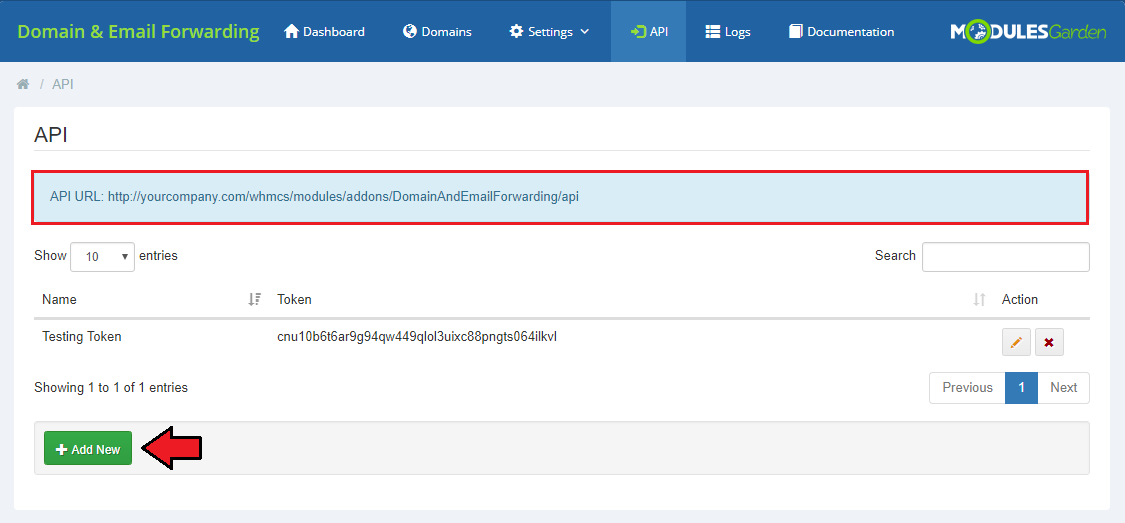
'API' section provides an option to generate API tokens. At the top of the section, you can find a direct URL to the API.
Press 'Add New' to generate a token that will be necessary for authentication purposes when working work with the API.
See section API Commands to learn more.
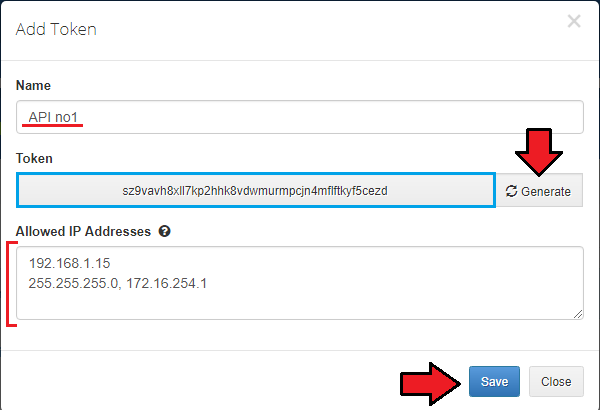
Provide a custom name, press 'Generate' to get the token and enter IP addresses that will be allowed for this single token.
You may type in each in a different line or use a comma to separate them. Press 'Save' when ready.
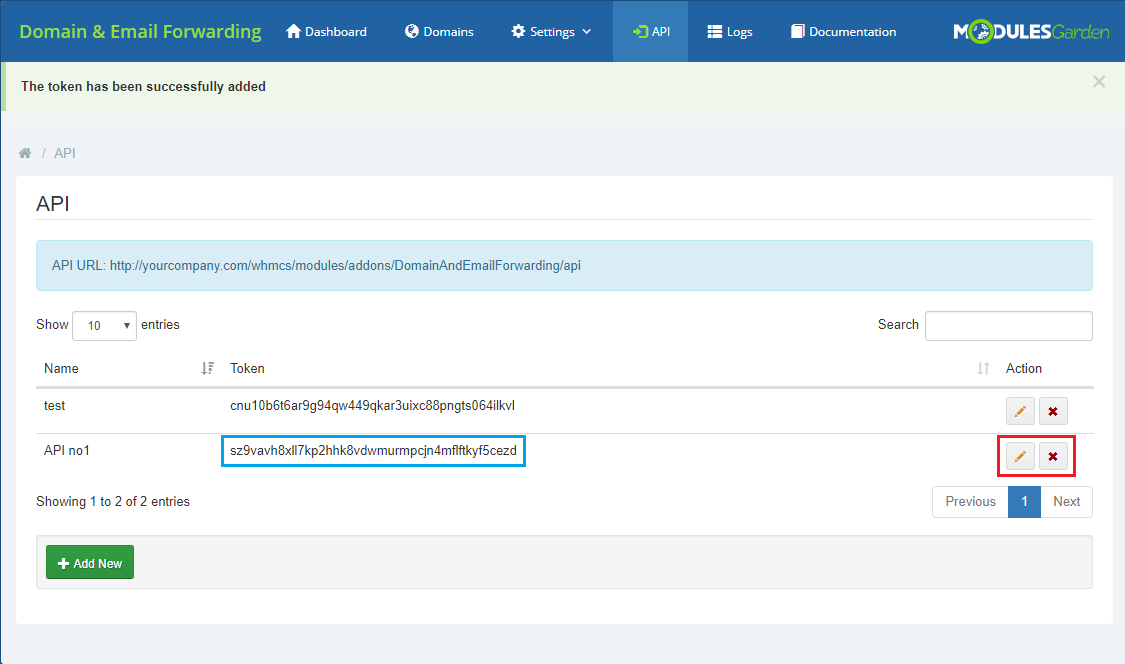
All generated tokens are available on the list, you may edit them (change the list of allowed IP addresses) or delete when no longer used.
# Logs
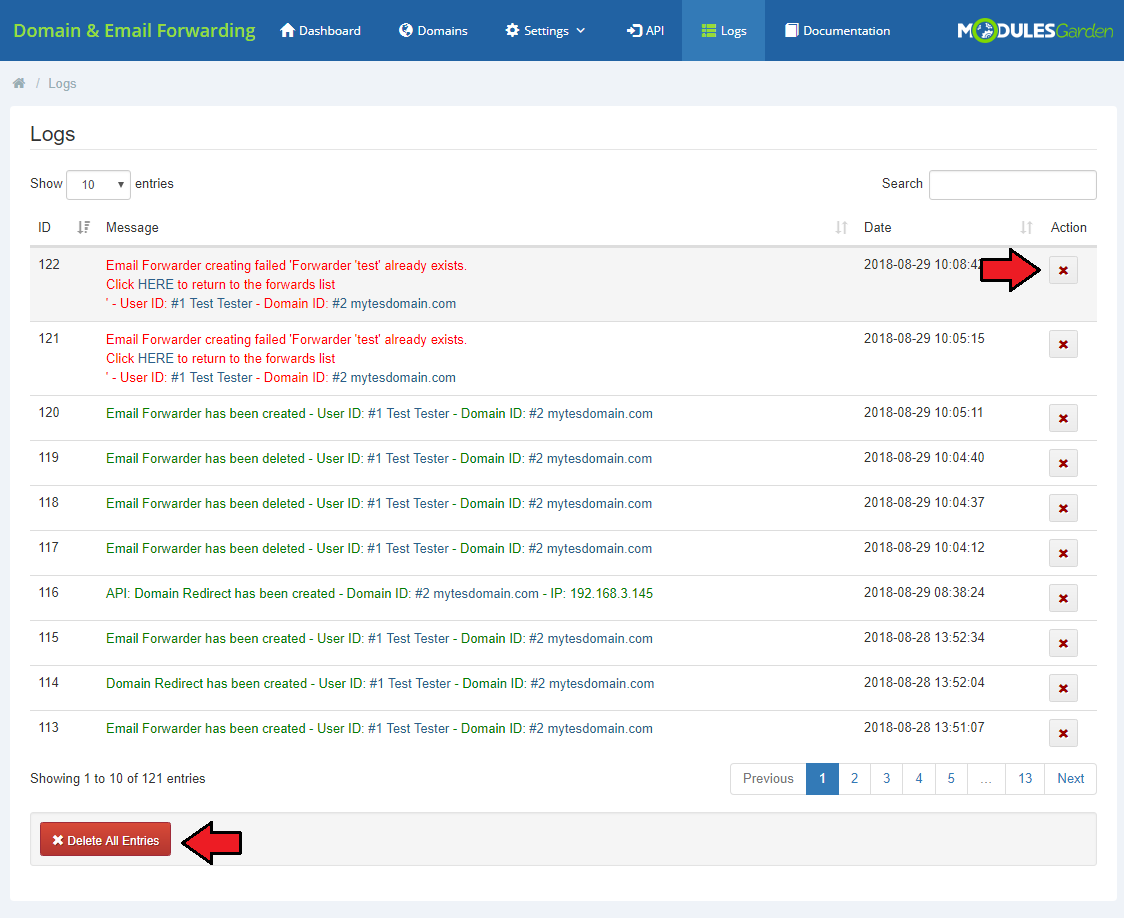
Under 'Logs' tab you will find all log entries.
There are details on any successful or failed action in the module. Check it out any time you need to find some details on the actions taken.
Press 'Delete All Entries ' to clear all logs or delete single ones.
# Documentation
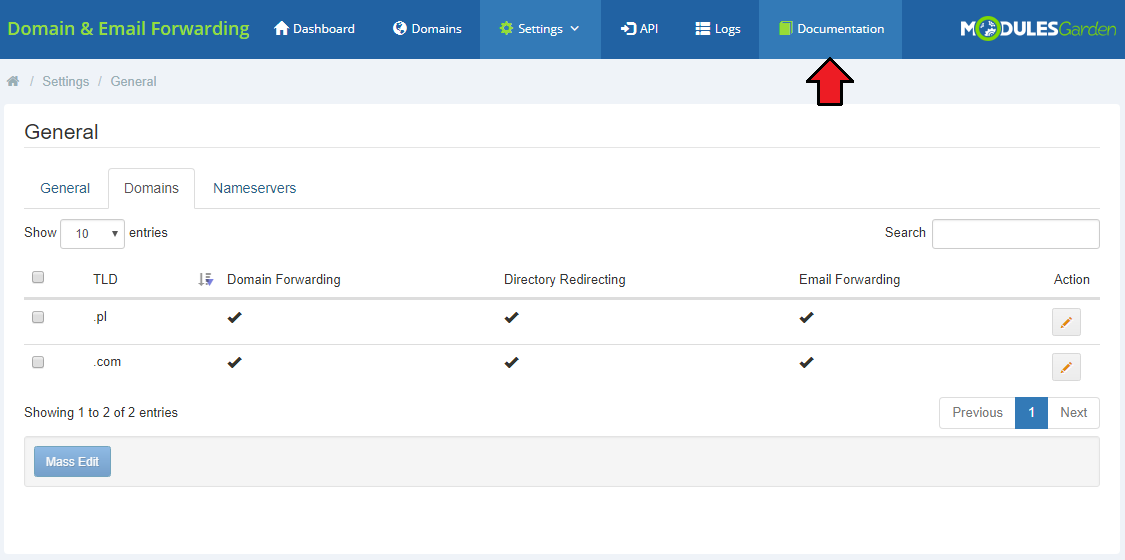
The last position in your navigation menu, when pressed, redirects to the article you are currently reading.
# Client Area
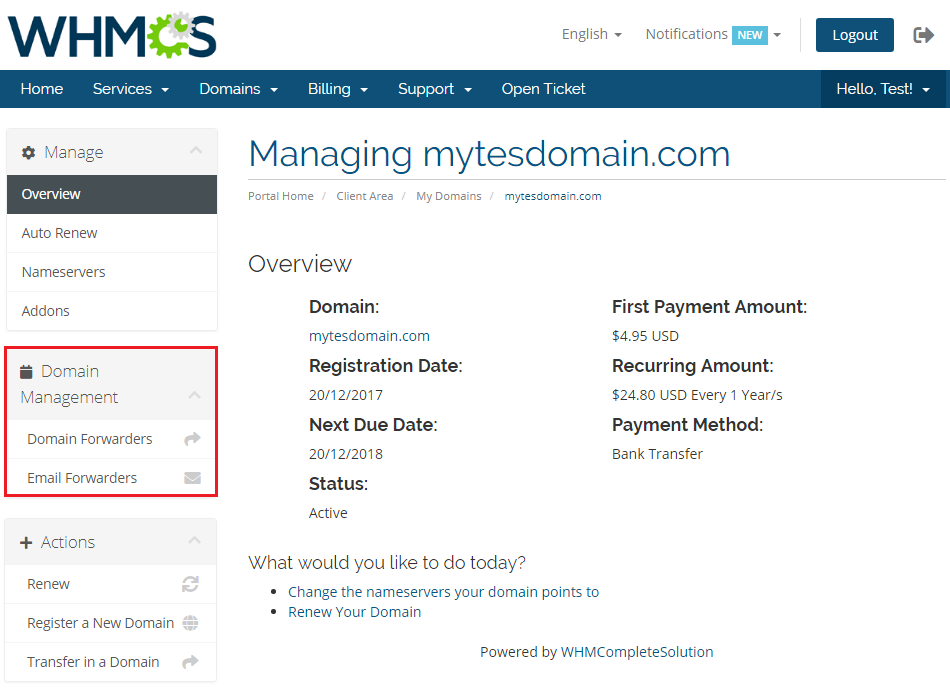
Domain & Email Forwarding For WHMCS module gives your clients the possibility to perform some actions typical to the ones that are performed directly in cPanel.
If you have allowed the options to your clients per used by them TLD, they now can see a new management box when they move to their domain details.
# Domain Forwarders
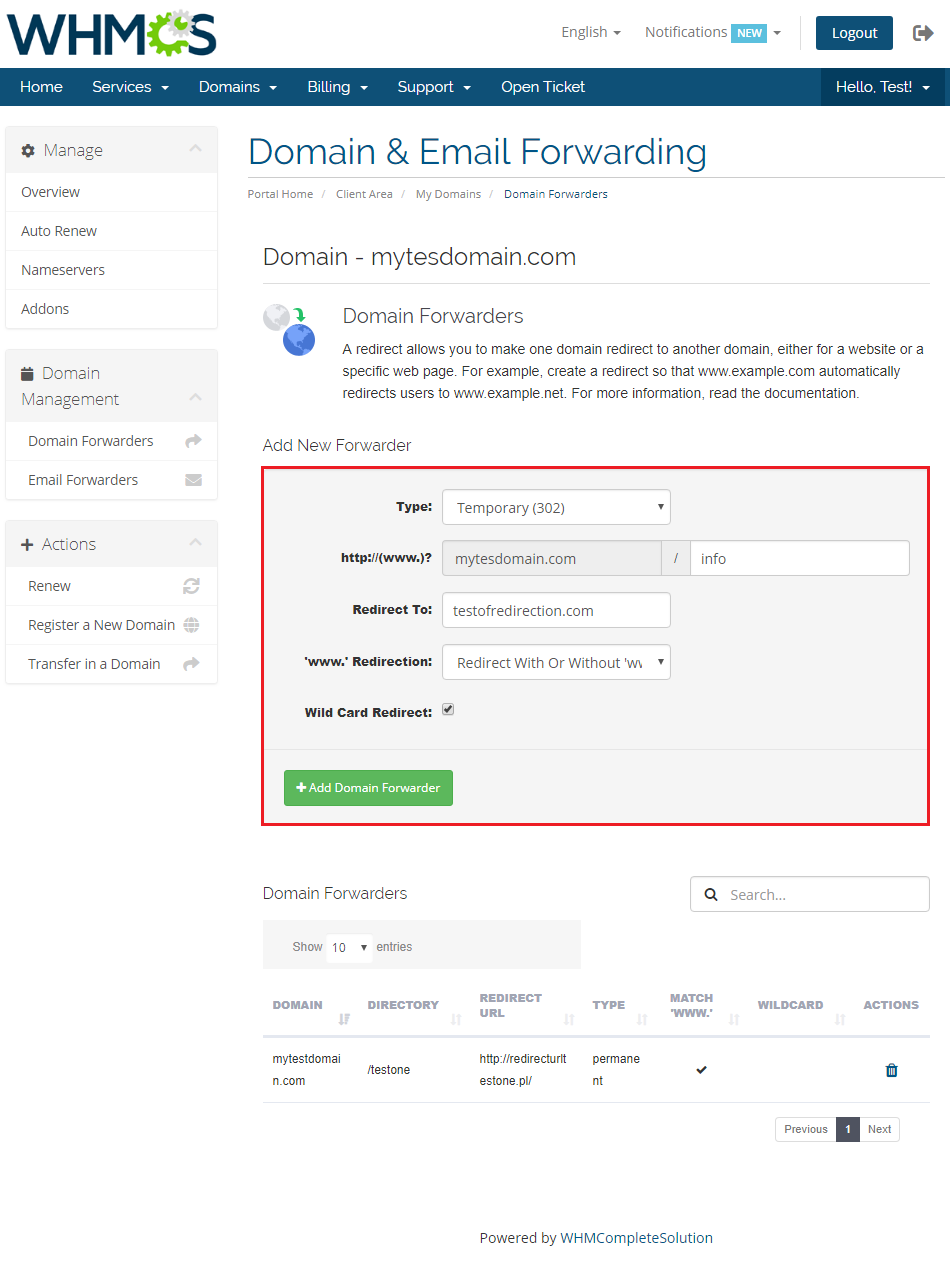
Under 'Domain Forwarders' clients may now specify new forwarders per domain or directory.
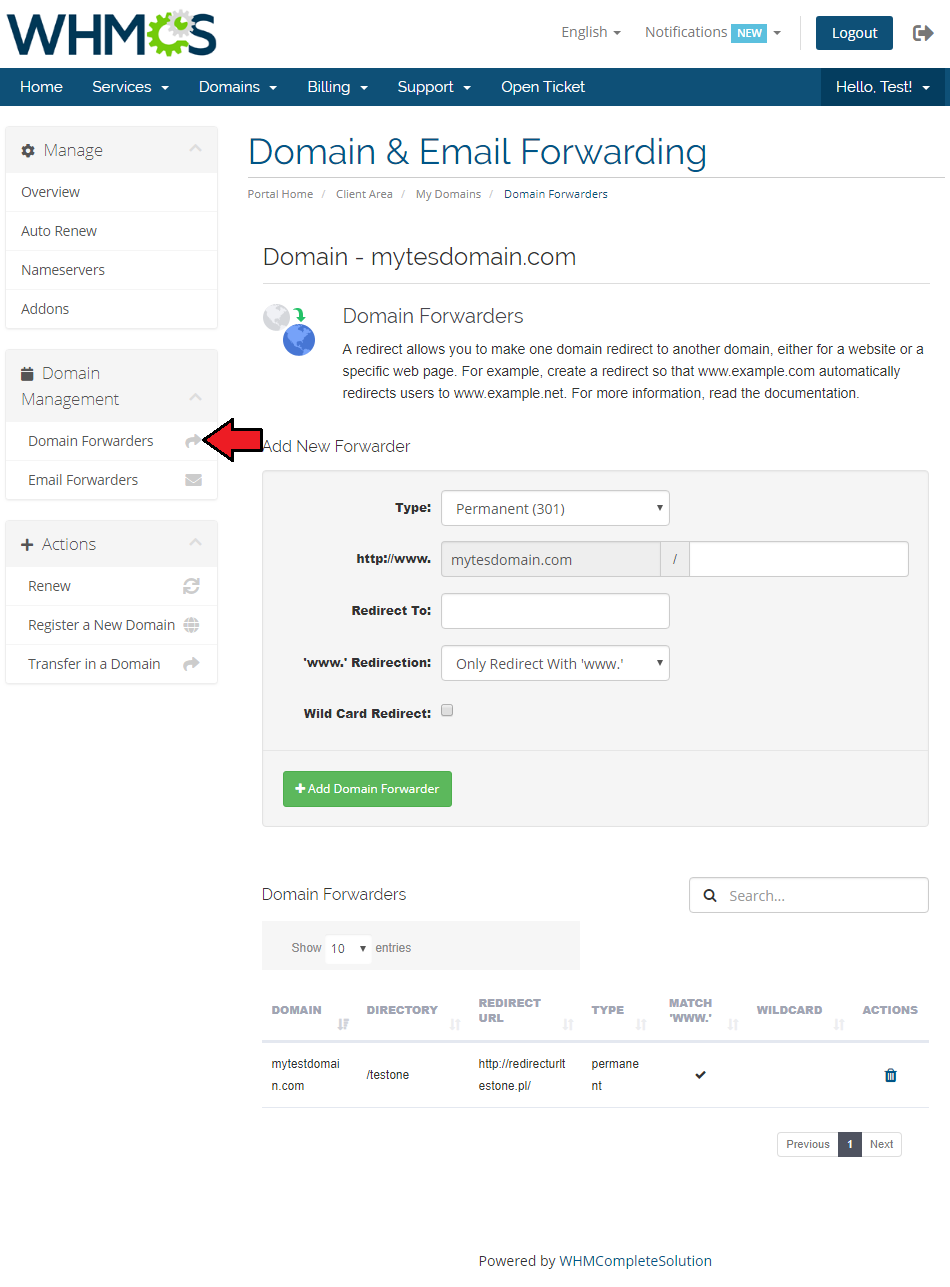
To add a new domain forwarder:
- select its type: 'Permanent' or 'Temporary'
- provide directory forward - if allowed
- provide redirect URL to redirect domain
- select 'www' redirection type
# Email Forwarders
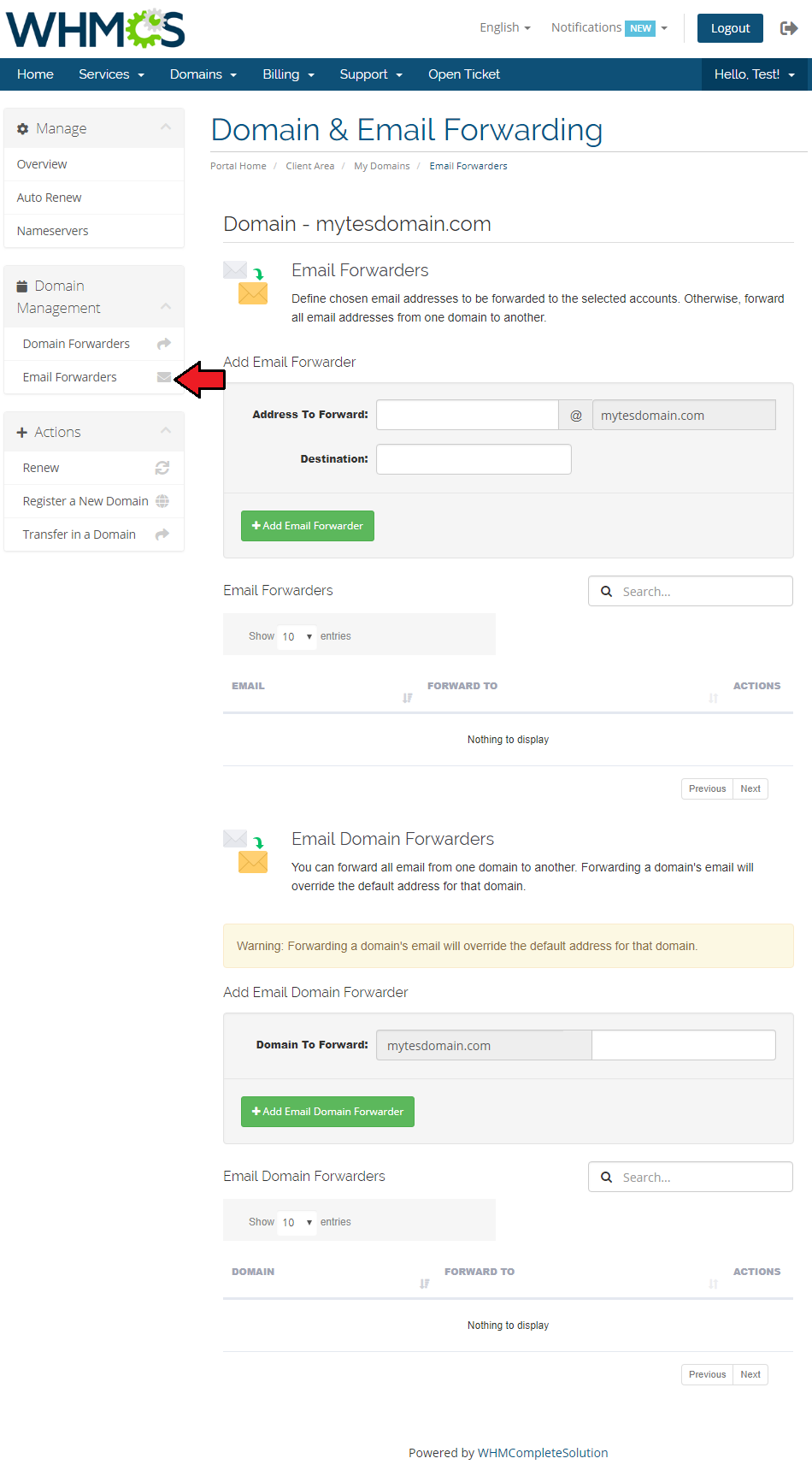
The second option 'Email Forwarders' allows clients to forward email from one domain to another one.
You may also provide a new destination for a specific email account.
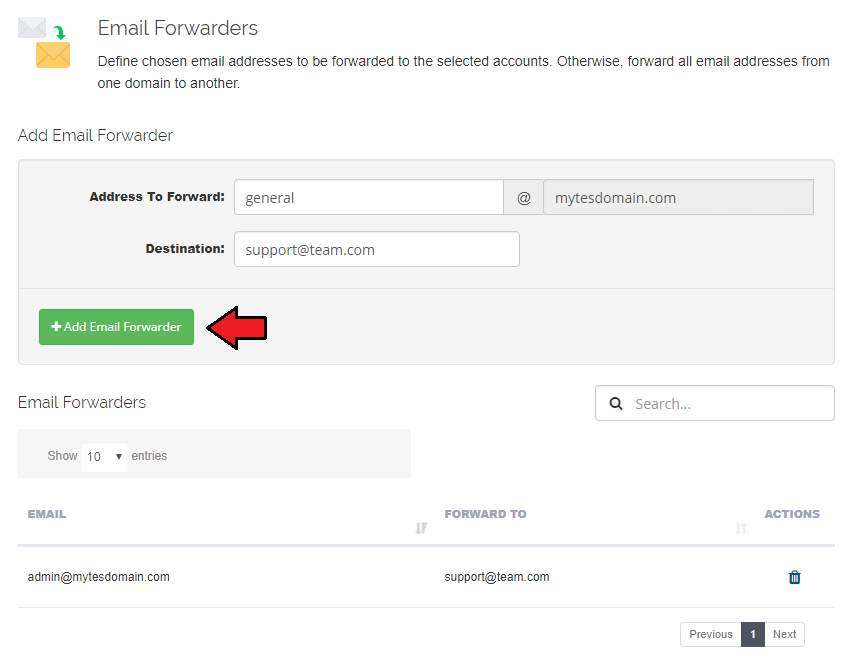
In order to add an email forwarder, please specify firstly address you want to forward and then the final destination.
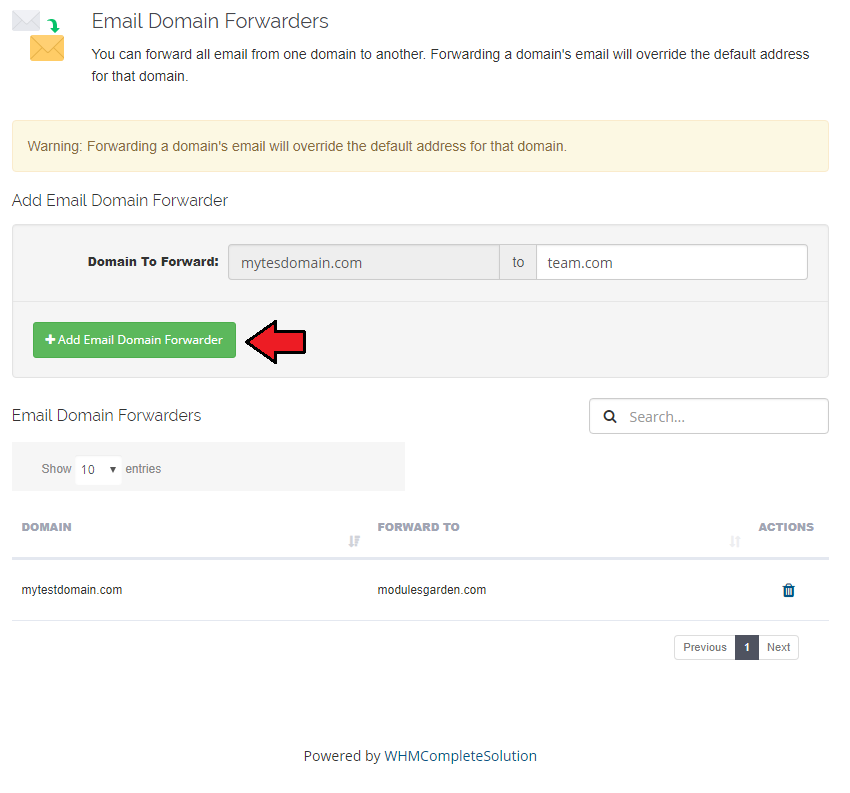
To add a new email forwarder simply type in the final domain to redirect email to.
To delete an email forwarder simply press button under 'Actions' column.
Note: Please keep in mind that this option is available only for cPanel module.
# API Commands
# Authorization
- Authentication
Send in headers a field called 'Token' with a value previously set in the module in the API tab.
# Listing WHMCS Services
- Listing all users services:
GET user/{WHMCS USER ID}/services
- Where {WHMCS USER ID} stands for the client's ID in WHMCS.
Below, you can find a simple PHP example of how to use the module’s API endpoint to list WHMCS services for a given user.
The example uses the token and API URL (endpoint) from the module's API section.
$endpoint   = "https://yourcompany.com/client/modules/addons/DomainAndEmailForwarding/api";     // API URL from module API section
$action     = "/user/2/services";                                // Listing WHMCS Services for user with ID 2
$token      = '5tlnhn6epveexqdstskhhcx63rsdw6pvj967u000ltn';     // API Token from module API section

$curl = curl_init();
curl_setopt($curl, CURLOPT_URL, "{$endpoint}{$action}");
curl_setopt($curl, CURLOPT_RETURNTRANSFER, true);
curl_setopt($curl, CURLOPT_SSL_VERIFYPEER, true);
curl_setopt($curl, CURLOPT_HTTPHEADER, ["Token: {$token}"]);

$response = curl_exec($curl);
curl_close($curl);

echo $response;
# Domain Redirections
Listing redirection for a specific service:
GET /services/{WHMCS SERVICE ID}/domainsRedirects- Where {WHMCS SERVICE ID} stands for the domain ID in WHMCS.
Adding redirection to a specific service:
POST /services/{WHMCS SERVICE ID}/domainsRedirects- Where {WHMCS SERVICE ID} stands for the domain ID in WHMCS.
POST parameters:
- type:
- CPANEL: "temp" for temporary redirection or "permanent" for permanent redirection
- DIRECT ADMIN: 301 for permanent redirection, 302 for temporary redirection, 303 for replaced redirection
- url - just where to redirect the domain
- rdww - takes one of the following parameters:
- "0" - Redirect With Or Without 'www'
- "1" - Do Not Redirect 'www'
- "2" - Only Redirect With 'www'
- wildcard - takes one of the following parameters:
- "0" to not wildcard redirect
- "1" to wildcard redirect
- src - directory in which the redirection will be placed
Below you can find a simple PHP example of how to use the module’s API endpoint to add redirection to a specific service.
The example uses the token and API URL (endpoint) from the module's API section.$endpoint = "https://your_company.com/client/modules/addons/DomainAndEmailForwarding/api"; // API URL from module API section $action = "/services/8/domainsRedirects"; // Listing WHMCS Services for user with ID 8 $token = '5tlnhn6epveexqfstpkhherwt33rsdw6pvj95km000ltn'; // API Token from module API section $params = [ 'type' => 'CPANEL', 'url' => 'https://test2.com/', 'rdw' => 2, 'wildcard' => 0, 'src' => 'test' ]; $curl = curl_init(); curl_setopt($curl, CURLOPT_URL, "{$endpoint}{$action}"); curl_setopt($curl, CURLOPT_POST, true); curl_setopt($curl, CURLOPT_POSTFIELDS, http_build_query($params)); curl_setopt($curl, CURLOPT_RETURNTRANSFER, true); curl_setopt($curl, CURLOPT_SSL_VERIFYPEER, true); curl_setopt($curl, CURLOPT_HTTPHEADER, ["Token: {$token}"]); $response = curl_exec($curl); curl_close($curl);Removing redirection:
POST /services/{WHMCS SERVICE ID}/domainsRedirects/delete
- Where {WHMCS SERVICE ID} stands for the domain ID in WHMCS.
POST parameters:
- sourceurl - domain source URL which you want to remove
# Email Forwarders
Listing email forwarders for a specific service:
GET /services/{WHMCS SERVICE ID}/emailsRedirectsAdding email forwarder to a specific service:
POST /services/{WHMCS SERVICE ID}/emailsRedirectsPOST parameters:
- html_forward - email which is wanted to be redirected. There should be passed only the first part of the email eg. "yourmail" not "[email protected]".
- dest - email destination address. A whole email address must be passed here.
Removing an email forwarder:
POST /services/{WHMCS SERVICE ID}/emailsRedirects/delete
POST parameters:
- html_forward - email html forward
- dest - email destination address
# Tips
If you want to quickly set up the configuration for all your TLDs, then you can use the 'Mass Edit' option to shorten the process.
As this module supports templates system, any changes made in the module's templates files will be saved after the upgrade process.
In case a domain is already managed by DNS Manager module, which means that it has already a zone created, that domain will not be available in the client area domain management section.
In the admin area it will be visible on the list of the domains, yet it will be marked as on the below screen.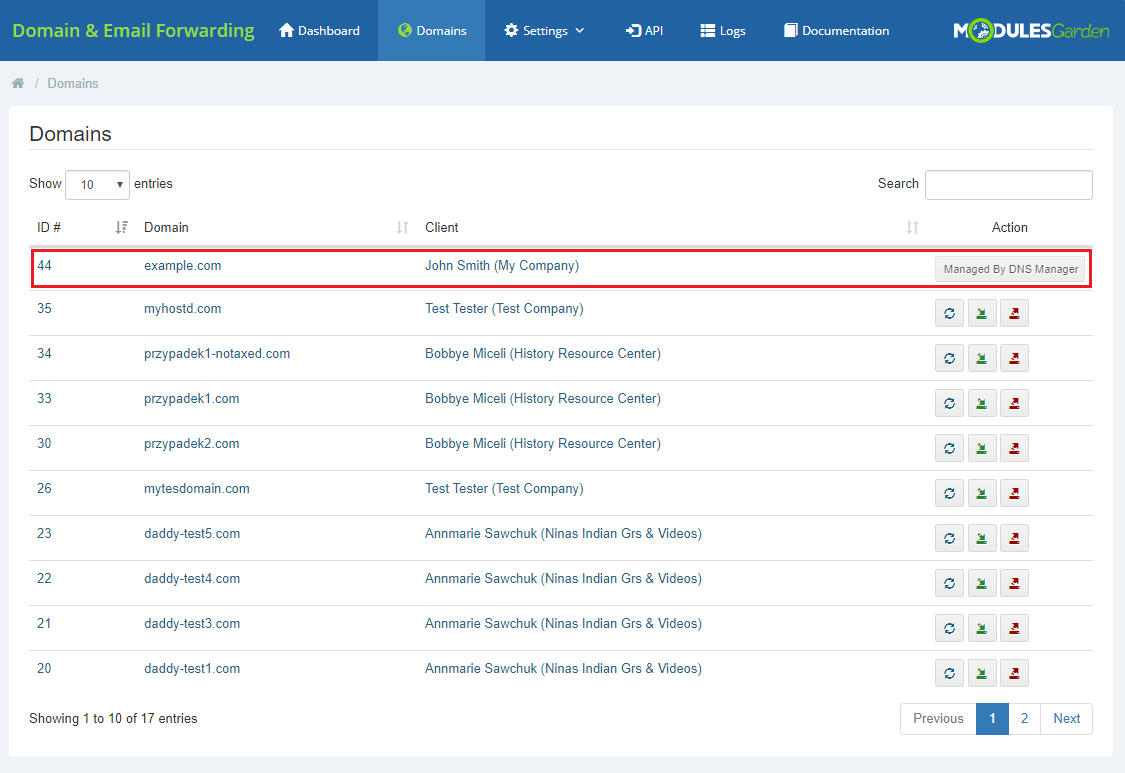
You can use the following cron command to automatically unpark all domains with given TLDs for which the 'Domain Forwarding' and 'Email Forwarding' options are disabled.
php -q /your_WHMCS/modules/addons/DomainAndEmailForwarding/cron/cron.php
Do not forget to replace 'your_WHMCS' with your WHMCS root location.
# Update Instructions
An essential guidance through the process of updating the module is offered here.
Ensure successful completion of the module update by carefully following each step, thereby preventing data loss or any unforeseen issues.
Additionally, you will find a current list of supplementary actions necessary for a smooth update process there.
# Upgrade Guide
Seeking a solution that offers greater flexibility, customization tailored to your precise needs, and unrestricted availability?
There is an option that not only proves to be cost-effective in the long run but also includes prioritized support services, making it a truly valuable investment.
Opt for the Open Source version (opens new window) of your Domain & Email Forwarding For WHMCS module to unlock these benefits.
Simply click on either the Get Source Code or Upgrade To Lifetime button found on the product's page in our client area to complete the one-step upgrade process, with a dedicated discount already applied.
Follow a comprehensive guide covering the transition process, the advantages it brings, and step-by-step instructions on what to do next after the order has been successfully finalized.
# Common Problems
- When you have problems with connection, check whether your SELinux or firewall does not block ports.