

# Proxmox Cloud 2.X For WHMCS
- About Proxmox Cloud For WHMCS
- Installation and Configuration
- Management
- Tips
- Update Instructions
- Common Problems
# (opens new window) About Proxmox Cloud For WHMCS (opens new window)
Proxmox Cloud For WHMCS offers your clients the flexibility to create, remove and freely resize their own virtual servers within resource limits defined by you.
Your customers will be able to create as many servers as they need, manage such essential aspects like backups or firewall, and access noVNC, SPICE, or Xterm.js console.
The module supports Cloud-Init for the KVM virtualization type, and features Proxmox Addon allowing you to easily manage servers, IP addresses and clusters.
Admin Area Features
- Create/Suspend/Unsuspend/Terminate User Account
- Change Package
- Change User Role
- Reset Bandwidth
- Migrate/Import/Delete Server
- Edit Server Node
- View Server Status, Details And Statistics
- View Graphs - With Ability To Change Time Scale of MRTG Graphs
- Display Disk And Bandwidth Usage Of Each Product
- Display CPU, SWAP and Memory Usage Of Each Product
- Select Server Locations Available For Clients
- Configure Client Area Features Per Product
- Define Static Or Dynamic Resource Limits
- Define Server Minimum And Maximum Resource Values
- Import IP Address To Hosting IP Addresses Table
- Return IP Address To IP Addresses Subnet
- Add Additional IP Address To VM
- Enable Qemu Guest Agent (KVM)
- Enable Backups Routing
- Enable Auto VM Backups Before Reinstallation
- Enable Load Balancer
Proxmox Addon Features
- Display Servers: List Per VPS And Cloud
- List Per VPS And Cloud
- Clusters List
- VMs List
- KVM Templates
- Recovery VM Configurations List With Export To Backup File
- Tasks History
- Statuses, Resources Usage, IP Assignments And Details
- Manage Public & Private IP Addresses Per Server, VLAN, Tag And Node
- VM Cleaner - Manage VM Not Existing In Your WHMCS
- Convert KVM VPS To KVM Template
- Define VM IDs Ranges Per Server
- Set Minimum VM ID For Product Without ID Ranges Defined
- Configure Resources Weights For Load Balancer Prioritization
- Synchronize Users Permissions
Client Area Features
- Create/Edit/Delete Servers
- Boot/Reboot/Stop/Shutdown Server
- Reinstall Server Using Templates (KVM) And ISO Images
- Choose Location For New Servers
- View Available Resources
- Access noVNC, SPICE And Xterm.js Console
- Create/Restore/Delete Backups
- Manage Backups Within Defined Limits (Max Number Of Files & Max Size Of Files)
- Manage Backup Jobs Within Defined Limits (Max Number Of Files & Max Size Of Files)
- View And Edit Public SSH Keys (KVM)
- Create/Upload/Download Public And Private SSH Keys (LXC)
- View Graphs - With Ability To Change Time Scale of MRTG Graphs
- View Task History
- View Network Devices and Manage Private Interface
- Manage Private Networks And Assign Them To Multiple Servers
- Create Server Snapshots
- Create VM Template From Server - KVM Virtualization Only
- Manage Firewall
- View Server Status, Details And Statistics
- Display Disk And Bandwidth Usage
- Display CPU, SWAP and Memory Usage
- Change Boot Order (KVM)
- Change ISO Image (KVM)
- Choose Server Resources While Ordering And Upgrade/Downgrade Them Freely
Configurable Options
KVM
- CPU Sockets Limit
- CPU Cores Limit
- CPU Limit
- CPU Units Limit
- Memory Limit
- SWAP Limit
- Storage Limit
- IPv4 Addresses Limit
- IPv6 Addresses Limit
- Bandwidth Limit
- Backups Size Limit
- Backups Files Limit
- Private Networks Limit
- VCPUs Limit
- Network Rate Limit
LXC
- CPU Sockets Limit
- CPU Cores Limit
- CPU Limit
- CPU Units Limit
- Memory Limit
- SWAP Limit
- Storage Limit
- IPv4 Addresses Limit
- IPv6 Addresses Limit
- Bandwidth Limit
- Backups Size Limit
- Backups Files Limit
- Private Networks Limit
- VCPUs Limit
- Network Rate Limit
General Info
- Supports Cloud-Init (KVM)
- Supports PVE And PAM Authentication
- Supports KVM and LXC Virtualization
- Integrated With Advanced Billing For WHMCS - Actual Server Resource Usage Billing (read more) (opens new window)
- Integrated With Proxmox Cloud Autoscaling For WHMCS - Automated Servers Resizing (read more) (opens new window)
- Integrated With IP Manager For WHMCS - Complete Control And Easy Assignment Of IP Subnets (read more) (opens new window)
- Multi-Language Support
- Supports Proxmox VE 6.X And Later
- Supports IPv4 and IPv6
- Supports Custom Hooks
- Supports PHP 7.1 Up To PHP 7.4
- Supports WHMCS Template Six
- Supports WHMCS 7.9 And Later
- Easy Module Upgrade To Open Source Version (opens new window)
# Installation and Configuration
This tutorial will show you how to successfully install and configure Proxmox Cloud For WHMCS. (opens new window)
We will guide you step by step through the whole installation and configuration process.
# Installation
- Log in to our client area and download the module.
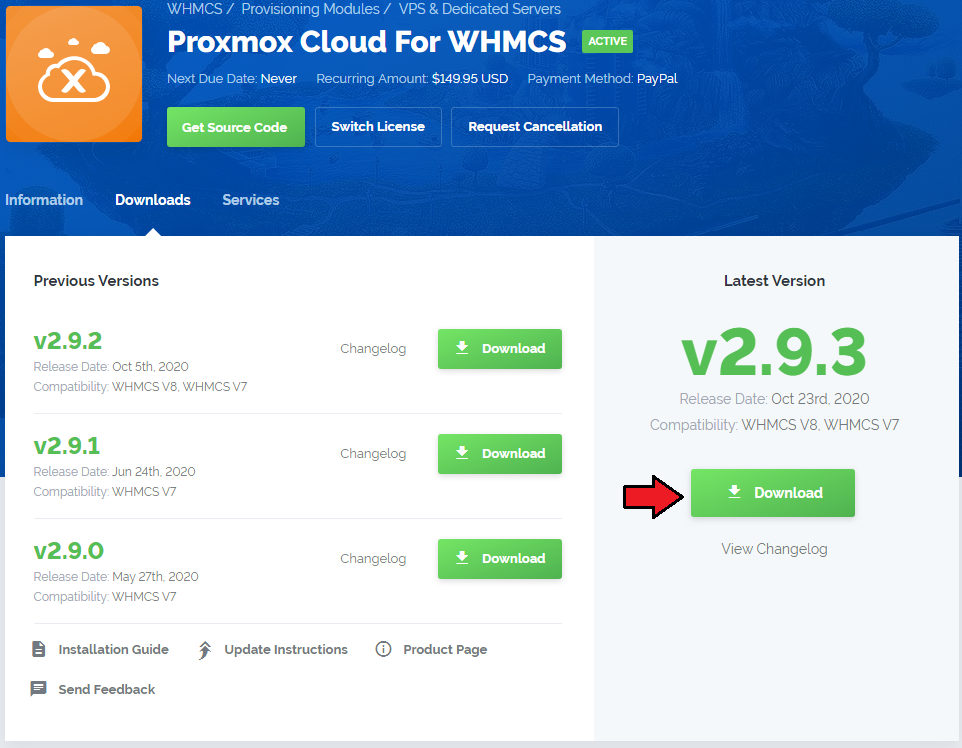
In the downloaded file you might find one or two packages that support different PHP versions.
In the most recent versions of the module, you will find only one package that supports PHP 7.1 and later.
Previous updates of the module may contain two packages dedicated to various PHP versions.
The first one that supports PHP 5.6 up to PHP 7.0, and the second one addressed to PHP 7.1 up to PHP 7.3.
Note: Keep in mind that PHP versions 5.6 up to 7.0 are no longer officially supported and their security issues are not fixed or released any more. Find more info here (opens new window).
Note: You can check the current PHP version in your WHMCS. To do so, proceed to 'Utilities' → 'System' → 'PHP Info'.
Extract the package and upload its content into the main WHMCS directory.
The content of the package to upload should look like this.
Open 'UploadOnProxmoxServer' and upload content of the proper version on all Proxmox servers into the '/' path.
You should upload these files not only during the first installation of the module, but also each time you update it.
Note: If you wish to allow noVNC consoles, you need to configure a product using the PVE realm and set user permissions to 'PVEVMUser.'
Important: Open Folder UploadOnProxmoxServer/5.2-10 and upload content on all your proxmox servers. Scripts must be updated on proxmox server v2.6.0 to allow Xterm.js console work.When you install Proxmox Cloud For WHMCS for the first time, you have to rename the 'license_RENAME.php' file.
This file is located in 'modules/servers/proxmoxCloud/license_RENAME.php'. Rename it from 'license_RENAME.php' to 'license.php'.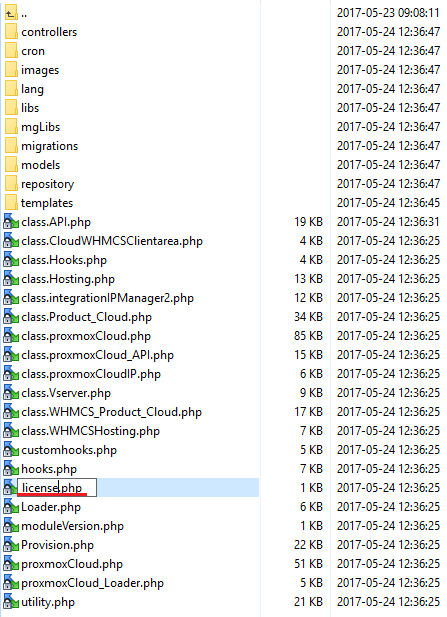
In order to configure your license key, you have to edit a previously renamed 'license.php' file.
Enter your license key between quotation marks as presented on the following screen.
You can find your license key in our client area → 'My Products'.
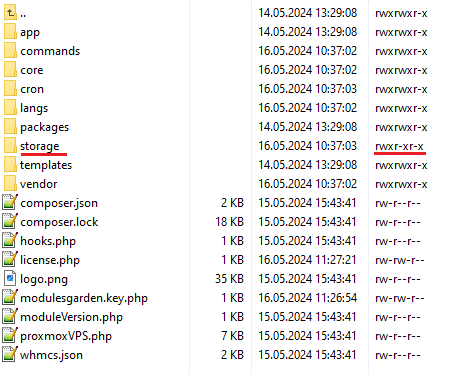
In the next step, set up the 'storage' folder as recursively writable.
This folder is available at:
your_whmcs/modules/addons/proxmoxAddon/
# Activation of Proxmox Addon
Firstly, you should activate Proxmox Addon.
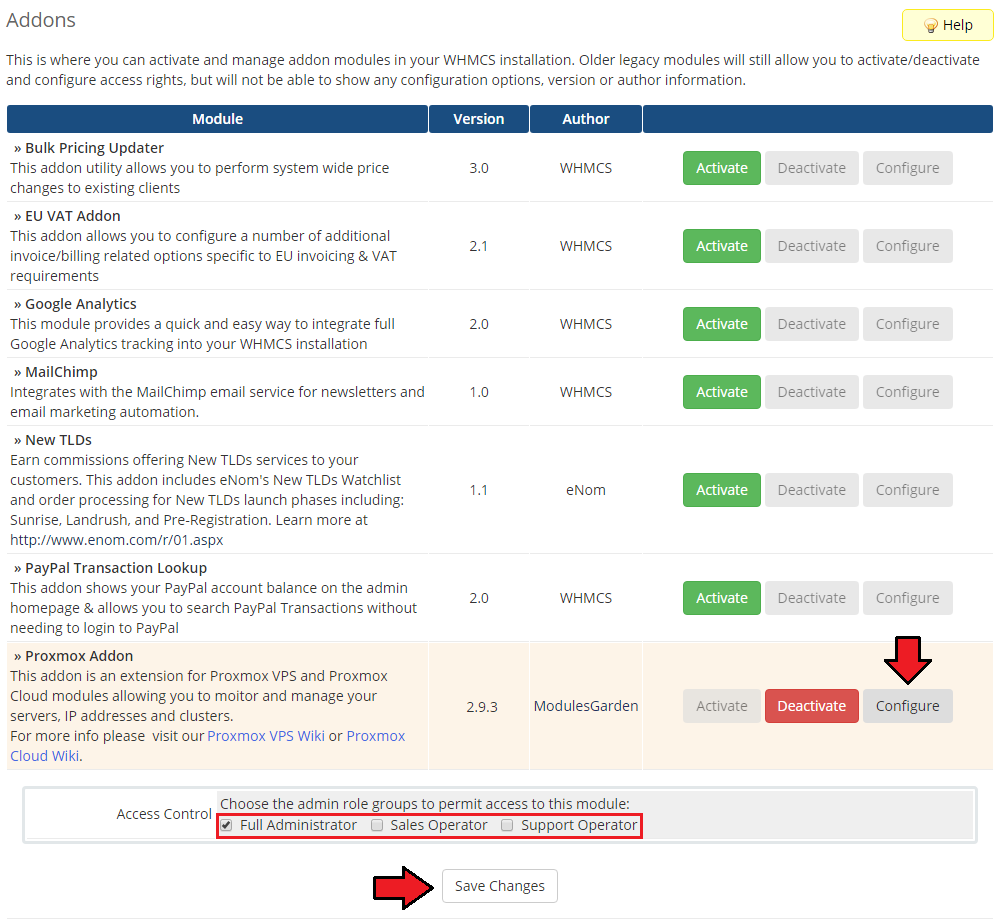
To do so, log in into your WHMCS and press 'Setup' → 'Addon Modules'. Find 'Proxmox Addon' and press 'Activate'.
Note: The Proxmox addon version might not match the current version of the provisioning module itself. This is completely normal due to the specific structure of the product.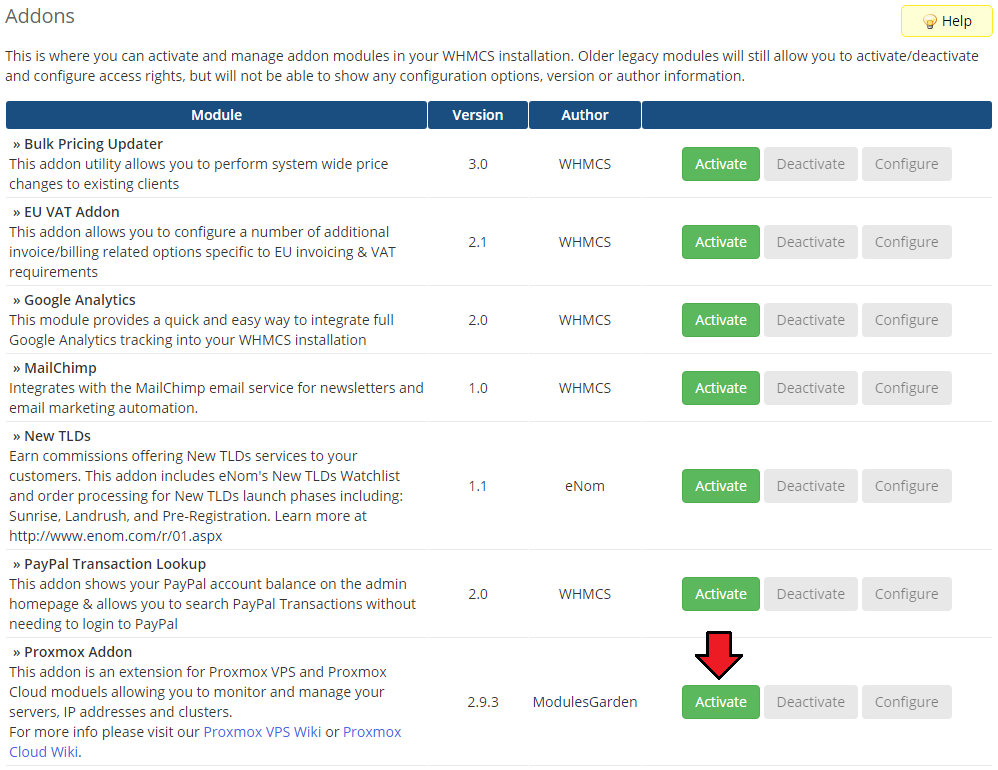
In the next step, you need to permit access to this module.
To do so, click on the 'Configure' button. Tick 'Full Administrator' and press 'Save Changes'.
# Configuration of Server
Now, we will show you how to configure a new product.
Go to 'Setup' → 'Products/Services' → 'Servers' and press 'Add New Server'.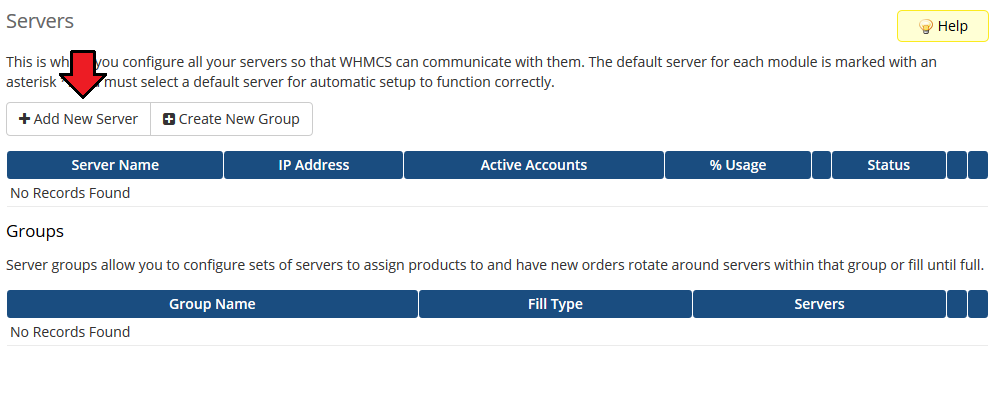
Next, enter your server name, IP address, username and password.
Choose 'ProxmoxCloud' from a dropdown menu and press 'Save Changes'.
The last step is choosing authentication from the 'Authentication' dropdown menu.
Note: Authentication depends on the realm used by the user on a Proxmox server.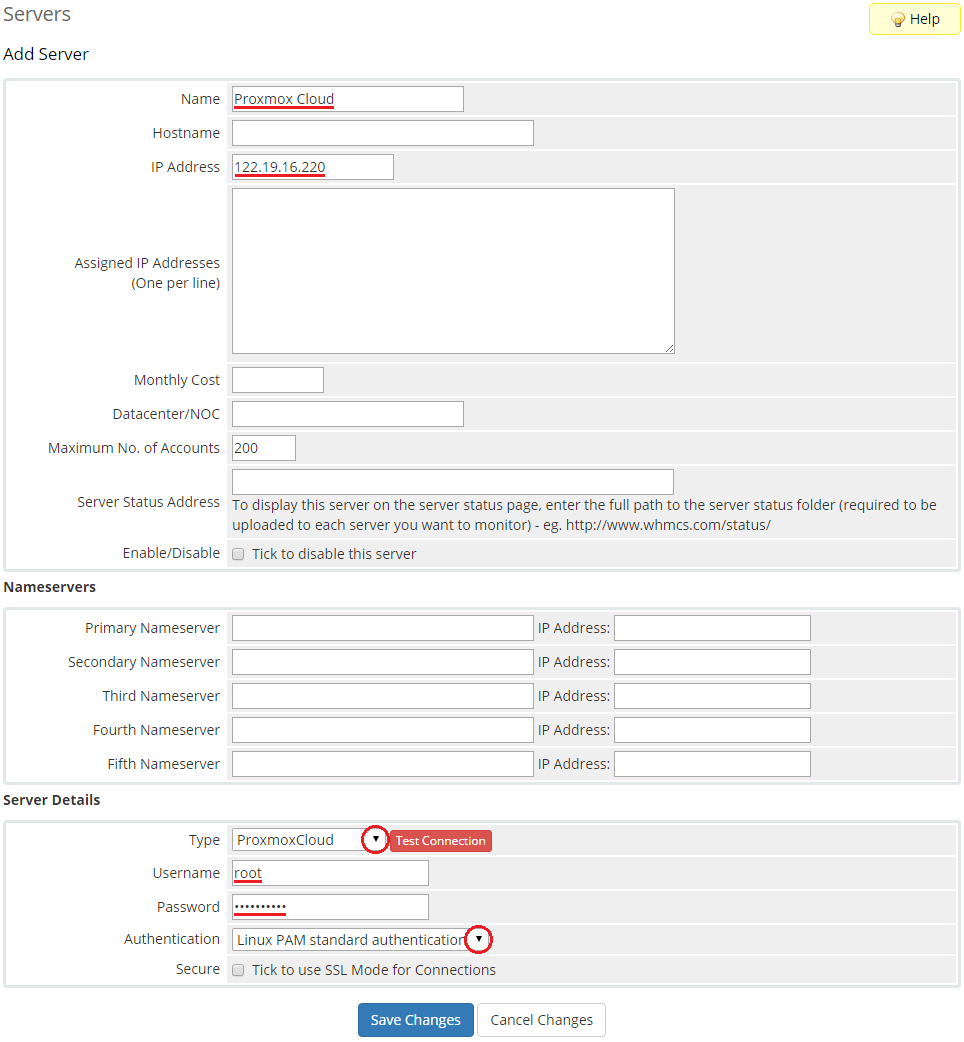
After you have configured your server correctly, you will see the following screen.
You can check connection with the Proxmox server. To do so, simply press 'Test Connection' as shown on the screen below.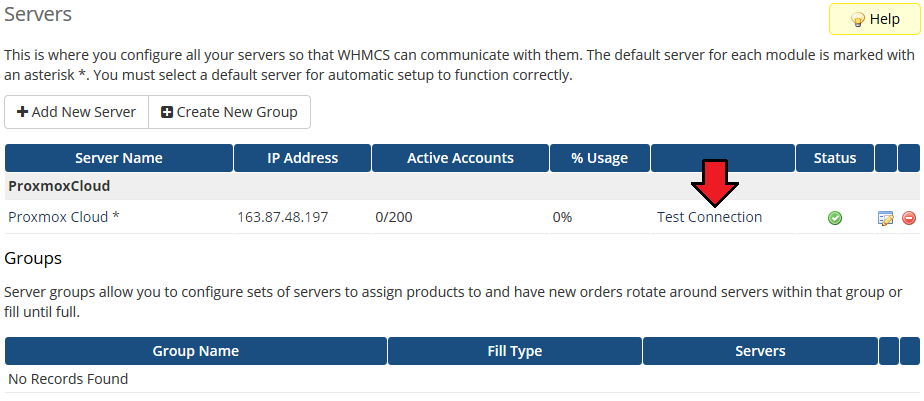
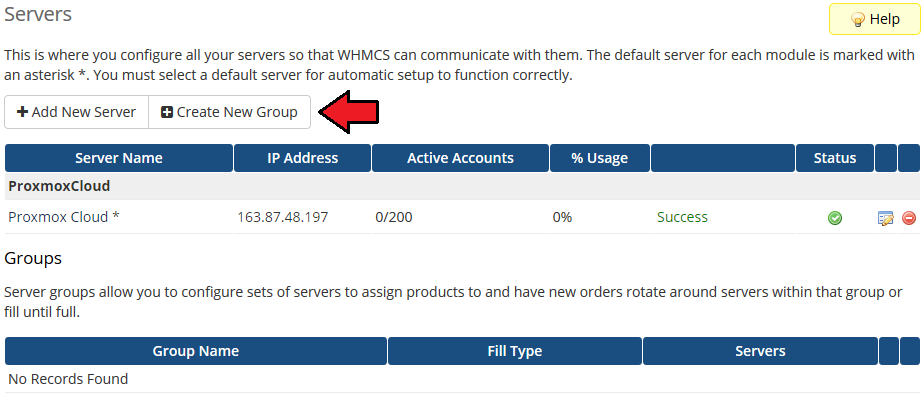
It is time to create a server group. To do so, click on 'Create New Group'.
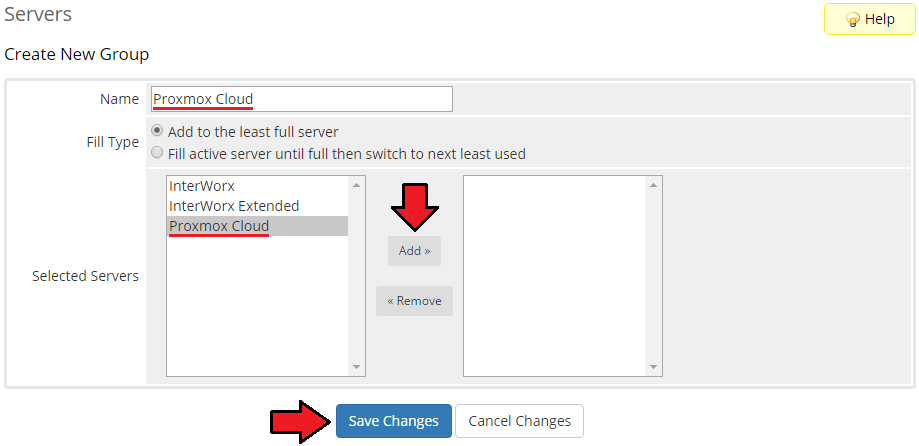
- Enter name, click on your previously created server, press 'Add' and afterwards 'Save Changes'.
# Configuration of Product
In order to create and configure a product, go to 'Setup' → 'Products/Services' → 'Products/Services'.
Click on 'Create a New Group'.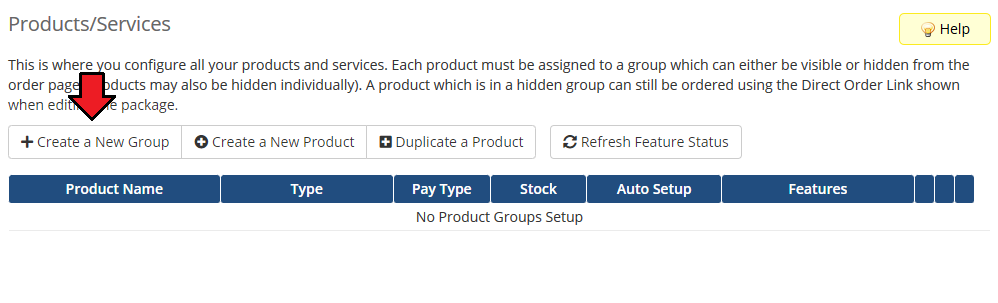
Enter the product group name and press 'Save Changes'.
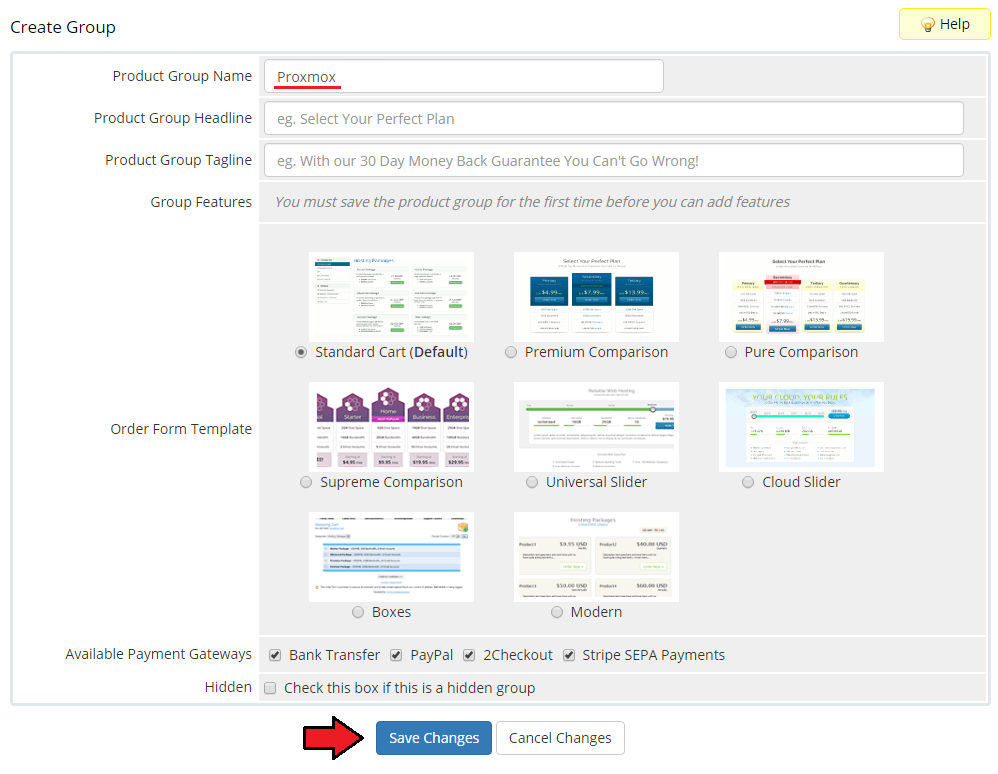
- When you have a product group, you are able to create your product.
To create a product, click on 'Create a New Product'.
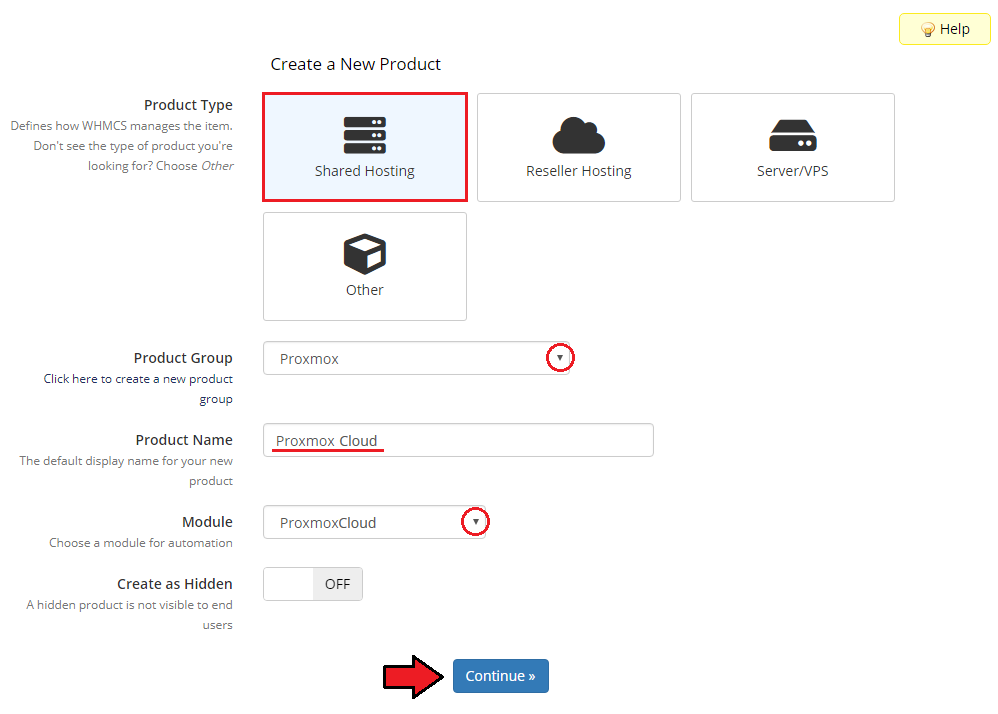
17. Afterward, choose your product group from dropdown menus and poinmt its type, enter your product name and choiose Proxmoix VPS as a module name.
Press 'Continue'.
'Product Type' can be set to 'Server/VPS' but nameservers will need to be added later.
If you do not want to fill out nameservers, please select 'Shared Account'.
Now, go to the 'Module Settings' section and choose your previously created server group from the dropdown menu.
Next, click on 'Save Changes'.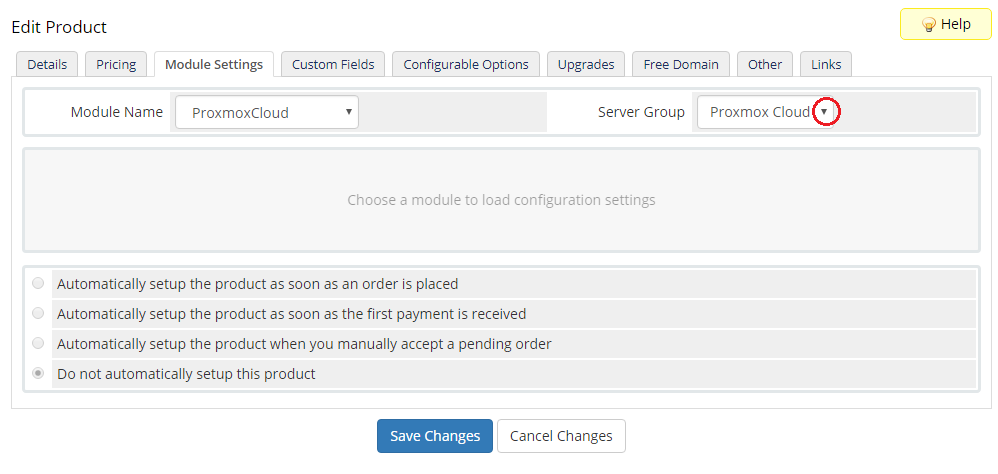
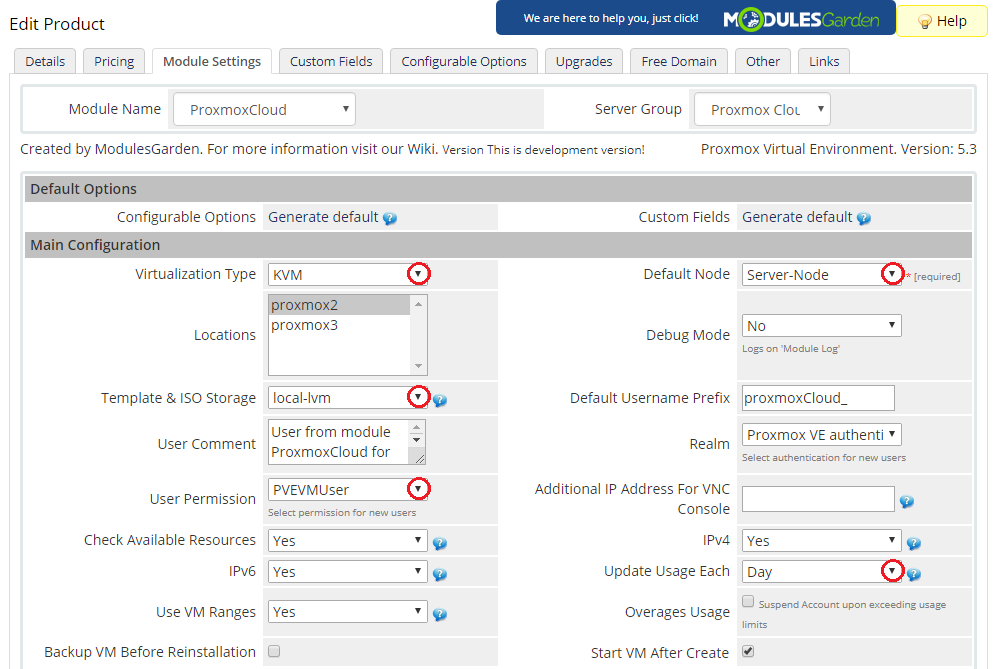
Choose 'Virtualization Type', 'Default Node', 'Template & ISO Storage' and 'User Permission' from dropdown menus.
Available virtualization types:
- KVM
- LXC
You can also choose how often the bandwidth usage should be calculated.
Afterwards, press 'Save Changes'.
Note: If you choose 'Auto-Node' as 'Default Node', new virtual servers will be created on the least used node.
Note 2: An advanced tool is available for you to automatically manage a node selection with the best count of resources. Read more about Load Balancer.
# KVM Virtualization Type
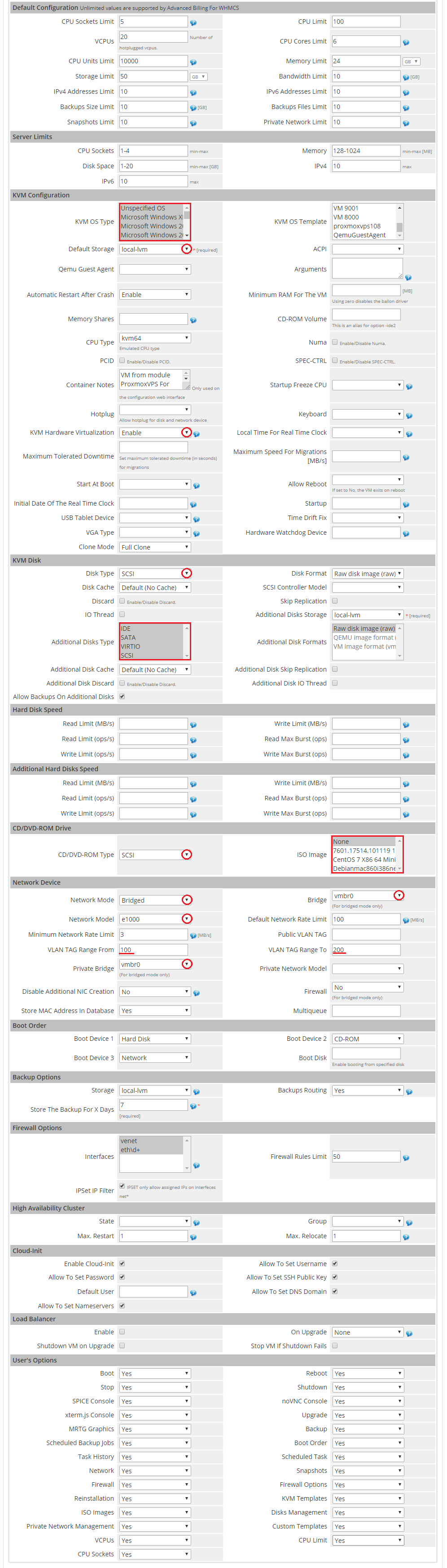
- Setting of the KVM virtualization type (skip this step if you have chosen the LXC virtualization type).
From dropdown menus, choose 'KVM OS Type', 'Default Storage', 'Disk Type' and 'CD/DVD-ROM Type'.
Choose ISO images available for your clients by marking them in 'ISO Image'.
Set the network through selecting from the 'Network Mode', 'Network Model', and 'Bridge' dropdown menus.
If you are going to allow your clients to manage their private networks, you have to select 'Private Bridge' and set up VLAN TAG Range.
Type in your VM description in 'Container Description', set the backup location in the 'Storage' dropdown menu and click 'Save Changes'.
Important: Keep in mind that the root password is generated automatically for KVM virtualization upon its creation and reset.
If you want to set your own password on KVM virtualization, use the Cloud-Init option.
# LXC Virtualization Type
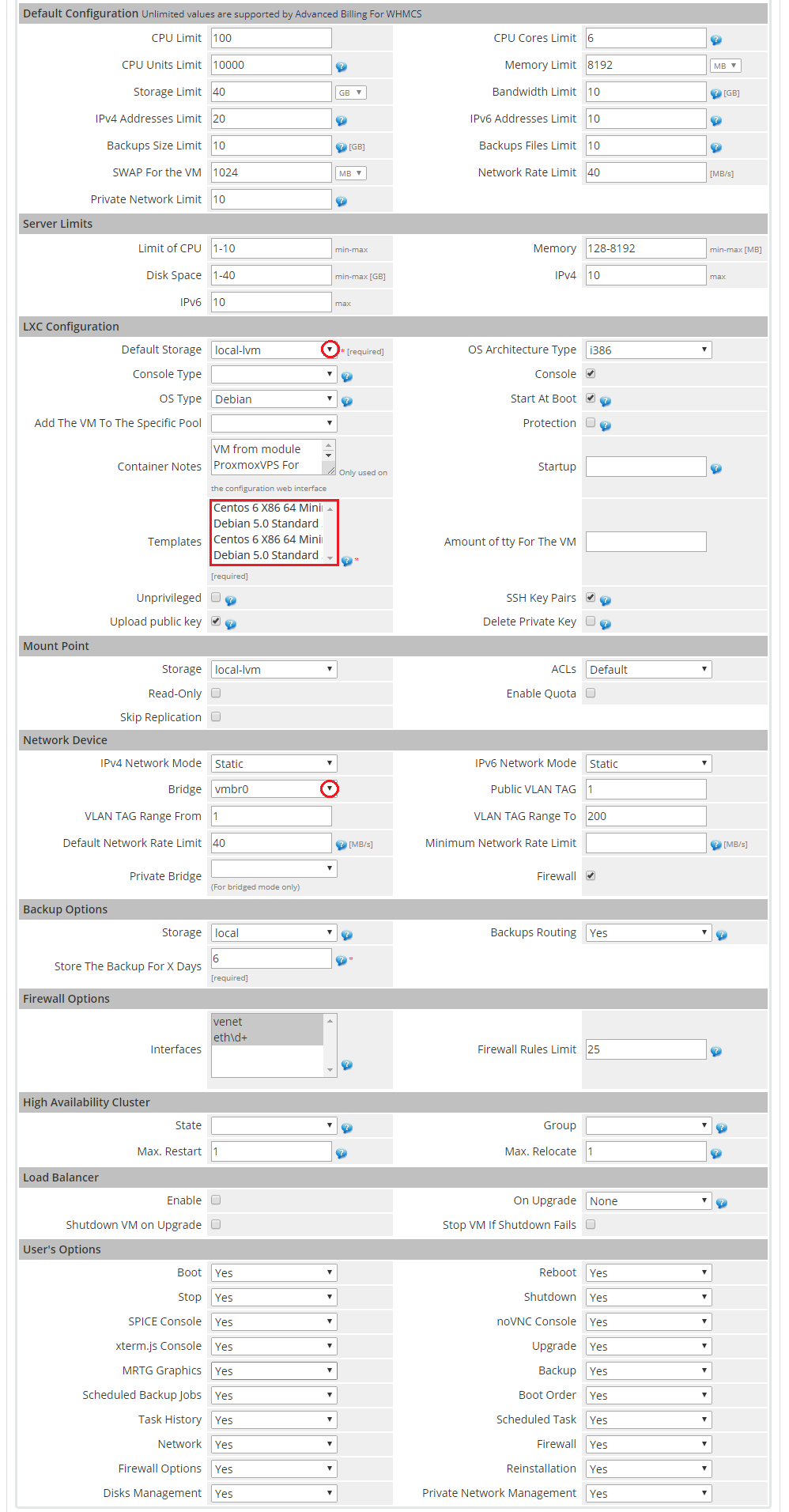
- Setting of the LXC virtualization type (skip this step if you have chosen the KVM virtualization type).
From dropdown menus, choose 'Default Storage', 'Template' and 'Bridge'.
Enter your virtual server description in 'Container Description' and press 'Save Changes'.
Remember! This virtualization type is supported only by Proxmox VE 4.0. and later.
If you are using the previous version of a Proxmox server, you will not be able to start this virtualization.
# Finalizing The Configuration
Private Network Management - in order to allow clients to manage their private networks, set up the 'Network Device' section properly.
- Select 'Private Bridge'
- Select 'Private Network Model'
- Enter ranges for VLAN TAG
Note: Configure these three options for the KVM and LXC virtualization.
If you skip this step, clients will not be allowed to add private networks.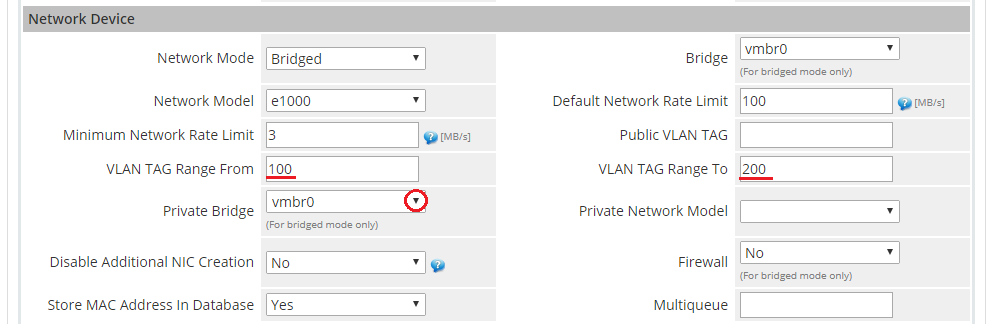
The next step is setting up the configuration of backups.
Define backup settings in the 'Backups' section through selecting values from the 'Storage' and 'Backups Routing' dropdown menus.
Backups routing automatically removes the oldest backup when a new backup is created and the established backup limit is reached.
Additionally, you can limit the time period for storing backups by providing the number of days into the 'Store The Backup For N Days' field.
Furthermore, you can define the limit of firewall rules and the interface to apply the rules to.
Finish the configuration in the 'Module Settings' tab through pressing 'Save Changes'.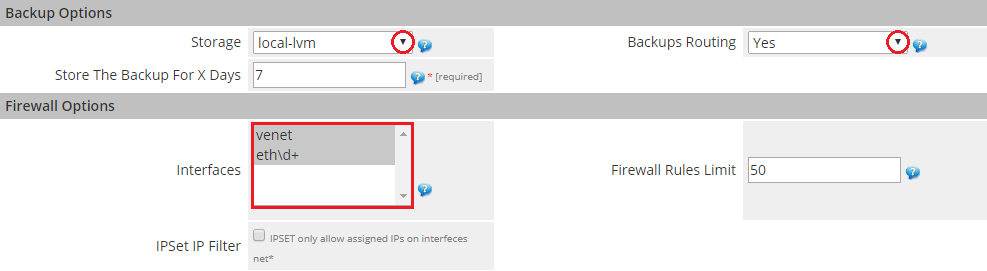
Set up server limits to control the size of created servers.
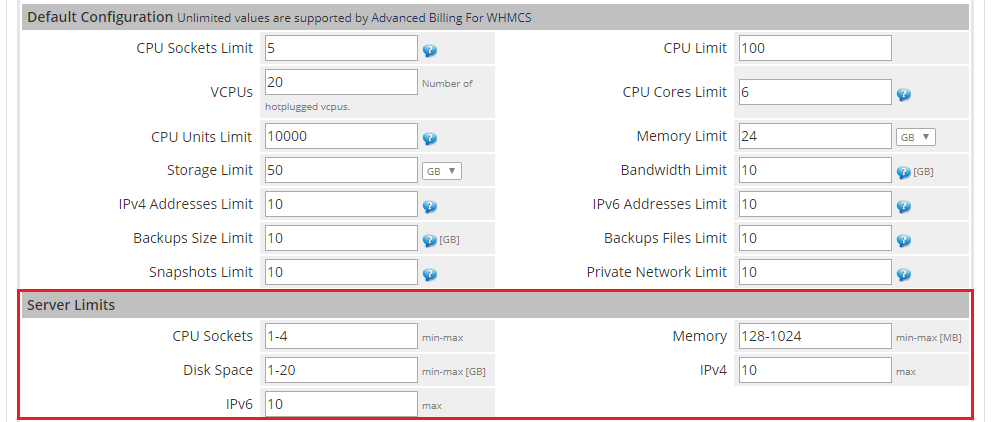
The final step is generating custom fields and deciding whether to set up the product with static or configurable resources.
Press 'Generate default' next to 'Custom Fields'.
Static Resources: Fill in the fields in located in the 'Default Configuration' section with desired values.
Configurable Resources: Click on 'Generate Default' next to 'Configurable Options'.
Press 'Save Changes' at the bottom of the page.
Note: While generating 'Configurable Options', it is advisable to delete the ones you do not use, e.g. the swap option or IPv6 for the KVM virtualization.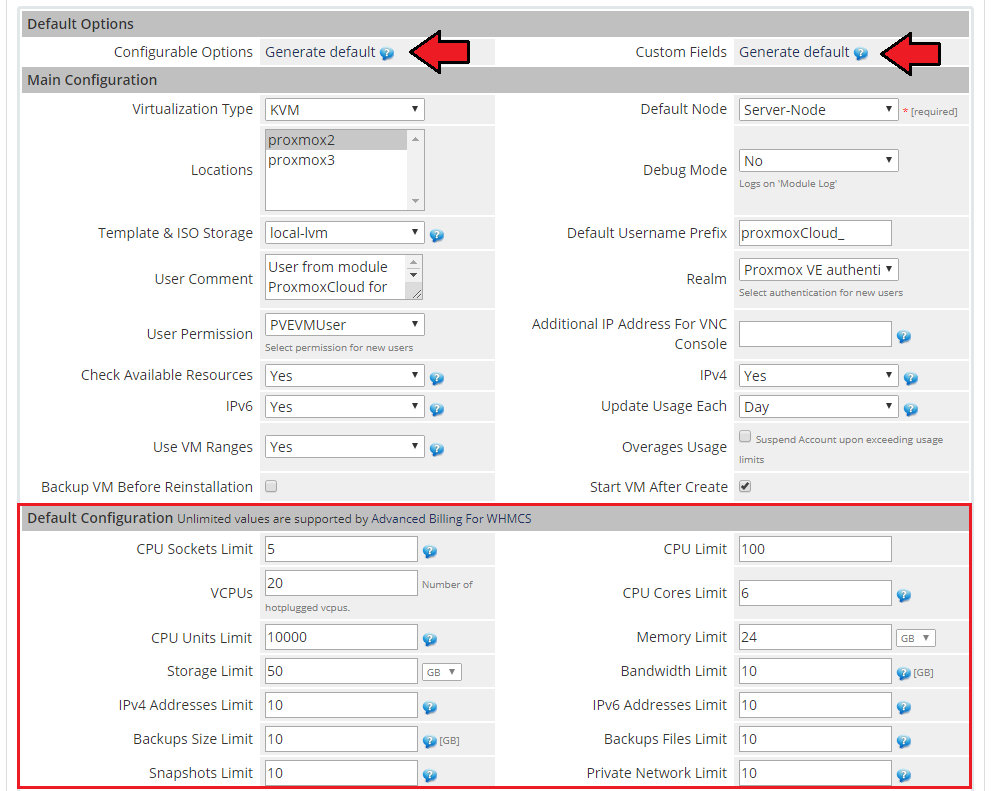
In the end of the product configuration, you have to add a cron job that is shown below (5 minutes interval suggested).
php -q /your_whmcs/modules/servers/proxmoxCloud/cron/cron.php
Do not forget to replace 'your_whmcs' with your WHMCS root location.
Congratulations! You have just finished the installation and configuration of the module.
# Configuration of Addon
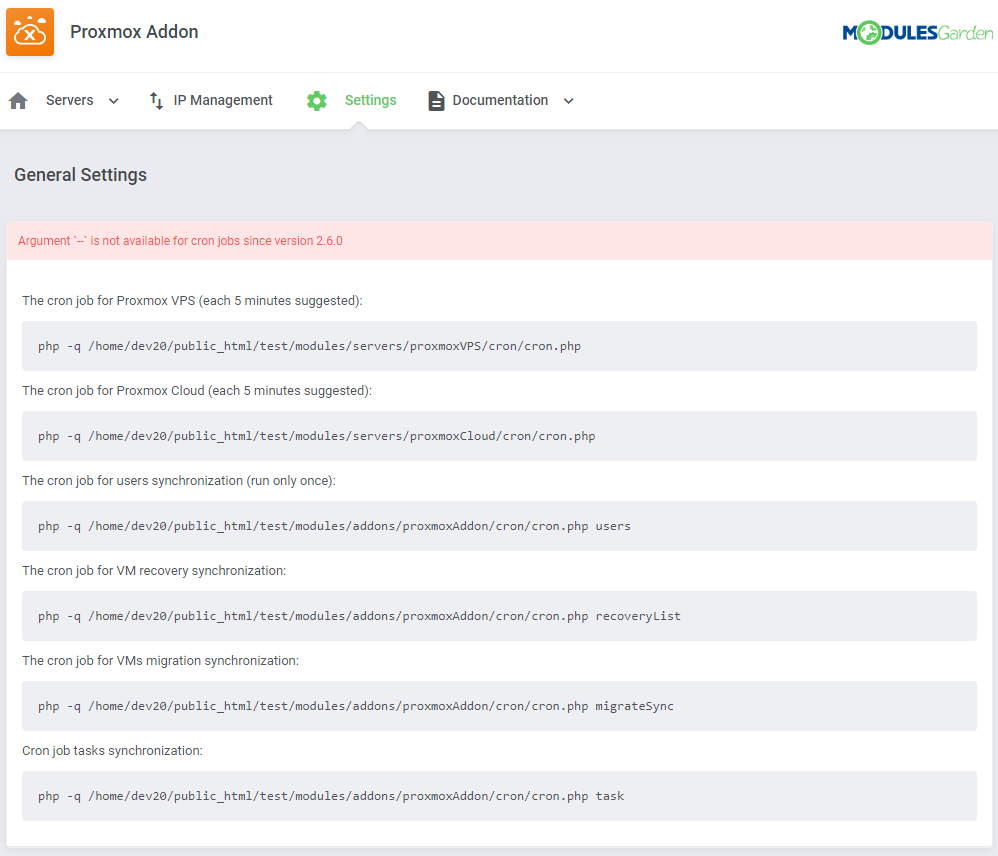
Proceed to 'Addons' → 'Proxmox Addon' → 'Settings' → 'General Settings' and set up cron jobs listed under the 'Cron' section.
Please note that there are separate cron jobs dedicated to Proxmox VPS and Proxmox Cloud modules - these jobs are the most important to assure fluent work of the modules, suggested frequency is 5 minutes.
If you are using only Proxmox VPS, there is no need to set up the second one and the other way round.
The other ones are responsible for:- Users synchronization - run only once
- VM recovery synchronization - optionally run every 24 hours
- VM migration synchronization - optionally run every 24 hours or just after the VM migration
- Tasks synchronization - optionally run every one hour
Next, under the Cron settings, find the 'Minimum VMID' field.
Fill it in with a number that will be used as an ID of the first VM, the second VM will be asigned the next ID number.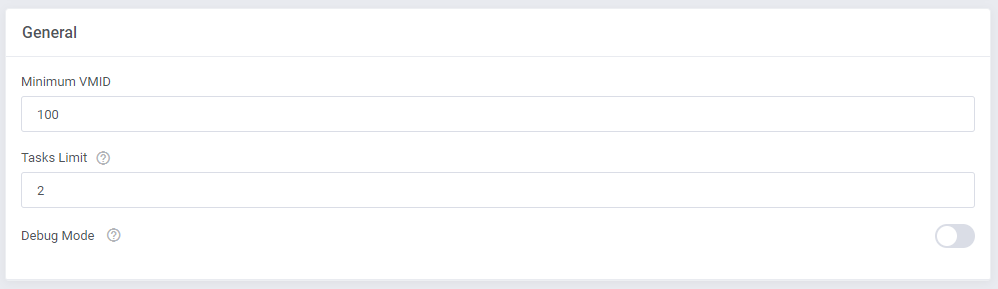
Adding a new IP address (if you are not using IP Manager For WHMCS (opens new window)).
In order to create a new product, you have to add 'Dedicated IP ' to the 'IP Addresses' list in 'Proxmox' addon module.
To do so, go to 'IP Management' and press 'New IP Addresses'.
Note: You can add both the IPv4 and IPv6 addresses.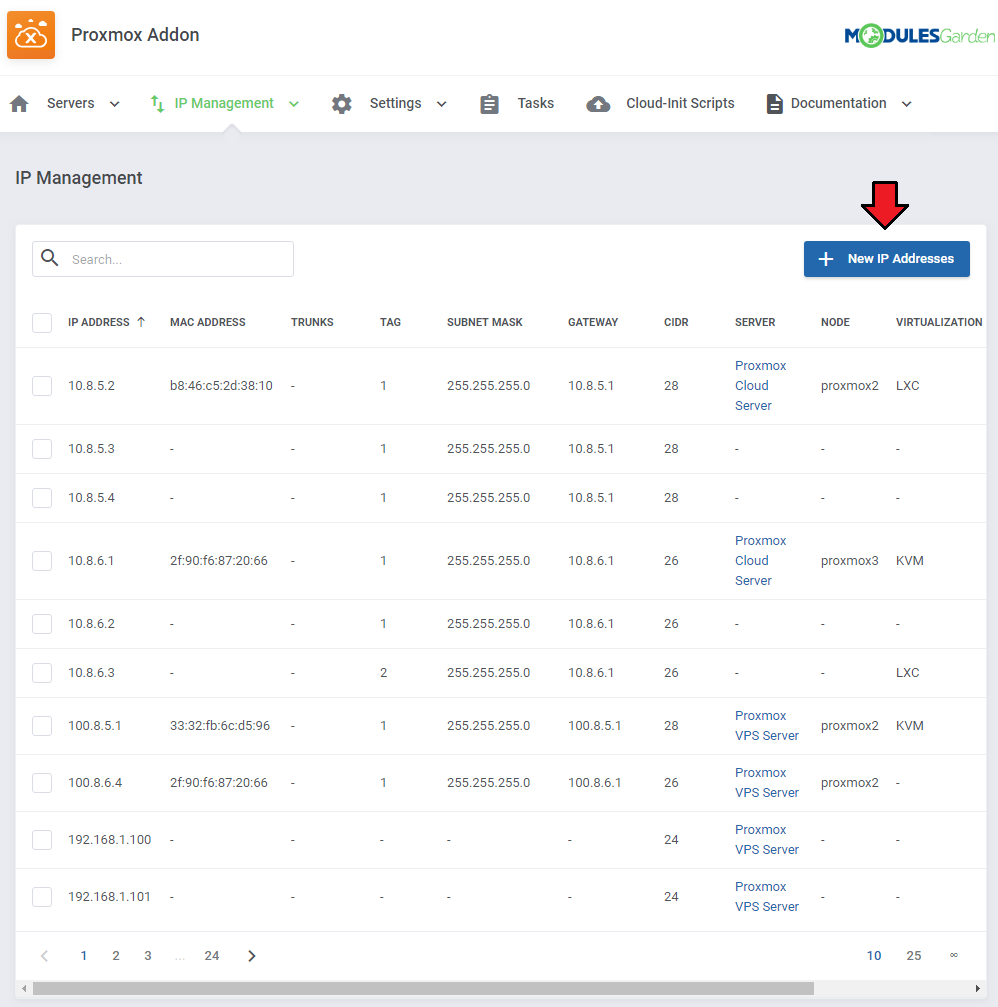
Start by typing a desired IP address and mask into 'IP Pool'.
Next, choose a server from the 'Server' dropdown menu and define which virtualization it should be applied to through selecting it from the 'Virtualization' dropdown menu.
Afterward, press 'Confirm'.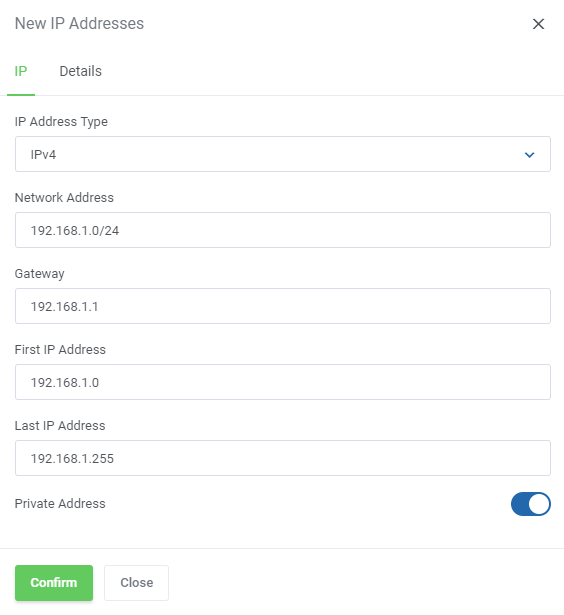
You are now able to create new virtual machines at the product.
If you used the KVM virtualization type, the client area of a successfully created product should look similar to the one presented on the screen below.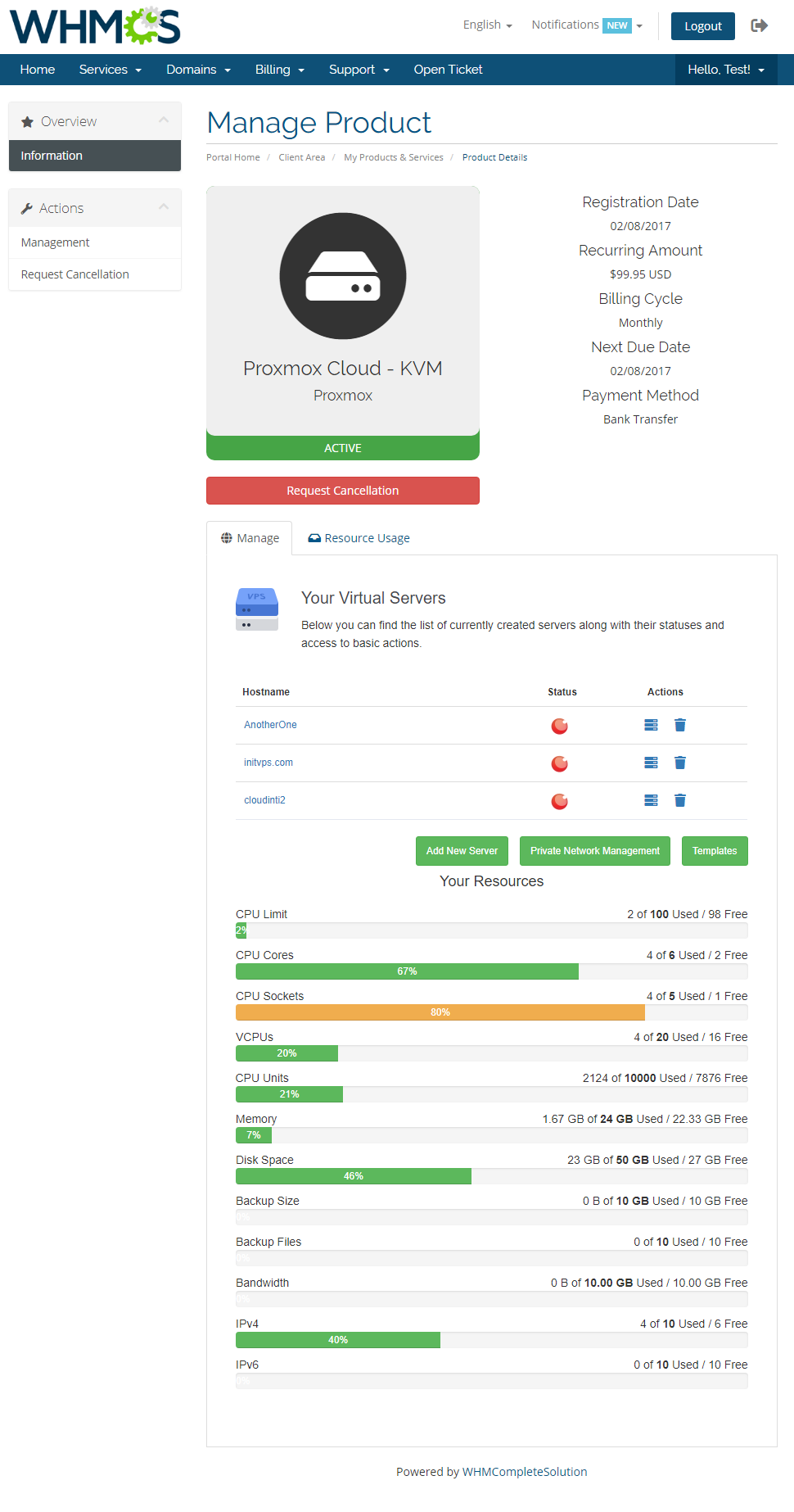
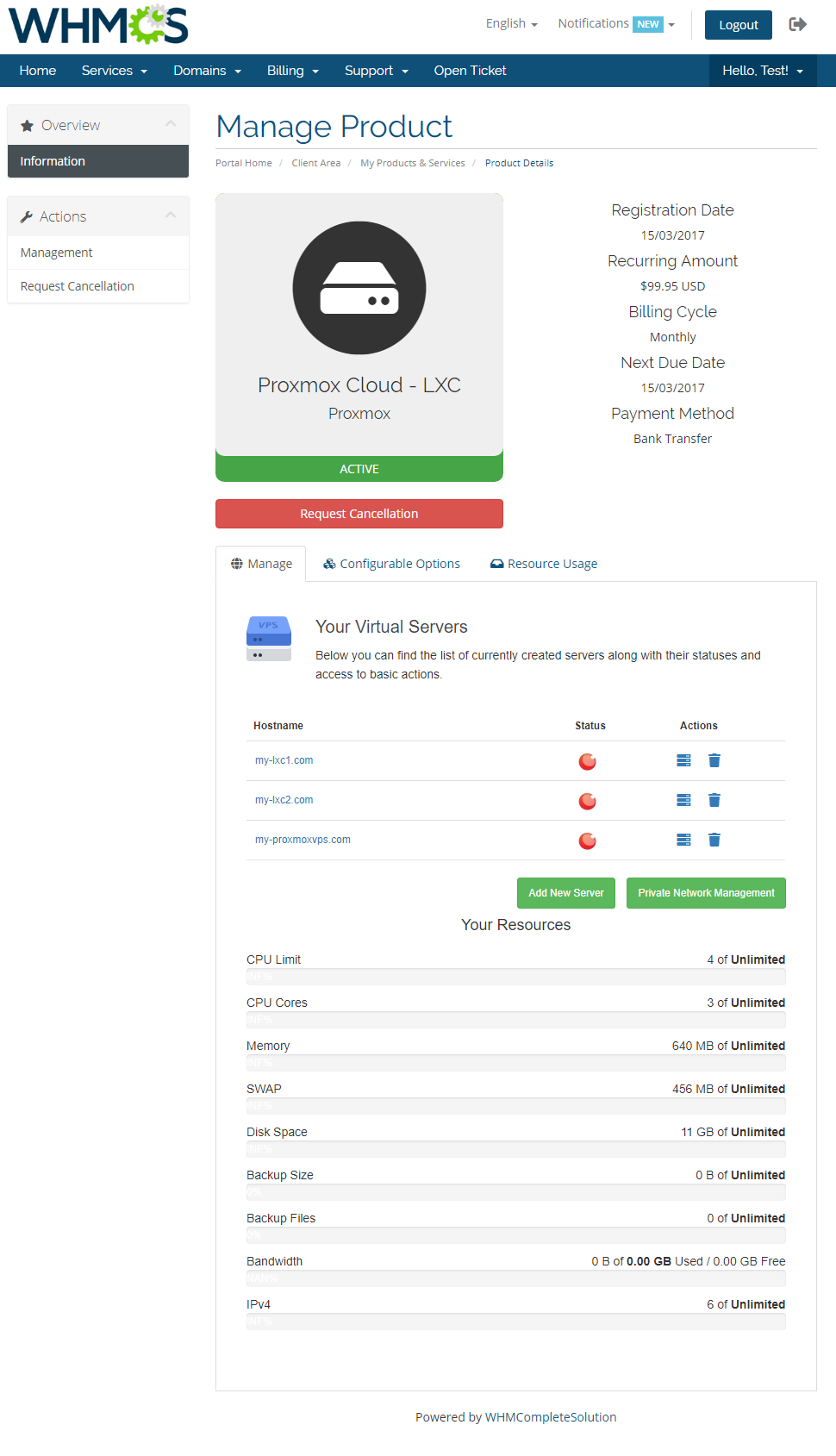
The client area of a product using the LXC virtualization type looks quite similar.
# Cloud-Init (KVM)
Use Cloud-Init to configure the system during installation, first-boot and package change.
Cloud-Init was initially developed to provide early initialization of cloud instances.
Click here (opens new window) to learn more about Cloud-Init configuration.
# Configuration Of Product
To to allow you clients to use cloud-init you need to enable it in the Proxmox product configuration.
Before you start we recommend to learn the details about cloud-init configuration on your Proxmox server - click here (opens new window) for more details.
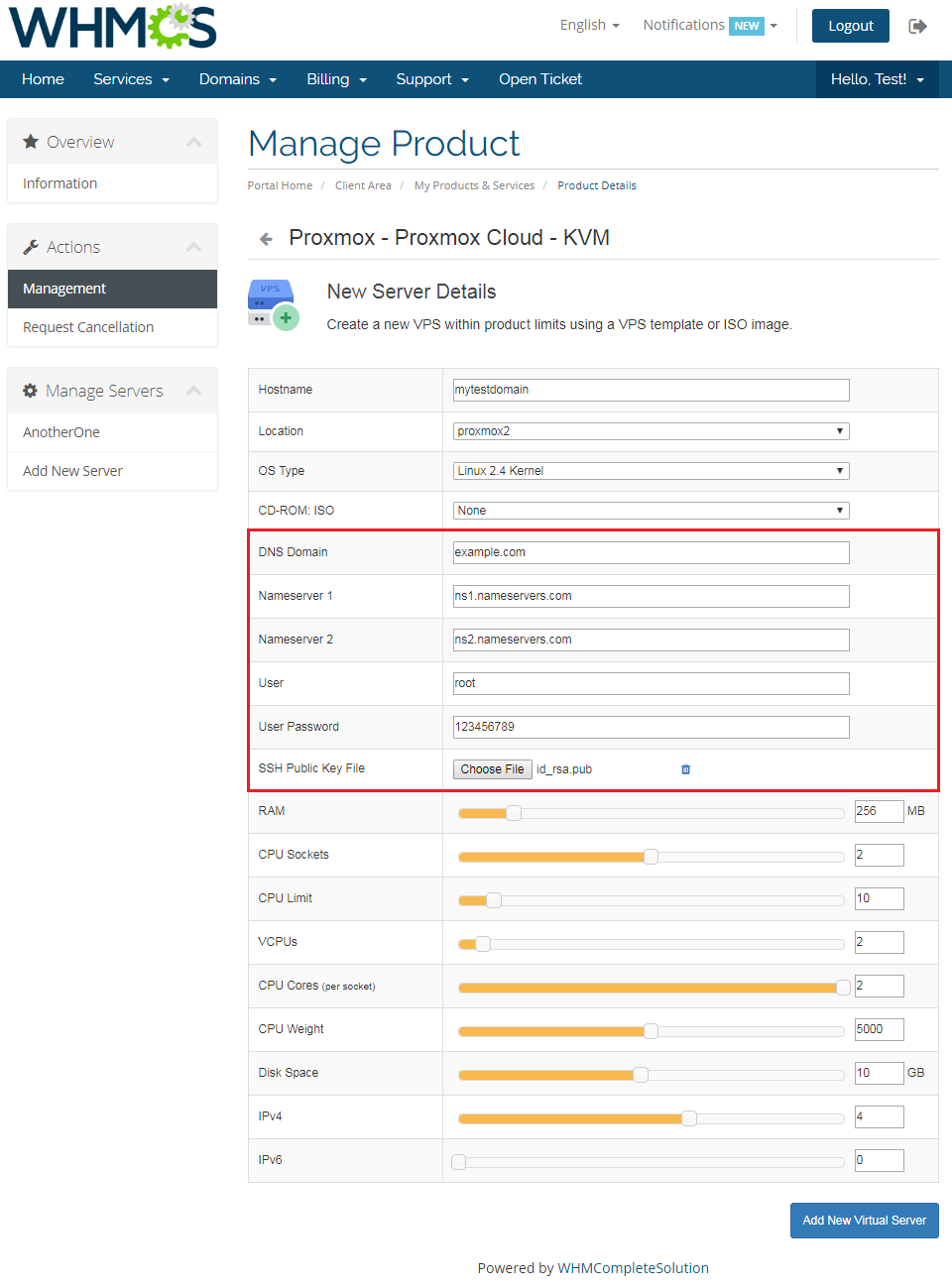
Once you get familiar with Proxmox cloud-init proceed to Cloud-Init group of your KVM configuration where you can enable it and set the following:
- Allow To Set Username - if enabled the client can set its own username during VM creation. Otherwise it will remain unchanged and be set by default as in the template or set from the 'Default User' field if provided.
- Allow To Set Password - if enabled the client can set its own password during VM creation Otherwise it will remain unchanged and be set by default as in the template.
- Allow To Set SSH Public Key - if enabled the client can upload its own public SSH key in OpenSSH format during VM creation. This will then allow client to log in to VM using their private key instead of password.
- Default User - provide the username that will be used for VM instead of using the 'Service Username' field or image's configured default user. Otherwise leave empty.
- Allow To Set DNS Domain - if enabled the client can provide its own DNS domain for a container. During VM creation, the provided setting will be automatically used if neither a search domain nor a nameserver is set.
- Allow To Set Nameservers - if enabled the client can set its own nameservers for the VM. Otherwise they will remain unchanged and be set by default as in the template.

This is how the above settings will look like in the client area during VM creation.
# Configuration Of Proxmox Server
The process of setting up Cloud-Init on the Proxmox server is described here (opens new window).
Additionally you can use the following commands that can be useful for debugging.
- Re-run cloud init scripts
rm -rf /var/lib/cloud/sem/* /var/lib/cloud/instance /var/lib/cloud/instances/* &&
cloud-init init  &&
cloud-init modules -m final
- Logs
cat /var/log/cloud-init.log
cat /var/log/cloud-init-output.log
# Management
Proxmox Cloud For WHMCS allows your customers to manage their PVE servers in the WHMCS client area.
At the same time, you can monitor and handle each product from your WHMCS admin area.
To view VM details(1), migrate VM(2), update VMs node(3) or delete VM(4), press a specific button.
To view details of a virtual server created by your client, simply press the 'Load Status' button.
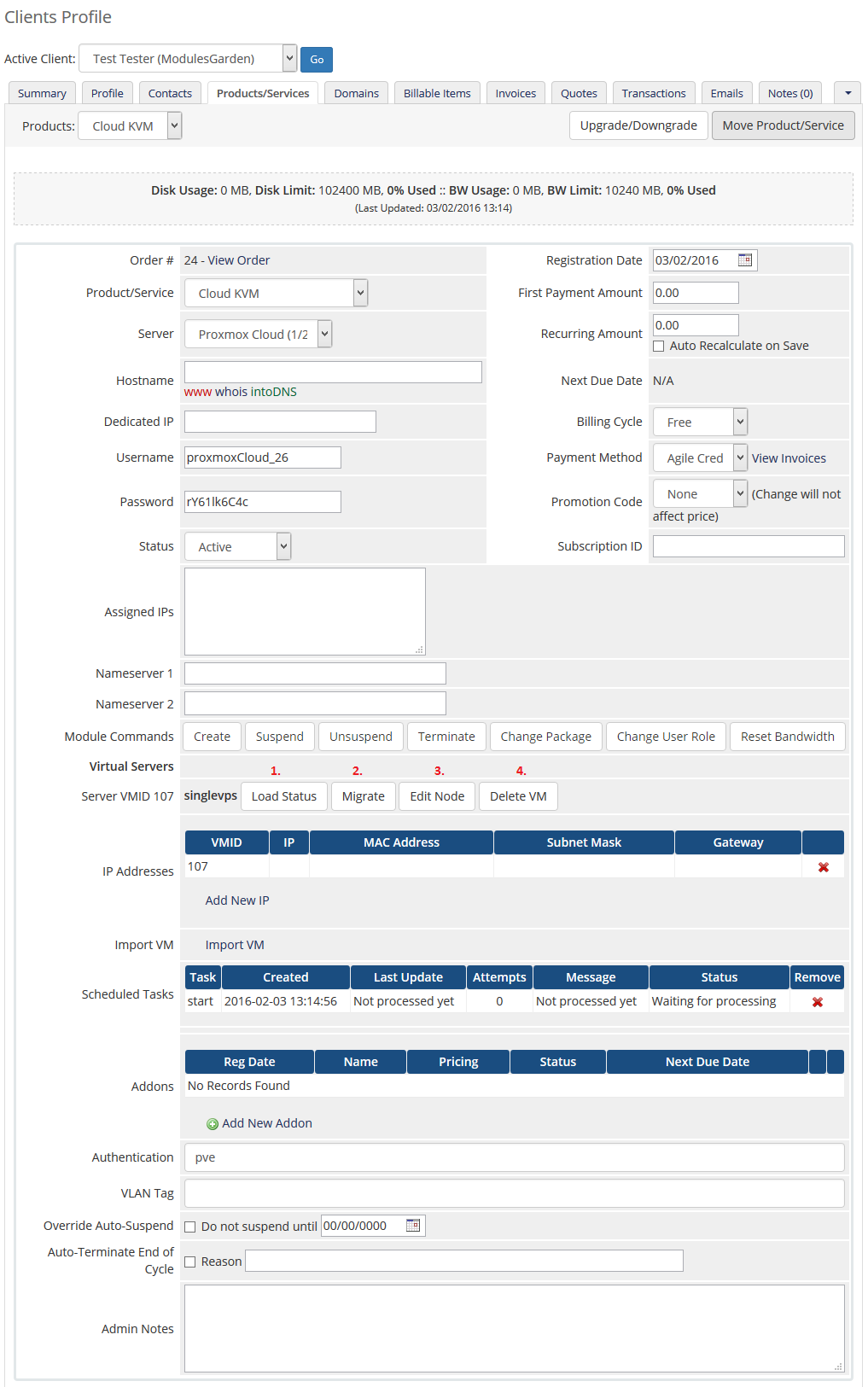
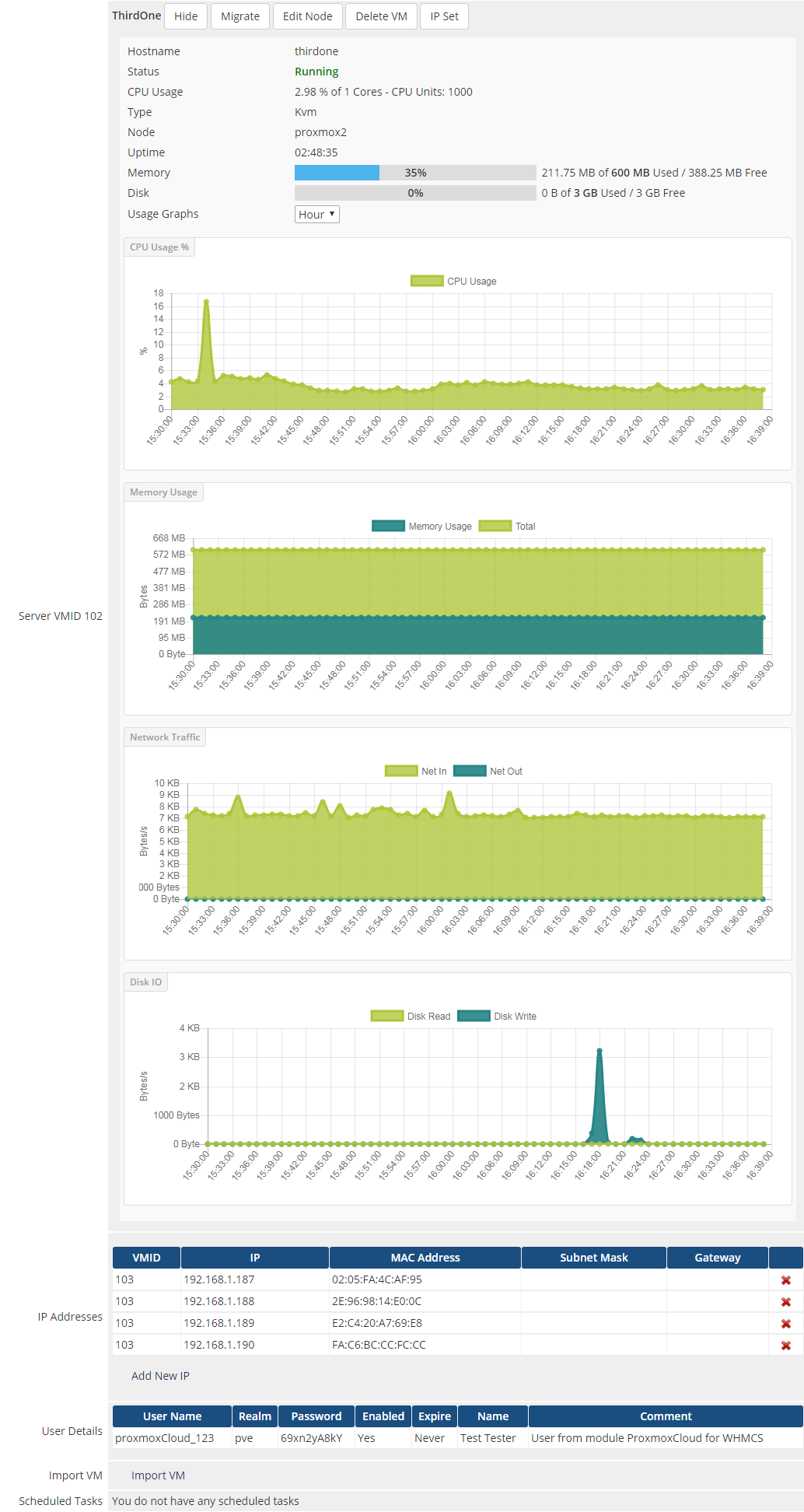
On the following screen, you can see loaded details of the VM as well as opened migration popup.
Migration is useful when you want to request migration from the WHMCS admin area, while editing node is practical for updating details after migrating the virtual machine from the Proxmox panel.
# Management of Addon
# Servers Management
# Servers List
In 'Addons' → 'Proxmox Addon' → 'Servers' → 'Servers List' you can find the configured Proxmox servers.
RAM details:
- Assigned - RAM assigned to the server (hosting services only)
- Total - full server RAM
- Free - difference between Total Server RAM and Assigned RAM
Suspended - number of suspended accounts per size in MB E.g.: (1/500 MB) when there is only one suspended account (occupying 500MB of that account) assigned to Proxmox VPS server.
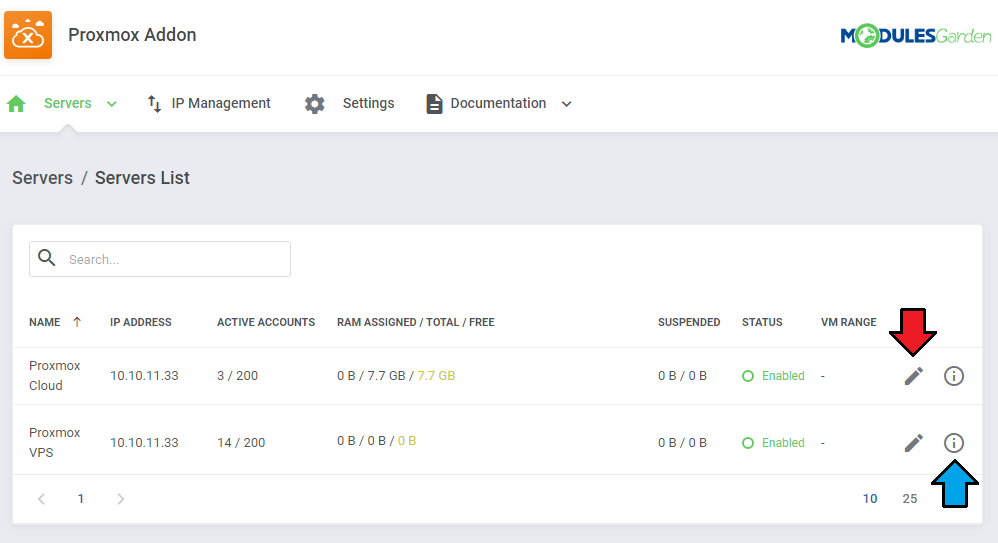
Through pressing 'Edit' icon you will be moved to the server edit page - see point number 10 of Server Configuration.
Press 'More Details' icon and you will get extended information on the selected server. See below for more details.
# VMs
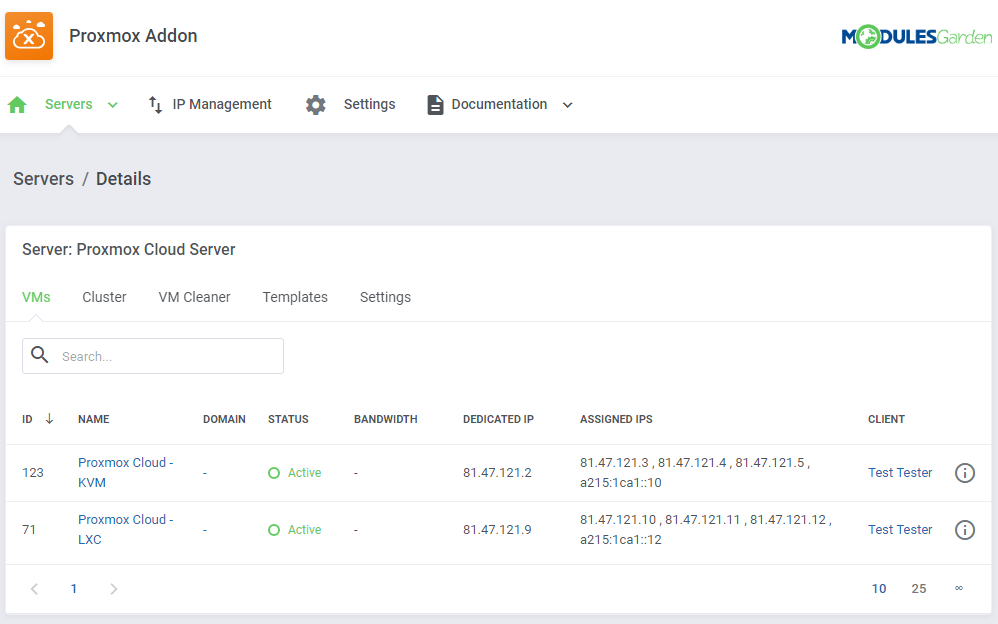
The 'VMs' tab includes a list of created virtual machines on this server. Take a quick look at information on domain, status, bandwidth and IP addresses.
To view information about a VM, simply press the more info icon.
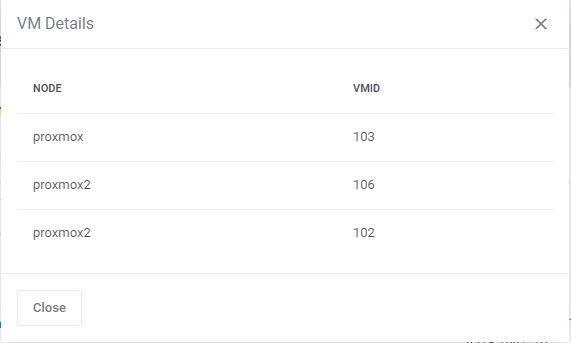
Check the node and VMID:
# Clusters
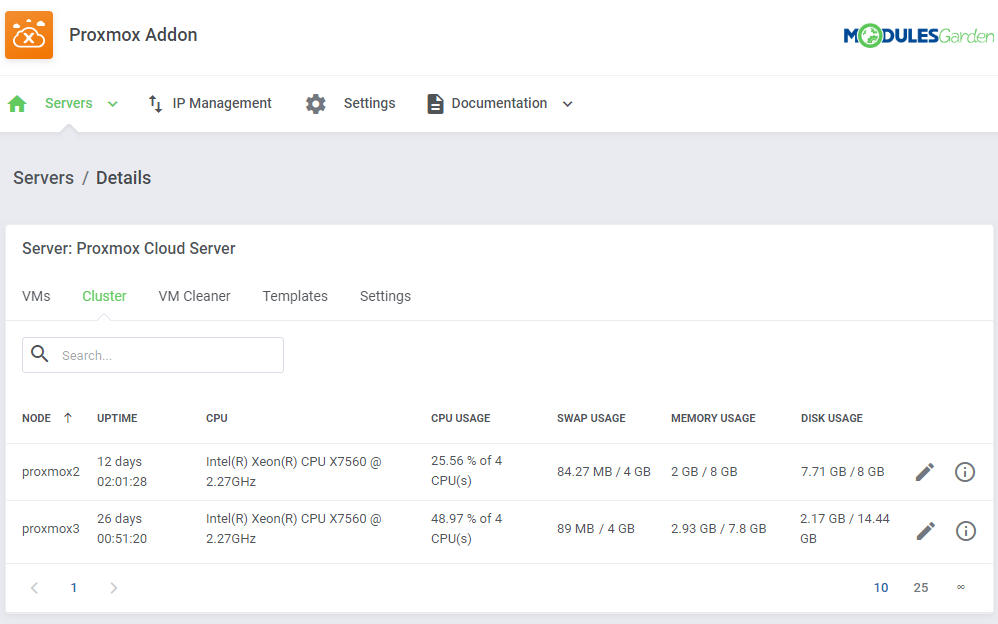
The next tab contains the list of clusters with information on uptime, CPU as well as CPU, SWAP, memory and disk usage data.
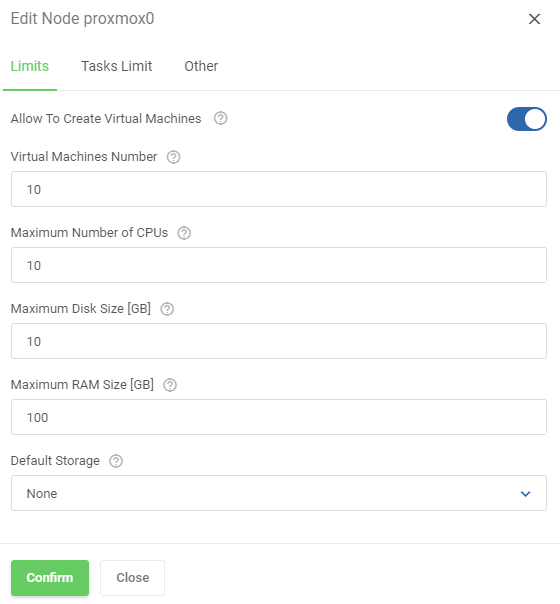
Press the Edit icon to manage the node:
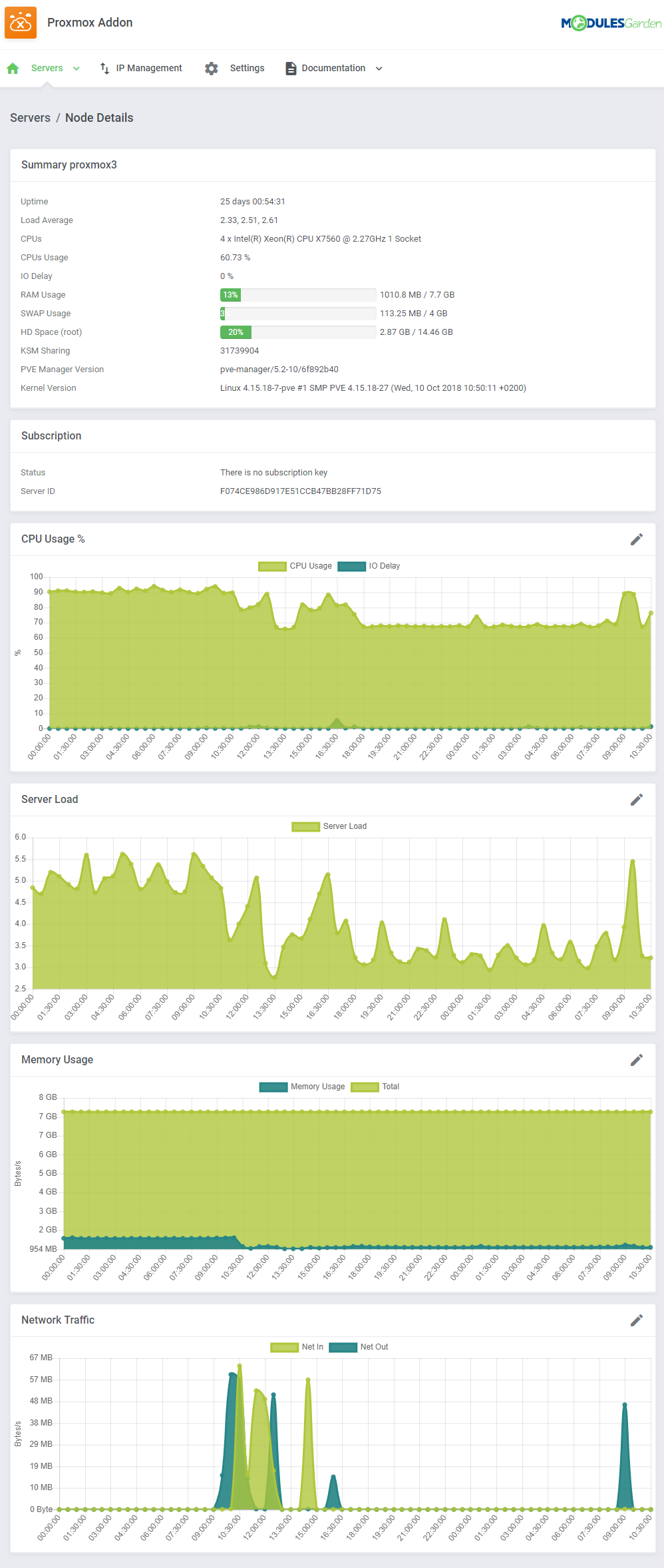
Press 'Node Details' and you will get all the summary and usage graphs:
# VM Cleaner
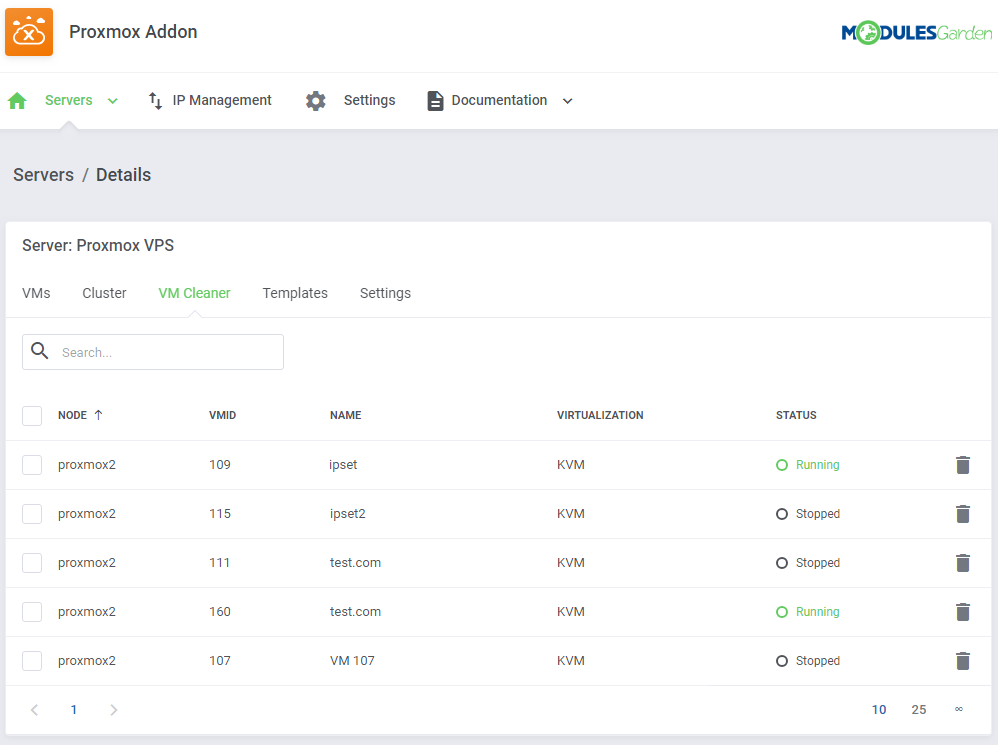
VM Cleaner allows you to track VMs existing only on your Proxmox server and that are not visible in your WHMCS.
Consequently, you are allowed to sort and delete only those VMs that cannot be managed from your WHMCS.
# Templates
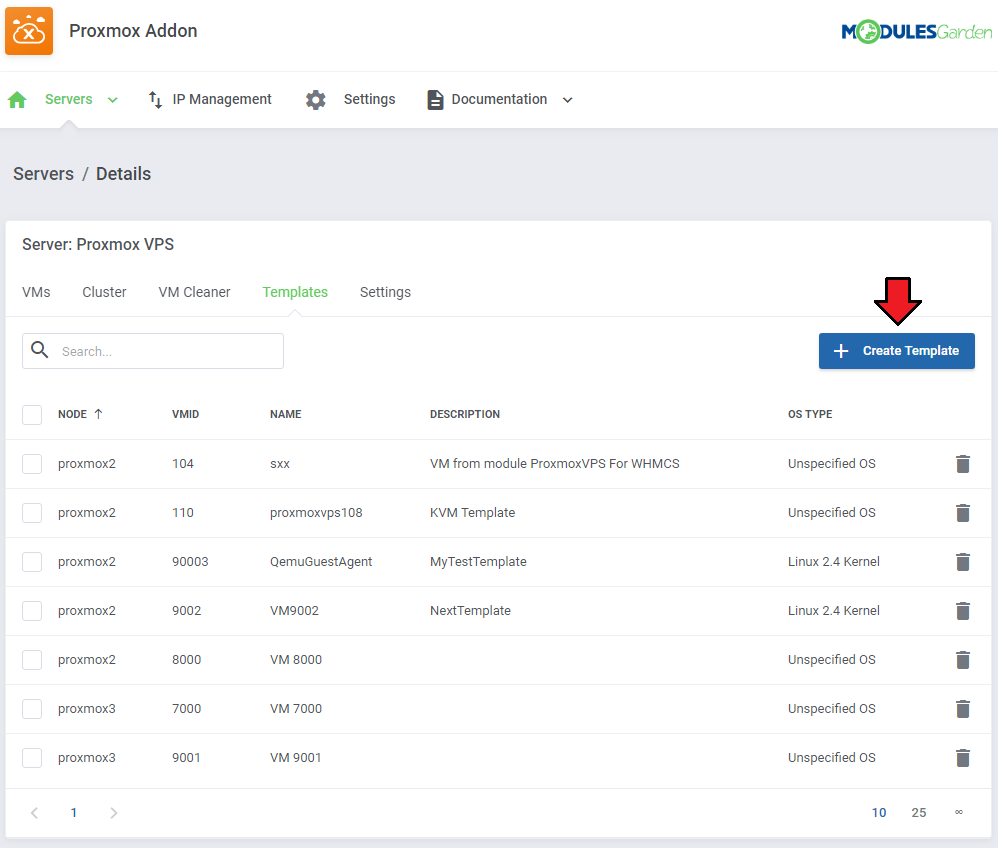
Under this page you can view the list of templates. You can easily convert any KVM VM on your server to a template.
In order to convert a VM, press 'Create Template' button.
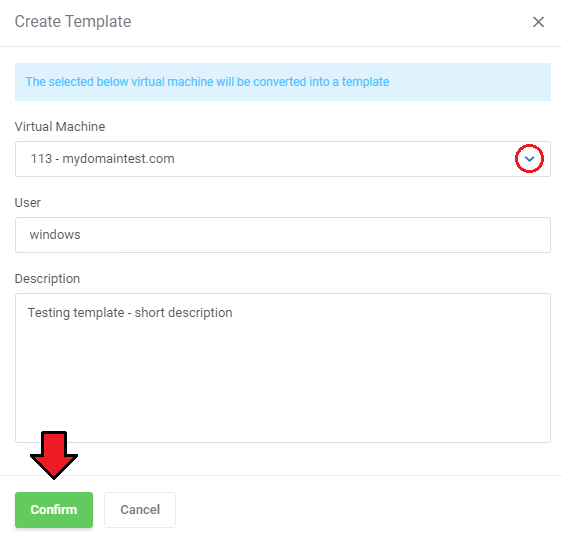
Next, choose a VM to convert.
Fill out 'Description' field and press 'confirm'.
Important: Selected VM will be destroyed in the process.
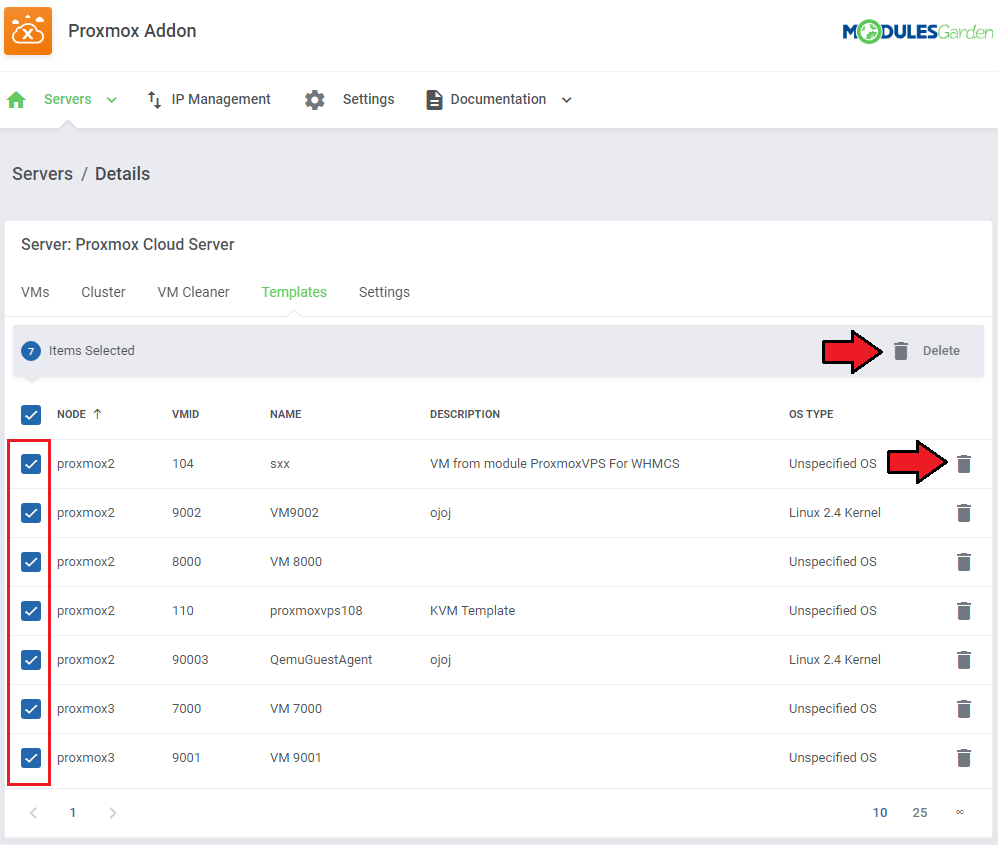
You may also delete unused templates here. Delete single templates or use the mass action to delete templates in bulk.
# Settings
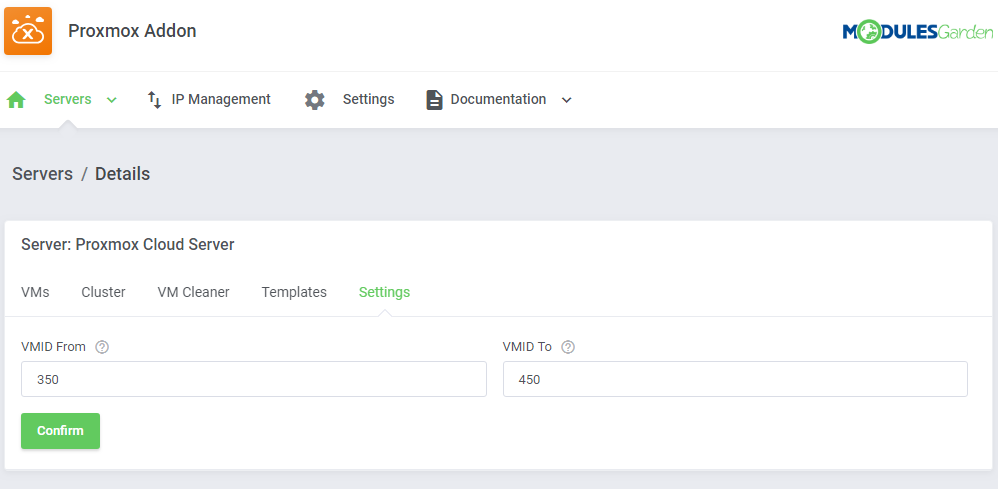
Here you can define the VM IDs range that will be used for newly created VMs on this server. Please note that to use this feature, you also need to enable the "Use VM Ranges" setting in the product configuration.
Define ID range and save changes.
Note: VM ID range allows you to sort created VMs depending on the server they were created on..
# VMs List
In 'Addons' → 'Proxmox Addon' → 'Servers' → 'VMs List' you can find details of any Proxmox product.
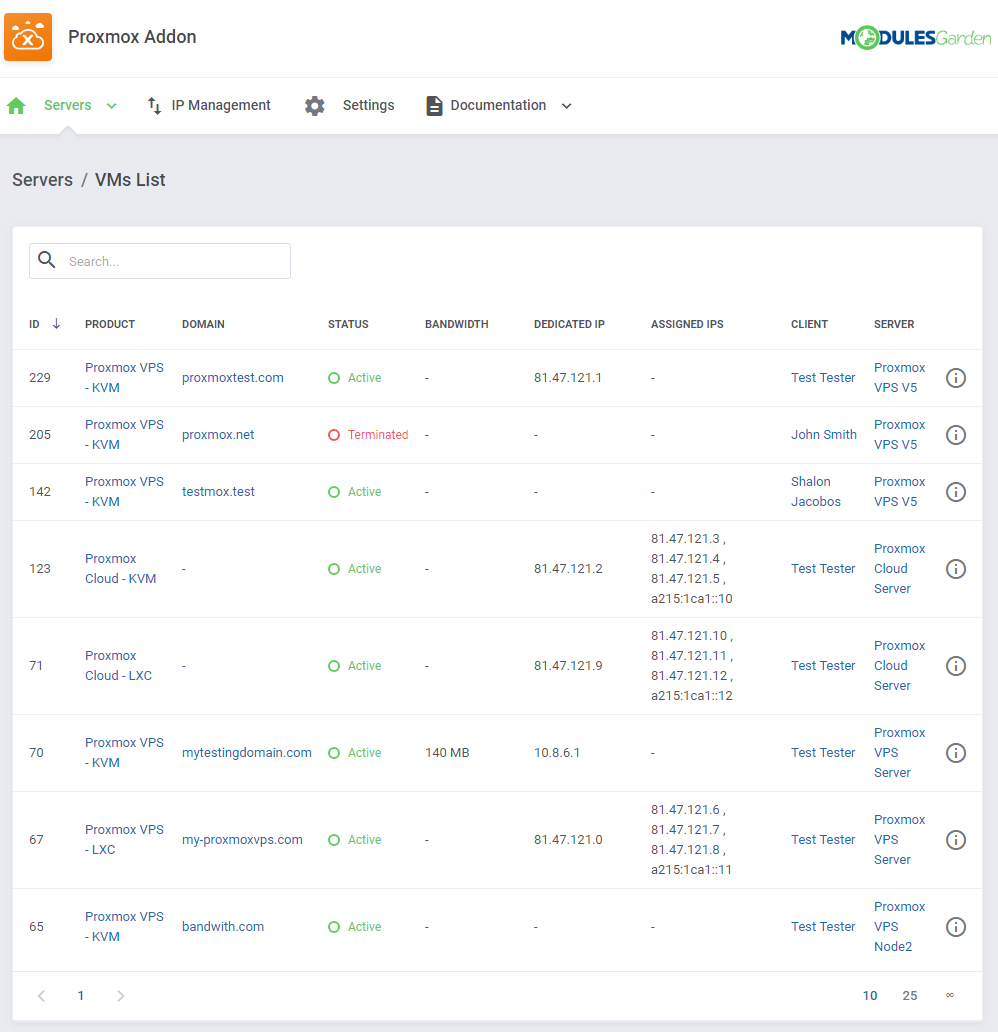
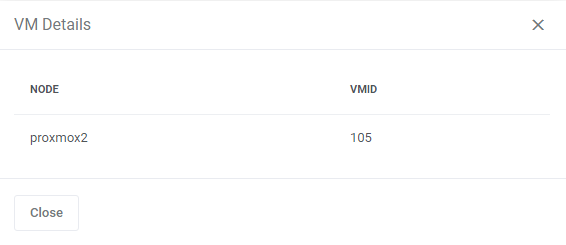
Press 'More Details' button to get the node and VMID information.
# Recovery VM Lists
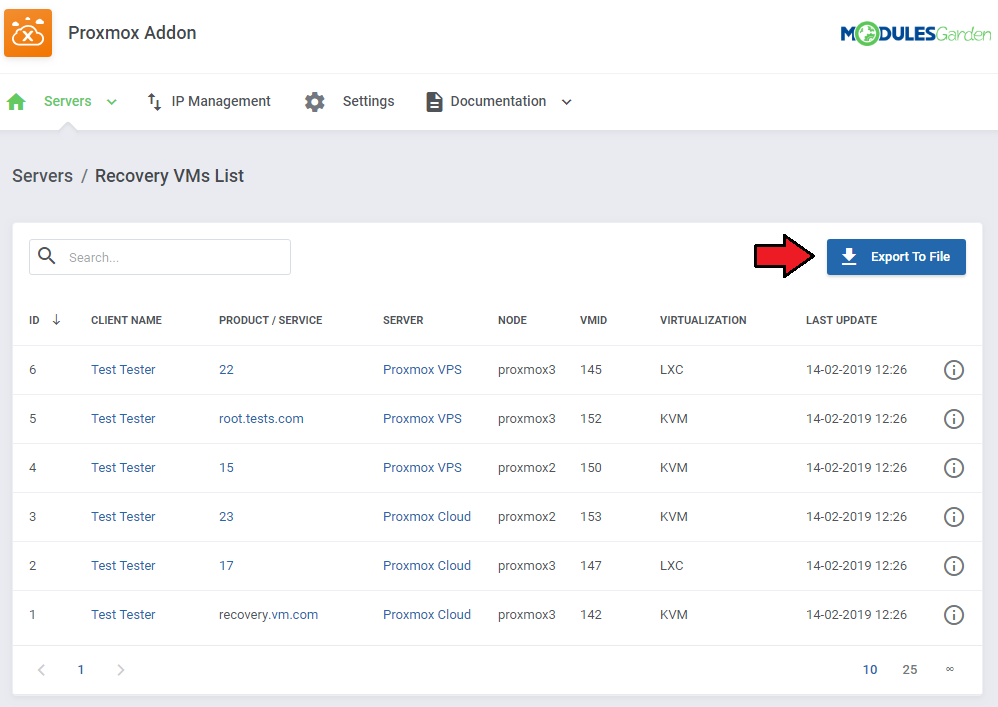
In 'Addons' → 'Proxmox Addon' → 'Servers' → 'Recovery VM List' you can details on the created VM.
Run the 'VM recovery synchronization' cron job to create and store full backups of VMs configuration, you can find it at point no 26 of the configuration instructions.
Use the 'Export to File' button to save information in a TXT copy file.
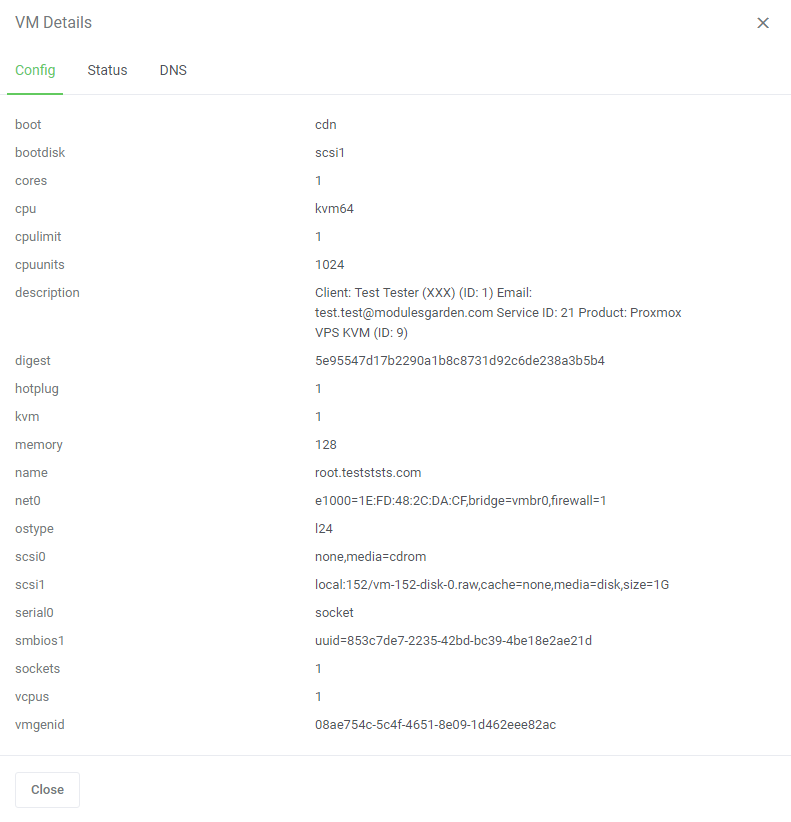
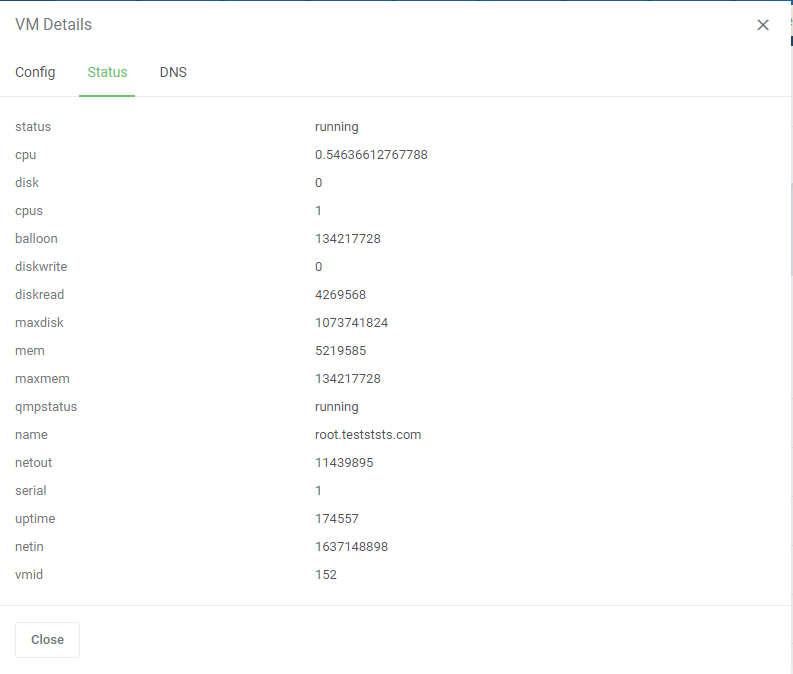
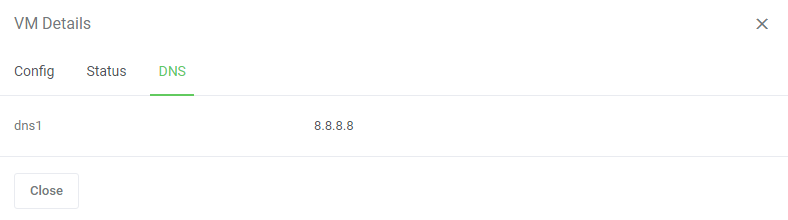
On pressing the 'Details' icon, you will get any information on Configuration, Status and DNS:
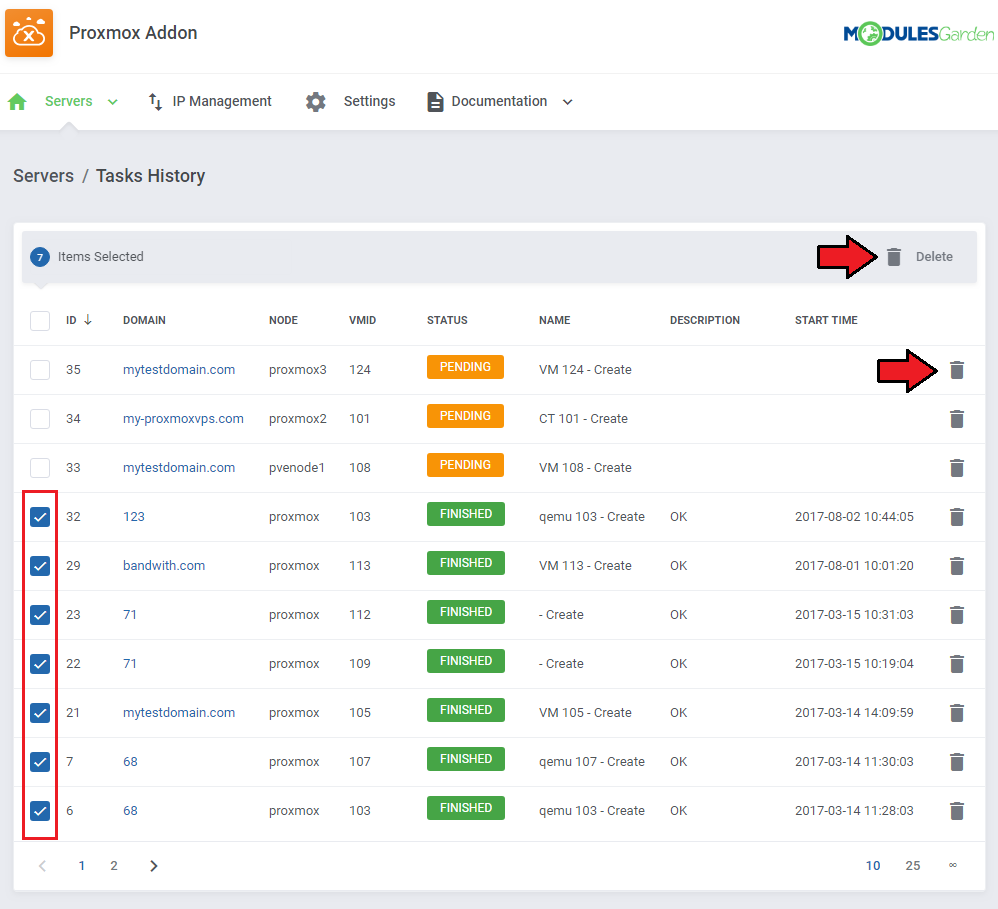
# Tasks History
Tasks History includes a list o all module tasks with the most crucial details on them.
You may delete single tasks or use mass action button to remove them in bulk.
Run the 'Tasks synchronization' cron job to synchronize the tasks and view all tasks from the server, you can find it at point no 26 of the configuration instructions.
# IP Management
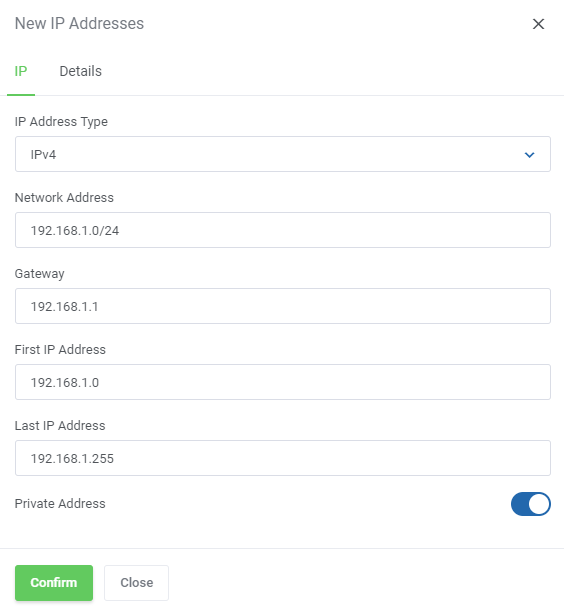
In the 'IP Management' tab you can manage the IP addresses of Proxmox products.
You can create both single IP addresses and IP pools which then can be assigned to created VMs.
When you are creating a new IP address or a pool, you may define:
- private/public address
- servers or nodes that will use them
- virtualization types (different VMs will use different IP pools)
# IP Manager Integration
Owing to the integration with IP Manager For WHMCS (opens new window), you are able to easily create subnets with IP addresses and assign them to the desired products.
By activating the IP Manager submodule, settings concerning IP addresses such as 'Configurable Options' and 'Default Options' will be ignored by Proxmox VPS.
Note: This integration works for LXC and KVM virtualization types.
Proceed to the IP Manager For WHMCS → Subnets tab in order to prepare IP addresses subnet for Proxmox VPS For WHMCS.
Edit the previously created IP addresses subnet and create a custom field 'MAC Address' with a desired MAC address at each IP address in the subnet.
Note: Setting up MAC address is optional and can be skipped.
More details about creating custom fields can be found here.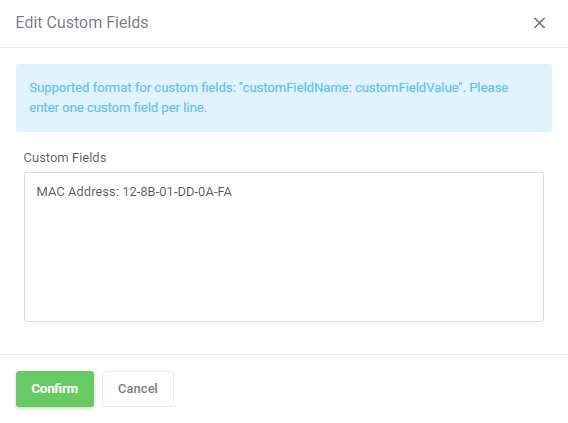
Afterward, create a new configuration and assign the previously created subnet to it.
Note: Multiple IP addresses subnets can be assigned to a single configuration.Now, link the configuration with Proxmox VPS product via a product, a server or a configurable option.
On the following screen we have linked them via the configurable option assigned to the Proxmox VPS product.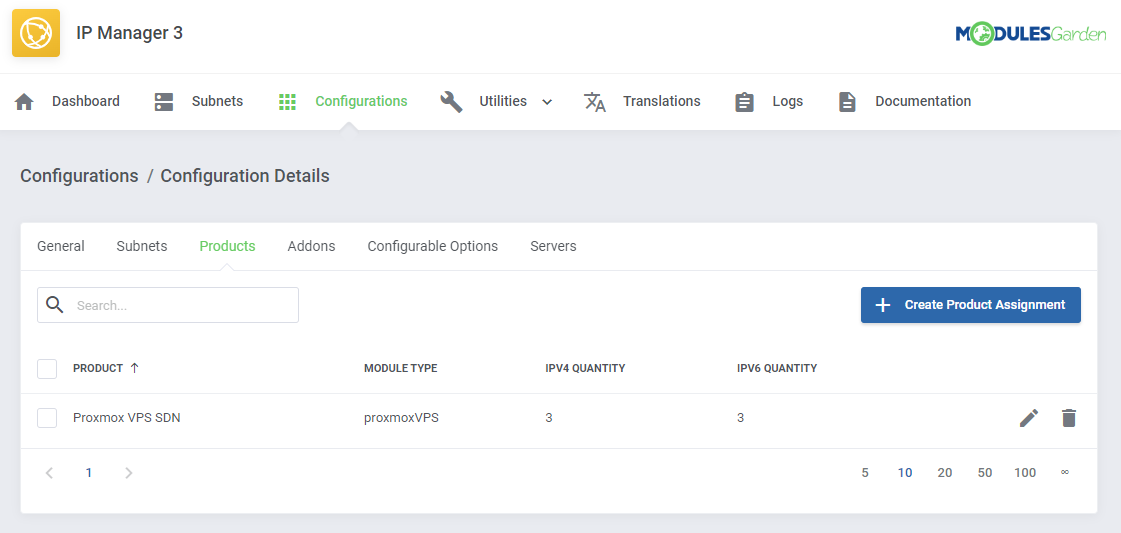
Now, enable the integration by proceeding to the '3rd Party Integration' tab.
Press 'Activate' next to the 'proxmoxVPS' module type as shown on the following screen.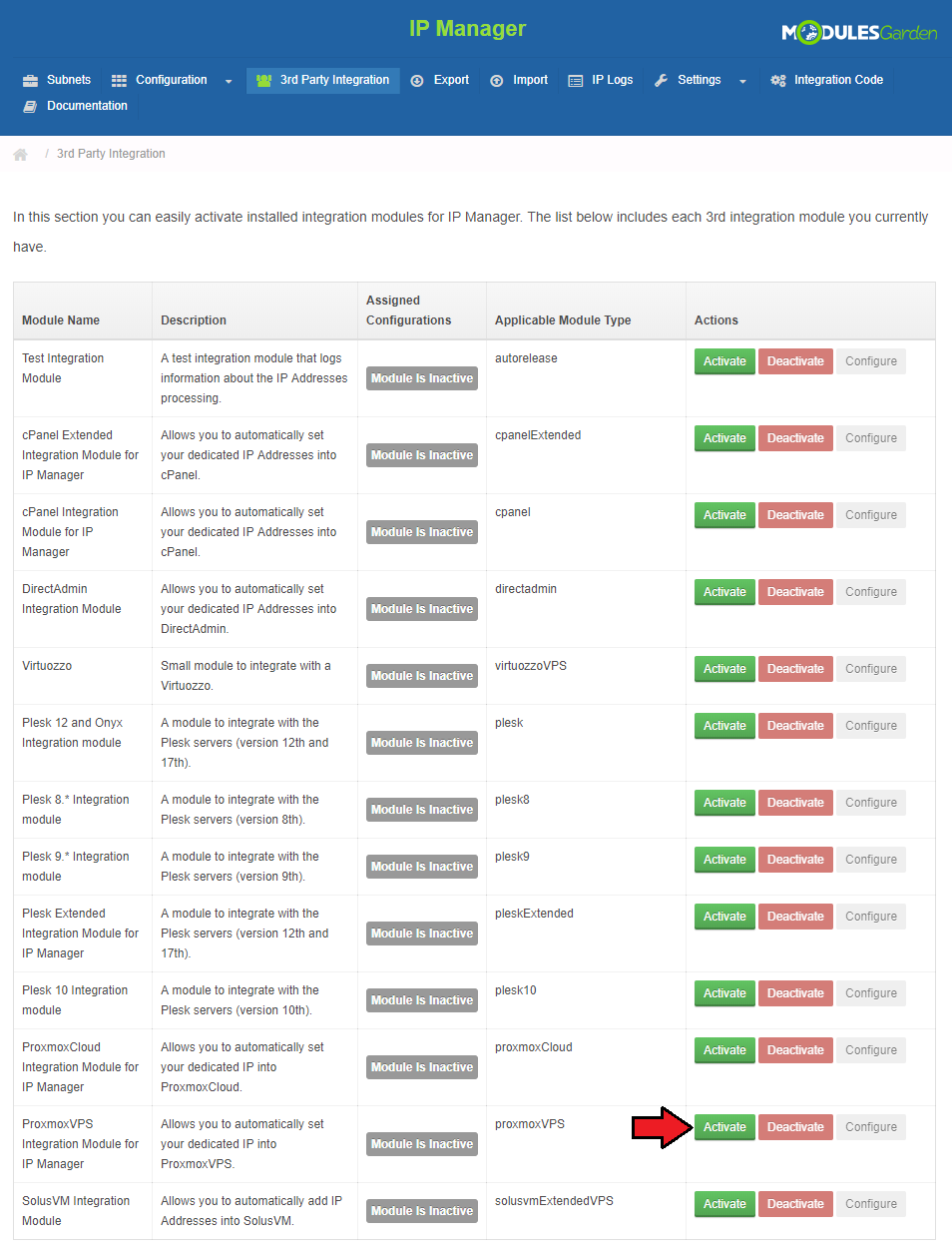
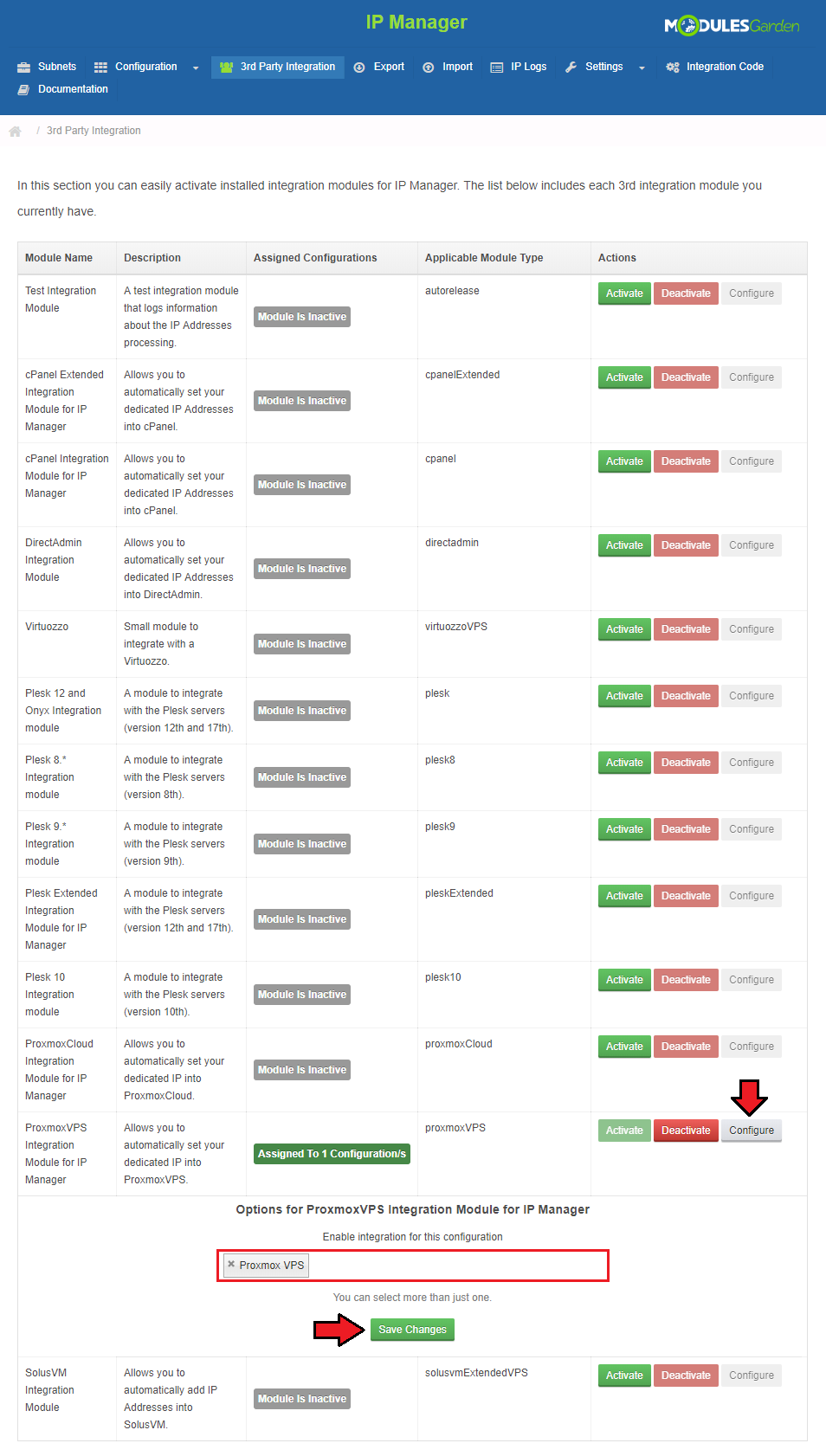
Next, assign the previously created configuration to the submodule.
Press 'Configure', choose a configuration and press 'Save Changes'.
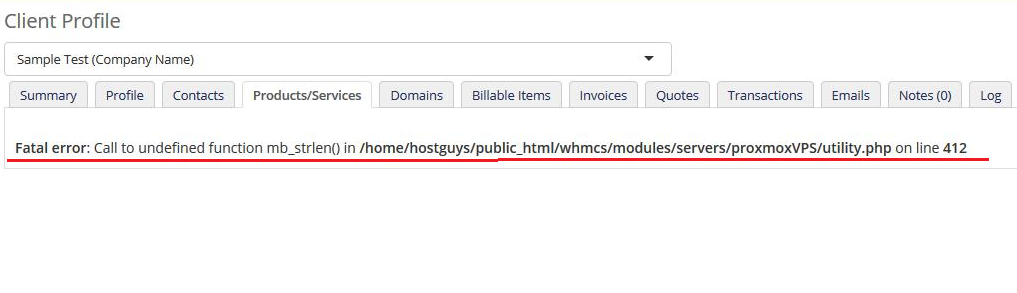
If you encounter an error like the one on the below screen while integrating the two products, probably the function 'mb_strlen' is not enabled by default.
Please read the manual here (opens new window) for installation instructions.
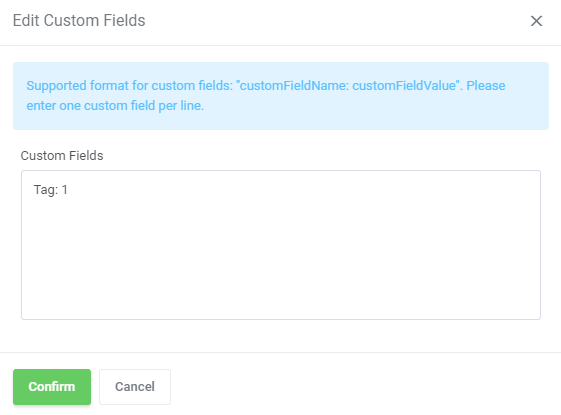
It is possible to add a VLAN Tag Custom Filed in the very same way as the MAC Address field.
Look above for the detailed instruction on how to proceed, follow steps 1-6 to create the new custom field.
The only thing you need to change is the custom field name, which should be 'Tag' in this case.
# Settings
# Load Balancer
Load Balancer is an advanced tool that allows smooth rotation between nodes to find the most preferable one and create virtual machine on it.
Set the weight of the resource that will prioritize its selection when sorting the Nodes according to the free resources.
Note: The lowest possible weight is 1. You cannot set for example 0,5.
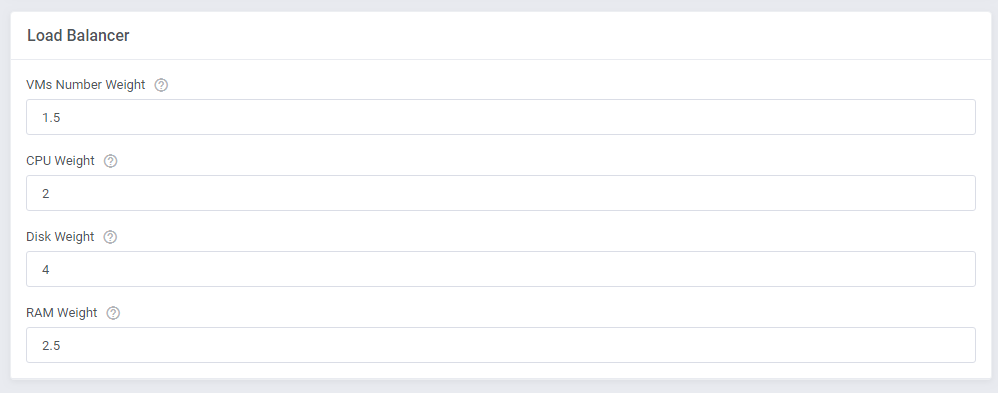
In order to use Load Balancer you must previously enable it in the product's configuration:
Define the behavior of the tool:
- On Upgrade - select action to perform:
- None - if selected, no action will be triggered
- Block - the upgrade process will blocked as there are insufficient resources on the node
- Migrate - the upgrade process will be performed after previous migration of the VM to a server with sufficient free space
- Shutdown VM on Upgrade
- Stop VM If Shutdown Fails

# Node Prioritization Method
Let us take a look at how the sorting process works and the rules that it obeys.
Let's take exemplary weights for each resource just like presented on the screen above.
VMs Number Weight: 1,5
CPU Weight: 2
Disk Weight: 4
RAM Weight: 2,5
Disk Weight with the highest weight which means it has the highest priority and VMs Number Weight as the least crucial factor on a given node.
In our situation, there are four nodes created, named A, B, C, D with current resources as shown below:
Node A (Free Ram: 60%, Free CPU: 20%, Free Disk Space: 50%, Number of VMs: 5)
Node B (Free Ram: 30%, Free CPU: 70%, Free Disk Space: 40%, Number of VMs: 10)
Node C (Free Ram: 90%, Free CPU: 50%, Free Disk Space: 20%, Number of VMs: 20)
Node D (Free Ram: 80%, Free CPU: 60%, Free Disk Space: 70%, Number of VMs: 15)
The next step is sorting the nodes according to each resource, by assigning them corresponding priorities from 1 to 4.
The higher the priority, the more free resources available.
| Priority | Free Ram | Free CPU | Free Disk Space | Number of VMs |
|---|---|---|---|---|
| 4 | Node C | Node B | Node D | Node A |
| 3 | Node D | Node D | Node A | Node B |
| 2 | Node A | Node C | Node B | Node D |
| 1 | Node B | Node A | Node C | Node C |
Now, the final calculation to sort nodes according to free resources, taking into account previously defined weights, is performed
Sorting nodes is based on the following calculation method:
Final Node Priority = (RAM Priority x RAM Weight) + (CPU Priority x CPU Weight) + (Free Disk Priority x Disk Weight) + (No. VMs Priority x VMs Weight)
The results for nodes A, B, C and D (with weights and sorting priority) are following:
Node A: (2 x 2,5) + ( 1 x 2 ) + ( 3 x 4 ) + ( 4 x 1,5 ) = 25
Node B: (1 x 2,5) + ( 4 x 2 ) + ( 2 x 4 ) + ( 3 x 1,5 ) = 23
Node C: (4 x 2,5) + ( 2 x 2 ) + ( 1 x 4 ) + ( 1 x 1,5 ) = 19,5
Node D: (3 x 2,5) + ( 3 x 2 ) + ( 4 x 4 ) + ( 2 x 1,5 ) = 32,5
As you can see, Node D has got the highest priority value with a result: 32,5.
It will be selected by Load Balancer to create a new VM there, to migrate or upgrade an existing VM if its current node does not have sufficient resources.
The above described calculations are performed every time, a 'Create' or 'Upgrade' actions are executed based on the current usage of resources on available nodes.
Important: In case a given client already has an existing VM on a node, this very node will NOT be taken into account during the prioritization of resources process.
This is due to security measures to make sure, that in case of failure of this node, the client will still have access to the other VM server, created on another, working node.
However, if this client has VMs on every node already, all of them will be taken into account during the selection prioritization process again.
If you decide to use Load Balancer tool, define the resources weights to adjust their prioritization of nodes according to your needs.
# Client Area
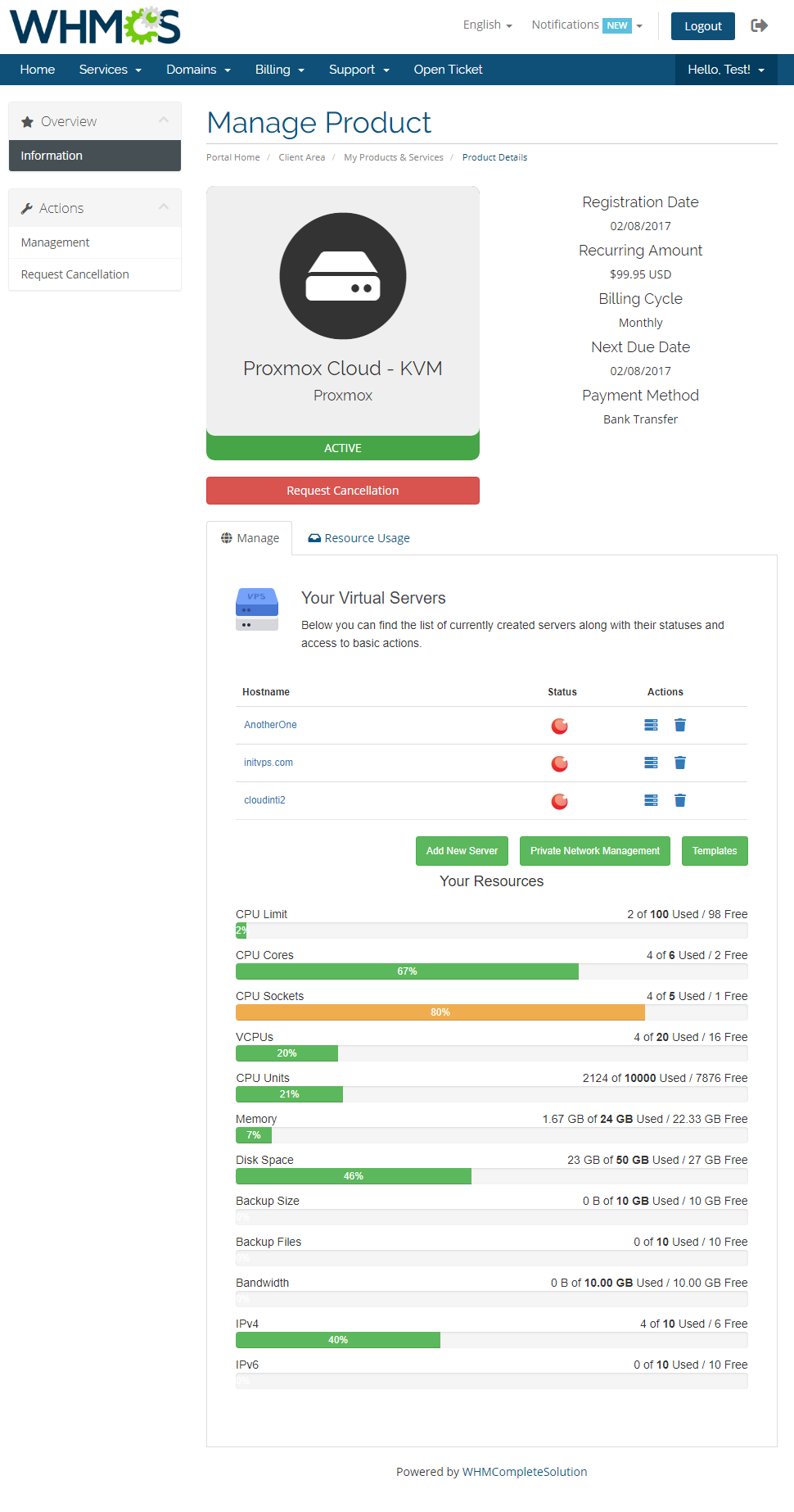
Client area interface of Proxmox Cloud For WHMCS allows your clients to create their own virtual servers.
They can also view resources used and manage existing virtual servers.
# New Server
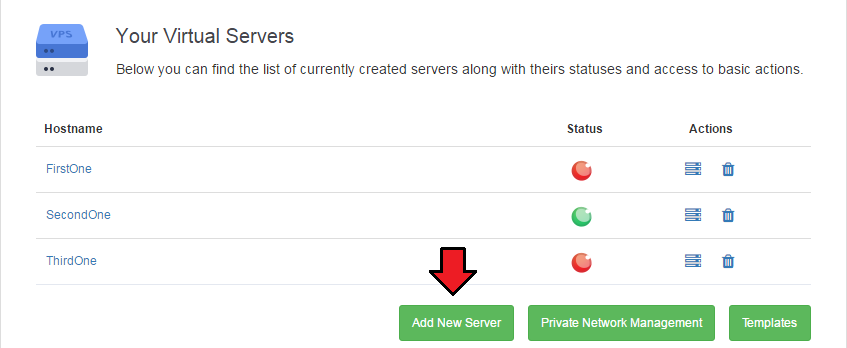
In order to add a new server, press 'Add New Server' button.
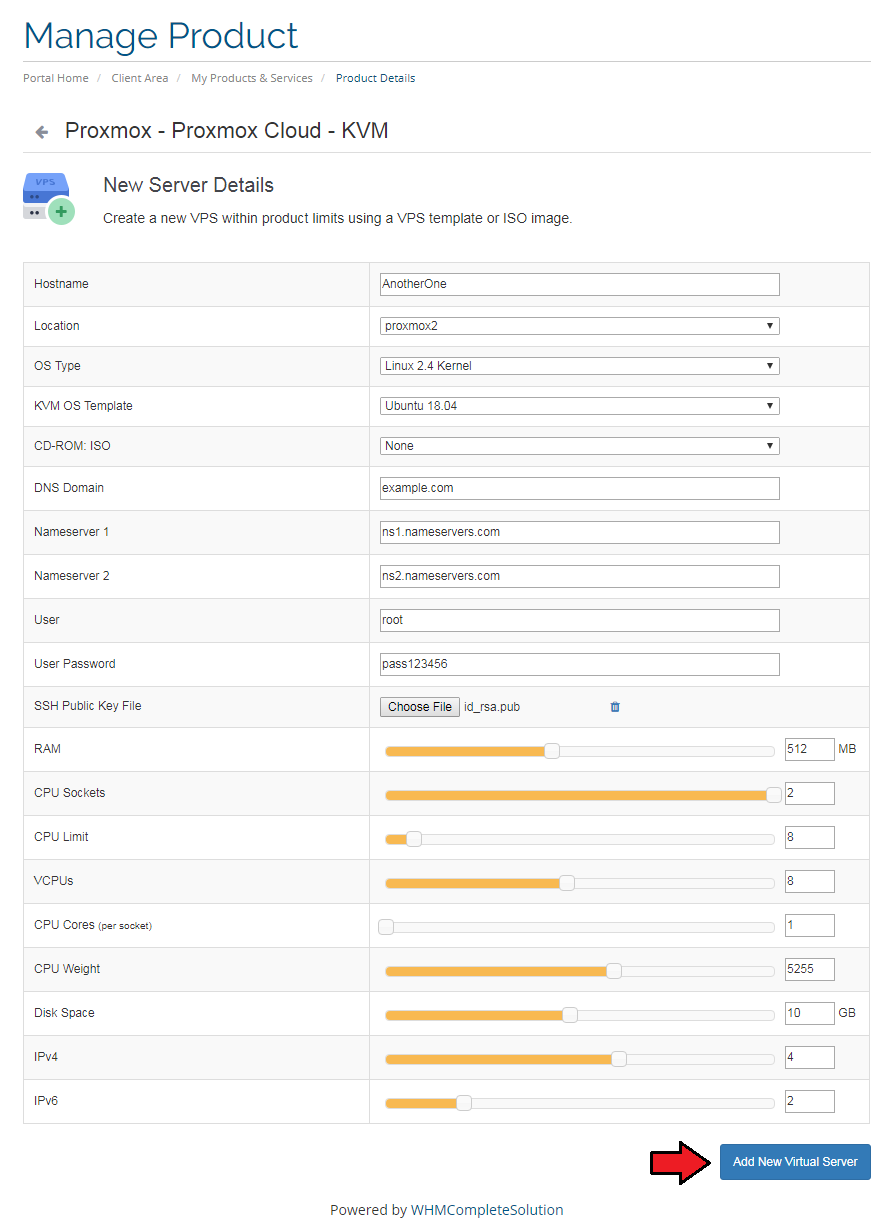
Afterwards, enter 'Hostname', choose 'OS Type' and select resources for your server by using sliders.
Instead of using the sliders you can also enter resources values into textboxes.
Confirm creation through pressing 'Add New Virtual Server'.
Note! Data to be filled in may differ according to which type LXC or KVM you have chosen.
To manage your virtual server simply press 'Manage' button next to it.
You can find information about managing your virtual servers in next section.
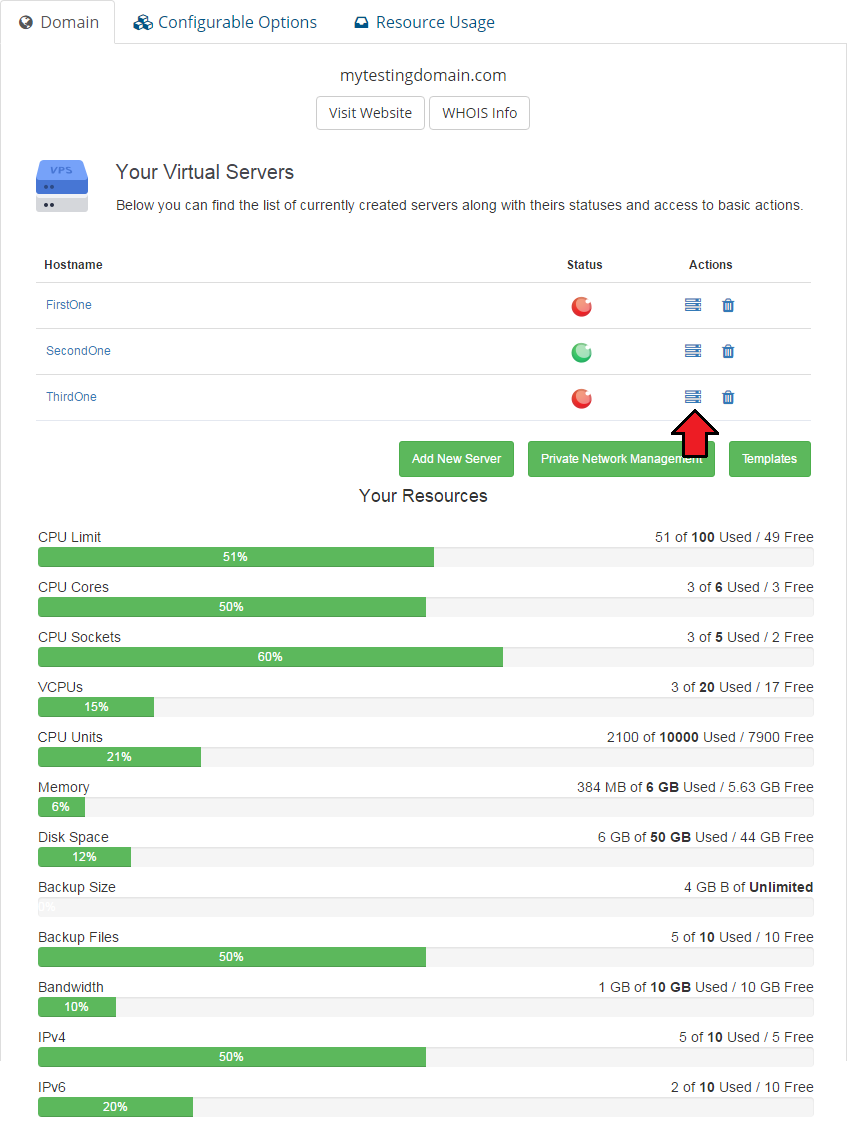
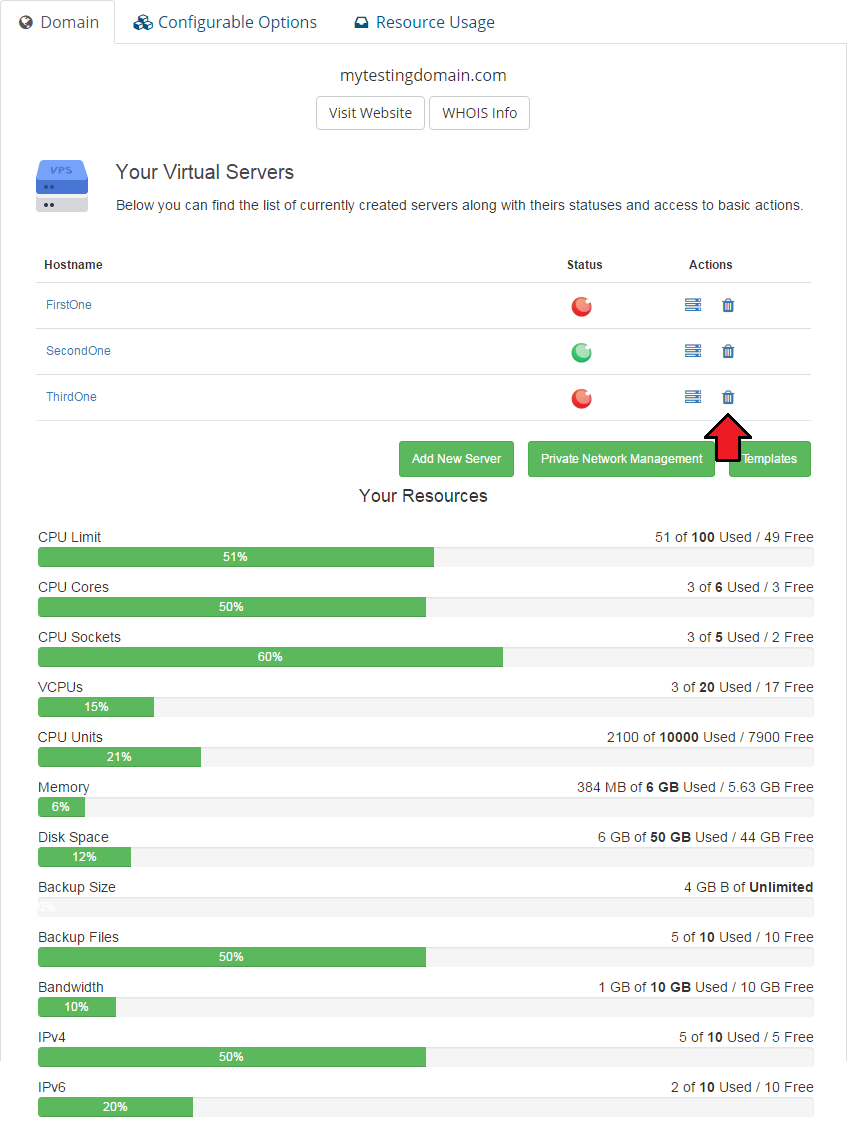
If you do not need a particular virtual server anymore, press 'Delete' button to remove it.
# Private Network Management
Move to 'Private Network Management' to add, delete and edit your private networks.
Please keep in mind that this option must be enabled by administrator in your product's 'Module Settings' previously and a private IP address must be added in the Proxmox Addon.
Otherwise you will not be able to add any private network successfully.
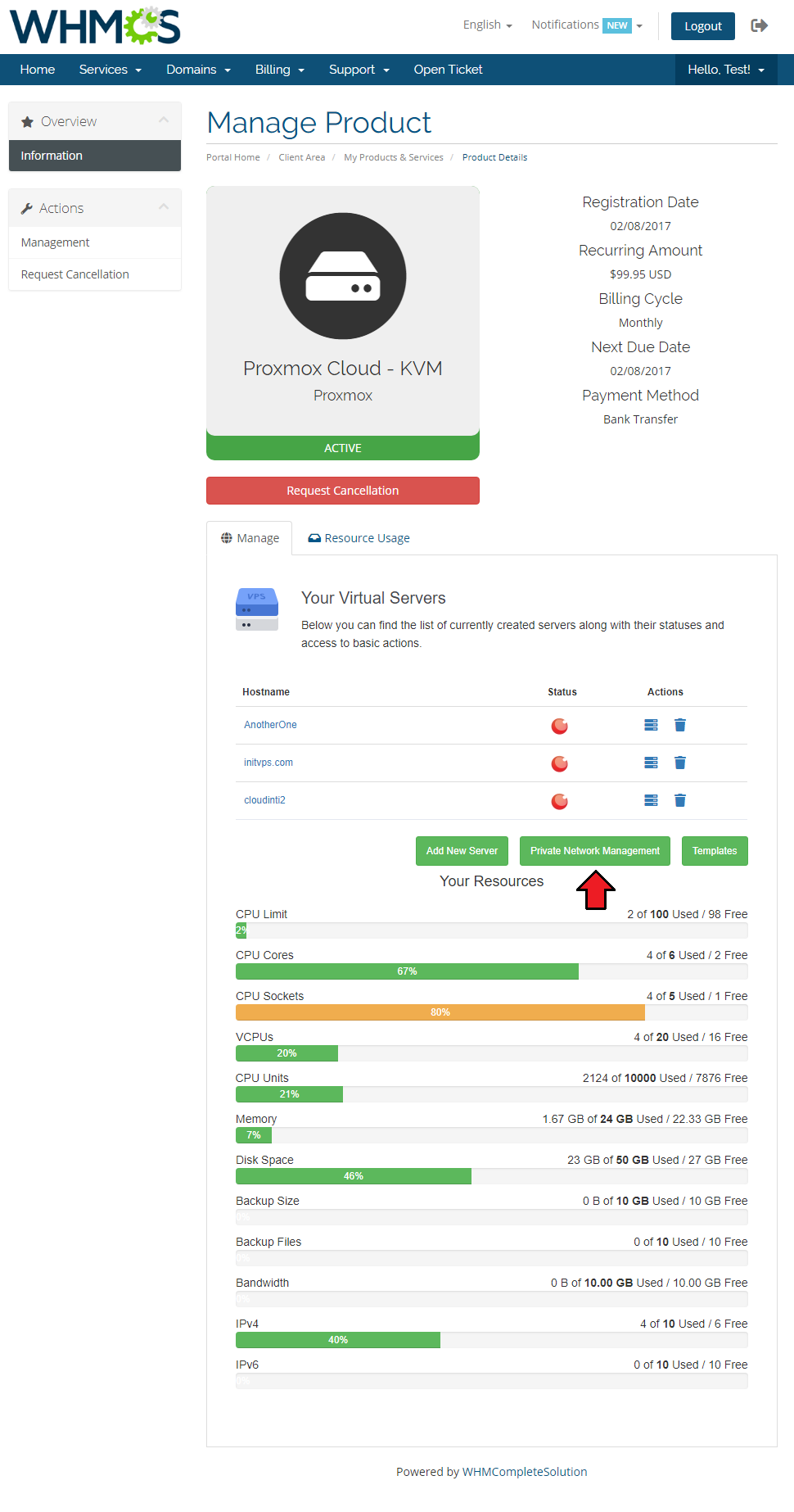
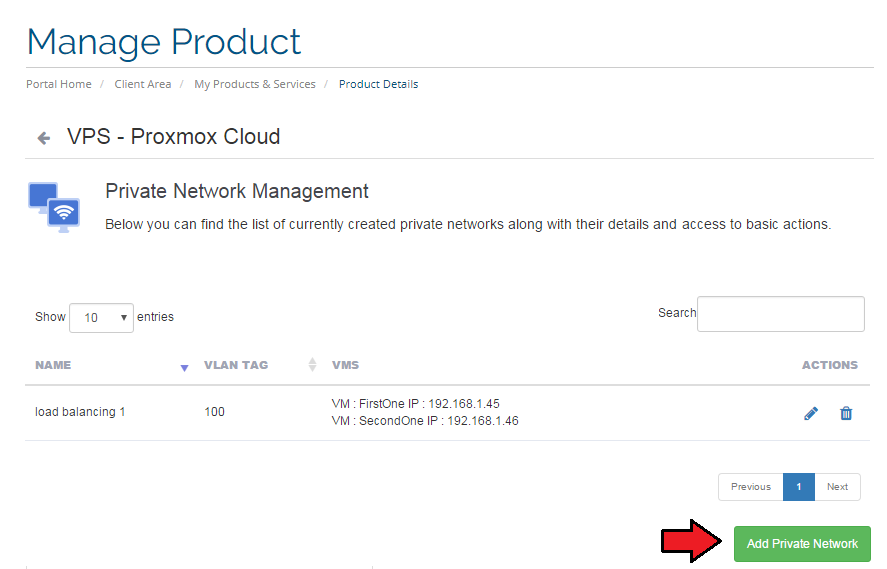
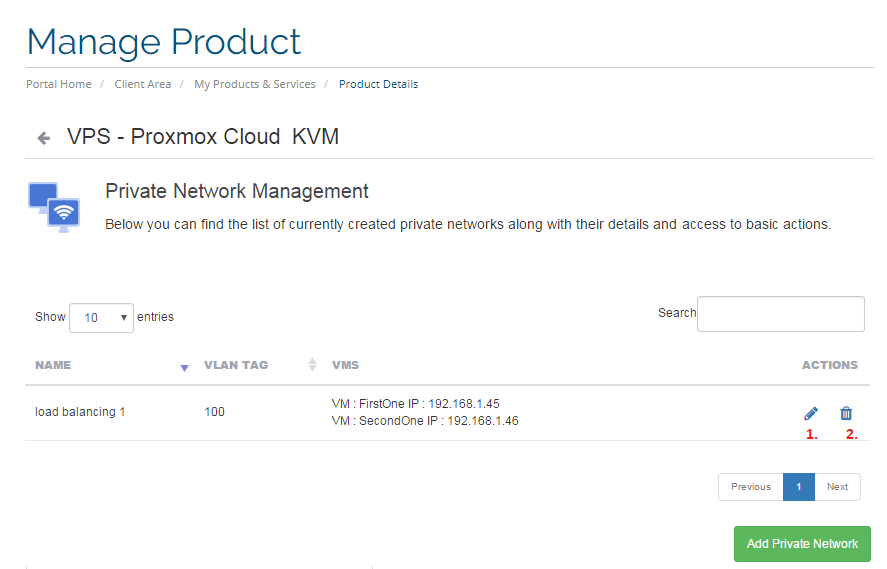
In that section you will find all existing private networks with any details such as assigned virtual machines.
To create a new network press 'Add Private Network'.
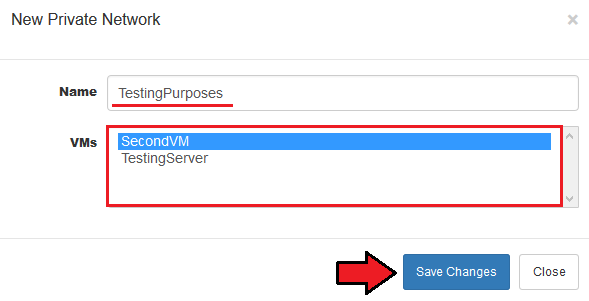
Type in the name and select virtual machines from available that will have the private IP Addresses assigned.
New private network automatically appears on the list. You may edit (1) it or delete (2) whenever needed.
# Templates Management (KVM Only)
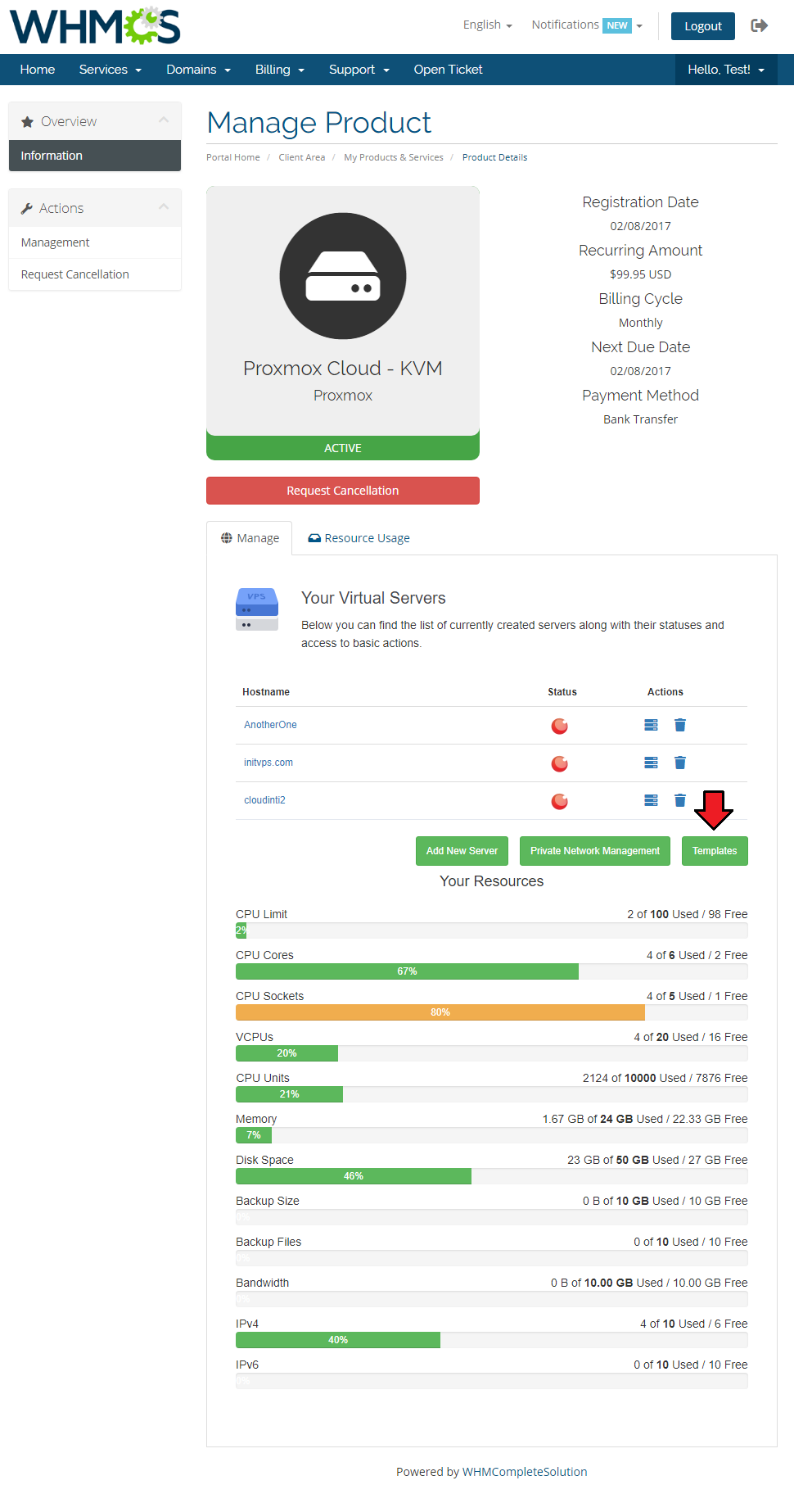
Press 'Templates', you will be redirected to a site where you will find the list of currently created templates along with their details and access to basic actions.
You may edit or delete existing templates. To add a new one, simply press 'Add Template' button.
OS templates do not consume any resources such as CPU sockets, memory etc.
Important! When you convert server into a template, it is consumed in the process! There is no possibility to revert it back.
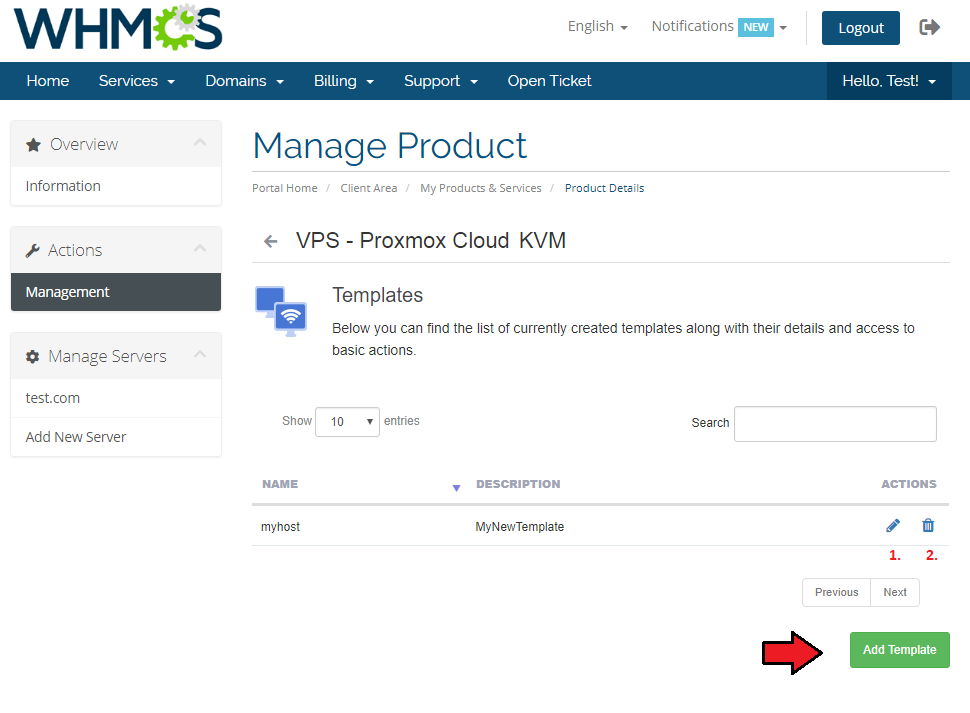
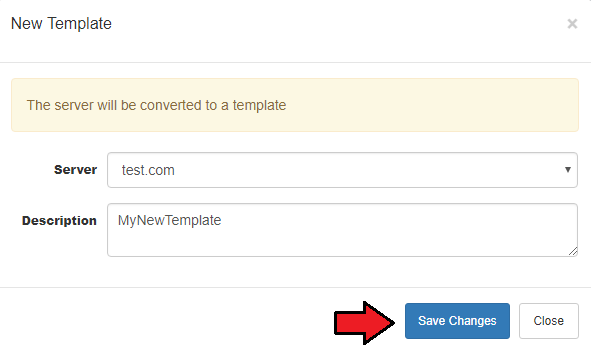
Select server from dropdown menu and type in its short description. Save changes when ready.
# Client Area - VM Management
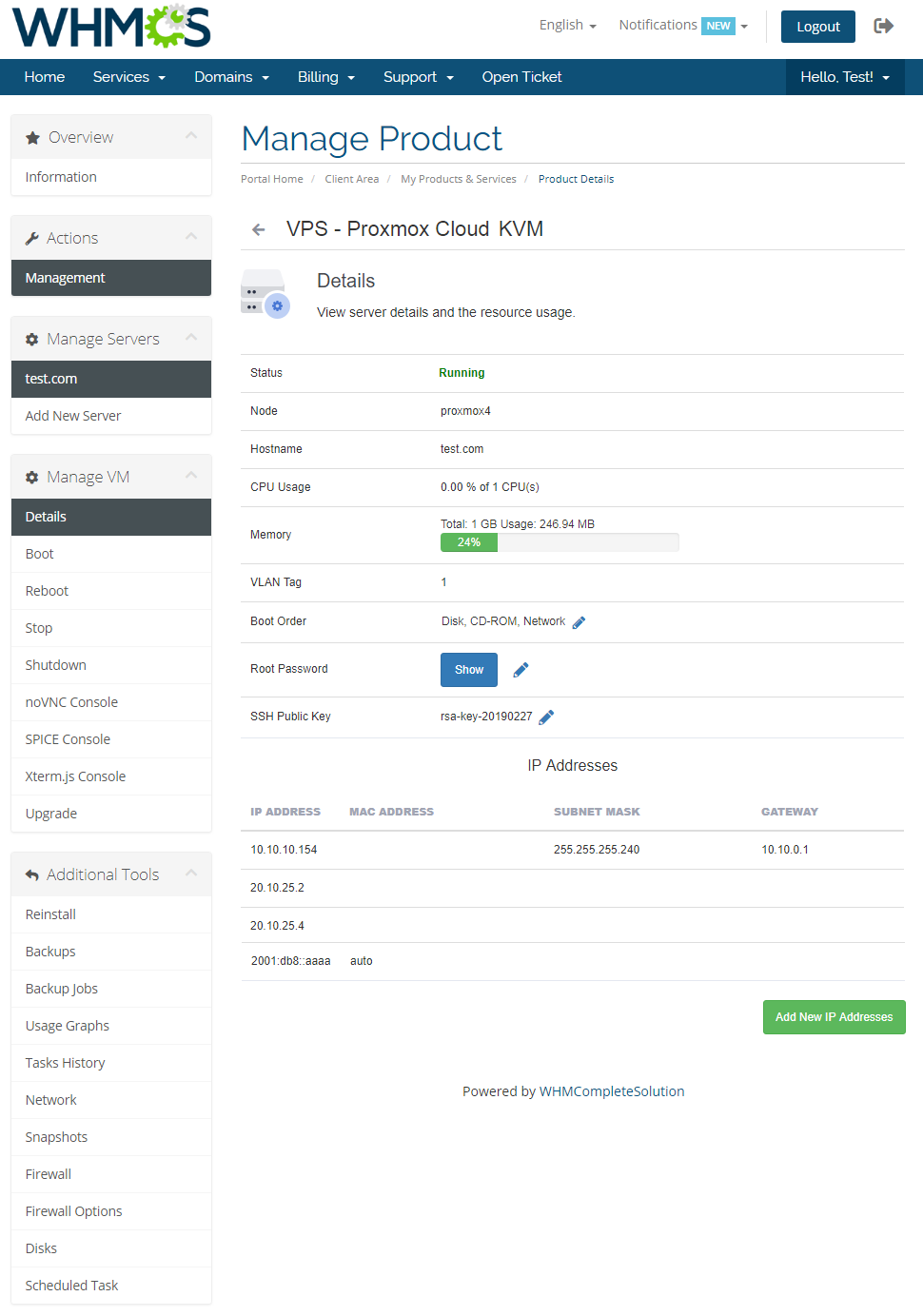
Client area interface of virtual server should look like the one on the screen below.
As you can see, control panel contains useful options needed for managing VPS.
The module allows your customers to easily boot, stop, reboot and shutdown their VM through pressing a specific button.
Clients can also upgrade server and access VNC, SPICE and noVNC consoles.
Any additional tools are described in details in below sections.
# noVNC Console
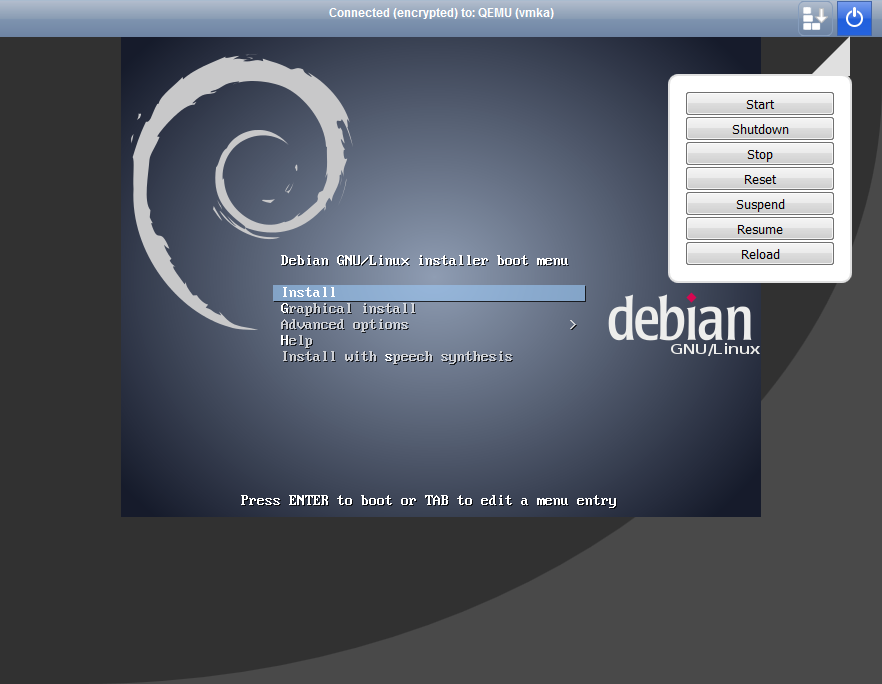
noVNC console allows your clients to connect with their server in the easiest possible way.
# SPICE Console
Spice console enables you to connect with virtual machine using SPICE.
Note: Your client needs to download (opens new window) and install client side SPICE application in order to connect with VM.
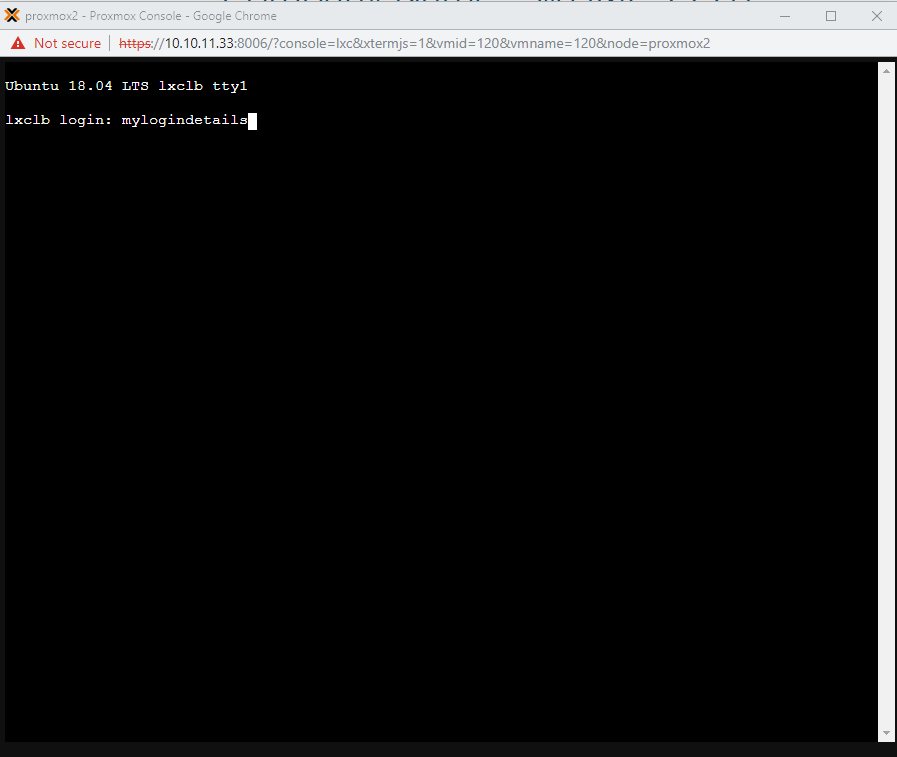
# Xterm.js Console
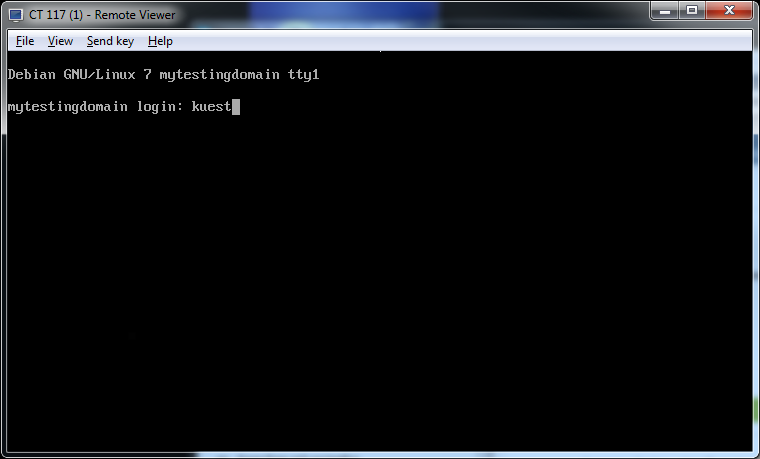
Xterm.js console enables you to connect to virtual machine using Xterm.js.
You must update the scripts on Proxmox v2.6.0. To do so open folder: UploadOnProxmoxServer/5.2-10 and upload content on all your proxmox servers.
# Upgrade
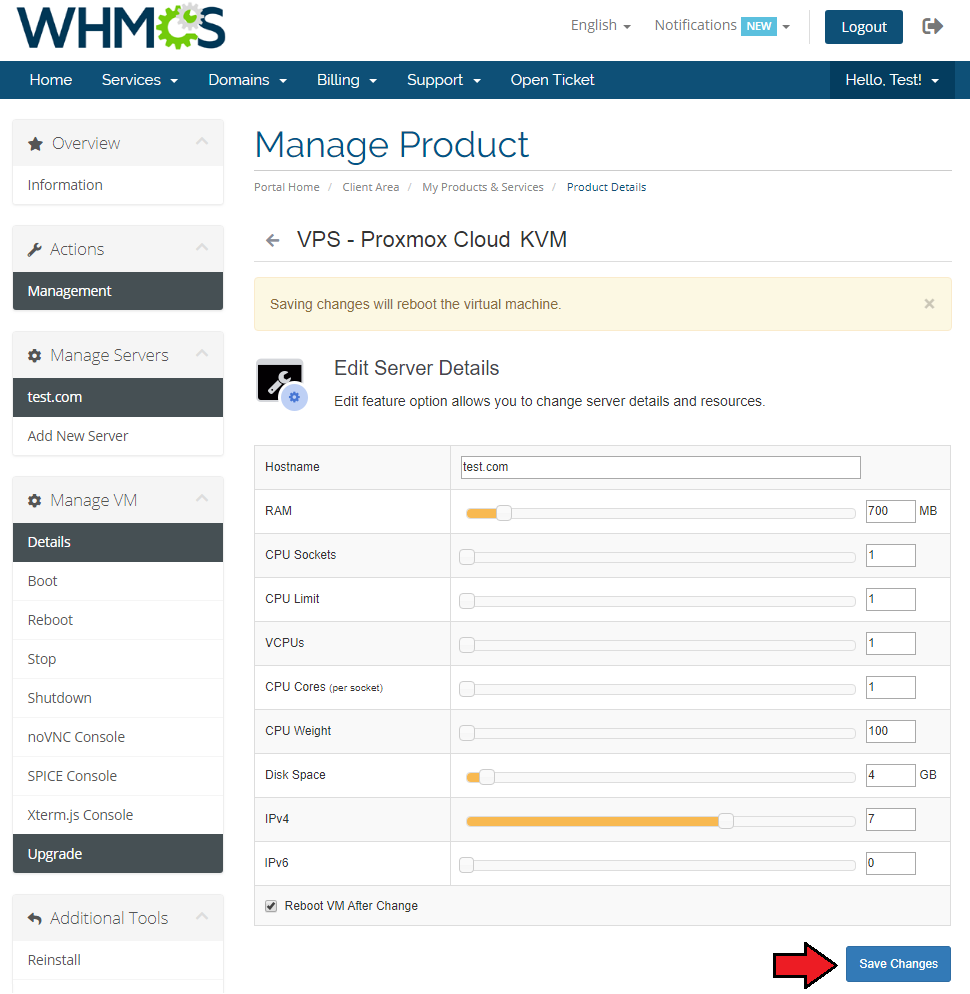
Upgrade feature allows you to change server details and resources except 'Template' and 'Password'. To edit your server, click 'Upgrade' button.
Afterwards, alter options you desire and confirm through pressing 'Save Changes' button.
# Client Area - Additional Tools
# Reinstall
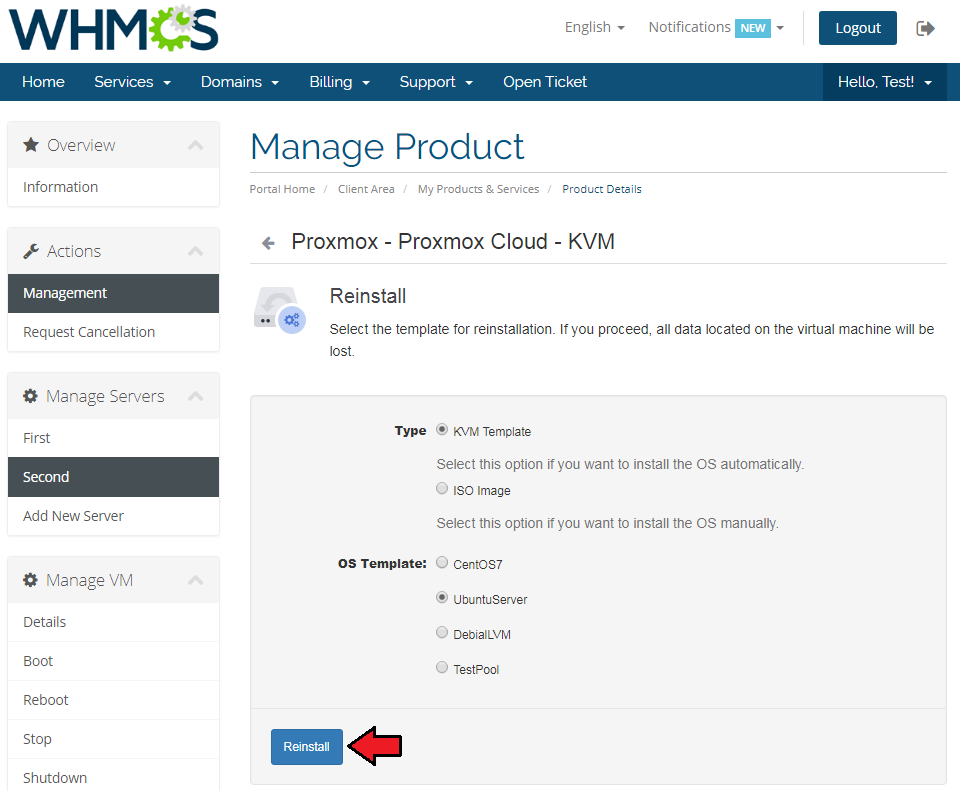
Reinstall feature can be used to reinstall a new OS on the VM by the clients on their own.
You can provide your clients to either select a new OS from a provided KVM templates to automatically system replacement, or let them choose the ISO image for manual system installation.
Note: The ISO images can only be used for the KVM virtualization type, while VM templates can be used either for KVM or LXC.
Additionally the new OS password for the KVM OS reinstallation will be set based on the previous service password while for the LXC user can define it before the new installation.
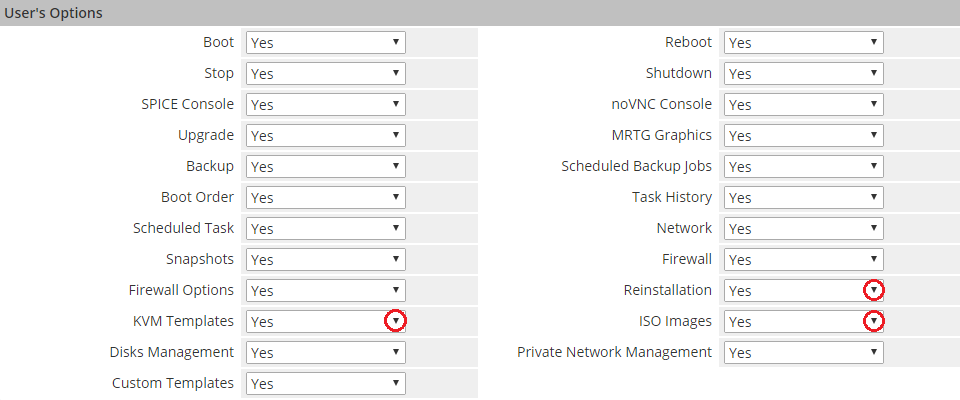
You can configure the available 'KVM OS Templates' for clients in the 'KVM Configuration'.

In the same way choose available 'ISO Images' from the can configure the 'CD/DVD-ROM Drive'.

Remember to also gain your clients access to selected reinstallation types in the 'User's Options'.
# Backups
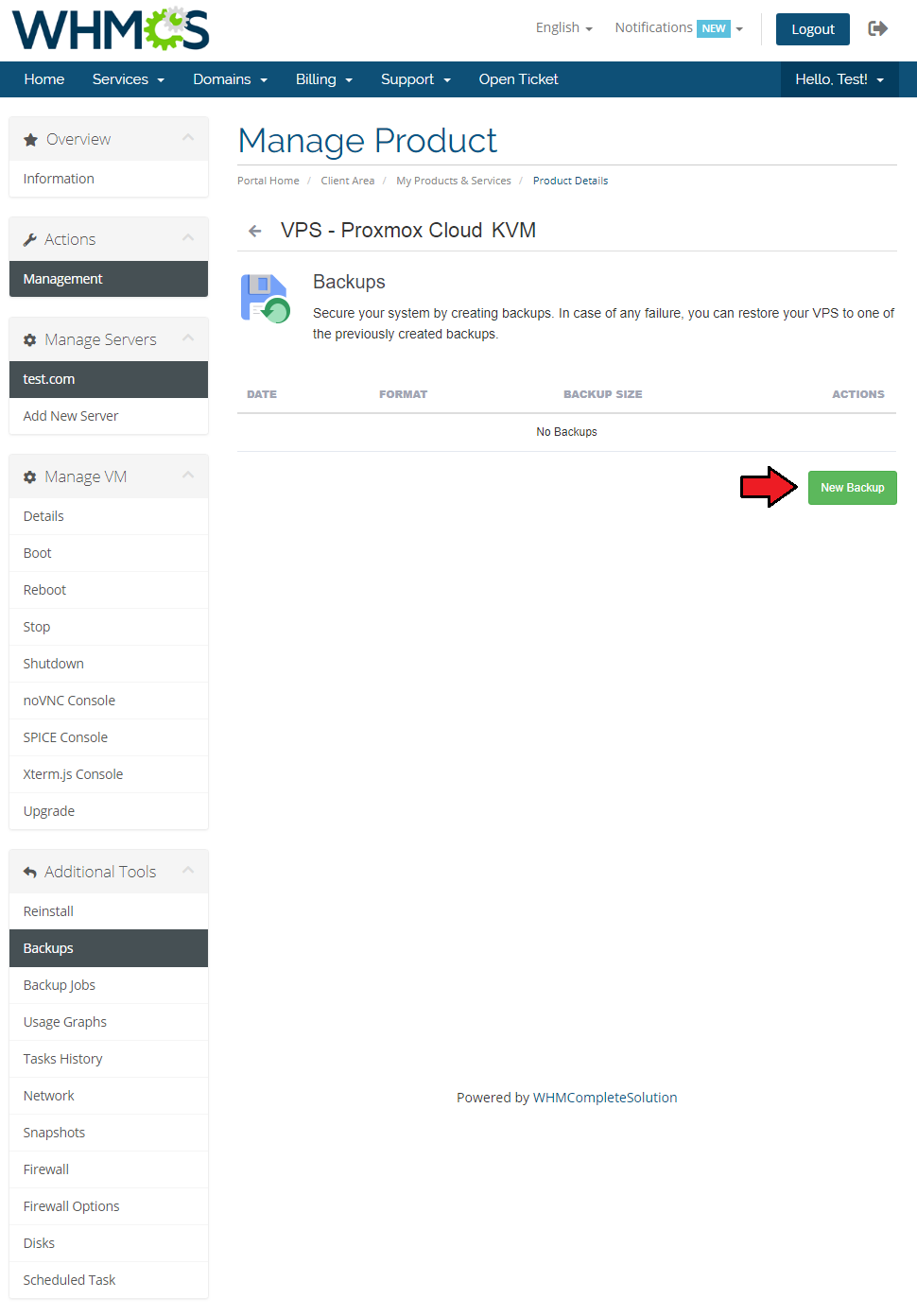
To create a single backup, proceed to 'Backups' section and click 'New Backup' as shown on the following screen.
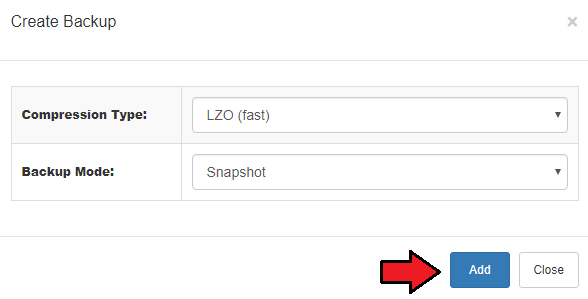
Now choose 'Compress Dump File' and 'Backup Mode' from dropdown menus.
Afterwards, press 'Add' button.
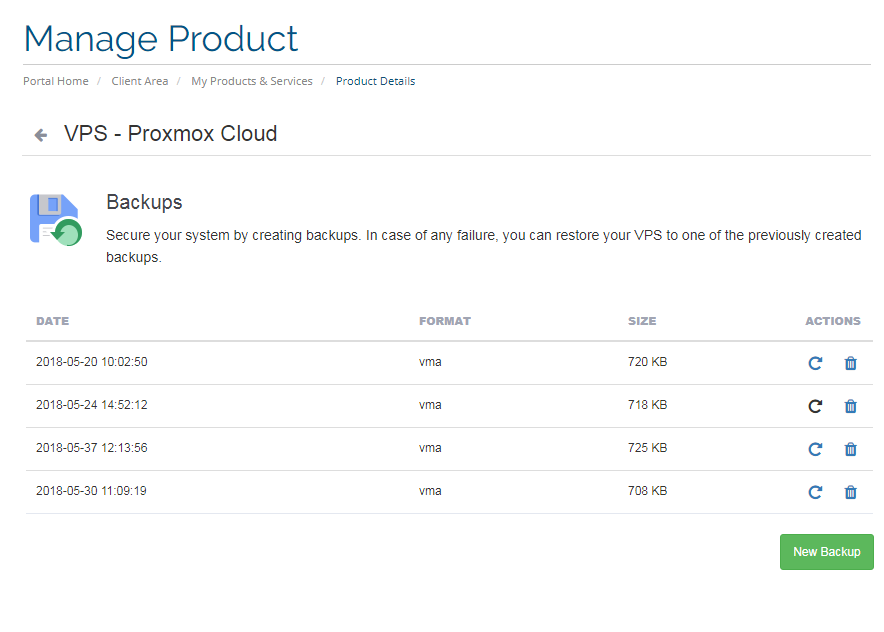
To restore VM from a backup simply press 'Restore' and then click 'OK' button in a popup window to confirm.
# Backup Jobs
By pressing 'Backup Jobs' in the client area, you will be carried to a backup jobs management page.
To add a new backup job press 'New Job' as shown on the following screen.
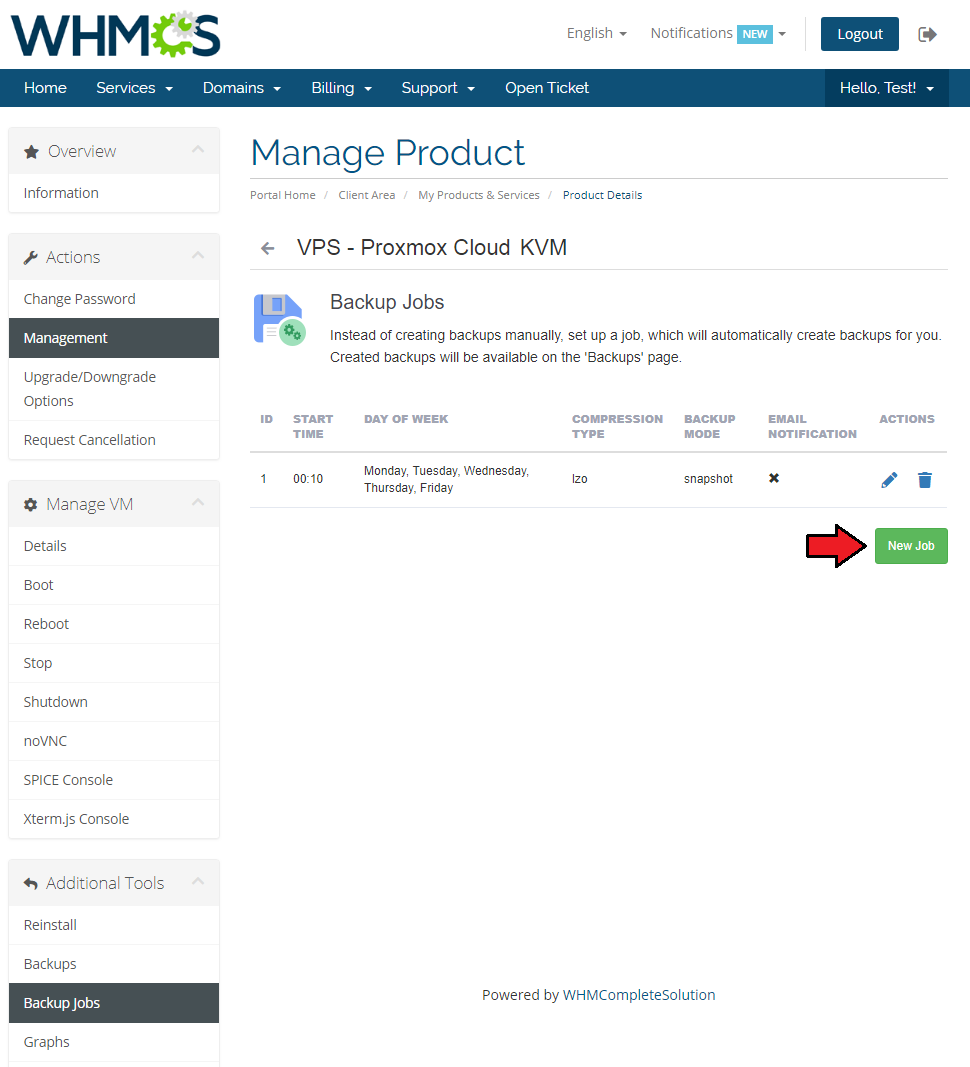
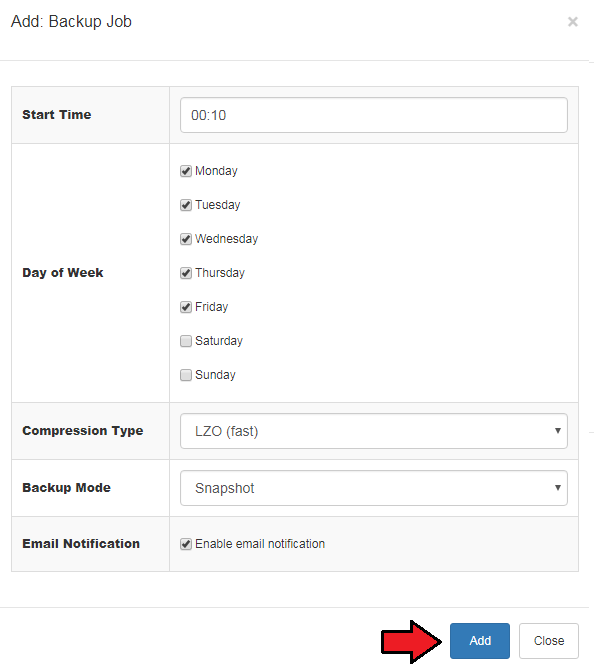
Now, define backup time, mark days to run it and choose 'Compression Dump File' and 'Backup Mode' from dropdown menus.
Next, press 'Add' button. You may also enable email notifications here.
# Usage Graphs
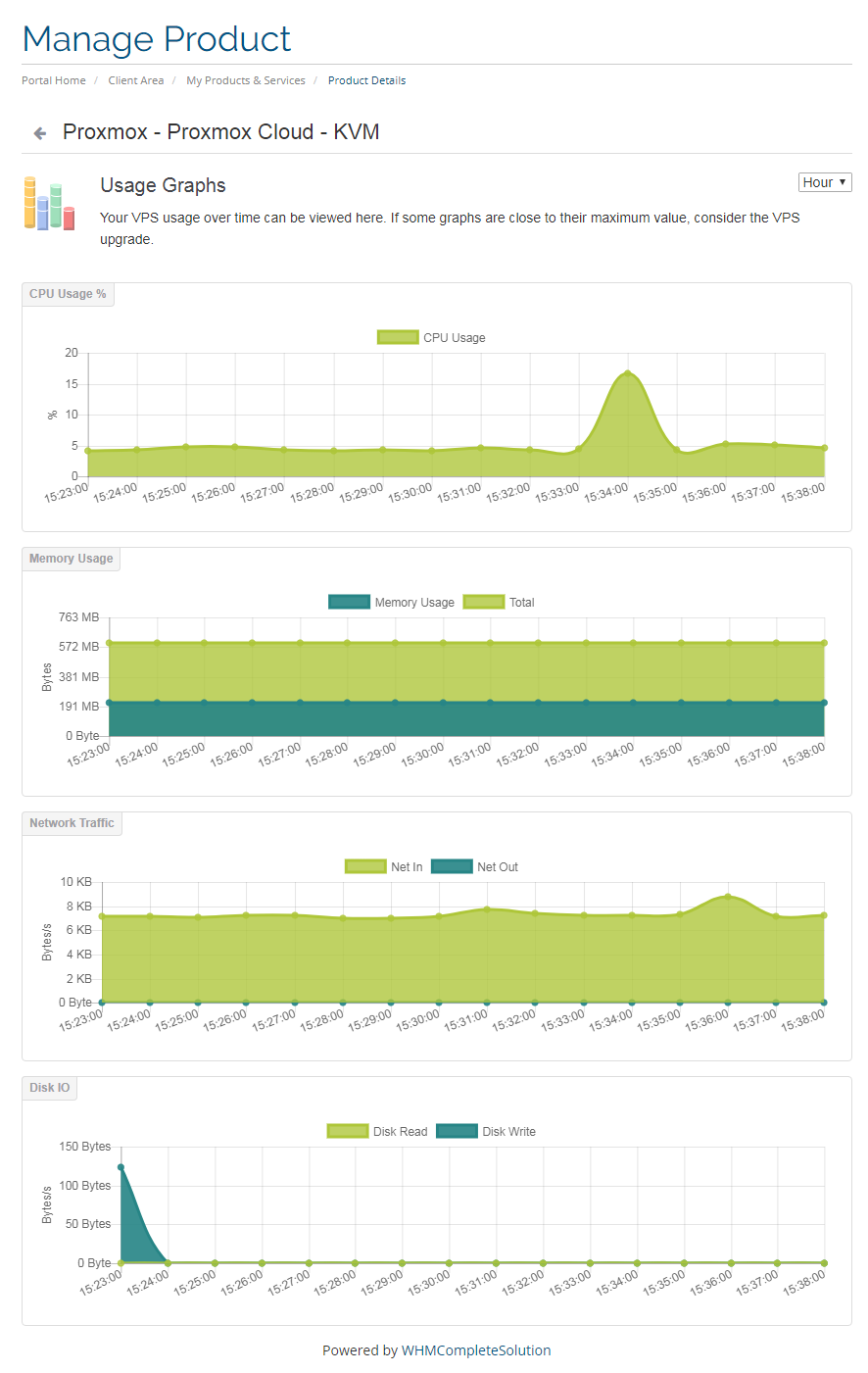
Under 'Usage Graphs' page, a client can find graph with CPU usage, memory usage, network traffic and disc I/O.
They can also switch the timeline of the graphs by choosing it from a dropdown menu pointed on the following screen.
# Task History
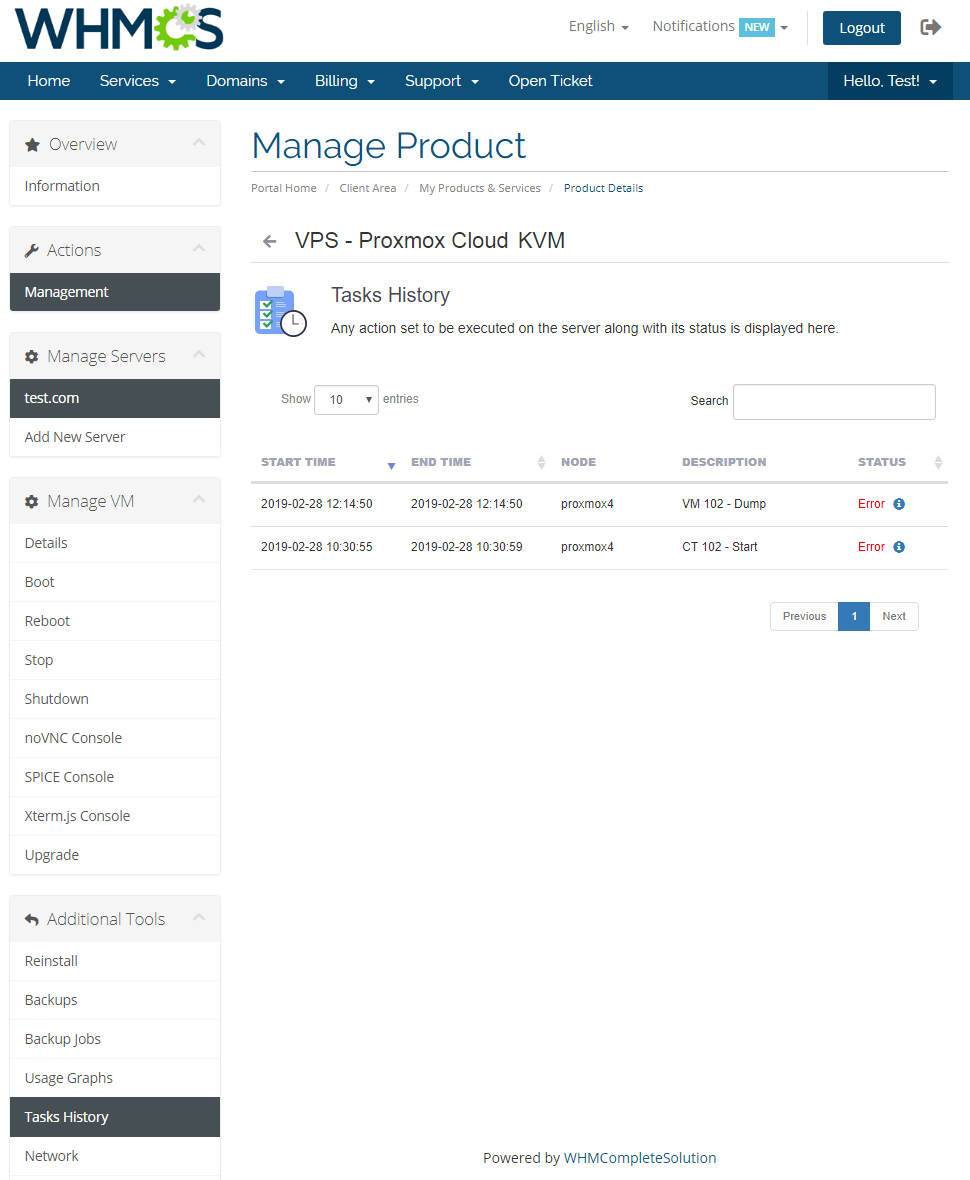
All changes of VM status are listed in 'Task History'.
Additionally, each access to the VM through SPICE console is shown here.
# Network
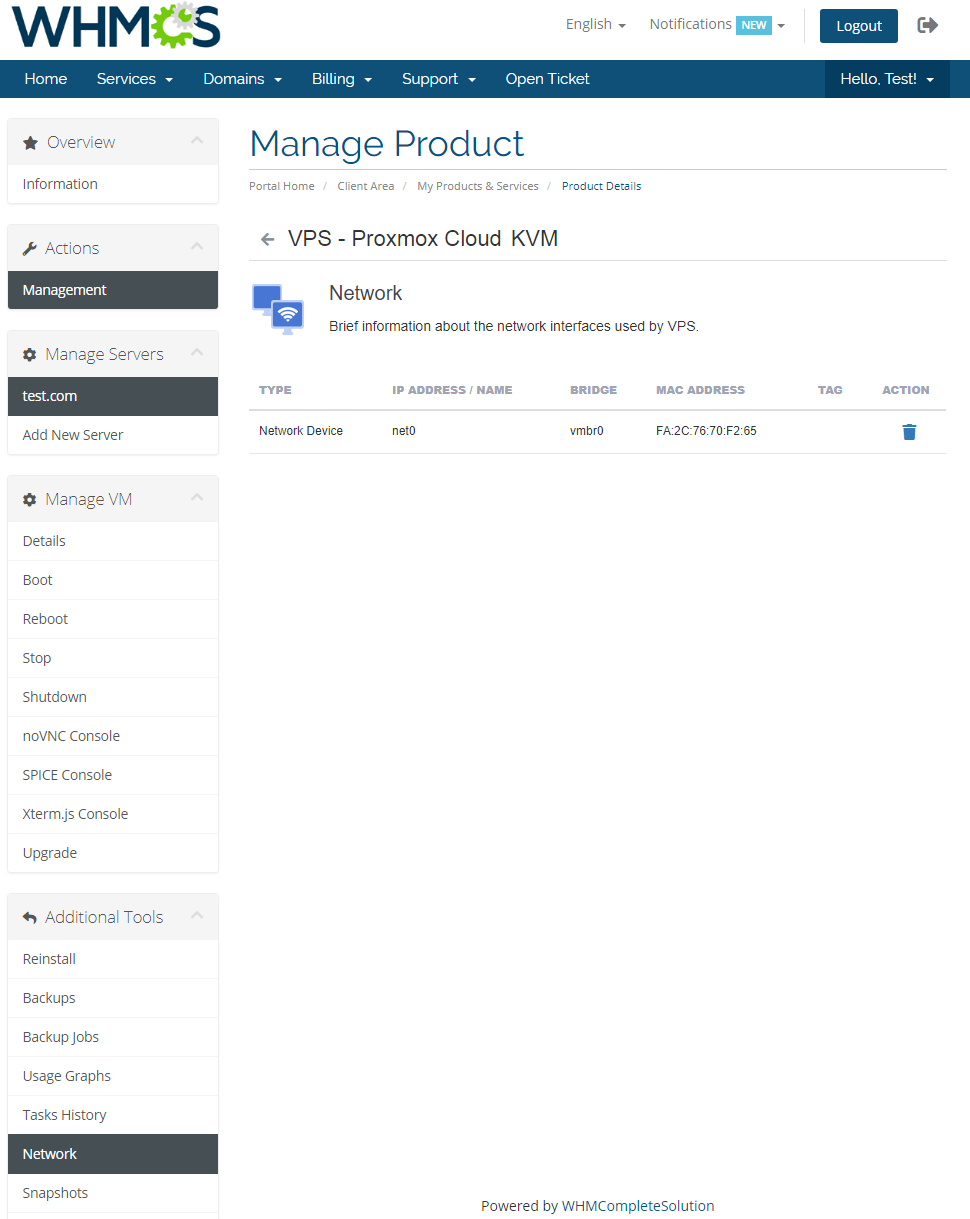
'Network' section allows your clients to view their VM's network interface.
Depending on the settings of the product (private network is used), they can also create/remove them. This feature is optional.
# Snapshots
Use snapshot to remember the contents of virtual machine memory current state. You may use them later to restore the VM settings.
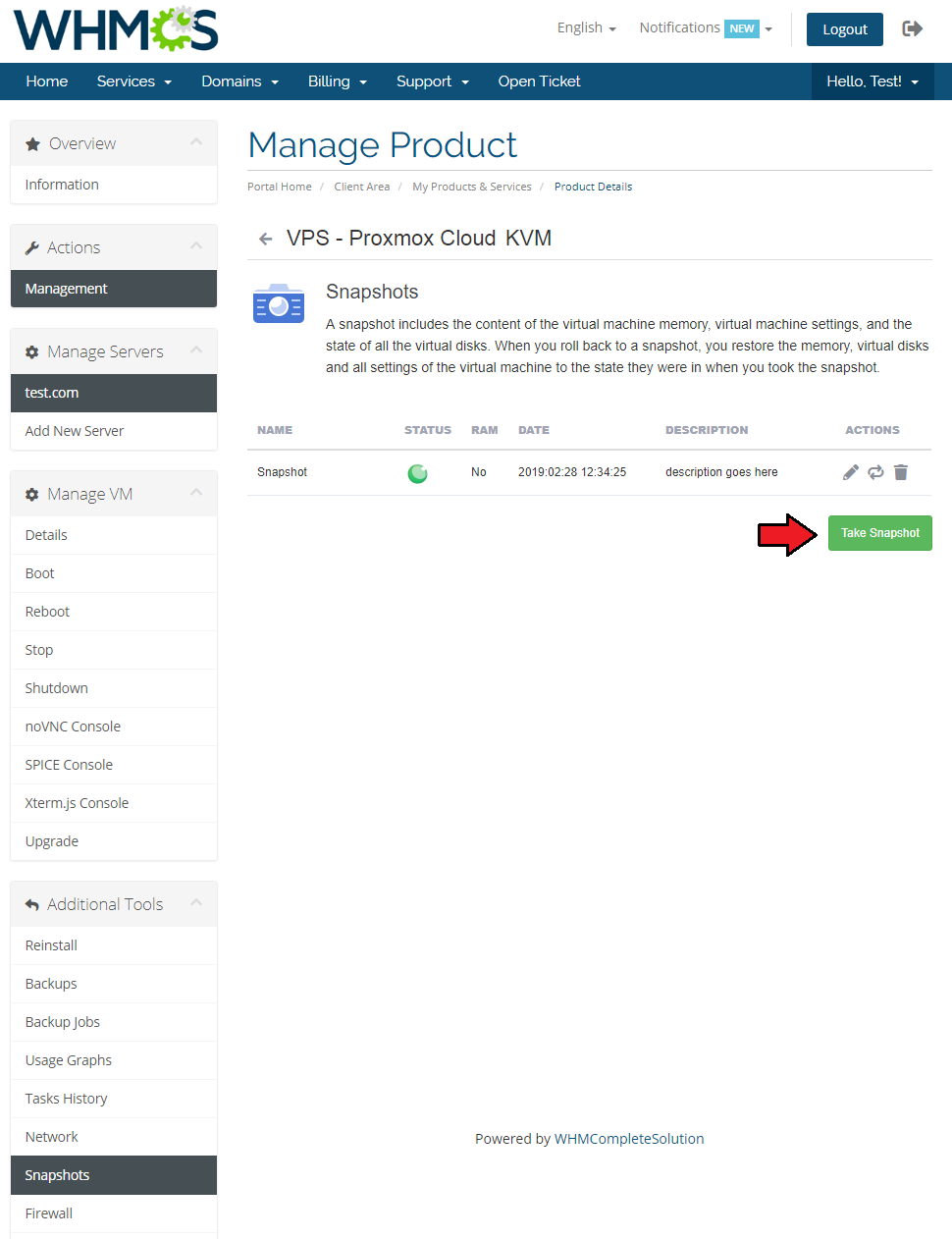
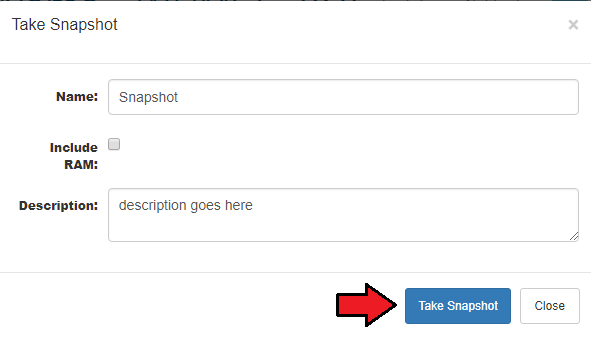
Press 'Take Snapshot' button and fill out the form to take a snapshot.
Name it (use alphabetical characters only), choose whether to include RAM and add some description.
# Firewall
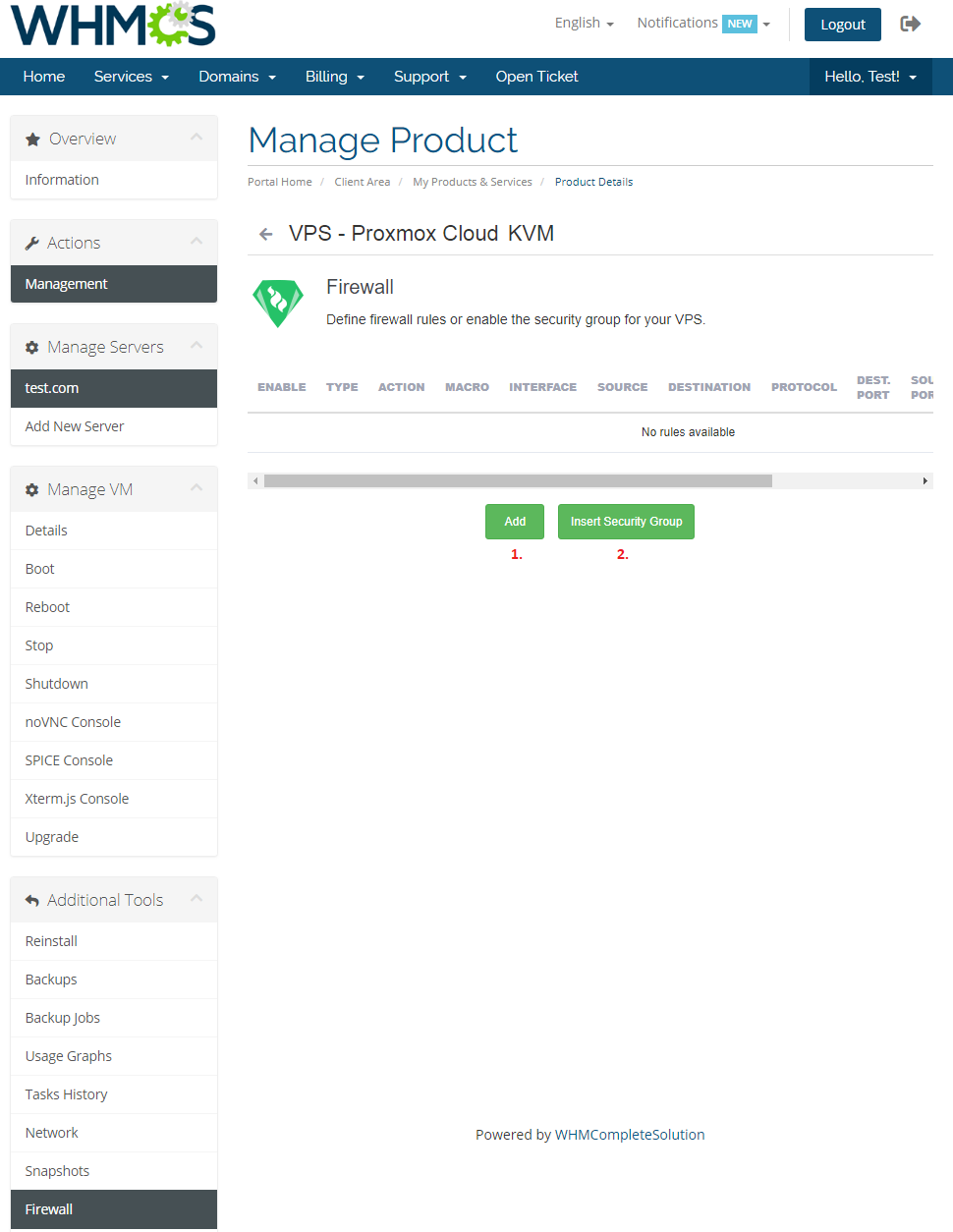
Owing to 'Firewall' page, your clients can set up firewall rules and enable security group for theirs servers from your WHMCS client area.
As you can see, you can easily modify and remove previously added rules and security groups.
To add a new firewall rule (1) or predefined security group (2) use the buttons marked on the following screen.
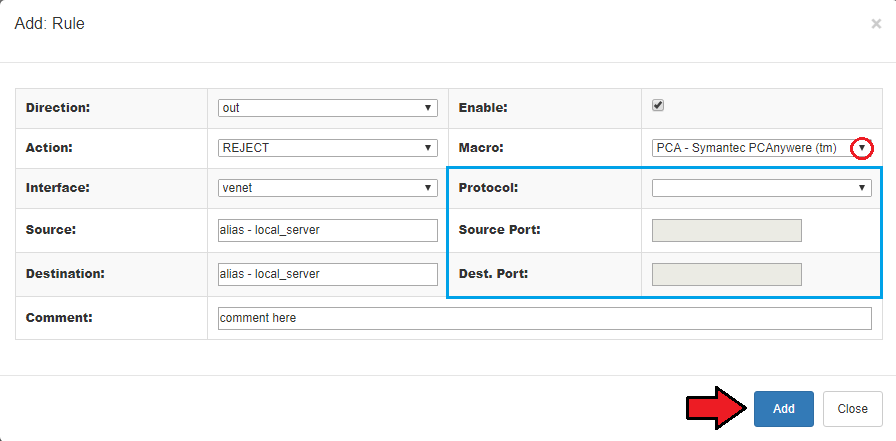
You can add a firewall rule in two ways. Both of them require choosing direction, action, interface, source and destination.
The first way (red) is by choosing macro from a 'Macro' dropdown field.
The second way (blue) consist of choosing protocol and filling source and destination ports out.
Additionally, you can enable rule and add a comment to it.
Press 'Add' to create a rule.
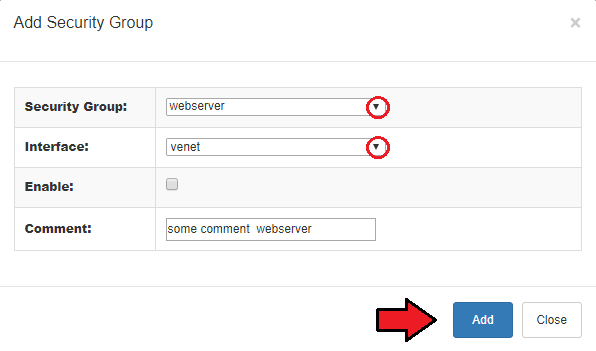
Inserting a security group consists of choosing security group and interface on which group has to be used.
Additionally, you can enable security group and add a comment to it.
Click 'Add' to use the security group.
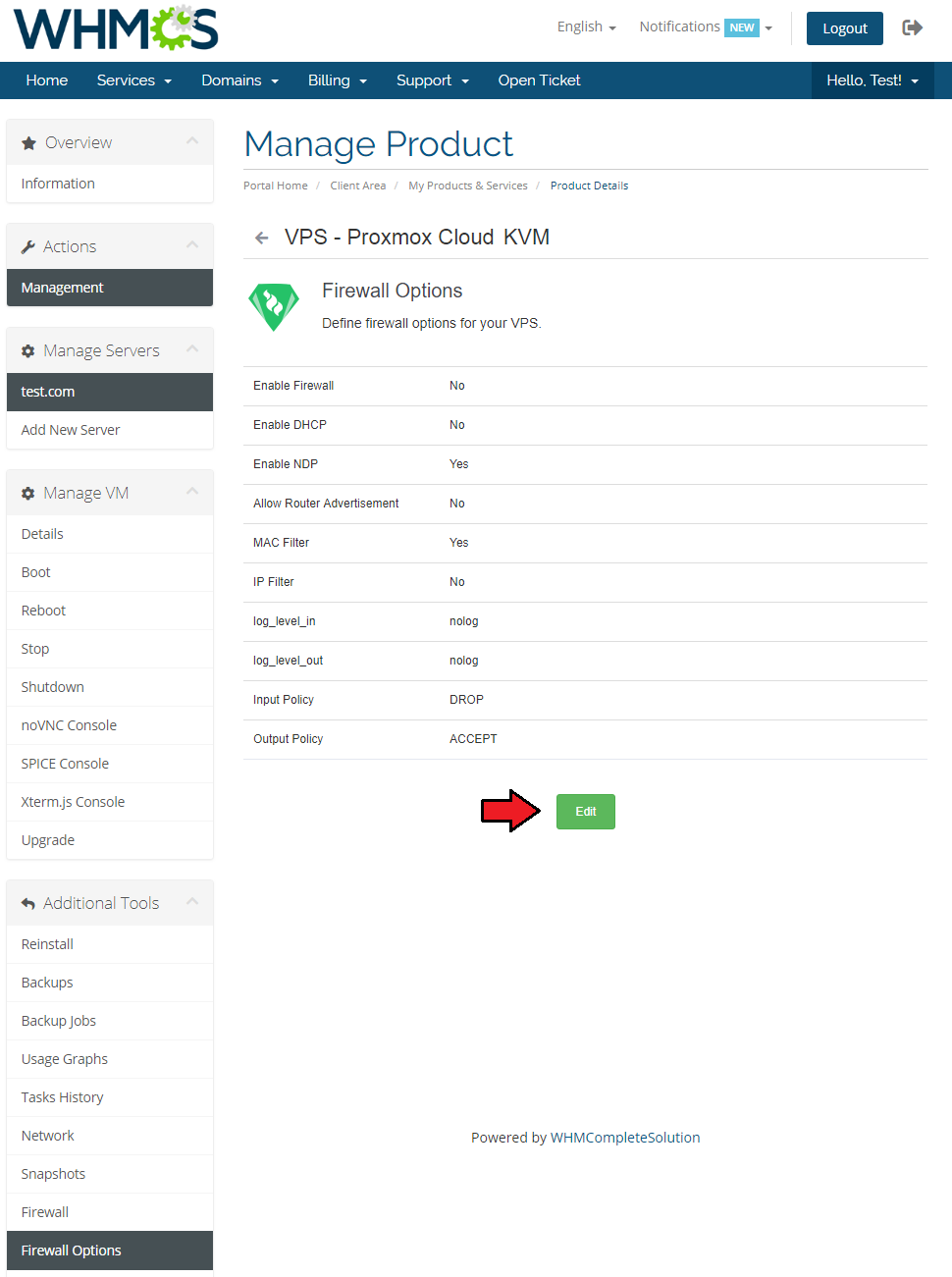
# Firewall Options
View and edit firewall options.
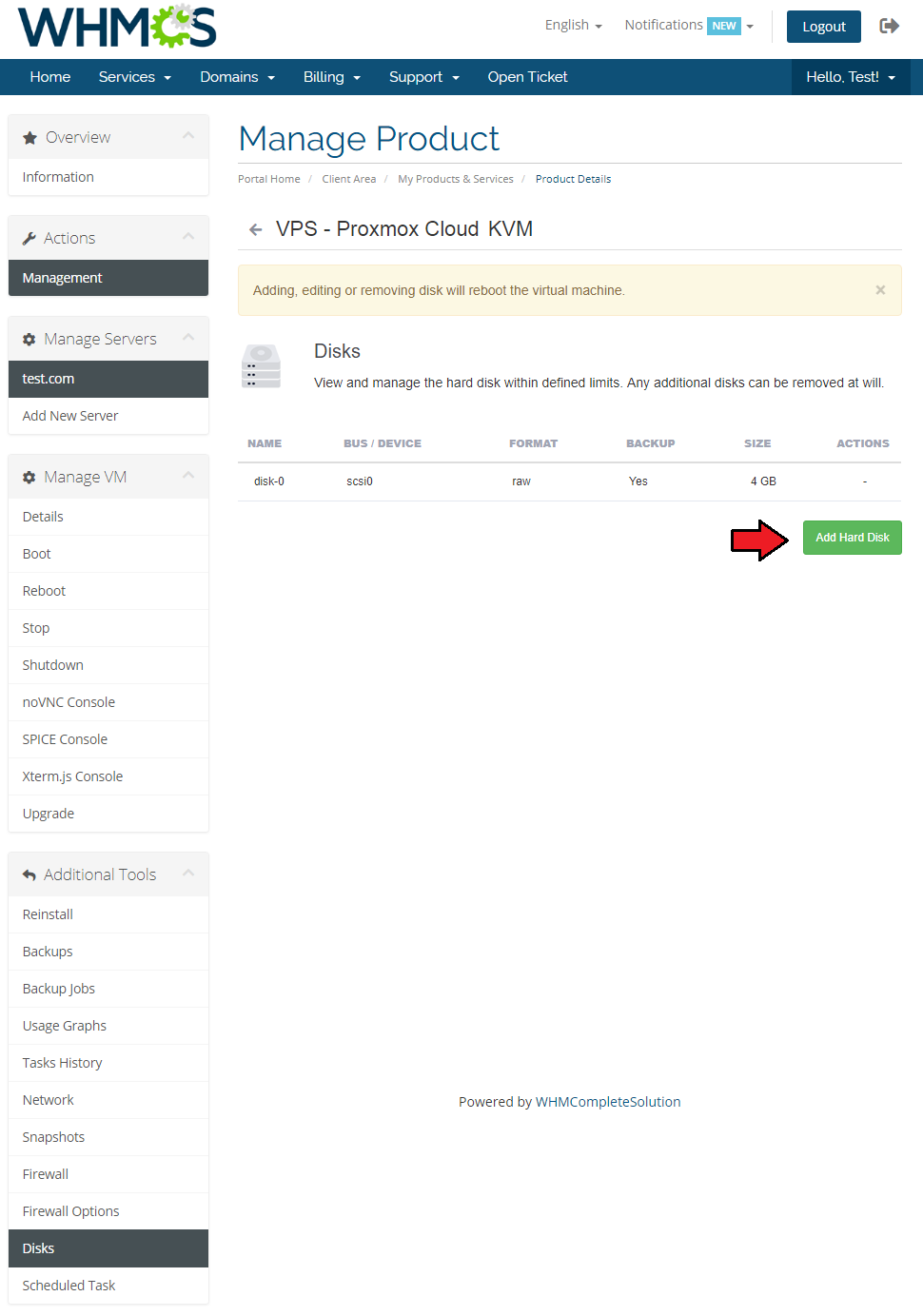
# Disks (KVM only)
View and manage hard disk within defined limits, add new one or remove additional disks if you wish.
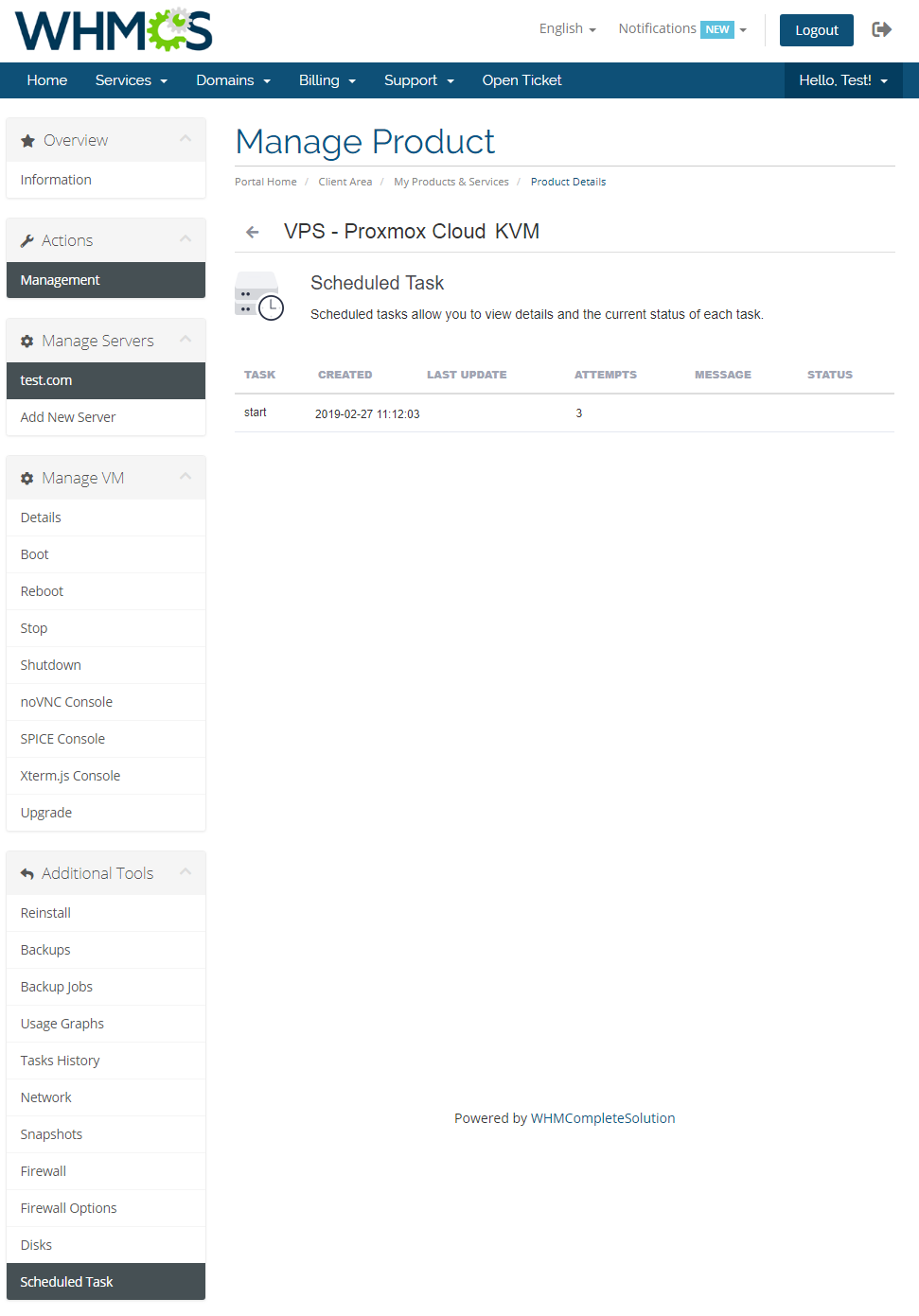
# Scheduled Task
Proceed to 'Scheduled Tasks' section to view details on any current task.
# IP Manager Integration
Owing to integration with IP Manager For WHMCS (opens new window) you are able to easily create IP addresses subnets and assign them to desired products.
Note: This integration works for both LXC and KVM virtualization types.
Proceed to IP Manager For WHMCS → Subnets tab in order to prepare IP addresses subnet for Proxmox Cloud For WHMCS.
Edit a previously created IP addresses subnet and create custom field 'MAC Address' with desired MAC address at each IP address in the subnet.
More about creating custom fields can be found here. Afterwards, create a new configuration and assign a previously created subnet to it.
Note: Multiple IP addresses subnets can be assigned to a single configuration.Now, link the configuration with Proxmox Cloud product via product, server or configurable option.
On the following screen we have linked them via a configurable option assigned to the Proxmox Cloud product. Now, enable integration by proceeding to '3rd Party Integration' tab.
Press 'Activate' next to 'proxmoxCloud' module type as shown on the following screen.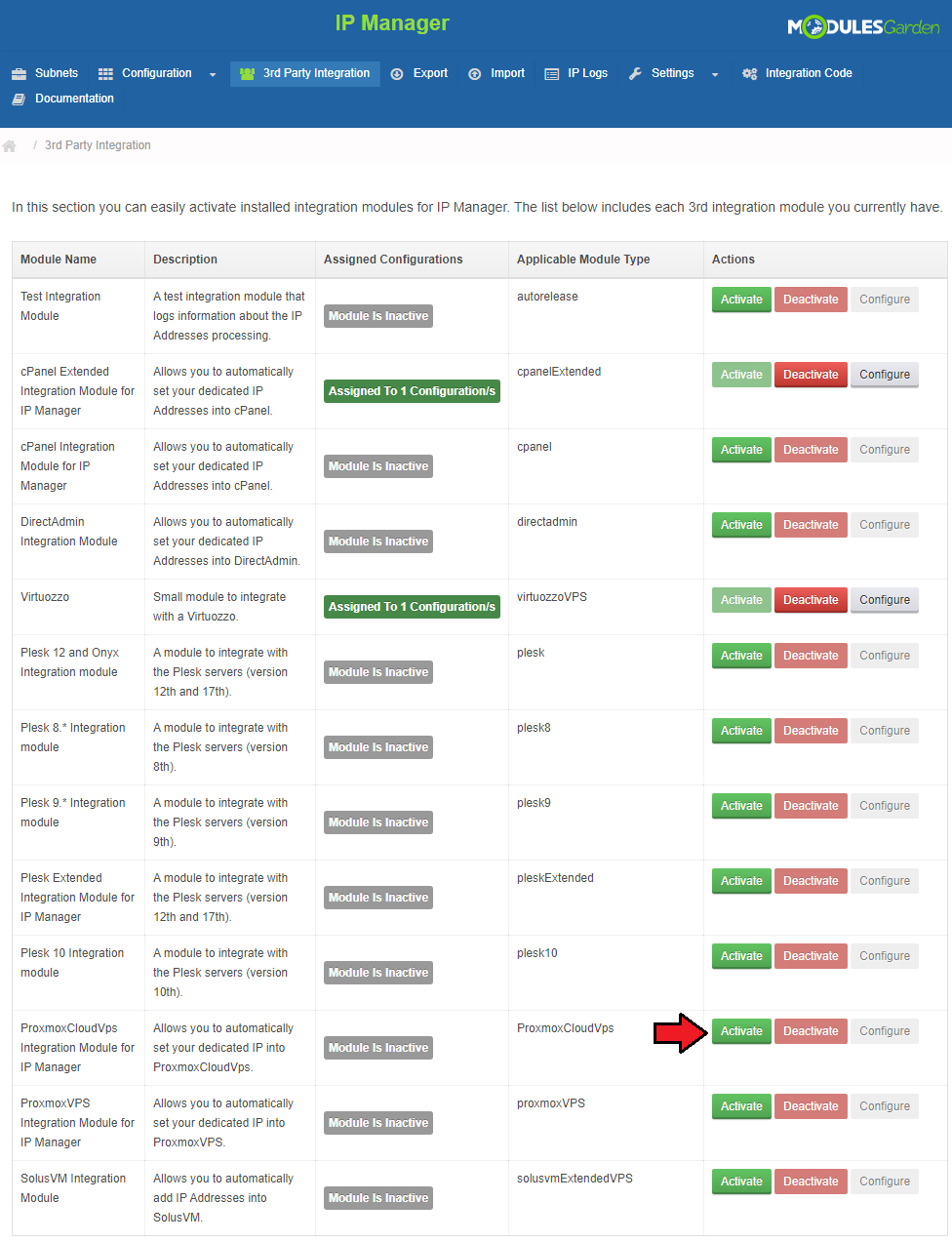
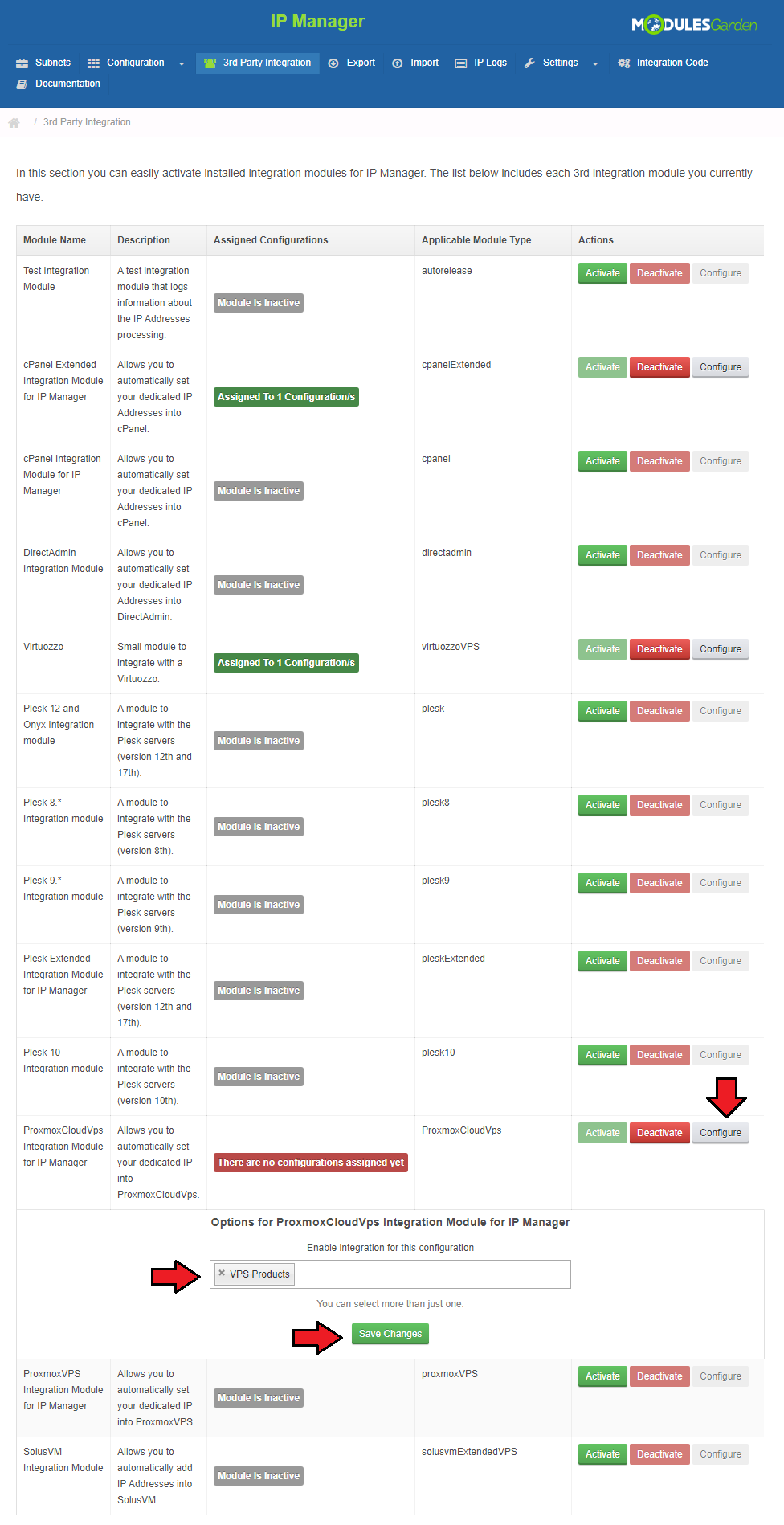
Next, assign a previously created configuration to the submodule.
Press 'Configure', choose the configuration and press 'Save Changes'.
# Importing VM
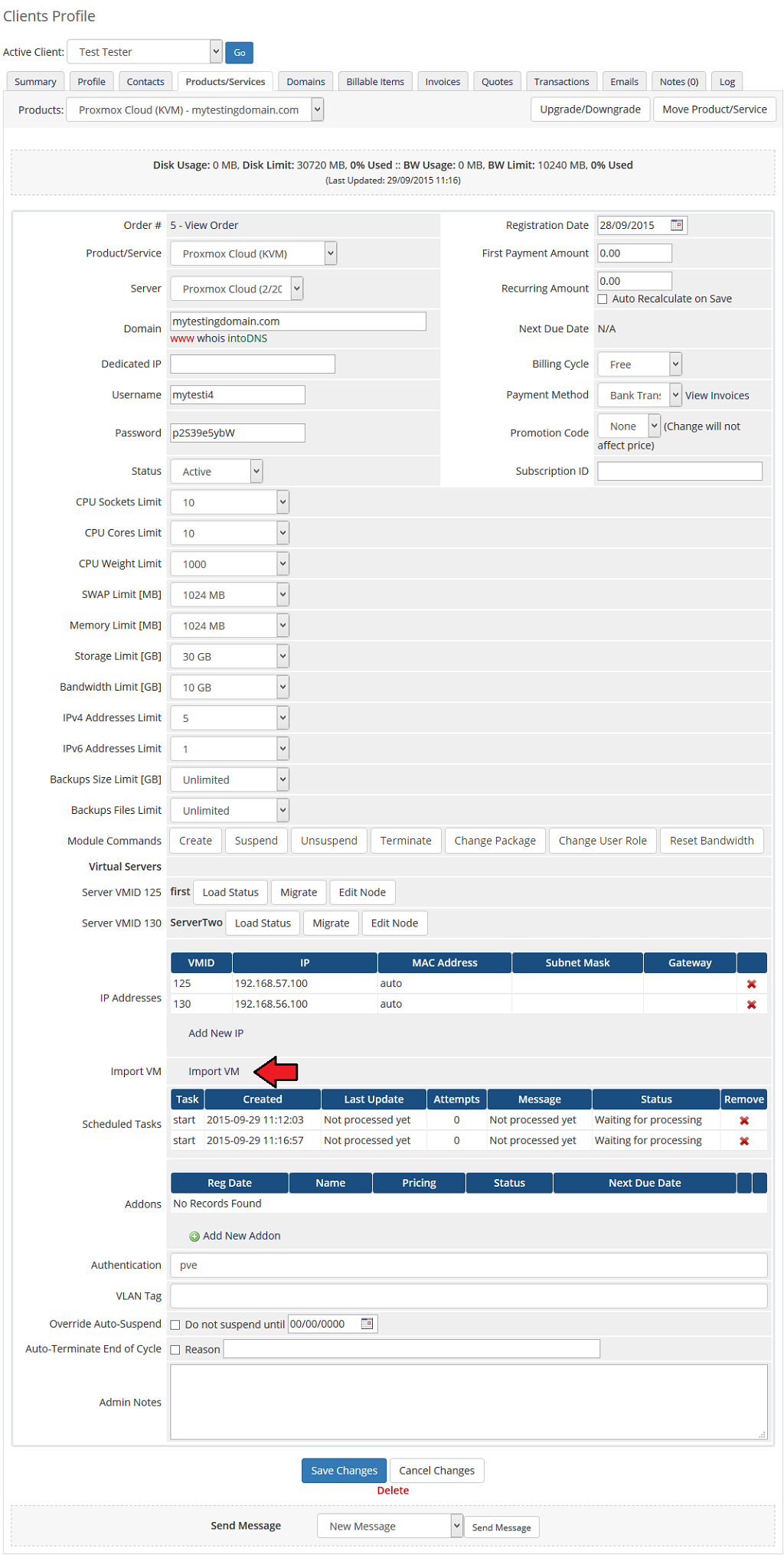
Our module allows you to easily import VM into your cloud product.
To do so, press 'Import VM' as shown on the following screen.
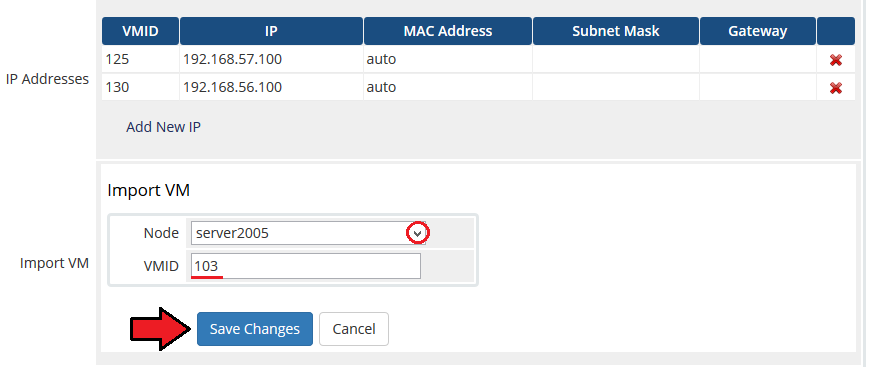
Afterwards, select the node on which the server exists and fill in 'VMID' field.
Confirm importing through pressing 'Save Changes' button.
# Custom Hooks
Our module allows you to use custom hooks, all you need is knowledge of PHP programming language.
Custom hooks are placed in 'your_whmcs/modules/servers/proxmoxCloud/customhooks.php'.
You can find there all custom hooks and basic information about them.
A full list of available custom hooks:
proxmoxCloud_beforeCreateVM
proxmoxCloud_afterCreateVM
proxmoxCloud_beforeTerminateVM
proxmoxCloud_afterTerminateVM
proxmoxCloud_beforeCreate
proxmoxCloud_afterCreate
proxmoxCloud_beforeTerminate
proxmoxCloud_afterTerminate
proxmoxCloud_afterSuspend
proxmoxCloud_afterUnsuspend
proxmoxCloud_afterIPAdditionByAdmin
proxmoxCloud_afterIPDeletionByAdmin
proxmoxCloud_afterIPAdditionByUpgrade
# Configurable Options
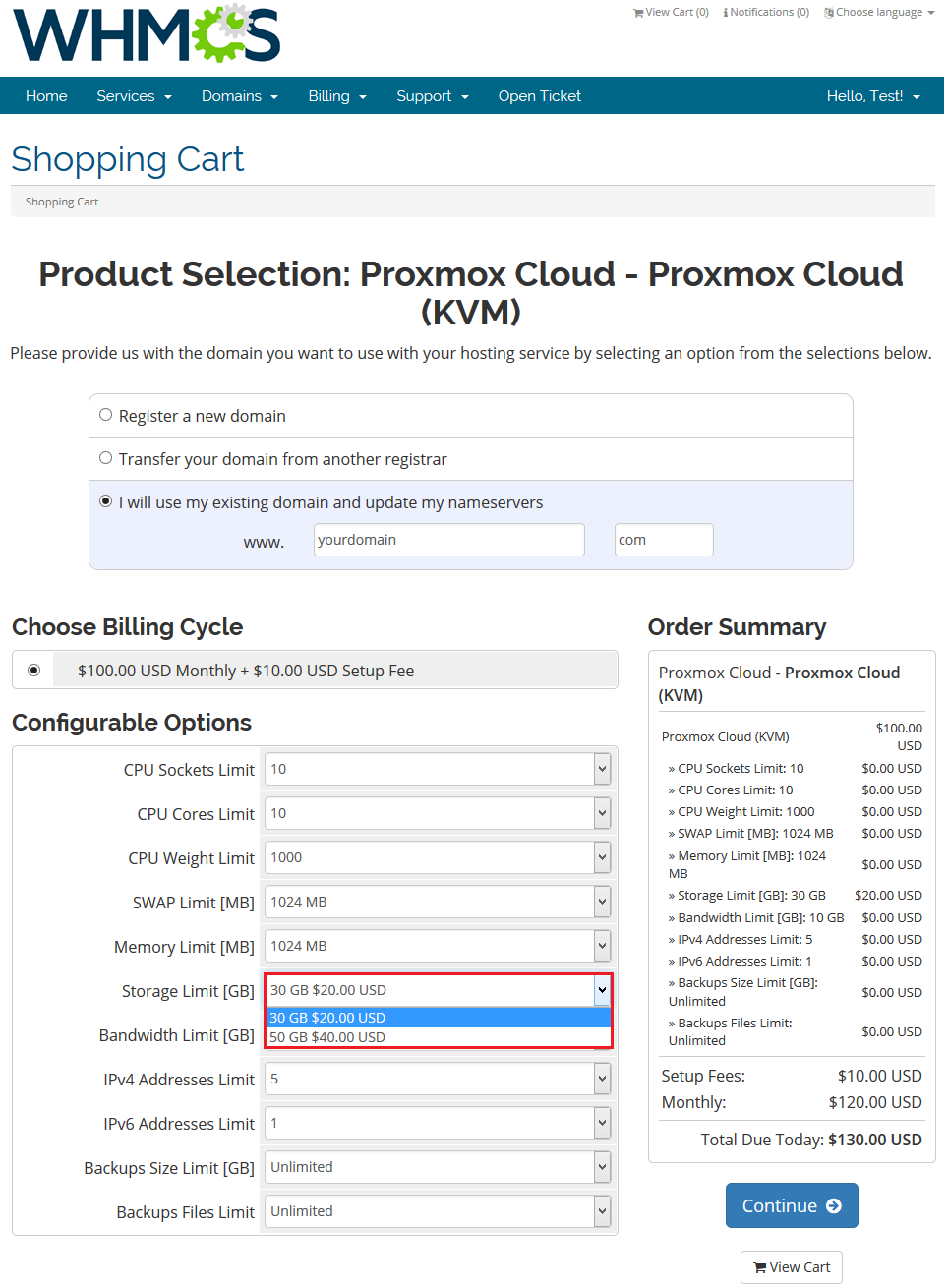
When you successfully set up a product, your clients can order it by choosing from the default configurable options.
Note! If automatically generated configurable options do not seem to fulfill your clients needs, you can edit them using this guide.
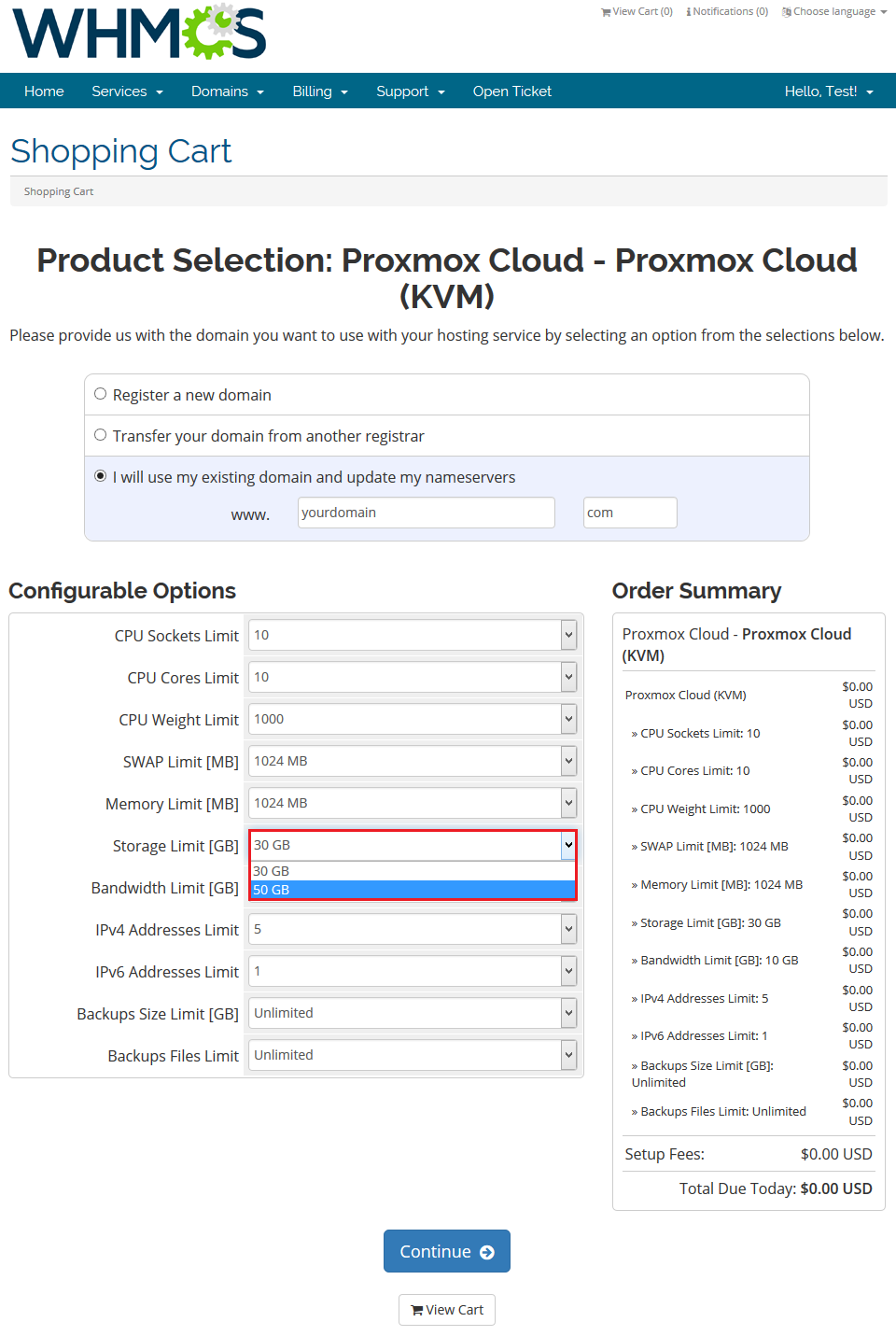
If you decide to set up pricing per server resource ordered, you can find instruction to proceed here.
# Management of Billing
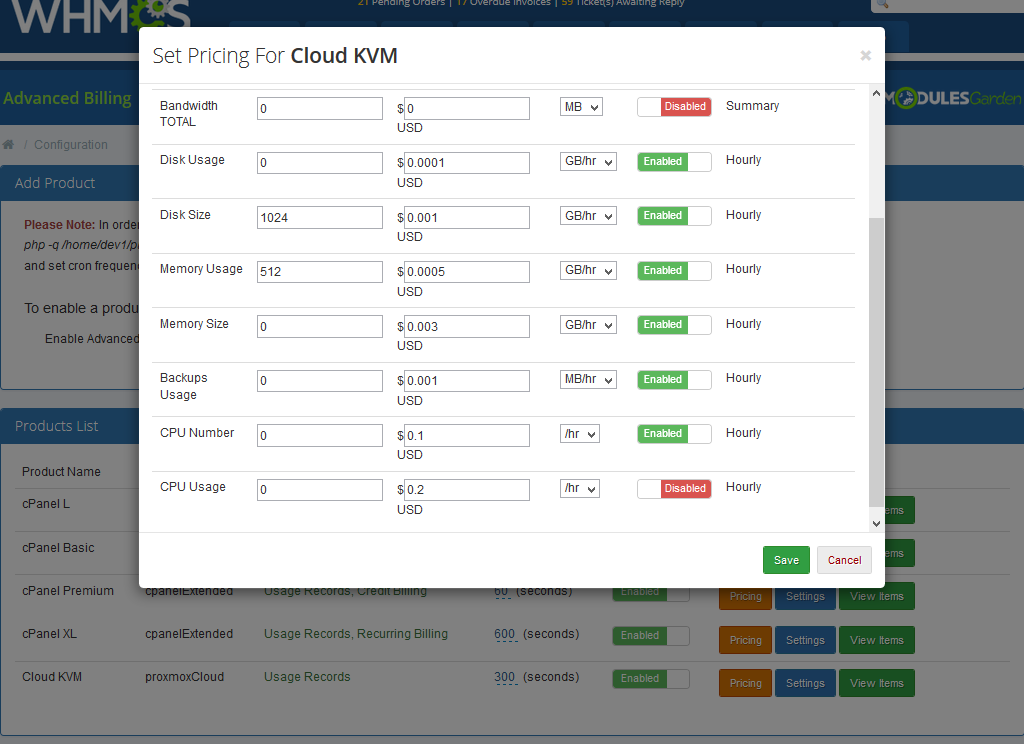
When you combine Proxmox Cloud For WHMCS with Advanced Billing For WHMCS, you will be able to set up additional billing options.
Module allows you to charge your customers basing on the server resources used by them.
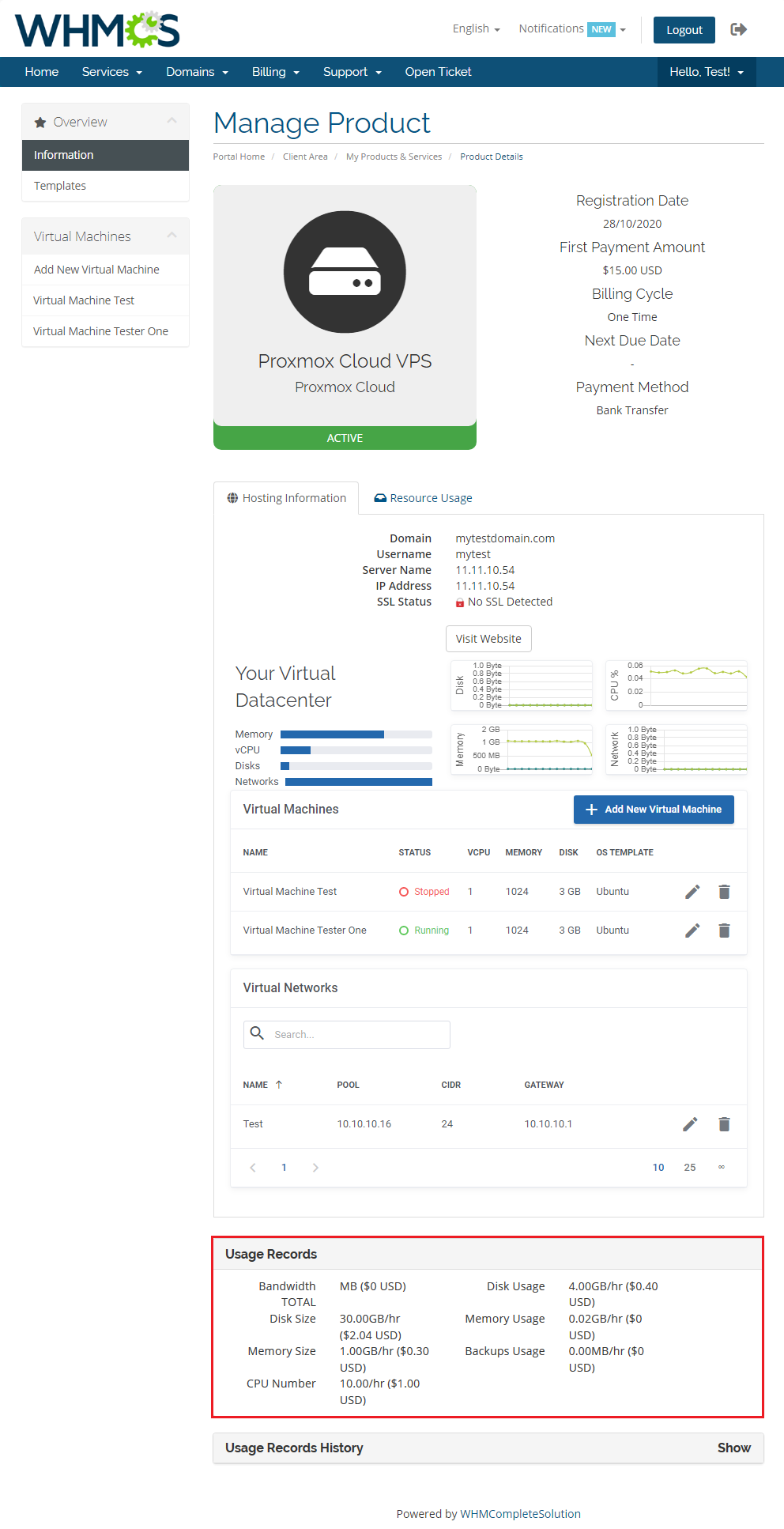
With Advanced Billing For WHMCS module, you can also display your customers current server resource usage and their cost.
# Products Autoscaling
If you want to meet the needs of your clients then give them the possibility to scale provisioned servers according to their current load automatically.
To achieve that you need our Proxmox Cloud Autoscaling extension with Advanced Billing For WHMCS product.
Only then, when you have such a combination of products your offer will be full.
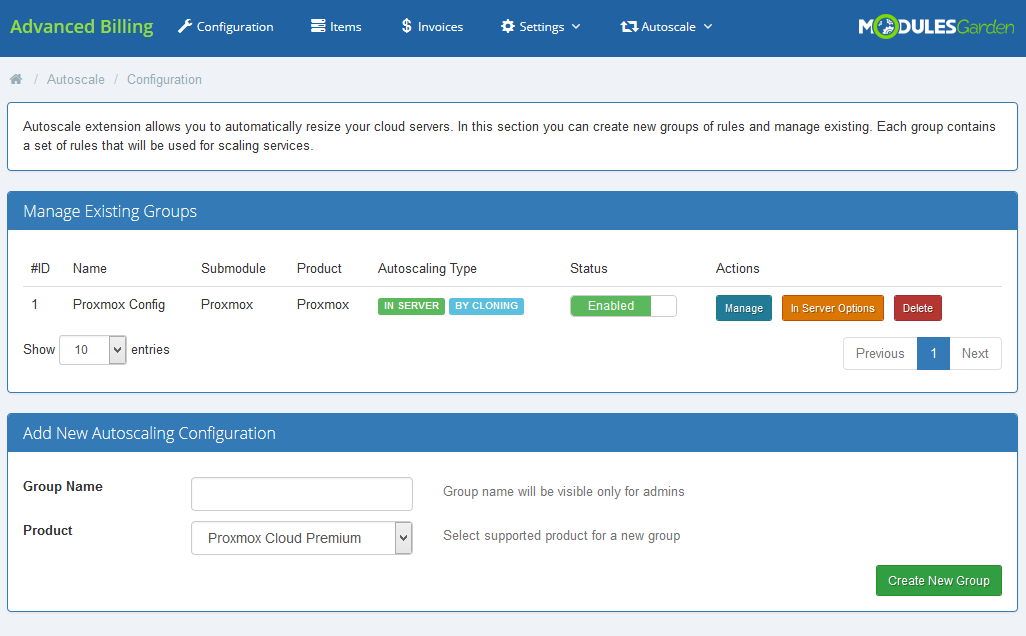
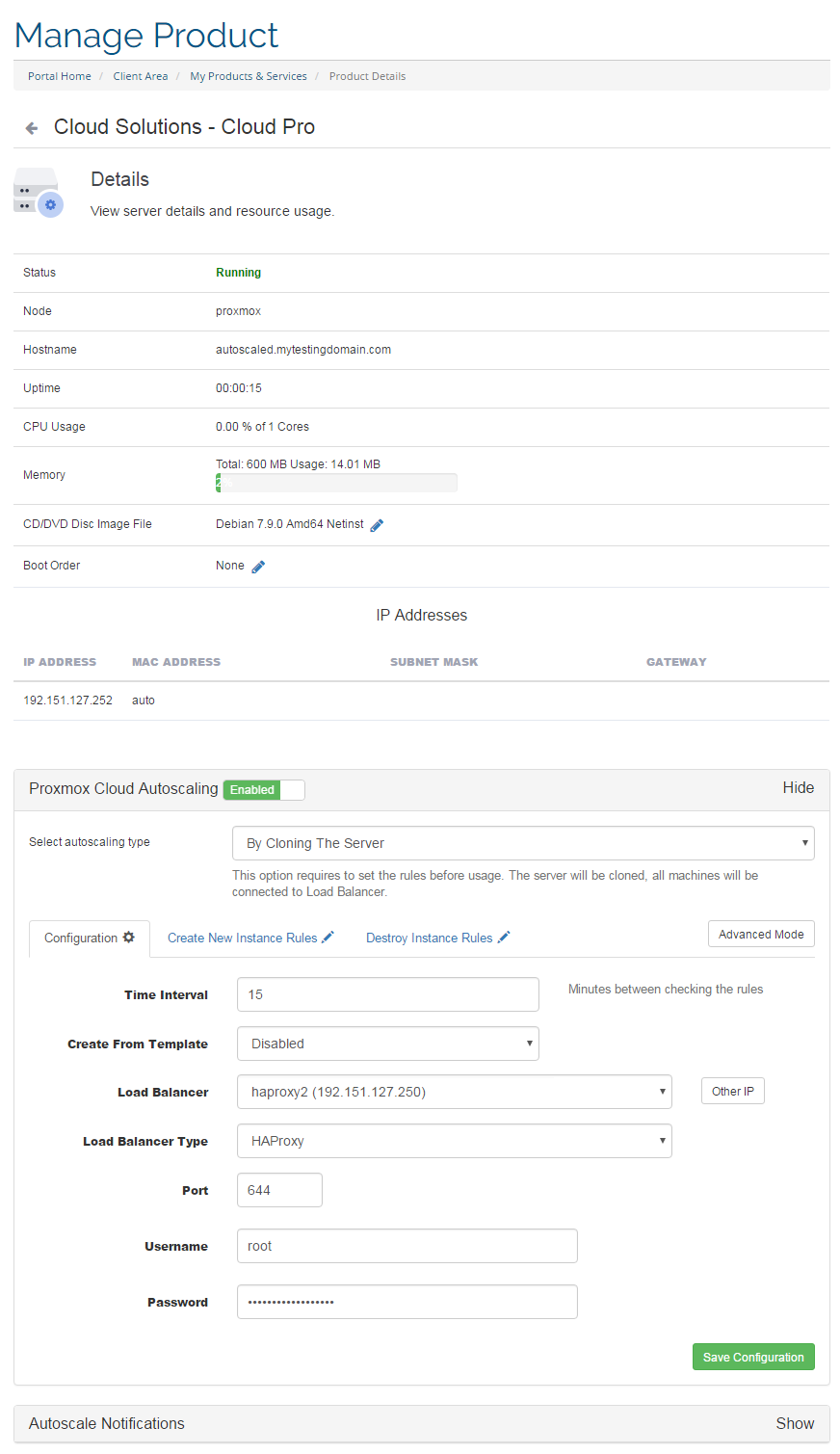
With the combination of these three items, you will be able to formulate a set of rules basing on which specified servers will be modified at the right time.
Advanced Billing For WHMCS will bill your clients for the currently used servers and its extension, Proxmox Cloud Autoscaling, will adjust the size of Cloud product to the current needs.
# Tips
Operations performed on the virtual servers are not executed immediately. Give your Proxmox Virtual Environment some time for processing the request and execution of operation.
Multiple physical Proxmox servers can be joined into one cluster.
When they are joined into one cluster, you can access all of them by connecting to any of them.
While auto-node creates new VM on the server(node) with the most free resources, server-node creates VM on the server(node) which IP address it has (WHMCS's server configuration).OS Templates are not automatically downloaded while configuring a product.
For each virtualization type, templates are downloaded from the Proxmox server depending on which one of them they are generated for.To name the location accordingly to your needs, within the module change the lang into:
$_LANG['node_X']='Your friendly name for node_X';When PAM authentication is used it is necessary to create a client first in order to change the password correctly. Read more about it here (opens new window).
As this module supports templates system, any changes made in the module's templates files will be saved after the upgrade process.
If you currently use the module in the 2.3.2 version or previous, and would like to migrate to Proxmox VE V5.X, you need to update the files on your Proxmox server to the new version from the 'UploadOnProxmoxServer' folder.
You can use the 'IPSet IP Filter' option for firewall to prevent IP spoofing. Click here (opens new window) to read more about IP Sets.
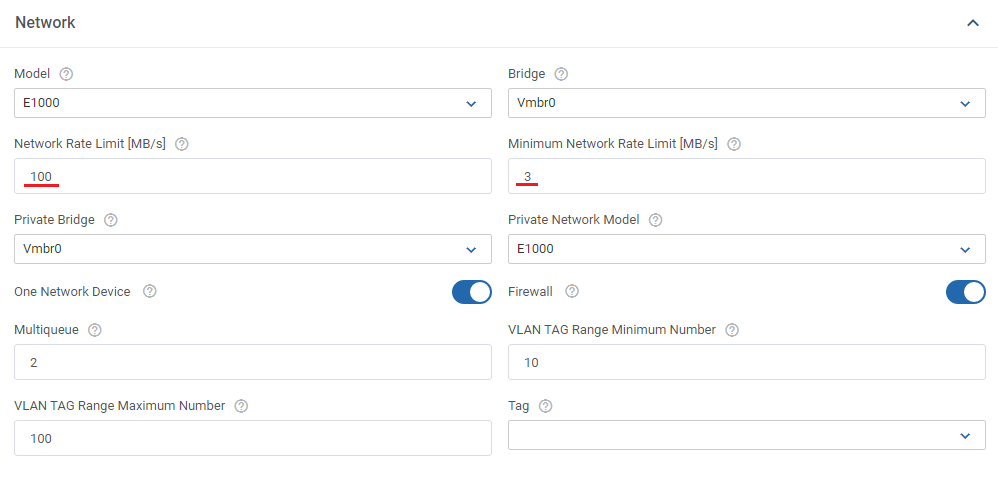
'Minimum Network Rate Limit' option allows you to change the previously entered 'Default Network Rate Limit' value to a new one if the current 'Bandwidth Limit' is already exhausted.
Note that the 'Bandwidth Limit' can also be used for WHMCS overage billing calculation as described here (opens new window).
# Update Instructions
Essential guidance through the process of updating the module is offered here.
Keep in mind there is a quick and easy option in our client area that will let you upgrade the license of your module to an open source version at any time - and at a lower price!
To take advantage of it, simply use the License Upgrade button located on the product's page and a discounted invoice will be generated automatically.
# Common Problems
When you have problems with connection, check whether your SELinux or firewall does not block ports.
Error 'Could not create PVE2_API object' during connecting via noVNC console.
Reason: User account does not have permission to access noVNC console.
Solution: Proceed to product's 'Module Settings' tab and check whether selected user permission grant right for noVNC console.
Afterwards, proceed to client's hosting and run 'Change User Role' on it.Error 'This connection is untrusted' during connecting via noVNC console.
Reason: Your certificate is not valid.
Quick Solution: Your client needs to add Proxmox address to certificate exception list.
Best Solution: Configure valid certificate.Blank page during connecting via noVNC console.
Reason: You have not uploaded the additional files on the Proxmox server.
Solution: Open 'UploadOnProxmoxServer' and upload content of proper version on all Proxmox servers into the '/' path.Error 'Function "ssh2_connect" does not exist. Please Install SSH2 PECL before you start using the script.'
Reason: You have not updated php.ini file
Solution: After SSH2 PECL installation be sure that you have updated php.ini files for CLI and webserver.After you have updated your Proxmox Cloud For WHMCS to Proxmox Cloud For WHMCS V2.0.0, it is always required to save your product configuration in module settings again.
If you see an error: 'Invalid VLAN TAG Range' configuration or other when trying to add a new private network, please make sure you have completed all required options in Module Settings.
These are: 'Network Device' → 'Private Bridge', 'VLAN TAG Range From' and 'VLAN TAG Range To'.'OS Architecture Type ' option for LXC virtualization type is currently not supported as it not implemented in Proxmox itself.
We are sorry for inconvenience.Error: "Only root can set 'serial0' config".
Solution: Turn off the Xterms.js console in the product configuration.Error "Parameter verification failed. ([maxfiles] - Only root may set this option.)"
Reason: User is other than "root" or server authentication is set to Proxmox VE
Solution: In server configuration, set the root details and select PAM as the authentication type.