# Zimbra Email 1.X For WHMCS
# (opens new window) About Zimbra Email For WHMCS (opens new window)
Zimbra Email For WHMCS is a module which allows your customers to manage email accounts of your domain directly in WHMCS.
Your clients will be able to conveniently manage mailboxes, email and domain aliases and quickly move to their webmails.
Our product is simple in use and offers everything you need to conveniently manage Zimbra accounts.
Admin Area
- Create Account
- Terminate Account
- Change Package
- Change Password
- Go To Zimbra Webmail
- Use Class Of Service As:
- Fixed Choice
- Allowed Single Choice By Clients
- Allowed Multiple Choices Of Quota Per Account
- Custom Settings
- Generate Default Configurable Options
Client Area
- Manage Email Accounts
- Manage Email Aliases
- Manage Distribution Lists
- Manage Domain Aliases
- Upgrade / Downgrade Account
- Change Account Password
- Go To Zimbra Webmail
Configurable Options
- Email Accounts Limit
- Email Account Size
- Email Aliases Limit
- Distribution List Limit
- Domain Aliases Limit
- Class Of Service
General Info
- Configurable Options Support
- Integrated With Advanced Billing For WHMCS - Actual Server Resource Usage Billing (read more) (opens new window)
- Integrated With Server Allocator For WHMCS - Automatic Assignment Of Most Suitable Servers To Products (read more) (opens new window)
- Multi-Language Support
- Supports Zimbra 8.5.0 and Later
- Supports PHP 5.6 Up To PHP 7.3
- Supports WHMCS Template Six
- Supports WHMCS V7.6 And Later
- Easy Module Upgrade To Open Source Version (opens new window)
# Installation and Configuration
This tutorial will show you how to successfully install and configure Zimbra Email For WHMCS. (opens new window)
We will guide you step by step through the whole installation process.
# Installation
- Log in to our client area and download the module.
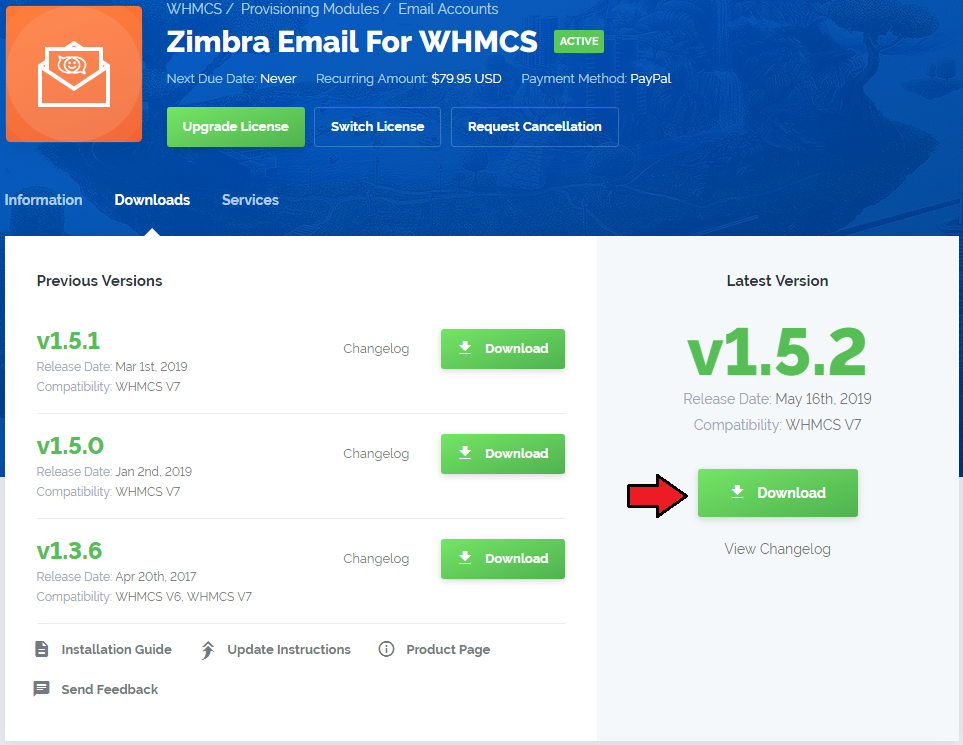
In the downloaded file you might find one or two packages that support different PHP versions.
In the most recent versions of the module, you will find only one package that supports PHP 7.1 and later.
If you need a package for the previous versions of PHP, please contact our support (opens new window).
Previous updates of the module may contain two packages dedicated to various PHP versions.
The first one that supports PHP 5.6 up to PHP 7.0, and the second one addressed to PHP 7.1 up to PHP 7.3.
Note: Keep in mind that PHP versions 5.6 up to 7.0 are no longer officially supported and their security issues are not fixed or released any more. Find more info here (opens new window).
Important: This situation does not affect the open source version (opens new window) of this module which can be applied to any PHP from version 5.6 and later.
Note: You can check the current PHP version in your WHMCS. To do so, proceed to 'Utilities' → 'System' → 'PHP Info'.Once you have chosen the package with the right PHP version, extract it and upload its content into the main WHMCS directory.
The content of the chosen PHP version files to upload should look like this.
When you install Zimbra Email For WHMCS for the first time you have to rename 'license_RENAME.php' file.
File is located in 'modules/servers/zimbraEmail/license_RENAME.php'. Rename it from 'license_RENAME.php' to 'license.php'.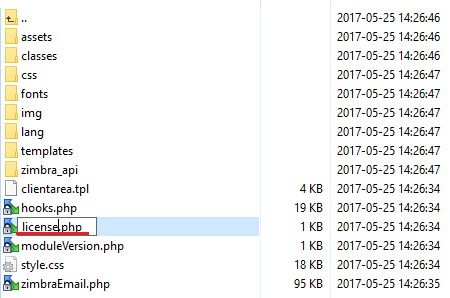
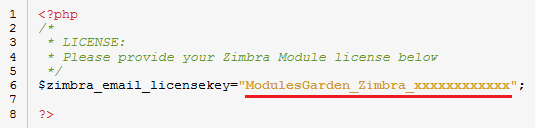
In order to configure your license key you have to edit a previously renamed 'license.php' file.
Enter your license key between quotation marks as presented on the following screen. You can find your license key in our client area → 'My Products'.
# Server Configuration
Now let's configure a new product. Log in to your WHMCS, press 'Setup' → 'Products/Services' → 'Servers'.
Afterwards press 'Add New Server'.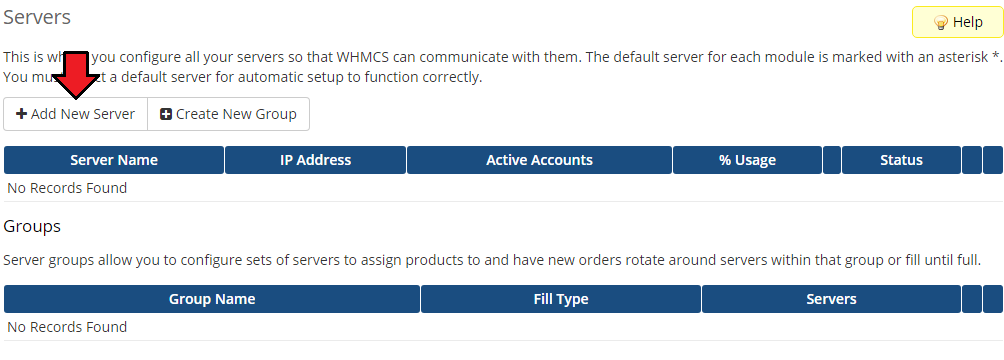
Next, enter your server name and Zimbra server hostname. Type in your username and password used to log in to Zimbra server.
Choose 'ZimbraEmail' from a dropdown menu and press 'Save Changes'.
Keep in mind that value of client area button 'Go To Webmail' is taken from the 'Hostname' field. If the field is empty, it is taken from an 'IP Address' field.
Here you can also provide other server details like nameservers or maximum number of accounts.
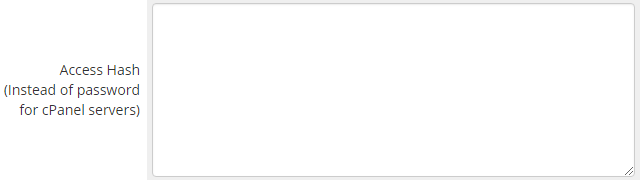
Alternatively, custom ports may be set in 'Access Hash' section.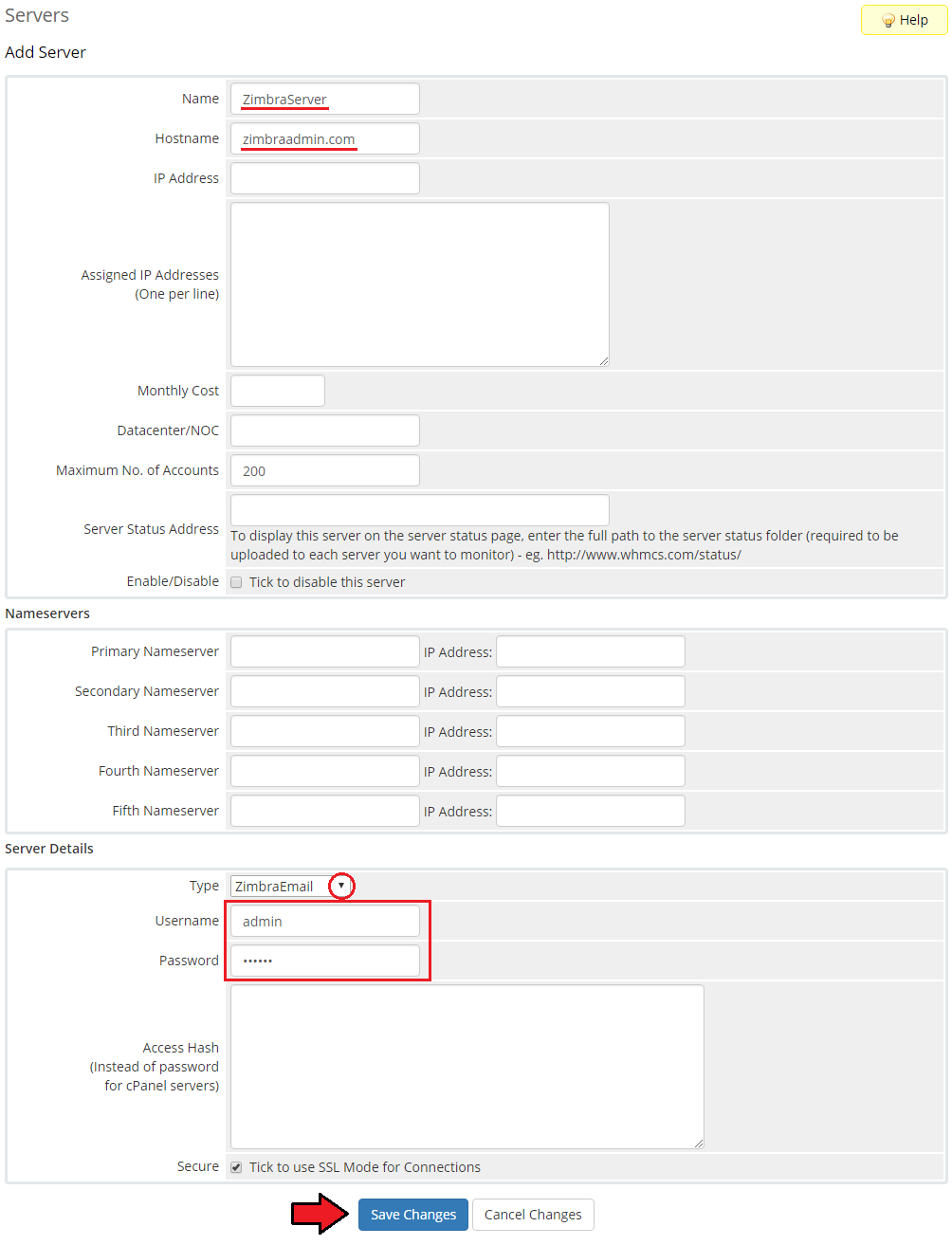
After you configure your server correctly, you will see a following screen.
Now you need to create a new group for your server. For that purpose press 'Create New Group'.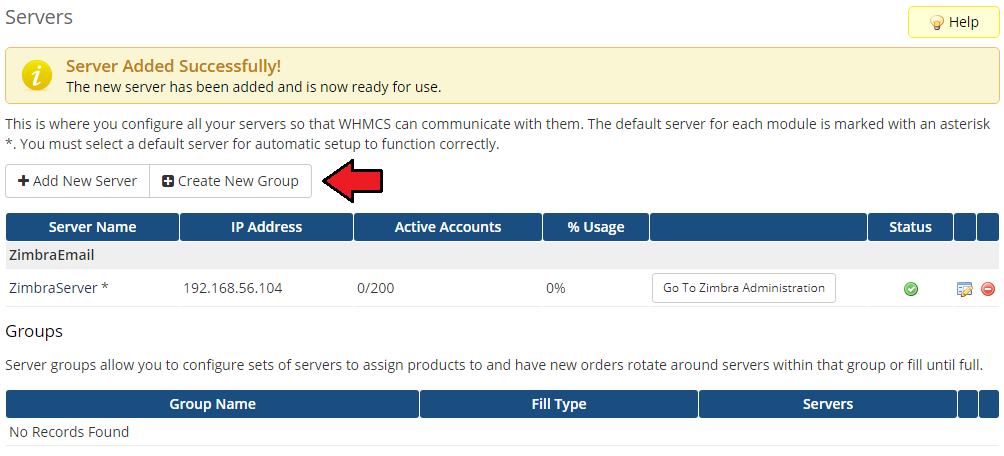
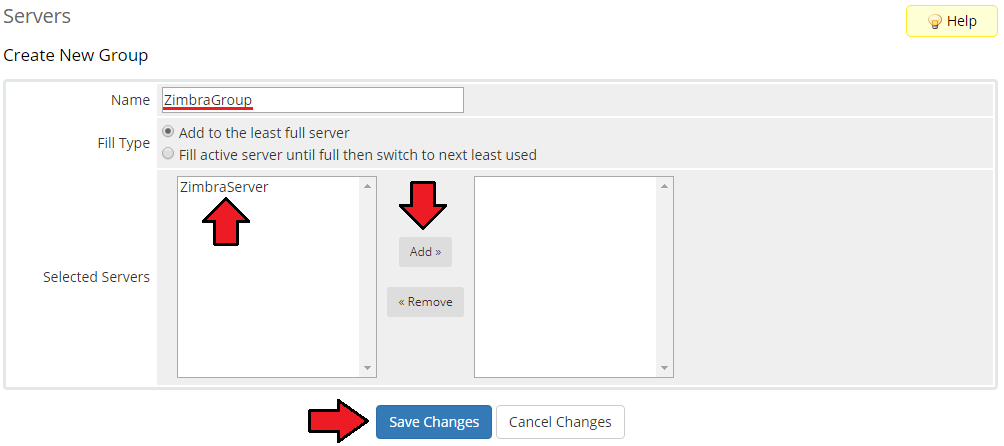
Enter name, click on your previously created server, press 'Add' then 'Save Changes'.
# Product Configuration
In order to create and configure product, click on 'Setup' → 'Products/Services' → 'Products/Services'.
If you do not have a product group, click on 'Create a New Group'. If you do, simply move to step 12.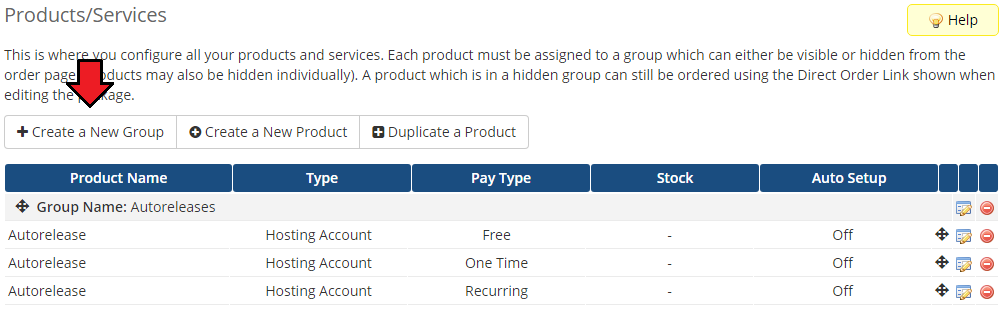
Enter product group name and press 'Create Group'.
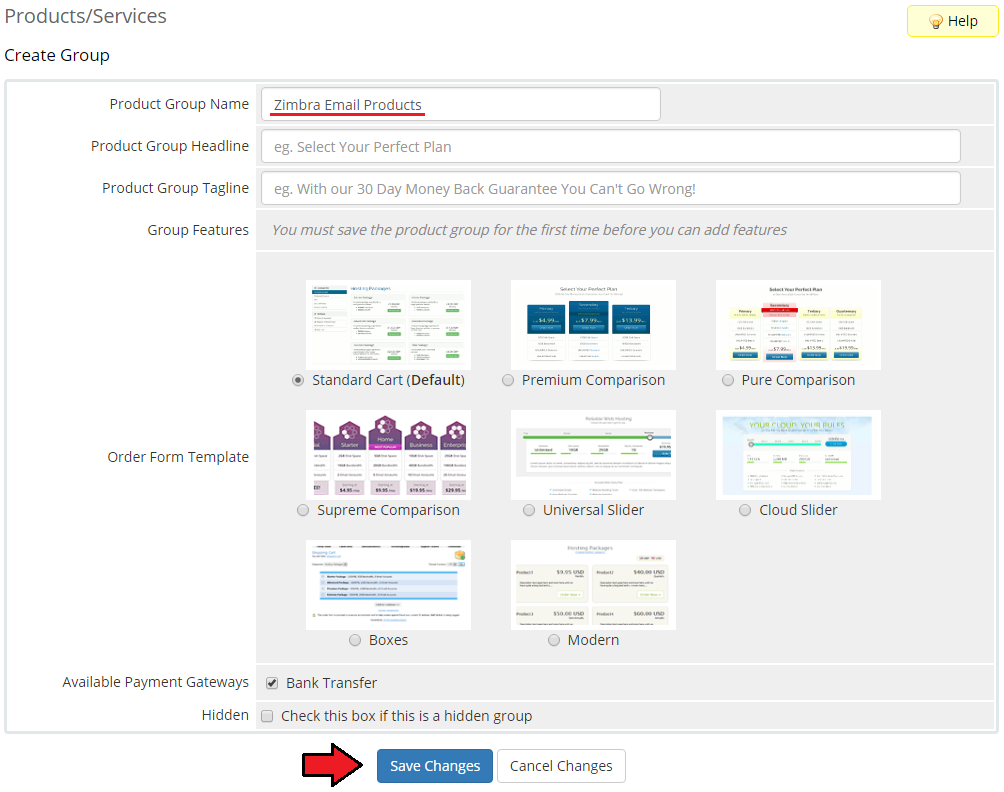
When you have a product group, you can create your product and assign it to Zimbra Email. If you already have a product, go to step 14.
To create a product click on 'Create a New Product'.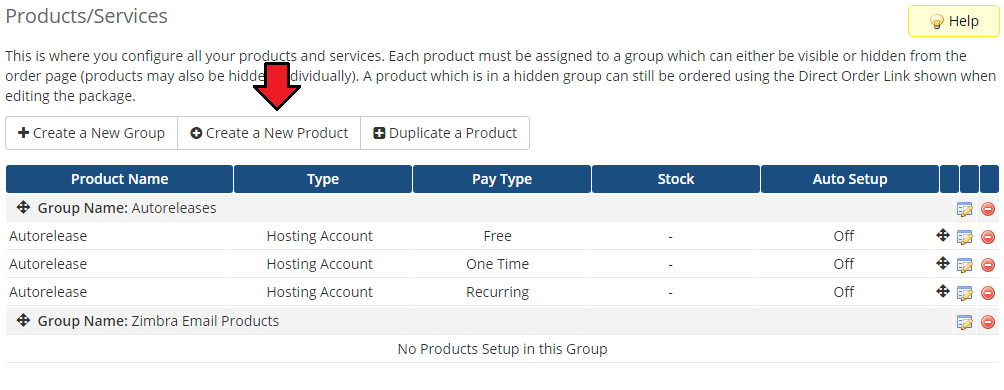
Afterwards, choose your product type and product group from dropdown menus, enter your product name and press 'Continue'.
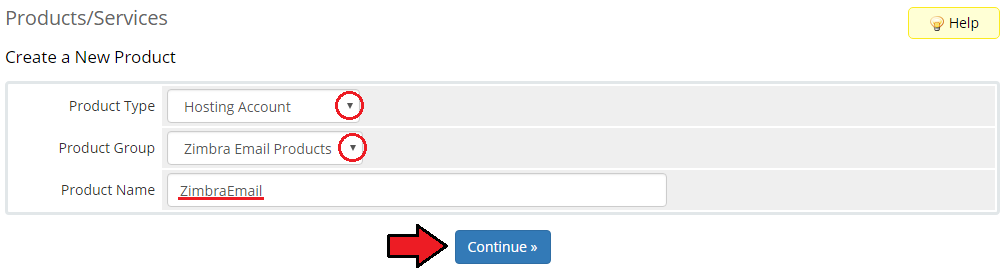
- Now, go to 'Module Settings' section, choose both 'ZimbraEmail' and your previously created server group from dropdown menus.
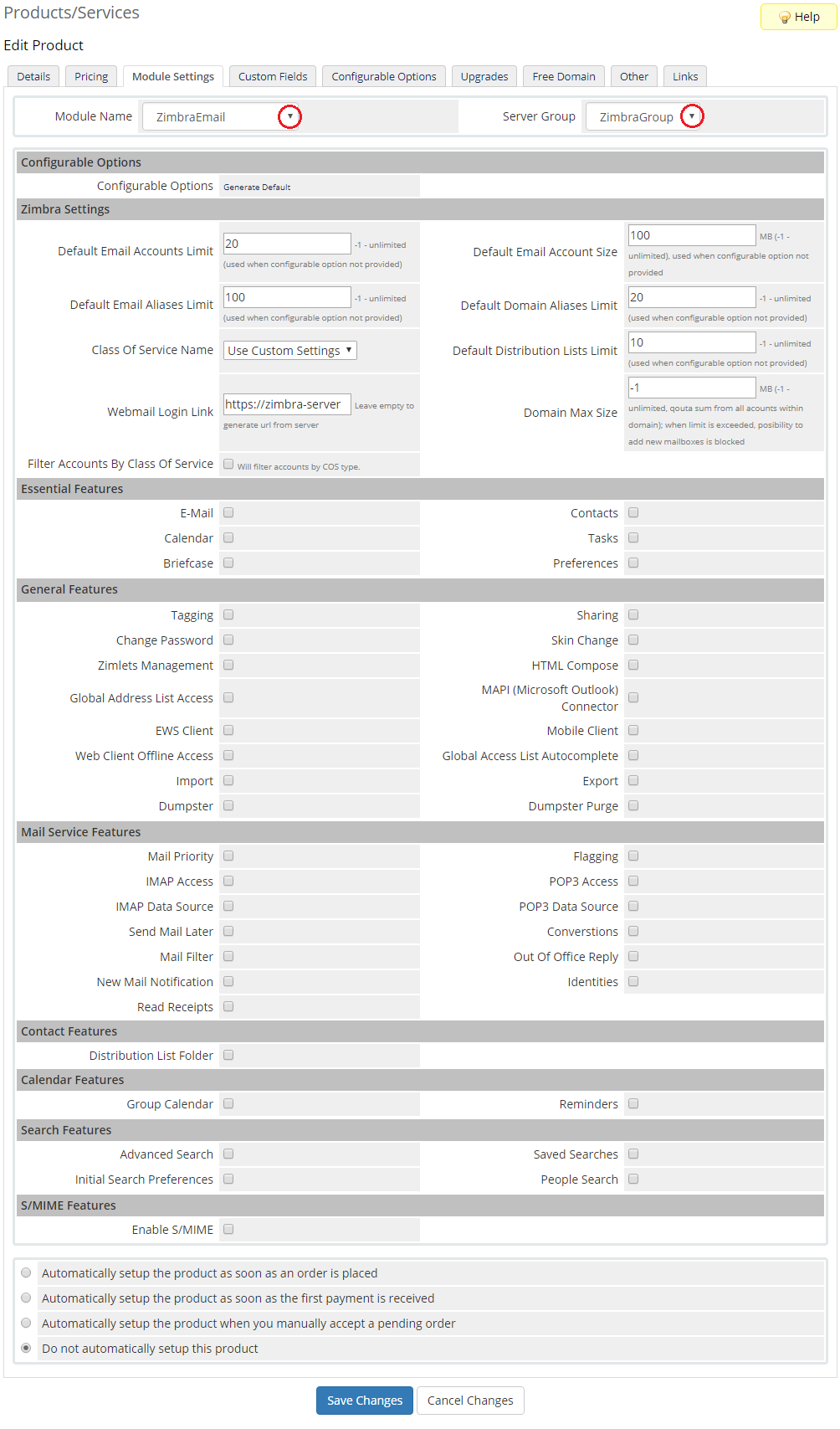
Afterwards, define settings of the module and press 'Save Changes'.
Note 1: If you choose 'Use Custom Settings' from 'Class Of Service Name' dropdown menu, you can define your own set of user permissions using sections below.
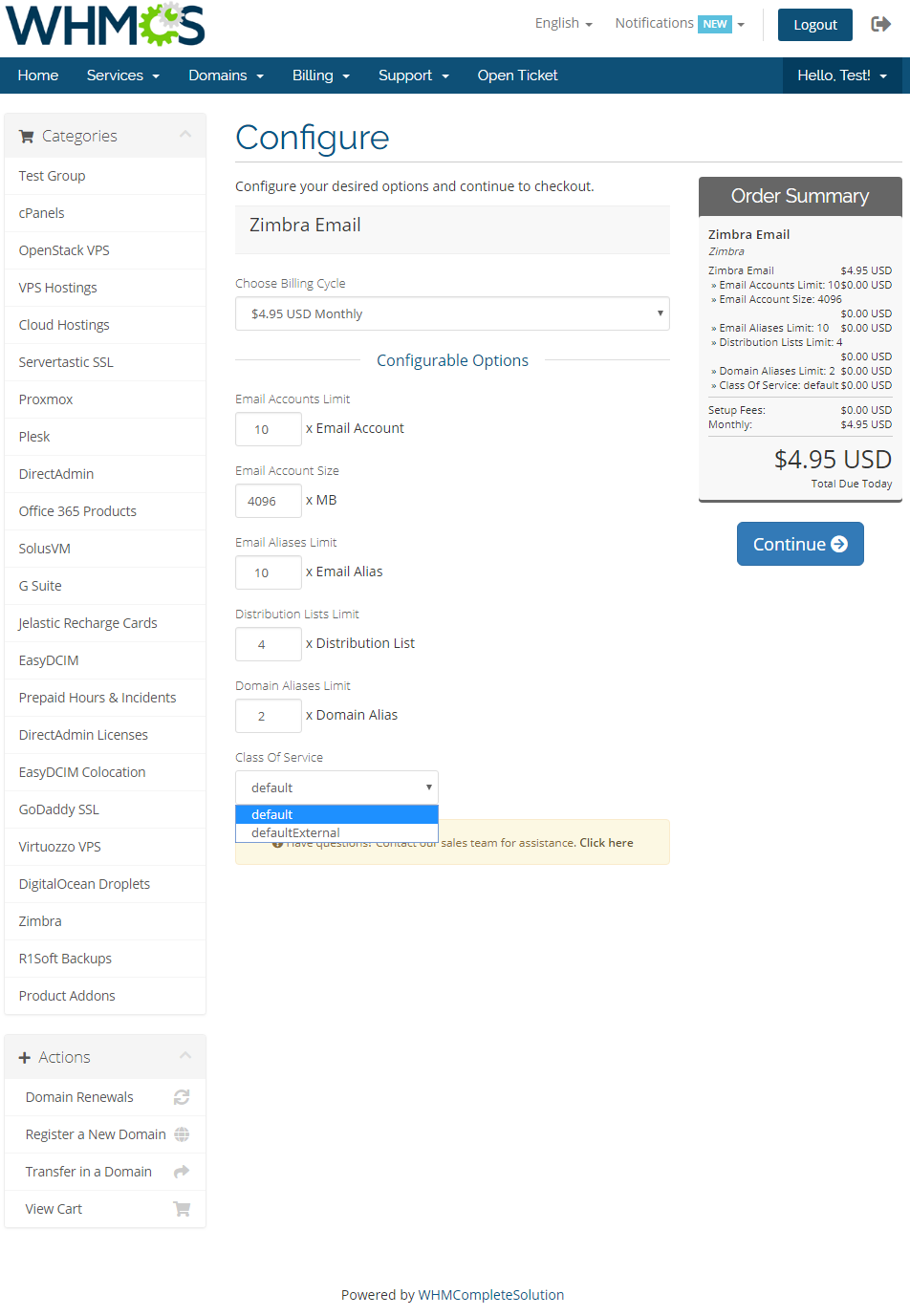
Note 2: If you choose 'Allow clients to choose Class Of Service', additional configurable options will be generated.
Clients will be allowed to set Class Of Service while ordering your product.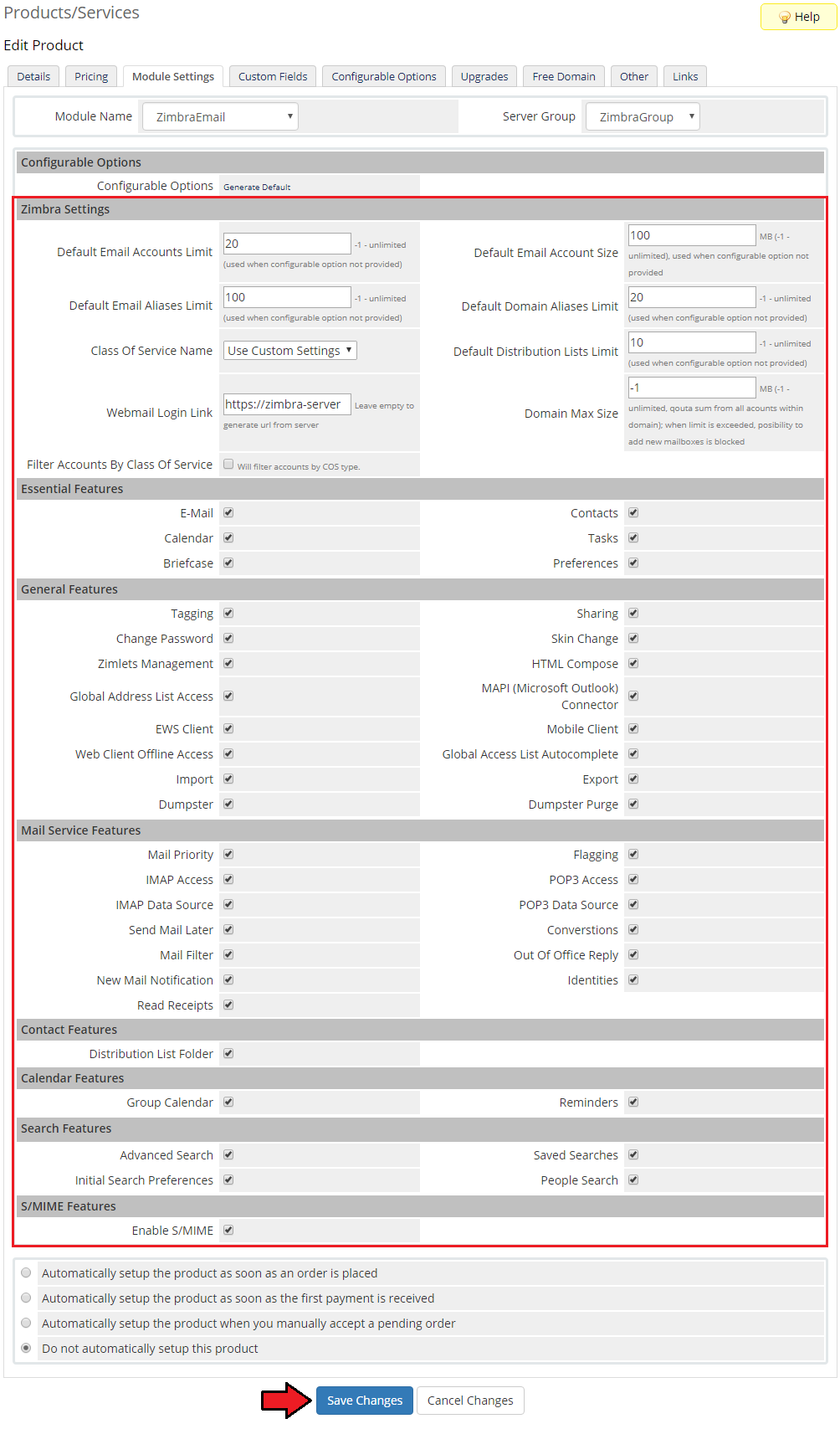
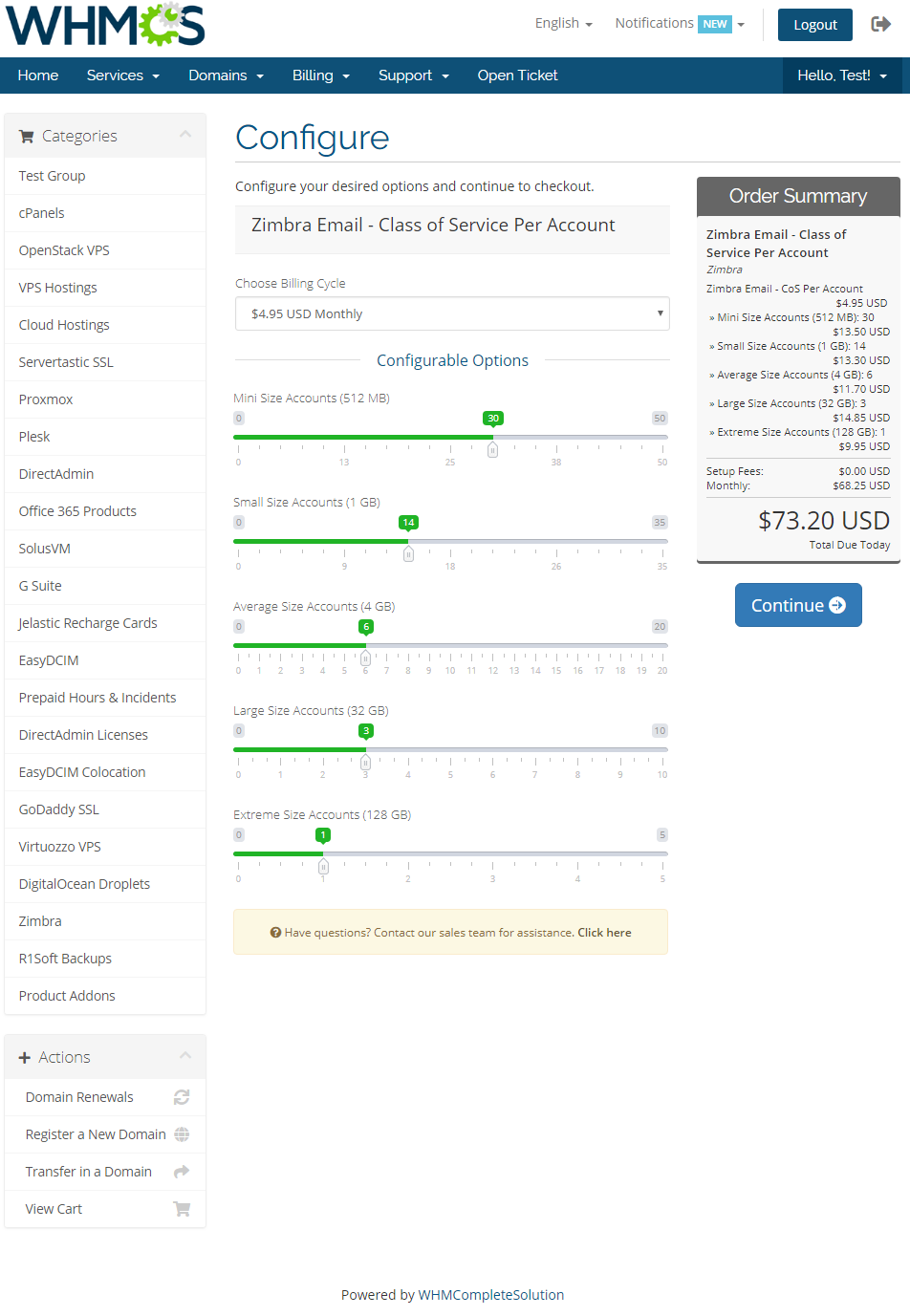
If you select 'Allow Clients to choose Class Of Service Quota Per Account' in Class Of Service Name, 'Mailbox Accounts' settings will appear.
Define the number of accounts limits for each available size. Your clients will be allowed to order product with limits defined in configurable options and create mailboxes within the defined quota size.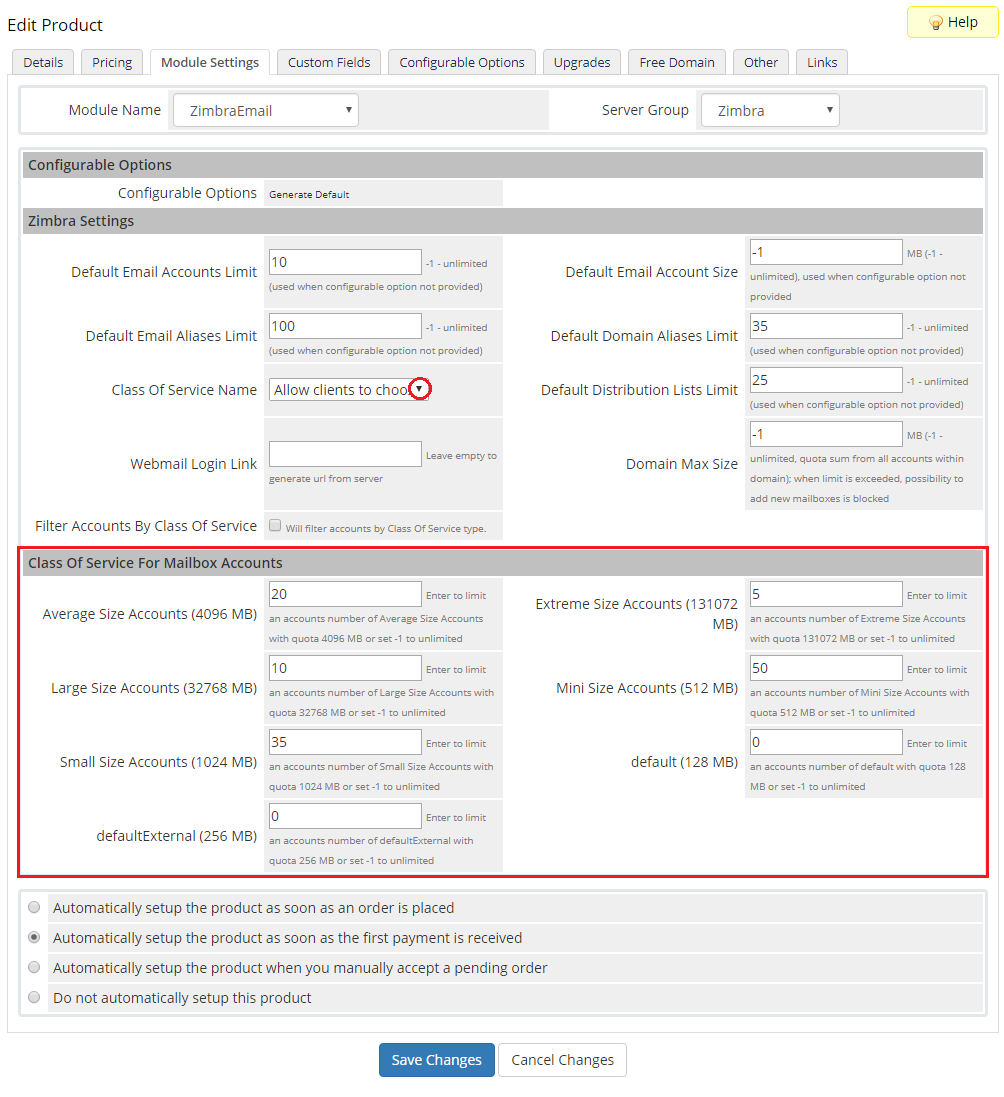
Additionally, you can replace modules static limit with dynamic one in form of configurable options.
Press 'Generate Default' near 'Configurable Options' to generate default set of them.
More about management of configurable options can be found here.
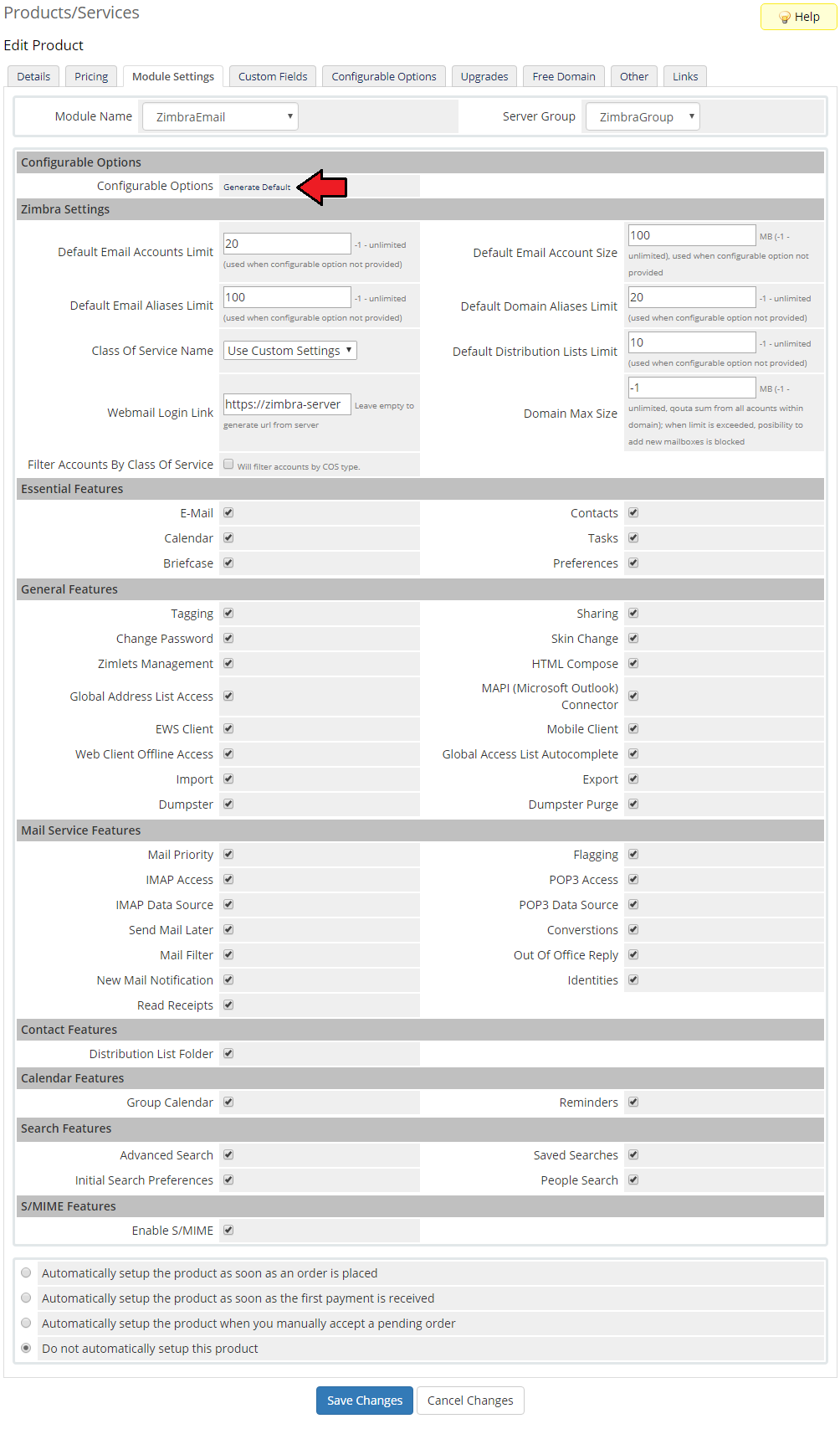
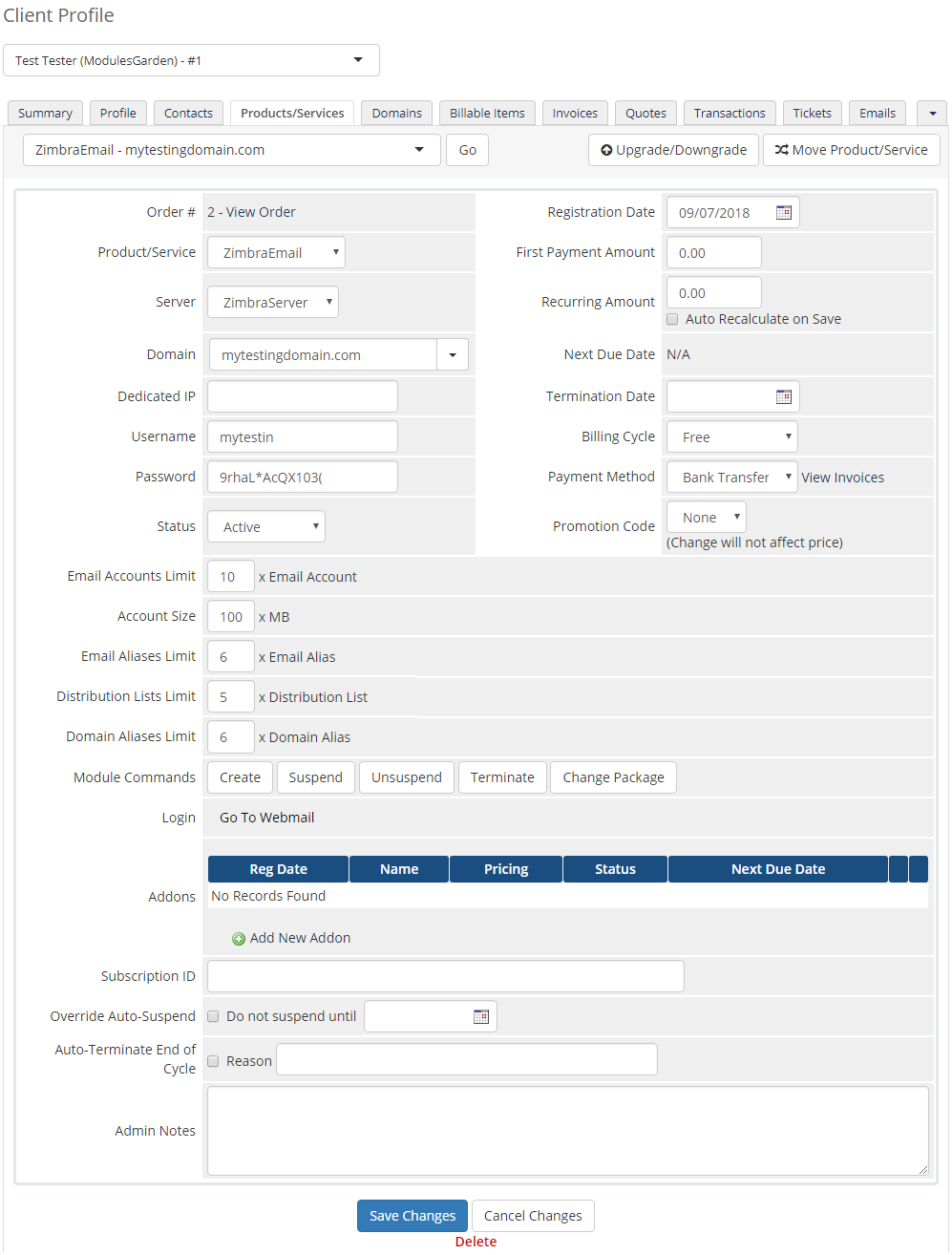
This is how a properly created and configured product should look like from the administrator site.
# Management
Let's customize your Zimbra Email For WHMCS and see what features it has in offer.
# Admin Area
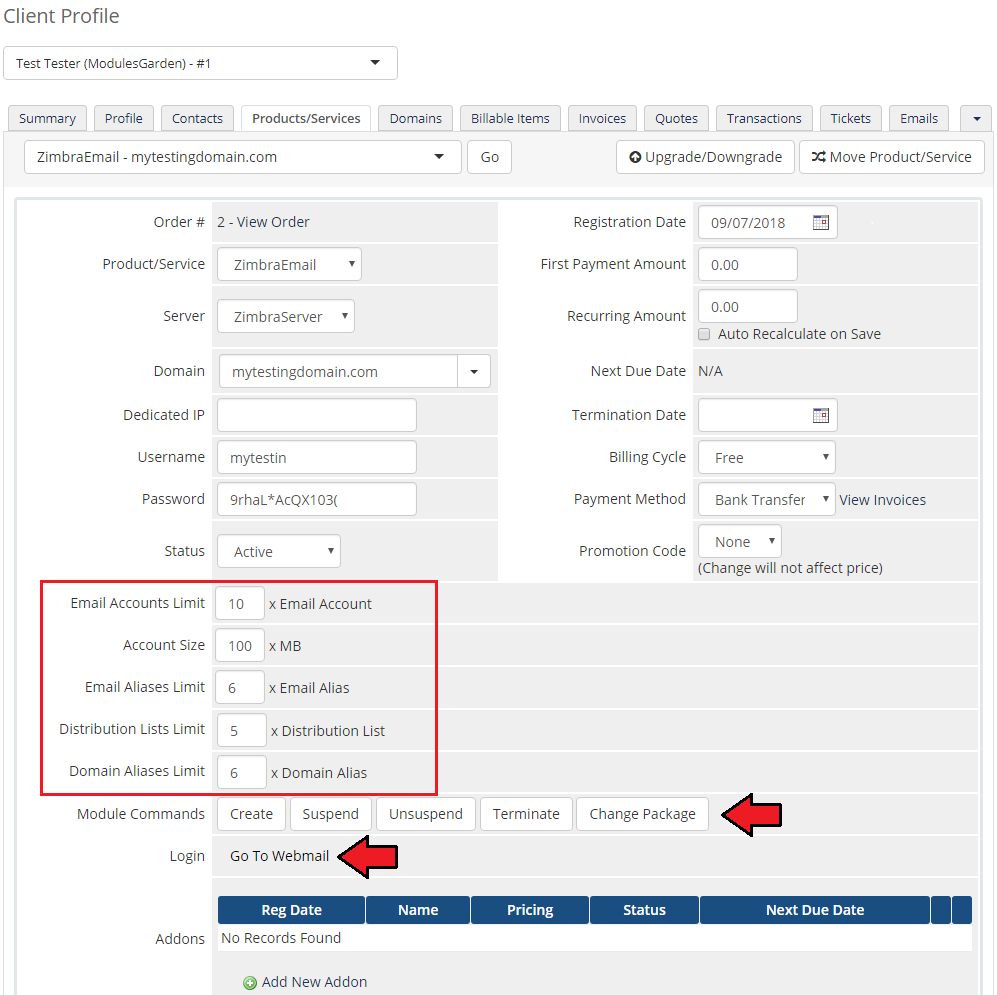
Zimbra Email product management site:
- Log In To Control Panel
- Edit configurable options values - available options depend on configuration in 'Module Settings'
- Module Commands:
- Create
- Suspend/Unsuspend
- Terminate
- Change Package
# Client Area
# Ordering Process
Order page view of a product with 'Allow clients to choose Class Of Service' option selected:
Order page view of a product with 'Allow Clients to choose Class Of Service Quota Per Account' option selected:
# Management
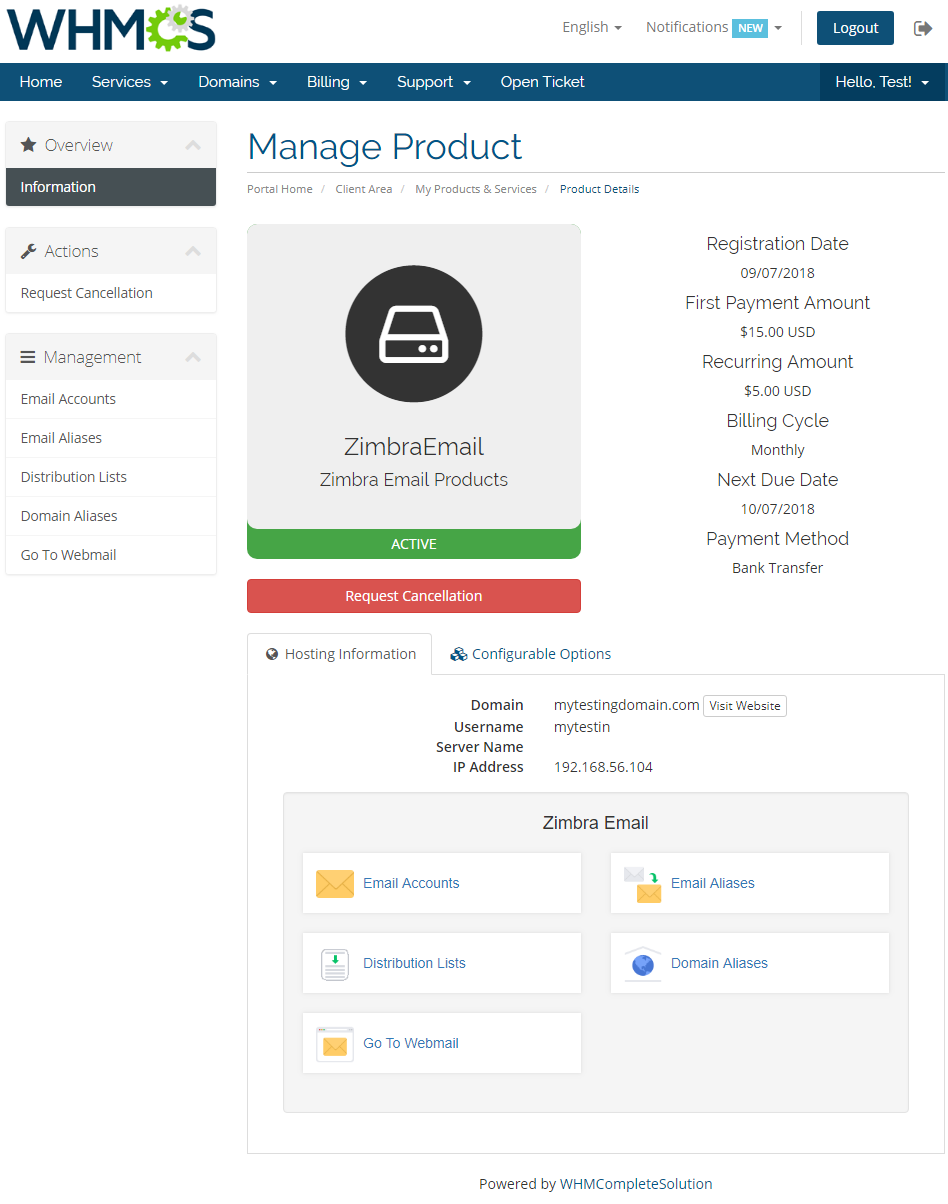
Zimbra Email allows your customers to manage their zimbra email accounts from your WHMCS client area.
This is how its management page looks like in the client area. Move to the below sections to learn more details.
# Email Accounts
Email Accounts section enables full management of accounts associated with your domain.
You may edit existing accounts with a wide range of options and create new ones within defined limits.
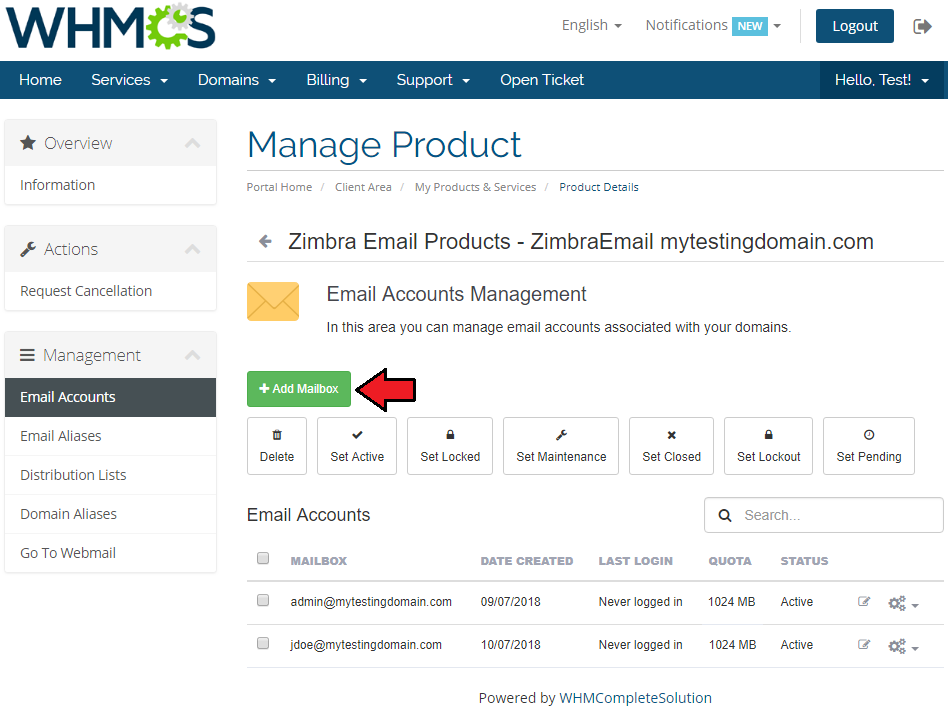
Press 'Add Mailbox' to create a new account.
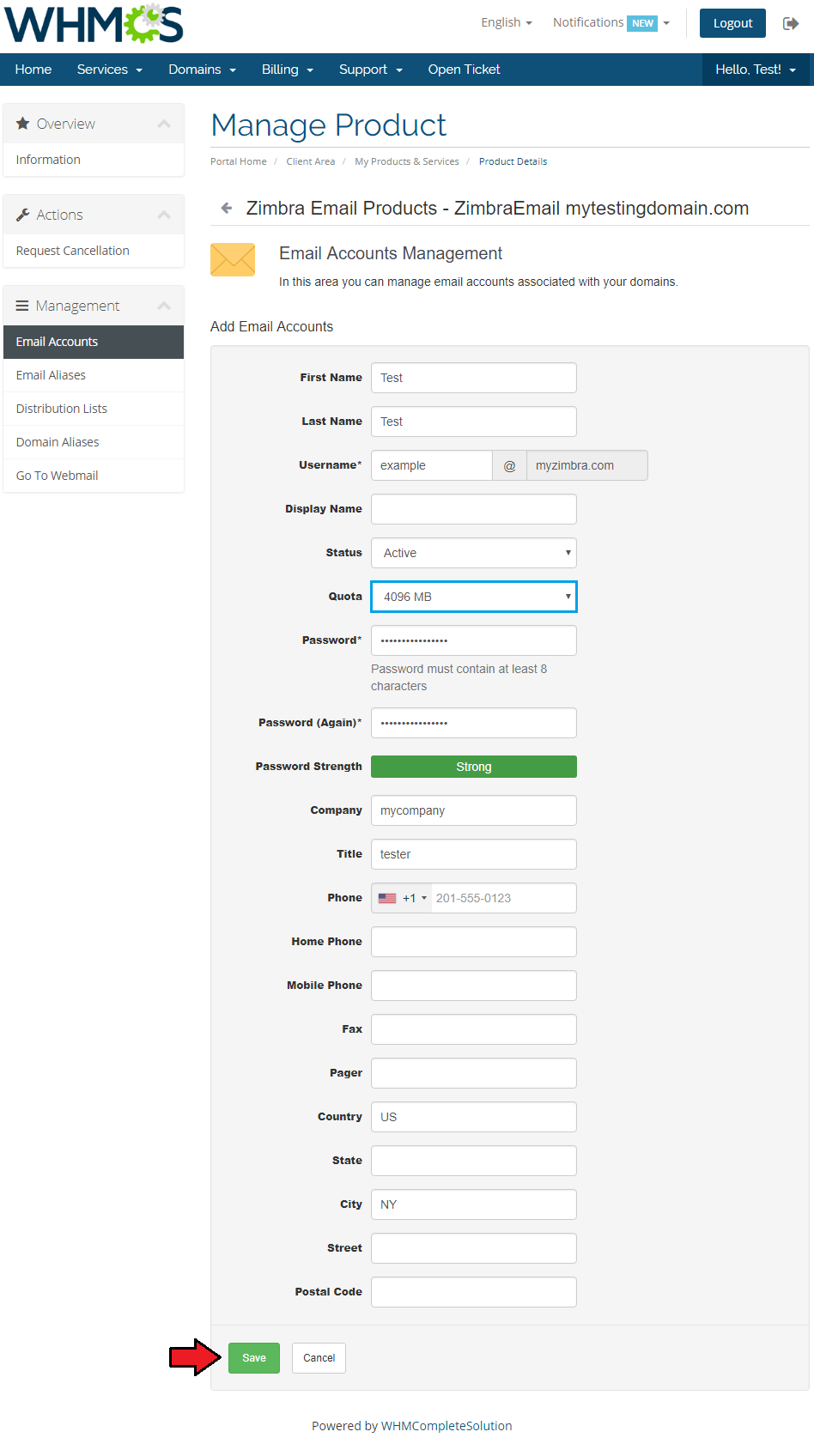
Fill out the fields to provide any details on the account owner. Only fields marked with an asterisk are obligatory.
Note: The 'Quota' field is available to select only if Class of service Quota Per Account is used for the product. If the limit has been reached, the client will not be able to create an account.
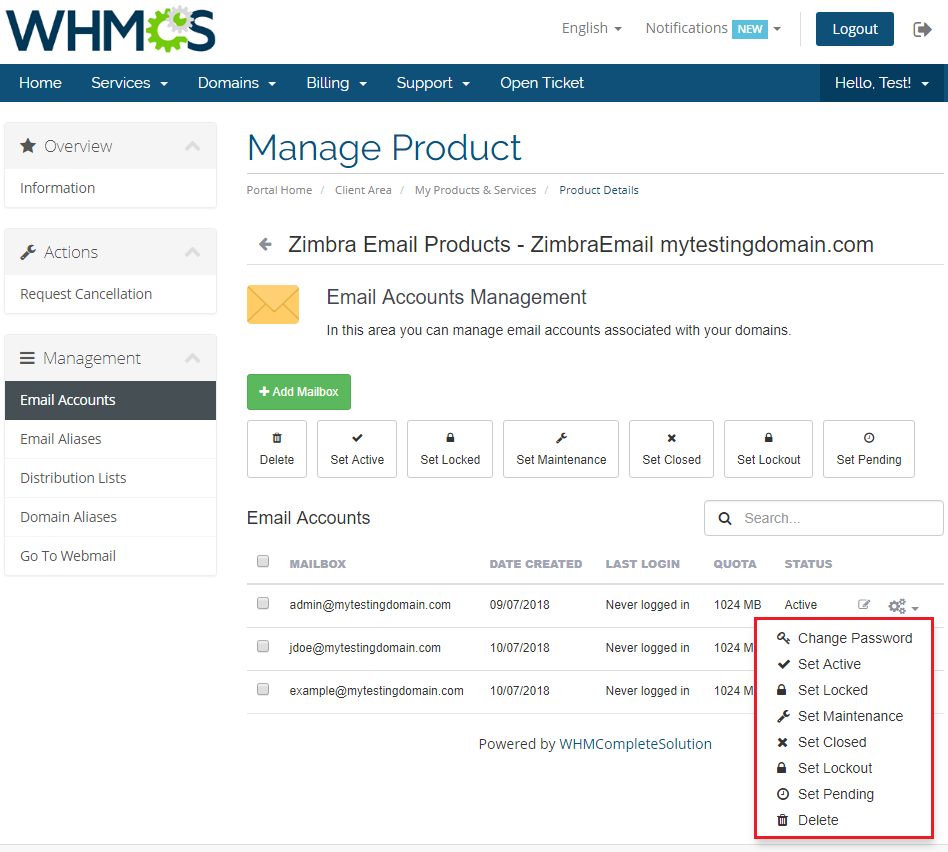
You can order various operations on a single account using the marked on the screen menu.
Alternatively, you can select multiple accounts and issue any command using buttons above the list of accounts.
# Email Aliases
Email Aliases enable you to create and use additional address for the same e-mail account.
Note: Email aliases are created within the same email domain.
Read more about Domain Aliases below.
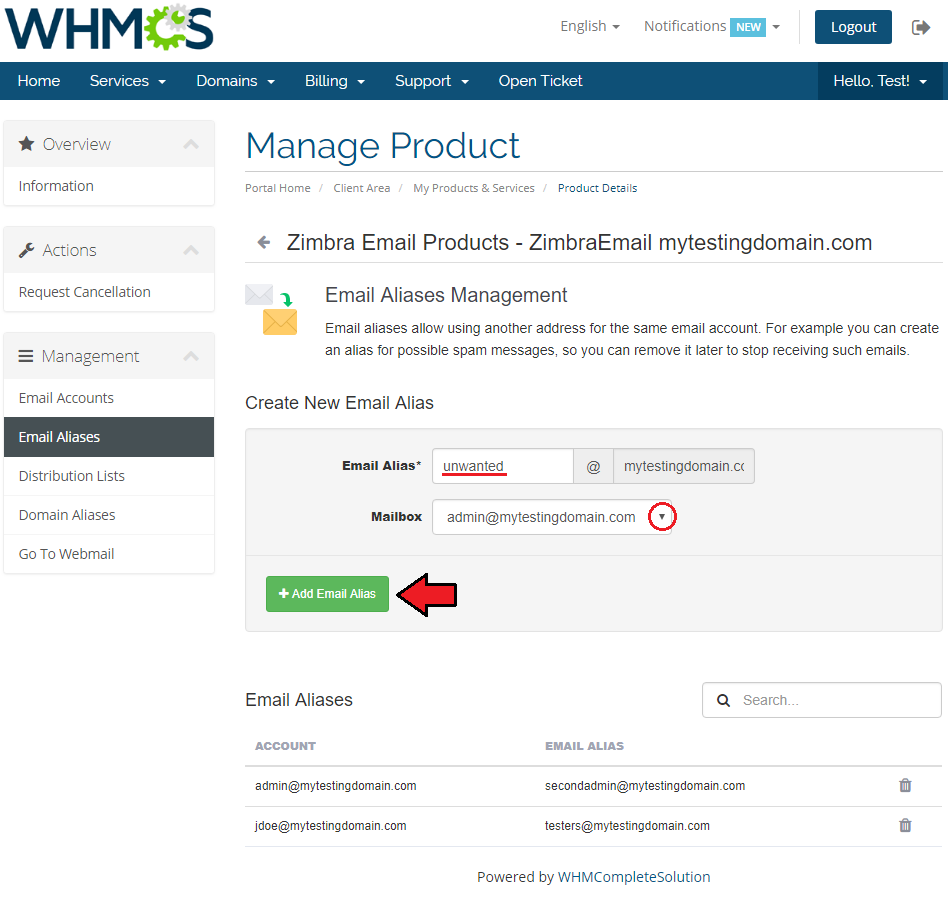
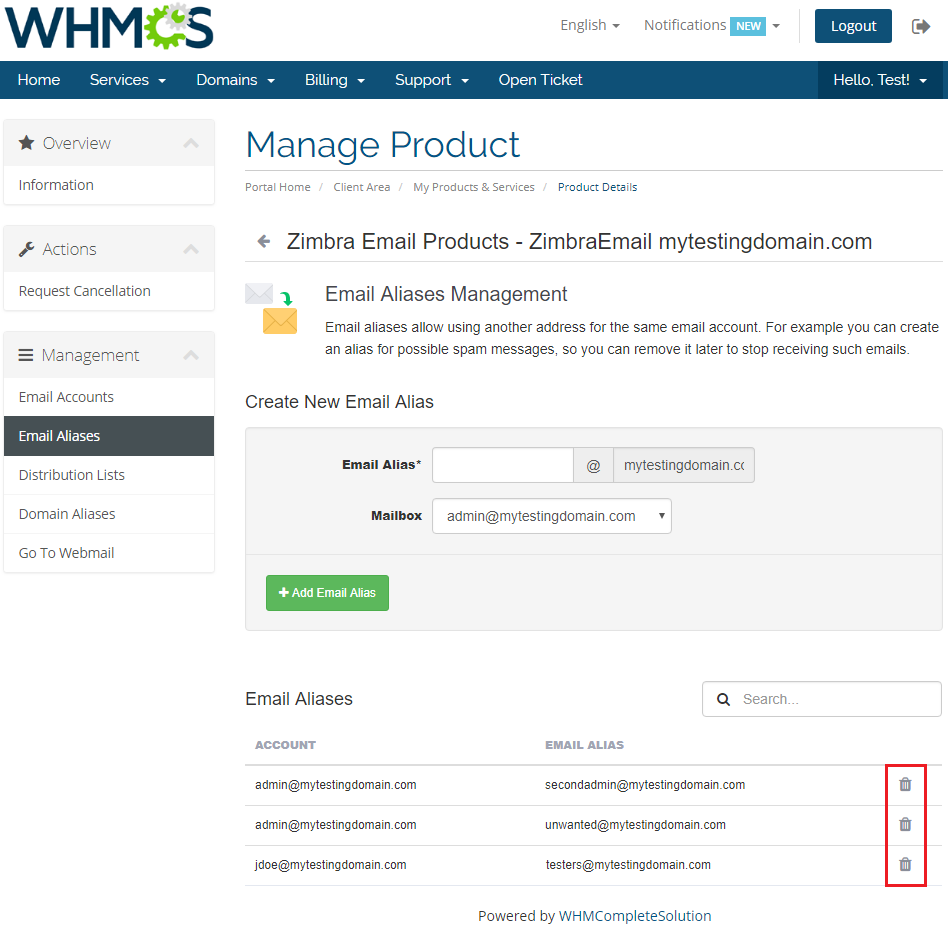
Any alias can be quickly removed through pressing an adequate icon.
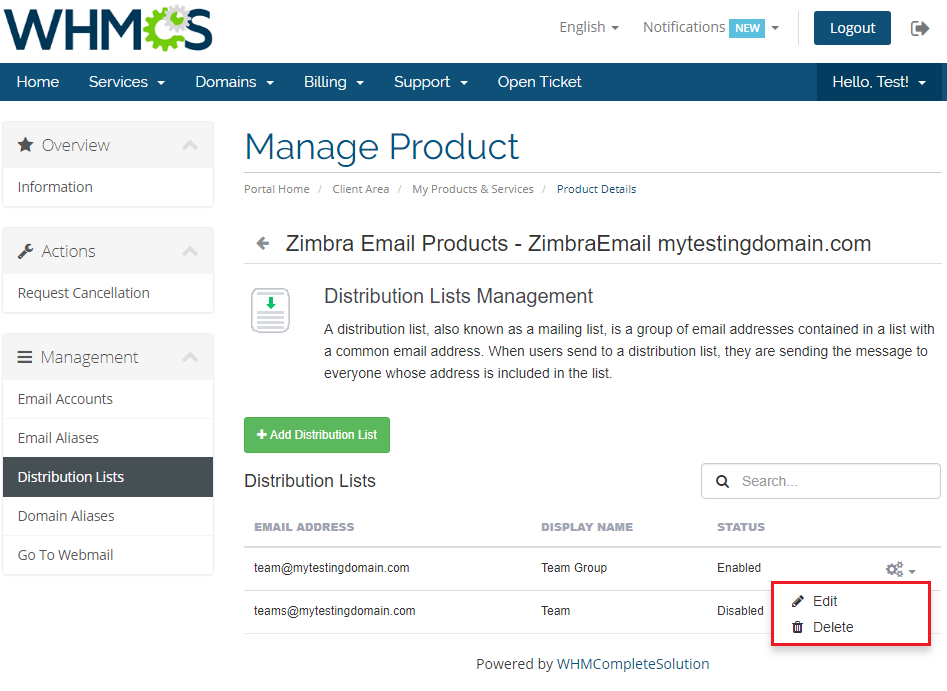
# Distribution Lists
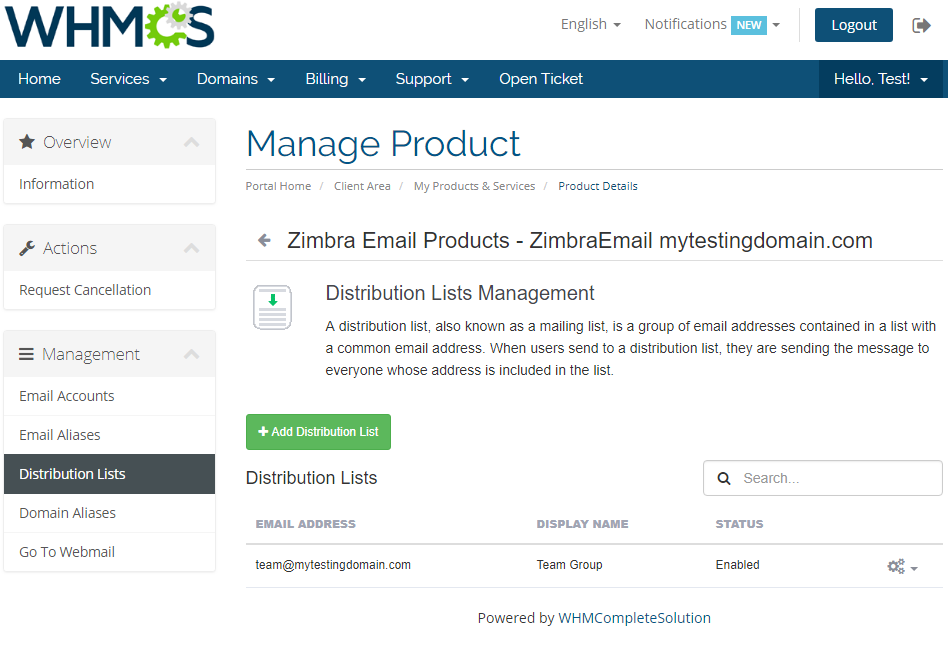
Distribution lists enable you to create and manage them without the necessity to log into Zimbra panel.
Create them in the same way you would do that in Zimbra panel. Start with entering an email address, then move to assigning members to the list.
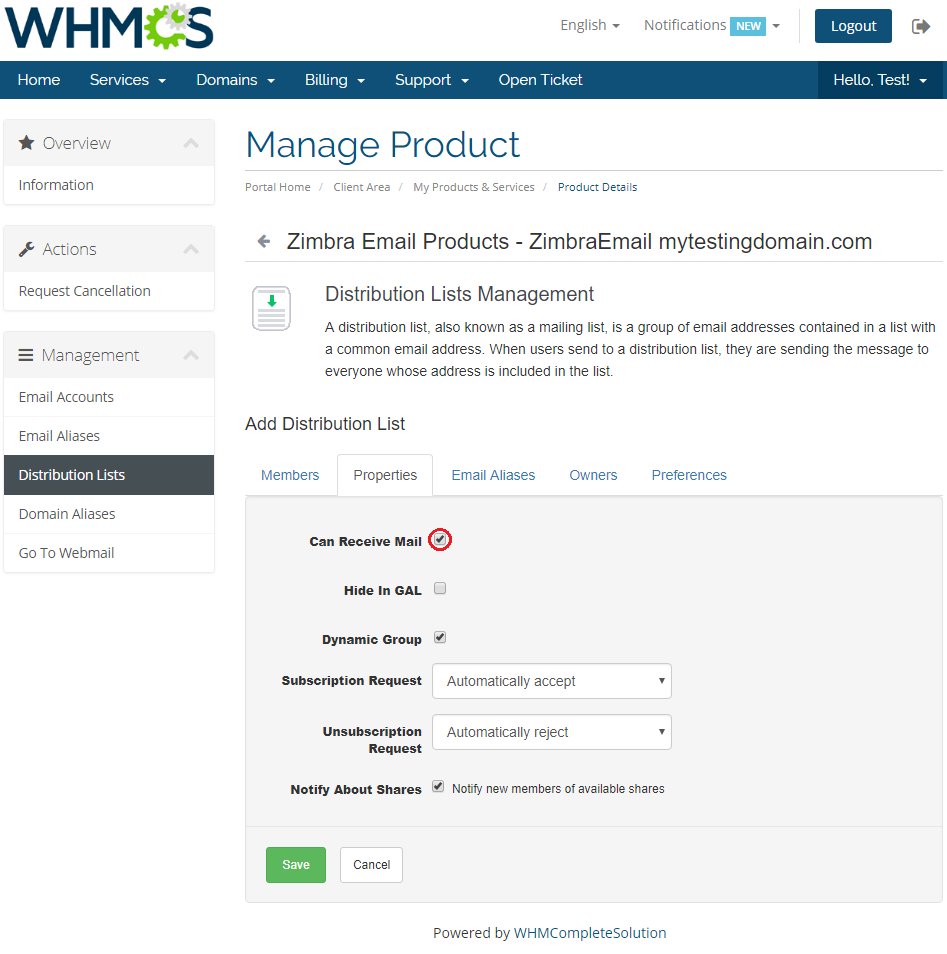
Proceed with setting detailed options.
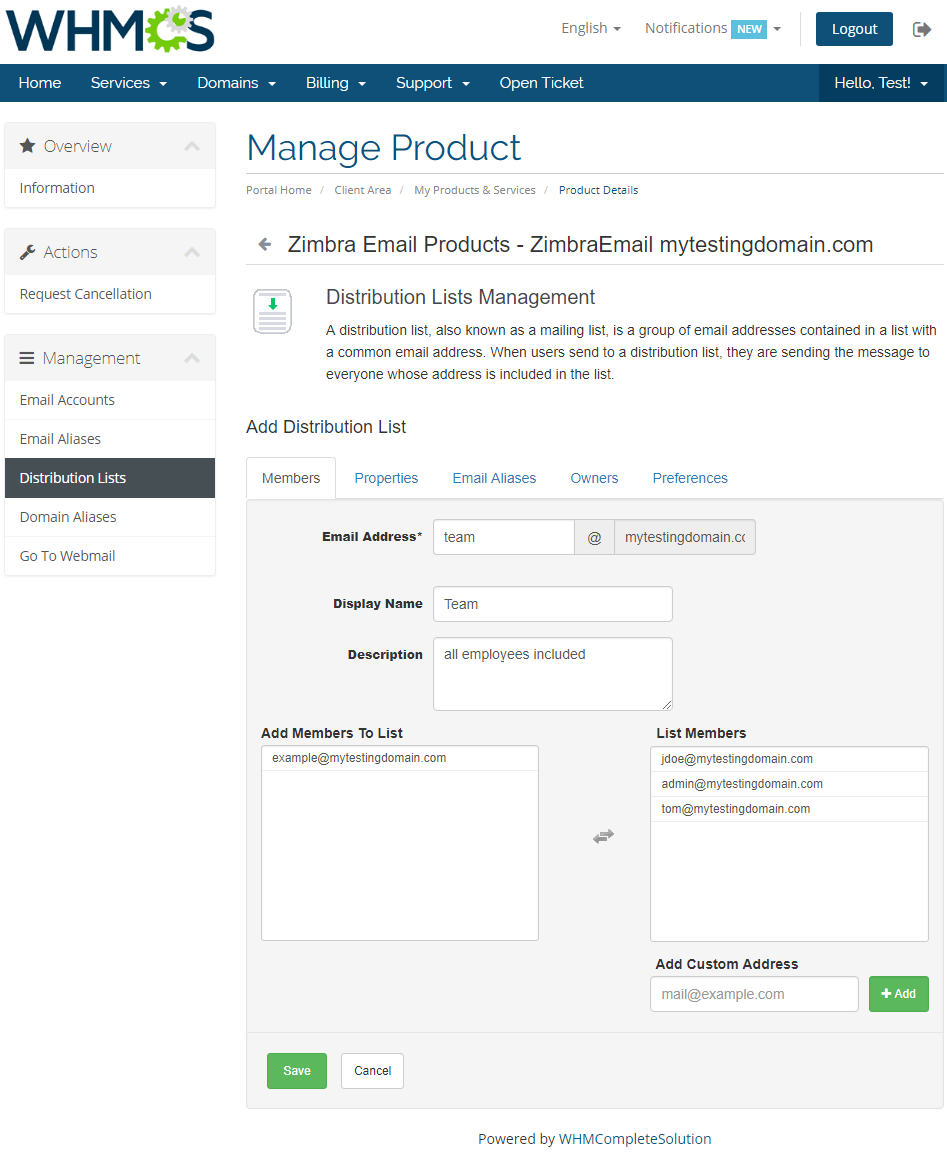
Remember that in order to enable the distribution list on its creation, you must select option 'Can Receive Mail' in 'Properties' section.
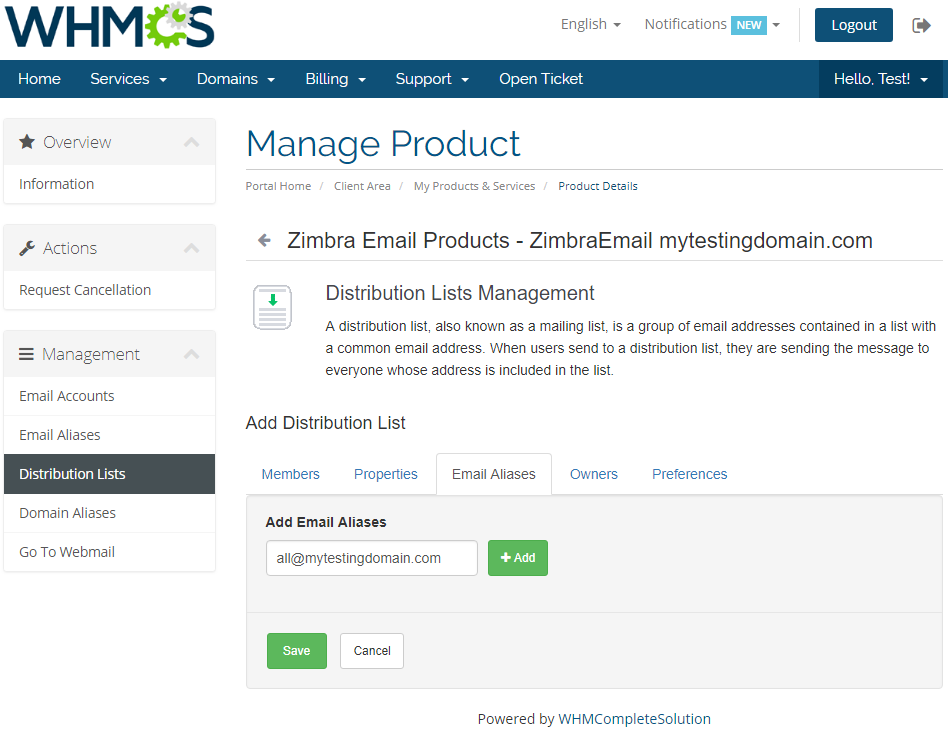
Assign email aliases if you have any.
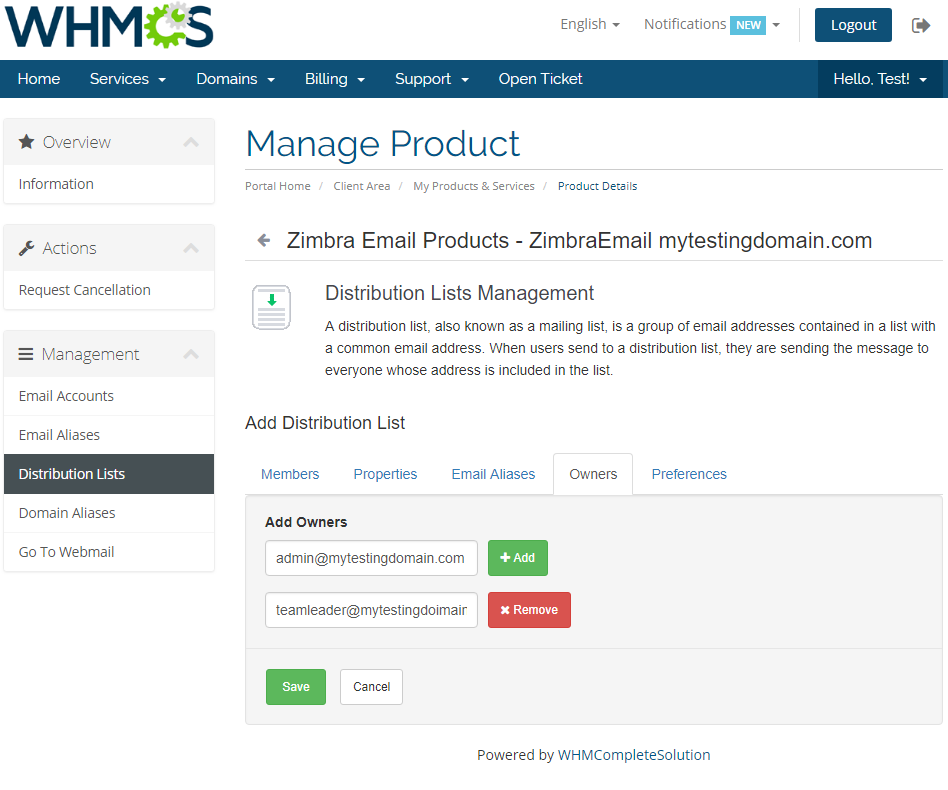
You may also add/remove owners of the list.
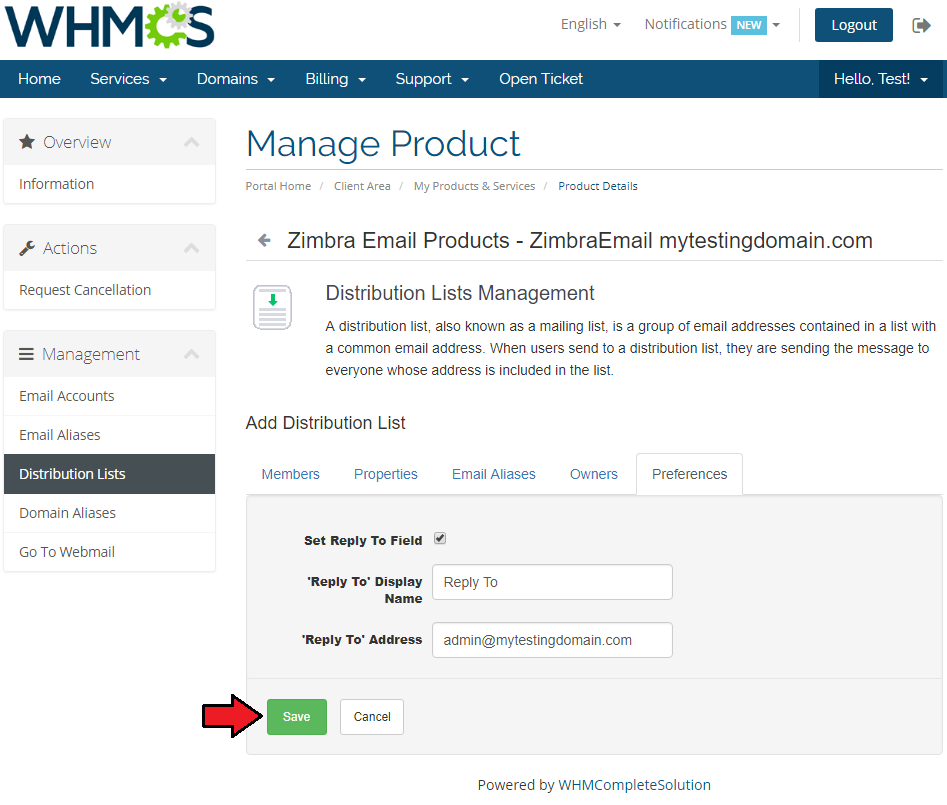
As soon as you set the last preferences, press 'Save' to finally create the distribution list.
If you made a mistake while creating a list, you can quickly edit it or remove it completely.
# Domain Aliases
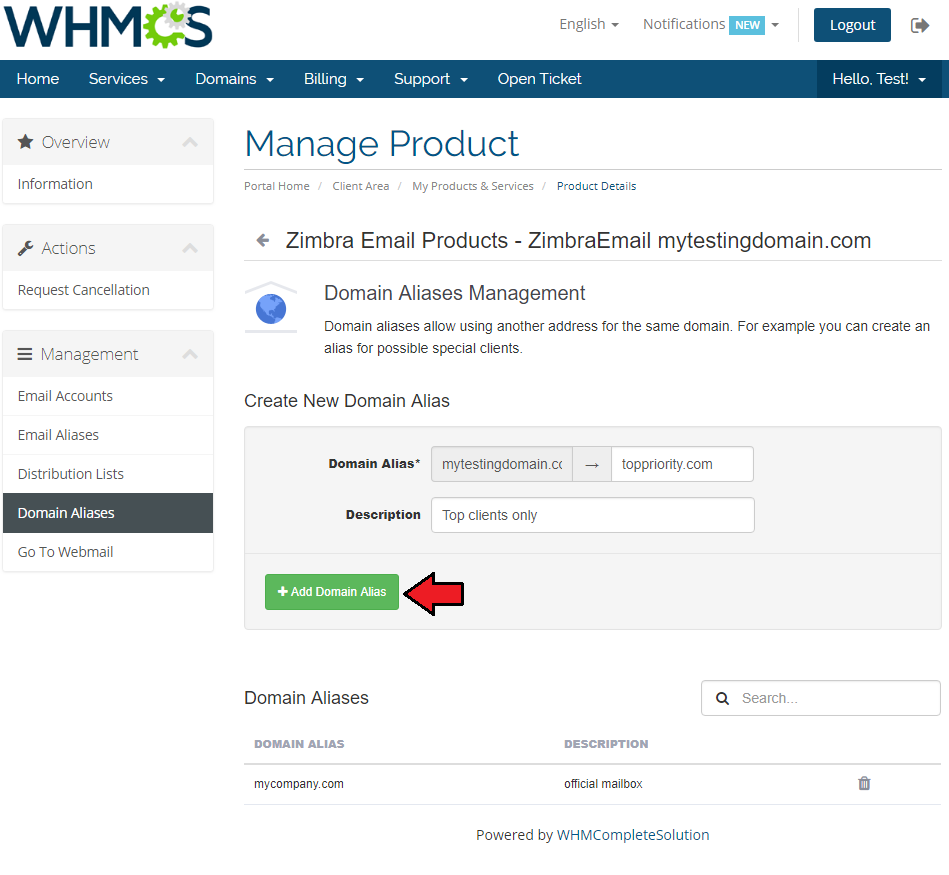
Domain Aliases option allows you to create more than one domain name that will refer to the same account.
Add a new domain alias, like on the below screen, and no matter which address used, emails will be delivered to the same mailbox.
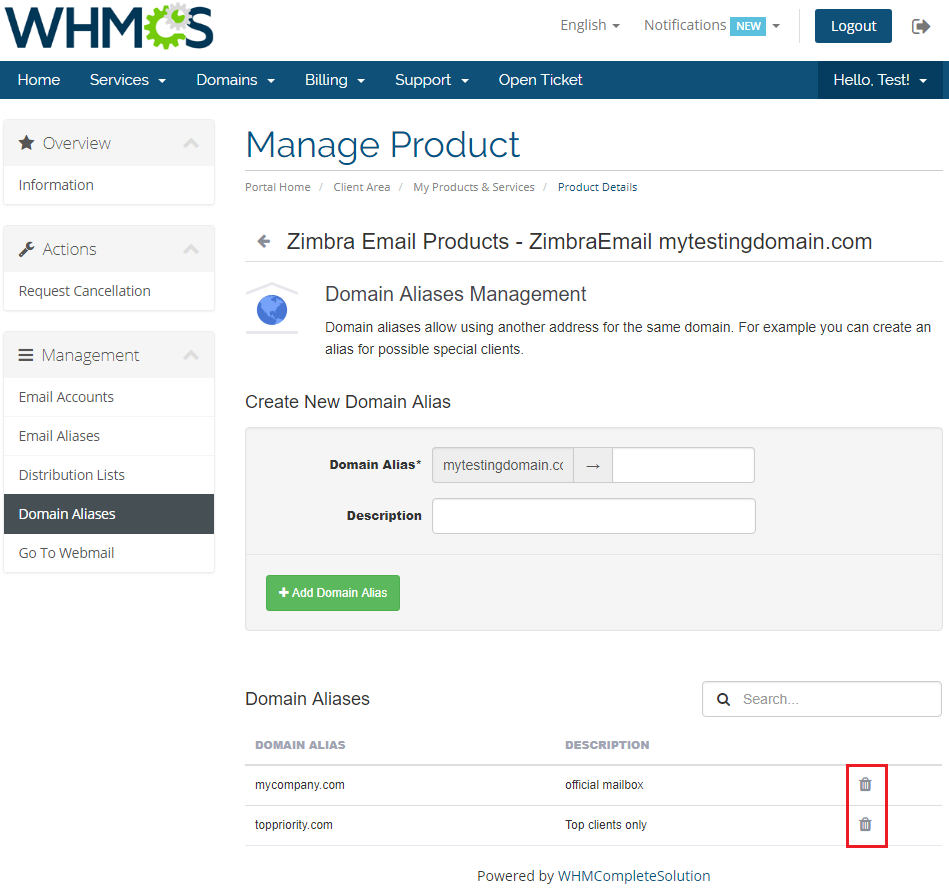
When a domain alias is no longer needed, simply delete it by pressing an icon.
# Management of Billing
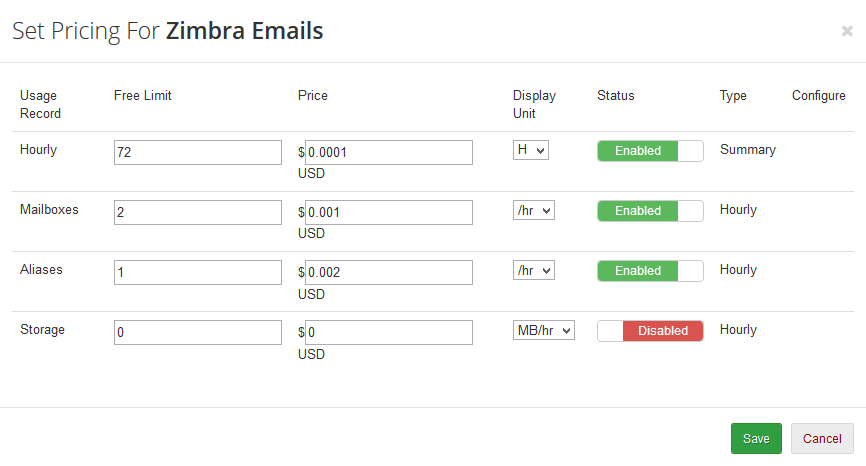
When you combine Zimbra Email For WHMCS with Advanced Billing For WHMCS (opens new window), you will be able to set up additional billing options.
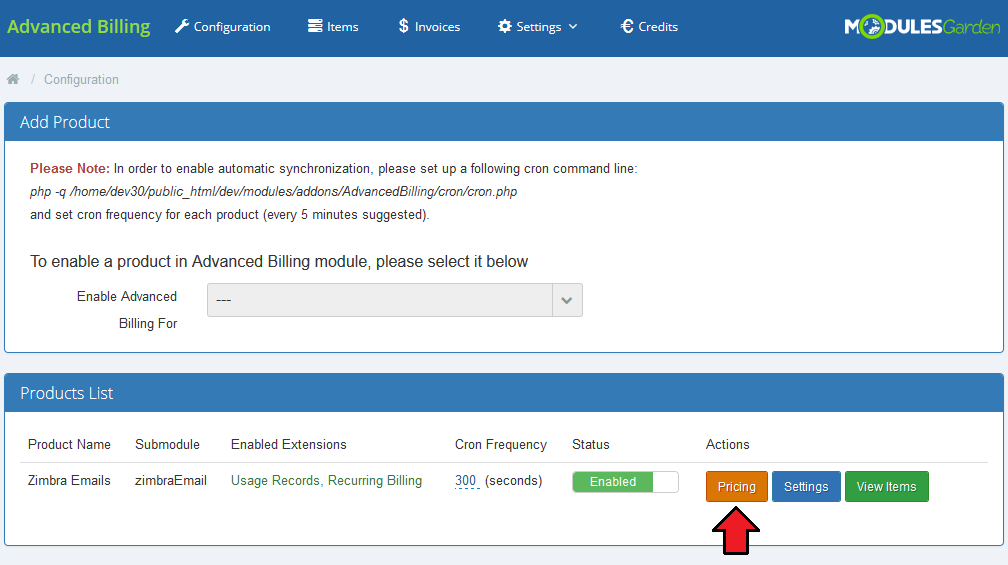
Module allows you to charge your customers basing on the server resources used by them.
For more detailed information on the configuration please refer to our Advanced Billing For WHMCS documentation.
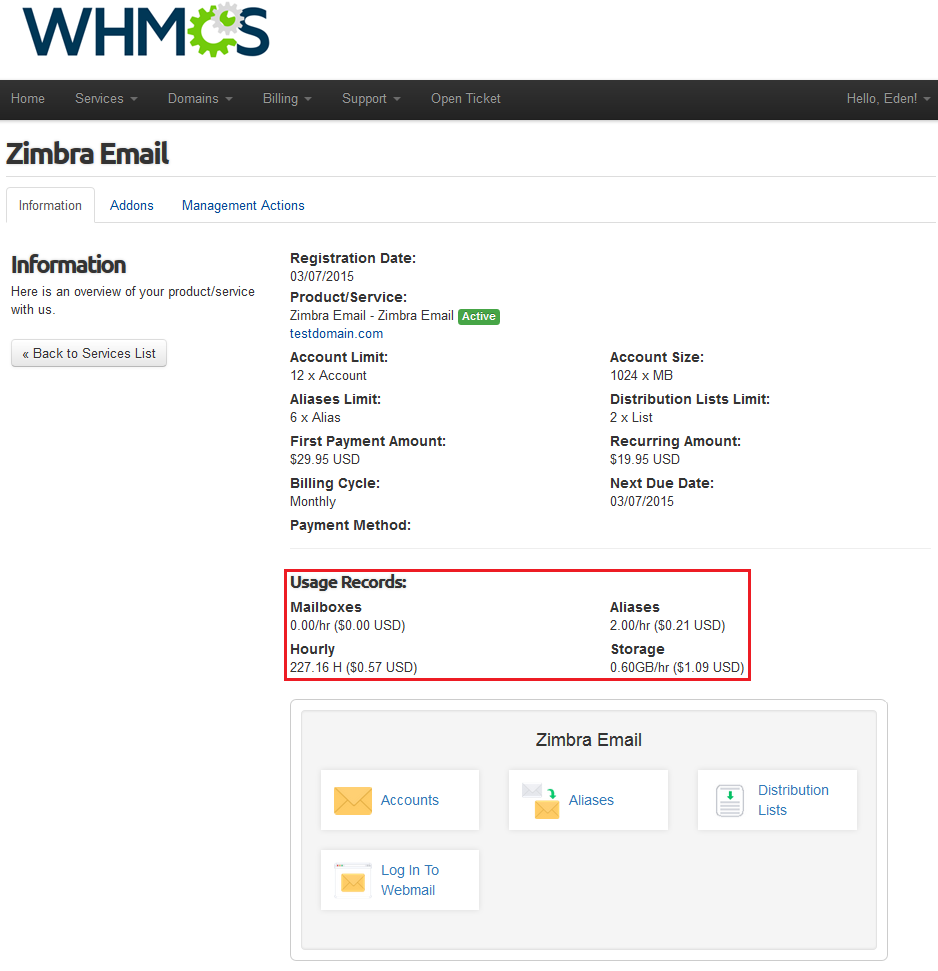
With Advanced Billing module, you can also display the current server resource usage and their cost and let your customers see it.
# Tips
- Zimbra Email For WHMCS requires SOAP installed on your server.
# Update Instructions
Essential guidance through the process of updating the module is offered here.
Keep in mind there is a quick and easy option in our client area that will let you upgrade the license of your module to an open source version at any time - and at a lower price!
To take advantage of it, simply use the License Upgrade button located on the product's page and a discounted invoice will be generated automatically.
# Common Problems
When you have problems with connection, check whether your SELinux or firewall does not block ports.
If you got 'A problem with module occurred. Please contact the administration' error, please validate the correctness of your module license key first and you may also try to reissue key in your ModulesGarden control panel.
The error 'Could not connect to host' is connected with SOAP. To fix it, make sure that port default 7071 is open.
Otherwise you can change the communication port by specifying it in 'Access Hash' in the Zimbra server configuration.