

# Freshservice For WHMCS
Freshservice For WHMCS has reached End of Support (EOS) and is no longer actively maintained. The module remains available for purchase in the Open Source version, along with License Upgrade option at a discounted price. Current license subscriptions continue and stay valid for future renewals.
# (opens new window) About Freshservice For WHMCS (opens new window)
FreshserviceFor WHMCS replaces the standard WHMCS support system with another solution which is Freshservice.
From now on your clients will be allowed to manage Freshservice tickets straight on your website, your support team will control over every WHMCS ticket in Freshservice.
Furthermore, you will be able to create relations between certain fields in WHMCS and Freshservicce to export all user details in a fully automated manner.
Client Area Features
- View Freshservice Departments
- Manage Existing Tickets
- Open New Ticket
- Fill Out Freshservice Ticket Fields
- Assign Owned Service To Ticket
- Attach Files To Ticket
- List Recent Tickets
Admin Area Features
- Manually Export To Freshservice:
- WHMCS Clients
- WHMCS Tickets
- Define Module Behavior
- Show Solved Tickets
- Update Client Credentials
- Define Replies Order
- Define Available Support Departments
- Define Client Service Field
- Define Client ID Field
- Define Ticket Status Colors
- Configure And Test Server Connection
- Toggle SSL Verification
- Define Client Fields Relations
- View Logs
- Manually Export To Freshservice:
Integration
- Automatically Export To Freshservice:
- New Tickets
- Clients On Tickets Creation
- Synchronize Ticket Responses Between WHMCS And Freshservice
- Transfer Ticket Fields Settings
- Transfer Client Custom Fields Details
- Transfer Custom Ticket Statuses
- Automatically Export To Freshservice:
General Info
- Custom Templates Support
- Multi-Language Support
- Supports PHP 8.2 Back To PHP 8.1
- Supports WHMCS Themes "Six" And "Twenty-One"
- Supports WHMCS V8.12 Back To WHMCS V8.9
- Requires ionCube Loader V13 Or Later
- Easy Module Upgrade To Open Source Version (opens new window)
# Installation and Configuration
Freshservice For WHMCS has reached End of Support (EOS) and is no longer actively maintained. The module remains available for purchase, including the Open Source version and License Upgrade at a discounted price. Current license subscriptions continue and stay valid for future renewals.
This tutorial will show you how to successfully install and configure Freshservice For WHMCS. (opens new window)
We will guide you step by step through the whole installation and configuration process.
# Installation
- Log in to our client area and download the module.
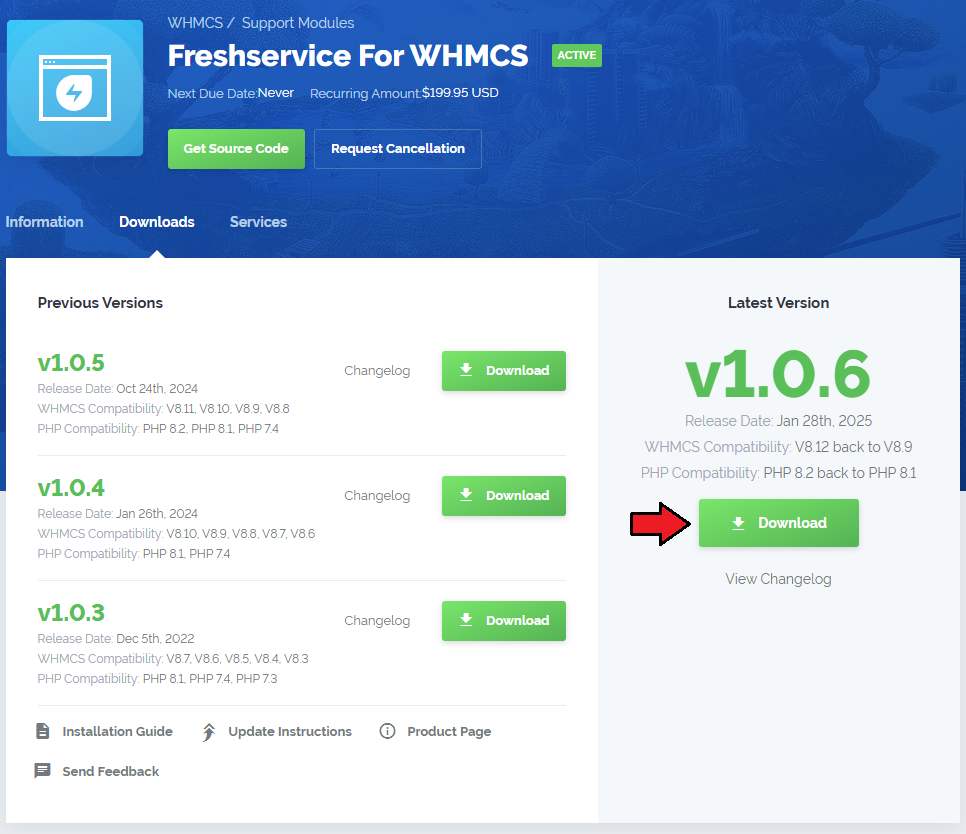
Upload and extract the extension into the main WHMCS directory.
Extracted files in your WHMCS directory should look like this:
When you install Freshservice For WHMCS for the first time, you have to rename the 'license_RENAME.php' file.
The file is located in '/yourWHMCS/modules/addons/Freshservice/license_RENAME.php'. Rename it from 'license_RENAME.php' to 'license.php'.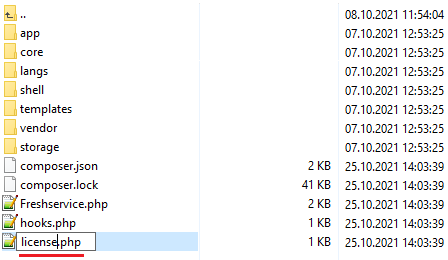
In order to configure your license key, you have to edit the previously renamed 'license.php' file.
Enter your license key between the quotation marks as presented on the following screen.
You can find your license key in our client area → 'My Products'.
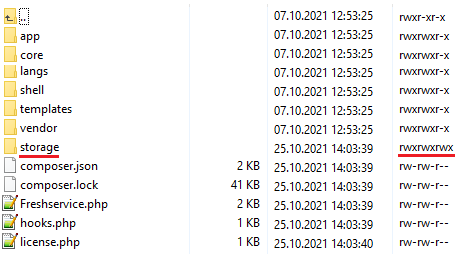
Now, set up the 'storage' folder as recursively writable.
This folder is available at 'your_whmcs/modules/addons/Freshservice/'.
# Activation
Now, you have to activate the module in your WHMCS system.
Log in to your WHMCS admin area and proceed to 'System Settings' → 'Addon Modules'.
Afterward, find 'Freshservice' and press the 'Activate' button.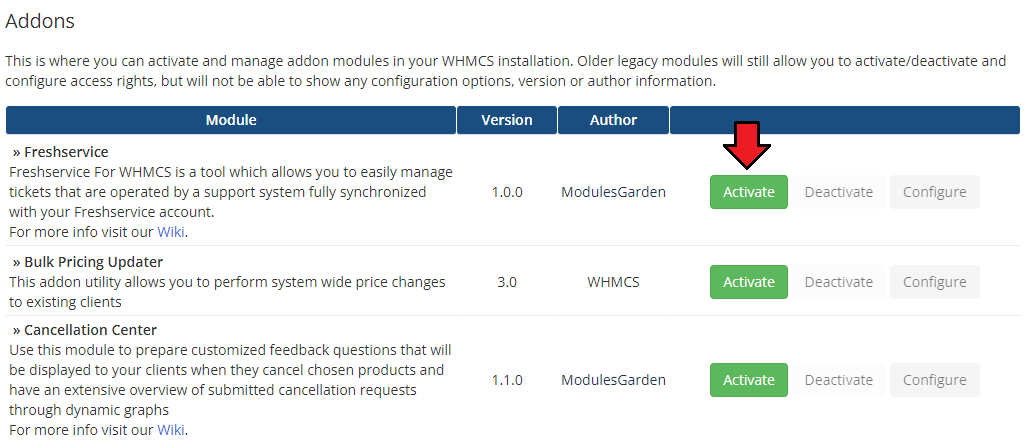
In the next step you need to permit access to this module.
To do so, click on the 'Configure' button, tick checkboxes to assign desired admin roles.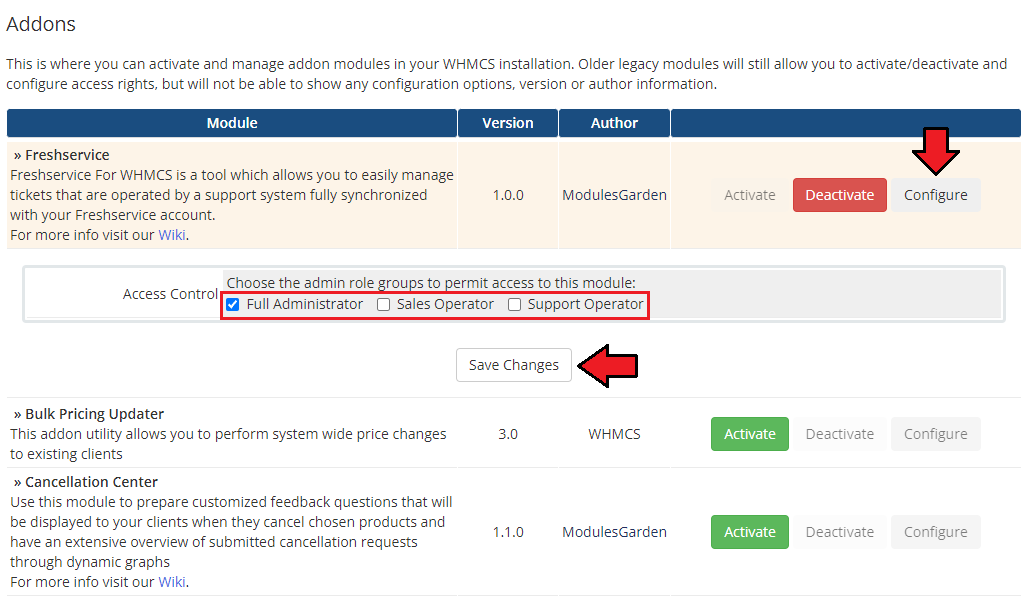
You have just successfully installed Freshservice For WHMCS!
# Configuration
Now you have to configure your newly installed module.
Before we proceed to the configuration itself, you have to find API details to your Freshservice account.
# API Connection
Firstly, log in to your Freshservice portal at https://freshservice.com/login
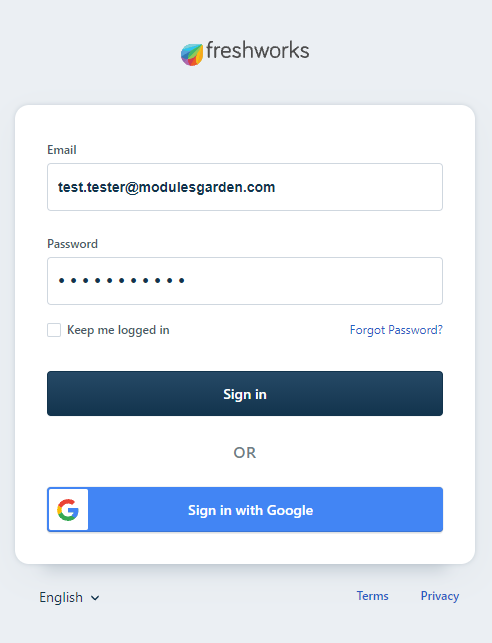
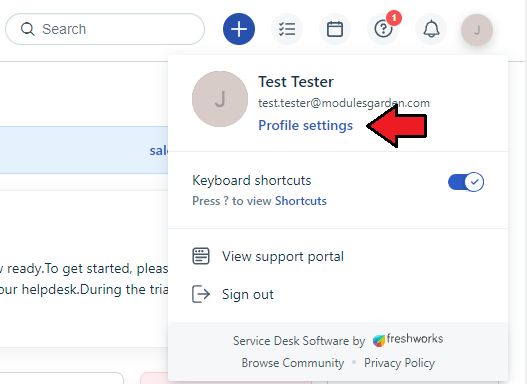
Click on your profile picture that is in the top right corner of the page and go to the 'Profile Settings' section.
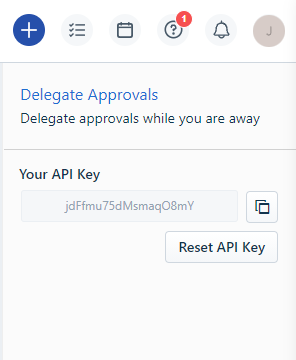
You can find your API key on the right side of the settings page.
Use an existing key or reset it to generate a new one. Copy the active API key.
IMPORTANT: Copy and keep your API key in a safe place. You will need it in a moment to complete the configuration of the module.
# Server Configuration
Now, that you have safely stored your API, you may move to the second part of configuration.
Proceed to 'Addons' → 'Freshservice' → 'Settings' → 'Server Settings', here you have to enter any data required to connect your WHMCS with the Freshservice server.
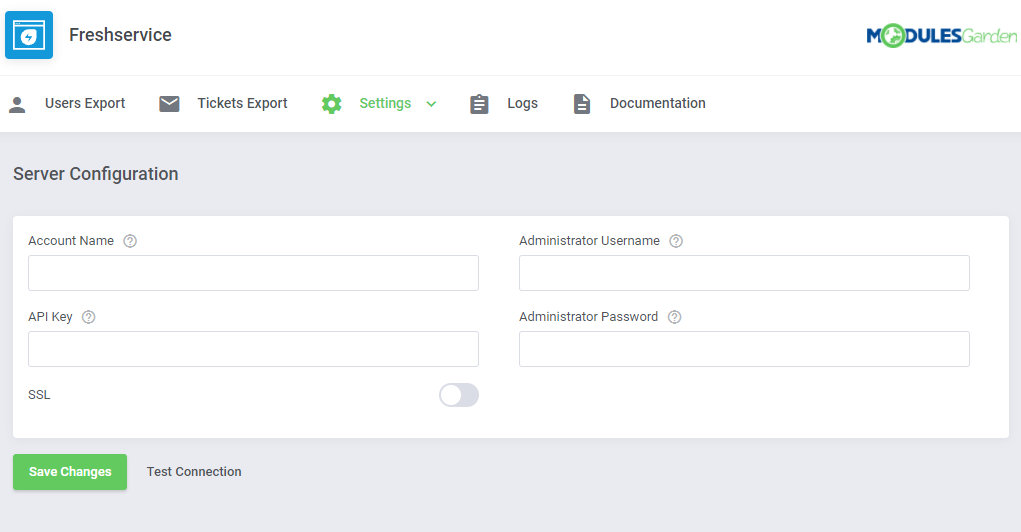
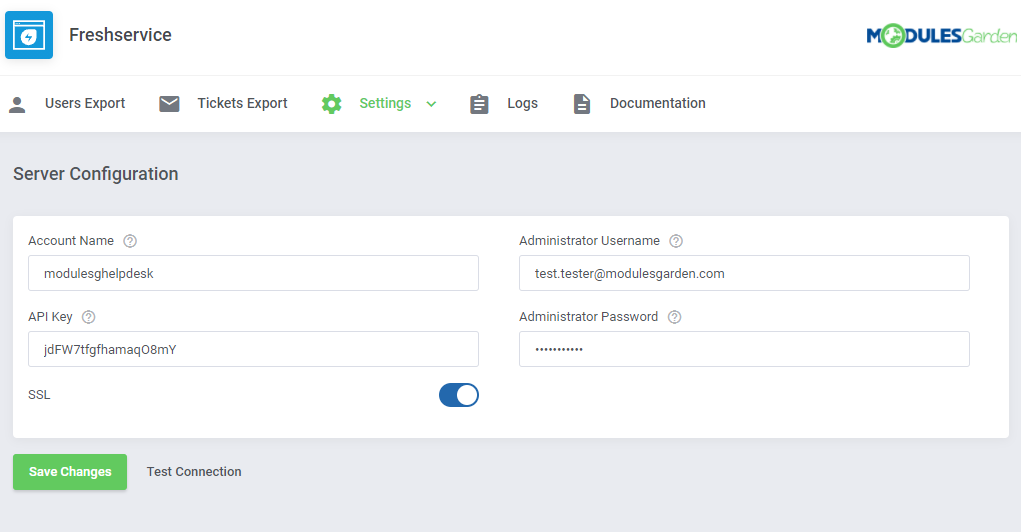
Enter your Freshservice details:
Note: Please remember that in order to connect your WHMCS with the Freshservice server you need to complete 'Administrator Username' and 'Administrator Password' or your 'API Key'.
- Account Name - this is your subdomain e.g. in https://mycompany.freshservice.com, account name will be mycompany
- API Key - API key found in the previous steps
- Administrator Username - the admin's email used to log into your Freshservice account
- Administrator Password - the admin's password used to log into your Fresservice account
- SSL - check this box if you want to turn on the SSL certificate verification
Finally, test the connection and, if successful, save the changes.
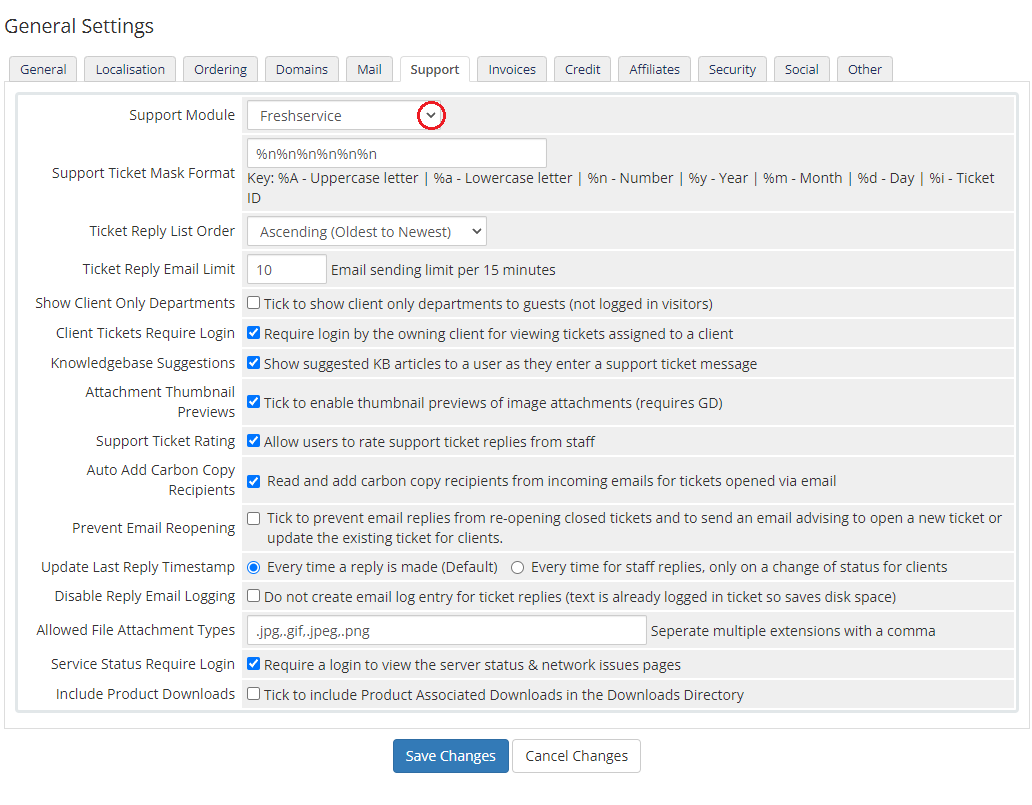
Finally, move to 'System Settings' → 'General Settings' → 'Support' in your WHMCS.
There choose the 'Freshservice' support module from a dropdown menu and save the changes.
From now on, your clients will see Freshservice tickets and departments (not WHMCS).
Good job! Now your WHMCS is connected with the Freshservice support system.
# Management
Once Freshservice For WHMCS is installed and the connection is configured, you can create/update your ticket departments and begin using them.
Each ticket department you create in Freshservice will be available for your customers in WHMCS client area.
# Settings
# WHMCS
Before you start your actual work on support tickets with Freshservice For WHMCS, move again to 'Addons' → 'Freshservice' → 'Settings' → 'Ticket Settings'.
This section of the addon allows an easy and comfortable management of the way tickets are displayed in your client area, their visibility, sorting etc.
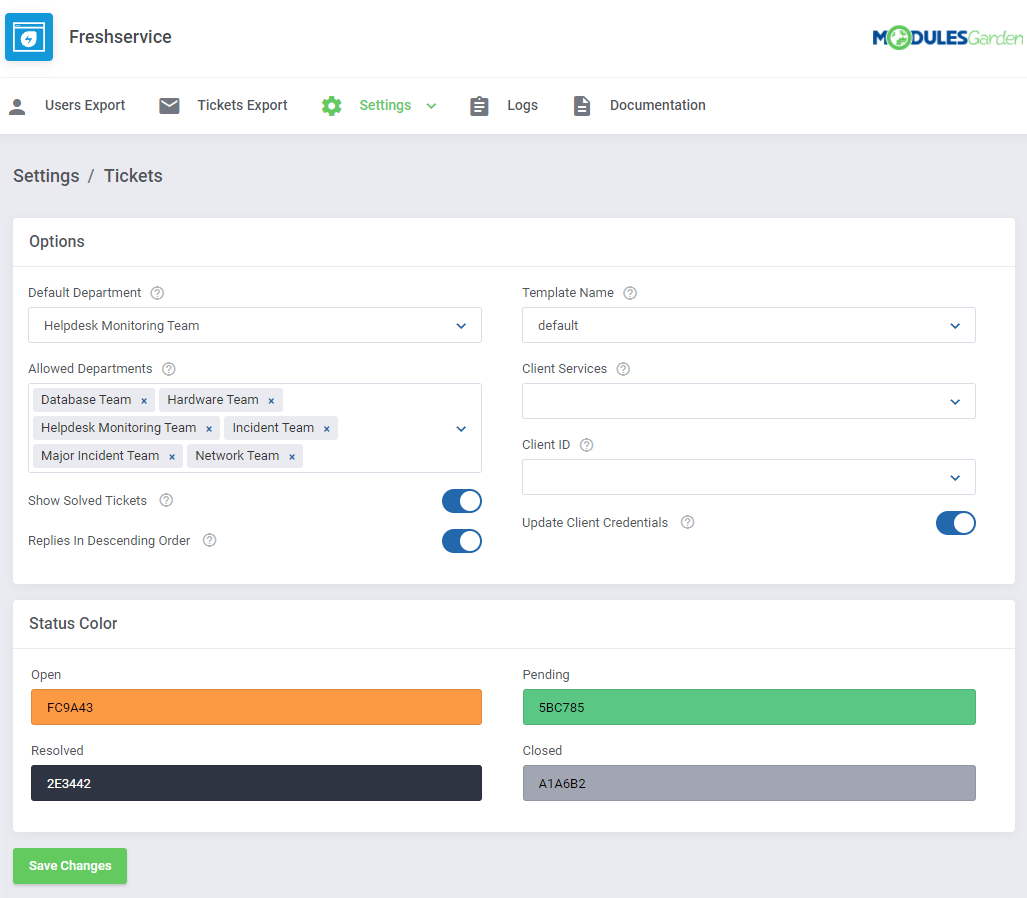
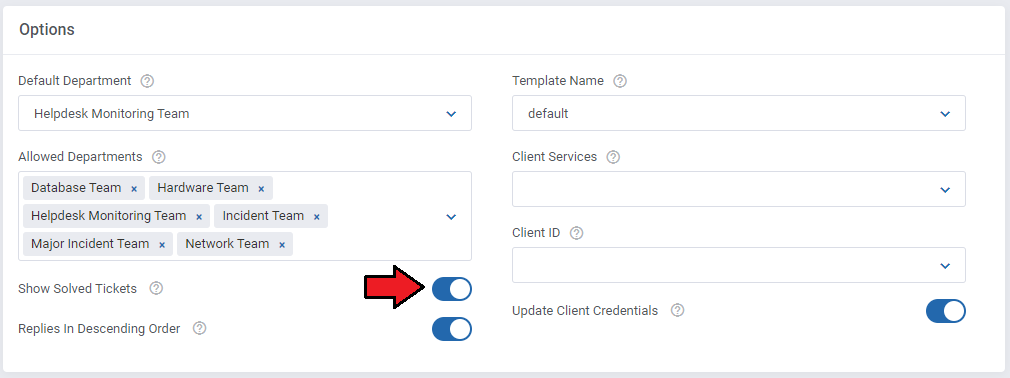
In the first box 'Options', you may enable some basic settings that will be applied to tickets view in the client area.
Let's now discuss their functionality in details:
- Default Department - select a default department for exported tickets
- Allowed Departments - select which of your departments from Freshservice will be available in WHMCS ticket system
- Show Solved Tickets - if you enable this option, all tickets no matter what status they have will be displayed on the list of the latest tickets (e.g. open/new/solved/closed tickets)
- Replies Descending Order - enable this option and ticket replies will be sorted by date in a descending order when viewing a ticket
- Template Name - optional, select only in case you wish to use a custom template
- Client Services - choose the field (created in Freshservice panel), responsible for displaying all client's products and domains, you can find more info here
- Client ID - allows you to display IDs of your WHMCS clients next to their tickets in Freshservice panel.
Remember that firstly you need to add a new custom label with 'WHMCS ID|whmcsid' in the 'Ticket Fields' section of your Freshservice panel and then activate your new custom label in the module configuration. - Update Client Credentials - if a client's email is updated in WHMCS, it will be updated in Freshservice accordingly (name is also updated but only if the email is changed)
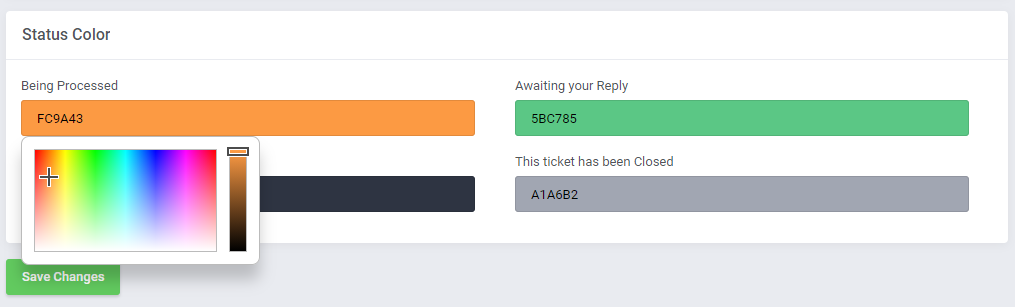
Under the 'Options' box you will find a section where you can assign some colors to a specific ticket status.
Click on the field to choose a color from the palette of colors or type in the number of the color you like.
Tickets of each status will be marked with selected colors on homage.
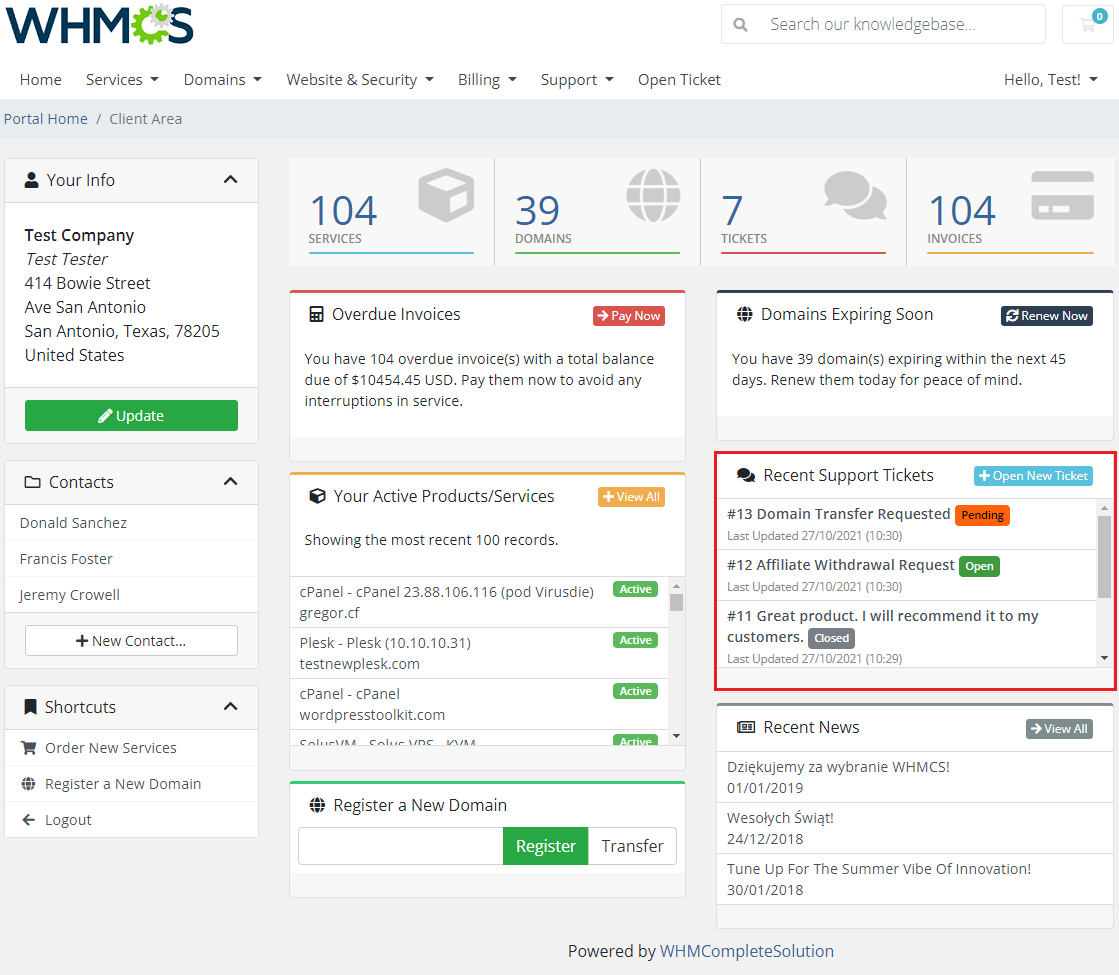
Tickets of each status are now marked with the selected colors on homepage:
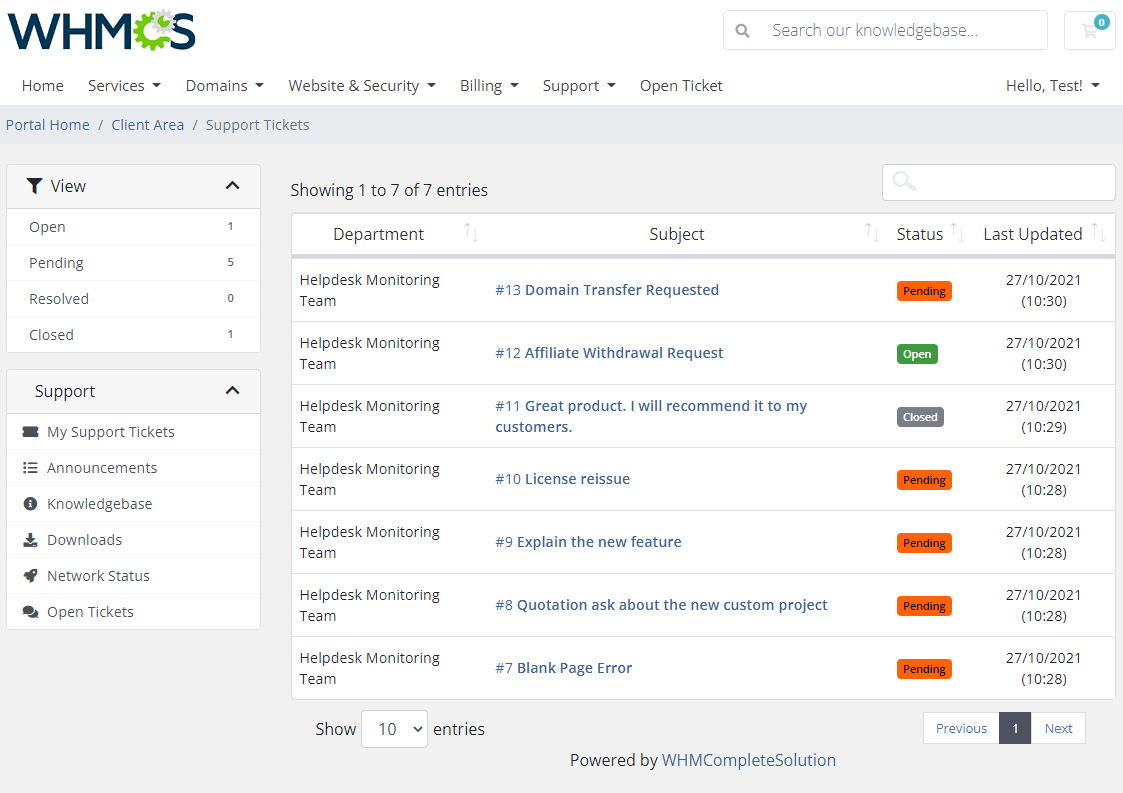
Tickets history in the client area:
# Freshservice Client Fields
Fresservice For WHMCS module allows the management of 'User Fields' created in the panel.
Move to 'Freshservice' → 'Admin' → 'User Management' → 'User Fields'. On this site, find 'Agent Fields;' section where you can edit existing or add new custom fields to add any data on the client in their profile.
Edit any existing field, change behavior or add new ones.
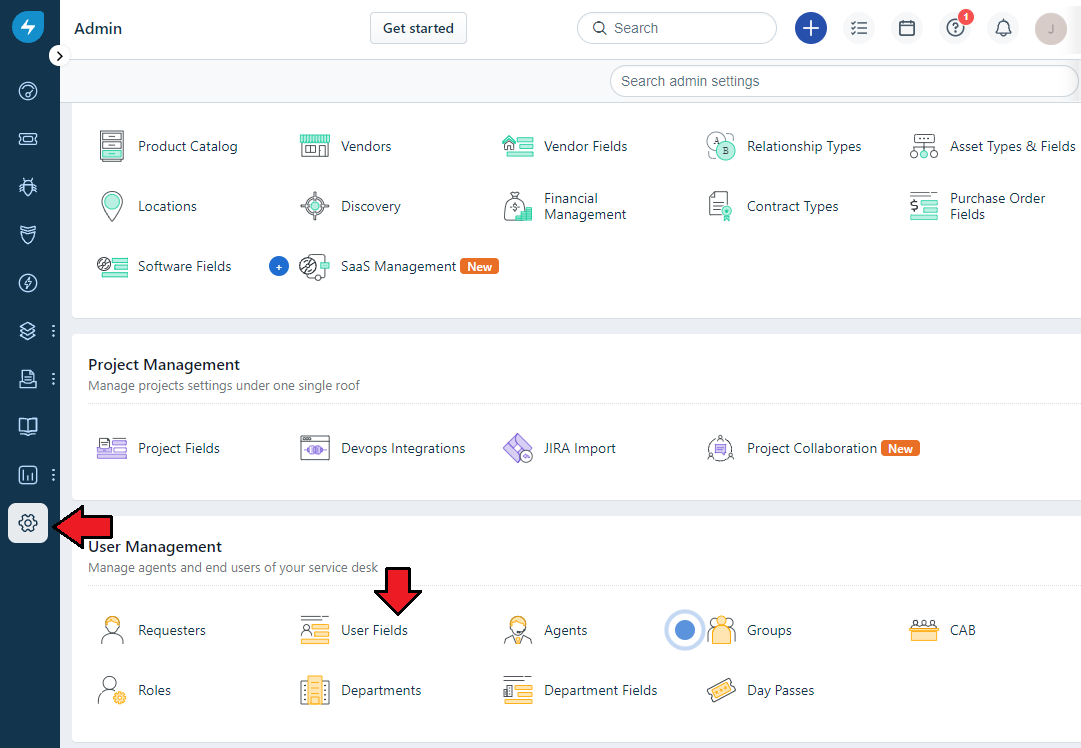
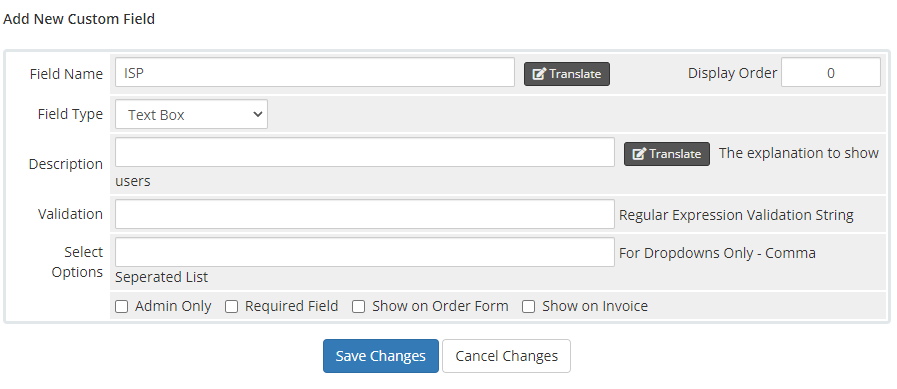
Once ready, you will need to move to your 'WHMCS' → 'System Settings' → 'Custom Client Fields' where a corresponding field shall be created.
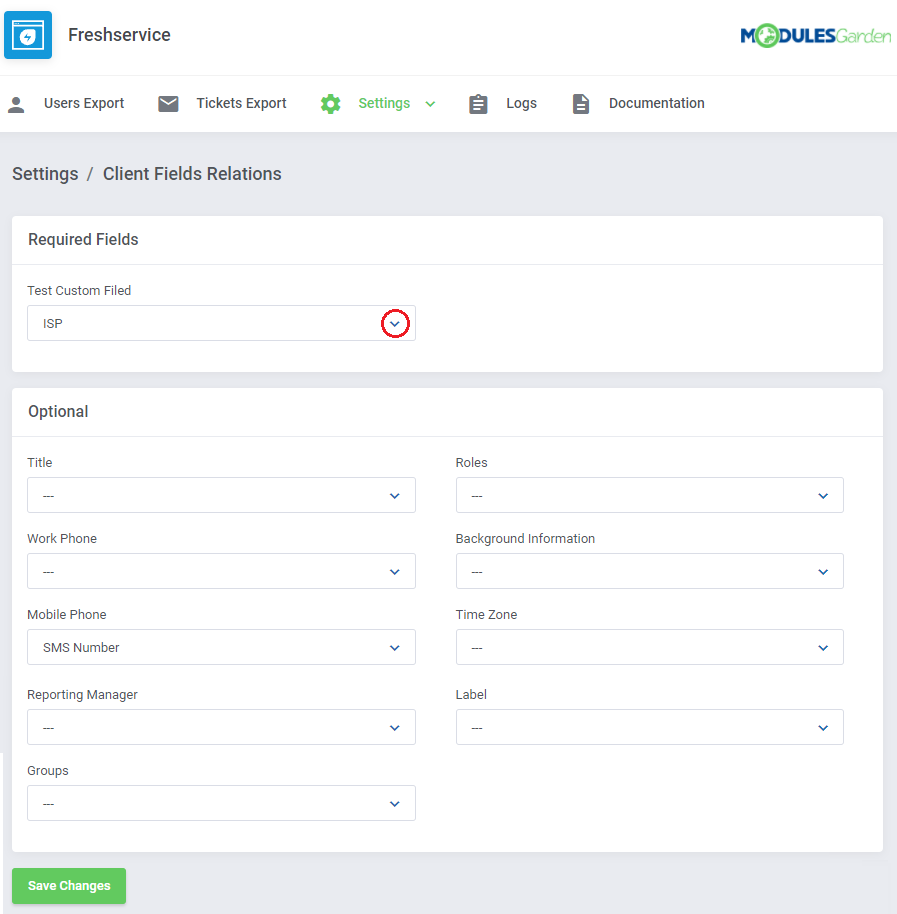
Then, move again to the addon 'Settings' → 'Client Fields Relations' to define the relations between the Freshsevicce fields and the ones you have in your WHMCS.
Select from the list corresponding fields, that will be visible in the clients profile.
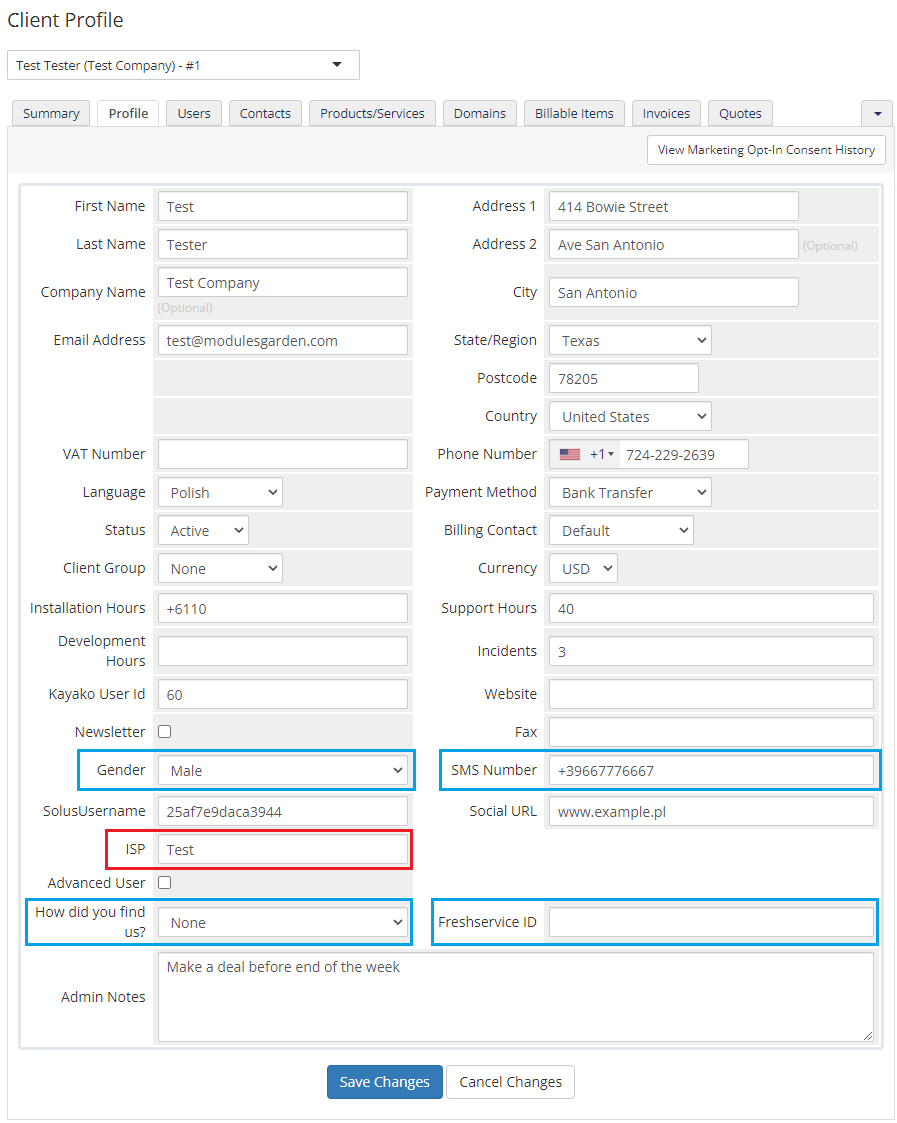
Fields from the 'Required' section (marked in red) must be filled in to export the user to Freshservice successfully. If left empty, error will occur and export fail.
Adequately, optional fields (marked in blue) may be left empty to proceed with the export.
# Freshservice Ticket Fields
# Custom Ticket Fields
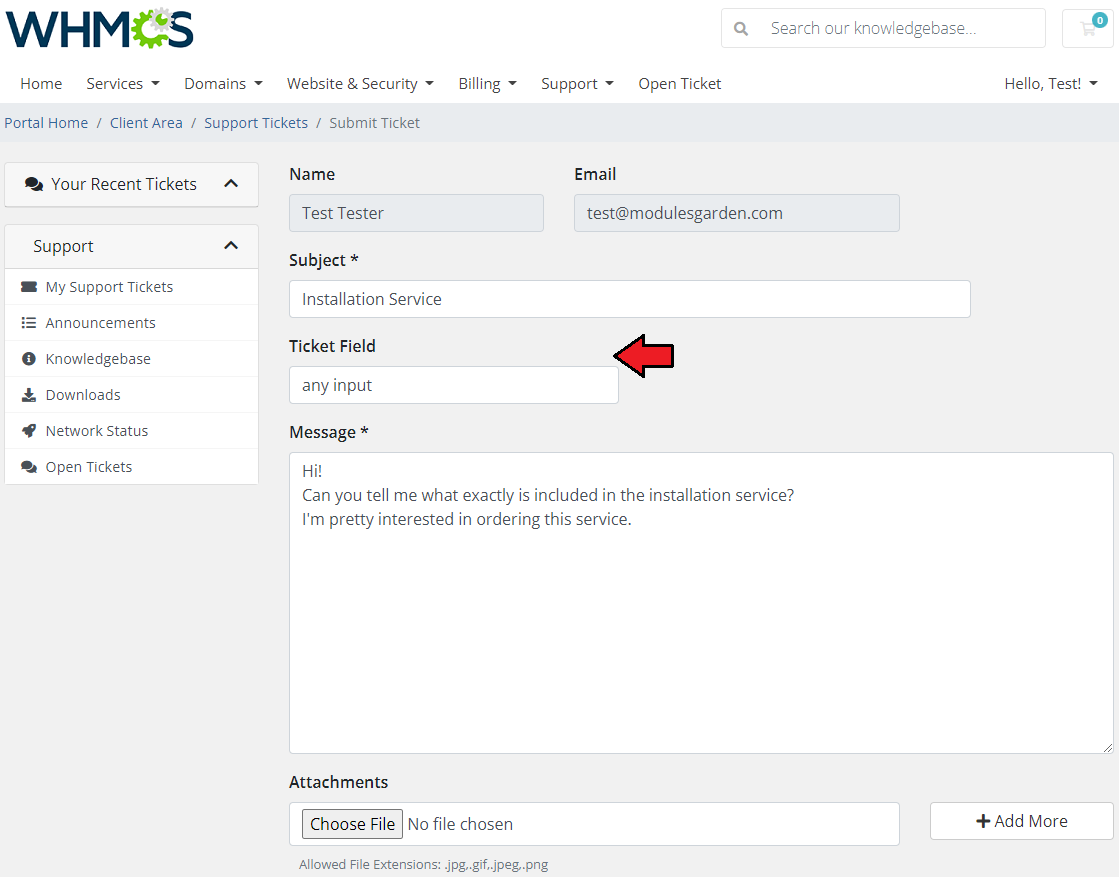
You can also manage ticket fields, by adding fully editable Custom Fields that are available in WHMCS on a new ticket form, directly in Freshservice.
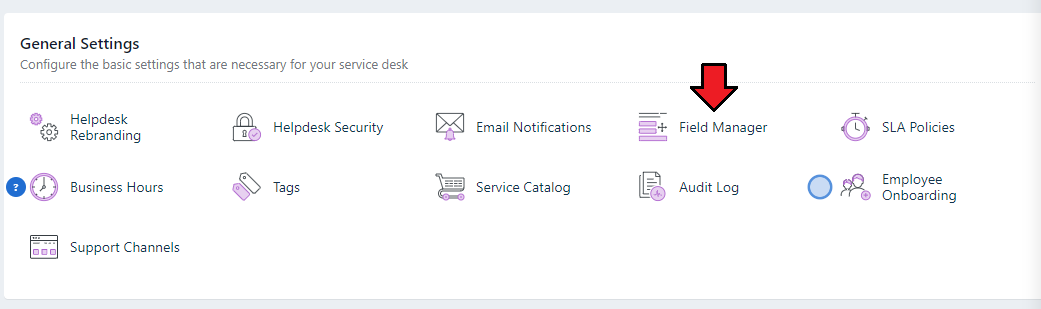
Move to 'Freshservice' → 'Admin' → 'General Settings' → 'Field Manager' → 'Form Fields' There follow the Freshservice instructions to edit or add new custom fields to collect the data when a client submits a ticket.
Once you have configured your ticket fields on the Freshservice panel side, they will automatically be added and visible in the ticket view in WHMCS client area.
# Client Services
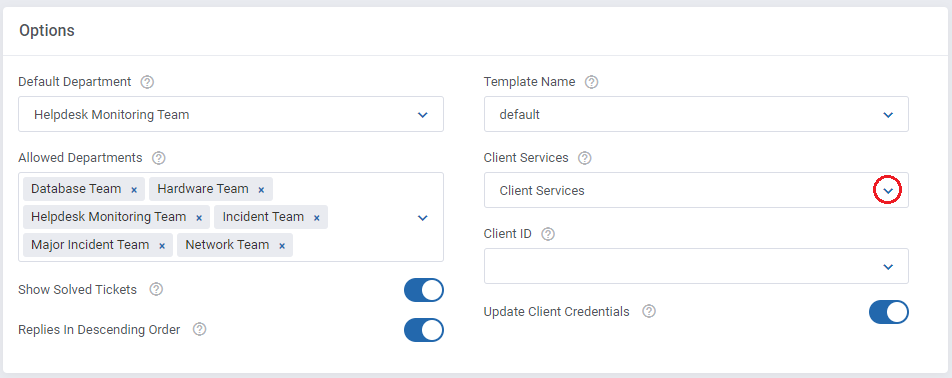
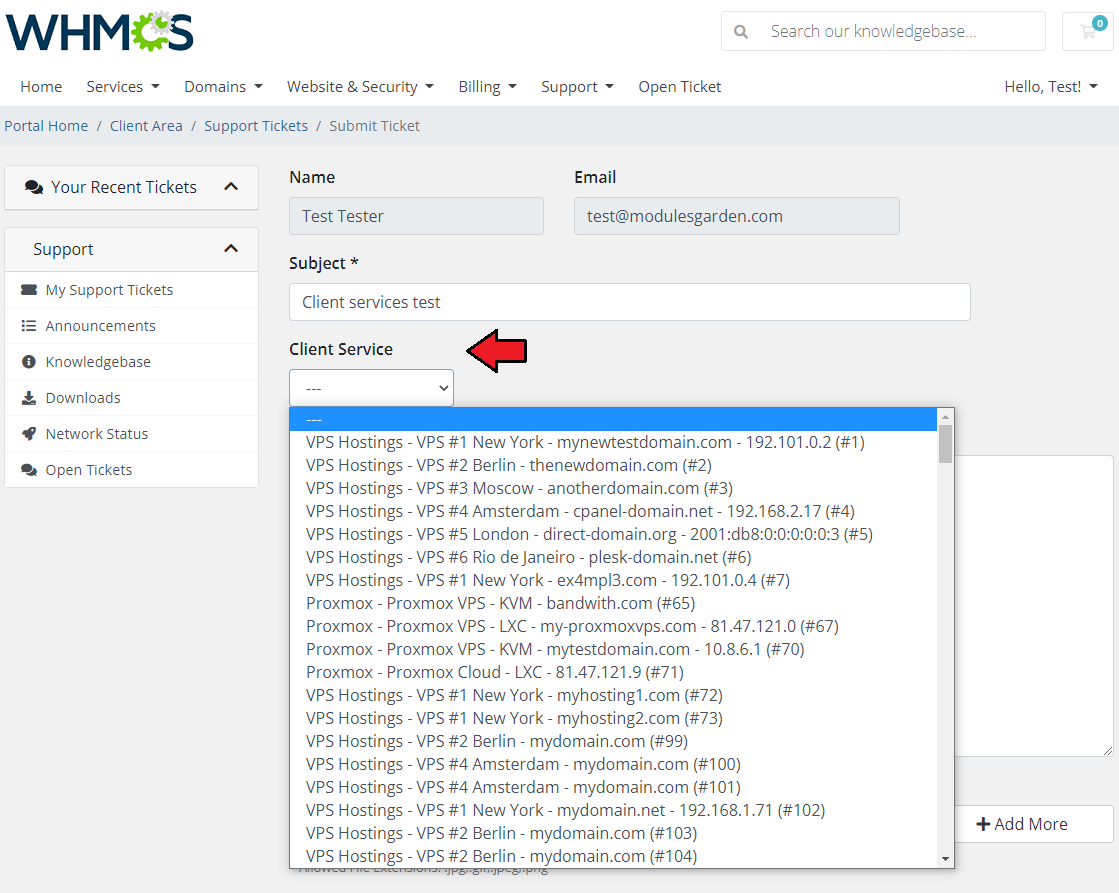
It is possible to use one of the created in Freshservice panel custom fields as a dropdown to select an owned product that a client may assign to a just created ticket.
Go back to WHMCS addon → 'Ticket Settings', where you can instantly select it under the 'Client Services' dropdown.
Do not forget to save the changes.
As you can see on the screen below, a new field, which may help to draw the Administrator's attention to a specific client's service appeared in WHMCS client area.
Edit/add ticket fields to adjust the ticket form perfectly to your needs.
# Custom Ticket Statuses
You can also manage custom ticket statuses used in Freshservice panel.
Move again to 'Freshservice' → 'Admin' → 'General Settings' → 'Field Manager' → 'Form Tickets' → 'Status' to add new or modify existing ticket statuses.
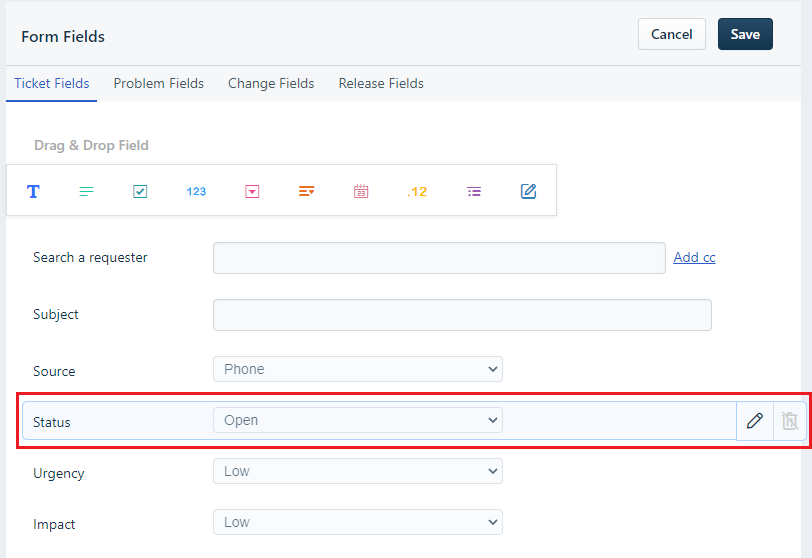
Once you have configured your ticket statuses on the Freshservice panel side, go back to WHMCS addon → 'Ticket Settings', where you can see them among other default statuses.
Select colors for them.
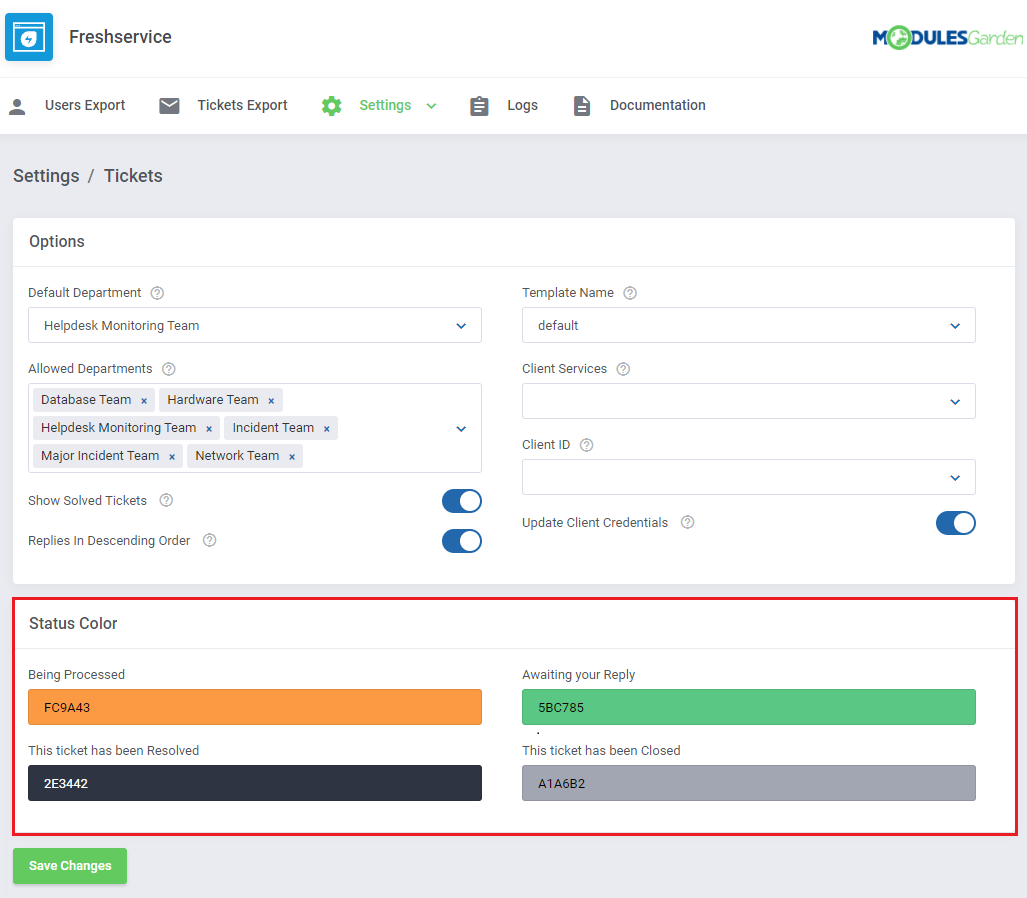
The custom statuses are visible in the client area with names typed in the panel in the 'For Customers' field. However, it is possible to alter or translate the Freshservice custom statuses names.
Open the used language file located in /your_WHMCS/moduels/addons/Freshservice/langs/ directory and add new lines at the very bottom.
In case you use multilanguage option this possibility allows full translations.
Exemplary lines to add:
$_LANG['addonCA']['FreshserviceCustomStatusName'] = "Your translation visible in WHMCS Client Area";
$_LANG['addonCA']['Being Processed'] = "In lavorazione";
# Export
Our module allows to export data gathered in your WHMCS, more specifically, all the users and tickets generated before the installation of the product.
Read the below points to learn what data can be synchronized with Freshservice and what are the possible means of such synchronizations.
# Users
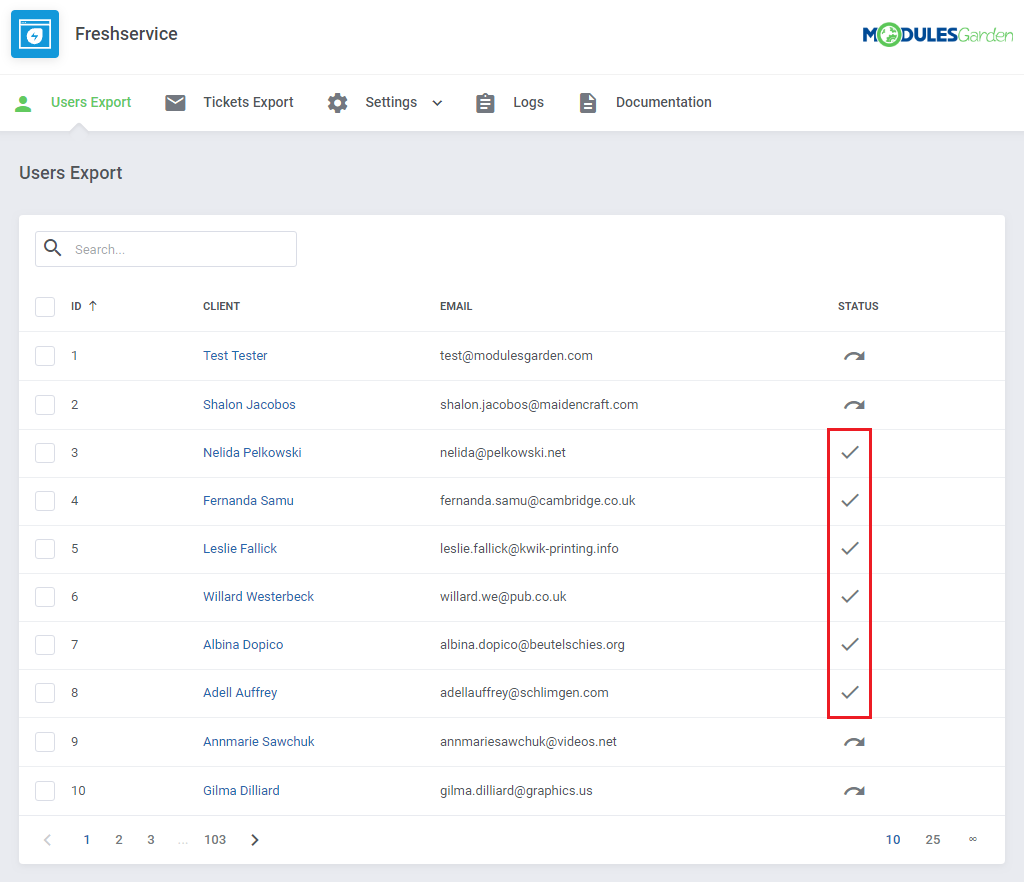
The first option offered by our module is the export of users from WHMCS to Freshservice, proceed to 'Users Export'.
You will see here a list of all users who exist in your WHMCS and have not been synchronized with Freshservice yet.
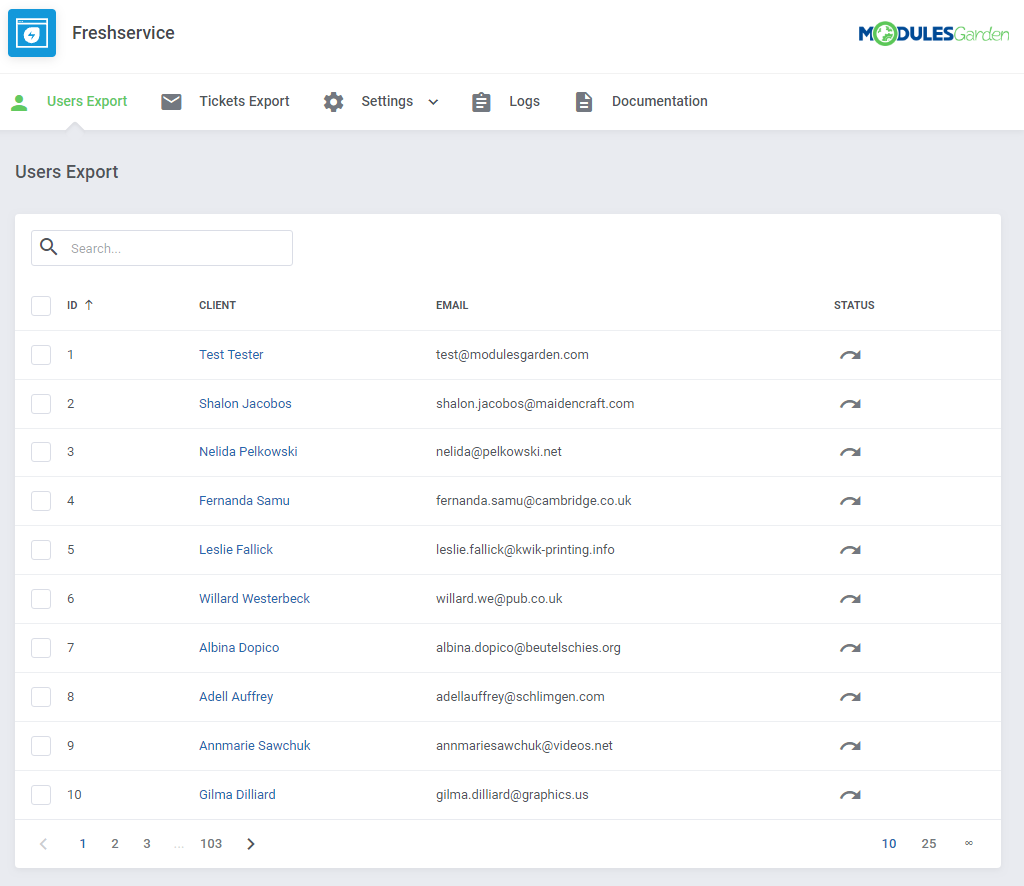
Now, you can manually export all of the users available on the list or choose only some of them.
Check boxes next to the users you are going to export and press the 'Export' button, marked with the red arrow on the screen.
You can always check the status of the exported clients (the blue arrow).
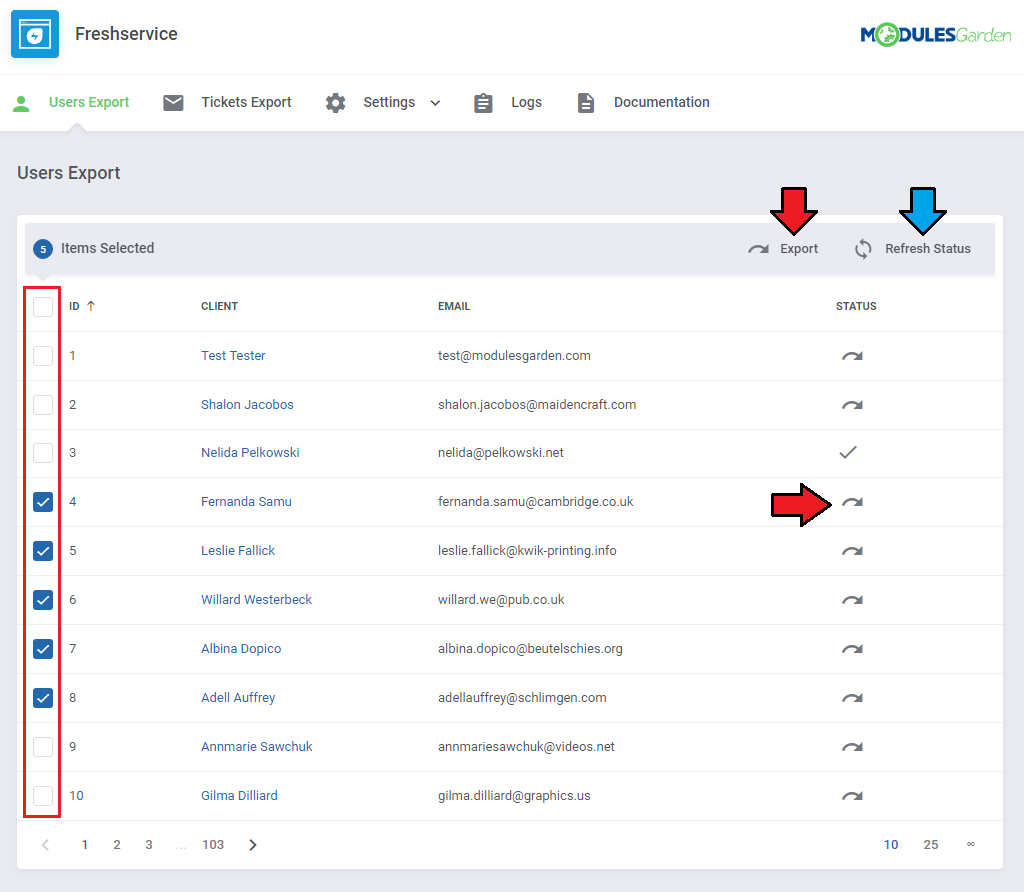
After confirming your choice, the selected user should be exported from WHMCS to Freshservice, their 'Status' field will become modified as well.
All users newly added to WHMCS will be automatically synchronized with Freshservice.
# Tickets
The next option offered by our module is the export of tickets from WHMCS to Freshservice, proceed to 'Tickets Export'.
You will see here a list of all tickets which exist in your WHMCS and have not been synchronized with Freshservice yet.
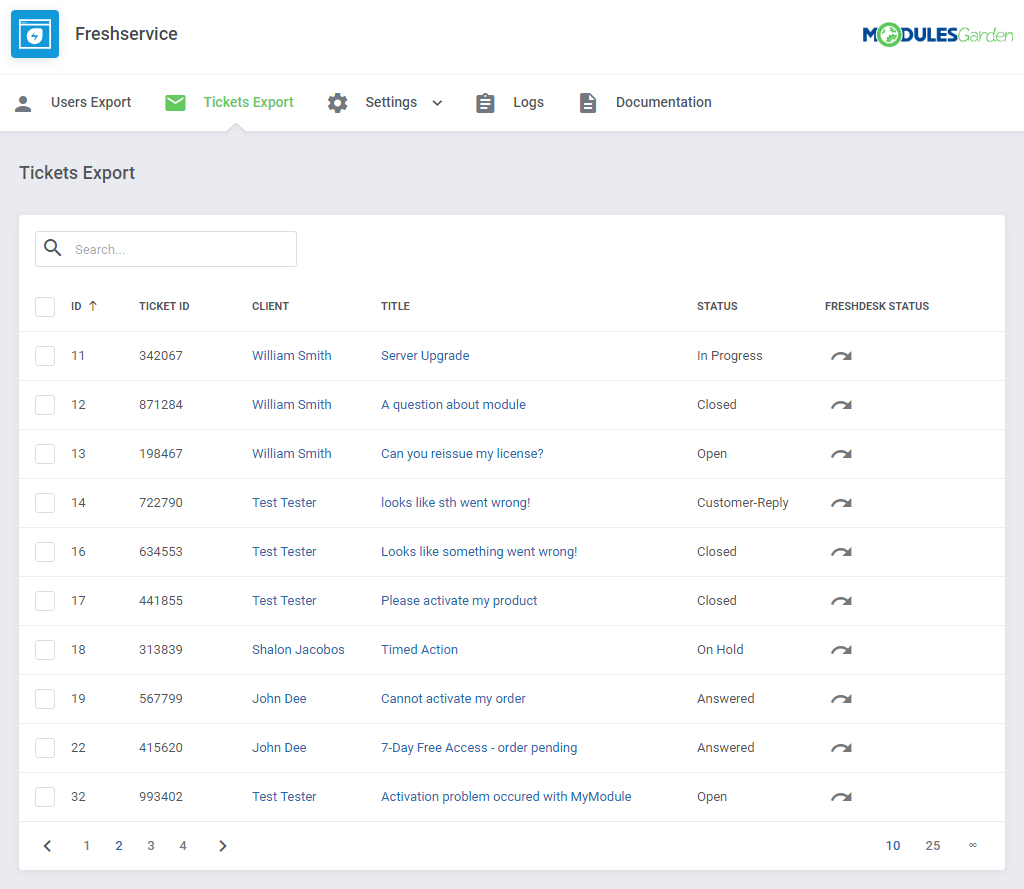
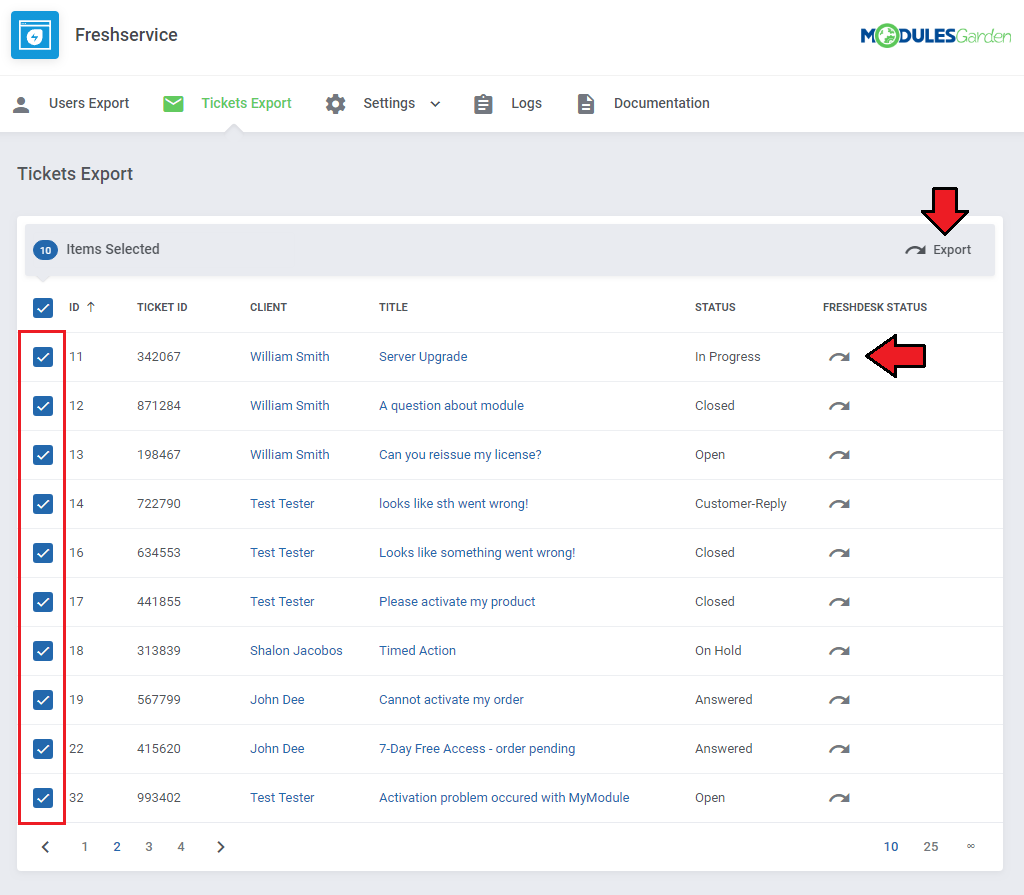
Now, you can manually export all of the tickets available on the list or choose only some of them.
Check boxes next to the tickets you are going to export and press the 'Export' button as marked on the screen.
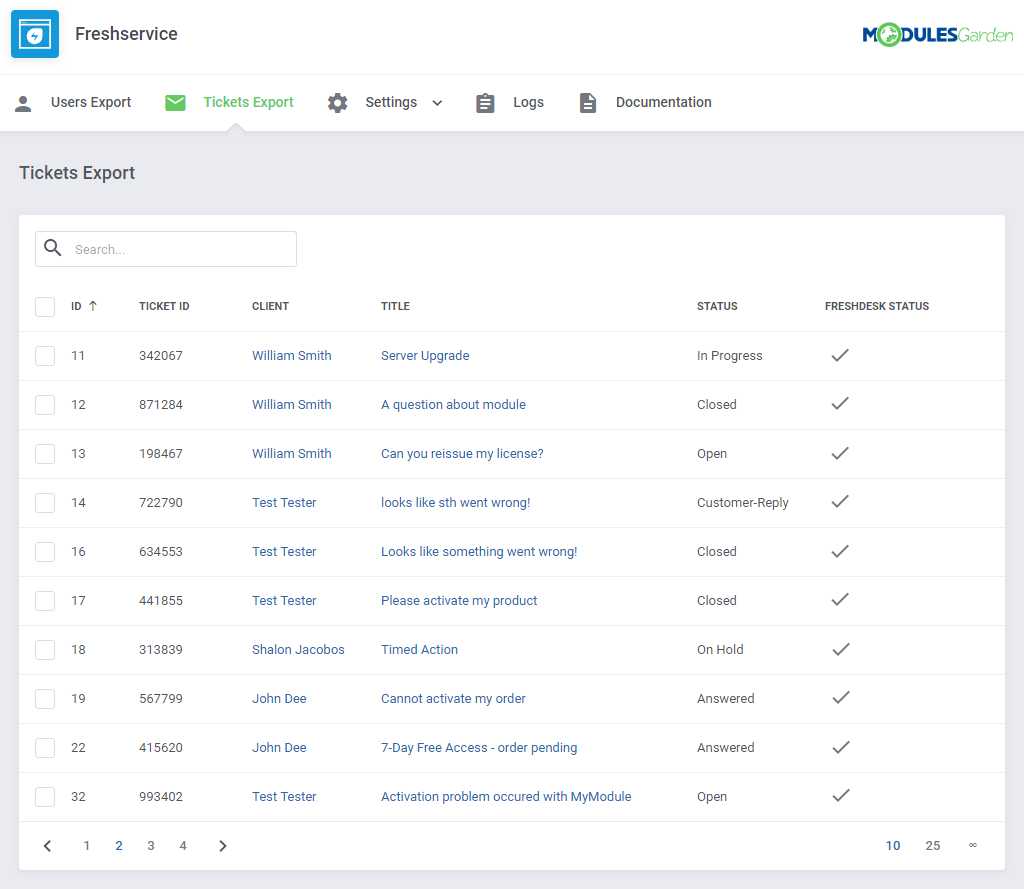
If a ticket has already been exported from WHMCS to Freshservice, they will have a different Freshservice Status visible on the list.
All tickets newly created to WHMCS will be automatically synchronized with Freshservice.
# Support Tickets
Move to your client area. There, on your homepage, is the 'Recent Support Tickets' box.
You will find the latest tickets available in your system. The visible tickets are marked with colors related to their current status.
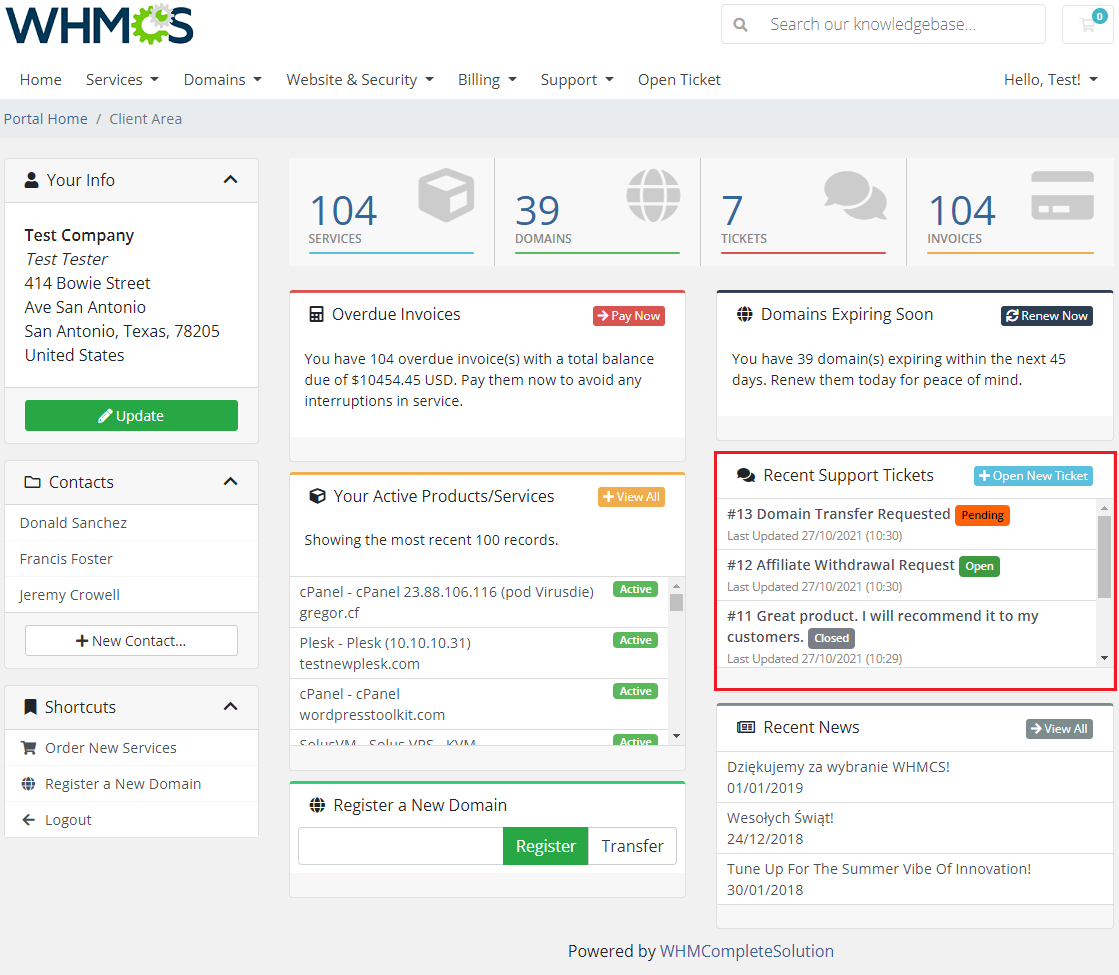
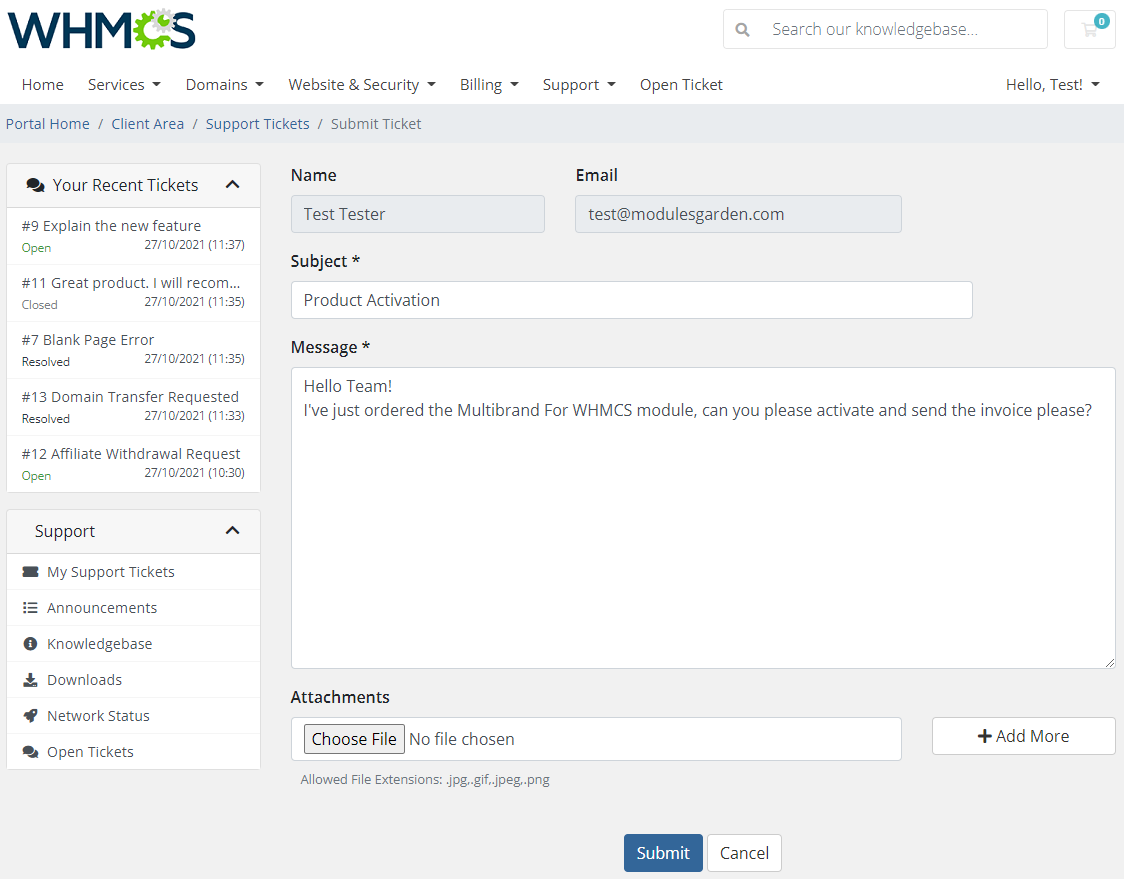
Now, we will create a ticket message to show the flow. Just like in case of a standard WHMCS support ticket, choose a department, fill out the form and submit the ticket.
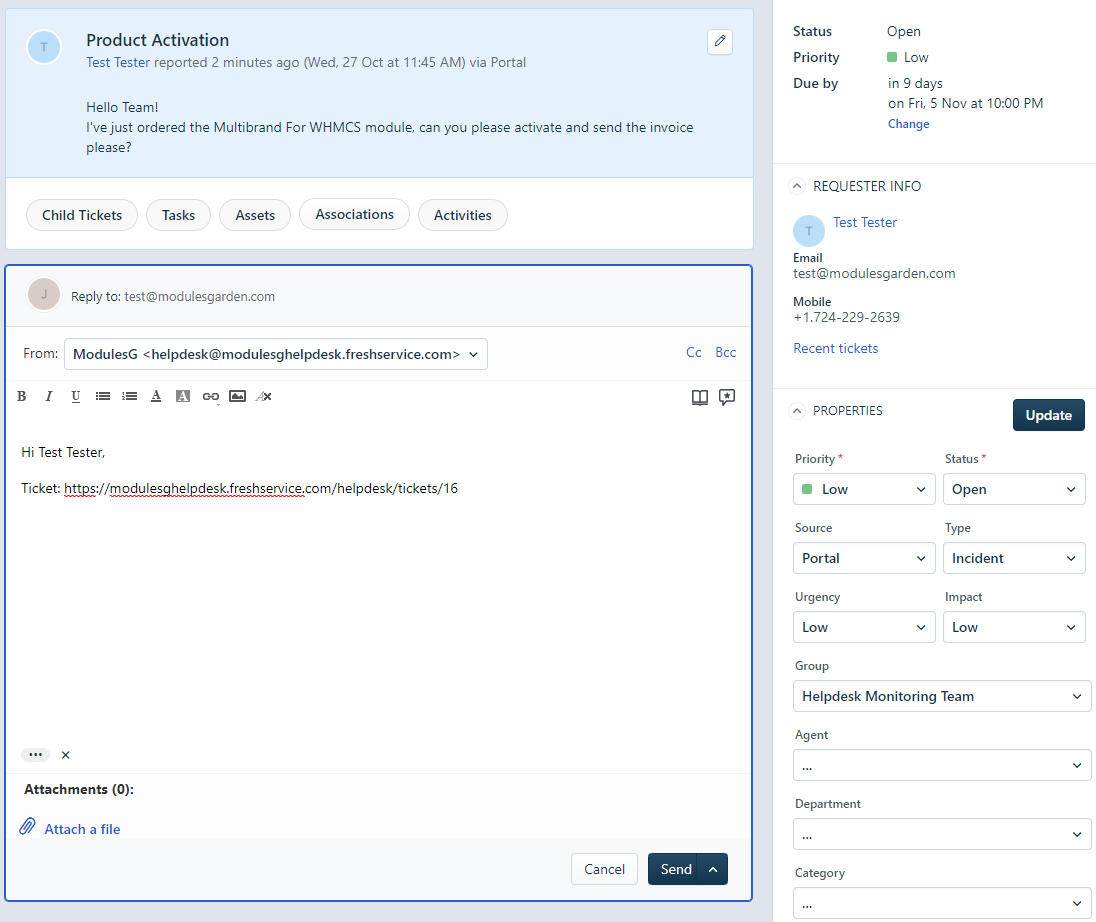
A new ticket, sent with Freshservice For WHMCS module, is immediately visible in Freshservice admin area.
Do not hesitate and send a reply to this ticket.
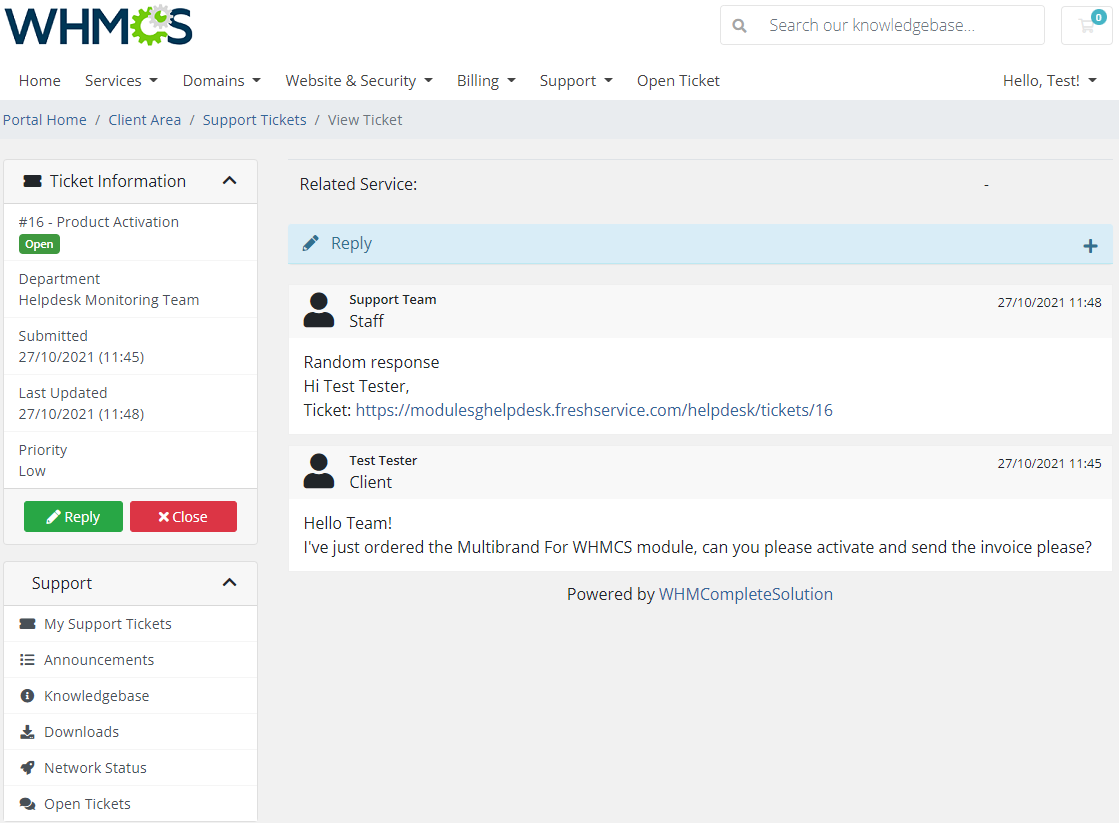
A client has received an answer. Note that the ticket status has been updated as well.
# Logs
All module activities are recorded in 'Logs'.
Note: You might have no visible logs here if there are no logged actions yet.
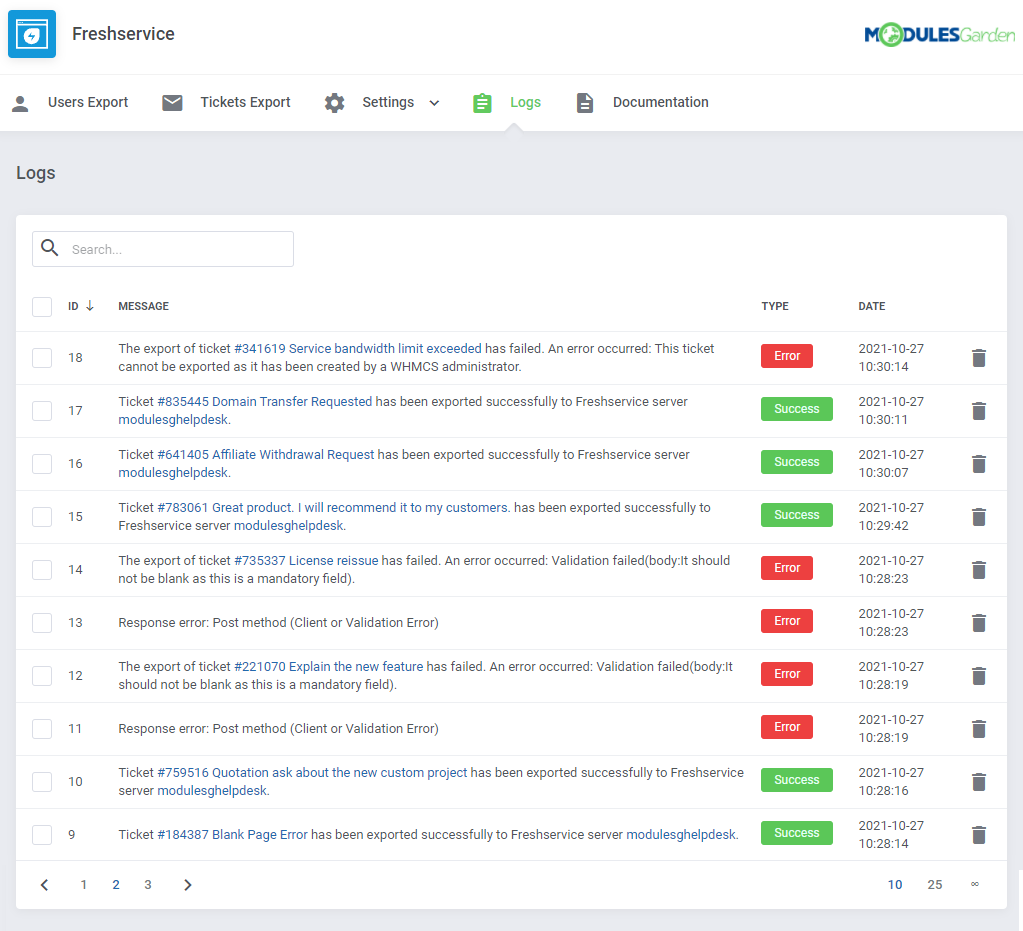
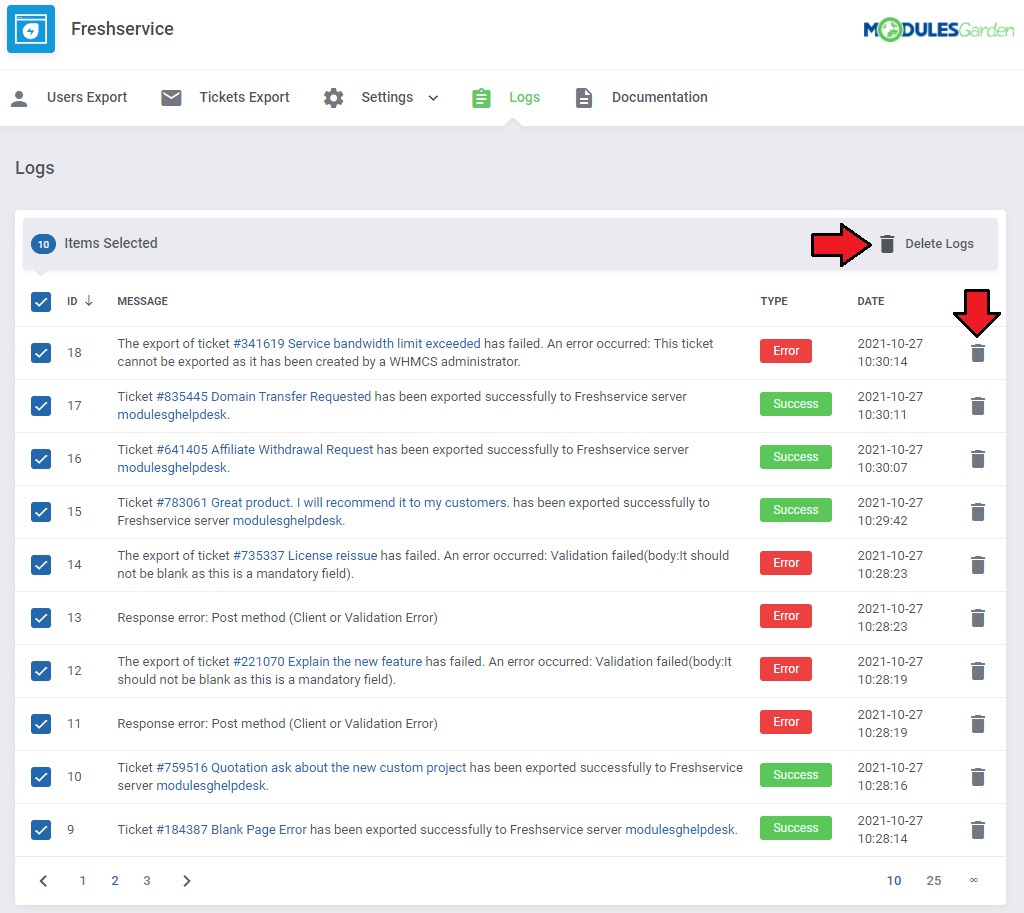
In case you no longer wish to see a particular log you can easily remove it. Click on the bin icon next to a selected entry as presented on the screen below.
In order to delete multiple logs at the same time you can simply take advantage of the 'Mass Remove Action'.
# Tips
If you create a custom field in Freshservice, it will be also visible in WHMCS. Custom fields need to be enabled/visible/editable by the client.
In case you wish to use a custom template, do not forget to place its files in the following directory:
/modules/addons/Freshservice/templates/client/default/pages/submodule/yourCustomTemplateName/You can configure the support sidebars that are displayed in the client area by switching them on/off.
Simply, change the flag from true into false in the following file if you wish to hide the support sidebars.
/modules/addons/freshservice/app/Config/freshservice.yml
# Update Instructions
An essential guidance through the process of updating the module is offered here.
Ensure successful completion of the module update by carefully following each step, thereby preventing data loss or any unforeseen issues.
Additionally, you will find a current list of supplementary actions necessary for a smooth update process there.
# Upgrade Guide
Seeking a solution that offers greater flexibility, customization tailored to your precise needs, and unrestricted availability?
There is an option that not only proves to be cost-effective in the long run but also includes prioritized support services, making it a truly valuable investment.
Opt for the Open Source version (opens new window) of your Freshservice For WHMCS module to unlock these benefits.
Simply click on either the Get Source Code or Upgrade To Lifetime button found on the product's page in our client area to complete the one-step upgrade process, with a dedicated discount already applied.
Follow a comprehensive guide covering the transition process, the advantages it brings, and step-by-step instructions on what to do next after the order has been successfully finalized.
# Common Problems
When you have problems with connection, check whether your SELinux or firewall does not block ports.
In case it is taking too much time for new tickets to appear, keep in mind that the module's cache is set for 5 minutes.
Some of other module elements may also not reflect immediate changes made in the Freshservice panel.
If you need the immediate cache refreshment, go to the 'Ticket Settings' or save 'Sever Settings' again.We do not recommend using Freshservice For WHMCS module either with Multibrand For WHMCS or with Resellers Center For WHMCS.
Integration between these modules is hampered due to specific features of each one of them and their individual work flow.