

# Translations Tool
# About Translations Tool
Translations tool is an integrated feature designed for seamless, efficient, and user-friendly customization of language files in various capacities.
Its user-friendly design ensures a smooth and efficient process, making it a versatile solution for managing a variety of language file customizations.
Use this inbuilt into a ModulesGarden addon module tool to easily prepare translations of the original English files.
The Translations tool may differ slightly across modules. This is due to newly implemented features that may not yet be available in your specific module version.
If you notice any missing options, rest assured, they will most likely be included in the next module update.
# Management
The Translations tool allows quick, easy and intuitive management of language file customizations of any kind.
Read through the below descriptions to learn how to take the most from this inevitably flexible and helpful tool.
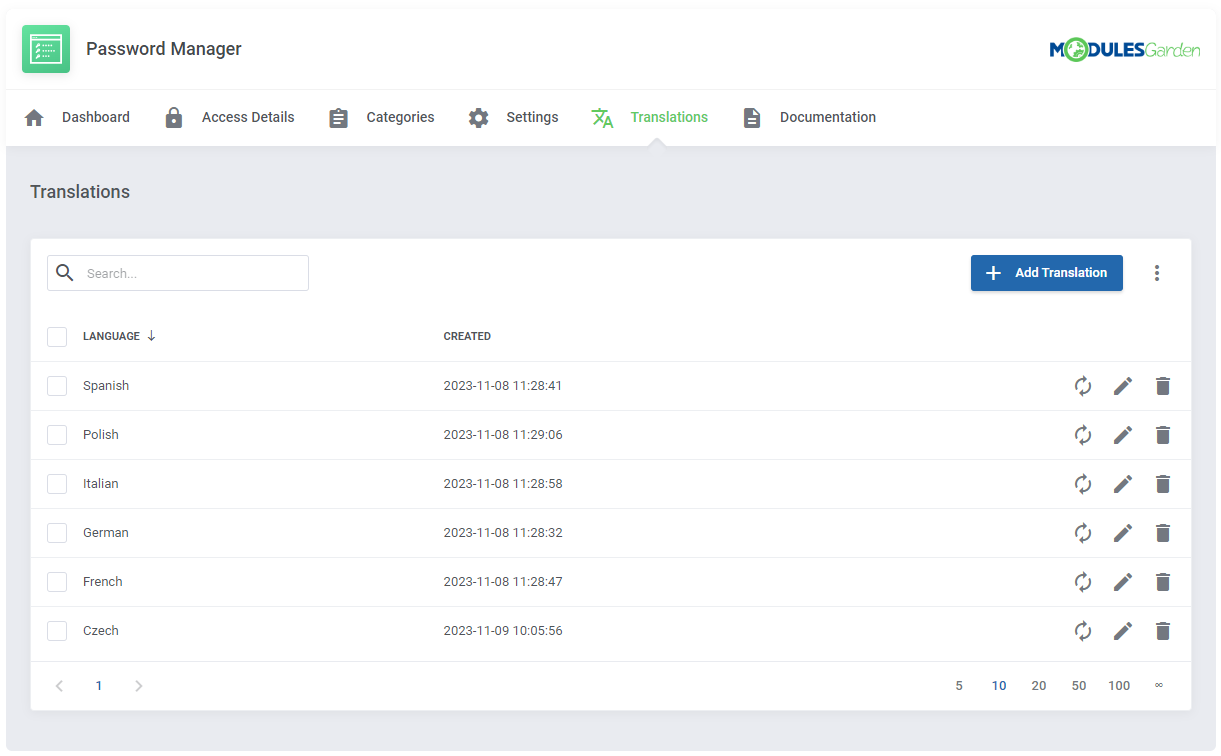
# Module Translations
# Languages
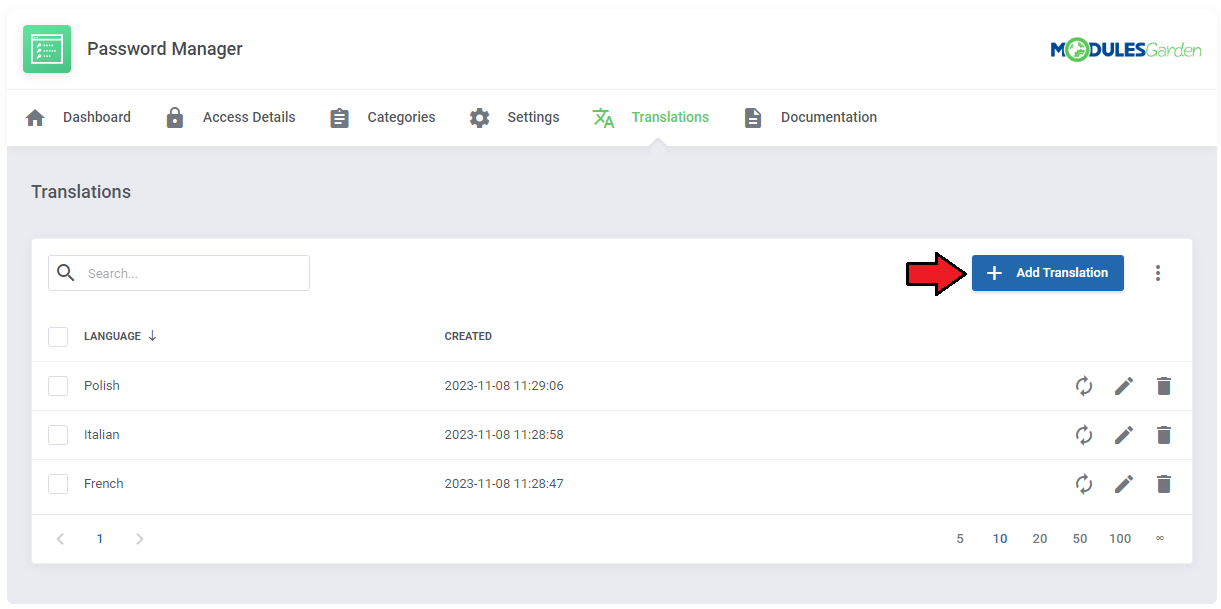
Steps to follow to add a new translation of the module files are very simple. On this page you will find all already created translations, if there are any.
Press 'Add Translation' to begin.
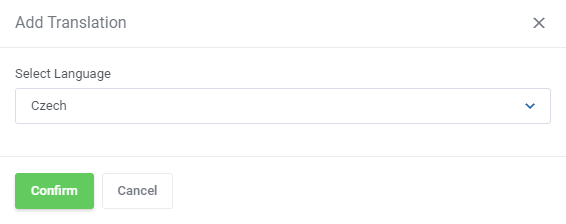
A new modal will appear, choose the language for which you aim to prepare the translation.
Once confirmed, the language will appear on the list.
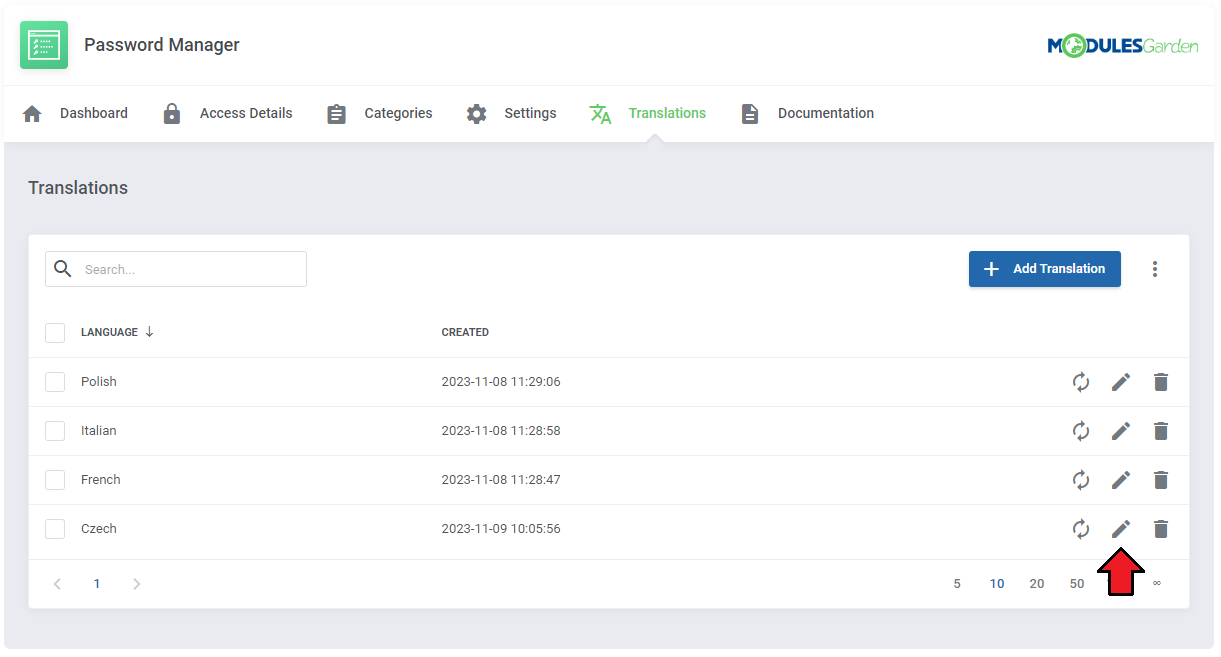
Now you will have to customize the language elements of this translation. Press 'Edit' icon, next to the language.
You will be moved to the next section.
There are automatically loaded all of the elements from the original module language file. You may now change, modify, delete or basically translate every line or just some of them.
To manage the single language element, press 'Edit' next to this line.
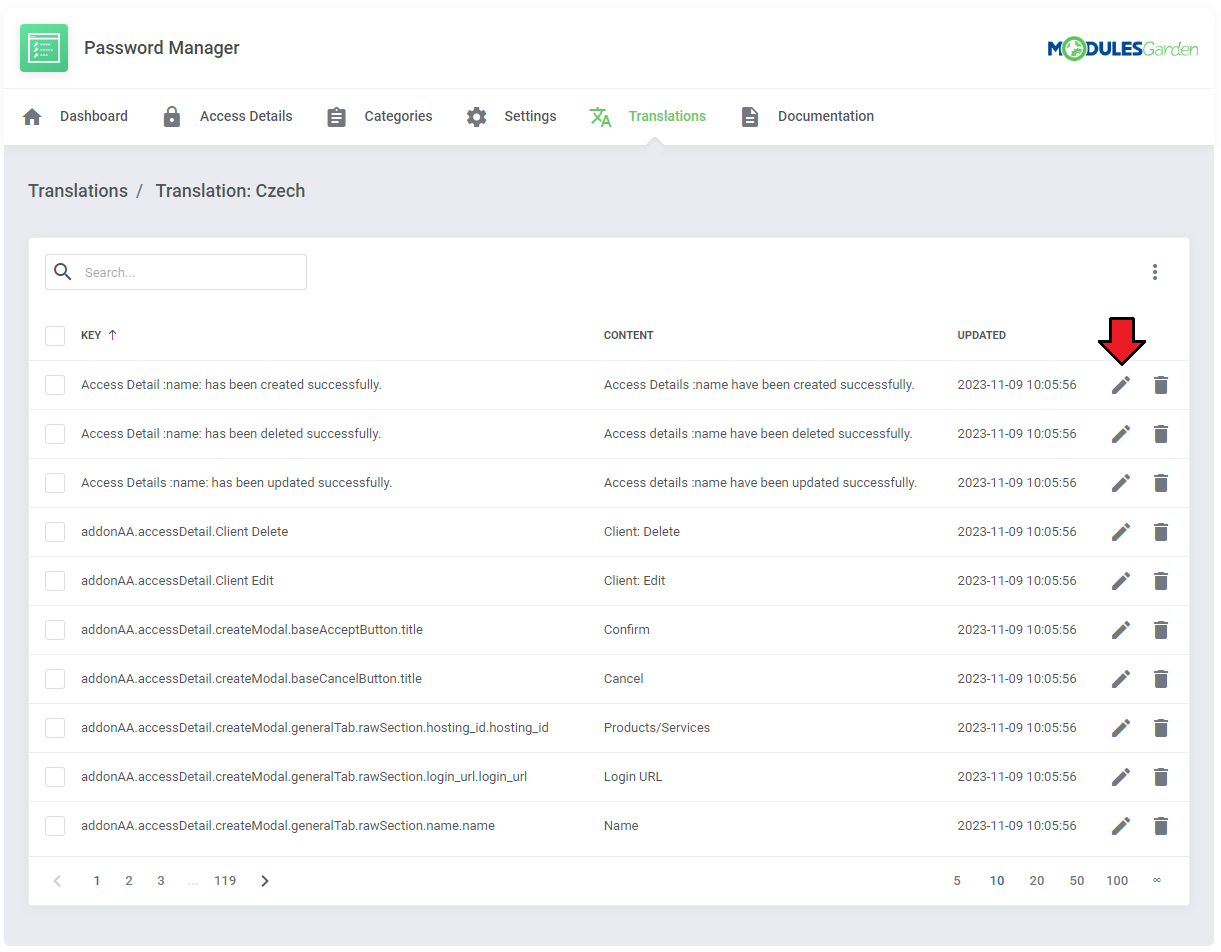
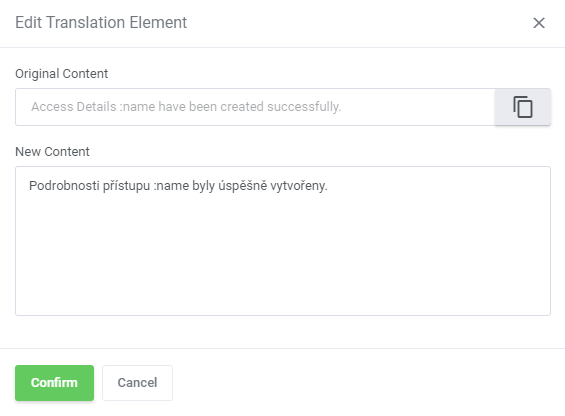
In dedicated modal form, customize the content according to your needs. Press confirm to finalize.
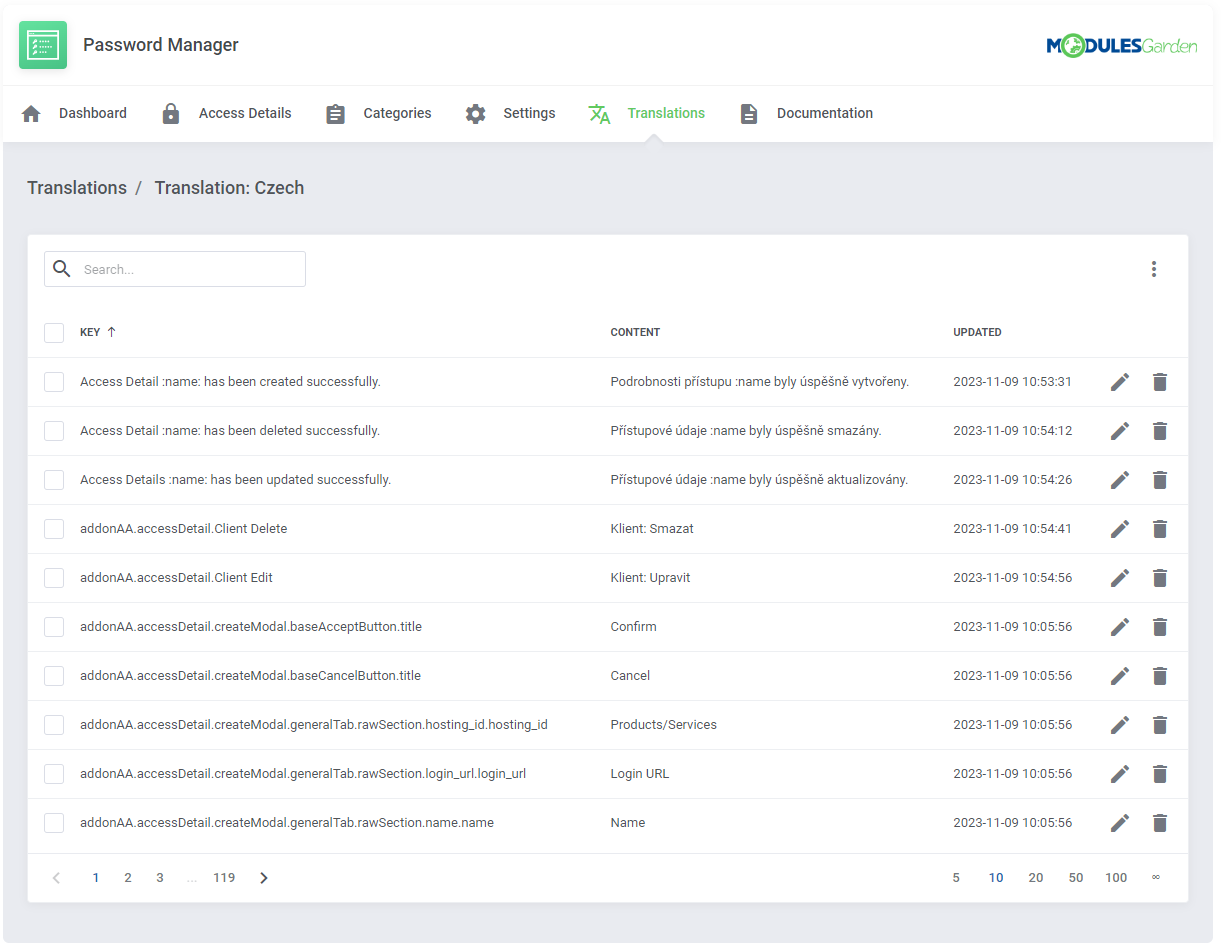
Now the new translated element is ready, repeat the steps for every element you wish to translate, modify or customize in any way you need.
Clients and/or admin users using the selected language in their WHMCS will now see the module with the customized langs.
# Missing Elements
The Missing Elements section lists any untranslated keys that are dynamically discovered during module usage.
Entries are added here automatically when the module encounters an undefined language string. This includes strings missing from both the main english.php file and any installed translation packages.
The system tracks these unresolved strings and displays them in the Missing Elements tab.
If you notice a missing element that is important for you or your client's daily operations, you can easily provide a translation. Simply click the "+" icon to open the Add Missing Element modal.
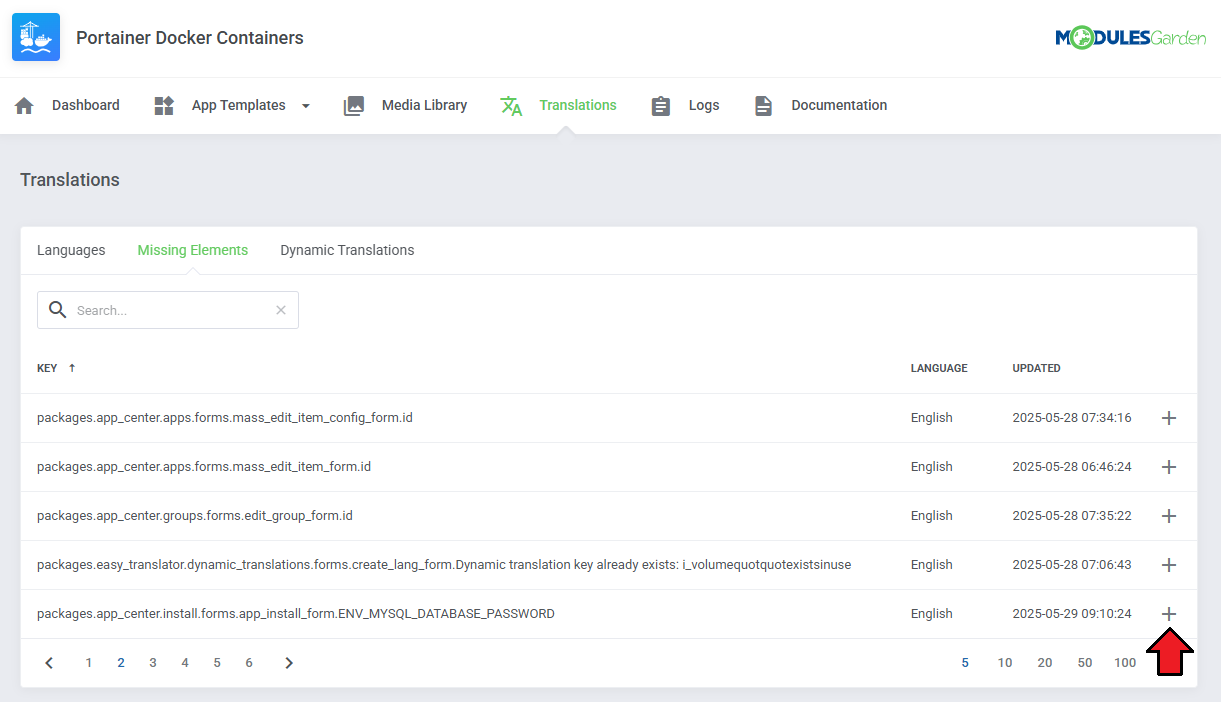
The key field is auto-filled and read-only. Provide the translated text in the editable area and confirm to save.
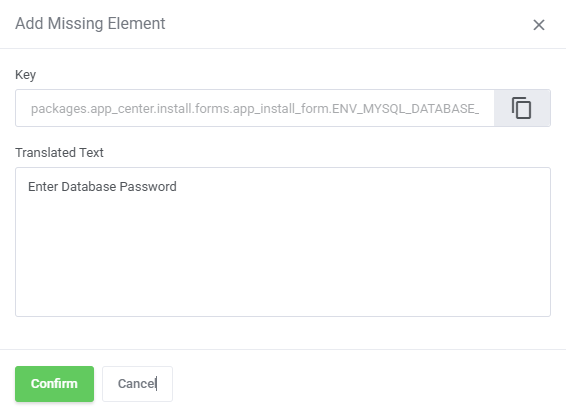
Note: once a missing element is added, it will immediately disappear from the list. It is saved in the database and becomes available for translation in other languages.
Return to the Languages section, your English file has just been updated. You can preview and modify the newly added element there.
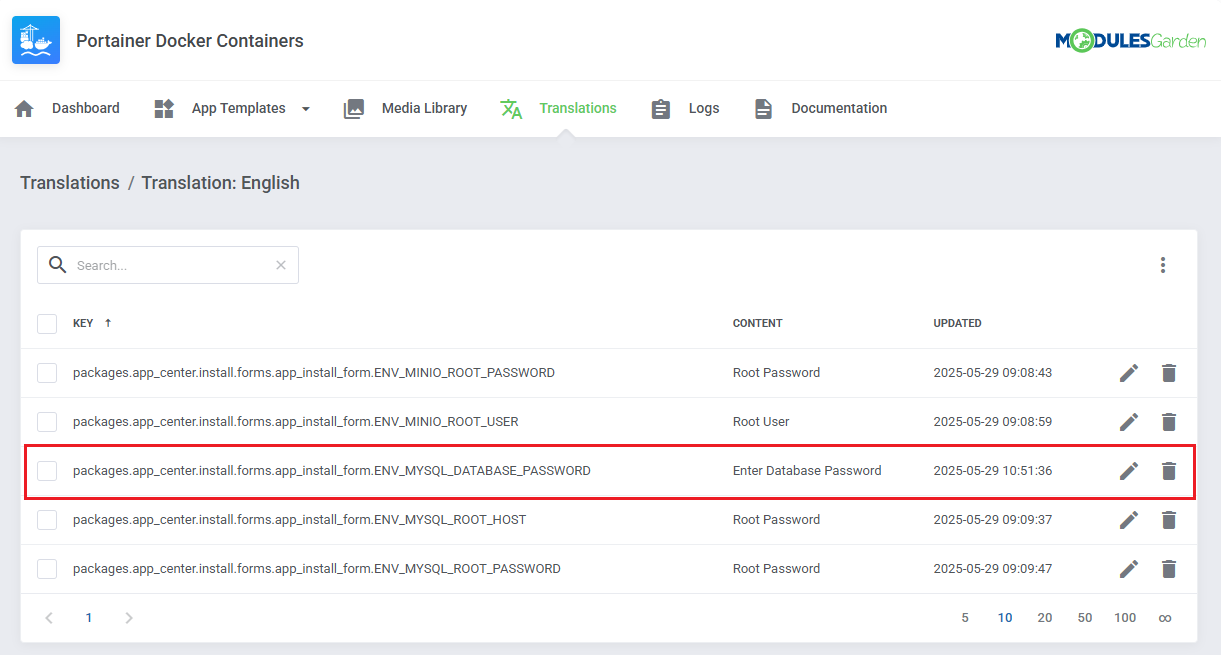
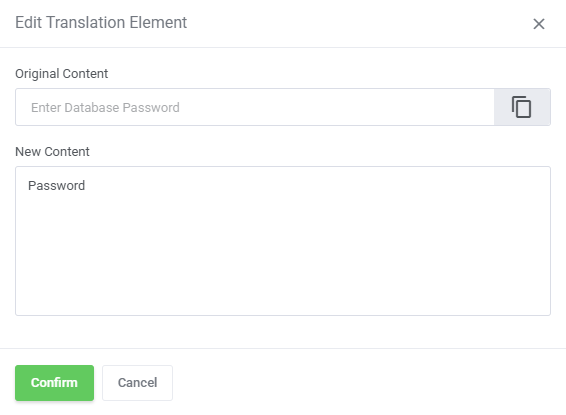
Update your other language files to include the new element, then provide translations for each target language.
# Dynamic Translations
Some strings returned by APIs are dynamic and unpredictable, for example, error messages with unique codes.
Dynamic Translations allow you to define regular expression (RegEx) matchers that capture such variable content and route it to a predefined translation key.
This makes it possible to translate a wide range of similar but non-identical system messages into consistent, user-friendly outputs.
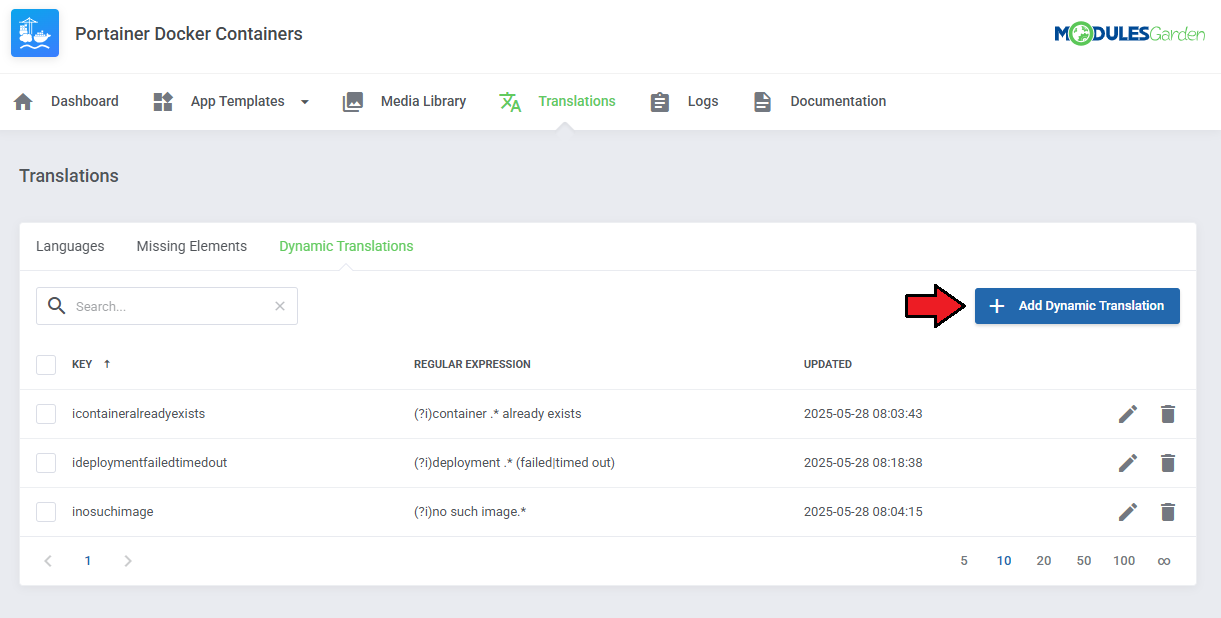
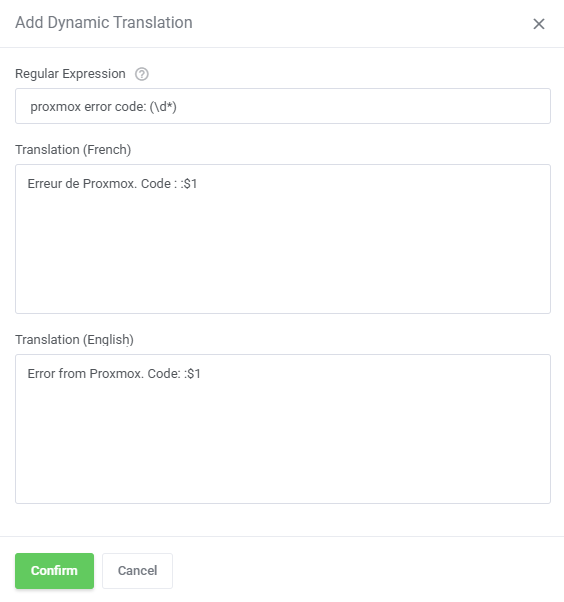
Use the Add Dynamic Translation button to define a new translation rule based on a regular expression. Provide:
- A regular expression to match incoming dynamic messages
- A translation in a dedicated language
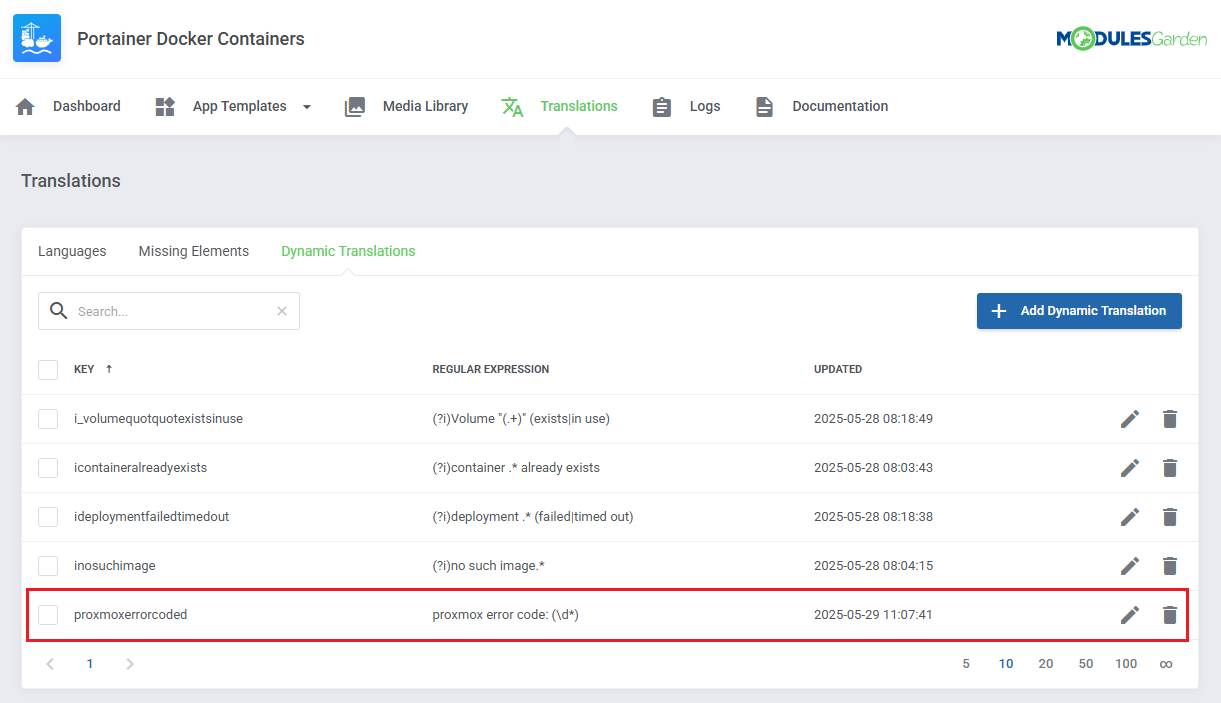
Important:
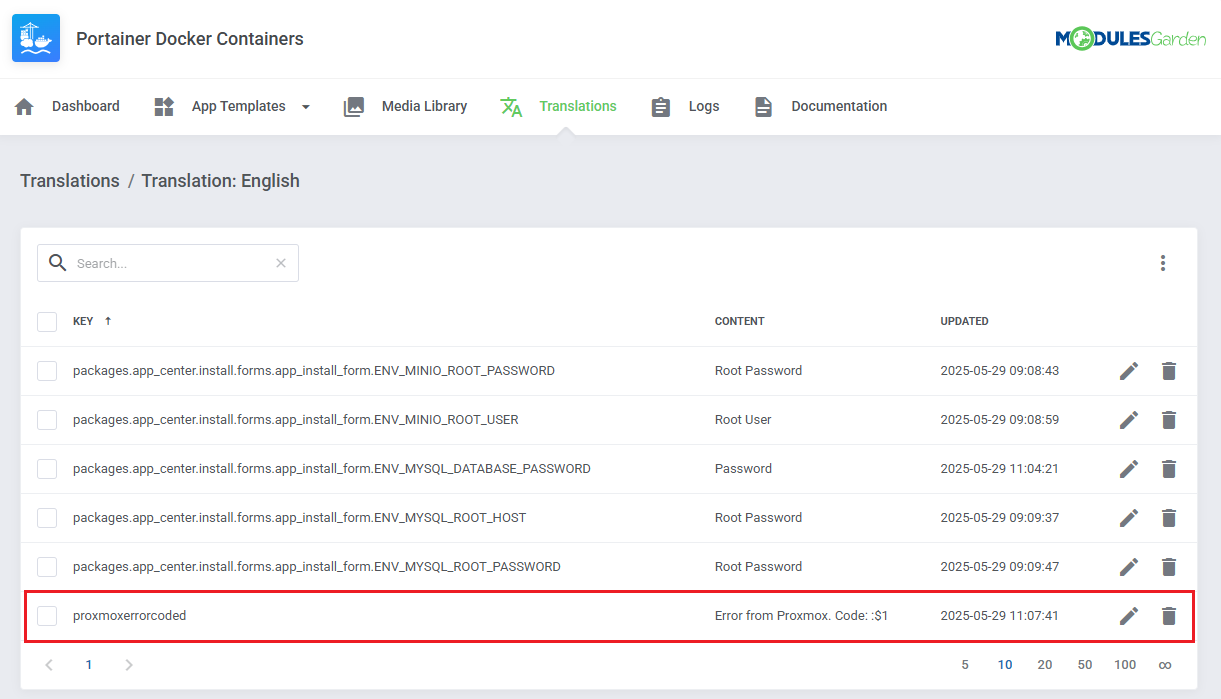
If you provided translation in your default language (English), the dedicated translations element will be visible in that language.
If no translation exists yet for the static key, it will be listed in the Missing Elements tab, where you can add the final translated text.
# Matching and Replacement Logic
When a message fails to find a direct match in language files, the system tries to match it against your defined regular expressions. If a match is found:
- The message is redirected to the specified key
- Captured groups from the regex can be reused in the final translation using the syntax
:$1,:$2, etc.
Example Regular Expressions
Use patterns like these to catch common dynamic message formats:
^Error:\s+(.*)$- matches any error starting with "Error:" and captures the rest(container|image) .* not found- matches messages like "container nginx not found" or "image apache not found"deployment .* (failed|timed out)- handles deployment-related issuesVolume "(.+)" (exists|in use)- translates volume-specific errorsnetwork .* is (already|still) in use- identifies network usage conflicts
Tips for writing expressions
- Use
()for grouping - Use
|for alternation - Use
.*for wildcards - Use
:$group_numberin translation as replacement (starting from "1", eg.:$1)
Exemplary output:
A regex: proxmox error code: (\d*) with a translation: Error from Proxmox. Code: :$1 will transform:
proxmox error code: 001 → Error from Proxmox. Code: 001
# Module Updates
When your module is updated to a newer version, none of your language changes will be overwritten.
Thanks to this tool, you will no longer have to remember to verify changes and manually update the language file.
If any translation requires action, you will be notified about that so as to ensure immediate changes in individual translations.
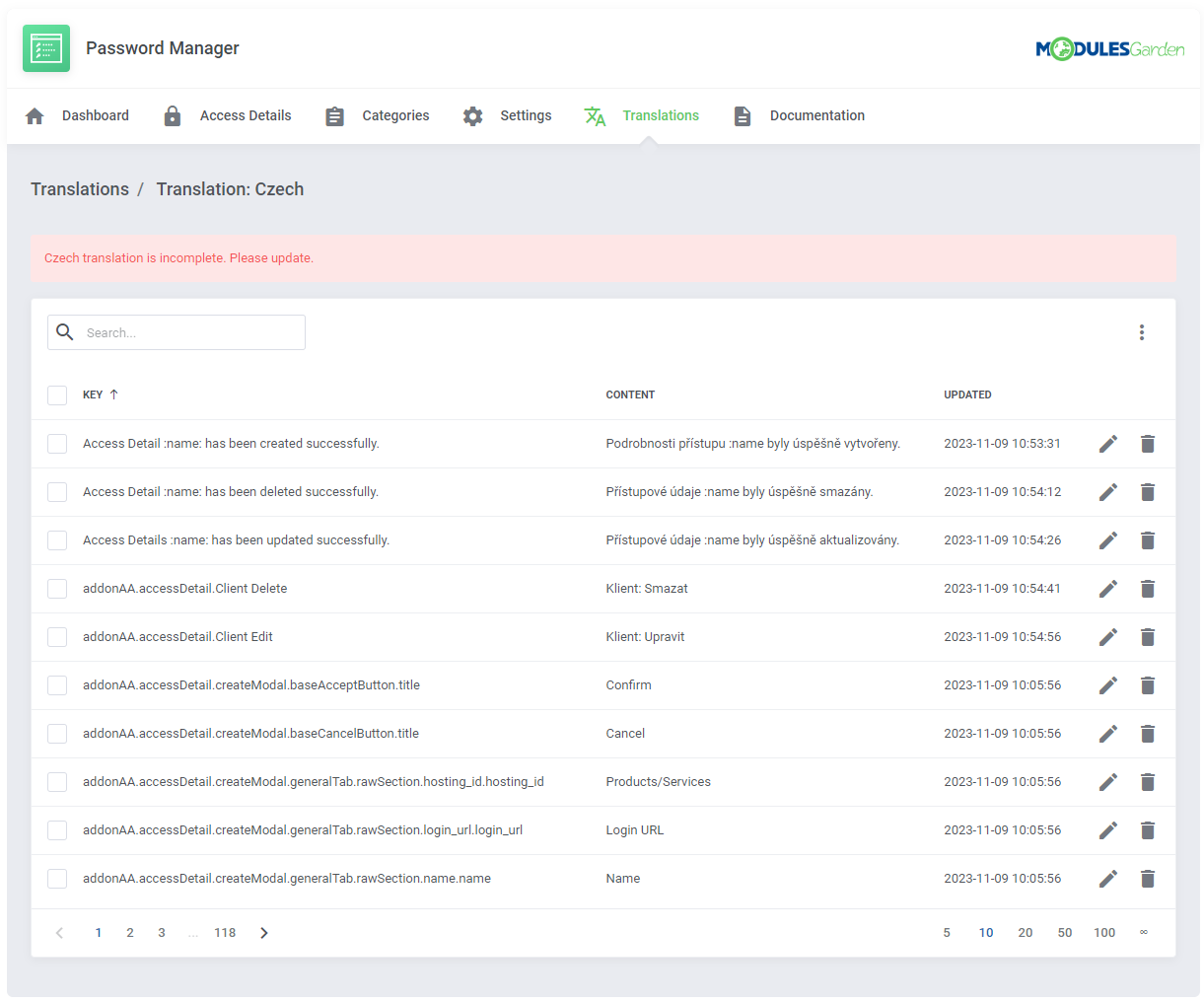
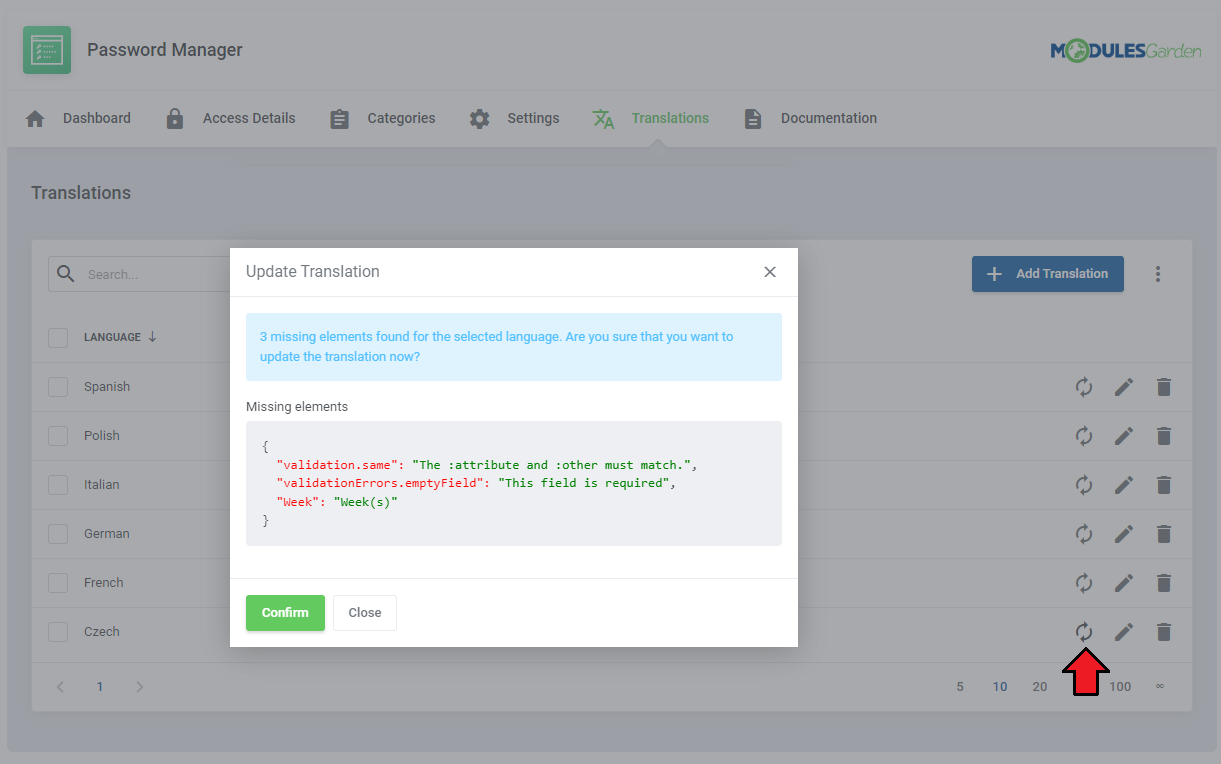
Press 'Update' icon and the tool will detect if there are any new elements added to the main language file (english.php).
If there are any differences, every new line will be displayed in the modal for your knowledge.
Press confirm and all new elements will be added to the selected translation. Then you will be able to modify them or translate them to keep the translation updated.
# Additional Actions
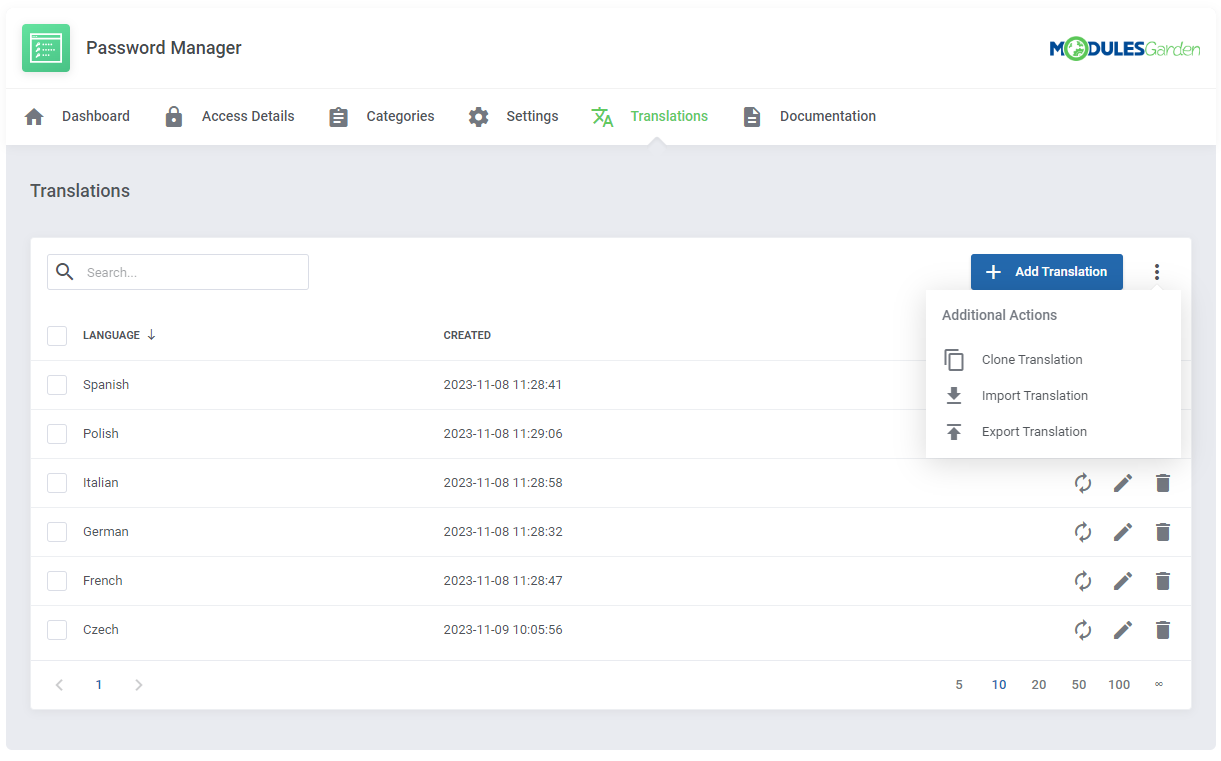
Translations tool offers a few extra features that will help you speed up and facilitate the customization of language files. These are:
- Cloning Translation
- Importing Translation
- Exportint Translation
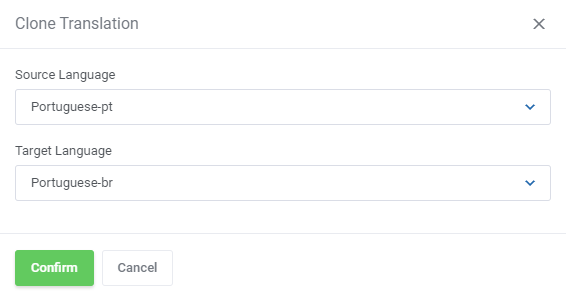
You may clone a translation, that is the customized file content form one language directly to a new one.
This feature is helpful when you have no differences, or very few differences between two translations.
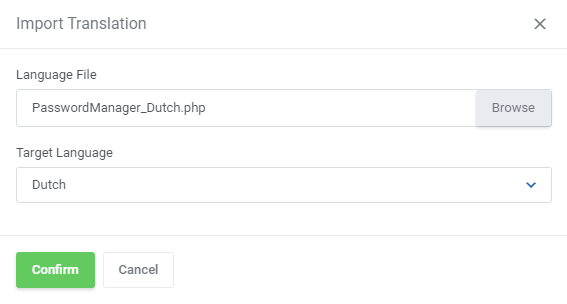
Upload a ready language file from your disk directly to the module. The selected in the 'Target Language' field language will create the content of the uploaded file.
This feature is especially helpful if you already use other than default 'english.php' files and wish to use our tool for future updates and management.
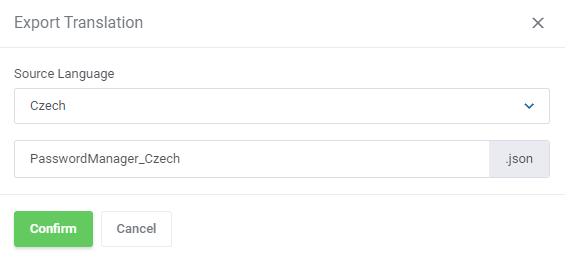
To export a translation simply select the language you are interested in and save its content as a .json or .php file on your disk.
# Tips
If the Translations section looks slightly different in one of your modules, it is most likely because new features are being added gradually.
Missing options in your version will appear in the next module update.Please be aware that the module translation tool does not cover configurable options translations.
These can only be translated by editing the Friendly Display Name of each option directly in WHMCS. You can read more about configurable options in the WHMCS documentation (opens new window) and our dedicated documentation page.