

# EasyDCIM Colocation V1.X For WHMCS
# (opens new window) About EasyDCIM Colocation For WHMCS (opens new window)
EasyDCIM Colocation For WHMCS is a free module that will allow you to provide and manage your EasyDCIM (opens new window) colocation services from the WHMCS area.
You will be enabled to, among others, determine the status of each colocation, and your clients - turn off and on their power outlets remotely.
At the same time you and your clients will both be empowered to display statistics on traffic and power usage as well as log in to the EasyDCIM panel with a single click.
Admin Area Features
- Create/Terminate/Suspend/Unsuspend Colocation
- Update Order Information
- One Click Login To User Control Panel
- View Colocation Resource Usage:
- Bandwidth Statistics
- Traffic Statistics Graph
- Power Usage Graph
- Generate Default Configurable Options
- Configure Colocation:
- Model
- Location
- Toggle Automatic Order Acceptance And Colocation Matching
- Control Service Access Level
- Control Service Actions And Email Notifications
- Define Client Area Features:
- Display Base Features:
- Label
- Model
- Location
- IP Address
- Allow Colocation Actions:
- Auto Login Link
- Traffic Statistics
- Display Other Features:
- Traffic Statistics
- Power Usage Statistics
- Power Outlets
- Display Base Features:
Client Area Features
- View Colocation Model/Location/Label
- One Click Login To User Control Panel
- View Traffic Statistics Graph
- View Power Usage Graphs
- Enable/Disable/Restart Power Outlets
Configurable Options
- Colocation Model
- Colocation Location
Advanced Billing Integration
- Bill For Current Power Usage
- Bill For Current Bandwidth Usage
- Apply 95th Percentile Billing Of Bandwidth Overages
Supported PDU Manufacturers
- APC
- CyberPower
- Enlogic
- Raritan
General Info
- Integrated With Advanced Billing For WHMCS v3.2.2 And Later - Actual Server Resource Usage Billing (read more) (opens new window)
- Multi-Language Support
- Supports EasyDCIM (opens new window) v1.4.3 and Later
- Supports PHP 7.1 Up To PHP 7.4
- Supports WHMCS Template Six
- Supports WHMCS V7.9 And Later
Exclusive Promo Code From ModulesGarden
Save 25% For 3 Months On The EasyDCIM Control Panel With Coupon: WHMCS25%_ED
# Installation and Configuration
This tutorial will show you how to successfully install and configure EasyDCIM Colocation For WHMCS. (opens new window)
We will guide you step by step through the whole installation and configuration process.
# Installation
- Log in to our client area and download the module.
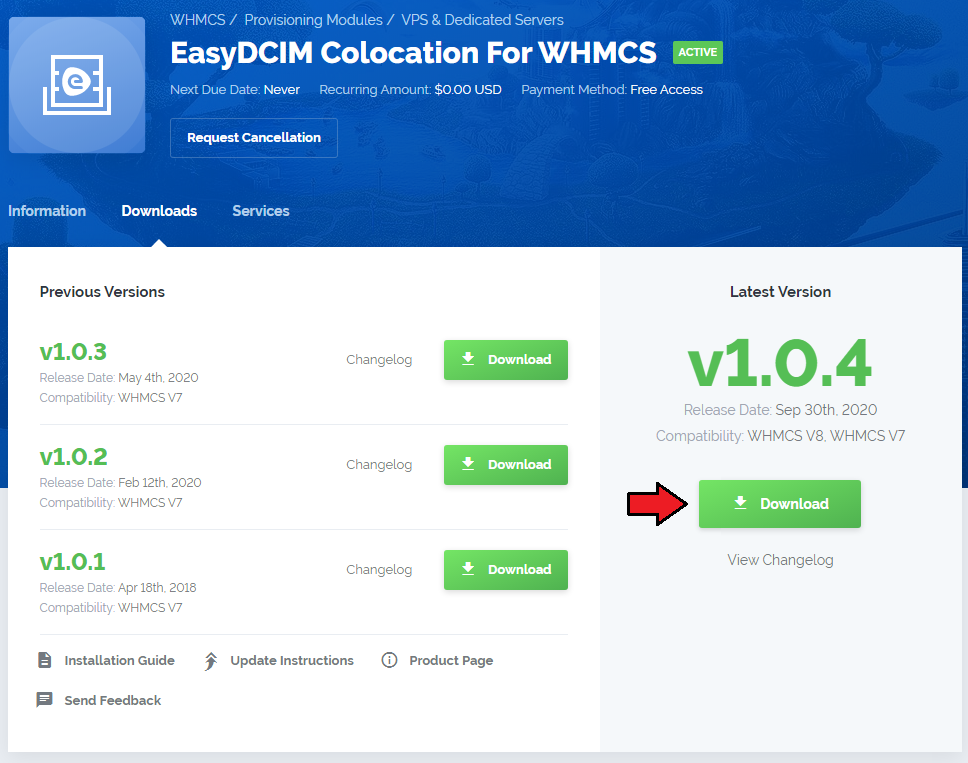
- Extract the downloaded file into the main WHMCS directory.
The content of the package should look like this.

# Configuration of Server
Now, we will show you how to configure a new product.
Go to 'Setup' → 'Products/Services' → 'Servers' and press the 'Add New Server' button.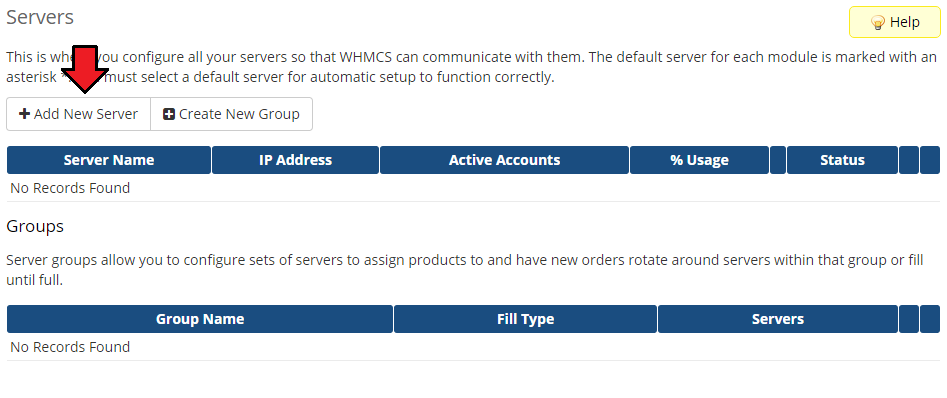
Next, choose 'EasyDCIMColocation' from the 'Type' dropdown menu.
Fill in your server name, address, username and password (API Key). Then check the connection with the EasyDCIM server and press 'Save Changes'.
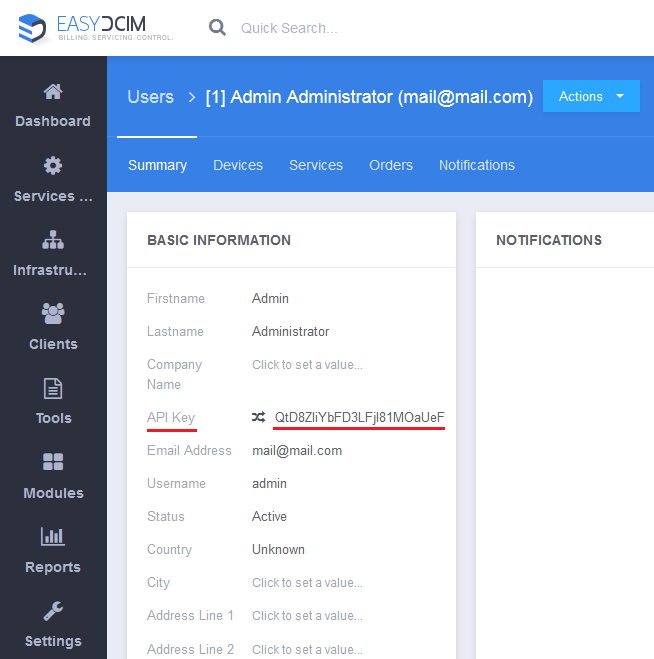
Note: The password can be found in your EasyDCIM administrator user profile listed as 'API Key'.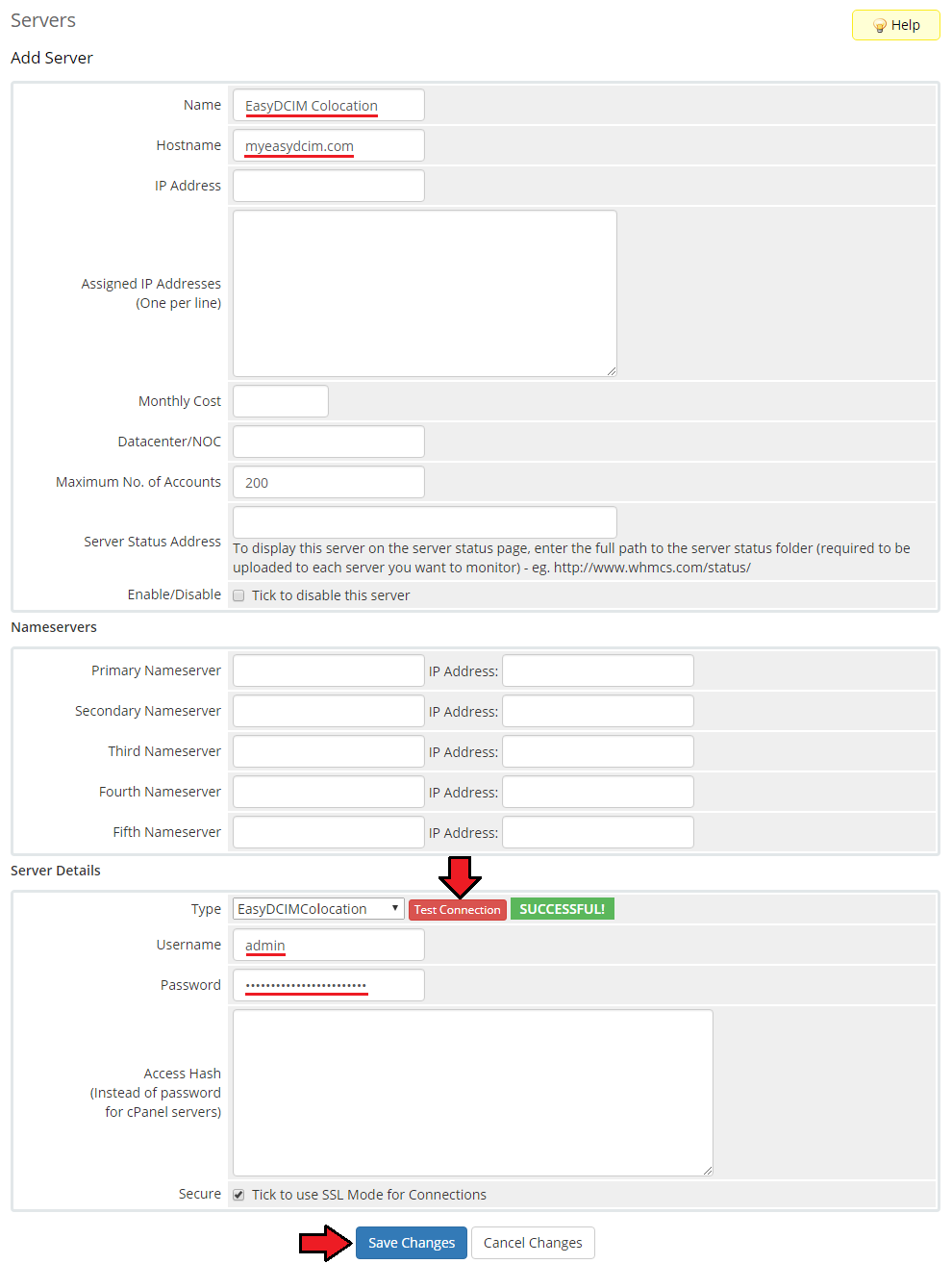
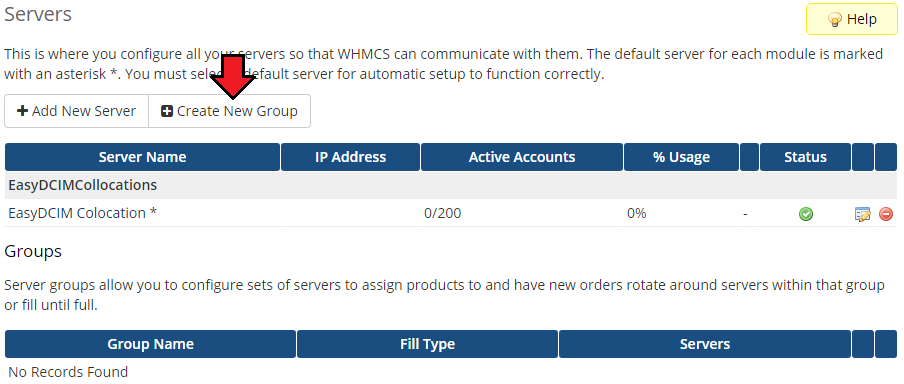
The next step is creating a server group. To do so, click on 'Create Server Group'.
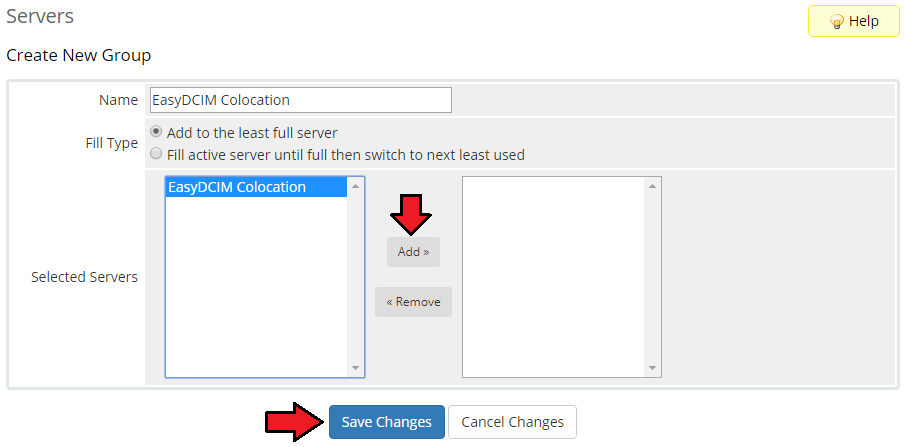
- Enter the name, click on your previously created server, press 'Add' and 'Save Changes' afterwards.
# Configuration of Product
In order to create and configure a product, go to 'Setup' → 'Products/Services' → 'Products/Services'.
Click on 'Create a New Group'.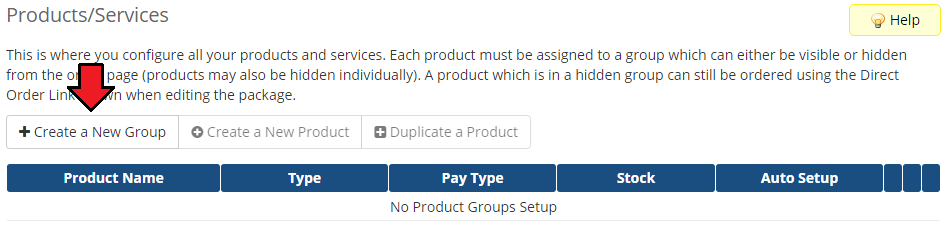
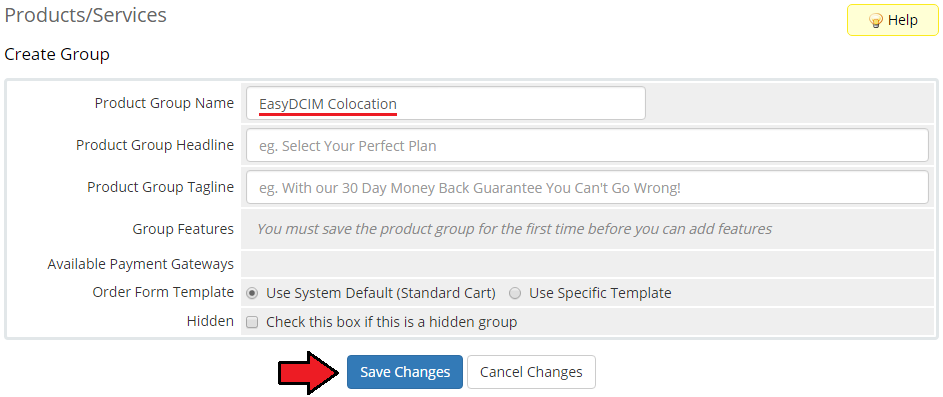
Enter the product group name and press 'Save Changes'.
Once you have a product group, you can assign your product to it.
To create a product, click on 'Create a New Product'.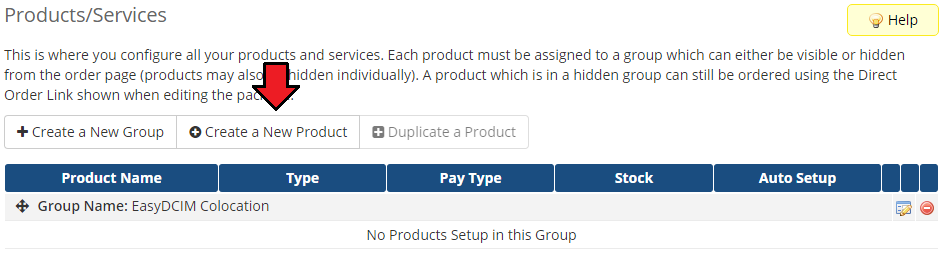
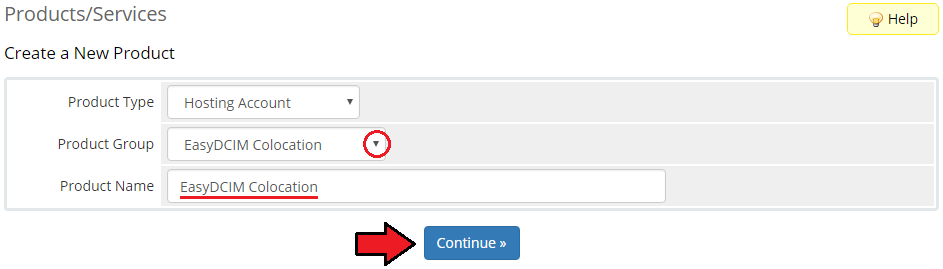
Next, choose your product group, enter your product name and then press 'Continue'.
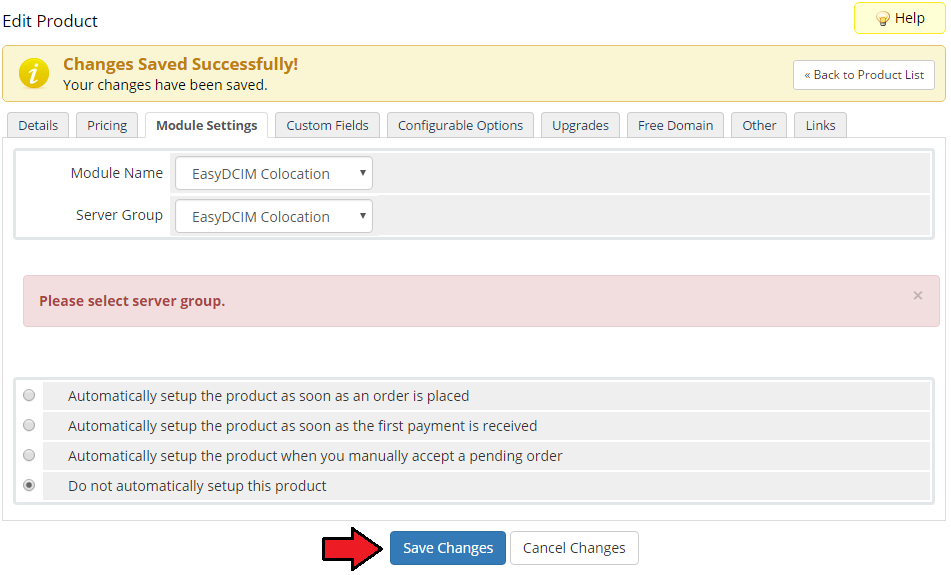
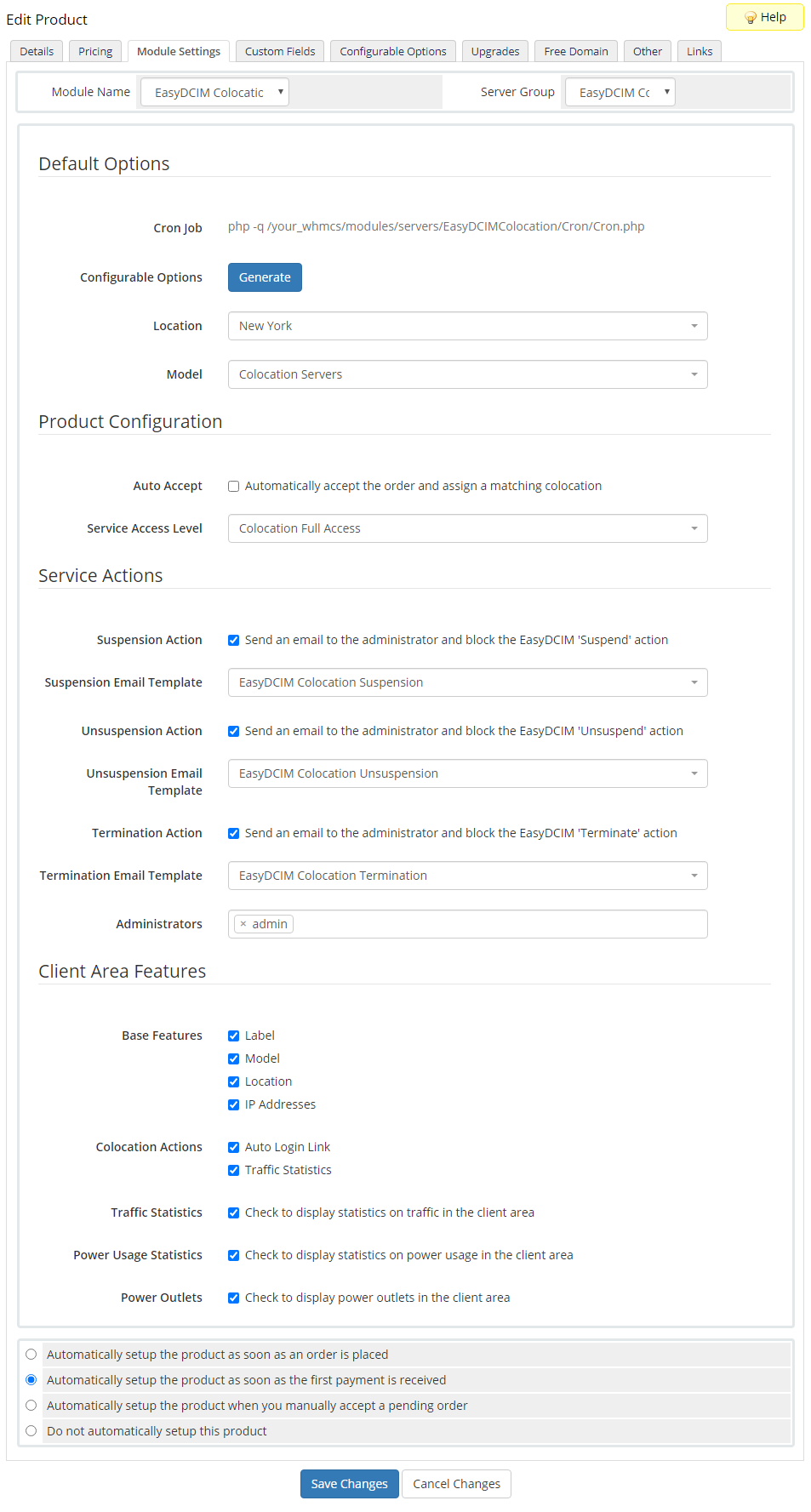
- Now, go to the 'Module Settings' section, choose both 'EasyDCIM Colocation' and your previously created server group from dropdown menus.
Do not forget to click 'Save Changes'.
Before configuring the product, set up the EasyDCIM Colocation cron job.
After order placement the client's services are usually not activated immediately in EasyDCIM (it depends on your EasyDCIM configuration).
In such situations the synchronization cron is used to assign a matching colocation as soon as the service is available.
We suggest to run cron every 5 minutes.php -q yourWHMCS/modules/servers/EasyDCIMColocation/cron/Cron.php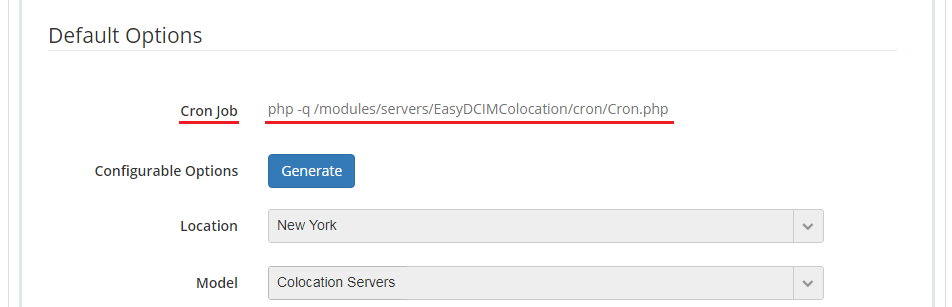
The module configuration is only partly obligatory. The server will be assigned based on the provided configuration, and will therefore match only those options that have been specified.
Default Options
- Configurable Options - generate if you want to use configurable options instead of 'Location' and 'Model' in the 'Module Settings' tab of a product.
- Location (required) - the desired server location
- Model (required) - the EasyDCIM server model
Product Configuration
- Auto Accept - automatically run the server matching process after order placement. Use only if you have configured your EasyDCIM to automatically accept services.
If you use cron synchronization, you can leave this option unchecked. - Service Access Level - configure the access level to control the features available to your clients. These levels and features are defined in your EasyDCIM at 'Clients' → 'Services' → 'Access Level' tab.
Service Actions
- Choose service actions to send certain email notifications to selected administrators instead of performing provisioning actions immediately.
Leave the fields unchecked to perform the default WHMCS module commands. - Choose administrators who will receive the specified service notifications.
Client Area Features
- Define 'Base Features:'
- Label
- Model
- Location
- IP Addresses
- Define 'Colocation Actions:'
- Auto Login Link
- Traffic Statistics
- Traffic Statistics - display statistics on traffic in the client area.
- Power Usage Statistics - display statistics on power usage in the client area.
- Power Outlets - display power outlets in the client area and allow client to manage them.
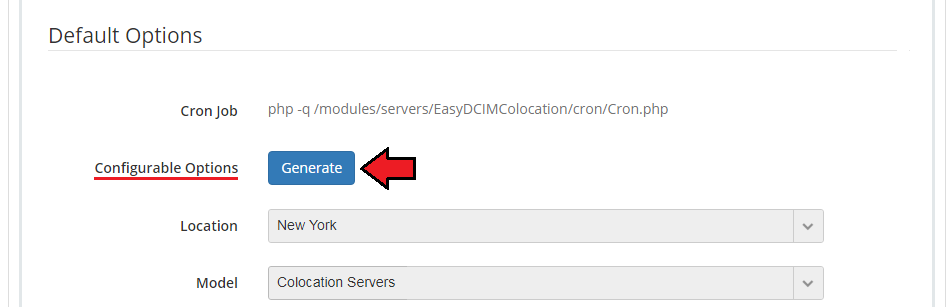
You can also generate the default configurable options to allow your customers place orders tailored exactly to their needs.
To do that, go to 'Setup' → 'Products/Services' → 'Configurable Options'.
Note: Any configurable option will overwrite its counterpart from the 'Module Settings' tab of a product.

# Custom Fields
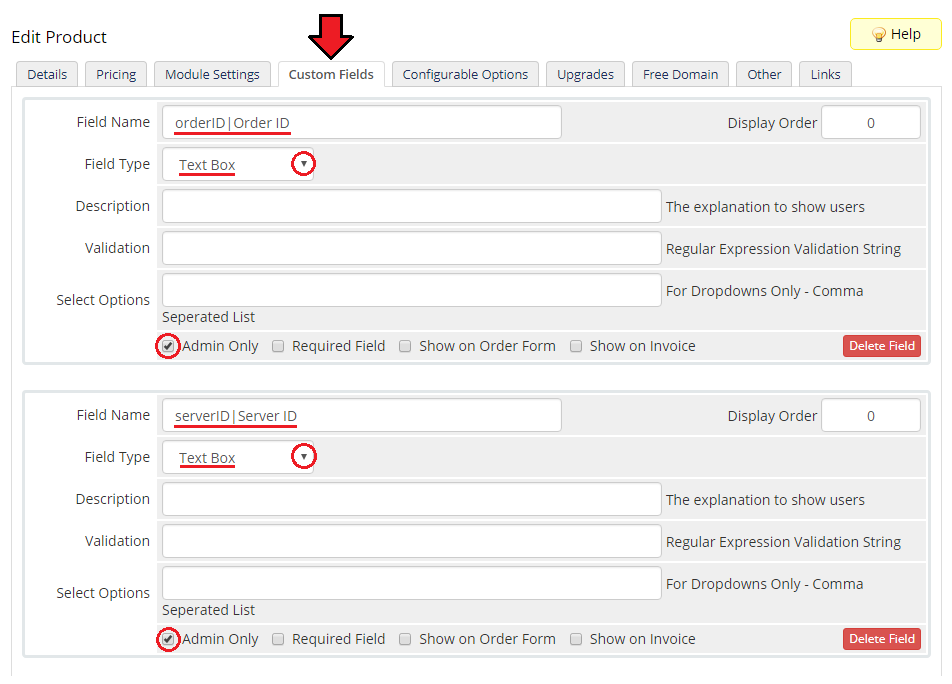
Once the configuration of the module settings has been completed, the following custom fields will be created automatically.
Note: These fields will not be visible to your clients by default.
- OrderID - the number used to link the product with EasyDCIM order number
- ServerID - the number used to link the product with EasyDCIM server ID
# Management
In this section we will show you all functionalities of EasyDCIM Colocation For WHMCS.
Our module allows you to offer and manage EasyDCIM colocation service right in your WHMCS system.
# Admin Area
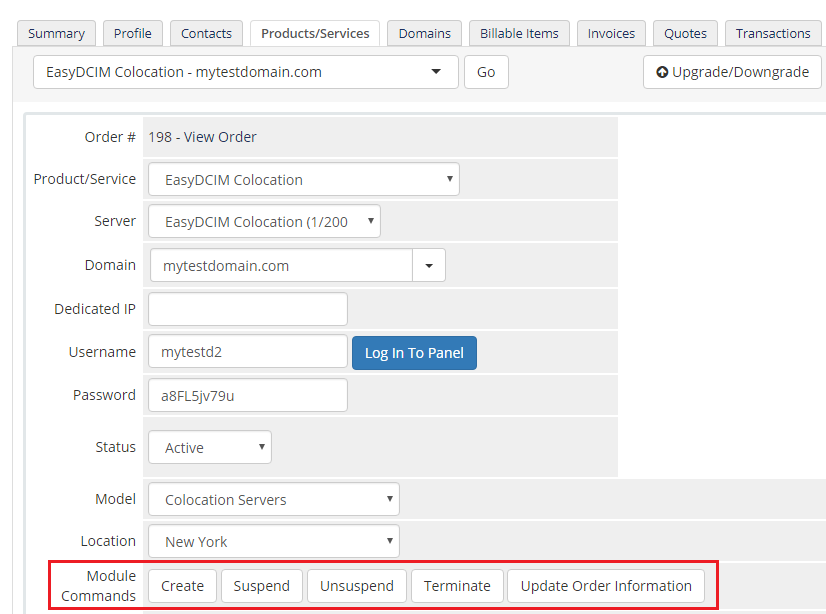
As soon as you set up a server for a client, you can perform various actions and view server details from the WHMCS admin area.
The 'Log In To Panel' button allows you to immediately log in to your client's EasyDCIM control panel.
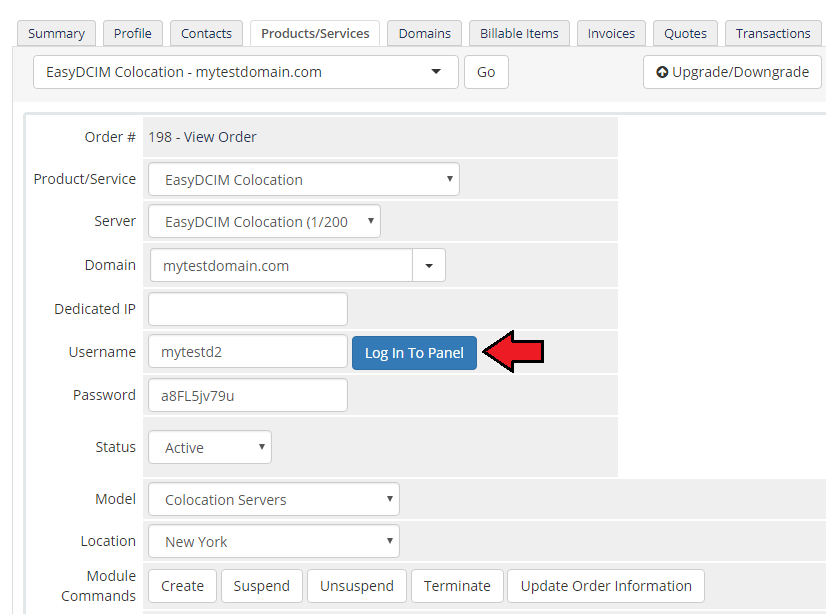
Our module allows you to create/suspend/unsuspend/terminate server.
By clicking on 'Update Order Information' you can also check the synchronization status of a service (works like a synchronization cron).
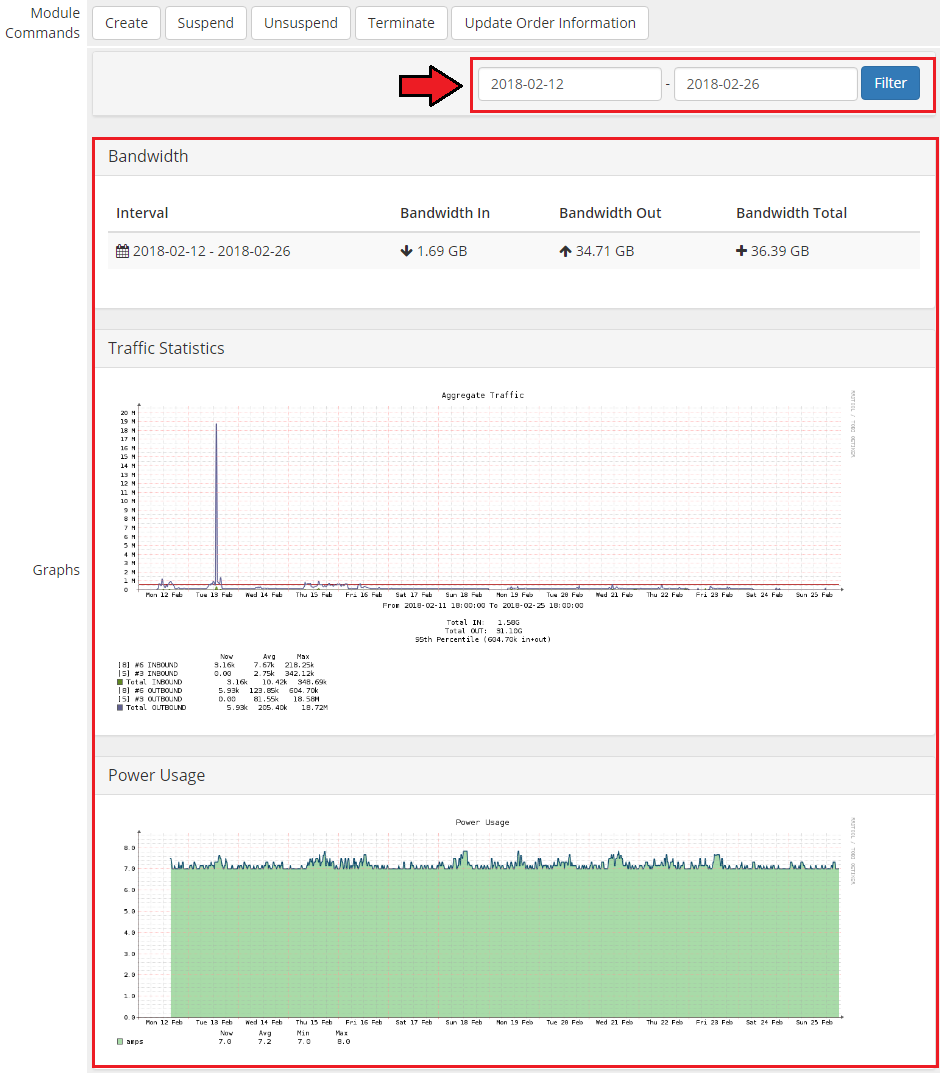
Below these functions you can also view traffic and power usage statistics and even specify the time intervals.
Lastly, you can also see the custom fields with currently assigned 'Order ID' and 'Server ID' from the EasyDCIM panel.
An empty 'Server ID' field means that it has not been automatically assigned by the cron yet (e. g. it may not be activated in the EasyDCIM panel yet).
You can also force synchronization by clicking on the 'Update Order Information' module command, or enter ID manually and save the settings.

# Client Area
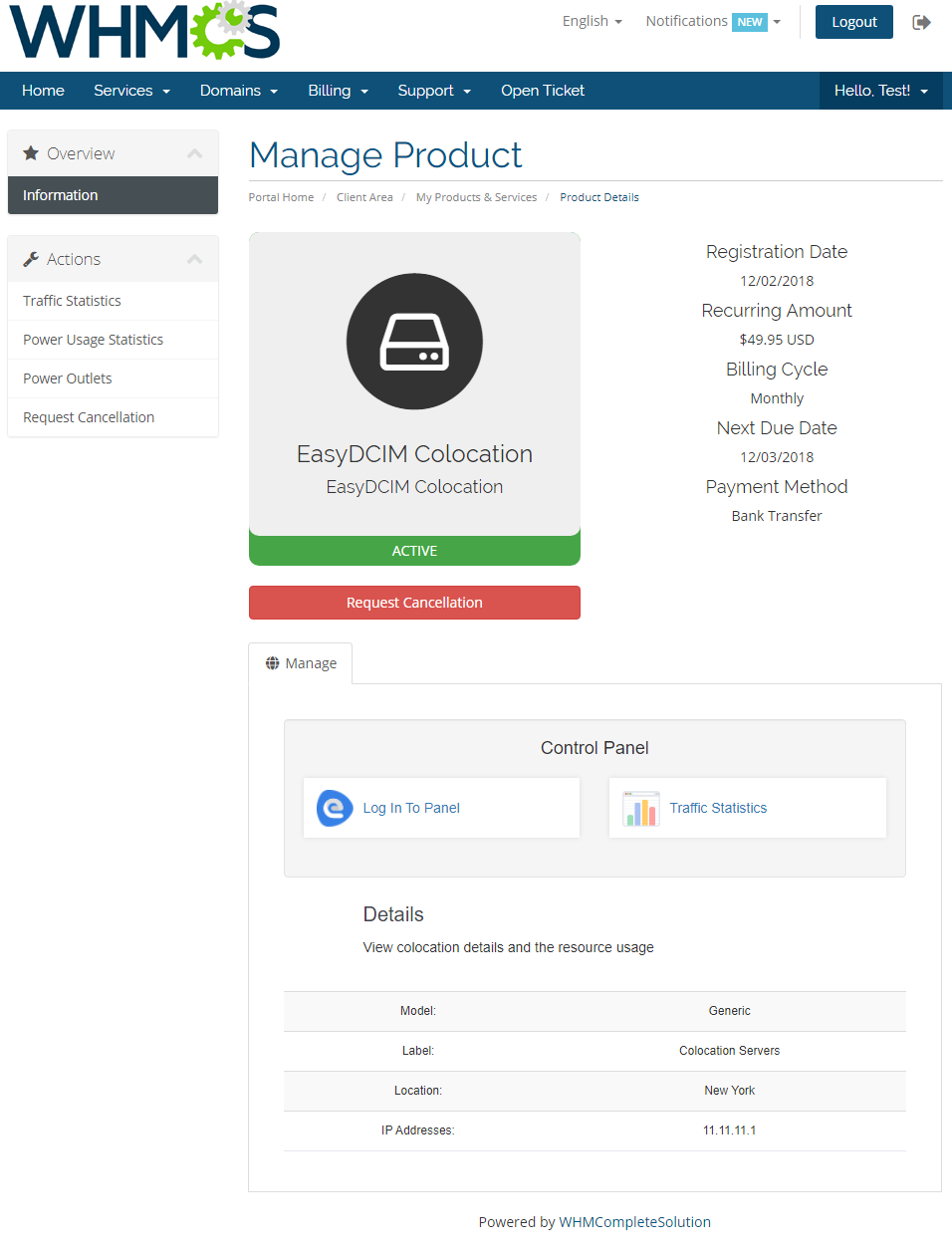
In the main view of the client area your customers can check basic details of a colocation service as well as log in to their EasyDCIM control panel with a single click.
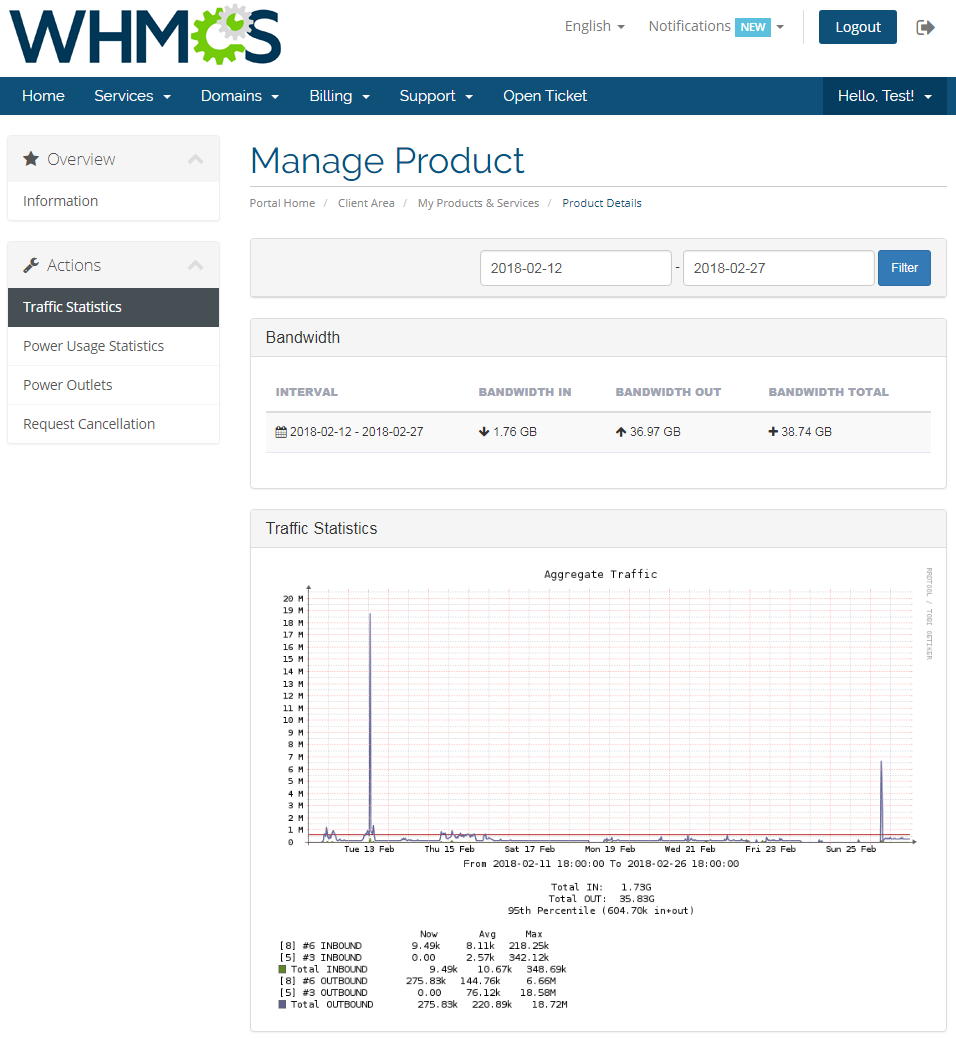
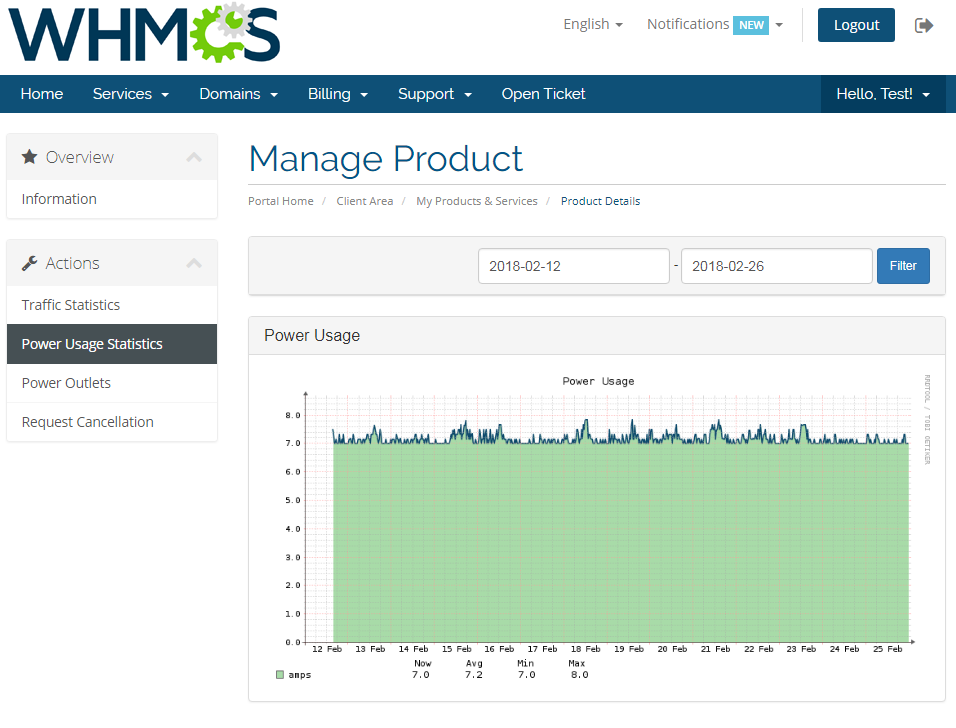
They can also view graph with traffic statistics and even define time intervals.
Note: Available graphs and time intervals depend on the product registration date.
The same goes for power usage statistics.
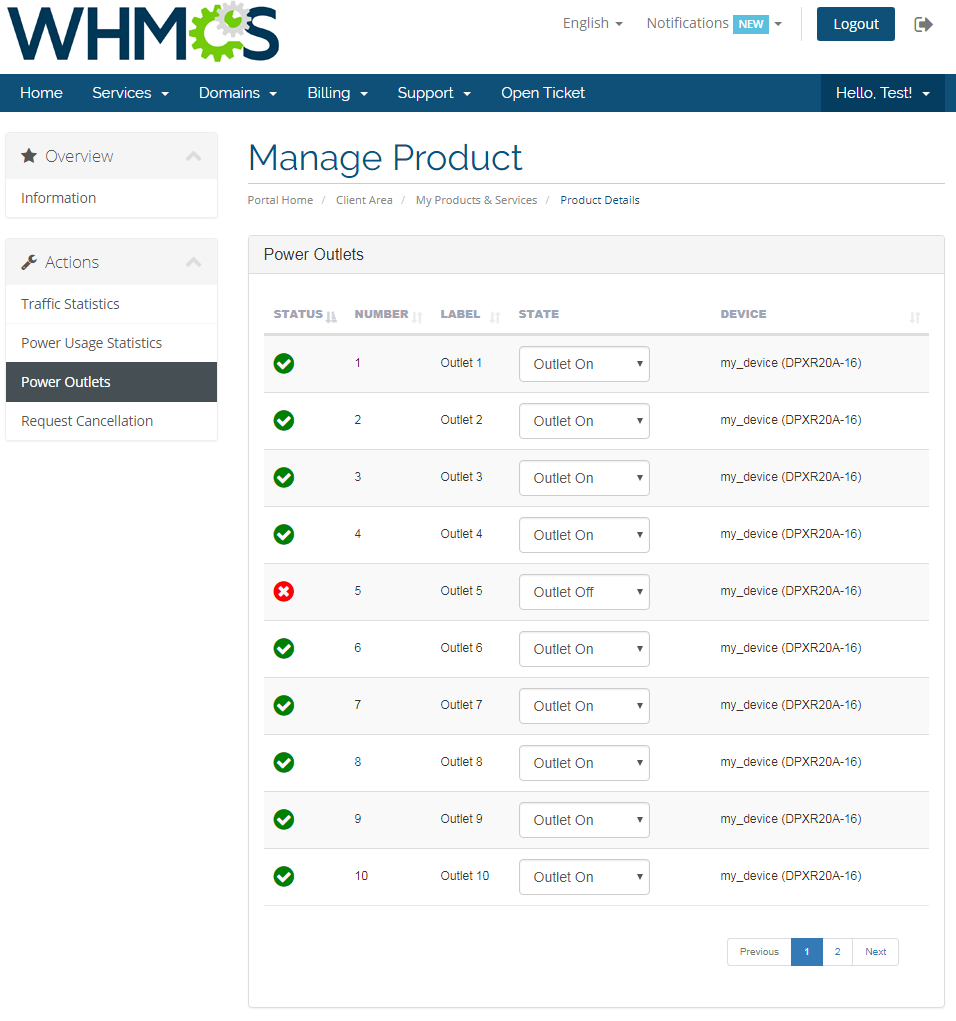
Additionally, your clients can see the current state of all power outlets with the possibility to turn them on, off or restart.
# Advanced Billing Integration
EasyDCIM Colocation For WHMCS supports integration with the Advanced Billing For WHMCS (opens new window) module.
This allows you to charge your customers for total bandwidth, power usage and 95th percentile billing for additional traffic.
Note: We suggest to run the cron only once per hour (with the interval of 3600 seconds).
This is due to the fact that while generating an invoice, only the last billed record is taken into account, so there is no need to collect data more often.
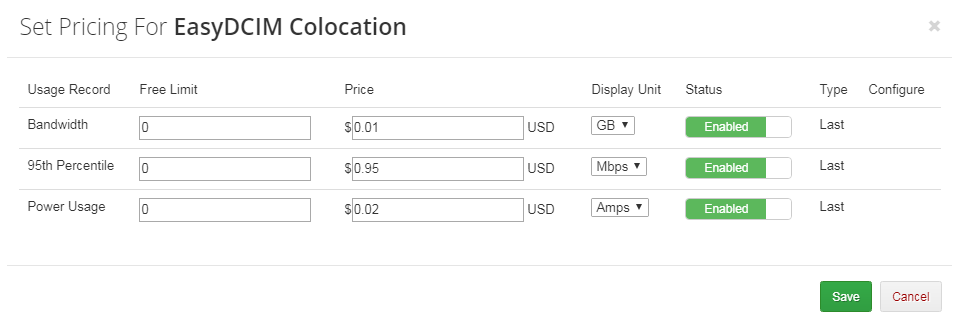
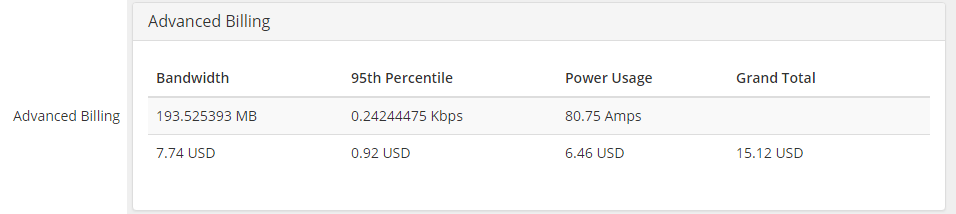
Once the relevant options are enabled, your clients will also be able to view billing for the current usage in your client area.
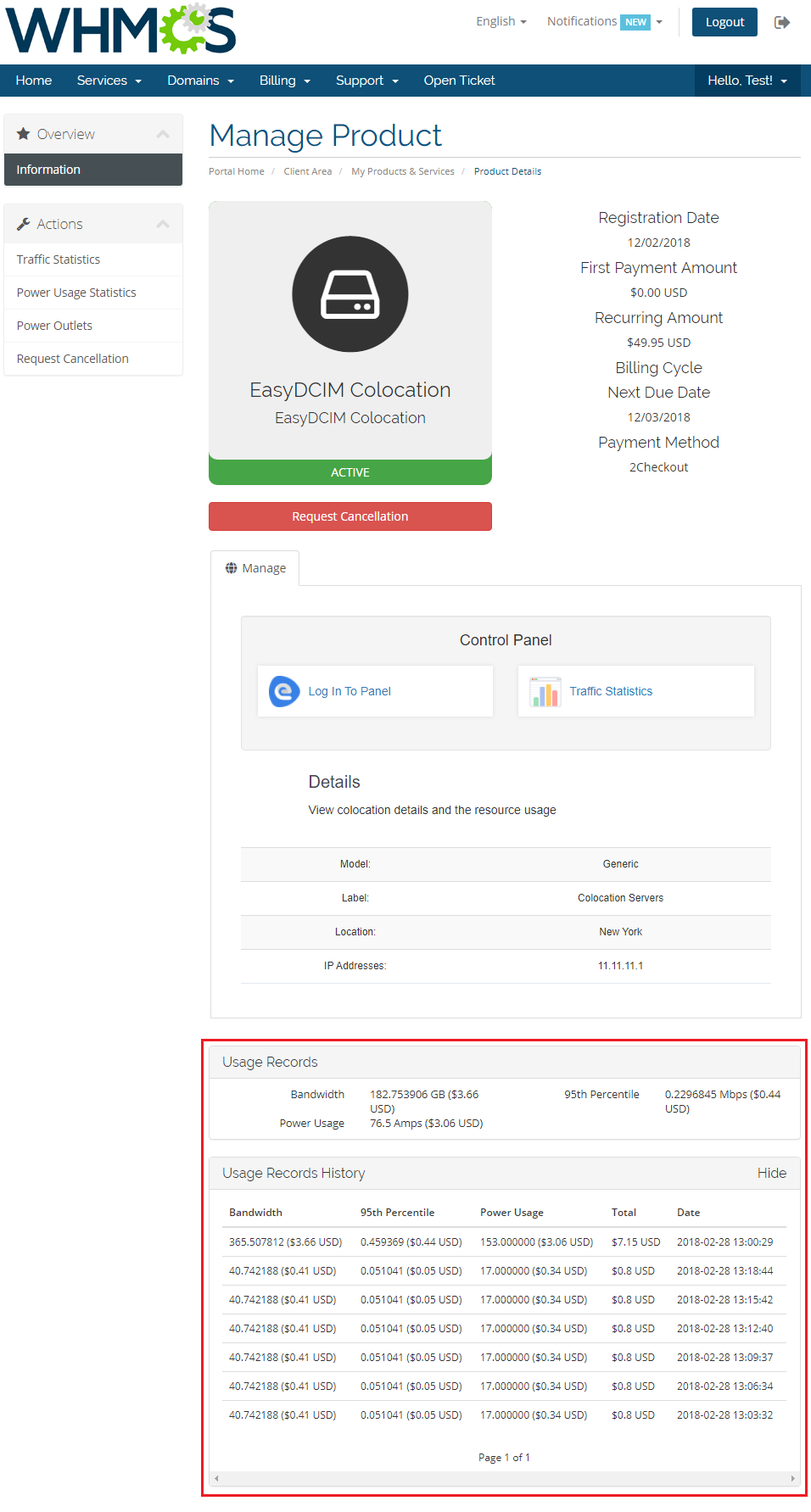
The summary details will be displayed in a similar form also in the product view in admin area.
# Tips
- Note that placing two identical orders may result in assigning servers with slightly different parameters.
It is a natural result of how server matching in EasyDCIM works. In brief, it matches a server basing on the resources and models precised in the order, without considering other resources.
In the first place, the process aims at identifying the server matching the order 100%. When it fails, the server fulfilling the highest number of specifications will be assigned instead.
More information about server provisioning flow can be found on EasyDCIM documentation page (opens new window).
# Update Instructions
Essential guidance through the process of updating the module is offered here.
# Common Problems
- When you encounter problems with connection, check whether your SELinux or firewall does not block ports.